Studio One’s Chord Track makes it efficient to enter chord progressions while producing music. This guide walks through a practical workflow, from selecting the Presence instrument and entering chords with the Chord Selector or a MIDI keyboard to setting up Chord Track playback and converting chords to a MIDI track. It also introduces time-saving techniques such as arrow-key navigation, splitting and merging, helping beginners and intermediate producers work more efficiently.
Entering a Chord Progression
A chord progression is an important part of a song’s mood. The Chord Track lets you enter one efficiently.
Preparing an Instrument
First, add a new instrument for the chords.
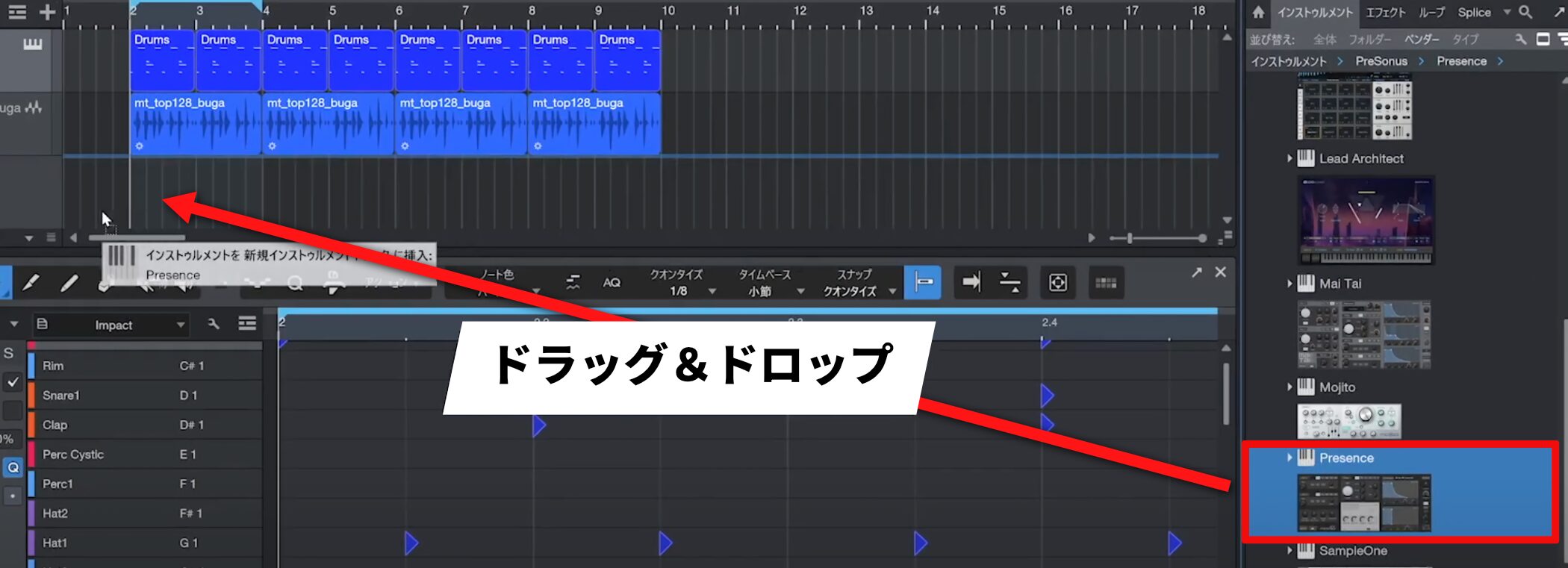
Select Presence under Instruments and drag and drop it as before to add it.
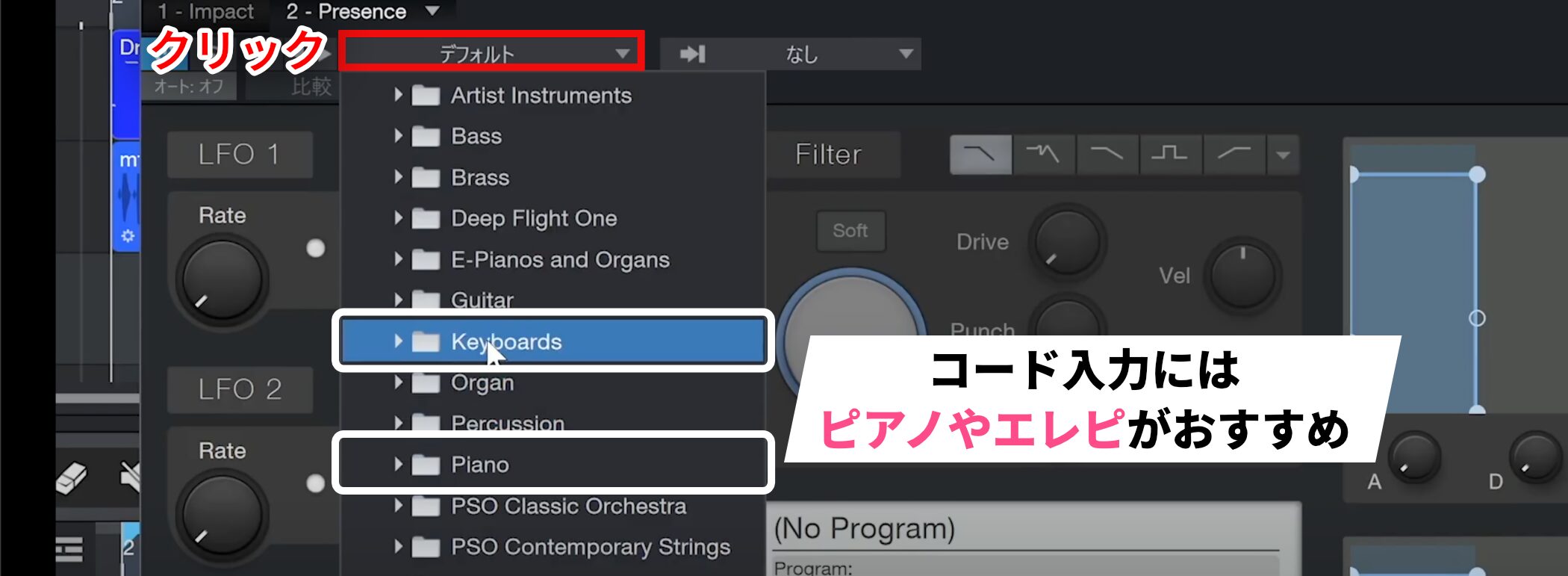
Presence is a multi-instrument containing a variety of instrument sounds.
A keyboard or piano sound is a good choice for entering chords.
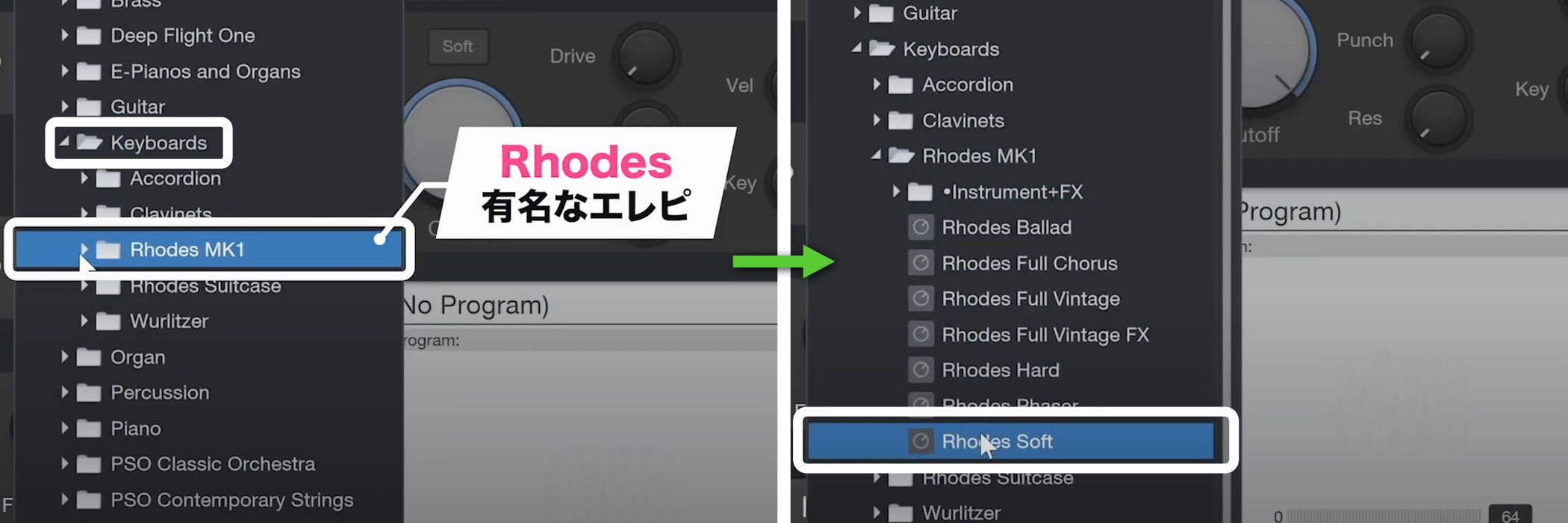
For this example, choose “Soft” under Keyboards → Rhodes, a well-known electric piano sound.
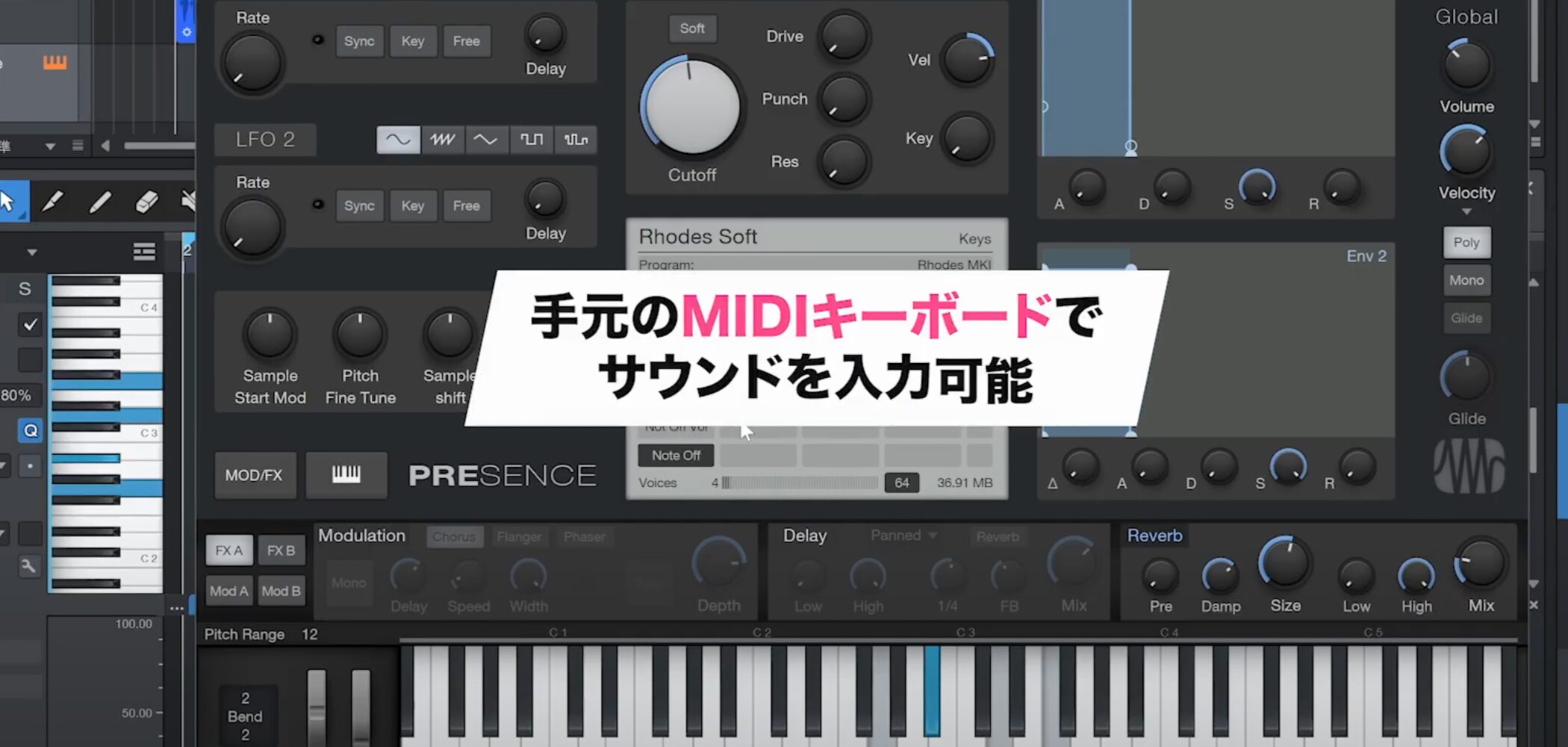
If you have set up a MIDI keyboard, you can use it to play the sound.
This is also convenient when you want to switch between presets while playing to find a sound.
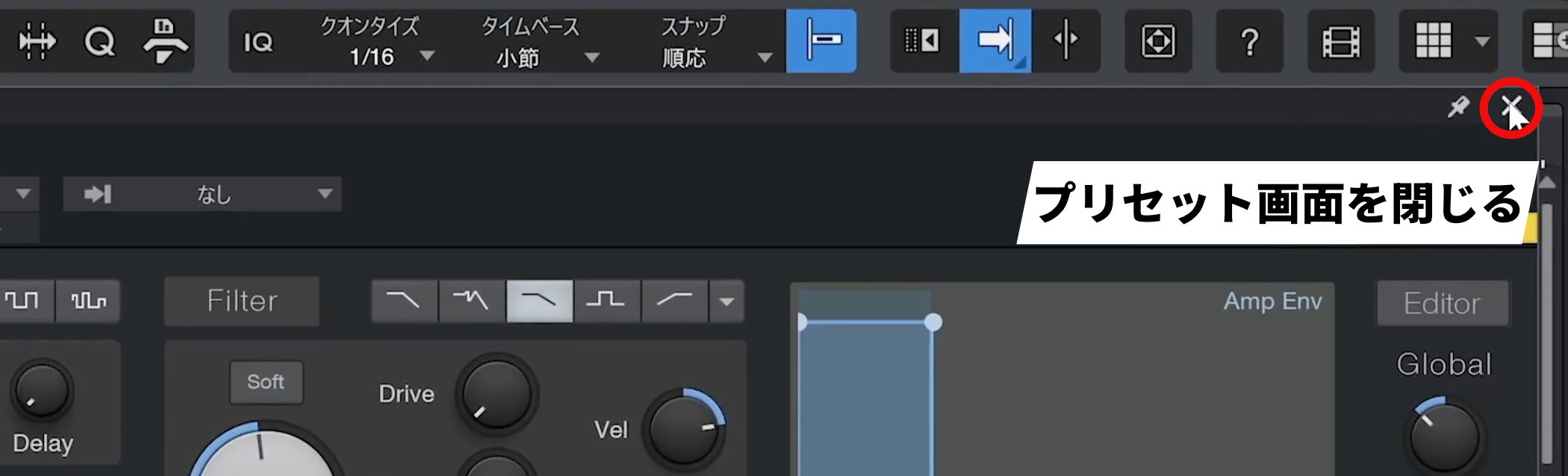
Once you have chosen a sound, you can close the preset window.
Showing and Using the Chord Track
Studio One’s Chord Track is a useful tool for entering chords.
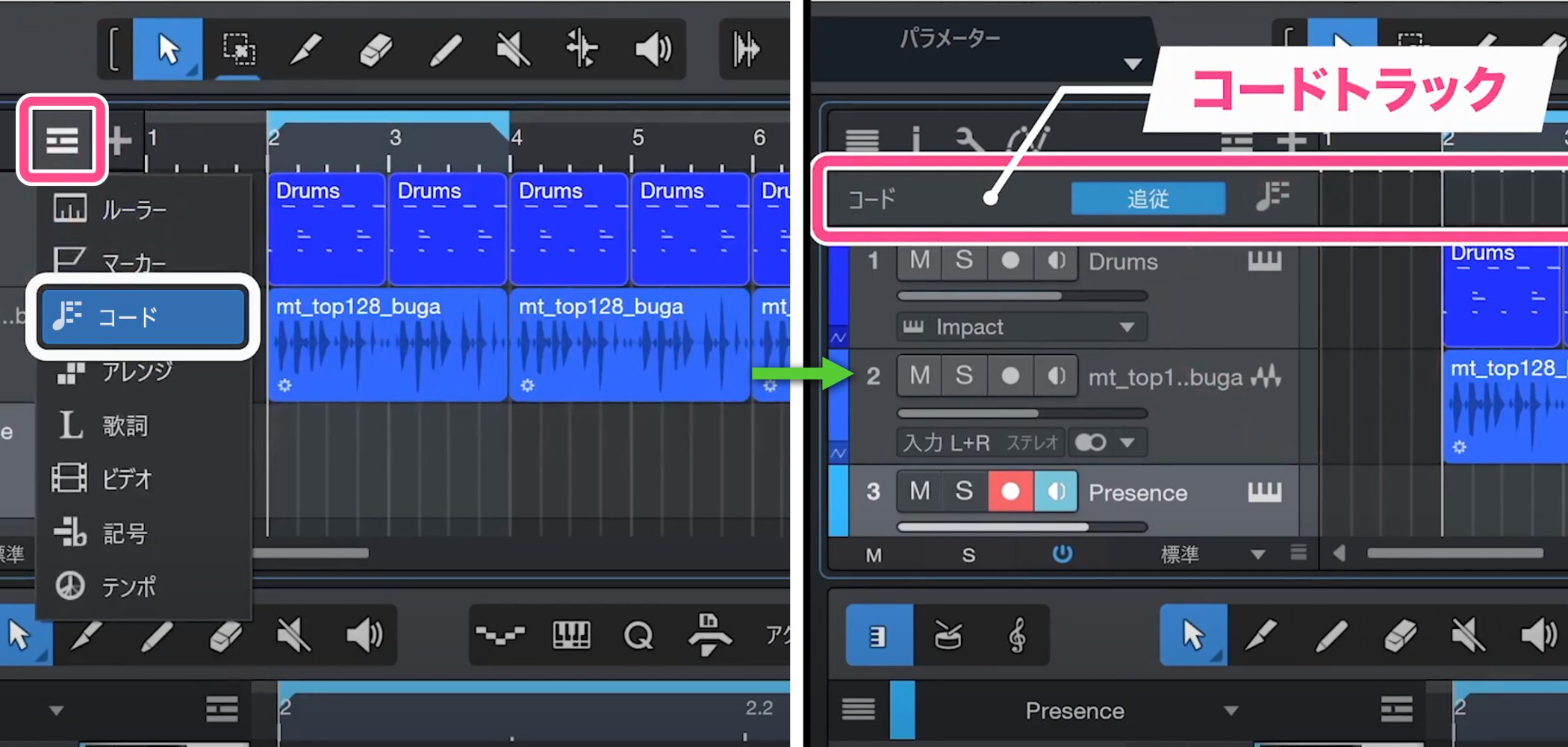
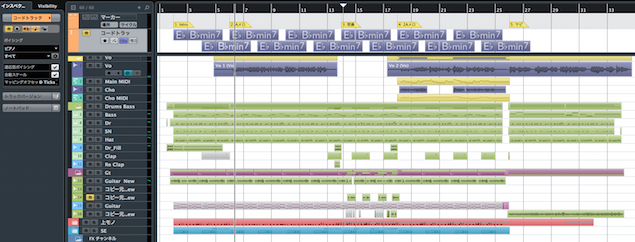
Select “Chord” from the icons above the tracks to show the Chord Track.
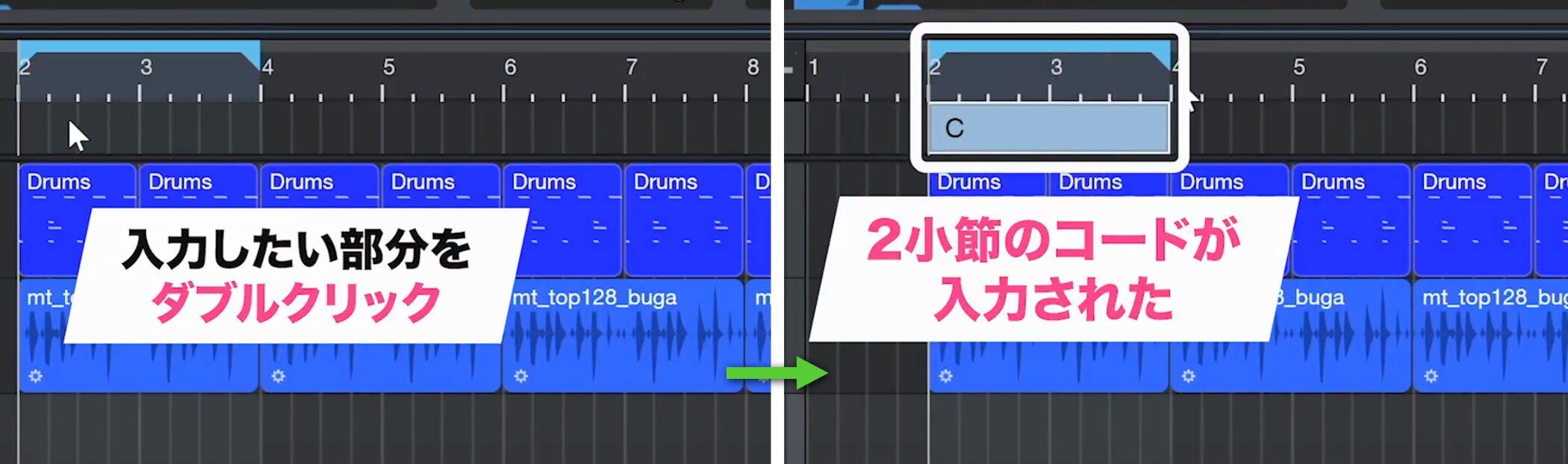
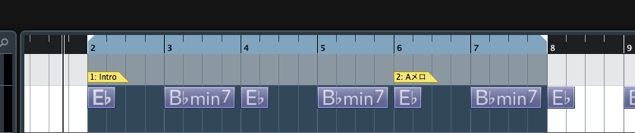
Click where you want to enter a chord, and a chord event is created.
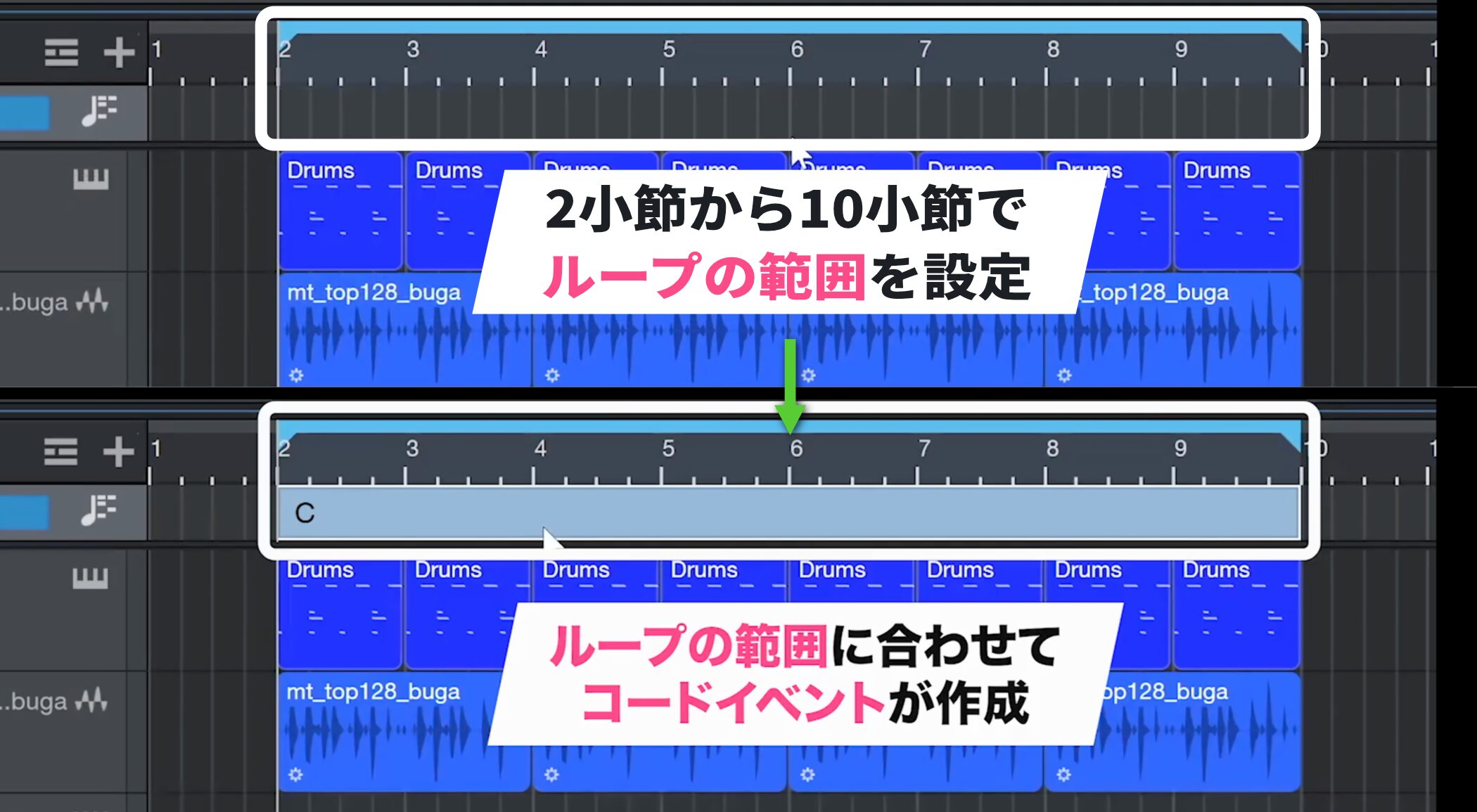
The length of the chord event is automatically determined by the current loop range.
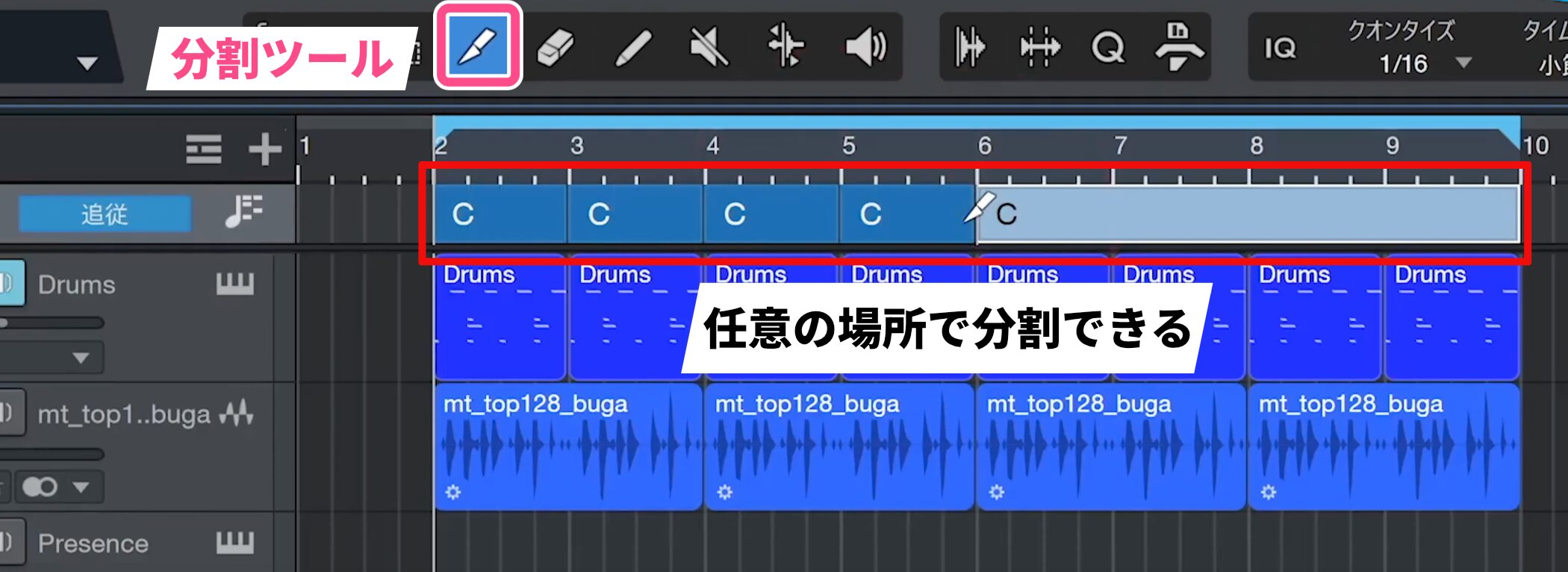
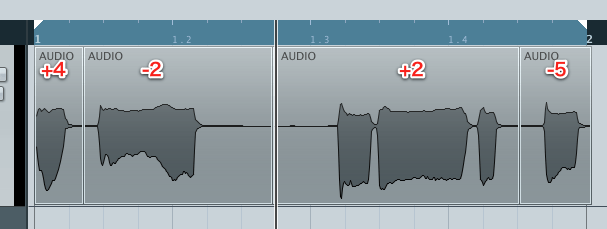
On the Chord Track, select the Split tool and click an event at the desired position to split it.
You can then assign a different chord to each section.
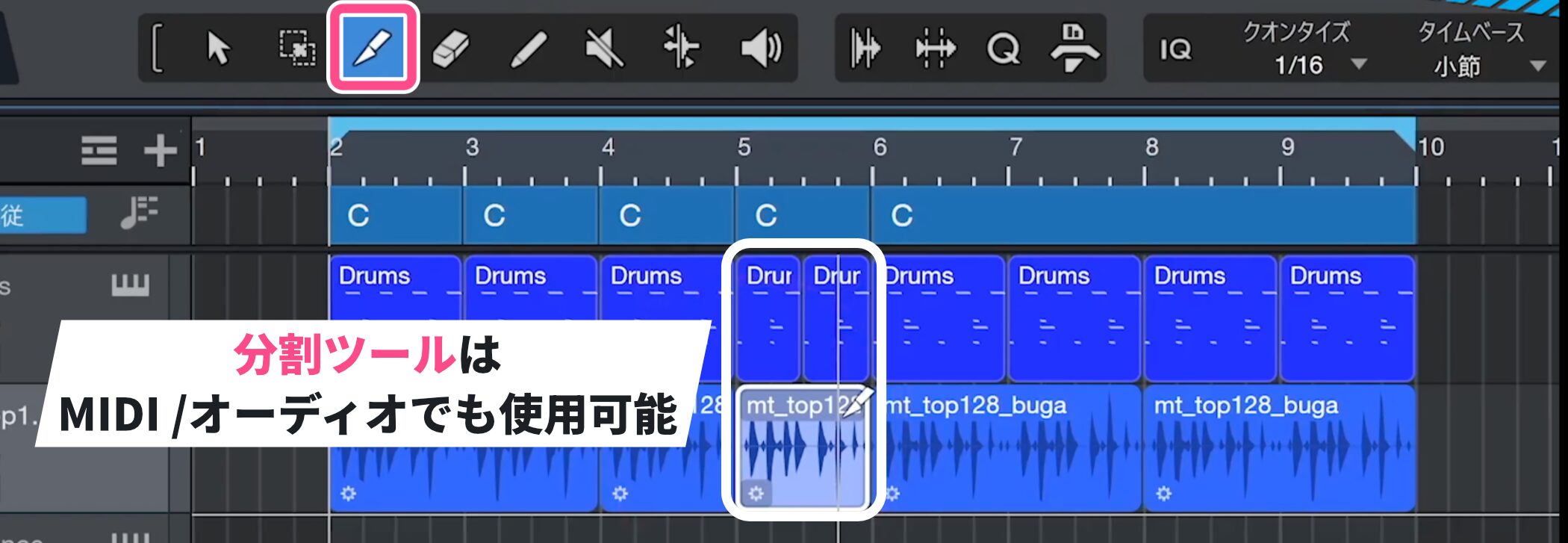
The Split tool is versatile and also works on MIDI and audio events.
Entering Chords with the Chord Selector
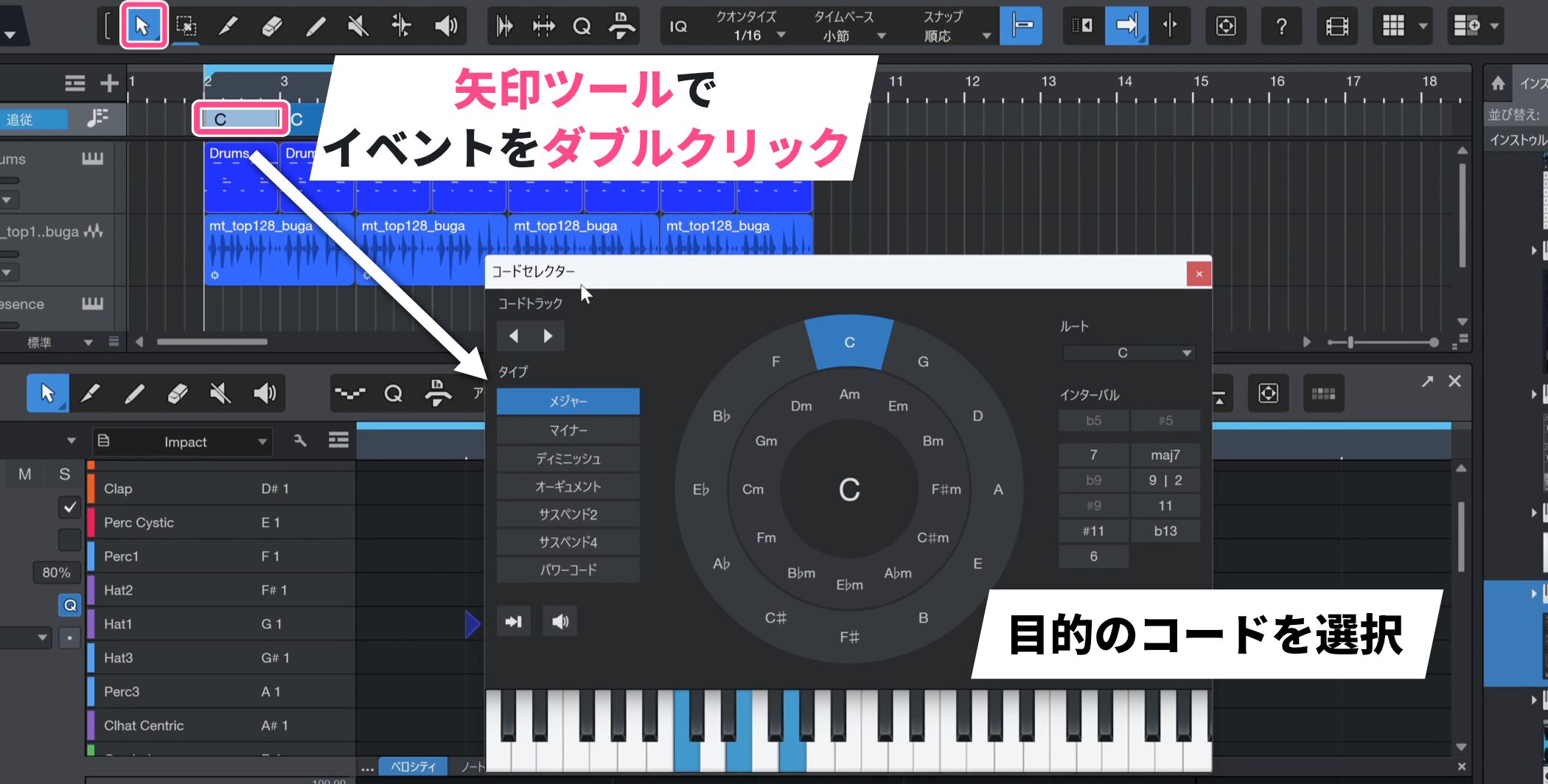
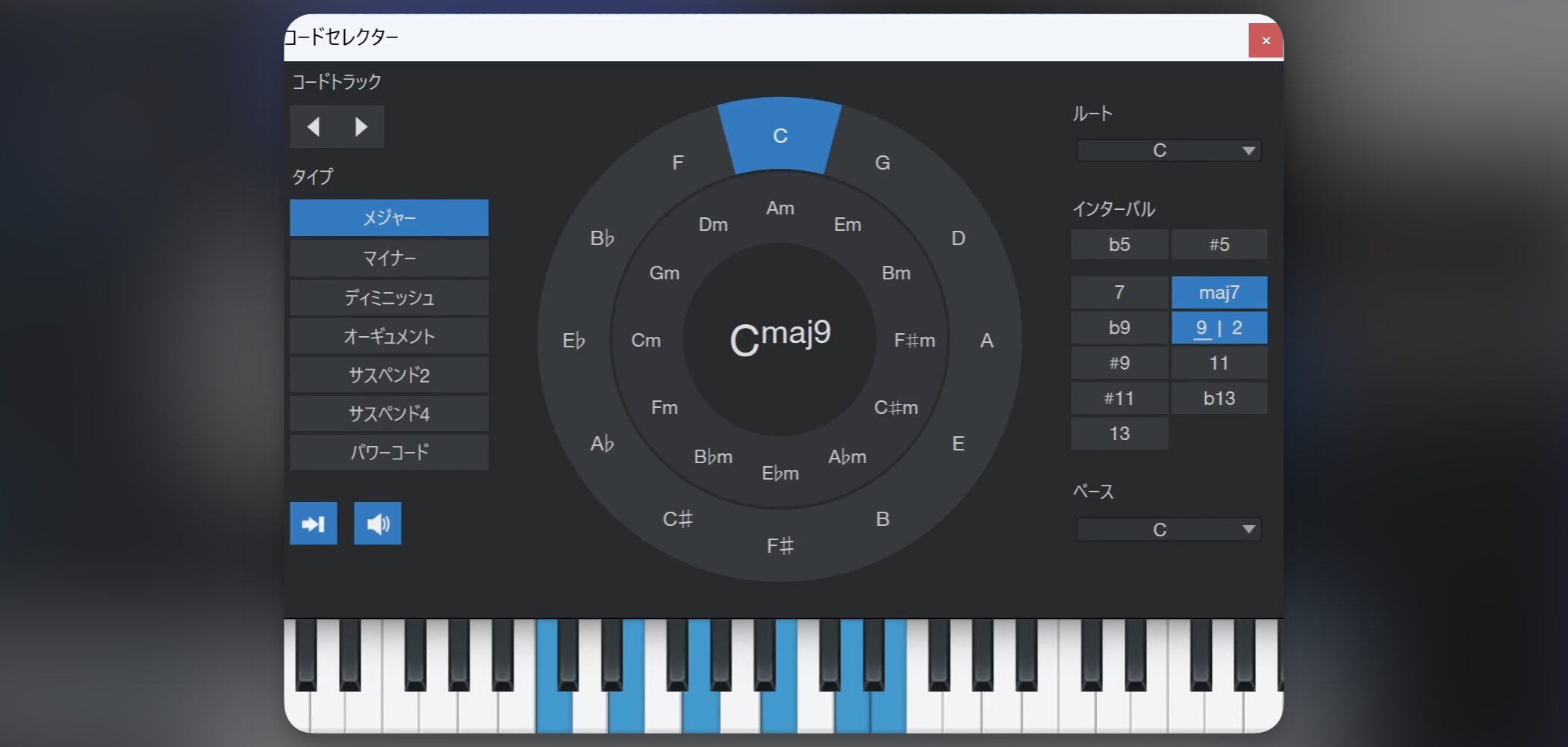
Double-click a chord event with the Arrow tool to open the Chord Selector, then select the chord you want.
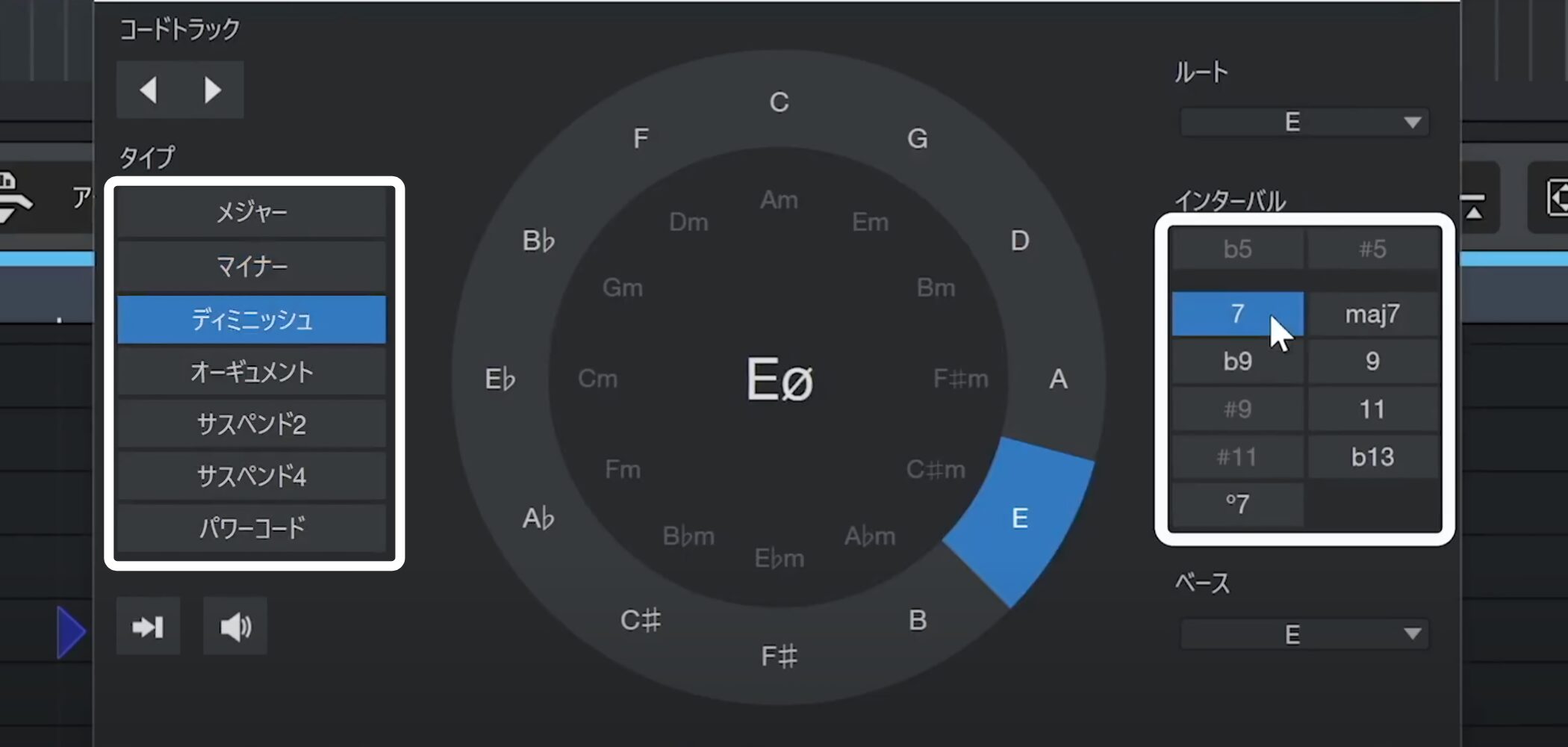
You can select basic chord types such as major, minor and diminished, and add sevenths or tensions under “Intervals.”
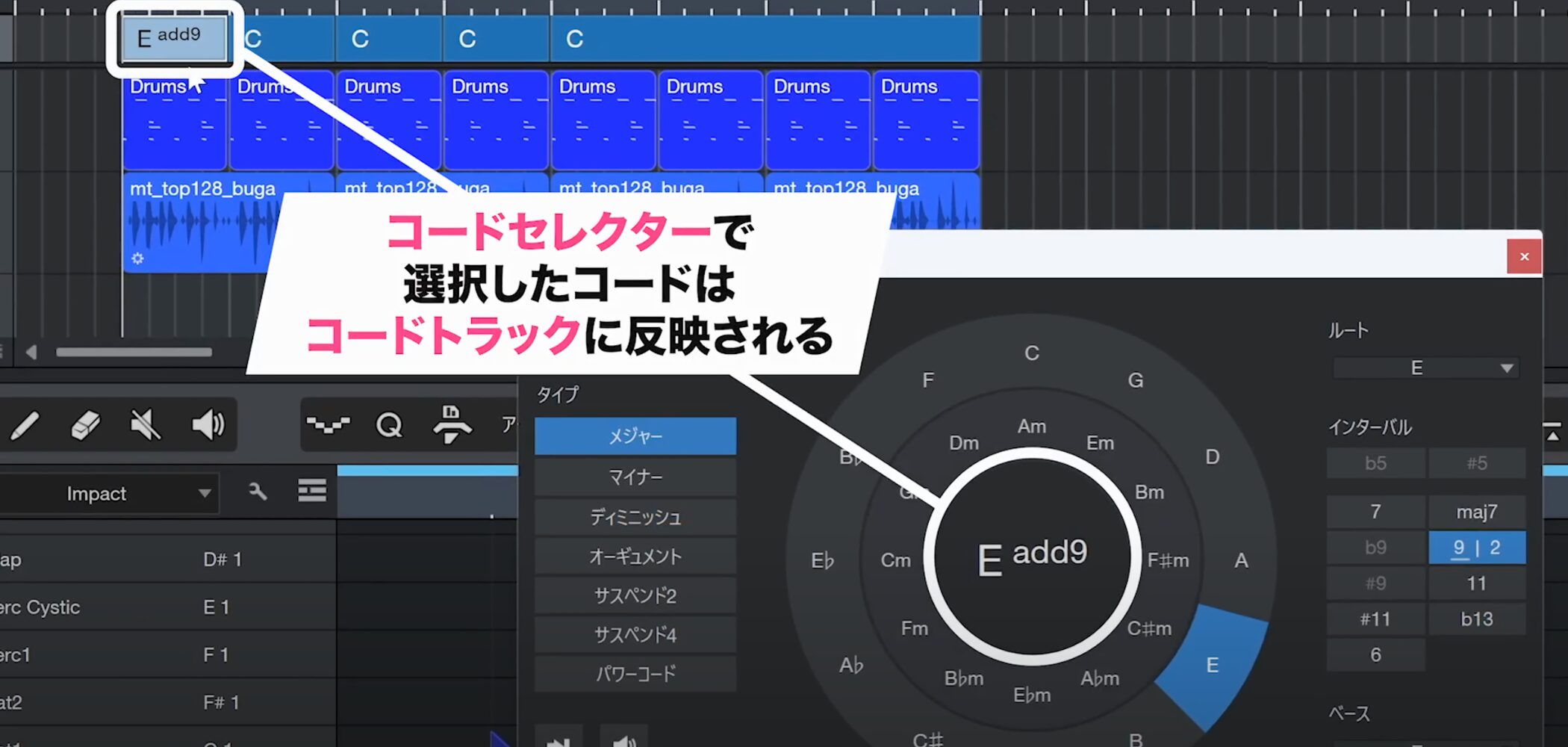
The selected chord is immediately applied to the event.
Auditioning Chords and Entering Them with a MIDI Keyboard
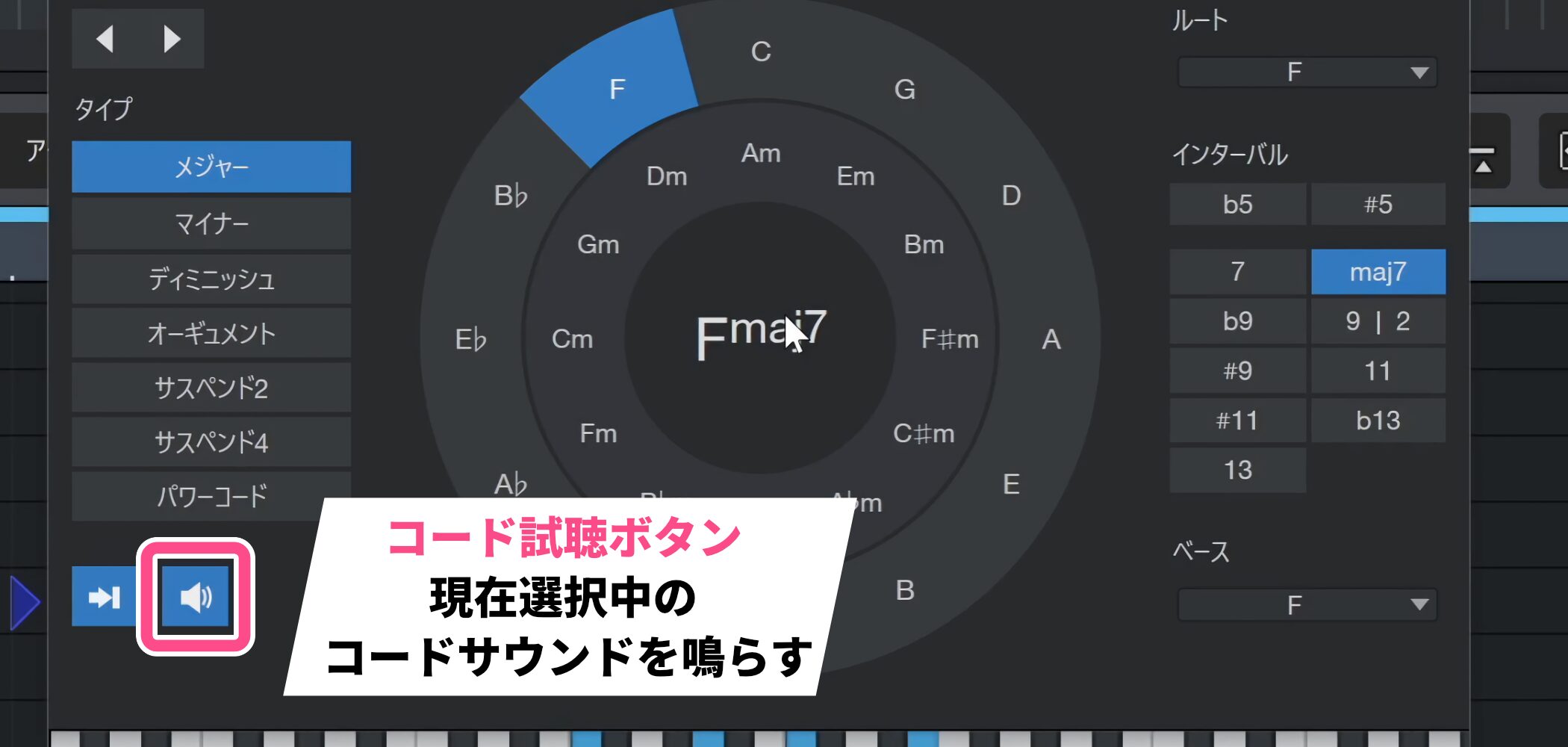
Turn on the “Audition Chords” button to hear the currently selected chord while deciding which one to use.
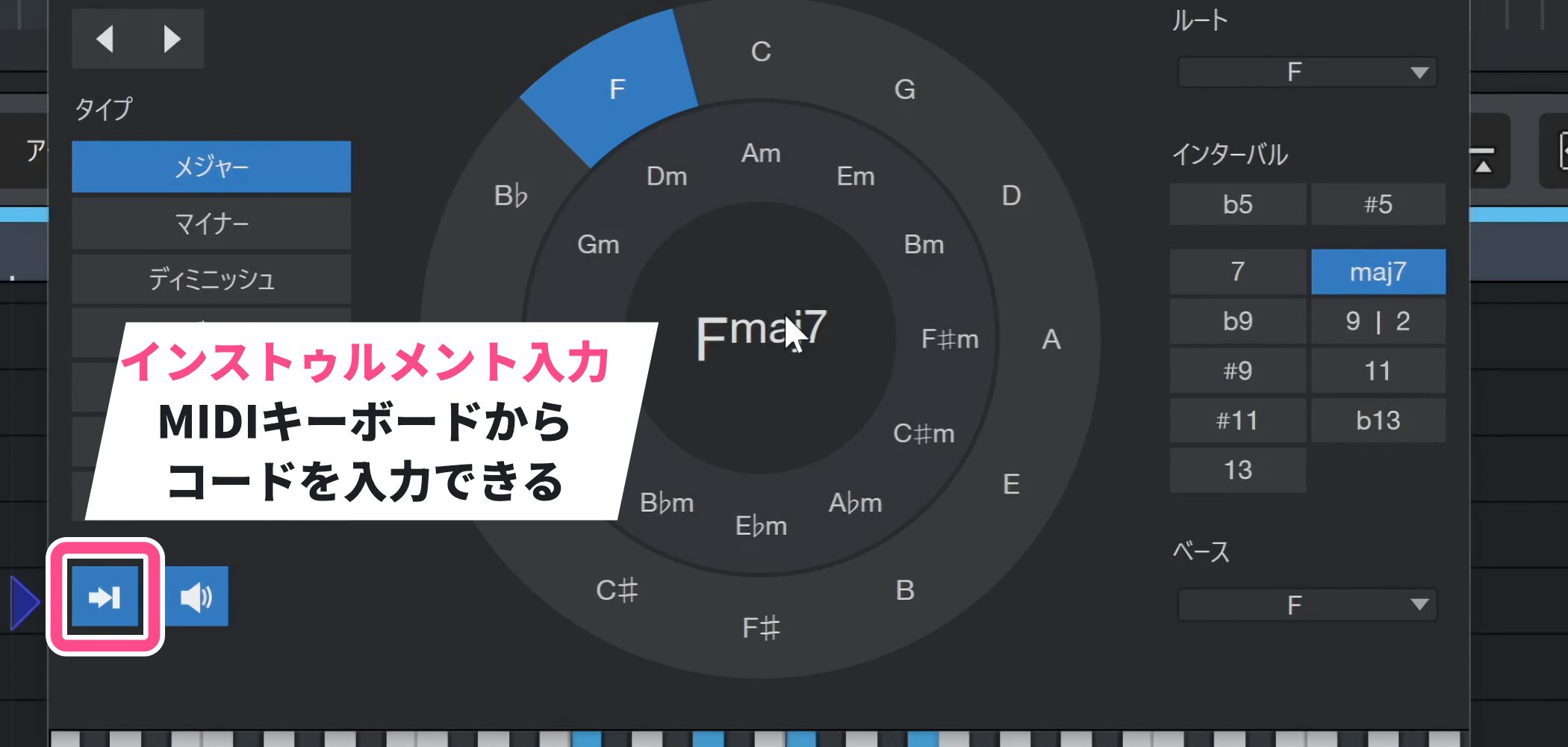
You can also enable “Instrument Input” to enter chords directly from a MIDI keyboard.
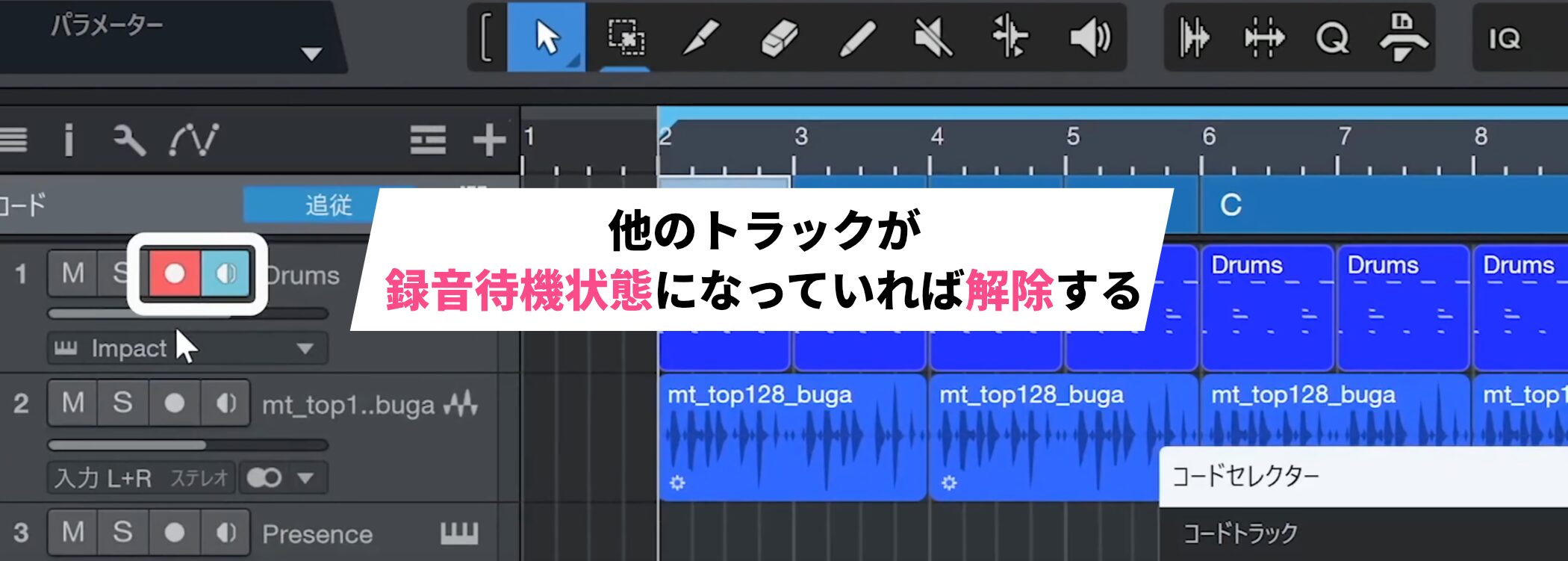
When entering chords from a MIDI keyboard, check whether any other tracks are record-enabled.
If they are, turn record enable off beforehand; otherwise, several tracks may sound at once when you play.
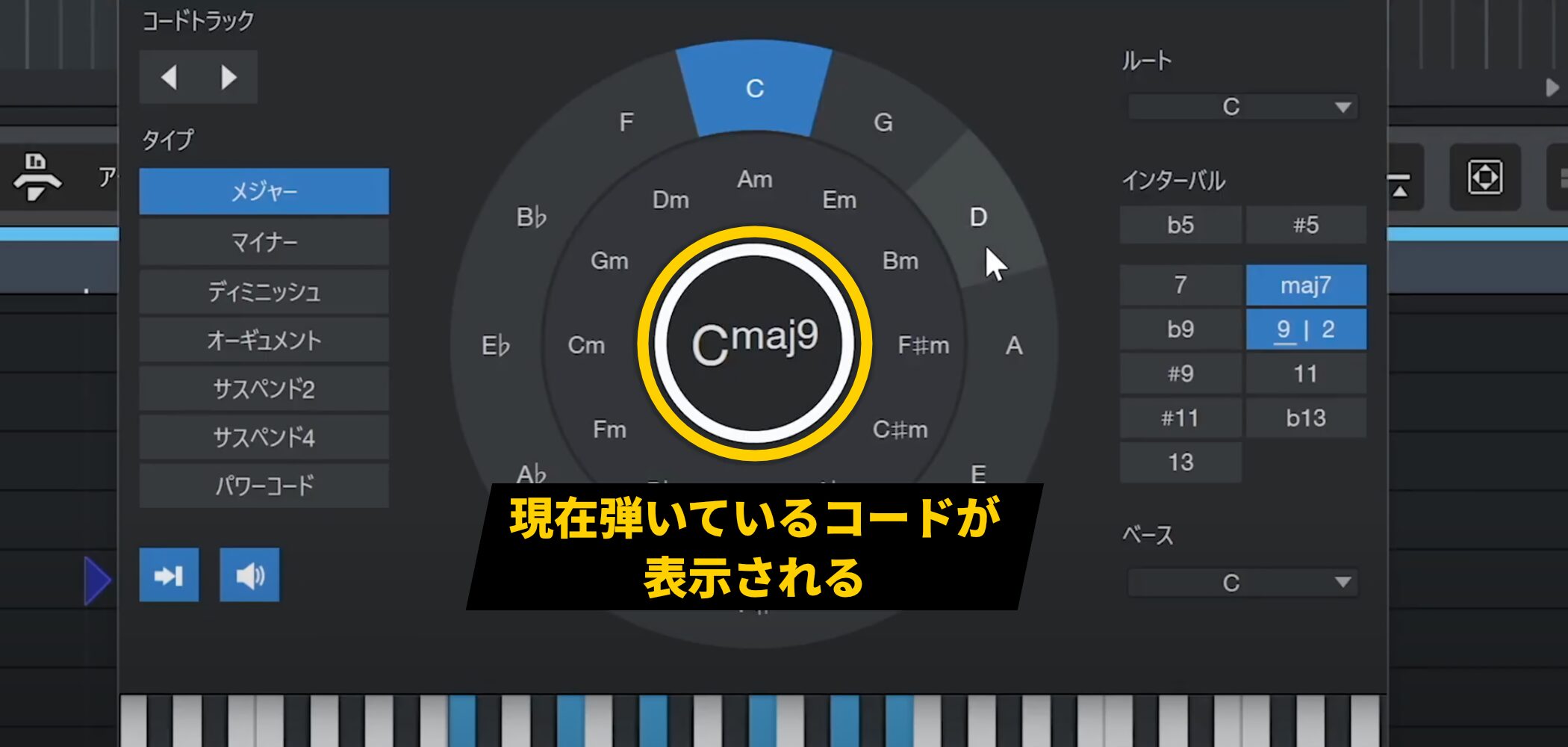
If you play a chord and wonder what it is, its name appears in the center of the screen, helping you identify it.
Setting the Chord Track Playback Instrument
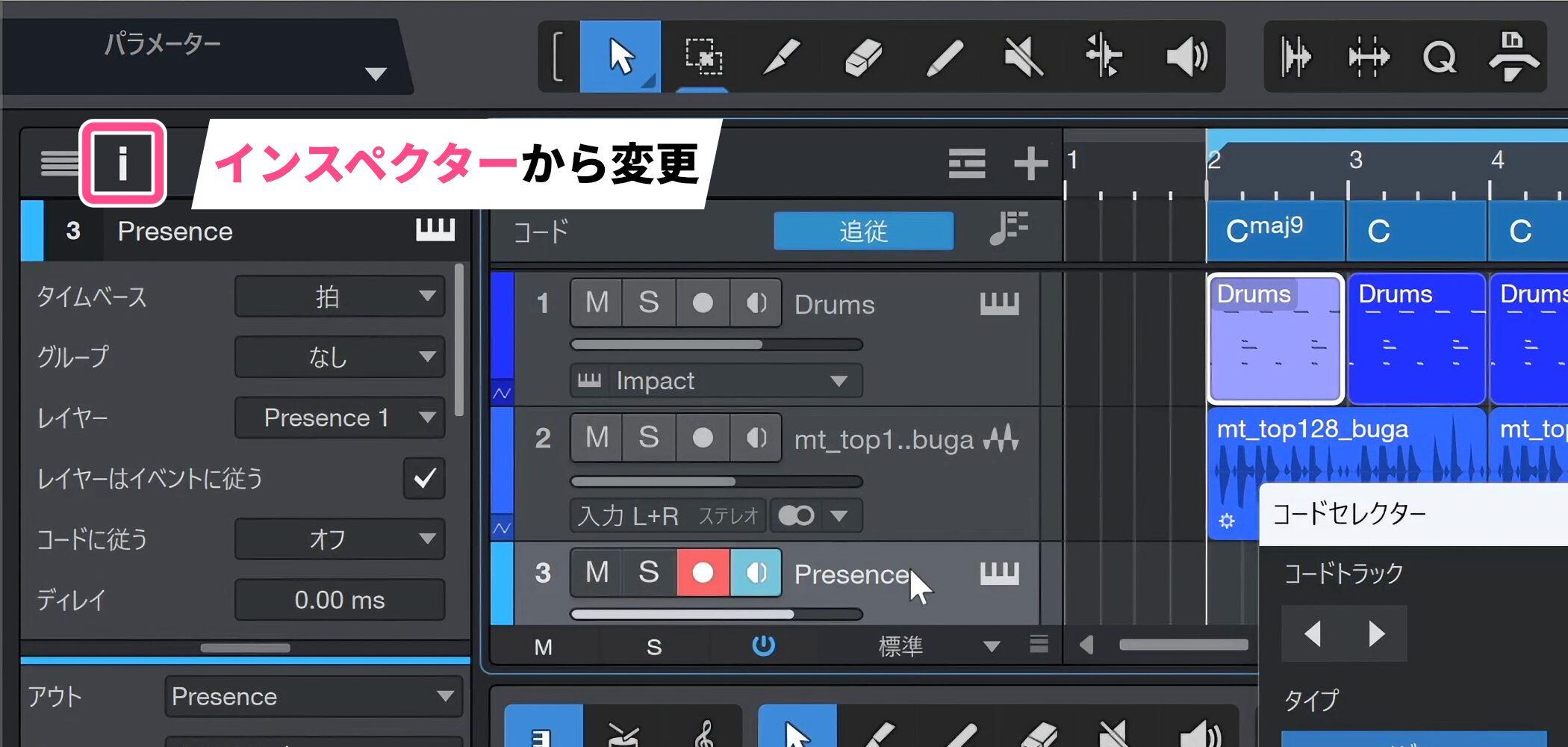
To hear chords through the electric piano you set up instead of the Chord Selector’s default sound, change the setting in the Inspector.
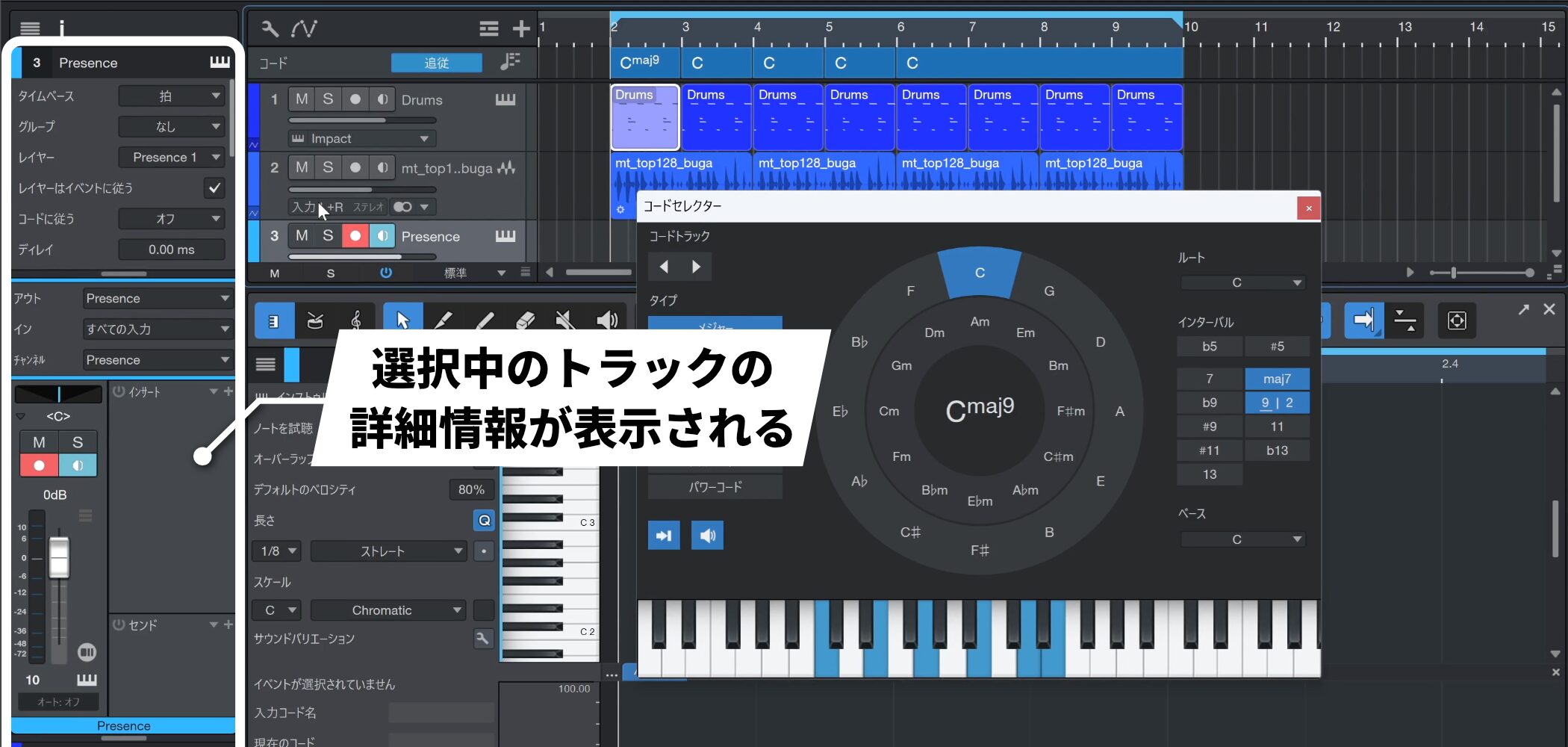
The Inspector displays detailed information about the currently selected track.
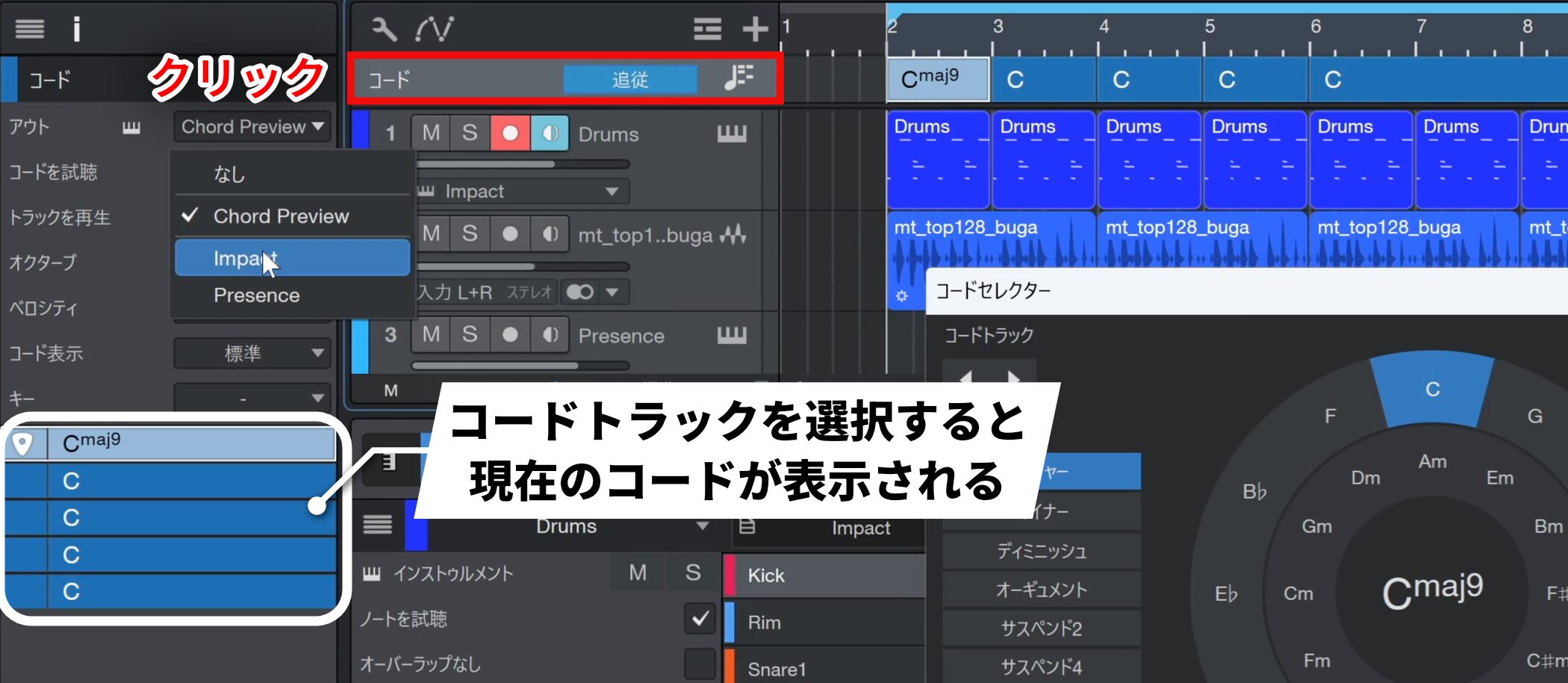
Select the Chord Track to show its specific settings.
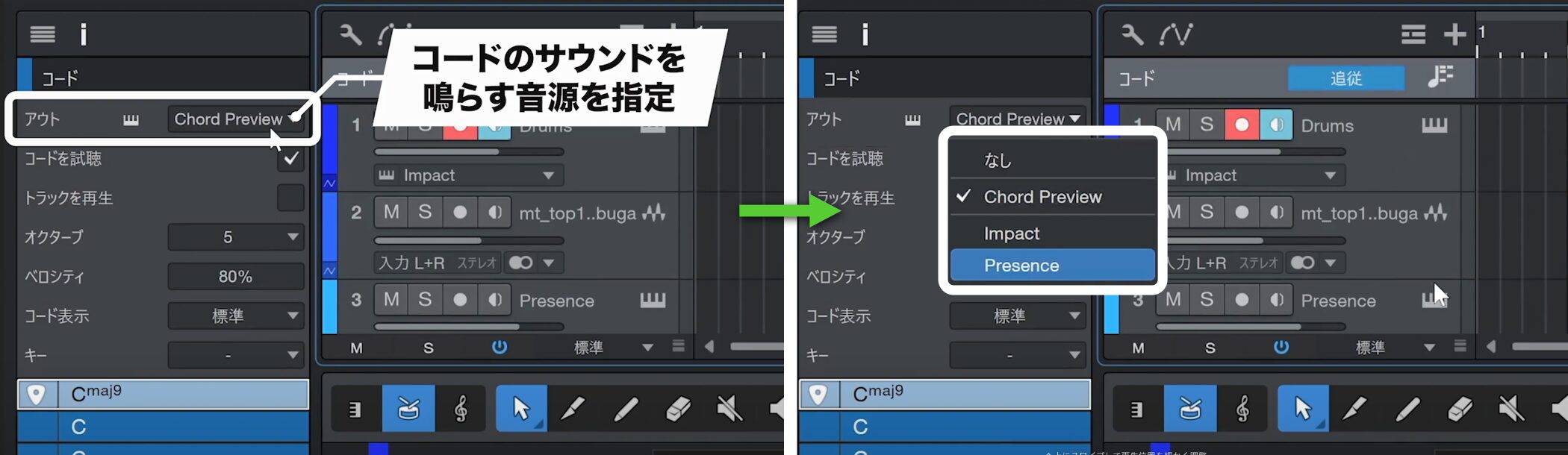
Click “Out” to choose the instrument that plays the chord sound.
Entering the Progression
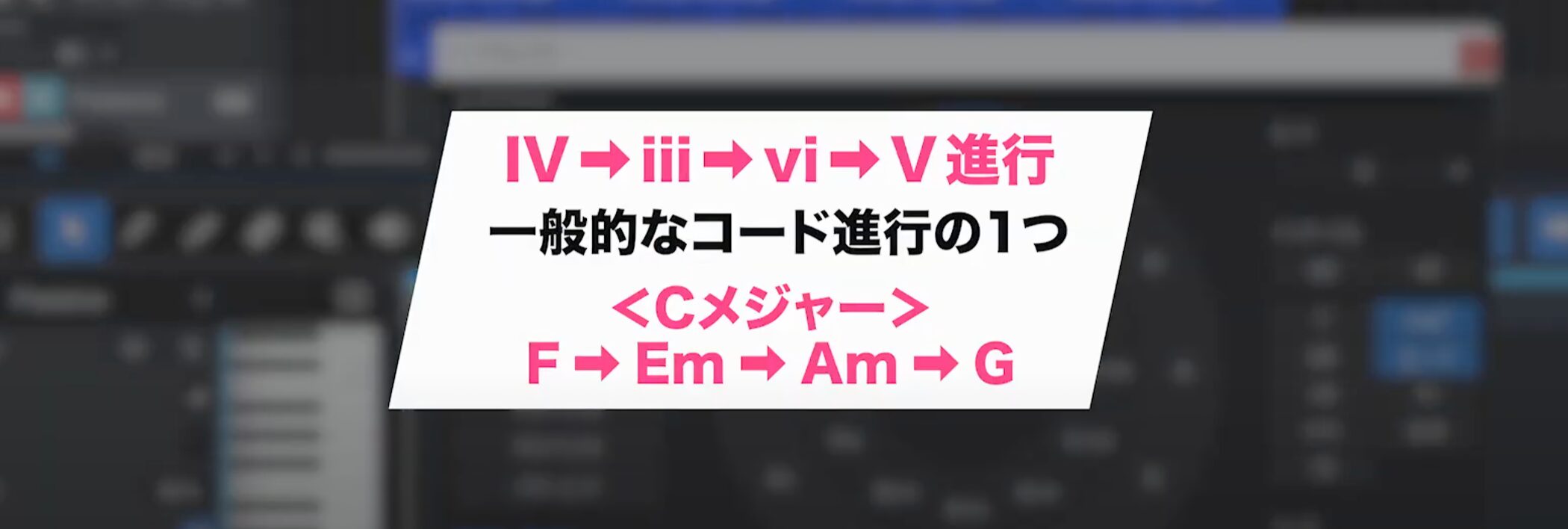
Let’s enter a common 4–3–6–5 progression for the chorus: F → Em → Am → G in C major.
You can create the progression efficiently by entering the chords directly from a MIDI keyboard.
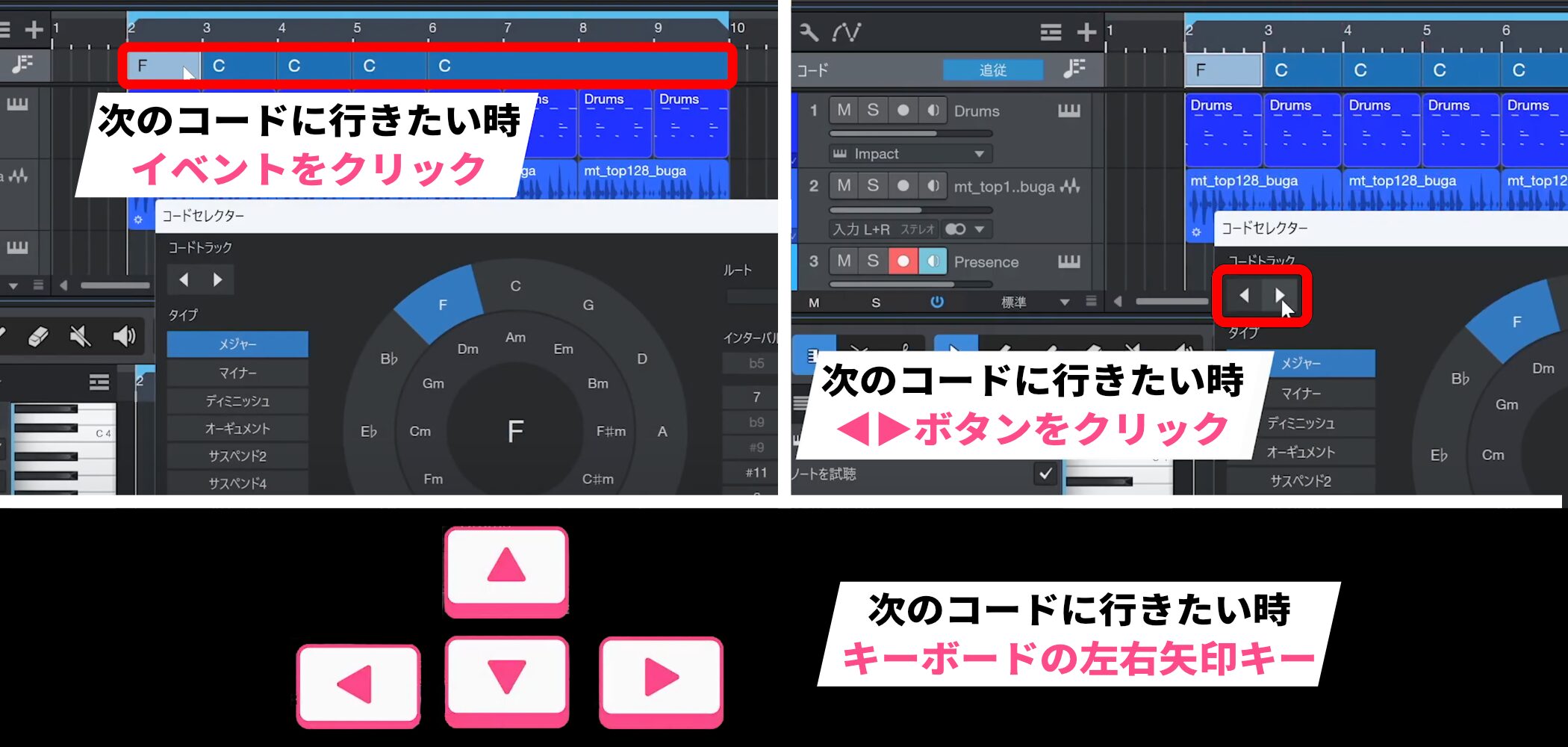
There are several ways to move to the next chord event:
- Click the event directly.
- Click the ◀︎ or ▶︎ button in the Chord Selector.
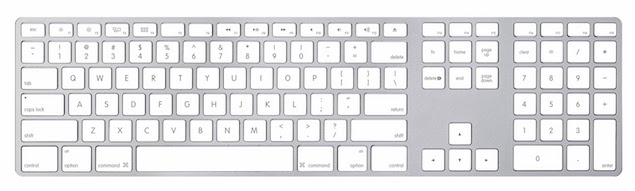
- Use the left and right arrow keys on your computer keyboard, the most efficient method.
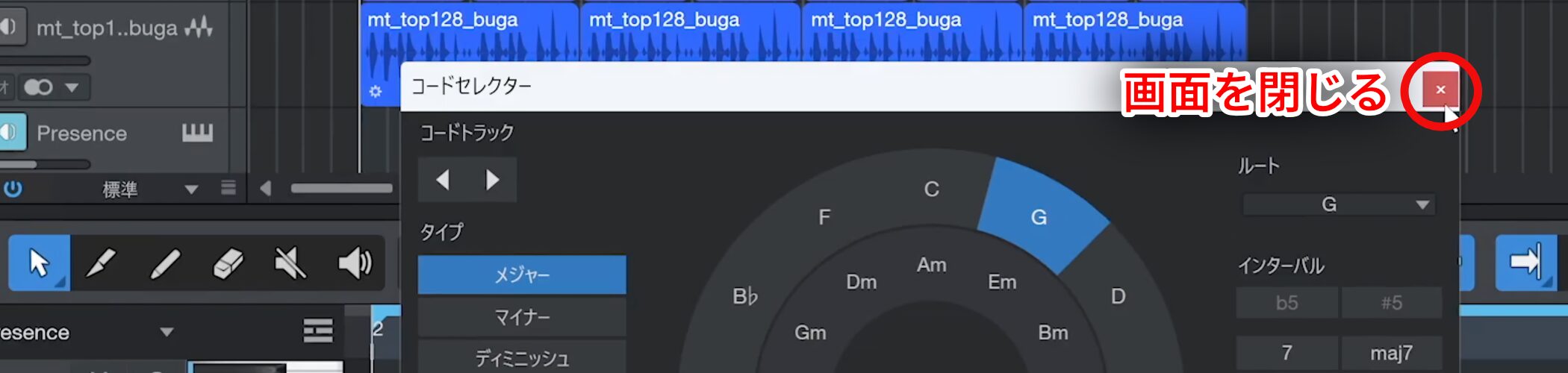
When you have finished entering chords, you can close the window.
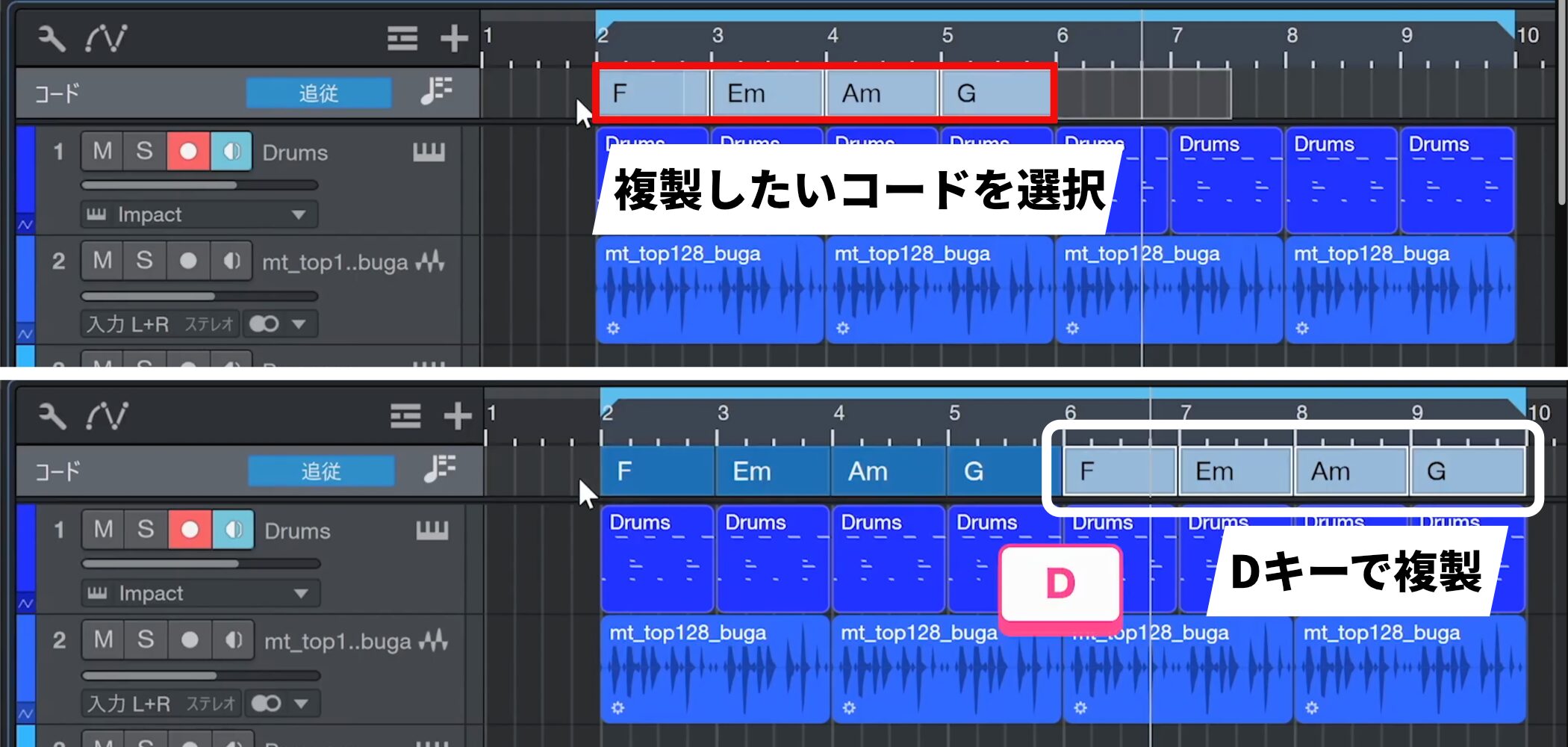
Edit the Chord Track like other events. For example, select an event and press D to duplicate it.
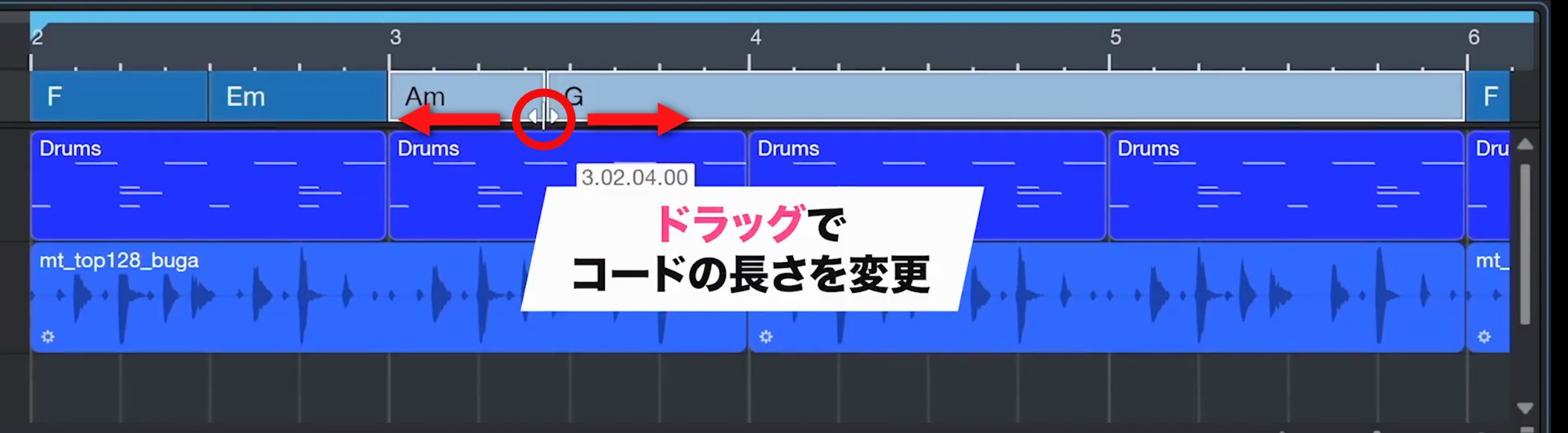
To change a chord’s length, drag its edge left or right.
Setting Chords to Play Automatically
After entering the chords, you will probably want to listen to them. Normally, pressing Play alone will not sound the chords.
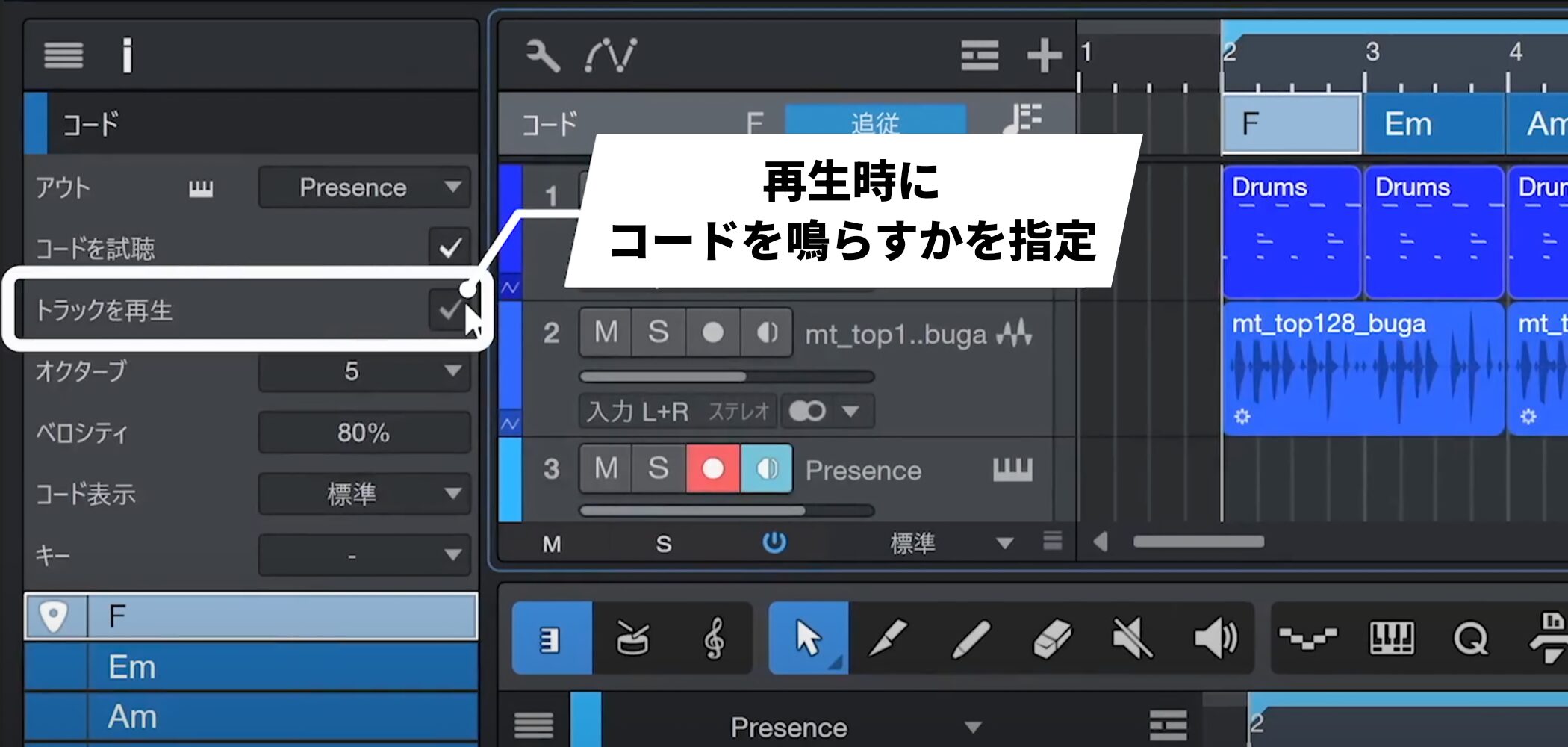
Check “Play Track” in the Inspector to hear the chords during playback.
Converting the Chord Track to a MIDI Track
You can convert the entered chords into a MIDI track.
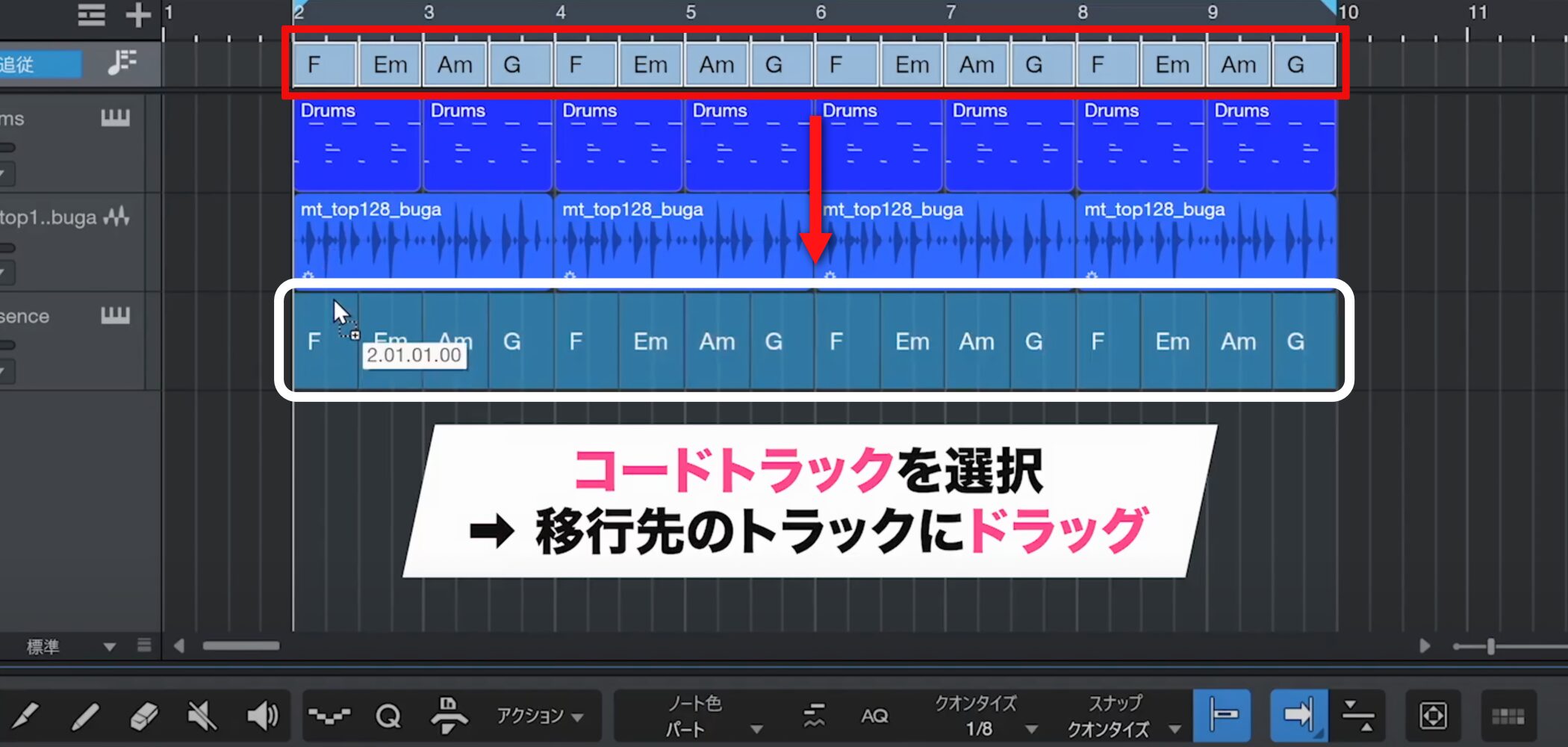
Select the section of the Chord Track you want to convert and drag it onto the destination MIDI track.
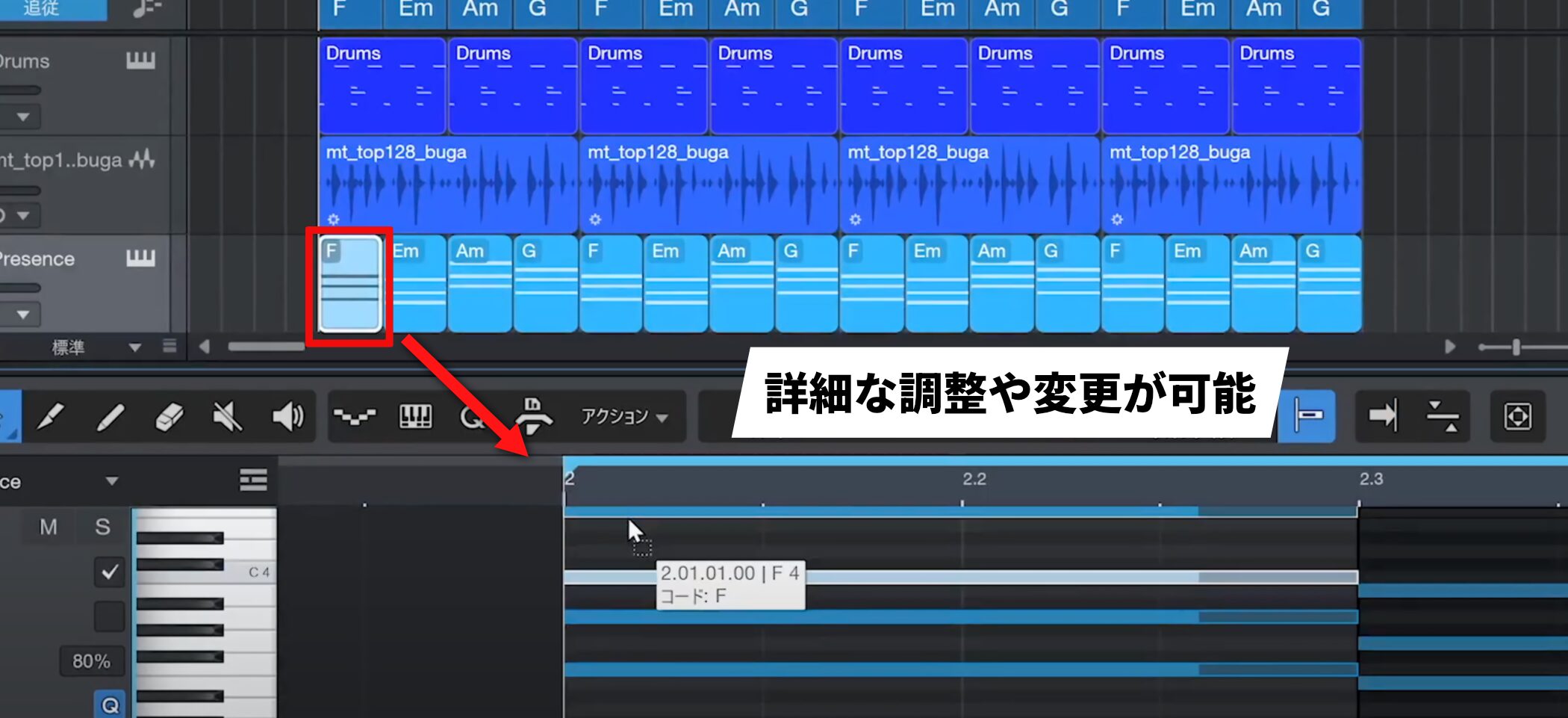
After conversion, you can make detailed adjustments and changes to the MIDI data.
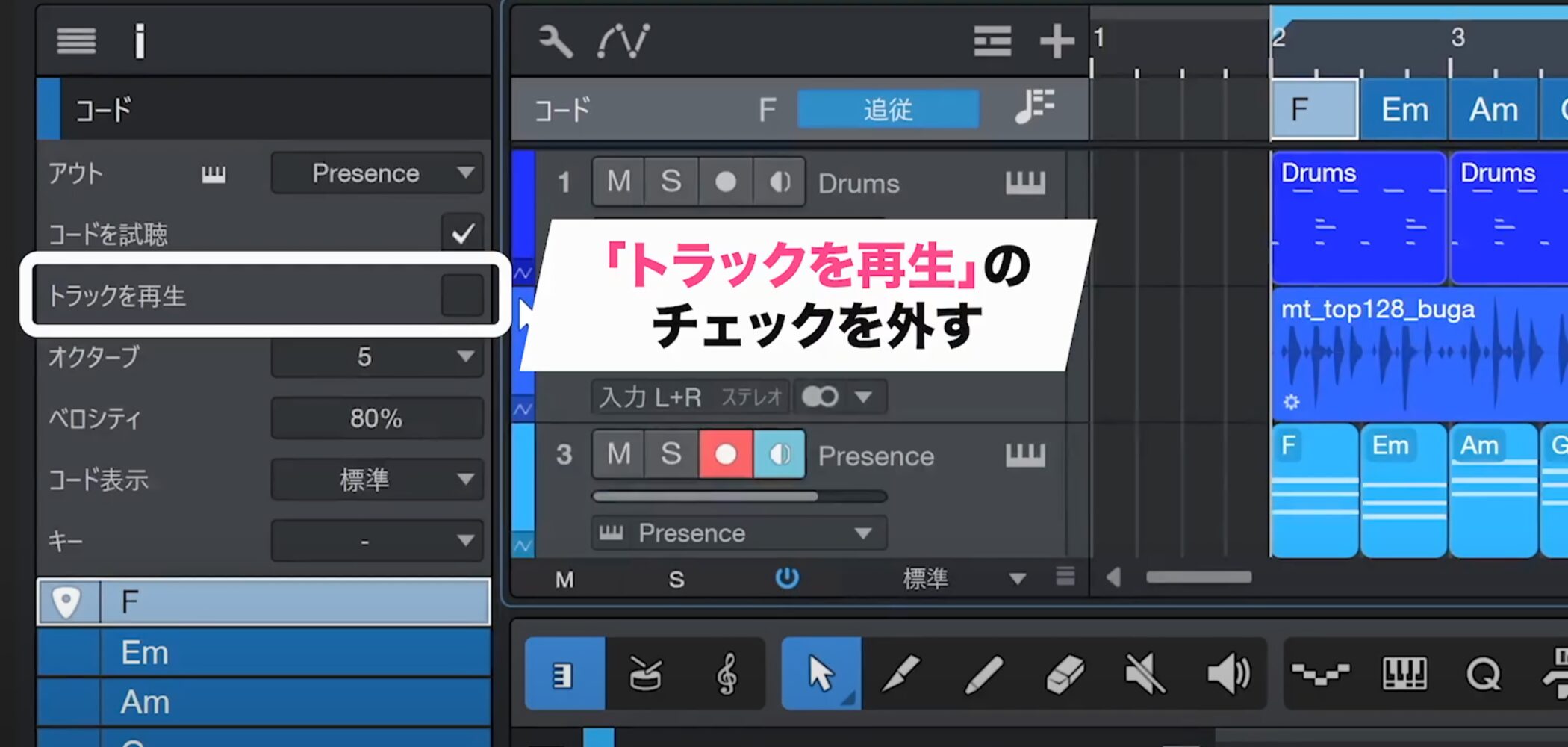
To avoid hearing both the Chord Track and the MIDI track at once, remember to uncheck “Play Track” after moving the chords to the MIDI track.
Organizing Events by Merging
If split events make the arrangement difficult to read, you can merge them to keep it organized.
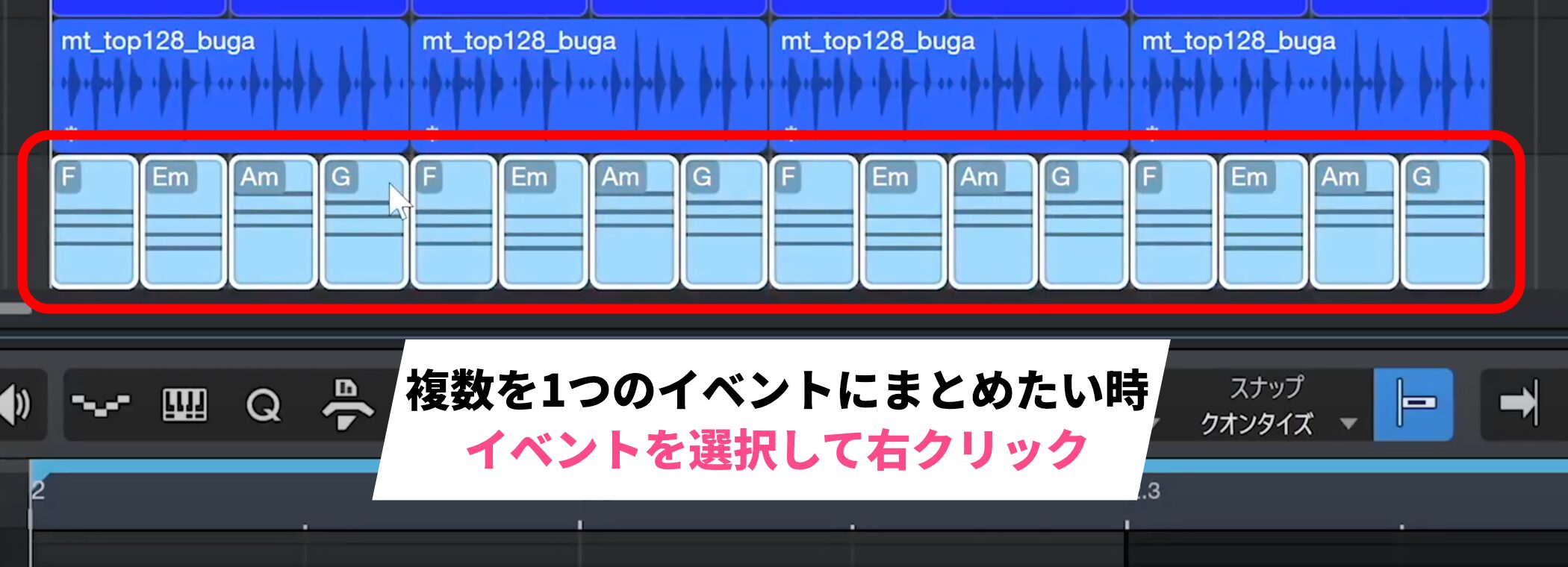
Select the events you want to combine and right-click.
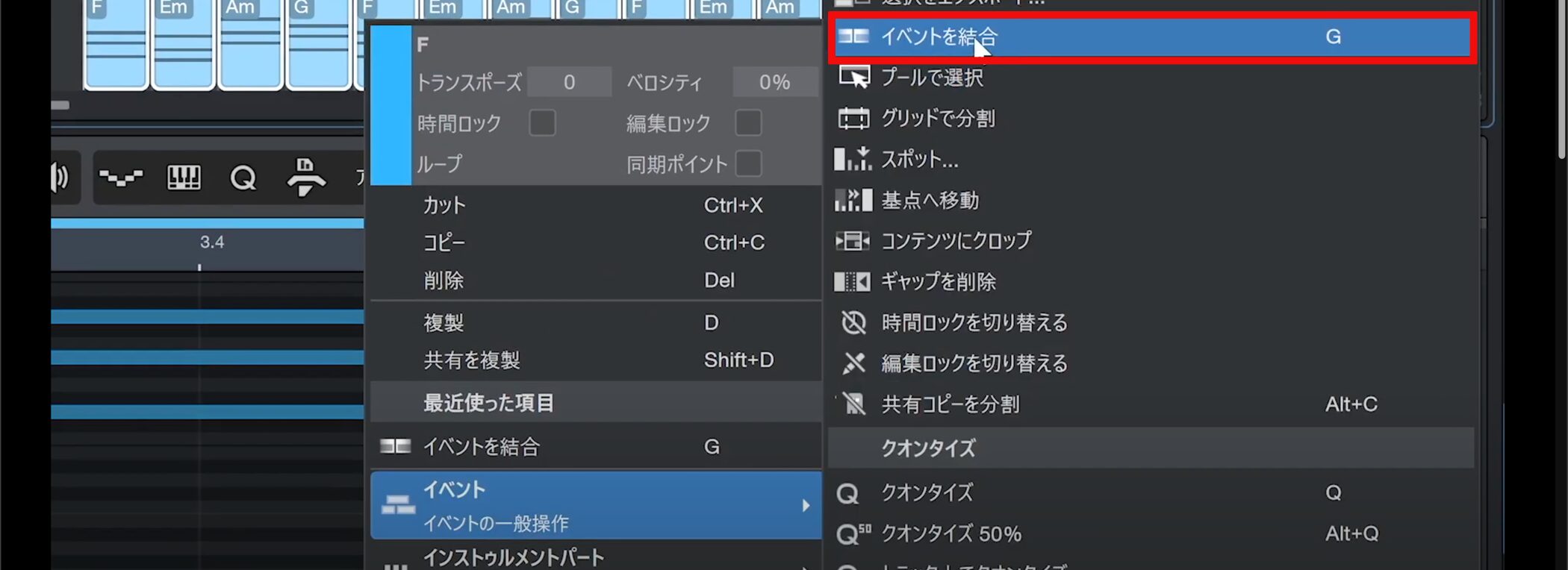
Choose Event → Merge Events from the menu.
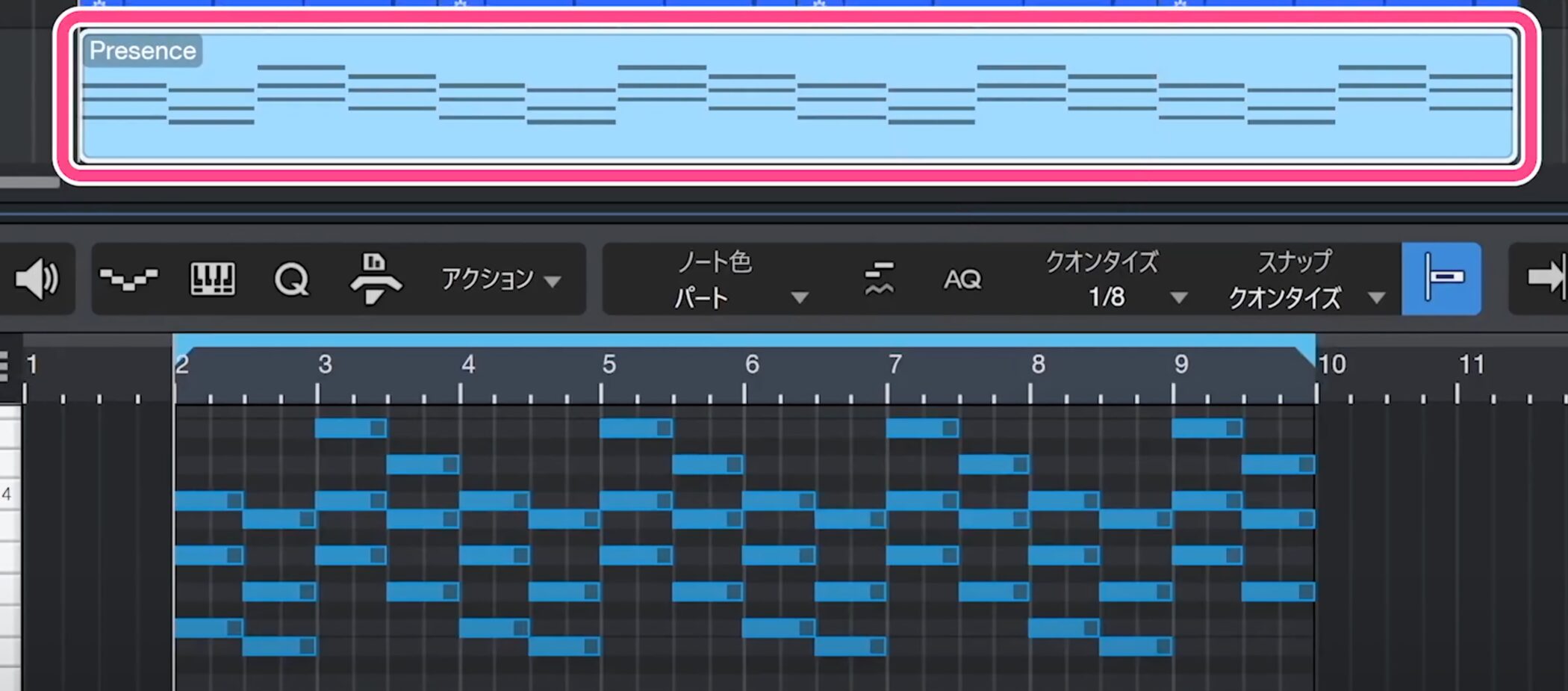
The selected events are merged, making them easier to edit.
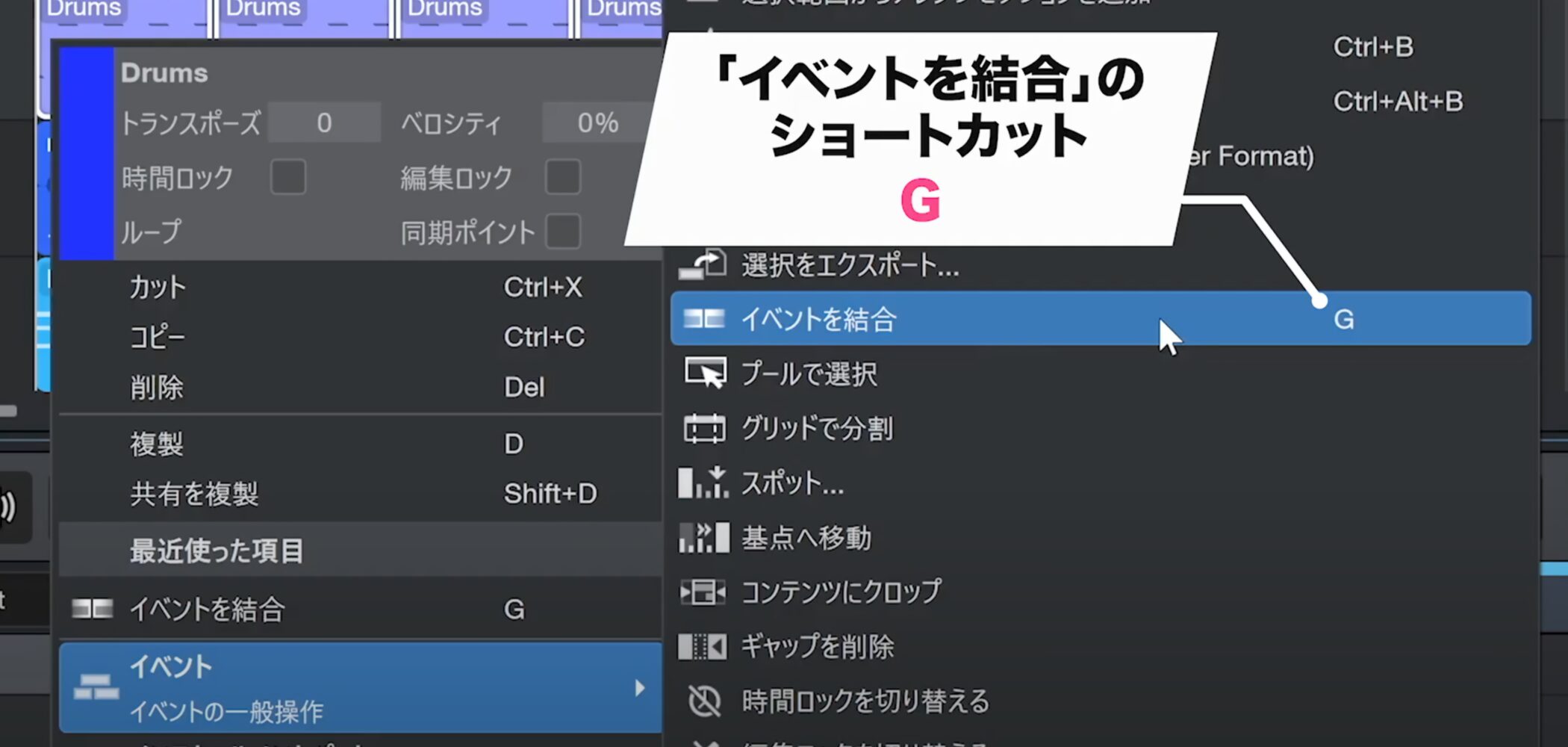
For a faster method, the G key is assigned as a shortcut: select the events and press G to merge them.
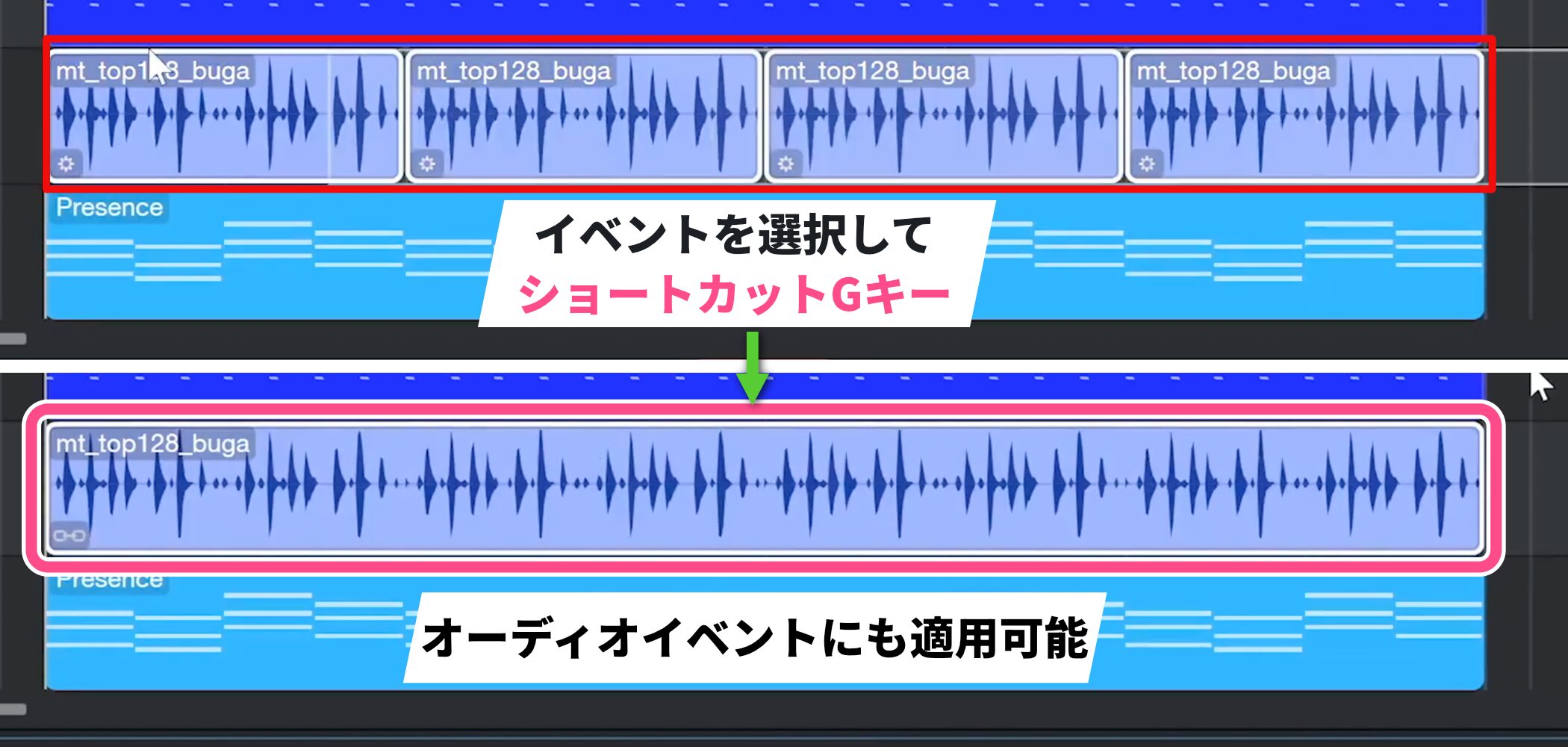
This function works on audio events as well as MIDI events.
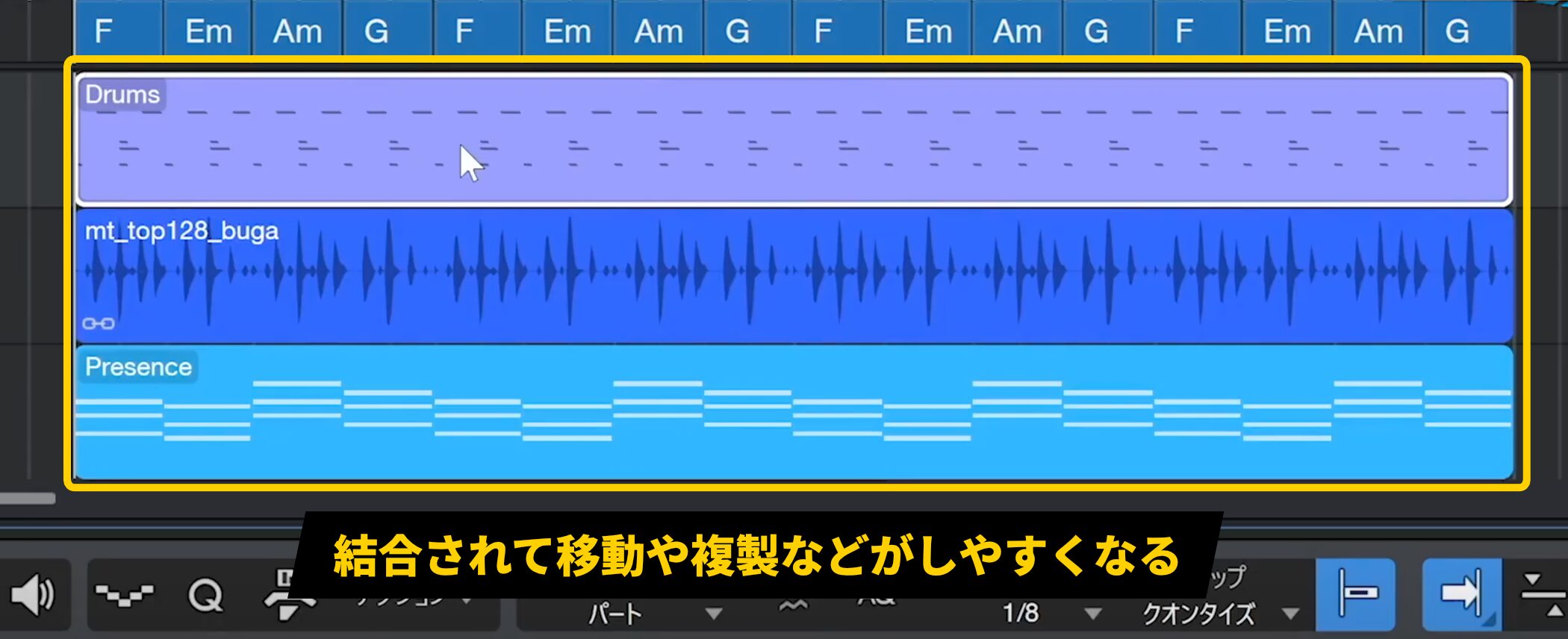
Merging events not only tidies the arrangement but also makes operations such as moving and duplicating much easier.
Frequently Asked Questions
Q1. What kinds of chords can I enter on the Studio One Chord Track?
Alongside basic types such as major, minor and diminished, you can select intervals such as sevenths and tensions. Choose a chord in the Chord Selector or enter it directly from a MIDI keyboard.
Q2. Why use the chord audition feature?
Turning on “Audition Chords” lets you immediately hear the selected chord through an instrument such as the electric piano you have configured, making it easier to decide on a progression.
Q3. How can I use the entered chords as MIDI?
Select the Chord Track section and drag it to the target MIDI track. After conversion, uncheck “Play Track” to avoid hearing both tracks at once.
Q4. How is the length of a chord event determined?
It is automatically determined by the current loop range. You can also split the event at any position with the Split tool and assign different chords to the resulting sections.
Q5. How can I organize several split chord events?
Select the events and press G, or right-click and choose Event → Merge Events to combine them and tidy the arrangement.
NEW ARTICLES
Latest English Articles