
Mastering is the final step in completing an electronic music production in Cubase Pro. By setting up effects such as Frequency (EQ), VintageCompressor, MultibandCompressor, DeEsser, Brickwall Limiter, and Maximizer in stages on the master channel, you can balance the entire song, increase its perceived loudness, and achieve a polished, easy-to-listen-to result. Combining several effects for gradual, natural compression is a key part of professional mastering.

We have reached the final chapter of our electronic music production series.
We will apply effects to the master channel to shape the overall sound of the song we have created so far.
This is also where we adjust the song's volume and perceived loudness.
Mastering the Song — Video Tutorial
Download the Cubase Song Project Here!
If the sampler tracks in the project do not play:
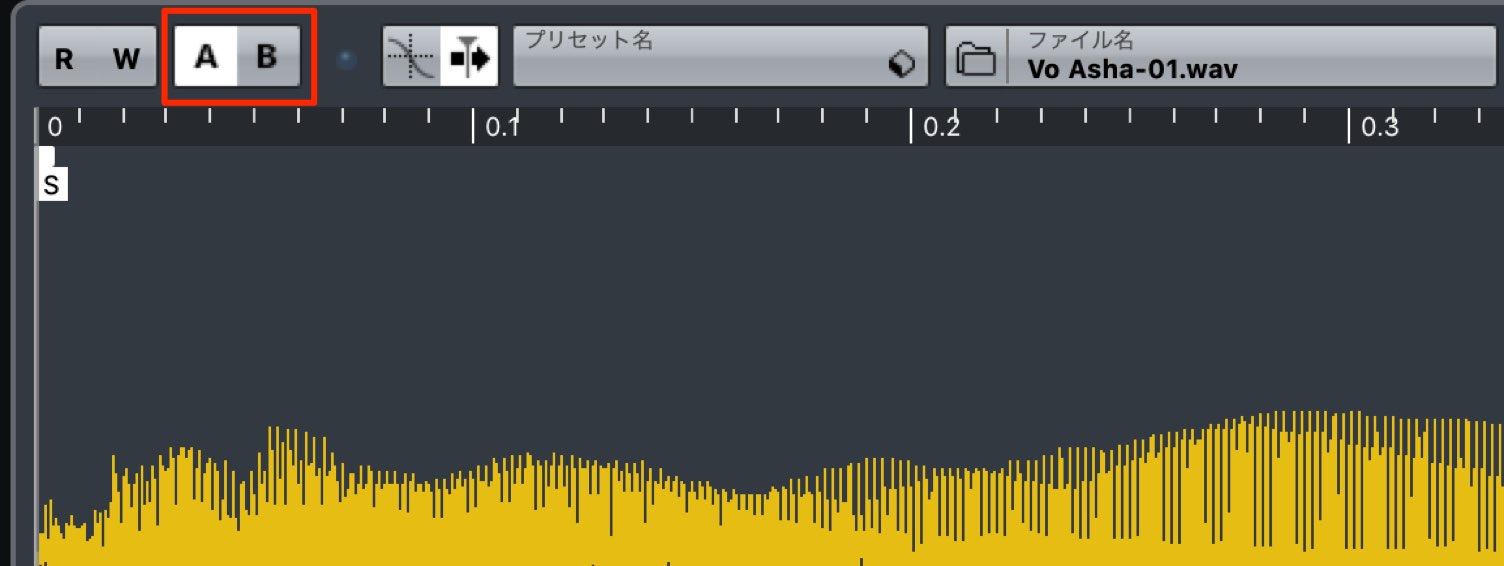
Switch the sampler track's A/B comparison button, then try playback again.
- 1Choosing Drum Sounds and Creating Patterns
- 2Piano Chord Progressions
- 3Bass Sound Design and Phrase Creation
- 4Using a Harmonizer with Vocal Samples
- 5Adding Weight and Impact to the Chorus with Backing Synths
- 6Creating Sound-Effect Tracks to Build Excitement
- 7Applying Effects to the Master Channel
Selected Questions and Answers from the YouTube Video

Does a compressor's threshold have to be 5.0 or lower?

There is no rule that compression applied using the threshold must stay within 5.0 dB. Sometimes we deliberately apply heavier compression to give a sound a particular character.
What are the techniques at 0:47 and 0:56 called? I would like to know how to create them.
We use the Flux synthesizer. The article below explains the details! https://sleepfreaks-dtm.com/produce-recipe/electro-music-create-5/
This has been very helpful, and I cannot thank you enough. What RMS values should we aim for in other genres, such as rock? I wish there were a reference chart. Also, is there a higher target RMS value when using a maximizer other than Cubase's? Please do not feel obliged to answer here. I would be grateful if you could simply keep these questions in mind for a future tutorial video. One more thing: after installing Cubase 10, I would like to remove Cubase 9.5 or 9.0 from my computer to save disk space. I would like to know how to do this and what precautions to take. I am only writing in the hope that this might offer a little inspiration for future videos. Sorry for the long message.
RMS targets change over time. One approach we recommend is to import a reference recording into Cubase and measure its RMS level. For an example of setting RMS levels with a maximizer other than Cubase's own, please watch the video below. https://youtu.be/a-90wUYe3PE At the time of this reply, the video was five years old, but FG-X was still an excellent tool. Cubase 10, which had recently been released, introduced the ability to change the installation location of the bundled instrument content. We also published an article about this, so please take a look. https://sleepfreaks-dtm.com/dtm-trouble/steinberg-library/ It is this instrument content that takes up a lot of space, so keeping an older version of Cubase for testing or in case of problems is another option we recommend.
This was very clear and helpful again. I have a question about Cubase: can I use the music software in Komplete 12 with Cubase? Also, should I buy separate software for mixing and improving sound quality? I would appreciate your advice.
Komplete 12 works in Cubase. If it does not appear, please try the steps below. https://sleepfreaks-dtm.com/dtm-trouble/komplete-cubase/ Komplete includes mixing effects, and Cubase has its own effects as well. Try them first, then consider additional plug-ins if you find you need them. Thank you for your continued support.
Applying Effects to the Master Channel
Applying effects to the master channel is an important task because it affects the sound of the entire song.
Let's look at the effects and settings used here.
Frequency (EQ)
Use an equalizer to adjust the overall frequency balance and tonal color.
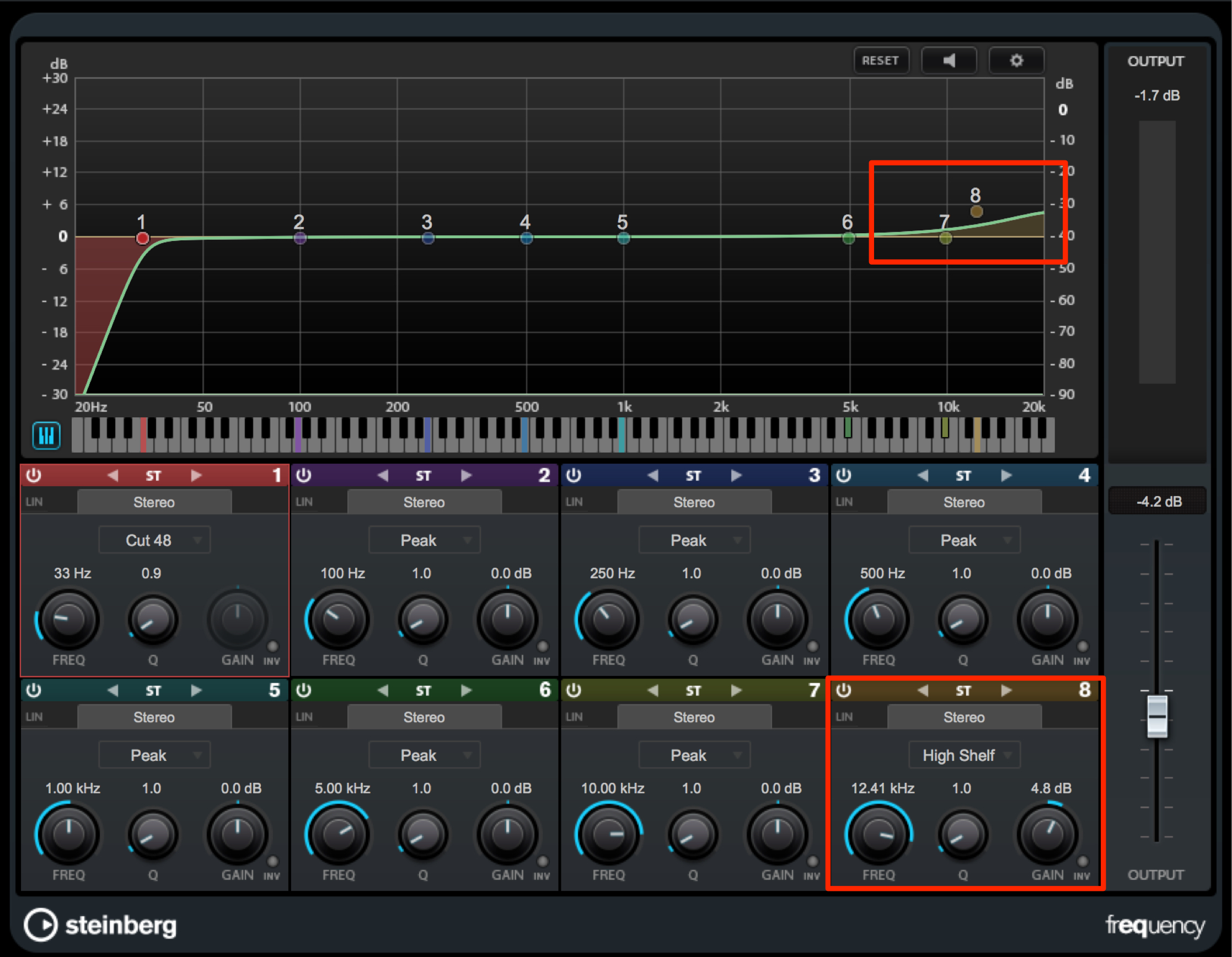
Boost the highs to add clarity and brightness.
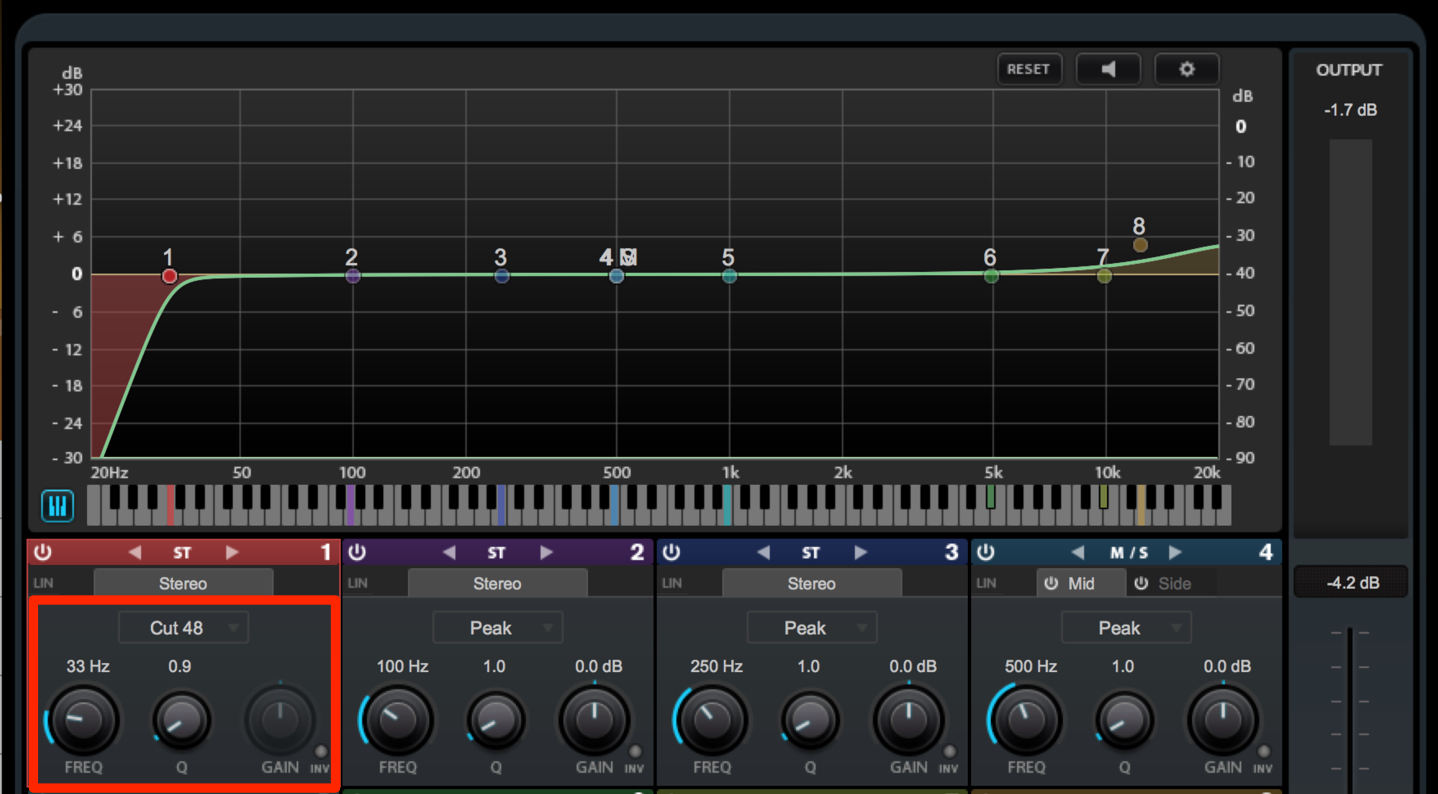
Cut unnecessary low frequencies.
Here, we cut frequencies below 33 Hz.
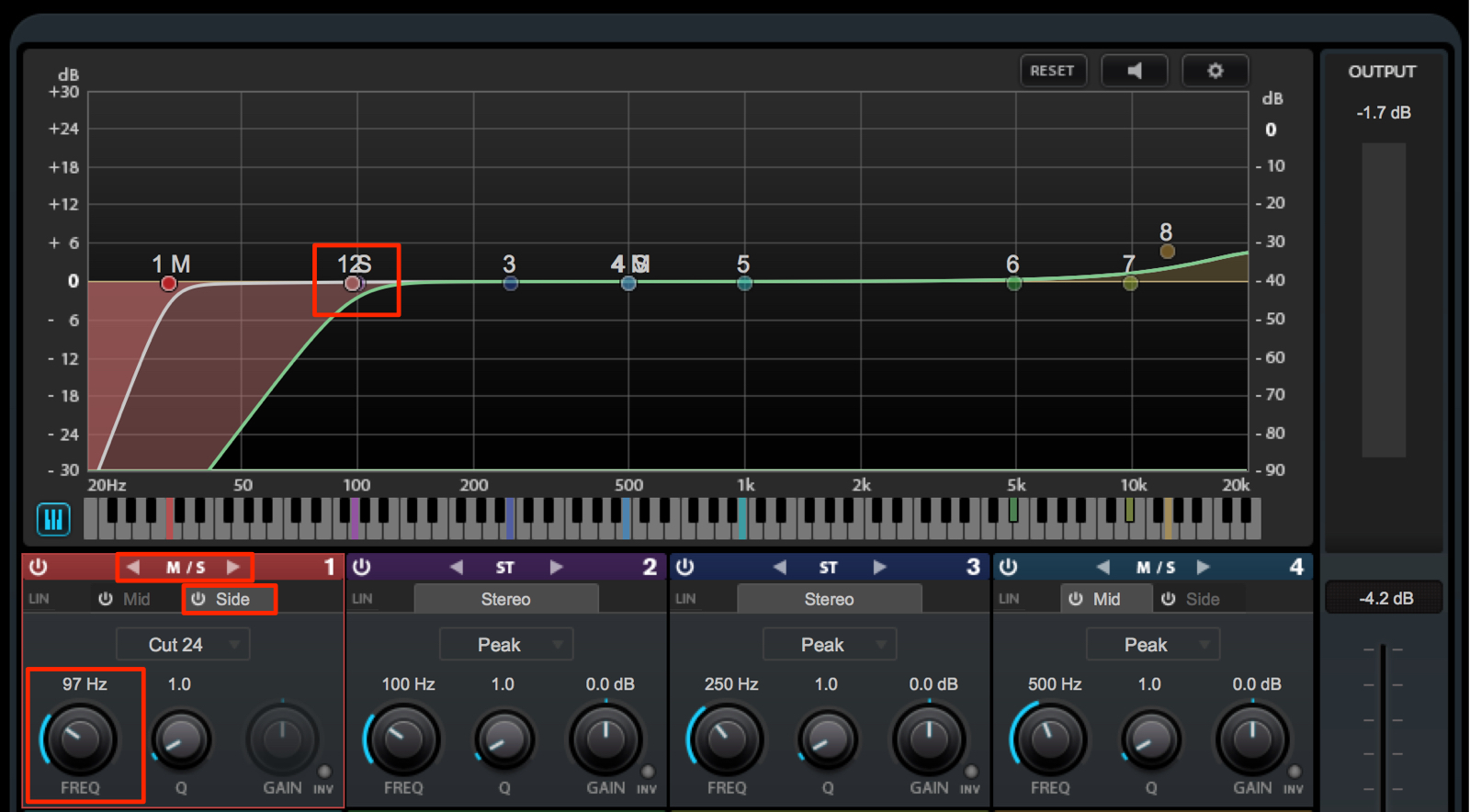
One feature of Frequency is its M/S mode, which lets you apply EQ to just the side component of the stereo signal.
Low-frequency content is often concentrated in the center (mid), so we set the side-channel low cut higher, at 97 Hz.
This reduces muddiness and helps produce a clearer sound.
VintageCompressor
Next, apply master-bus compression to control the song's overall level.
Here, we use VintageCompressor, which models a legendary hardware compressor.
It is an excellent compressor that makes it easy to add analog character.
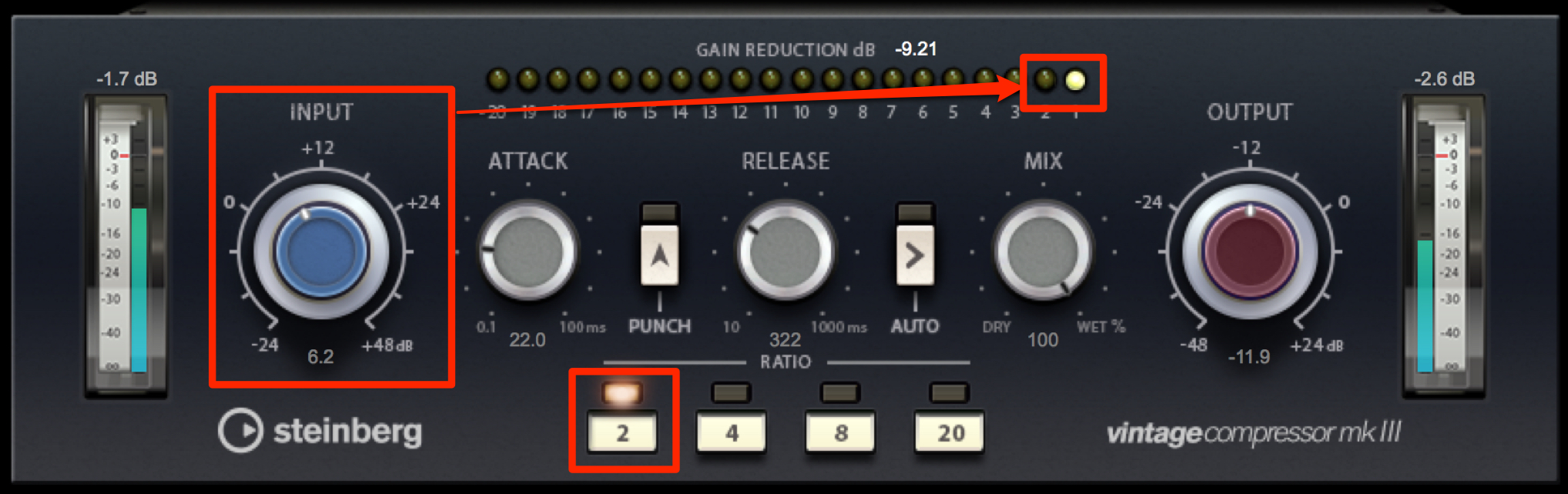
Because this is master-bus compression, the key is to keep the processing natural.
Set RATIO relatively low, to 2, to avoid excessive compression.
Raising INPUT makes the compressor work harder, but aim for a meter reading of about 1–2 for a natural sound.
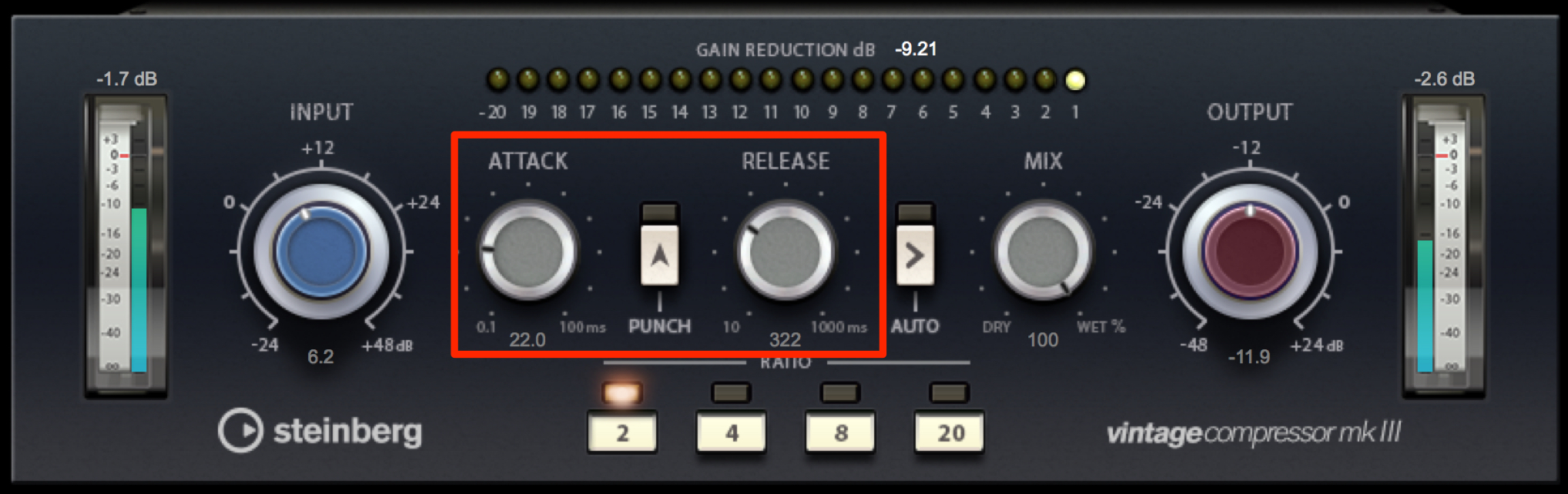
For the same reason, set ATTACK to 22 ms to retain a clear sense of attack.
Set RELEASE to 322 ms for a natural decay.
MultibandCompressor
A multiband compressor controls level peaks in individual frequency bands to make the whole song sound more consistent.
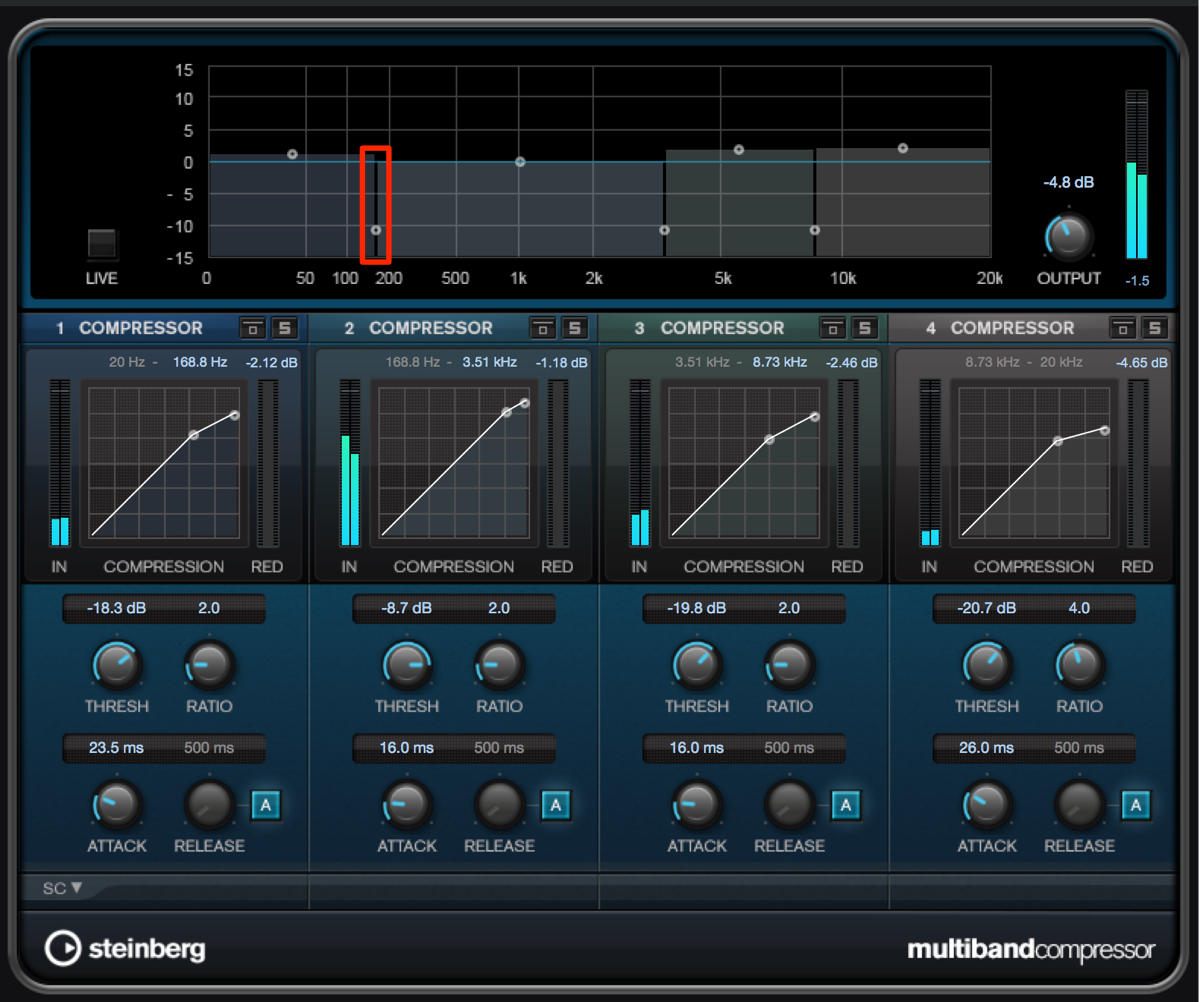
MultibandCompressor lets you control four frequency bands.
Set the upper boundary of the low band to around 160 Hz, where the kick and bass can be heard clearly on their own.
The low band is the loudest part of the song and contains the most energy.
Compressing and stabilizing it reduces the song's overall level peaks and tightens the groove.
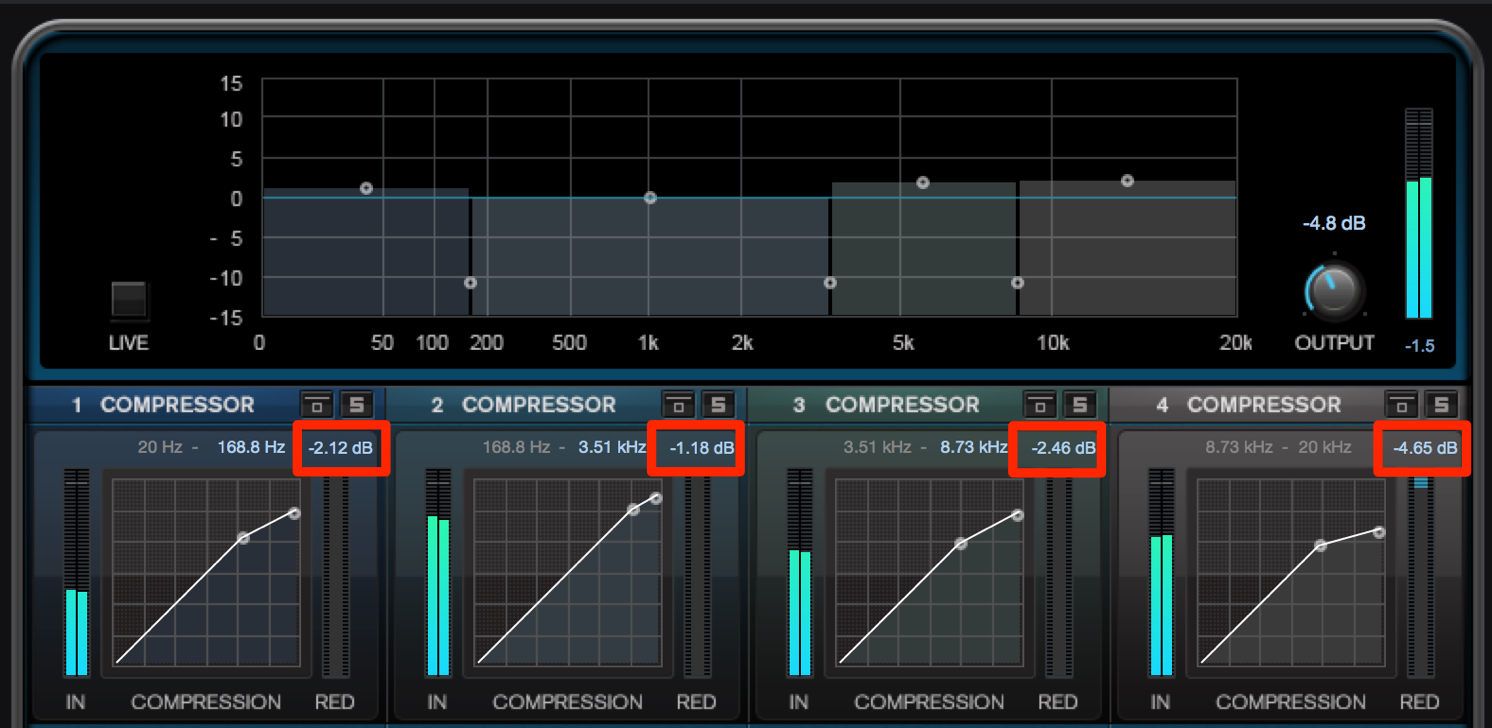
To preserve the mix balance and avoid changing the song's character too much, set THRESHOLD so that gain reduction (RED) stays at 6 dB or less in each band.
Similarly, keep RATIO at 3:1 or below to avoid an obvious compressed sound.
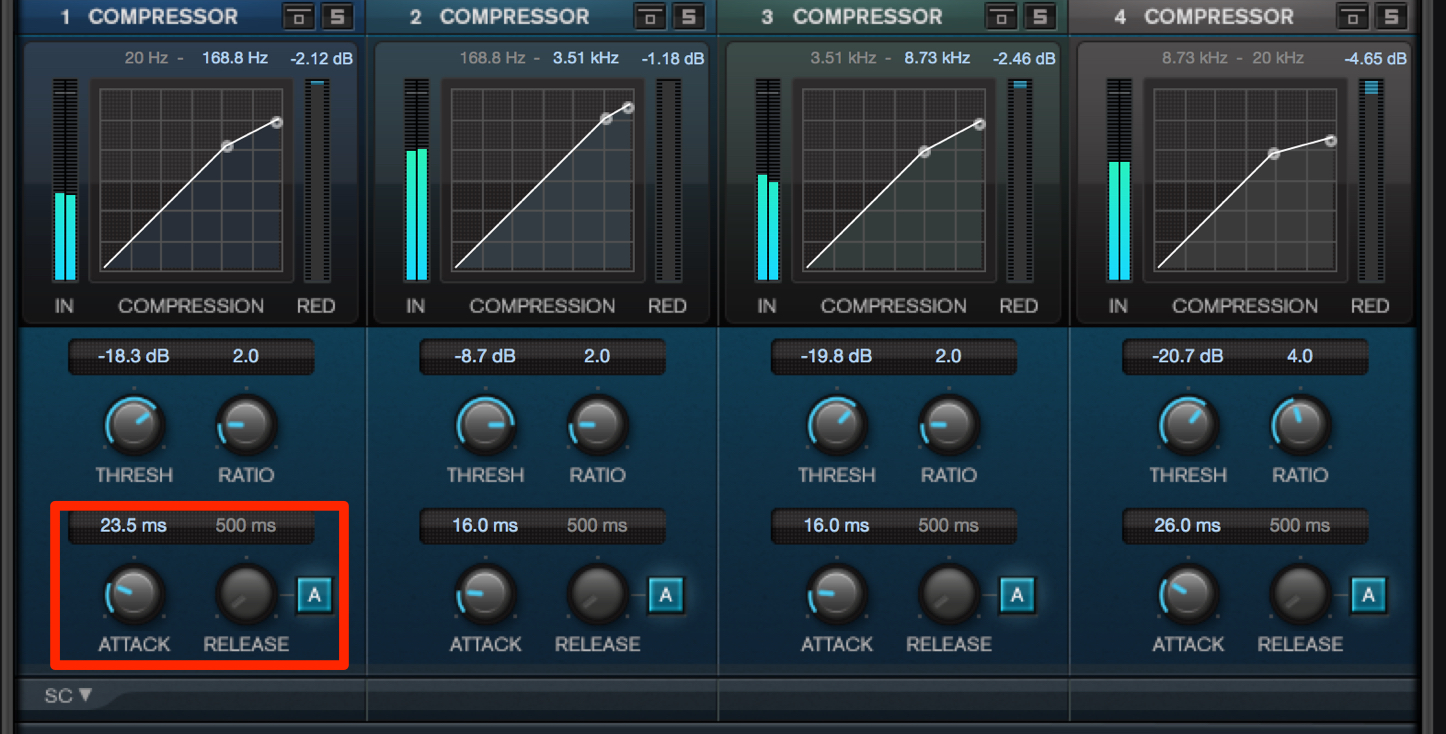
There are a few points to consider when setting ATTACK and RELEASE.
The original article describes high frequencies as traveling quickly and low frequencies as traveling slowly. Translator's clarification: audible frequencies travel at approximately the same speed in air; low frequencies have longer waveform cycles. The practical point here concerns compressor timing, not the speed of sound.
If the low band's ATTACK is too fast, the low end can lose its fullness.
Selecting A for the release time enables automatic mode, which adjusts the value automatically.
The low band's RELEASE setting has a particularly strong effect on the groove.
Set it so that the gain reduction rises and falls, rather than leaving the compressor engaged continuously.
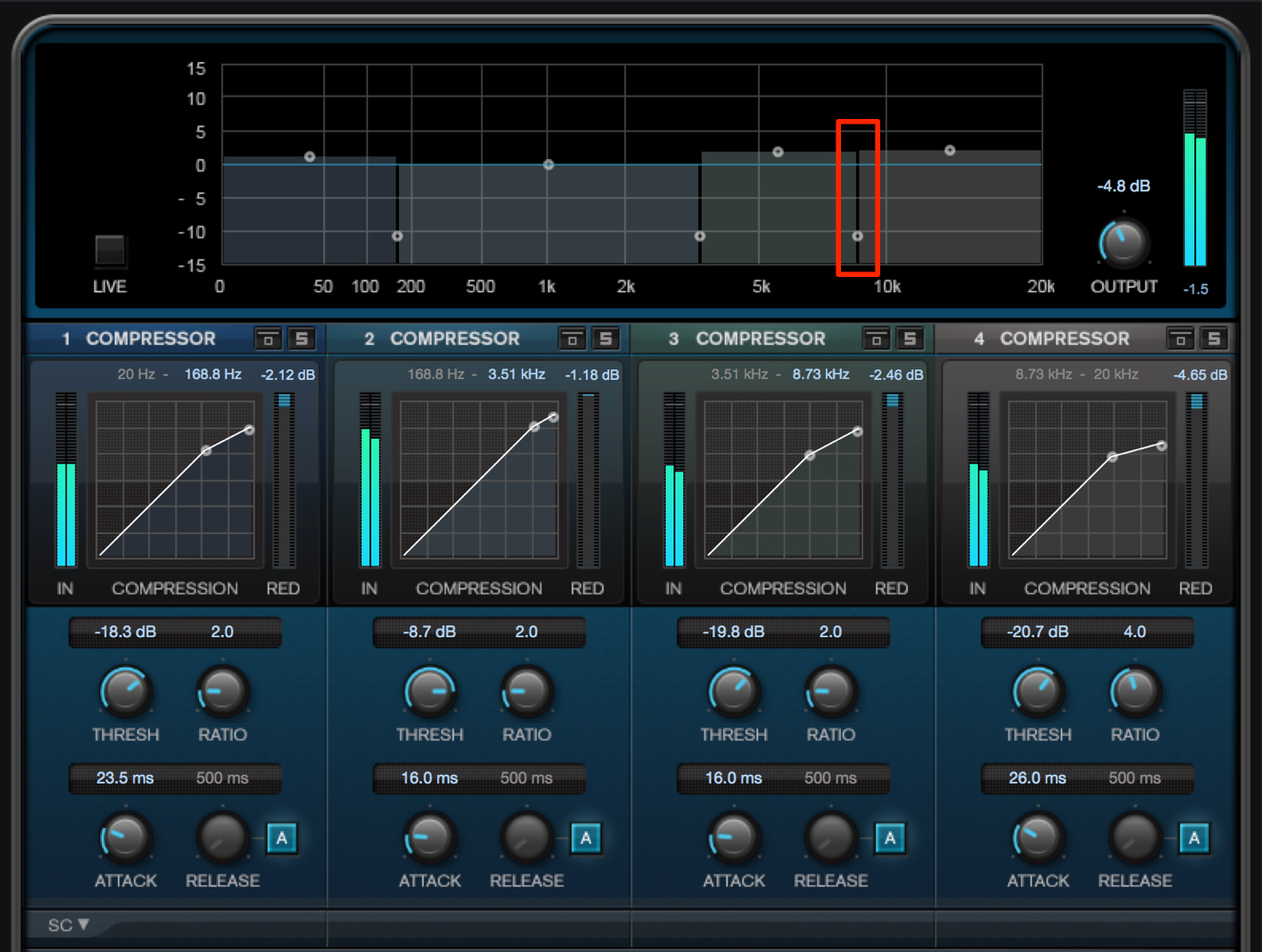
Next, adjust the high band.
Isolate the range where there is no clear sense of pitch—around 8 kHz and above in this example.
When cymbals enter, the level in this band rises and can sometimes sound harsh.
We want to raise this band's level to add air and sparkle, so set THRESHOLD to control the points where the level becomes excessive.
After compression, the key is to raise the gain above its original level to add a brighter, more sparkling quality.
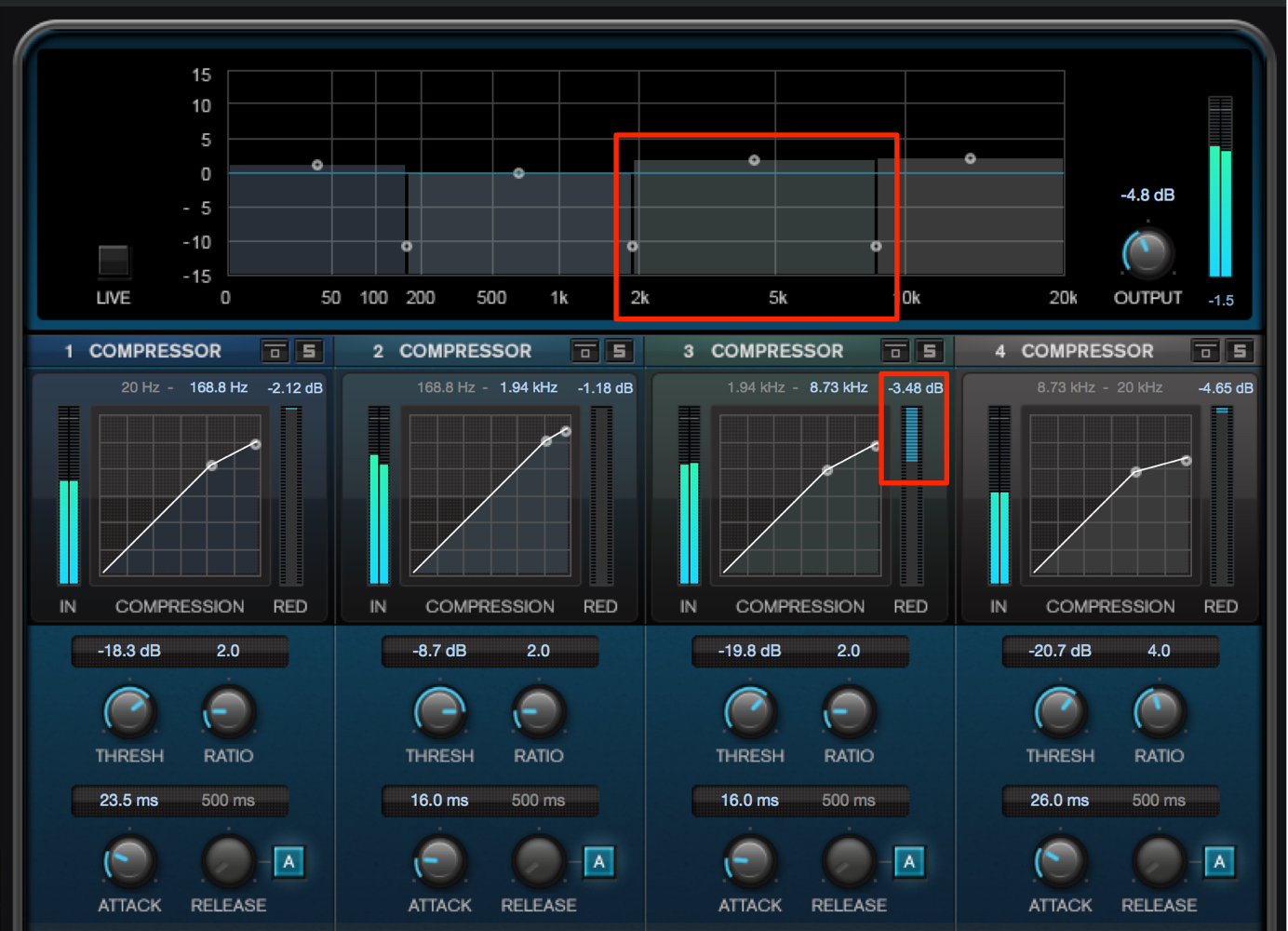
Next, set up the high-midrange band.
Vocals, lead synths, snares, and many other tracks share this range, making it crowded.
Uneven levels here can make the whole song difficult to listen to, so use compression to keep them under control.
Adjust THRESHOLD until the main parts, such as the vocals, sound consistent.
Keep gain reduction to a maximum of 6 dB. Remember to restore the level with GAIN.
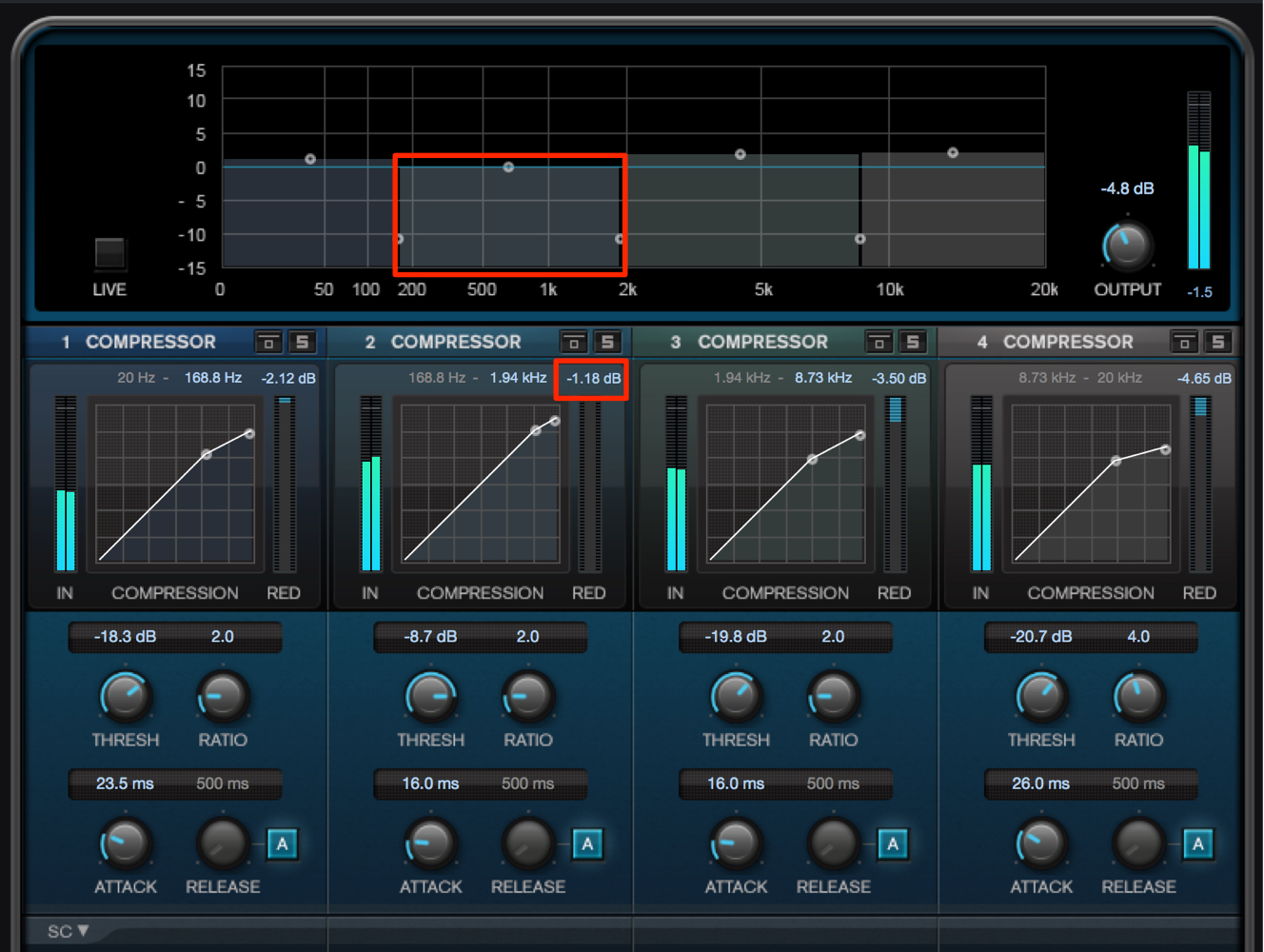
Finally, adjust the low-midrange band.
This range contains elements such as the lead synth's fundamental and the bass's harmonics.
Heavy compression can upset the song's balance, so use only a little processing to control the peaks.
Low-midrange content affects the separation between the kick and bass.
In rhythm-driven genres such as electronic music, leaving slightly less content in this range can make the mix sound cleaner. For this reason, we do not restore the gain after compression here, leaving the perceived level lower than before.
DeEsser
Apply DeEsser to reduce noisy high-frequency content that can be unpleasant to the ear.
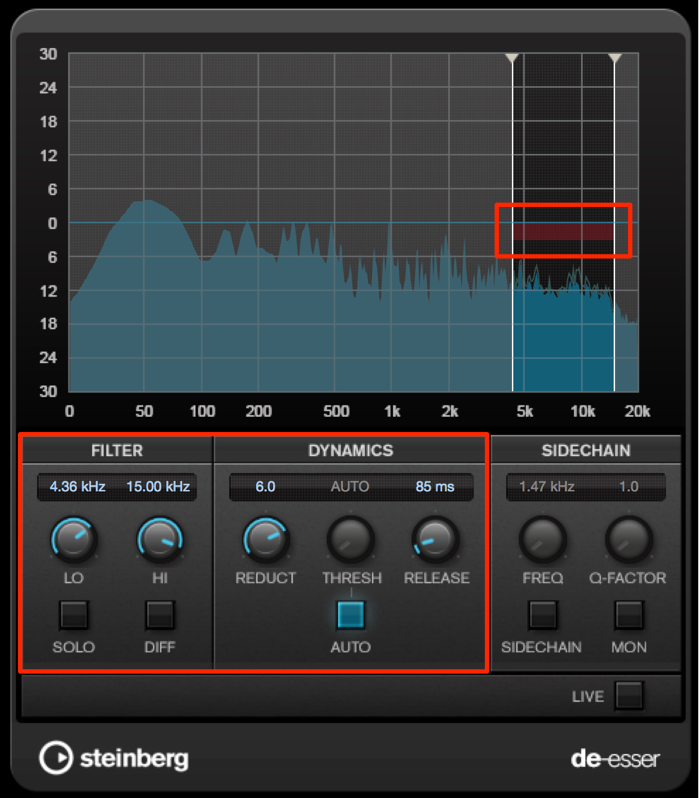
Use FILTER to specify the frequency range the de-esser should process.
Here, set it to 4,500–15,000 Hz, then adjust REDUCT so that the red meter reads 2–3 dB.
This smooths the sound's edges and makes it easier to listen to.
Too much reduction can reduce clarity and degrade the sound.
The key is to use it as a subtle finishing touch.
Brickwall Limiter
Now we will adjust the song's volume and perceived loudness.
We will use Maximizer to increase loudness later, but first use Brickwall Limiter to control level peaks.
With dynamics processors such as compressors and limiters, gradually compressing with several effects tends to sound more natural than applying heavy compression with a single effect.
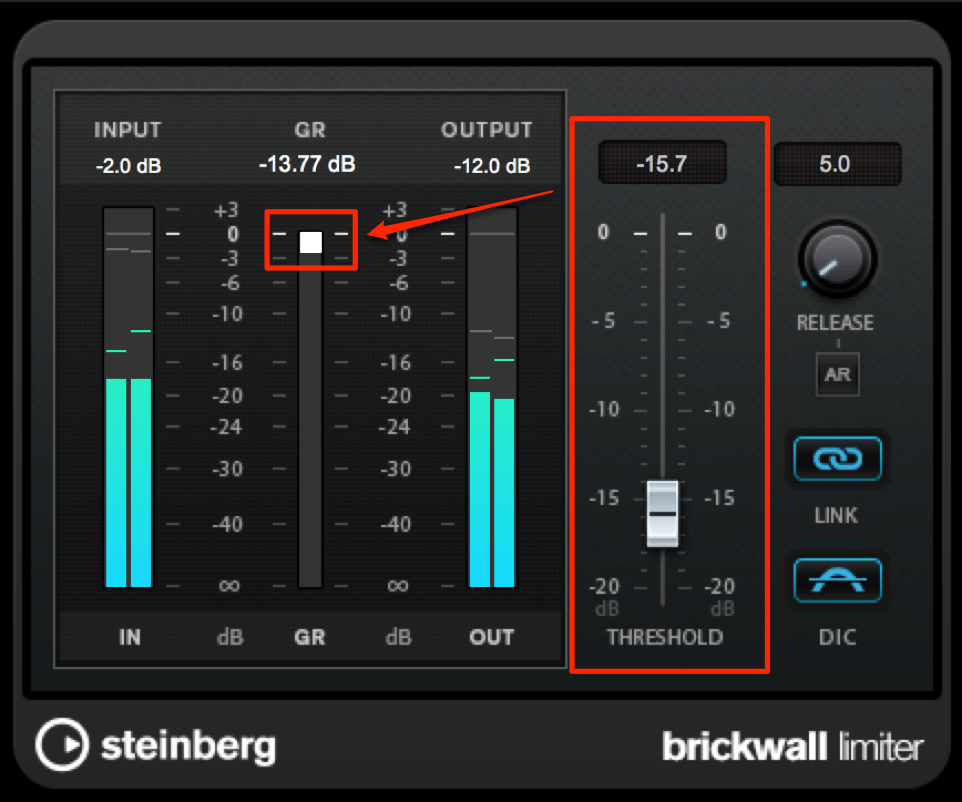
Listen carefully while adjusting Threshold to the point just before the compression becomes noticeably audible.
This helps reduce the distortion that can occur when using Maximizer.
Maximizer
Use Maximizer to optimize the level and increase perceived loudness.
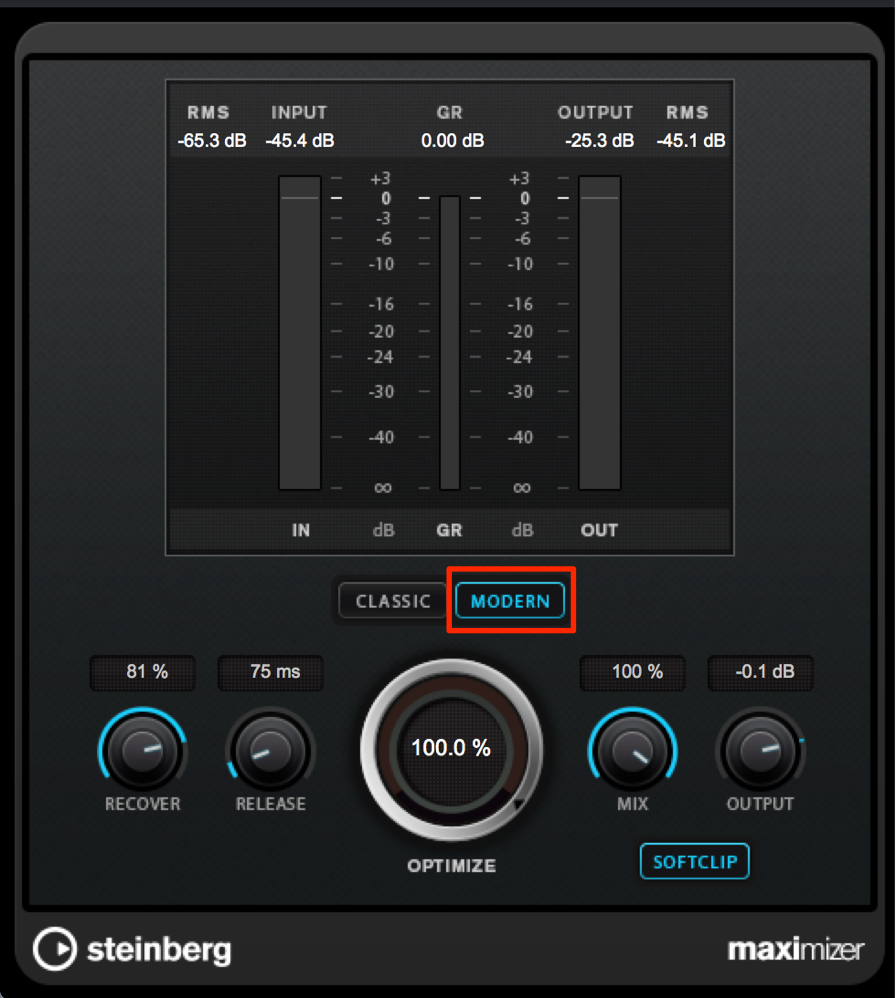
Maximizer offers Classic and Modern modes.
For rhythm-driven tracks such as club music, Modern mode can make the rhythm sound tighter.
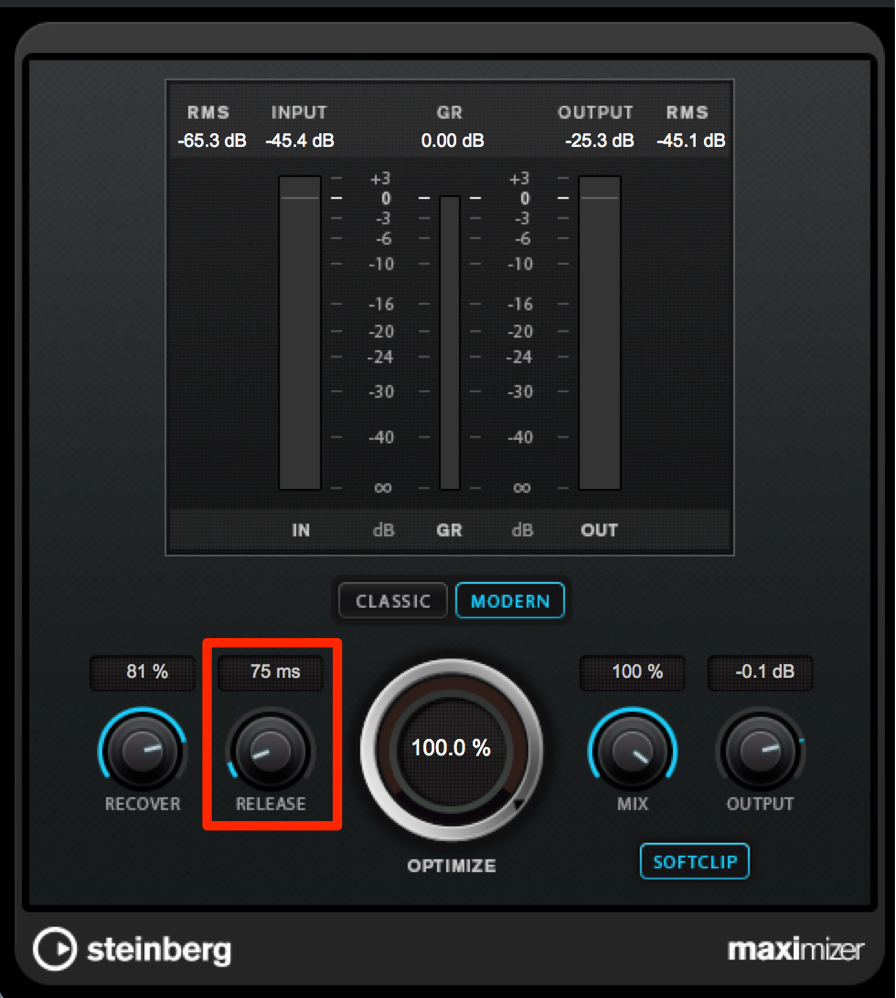
RELEASE also controls the rhythmic feel.
Too long a release can make the whole song sound flat, so find a setting that gives the rhythm definition and contrast.
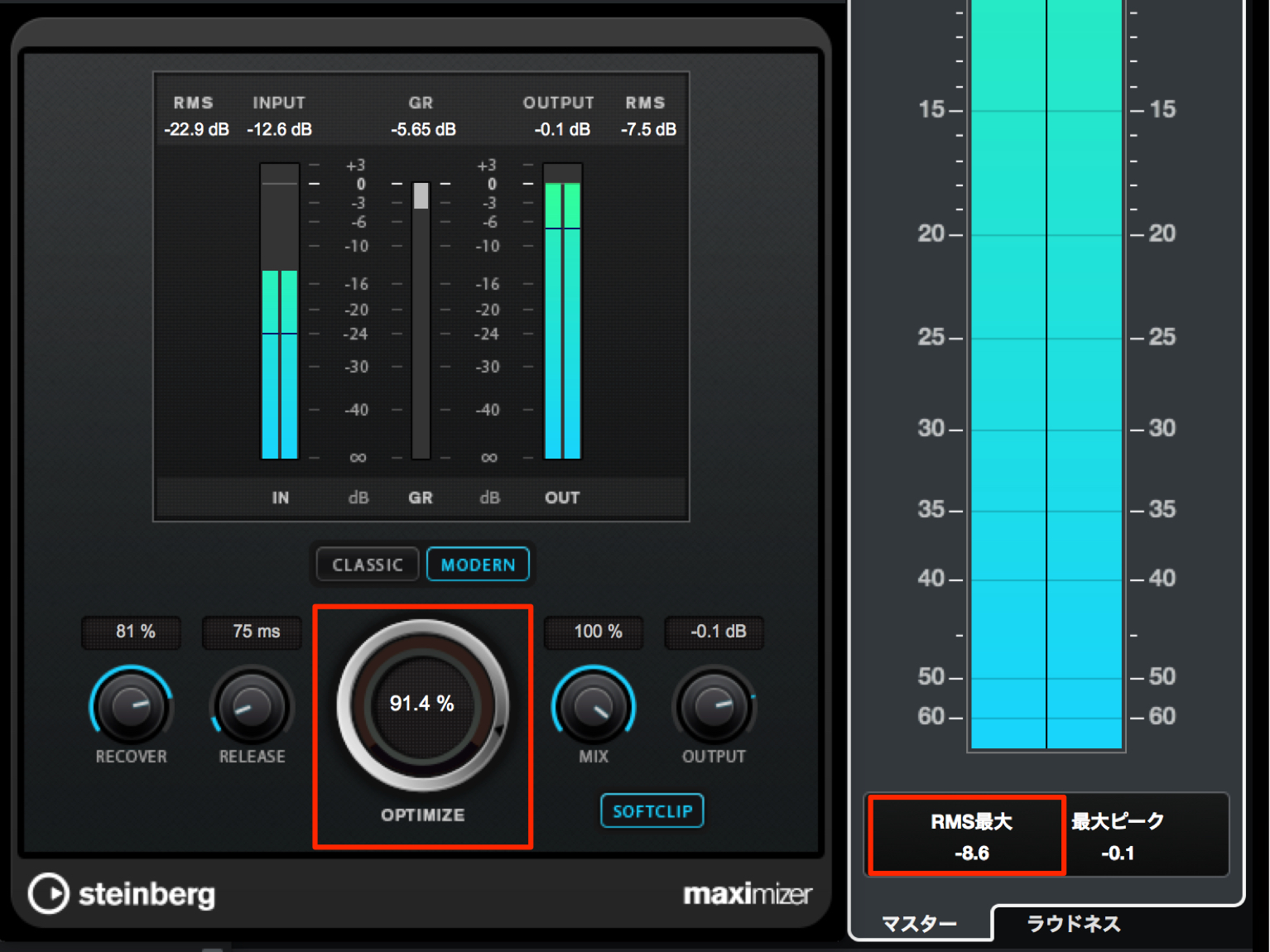
With these settings in place, raise OPTIMIZE to increase loudness.
Raising loudness can also introduce distortion, so listen carefully and stop at the highest amount you find acceptable.
As a reference for this song, set the RMS level to fall between −9 dB and −8 dB in the loudest section.
Find the right value while taking care to avoid distortion.
Steinberg Distributor — Resources from Yamaha Music Japan Co., Ltd.
- Yamaha Music Japan MPP (YouTube) https://www.youtube.com/user/SteinbergJapan
- MPP (Twitter) https://twitter.com/SteinbergJP
- Sound Roster Music Production Show (Fresh!) https://freshlive.tv/ymjsoundroster

Product Page: https://japan.steinberg.net/jp/products/cubase/start
Frequently Asked Questions
Q1. Which effect should I insert first when mastering?
A common approach is to shape the frequency balance with EQ before controlling levels with a compressor. We recommend starting with Frequency (EQ) to adjust the tonal color, then using VintageCompressor to control the overall level.
Q2. What matters most when setting up master-bus compression?
Keep the result natural. Use a low RATIO, adjust INPUT for a meter reading of around 1–2, and use ATTACK of about 22 ms and RELEASE of about 322 ms as starting points.
Q3. Why use different settings for the low and high bands in a multiband compressor?
The original answer describes lows as traveling slowly and highs as traveling quickly. Translator's clarification: audible frequencies travel at approximately the same speed in air; their waveform periods differ. Adjusting ATTACK and RELEASE to suit each band's frequency content can help produce a more natural, tighter sound.
Q4. How can I avoid distortion when increasing loudness?
Use Brickwall Limiter to control peaks beforehand. Gradual compression with several dynamics processors tends to sound more natural than heavy compression with just one effect.
NEW ARTICLES
Latest English Articles































































































































































































































































































