
Jammy is a digital guitar with the MIDI input capabilities many guitarists have wanted for DAW production. Connecting it to a computer via USB-C lets you record your playing as MIDI and perform with software instruments. Its portable design requires no physical tuning, lets you change tunings instantly, and captures nuances such as velocity and pitch bend. The companion app provides sensitivity settings and firmware updates. In this 2020 review, we also explore presets for DAWs such as Logic and Ableton Live and instruments such as Ample Guitar, opening up possibilities for composition and arranging.
Bringing a Fully Digital Guitar into DAW Production
At the time of this 2020 review, Jammy, a fully digital guitar developed by Jammy Instruments U.S. Corp, was attracting considerable attention.
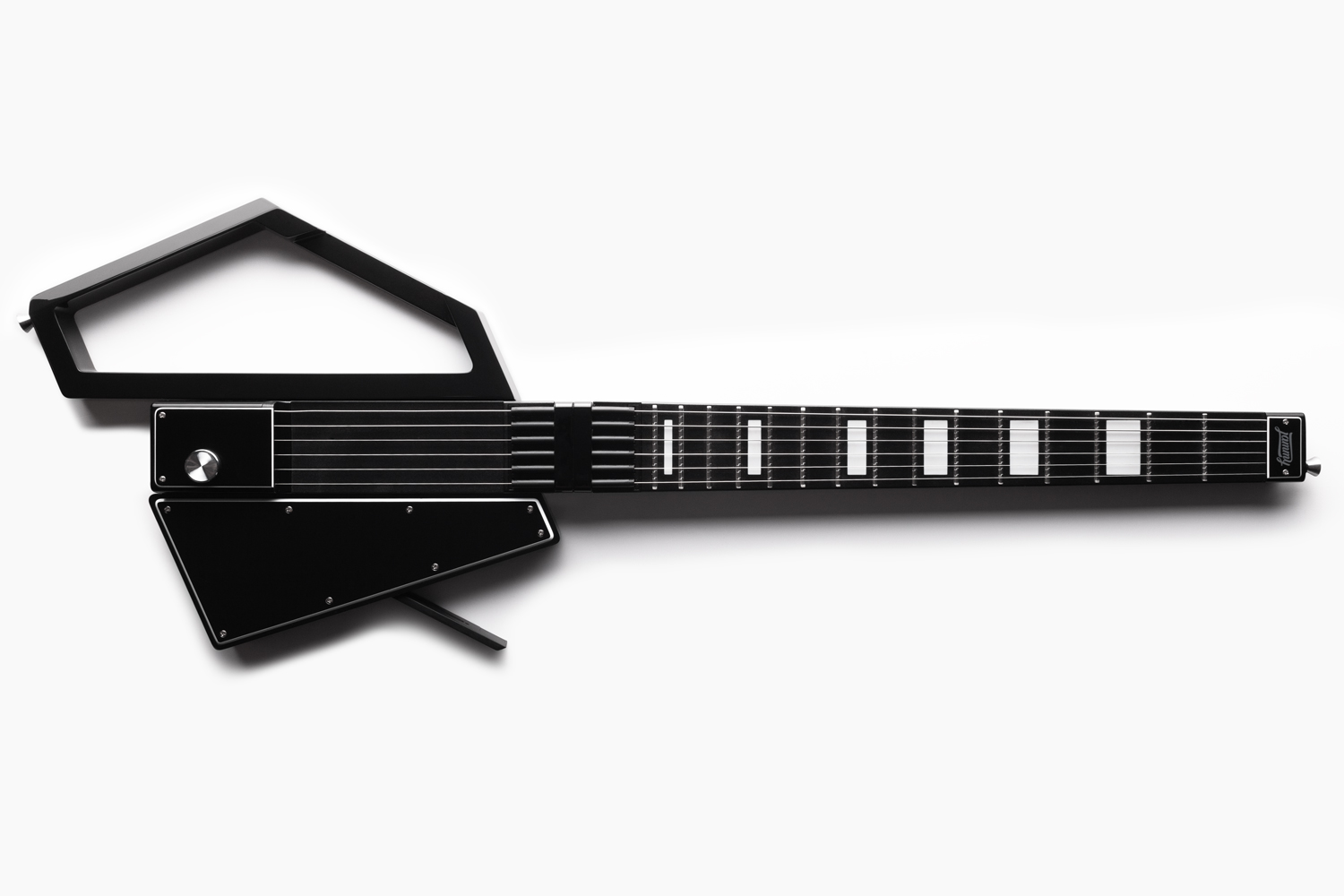
Crowdfunded preorders launched on August 6, 2020, and reached their funding target within 24 hours.
The campaign went on to raise more than ¥20 million in total, making this a product to watch.
Here, we review the Jammy MIDI guitar from a music production perspective, focusing on the MIDI input capabilities that many guitarists have dreamed of.
Jammy Review and Tutorial Video
Product URL: http://bit.ly/sleepfreaks-jammy
Jammy Overview
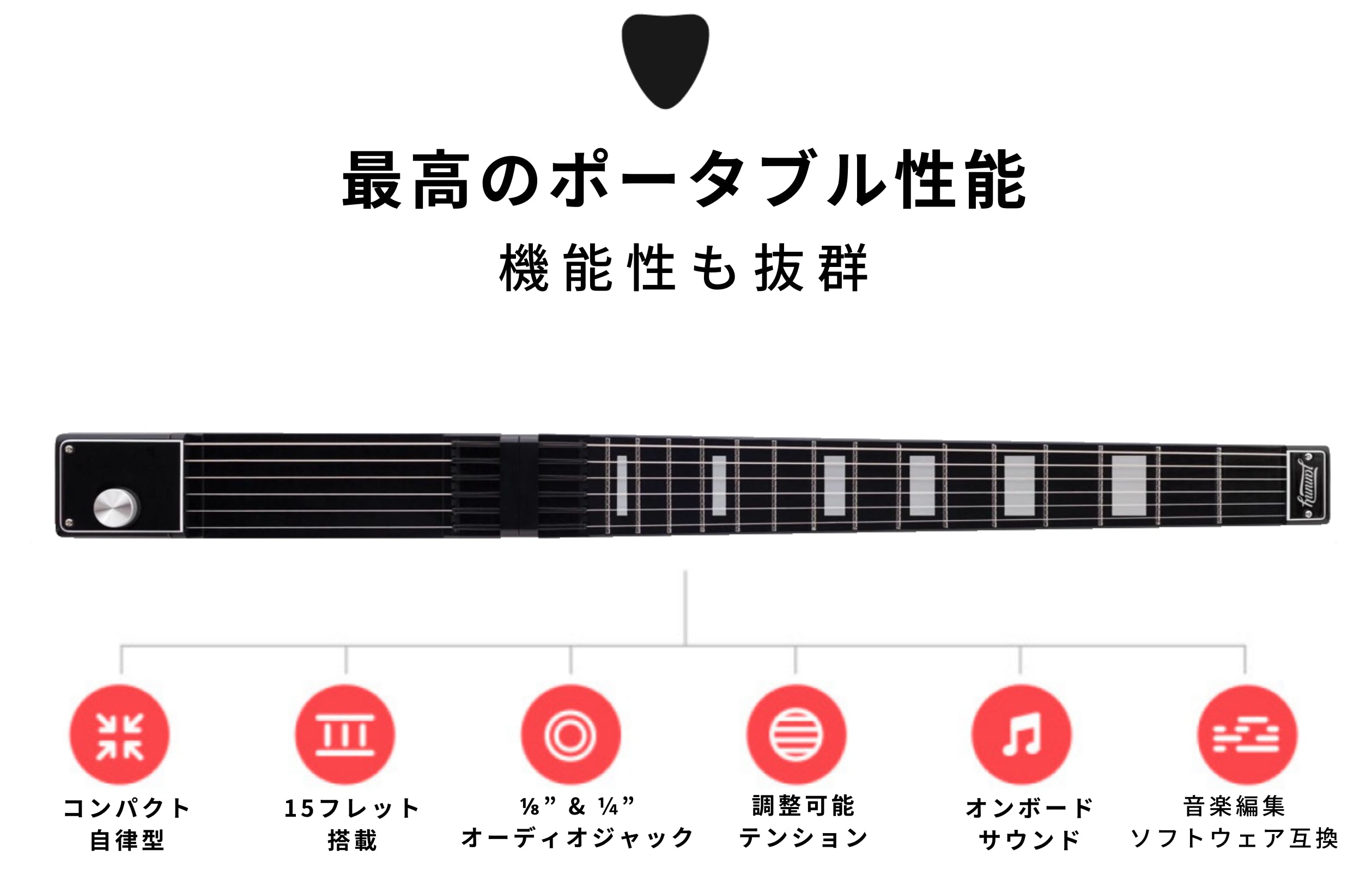
Jammy takes advantage of its digital design to offer the following features:
- A 15-fret steel neck, designed for portability and advertised at the time as compliant with airline carry-on restrictions
- A 4,400 mAh battery providing up to six hours of playing time, charged via USB-C
- Line output for connecting to a guitar amplifier
- A headphone jack for monitoring the guitar sound
- USB-C connection to a computer for outputting your performance as MIDI
In particular, outputting your performance as MIDI could make this a dream device for guitarists who produce music in a DAW.
This review focuses on using Jammy for music production, covering its setup, operation, and how it feels to use.
Setting Up Jammy
First, let’s look at the initial setup for playing Jammy comfortably.
Downloading and Connecting the Companion App
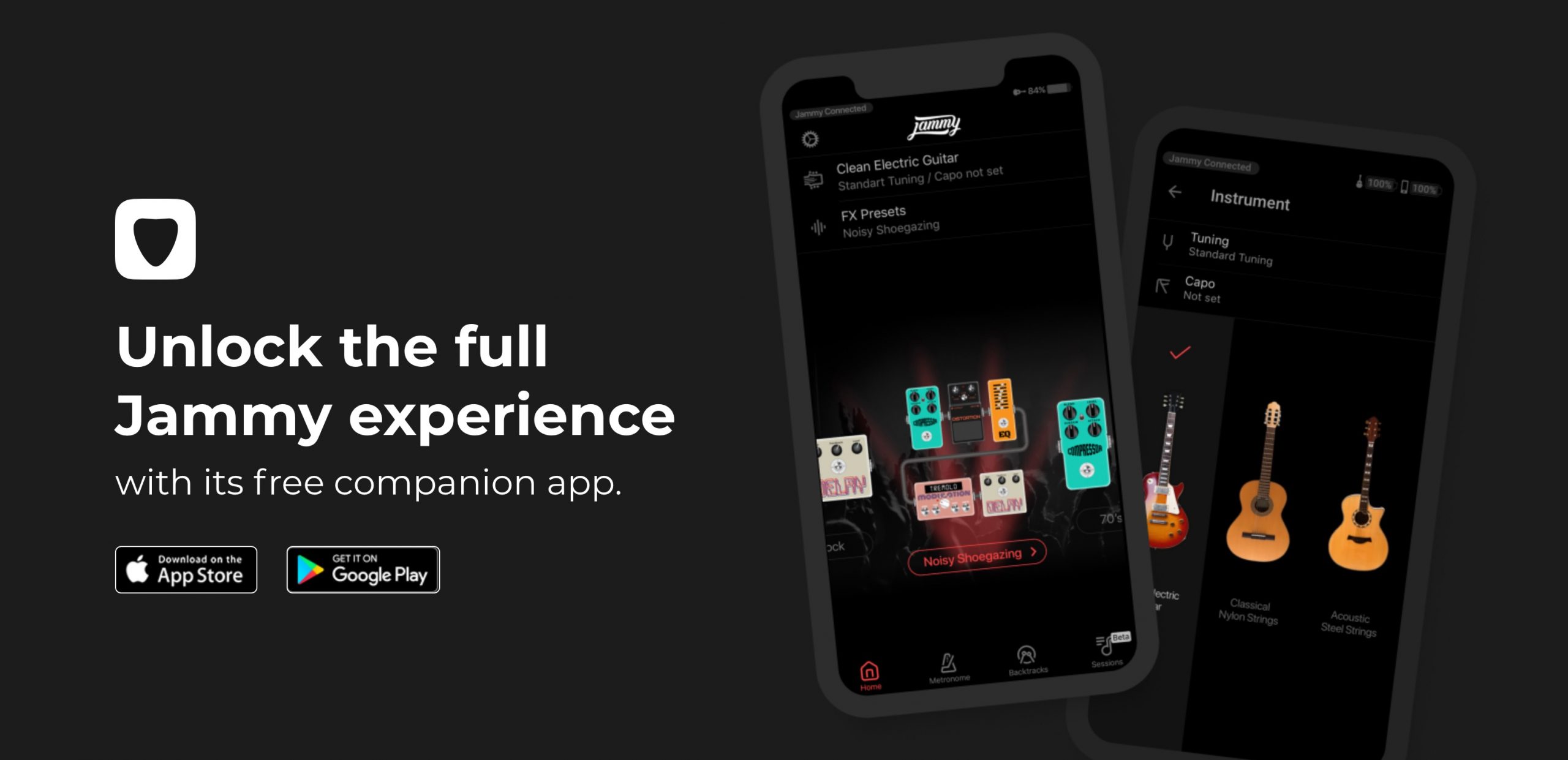
Use the companion app to configure and control Jammy.
The app described in this review supports Android and iOS.
- Download for Android: https://bit.ly/33rDDf1
- Download for iOS: https://apple.co/30thFWS

Turn on Jammy, then launch the app.
Select “Connect Jammy” in the app.
Jammy automatically calibrates itself when you turn it on.
Do not touch the strings while the LED is purple; wait until it turns light blue.
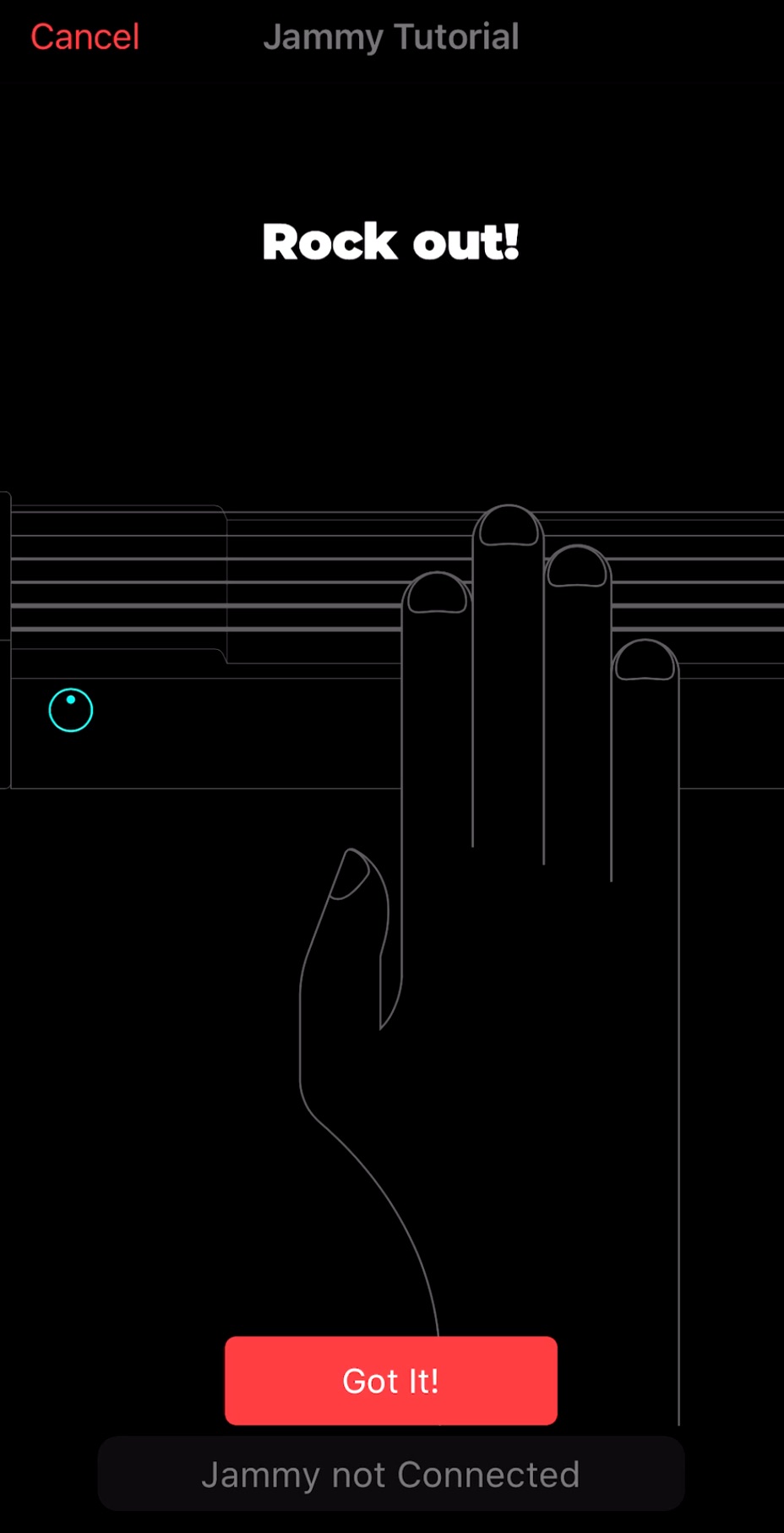
Tap “Got It!” to continue.
Keep Jammy close to your Android phone or iPhone during this process; a distance of 3 cm or less is recommended.
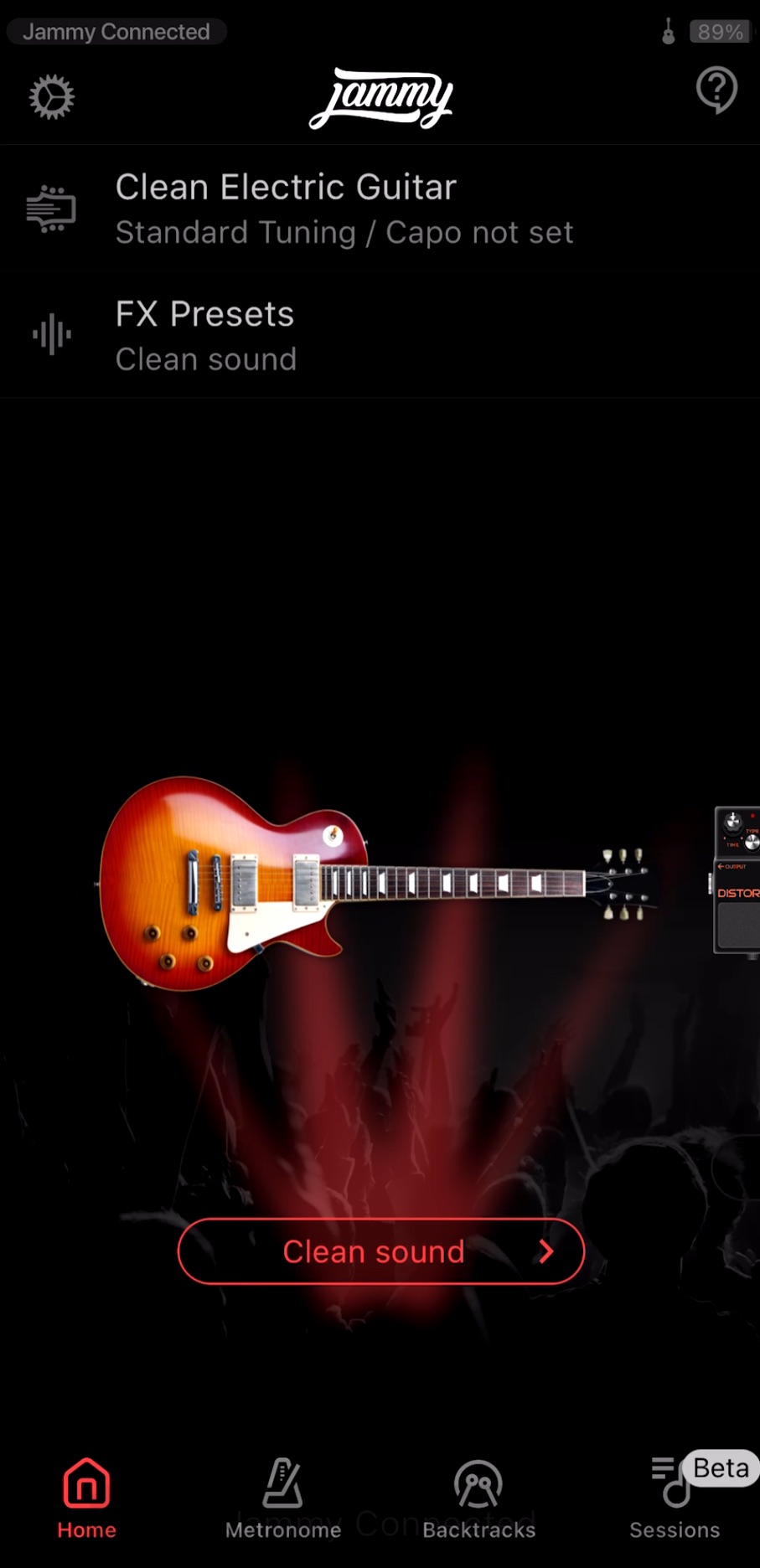
Jammy connects automatically, giving you access to controls for tuning, string sensitivity, sound design, practice functions, and more.
Updating the Firmware
After connecting Jammy, be sure to update its firmware.
Updates add features, improve playing sensitivity, and fix bugs.
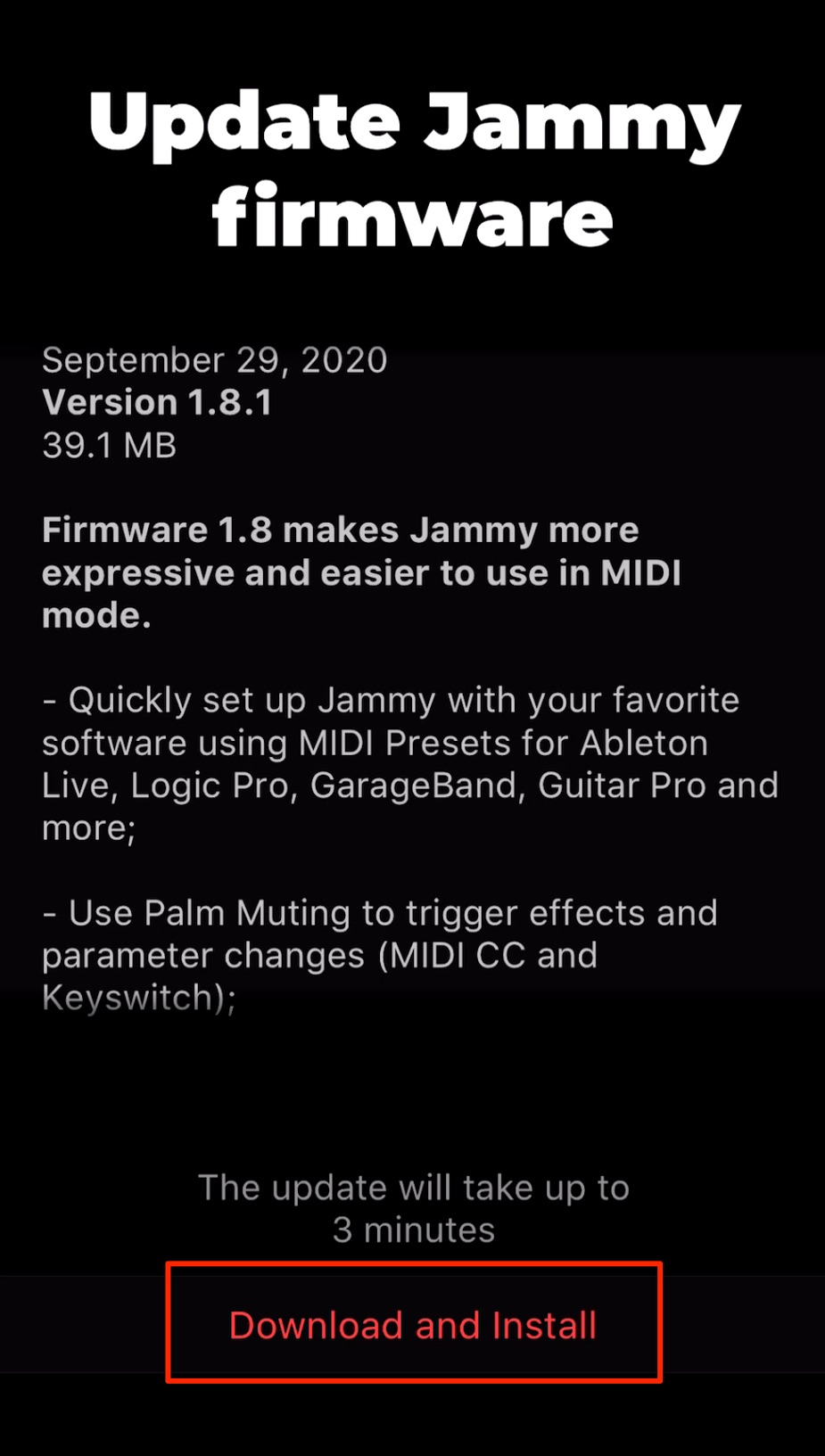
If new firmware is available, a notification like this appears.
Tap “Download and Install” to update.
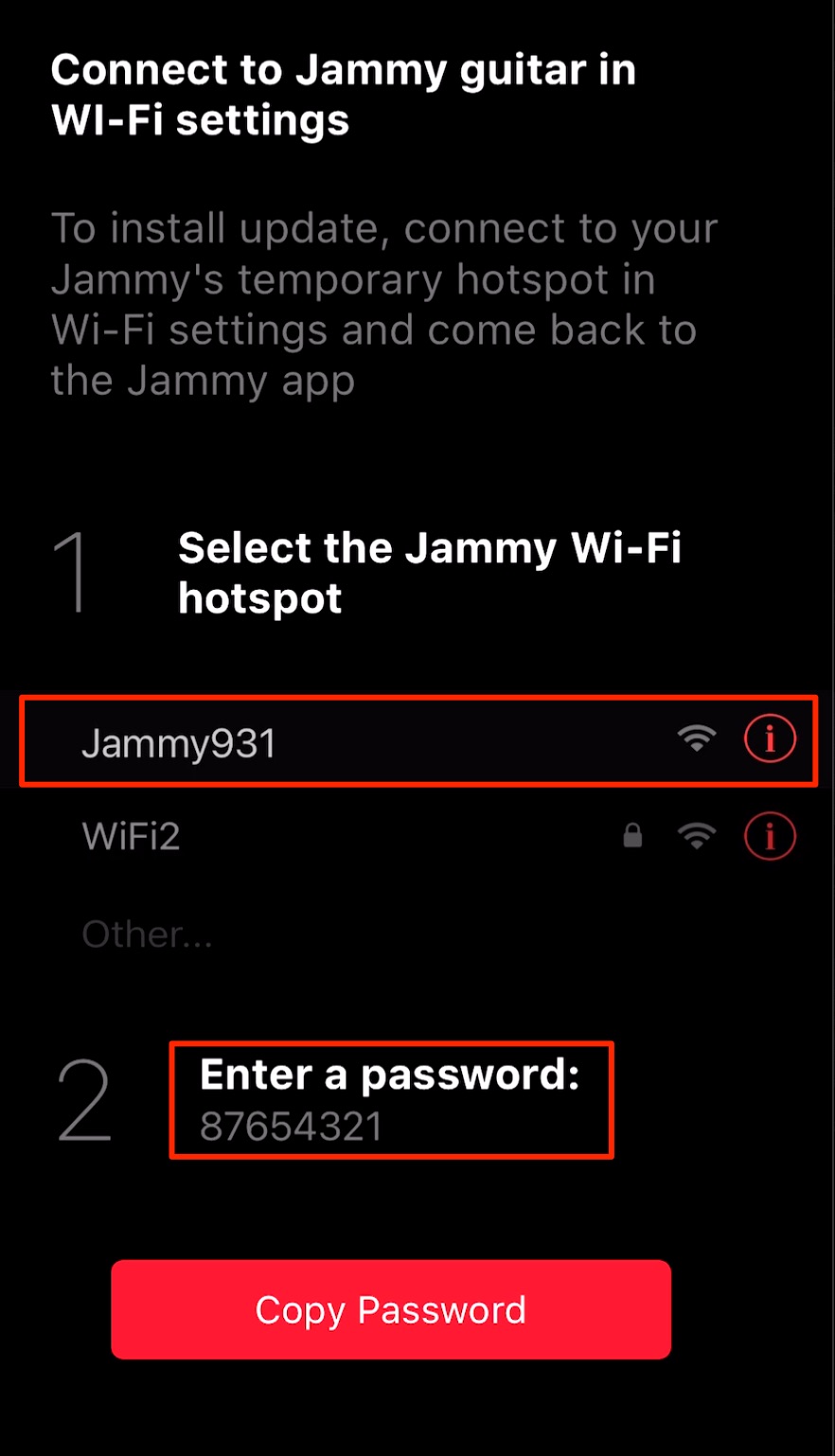
The Wi-Fi information appears as shown here.
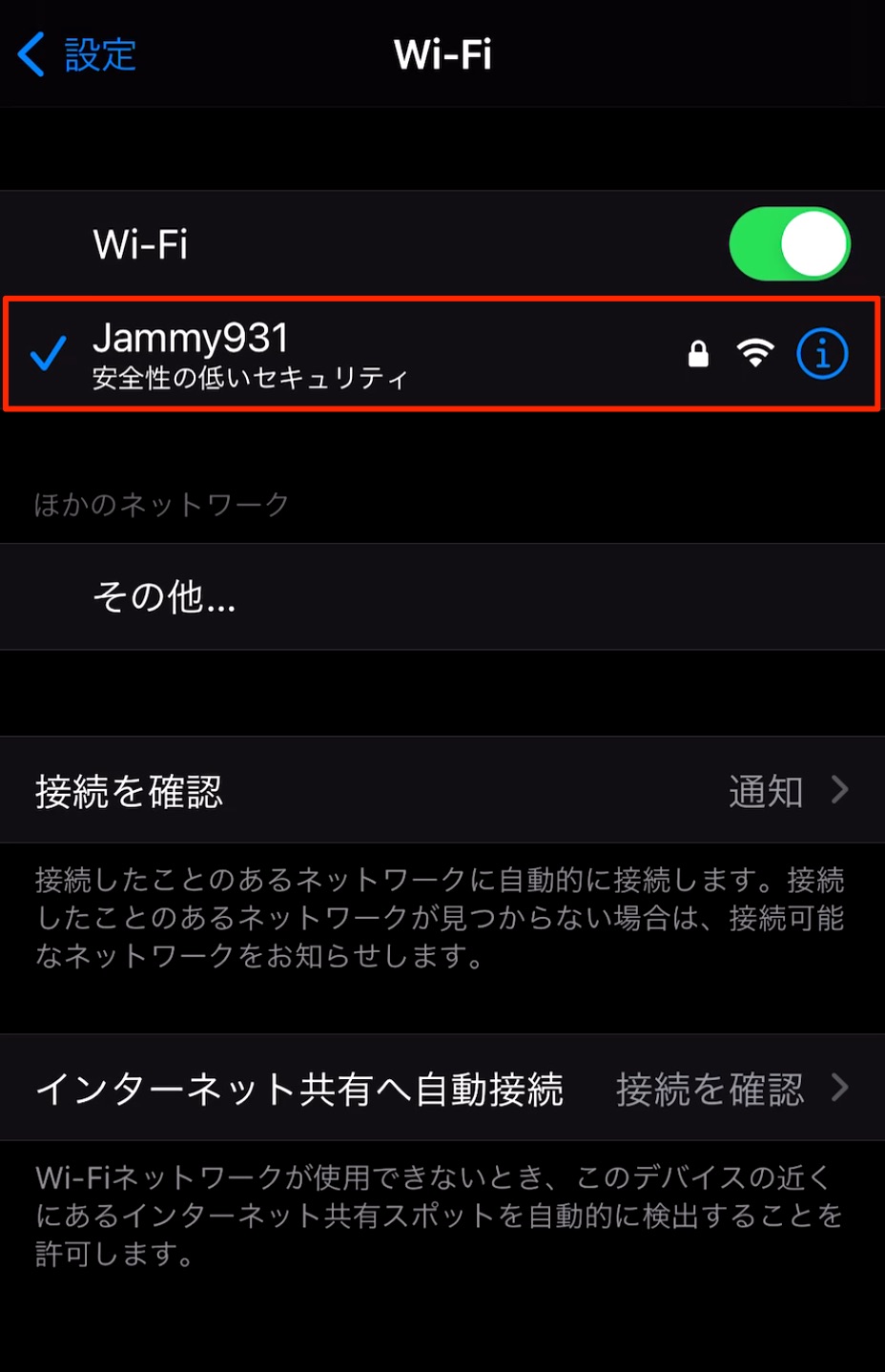
Change the Wi-Fi settings on your Android phone or iPhone to connect to Jammy, then continue the update.
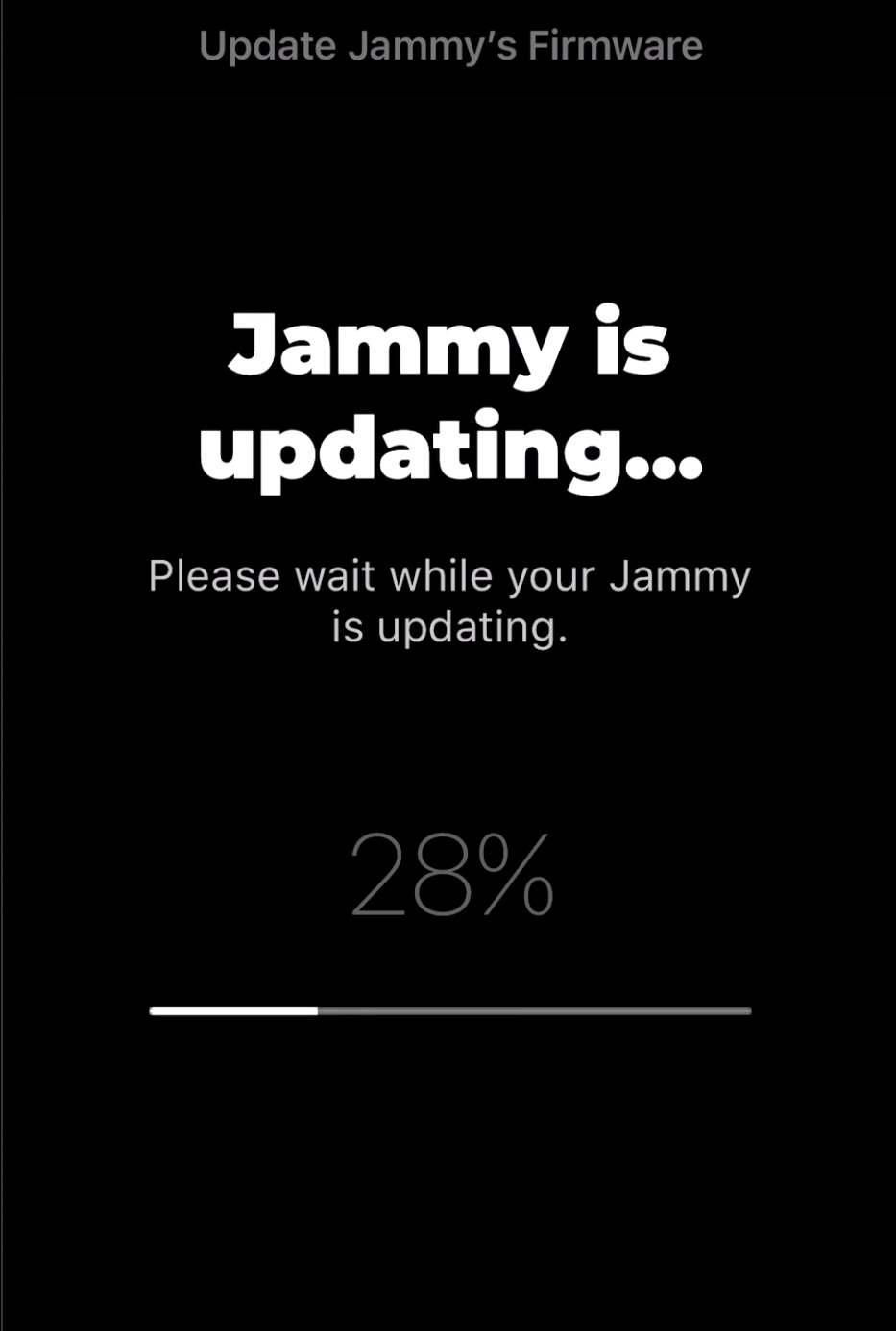
The update proceeds as shown and takes around five to ten minutes.
Do not turn off Jammy or close the app during the firmware update.

When this screen appears, the update is complete.
Tap “OK” to continue using Jammy’s controls.
Adjusting String Tension
Jammy’s strings are set relatively loose by default.
You can adjust the tension to suit your preferences.
I tried various tension settings. Tightening the strings too much reduced the accuracy of pitch detection, and setting them too loose had the same effect.
For that reason, I recommend checking the sound with both single notes and chords as you adjust the tension.
Using Jammy as a MIDI Device in Your DAW
Next, let’s use Jammy as a MIDI device for DAW production.
There are plenty of detailed settings to explore, so we’ll go through them one by one.
Connecting and Detecting Jammy
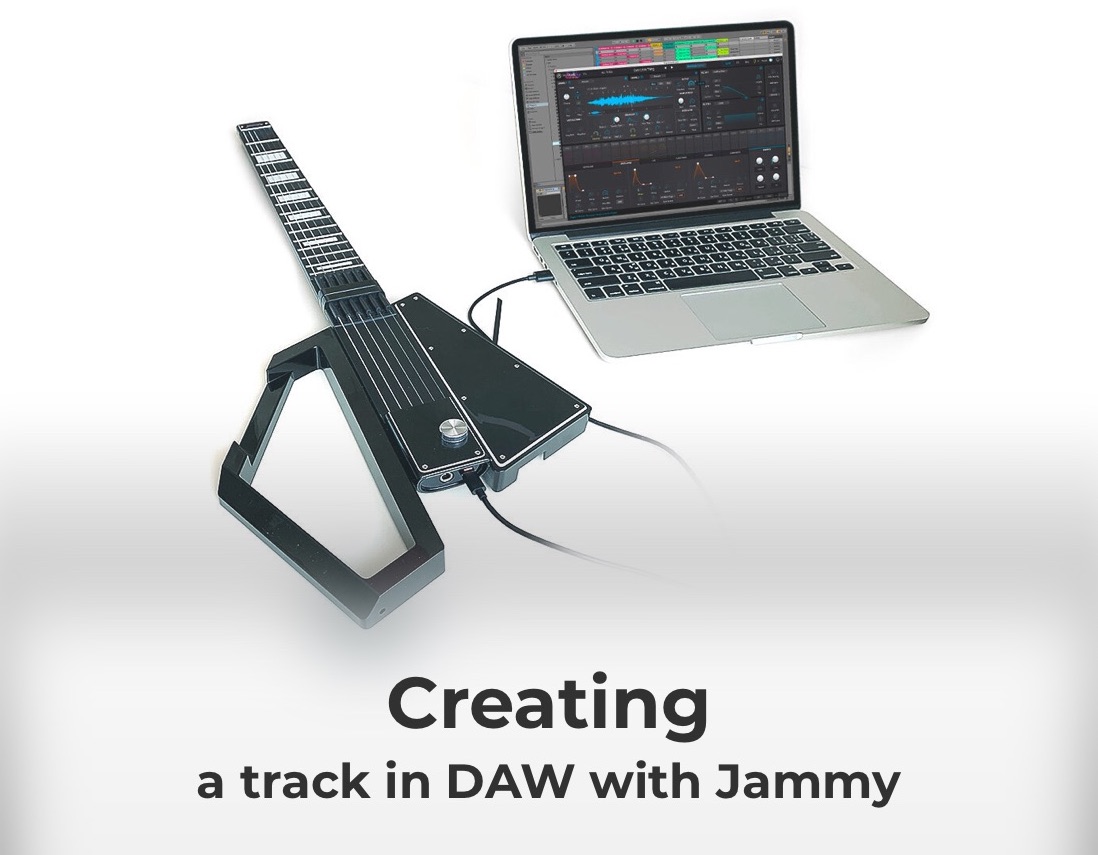
To have your computer recognize Jammy, simply connect it using the included USB cable.
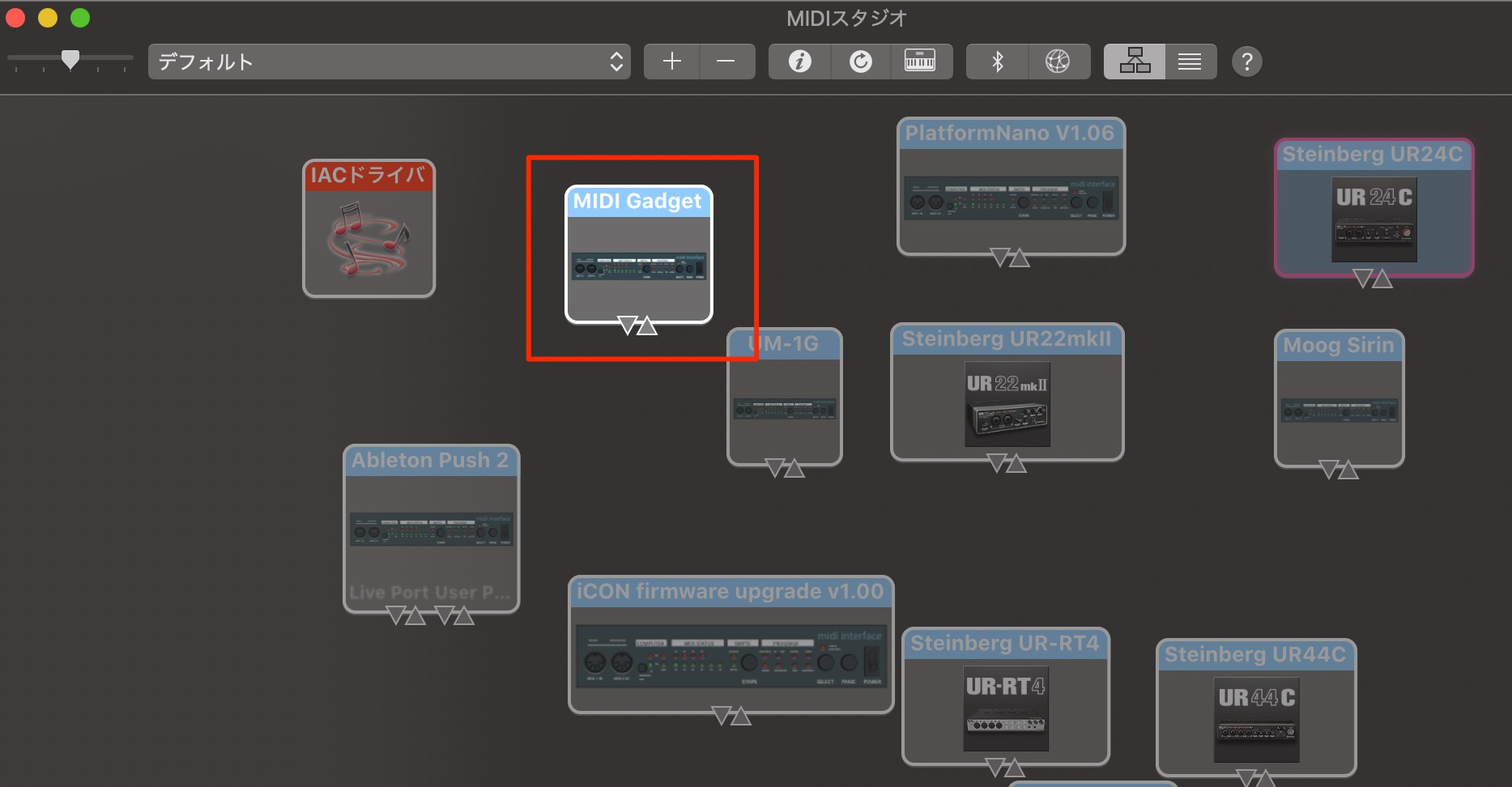
“MIDI Gadget” is the name displayed for the device.
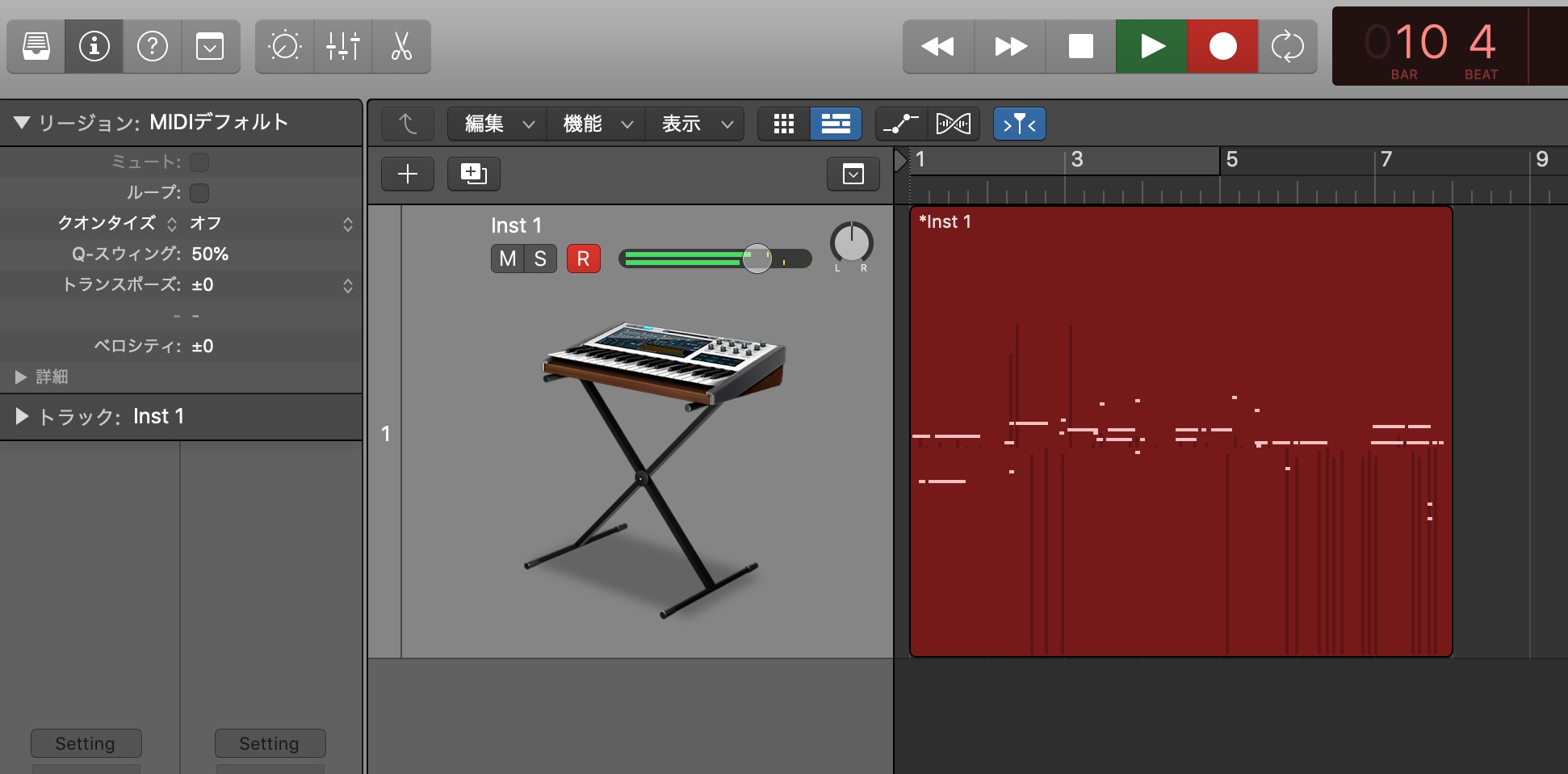
Once Jammy is recognized, recording a MIDI or software instrument track captures your performance just as a MIDI keyboard would.
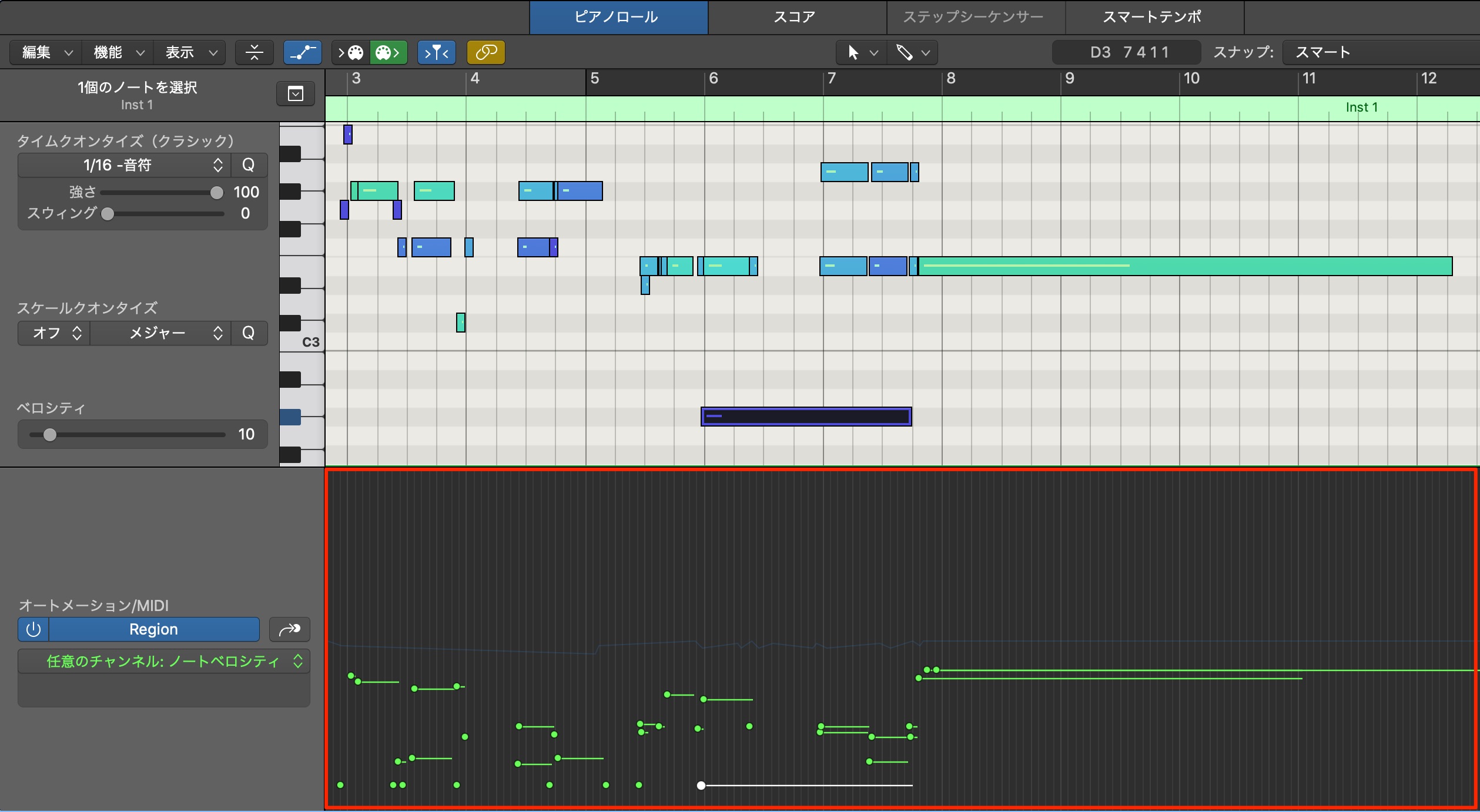
As shown here, the recording includes not only notes but also velocity, pitch bend, and MIDI CC data, allowing you to capture subtle performance nuances.
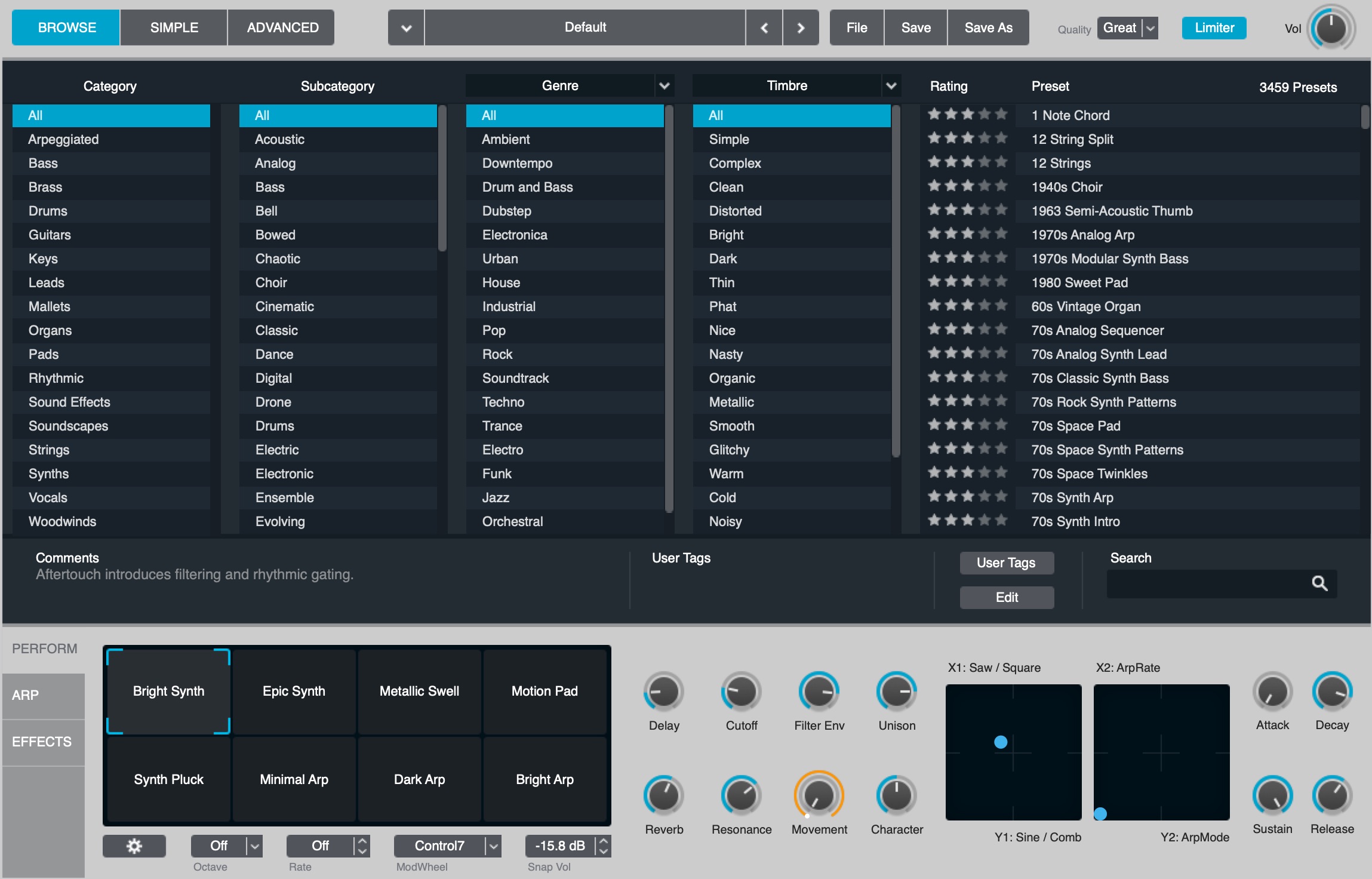
Because the entire performance is recorded as MIDI, you can use Jammy to play and record the sounds of software instruments.
Exploring software instrument phrases on a guitar can greatly expand your options for composition and arranging!
DAW Latency Settings
When playing Jammy and recording MIDI, an important setting is latency: the delay between your playing and the software instrument producing sound.
The article below explains latency in more detail.

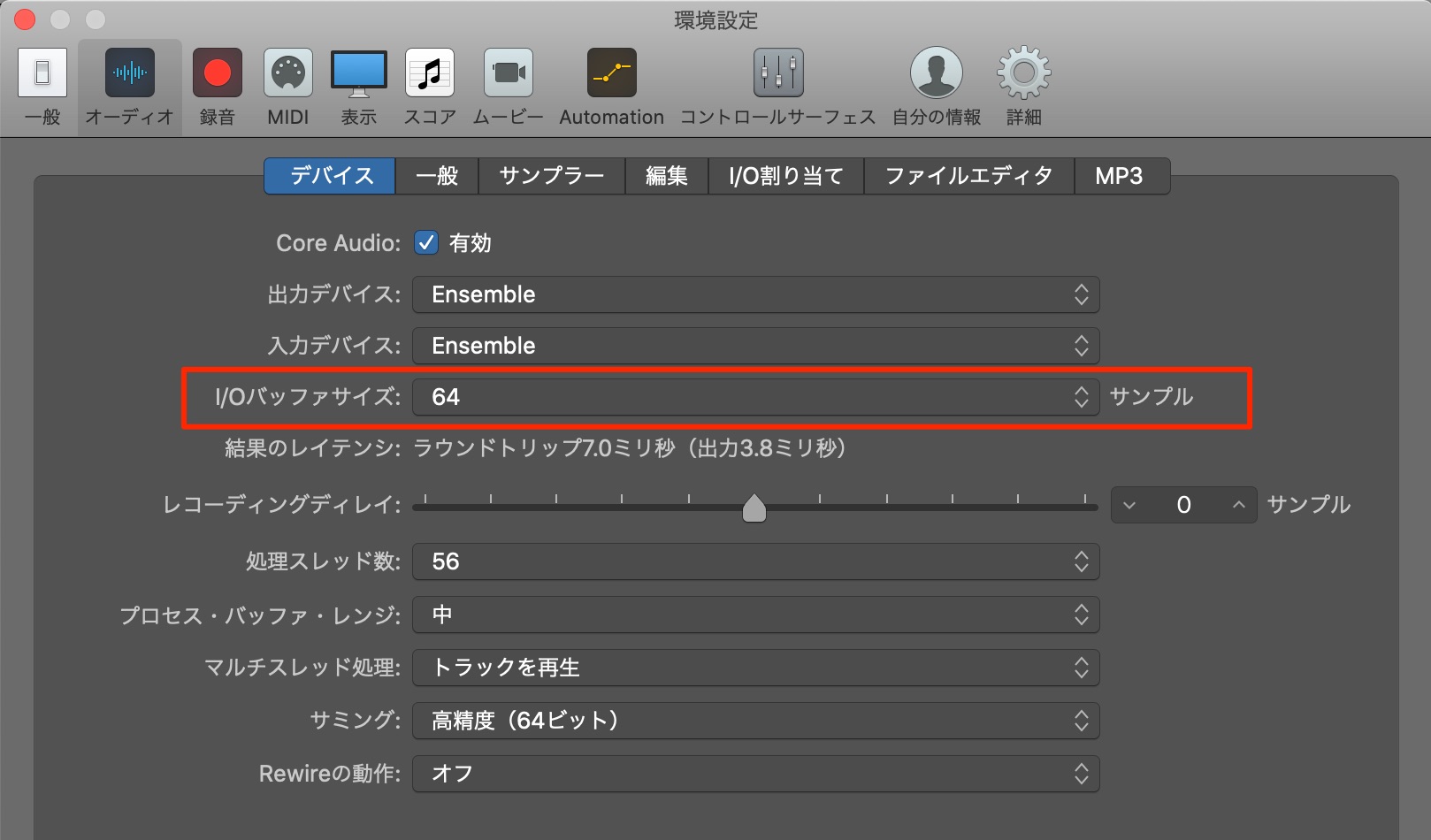
Although the result depends on your computer’s specifications, I felt that a buffer setting of 128 samples was the starting point to aim for.
At 64 samples or lower, playing and recording felt much more comfortable.
Adjusting Latency in Each DAW

 Logic
Logic Cubase
 Ableton Live
 Studio One
 FL Studio
No Physical Tuning Required, with Instant Tuning Changes
Tuning a guitar can be a time-consuming task, but Jammy is fully digital.
That means no physical tuning is required.
You can also change the tuning freely.
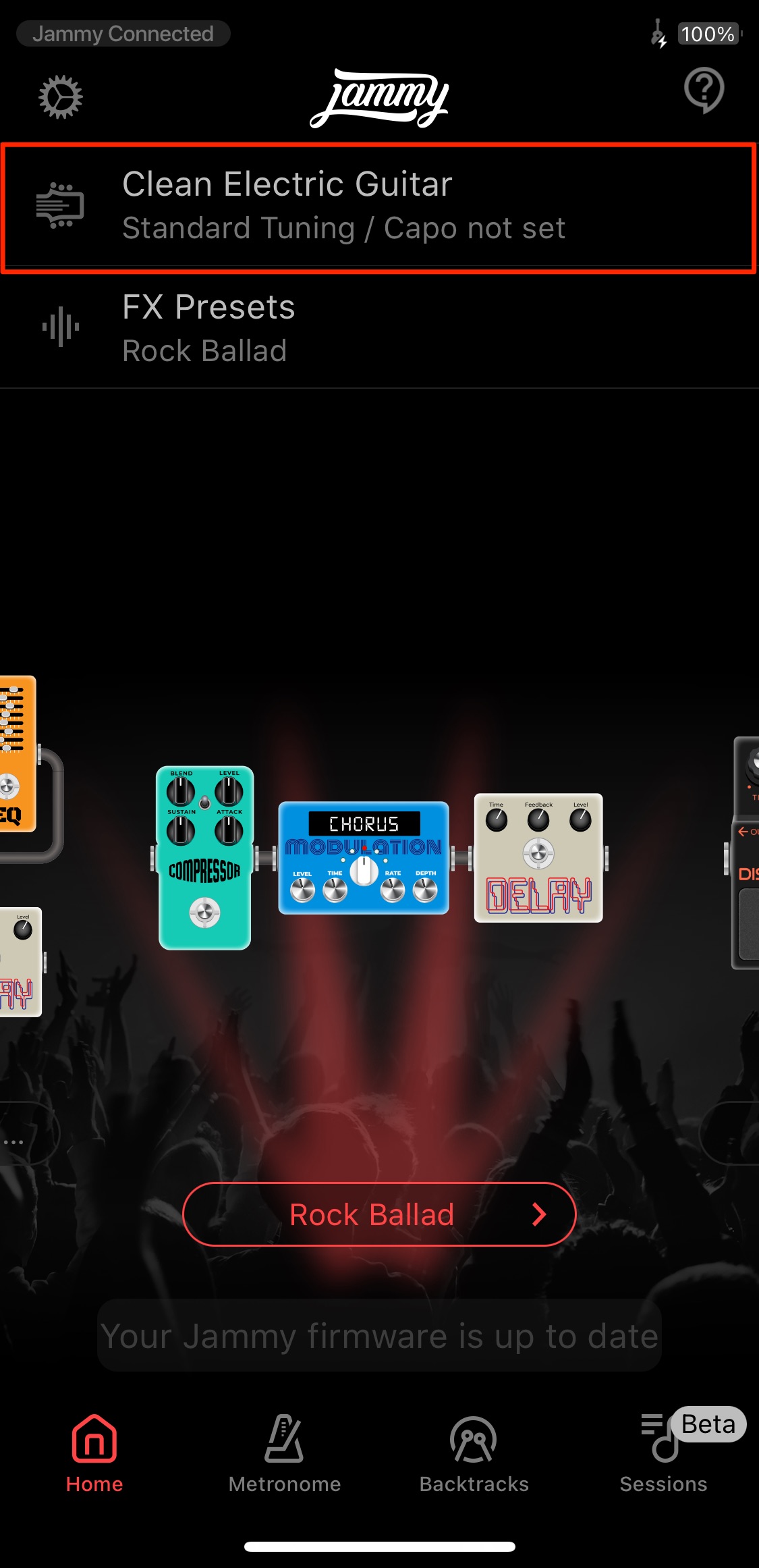
On the app’s Home screen, select “Clean Electric Guitar.”
Select “Tuning.”
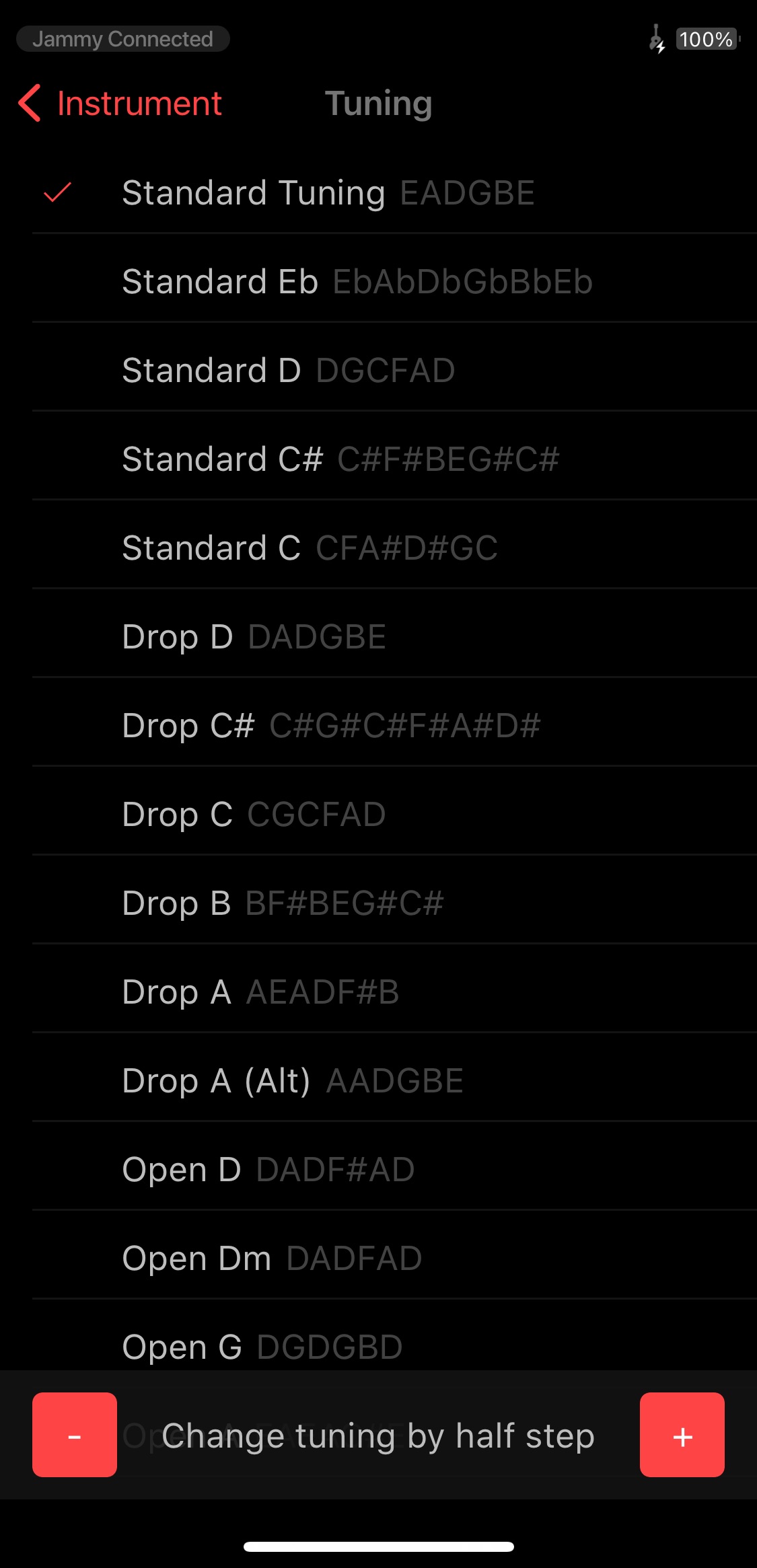
Choose the desired tuning from the list to switch instantly.
You can also create your own custom tunings using the “+” button at the bottom left.
MIDI Presets Optimized for DAWs and Instruments
Jammy includes MIDI settings presets for specific DAWs and third-party instruments.
These enable more realistic expression, including palm muting.
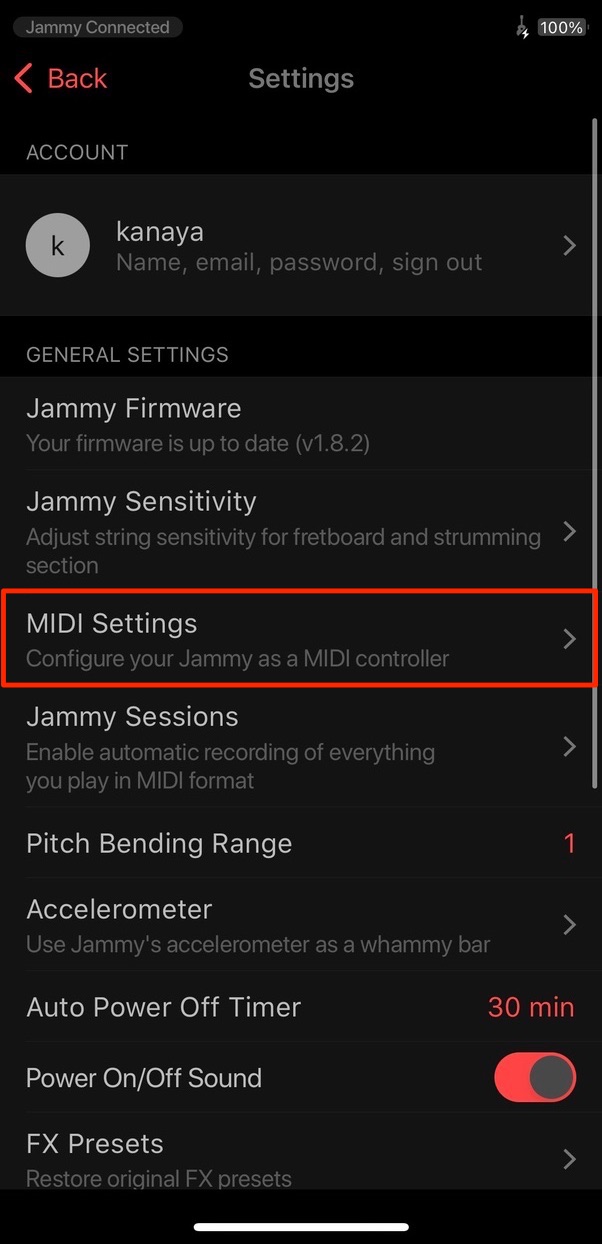
As above, use the settings icon to select “MIDI Settings.”
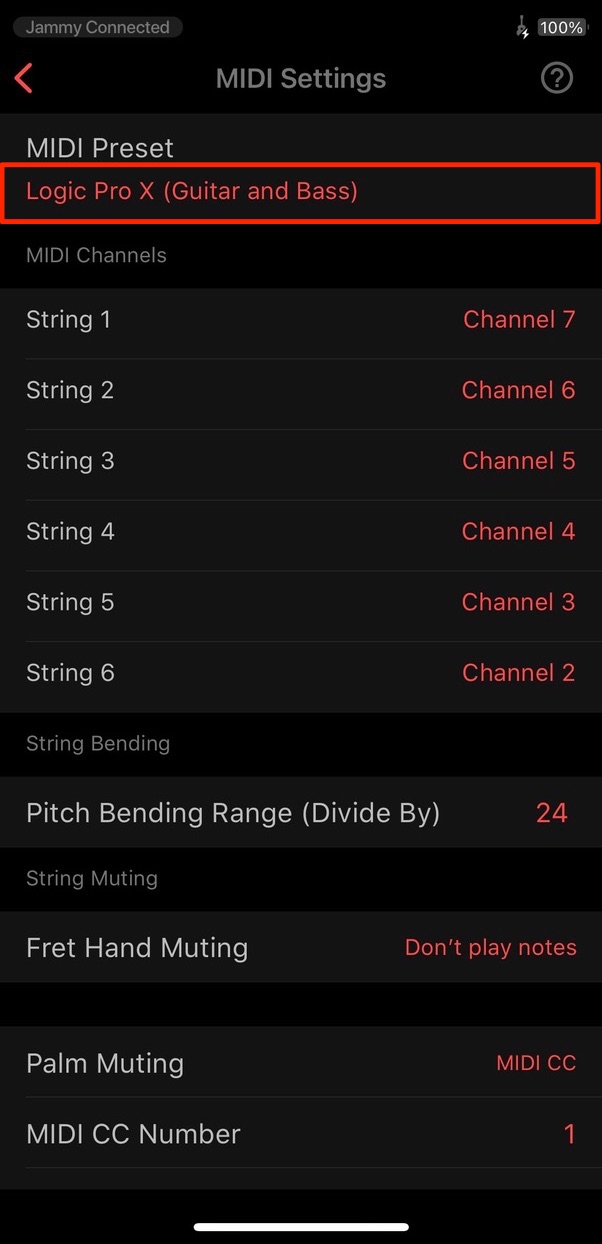
Choose the desired preset here.
At the time of this review, the supported DAWs included Logic and Ableton Live, with third-party instrument support including Ample Guitar.
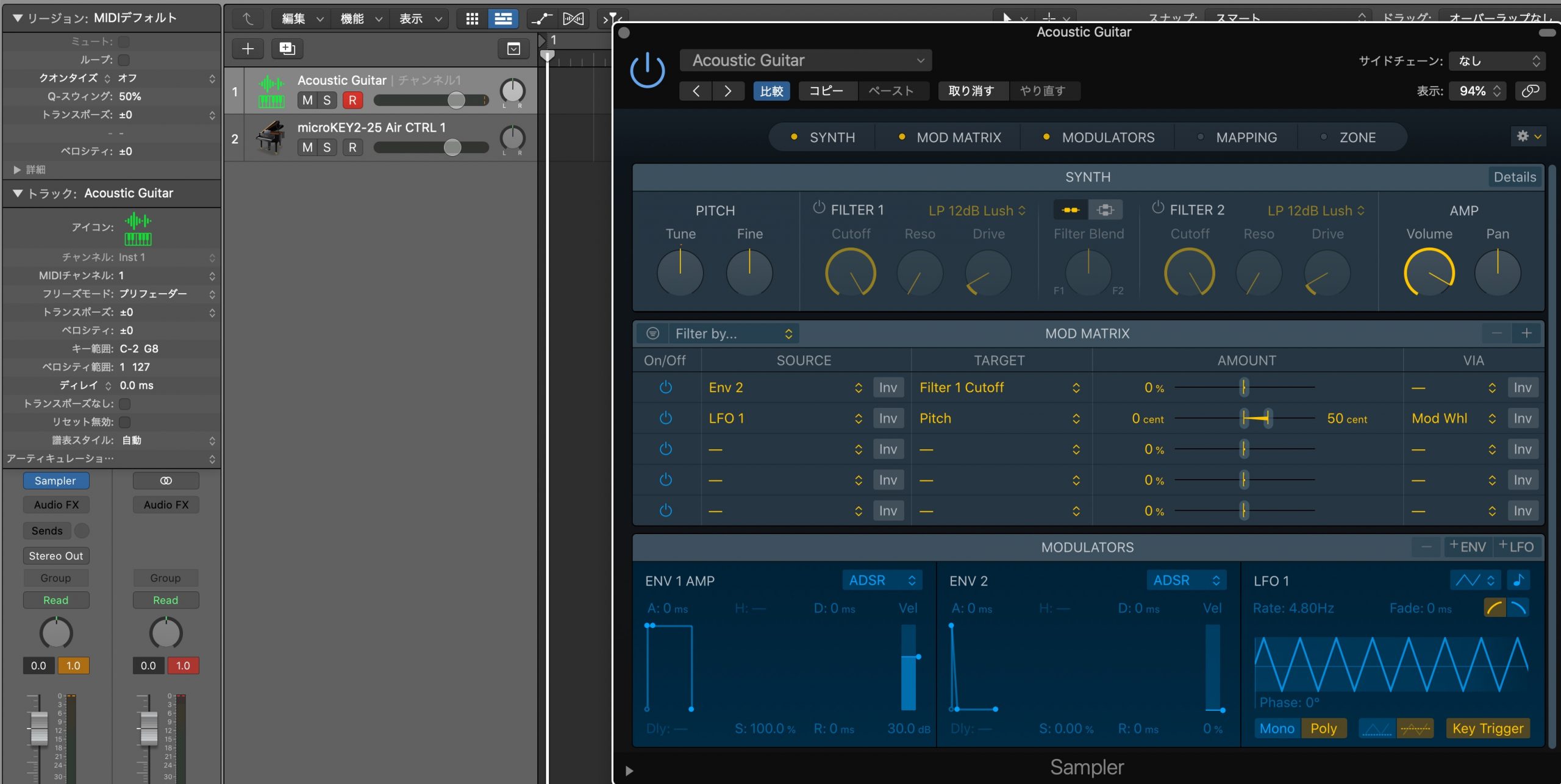
I tried playing an acoustic guitar sound included in Logic’s Sampler, and the result felt very realistic.
This makes Jammy an appealing option if you want to add acoustic guitar parts to your tracks.
The video below demonstrates this in more detail.
Adjusting Playing and Picking Sensitivity
When recording with Jammy, playing and picking sensitivity and volume, or velocity, are important settings.
You can control these in detail from the app.
Let’s start with the picking response and velocity settings.
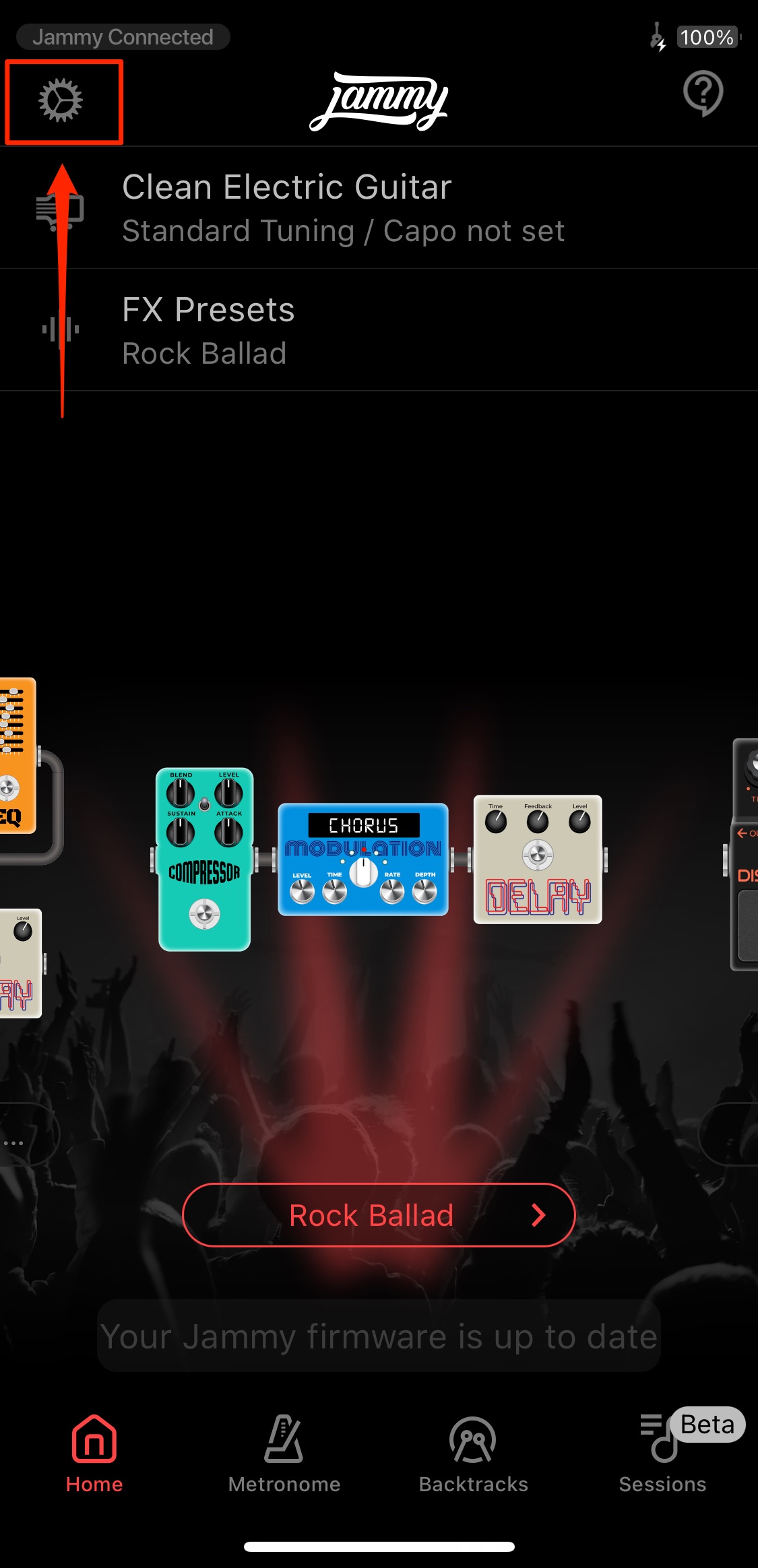
Select the settings icon on the Home screen.
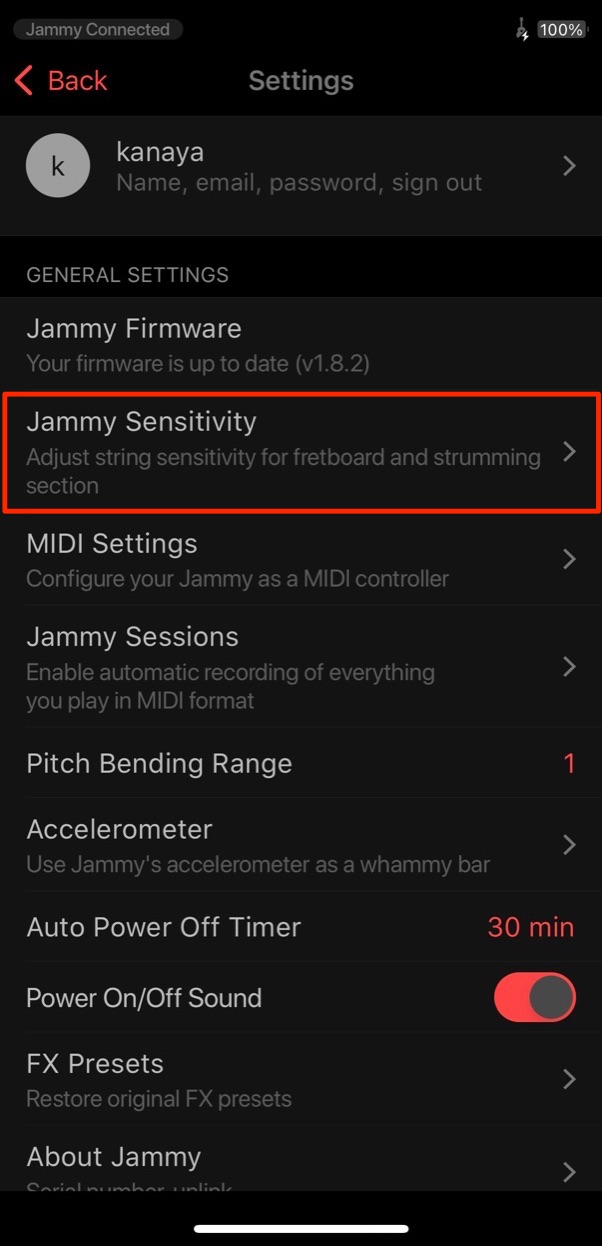
Select “Jammy Sensitivity.”
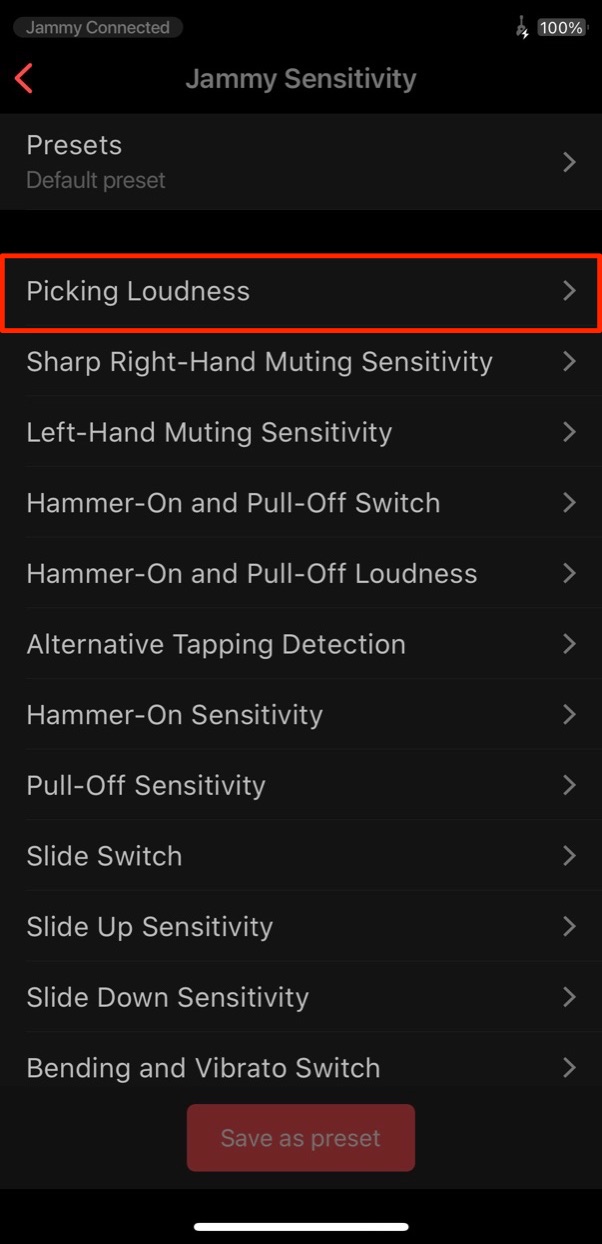
Select “Picking Loudness.”
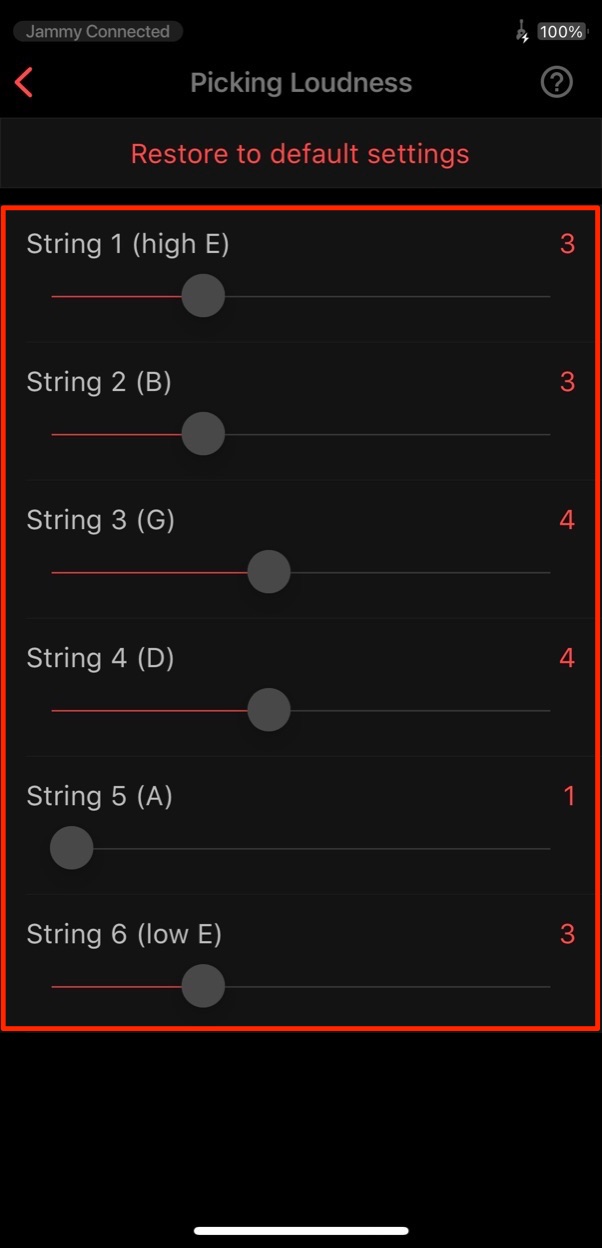
You can adjust the note volume produced by picking each string on a scale from 1 to 8.
Higher values produce higher MIDI velocities.
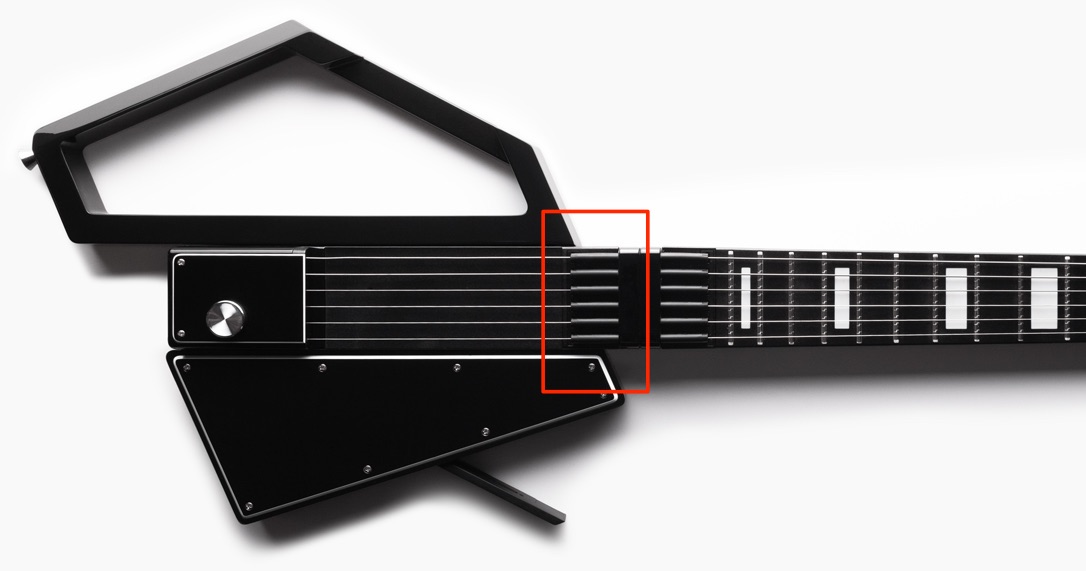
Jammy’s picking sensor is located here, and I found that picking closer to it produced more consistent detection.
Jammy also supports techniques such as hammer-ons, pull-offs, and slides.
These techniques are enabled by default, but you may sometimes want to avoid detecting notes this way.
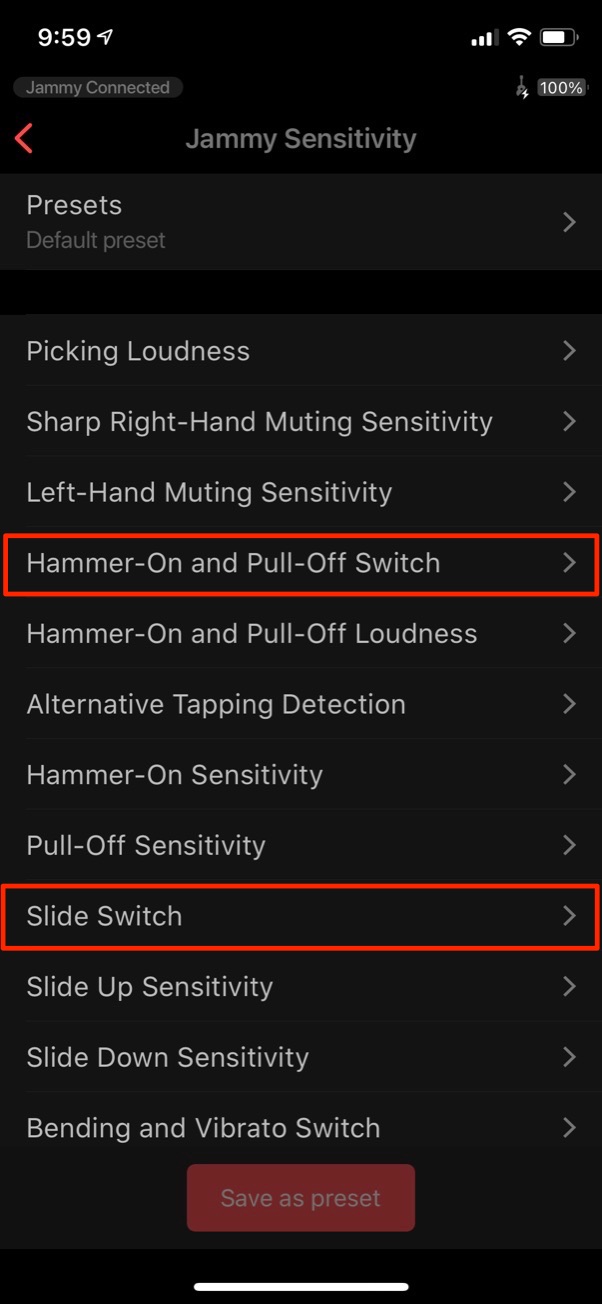
In that case, you can switch these options off.
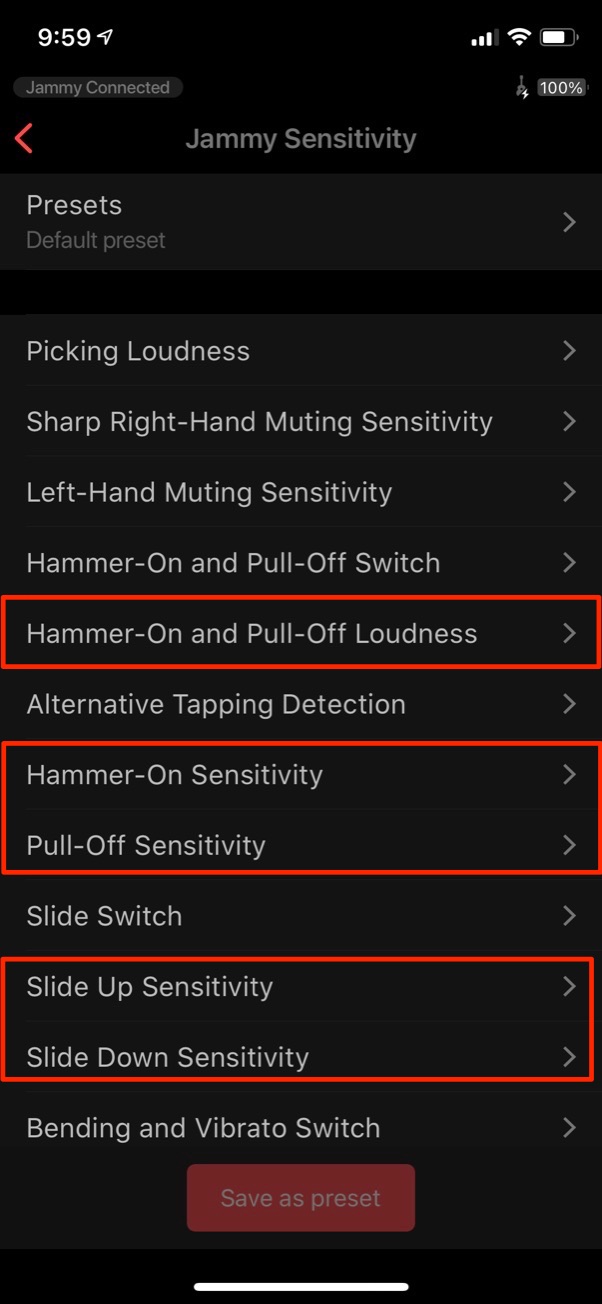
When they are enabled, you can also specify the detection sensitivity and volume, or velocity, for each technique.
This is useful for avoiding unintended notes when you touch the strings.
- Sensitivity determines how readily Jammy recognizes an action as a note.
- Loudness determines the output volume, or velocity, of notes detected from that technique.
These are the roles of the two settings.
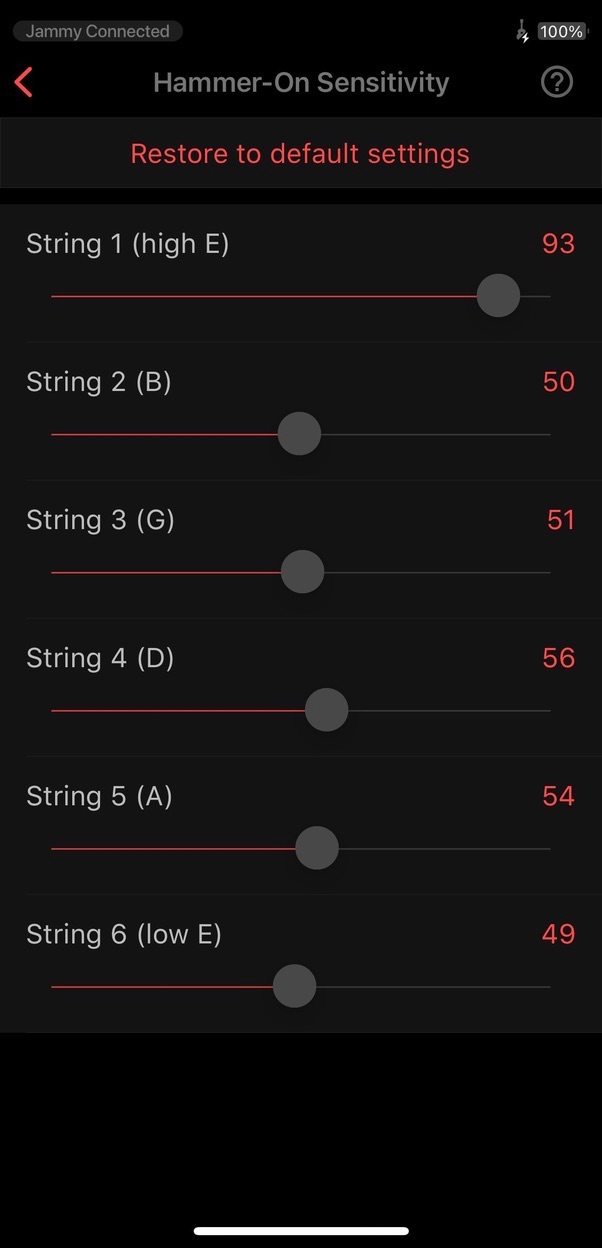
Higher Sensitivity values make techniques easier to detect, but even a light touch on a string may be recognized as a note.
Conversely, values that are too low make techniques harder to detect.
Loudness sets the volume at which the technique is played.
I recommend adjusting these values while actually playing to find what works best for you.
String bends, vibrato, and subtle string pitch changes are recorded as pitch bend data.
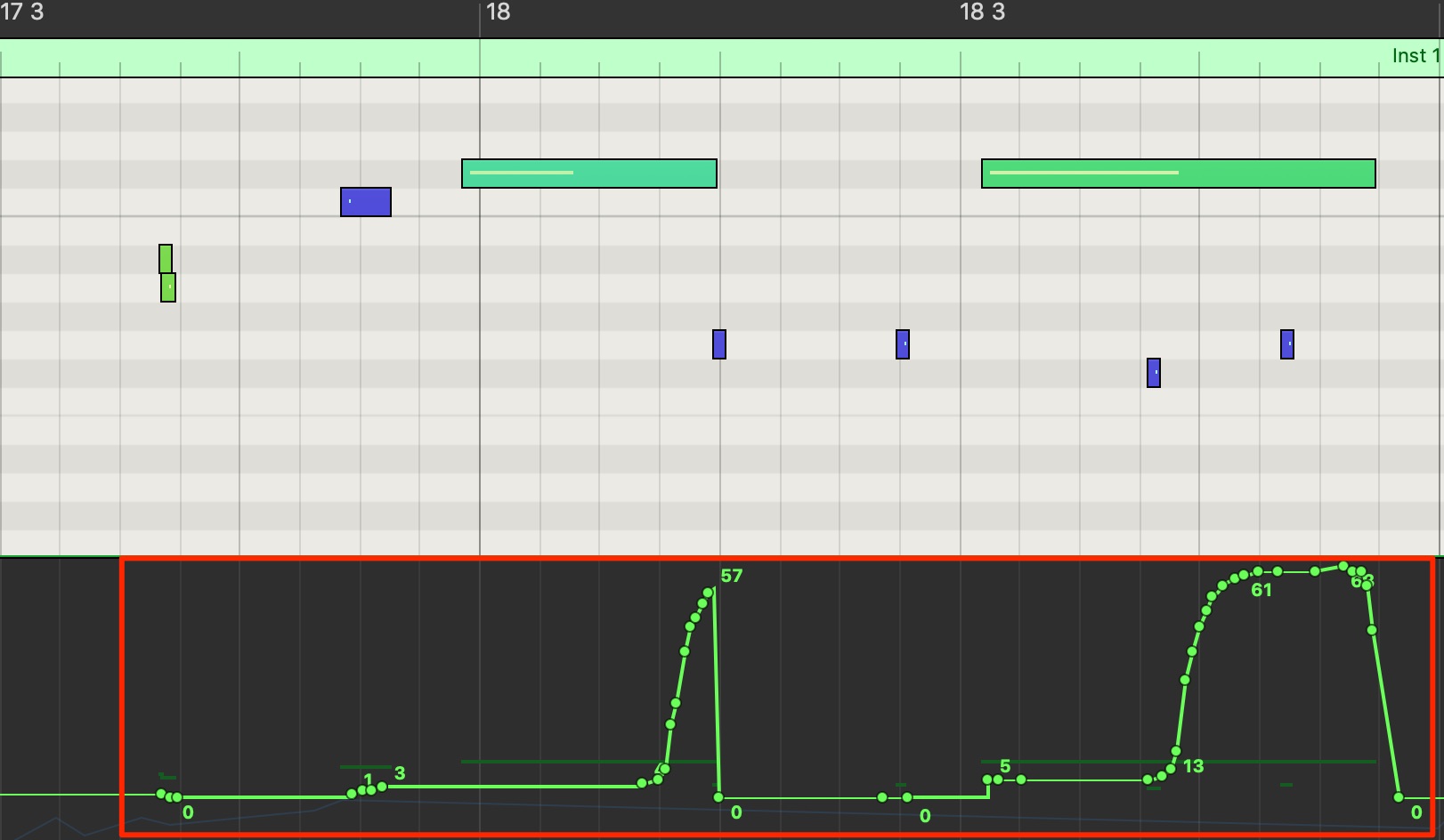
The data is recorded as shown here, but some instrument sounds may not need these pitch changes.

In that case, disable “Bending and Vibrato Switch” to prevent the pitch curve from being recorded.
Recreating Palm Muting and Staccato with DAW Instruments
You may also want to recreate palm muting or staccato with synths and instruments that are not supported by the dedicated MIDI presets above.
I felt that being able to express palm muting this way would make Jammy even more useful.
Palm muting information can be sent to the DAW as MIDI CC data using “Palm Muting” in MIDI Settings.
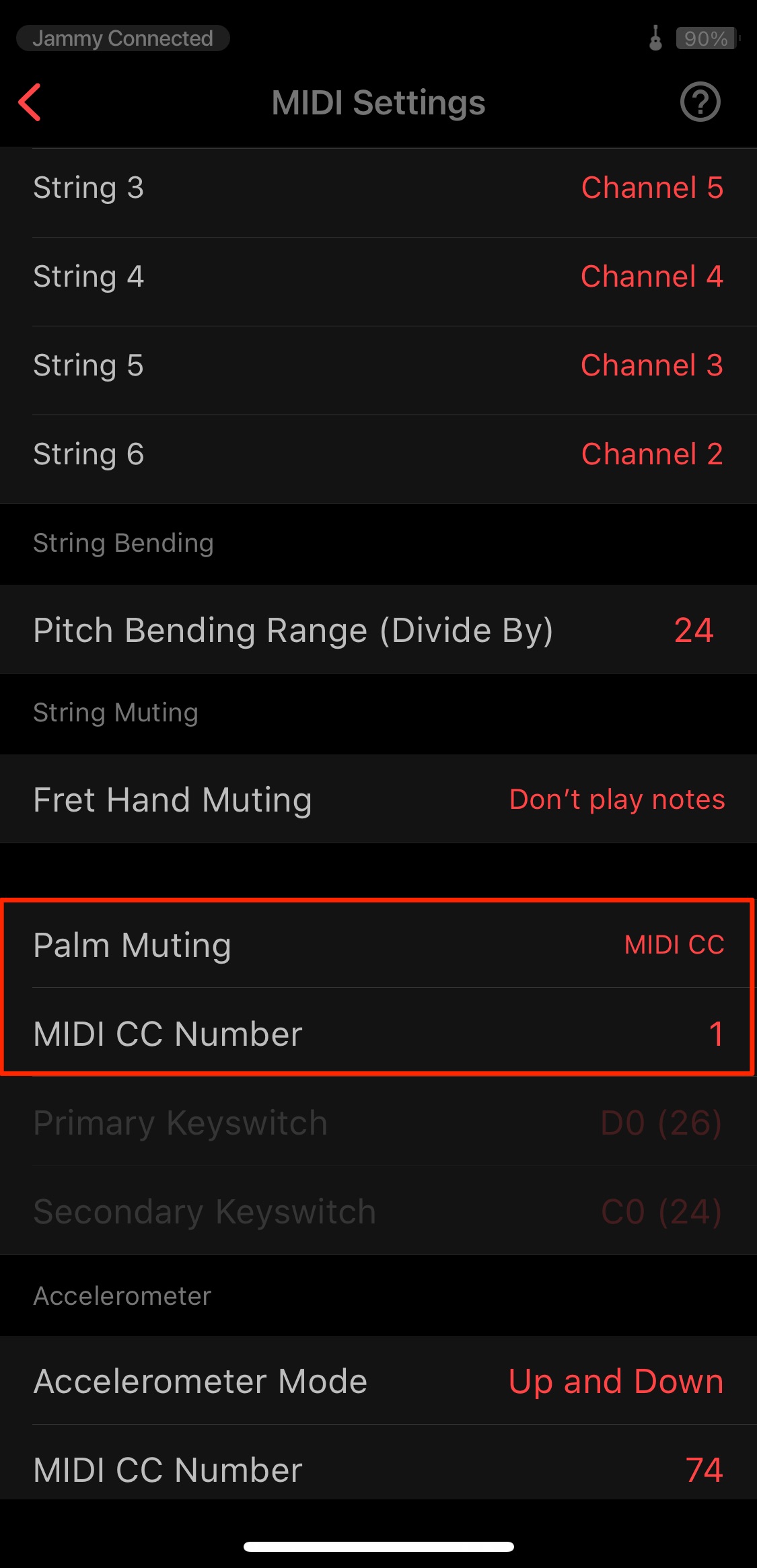
Set “Palm Muting” to “MIDI CC,” then specify the MIDI CC number to transmit.
Here, we select CC1, modulation.
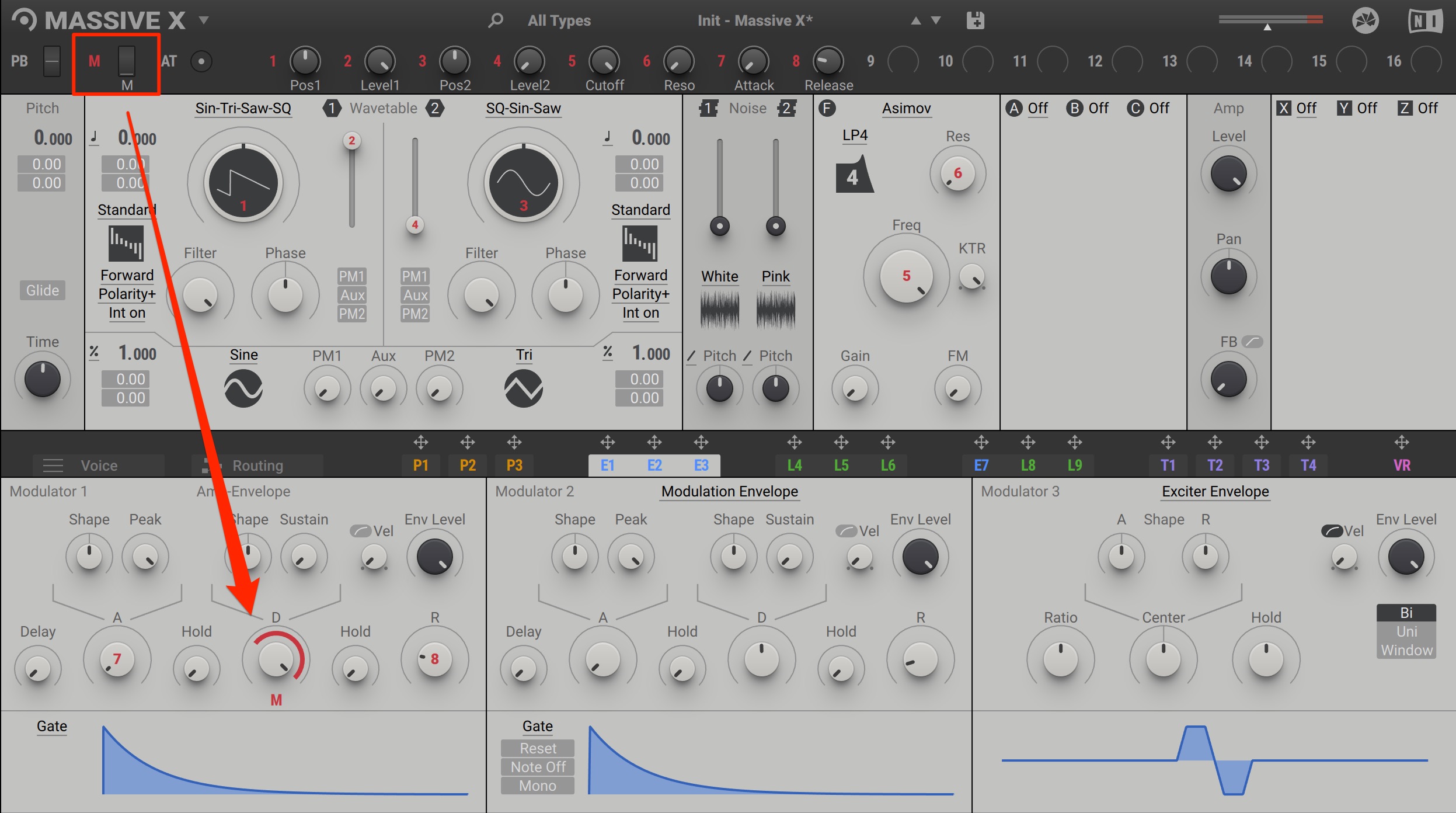
Many software synthesizers support CC1 modulation.
For example, in Massive X, assign modulation to the amp envelope’s decay and adjust the modulation amount.
Set Sustain to 0.
This lets you shorten the sound when you palm mute.
You can assign modulation to other parameters in the same way.
Try exploring new ideas and playing techniques!
MIDI Channels
There is another useful feature related to the MIDI settings above.
You can output each string on a separate MIDI channel.
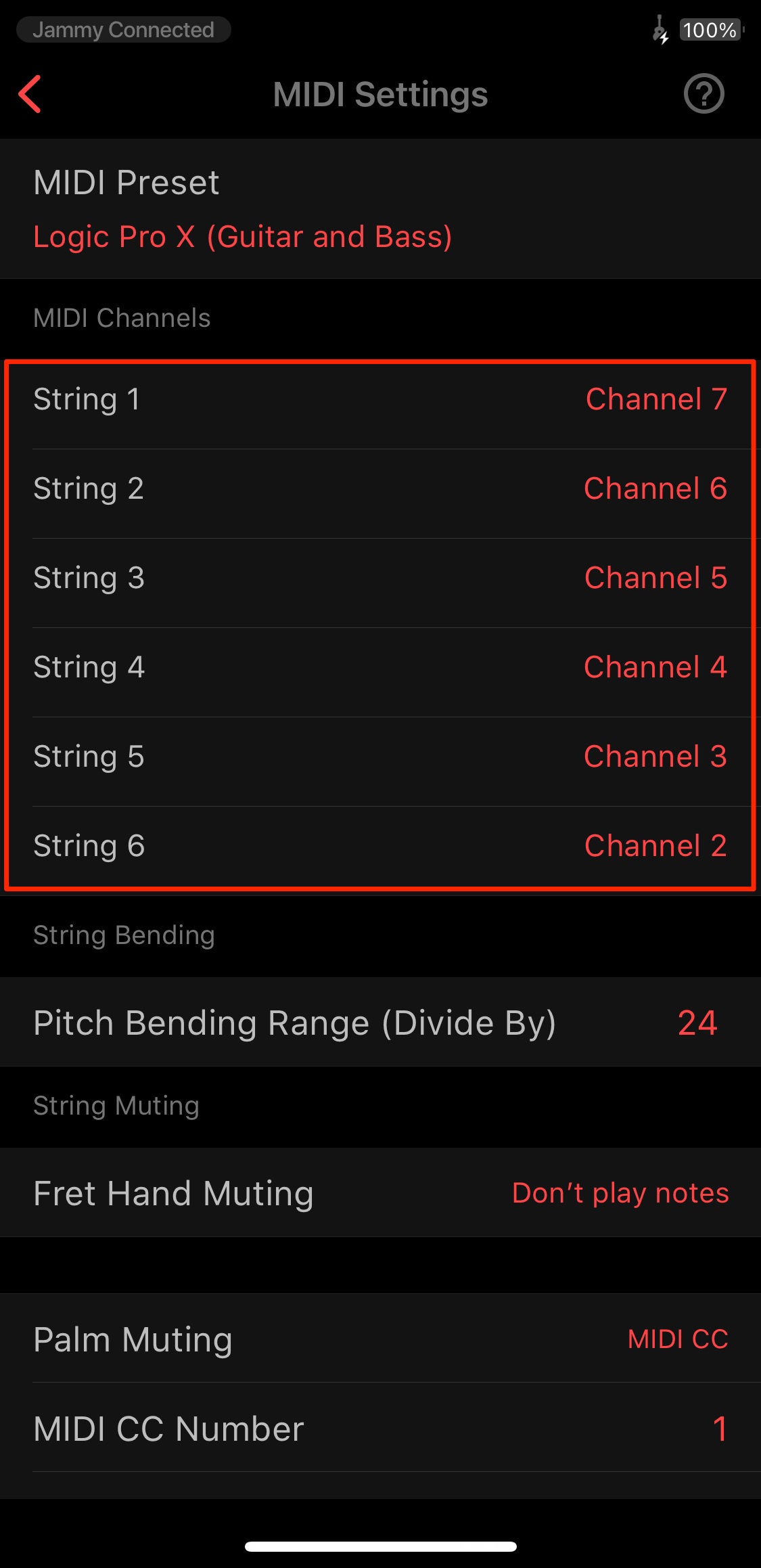
Change each string’s MIDI channel here.
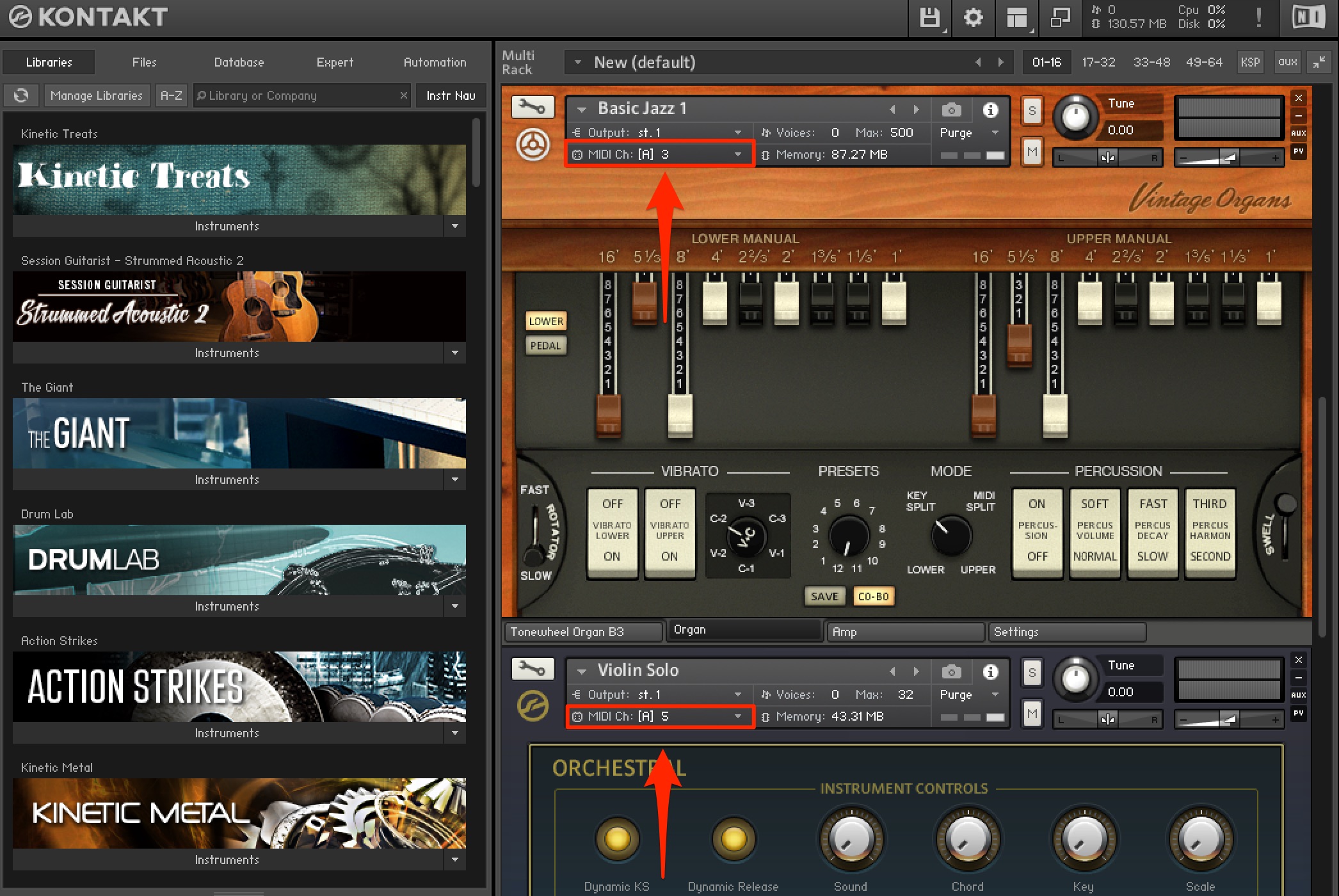
For example, by routing the strings to different MIDI channels in a multitimbral instrument such as Kontakt, you can have each string play a different instrument sound.
It is an interesting and musical concept.
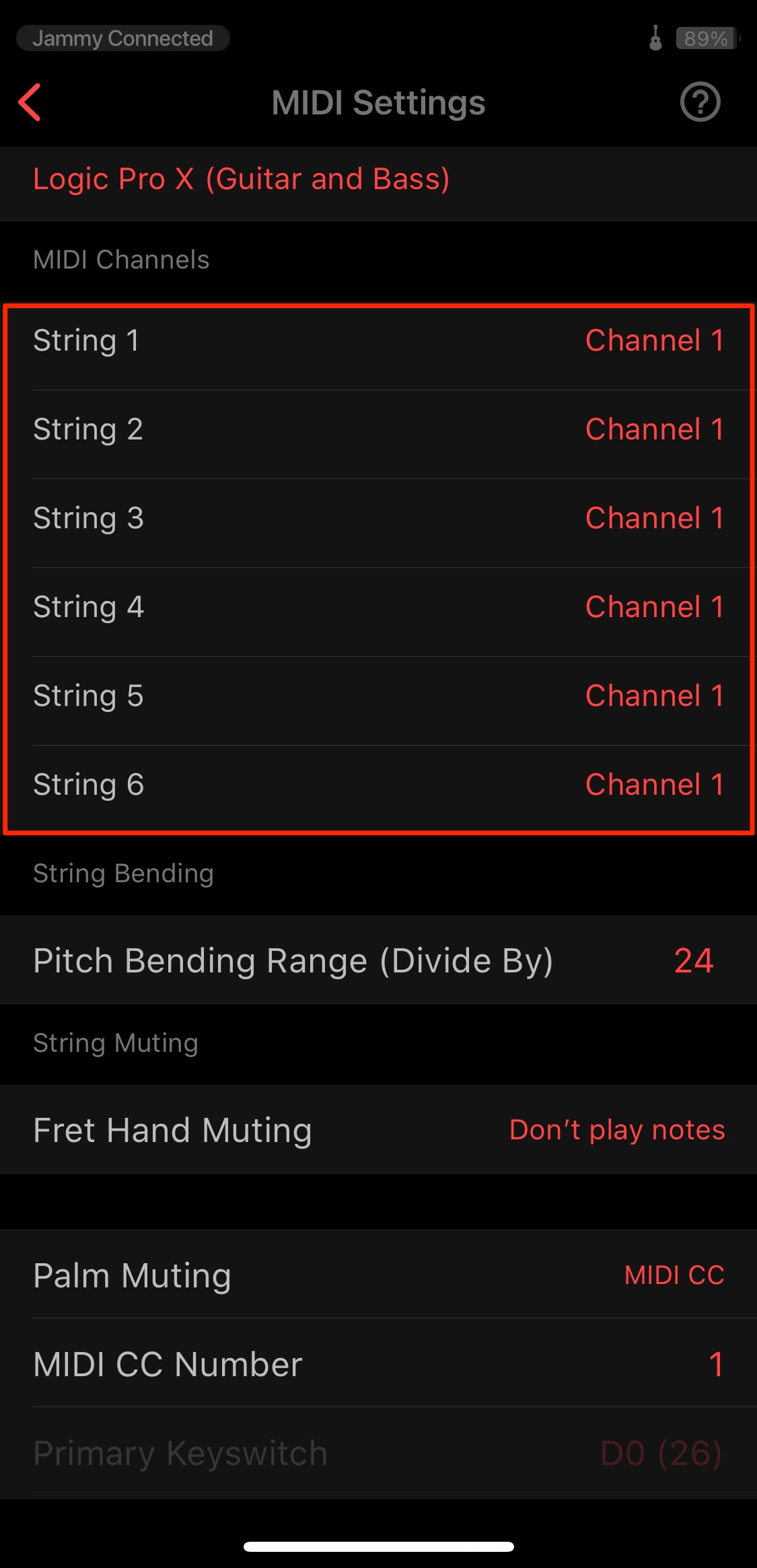
If you want all strings to play the same instrument, set the MIDI channels for the relevant instrument parts to the same channel.
What If the MIDI Settings Behave Unexpectedly?
If these MIDI settings do not work as expected, I recommend resetting them.
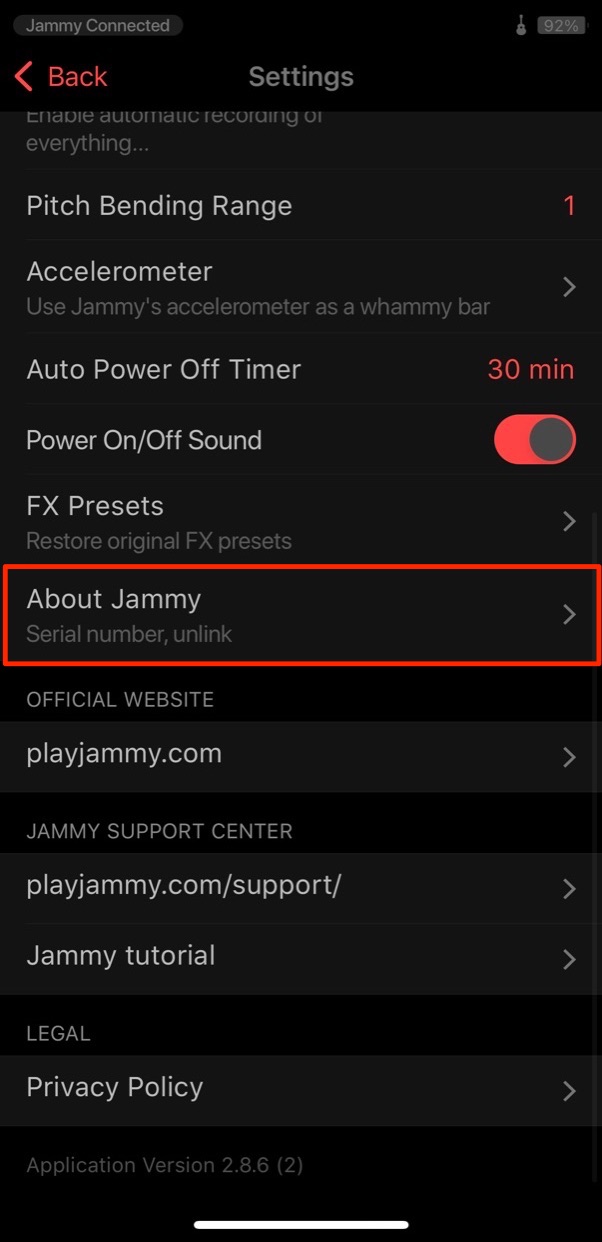
Tap the settings icon and select “About Jammy.”
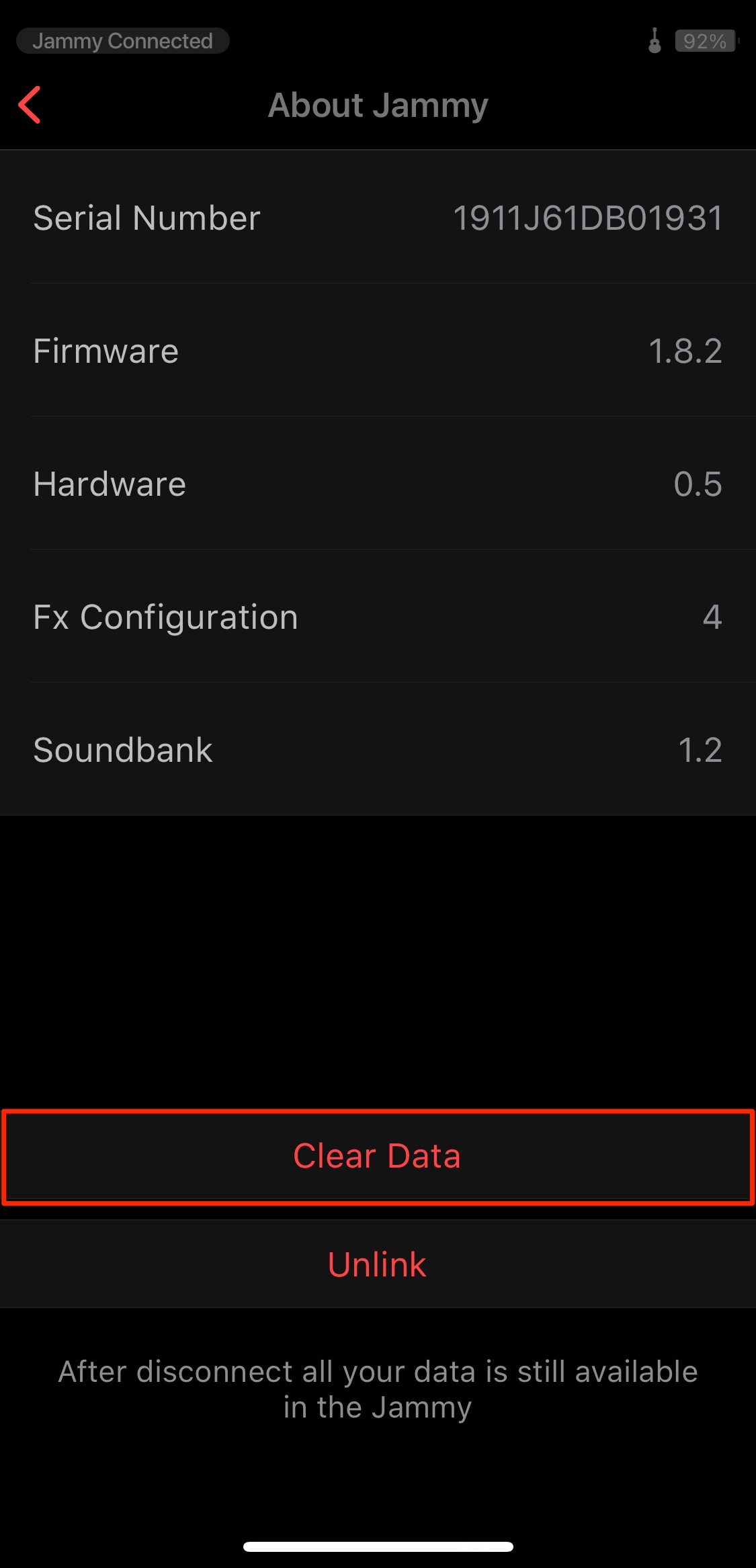
Select “Clear Data” to reset Jammy’s internal settings.
What did you think?
Programming music with a guitar is something many guitarists have dreamed of.
Jammy demonstrated that potential clearly in this review, and suggested an exciting new approach to MIDI input.
The dedicated MIDI presets described above were impressively accurate, and at the time I hoped to see support expand to more DAWs and third-party plug-ins.
Jammy was also expected to receive improvements to playing sensitivity and accuracy, along with useful new features, through firmware updates. At the time of this review, I was looking forward to seeing how the next update would develop it further.
If you are a guitarist interested in music production, take a look at Jammy and the workflow explored here!
Product URL: http://bit.ly/sleepfreaks-jammy
Frequently Asked Questions
Q1. How can I use Jammy as a MIDI guitar in my DAW?
Connect it to your computer via USB-C, and it is recognized as “MIDI Gadget.” Like a MIDI keyboard, it records your performance along with nuances such as velocity, pitch bend, and MIDI CC data, letting you play software instruments.
Q2. How do I change Jammy’s tuning?
In the companion app, open the guitar sound from the Home screen and select “Tuning.” Choose the desired tuning from the list to switch instantly. You can also create custom tunings, with no physical tuning required.
Q3. What settings are recommended for comfortable playing and recording?
Update the firmware and adjust string tension while checking single notes and chords. In this review, a 128-sample DAW buffer was a starting point, while 64 samples or lower felt more comfortable. Selecting a MIDI preset for your DAW or software instrument can also enable more realistic expression.
NEW ARTICLES
Latest English Articles












































































































































































