
Komplete Kontrol version 1.9.3 added Cubase support to its host integration feature. This lets you control your DAW intuitively from hardware such as the KOMPLETE KONTROL S MK2. Use its buttons and knobs for transport controls (play, stop and record), mixer volume and pan, track mute and solo, and quantization. The dials and buttons reduce reliance on the mouse for a more efficient and creative music production workflow.
Controlling Cubase with the Komplete Kontrol S
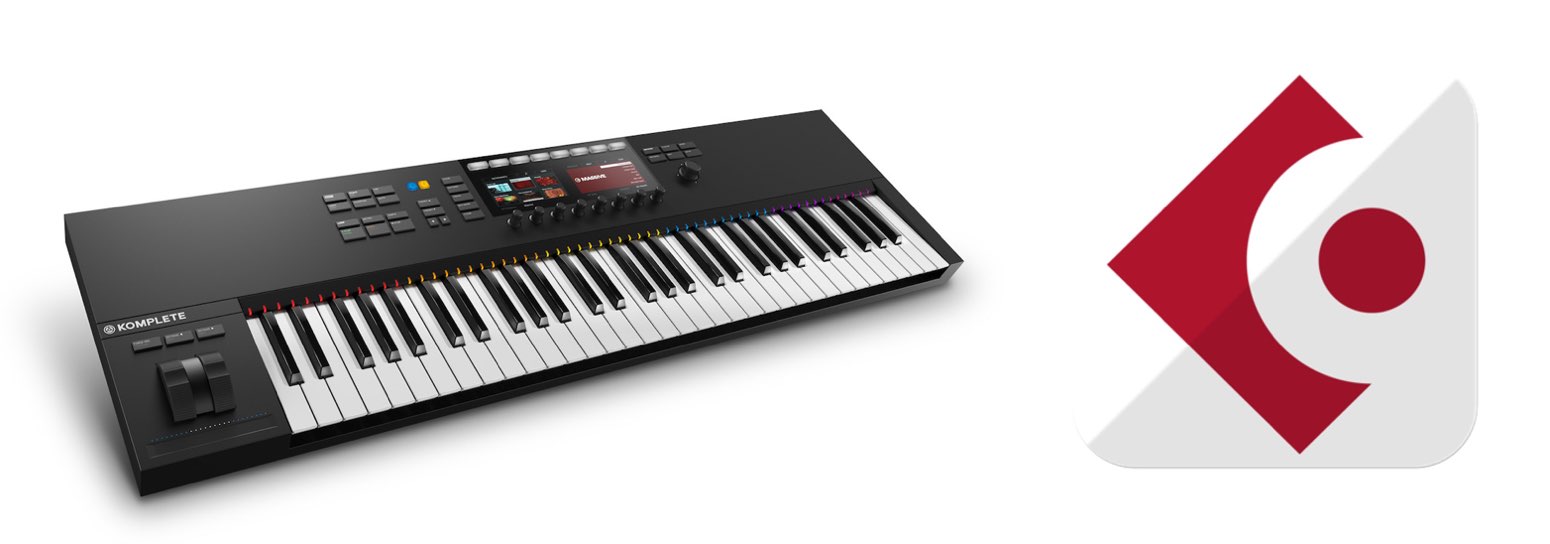
Native Instruments updated Komplete Kontrol to version 1.9.3, adding Cubase support to its host integration feature for controlling your DAW from the hardware.
The previous article explained setup for each DAW. Here, we will use Cubase to demonstrate the specific controls available through host integration.
Host Integration in Cubase: Video Tutorial
- 1Product Overview
- 2Browsing
- 3Light Guide and Clear View Display
- 4Scales
- 5Chords
- 6Arpeggiator
- 7Automation and MIDI Mode
- 8Komplete Kontrol 1.1: New Features
- 9KOMPLETE KONTROL 1.5: New Features
- 10KOMPLETE KONTROL 1.6.2: New Features
- 11KOMPLETE KONTROL 1.9.3: Building a Comfortable Workflow with DAW Control
- 12Komplete Kontrol 1.9.3 Host Integration: Cubase
- 13KOMPLETE KONTROL 2.0: NKS FX
- 14Favorites in Maschine and Komplete Kontrol
Transport Section
This tutorial uses the KOMPLETE KONTROL S MK2.
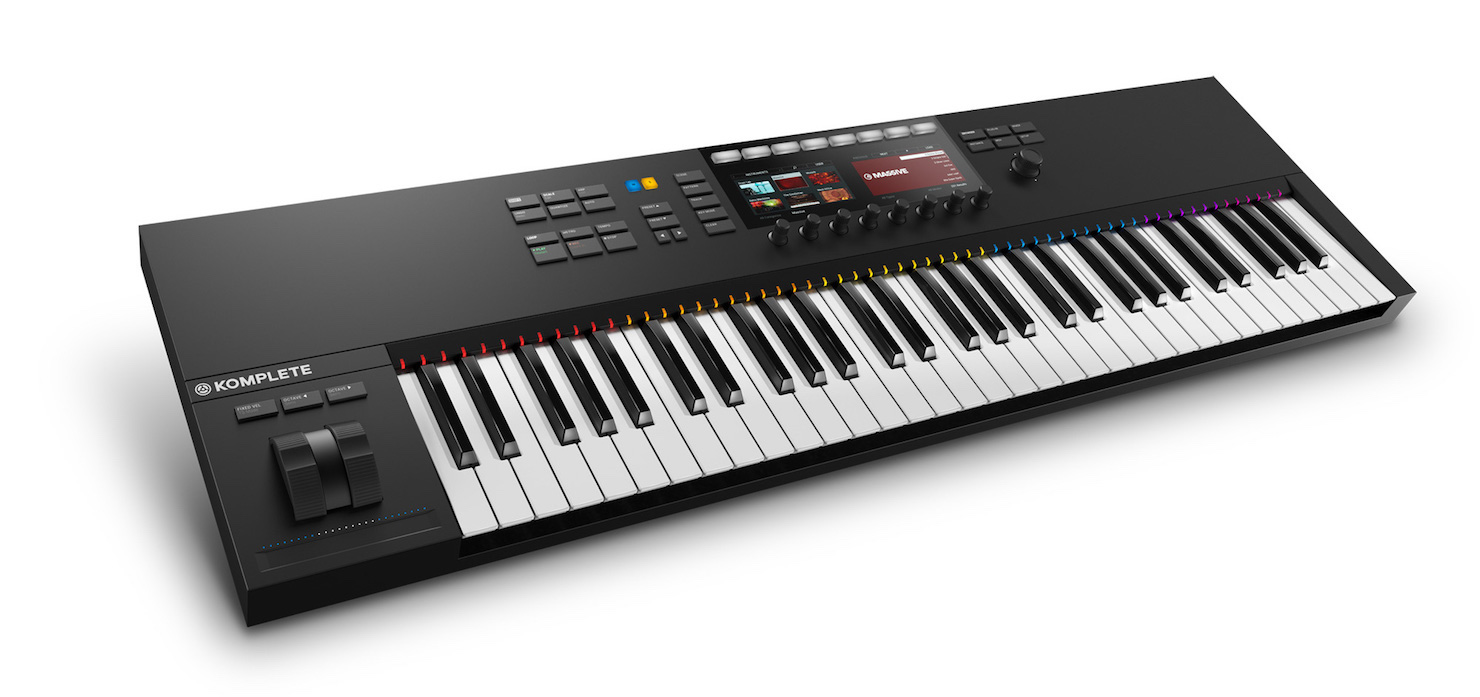
The KOMPLETE KONTROL S MK1 also supports host integration, but its buttons and knobs are arranged differently.
First, let’s look at the transport controls, which are among the most frequently used controls in production.
Setting the Playback Position
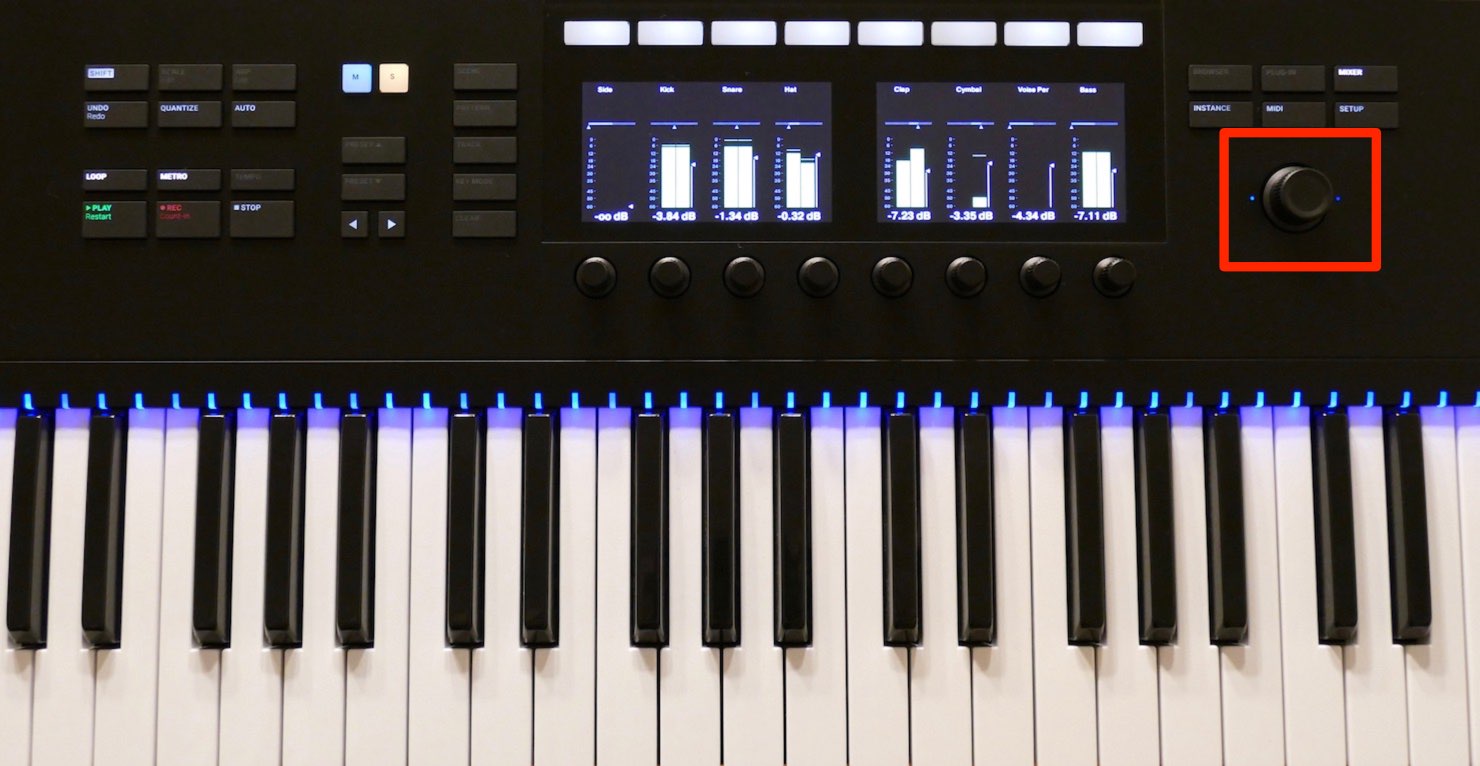
Turn the dial to move the project playhead.
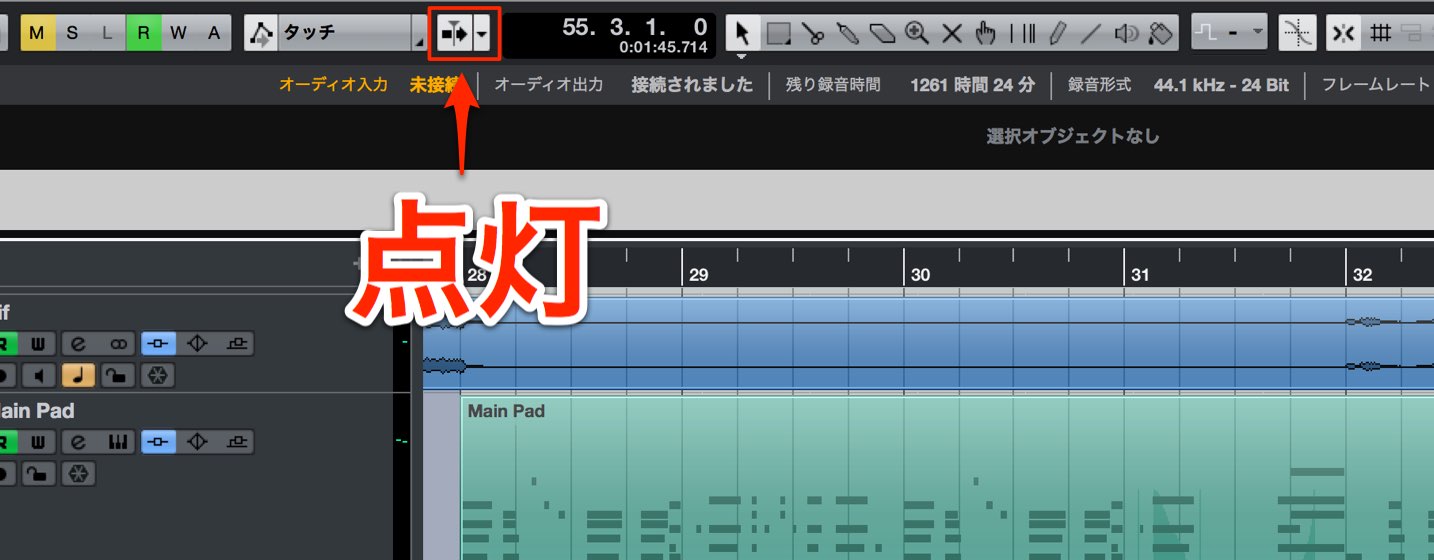
Enable the project’s Auto-Scroll button so the project view follows the playhead.
Play and Stop
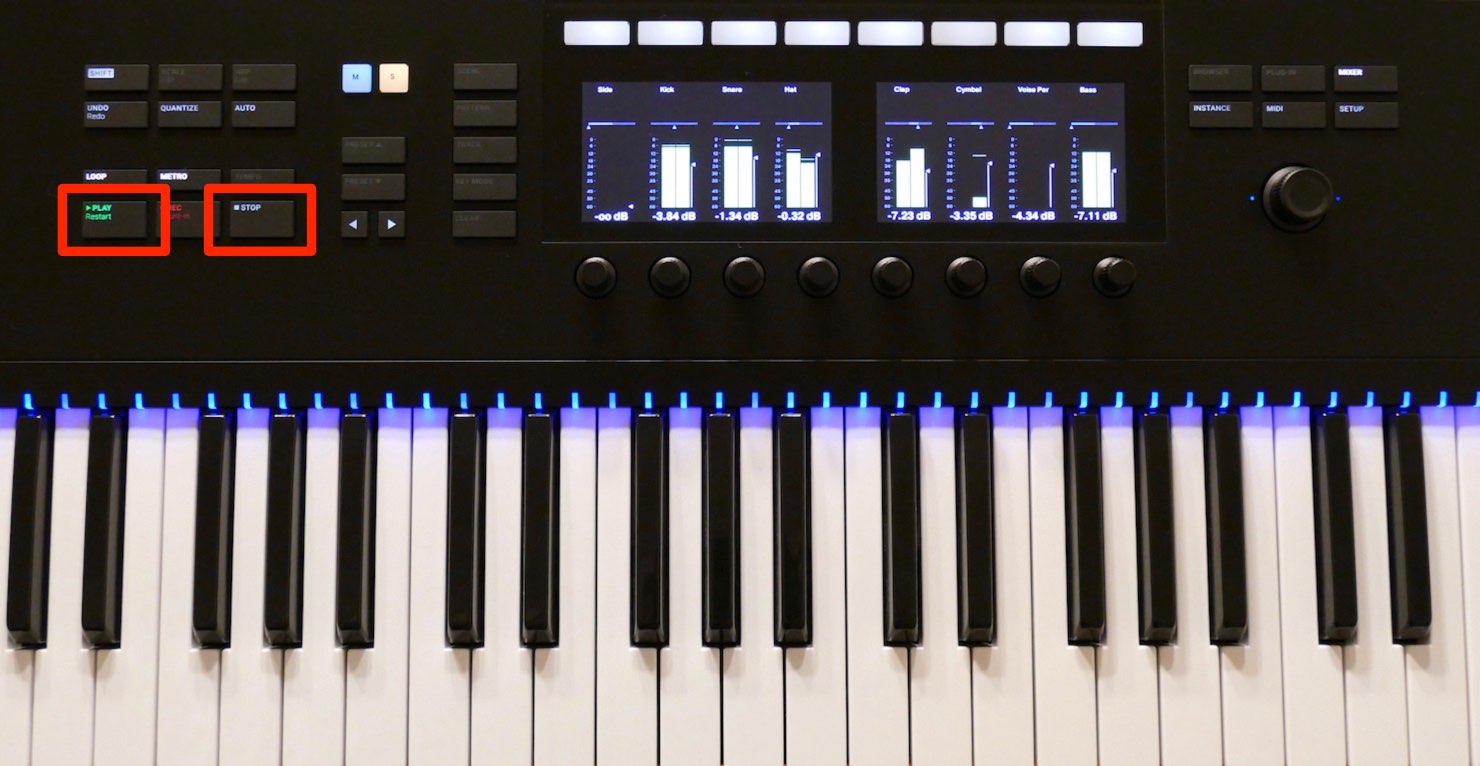
Press PLAY to start the project from the playhead position.
Press STOP to stop playback.
Press PLAY again during playback to restart from the position where playback began.
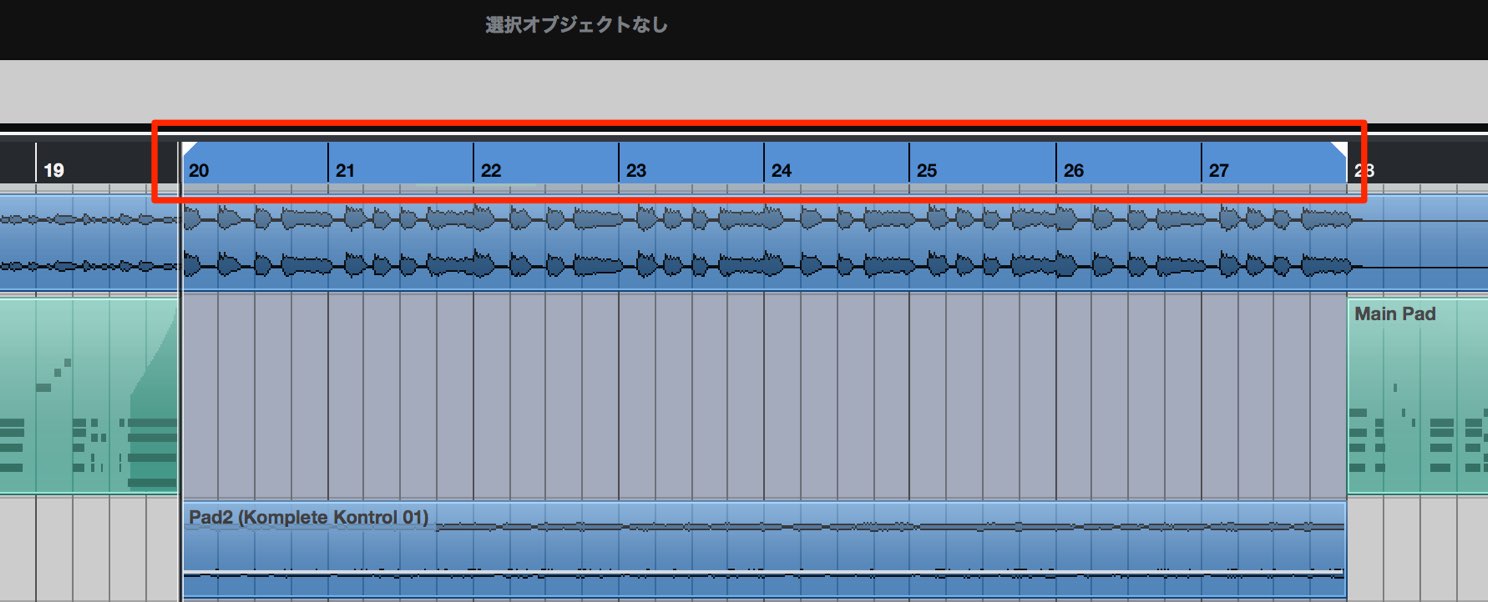
You can also toggle the cycle function, which is frequently used during production.
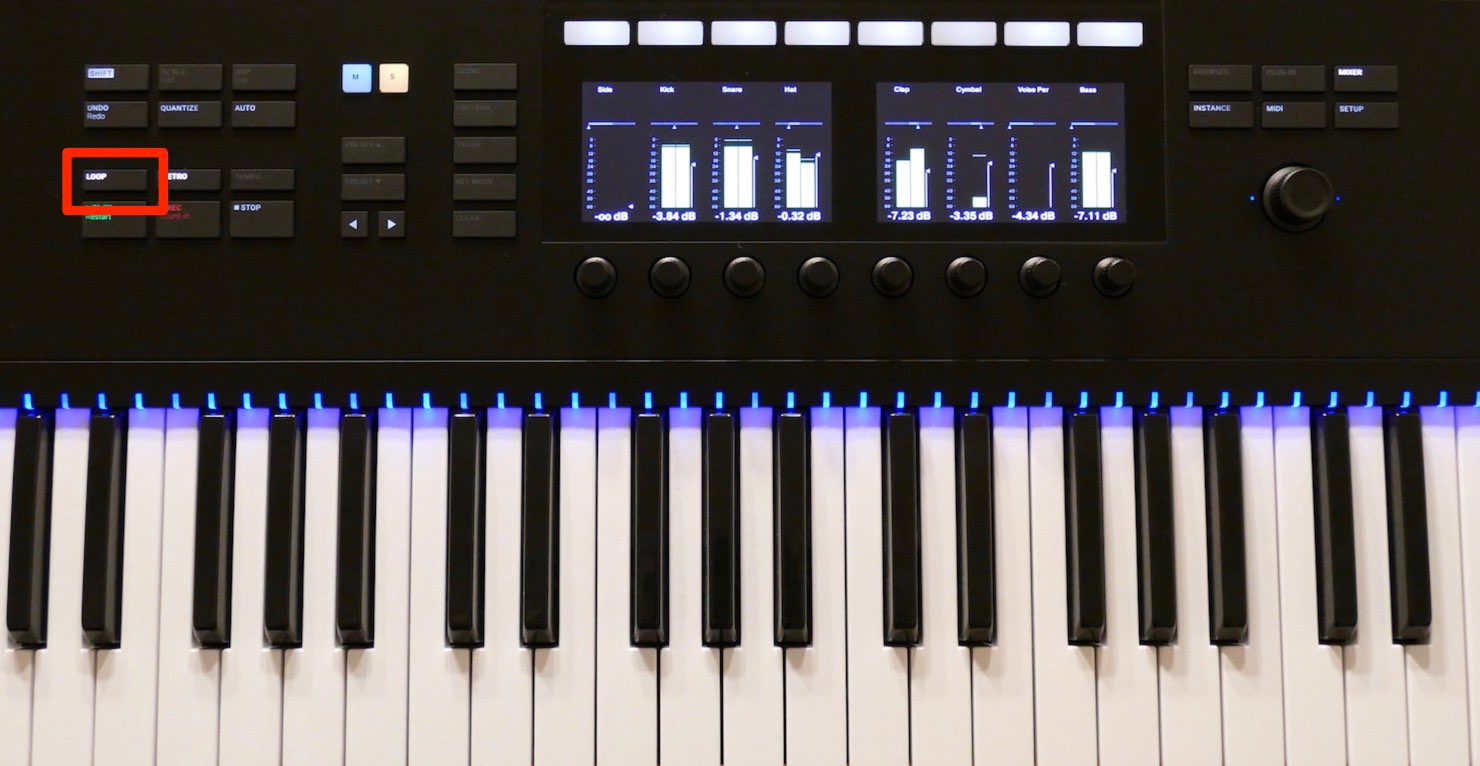
Press LOOP to toggle cycle mode.
The button lights up when cycle is enabled and goes dark when it is disabled.
Recording
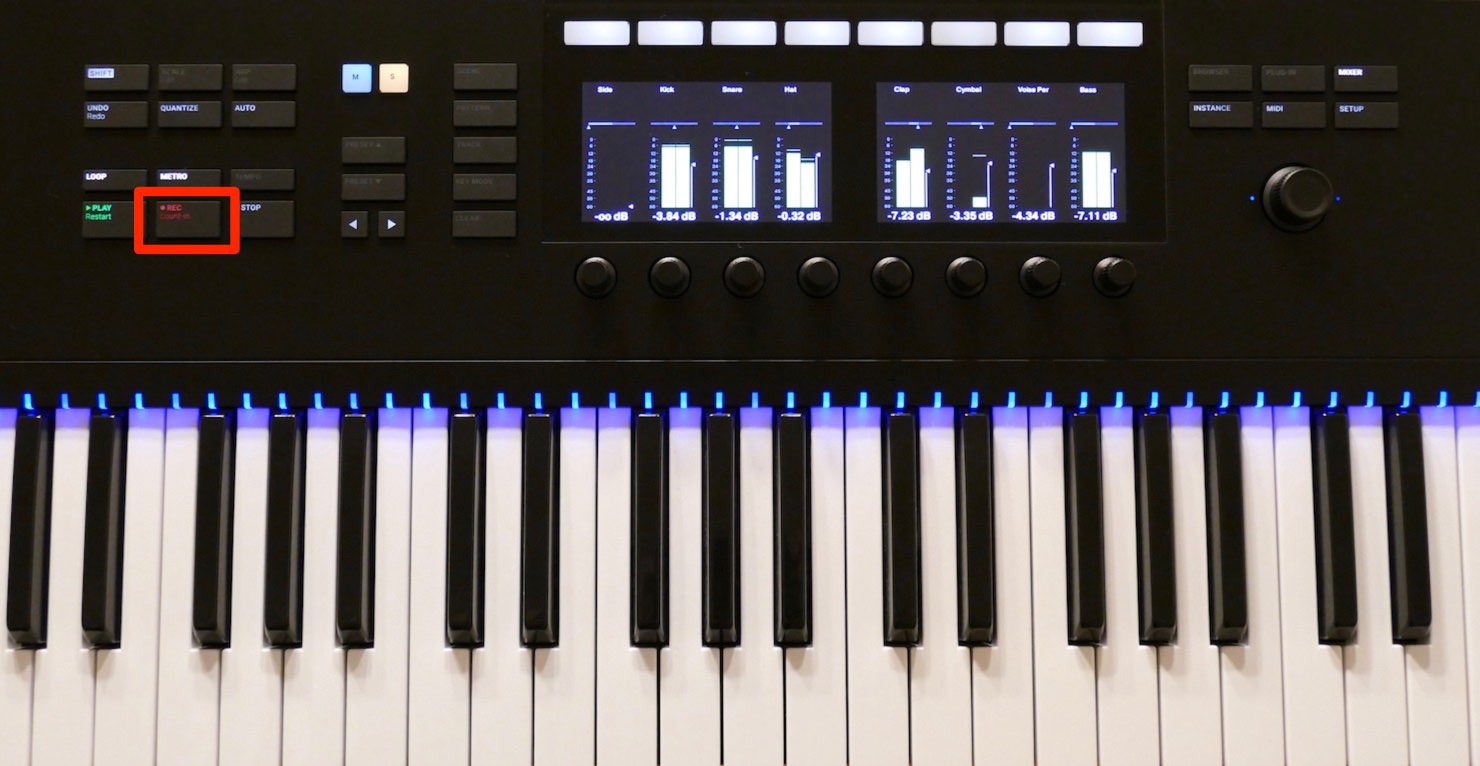
Press REC to start recording on the selected track.
Being able to control recording from the keyboard is very convenient.
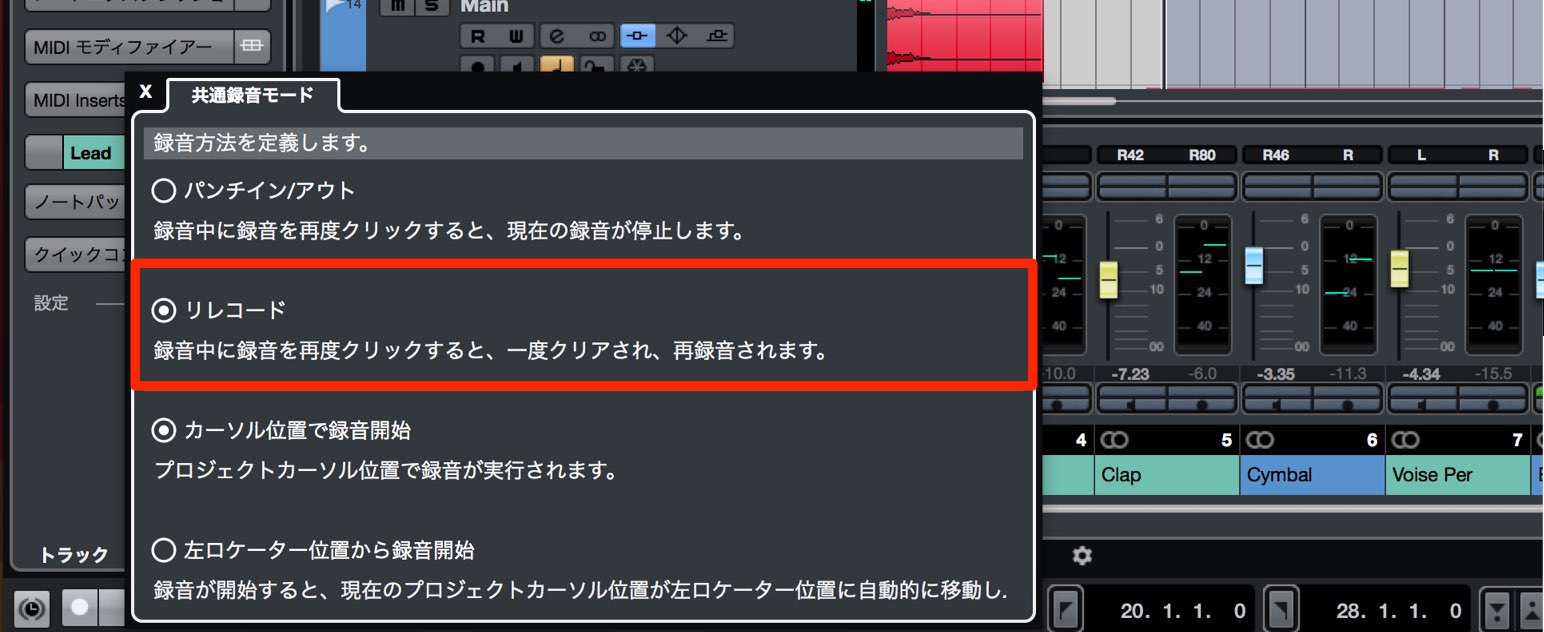
Setting Cubase’s recording mode to Re-Record lets you record again without stopping playback.
Simply press REC again while recording.
The recording made so far is discarded and recording starts again from the beginning.
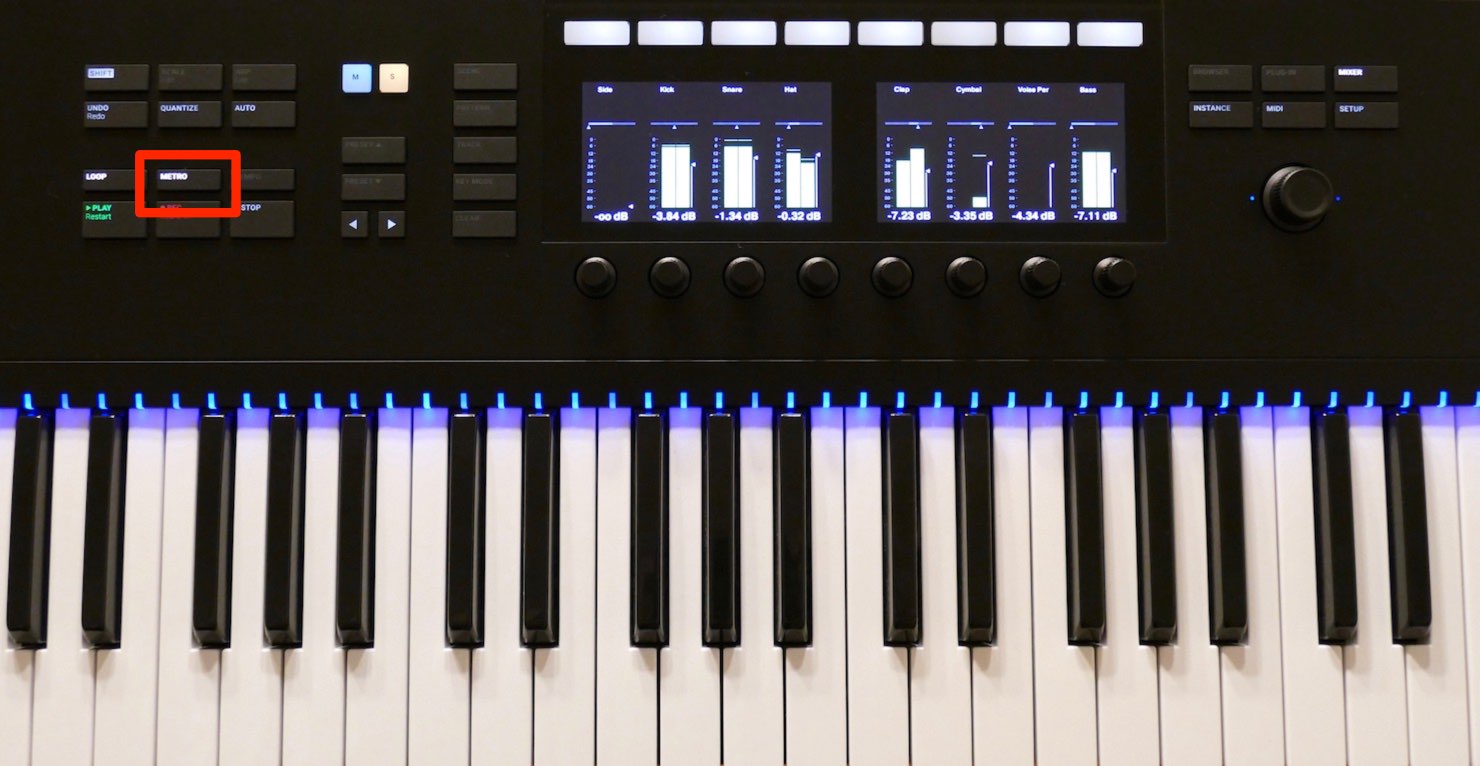
You will often want to hear the metronome while recording.
Use METRO to quickly turn the metronome on or off.
The button lights up when the metronome is enabled and goes dark when it is disabled.
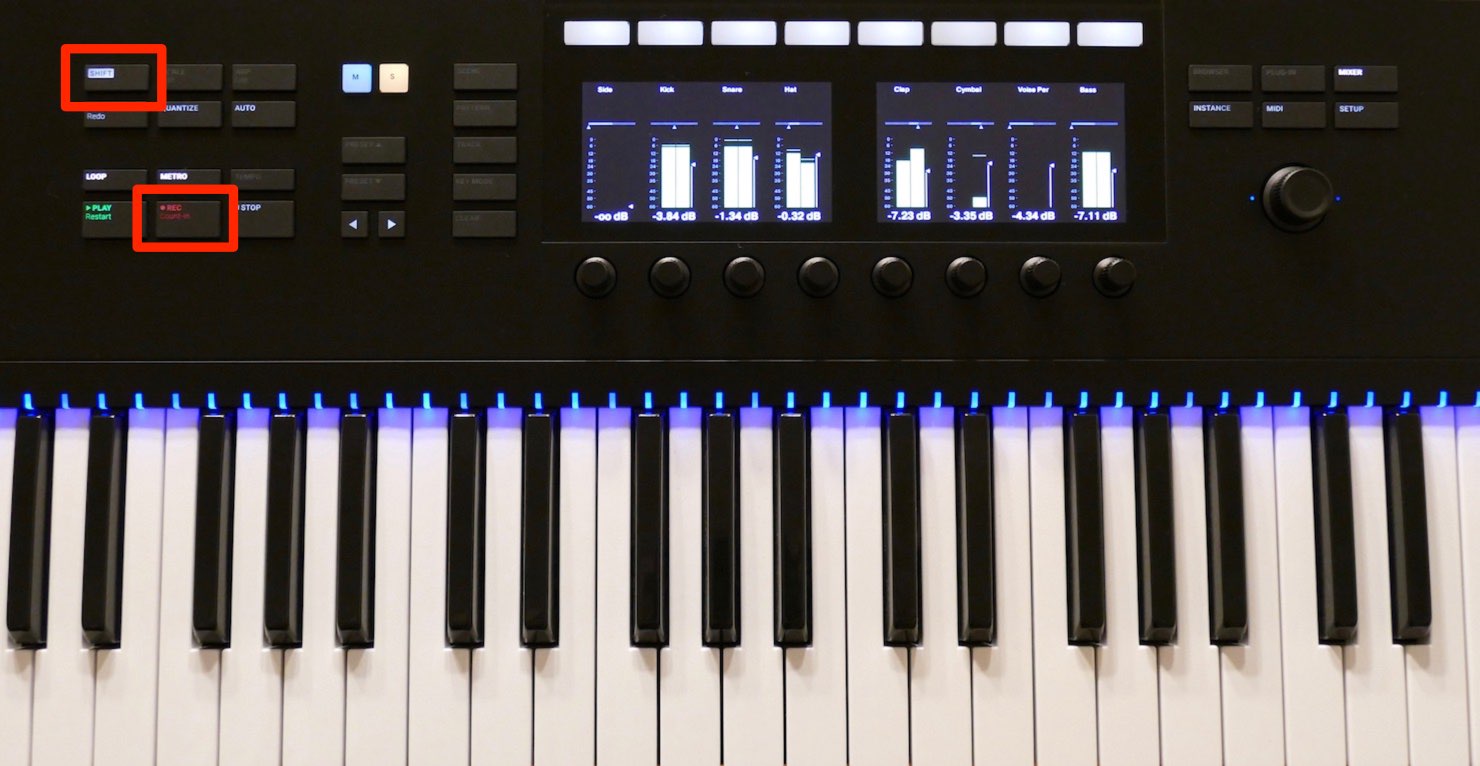
You can also set a pre-count before recording begins.
Hold SHIFT and press REC.
This enables count-in mode, so a pre-count plays the next time you record.
You can specify its length in bars.
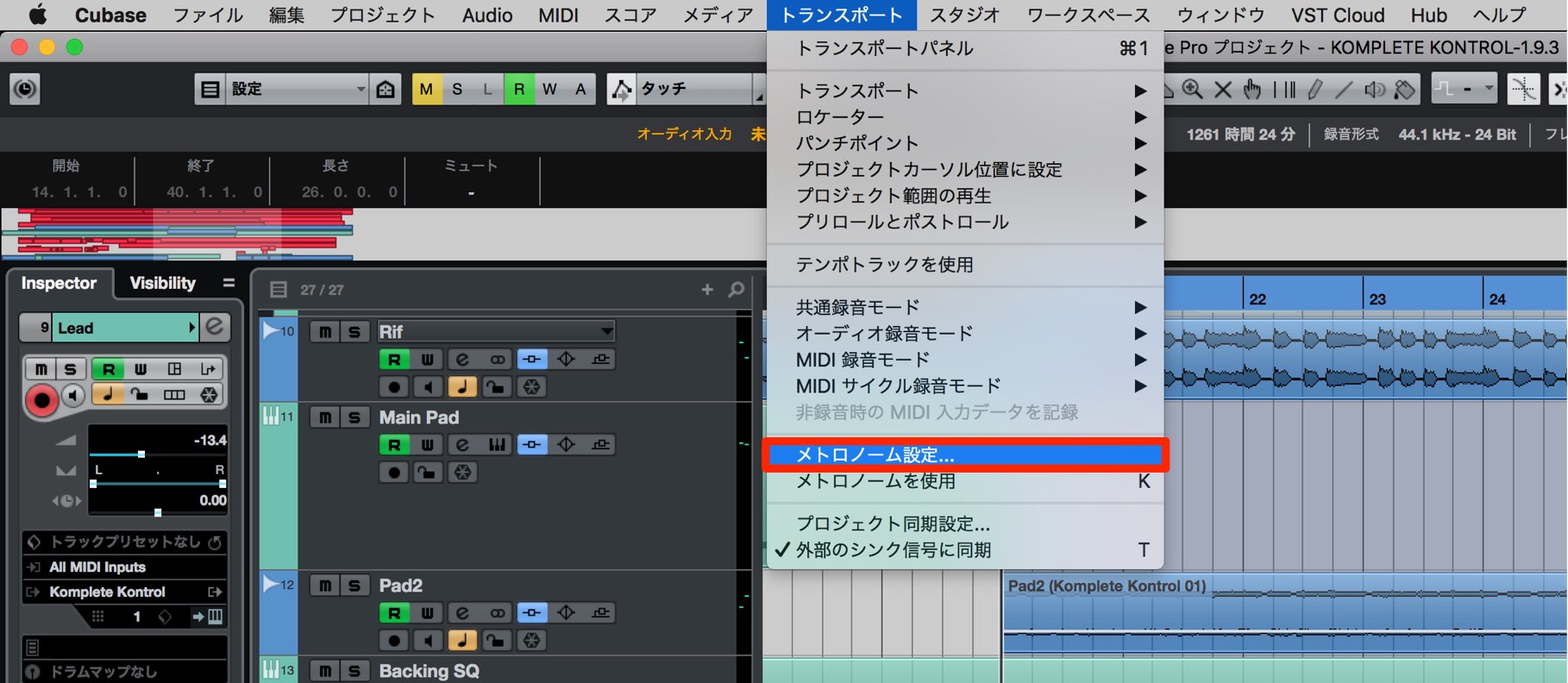
Choose Metronome Setup from the Transport menu.
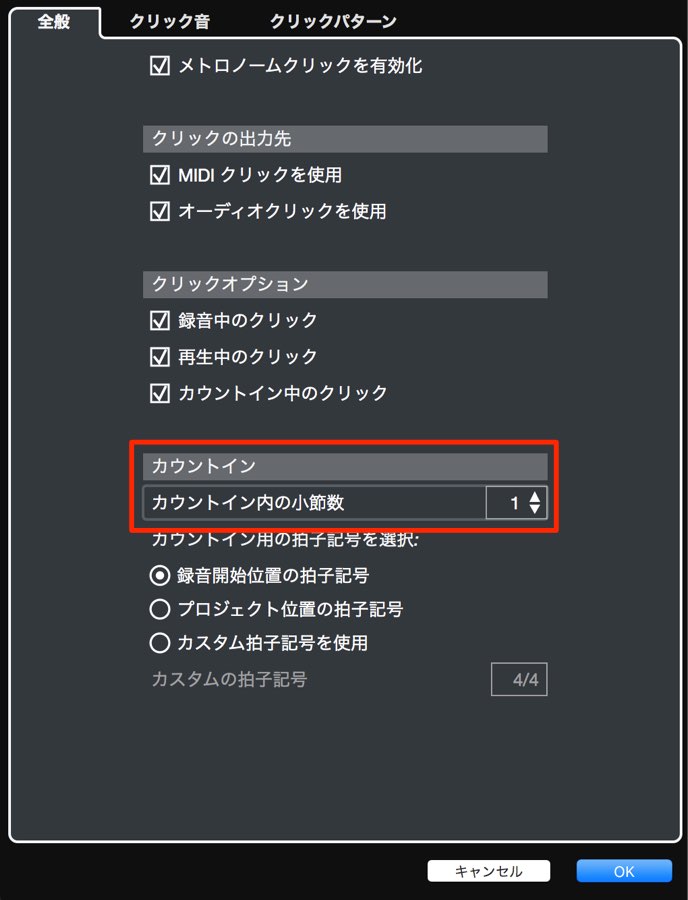
In the Count-In section, set the desired number under “Number of Bars in Count-In.”
Undo and Redo
You can also use Undo to return an action to its previous state from the keyboard.
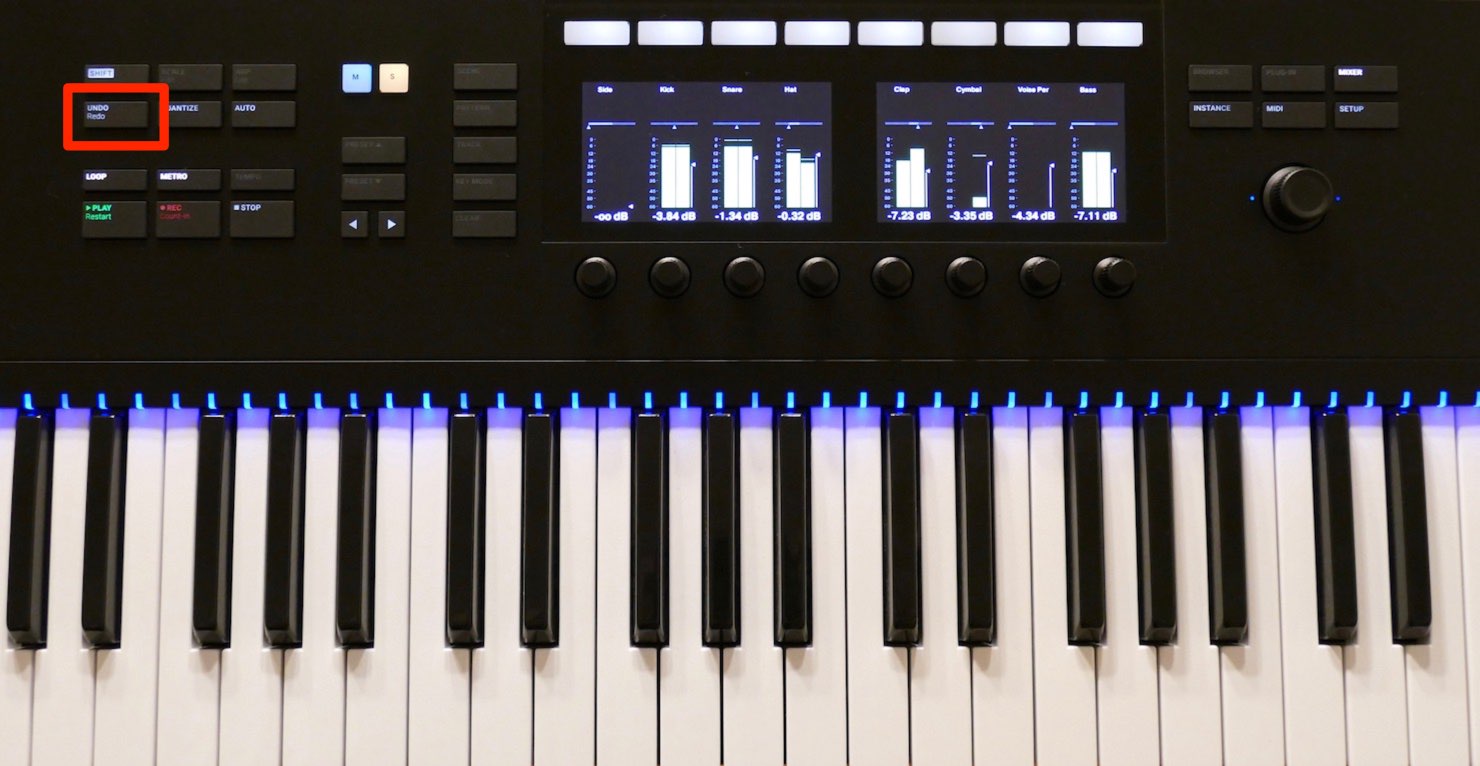
Press UNDO to undo the last action.
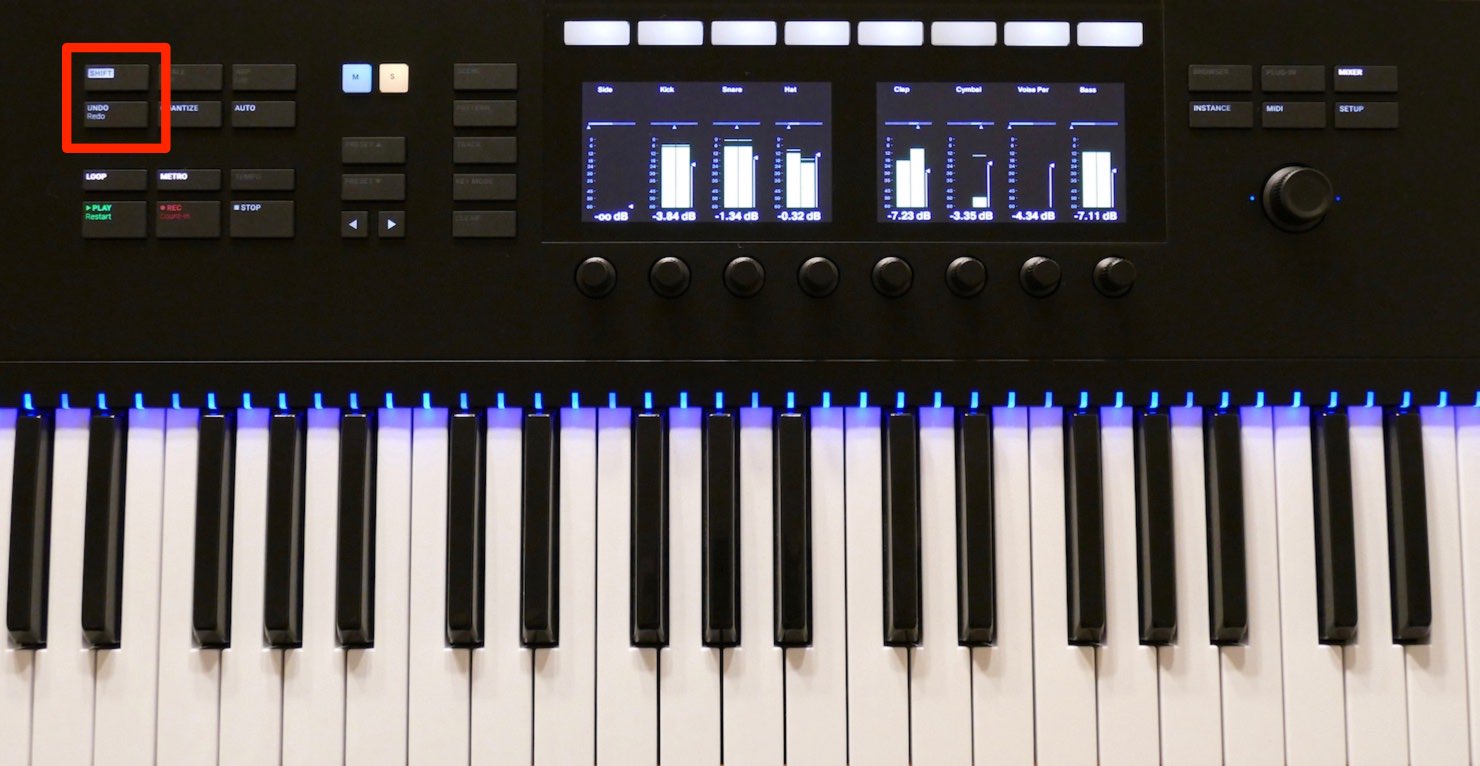
You can also use Redo to restore an action that was undone.
Hold SHIFT and press UNDO.
Quantize
Quantizing corrects the timing of a performed phrase.
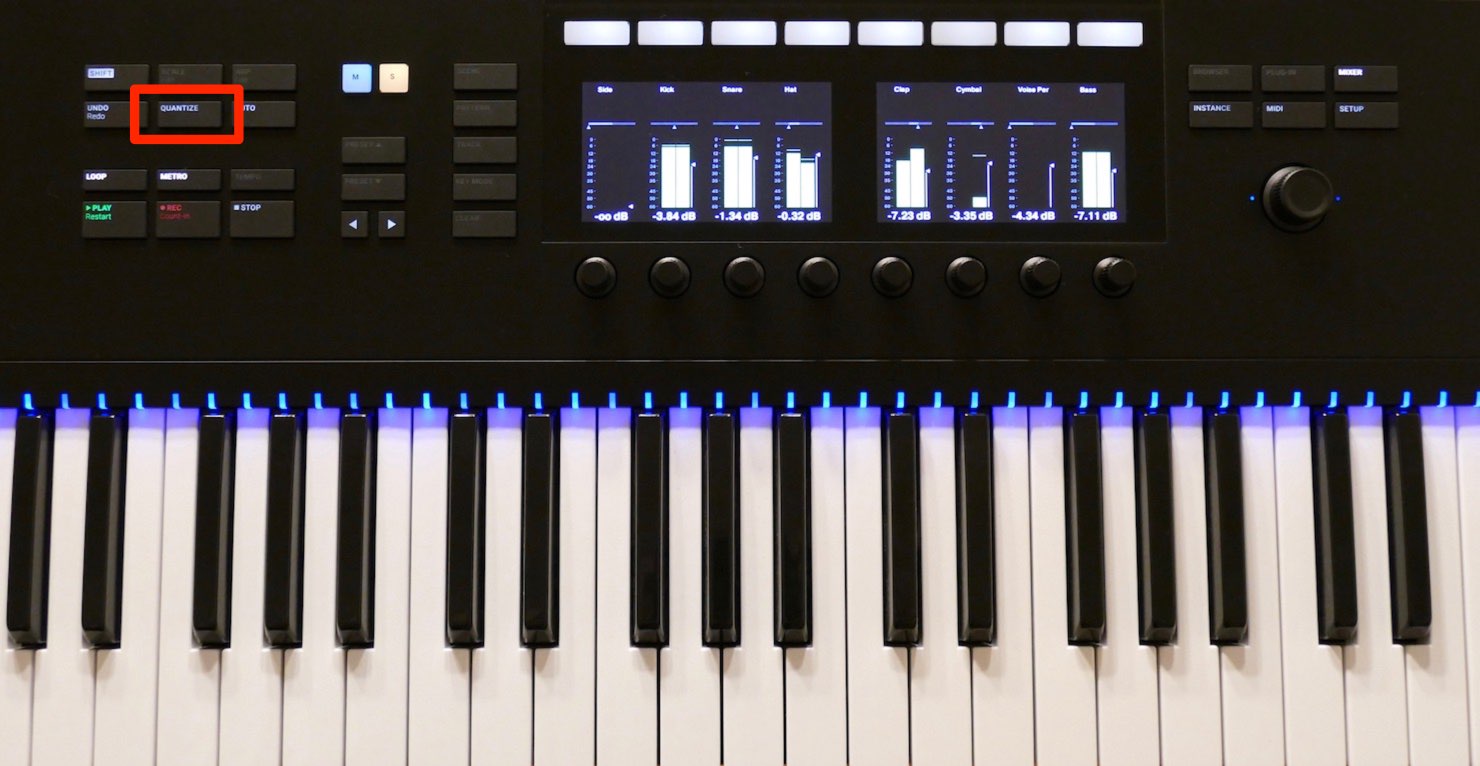
Select the notes or events you want to quantize and press QUANTIZE to apply it.
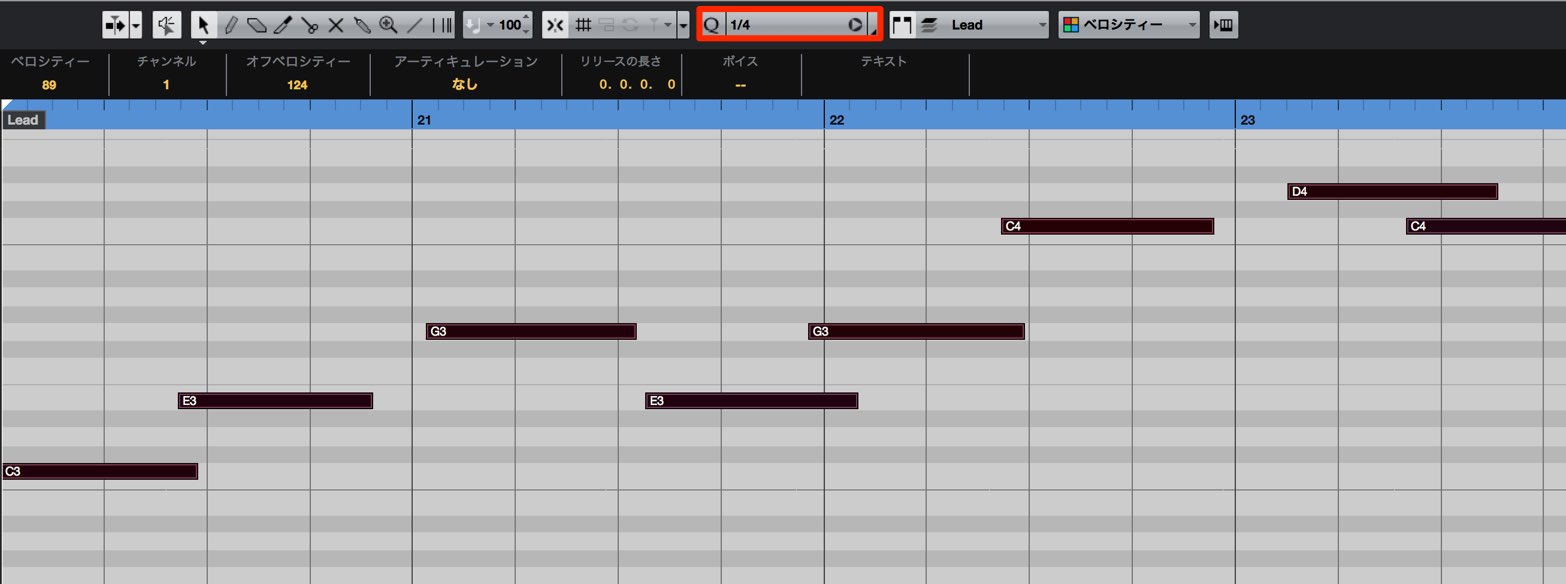
The quantize note value depends on the Cubase setting.
Choose the value that best suits the phrase before applying it.
Selecting Tracks and Events
You can change the selected track or event.
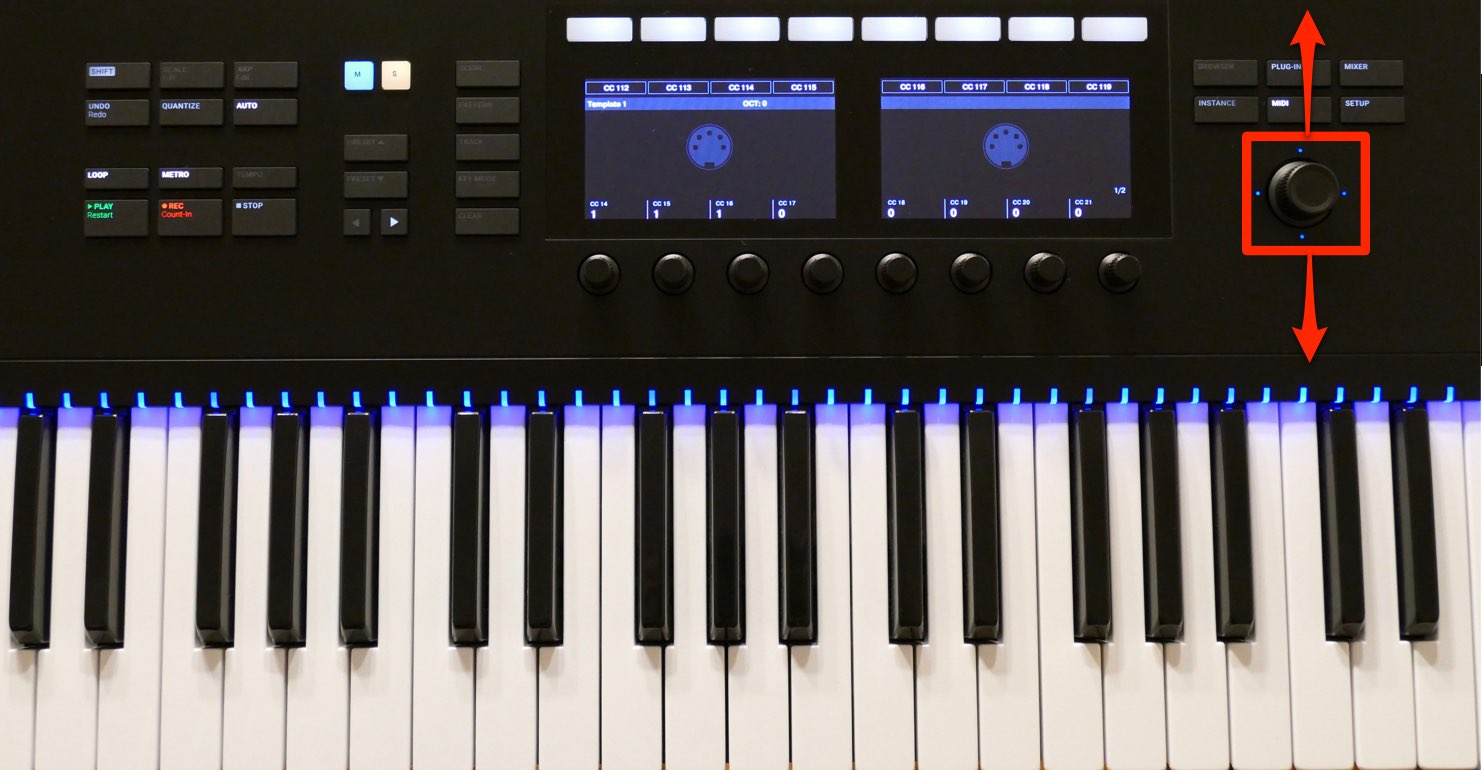
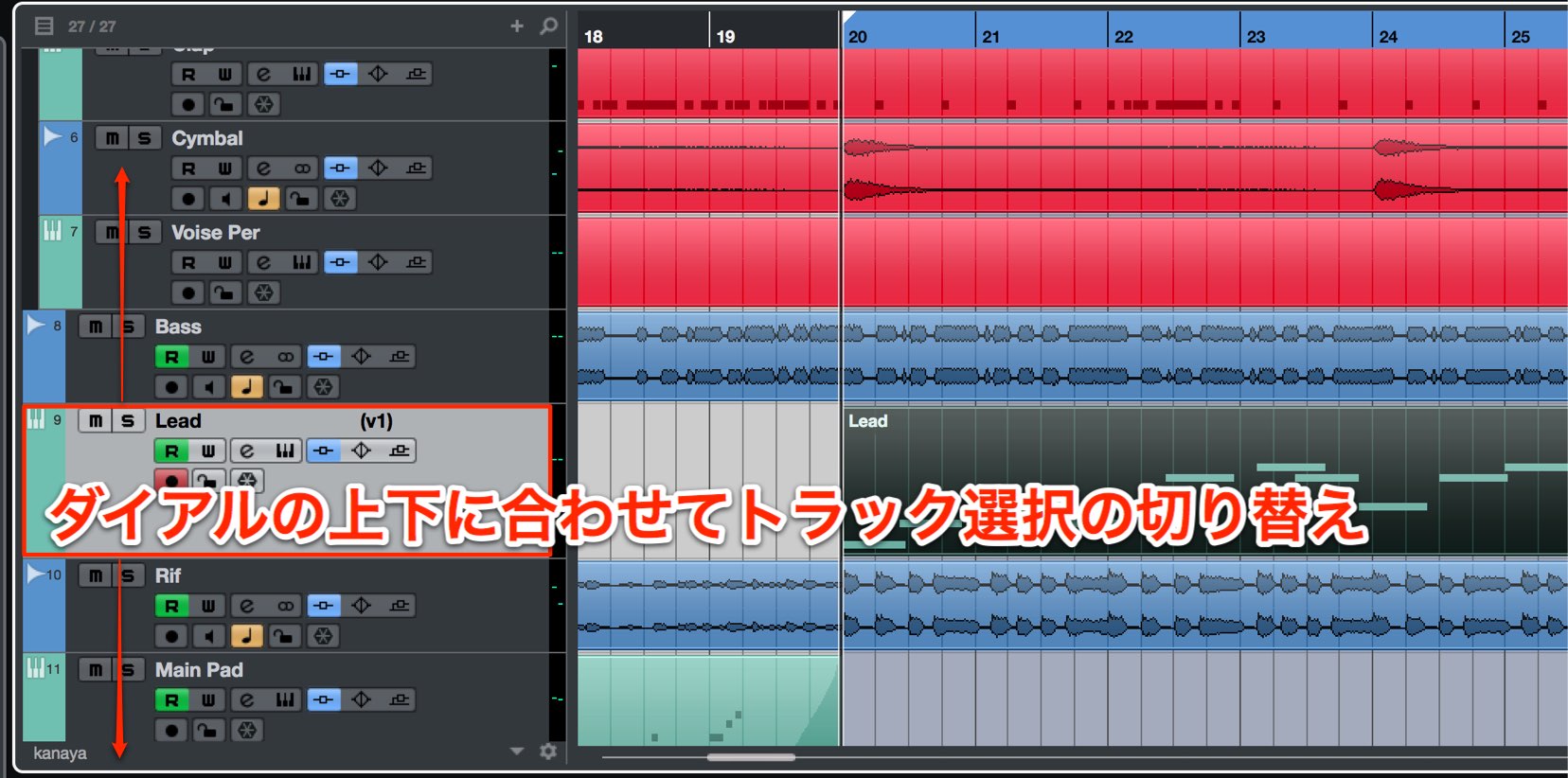
Push the dial up or down to move the track selection.
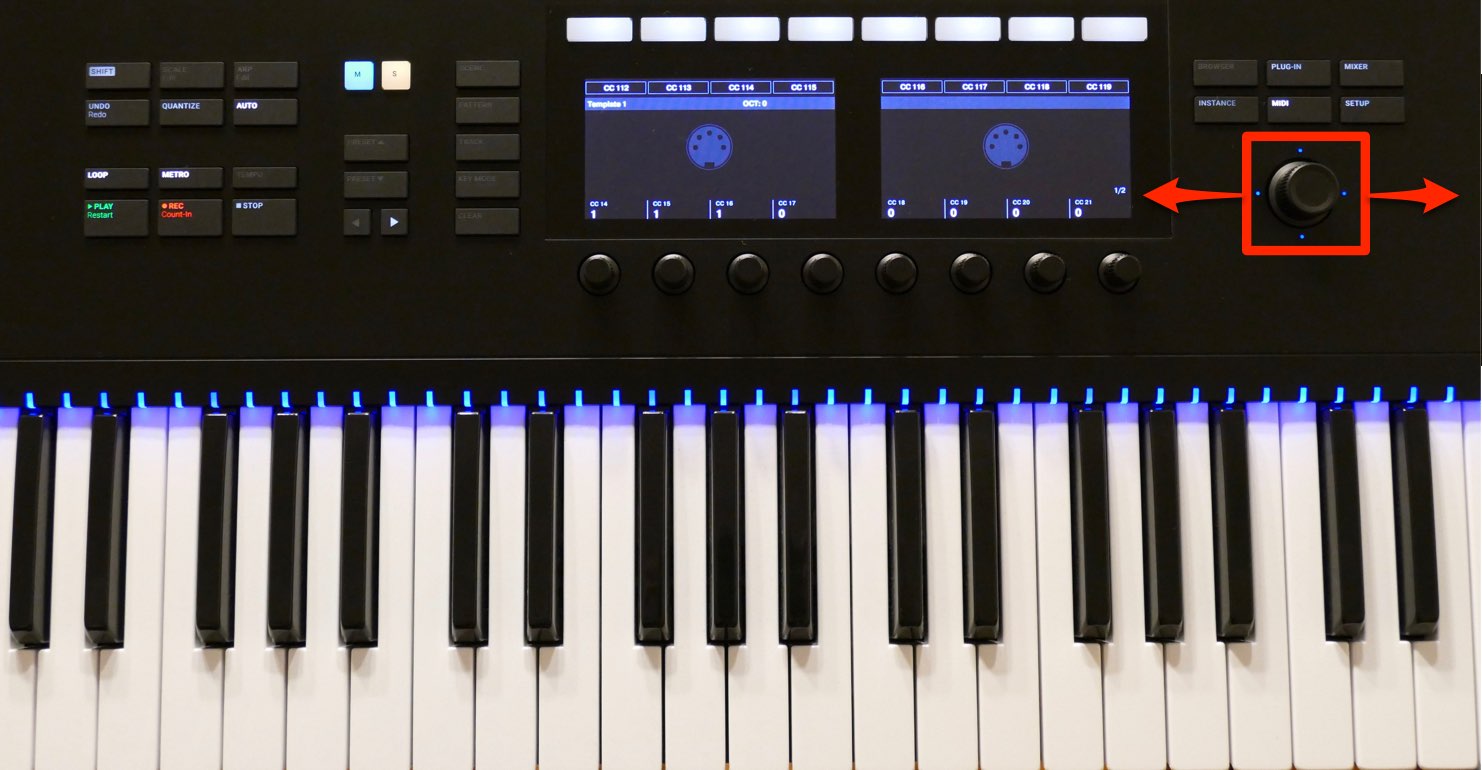
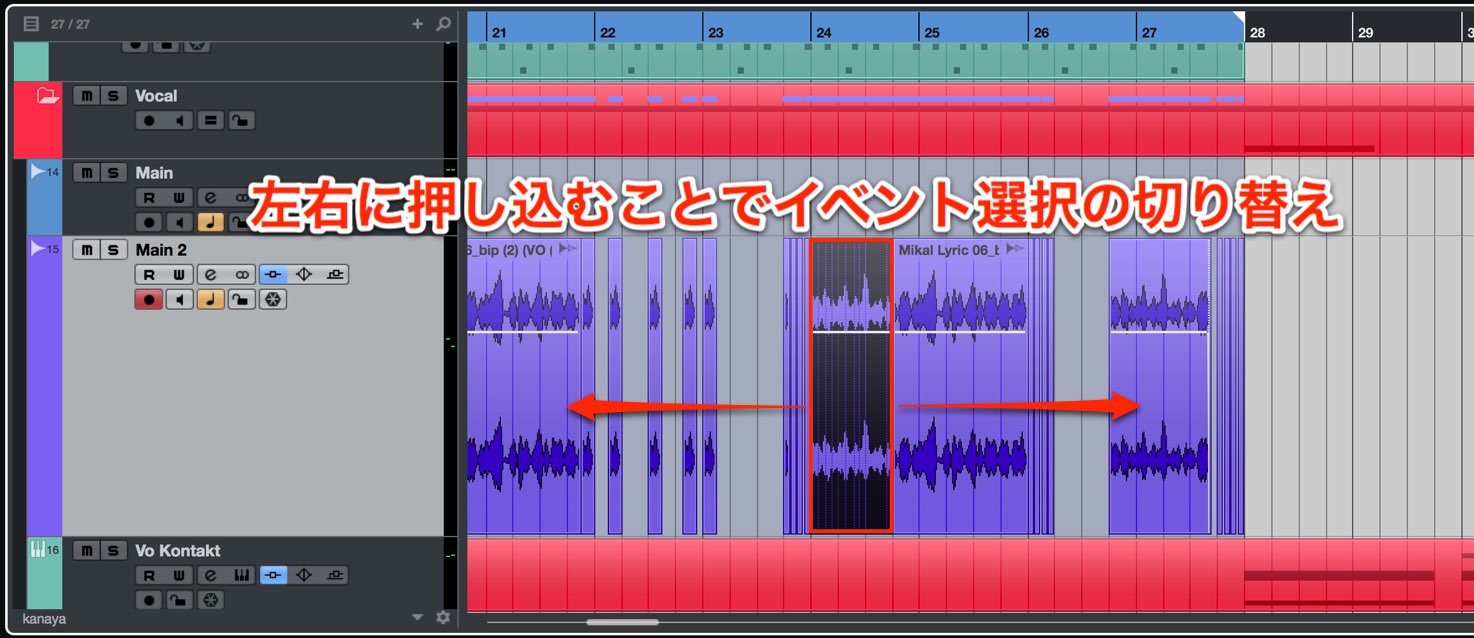
Push the dial left or right to switch between events on the selected track.
Toggling Mute and Solo
Quickly toggle mute, which silences a track,
and solo, which plays it on its own.
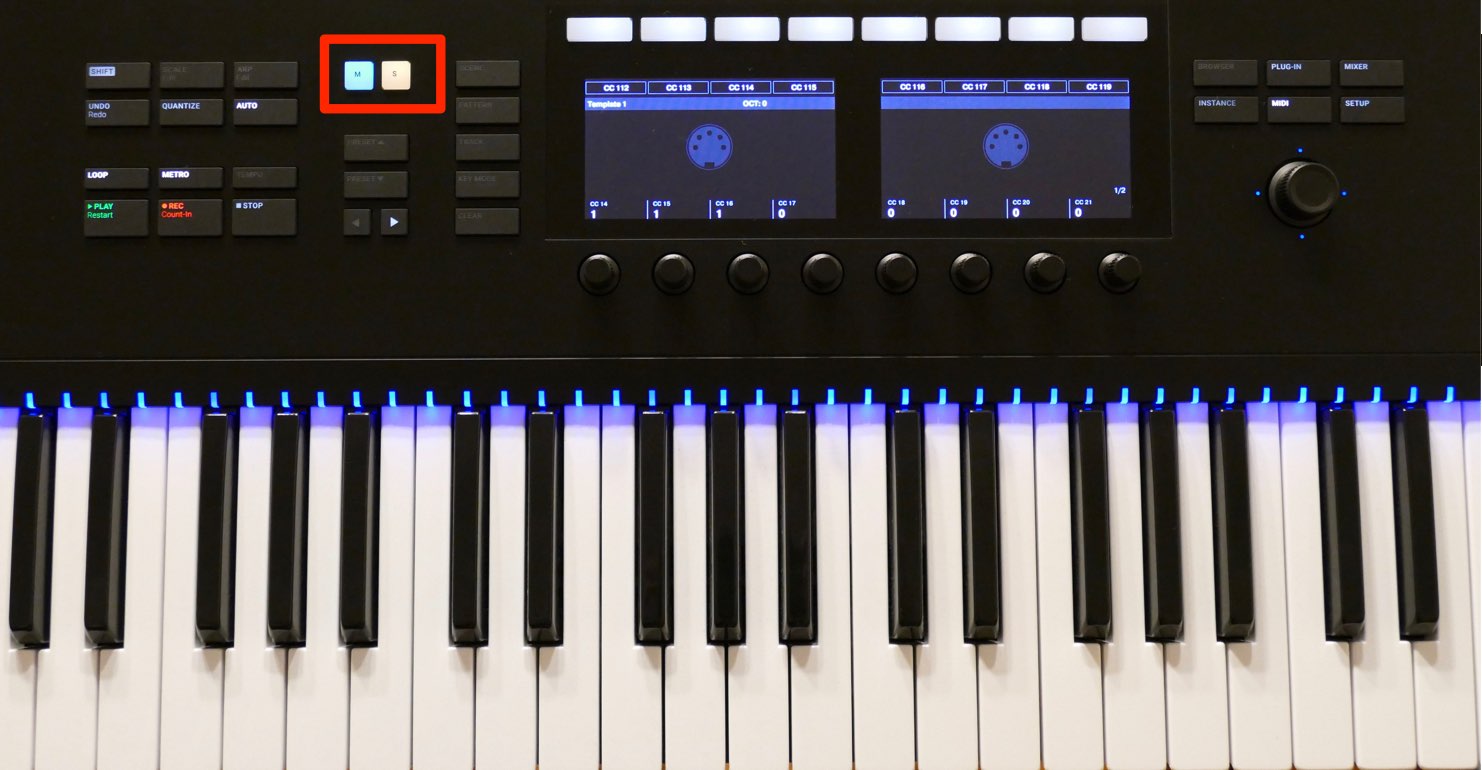
Select the desired track and press M (mute) or S (solo).
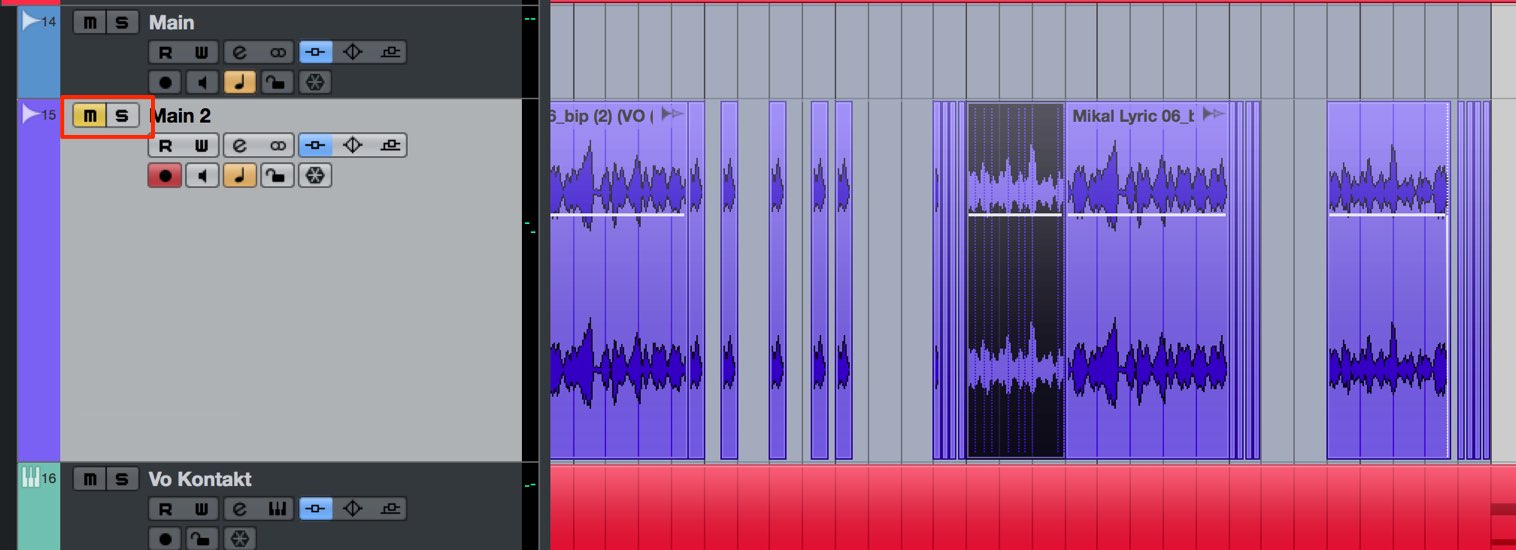
This toggles mute or solo on the selected track.
Mixer Window
The mixer window displays and lets you adjust the volume and pan of tracks in the project.
The knobs let you change values intuitively, making them useful for mixing too.
Track Display in the Mixer Window
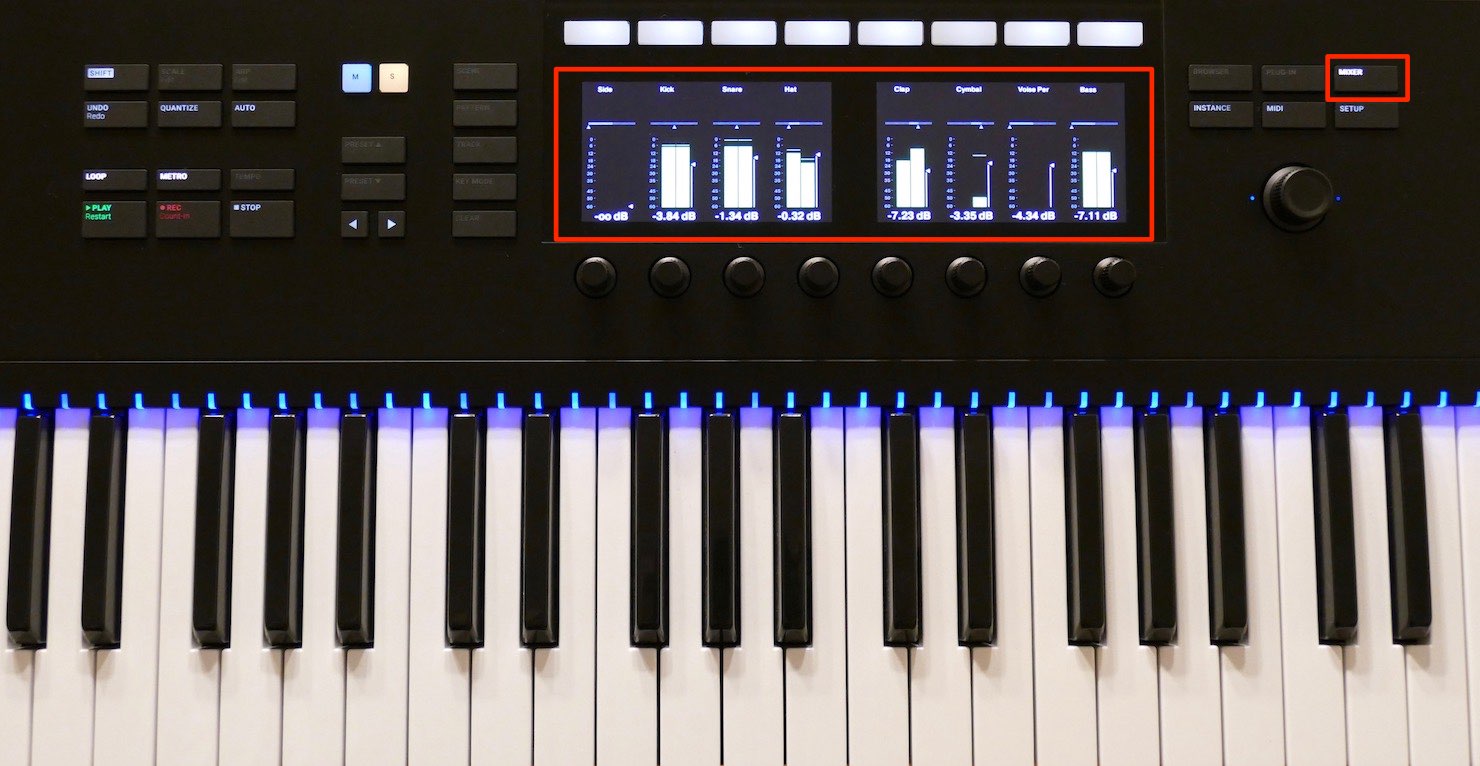
Press MIXER to display the mixer window.
It shows the names, volume and pan of up to eight tracks at once.
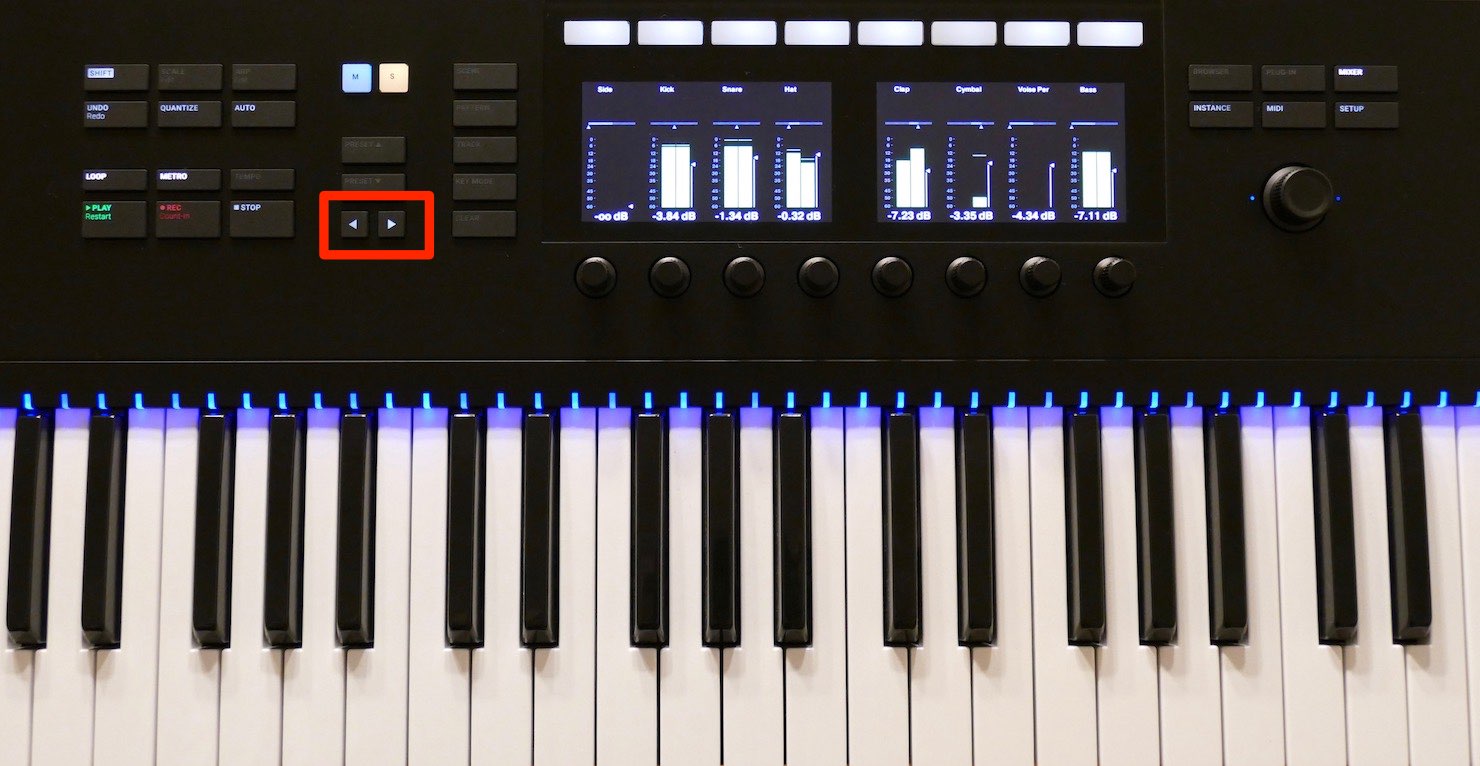
Press the left or right arrow button to change the displayed range.
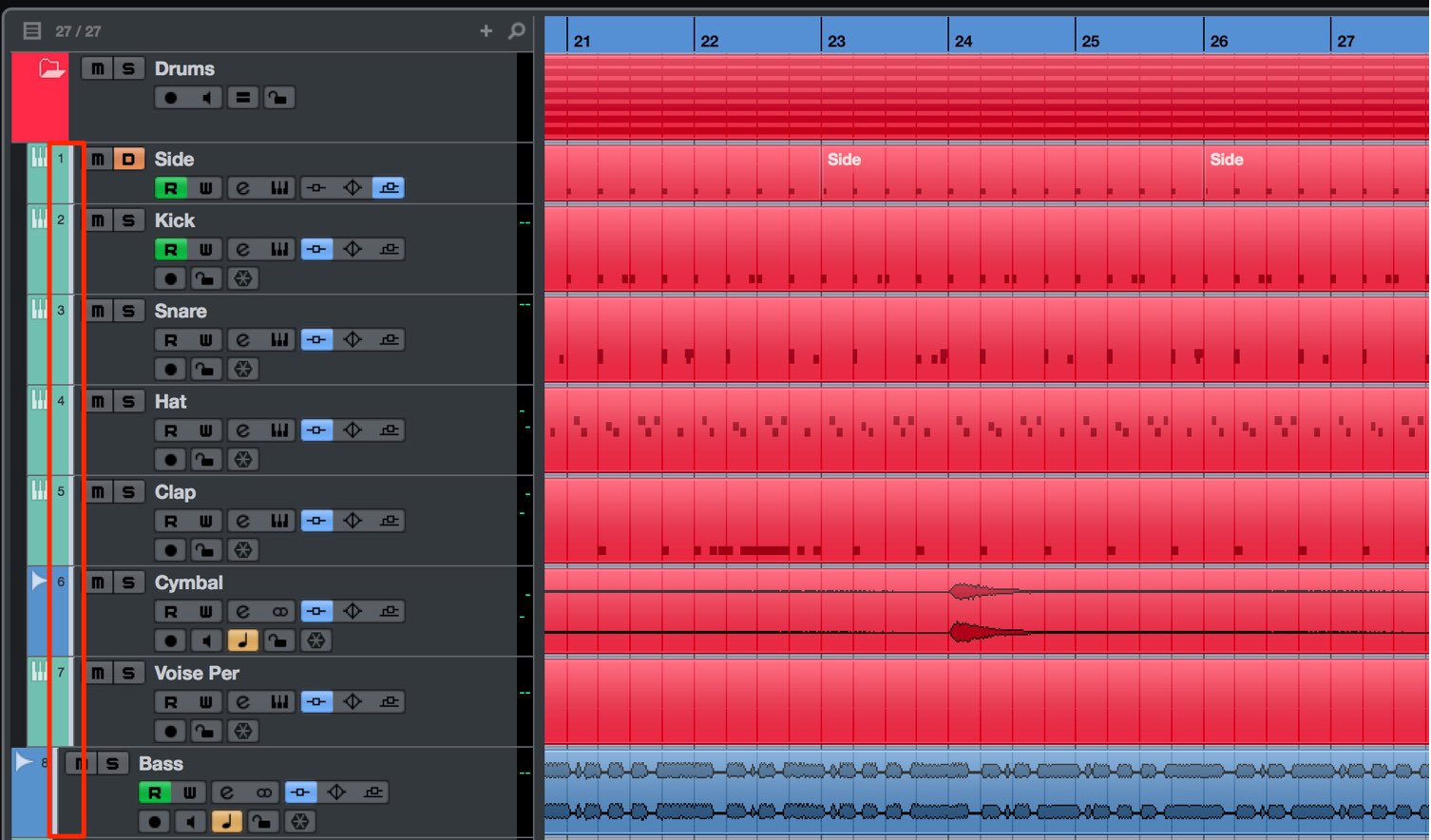
A white line beside the track numbers indicates the range shown in the mixer window.
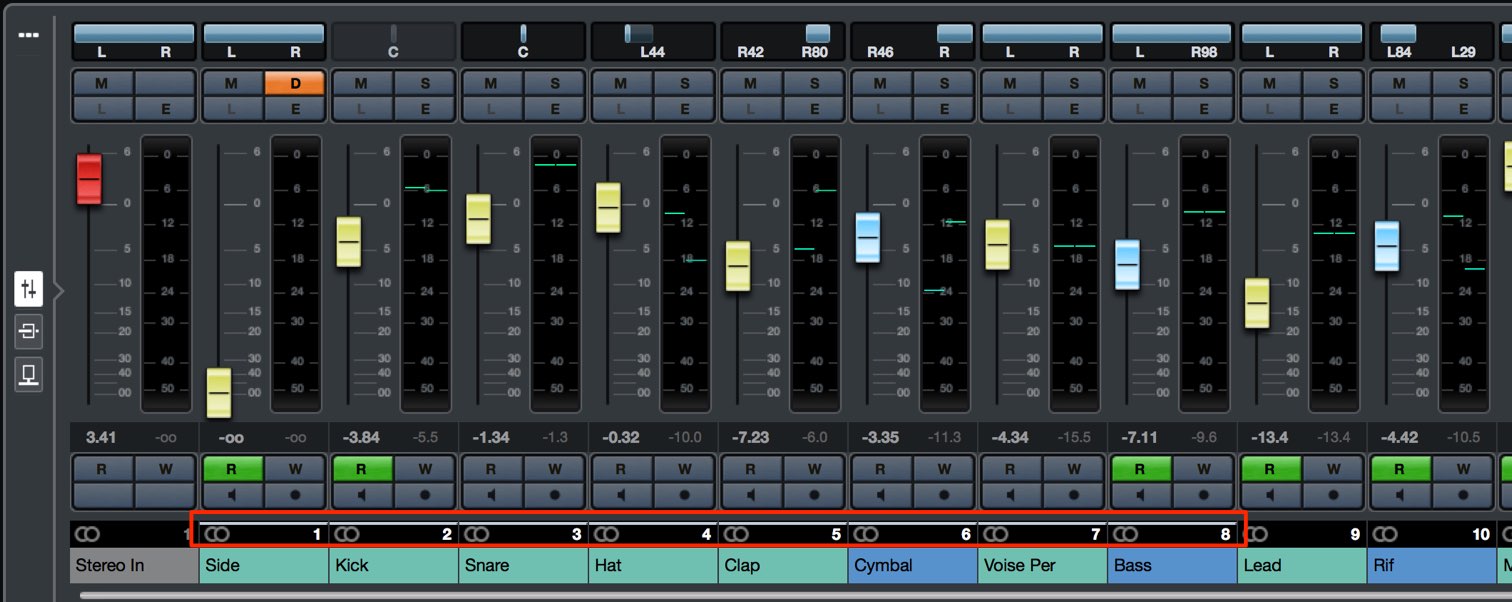
This line is also reflected in the MixConsole.
Controlling Volume and Pan
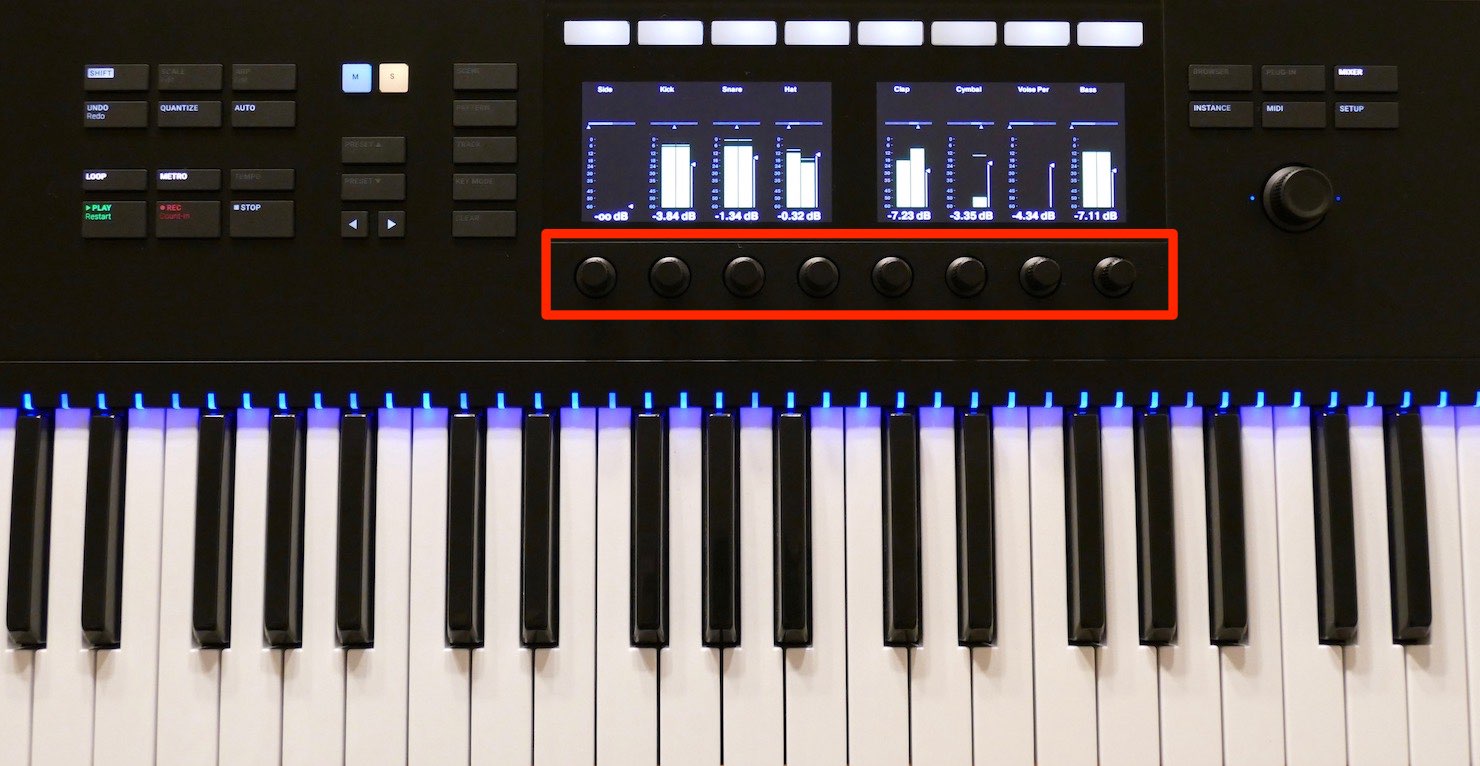
The eight knobs below the displayed tracks control their respective volumes.
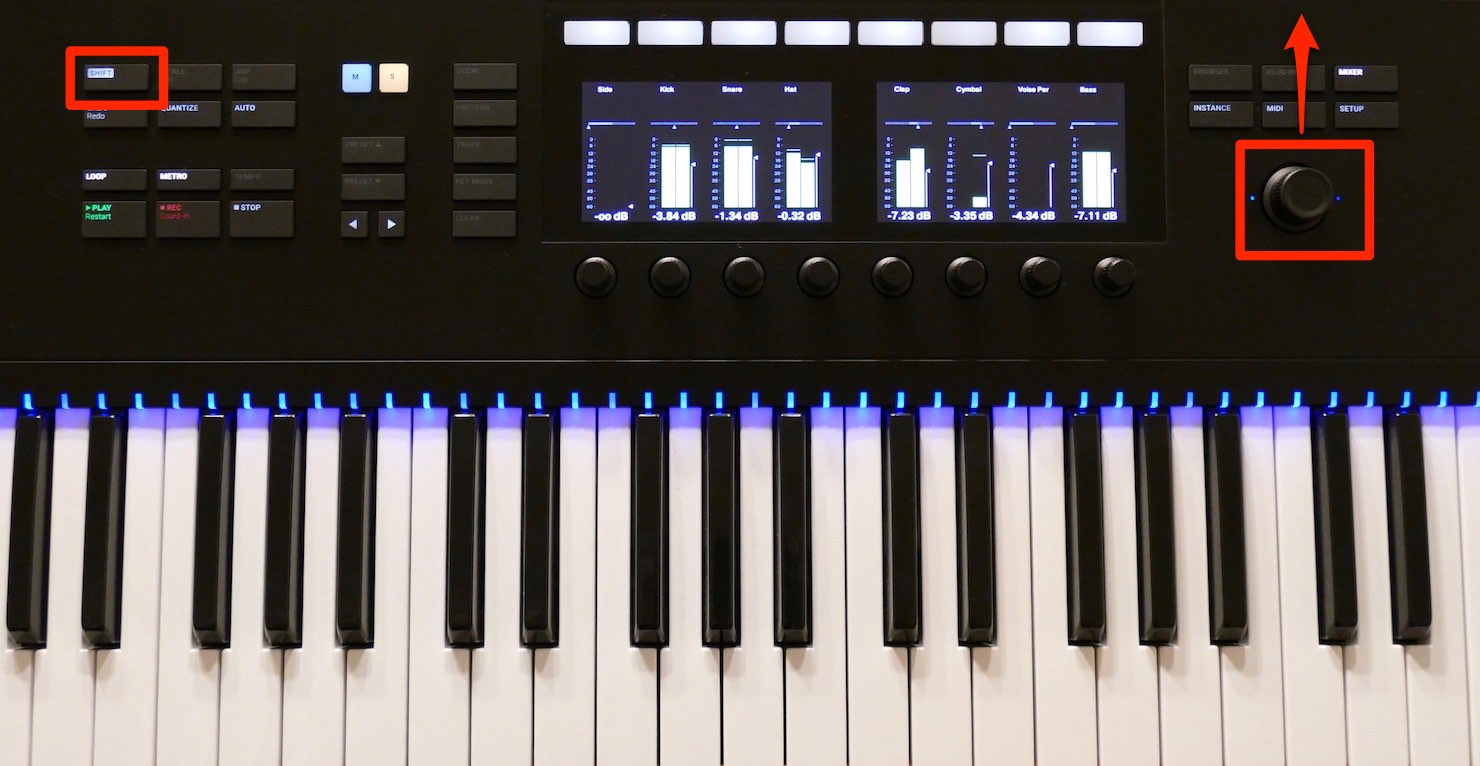
Hold SHIFT and push the dial up to switch the eight knobs to pan control for those tracks.
To return to volume control, hold SHIFT and push the dial down.
You can also control Cubase’s input and output volume and pan.
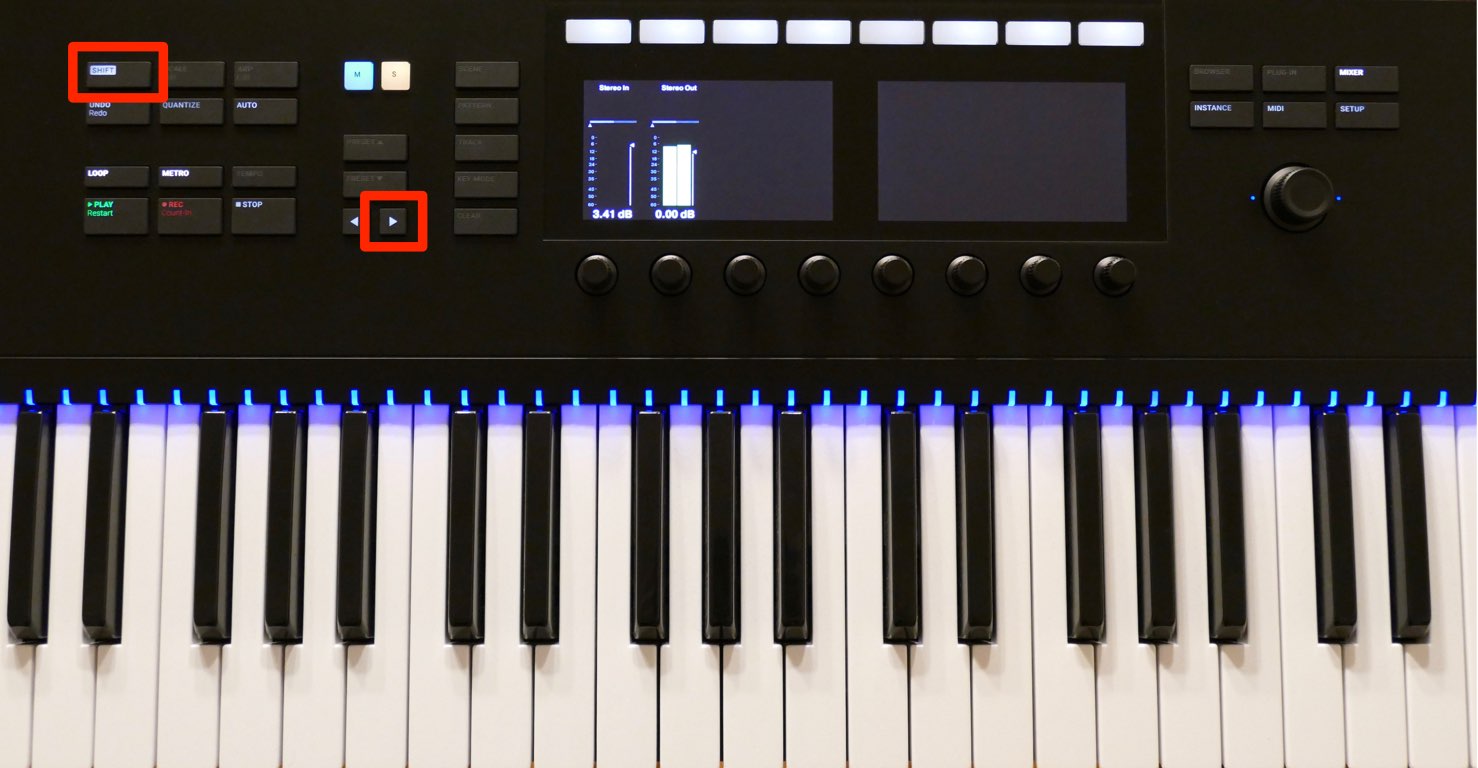
Hold SHIFT and press the right arrow button.
The window changes to the input/output display.
- Stereo In: Adjust the input volume and pan of a microphone or instrument when recording audio.
- Stereo Out: Adjust Cubase’s master volume and pan.
To leave this view, hold SHIFT and press the left arrow button.
Track Selection and Mute/Solo
In the mixer window, you can select tracks and toggle mute or solo even faster than described above.
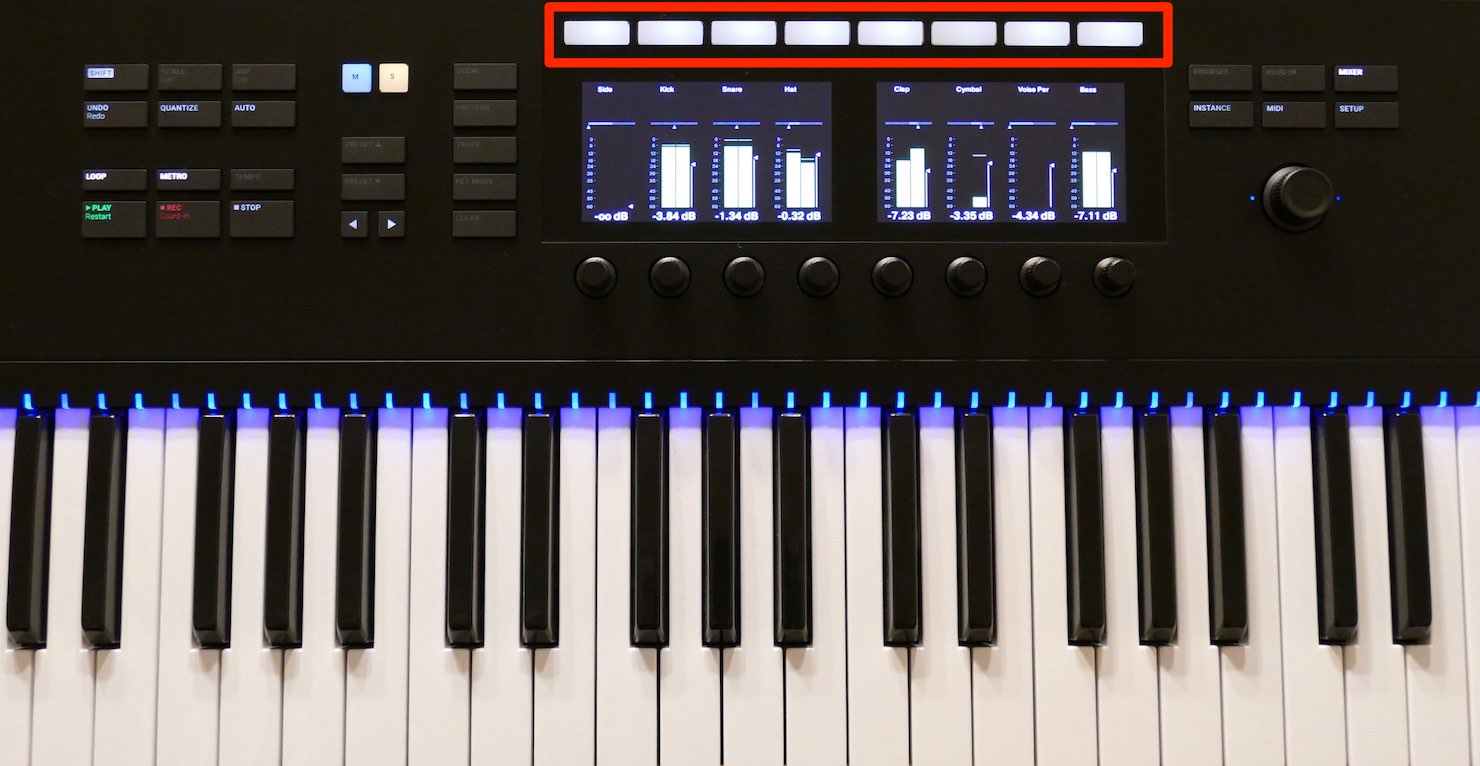
Press one of the eight buttons above the corresponding track to select it.
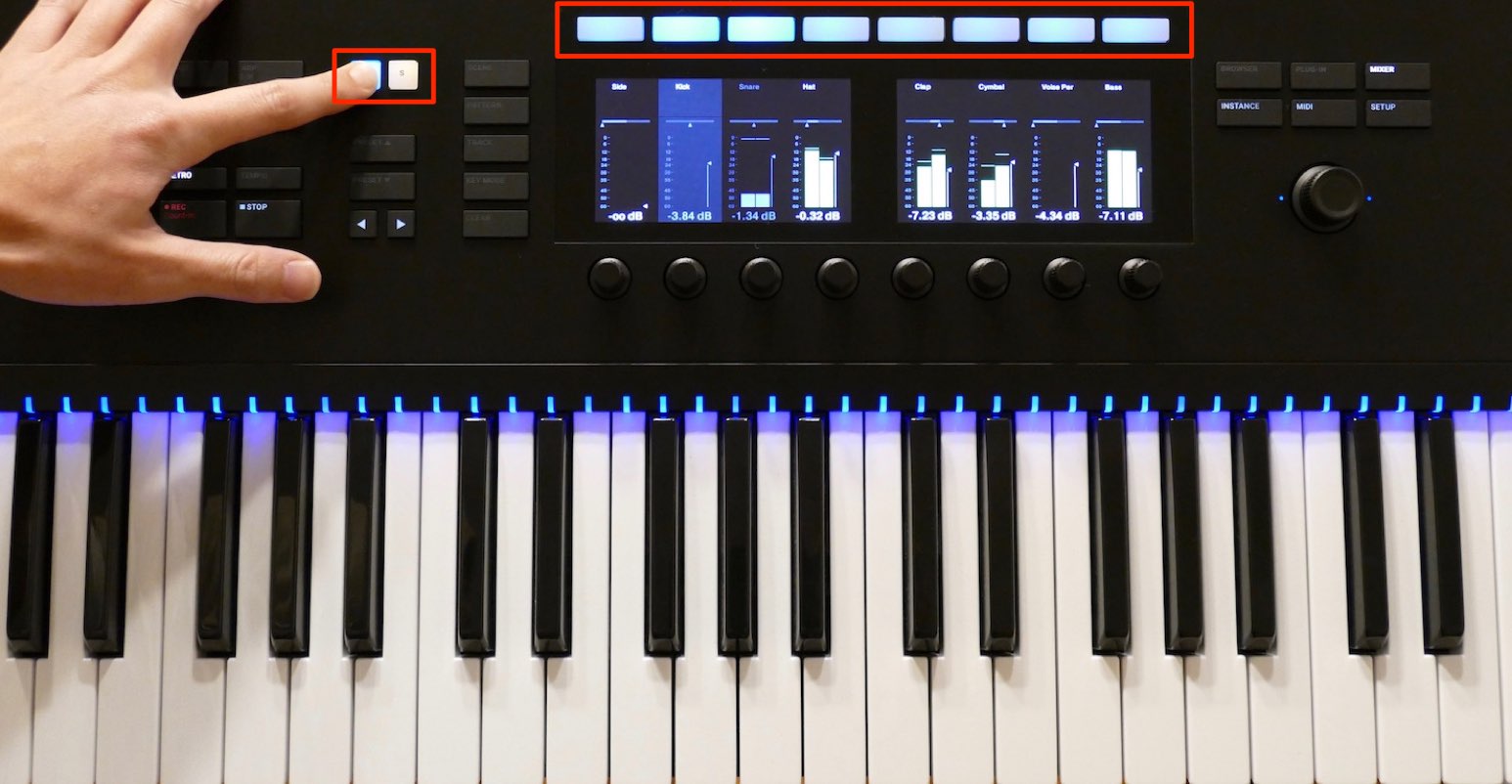
Hold M (mute) or S (solo) and press the corresponding track button to toggle its mute or solo state.
Buttons for tracks currently muted or soloed glow more brightly, making their status easy to see.
Software Integration and Automation
If an instrument track has a sound loaded in Komplete Kontrol, selecting that track brings the Komplete Kontrol instrument into focus on the display. (It will not appear while the mixer window is open.)
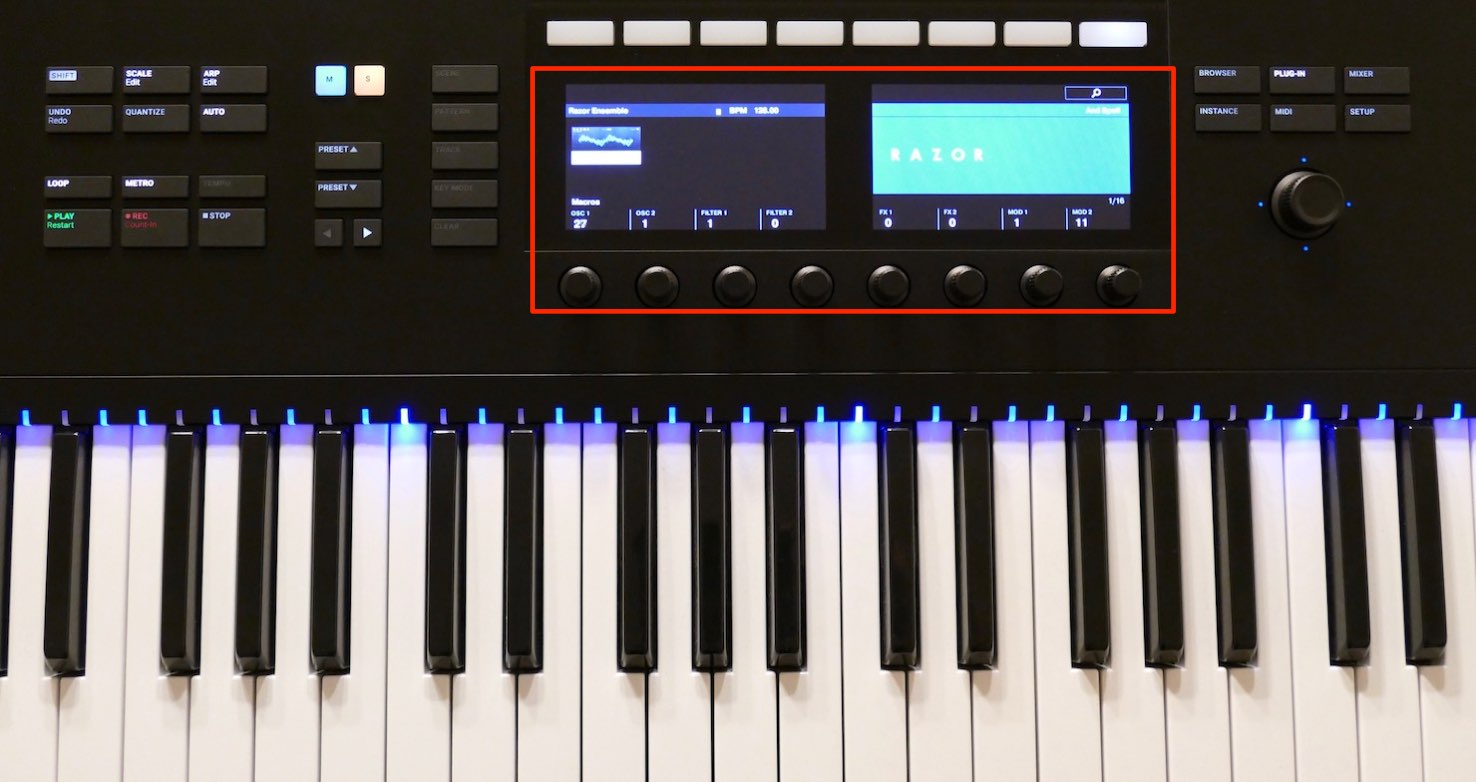
You can quickly control the instrument’s main parameters with the knobs.
Automation lets you record these knob movements and reproduce them during project playback.
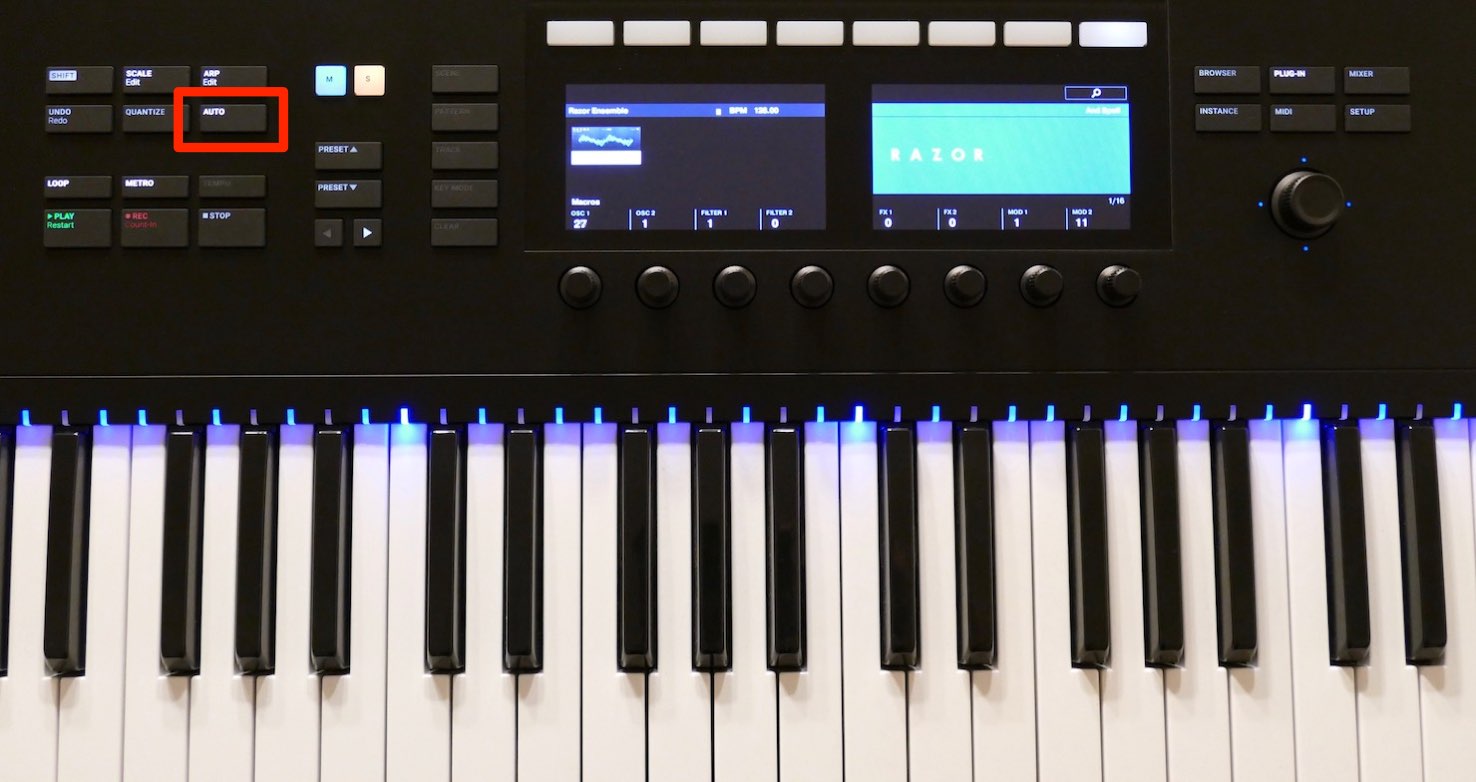
Press AUTO so it lights up.
Then play the song and move the desired knob.
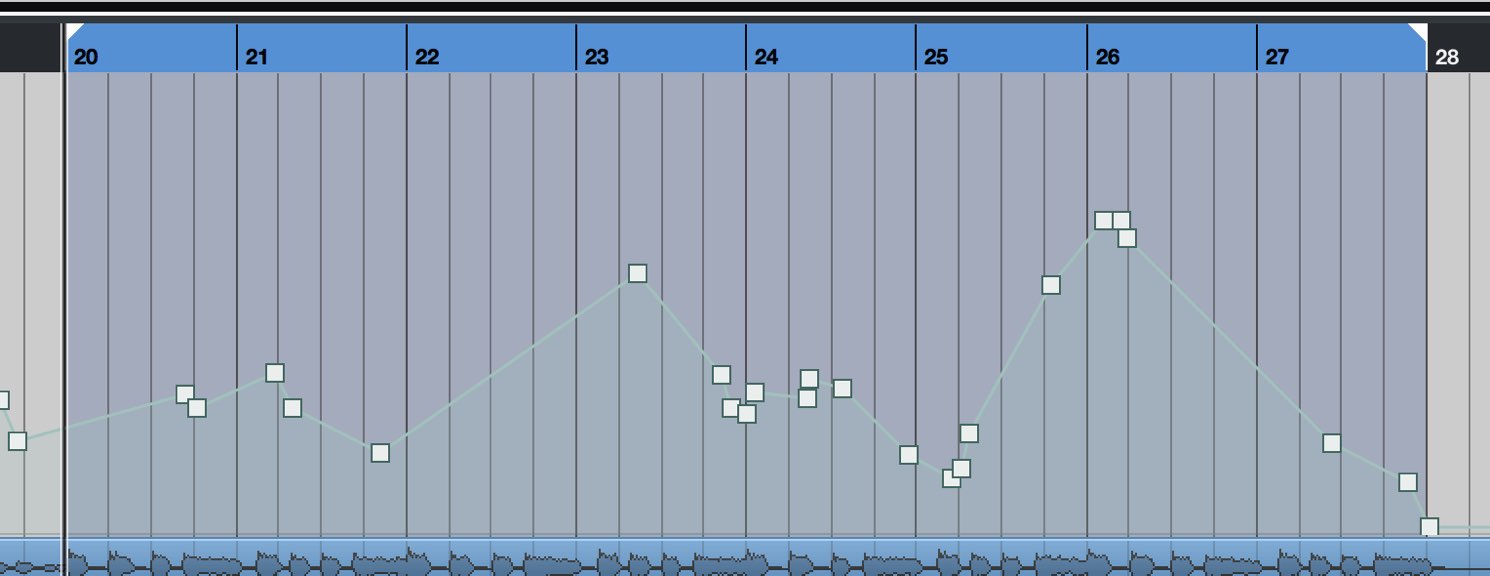
The knob movements are recorded into the project.
When finished, turn AUTO off to prevent accidental writing.
Automation can also record values such as mixer-window volume and pan.
It opens up many expressive possibilities, so give it a try.
We hope you found this useful.
Even in a compact space, you can comfortably control Cubase at the heart of your production setup.
Try it out to make your workflow more efficient.
Frequently Asked Questions
Q1. Can I use host integration with the Komplete Kontrol S MK1?
Yes. However, the MK1 and MK2 have different button and knob layouts, so their operations differ. Check the settings for your model.
Q2. How can I start recording again from the beginning during a Cubase recording?
Set Cubase’s recording mode to Re-Record. Press REC again while recording to discard the previous recording and start a new one from the beginning.
Q3. Can I adjust the length of the metronome pre-count (count-in)?
Yes. Choose Transport → Metronome Setup and set the desired number of bars under “Number of Bars in Count-In.”
Q4. How do I switch to pan control in the mixer window?
Hold SHIFT and push the dial up to switch the eight knobs to pan control. Hold SHIFT and push the dial down to return to volume control.
Q5. Can I adjust the master volume or microphone input level?
Yes. Hold SHIFT and press the right arrow to display Stereo In (input) and Stereo Out (master output), where you can adjust them.
NEW ARTICLES
Latest English Articles

































































































































































































































































































































