This beginner-friendly guide explains real-time MIDI recording and timing correction in Studio One. Learn practical techniques, from recording a melody with the Mai Tai synthesizer to correcting timing with quantize and adjusting note lengths and velocities. It also covers useful features such as loop recording, tempo adjustment, and Retrospective Record for an efficient, accurate MIDI workflow.
Basics of entering and recording a melody
Here we explain how to enter a melody in Studio One.
Programming the melody with an instrument before recording vocals can make the production process smoother.
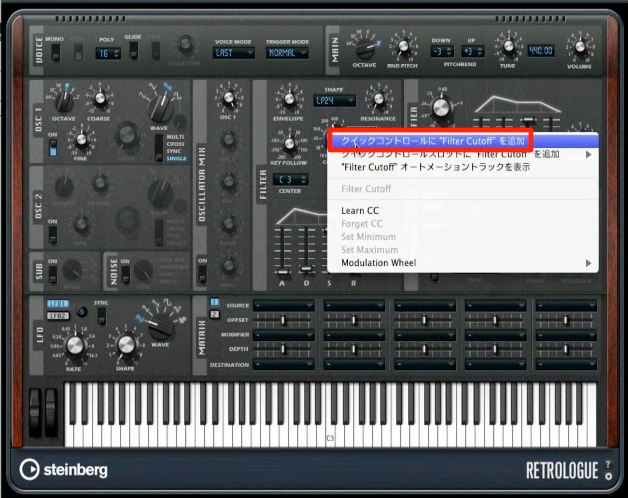
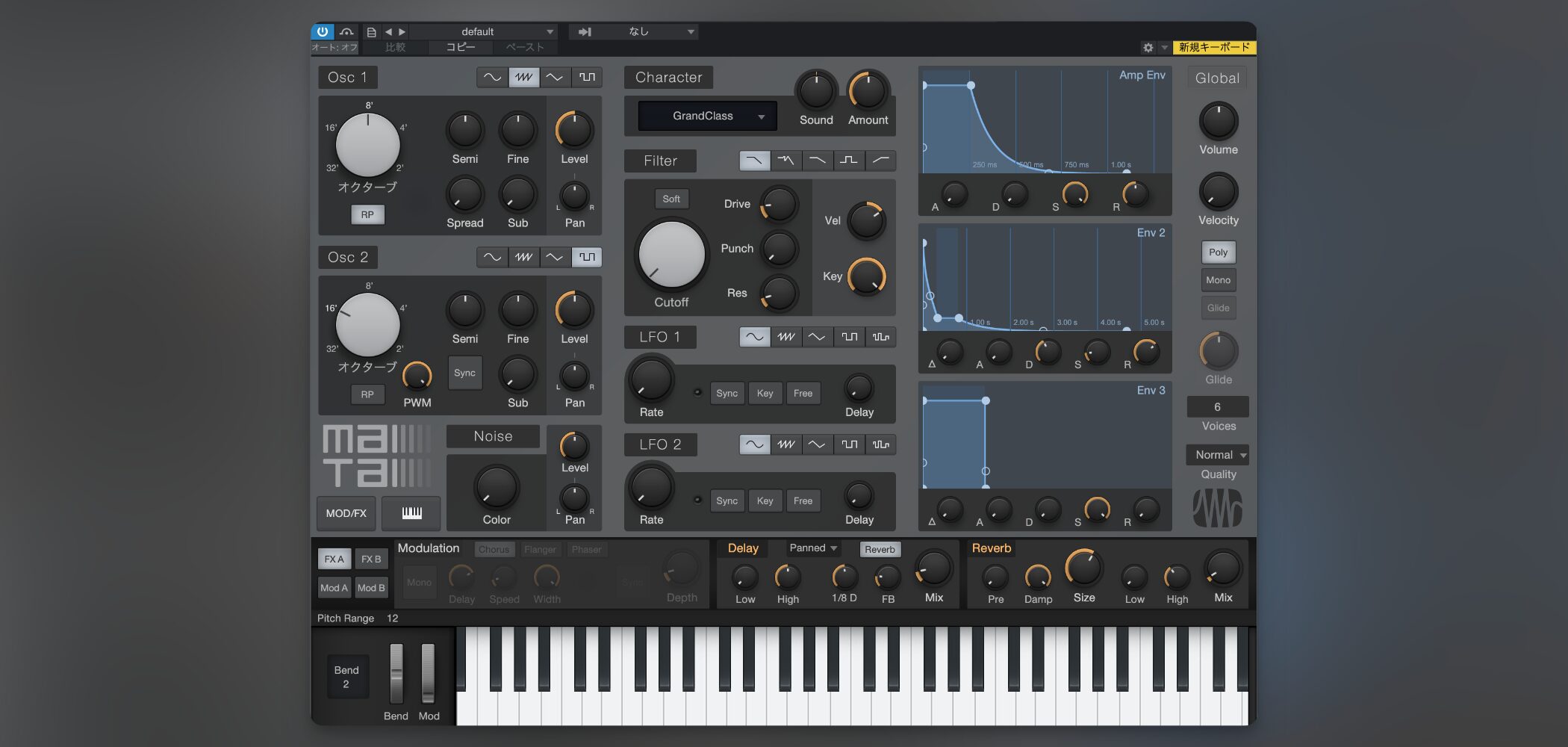
For this example, we will use Mai Tai, a synthesizer suited to single-note melodies.
Loading Mai Tai and choosing a sound
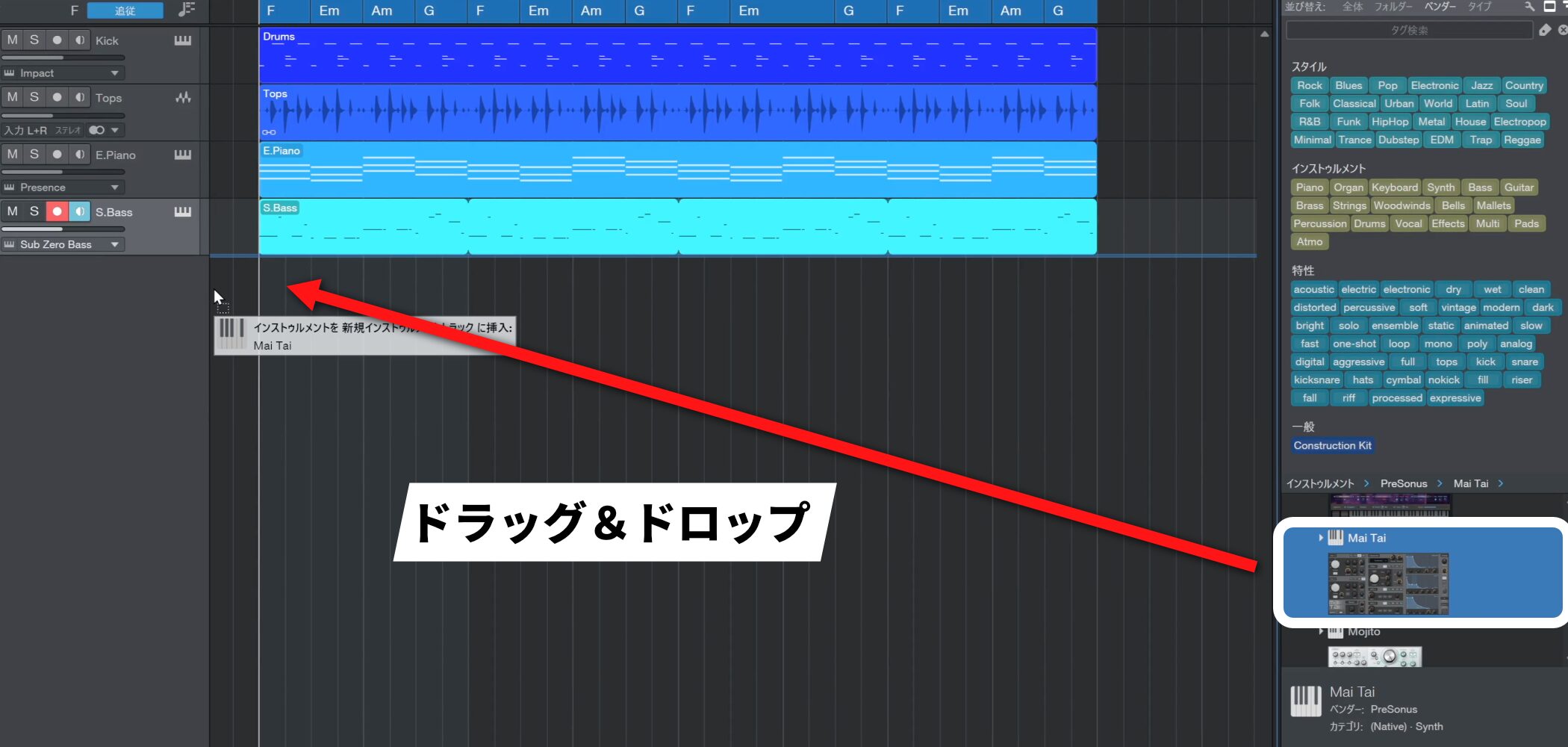
Load Mai Tai from the Instruments browser.
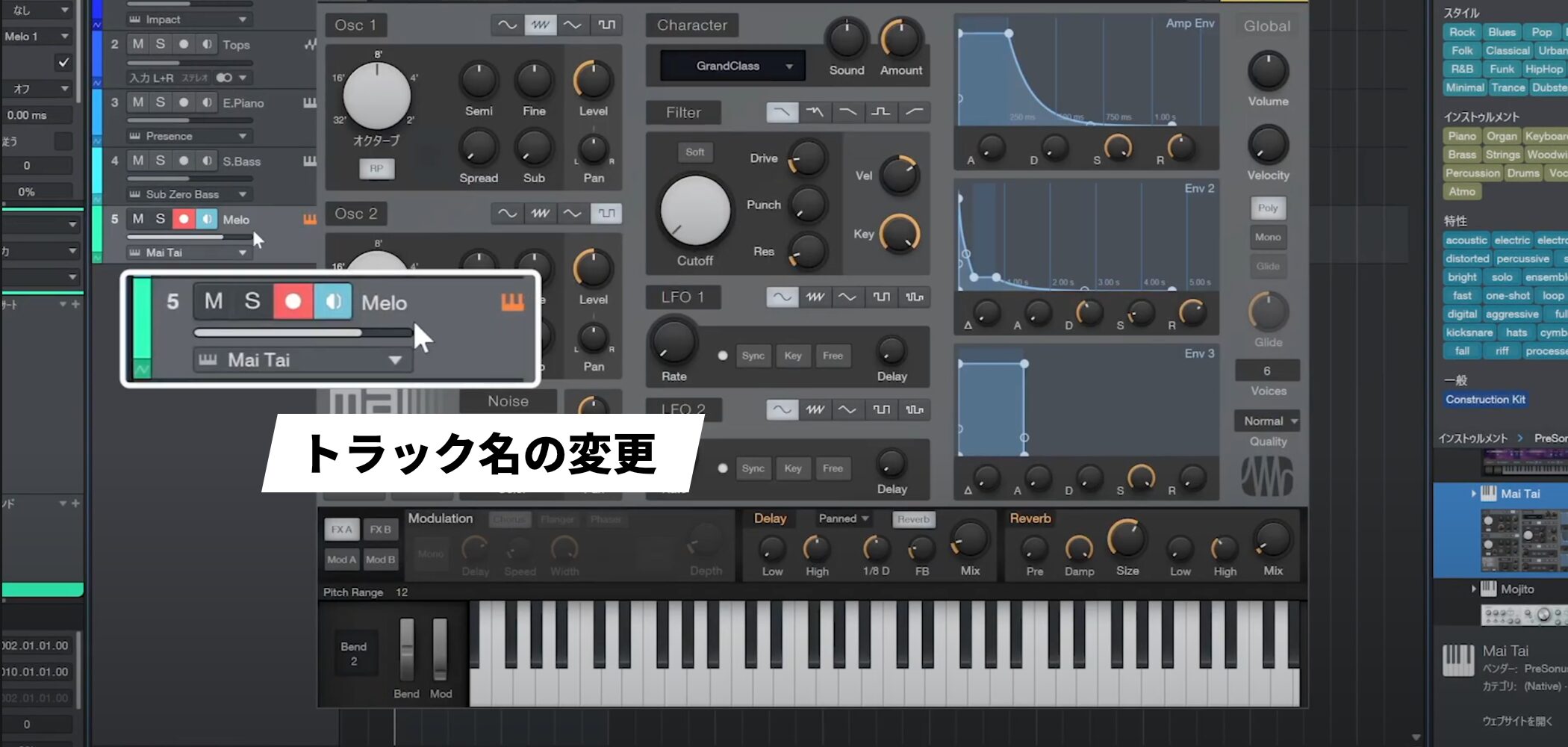
Once it opens, give the track a name.

We will create the melody by actually playing a MIDI keyboard, using a method called real-time recording.
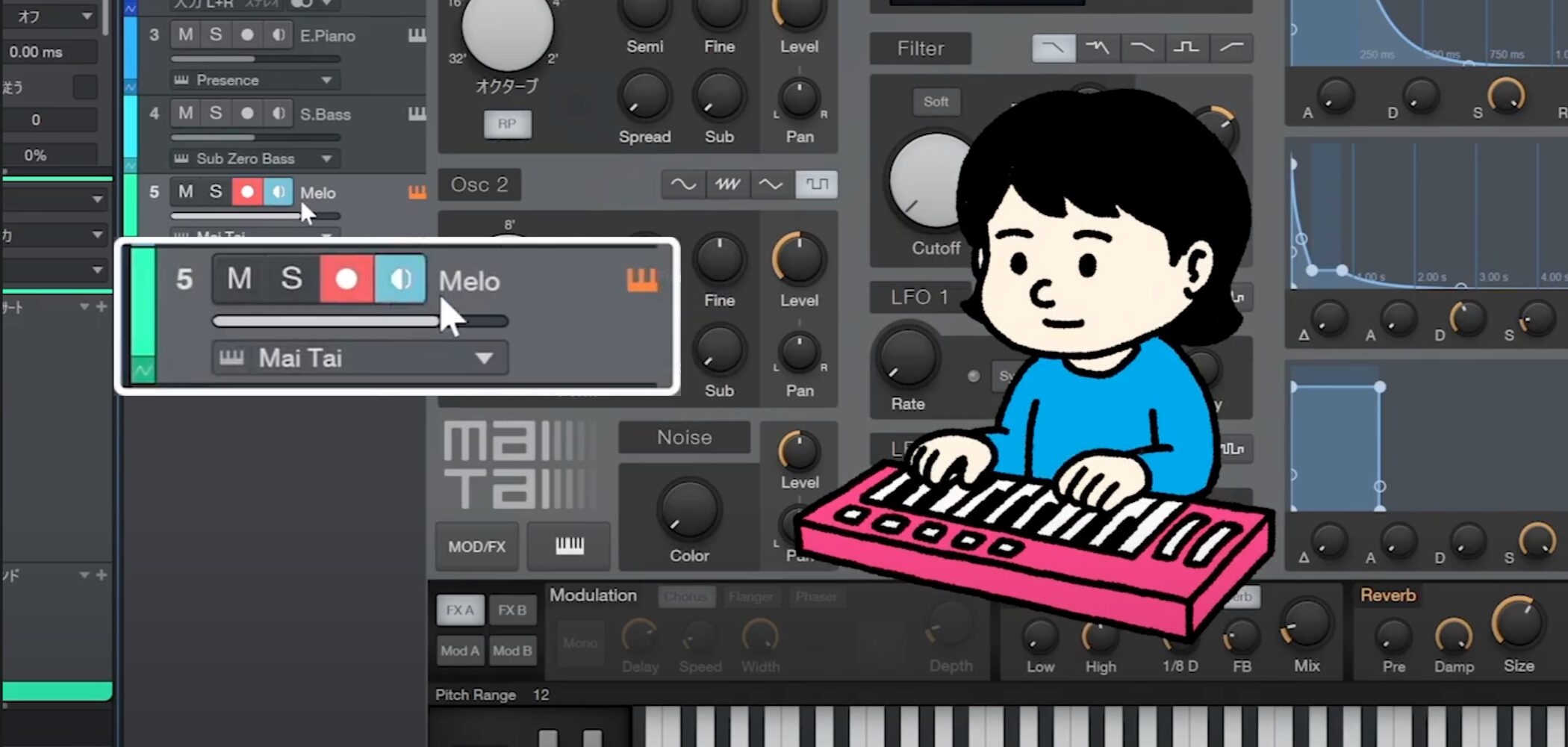
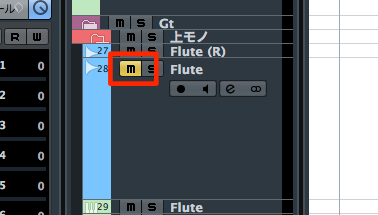
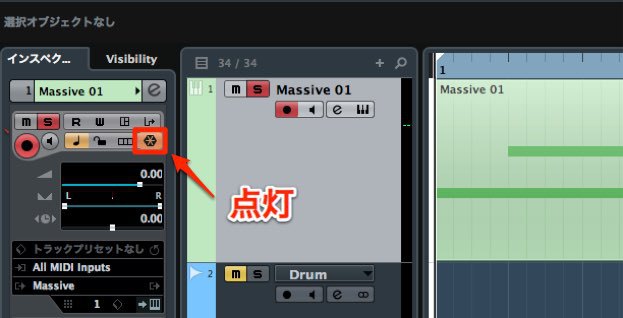
If the track’s Monitor button is lit, you can start playing immediately.
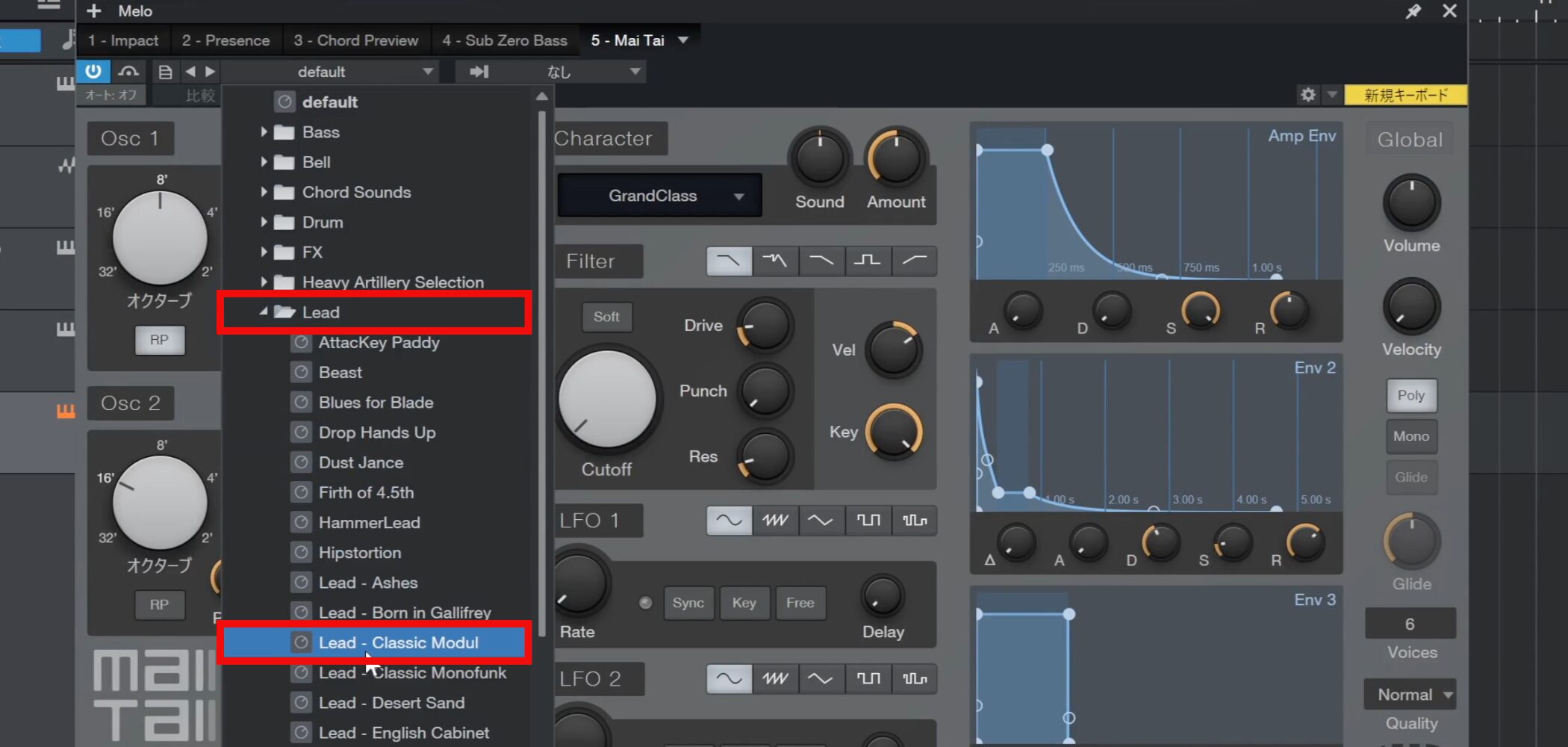
Choose a sound from the presets.
For entering a melody, a sustained sound with little decay is recommended.
For this example, we chose Classic Modul from the Lead category.
Preparing for and recording a performance
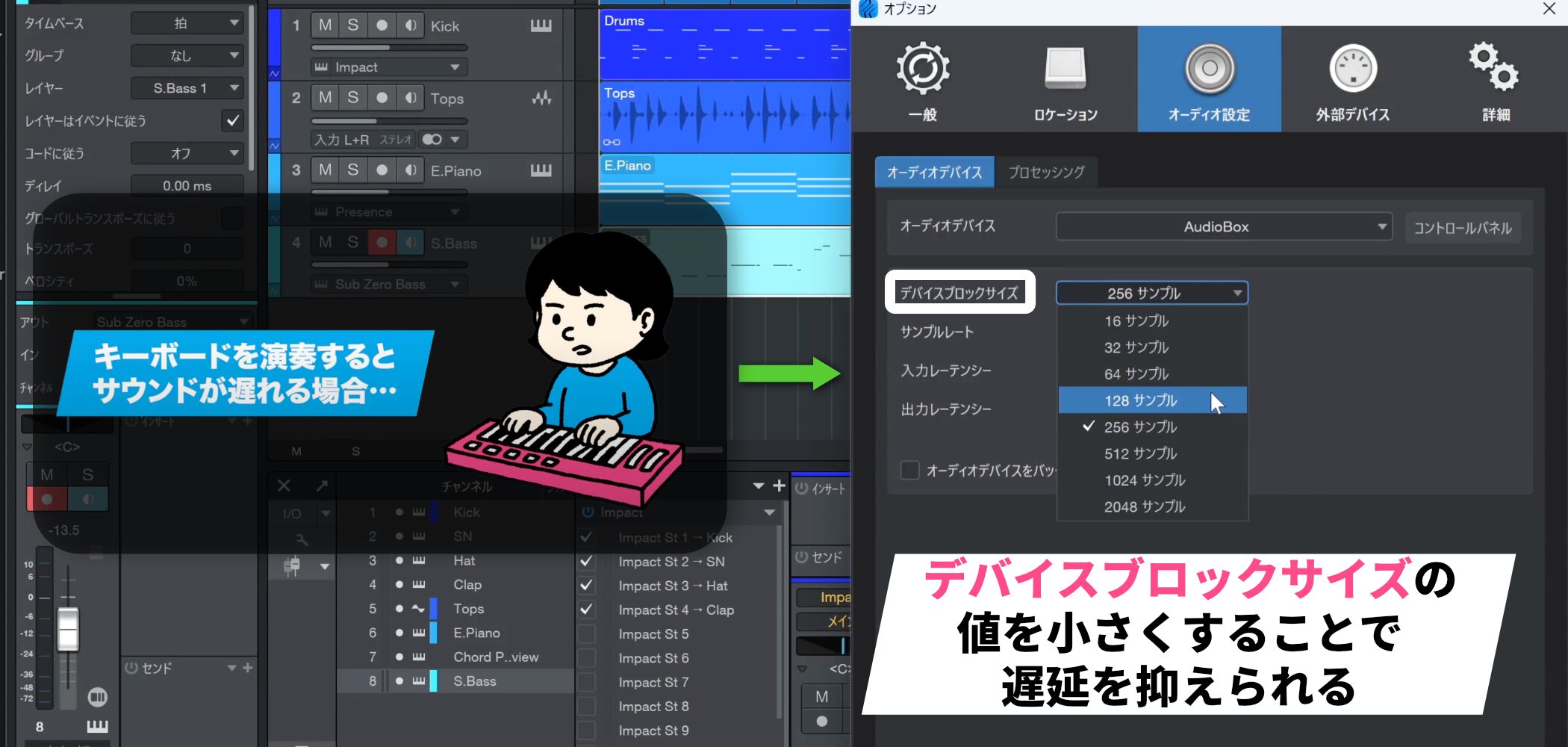
If you hear a delay when playing the keyboard, reduce latency by lowering the Device Block Size in Audio Setup.
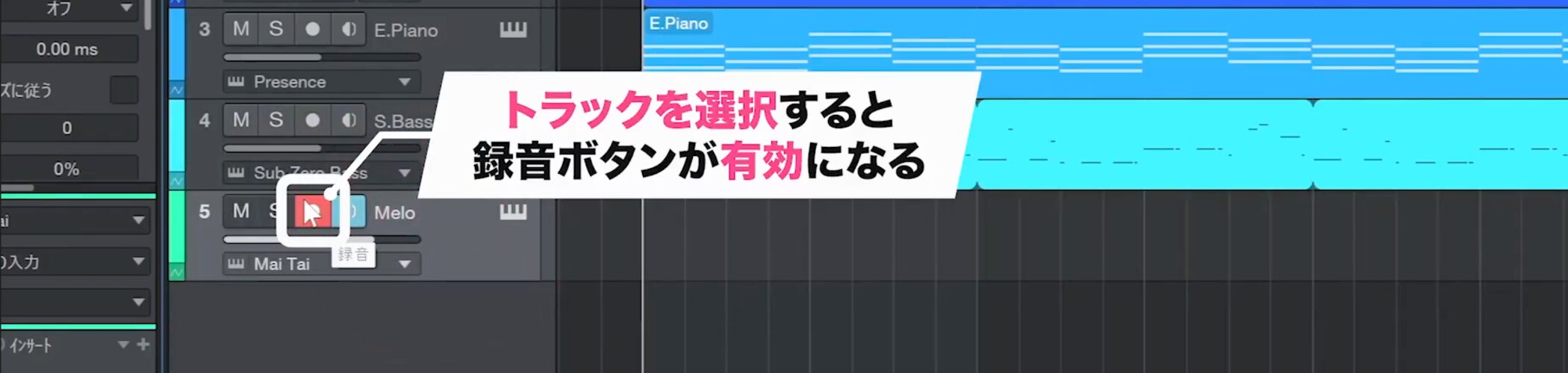
When you select the track you want to record, its record button is enabled automatically.
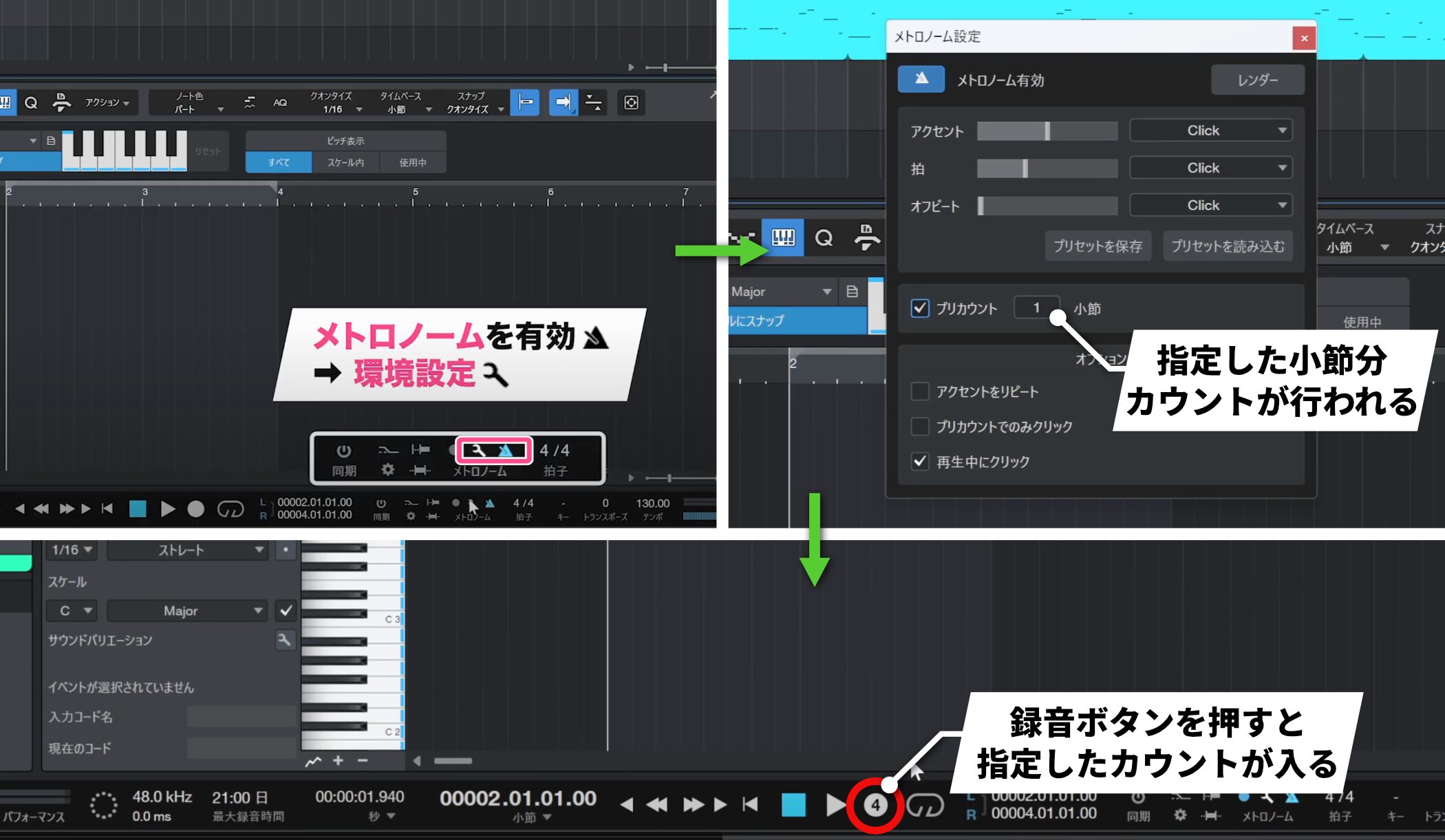
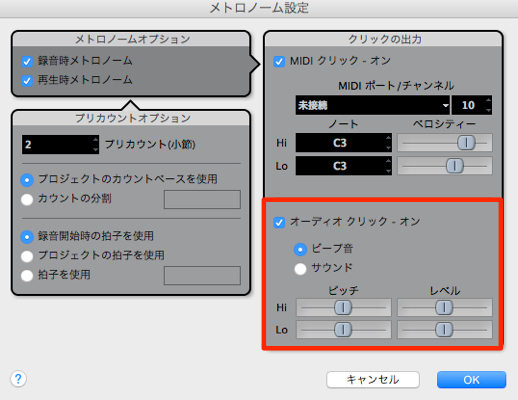
Turn on the metronome, then open its settings on the left and check Precount. This gives you a specified number of count-in bars before recording begins, so you have time to start playing.
After setting the precount, press the Record button below and begin playing.
Setting up loop recording
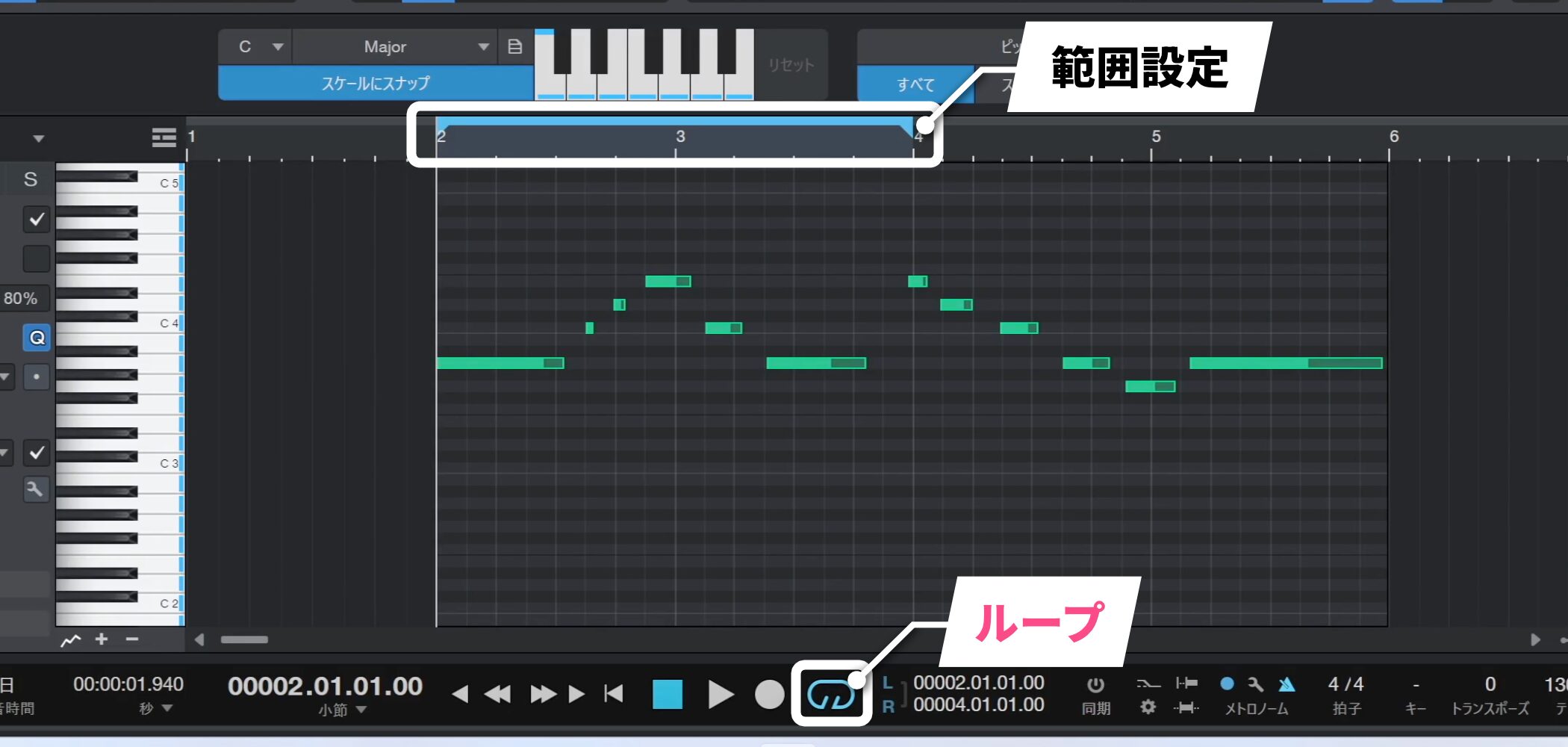
The Loop function is useful when you want to record a short phrase repeatedly.
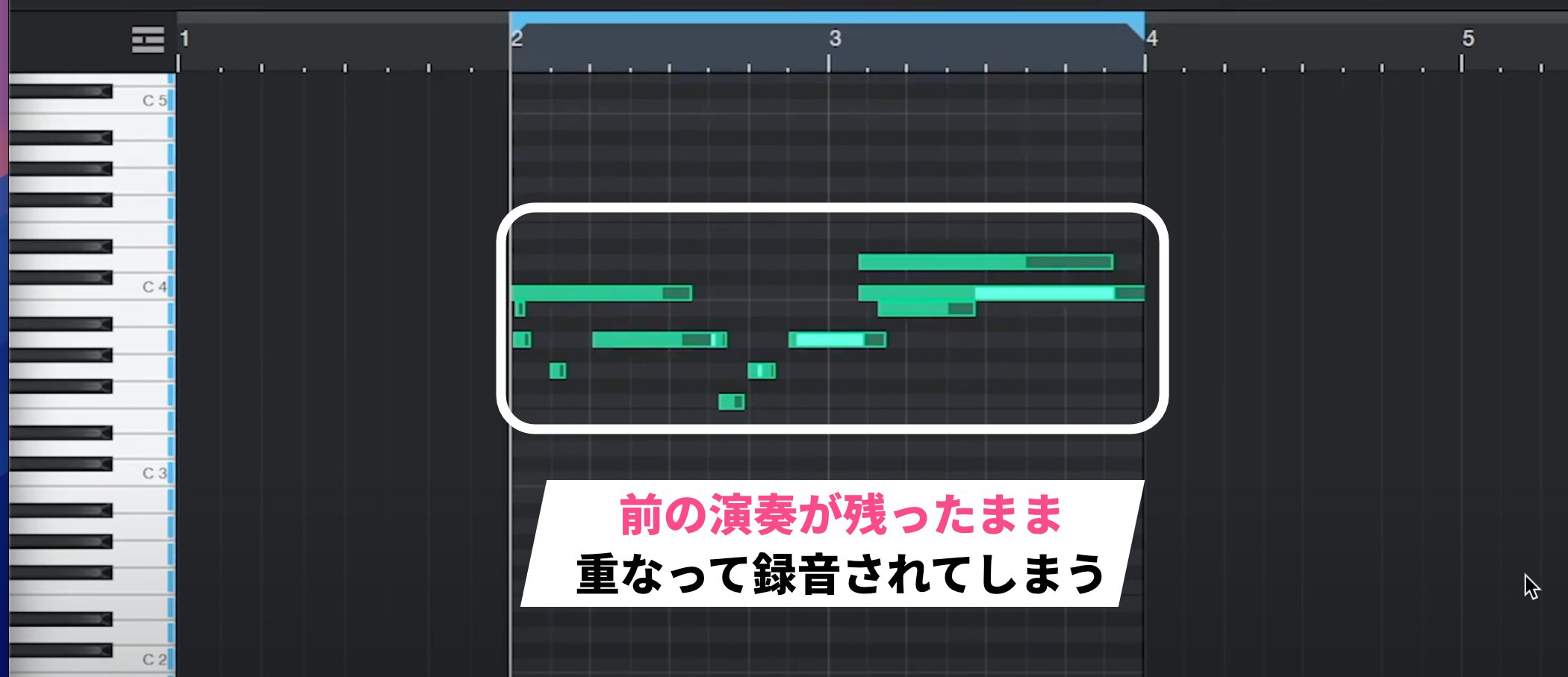
However, with the default loop recording settings, new performances are recorded on top of the previous ones.
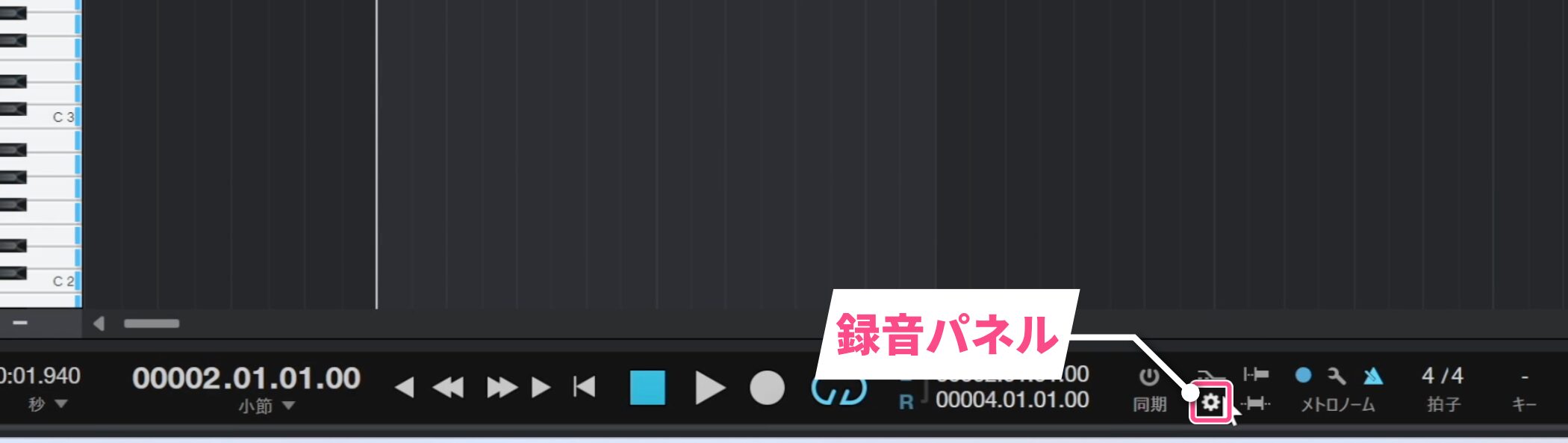
To change this behavior, open the Record Panel.
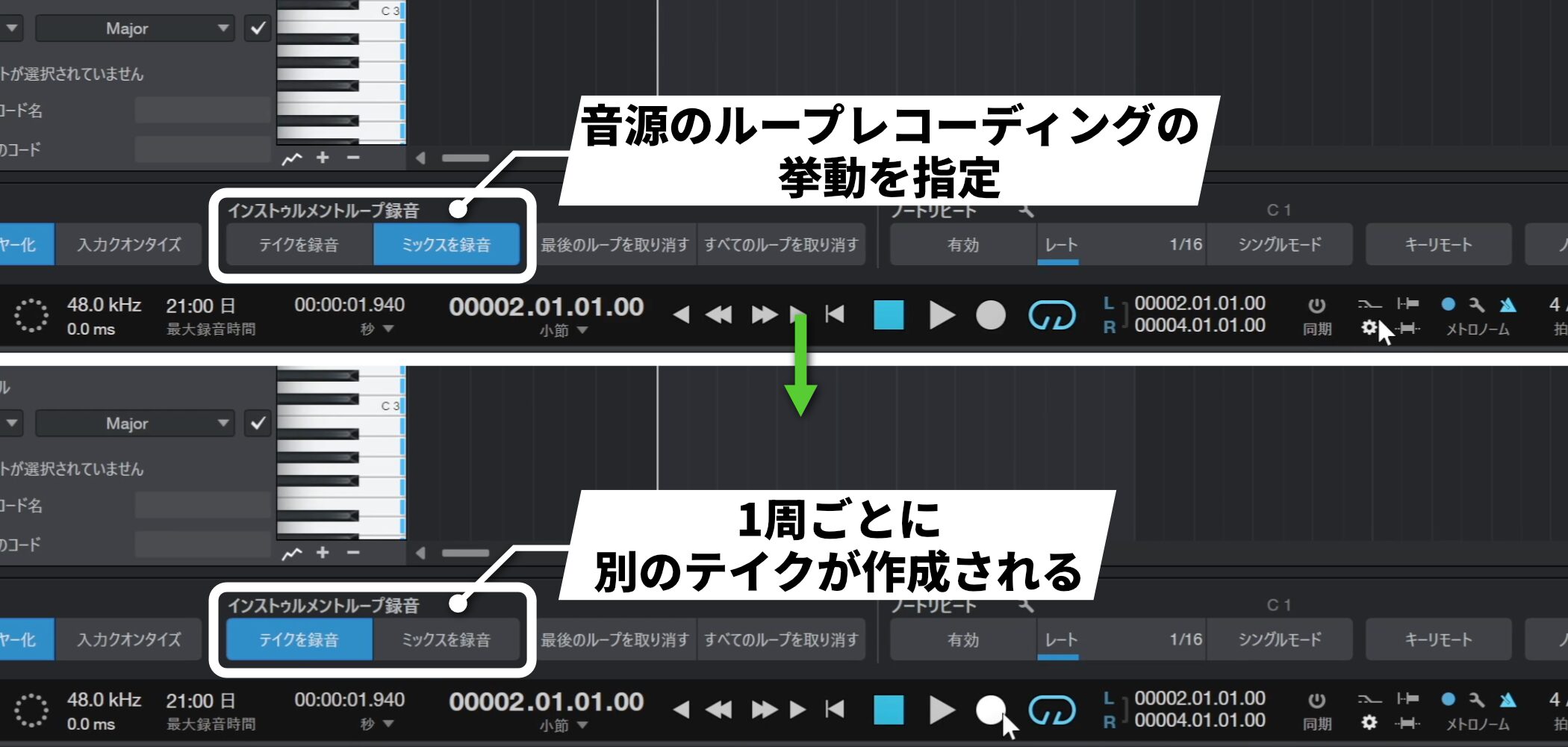
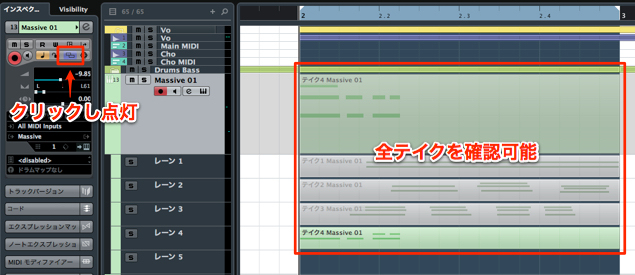
Under Options, change Instrument Loop Recording from Record Mix to Record Takes. A new take is created on each loop.
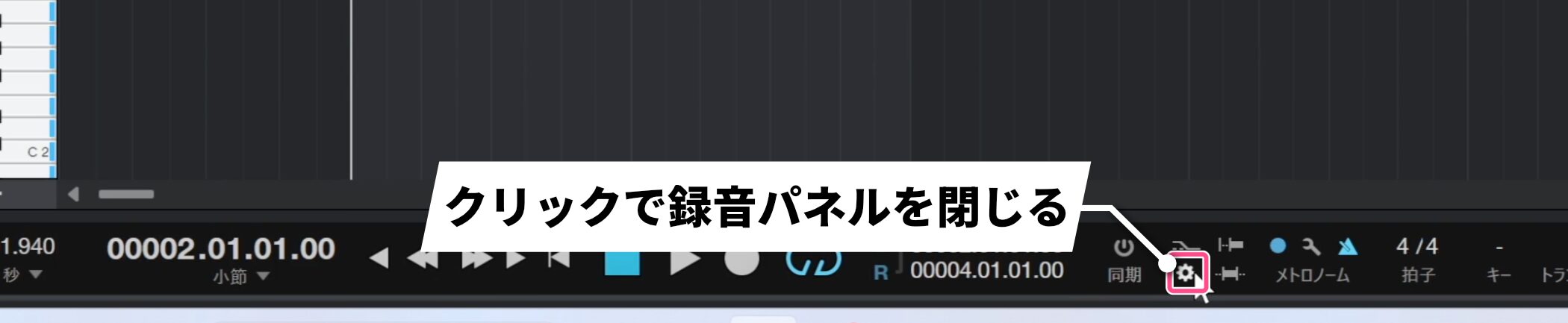
Once the setting is in place, you can close the Record Panel.
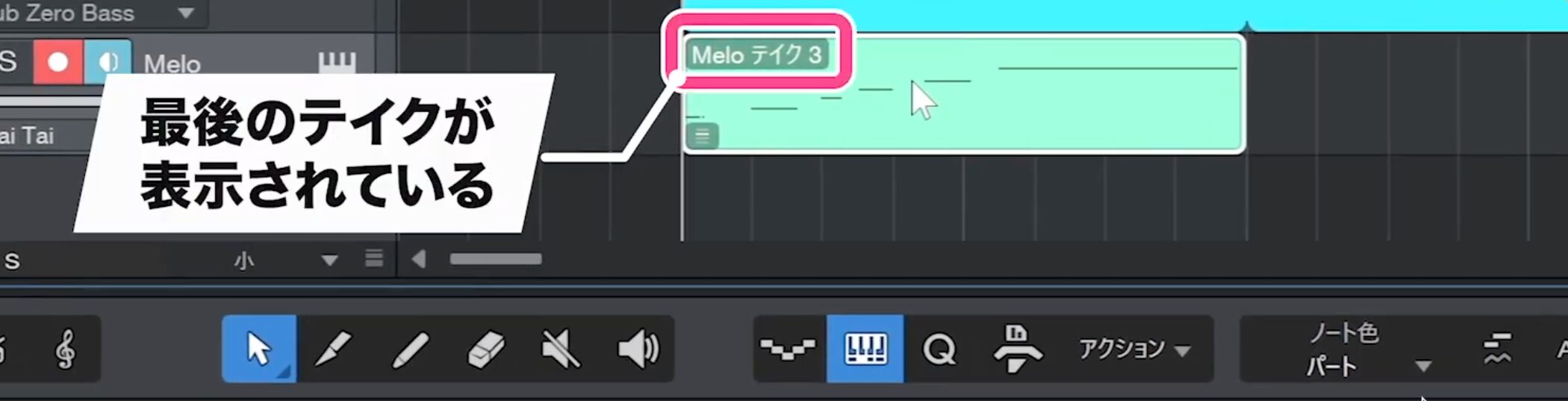
After recording several passes, the last recorded take appears in the event.
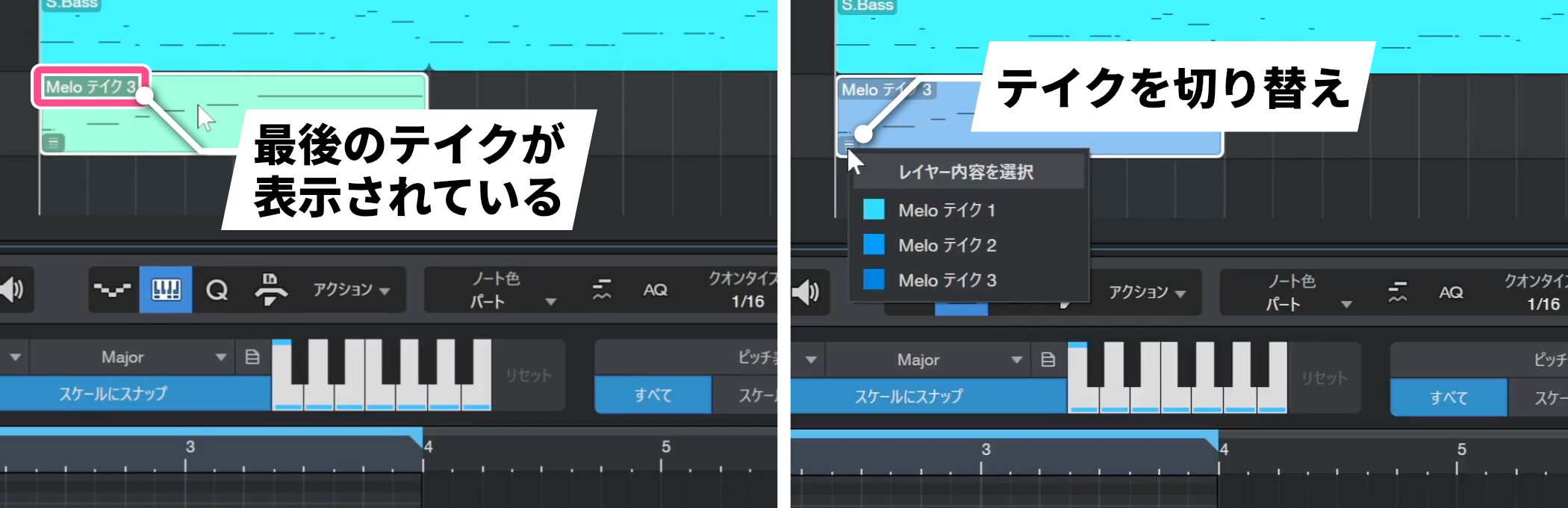
Click the lower-left area of the event to display the recorded takes, then choose the take you want to keep.
Recording tips
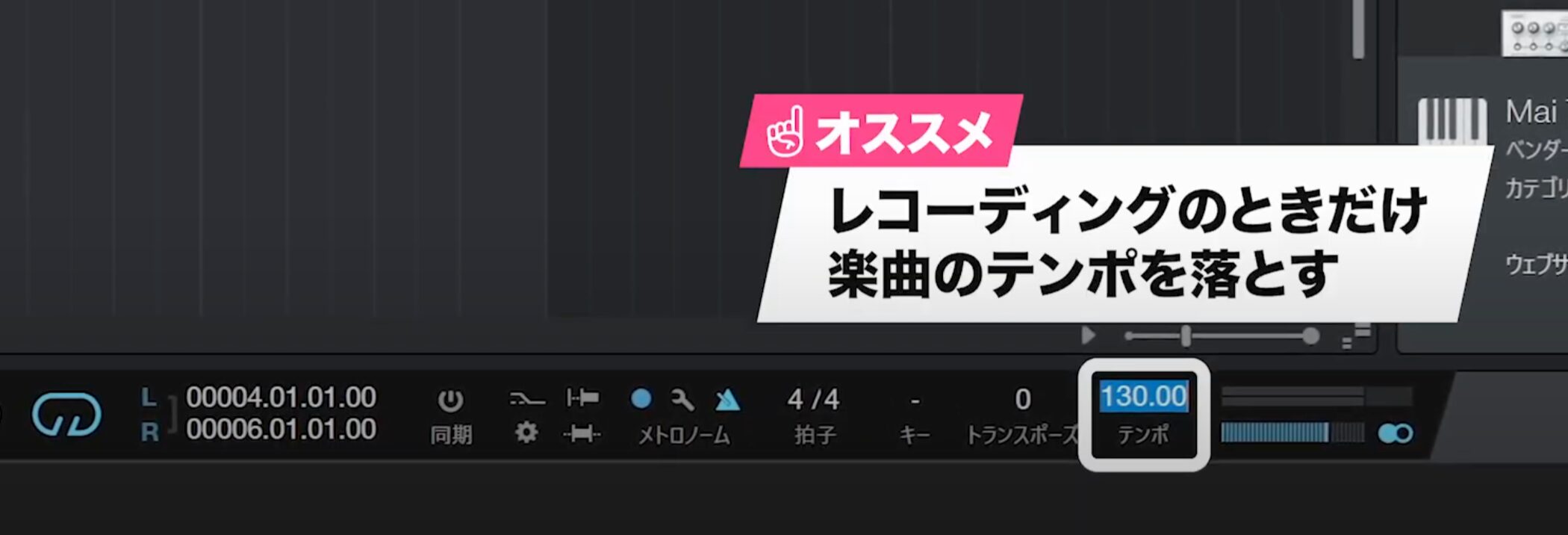
If the song feels too fast when playing a quick phrase such as sixteenth notes, lower the tempo temporarily for recording to make it easier to play.
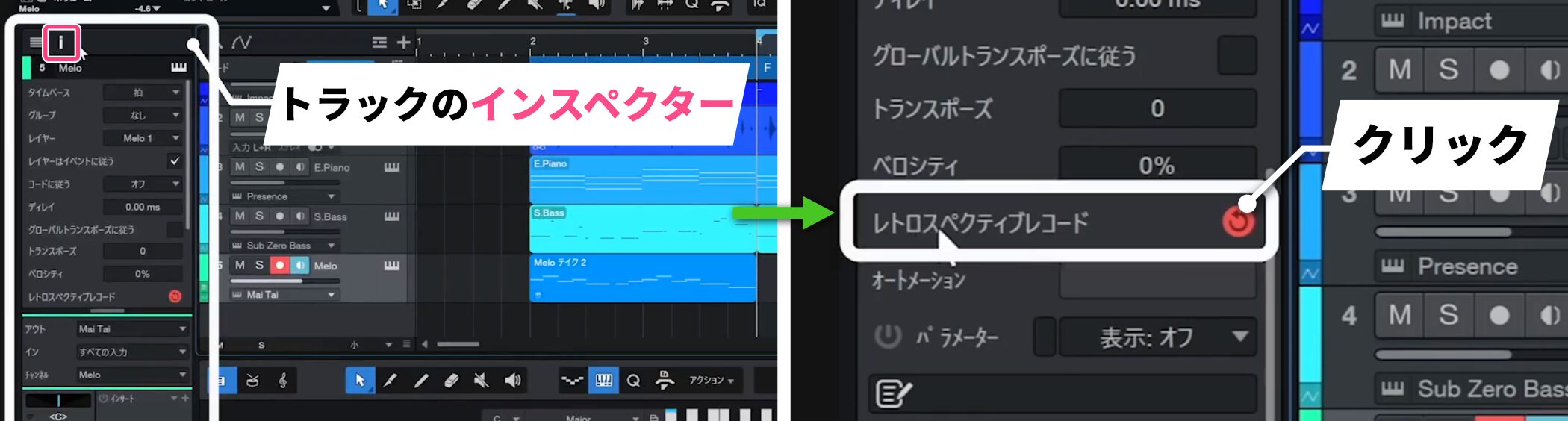
If you come up with a good phrase or idea while practicing but were not recording, click Retrospective Record in the track Inspector.
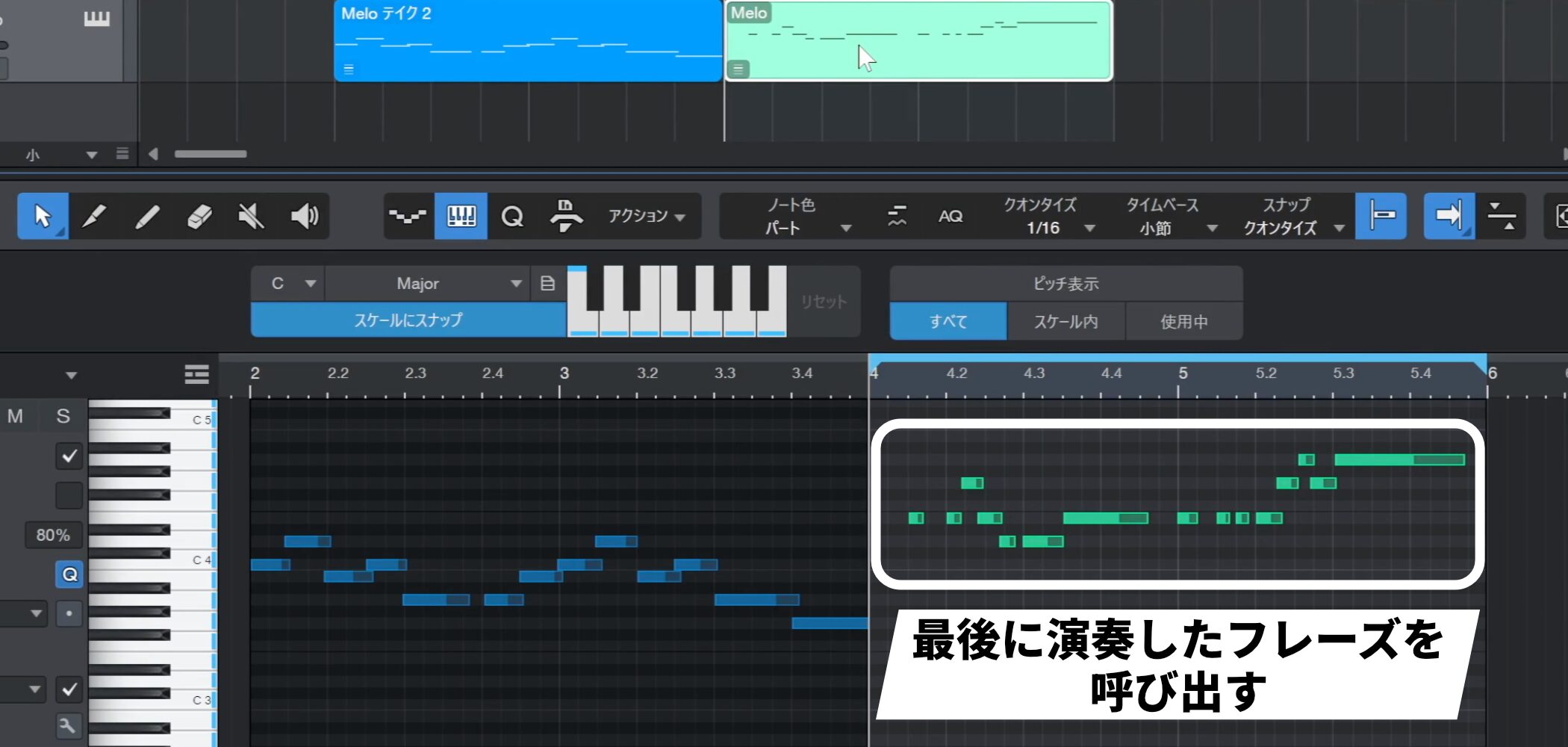
This lets you retrieve the last phrase you played.
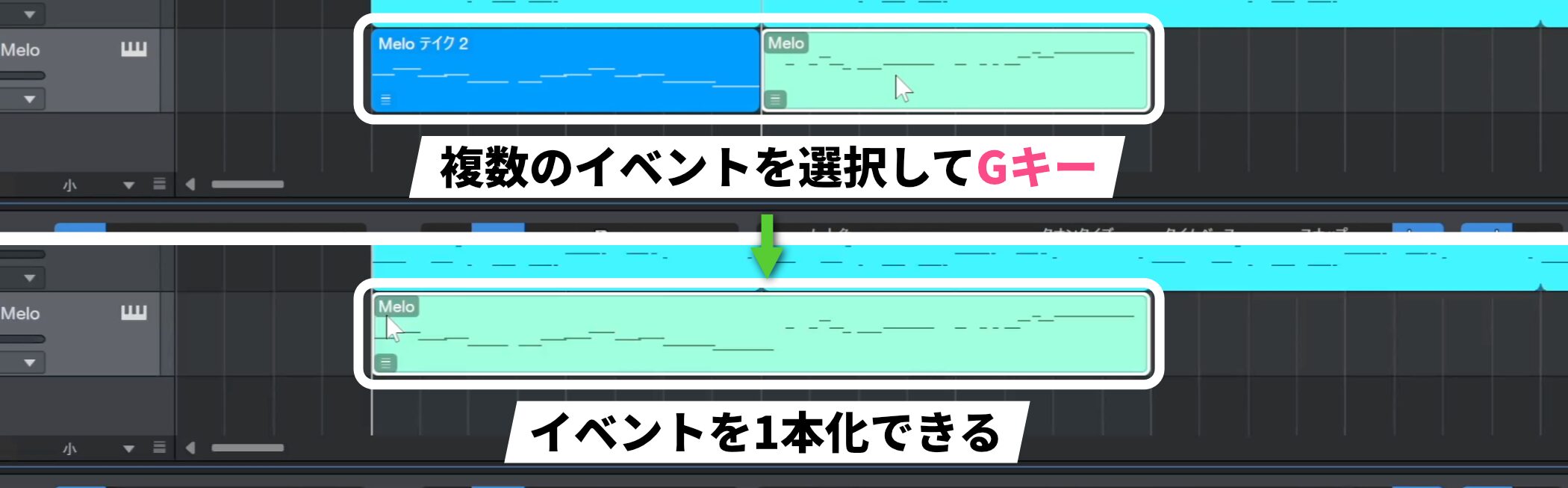
To combine several recorded events, select them together and press G.
Quantize basics
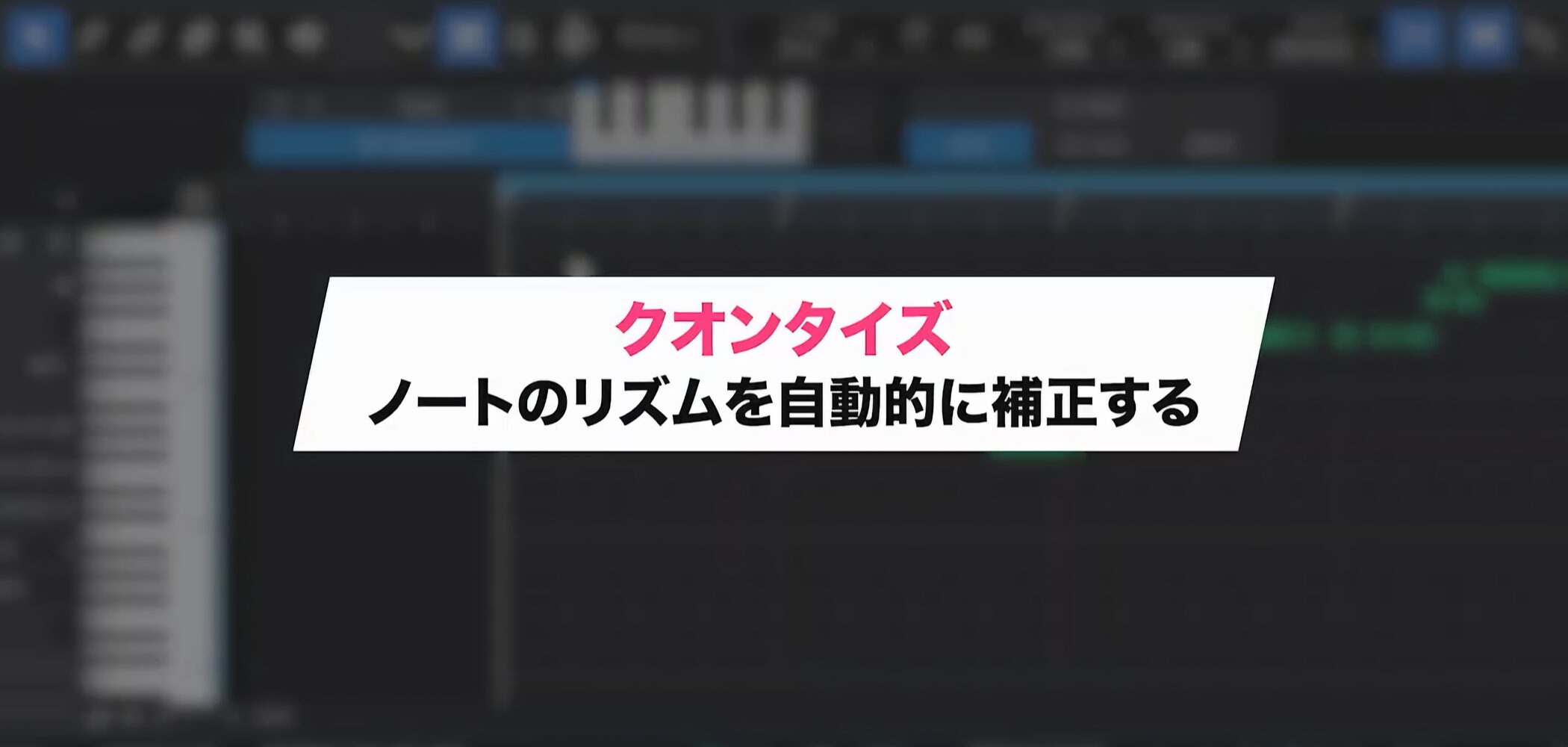
The Quantize function automatically corrects rhythm and lets you adjust performance timing efficiently.
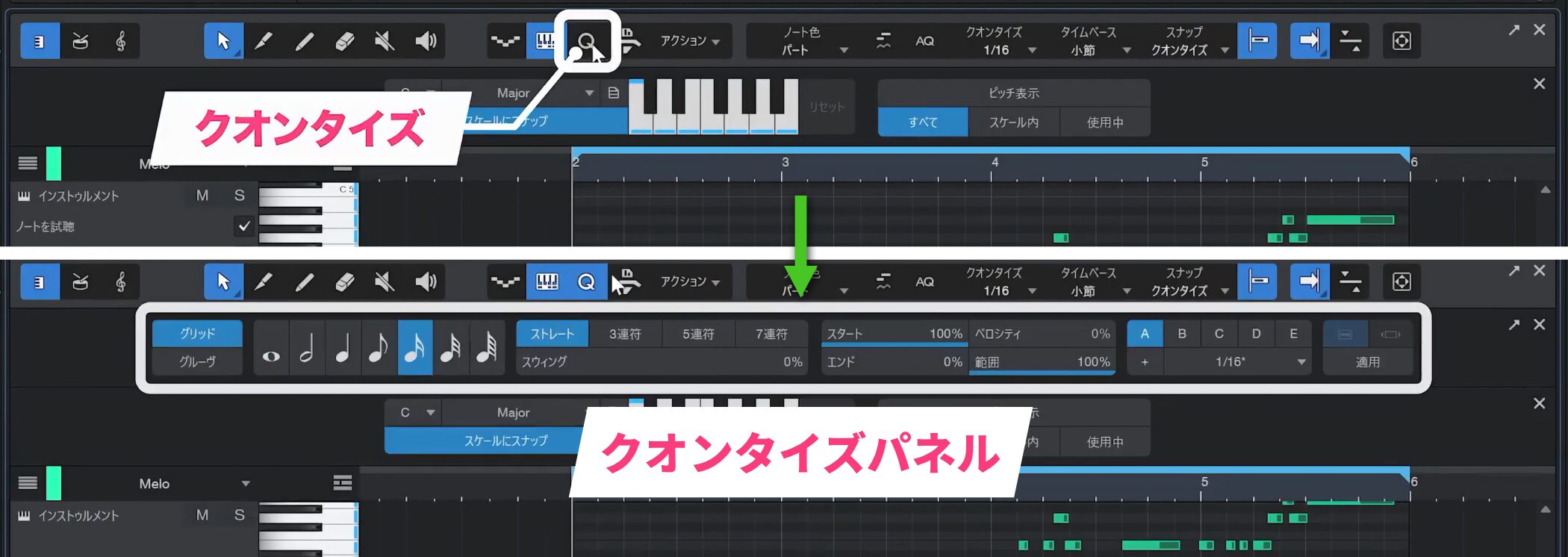
Click Quantize above the editor to open the Quantize panel.
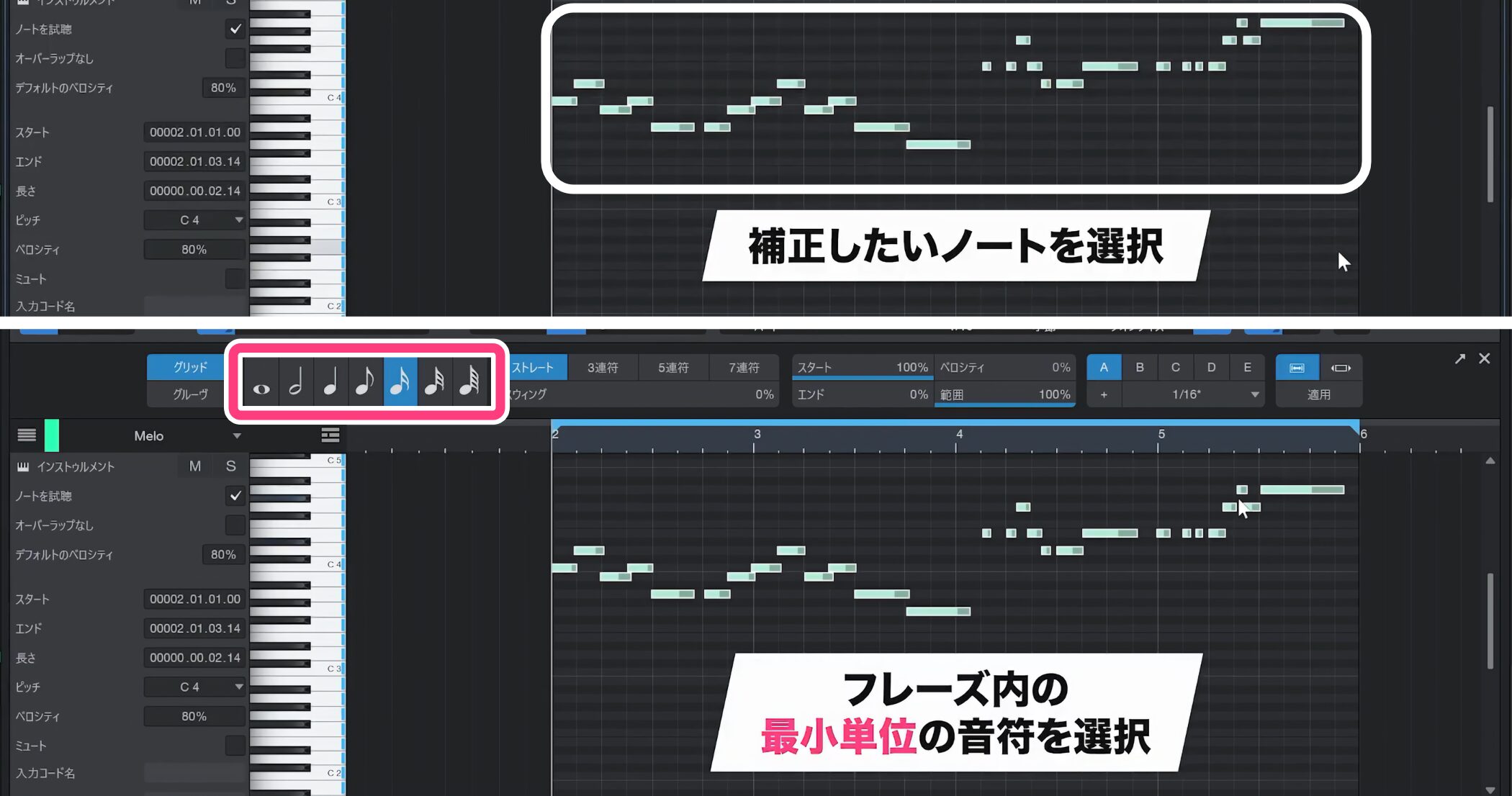
Select the notes to correct, then choose the smallest note value used in the phrase in the Quantize panel.
Setting the correct note value is essential when quantizing.
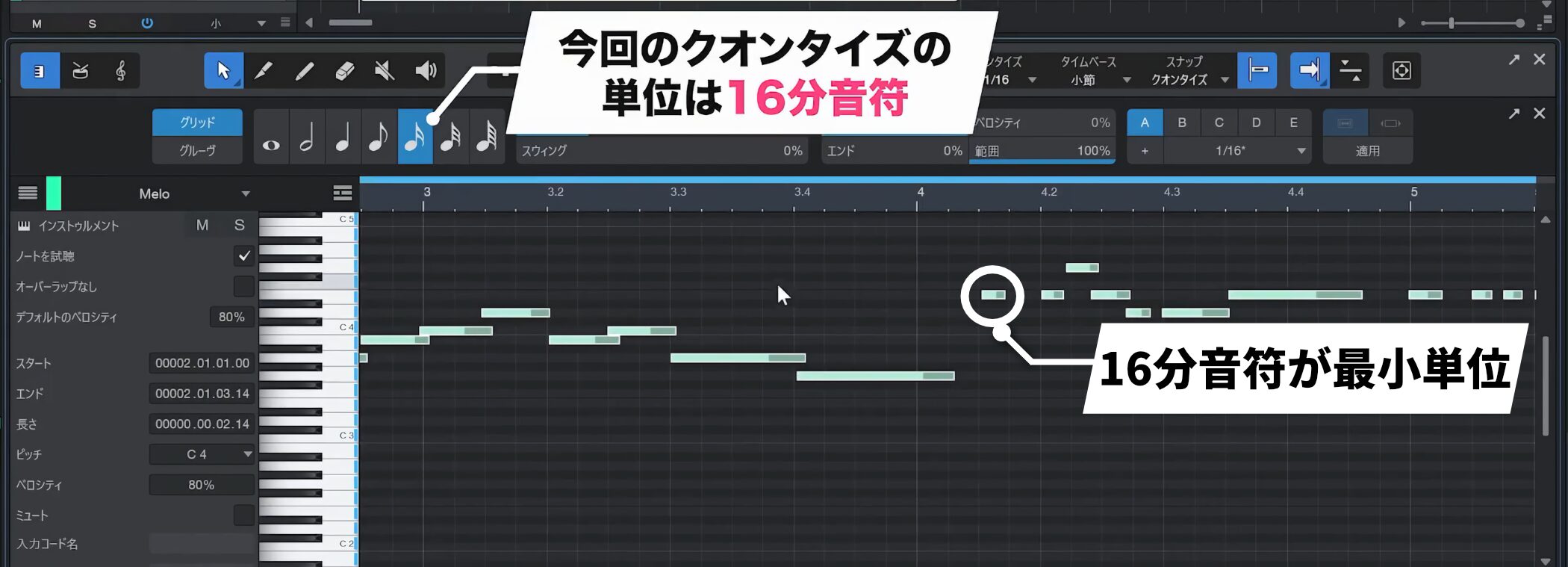
For example, if the phrase contains sixteenth notes, set the quantize value to a sixteenth note.
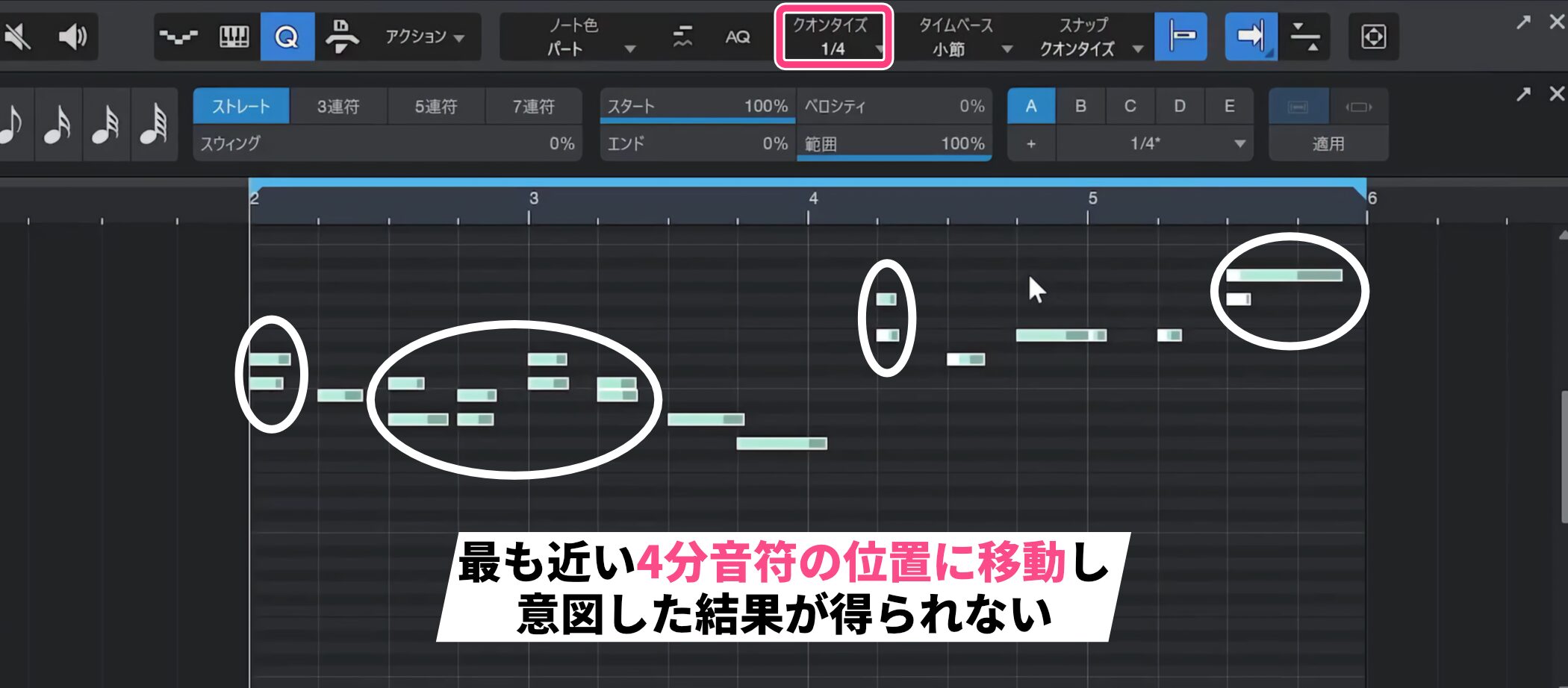
If you instead quantize to a larger value such as a quarter note, each note moves to the nearest quarter-note position and the result may not be what you intended.
As a rule, base the quantize value on the smallest note value in the phrase.
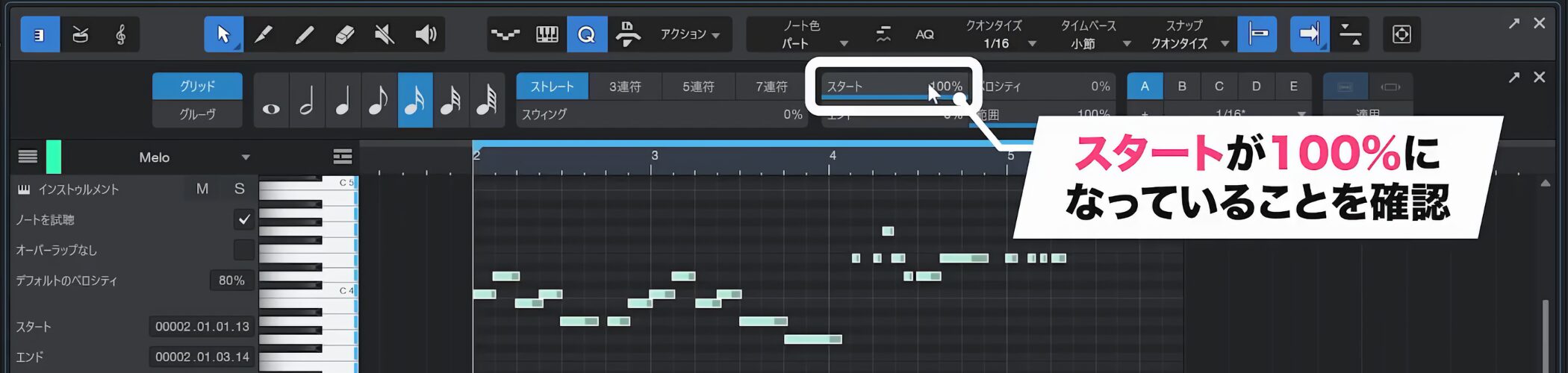
To align the start of each note precisely, make sure Start is set to 100%.
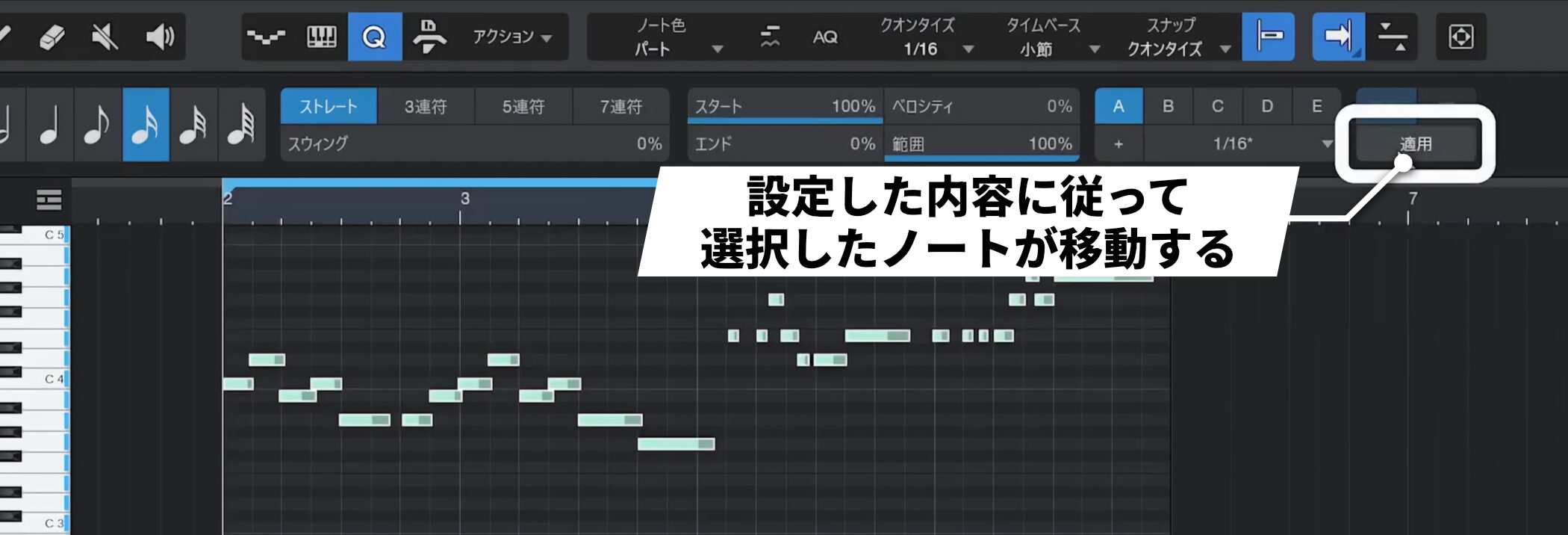
Once configured, click Apply and the notes move immediately.
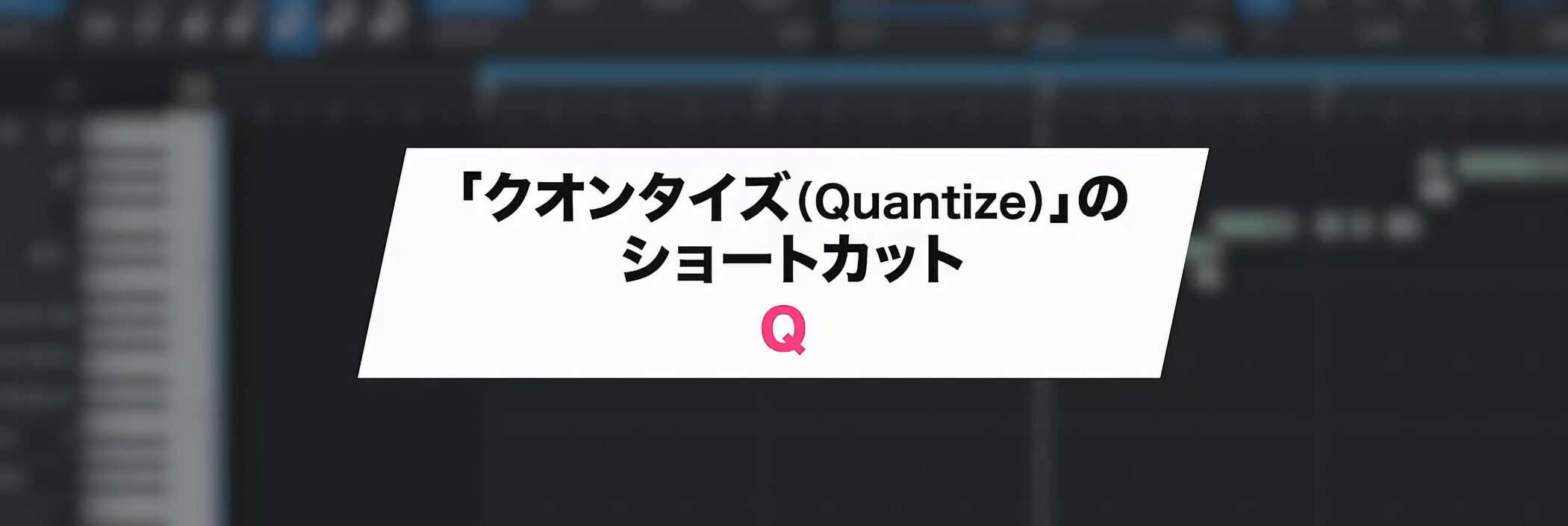
Quantize also has a shortcut: press Q to apply it quickly.
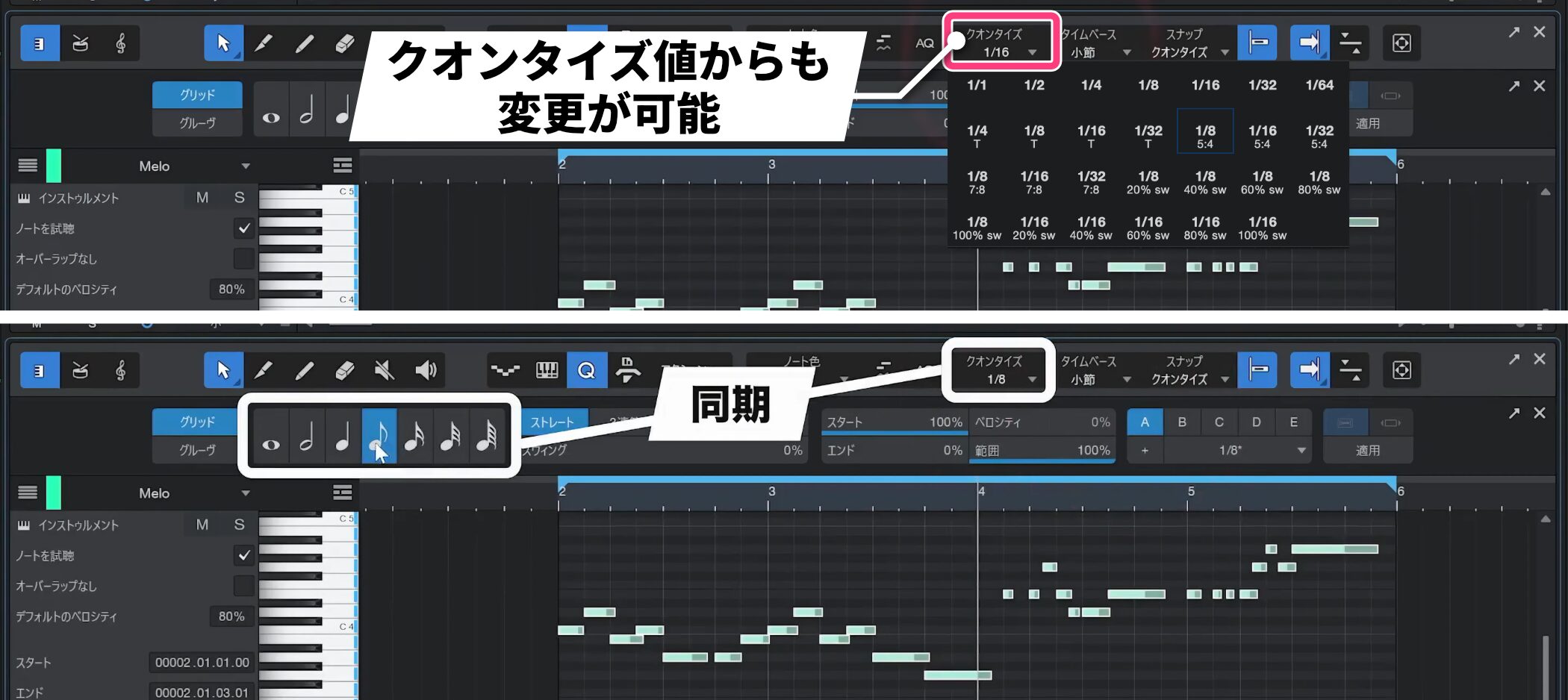
You can also change the quantize value from the always-visible control. It stays synchronized with the Quantize panel, so you can work without opening the panel.
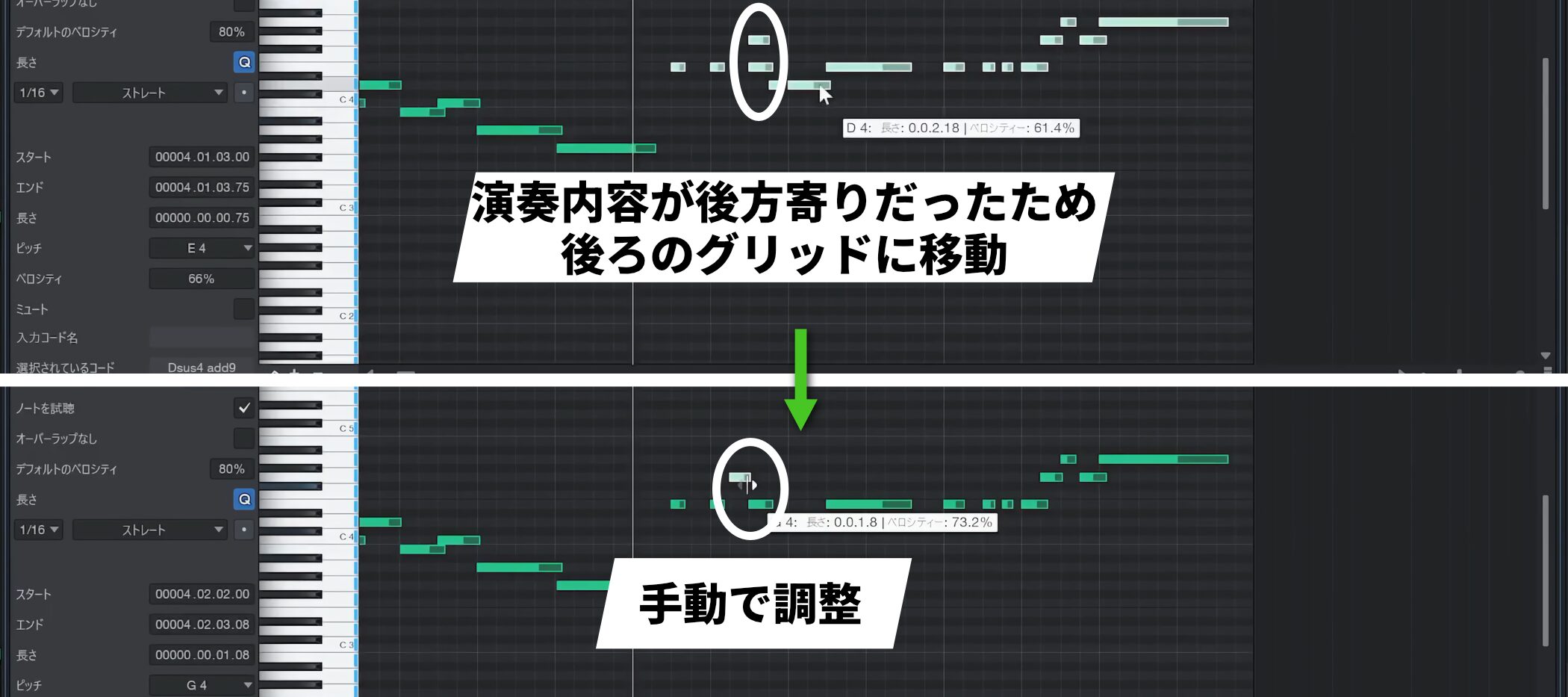
If a performance is closer to a later grid position than the one you intended, quantizing can move the notes to an unintended position.
Automatic correction cannot resolve this, so adjust those notes manually.
Restoring the original performance timing
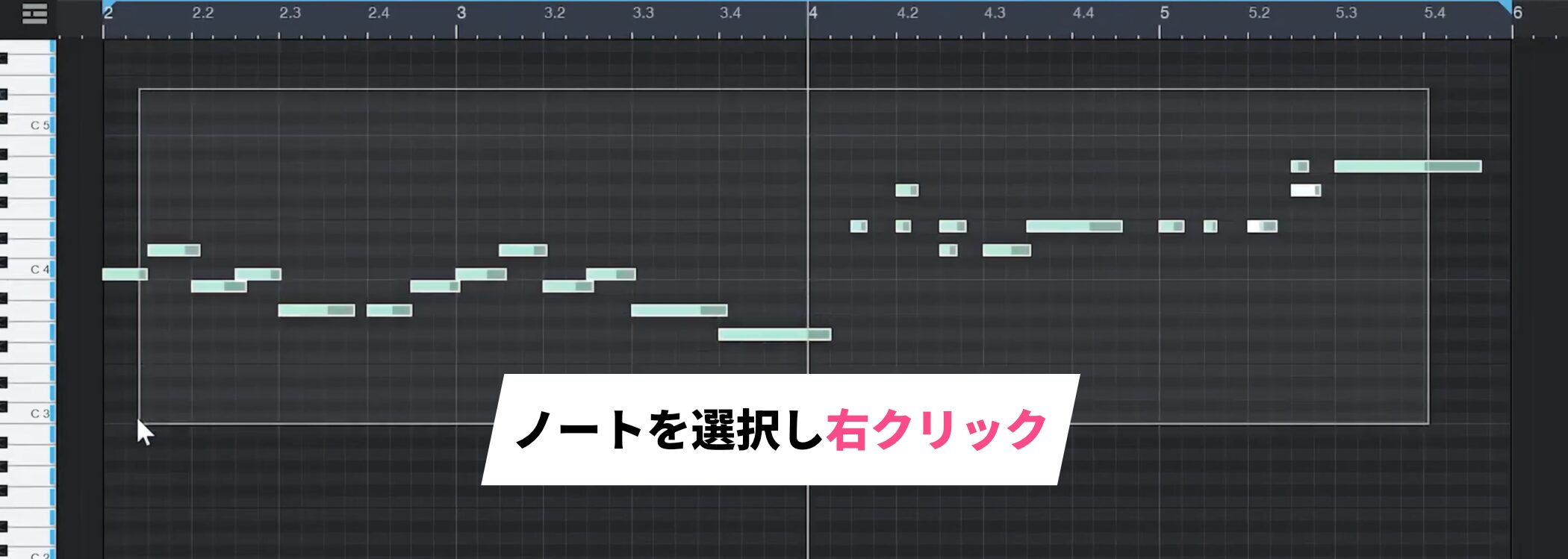
If you need to restore the original timing later, select the notes you want to restore and right-click.
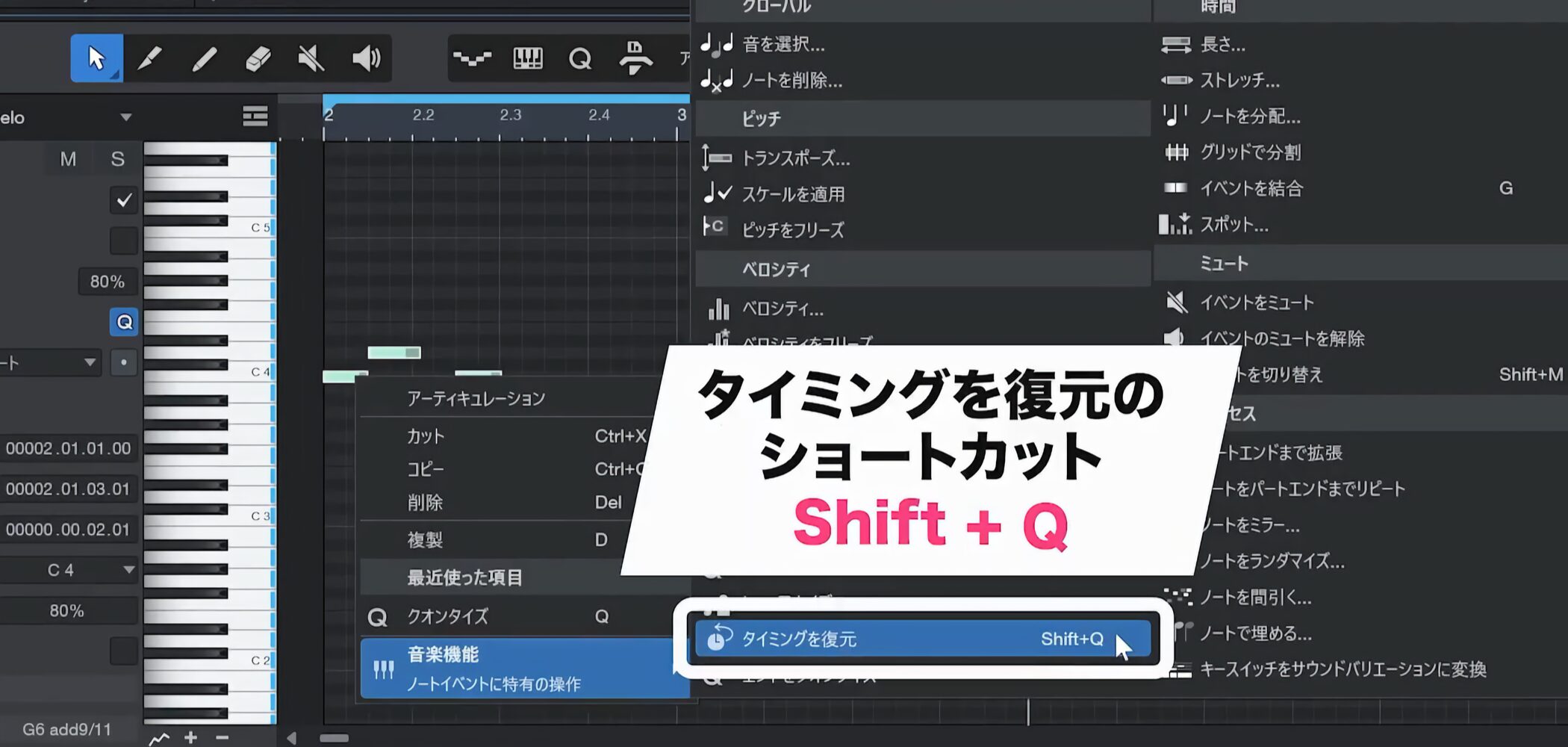
Choose Restore Timing under Musical Functions.
The shortcut is Shift+Q.
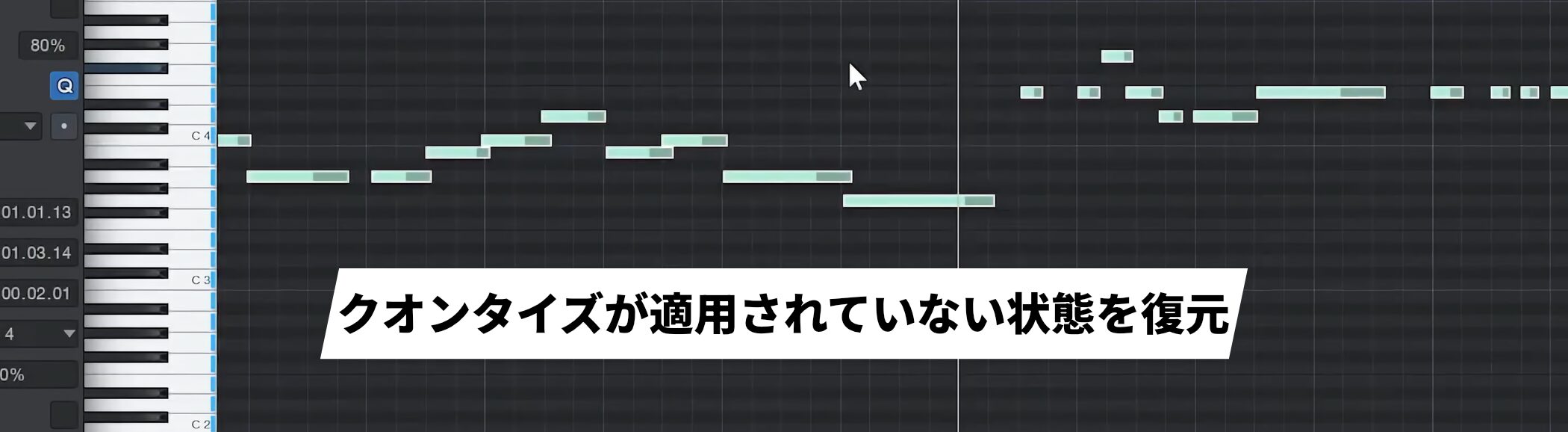
This restores the notes to their unquantized timing.
Adjusting note end timing
Once you understand note start timing, adjusting the ends is straightforward.
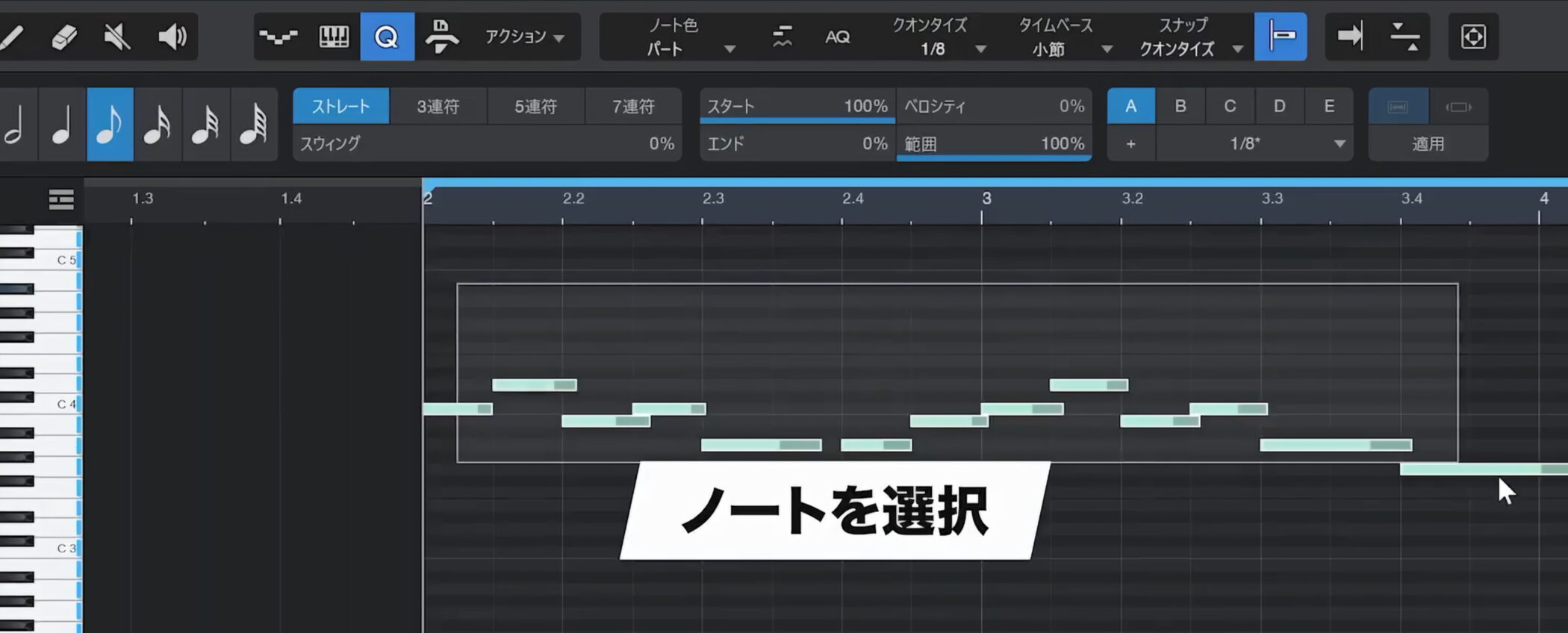
First, select the notes you want to adjust.
If the phrase contains both eighth and sixteenth notes, select each group separately and use the appropriate note value.
In this example, we start with the eighth-note phrase in the first half.
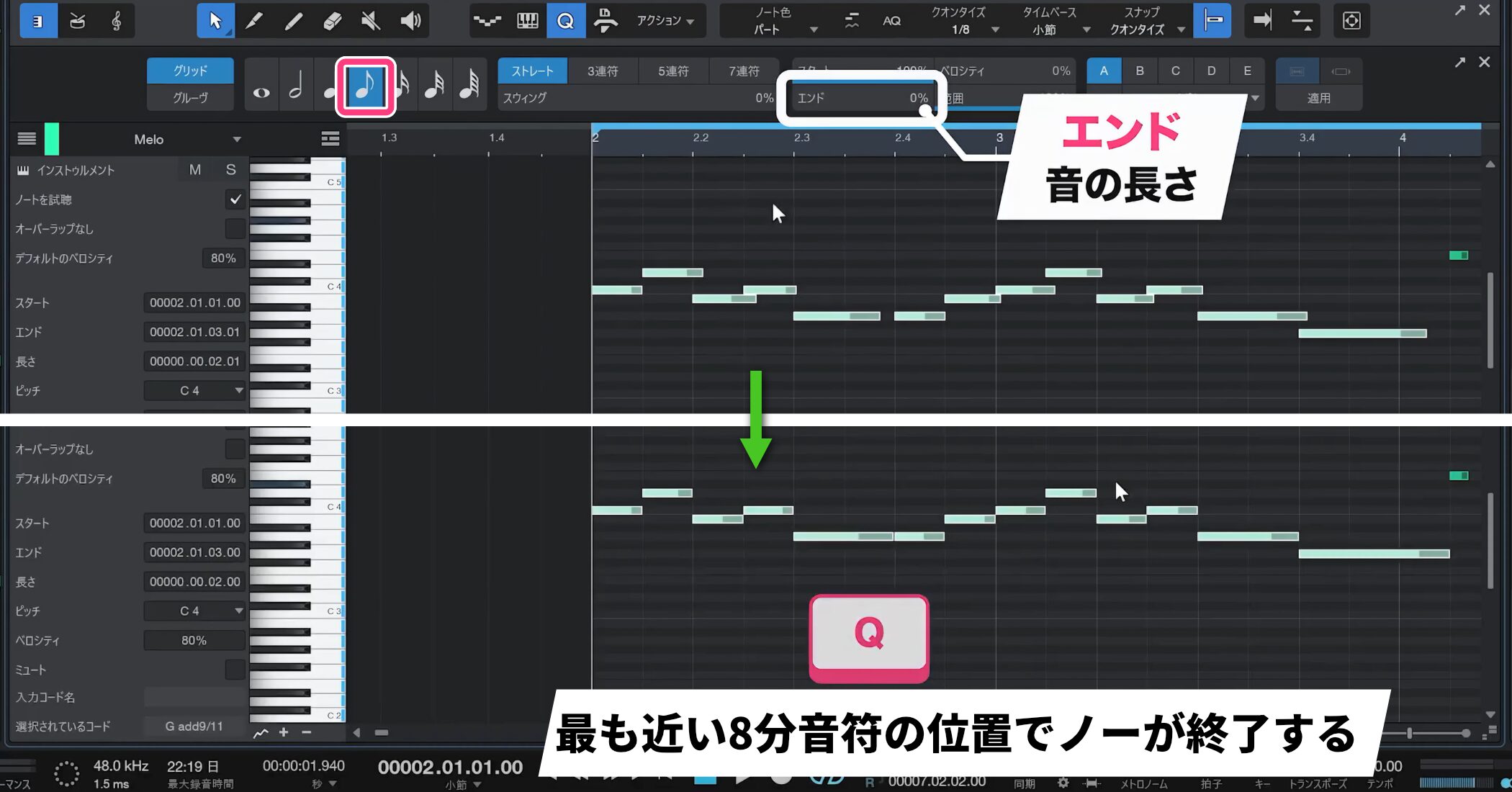
The End setting below Start controls the note end. Set it to 100% and apply quantize so that each note ends at the nearest position for the selected note value.
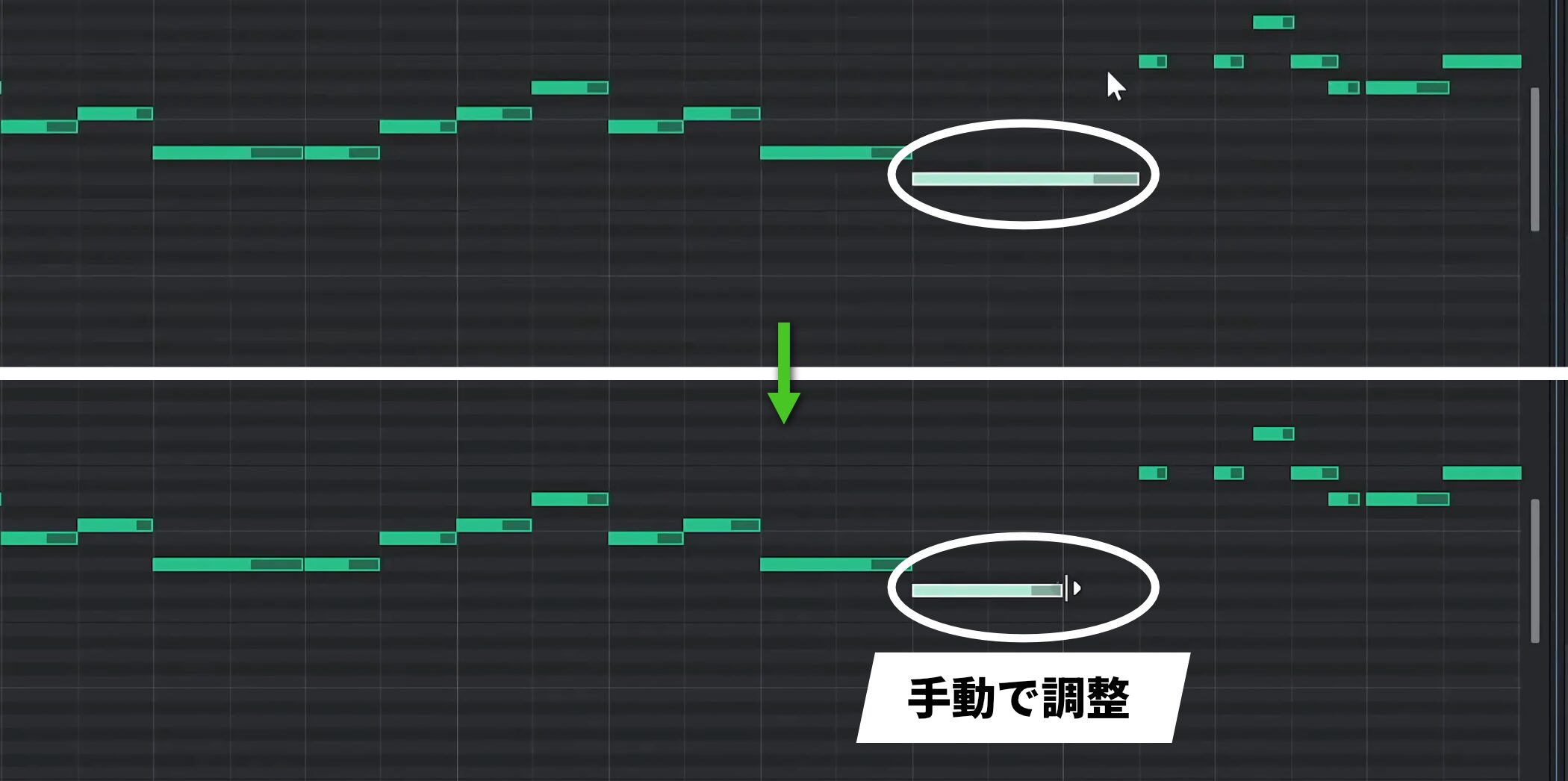
If a note is too long and ends at a later grid position, adjust that note individually.
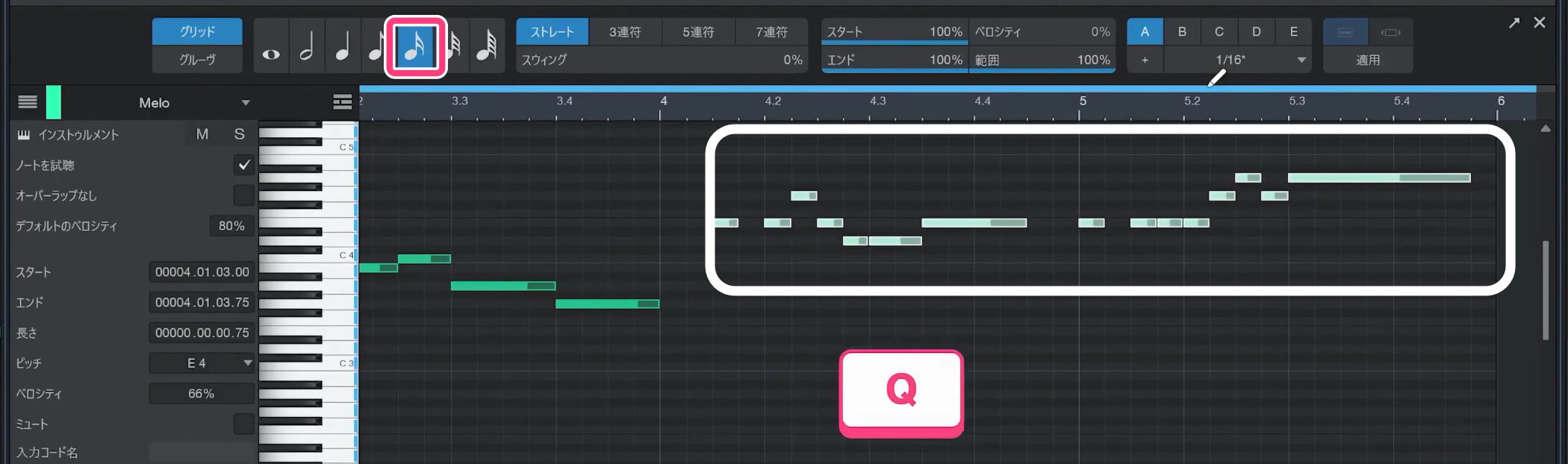
Likewise, set the second phrase to sixteenth notes and apply quantize to adjust its lengths.
Making note lengths equal
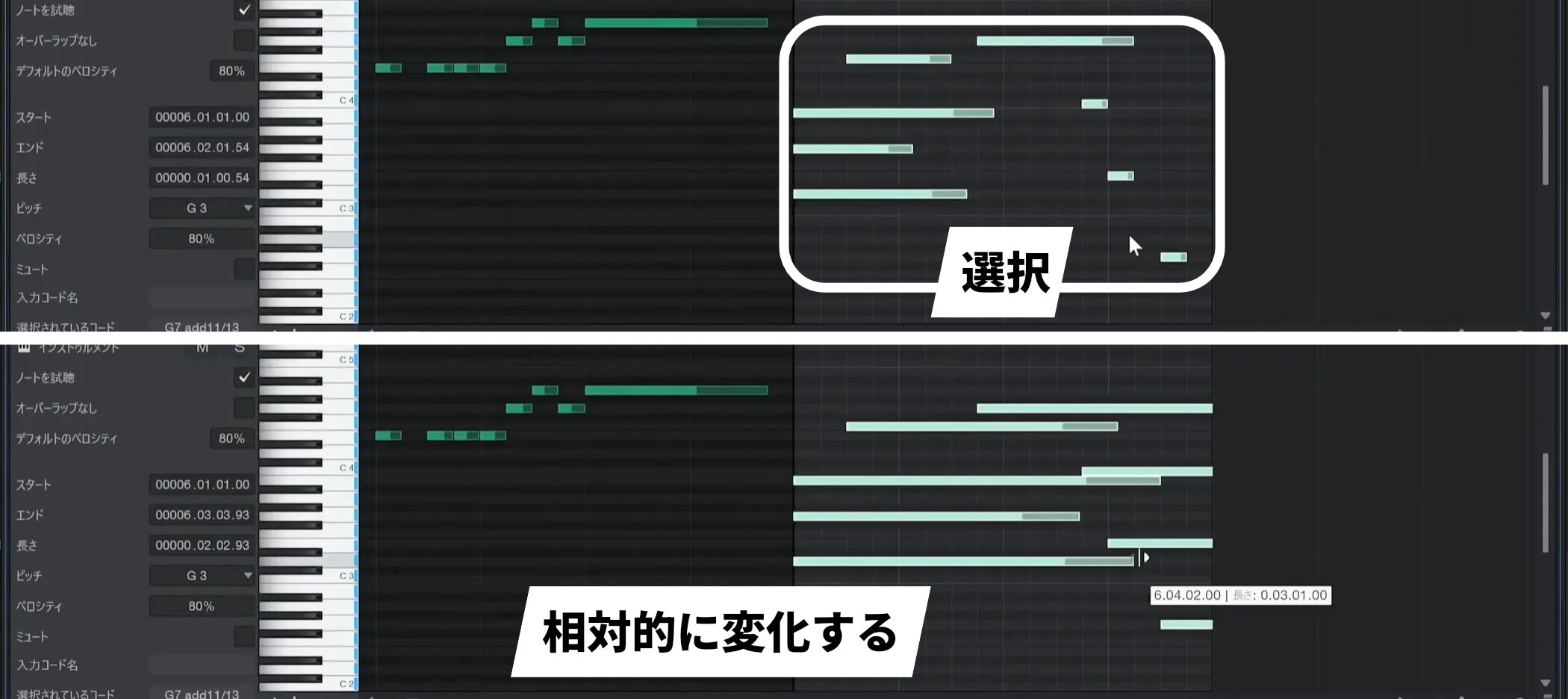
Normally, changing the lengths of several notes together changes them relatively.
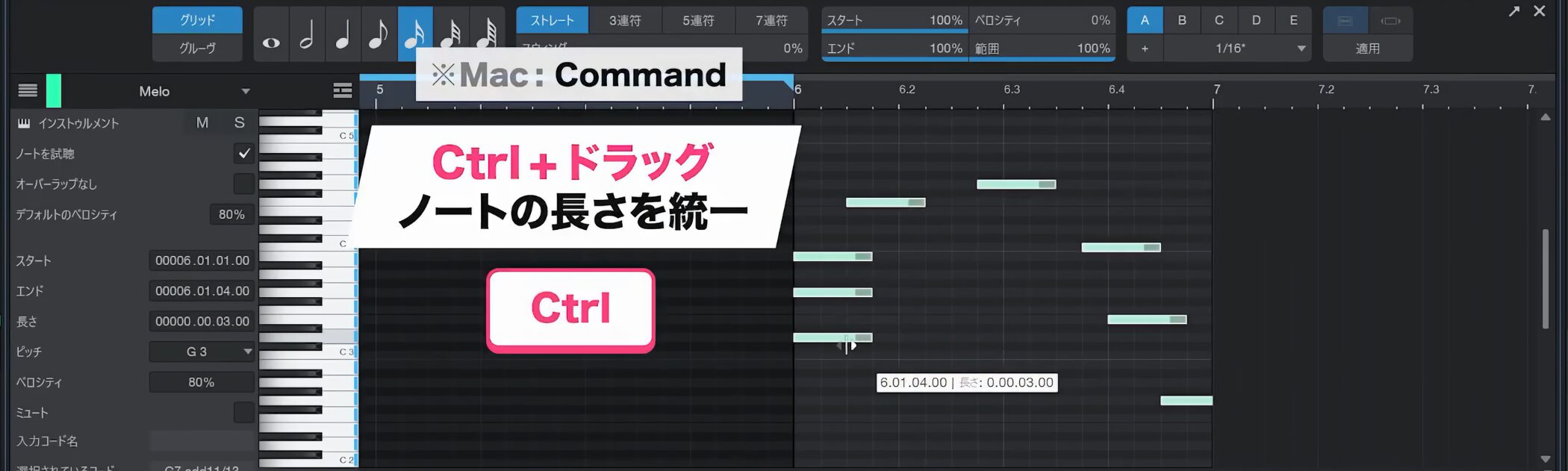
Hold Control (Command on Mac) while dragging to make them the same length in one step.
This is a useful shortcut to remember.
Making velocities consistent
Adjust velocity, or note strength, in the velocity panel.
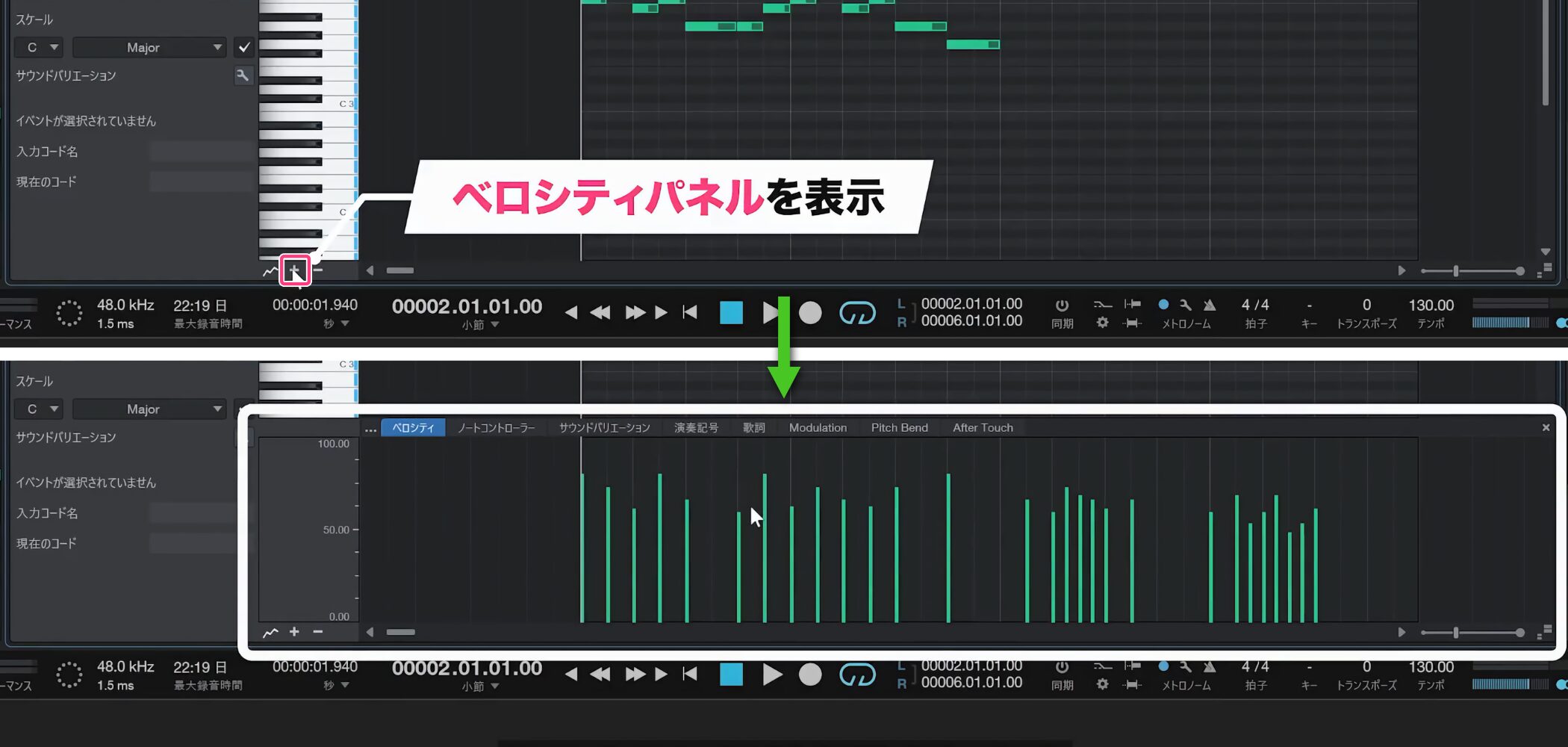
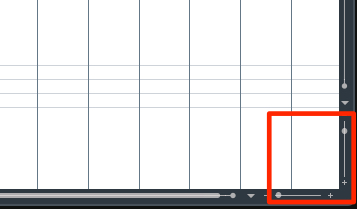
If the velocity panel is hidden, press the plus button to show the values.
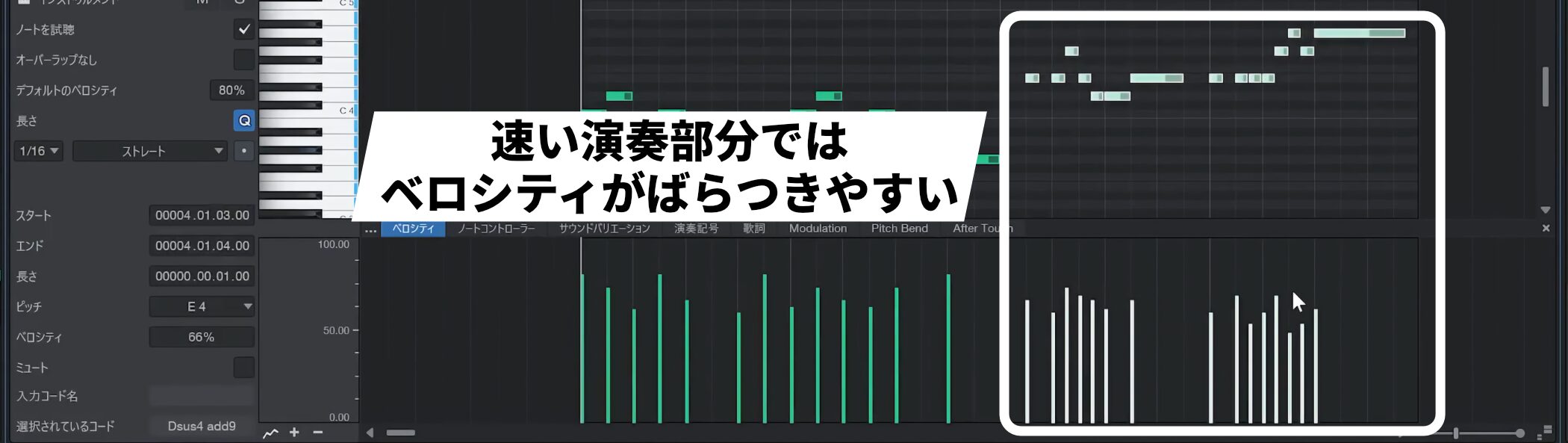
Velocities can vary especially in fast passages.
If you want the main melody to come through consistently, set all the notes to the same value.
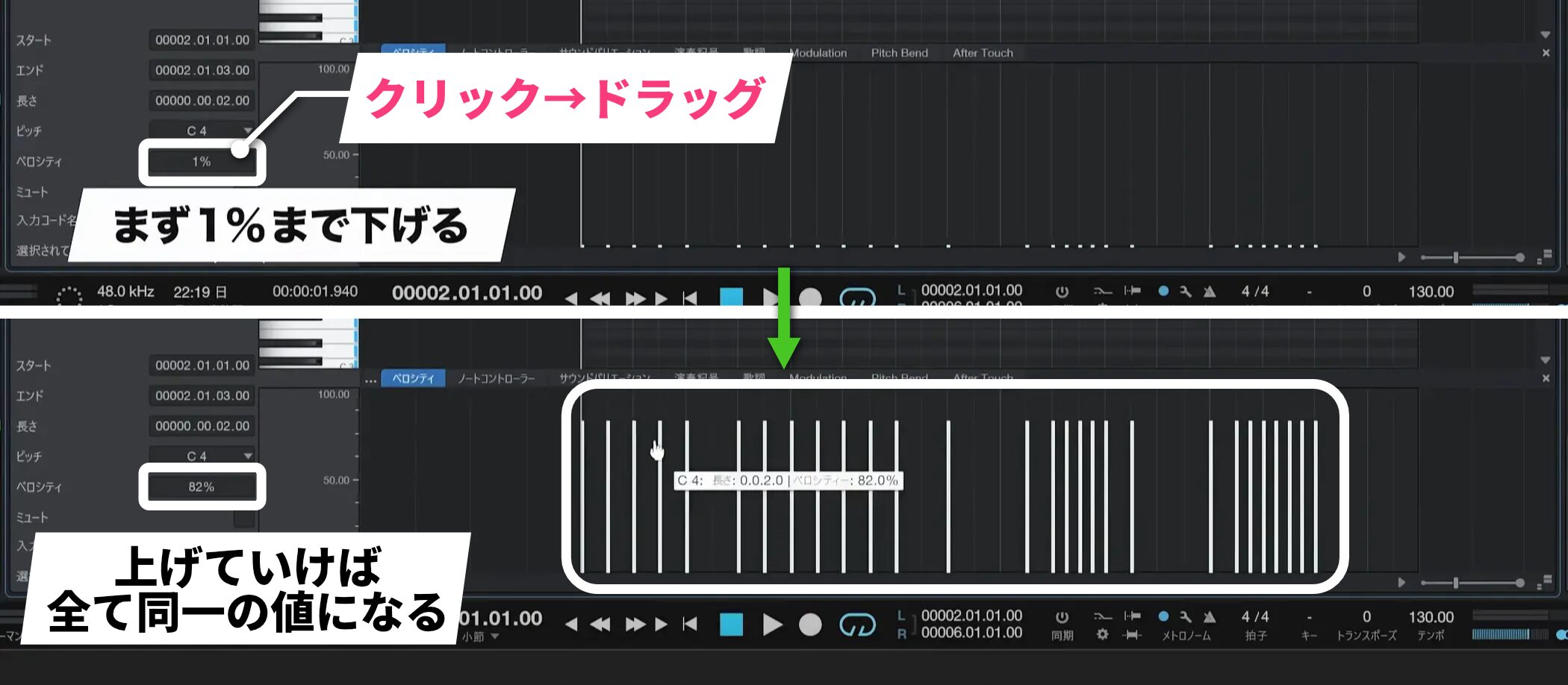
Click Velocity on the left and drag down; first lower it to 1%, then raise it to give all selected notes the same value.
Frequently asked questions
Q1. What should I do if my performance is delayed during real-time MIDI recording?
Lower the Device Block Size in Audio Setup to reduce latency. A metronome precount also gives you a count-in before playing, making it easier to start in time.
Q2. What is the most important thing to watch when quantizing?
Set the grid to the smallest note value in the phrase. For example, if it contains sixteenth notes, using a different quantize value may move notes to unintended positions.
Q3. Can I restore my original timing after quantizing?
Yes. Select the notes, right-click and choose Restore Timing under Musical Functions, or use Shift+Q to restore their pre-quantize timing.
Q4. Can I make several notes the same length at once?
Yes. Hold Control (Command on Mac) while dragging to set the selected notes to the same length instead of changing them relatively.
Q5. What helps when playing a fast phrase?
Temporarily lower the tempo while recording to make the phrase easier to play. Loop recording also lets you record multiple takes and choose the best one.
NEW ARTICLES
Latest English Articles