Combine Ableton Live’s built-in devices to create glitch beats. An Arpeggiator in a MIDI Effect Rack lets note velocity control the glitch sound, while Beat Repeat adds a further glitch effect. Set up the Drum Rack and Arpeggiator, map macros, and program notes in the editor to switch effects in and out and create more intricate rhythmic variations.
Creating Glitch Beats with Racks and Effects
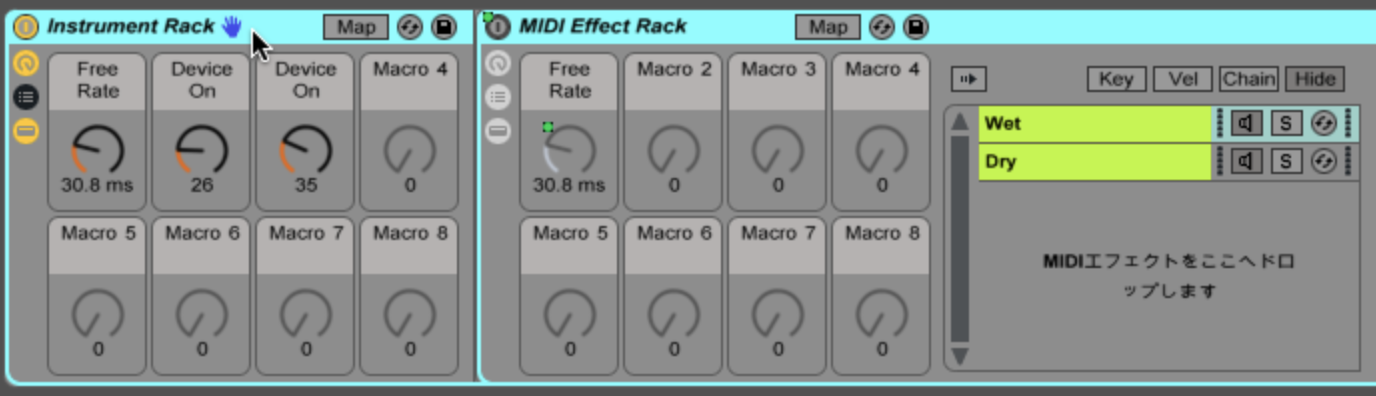
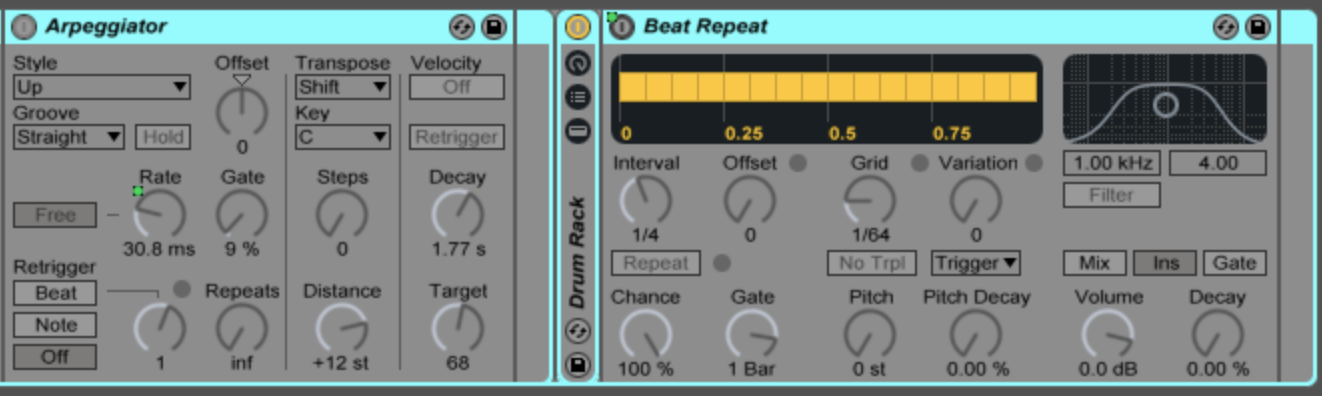
In this tutorial, we’ll show you how to create a glitch beat using Live’s built-in features.
The Arpeggiator in a MIDI Effect Rack lets velocity control the glitch sound,
while Beat Repeat applies a glitch effect to the overall sound.
It may look complicated, but once you learn the setup it is easy to use. Give it a try!
Ableton Live Tips: Switching Sounds with Velocity
View product details

Setting Up Drum Rack and Arpeggiator
First, set up the Drum Rack that will receive the glitch effect.

After placing the kick, snare, hi-hat and other sounds, set “Vol < Vel” at the bottom right to 0.0% so that velocity does not change the volume. Next, place and set up the Arpeggiator.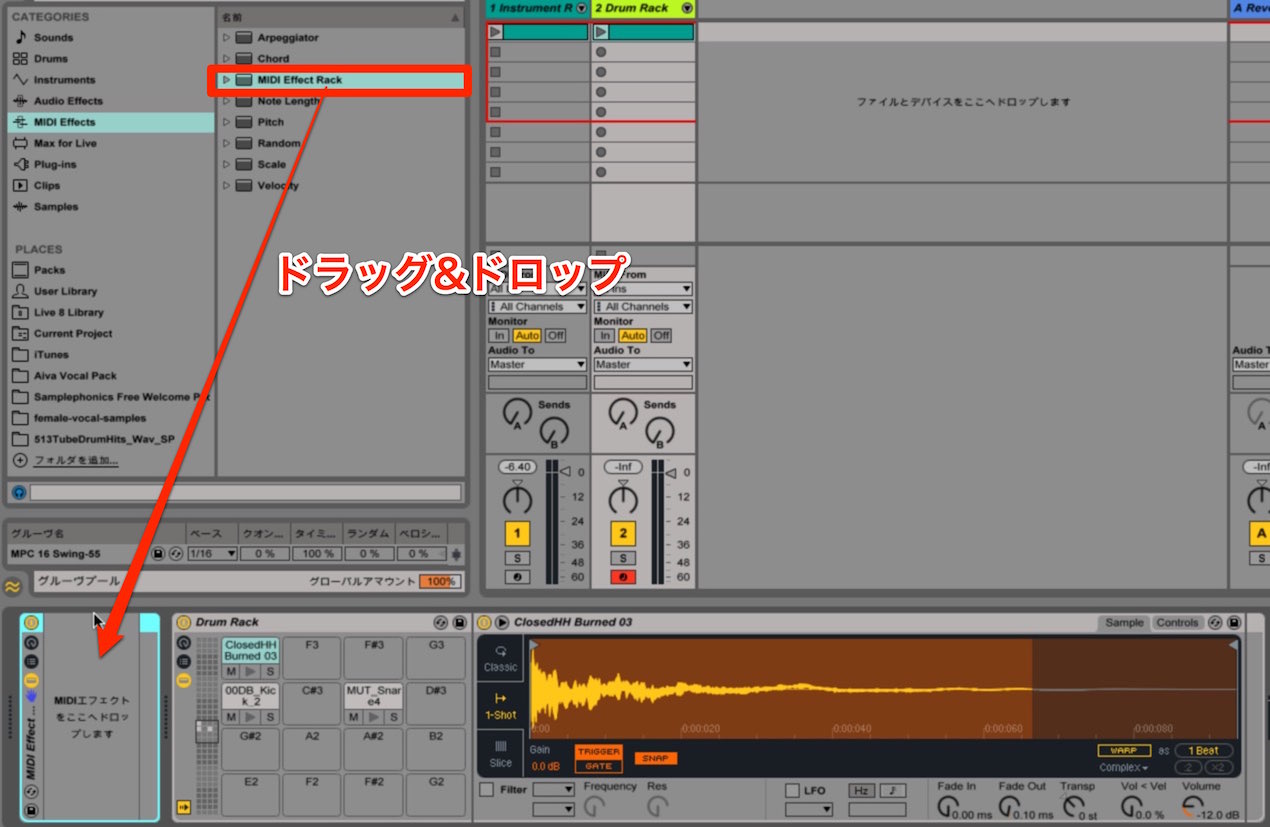
Drag and drop a MIDI Effect Rack before the Drum Rack,
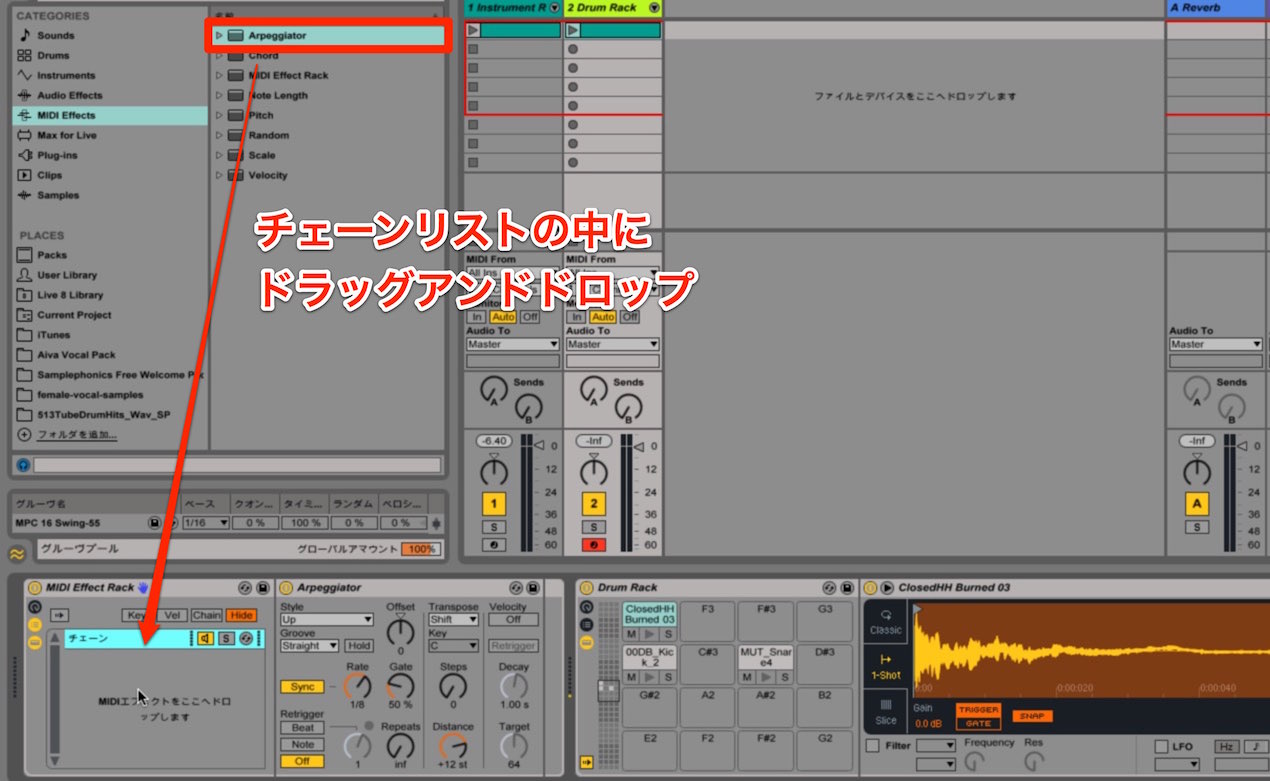
then open its chain list and drag an Arpeggiator into it.
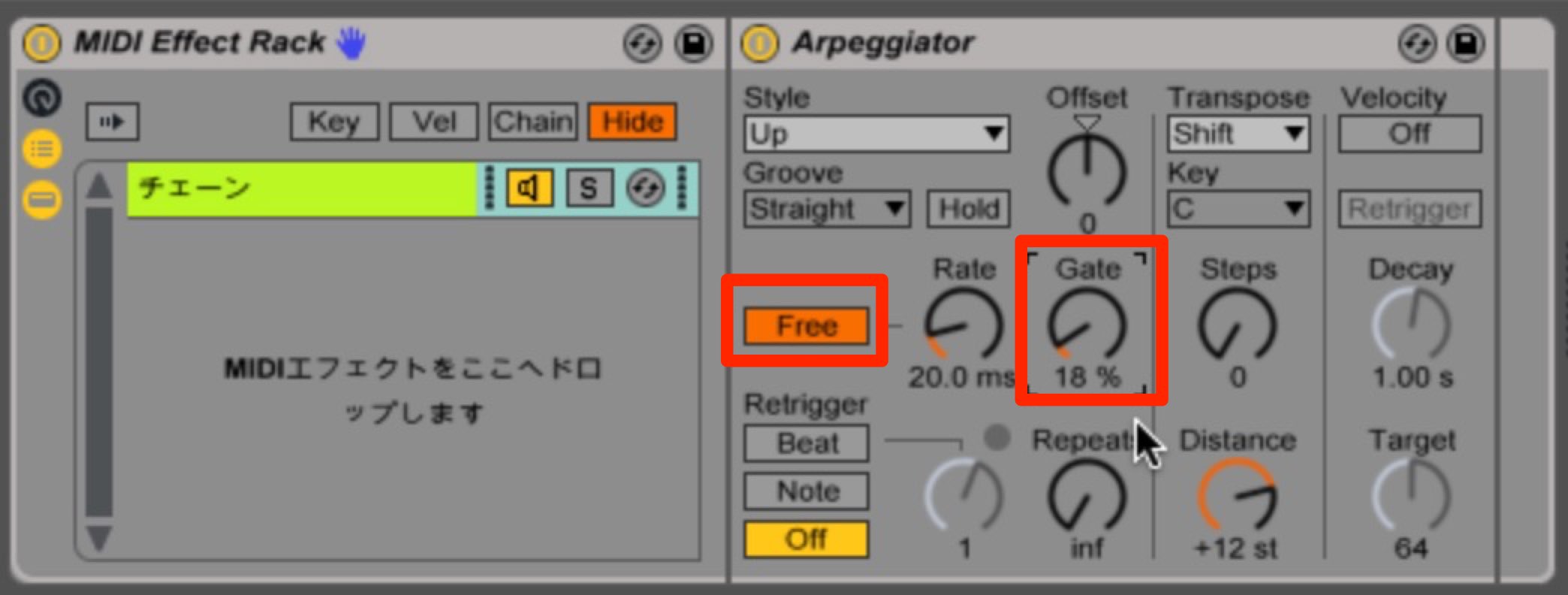
On the Arpeggiator, click “Sync” to switch to “Free” and set the “Gate” relatively short, at around 18%.
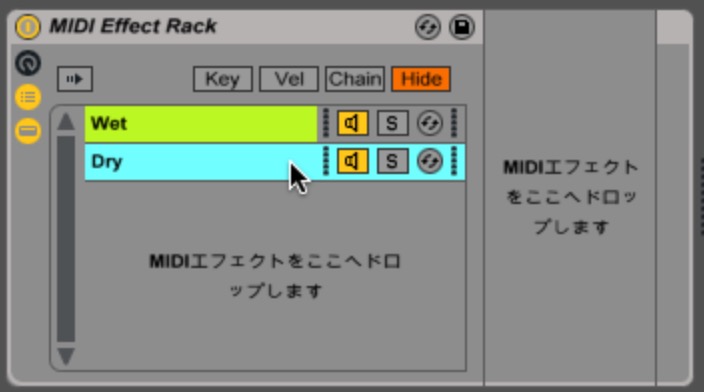
Create another chain in the chain list, naming the upper one “Wet” and the lower one “Dry.”
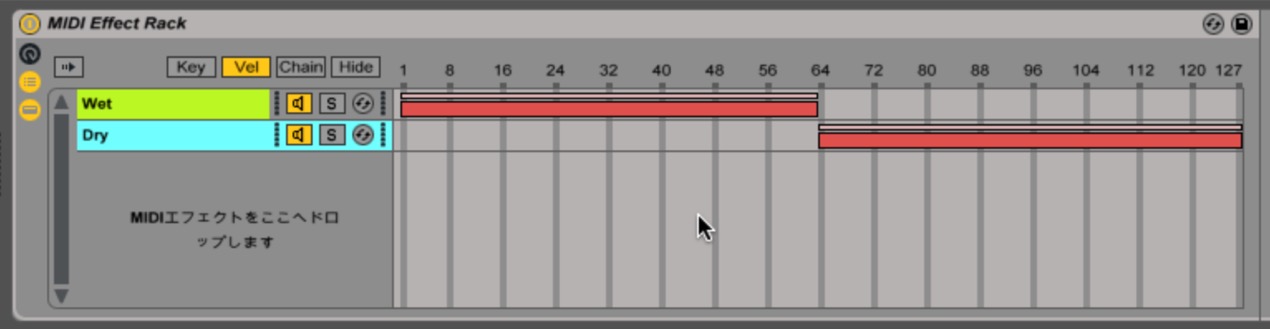
Select “Vel” and set the velocity ranges that will trigger the glitch (Wet) and bypass it (Dry).
Right-click and choose “Distribute Ranges Equally” to divide the ranges evenly in half.

(Click above to enlarge.)
The following mapping steps are a little complex, so refer to the video as you go.
- 1. Click the macro icon at the upper left of the Effect Rack.
- 2. Click “Map” at the top.
- 3. Click the Arpeggiator’s “Rate” parameter to select it for mapping.
- 4. Click the destination knob, “Macro 1” in this example.
(Once mapping is complete, click “Map” again to turn it off.)
Setting Up Beat Repeat
Next, add Beat Repeat to apply the effect.
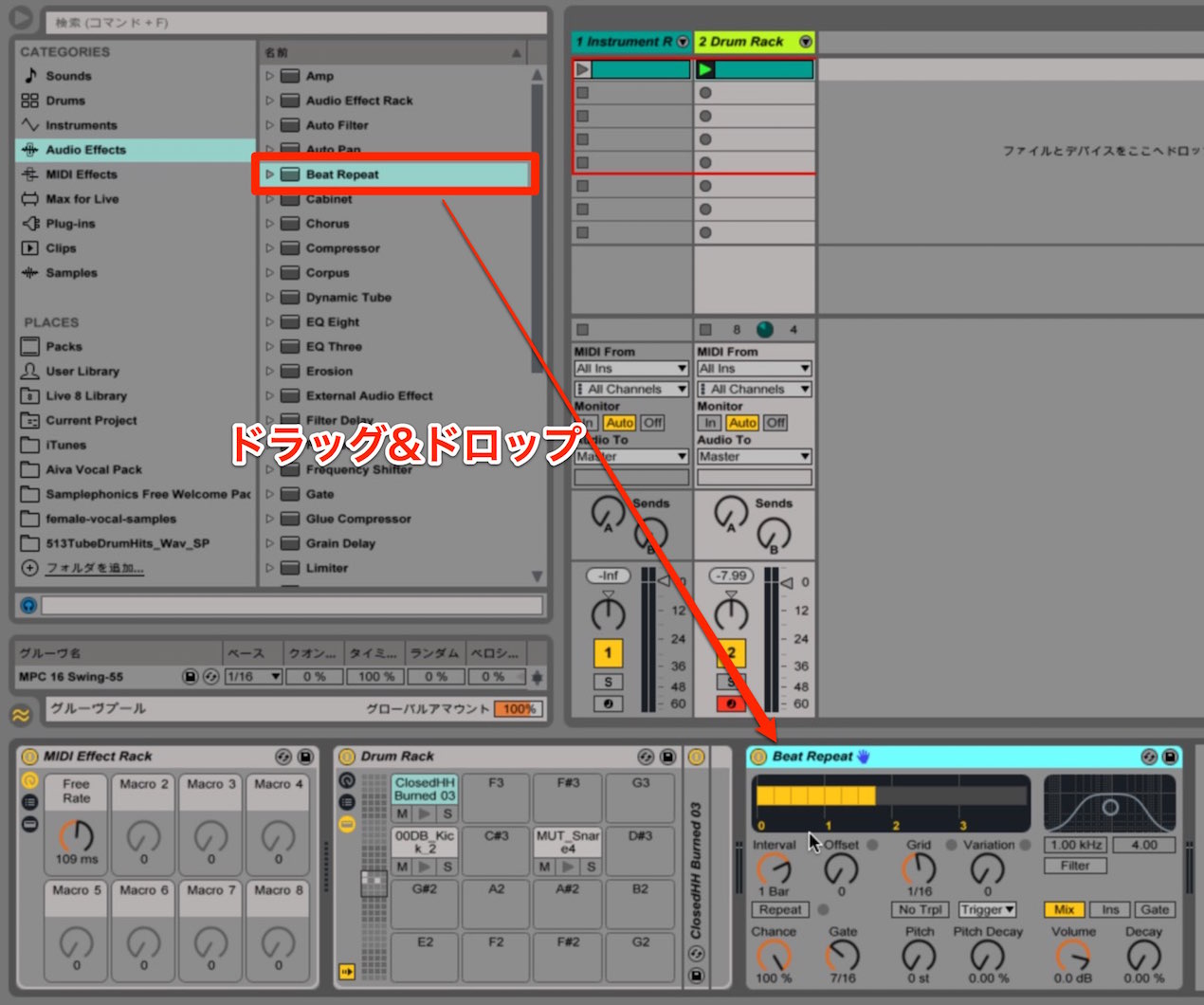
Drag and drop “Beat Repeat” from Audio Effects.
Place it after the Drum Rack.
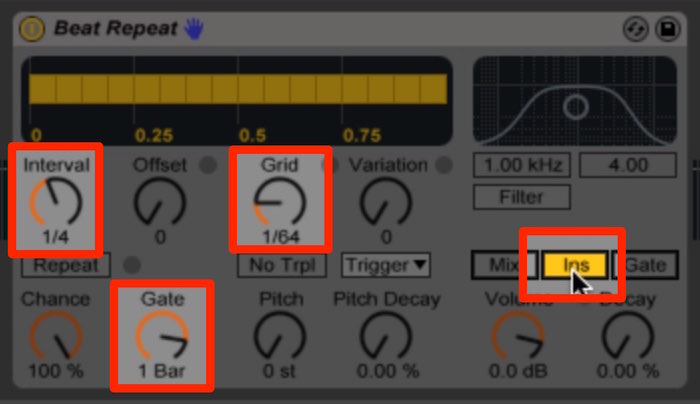
Set “Interval” to 1/4, “Grid” to 1/64 and “Gate” to 1 Bar, then select “Ins” so it lights up.
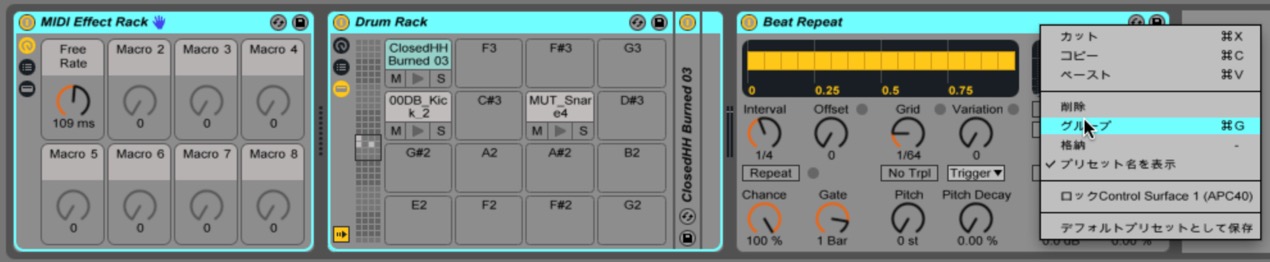
Select the devices from the MIDI Effect Rack through Beat Repeat, right-click and group them.

(Click above to enlarge.)
Map the macros on the Instrument Rack created at the far left.
This is also somewhat complex, so the video will be helpful.
- 1. Assign the MIDI Effect Rack’s macro to “Macro 1.”
- 2. Assign Beat Repeat’s on/off button to “Macro 2.”
- 3. Assign the MIDI Effect Rack’s on/off button to “Macro 3.”
Programming and Playing in the Editor
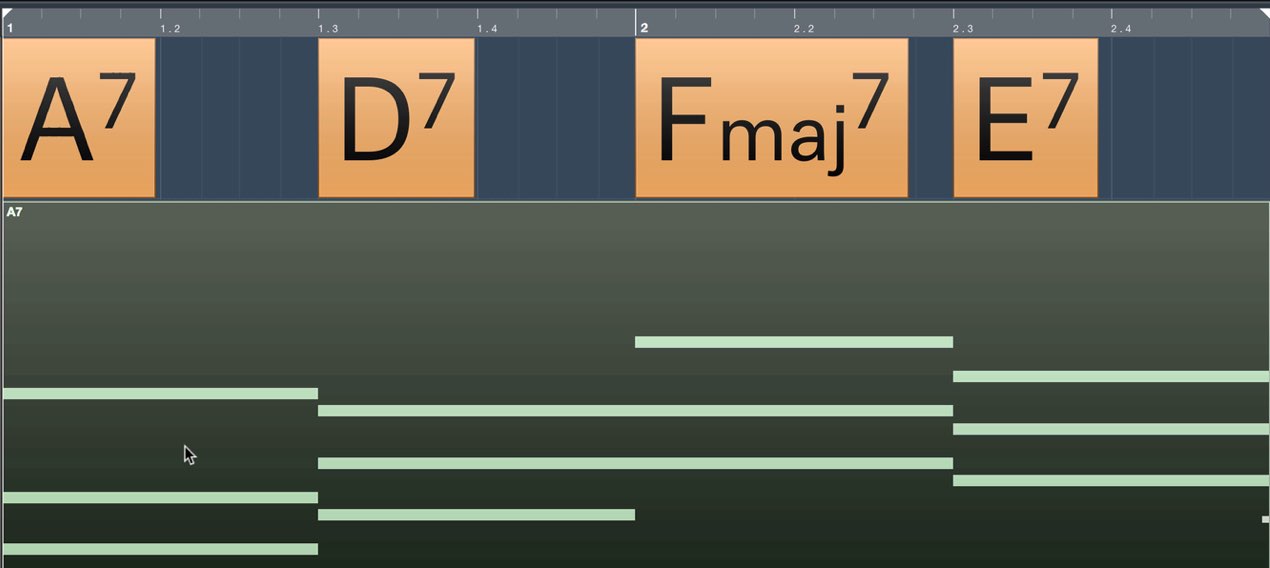
With the setup complete, all that remains is to program and play the part.
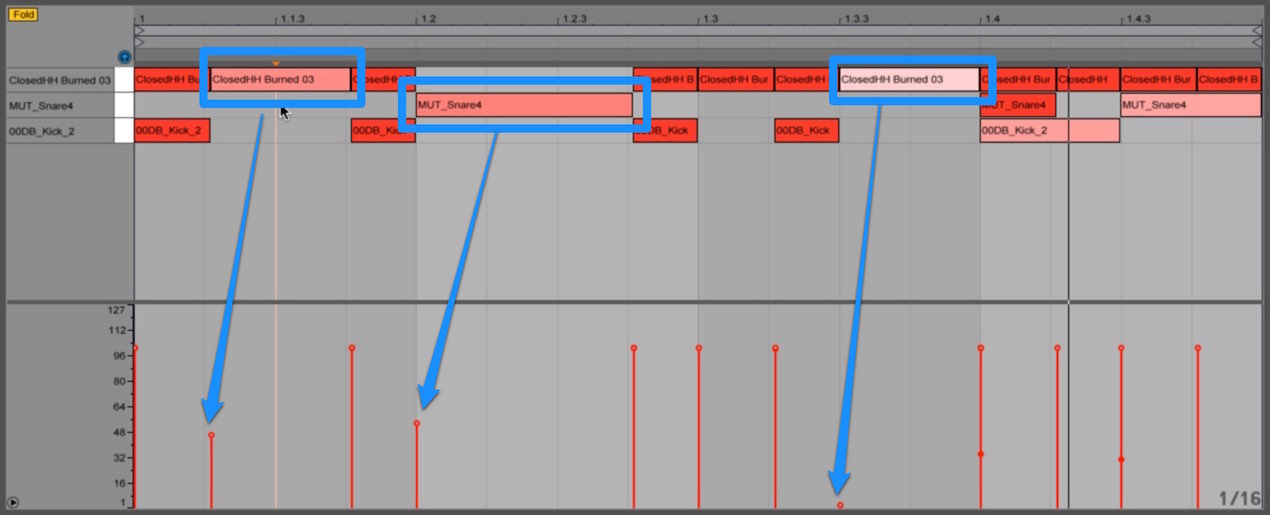
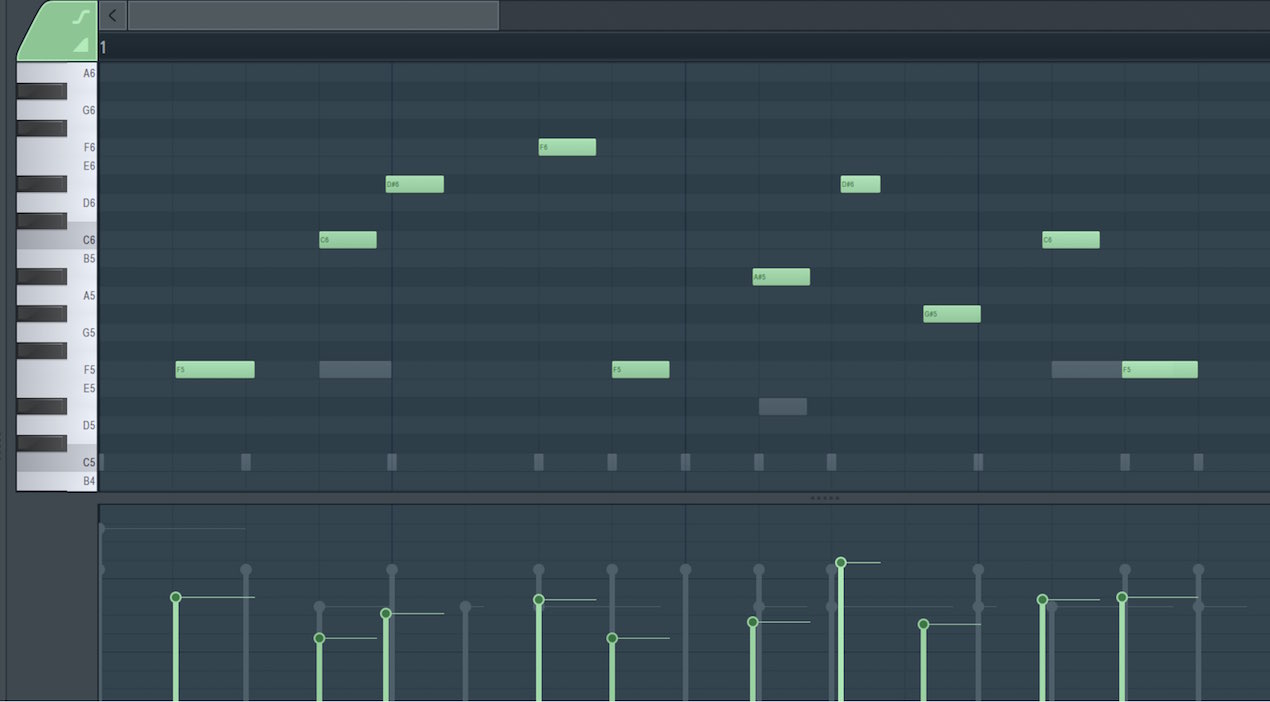
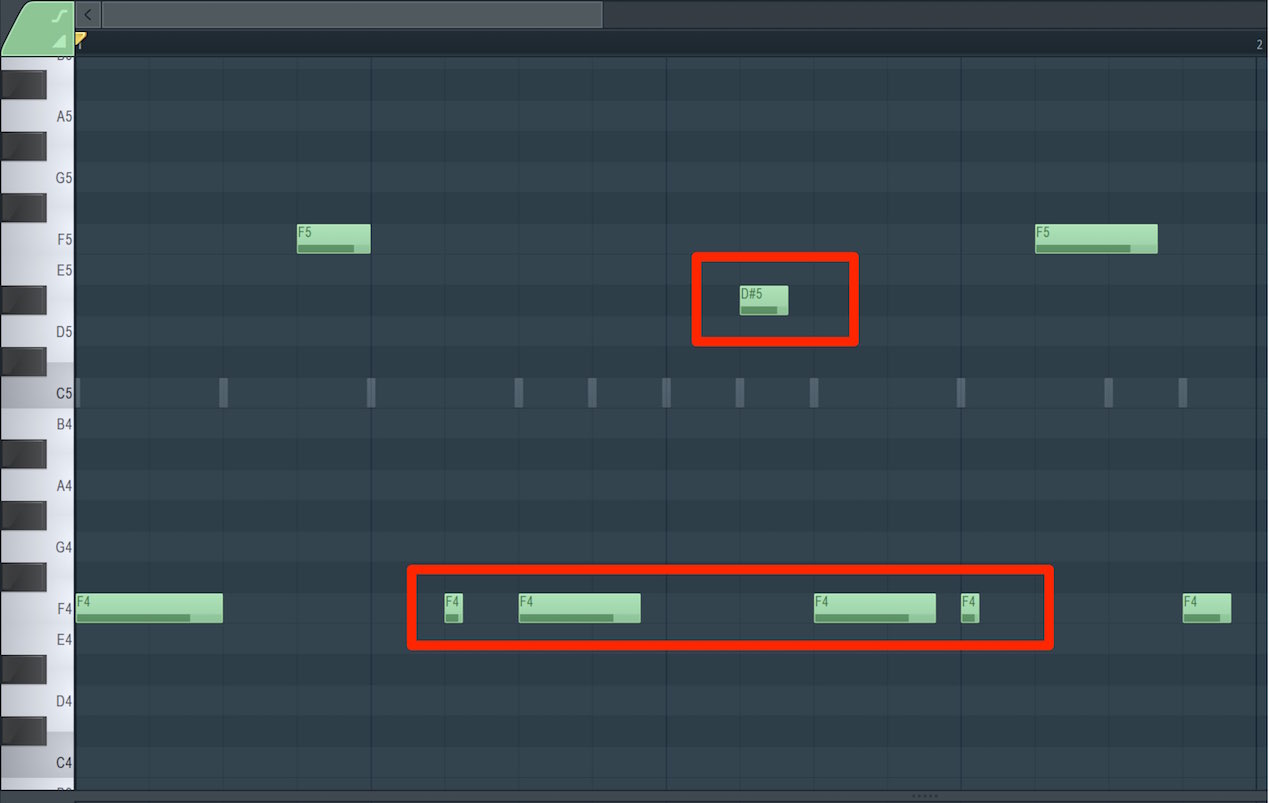
In the editor, set a low velocity for the notes you want to glitch,
and a high velocity for those you do not.
The note length determines the length of the glitch, so set it to taste.
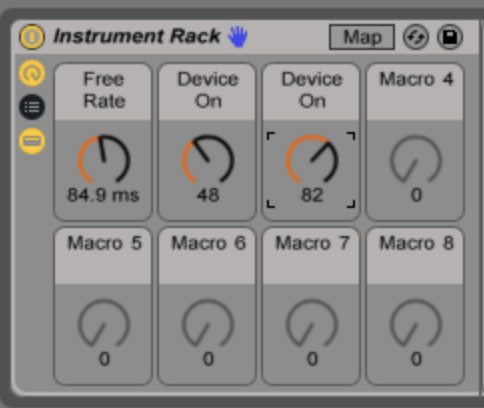
Now play the part and adjust the mapped macro knobs
to vary the glitch effect.
This is where the work pays off: you should hear some satisfying sounds.
View product details
Frequently Asked Questions
Q1. How can a beginner make a glitch beat in Ableton Live?
Place an Arpeggiator in a MIDI Effect Rack and control the chain with velocity. Place Beat Repeat after it to apply the effect. Macro mapping makes it easy to switch the effects on and off.
Q2. How does velocity relate to the glitch sound?
Use the rack’s “Vel” chain zones to split the velocity ranges. In this setup, low-velocity notes trigger the glitch chain, while high-velocity notes take the dry chain.
Q3. How should I set Beat Repeat’s Interval and Grid?
Start with Interval at “1/4” and Grid at “1/64.” Set Gate to “1 Bar” to control the duration of the repeat, and adjust the settings to suit the tempo and groove.
Q4. What if macro mapping seems too complicated?
Follow the video tutorial included in the article. Checking each step in the video can make the mapping procedure easier to understand.
NEW ARTICLES
Latest English Articles