
Mix Assistant, a new feature in iZotope Neutron 3, uses AI to optimize the volume balance automatically as your tracks play. With Relay on the individual tracks and Neutron 3 on the master track, as detailed below, a single playback of the song produces a professionally balanced starting point for your mix. Automating volume adjustments that previously had to be made by hand helps beginners and experienced users work more efficiently. Integration with Visual Mixer 3 also makes fine-tuning intuitive.
Balance Your Tracks Simply by Playing the Song

iZotope has released Neutron 3.
Neutron is a channel strip plug-in that combines EQ, compression, gating, and other tools for shaping a track's sound.
One of its distinguishing features is that artificial intelligence handles the plug-in processing for you.
Version 3 of Neutron introduces the Mix Assistant feature.
It automatically optimizes each track's volume—a very useful function that completes its work after you play the song once.
Here, we will look at Mix Assistant along with the improved sound-shaping features.
iZotope Neutron 3 Advanced Video Tutorial
Selected Questions and Answers from the YouTube Video

Could I ask a question about Mix Assistant? For example, vocals often have compression, de-essing, reverb, delay, and other effects. Should Relay go after those effects, before them, or should I remove all the effects? If I add effects to individual channels after balancing them with Mix Assistant, won't the balance change again? Or does placing Relay before the effects let it balance the sound while taking those effects into account? Sorry for the beginner question. I would appreciate your advice!

In the video, we use it to prepare for mixing when the track levels have not been balanced at all. If you apply effects afterward, those effects will naturally change the volume. You will need to compensate using the effect's output control or the track fader. While making the video, we also tried inserting Relay after effects and were able to balance the tracks without any problems. Volume adjustments are based on the sound at the point where Relay is inserted, so a chain such as EQ (sound shaping) → compressor (sound shaping) → Relay (volume adjustment here) → EQ (correction) → reverb can also work effectively.
When choosing an instrument as the Focus, am I the only one who sees Relay 1, 2, 3, and so on instead of the instrument name followed by Relay?
This can happen if the track names contain Japanese characters. Try changing the track names to English.
Hello! I bought both Neutron 3 and Nectar 3. Which one would be better for processing vocals?
Nectar 3 is designed specifically for vocals, so try using it first to establish the sound you want, then try applying Neutron 3.
Congratulations on your 10th anniversary! Thank you for all your help. I have a question: if I use only Track Enhance without the BALANCE function in Mix Assistant, do I still need Relay on each track? Or will inserting only Neutron 3 on each track and using Track Enhance have the same effect without Relay?
Track Enhance affects the sound of the track it is inserted on, so you do not need Relay.
I purchased the Neutron 3 Advanced upgrade, so this video was very helpful! The precautions for using Mix Assistant were clear, too. You said we could move the pans and faders after analysis, but wouldn't moving the DAW faders upset the analyzed volume balance? Normally I balance the faders below unity gain so the master does not peak when all the tracks play. Since Mix Assistant adjusts the levels internally with all DAW faders set to 0, I thought we were supposed to leave those faders at 0 without moving them all the way through to mastering. This is the one thing I am still unsure about after using Mix Assistant. Could you explain?
You use those controls to fine-tune the analyzed volume balance to your taste. This function establishes a volume balance as a foundation for mixing. From there, you finish the song by adjusting effects, panning, and volume.
Note: This Mix Assistant function is available only in Neutron 3 Advanced.
It is not included in Elements or Standard.
How to Use Mix Assistant
At this stage, we have imported the audio into the project ready for mixing.
We have not yet balanced the individual track volumes.
Starting from this state, we will use Mix Assistant to set a volume balance quickly.
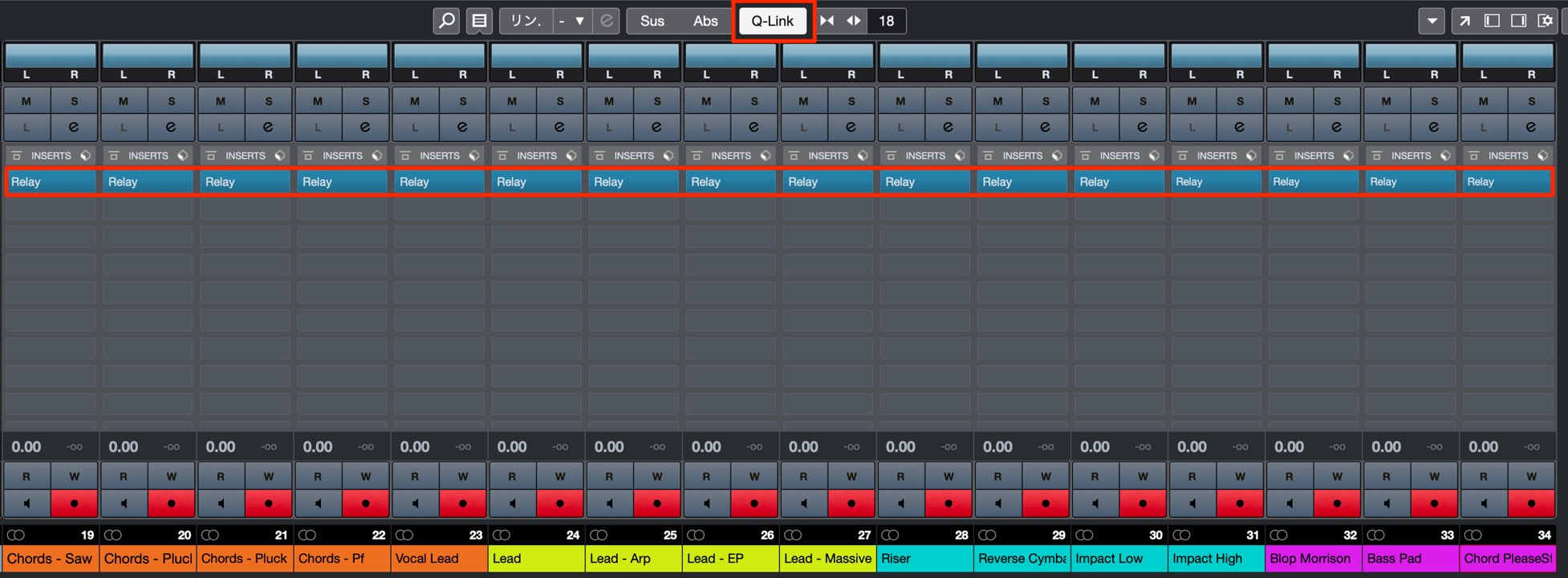
Insert Relay into an insert slot on every track, as shown here.
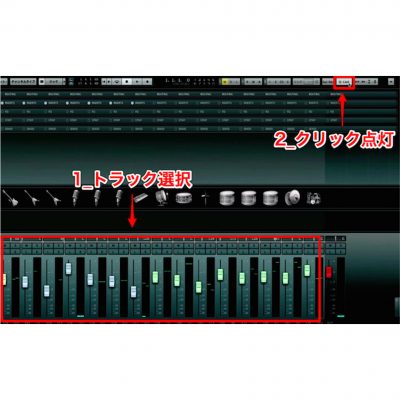
In Cubase, Q-Link is useful for doing this.
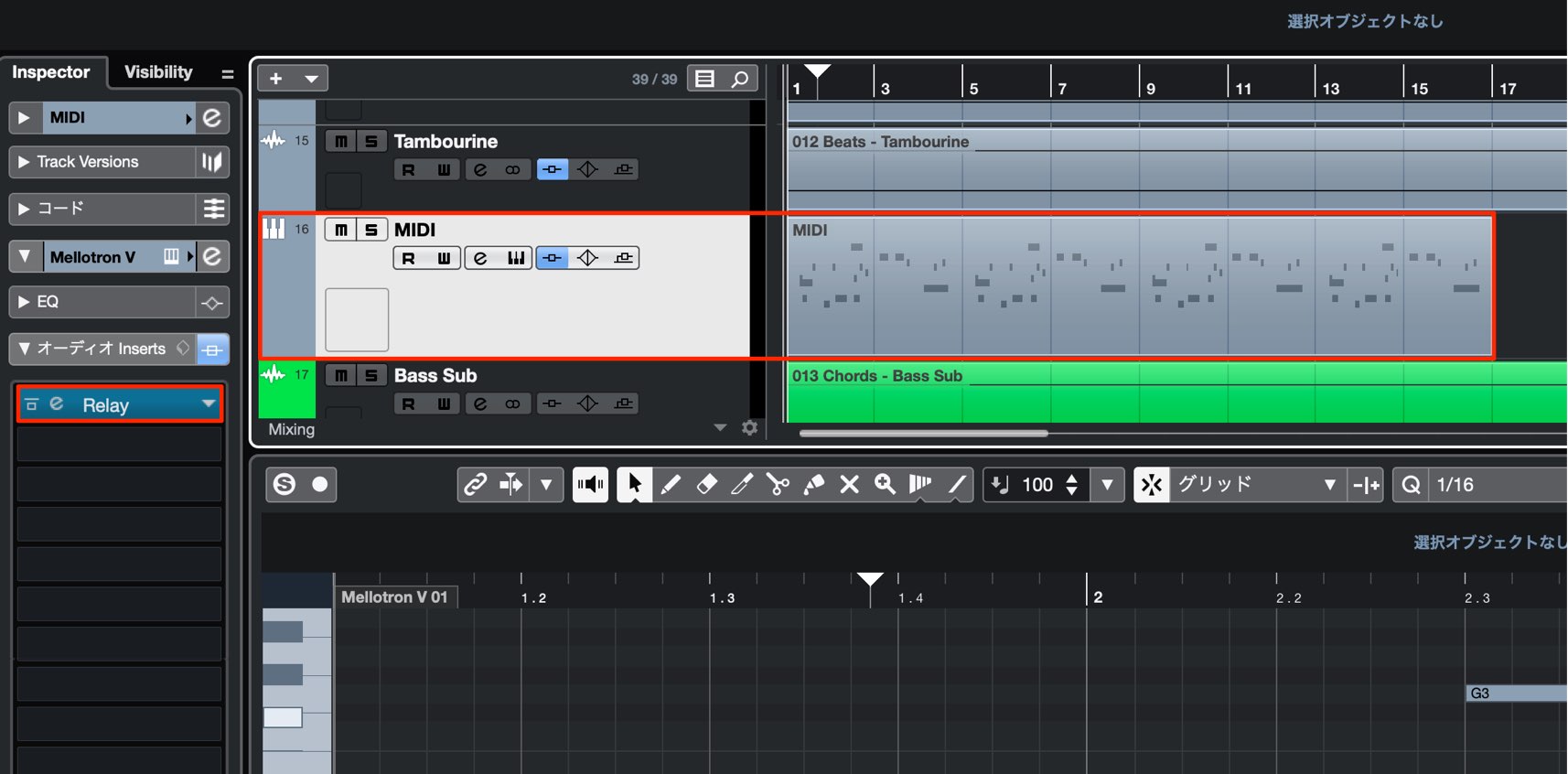
You can also use it with MIDI-driven software instruments.
Precautions Before You Begin
There are a few things to keep in mind when using Mix Assistant.
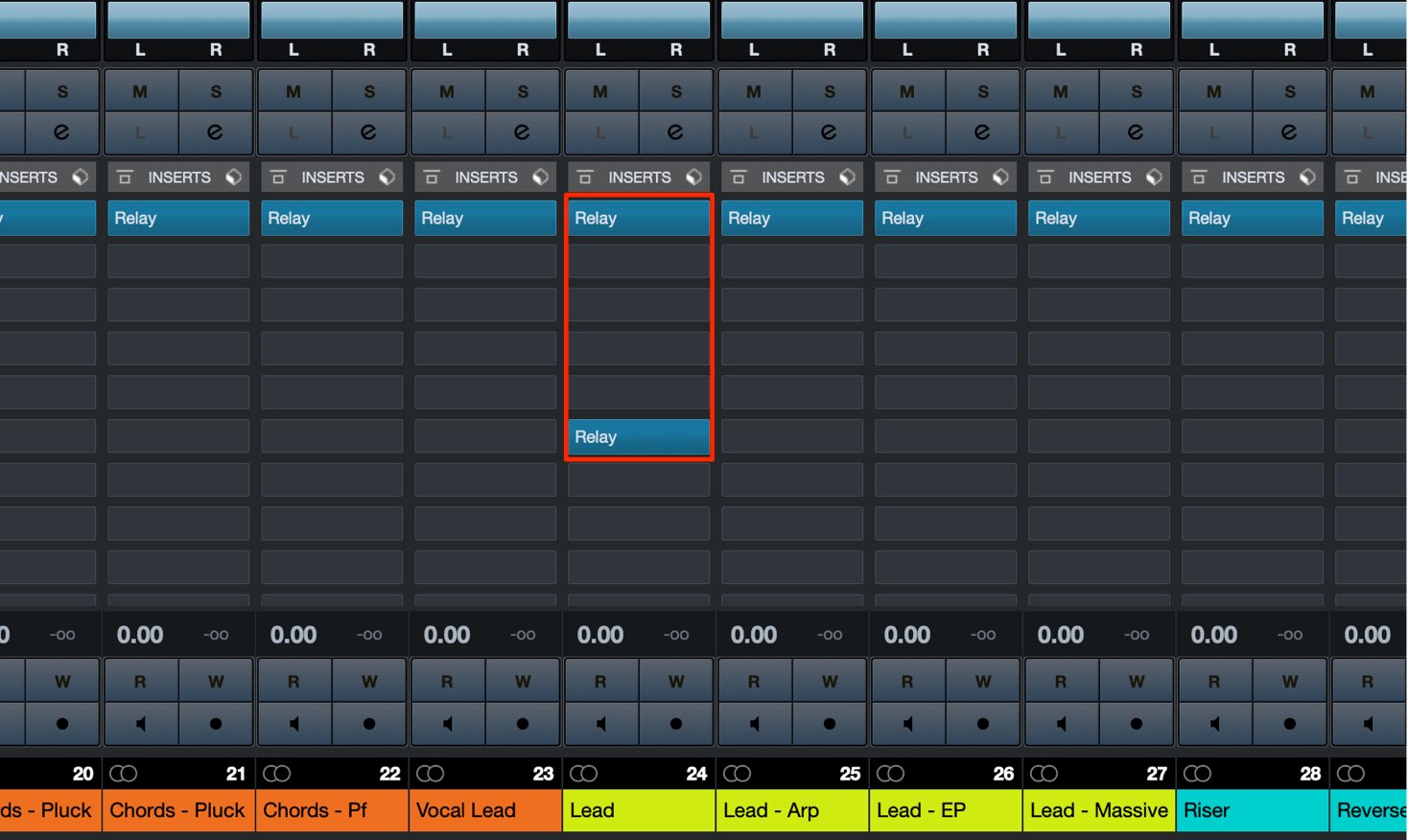
Use only one instance of Relay on a track. Do not insert two or more on the same track.
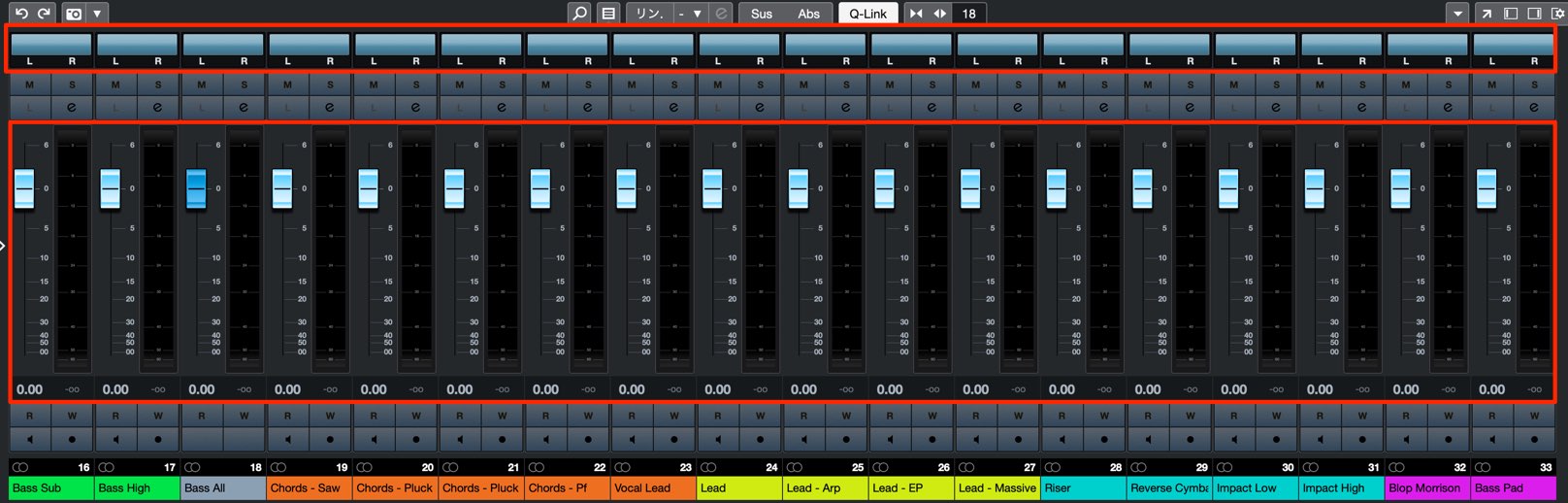
Set every track's volume fader to 0 dB and leave its pan at the default position.
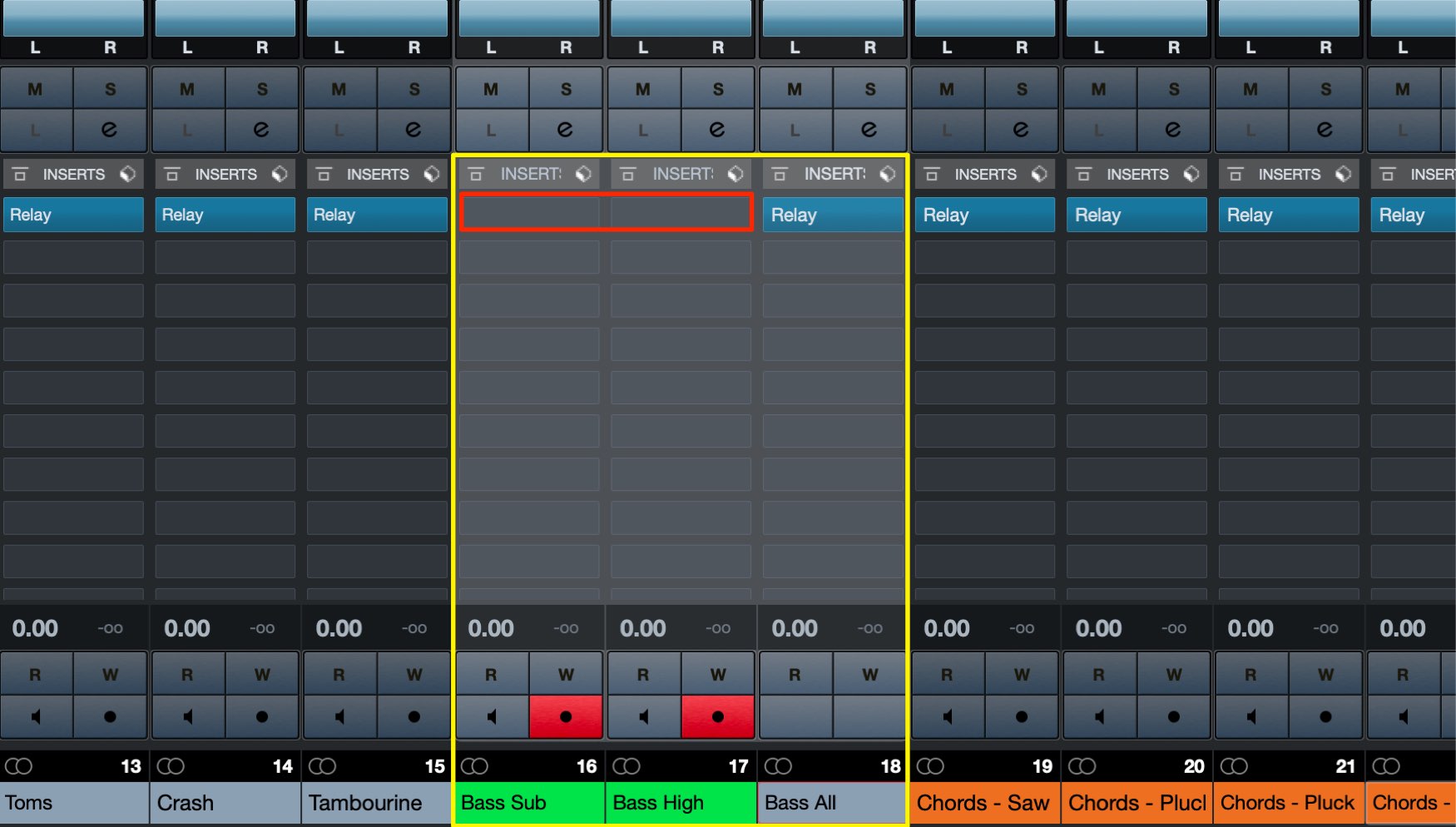
For tracks whose outputs are combined in a bus (group channel), remove Relay from the source tracks to avoid counting the same sound twice.
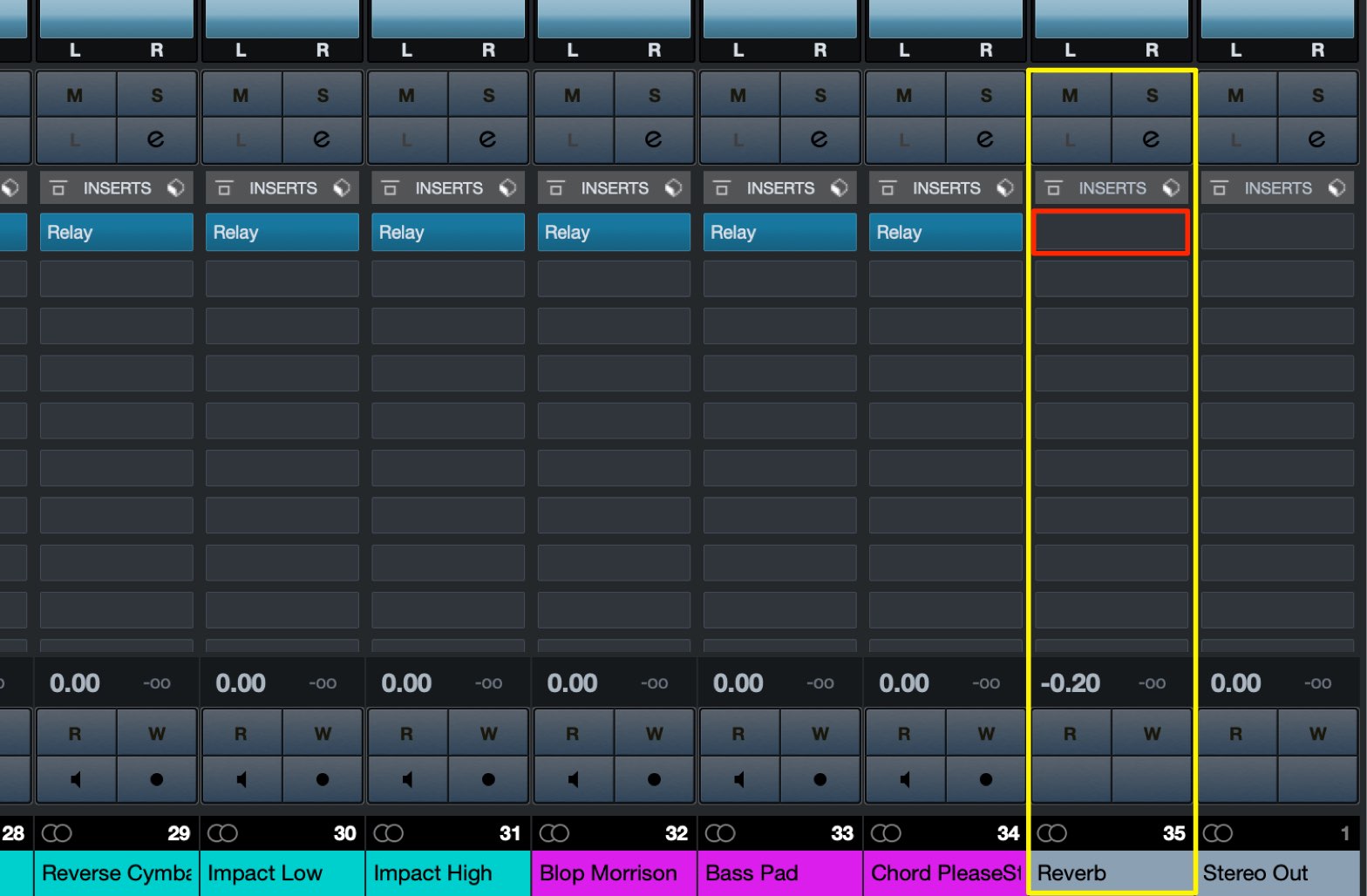
Do not insert Relay on send/return effect tracks for reverb, delay, and similar effects.
That completes the preparation.
Inserting Neutron 3
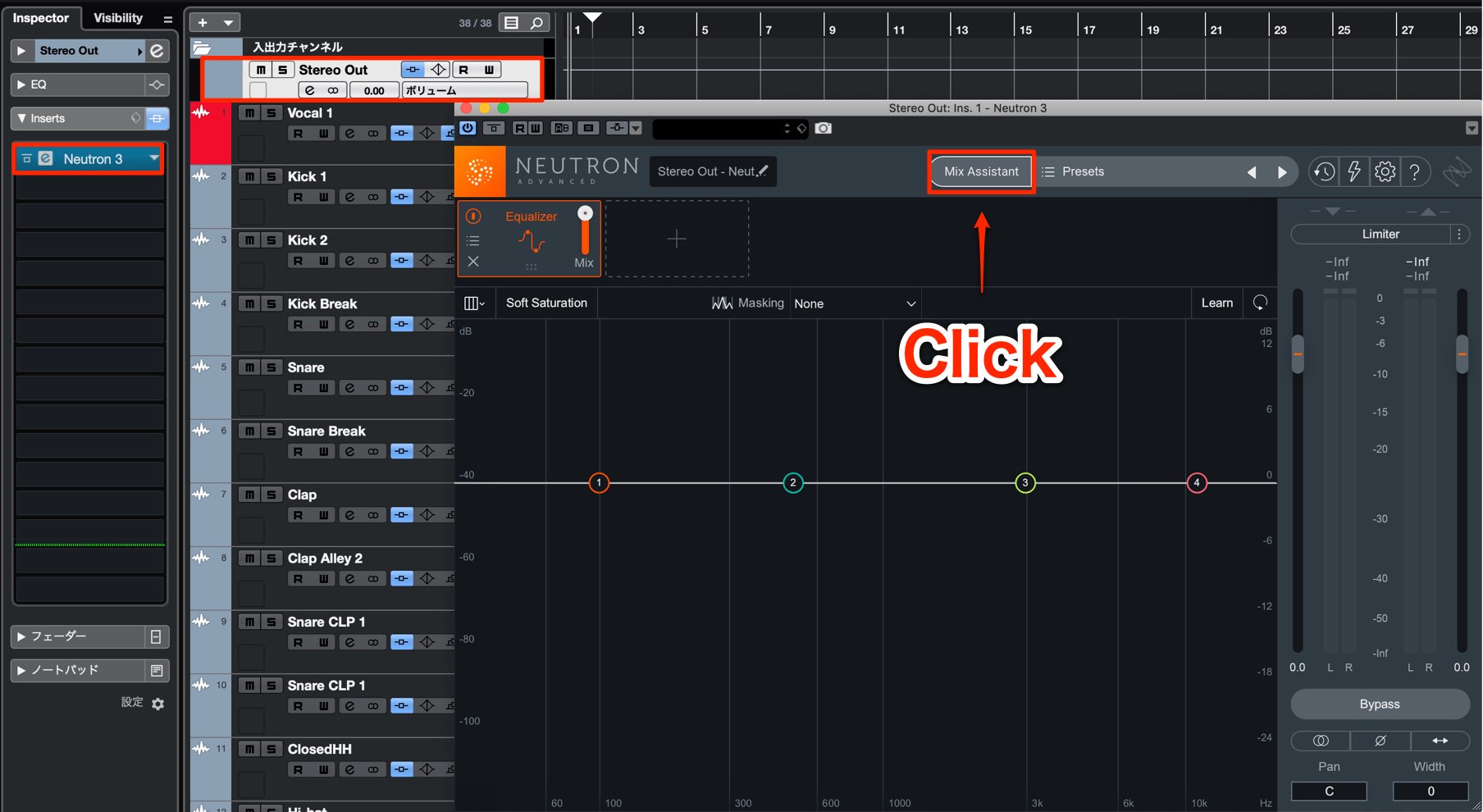
Insert Neutron 3 on the master track.
Then click Mix Assistant in Neutron 3.
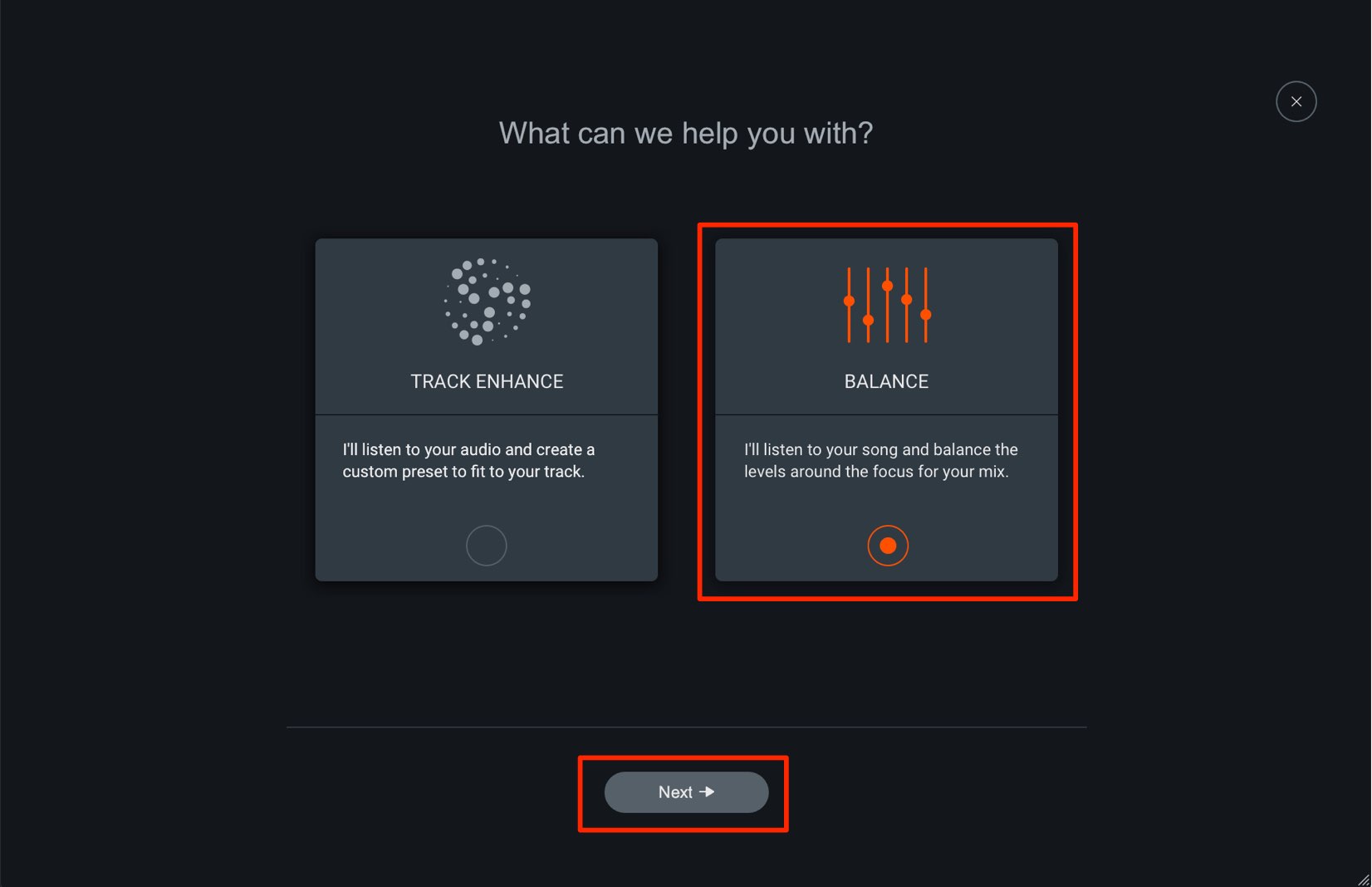
Select BALANCE and click Next.
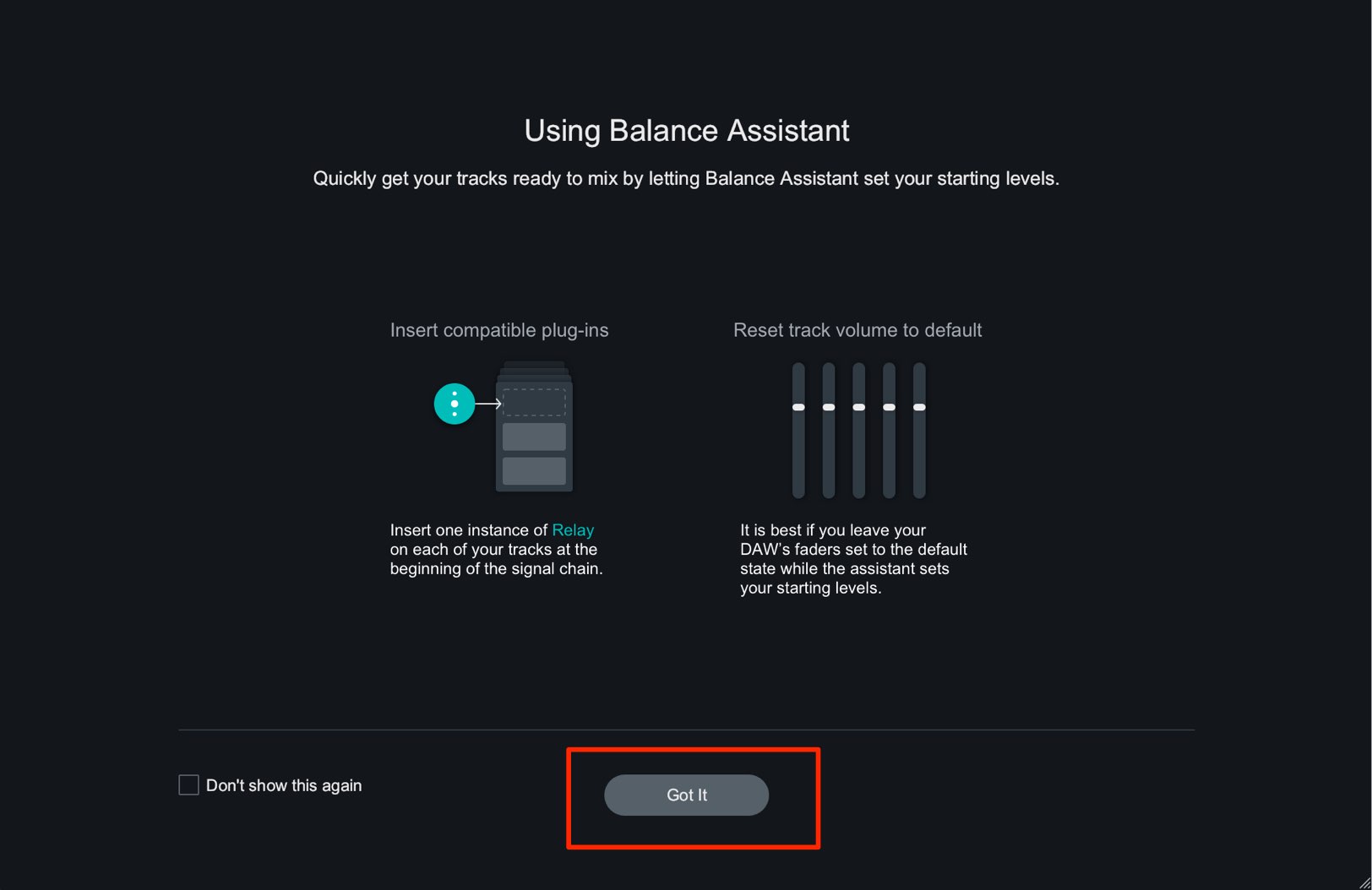
Confirm that Relay is inserted on each track and the faders are set to 0 dB, then click Got it.
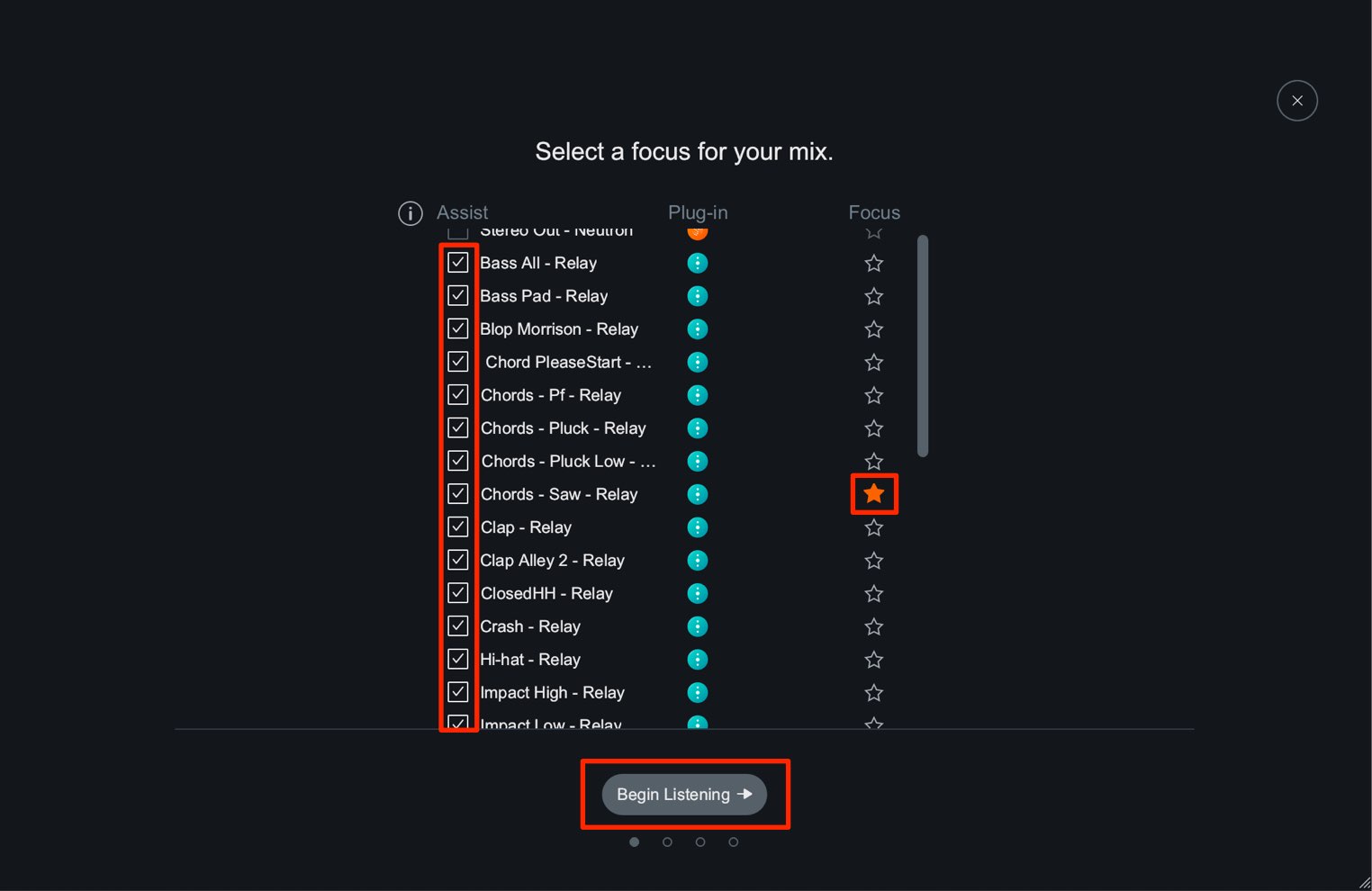
All tracks with Relay inserted will appear.
Uncheck the box to the left of a track name to exclude it from balance control.
Using the star icon to the right of a track name, be sure to select at least one important track to prioritize in the song.
After checking these settings, click Begin Listening.
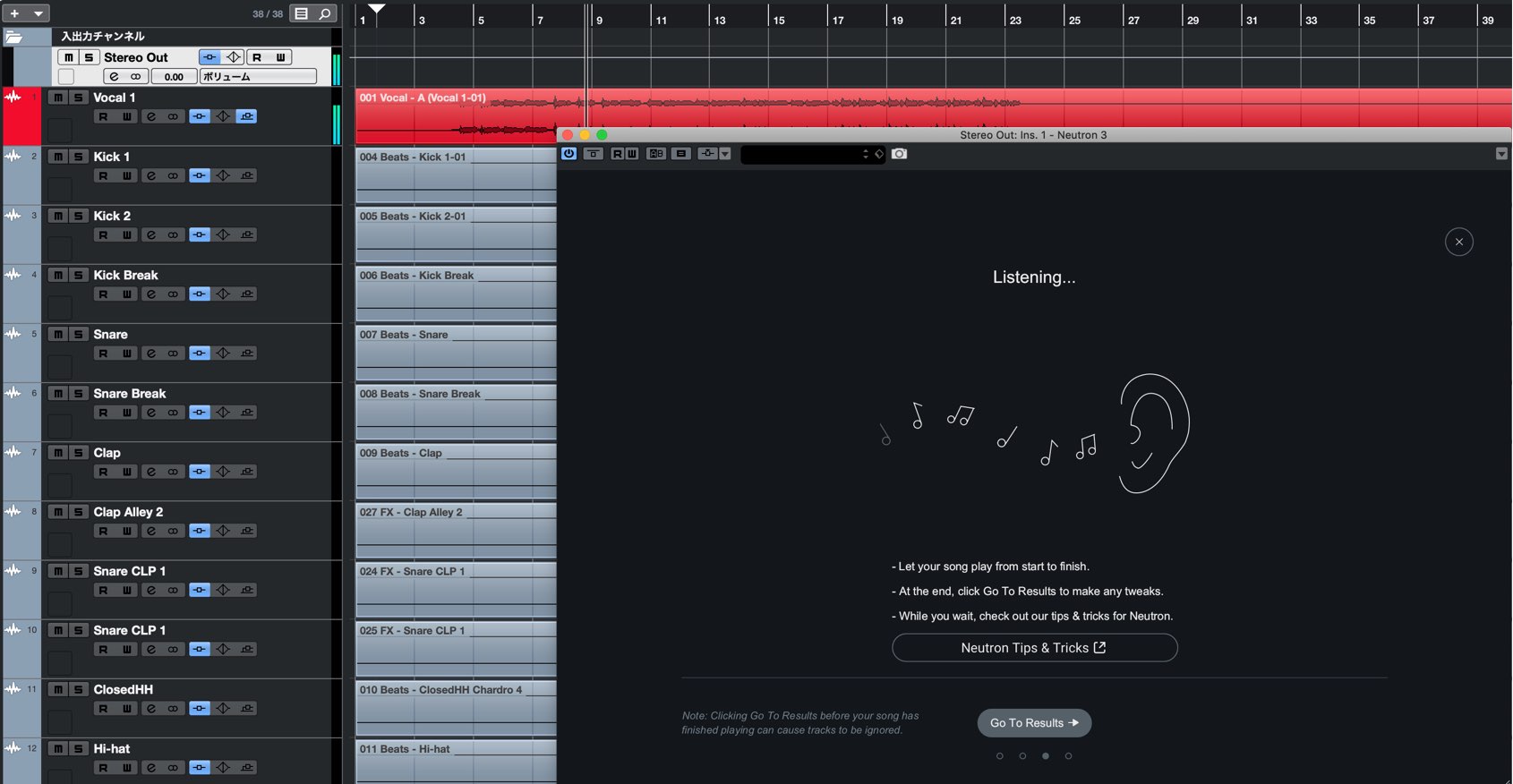
Neutron will enter its waiting state. Play the song from beginning to end.
Do not change track volumes or other settings during playback.
When the song has finished, stop playback in the DAW and click Go To Results.
Analysis is now complete, and the volume balance of the individual tracks is adjusted automatically.
The combined overall level of the song is optimized as well.
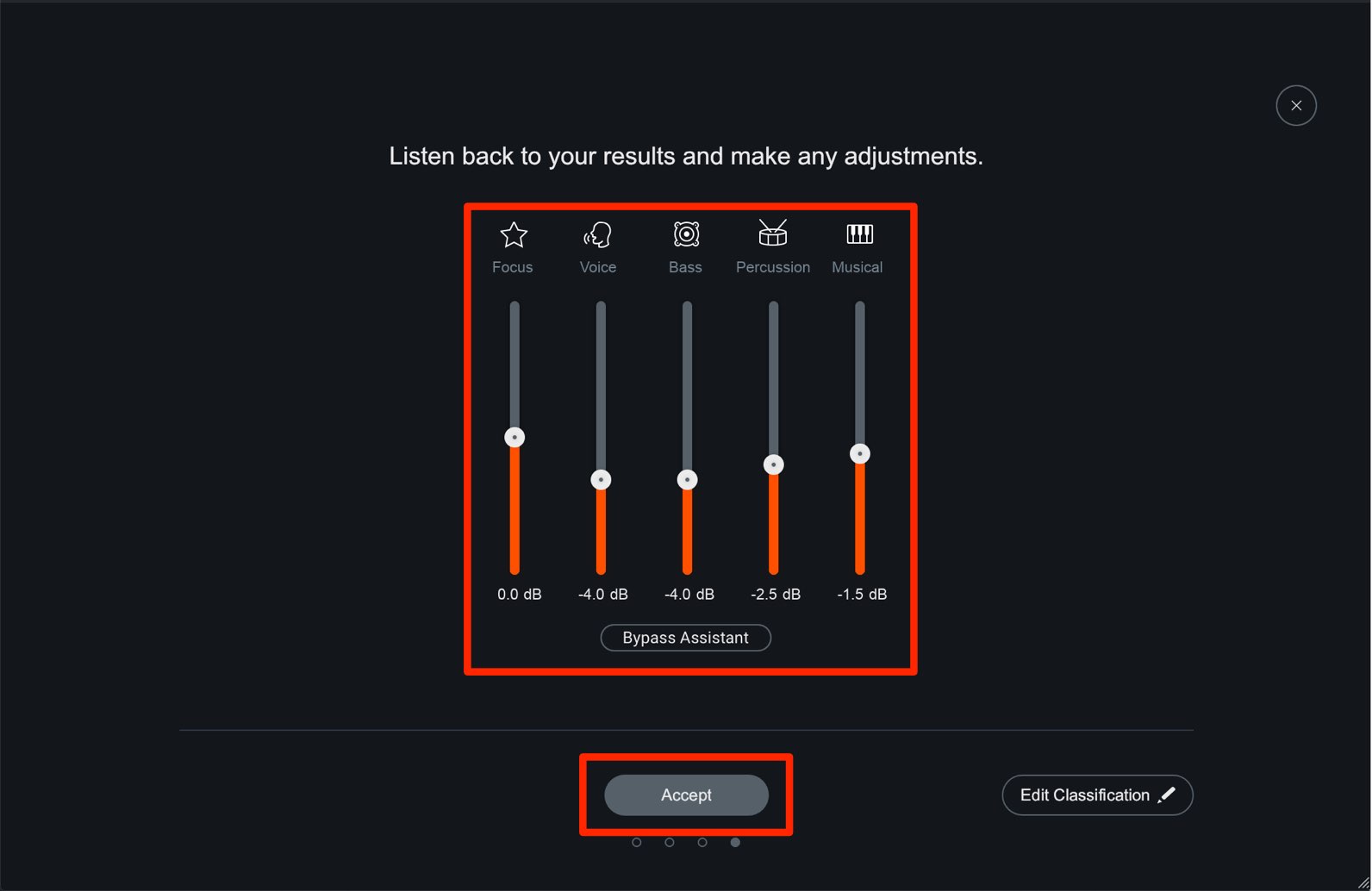
The tracks are automatically classified, and you can use the faders to fine-tune the balance to your liking.
Double-click a fader to restore its value to the setting produced by the analysis.
You can also use Bypass Assistant to compare the sound before and after processing.
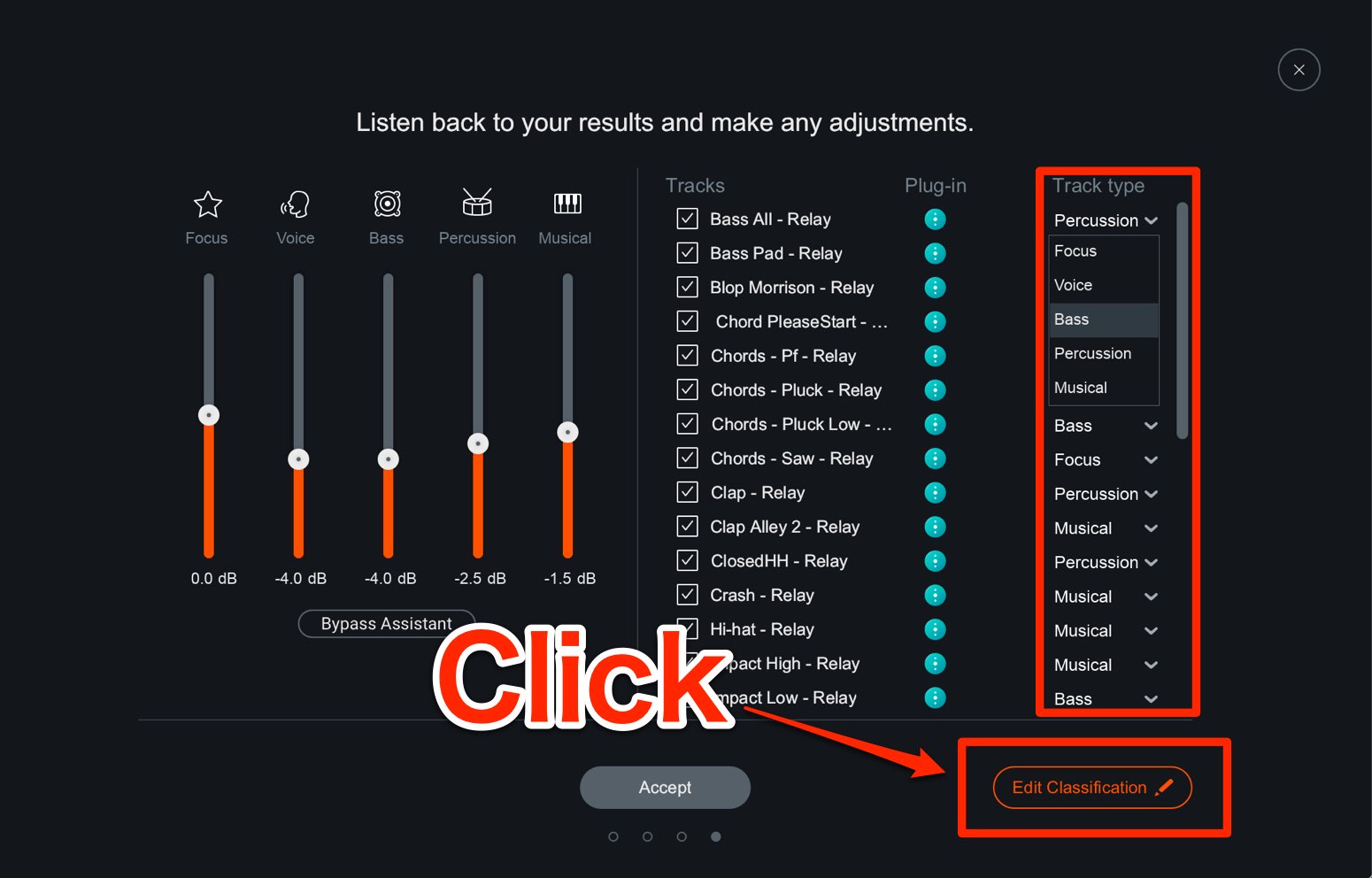
You can correct the categories assigned to the tracks, too.
Click Edit Classification to check and change the classification of the track you want.
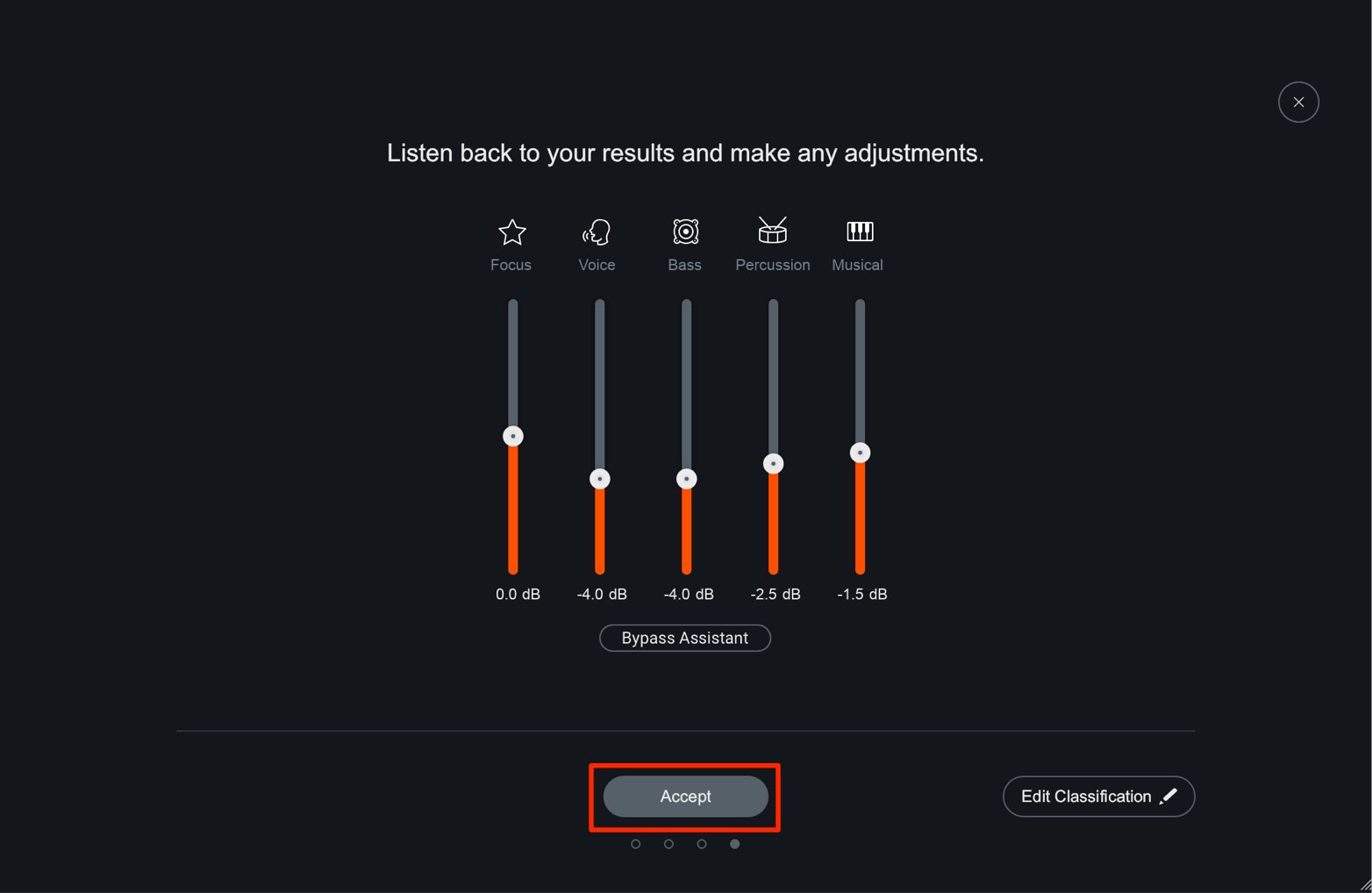
Once you have adjusted the result to your liking, click Accept to confirm the Relay volume settings on each track.
The volume-balancing step is now complete.
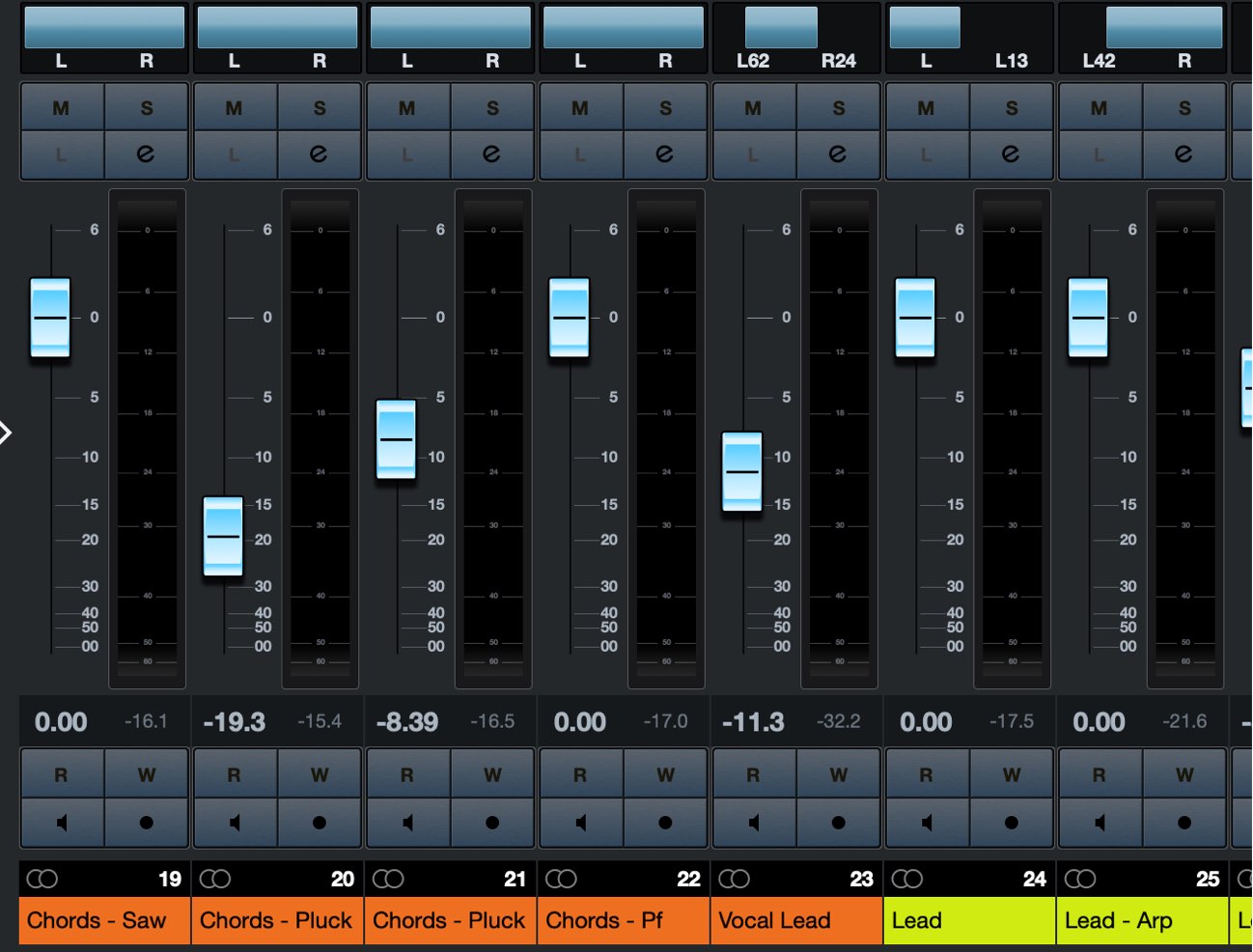
From here, continue mixing with track volume, panning, and insert effects placed after Relay.
Working with Visual Mixer 3
You can also work with Visual Mixer 3, which comes with Neutron 3.
It is useful to insert it before clicking Accept to apply the results described above.
Before clicking Accept,
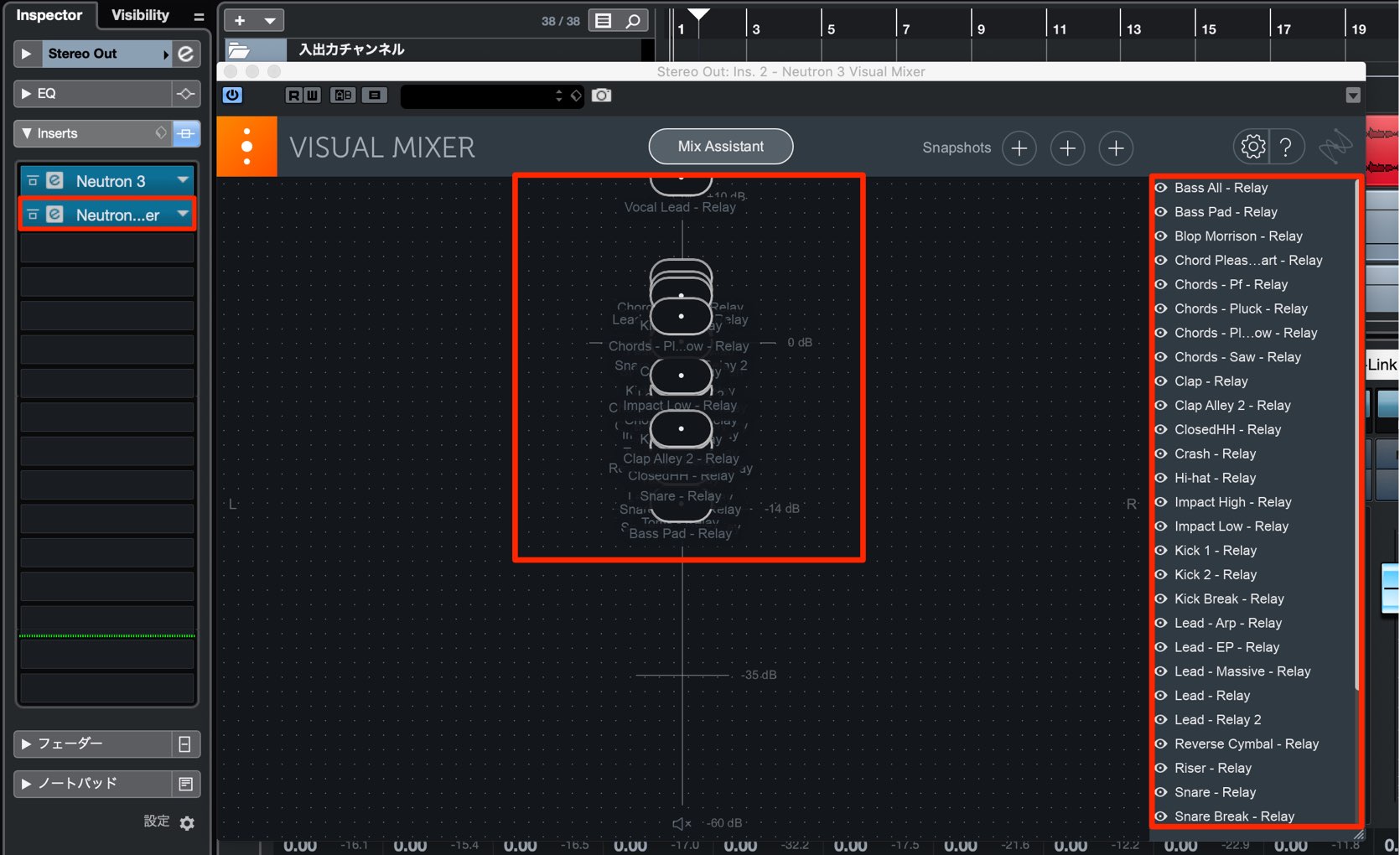
insert Visual Mixer 3 on the master track.
The tracks with Relay inserted will appear as shown here.
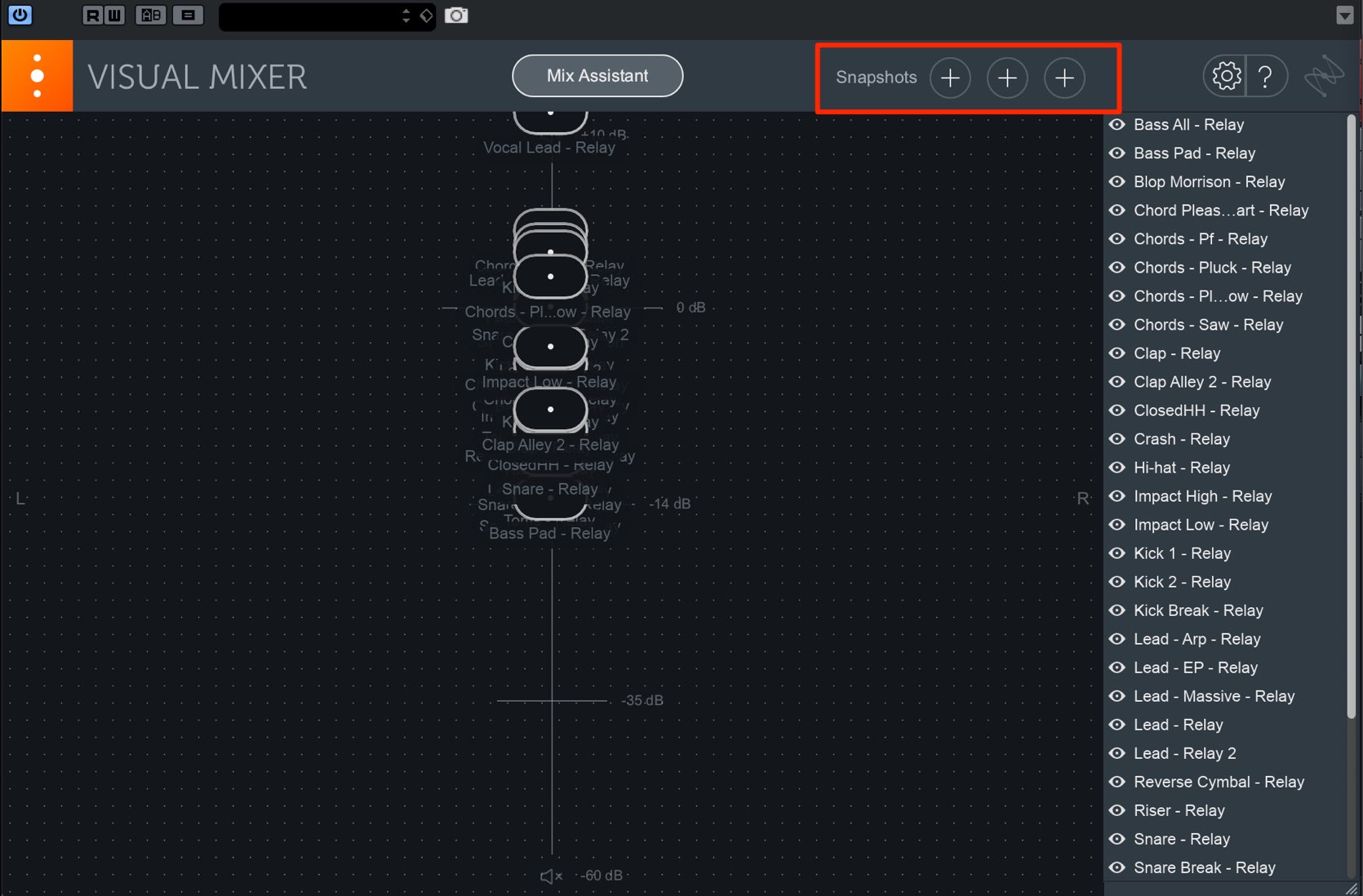
The Snapshots feature stores up to three sets of settings, including the volume balance.
Use the + button to store the bypassed state before applying the settings (before clicking Accept) and the processed state (after clicking Accept), so that
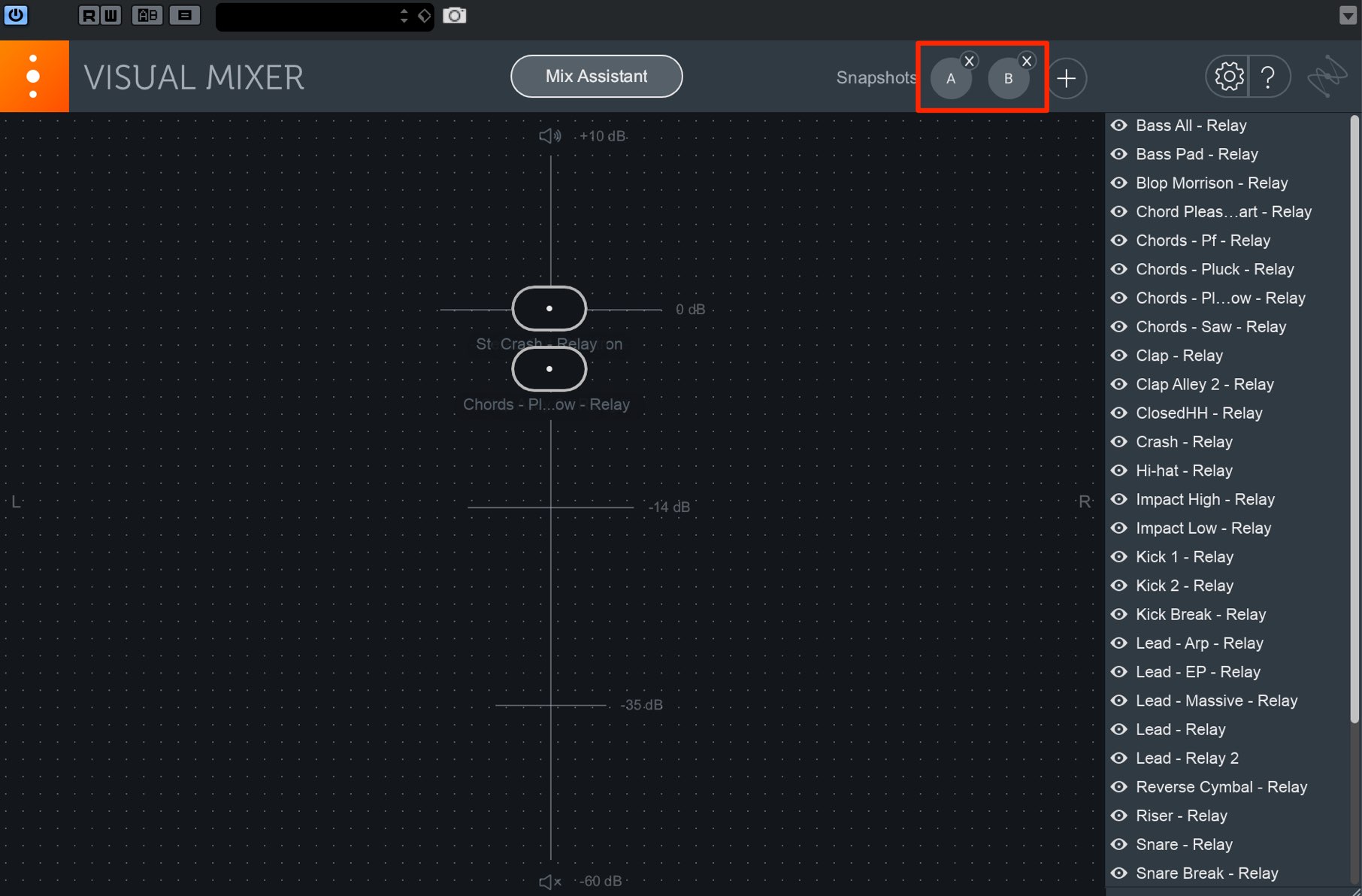
you can quickly return to the original settings.
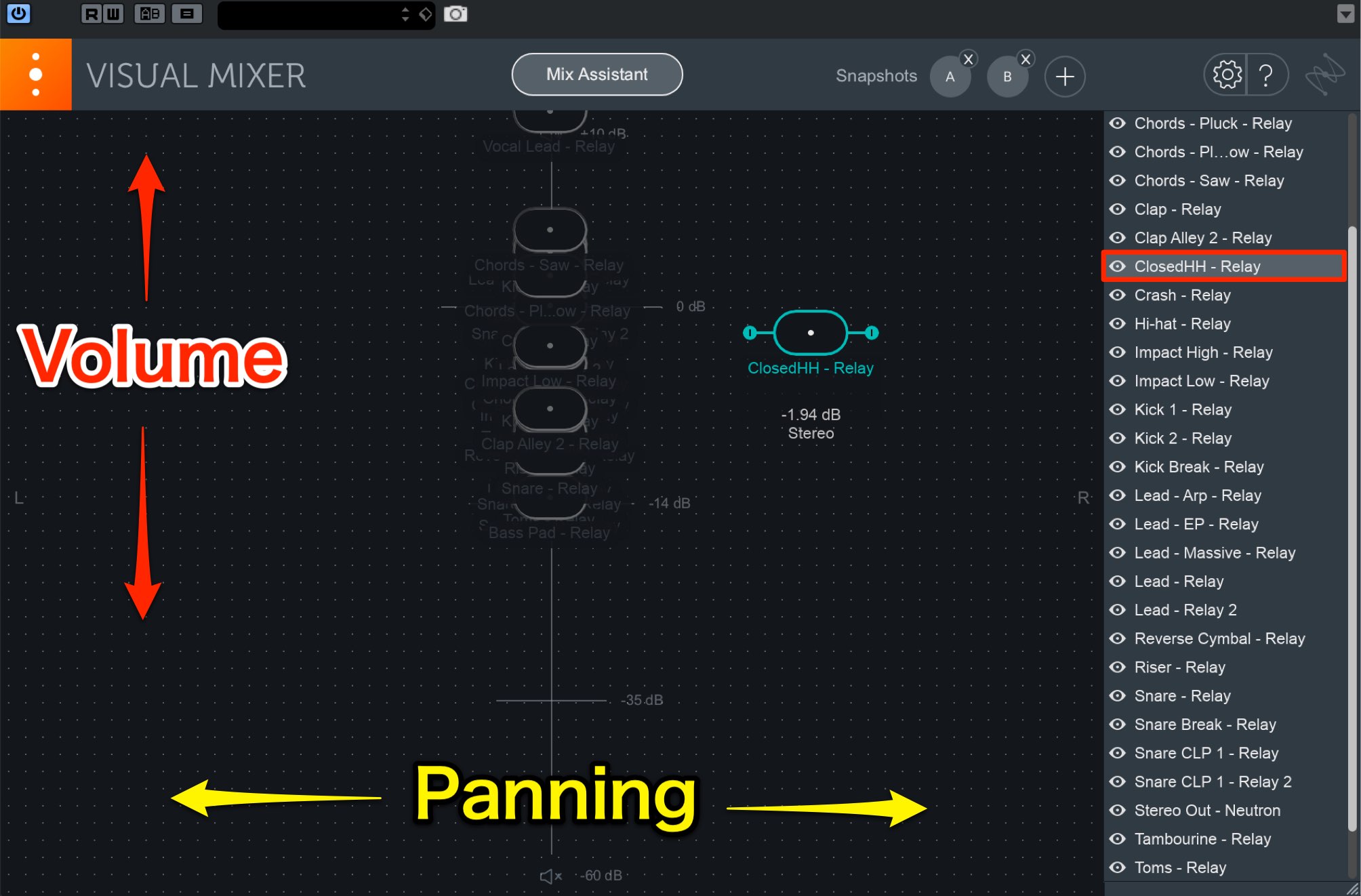
Visual Mixer 3 lets you adjust each track's volume and panning intuitively.
The vertical axis represents volume; the horizontal axis represents pan.
Select a track from the list on the right, then drag it into position.
You can also click one of the snapshots described above to recall a previous set of settings.
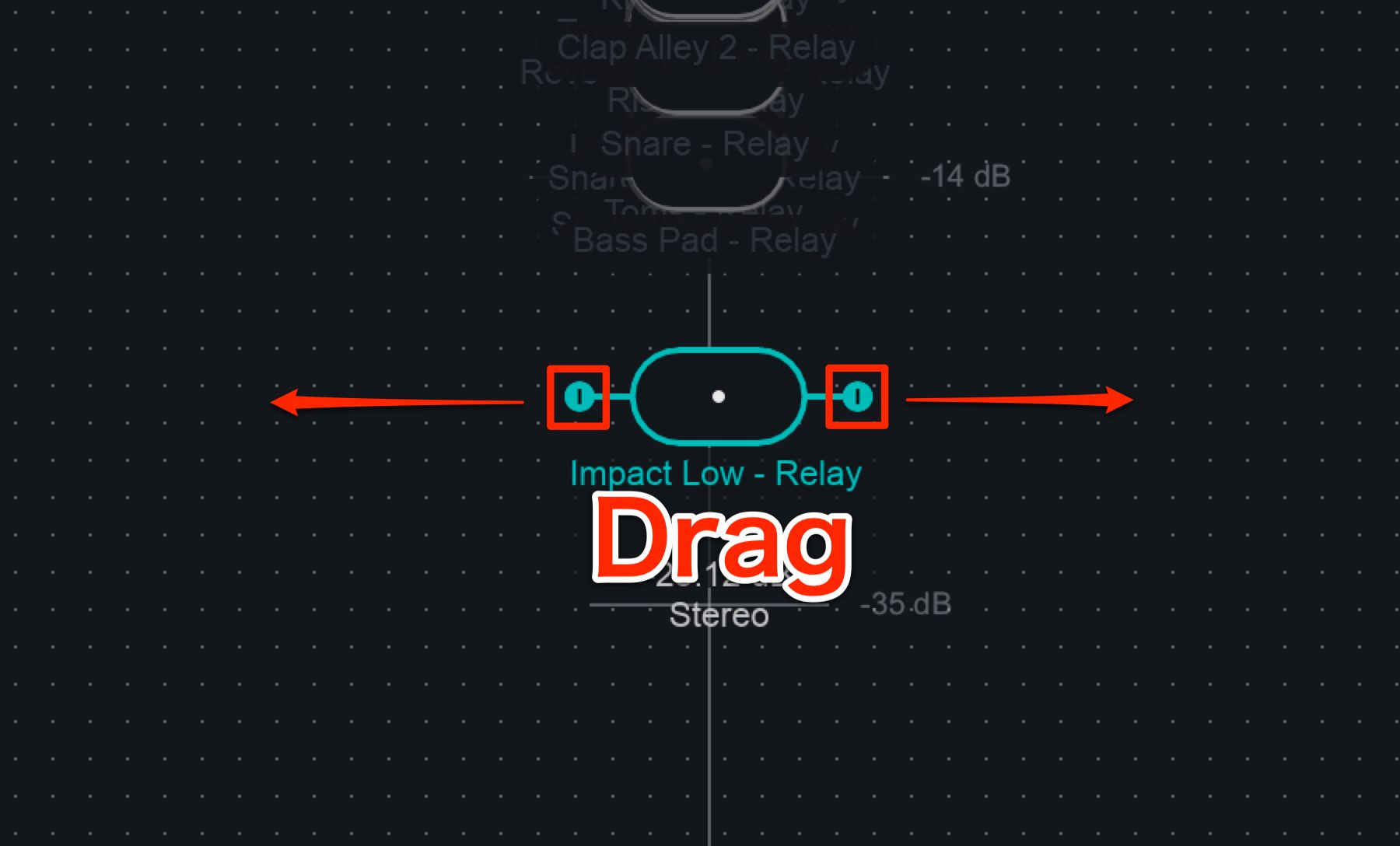
Dragging the icons on either side of a track name horizontally also lets you control the stereo width—a very useful option.
Track Enhance: Bringing Out the Best in a Track
Track Enhance analyzes the sound of each track and automatically configures its effects for a professional sound.
This was called Track Assistant in Neutron 2; the name has changed to Track Enhance.
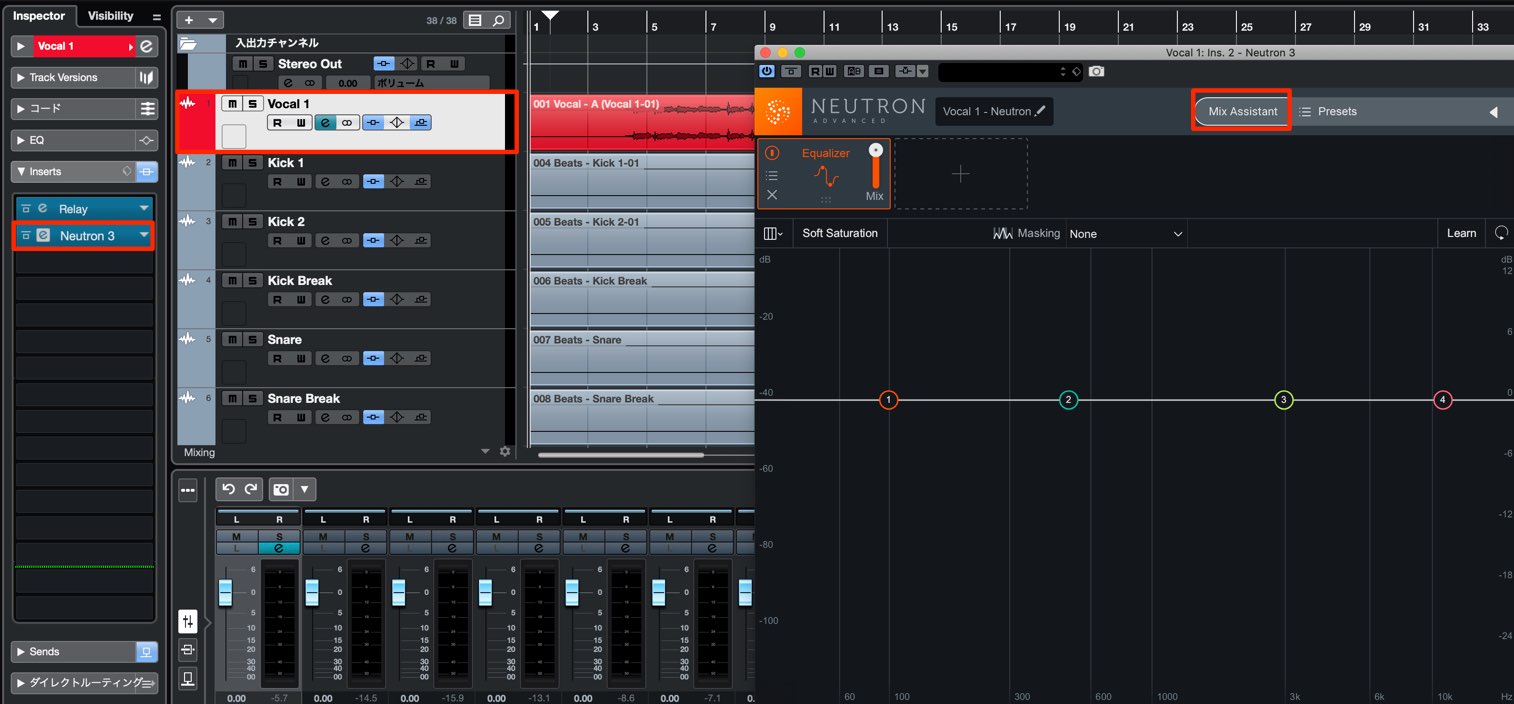
Here, we will use a vocal track to demonstrate Track Enhance.
You can, of course, use it alongside Relay as described above.
Insert Neutron 3 on the track and select Mix Assistant.
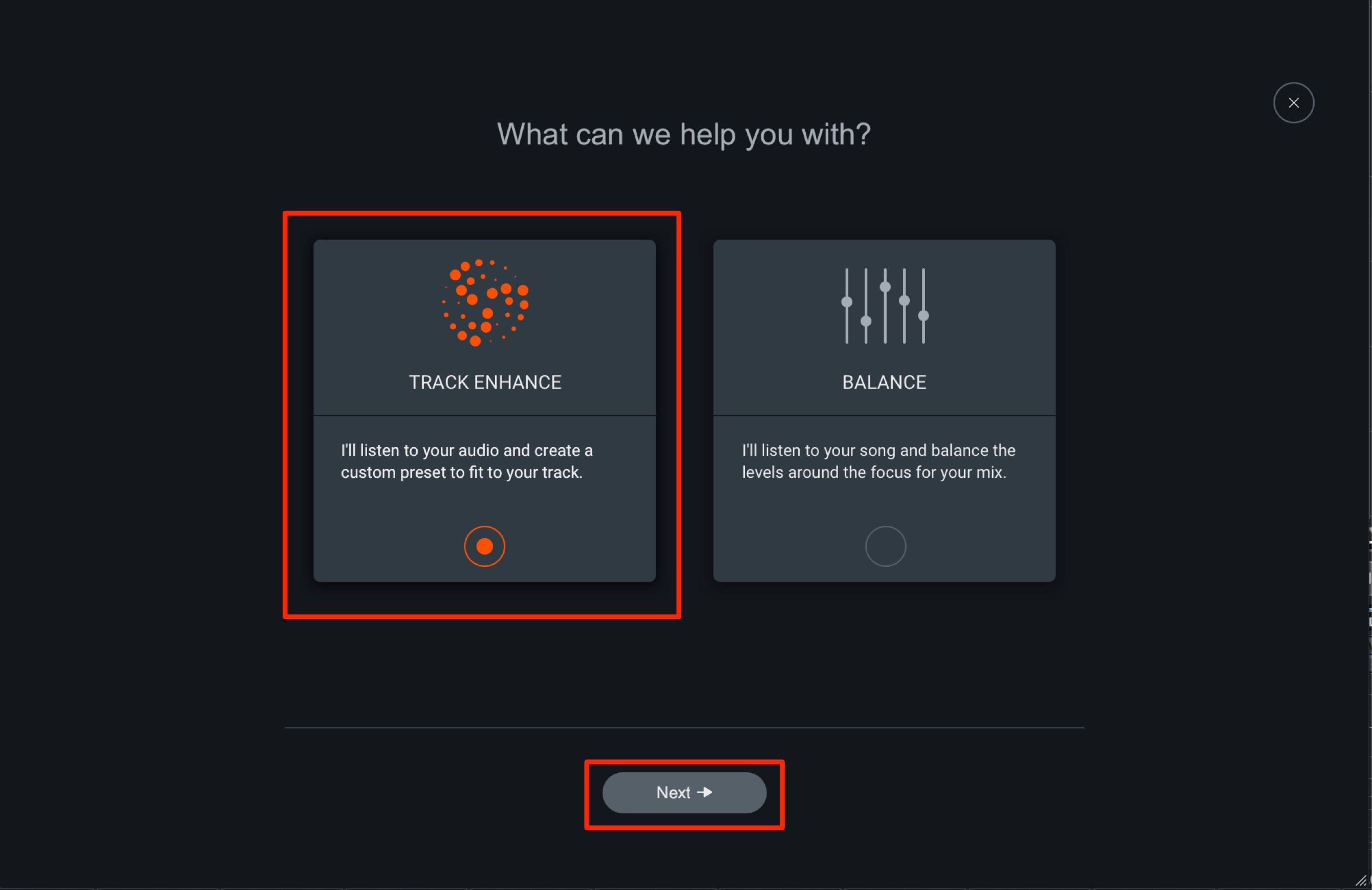
Select Track Enhance and click Next.
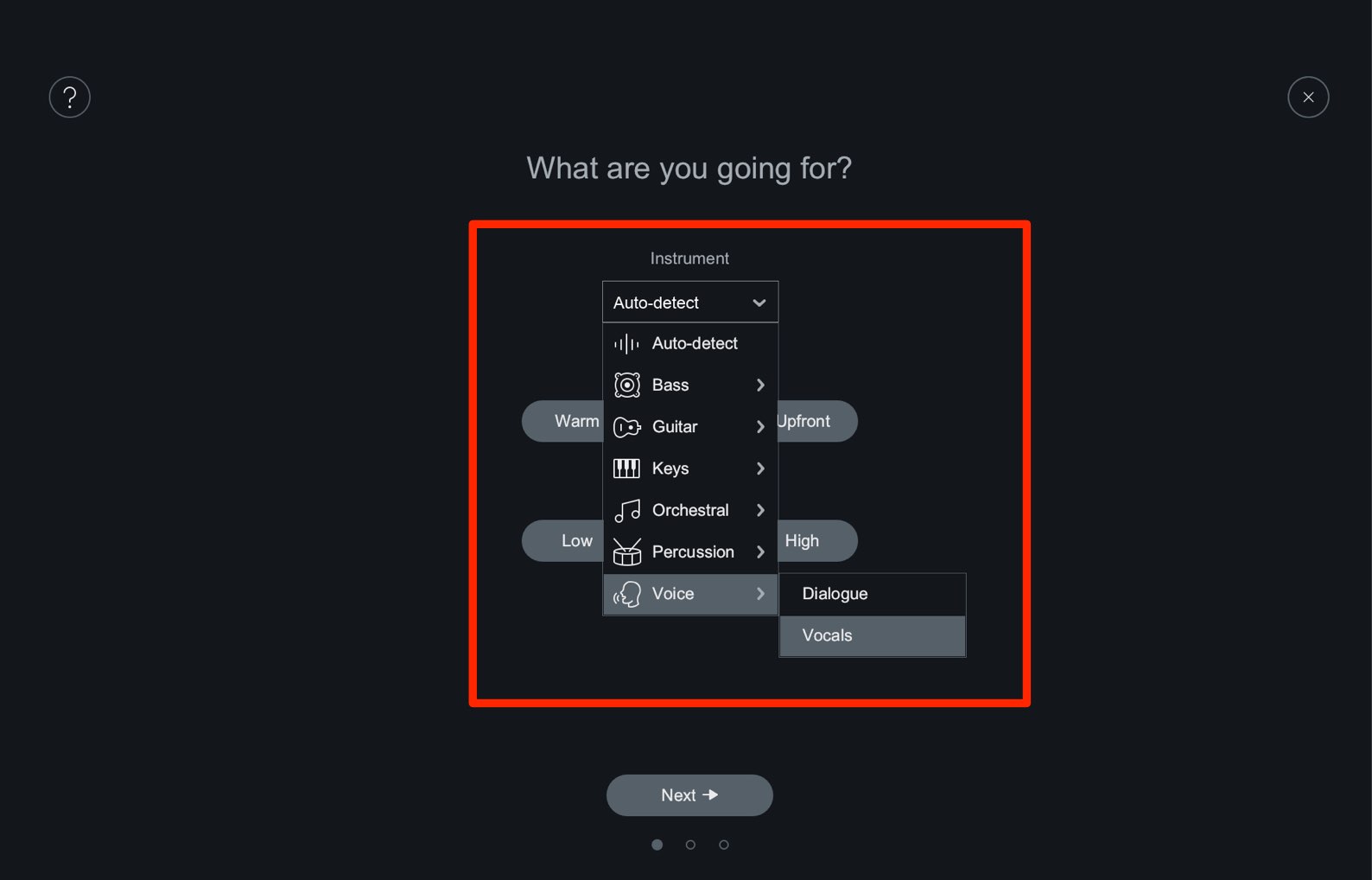
Specify the track type and sound character, then click Next.
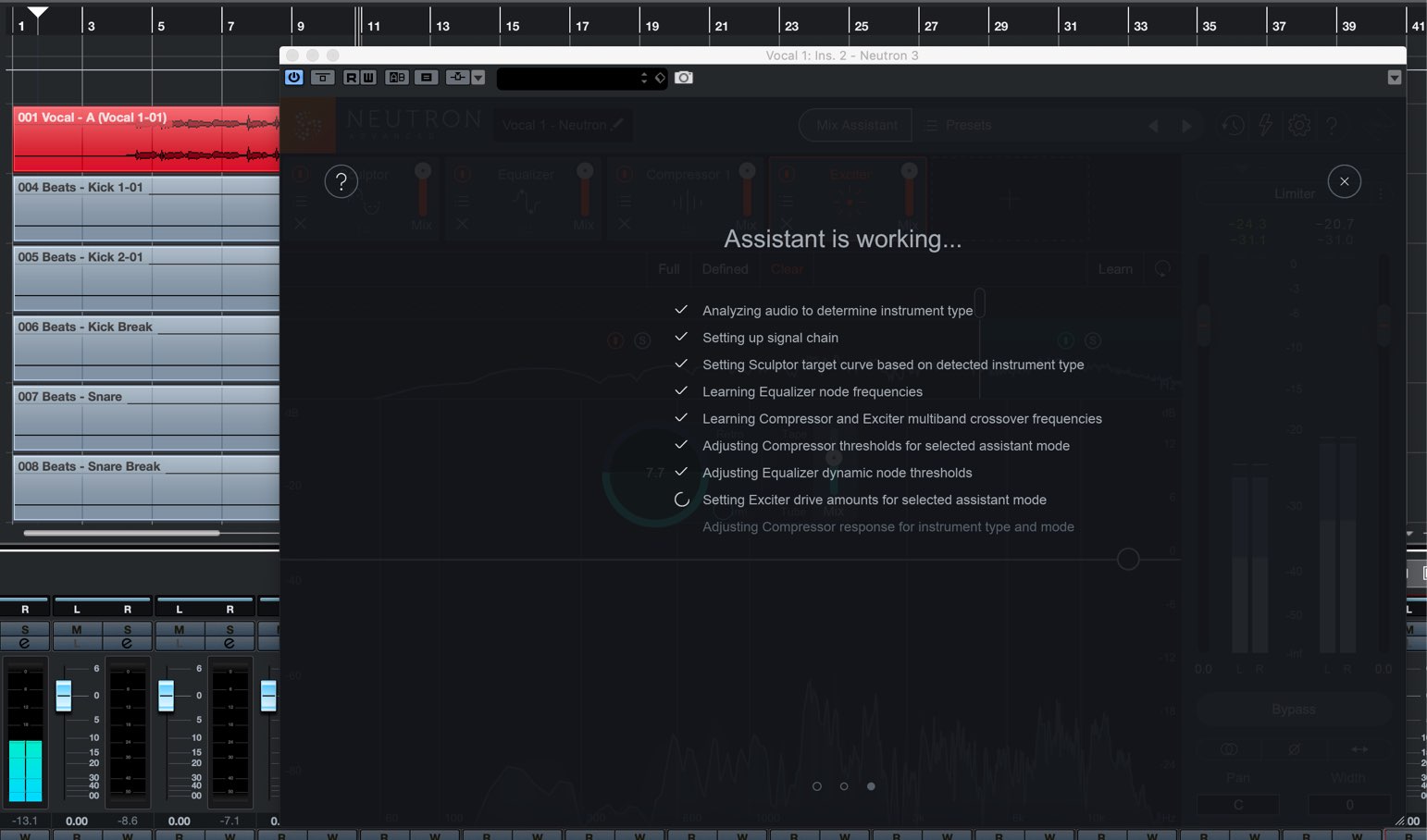
Start playback in your DAW to let it analyze the track's sound.
When analysis is complete, click Accept.
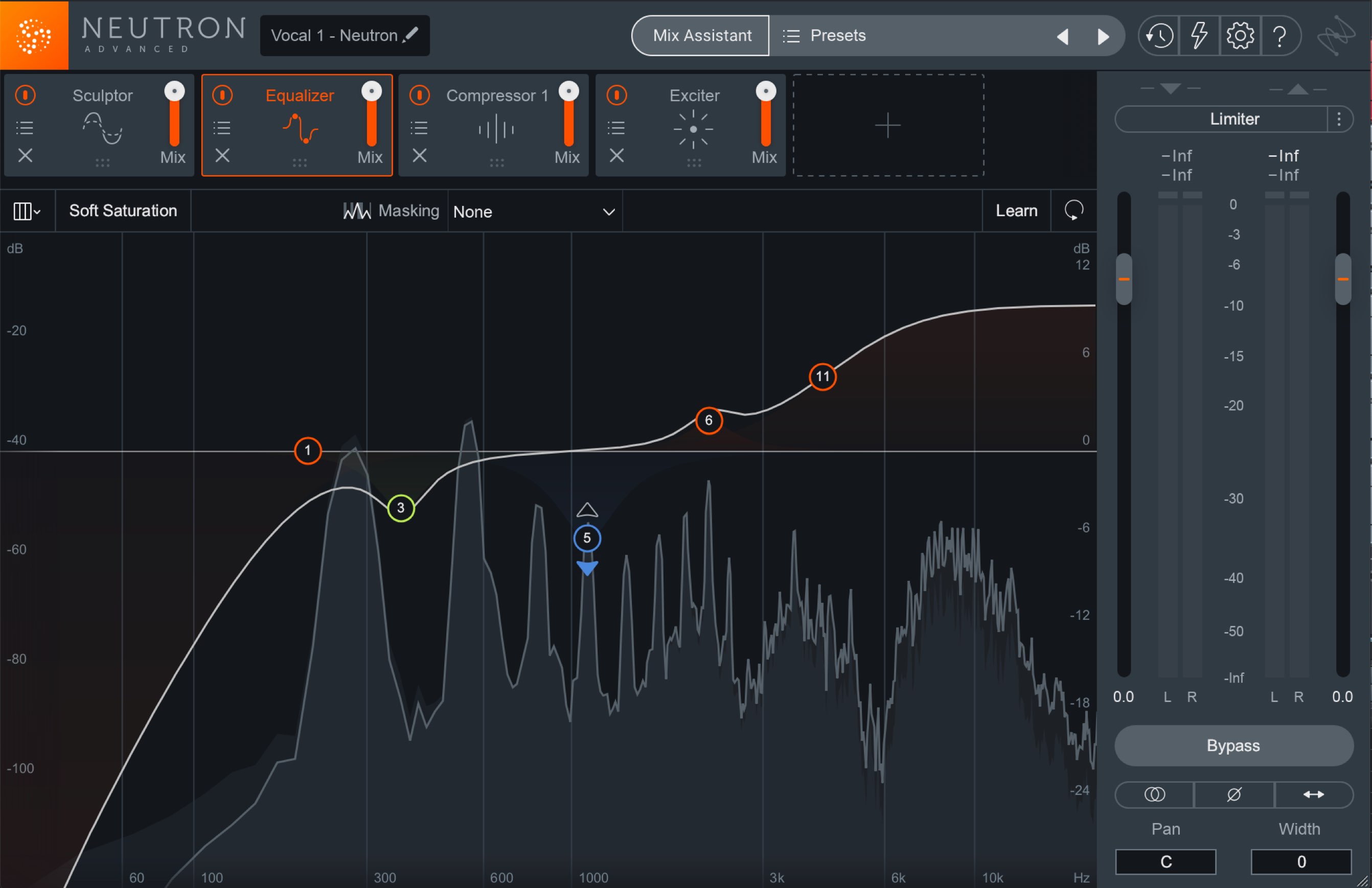
The effects are automatically applied to suit the track's sound, as shown here.
In our comparison with version 2, we were impressed by the improvements in accuracy and sound quality. The result was an appealing sound that could be used as it was.
What did you think of Mix Assistant in Neutron 3 Advanced?
It is an efficient way to prepare a mix before adjusting panning or adding effects.
Examining its results can also help you learn about mixing and explore the direction you want to take your sound.
Compared with Neutron 2, it also brings lower CPU usage and major improvements to the assistant's accuracy and sound quality. Getting a sound you can use straight away is another appealing aspect.
We can recommend this product to a wide range of users, from mixing beginners to intermediate and more experienced engineers. Give it a try!
Lower CPU usage and improvements to the assistant's accuracy and sound quality compared with Neutron 2 are appealing, too!
iZotope Neutron 3: How to Use Mix Assistant to Automatically Optimize Track Volumes
🎥YouTube: https://t.co/4eMNm6HwKz📝Tutorial article ▼https://t.co/I8Cw3UvOat#DTM #DAW
— SLEEP FREAKS (@SLEEPFREAKS_DTM) June 6, 2019
Frequently Asked Questions
Q1. Which edition of iZotope Neutron 3 do I need for the Mix Assistant function?
This Mix Assistant function is included only in Neutron 3 Advanced. It is not included in Elements or Standard, so you need the Advanced edition to use it.
Q2. What preparation is required before using Mix Assistant?
Insert one instance of Relay into each track's insert slots, set each track's volume fader to 0 dB, and leave panning at its default position. You must also select at least one important track to prioritize.
Q3. Can I use Mix Assistant with MIDI tracks and software synthesizers?
Yes. As with audio tracks, inserting Relay on your software-instrument channels lets you use Mix Assistant's automatic volume optimization with MIDI-driven instruments.
Q4. What are the advantages of using Visual Mixer 3 with it?
Visual Mixer 3 lets you adjust volume and pan intuitively on a visual display. It also stores up to three snapshots, making it easy to compare and switch between different mix settings quickly.
Q5. What is Track Enhance?
Track Enhance automatically analyzes a track's sound and applies professional effect settings. Specifying a track type, such as vocals or bass, lets it automatically configure EQ, compression, and other processing to suit that track.
NEW ARTICLES
Latest English Articles



























































































































































































































































