
In the final stage of our SYNTHWAVE production series in Cubase Pro 10.5, we explore practical techniques for processing a vocal track. Start with a low cut to remove unwanted low frequencies, then use EQ to bring the vocal forward and boost the low mids and high frequencies for power and clarity. Next, reduce level fluctuations with compression and add presence with Tube Compressor. Finally, combine reverb and delay to blend the vocal naturally with the backing track and create depth. These techniques help you achieve a professional-quality sound.
Put Effective Vocal Processing Techniques into Practice

In the fifth and final installment of “Creating SYNTHWAVE in Cubase Pro 10.5,” we will focus on processing the vocal track.
Vocal processing can be one of the most challenging parts of mixing.
- Make the vocal sound closer and more upfront.
- Create a powerful vocal that holds its own against the backing track.
- Reduce fluctuations in vocal level.
- Create a sense of space and width.
Let’s work through techniques that can make an immediate improvement to your sound.
Processing the SYNTHWAVE Vocal Track
- 1Rhythm Tracks
- 2Chord Progression and Bass
- 3Synthesizer Tracks
- 4Mixing the Individual Tracks
- 5Processing the Vocal Track
EQ Tips
Before moving on to the individual techniques, start with a low cut—the foundation of vocal EQ.
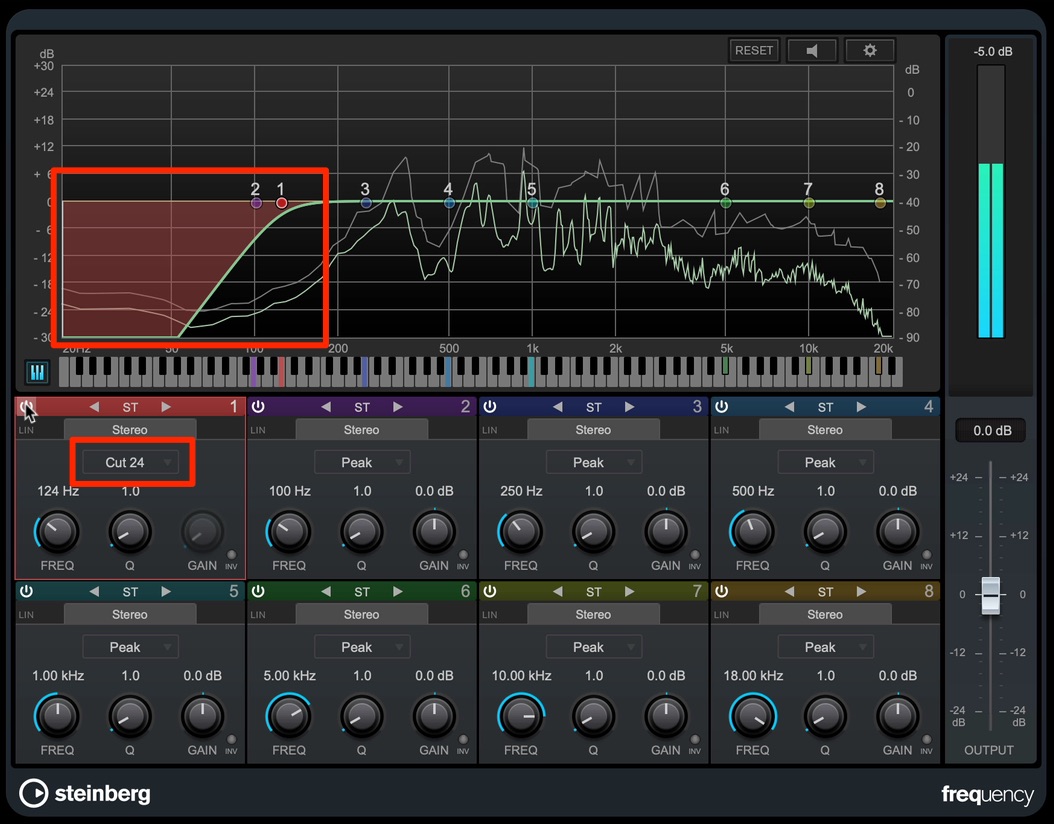
Open Frequency and change the type of the first band to Cut.
Then remove the unwanted low end.
The cut should not noticeably change the character of the vocal, so listen carefully as you find the right cutoff point.
Removing unnecessary low frequencies in this way helps prevent the vocal from muddying low-frequency instruments such as the kick and bass.
One reason a vocal can sound distant is a lack of low-mid content.
Looking at the spectrum, the peaks around 200–500 Hz are lower than the harmonics above 500 Hz.
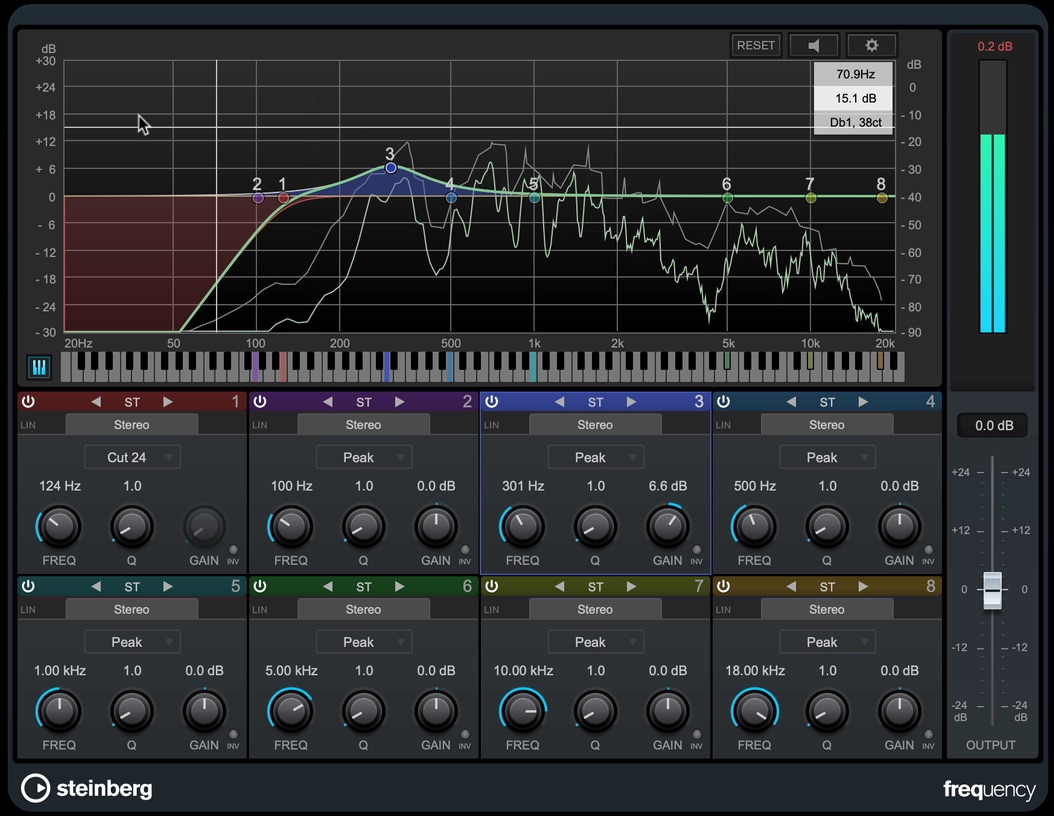
In this situation, use a bell-shaped boost around 300 Hz to bring the sound closer and give the vocal more presence.
Next, we will make the vocal more powerful so it stands out clearly against the backing track.
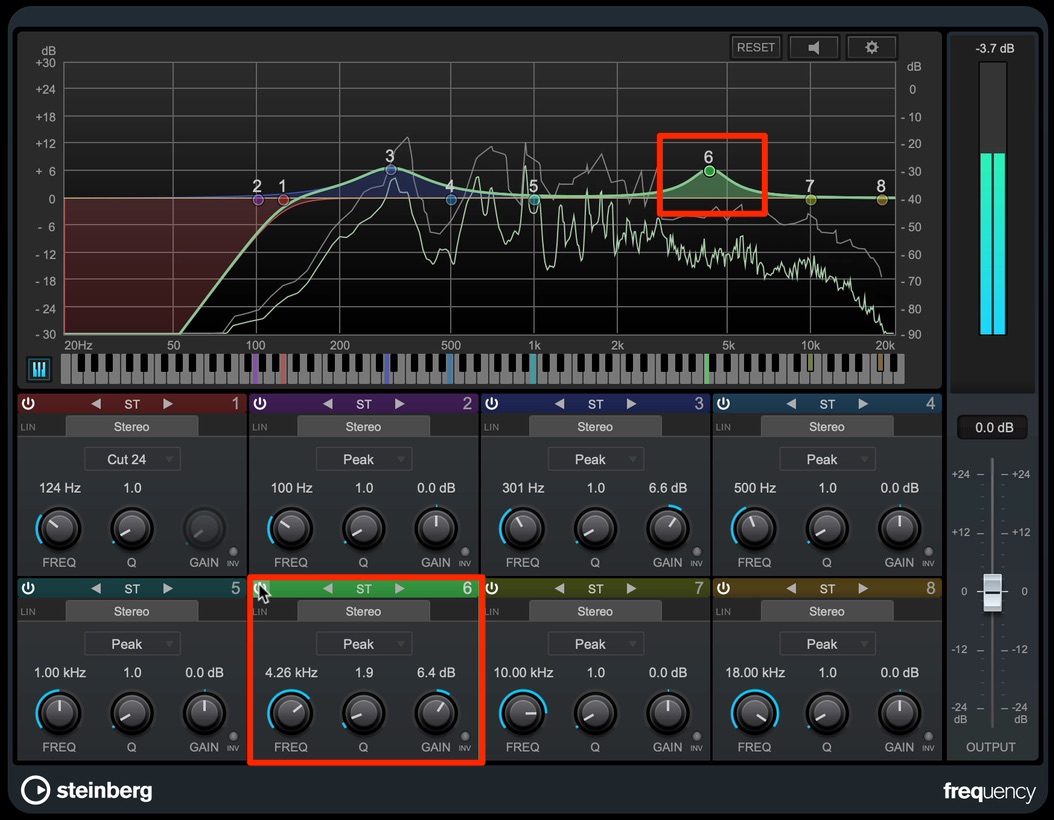
Boosting the high mids with EQ is effective here.
The spectrum shows a slight dip around 4 kHz, so we will boost that area.
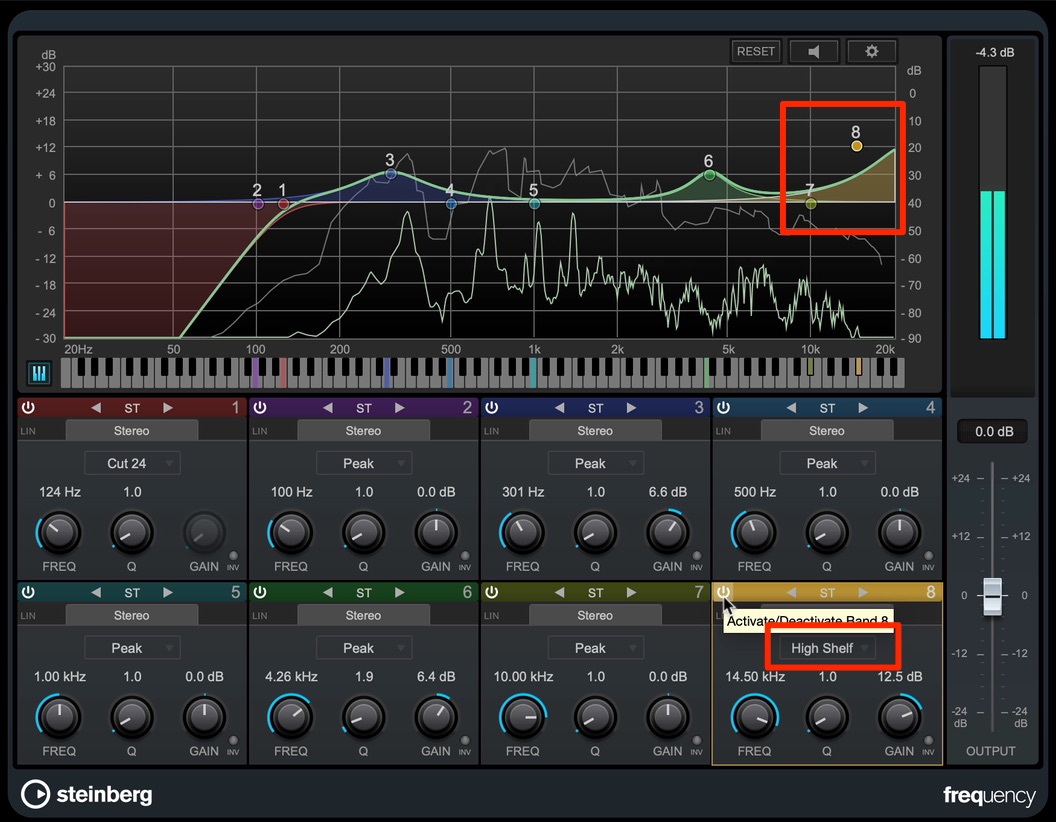
To give the vocal a little more clarity in the mix, we will also use another common vocal EQ technique: boosting the highest frequencies, often called the top end.
Set the EQ type to High Shelf and boost above 10 kHz. The change is subtle, but it can help the vocal cut through the track.
With the EQ finished, let’s move on to controlling fluctuations in level.
Compressor Tips
Cubase Pro includes several compressors. Here, we will use Compressor, which offers the most detailed control.
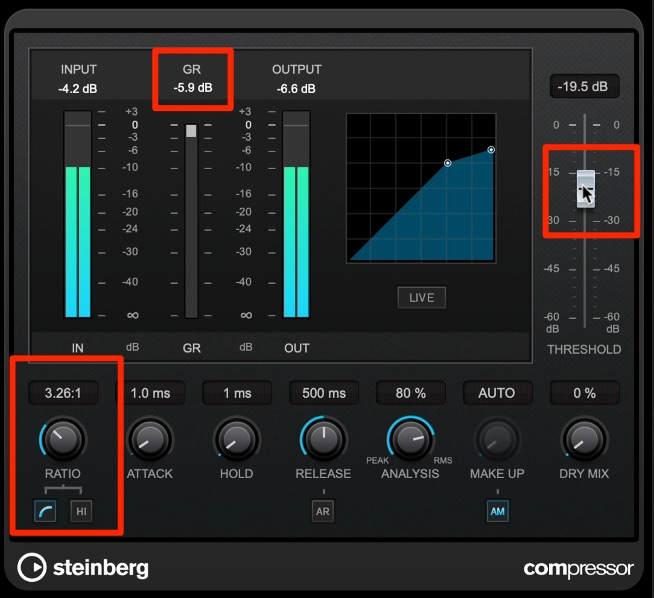
When applying compression to a vocal track, it is important to preserve as much of the vocal’s natural expression as possible.
Adjust parameters that affect the amount of compression, such as THRESHOLD and RATIO, while listening, and use only as much compression as necessary.
The appropriate amount depends on the performance, but as a guide, aim for no more than about 5 dB of gain reduction on average.
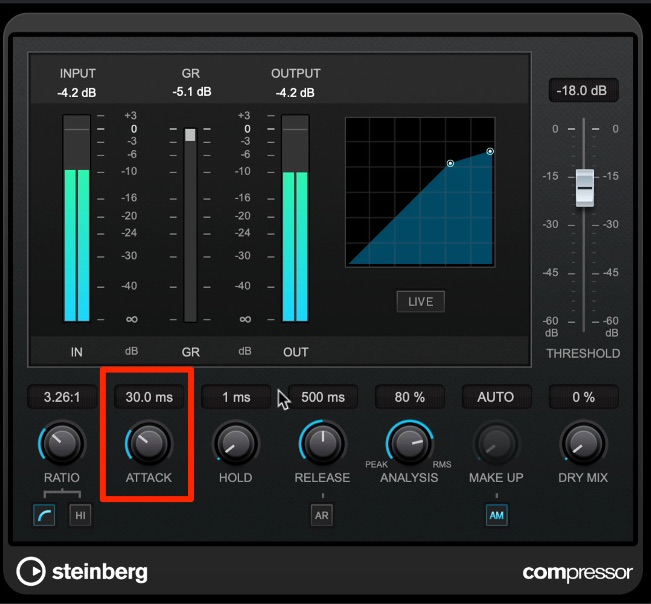
The level is now more consistent, but the attacks seem to have lost some definition.
Because vocals contain consonants, an overly fast attack time can make the lyrics harder to understand.
To address this, increase the ATTACK time so the compressor responds more slowly.
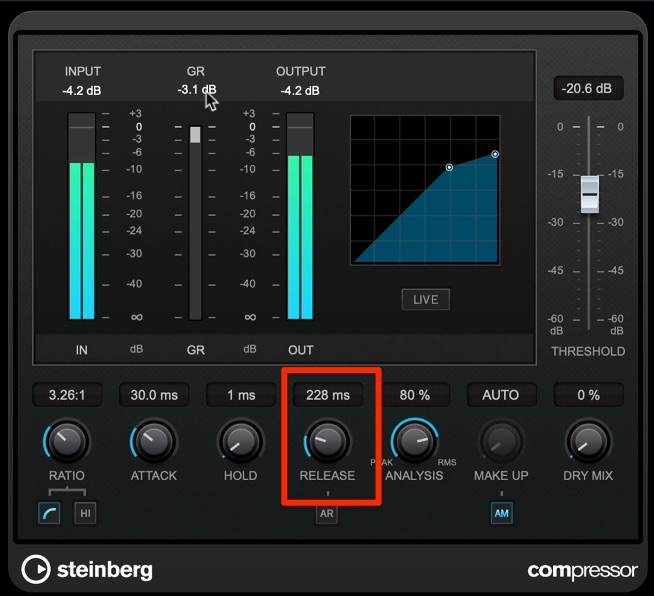
Next, adjust RELEASE so the compression does not last too long.
A shorter release makes individual notes more distinct, while a longer release creates a smoother impression.
Again, listen as you adjust and find a setting that sounds natural.
The vocal level is now much more even, but we would like to smooth it out a little further while adding presence.
To do this, add Tube Compressor.
In addition to compressing the level, this compressor can add tube-style harmonics.
This makes it useful when you want to add presence to a track, as we do here.
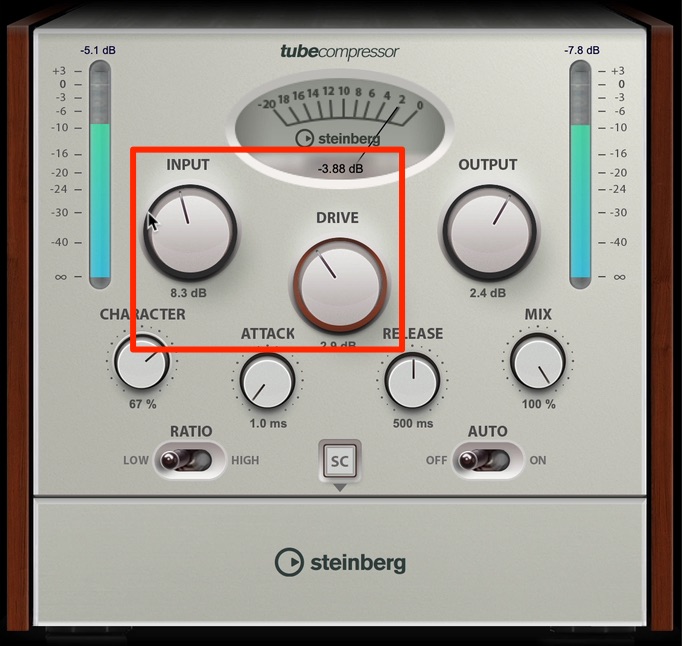
Start by evening out the level with approximately 2 dB of gain reduction as a guide.
With this type of compressor, adjust the amount of compression by increasing the INPUT gain.
As before, listen while adjusting to keep the compression sounding natural.
The DRIVE knob controls the amount of distortion.
Avoid excessive distortion, and find a setting that helps the vocal cut through the backing track.
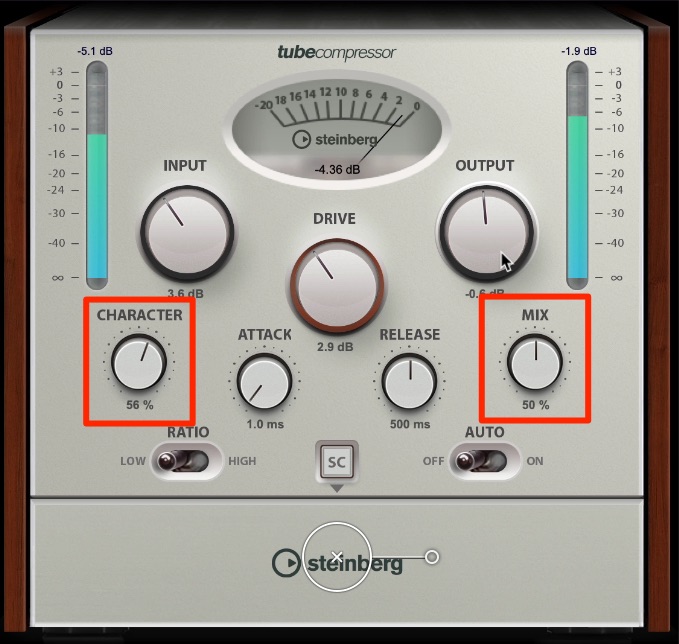
CHARACTER controls the amount of high-frequency enhancement.
Use it to adjust the brightness of the sound to taste.
The MIX knob lets you blend the compressed signal with the original signal.
We set it to around 50% to retain some of the original signal’s definition.
Reverb and Delay Tips
Next, use delay and reverb to blend the vocal with the backing track and give it depth.
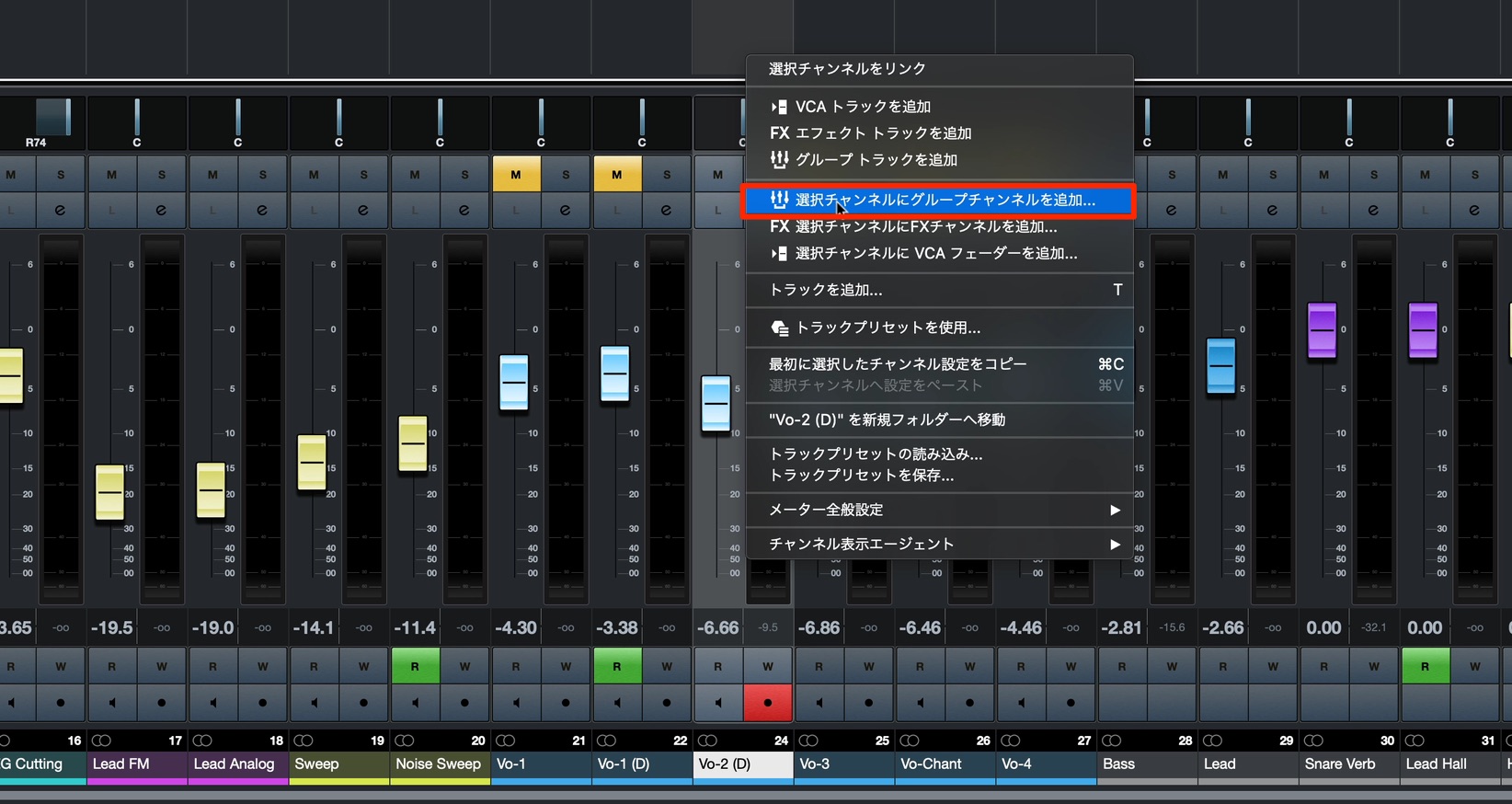
First, right-click the vocal channel in the mixer and select Add FX Channel to Selected Channels to create an FX channel.
Load the REVelation reverb on this FX channel.
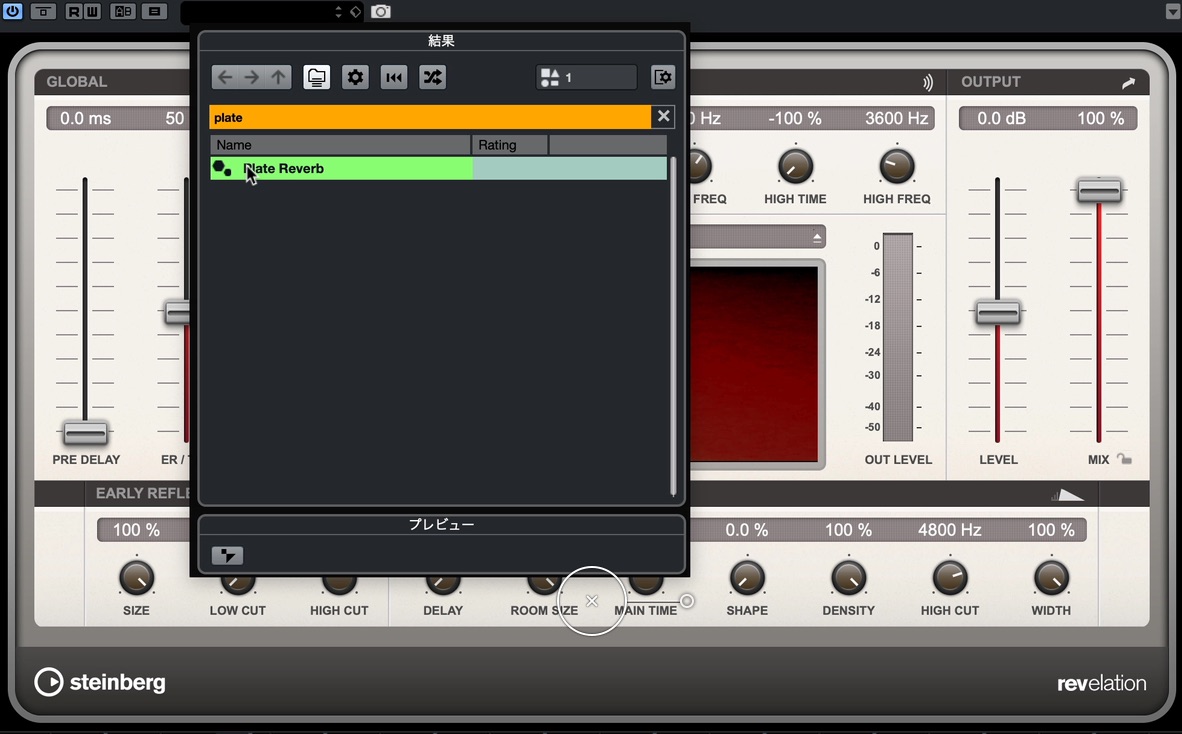
Choose the Plate Reverb preset, a timeless choice for vocal reverb.
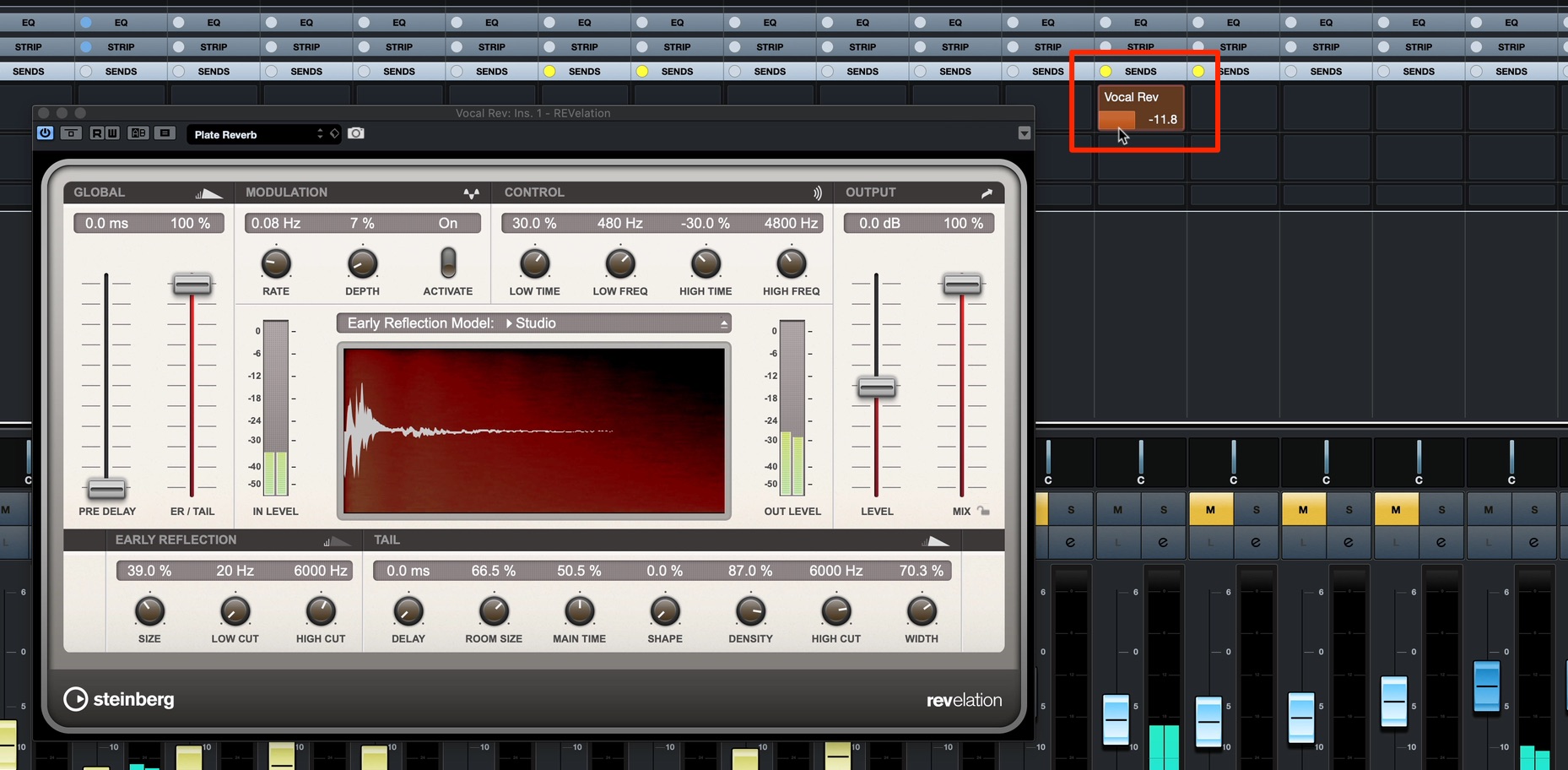
Adjust the send level while listening until you have the right amount of reverb.
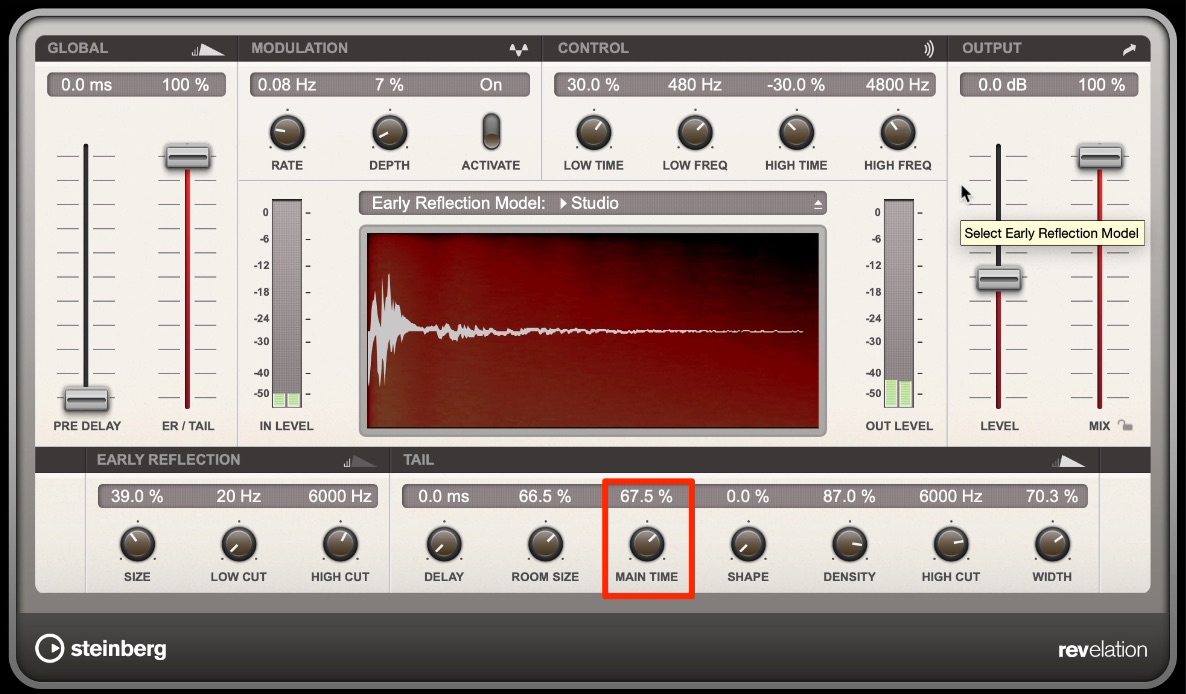
We would like a slightly longer tail, so increase MAIN TIME.
The decay now sounds good, but the reverb does not blend well with the backing track and feels a little exaggerated.
In this situation, try using EQ to remove unwanted frequency ranges from the reverb.
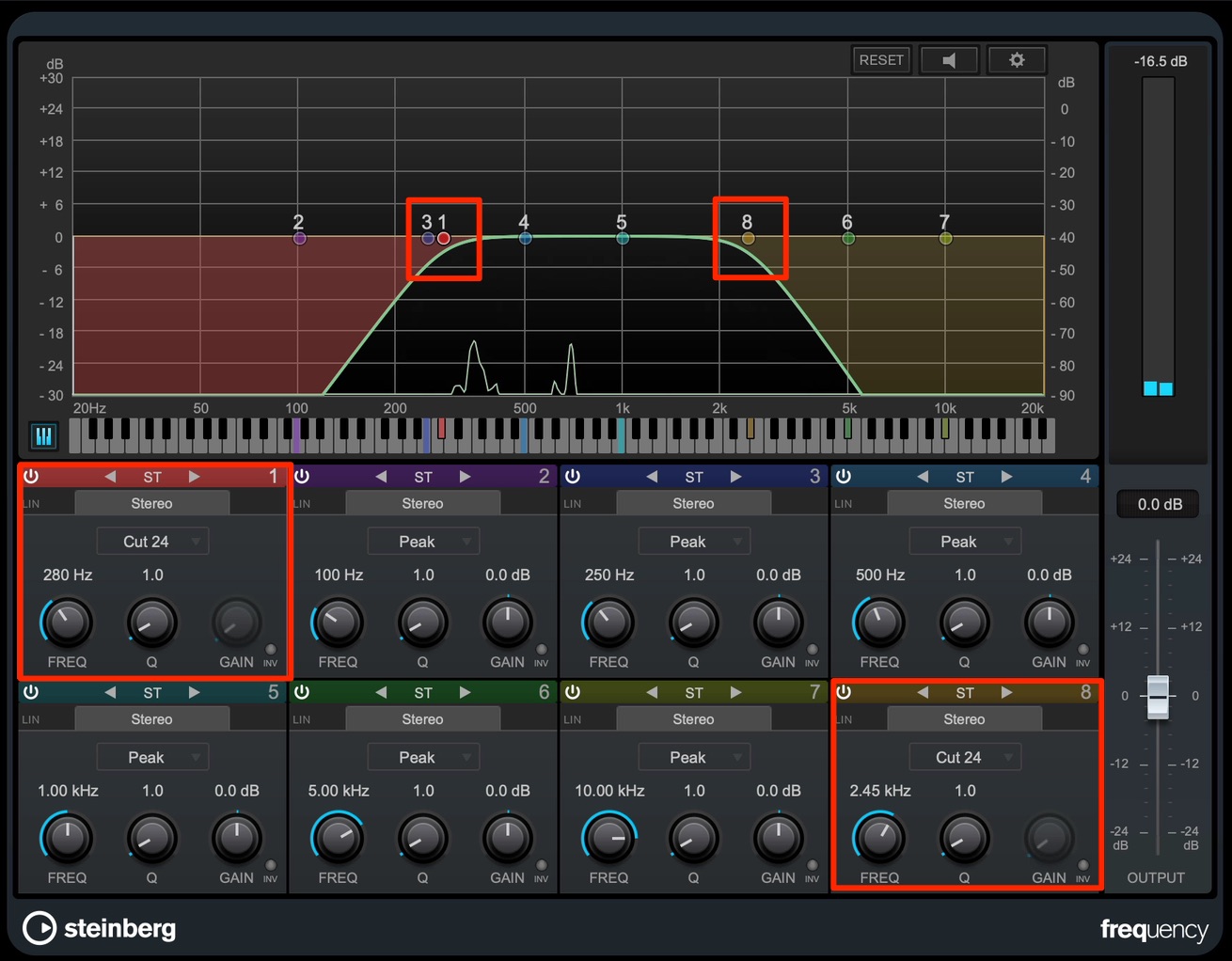
Insert Frequency after the reverb and apply both a high cut and a low cut.
Strong high-frequency content in the reverb tail can make it sound exaggerated.
That is why we are cutting the highs as well as the lows.
Next, add delay to give the vocal more depth.
As with the reverb, we want a softer sound with reduced high-frequency content, so we will use ModMachine.
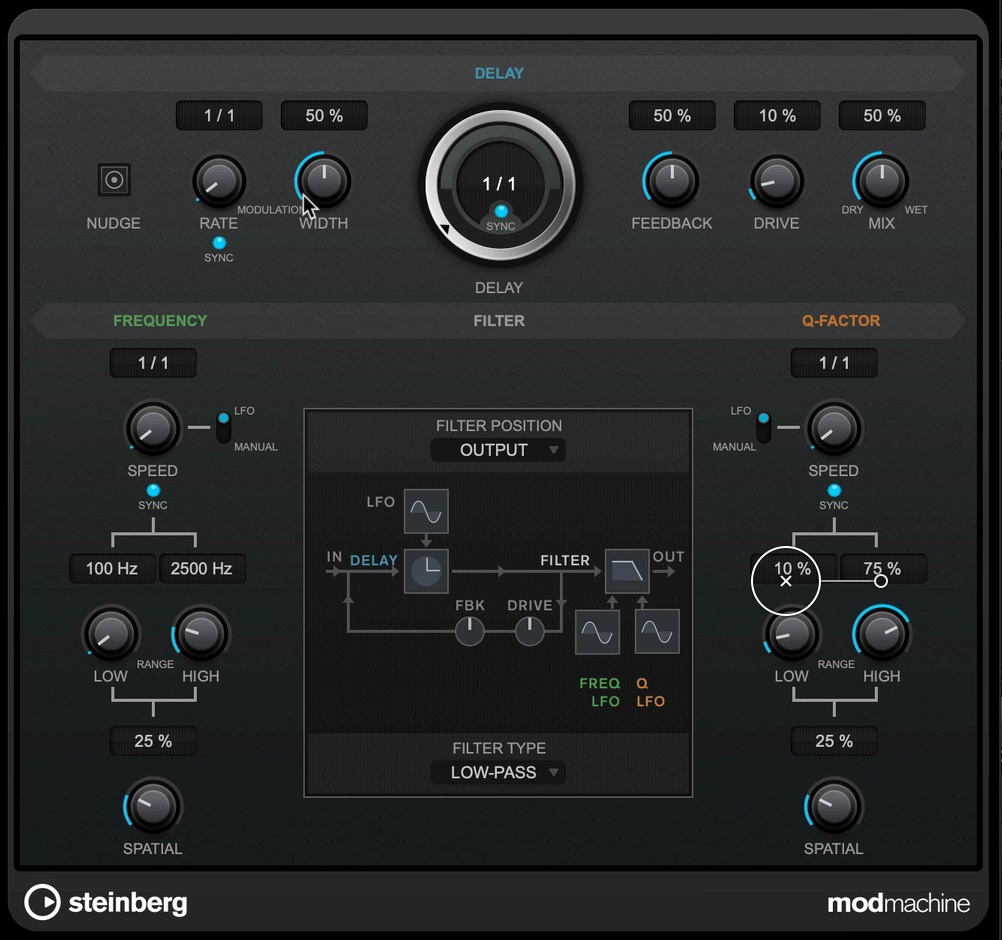
ModMachine is a versatile delay that can add distortion to the delayed signal and use an LFO to modulate the cutoff frequency of its filter.
It can produce a soft, warm tail reminiscent of tape or analog delay—something a conventional digital delay does not offer in the same way.
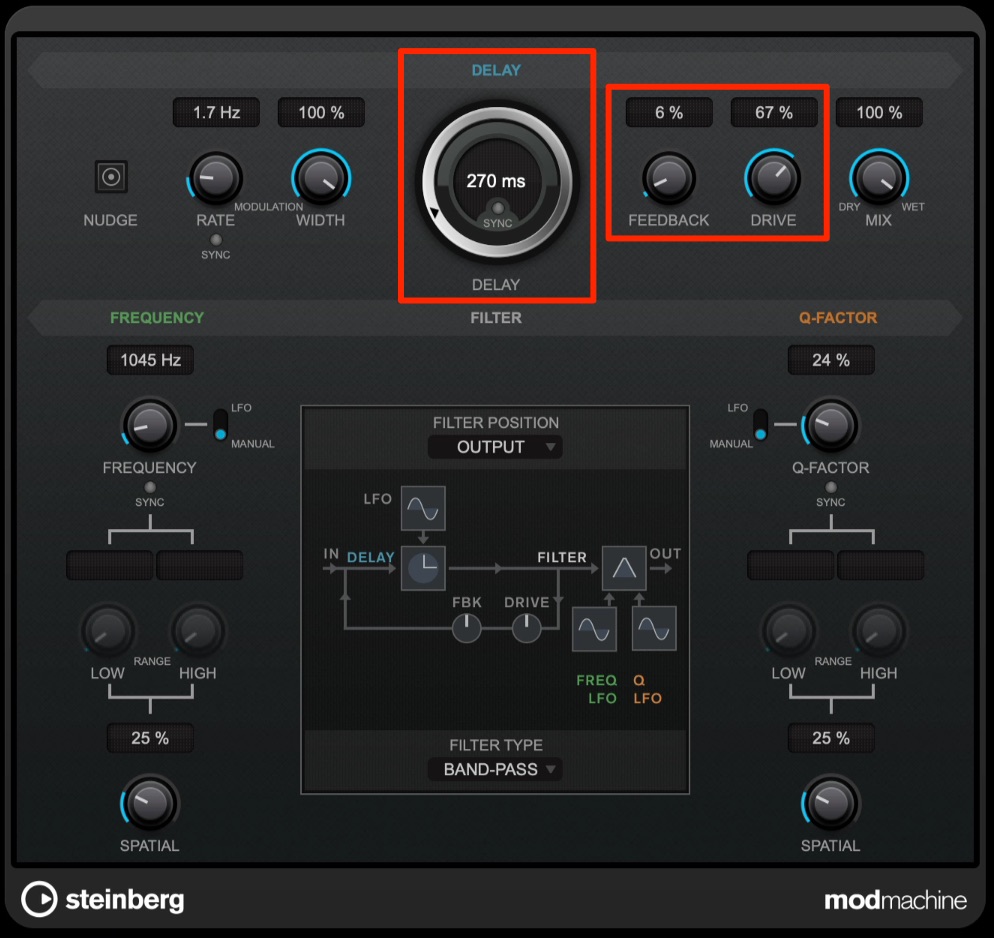
Listen while setting the delay interval with DELAY, then
keep FEEDBACK fairly low so the repeats do not become too persistent.
Finally, add some distortion with DRIVE, and you are done.
How did you find these techniques?
The vocal processing techniques covered here are standard approaches that work across many genres.
We hope you will try them in your own tracks.
A project file is also available for this track. Download it if you would like to examine the processing in more detail.
Thank you for following all five installments of the series!
Vocal Track Processing: Essential Tips for Mix Engineers!
How to Make Synthwave, Part 5 [Finale]
• Bring the vocal closer and more upfront.
• Create a powerful vocal that holds its own against the backing track.
• Reduce fluctuations in vocal level.
• Create a sense of space and width.
We will work through these challenges.
Learn more: https://t.co/9JSzbYXzWz pic.twitter.com/8UxEx2j1Bz— SLEEP FREAKS (@SLEEPFREAKS_DTM) August 2, 2020
Frequently Asked Questions
Q1. What should I do first when mixing a vocal track?
Start with a low cut. Set the first EQ band to Cut and remove unwanted low frequencies. This helps keep the vocal from muddying the kick and bass and improves the overall mix balance.
Q2. What can I do if the vocal sounds distant?
Try boosting the low mids around 300 Hz. Check the spectrum and adjust the peaks in the 200–500 Hz region to bring the vocal forward and give it more presence.
Q3. What should I watch out for when using a compressor?
Preserve the vocal’s expression by keeping average gain reduction to no more than about 5 dB. A slower attack can also help keep consonants clear and the lyrics intelligible.
Q4. What should I do if the reverb sounds exaggerated?
Try inserting an EQ after the reverb and cutting both the high and low frequencies. This helps the reverb blend naturally with the backing track.
Q5. How can I give a vocal more depth?
Use delay. ModMachine is a useful choice if you want a warm sound. Set an appropriate delay time and keep feedback modest for a soft, tape-like tail.
NEW ARTICLES
Latest English Articles


























































































































































































