This guide covers essential Studio One editing techniques, from naming tracks and events to duplicating, deleting and undoing edits. Shortcuts such as D for duplication and G for merging, along with the Split tool, can speed up your workflow. It also explains how to use Impact to turn audio into a MIDI instrument and create new musical ideas from existing loops. These practical basics are useful for beginners and intermediate users alike.
Naming Tracks and Events
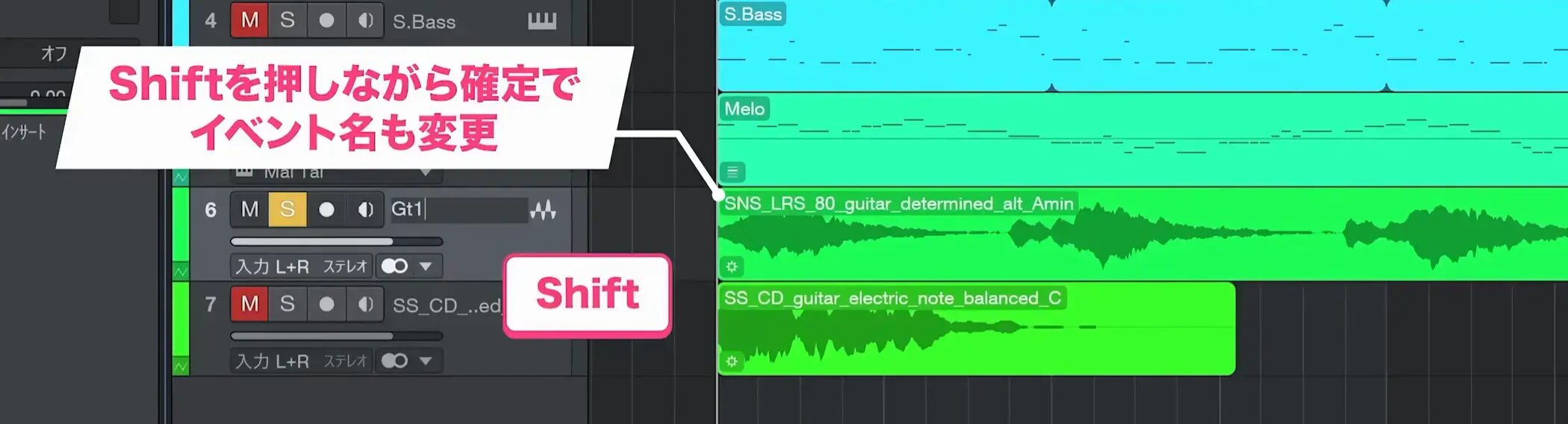
Give tracks and events meaningful names to make your work easier to follow.
After typing a name, hold Shift while confirming to change the event name at the same time.
Duplicating and Deleting Events
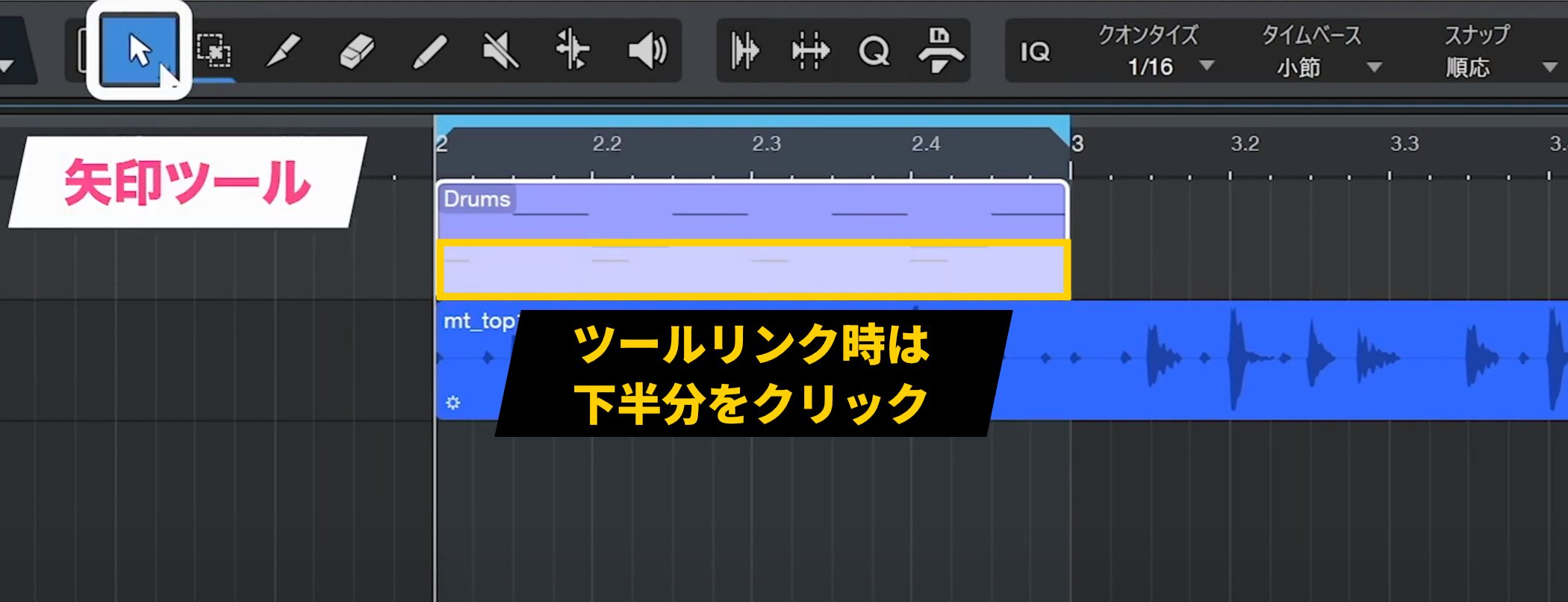
Use the Arrow tool to edit events. When the tools are linked, click the lower half of the event, where the Arrow tool is active, to select it.
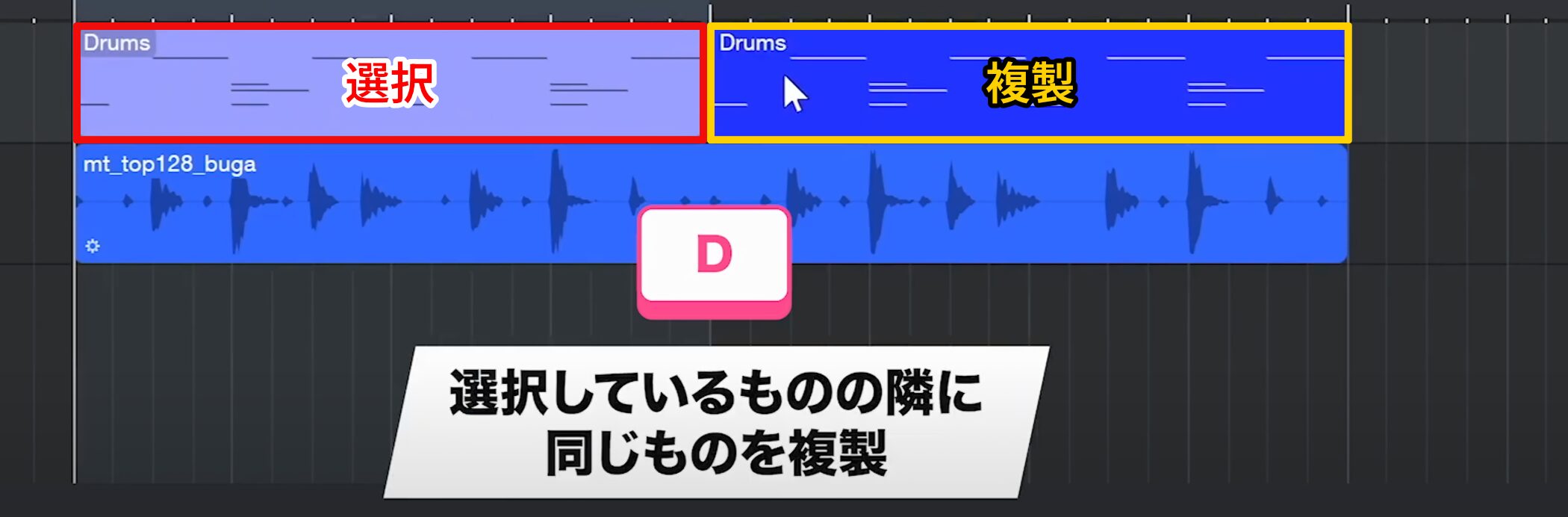
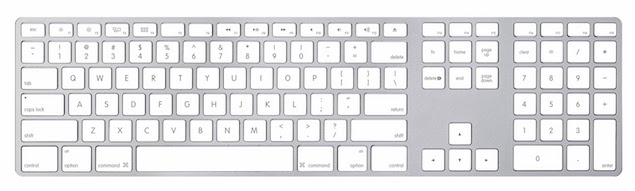
The easiest way to duplicate an event is to select it and press D.
The duplicate appears beside the selected event.
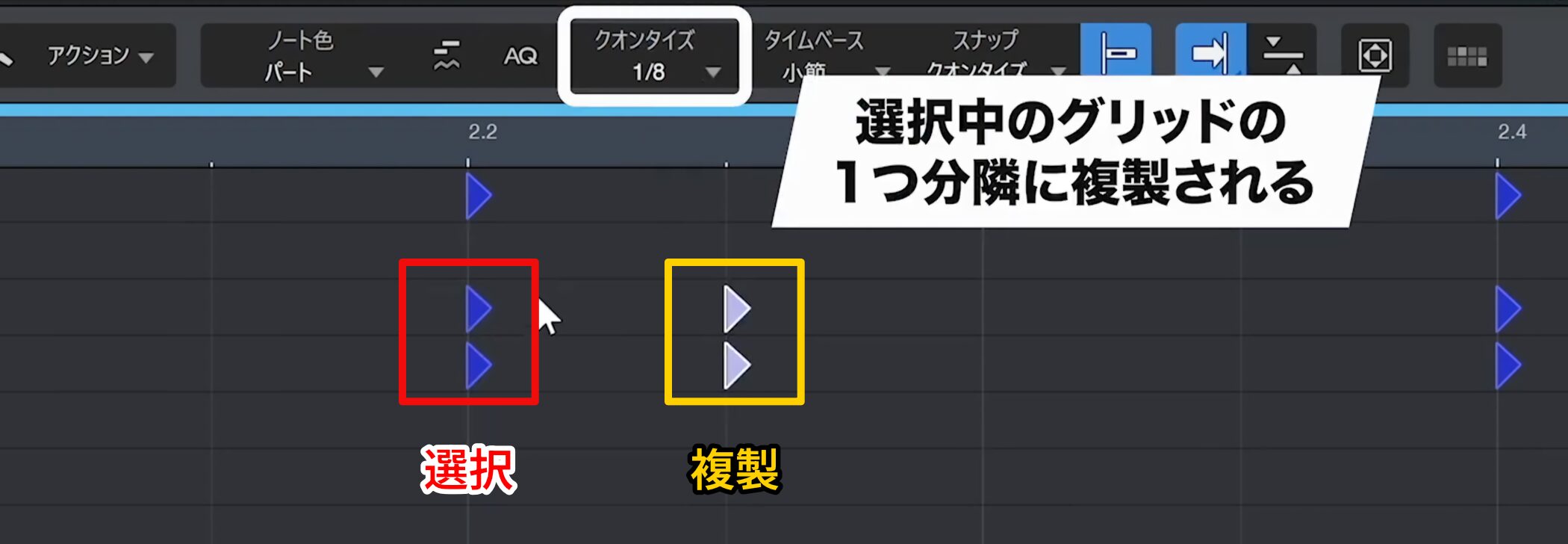
The same method works for programmed notes.
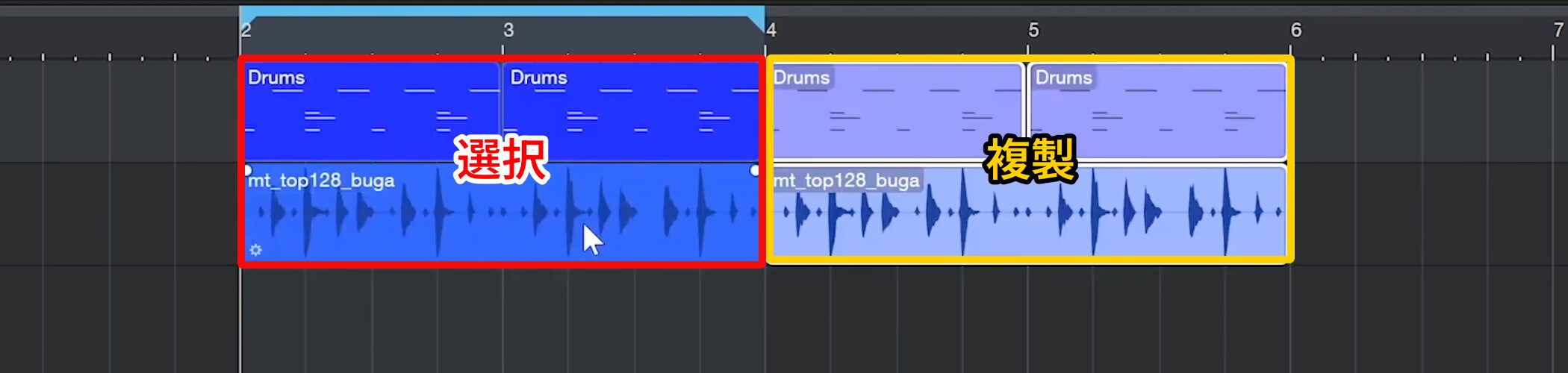
You can also use it with multiple items selected.
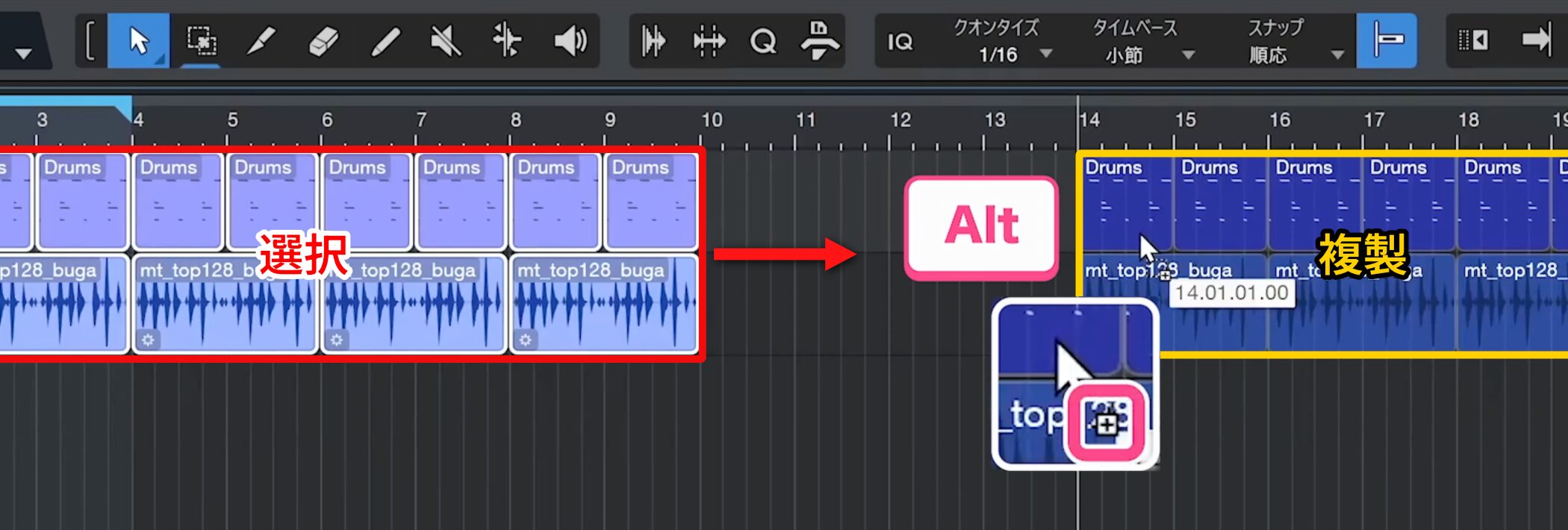
To create a duplicate at a specific position, select the event and drag it to the destination.
While holding the mouse button, hold Alt. A plus icon appears beneath the cursor; release the mouse to place the duplicate at the desired position.
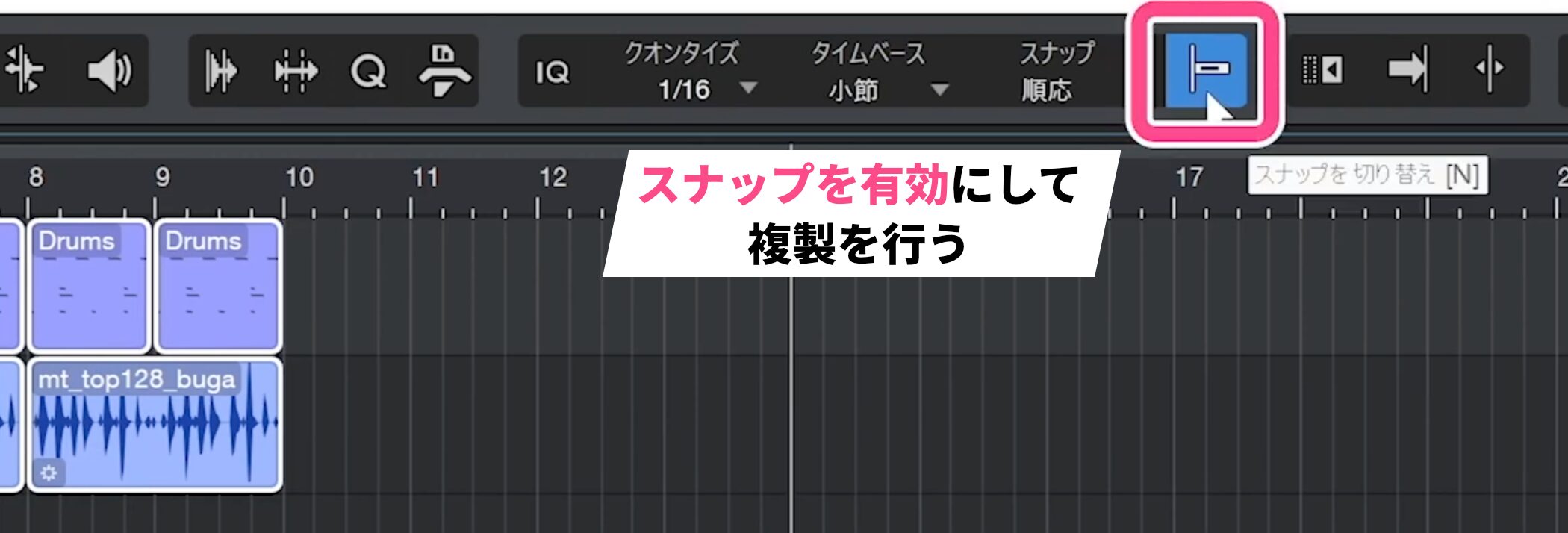
If Snap is off, the position may be misaligned, so we generally recommend duplicating with Snap enabled.
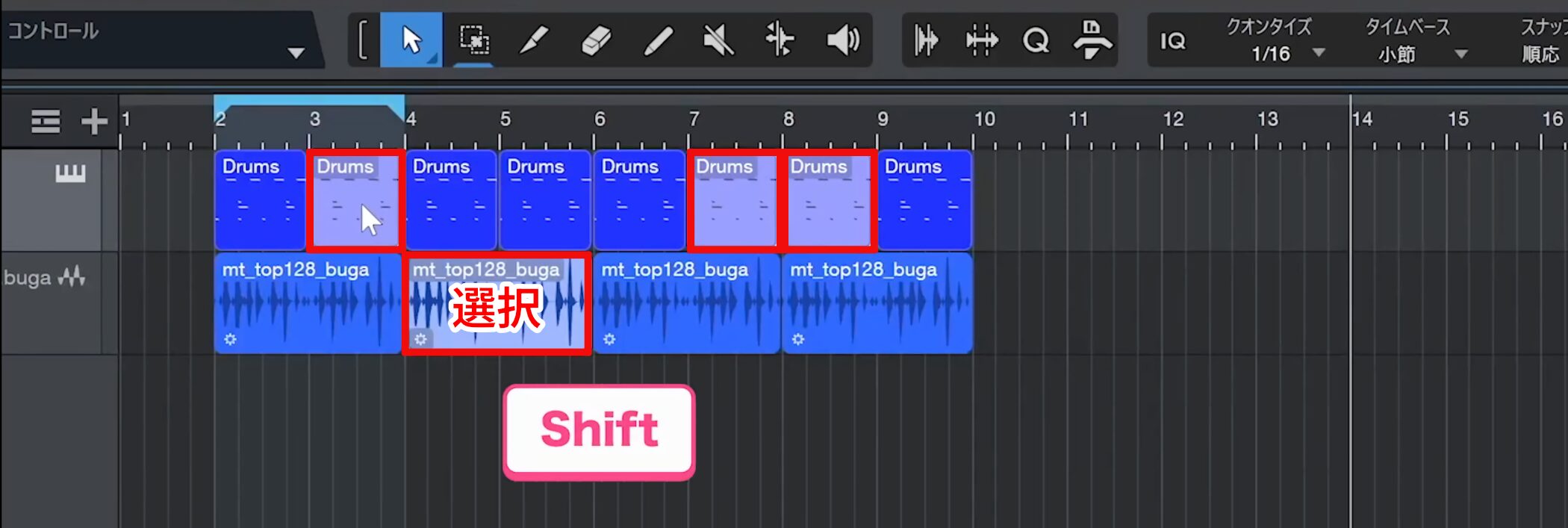
To duplicate several nonadjacent events at once, hold Shift and select the events you want.
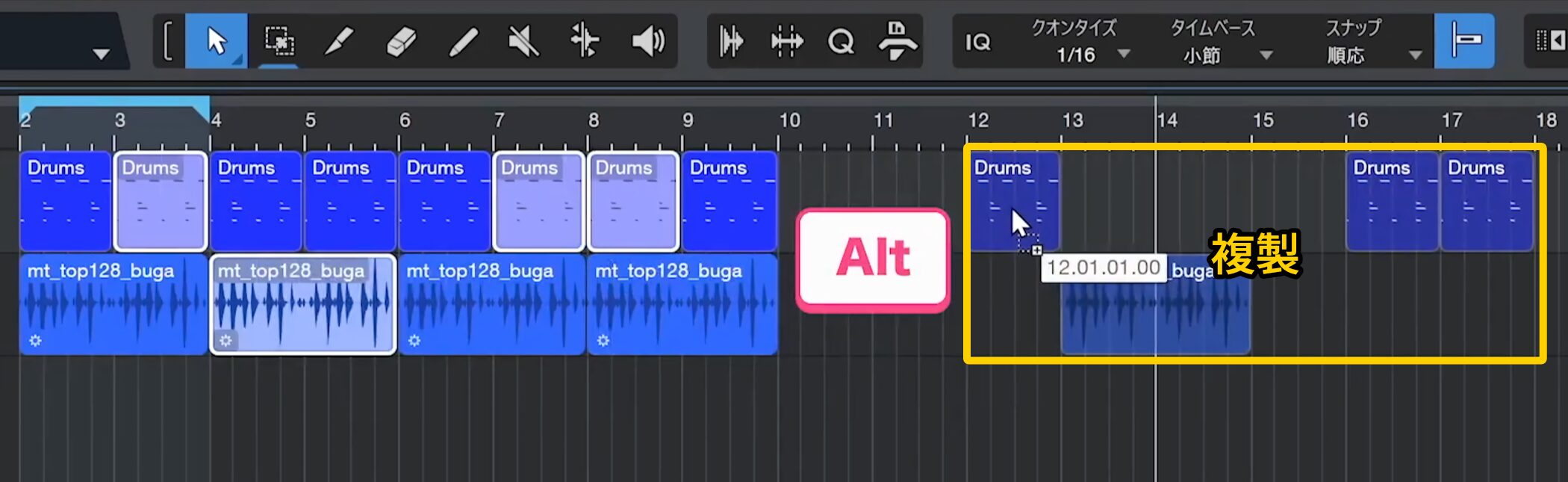
Then release the mouse at the destination while holding Alt to duplicate them efficiently.
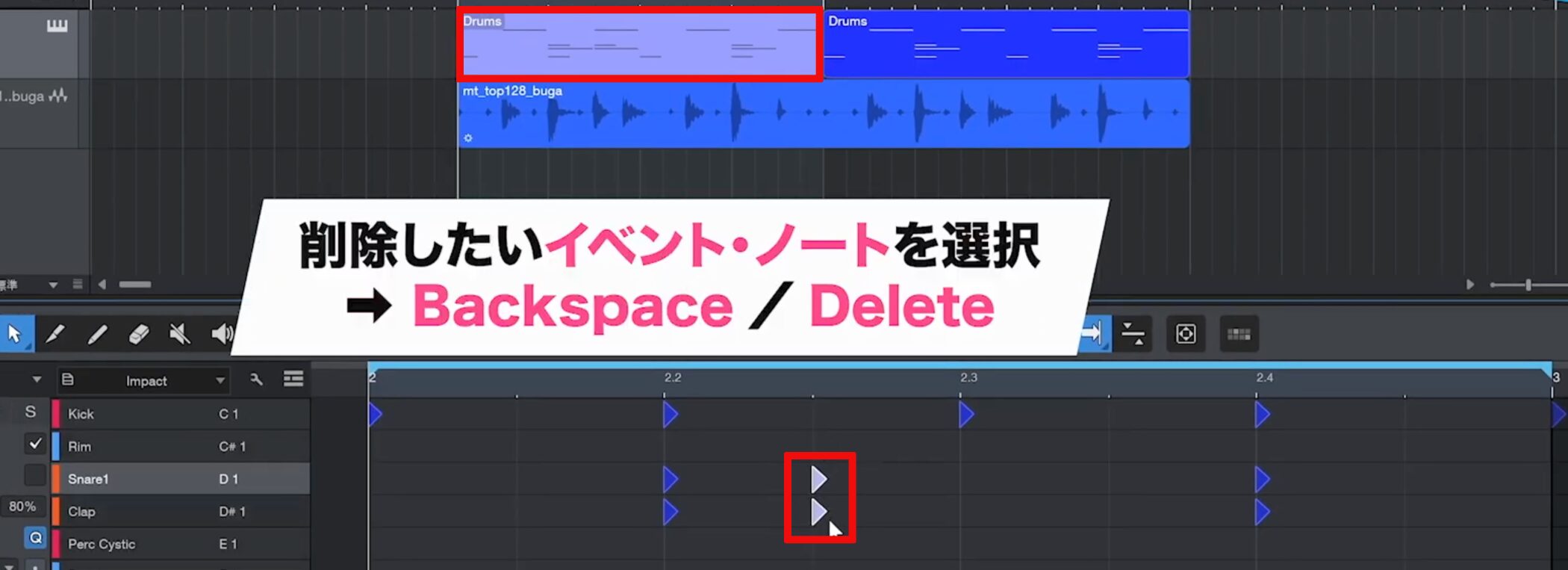
To delete unwanted events or notes, select them and press Backspace or Delete.
Undoing Actions
Undo is an essential function you will use frequently while editing.
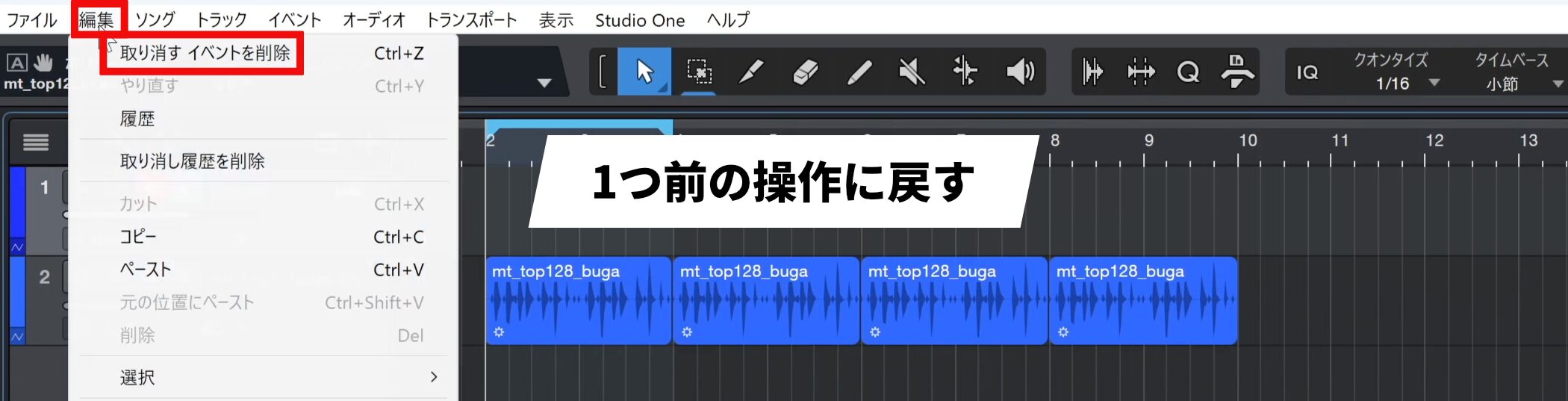
If you accidentally delete an event, for example, choose Edit → Undo from the top menu to reverse the last action.
You can use it repeatedly to return to earlier states, not just the immediately preceding one.
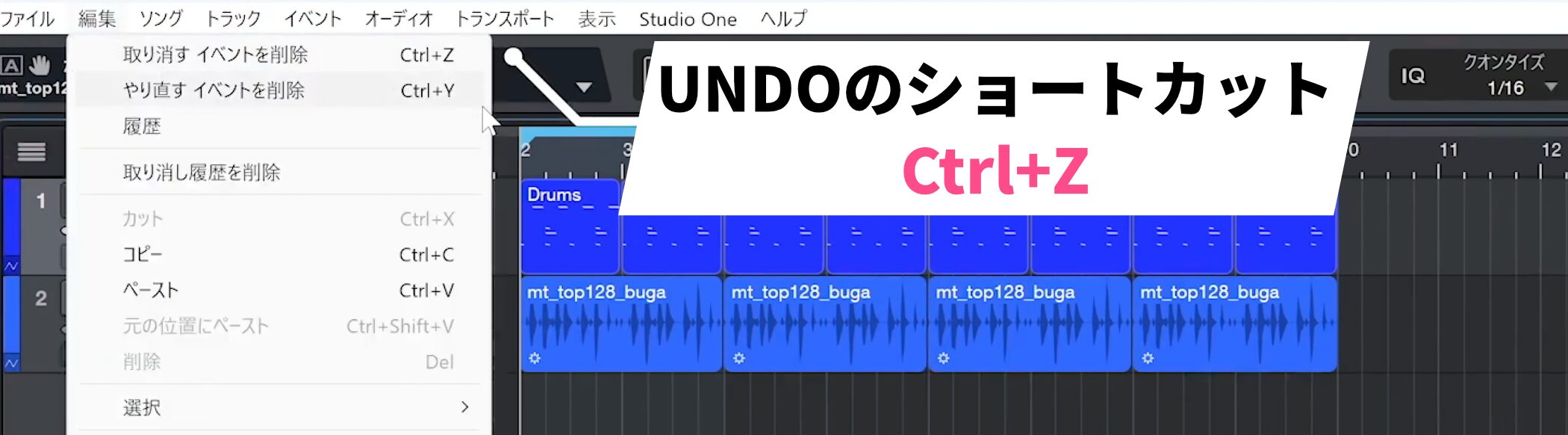
You can use it for all kinds of actions in Studio One, and also invoke it with Ctrl+Z.
Undo is used often during production, so it is an essential basic operation to remember.
Using the Split Tool
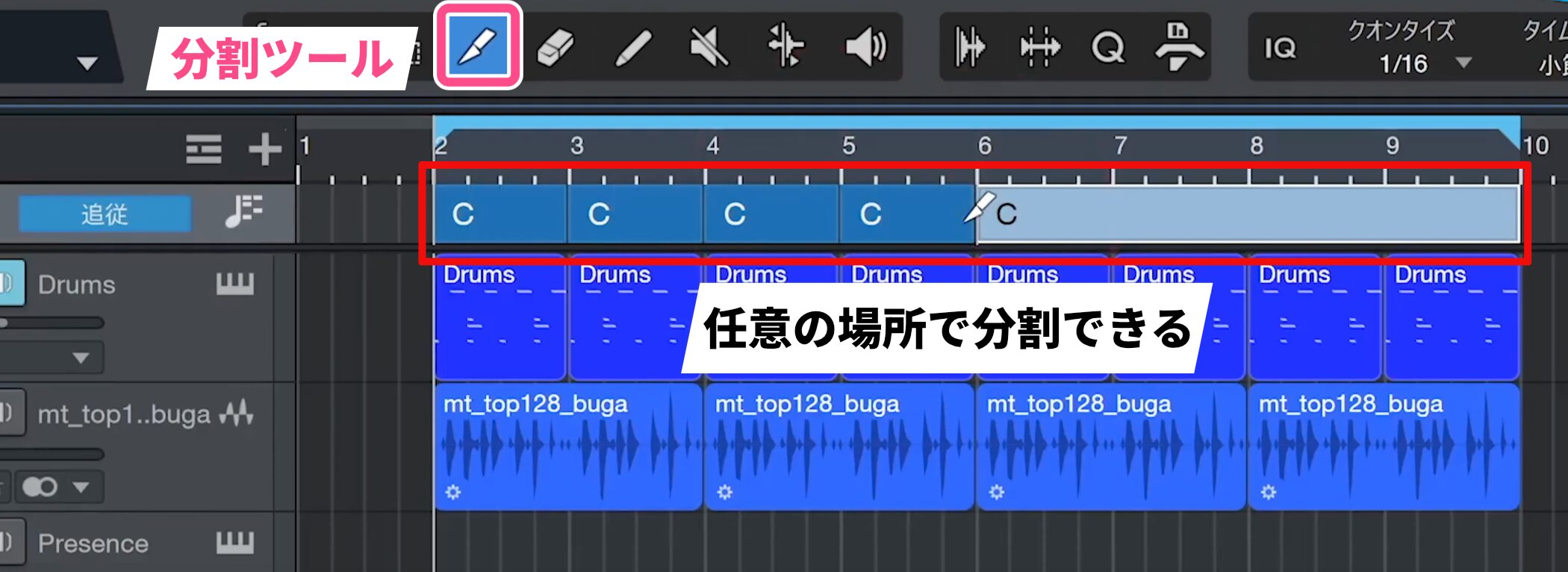
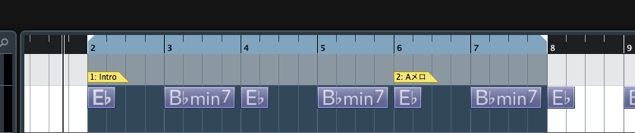
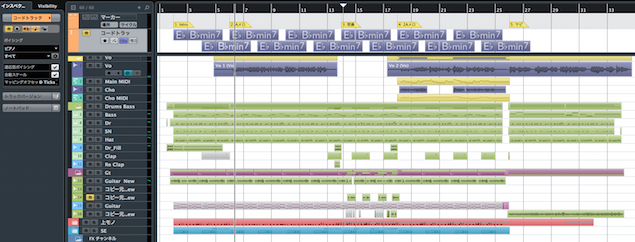
On the Chord Track, select the Split tool and click an event at the desired position to split it.
You can then assign a different chord to each section.
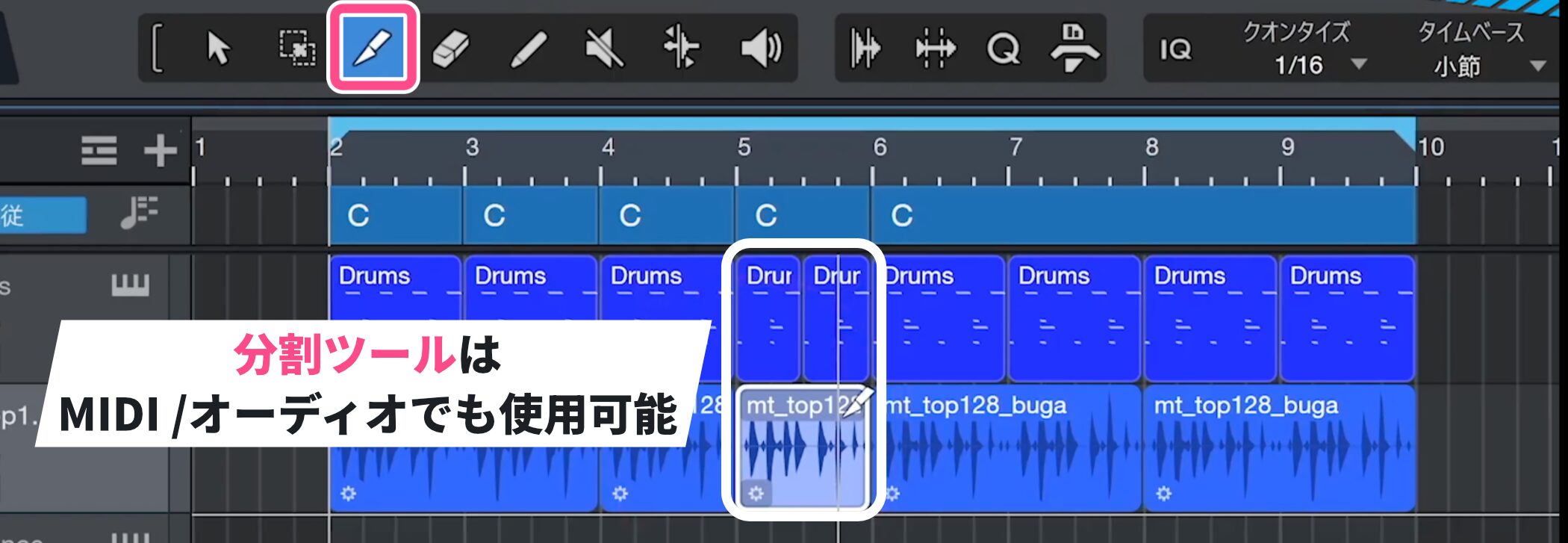
The Split tool is versatile and can also be used on MIDI and audio events.
Organizing Events by Merging
If split events make the arrangement difficult to read, you can merge them to keep it organized.
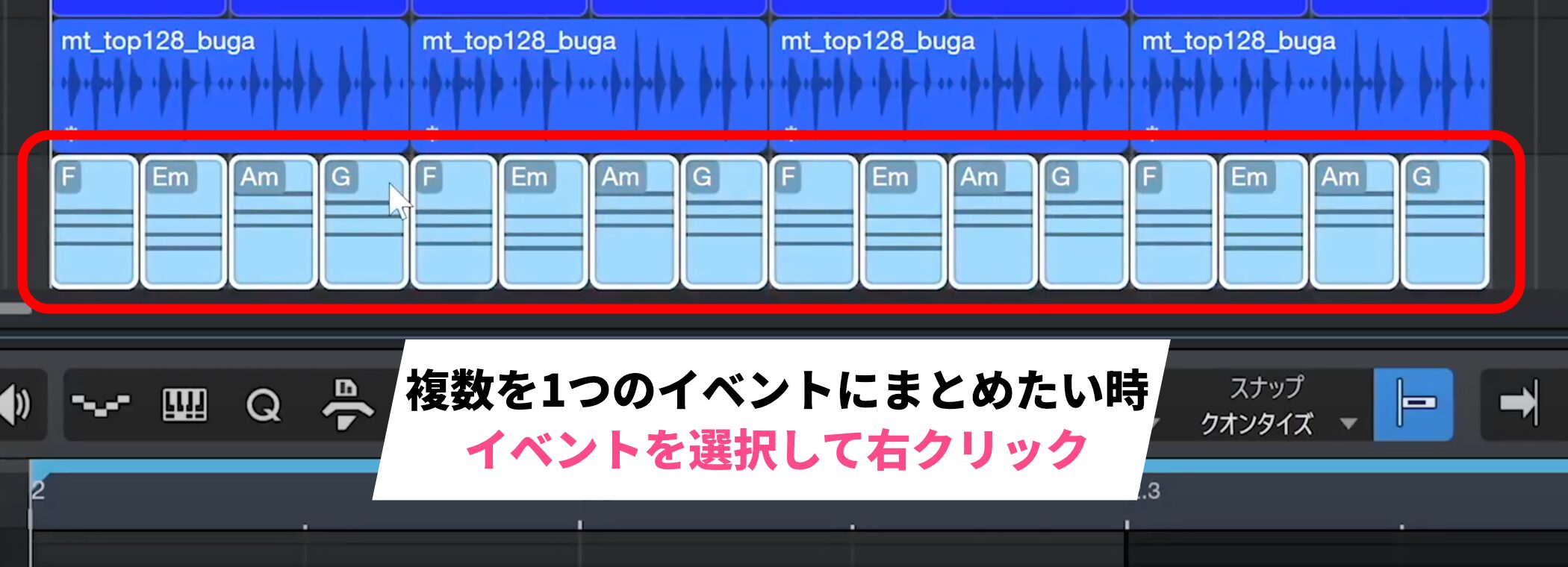
Select the events you want to combine and right-click.
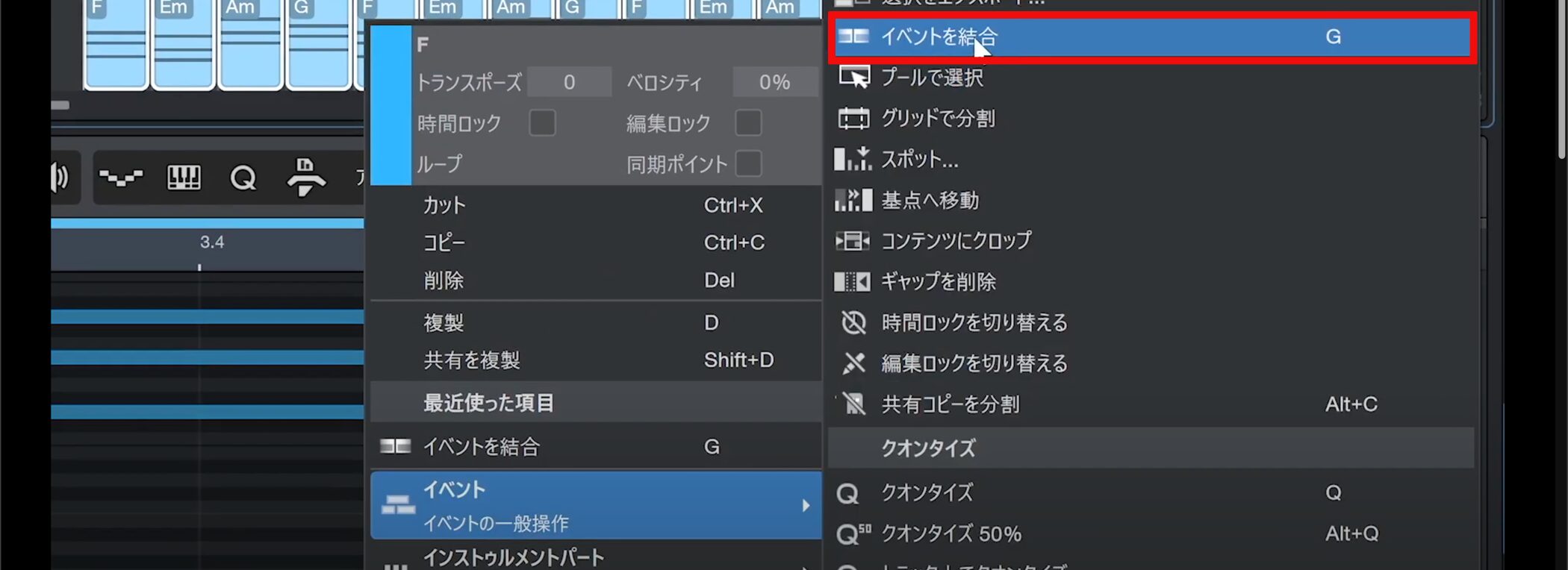
Choose Event → Merge Events from the menu.
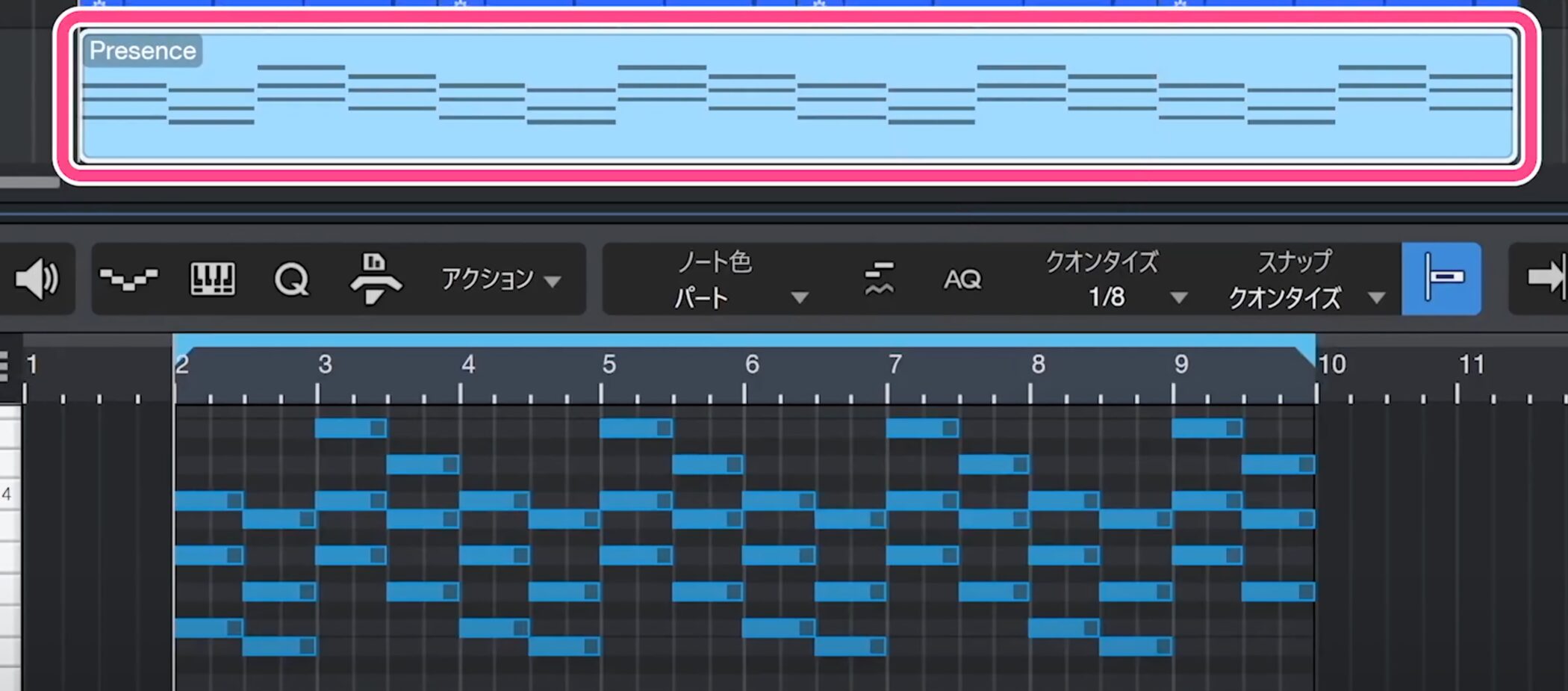
The selected events are merged, making them easier to edit.
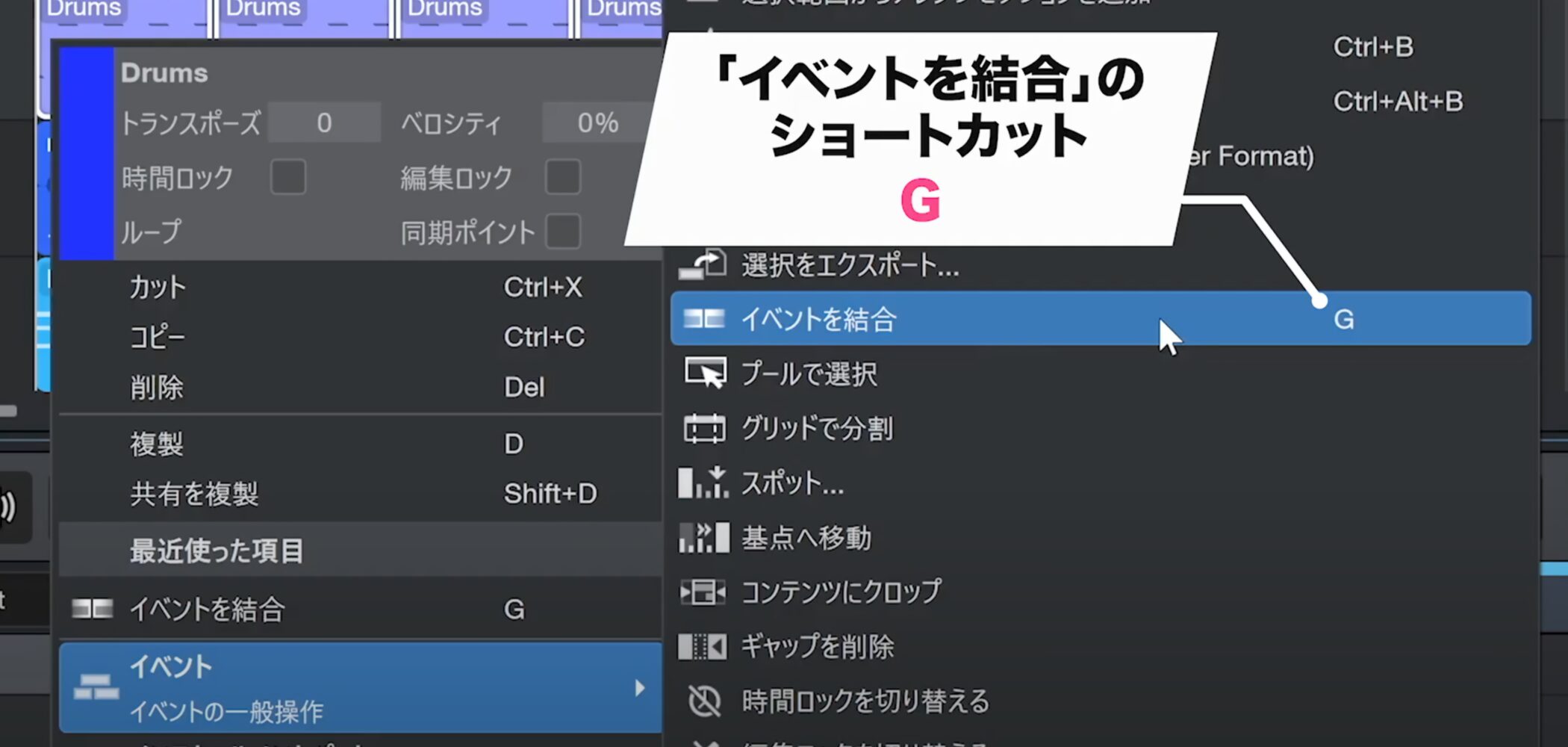
For a faster method, the G key is assigned as a shortcut: select the events and press G to merge them.
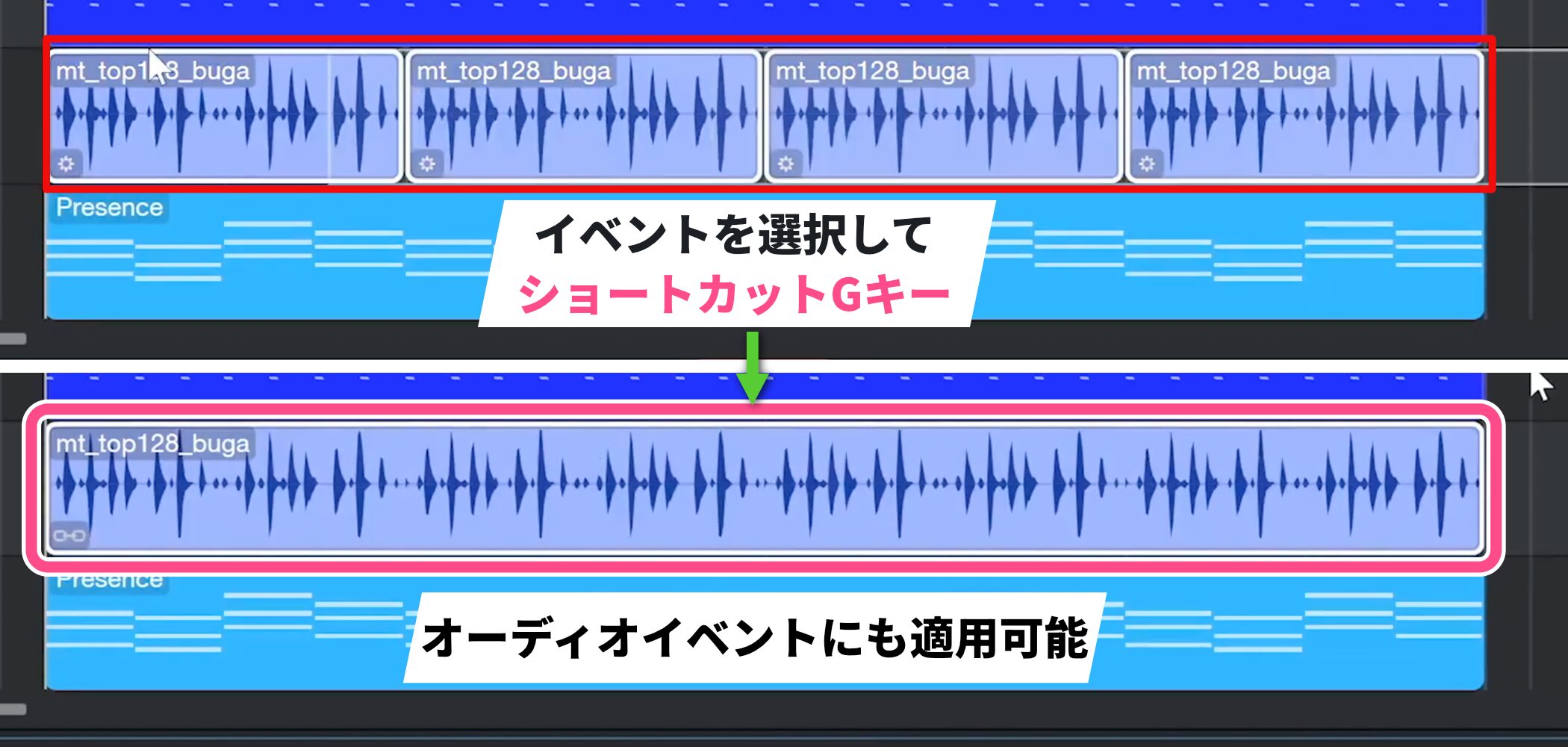
This function works on audio events as well as MIDI events.
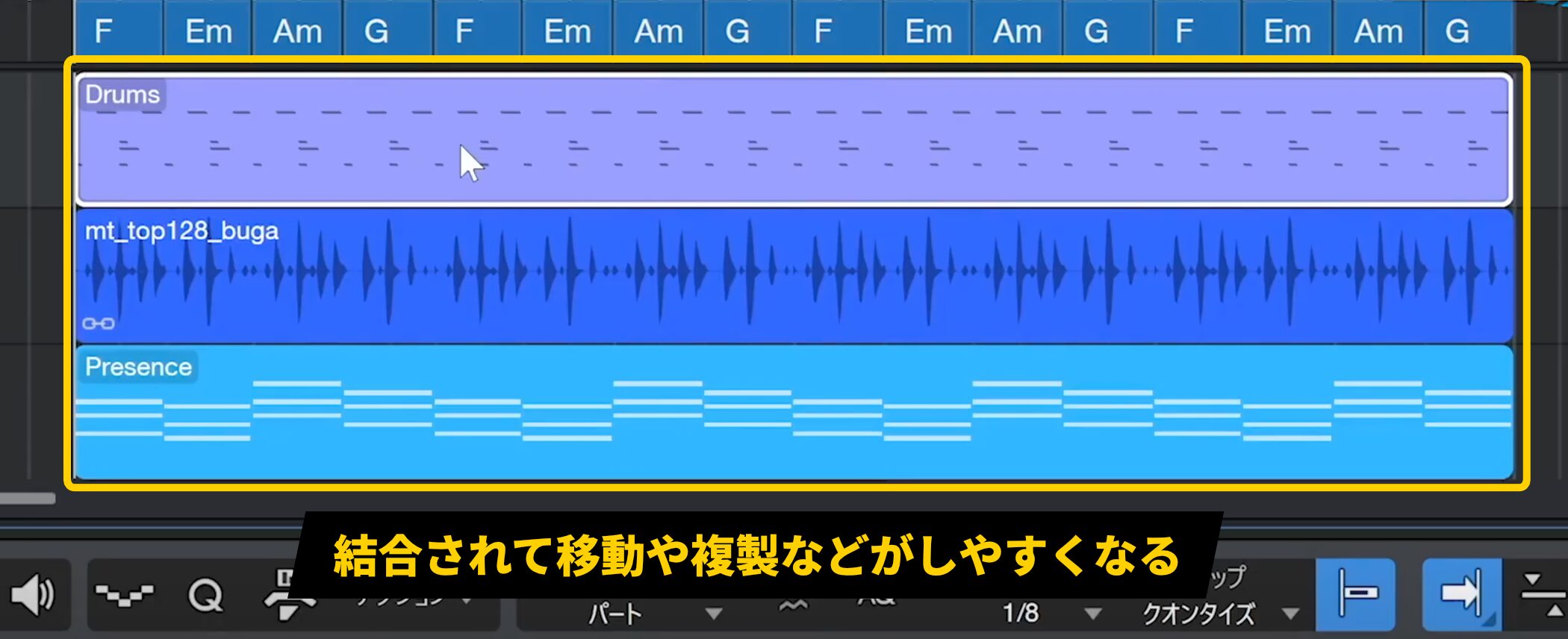
Merging events not only tidies the arrangement but also makes operations such as moving and duplicating much easier.
More Event Editing Techniques
Copying and Splitting Events
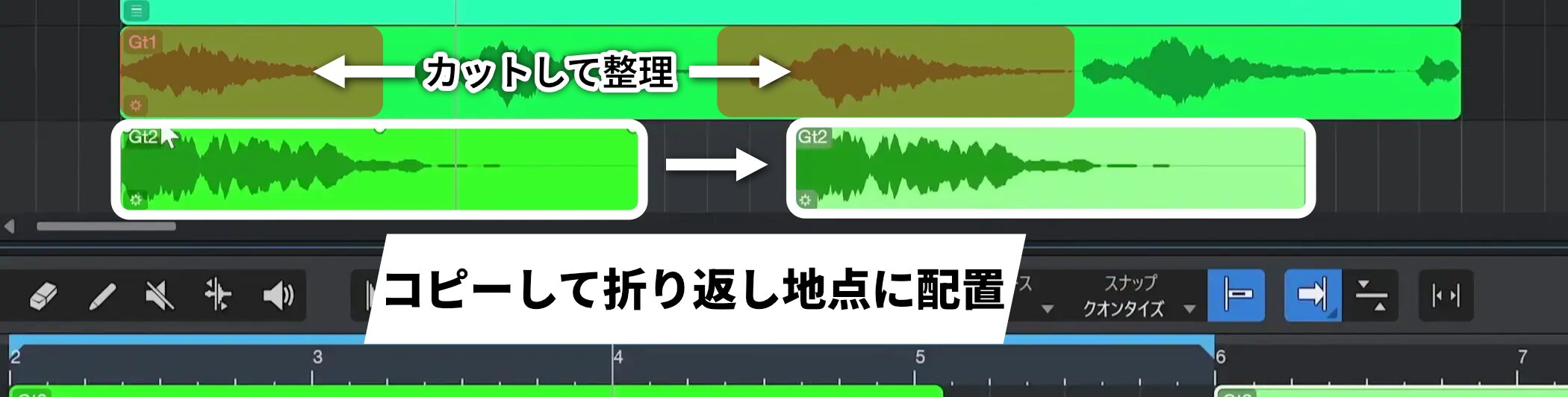
Let’s edit Gt1 and Gt2, which currently play together, so they play alternately.
First, copy the Gt2 audio event and place it at the turnaround point.
Next, cut and organize the overlapping parts of Gt1. There are two ways to split them.
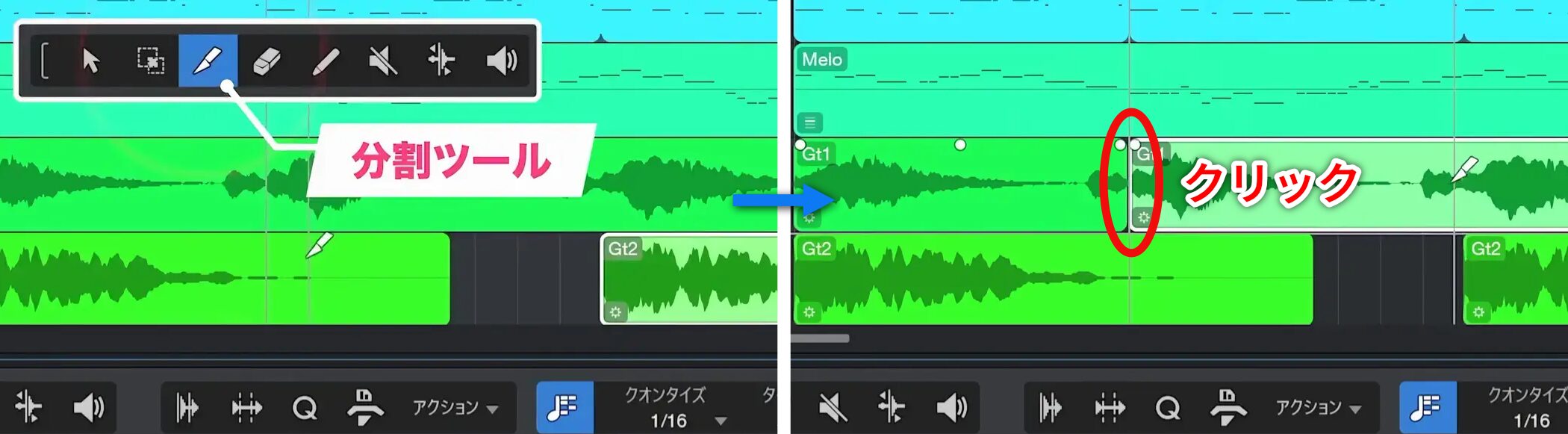
The first is to select the Split tool and click where you want to split.
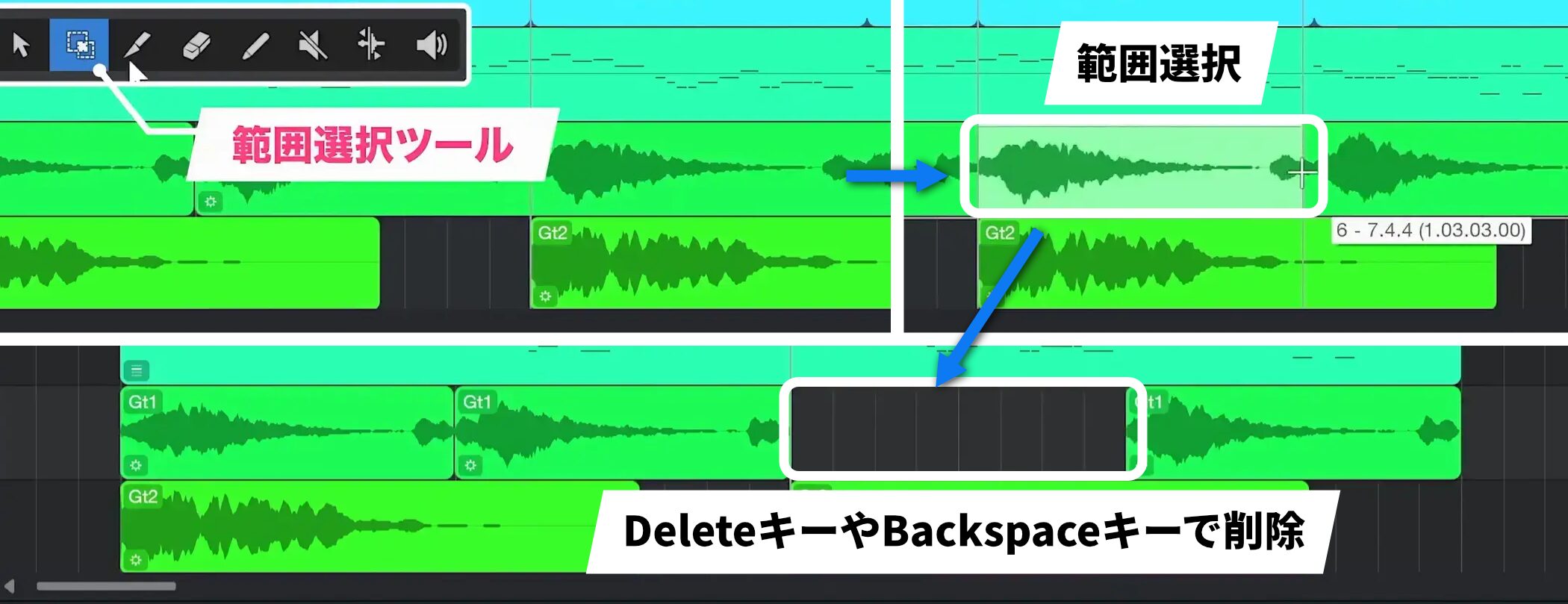
The second is to select the unwanted section with the Range tool and press Delete or Backspace.
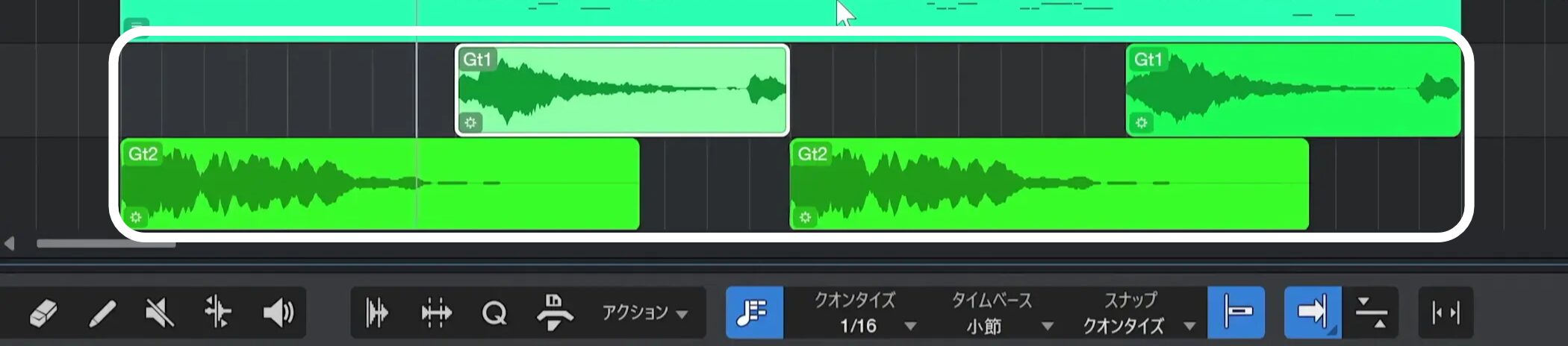
After splitting and deleting events, we have arranged Gt1 and Gt2 to play alternately.
Use whichever splitting method is easier for you.
Adjusting Event Length and Snap
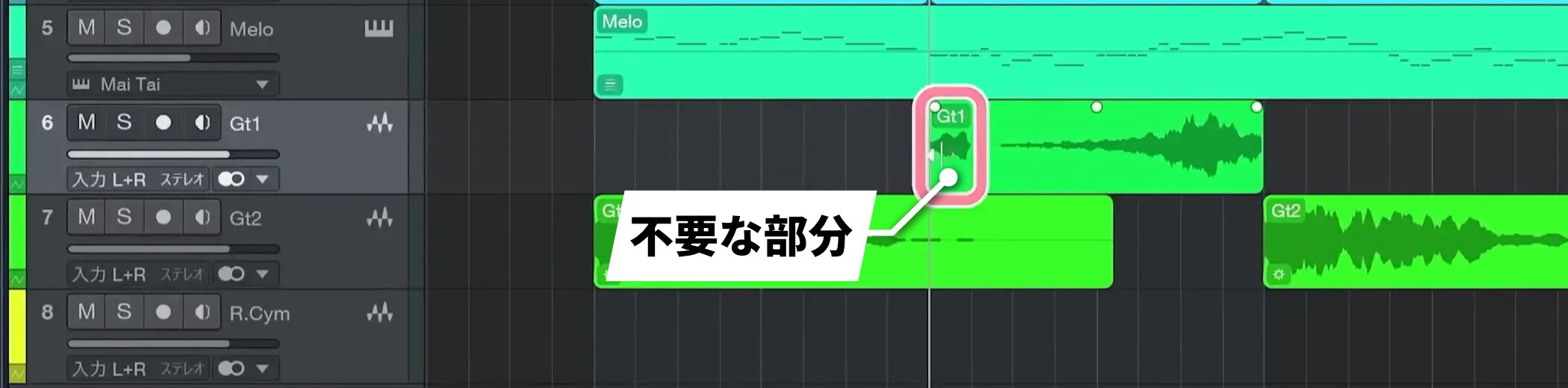
If an event contains an unwanted section, you can adjust its length so that section does not play.
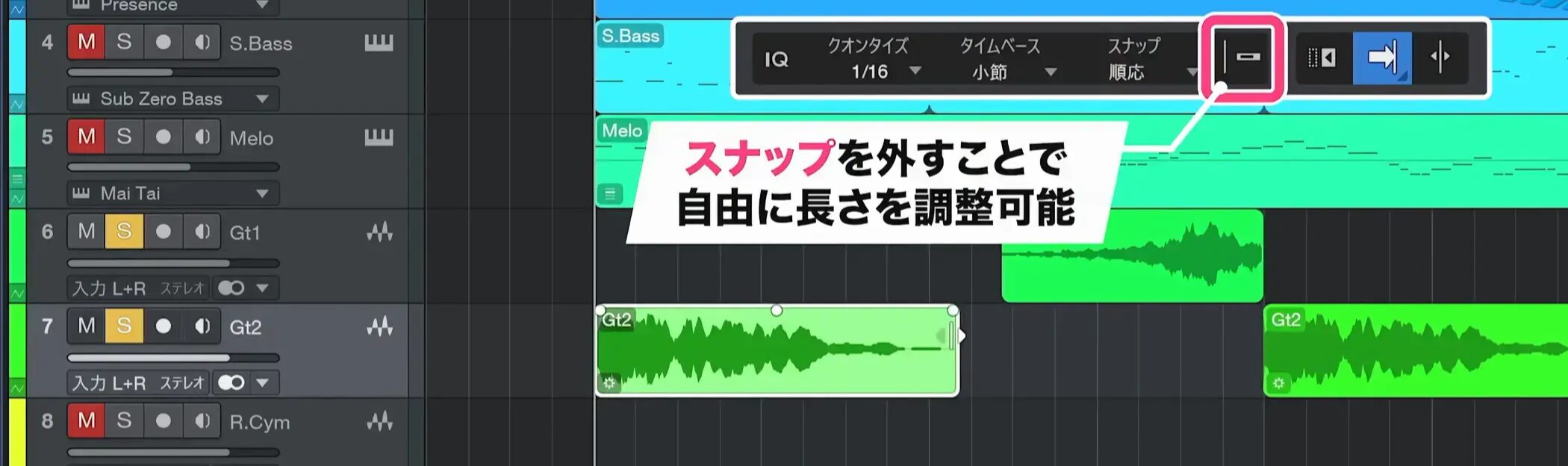
The quantize value is normally set to sixteenth notes, allowing you to choose the portion of an event in sixteenth-note increments. However, you can turn Snap off to adjust its length freely.
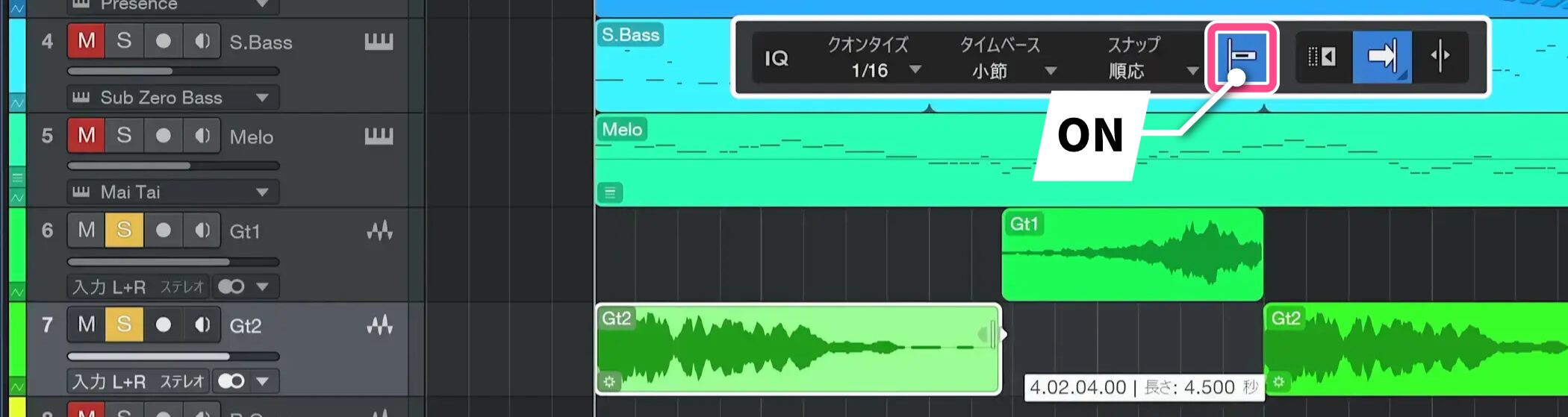
Turn Snap back on when you finish editing.
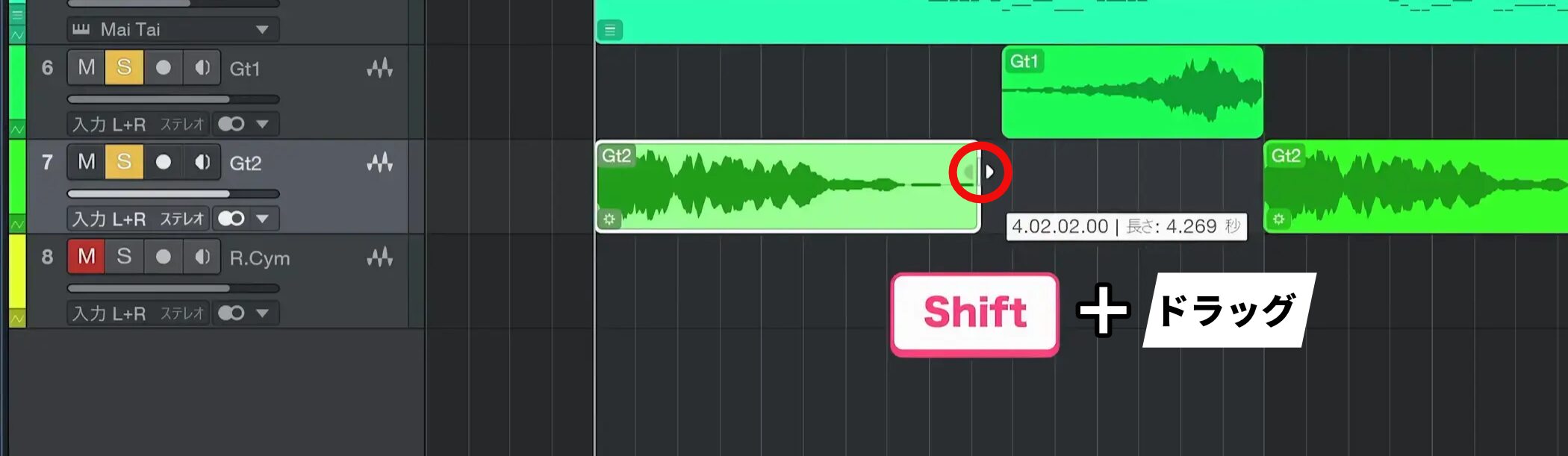
If switching Snap on and off each time is cumbersome, hold Shift while dragging to disable Snap temporarily while you edit.
This is another useful technique to remember.
When Note Movement Is Restricted
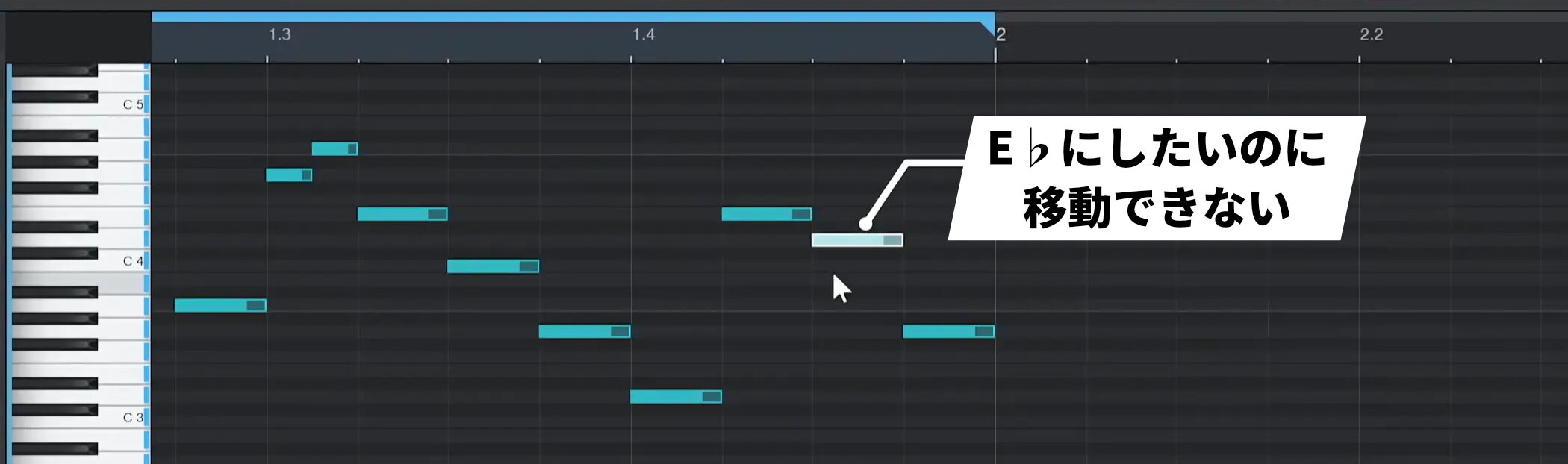
In Studio One, the Scale function can sometimes restrict note movement.
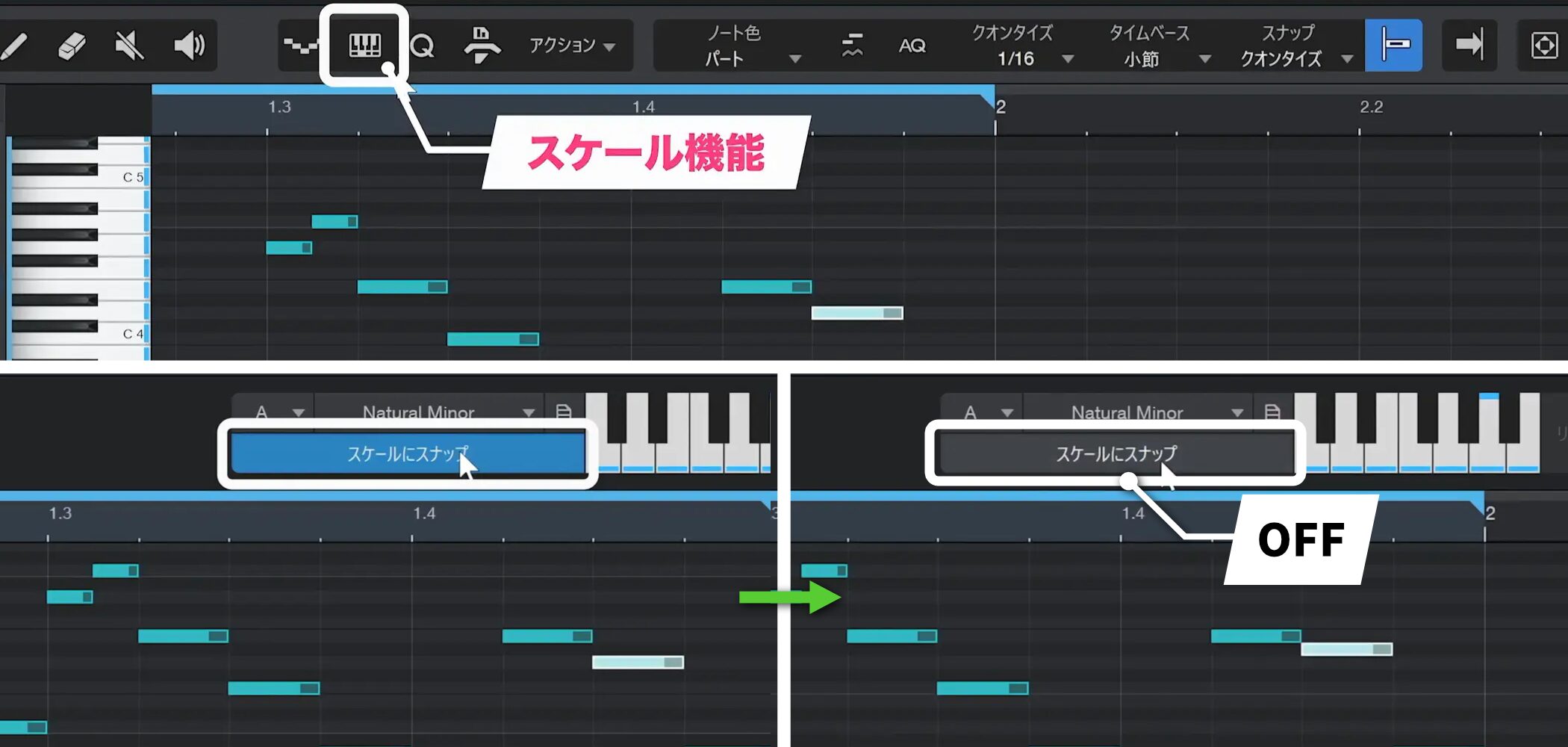
If you cannot move a note to the intended position, click the Scale control and turn off “Snap to Scale” to move notes freely in semitone steps.
Adding and Converting Instruments
Adding an Instrument
Drag an instrument from the Browser into the arrangement.
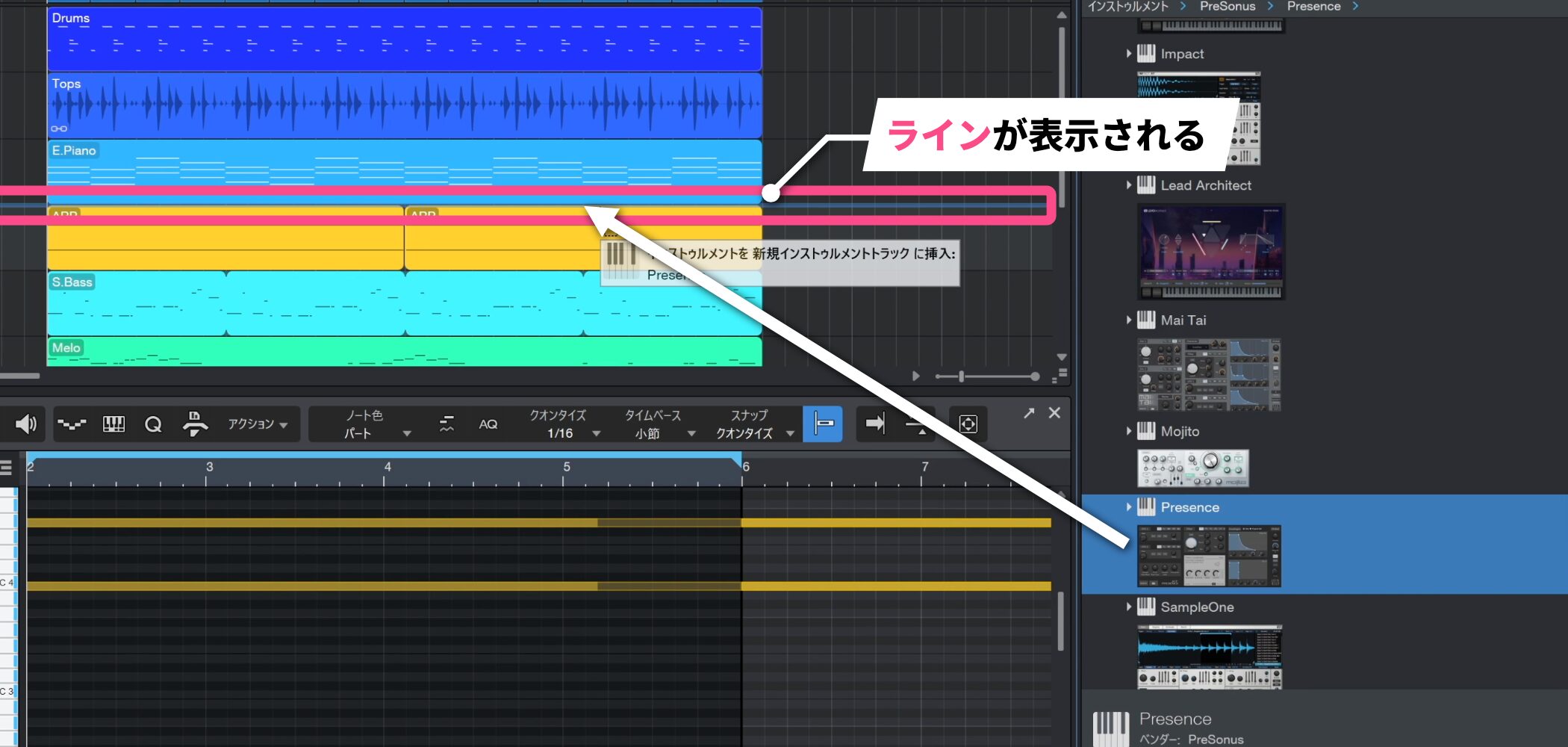
To insert an instrument between existing tracks, drag it and move the cursor to the boundary between tracks until a line appears. Release the mouse there to insert it on a new track.
Converting Audio to Impact
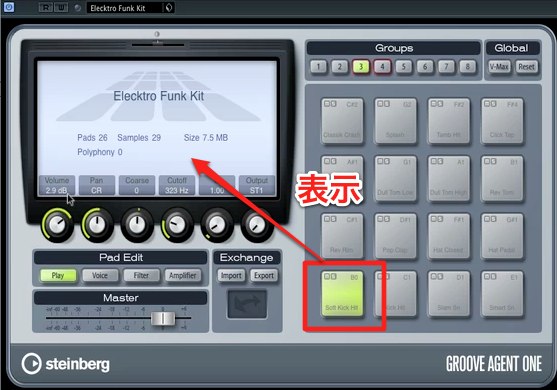
One Studio One feature lets you turn an audio file into a MIDI instrument.
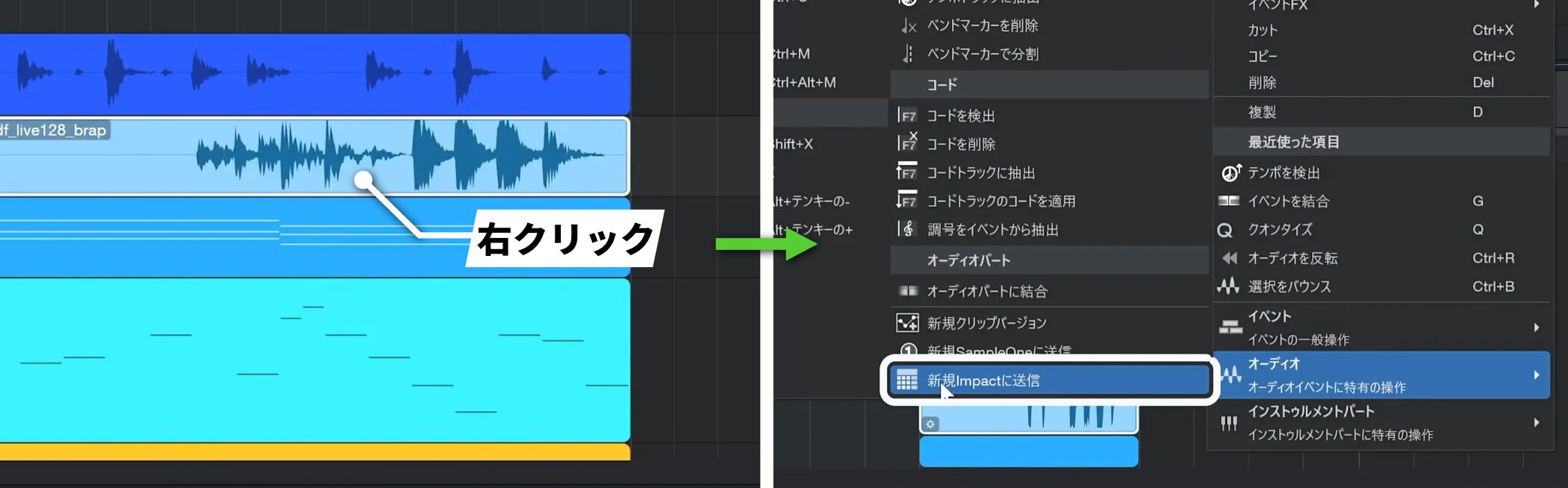
To use it, select the audio event, right-click and choose Audio → Send to New Impact.
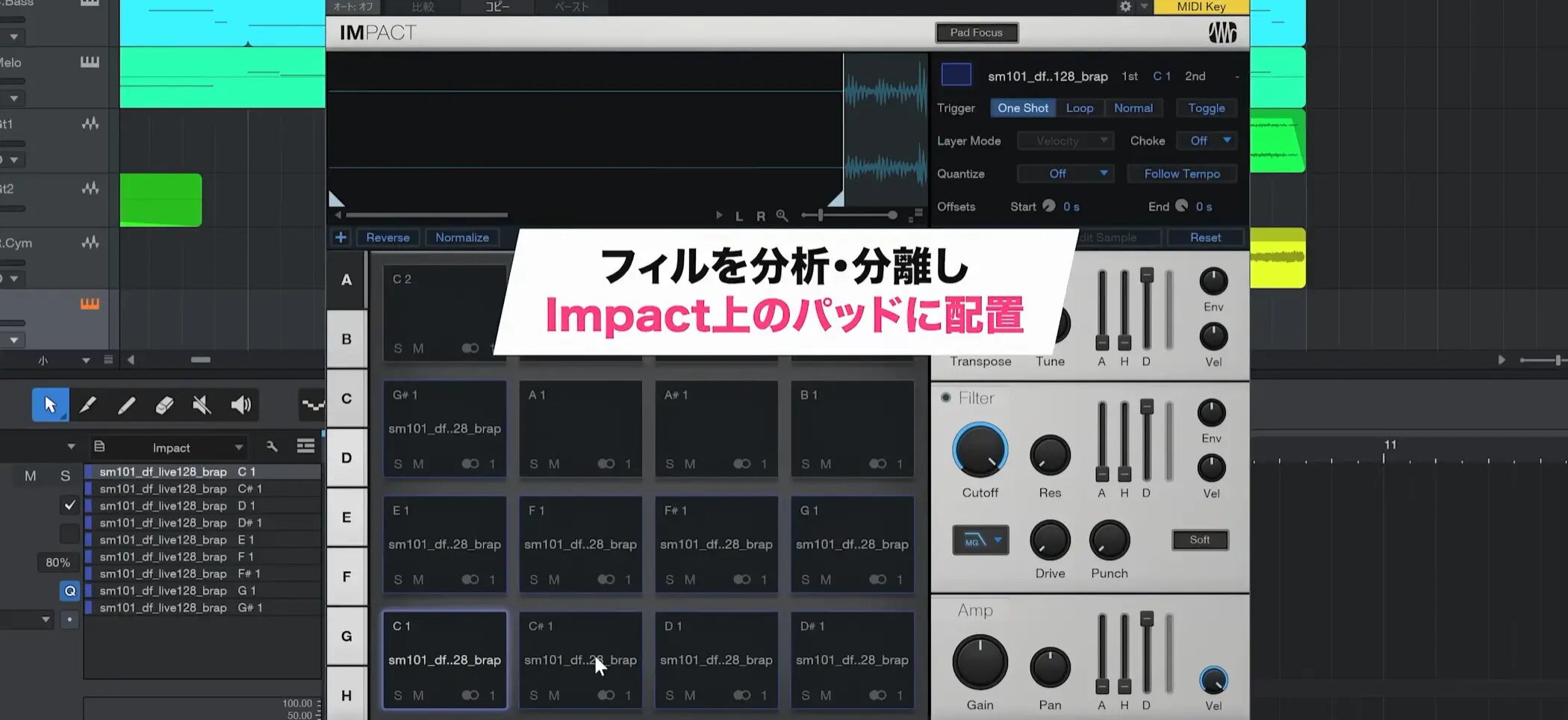
The audio file is automatically analyzed and separated, and its sounds are placed on Impact pads.
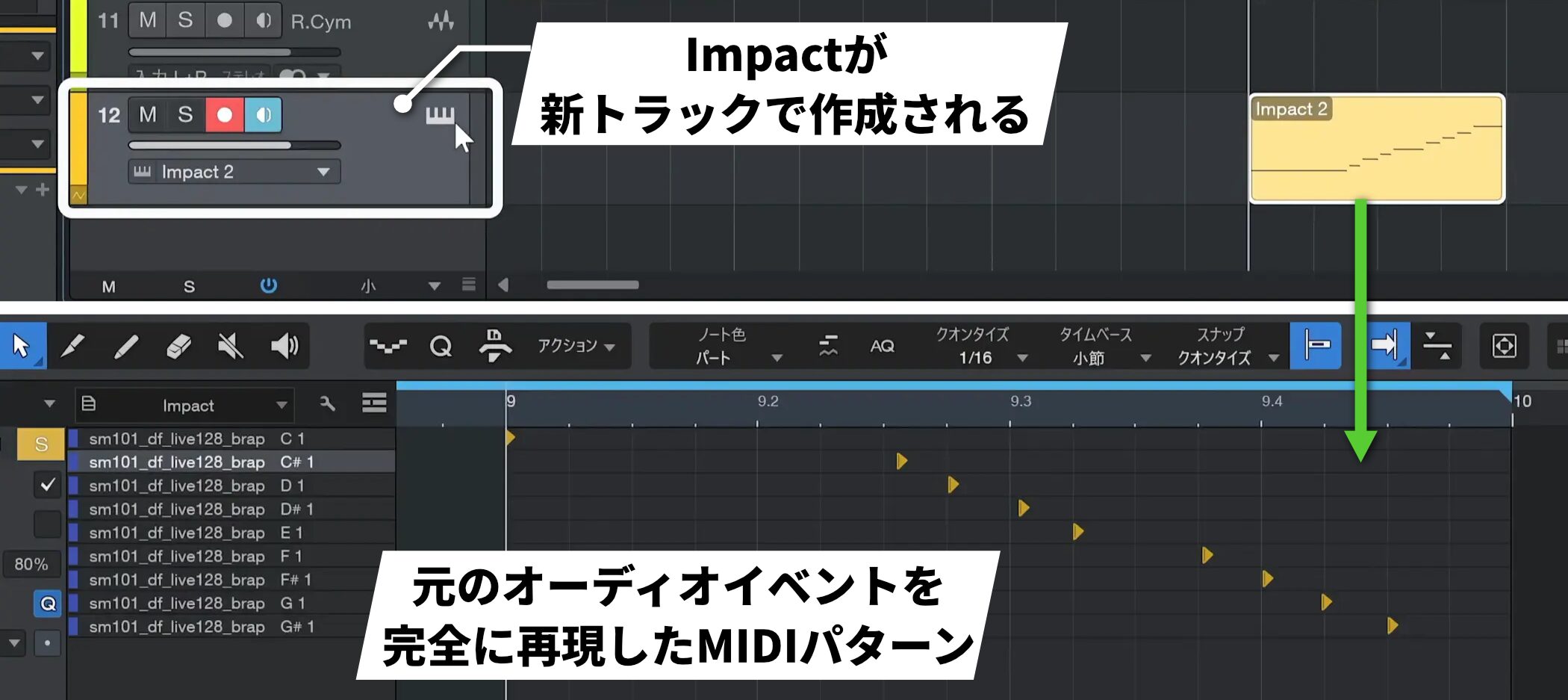
A new track containing Impact is created, along with a MIDI pattern that recreates the original audio event.
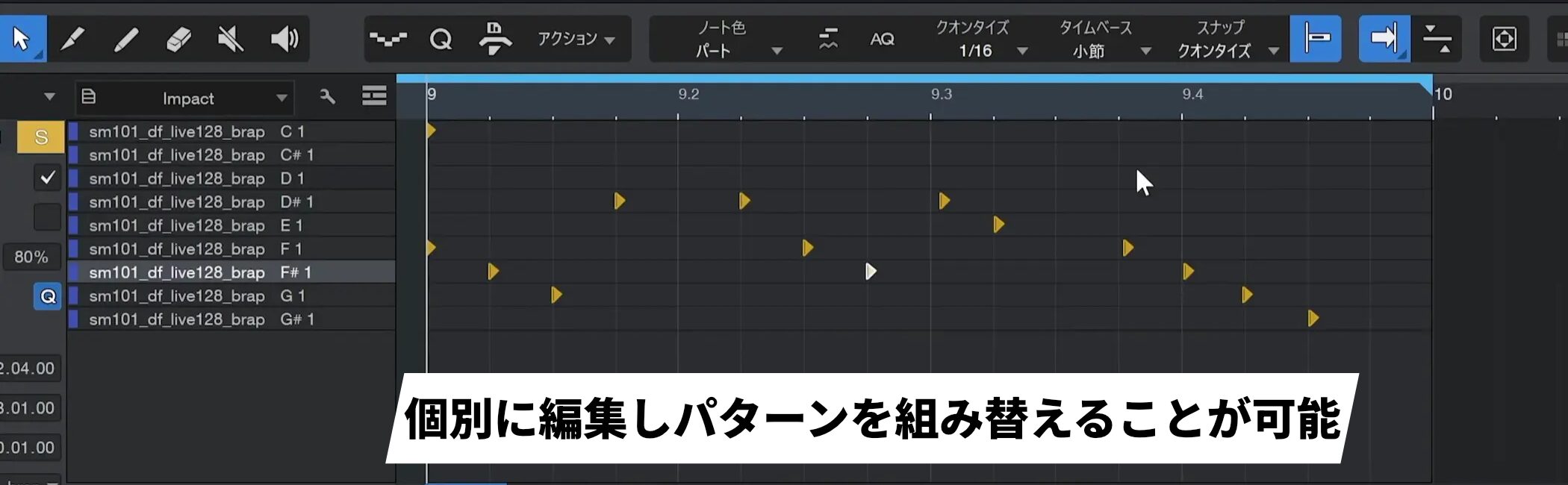
Each sound in the separated kit can be edited individually, and you can rearrange the MIDI pattern to create new phrases.
This lets you create a new instrument from an existing audio loop and edit it more flexibly.
Frequently Asked Questions
Q1. How can I duplicate an event to a specific position in Studio One?
Select the event and drag it to the destination while holding the mouse button, then hold Alt. When the plus icon appears, release the mouse to place the duplicate. We recommend enabling Snap.
Q2. Can I restore an event I deleted by mistake?
Yes. Use Ctrl+Z or choose Edit → Undo. You can repeat Undo to return to states further back than the last action.
Q3. Can I use an audio file as a MIDI instrument?
Yes. Right-click the audio event and choose Audio → Send to New Impact. The audio is automatically analyzed and separated, and its sounds are placed on Impact pads.
Q4. Do I need to use a menu every time I want to toggle Snap?
No. Hold Shift while dragging to temporarily disable Snap. This avoids toggling it each time and makes editing more efficient.
Q5. How can I duplicate several events at once?
Hold Shift while selecting the events, then drag them to the destination and release the mouse while holding Alt.
NEW ARTICLES
Latest English Articles