
Analog Lab 3, included in Arturia’s V Collection 6, provides a unified interface for browsing and playing more than 6,000 presets from 21 software instruments modeled on legendary synthesizers and keyboards. This guide covers window sizing, searching and managing presets, layering two instruments with the swap feature, effects, and more complex parameter control with macros. It is a practical introduction to getting more from the collection and creating expressive sounds.
21 legendary keyboards and synthesizers
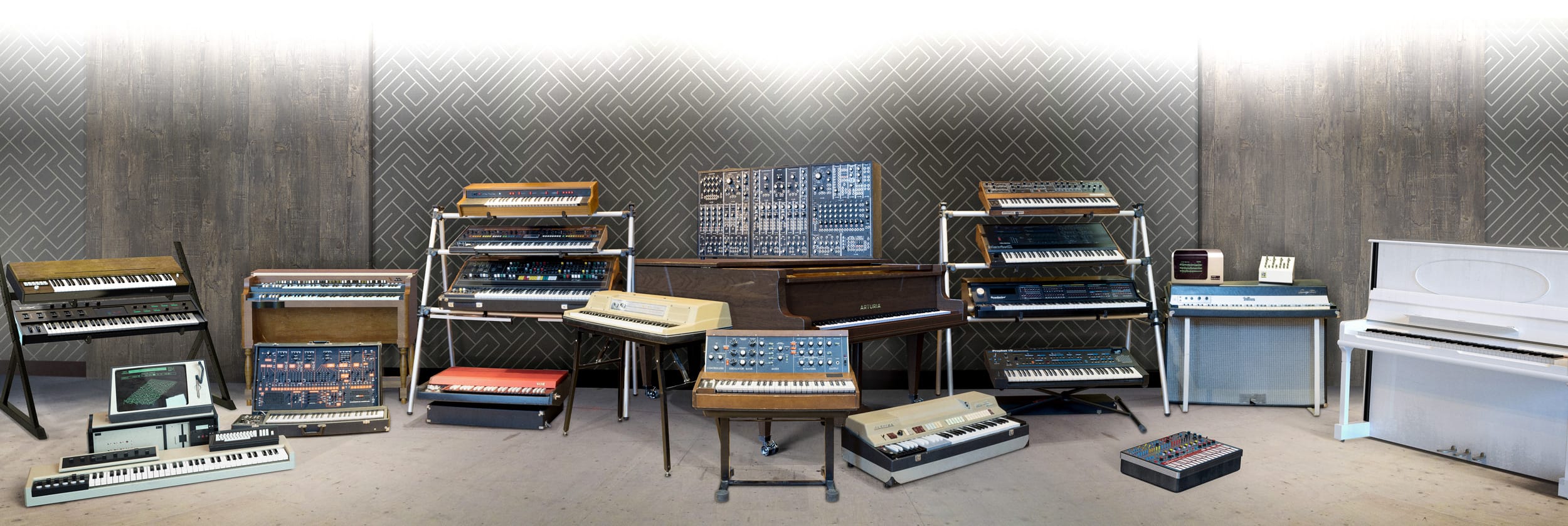
Arturia’s V Collection 6 is a package of 21 software keyboards and synthesizers inspired by instruments that helped shape a century of music, including legendary keyboards heard on many hit records.
V Collection 6 extends the instruments beyond their originals: some modeled monophonic synthesizers can play chords, and features such as arpeggiators, complex modulation including LFOs, and flexible filters support modern sound design.

One way to get the most from this extensive library and put the sounds to work in a song is Analog Lab 3, included in V Collection 6.
From Analog Lab 3 you can access over 6,000 presets from the instruments in V Collection 6 through one interface.
Learning Analog Lab 3 is a useful shortcut to making the most of the collection.
Let’s get started.
V Collection 6: How to Use Analog Lab — Video
- 1V Collection 6: Analog Lab 3
- 2V Collection 6: DX7 V Basics and Operators
- 3V Collection 6: Controlling DX7 V Parameters
- 4V Collection 6: DX7 V Modulation and Effects
- 5V Collection 7: Mellotron V and CZ V Overview
- 6V Collection 7: Synthi V, B-3 V2 and Analog Lab 4
- 7V Collection 8: New Instruments and Vocoder V
Product URL: https://bit.ly/2J7BPjU
Purchase: click here
Contact in Japan: Korg / KID Customer Support · Tel: 0570-666-569
Selected YouTube Questions and Answers

How do I get to the track screen? Can I also use the sounds I make there in GarageBand?

The track screen shown is Cubase, a DAW. In GarageBand, open the instrument inside GarageBand and enter your parts there in a similar way.
Thanks for the video. I have a question about Analog Lab. I own a KeyLab Mk2 and use Analog Lab 3, but I cannot open the instrument interface as shown around 5:18 in the video. I can open the included Mini V3, but on the other instruments, including ARP 2600, the “Show Interface” button is missing and I cannot edit them. Is this a setting issue, or is Analog Lab bundled with KeyLab Mk2 different from V Collection 6? I would appreciate any guidance.
The Analog Lab 3 version bundled with KeyLab Mk2 is intended for use with its approximately 6,500 supplied presets, so the underlying instrument interfaces are not generally available for editing. In the configuration discussed here, V Collection 6 is needed to edit the collection’s instruments. Please check your particular licenses and bundled instruments.
Optimizing the Window Size
In V Collection 6, you can customize each instrument’s display size to suit your screen.
Once set, the size is retained the next time you launch it, so adjust it to your needs.
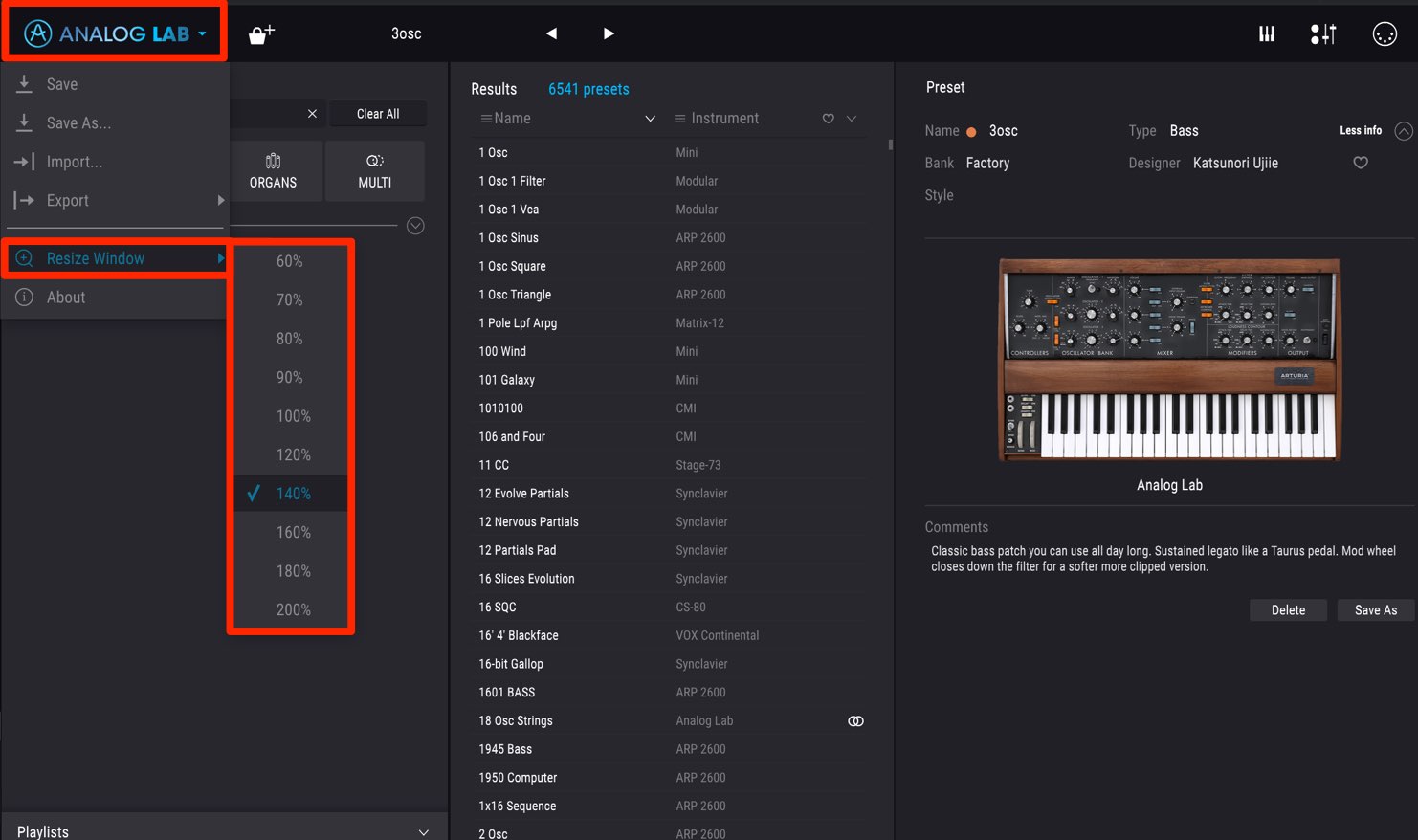
Click the product logo.
Choose “Resize Window” from the menu and select a size.
Loading and Managing Presets
When you open Analog Lab 3, presets from the instruments are listed.
You can search these according to your needs. First, let’s identify the three main sections:
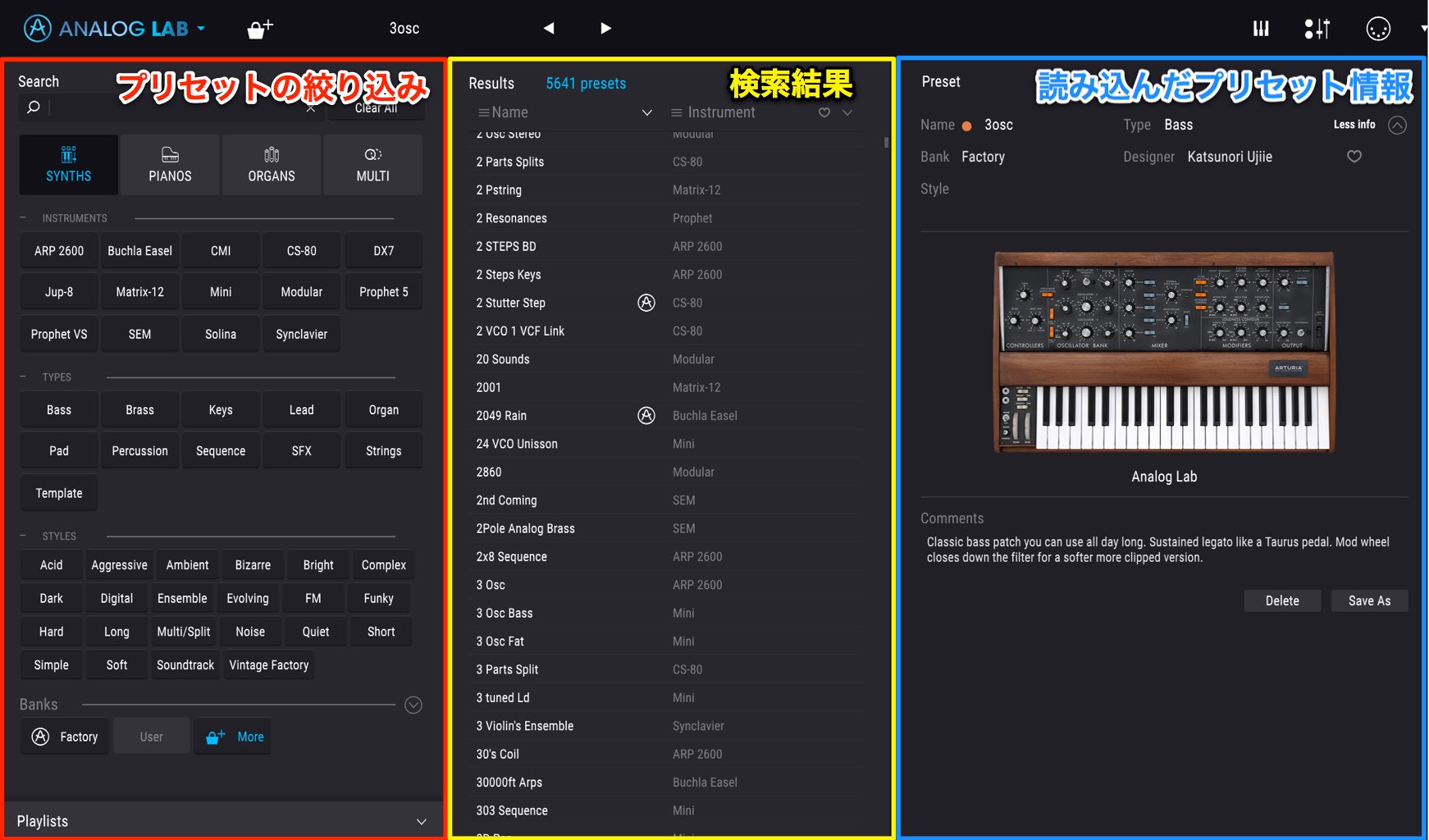
- Left: Search section
- Center: Search results
- Right: Information about the loaded preset and access to the instrument
These are the three main sections.
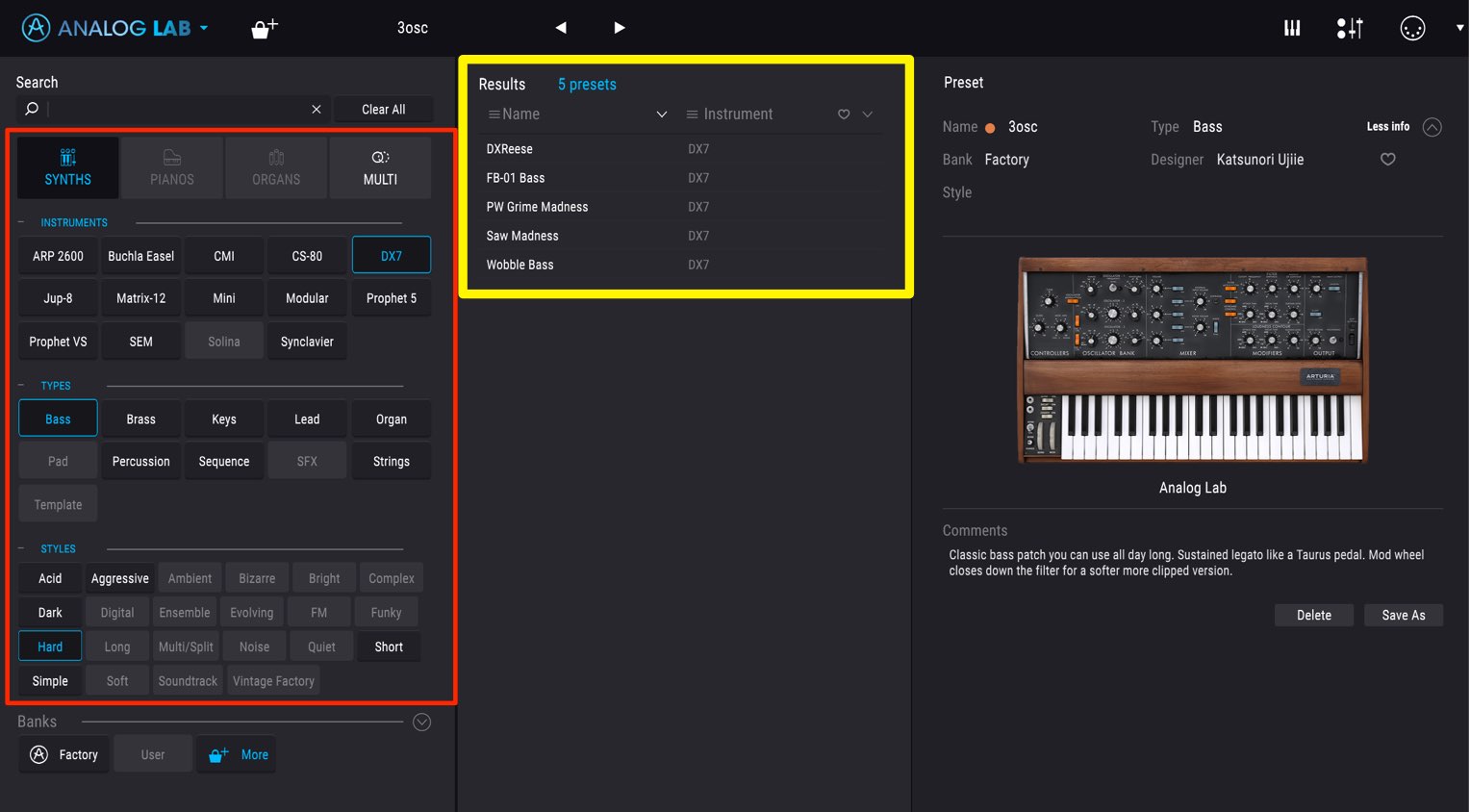
Choose an instrument, instrument type and characteristics in the search section; matching presets appear in the results in real time.
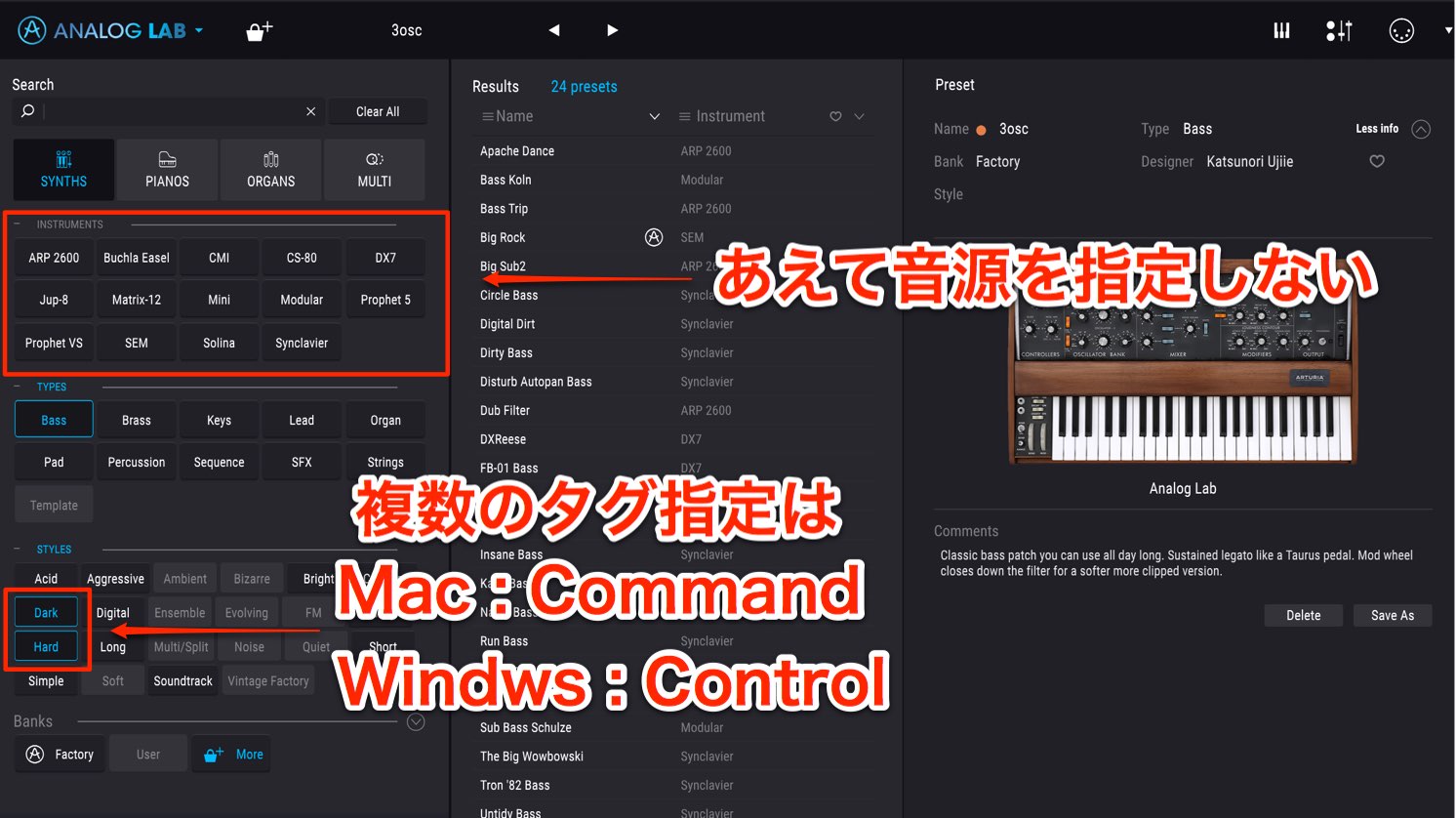
Leaving the instrument unspecified lets you search presets across all instruments.
- Mac: Hold Command
- Windows: Hold Control
Hold the appropriate key while selecting tags to search using multiple criteria.
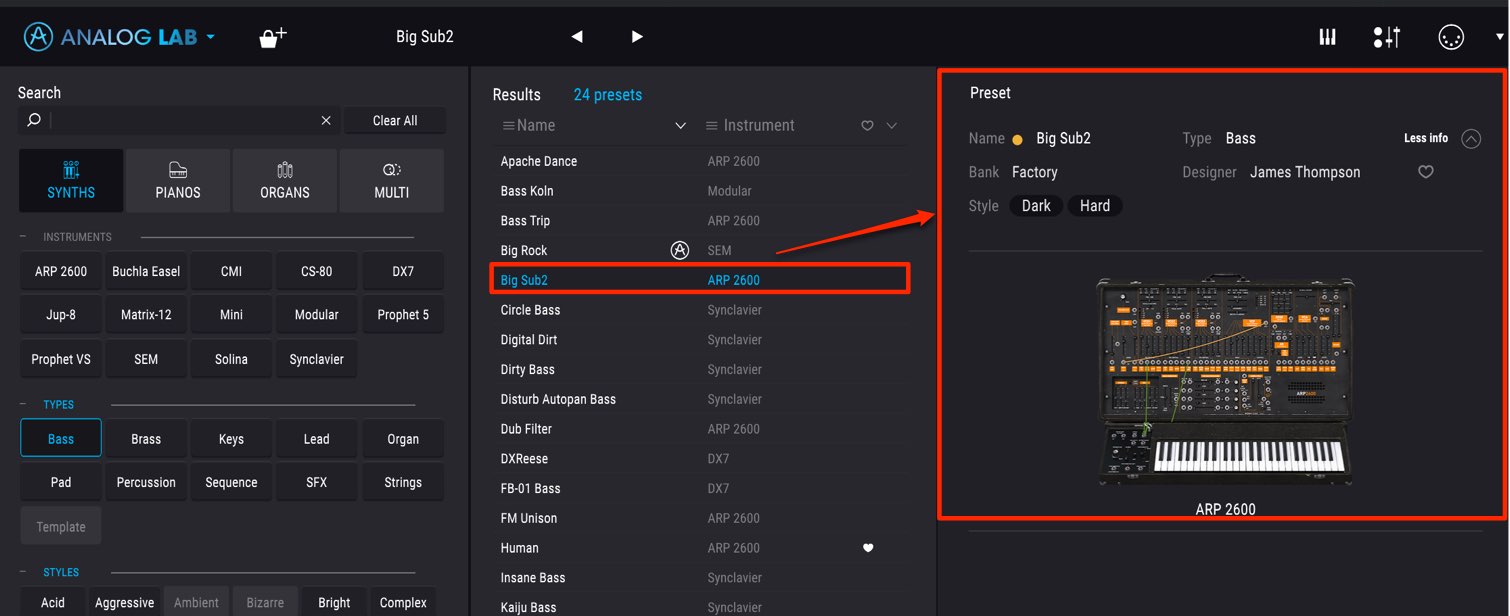
Click a displayed preset to load it.
Its information appears in the window on the right.
Saving Favorites
As you explore presets, you may want to keep track of sounds you like.
The favorites feature is useful for this.
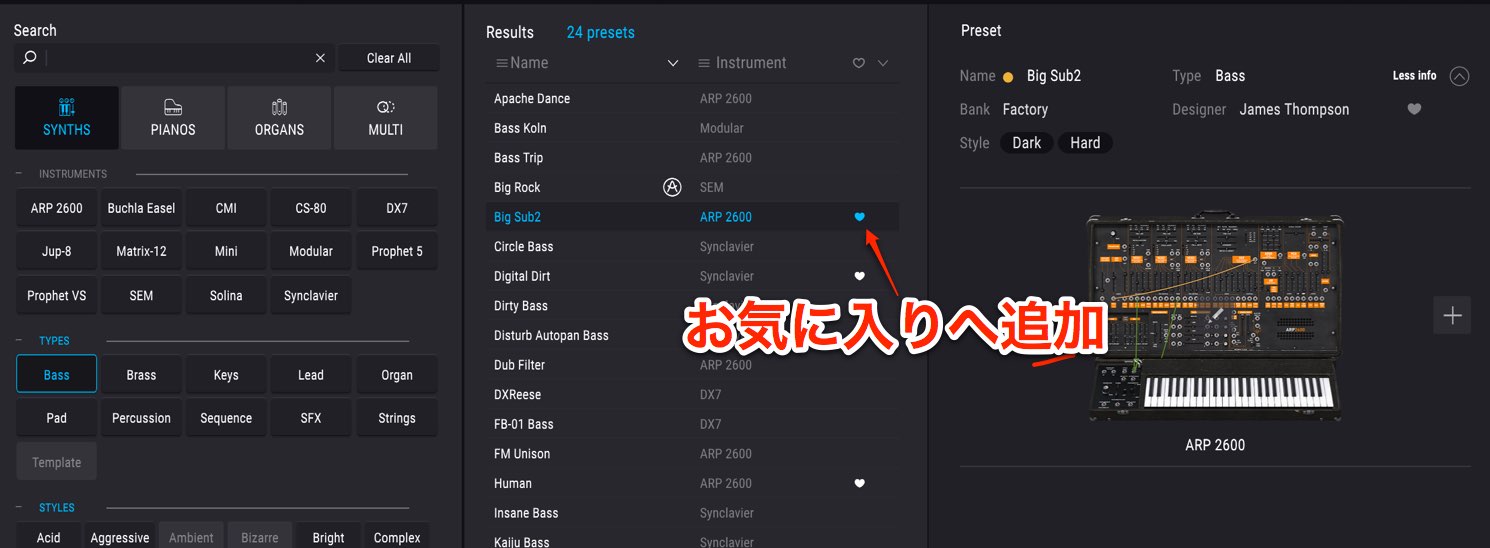
Click the heart icon to the right of a preset.
The preset is now registered as a favorite.
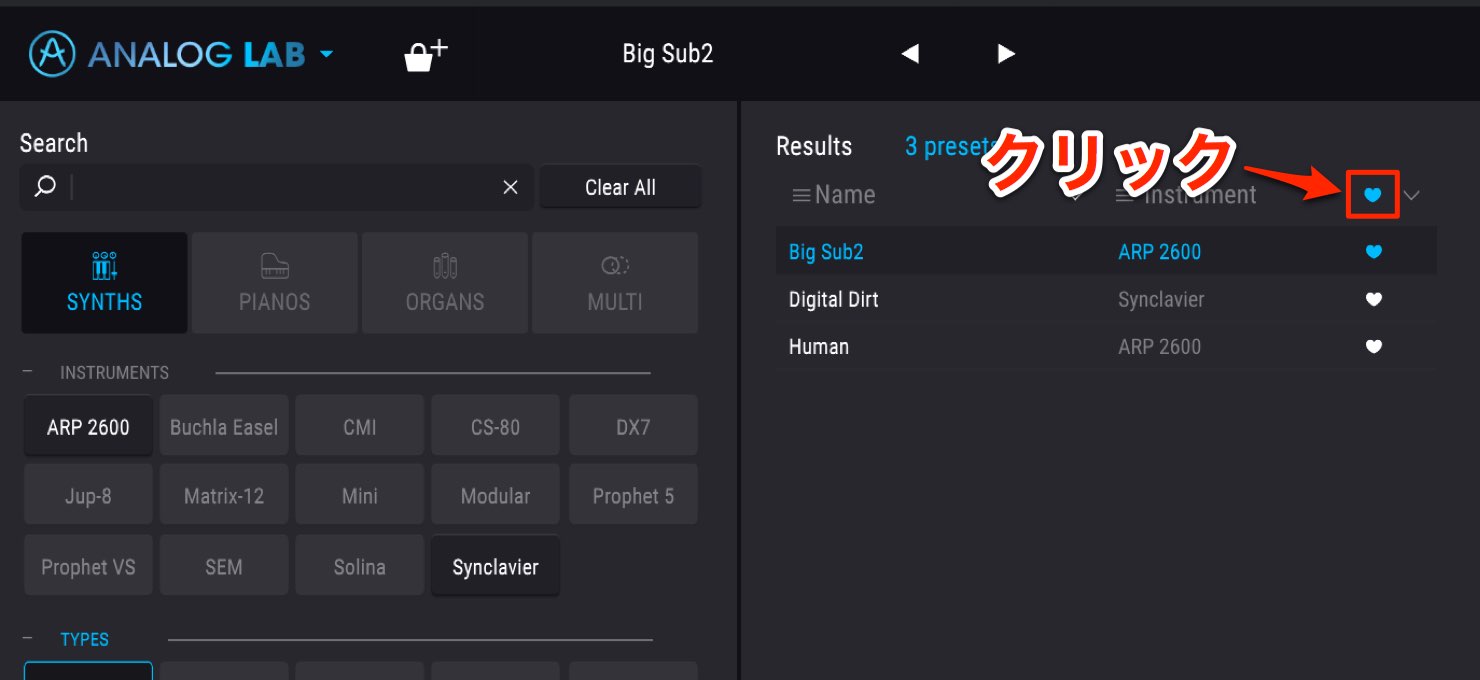
Click the heart icon at the top to display only your favorite presets.
Editing the Instrument from a Preset
You can also edit a loaded preset to create an original sound.
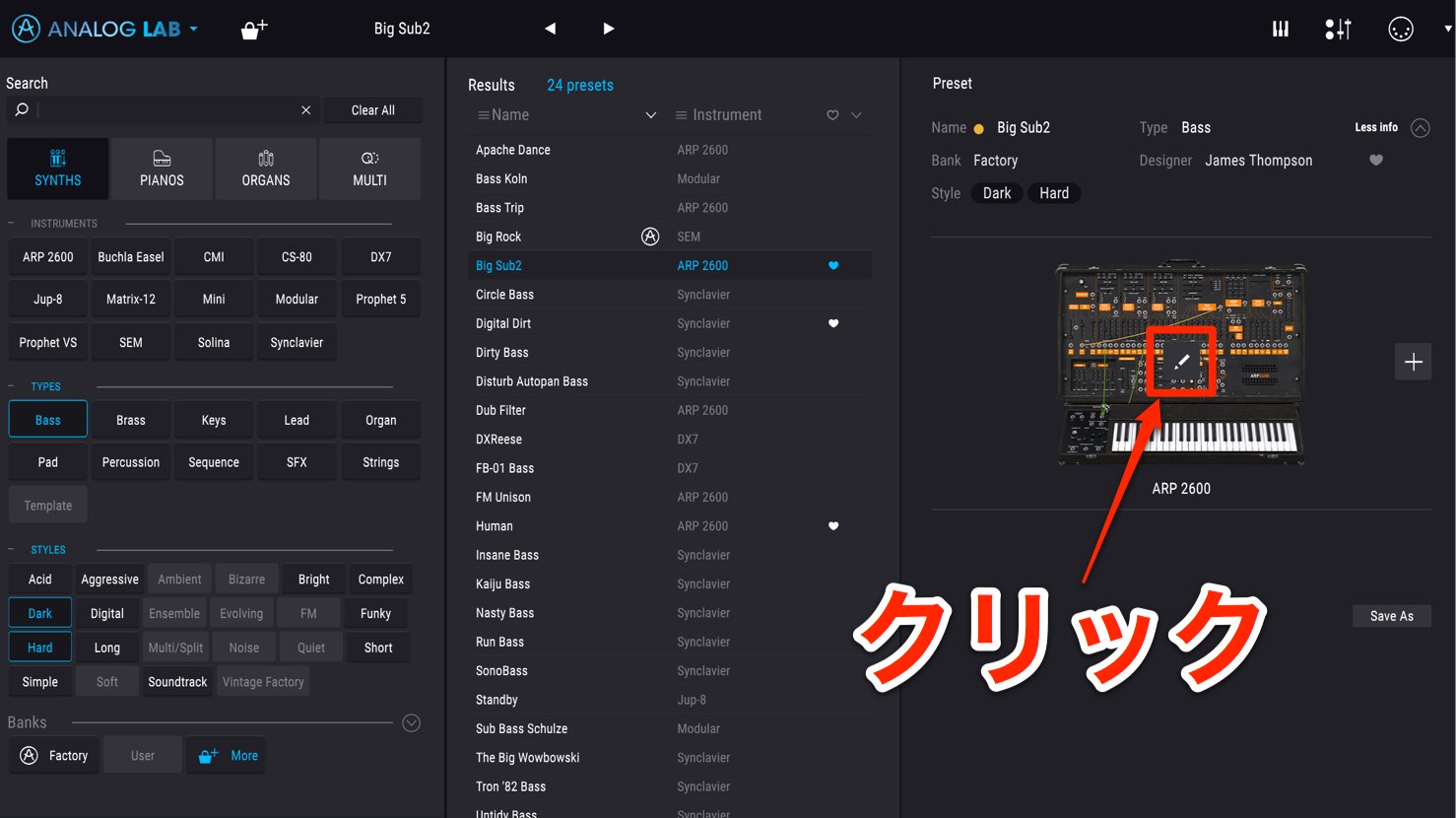
Click the center of the instrument.
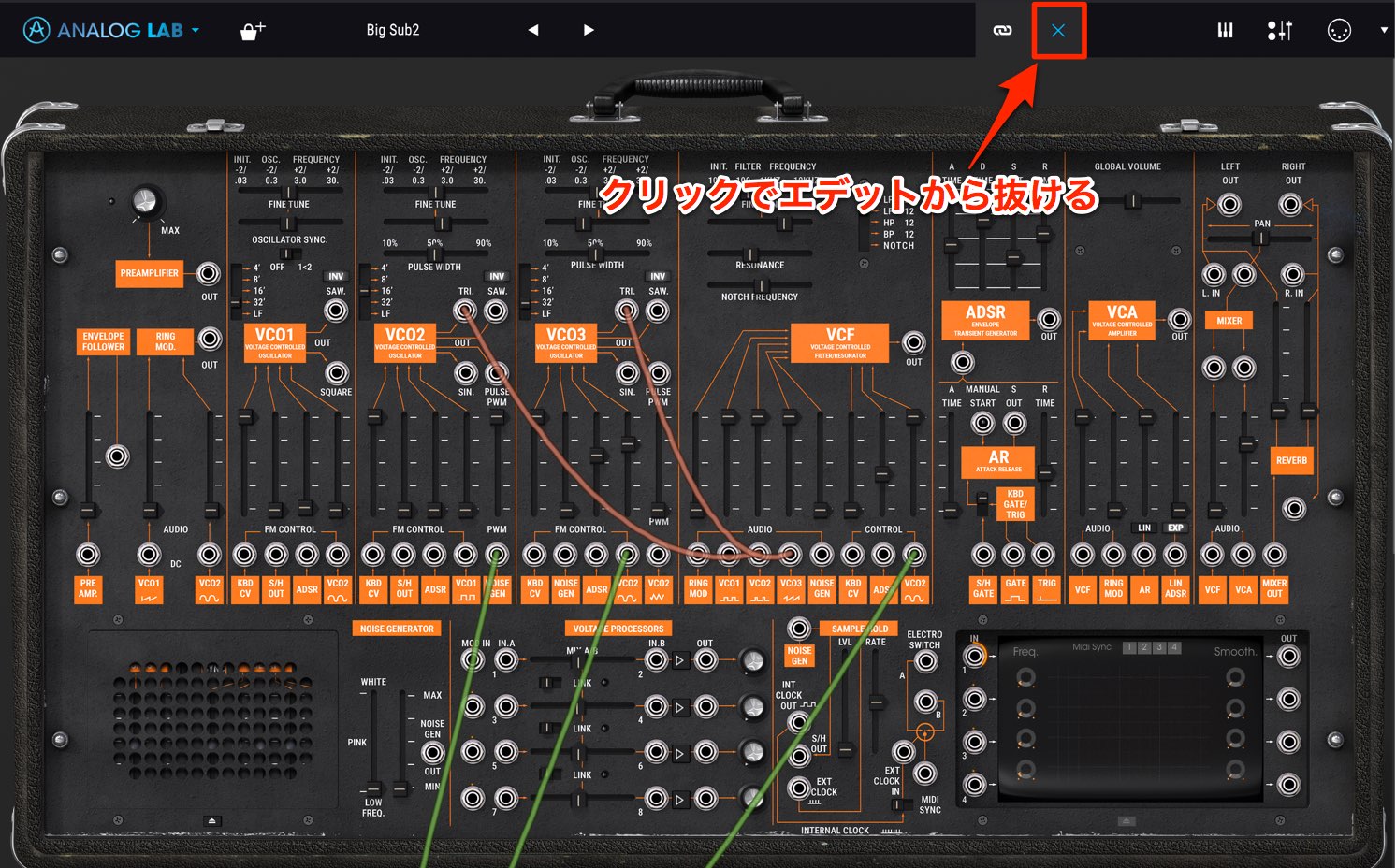
An edit window opens, allowing you to change its parameters.
Click the “×” at the top to leave the editor.
Layering Two Instruments with Swap
Analog Lab includes a swap feature for combining and layering two instruments.
Combining instruments from V Collection 6 greatly expands the available sounds.
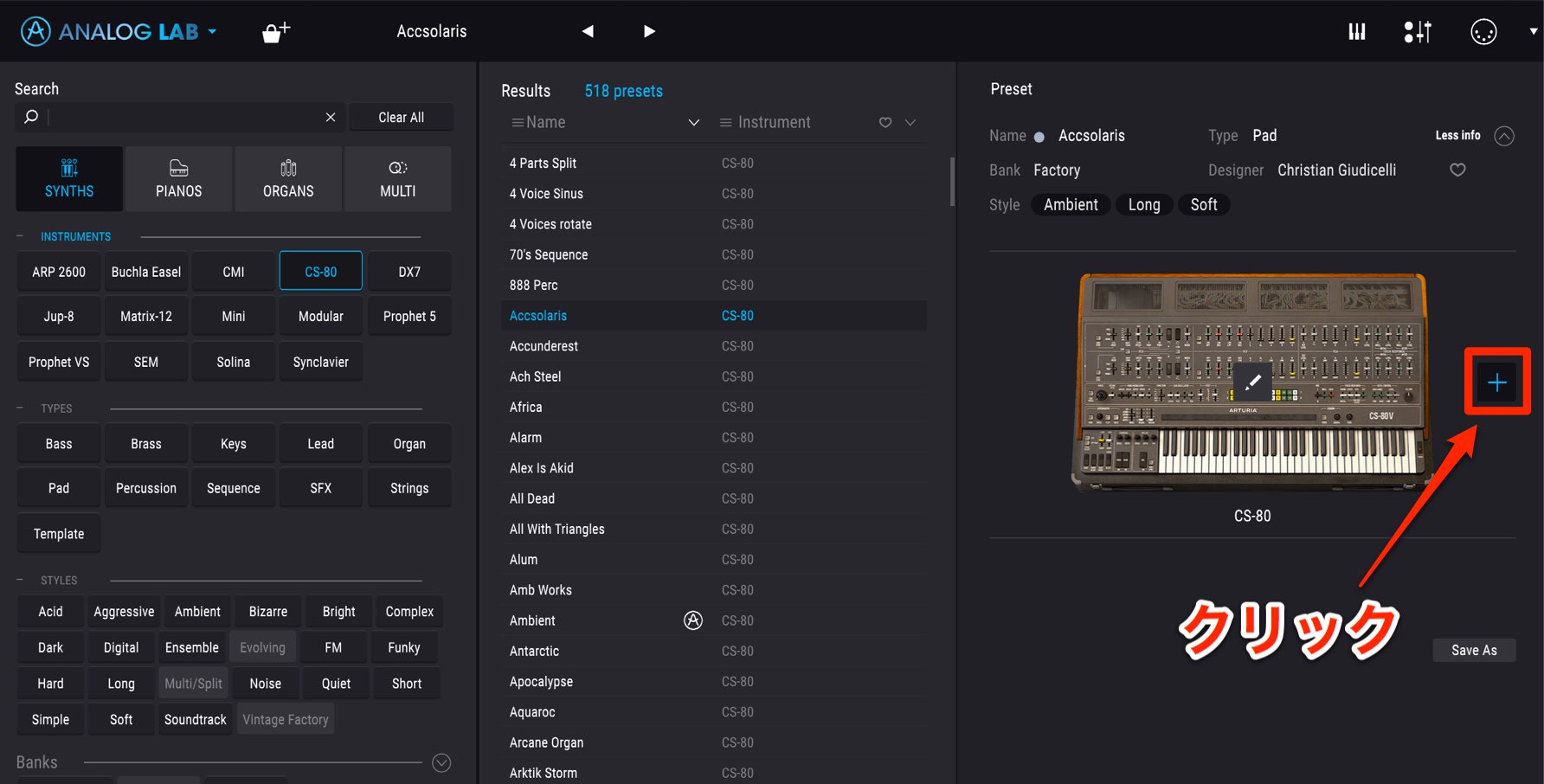
Click the “+” button to the right of the instrument.
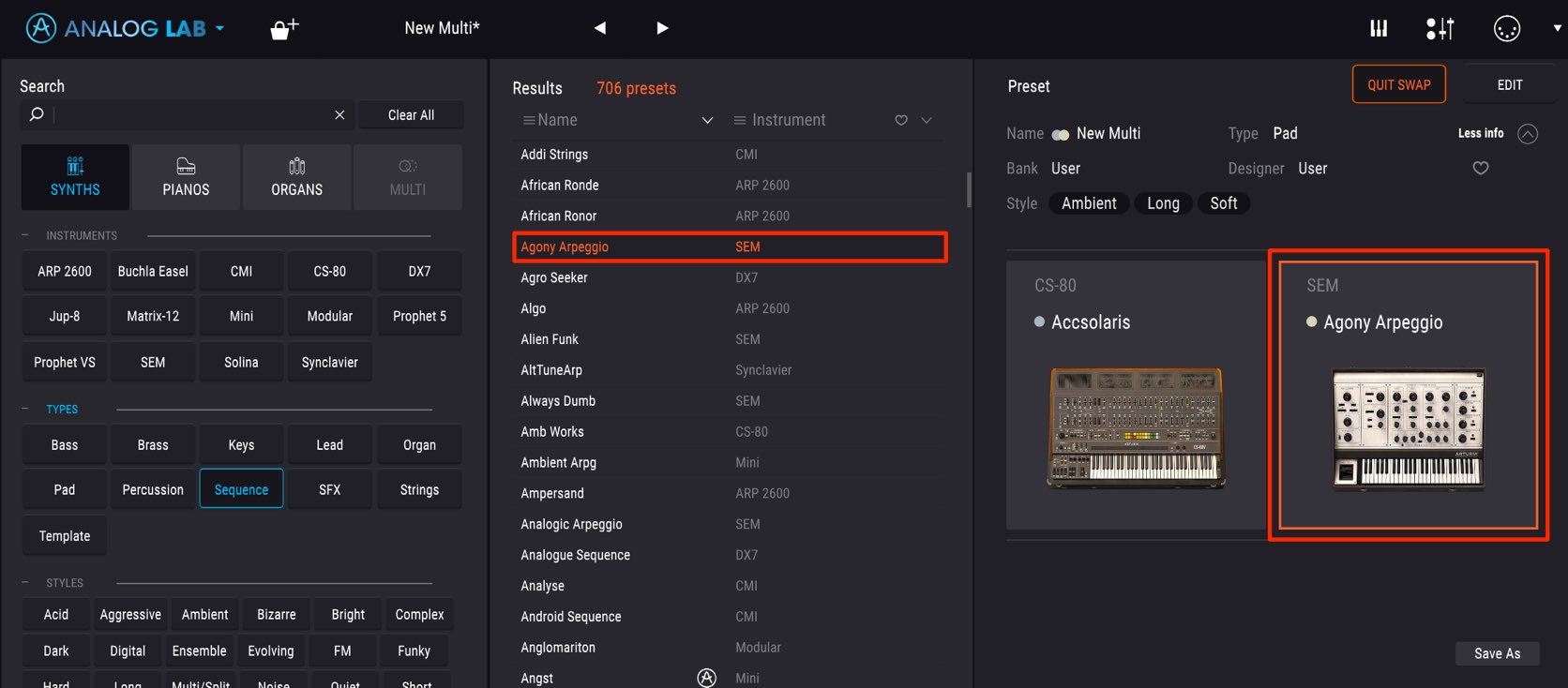
Then select the desired preset.
This adds the second instrument while retaining the first.
To leave swap mode,
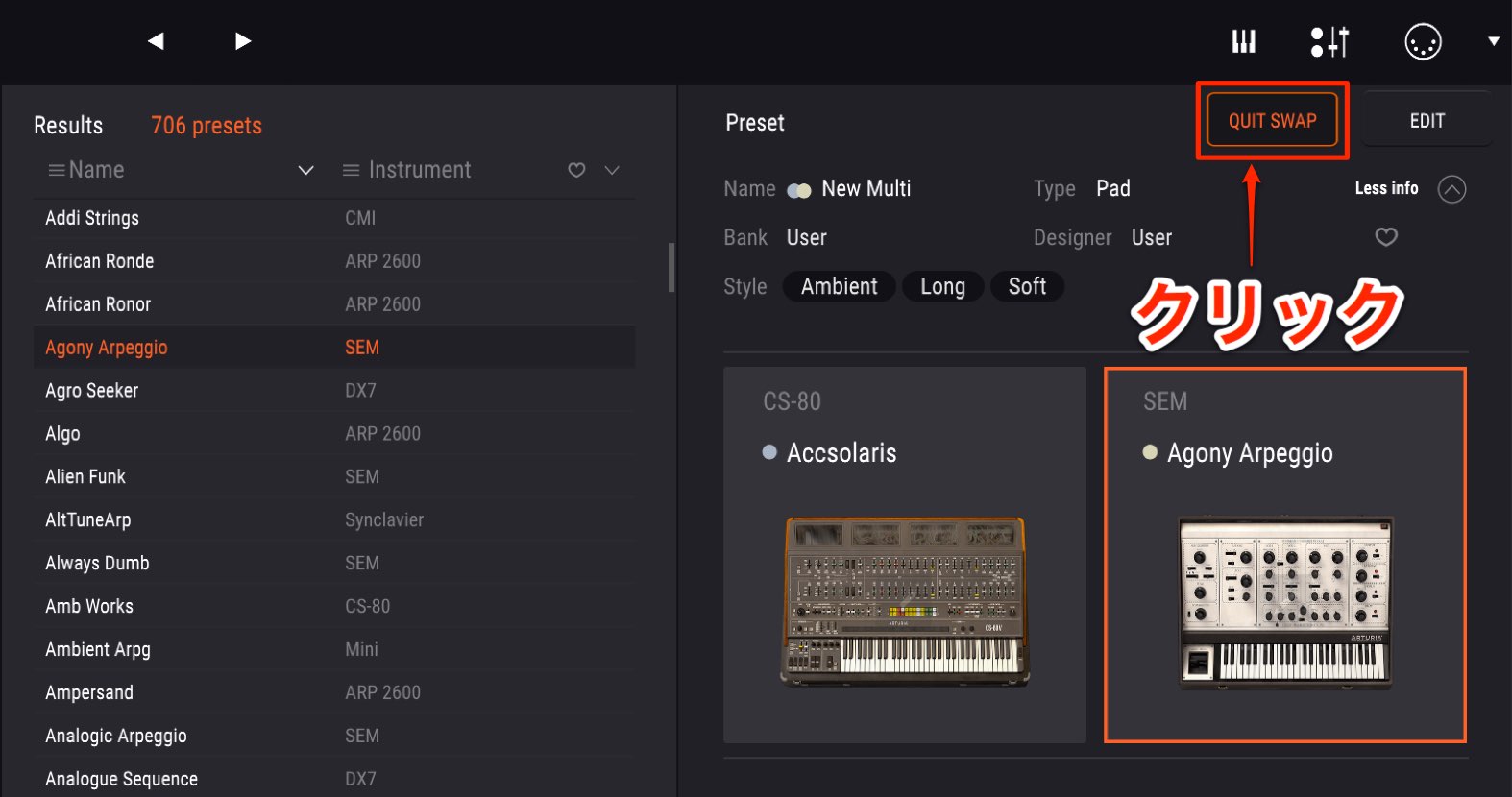
click “QUIT SWAP” and select another preset.
The Mixer Window and Effects
When using swap, you can open the mixer to balance the instruments and apply effects.
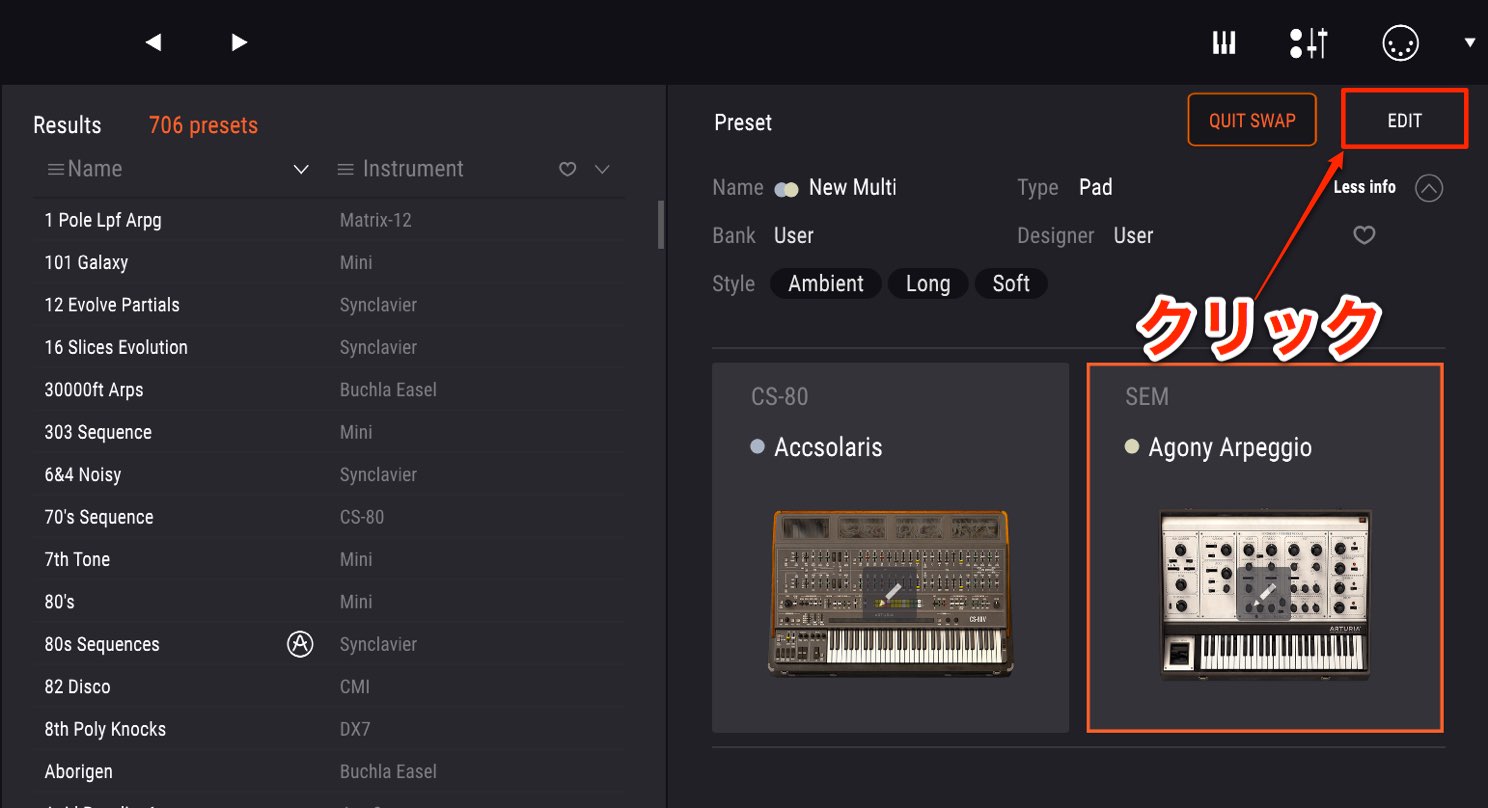
Click the “EDIT” button in the upper right.
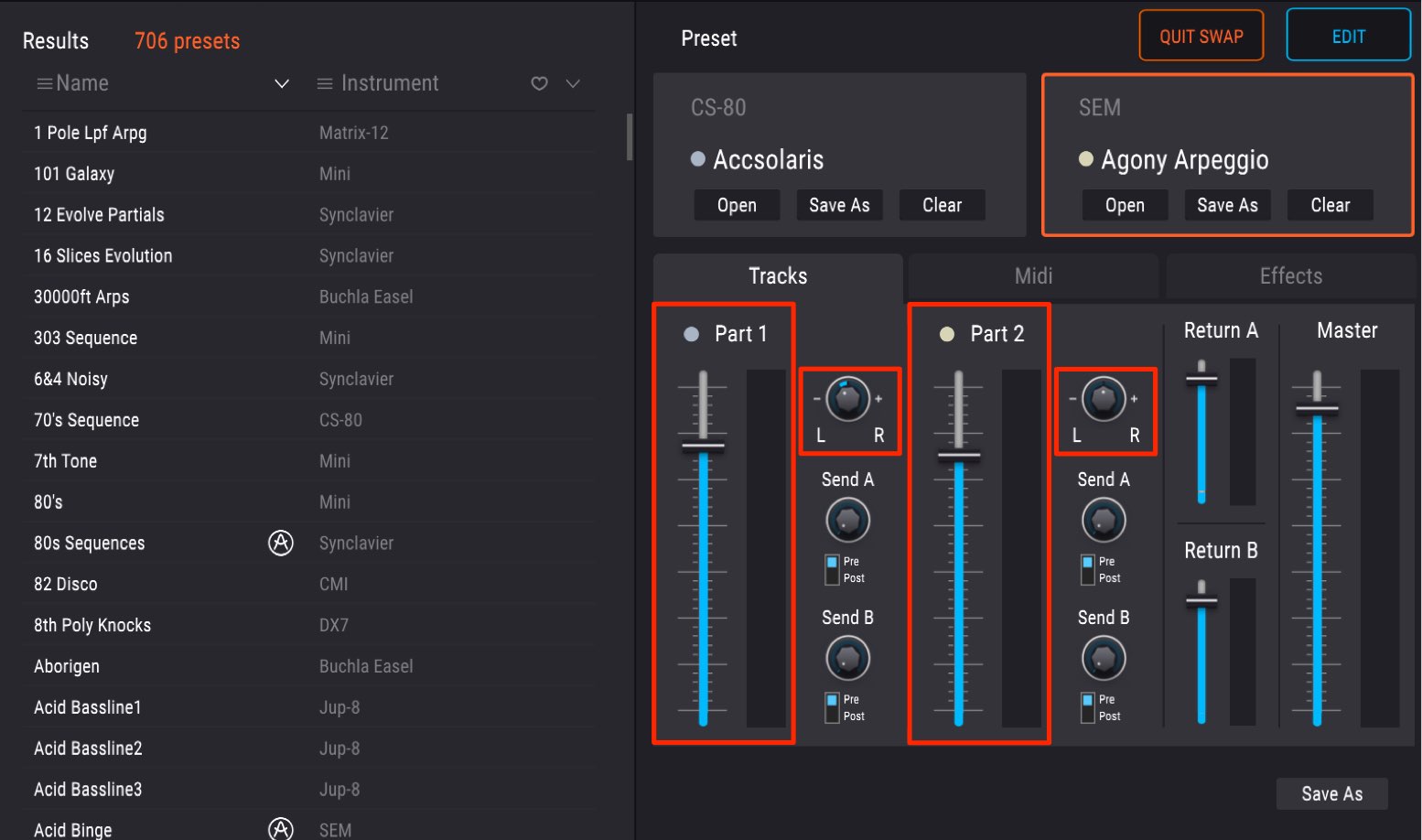
You can adjust each instrument’s volume and pan independently.
Panning the two sounds left and right can add width.
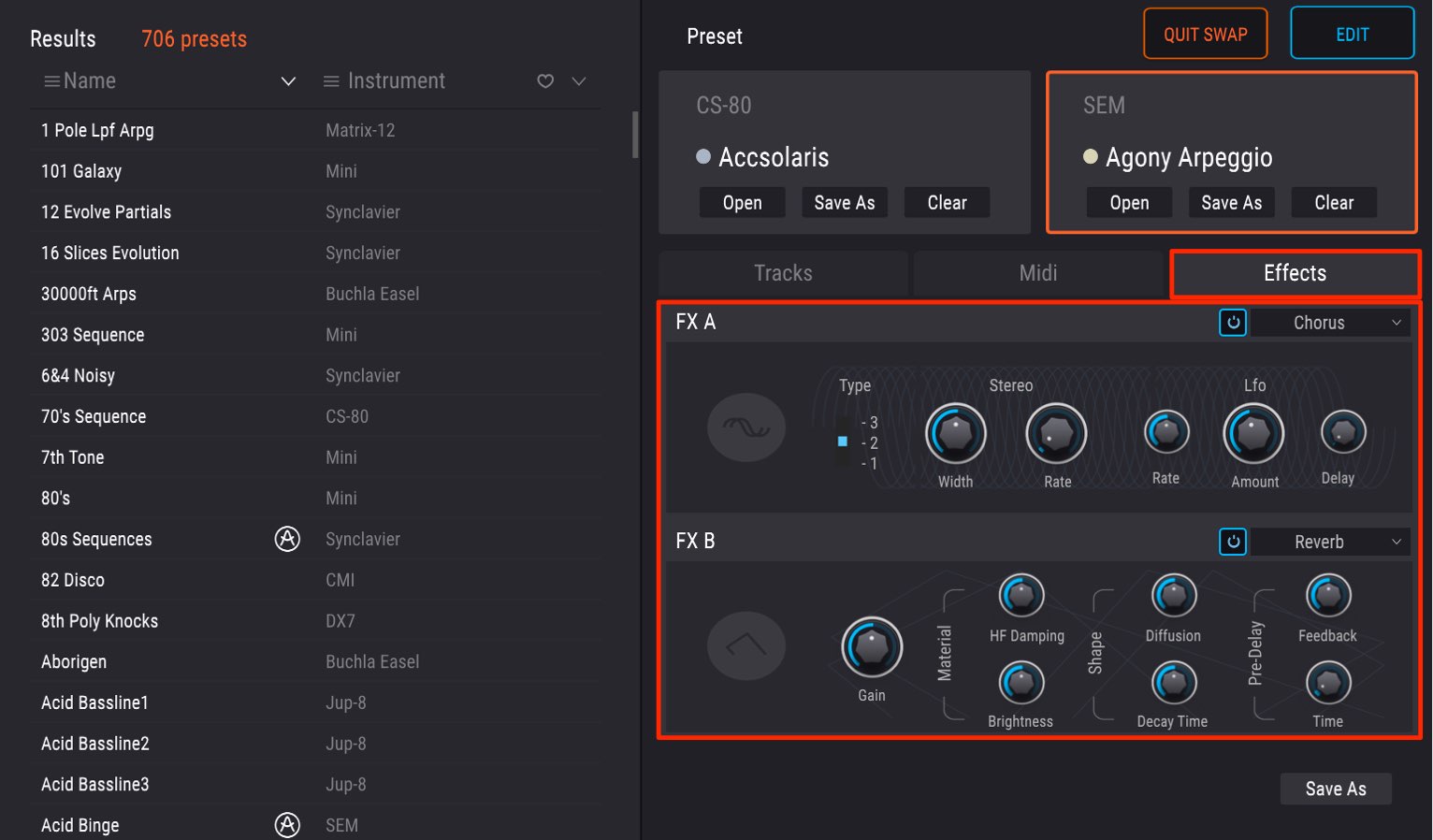
From the “Effects” tab, choose up to two effects to apply to the instruments.
In this example, we loaded chorus in “FX A” and reverb in “FX B.”
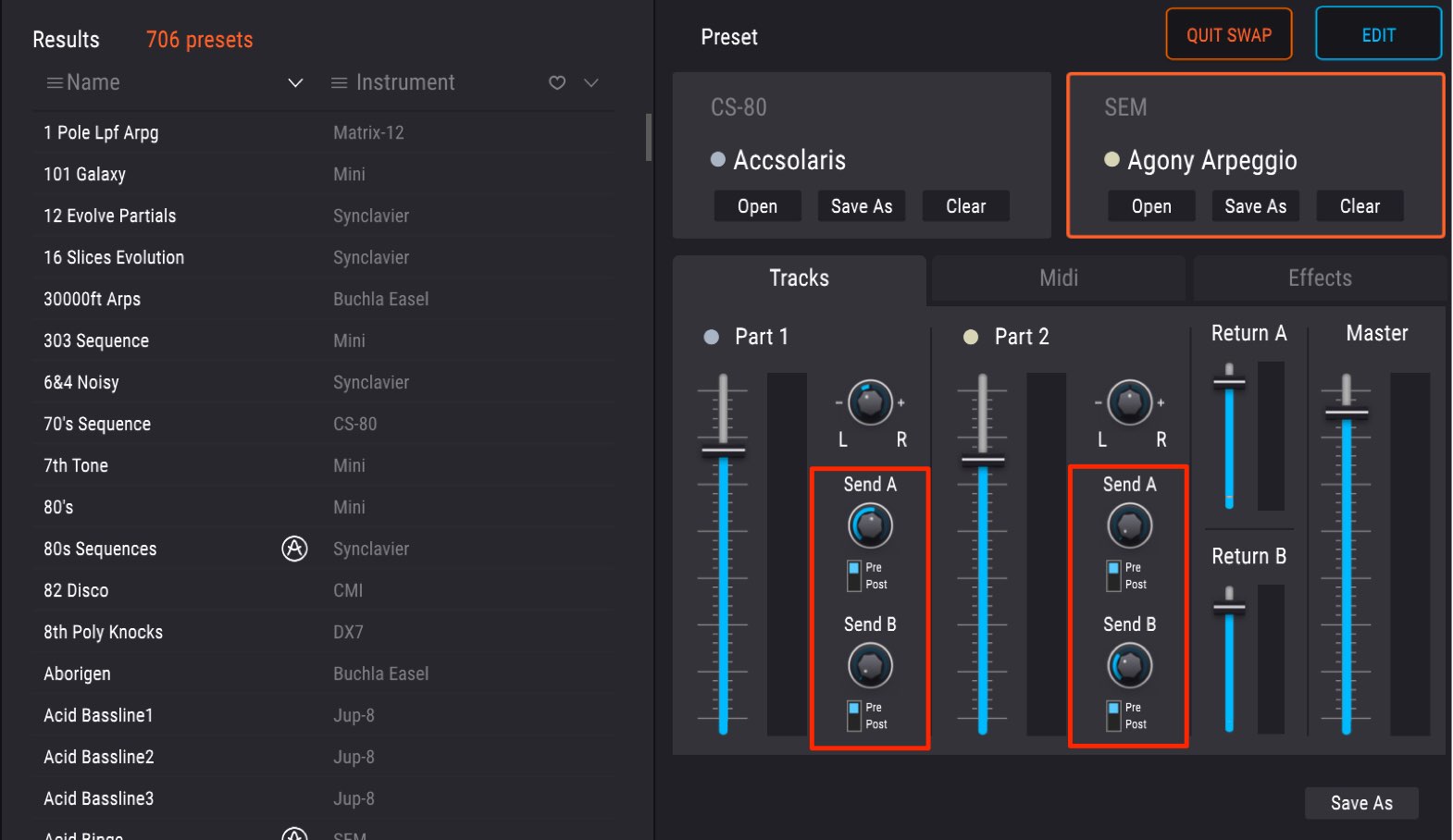
Turn the Send knobs to adjust the amount of effect.
“Send A” feeds “FX A,” and “Send B” feeds “FX B.”
Shaping Parameters in the Control Section
After choosing a preset, use the control section to add expression to your phrases and performances.
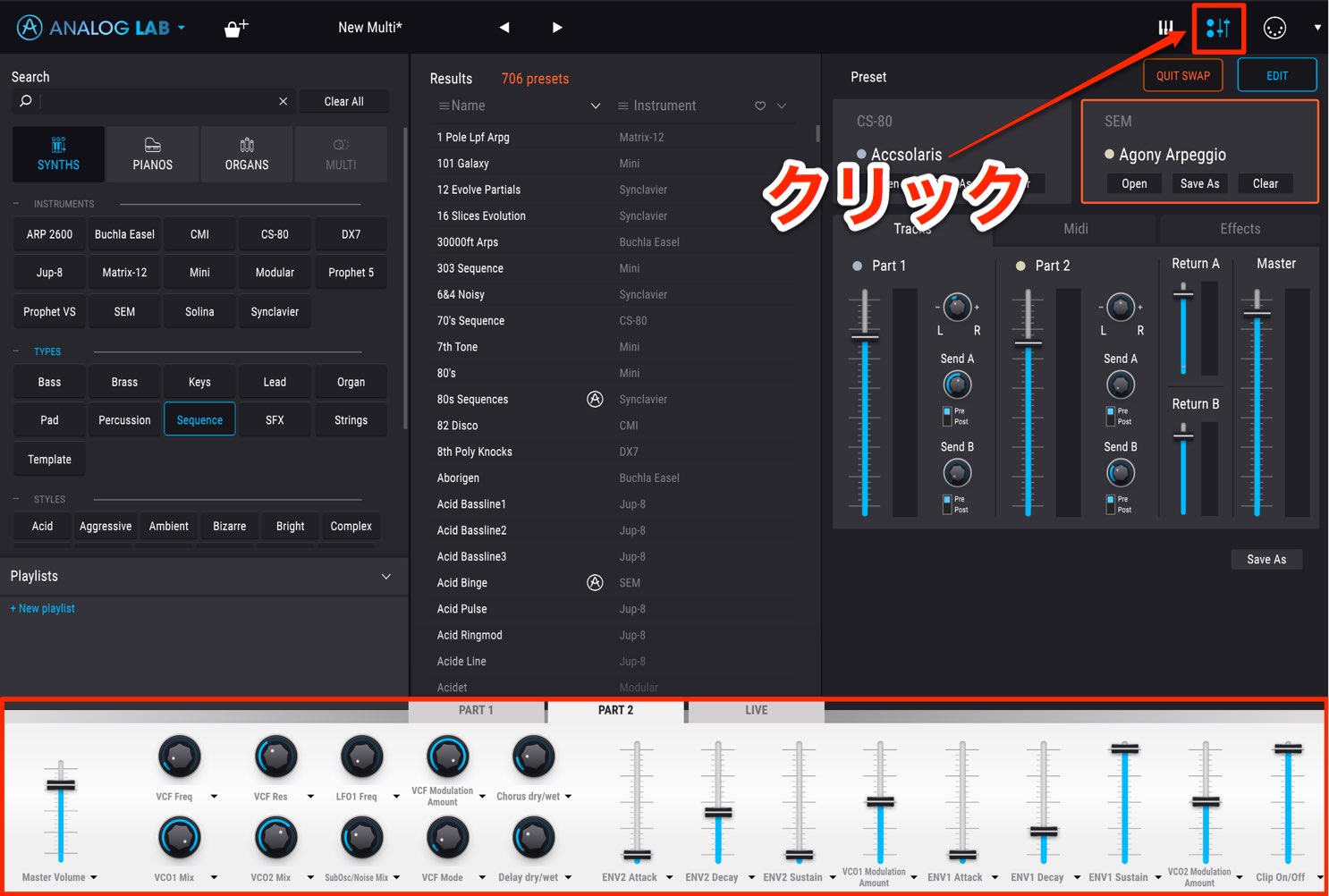
Click the control icon at the top.
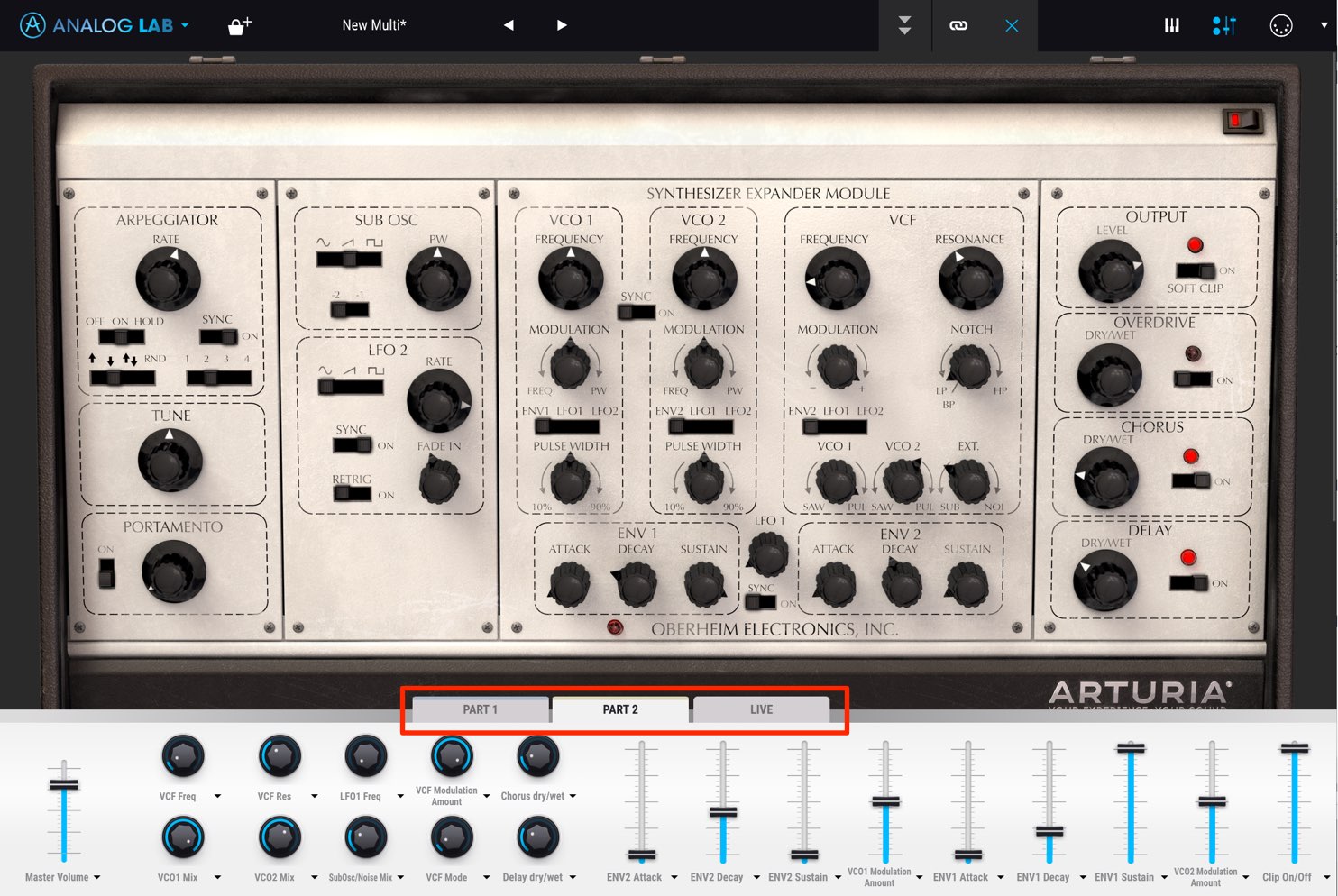
The controls are divided into three tabs:
- Part 1: Controls the first instrument.
- Part 2: Controls the second instrument.
- Live: Controls the two instruments together.
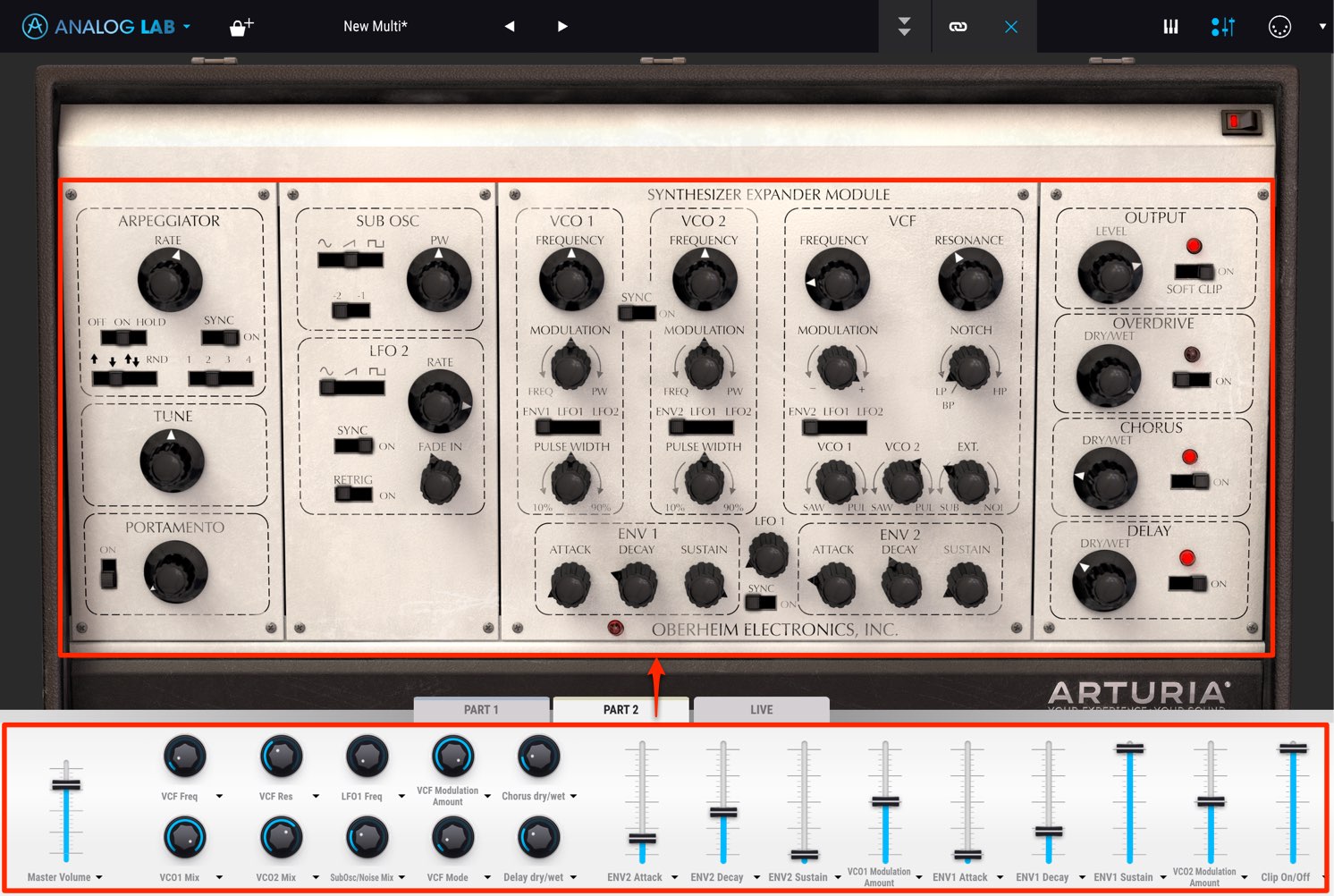
Key instrument parameters are preassigned to knobs and faders, so you can control them without special setup.
You can change these assignments.
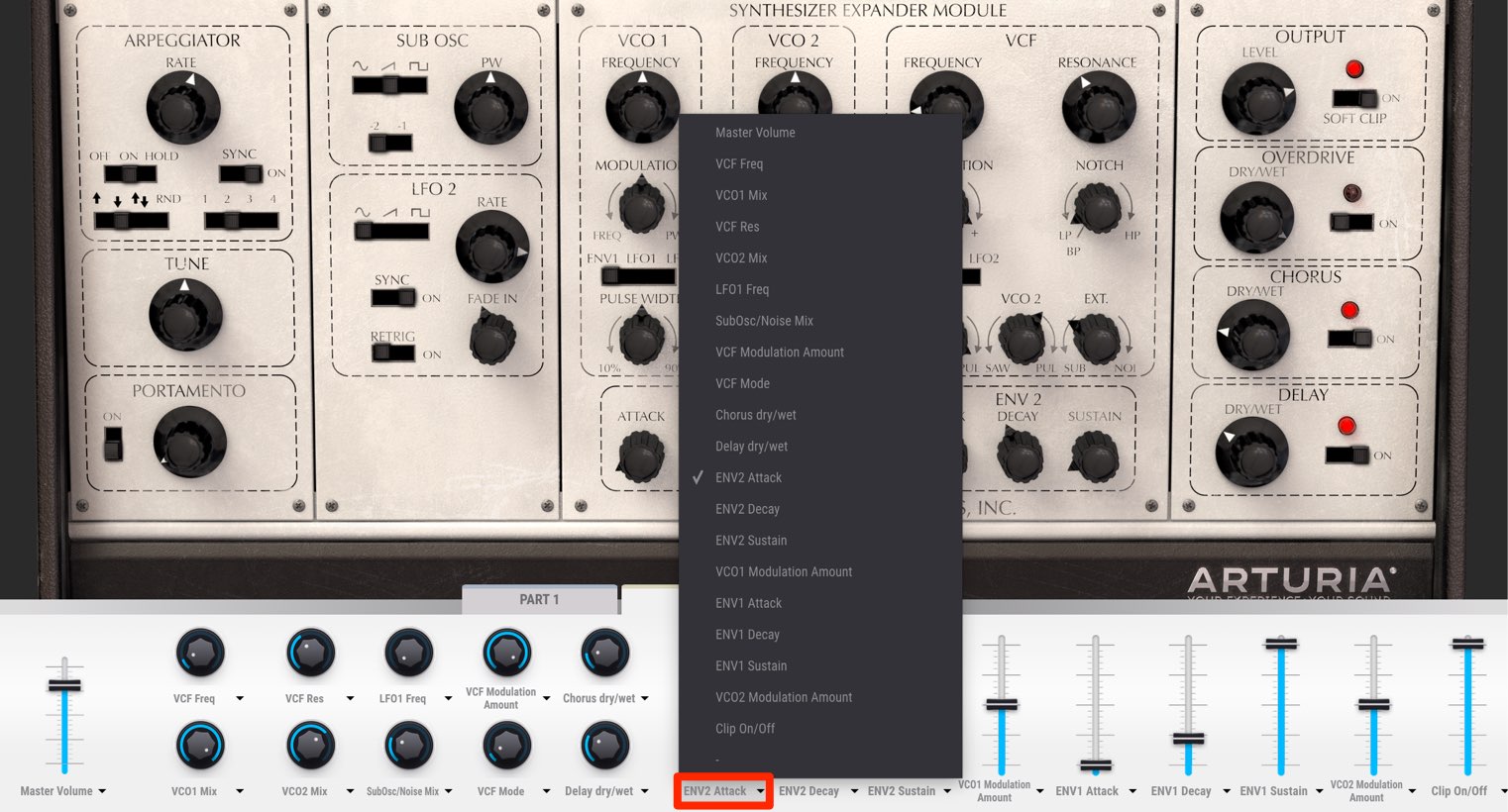
Click beneath a knob or fader and select the parameter you want to assign.
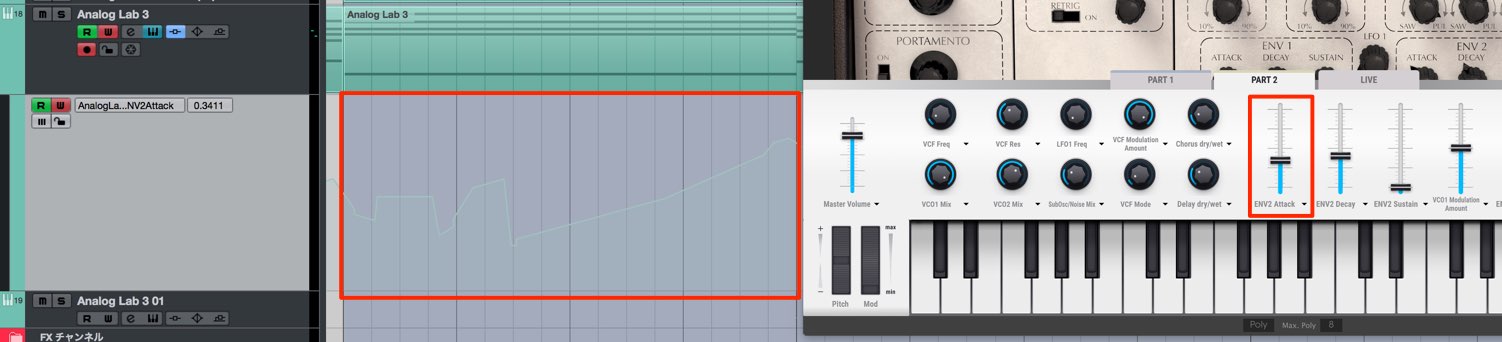
Record the movement of an assigned knob or fader as automation to change that parameter over the course of a song.
Recording Automation in Different DAWs

 Logic
Logic GarageBand
 Cubase
 Ableton Live
 Studio One
 FL Studio
Macros in the Live Tab
The Live tab has eight knobs called macros.

One macro knob can control up to four parameters, making more complex sound changes possible.

Here we selected Macro 1.
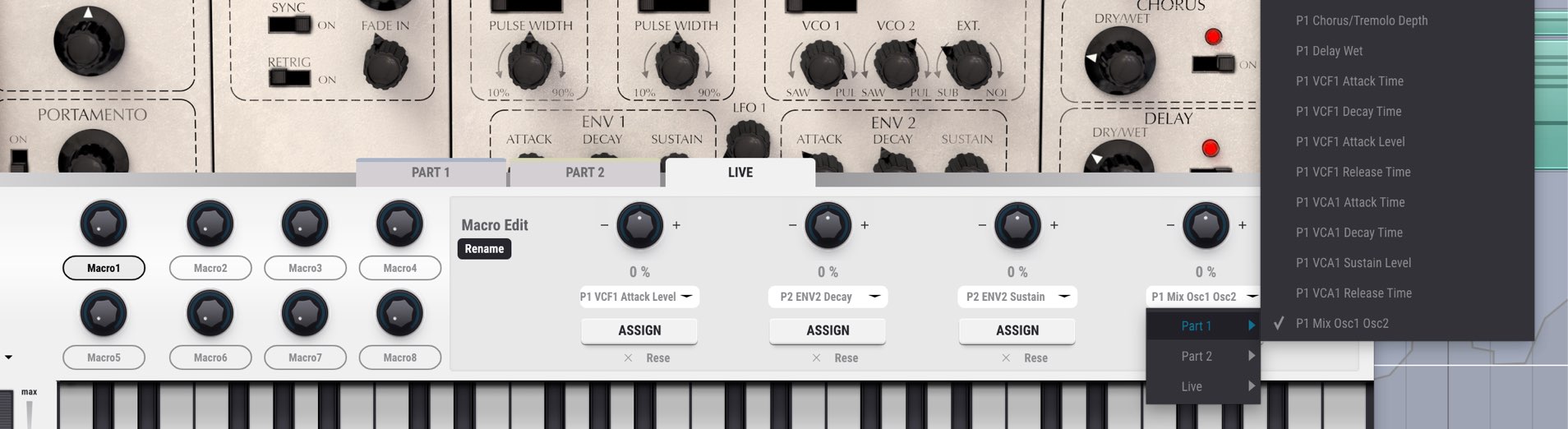
We assigned four parameters to it as shown.
You can also choose parameters from both instruments.
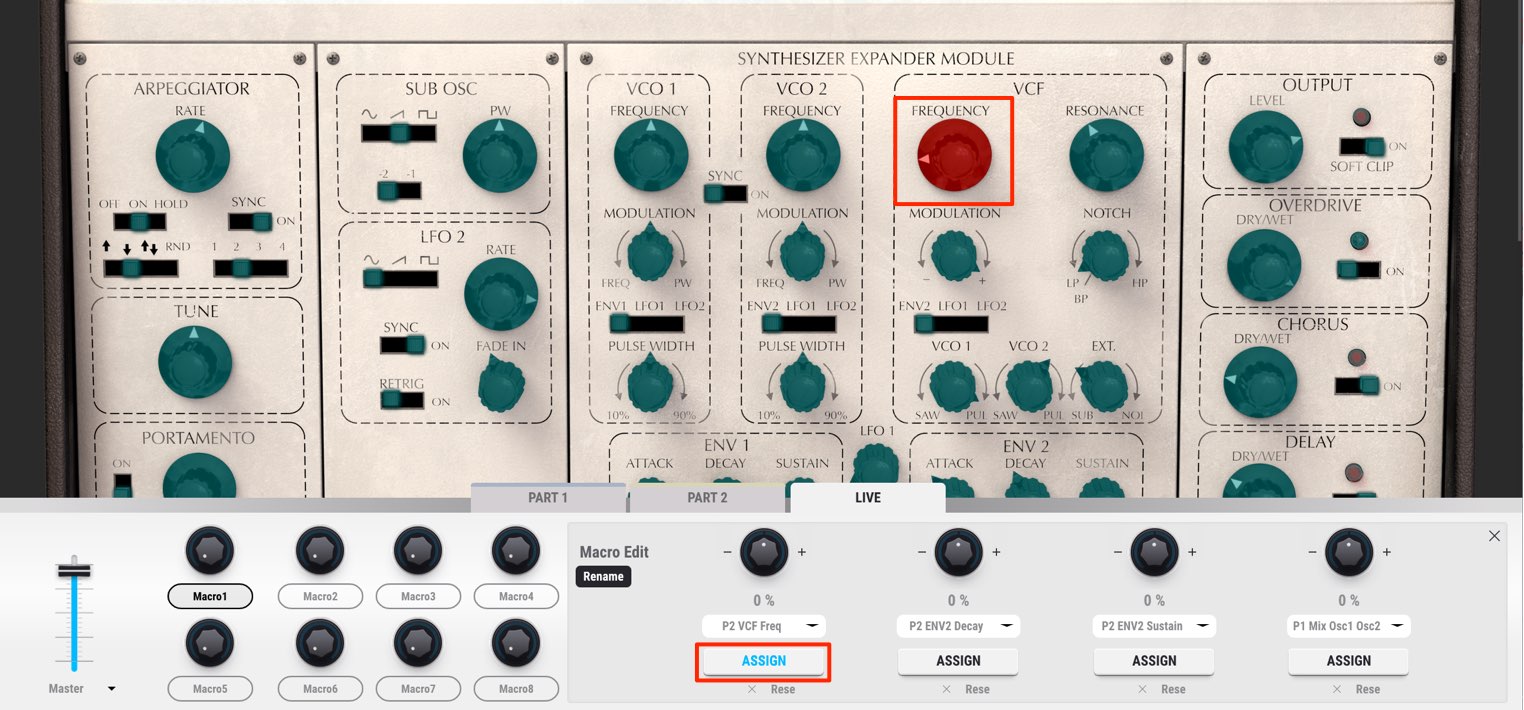
When assigning parameters, click “ASSIGN”; available parameters light up green.
Click the parameter you want to assign it to the knob.
To remove an assignment, click “Rese” below “ASSIGN,” as labeled in the original guide.

After assigning parameters, moving Macro 1 changes all four, but you must specify the range of movement for the effect to be audible.
The initial value is “0,” so adjust it first.
- “+”: Raising the macro knob moves the parameter right or up from its current position.
- “−”: Raising the macro knob moves the parameter left or down from its current position.
These controls greatly expand your sound-design options.
Assigning Parameters to a MIDI Controller
You can associate the software knobs and faders with your MIDI controller.
Hardware controls can make shaping sounds more intuitive.
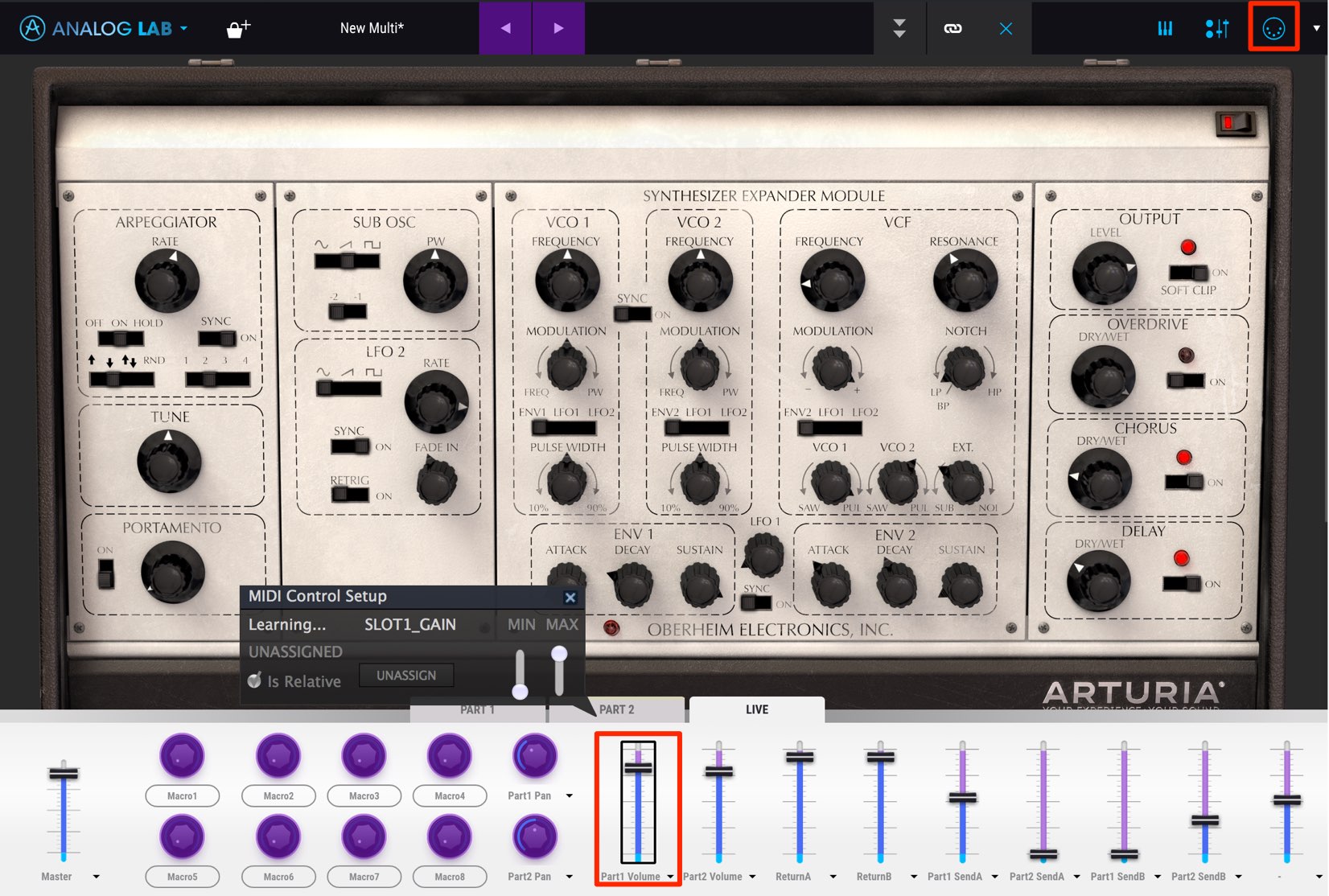
Press the “MIDI Learn” button at the top.
Assignable knobs and faders light up purple; click the one you want.
Then move the knob or fader on the MIDI controller that you want to use.
The corresponding Analog Lab control will now follow the hardware controller.
Saving Presets
You can save an edited sound as an original preset.
This makes it easy to load the same preset on another track or in another song.
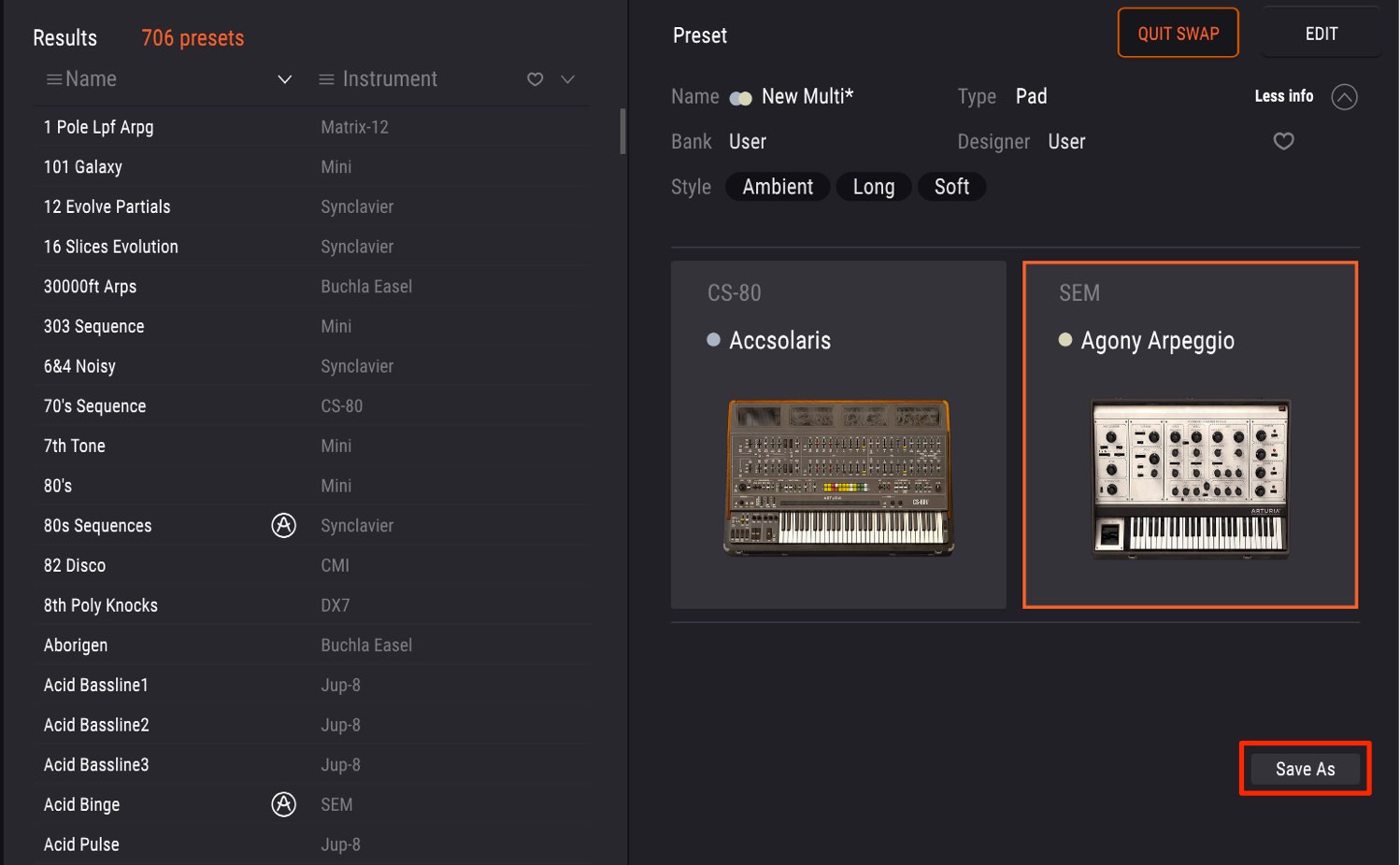
Click “Save As.”
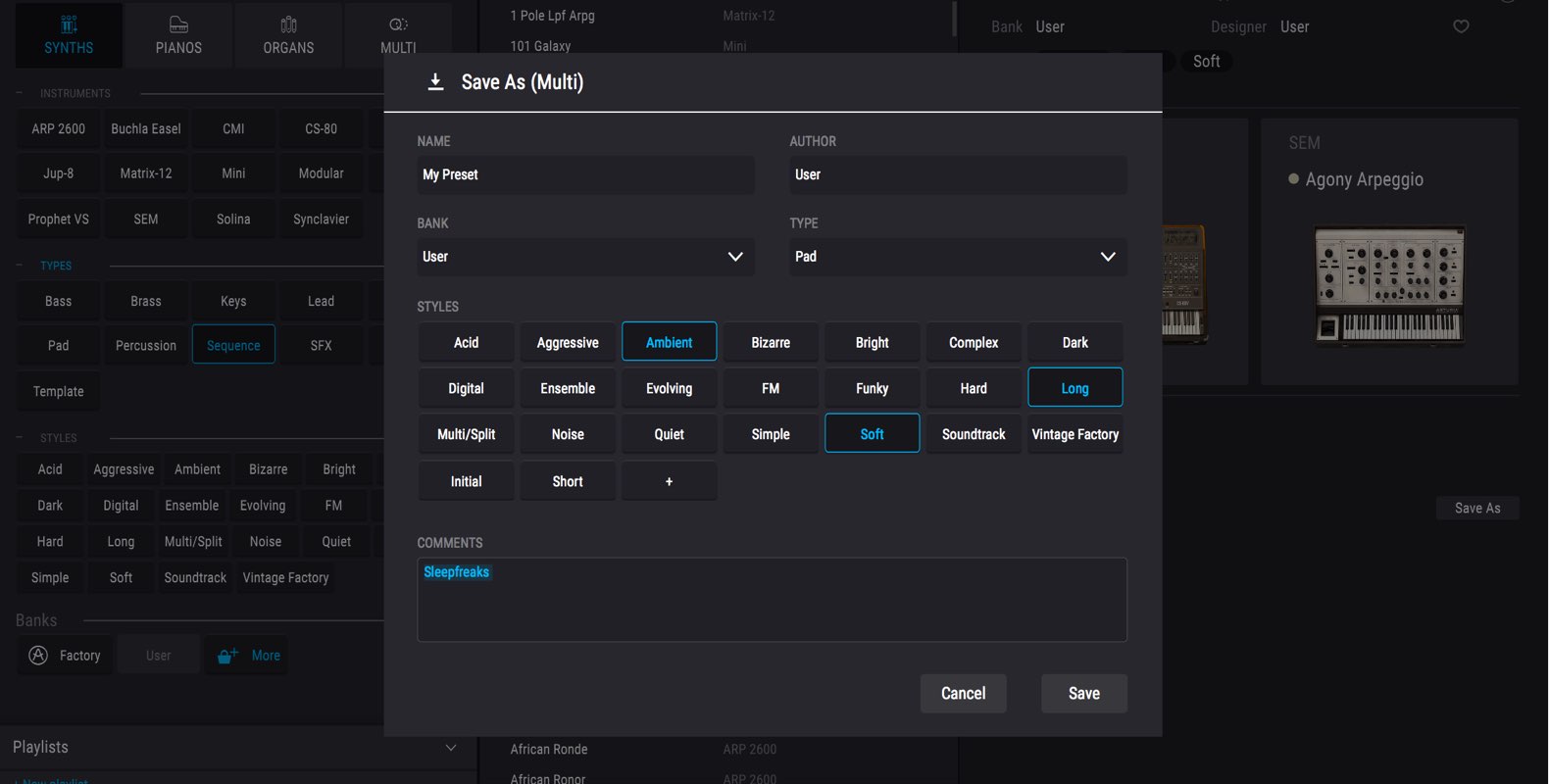
Enter a name, choose the desired sound type and press “Save.”
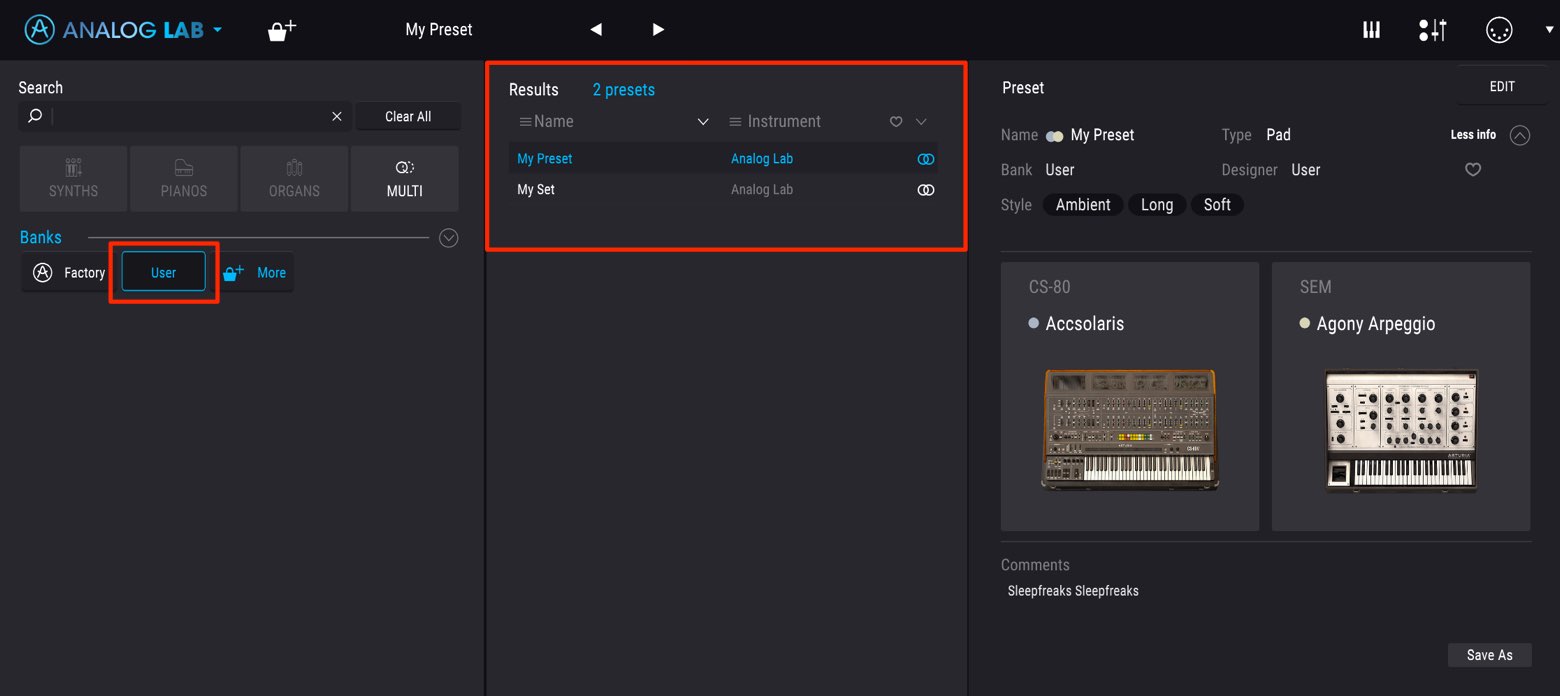
The saved preset appears under “User” in the search section.
How was that?
Analog Lab 3 is a tool for getting the most from the instruments and presets in V Collection 6.
Even assigning these presets to your tracks can reveal new sonic directions, so explore Analog Lab 3 and use it to refine your music.
- 1V Collection 6: Analog Lab 3
- 2V Collection 6: DX7 V Basics and Operators
- 3V Collection 6: Controlling DX7 V Parameters
- 4V Collection 6: DX7 V Modulation and Effects
- 5V Collection 7: Mellotron V and CZ V Overview
- 6V Collection 7: Synthi V, B-3 V2 and Analog Lab 4
- 7V Collection 8: New Instruments and Vocoder V
Product URL: https://bit.ly/2J7BPjU
Purchase: click here
Contact in Japan: Korg / KID Customer Support · Tel: 0570-666-569
Frequently Asked Questions
Q1. What is the difference between V Collection 6 and Analog Lab 3?
V Collection 6 is a package of 21 synthesizer and keyboard instruments. Analog Lab 3 provides a unified interface for searching, managing and controlling their presets.
Q2. Can a modeled monophonic synthesizer play chords?
Yes. V Collection 6 extends some software models of originally monophonic hardware to support polyphonic playing for modern sound design.
Q3. How do I balance two layered instruments?
After combining two instruments with Analog Lab 3’s swap feature, open the mixer with “EDIT” and adjust each instrument’s volume and pan independently.
Q4. How many parameters can a macro control?
Each macro knob on the Live tab can control up to four assigned parameters.
NEW ARTICLES
Latest English Articles
































































































































































































































































































































