
Ableton Live 10 introduced new instruments, effects and creative features. Wavetable, Echo, Drum Buss and Pedal expand its sound-design tools, while Capture MIDI lets you recover ideas played before pressing record. Collections help organize plug-ins and sounds, and new shortcuts and automation improvements make editing more efficient.
Powerful new tools for sound and workflow
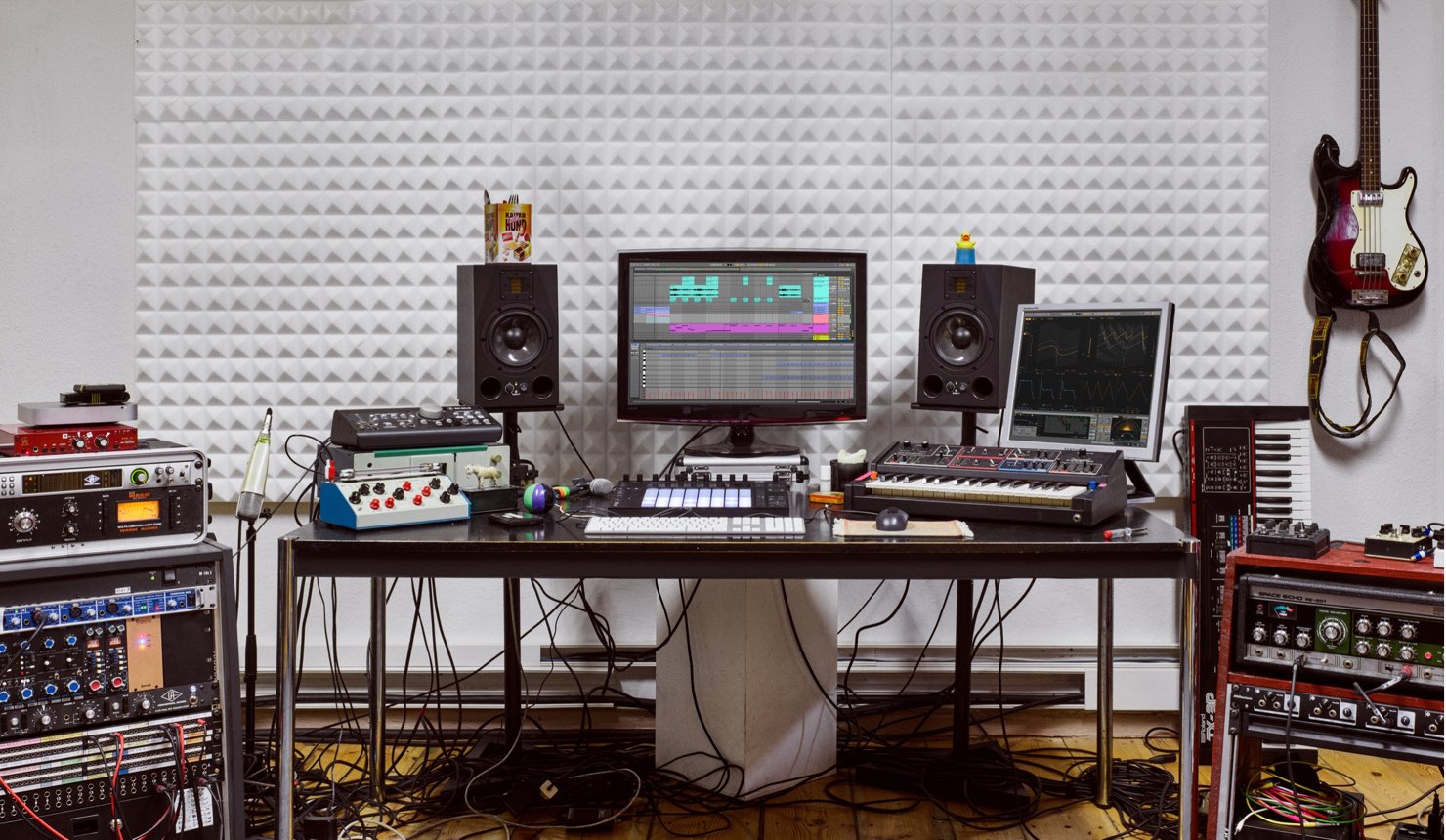
Ableton’s long-awaited Live 10 has been released.
Along with instruments and effects such as Wavetable, Echo, Drum Buss and Pedal, the update includes improvements to automation and Arrangement editing, plus Capture and other tools designed to help turn ideas into music.
In this series we’ll explore the new features of Ableton Live 10.
Ableton Live 10 New Features, Part 1: Video

Collections in the Browser
The Browser now includes Collections, where you can keep favorite plug-ins and sound material.
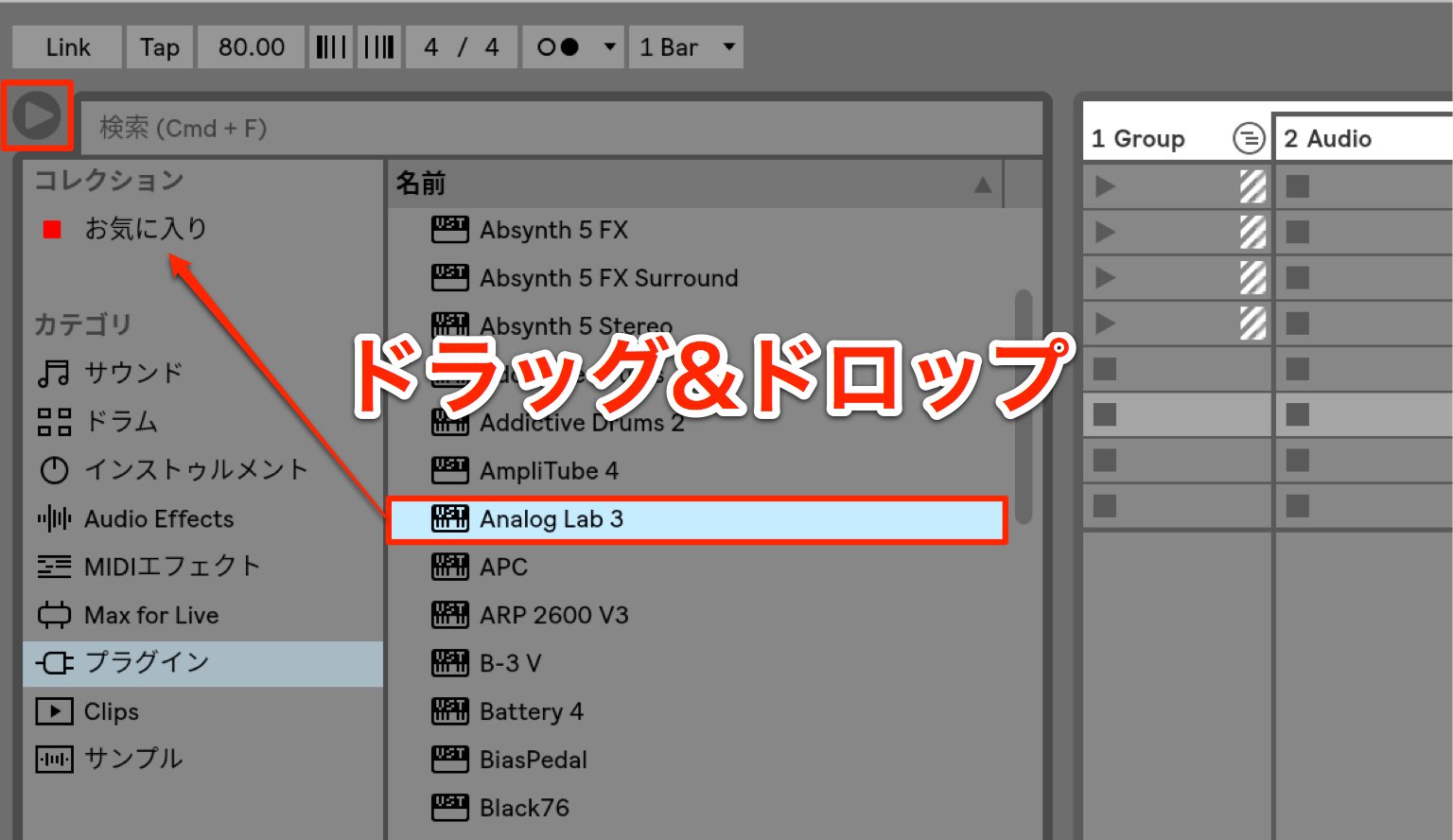
Simply drag and drop the items you want to register.
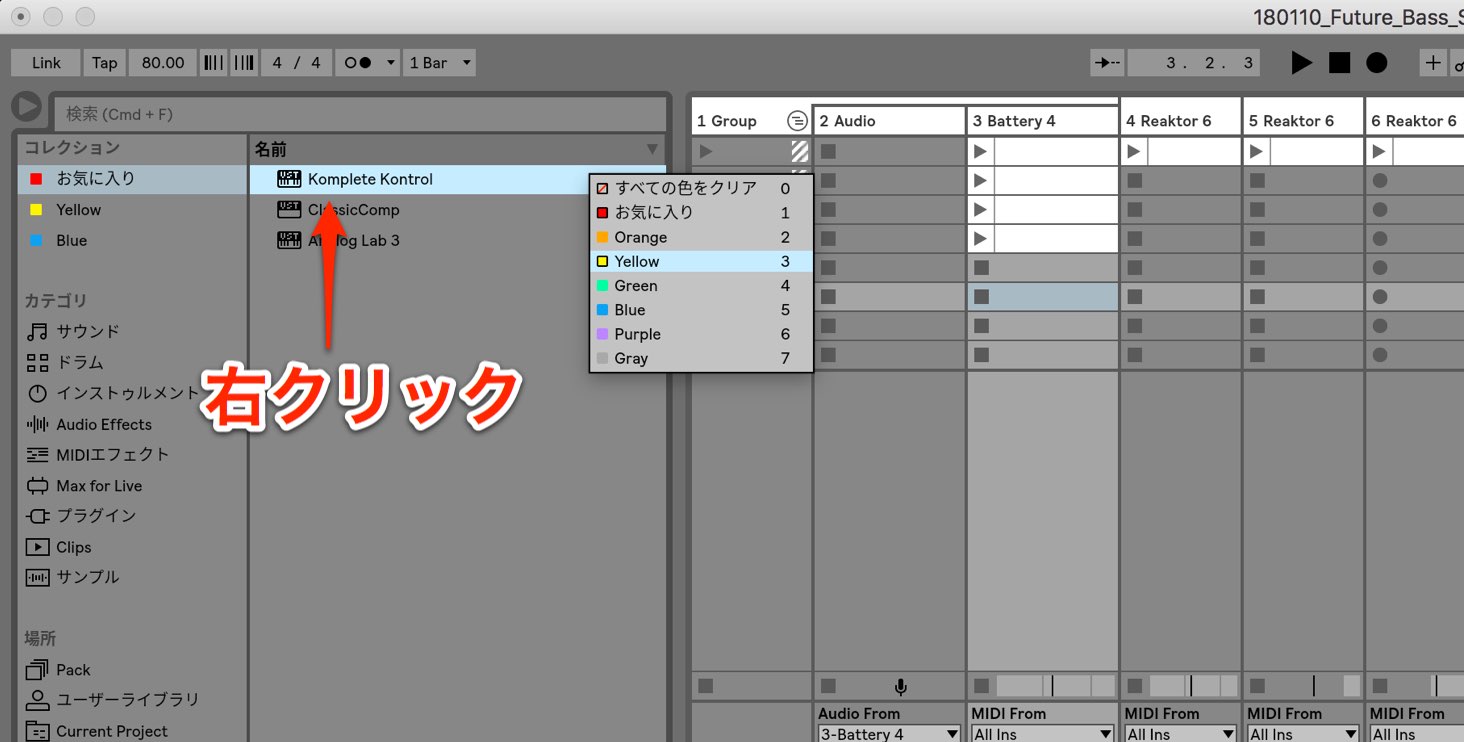
Right-click a registered item to assign a color.
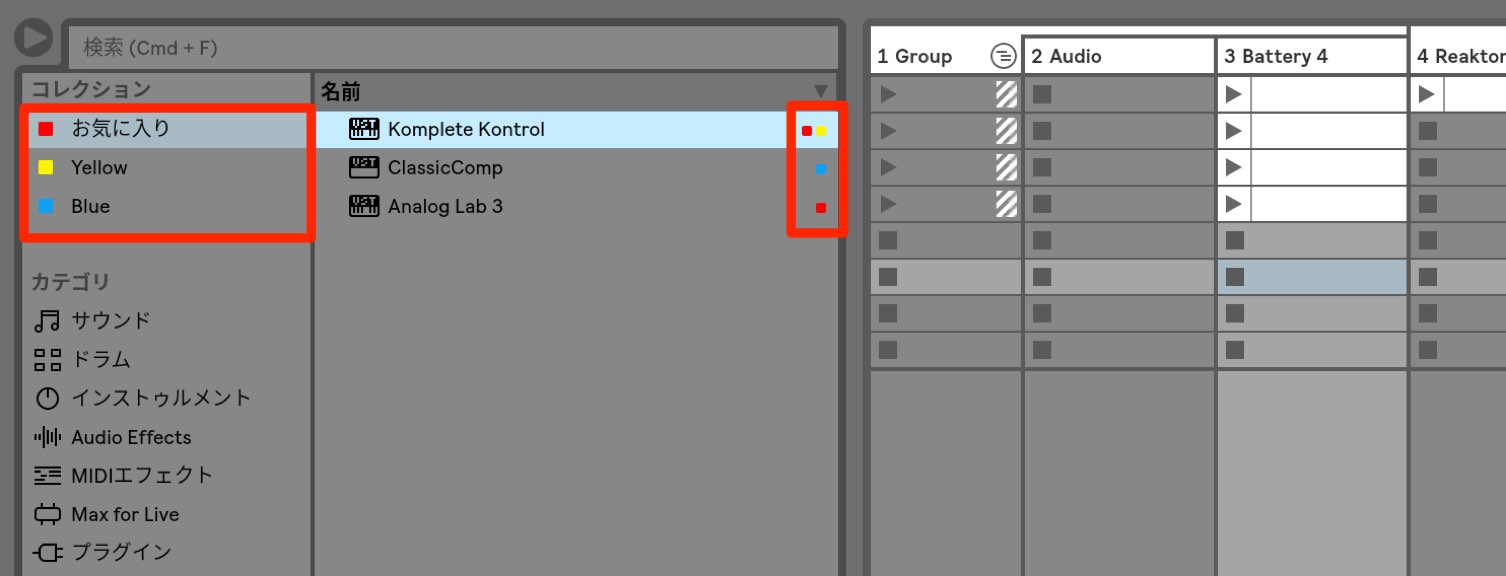
Color-coding instruments, plug-ins and source material by type makes them easy to organize.
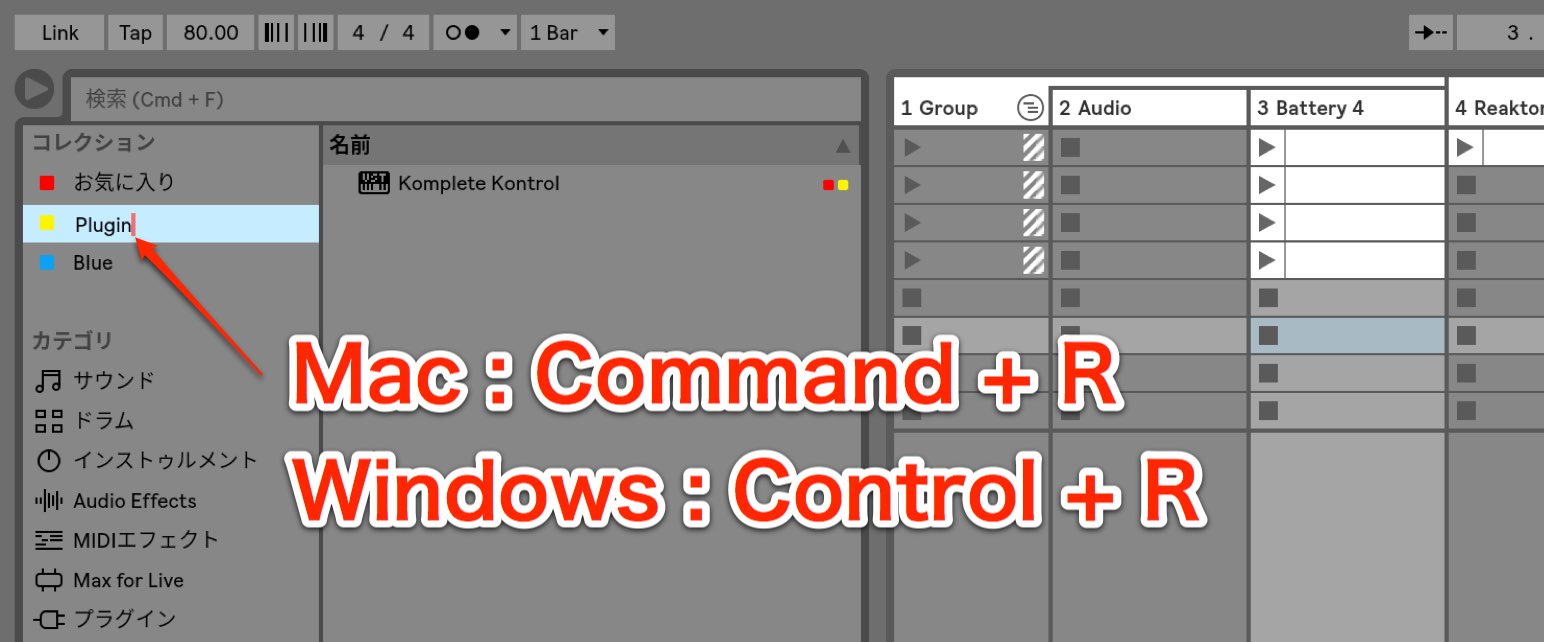
- Mac: Command + R
- Windows: Control + R
Use these shortcuts to rename a collection.
This lets you classify your items more efficiently.
New Shortcuts
Shortcuts have been added for operations frequently used during production.
They make editing more convenient.
Zooming In and Out
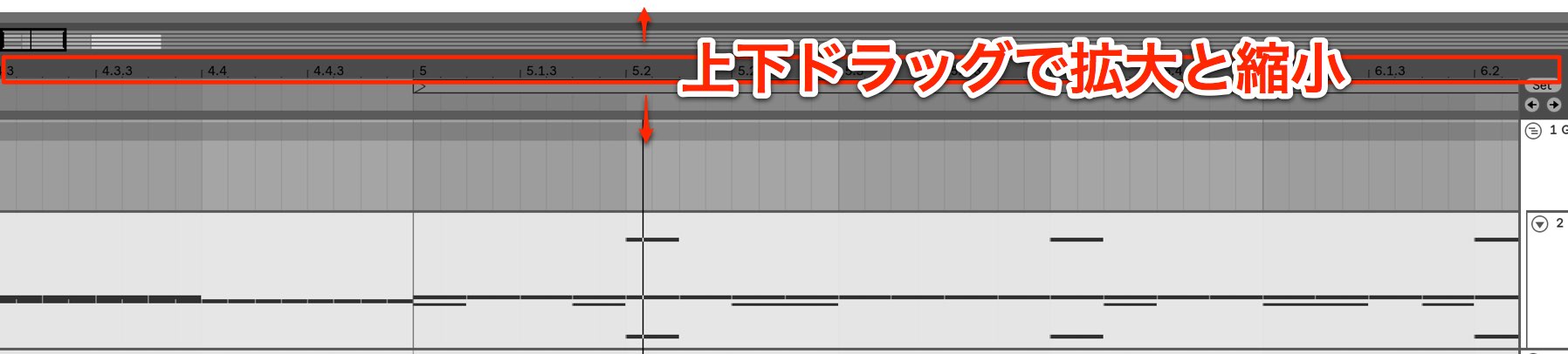
Drag up or down on the timeline to zoom horizontally in or out.
- Mac: Hold Command and scroll the mouse wheel or trackpad.
- Windows: Hold Control and scroll the mouse wheel or trackpad.
These also zoom the view.
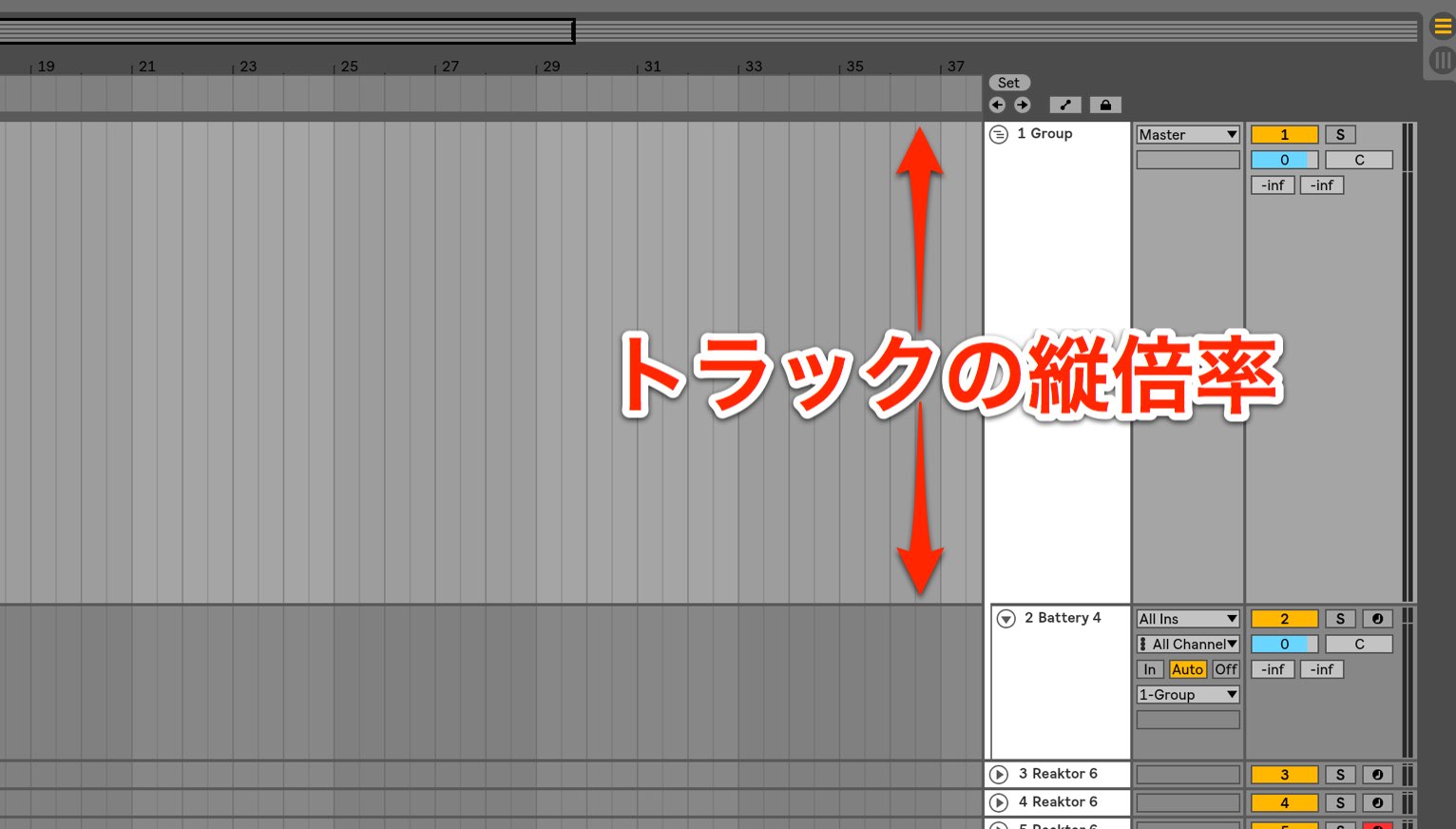
- Mac: Hold Option and scroll the mouse wheel or trackpad.
- Windows: Hold Alt and scroll the mouse wheel or trackpad.
Use these to change the selected track’s vertical zoom.
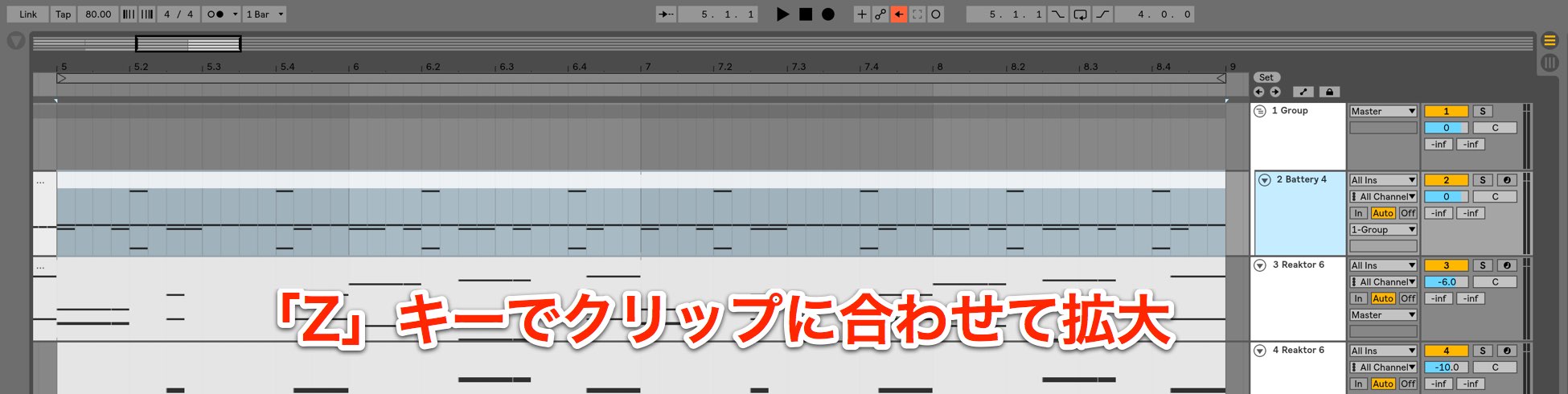
Press “Z” to fit the selected range or clip to the view.
Press “Shift + Z” to return to the previous zoom level.
Setting the Loop Range
You can set the loop range to the selected time range or clip.
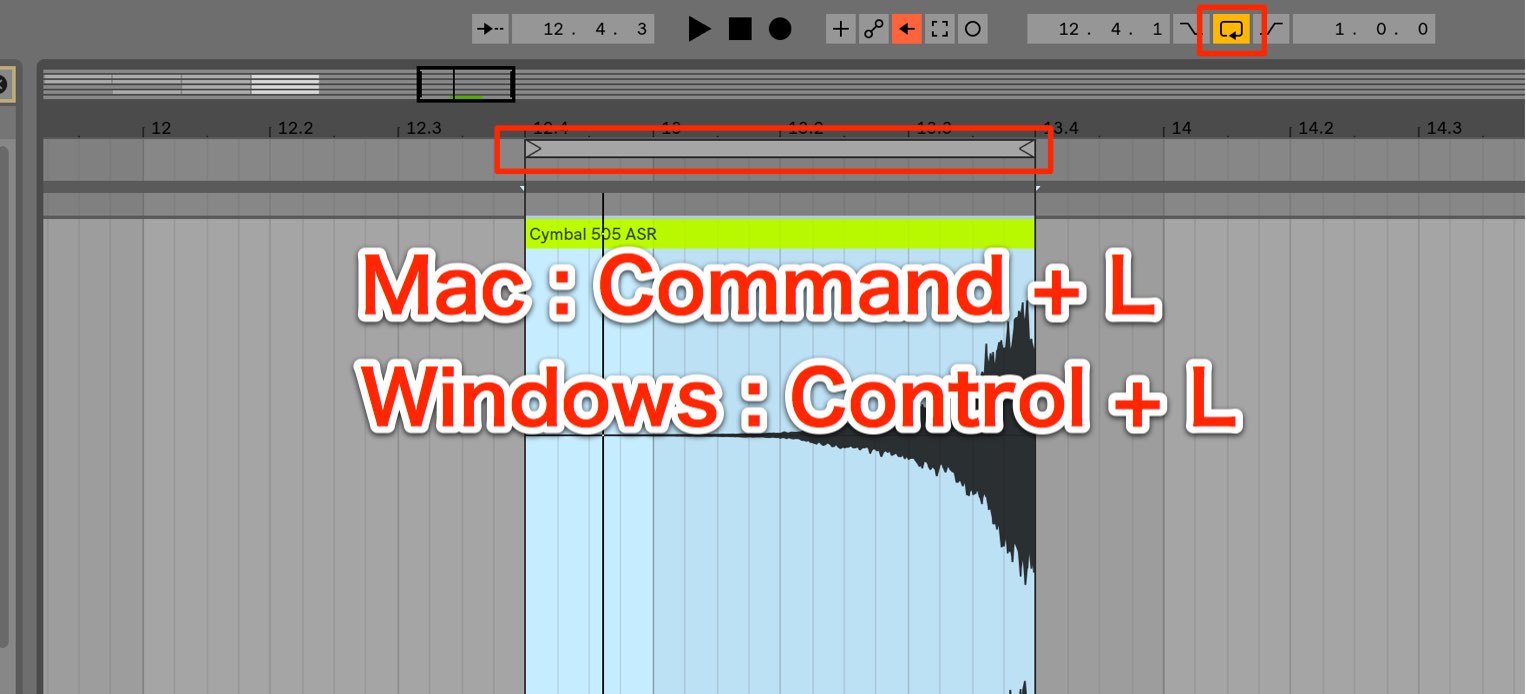
- Mac: Command + L
- Windows: Control + L
The loop range is applied immediately.
Audio Clip Fades
You can now apply fade-ins and fade-outs directly to audio clips.
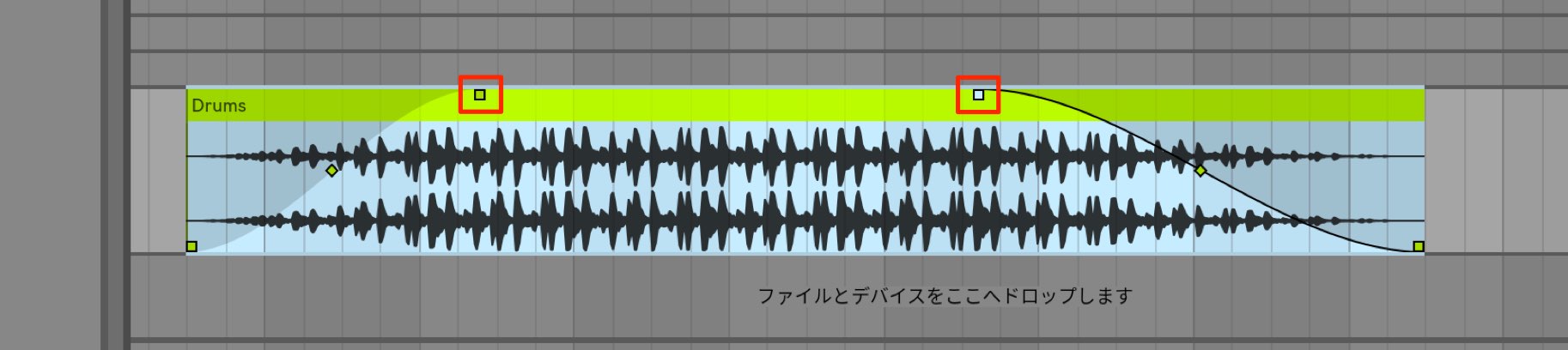
Simply drag the handles at the top of the clip.
This is a welcome improvement for an operation used so often.
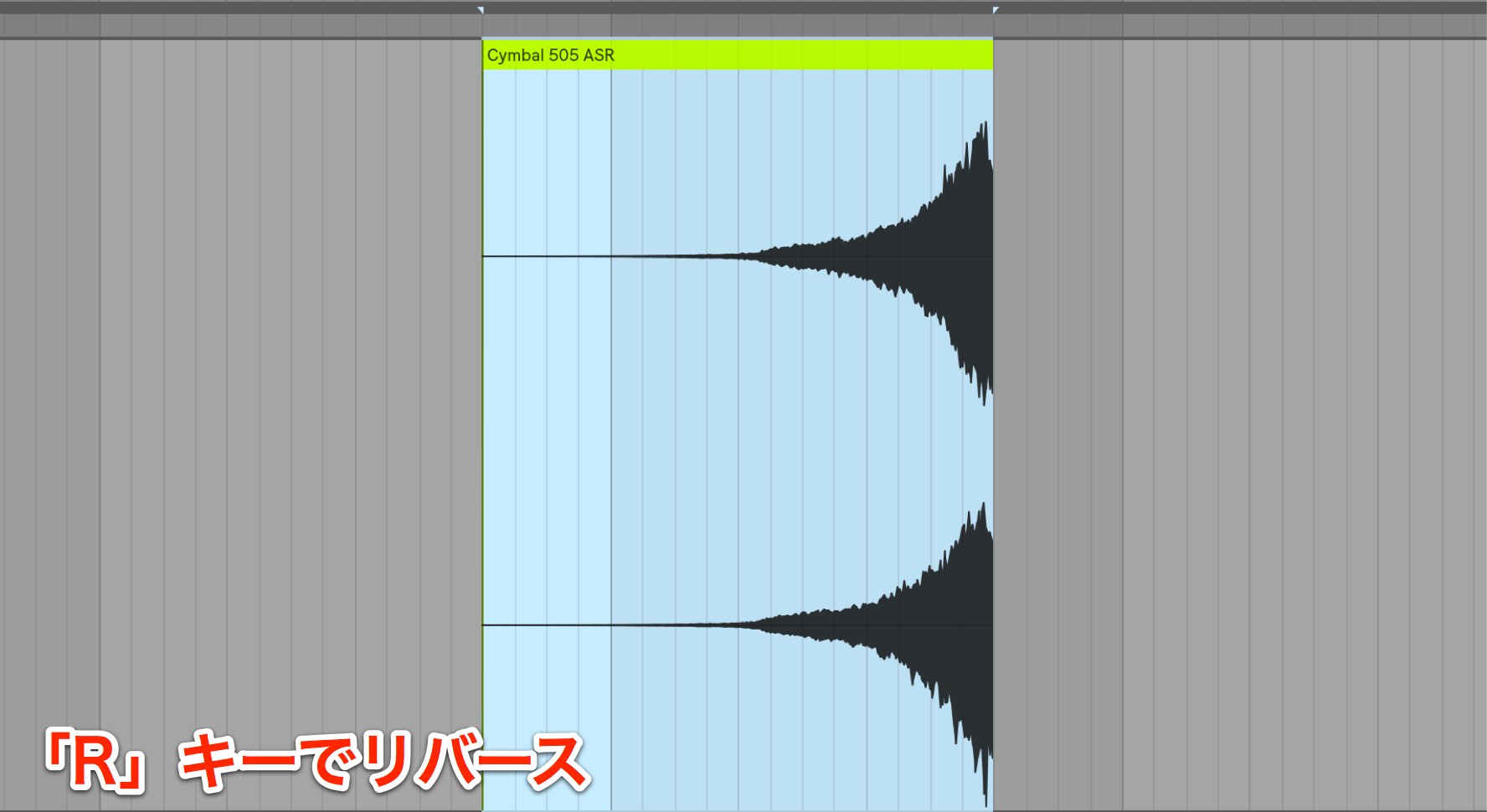
You can also press “R” to reverse the clip.
The New Wavetable Synth
The Wavetable synthesizer has been added.
Its straightforward controls let you create complex and aggressive sounds.
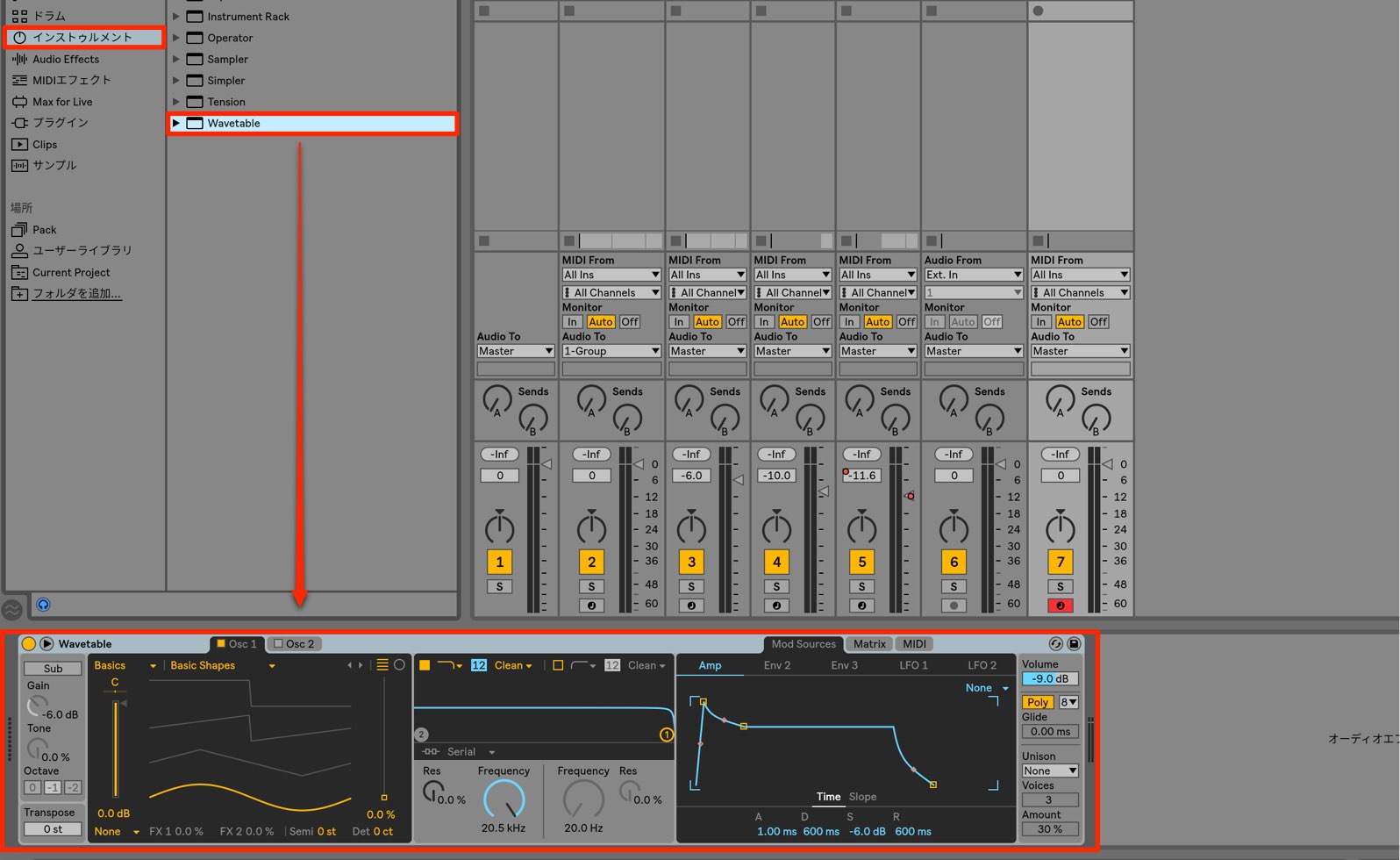
We plan to cover Wavetable’s features and operation in a separate video.
Capture MIDI
This feature retains MIDI you play in the background even when you are not recording, so you can turn a performance into a clip when needed.
For example, if you play a great phrase while experimenting, you can recover that performance afterward.
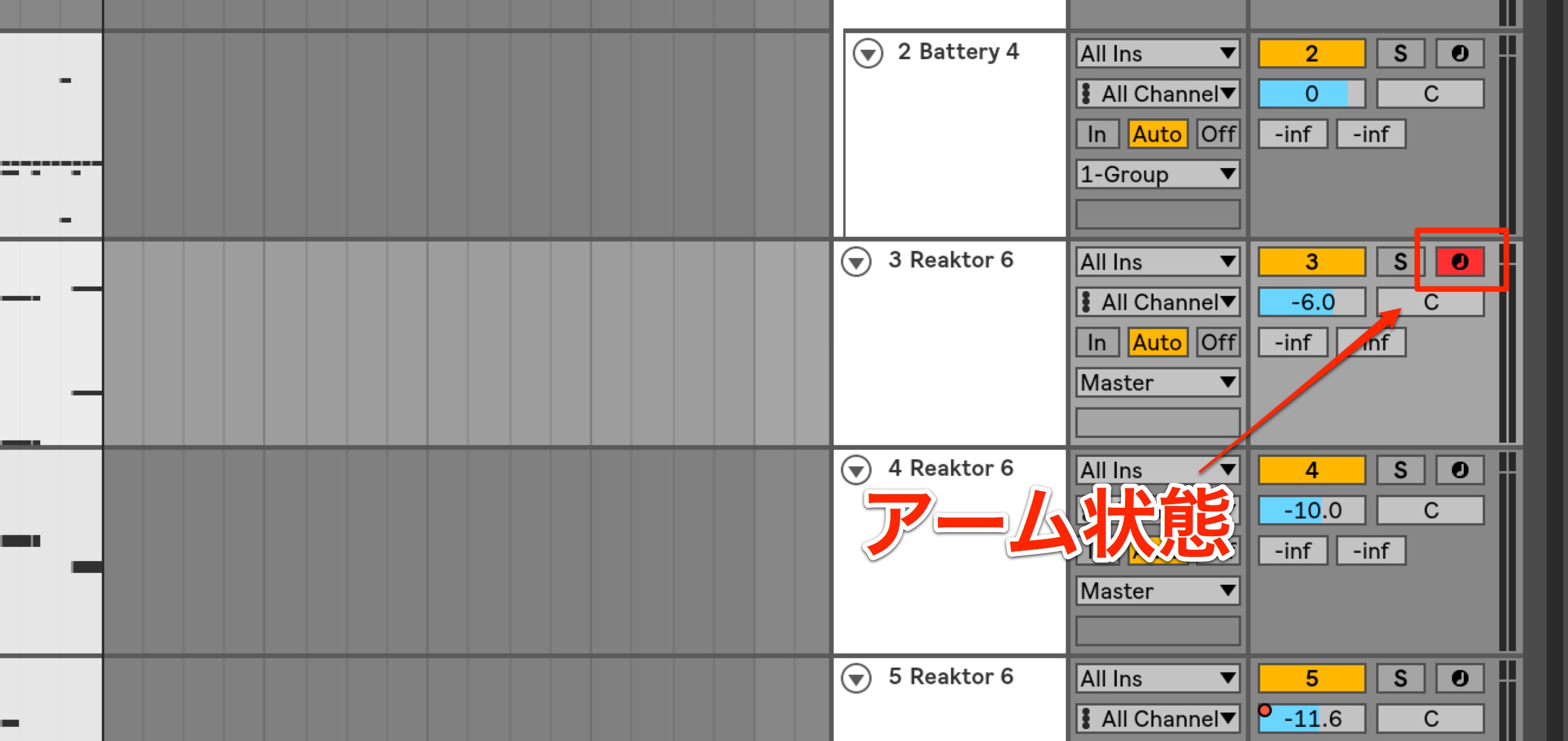
To use the feature, the relevant track needs to be armed for recording.
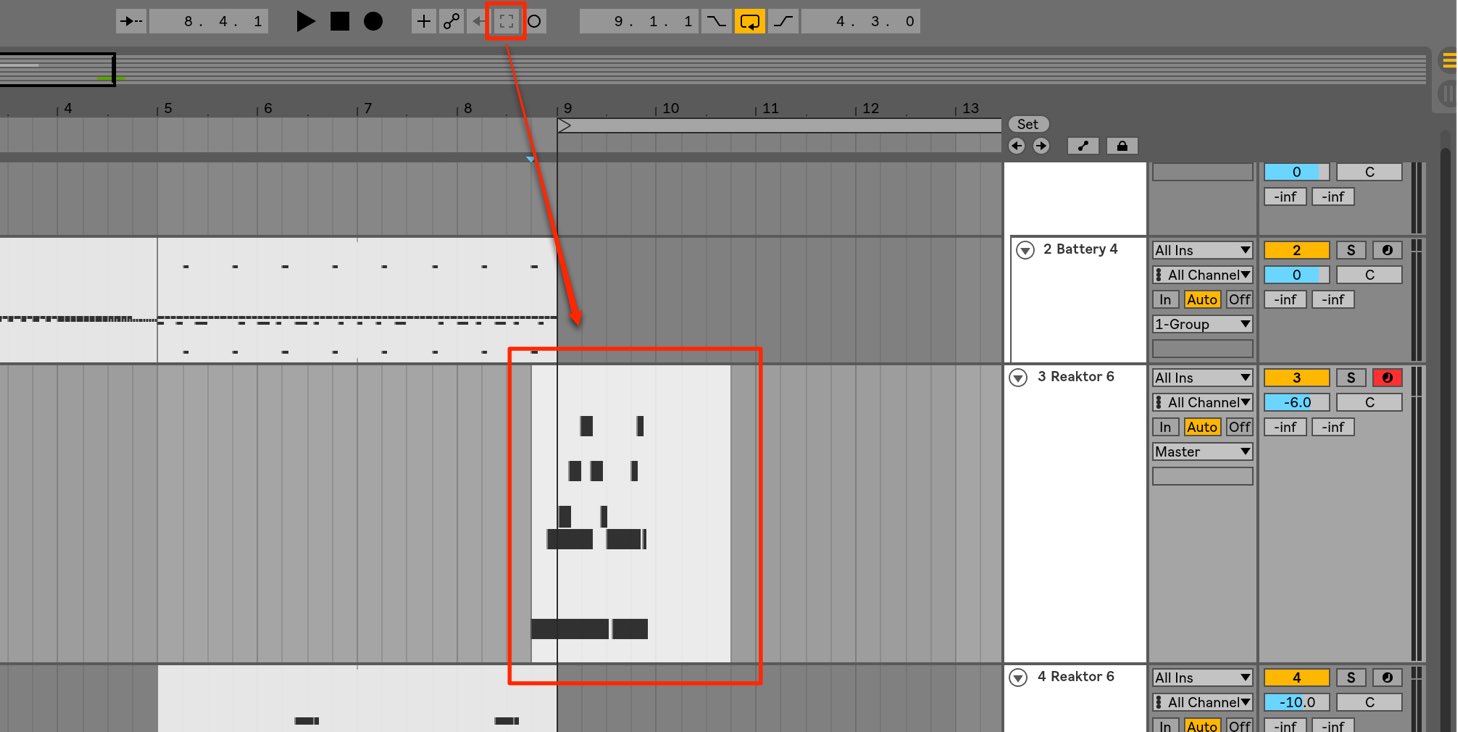
After playing the instrument, press the Capture button at the top to create a clip from the performance.
New Plug-ins
Several ready-to-use plug-ins have been added.
Drum Buss
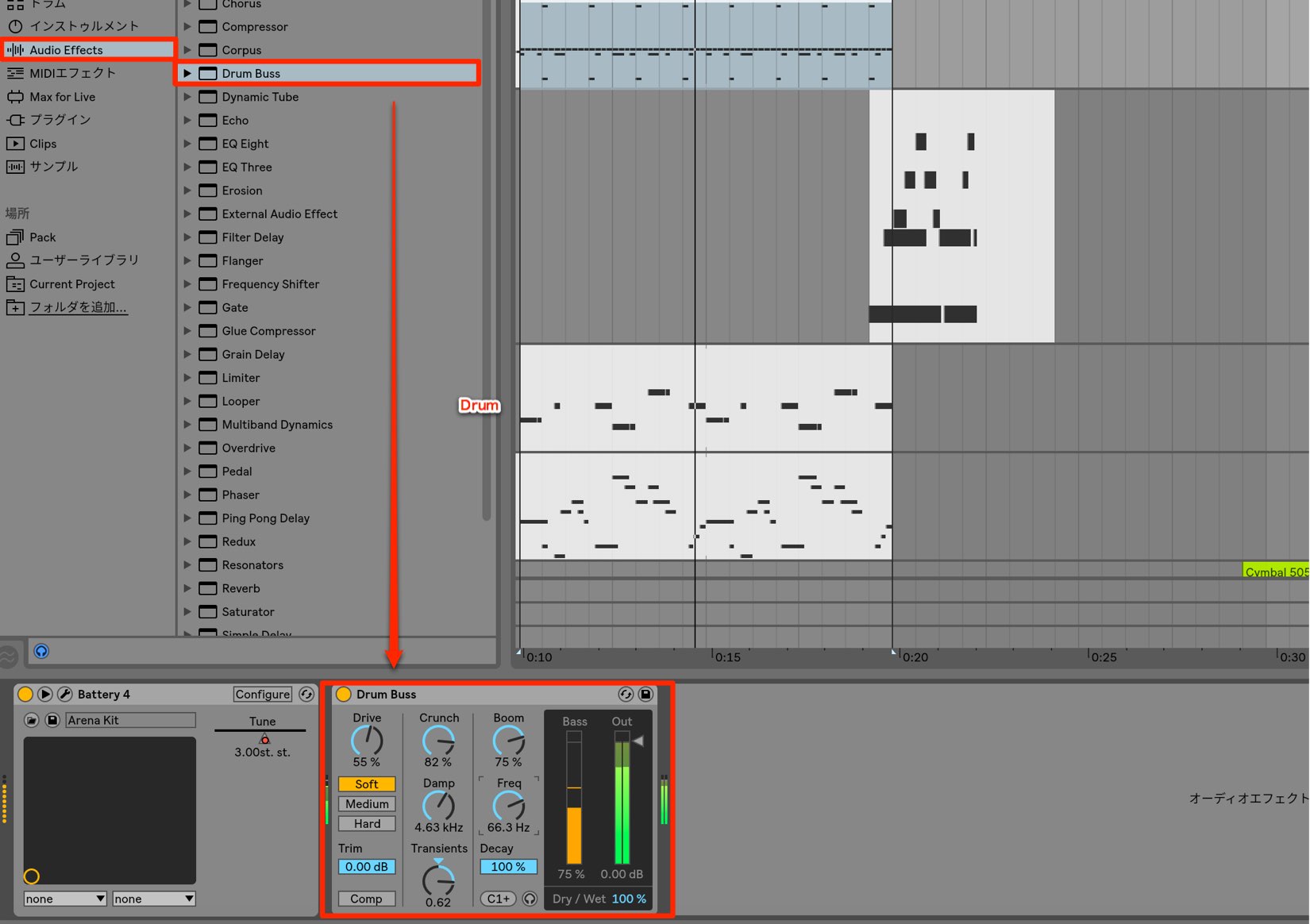
This plug-in is suited to drum and rhythm tracks.
It can bring multiple kits together and gives you easy control over distortion character and attack.
Pedal
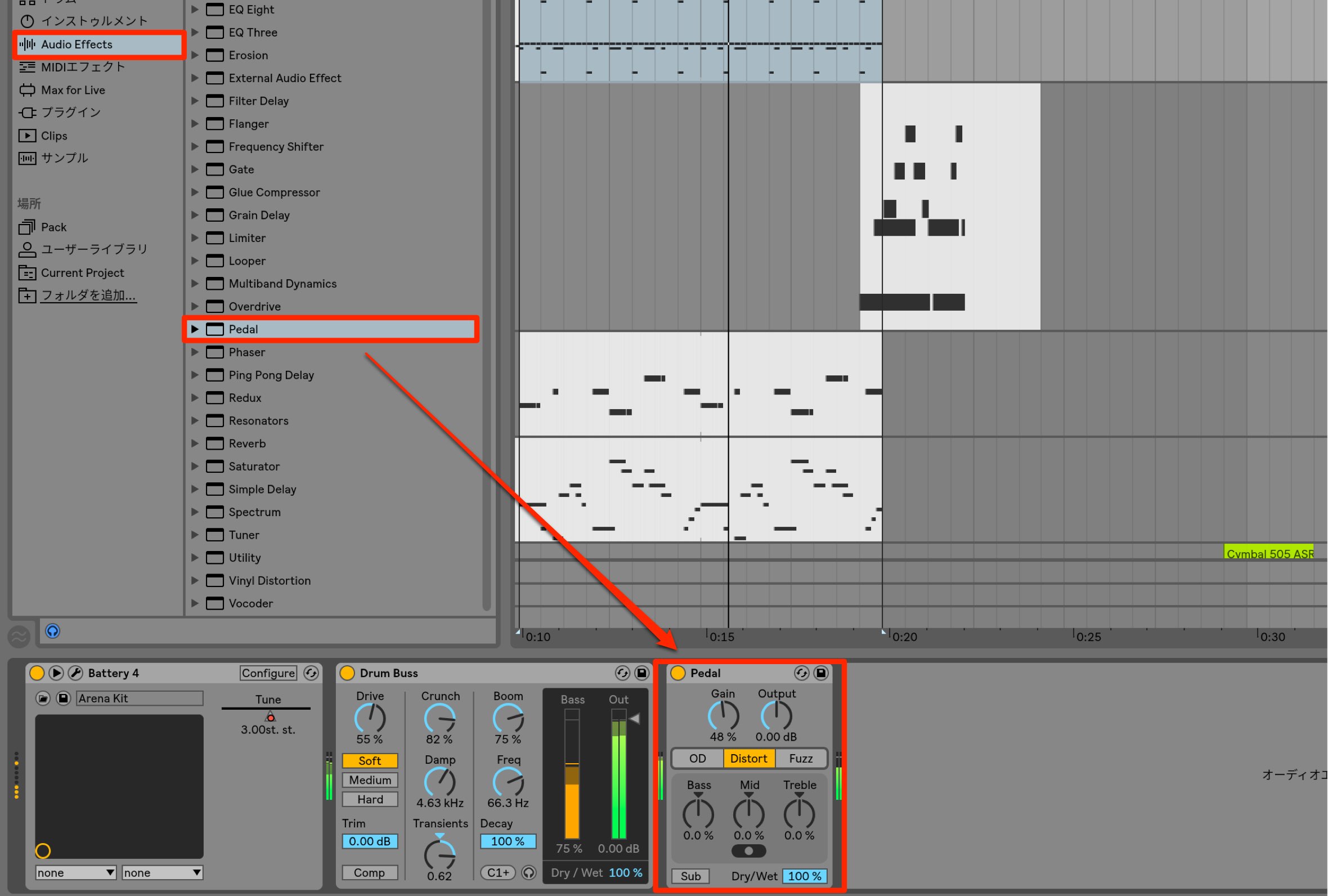
This plug-in adds drive and distortion reminiscent of guitar pedals.
It is useful for more aggressive sound design.
Echo
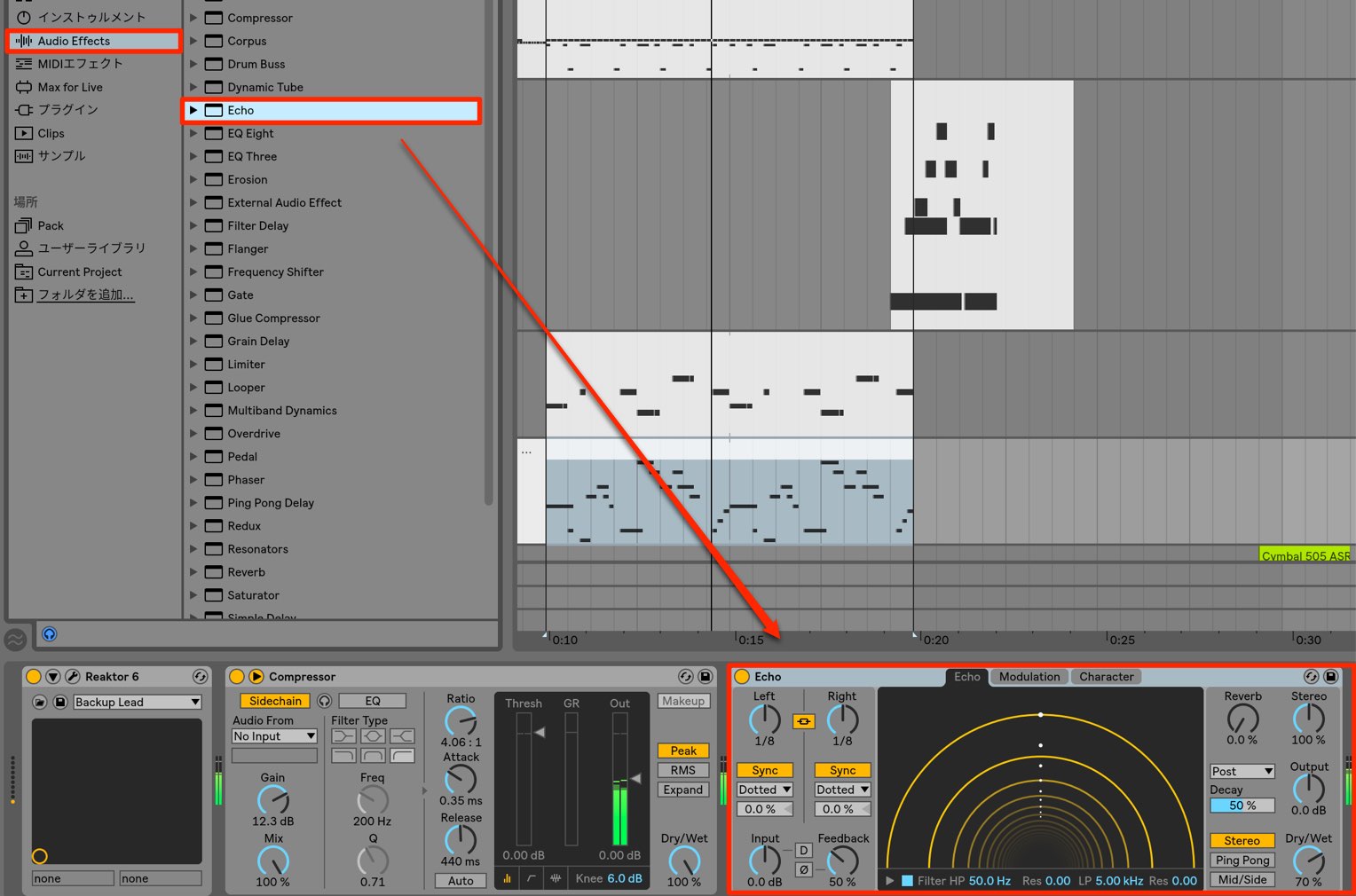
Echo is a delay with a distinctive analog character.
Its flexible control over the repeats and ambience makes it useful for adding depth or blending a track into a mix.
Improved Automation
Automation, which adds expression to tracks and enables more complex sound control, has also been enhanced.
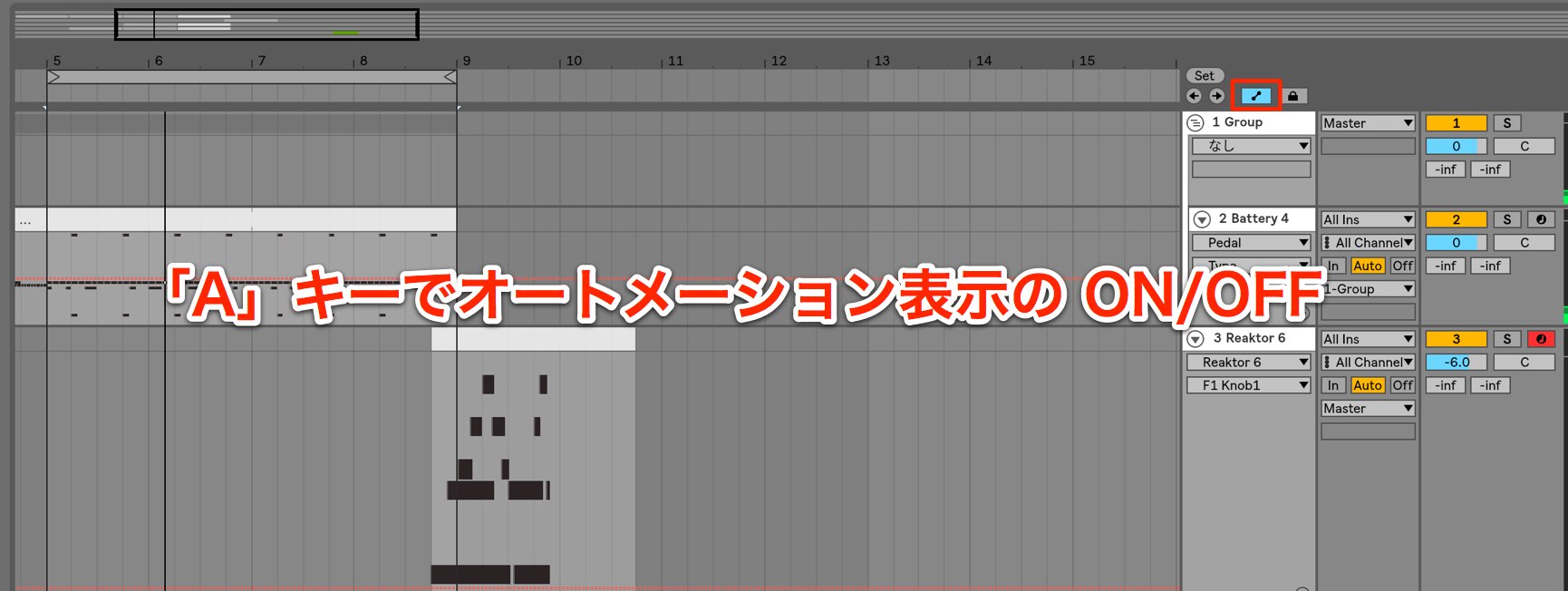
Press “A” to toggle the automation display on and off.
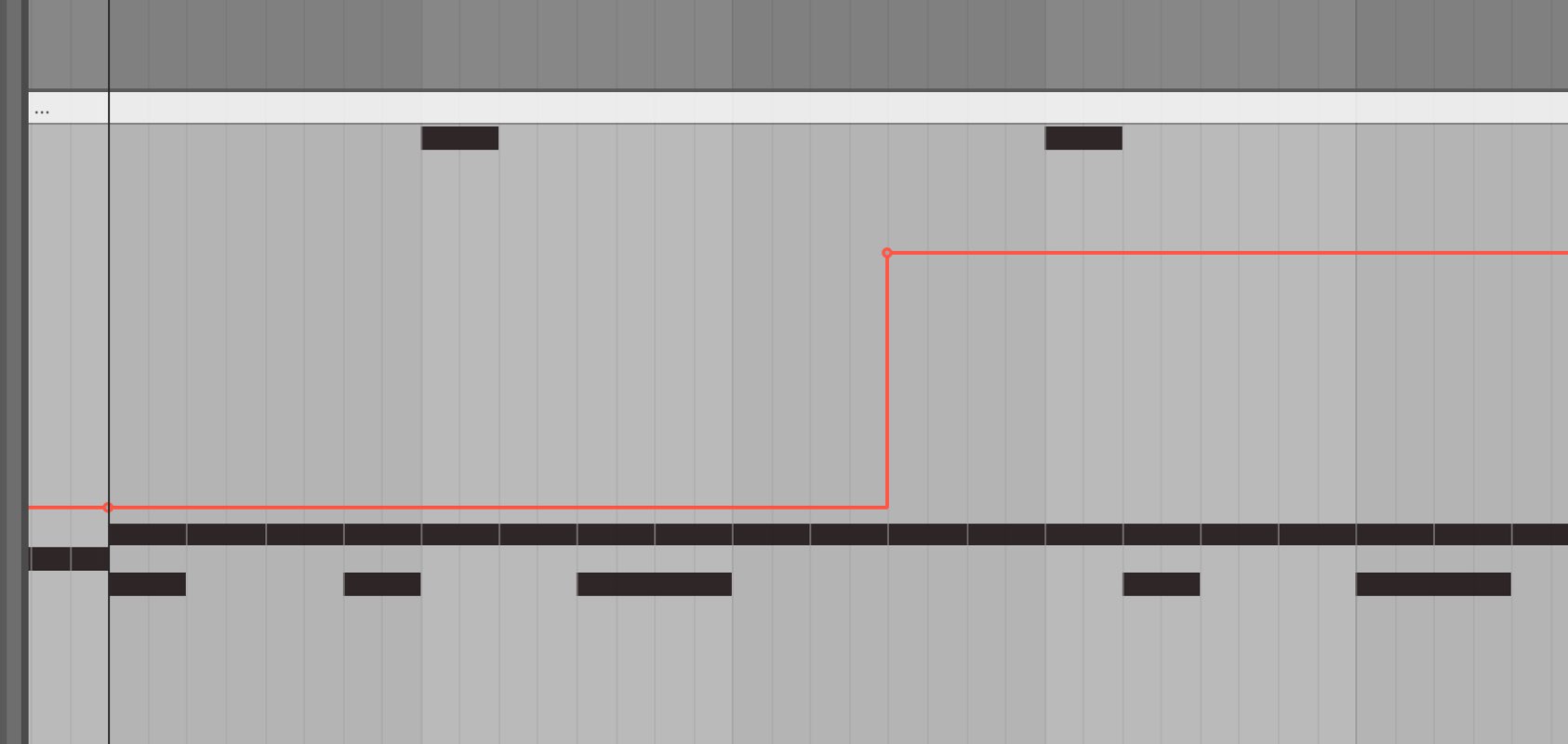
Automation points can be moved vertically or horizontally along the grid, and selected ranges can be copied and pasted.
Frequently Asked Questions
Q1. When is Live 10’s Capture MIDI feature useful?
If you play a good phrase while experimenting, Capture can retain the performance even if you did not press record and turn it into a clip afterward. This helps preserve creative ideas.
Q2. Is the Browser’s Collections feature easy to use?
Yes. You can register favorite plug-ins and sound material by dragging and dropping them, then assign colors with a right-click. Color-coding instruments, plug-ins and samples helps you find them quickly.
Q3. What tracks is Drum Buss suited to?
It is designed for drums and rhythm tracks. It can help unify multiple kits and shape distortion and attack. Inserting it on a bus can give the overall drum sound a more cohesive character.
NEW ARTICLES
Latest English Articles































































































































































































































































































































