
This SYNTHWAVE mixing tutorial uses the effects included with Cubase Pro 10.5 to refine the kick, bass, synth, and snare tracks. Learn how to adjust frequencies with channel EQ, add harmonics and control stereo placement with Quadra Fuzz, apply delay with Cloner, and shape reverb with REVerence. Combining these effects can clean up the low end, bring out each track, and give the song greater depth and width.
Solving Sound Problems with the Included Effects

In part 4 of Creating SYNTHWAVE with Cubase Pro 10.5, we will explore mixing techniques for the individual tracks.
Here are the improvements we want to make.
- Give the kick and bass more presence
- Refine the overall low end for a cleaner sound
- Add width to the synth track
- Give the snare more impact and a wider stereo image
Let’s get started.
Mixing the Individual SYNTHWAVE Tracks
- 1Rhythm Tracks
- 2Chord Progression and Bass Track
- 3Synthesizer Tracks
- 4Mixing the Individual Tracks
- 5Processing the Vocal Track
Key Points for the Kick Track
We will begin with the kick track.
The current sound lacks low-frequency content and consequently feels rather light.
Let’s address that with EQ.
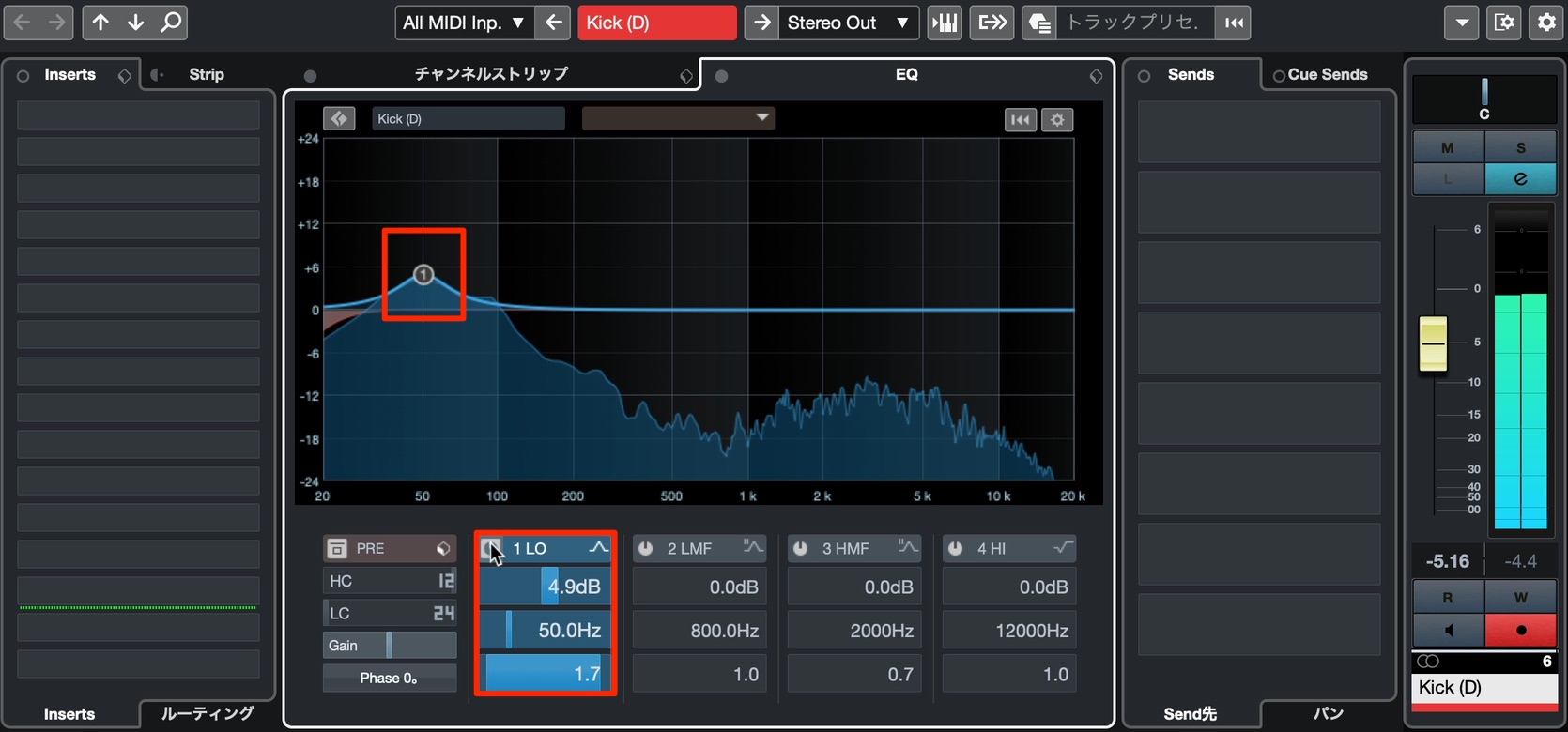
Cubase Pro includes several types of EQ. Here, we will use the channel EQ, which you can access using the track’s “e” button.
First, boost the low-frequency peak at 50 Hz to give the sound more weight.
After that, we will address masking between the kick and bass tracks—an important step here.
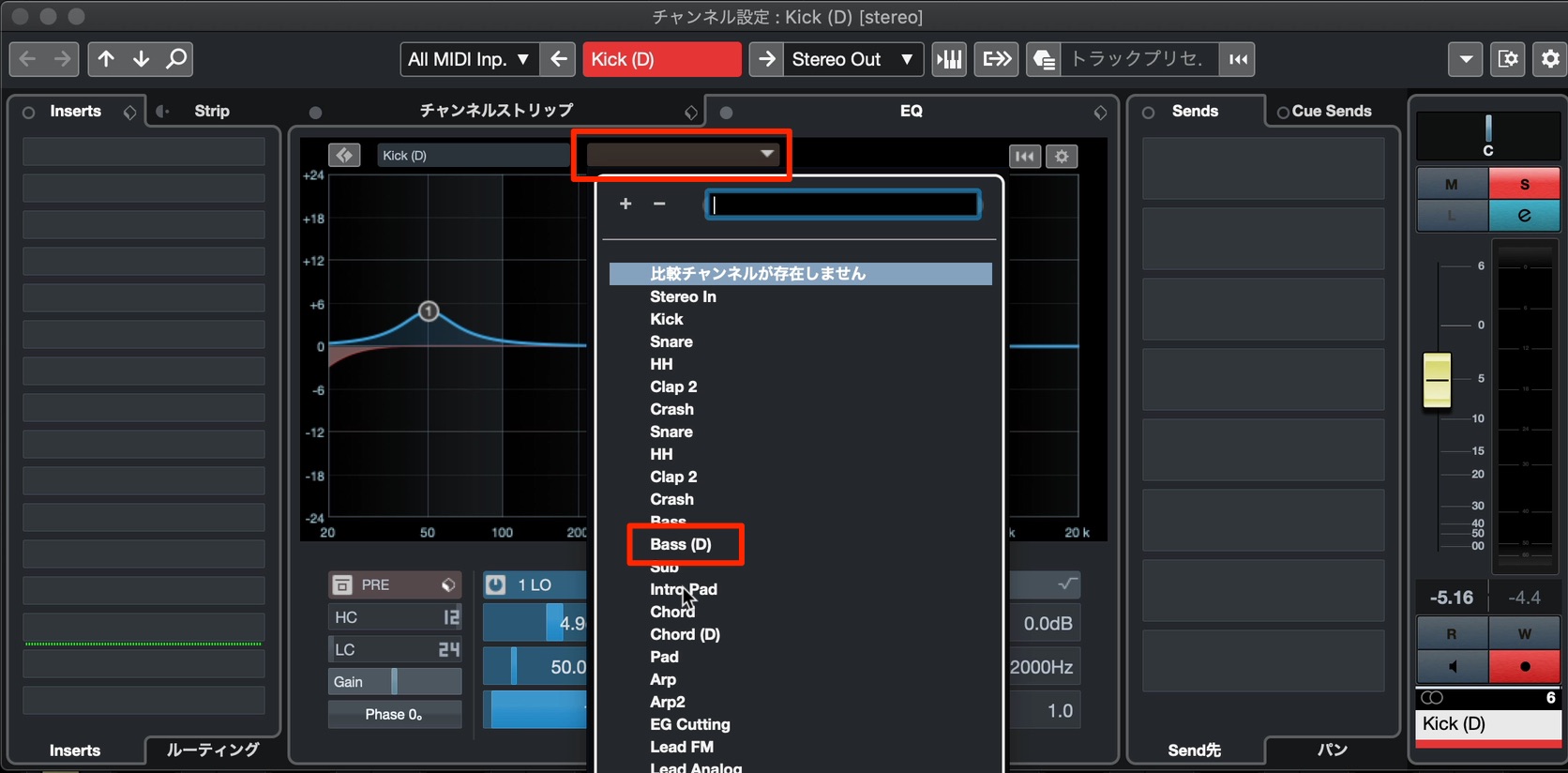
Click “Select Comparison Channel” to choose another track for comparison.
Select the Bass track here.
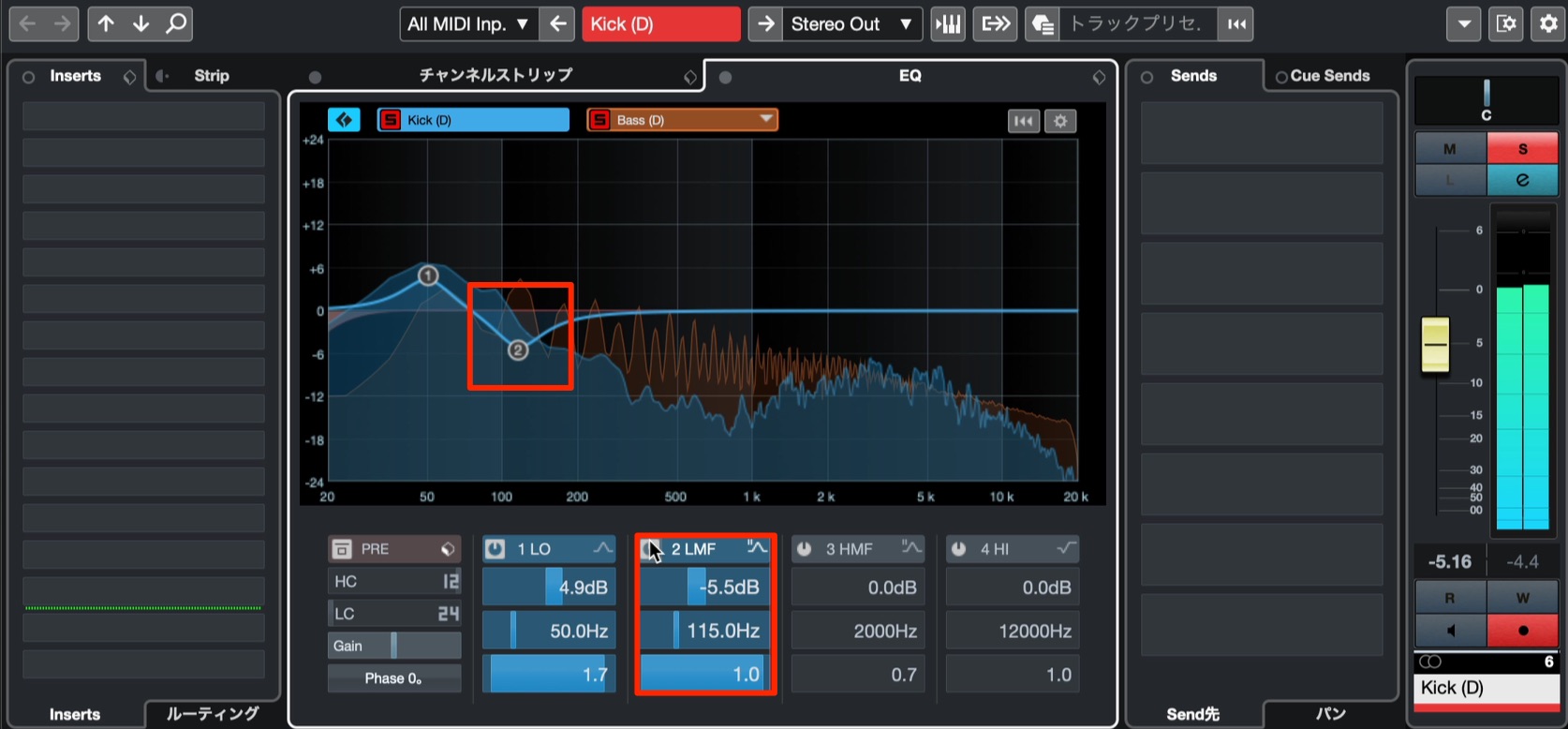
Compare the spectra to identify the frequency range where the bass and kick overlap most strongly.
The bass has a peak around 80–110 Hz, so we will cut that range in the kick to let the bass come through more clearly.
This has cleaned up the low end, which previously sounded bloated.
The low end now has presence, but I would like the sound to feel sharper.
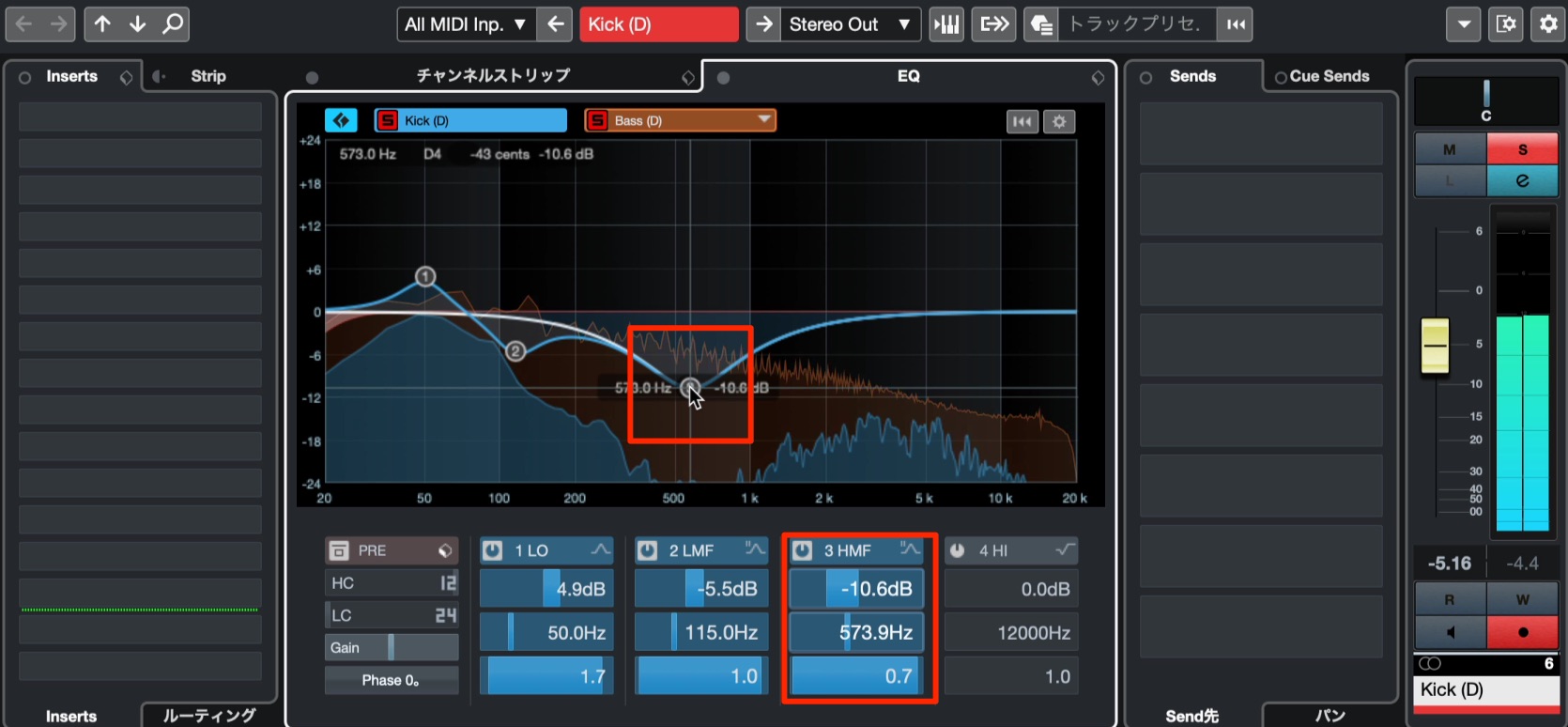
Cutting the midrange is useful in situations like this.
There is already a dip in the original spectrum, so we will apply a substantial cut around 700 Hz.
Key Points for the Bass Track
Next, we will add presence to the bass track, which currently feels understated.
I think its level is already right, so I want to bring it forward without changing the volume.
In this situation, adding harmonics with distortion and widening the stereo image can be effective.
Quadra Fuzz is an effect that lets us do both at once.
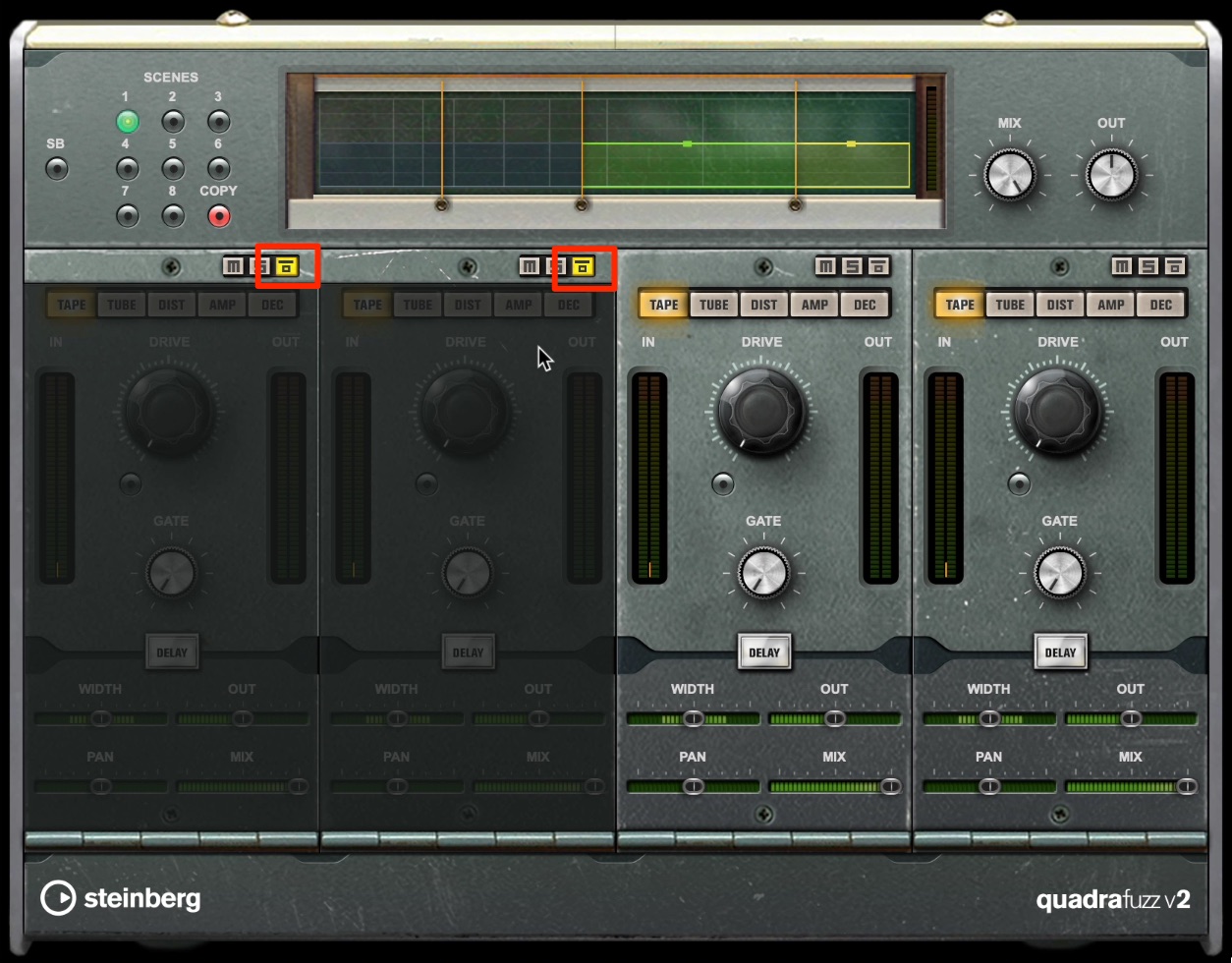
Bypass the two lower bands and add distortion to the two upper bands.
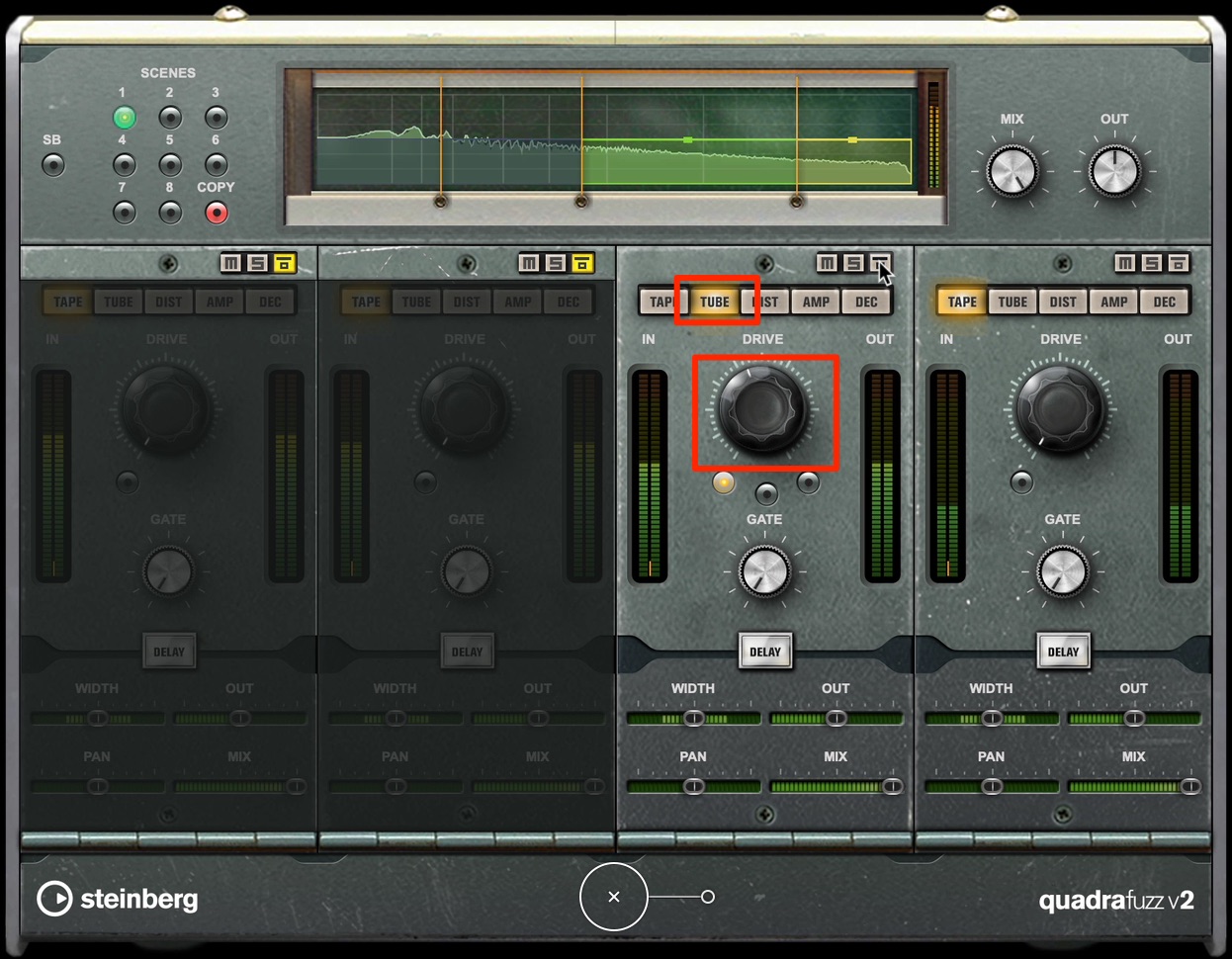
To emphasize the upper mids, choose TUBE, which has a more distinctive character than TAPE.
Listen as you adjust the drive amount to bring the sound closer to what you have in mind.
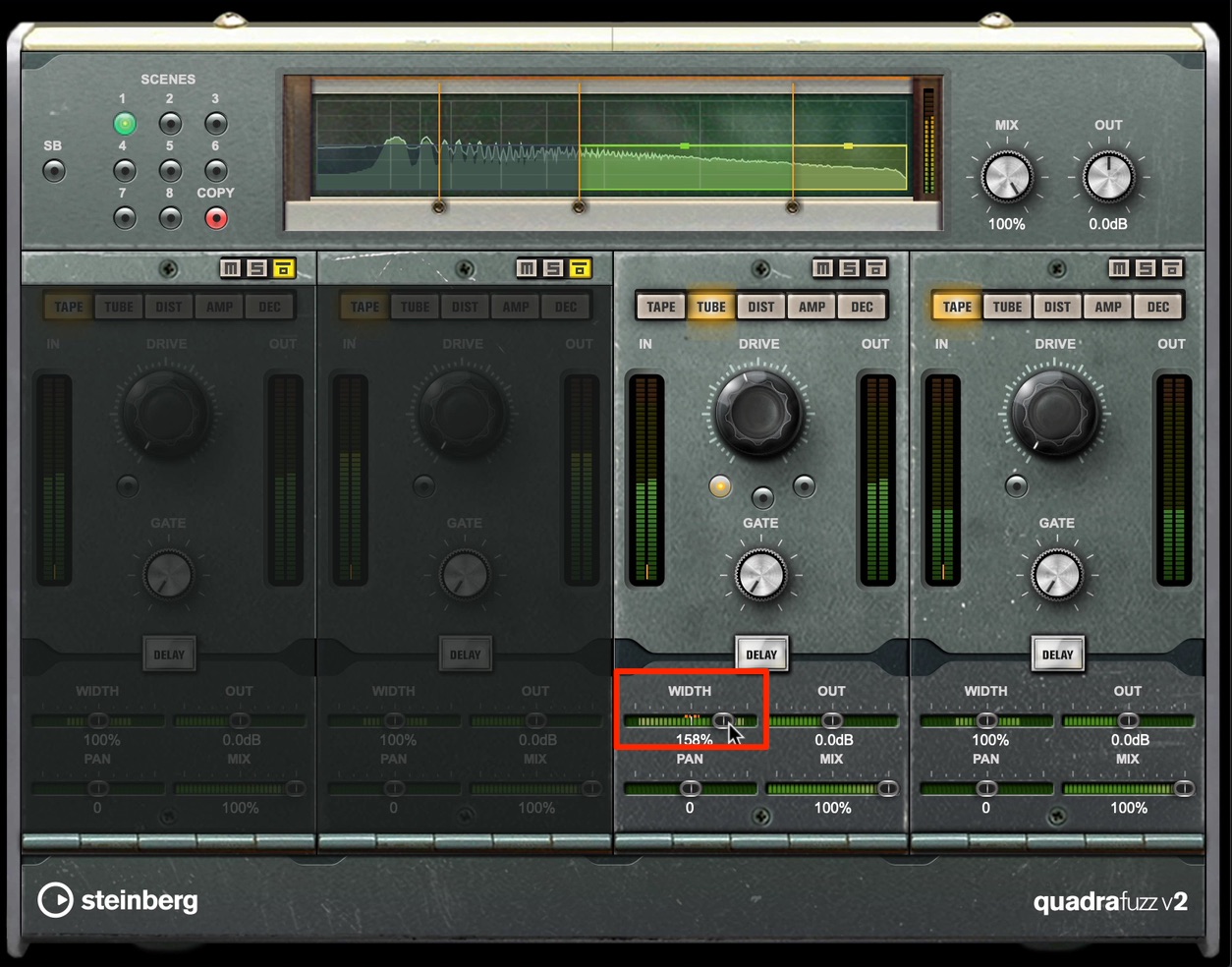
Each band in Quadra Fuzz also has a useful WIDTH control for adjusting stereo spread.
Keep the low end tight and centered, without widening it. Widening only the upper mids and highs can make the whole song sound wider.
Key Points for the Synth Track
We will apply Quadra Fuzz to the chord track as well.
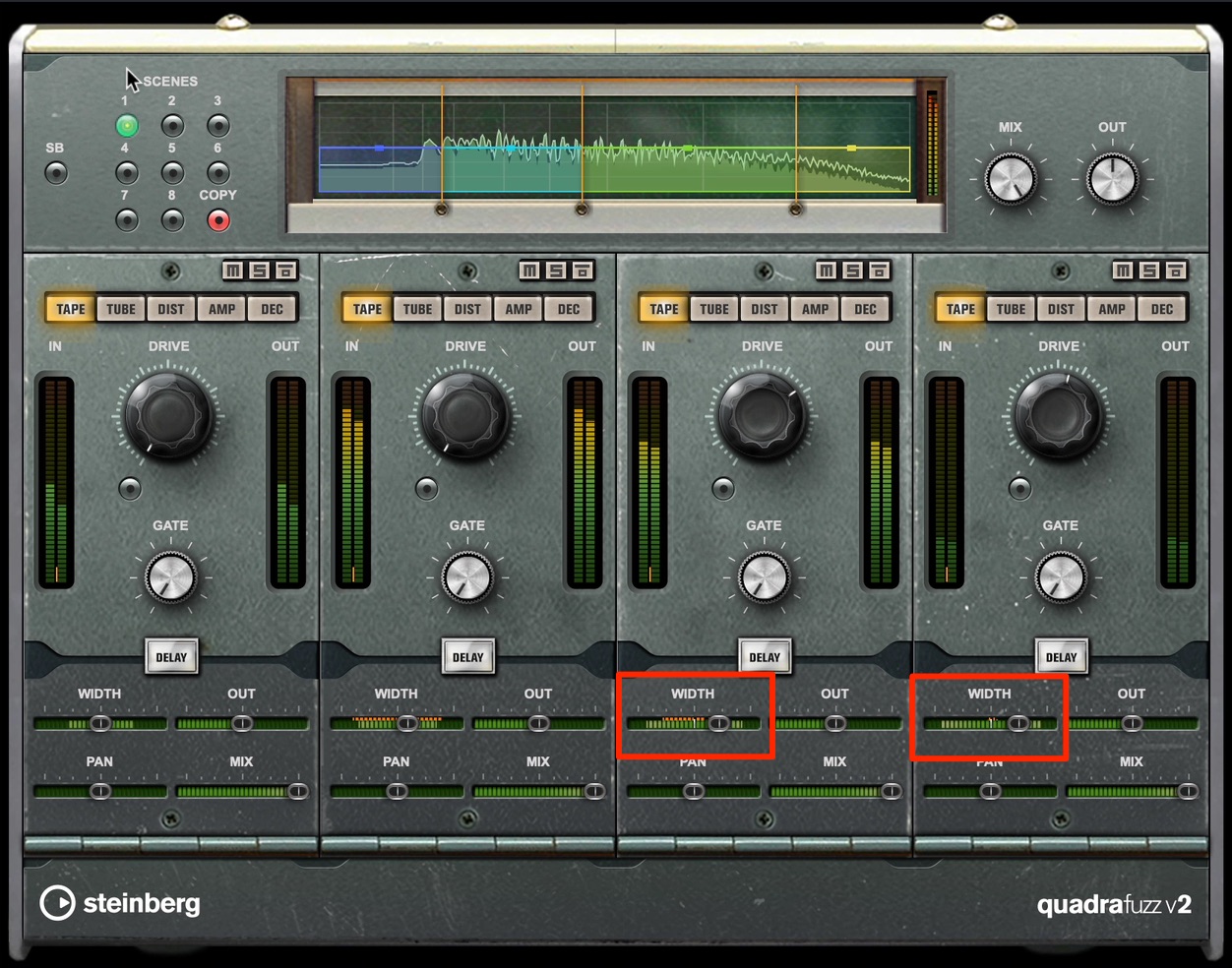
As with the bass, keep the low-frequency spread restrained and focus the widening on the upper mids and highs.
Also add distortion to the upper mids and highs, as we did with the bass.
In isolation, the distortion may sound a little too strong, but in the mix it produces a well-balanced sound that cuts through nicely.
Key Points for the Snare Track
Finally, we will adjust the snare sound.
The song has relatively few tracks, leaving plenty of space in the stereo field.
We will fill some of that space by widening the snare’s stereo image.
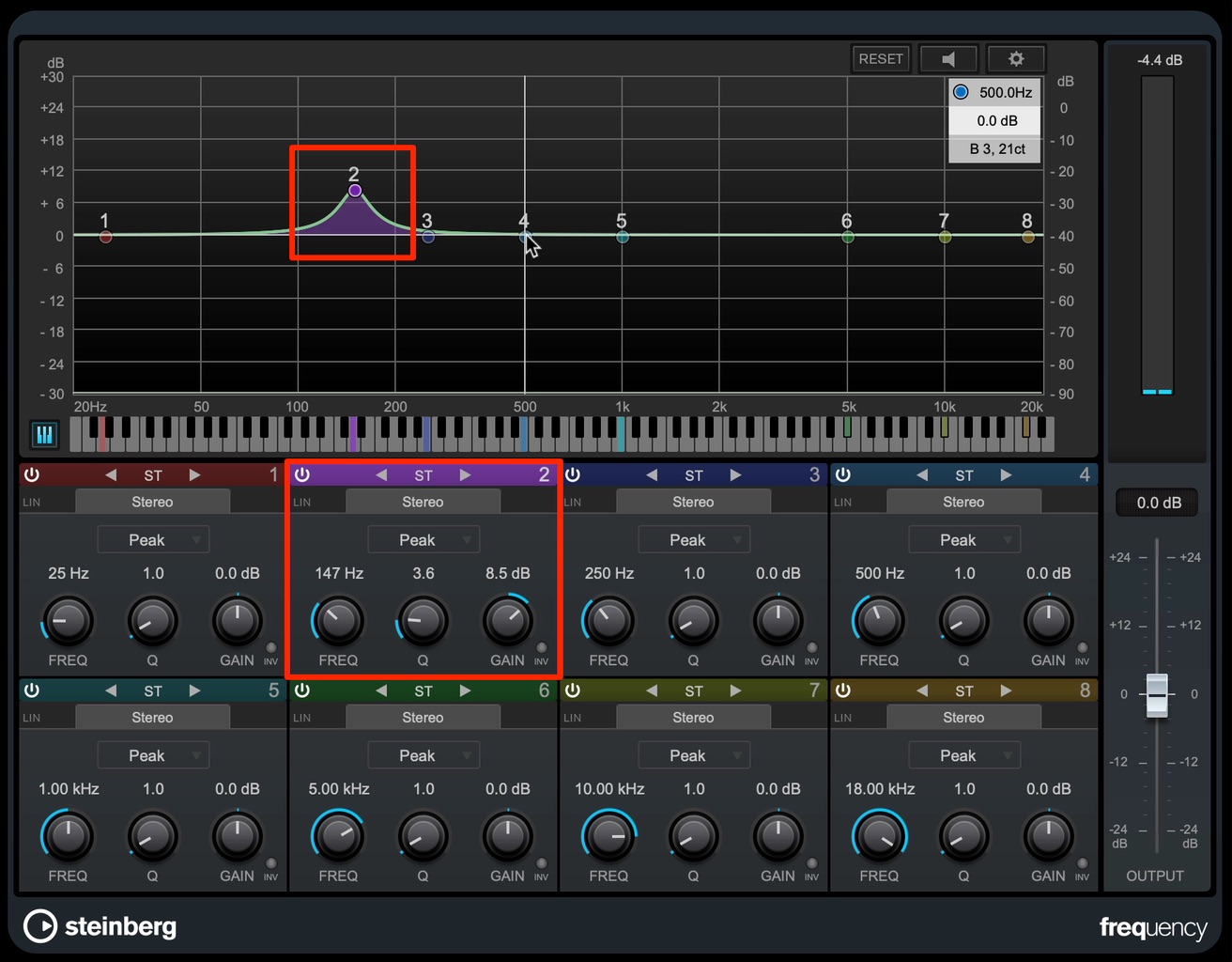
First, use Frequency to give the snare a fuller sound.
Looking at the spectrum, the sample we are using has a peak at 150 Hz.
Boosting this area can give it more presence in the song.
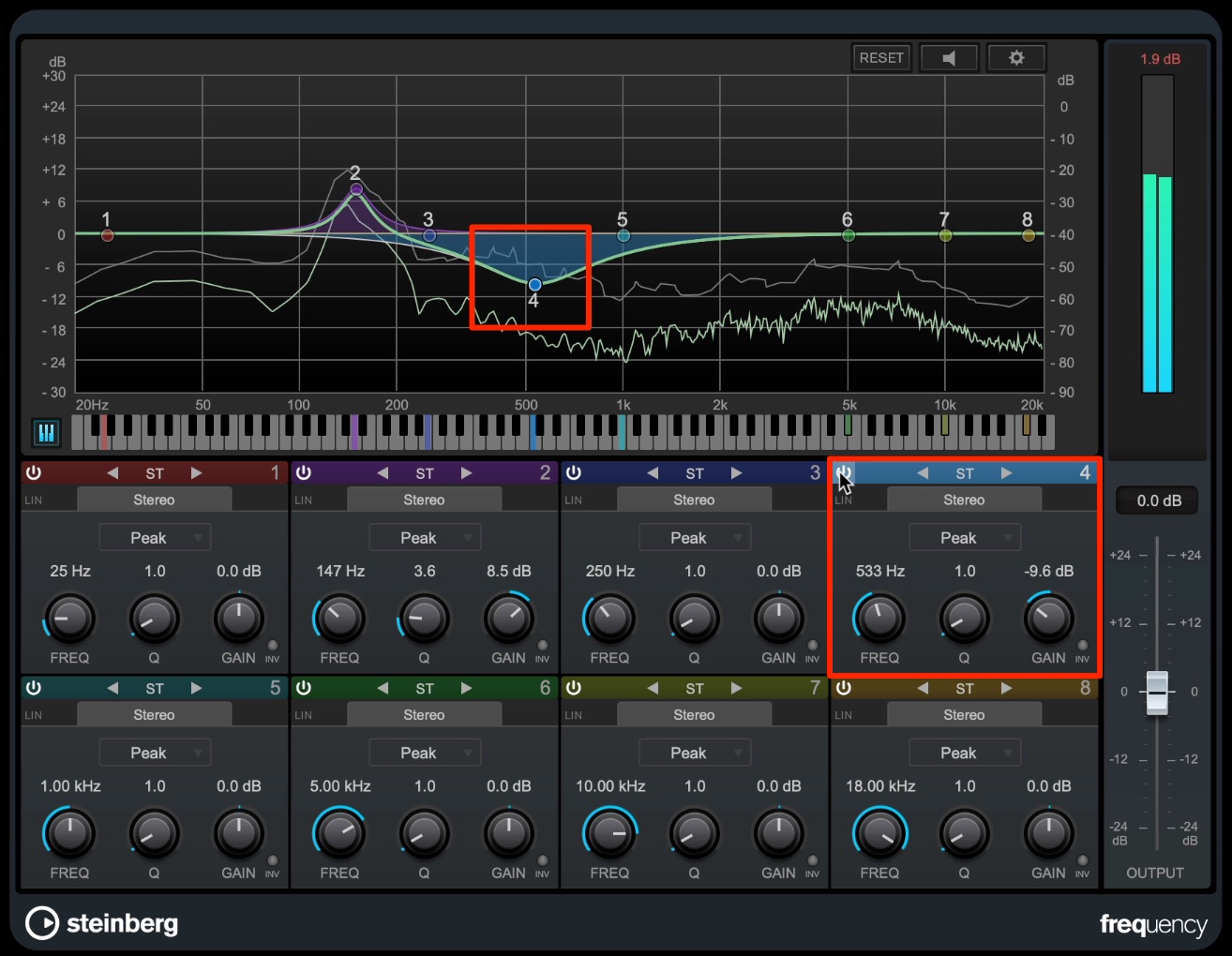
The sound feels a little indistinct, so we will lower the mids to create a slightly scooped tone.
Raise the gain of an unused band and sweep it to locate frequencies that sound unwanted.
The sound is getting closer to what I want, but there is a harsh peak in the high frequencies.
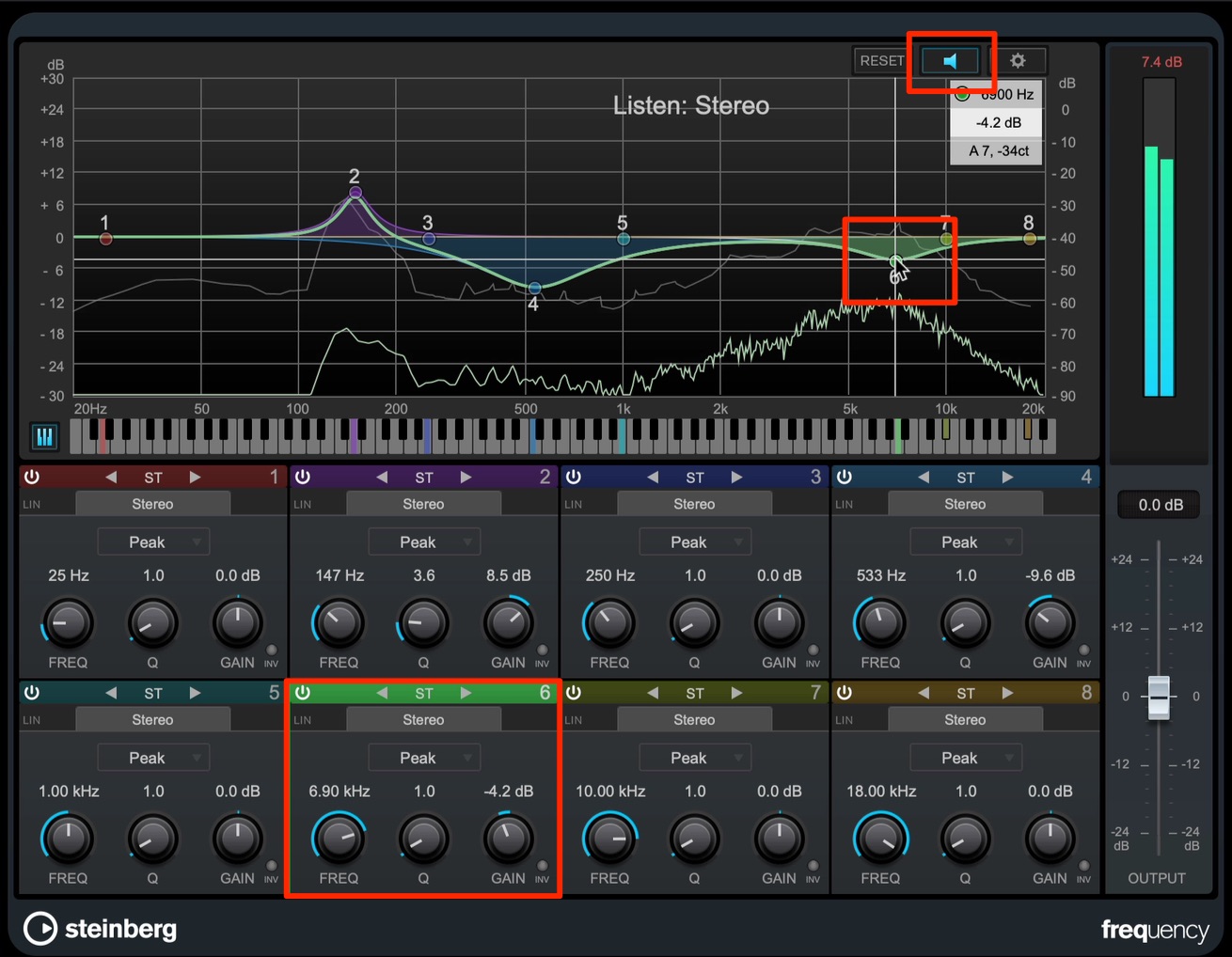
Enable “Auto Listen for Filter” to monitor only the sound around the frequency you are adjusting.
Listen to find the problem frequency, then cut it.
That completes the EQ processing. Next, we will use Cloner to widen the stereo image.
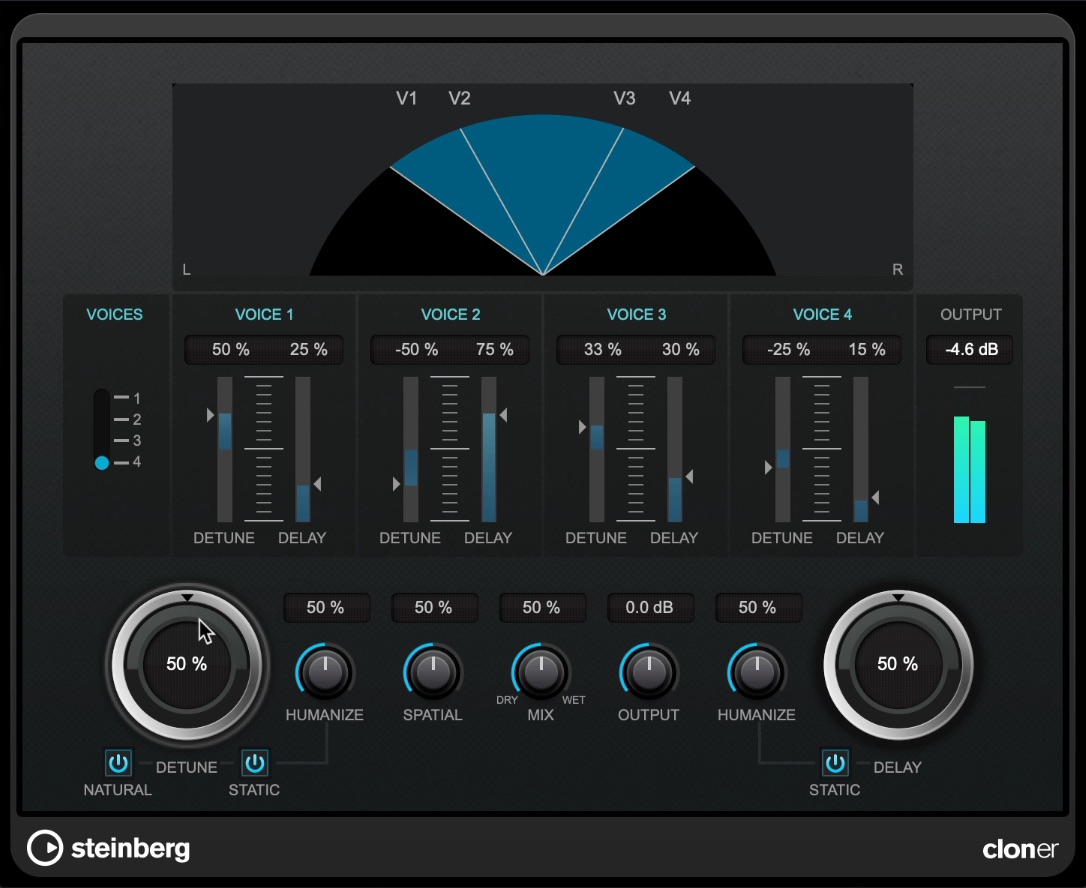
Cloner is a useful effect that adds stereo width using up to four short delays.
Besides adjusting each delay’s pitch and timing, you can use HUMANIZE to randomize the settings.
This reduces the artificial feel and adds a more natural spread.
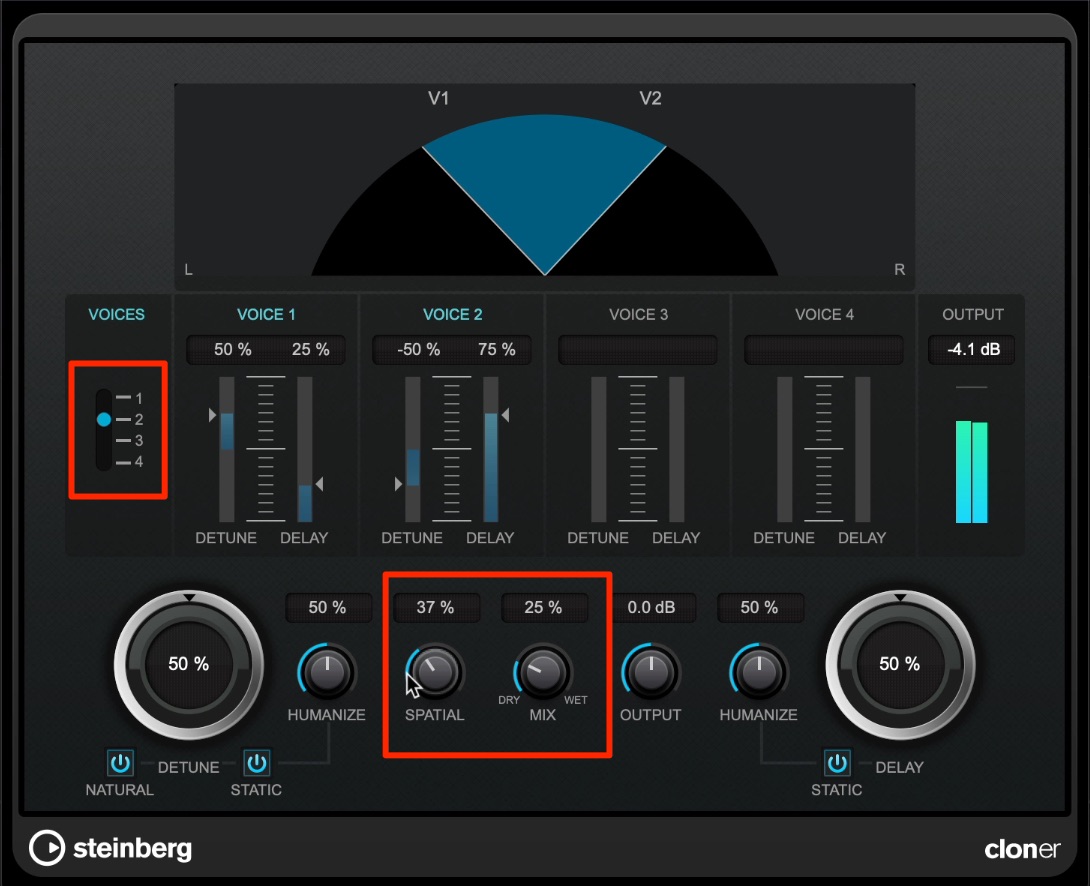
For a more natural sound, set VOICES to 2 and move the mix balance toward the dry signal.
Use SPATIAL to choose where the snare sits in the stereo field.
Finally, we will add reverb to create depth in the song.
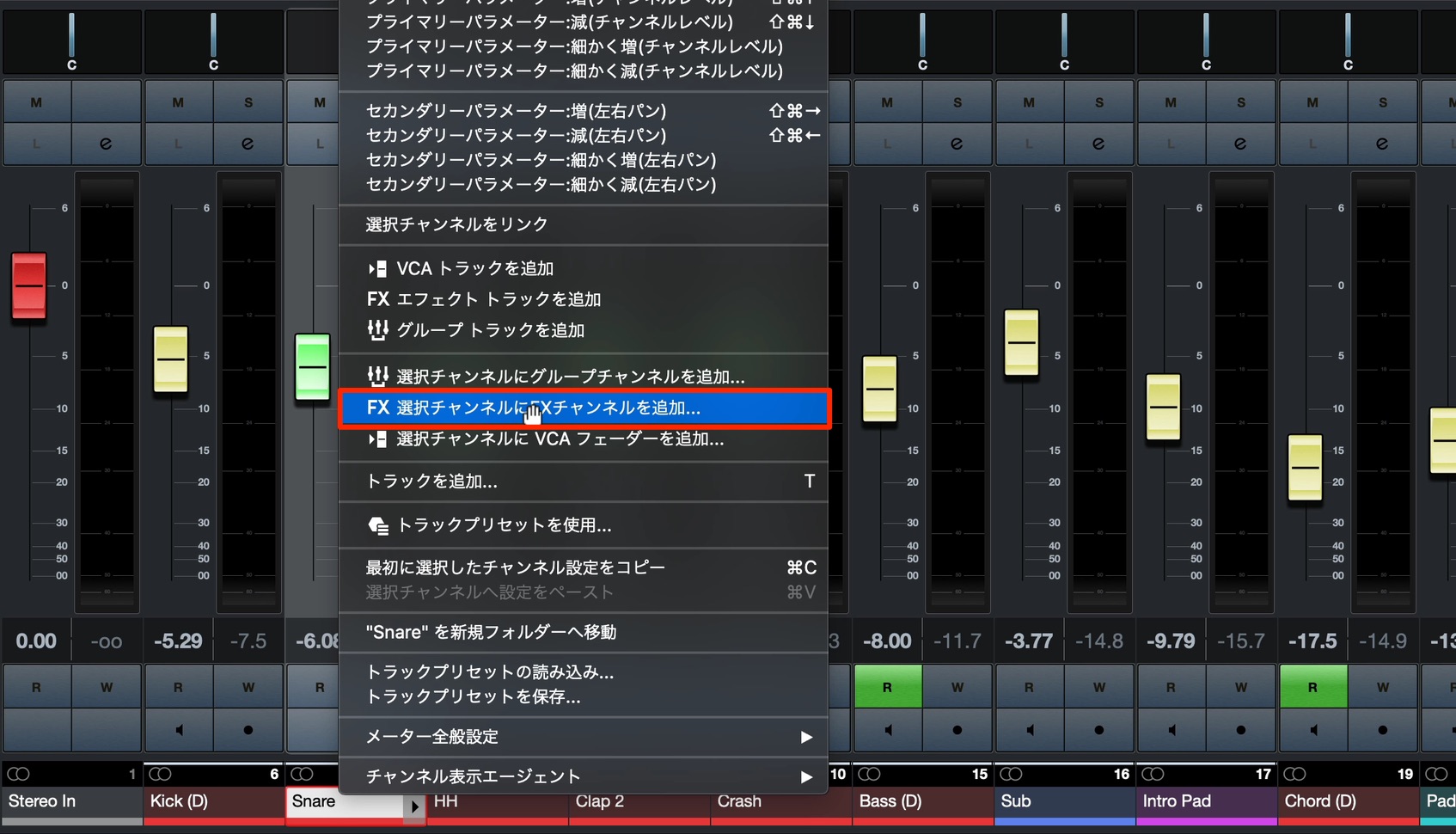
From the right-click menu, choose “Add FX Channel to Selected Channels” and load REVerence.
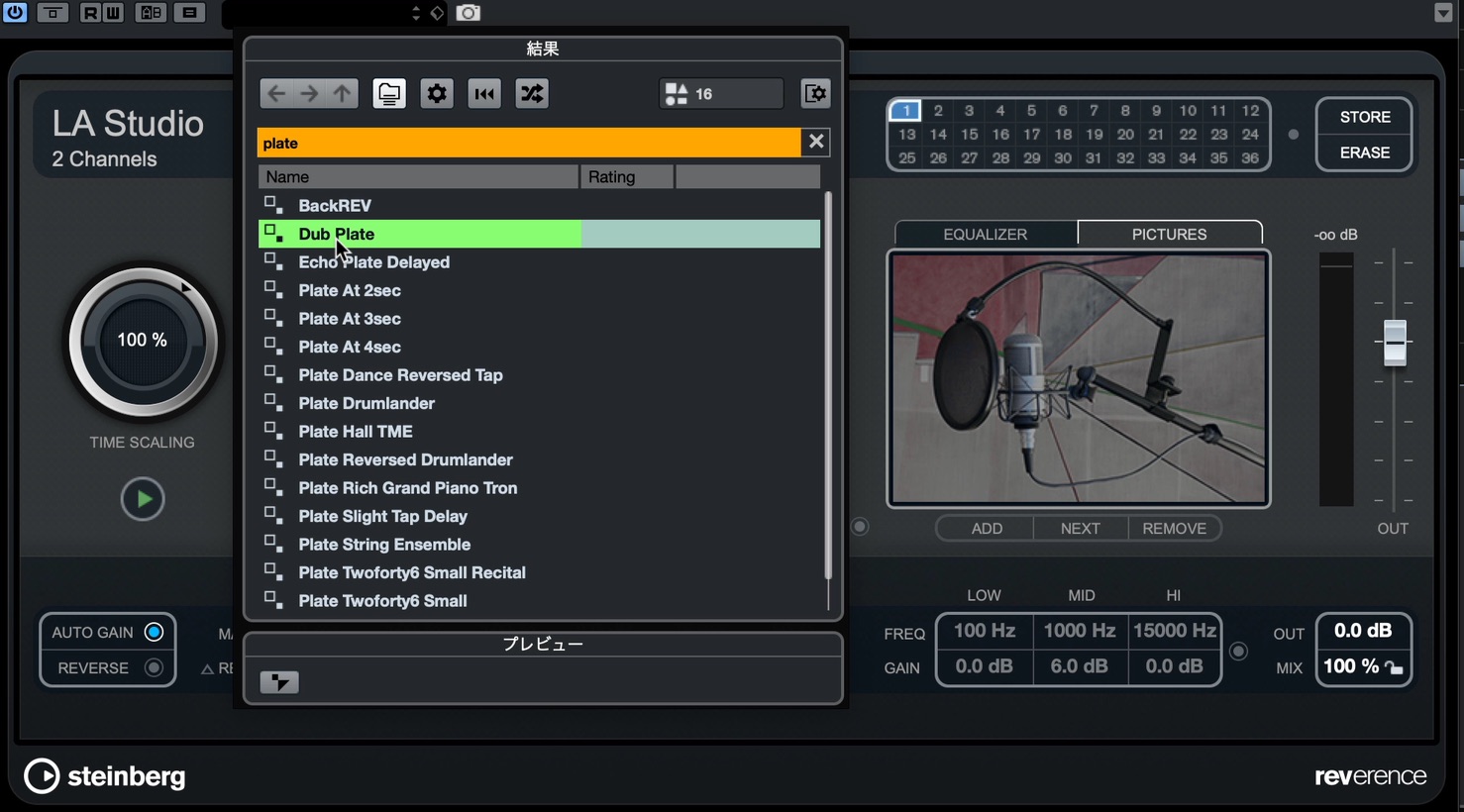
Here, I want the reverb to add depth without adding extra width.
Plate reverb is a good choice in this situation. Select the Dub Plate preset.
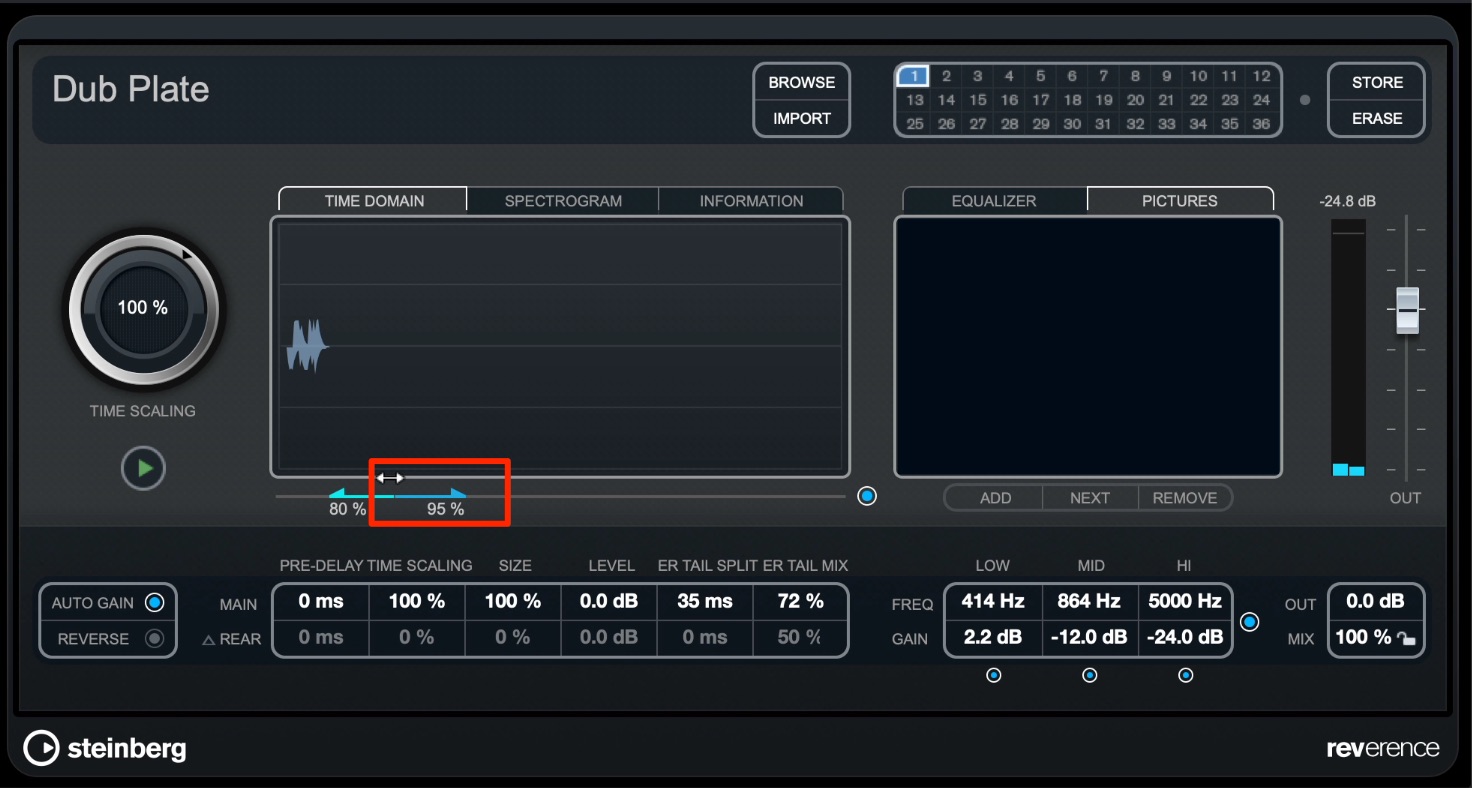
The preset works well as it is, but let’s try shortening the late reverb slightly.
This abruptly cut-off late-reverb sound is known as gated reverb, which was popular in the 1980s.

Finally, I want to bring the reverb a little closer to the center, so we will insert Stereo Enhancer after the reverb.
Simply lower its width setting until the spread sounds natural.
Inserting effects before or after a reverb to change only the reverberated sound is a commonly used technique.
Besides Stereo Enhancer, EQ, compression, saturation, and modulation effects can also work well.
When mixing electronic music, it is common to use a variety of techniques to widen sounds and control their stereo spread.
What did you think?
I hope you could hear how a few small adjustments can make the sound considerably tighter.
These techniques work across many genres, so try incorporating them into your own productions.
Next time, we will mix the vocal track.
Stay tuned to see how we process the vocals!
Creating Synthwave, Part 4.
Mixing tips using the effects included with CubaseContents
• Give the kick and bass more presence
• Clean up the overall low end
• Give the snare more impact and a wider stereo image
We will work on these improvements and more.Details: https://t.co/kS7MHCAFYw pic.twitter.com/oO2X4fNesz
— SLEEP FREAKS (@SLEEPFREAKS_DTM) July 17, 2020
Frequently Asked Questions
Q1. How can I reduce overlap between the kick and bass when mixing SYNTHWAVE?
Use the channel EQ’s comparison feature to inspect both tracks’ spectra. Cut the overlapping frequency range in the kick—80–110 Hz in this example—to reduce masking while preserving each track’s presence.
Q2. Is raising the volume the only way to give the bass more presence?
You can increase presence without changing the volume by adding harmonics with a distortion effect such as Quadra Fuzz or widening the stereo image with Cloner. Focus the processing on the upper mids and highs.
Q3. How can I make the snare sound naturally wide?
Use Cloner’s short delays and HUMANIZE function to randomize them. Set VOICES to 2 and move the mix closer to the dry signal than the preset to avoid an overly artificial feel.
Q4. How can I create a gated-reverb-style effect?
Start with the Dub Plate preset in REVerence’s plate reverb, then shorten the late reverb so its tail cuts off. This recreates a characteristic sound of the 1980s.
NEW ARTICLES
Latest English Articles





























































































































































































