
Applying effects in Cubase 11 is a fundamental skill for sound design and mixing. This article explains the two main methods: inserts and sends. Insert effects let you connect multiple effects in series on an individual track. You will learn how their order affects the sound and how presets make it easy to get started. Saving effect chains also lets you reuse your settings and work more efficiently. Send effects, on the other hand, let several tracks share a single effect, making them especially useful for spatial effects such as reverb and an important part of professional mixing workflows.
This time, we will explain effects, which are essential for shaping track sounds and mixing.
Effects come in many varieties and offer plenty to explore, but let's begin by learning how to apply them.
Rather than simply using recorded audio or instrument sounds as they are, you can use a range of effects to shape them to your taste.
In Cubase, there are two main ways to apply effects: using Inserts and using Sends.
Applying Effects: Video
Selected Questions and Answers from the YouTube Video

Can I split the effects within a single track, or do I need to create separate tracks with the same sound? 😢

For the separate signal paths described here, duplicate the track or use sends to split the sound.
Applying Insert Effects
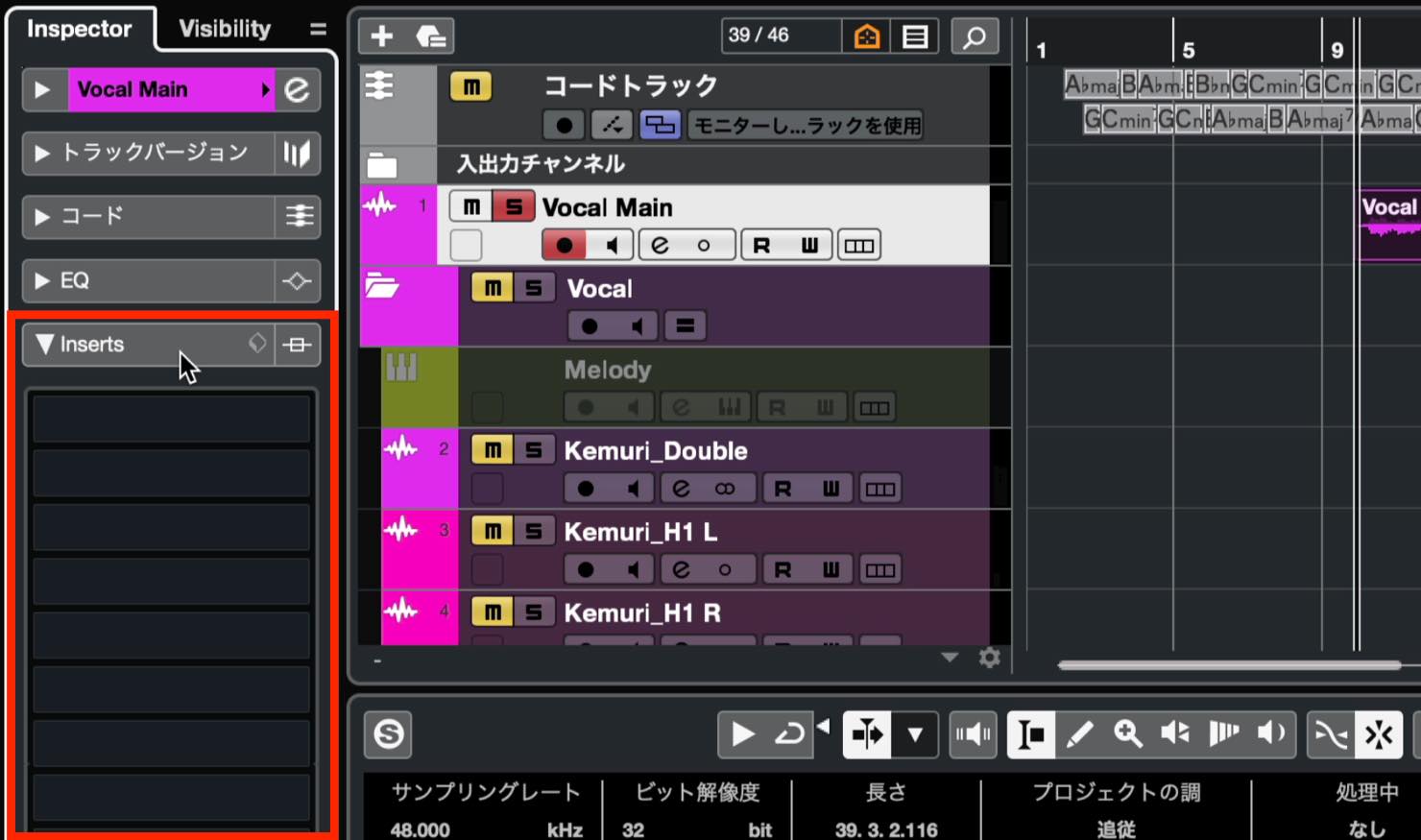
To apply an insert effect, click Inserts in the Inspector in the left zone. The section expands to show a vertical list of slots.
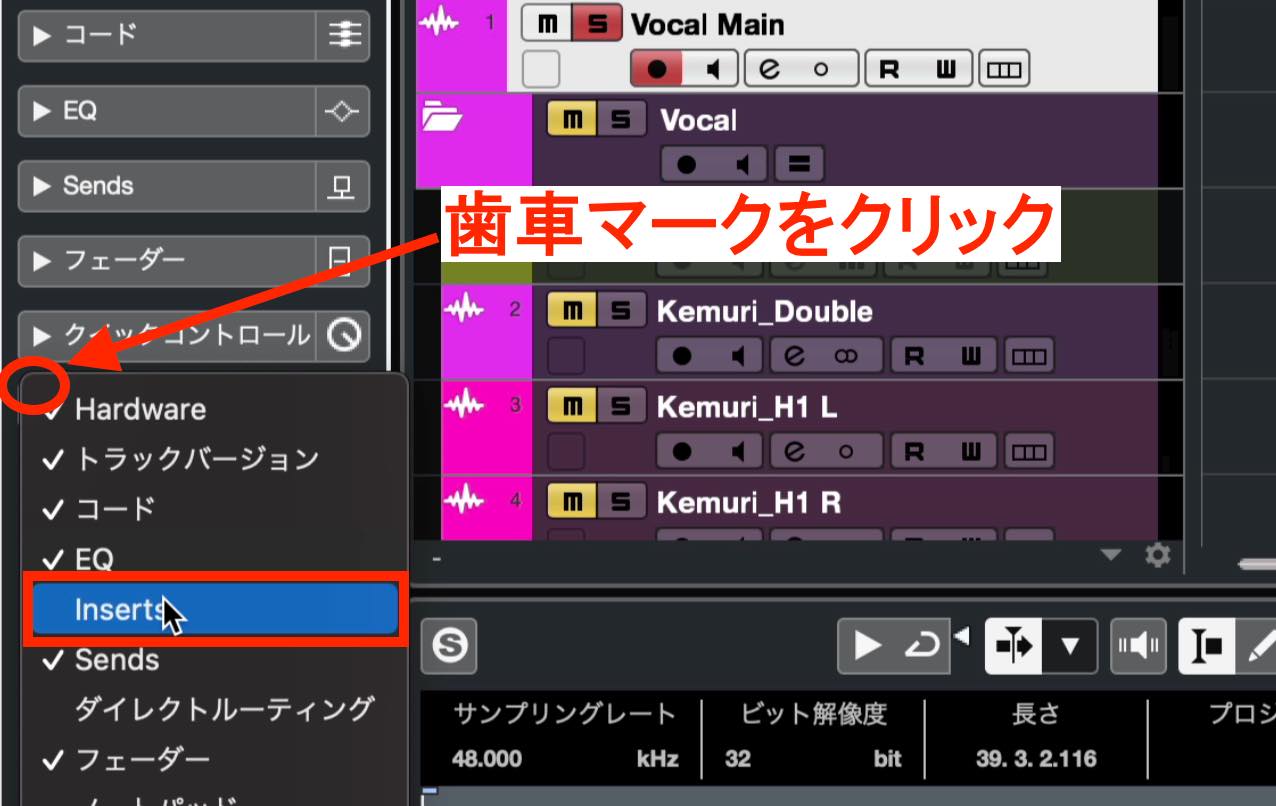
If you cannot see Inserts, click the gear icon in the Inspector and enable Inserts in the list that appears.
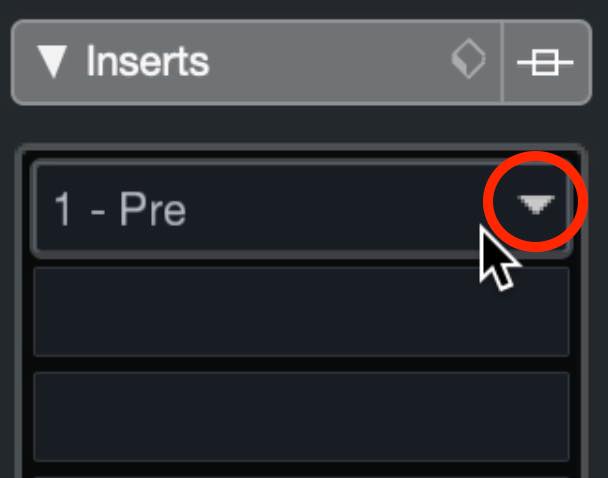
You can use any of these slots, but you would normally start at the top.
Move the pointer over a slot and click the ▼ symbol that appears.
A list of available effect plug-ins opens.
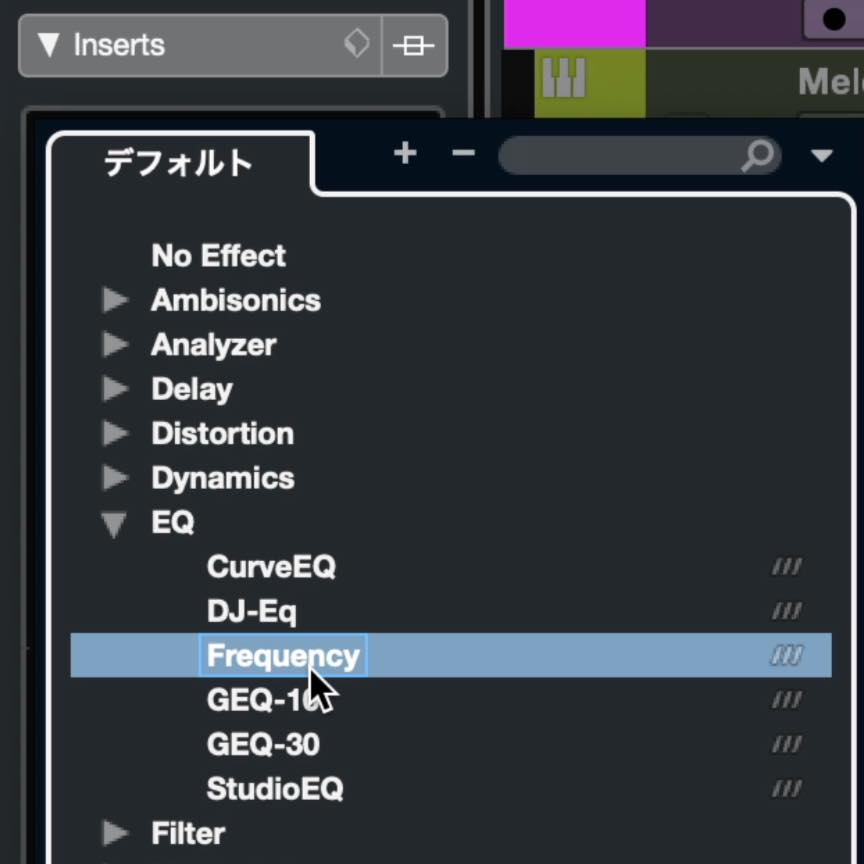
The effects are organized by category. Expand a category to browse it. Here, we will choose the Frequency equalizer from the EQ category.
Frequency is now loaded into the first slot, and its window opens.
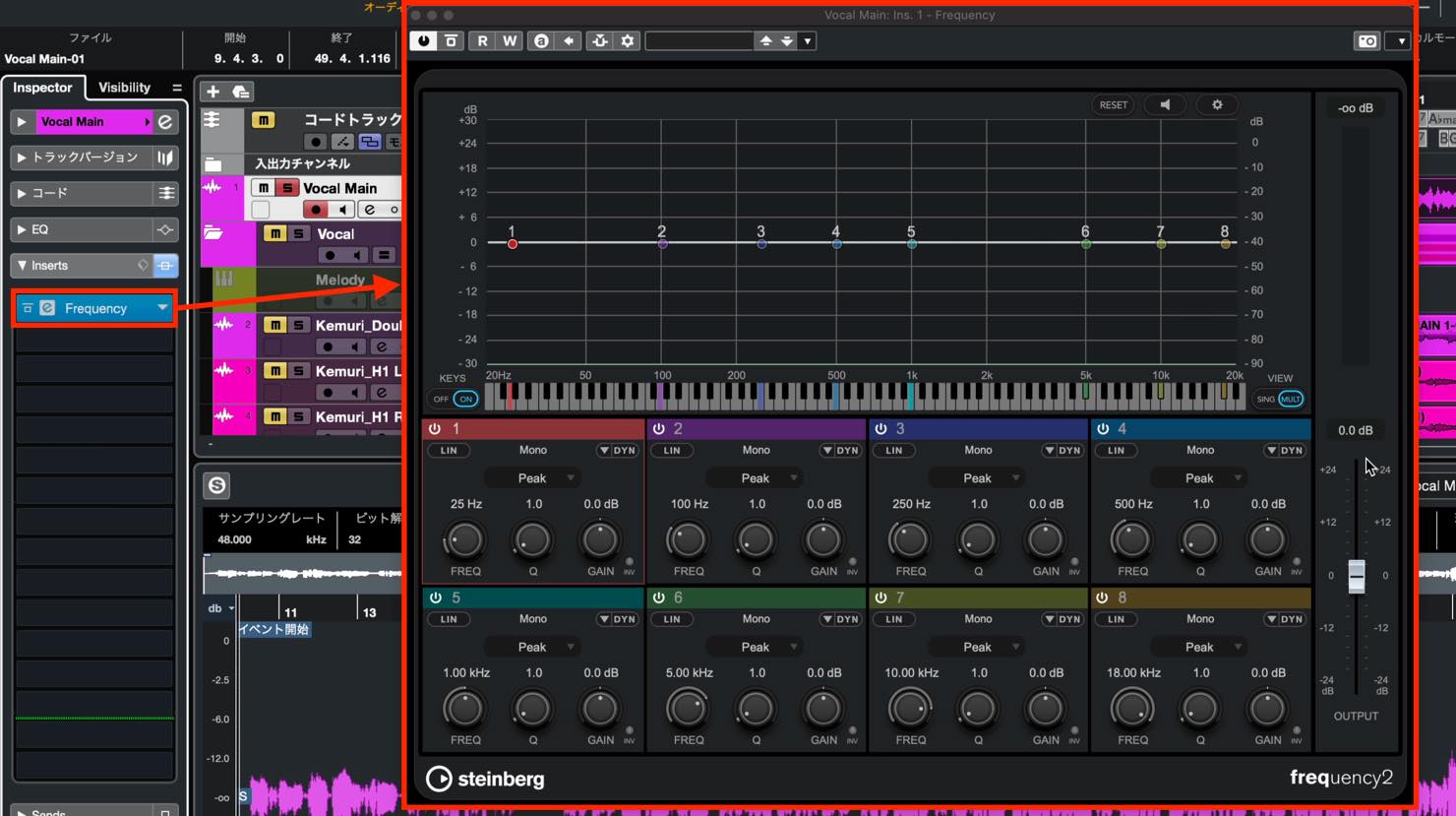
An equalizer adjusts the tone by raising or lowering the gain at particular frequencies.
When you are starting out, though, it can be difficult to know which adjustments to make.
That is why most effects include presets: ready-made example settings.
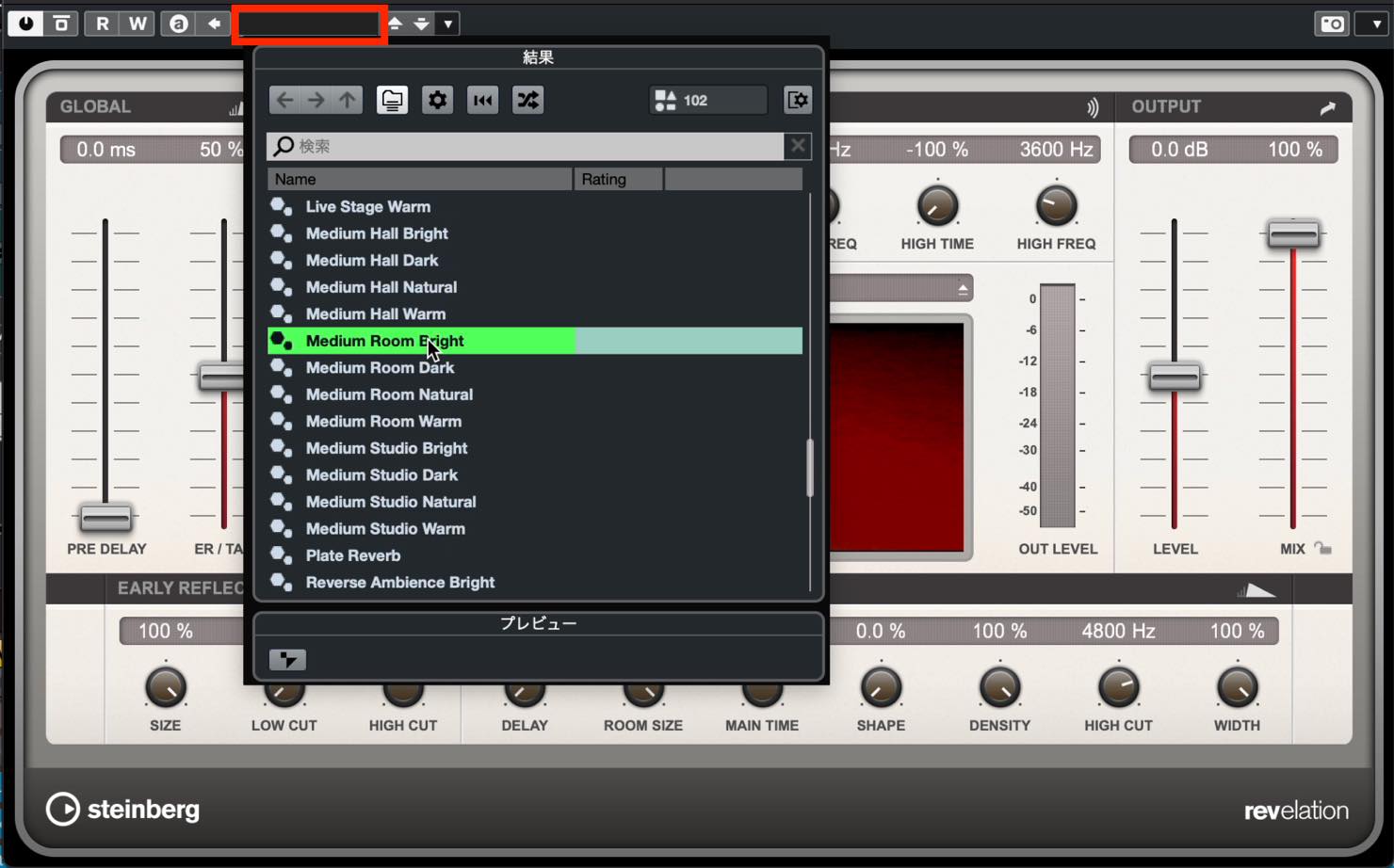
To choose a preset, click the black preset field at the top of the plug-in window.
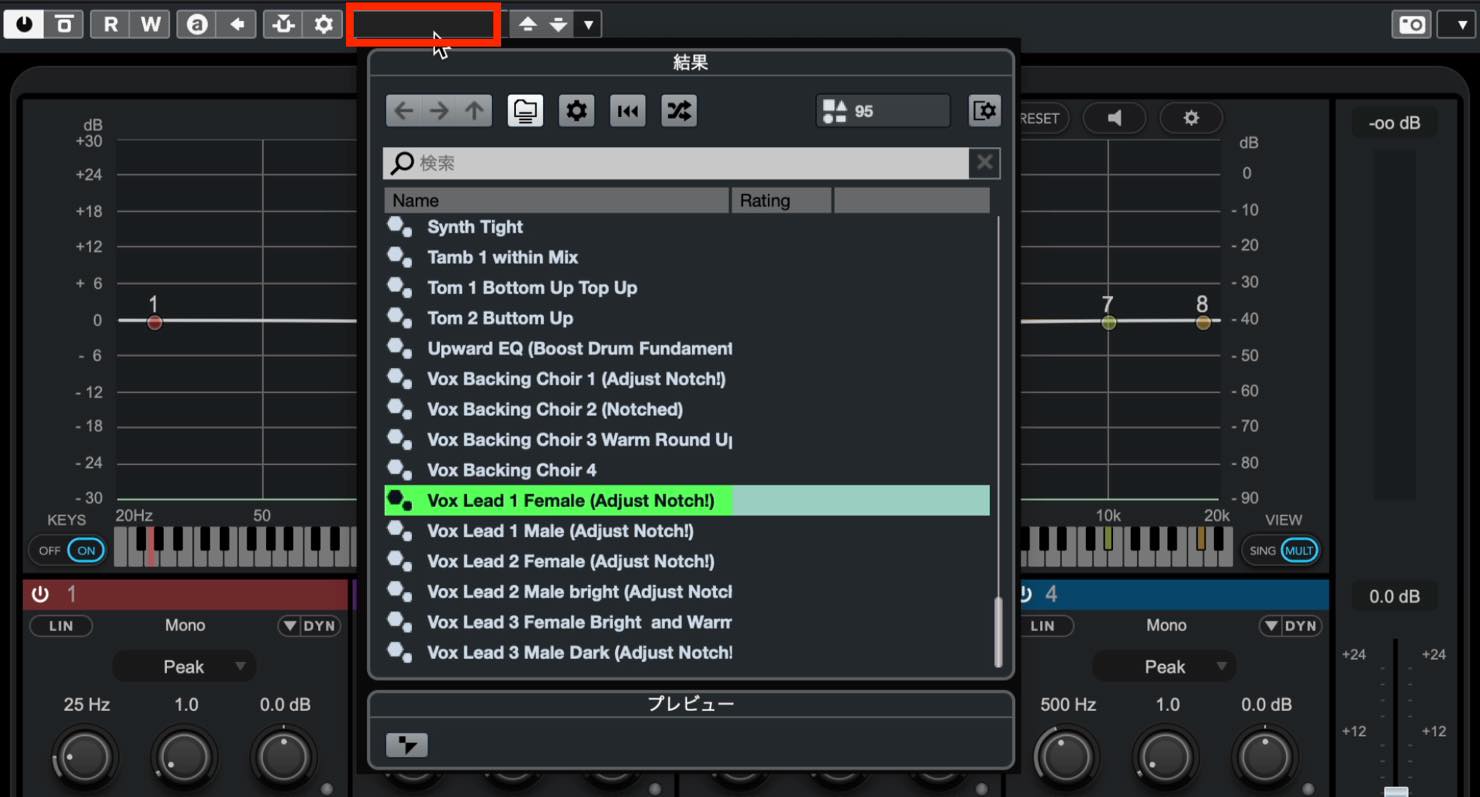
A list opens, allowing you to look for a preset that suits the current track.
Select one to apply its settings, as shown.
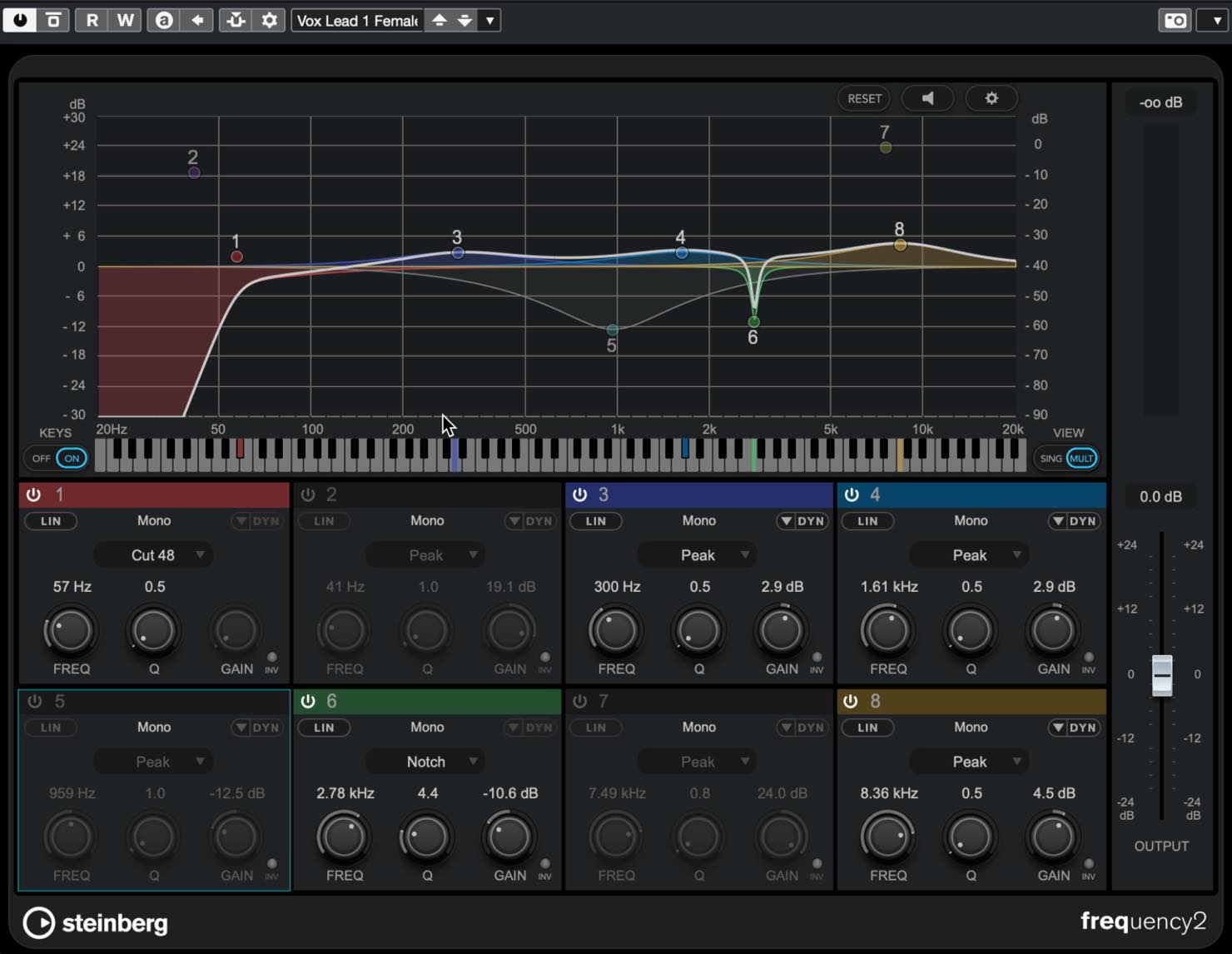
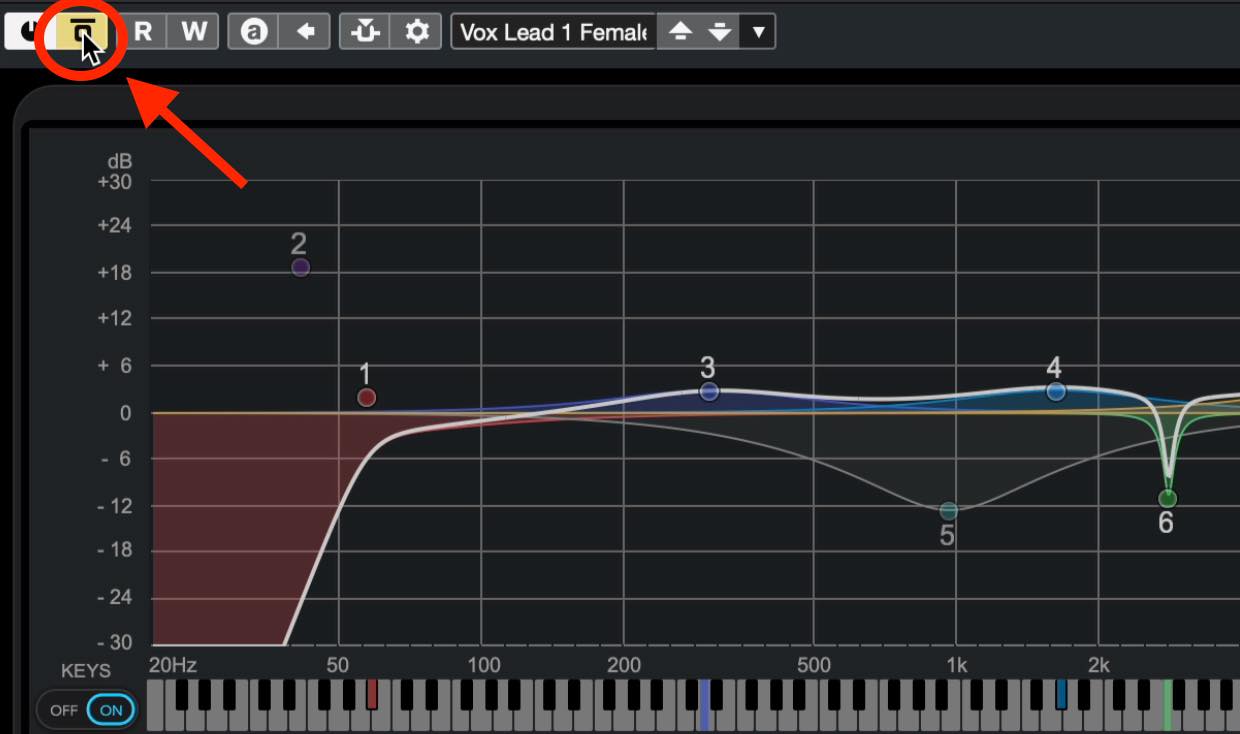
After applying an effect, switch it on and off to check what it is doing.
Enable the bypass button shown here to temporarily turn the effect off.
Until now, we have used Command+Z on Mac or Ctrl+Z on Windows to undo an action. Those commands do not undo adjustments inside an effect; they undo project operations instead, so be careful.
To undo effect adjustments, open MixConsole in the lower zone (①), then use button ② to show its toolbar. Use the arrow buttons there to undo or redo the adjustments.
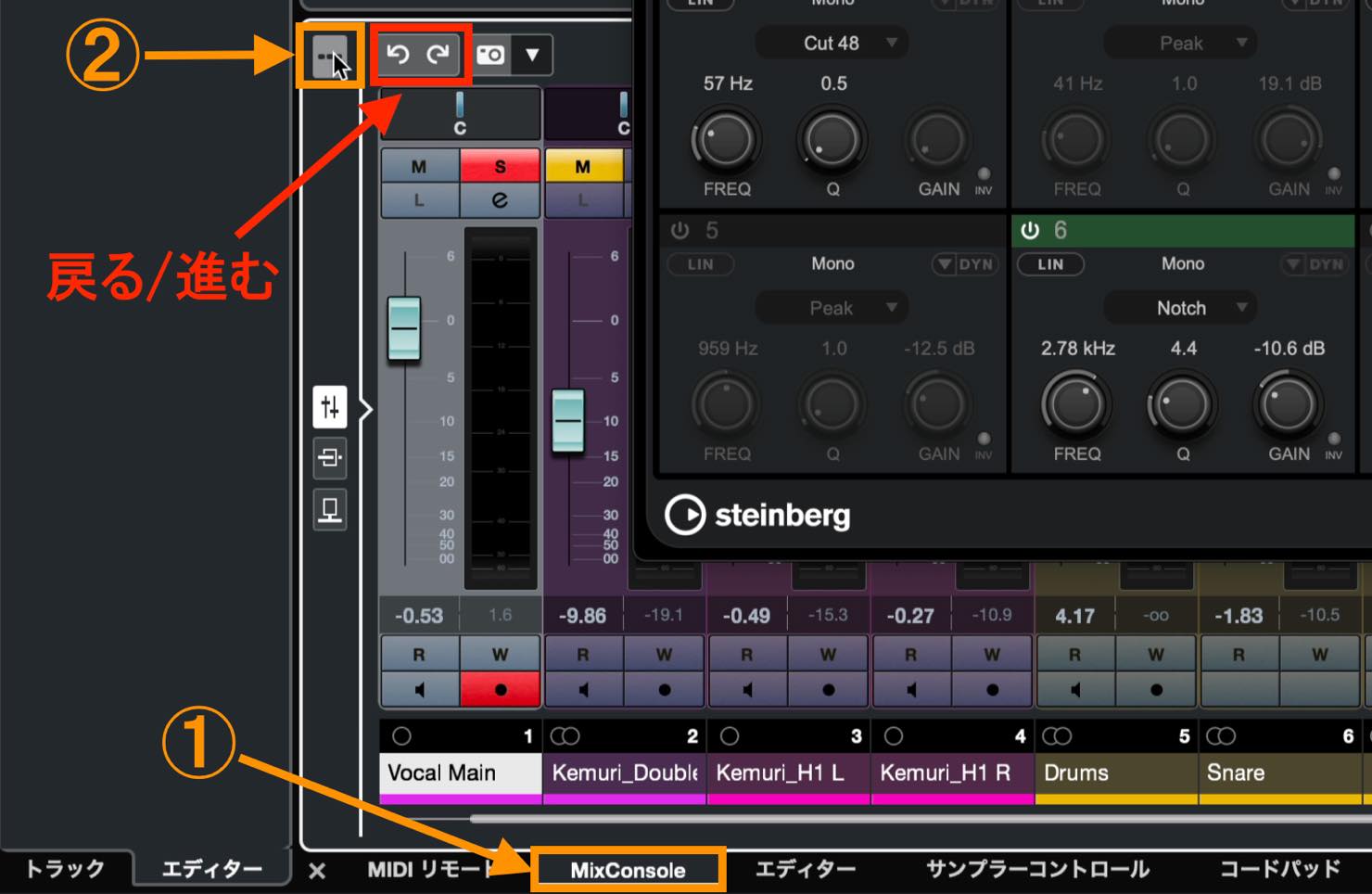
The undo shortcut is Option+Z on Mac or Alt+Z on Windows.
Adding, Changing, and Removing Insert Effects
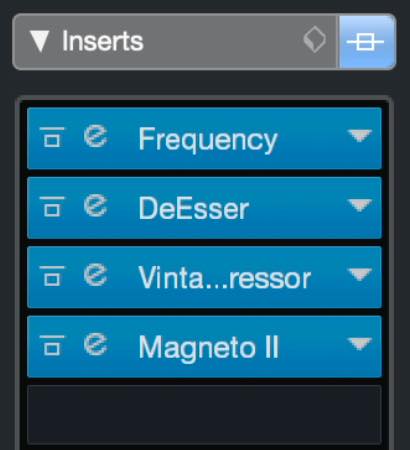
You can combine multiple effects by loading another effect into the next slot.
Their order matters, and you can change it by dragging effects up or down. The audio signal flows from top to bottom, so remember that changing the order can change the sound.
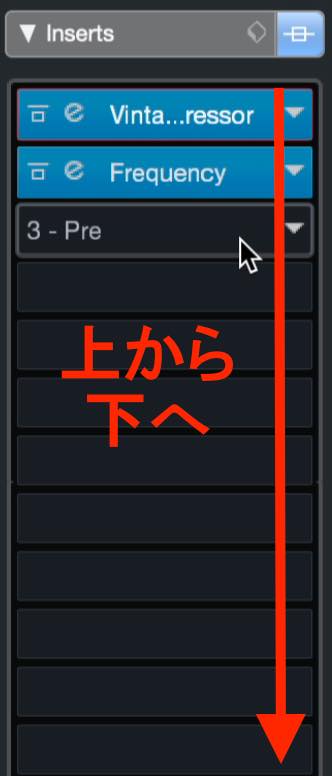
To change or remove a loaded effect, click the slot's ▼ symbol. Choose another effect to replace it, or select No Effect to remove it.
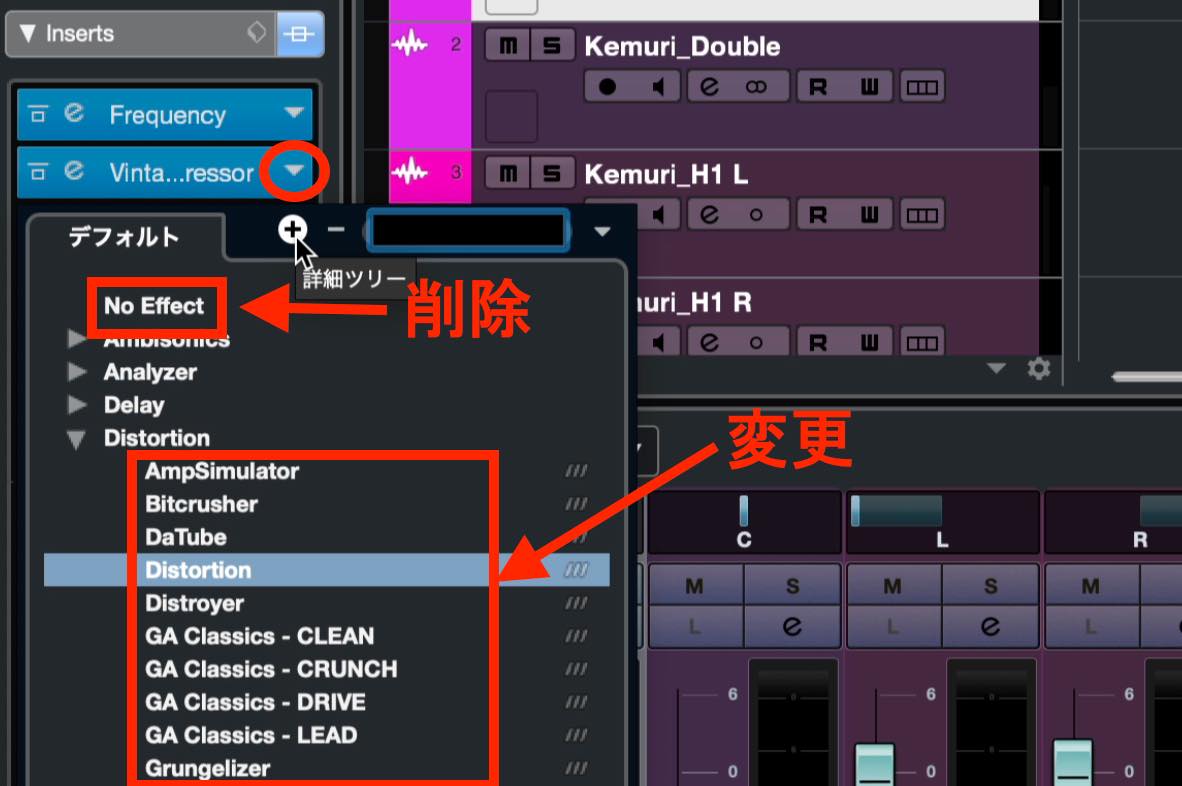
Moving and Copying Insert Effects
You can also move effects to other tracks or copy them.
These operations transfer all of the effect's settings along with it.
Open MixConsole in the lower zone, then click the middle Inserts button among the buttons on the left.
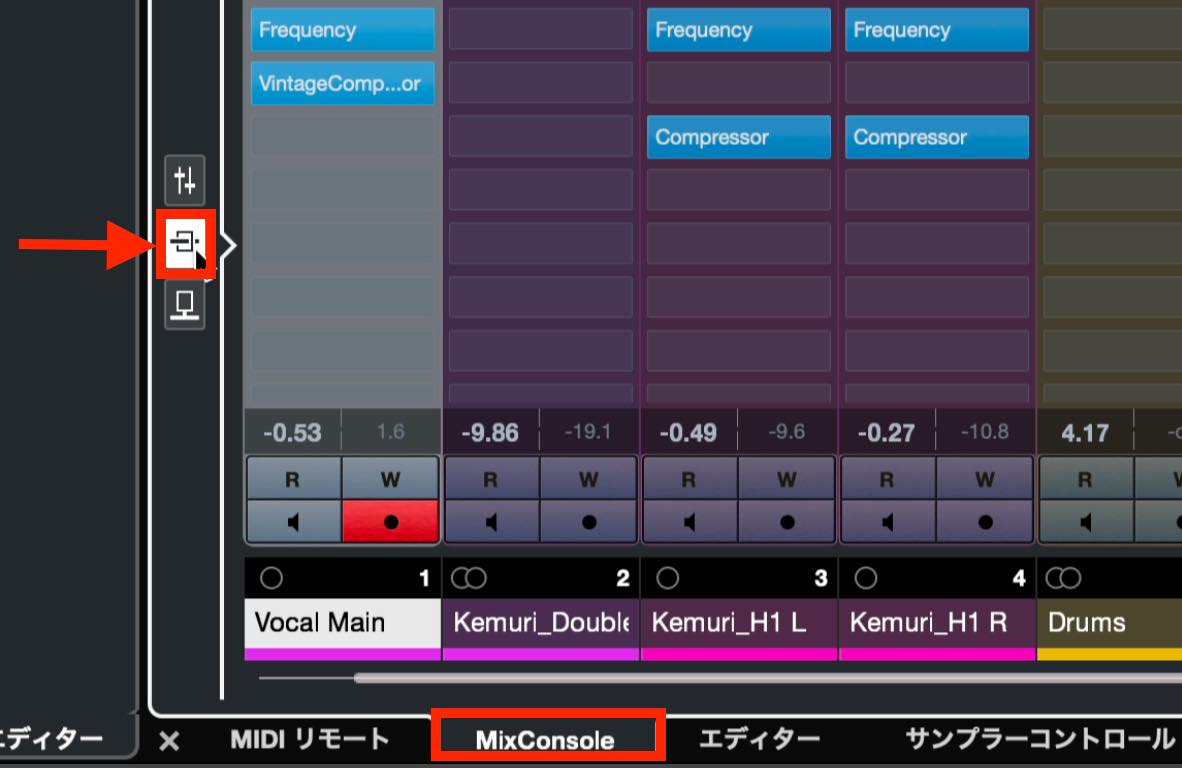
This displays the insert effects for all tracks together.
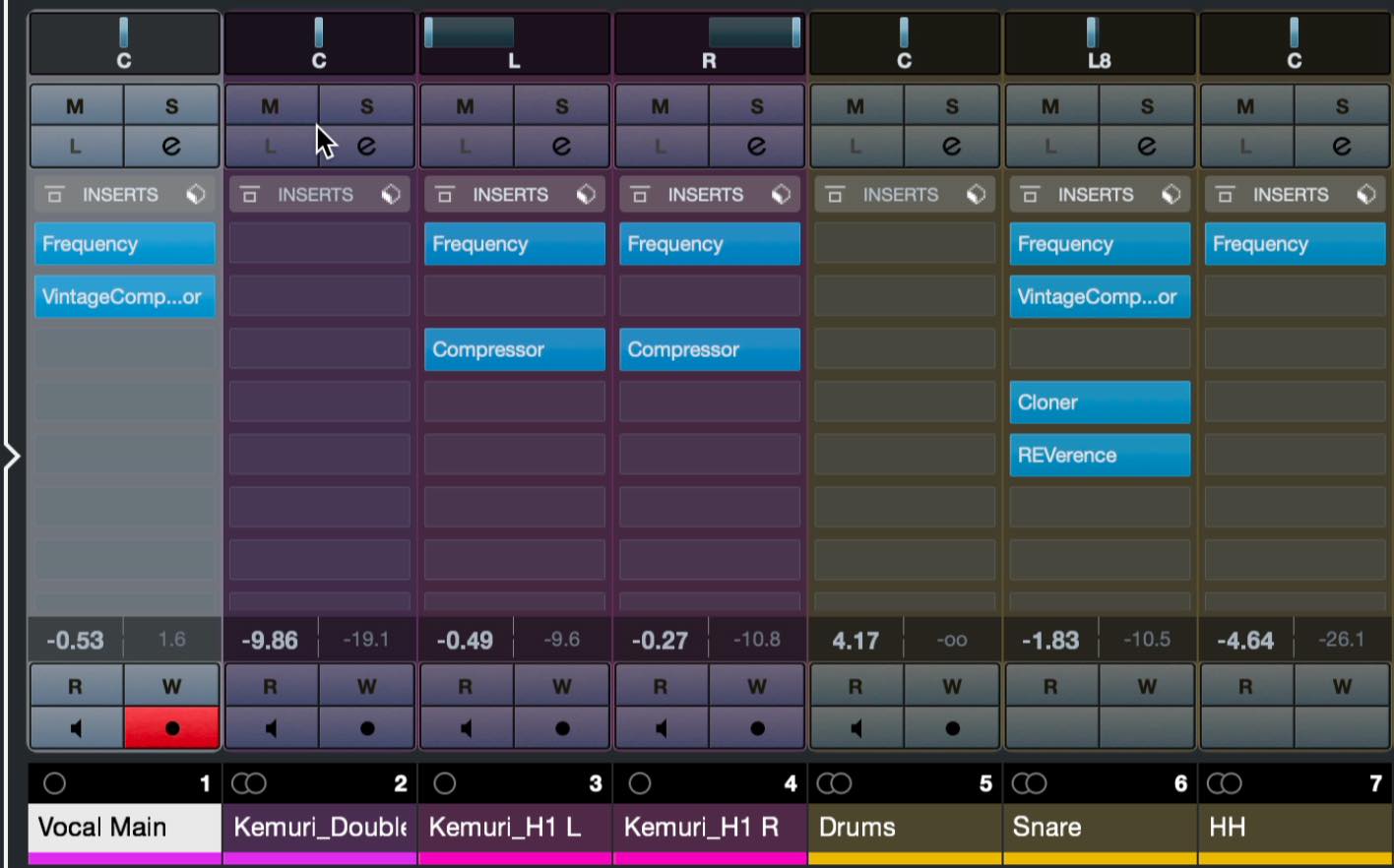
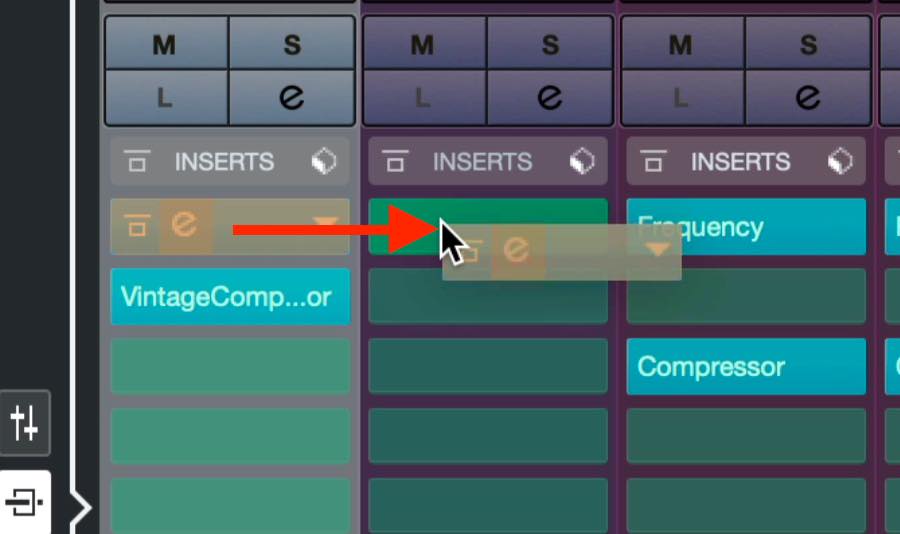
Drag an effect to move it to the track of your choice.
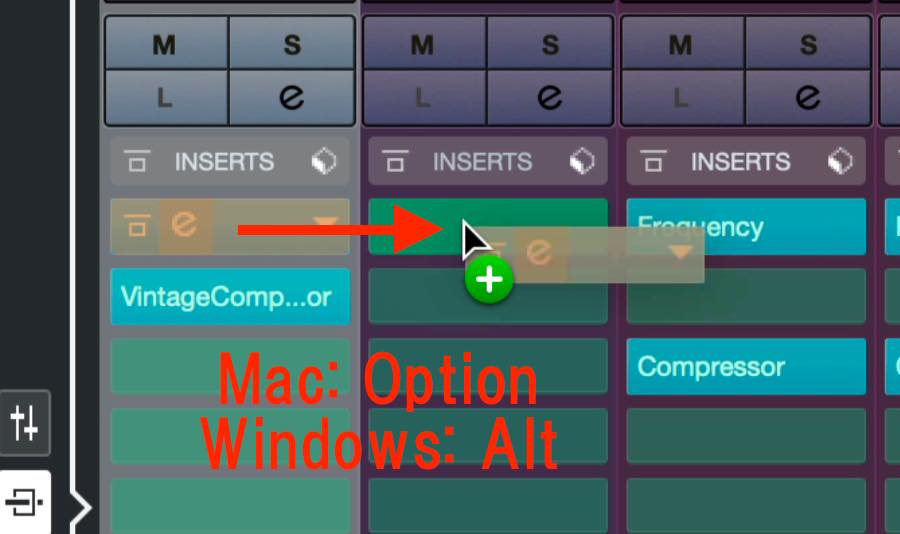
To copy it instead, hold Option on Mac or Alt on Windows while dragging. A + symbol appears; drop the effect to create the copy.
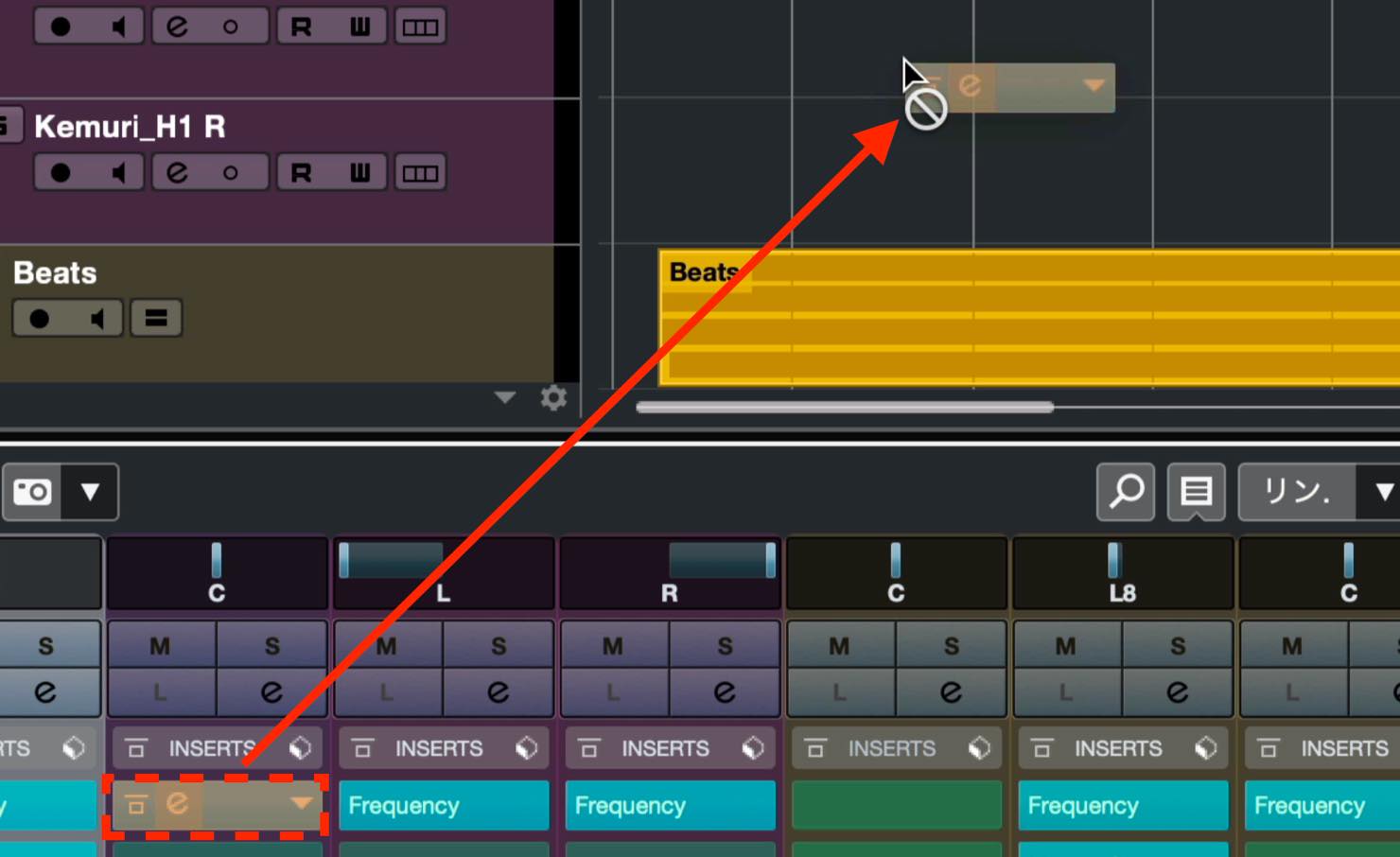
You can also remove an effect by dragging it out of MixConsole.
Saving and Loading Effect Chains
A combination of effects is called a chain. As you work, you may find yourself building the same chain repeatedly.
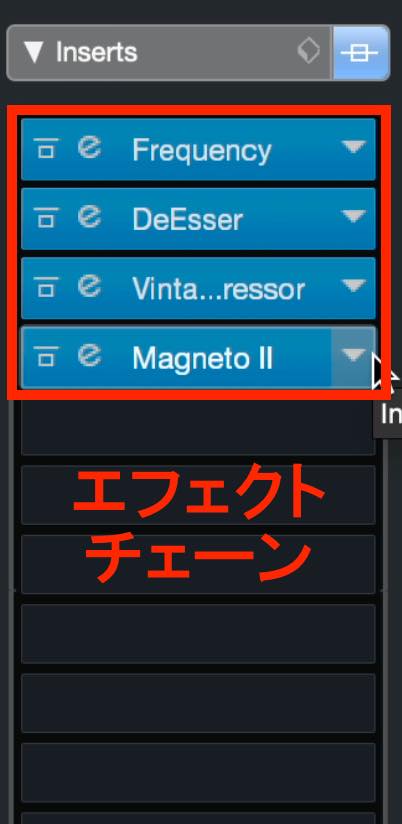
In that case, saving a chain you have created can be very useful.
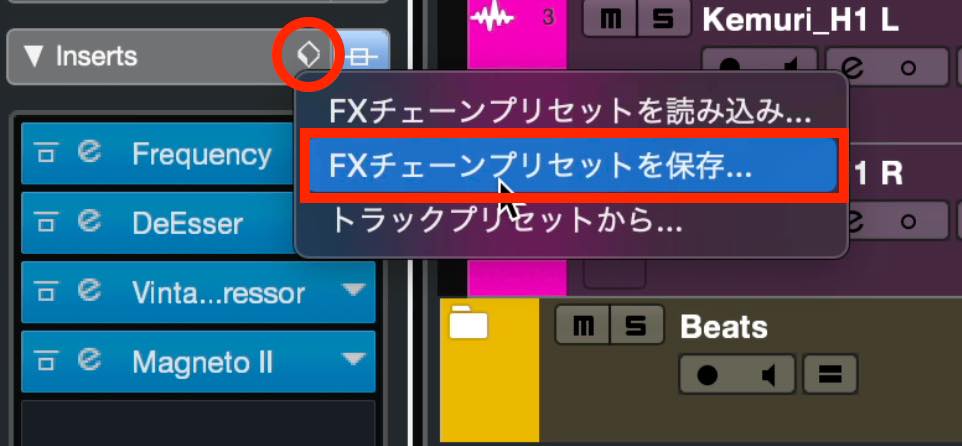
Click the Preset Management icon in the Inspector's Inserts section, then choose Save FX Chain Preset from the menu.
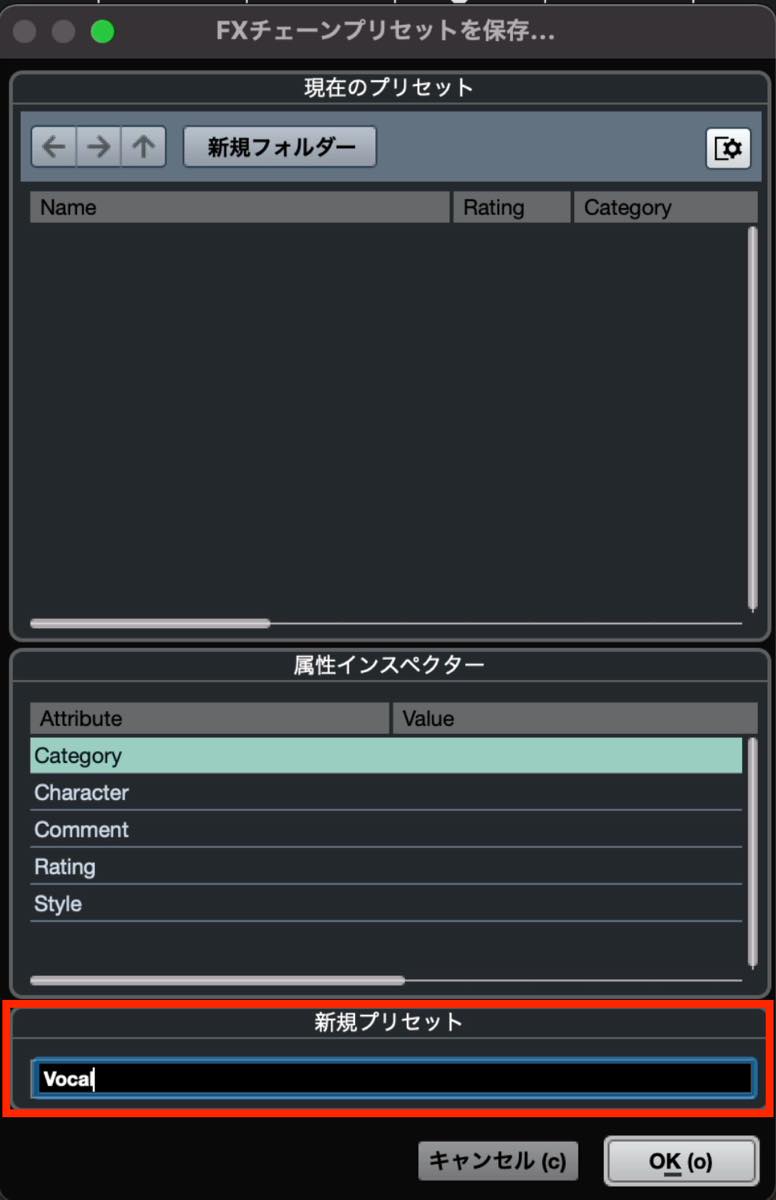
In the pop-up window, give the chain a name. You can also set fields such as Category and Character if needed.
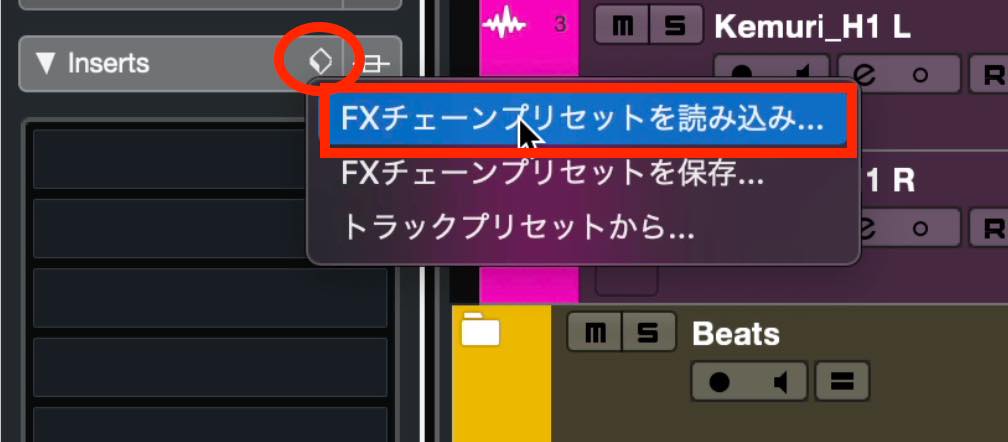
To apply the saved chain to another track, click Preset Management in that track's Inserts section and choose Load FX Chain Preset.
Select the chain you saved from the list that opens.
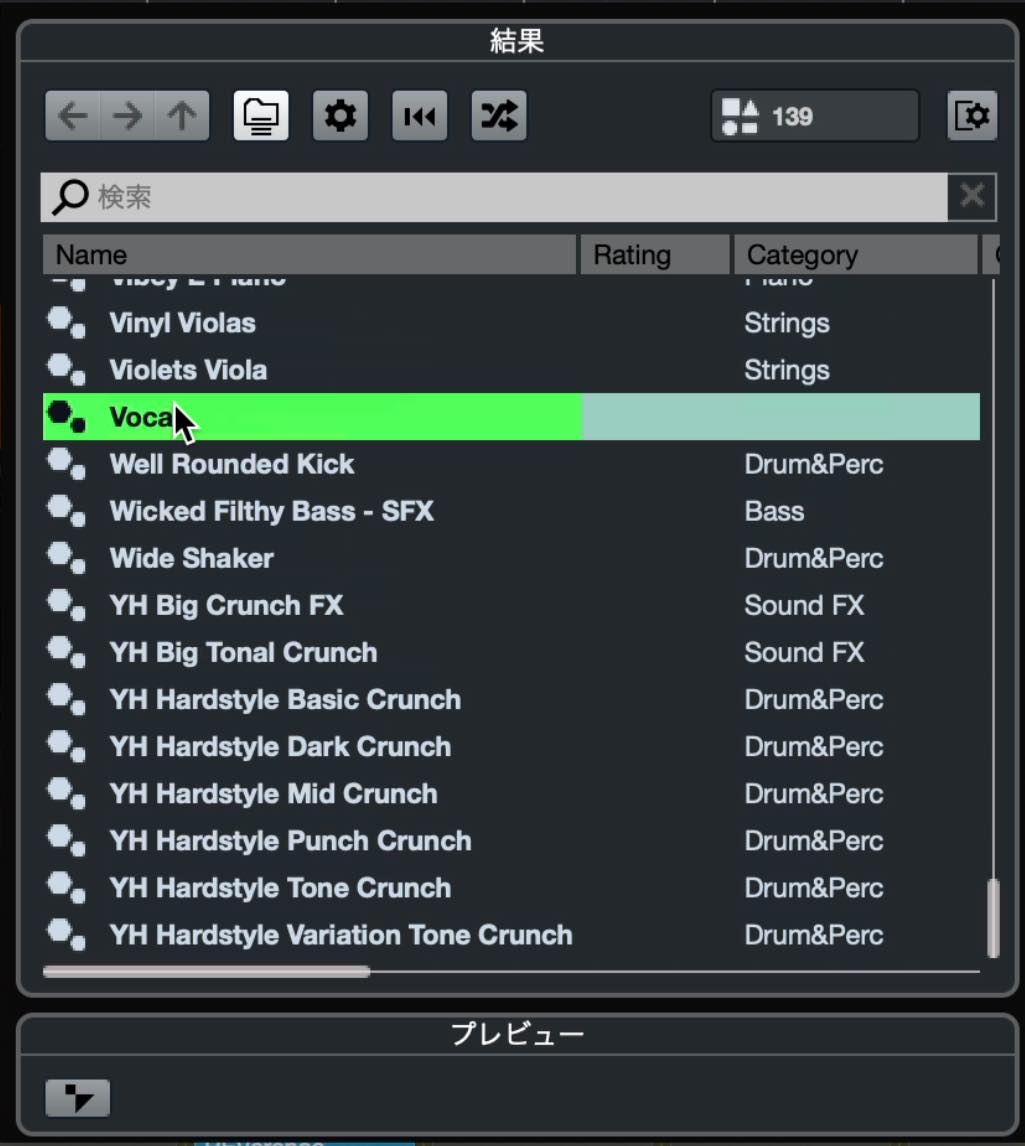
The saved chain is applied, as shown.
Applying Send Effects
Next, let's look at the other way to apply effects: Sends.
The advantage of sends, as we will see in detail, is that multiple tracks can share one effect.
To use send effects, first create a dedicated effects track.
Right-click, open Add Track, and choose FX Channel.
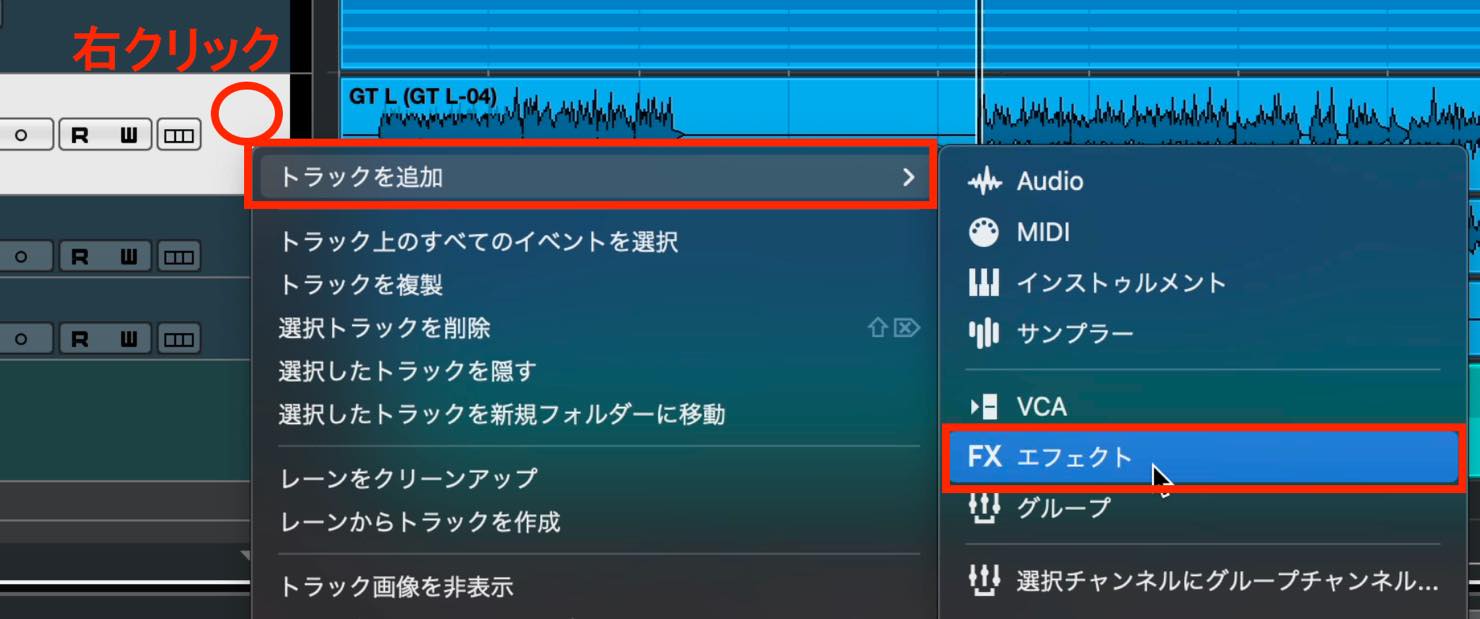
A pop-up window appears. Configure each of its settings.
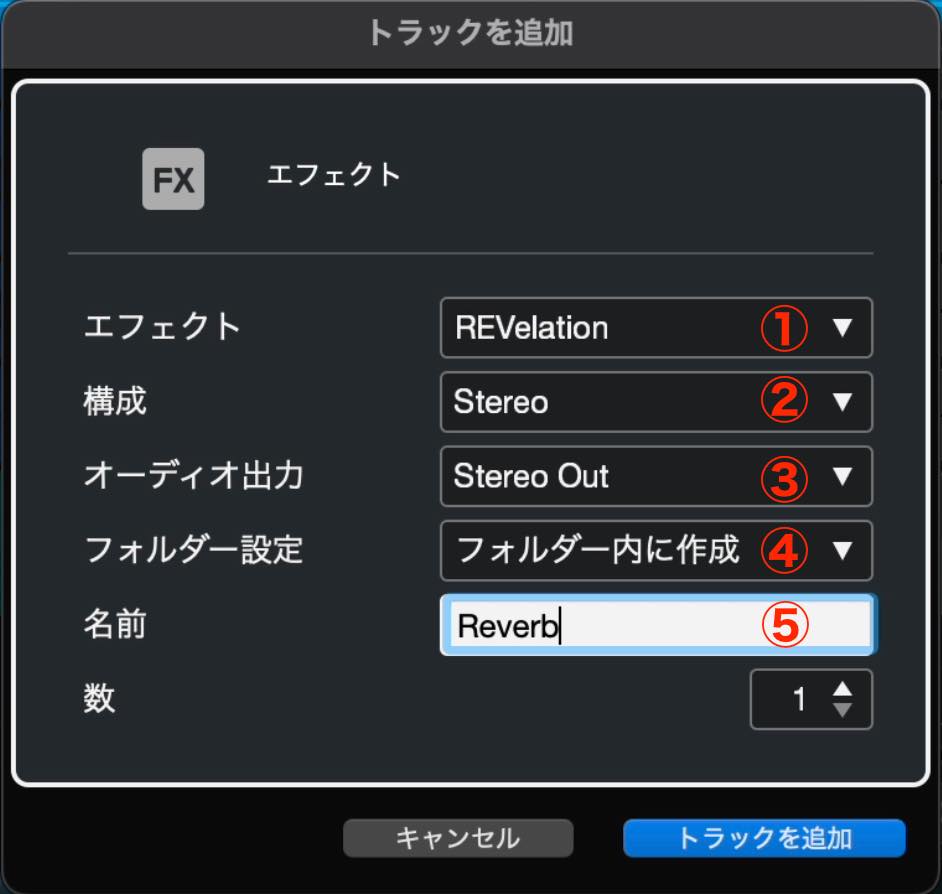
- ① Choose the effect plug-in to use.
- ② Set the number of output channels. For reverb, you would normally choose Stereo.
- ③ Select the output destination. Stereo Out is usually appropriate.
- ④ Choose whether to create the track inside a folder containing FX tracks or beside the currently selected track, outside the folder.
- ⑤ Enter a name for the FX track.
The effect window opens as the track is created. The effect itself is loaded into an insert slot on the FX track.
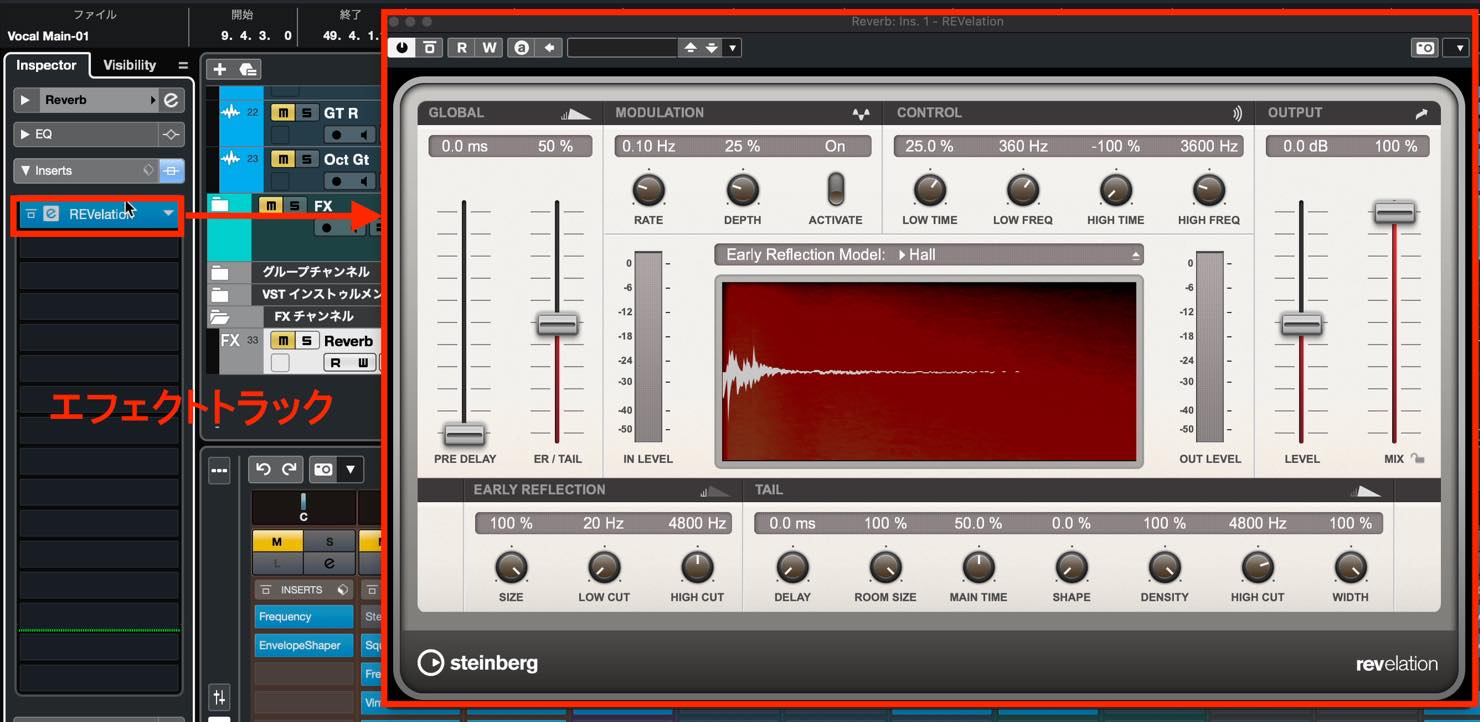
Let's use a preset here too. There are many to choose from, so try several after setting up the effect. Even if you do not yet understand every parameter, choosing a suitable preset can help match the effect to your song.
There is one parameter you should check at this point: MIX. When using this send setup, set MIX to 100%.
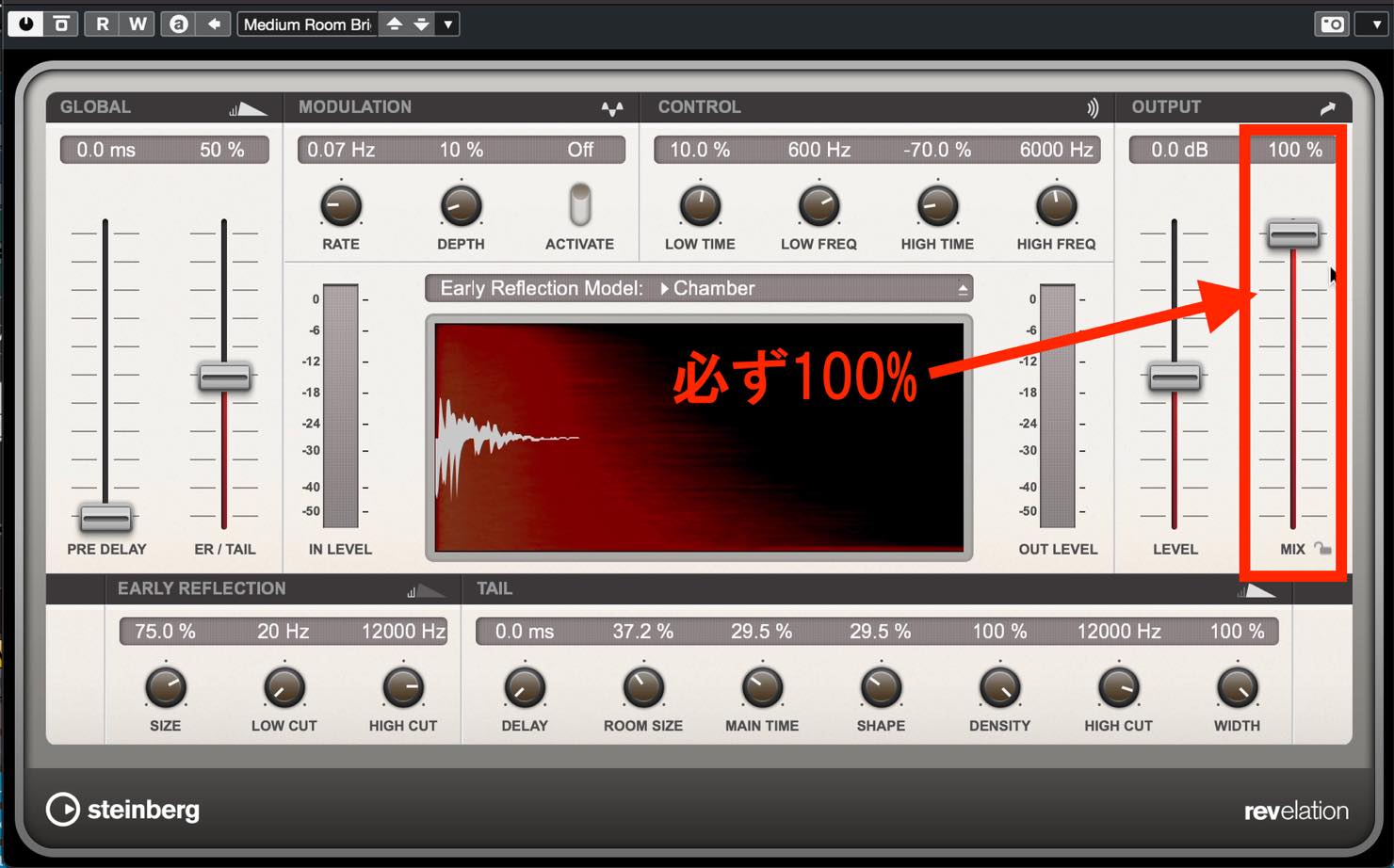
Many effects default to 100%, but change it if yours does not.
With the FX track created, set up a send on the track you want to add reverb to.
Open Sends in the Inspector and click an empty slot.
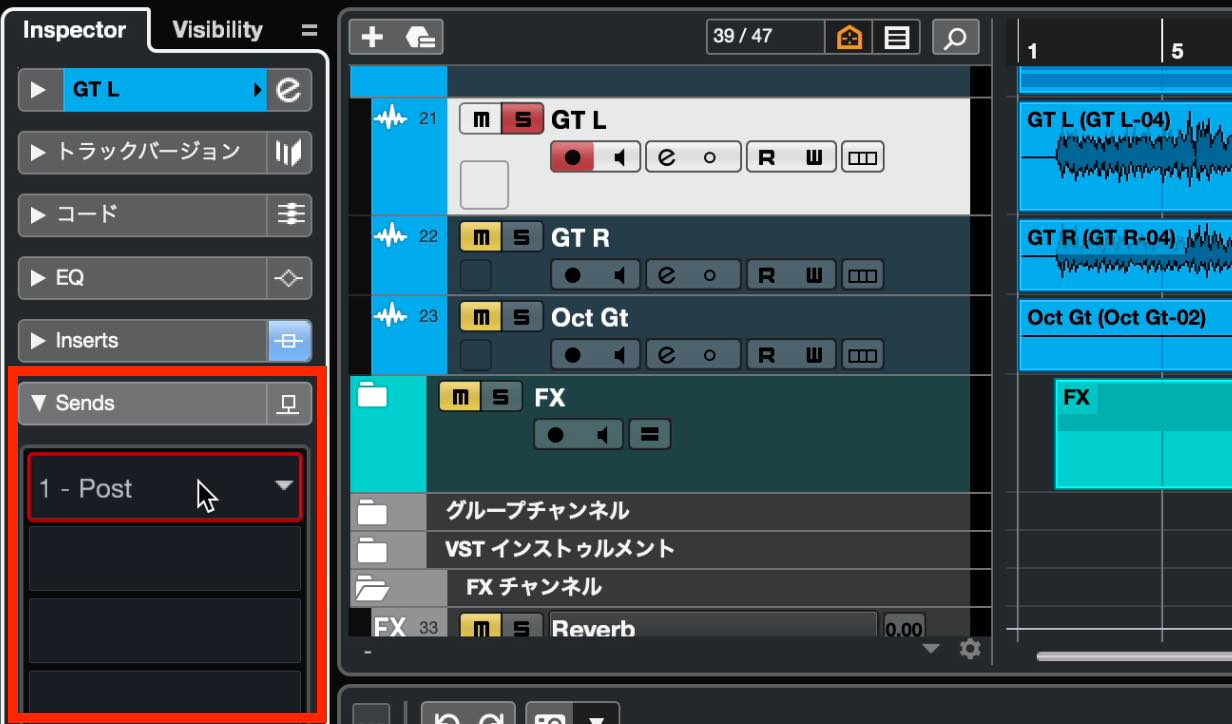
A list of send destinations appears. Select the FX track you just created.
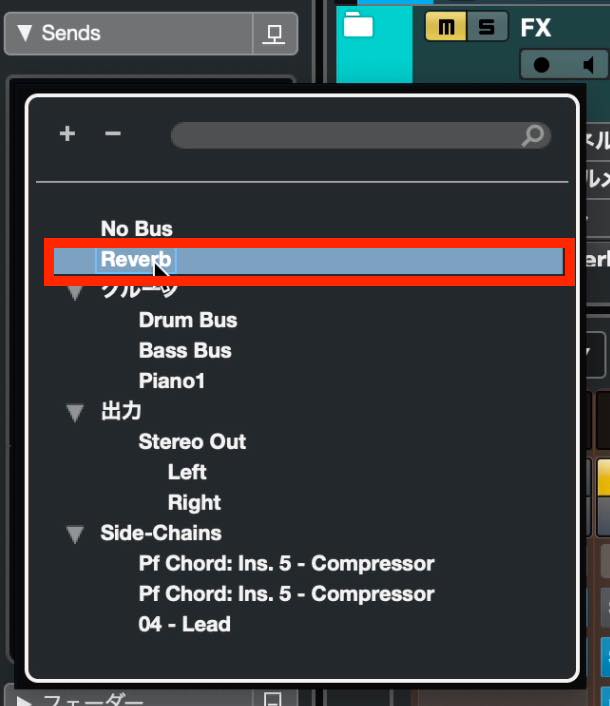
Turn the send on, then adjust the slider to control the amount of effect.
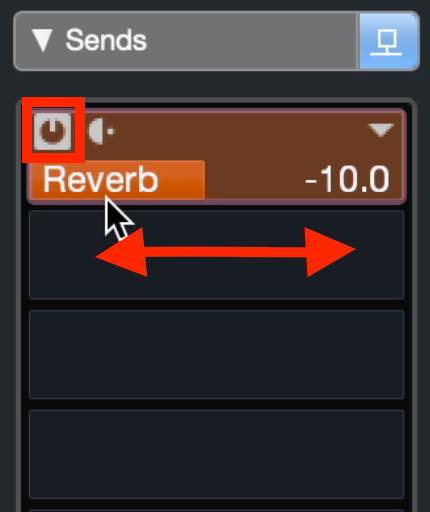
Sharing Effects with Sends
As mentioned earlier, multiple tracks can send audio to the same FX track.
Follow the same steps on another track: choose the send destination, turn the send on, and adjust its level.
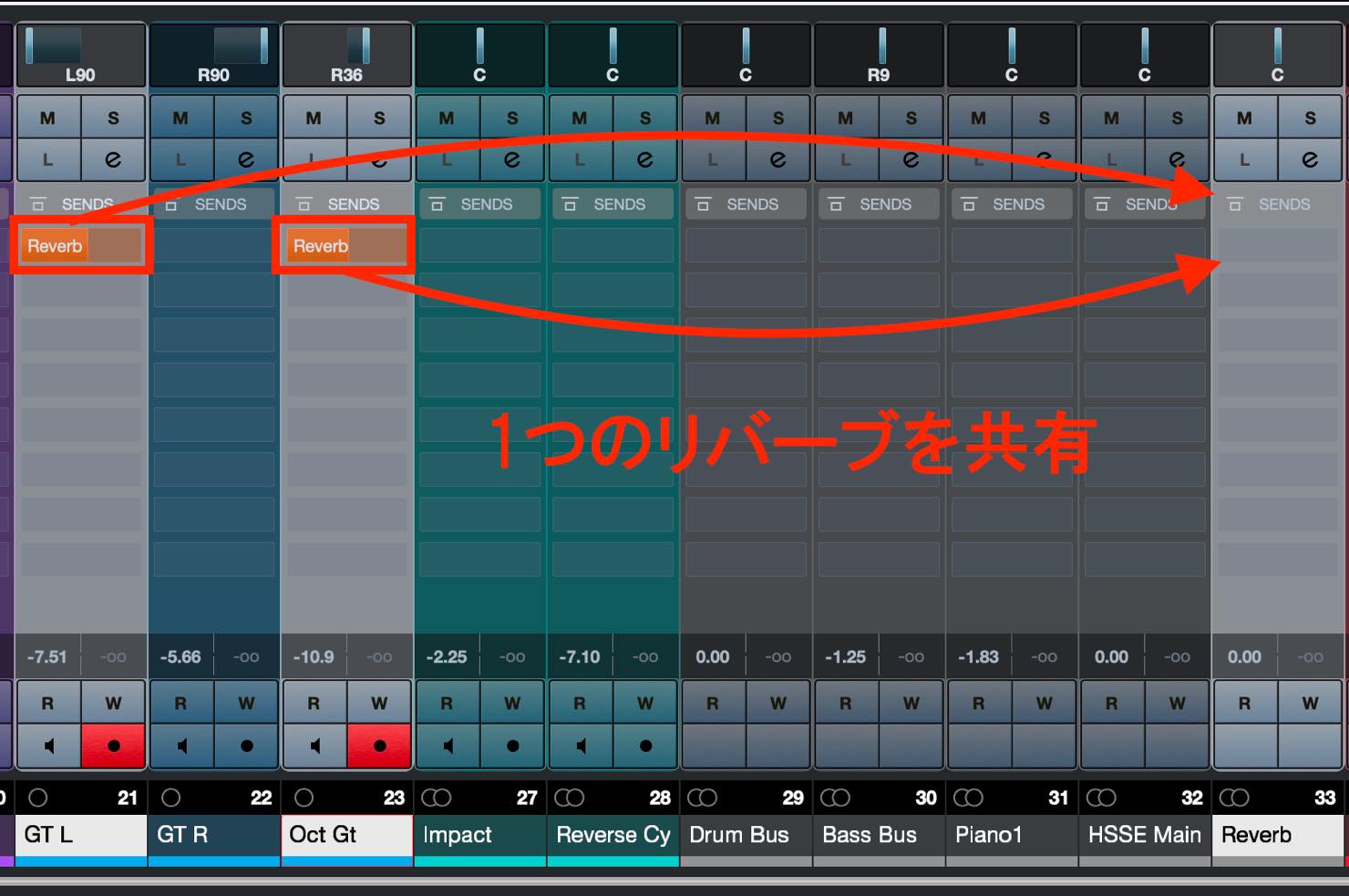
This reduces both setup work and CPU load, and helps place the tracks in a shared acoustic space.
Sending to Multiple FX Tracks
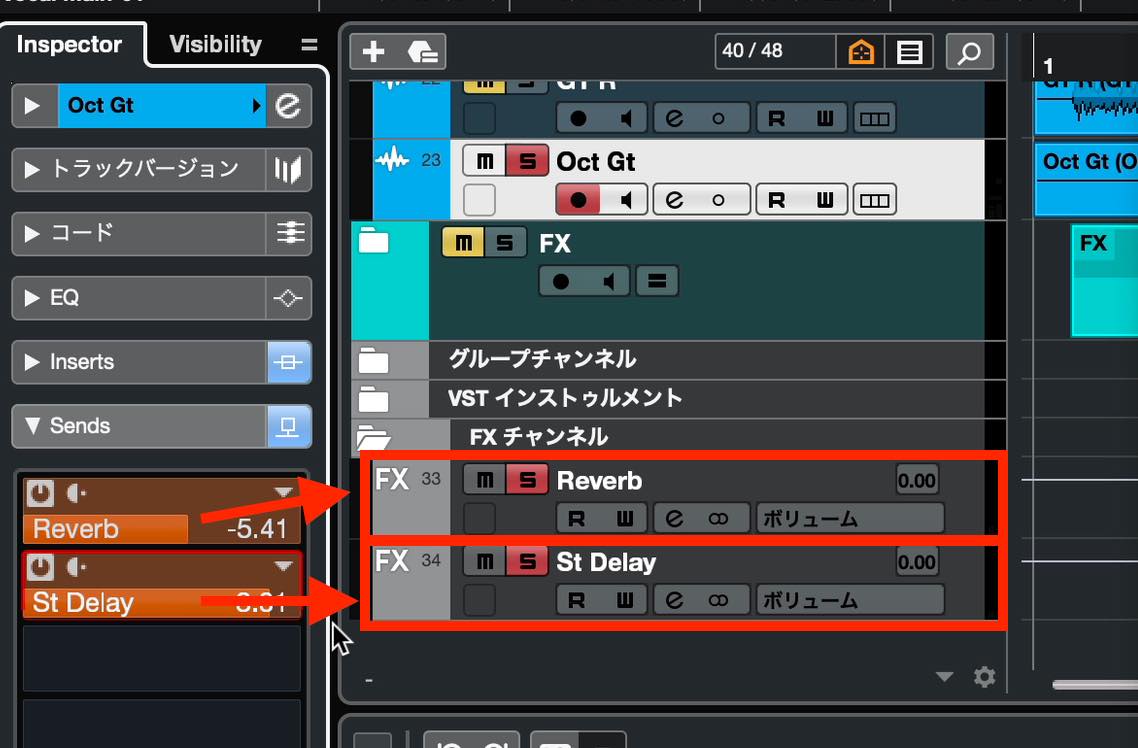
Of course, you can create more than one FX track.
Sends are commonly used for spatial effects such as reverb and delay, so a standard approach is to prepare several different reverbs and delays.
To add another send, repeat the same procedure in the second Sends slot.
That concludes our explanation of how to apply effects.
Using effects effectively lets you shape sounds to your taste, add width and depth, and significantly improve the quality of your songs.
Take the time to become comfortable using them.
Next time, we will explain automation, which changes volume and effect parameters automatically over time.
Part 14 of our Cubase 11 beginner series covers applying effects.
Rather than simply using recorded audio or instrument sounds as they are, you can use a range of effects to shape them to your taste.
Details: https://t.co/lnr8eToiGF #DTM #Cubase— SLEEP FREAKS (@SLEEPFREAKS_DTM) October 16, 2021
Frequently Asked Questions
Q1. What is the difference between insert effects and send effects in Cubase?
Insert effects are connected in series on individual tracks, making them suitable for more complex sound design with several effects. Send effects let multiple tracks share a single effect. They are particularly useful for spatial effects such as reverb and delay, and can reduce CPU load.
Q2. How can I undo changes to an effect's settings?
The regular Undo command, Ctrl+Z on Windows or Command+Z on Mac, undoes project operations. To undo effect adjustments, use the arrow buttons on the toolbar in the lower-zone MixConsole. The shortcut is Option+Z on Mac or Alt+Z on Windows.
Q3. Can I reuse an effect chain on another track?
Yes. Open Preset Management in Inserts and choose Save FX Chain Preset. On another track, choose Load FX Chain Preset to apply the same chain settings all at once.
Q4. Does the order of effects matter?
Yes. The audio signal flows from top to bottom, so changing the order of effects can change the sound. You can drag effects to reorder them after loading them and experiment to find the best arrangement.
NEW ARTICLES
Latest English Articles








































































































































