
Cubase 11's VariAudio lets you correct notes that were off pitch or unstable during recording. It analyzes audio into segments that you can drag to the desired pitch. You can also straighten pitch curves, adjust timing, and split segments. Displaying a MIDI reference lets you compare the performance against a guide melody as you work, making precise correction easier even for beginners. Editing multiple segments together and adjusting their volume can also help create a more consistent performance.
This time, we will explain VariAudio, a feature for correcting the pitch of audio events such as vocals.
Pitch correction lets you fix notes that were off pitch or unstable when recorded.
Used well, it can make a performance sound more assured. Knowing that small errors can be corrected can also help singers perform more freely without worrying too much about every missed note.
Pitch Correction with VariAudio: Video
Analyzing Audio and the Basic Controls
Before you can use VariAudio, it needs to analyze the audio's pitch.
First, double-click the audio event to open it in the editor.
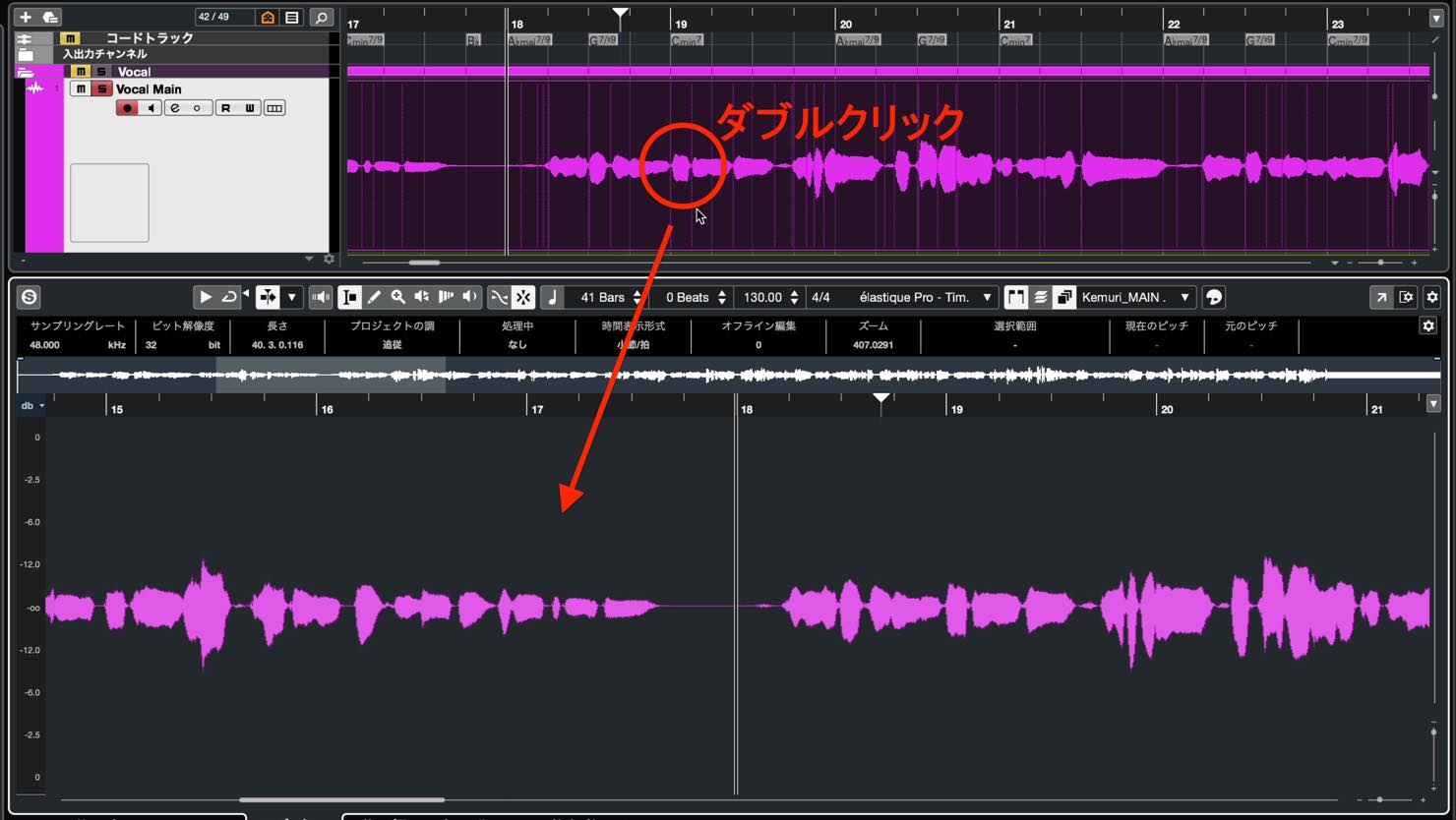
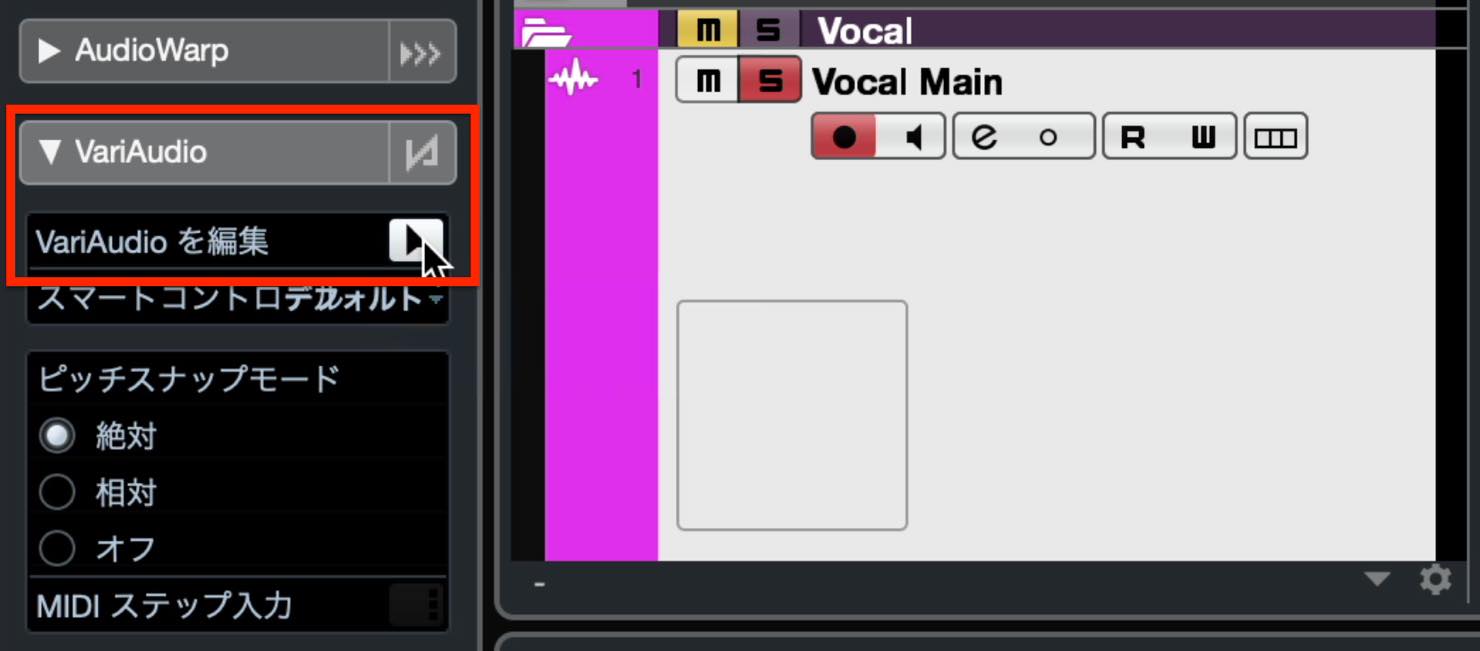
Open the VariAudio section in the Inspector on the left.
Find Edit VariAudio and click the button on its right.
Analysis begins. When it finishes, the detected pitches appear over the audio, as shown here.
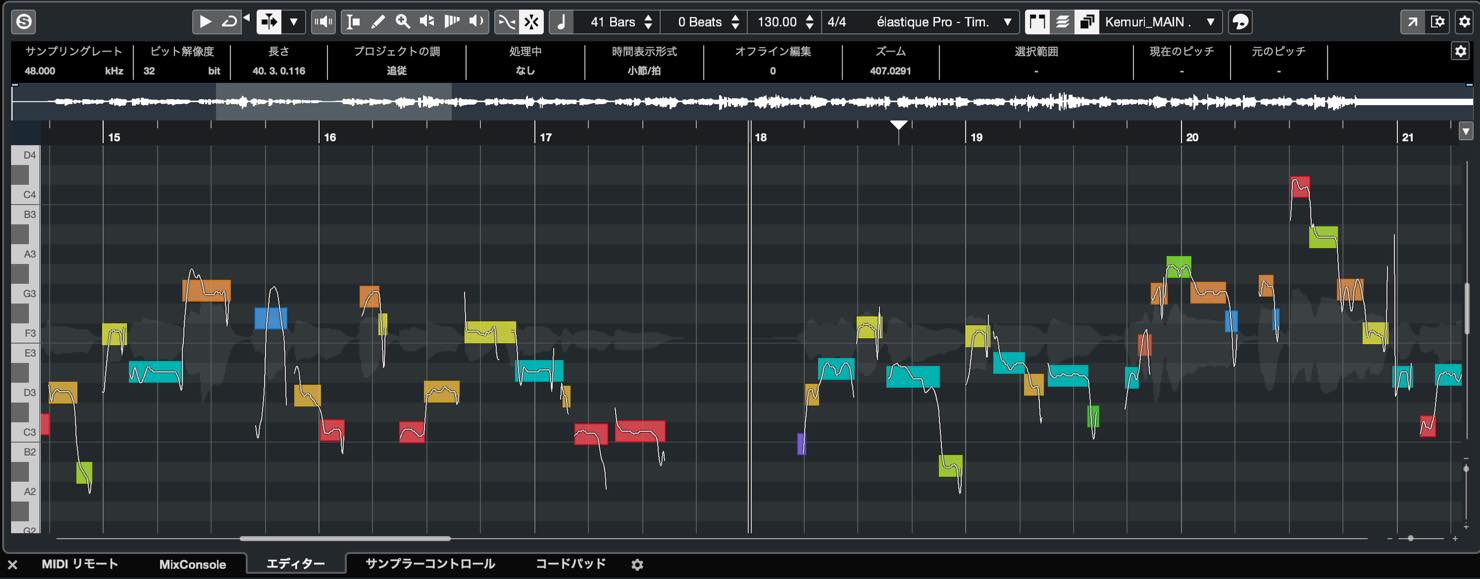
The VariAudio display resembles a piano roll, with a keyboard showing pitch on the vertical axis. Editing also feels similar.
Before making corrections, inspect the current performance. Each syllable is displayed rather like a MIDI note; these blocks are called segments.
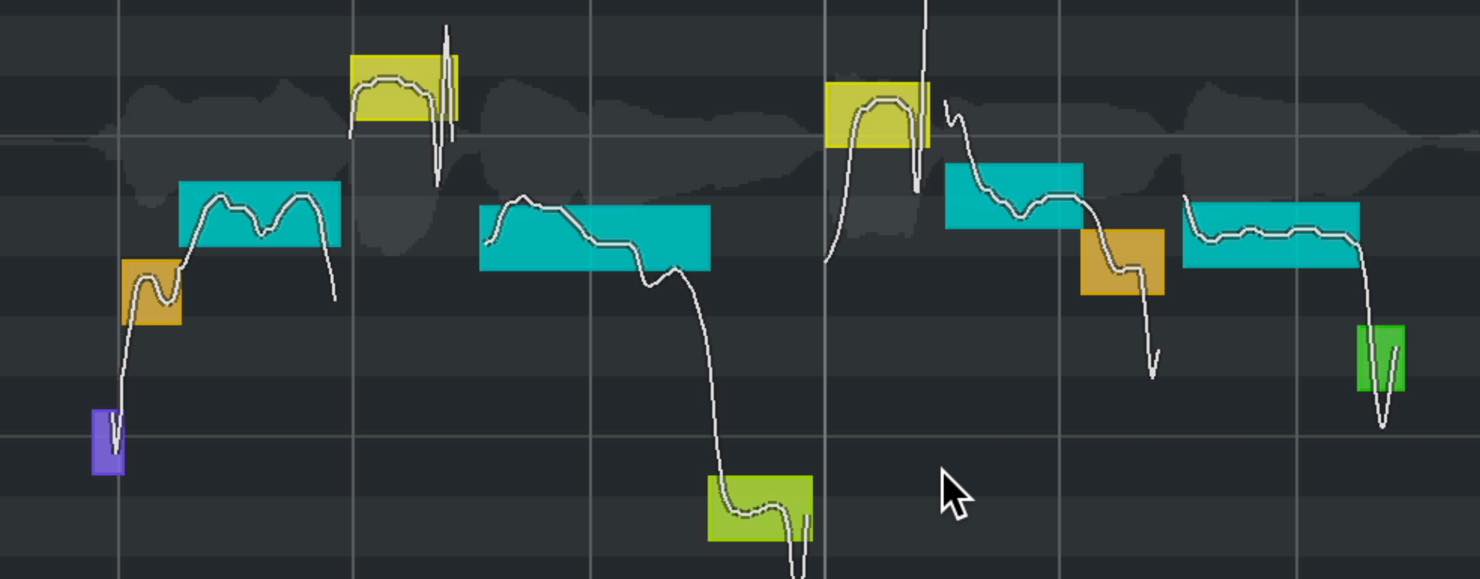
Looking closely, you can see that some segments sit slightly between the pitch lines. This indicates that they are off pitch.
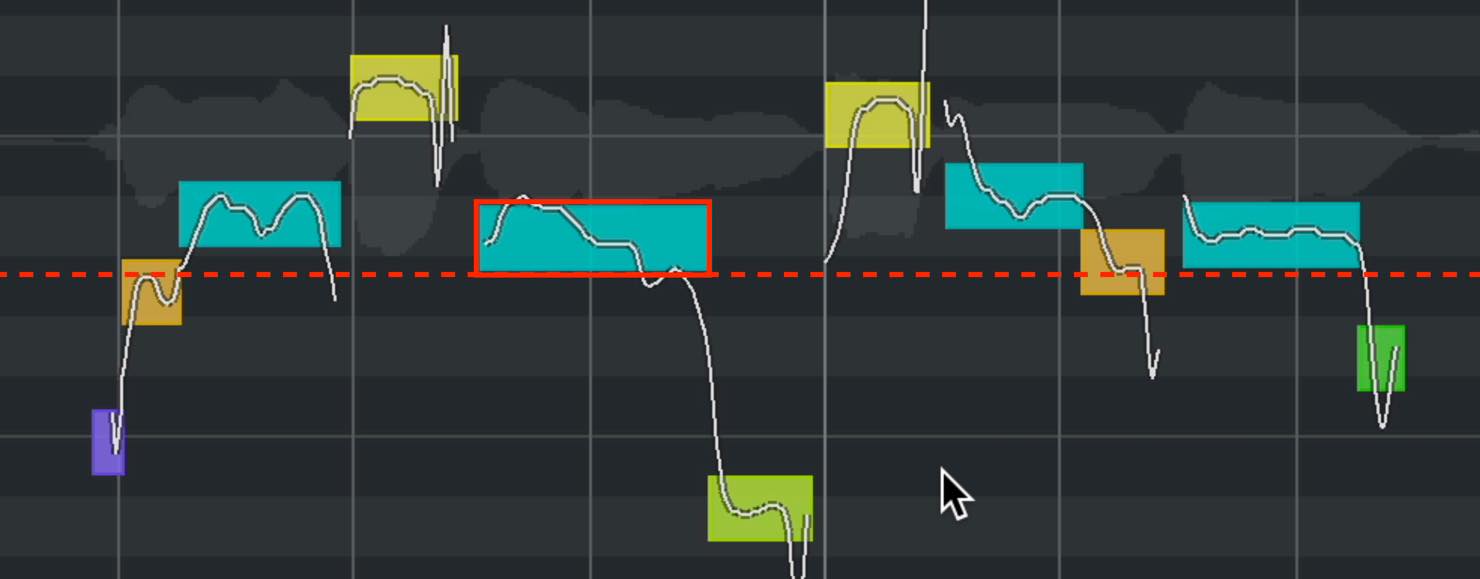
Correct their pitch by dragging them, much as you would move MIDI notes.
The tool changes depending on where you place the pointer within a segment. Move it near the middle to get the hand tool, then drag.
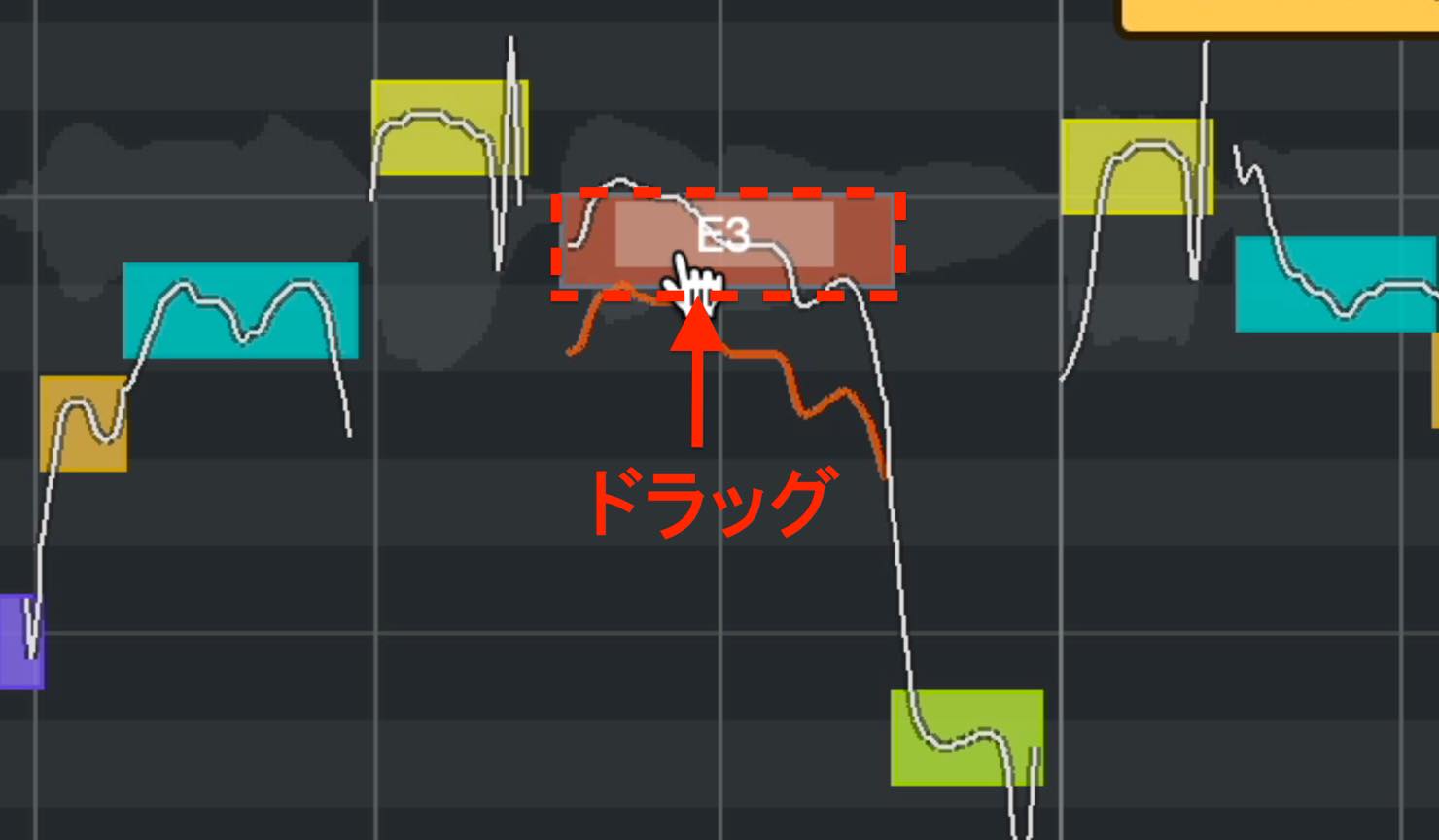
You can move segments so that they snap exactly into the pitch grid.
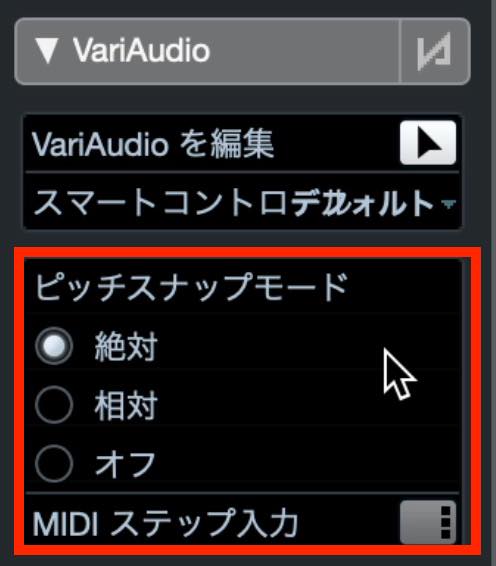
If they do not align exactly, check Pitch Snap Mode in the Inspector. Relative moves segments in semitone steps while retaining their original offset. Choose Absolute to snap them to the exact pitch.
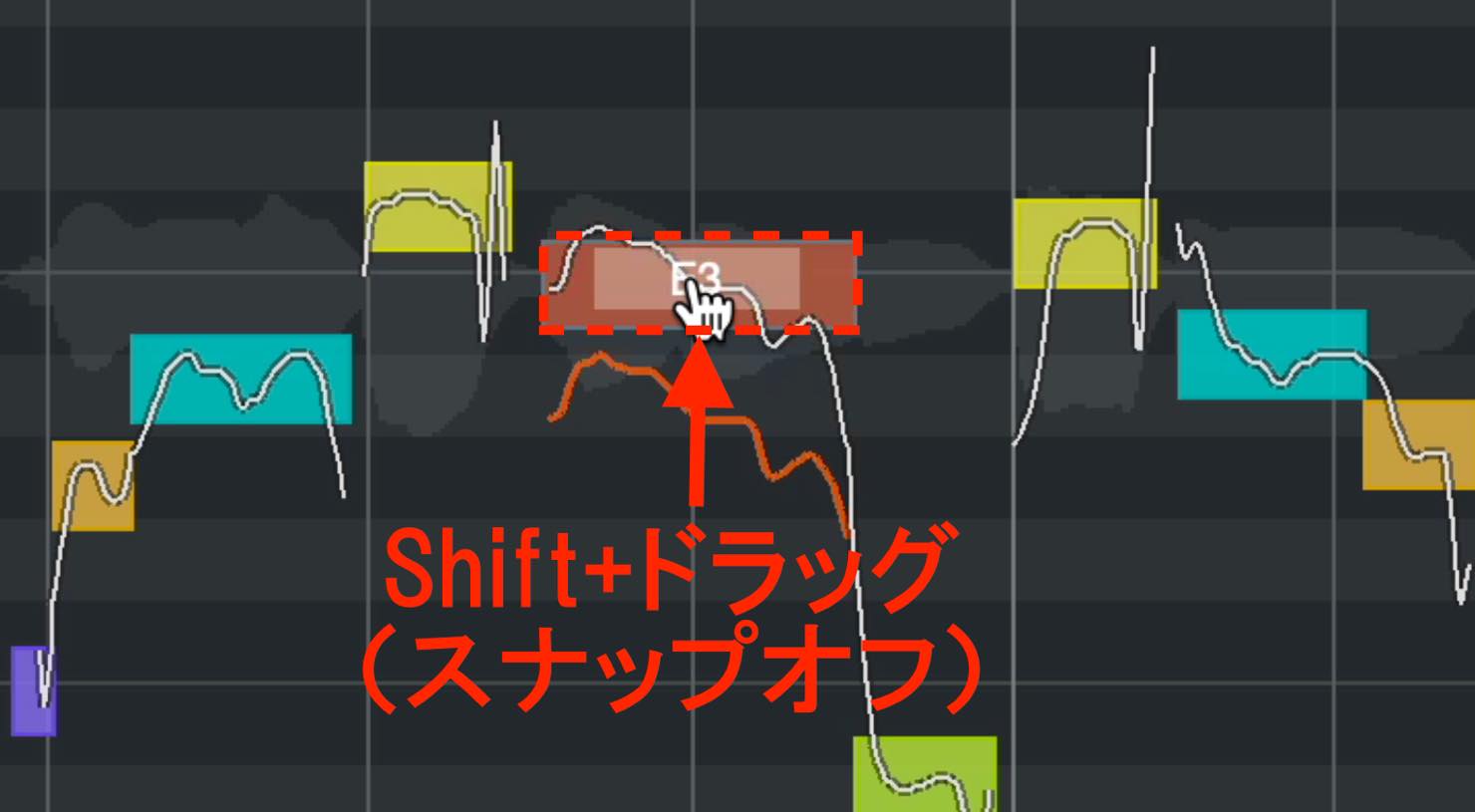
For fine adjustments without snapping, hold Shift while dragging to move freely.
MIDI Reference
While making corrections, you may sometimes be unsure which pitch a note should be.
If you have a MIDI version of the melody, you can display it as a guide.
Click No MIDI Reference in the Inspector to see a list of instrument and MIDI tracks in the same project.
Choose the track containing the MIDI guide melody.
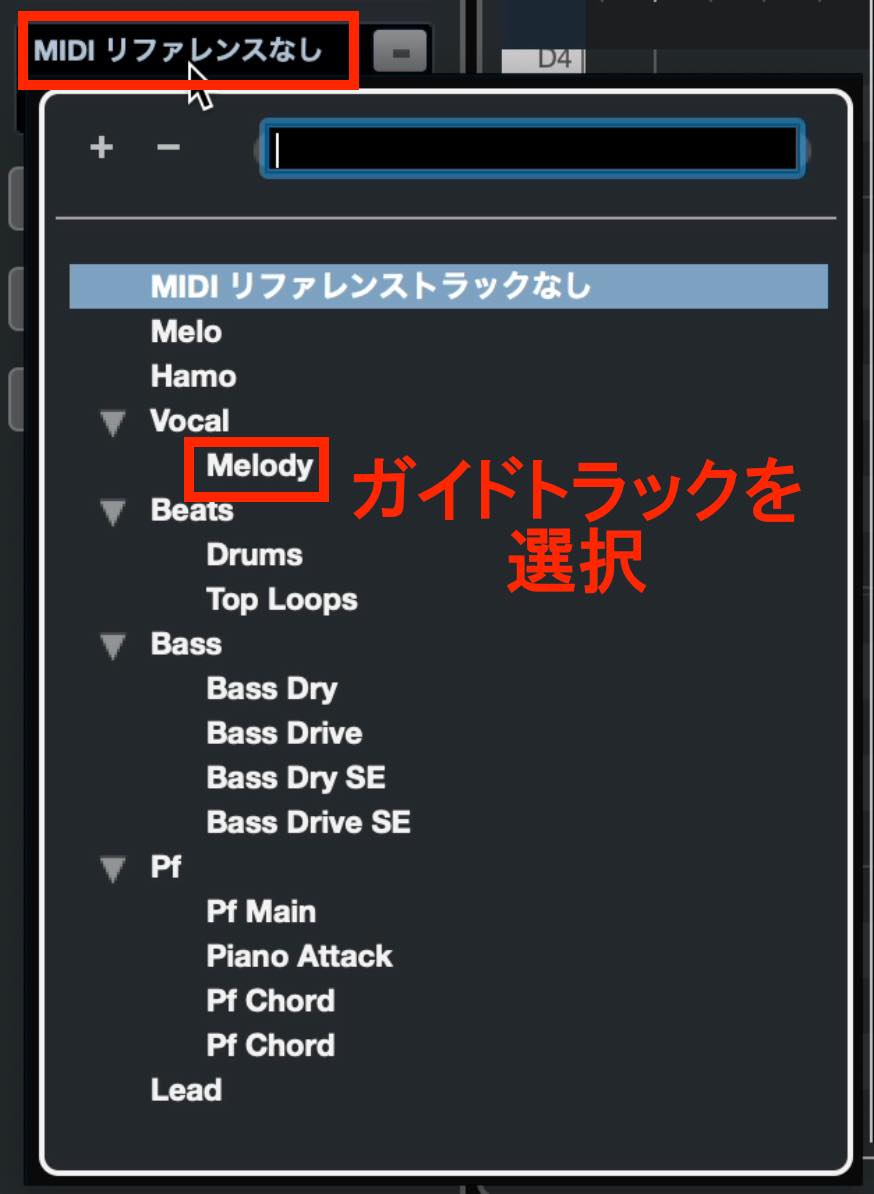
The MIDI notes then appear behind the audio segments in the editor.
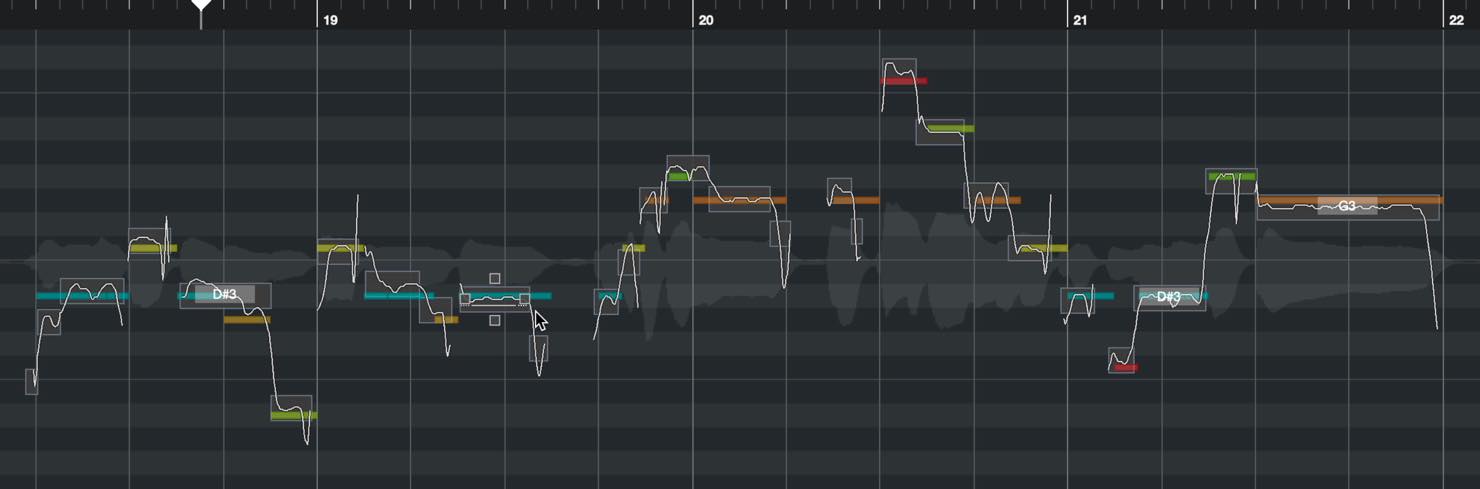
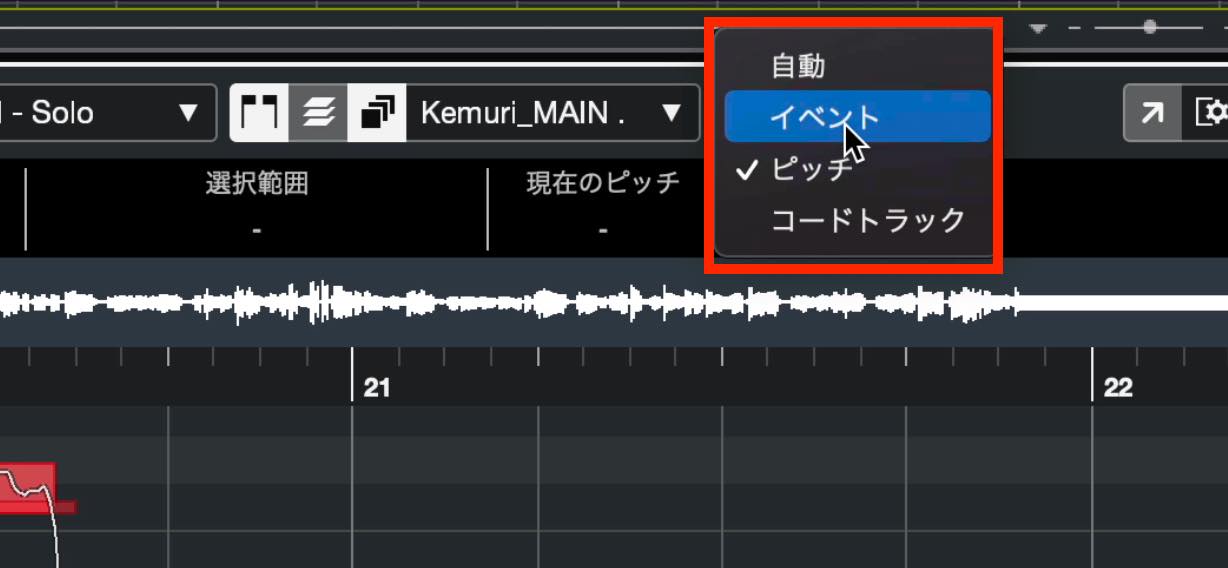
At this point, click the color menu and choose Event.
The colors assigned to the tracks are then reflected in the display.
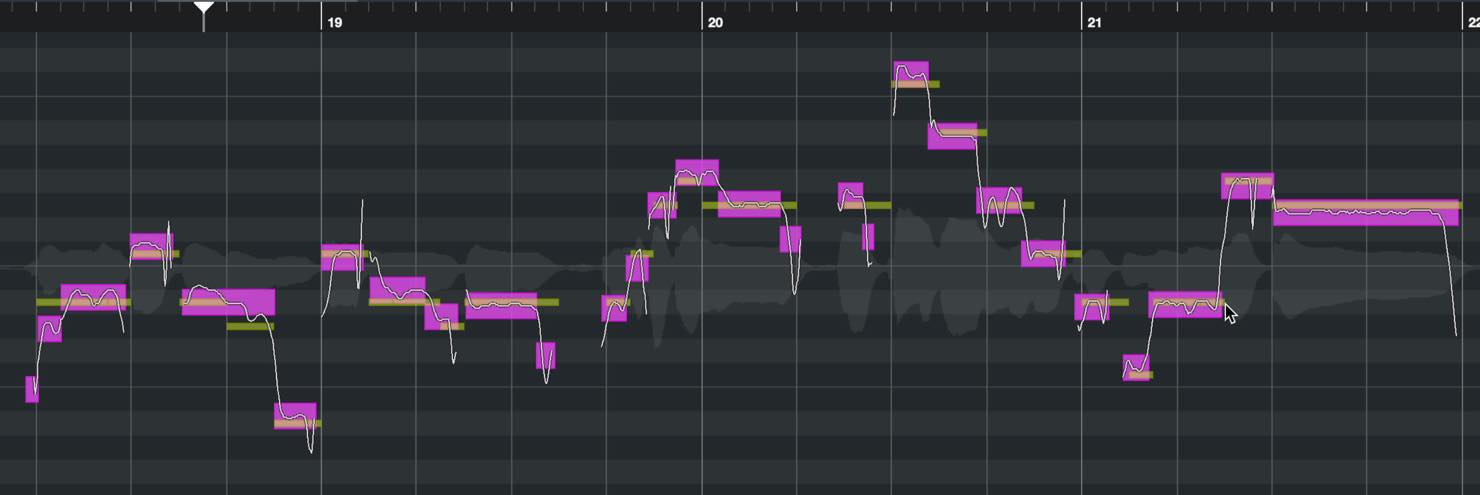
Giving the vocal track and guide track different colors beforehand makes them much easier to compare.
Straightening the Pitch Curve
Look closely inside a segment and you will see a continuous curve.
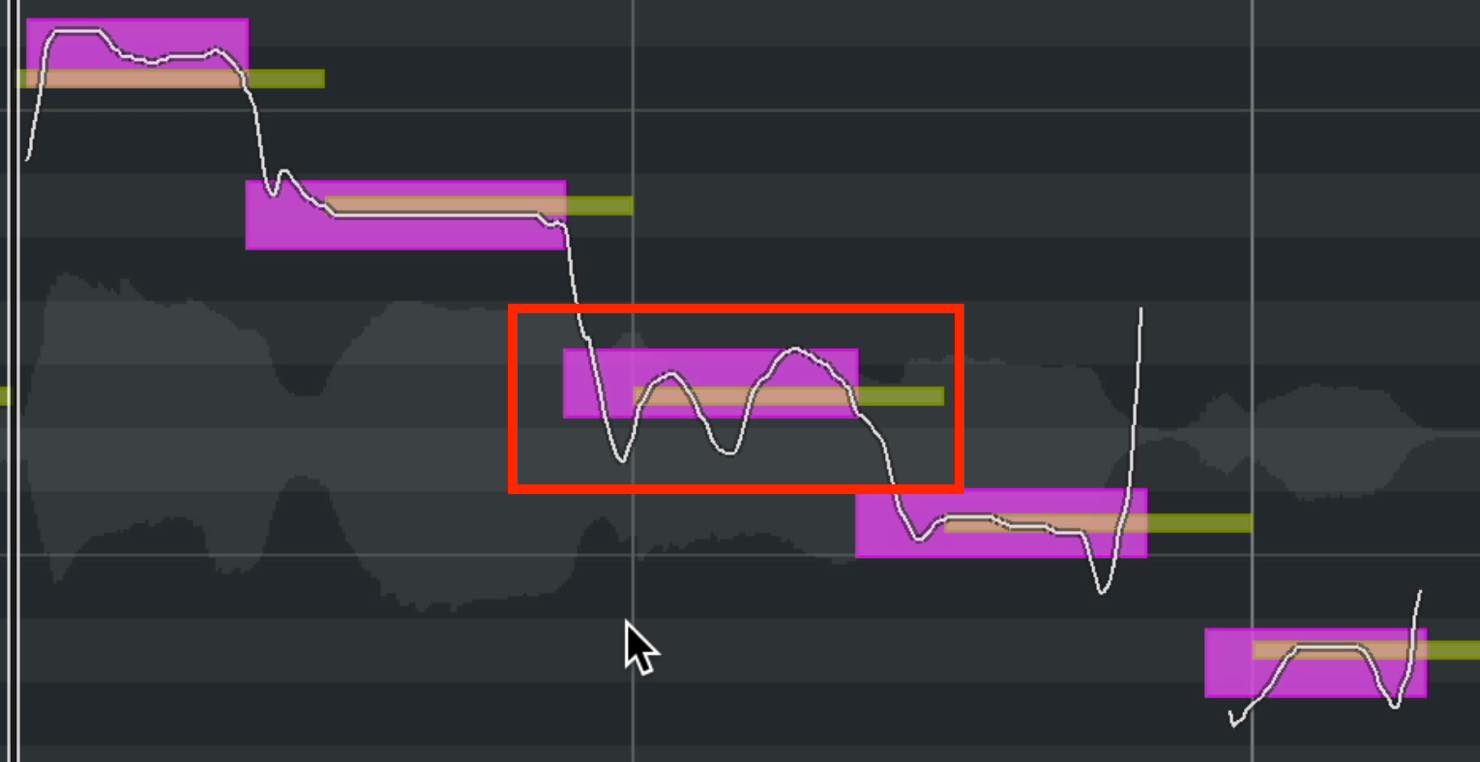
This shows the actual pitch movement. Even within one segment, pitch can rise and fall; the analyzed segment pitch represents its average.
Sometimes these fluctuations may be too strong and sound unnatural.
In that case, use the square Straighten Pitch Curve handle at the top center of the segment.
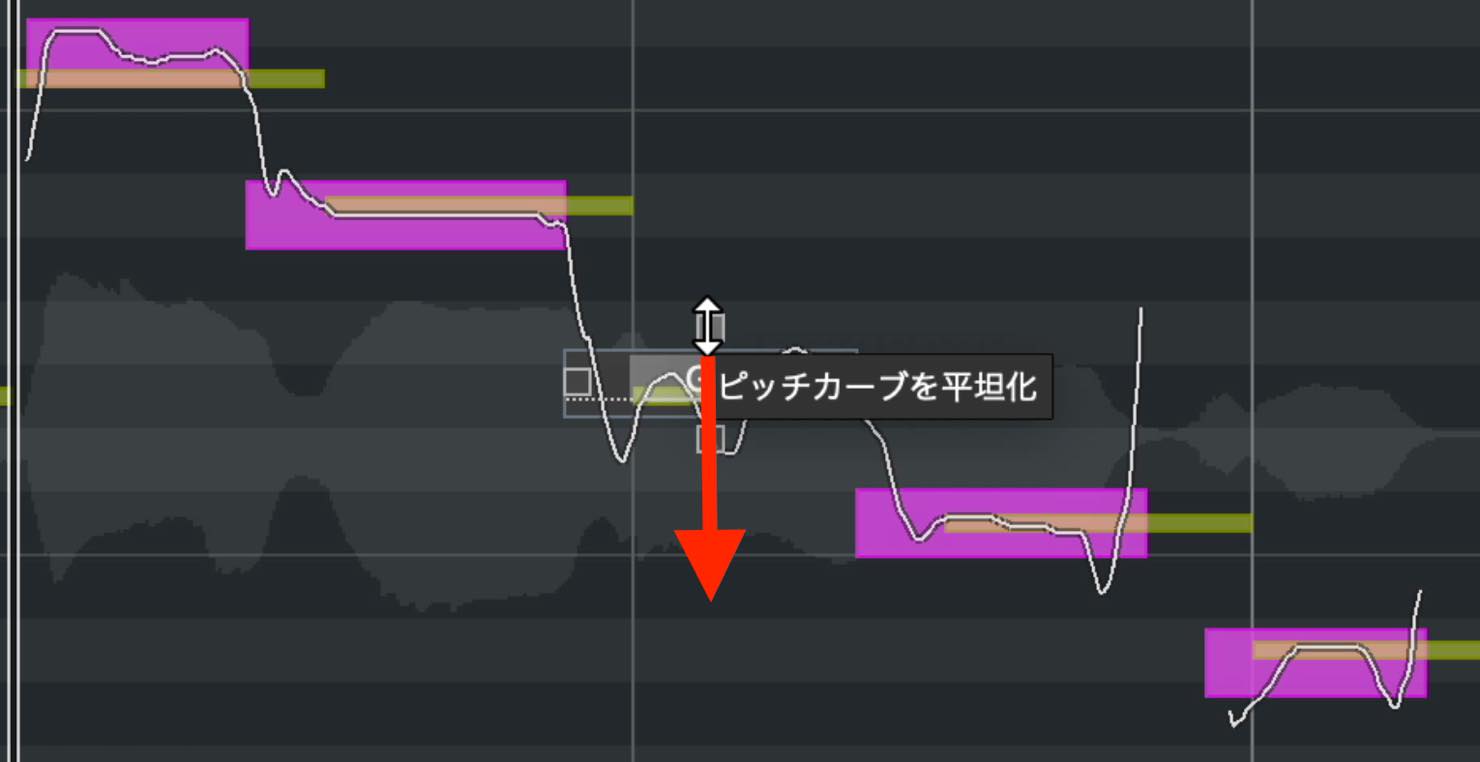
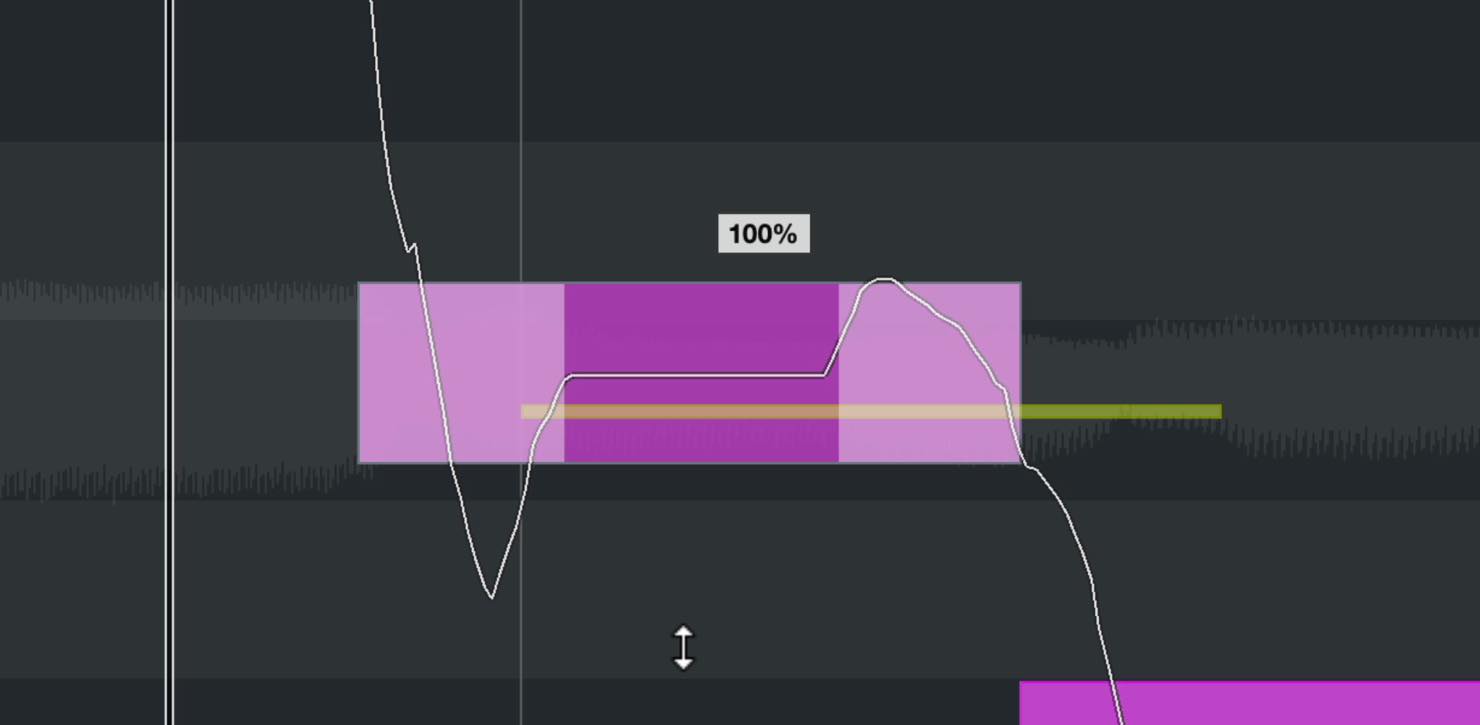
Drag it downward to make the wavy line progressively straighter. At 100%, it becomes completely straight.
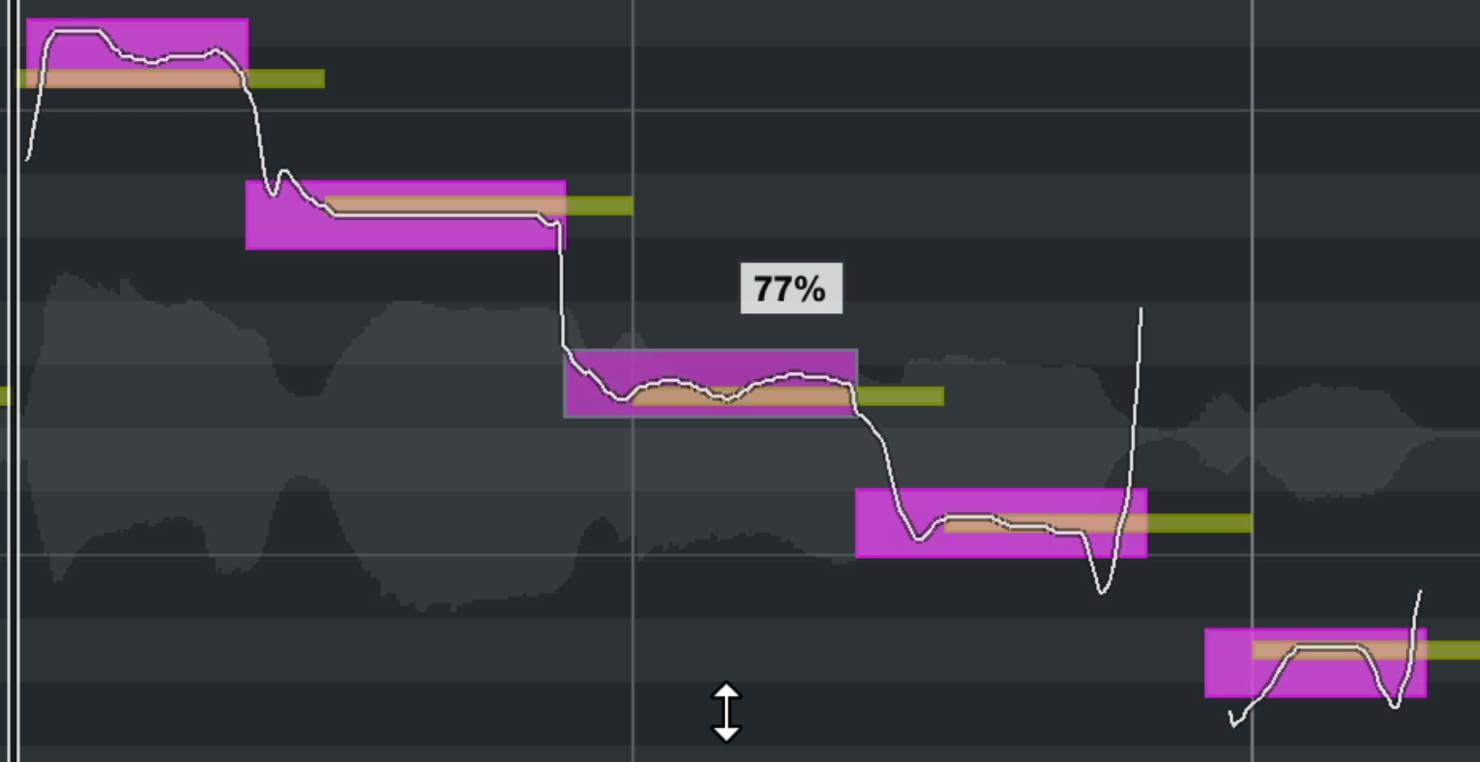
You can also set the range over which the curve is straightened.
Click Smart Controls in the Inspector and choose Show All Smart Controls.
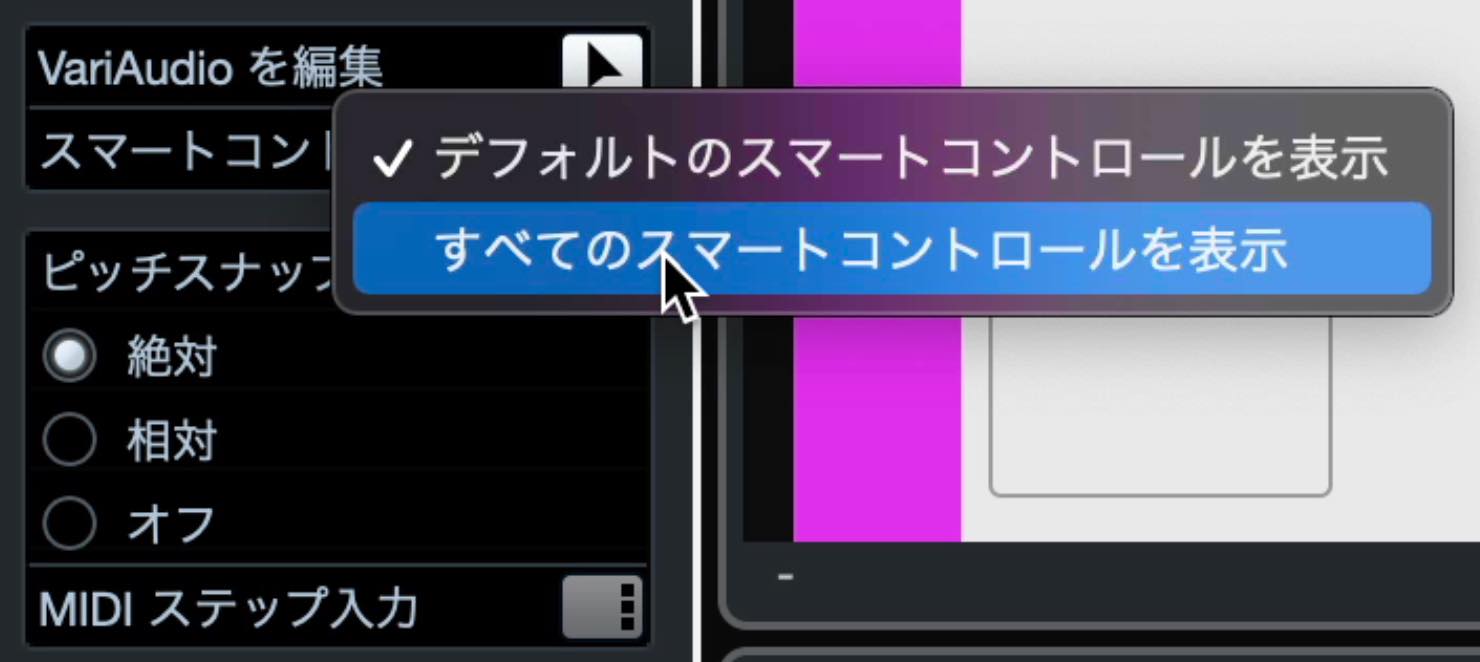
Now place the pointer over a segment. More handles appear than before.
Among them are triangular handles at the upper corners of the segment.
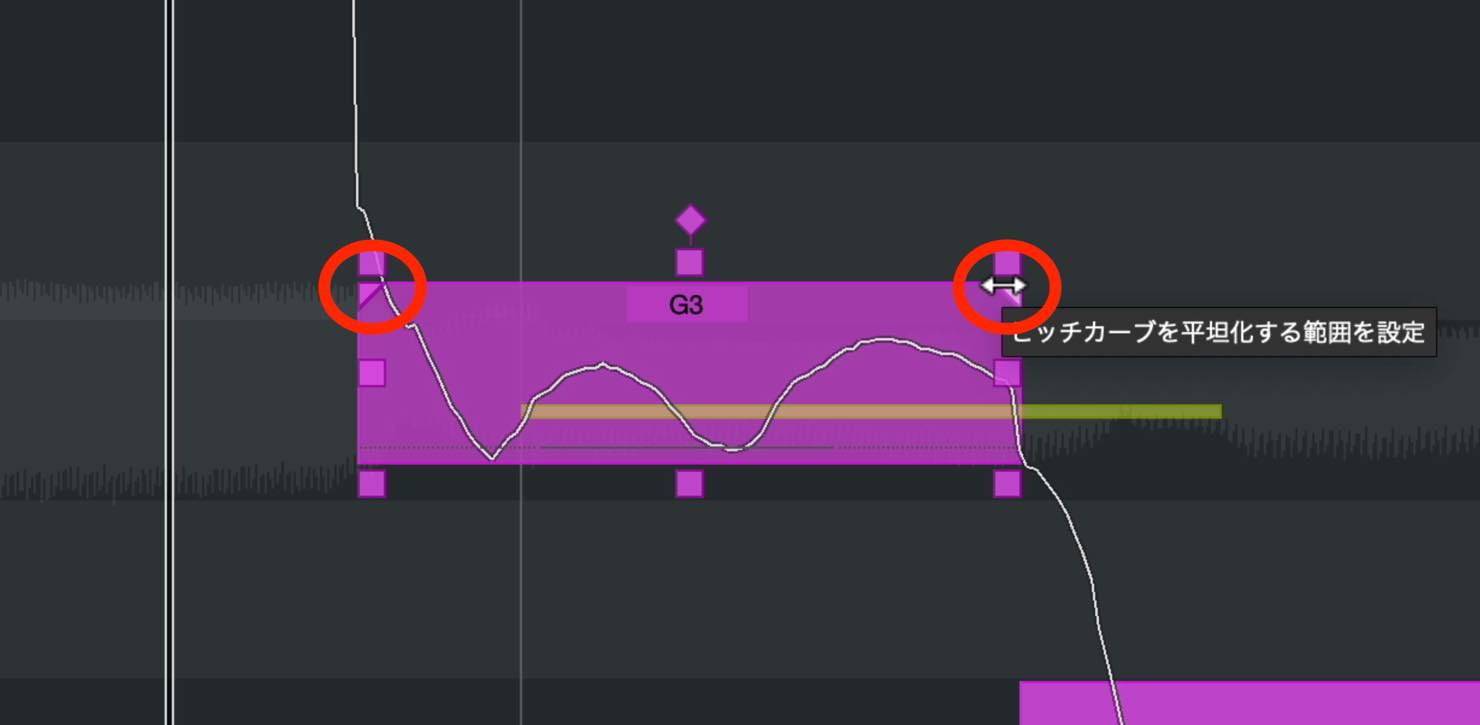
Drag these to define the range.
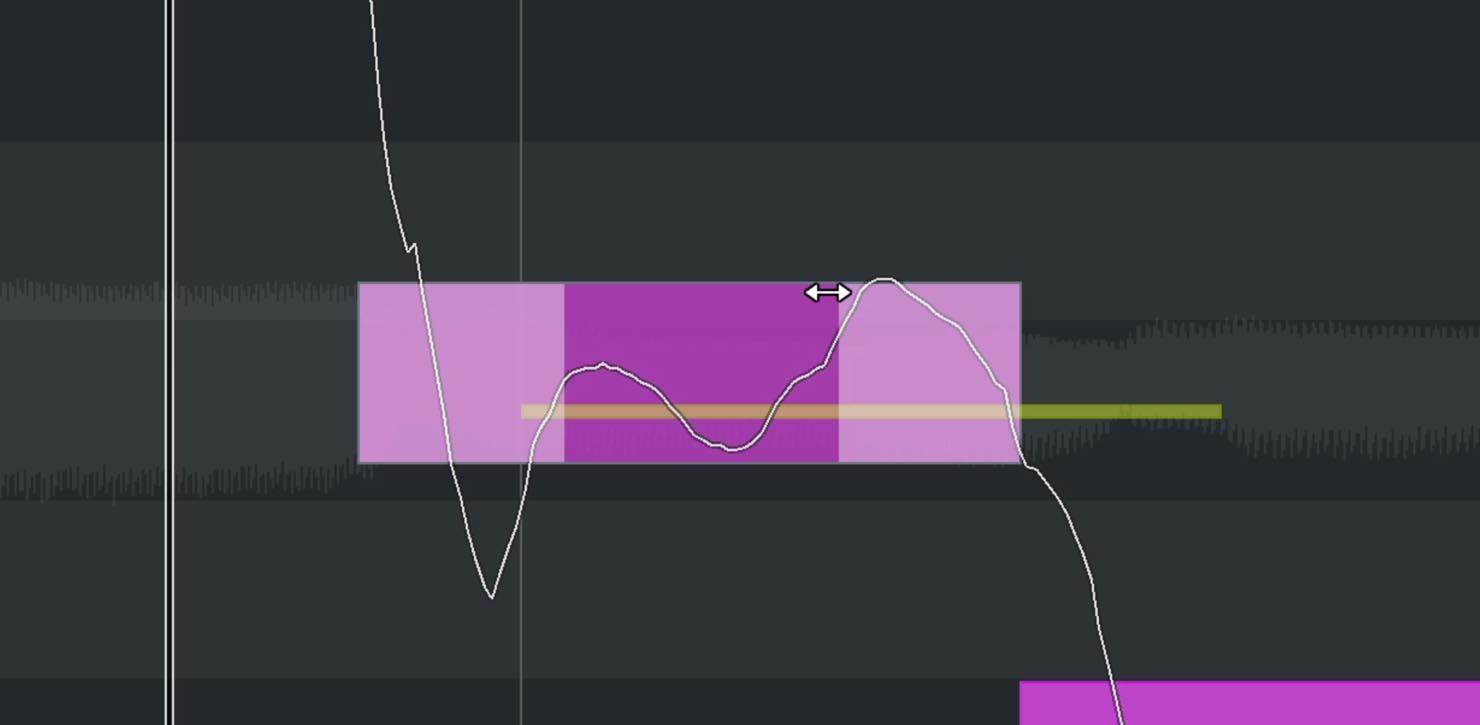
When you straighten the curve, only the specified portion is affected, as shown here.
Splitting Segments
While correcting pitch, you may find that two syllables have been analyzed as a single segment.
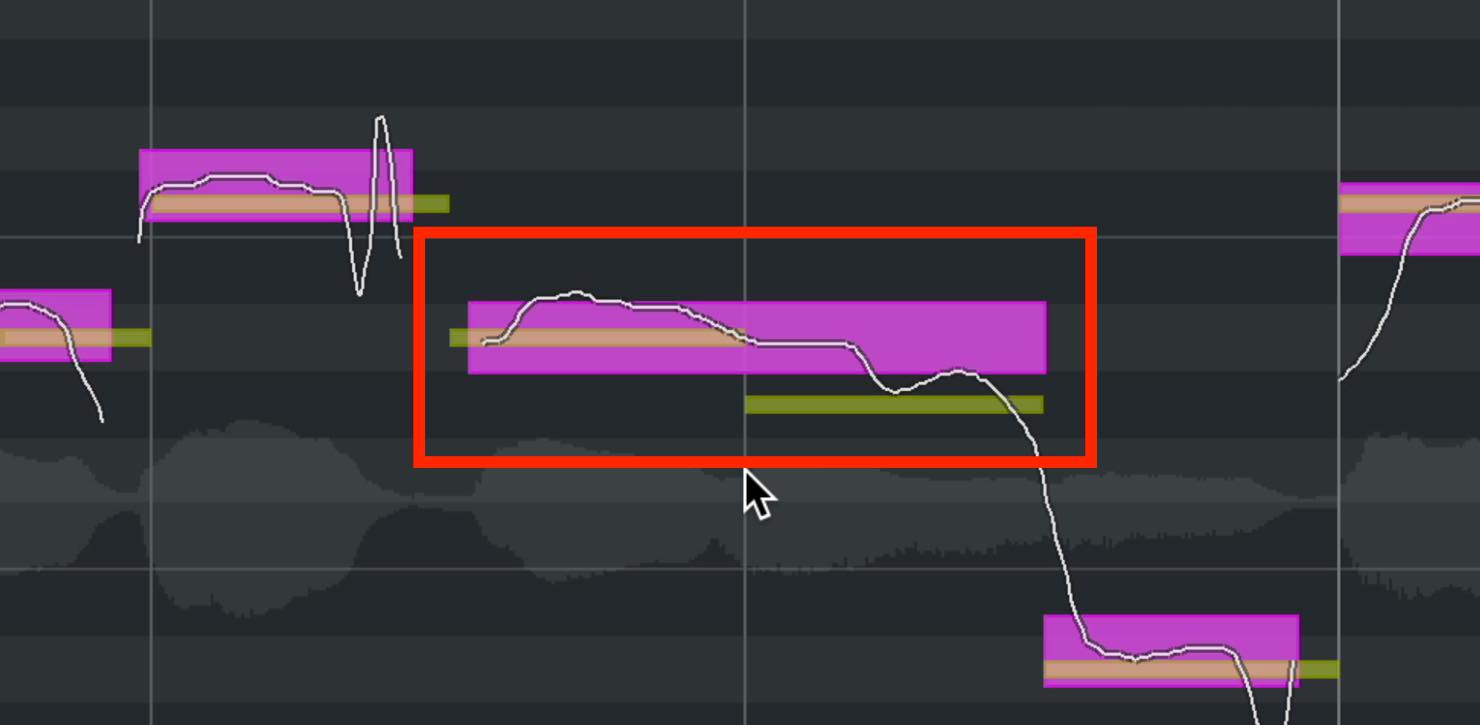
Split such a segment with the scissors before adjusting it.
Move the pointer slightly below the middle of the segment. A line appears and the pointer changes to the scissors tool.
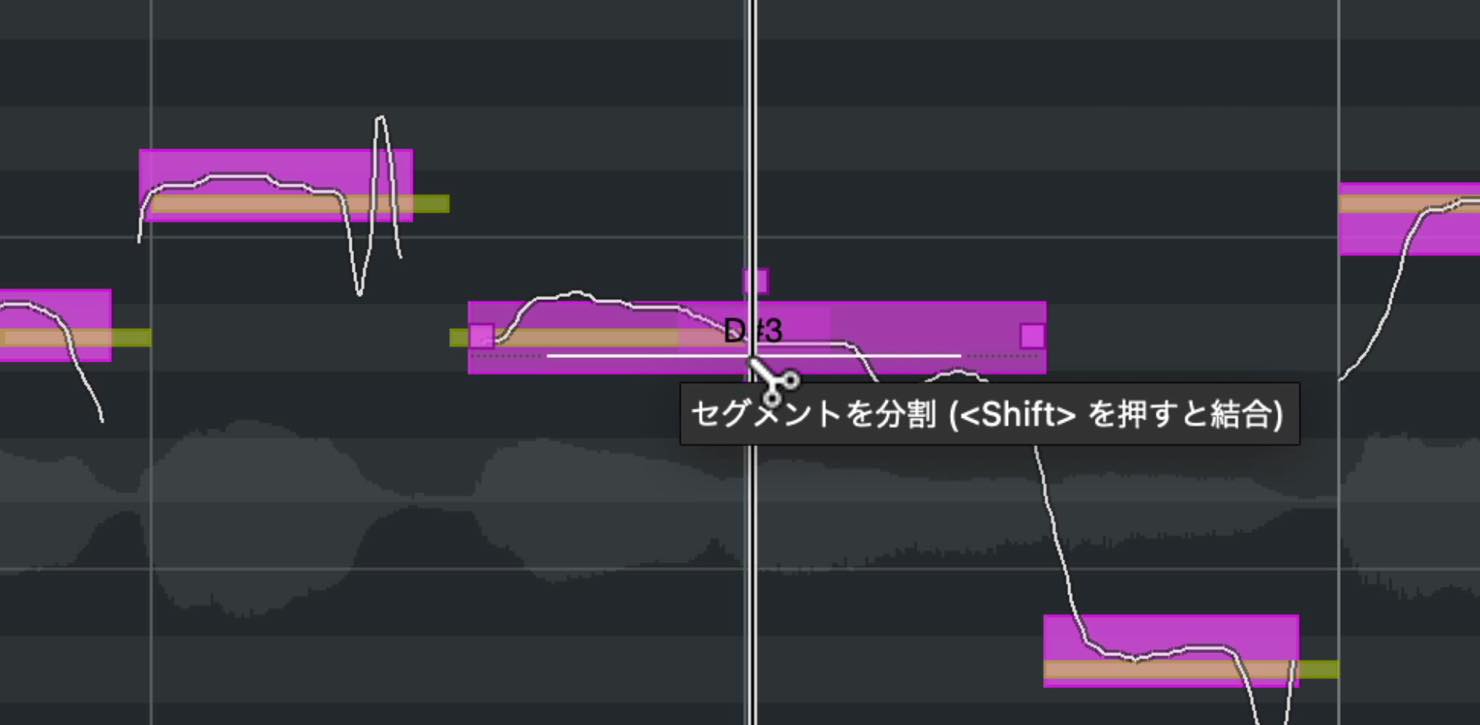
Click at the desired position to divide the segment, as shown here.
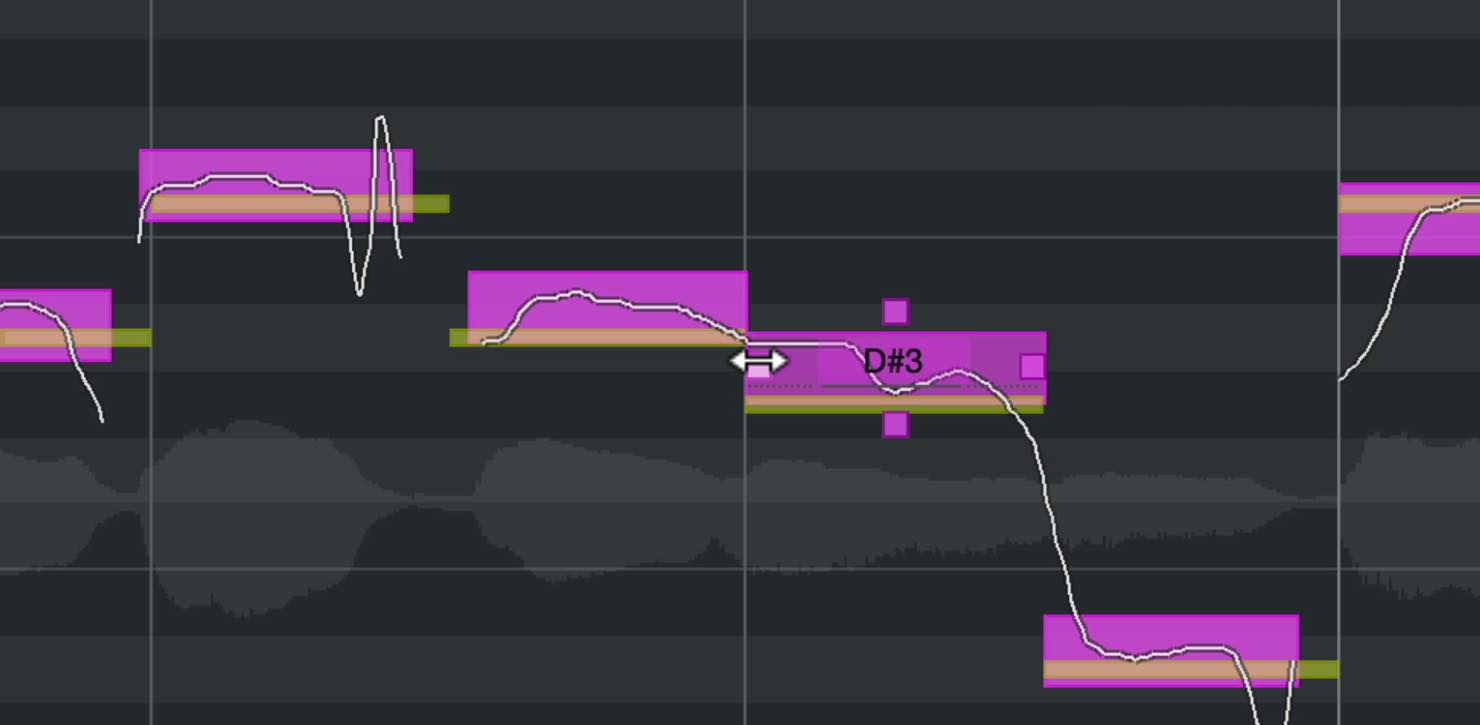
You can now adjust the pitches of the two segments independently.
Editing Multiple Segments Together
You can also apply these pitch operations to several segments at once.
Select the segments you want to edit, then move the Quantize Pitch slider in the Inspector to the right.
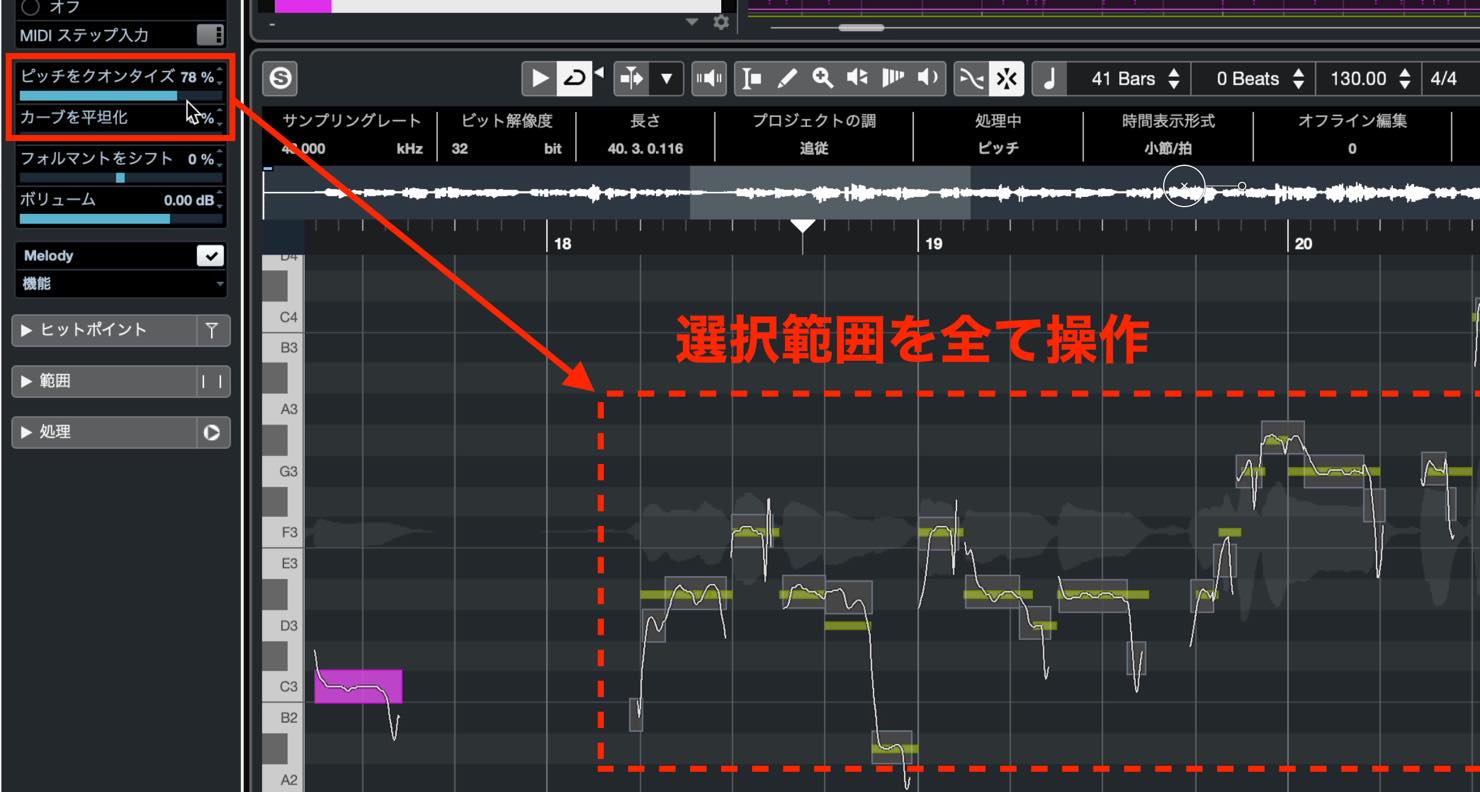
Their pitches progressively move toward the nearest exact notes.
At 100%, each segment aligns exactly with its target pitch. You might deliberately use around 80% instead to avoid making the result too perfect.
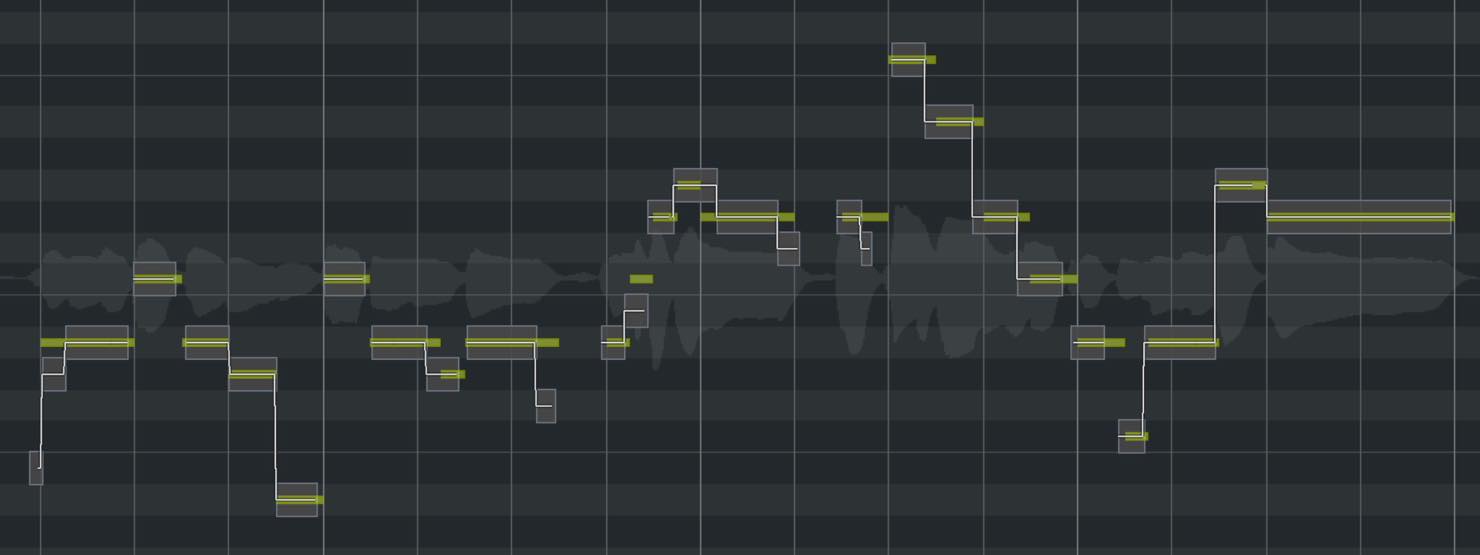
You can also straighten pitch curves with a slider. Move it to the right to make the selected curves increasingly straight.
Setting it to 100% makes them fully straight and can produce a robotic, heavily pitch-corrected vocal effect.
Correcting Timing
VariAudio also includes warping functions for correcting timing as well as pitch.
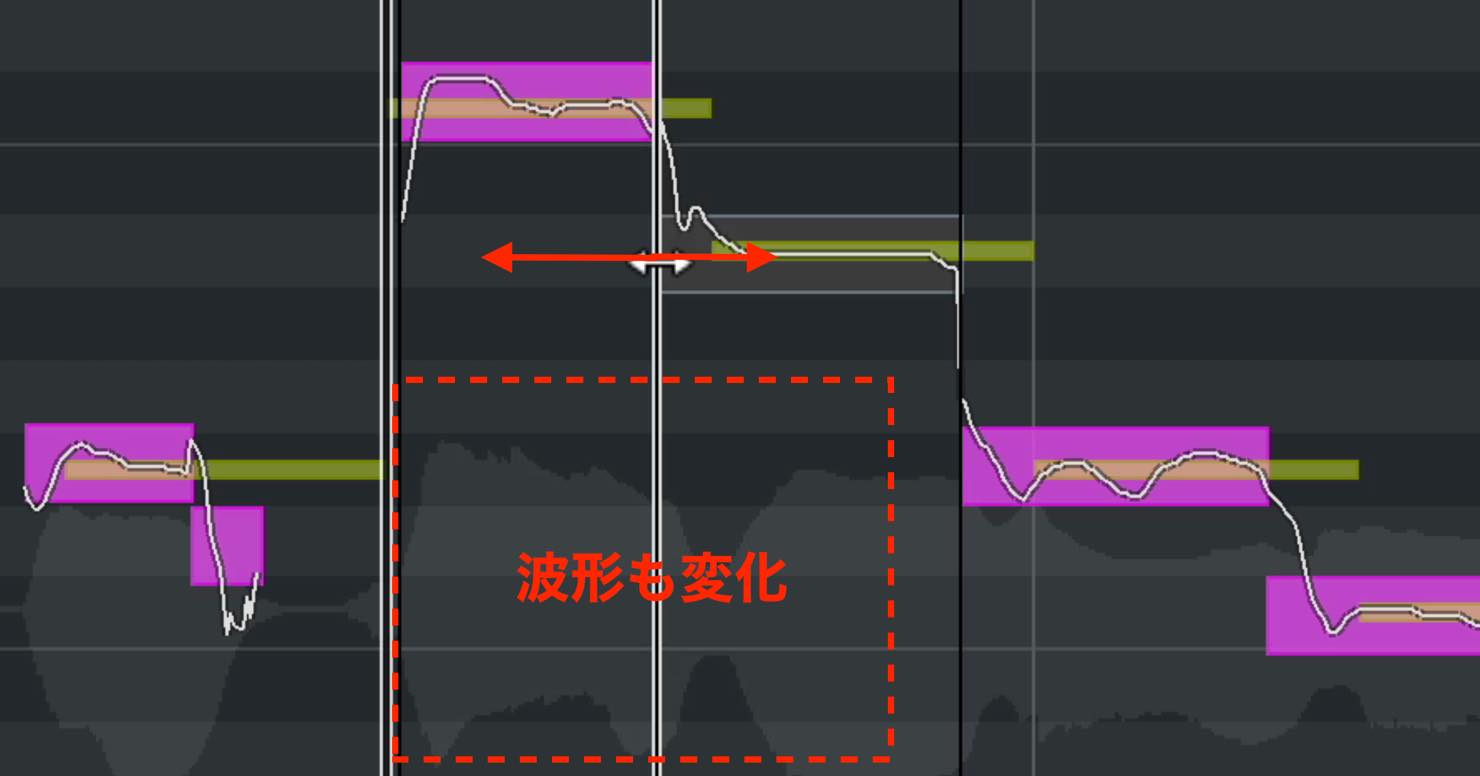
Simply drag the square handles at the left and right edges of a segment horizontally.
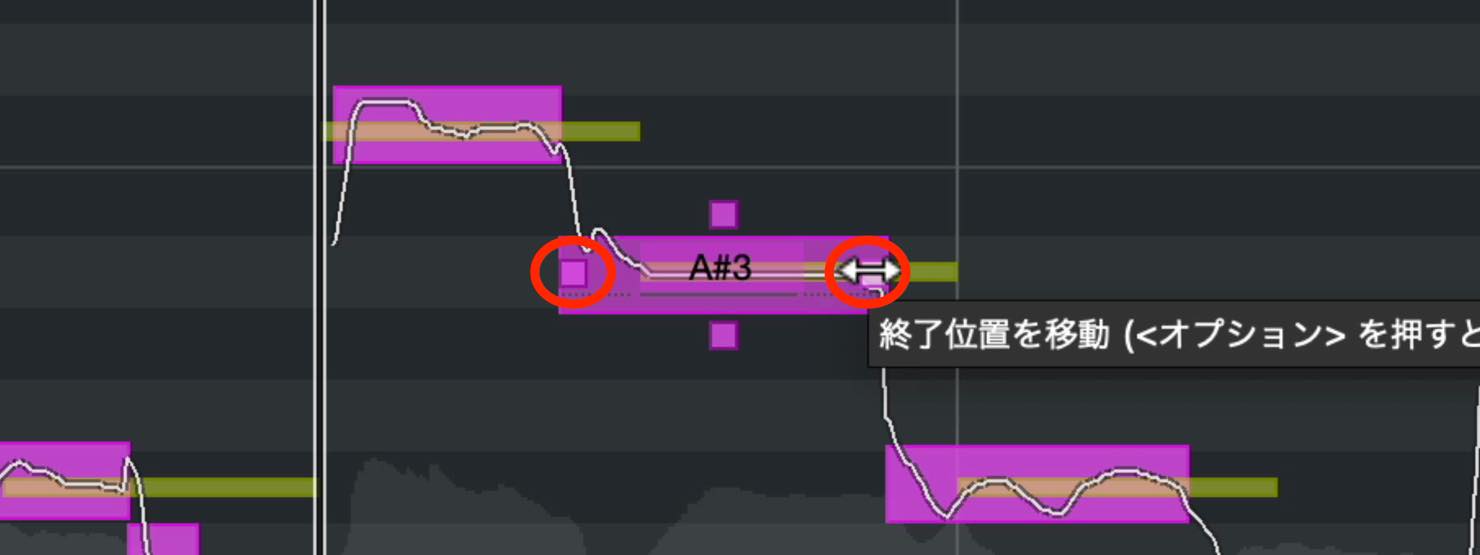
The left handle adjusts its start and the right handle its end. Moving the start automatically moves the end of the preceding segment; moving the end automatically moves the start of the following segment.
Adjusting Segment Volume
You can change the volume of individual segments too.
Select the segment and move the Volume slider in the Inspector. A setting of 0 dB retains the original level; other values specify how much to raise or lower it.
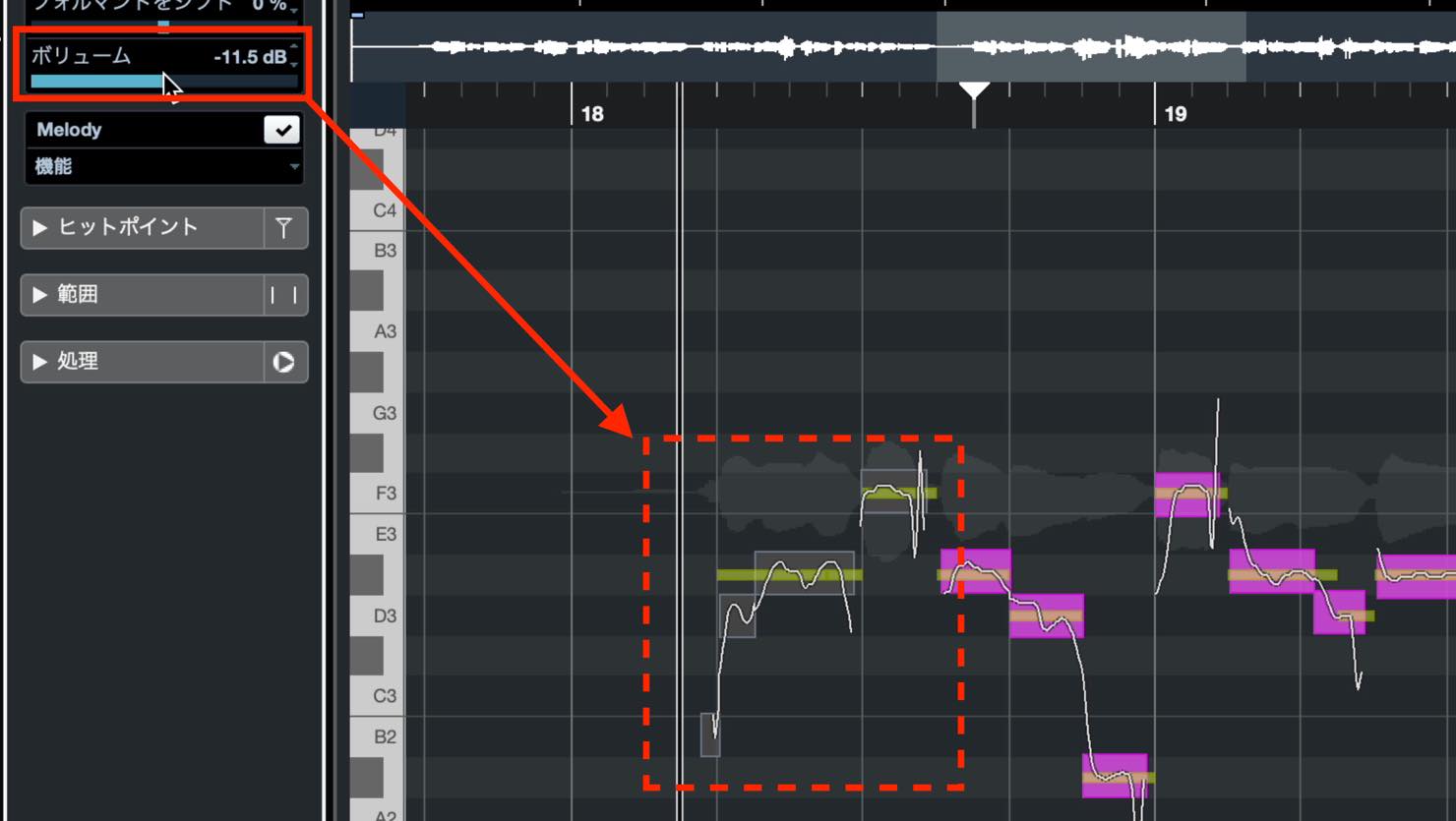
This gives you finer control than the event-level volume adjustment introduced in the previous tutorial.
Resetting Edits
After trying various corrections, you may want to return to the original performance.
You can reset the edits for the selected segments.
First, select the segment or segments you want to reset.
Then open Functions in the Inspector and choose Reset All Changes in Selection.
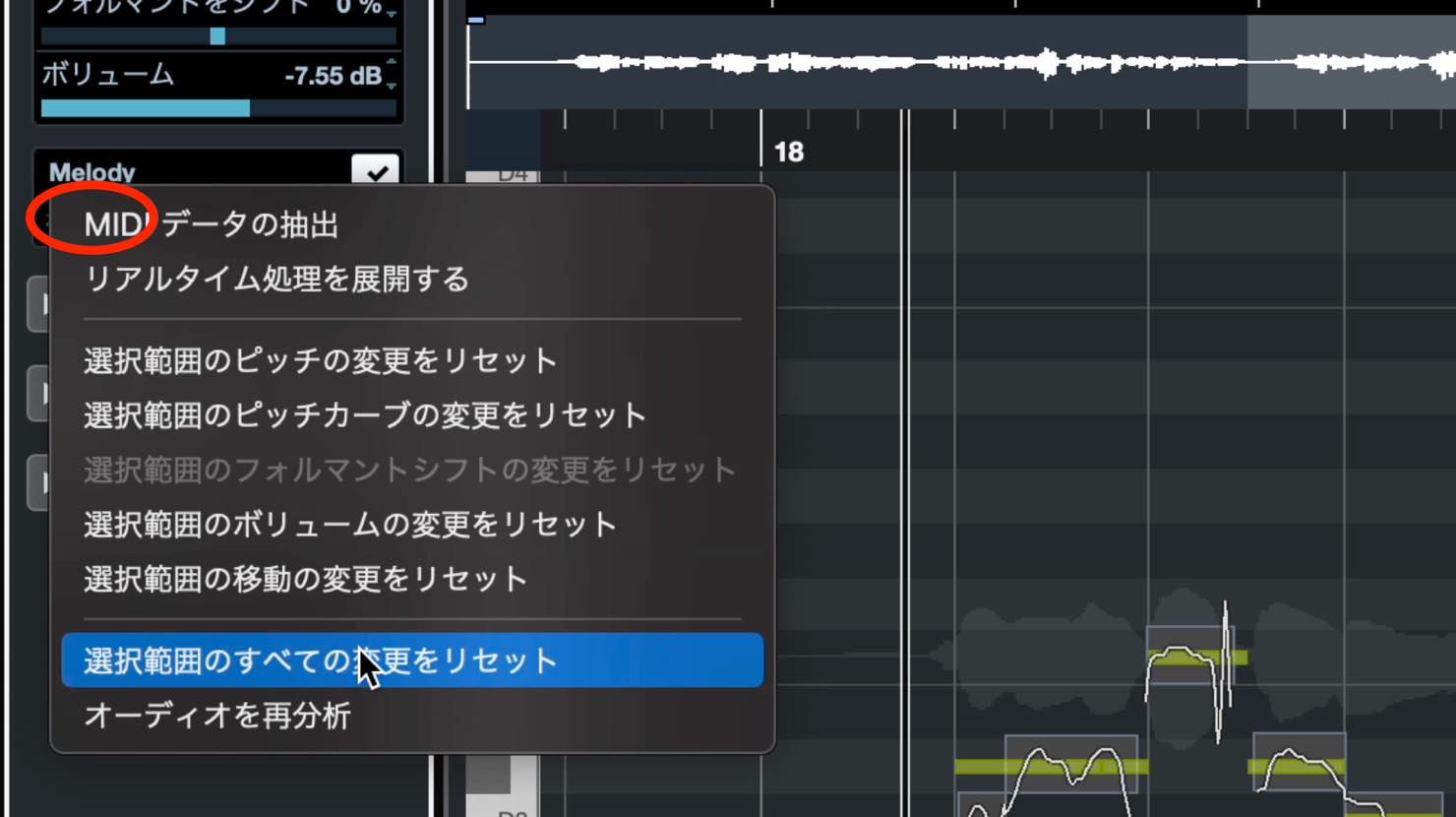
This returns all edits on those segments to their original state.
The same Functions menu also lets you reset individual types of edits. Choose the option you need.
That concludes our introduction to pitch correction with VariAudio.
Having this much editing capability built into Cubase is a major strength. Try using it to create polished vocal tracks.
Next time, we will explain how to apply effects to change and shape track sounds.
Part 13 of our Cubase 11 beginner series covers pitch correction with VariAudio.
Pitch correction lets you fix notes that were off pitch or unstable during recording. Used well, it can make a performance sound more assured.
Details: https://t.co/DGFbfyvYbQ #DTM #Cubase— SLEEP FREAKS (@SLEEPFREAKS_DTM) September 30, 2021
Frequently Asked Questions
Q1. How do I start correcting pitch with VariAudio?
Double-click an audio event to open it in the editor, open VariAudio in the Inspector, and click Edit VariAudio. Once analysis finishes, the detected pitches are mapped out and ready to edit.
Q2. What if dragging does not align the pitch exactly?
Check Pitch Snap Mode in the Inspector. If it is set to Relative, switch to Absolute to snap to exact pitches. For fine adjustments, hold Shift while dragging.
Q3. What should I do if one segment contains several syllables?
Move the pointer slightly below the middle of the segment to activate the scissors tool. Click where you want to split it, then adjust each resulting segment independently.
Q4. What is the advantage of using a MIDI reference?
Displaying a MIDI guide melody from the project gives you a visual reference for the intended pitches. Using different track colors makes the vocal and guide easier to compare.
Q5. What happens when Quantize Pitch is set to 100%?
The selected segments snap exactly to their target pitches. For a more natural result that is not too perfect, try leaving the setting around 80%.
NEW ARTICLES
Latest English Articles










































































































































