
Pitch adjustment is essential for making VOCALOID vocals sound more natural and expressive. This article explains how to visualize pitch movement with Pitch Rendering, adjust phrase endings naturally by splitting notes, and create the scoops often used in pop vocals. Understanding how VOCALOID handles pitch and applying these techniques can help you move beyond mechanically entered notes and create polished vocal performances.
Adjusting VOCALOID Pitch Movement

Following the previous installment on velocity and dynamics, this time we will adjust pitch to
make VOCALOID sing with even more expression.
There are a few tricks to adjusting pitch in VOCALOID.
Understanding and using its characteristics makes it easy to create natural pitch changes and singing techniques.
VOCALOID Tips Part 2: Pitch — Video
1. Velocity and Dynamics
2. Pitch (this article)
Purchase the product
Selected Questions and Answers from the YouTube Video

This was very helpful, and I could really hear the difference from mechanically entered notes. Thank you. If you know, could you tell me whether there is a way to convert a melody edited in VOCALOID4 Editor (the version not for Cubase) to a MIDI file so that I can play it as an instrument in another program, without VOCALOID3 or Piapro? I found free software that converts VSQX files exported from v3 to MIDI, but it does not seem to convert VSQX files exported from v4.

There was a plug-in for converting VSQX to VSQ. You may be able to convert to VSQ first and then use a free tool to convert it to MIDI. https://learnmmd.com/http:/learnmmd.com/exporting-vsqx-to-vsq/ Please take a look.
Viewing Pitch Movement with Pitch Rendering
First, to see how VOCALOID’s pitch moves, try the
Pitch Rendering feature.
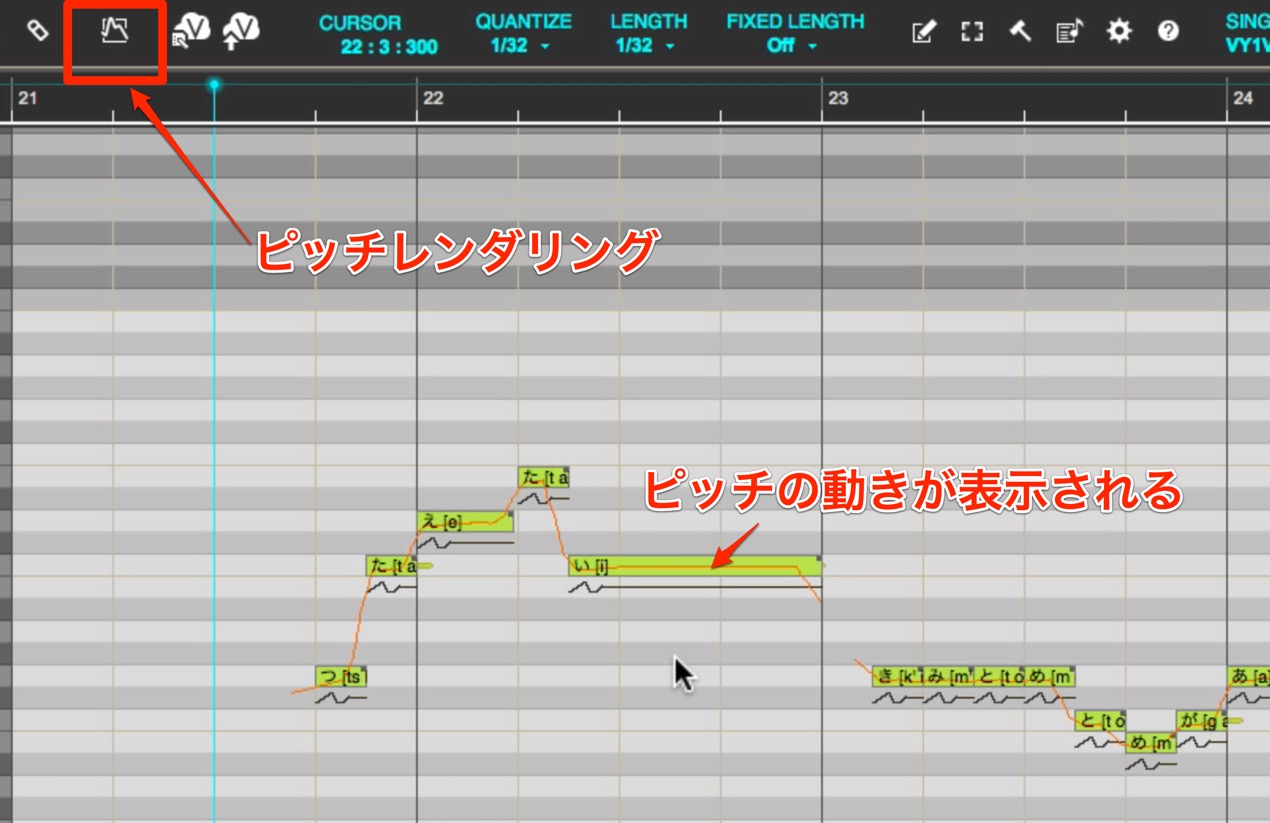
Click the Pitch Rendering button in the upper left to
display or update the actual pitch movement of the VOCALOID vocal.
Adjusting Pitch at the End of a Phrase
Let’s focus on the end of a phrase.
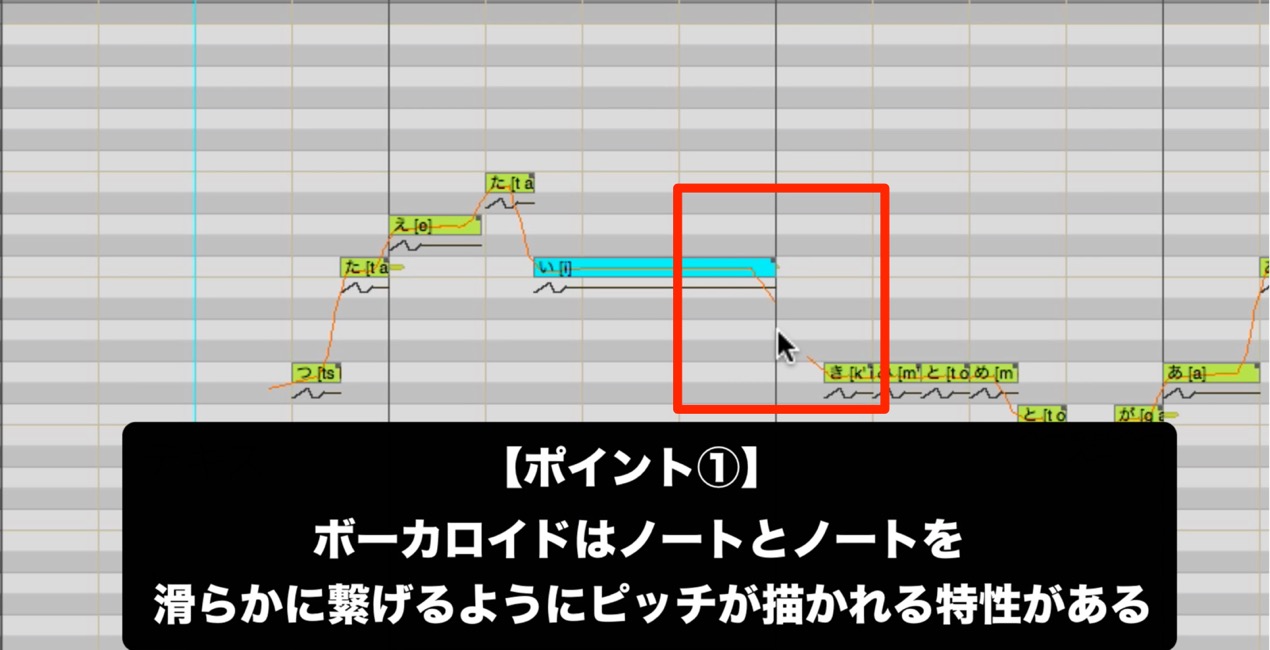
VOCALOID draws the pitch to connect notes smoothly, so
even at the end of a phrase the pitch can move toward the next phrase.
To prevent this, use a technique called note splitting.
In this example, the pitch of the final “i” in “tsutaetai” was falling, so
we shortened that note by about a sixteenth note and added a new sixteenth note for “i.”
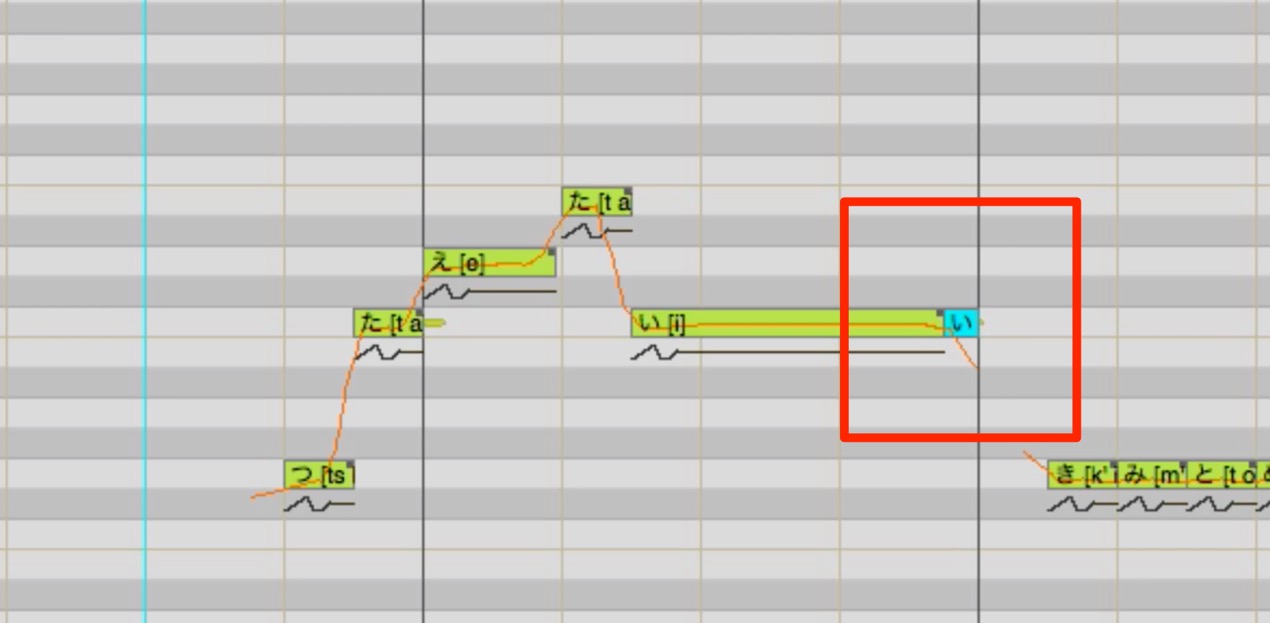
Click Pitch Rendering again to check. It may still look as if the pitch is falling, but
when you listen, the effect is greatly reduced compared with before the adjustment.
Note splitting can also be used to adjust volume or dynamics in a specific section, as well as pitch.
Creating a Pitch Scoop with Note Splitting
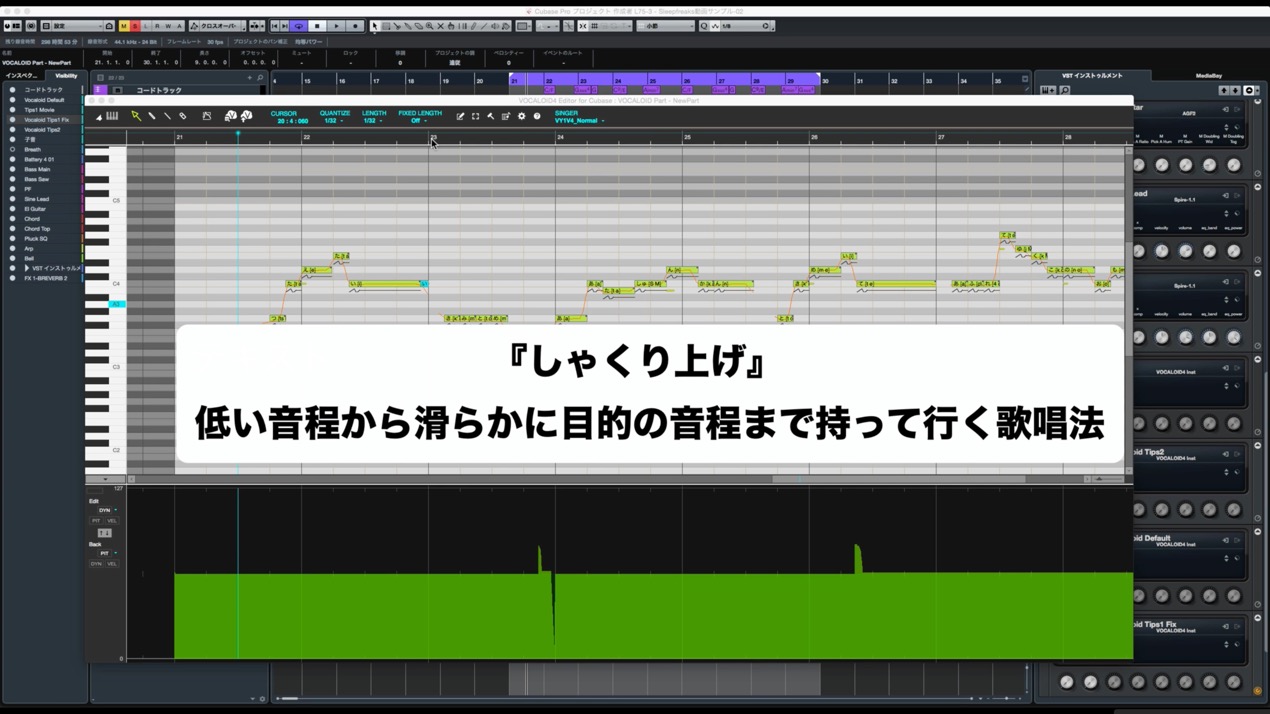
A common vocal technique in pop music is the pitch scoop.
At the start of a phrase, for example, the singer begins slightly below the target pitch and glides smoothly up to it.
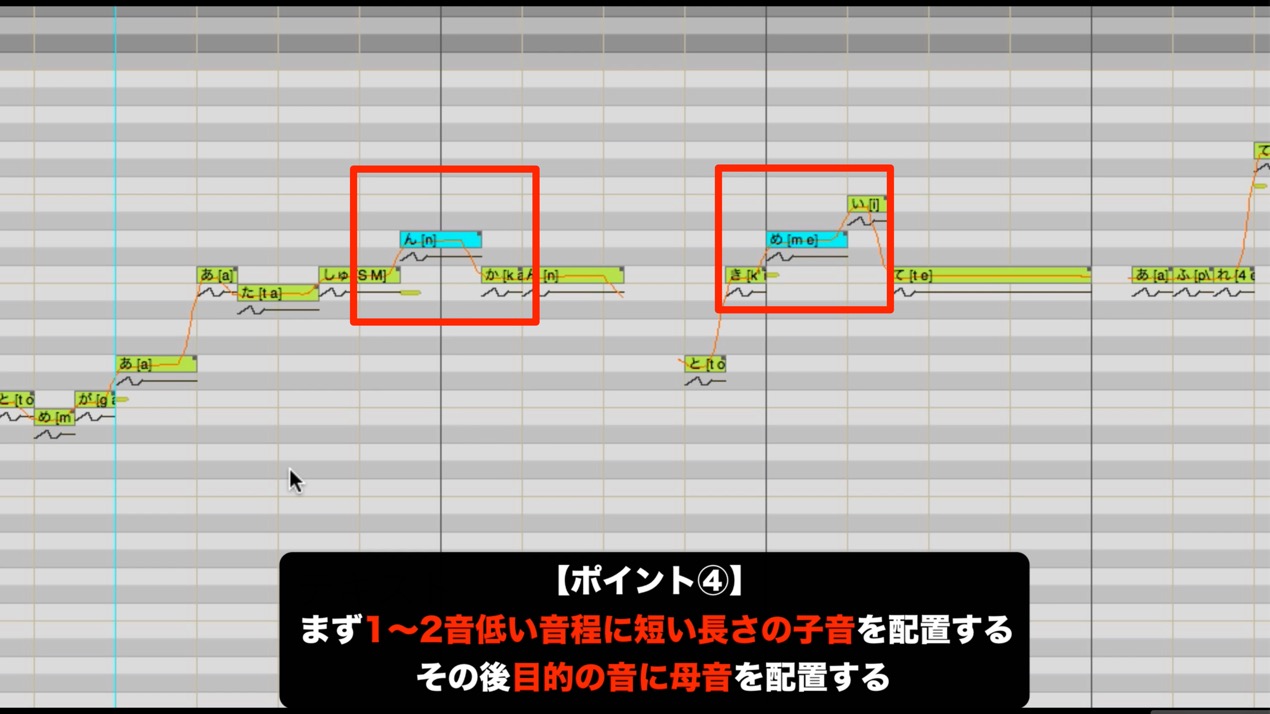
You can use note splitting to create a scoop in VOCALOID.
Here we will try it at two points: the “n” in “shunkan” and the “te” in “tokimeite.”
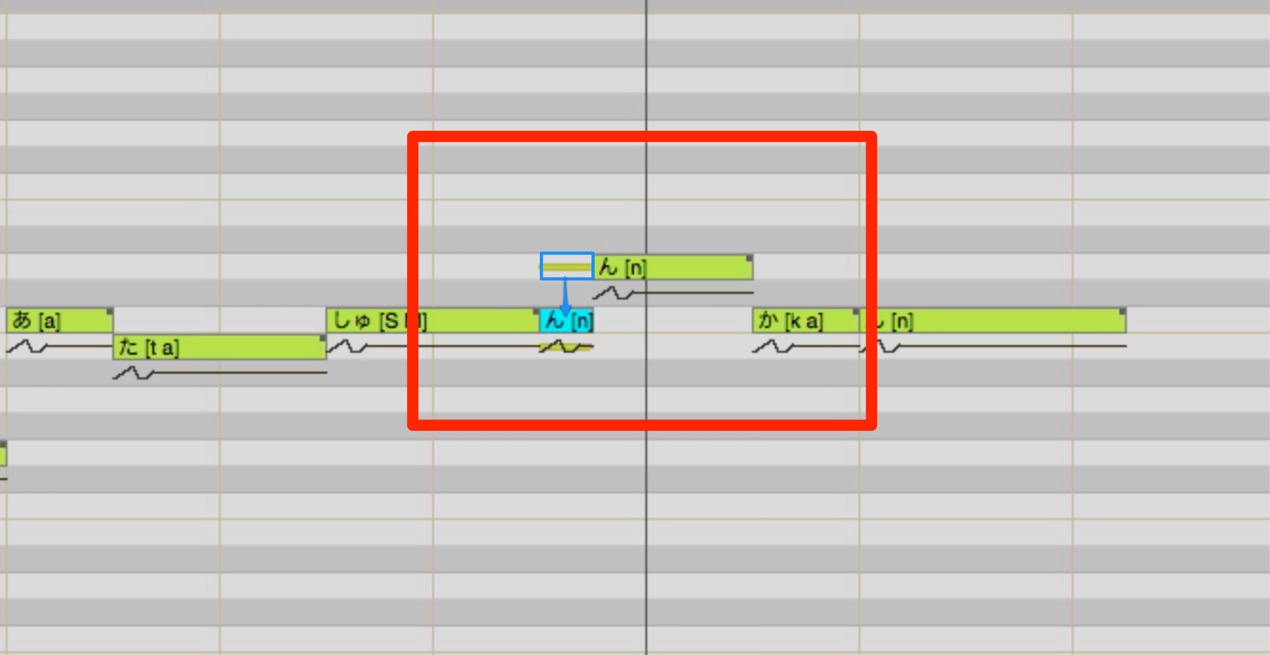
As shown, first shorten the original “n” note and add a separate note for the removed portion.
Lower the pitch of the added note to create the scoop.
Normally, place it one scale degree below in the song’s key, but if the effect feels too subtle,
you can also start the scoop two scale degrees below.
Next, let’s look at the “te” example.
Here, the consonant and vowel are clearly separated, and there is a point to keep in mind.
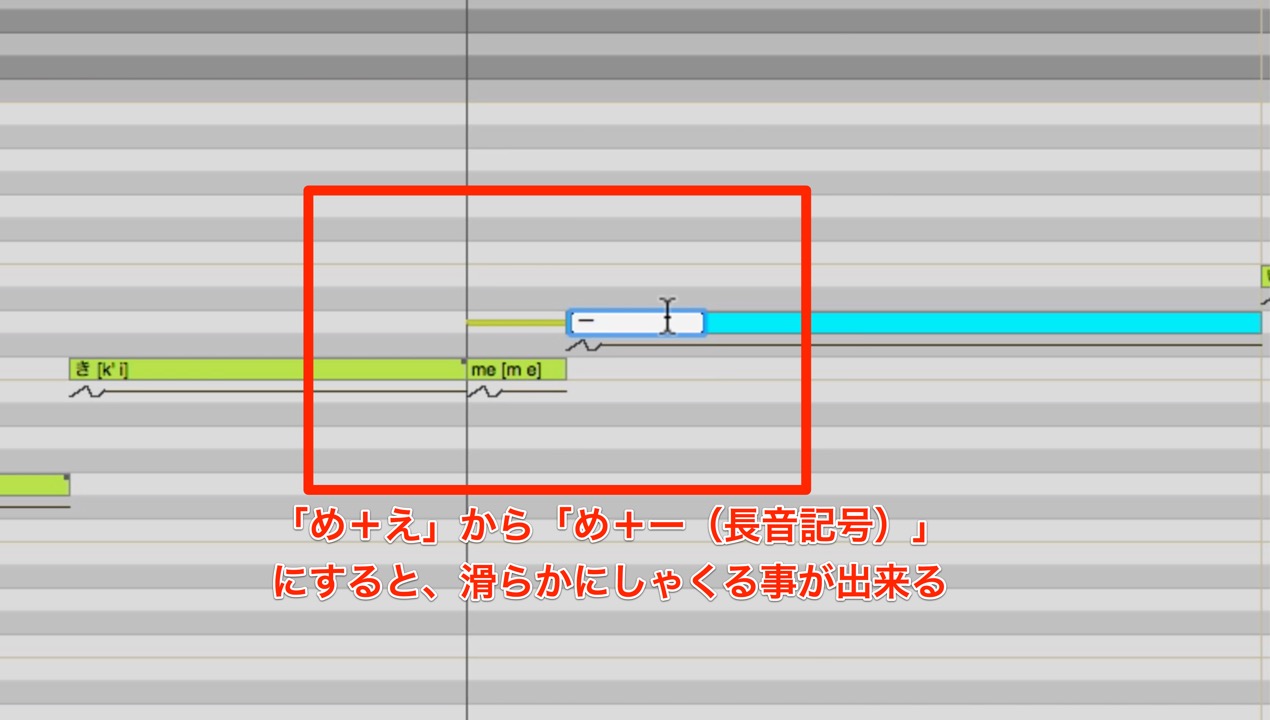
If you use the vowel “e” as it is, the attack may be emphasized and sound unnatural.
In that case, replace “e” with the Japanese long-vowel mark (choonpu) to make the scoop more natural.
Summary
How did it go?
As explained across these two installments, the first steps toward moving beyond mechanically entered VOCALOID notes are:
- Adjusting velocity and dynamics
- Adjusting pitch
These are the first steps.
You can download the VSQX file containing all of these changes here,
so please use it to help you learn.
Thank you for watching and reading.
Purchase the product
Frequently Asked Questions
Q1. What does Pitch Rendering do in VOCALOID?
Pitch Rendering displays and updates the actual pitch movement of the VOCALOID vocal when you click the button in the upper left. It lets you compare pitch changes before and after editing for more precise adjustments.
Q2. What are the main uses of note splitting?
Note splitting can help prevent an unnatural pitch drop at the end of a phrase and create singing techniques such as pitch scoops. It can also be used for local adjustments to volume and dynamics, as well as pitch.
Q3. How can I make a pitch scoop sound natural?
Normally, set the added note one scale degree below the target in the song’s key. If the effect is subtle, starting two scale degrees below can also work. When the consonant and vowel are separate, replacing the vowel with the Japanese long-vowel mark can produce a more natural result.
NEW ARTICLES
Latest English Articles































































































































































































































































































































































































































