Cubase’s color features let you organize complex projects visually by coloring tracks and regions. You can classify them by instrument, work date, player, or other criteria to suit your workflow, helping you stay efficient and motivated. A tidy project can also make a good impression when you hand a session to someone else. The basic controls are intuitive and let you change the color of multiple events at once.
Organize tracks clearly with color
Add colors to tracks and regions to organize them with the color feature.
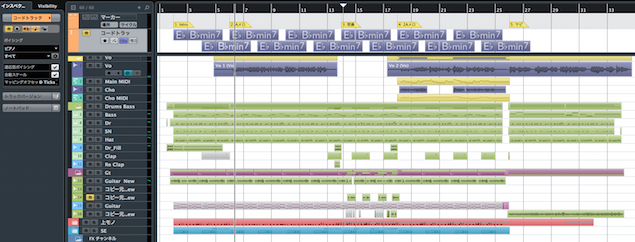
When you are working with many tracks, takes, and events,
color coding can help you work efficiently.
A neatly organized project can also boost your motivation.
And when you pass a session to someone else, it may make you look like you know what you’re doing!
Video tutorial
Questions and answers from the YouTube video

Sorry to bother you, but I’m using Cubase 10 and have a question. Is there a way to change several tracks at once? I heard that in an earlier version you could select multiple tracks with Shift, right-click the track with the color you wanted, and use “Use Colors of Selected Tracks of Same Type,” but I can’t find it in Cubase 10. I’d appreciate it if you could tell me how, if there is a way.

Yes. Select multiple tracks, open the color palette from the top menu, and choose a color. https://app.box.com/s/pzyd0t4qic25me69la7ny82nmyu34fzf
Using the color feature in Cubase

Click the Color tool.
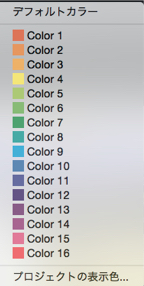
Choose a color.
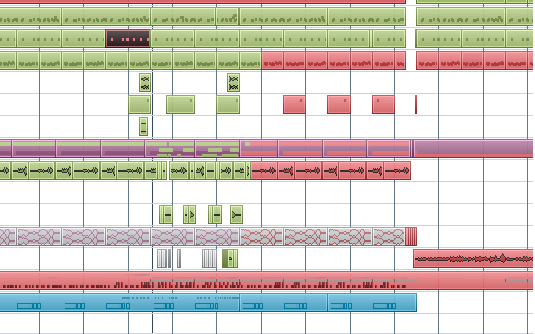
Click the event whose color you want to change.
That’s all there is to it.
You can also select multiple events and change their colors at once.
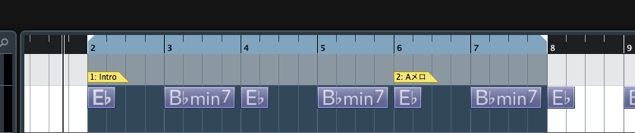
Coloring by instrument type is a common approach.
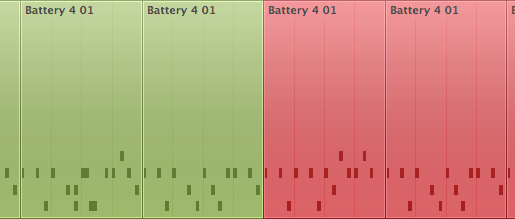
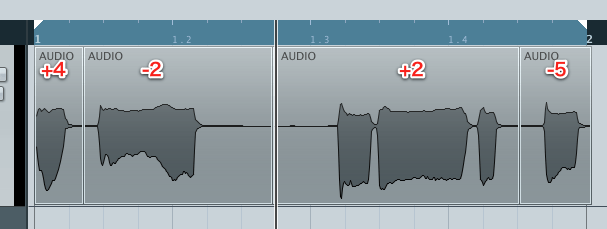
↑ By splitting events,
you can give individual events on the same track different colors.
- Work date
- Player
- Pattern
- Favorite / unfinished takes
With a little thought, you can use colors in many convenient ways.
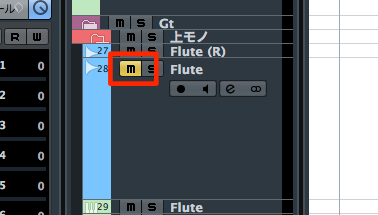
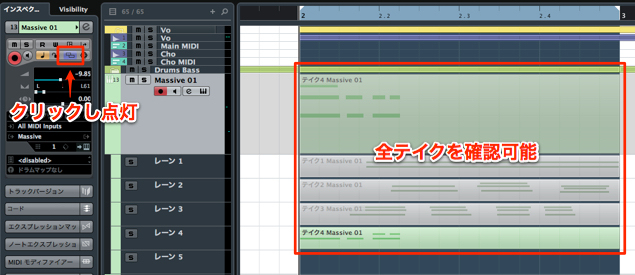
Changing colors by track
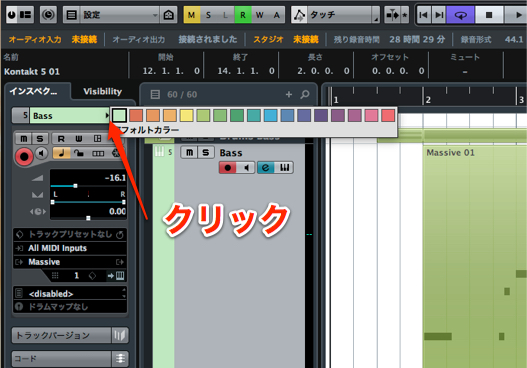
Click to the right of the track name in the Inspector
and choose a color.
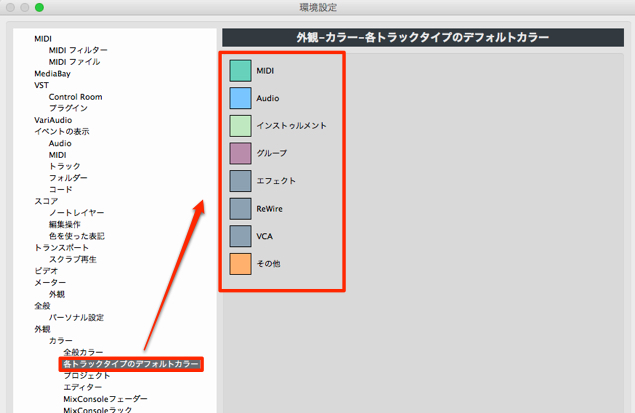
From the top menu, choose Cubase → Preferences
to select track colors in advance as well.
Frequently asked questions
Q1. How do I start using the Color tool in Cubase?
Click the Color tool, choose a color, and click the event you want to change. You can select multiple events to change their colors together.
Q2. What is the best way to choose a color-coding system?
Coloring by instrument type is common, but you can also use work dates, players, patterns, or stages of completion. Choose a system that suits your production workflow.
Q3. Can I color an entire track?
Yes. Click to the right of the track name in the Inspector and choose a color, or select track colors in advance in Preferences. Track-level colors can help keep a project organized.
NEW ARTICLES
Latest English Articles