
Steinberg Backbone is a sampler with a distinctive DECOMPOSE function for separating a sound into tonal and noise components. In addition to loading audio and playing it at different pitches, it lets you edit those components separately. A broad preset library and programs with up to eight layers support complex sound design. Detailed controls include pitch analysis and looping in the SAMPLE section, envelope editing in AMP, and many other ways to shape your sounds.
Separate Samples by Their Characteristics and Edit Them
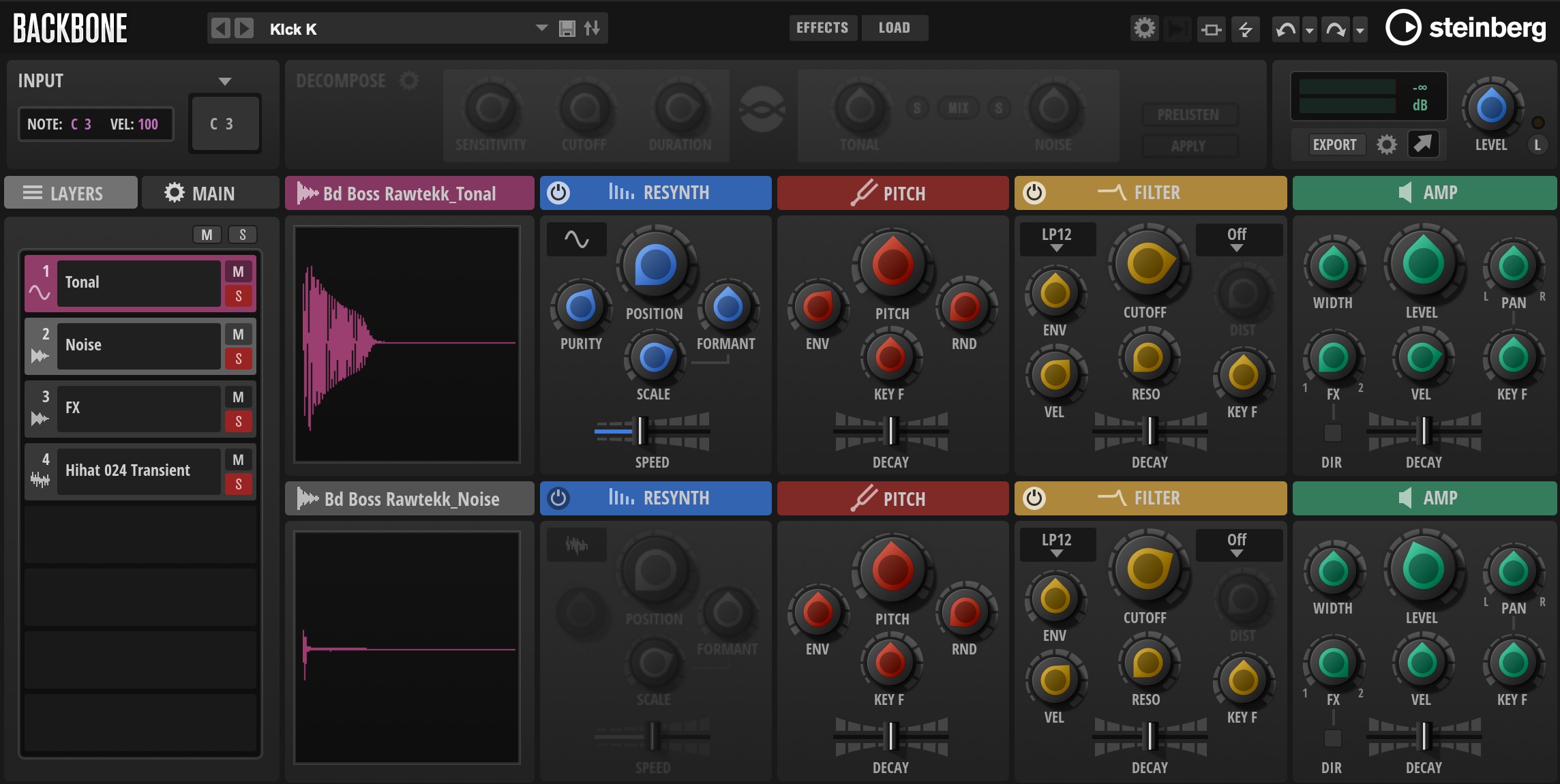
In this article, we will explore Backbone, Steinberg’s distinctive approach to sampling.
Backbone is a sampler that loads audio waveforms and lets you play them at different pitches. Its Steinberg-developed DECOMPOSE sound-separation function opens up a wide range of editing possibilities.
Beyond DECOMPOSE, Backbone has plenty of parameters for creative sound design. Let’s explore them step by step.
Using Steinberg Backbone: Video Tutorial
Product page: https://new.steinberg.net/ja/backbone/
Loading Sound Presets and Audio
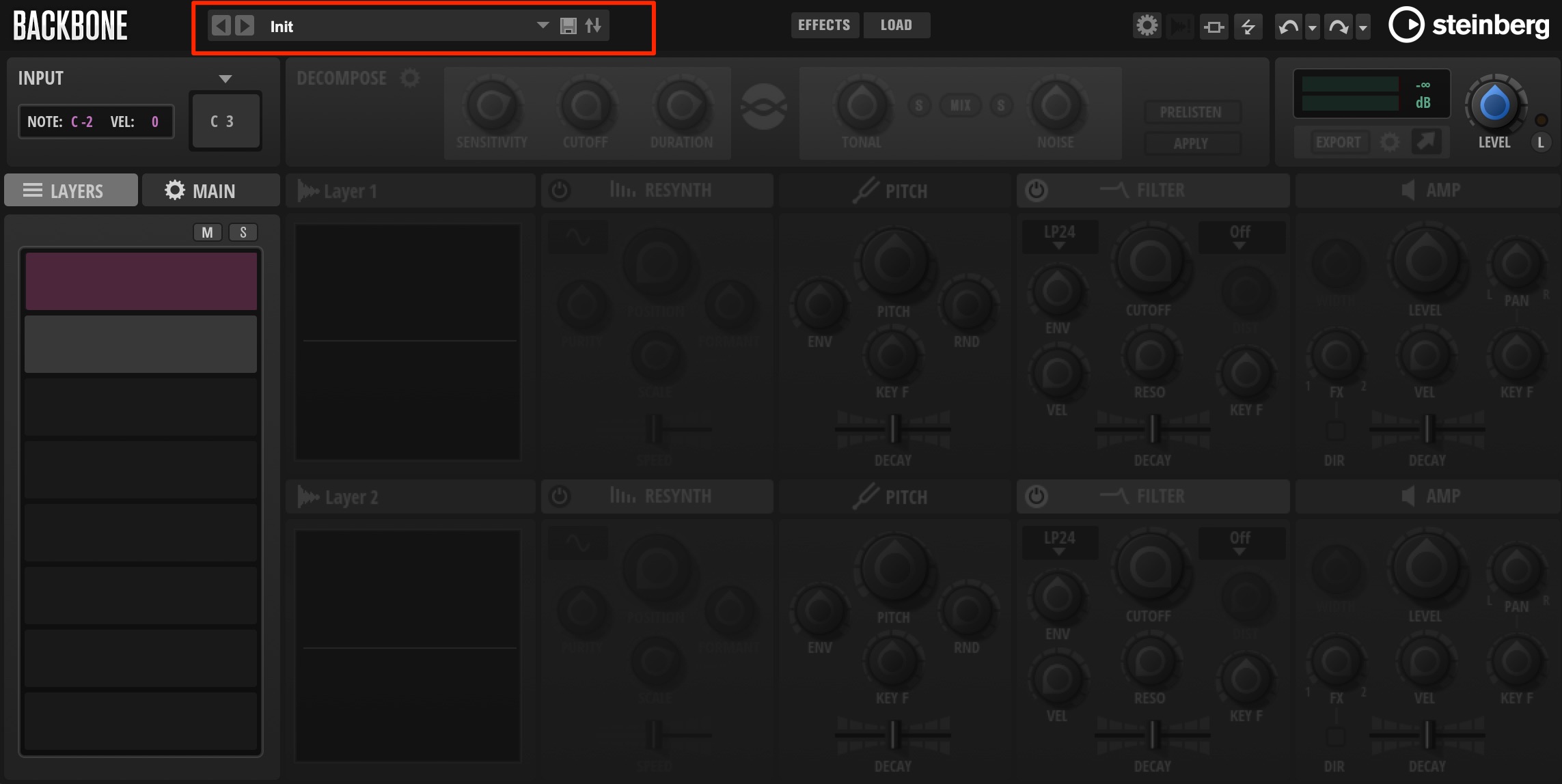
Backbone comes with a wide selection of presets.
Click the preset display to browse them.
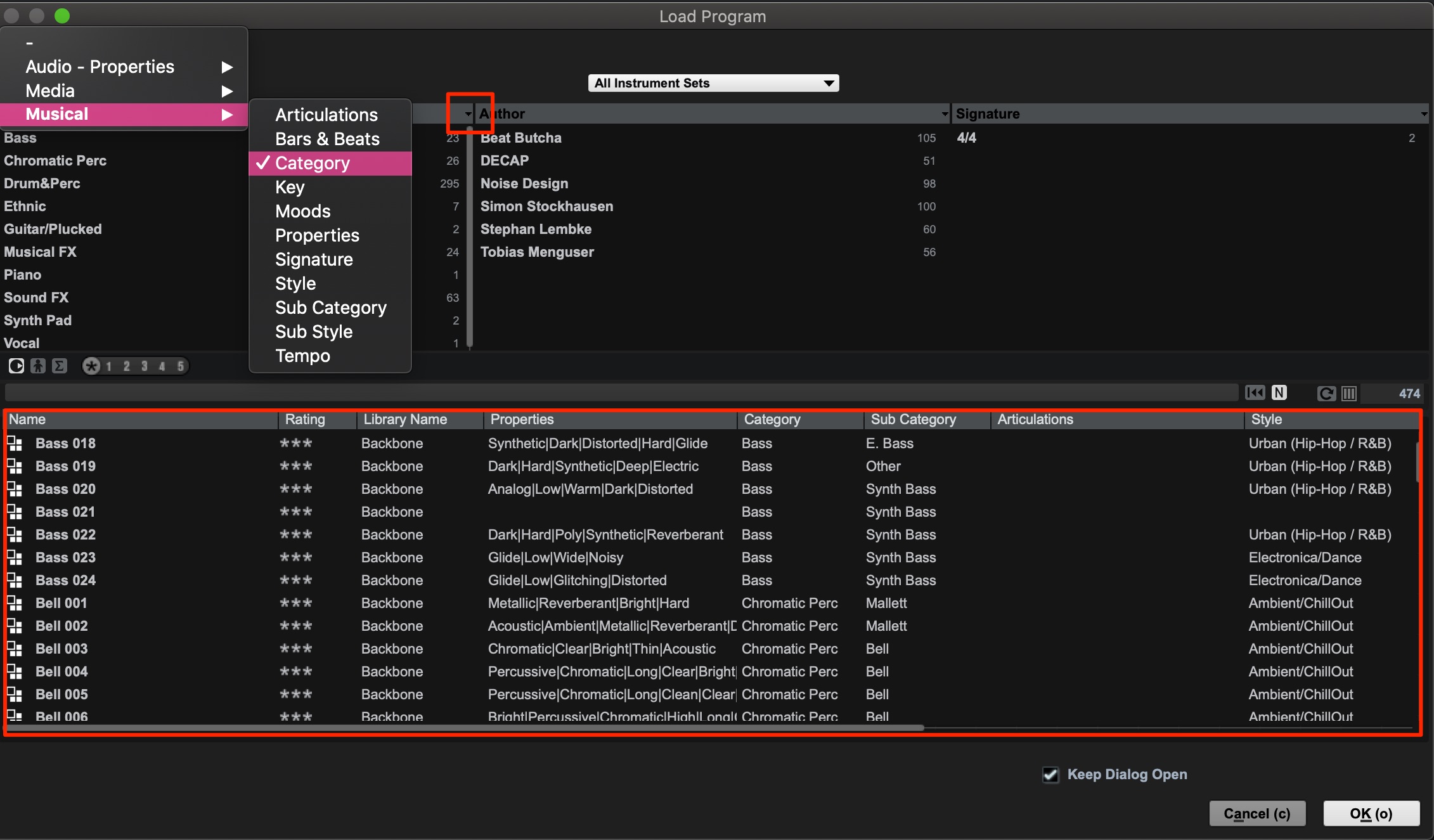
You can also customize how the presets are filtered.
Click the area outlined in red above to choose a classification, then select the field you want.
Musical → Category is useful for filtering by instrument type.
The matching presets appear in the lower pane. Click OK at the bottom right to load one.
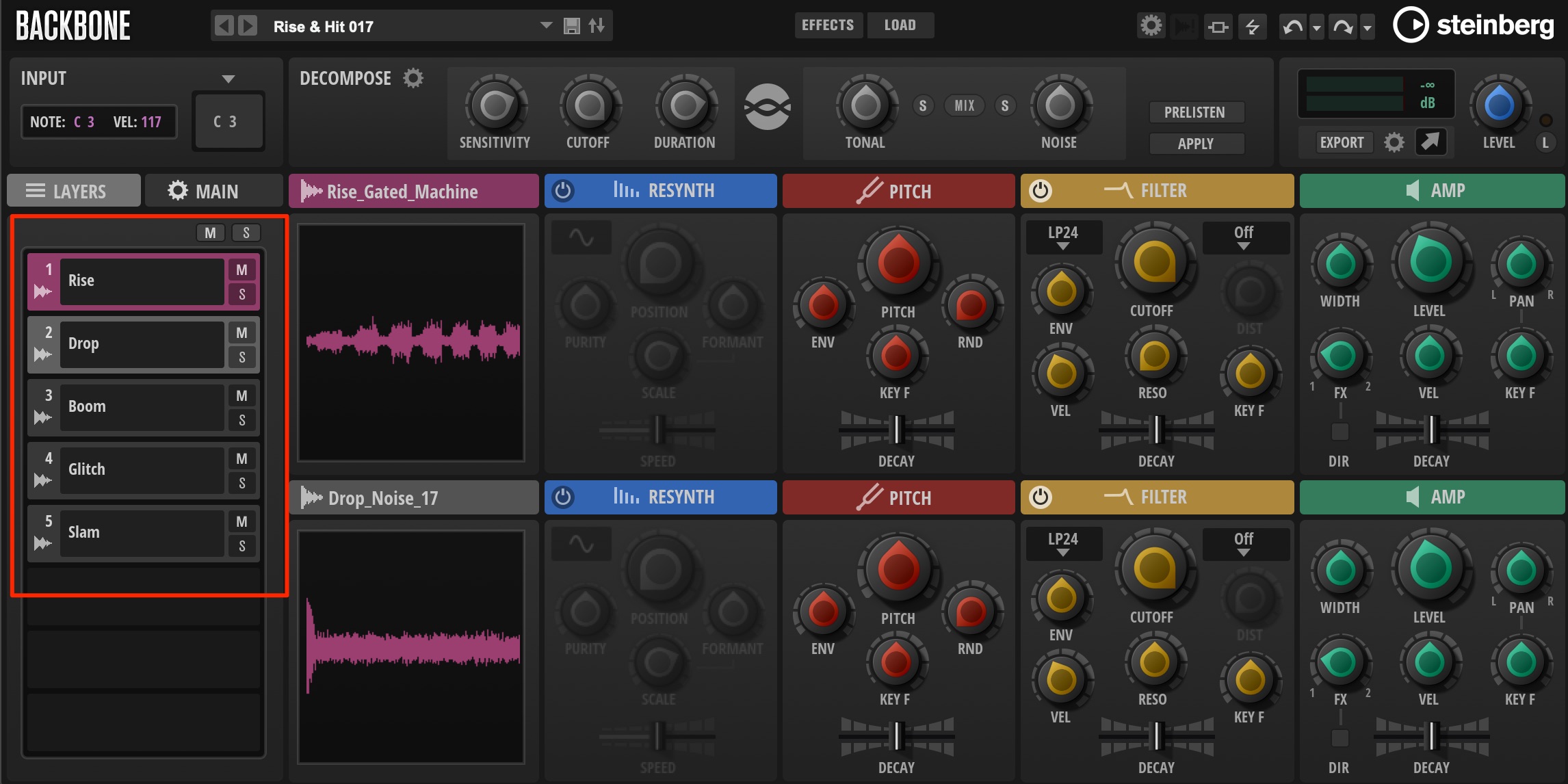
Many presets consist of several audio waveforms.
Each individual waveform is called a sample.
The container that holds a sample and its editing settings is called a layer. A collection of layers—five in this example—is called a program.
The preset we loaded above can therefore also be described as a program.
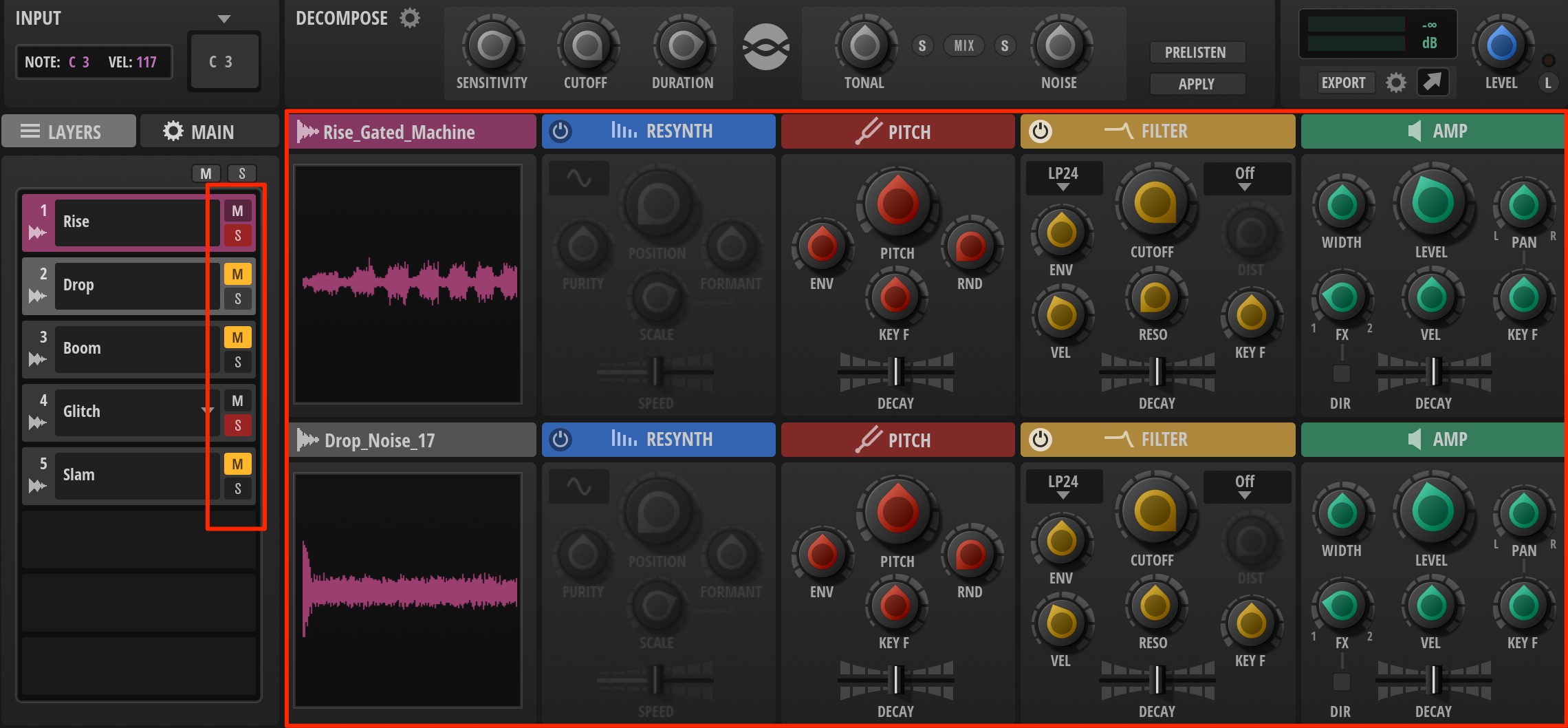
You can work with each layer independently, including solo, mute, and the editing parameters on the right. A single program, or preset, can contain up to eight layers.
Adding Samples
You can also import your own audio or audio loops from MediaBay into Backbone.
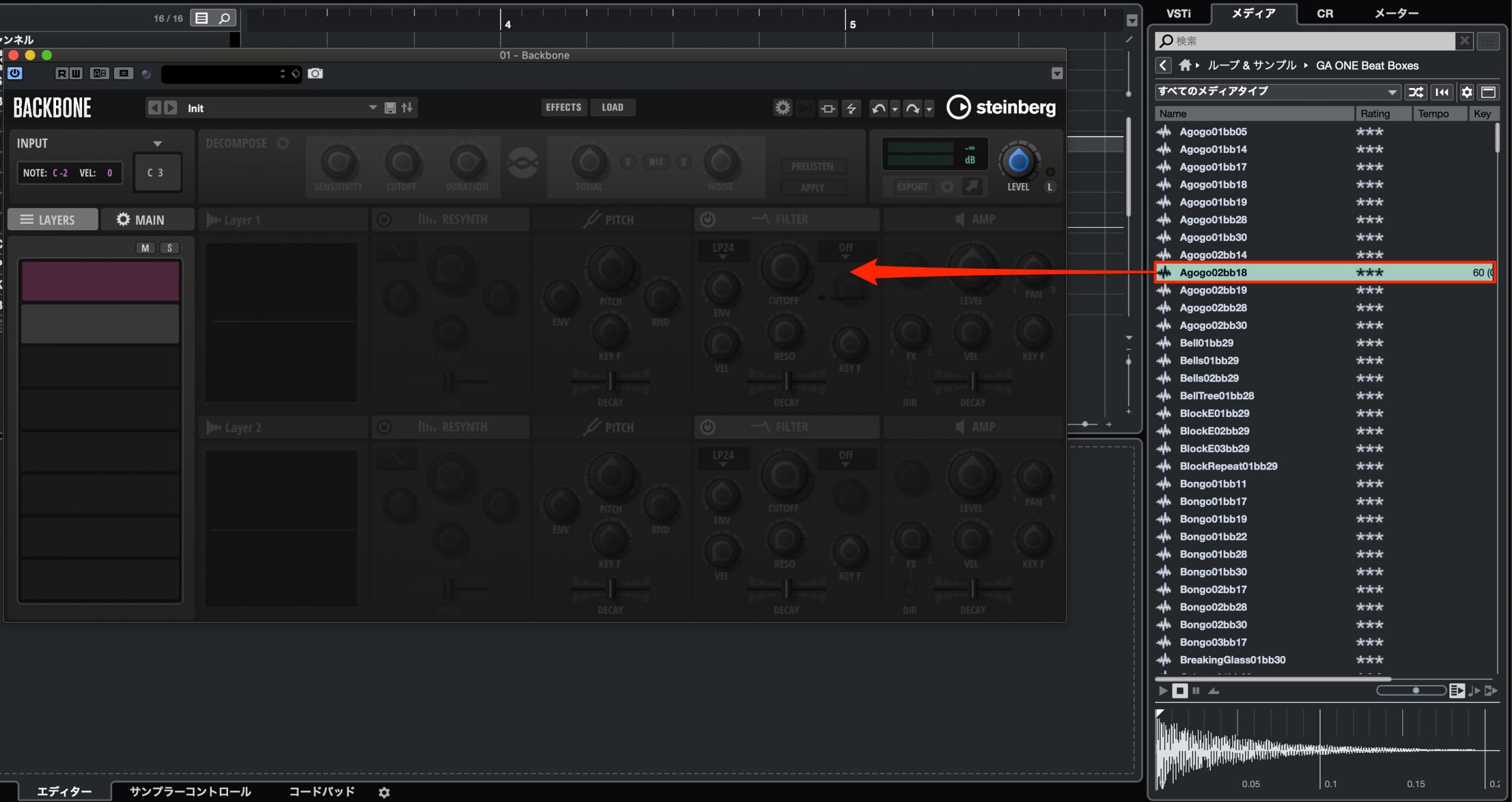
Drag directly from MediaBay, or…
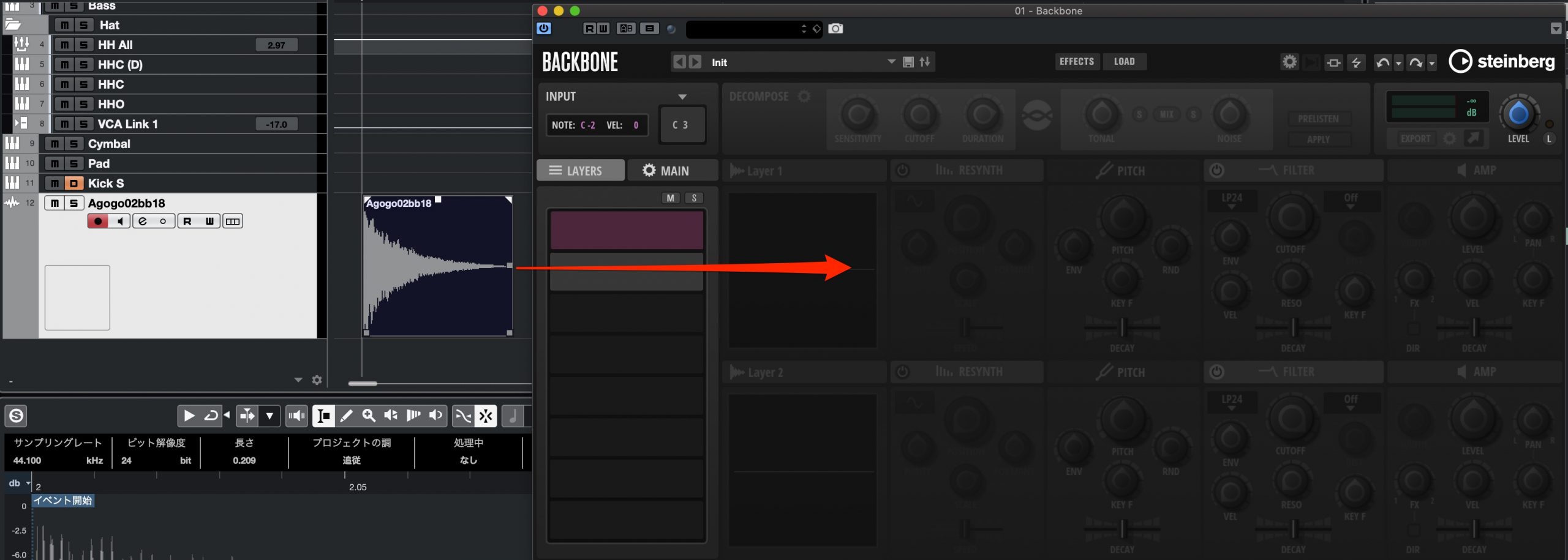
…drag an audio event from a track.
You can import files from the desktop or a folder in the same way.
The maximum sample length in the version covered here is 60 seconds. If you import longer audio, the portion after 60 seconds will not play.
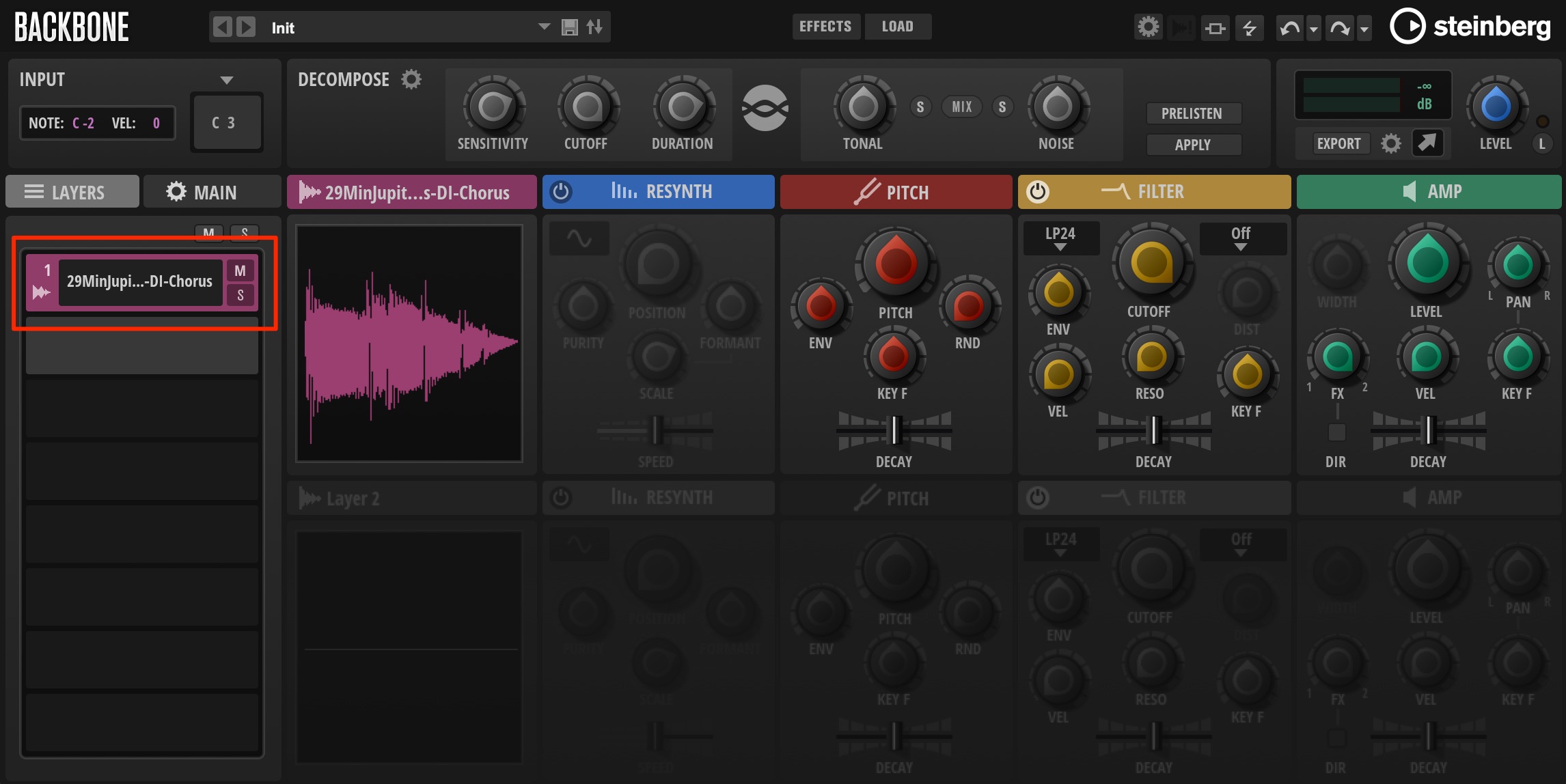
When you import audio into Backbone, it is placed in a layer.
You can immediately play it at different pitches. C3 on the keyboard plays the sample at its original pitch.
Separating Sounds with DECOMPOSE
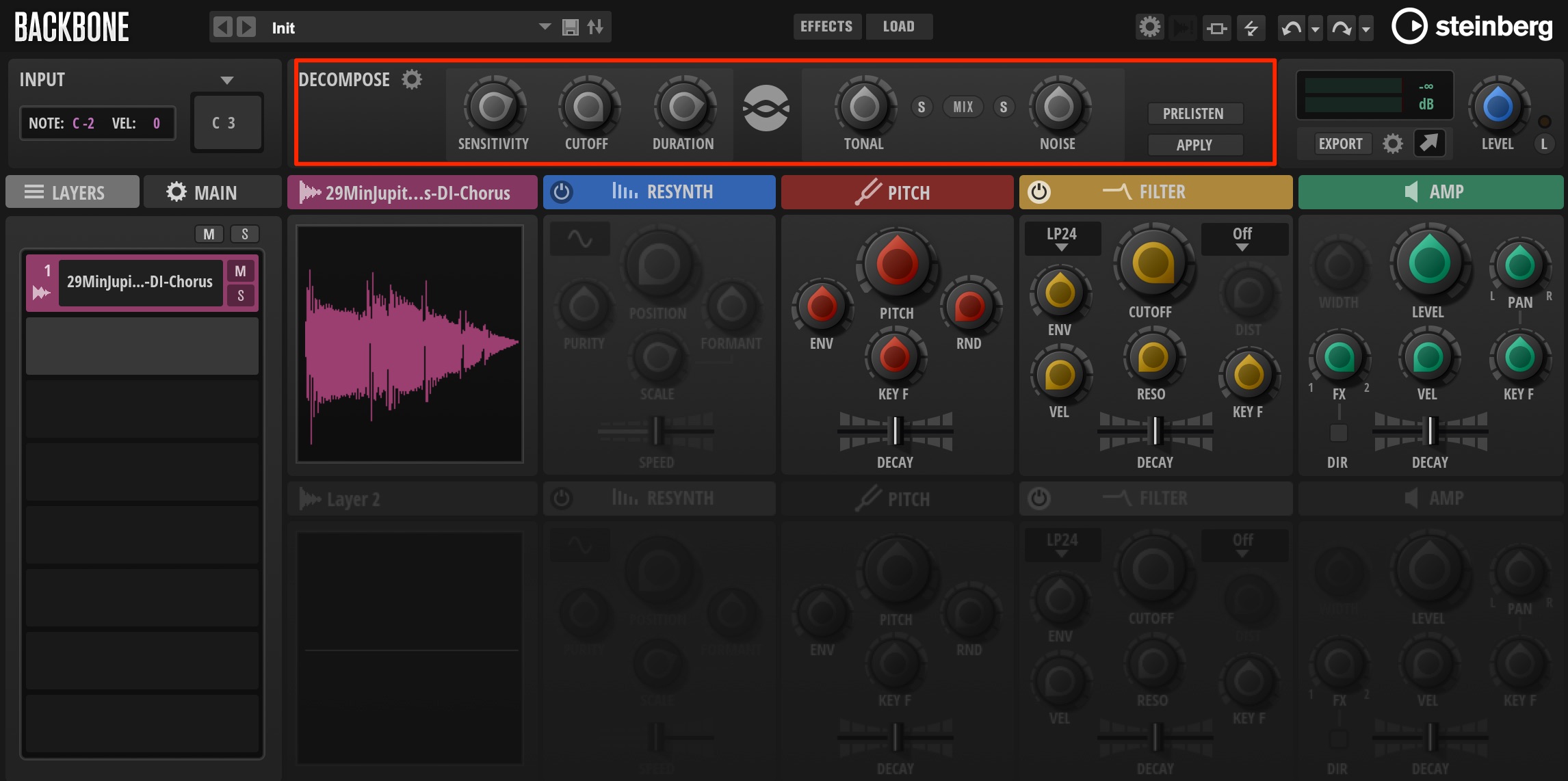
Let’s look at the DECOMPOSE function mentioned at the beginning.
It separates the pitched, tonal part of a sound as TONAL and the non-tonal part as NOISE.
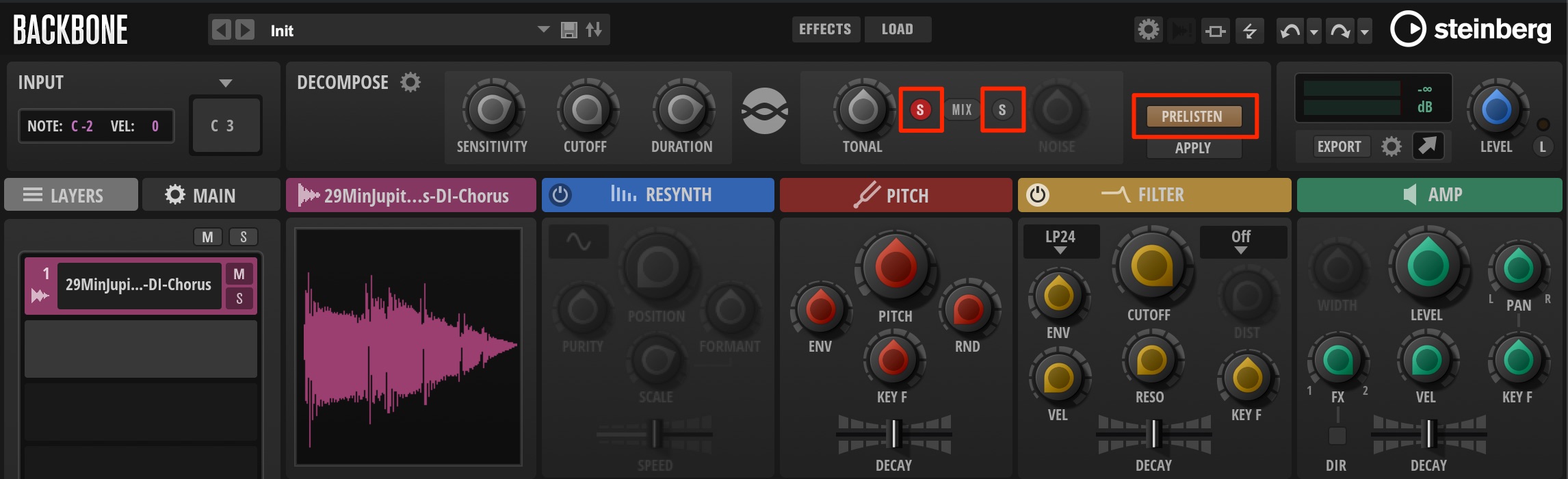
Enable PRELISTEN and solo either component to hear how the sound is being separated.
Use these three parameters to adjust the separation criteria.
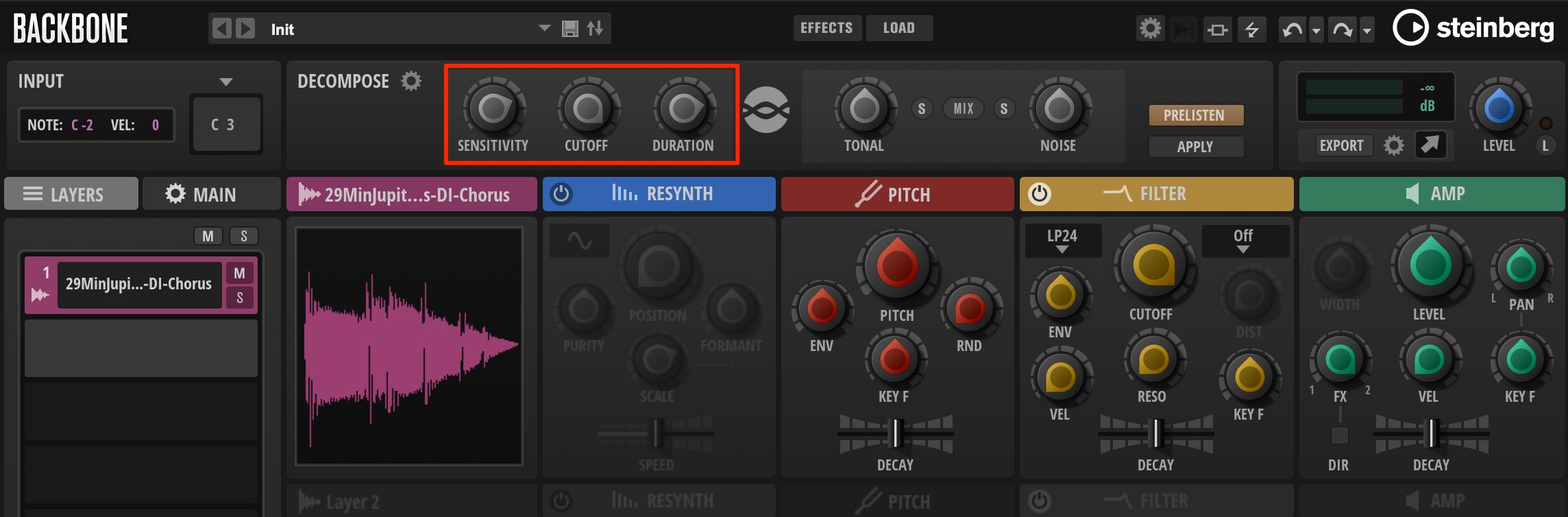
- SENSITIVITY: Sets the level difference used to distinguish tonal partials from the noise floor.
- CUTOFF: Sets the upper frequency limit for tonal detection. Sound above this frequency is treated as noise.
- DURATION: Sets the minimum duration of a tonal partial. Shorter components are treated as noise.
In my tests with different sounds, CUTOFF tended to have the strongest influence, followed by SENSITIVITY and then DURATION.
I found it easier to get good results by starting with the parameter that had the greatest effect.
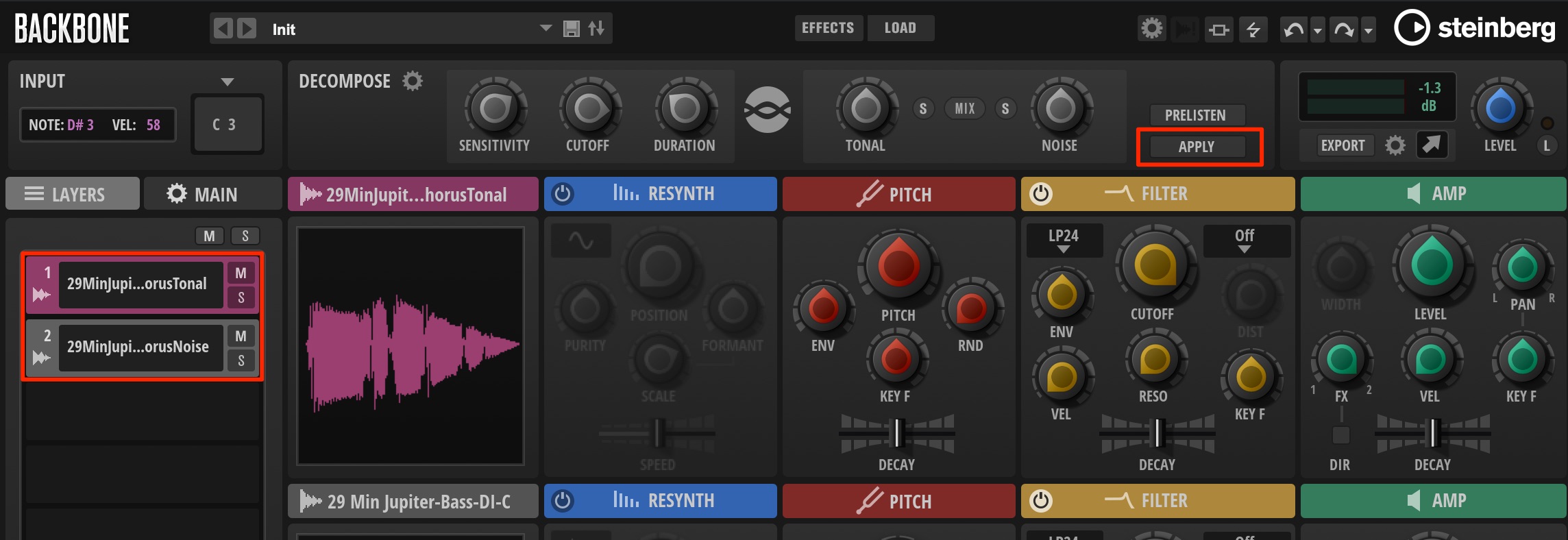
When you have finished adjusting the separation, click APPLY.
Layers containing the TONAL and NOISE components are created, ready for separate editing.
What If DECOMPOSE Is Unavailable?
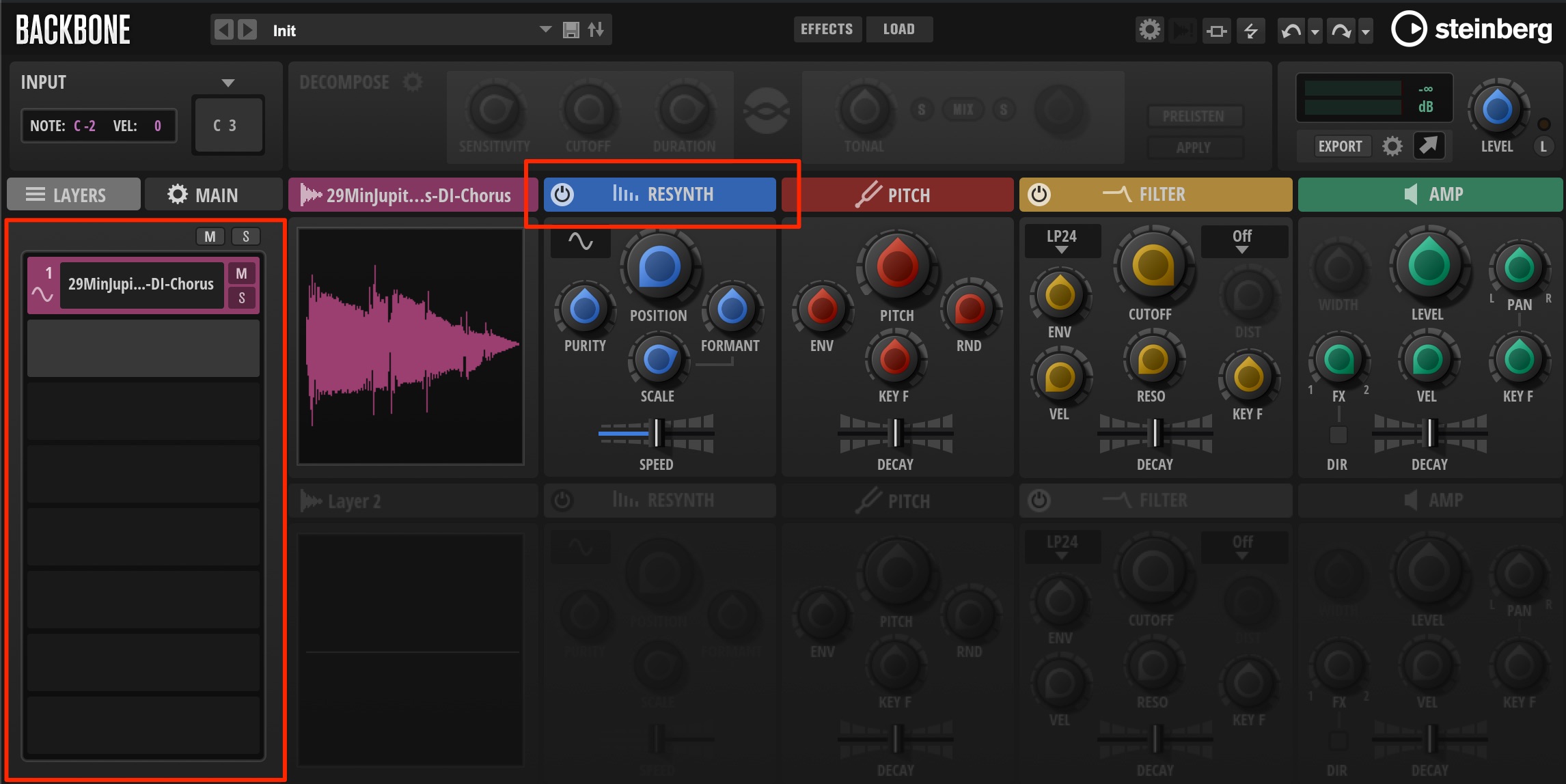
DECOMPOSE cannot be used if RESYNTH is active for the layer, or if all eight layer slots are occupied and none is free.
Controlling Each Layer’s Parameters
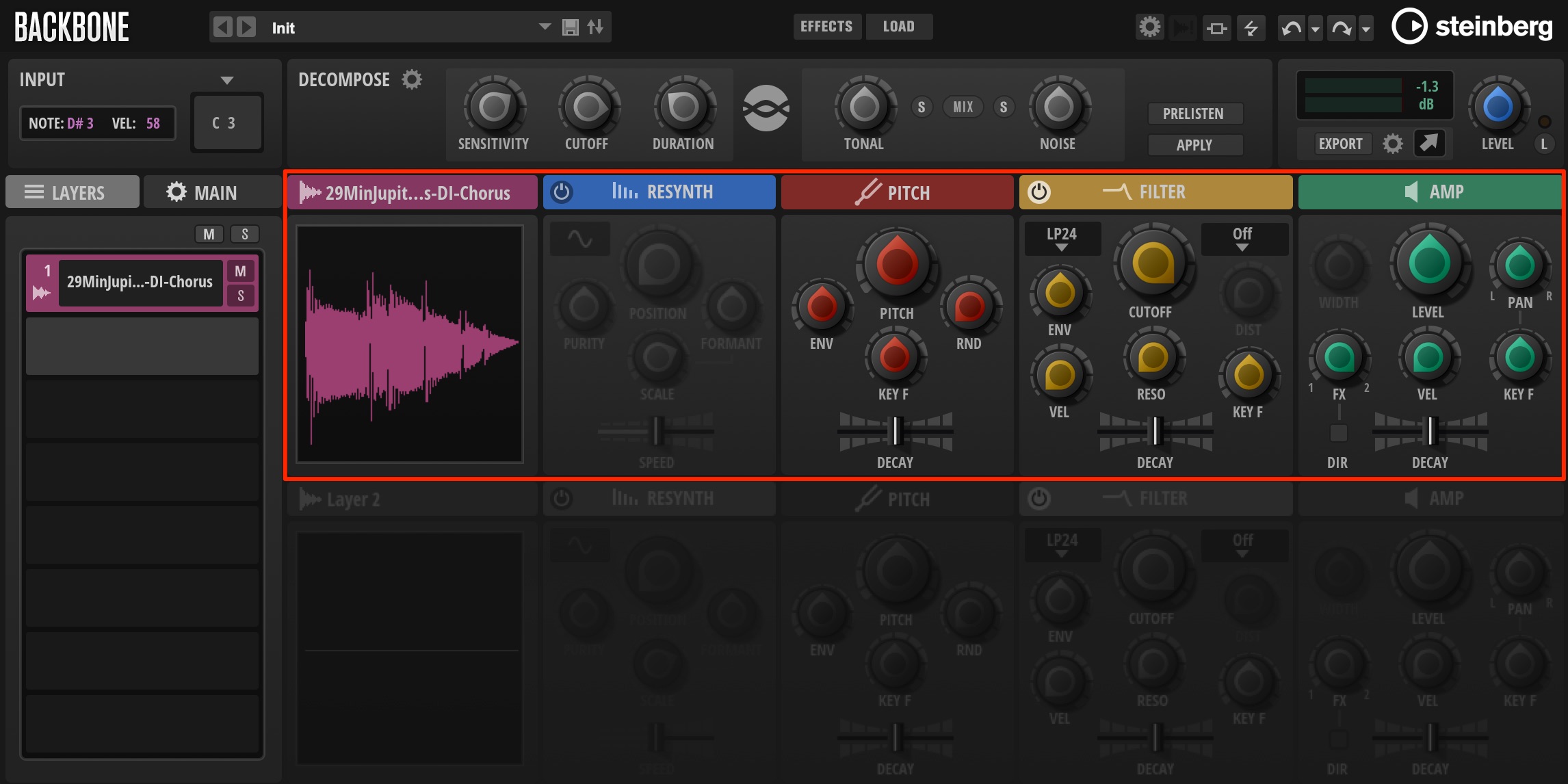
You can edit each layer’s sound independently.
Click a section name to open its detailed editing page.
SAMPLE Section
This section provides detailed control over sample playback.
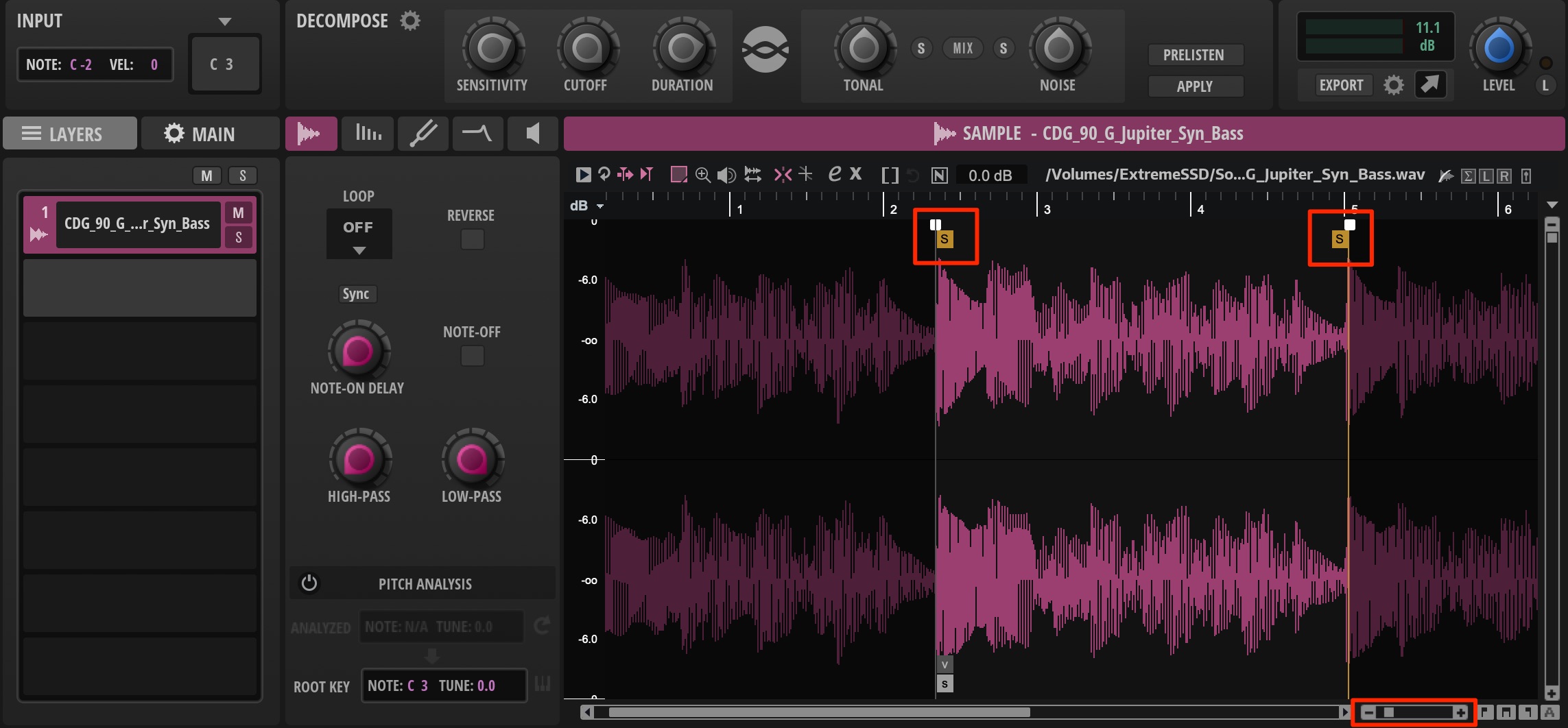
Drag the S markers to set the playback range.
The controls at the lower right zoom in and out on the waveform.
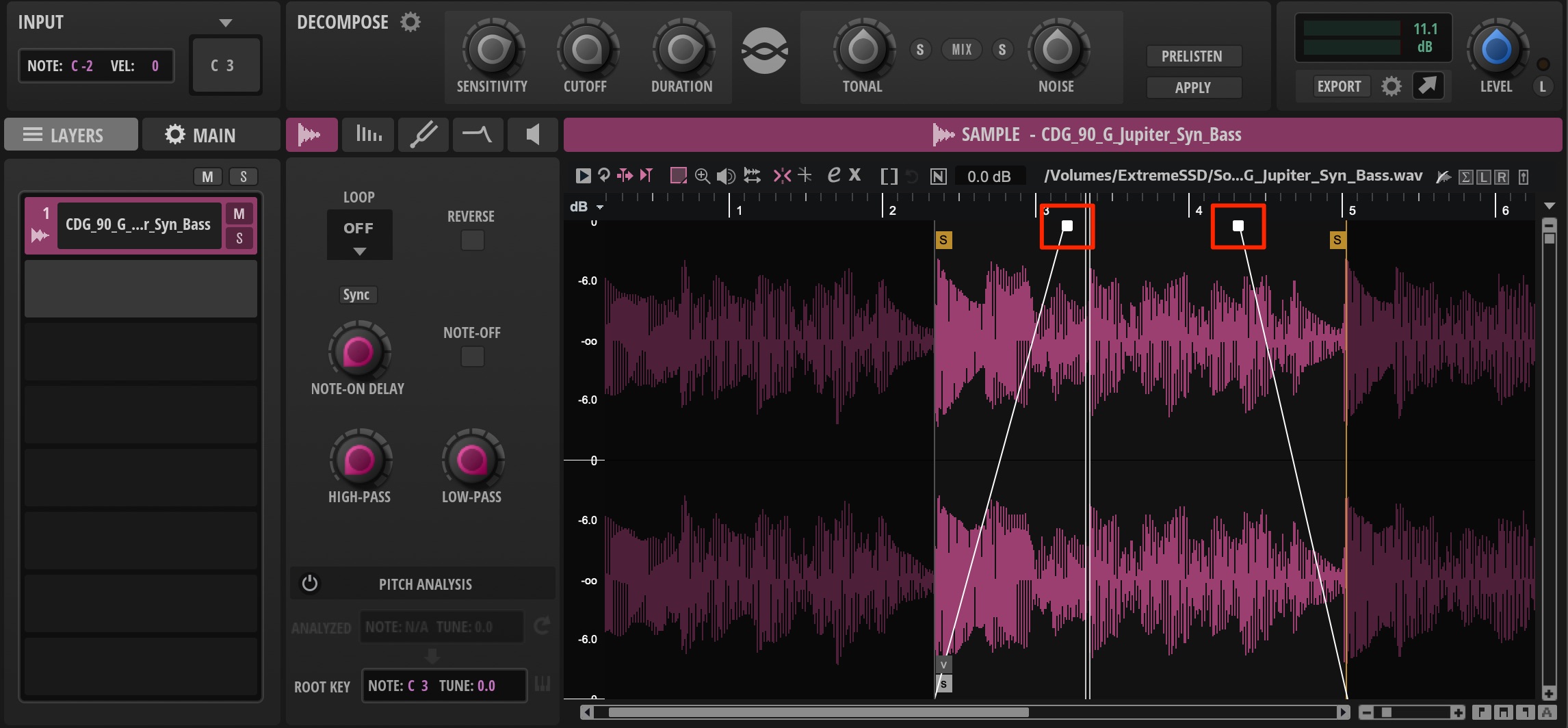
Drag the white squares above the S markers to apply fades at the start and end.
This is also useful for avoiding clicks at the boundaries.
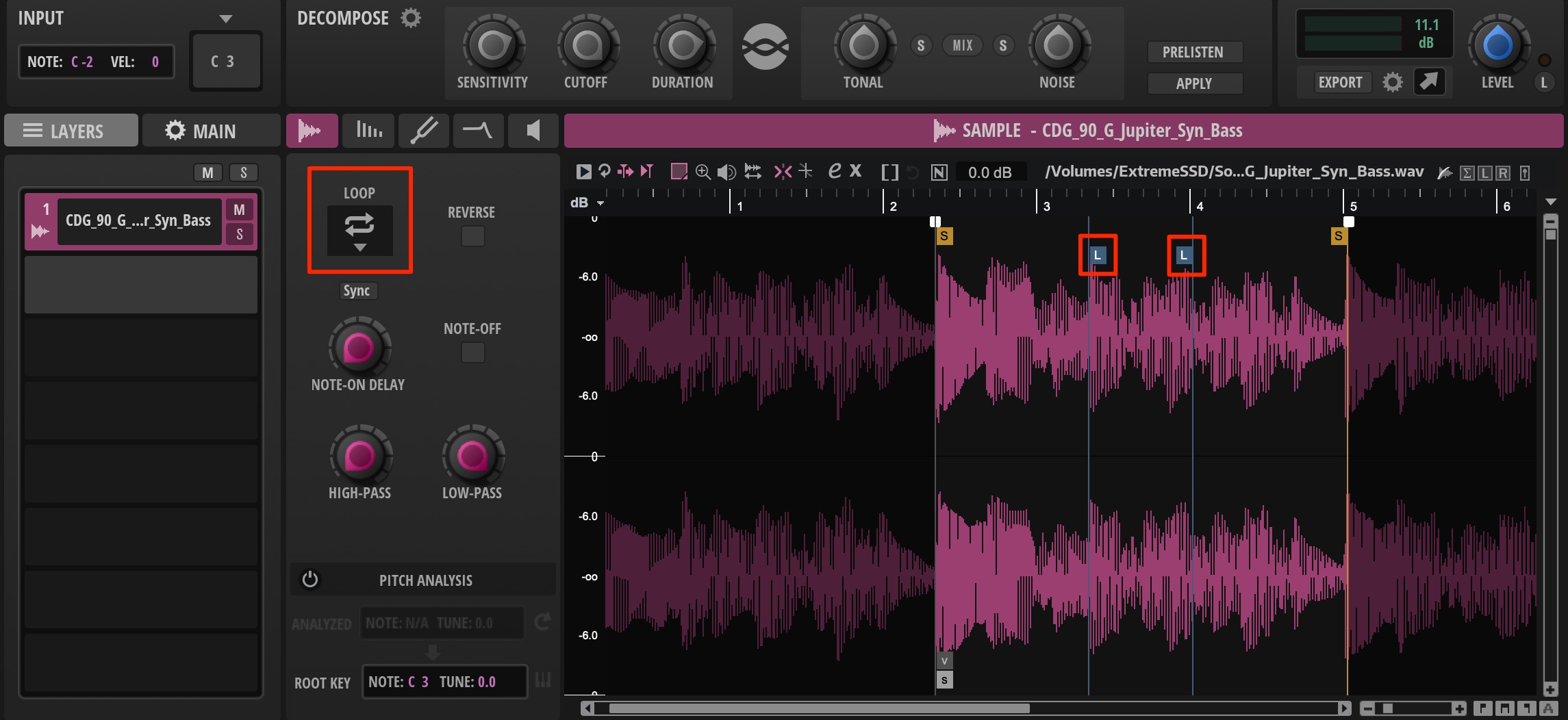
Enable LOOP to repeat the selected range while you hold a key.
This is useful for creating sustained sounds.
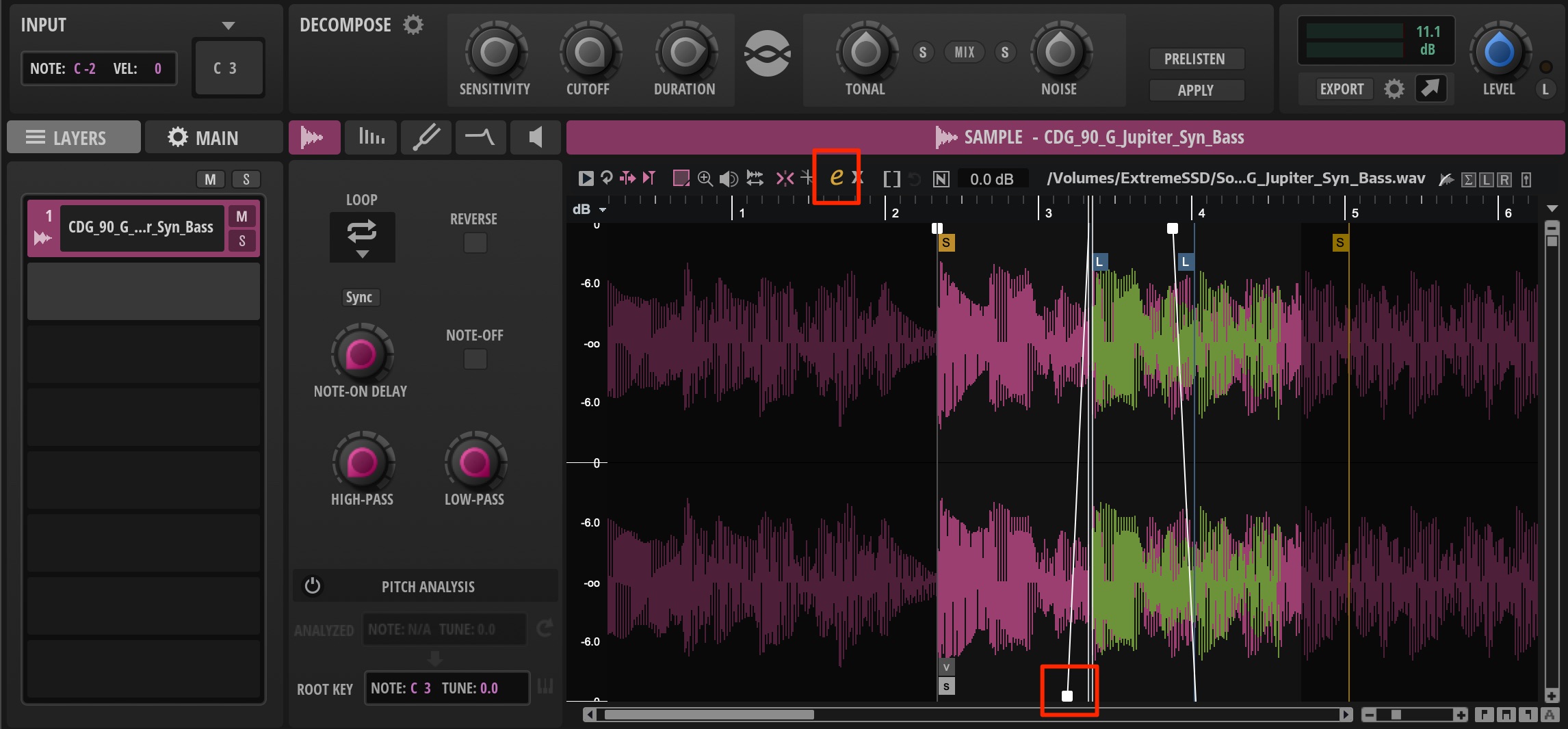
Enable the e button to apply fades to the loop region as well.
This is an important step when you want a smooth loop transition.
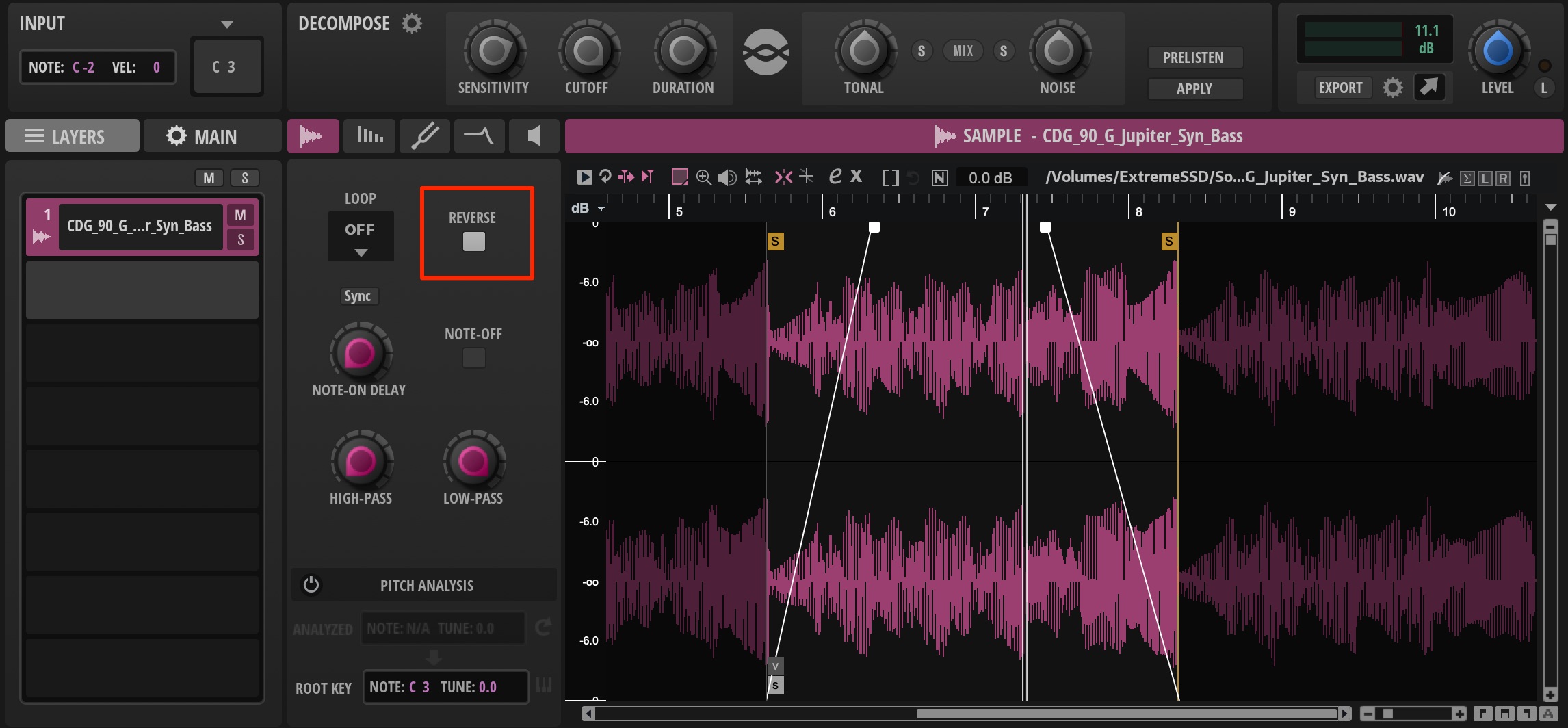
Enable Reverse to play the sample backward.
It is useful for creating familiar reverse effects.
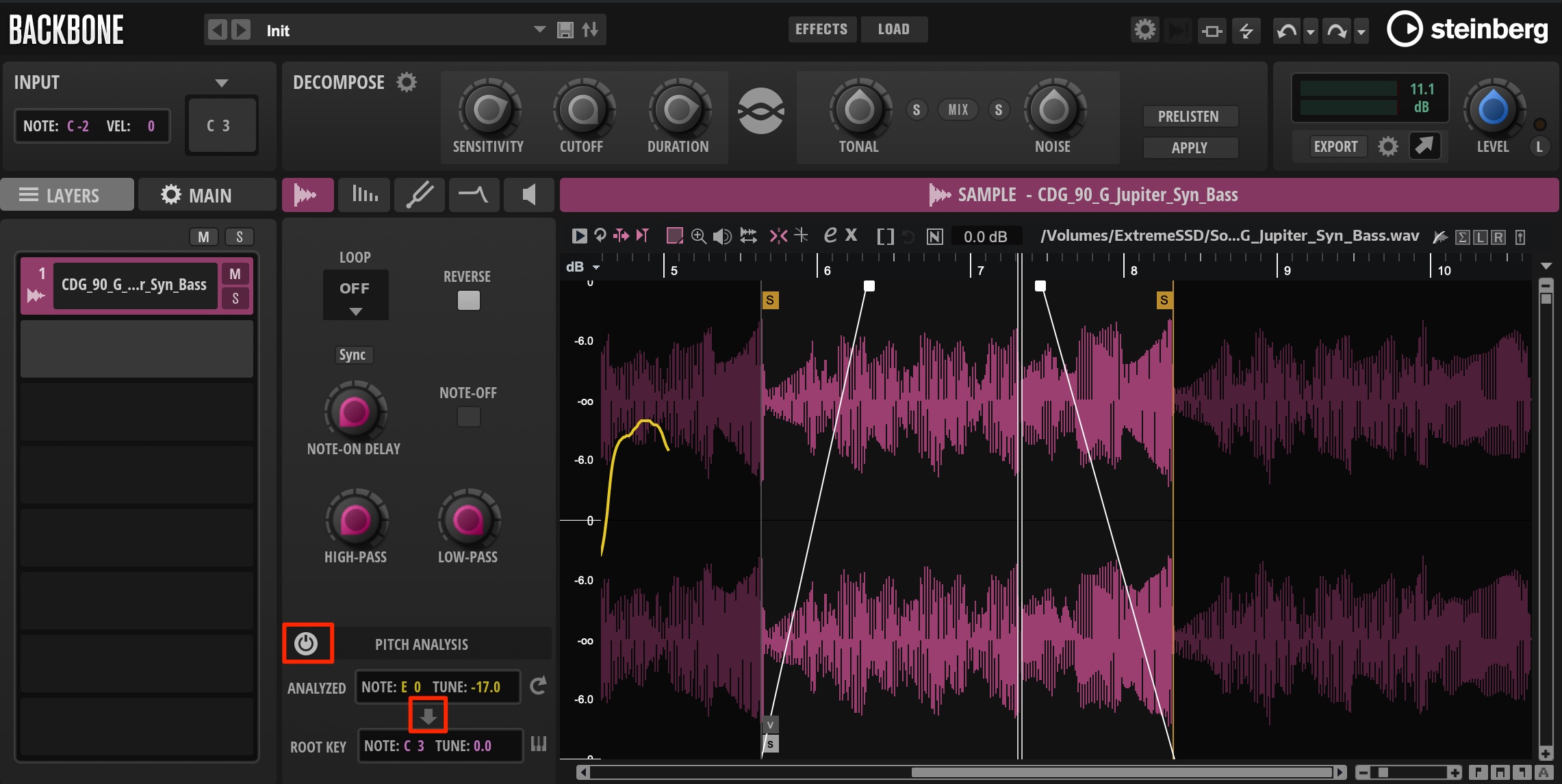
A sample’s pitch may not match the note you play on the keyboard.
For example, pressing C3 might produce an F3-pitched sample.
Enable PITCH ANALYSIS to analyze the sample’s pitch.
Then press the downward-arrow button to align the sample’s root pitch with the correct key.
AMP Section
This important section controls volume.
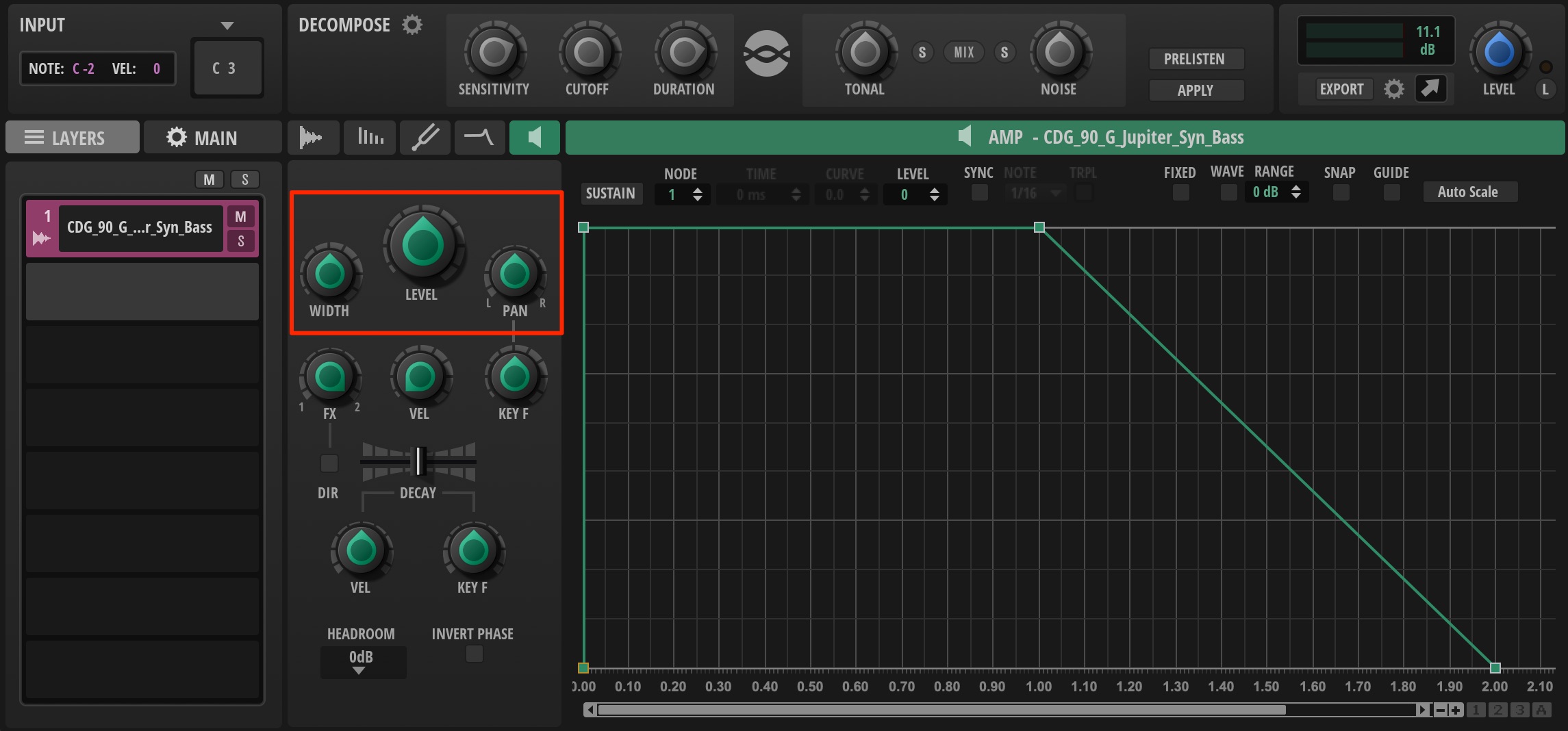
- LEVEL: Adjusts the layer’s volume.
- WIDTH: Controls the stereo spread.
- PAN: Adjusts the layer’s position in the stereo field.
In the default setting shown here, the volume falls to zero even while a key is held.
In many situations, you will want it to maintain a level instead.
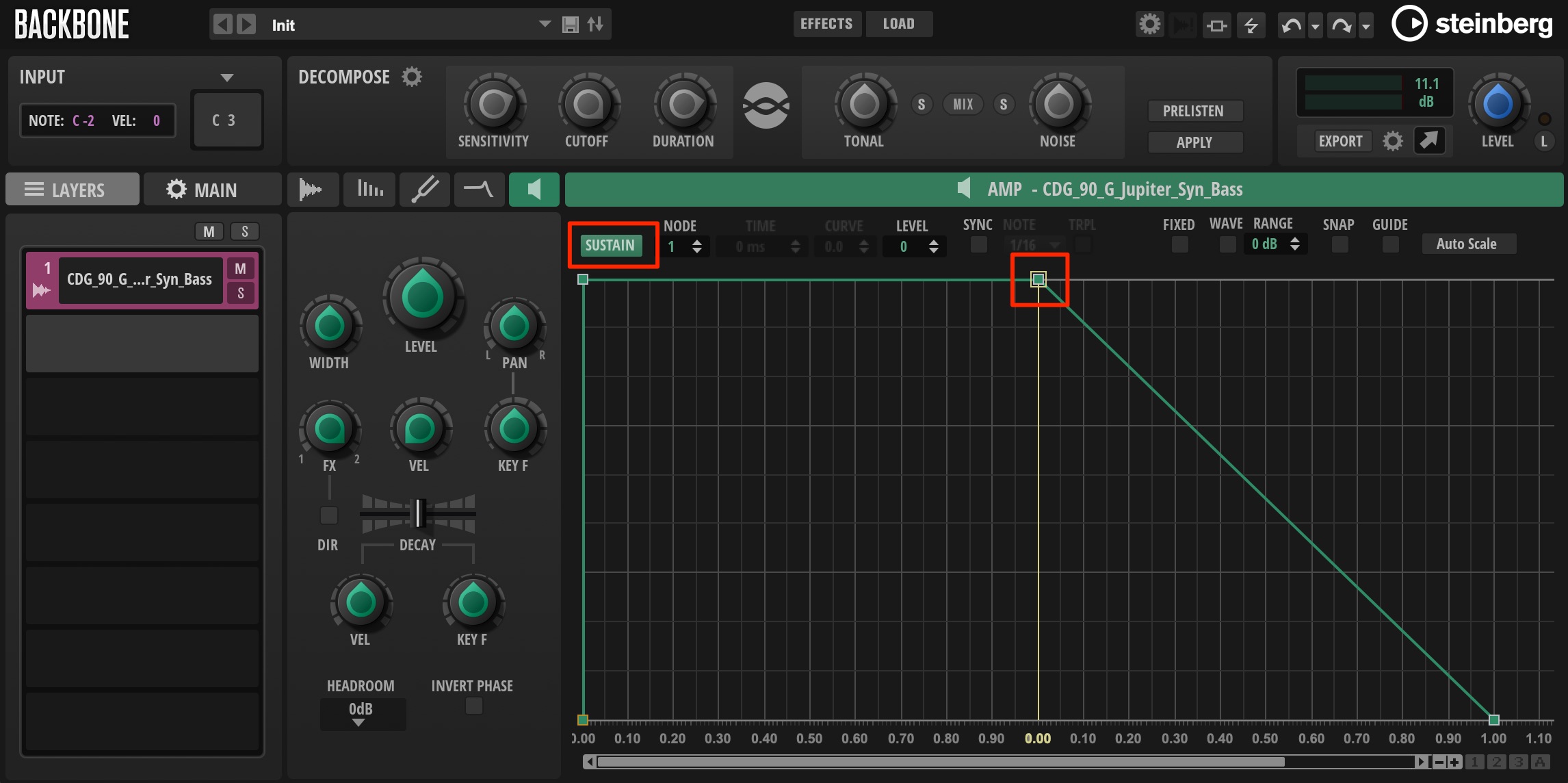
Enable the SUSTAIN button.
The volume now remains at the sustain point’s level while you hold a key.
In the image, this point is at its maximum, so playback maintains the sample’s original level while the key is held.
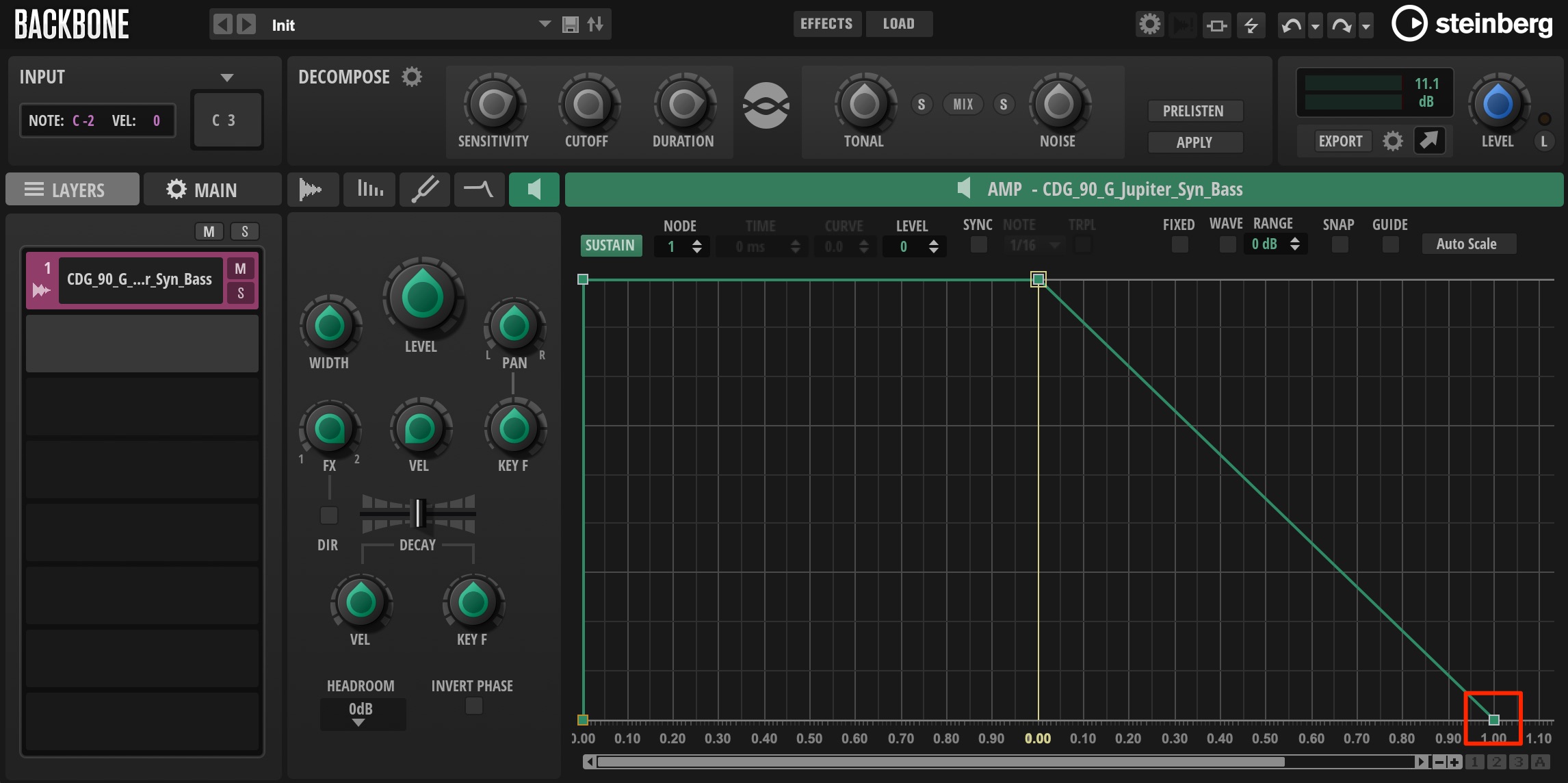
Releasing the key during playback moves the envelope into its Release stage.
Drag the point to adjust how long the sound takes to fade.
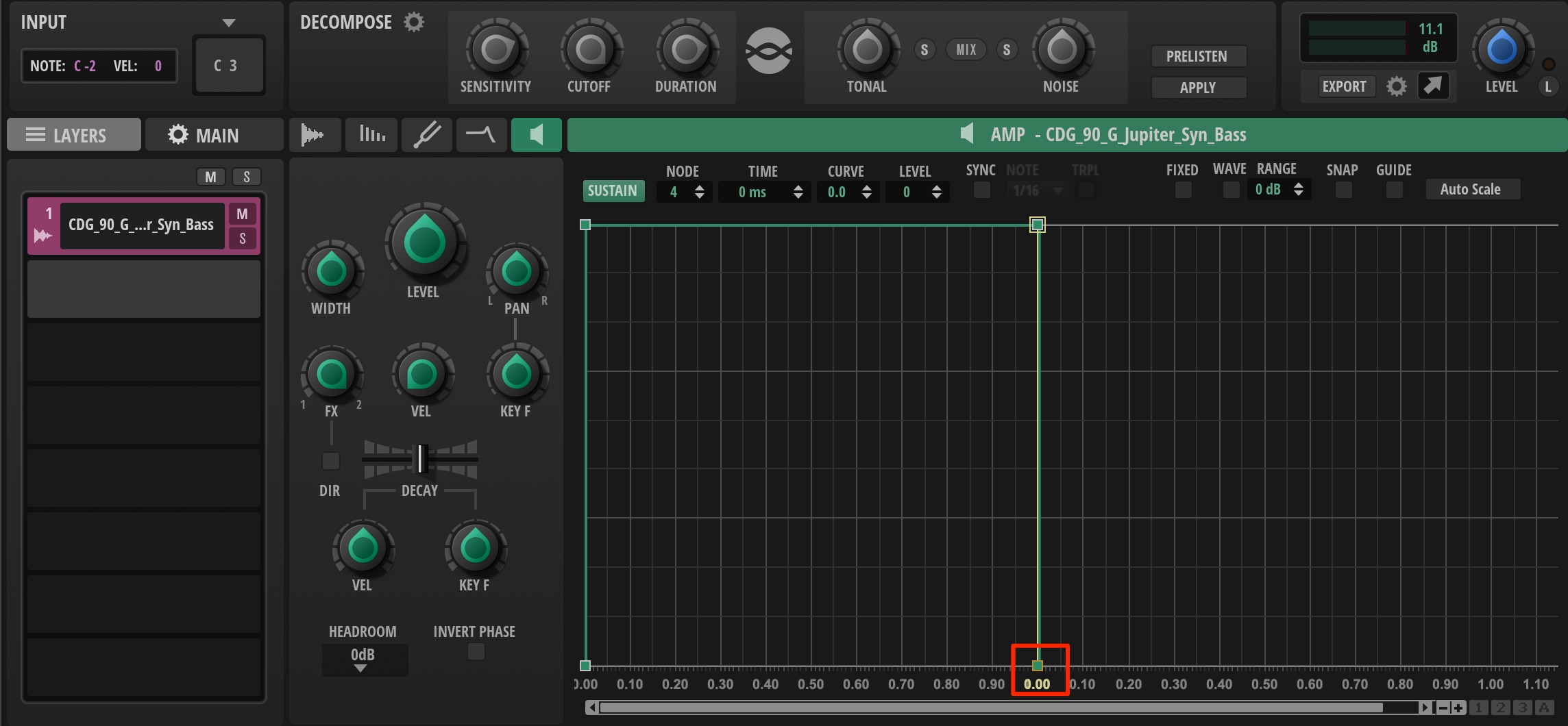
At the minimum release setting, the sound stops as soon as you release the key.
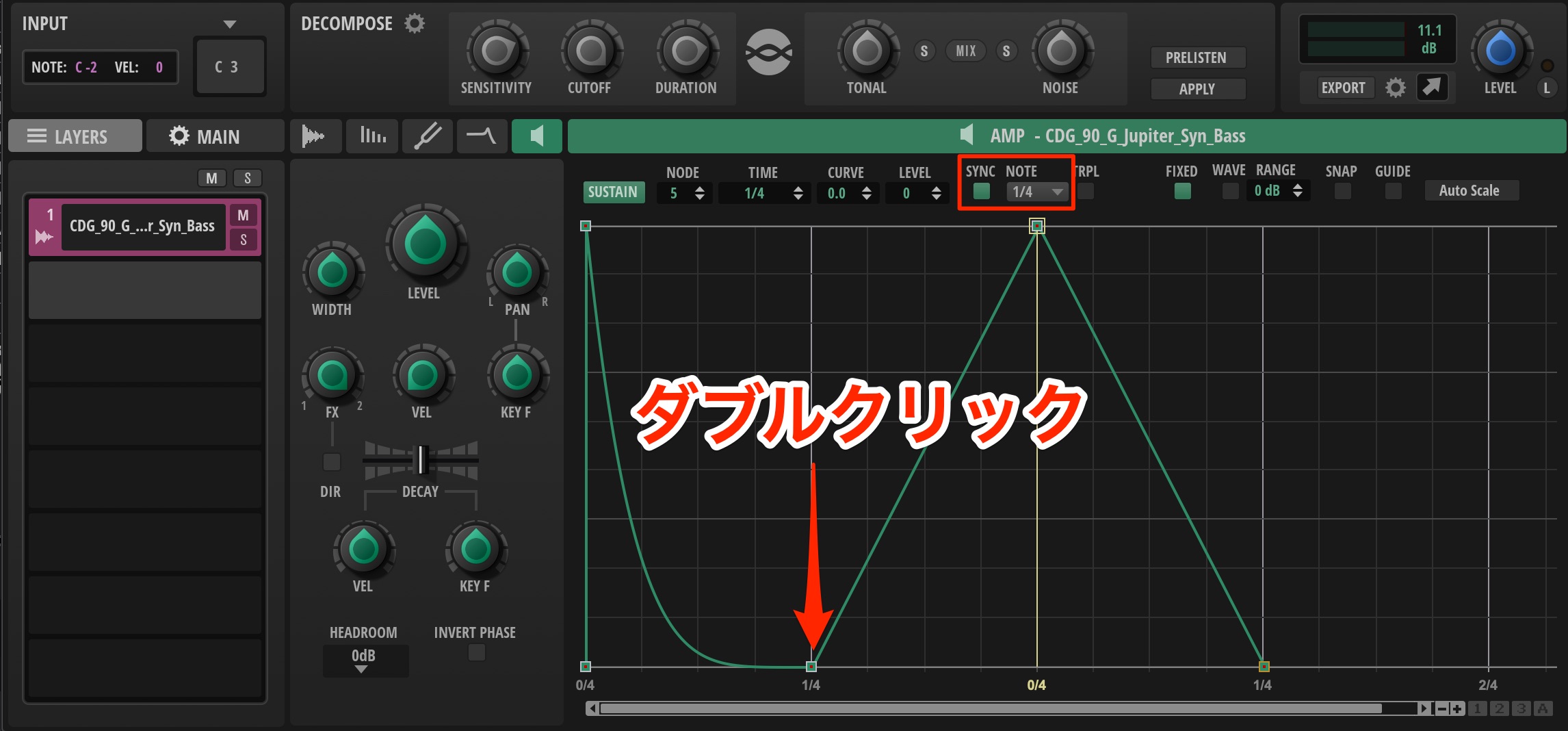
The following controls also apply to the PITCH and FILTER sections.
Enable SYNC and choose a note value to synchronize the envelope-editing grid with the project tempo.
Double-click to add a point, or double-click an existing point to remove it.
The same controls are available in the PITCH and FILTER sections.
Enable SYNC and choose a note value to synchronize the envelope-editing grid with the project tempo.
Double-click to add a point, or double-click an existing point to remove it.
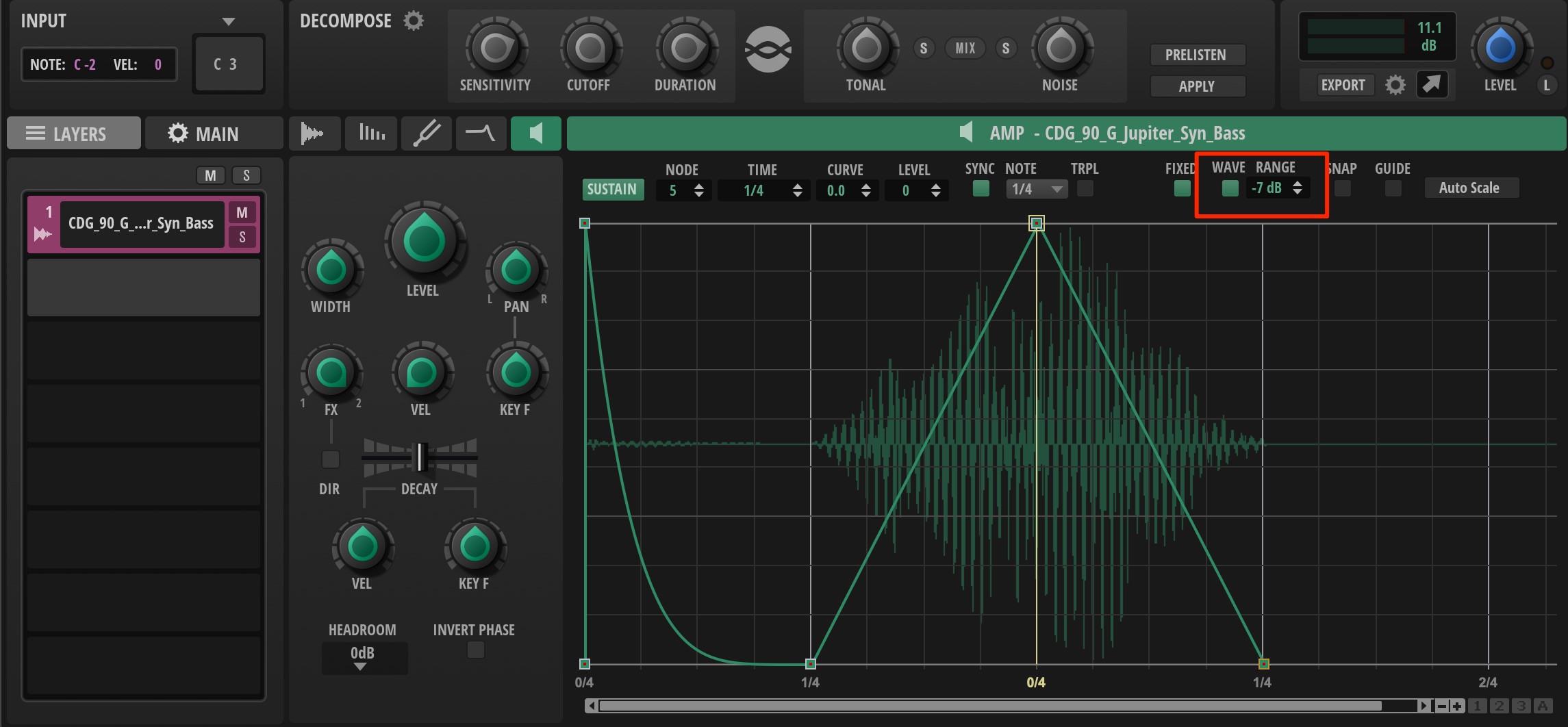
This display option also applies to the PITCH and FILTER sections.
Enable WAVE to display the waveform in the background.
This helps you see how the parameter settings affect the waveform during playback.
Lower RANGE to enlarge the waveform display.
Adjust it to suit the sample.
RESYNTH Section
This section analyzes the sample’s frequency and harmonic components to create a resynthesized sound.
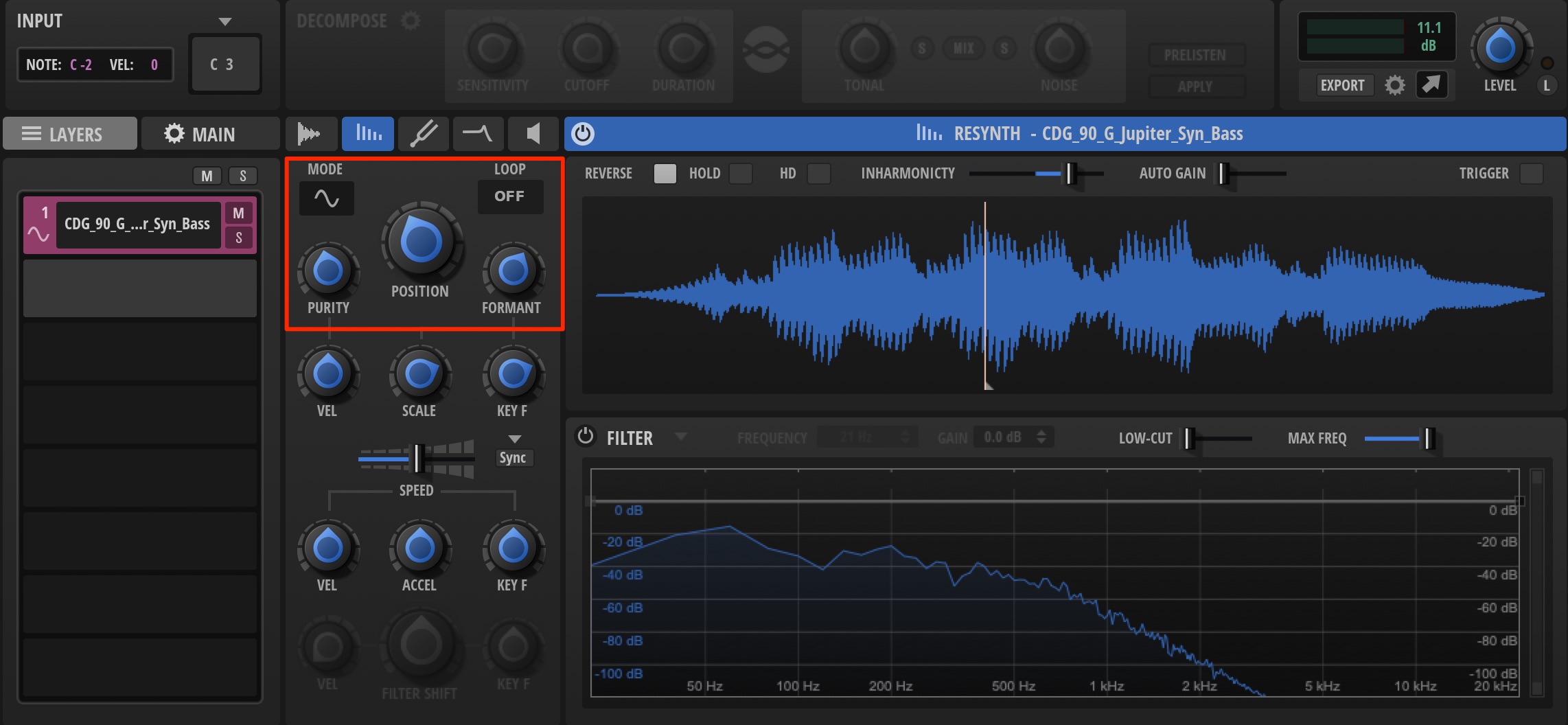
Use these three parameters to shape the sound.
With RESYNTH enabled, playback speed remains constant regardless of which key you play.
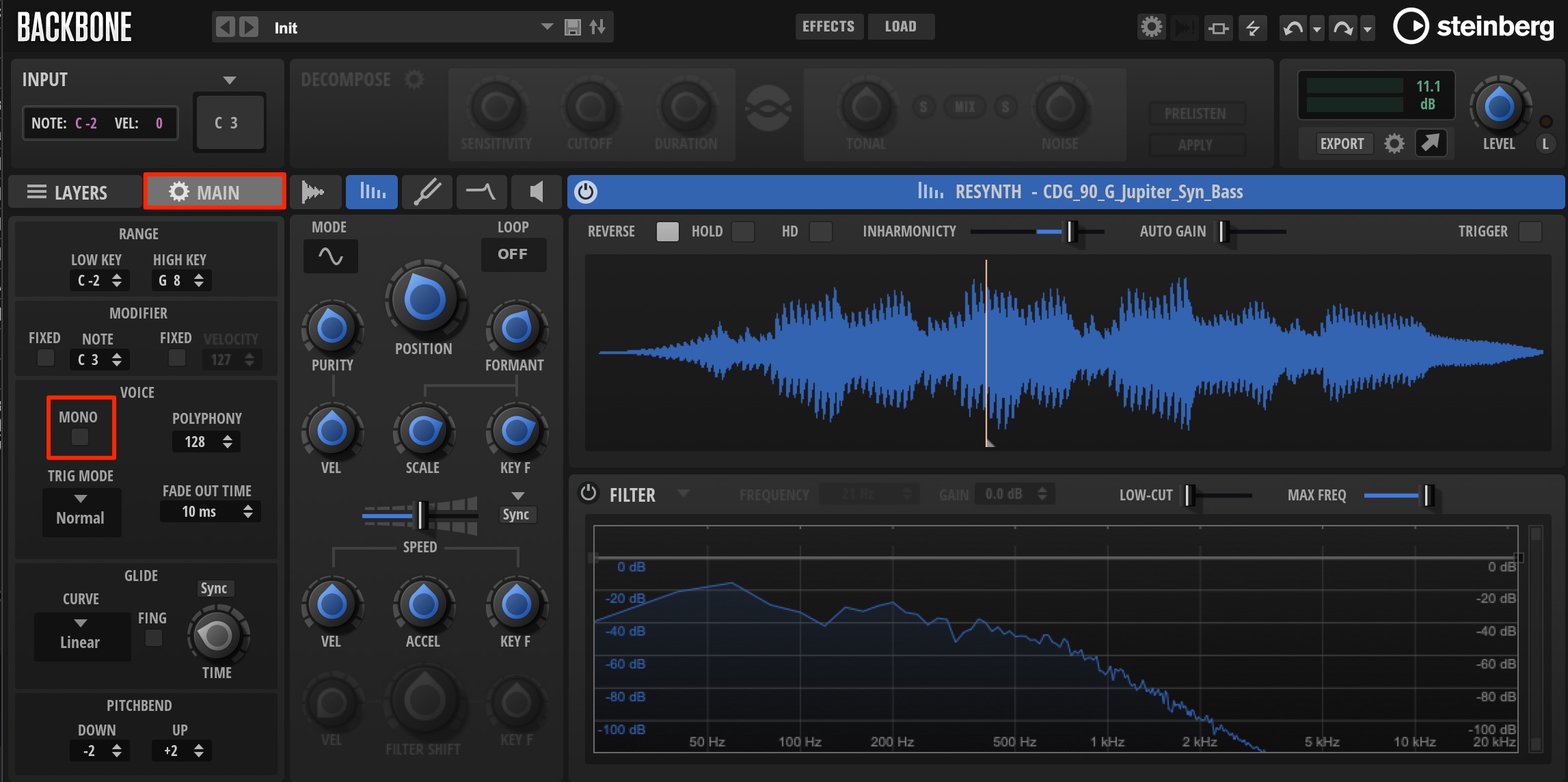
To play the sample polyphonically, turn off MONO on the MAIN tab.
PITCH Section
This section controls the sample’s playback pitch.
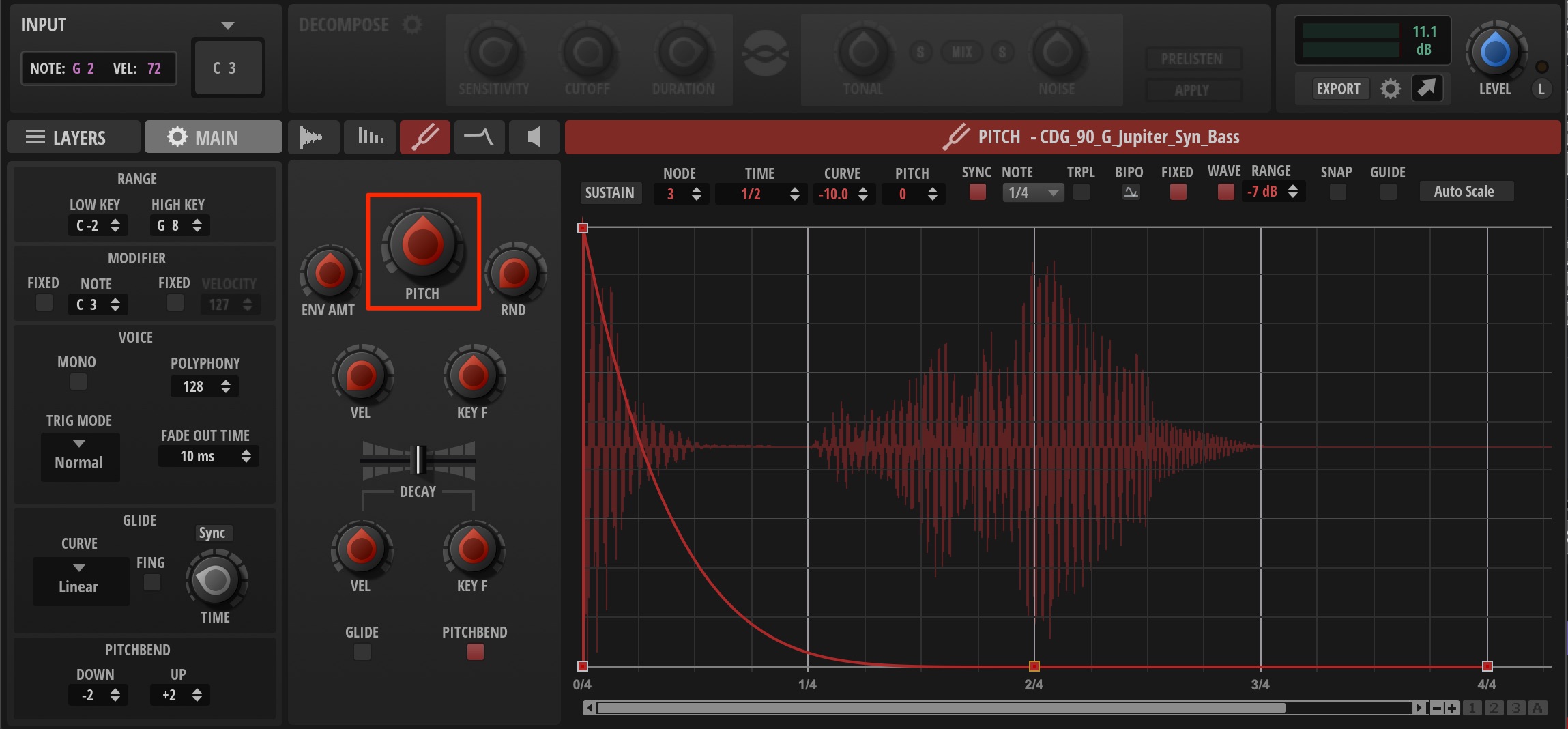
Adjust the sample’s pitch in semitones for the following examples.
For example, 2 raises it by two semitones, while −5 lowers it by five semitones.
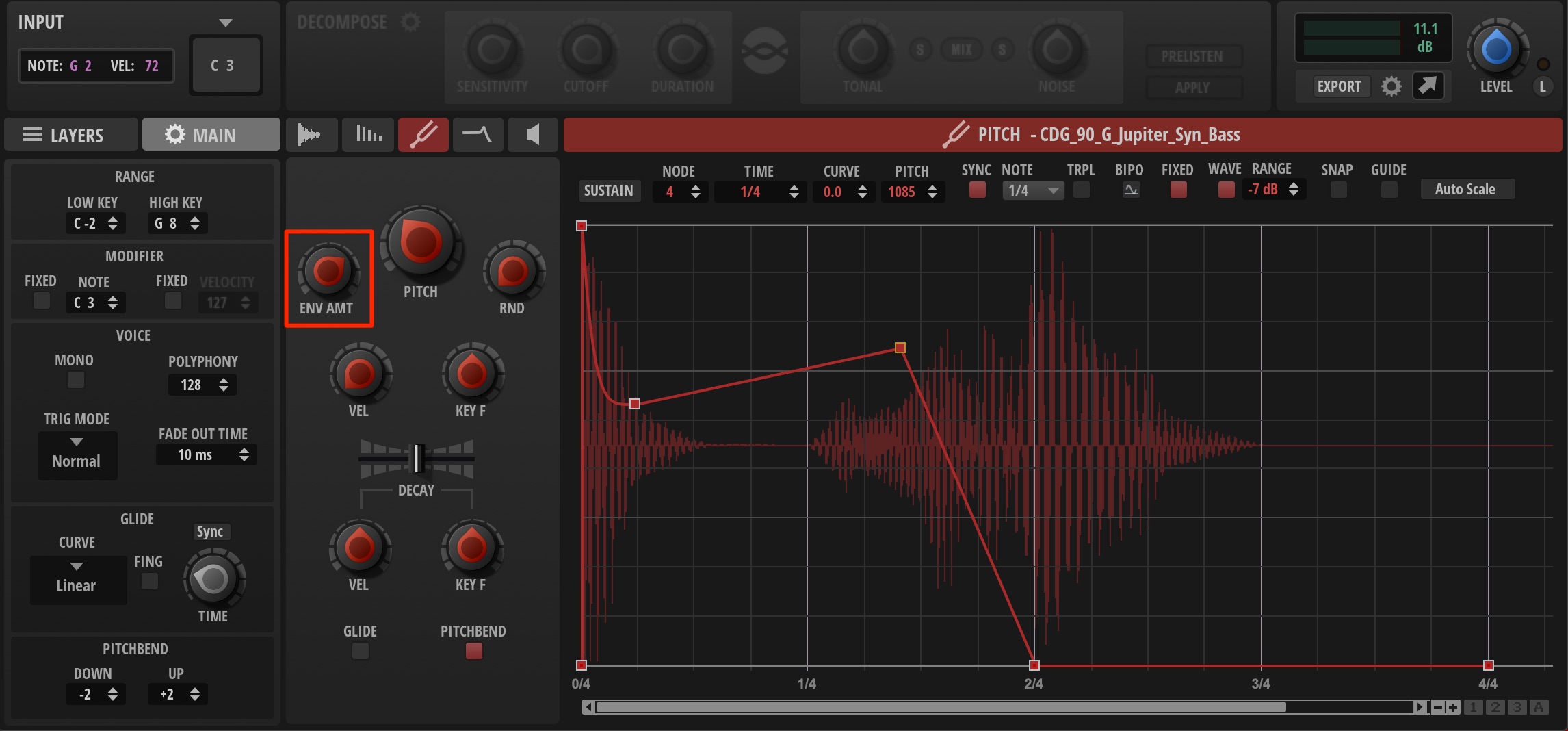
Use ENV AMT to make the pitch change over time.
At the center position there is no envelope effect. Turning right increases the pitch modulation, while turning left inverts it toward lower pitches.
Set the pitch movement by editing the points on the right.
FILTER Section
This section controls the filter that shapes the sound’s tone.
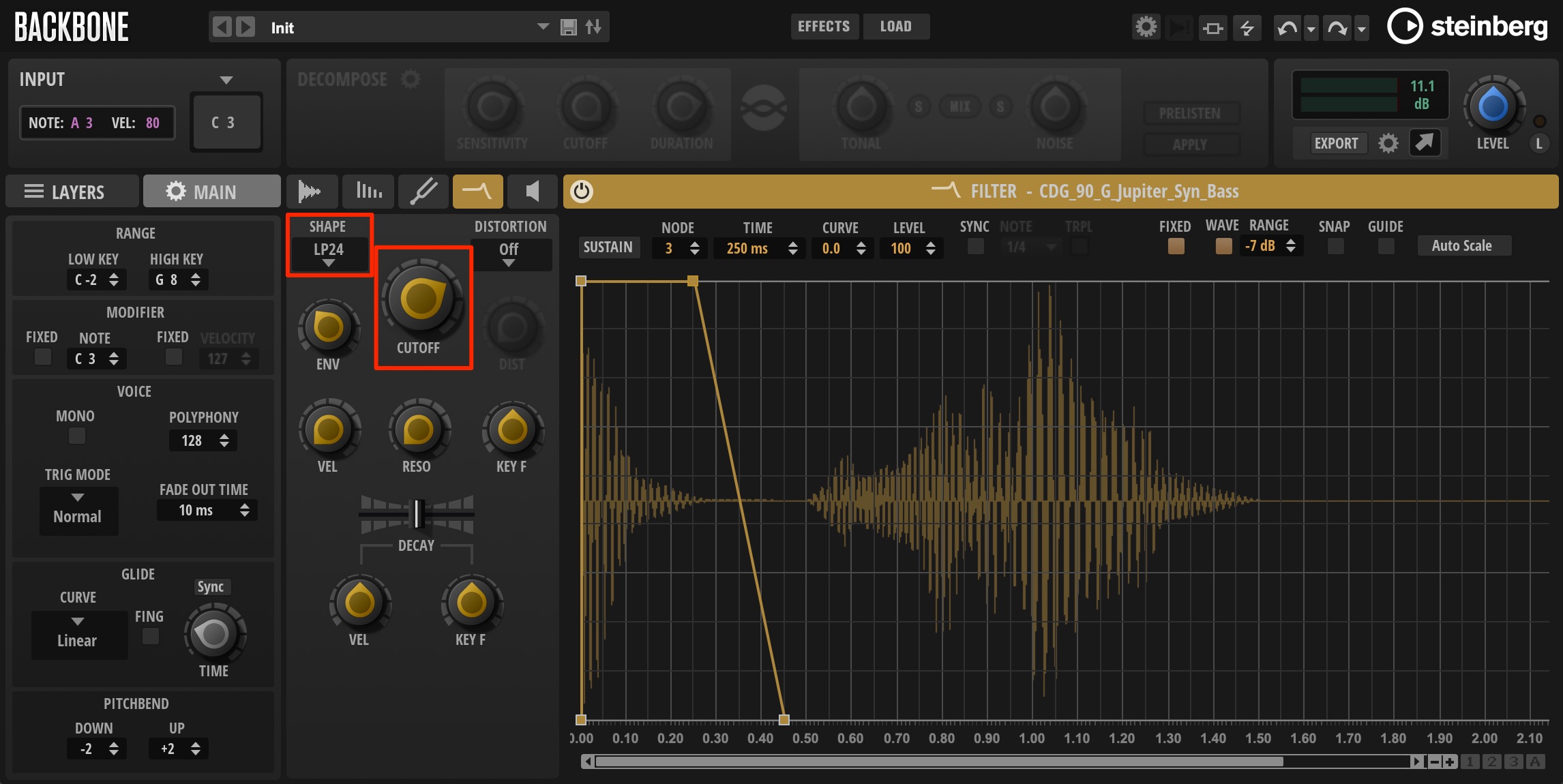
Choose the filter type under SHAPE and adjust its action with CUTOFF.
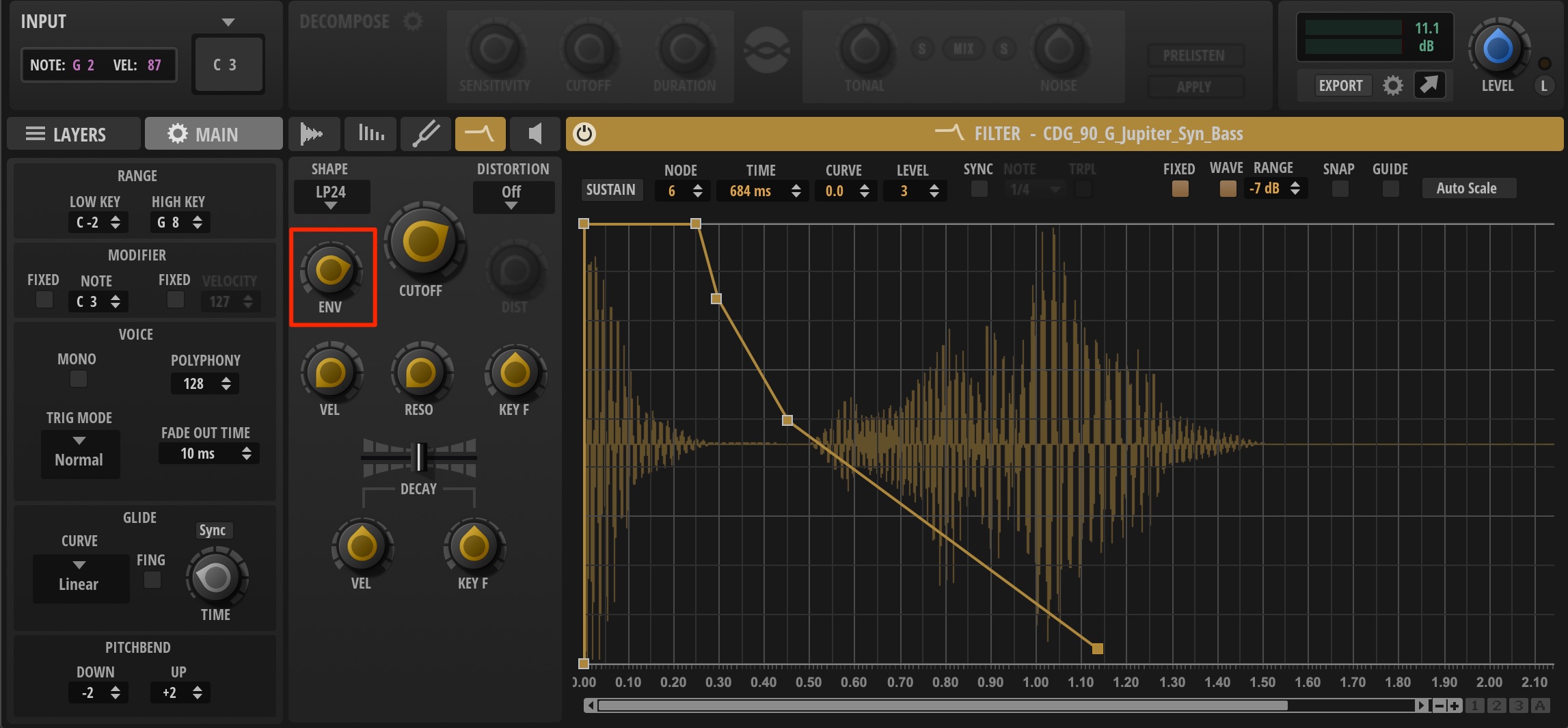
As in the PITCH section, you can make the filter change over time.
ENV sets the amount of filter-envelope modulation. Edit the points on the right to shape the movement.
Applying Effects
Backbone also includes a wide selection of effects.
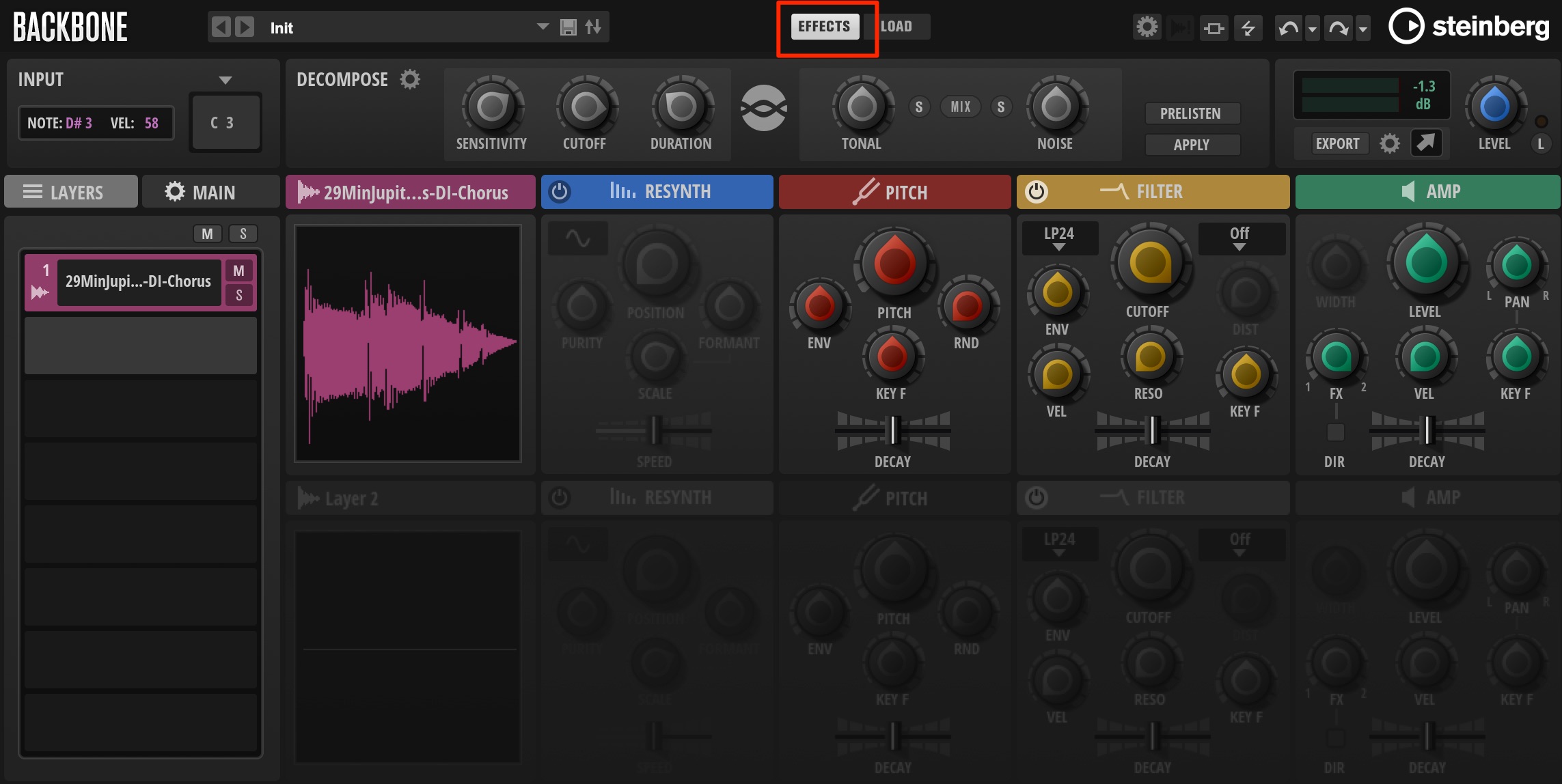
Click the EFFECTS tab to display the effects section below.
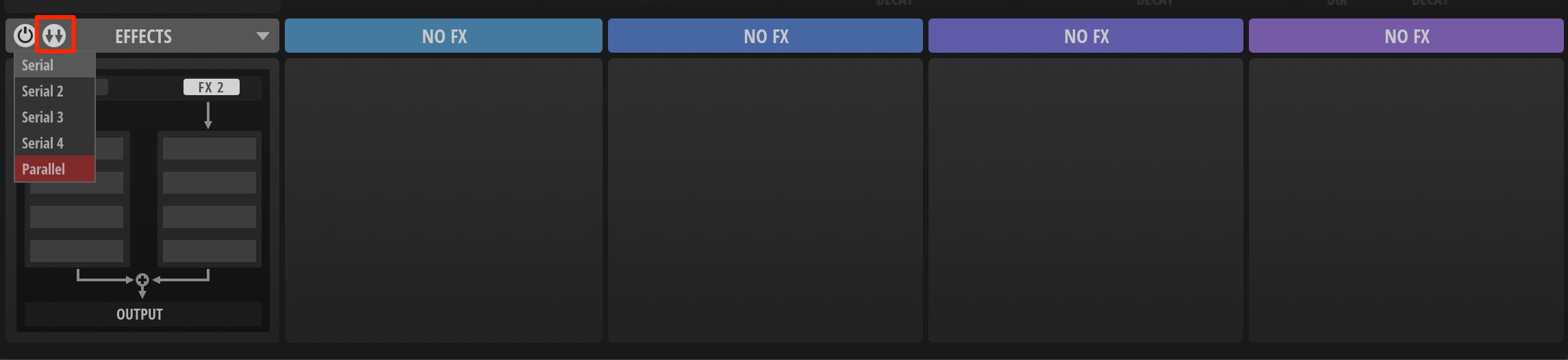
You can apply up to eight effects and choose from five routing configurations.
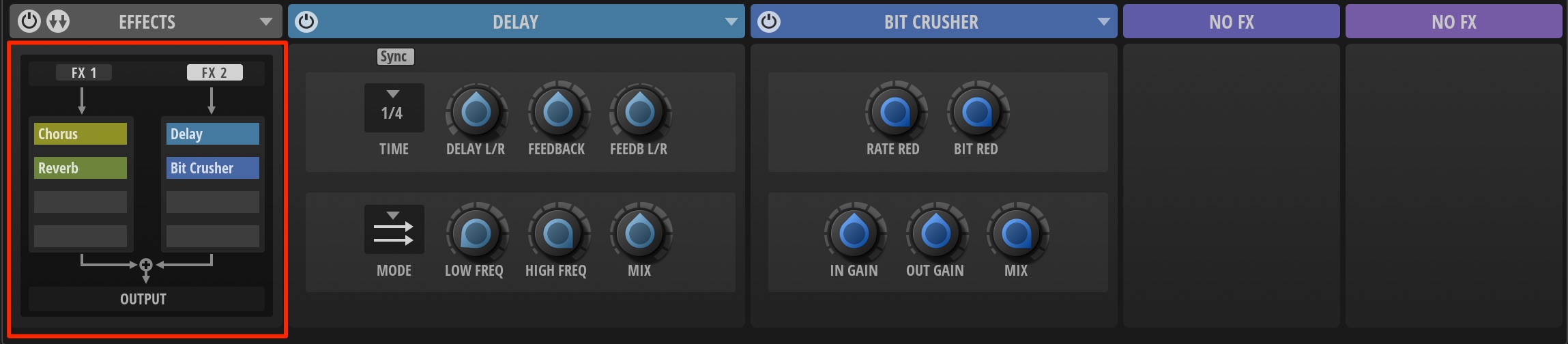
Effect parameters can also be automated for more dynamic sound design.
Try different combinations and refine your sound.
Exporting Sounds
You can easily export the sound you have created as a WAV file.
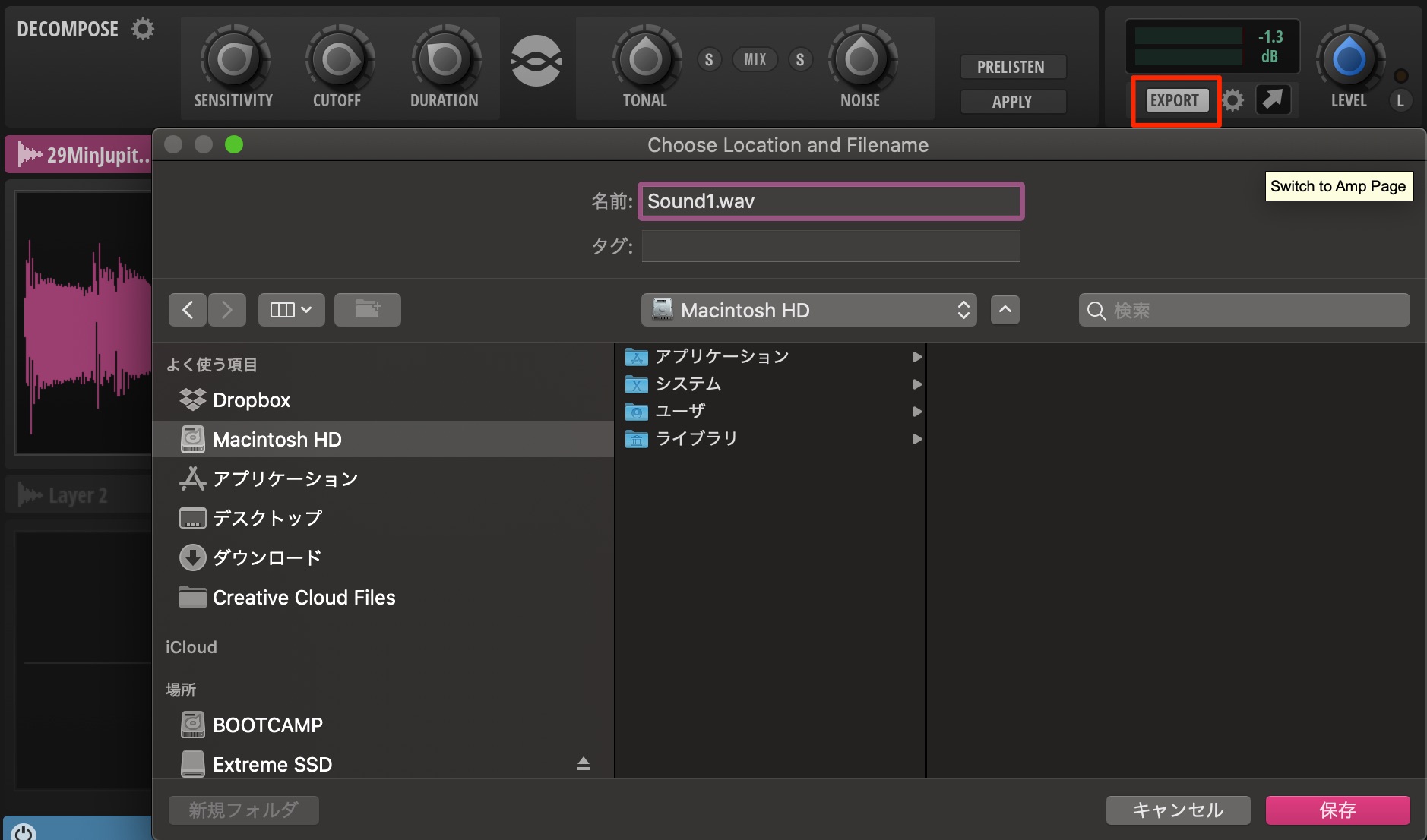
Use EXPORT at the upper right to choose a destination and export the file.
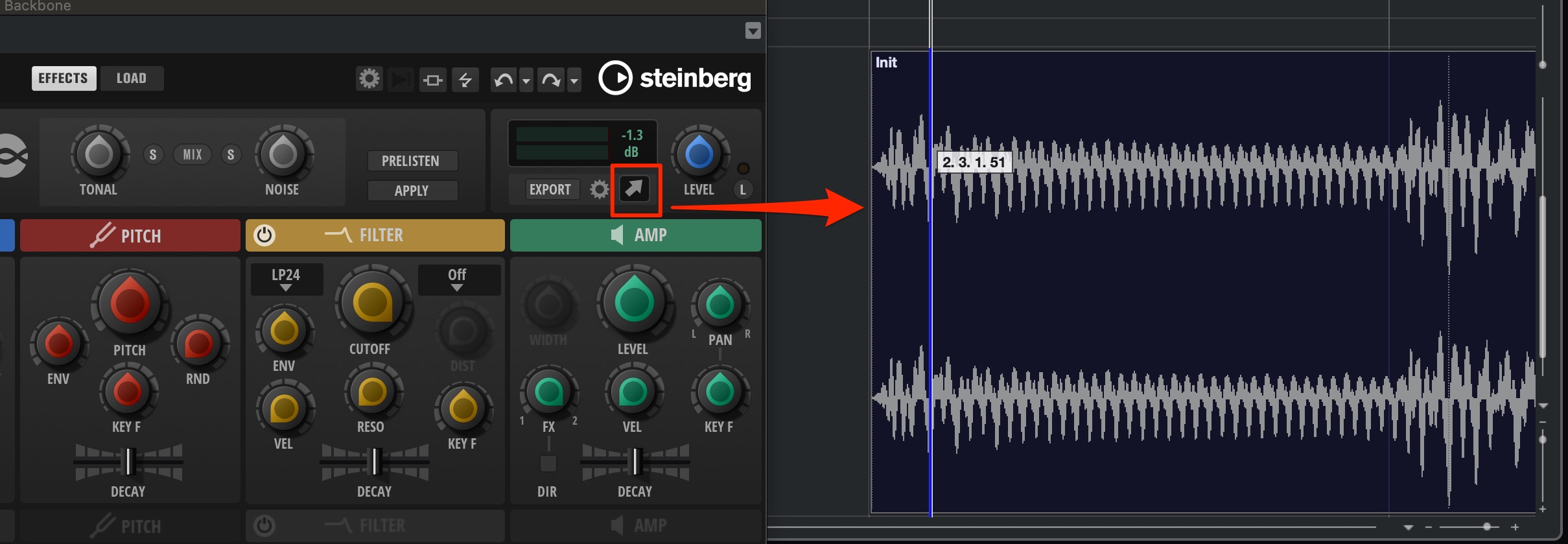
Drag the arrow icon to export directly into your DAW or onto the desktop.
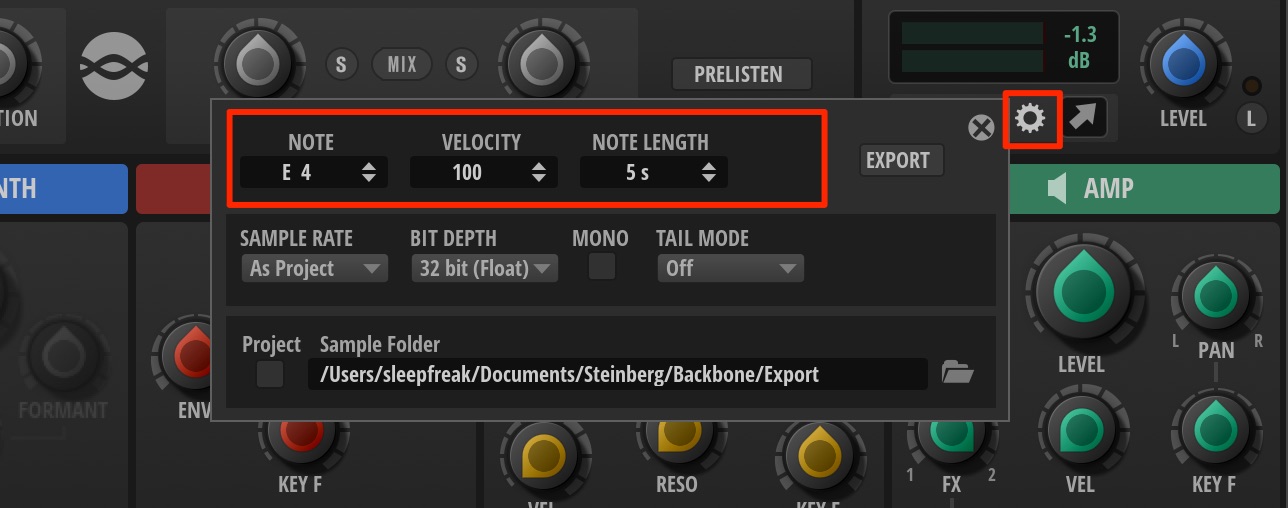
Click the settings icon for detailed export options.
These include pitch, velocity, and duration,
as well as resolution and stereo or mono output.
What did you think of this introduction to Steinberg Backbone?
From DECOMPOSE, which opens up new possibilities for a sound, to independent editing of each layer,
I hope you can see what makes this such a distinctive instrument.
If it interests you, try exploring the product for yourself.
Product page: https://new.steinberg.net/ja/backbone/
🆕 Backbone, Steinberg’s distinctive drum sampler
Features
• Build sounds with up to eight sample layers
• Resynthesize one-shots and loops
• Decompose separates audio into attack and release components [wording of the original post; the function separates tonal and noise components, as explained above]
• Supports the major DAW plug-in formats: VST, AU, and AAXDetails: https://t.co/jw4VxqLi2J pic.twitter.com/tLYYLRciAi
— SLEEP FREAKS (@SLEEPFREAKS_DTM) June 21, 2020
Frequently Asked Questions
Q1. What exactly does Backbone’s DECOMPOSE function do?
It separates a sample into tonal and noise components that can be edited independently. SENSITIVITY, CUTOFF, and DURATION let you refine the separation, while PRELISTEN lets you hear the results as you adjust the settings.
Q2. Is there a limit to the length of an imported audio sample?
Yes. In the version covered here, the maximum is 60 seconds. If you import longer audio, the portion beyond 60 seconds will not play, so trim it in advance.
Q3. What should I do if the sample’s pitch does not match the keyboard note?
Enable PITCH ANALYSIS in the SAMPLE section to analyze the sample, then use the downward-arrow button to correct its root pitch.
Q4. How many layers can one program contain?
Up to eight. Bear in mind that DECOMPOSE needs an available layer slot.
NEW ARTICLES
Latest English Articles
































































































































































































