
Editing audio events in Cubase 11 is an important part of achieving high-quality music production. Fade-ins, fade-outs, and crossfades help you join multiple takes smoothly and avoid clicks or abrupt cuts. Adjusting event volume and combining events can also make mixing much more efficient. Techniques such as Render in Place, which converts MIDI to audio, and reversing audio are useful for creating distinctive effects. Learning these basics gives beginners the tools to produce professional-sounding recordings.
Following our previous lesson on audio recording, this time we will explain how to edit the audio events you have recorded.
We will cover ways to tidy up audio, as well as processing techniques specific to audio, so take the time to learn these useful skills.
Audio Editing Video
Editing with Fades
Drag an audio event's upper corners to create fades: gradually raise the beginning from silence, or gradually lower the ending to silence.
A fade at the beginning is called a fade-in, and one at the end is called a fade-out.
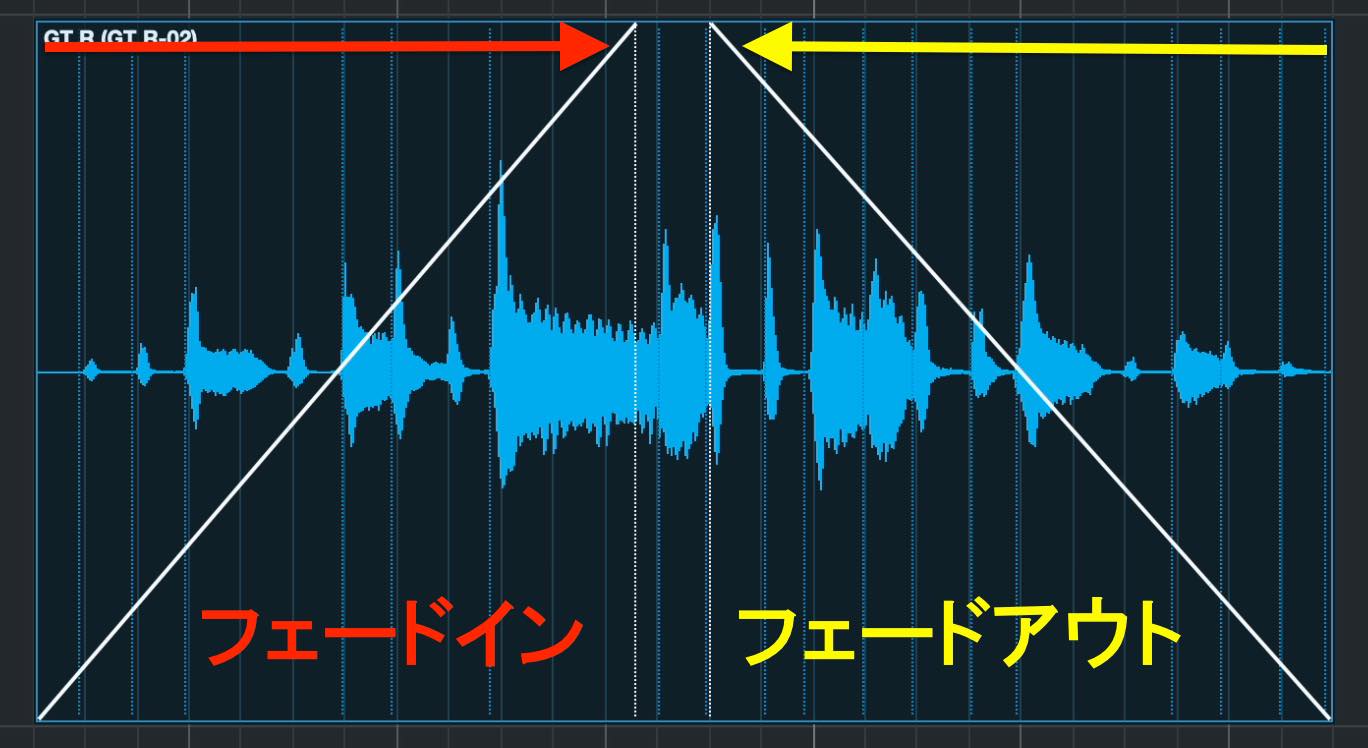
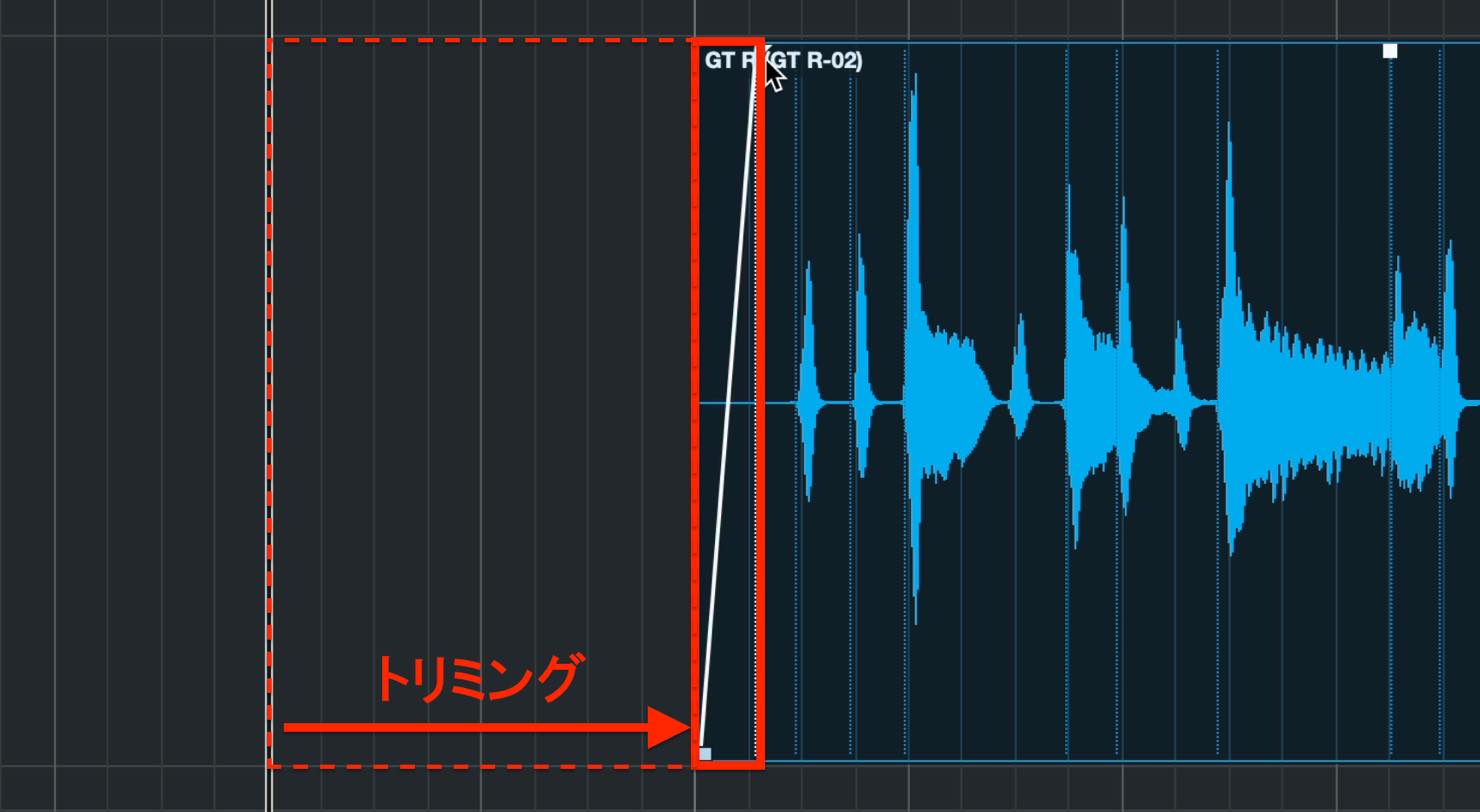
You can make a long fade for a creative effect, as shown here. However, a freshly recorded event often contains unwanted material, so the usual approach is to trim it and add short fades.
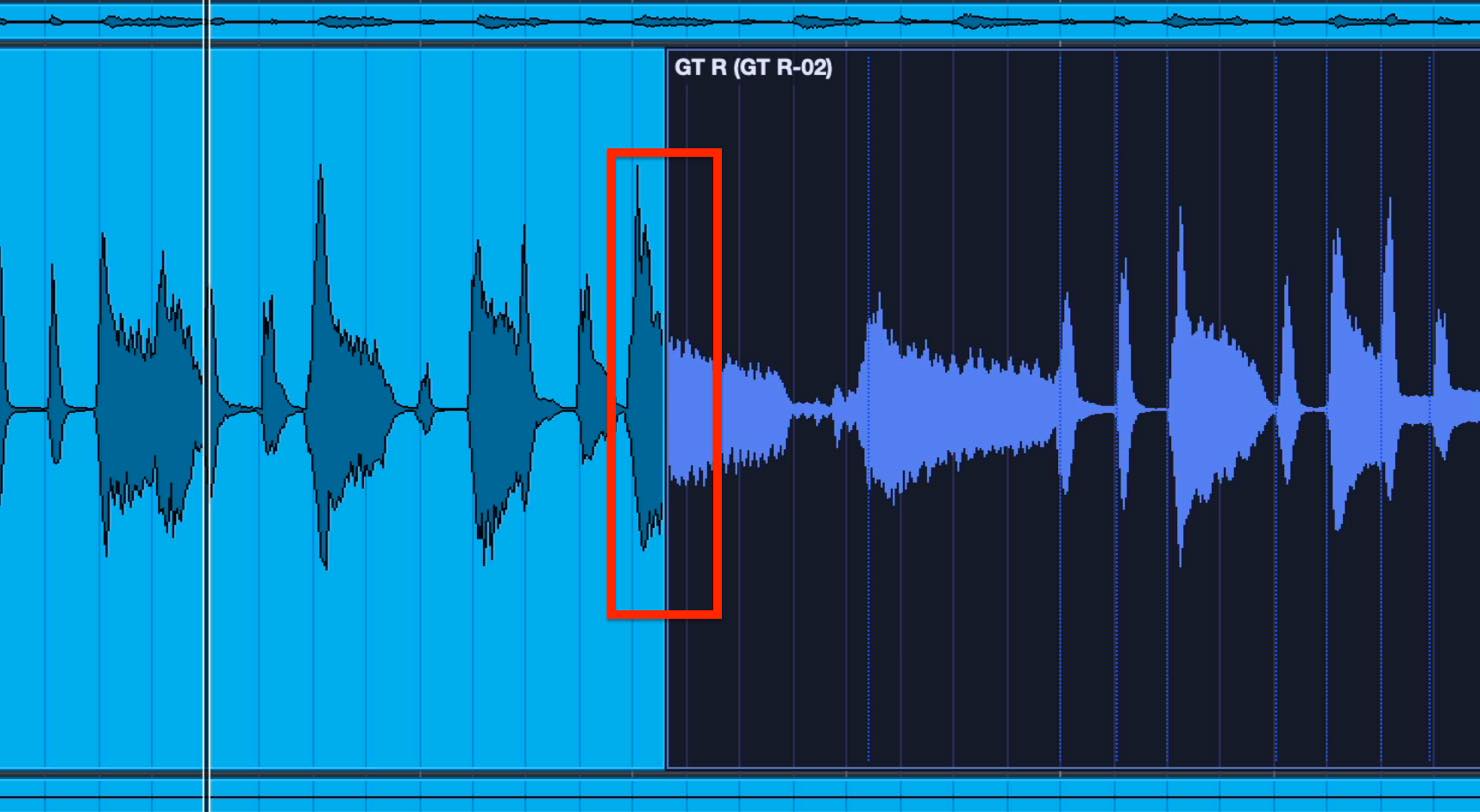
Audio recording often involves combining multiple takes. The challenge is making the joins between them sound clean.
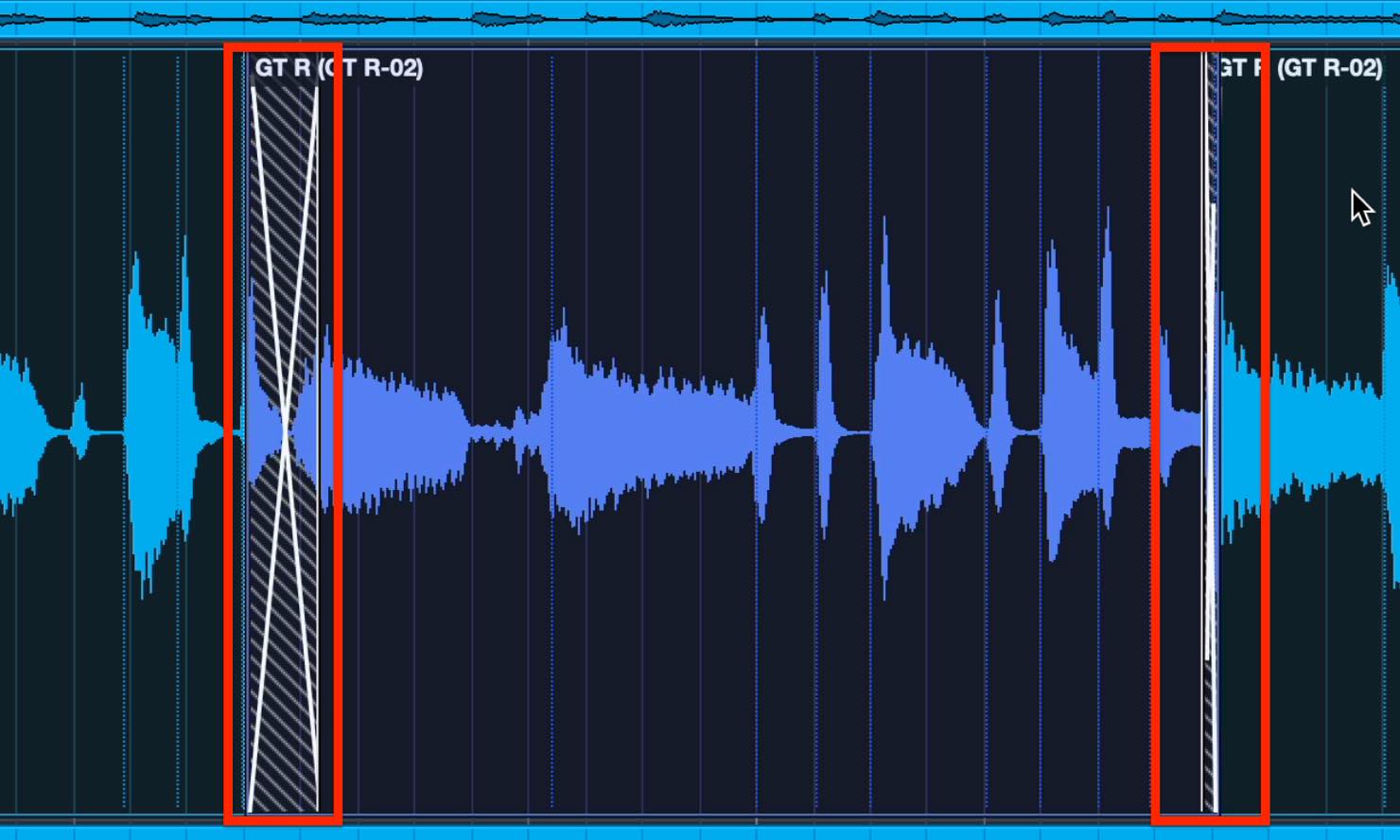
If you join them carelessly, the waveform may be cut off abruptly, as shown here, making the edit audible.
Crossfades are used to smooth out these joins.
A crossfade overlaps a fade-out and a fade-in at the same point. As the earlier take gets quieter, the following take gets louder, producing a smooth transition.
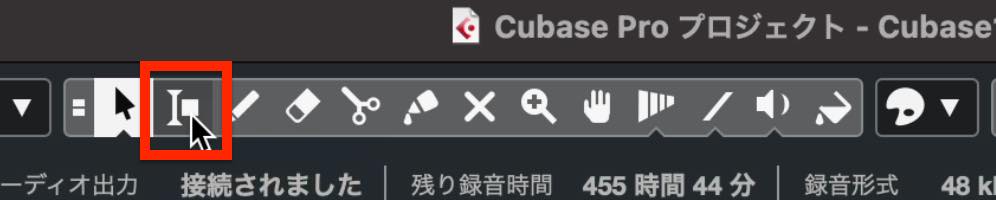
First, switch to the Range Selection tool.
Drag to select the area you want to crossfade. The Range Selection tool lets you select part of an event or a range spanning multiple events, as shown here.
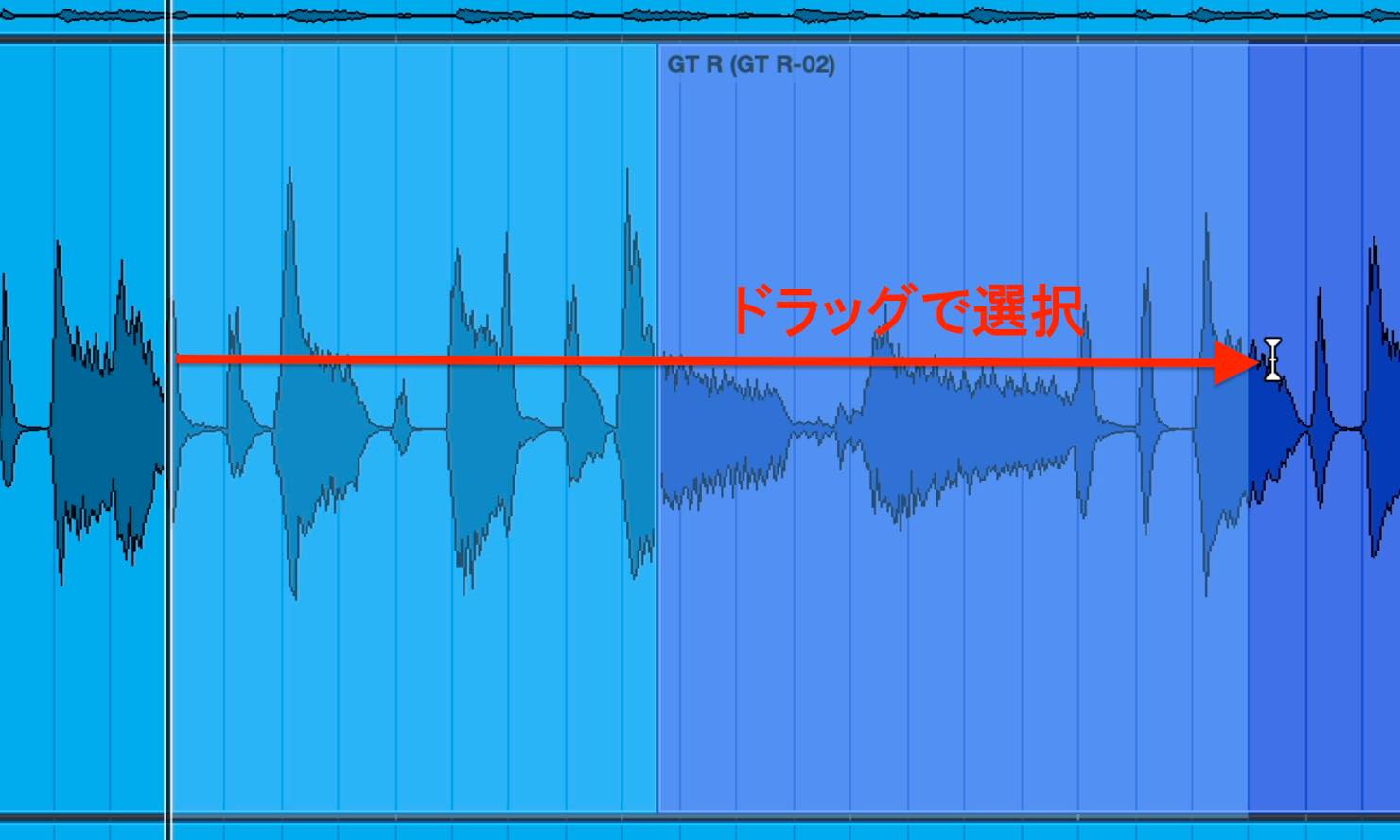
Then press X to create a crossfade.
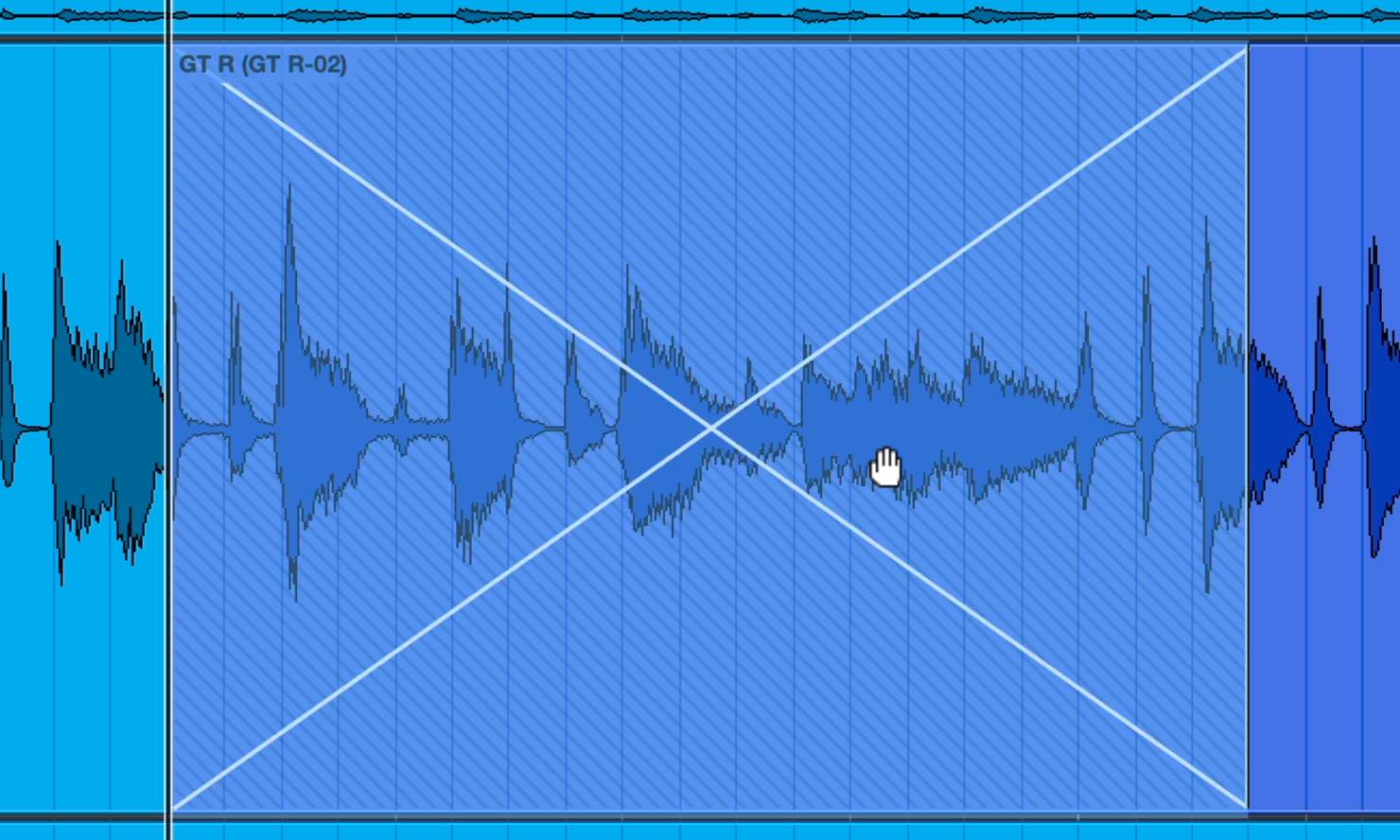
You can also adjust the fade length. Switch to the Object Selection tool and drag either end of the fade to change its length.
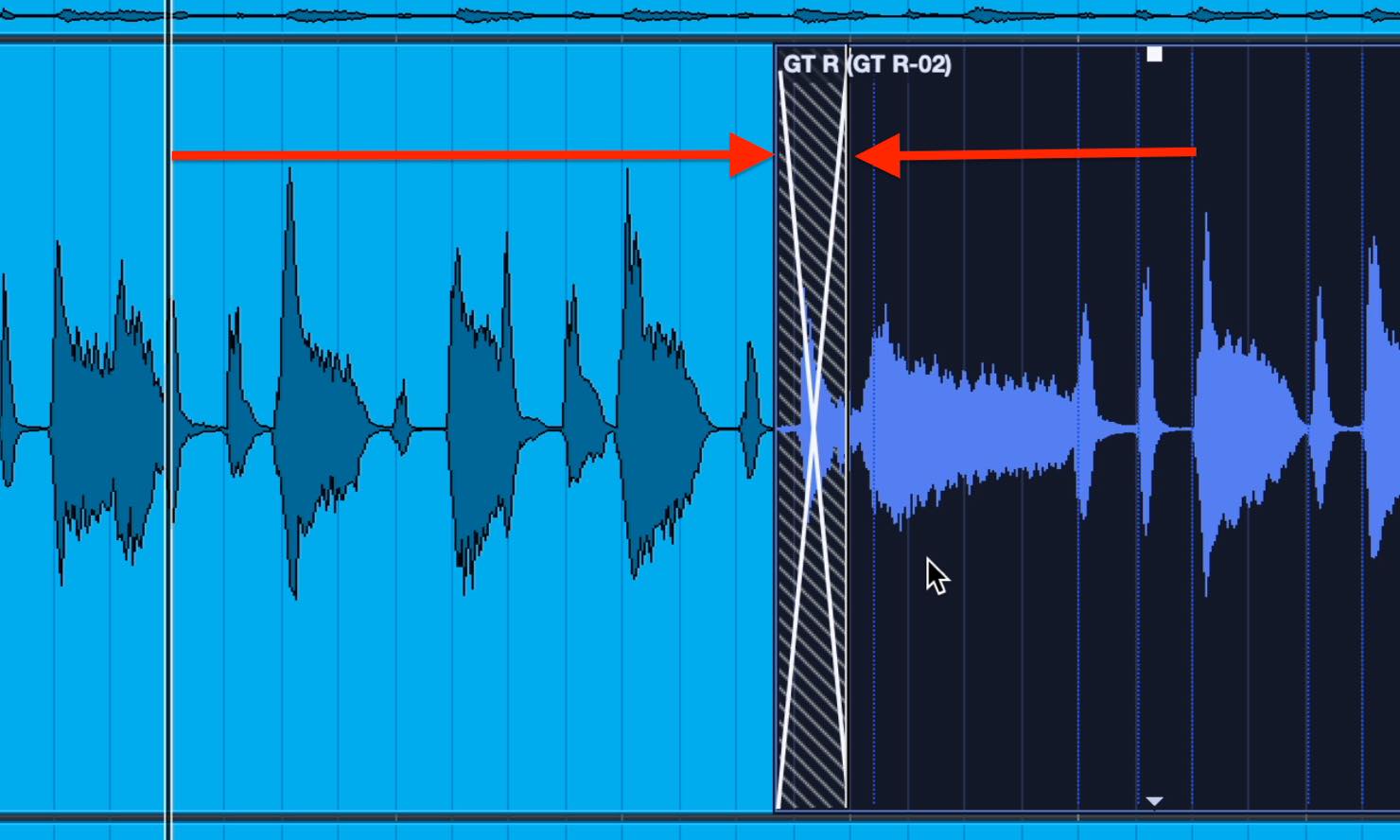
You can drag the crossfade itself to move it, too. Look for a position where the transition has the least audible impact.
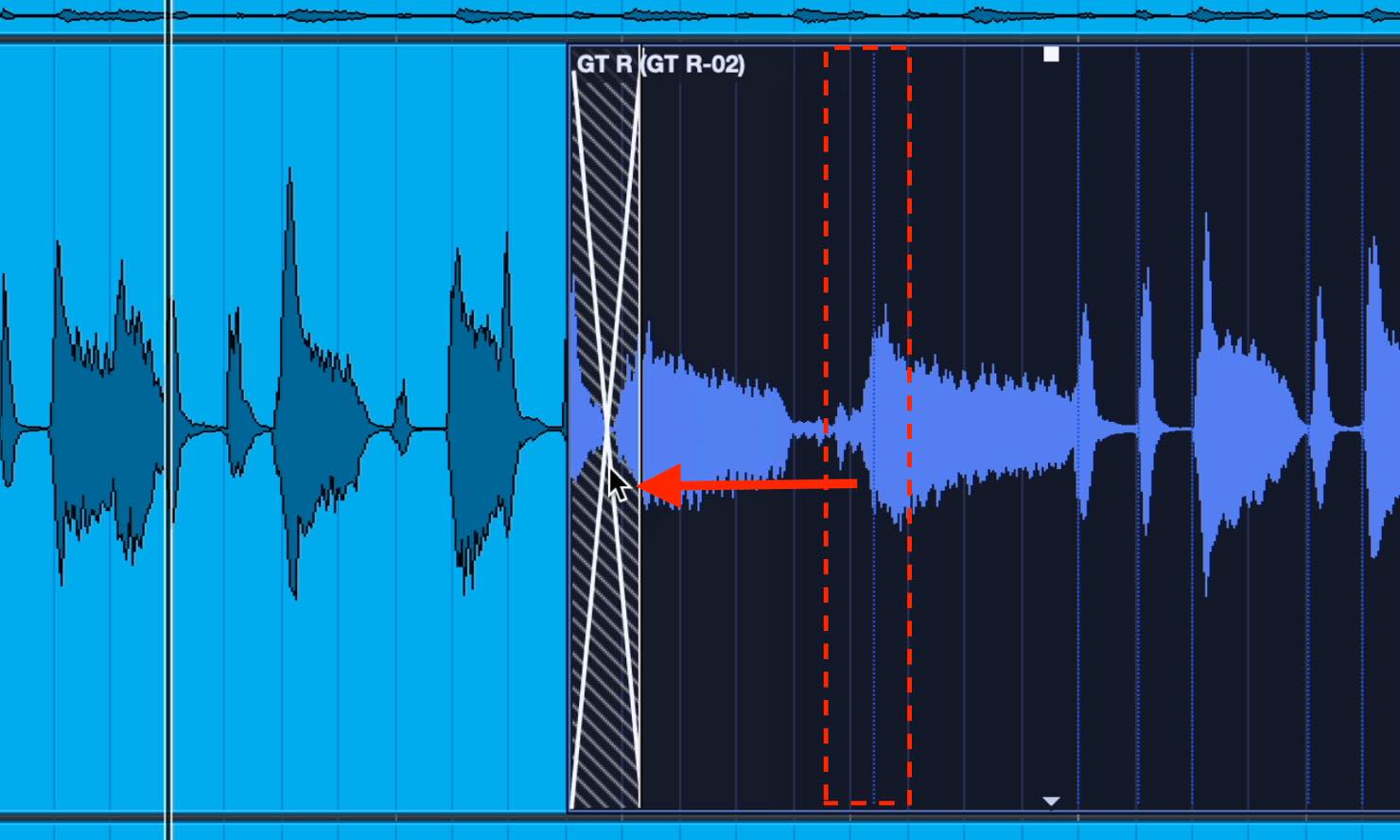
Keep in mind that crossfades can only be created within the available audio data of the takes you want to join.
For example, if the takes in the image above were recorded only within the currently visible boundaries, you would not be able to create a crossfade. You need to record extra material before and after the edit point.
Here is another useful technique: when you have several joins, hold Shift and select the relevant events, then press X to apply crossfades to them all at once.
Adjusting Audio Event Volume
To change an audio event's volume, drag the handle at the top center of the event up or down.
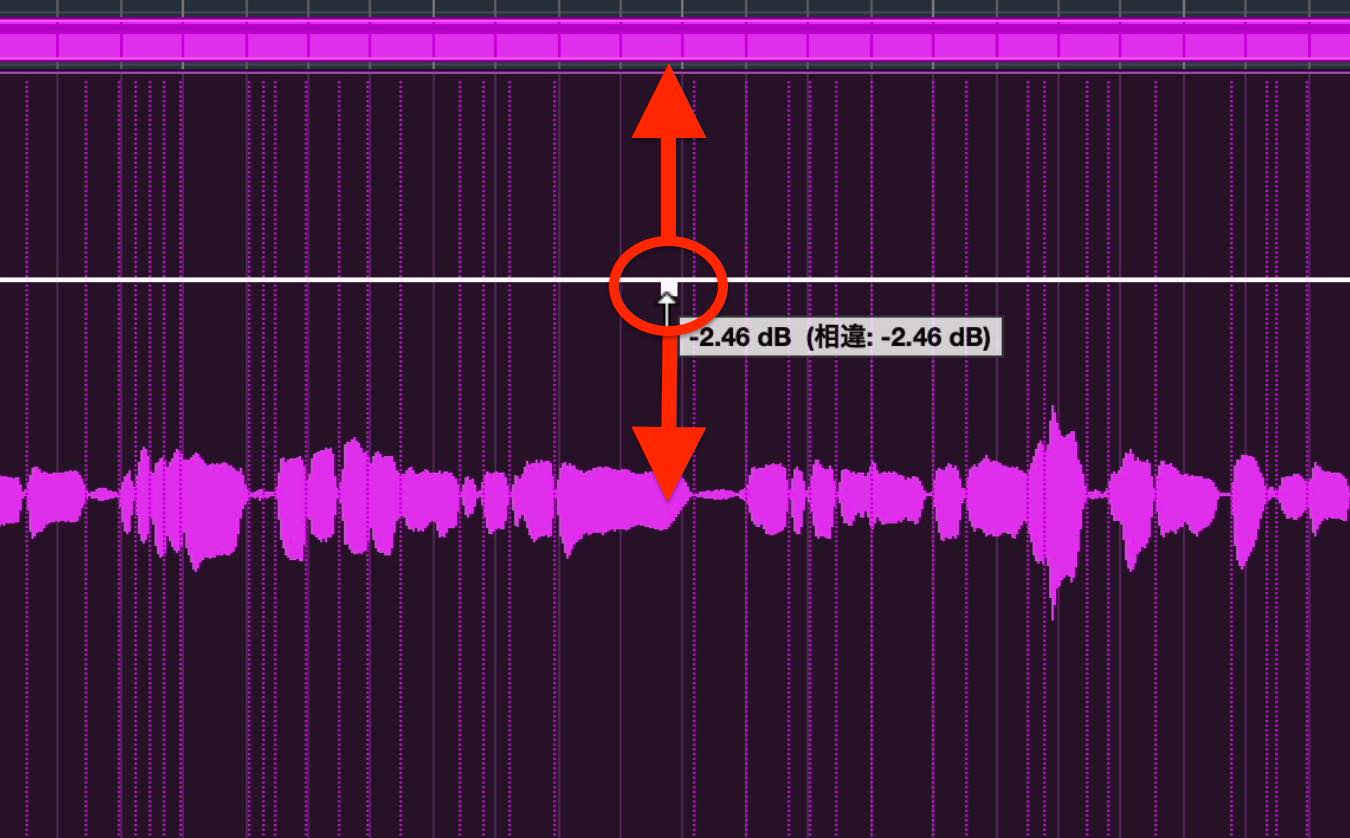
If the volume varies greatly between takes, or the difference between loud and quiet passages is too large, adjusting event volume first can make mixing easier later.
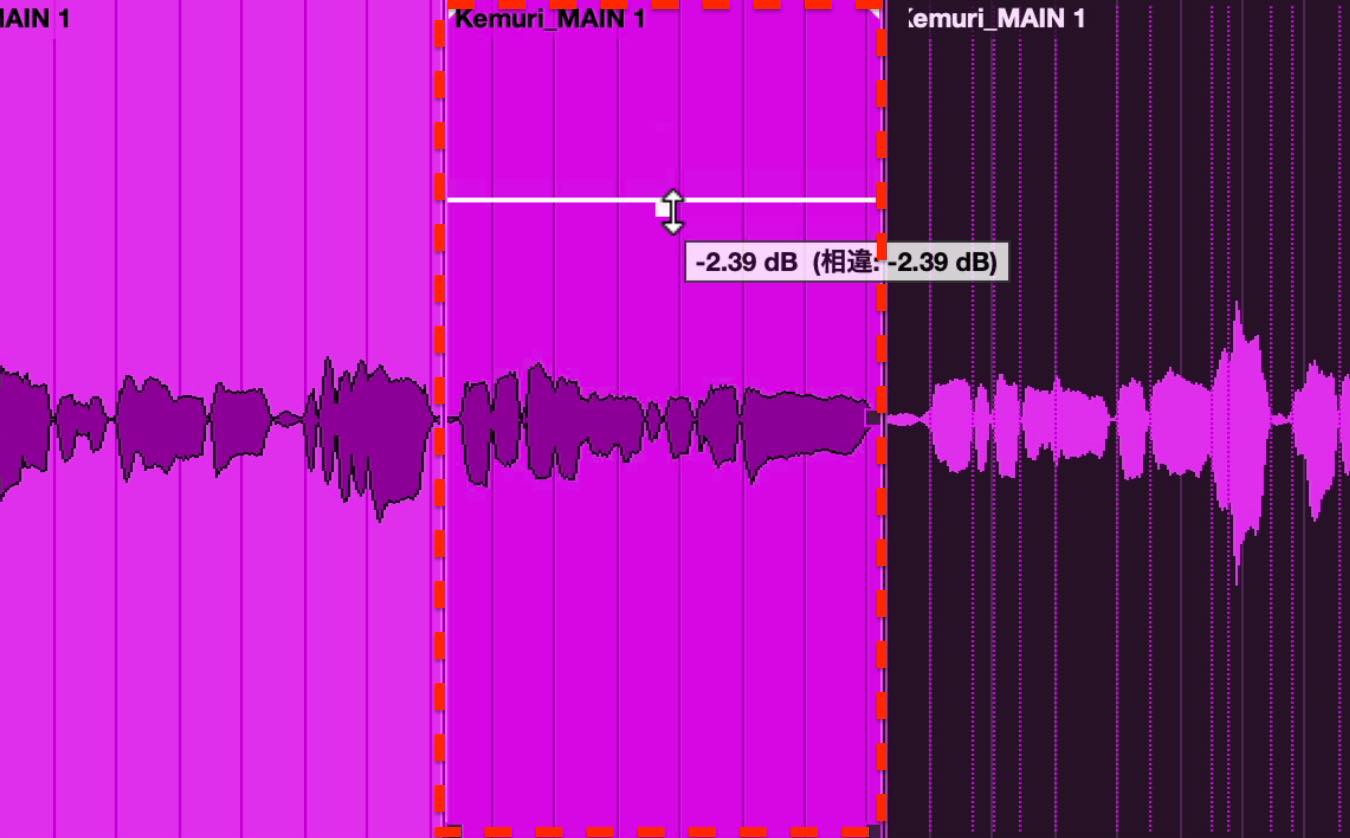
To adjust just one section, split the event with the Split tool. You can then adjust that section independently.
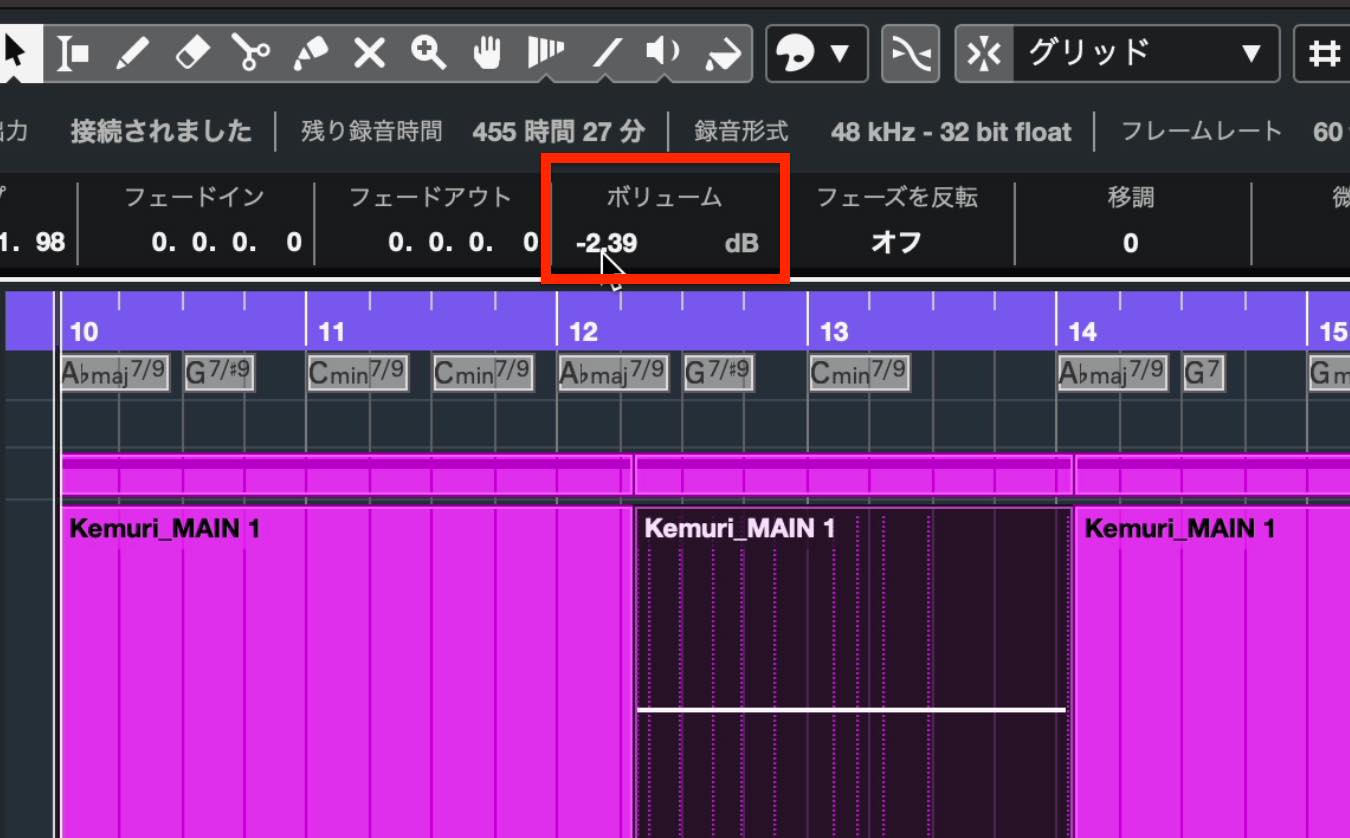
The volume value also appears in the Info Line. Drag this value, or double-click it and type a value directly, to change it.
Combining Events
Recording and editing can leave your audio divided into many small events, making it difficult to process the whole passage at once.
There are two ways to combine these events.
One is to use the Glue tool. Select the Glue tool in the toolbar,

then select and click the events you want to combine.
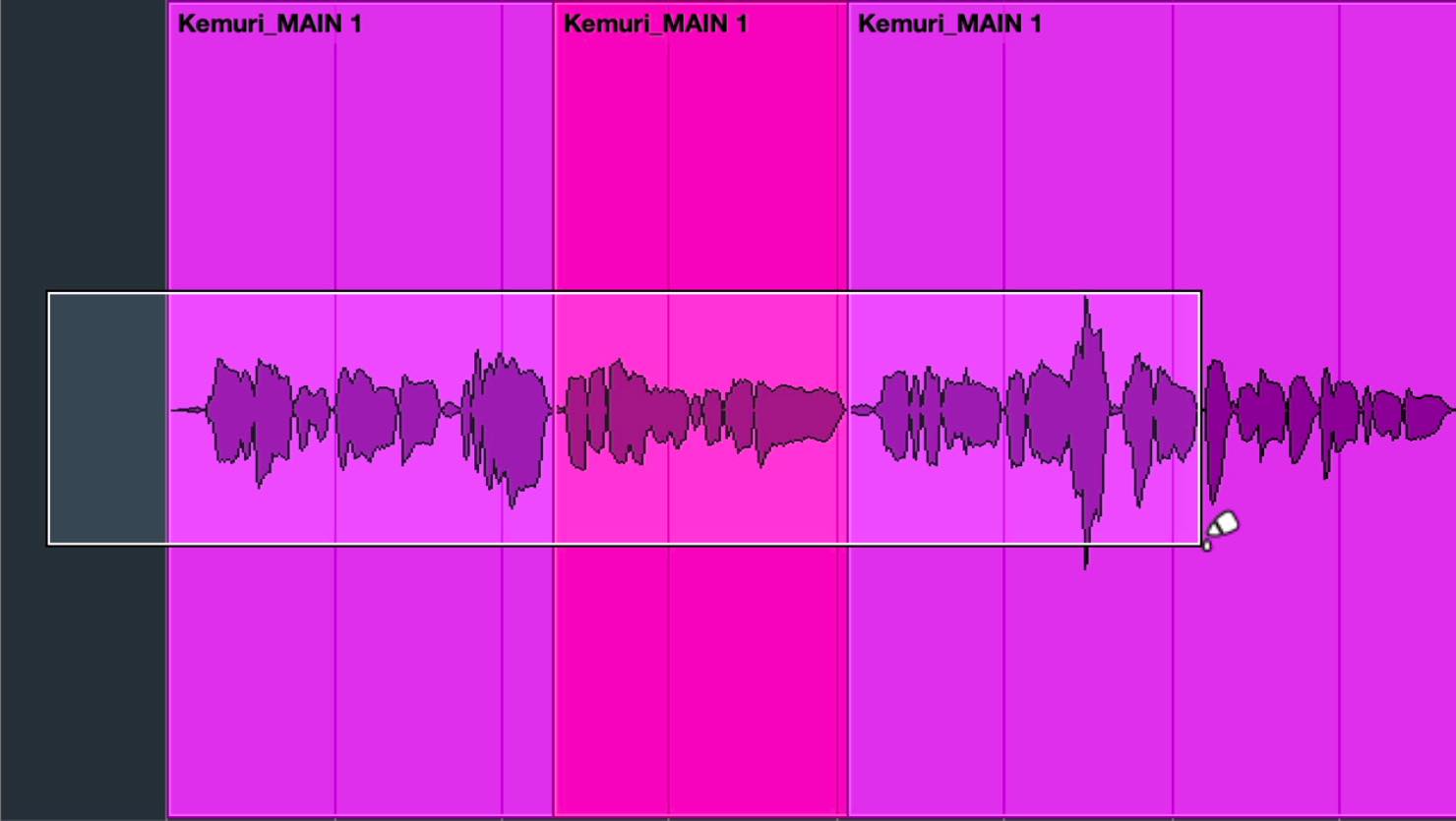
The dividing lines between the events remain visible, but the events are grouped into one audio part so you can move them together.
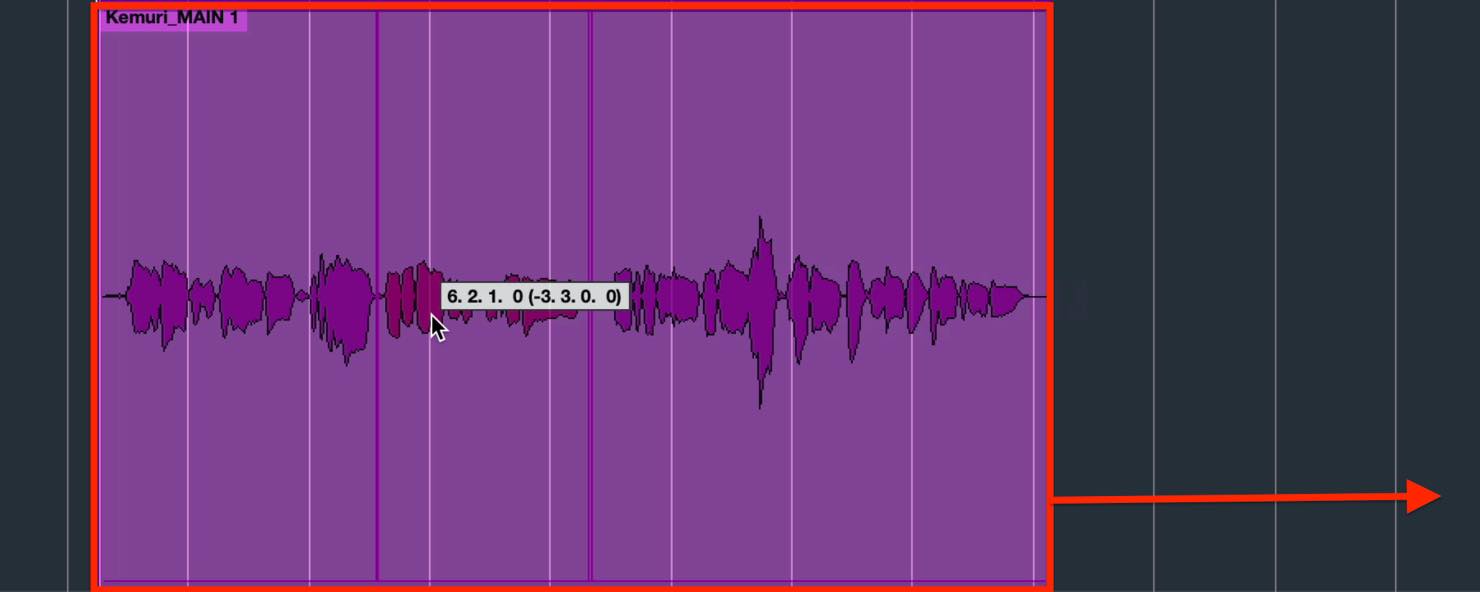
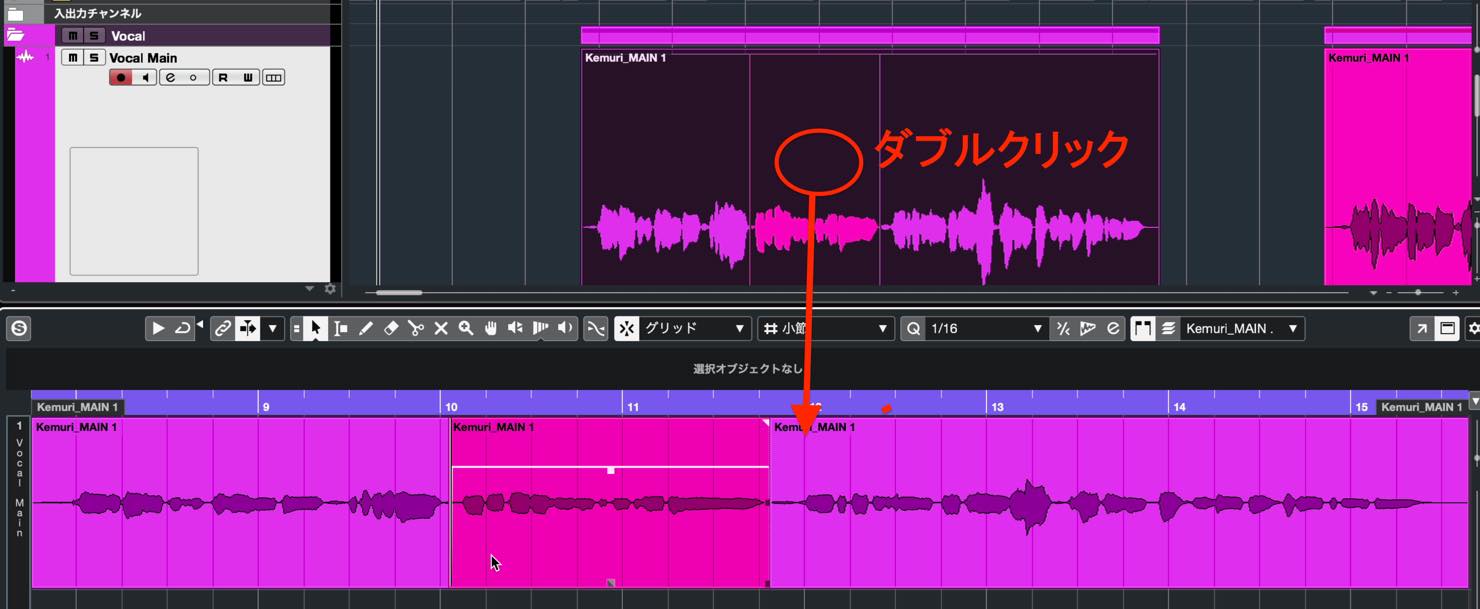
Double-click the combined part to display its individual events in the editor, where you can edit them separately.
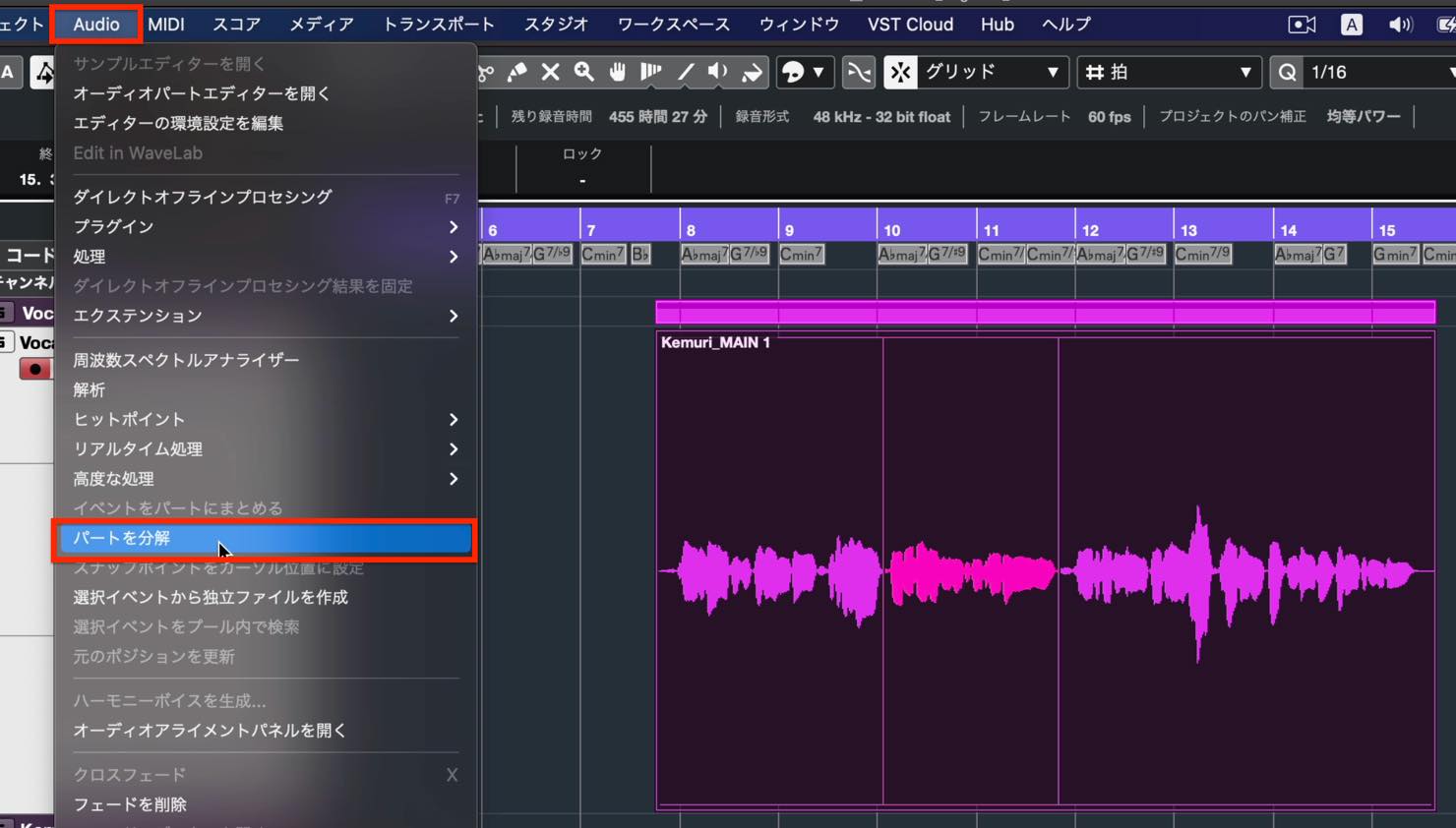
To return to separate events, select the part and choose Audio > Dissolve Part from the menu.
Once you have finished editing the joins, you may prefer to consolidate the events into a single file.
This also makes pitch and timing editing, which we will cover in later lessons, easier.
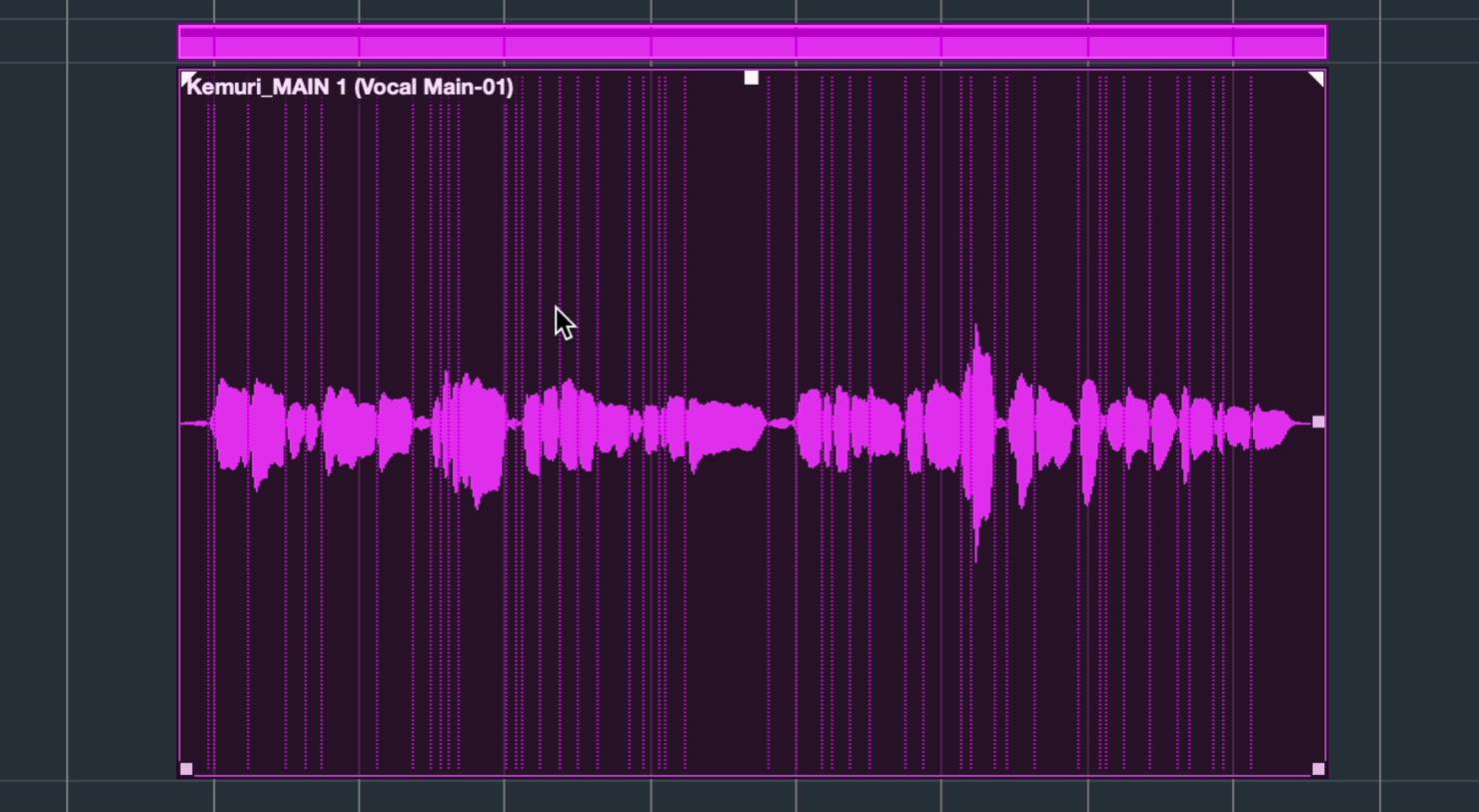
Select all the relevant events and choose Audio > Bounce Selection. When the dialog appears, click Replace.
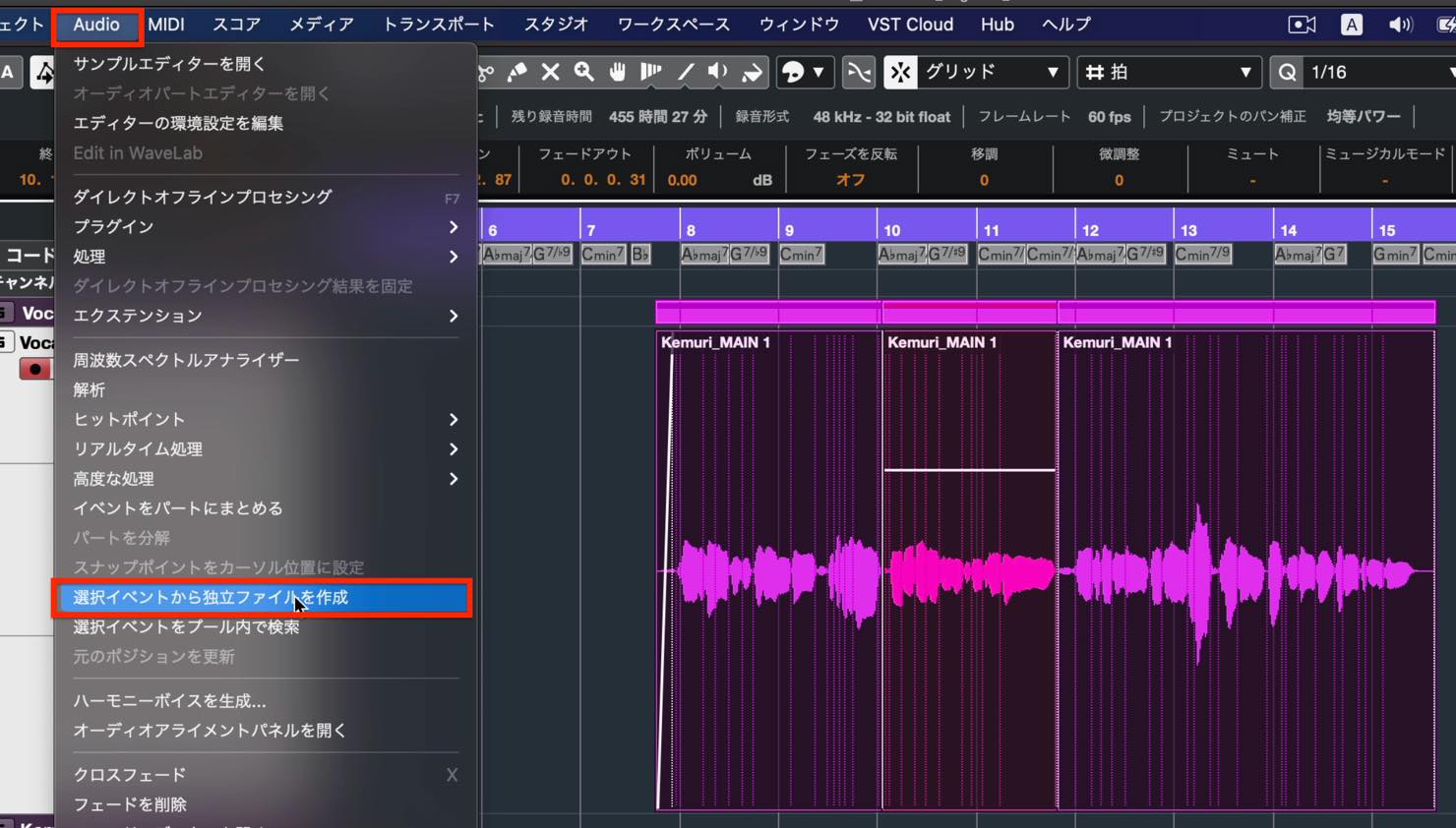
A single file is created, and the separate events become one event, as shown here.
Converting MIDI to Audio and Reversing It
To finish this lesson, we will show you how to convert MIDI to audio and introduce an editing technique specific to audio.
As an example, we will create a reversed cymbal, a sound effect that produces a distinctive build-up.
First, program a cymbal hit using the drum instrument on an instrument track.
Cubase provides a very useful feature called Render in Place for converting MIDI to audio.
Right-click the MIDI event and choose Render in Place > Render Settings.
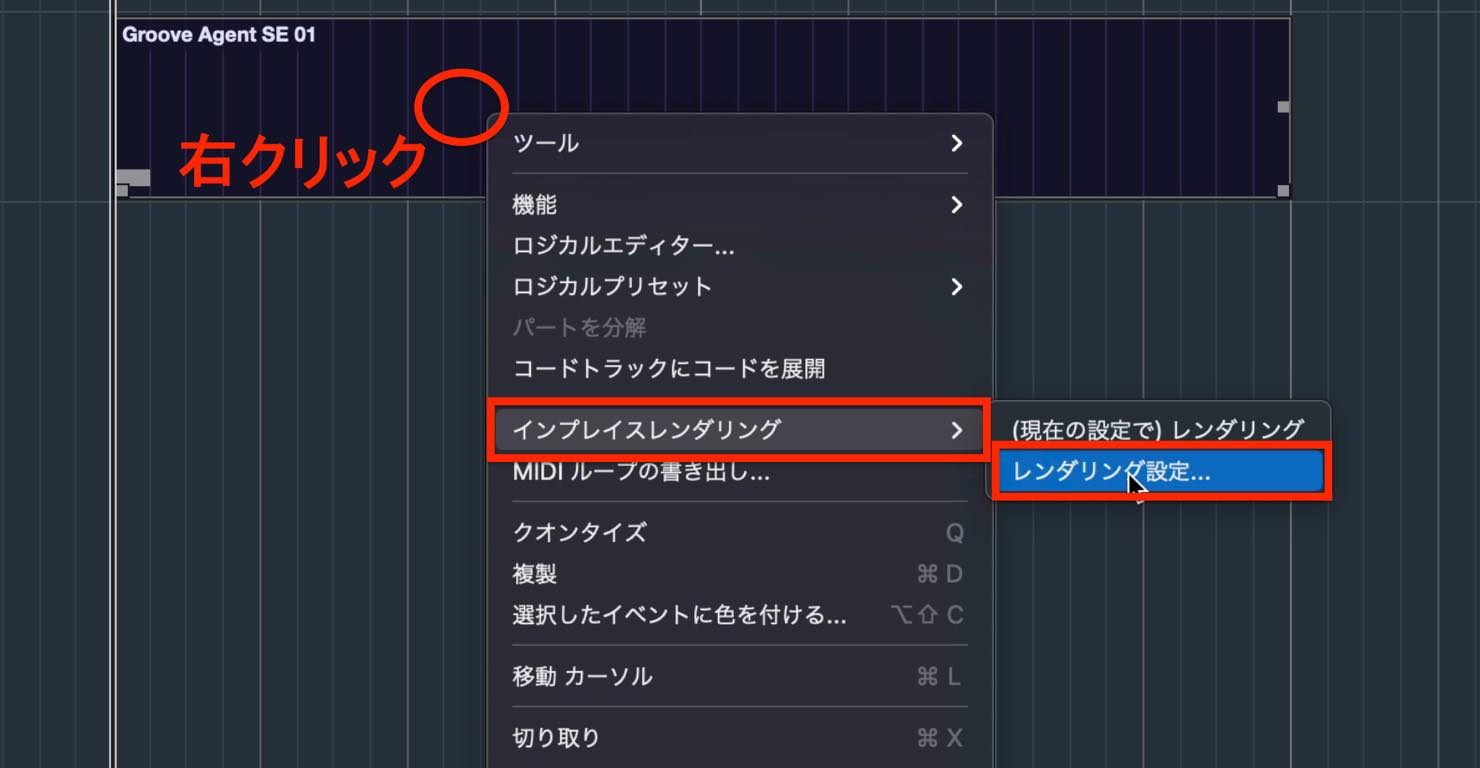
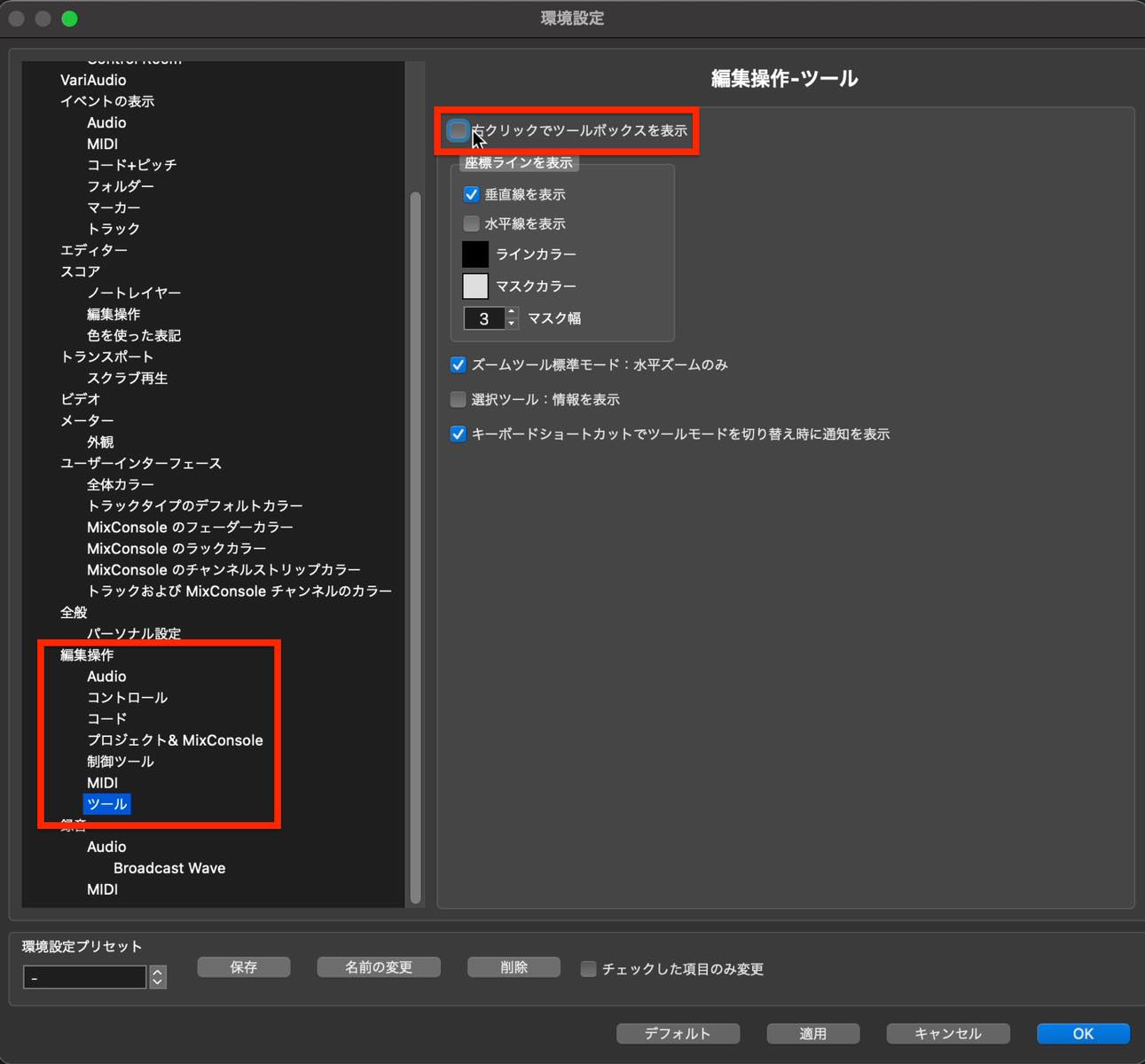
If this menu does not appear, open Cubase > Preferences, go to Editing > Tools, and clear the Pop-up Toolbox on Right-Click option.
Choosing Render Settings opens a window.
There are various settings, but first make sure Dry is selected in the Processing section.
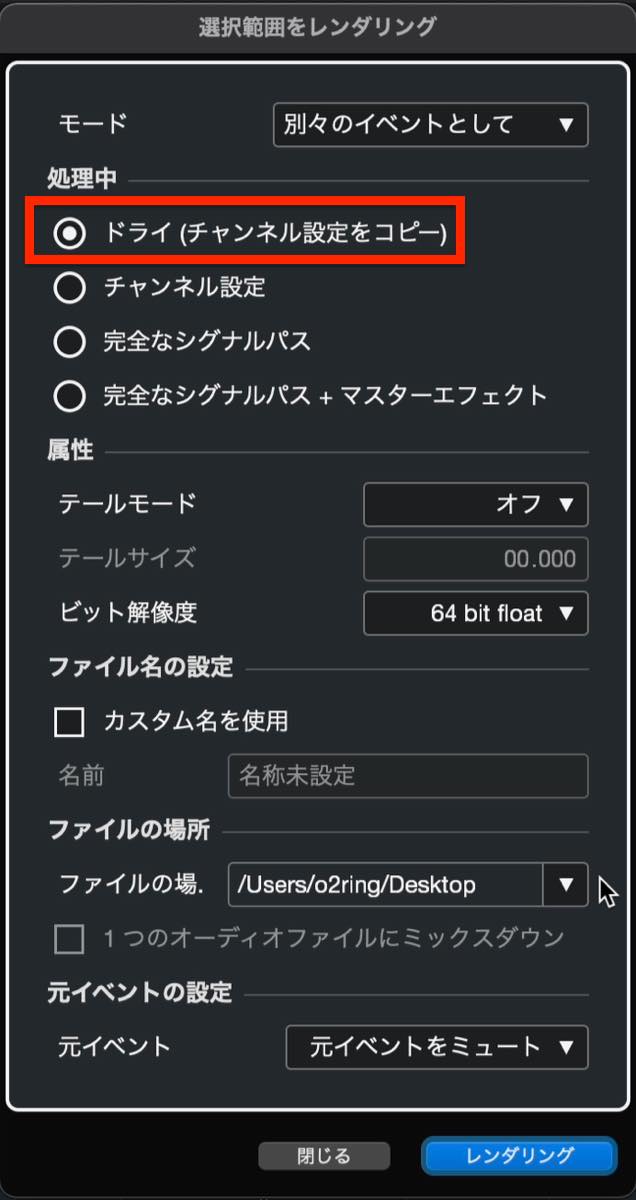
We have not applied any effects to this cymbal, so selecting another processing option would serve no purpose here.
If you do have effects applied, they are carried over to the resulting audio track when using Dry, so you do not need to worry about losing them.
Pay attention to the file location as well. Saving to an arbitrary location can easily lead to missing files if you later move or delete them.
Click the location setting and select Use Project Audio Folder. The project's Audio folder is stored alongside the project file.
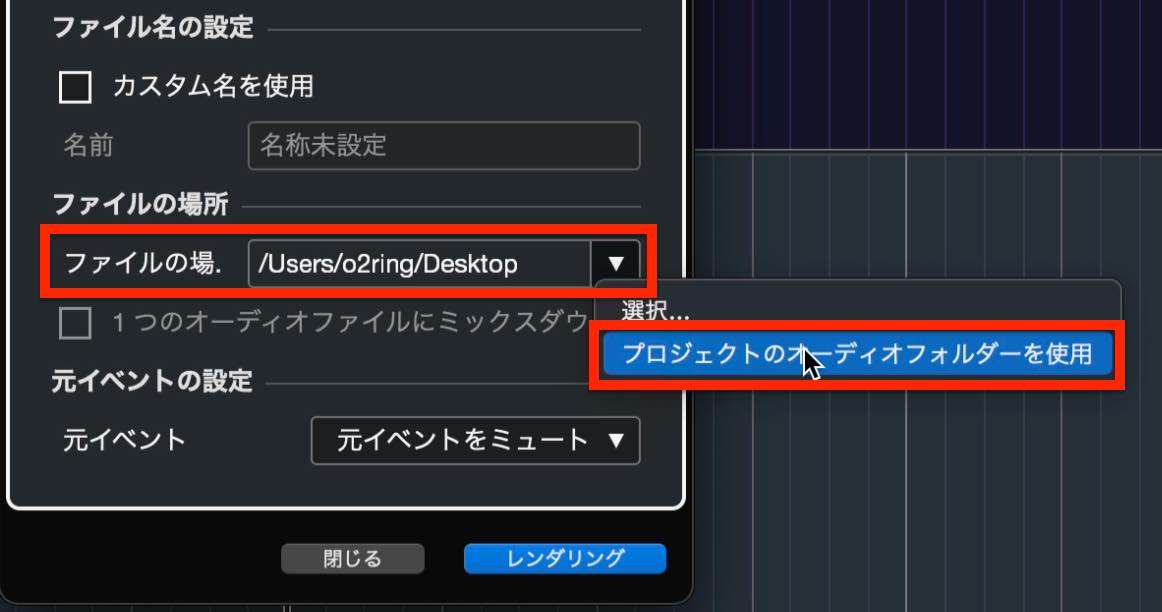
Once the settings are ready, render the event.
An audio track is created automatically, with the rendered audio event placed at the same position on the timeline.
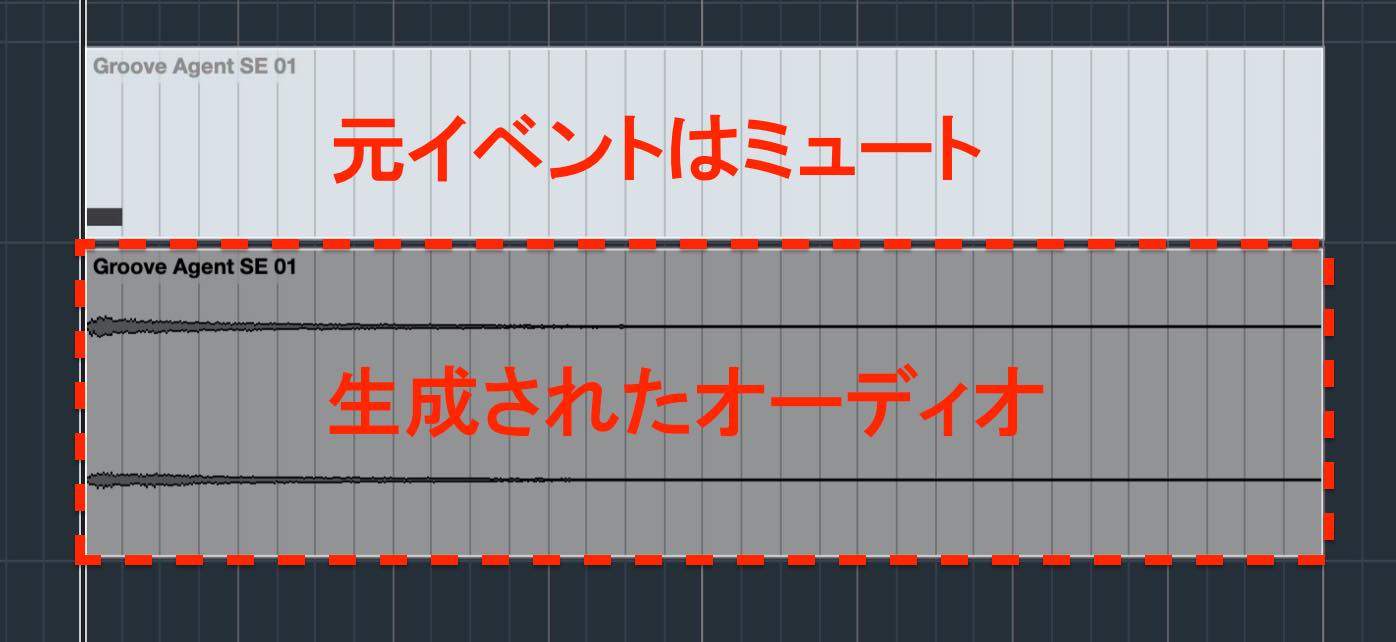
The original MIDI event is automatically muted to prevent both versions from playing at once. You can also mute and unmute events manually.
Select the Mute tool, marked with an X, in the toolbar.

Click an event to mute it, or click a muted event to unmute it.
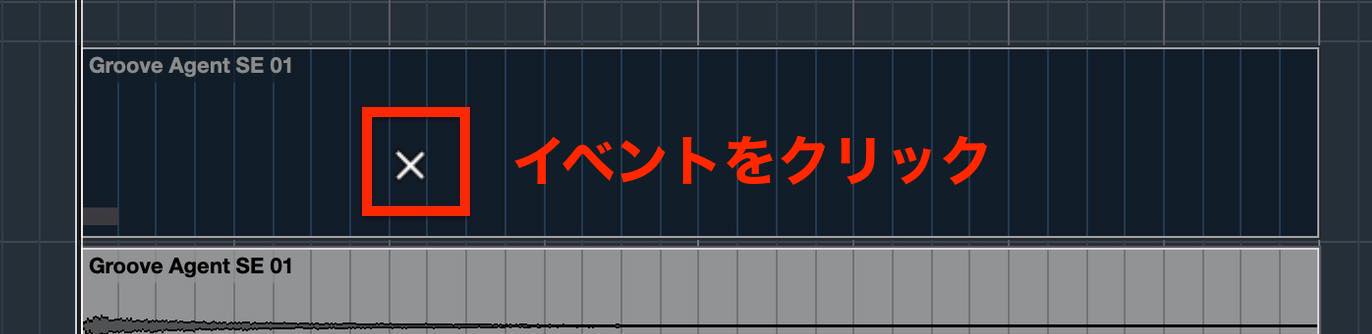
This is useful when you want to silence only part of a track without deleting it.
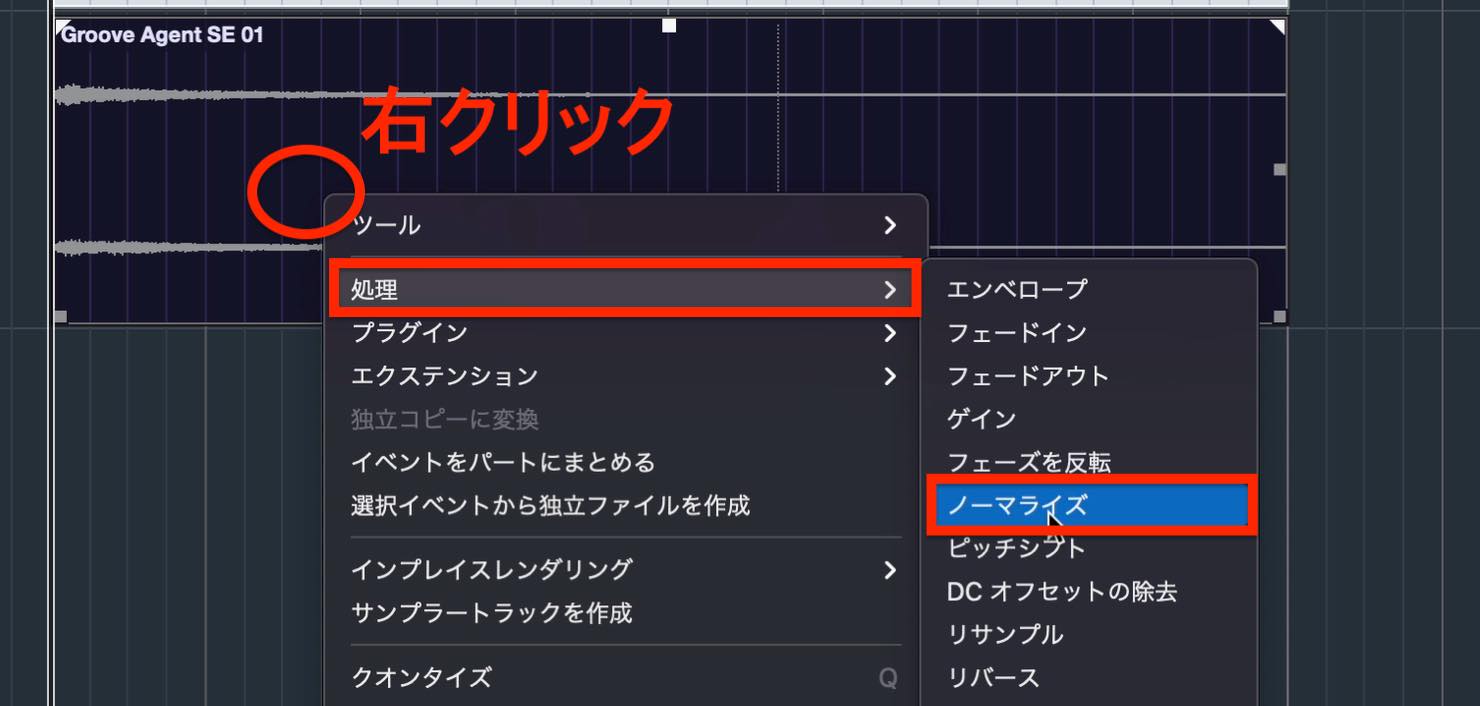
When we played the rendered audio, it sounded a little quiet. To raise its level substantially, the Normalize function is useful.
Right-click and choose Processes > Normalize.
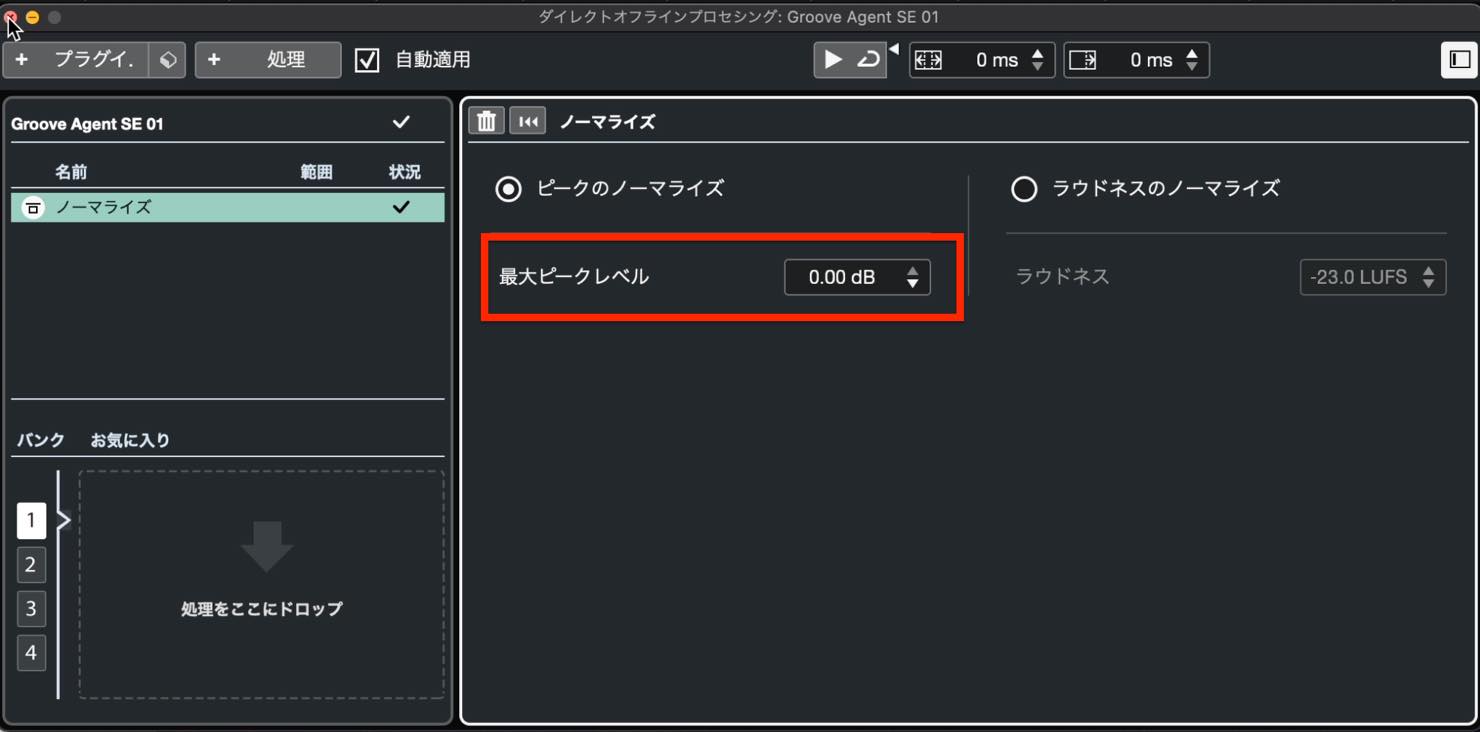
Make sure Maximum Peak Level is set to 0.00 dB, then close the window.
The level is raised until the loudest peak reaches 0 dB.
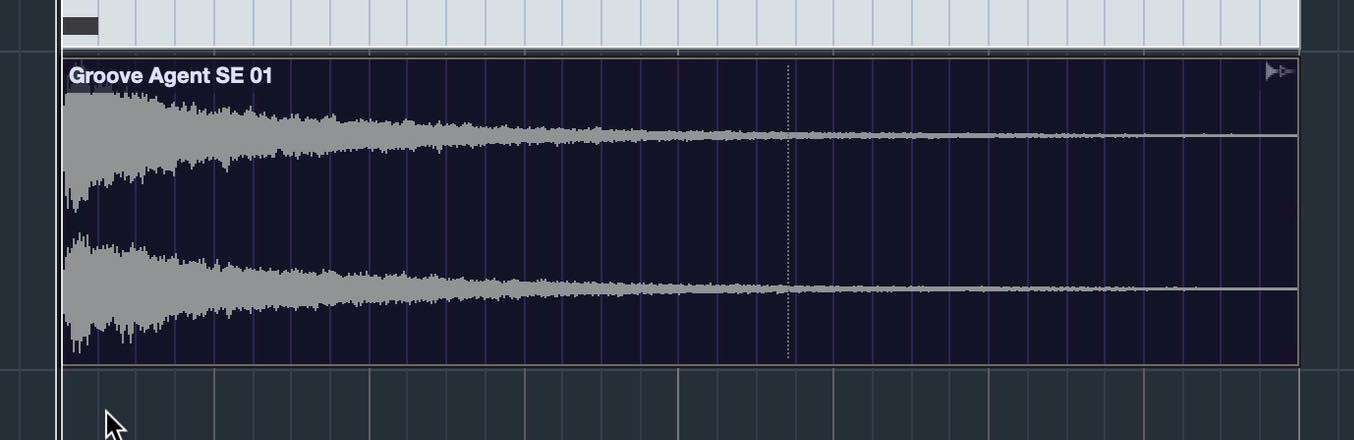
If it is too loud, you can reduce the event volume using the method described earlier.
Next, we will reverse the audio, turning it around so it plays backward.
Right-click and choose Processes > Reverse.
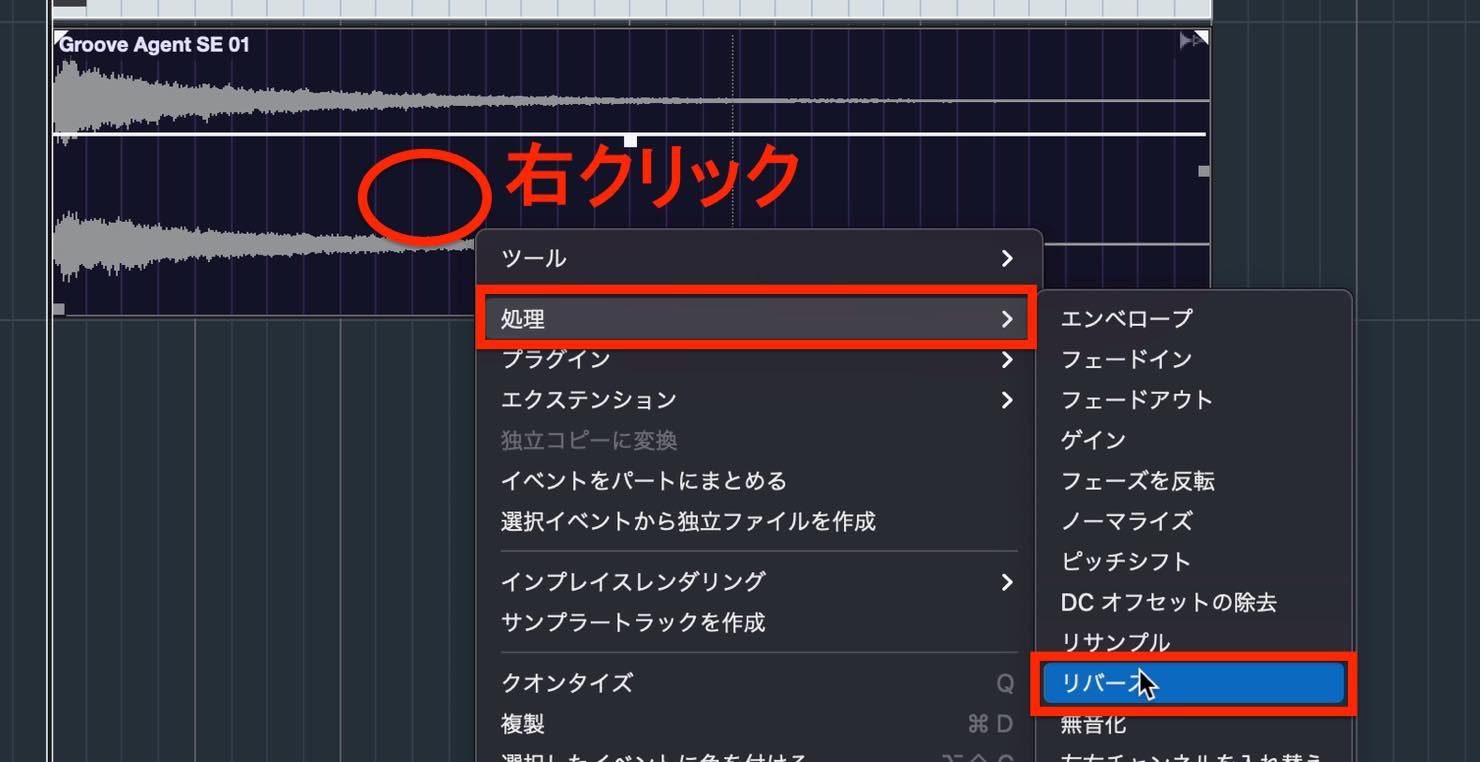
The waveform is reversed, as shown here.
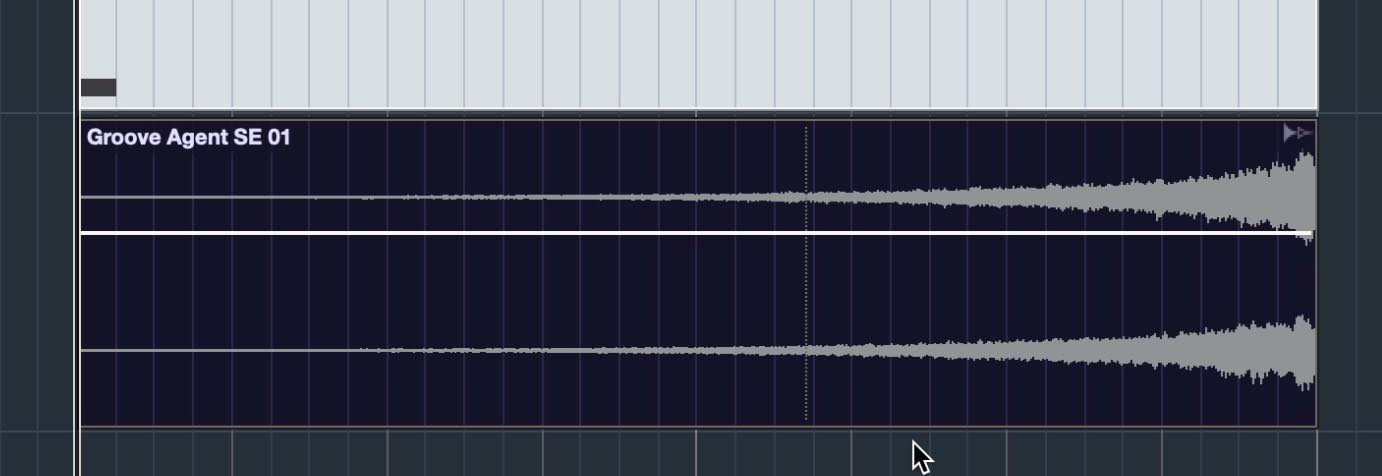
Trim the event or add fades as needed to make it easier to use.
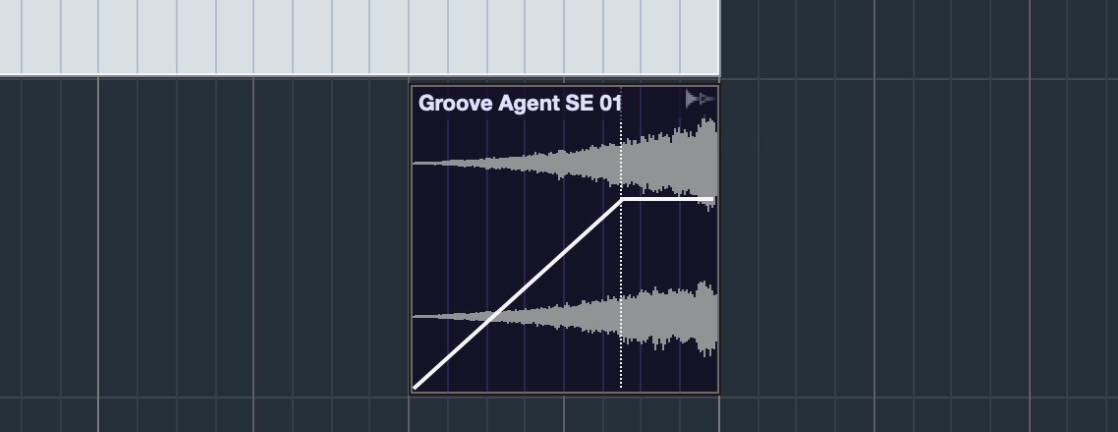
A reversed cymbal is often used to build excitement before a chorus, or timed to lead into a stop or accent in the arrangement.
In this lesson, we explored a variety of audio editing techniques.
These skills are valuable not only for live recordings, but also when editing rendered audio and samples, so be sure to learn them.
Next time, we will continue working with audio and introduce VariAudio, mainly for editing vocal pitch.
Lesson 12 of our Cubase 11 Beginner Course covers editing audio events.
Learn how to tidy up audio and make use of processing techniques specific to audio.
Details: https://t.co/ybyQAgz3oA #DTM #Cubase— SLEEP FREAKS (@SLEEPFREAKS_DTM) September 11, 2021
Frequently Asked Questions
Q1. What is the keyboard shortcut for creating crossfades in Cubase?
Press X to create a crossfade in the area selected with the Range Selection tool. To apply crossfades to multiple events at once, hold Shift to select the relevant events, then press X.
Q2. How do I adjust an audio event's volume?
Drag the handle at the top center of the event up or down, or double-click the volume value in the Info Line to enter it directly. For more precise control over a particular section, split the event with the Split tool and adjust that section separately.
Q3. Are effects preserved when converting MIDI to audio?
Yes. Effects used on the MIDI instrument track are preserved when you convert it to audio with Render in Place. Check the processing method in Render Settings, and save the result in the project's Audio folder to simplify file management.
NEW ARTICLES
Latest English Articles












































































































































