
Mixed In Key's Satellite Plugins 2.0 is a music production collaboration tool introduced as completely free for Mac and Windows. It lets multiple users work together across different DAWs, including Logic, Cubase, and Ableton Live. Session hosts can assign different permissions, while audio and MIDI sharing help musicians collaborate remotely. This tutorial describes the setup and workflow demonstrated in the original 2021 article; availability and version-specific behavior refer to that period.
An Innovative Free Music Production Collaboration Service
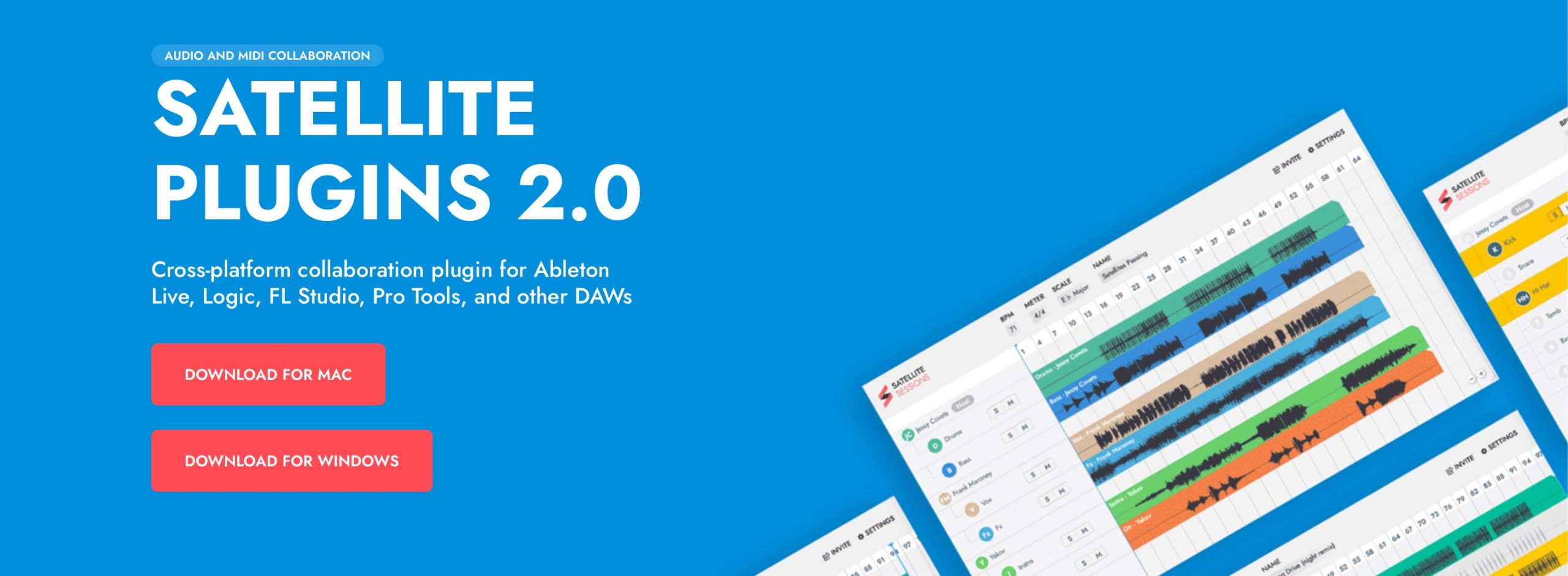
Mixed In Key released SATELLITE PLUGINS 2.0 as a new collaboration tool.
Introduced as completely free to use, it is an innovative tool for collaborative music production that works across Mac and Windows and lets musicians collaborate even when they use different DAWs.
Here, we explain SATELLITE PLUGINS 2.0 from setup through its main workflow, as demonstrated in 2021.
SATELLITE PLUGINS 2.0: Video Tutorial
Selected Questions and Answers from YouTube

Hello, and apologies for the unexpected question. I work in music production. If we use Satellite Plugins 2.0 with Logic Pro X as the main DAW and Windows Pro Tools Ultimate at the other end, both using Synthogy Ivory II, will half-pedal MIDI data be shared exactly? Only the Logic Pro X side uses a KAWAI VPC1 master keyboard. When I email MIDI data and the other person imports it into their DAW, the half-pedal data ends up completely different. They handle further editing through mastering, so I have resorted to changing to another manufacturer's pedal and playing without half-pedaling, or with a less precise response. As a pianist, however, deliberately losing the VPC1's realistic concert-grand feel is frustrating, even if that is a personal preference. Can this kind of data also be shared faithfully?

At the time of the original reply, MIDI CC exchange did not appear to be supported. Until an update adds that functionality, the suggested approach is to render the MIDI performance to audio and share that audio.
SATELLITE PLUGINS 2.0: Setup
Creating an Account and Authorizing the Product
To use SATELLITE PLUGINS, install the software and register for a Mixed In Key account.
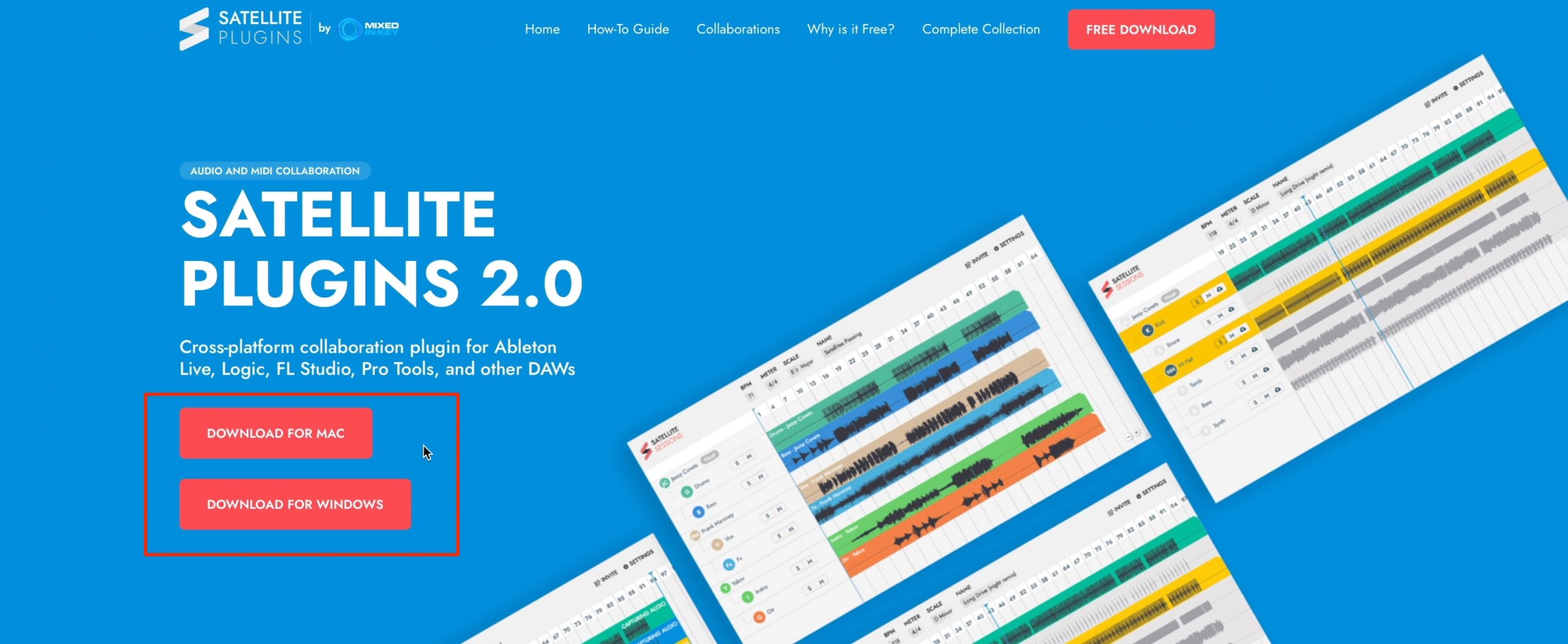
Visit the official page and download and install the SATELLITE version for your computer.
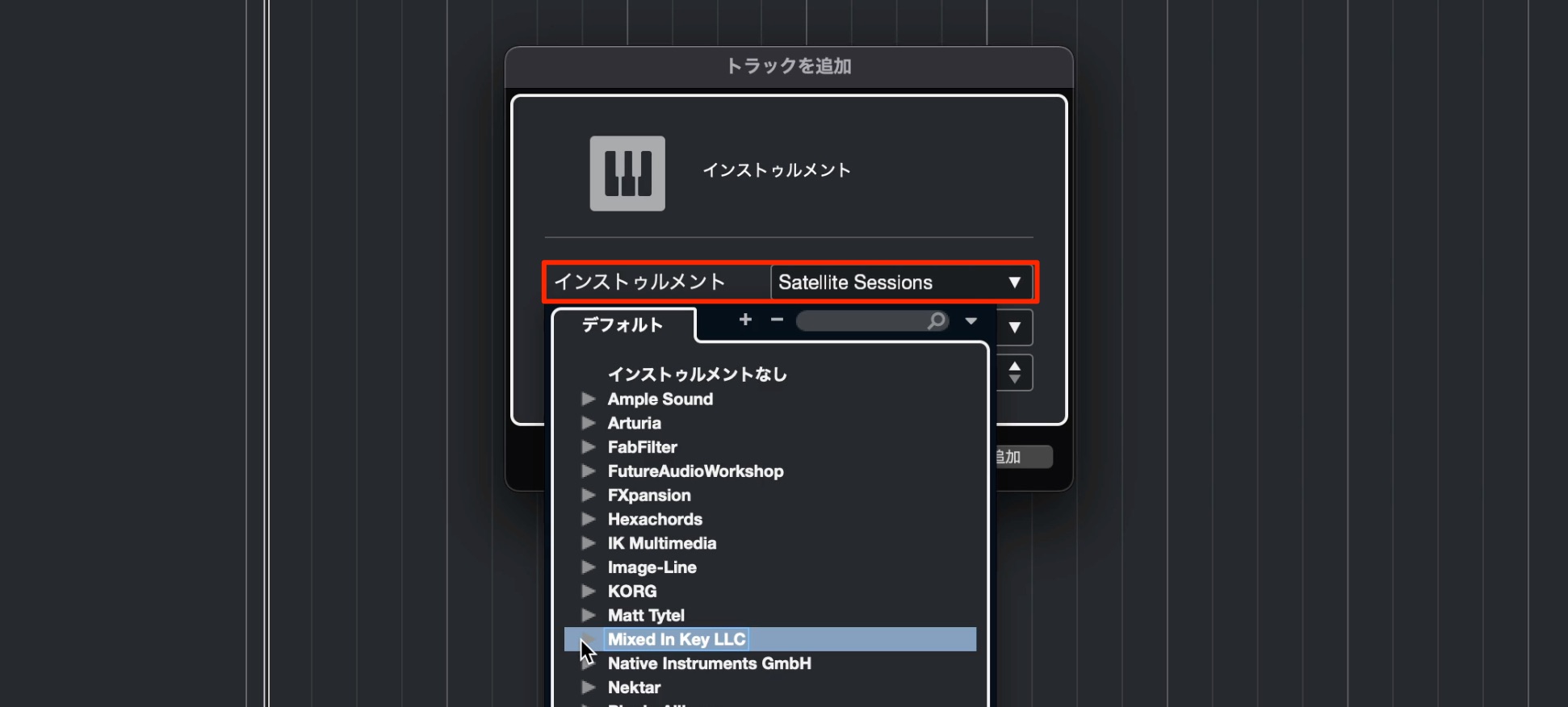
In your DAW, load Satellite Sessions on the type of track used for software instruments, such as an instrument track.
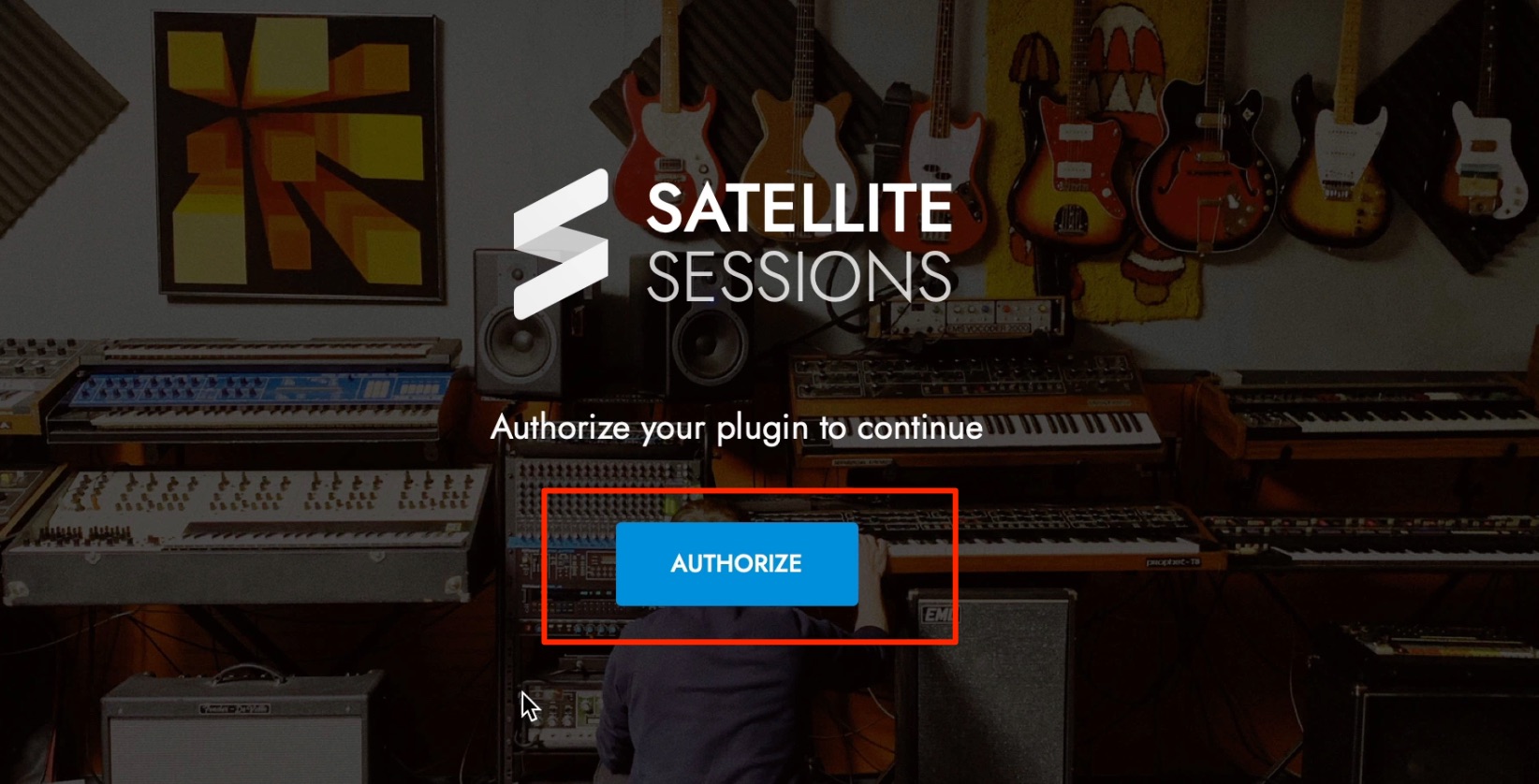
Click AUTHORIZE.
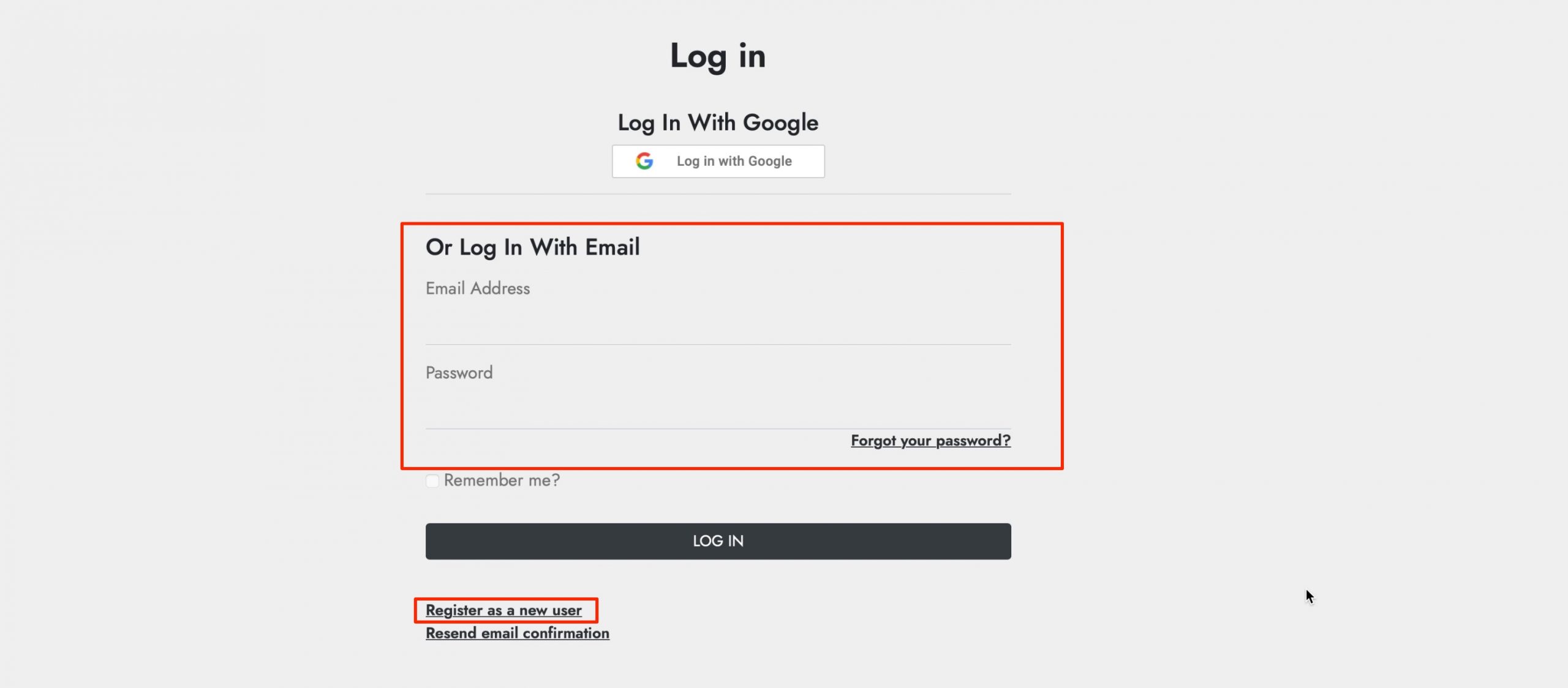
If you already have a Mixed In Key account, log in.
Otherwise, choose Register as a new user to create an account.
Here, we create a new account.
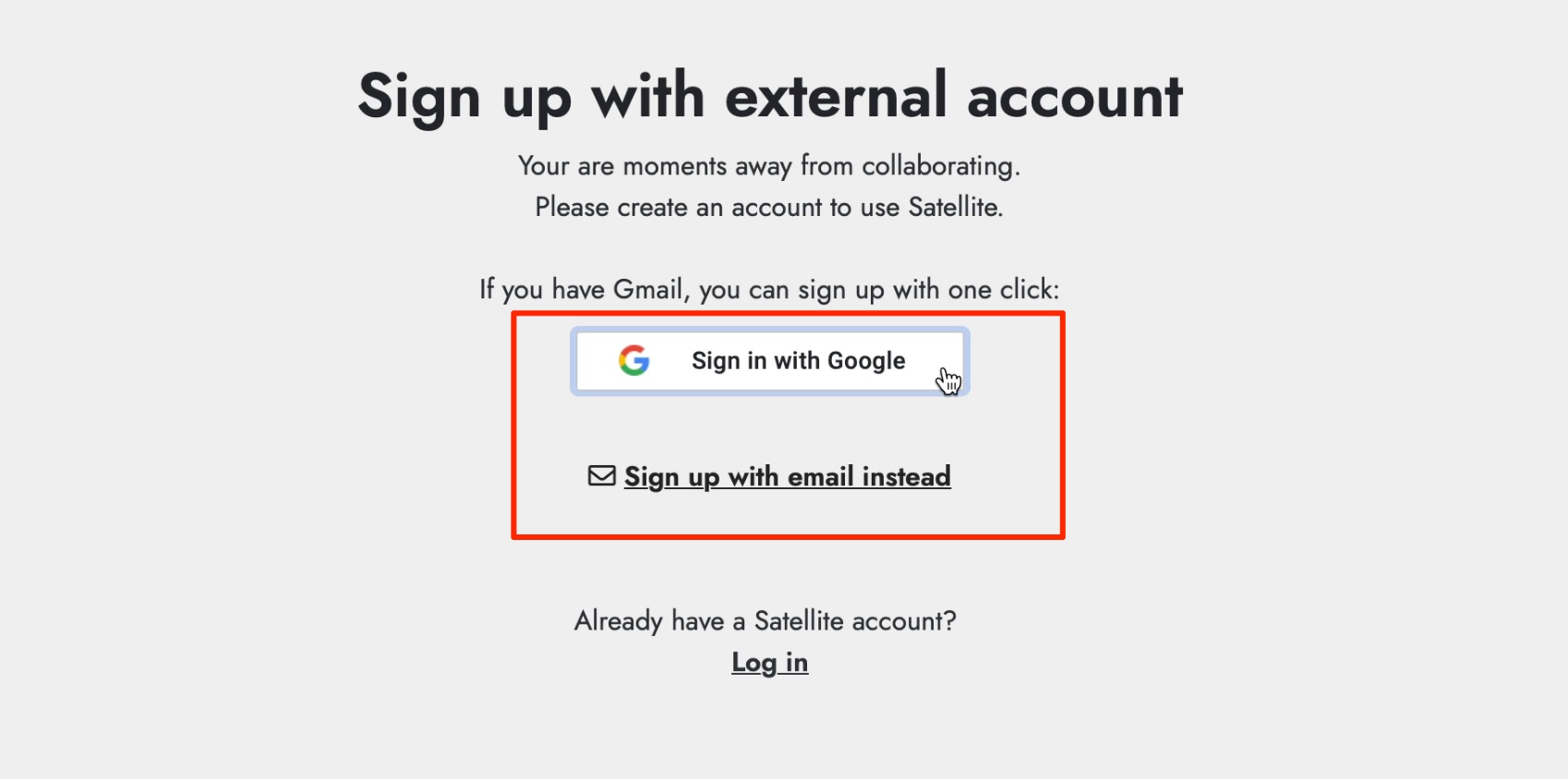
You can register using either your email address or a Google account.
In this example, we use an email address.
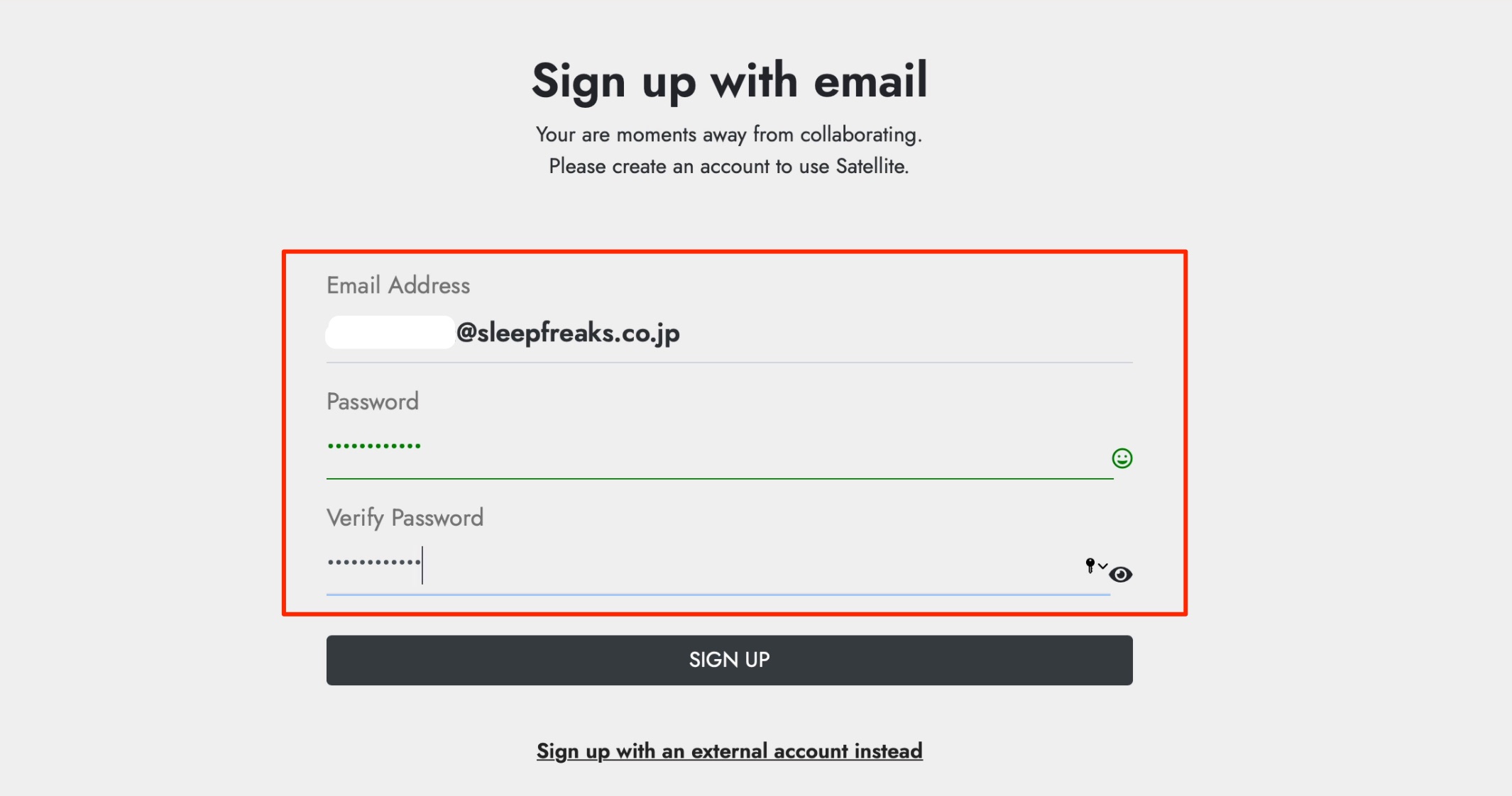
Enter your email address and a password. The requirements shown in the original tutorial are at least 12 characters, using letters, numbers, and special characters.
Enter the same password in Verify Password to confirm that you typed it correctly.
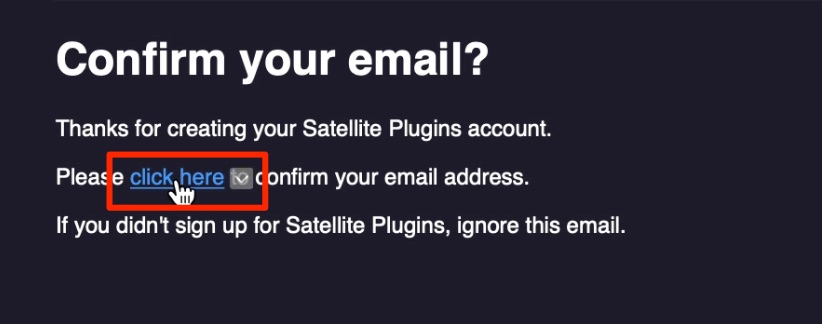
A verification email is sent to the address you entered.
Click the “click here” link in the message.
A login page opens in your browser. Log in using your email address and password.
This completes account registration and product authorization.
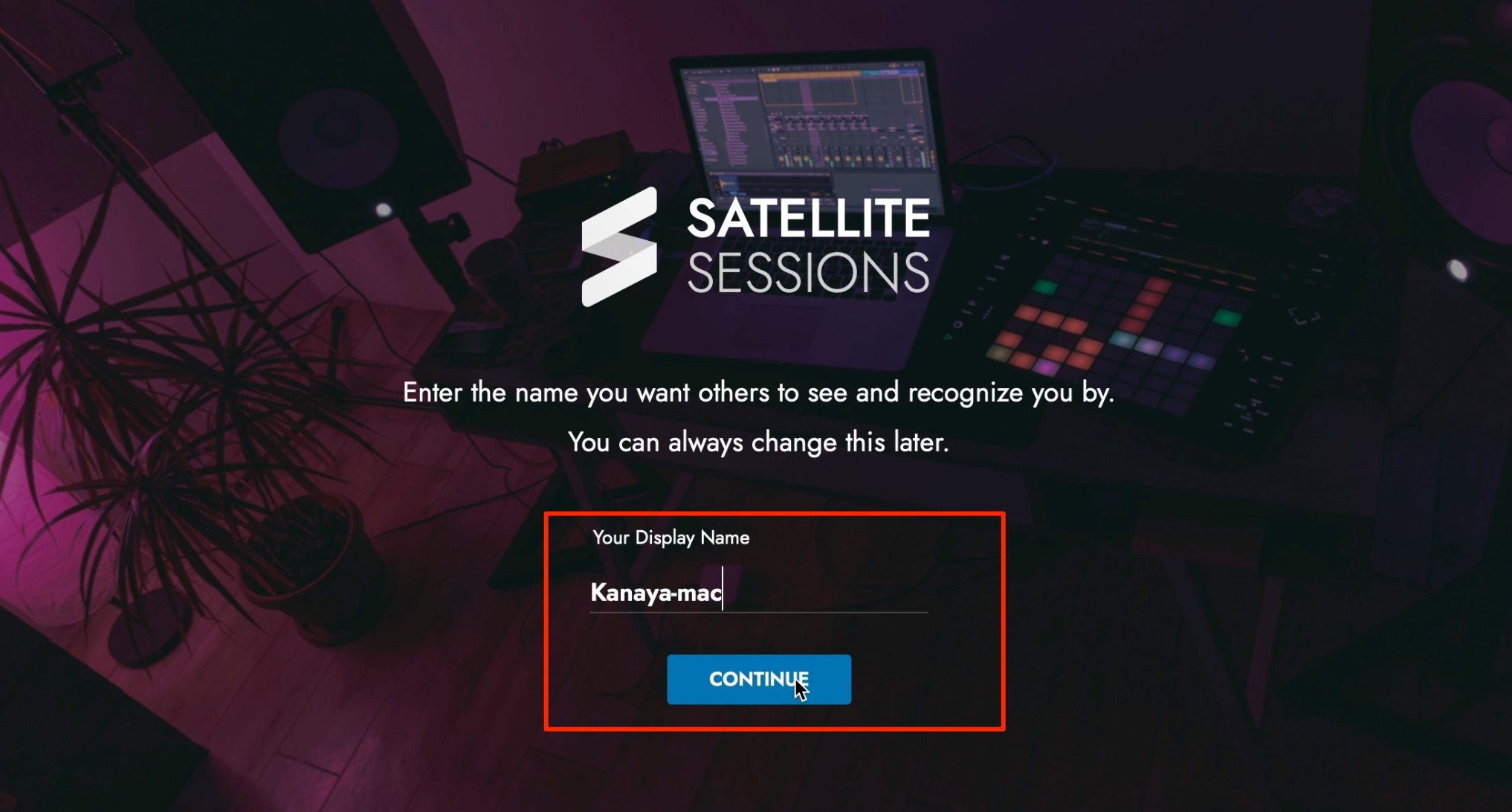
Finally, choose the name that other collaborators will see and click CONTINUE.
Launching and Setting Up SATELLITE PLUGINS
Now, let's walk through a collaboration session.
We demonstrate this with two computers: Logic on Mac and Cubase on Windows. Three or more people can also participate.
Each participant should first create an account and authorize the software as described above.
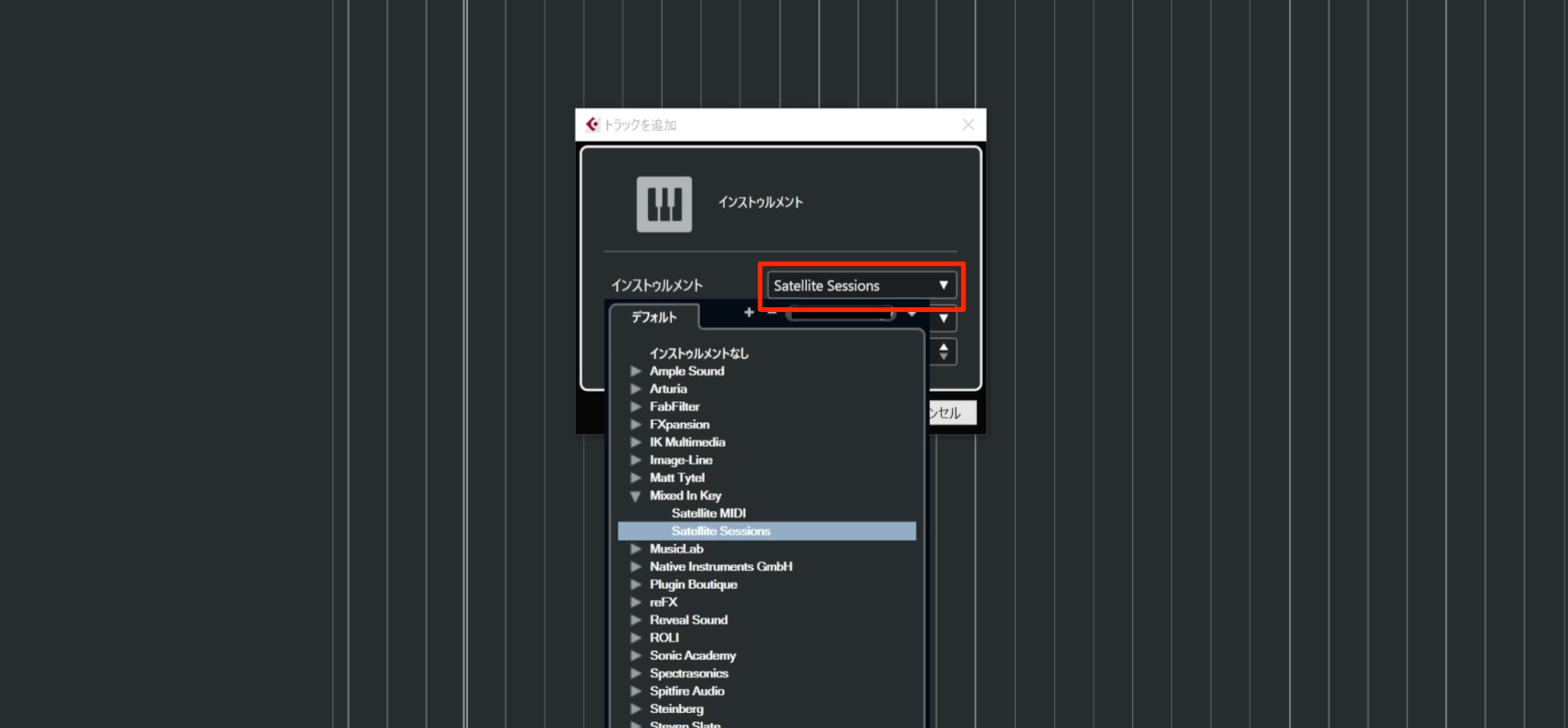
Each participant loads the Satellite Sessions plug-in in their DAW.
Use an instrument track, following the same procedure as when loading a normal software instrument.
Using Instrument Tracks
 Logic
Logic  GarageBand
  Cubase
  Ableton Live
  Studio One
  FL Studio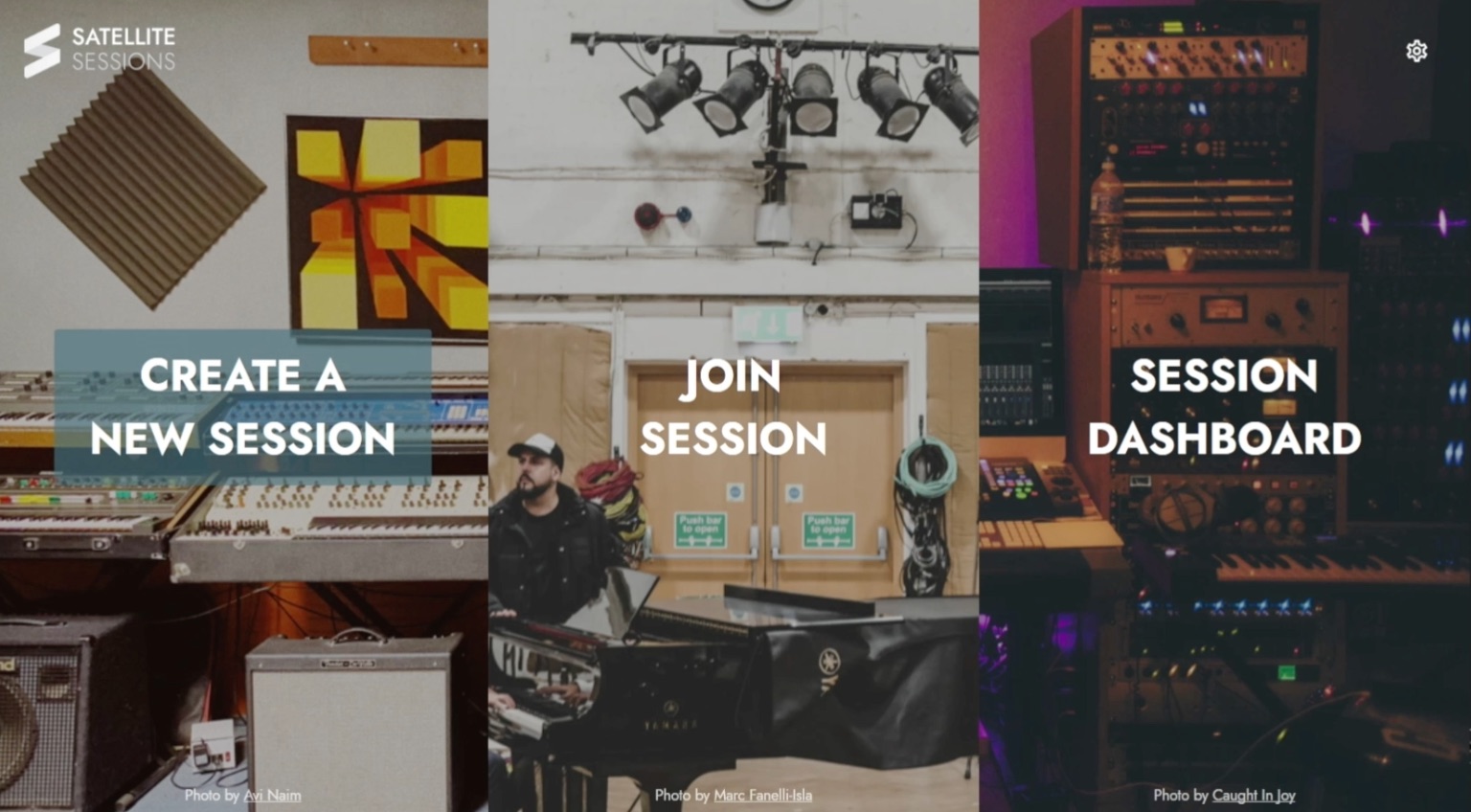
Three menu options appear when the plug-in opens.
- CREATE A NEW SESSION: One person acting as the session host creates a session.
- JOIN SESSION: Other users choose this to join the session created by the host.
- SESSION DASHBOARD: Manage sessions you have joined and try demo sessions for practice.
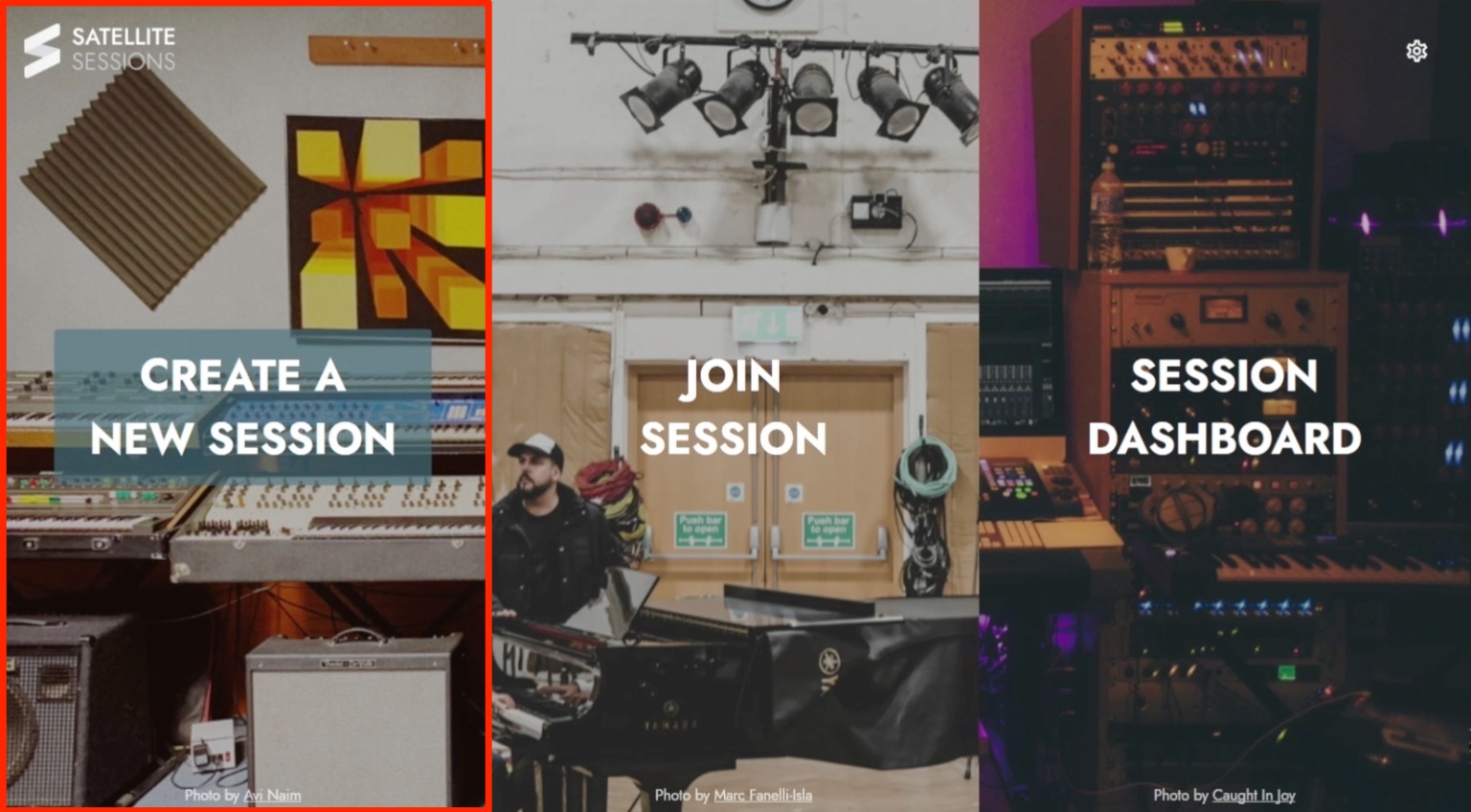
Here, we choose CREATE A NEW SESSION in Logic on Mac.
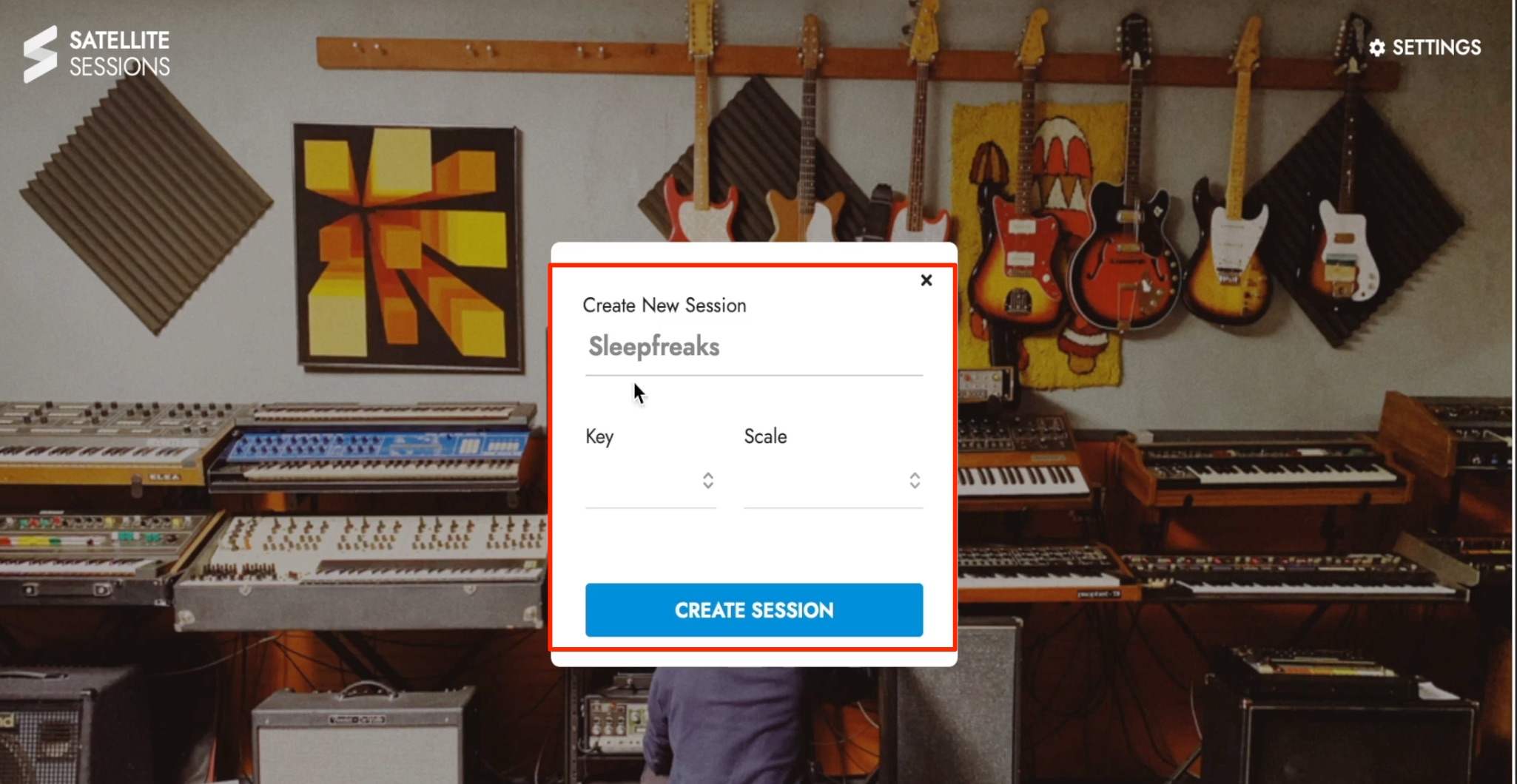
Give the session a name of your choice.
You can leave the key and scale fields blank if you do not need to specify them.
Then click CREATE SESSION.
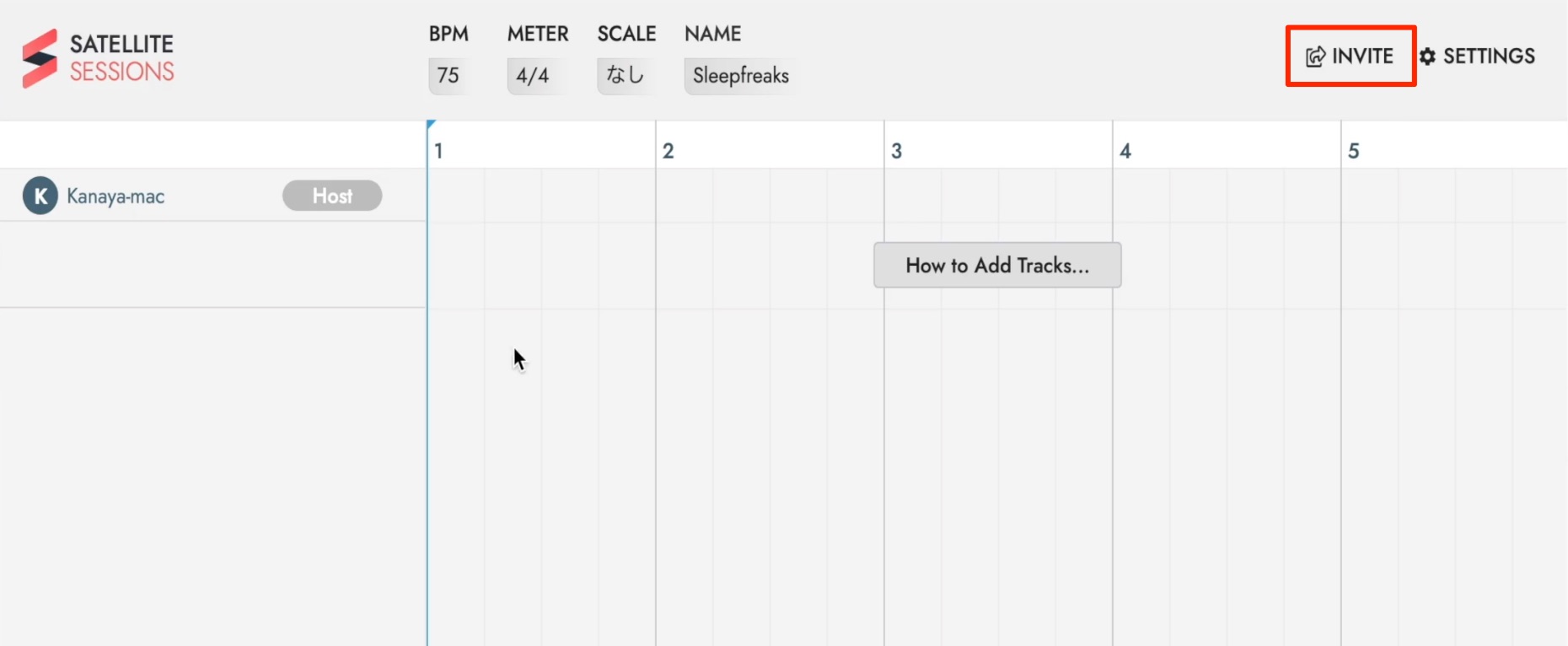
The new session opens as shown.
Click INVITE to invite other users to collaborate in this session.
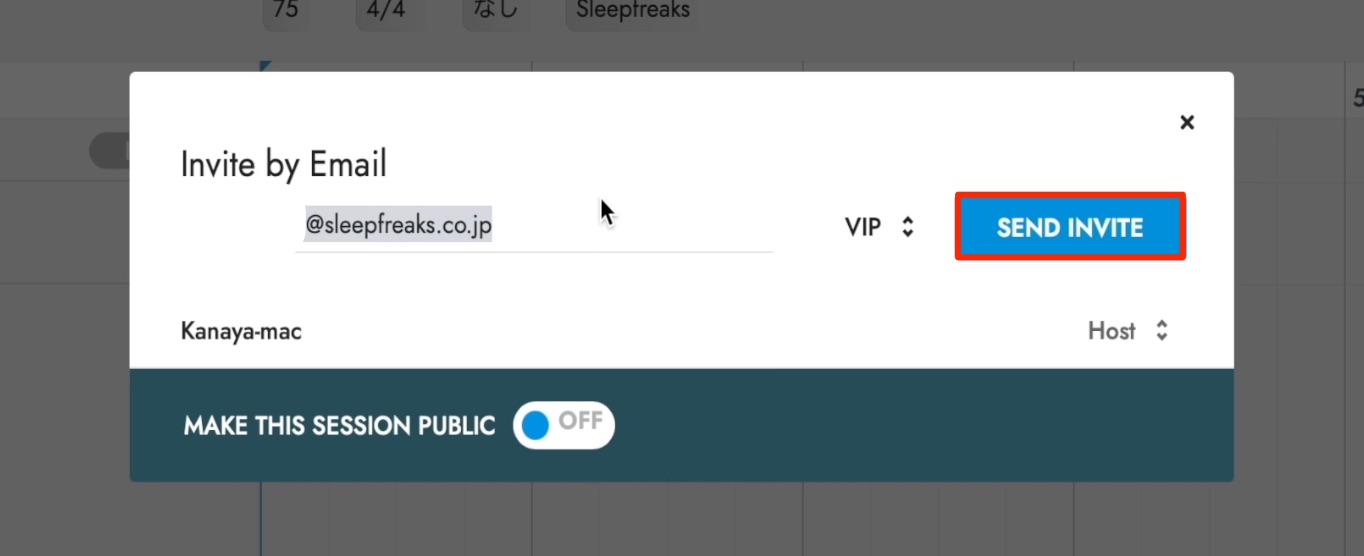
Enter the invited user's email address and click SEND INVITE.
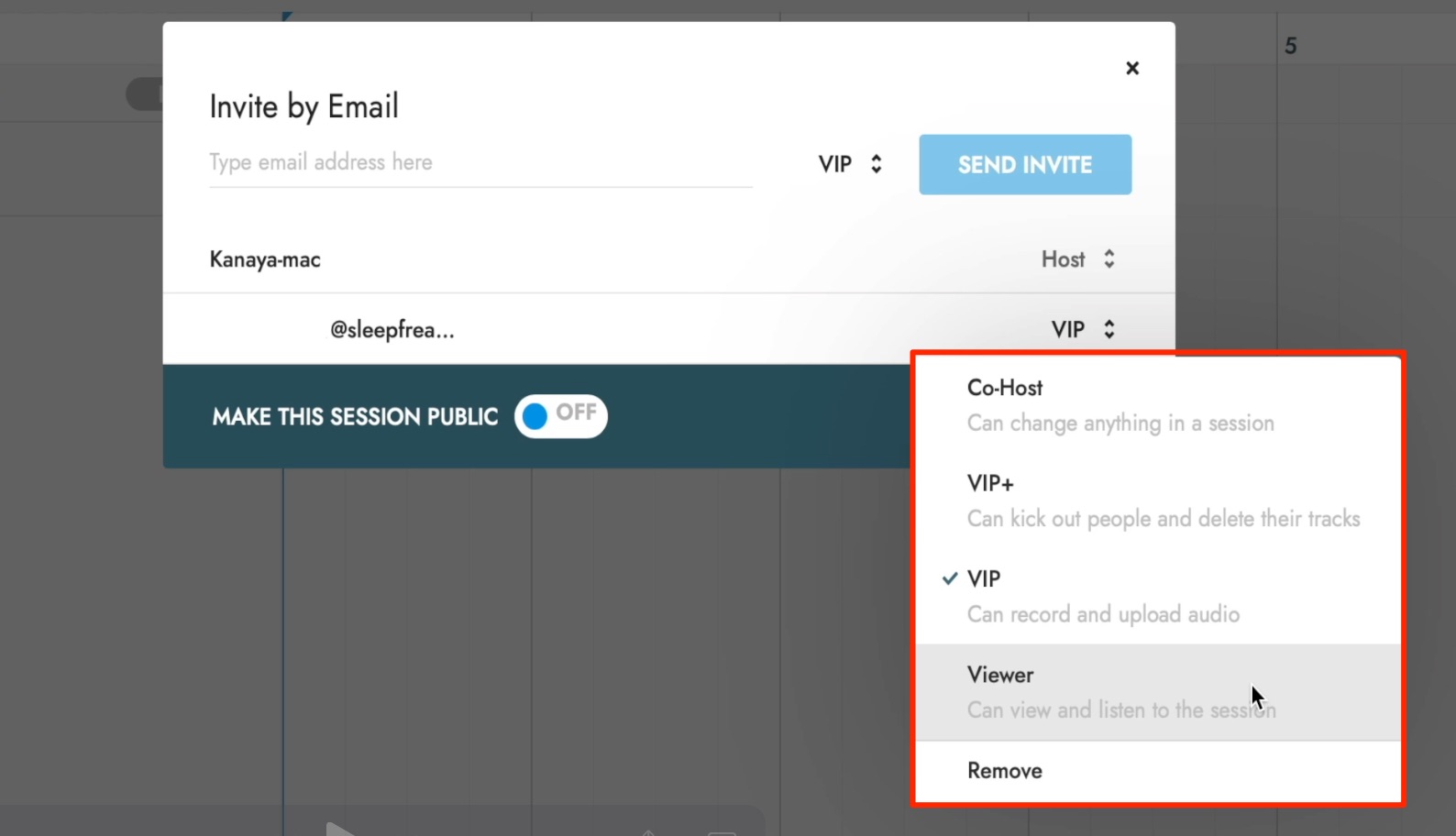
You can assign permissions to each user.
- Co-Host: Permission to make all changes.
- VIP+: Permission to upload sounds and delete tracks.
- VIP: Permission to upload sounds.
- Viewer: Permission only to view the session and listen to its sounds.
- Remove: Remove the user from the session.
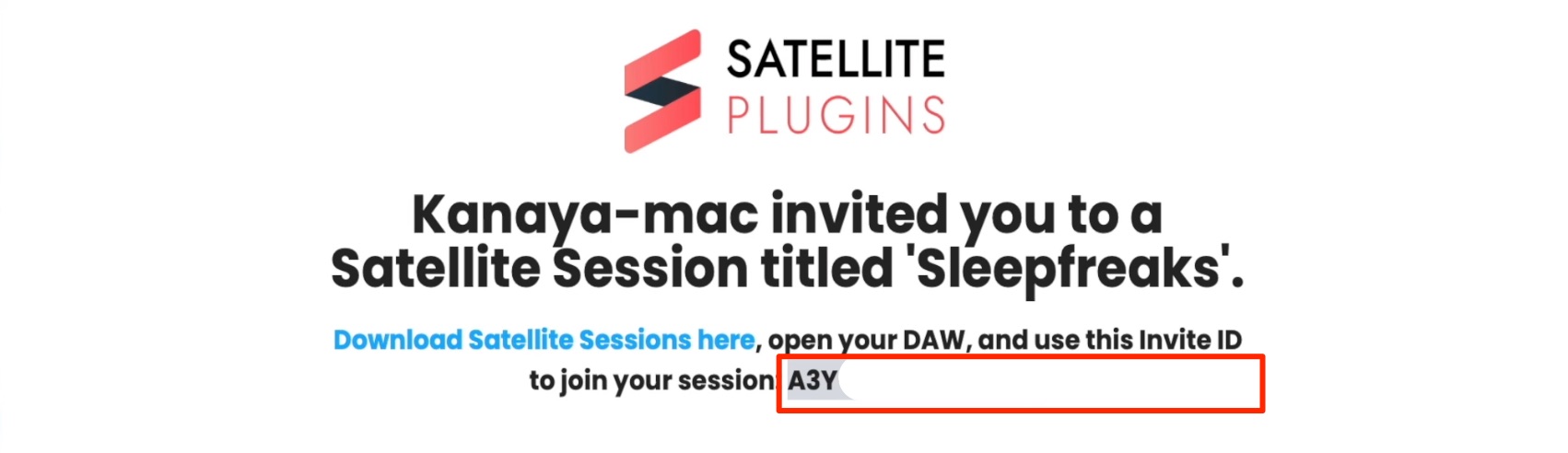
The invited user receives an email containing the session ID.
Copy this ID.
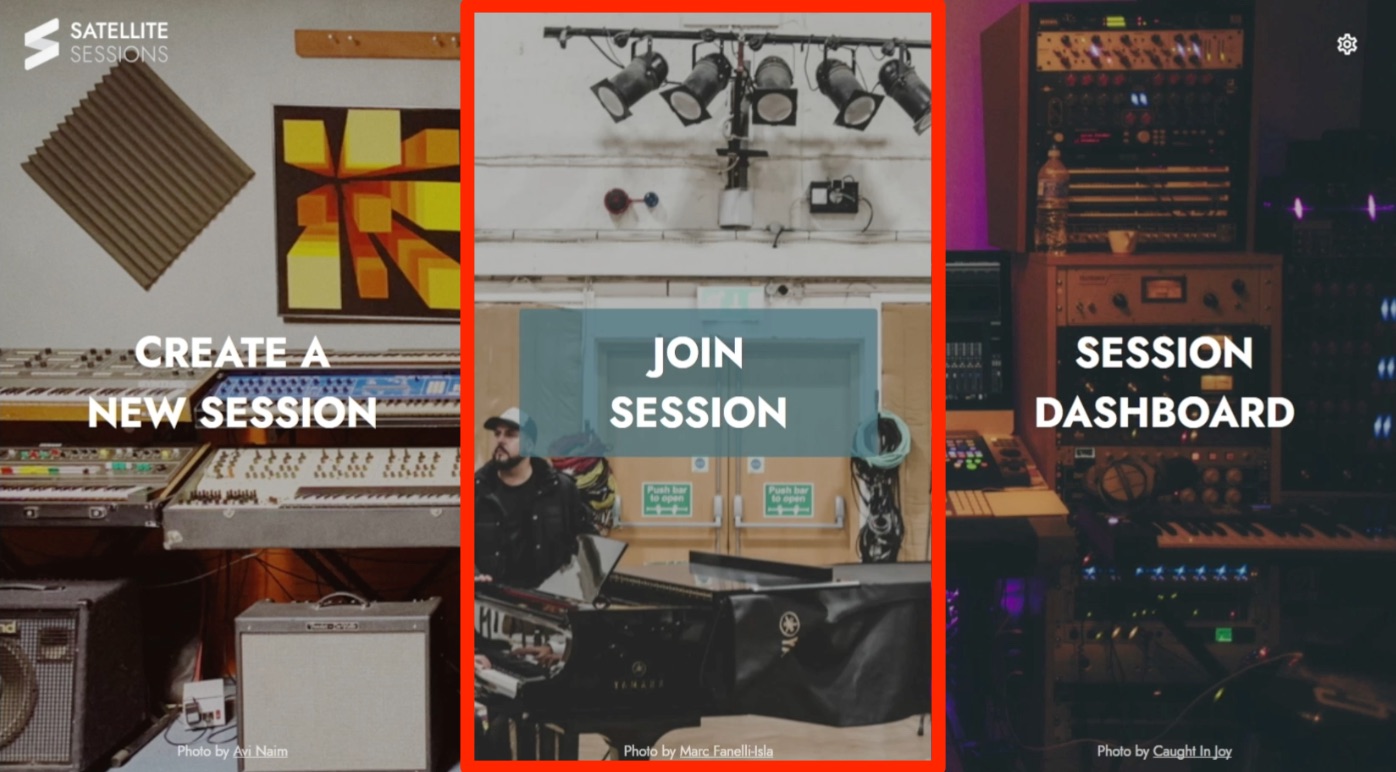
The invited user chooses JOIN SESSION in Satellite Sessions running in their own DAW.
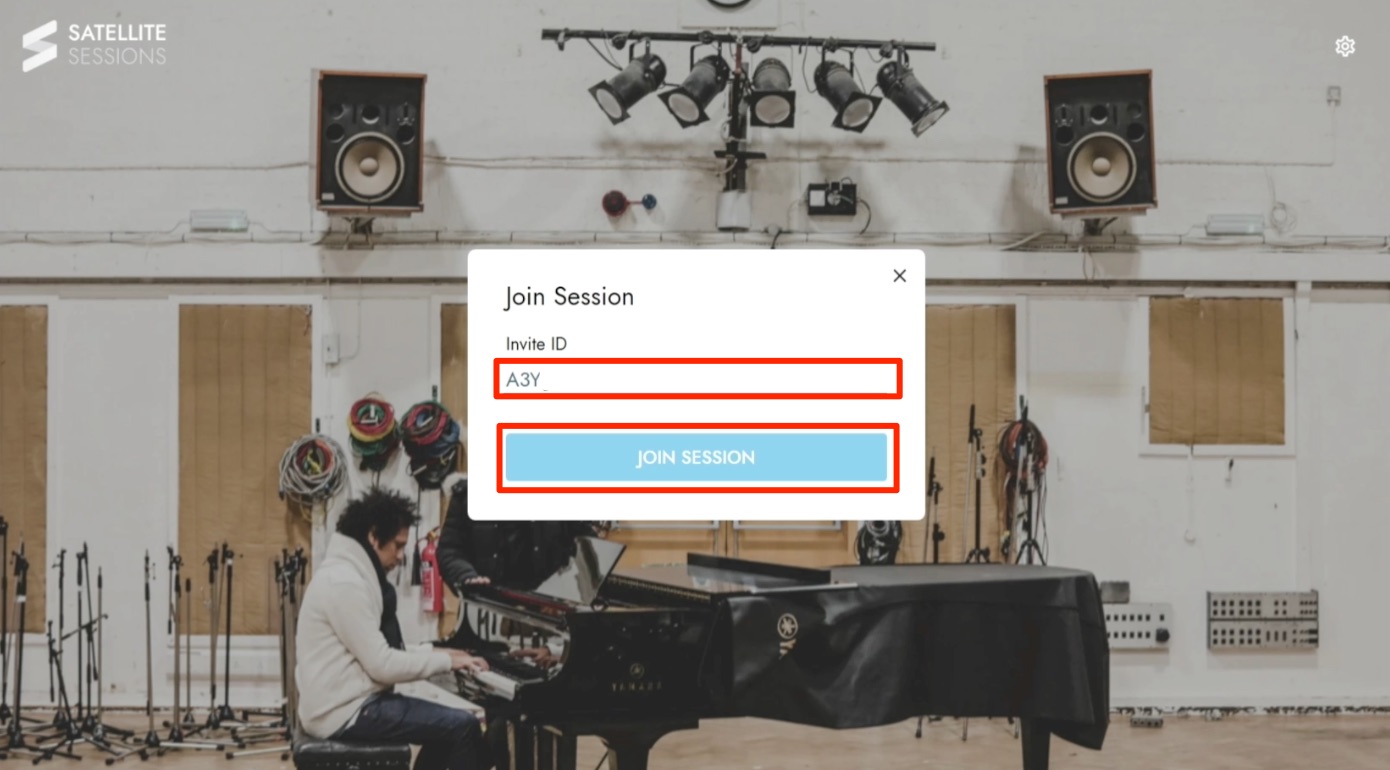
Paste the copied ID and click JOIN SESSION.
This is how multiple users join the same session.
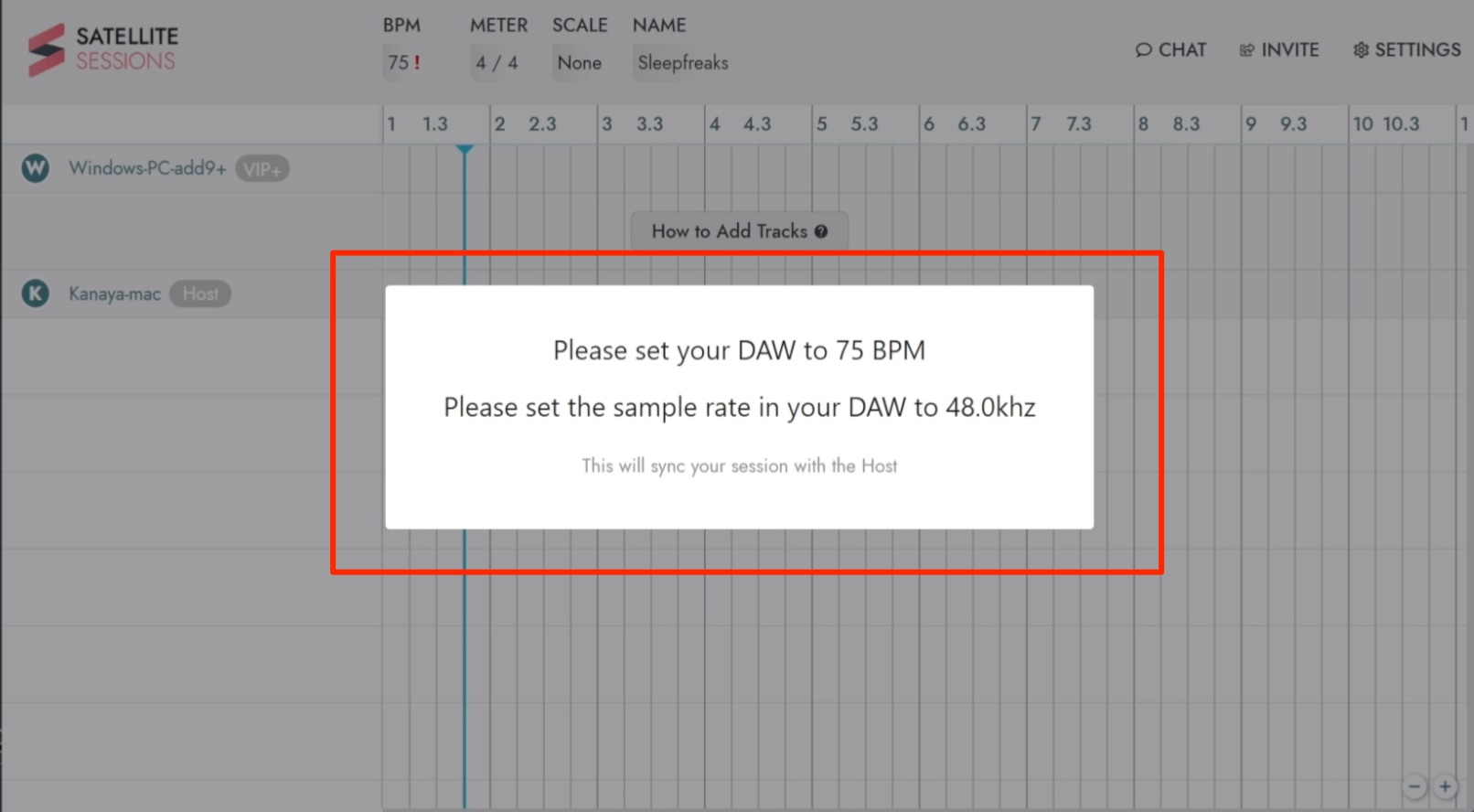
In our demonstration, this message appeared when joining the session.
To collaborate, the projects running in each DAW must use the same tempo and sample rate.
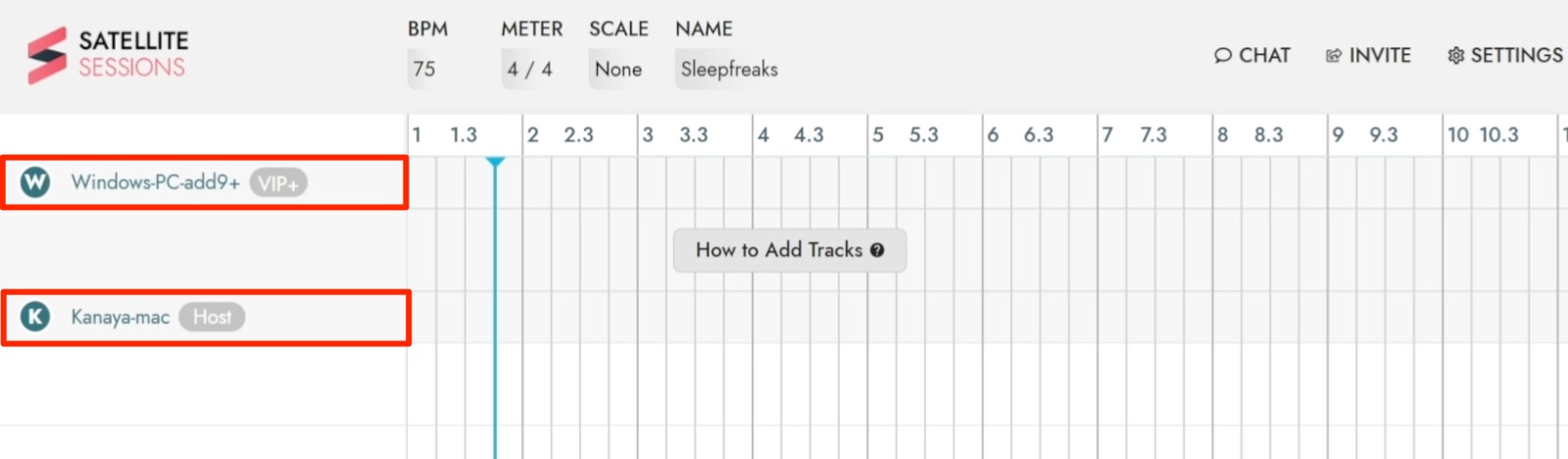
Correct those settings to begin working together.
Both users' names now appear in the session.
Changing the Tempo

Using SATELLITE PLUGINS
Next, let's look at how to use SATELLITE PLUGINS.
Audio Tracks
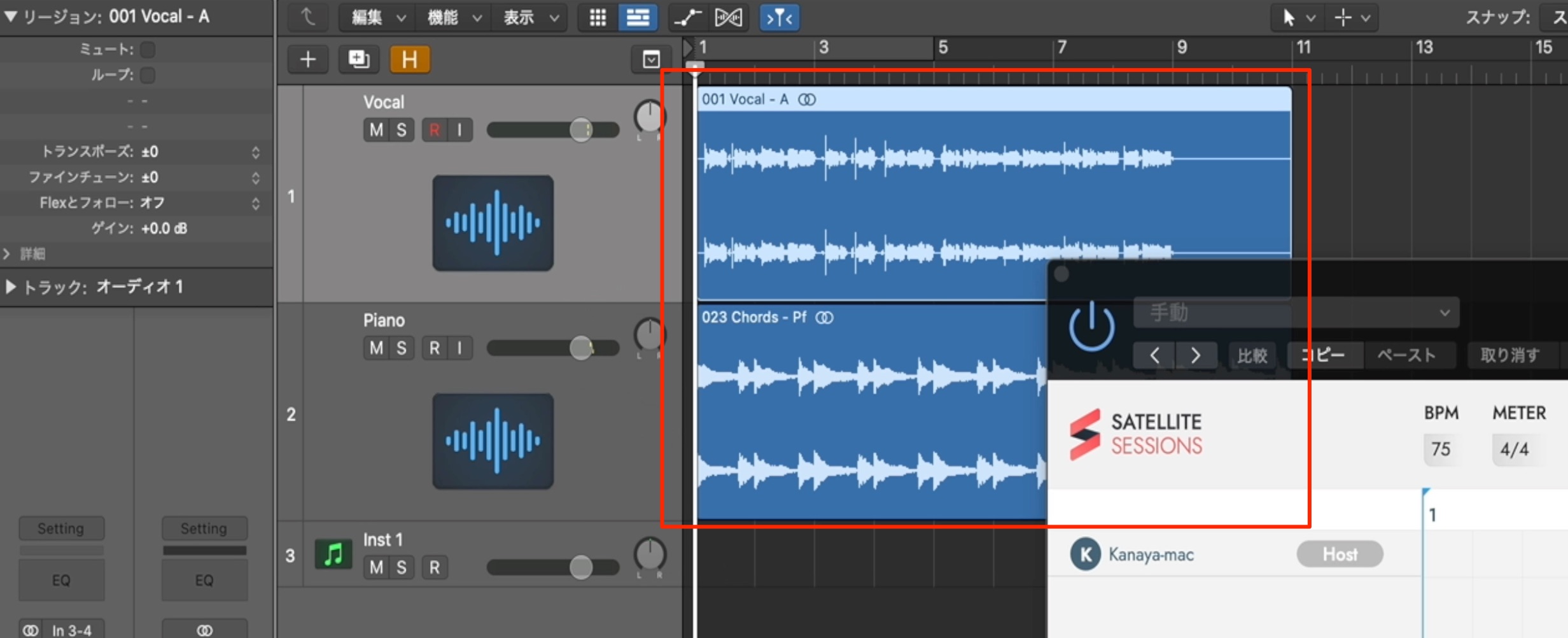
Here is how to upload audio tracks like these to Satellite Sessions and share them.
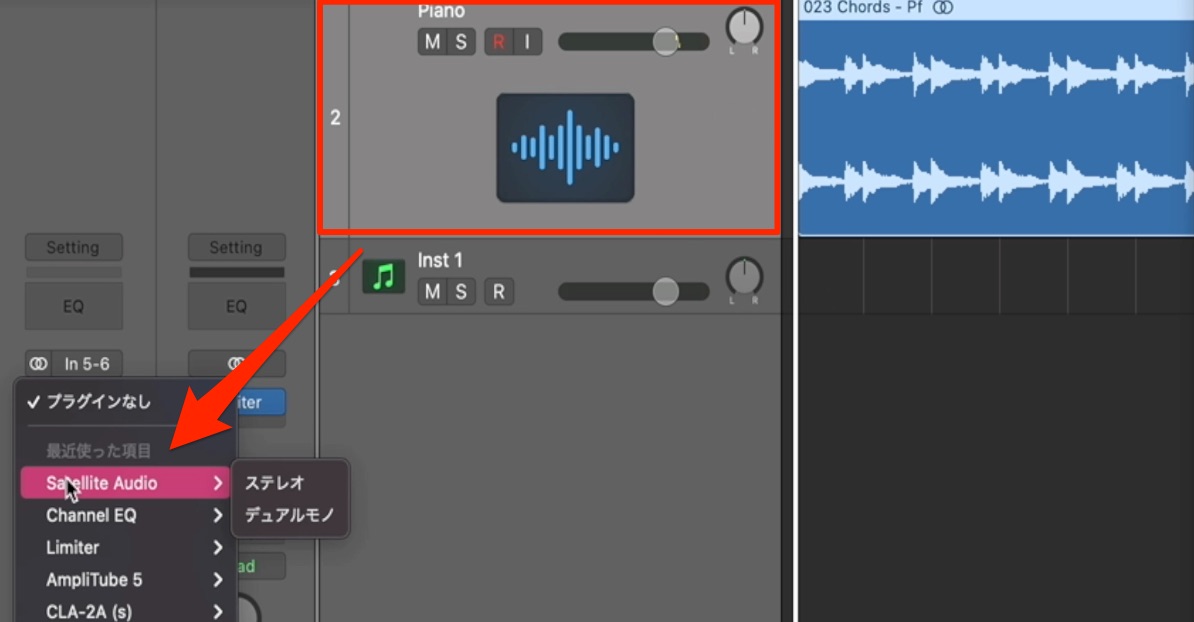
Insert Satellite Audio as an effect on the audio track.
It is inserted in the same way as an EQ or compressor.
Inserting Effects in Different DAWs
Here, we have inserted Satellite Audio on two audio tracks.
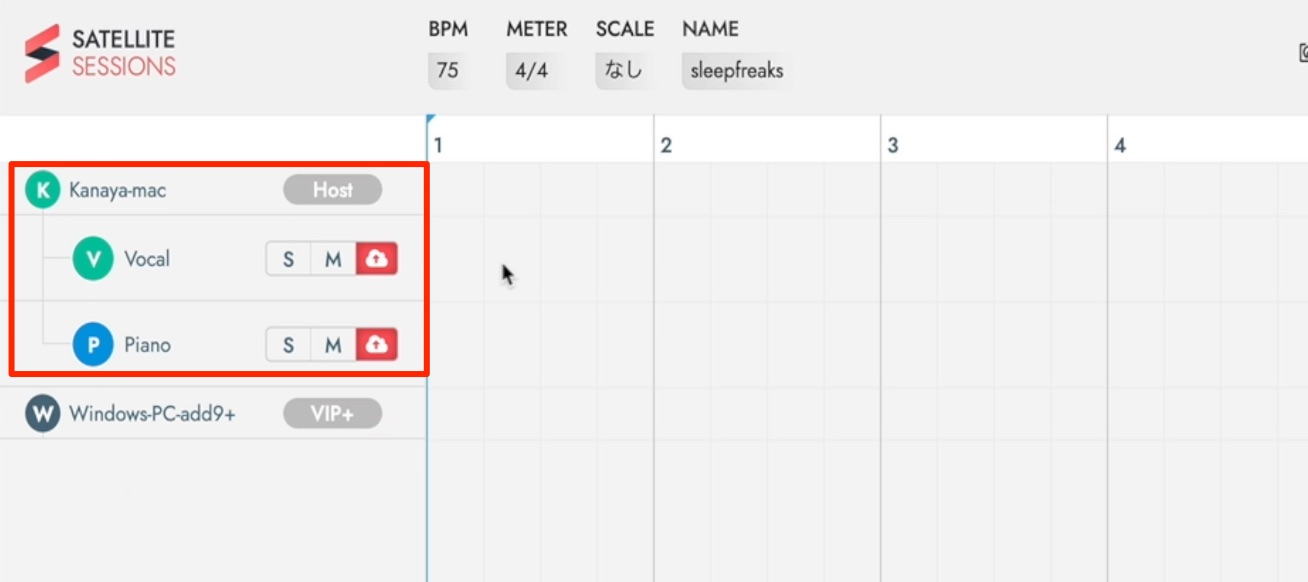
Tracks with Satellite Audio inserted appear in Satellite Sessions.
You can double-click a track name to rename it. Assigning clear names makes the session easier to navigate.
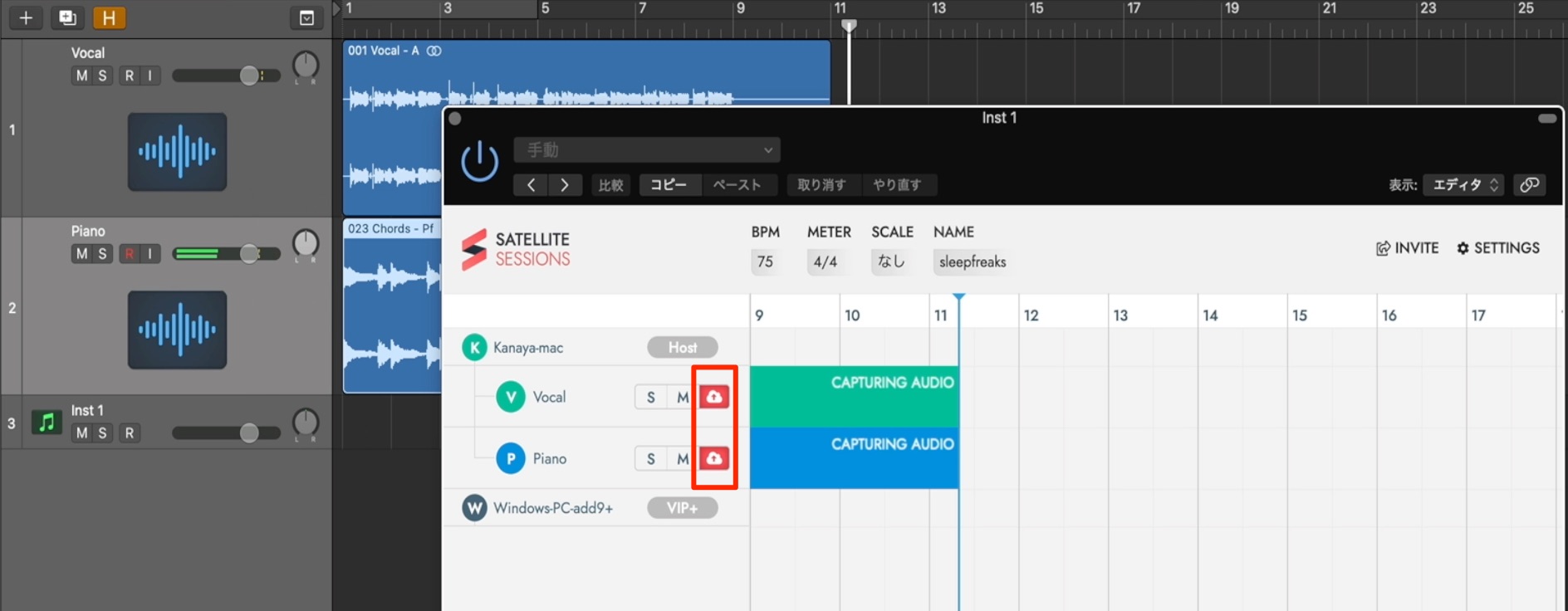
Make sure the upload button is lit for the track you want to capture, then play the desired section in your DAW.
Stop DAW playback when the section has finished.
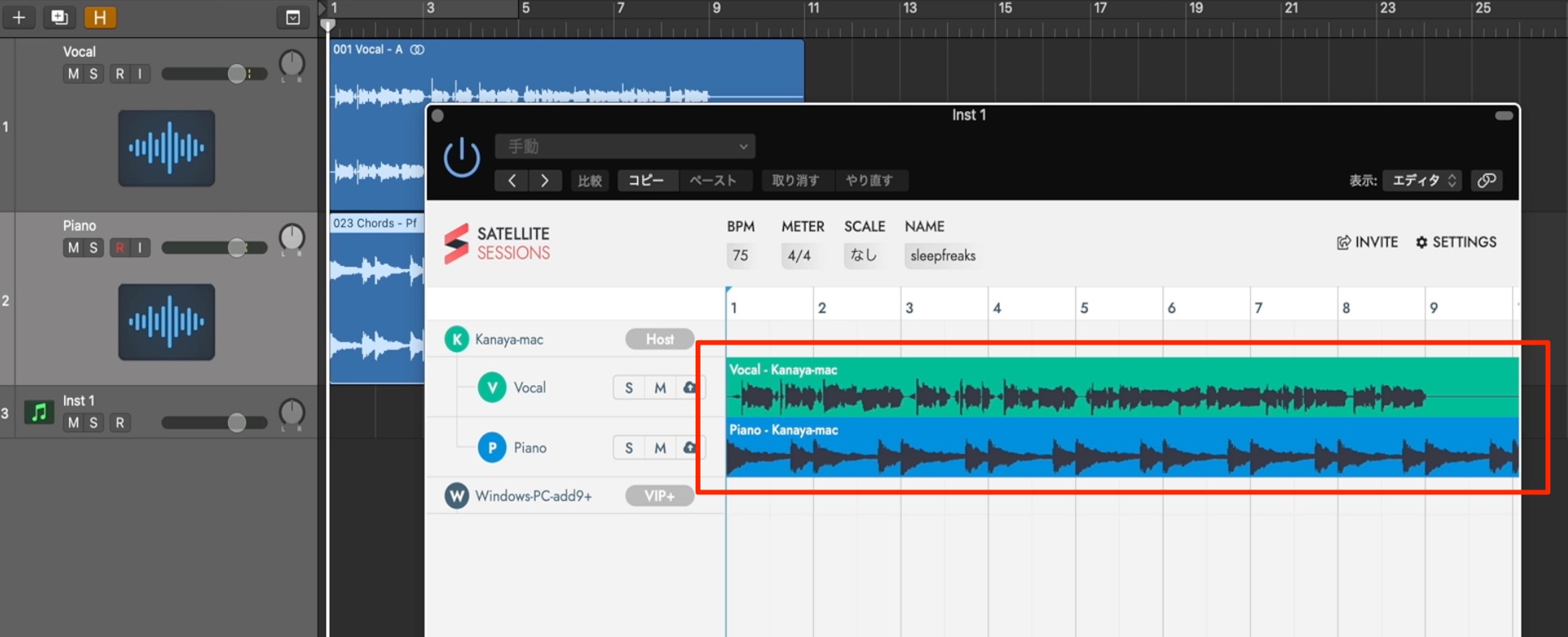
The audio you played is uploaded to Satellite Sessions.
Let's check the other computer.
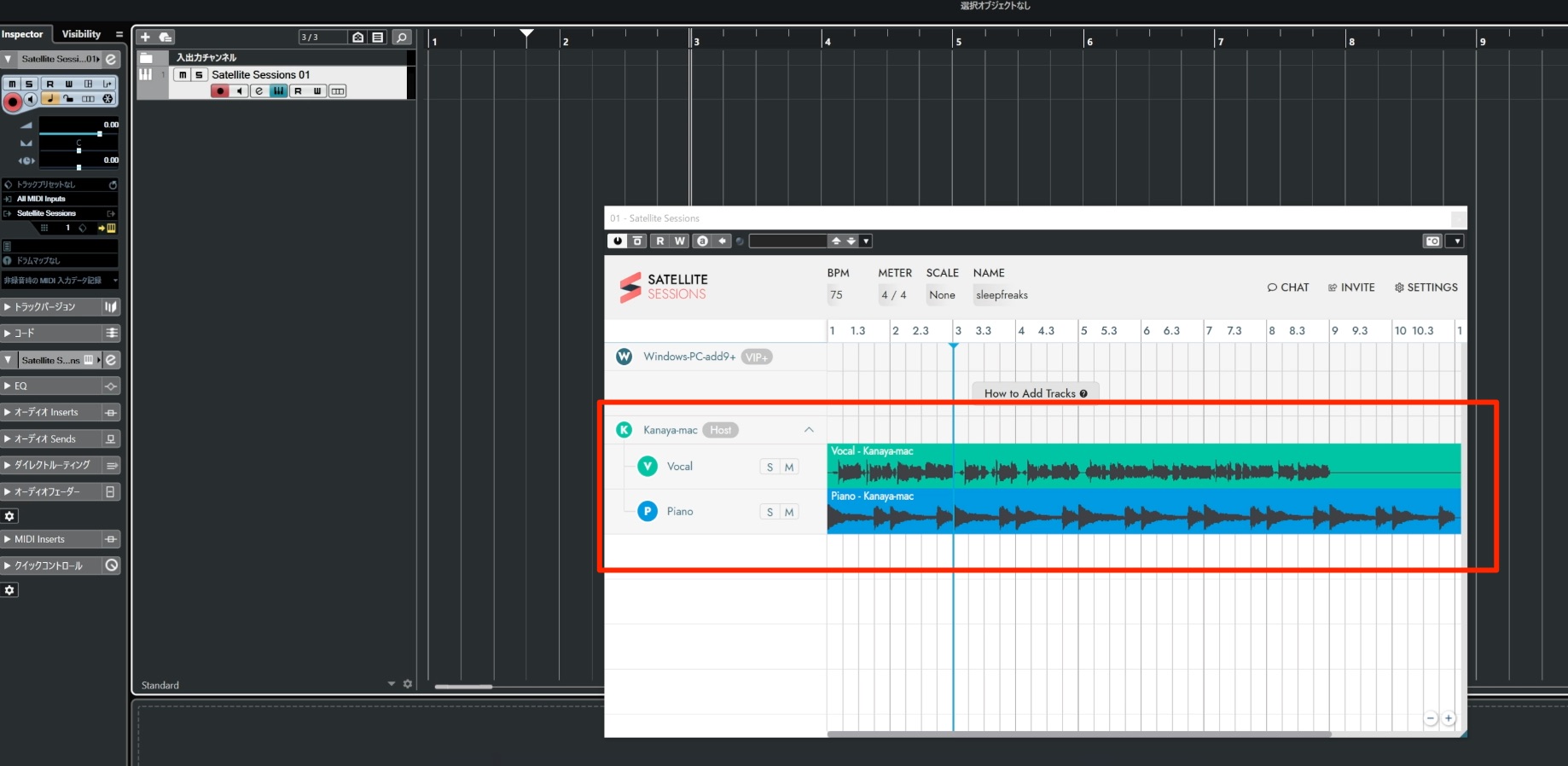
The uploaded audio appears there as expected.
When this user's DAW plays, the two tracks in Satellite Sessions play as well.
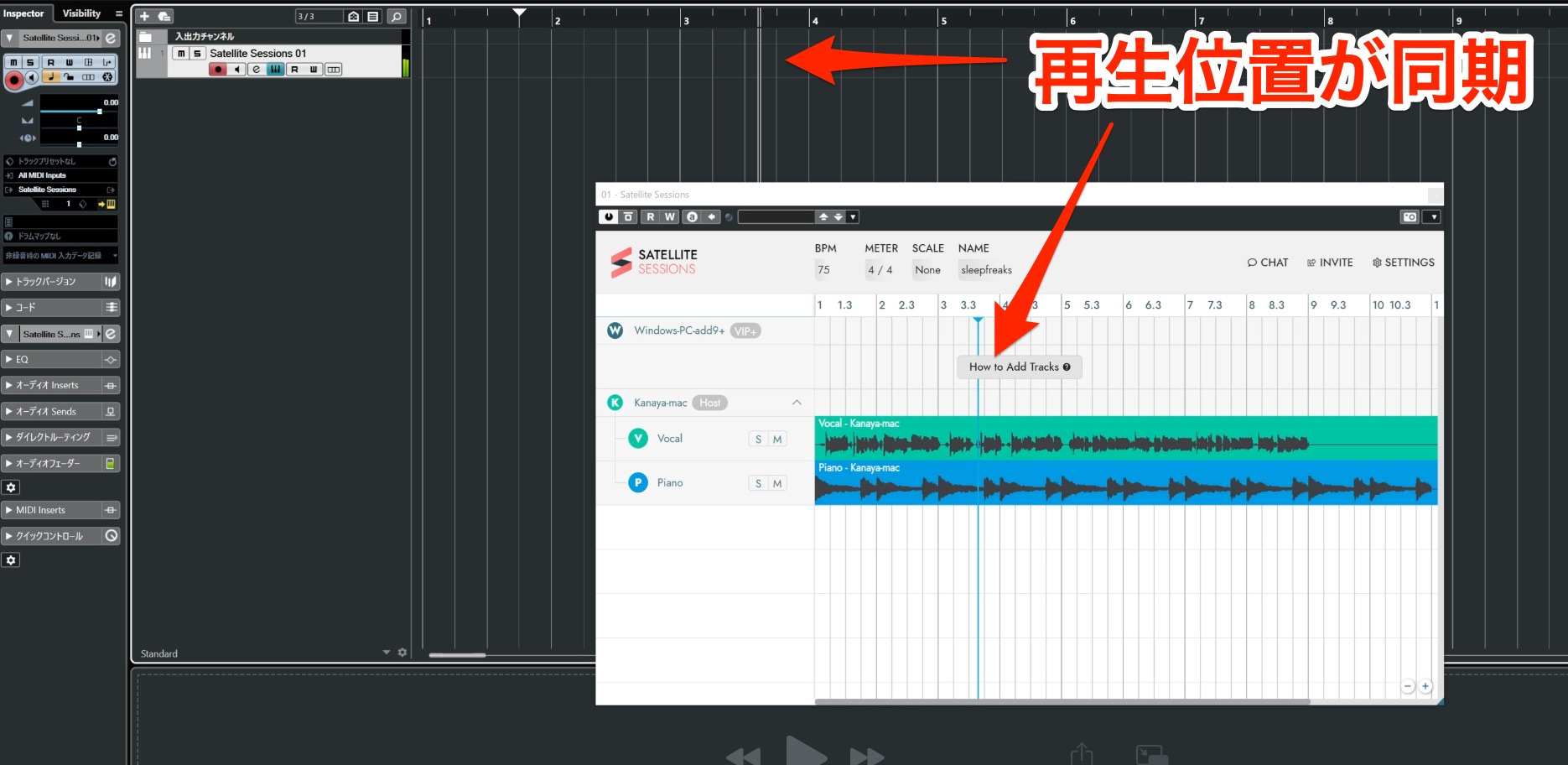
Satellite Sessions also follows the DAW's playback position.
This keeps the sounds aligned during playback.
It is a well-designed part of the workflow.
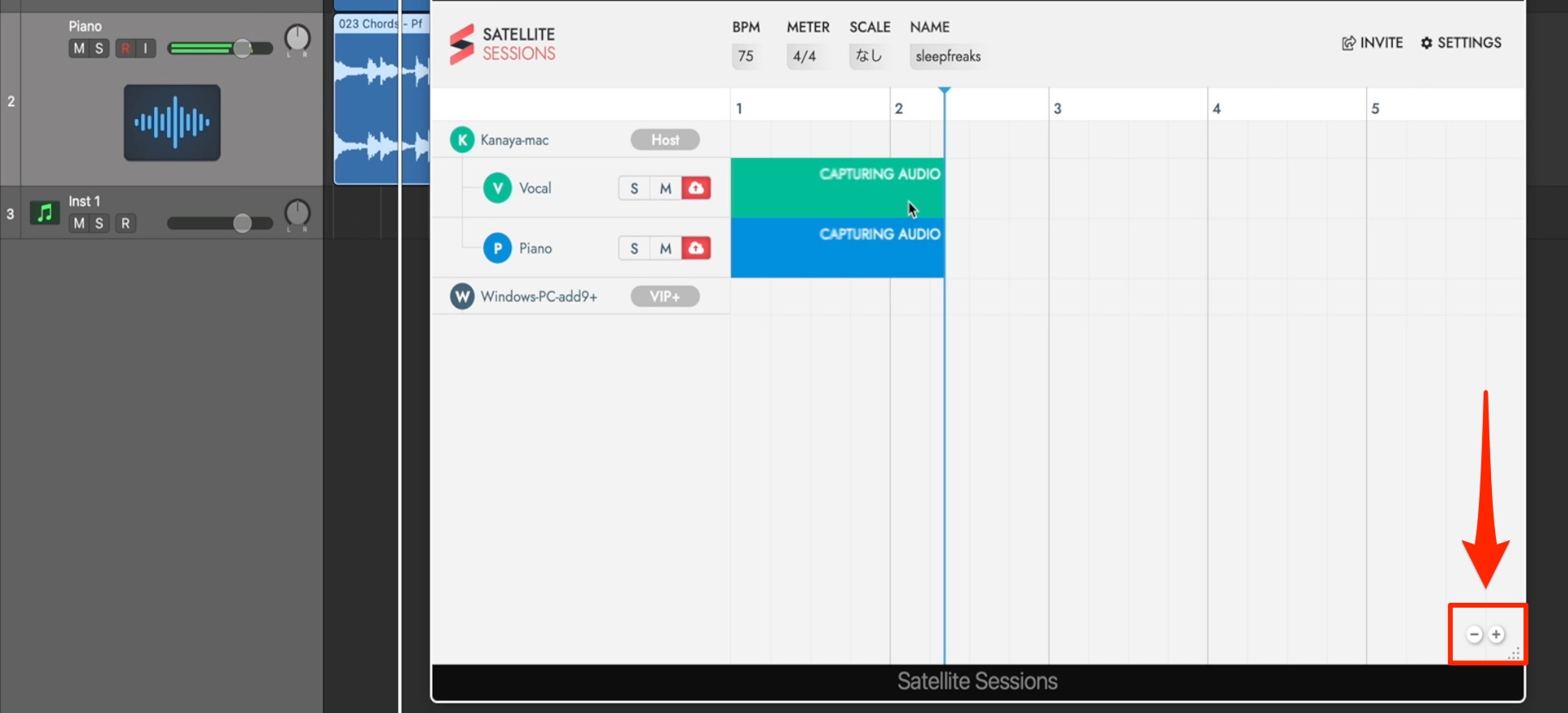
Use the zoom buttons at the lower right to zoom in or out.
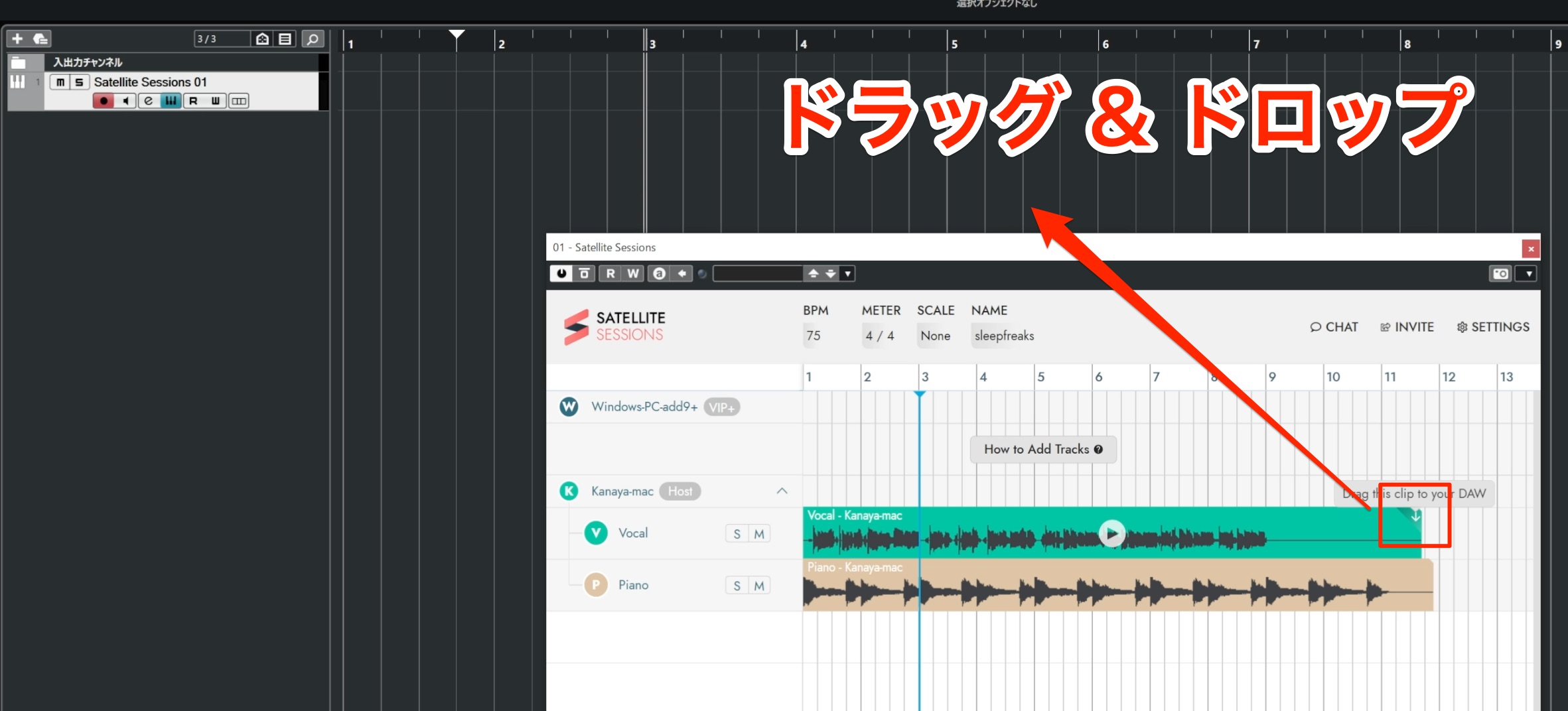
To import another user's uploaded track into your DAW, drag the arrow at the upper right of the file into the DAW. This downloads the track.
You can then revise it in your DAW and upload it again using the same procedure.
Software Instrument Tracks
You can also upload a programmed software instrument's sound as audio.
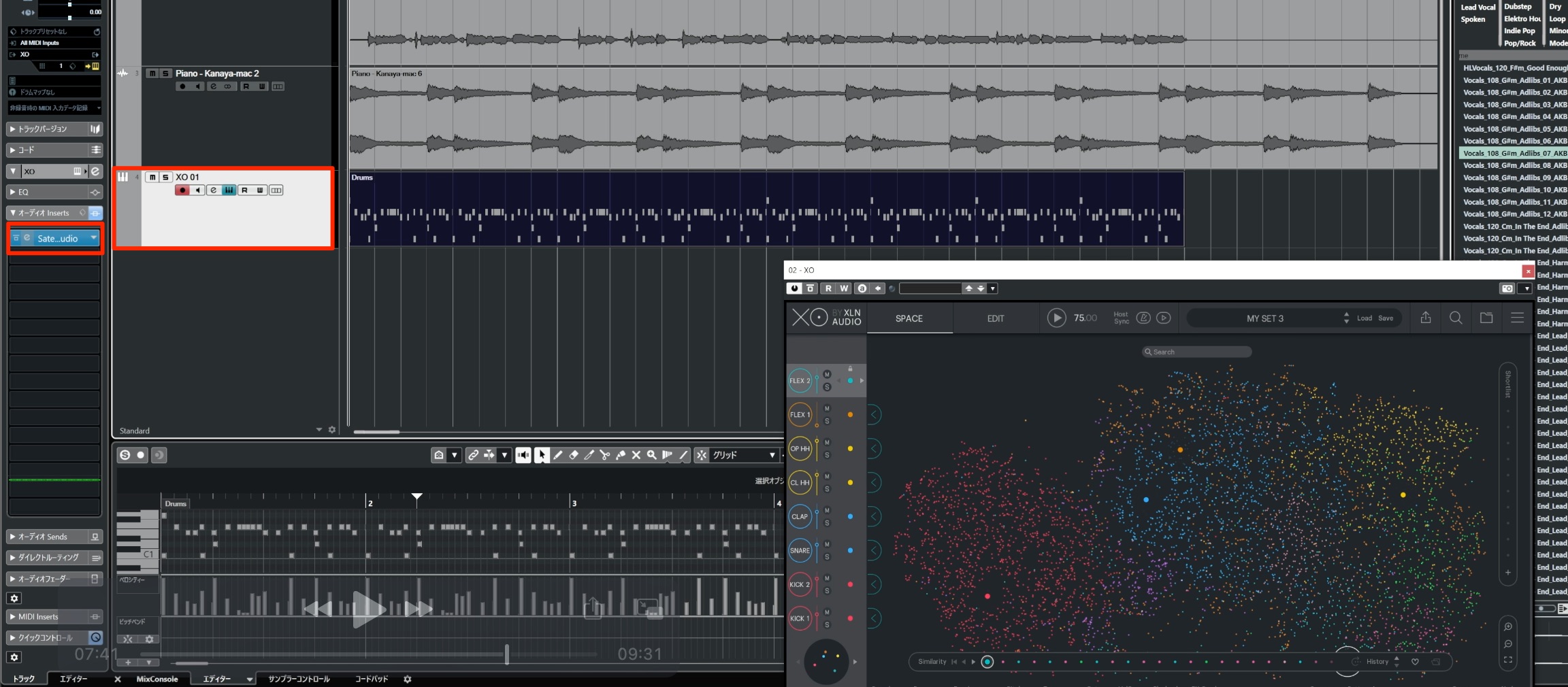
As with an audio track, insert Satellite Audio as an effect and upload the sound.
The benefit of uploading instrument tracks as audio is that not every collaborator needs to own the same software instrument. Everyone can work with the rendered sound.
MIDI Tracks
You can upload MIDI files as well as audio.
For example, this is useful when you want to
- share MIDI so someone else can choose a different instrument,
- or have another user edit the MIDI and send it back.
These are practical uses for MIDI sharing.
So far, we have inserted Satellite Audio as a track effect. To upload MIDI instead,
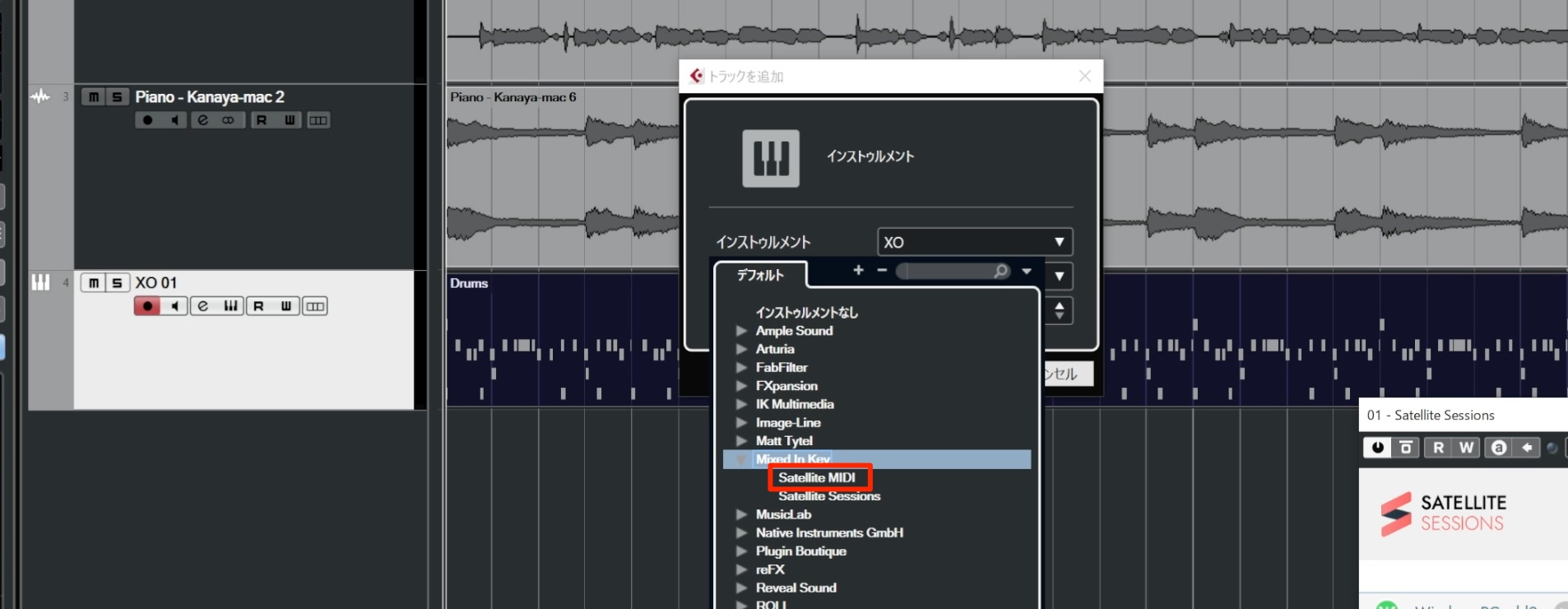
choose Satellite MIDI in the instrument slot of an instrument track—the slot where you would normally load a software instrument.
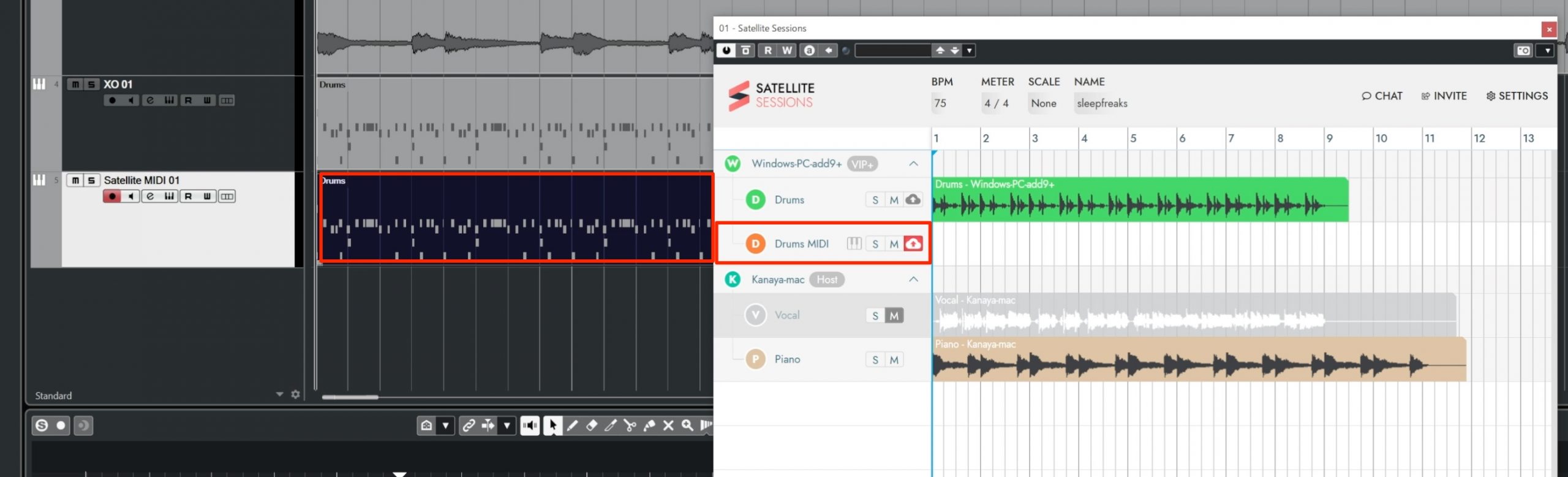
The remaining steps are the same as for uploading audio.
Enable the upload button on the MIDI track created in Satellite Sessions, then play the section you want to upload.
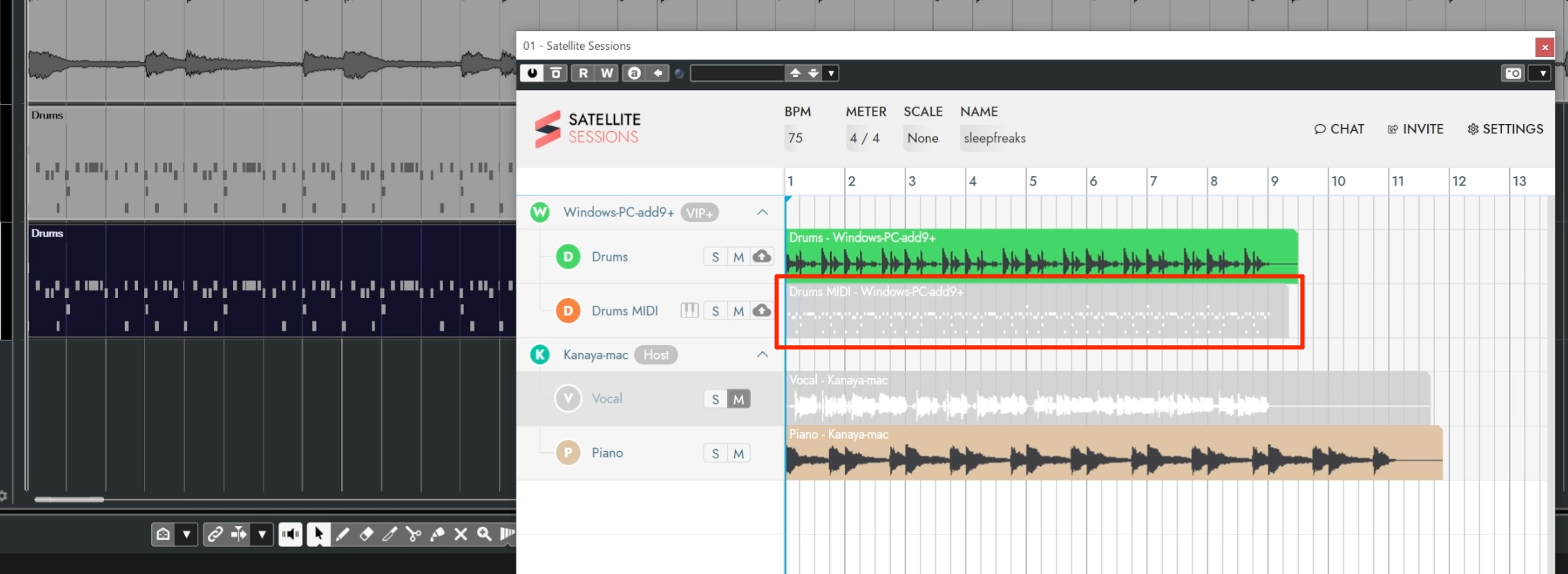
It is uploaded as a MIDI file, as shown here.
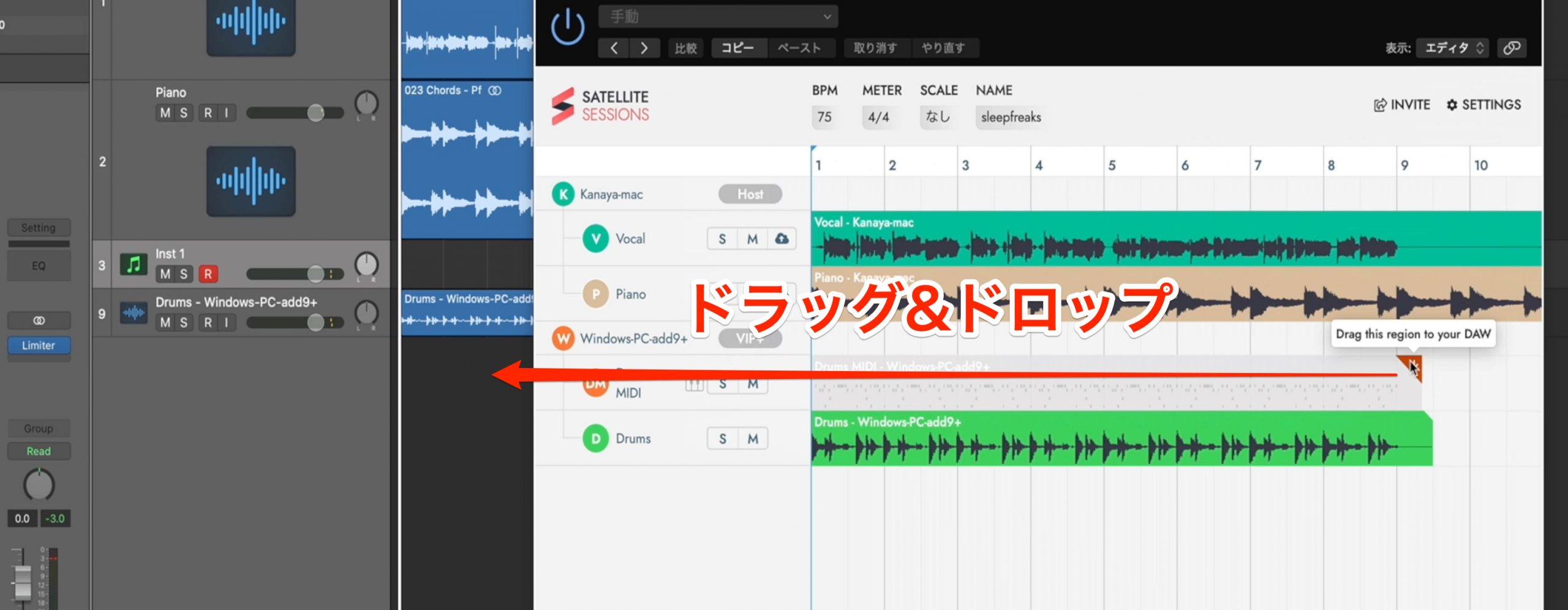
Other users can import the MIDI into their DAW to edit it, or assign an instrument and upload the resulting audio.
Update added May 6, 2021
In version 2.1.1.2130, the latest version tested at that time, we could not include MIDI CC data in the shared material.
We hoped a future update would add this capability.
Avoiding Doubled Playback
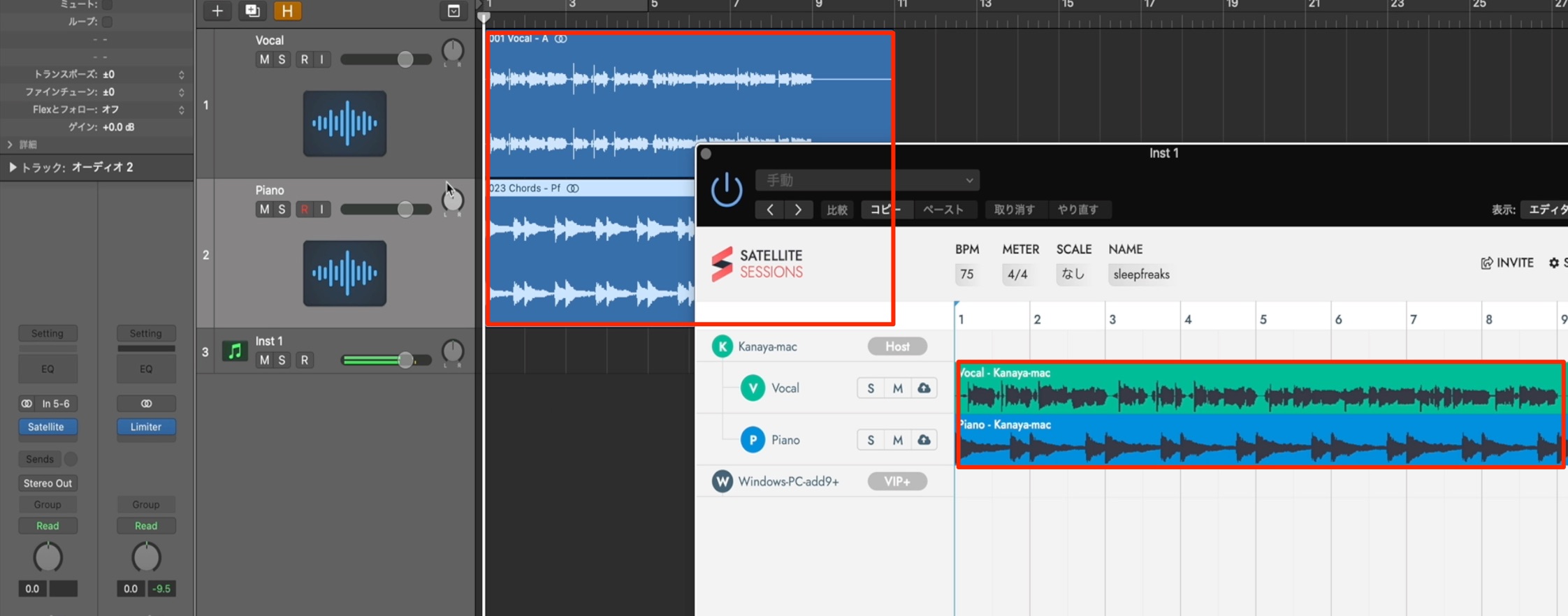
After uploading a track, the original DAW track and its uploaded copy in Satellite Sessions could otherwise play at the same time.
The software accounts for this: the source track in the DAW is automatically muted after its audio is uploaded.
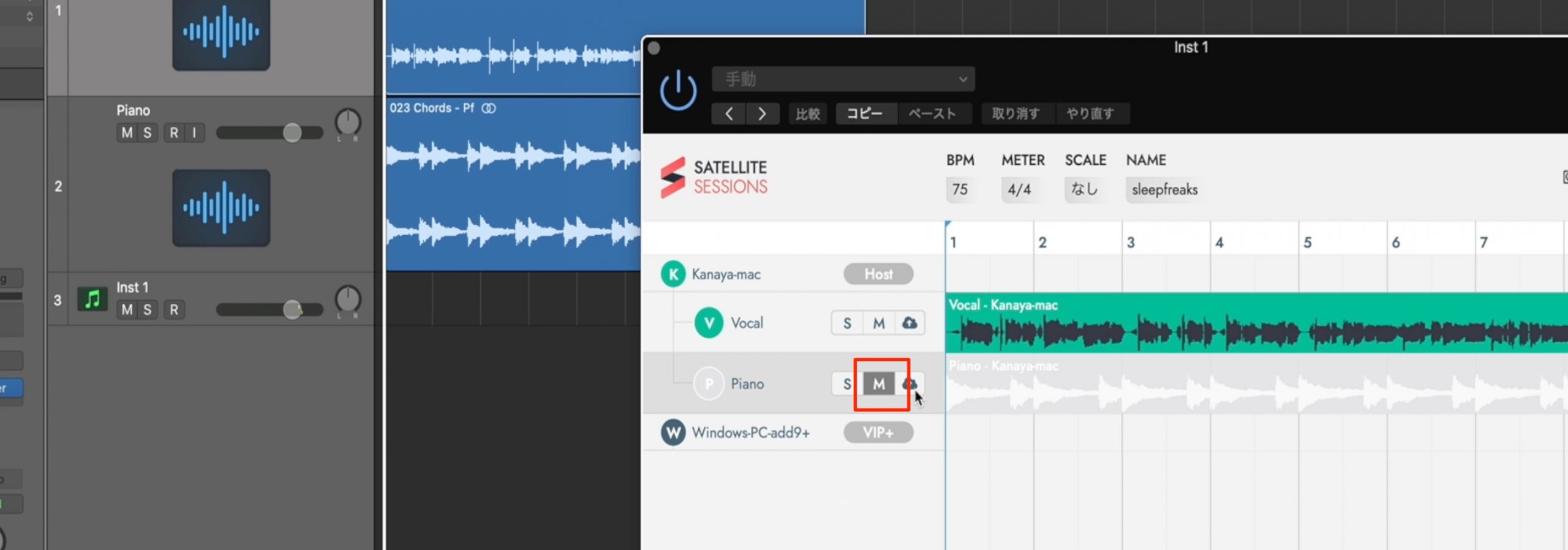
To hear the original DAW track again, mute the corresponding track in Satellite Sessions.
Upload Capture and Effect Order
If your DAW track has effects inserted, you can control whether the uploaded sound includes their processing.
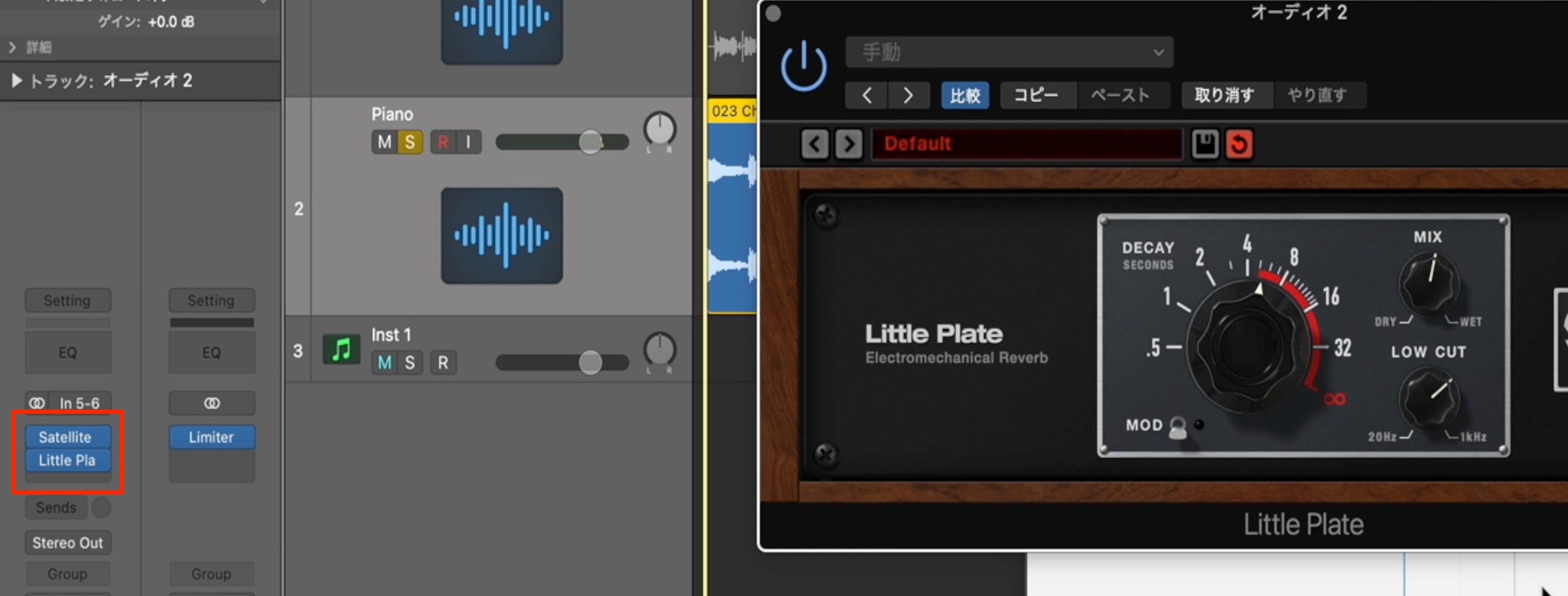
In an insert chain, audio flows through the slots from top to bottom.
Here, the reverb comes after Satellite Audio, so the upload captures the signal before the reverb, without that effect.
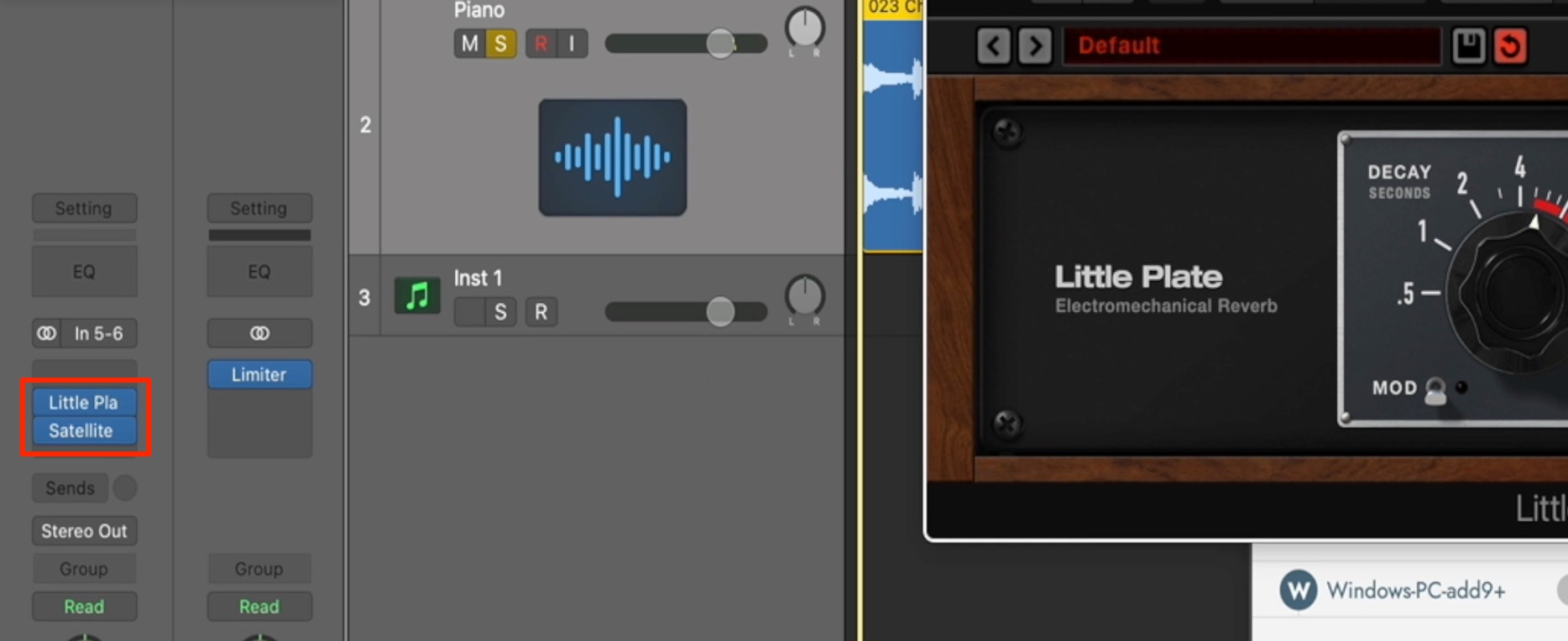
In this image, Satellite Audio comes after the reverb instead.
The uploaded sound therefore includes the reverb processing.
Understanding this lets you choose the appropriate signal for the task:
- share processed audio when using an effect that other collaborators do not own,
- or share audio before processing when someone else will mix it.
Choose the capture position to suit the production workflow.
Saving SATELLITE SESSIONS
Satellite Sessions is saved together with your DAW project.
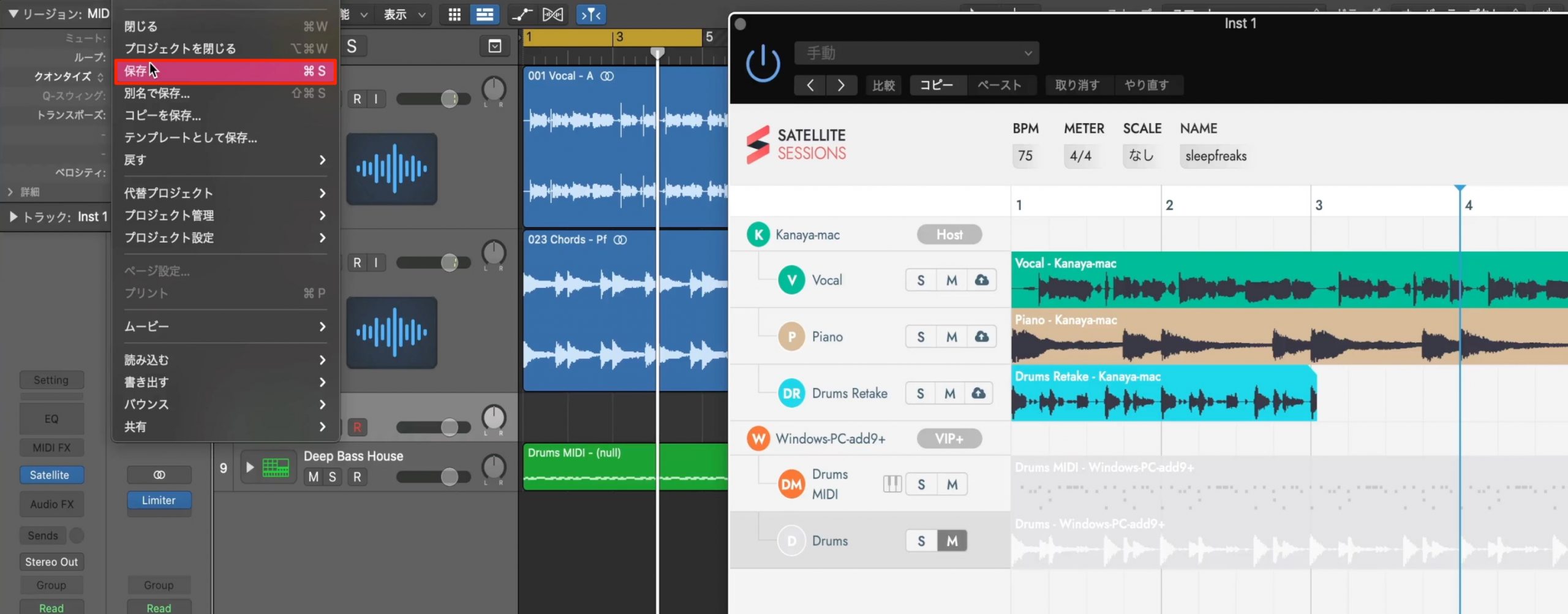
Save the DAW project, and Satellite Sessions returns to its saved state the next time you open it.
What do you think?
The product offers a streamlined set of features without unnecessary extras.
Its audio and MIDI collaboration fits modern production workflows well. The original 2021 article recommended trying it as a completely free tool.
[Free at the time of this 2021 post] Satellite Plugins: an innovative music production collaboration tool.
Collaborate across different DAWs!
Besides sharing audio and MIDI, you can exchange material with people who do not own the same instruments.
The original post recommended trying this free tool.
Details: https://t.co/yWpr1UAcad pic.twitter.com/YtvvgiONzf— SLEEP FREAKS (@SLEEPFREAKS_DTM) May 2, 2021
Frequently Asked Questions
Q1. What do I need to use Satellite Plugins 2.0?
Install the software and register for a Mixed In Key account. The original tutorial describes registration using an email address or Google account and the tool's free availability at that time.
Q2. Which DAWs does it support?
The original article describes collaboration across mainstream DAWs such as Pro Tools, Logic, GarageBand, Cubase, Ableton Live, Studio One, and FL Studio, even when participants use different DAWs.
Q3. Can I manage permissions for multiple collaborators?
Yes. The article lists Co-Host, VIP+, VIP, and Viewer permissions for controlling changes, uploads, deletion, and viewing. Remove is a separate action for removing a participant, rather than an additional permission level.
Q4. Which settings matter when collaborating?
The projects running in each DAW must use the same tempo and sample rate. In the demonstration, mismatched settings produced a message after joining the session.
Q5. Is sharing audio tracks straightforward?
Insert Satellite Audio as an effect on the audio track to make it appear in the session. Enable its upload button and play the section you want to share.
NEW ARTICLES
Latest English Articles



























































































































































