
Zynaptiq’s INTENSITY is an audio processing plug-in that brings out definition and increases loudness with simple controls. Its two main knobs, INTENSITY and Bias, let you shape the frequency response for applications ranging from mixing to mastering. Customizable BIAS CURVE presets, DRY-WET MIX blending, and the SATURATE output mode help you achieve a polished sound without complicated settings. It can also be effective on individual tracks.
Sound Quality So Good It Almost Feels Like Cheating
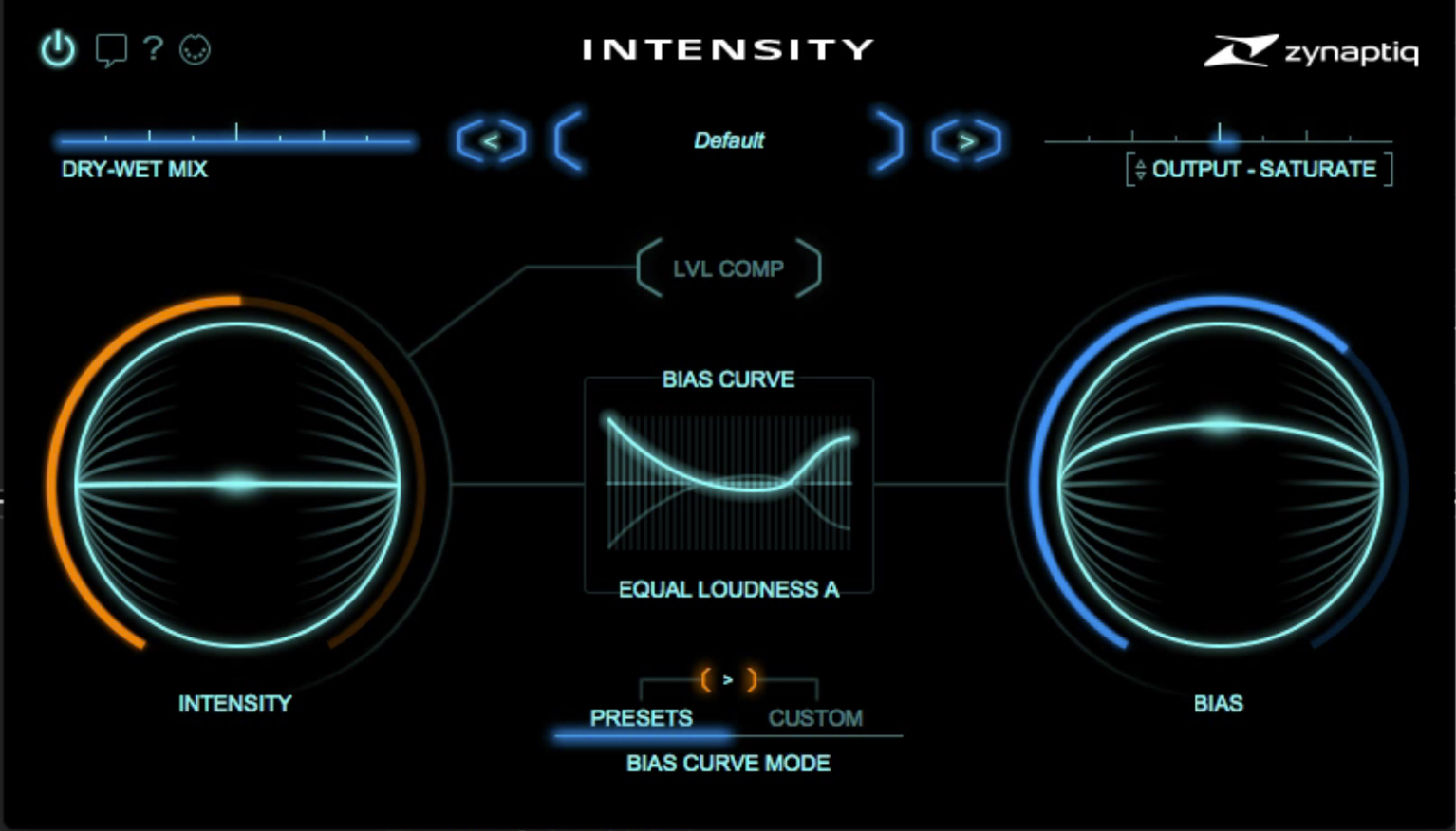
In this tutorial, we will explore INTENSITY from Zynaptiq.
With just a few simple adjustments, this plug-in lets you bring out definition and increase loudness.
The results can almost feel like cheating. From mixing to mastering, it offers a practical, effective way to make your sound stand out.
Let’s explore INTENSITY’s features and hear how they affect the sound.
Zynaptiq INTENSITY Video Tutorial
- Before Applying INTENSITY
- After Applying INTENSITY
Purchase INTENSITY here.
Zynaptiq INTENSITY Controls
For this tutorial, we will focus on mastering, so we have inserted INTENSITY on the demo song’s master channel.
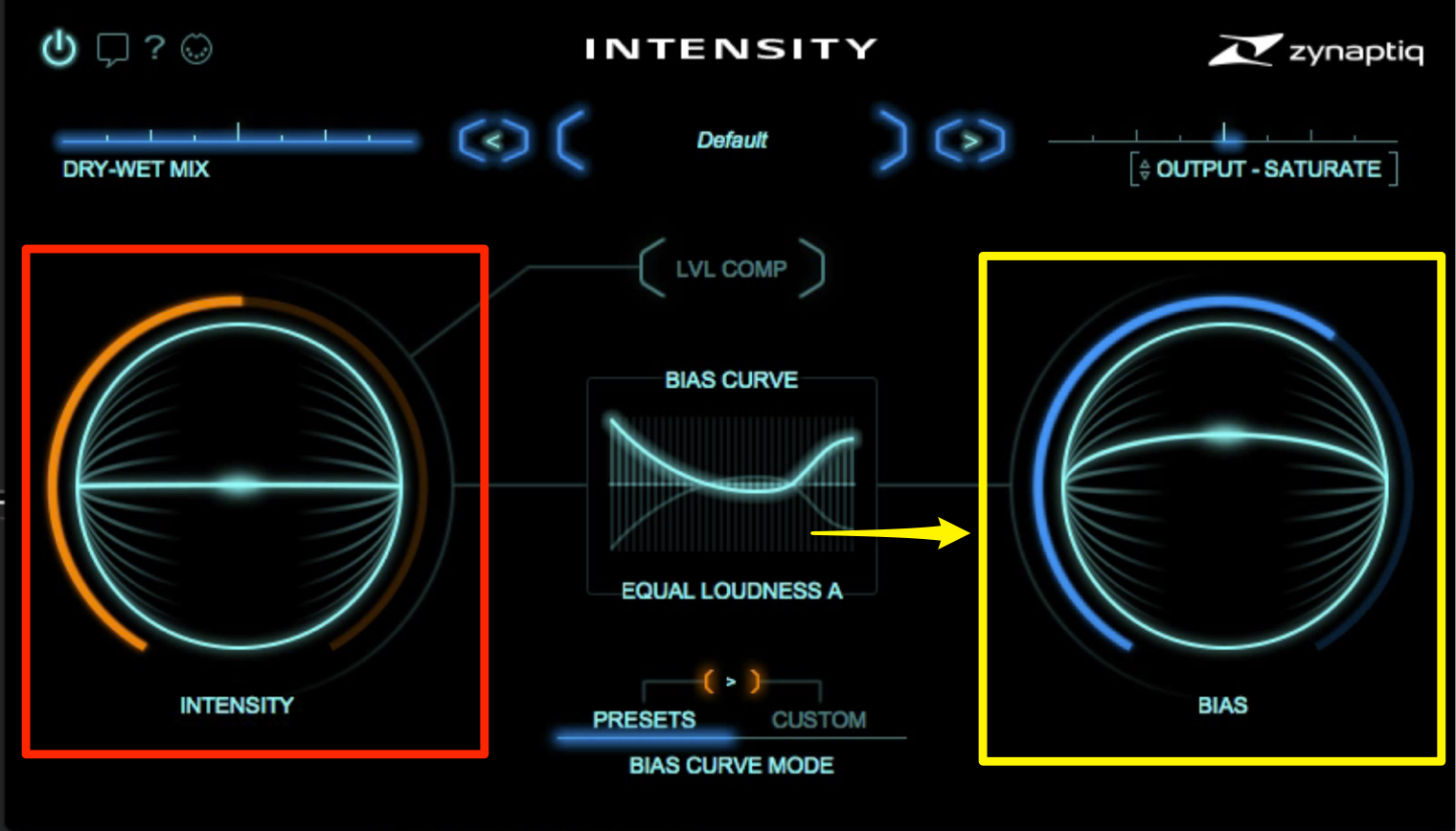
The two large knobs on the left and right are the plug-in’s most important parameters.
- INTENSITY (left): Adjusts how much processing is applied.
- Bias (right): Changes the frequency response according to the BIAS CURVE displayed in the center.
As you turn up the INTENSITY knob on the left, the volume seems to rise gradually. The key point is that not only the level, but also the loudness value increases.
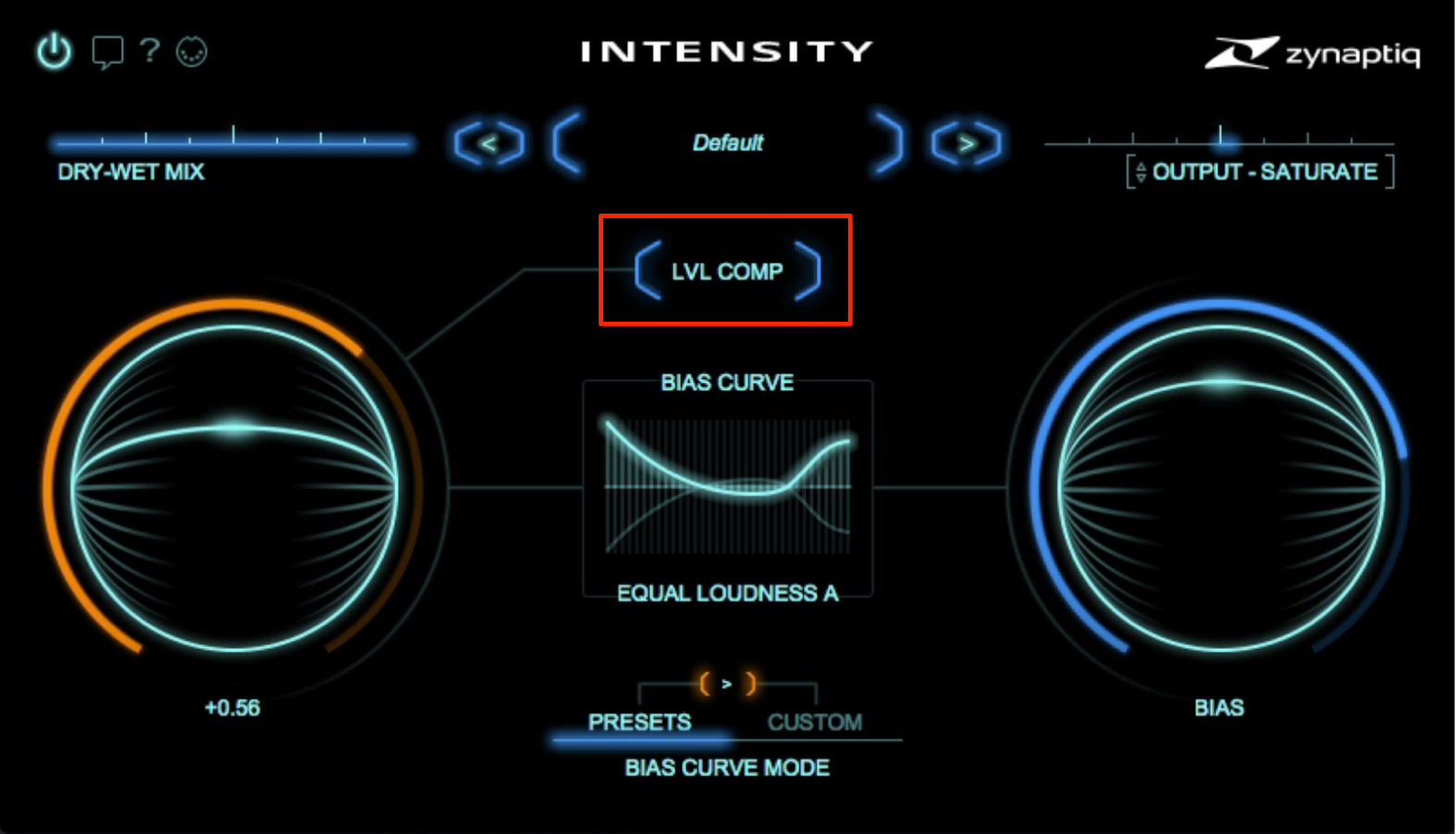
You can also enable LVL COMP to change the character of the sound without increasing its level.
Bias and BIAS CURVE
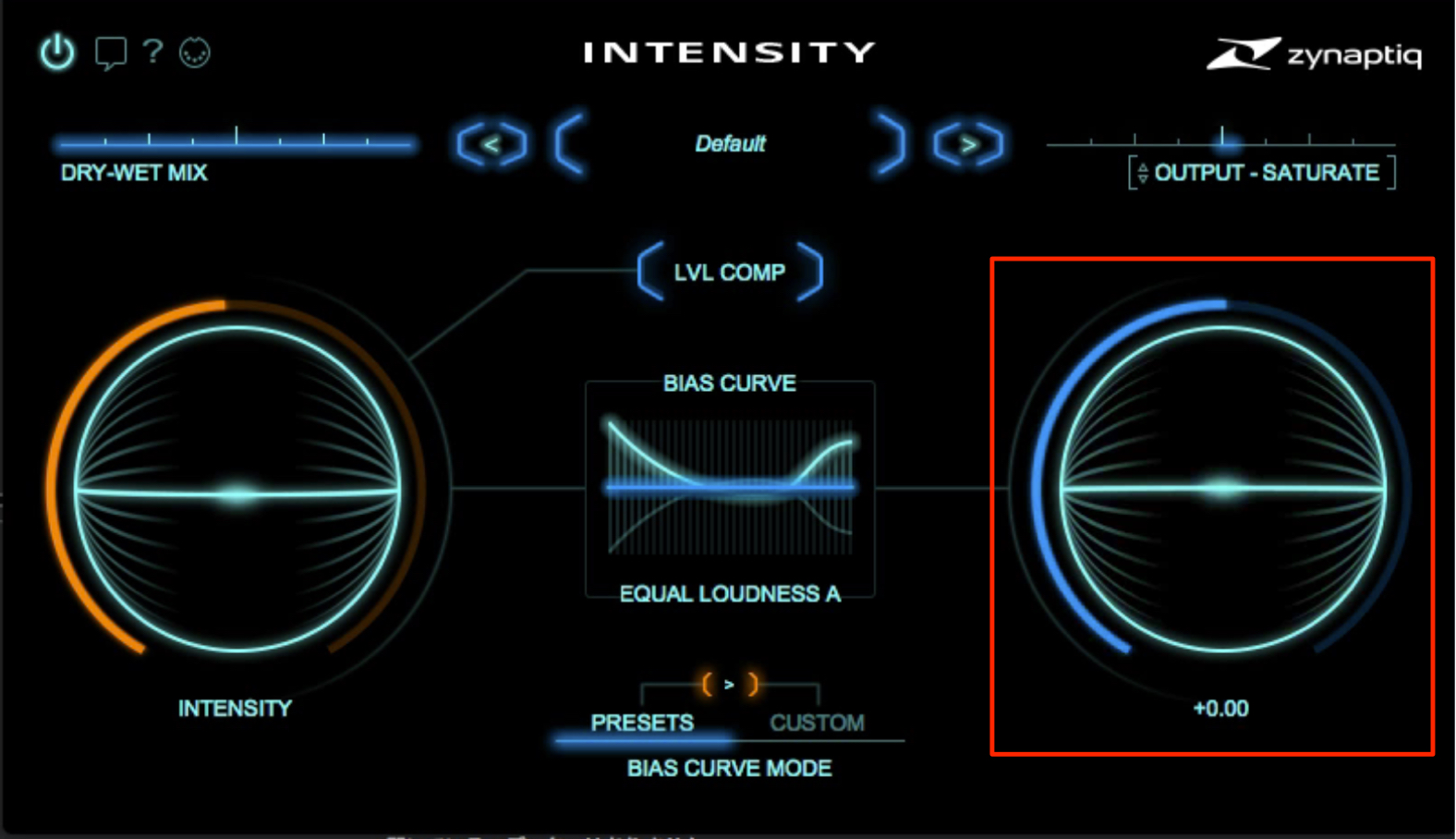
Now let’s adjust the Bias setting.
The center position is the reference point; turn the knob left or right to adjust the effect.
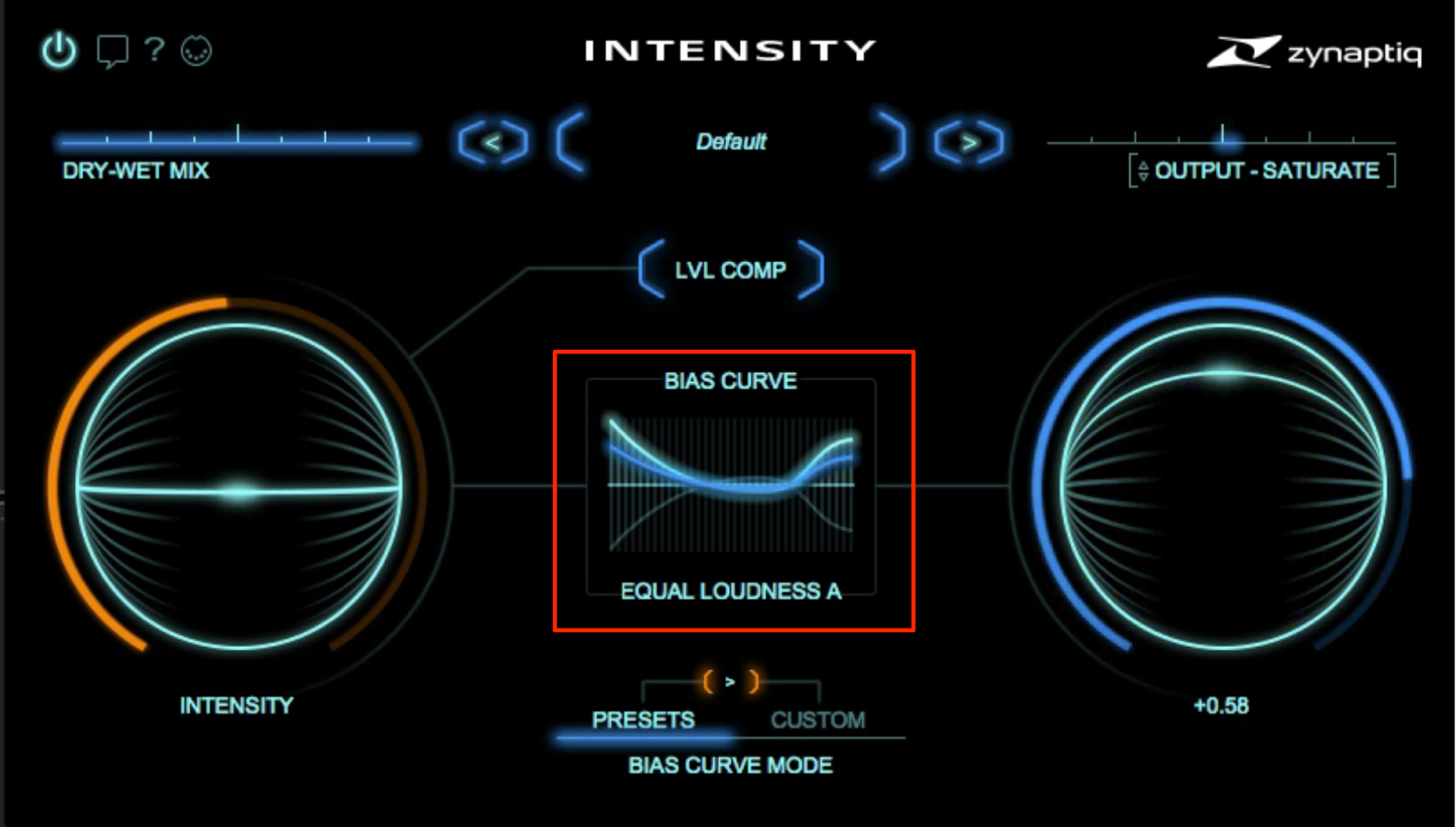
As you adjust this knob, a blue line appears in the central BIAS CURVE display.
The blue line represents the frequency response produced by the BIAS knob’s setting.
As you turn the knob toward its maximum value on the right, the response approaches the curve’s maximum shape, shown by the white line.
With this curve, the low and high frequencies are emphasized.
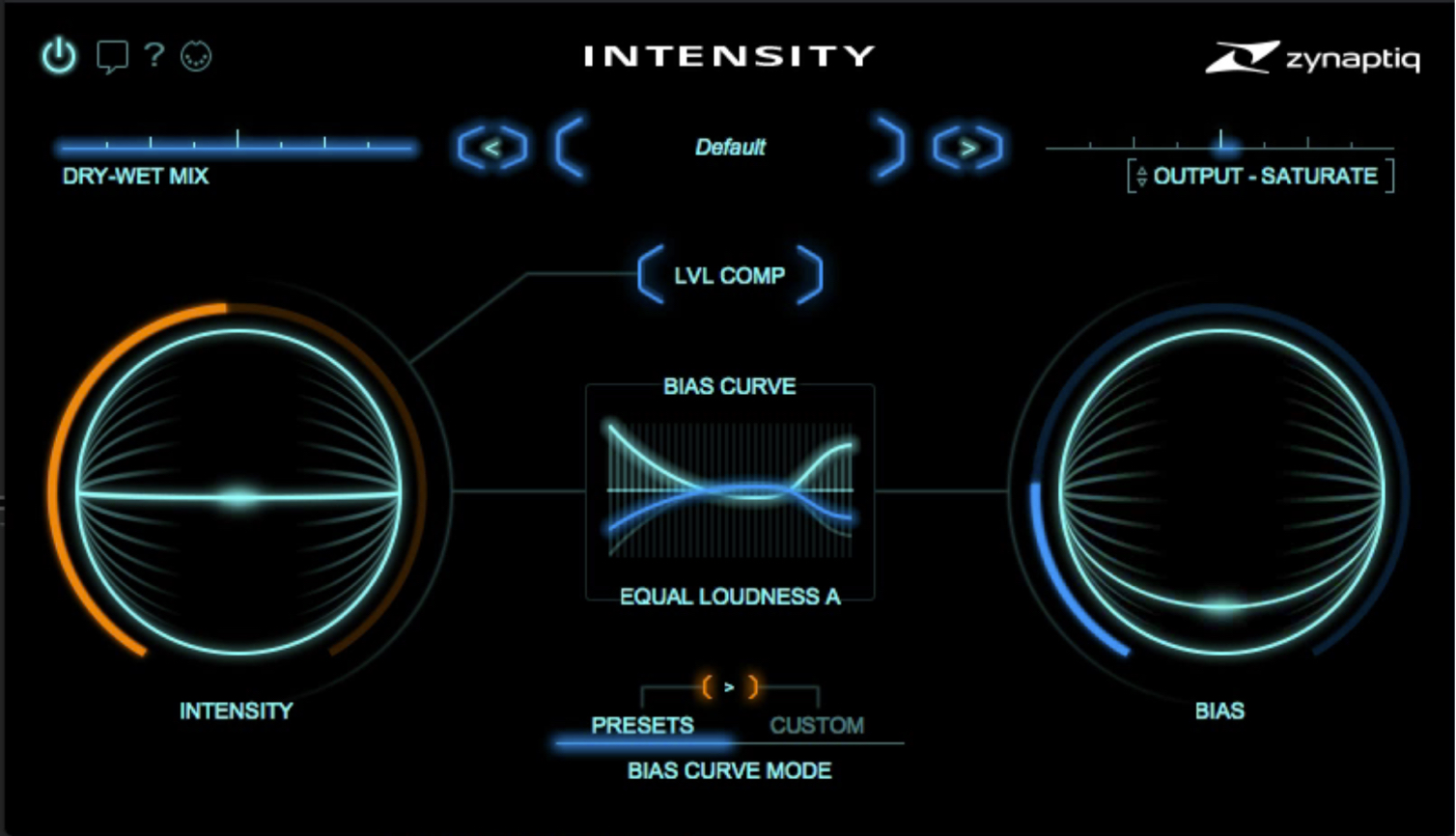
As you move left from the center toward the minimum value, the response becomes the inverse of the curve. With the curve shown here, the sound becomes more concentrated in the midrange.
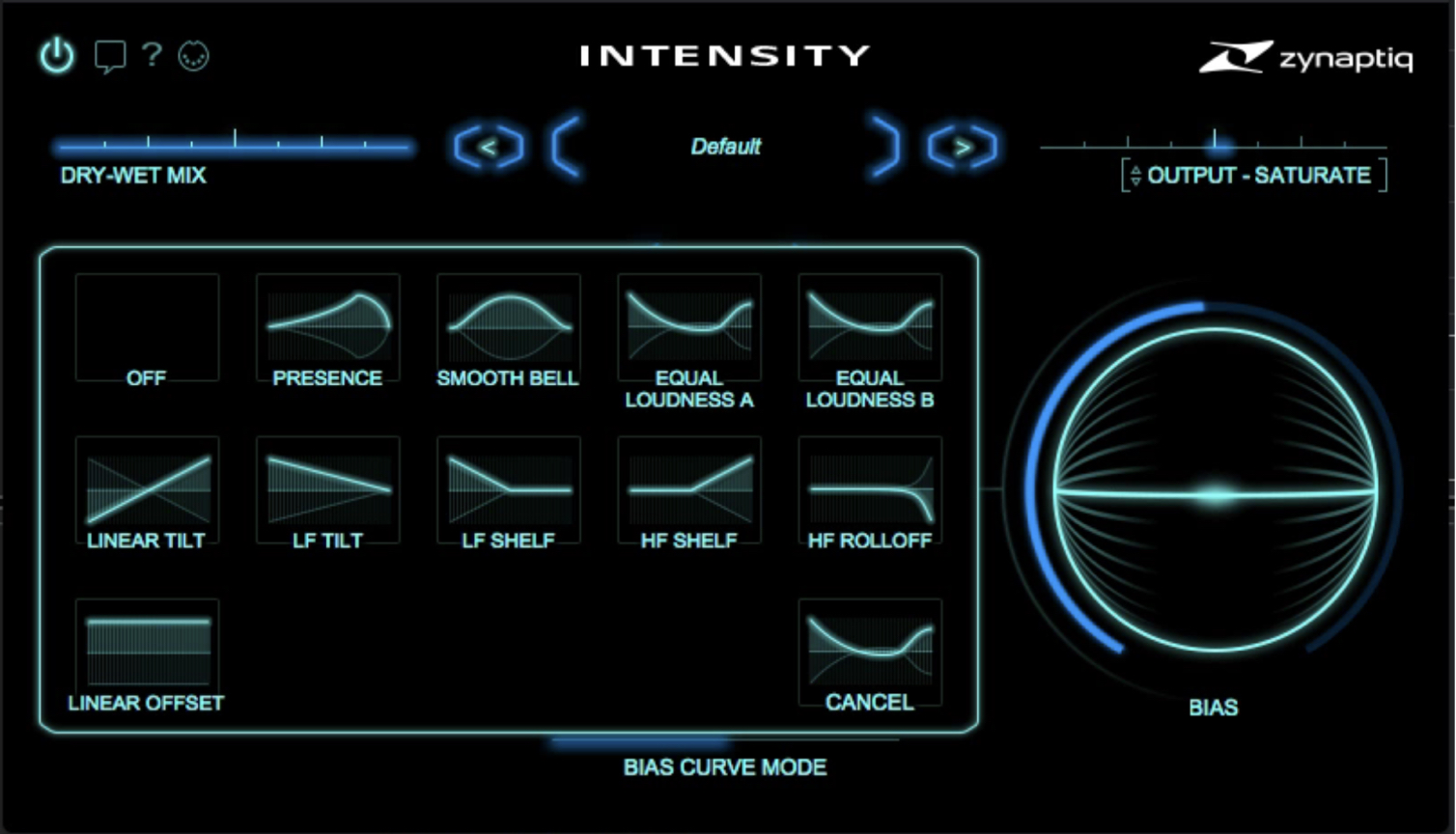
Click BIAS CURVE to select a frequency-response preset.
This lets you make a variety of changes to suit the song and its intended use.
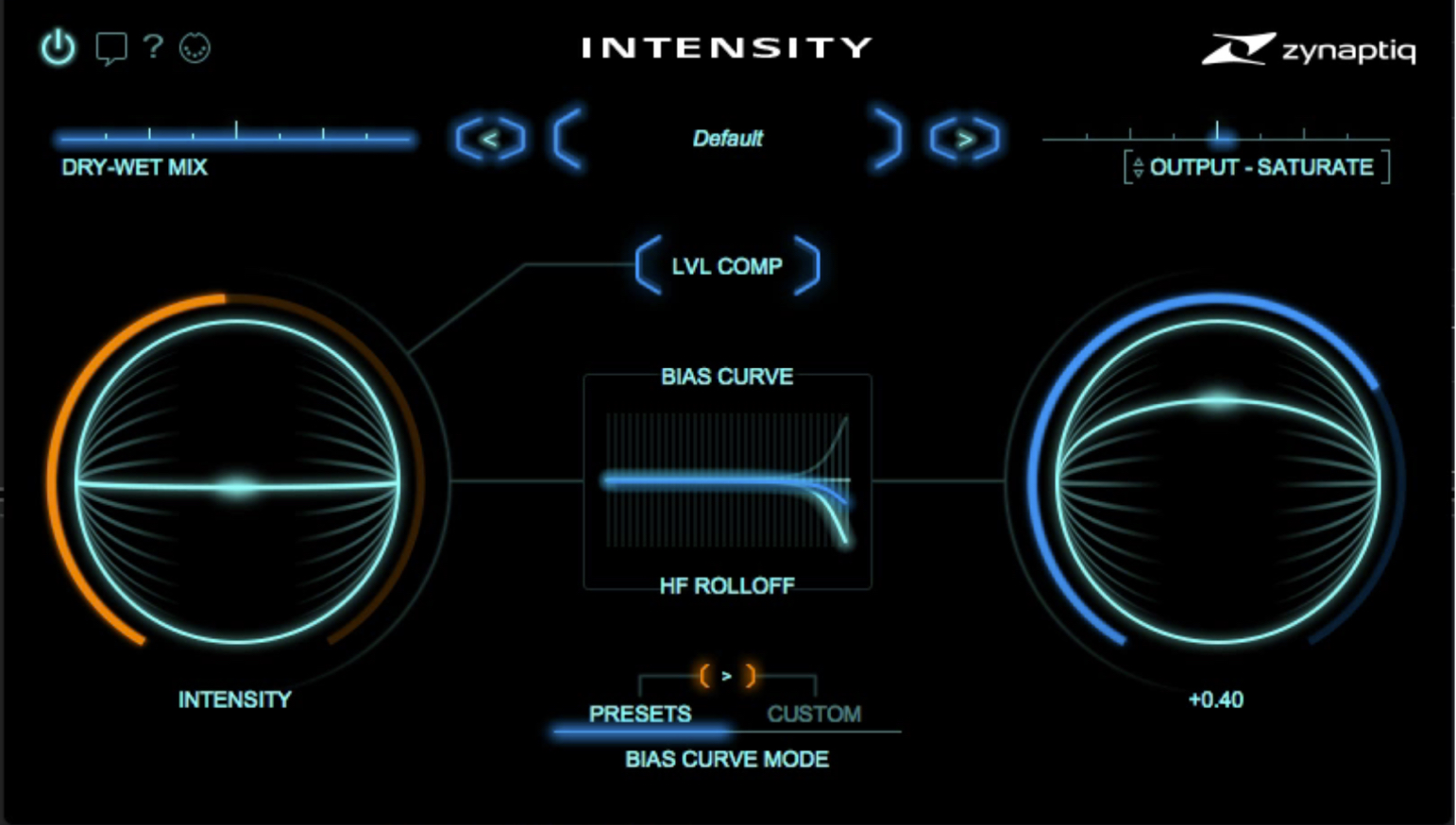
For example, if a track already has strong high-frequency content, the default curve will emphasize it further and may make the sound harsh.
Choosing a curve that reduces the high frequencies will produce a softer sound.
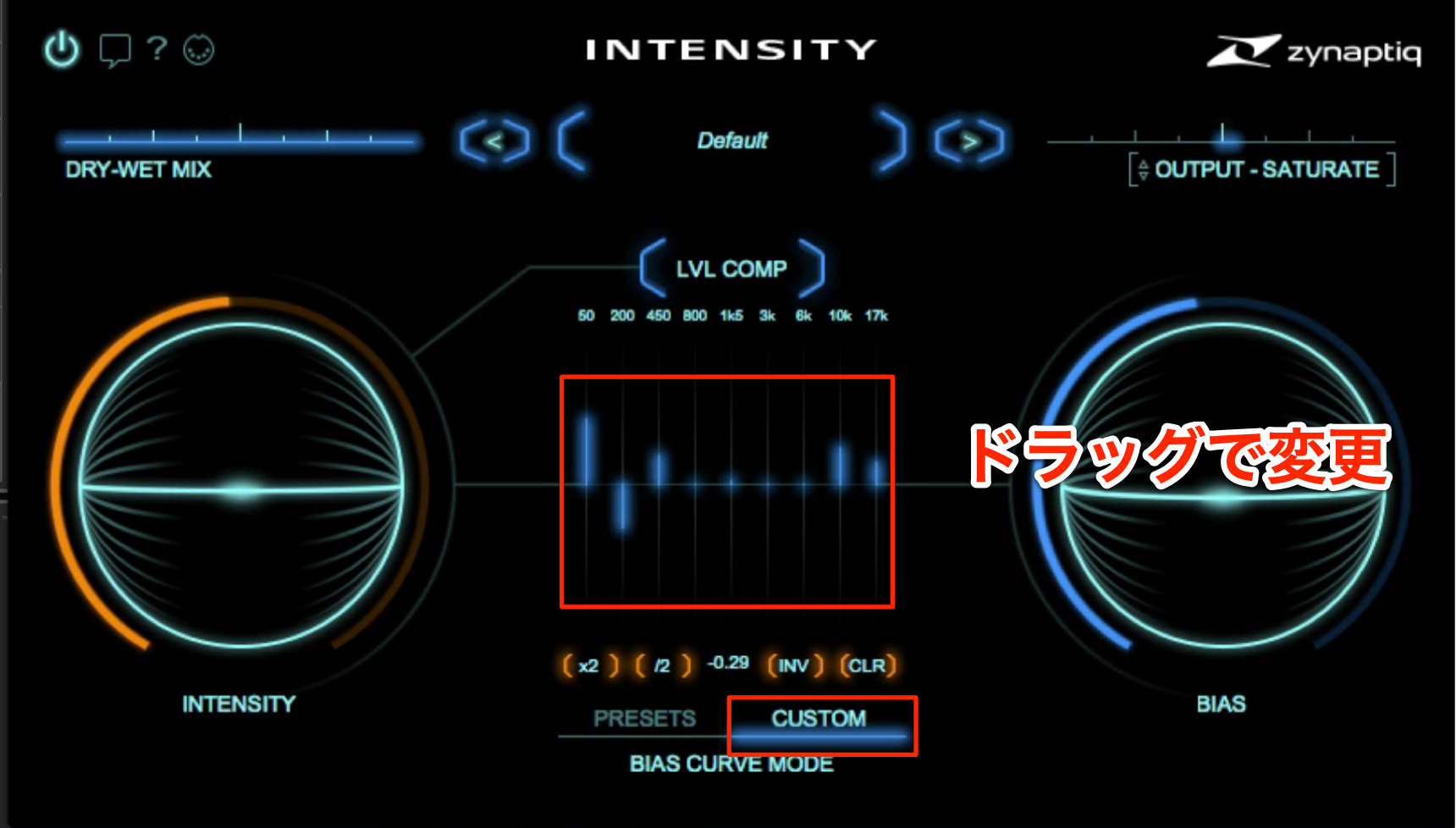
You are not limited to presets: you can also customize the BIAS CURVE in detail.
Press CUSTOM, then raise or lower the frequencies you want to emphasize or reduce to create your own curve.
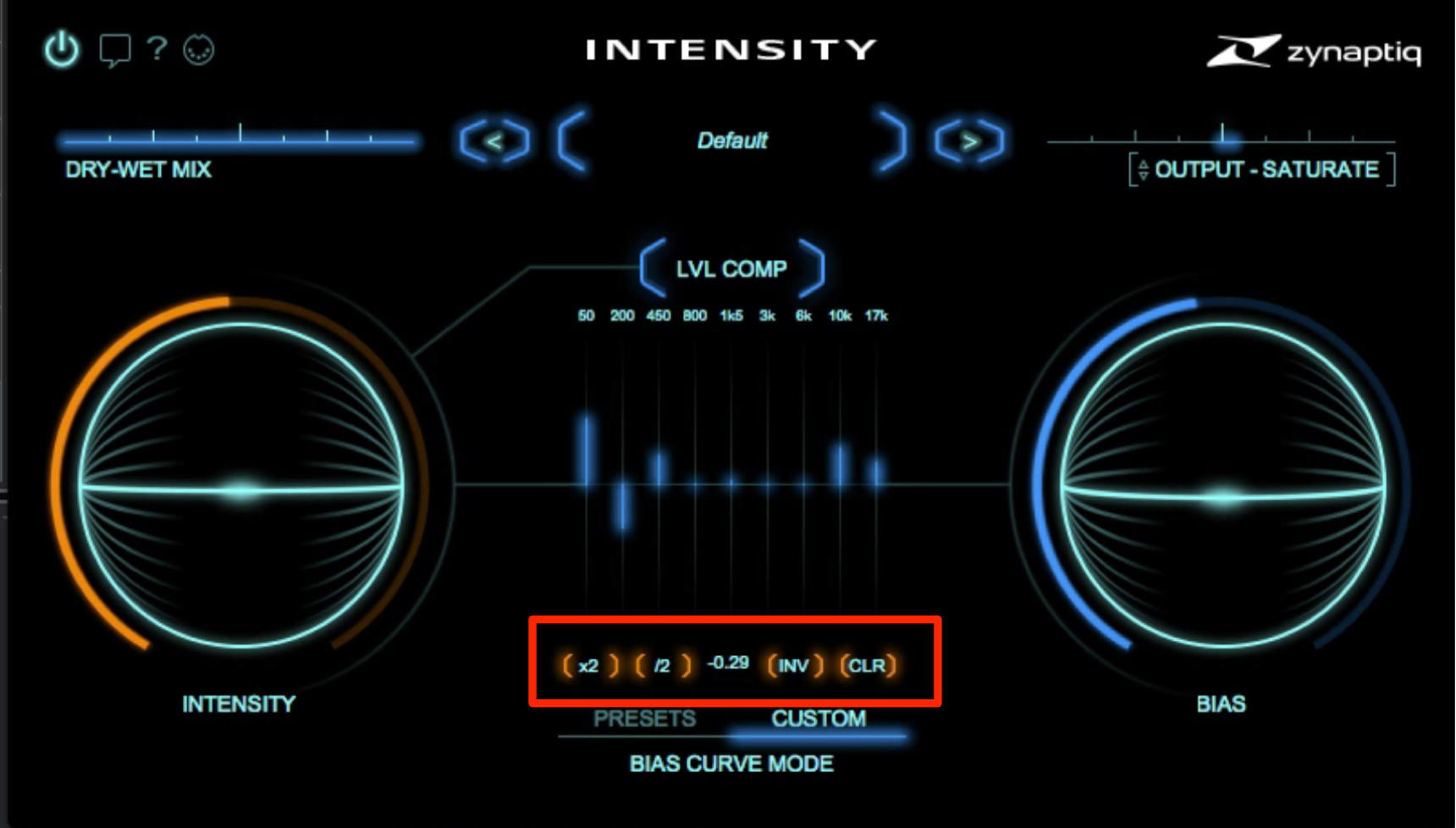
“×2” doubles the current settings, “/2” halves them, “INV” inverts the curve, and “CLR” resets the settings.
DRY-WET MIX
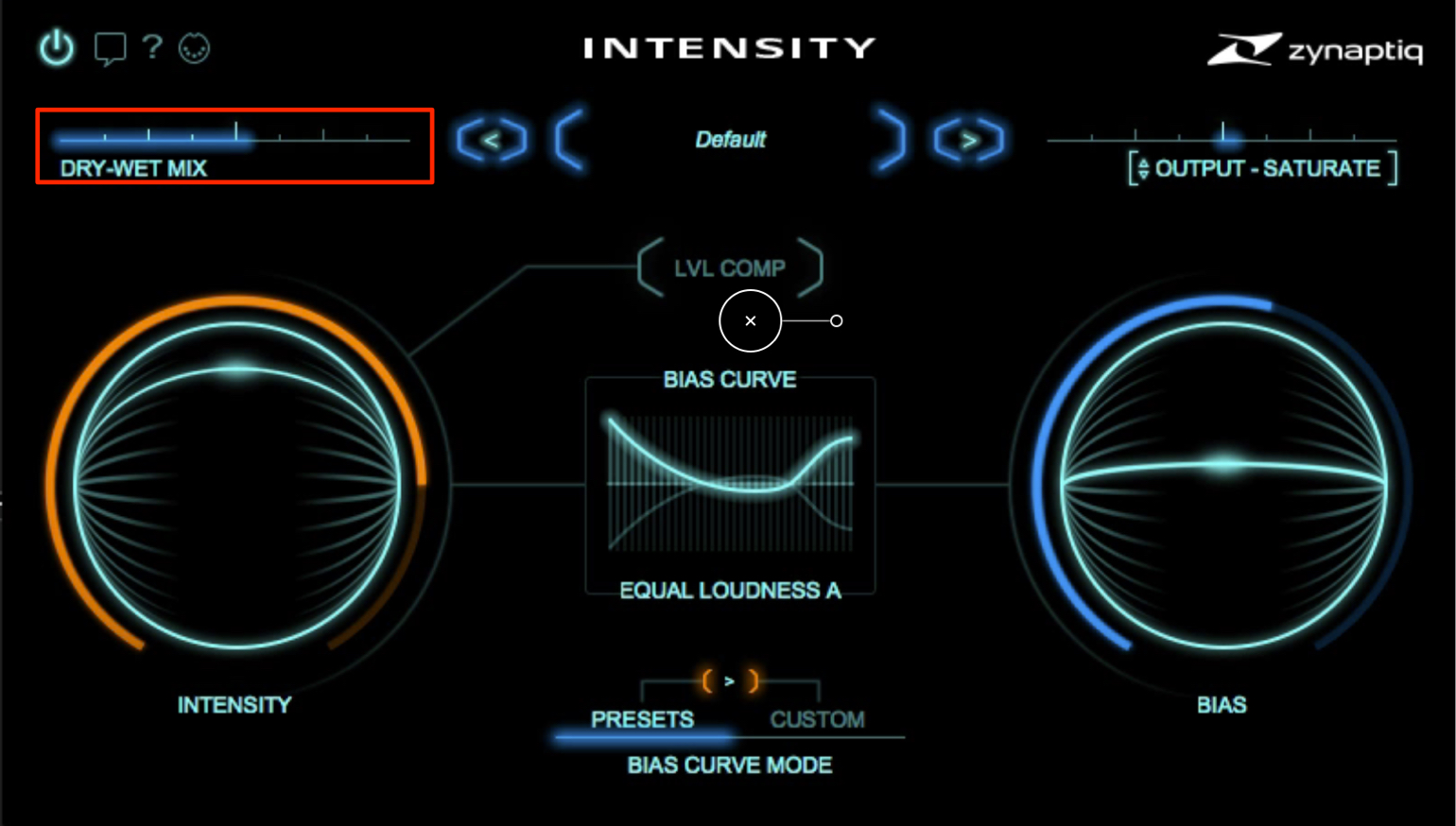
Use DRY-WET MIX to balance the original signal (DRY) against the signal processed by INTENSITY (WET).
For example, if INTENSITY increases the loudness but the sound loses some definition, blending in the DRY signal can help restore that definition.
OUTPUT
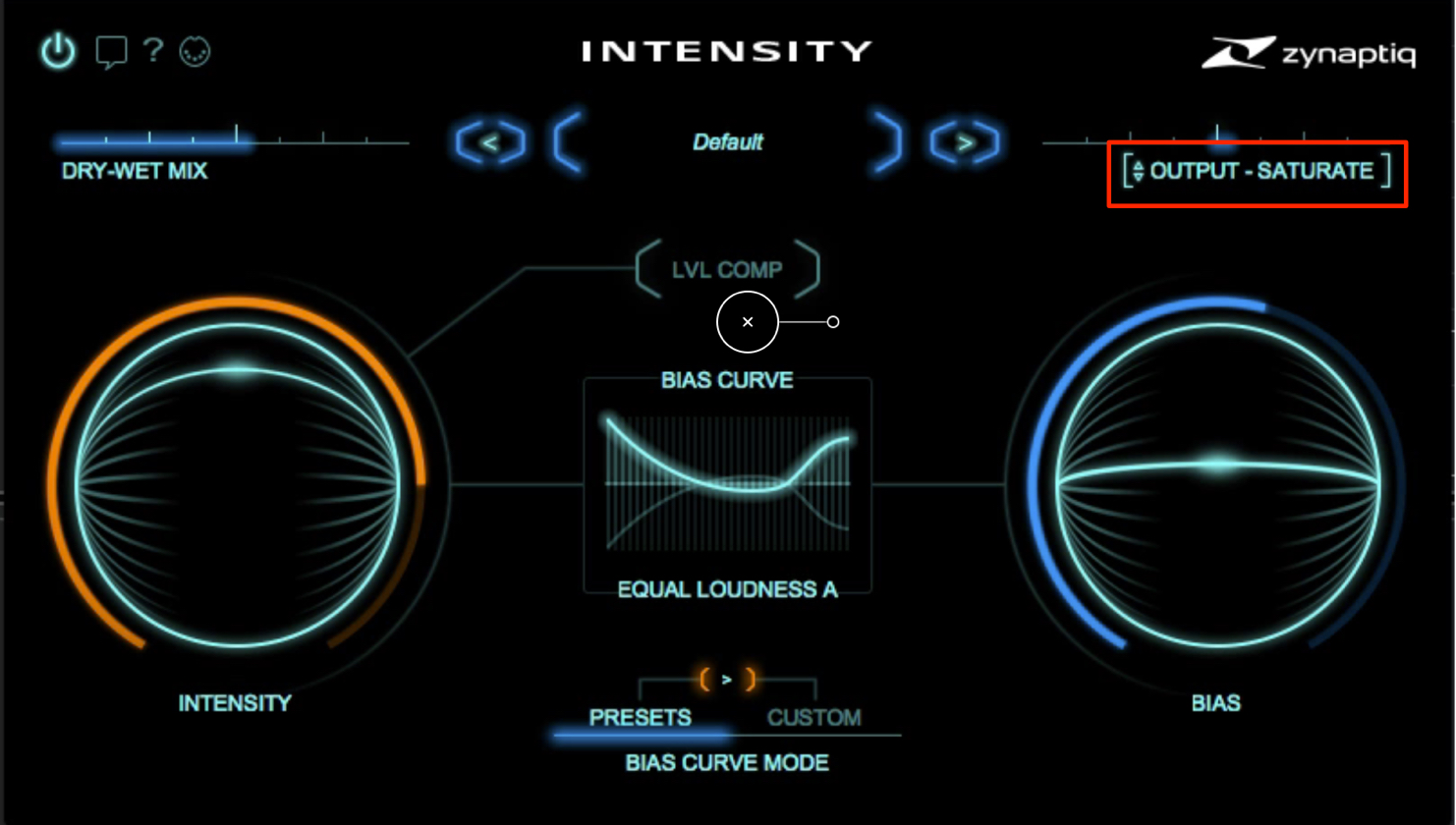
The OUTPUT control on the right is set to GAIN by default.
Switch it to SATURATE to automatically hold the level down when the output exceeds 0 dB, preventing clipping.
This allows INTENSITY itself to increase loudness in a way similar to a clipper, limiter, or maximizer.
What do you think?
You can easily achieve a powerful sound that cuts through, without making lots of detailed adjustments.
Although we used mastering as our example here, you can also apply the plug-in to individual tracks.
Give it a try!
Thank you for reading.
Purchase INTENSITY here.
Frequently Asked Questions
Q1. What are the main features of Zynaptiq INTENSITY?
The two core parameters are INTENSITY, which controls the processing strength, and Bias, which changes the frequency response. You can also choose and customize BIAS CURVE presets to tailor the processing to your song.
Q2. How can I change the sound’s character without increasing its loudness?
Enable LVL COMP to change the frequency response without raising the level.
Q3. Can I use INTENSITY for more than mastering?
Yes. You can use it on individual tracks as well as for mastering. It can add impact and help vocals, instruments, and other sounds cut through.
NEW ARTICLES
Latest English Articles


















































































































































































































































































