Ableton Live’s Instrument Rack and velocity zones let you switch between different sounds and effects according to MIDI velocity. Using snare samples as an example, this article shows how to assign different effects, such as Delay and Reverb, to multiple samples and select them with velocity. It also explains how the “Vol < Vel” setting can prevent velocity from changing sample volume. This technique can add expressive variation to programmed drum tracks and make them feel more natural. With Live’s Rack, you can From bold, striking effects to subtle humanizing touches,
Control Sounds and Effects with Velocity
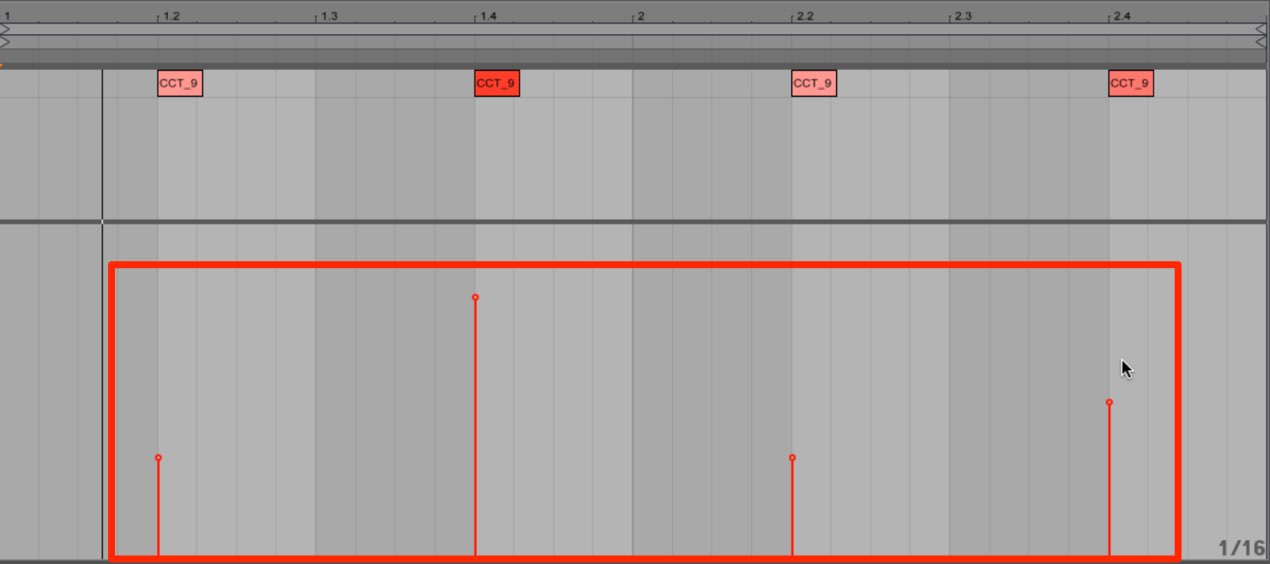
link various parameters to MIDI velocity.
you can create all kinds of variations depending on your ideas.Ableton Live Tips: Switching Sounds with Velocity
View product details

Assigning Different Effects to Multiple Samples
For this example, we’ll use a snare track.
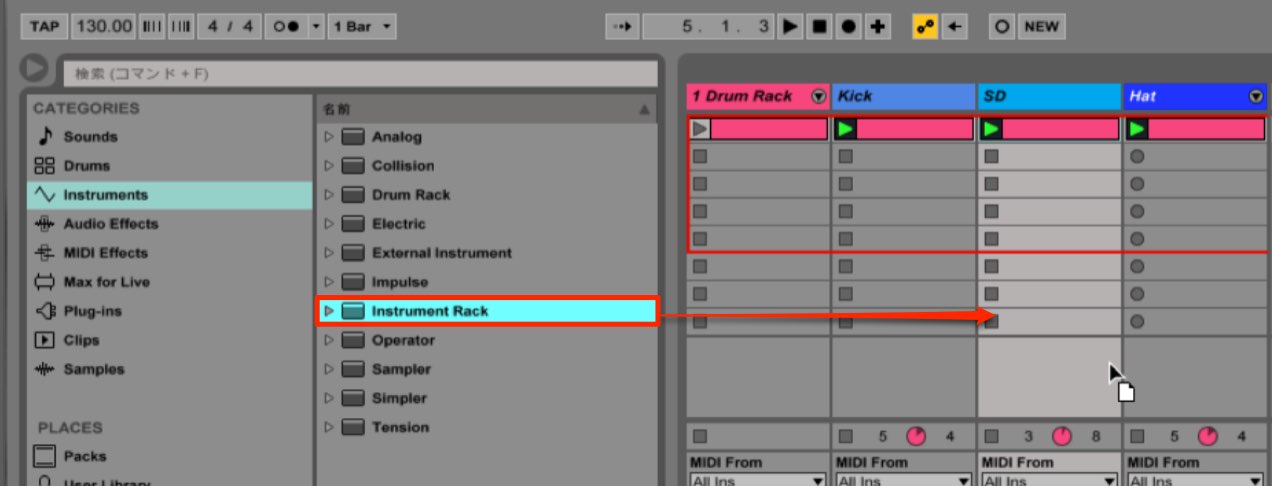
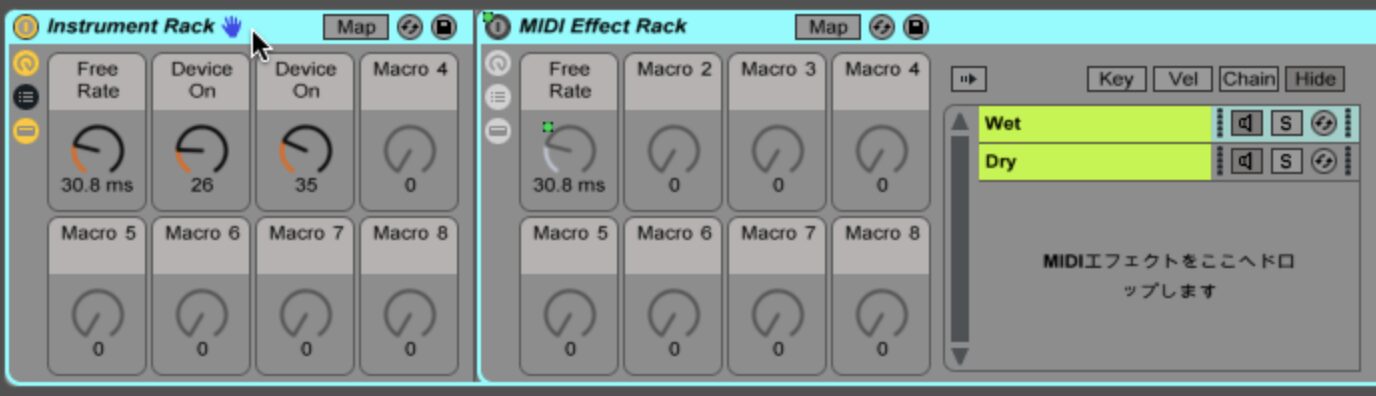
First, add an Instrument Rack to the track where you want to play the snare.
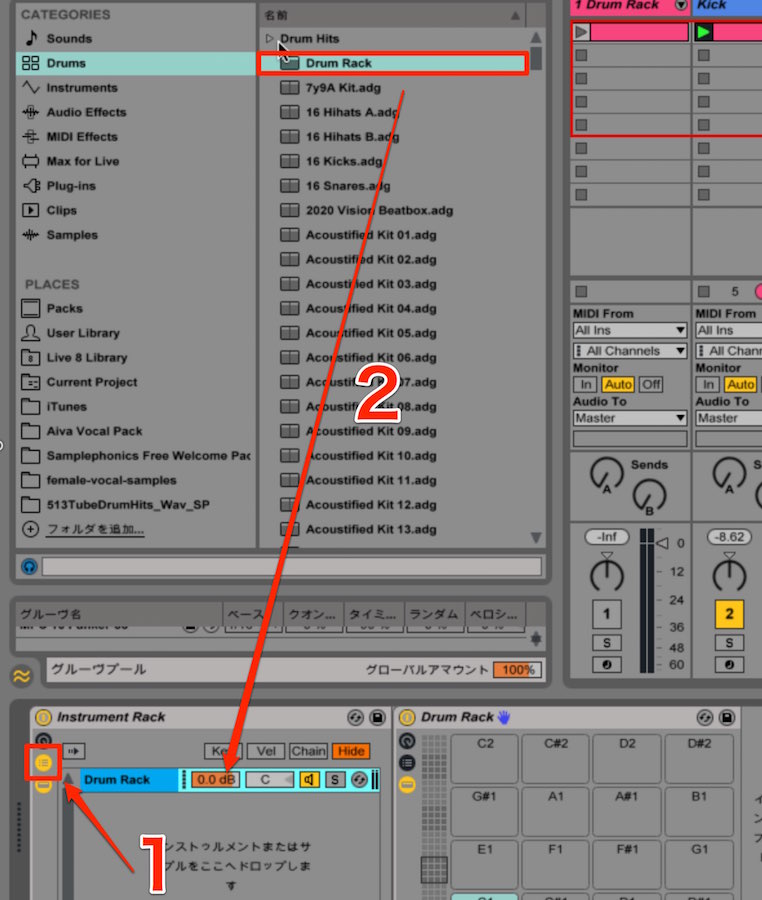
- 1. Show the chain list.
- 2. Add an instrument such as Drum Rack.
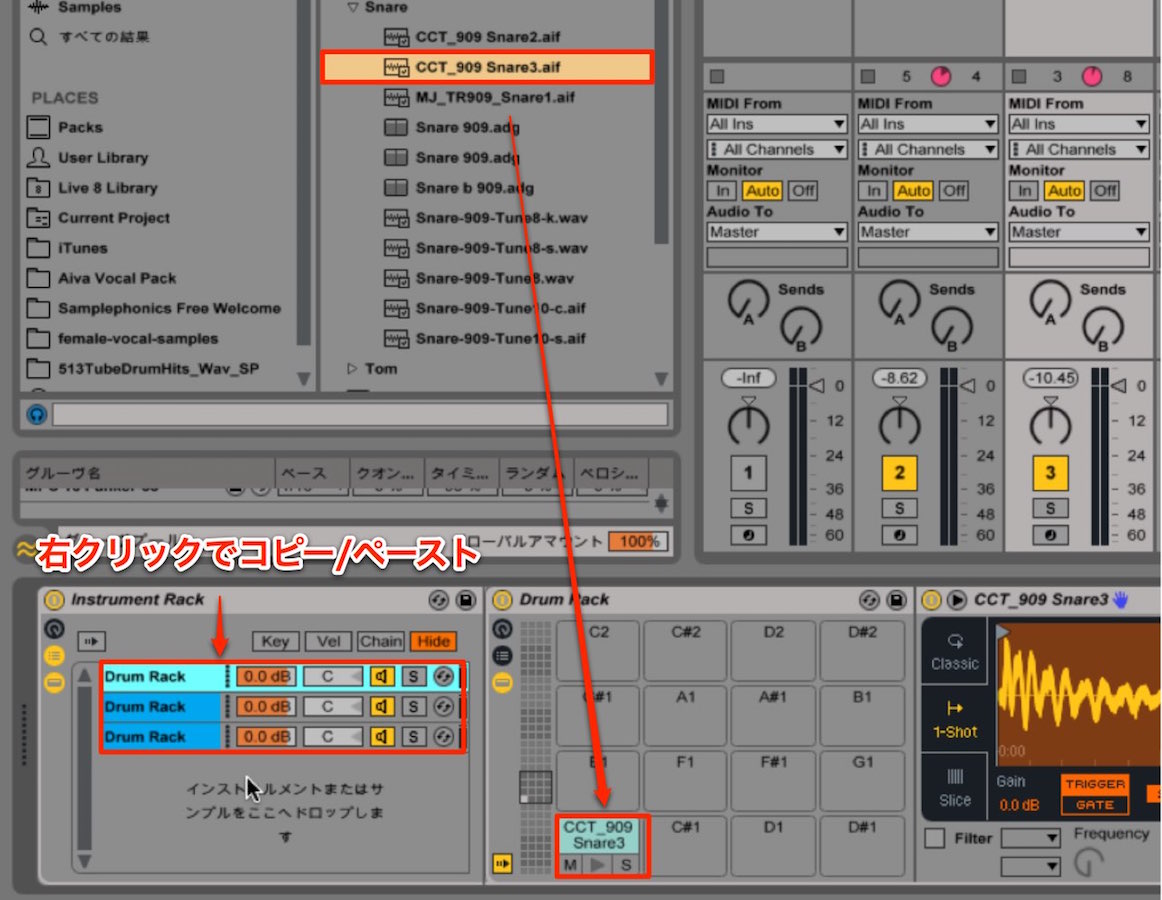
Insert a snare sample into a pad,
then right-click the sample and duplicate it. Here we use three copies.
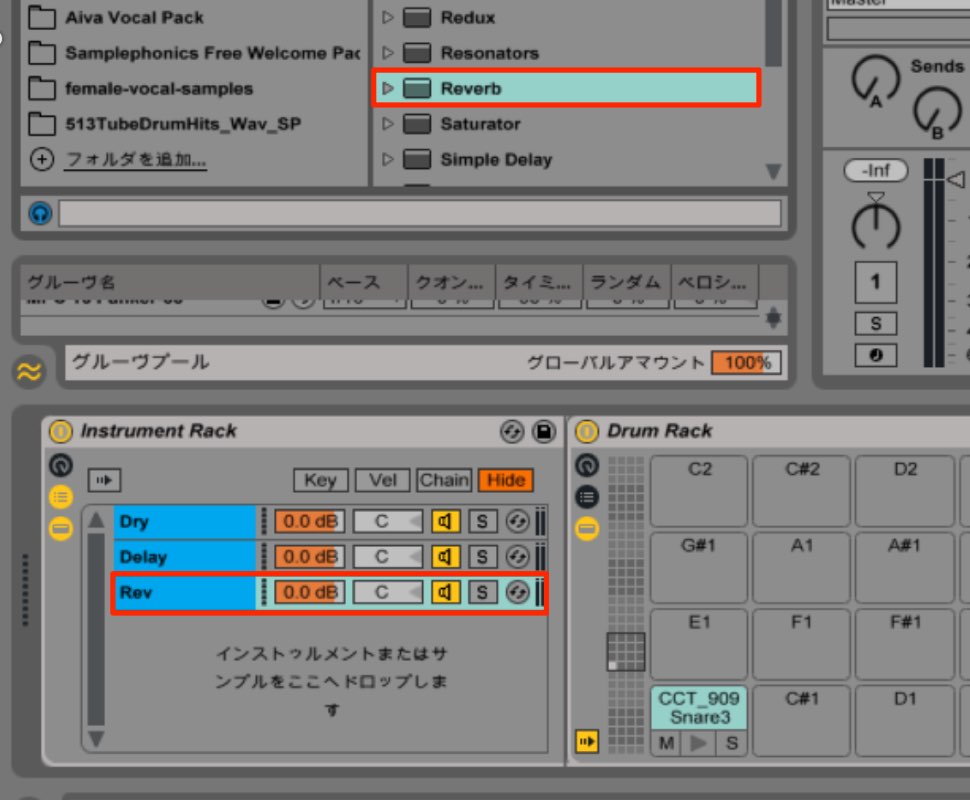
Leave the top sample unprocessed,
and apply the effects you want to the other samples.
Here, we added Delay to the second and Reverb to the third.
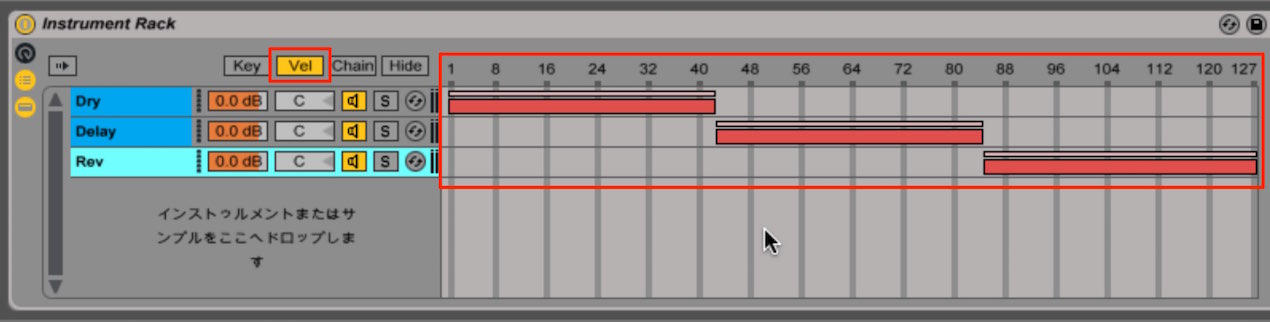
Activate “Vel” in the Rack to display the velocity zones.
The velocity values appear at the top.
Drag the ranges to assign the sample you want to play at each velocity.
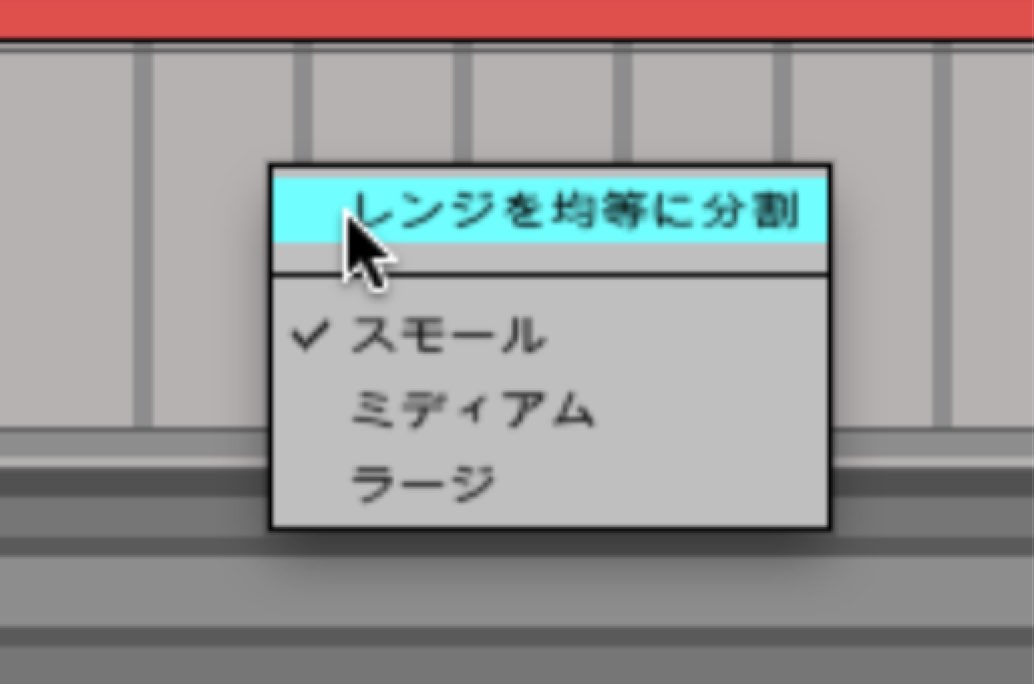
Alternatively, right-click a blank area and select “Distribute Ranges Equally”
to divide the velocity ranges among the samples automatically.
Now the sound will change according to velocity.
A Note About Volume
The playback volume of each sample may vary with velocity.

Click each sample and activate “Hide.”
Set the displayed “Vol < Vel” parameter to “0.” This removes the effect of velocity on the sample’s volume,
so the sample plays at a consistent level.
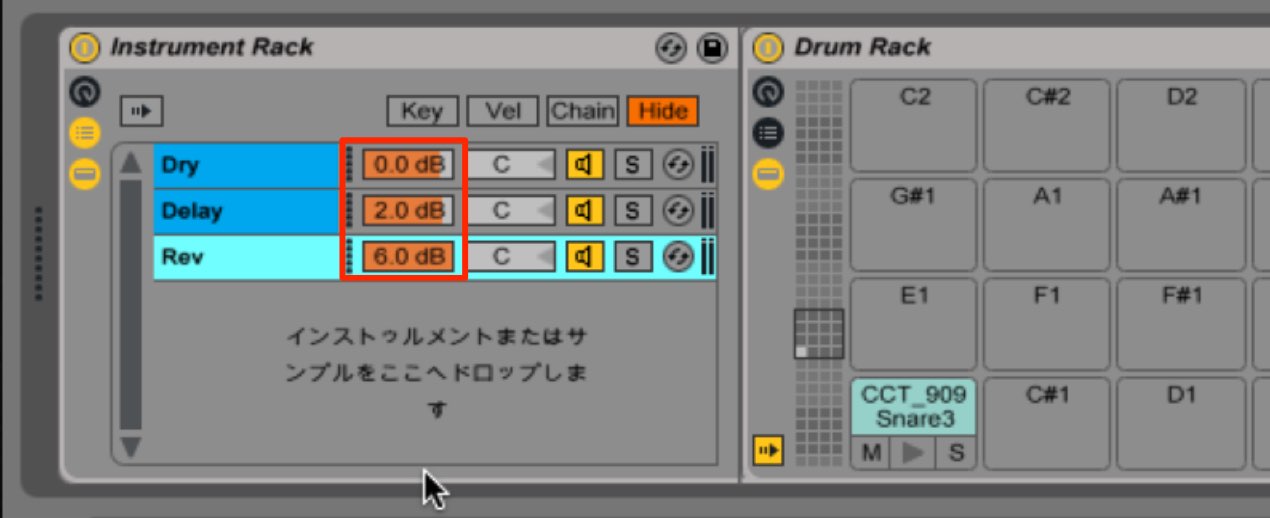
Some effects can also change the volume.
Fine-tune each sample’s volume in the Rack.
View product details
Frequently Asked Questions
Q1. What is a Rack in Ableton Live?
A Rack groups instruments or effects and allows you to control them using MIDI velocity and other parameters, offering flexible sound design.
Q2. How can I automatically distribute velocity ranges among samples?
Activate “Vel” in the Rack to show the velocity zones, then right-click a blank area and select “Distribute Ranges Equally” to divide the ranges evenly among the samples.
Q3. What can I do if the volume changes with velocity?
Click each sample, activate “Hide,” and set the displayed “Vol < Vel” parameter to “0.” This removes velocity-dependent volume changes so the samples play at a consistent level.
Q4. Can this technique be used for instruments other than drums?
Yes. Velocity zones can also be used with other instruments. Combining different effects or filter settings can add expressive variation to melodic instruments and pads.
NEW ARTICLES
Latest English Articles