
Elgato Stream Deck is a controller that can streamline music production and everyday computer work. This guide covers the 6-, 15-, and 32-button models available when the original article was published in July 2021. Buttons can launch applications or run assigned commands, with custom images, icons, and multiple profiles for different tasks. Stream Deck Mobile also brings this approach to iPhone, iPad, and Android. The software screens, model lineup, subscription details, and limits described below reflect the original guide and may differ in later versions.
A controller that puts your workflow at your fingertips
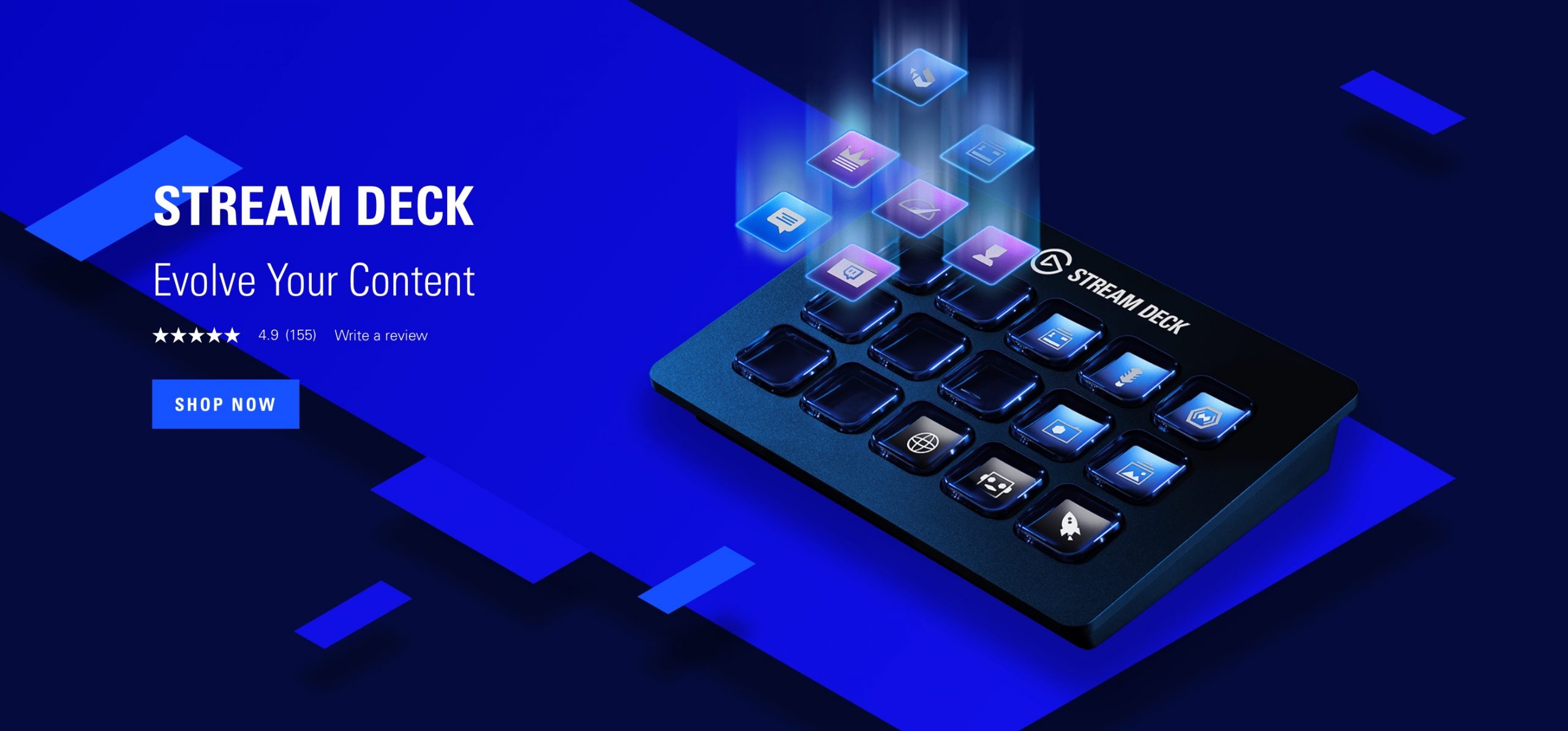
In this guide, we explore Elgato's PC controller, Stream Deck, and how to use it.
Stream Deck is a productivity tool that lets you assign computer operations to buttons and execute them with a press.
It is packed with distinctive, practical features, including custom button images and the ability to run several operations from a single button.
I initially bought one just to try it out, but it quickly became my number-one purchase of 2021.
It turned out to be a versatile controller I would recommend to anyone who uses a computer, as well as music producers.
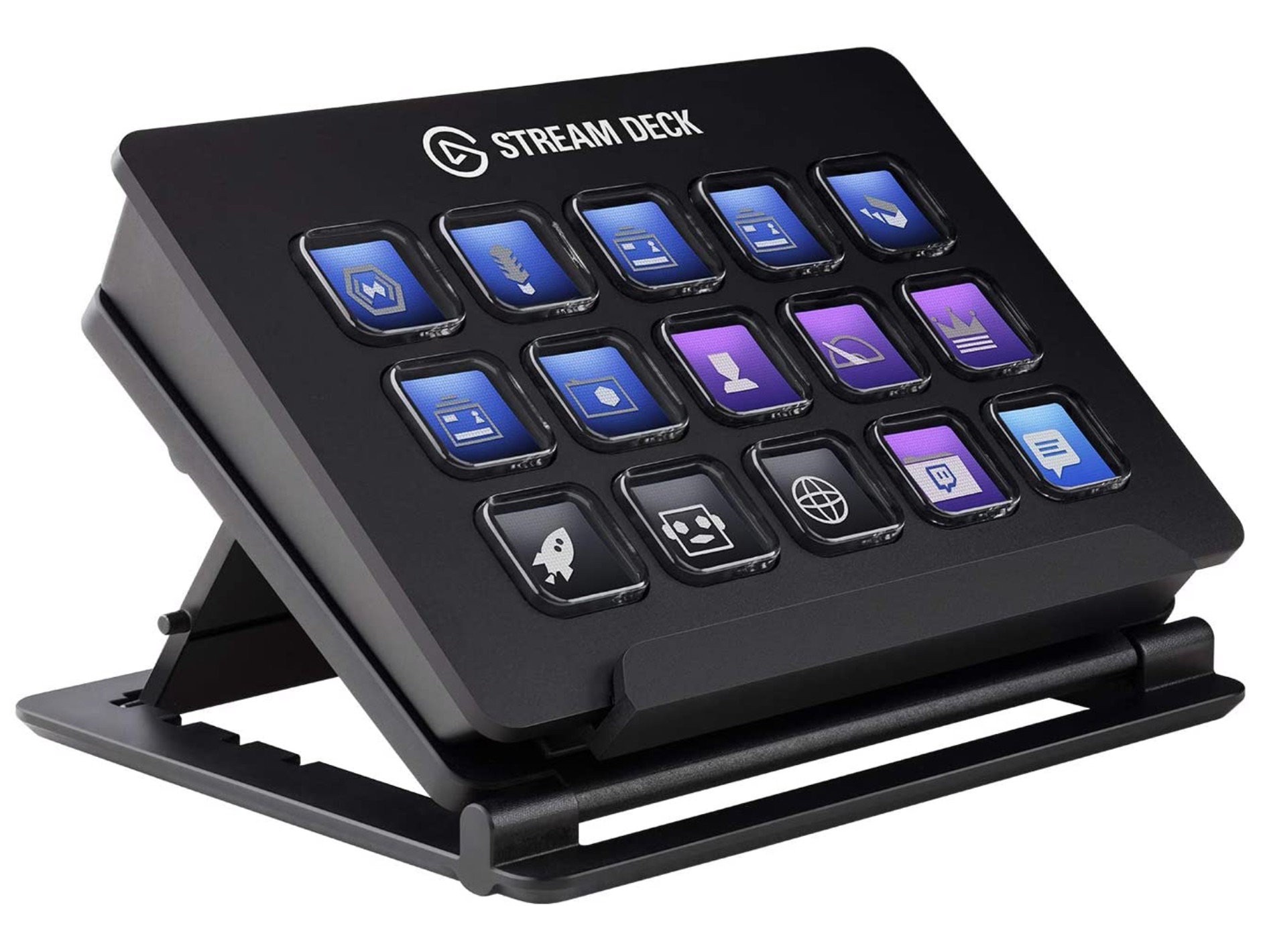
The lineup covered here offers 6, 15, or 32 buttons. For this guide, we prepared the 15-button Stream Deck and the 32-button Stream Deck XL.
Let's look at the products and some practical ways to use them.
Stream Deck: hands-on video guide
The three models covered in this guide
The links below include affiliate links.
The three models in the original lineup differ in button count, size, and weight.
Choose according to your intended use and the space on your desk.
STREAM DECK MINI: 6 buttons
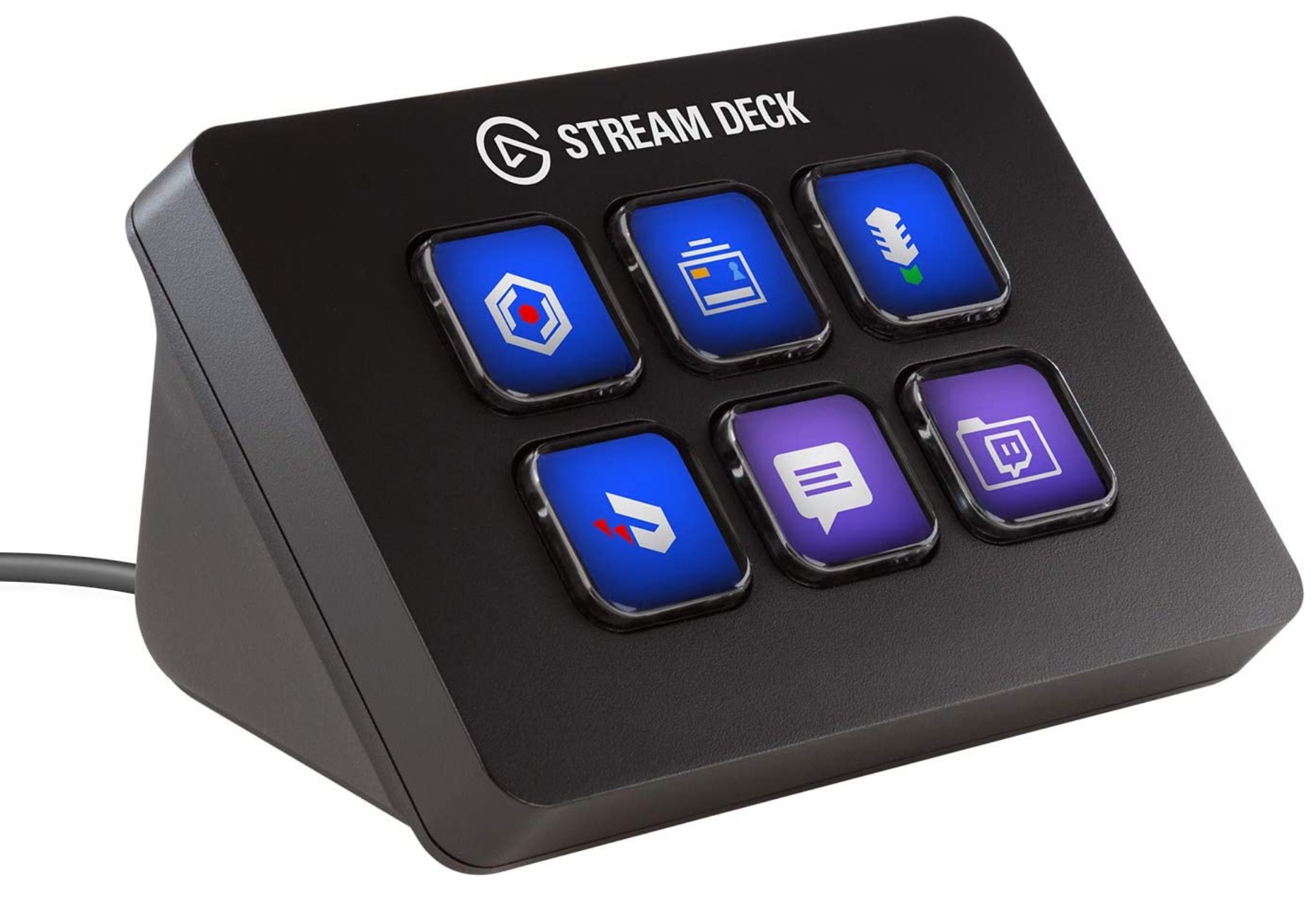
- Width 84 mm × height 60 mm × depth 58 mm
- Weight: 160 g
Product URL: https://www.elgato.com/ja/stream-deck-mini
STREAM DECK: 15 buttons
- Width 118 mm × height 21 mm × depth 84 mm
- Weight: 190 g
STREAM DECK XL: 32 buttons
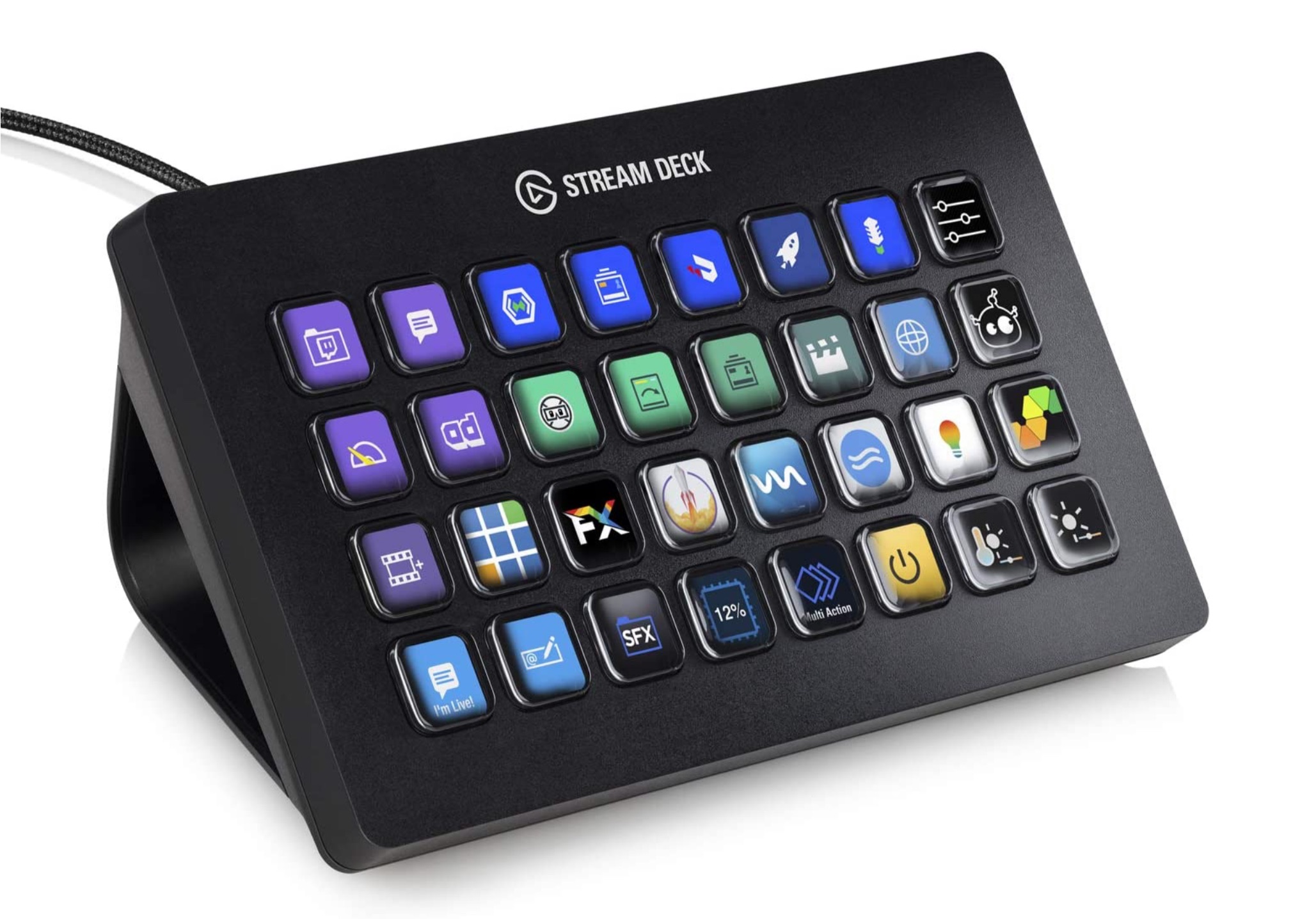
- Width 182 mm × height 34 mm × depth 112 mm
- Weight: 408 g
One caveat for the models covered here: a USB hub could cause unreliable operation, and the manufacturer's website at the time advised against using a hub.
I bought the 15-button model because six buttons seemed too few for operating a DAW, but I often found myself wishing for a few more.
That kept bothering me, so I later added the 32-button model.
For music production, video editing, and similar software work, I would recommend a model with at least 15 buttons.
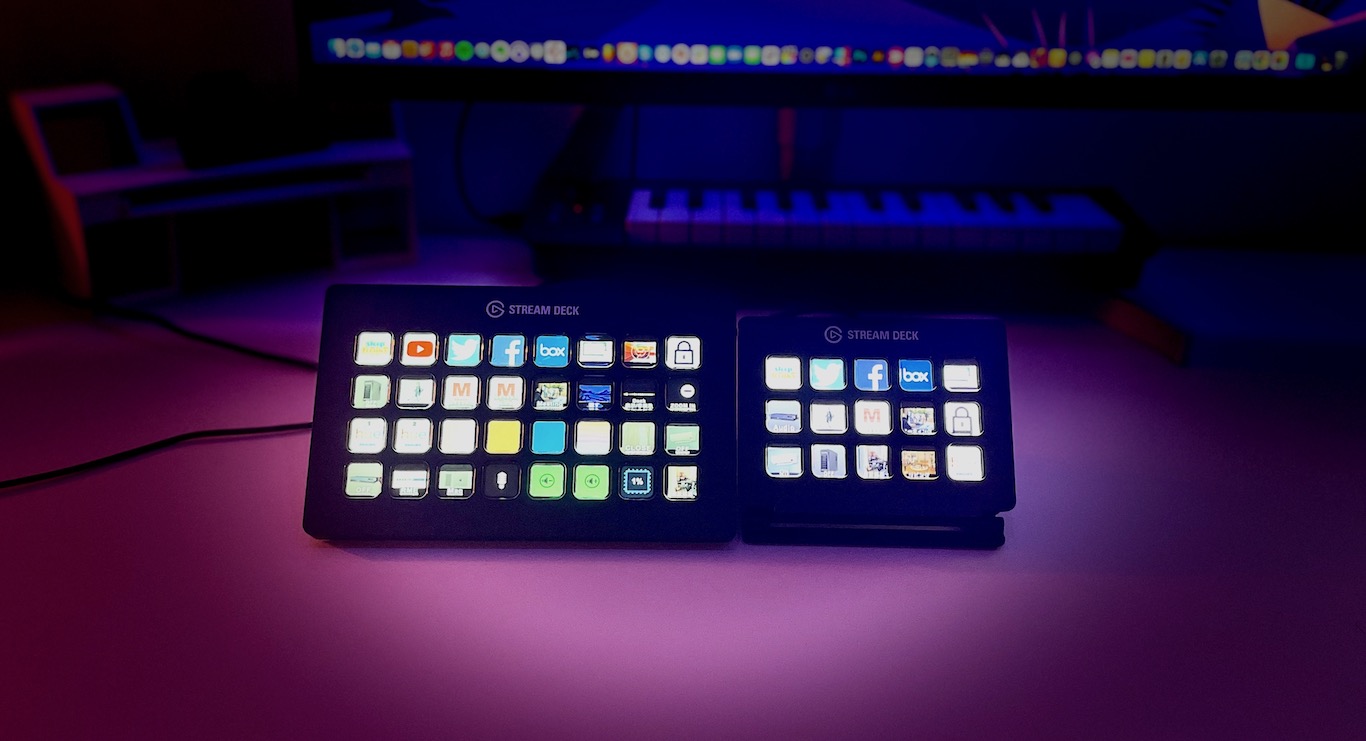
The 32-button model also feels solid, weighing approximately 400 g.
The 15-button and 32-button models felt quite different in construction, especially in how firmly they stayed in place when pressing buttons.
Stream Deck Mobile
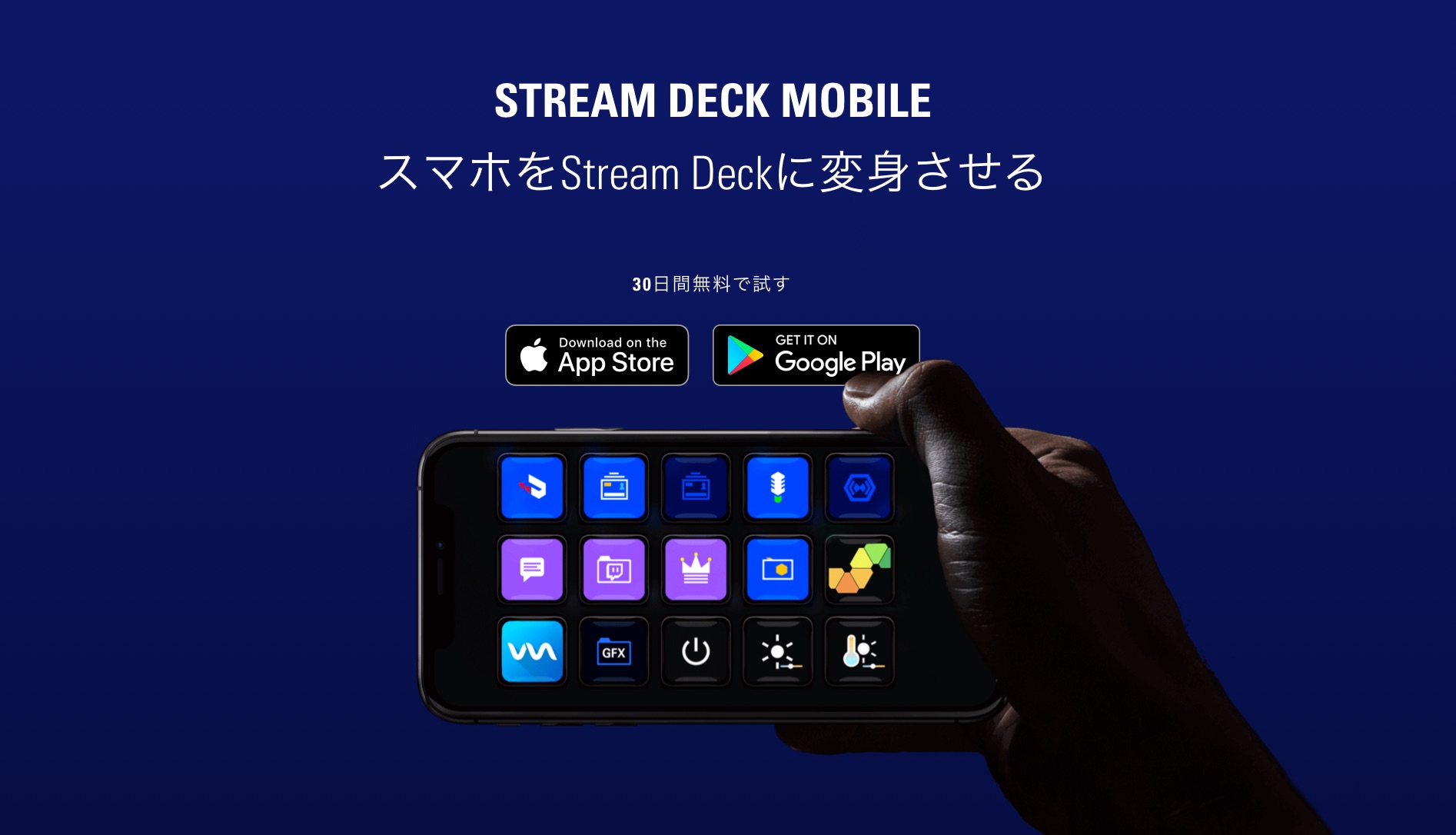
Stream Deck also had a mobile version for iPhone, iPad, and Android, offered as a paid subscription when this guide was written. Check the linked app listings for current availability and pricing.
It lets you control the operations described below from a mobile device without owning the physical Stream Deck hardware.
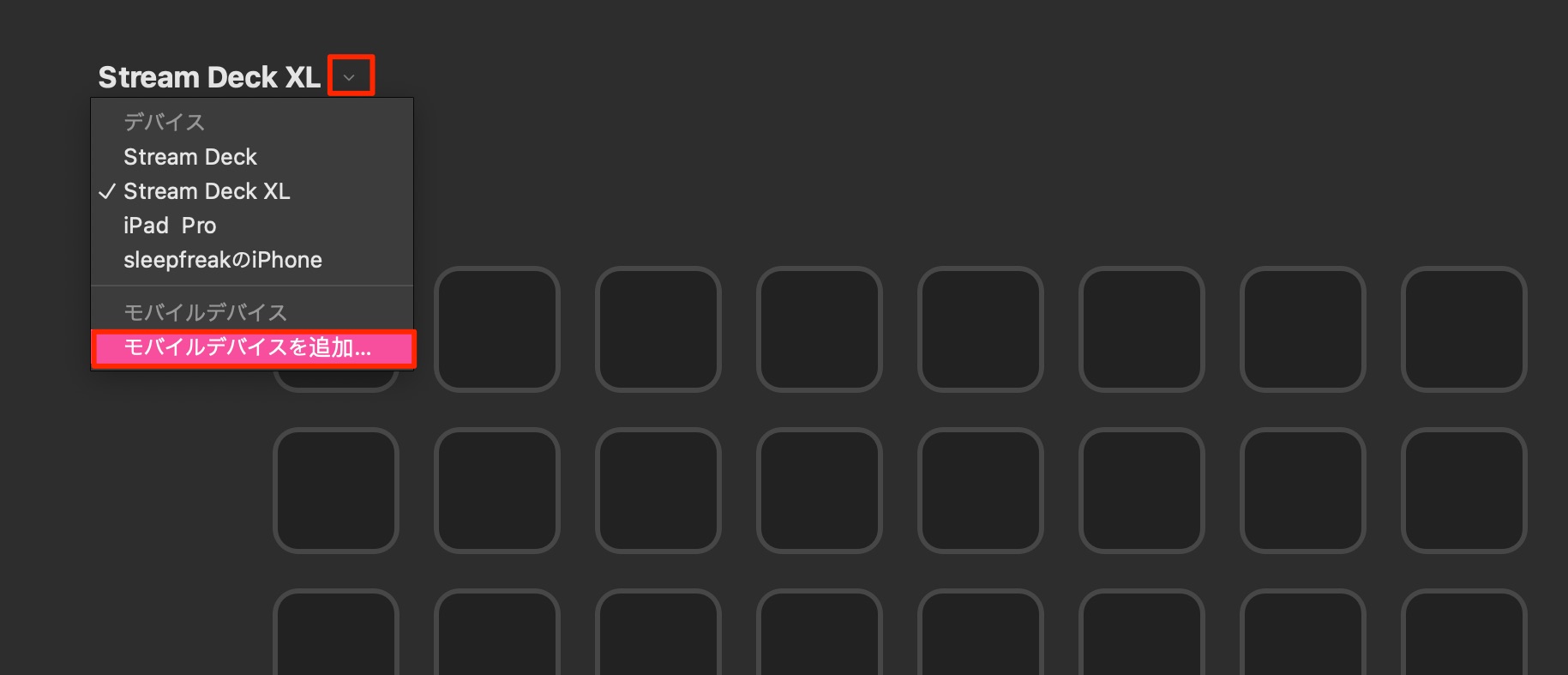
In the desktop Stream Deck software, click the device name and choose “Add Mobile Device.”
Make sure both devices are connected to the same Wi-Fi network, then scan the displayed QR code using your mobile device's camera to pair them.
This is also a useful way to explore the features and possibilities before buying the hardware.
Give it a try.
How to use Stream Deck
Let's start with the software used to configure the controller.
Download and install the software
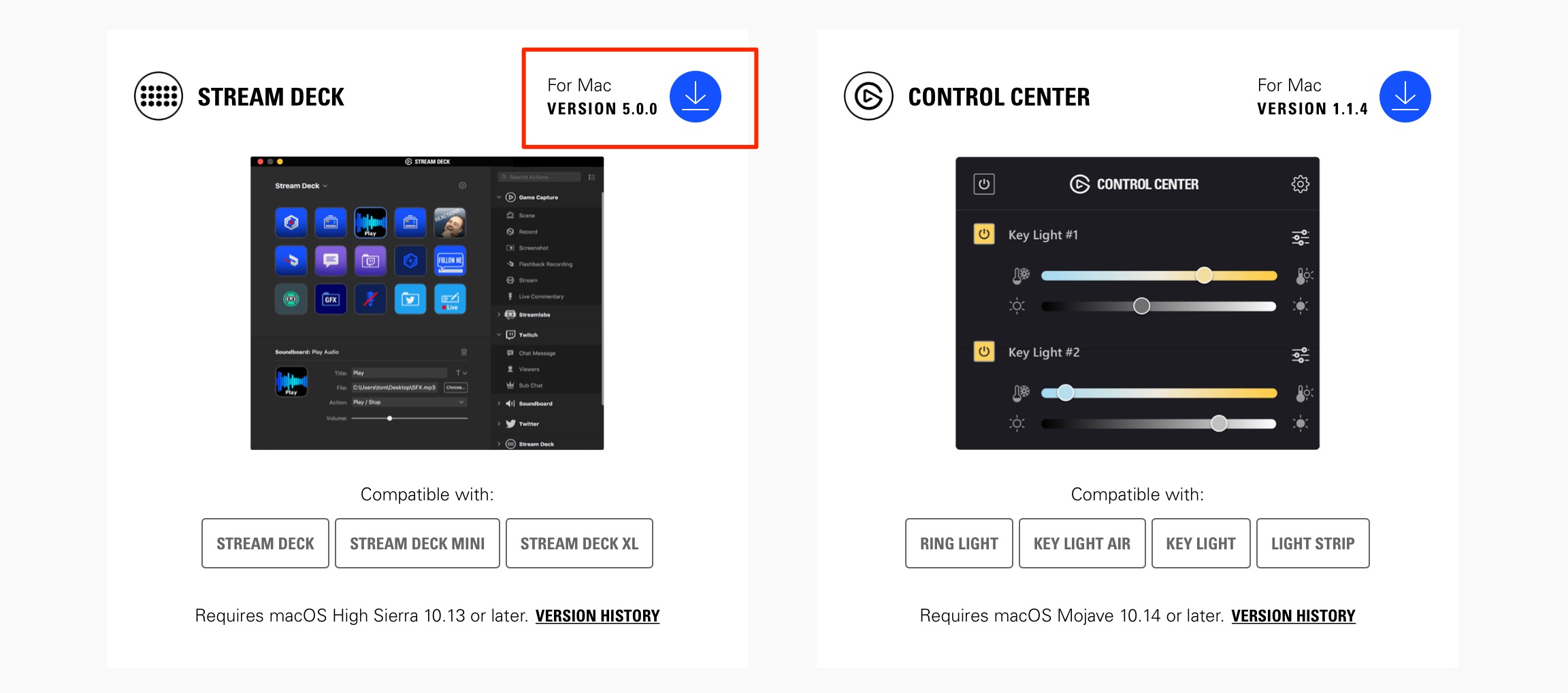
Download and install the Stream Deck software from the following page.
https://www.elgato.com/en/downloads
Create profiles
You can save multiple button layouts for different situations.
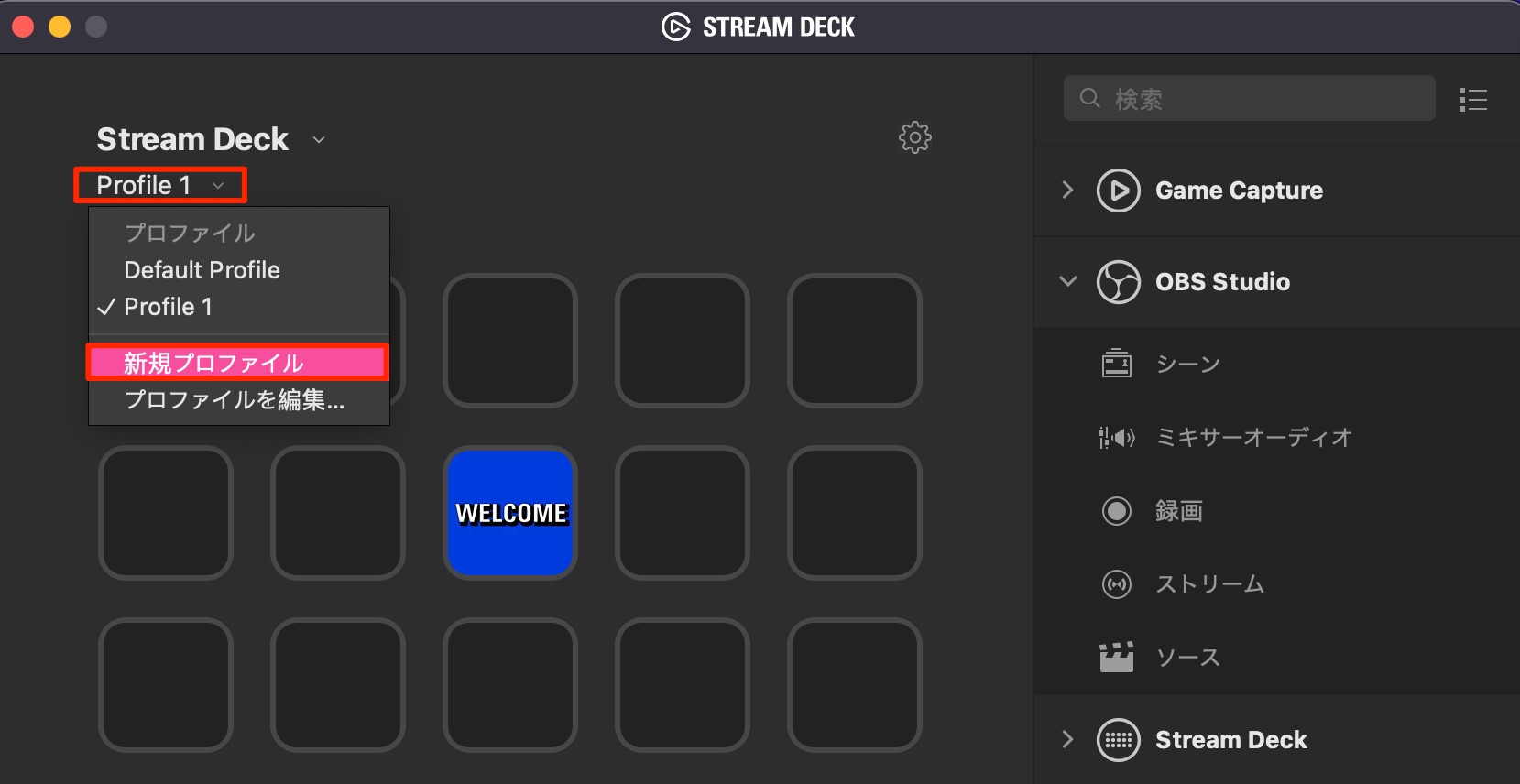
Each saved button layout is called a “profile.”
You can add profiles from this section.
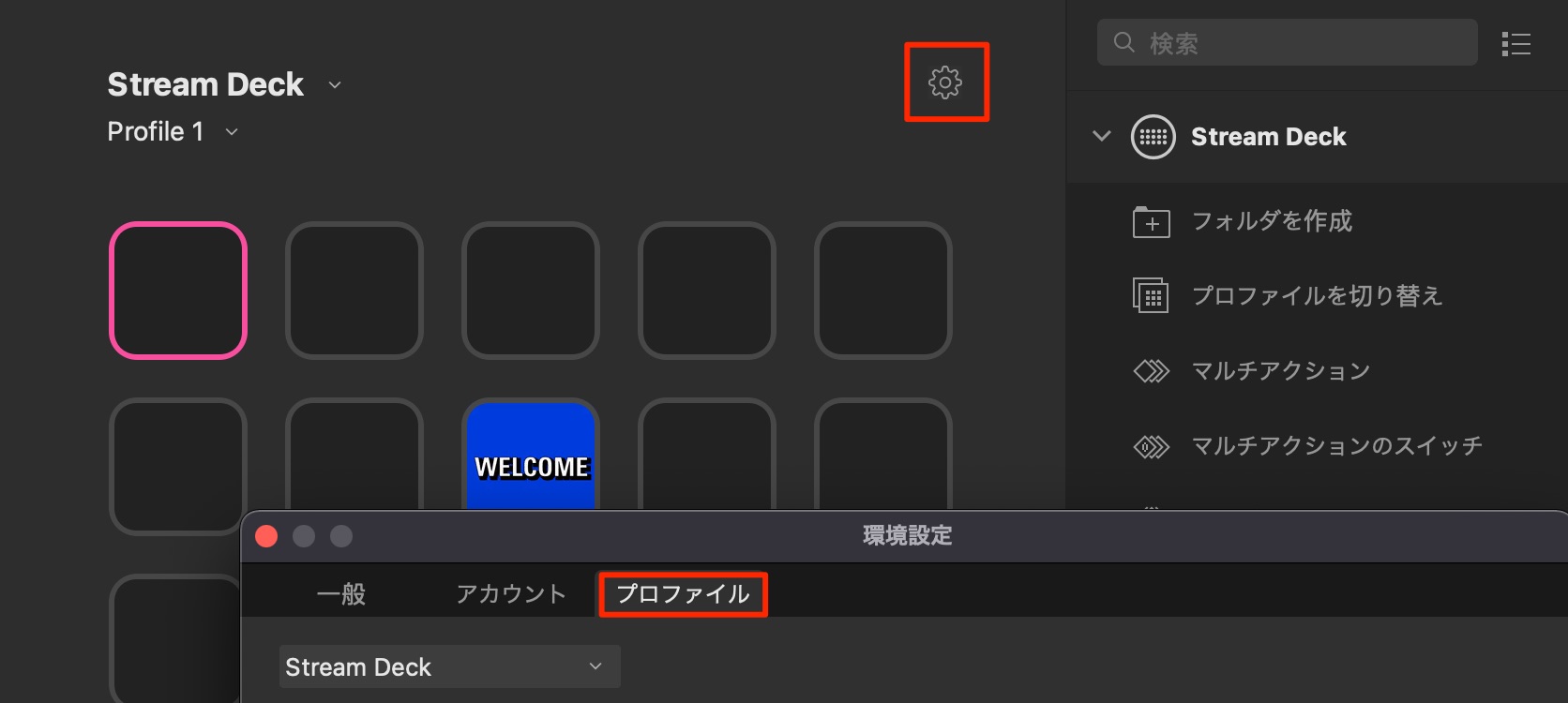
Click the Preferences icon to manage your profiles.
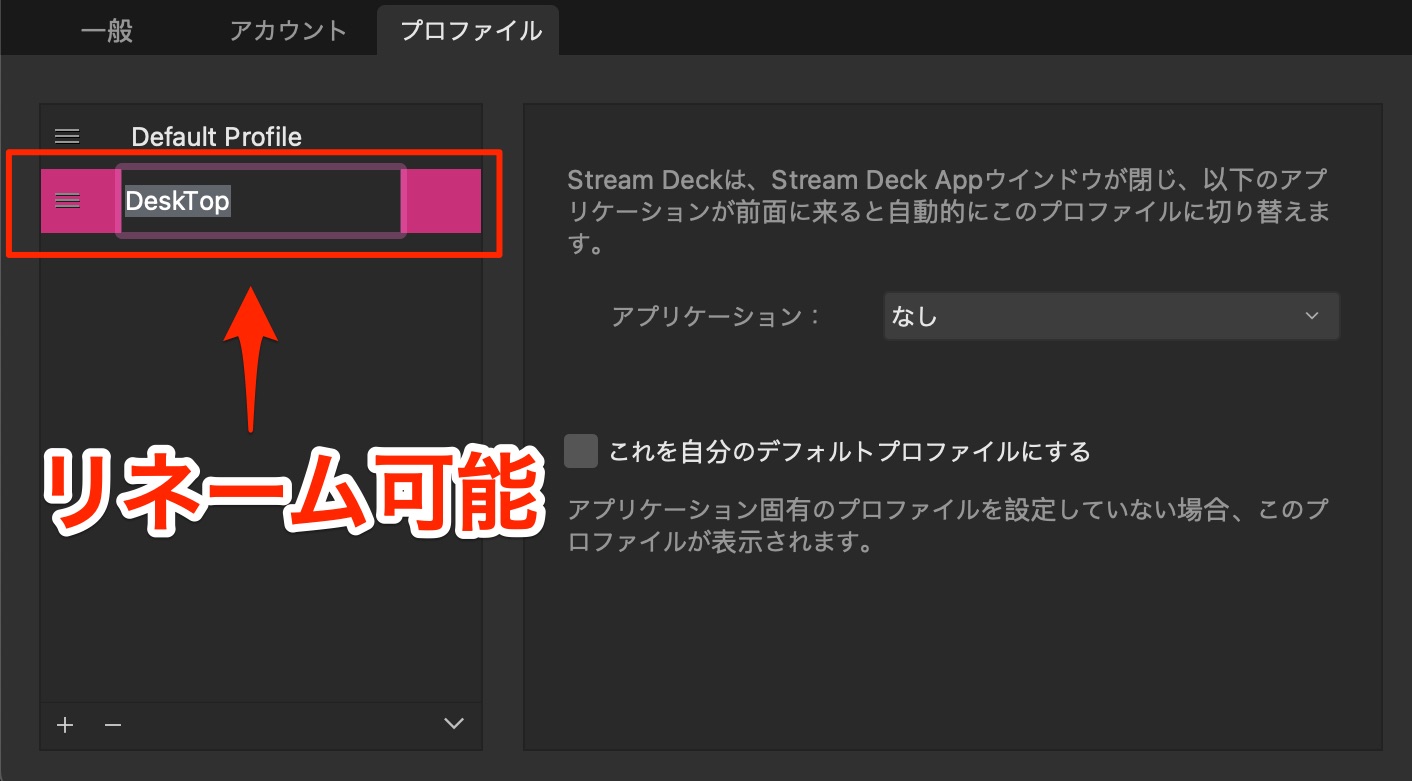
You can also rename them in the window that lists your profiles.
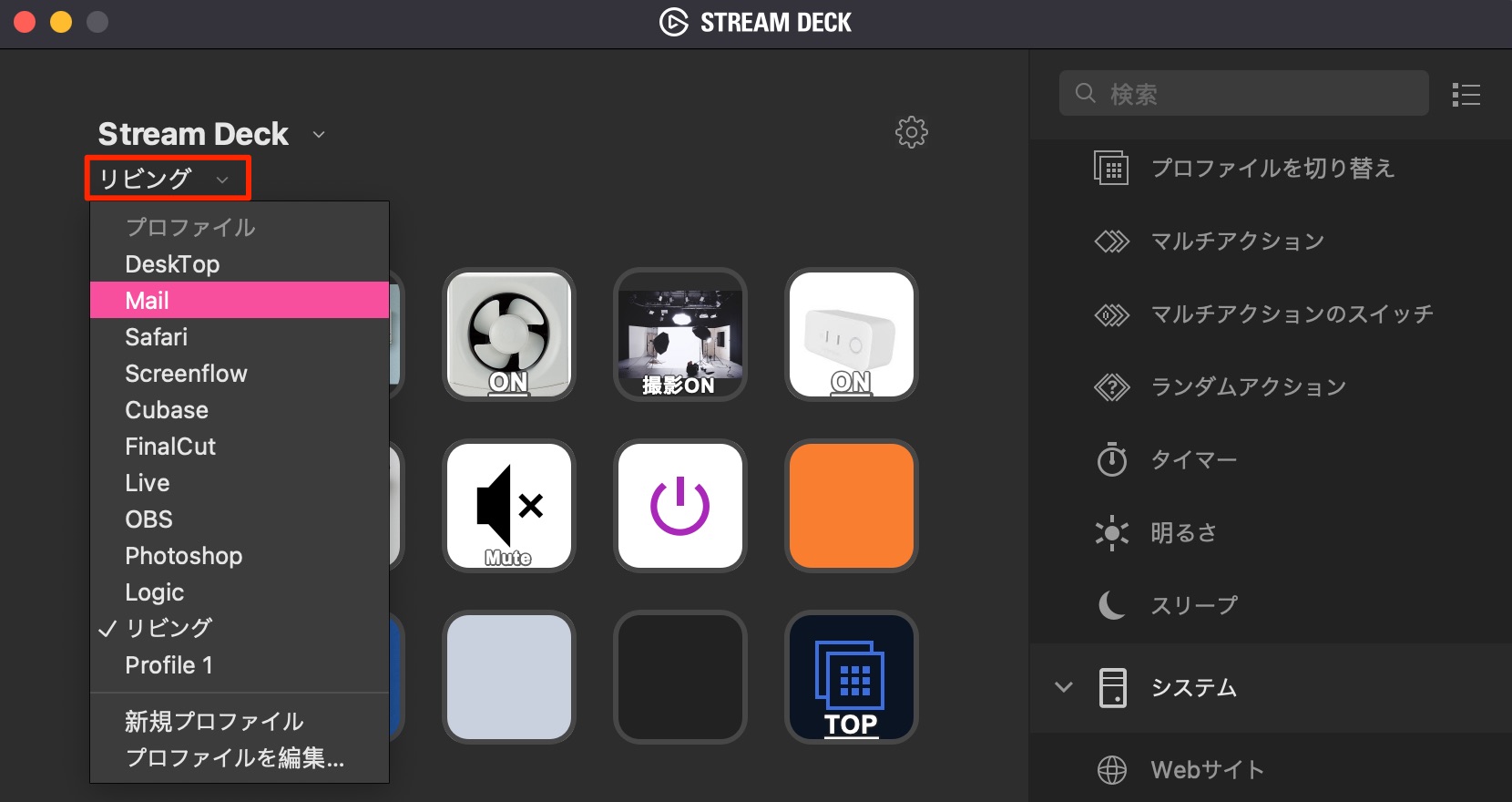
Use this menu to switch to the profile you want to edit.
Assign an action to a button
Giving a button an action is very straightforward.
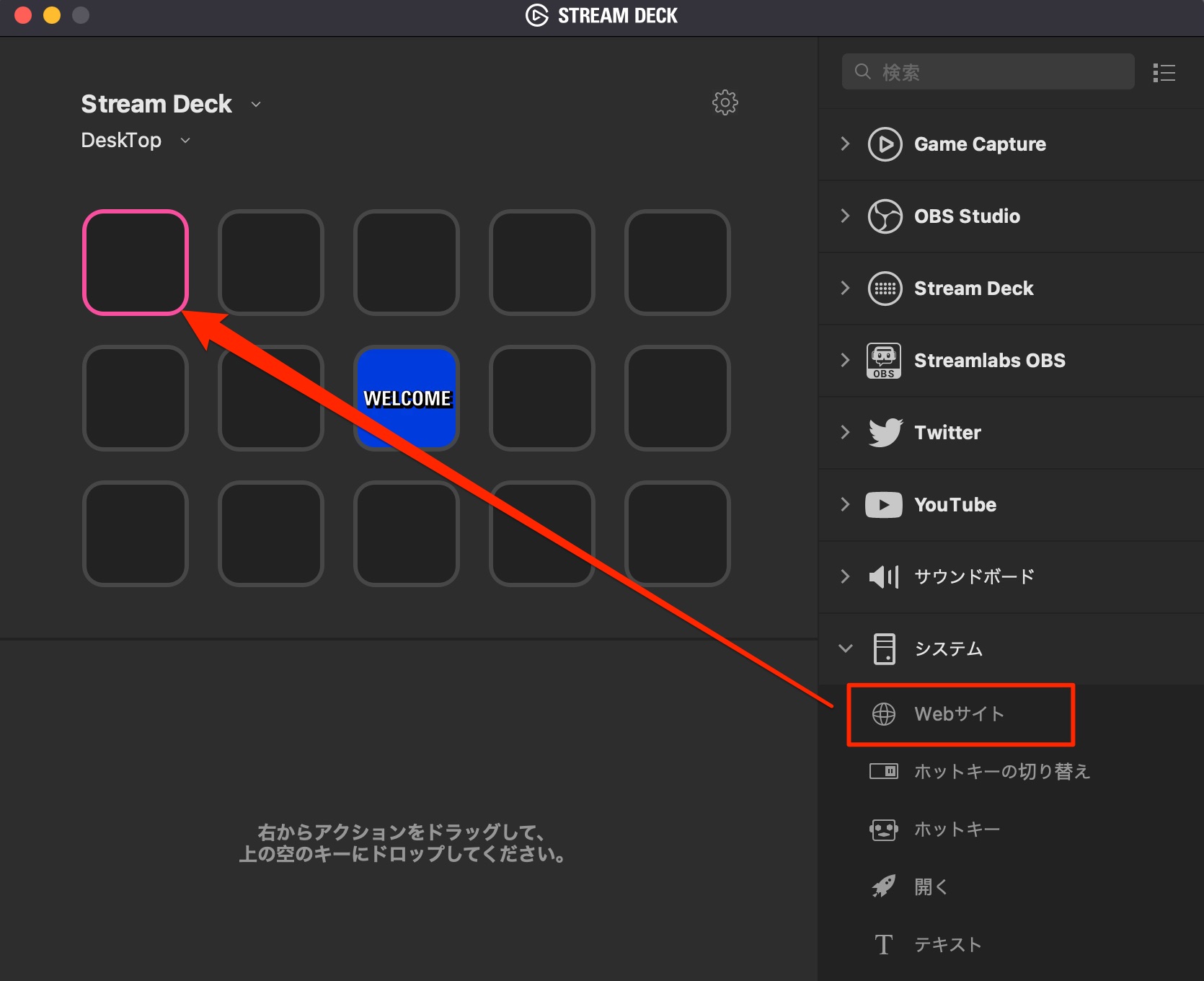
Simply drag the action you want onto a button.
Here, we'll assign a button to open a specific website.
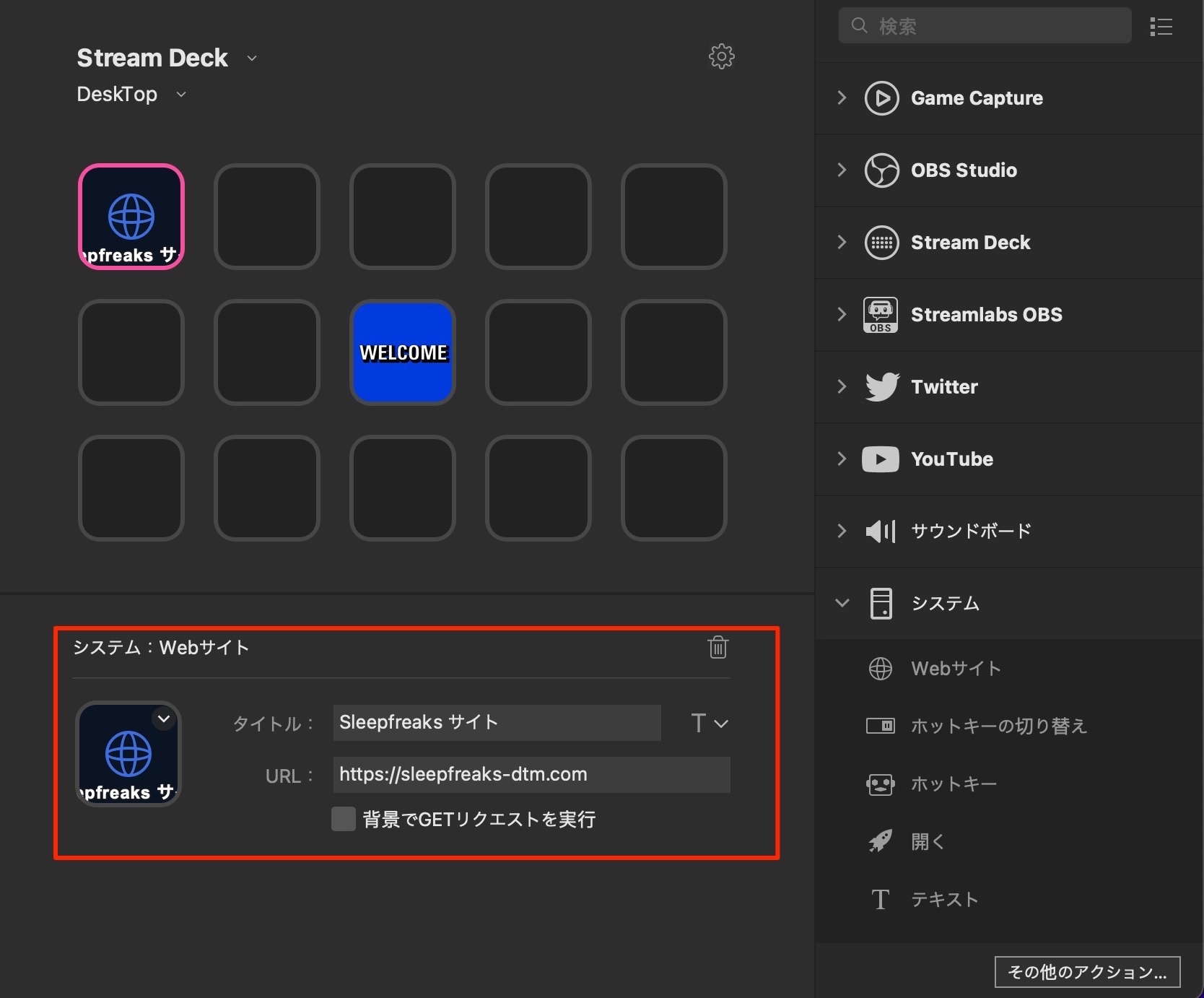
Detailed settings for that button appear at the bottom of the window.
We entered a button title and the URL of the website to open.
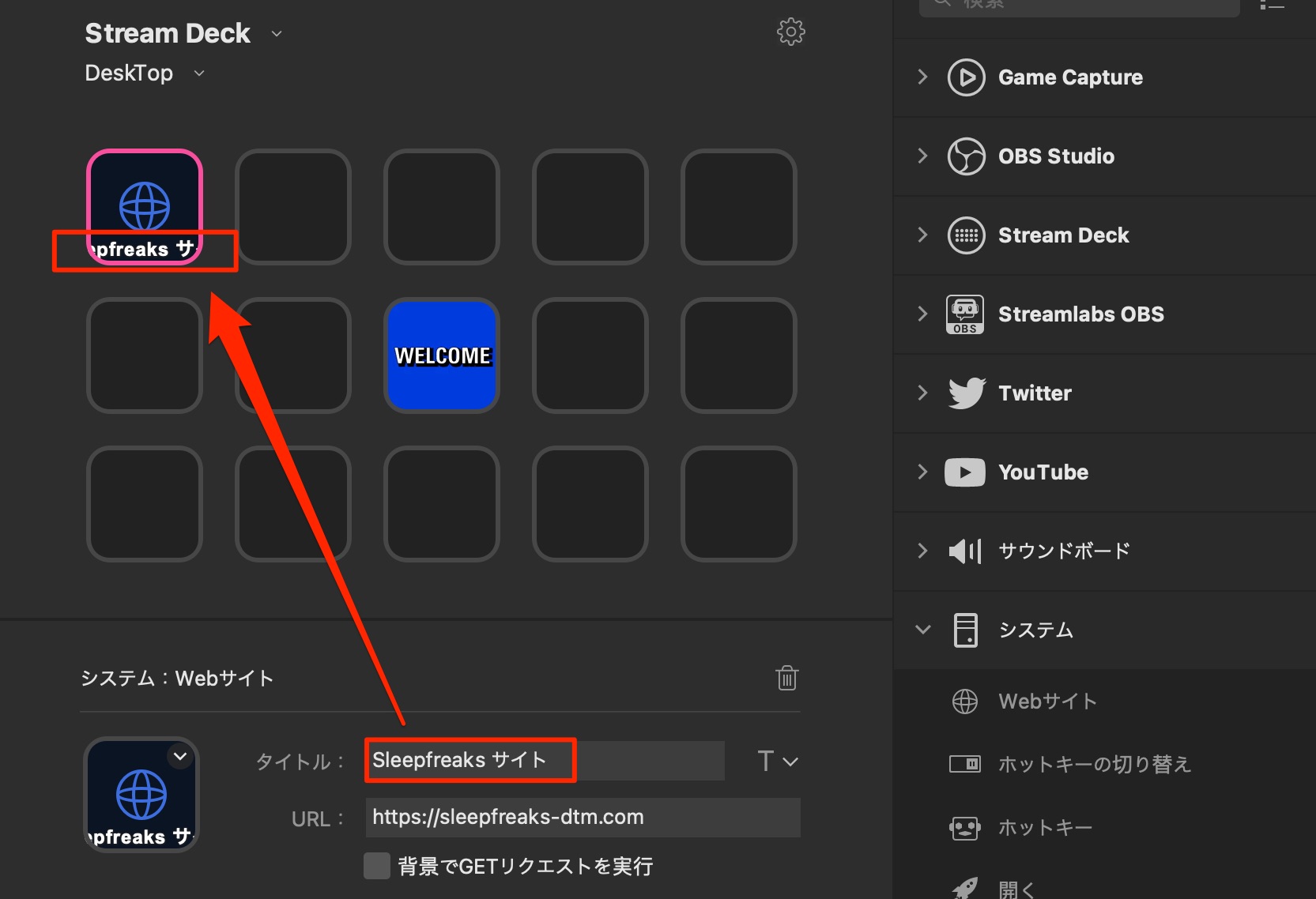
The title currently extends beyond the button.
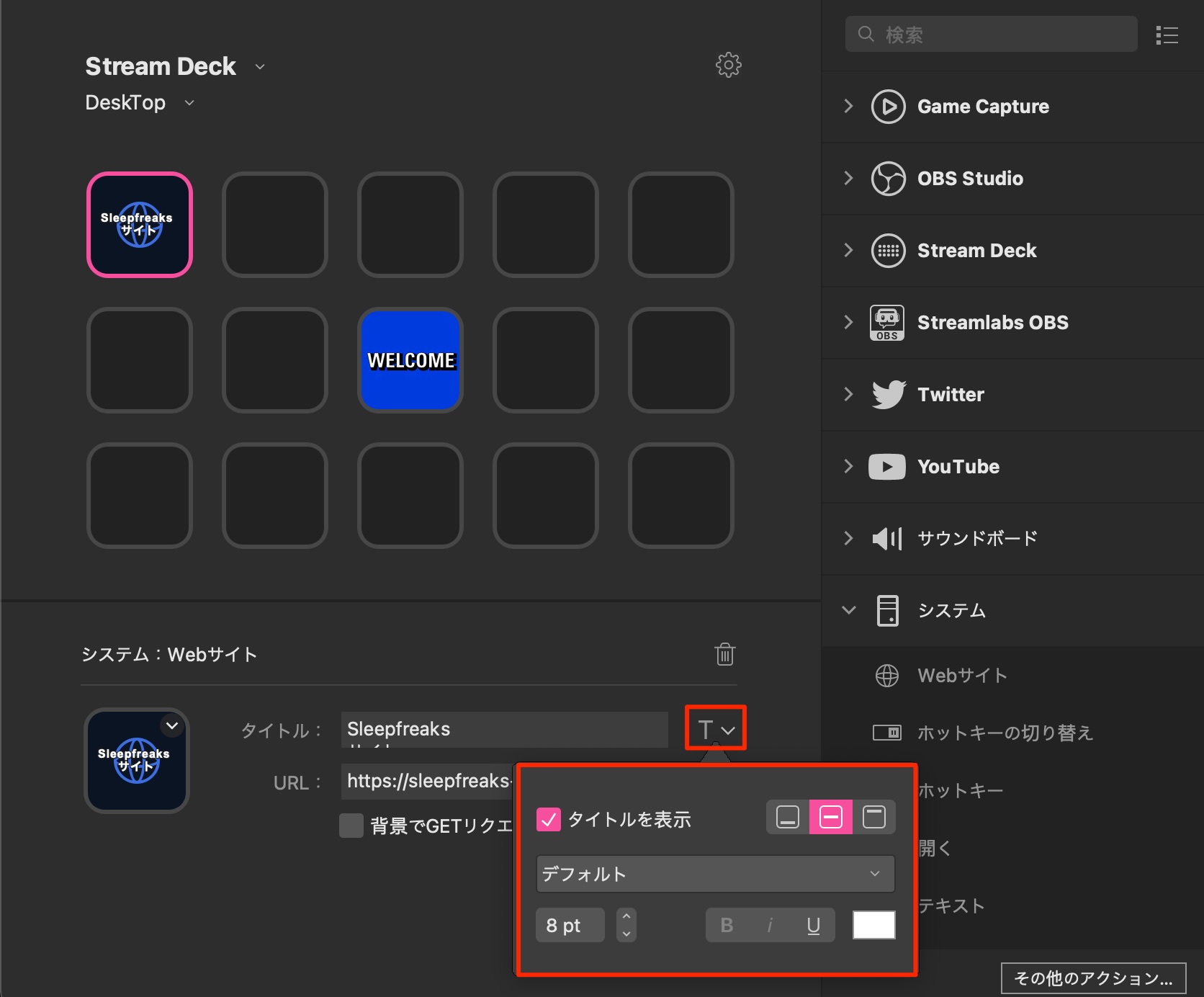
You can insert line breaks, and
the “T” control lets you change the text size, visibility, font, and color.
Assign an image to a button
One of Stream Deck's defining features is the ability to assign images to buttons.
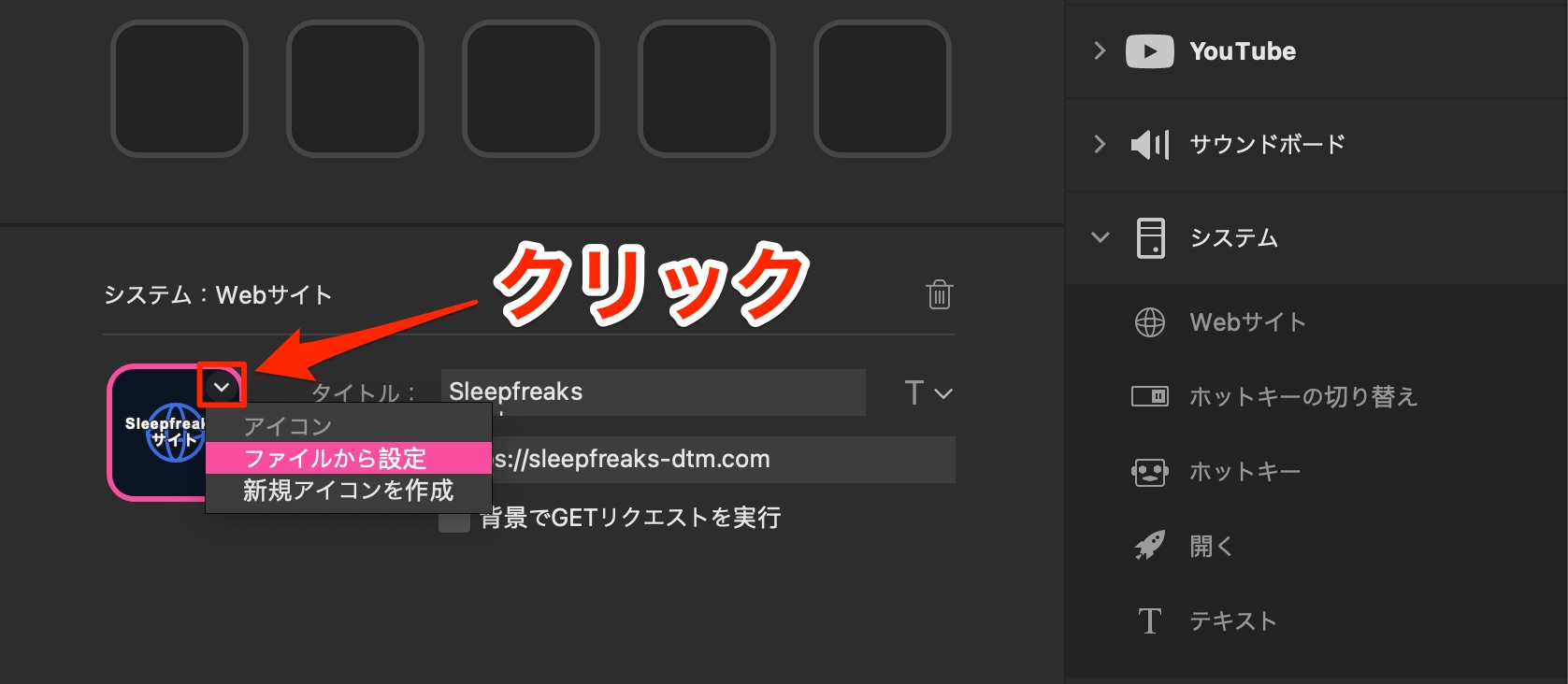
Click the control at the upper right of the button preview and choose “Set from File.”
Select an image file to display it on the button.
Alongside common formats such as JPG and PNG, animated GIFs are supported.
An image makes a button's purpose much easier to recognize. We turned off the title because it was no longer needed.
That covers the basic assignment process.
Version 5 also introduced a wide range of icon packs.
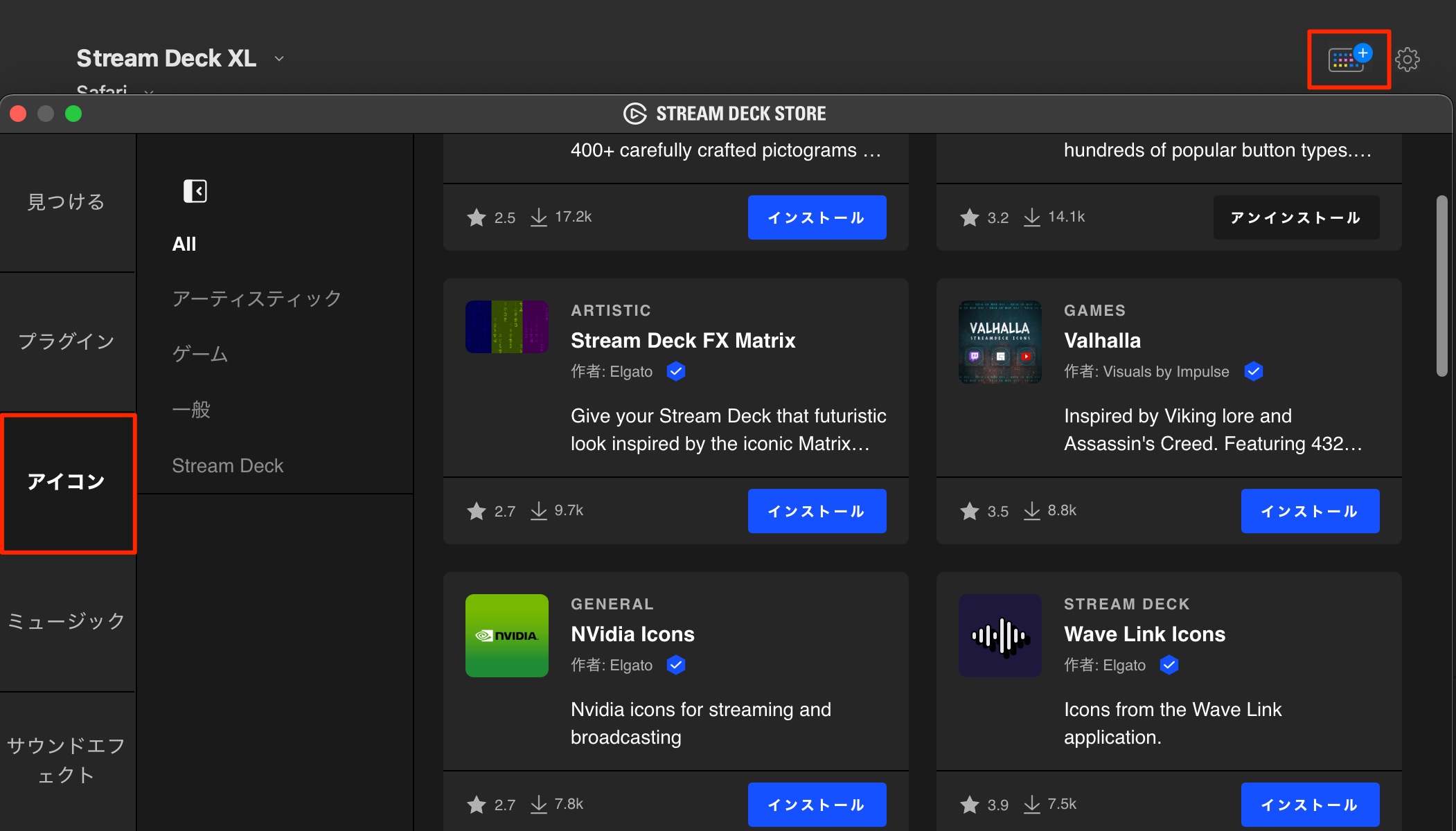
Press the “+” button at the upper right.
In the window that opens, select “Icons” and install the pack you want.
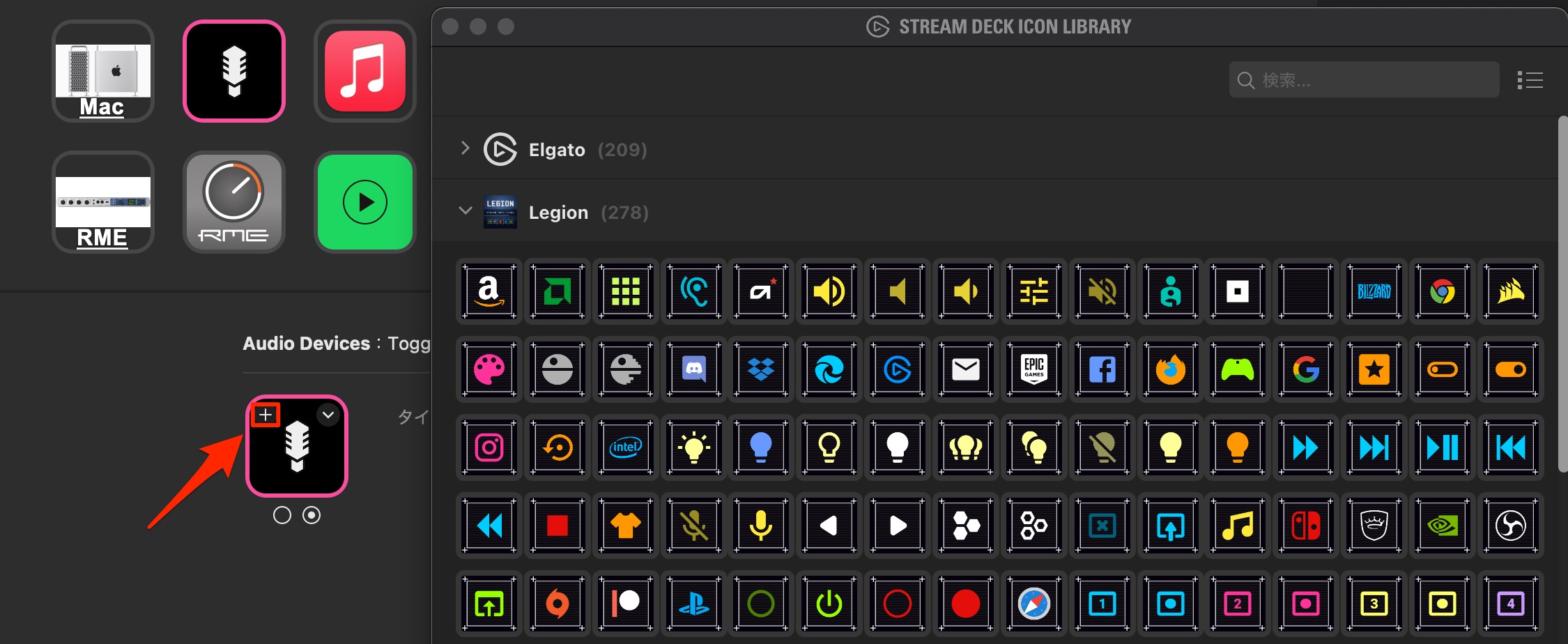
You can use installed icons from the “+” control at the upper left of the selected button's settings.
Set a screensaver image
You can also choose the image displayed while Stream Deck is idle.
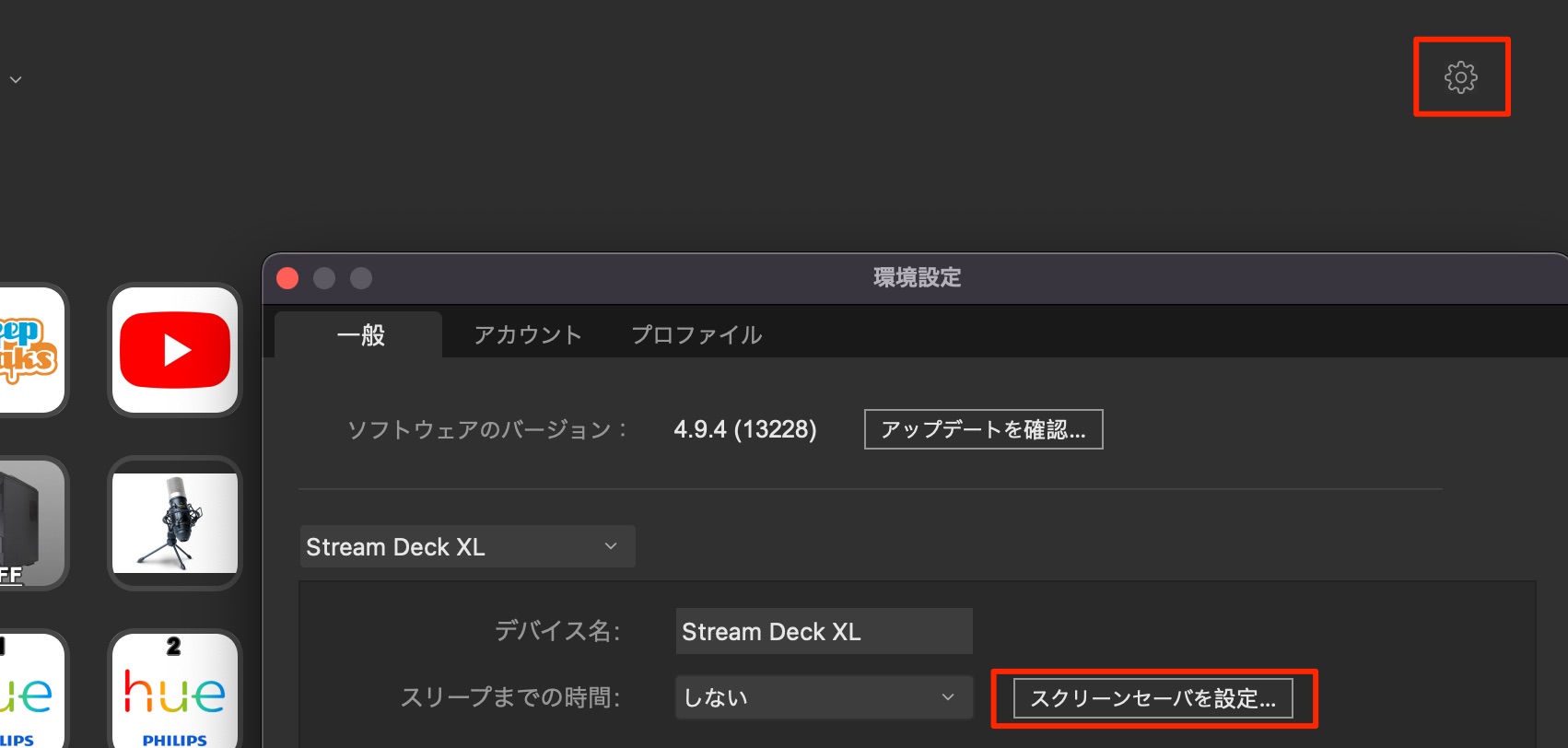
Open Preferences, then select General → Set Screensaver and choose your image.
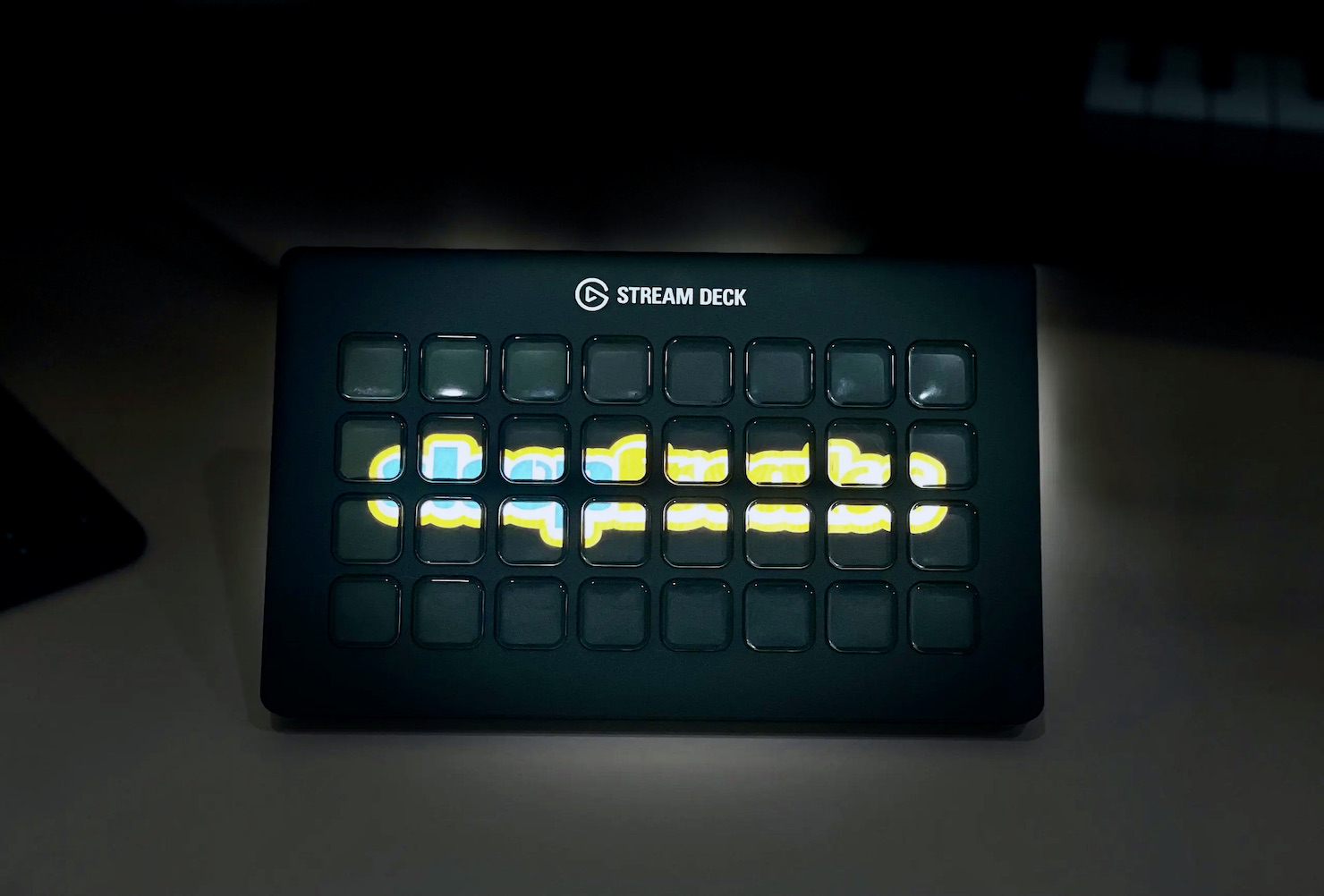
The image is displayed as shown here.
Assign an application to a button
Using the same approach, let's assign a button to launch a DAW.
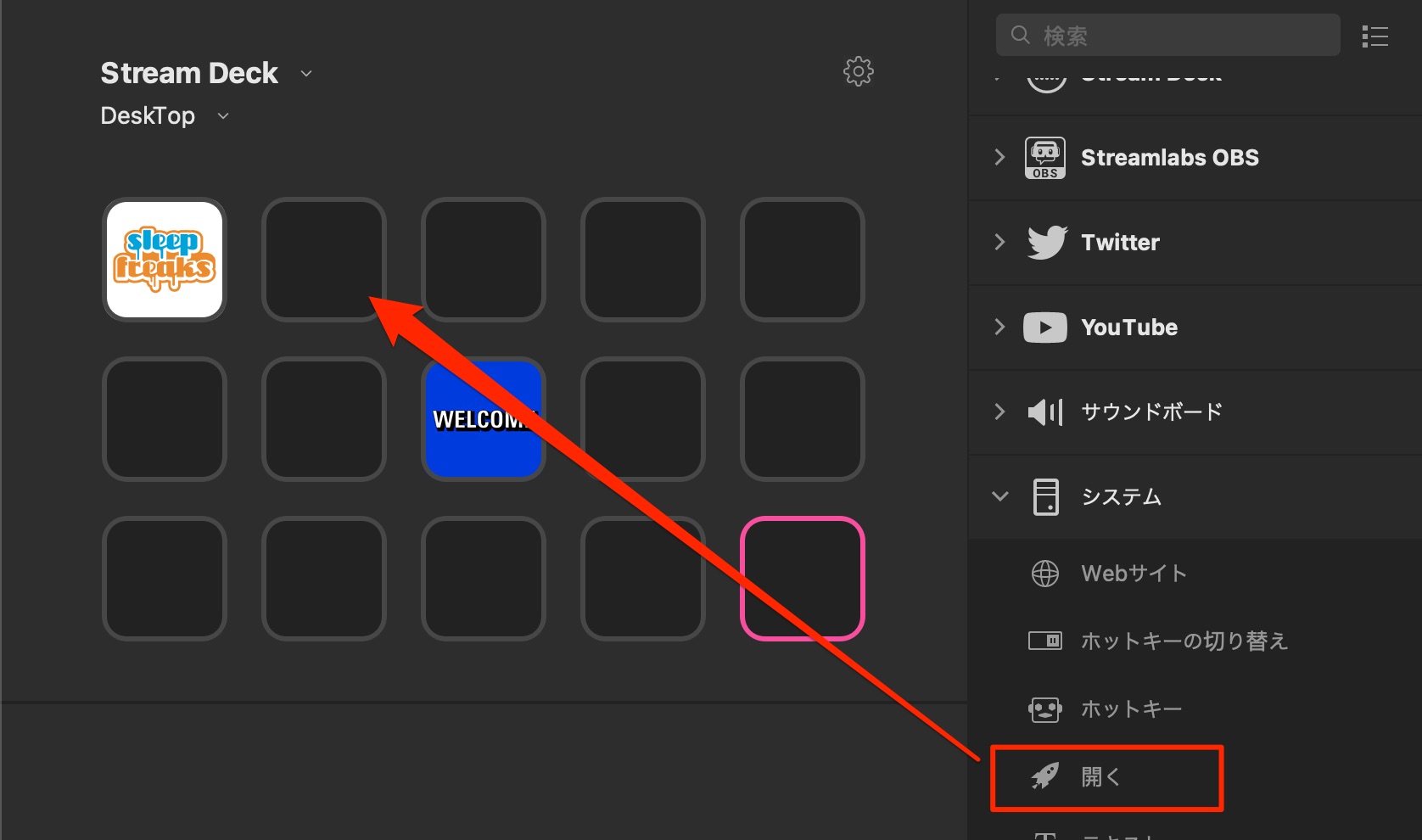
Use the “Open” action under “System.”
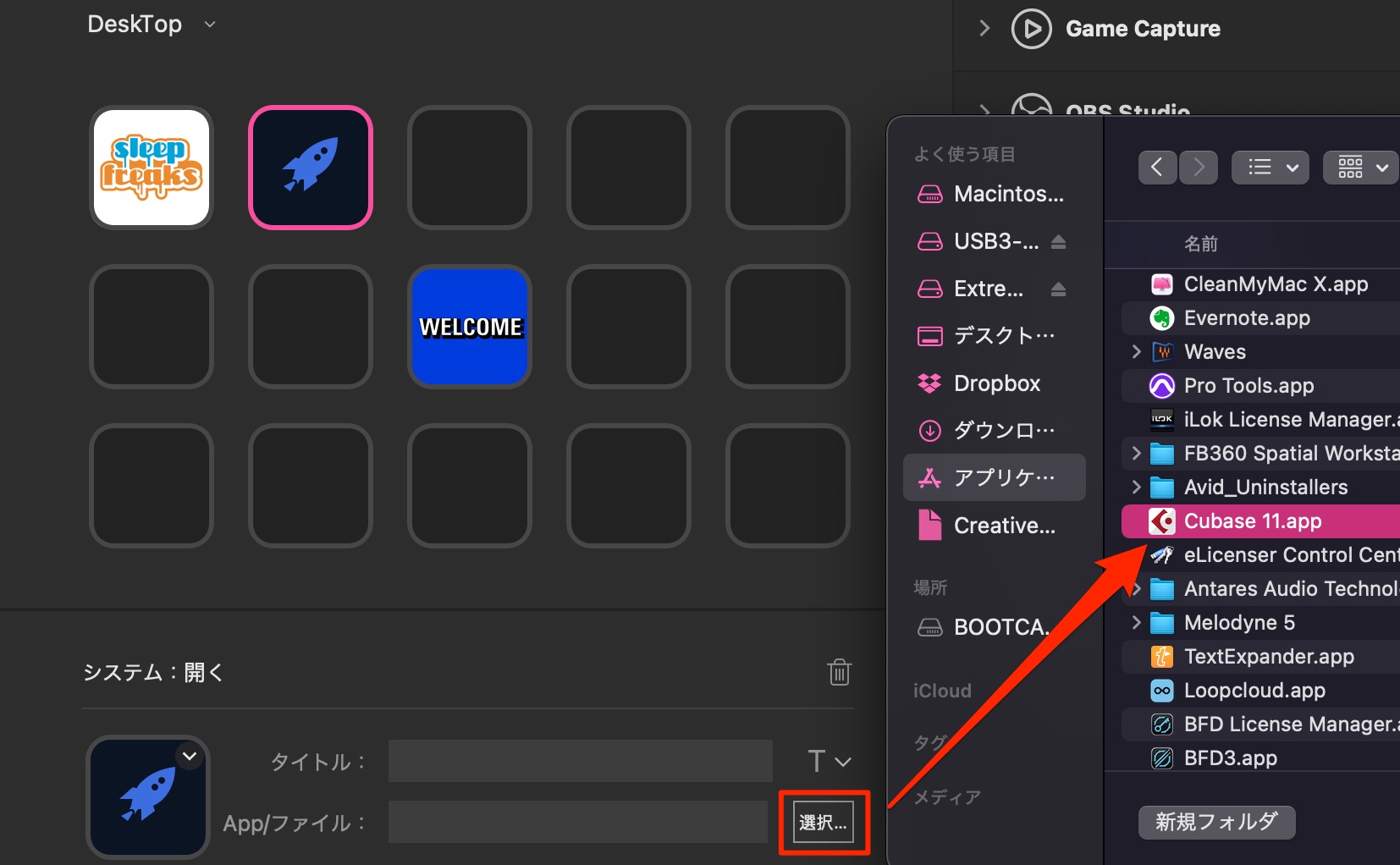
Then select the application you want to launch.
Remove an unwanted button assignment
As you develop your layout, you may no longer need some assignments.
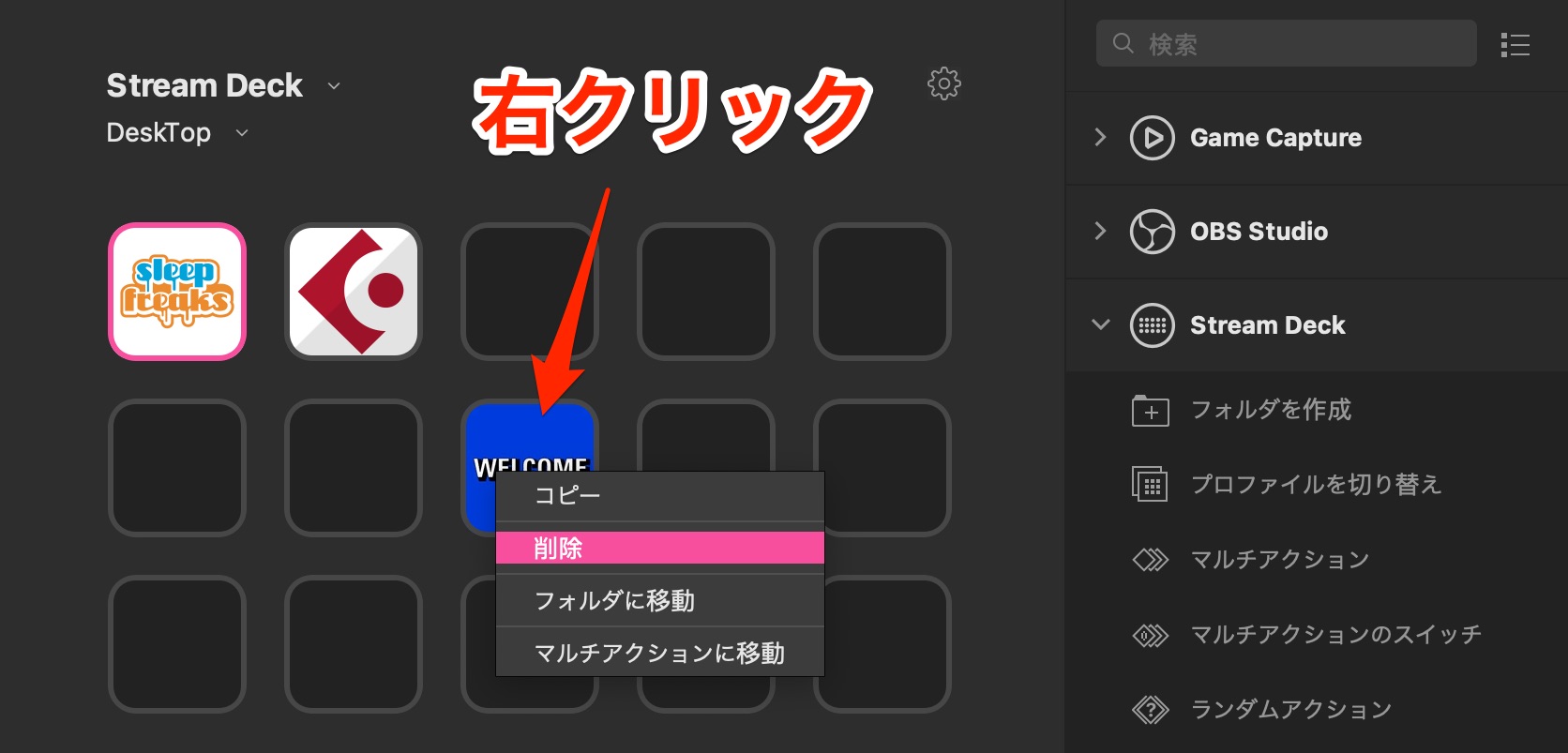
Right-click the button and select “Delete” to clear its assignment.
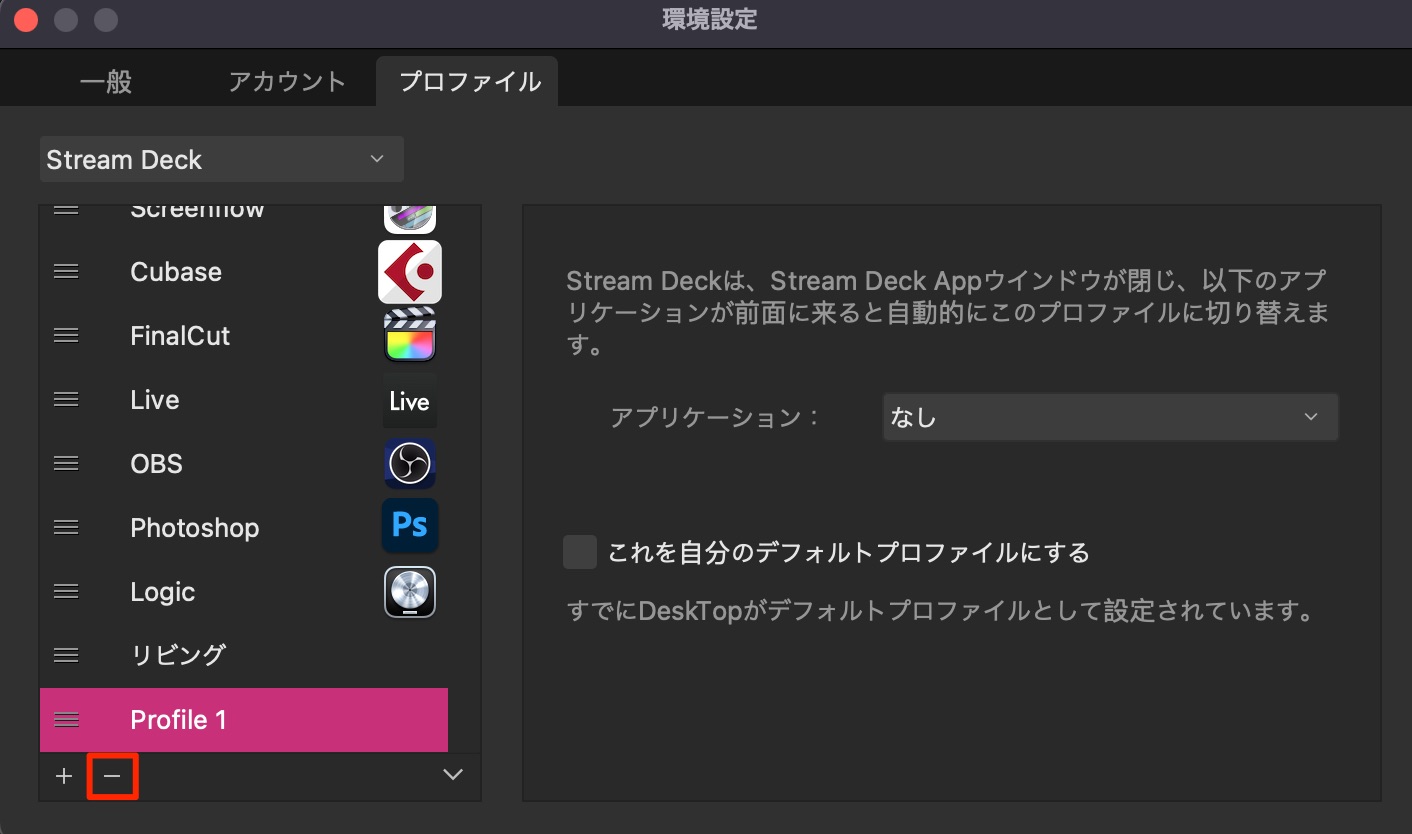
To delete an entire profile, select the profile and press the “−” button.
Manage buttons and profiles
As you use Stream Deck, you may find that:
- You have more actions to add than a single profile has buttons.
- You want the button assignments to change for different applications.
These are common situations.
Let's look at settings that address them.
Use folders to expand your button layout
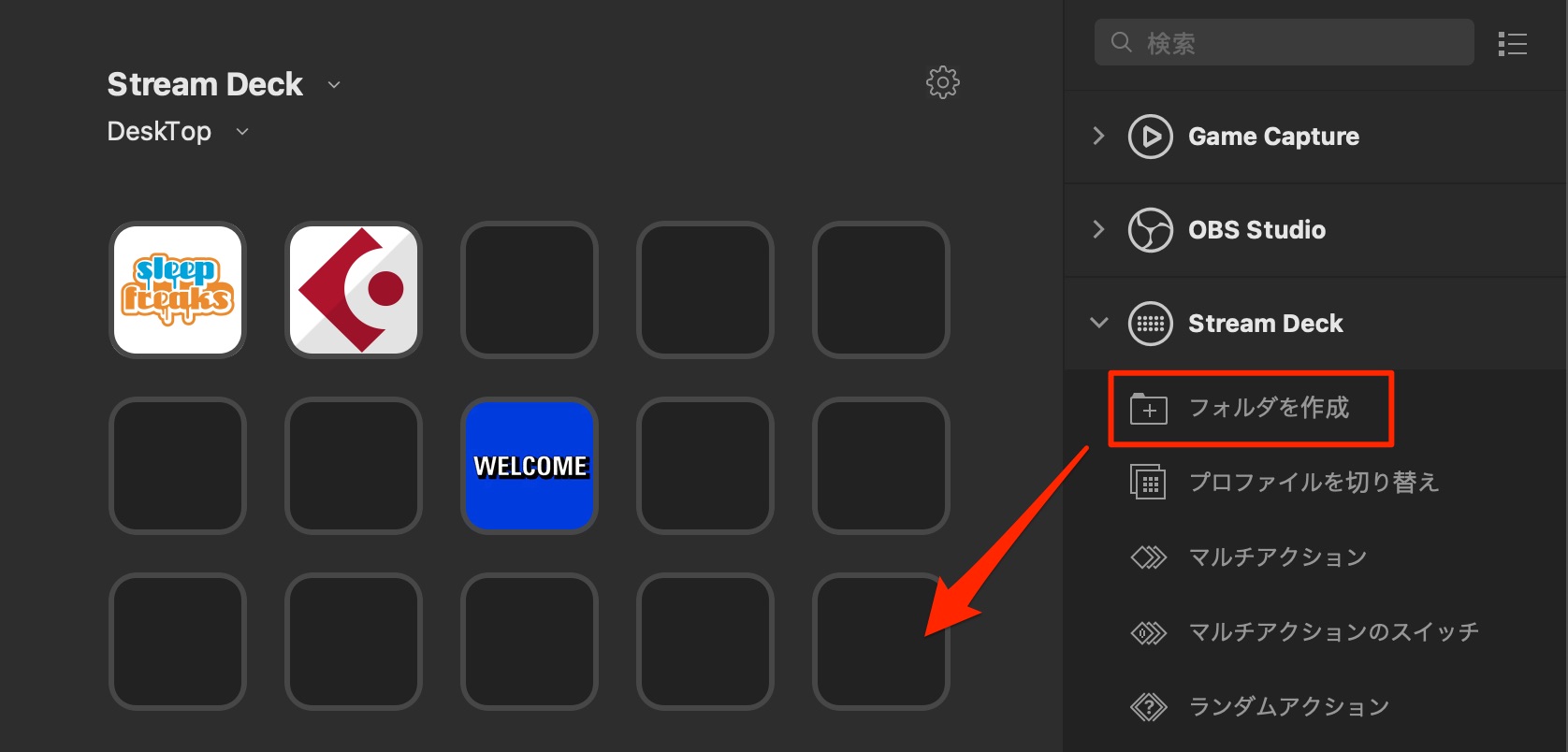
Under “Stream Deck,” you will find the “Create Folder” action.
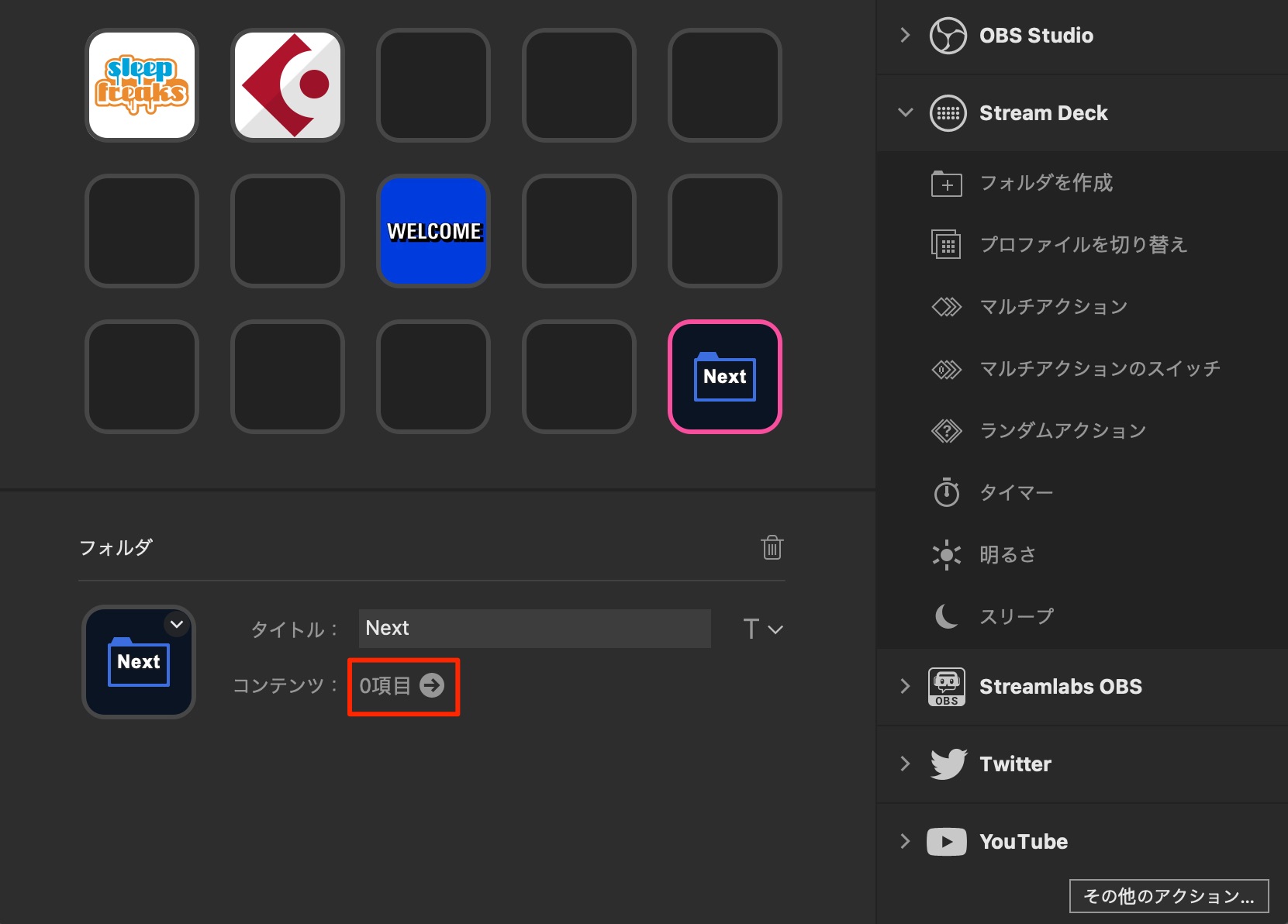
Click the “Content” section.
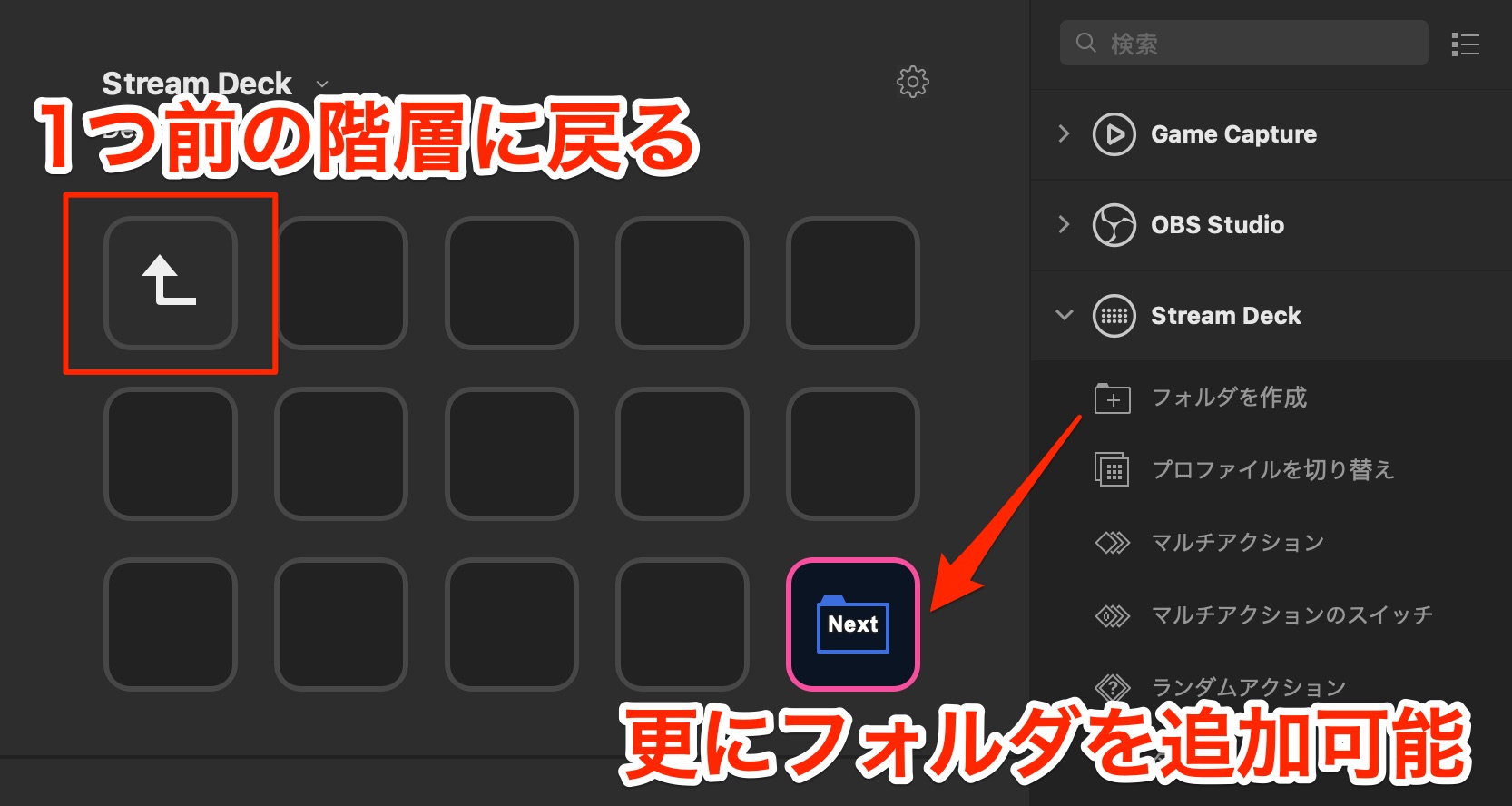
You can now add another set of buttons inside the folder.
Press “↑” to return to the previous level. You can also create folders within folders; the configuration described in this guide allowed up to 210 operations on this model.
This helps when you run out of physical buttons.
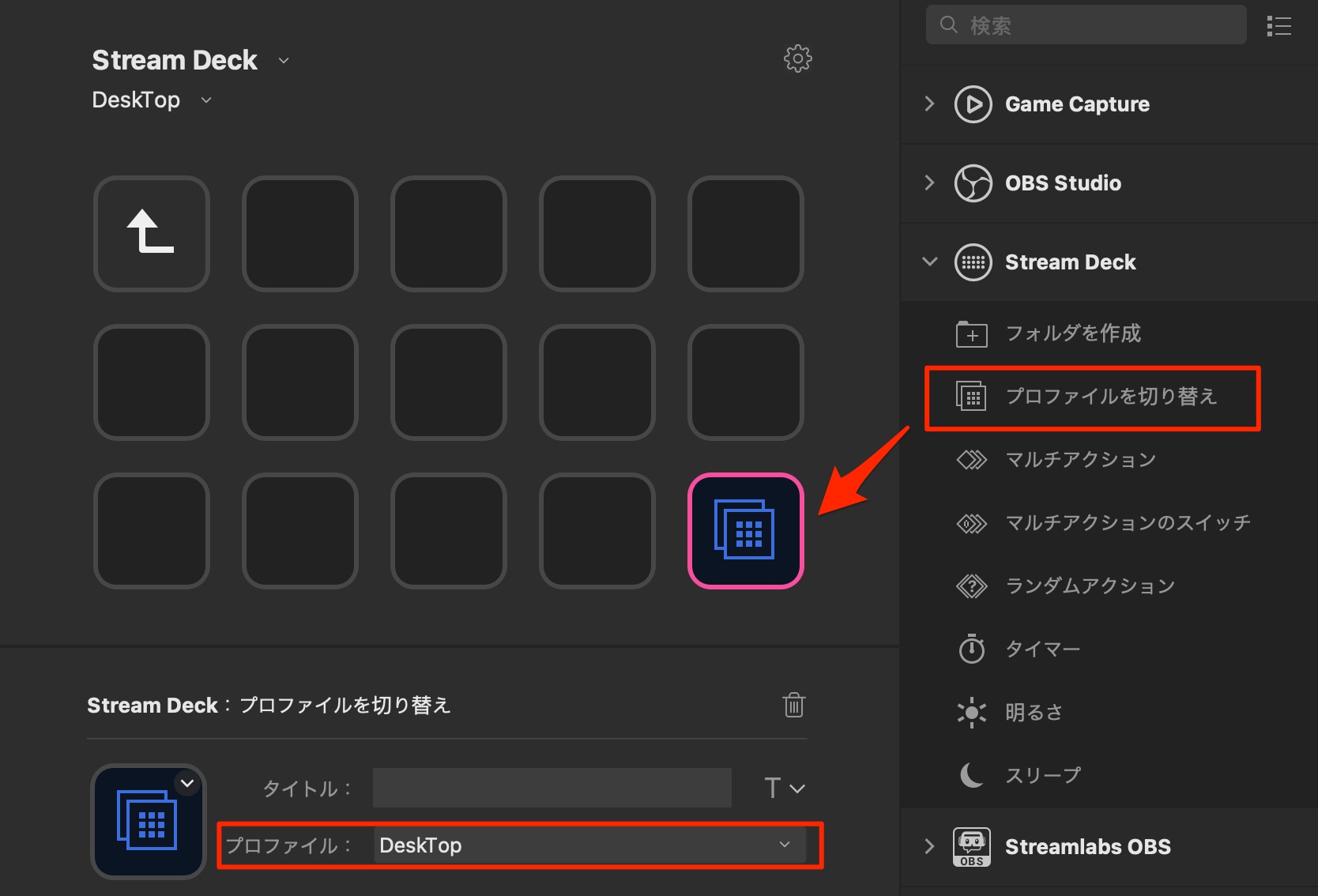
To provide direct access to a particular profile, add a “Switch Profile” action to a button and select the destination profile.
You can then display that profile with a single press.
Create and switch profiles for different apps and situations
Switching layouts for different apps or situations is easy, too.
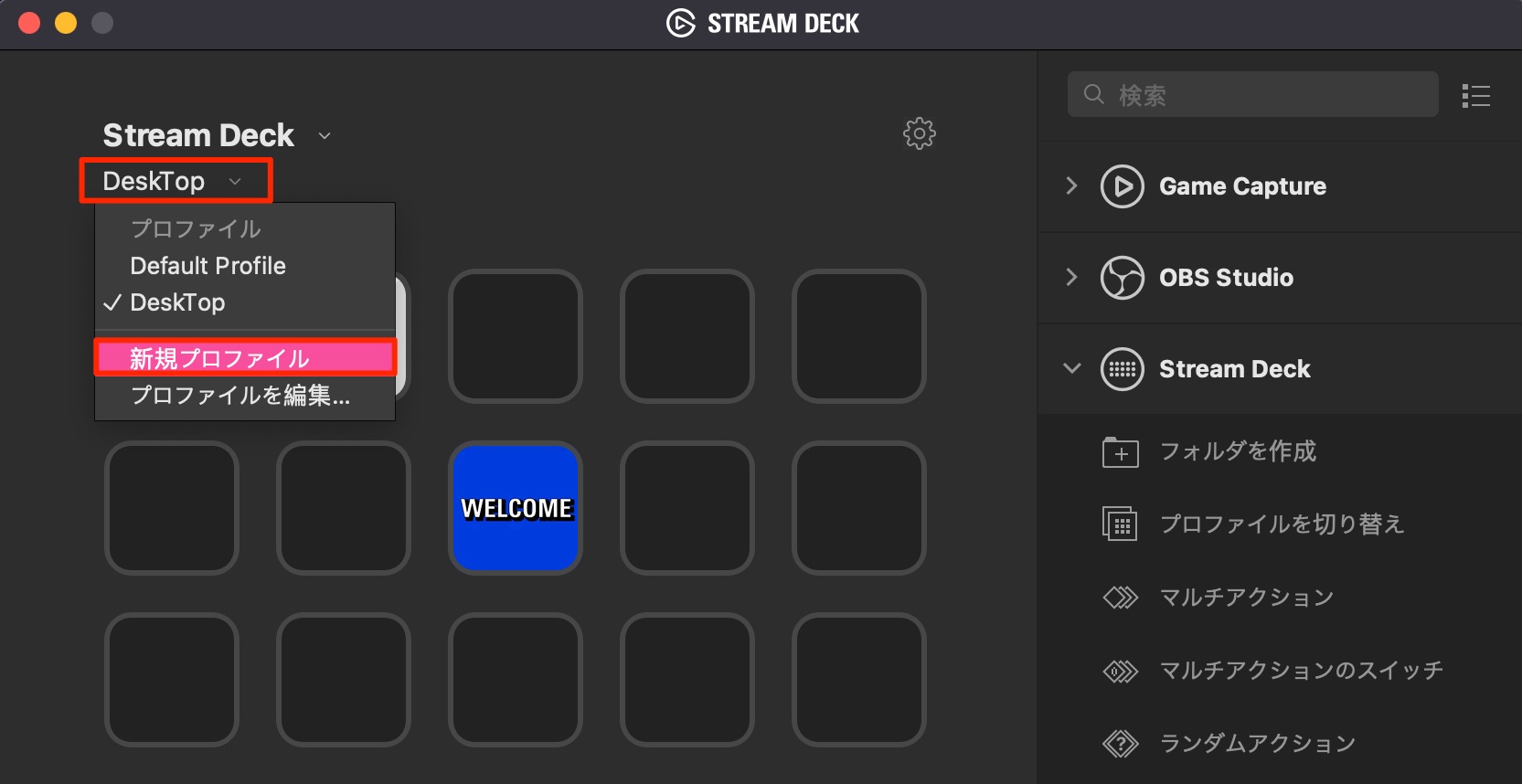
As described earlier, create as many profiles as you need for your applications and tasks.
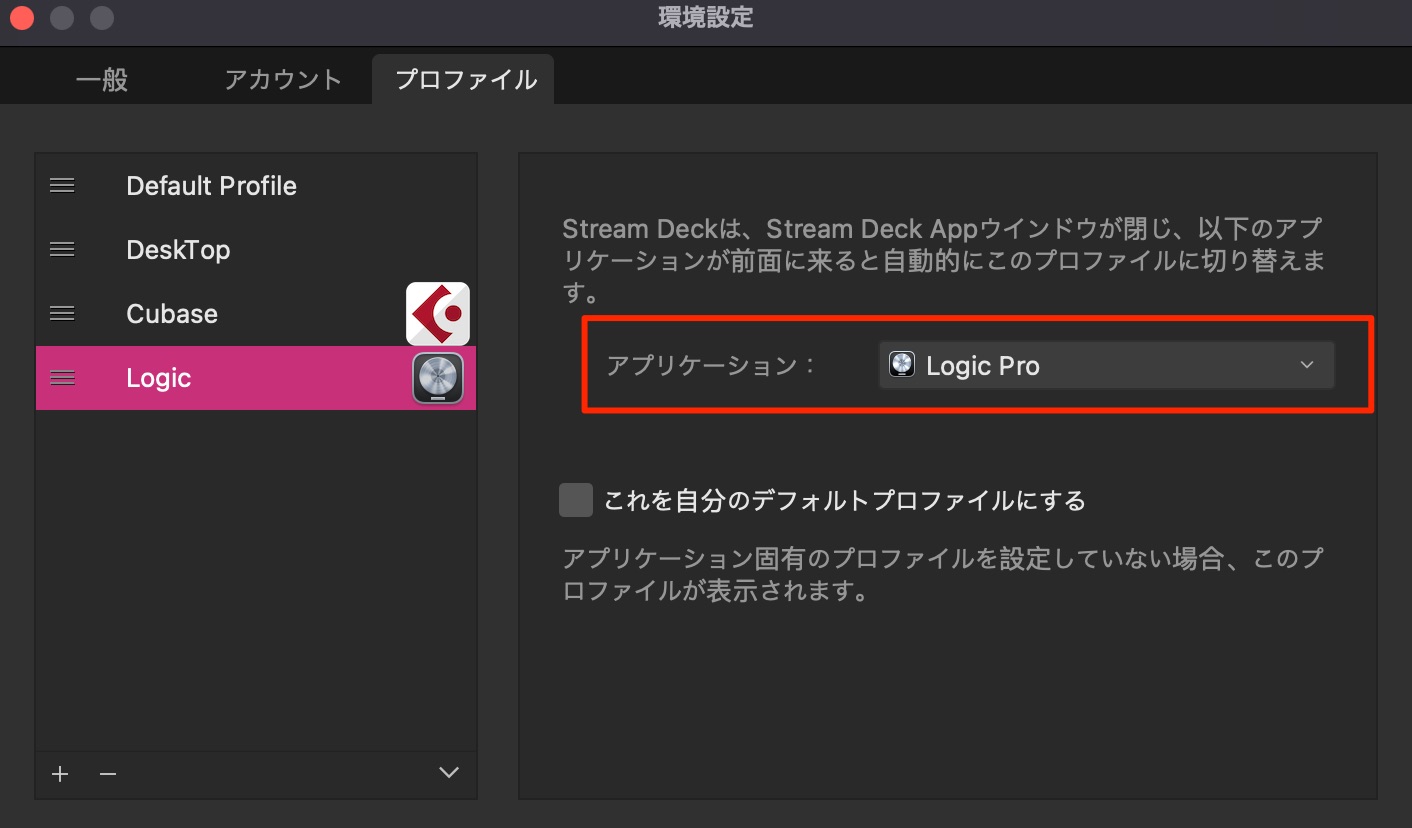
Then assign the corresponding application to each profile.
When that application is in the foreground, its Stream Deck profile and button assignments take priority and are displayed automatically.
Use action plugins
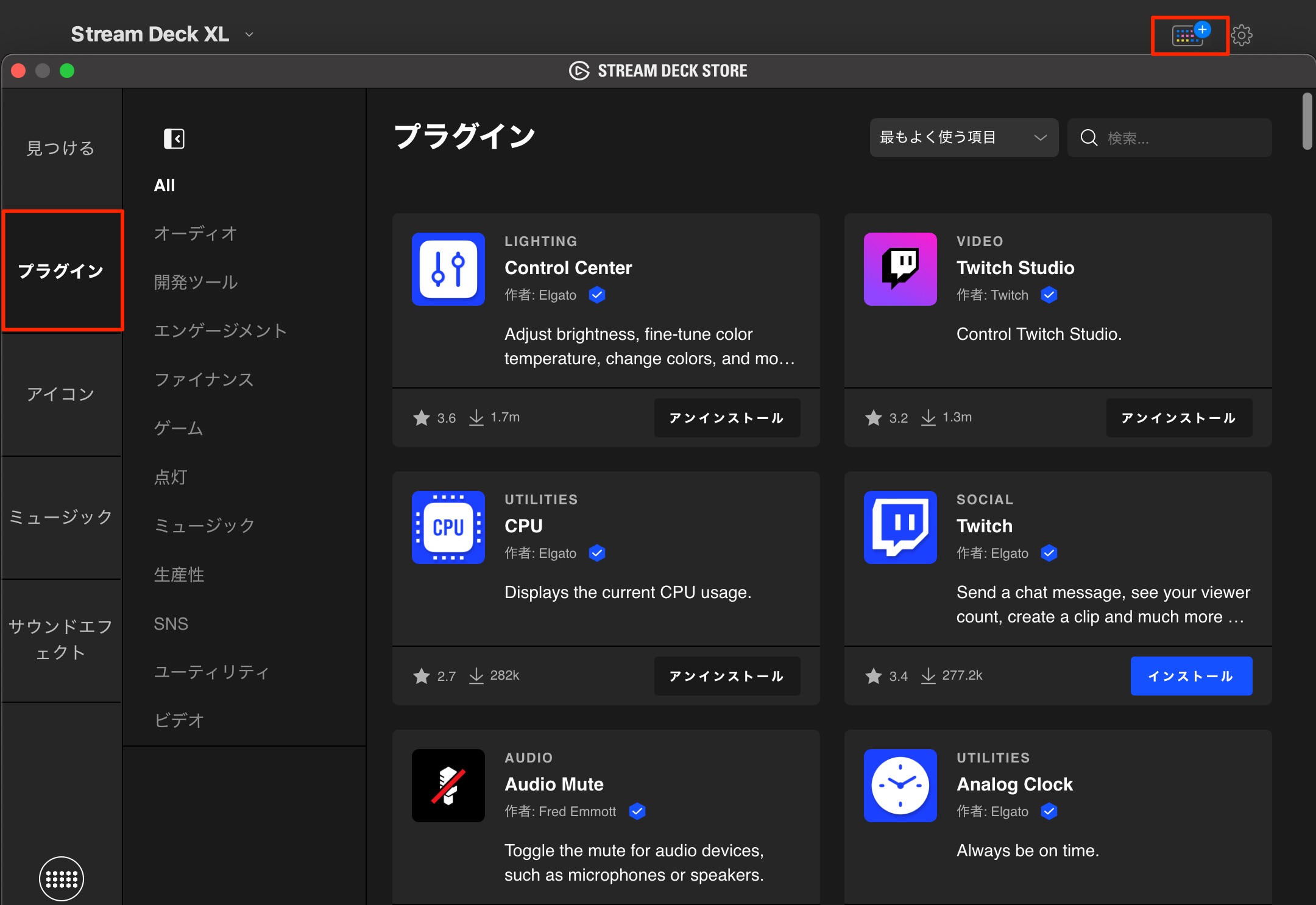
Stream Deck offers action plugins that greatly expand the functions you can assign to buttons.
Click “Install” for a plugin to make its actions available.
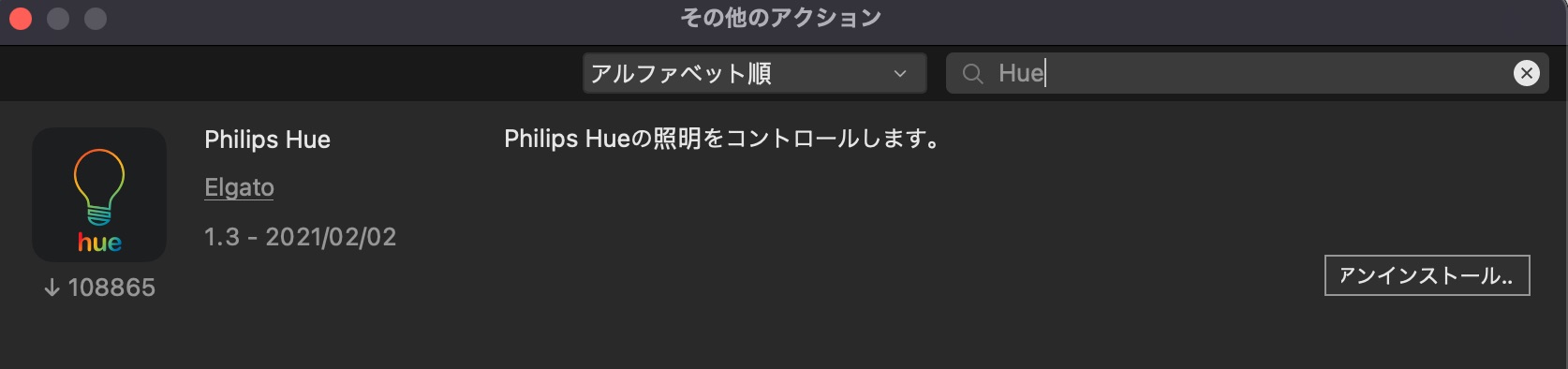
There was even a plugin for the Philips Hue smart bulbs I use, allowing me to control lights throughout my home from Stream Deck.
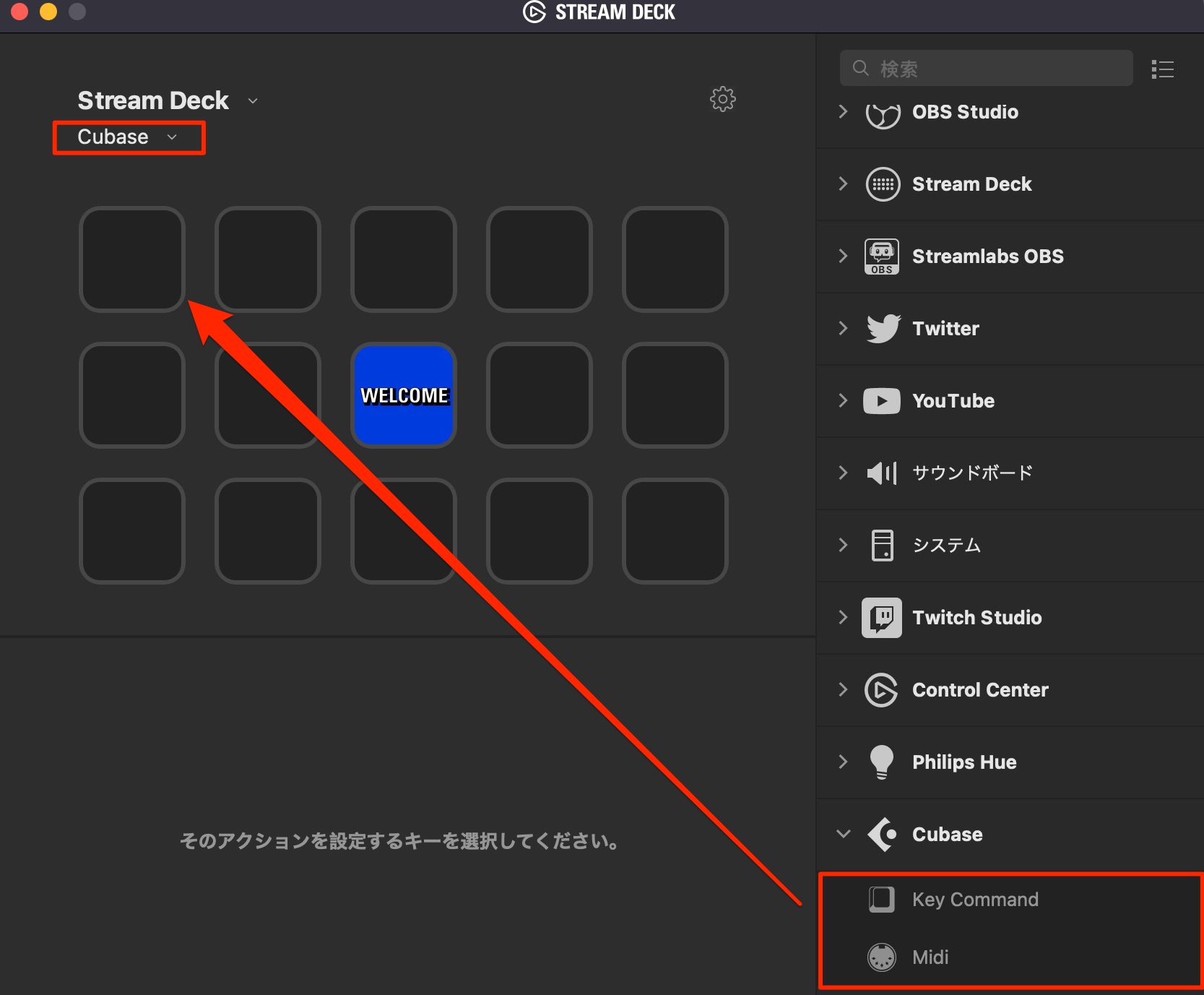
Installed actions appear in the list as shown here.
Then assign them to the Cubase profile we created earlier.
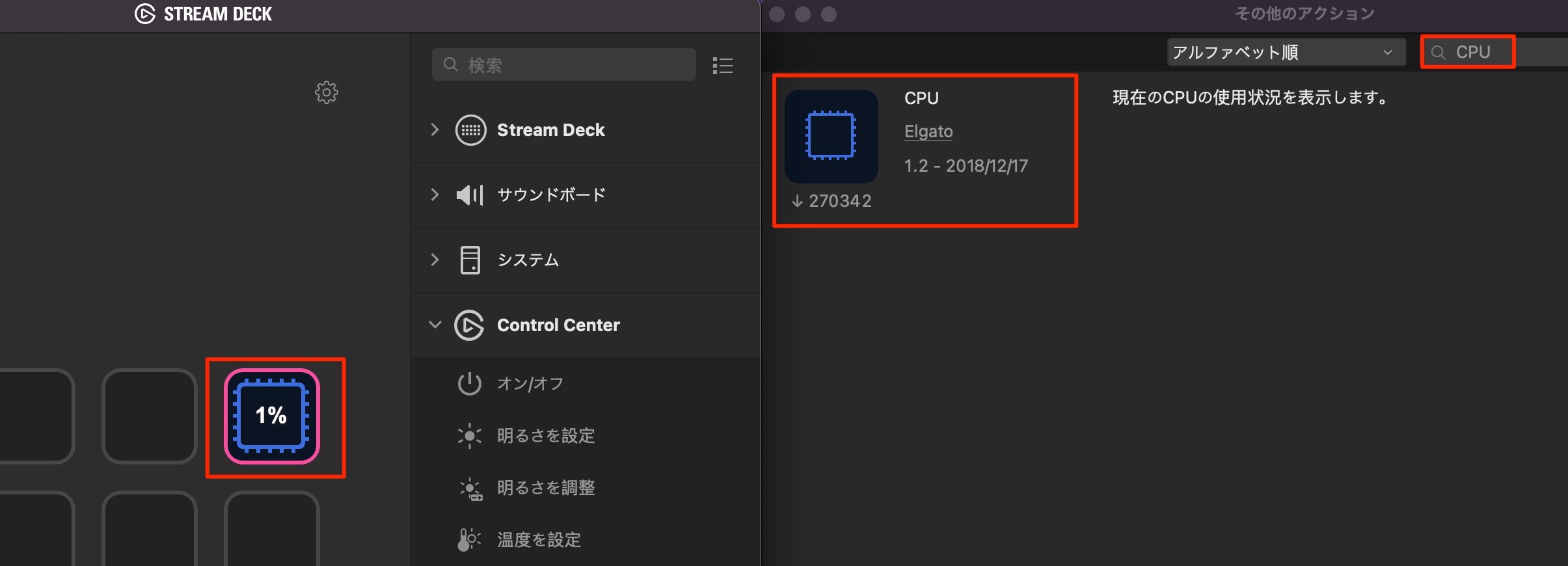
Other plugins can display CPU usage,
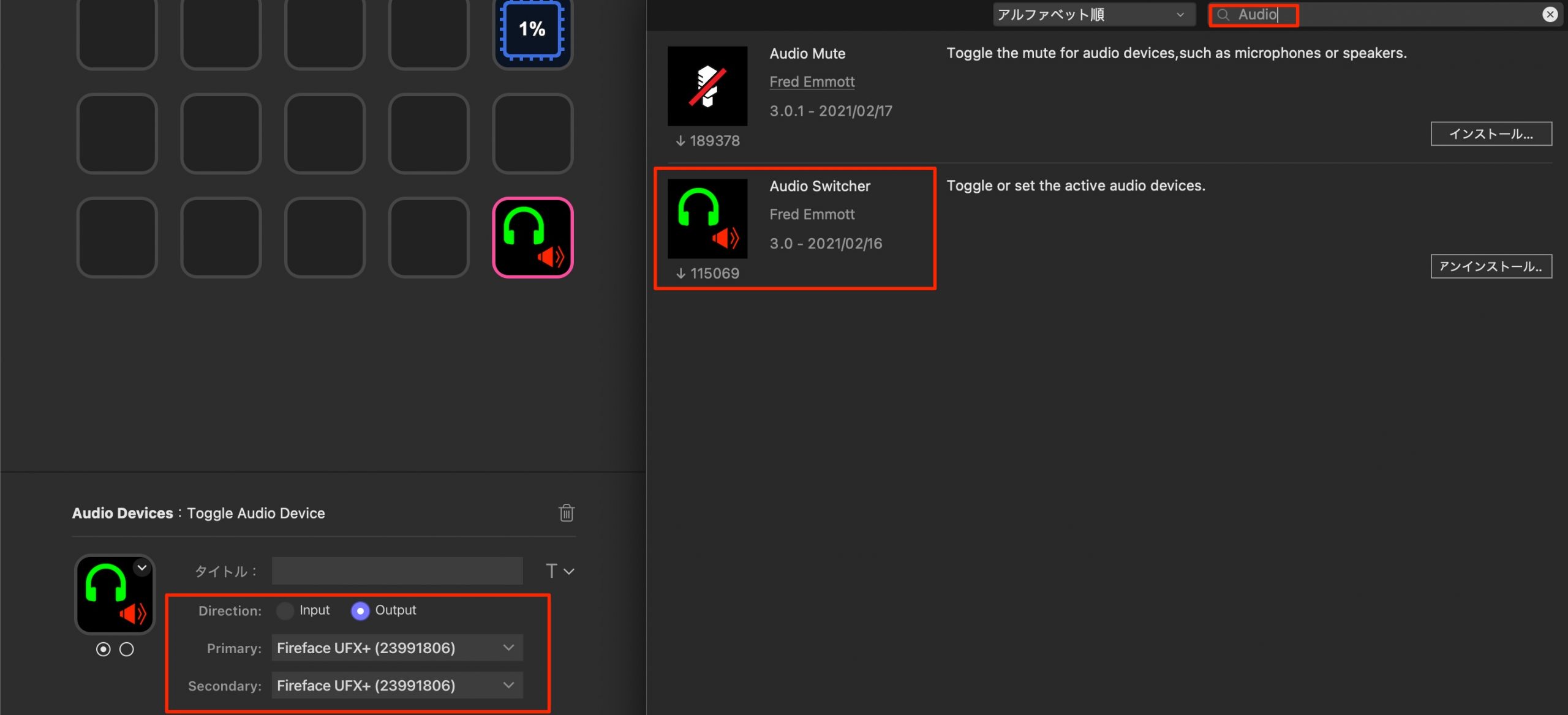
let you switch audio devices or interfaces, and more. They are both useful and fun to explore.
Assign commands in a DAW or another application
You can also assign buttons for software that does not have a dedicated action in “More Actions.”
Here's how to configure those button functions yourself.
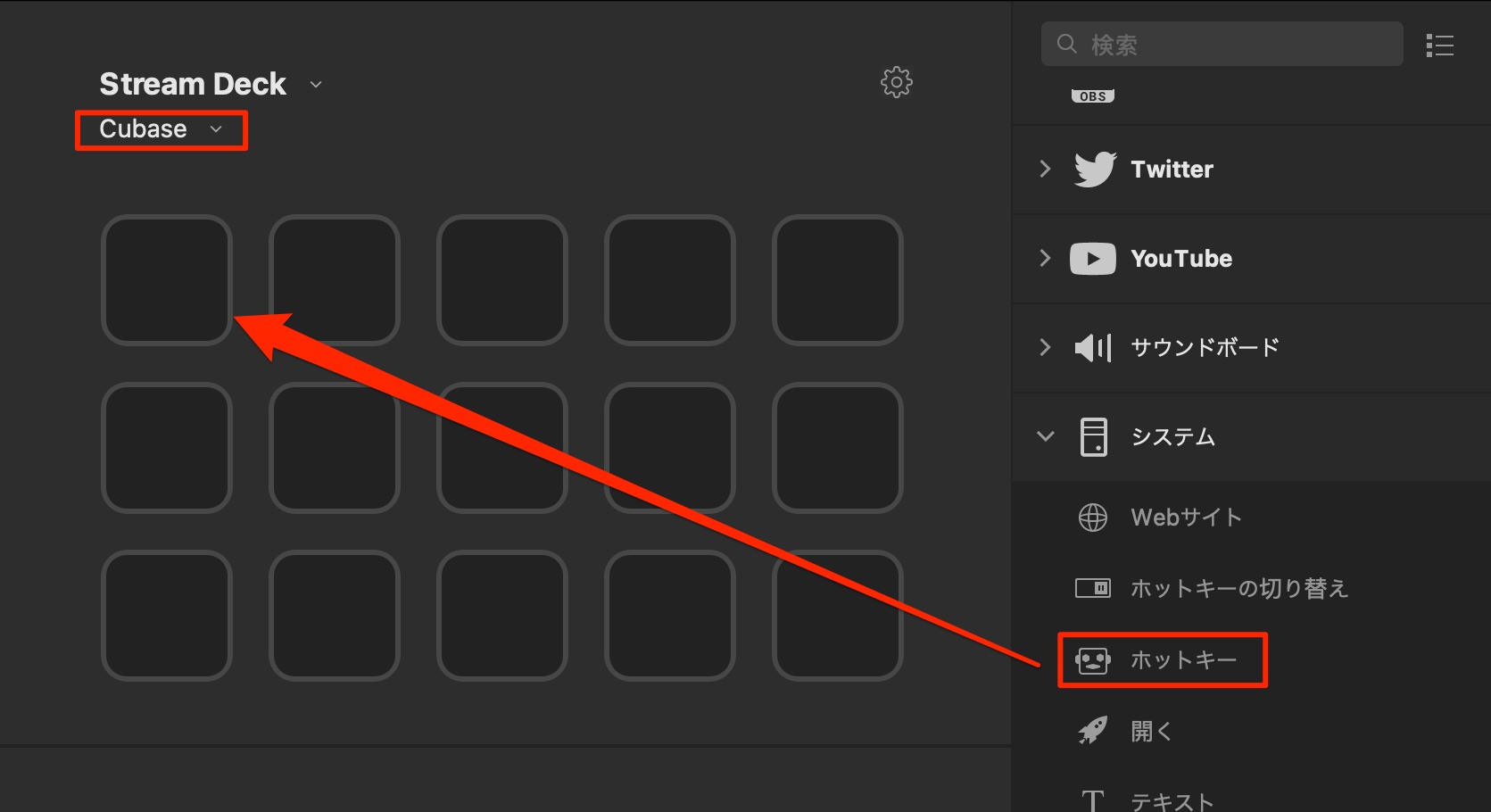
Make sure the Cubase profile is selected, then choose “Hotkey” under “System.”
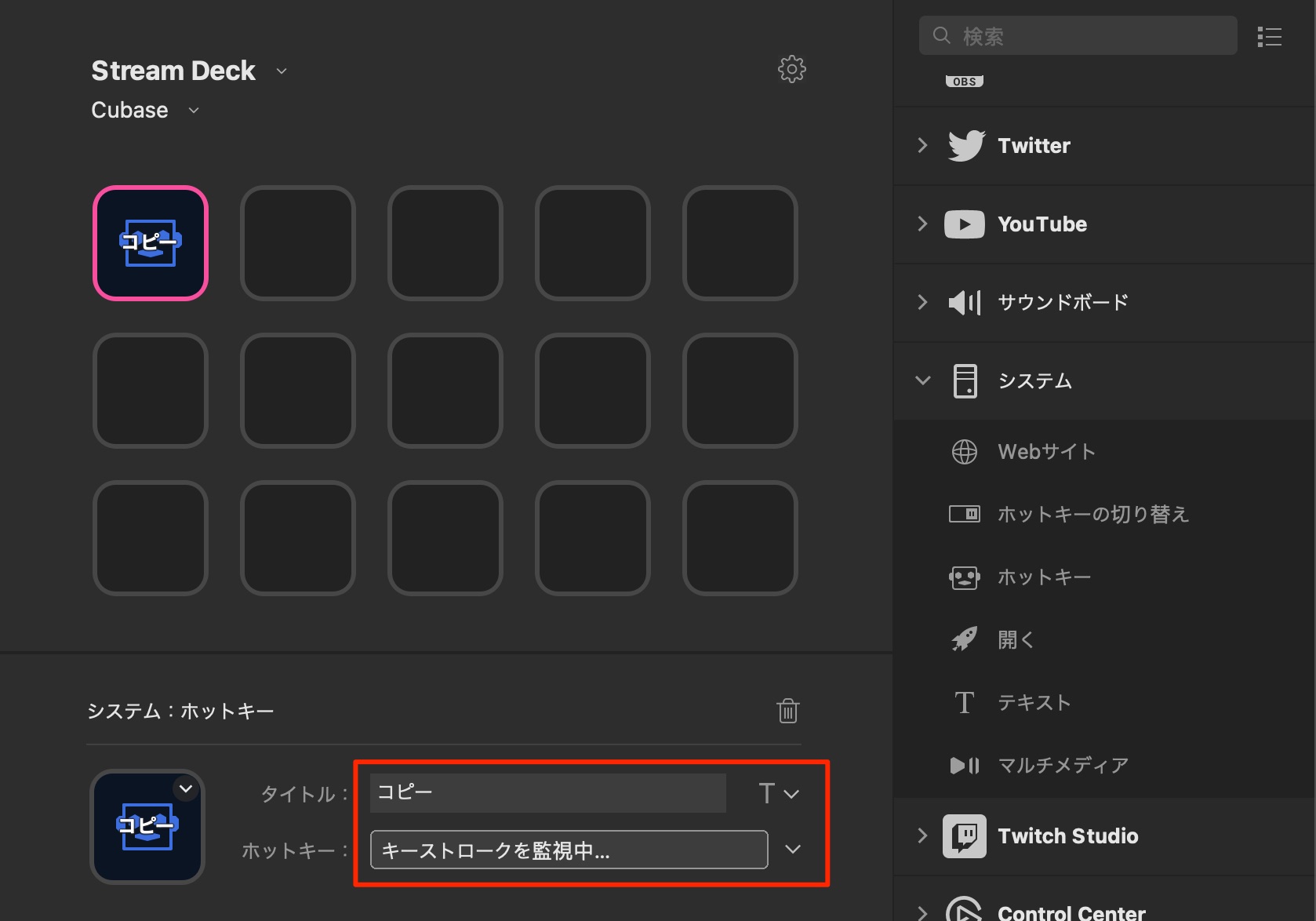
Enter a title for the action and click the hotkey field. It will indicate that it is listening for a keystroke.
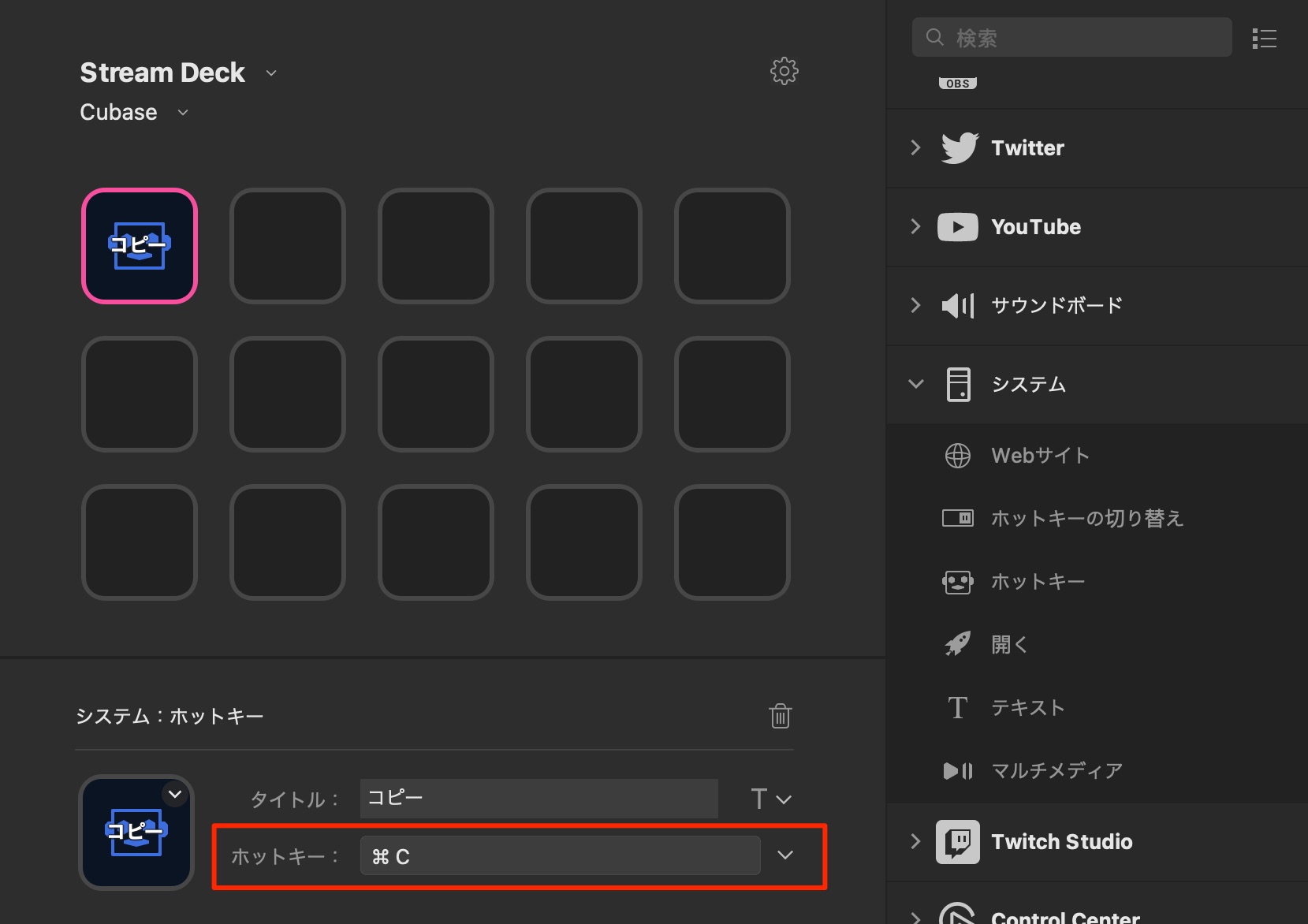
Now press the actual keyboard shortcut assigned in Cubase.
Here, we use Command+C, the shortcut for Copy.
You can now run Cubase's Copy command from a Stream Deck button.
Use the same method to assign other commands you need.
If you run out of buttons, use the folder feature described above.
What if a key combination will not register?
While assigning shortcuts, I found that some combinations, such as Shift+Tab, did not register as expected.
In that situation,
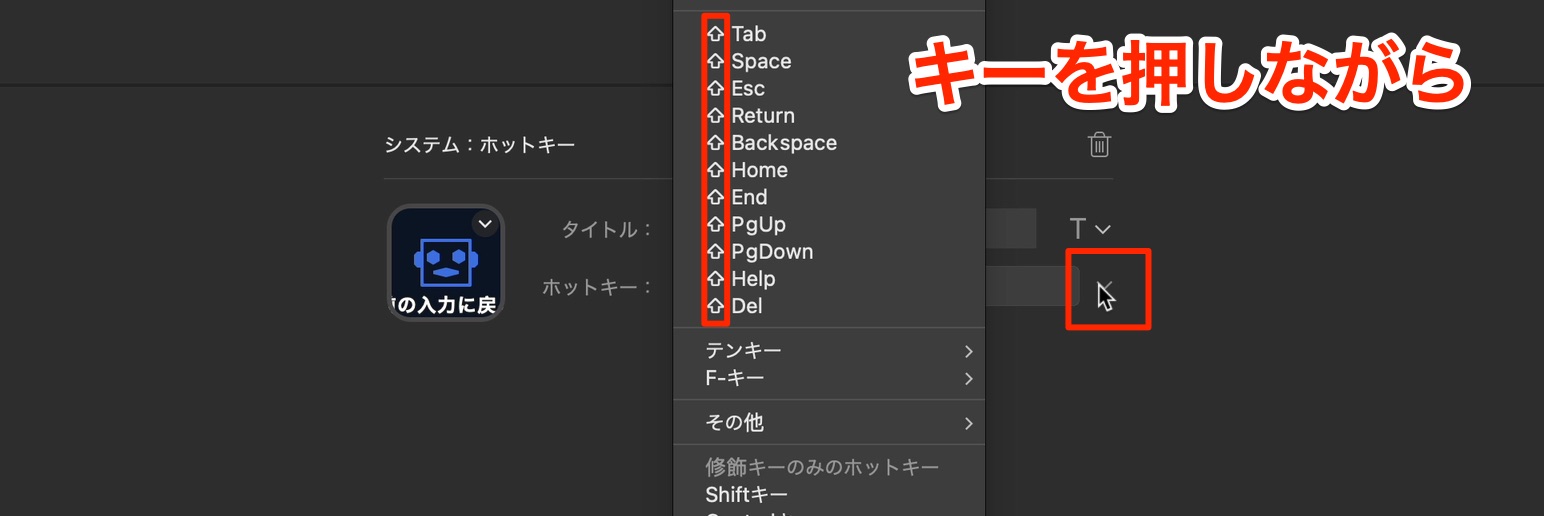
click the triangle on the right.
With the key menu open, hold down the modifier you want—in this example, Shift—to register the combination.
The Text action
Stream Deck can enter text you have saved in advance.
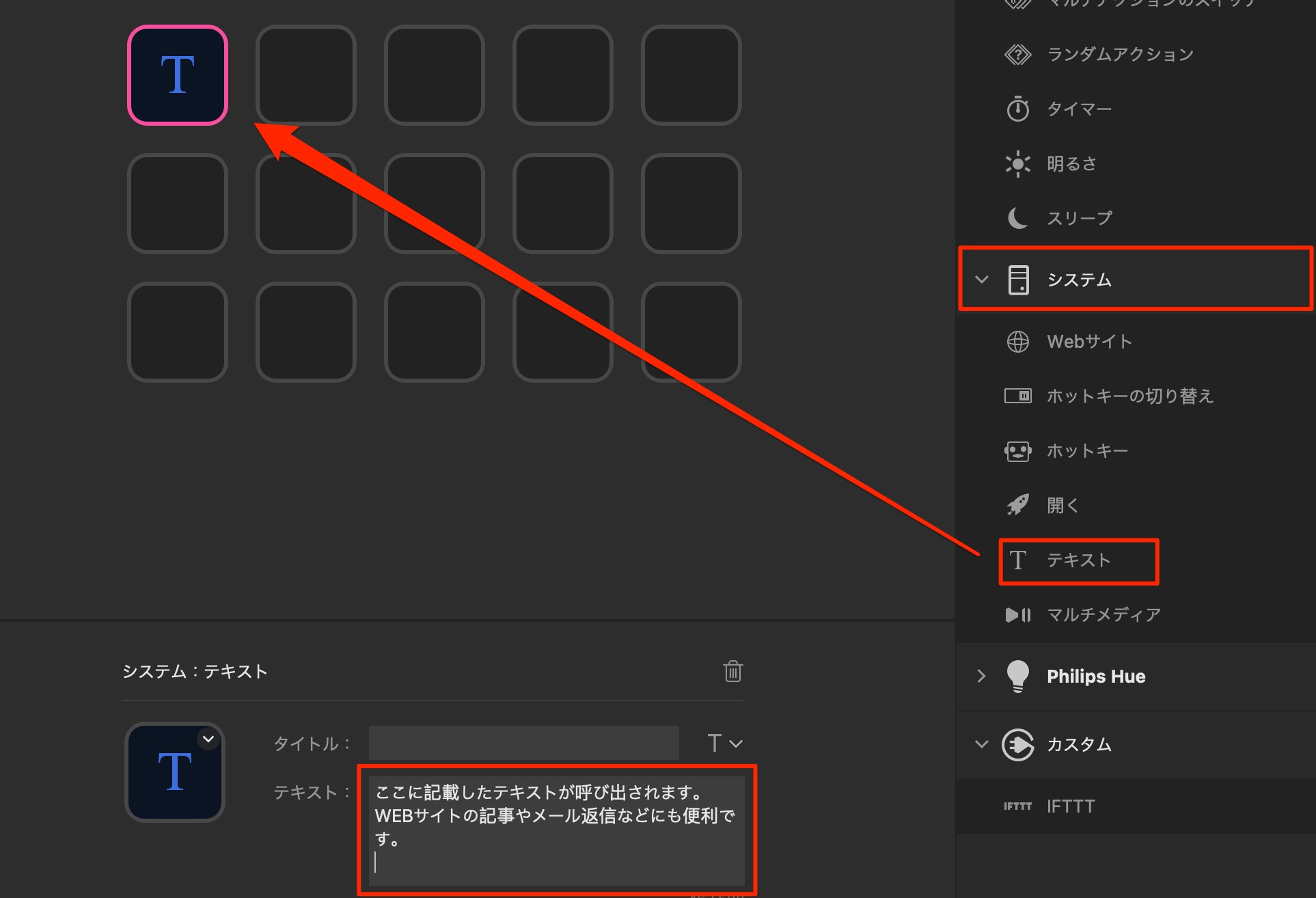
The version covered here limited each Text action to 500 characters. Even with that limit, it was useful outside music production for email templates or writing website articles.
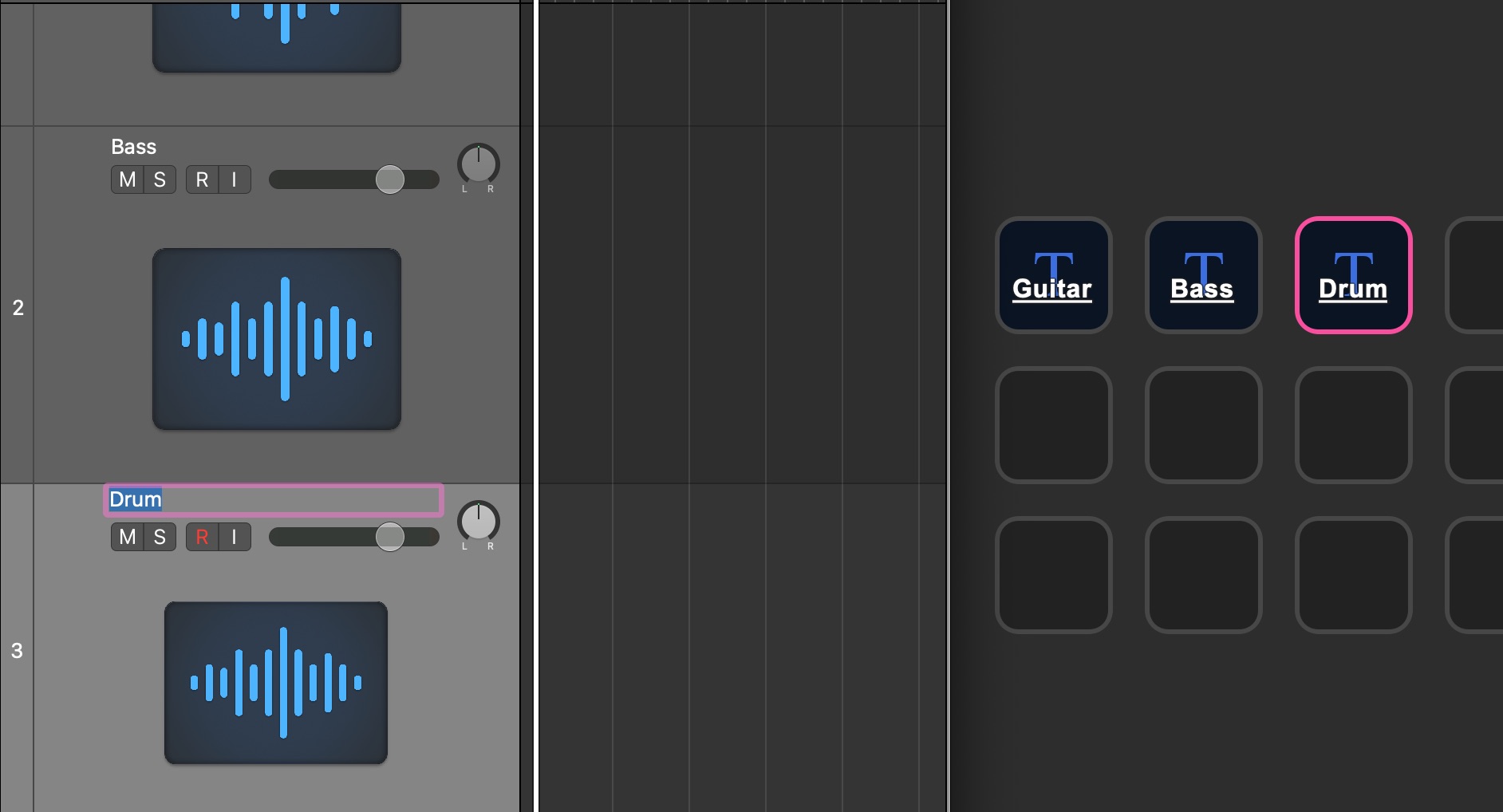
You can also save frequently used track names for your DAW.
Go further with Multi Action
“Multi Action” lets you combine the individual operations described so far and execute them from a single button.
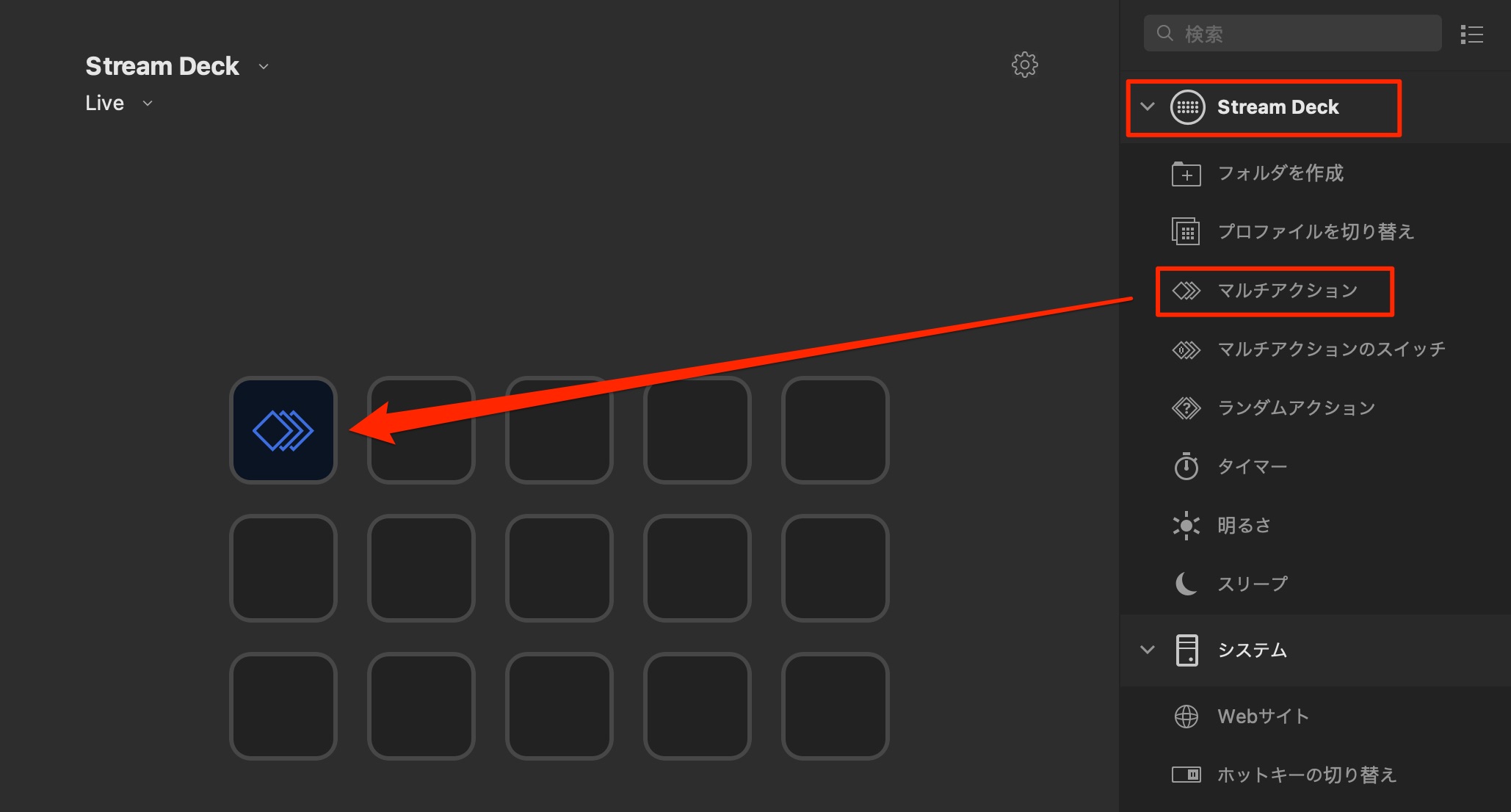
You can also run several DAW shortcuts in sequence, opening up many possible combinations.
As an example, let's combine Ableton Live shortcuts into a Multi Action that loads a chosen software synthesizer with one press.
The required steps are:
- 1. Create a new MIDI track: Command+Shift+T.
- 2. Search for a plugin: Command+F.
- 3. Enter the software synthesizer's name using the Text action.
- 4. Select the synthesizer in the search results: Enter.
- 5. Load the selected synthesizer: Enter.
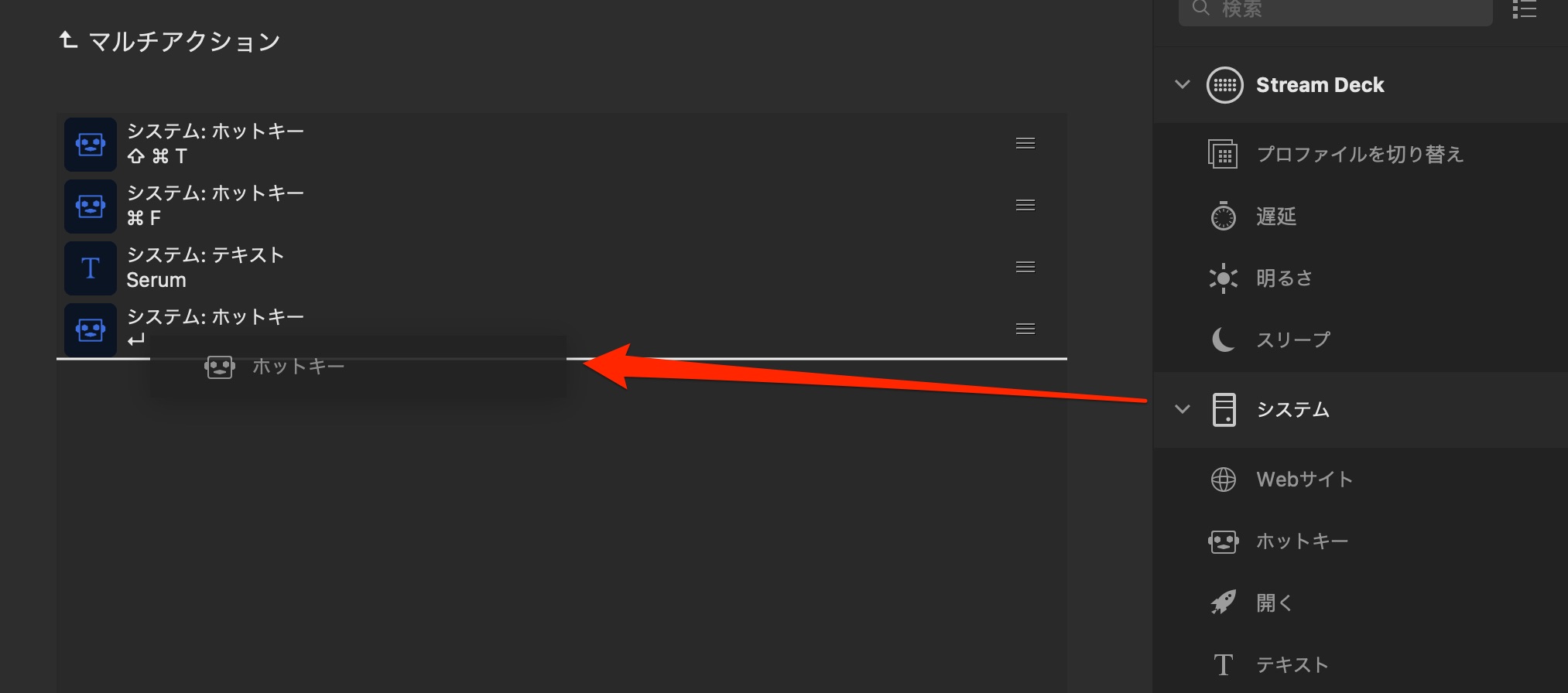
Add these actions in sequence using the methods described above.
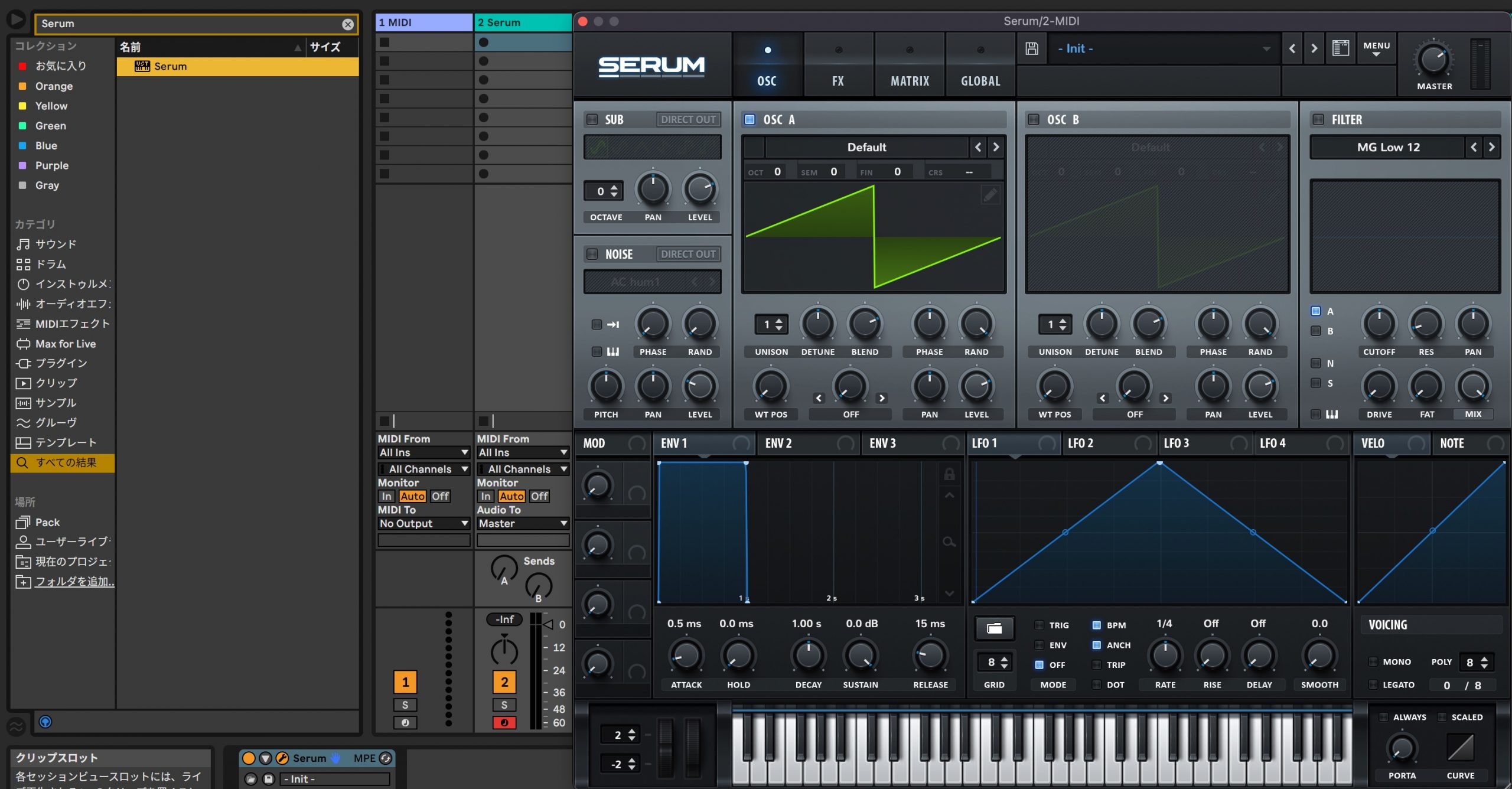
Now a single button loads Serum.
Very convenient!
The assigned actions run from top to bottom, so their order matters.
Because these operations run very quickly, the next action may start before the previous one has finished.
The feature that addresses this is Delay.
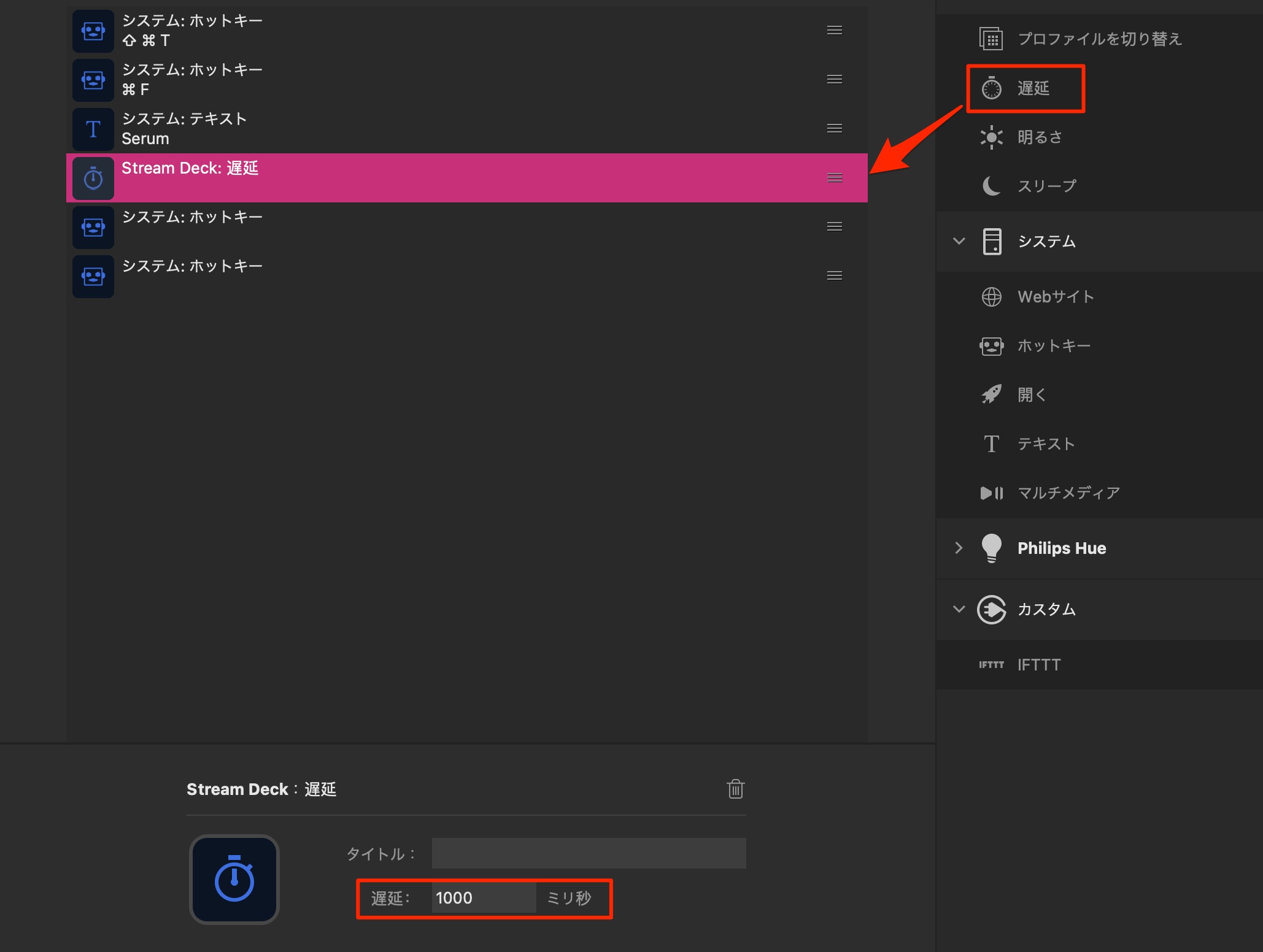
Insert a “Delay” between actions and specify its duration in milliseconds to control how long Stream Deck waits before running the next action.
The screenshot shows 1,000 milliseconds, so the next action starts after a one-second pause.
Other frequently used combinations might include:
- Trim a MIDI recording to the required length and quantize it.
- Convert a track to audio and reverse it.
- Select the entire song, from beginning to end, and export it.
Finding useful ways to build these macros is a key part of getting the most from Stream Deck.
Audio playback
Stream Deck can play audio files.
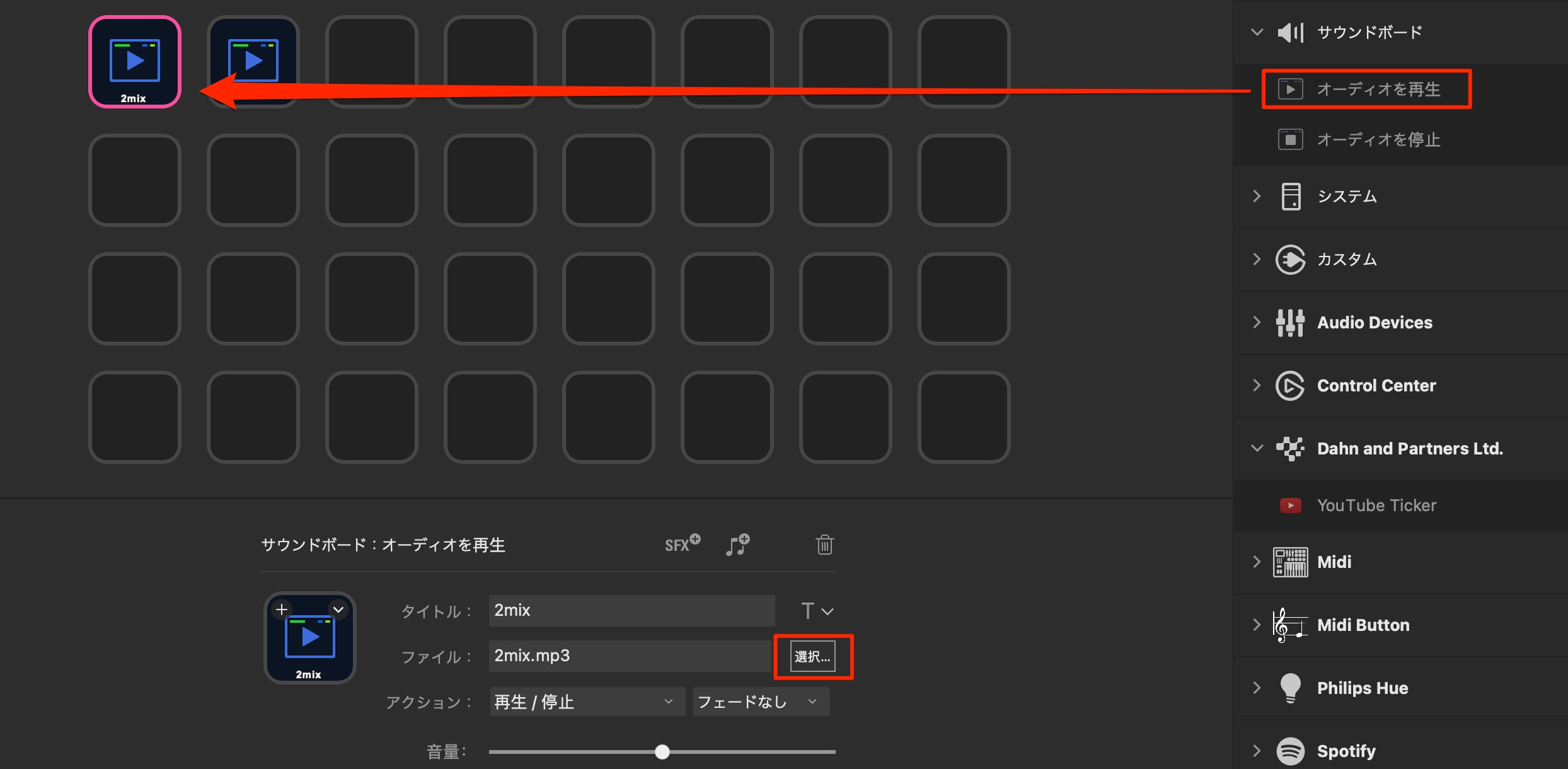
Assign “Play Audio” to a button, select a file, and play it.
This could be useful for sound effects during a livestream. For music production, you could also keep reference tracks ready to play.
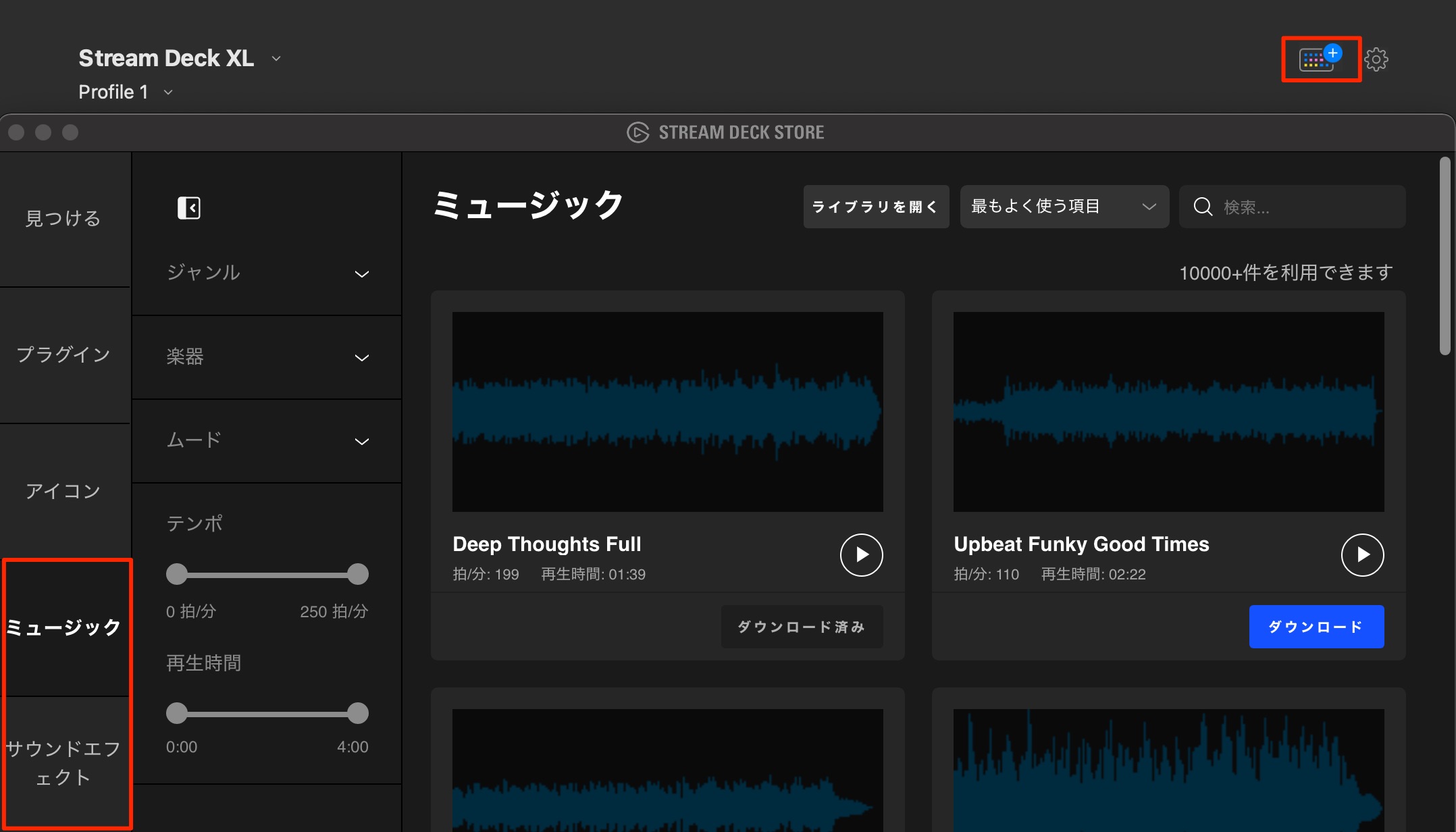
A sound library was available alongside the plugins described earlier.
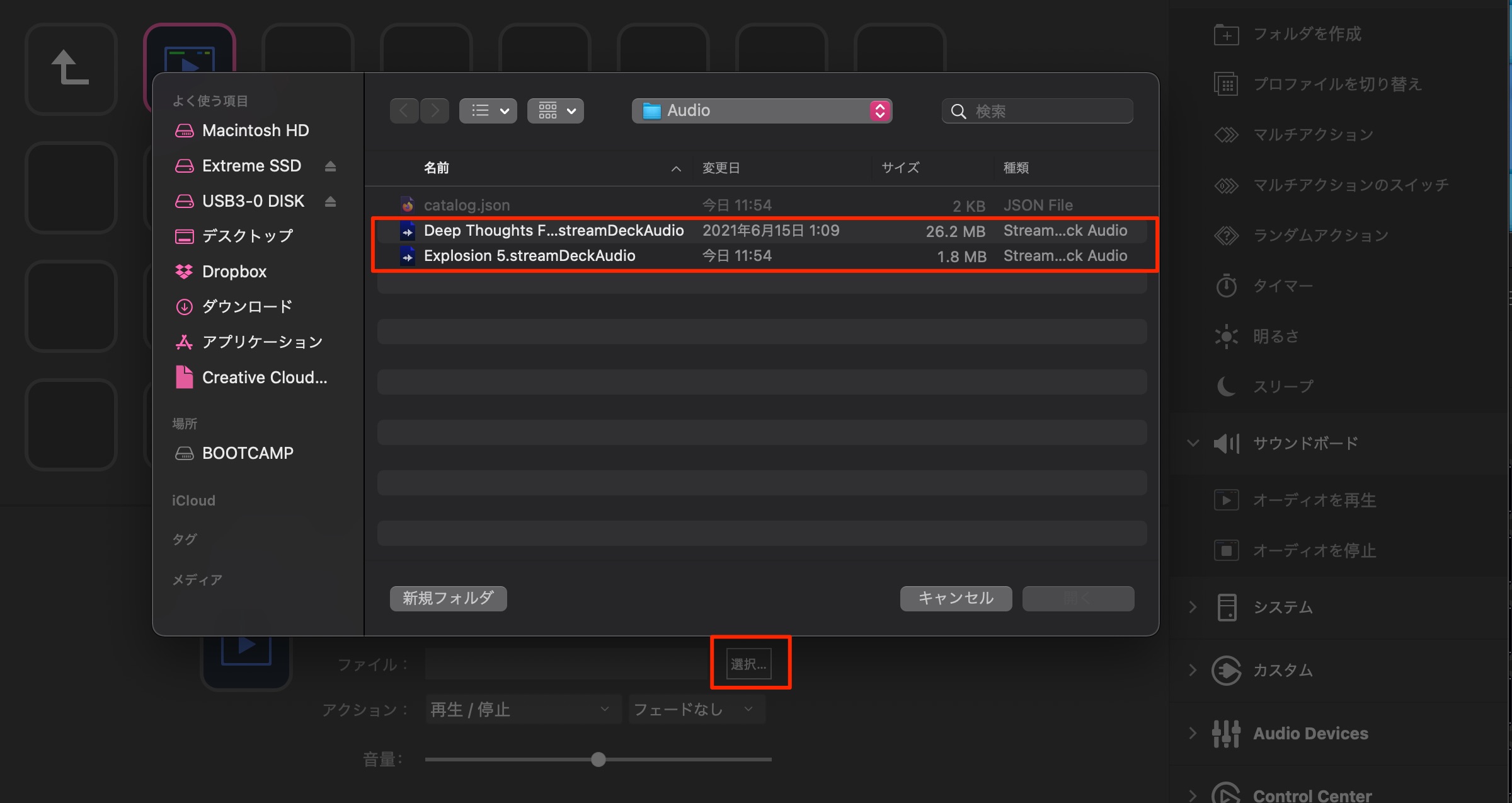
Use “Choose” to select an audio file you have downloaded.
Multi Action Switch
Building on Multi Action, you can assign two alternating operations to a single button, such as On and Off.
In a DAW, this could be used for solo or mute switching, but let's try a different example.
Stream Deck can control more than computer operations: IFTTT also enables smart-home control.
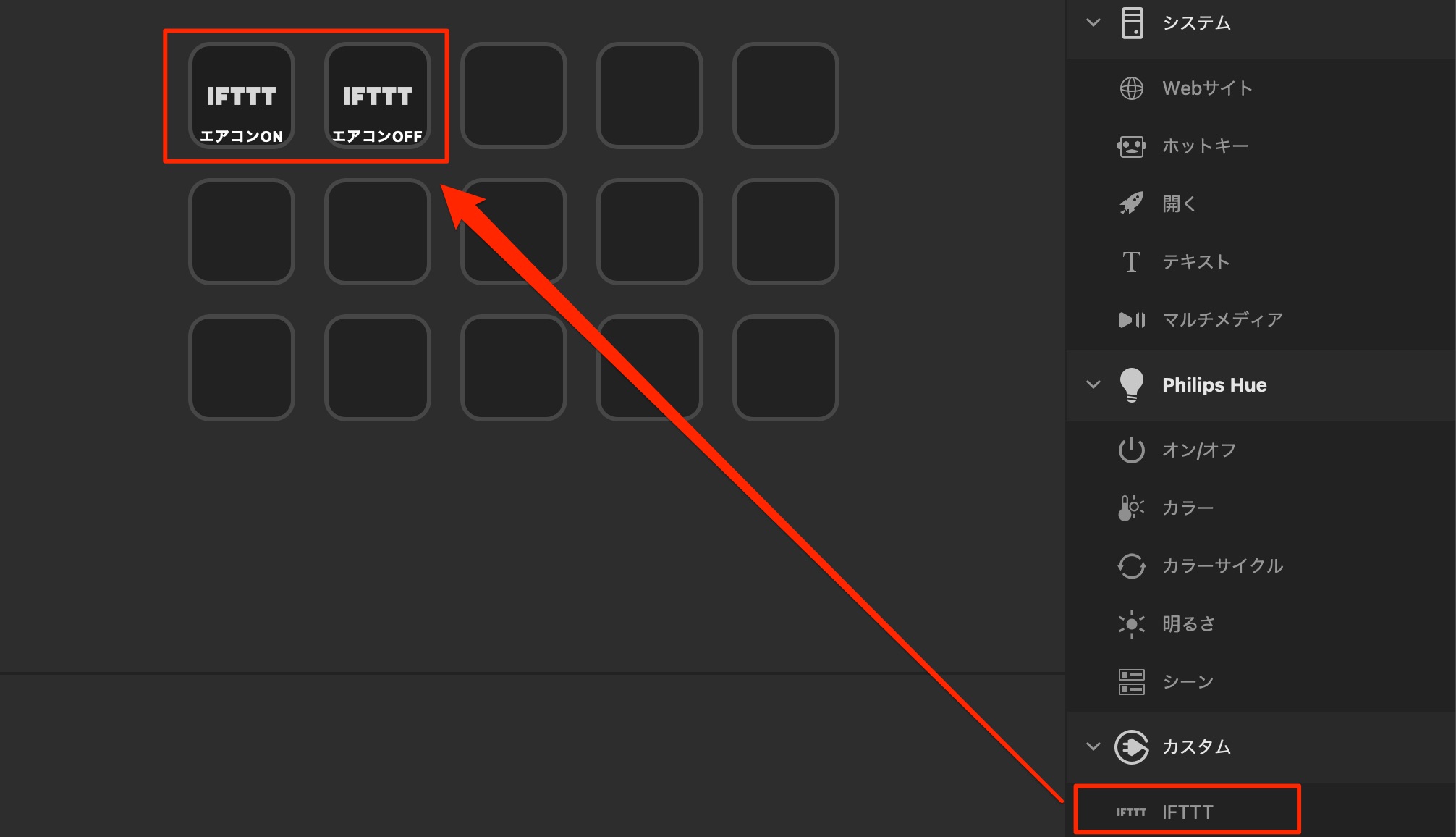
For example, turning an air conditioner on and off through IFTTT would normally require two buttons.
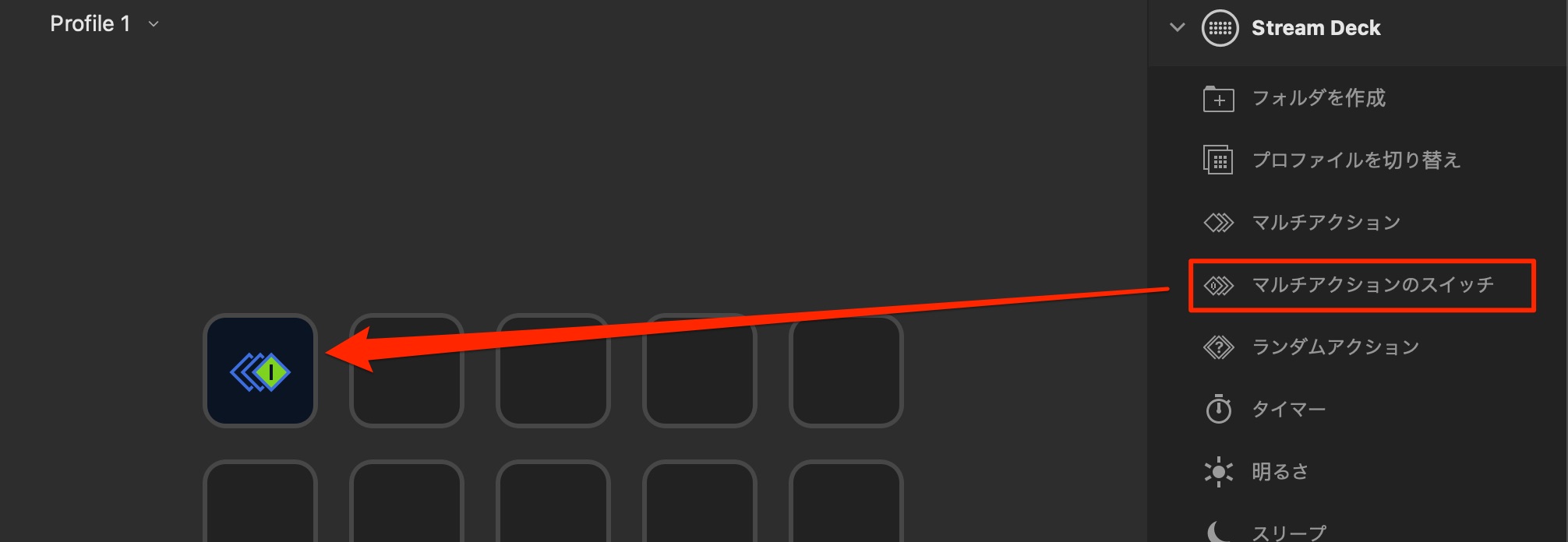
Start by assigning “Multi Action Switch.”
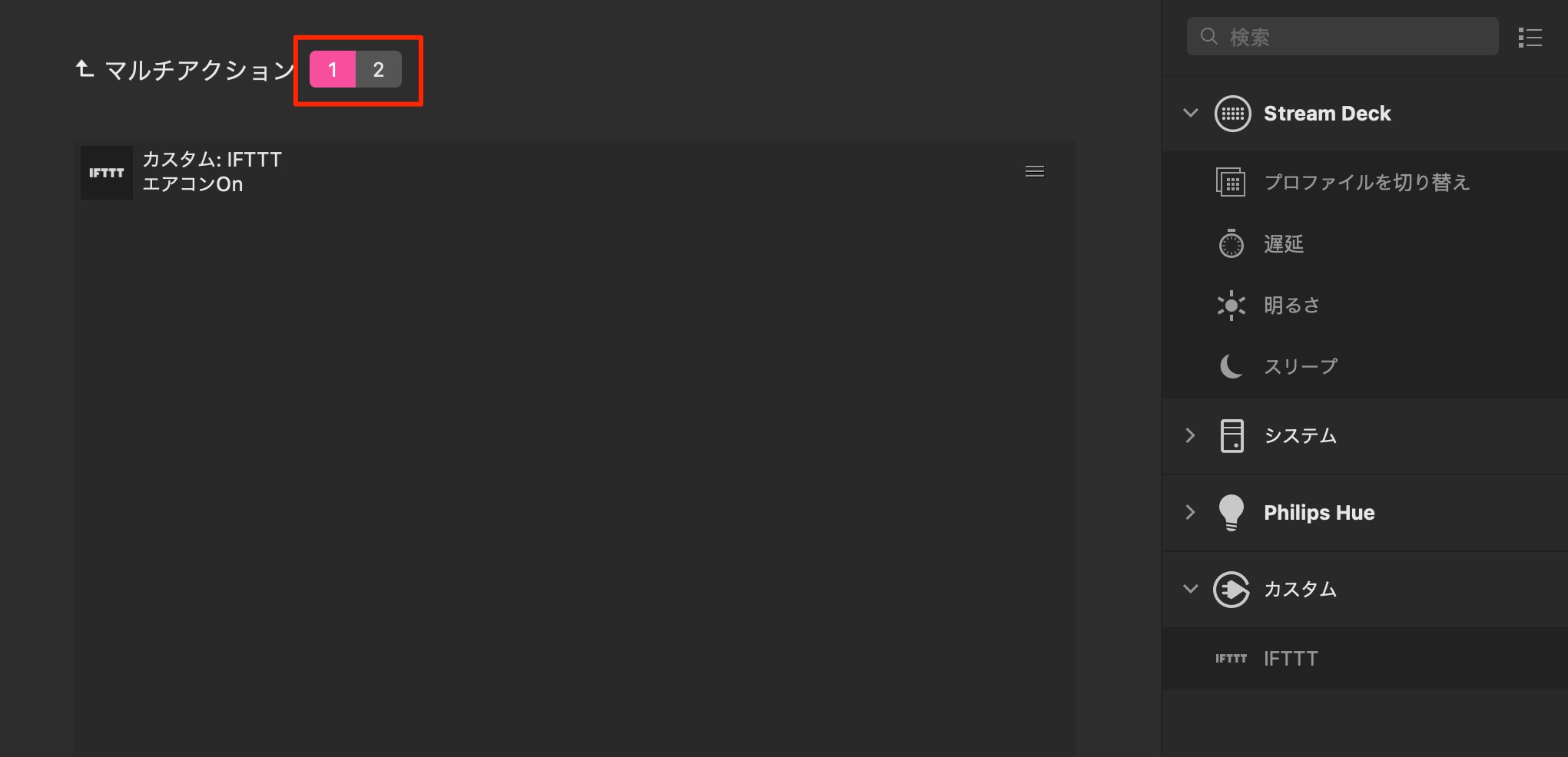
You can switch between sections 1 and 2 to configure the two operations.
Assign On to section 1 and Off to section 2. You can name each action; we used ON and OFF here.
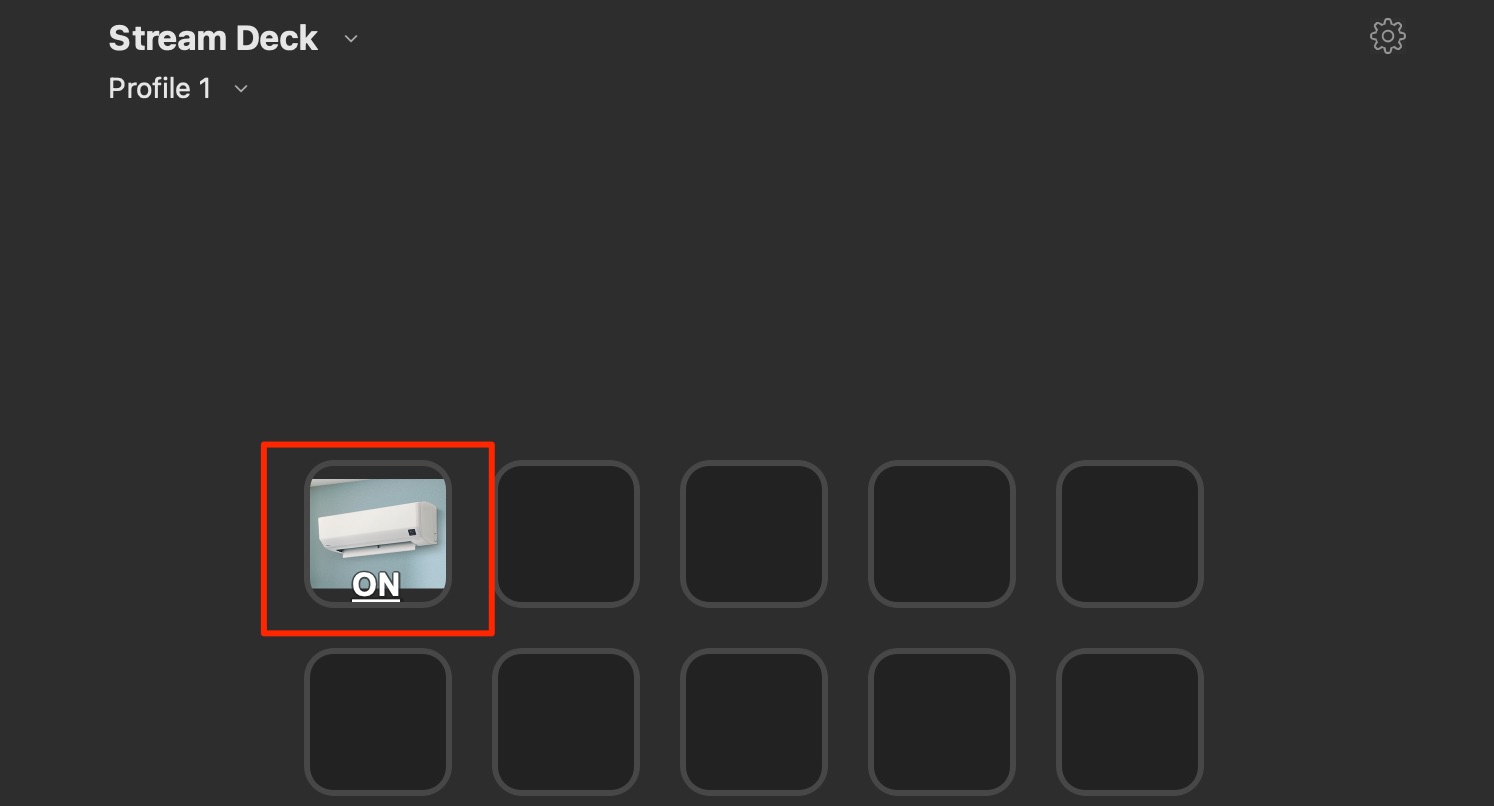
Assigning images also makes the two states easy to recognize.
Before you press it, the button displays state 1.
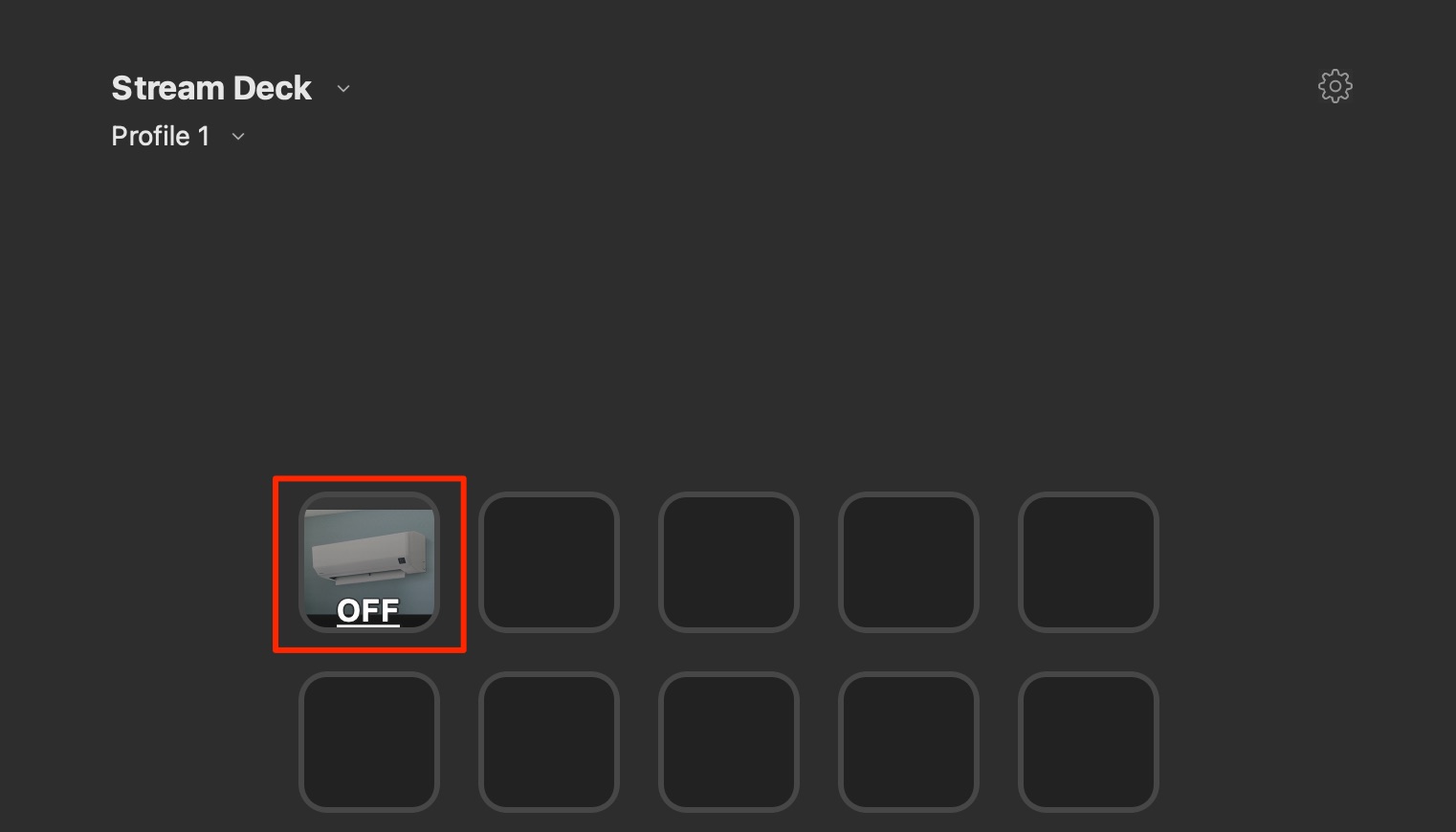
After you press it, the display changes to state 2, along with the button's next action.
If you have smart lighting or other connected equipment in your studio, try adapting this idea to your setup.
Back up or migrate your settings
You may want to back up the settings you have created or move them to another computer.
Let's finish by looking at those options.
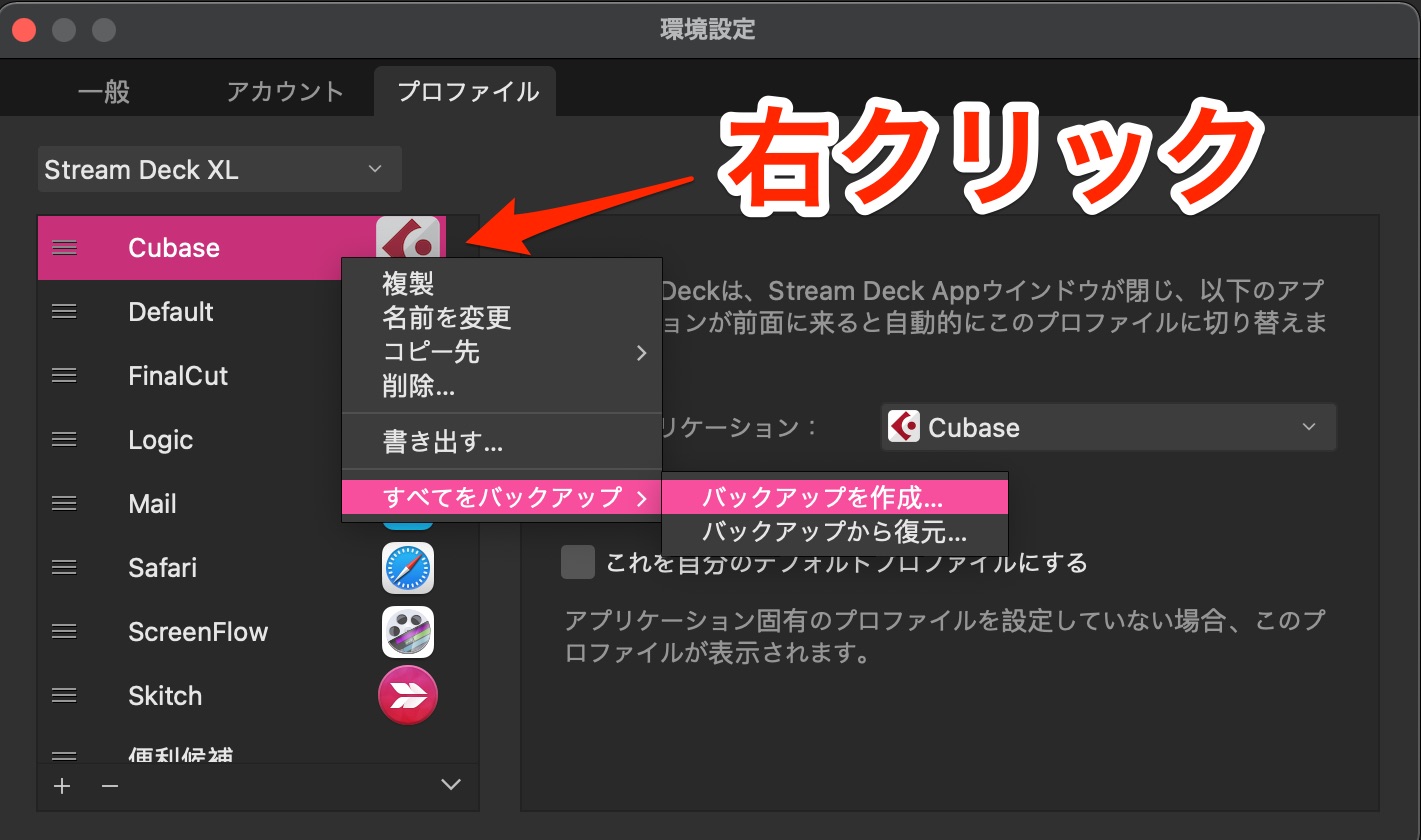
In Preferences, right-click the Profiles section and choose “Create Backup.”
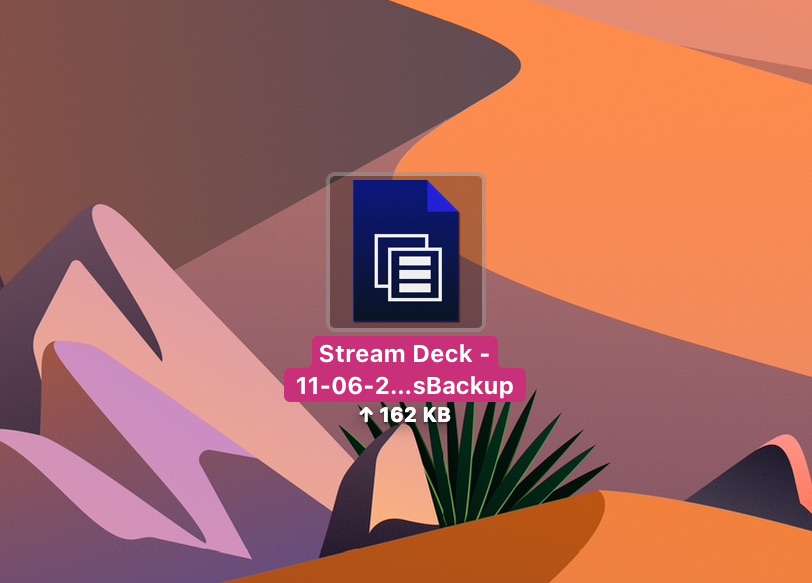
A backup file is saved to the location you specify.
Double-click the backup file
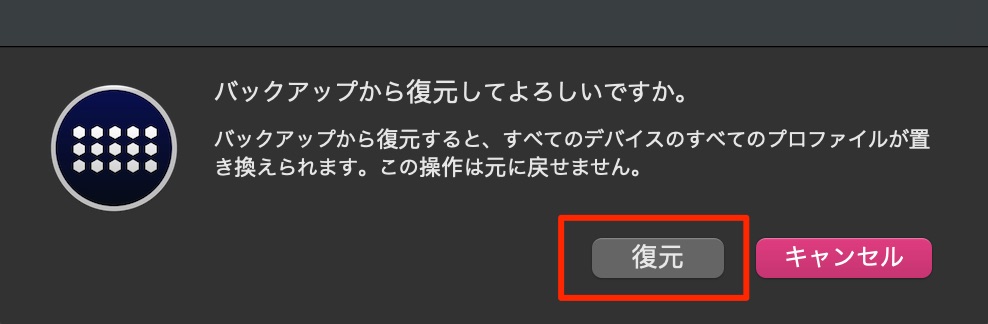
to restore the saved settings, as shown here.
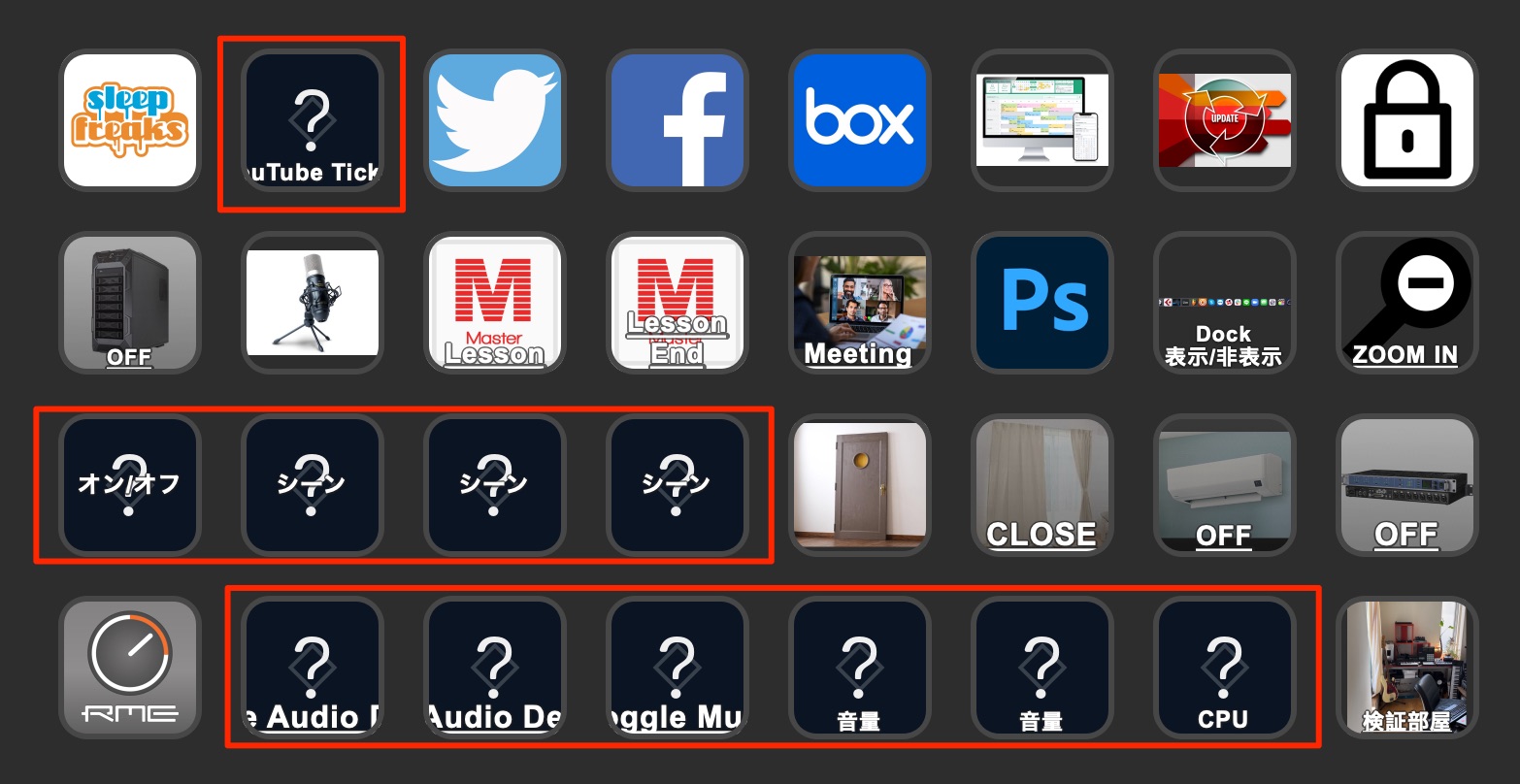
When I tried restoring this way, some actions did not restore correctly.
For that reason, I also backed up the application data folder. The Windows path in the original Japanese article needs correction, as noted below; close Stream Deck before copying its data and keep a separate backup of existing settings.
Windows
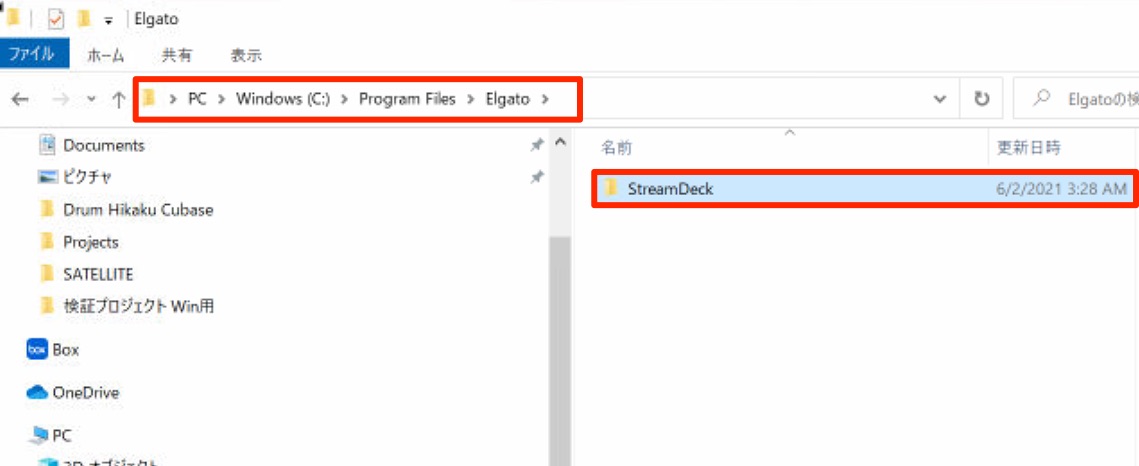
Correction to the original guide: it named C:\Program Files\Elgato\StreamDeck, which is the application installation folder. Elgato identifies the user-data folder as C:\Users\[Username]\AppData\Roaming\Elgato\StreamDeck, also accessible as %APPDATA%\Elgato\StreamDeck. Back up that user-data folder for your settings.
To restore a folder backup, close Stream Deck and preserve the current user-data folder first, then restore the backed-up StreamDeck folder to the corresponding user-data location above. Do not replace the Program Files installation folder to restore profiles.
Mac
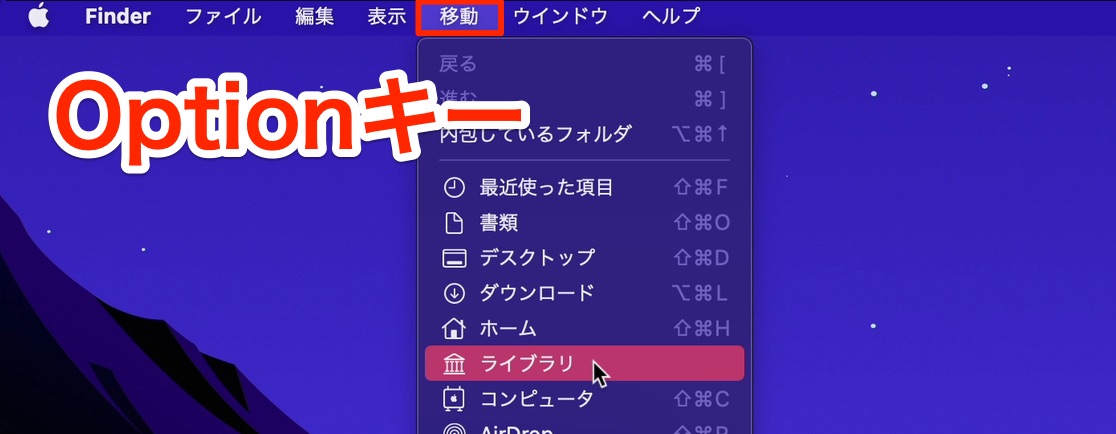
In Finder, click “Go” in the menu bar.
Hold Option and select “Library” when it appears.
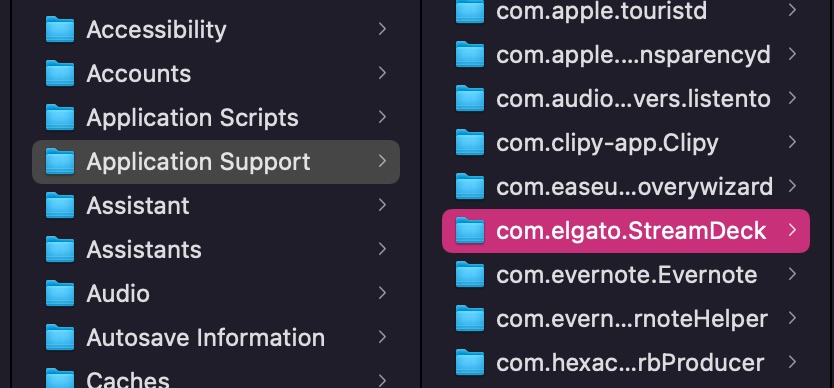
Inside “Application Support,” back up the “com.elgato.StreamDeck” folder. Close Stream Deck before copying it.
To restore, close Stream Deck, preserve the current folder, and copy the backed-up “com.elgato.StreamDeck” folder to that same Application Support location. The original guide's generic “StreamDeck” wording here refers to this exact folder name.
A useful option when switching between several computers
If you use multiple computers with a shared display, a TESmart switcher is another product worth considering.
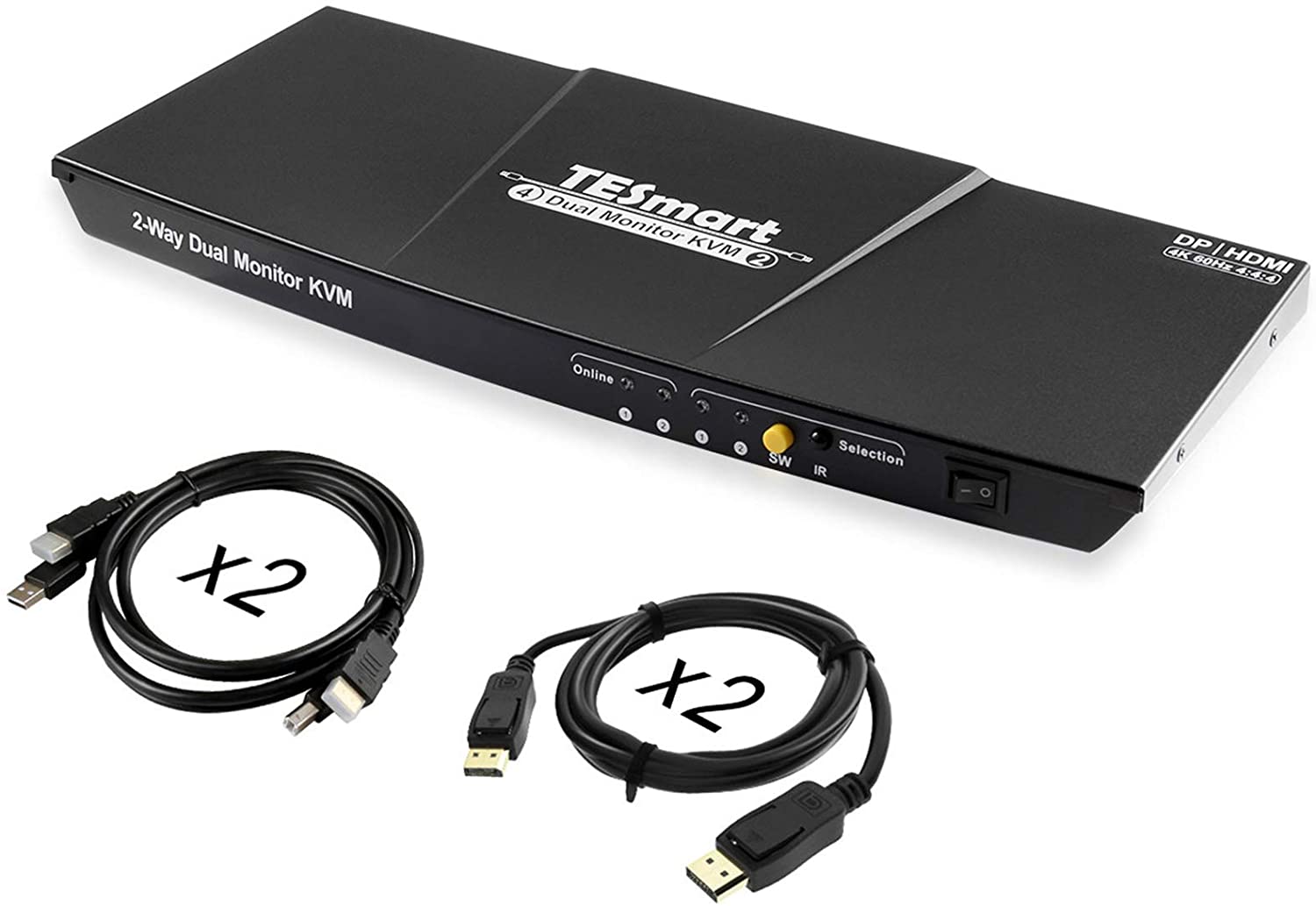
- Smooth display switching
- 4K support
- USB device sharing
These features let you share one Stream Deck between computers while switching the display at the same time.
For music production, compatible USB devices such as an iLok or other license key can also be shared between the connected computers.
What did you think?
After buying Stream Deck, I was immediately hooked and started exploring what else it could do.
Alongside music-production commands, I particularly appreciate the smart-home integration.
I also use it to prepare for video shoots and configure software and microphones for lessons.
It has greatly reduced the time I spend repeating everyday operations, and I am very happy with it.
If any of the ideas in this guide appeal to you, take a closer look.
Elgato Stream Deck: how to use it and recommended music-production settings
Stream Deck is a productivity tool that lets you assign computer operations to buttons and execute them with a press.
It's a product I would recommend to anyone who uses a computer, including music producers!
Read more: https://t.co/NDP0oVvJVT#DTM #StreamDeck pic.twitter.com/mzAmlbPI1a— SLEEP FREAKS (@SLEEPFREAKS_DTM)July 29, 2021
Frequently asked questions
Q1. Which Stream Deck model does this guide recommend for music-production beginners?
We recommend at least 15 buttons. Six can feel restrictive for DAW work, so among the models covered in this 2021 guide, choose the standard 15-button model or the 32-button XL if you want more assignments within reach.
Q2. Can the Stream Deck models covered here connect through a USB hub?
The manufacturer's guidance cited in the original guide advised against USB hubs because they could cause unreliable operation, and recommended connecting directly to a computer's USB port. Check the current guidance for your particular model.
Q3. Can I try Stream Deck before buying the hardware?
Yes. The original guide described a paid Stream Deck Mobile subscription for iPhone, iPad, and Android that let you try the functions and controls without buying the hardware. Availability and pricing may have changed; check the linked app listings.
Q4. Which image formats can I assign to buttons?
Alongside common formats such as JPG and PNG, animated GIFs are supported, allowing animated button images that are easy to recognize.
Q5. Can I use different button layouts for different software?
Yes. Profiles let you save multiple button layouts and switch between them as needed. You can create layouts tailored to a DAW, a browser, or other tasks.
NEW ARTICLES
Latest English Articles

















































































































































