
This article explains how to build SYNTHWAVE synthesizer tracks in Cubase Pro 10.5, combining digital sounds with the character of 1980s analog synths. Follow practical sound-design techniques, from full-bodied chord backing inspired by the Oberheim Matrix-12 to a clear lead with an FM-style character. Work through oscillator settings, filter-envelope adjustments, and effects processing to create an expressive, 1980s-inspired synthwave sound.
Combining Digital and Analog Synth Sounds

Here, we will explore sound design for SYNTHWAVE synth tracks, focusing on chord backing and leads.
A defining feature of this genre is the skillful combination of digital synths, such as the DX7, with analog synth sounds.
Analog synths provide warmth and fullness, while digital synths offer bright, crisp sounds that cut through the mix.
The key is to choose between these sounds according to their role.
SYNTHWAVE Synthesizer Tracks: Video Tutorial
- 1Rhythm Tracks
- 2Chord Progression and Bass Track
- 3Synthesizer Tracks
- 4Mixing the Individual Tracks
- 5Processing the Vocal Track
Oberheim-Inspired Chord Backing
First, we will create a full-bodied synth-brass sound inspired by the Oberheim Matrix-12, one of the iconic synthesizers of the 1980s.
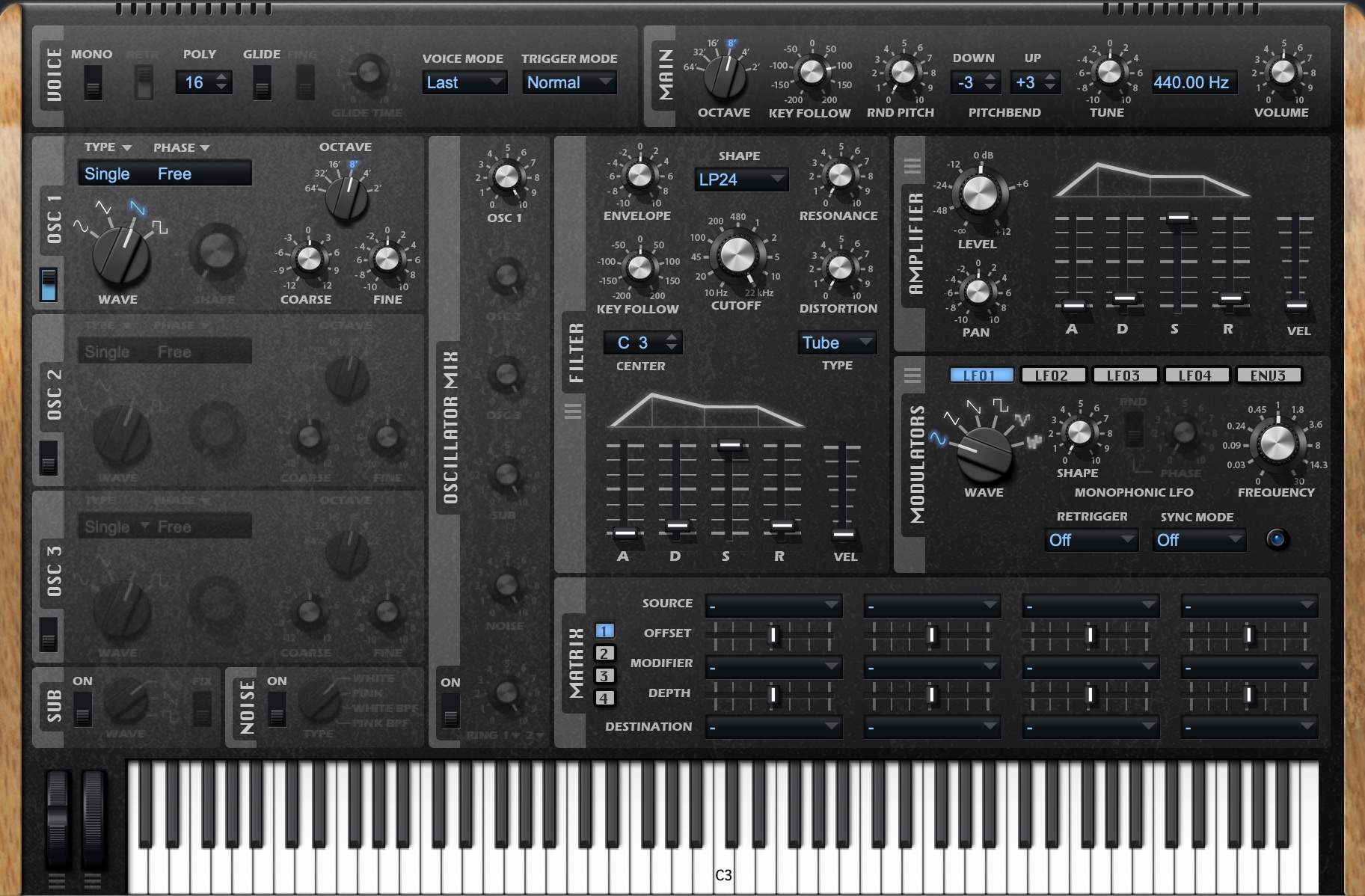
To add fullness to the song’s chord backing, we will use Retrologue, which models an analog synthesizer.
Start editing from its default settings.
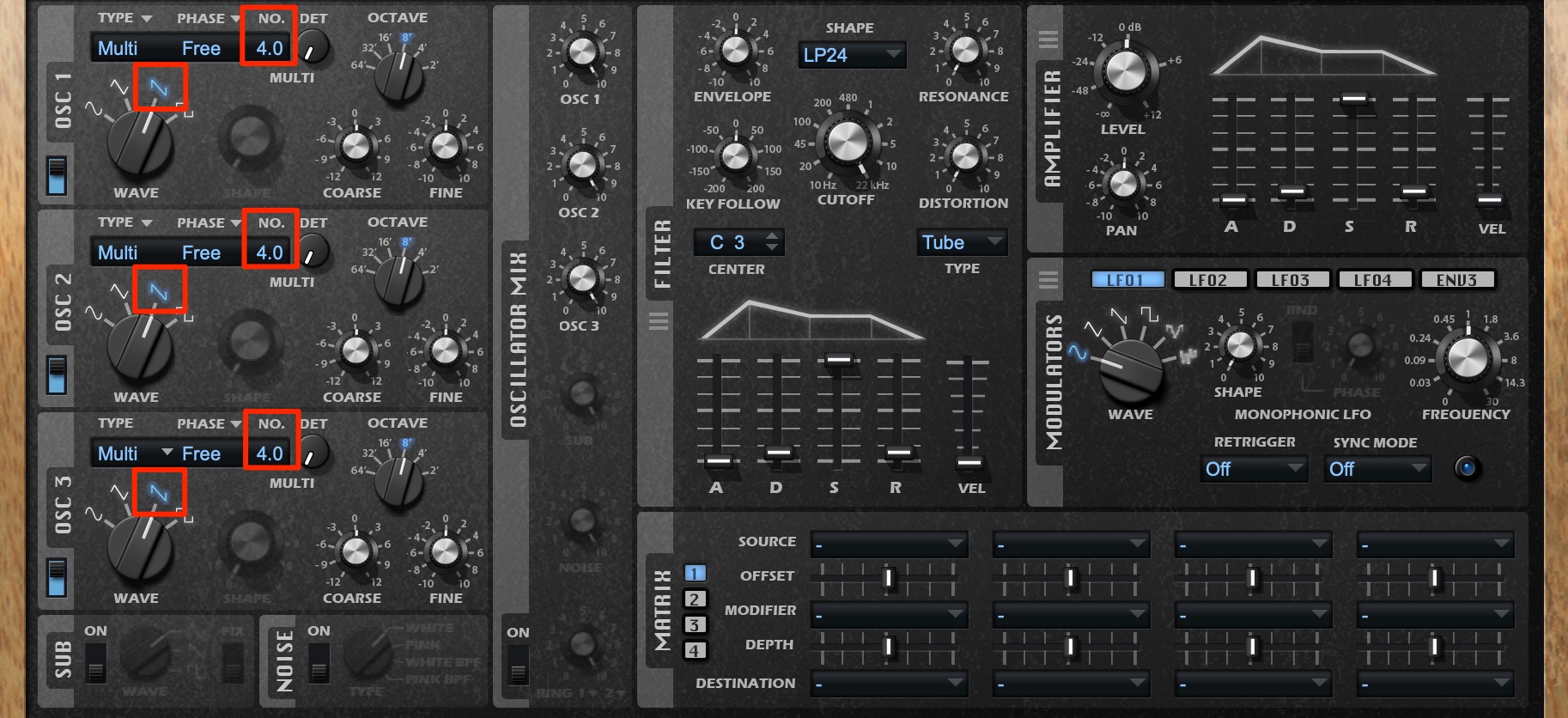
Set all three oscillators to sawtooth waves and choose Multi as the oscillator type.
Multi mode provides oscillator unison: layering several waveforms for each note to create a thicker sound.
Set NO. to 4 so that each oscillator outputs four waveforms per note.
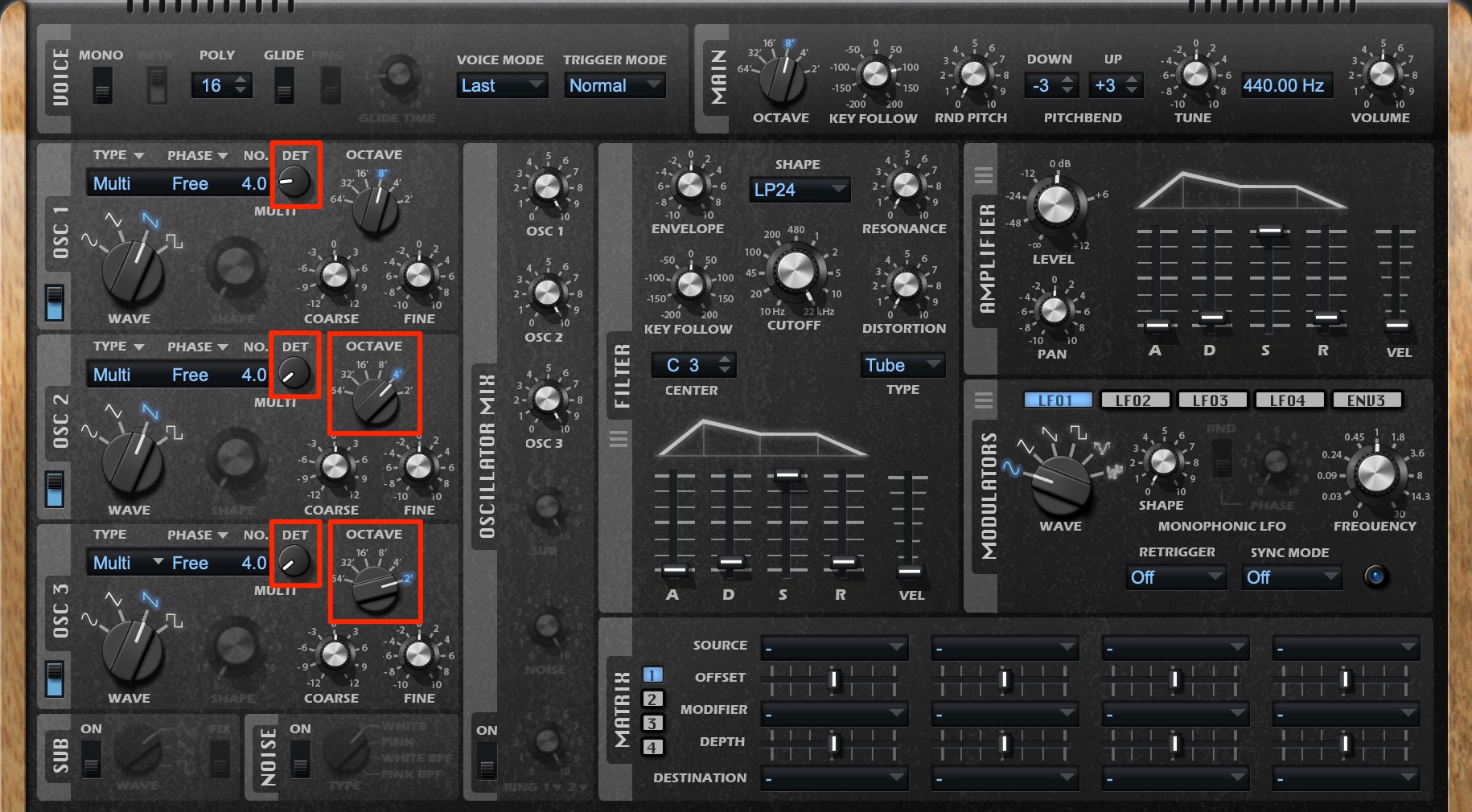
The sound is fuller now, but it feels a little hard.
Raise Detune to introduce slight pitch differences between the waveforms.
Change the oscillators’ octave settings to add more fullness.
This creates a sound with a broad frequency range, from lows to highs, helping the song feel more energetic.
This technique is used in many styles of electronic music, so it is worth learning here.
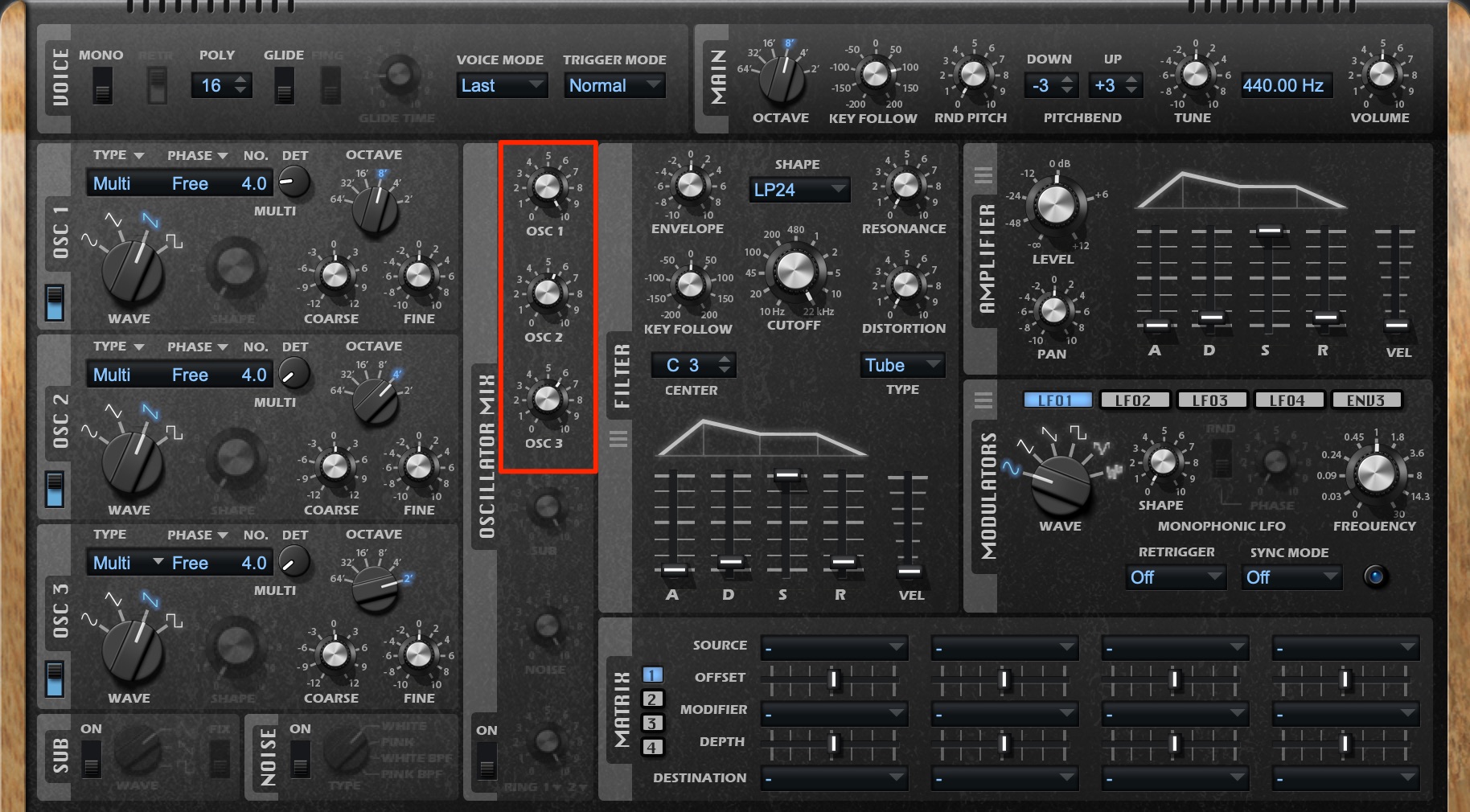
Using OSC 1 as your reference, adjust the volume balance of the oscillators.
This balance has a major effect on the sound’s character, so fine-tune it to your taste.
Next, we will use a low-pass filter to add movement to the sound.
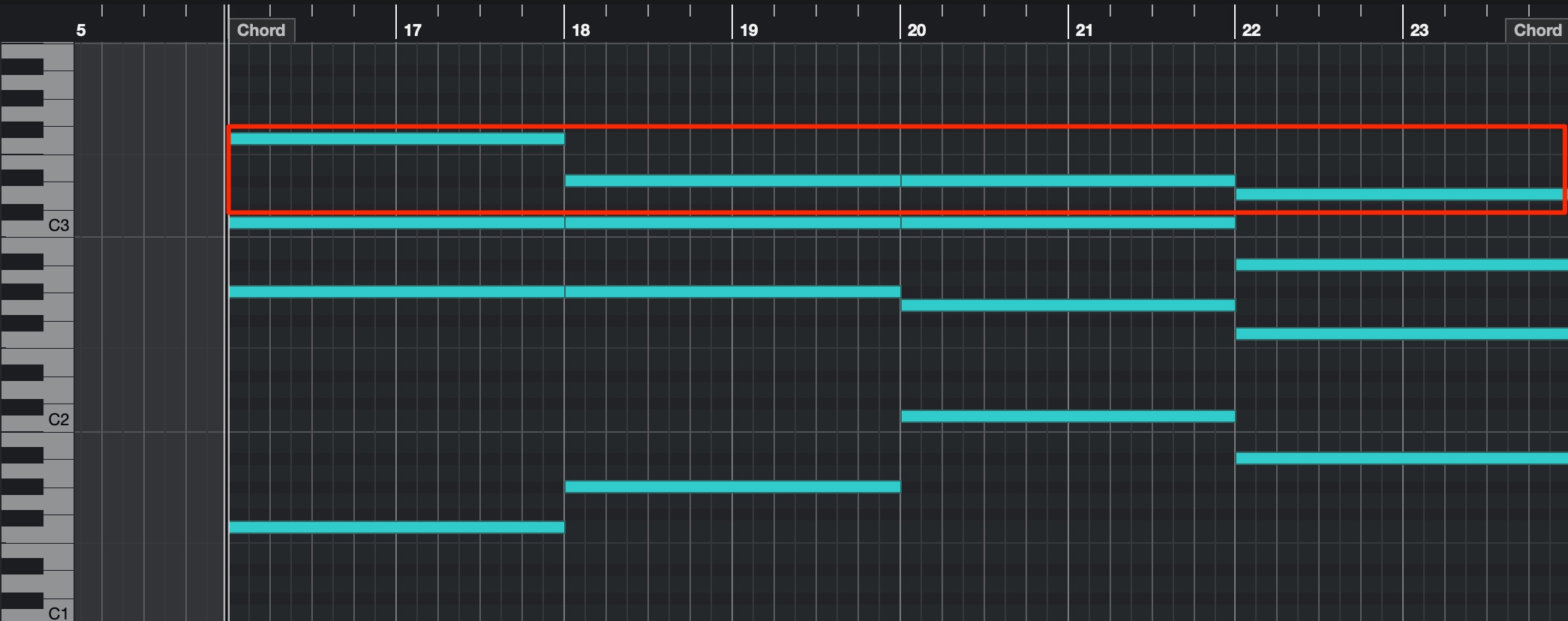
The chord-backing part uses sustained notes rather than a rhythmic pattern.
Changing the tone while the notes sustain keeps the sound from becoming monotonous.
Voicing is another important consideration when programming the part.
The top notes of the chords have a particularly strong influence on how the phrase feels. Follow their melodic line as you adjust the voicings to your liking.
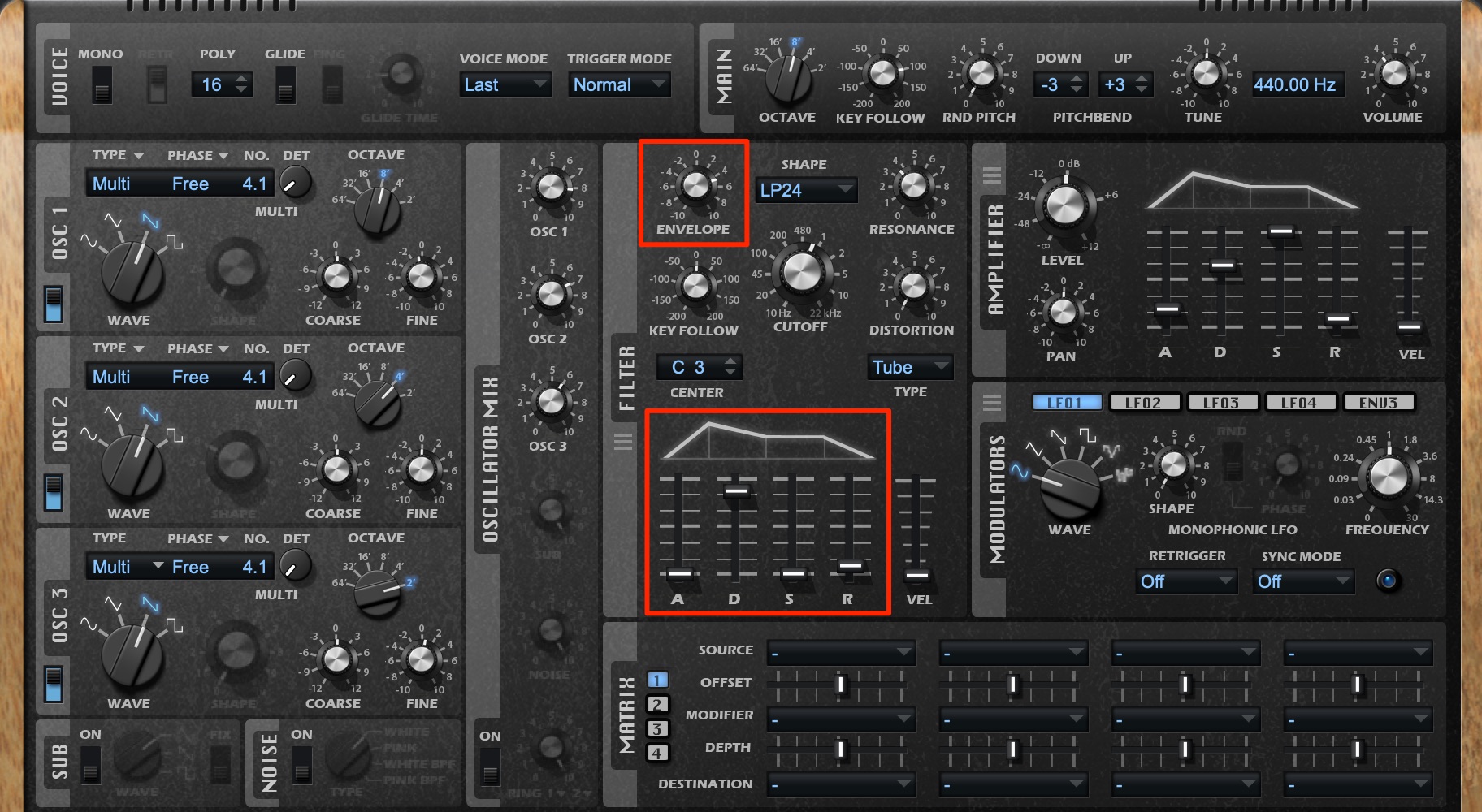
Use ENVELOPE to adjust how far the envelope moves CUTOFF.
Set the envelope so that the attack has plenty of harmonics, then gradually reduce the high frequencies as the sound decays.
Finally, we will finish the sound with effects.
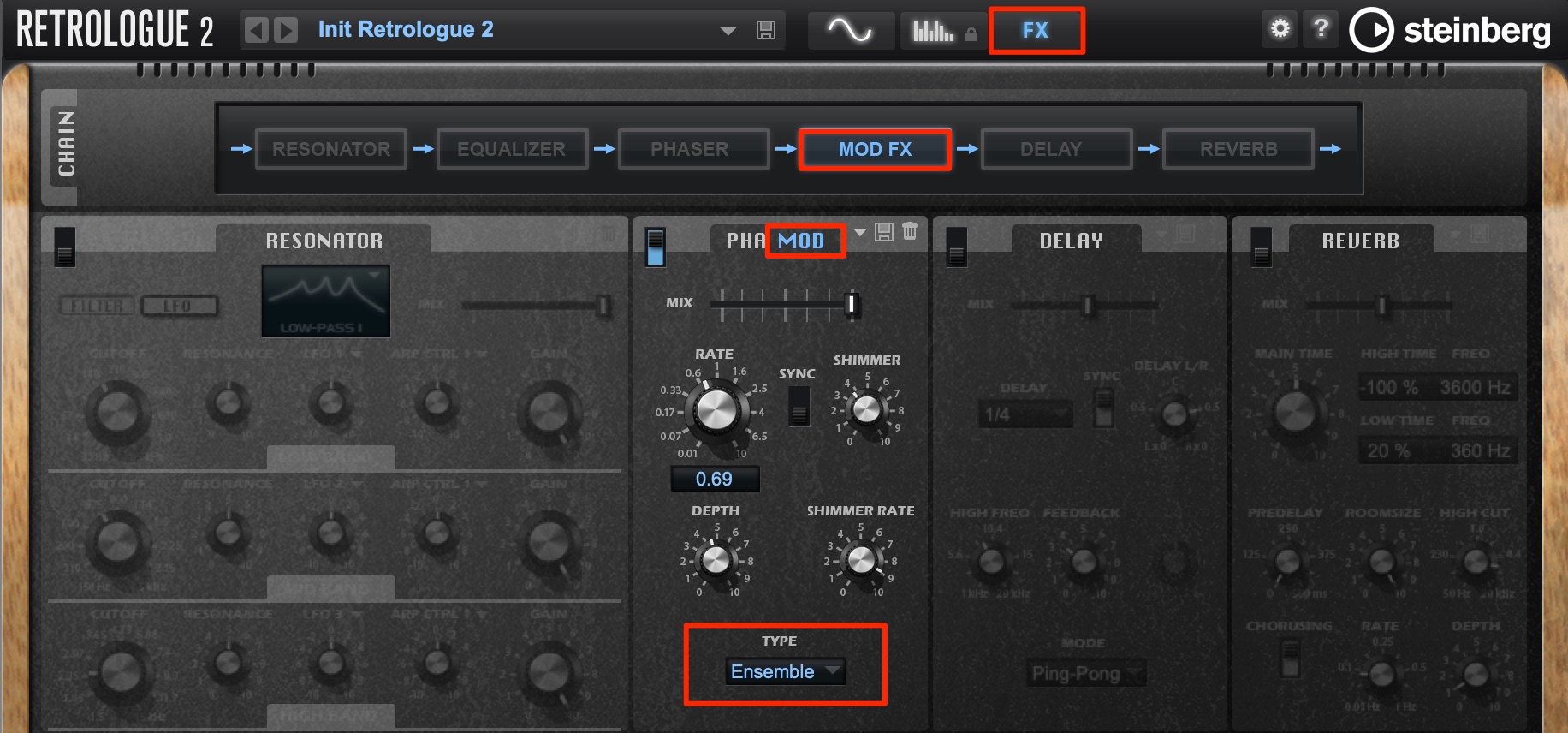
Chorus with deep pitch modulation was widely used in the 1980s.
Choose Ensemble under MOD FX to add that chorus character.
A Lead Synth to Add Color to the Song
Next is the lead synth that enters in the second half of the song.
I want to create a lead with a strikingly clear upper register.
A digital synth is well suited to this type of sound.
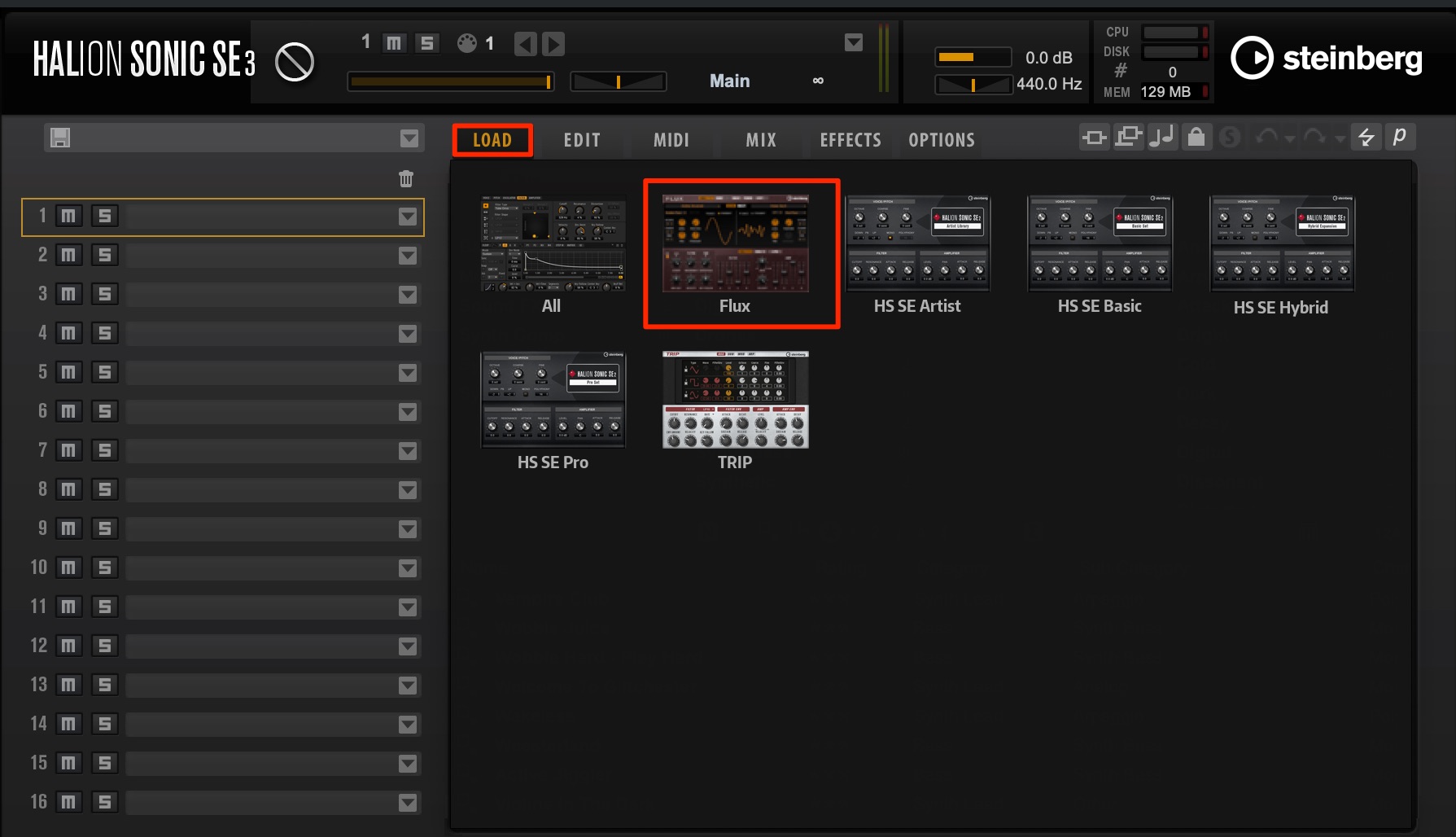
The Cubase Pro 10.5 setup covered here does not include a dedicated FM instrument, but FLUX in HALion Sonic SE contains many wavetables with an FM-like character.
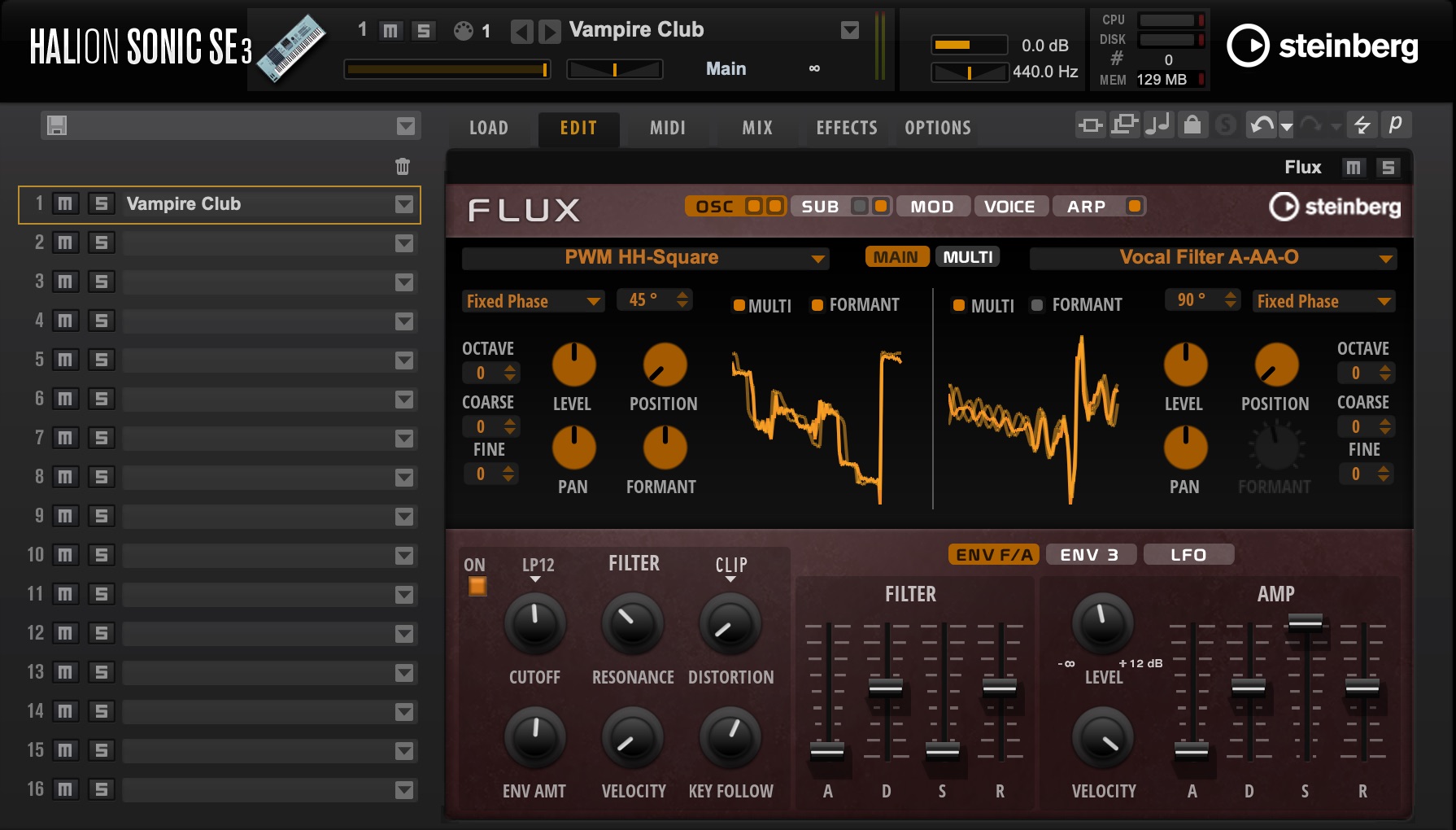
To make sound design easier, first return the preset’s parameters to a neutral starting point.
- Mac: Command key
- Windows: Control key
Hold the appropriate key listed above and click each parameter to reset it to its default value.
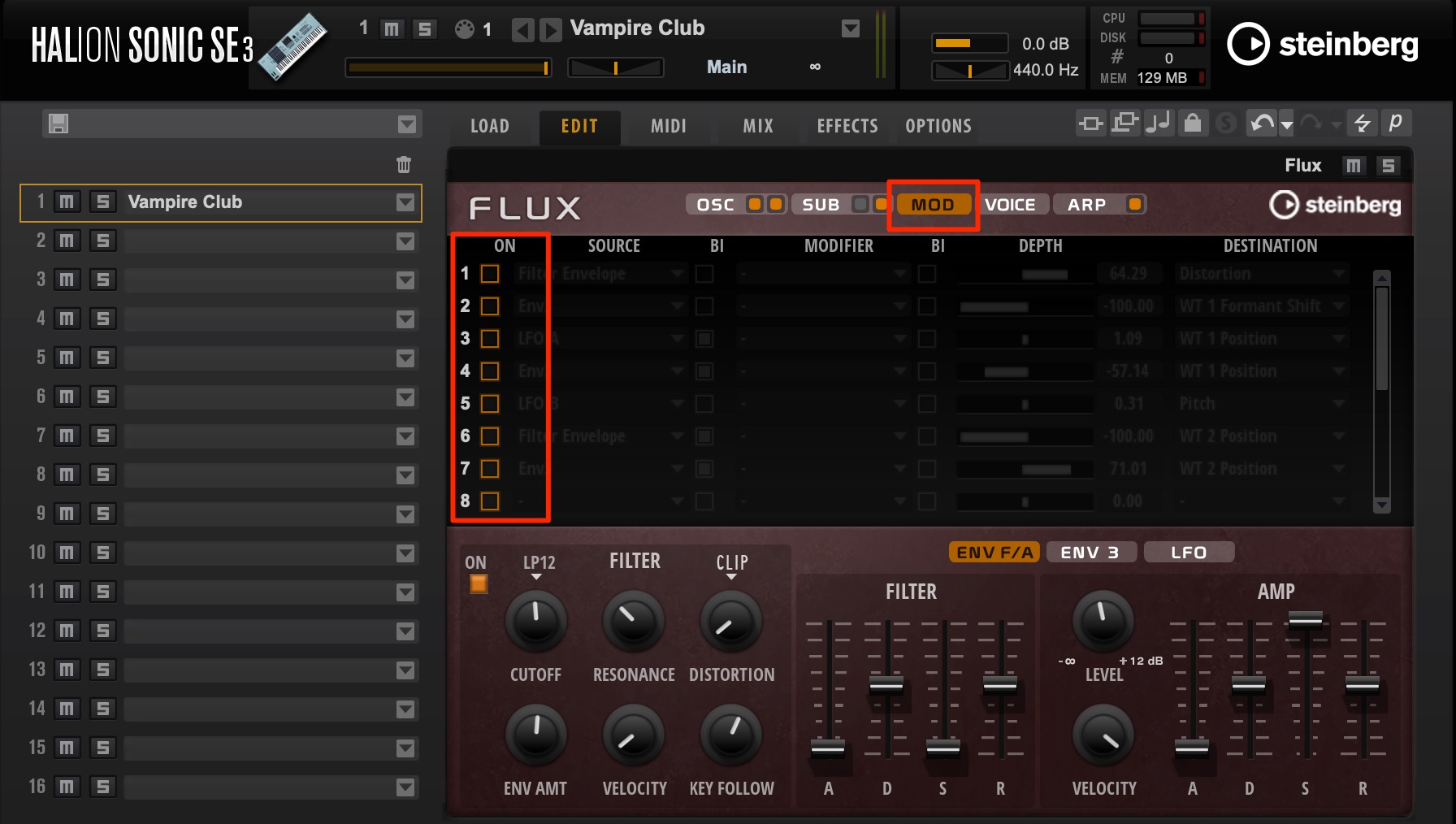
Reset the parameters and turn off any unwanted modulation (MOD).
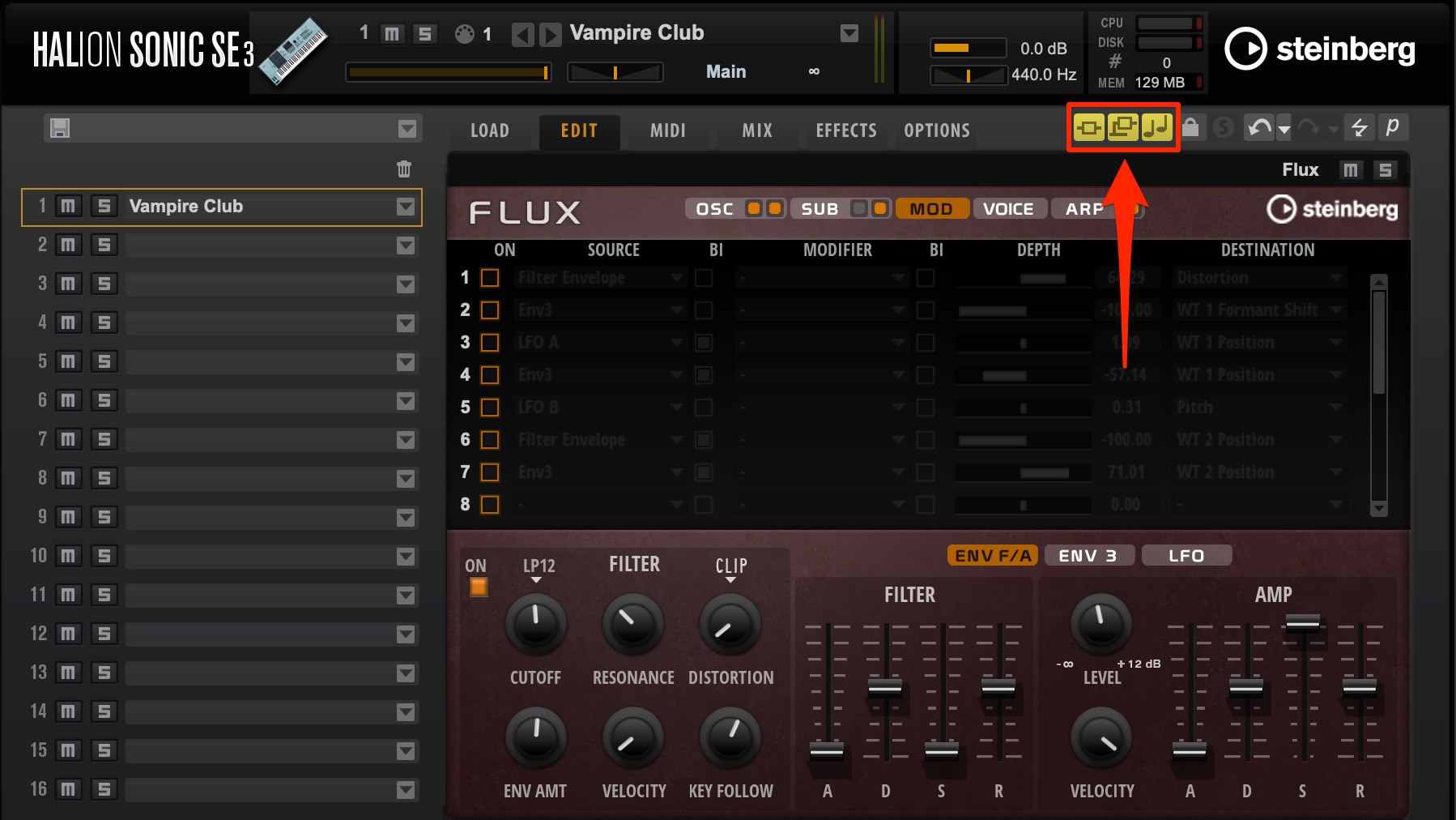
In HALion Sonic SE, these insert effects and Flex Phrase cannot be individually switched on and off in detail here. Disable them using the buttons at the top of the window, which light up yellow, so that you hear only the unprocessed sound.
Saving this state is useful whenever you want to design a sound from scratch in FLUX.
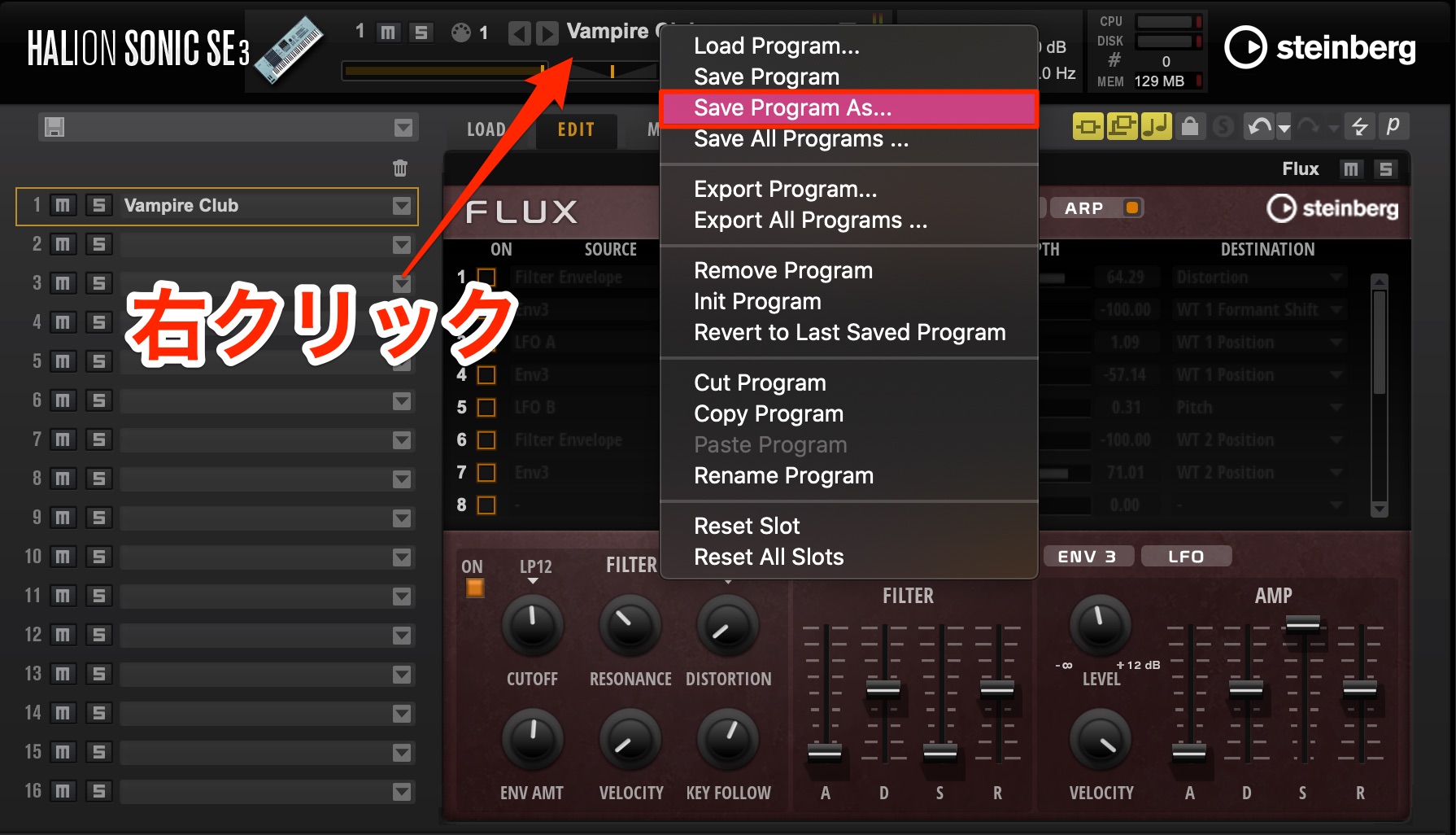
Right-click the preset name and select Save Program As from the menu.
Give the preset a name in the window that appears, then save it.
Now we can start shaping the sound.
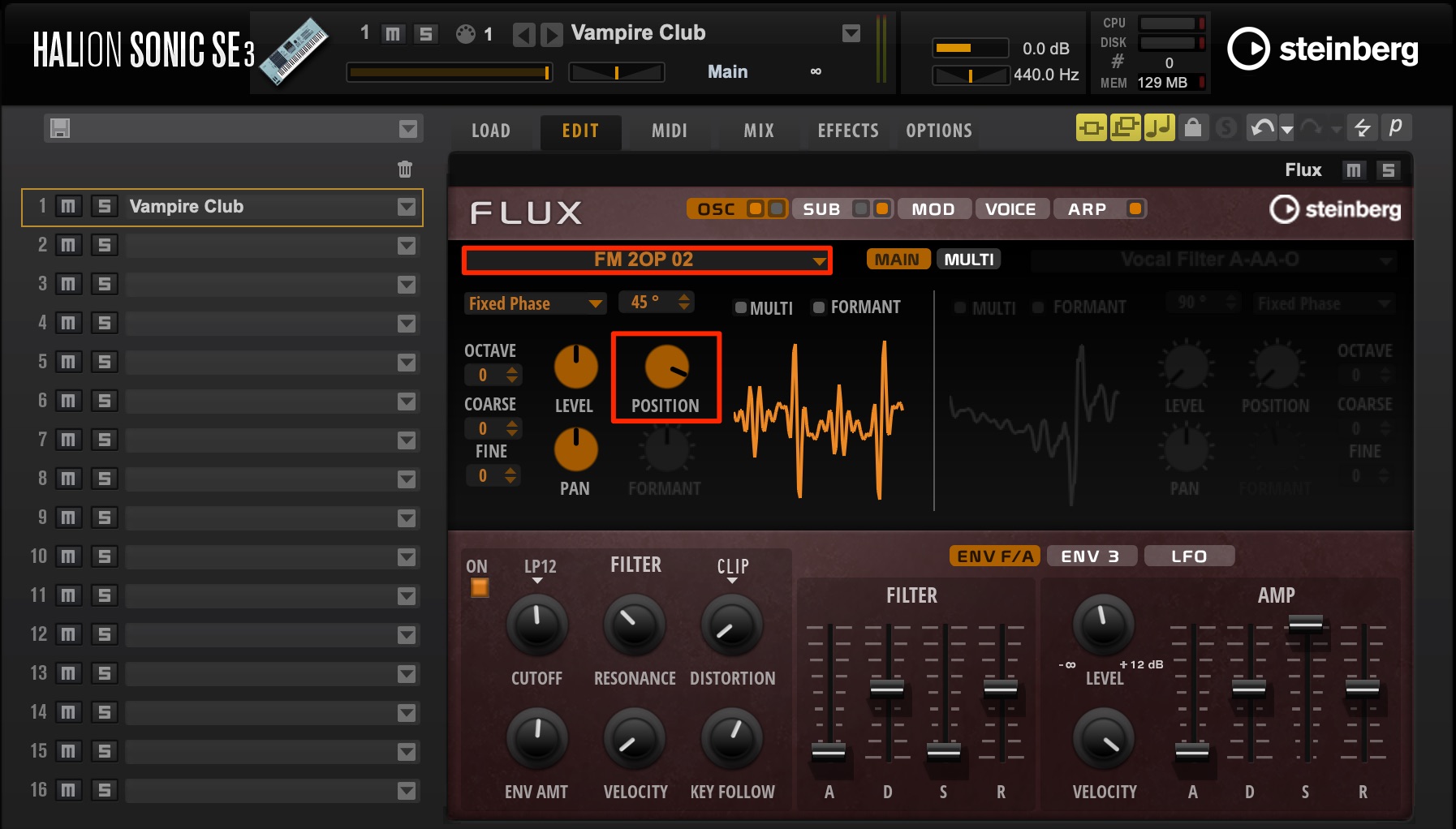
Load the FM 2OP 02 wavetable into OSC 1.
As its name suggests, it has the character of a sound made with an FM synth, making that flavor easy to recreate.
Move POSITION to choose the basic tone within the selected wavetable.
In a wavetable synth, changing this position can dramatically alter the sound.
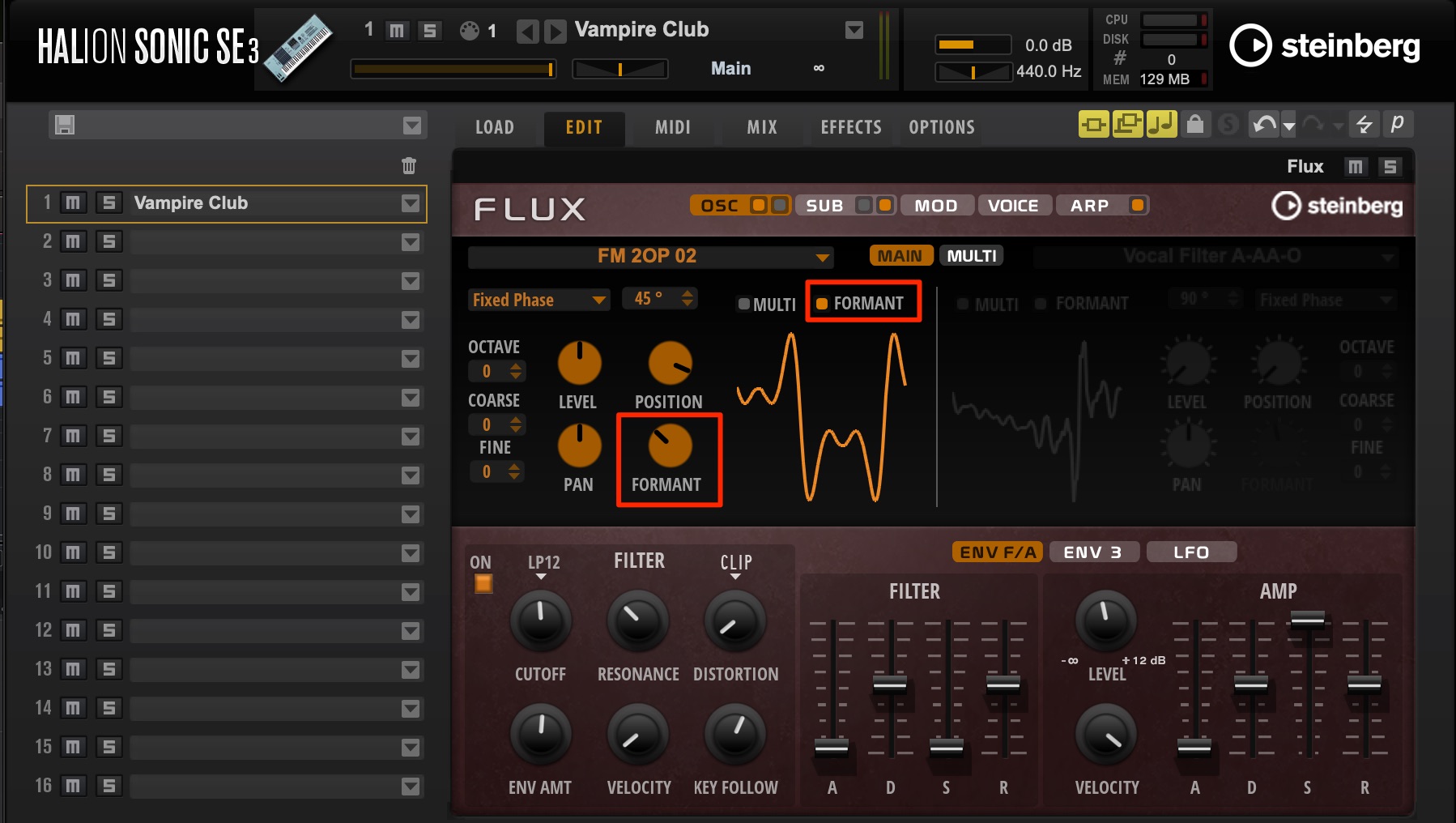
Next, enable FORMANT to soften the sharp high-frequency content.
These oscillator settings are a good starting point, but the sound is still a little plain.
Although this is not a typical approach on a classic FM synth, we will layer waveforms by setting the oscillator to MULTI mode.
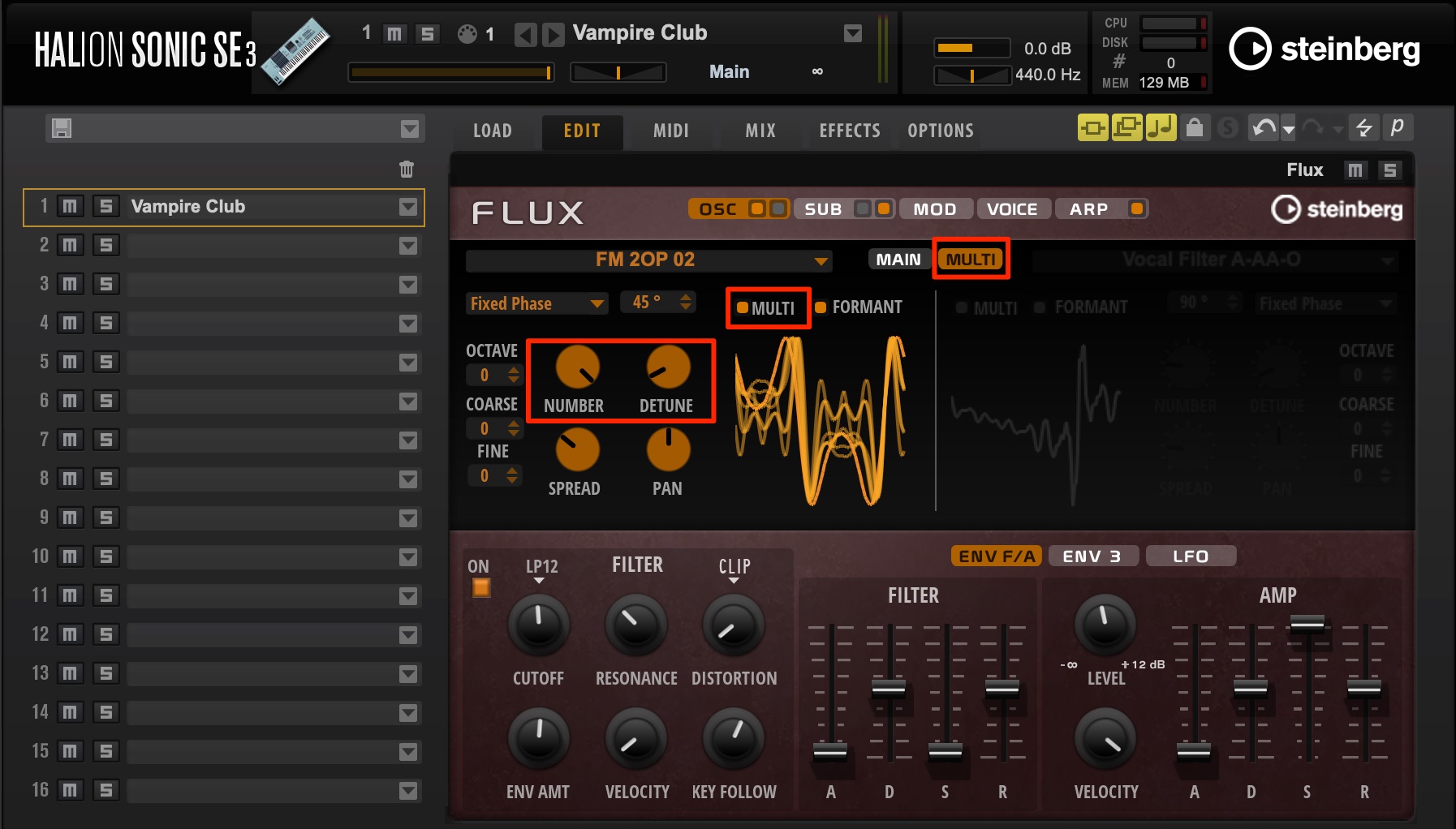
Enable MULTI, open Show Multi Page, and set NUMBER to 8.
This outputs eight waveforms for every note, producing a fuller, wider sound.
Raise DETUNE from here to introduce slight pitch differences between those waveforms.
This adds a chorus-like effect.
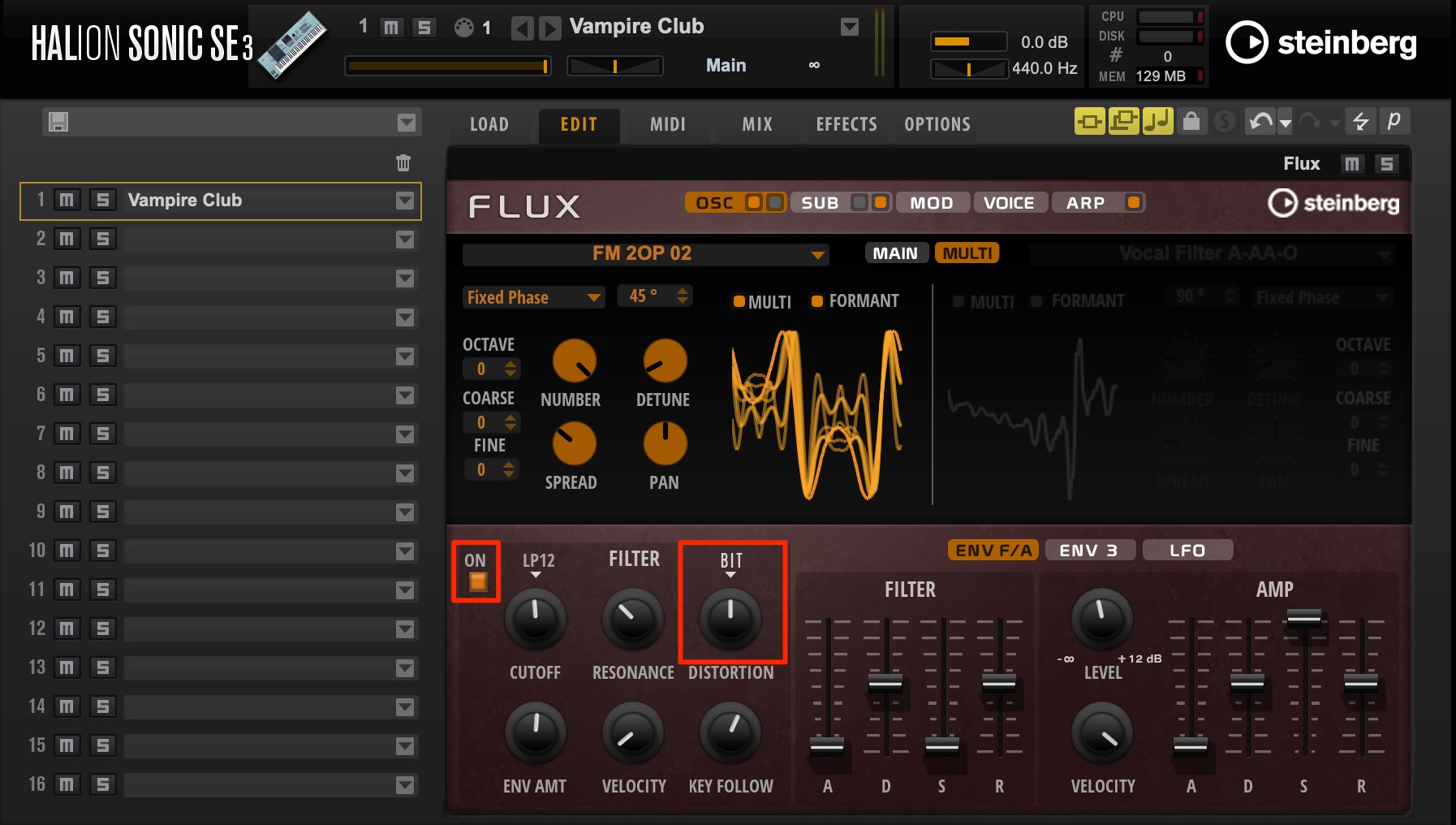
To give the sound more presence in the song, we will add distortion from the filter section.
Turn the filter ON and select a distortion type.
Here, I have chosen Bit Reduction to create a bright, gritty sound that stands out.
At this point, the sound still seems to lack a little fullness.
Layering multiple synths is an effective technique in this situation.
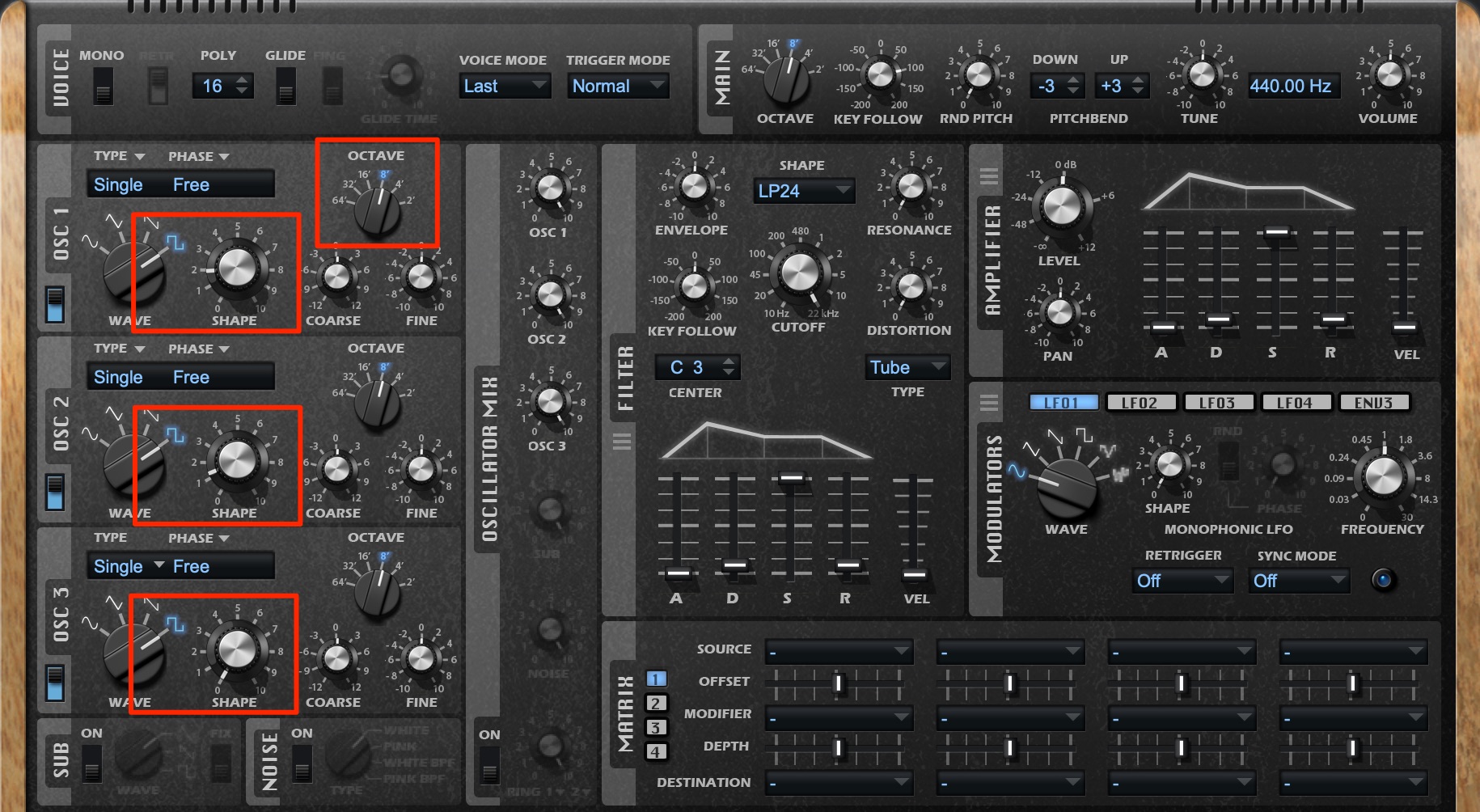
Because this layer is intended to add body, we will use the analog-style Retrologue again.
Select square waves for all three oscillators and adjust each Shape knob to change the pulse width and give the sound character.
Set OSC 1 one octave higher to brighten the tone.
Listening to the two synths together, they sound full, but Retrologue does not yet seem to blend with FLUX.
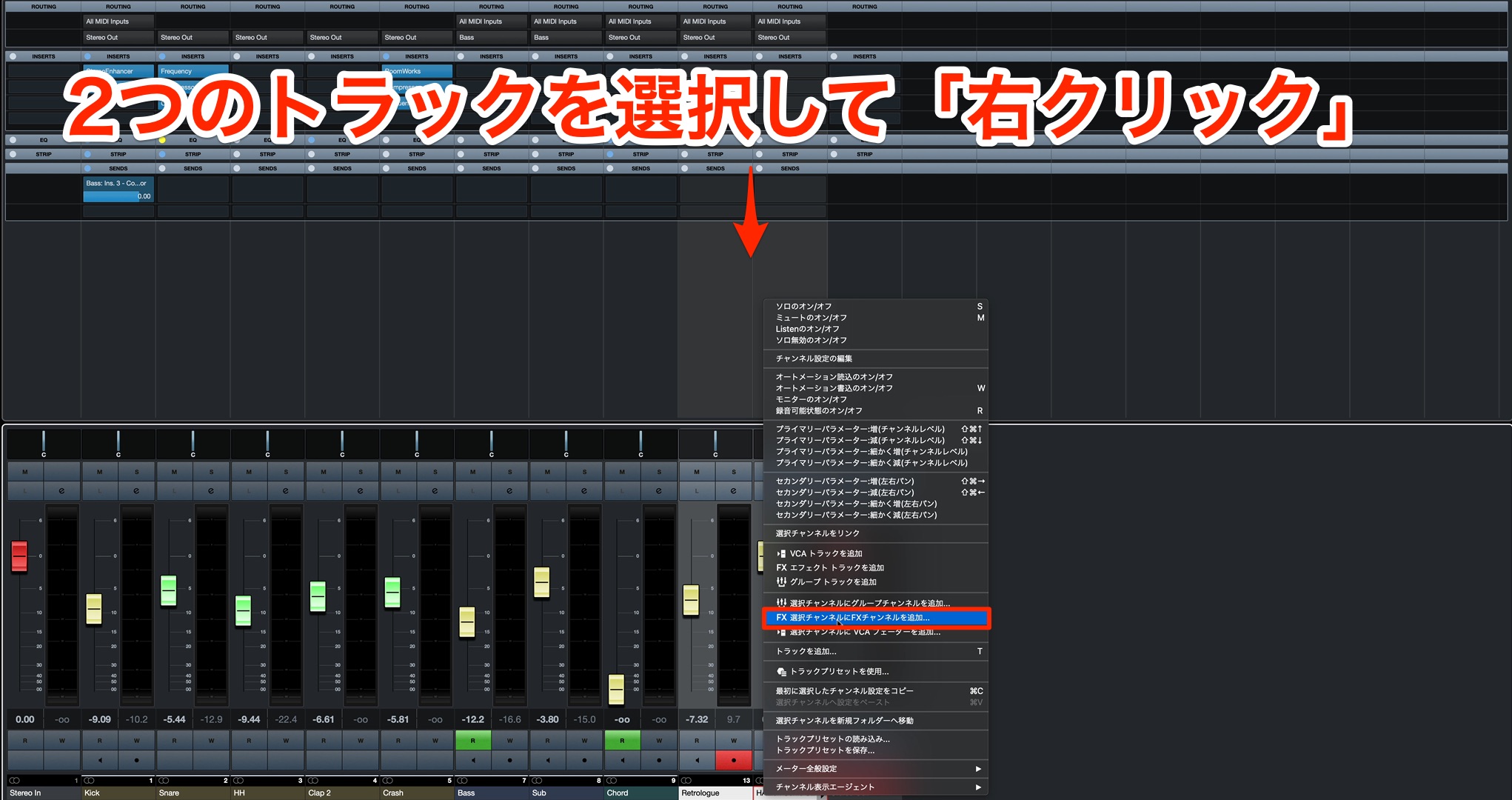
Route both synth tracks to a group channel.
Then apply Mono Delay to that group channel.
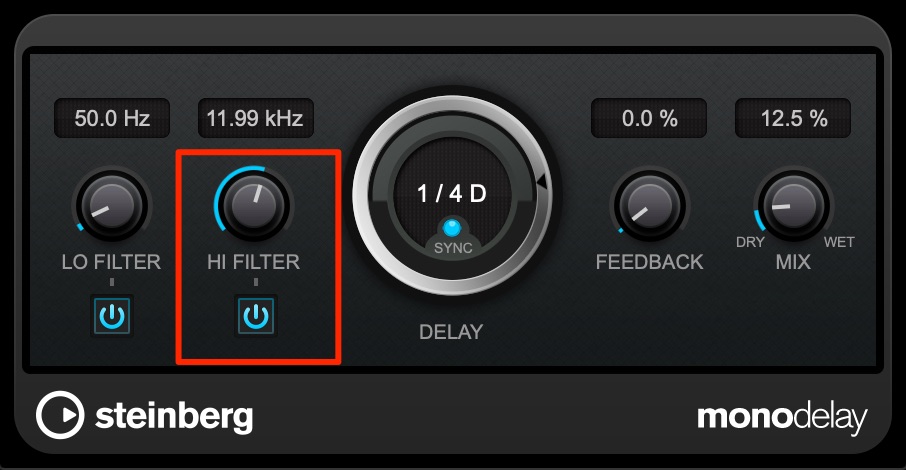
When using delay to create width and depth, a useful trick is to darken the repeats slightly with HI FILTER so that they blend with the original sound.
This is a common delay technique. Try it whenever the repeats stand out too much.
That completes our chord-backing and lead synth parts.
Next time, we will look at the key mixing decisions for the tracks we have created.
Stay tuned!
Creating Synthwave, Part 3: Programming Synth Tracks
This time, we will explore chord-backing and lead sounds.
Contents
• Creating synth brass with Retrologue
• Creating an FM-inspired lead with FLUX
• Layering different synthesizersDetails: https://t.co/fudRpKZwI4 pic.twitter.com/lAPbqy2duH
— SLEEP FREAKS (@SLEEPFREAKS_DTM) June 28, 2020
Frequently Asked Questions
Q1. Which Cubase synths should I use for an 1980s-inspired synthwave sound?
Use Retrologue for analog-style sounds and FLUX in HALion Sonic SE for digital-style sounds. Retrologue adds body, while FLUX provides a bright, sparkling upper register.
Q2. How can I create thick chord-backing sounds?
Use the oscillators’ MULTI mode to generate several waveforms from one note. Then raise DETUNE to introduce slight pitch differences and adjust the oscillators’ volume balance to build fullness.
Q3. What can I do when layered synths do not blend?
Route them to a group channel and apply a shared effect such as Mono Delay. Processing them together can help the different synth sounds feel more cohesive.
Q4. What does POSITION do in a wavetable synth?
POSITION selects a waveform within the wavetable. Moving it changes FLUX’s basic tone significantly, so adjust it to find the harmonic balance you want.
NEW ARTICLES
Latest English Articles































































































































































































