
Studio One 4.5 is a major update with more than 70 new features. Extensive improvements to the Mix Console, plug-in management, and editing make music production more efficient. Streamlined input controls and sidechaining, easier organization with the Plug-in Manager, and optimized CPU usage improve workflows from mixing to MIDI editing, helping you work faster while refining the quality of your productions.
More Than 70 Improvements in a Major Studio One Update
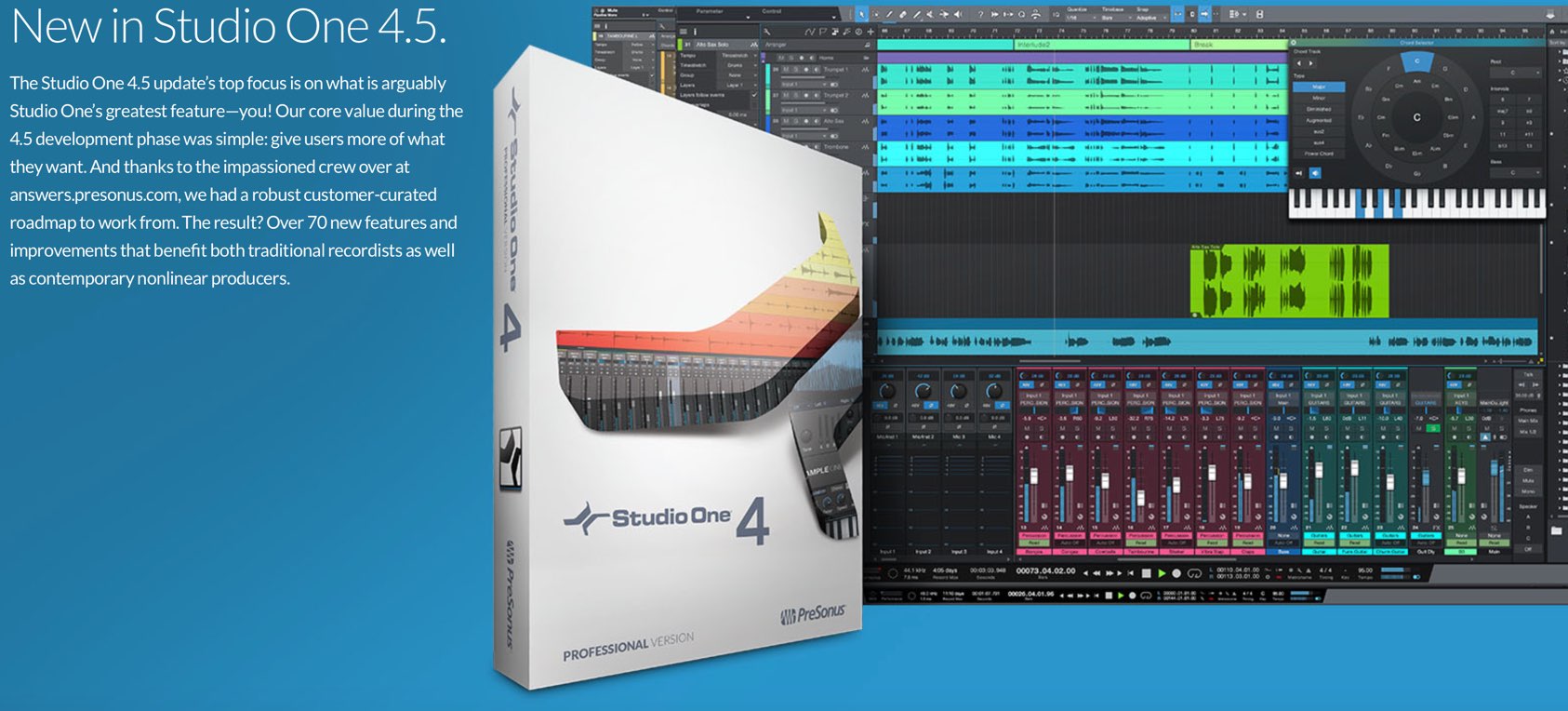
Studio One 4.5 has been released.
The release was described as focusing on what are arguably Studio One's greatest strengths, and it delivers an extensive set of improvements.
Studio One 4 users can update to version 4.5 free of charge.
Let's take a look at the standout new features.
Studio One 4.5 New Features: Video Overview
Selected Questions and Answers from the YouTube Video

Thank you for your clear explanations! I use Studio One, but when I export stems and open the audio in Pro Tools, the BPM seems to change noticeably. Could you explain why this happens?

Does the pitch change as well—for example, does it sound higher or lower than before export? If so, matching the sample rate used when exporting from Live with the sample-rate setting in Pro Tools should resolve it. If the pitch does not change, I believe Pro Tools has a preference that makes imported audio follow the tempo; try turning that off. Alternatively, set Live and Pro Tools to the same tempo before importing. I do not have Pro Tools available right now, so this is a preliminary answer. Please check these settings.
Mix Console
The Mix Console receives many of the new features in this update.
It is packed with useful additions that make production more efficient.
Input Controls
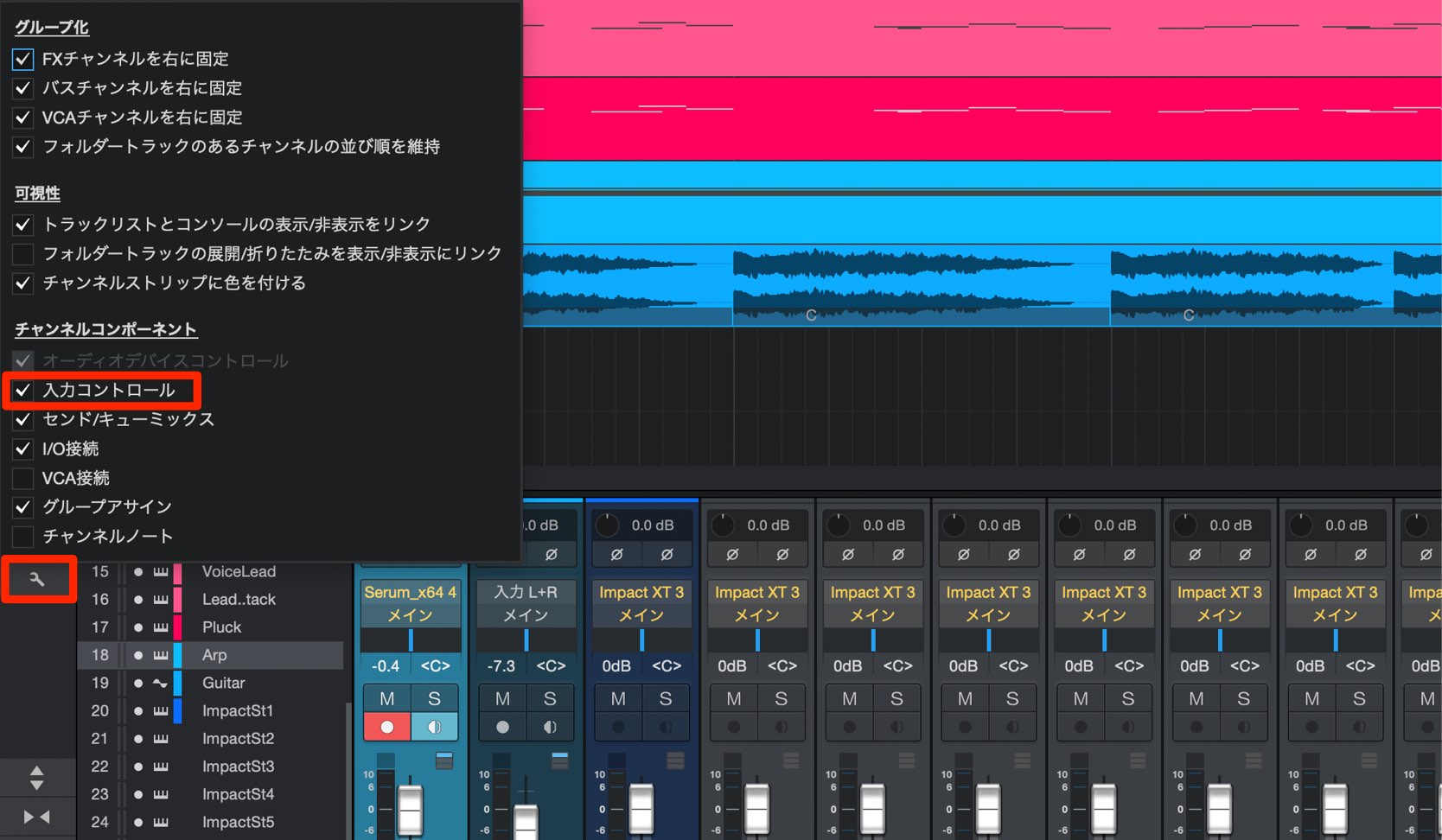
Click the customization button and enable Input Controls.
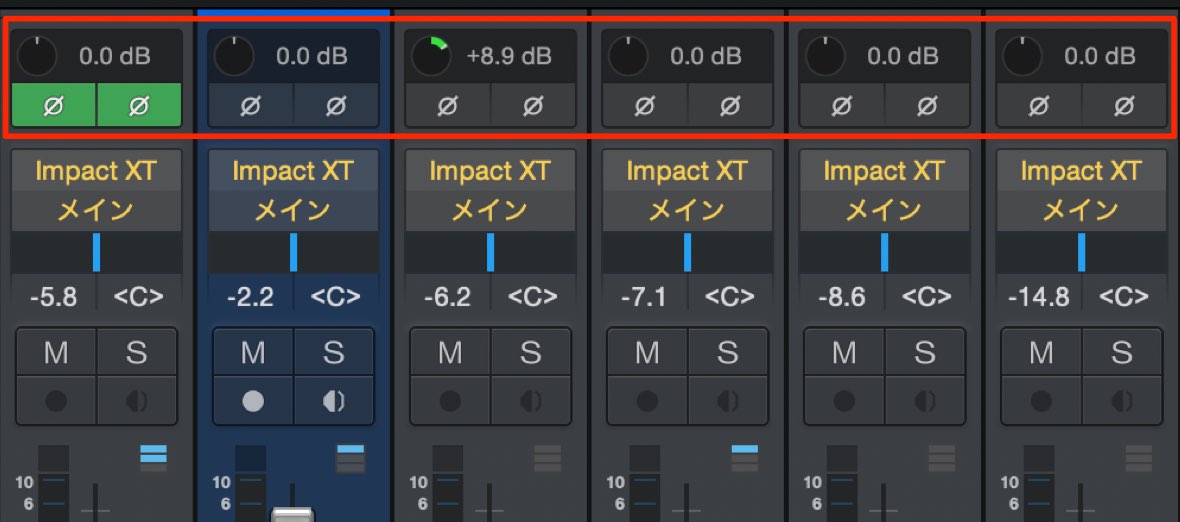
Gain and polarity-invert controls appear above each channel.
- Gain
This controls the channel's level.
Unlike the fader, it lets you adjust the level before the effects.
For example, adjusting the level going into a compressor with the gain control lets you optimize how much compression is applied. - Polarity Invert
This reverses the polarity of the channel's signal.
Use it to improve the relationship between drum tracks recorded with multiple microphones, or creatively change how tracks interact with one another.
Polarity Inversion: Video Tutorial
Customizing the Meter Display
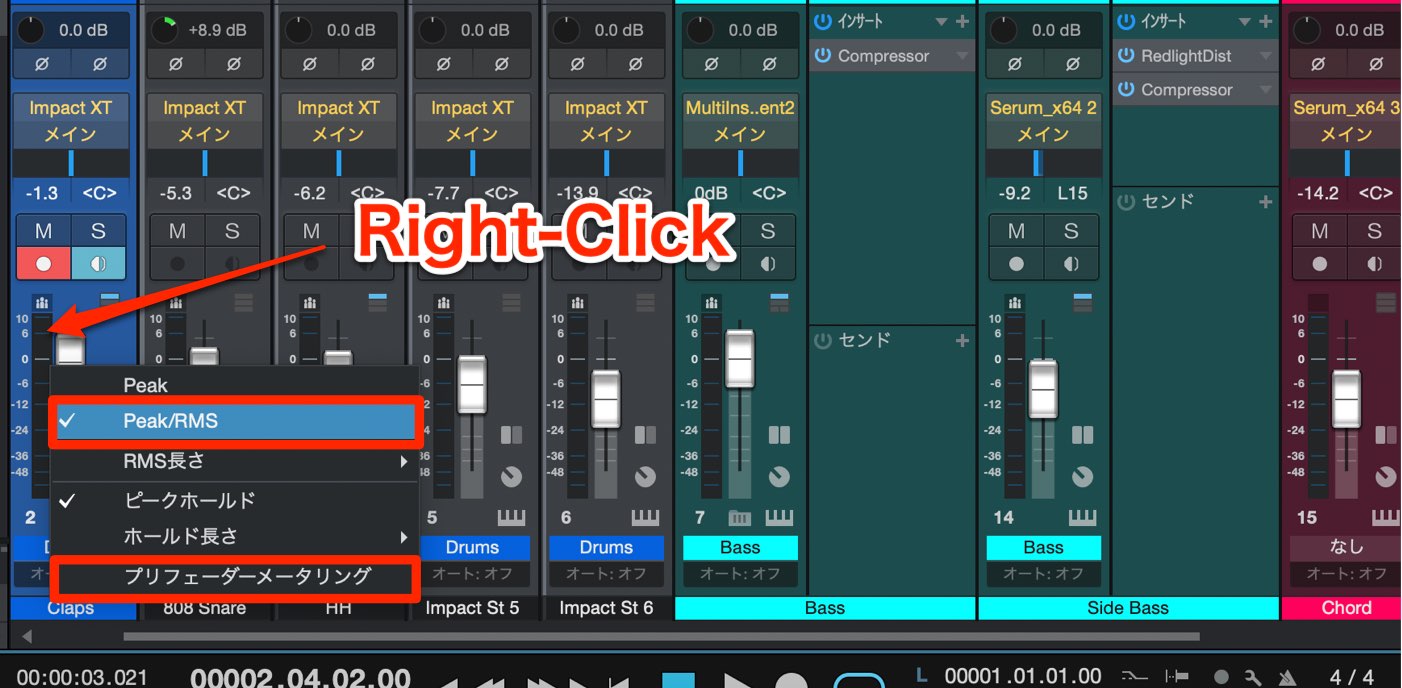
Right-click a meter to switch its display to Peak + RMS.
Enabling Pre-Fader Metering displays the signal level before the fader.
This lets you check the level independently of the fader position.
Improved Grouping
Grouping several tracks lets you perform edits and operations on them together.
Groups are now easier to identify, and you can specify their behavior in greater detail.
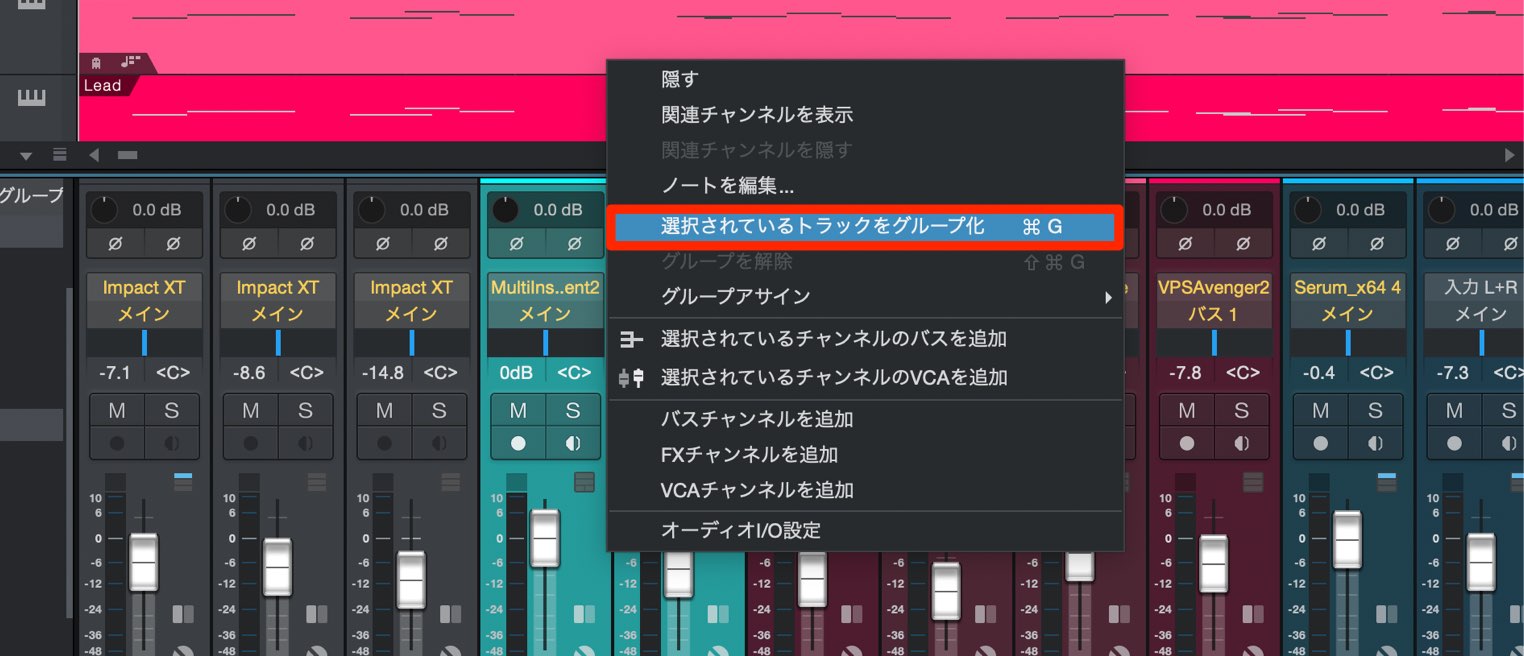
Select the tracks you want to group.
Right-click an empty area of a track and choose Group Selected Tracks.
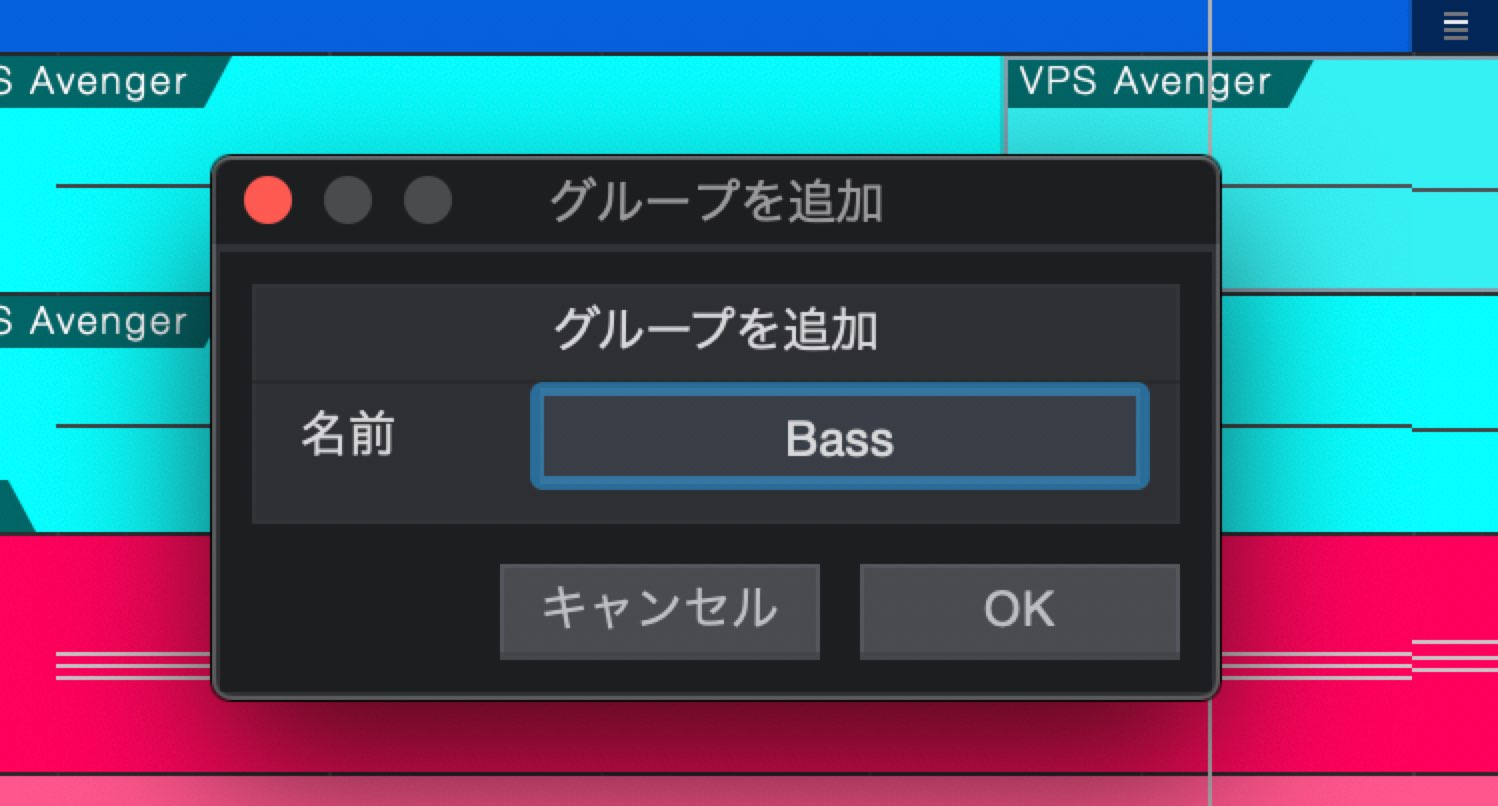
Enter a group name and click OK.
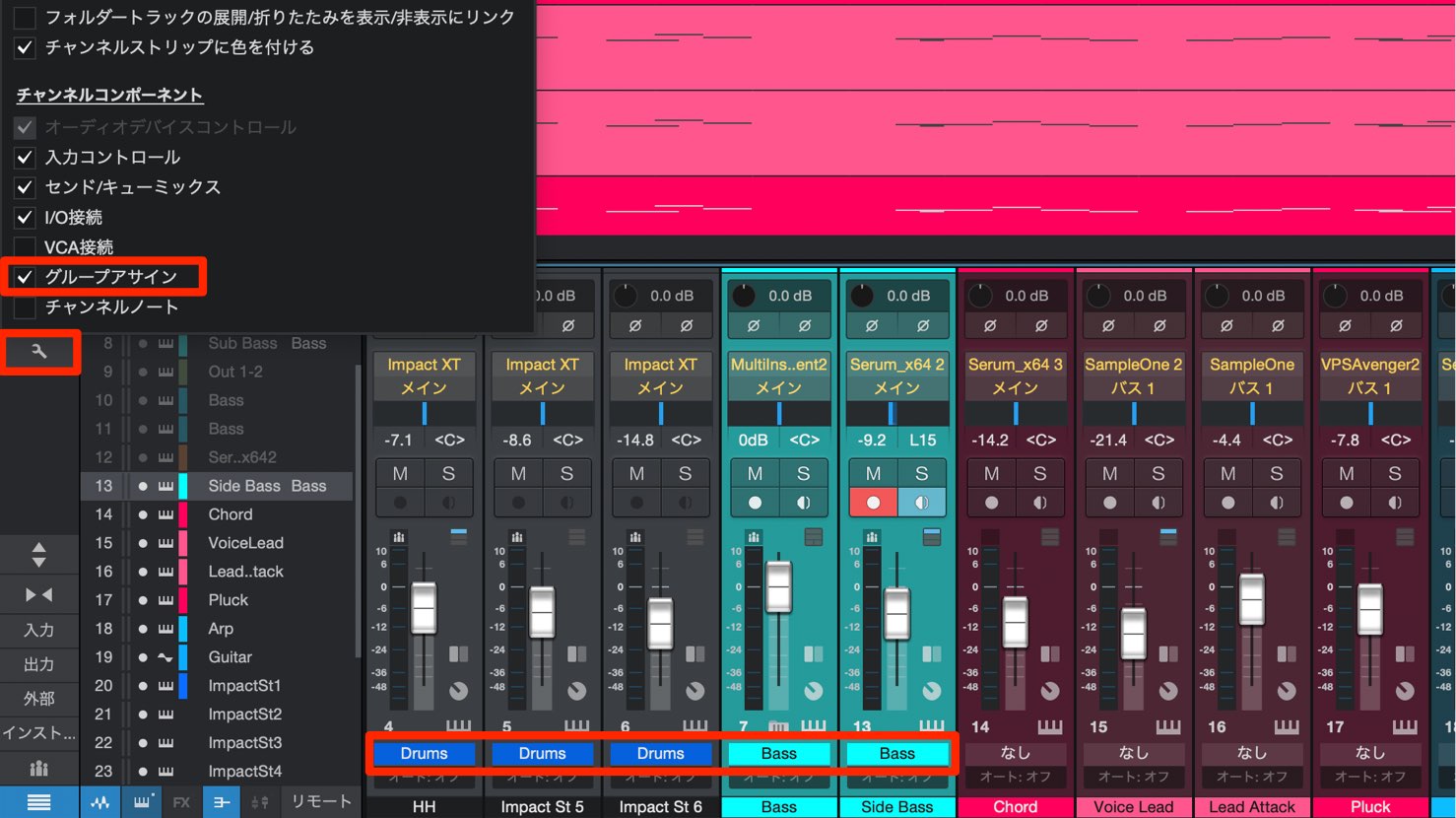
Click the customization button and enable Group Assignment to display each channel's group name beneath it.
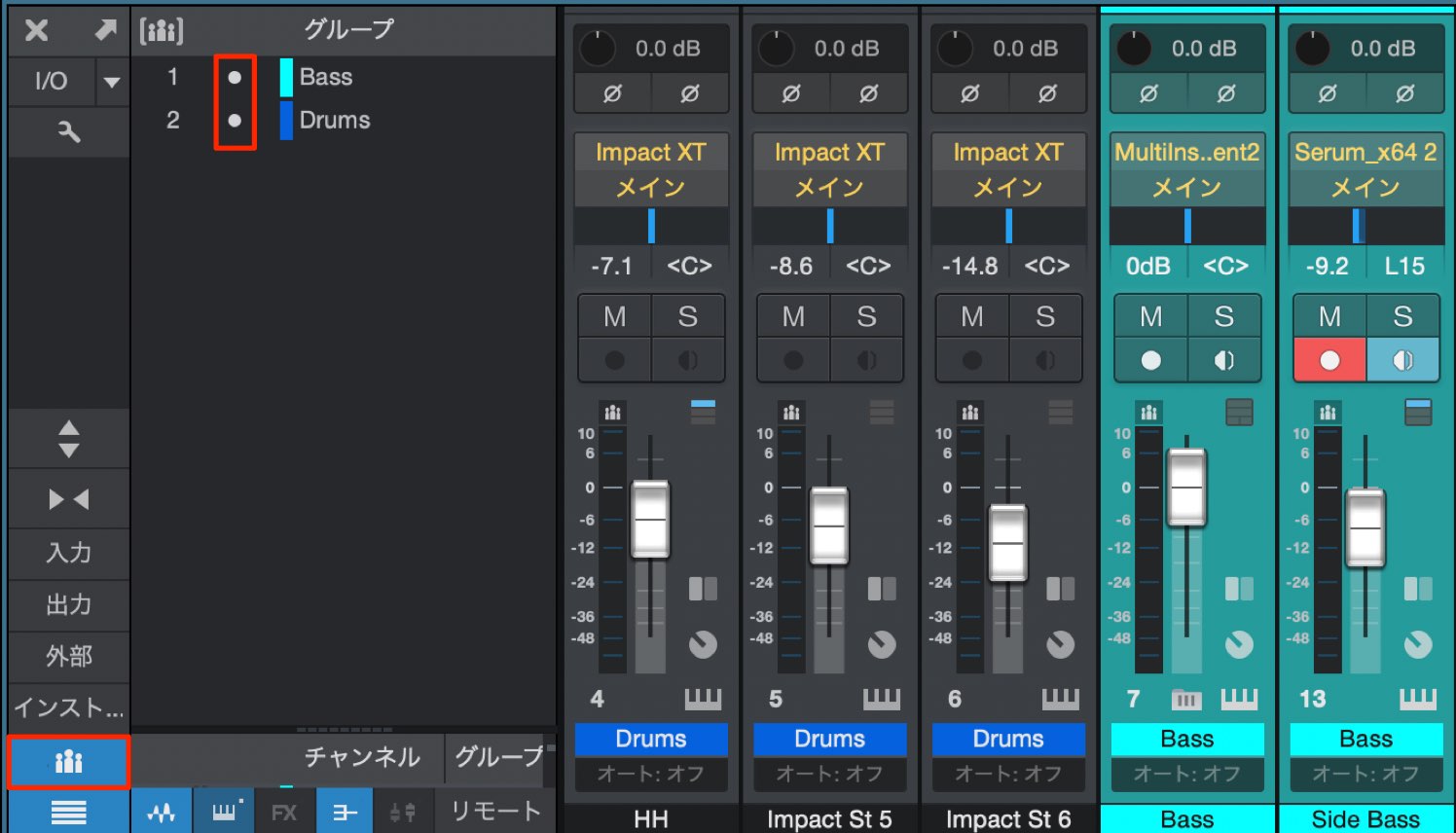
Click the Groups button at the lower left of the Console to enable it and display the group list.
Turn off the indicator to the left of a group's name to suspend that group temporarily.
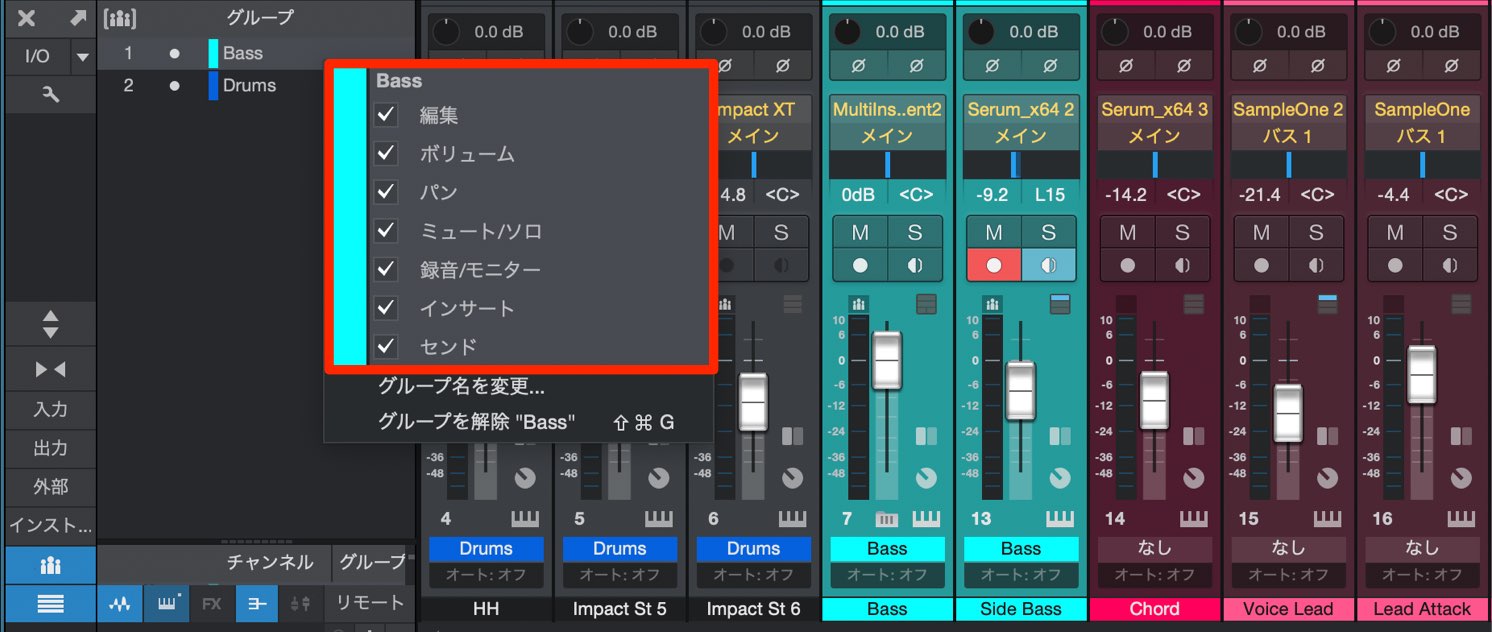
Right-click a group name to specify exactly which editing and control operations are linked.
More Efficient Sidechaining
Sidechaining, which is particularly common in electronic music, is now easier to set up.
Here, we will use the kick as a sidechain trigger for the bass track.
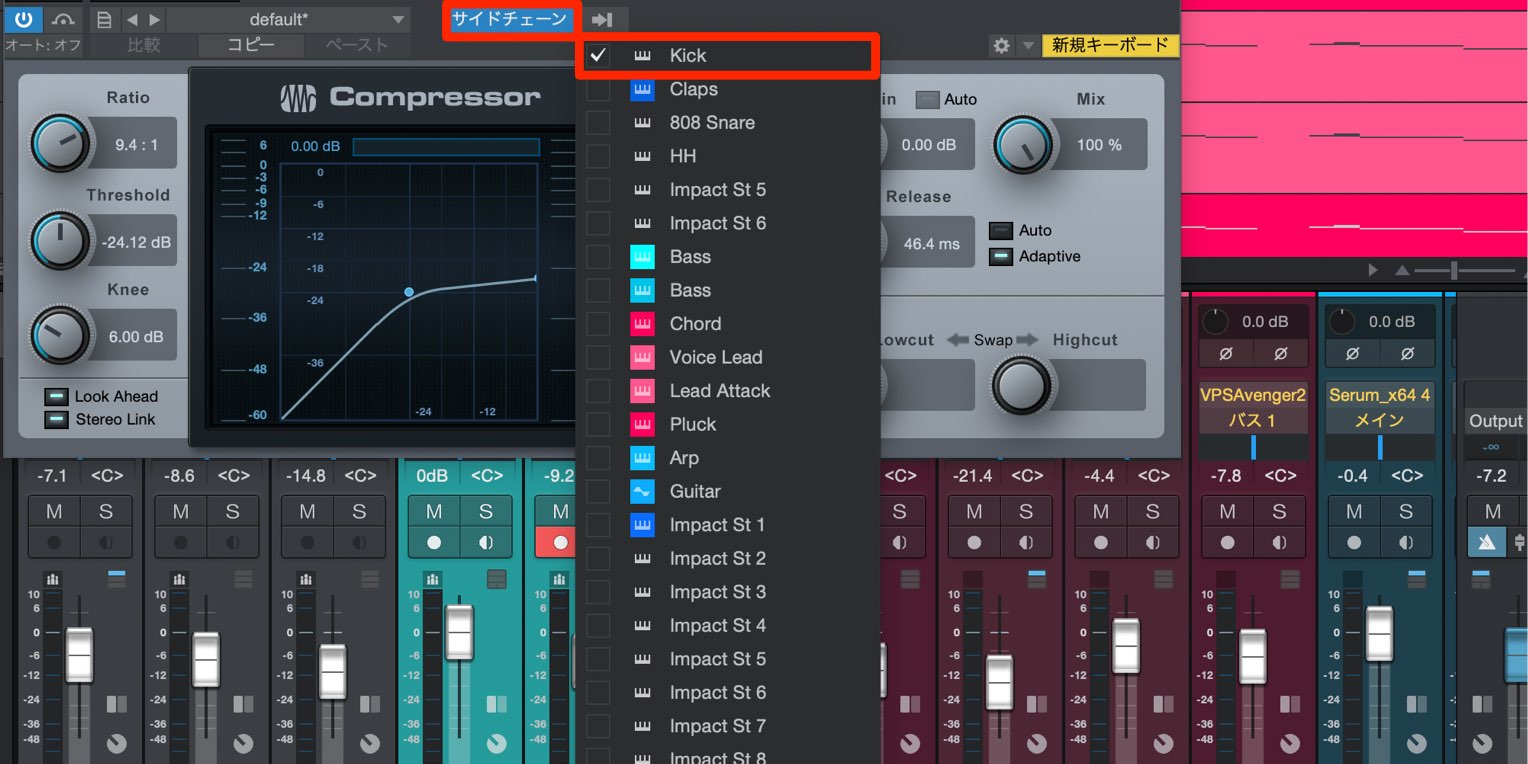
Insert a compressor on the bass track and enable its Sidechain button.
Click the arrow icon on the right to quickly select the trigger track—in this case, the kick.
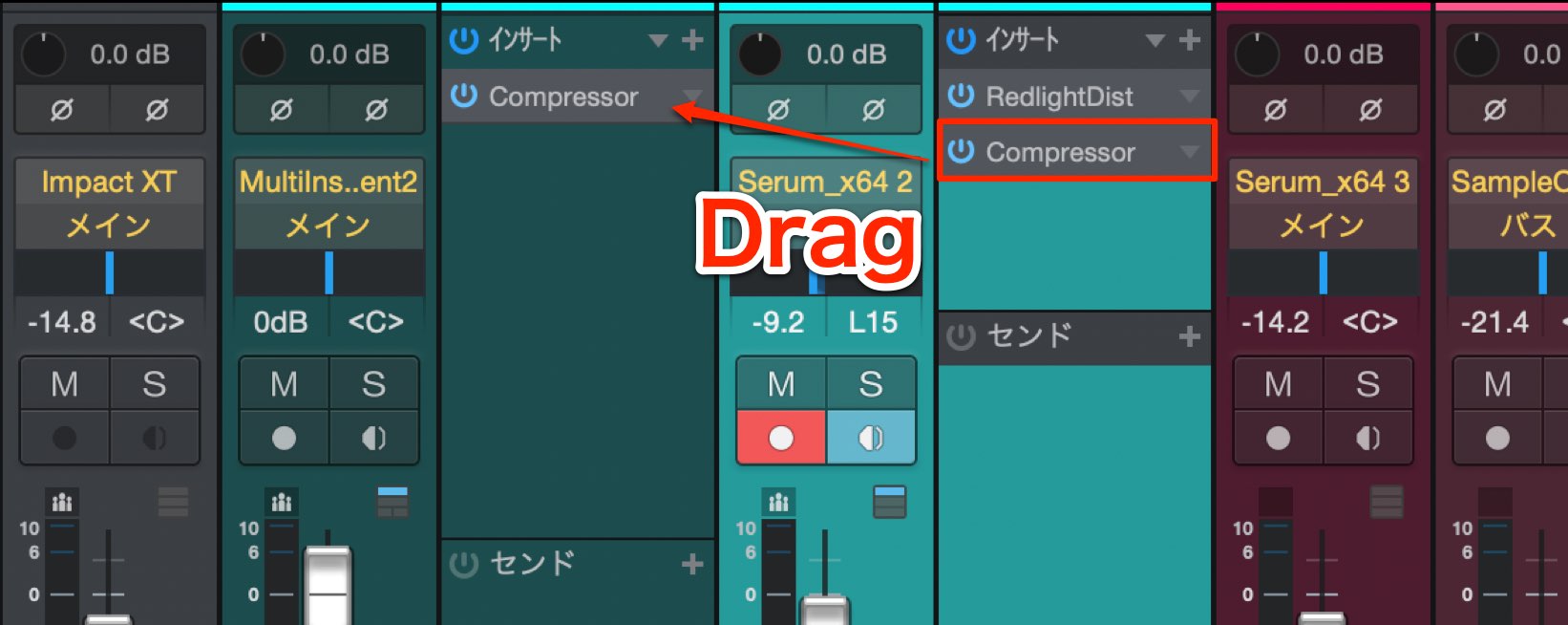
You may often want to apply the same sidechain setup to other tracks.
Drag the plug-in with its sidechain configured onto the destination track to copy it along with its trigger routing.
Sidechain Compression: Video Tutorial
Creating Groove with Sidechaining: Video Tutorial
Plug-in Features
A useful new feature lets you manage which plug-ins appear in Studio One.
Plug-in Manager
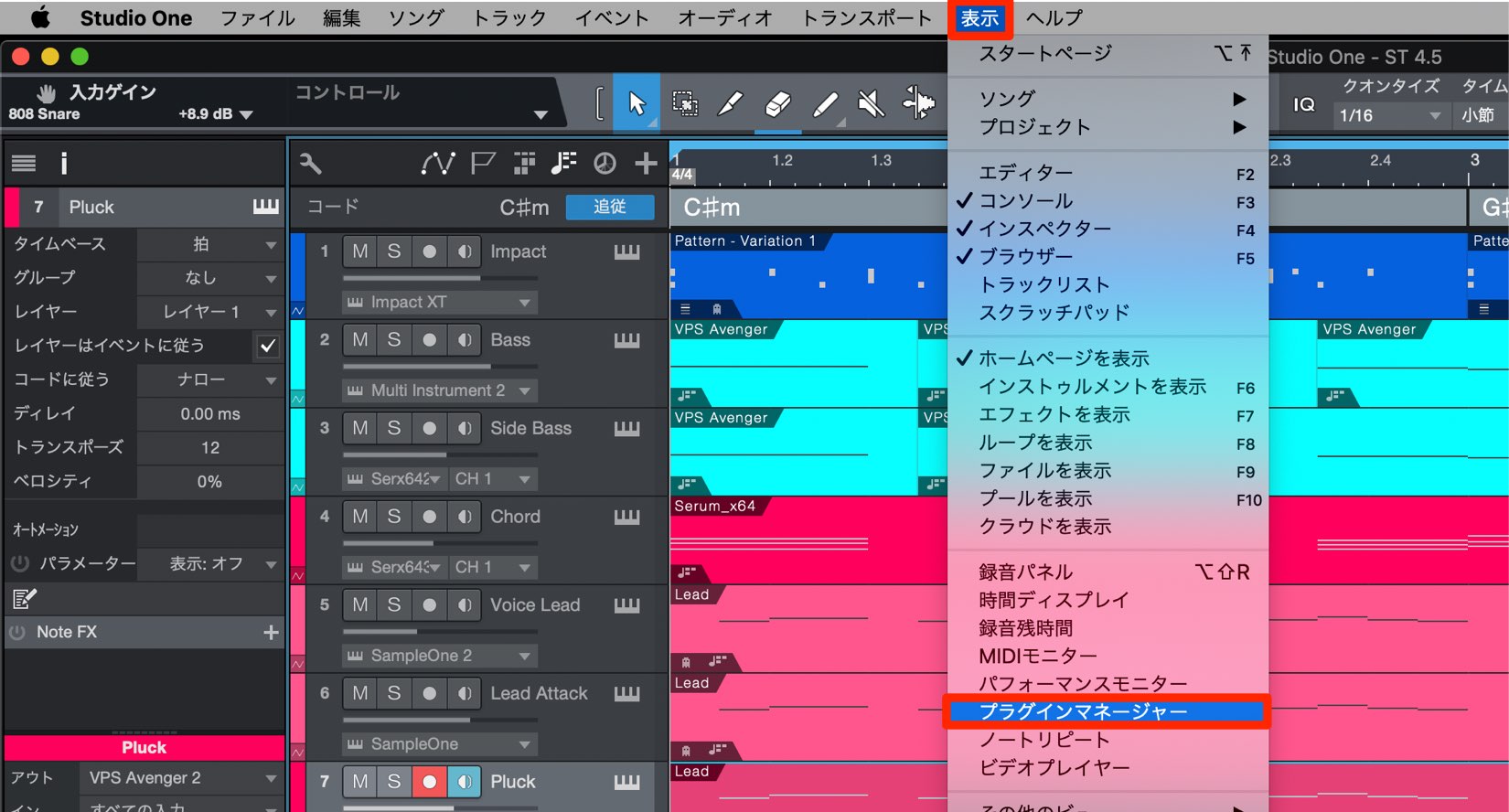
From the main menu, choose View → Plug-in Manager.
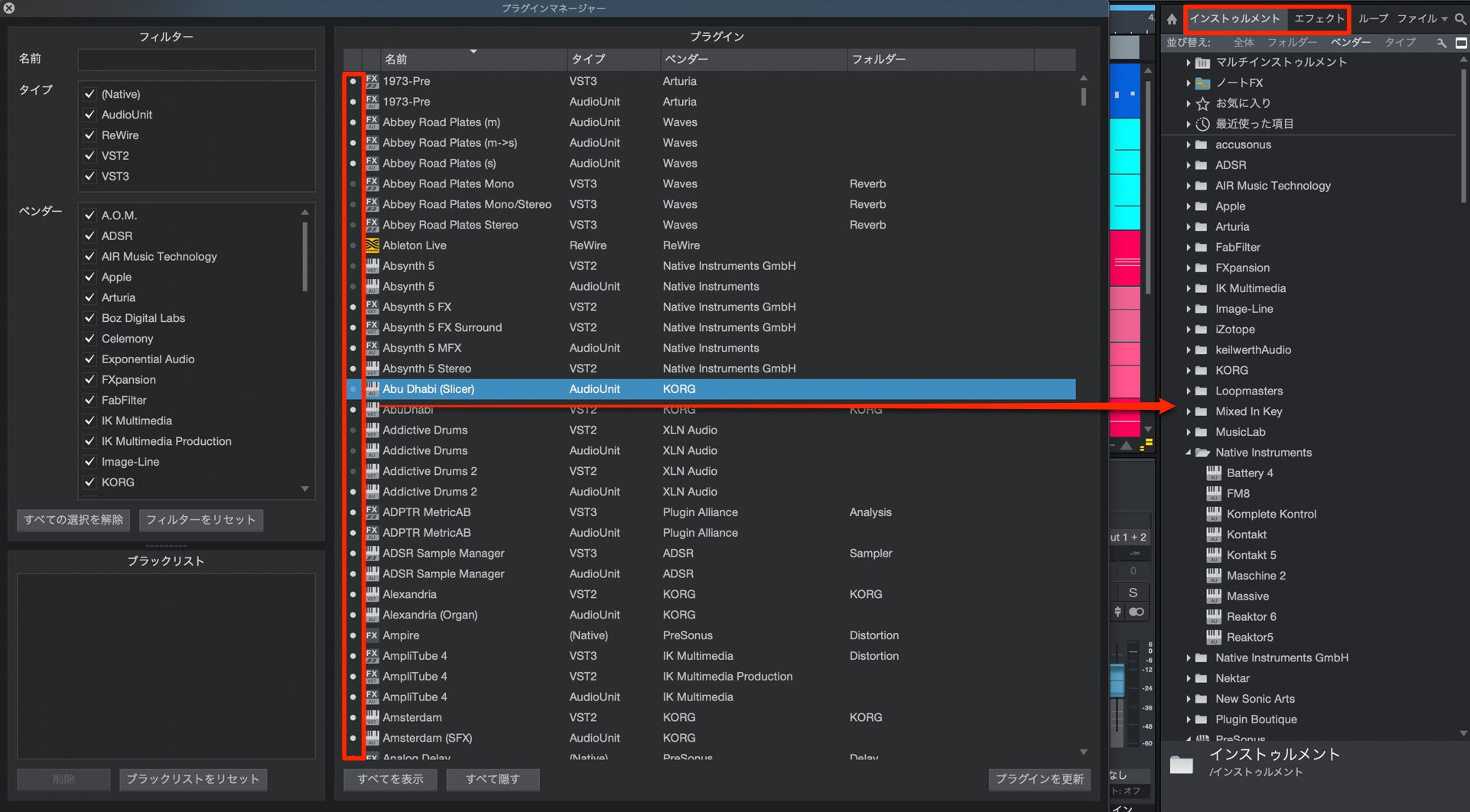
The window lists all plug-ins recognized by Studio One.
Turn off the indicator to the left of a plug-in's name to hide it from the plug-in list.
For example, you may have both AU and VST versions installed but want to show only certain AU plug-ins.
It is also useful for avoiding duplicate VST2 and VST3 entries.
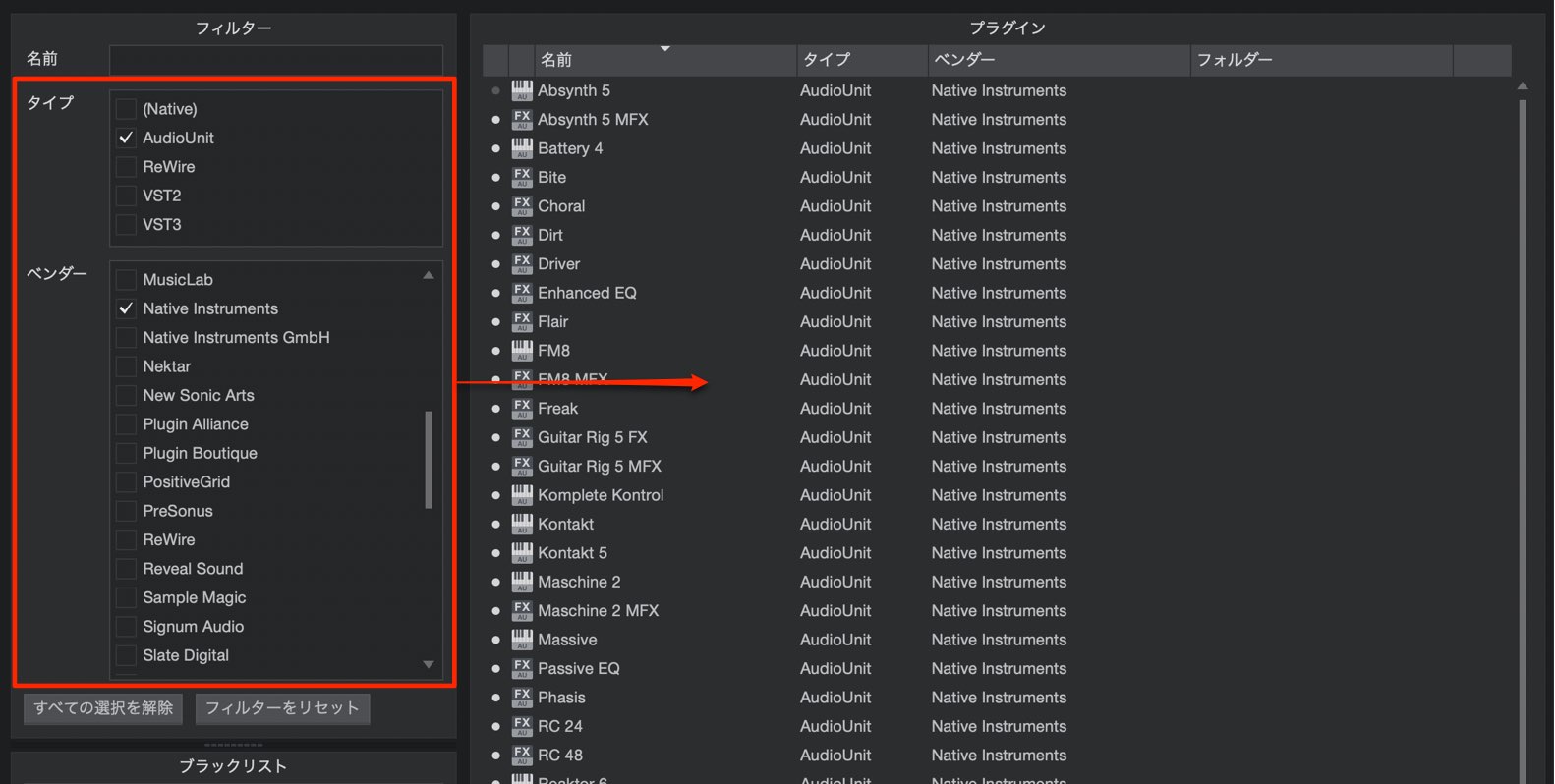
Use the controls on the left of the window to find the plug-ins you need quickly.
You can narrow the list by name, plug-in format, or vendor.
Optimized CPU Usage
Studio One 4.5 also reduces CPU usage.
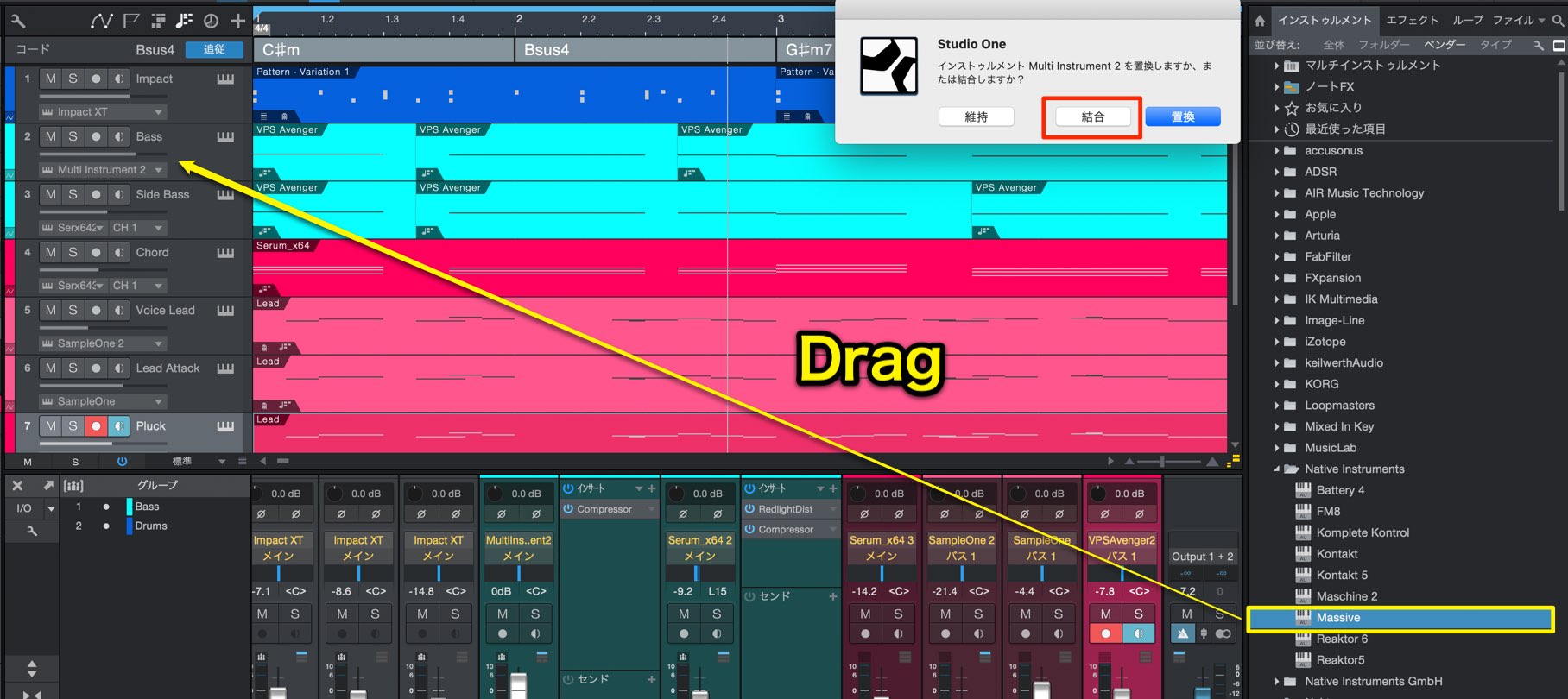
One of Studio One's distinctive features is Multi Instruments.
It lets you layer several instruments on a single track and play them together.
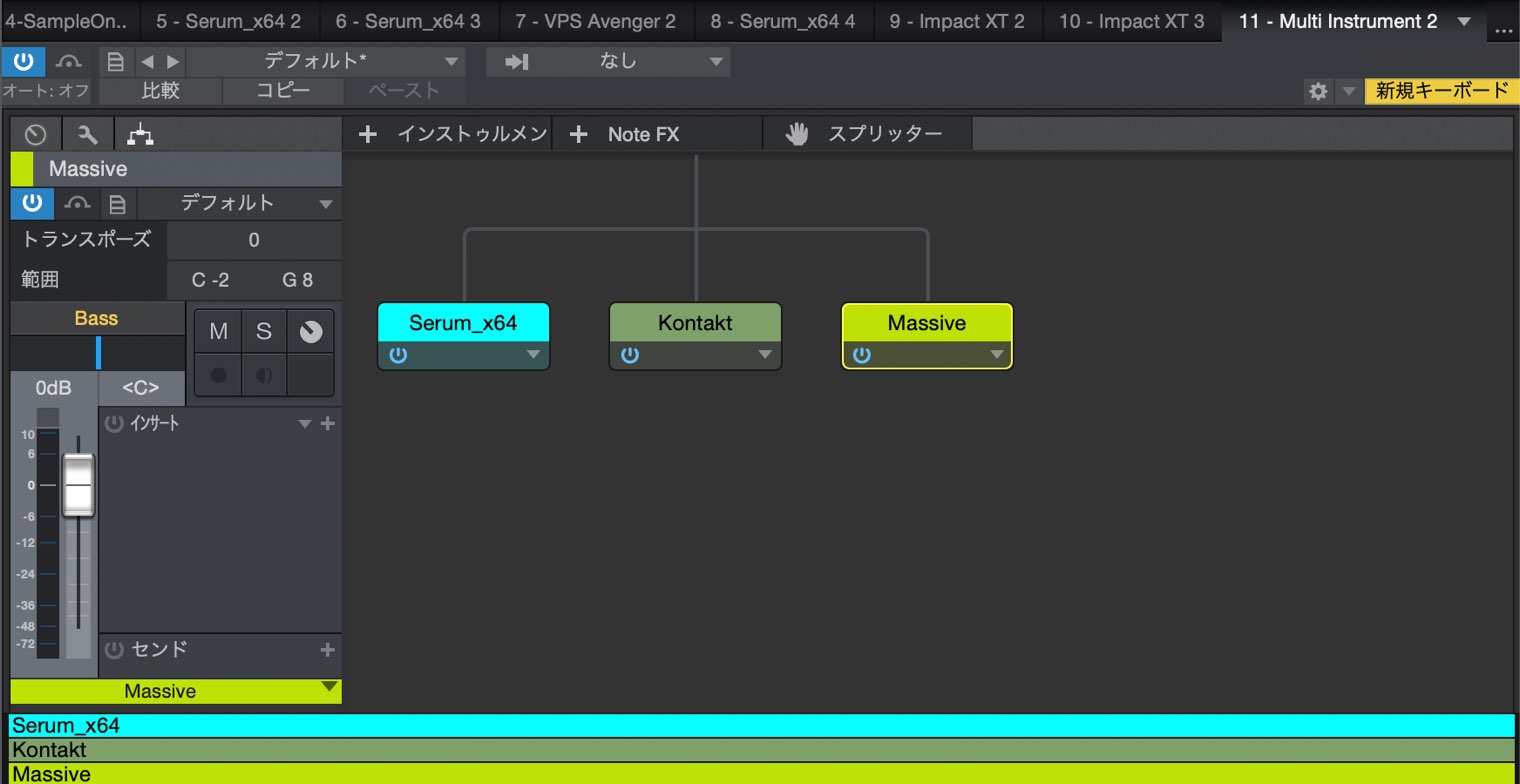
When using instruments in this setup, CPU load is reduced by approximately 70% with Studio One's native plug-ins and approximately 50% with third-party instruments such as Kontakt.
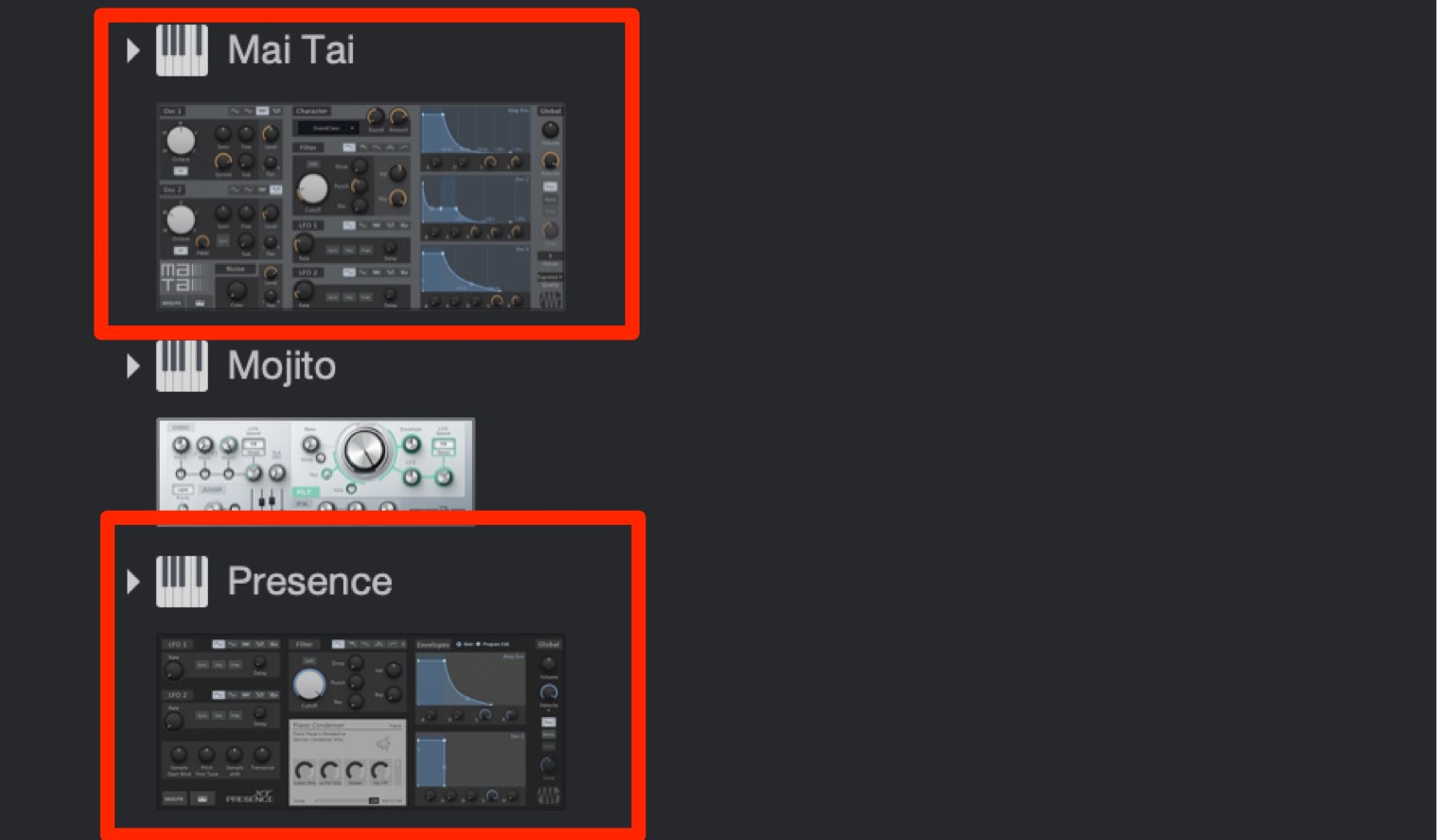
CPU usage when running Mai Tai and Presence XT individually has also been optimized.
Editing Features
A range of useful additions to audio and MIDI editing can make production much more efficient.
Auditioning Chords in the Chord Selector
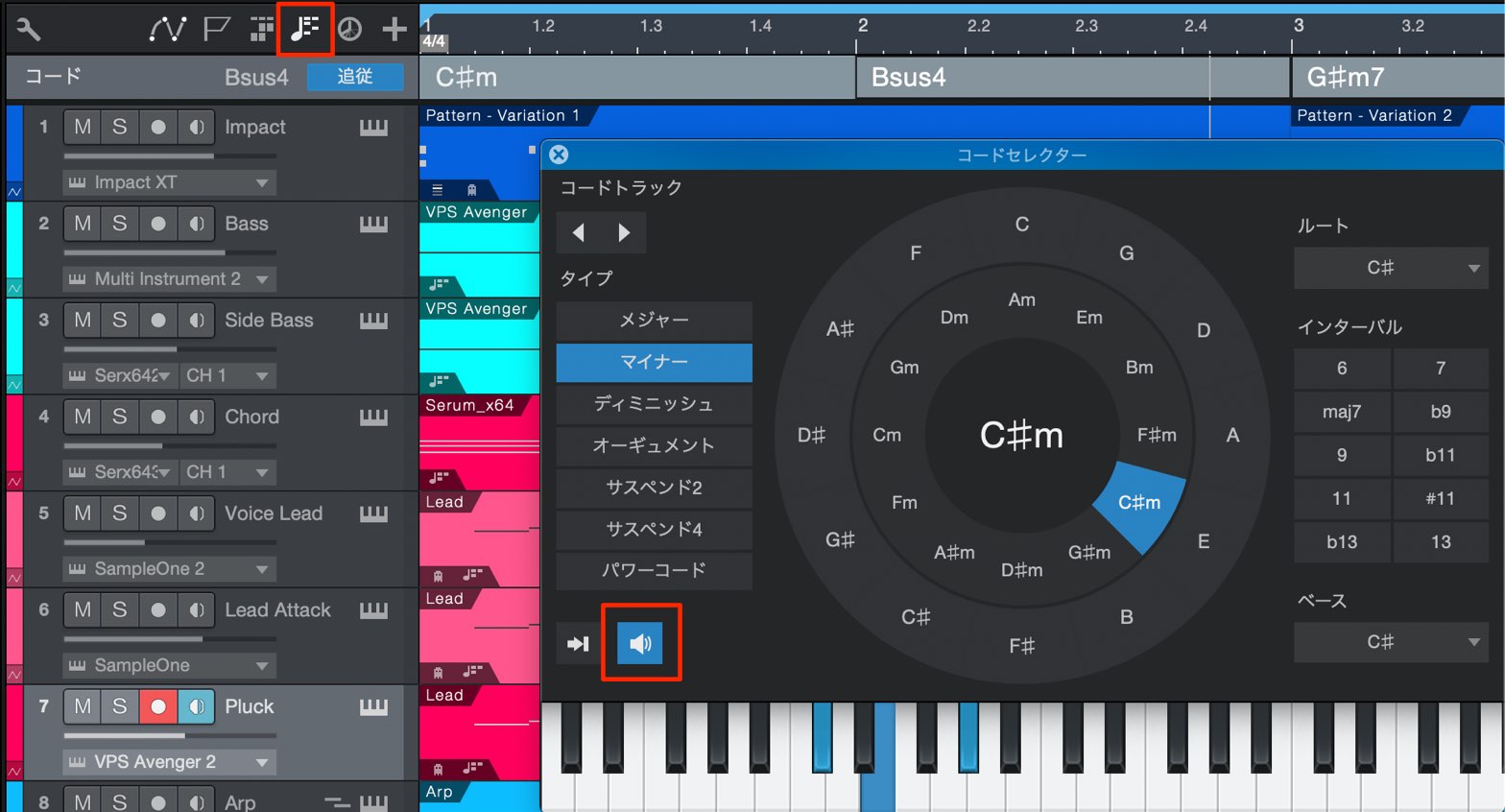
You can now audition chords in the Chord Selector, which was introduced in Studio One 4.
Simply enable the audition button in the selector.
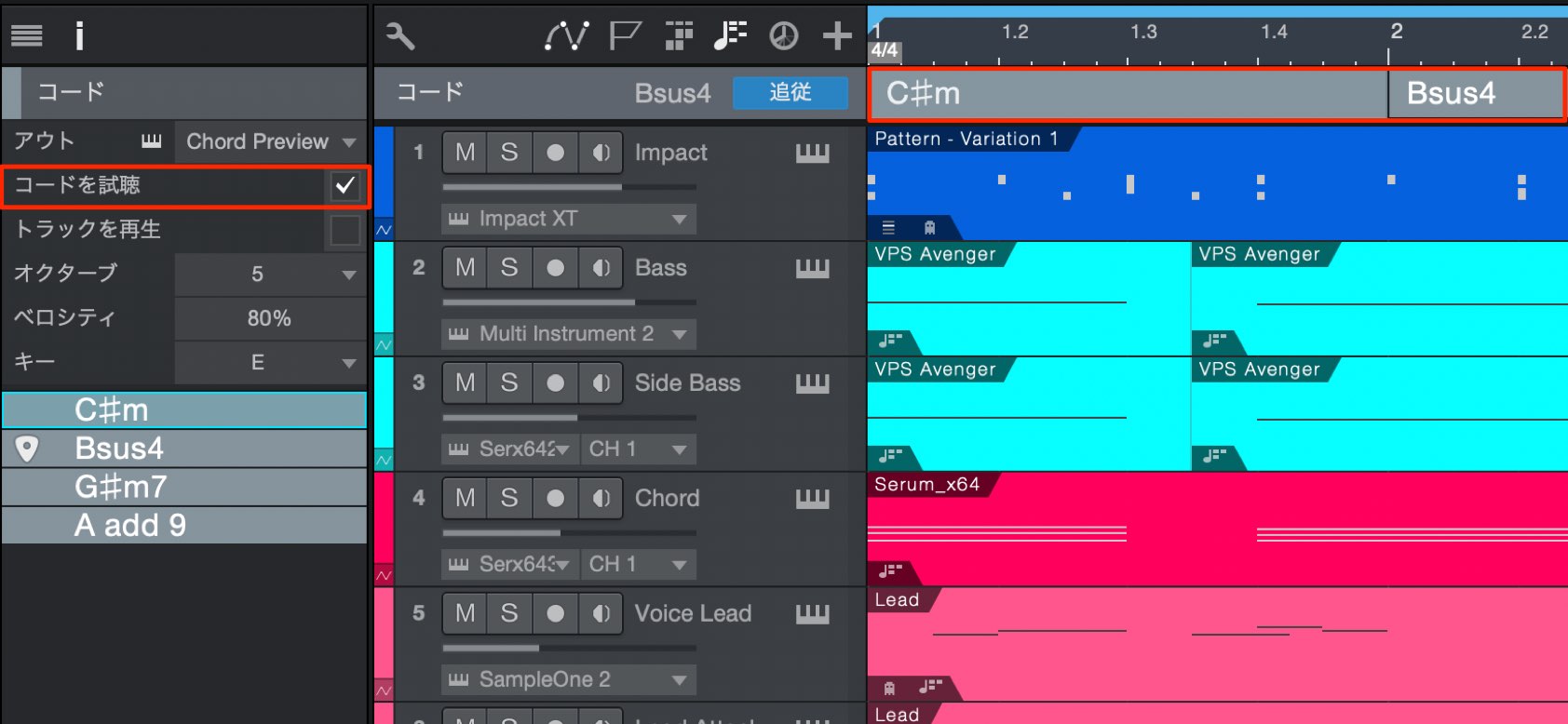
Select the Chord Track and enable Audition Chords in the Inspector to hear chords when you click their names on the Chord Track as well.
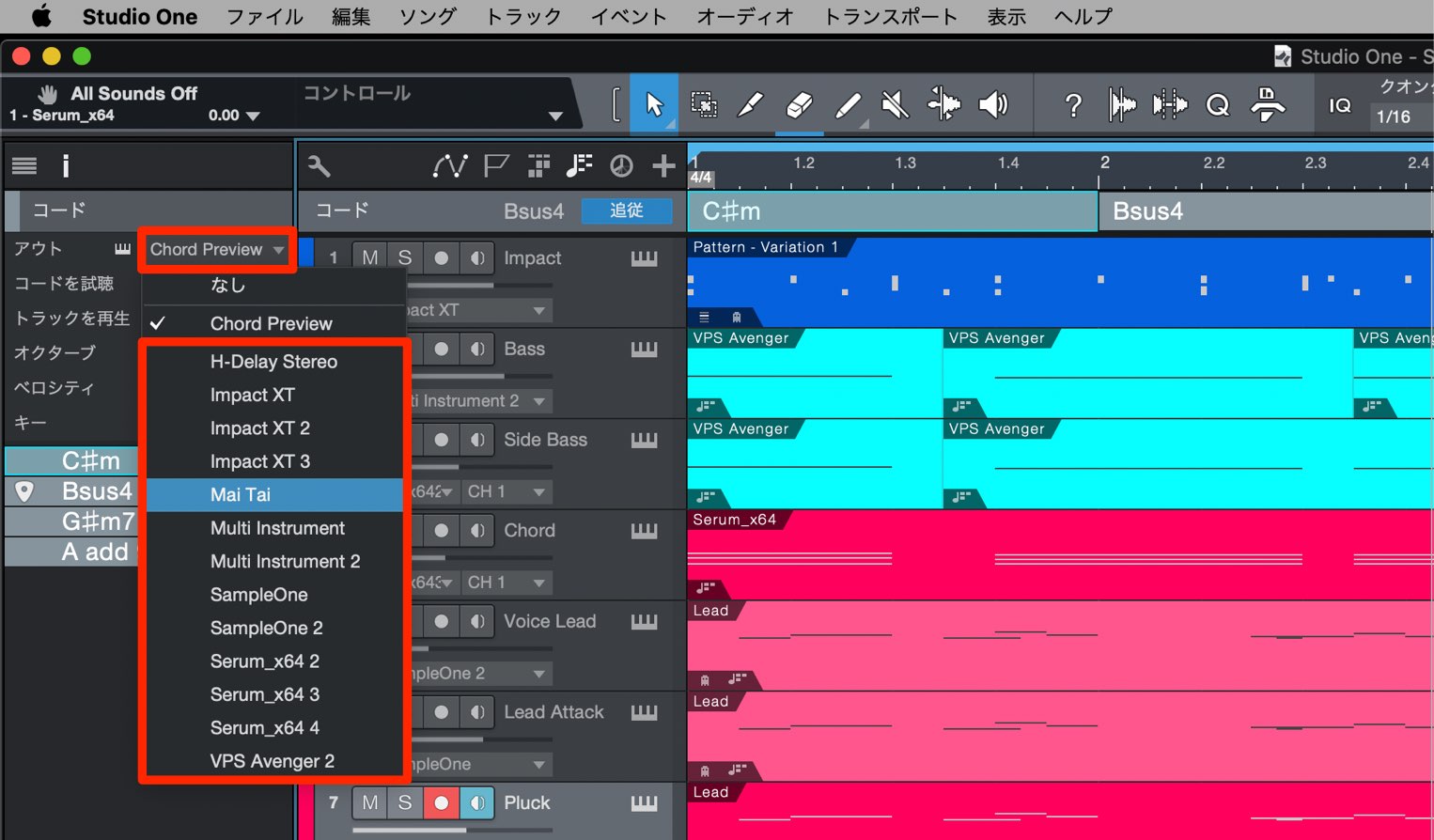
You can also choose which instrument plays the chord previews.
Set up an instrument for auditioning chords, then select it in the Inspector.
Independent Quantize Grids
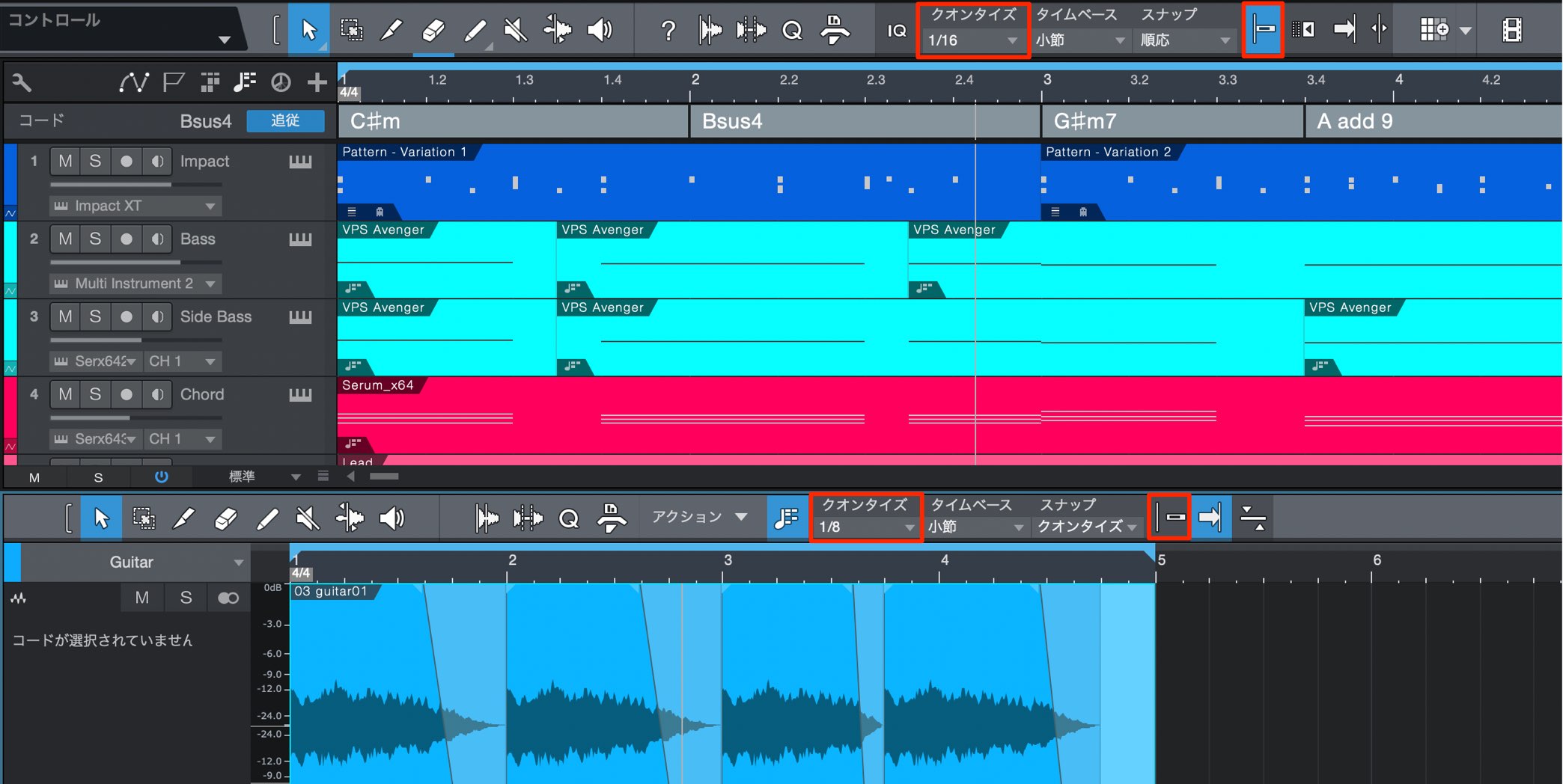
You can now set separate quantize-grid values for the Arrange view, Music Editor, and Audio Editor.
Snap can also be enabled or disabled independently, making it easier to perform detailed edits without being constrained by the beat grid.
MIDI Musical Functions Menu
A Musical Functions menu has been added for editing MIDI events.
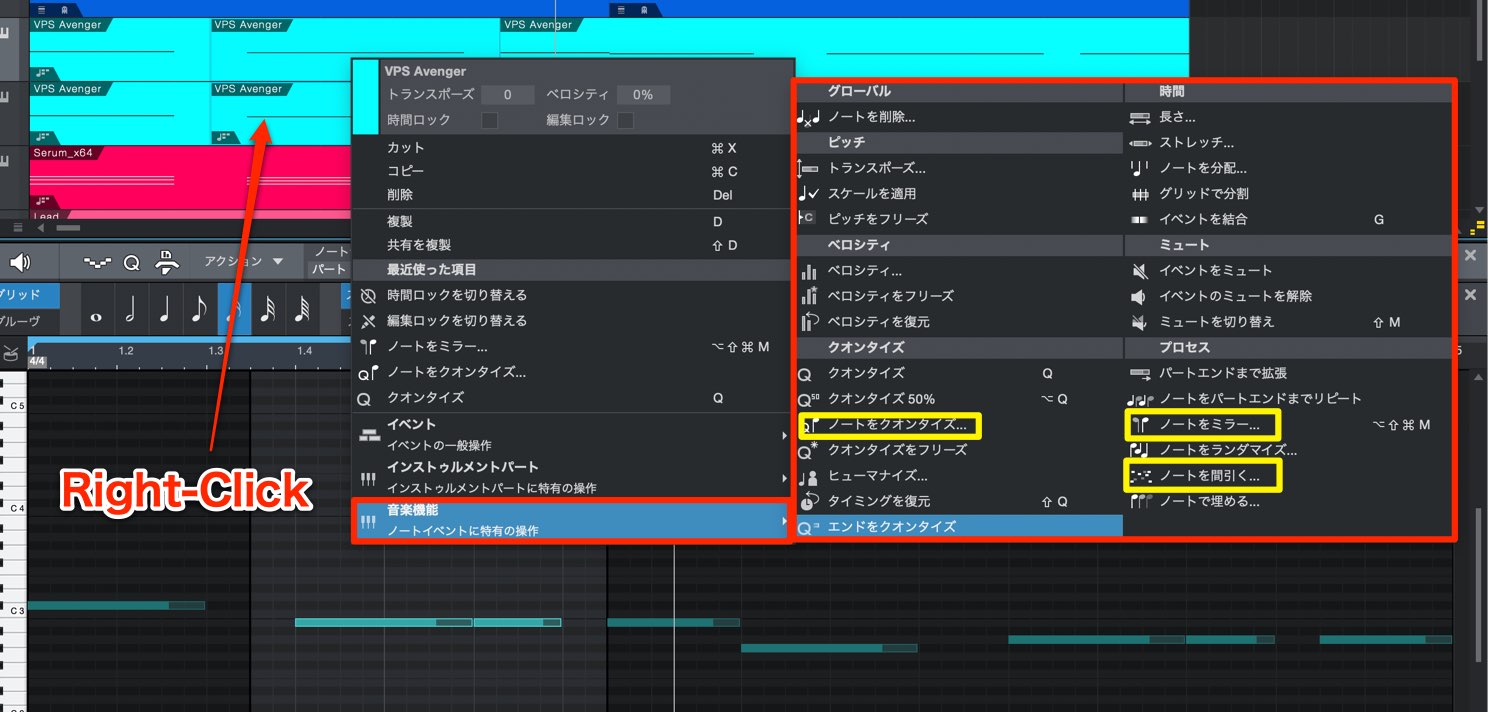
Right-click a MIDI event to access Musical Functions.
Studio One 4.5 adds commands such as Quantize Notes, Mirror Notes, and Thin Out Notes.
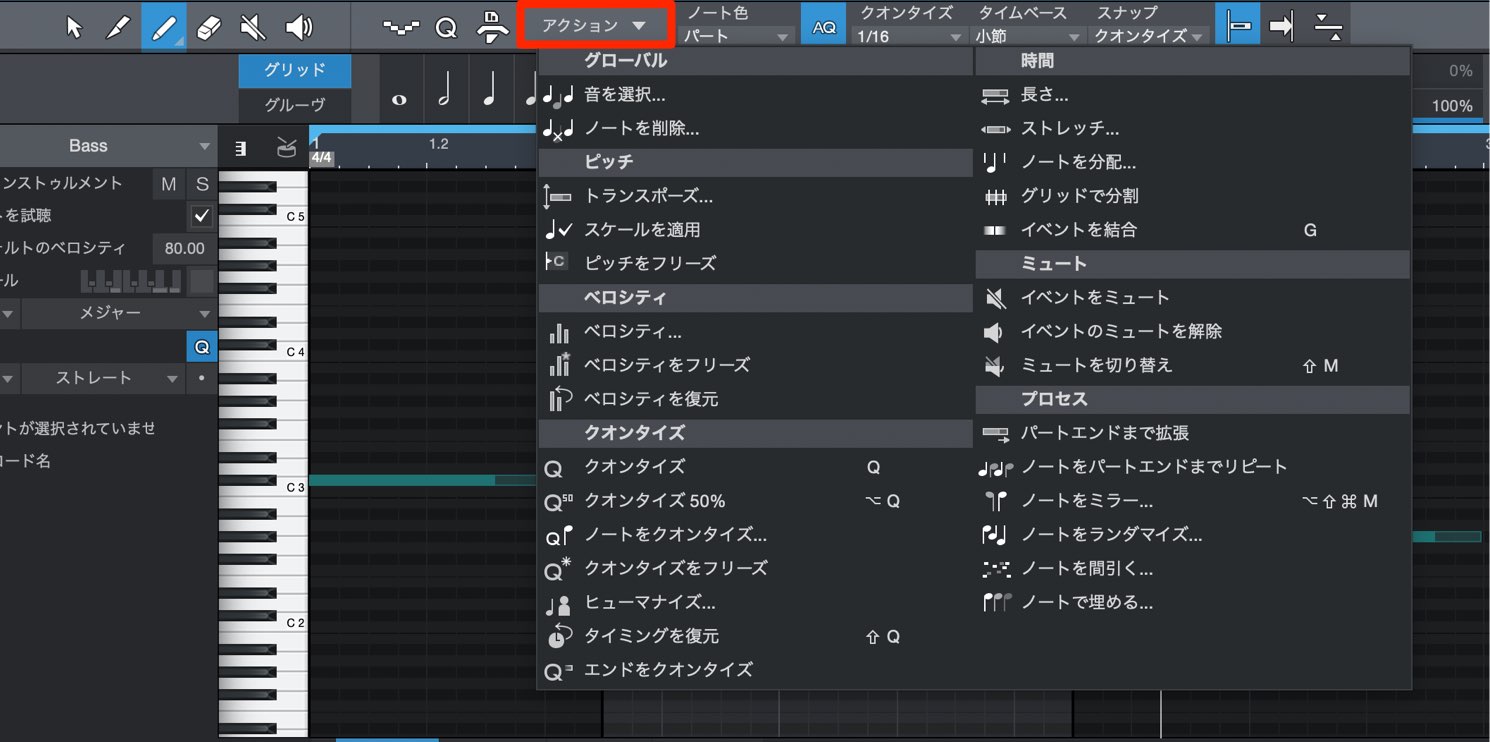
You can also access these Musical Functions from the Action menu in the Music Editor.
Locking
New locking features help prevent accidental changes to events.
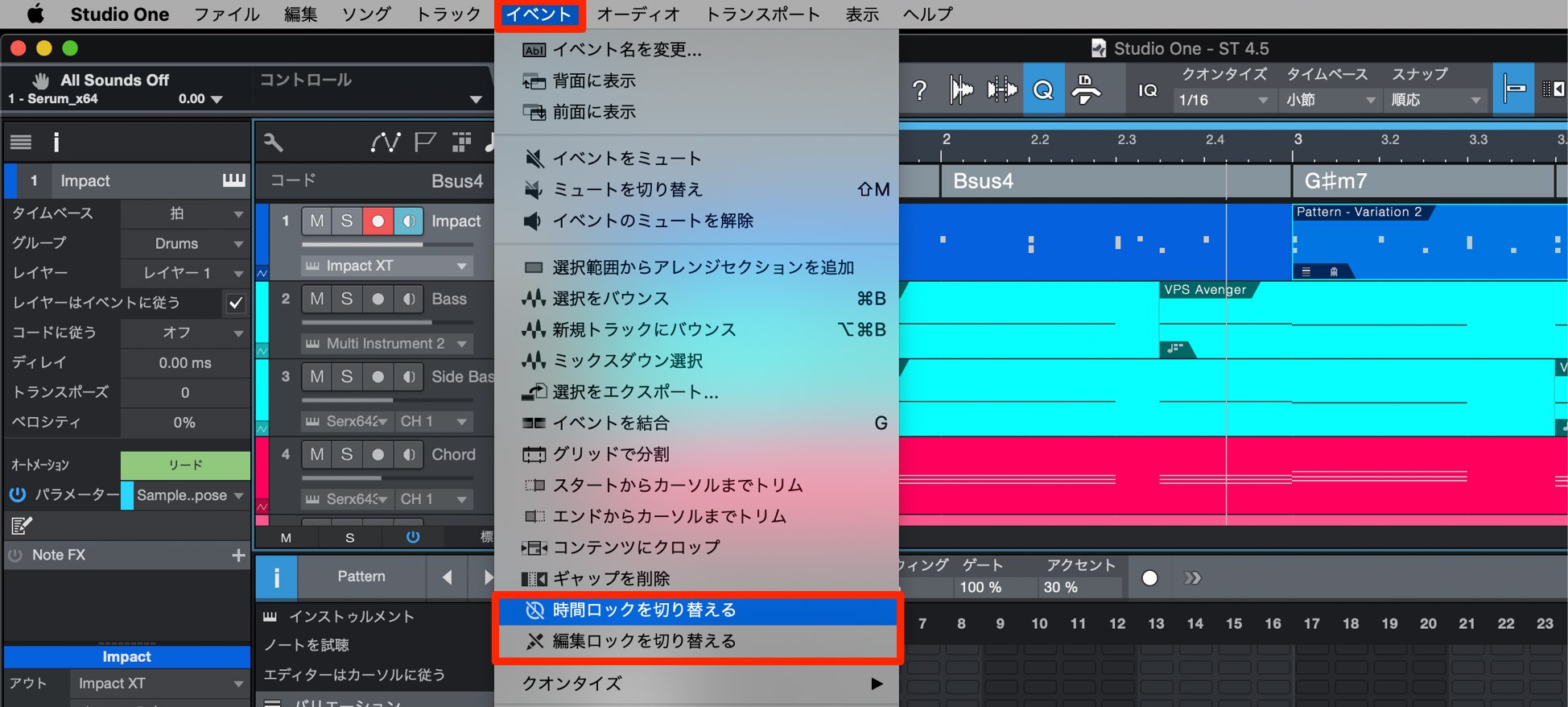
Select the event you want to lock, then use the main menu to choose Toggle Time Lock or Toggle Edit Lock.
- Toggle Time Lock: Restricts movement along the timeline.
- Toggle Edit Lock: Restricts editing of the event or its contents.
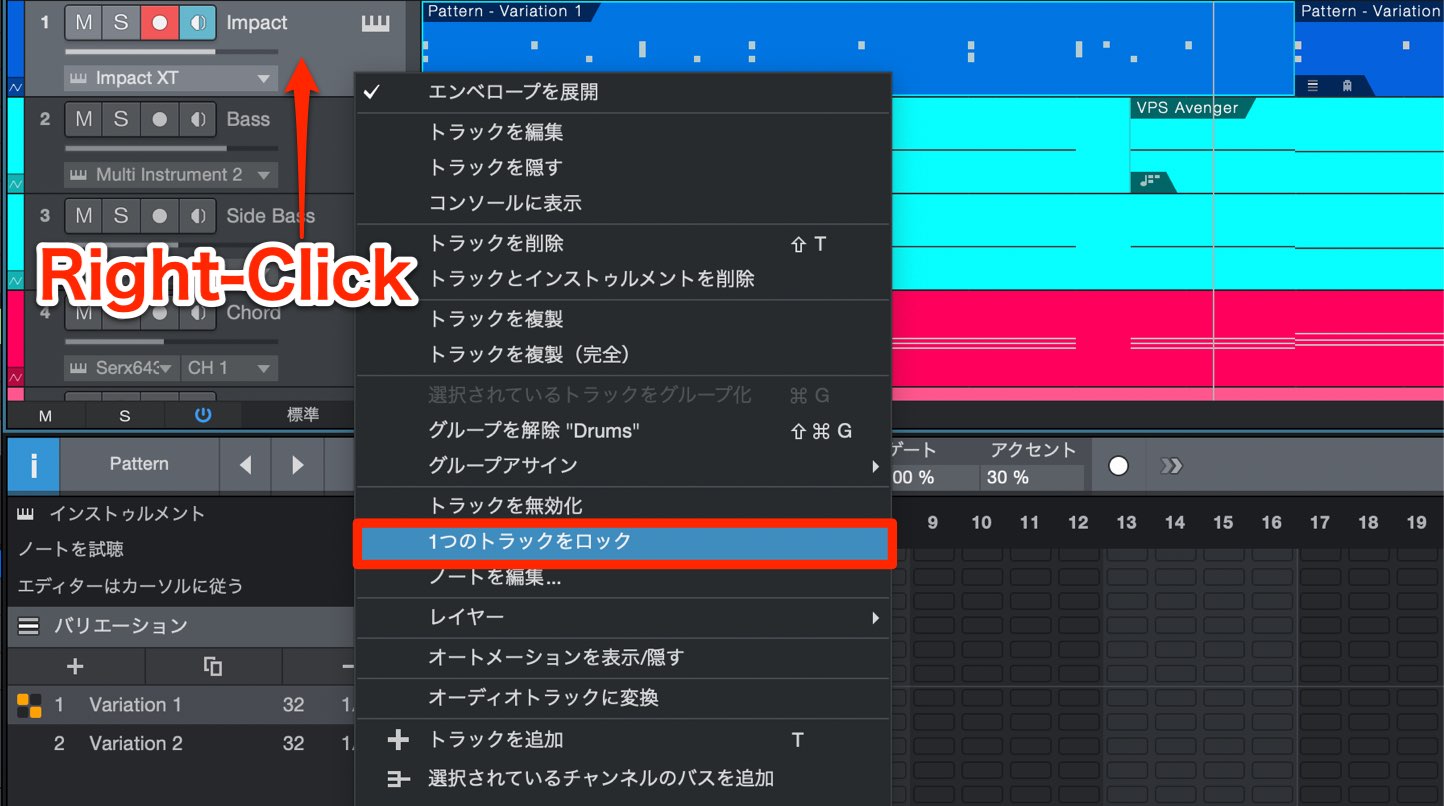
Right-click a track and choose Lock Track to lock the entire track.
This prevents both moving events and changing their contents.
Export
File export from Studio One has also been improved.
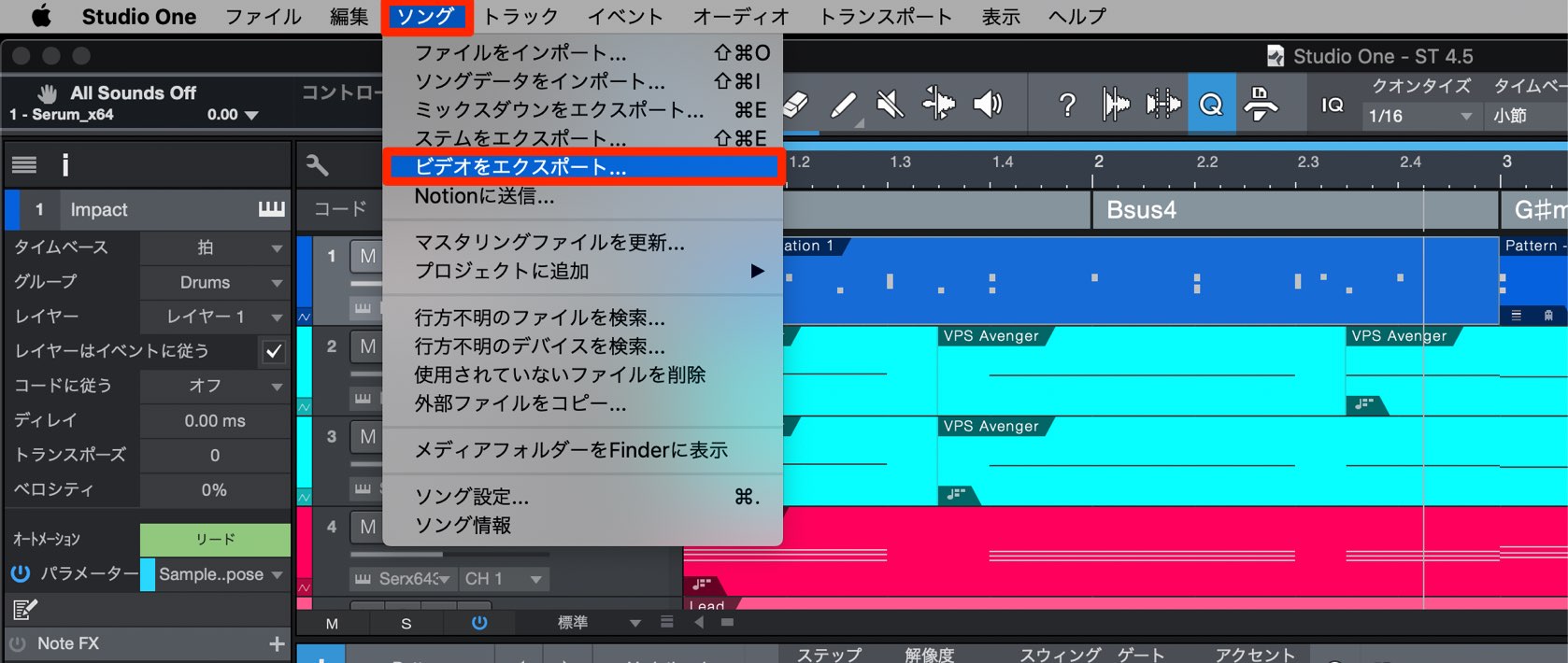
Choose Song → Export Video from the main menu to export an imported video together with the sound you have produced as a video file.
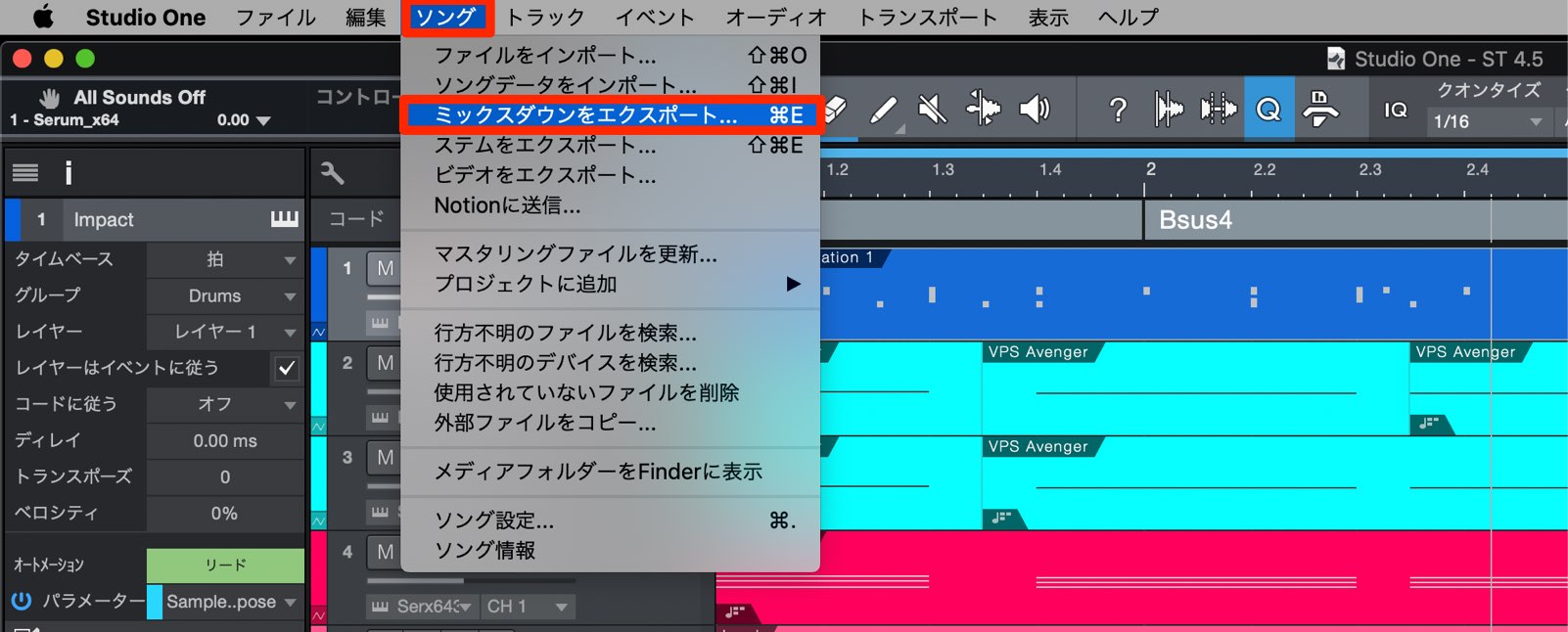
Export Mixdown, which creates a standard audio file, also gains new features.
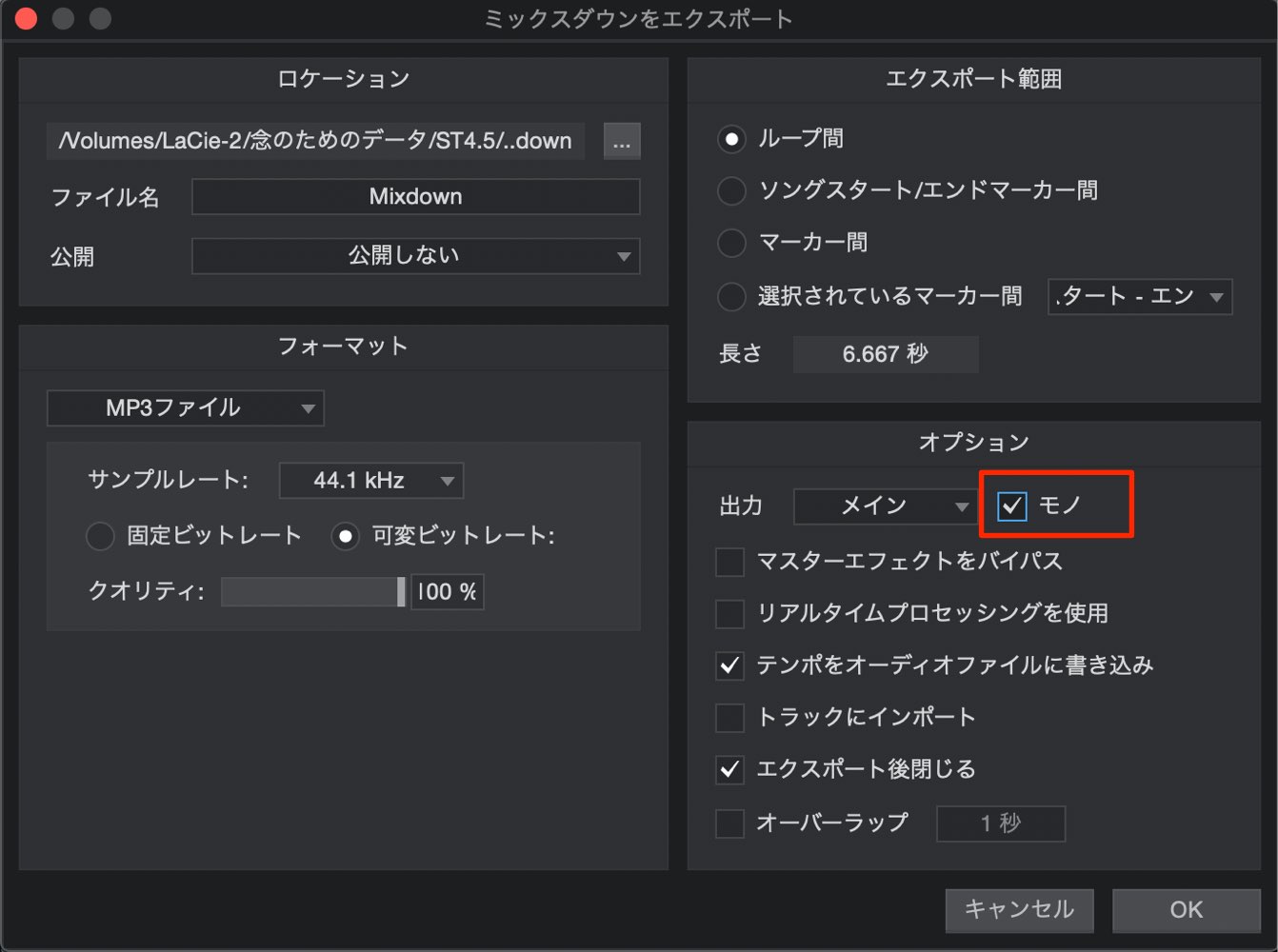
Enable Mono in the Options section to export your song as a mono mix.
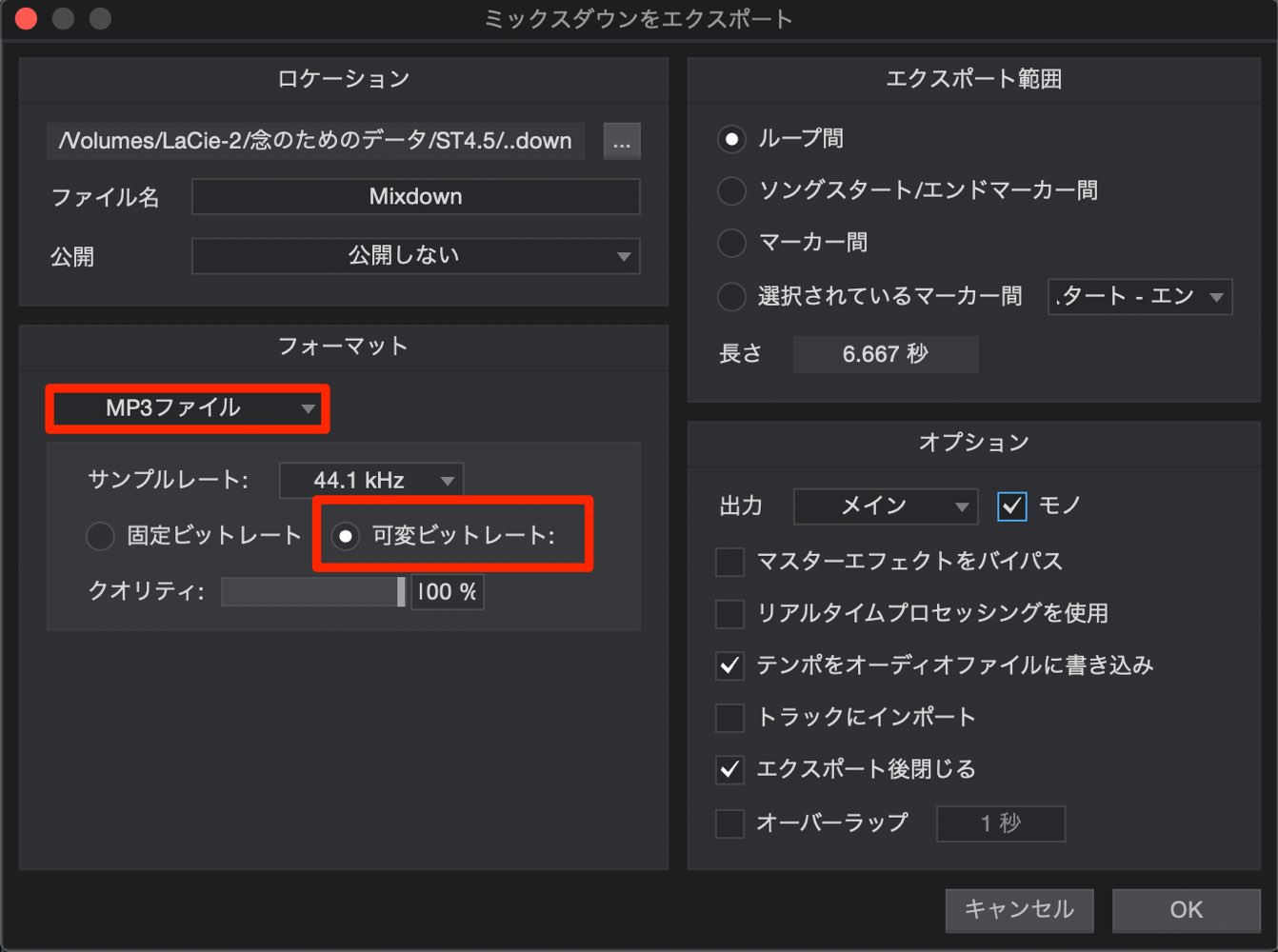
Variable bit rate is now available when exporting MP3 files.
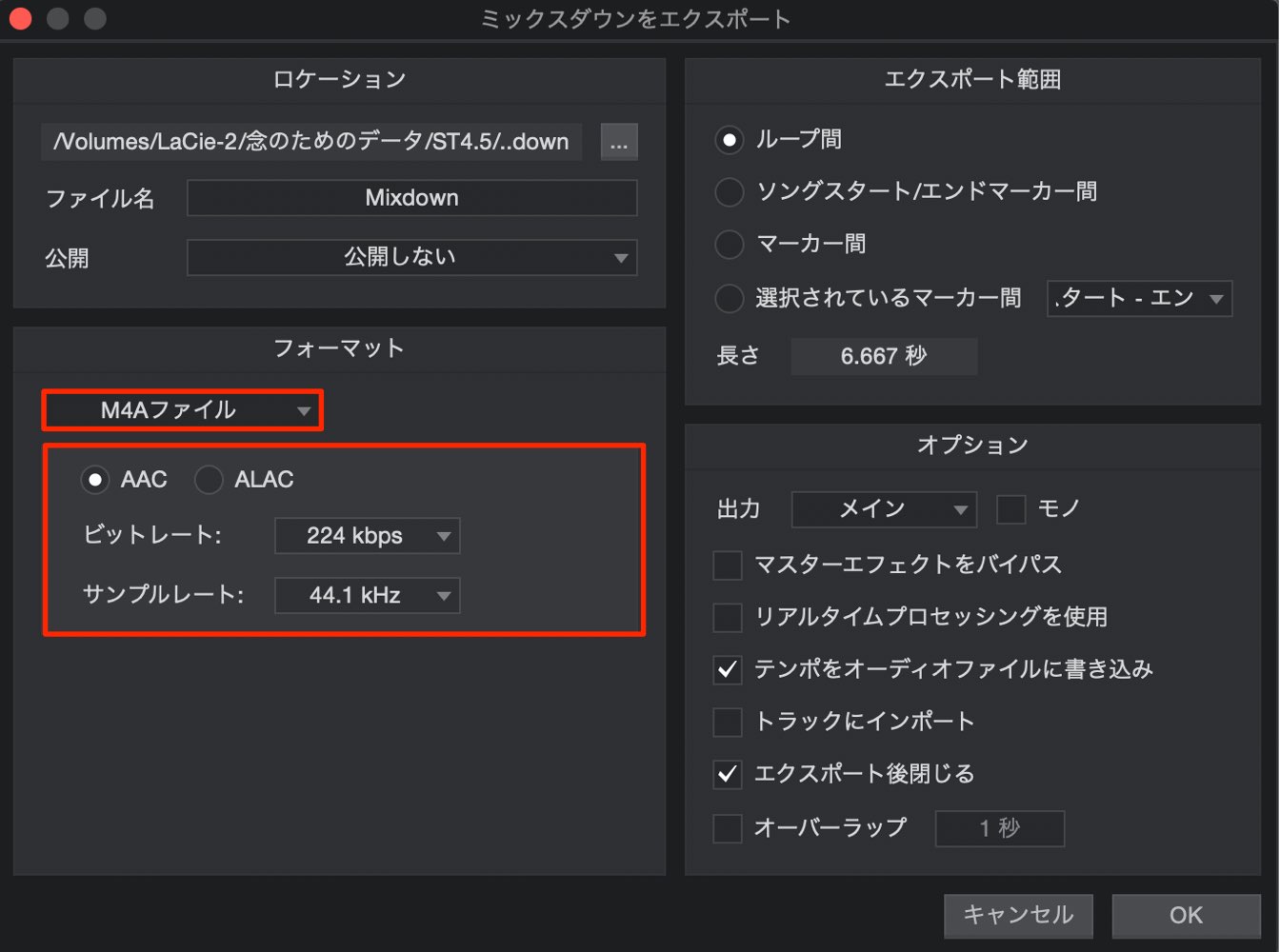
M4A export is also newly supported, with AAC and ALAC encoding options.
What do you think?
Features have been added or improved across mixing, effects, editing, MIDI, and export.
It is particularly welcome that so many of these practical improvements can be put to use straight away.
Studio One 4 users can update to version 4.5 free of charge, so try incorporating your favorite new features into your workflow.

🆕 Studio One 4.5: New Features Explained
Here are our picks of the most notable new features in the Studio One update!
Studio One 4 users can update to version 4.5 free of charge.🎥 YouTube: https://t.co/U7UCYW0fxP
📝 Tutorial article: https://t.co/3adjhVGvf8@PreSonus @mi7japan #DTM #DAW pic.twitter.com/SKAPiObkYH
— SLEEP FREAKS (@SLEEPFREAKS_DTM) May 26, 2019
Frequently Asked Questions
Q1. Is the update from Studio One 4 to Studio One 4.5 a paid upgrade?
No. Studio One 4 users can update to version 4.5 free of charge and benefit from the improvements in this release.
Q2. What is the difference between the gain control and the fader?
Gain controls the level before the effects, while the fader controls the level after effect processing. This lets you optimize how effects such as compressors respond.
Q3. Can I copy sidechain settings to multiple tracks?
Yes. Drag a plug-in with its sidechain configured onto the destination track to copy it along with the trigger routing.
Q4. How much can the CPU optimizations reduce processing load?
When using Multi Instruments, CPU load is reduced by approximately 70% with native plug-ins and approximately 50% with third-party instruments such as Kontakt.
Q5. Can I hide unwanted plug-ins from the plug-in list?
Yes. Turn off the indicator to the left of a plug-in's name in the Plug-in Manager to hide it. This is useful for avoiding duplicate AU, VST2, and VST3 entries.
NEW ARTICLES
Latest English Articles





























































































































































































































































