
Audio recording in Cubase 11 is essential for capturing vocals and live instruments in your music productions. This article explains practical steps, from configuring your audio interface and creating tracks to monitoring, setting gain, applying effects, and managing latency. Correct gain settings and buffer size adjustments are particularly important for preventing clipping and unwanted noise. Setting them appropriately helps you achieve professional-quality audio recordings.
In this lesson, we will introduce audio recording, a different approach from the MIDI programming and real-time MIDI recording covered so far.
This is essential if you want to record vocals or live instruments, so take the time to learn it thoroughly.
Audio Recording Video
Setting Up Your Audio Interface
Before recording audio, check your audio interface settings again.
Open Studio Setup from the Studio menu and make sure the ASIO Driver is set to your audio interface.
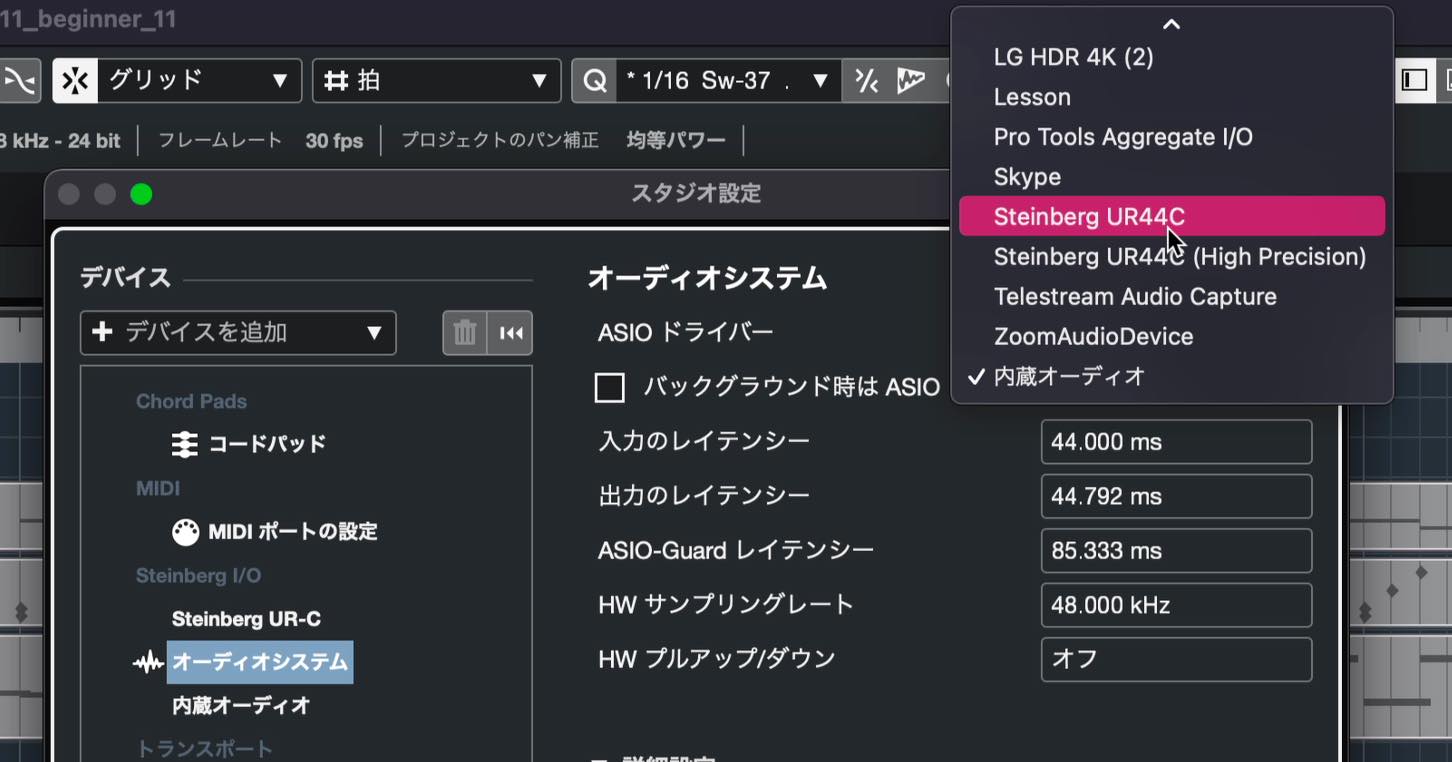
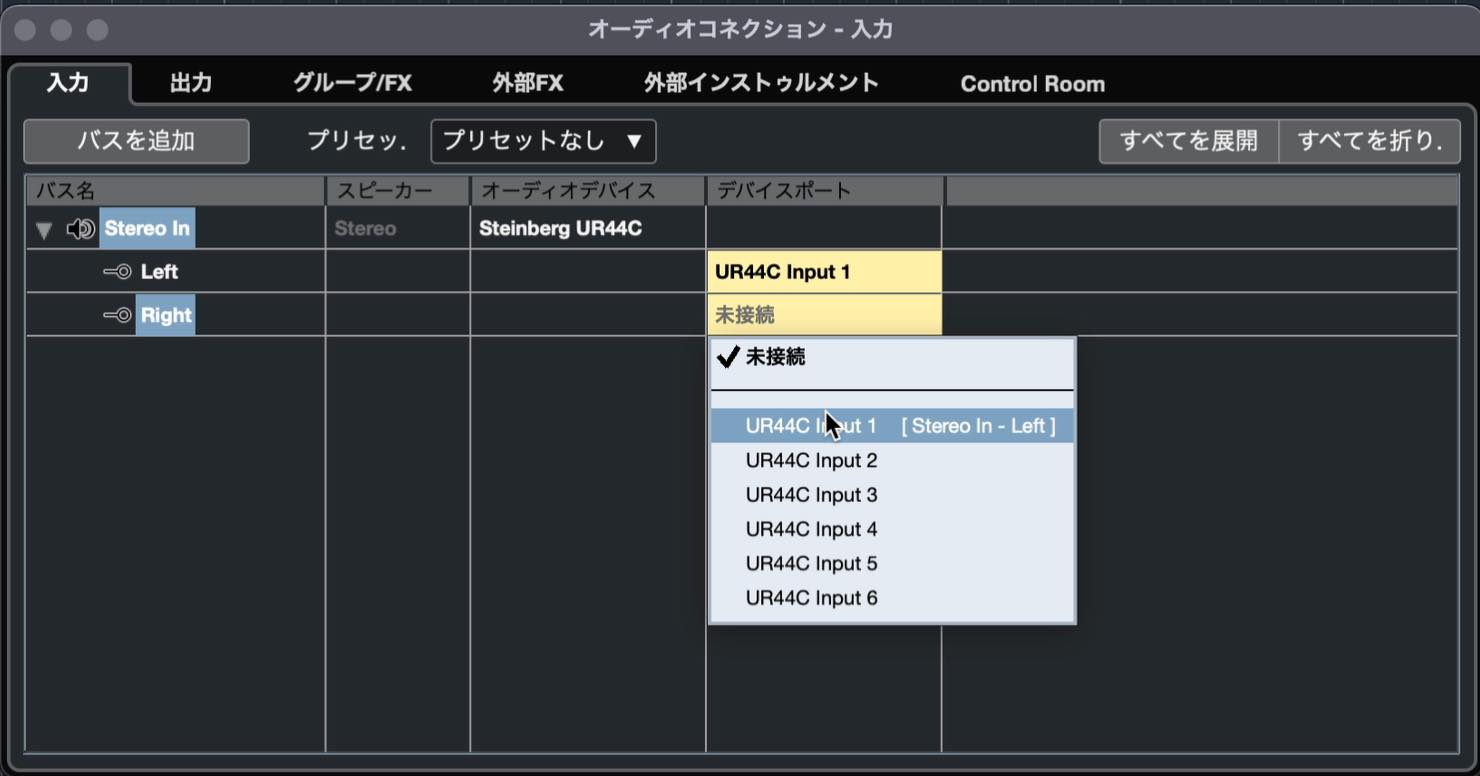
Next, open Audio Connections from the Studio menu and check the Inputs tab. If an input is listed as Not Connected, no signal will come in, so assign it to the corresponding input on your audio interface.
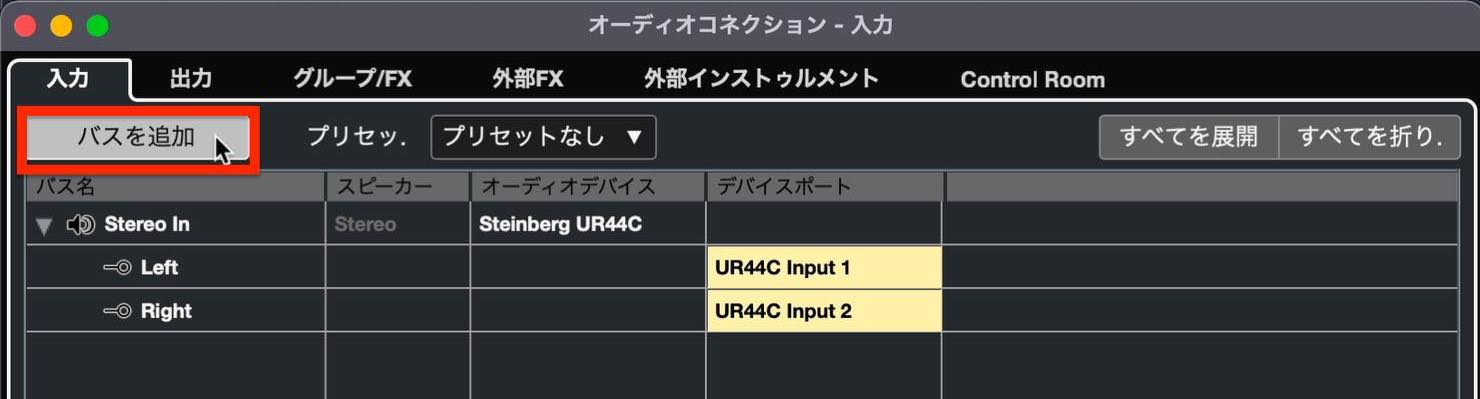
If your audio interface has two or more inputs, click Add Bus to configure additional inputs.
Creating a Track and Monitoring
Once the preparations are complete, create a track. Use an audio track for recording.
The Add Track dialog appears as shown here. Pay attention to whether the configuration should be Mono or Stereo.
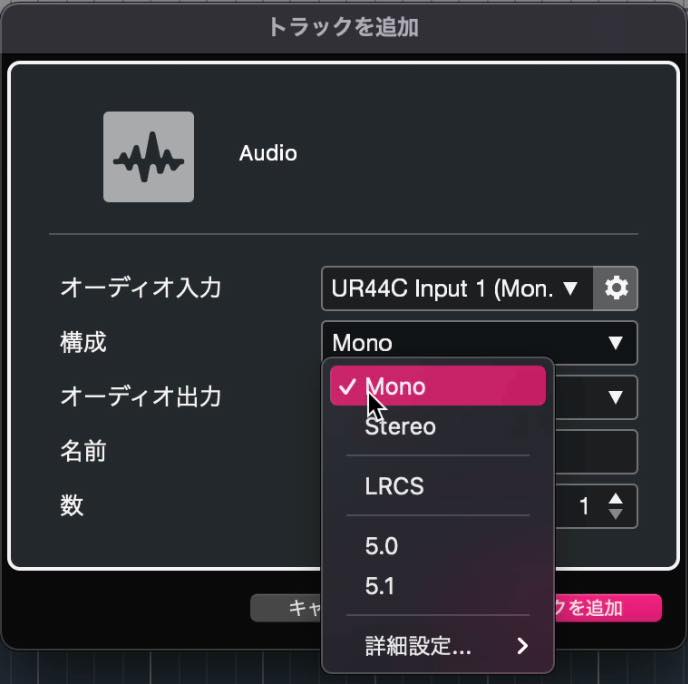
For a single microphone or a single line input, choose Mono when using only one input connector.
Choose Stereo when recording through two cables connected to two inputs, for example from a synthesizer or other audio device. The two inputs are assigned to the left and right channels.
If you record a single input onto a stereo track, the resulting audio file will play from only one side, making it awkward to work with. Be sure to choose a channel configuration that matches your input.
Here, we will connect a guitar to the audio interface and record it onto a mono track.
When connecting an electric guitar directly, make sure you use a Hi-Z input. This allows you to capture the guitar's natural tone properly.
Turn on the Monitor button to hear the incoming signal.
If the Monitor button is not visible, click the gear button below the track list.
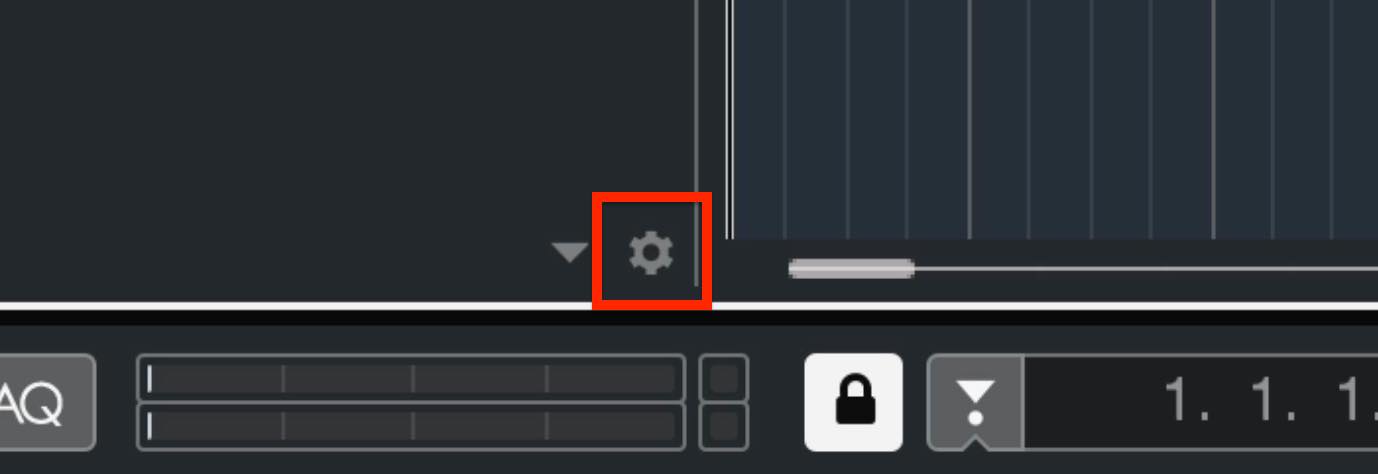
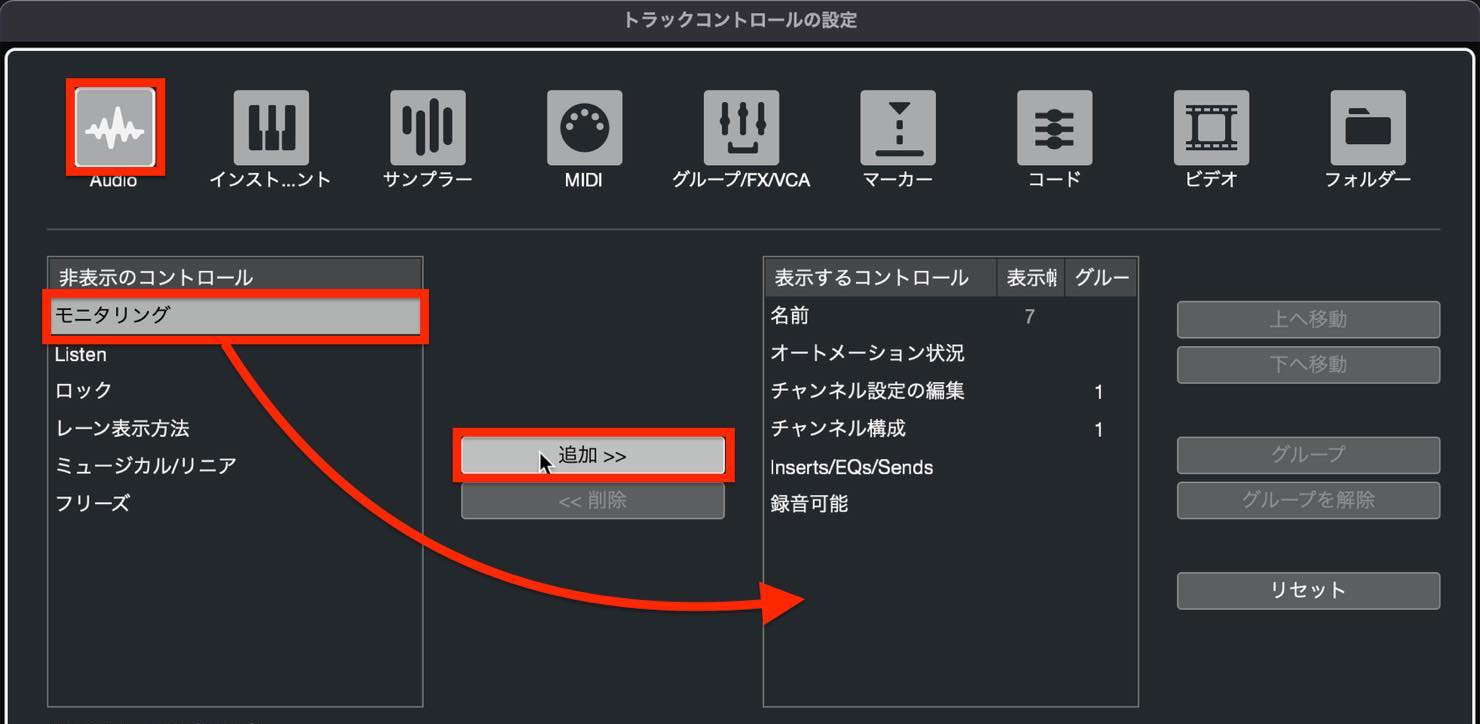
Select Audio in the window that appears. If Monitor is listed under Hidden Controls, select it and click Add to move it to Visible Controls.
Now turn on the Monitor button and listen to the incoming signal.
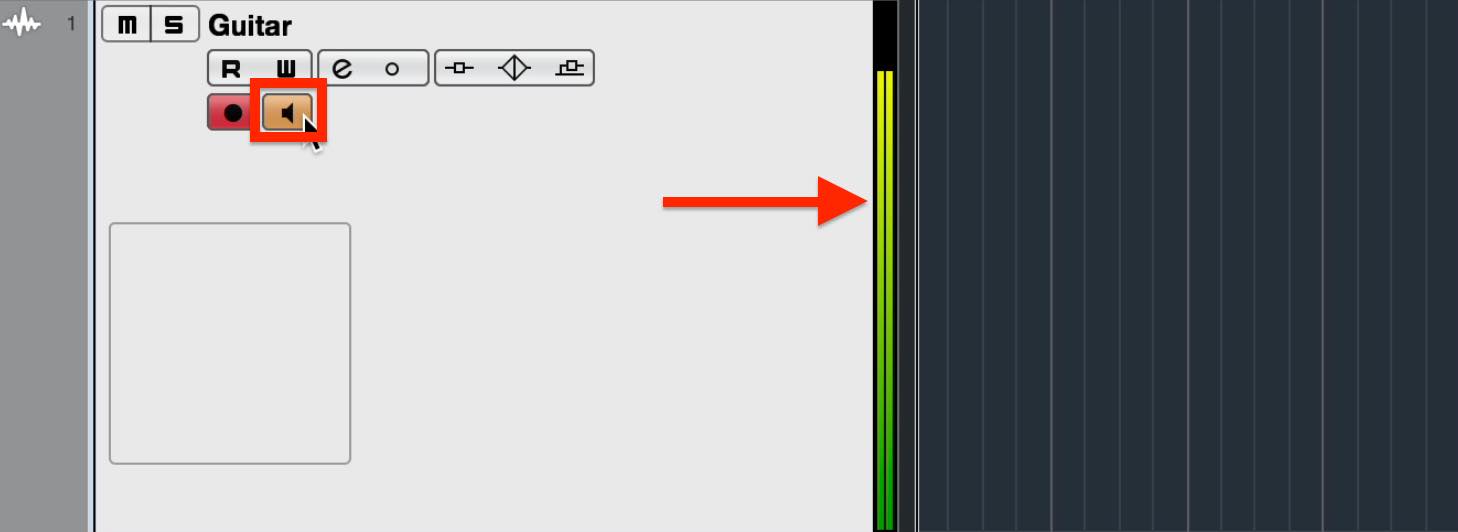
You may hear a crackling, distorted sound while monitoring. This is clipping.
Check the input meter on your audio interface.
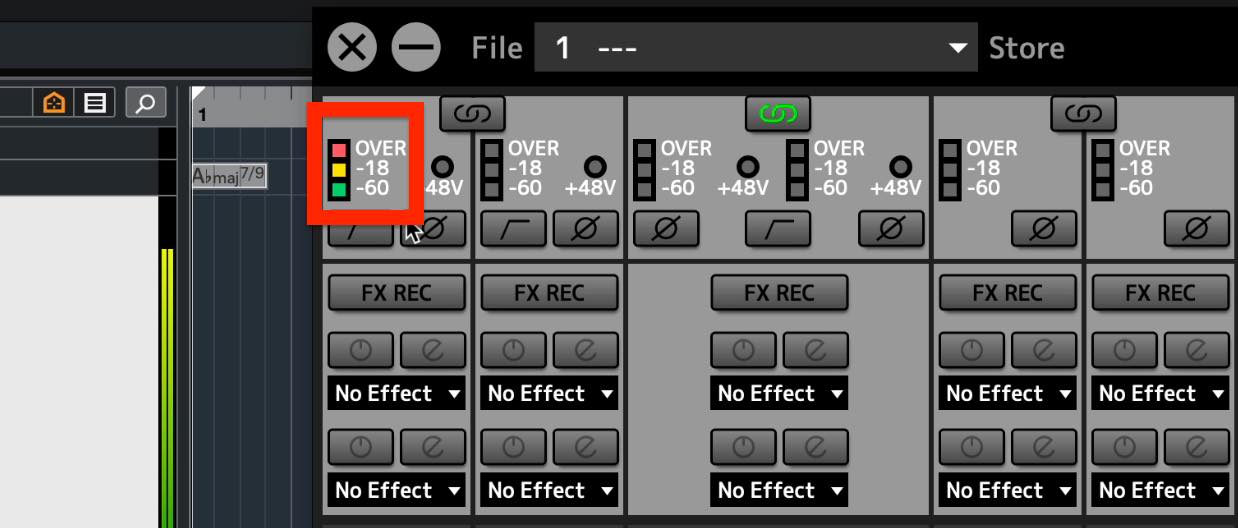
In the example, the meter reaches the red OVER indicator. To prevent this, turn down the interface's gain knob.
While playing the guitar loudly, gradually lower the input gain until the meter no longer reaches OVER.
This is the most important part of the preparation, so take care to set the level properly.
Monitoring with Effects
Next, let's look at how to apply effects to the sound you monitor while recording.
For example, an electric guitar's direct signal is clean, so you may prefer to hear an amplified sound as you record.
To do this, click Inserts in the track Inspector and add an effect.
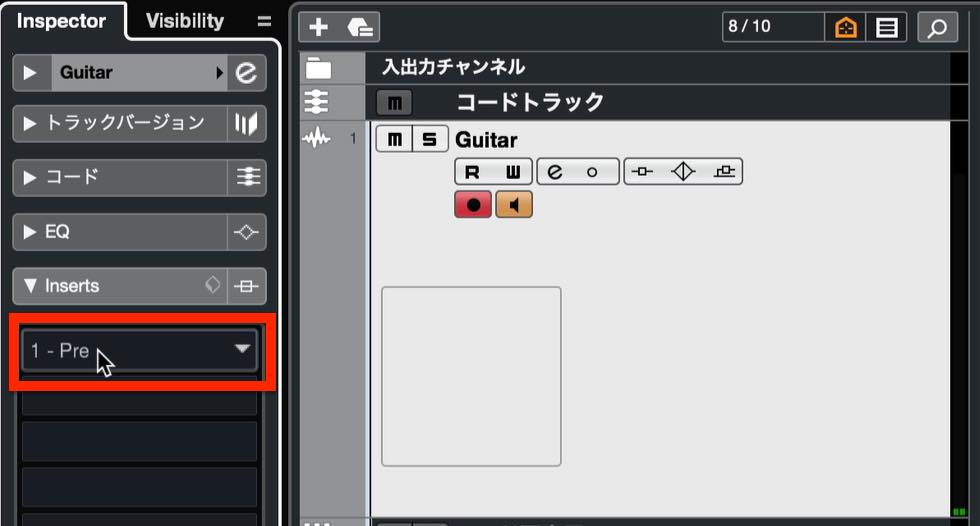
Let's select VST AmpRack for this example.
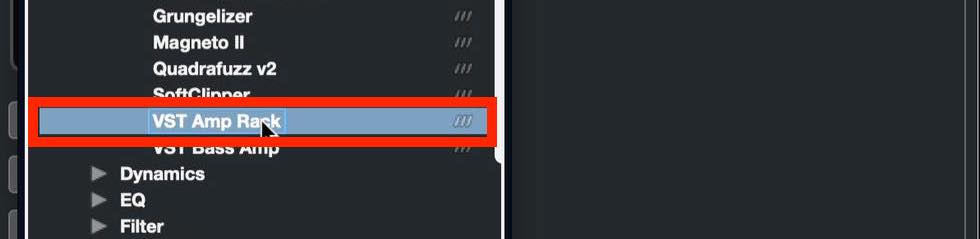
You can now record while monitoring the sound through the amp simulator.
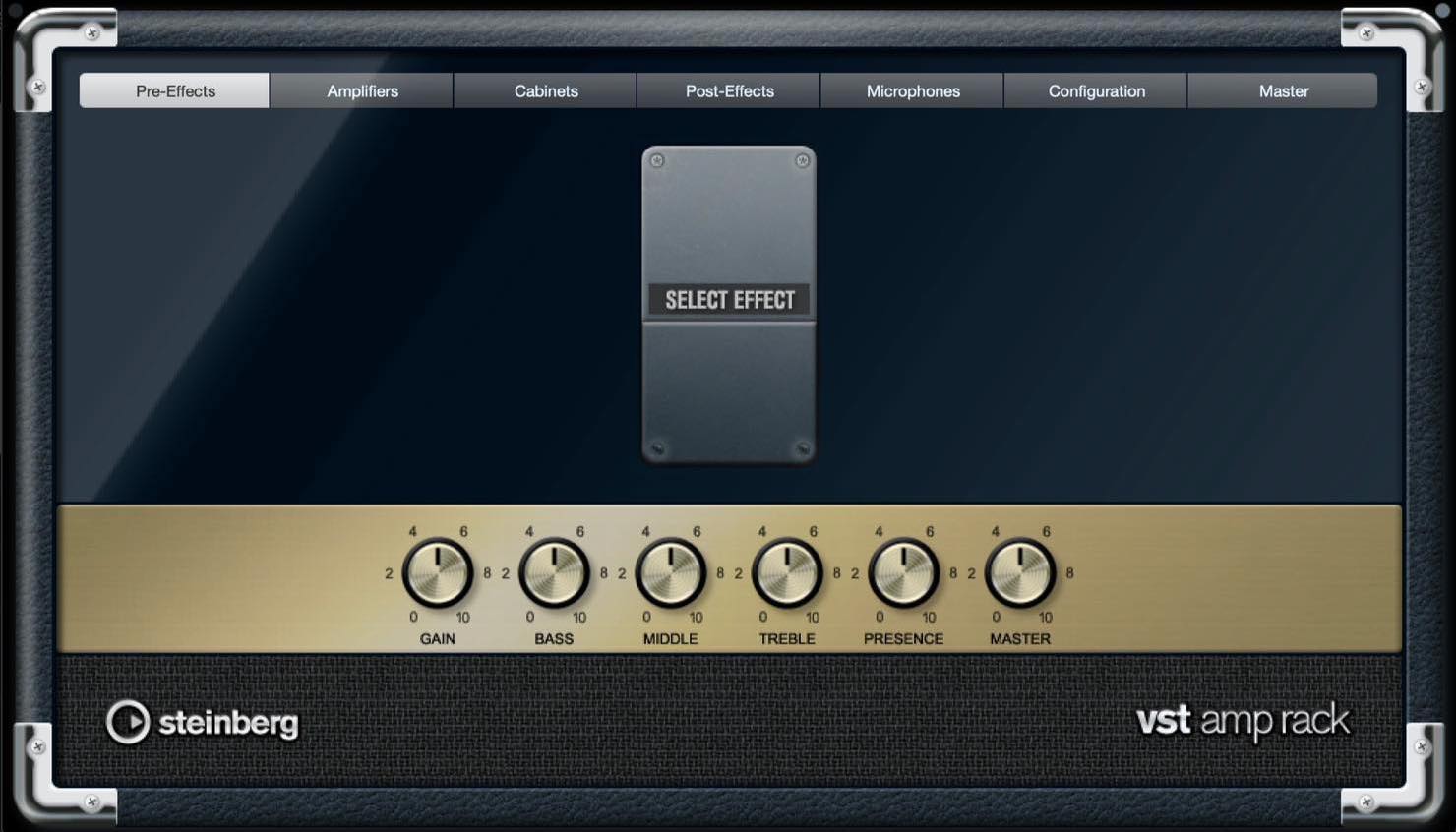
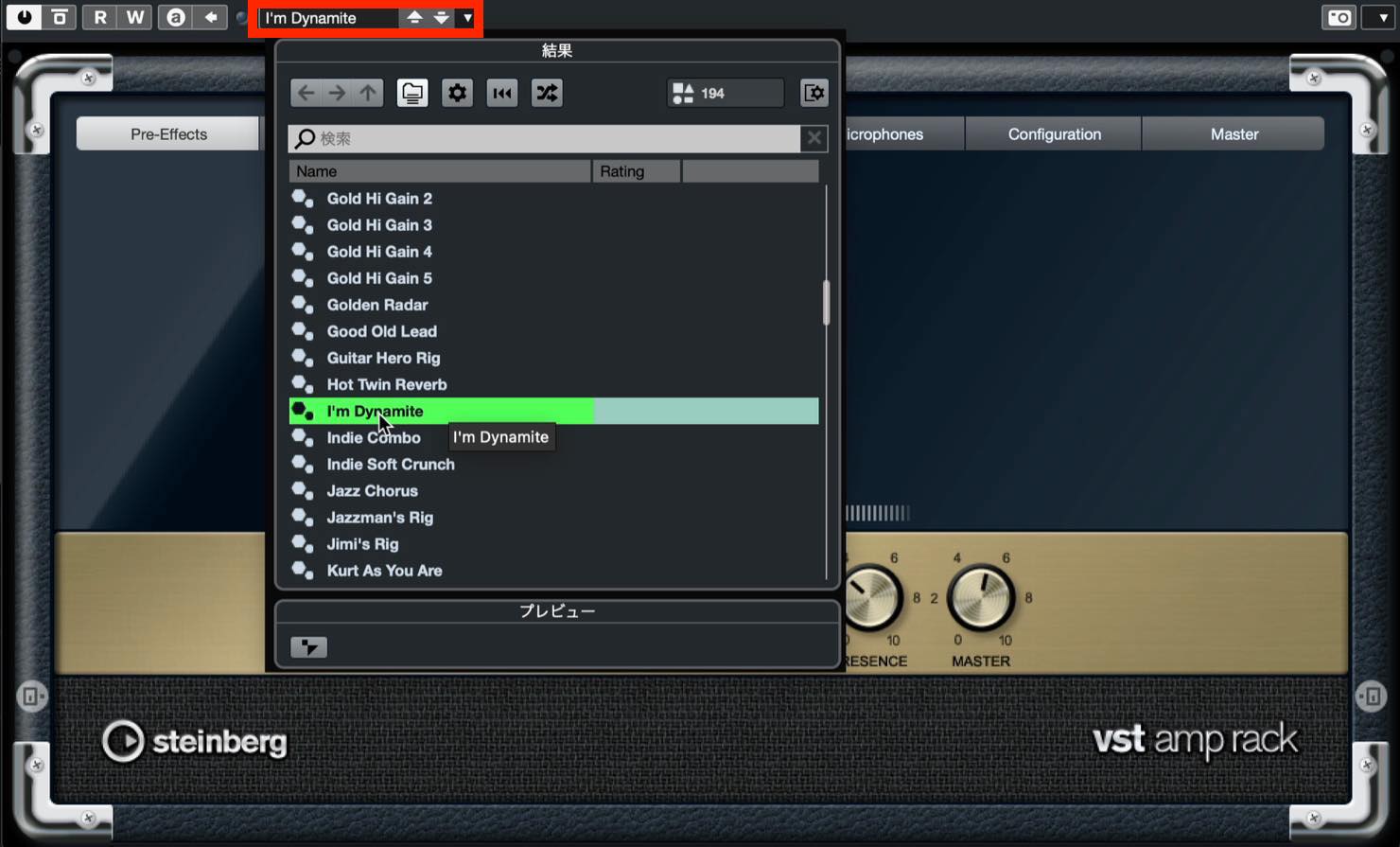
VST AmpRack includes a range of presets, so choose one you like.
The amplified sound is only for monitoring here; the signal recorded to the audio file is the sound before the amp simulator.
This gives you the flexibility to change the effect or amp settings and reshape the sound afterward.
To record the amplified sound itself, open MixConsole in the Lower Zone and insert the amp simulator on the input channel.
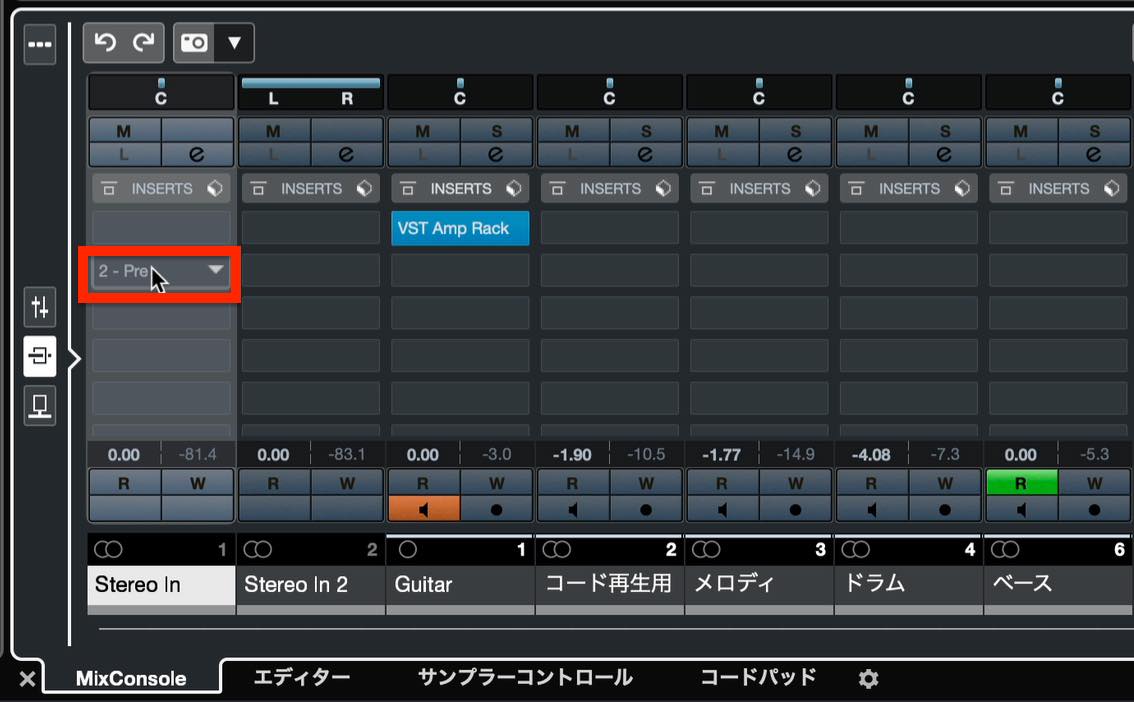
In that case, the amp processing is printed into the recording, so you cannot change those amp settings afterward.
Adjusting Buffer Size and Latency
When monitoring while you play, you may notice a delay in the sound coming back to you.
Open Studio Setup from the Studio menu, select your audio interface, and click Control Panel.
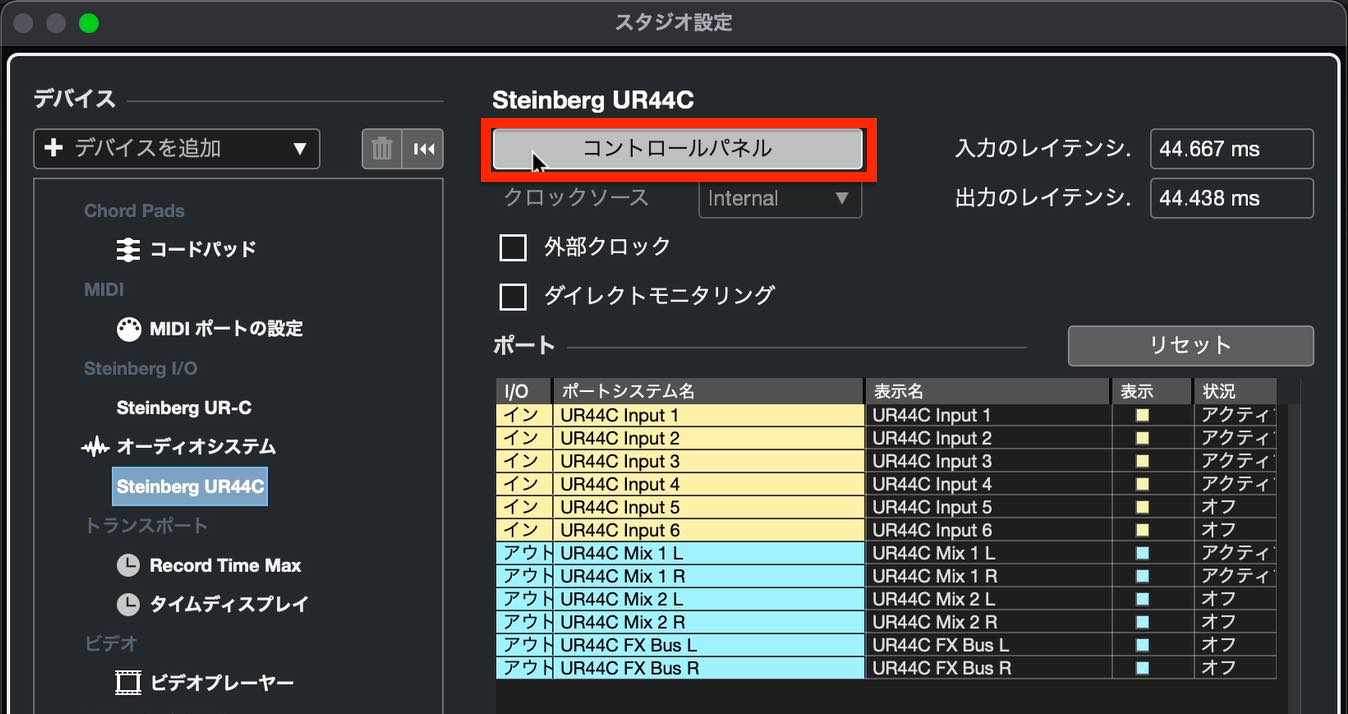
In the window that opens, look for Buffer Size.
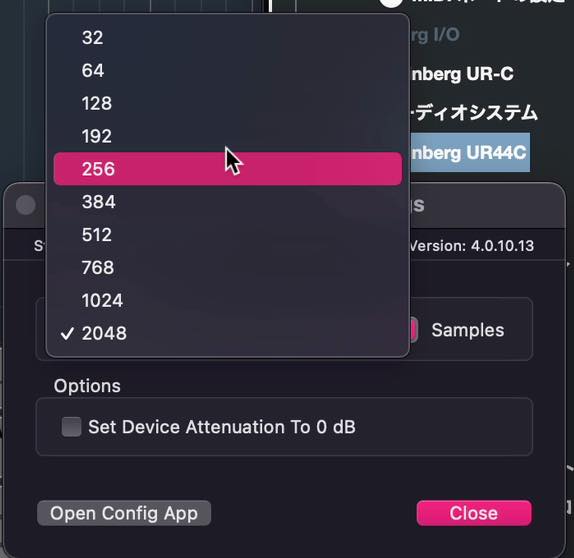
This setting determines how much processing time the computer has for audio. A smaller value reduces delay but increases the processing load. If the load is too high, you may hear noise during playback or playback may stop.
Set it as low as possible without causing these problems.
Practical Recording Tips
Now that the preparations are complete, let's record.
Most recording functions are shared with MIDI recording. Use the metronome and pre-count just as we discussed in that lesson.
As with MIDI recording, make sure Record Enable is on, then click Record on the Transport panel.
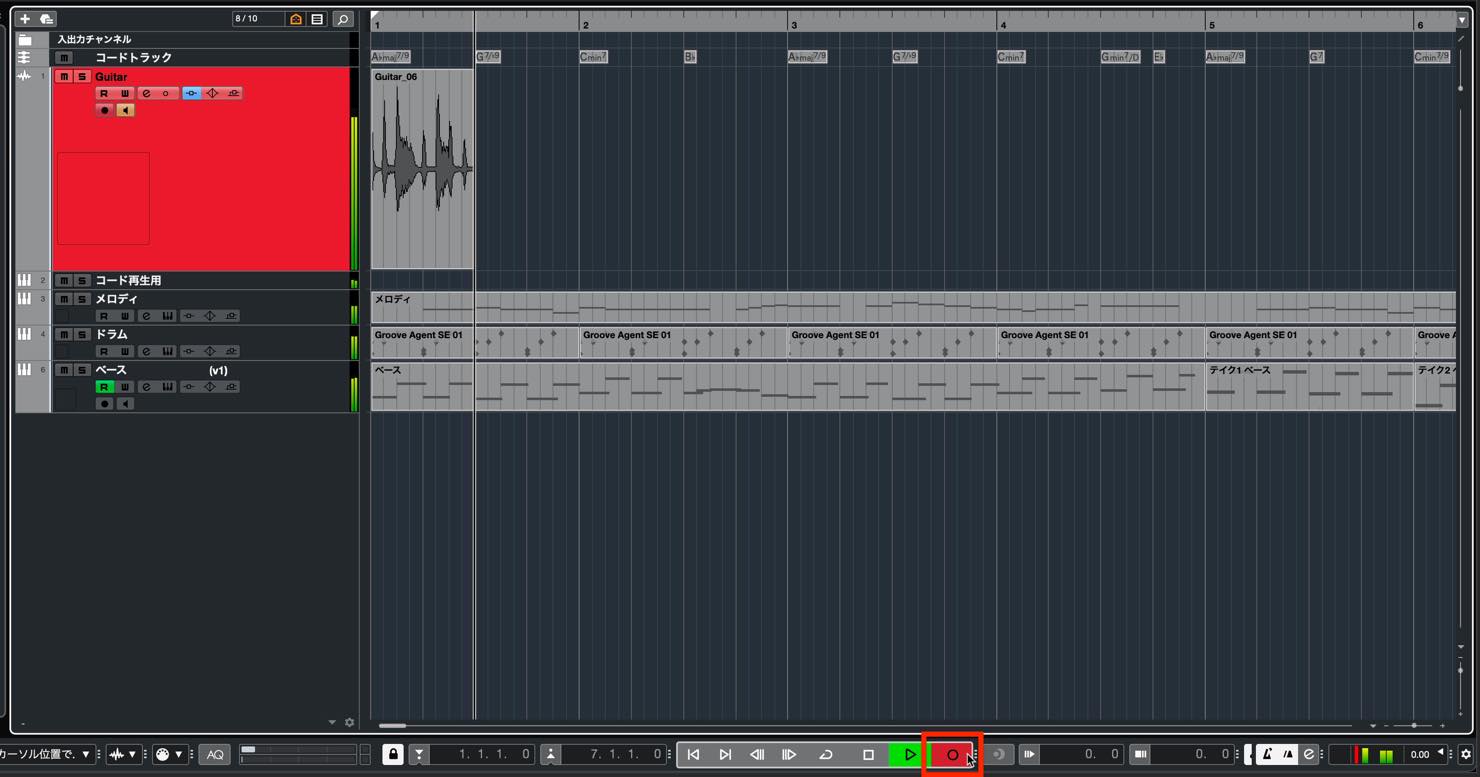
When you finish, press the Space bar to stop. This works the same way as MIDI recording.
One issue in this example is that recording began exactly at the start of bar 1. The waveform is cut off, and the nuance at the beginning of the performance is lost.
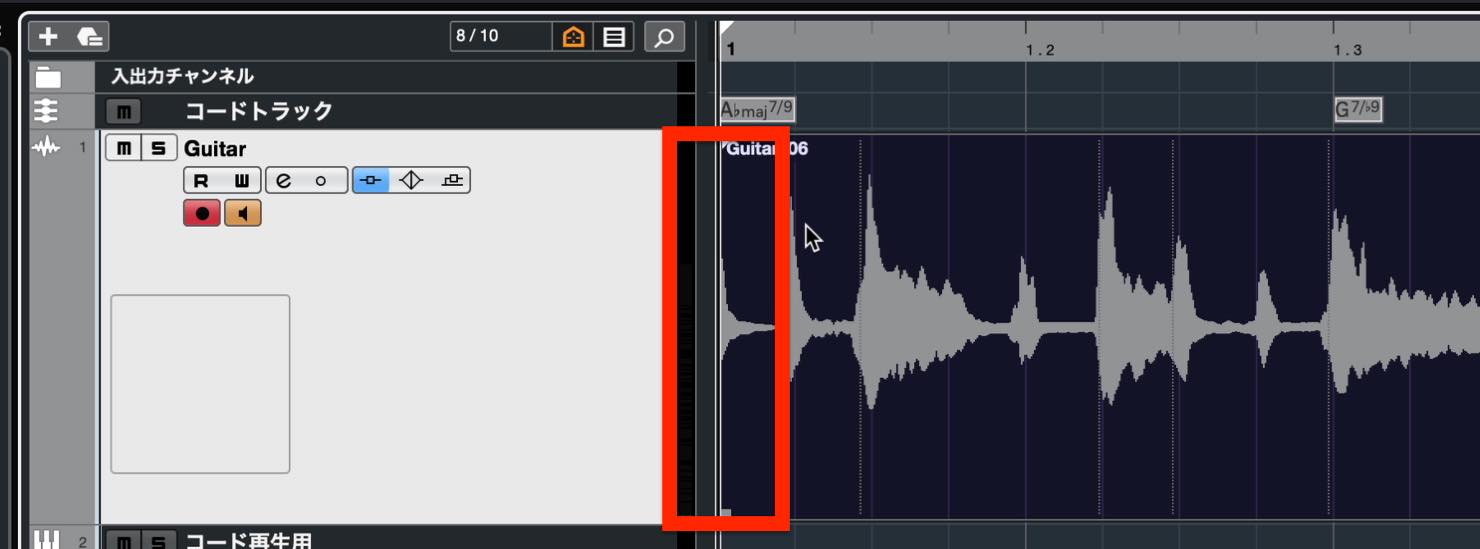
You can address this by adding a bar before the beginning.
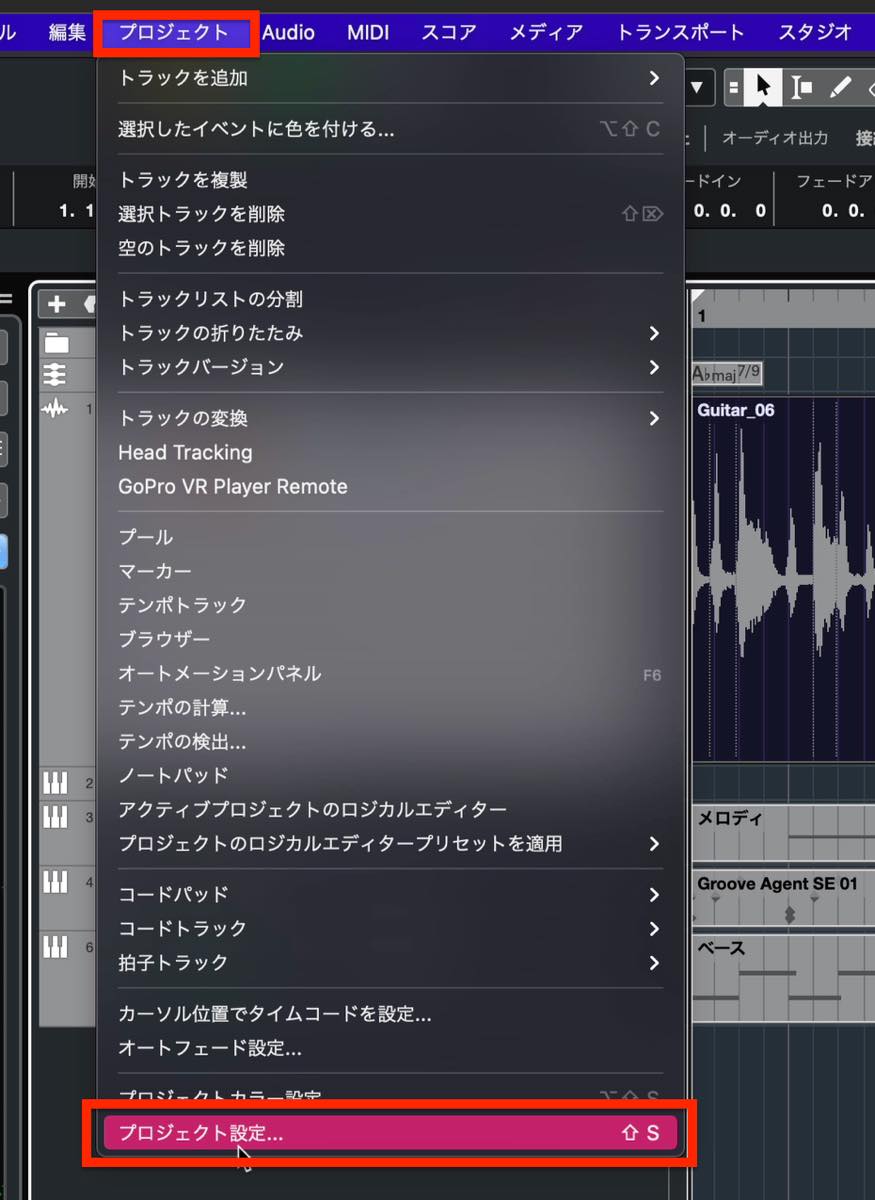
Open Project Setup from the Project menu.
In Project Setup, find Display Bar Offset and set it to 1 to add one bar.
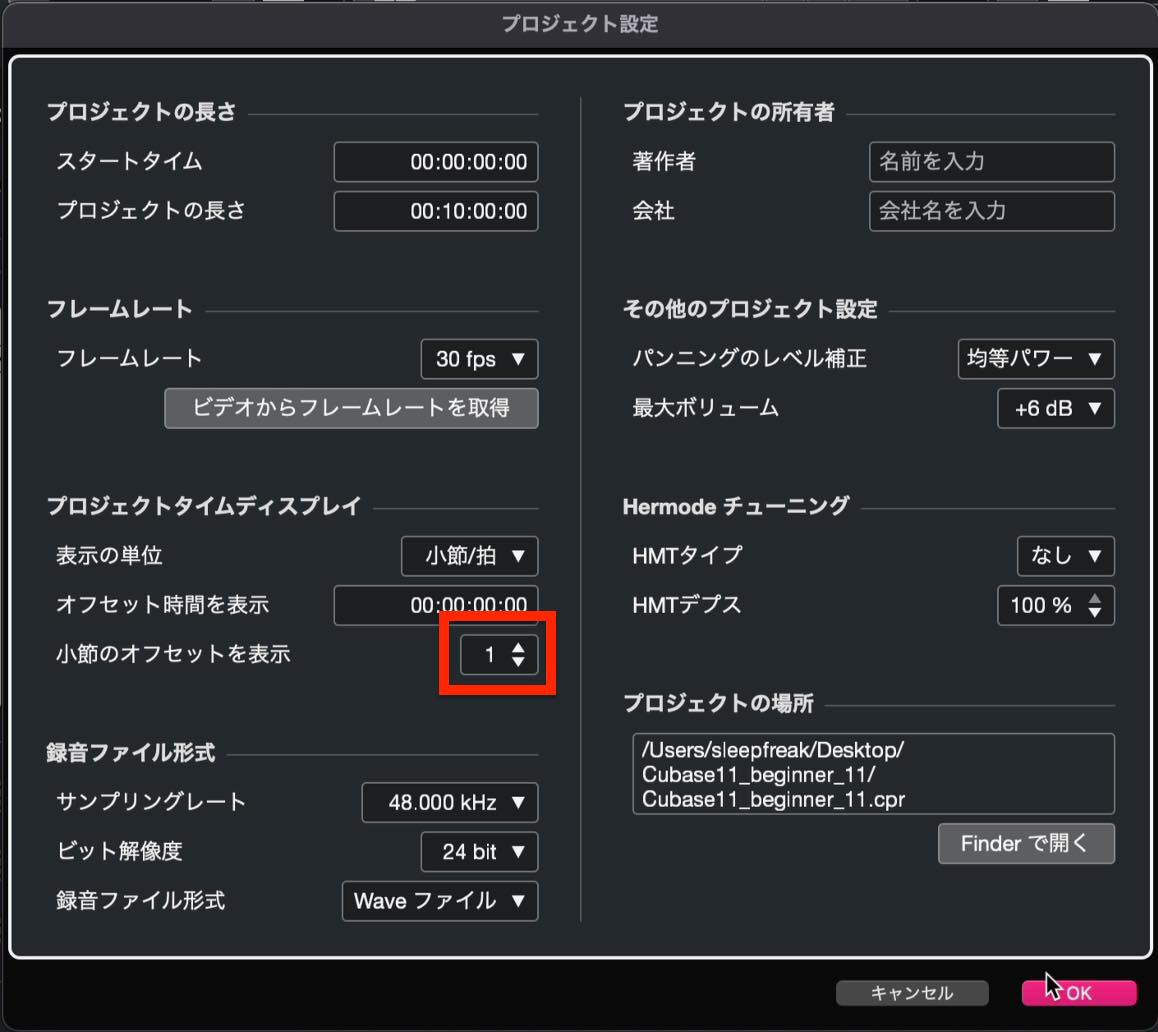
Click OK, then choose Yes in the dialog that appears. The start becomes bar 0, providing one extra bar before bar 1.
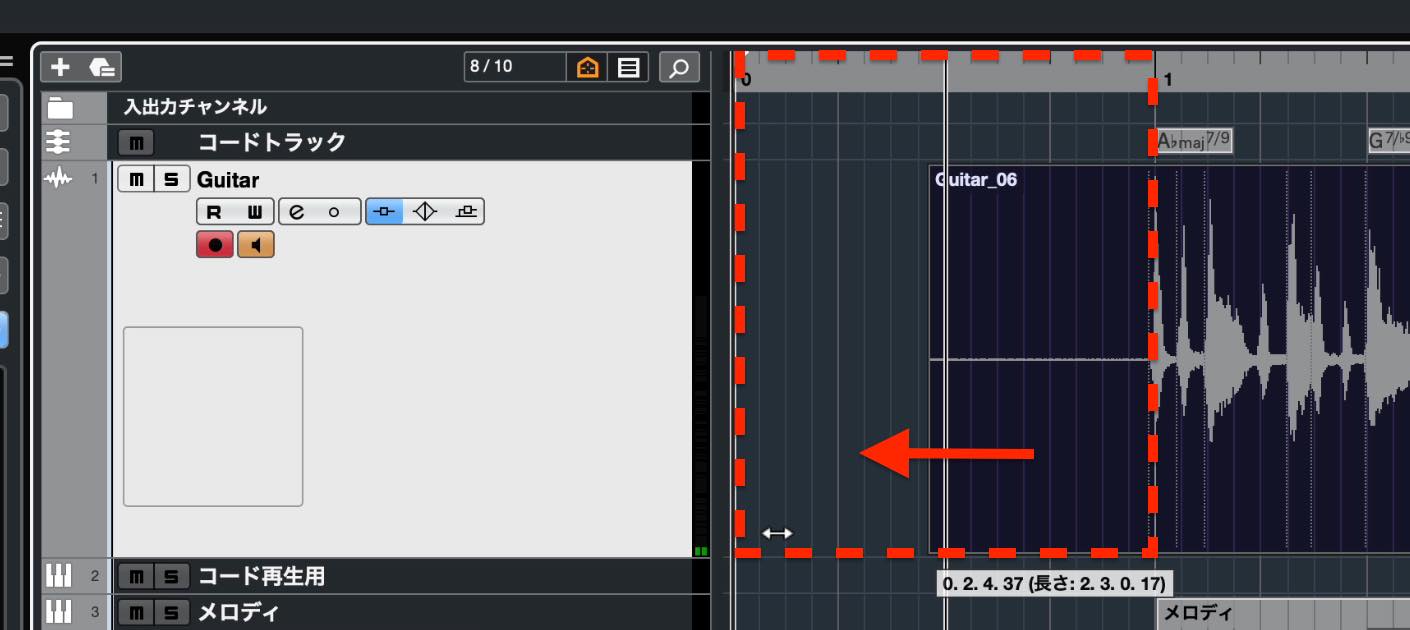
You can now extend the recorded audio event to the left to reveal the nuance at the beginning of the performance.
This is also useful when you want to include a pickup before a melody or other phrase.
Re-Record, showing lanes and comping after cycle recording, and Track Versions can all be used in much the same way as with MIDI. For details, refer to Lesson 9 on real-time recording.

Punch In and Punch Out
Sometimes you may want to re-record only a section of an otherwise good take.
The procedure is simple: start playback, click Record when you reach the section you want to replace, then click Record again when you have finished that section.
Make sure you switch the recording mode from Re-Record, which we selected earlier for MIDI recording, to Punch In/Out.
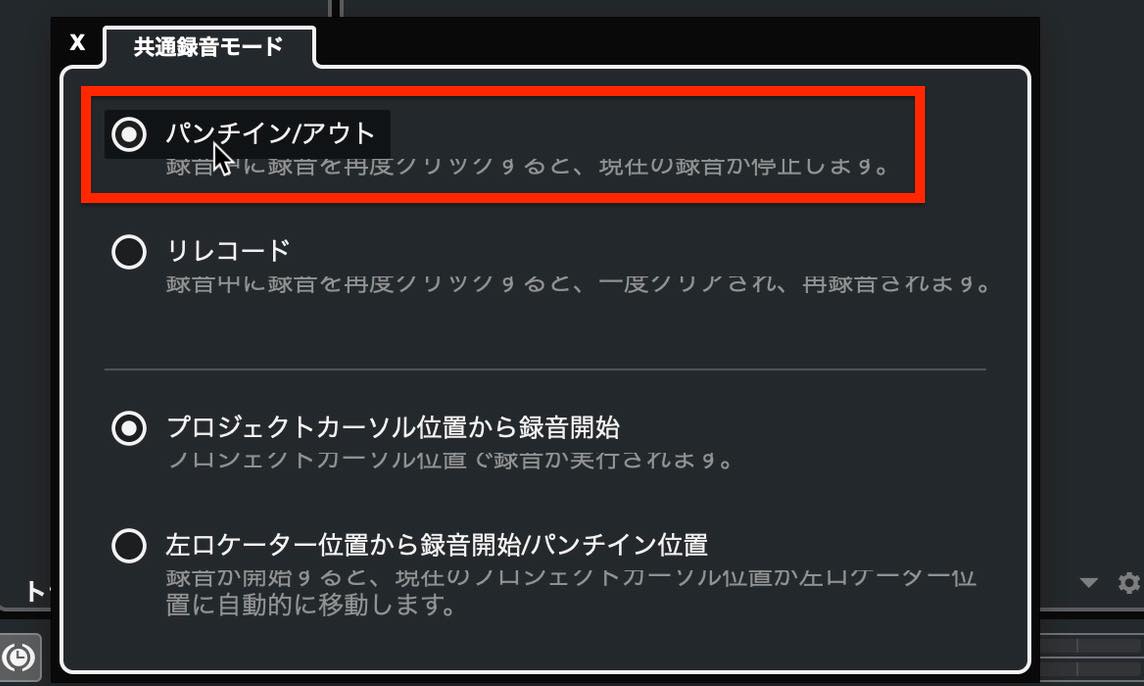
Ask the performer to play normally without worrying about which section is being re-recorded.
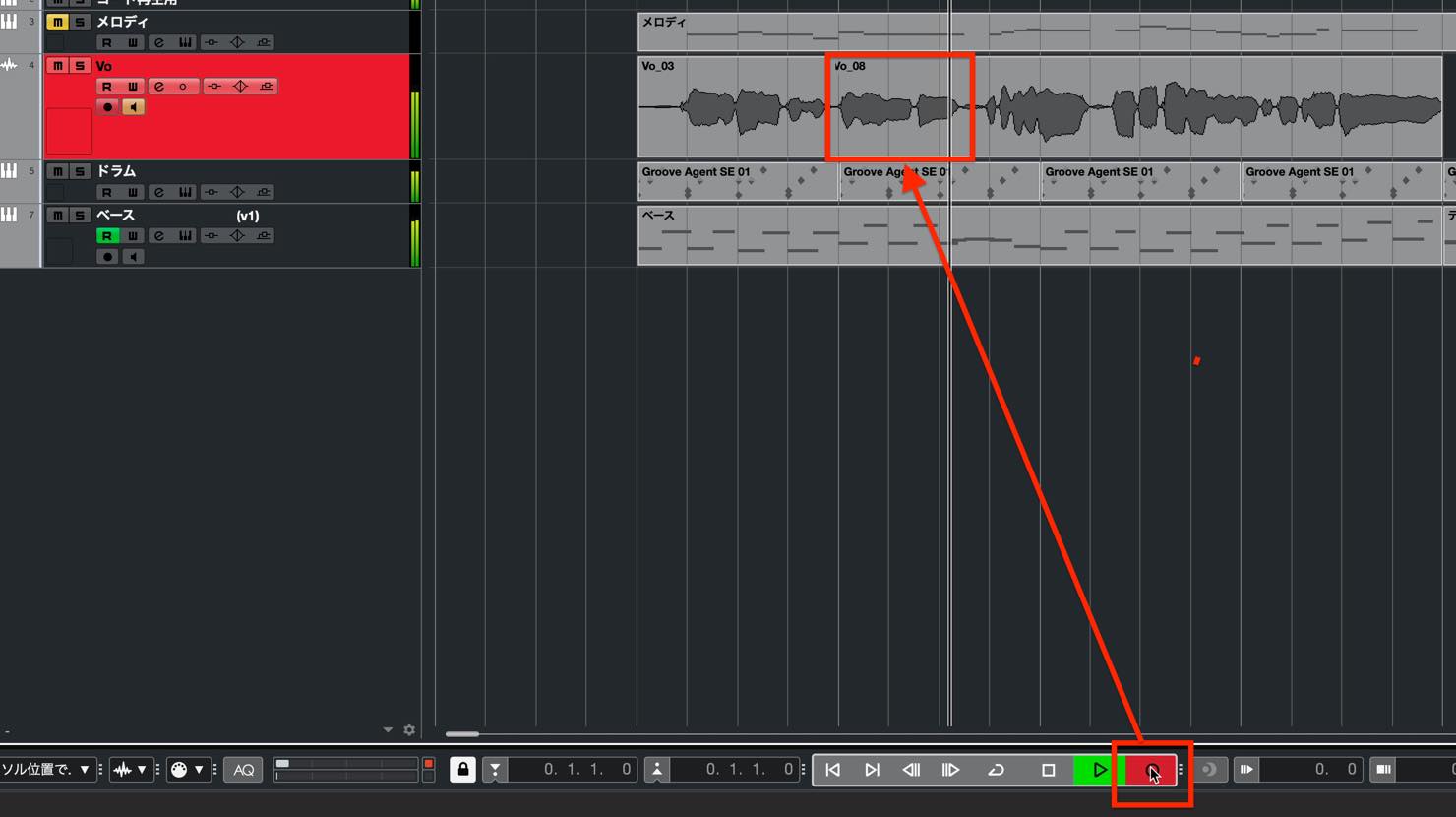
The new take is recorded on top of the previous take, as shown here.
After recording, you can move event boundaries to decide which parts of each take to use.

If overlapping events make the display confusing, you can also replace events as you record.
Open Audio Record Mode on the Transport panel,

then change Keep History to Replace.
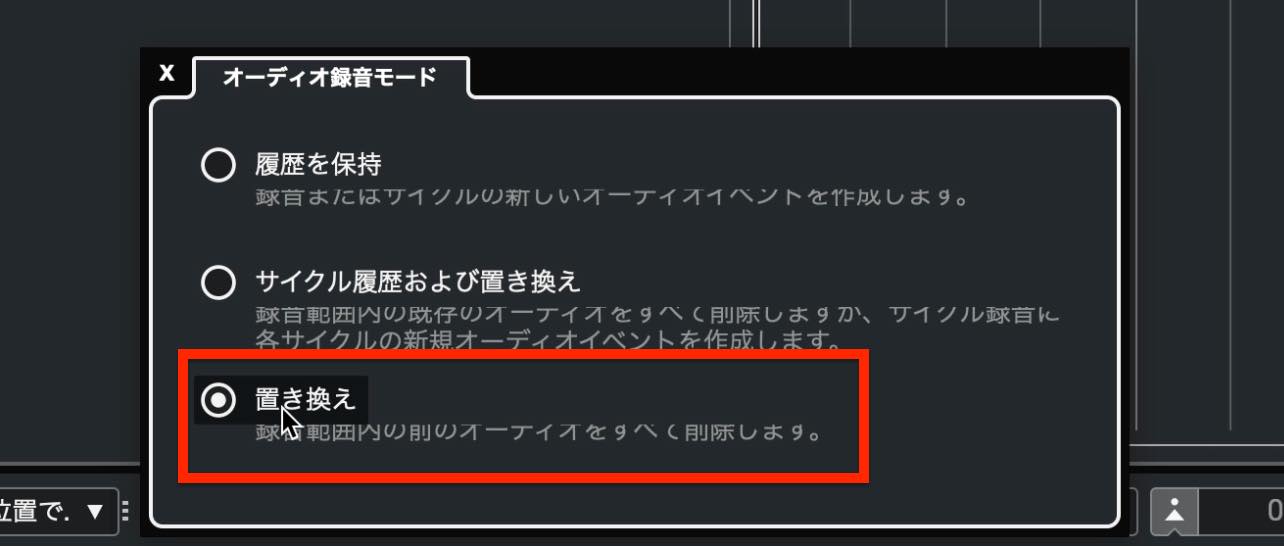
When you record, the hatched overlap is no longer shown, and the event underneath is removed in the recorded section.
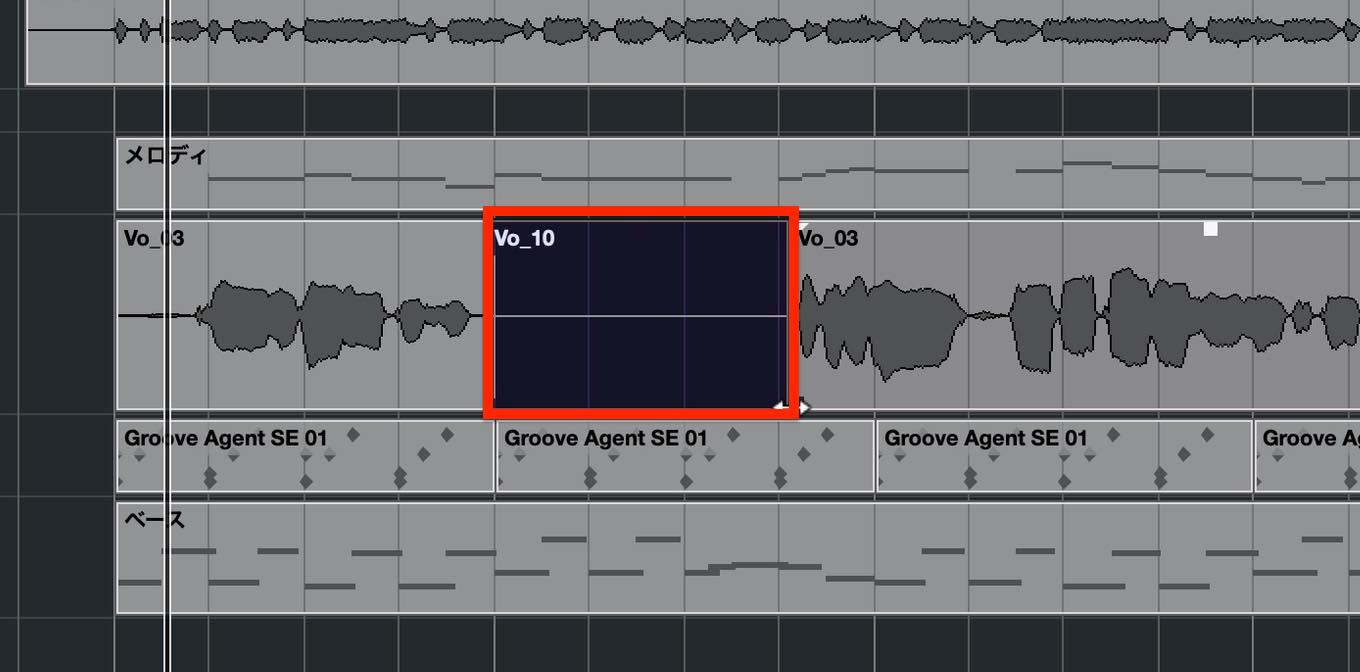
The underlying audio data from the previous take is still available, so you can extend and overlap the events to join them.

Operating punch in/out while performing on your own can be difficult. Auto Punch In/Out is useful in this situation.
These controls are on the Transport panel. If they are hidden, right-click an empty area of the panel and enable Punch Points.
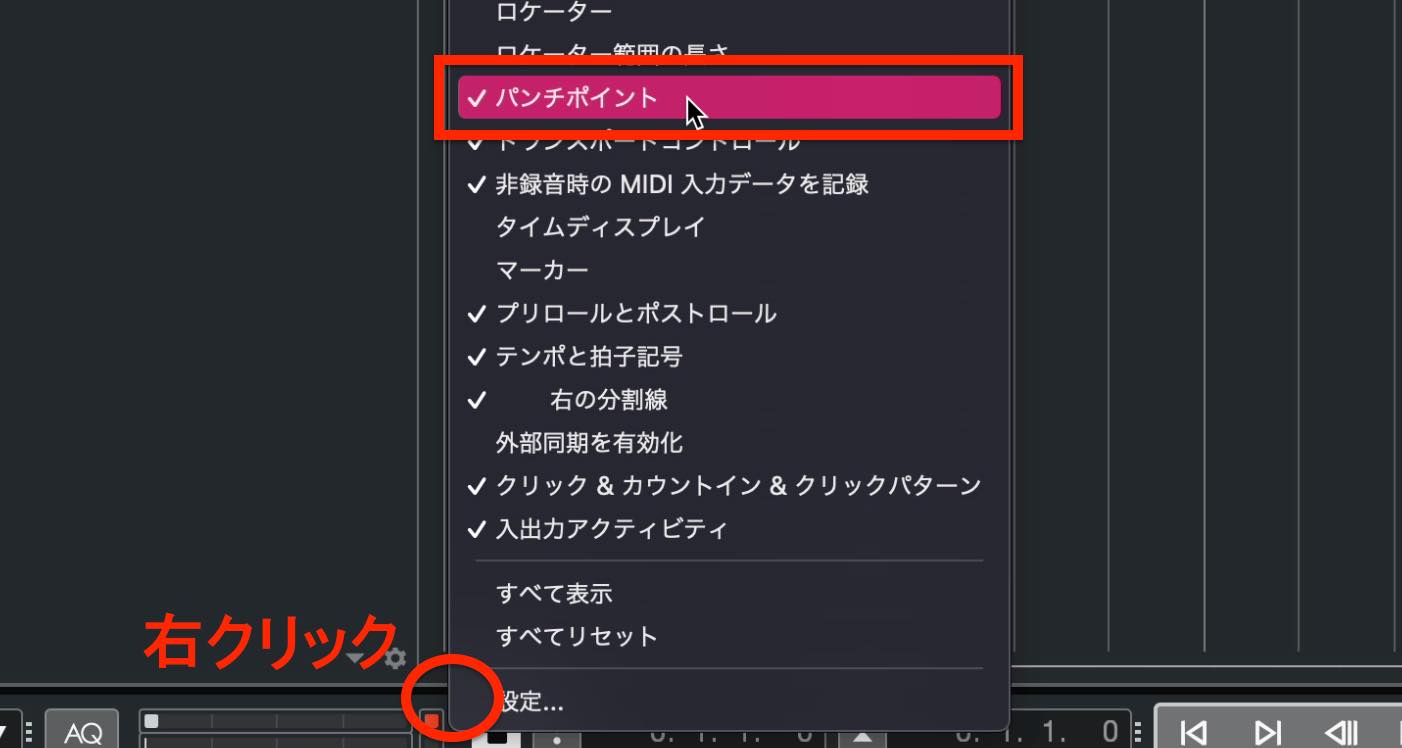
Click Punch In and Punch Out to enable both points.

You can now record within the range marked on the ruler.
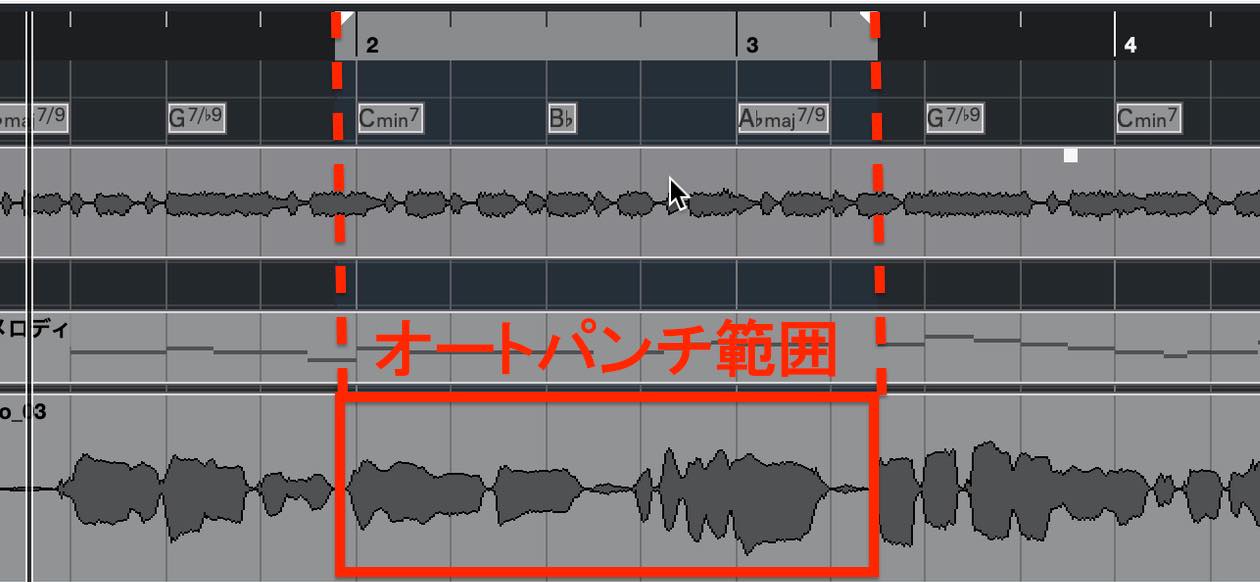
Start playback before that range. Use Play rather than Record to begin.

Recording starts automatically when playback enters the selected range and stops when playback leaves it.
If you want to set punch points independently of the locator range, click the lock icon beside the punch points to turn it off.

Separate red markers appear on the ruler, allowing you to set the punch range freely.

When you have finished recording, remember to disable Punch In and Punch Out. Leaving them enabled can cause unintended recording.

That concludes our introduction to audio recording.
Understanding these functions should help you record much more efficiently.
Next time, we will explain how to edit audio events after recording.
Lesson 11 of our Cubase 11 Beginner Course covers audio recording.
This is essential if you want to record vocals or live instruments, so take the time to learn it thoroughly.https://t.co/tsq6EvdOBg #DTM #Cubase— SLEEP FREAKS (@SLEEPFREAKS_DTM) August 22, 2021
Frequently Asked Questions
Q1. How do I choose between mono and stereo tracks for audio recording in Cubase?
Choose Mono when using a single input, such as one microphone or guitar. Choose Stereo when using two cables connected to two inputs, for example from a synthesizer. If the channel configuration does not match the input, the recorded file may play from only one side.
Q2. What should I keep in mind when recording electric guitar?
Connect the guitar to a Hi-Z input to capture its tone properly. Use an amp simulator in the track Inspector's Inserts to hear an amplified sound while monitoring, while recording the dry signal for greater flexibility when editing later.
Q3. What should I do if the recording clips?
Check whether the audio interface's input meter reaches OVER and turn down the gain knob. Play the guitar loudly as you gradually reduce the input gain until the meter no longer reaches OVER.
Q4. Why do I hear a delay while monitoring?
This is latency. Adjust Buffer Size through Studio Setup and the interface's control panel. Smaller values reduce delay but increase the computer's processing load. Choose the lowest value that does not cause noise or other problems.
NEW ARTICLES
Latest English Articles














































































































































