
New Sonic Arts Granite is a granular synthesizer that uses audio files as oscillator material. Unlike a conventional synthesizer, it shapes sound by adjusting the range, speed, and fineness with which the waveform is read, producing complex harmonics useful for effects and ambient sounds. This guide covers loading presets, the Grain tab, parameter recording, circle modulators, MIDI controller assignments, effects, and saving presets.
A granular synthesizer with a streamlined interface
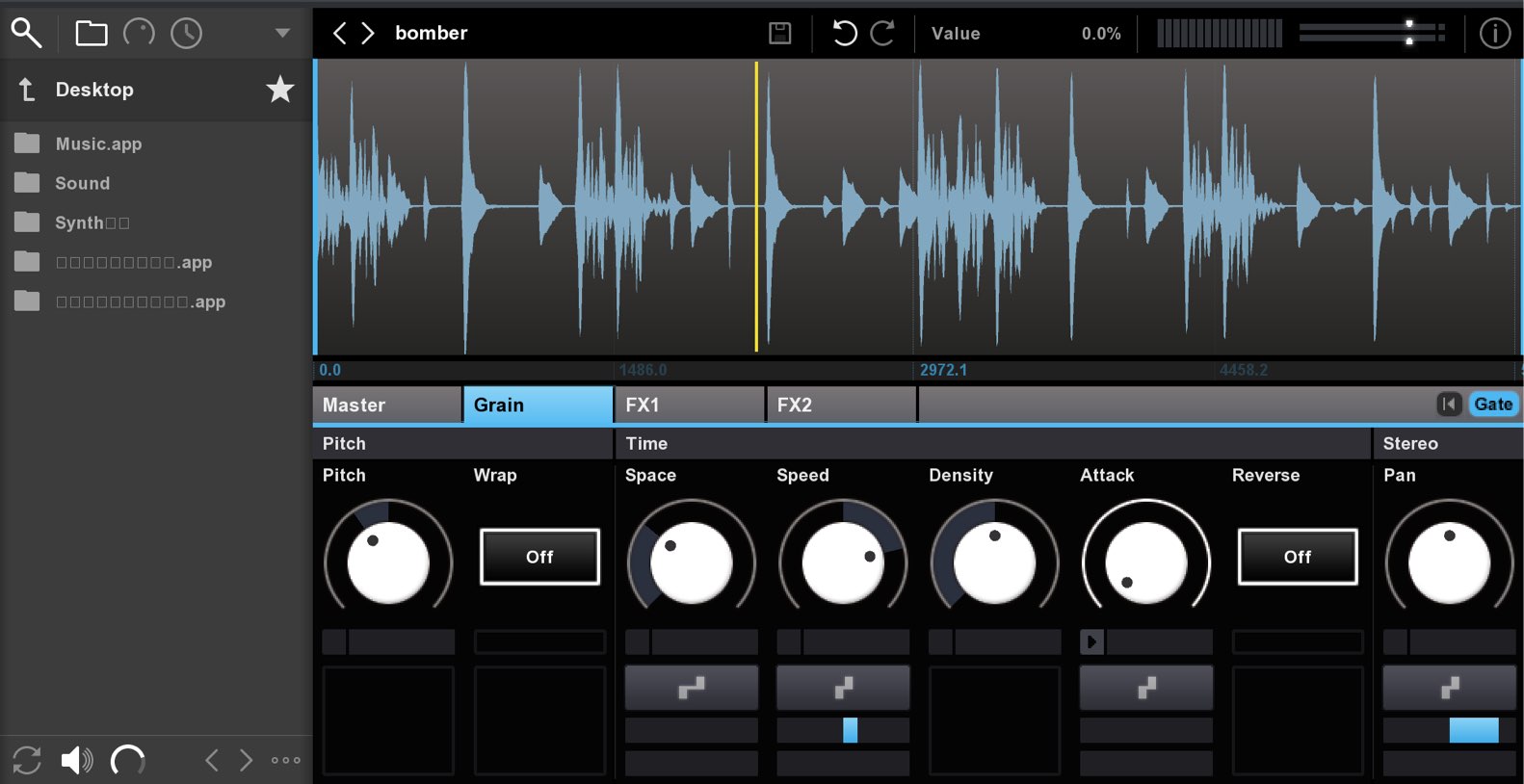
Granite by New Sonic Arts is a synthesizer based on granular synthesis.
One major difference from a conventional synthesizer is that it uses audio files such as WAVs as oscillator material, shaping the sound by adjusting the reading range, speed, and fineness.
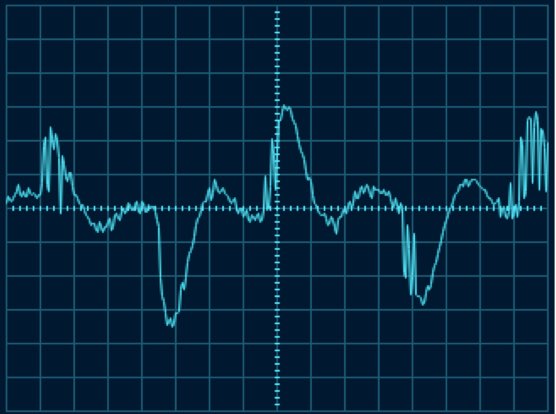
The resulting complex harmonics make it useful for sound effects and ambient textures.
Its simple controls are designed to make sound design effective and quick. Keep that in mind as we explore it.
How to use Granite
Loading presets and audio material
Granite includes many presets, so you can play distinctive sounds immediately.
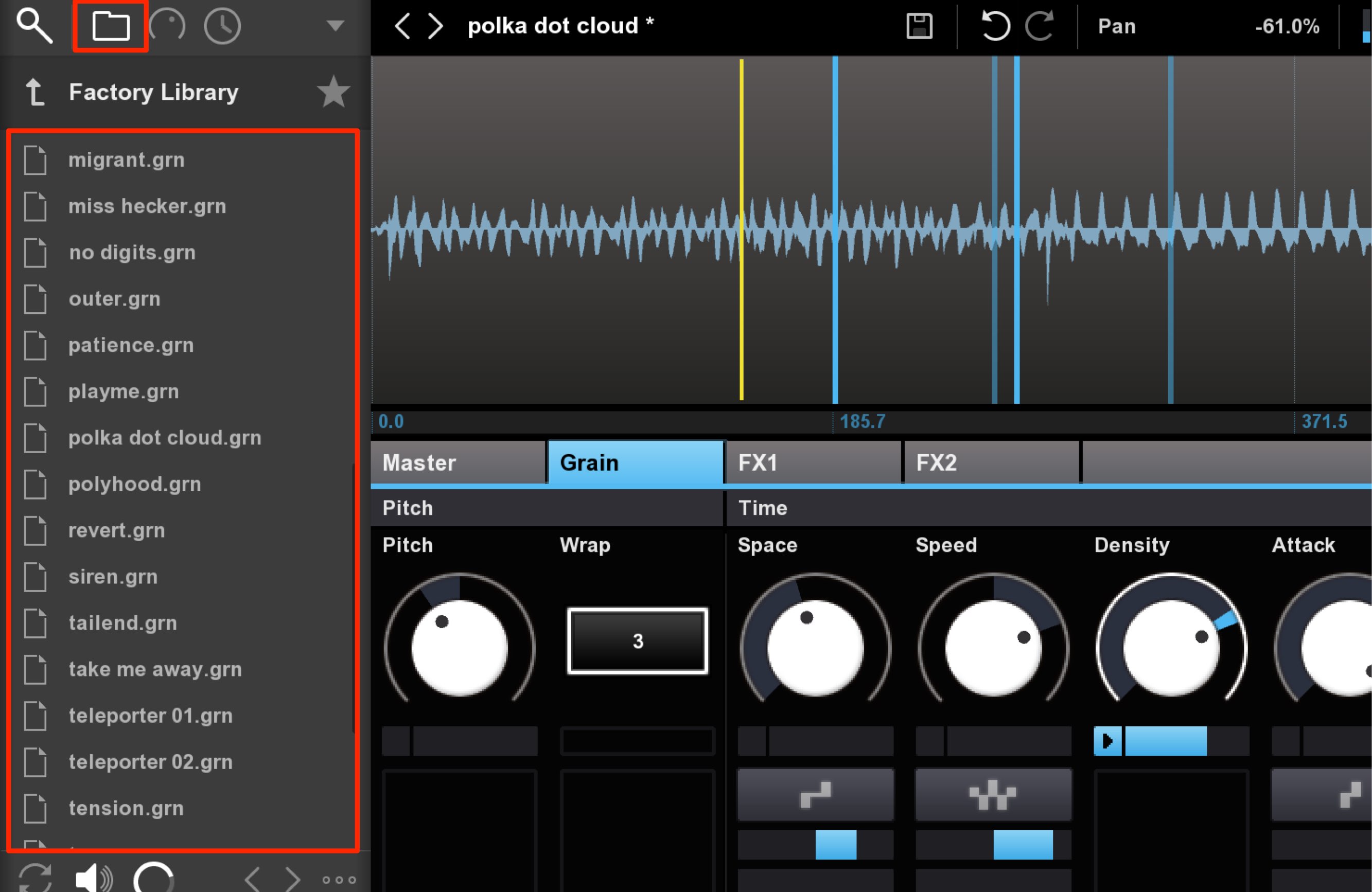
In the browser, choose the folder icon and double-click the preset you want to load.
Presets are also useful for learning how Granite’s parameters work.
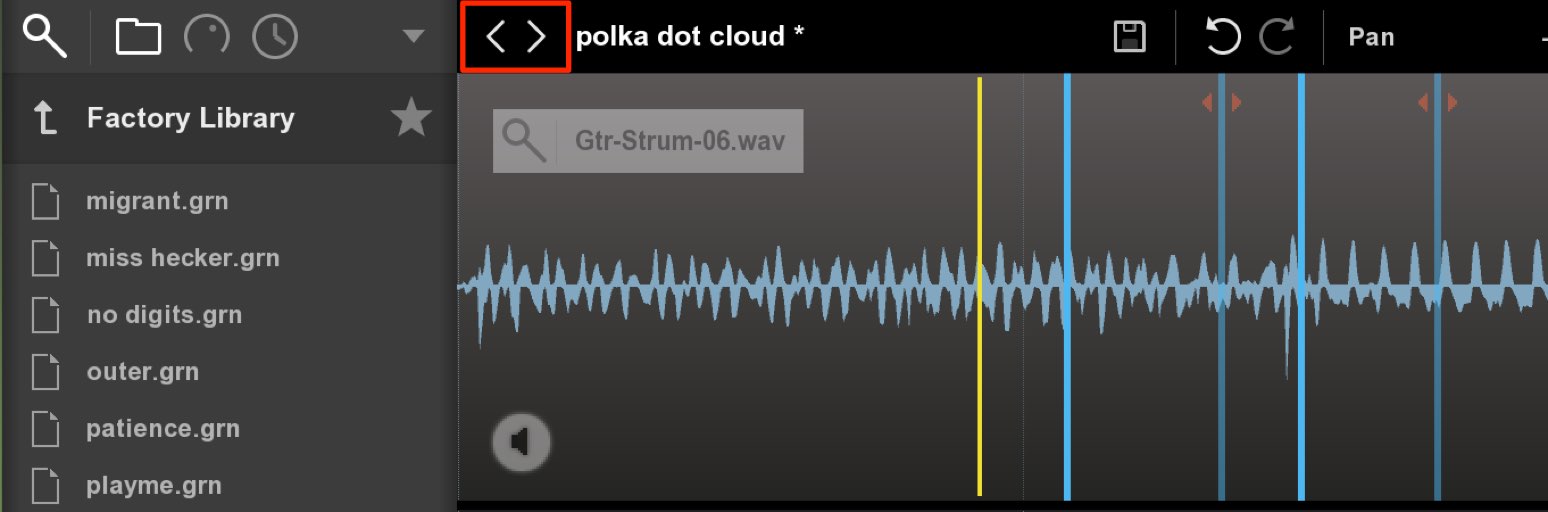
You can switch presets using the left and right arrows above the waveform.
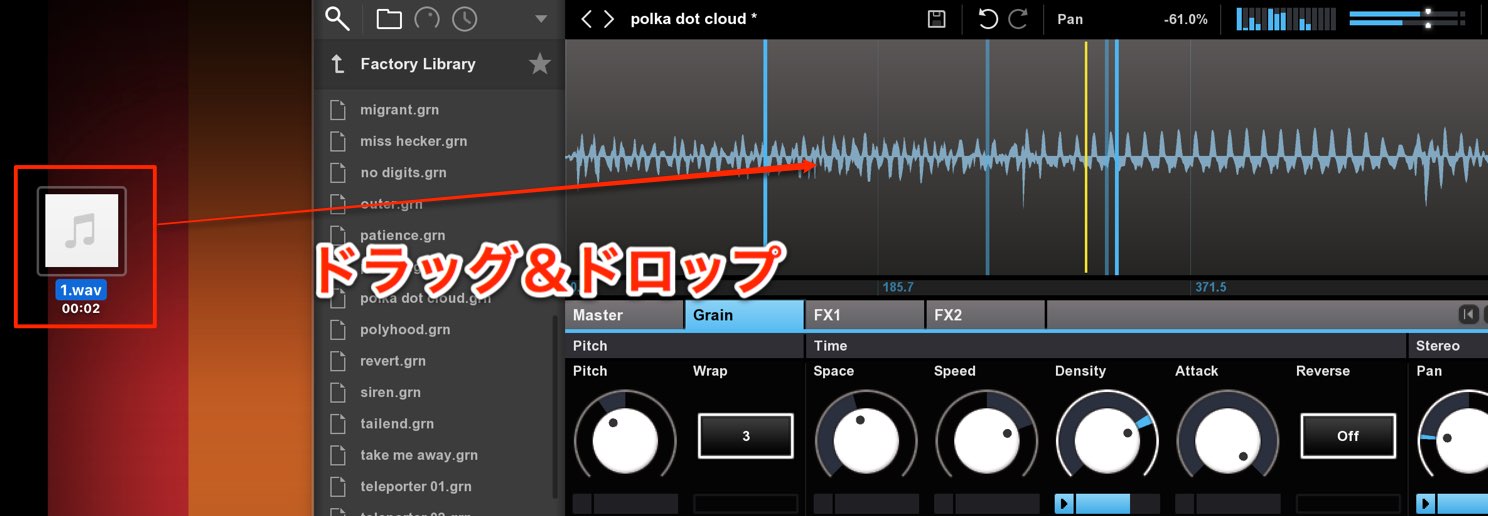
You can also load your own audio files.
Simply drag and drop the file onto Granite’s waveform area.
There are two important points to remember when using Granite.
Point 1: Reset parameter movements
When you load your own waveform, parameter values are inherited from the previous preset.
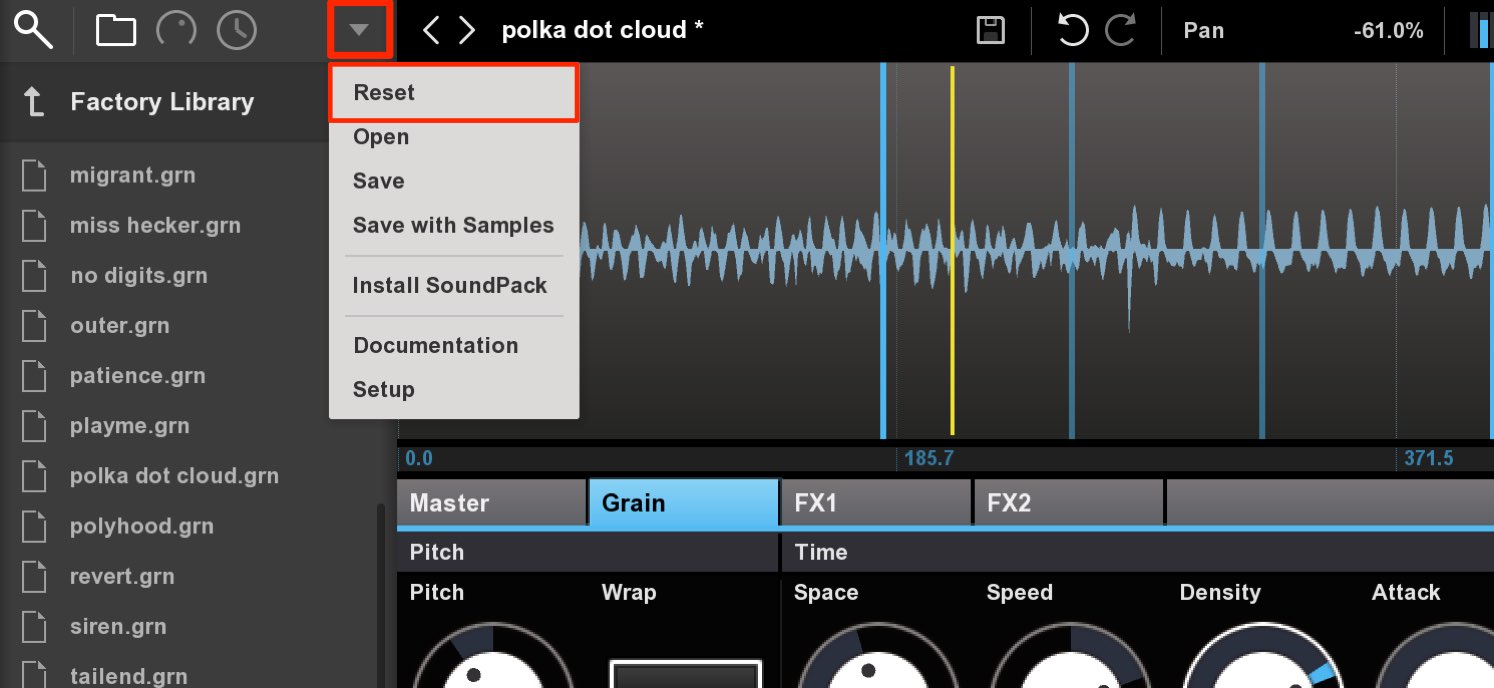
Use Reset in the browser’s triangle menu to restore the parameters to their initial state.
Point 2: Prevent continuous playback
By default, Granite continuously produces sound regardless of MIDI keyboard or DAW playback.
This is useful for editing parameters, but can get in the way when listening to other tracks.
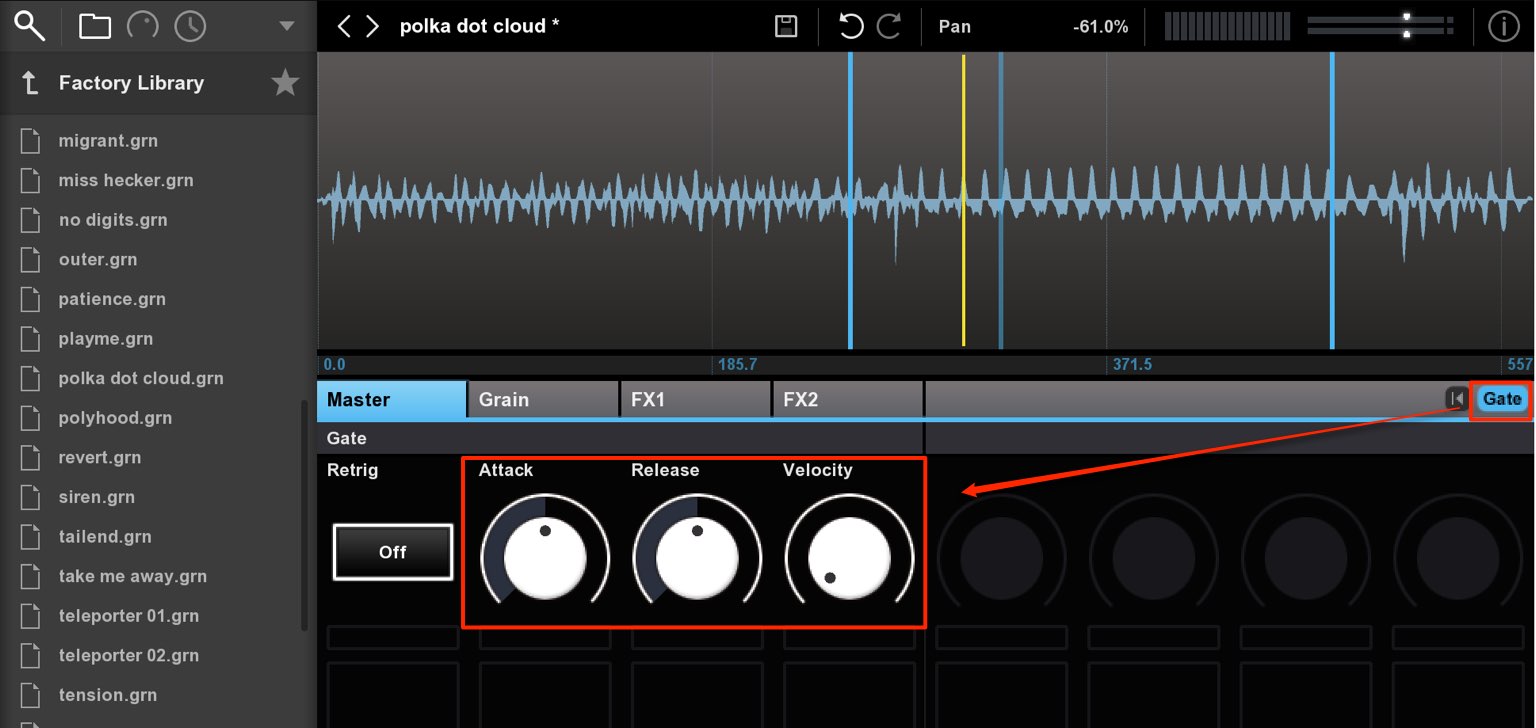
Enable Gate to produce sound only when a MIDI note is played.
This also enables the parameters in the Master tab.
- Attack: The time it takes for the sound to reach maximum volume. Higher values make the volume rise more slowly.
- Release: The time it takes for the volume to fall to zero after the MIDI note ends. Higher values produce a longer decay.
- Velocity: Determines how much MIDI velocity affects the sound’s volume.
At the far left, playback volume is constant regardless of note velocity. Moving right makes volume respond more to velocity.
These controls can change the character of the sound considerably, so adjust them to taste.
The Grain tab: shaping the sound
The Grain section is at the heart of sound design in Granite.
It shapes the sound by setting the waveform range, speed, grain fineness, and length.
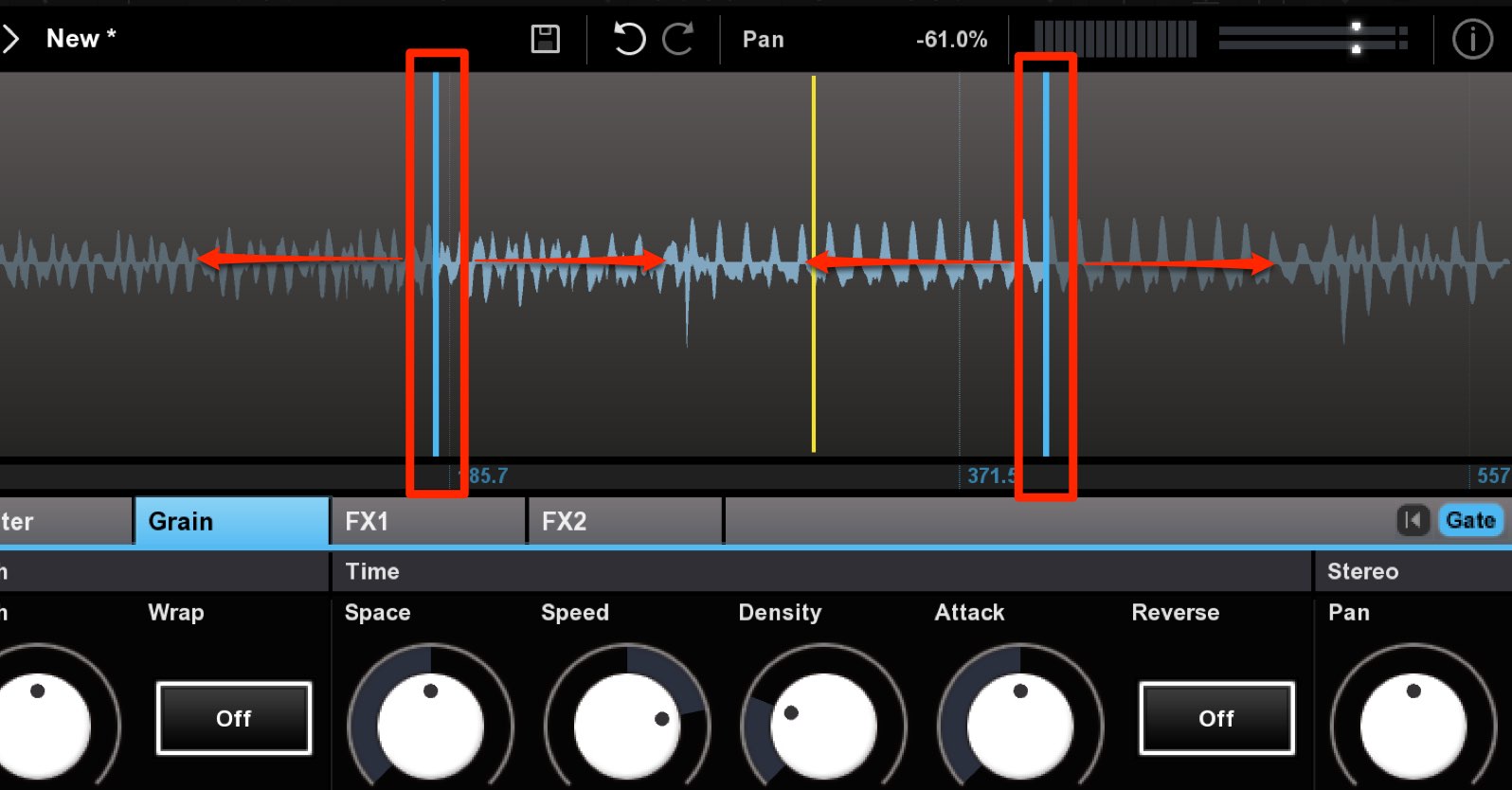
First specify the waveform range to use.
Drag left or right outside the upper part of the blue line to set the range.
The yellow line shows the current read position.
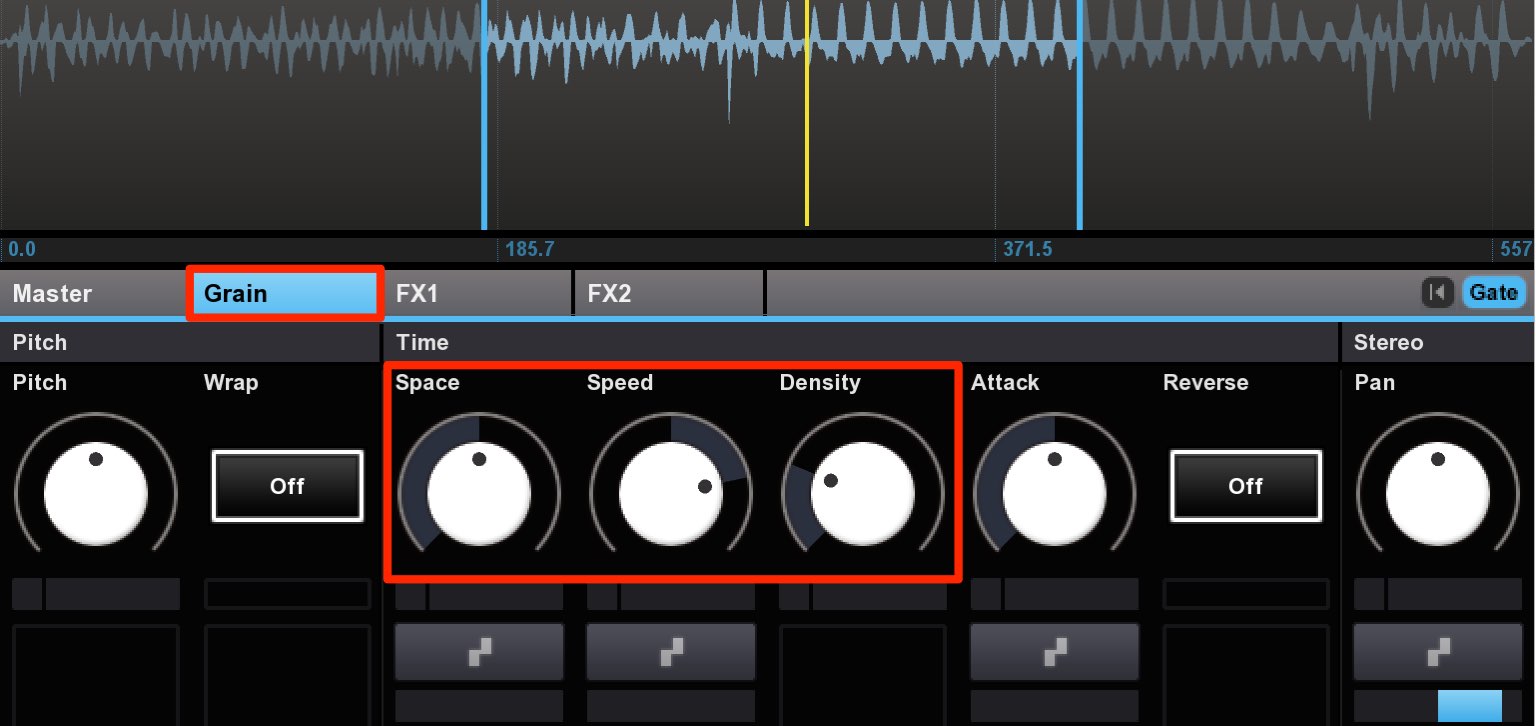
- Space: Sets the fineness of the grains.
- Speed: Sets how quickly the read position, shown by the yellow line, moves.
At the center value of 0 it stops; values to the left move the yellow line backward.
Combine it with Space to shape the sound’s character. - Density: Sets grain length. Higher values increase density and make the sound fuller.
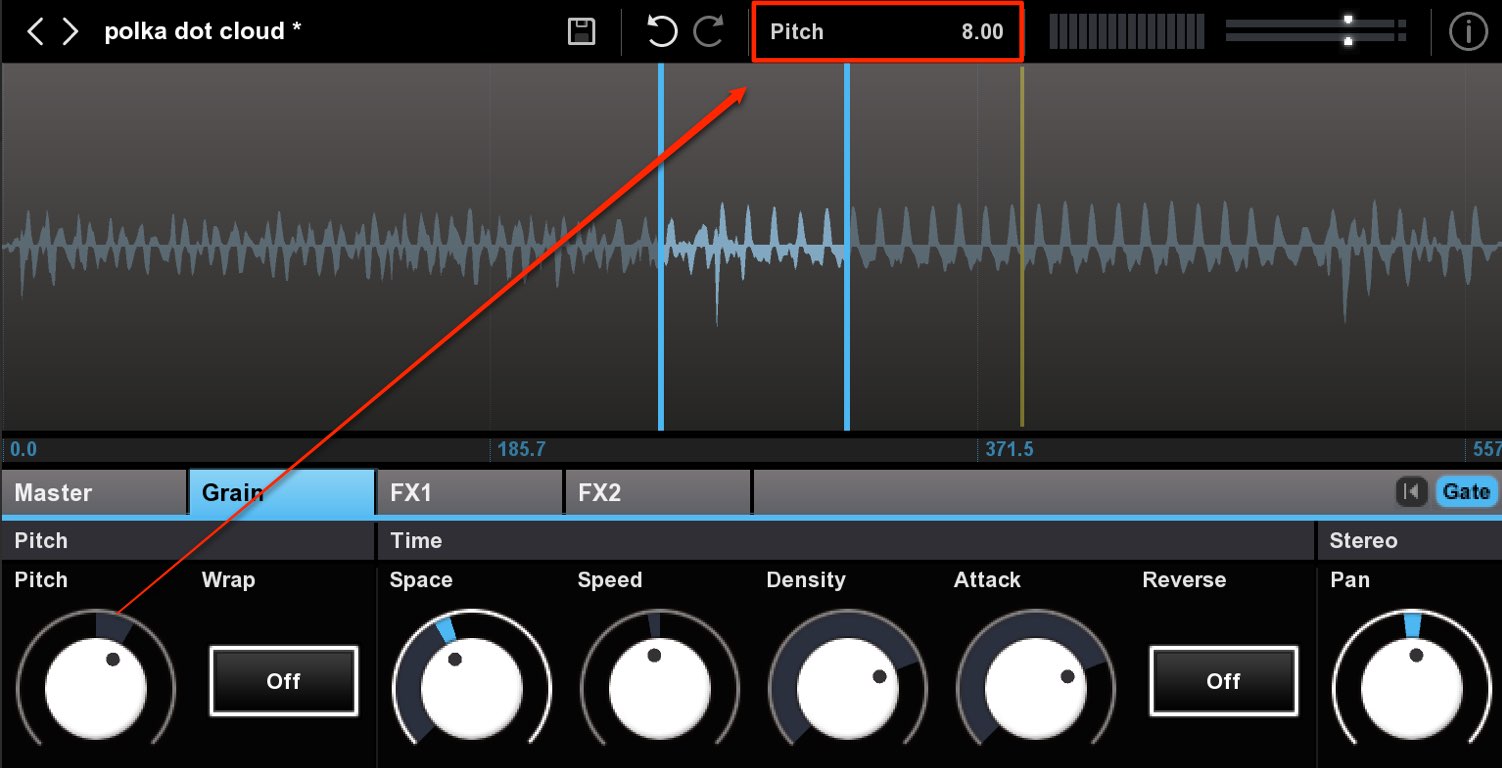
The current value of the parameter being adjusted appears here.
Check it when making precise edits.
Intuitive parameter recording
You can record parameter movements so they change over time.
This adds expression and can create more complex sounds.
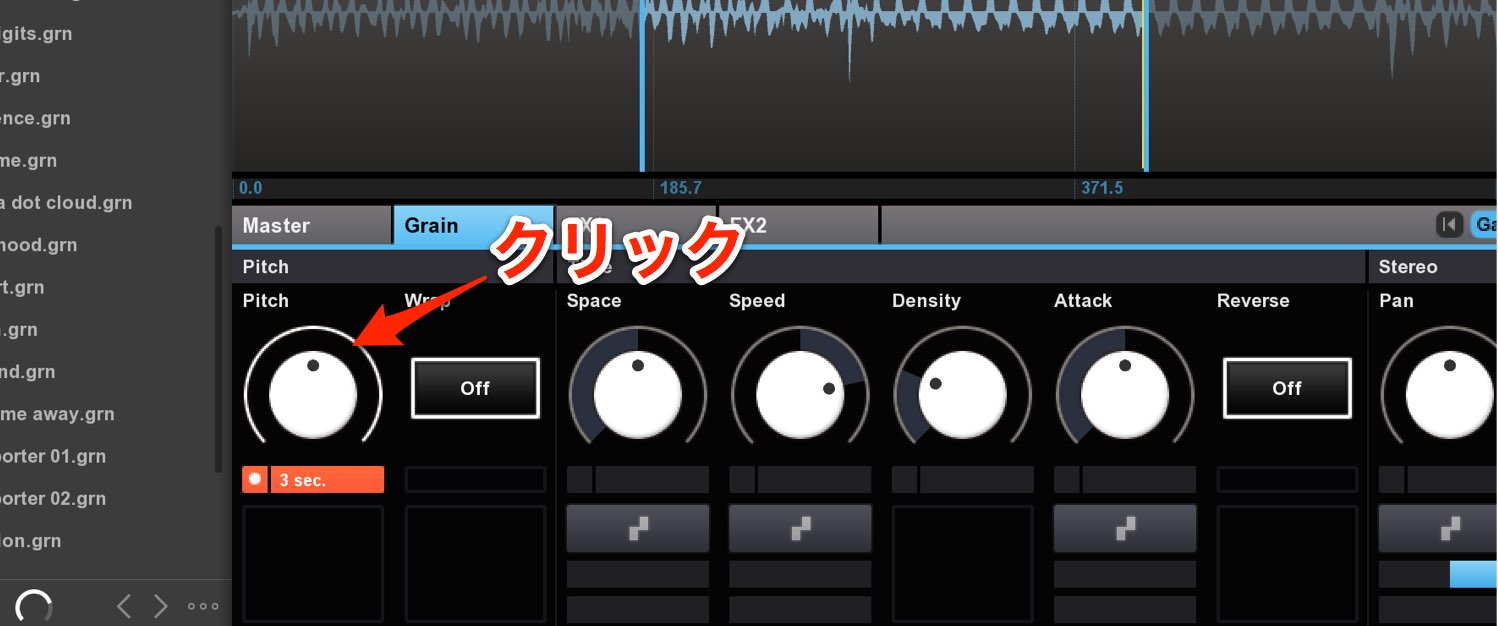
Click and hold the edge of the parameter you want to record; a timer appears below.
Drag up or down to move the knob while the timer runs, and the movement is recorded and applied.
To remove the recorded movement, right-click the edge of the parameter.
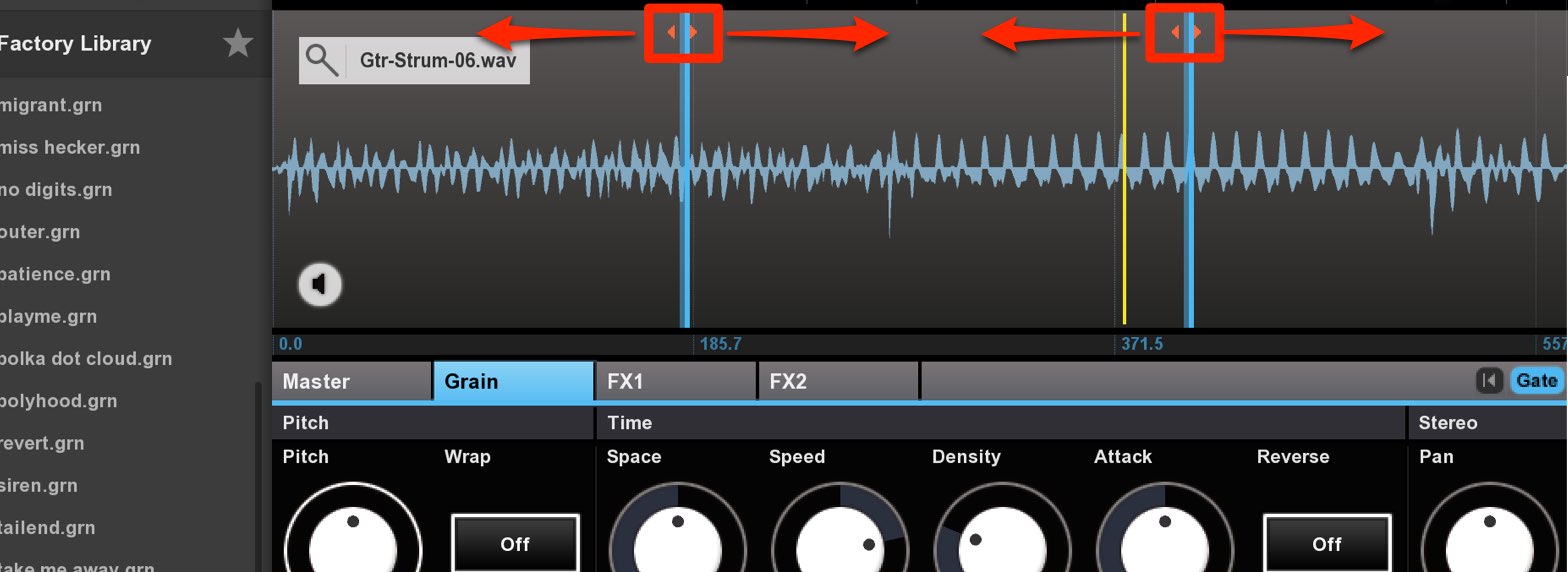
This recording can also be applied to the waveform range.
Move the upper part of the blue line in the same way to record its movement.
Using circle modulators
Instead of recording parameter values manually, you can make them change automatically, like an LFO.
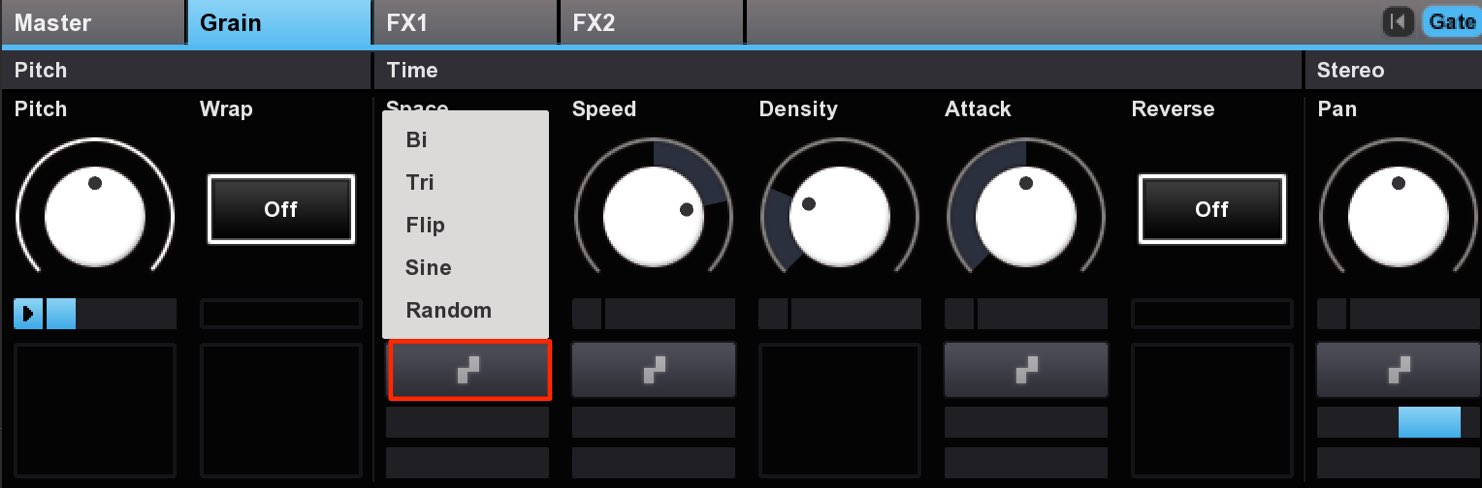
The circle modulator sits below the parameter you want to vary.
First choose the desired movement waveform.
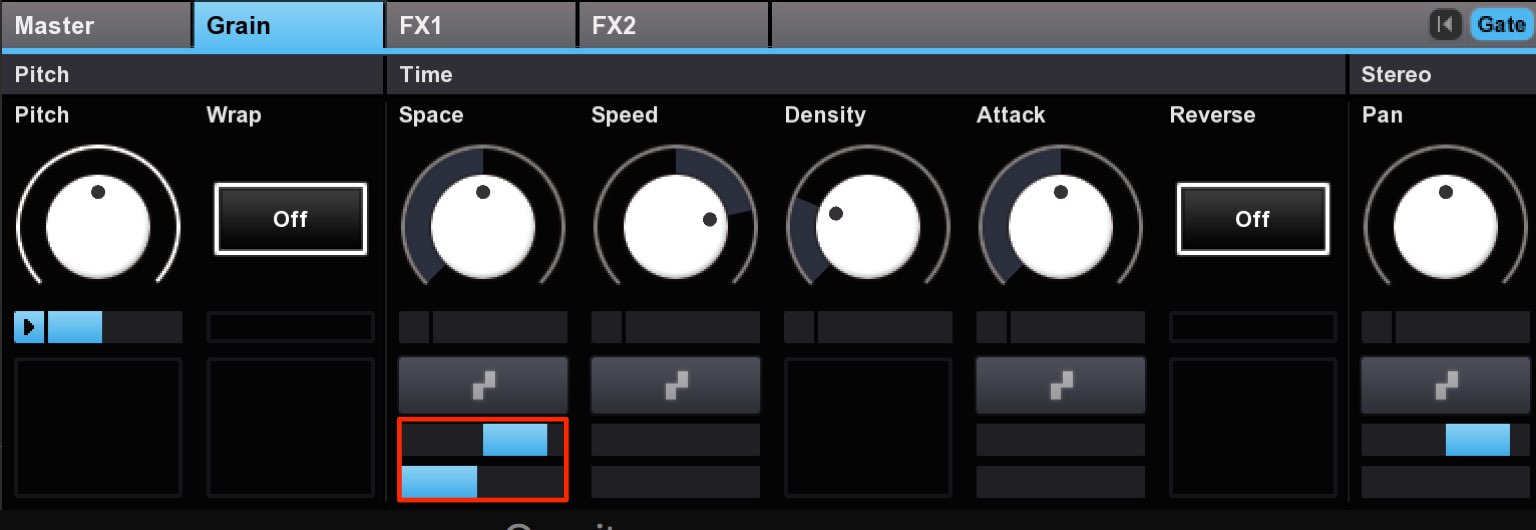
The center gives no effect; moving right increases the amount of parameter change.
Moving left from center applies the selected waveform in reverse polarity.
Set the rate of change below that.
Assigning a MIDI controller
You can assign your MIDI hardware to individual parameters.
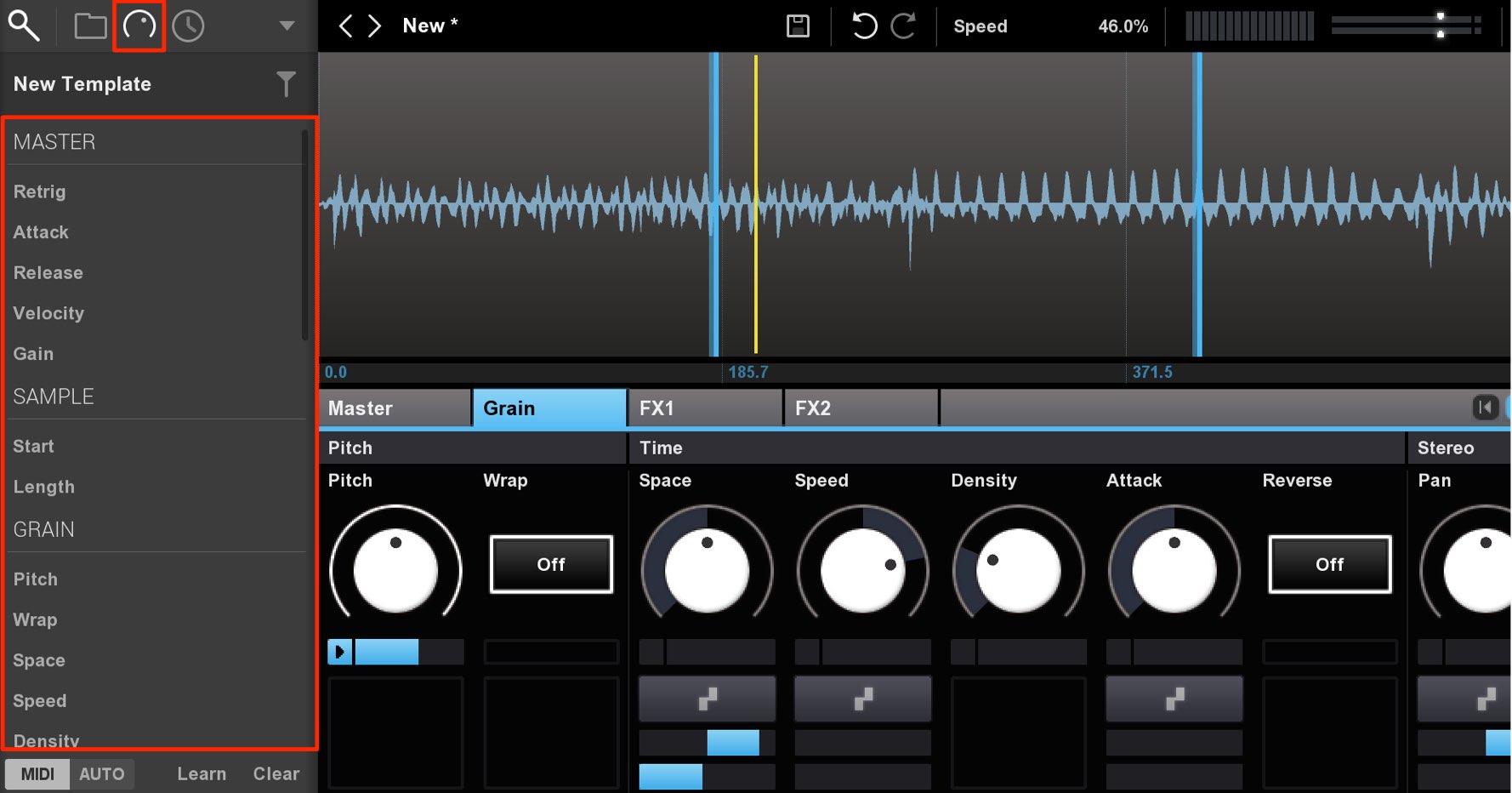
Select the control icon in the browser.
The parameters are displayed; choose the one you want.
Clicking the target knob is an easy way to select its parameter.
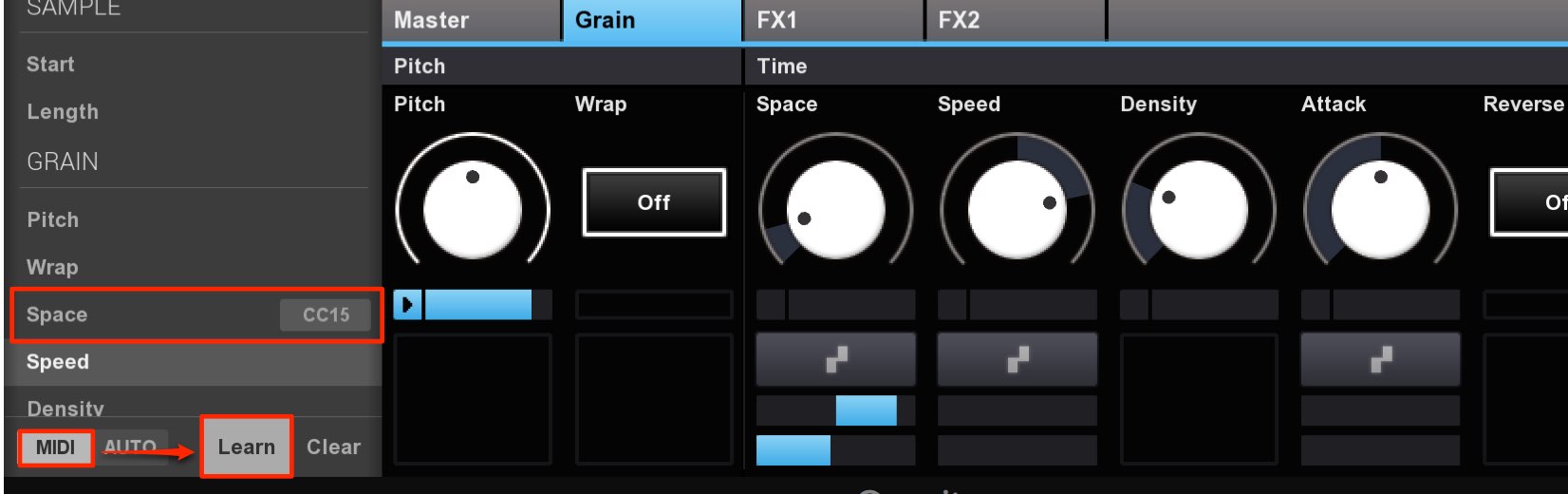
Select the MIDI tab and enable Learn on the right.
Then move the desired control on your MIDI device.
When a CC number appears to the right of the parameter name, the assignment is complete.
Using effects
Granite includes several effects.
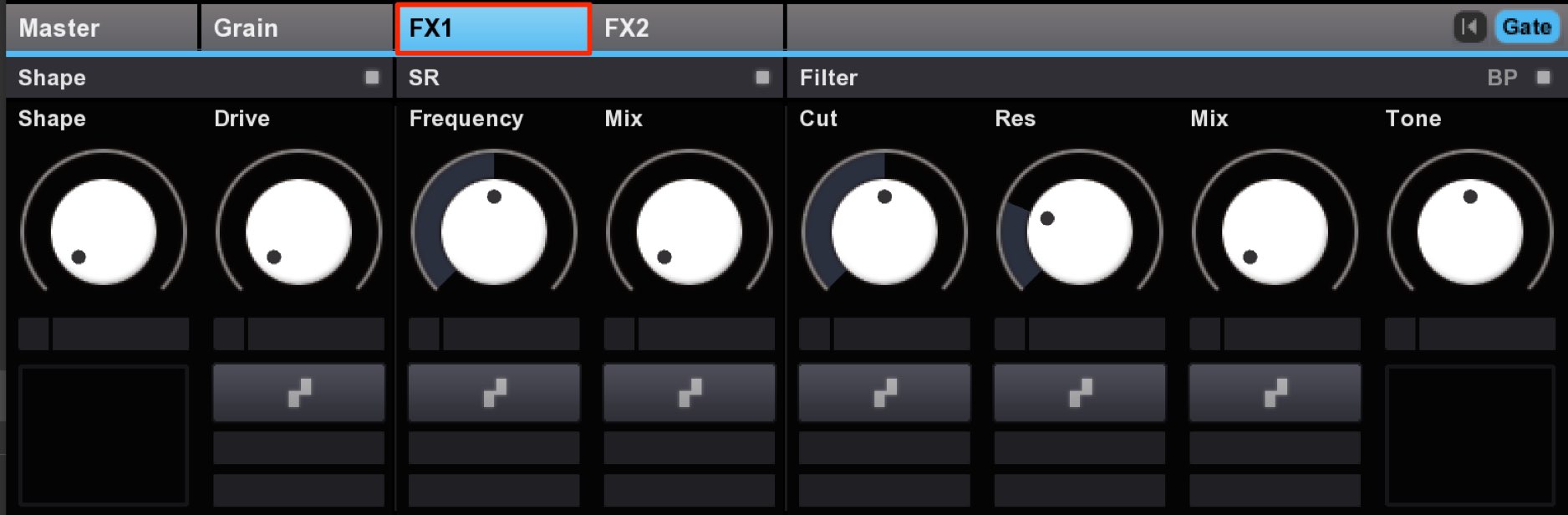
FX1 provides sound-shaping effects such as saturation and filters.
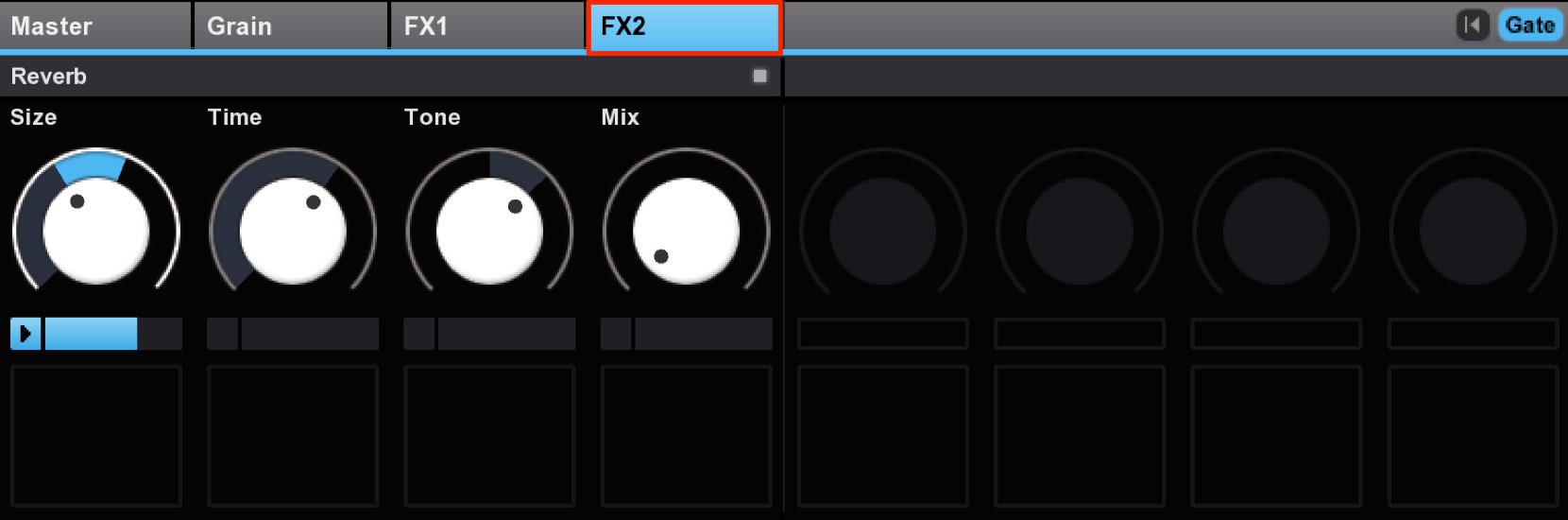
FX2 provides reverb for spatial effects.
You can also record parameter movements for the effects as described above.
Saving a preset
Once you have a sound you like, save it.
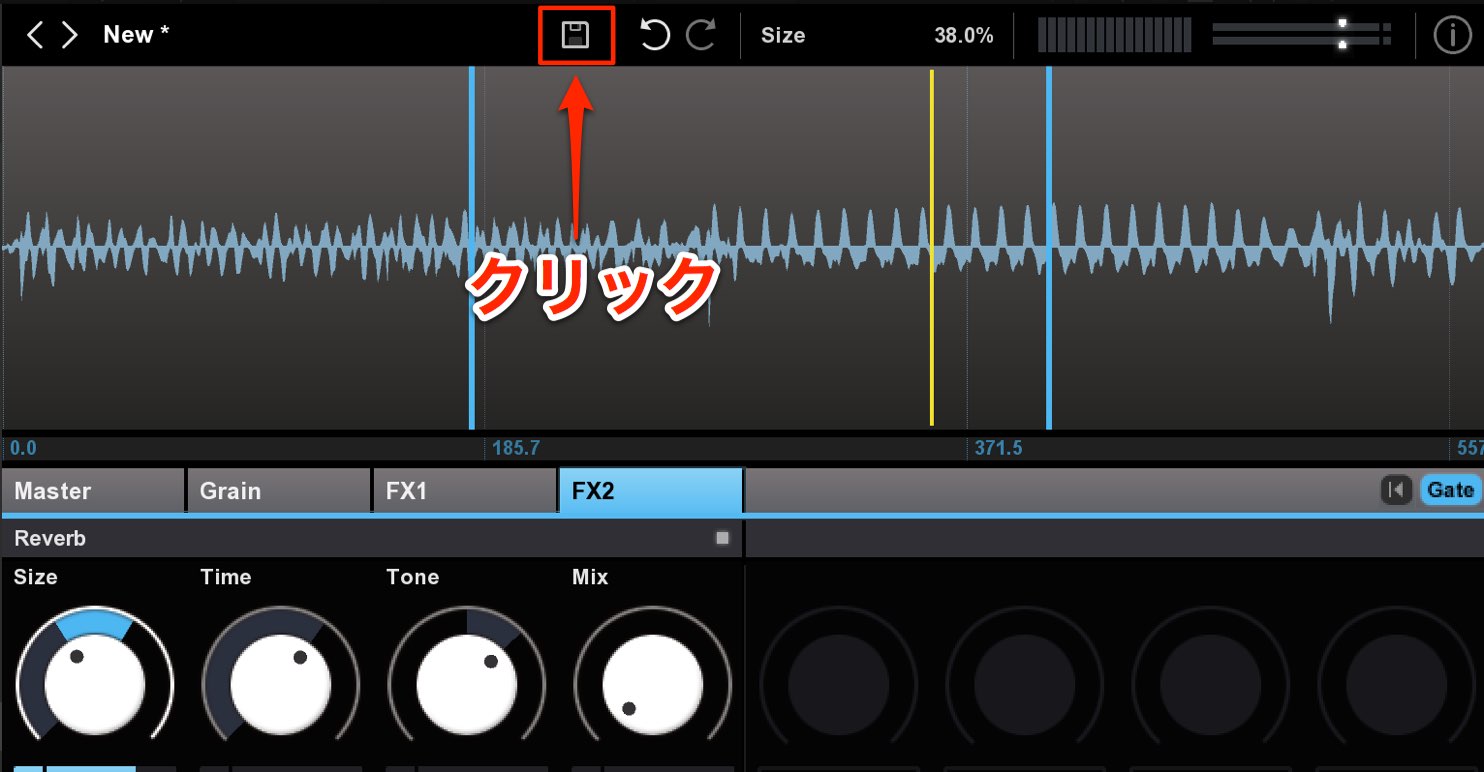
Click the floppy-disk icon to the right of the preset name.
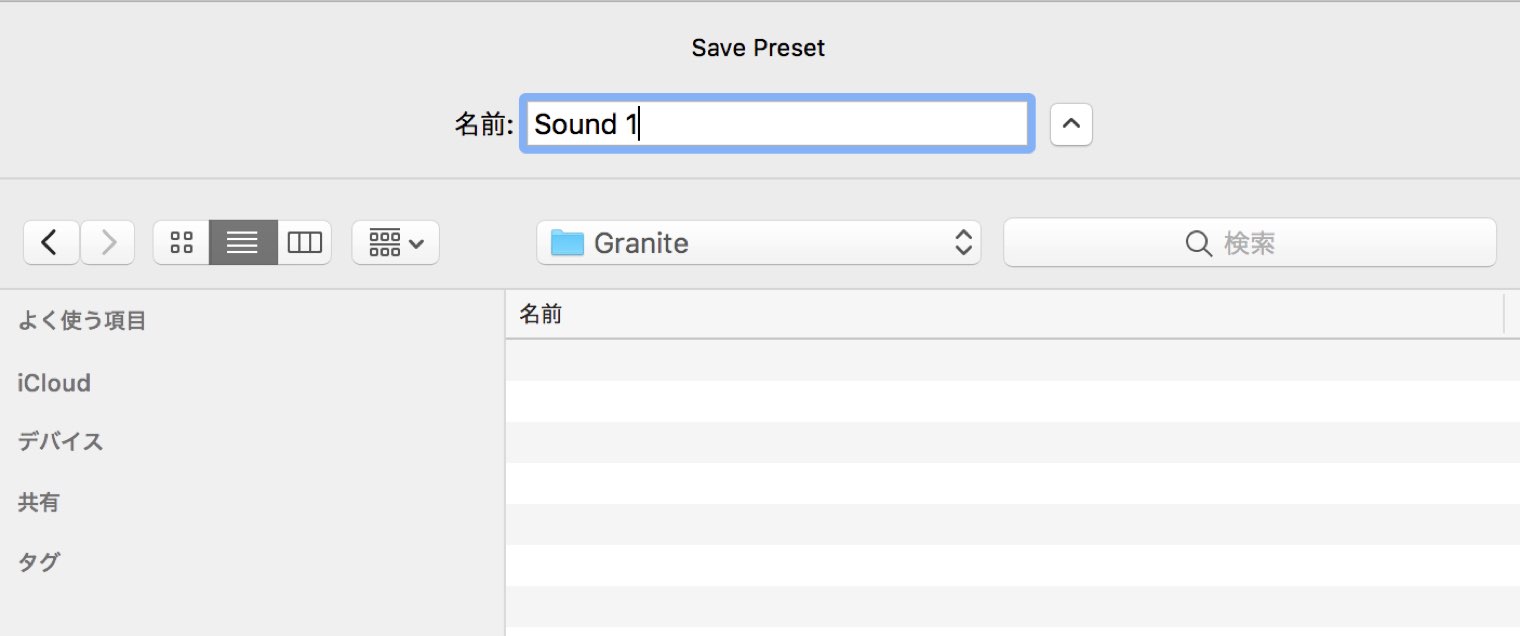
Choose a name and location and save it. You may want to create a dedicated preset folder.
Your preset is now saved.
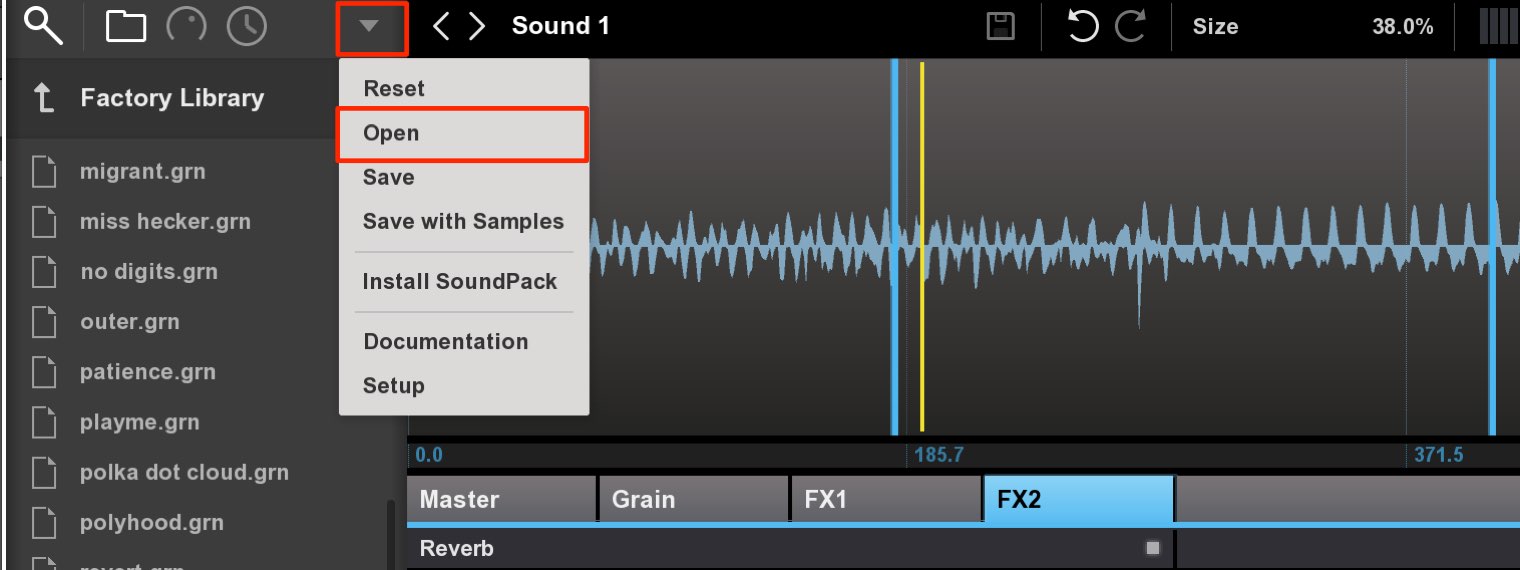
To recall it, select Open and choose the saved preset.
Frequently Asked Questions
Q1. Can Granite be used as a DAW plug-in?
Yes. Granite can be used in a DAW, including through the Freestyle host application discussed in this series.
Q2. How do I stop it from playing continuously?
Enable Gate so it plays only when a MIDI note is played. This is useful when checking other tracks.
Q3. Can I use my own audio files in Granite?
Yes. Drag and drop the file you want to use onto the waveform area.
Q4. Can parameters change automatically?
Yes. Circle modulators can vary parameters automatically in a similar way to LFOs.
Q5. Can I control Granite with an external MIDI controller?
Yes. MIDI hardware can be assigned to parameters using the Learn function.
NEW ARTICLES
Latest English Articles


































































































































































































































































































































































