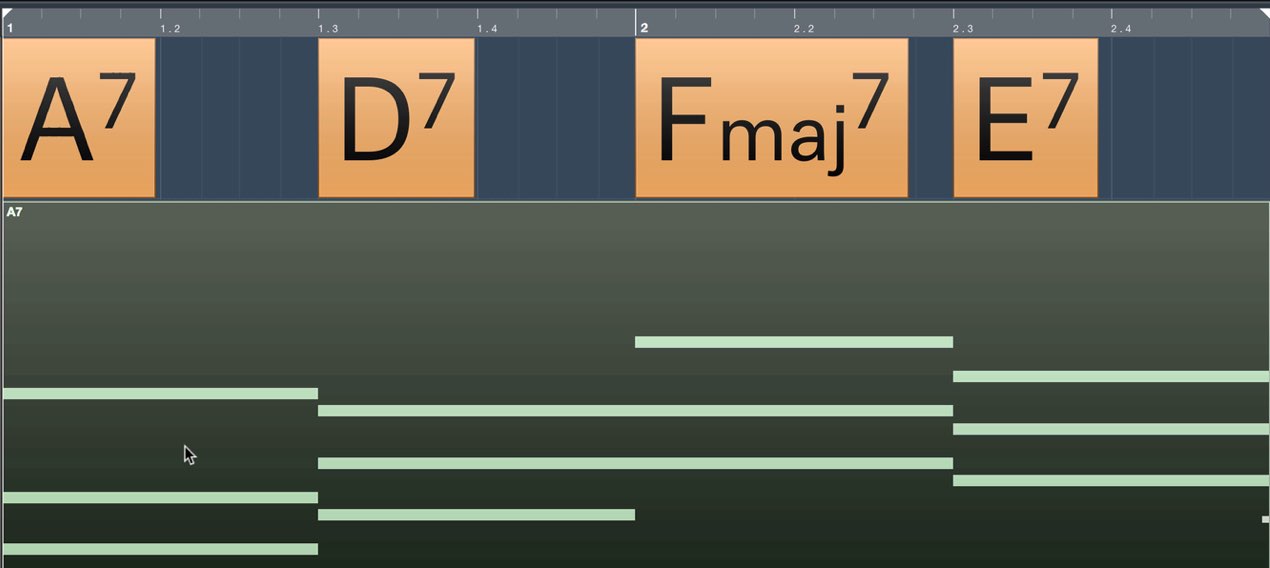
Cubase’s Info Line lets you edit multiple events or notes at once. It can also be used to enter precise automation values and rename events, helping streamline music production. This guide covers how to show the Info Line, make relative changes across multiple selections, and set them all to the same value.
Edit events and notes together
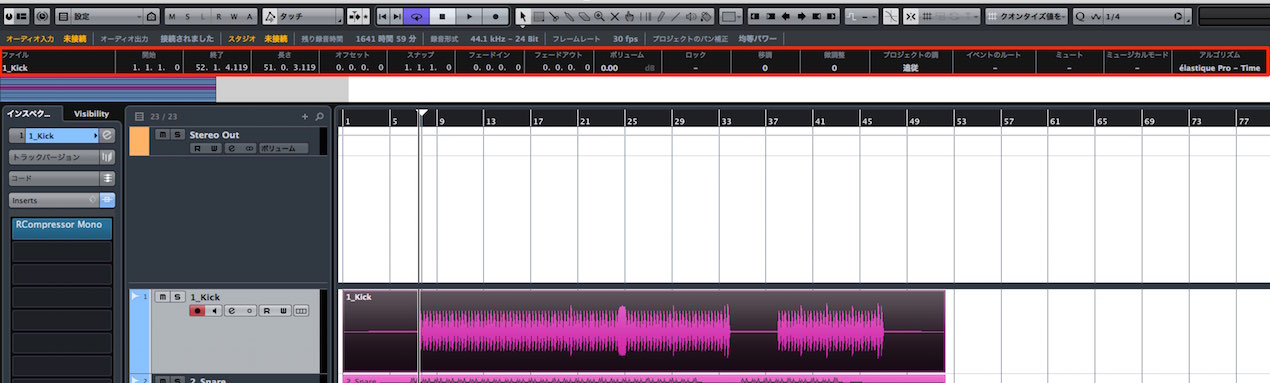
A distinctive Cubase feature, the Info Line
, lets you edit events and notes more quickly.
It can also be used to edit event names and numerical automation values.
Let’s look at the basics and some practical examples.
Tutorial video
Selected questions and answers from the YouTube video

I am using Cubase 8.5 Pro on Mac OS 10.11.3, but pressing Command+Return did not let me adjust the velocities together. Is there a setting I need to change?

This may be a slight change in behavior or a bug. At present, it worked when I held Command and clicked elsewhere with the mouse to finish editing, so please try that.
Show the Info Line
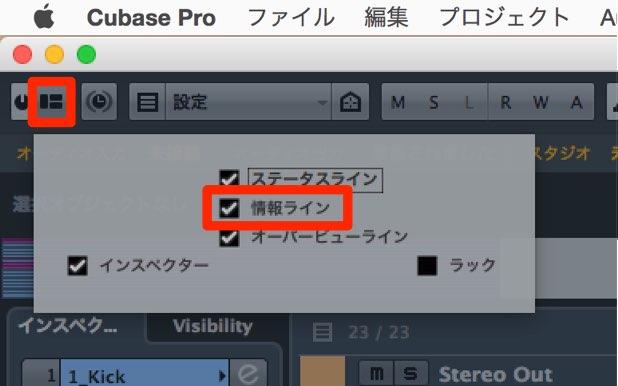
If the Info Line is not visible,
click the icon in the upper left and check “Info Line.”
How it works
As mentioned at the beginning,
the Info Line can target multiple events or notes at once.

When multiple items are selected, the displayed values turn orange.
In this case, the value of the first selected event or note is displayed.
Changing the number changes the values of the other events or notes relative to it.
To set them all to the same value,
double-click and enter a number, then hold
- Mac: Command
- Windows: Control
while confirming the value.
This sets the selected items to the specified value.
You can also:
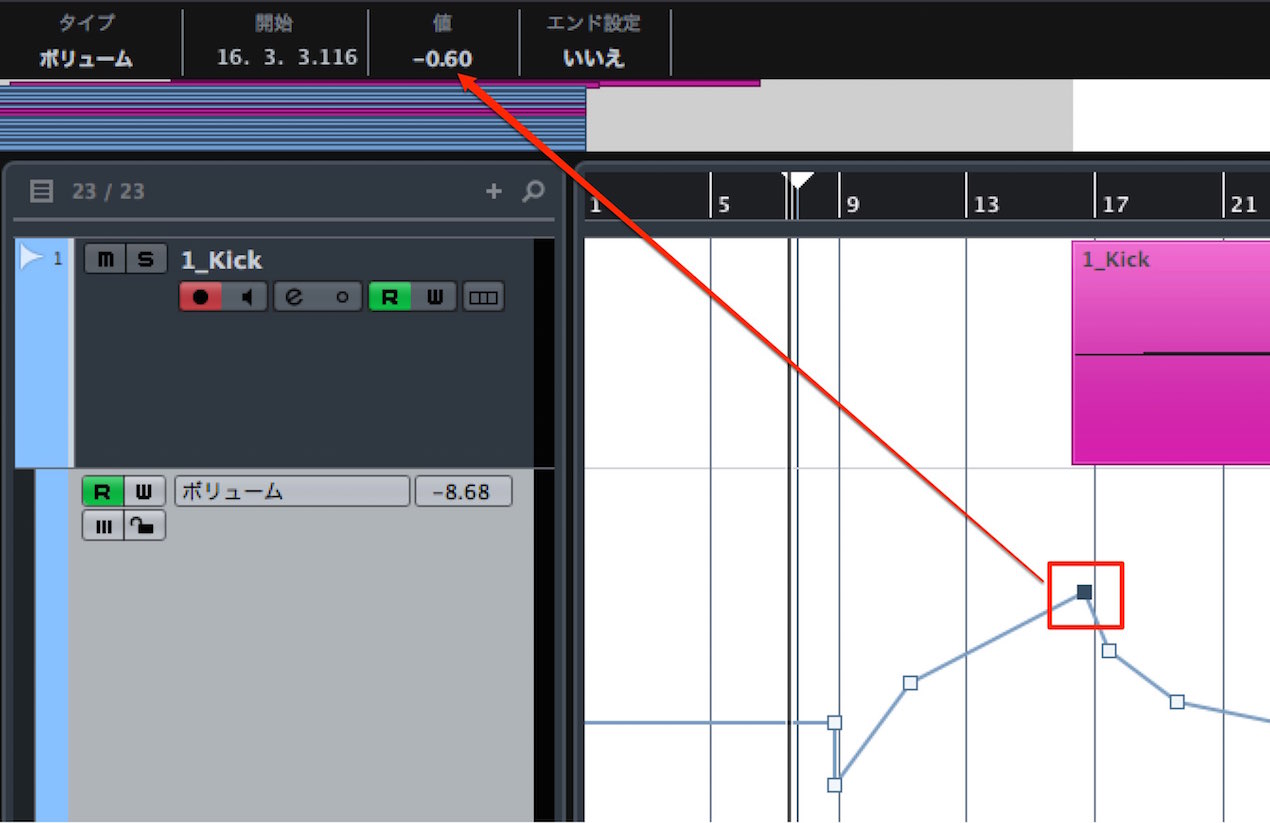
Enter precise automation values.
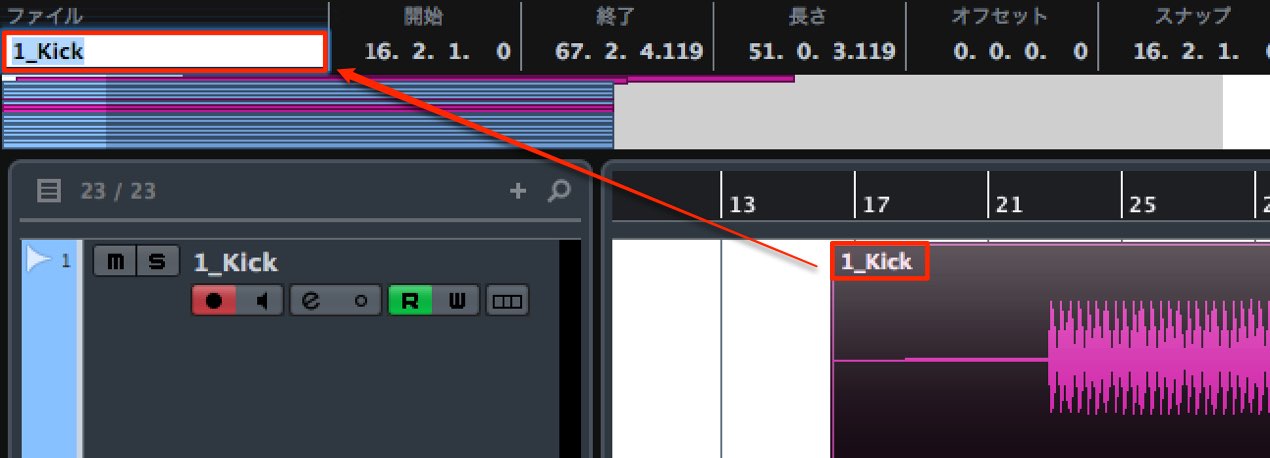
Rename events.
Frequently Asked Questions
Q1. How do I show the Info Line if it is hidden in Cubase?
Click the icon in the upper left and check “Info Line.” You can then edit multiple events or notes efficiently.
Q2. Why do the Info Line values turn orange when I select multiple events?
Orange indicates that multiple items are selected. Changing a value in this state changes the selected events’ values relative to one another.
Q3. How can I set multiple events to the same value?
Double-click and enter a number, then confirm it while holding Command on Mac or Control on Windows. This sets all selected events to the same value.
Q4. Can the Info Line edit only events?
No. It can also edit notes, automation values, and event names, making it useful for a range of editing tasks.
NEW ARTICLES
Latest English Articles