
This article explains how to use Invisible Limiter Nano, a limiter offered during a past Steinberg promotion, and explore track loudness. It covers limiter and maximizer basics, the Gain control, the article’s example RMS ranges, Soft Knee, and Unity Gain Monitor. The RMS figures are examples rather than universal mastering targets; listen for distortion and choose levels appropriate to the music.
Four plug-ins offered with Steinberg products in a 2017 promotion

From April 28 to August 31, 2017, Steinberg and A.O.M. ran a promotion. The promotion has ended.
During the campaign, purchasing a UR series product bearing this sticker
or a Cubase series product
included four plug-ins from A.O.M., known for its high-quality plug-ins.
The plug-ins were released in stages;
as of May 10, 2017, only Invisible Limiter Nano was available.
The download deadline was extended by one month to August 31, 2017.
The products could be used with 64-bit versions of the Cubase series.
This article looks at Invisible Limiter Nano, the limiter and maximizer included in that promotion.
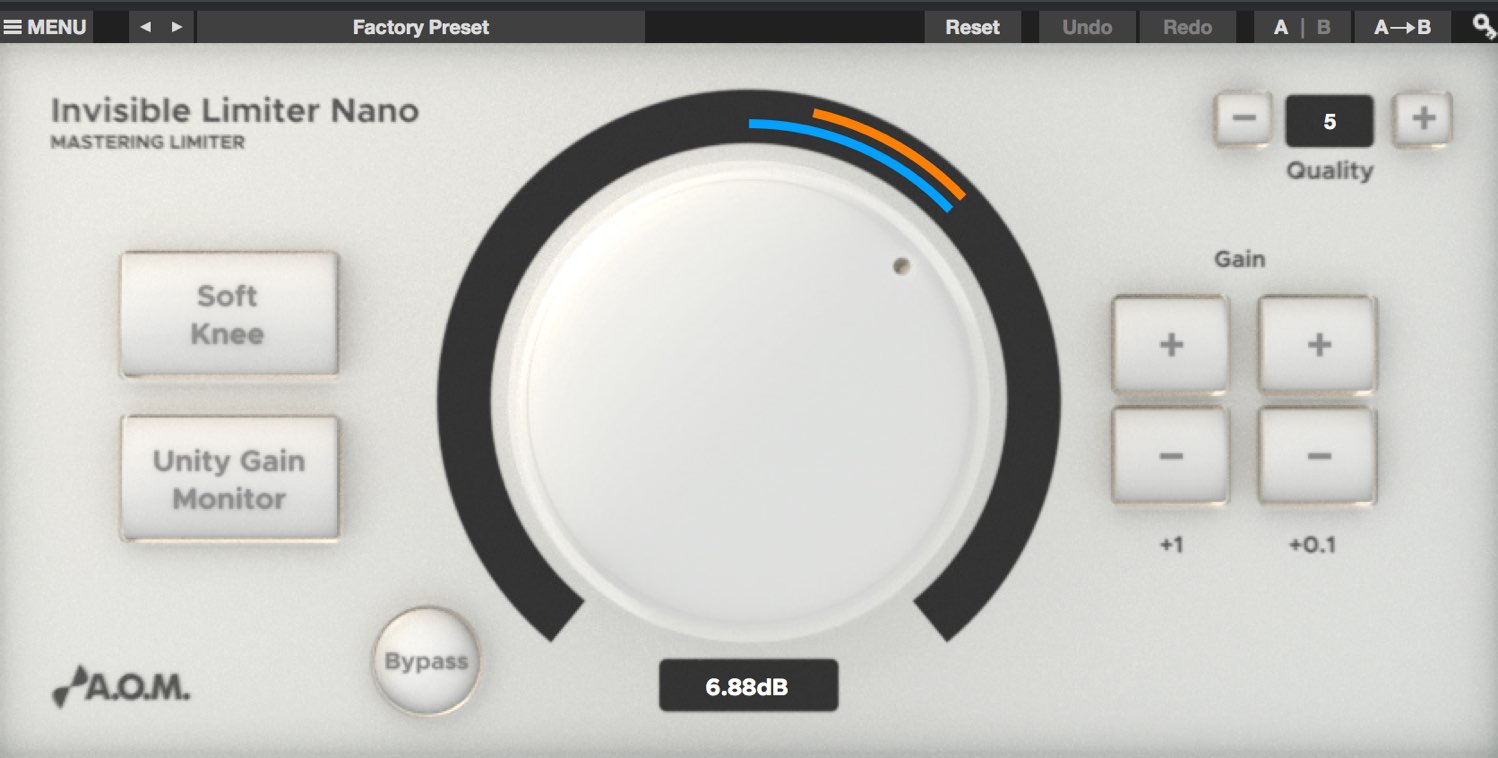
Invisible Limiter Nano is designed to optimize a track’s loudness naturally with controls that are easy for beginners to use.
Invisible Limiter Nano video tutorial
- 1Using Invisible Limiter Nano to Optimize Track Loudness
- 2How to Use Tau Compressor
- 3Using Wave Shredder Nano for Glitch Effects
- 4How to Use 009VU (VU Meter)
- Promotion organizers’ websites
A.O.M.: http://aom-factory.jp/ja/
Steinberg: http://japan.steinberg.net/ - A.O.M. plug-in effects giveaway campaign announcement
https://japan.steinberg.net/jp/shop/aom_plugins_campaign.html
How loudness is increased
You may have heard that a limiter or maximizer can make a track louder.
Before looking at the product, let’s consider why.
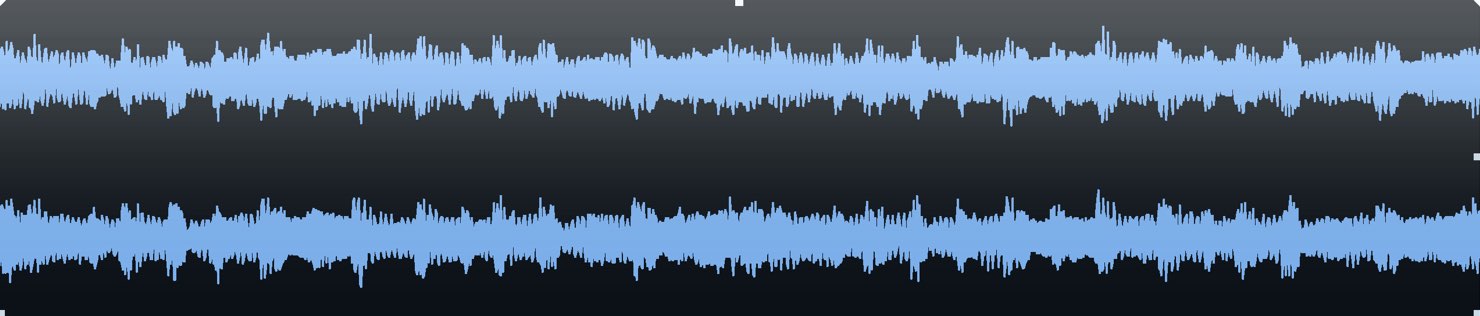
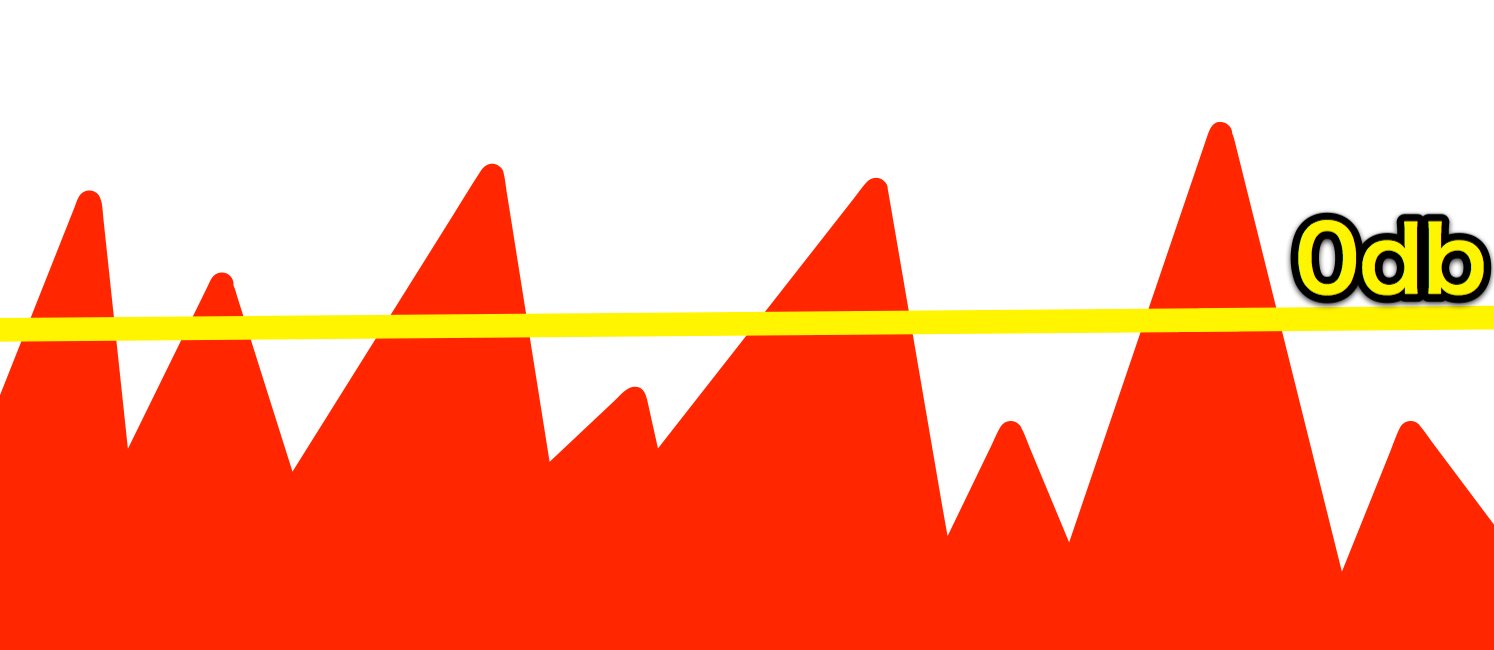
This image shows the waveform of a stereo mix exported after adjusting the levels of the individual tracks.
The track levels have been kept conservative so the master track (Stereo Out) does not hit the red and clip.

The following example is louder. Please check your playback level.
This image shows the stereo mix exported with Invisible Limiter Nano applied.
Notice that the waveform has fewer gaps and appears denser.
In this simplified illustration, greater loudness means more signal is packed within the available range below the 0 dB clipping boundary.
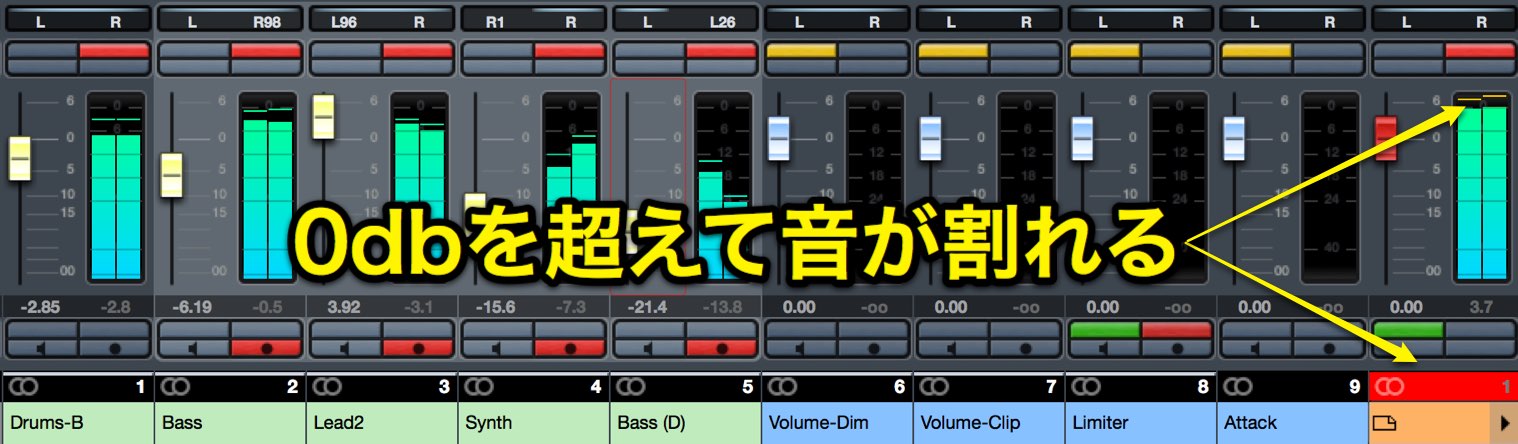
Simply raising each track’s level can push the master past 0 dB and cause clipping.
So what does a limiter or maximizer do?
It reduces peaks that would otherwise exceed the ceiling and clip
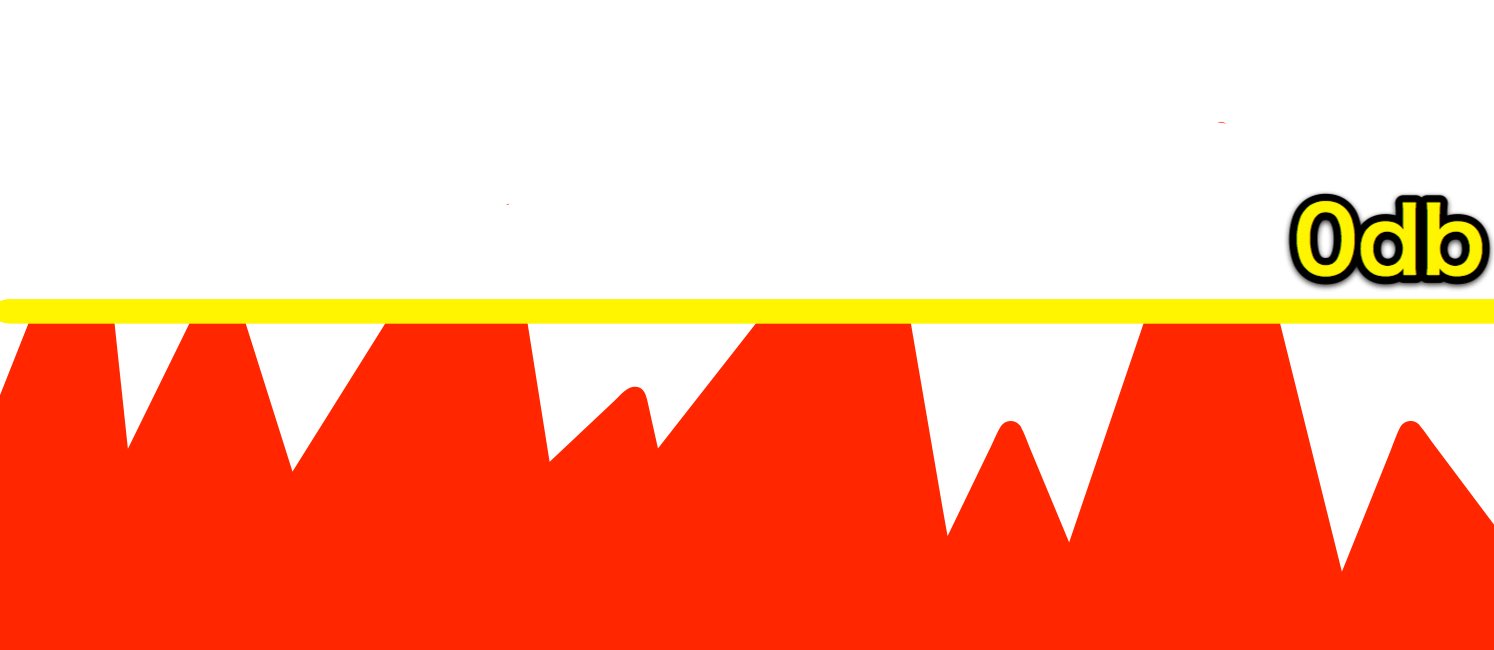
, keeping them within the available range.
This makes it possible to raise the overall level while controlling peaks. Excessive limiting can still cause audible distortion.
With that in mind, let’s look at Invisible Limiter Nano.
Using Invisible Limiter Nano
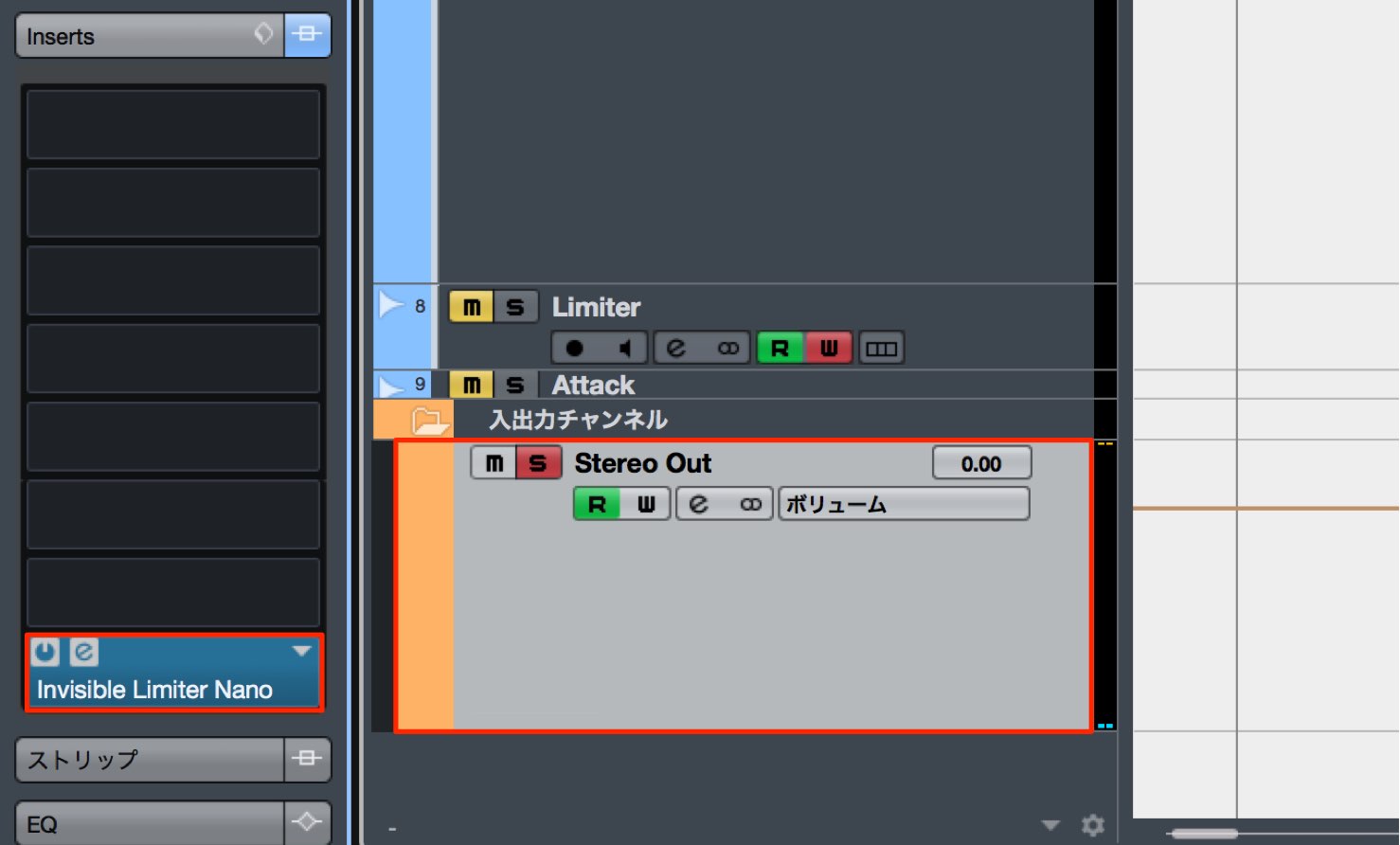
Insert Invisible Limiter Nano on Stereo Out.
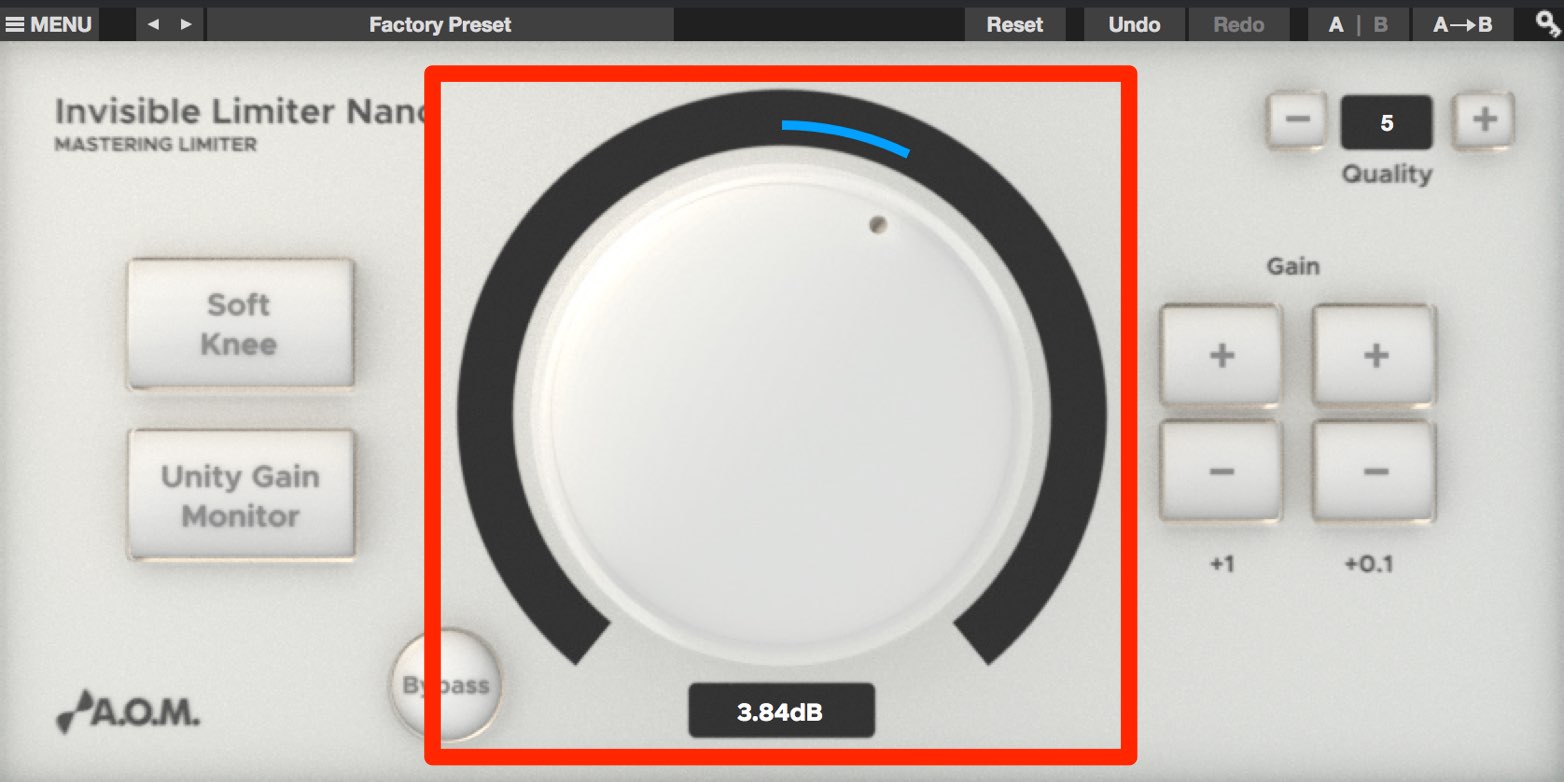
Raise the Gain knob to adjust loudness.
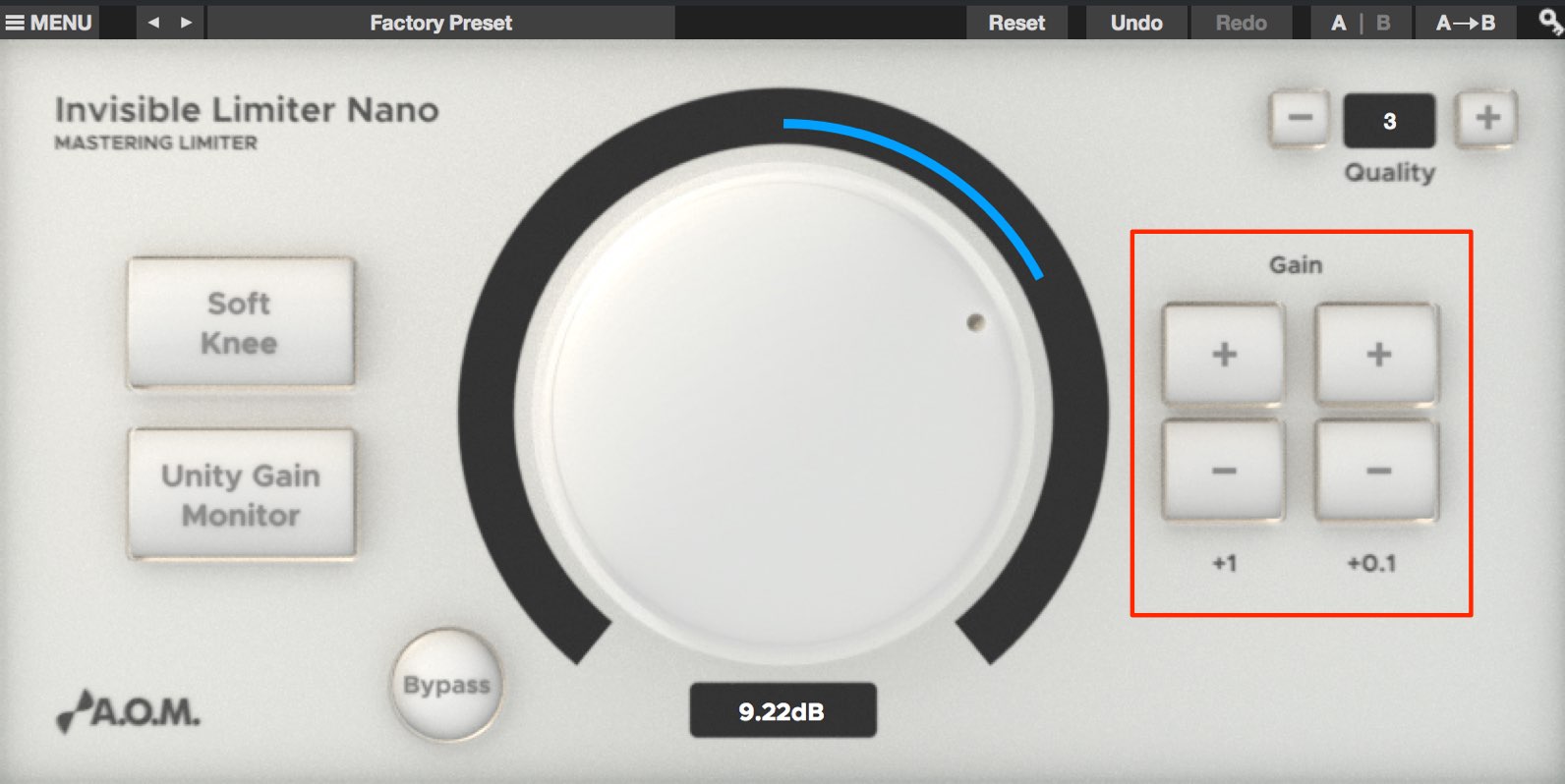
You can also enter an exact value using the +/− controls.
Let’s illustrate what happens.
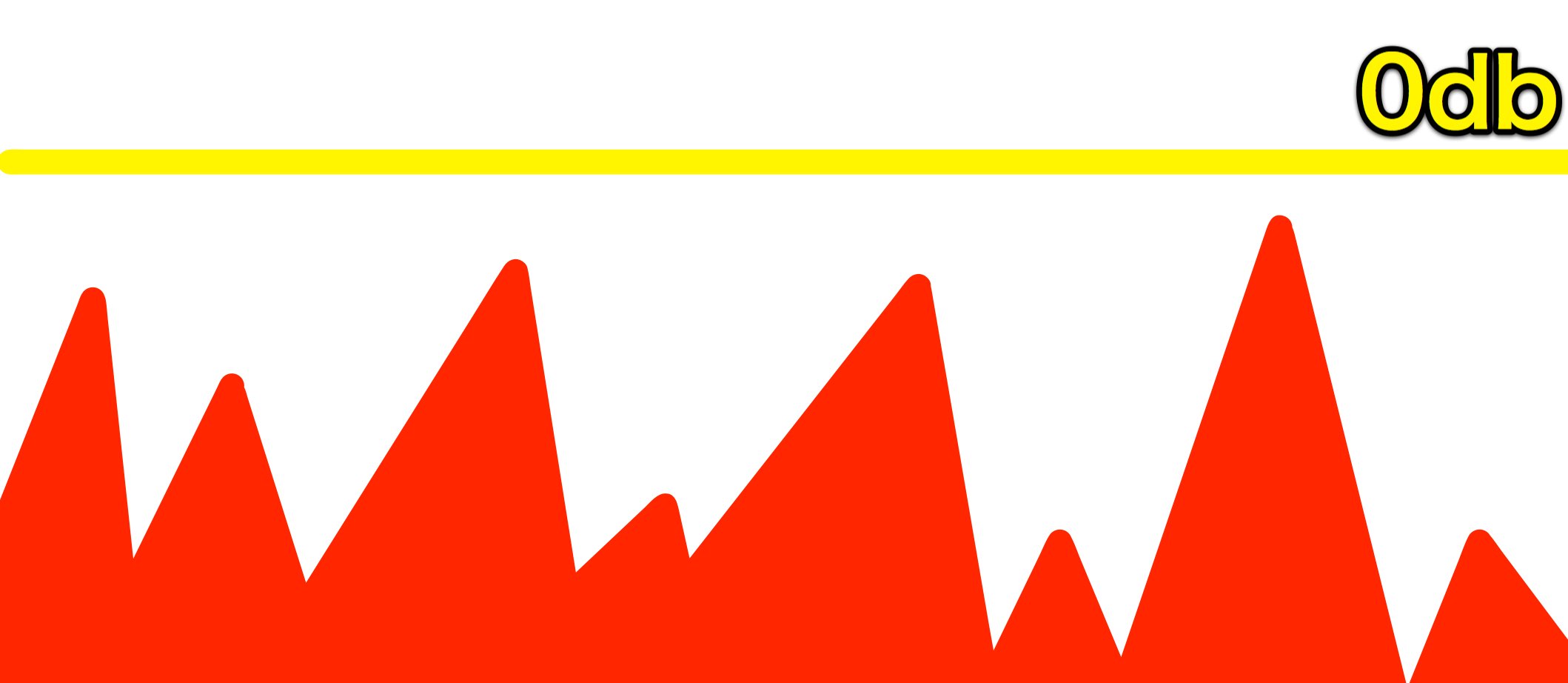
Imagine a signal like this.
There is headroom below 0 dB, so its level is relatively low.
If you simply raise the volume to increase loudness, peaks can quickly exceed 0 dB and clip.
Apply Invisible Limiter Nano and raise the Gain knob.
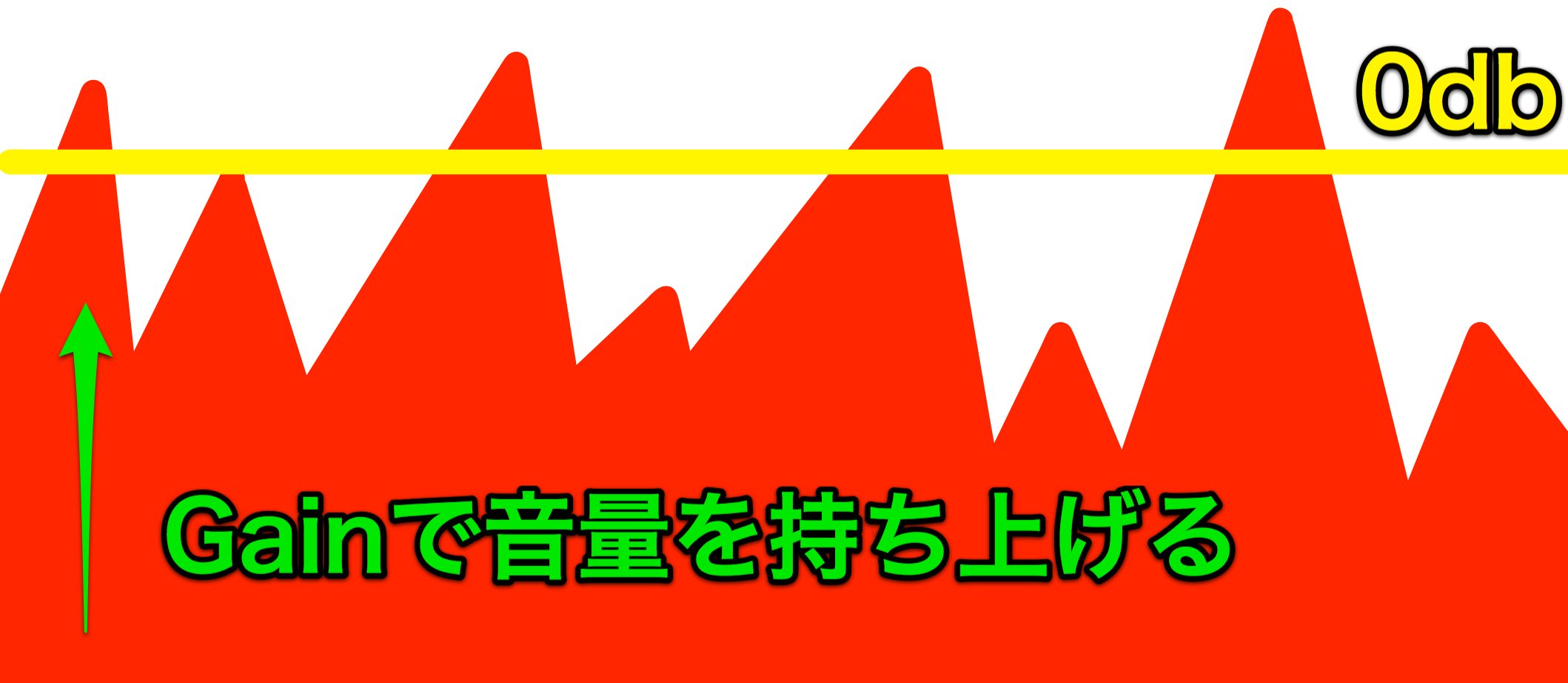
The signal level rises as shown.
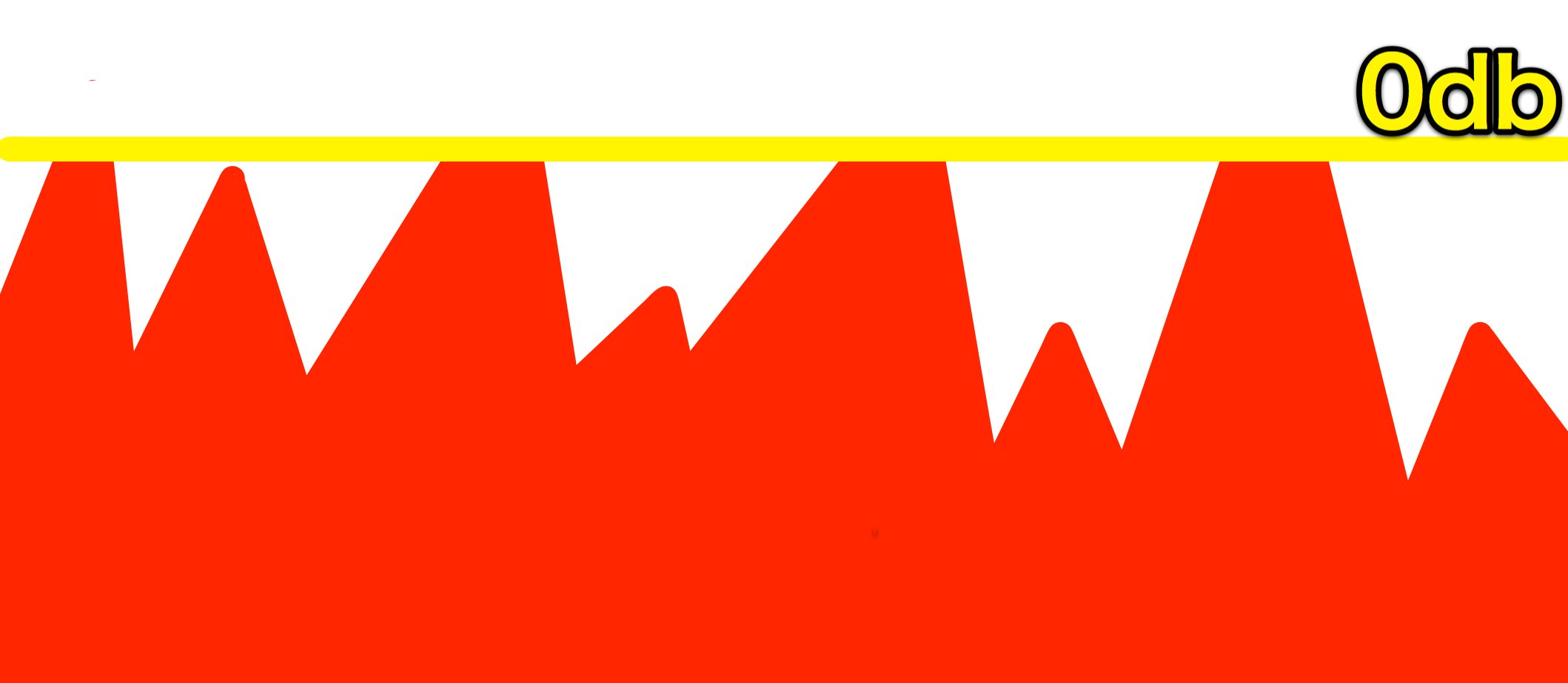
The limiter reduces peaks to keep the output within its ceiling.
The Japanese article states a ceiling of “0.1 dB” without a minus sign; the exact ceiling should be verified for this version.
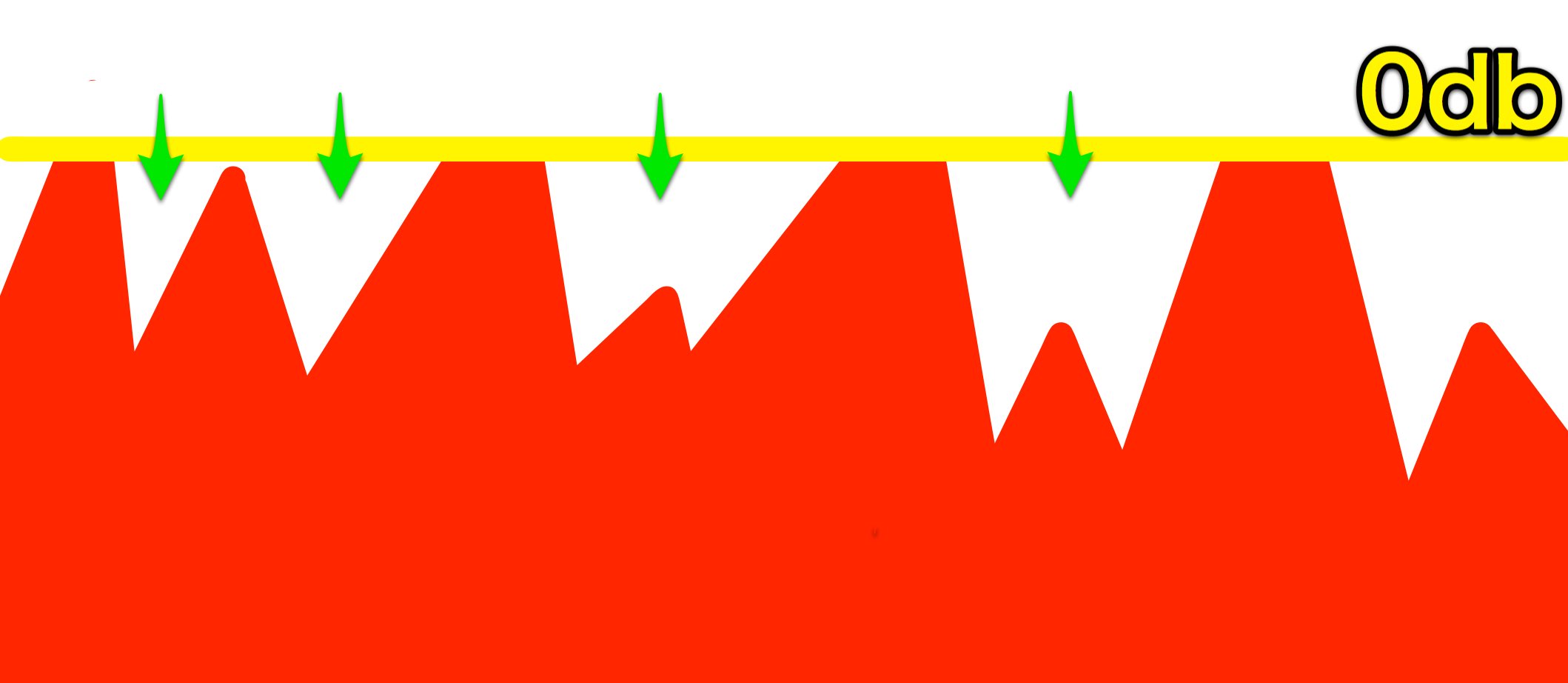
The result can be a denser signal without ordinary sample clipping.
Next, let’s look at an example of how far to raise the level.
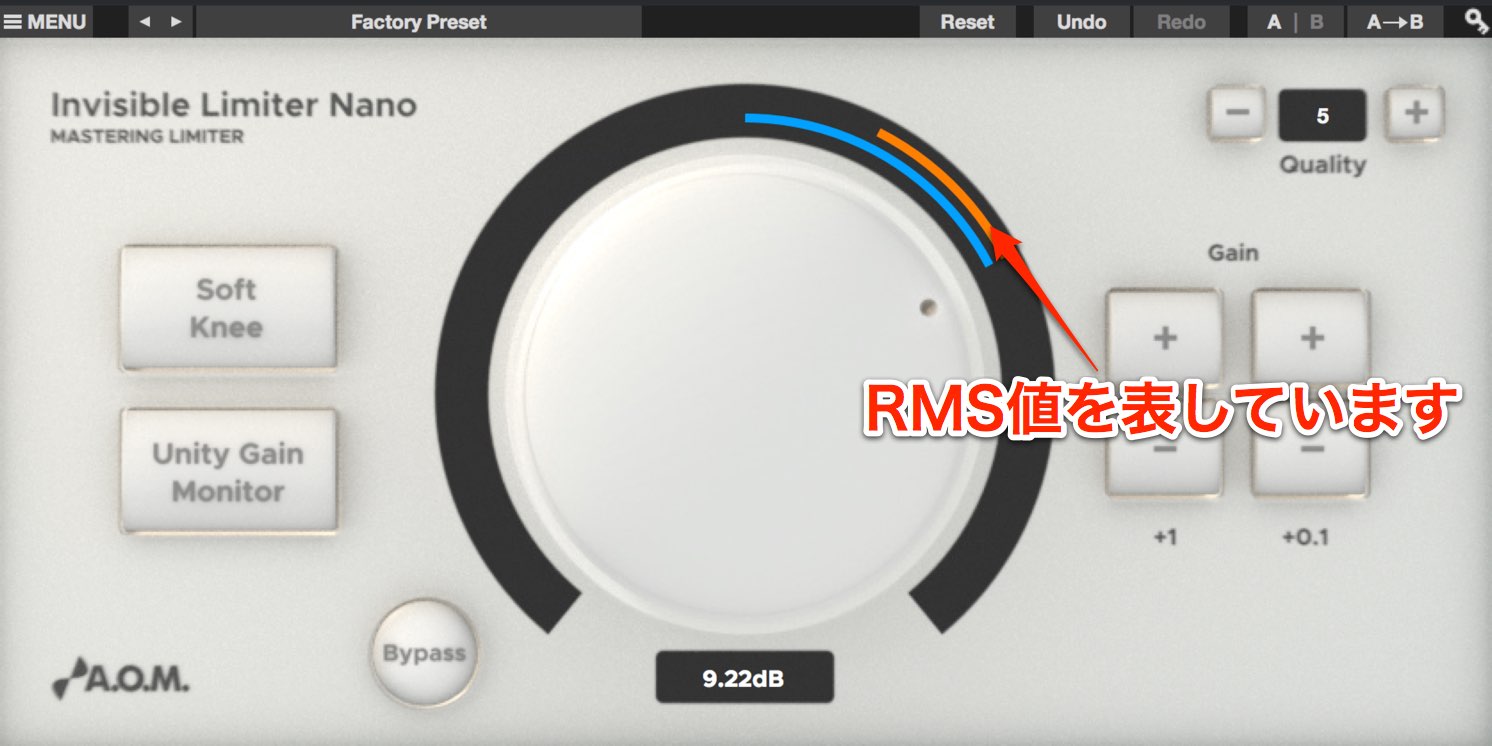
As you play the track and raise Gain, a colored line appears at the edge of the meter.
This color represents an RMS level measurement.
Here, RMS is used as a measure of average signal level and is often treated as closer to perceived loudness than peak level, although perceived loudness also depends on other factors.
Please check your playback volume.
- Red: −4 dB and above
- Orange: −6 to −4 dB
- Yellow: −8 to −6 dB
- Green: −10 to −8 dB
AES17-compliant, 0.3-second integration time.
In this example, pushing into red at −4 dB can make the sound seem distorted.
The original article suggests trying the orange-to-yellow range, roughly −4 to −8 dB RMS. This is only an example: use your ears and choose an appropriate level for the material.
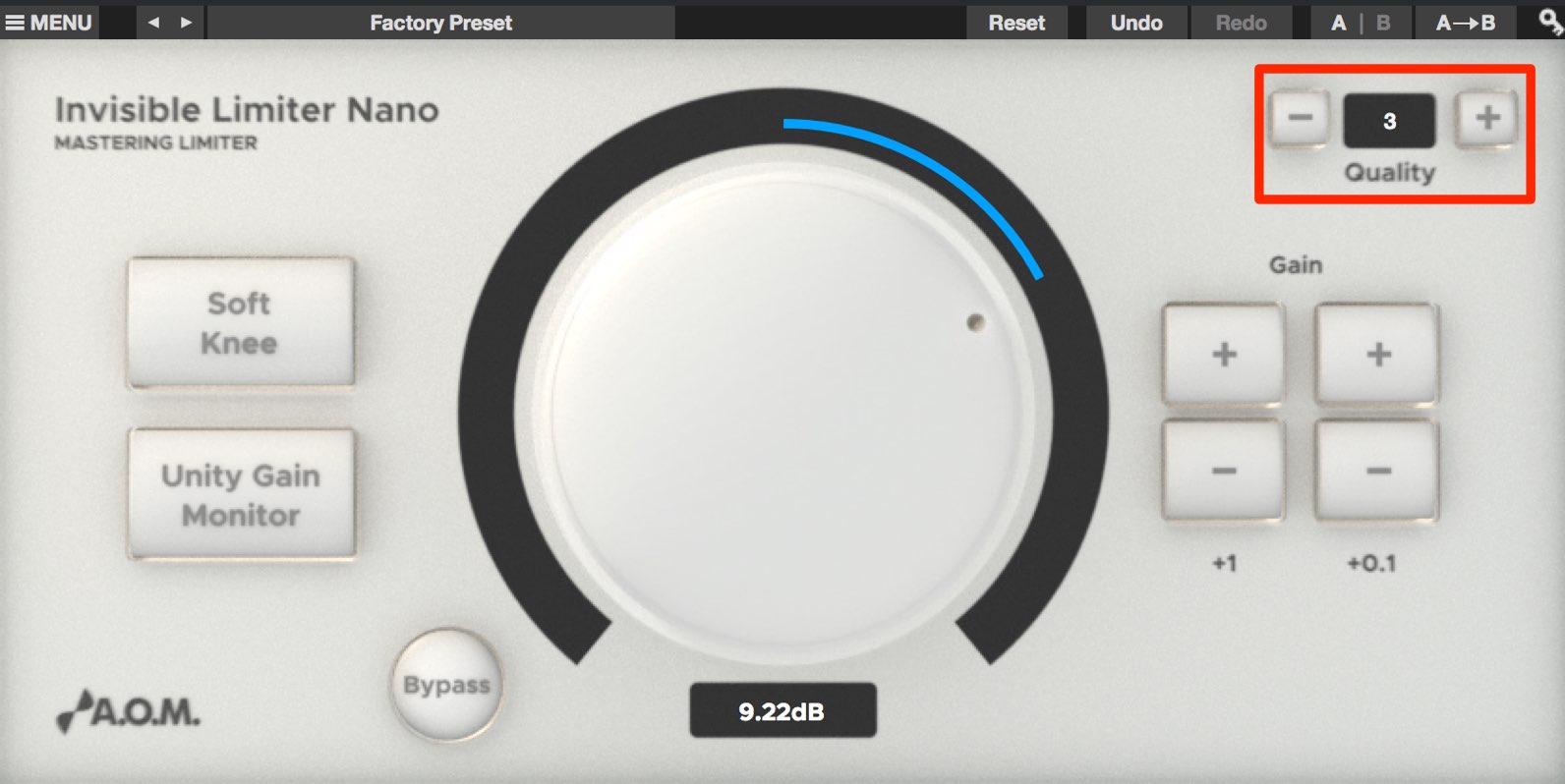
After adjusting loudness, choose a sound quality setting using Quality.
Select the setting you prefer from the five levels.
Higher numbers tend to produce a denser sound with less punch.
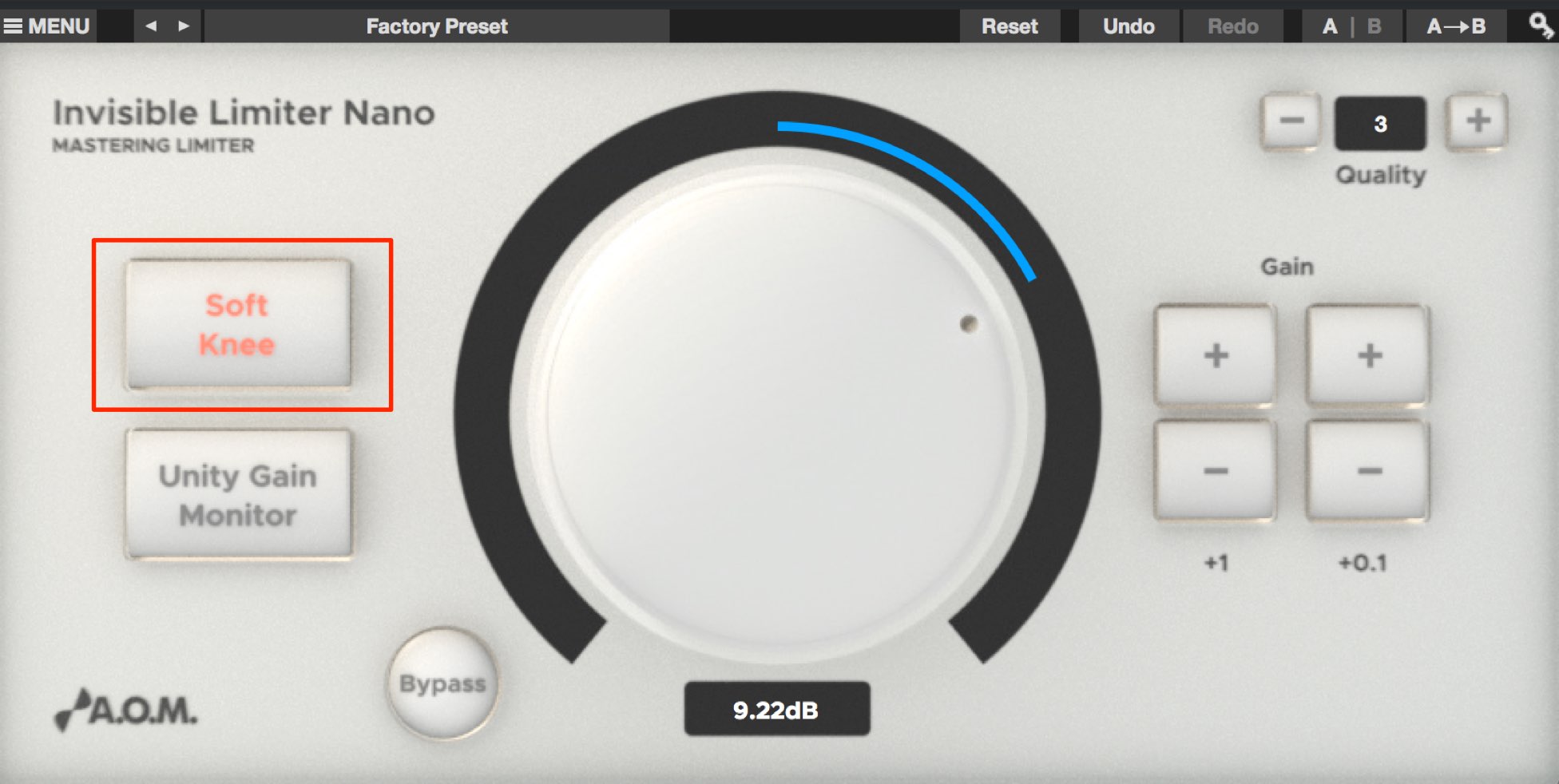
Enabling Soft Knee starts reducing the signal before it reaches the limiting threshold.
This can help avoid abrupt reduction and retain a more natural sound.
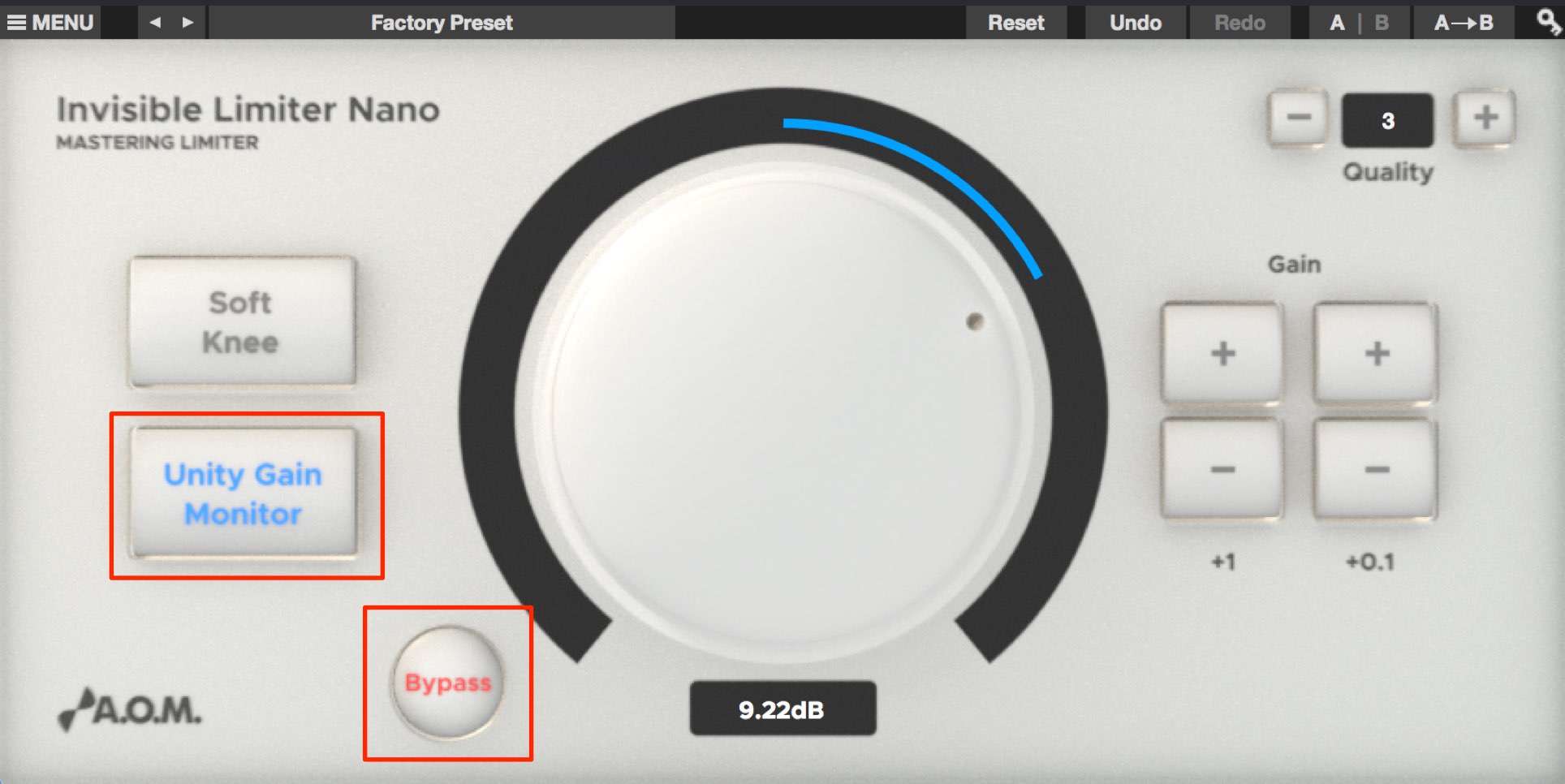
People often perceive louder audio as sounding better.
This can make it easy to miss unwanted changes, such as a severely altered or distorted sound.
Enable Unity Gain Monitor to monitor changes in sound quality without the level increase caused by raising Gain.
Below it, enable Bypass to compare with the sound before the plug-in.
Use the two functions together to find an appropriate Gain setting.
Invisible Limiter G2: the advanced version
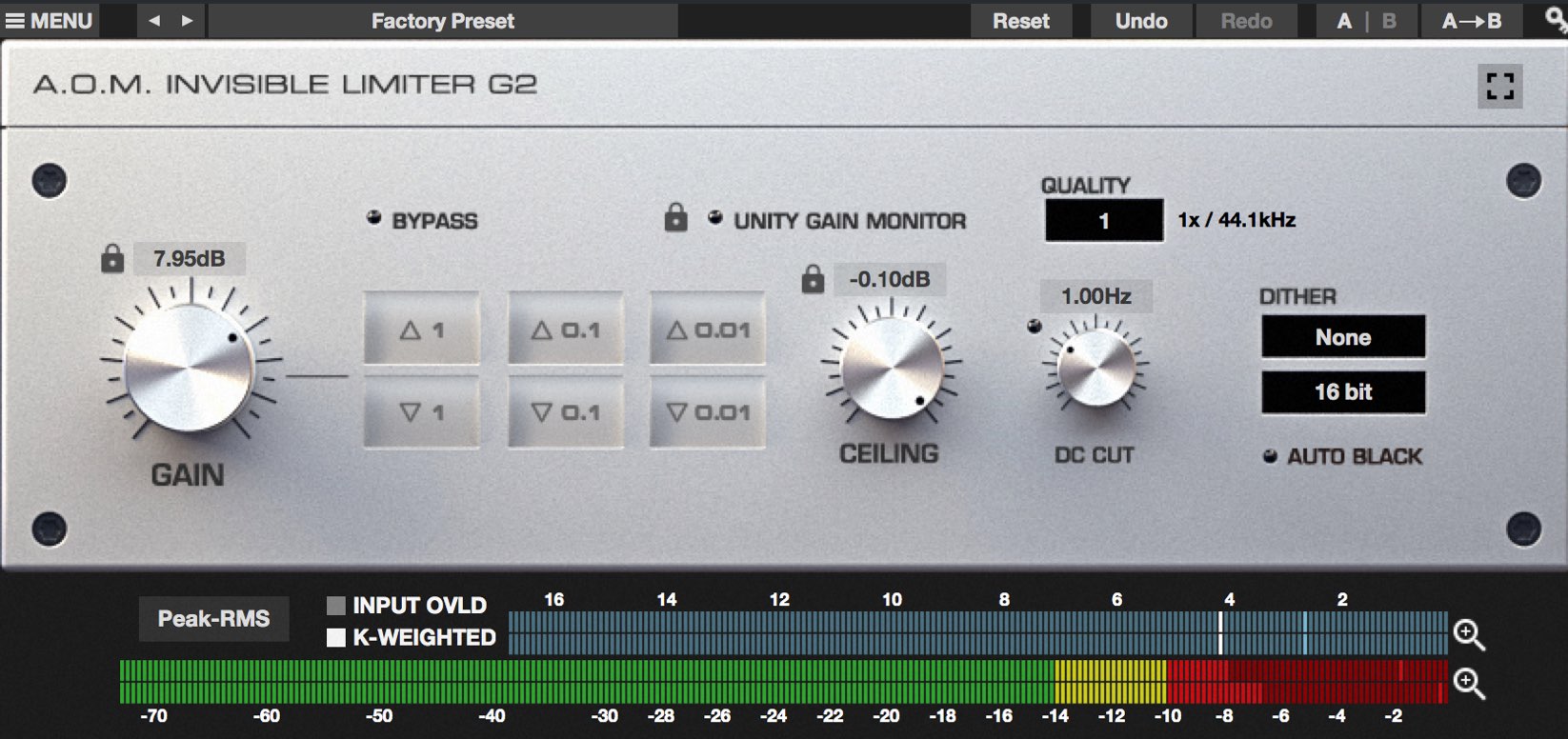
If you like the sound and operation of Invisible Limiter Nano, you may be interested in the advanced version.
That product is Invisible Limiter G2.
This example was set with RMS around −8 to −4 dB.
- High sound quality and additional loudness
- Dithering optimized for musical genres
- Detailed parameter customization, including ceiling
- More detailed RMS metering and a range of scales
These features make it a capable product.
The product link is below if you would like to learn more.
Invisible Limiter G2 product page: http://aom-factory.jp/ja/products/invisible-limiter-g2/
- Promotion organizers’ websites
A.O.M.: http://aom-factory.jp/ja/
Steinberg: http://japan.steinberg.net/ - A.O.M. plug-in effects giveaway campaign announcement
https://japan.steinberg.net/jp/shop/aom_plugins_campaign.html
Frequently Asked Questions
Q1. How does Invisible Limiter Nano increase loudness?
The limiter reduces peaks above its limiting threshold, allowing the overall level to be raised while keeping peaks under control. Higher average level can make a track sound louder, but too much limiting can introduce distortion.
Q2. What RMS level should I use with Invisible Limiter Nano?
The original article uses roughly −4 to −8 dB RMS, between orange and yellow, as an example and warns that pushing into red may sound distorted. It is not a universal target: the suitable level depends on the material and the desired sound.
Q3. What do Unity Gain Monitor and Bypass do?
Unity Gain Monitor compensates for the level increase as you raise Gain so you can focus on changes in sound. Bypass lets you compare against the signal without the plug-in. Together they help you choose a suitable Gain setting.
Q4. How do the beginner-friendly Nano and advanced G2 differ?
Nano has a simple interface for basic loudness optimization. The more advanced G2 offers additional controls such as ceiling and dithering, as well as more detailed metering.
NEW ARTICLES
Latest English Articles































































































































































































































































































































































