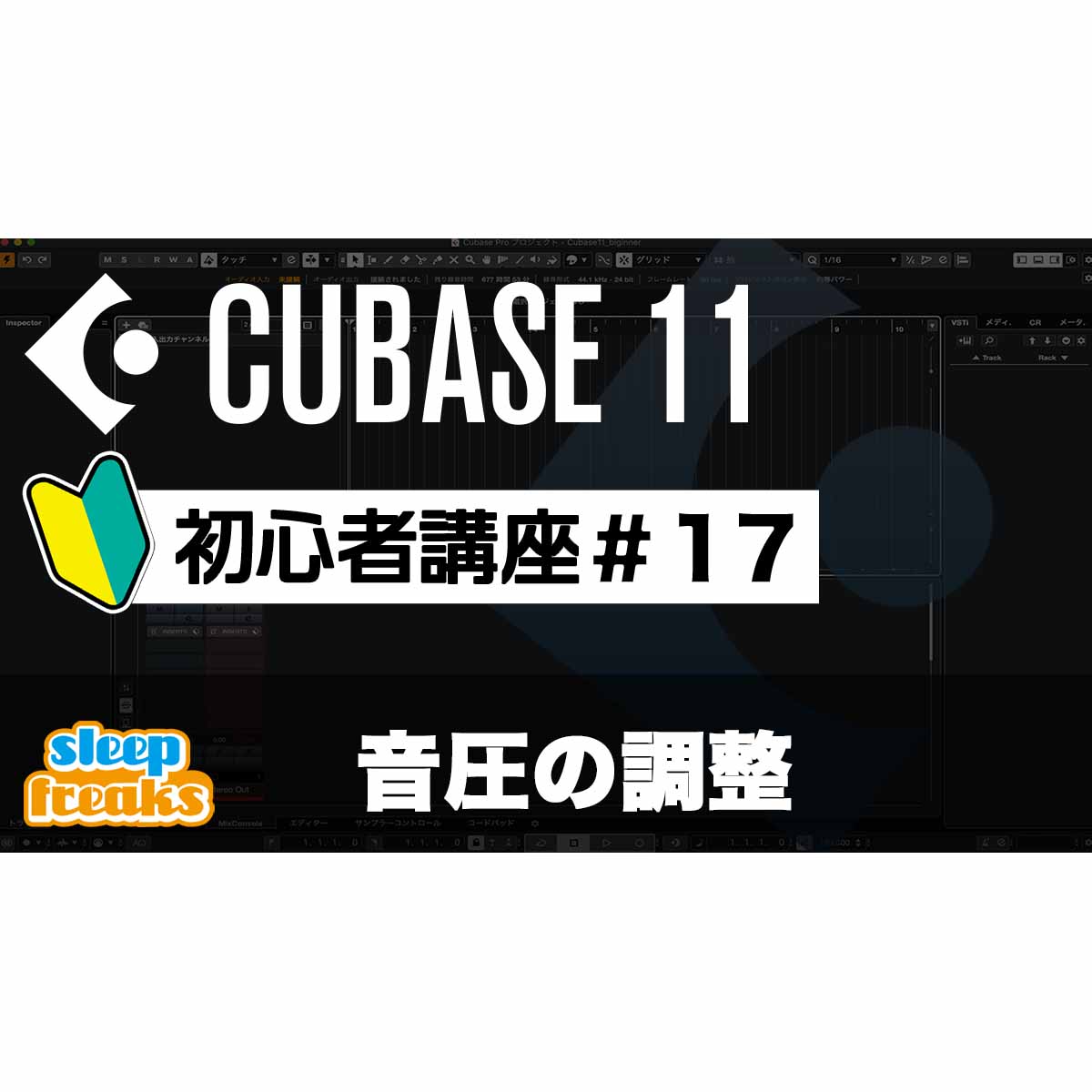
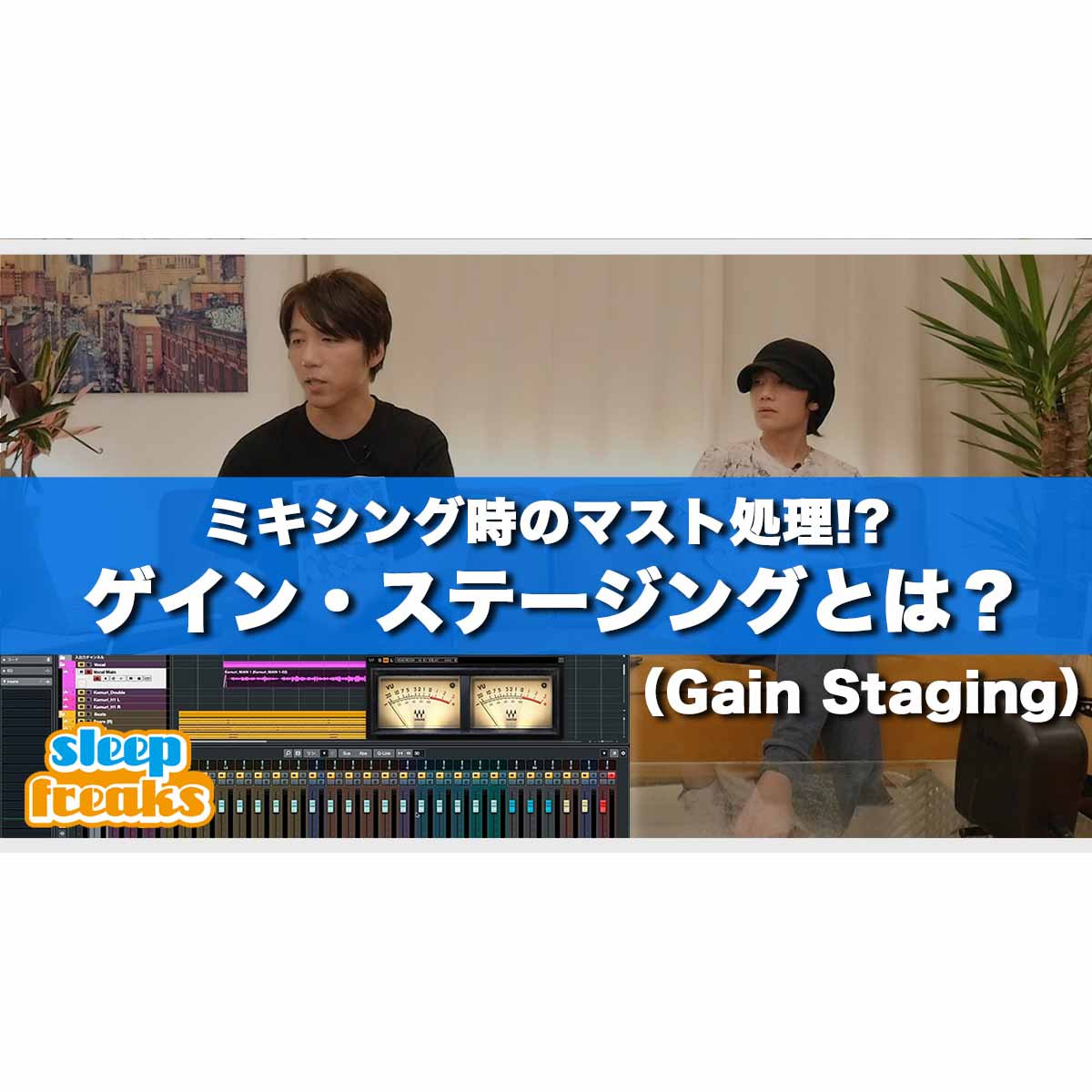
This article explains practical vocal processing and routing techniques using the Cubase 7 MixConsole. Learn how to use the DeEsser to naturally reduce the high-frequency sibilance in Japanese syllables such as sa, shi, su, se, and so; set up group channels to combine multiple tracks efficiently; and save time by copying effects. It also covers effect order and gain reduction for a professional vocal mix.
Using Group Channels to Combine Sounds
Here we explain the MixConsole using a sample song
and explore its greatly improved appearance and functionality.
Following the previous effects tutorial,
we cover sibilance processing with the vocal effect DeEsser and how to improve workflow efficiency and the quality of a production using
group channels.
We hope you find this useful.
Cubase 7 MixConsole: DeEsser and Routing Video
Harmony Voice
Chord Assistant
MixConsole: Setup
MixConsole: Reverb and Pan Techniques
MixConsole: Inserts and Channel Strip
MixConsole: Vocal Processing and Routing (this page)
Loudness and the RMS Meter
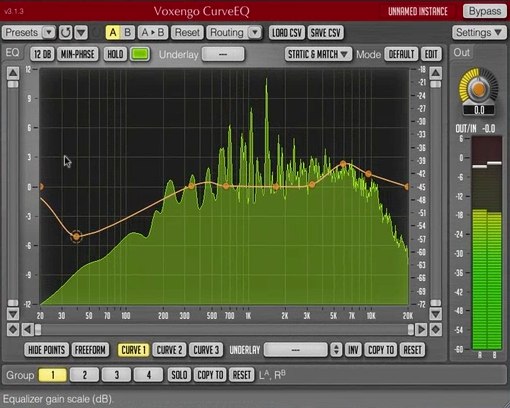
CurveEQ
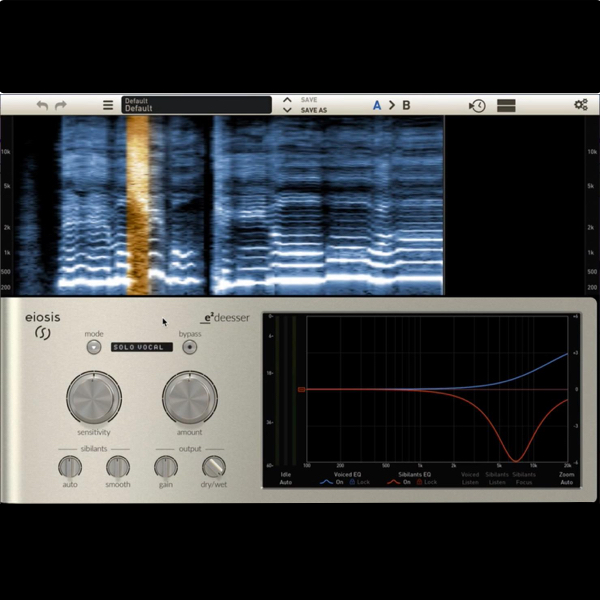
Video Focus: Applying the DeEsser
Vocal lyrics containing syllables such as sa, shi, su, se, and so
have a lot of high-frequency content called sibilance.
To help the vocal sit in the backing track and make it sound better,
apply the DeEsser.
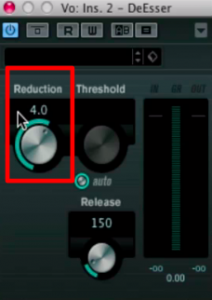
This reduces the volume of the sibilance, or high-frequency component, alone.
Reduction determines
how much sibilance is attenuated.
A good starting point is to set it so that normal lyrics do not trigger it,
while the GR meter responds to sibilance.
Video Focus: Copying Effects
You can copy effect settings as they are to another track.
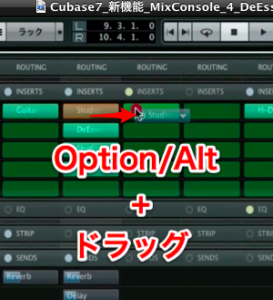
- Mac: Option + drag
- Windows: Alt + drag
This makes it easy to duplicate an effect.
It is useful for tracks of the same type, for example.
If you simply drag without a modifier key,
the effect will move to the other track instead of being copied.
Video Focus: Group Channel Tracks
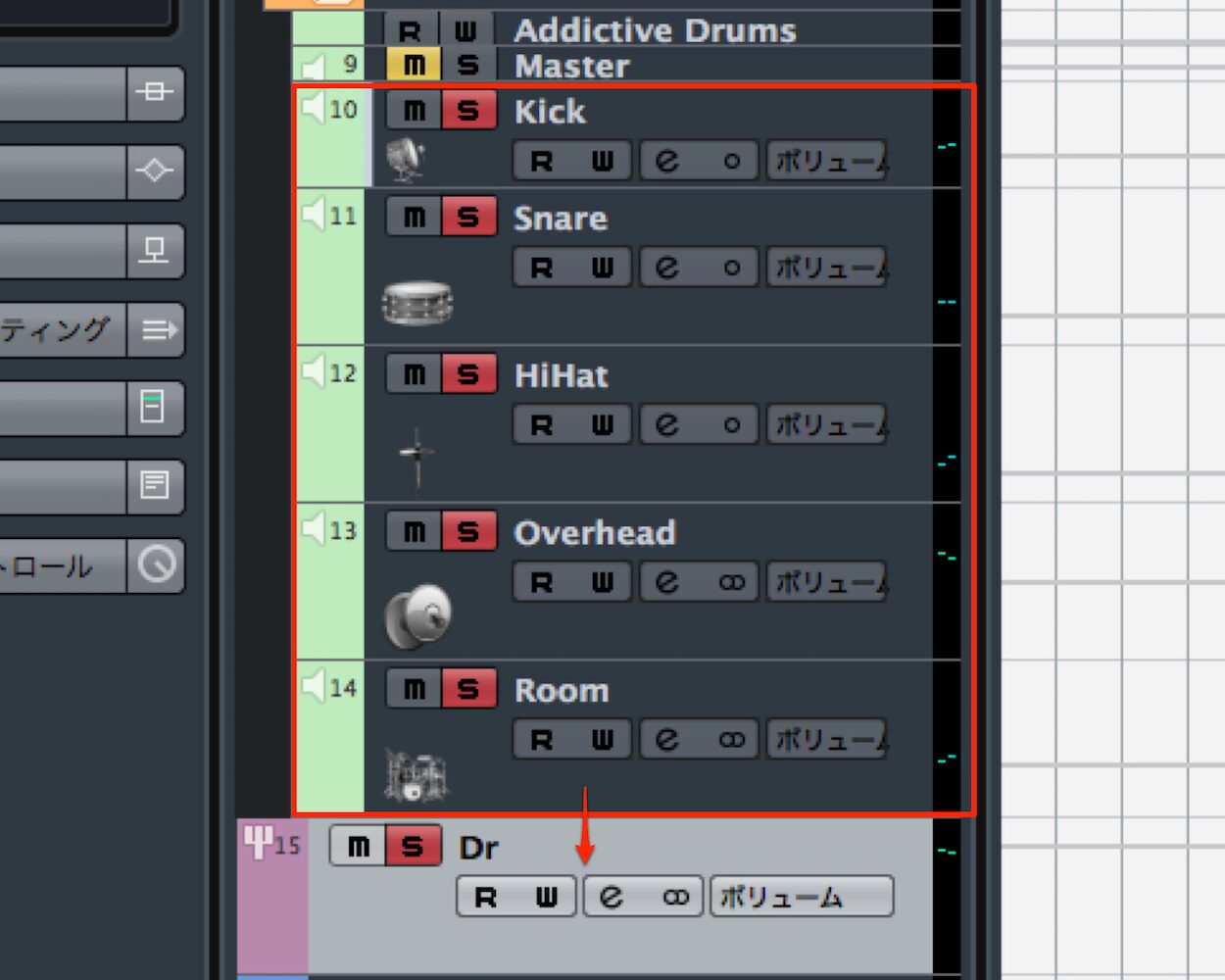
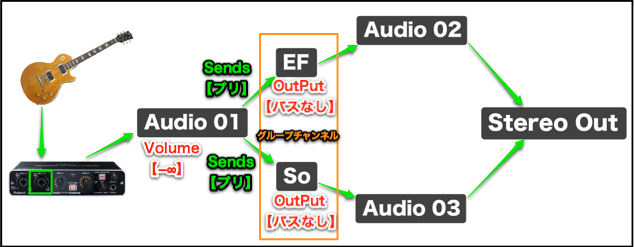
You can combine multiple tracks into a single track.
This allows you to change mute, solo, volume, pan, effects, and more for all of them at once.
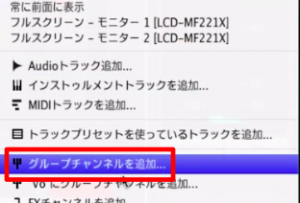
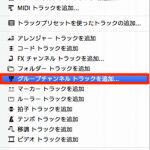
Right-click in the console
and select Add Group Channel from the menu.
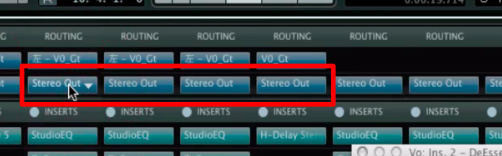
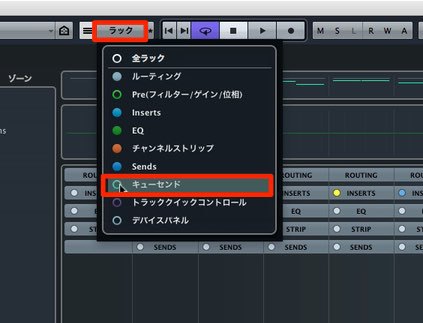
Click ROUTING at the top of the console
to display IN/OUT.
Set the OUT of each track you want to combine
to the group channel track created above.
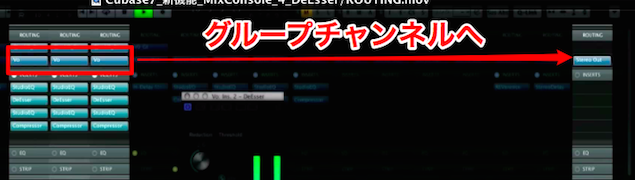
This sends the tracks’ audio to the group channel track.

By controlling the group channel,
you can control the individual tracks together.
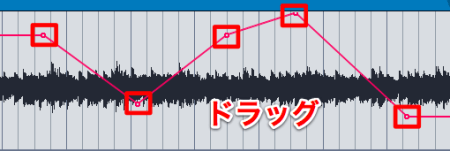
Automation Order and Gain Reduction
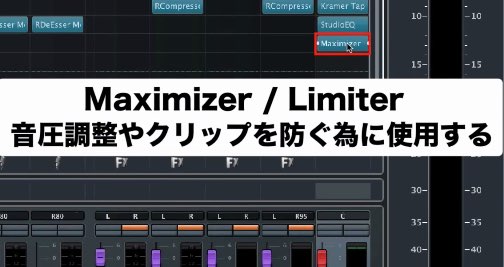
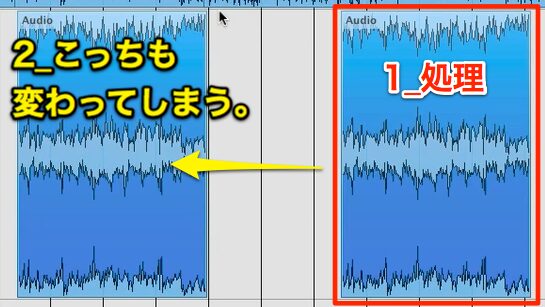
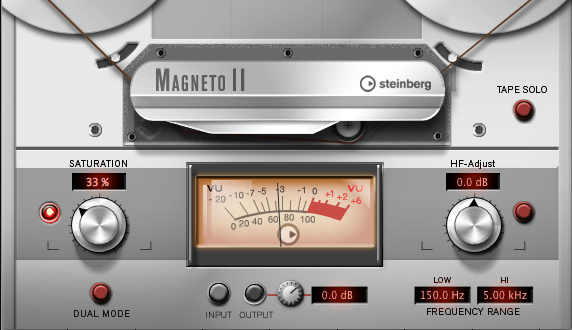
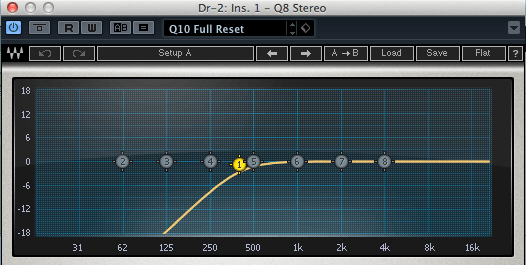
As shown here, the order of effects can make a major difference to the resulting sound.

Video Focus: Group Channel Precautions
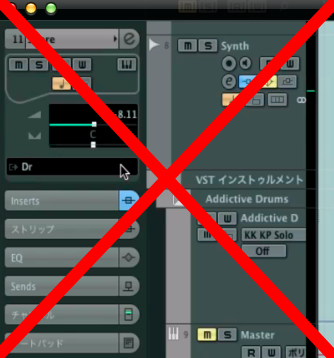
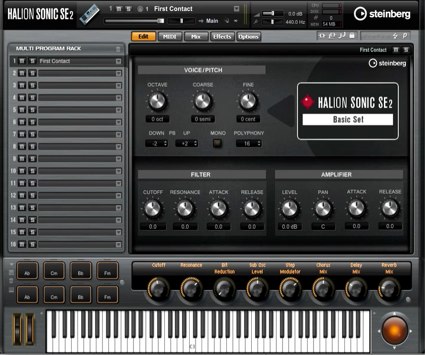
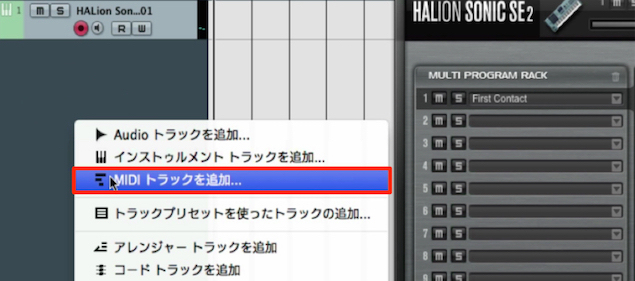
When using a software synthesizer,
you cannot route it to a group channel from the arrangement window.

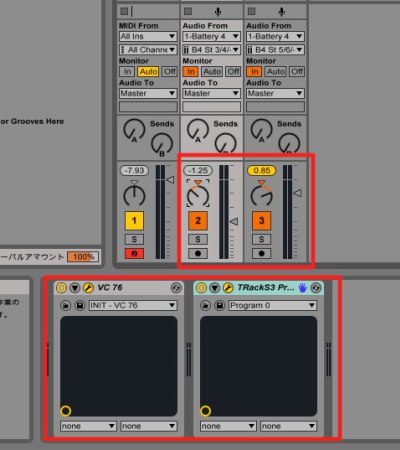
Be sure to change the output using ROUTING in the MixConsole.
Frequently Asked Questions
Q1. How can I reduce vocal sibilance in Cubase 7?
Use the DeEsser effect. Adjust the Reduction parameter so that gain reduction responds to sibilance without reacting to normal lyric passages.
Q2. What is a group channel, and why combine multiple tracks?
A group channel combines multiple tracks into one. You can control mute, solo, volume, pan, and effects together, improving efficiency and making it easier to maintain a consistent balance.
Q3. How do I copy effect settings to another track?
On a Mac, Option-drag; on Windows, Alt-drag to duplicate the effect. Dragging without the modifier key moves the effect instead, so hold the appropriate key.
Q4. Why can’t I send a software synth to a group channel?
In Cubase 7, an instrument track cannot be routed to a group channel from the arrangement window. Change the output in the MixConsole’s ROUTING section.
NEW ARTICLES
Latest English Articles