
The iCON Platform Nano is a compact, portable MIDI control surface. It offers a wide range of features, including high-speed MIDI transfer via USB 3.0, a motorized fader, and a jog/shuttle wheel, and supports major DAWs such as Cubase, Studio One, FL Studio, Ableton Live, and Logic Pro X. This article explains its initial setup and practical operation in detail, from configuring each DAW to using the transport controls—a useful guide for producers looking to make their DAW workflow more efficient.
Compact and Easy to Carry! A Versatile MIDI Control Surface
Here, we explain how to set up and use the Platform Nano, a compact, practical MIDI control surface from iCON.
It lets you operate the major DAWs available at the time of the original article, making it a dependable tool for a comfortable composing and production workflow.
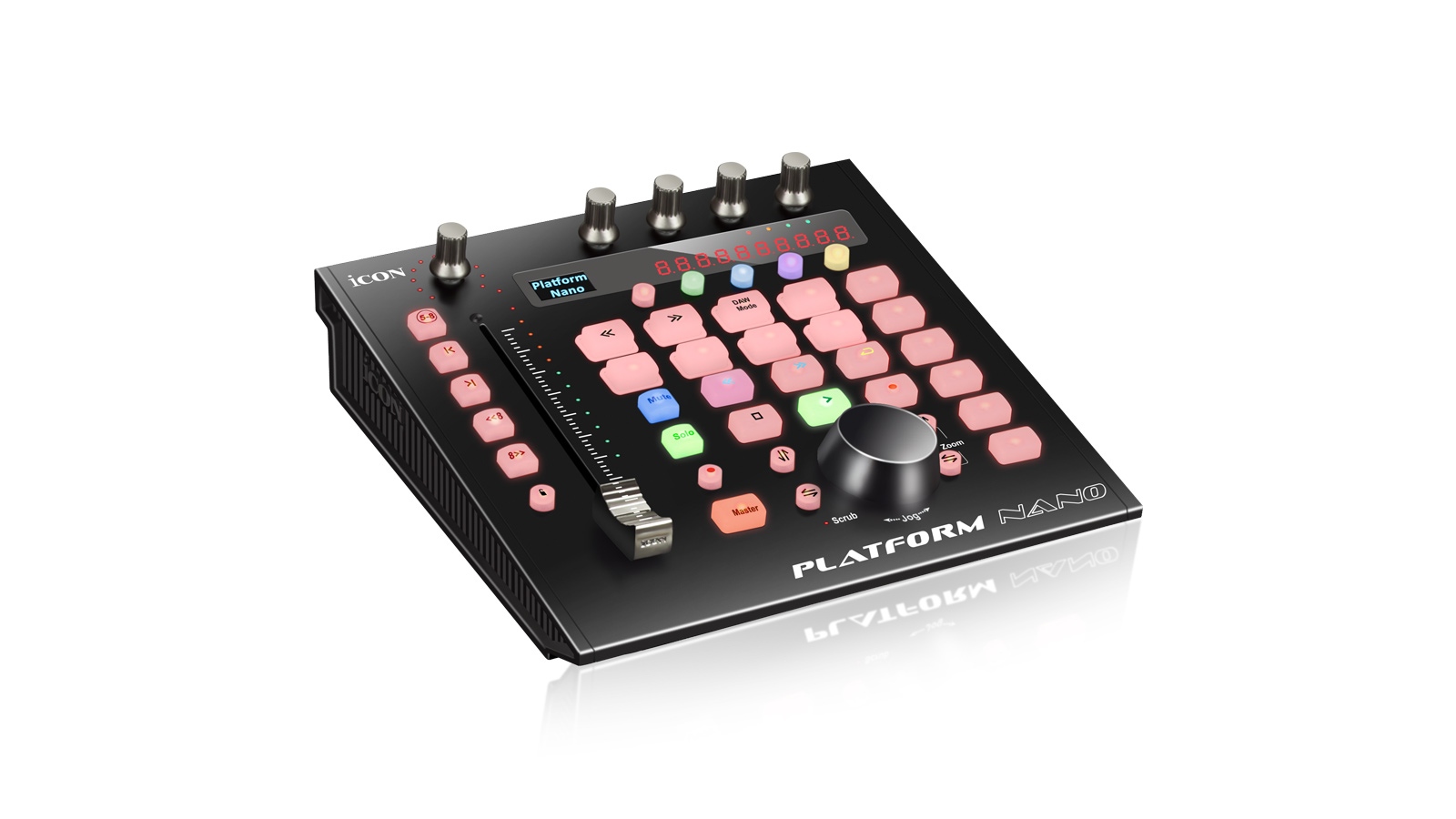
- Compact dimensions: 21.5 cm wide × 19.5 cm deep × 5.5 cm high
- USB 3.0 support for high-speed MIDI data transfer
- Motorized fader with high 10-bit resolution
- Dual-function encoders
- Backlit LCD
- Jog/shuttle wheel for quickly changing values and effects
- Support for Mackie Control and HUI protocols, enabling integration with a wide range of DAWs
Supported DAWs include Cubase/Nuendo, Digital Performer, FL Studio, Samplitude Pro, Reaper, Studio One, Bitwig, Reason, Sonar, Audition, Ableton Live, Logic Pro X, and Pro Tools.
These are an impressive set of features.
Let's take a closer look at the Platform Nano's functions and setup.
Platform Nano Setup and Operation: Video Tutorial
Video: Setting Up Platform Nano with Major DAWs
Setup for All DAWs: Select the Operating Mode
First, let's configure the Platform Nano so it works correctly with your DAW.
The video covers setup for Cubase, Studio One, FL Studio, Ableton Live, and Logic Pro X, major DAWs used in Japan.
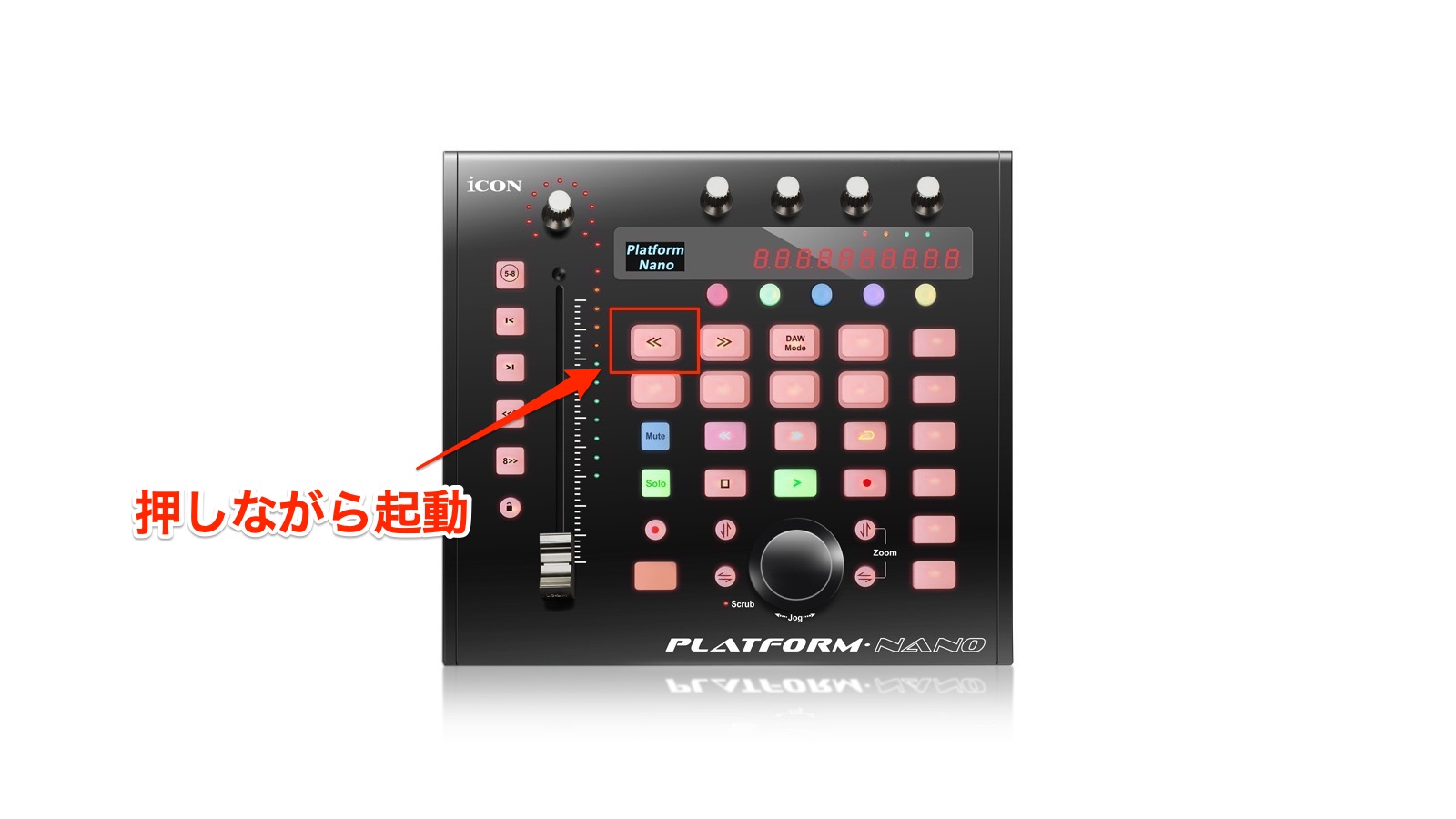
Hold down the "<<" button while switching on the power on the rear panel.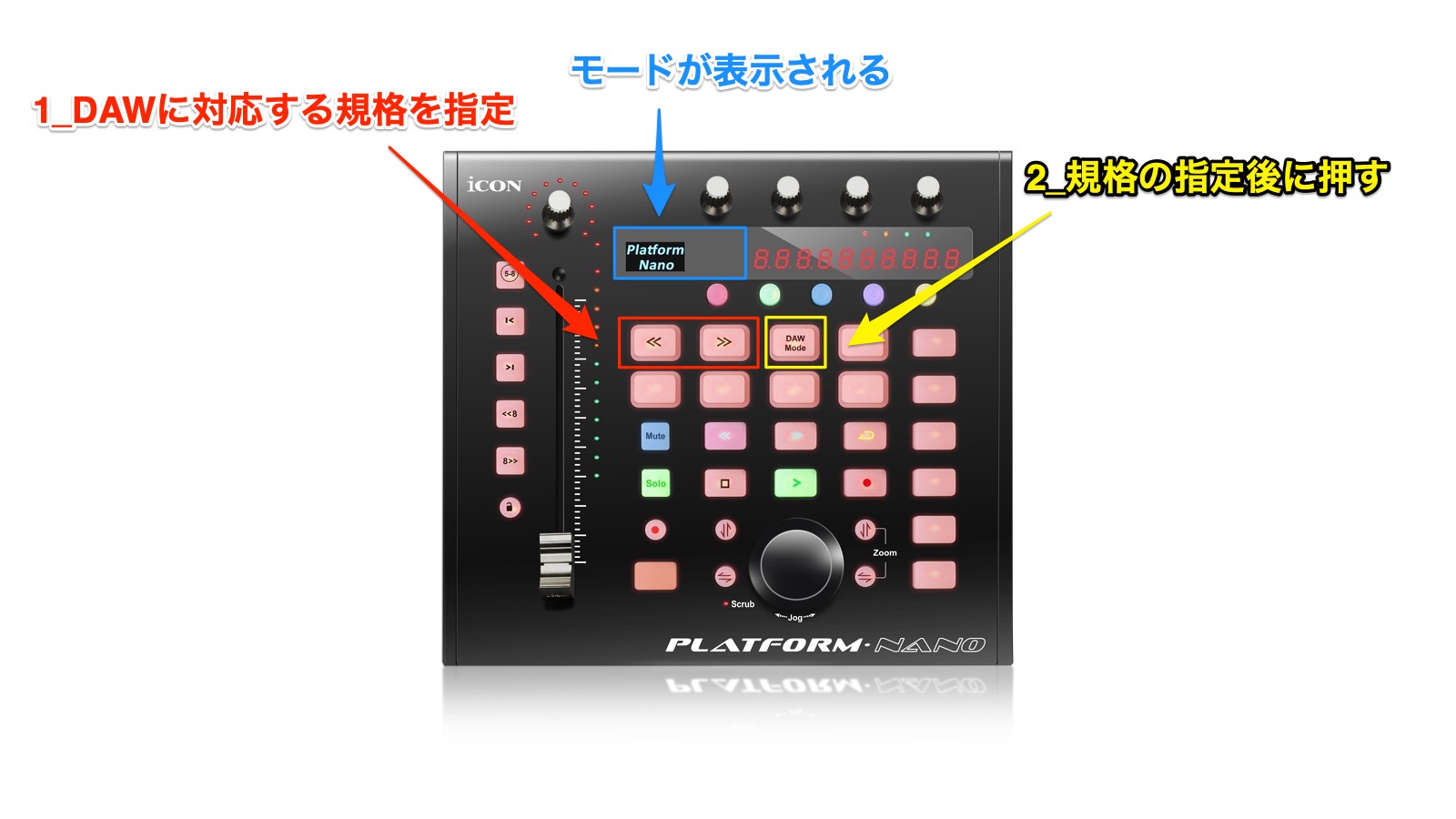
Press "<<" or ">>" to select the mode for your DAW.
Then press "DAW Mode" to confirm the selection and return to normal operation.
- MCP: Cubase/Nuendo, Digital Performer, FL Studio, Samplitude Pro, Reaper, Studio One, Bitwig, Reason, Sonar, Audition, Ableton Live
- LogicPro: Logic Pro X
- HUI: Pro Tools
Note: This setting is retained when the unit is switched off, so it automatically starts in the selected DAW mode the next time you turn it on.
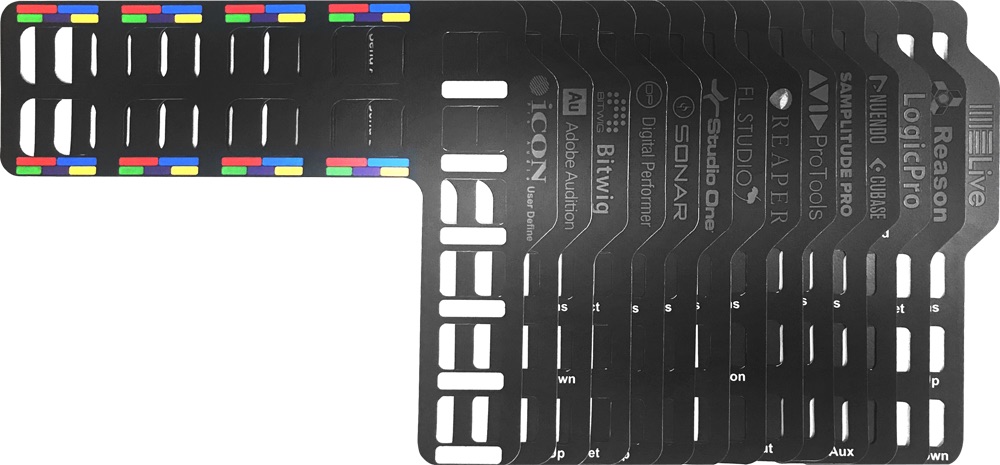
Fitting the included overlay for your DAW onto the Platform Nano makes its controls easier to use.
- Cubase
- Studio One
- FL Studio
- Ableton Live
- Logic Pro
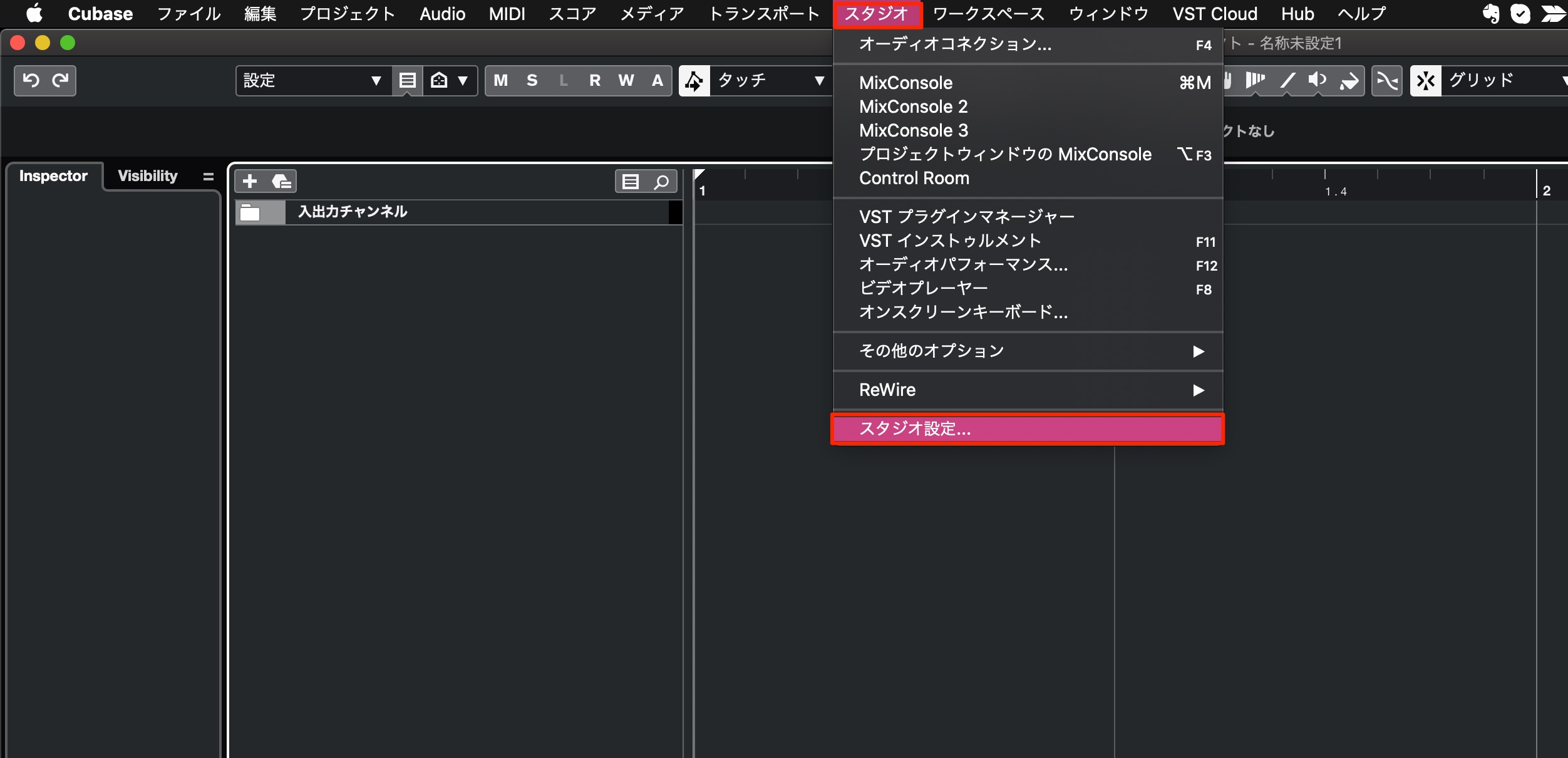
From the top menu, choose Studio → Studio Setup.
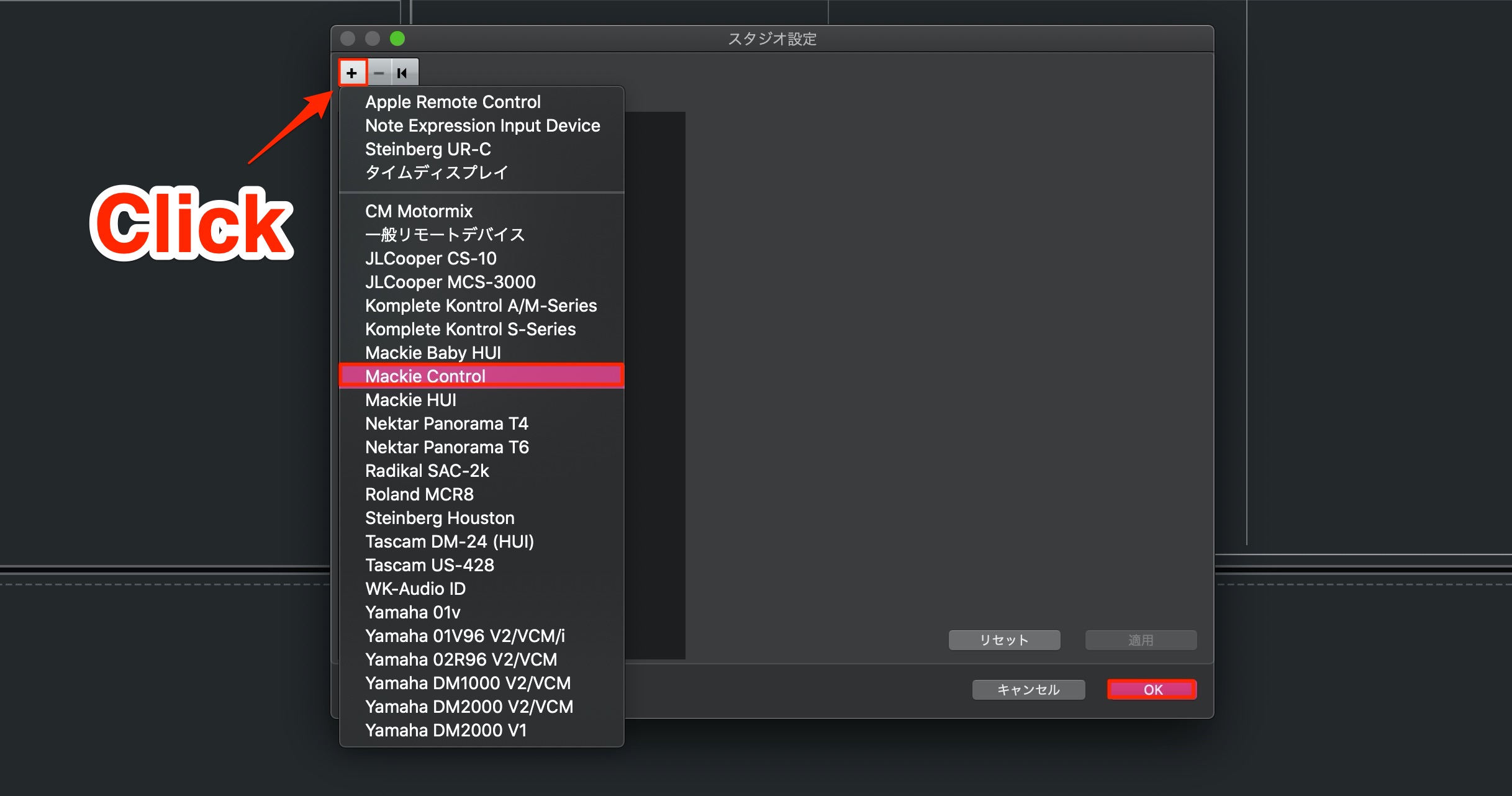
Click Add.
Click the "+" button at the upper left and select "Mackie Control."
Then click OK.
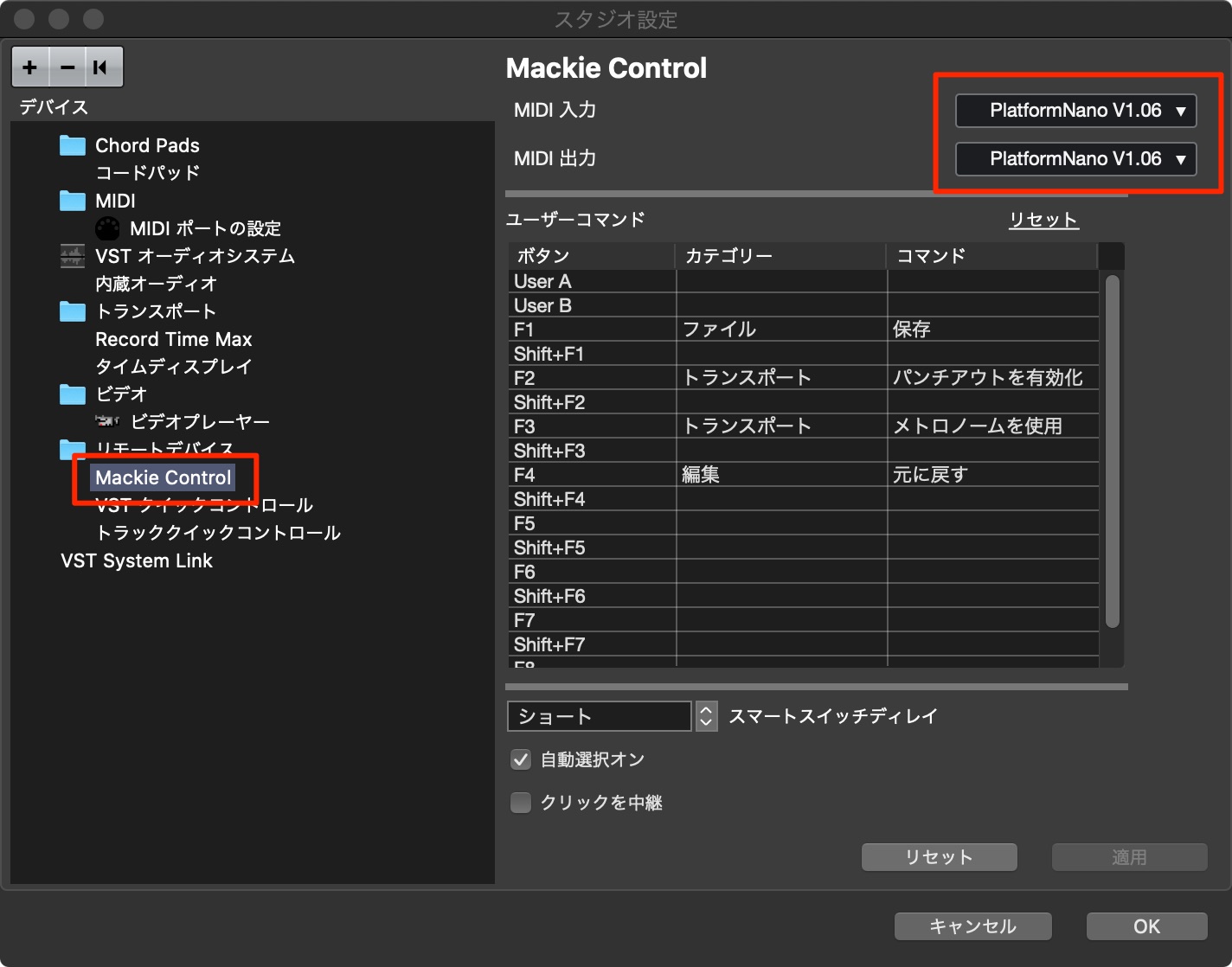
Select the Mackie Control device you created, then set both MIDI Input and MIDI Output on the right to "PlatformNano."
Click Apply at the lower right.
If operating the Platform Nano unexpectedly triggers sounds from a MIDI instrument, the following setting resolves this.
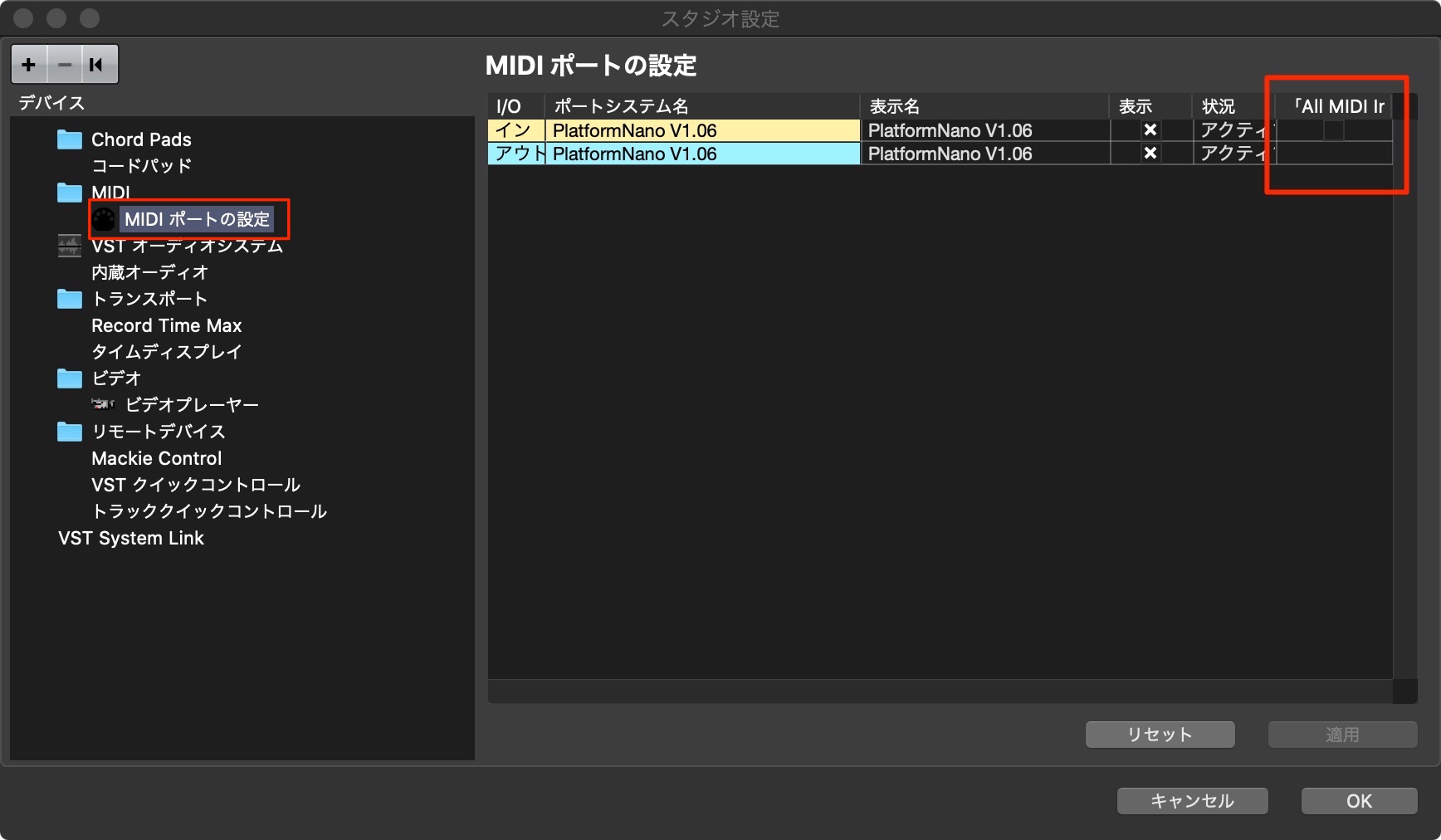
As above, open Studio → Studio Setup from the top menu, then select MIDI Port Setup.
Clear the "In 'All MIDI Inputs'" checkbox for the controller.
Setup is now complete.
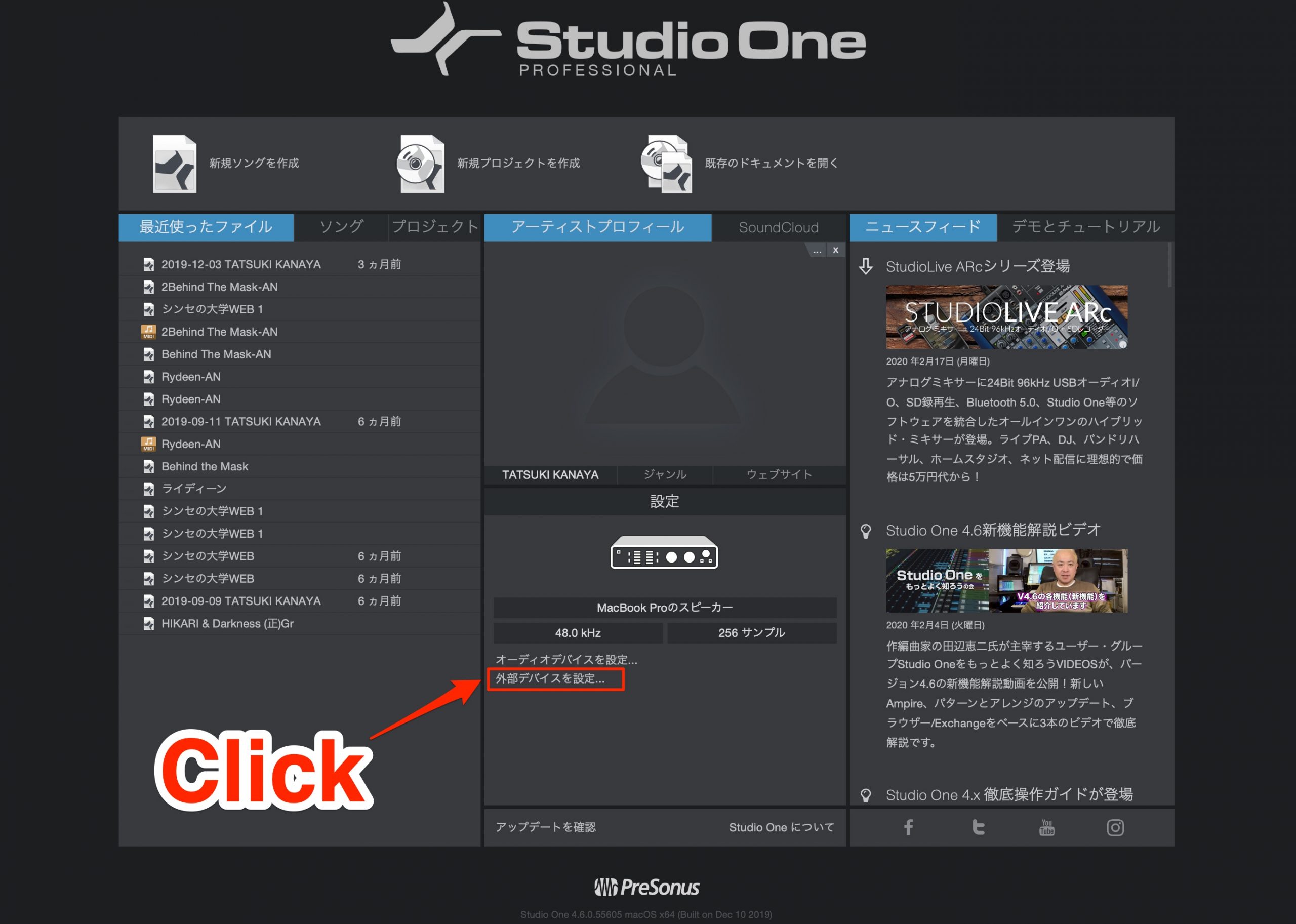
From the Start page, select "Configure External Devices."
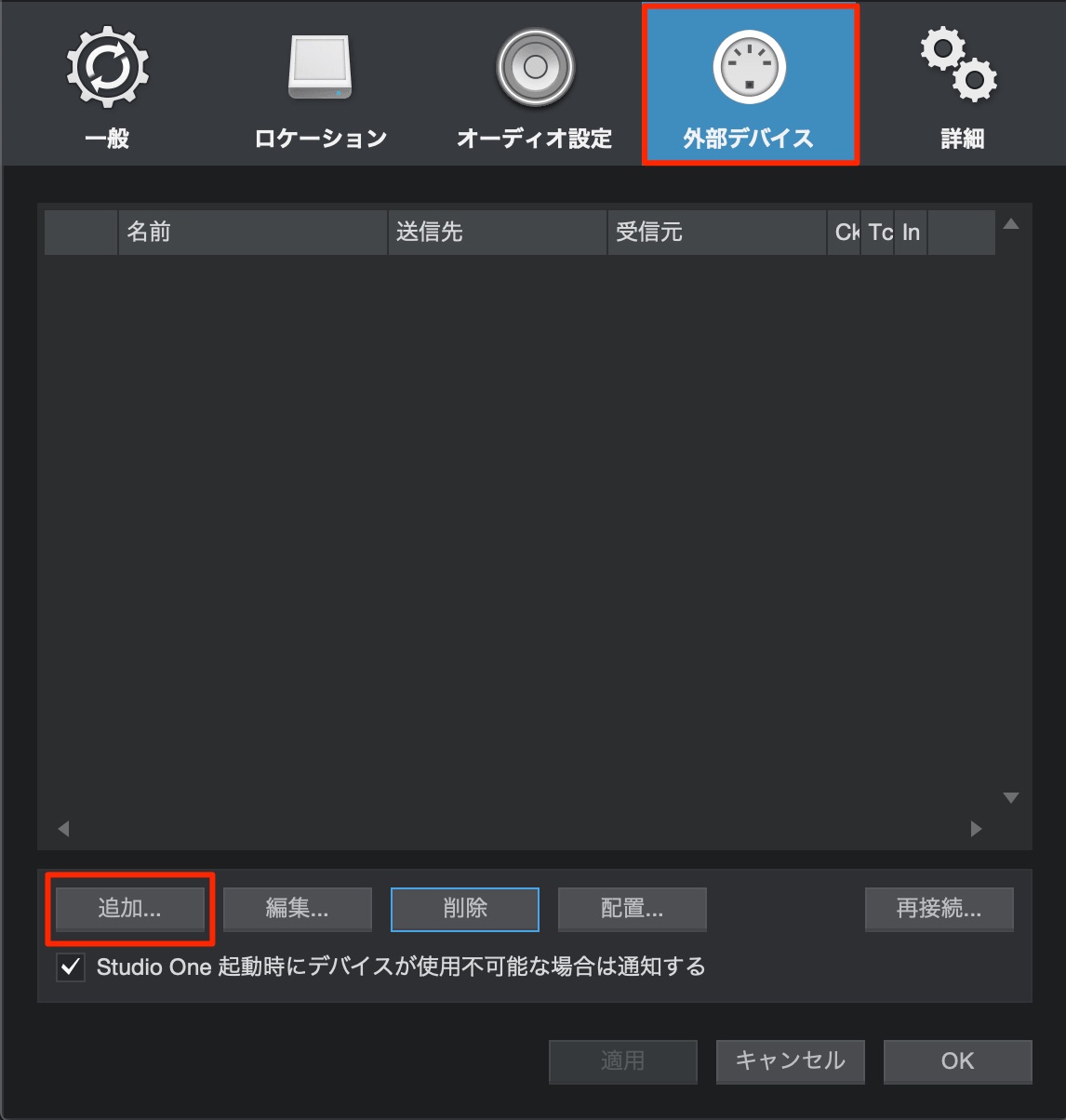
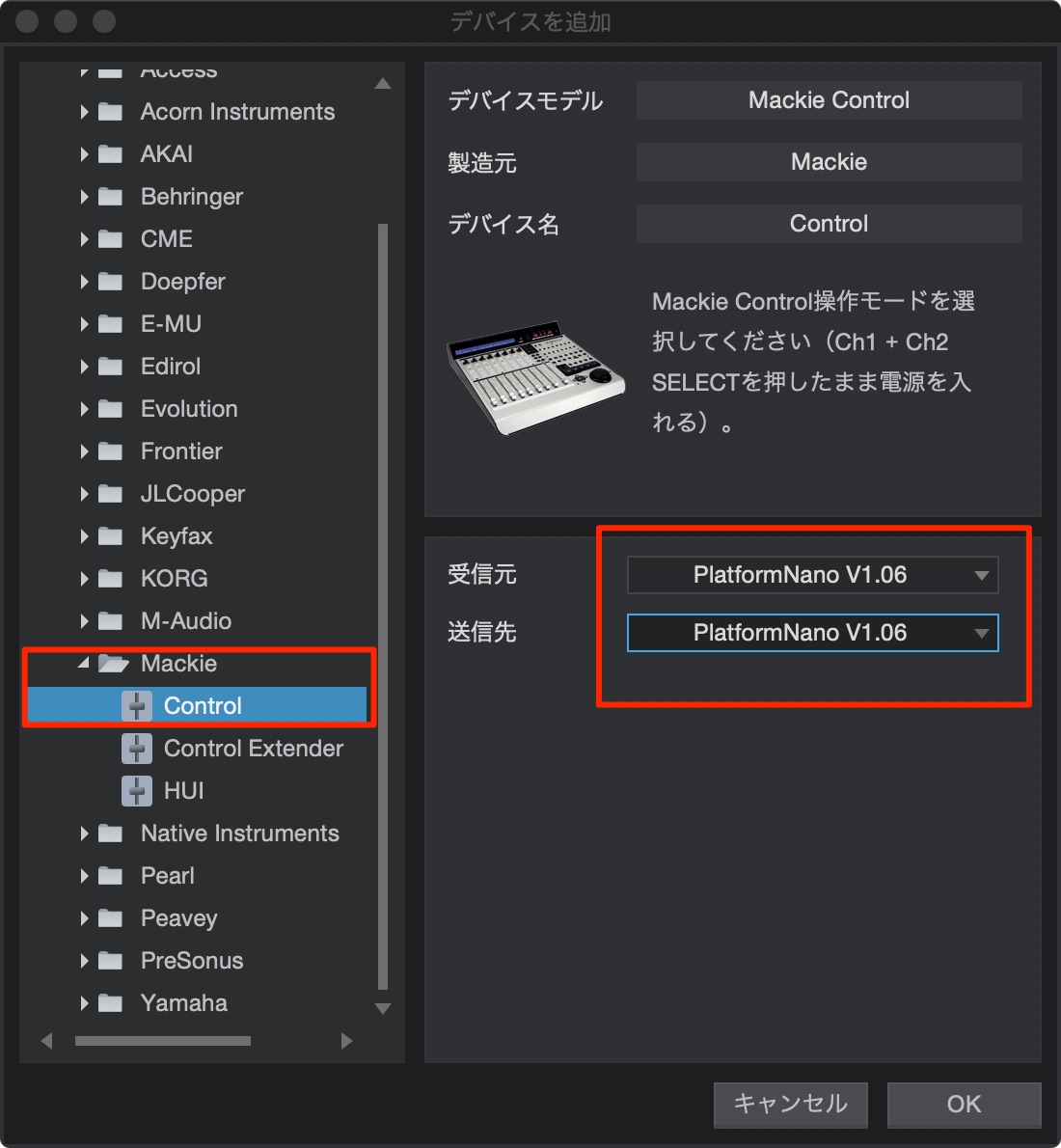
In the list, choose Mackie → Control.
On the right, set both Receive From and Send To to "PlatformNano."
Setup is now complete.
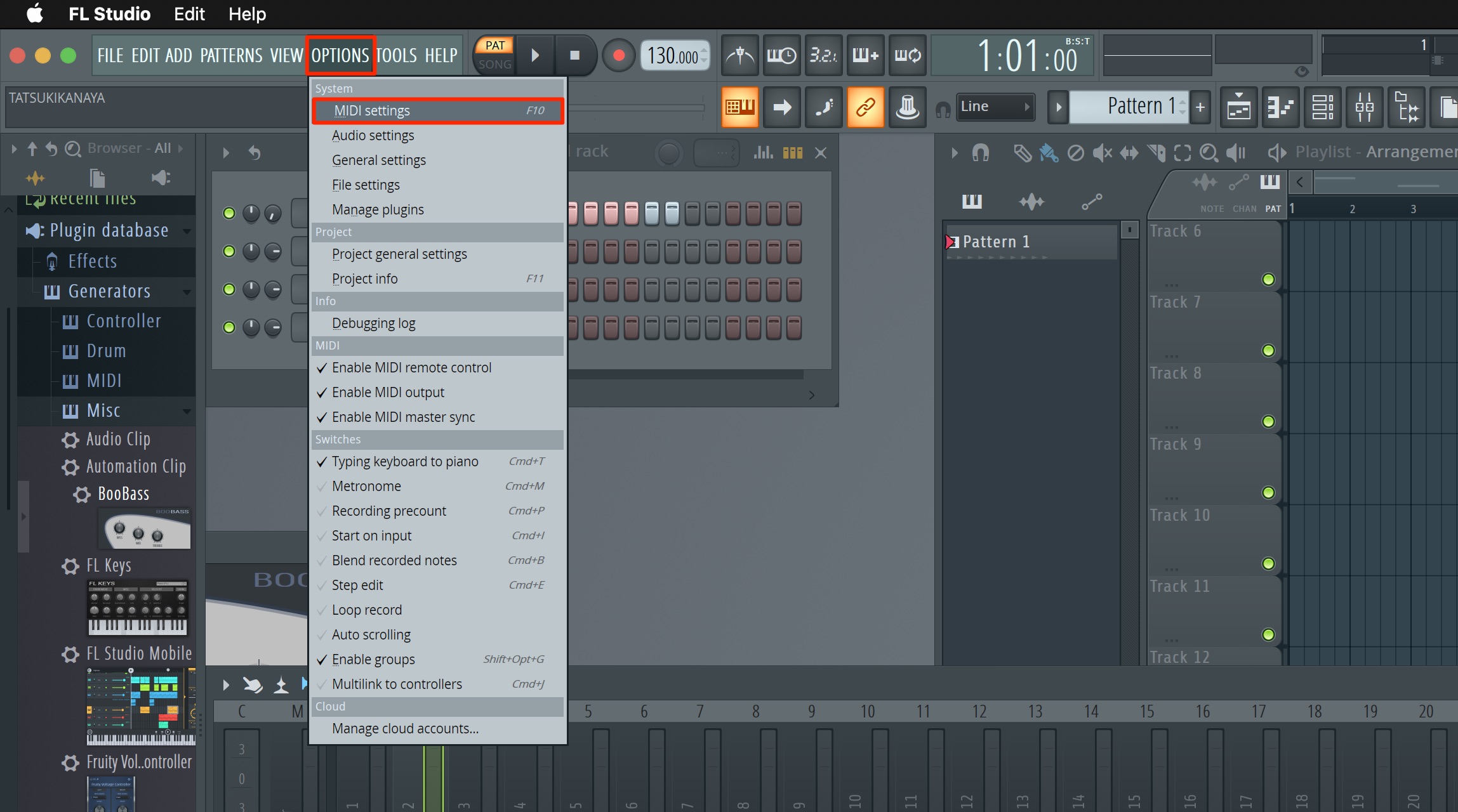
Click OPTIONS and select MIDI settings.
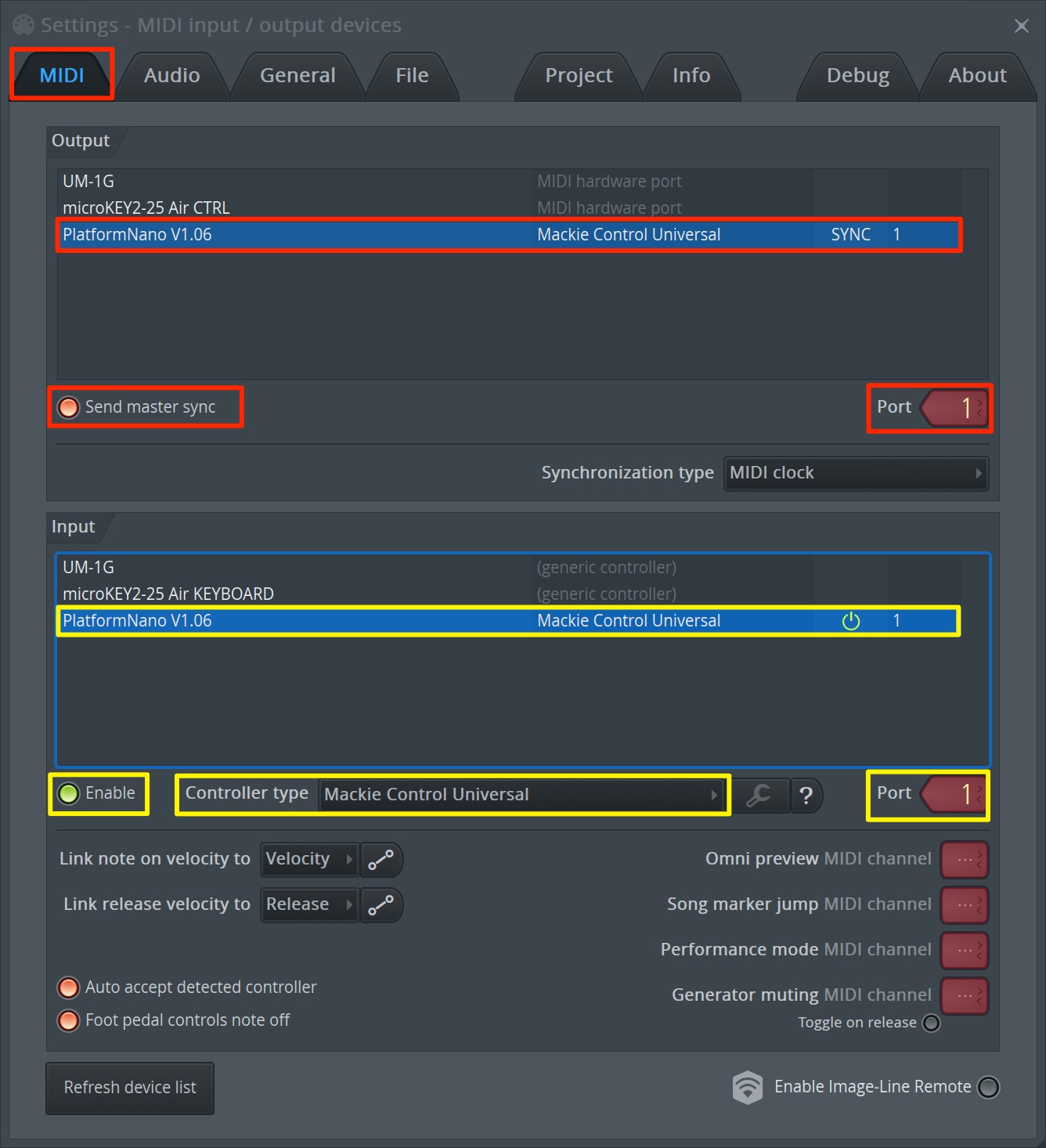
Select the MIDI tab.
Output Section
- Select "platformNano."
- Turn on Send master sync so its indicator is lit.
- Set Port to 1.
Input Section
- Select "platformNano."
- Turn on Enable so its indicator is lit.
- Set Controller type to Mackie Control Universal.
- Set Port to 1.
Setup is now complete.
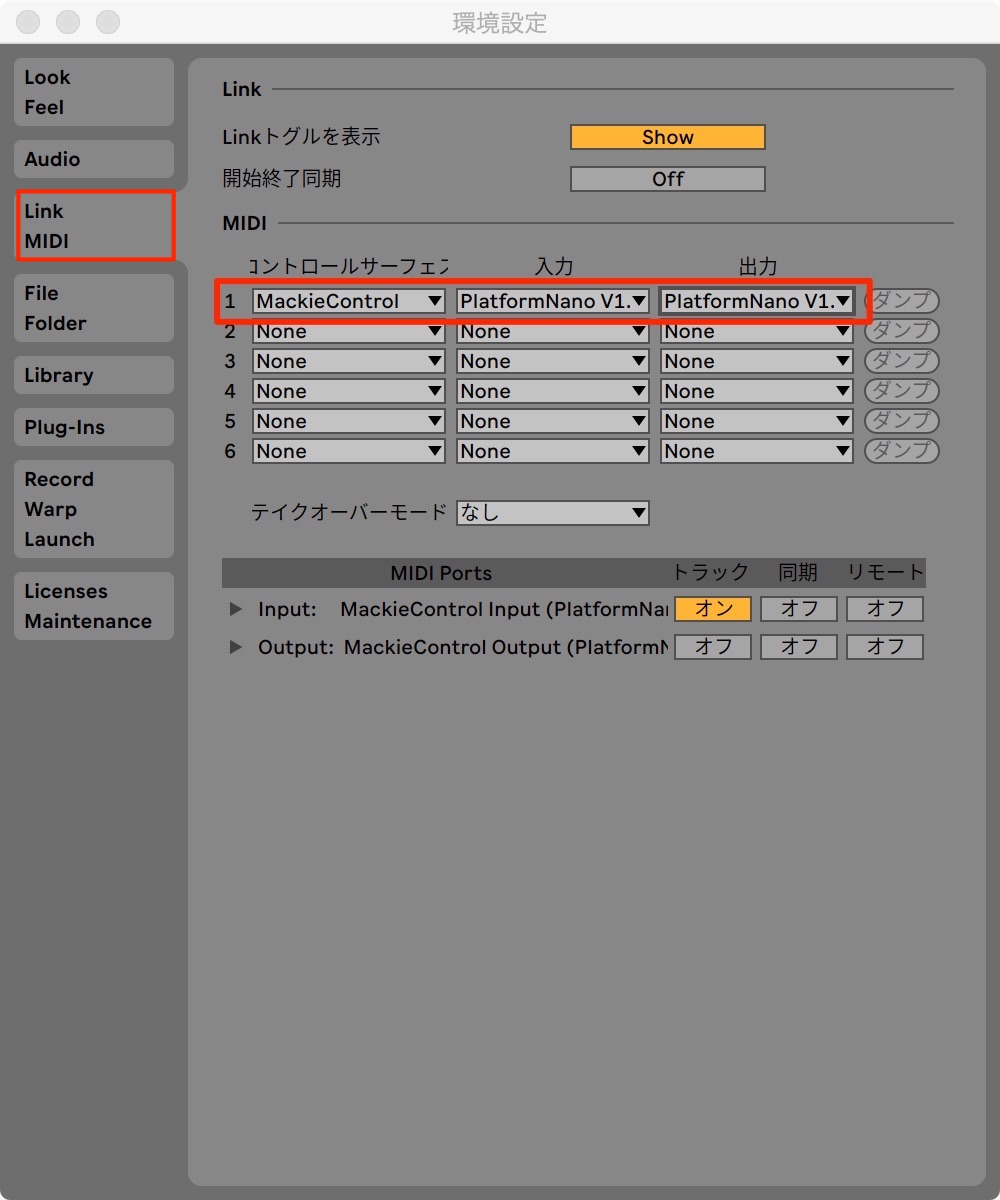
Set Control Surface to "MackieControl" and select "PlatformNano" for Input and Output.
Setup is now complete.
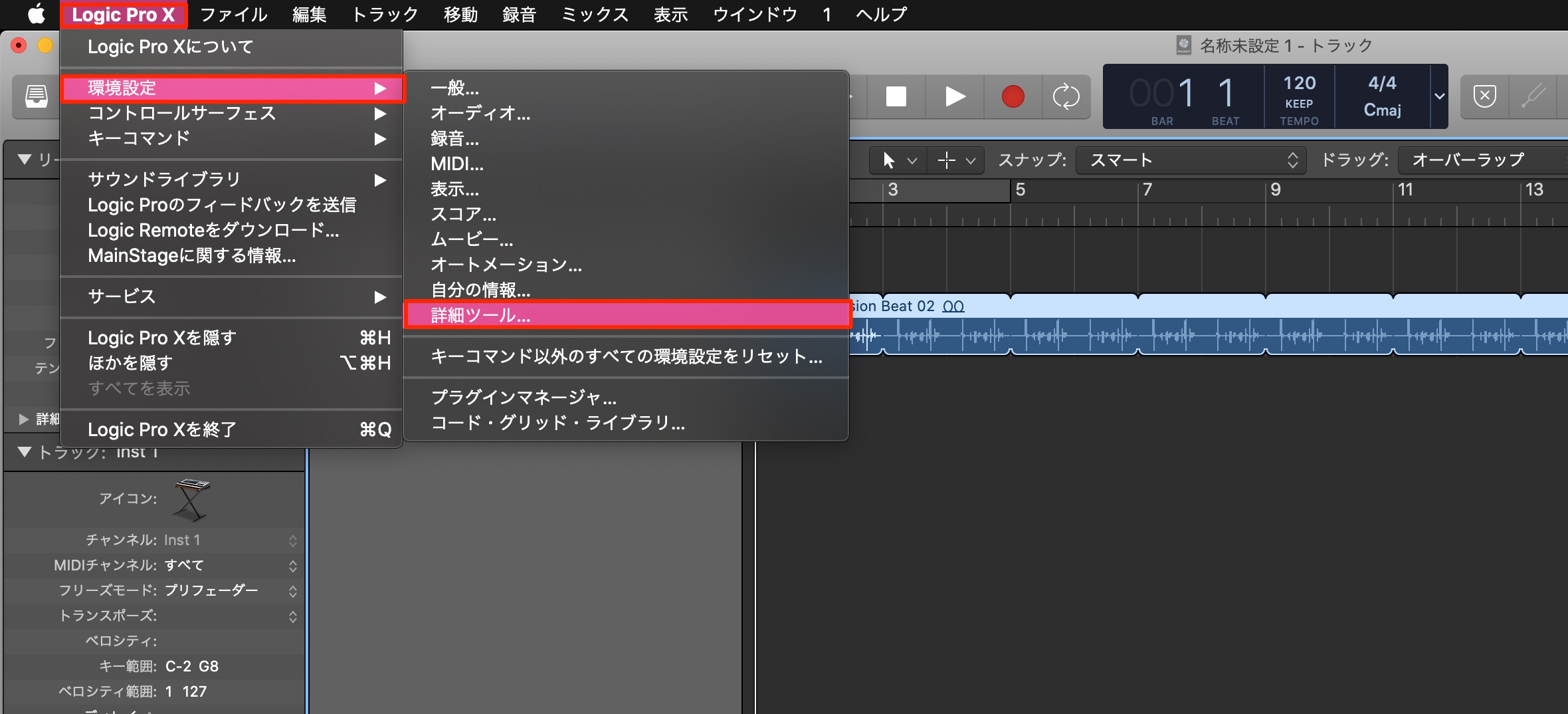
From the top menu, choose Logic Pro X → Preferences → Advanced Tools.
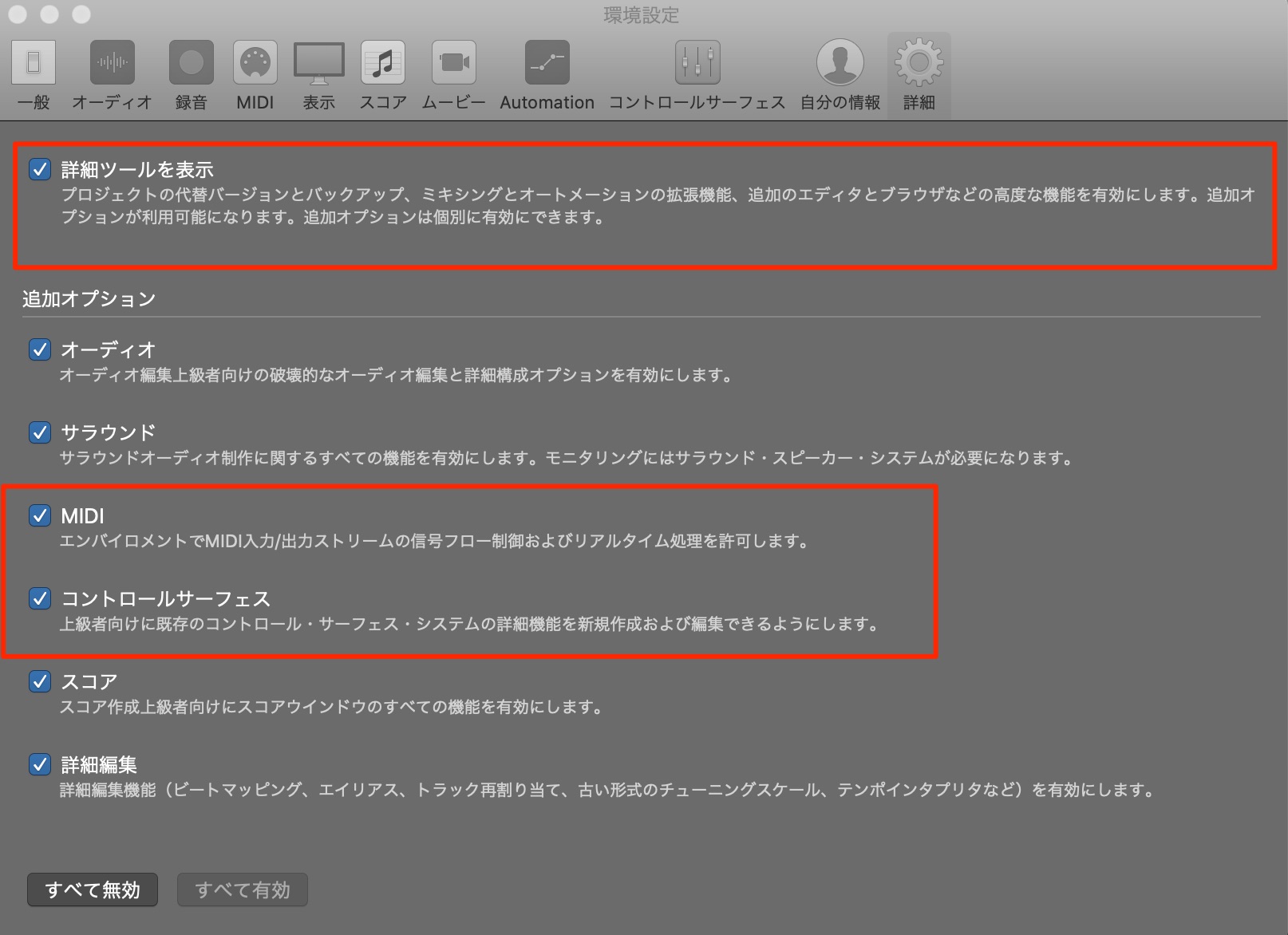
Enable Show Advanced Tools, and make sure MIDI and Control Surfaces are both checked.
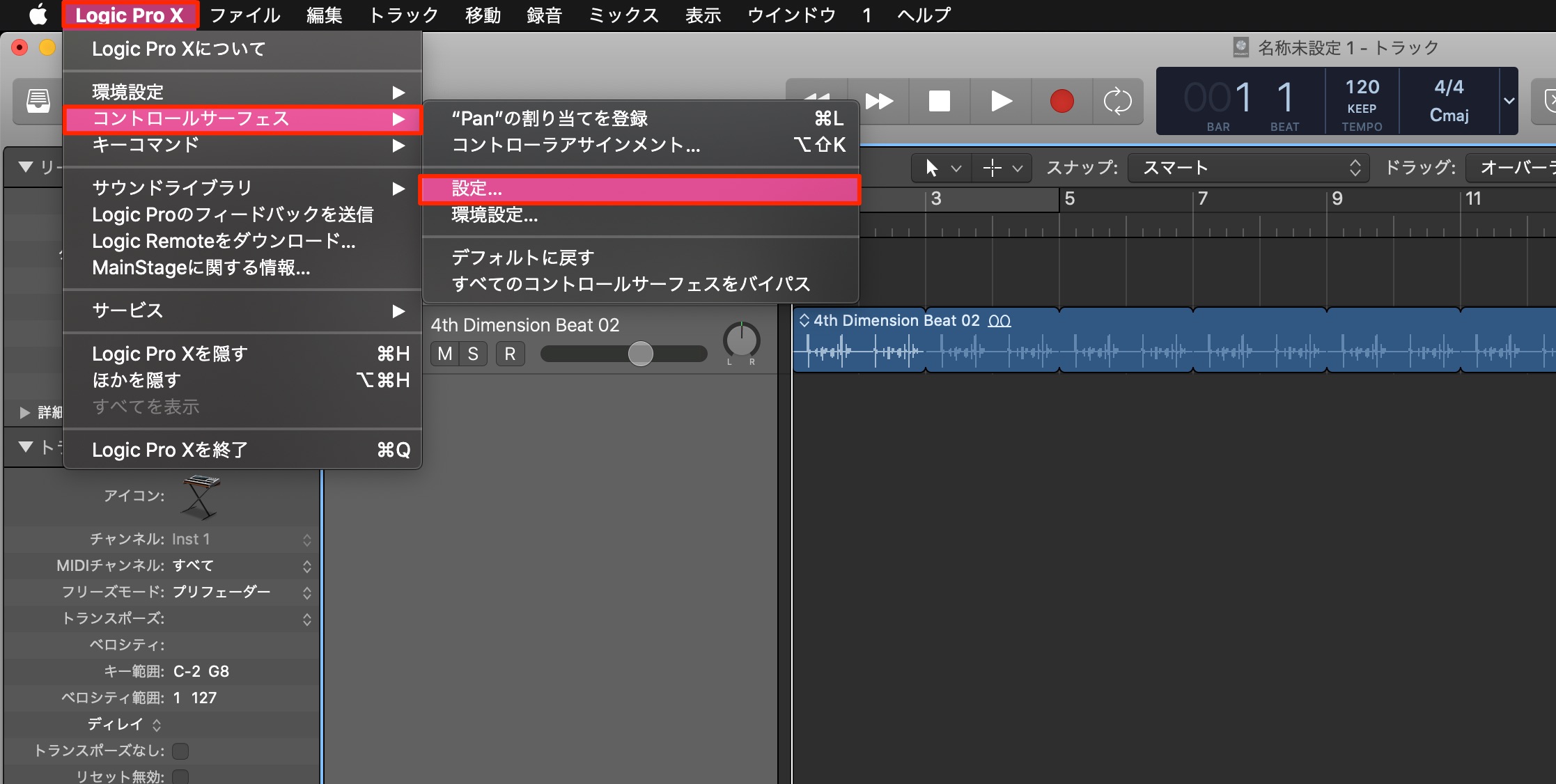
From the top menu, choose Logic Pro X → Control Surfaces → Setup.
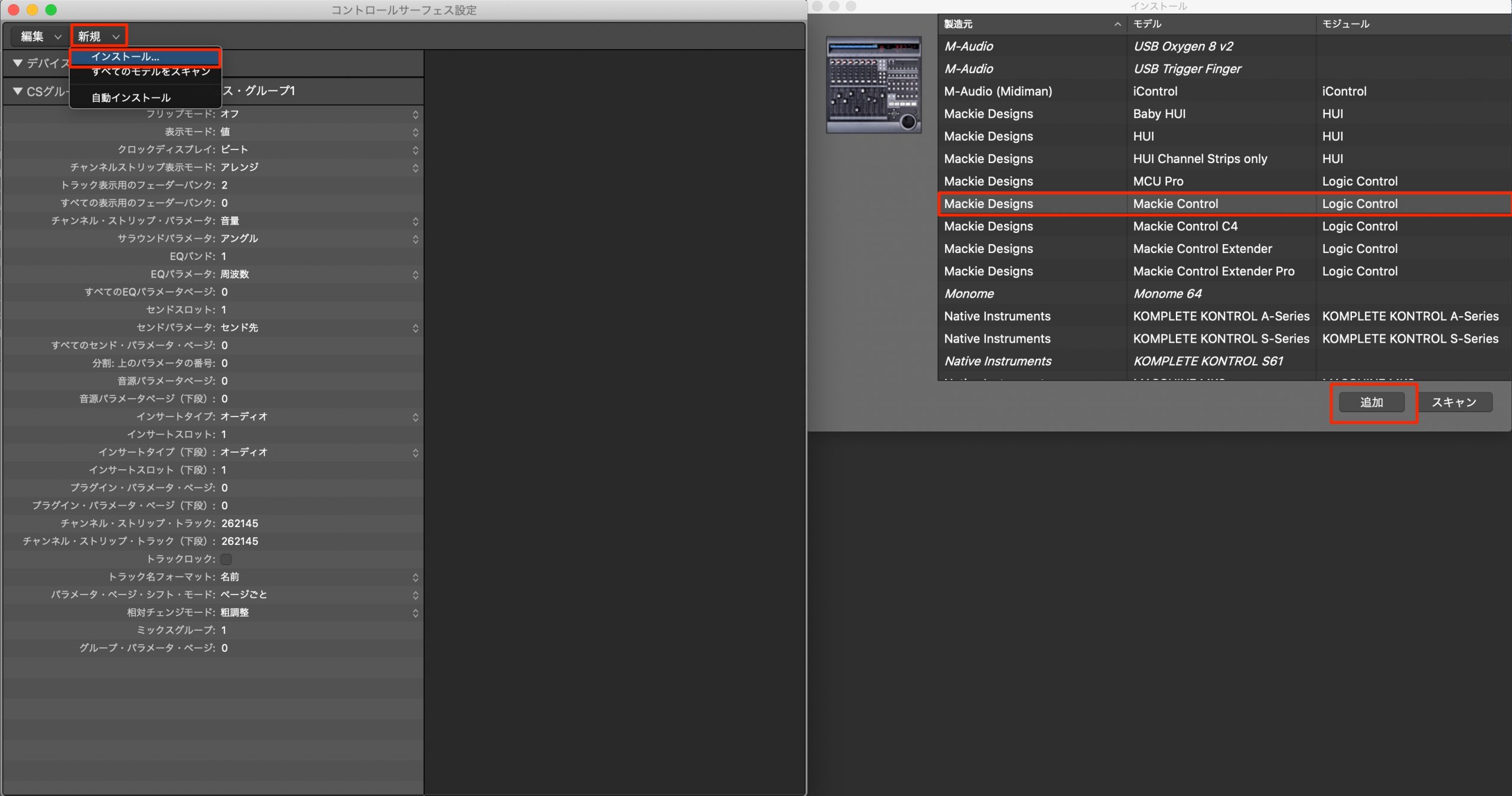
At the upper left, choose "+" → Install.
In the window that appears, select Mackie Control and click Add.
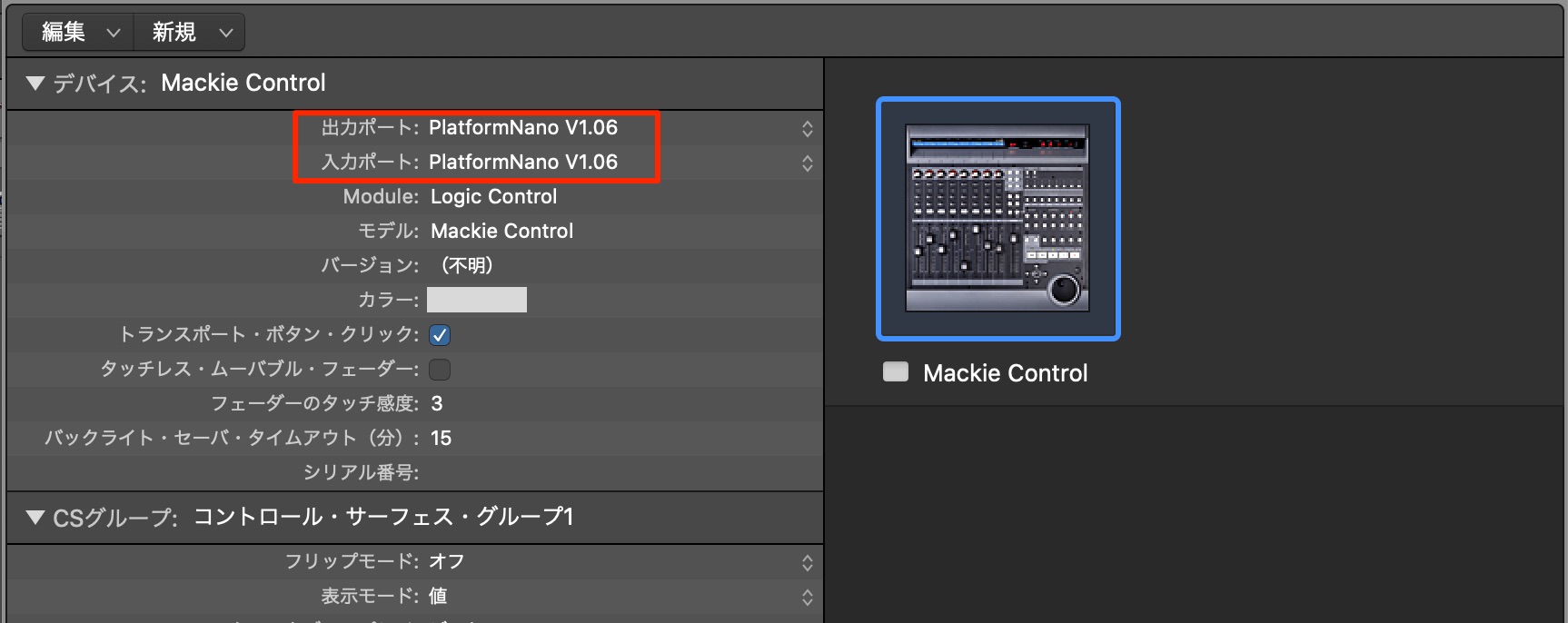
Select the Mackie Control device you added, then set its Output and Input to "PlatformNano."
Setup is now complete.
- Cubase
- Studio One
- FL Studio
- Ableton Live
- Logic Pro
Controlling Your DAW with Platform Nano
Here, we use Cubase as an example to explain how to control a DAW with the Platform Nano.
Transport Controls Shared by DAWs
The frequently used transport functions can be operated smoothly right at your fingertips.
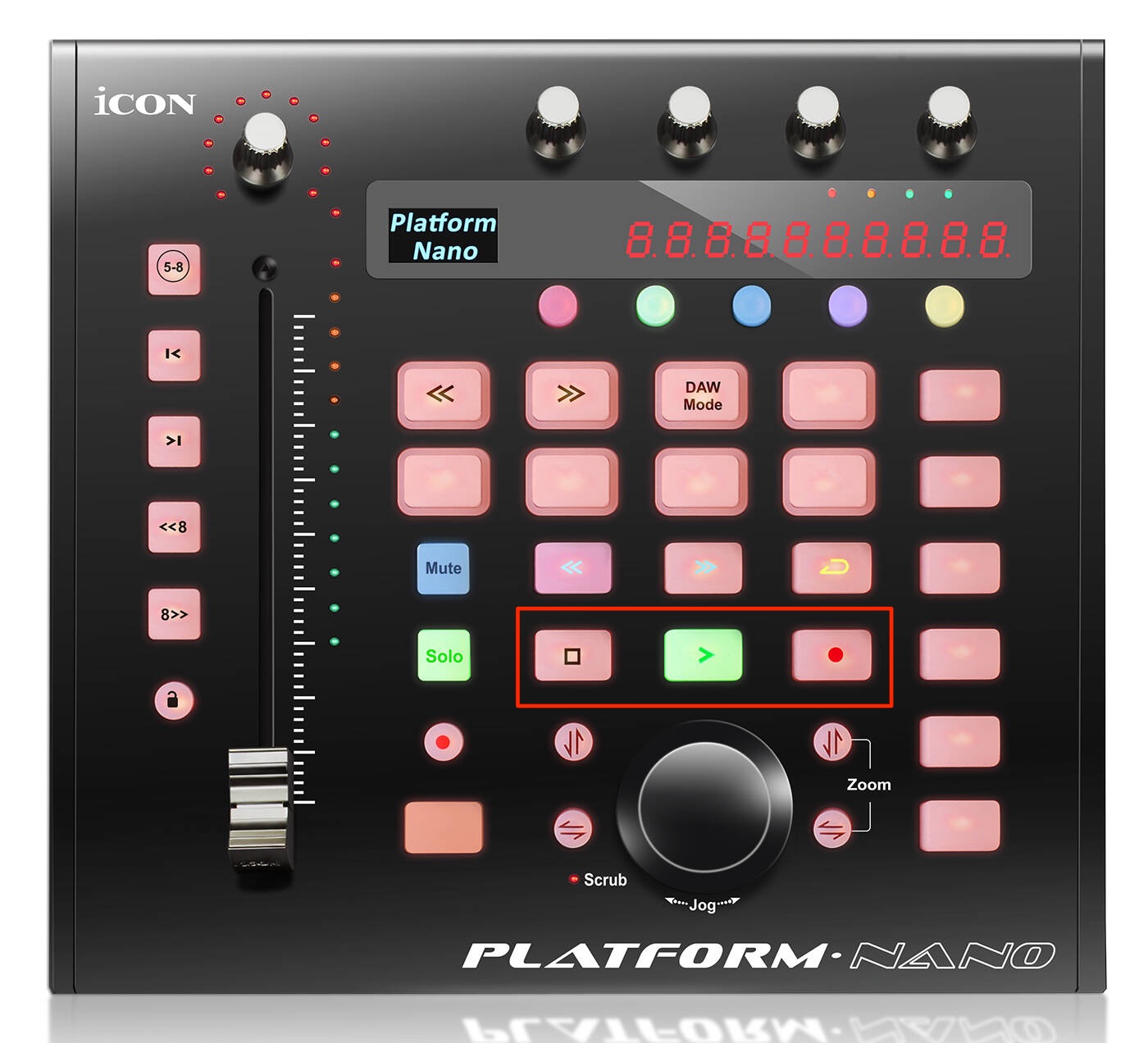
Use these buttons to play, stop, and record in your DAW.
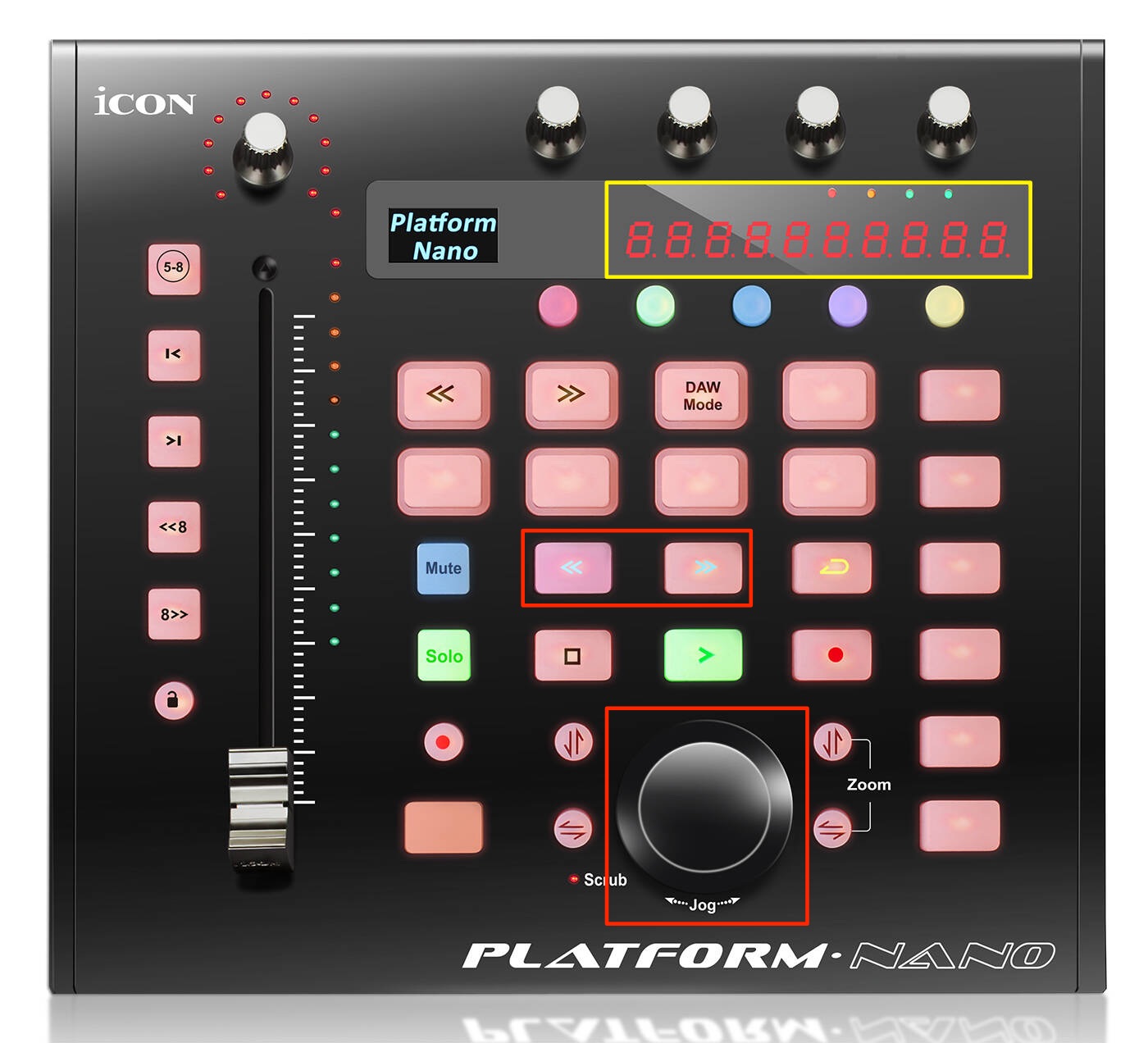
Set the playback position using the left/right buttons or the jog/shuttle wheel.
The playback position in bars is also shown on the LED display.
Combining these controls with playback and recording makes production much more efficient.
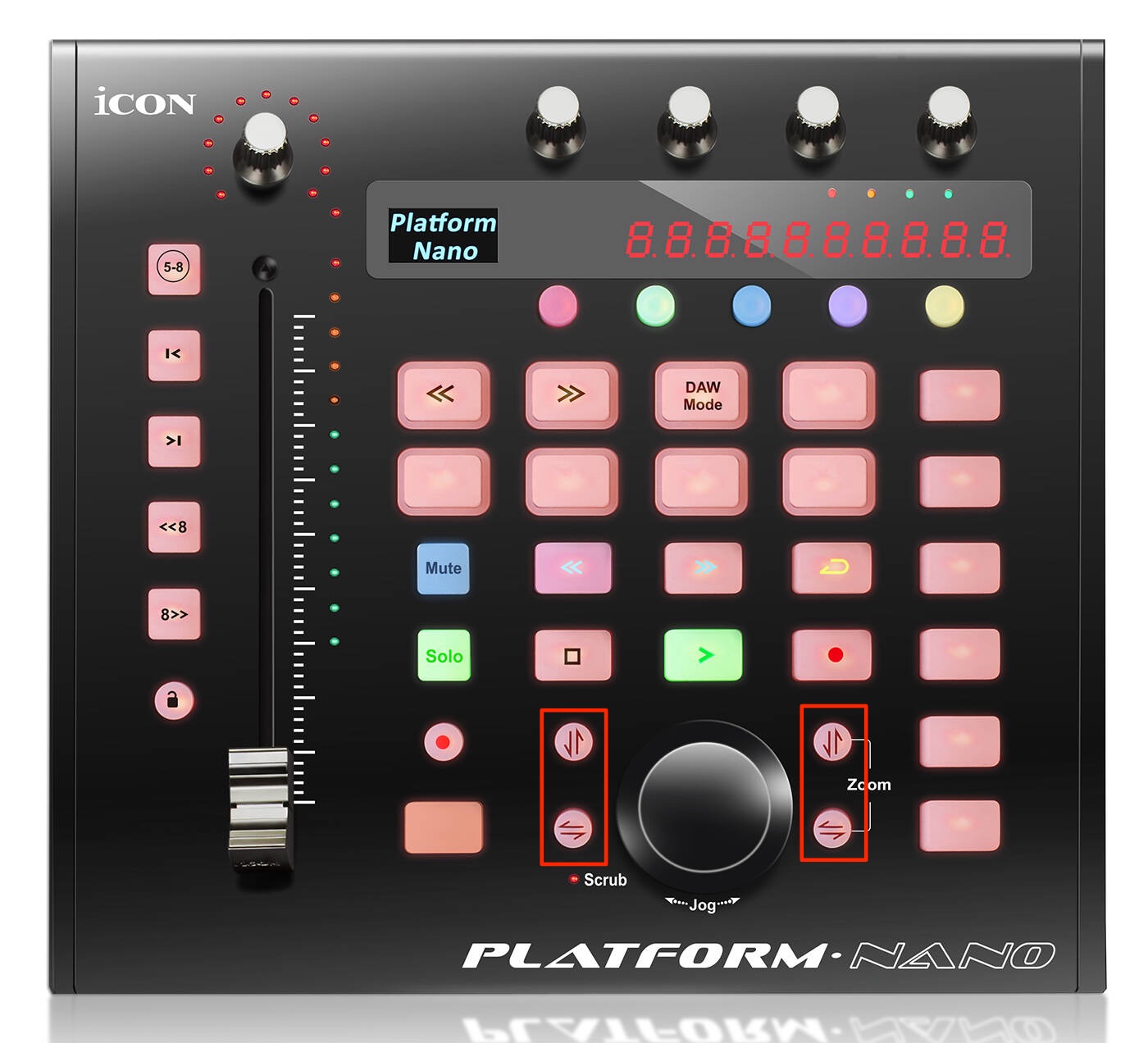
Pressing the buttons on either side of the jog/shuttle wheel changes what turning the wheel does.
- Upper left: Quickly switch the selected track.
- Lower left: Switch the selected event on the current track.
- Upper right: Adjust vertical (track) zoom.
- Lower right: Adjust horizontal (timeline) zoom.
Track Controls
Select individual tracks and control their volume and pan.
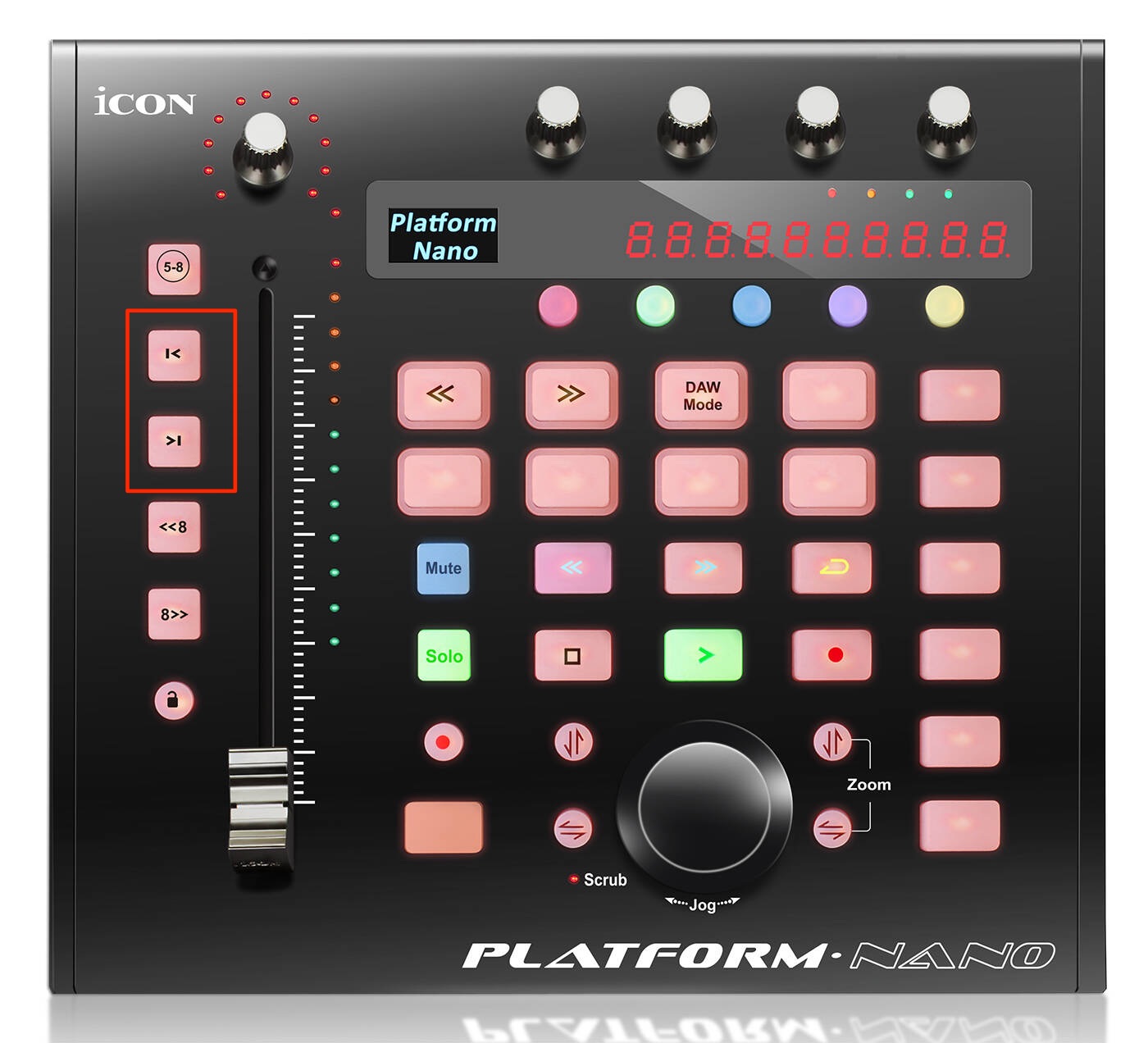
Switch between eight tracks.
The selected track's name is also shown on the LED display.
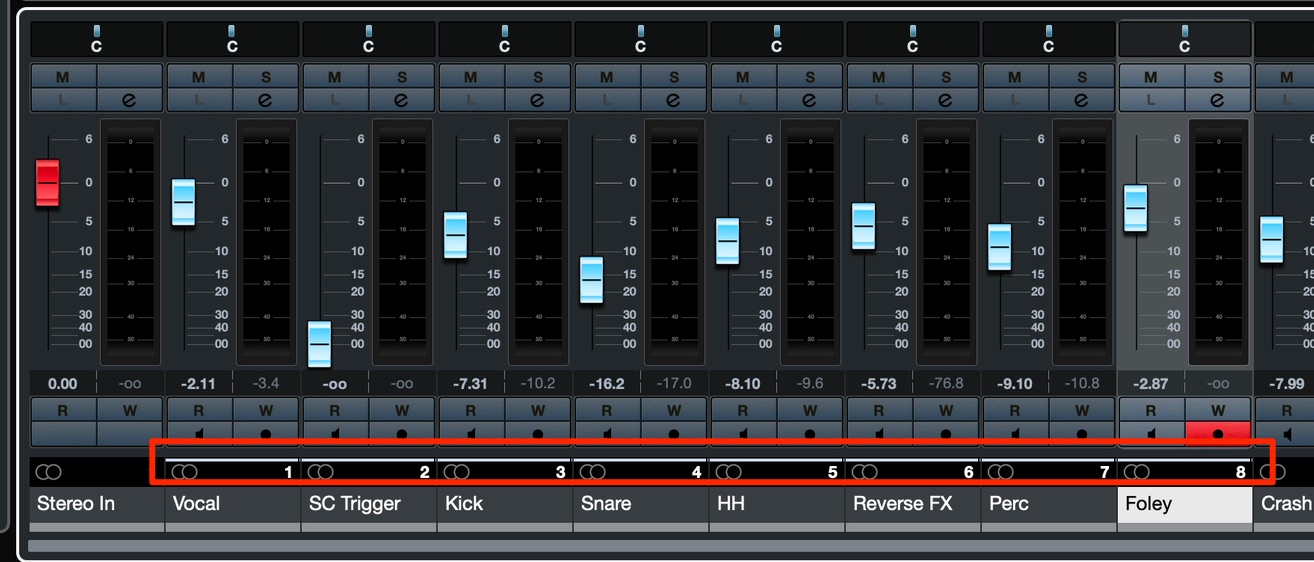
You can see the eight available tracks in the Project or Mixer window, where they are marked with white lines.
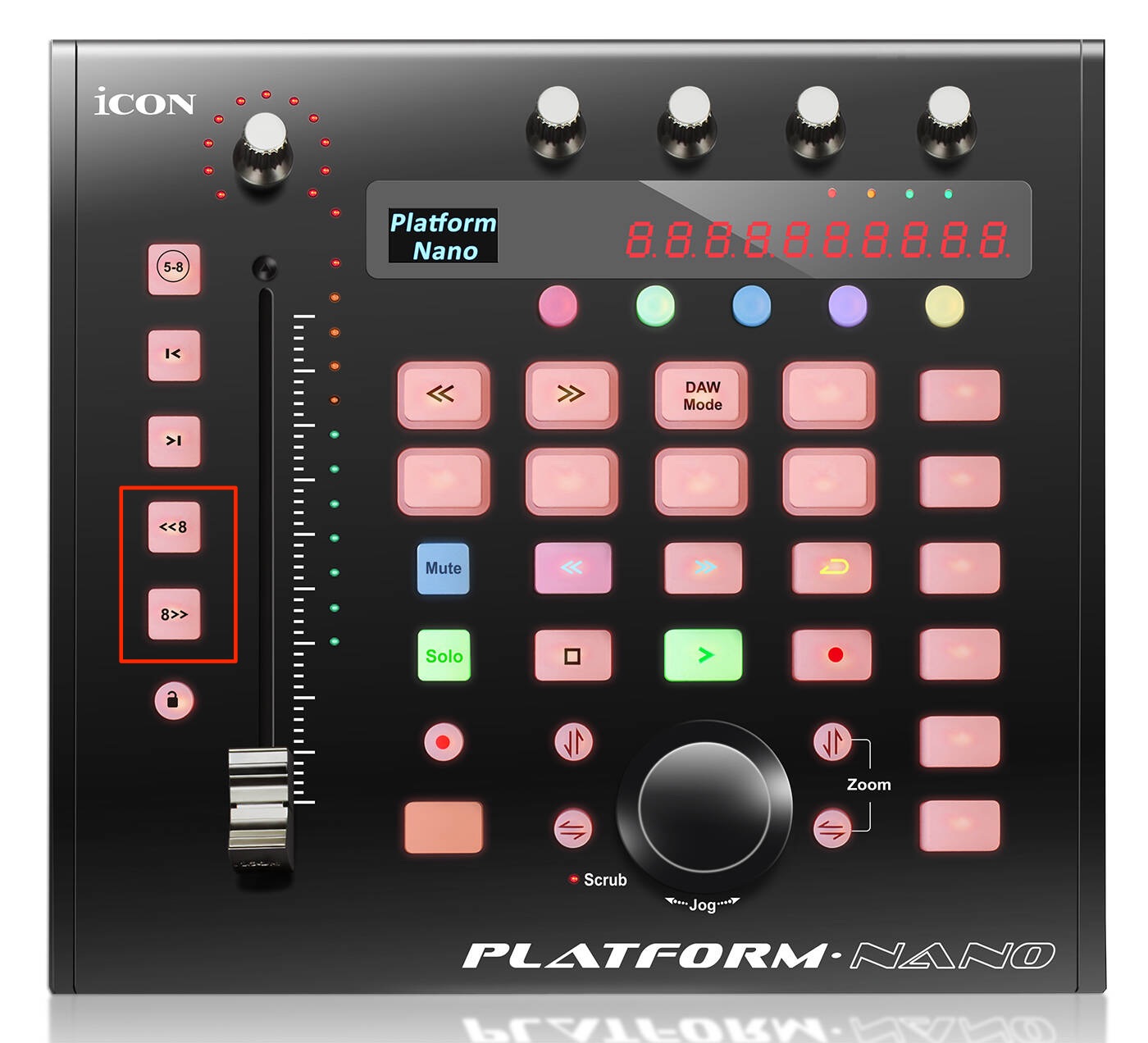
Use these buttons to switch between banks of eight tracks.
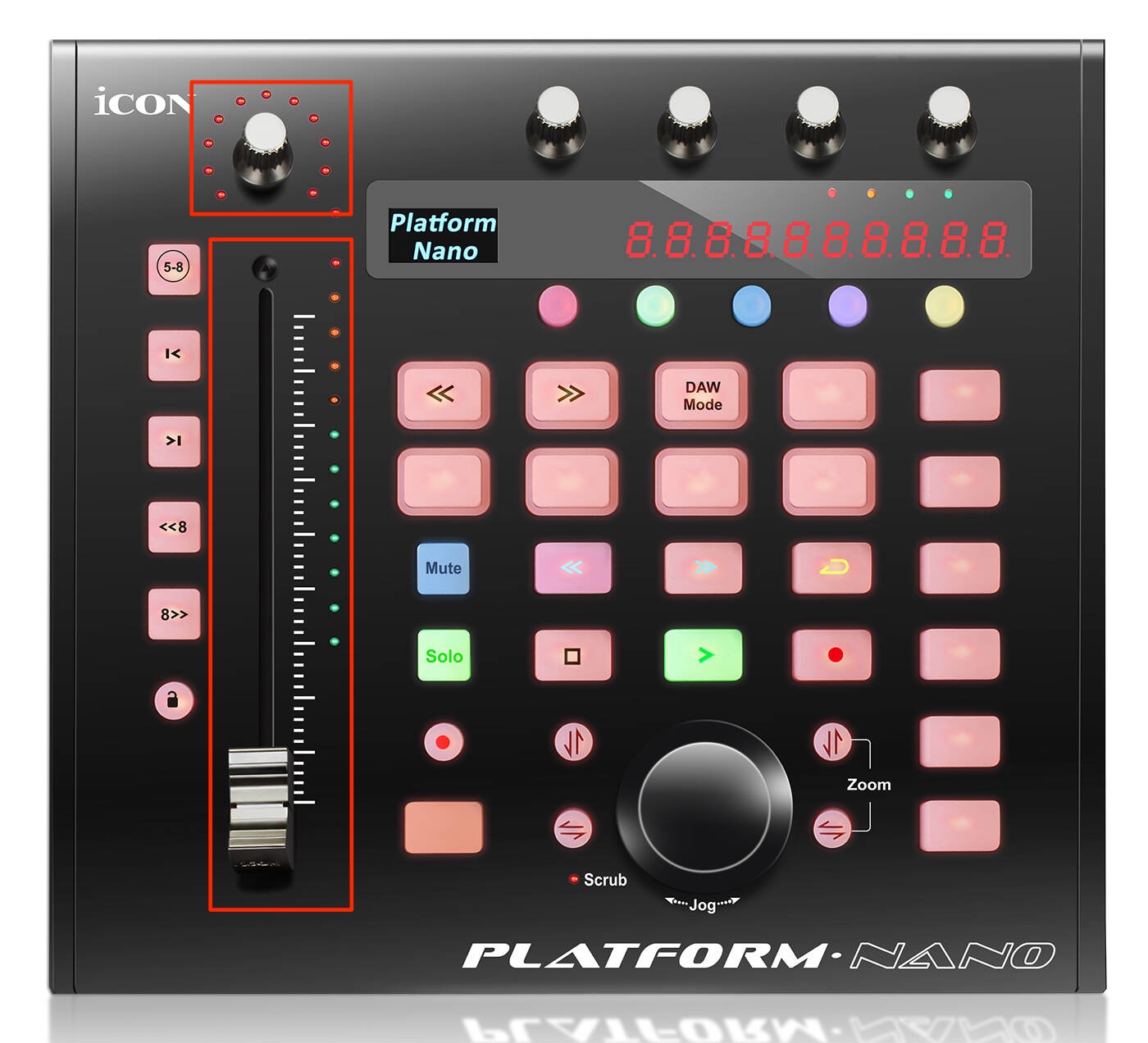
You can intuitively control the selected track's volume and pan.
The fader operates at 10-bit resolution, accurately reflecting subtle movements and nuances.
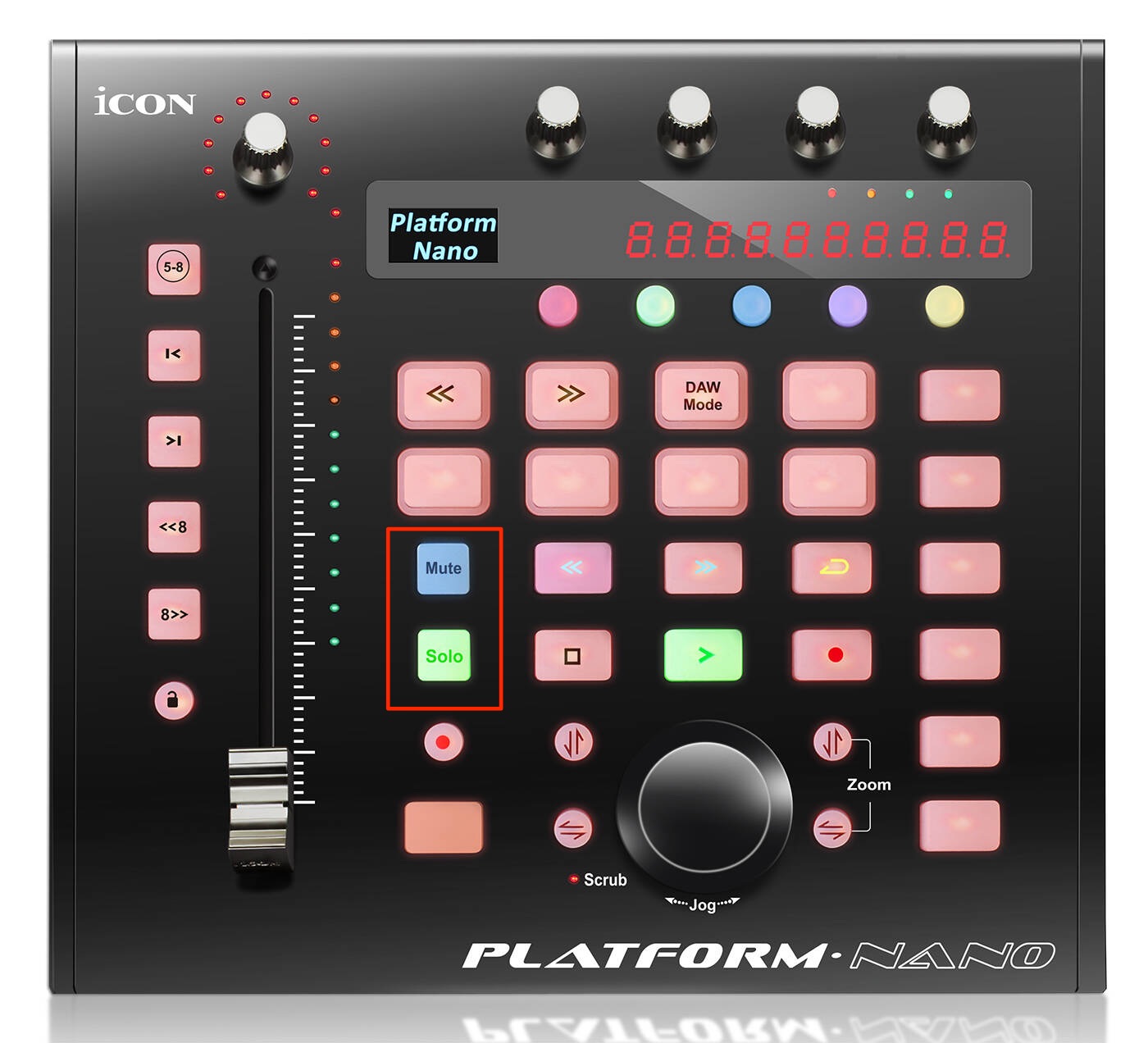
You can also quickly set Mute (silencing the track) and Solo (playing it on its own). Together with the fader and pan controls, these are especially useful when mixing.
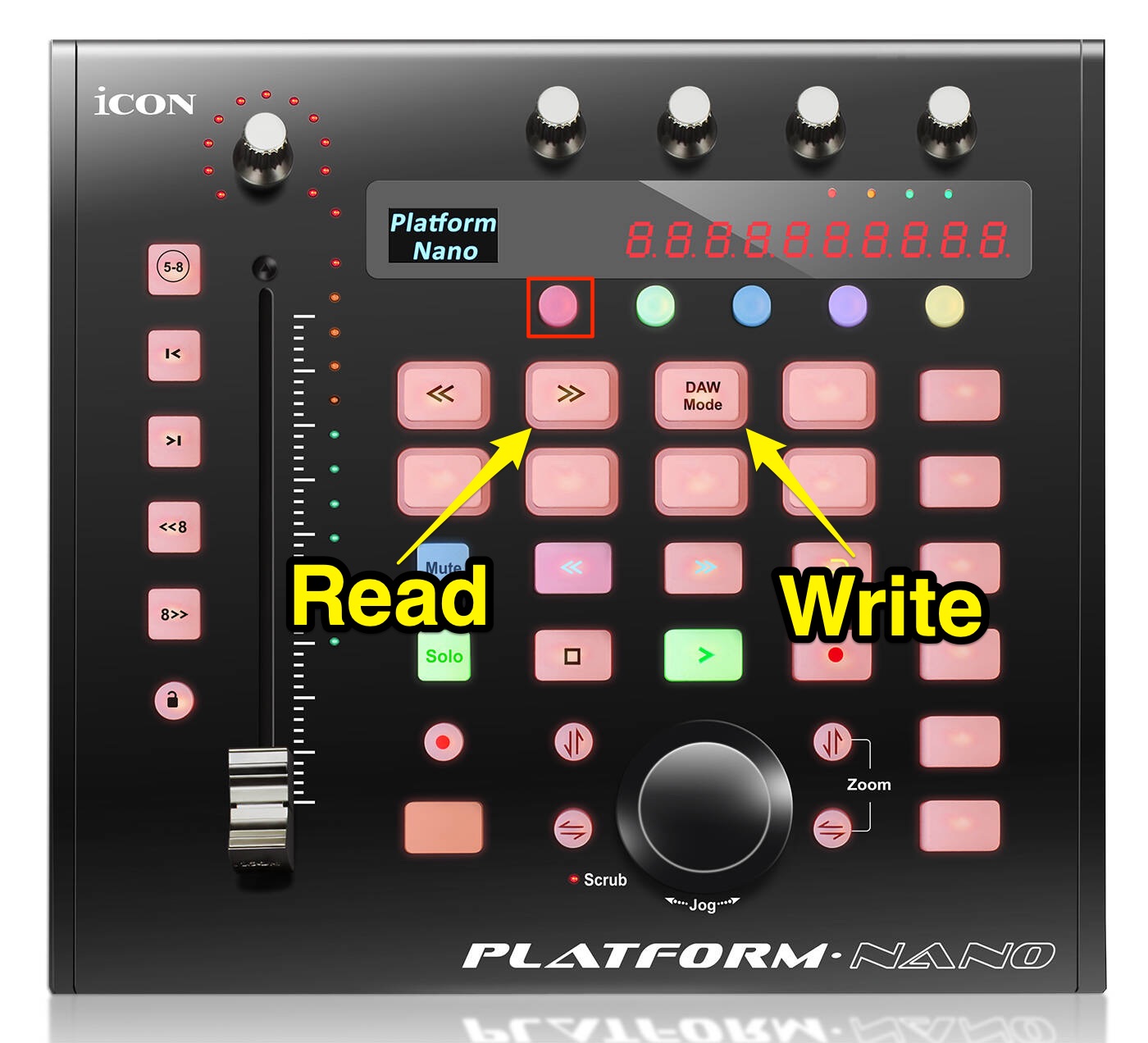
Switch the Platform Nano's color mode to red to control automation Read and Write.
Set the selected track to Write and move a control such as volume.
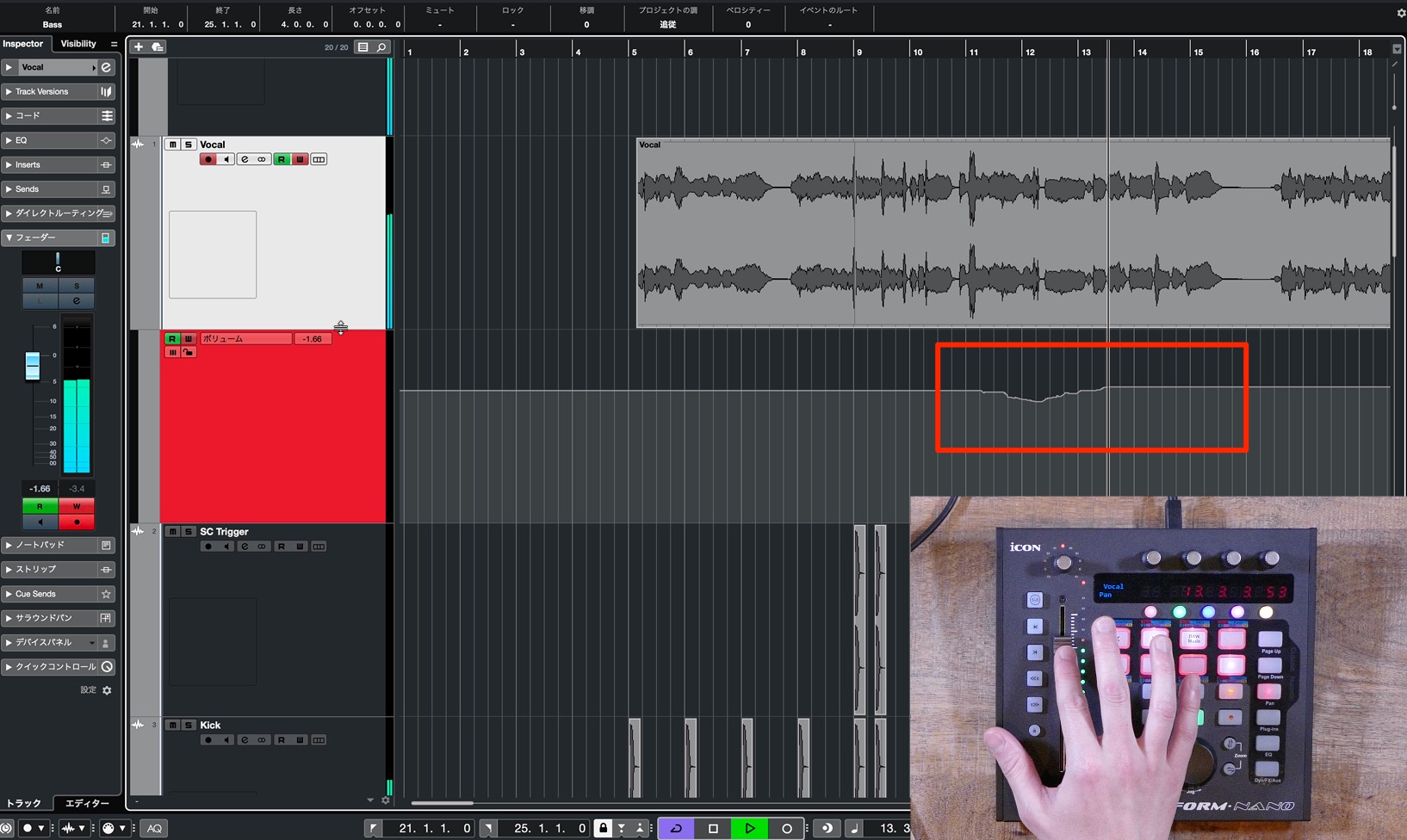
Automation is immediately recorded, as shown here.
Master Track
Whatever track is currently selected, you can immediately access and control the master track.
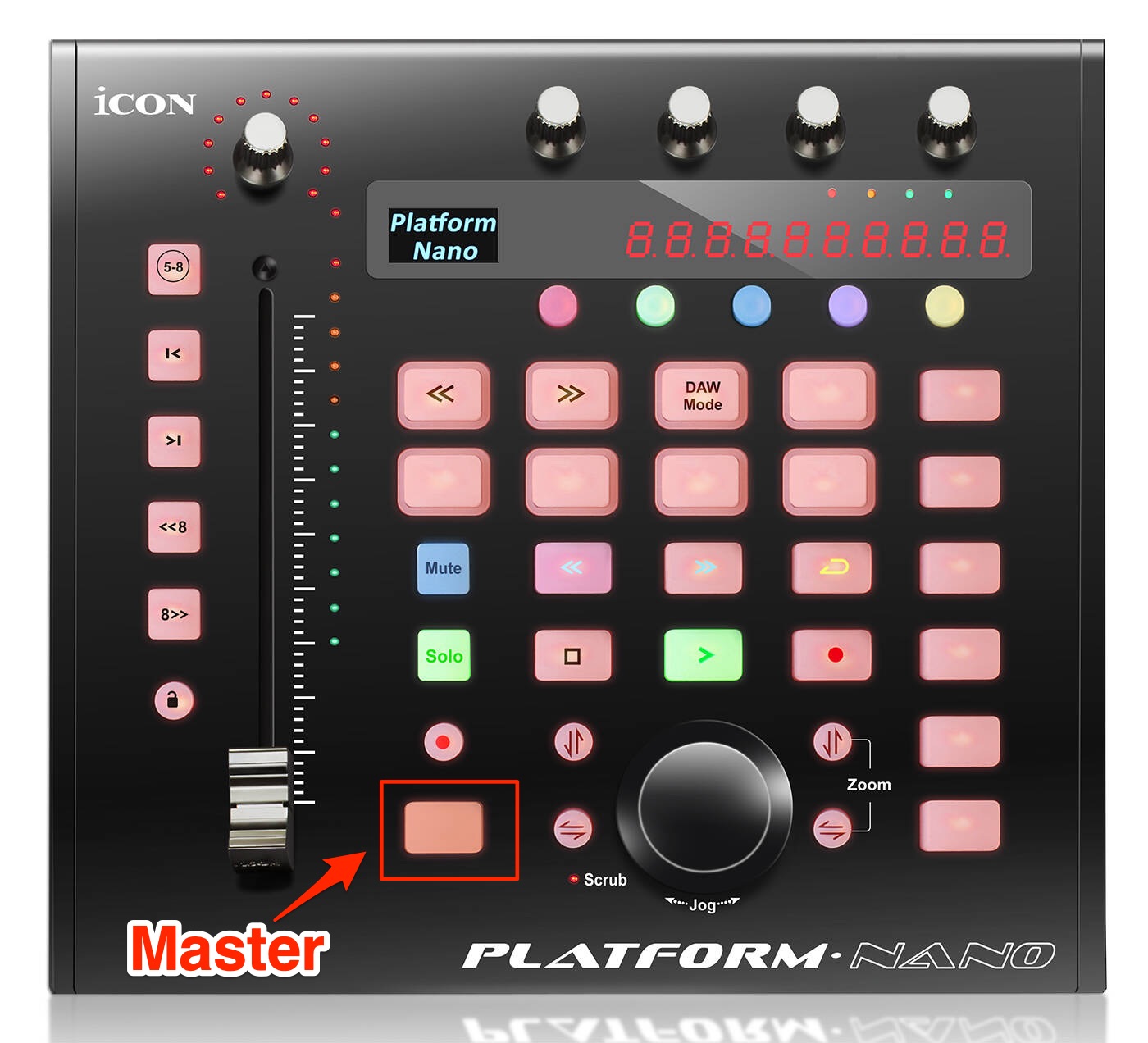
Turn on the Master track button.
The controls now act on the master track, and the fader reflects its volume.
Making the Most of the Color-Coded Functions
The buttons below the LED display have assigned colors. These colors determine the functions of the buttons below them.
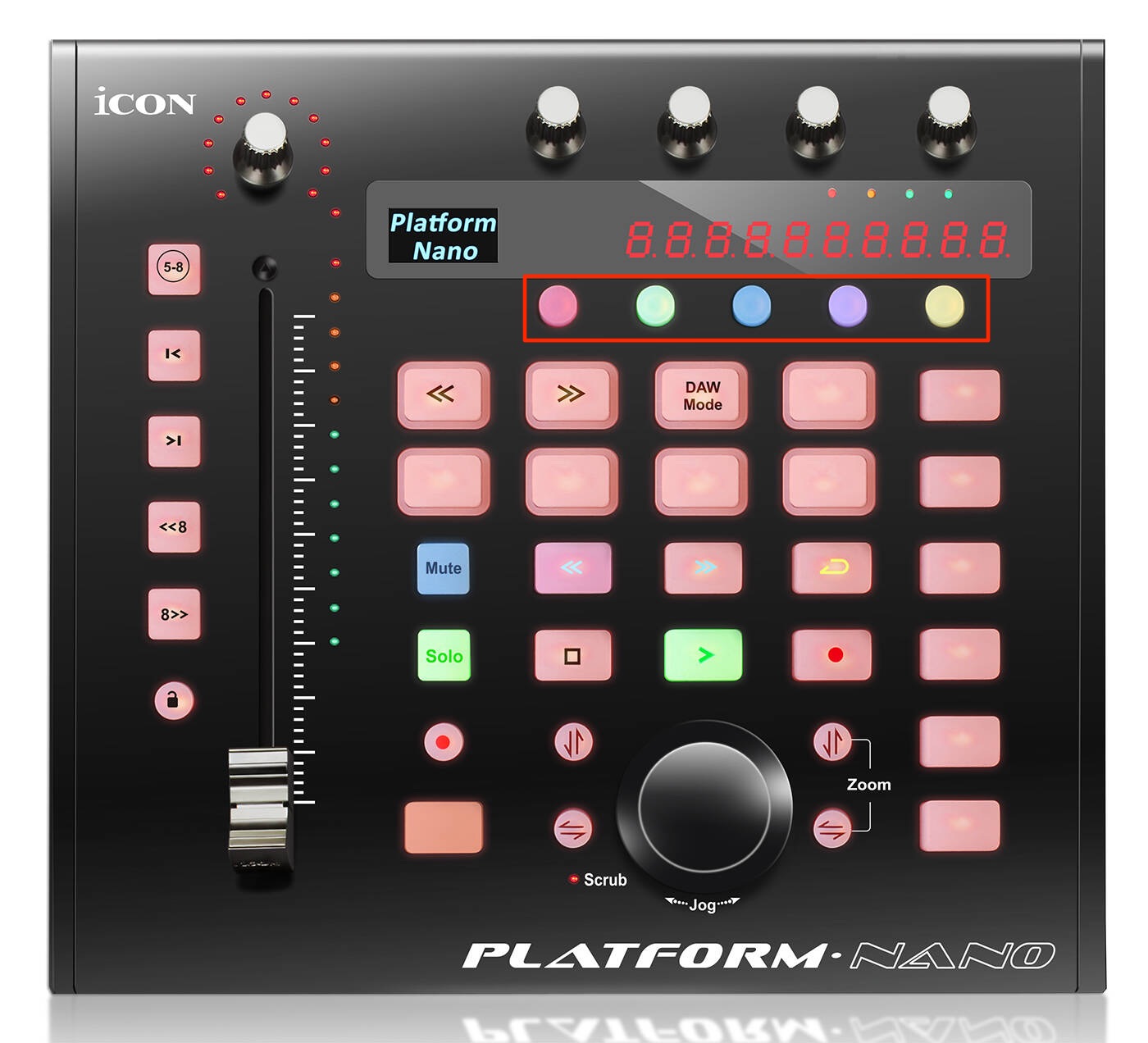
The assigned functions differ by DAW. Here are some we found particularly useful when controlling Cubase.
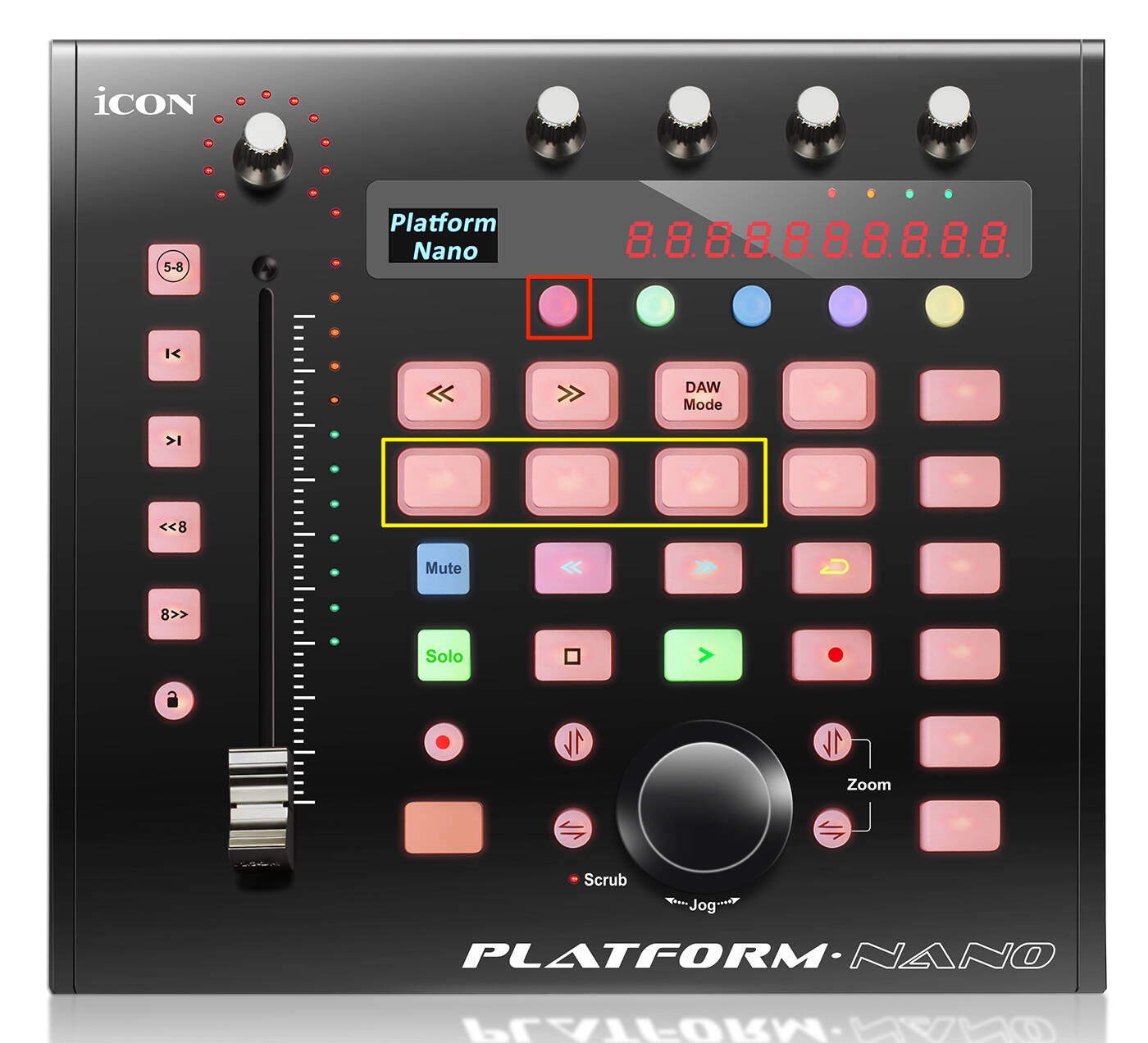
In red mode, the bottom three buttons are useful in addition to the automation Read/Write functions described above.
- Left: Show or hide the selected track's editing window.
- Center: Hide other open windows and display only the Project window, even when many windows are open.
- Right: Show or hide the Mixer window.
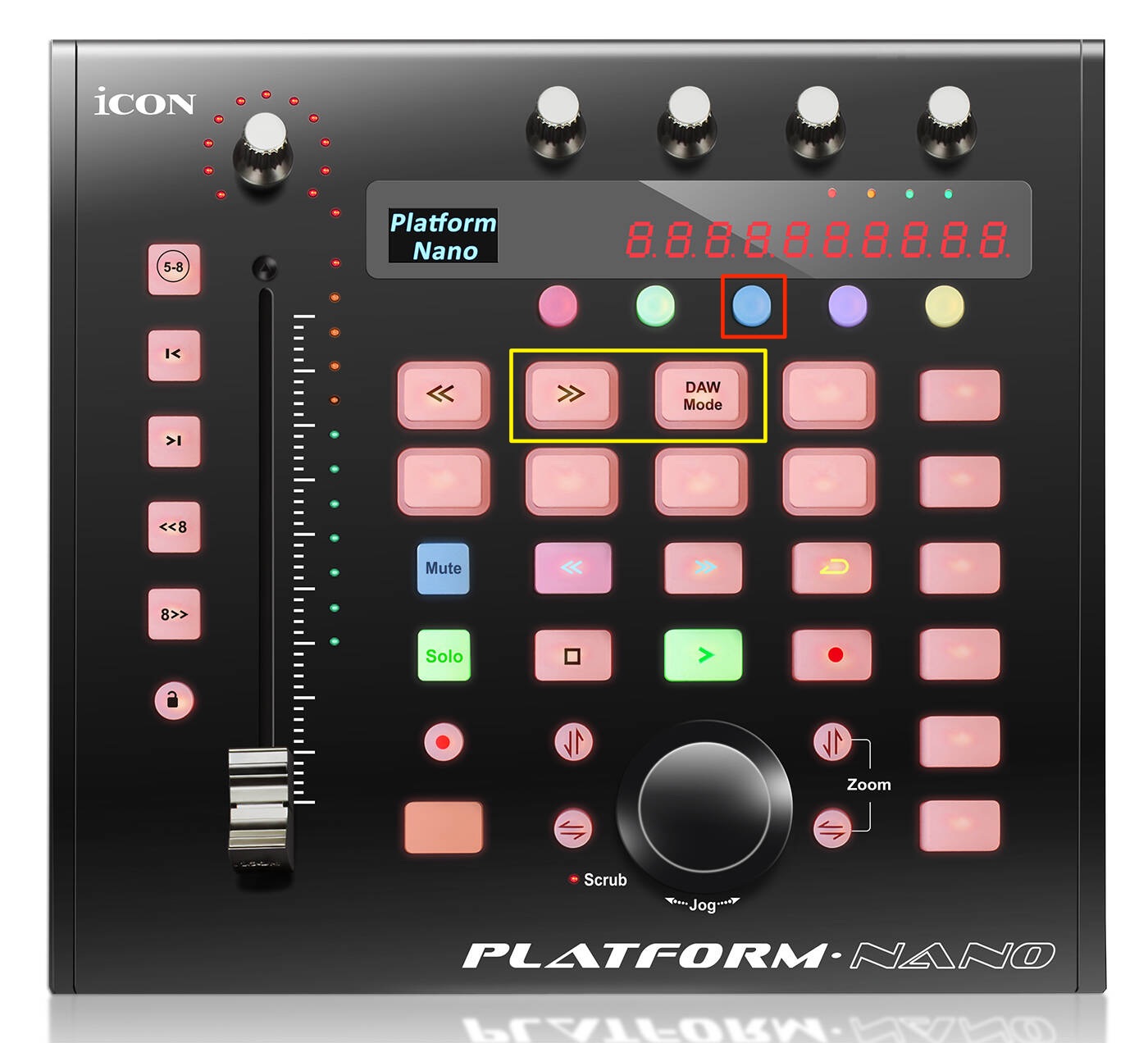
In blue mode, these left/right buttons move the playback position to the start or end of the cycle range.
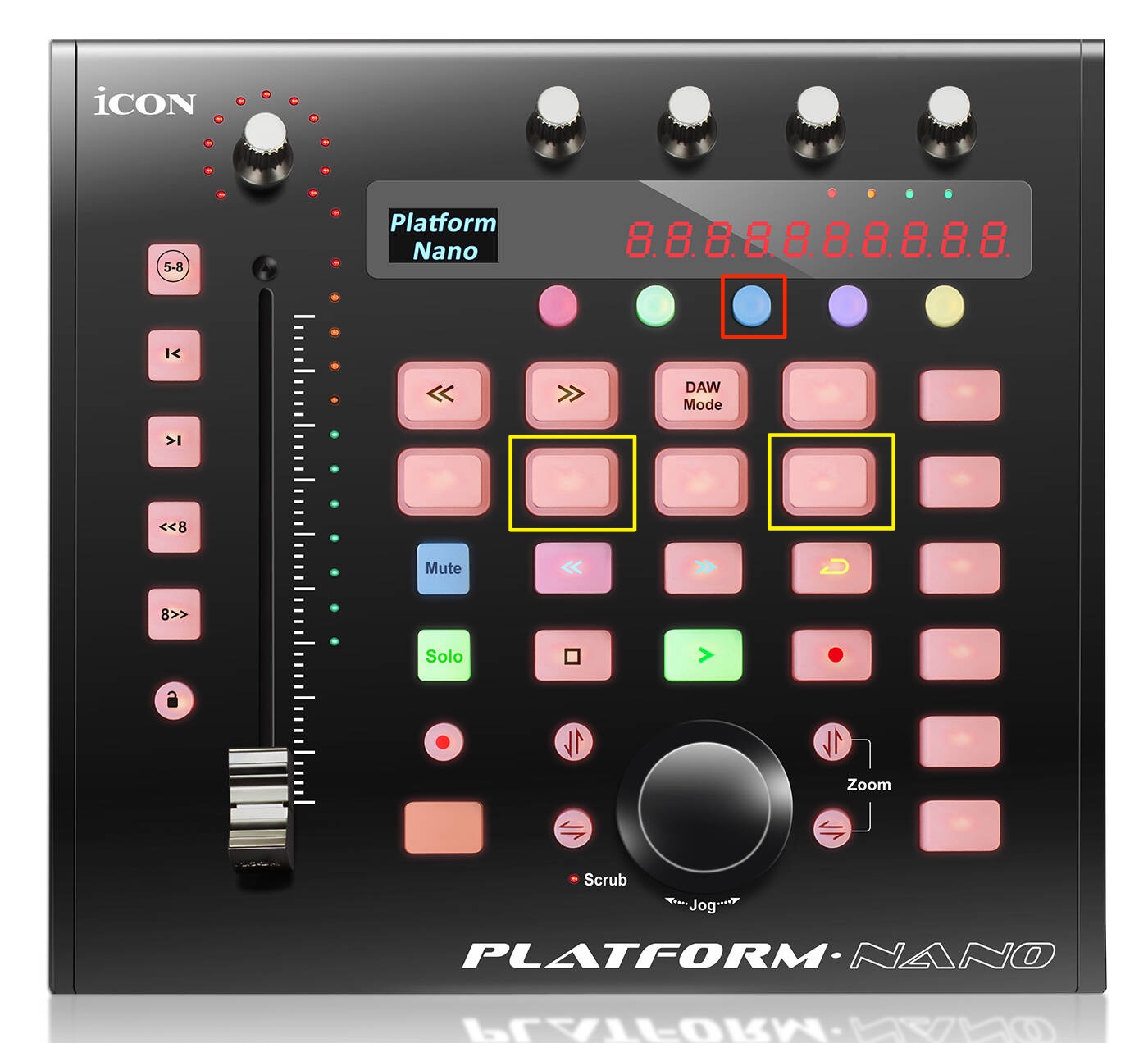
The two buttons below move the playback position to the beginning or end of the project.
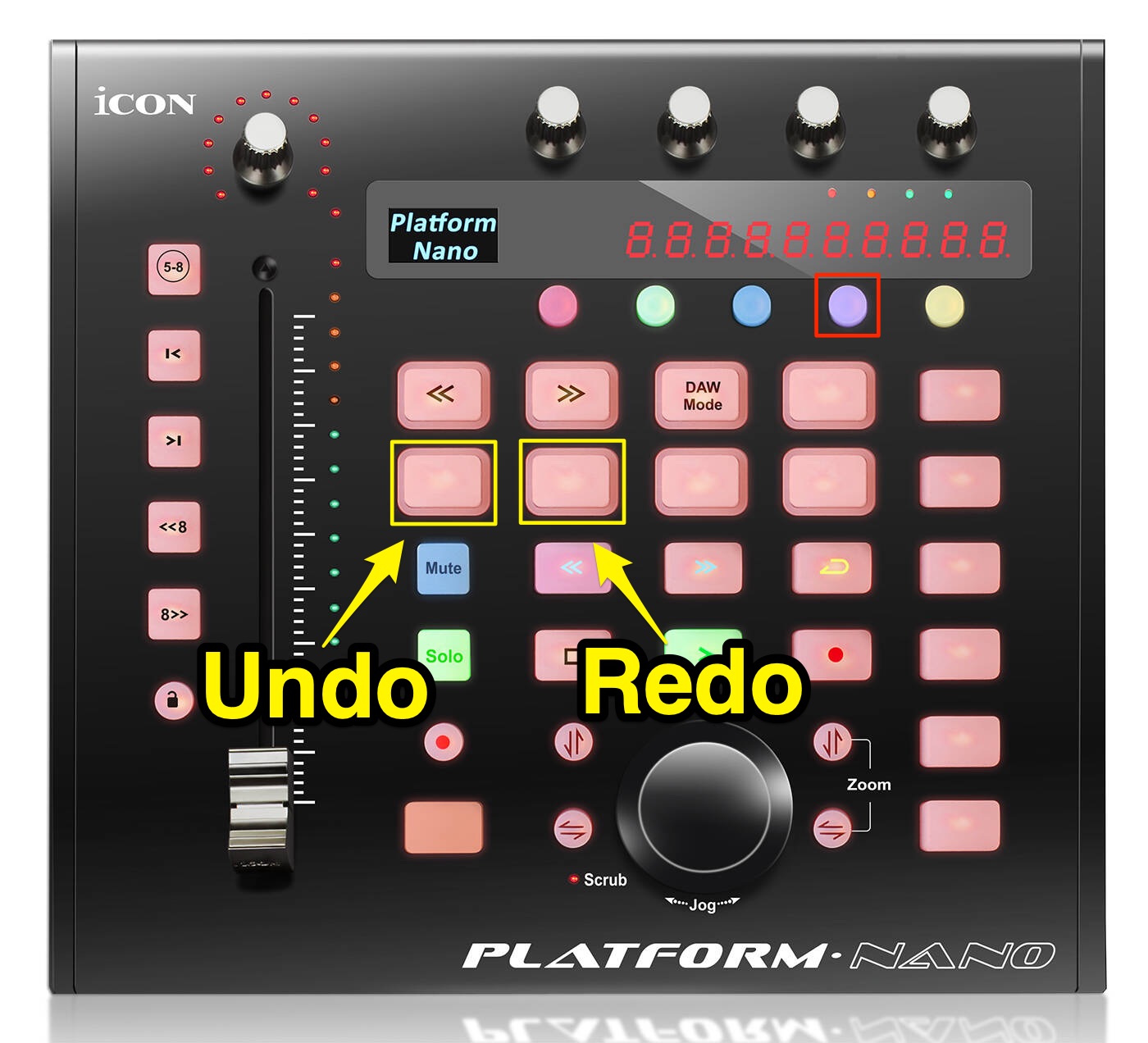
In purple mode, Undo and Redo let you step backward or forward through your editing actions.
These are frequently used operations during production.
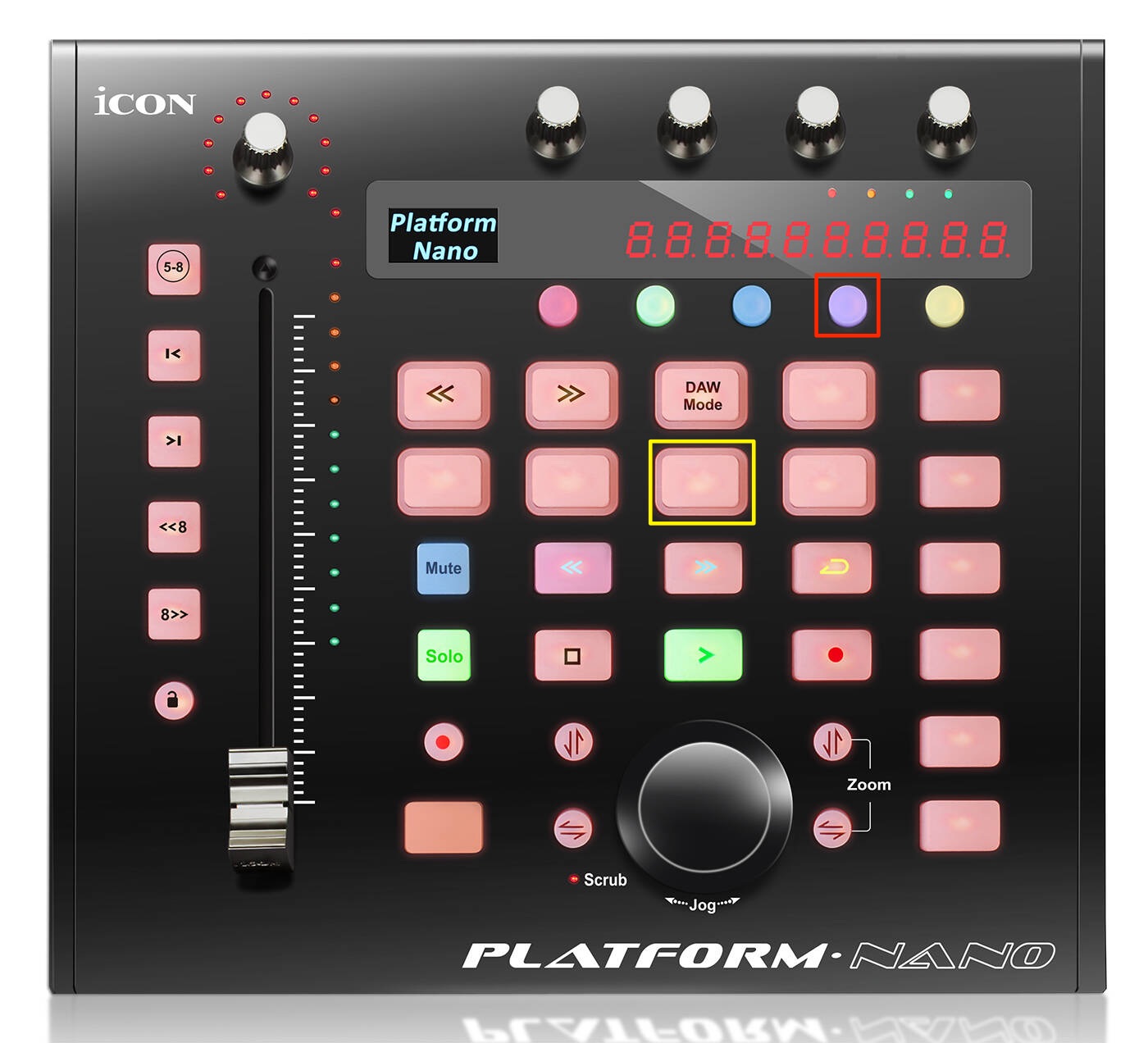
The button to their right is assigned to saving the project.
Saving often is essential during production, so being able to do it quickly is a welcome feature.
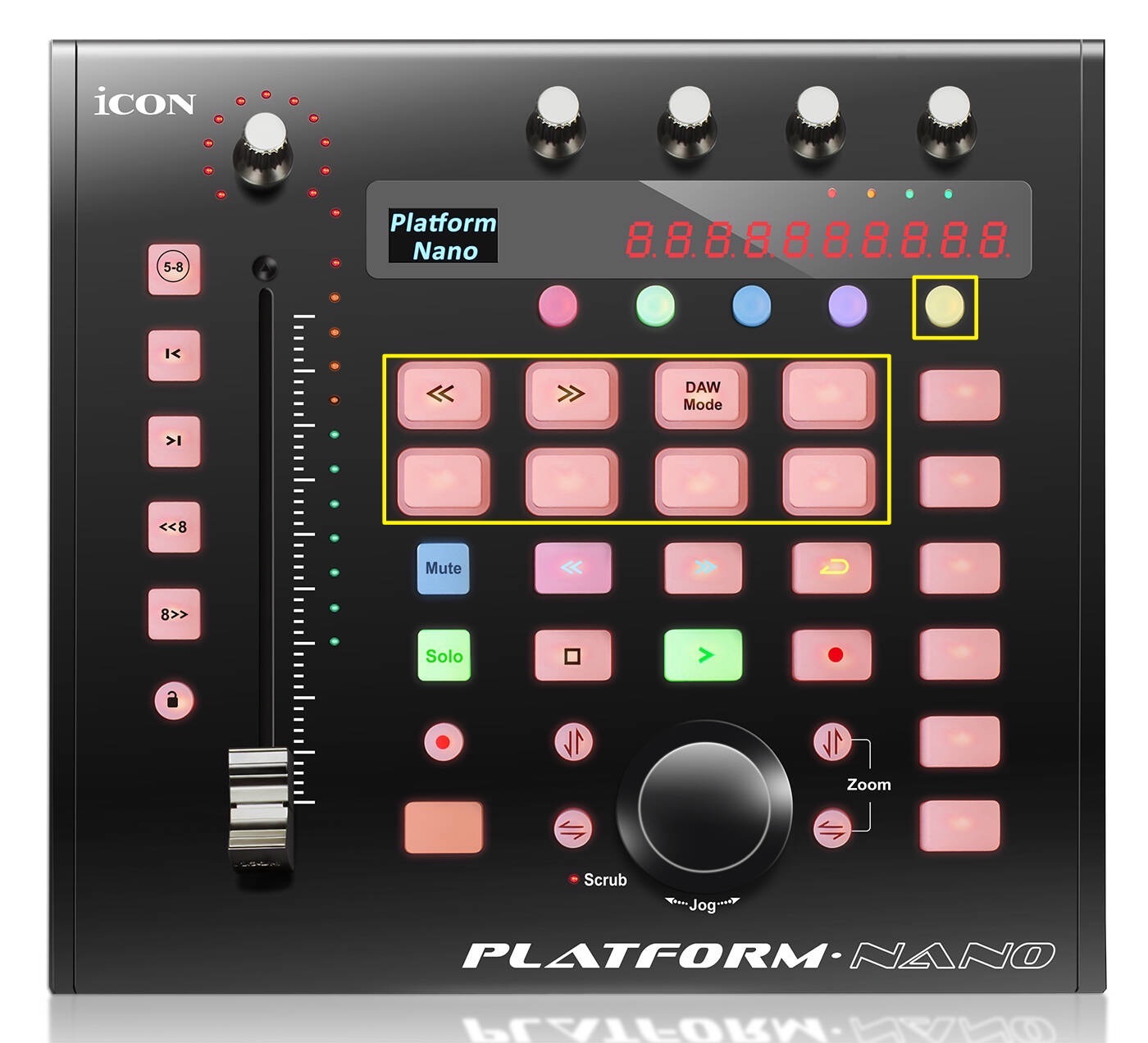
In yellow mode, you can customize the assigned operations.
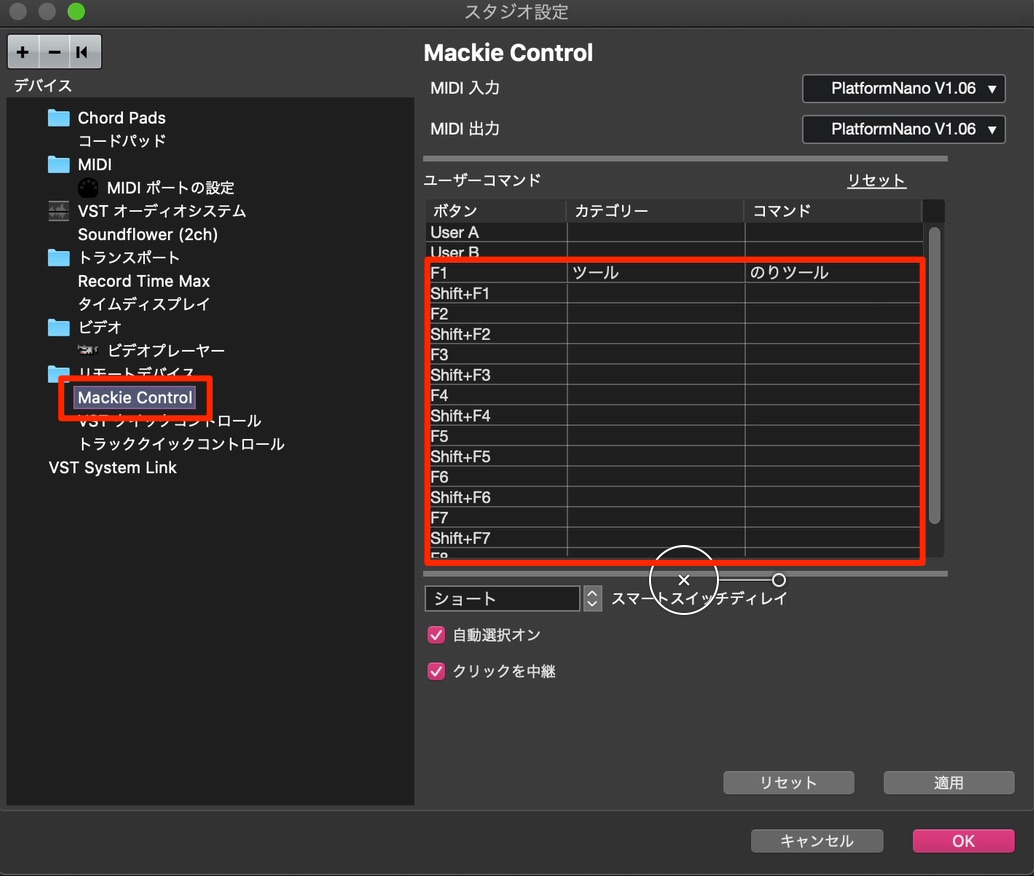
The F1–F8 assignments shown when you select Mackie Control in Studio Setup correspond to the Platform Nano's buttons.
Assigning frequently used operations and commands can make Cubase much easier to work with.
What do you think?
Controlling your DAW directly at your fingertips makes production more intuitive.
Despite this range of features, the original article listed an affordable price of ¥18,000 before tax.
Its compact size keeps it out of the way on your desk and makes it convenient to carry.
We recommend it as a first MIDI controller, too—take a look!
Compact enough to stay out of the way on your desk and convenient to carry! How to use the versatile ICON Platform Nano MIDI controller.
The article also explains how to set it up with major DAWs.🎥 YouTube: https://t.co/fxtUGpSkTr
📝 Article: https://t.co/ETpcEgCue9 pic.twitter.com/pe1zOHNzMP
— SLEEP FREAKS (@SLEEPFREAKS_DTM) March 6, 2020
Frequently Asked Questions
Q1. Which DAWs does the iCON Platform Nano support?
It supports major DAWs including Cubase, Nuendo, Logic Pro X, Pro Tools, Ableton Live, FL Studio, Studio One, and Bitwig. Since it supports the Mackie Control and HUI protocols, it may also work with other DAWs.
Q2. What is the most important step in the initial Platform Nano setup?
Turn on the unit while holding "<<", then use the "<<" and ">>" buttons to select the mode for your DAW. This is the key step. The setting is stored in the unit and automatically applied the next time it starts.
Q3. Can I change what turning the Platform Nano's dial does?
Yes. Press the buttons on either side of the jog/shuttle wheel to change its function. You can switch between functions such as track selection and parameter adjustment to suit the task.
Q4. What should I do if operating the controller unexpectedly triggers a MIDI instrument?
In Cubase, open MIDI Port Setup in Studio Setup and clear the controller's "In 'All MIDI Inputs'" checkbox. Other DAWs offer similar settings in their configuration menus.
NEW ARTICLES
Latest English Articles























































































































































































































