
Ableton Move is a compact, portable music-making device that supports both standalone production and integration with a computer. Measuring 313.5 mm wide, weighing 0.97 kg, and offering 3–4 hours of battery life, it is designed for creating music anywhere—from the living room or bedroom to places on the go. Its streamlined four-track workflow, Capture function with automatic BPM detection, step sequencer, and Repeat function make it possible for beginners and experienced producers alike to start making music as soon as inspiration strikes.
A versatile device for making music anywhere
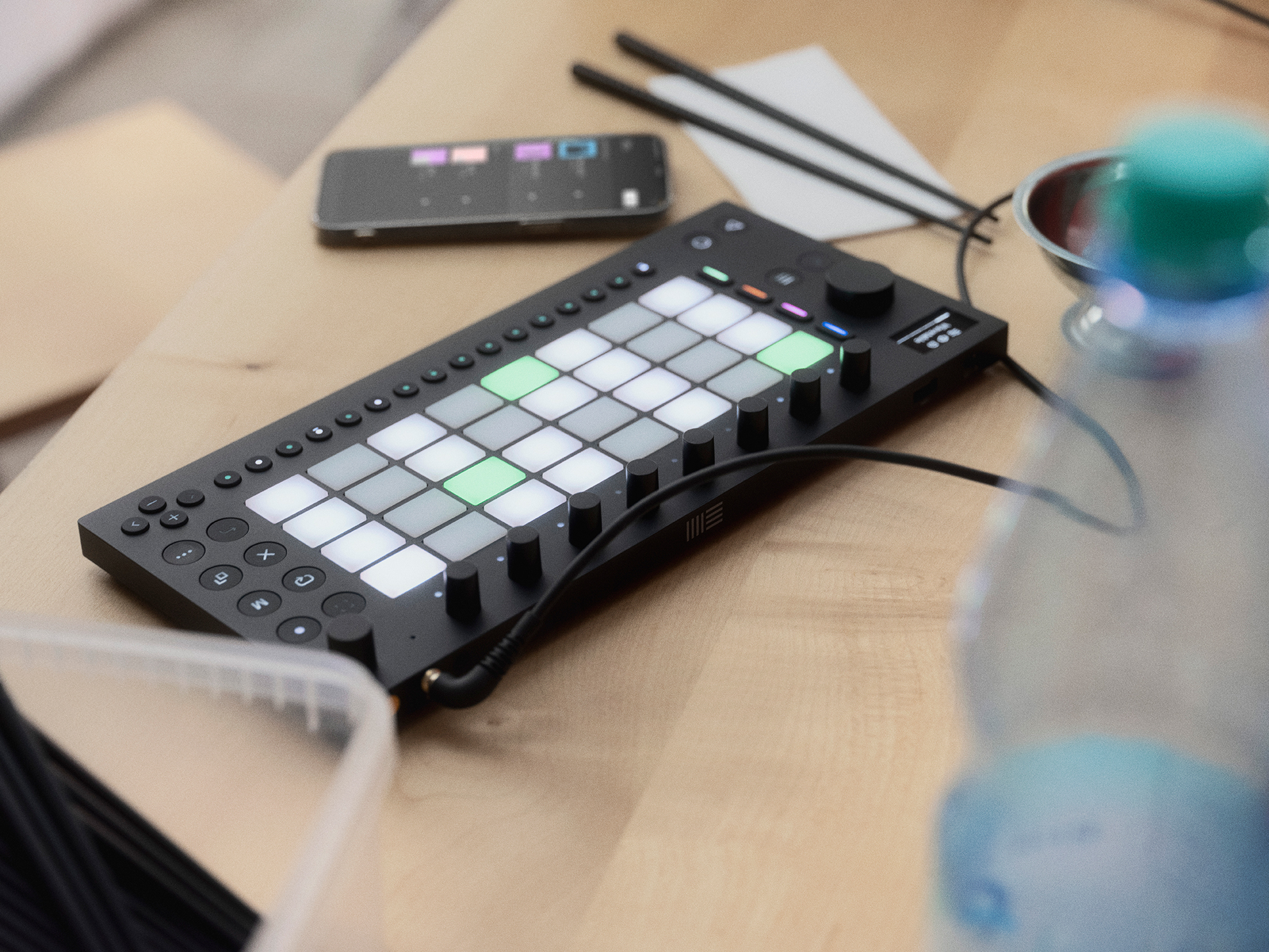
Ableton Move: a new music-making device from Ableton
Its compact body houses high-quality synthesizers, sampler sounds, and effects, so you can make music on the device itself.Connecting it to a computer also lets it take on a range of rolesas part of a flexible production setup.
Limiting the workflow to four tracks makes Move intuitive while still giving beginners and experienced producers plenty of ways to put it to use.
This article explores Move's features and workflow, explaining what makes the device stand out.
Ableton Move review video
Key features of Ableton Move
First, let's take a look at the specifications.
Size and weight
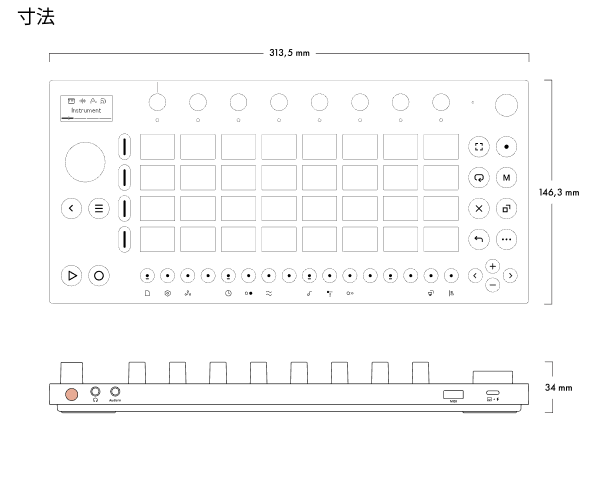
Move measures 313.5 mm wide, 146.3 mm deep, and 34 mm high, and weighs 0.97 kg. It is smaller than a typical laptop and weighs less than 1 kg, making it easy to slip into a bag or carry in one hand.
You can use it on its own in the living room or bedroom, then connect it to a computer at your desk. Switching between these setups is straightforward.
Battery life
Its battery lasts3–4 hoursso you can keep making music even when you do not have access to a power outlet or are away from home.
Built-in microphone and speakers
Move has built-in speakers and a microphone, so you can use it without connecting headphones or an external microphone.
You can hear what you are making as you work, helping you get ideas down without delay when inspiration strikes.
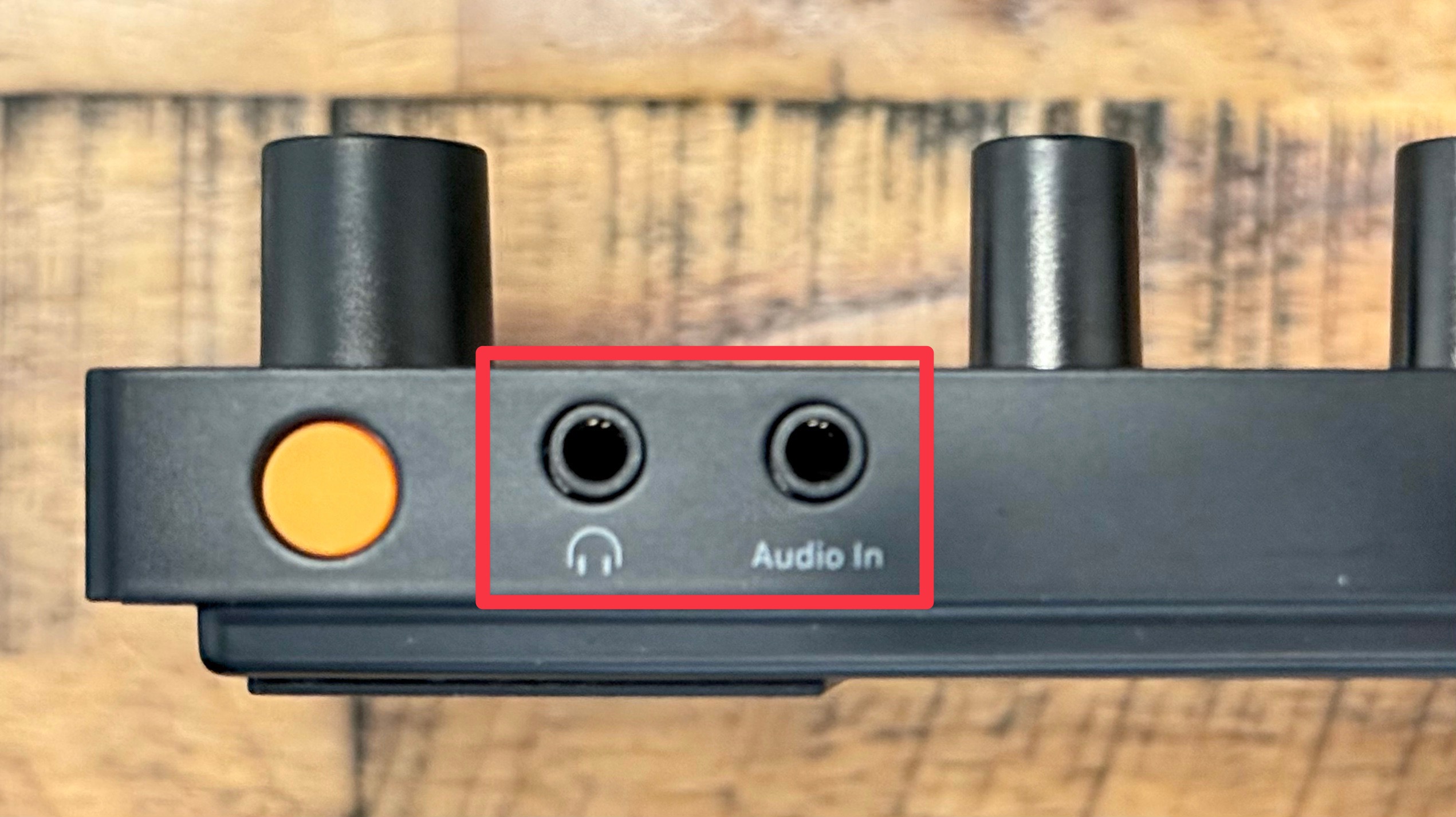
It also has input and output connections for external headphones, speakers, and microphones.
Flexible connections for external gear
Move can connect to a range of external devices, expanding your options for performing and producing.
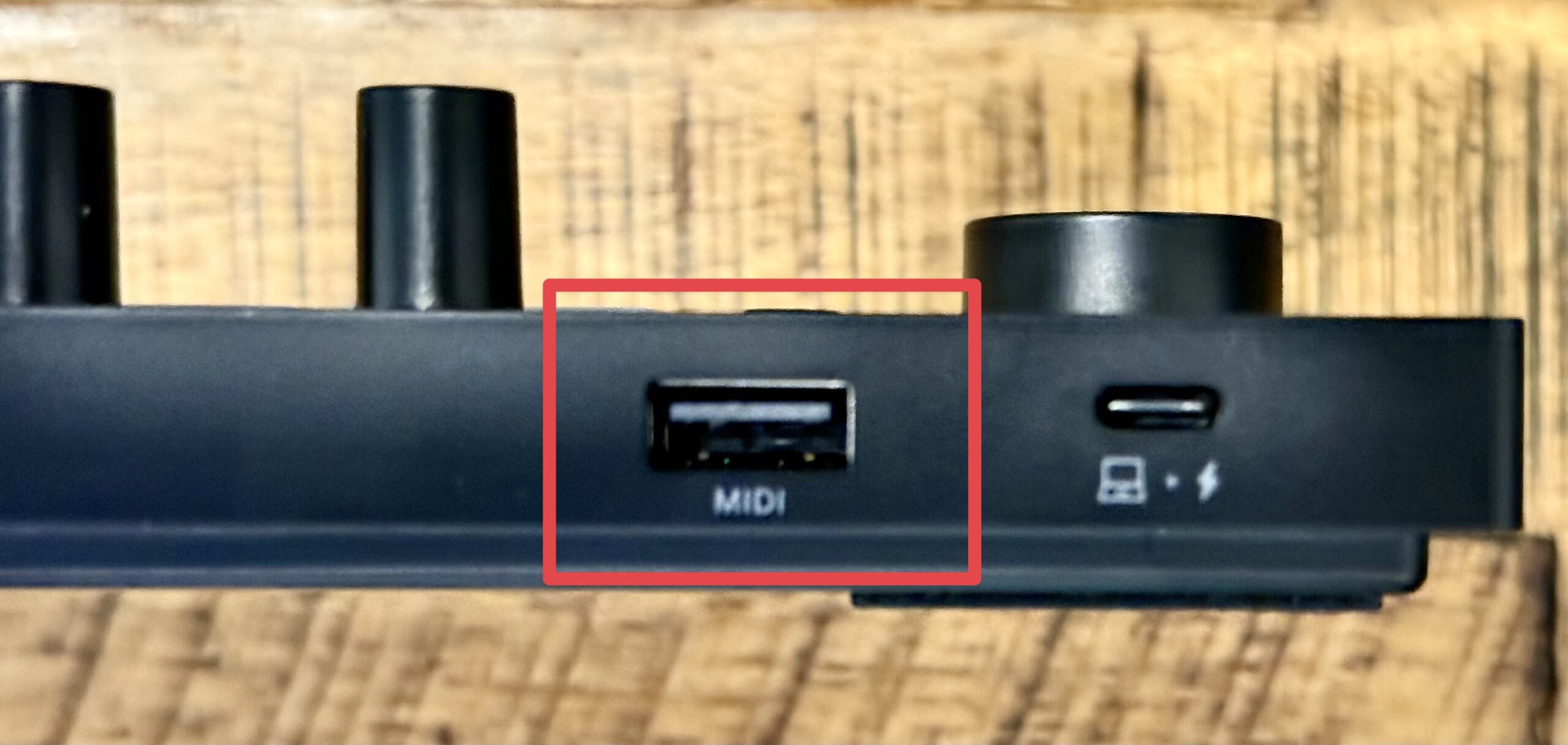
The rear USB-A port makes it easy to connect external MIDI devices such as a MIDI keyboard or drum pad.
You can also switch MIDI input and output settings from the MIDI settings screen, allowing you to connect and play an external synthesizer.
Build a drum track with Move's streamlined workflow
One of the biggest obstacles in music production isthe time spent on complicated setup and preparation.Move includes features that minimize this overhead, so you can start creating as soon as an idea comes to mind.
In the sections below, we will build up tracks and explain how to use Move's features along the way.
Creating a new project
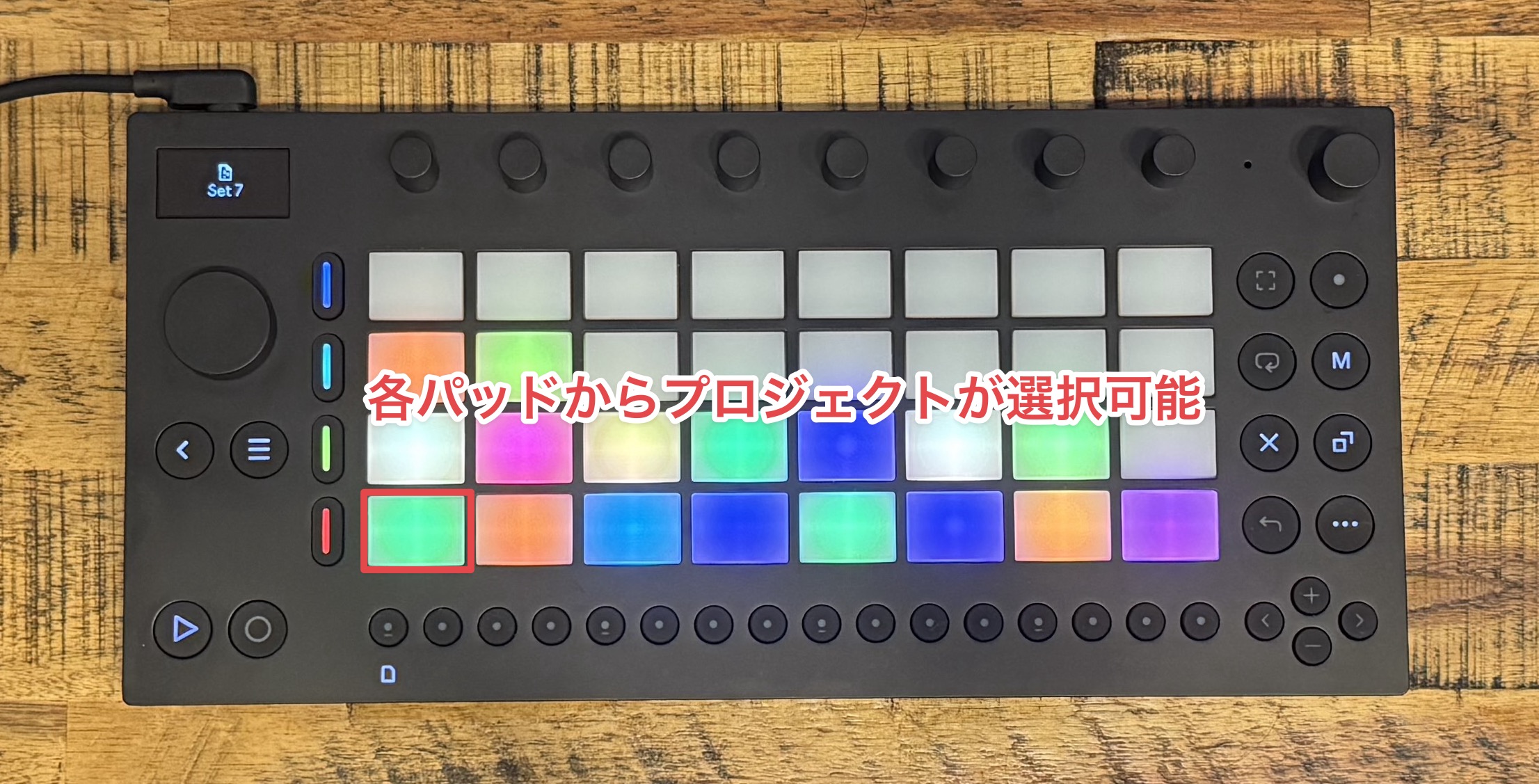
When you turn on Move, your projects appear on its 32 pads. You can press Play at this stage to preview a project.
Projects switch quickly, so you can browse through them one after another without interruption and find the one you want.
Select an unlit pad to create a new project.
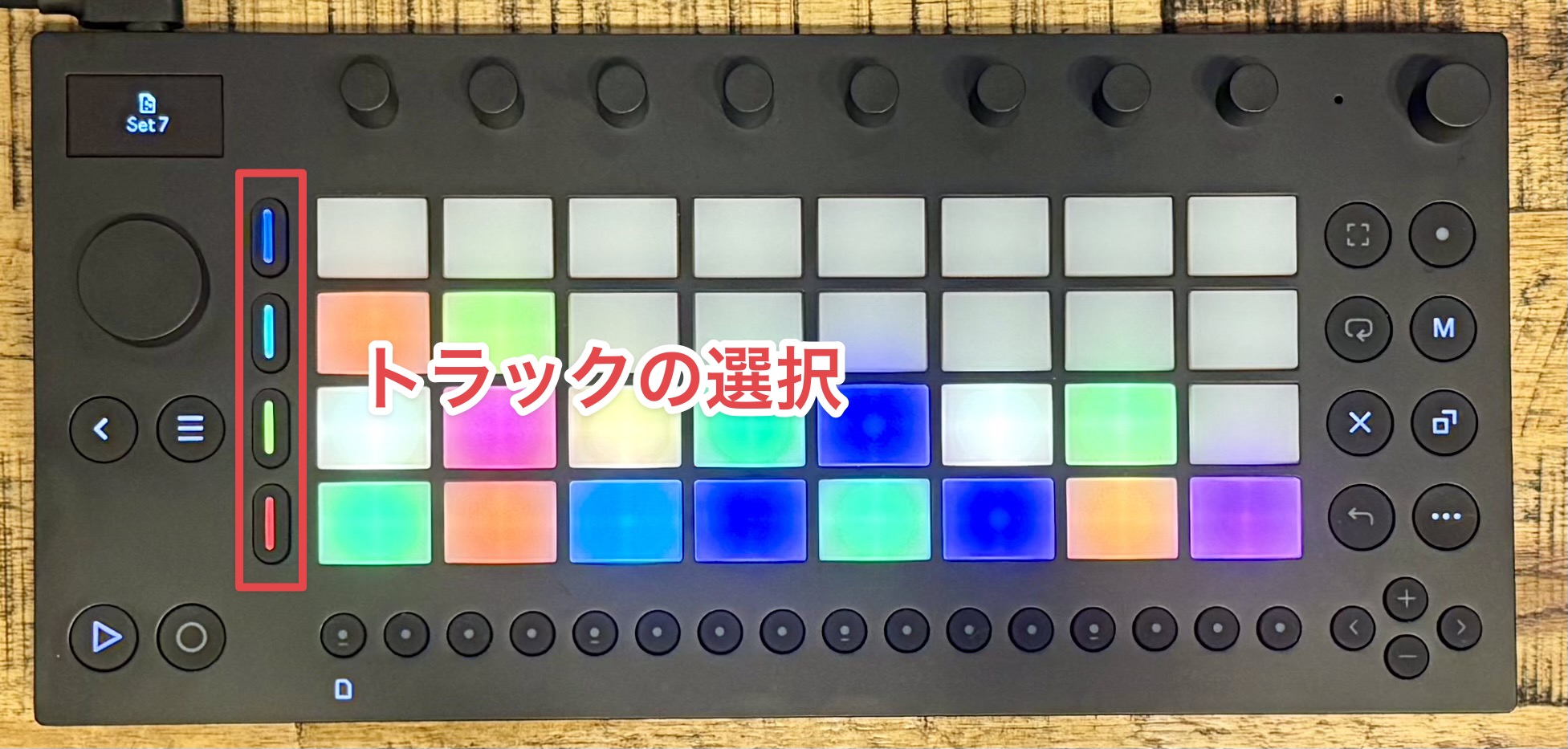
When a project is created, sounds are loaded automatically for each of its four tracks,so you can start playing as soon as you select a track.
Because you can skip the search for sounds and get straight to making music, Move is easy to pick up even when you only have a little time.
By default, the first track loads a drum sound that you can play on the 16 pads.
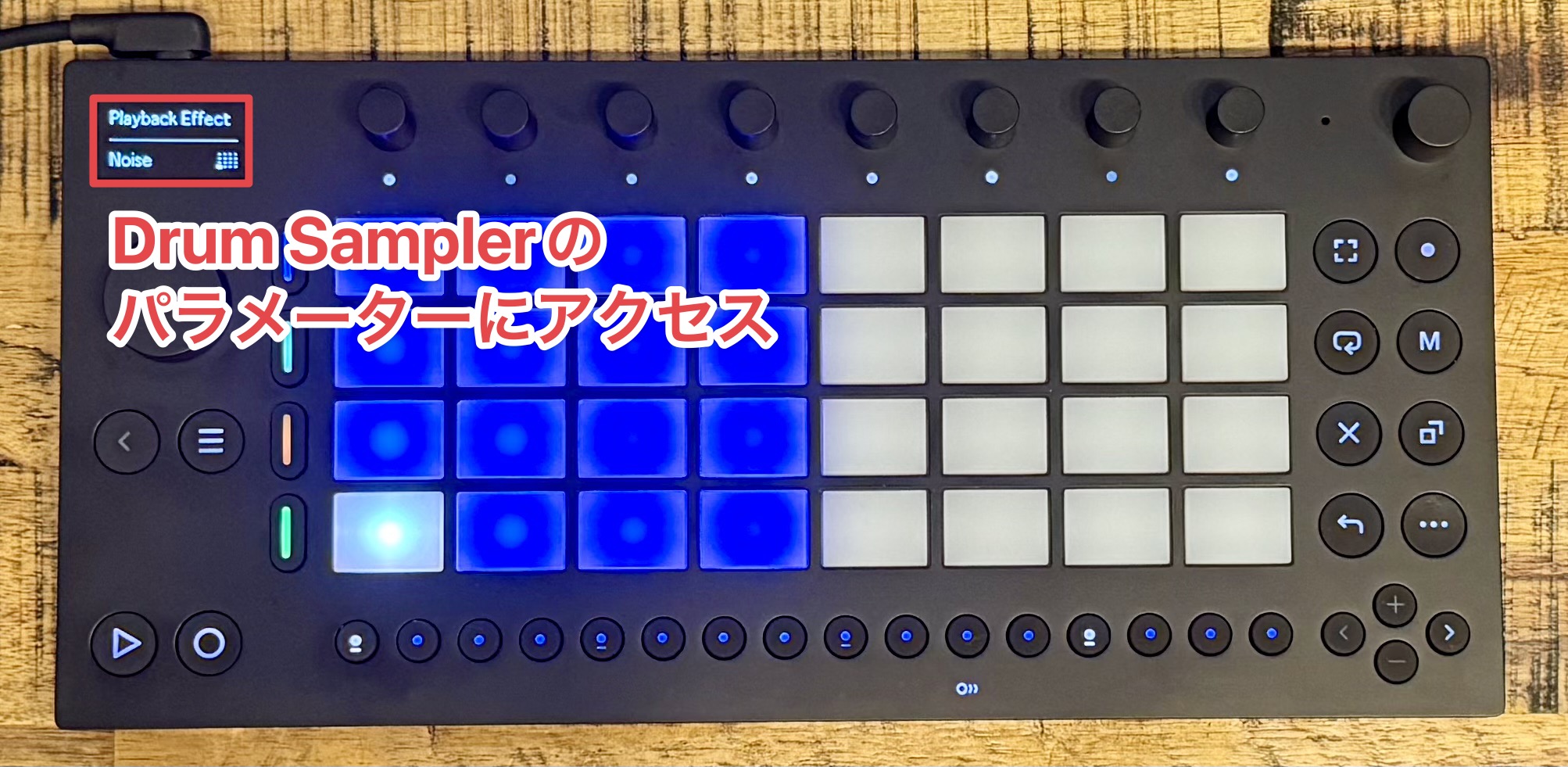
This drum sound uses the Drum Sampler introduced in Live 12.1,and its Playback Effect featurelets you process each pad individually.
Capture saves ideas from loose performances, including patterns and tempo
At the start of a project, you may play around with a phrase while you look for an idea. Ableton Move's Capture function lets you save those ideas before they disappear.
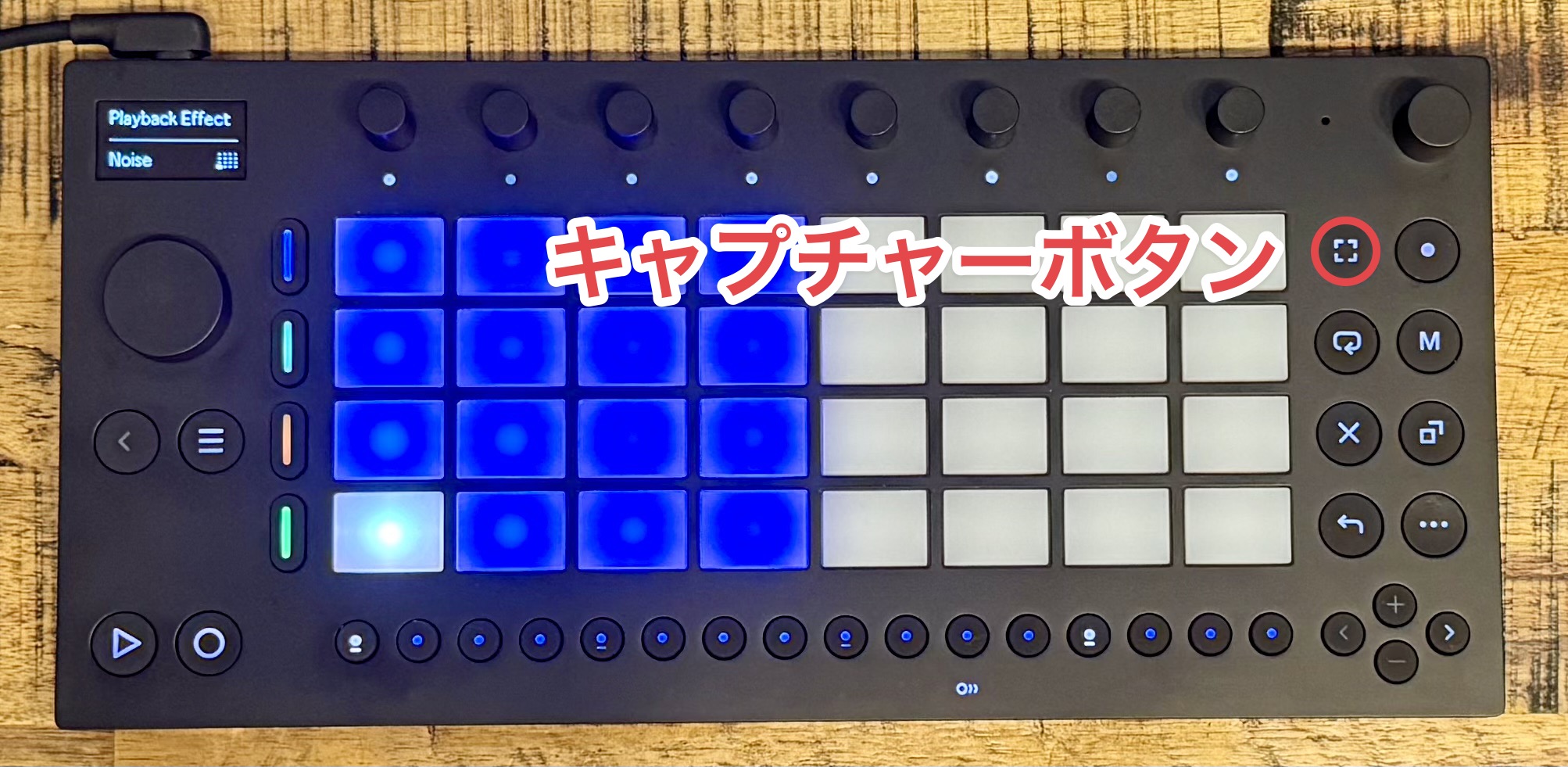
Press this button to restore your most recent performance to a track, making it easy to bring a phrase back without extra steps.
Capture alsoautomatically detects the BPM (tempo)and applies it to the project settings. You can keep playing and developing the idea without setting a tempo in advance or interrupting your flow.
Quantize rhythms to precise timings
If a recorded rhythm feels uneven, you can use Quantize to correct its timing.
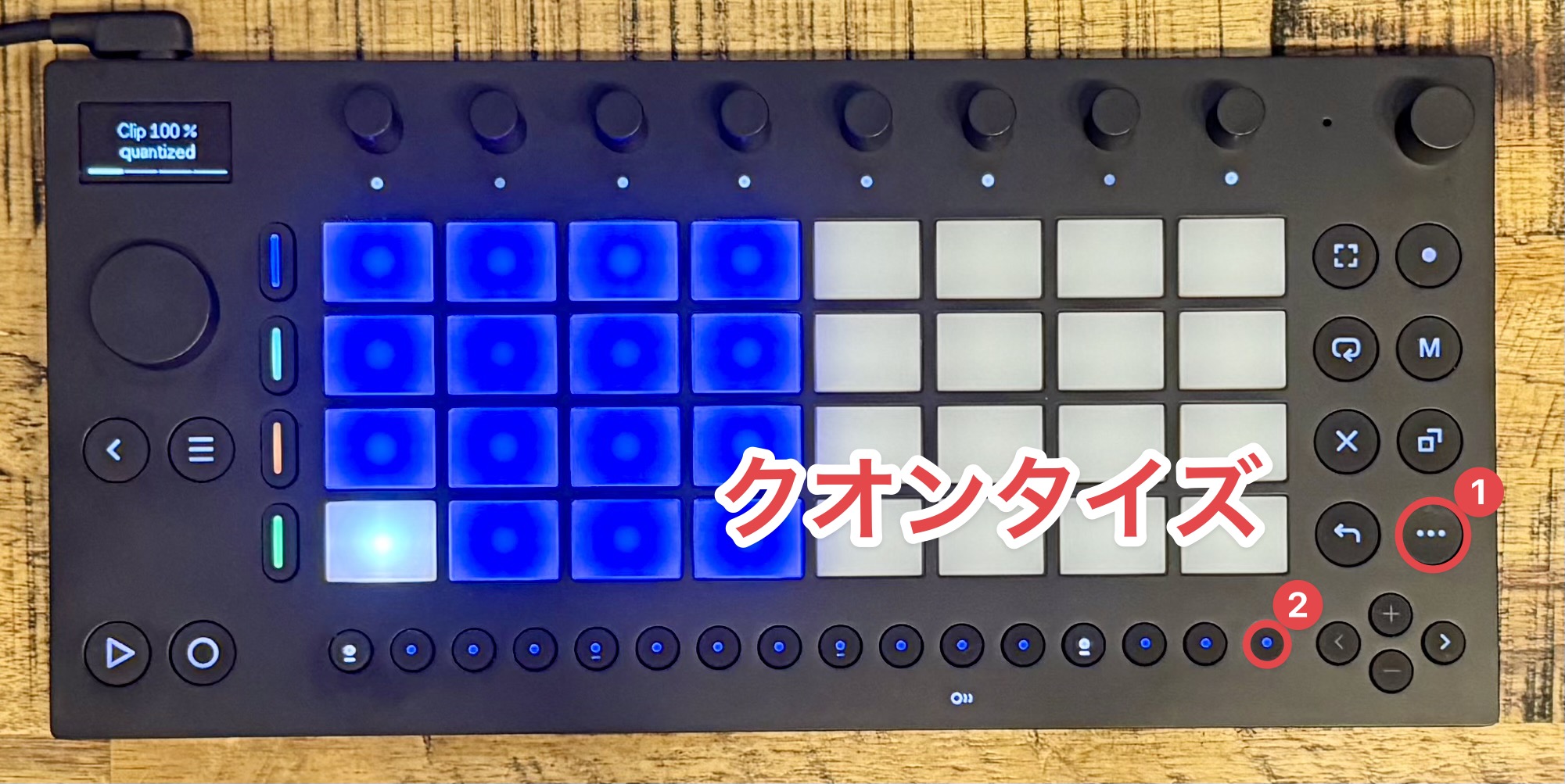
Press the Quantize button while holding Shift to apply it instantly.
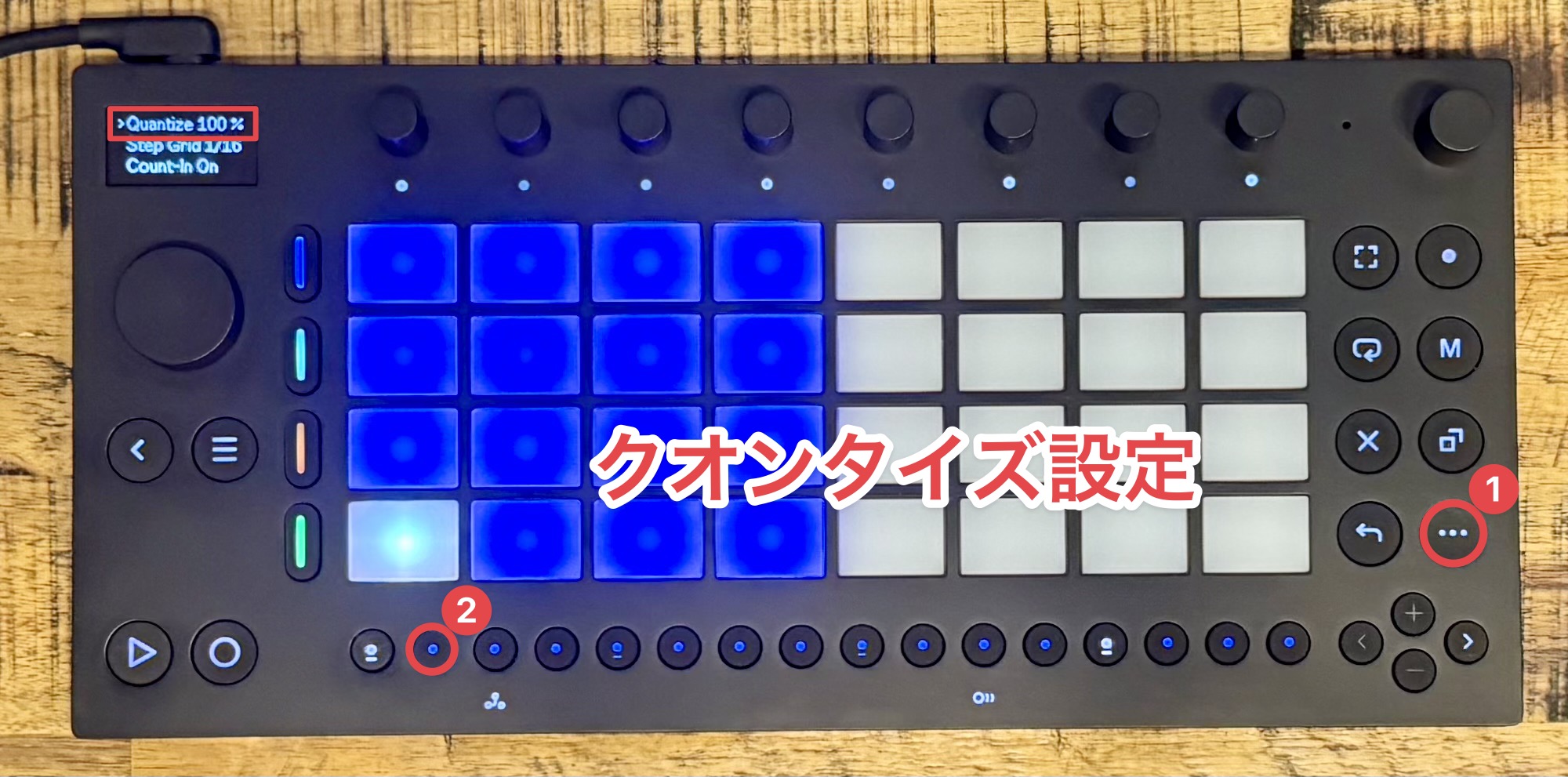
To adjust the amount of correction, hold Shift and press Workflow Settings to open the settings screen, then change the value with the jog wheel.
A range of real-time recording options to suit your workflow
With the kick and snare pattern in place, let's add a hi-hat.
The Repeat function is useful when you want to play a rhythm at regular intervals.
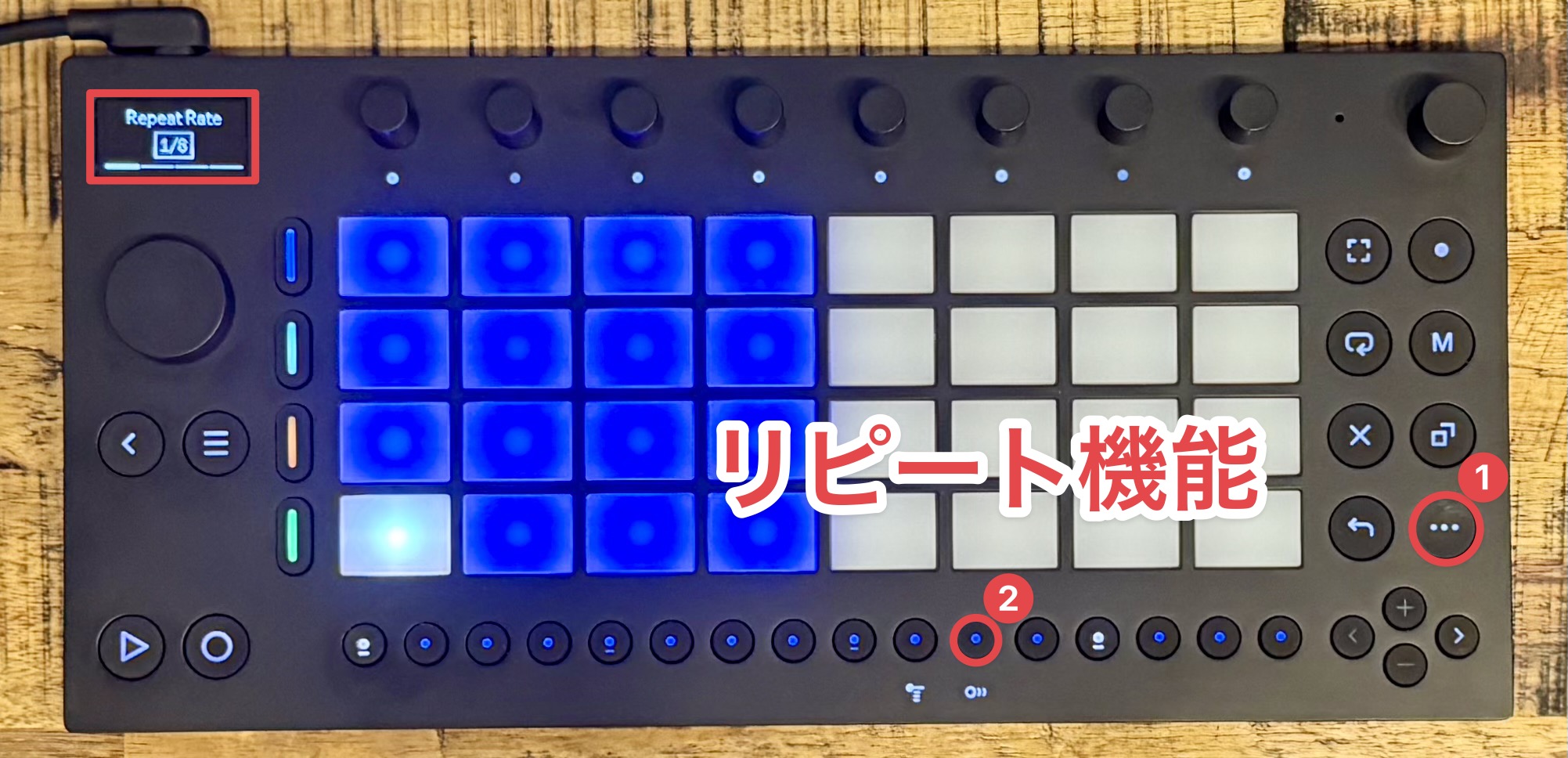
To turn on Repeat, hold Shift and press the Repeat button. Use the jog wheel to choose the note interval.
Then, press a pad to play notes automatically at the selected interval, making it easier to build a precise phrase than playing each hit by hand.
While Repeat is active, pressing a pad harderadds real-time dynamics based on how firmly you pressso you can give the performance more expression.
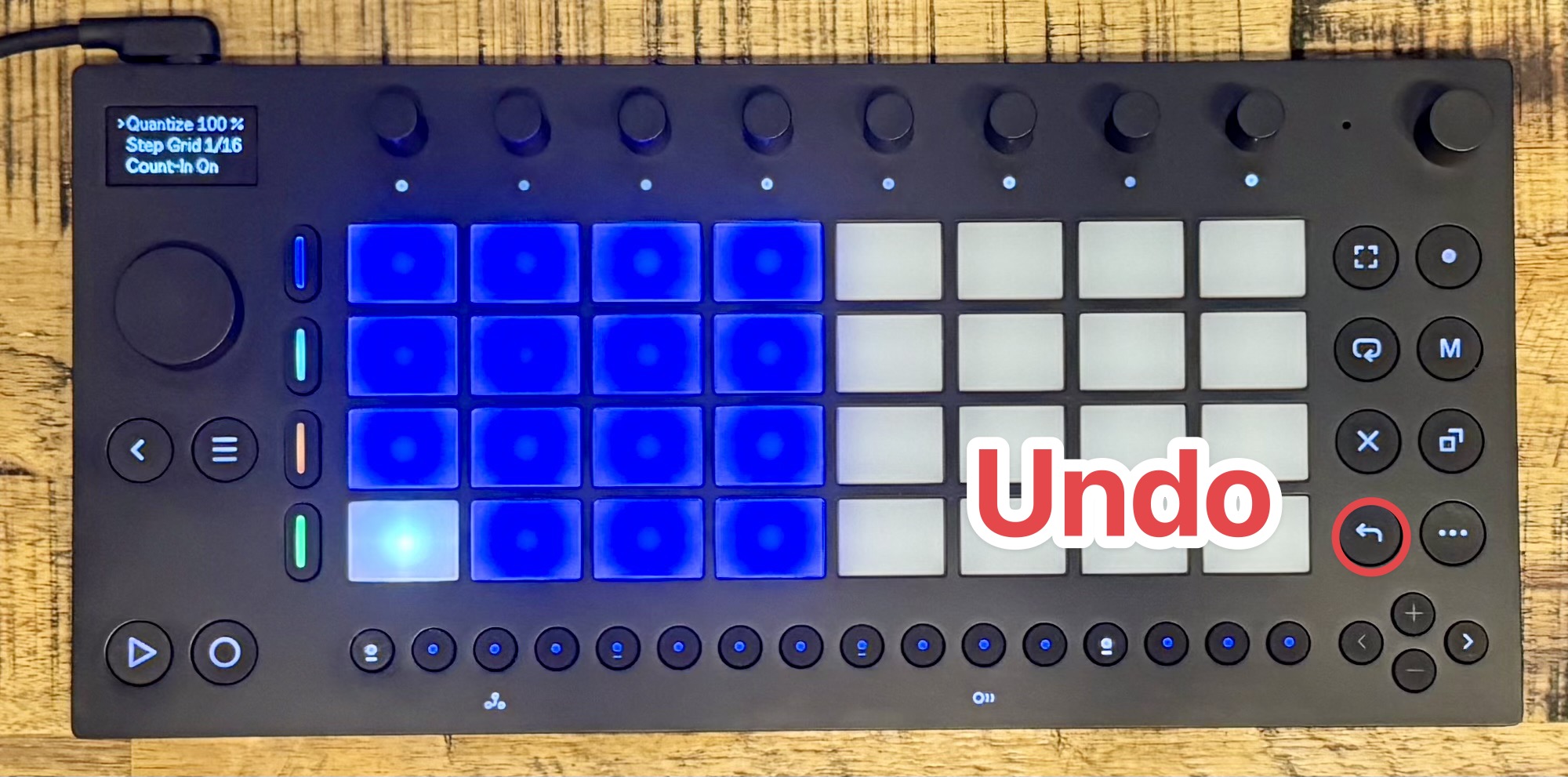
Press Undo to cancel your last performance if you want to try recording it again.
Pattern programming with Ableton's first step sequencer
Next, let's add percussion. In addition to the real-time recording we have used so far, Move also lets you program patterns with its step sequencer.
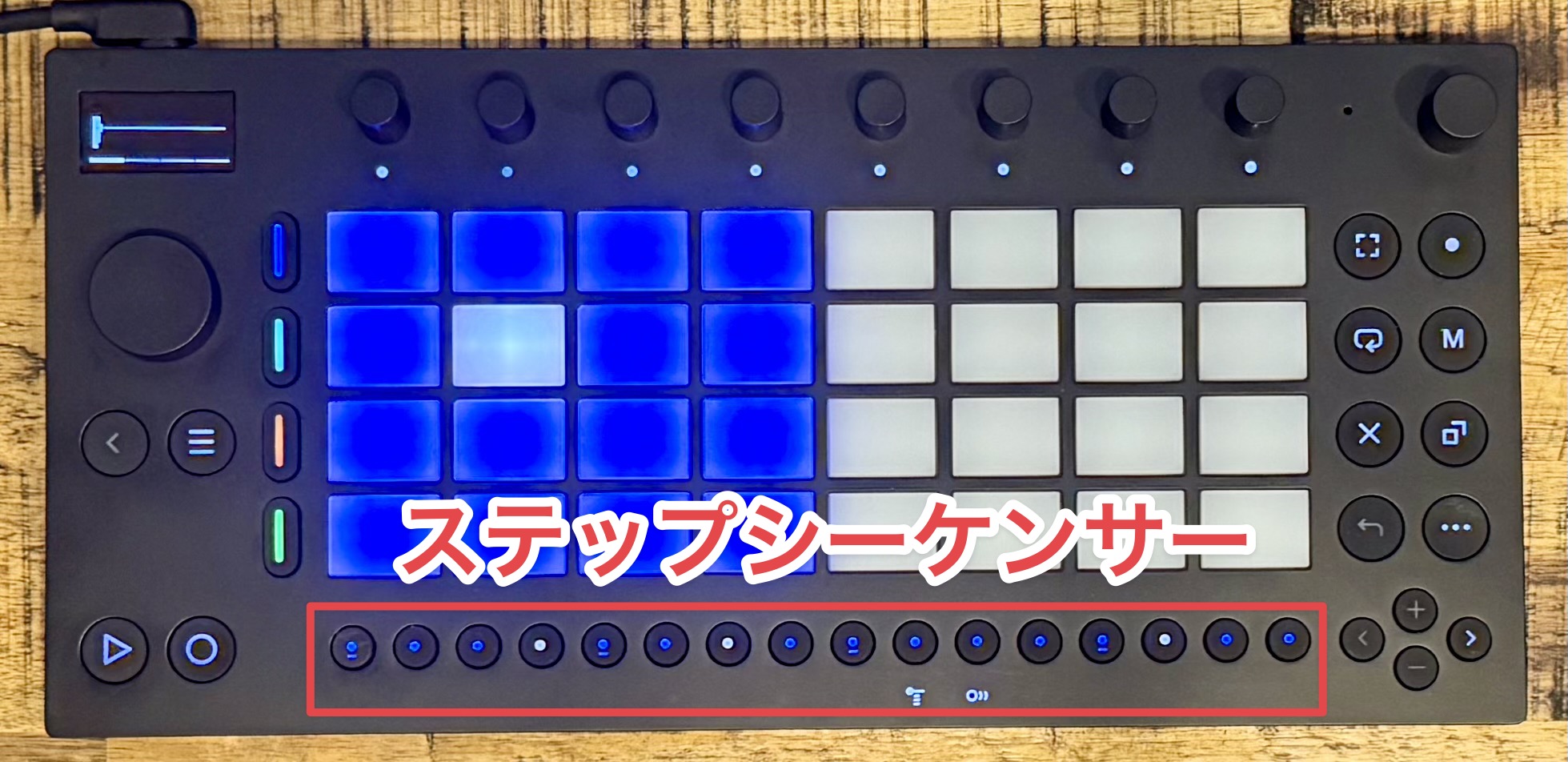
The step sequencer uses the 16 step buttons below the main controls to enter notes. Each button represents a point in time within the bar.
By default, each step represents a sixteenth note. Light a step to enter a note at that point.
Turn a lit step off to remove a note you have entered.
The step sequencer lets you build patterns while following the rhythm visually, even if you are not comfortable performing in real time.
Build a bass track with high-quality synth sounds
Next, we will add a bass part. Before playing, set the scale that will shape the mood of the music.
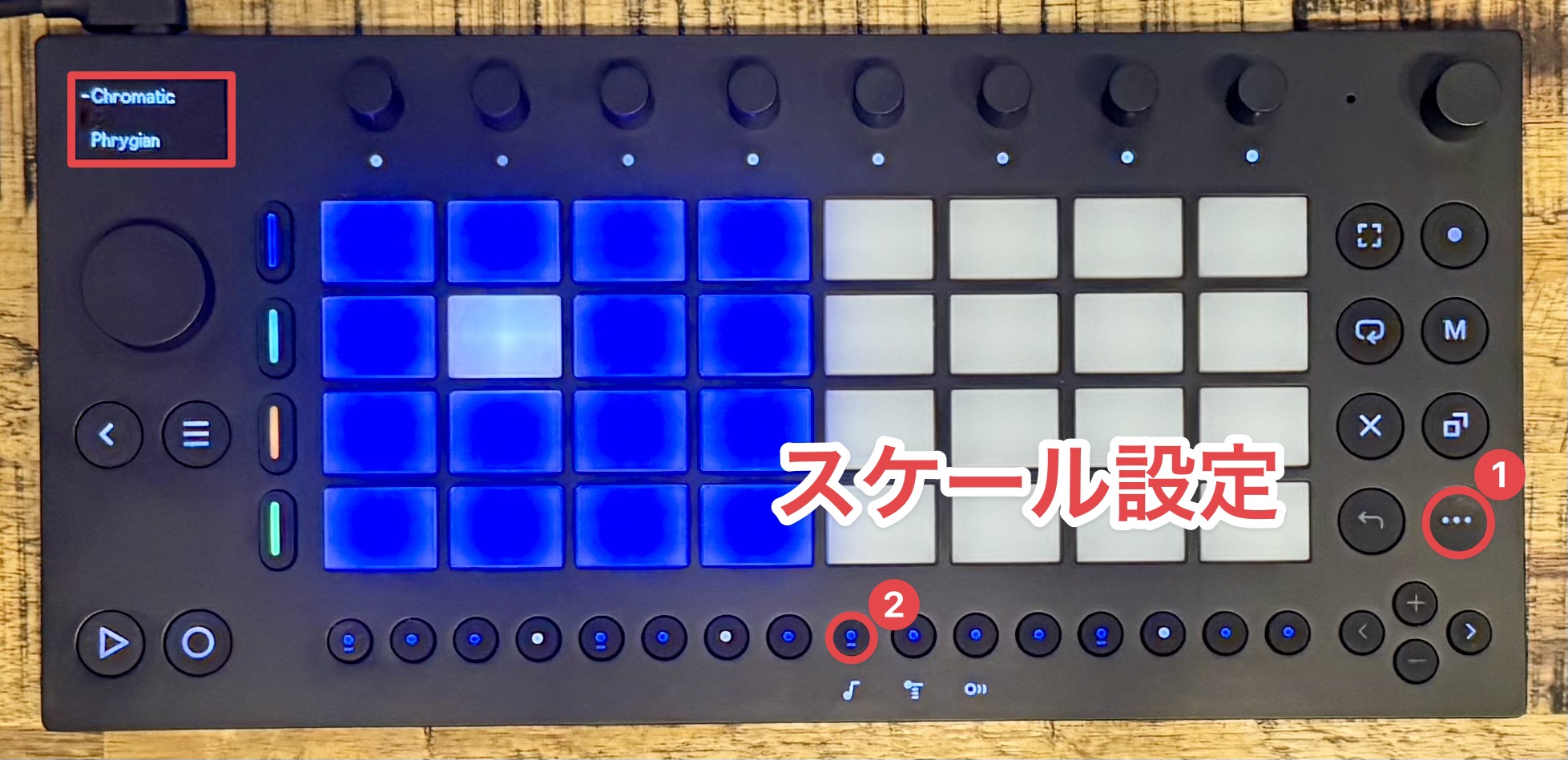
Hold Shift and tap the note button to open the key settings on the display.
You can set the root note and scale separately. Here, let's try the dark-sounding B Phrygian scale.
Setting a scale helps prevent unintended notes while you play, making it easier to create phrases intuitively.
If you would rather not be limited to a particular scale, you can also choose a chromatic scale.
16 Pitches mode for drum samples
One distinctive drum-track feature is 16 Pitches, which lets you change the pitch of a pad's sound and play it at different pitches.
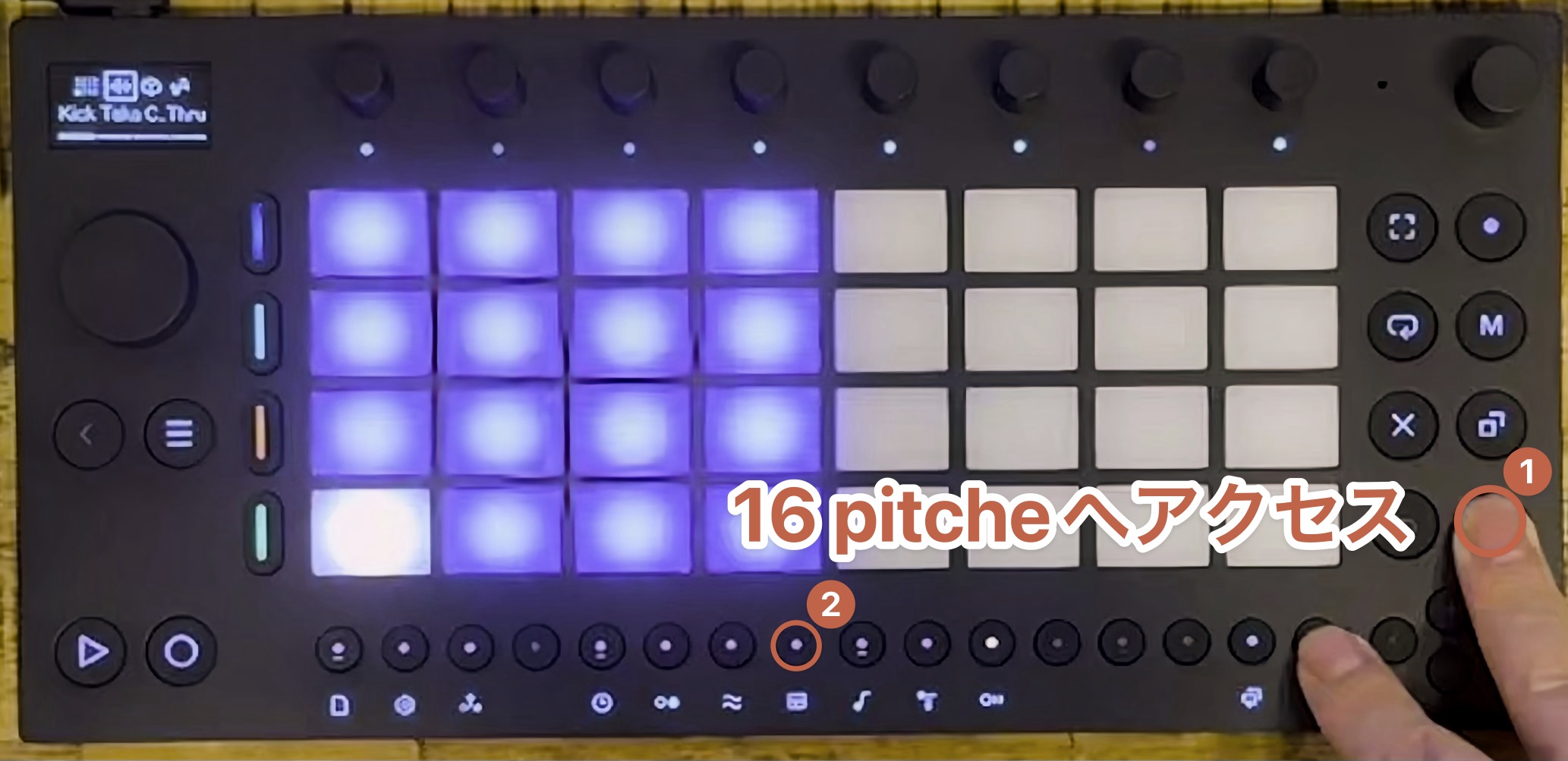
To enable it, hold Shift and press the eighth step button from the left.
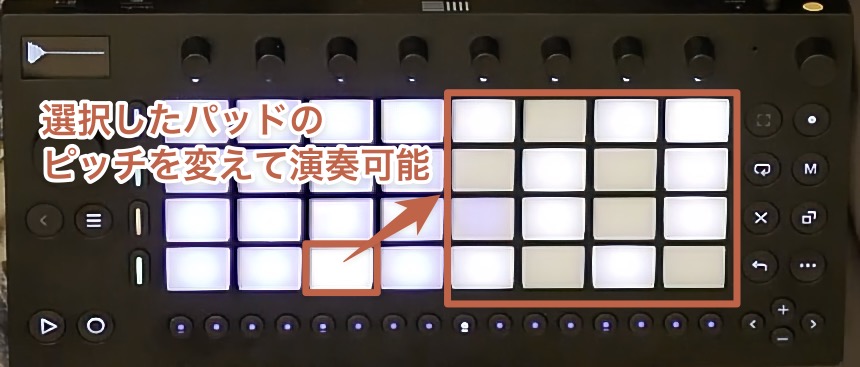
The pads on the right half will light up, letting you play pitch variations of the currently selected sound.
Choose from high-quality synth presets
Move includes popular synthesizers from Ableton Live,including Drift and Wavetable,so you can use their high-quality synth sounds.
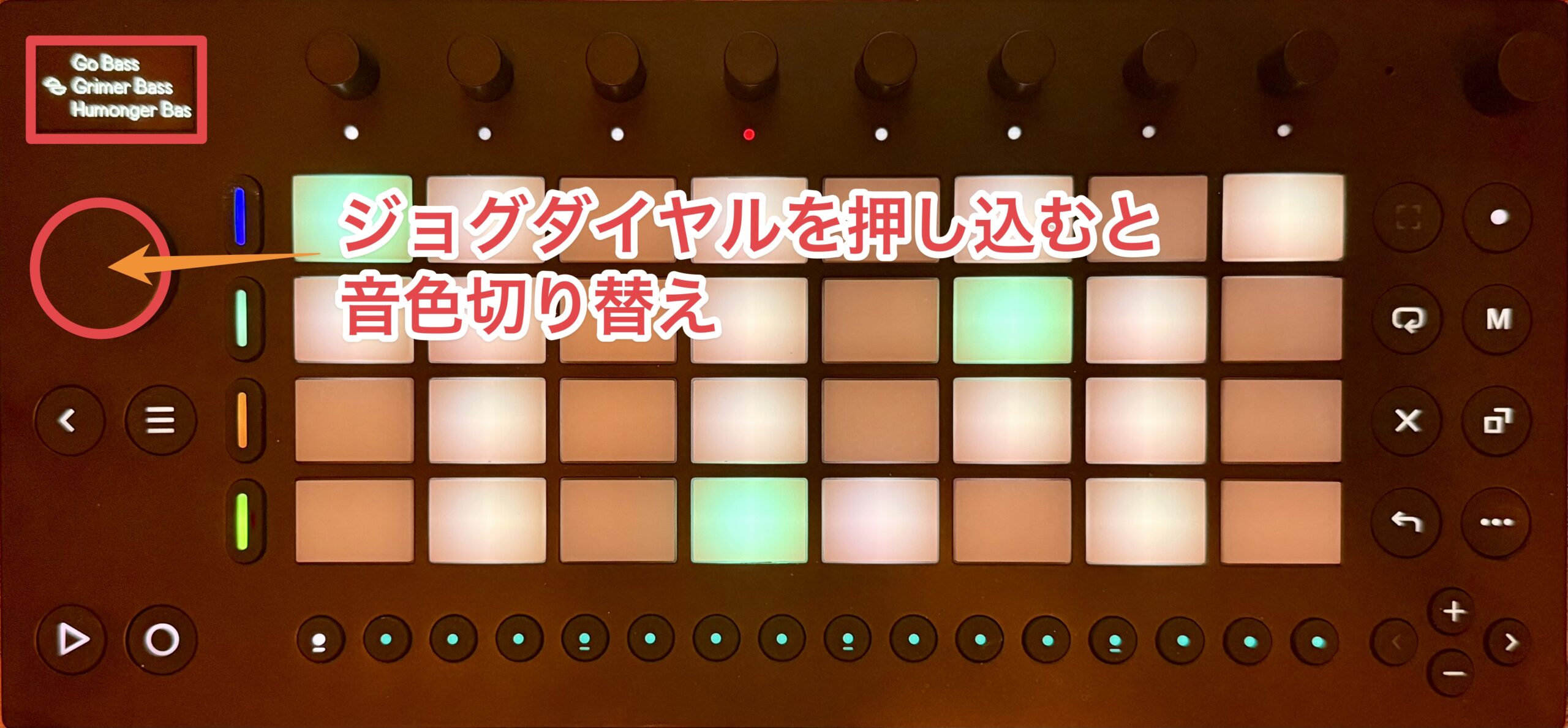
Let's change the sound on the second bass track.
Press the jog wheel at the top of the screen to open the sound list, then turn it to switch presets instantly.
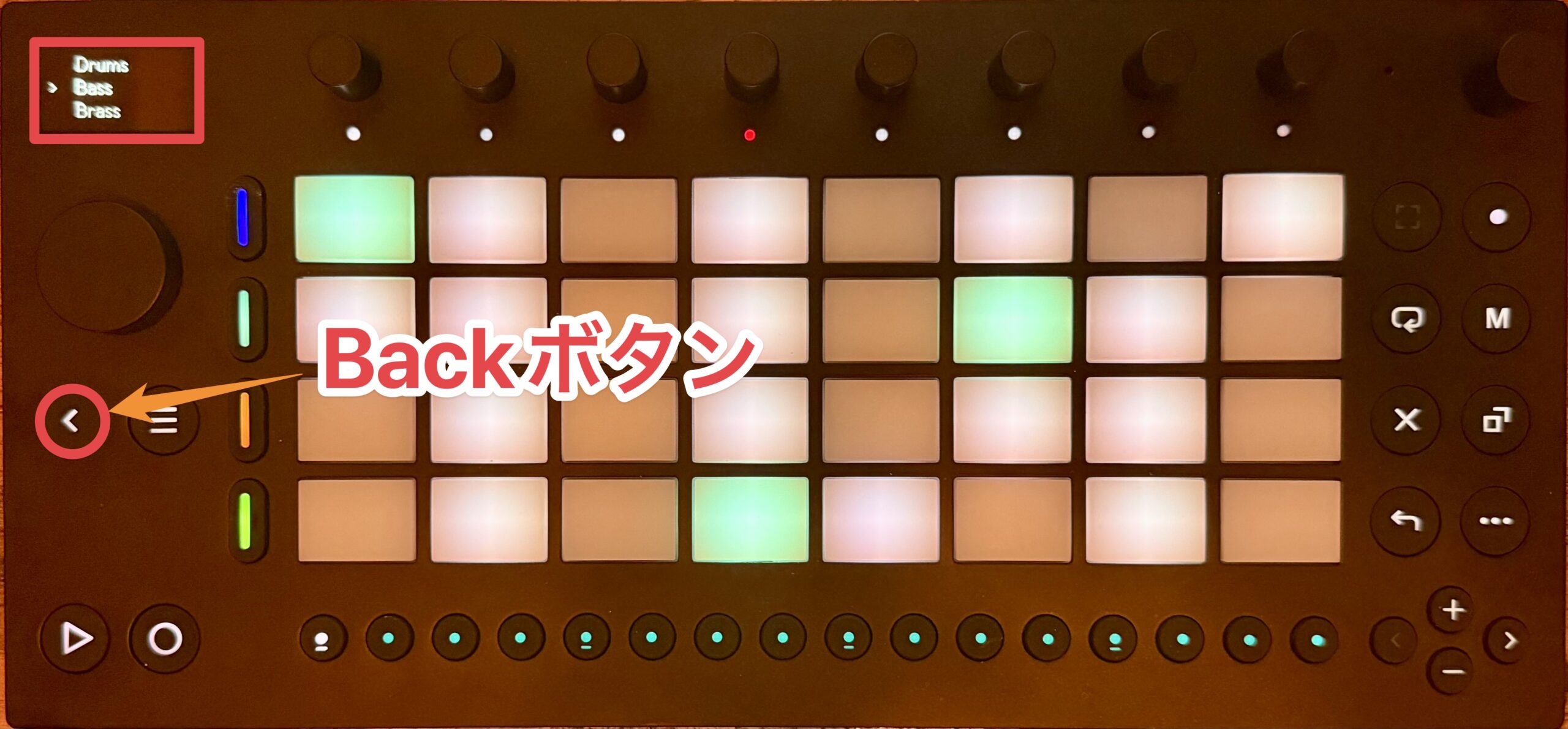
Presets are organized into sound categories. Press the Back button to return to the category level.
You can switch presets one after another while playing the pads, making it quick to find a sound.
Quick, hands-on sound editing
Now that we have recorded a bass phrase, let's adjust its sound.
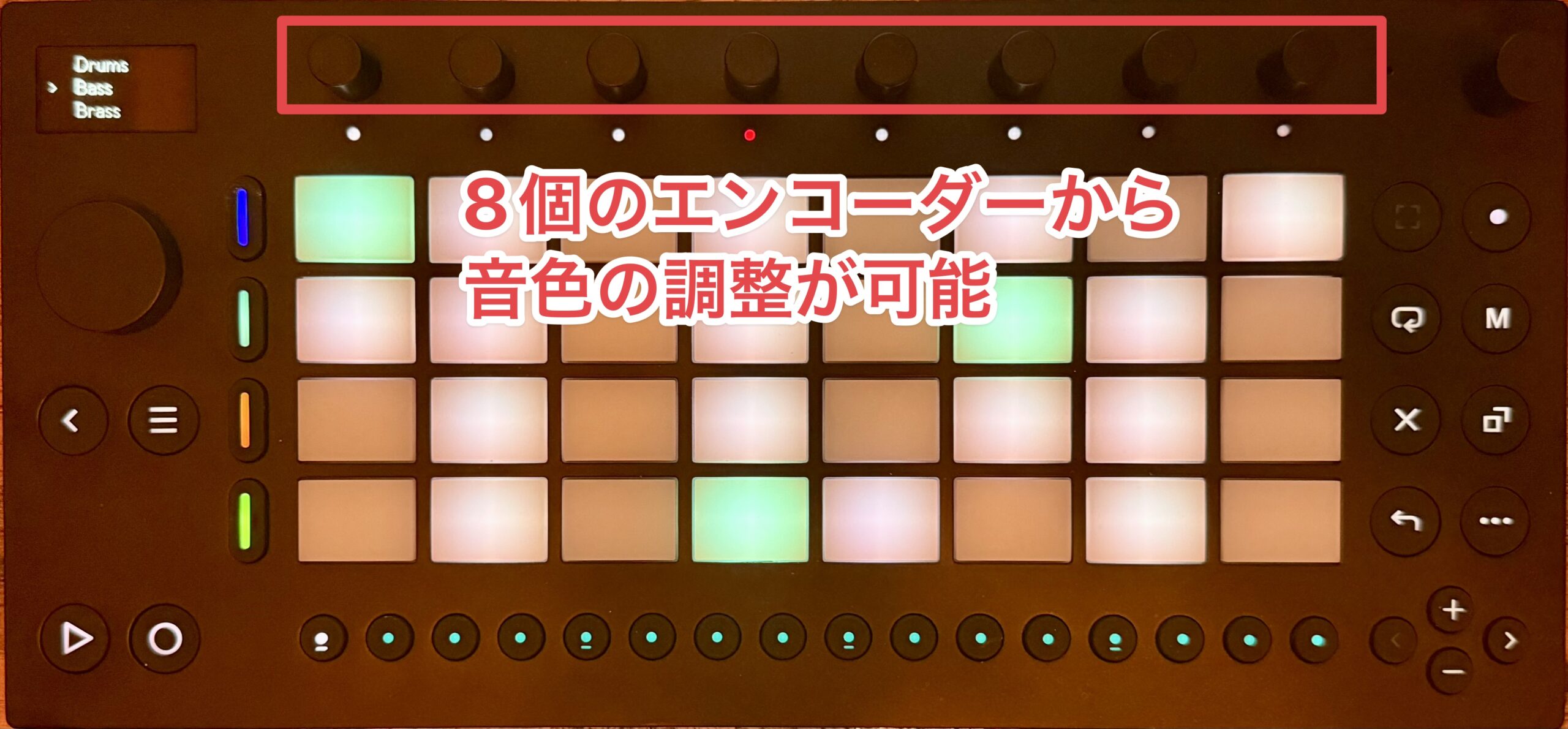
Move has eight encoders (knobs) that make it easy to adjust sounds while you play.
The encoders are automatically assigned suitable parameters for the selected preset. This makes it easy to shape a sound without needing an in-depth knowledge of synthesis.
Record sound changes easily with automation
When you want a parameter to change over the course of a phrase, automation can record how you adjust it while recording. The parameter changes can then add movement to the sound in your track.
Let's use automation to add movement to the sound of the recorded bass phrase and give the track a more dynamic feel.
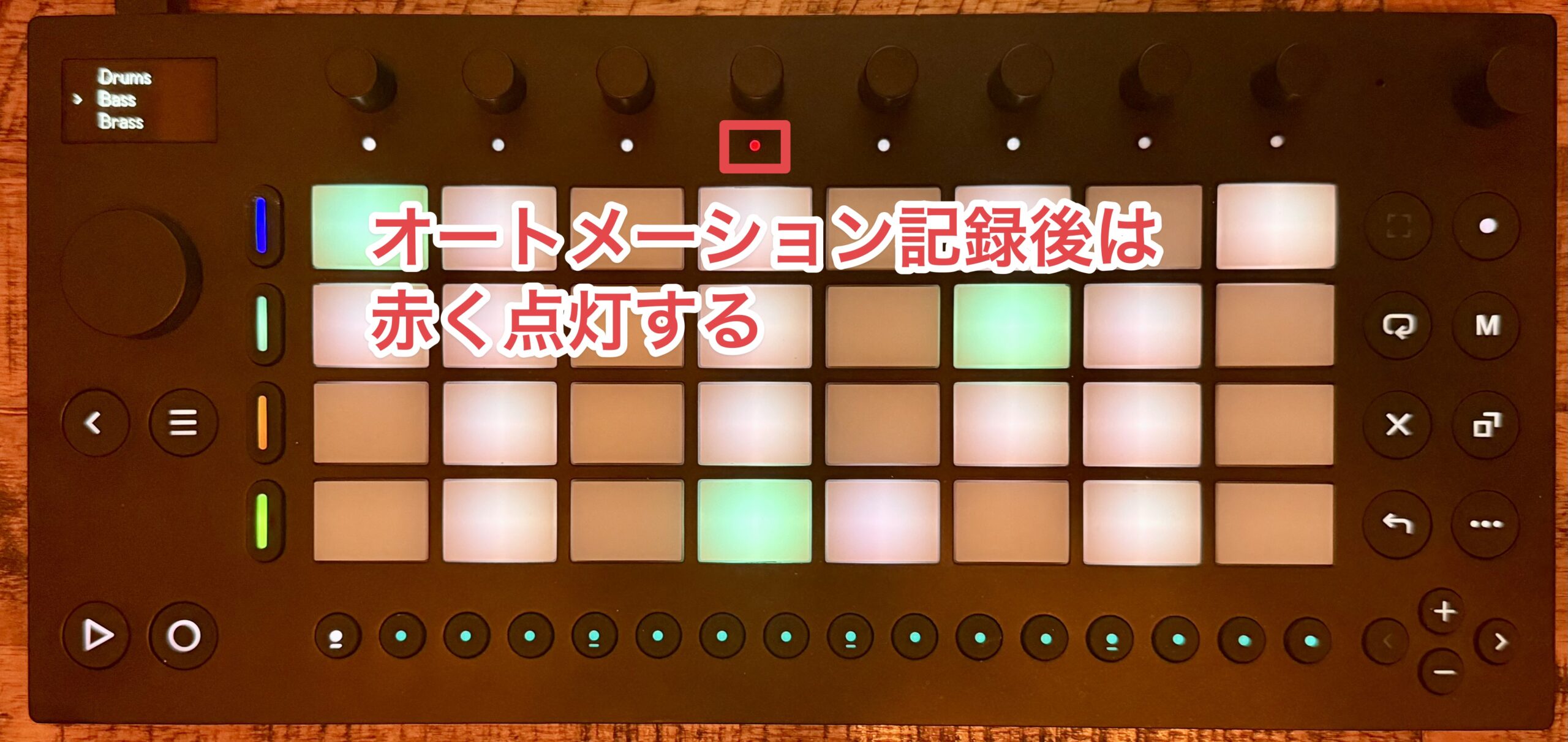
When you record automation by turning an encoder, that encoder lights up red, making it easy to see which parameter has been changed.
Create a synth part shaped with effects
With the bass and drum tracks in place, let's add a synth phrase.
Move lets you use up to two effects on each track at the same time, giving you more ways to shape the sound.
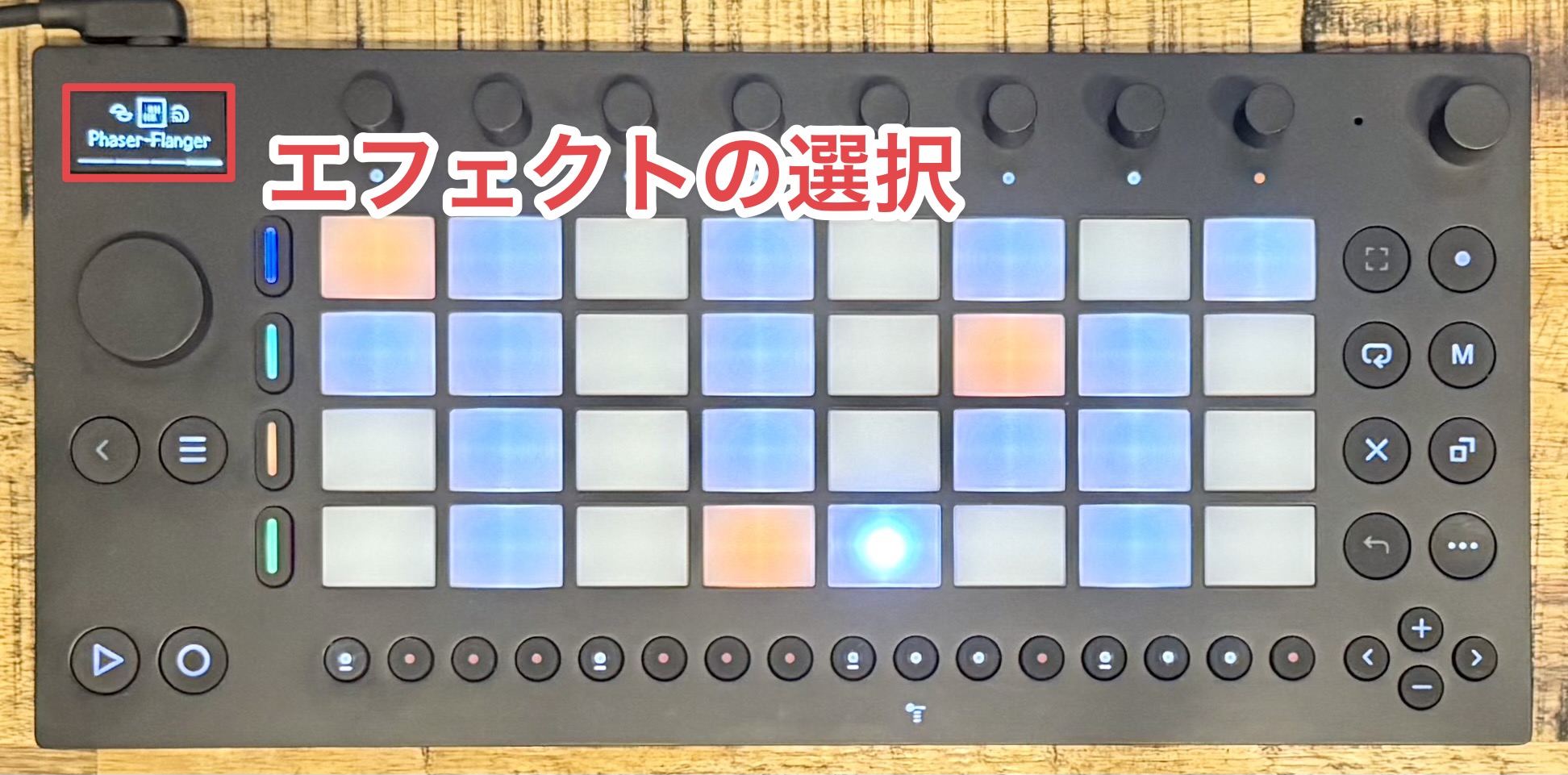
Turn the jog wheel to the right to select an effect that is already applied. Select the one you want to change and press the wheel to open the preset list.
As with sounds, you can use the Back button to browse effect categories. Here, we will apply Phaser-Flanger as Effect 1 and Delay as Effect 2.
While an effect is selected, parameters are assigned to the encoders automatically, just as they are for synth sounds. You can adjust them intuitively and record the changes as automation.
Bring in external sounds with the sampler
We now have bass, drum, and synth tracks.
For the fourth track, we will use a sampler—a device that lets you play recorded audio—to create a phrase using your voice.
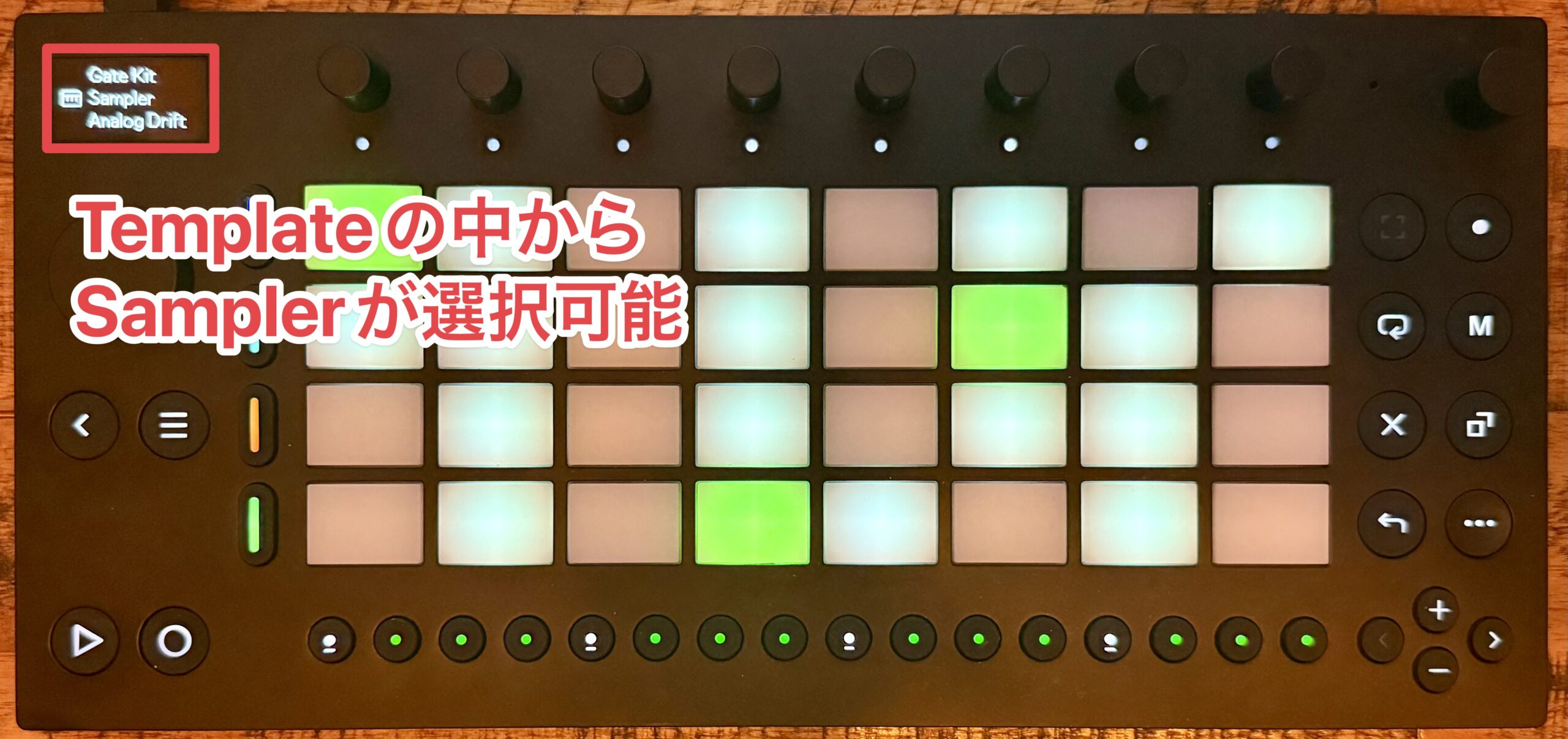
Change the sound from the jog wheel and load Sampler from the Template category.
Press the Sample button and select the pad you want to record to. Recording starts, and pressing the pad again stops it.
You can then play the recorded sound right away.
Edit and adjust a waveform
To select a recorded sample, choose it with the jog wheel. Turn the second encoder from the left to set its playback start point intuitively.
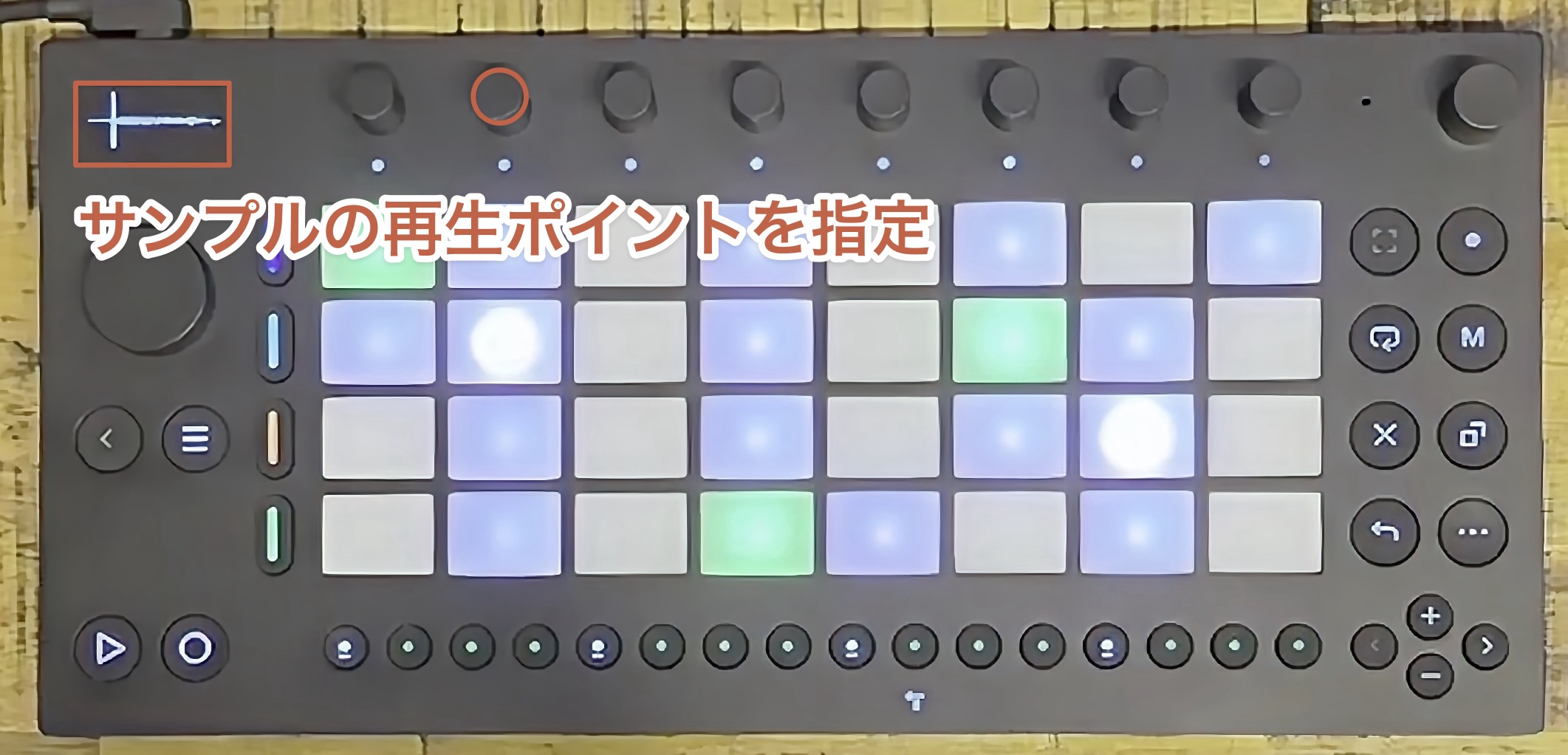
Here, we will set it so the sound starts as soon as you press the pad.
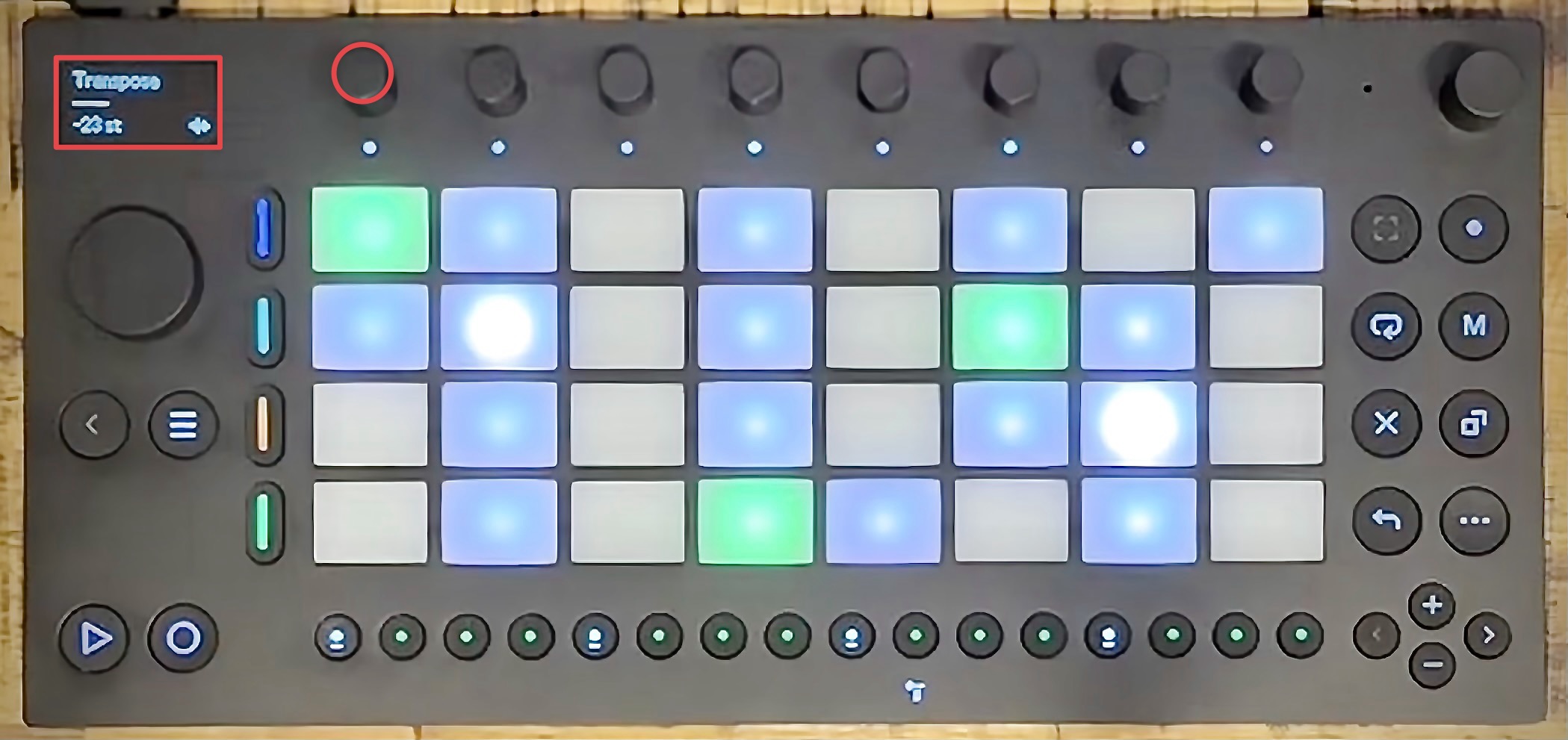
To change the pitch manually, use the leftmost encoder while Sampler is selected.
Combine patterns in Session mode
You can create up to eight different patterns for each track and combine them to build a session.
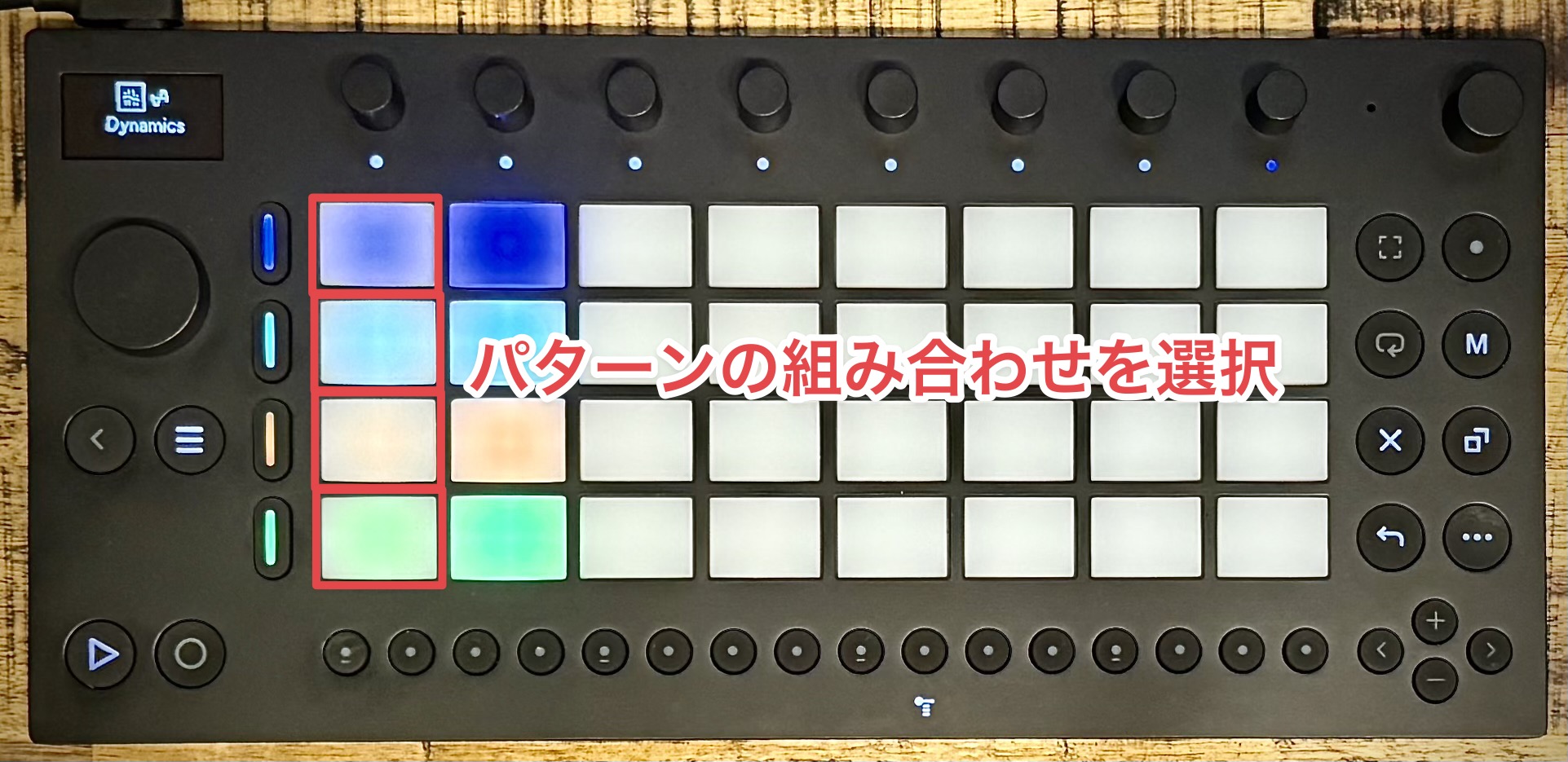
For example, try combining the first drum pattern with the second bass pattern and the first synth pattern to change how the music develops.
You can also prepare a range of patterns in advance and use them in a live performance, making Move useful for both production and performing.
Connect Ableton Move to a computer
Move works as a standalone music-making device, and you can expand what it does by connecting it to a computer over Wi-Fi or USB.
Working with projects
Hold Shift and press the Settings button to open the device settings.
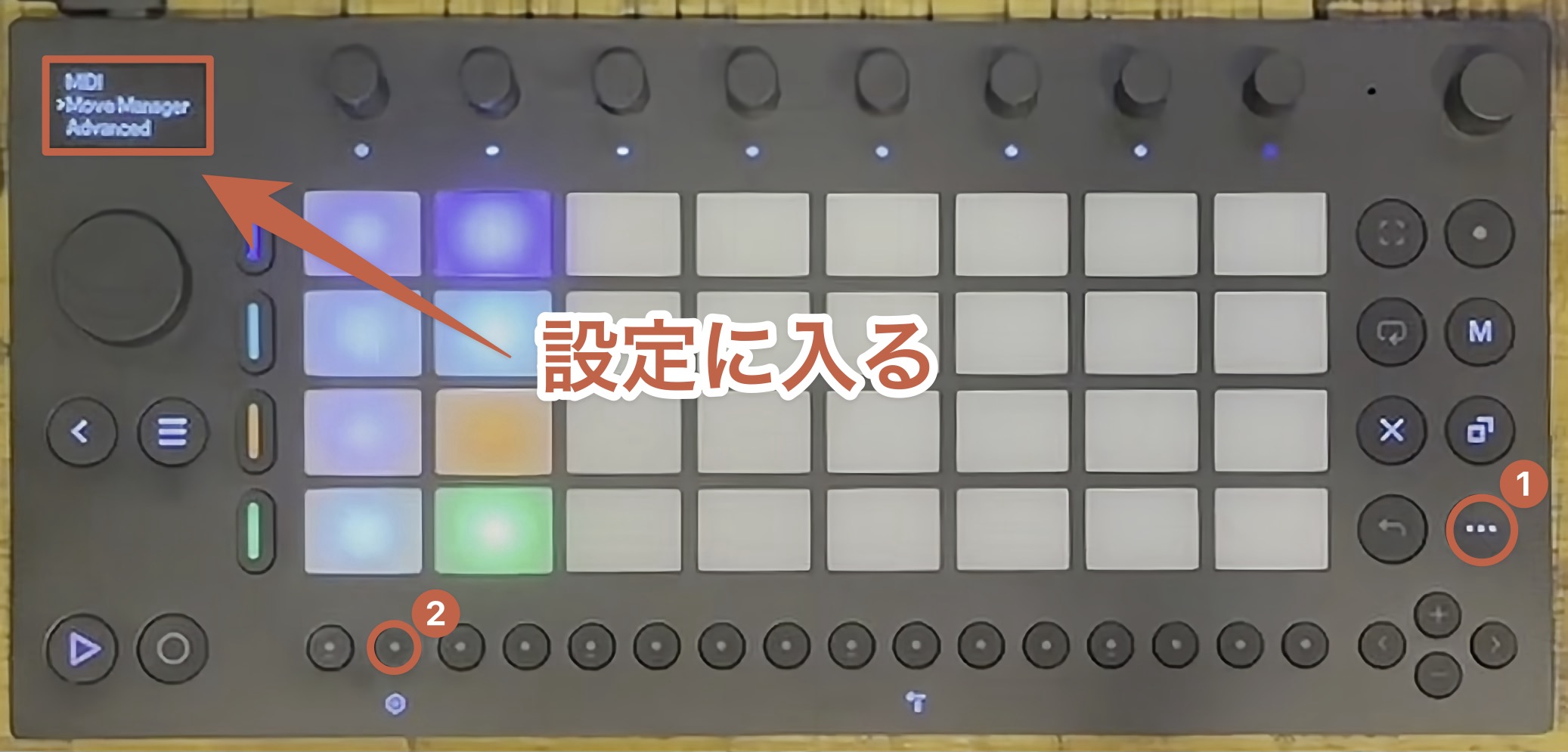
Select Move Manager from the list and press the jog wheel. The display will show move.local.
Open this address in a computer browser. A screen will ask you to enter an authentication code, which will also appear on Move's display.
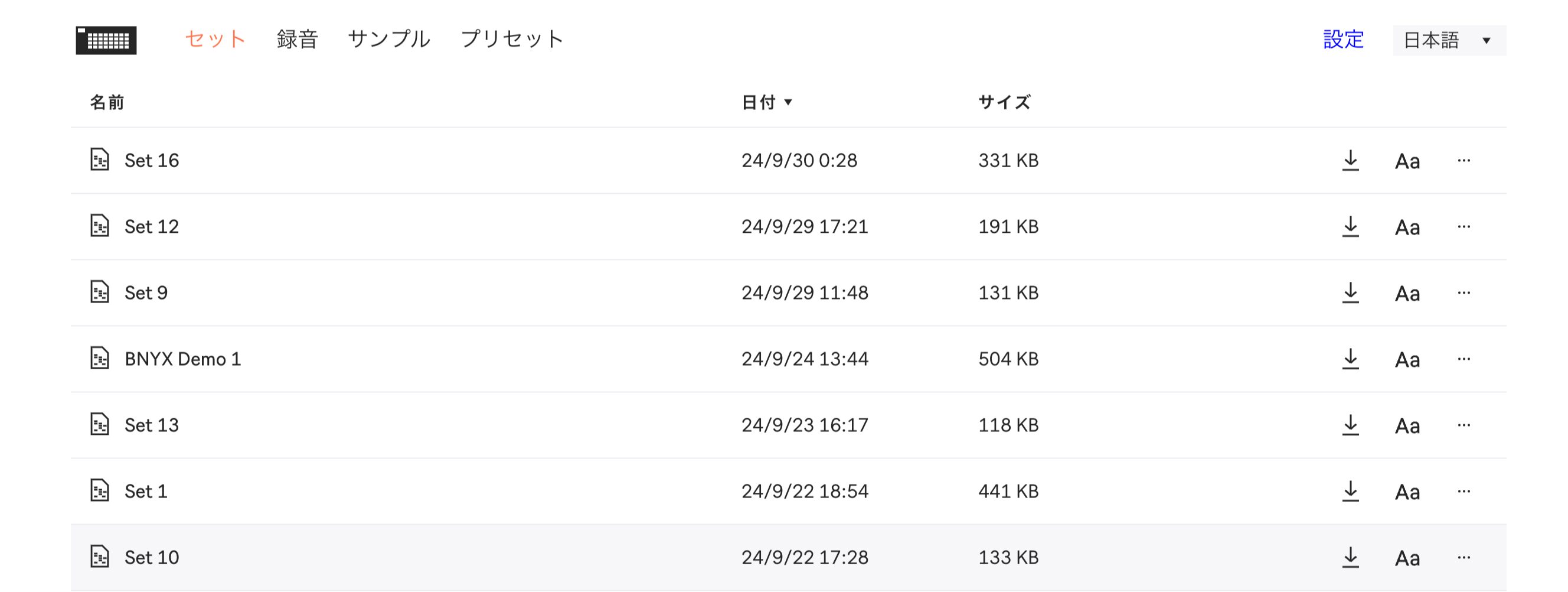
Enter the code in the browser to access Move projects and recorded samples, which you can download to your computer.
Move also supports Ableton Cloud. When it is enabled, you can open projects directly from Live's Cloud tab.
In Live, you can make more detailed sound adjustments and add tracks to develop the project into a finished song.
Integrate with Ableton Live using Control Live mode
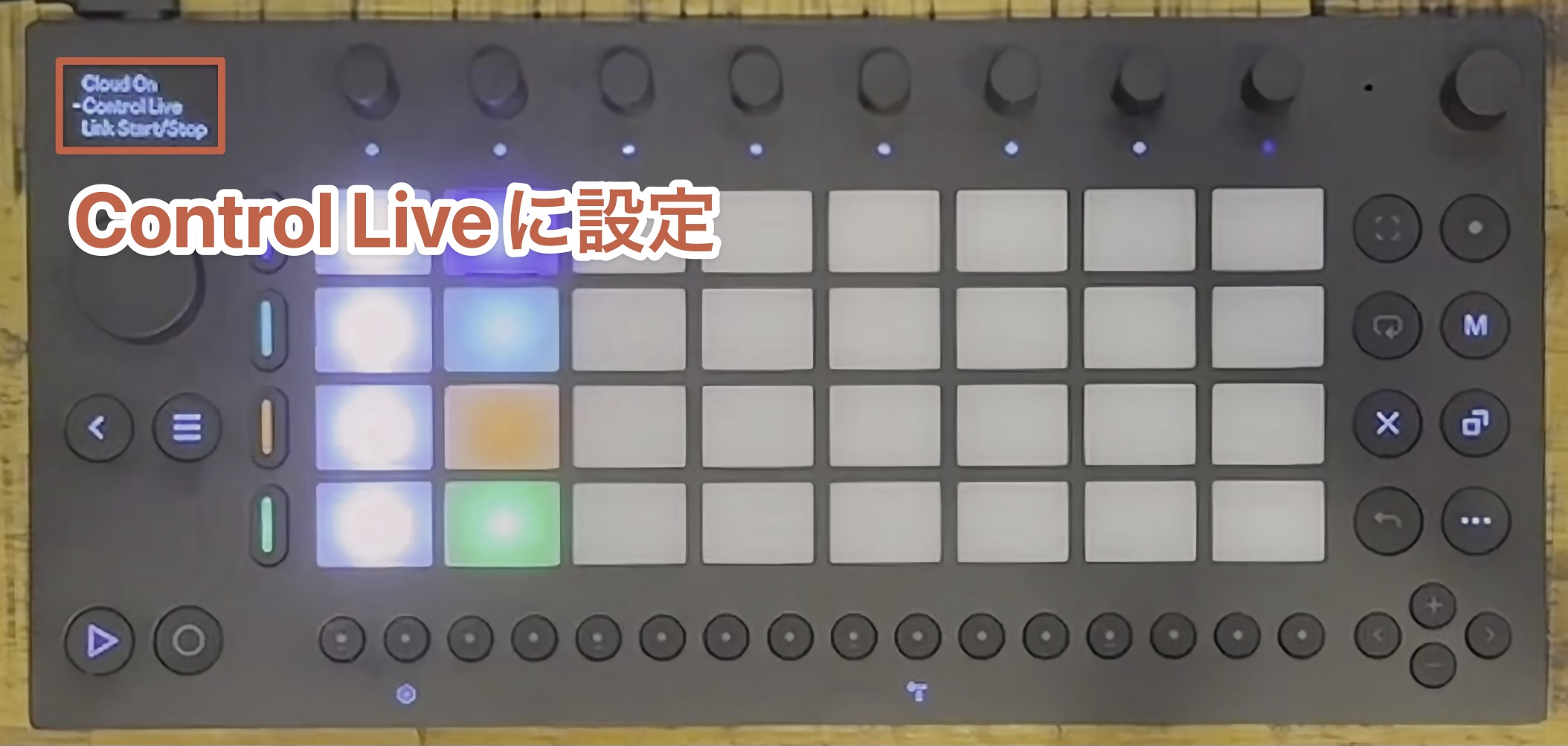
First, select Move as a control surface in Live's Preferences.
Next, select Control Live in Move's settings and click the jog wheel to switch modes. Move can then be used as an Ableton Live controller.
You can play the pads and control Live, including adjusting track volumes and starting or stopping clips.
Use Move as an audio interface
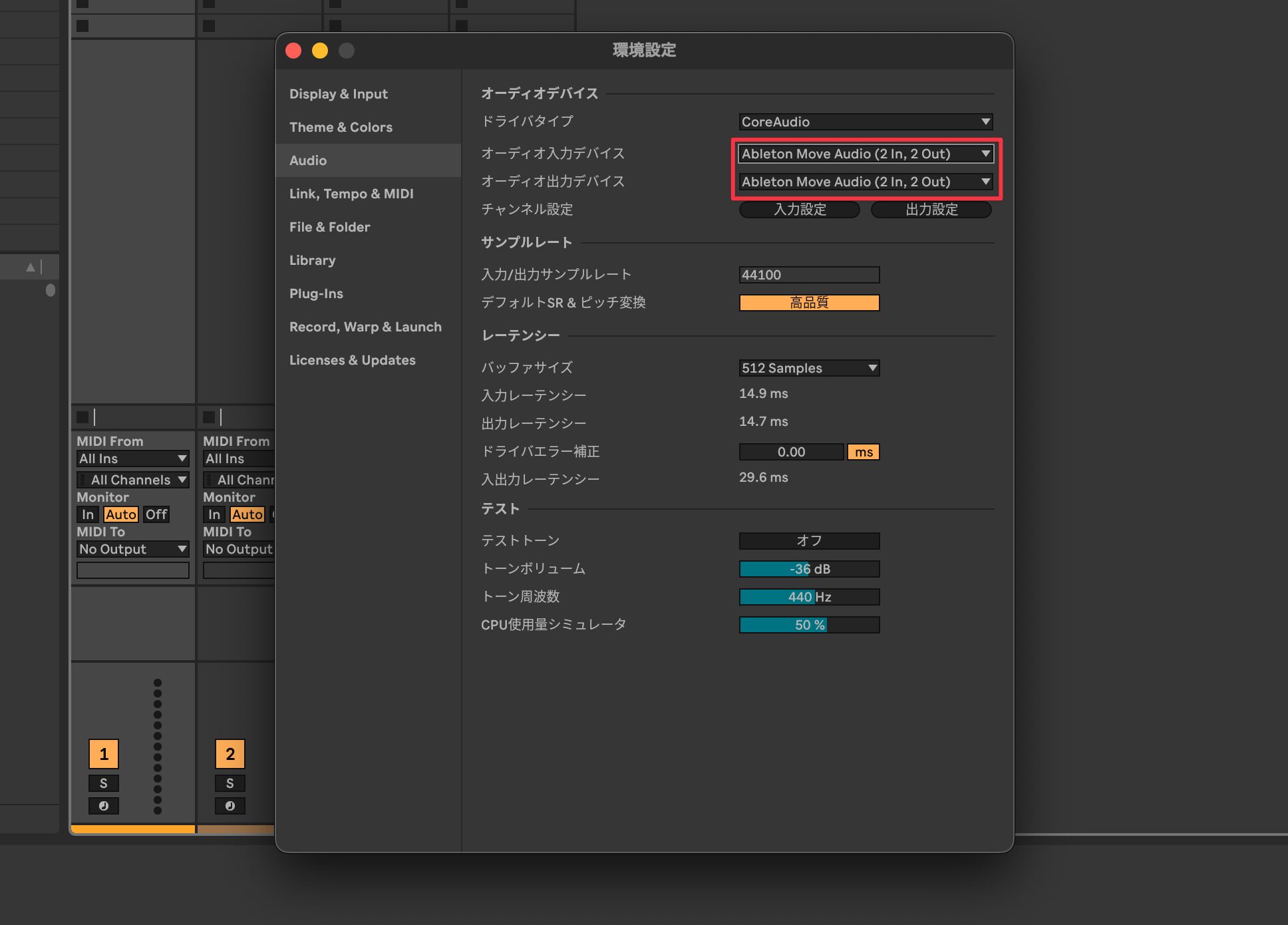
When Control Live mode is selected,connecting Move to a computer with a USB cable makes it available as an audio interface. You can play audio from your computer or DAW through Move, or record using Move's microphone.
Together, Move's audio interface function and a computer can make up a complete music production setup.
Conclusion
Music production hardware can often go unused, even when it is already part of a producer's setup. Move is designed to help you turn ideas into music, and I found it useful alongside computer-based production.
Its intuitive interface makes it easy for beginners to start making music, while experienced producers can use it to capture ideas quickly. Move is a tool that lets a wide range of users enjoy making music right away.
Try the workflow for yourself and explore a new way to make music with Move.
Frequently asked questions
Q1. Can I make music with Ableton Move without a computer?
Yes. Move can be used to make music on its own. It has built-in speakers and a microphone, as well as synth sounds, sampler sounds, and effects, so you can work on music with just Move and its power source.
Q2. How long does Move's battery last?
The battery lasts 3–4 hours. This is enough for working away from a power outlet or on the go, and suits making music in short sessions.
Q3. Can I connect external devices such as a MIDI keyboard?
Yes. The rear USB-A port can connect external MIDI devices such as a MIDI keyboard or drum pad. You can switch MIDI input and output in the MIDI settings screen.
Q4. Is Move suitable for beginners?
Move's intuitive four-track workflow and automatic sound loading when you create a project let beginners start making music quickly. It also includes advanced features such as a step sequencer for more experienced users.
Q5. What does the Capture function do?
Capture restores your most recent performance to a track, detects its BPM (tempo), and applies it to the project settings. This saves you from setting the tempo first and helps you keep creating without interrupting your flow, so you can capture an idea as it comes to you.
NEW ARTICLES
Latest English Articles

























































