
Native Instruments TRK-01 is a powerful tool for designing the kick and bass parts that form the low-end foundation of modern music. Its sequencer, running inside Reaktor 6, lets you create up to eight patterns and assign different parameter values to individual notes to build complex, distinctive sounds efficiently. A wide range of presets and scales makes track creation intuitive and flexible for beginners with no music theory background as well as experienced producers.
Design the Kick and Bass at the Heart of Your Track
Native Instruments’ TRK-01 is
a tool for comprehensively designing kick and bass parts, which play a crucial role in modern music.
Use the built-in sequencer to create phrases, then assign different parameter values to each individual note.
This makes it quick to create complex, unusual sounds and add a distinctive character to your tracks.
In this article, we will explain how to use TRK-01.
Video: Overview and Sequencer Section
Selected Questions and Answers from YouTube

Hello! Your tutorials are very clear and helpful. Can I copy the first drum or bass pattern into the second pattern slot?

Yes. Select the source pattern and click COPY, then select the destination pattern and click PASTE. https://app.box.com/s/7c18wa5eri3nzwdjikdk2j4raochwskd
I bought TRK-01 and am wondering whether I can use it as a sound source and play notes directly from a MIDI keyboard. Playing is faster for me than programming a sequence, so I would appreciate knowing whether this is possible. Thank you.
Unfortunately, it appears that notes cannot be entered directly from a MIDI keyboard or similar device. Instead, you can save multiple patterns and sounds and use keyswitches to switch between them.
Launching TRK-01
TRK-01 runs inside Reaktor 6.
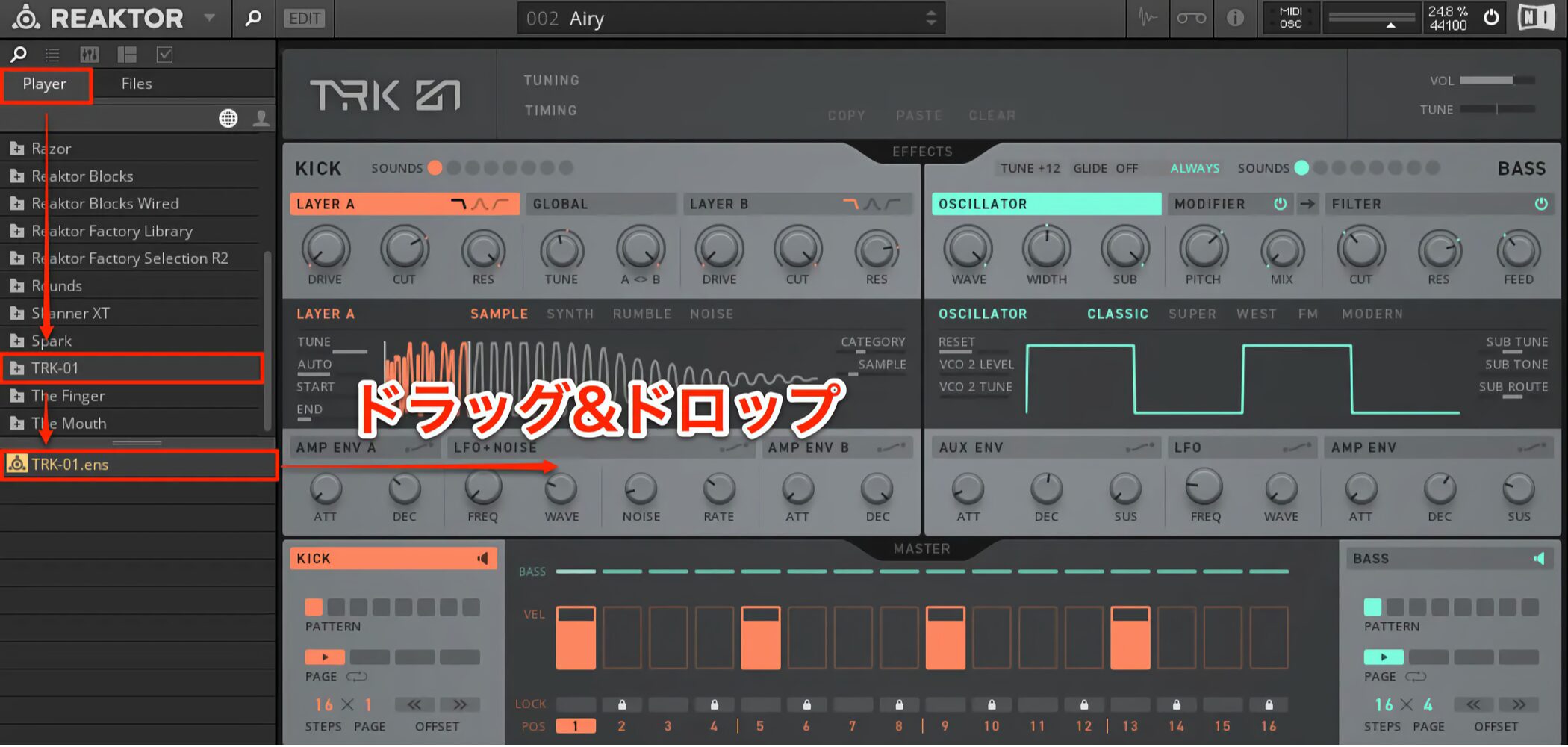
Open TRK-01 from the Player section in Reaktor 6, then double-click the instrument or drag and drop it to load it.
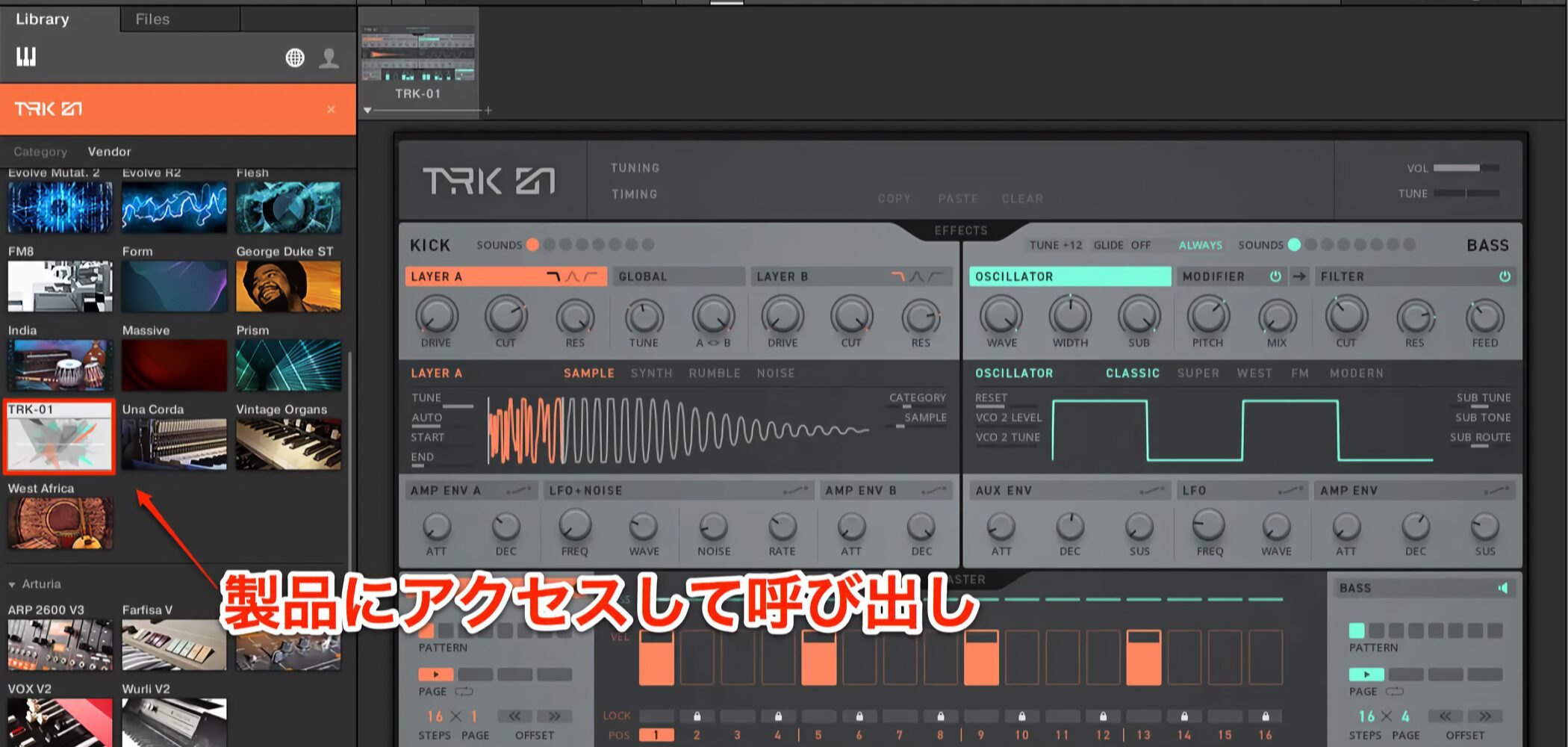
If you use Native Instruments’ KOMPLETE KONTROL, you can also launch TRK-01 from the KOMPLETE KONTROL player.
In that setup, KOMPLETE KONTROL’s Light Guide displays color-coded keyswitches for switching patterns and sounds.
Selecting Presets in TRK-01
TRK-01 comes with a wide range of presets.
Start by exploring the kinds of sounds it can create.
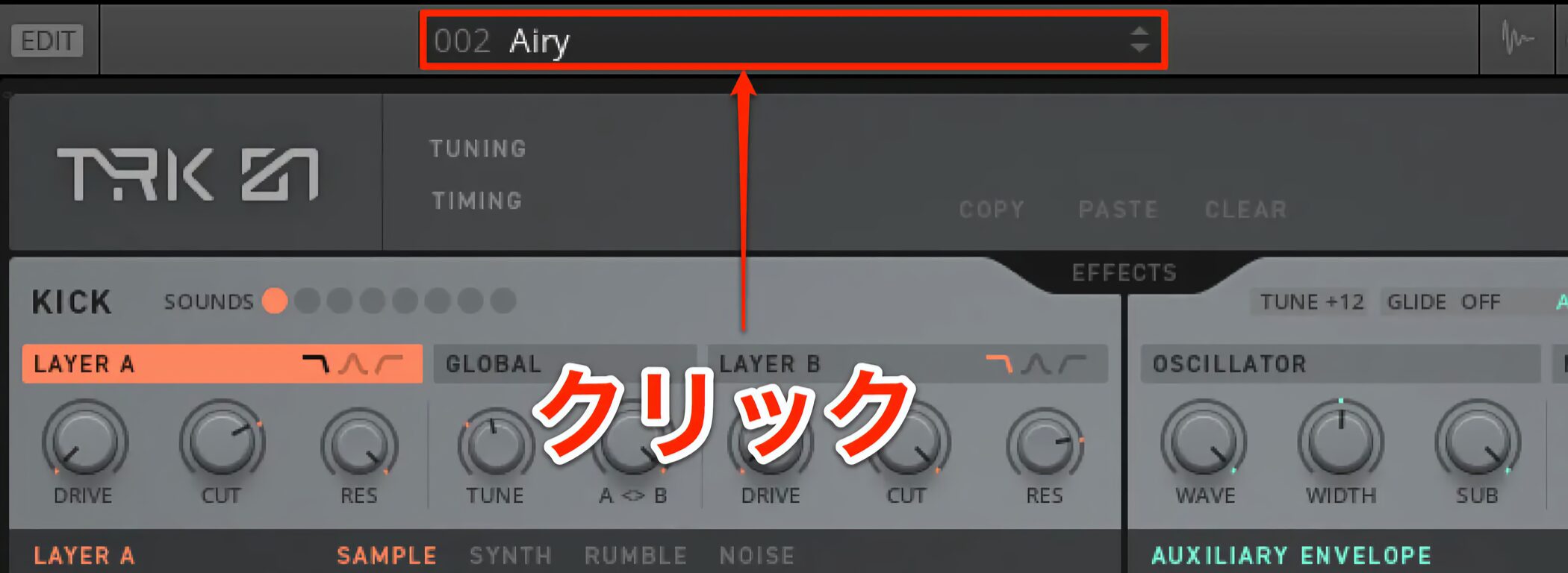
Click the menu at the top of the window to select a preset.
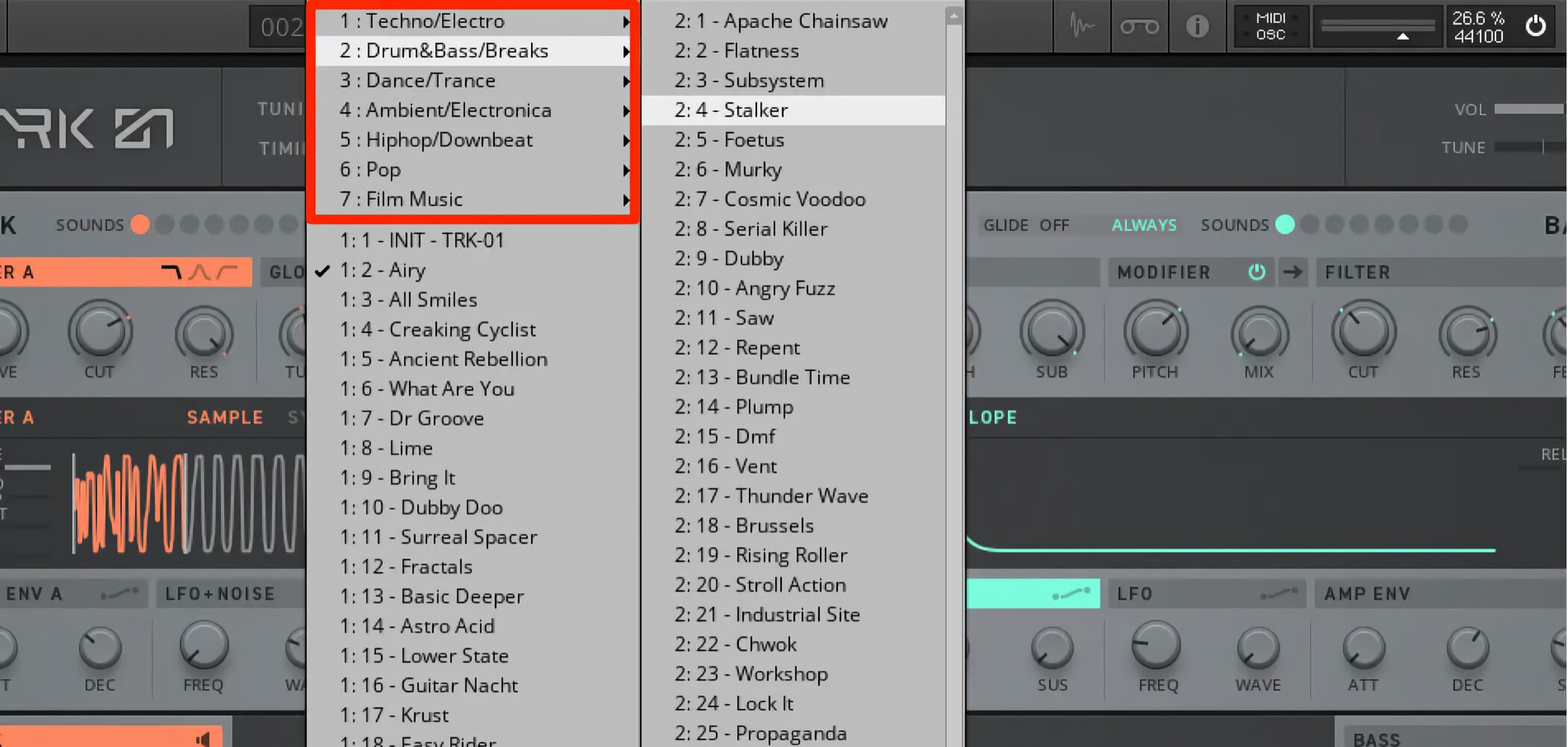
As shown here, the presets are organized into a variety of genres.
Load a preset and start playback in your DAW to hear TRK-01 play.
Creating a Sound from Scratch
You may want to build your own phrases and sounds without starting from a preset.
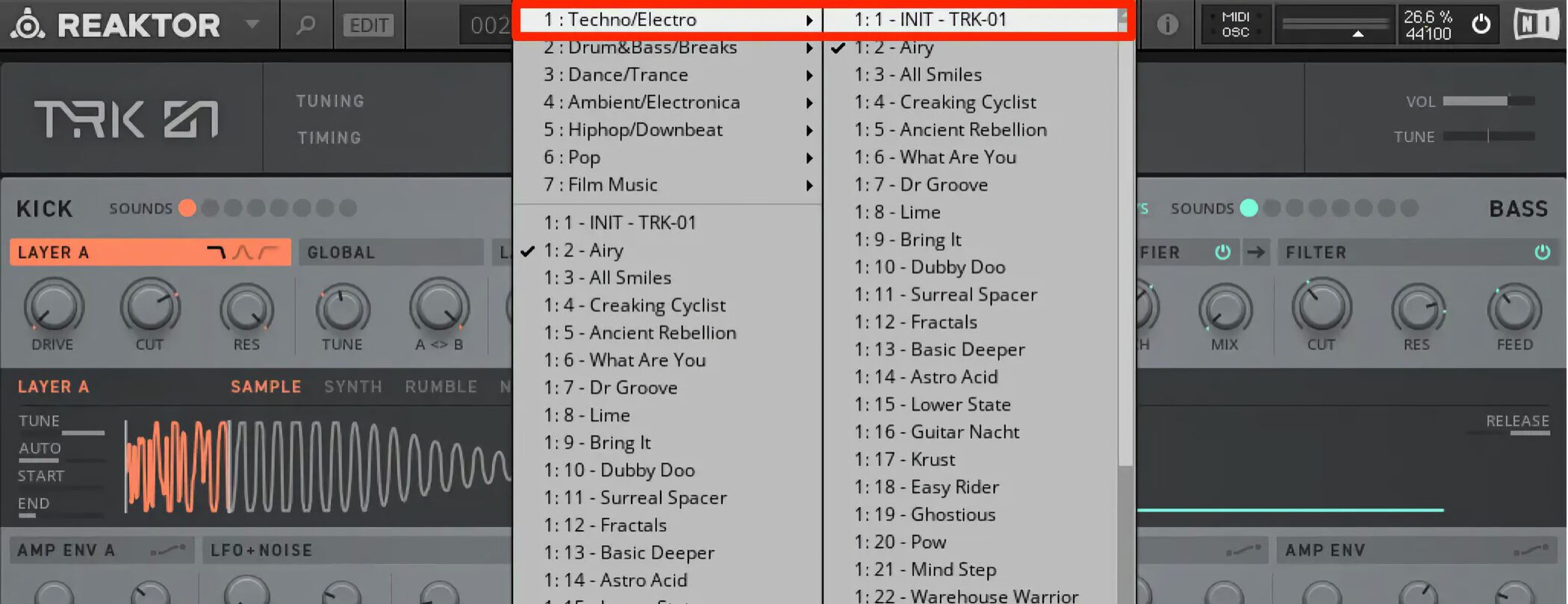
Choose 1 : Techno/Electro → 1 : 1 INIT – TRK-01 in the preset menu to start from an initialized state.
Creating Phrases in TRK-01
Let us create a phrase.
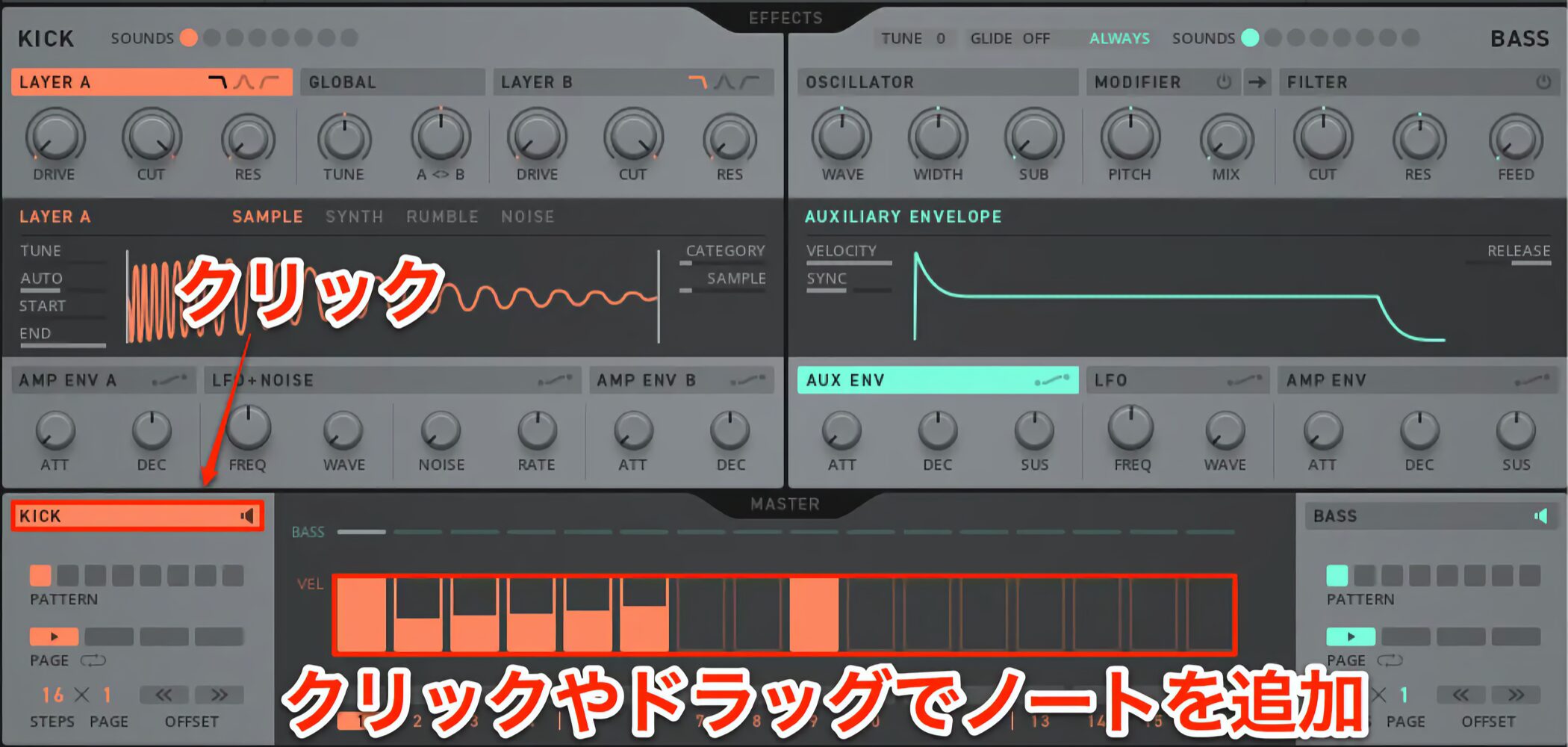
Click KICK to display the rhythm section’s sequencer.
Each step represents a sixteenth note. Click a step to add a note.
You can also hold down the mouse button and drag horizontally to enter several notes in a row.
Right-click a step to delete its note.
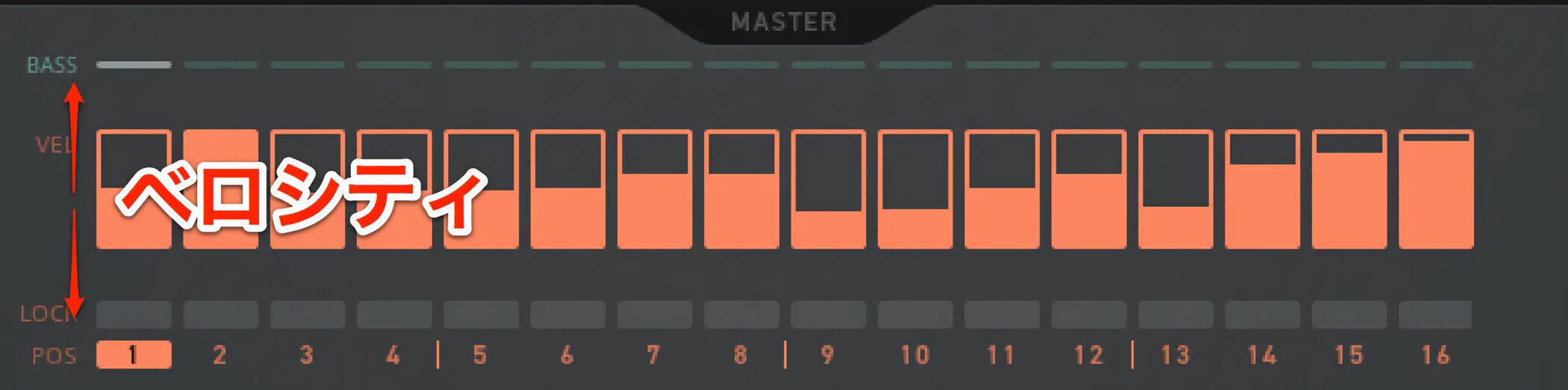
Drag a note up or down to change its velocity—the strength with which it plays.
The higher the orange line, the higher the velocity.
Creating Multiple Patterns: KICK
TRK-01 can store up to eight patterns.

Simply select the pattern you want to program and enter your notes.
The active pattern lights up orange to show that it is selected for playback.
You can switch between these patterns during a song.
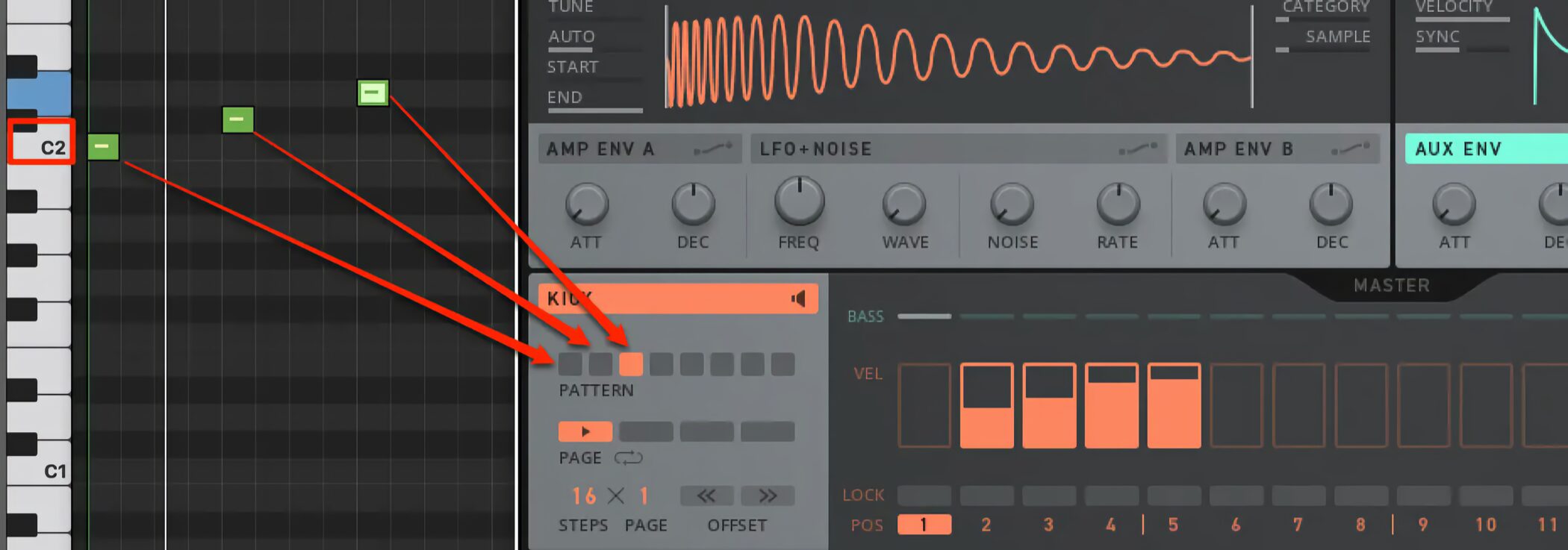
Use notes in semitone steps starting at C2 in your DAW to switch patterns.
Enter MIDI notes that trigger the patterns you want to hear.
Changing a Pattern’s Length in Bars
A pattern can be extended to a maximum of four bars.
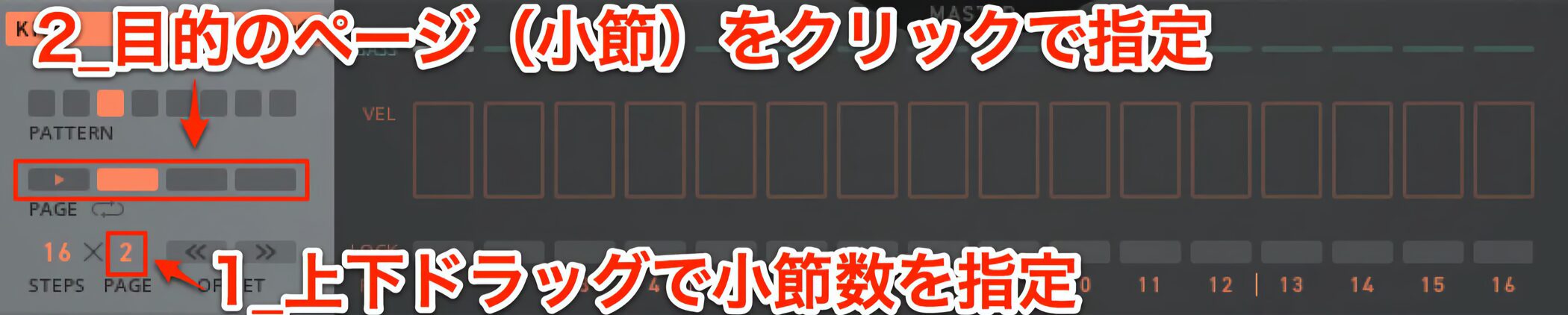
- 1. The PAGE value determines the number of bars. Drag it up or down to set the desired value.
- 2. Click the page you want to edit and enter your notes.
Each of the eight patterns can have a different number of pages, or bars.
Creating Multiple Patterns: BASS
You can create phrases in the BASS section in much the same way.

Click BASS to switch the sequencer to the bass part.
The kick positions remain visible, making it easy to create a bass phrase that works with the kick.

You can also control two parameters that are not available in the KICK section.
For PITCH, drag a note’s value up or down to adjust its pitch in semitone steps.
Changing the Number of Steps in a Pattern
You can change the number of steps that play back. This also applies to the KICK section described above.

Drag the STEPS value up or down to change it.
In the example, the value is 7 STEPS, so the phrase repeats every seven sixteenth notes.
With KICK running at the usual 16 steps, it is easy to create a distinctive pattern whose rhythmic accents shift against the kick.

As with KICK, you can store up to eight patterns and set a different STEPS value for each one.
BASS patterns are switched with keyswitches in semitone steps starting at C3.
Scale-Based Phrases and Detailed Sound Editing
Next, we will build on the basics and explore the bass section.
You can choose a scale before creating your bass phrase, making it intuitive even if you have no instrumental experience or knowledge of music theory.
For sound design, five synthesis types cover a wide range of sounds, from classic synth tones to evolving wavetable sounds.
The Lock function lets you set parameters independently for each programmed note, greatly expanding your sound-design options.
Let us take a closer look.
Video: Editing the Bass Section
Building a Bass Phrase
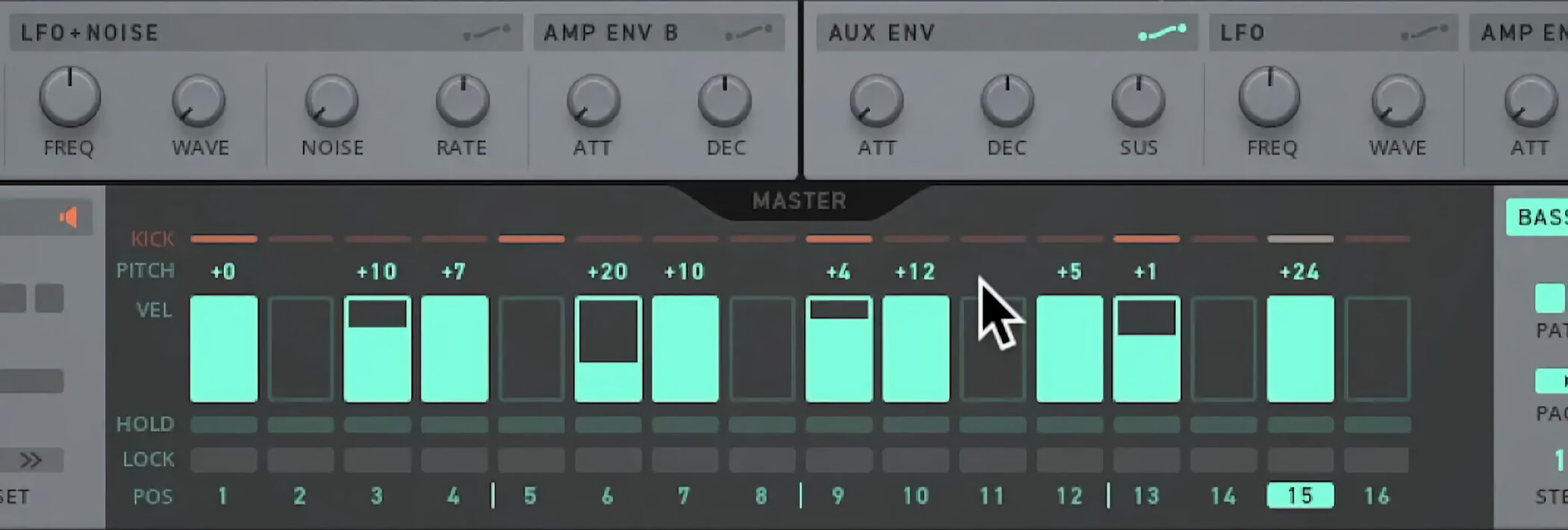
When programming a bass part in a sequencer, setting pitch by numerical values can feel difficult.
TRK-01 provides a range of scales, making it easy to create phrases that fit a chosen key and scale.
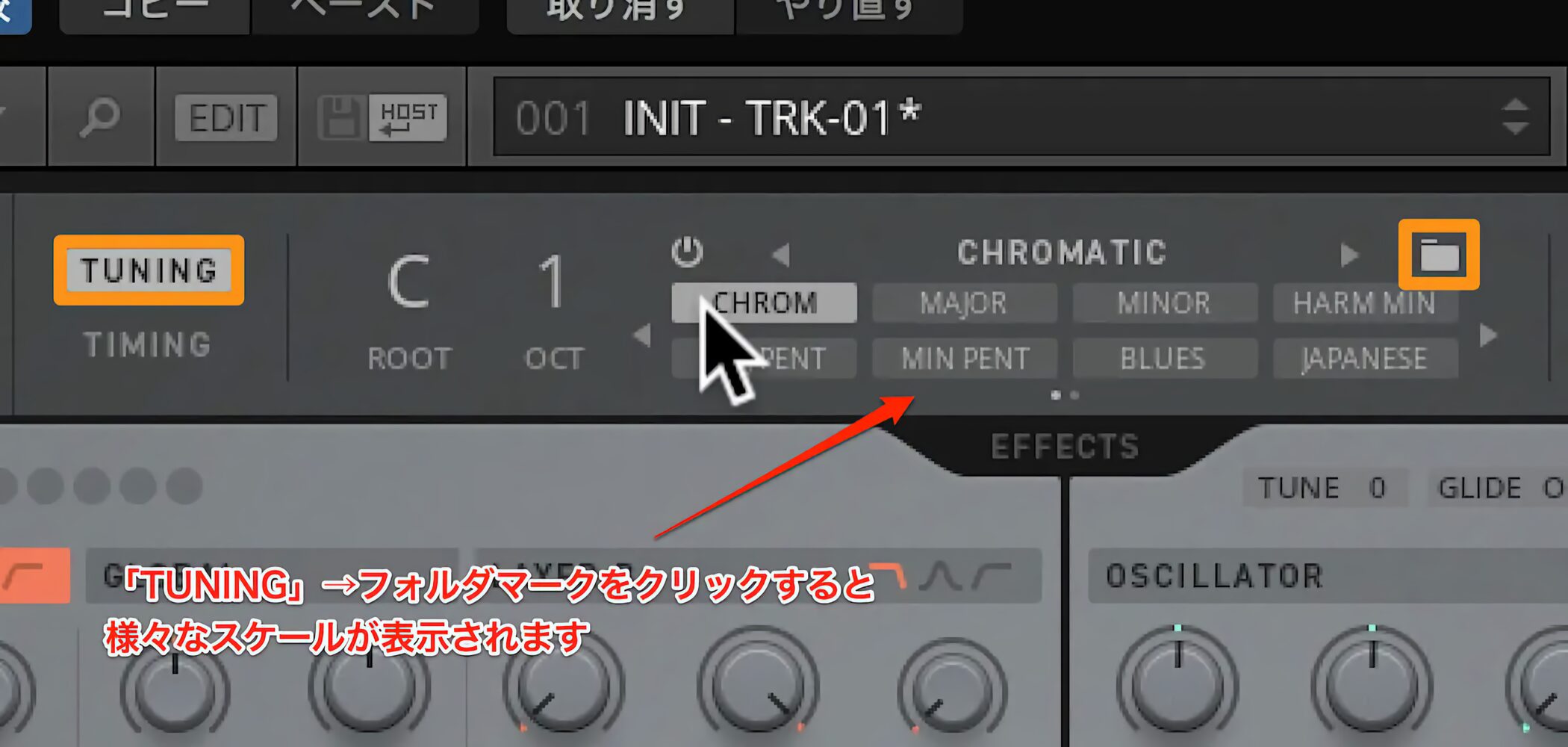
Select TUNING at the top of the interface, then click the folder icon.
You can choose from a range of scales.
Even without music theory knowledge, you can create coherent pitches and build phrases intuitively.
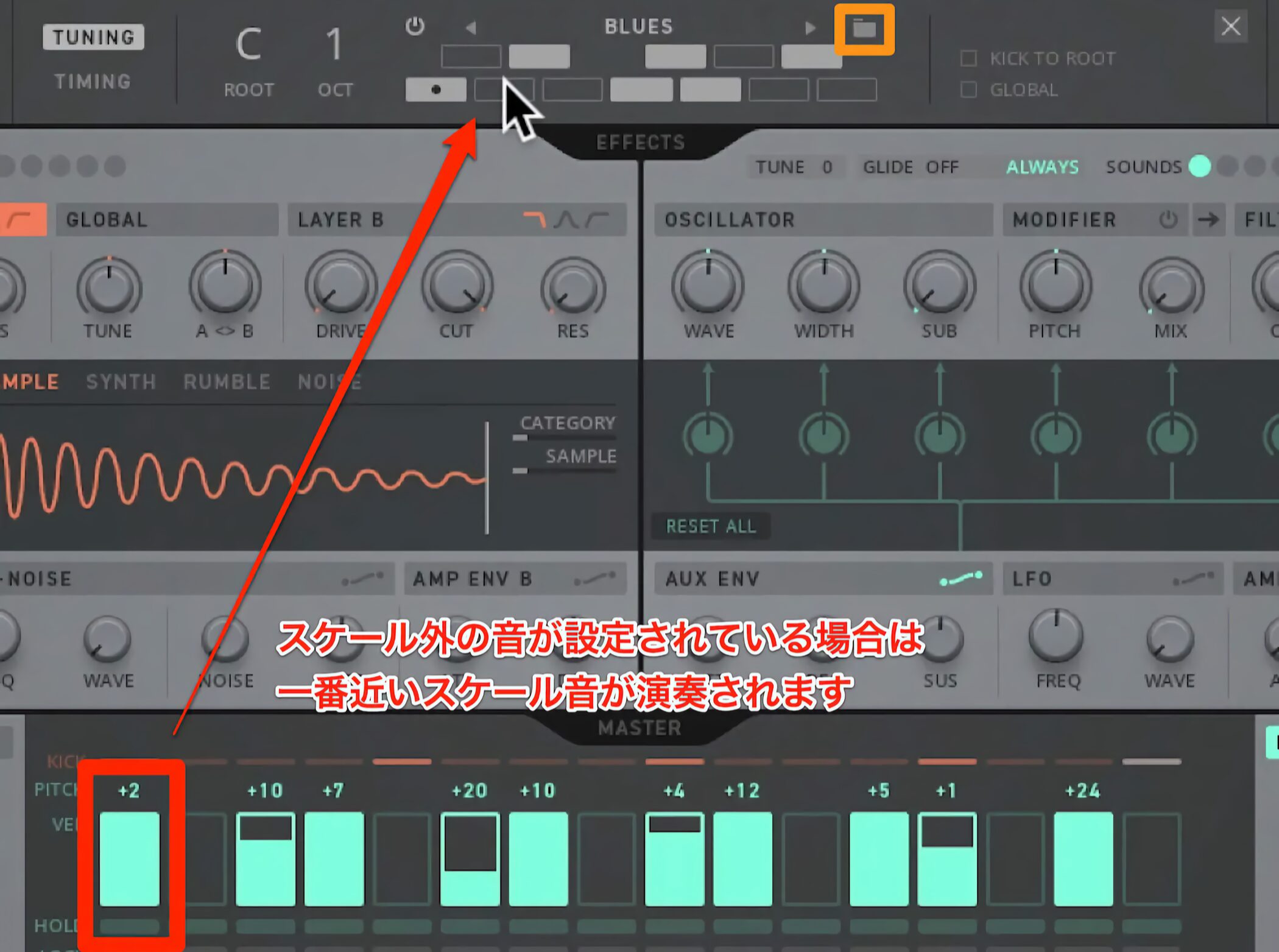
Click the folder icon again to display the notes in the scale.
If a sequencer note is set to a pitch outside the scale, the closest note in the scale will play instead.
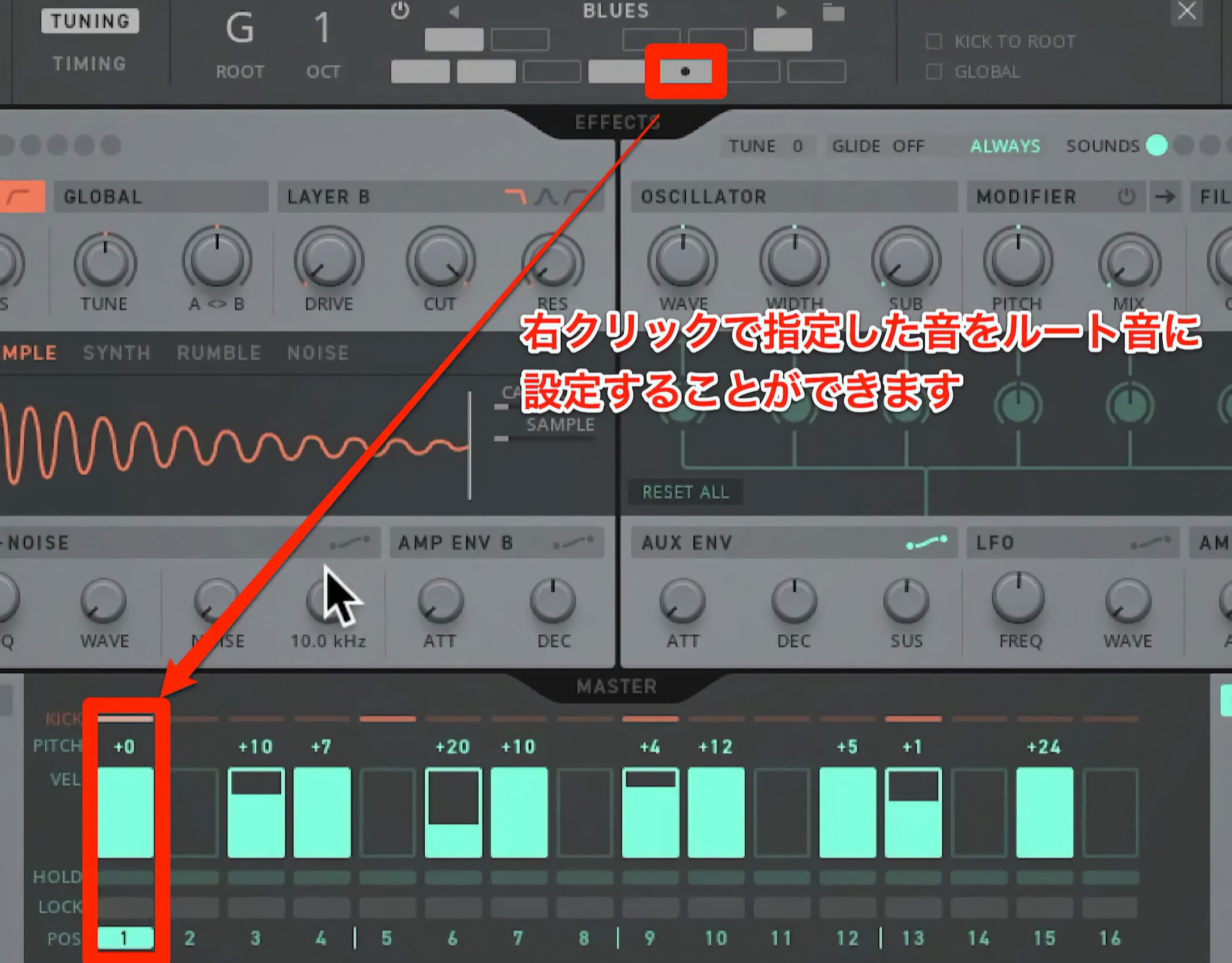
Right-click a note to change the scale’s root note.
In this example, the root is G, so a pitch value of +0 plays G.
This makes it convenient to set the key to match your song immediately.
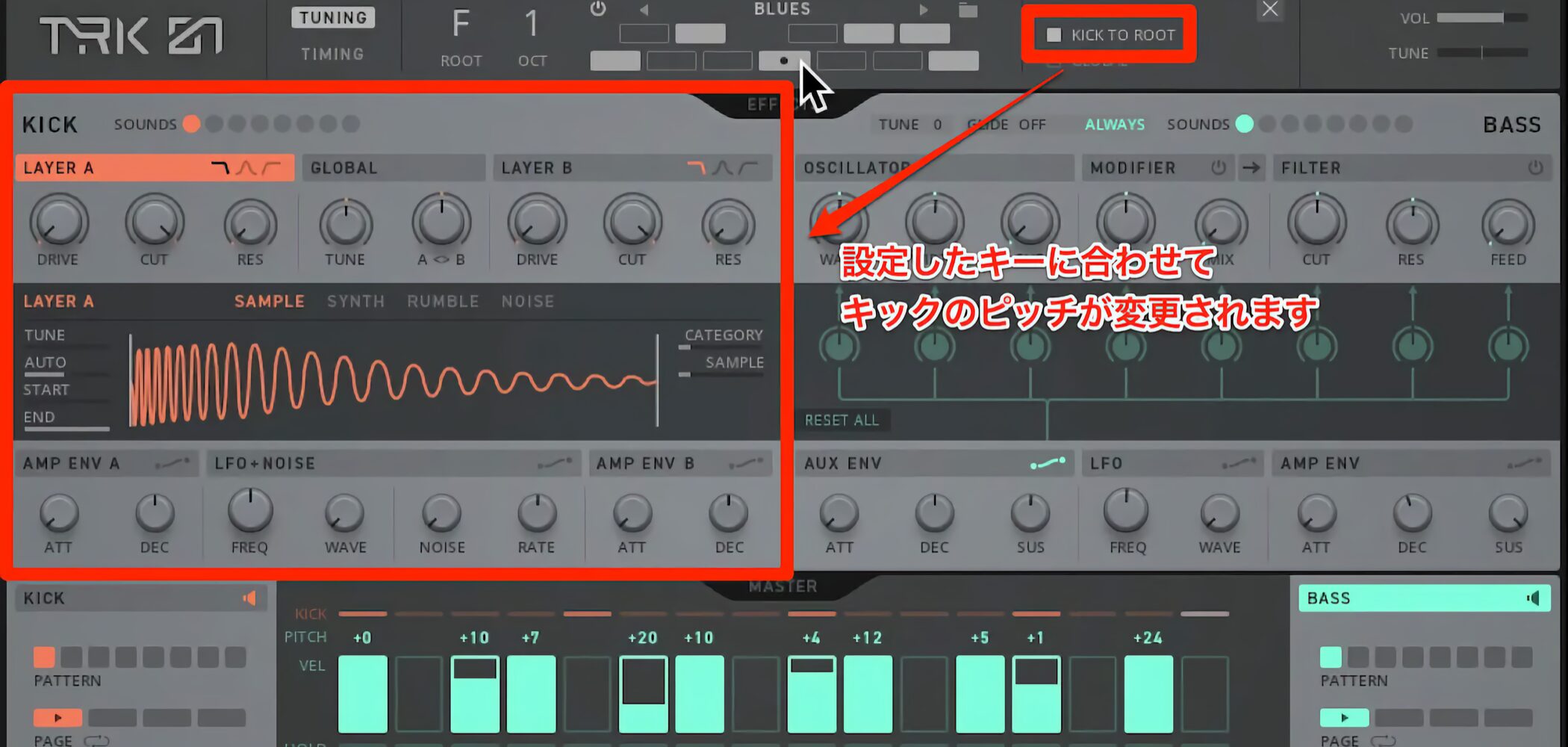
Enable KICK TO ROOT to adjust the kick’s pitch to the selected root note.
Leave it unchecked if you want the kick’s pitch to remain fixed.
Changing Note Length
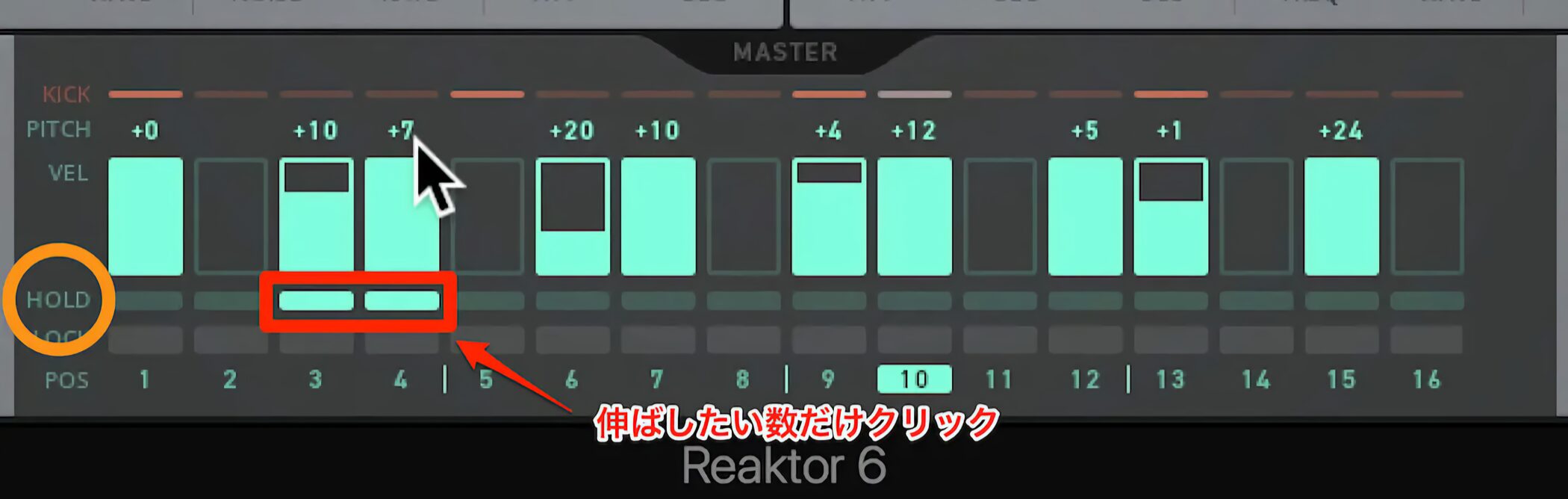
The bass section includes HOLD, which lets you specify how long a note plays.
Enable the steps over which you want the note to continue.
Connecting notes of different pitches, as shown in the example, makes them play legato.
Creating a Bass Sound
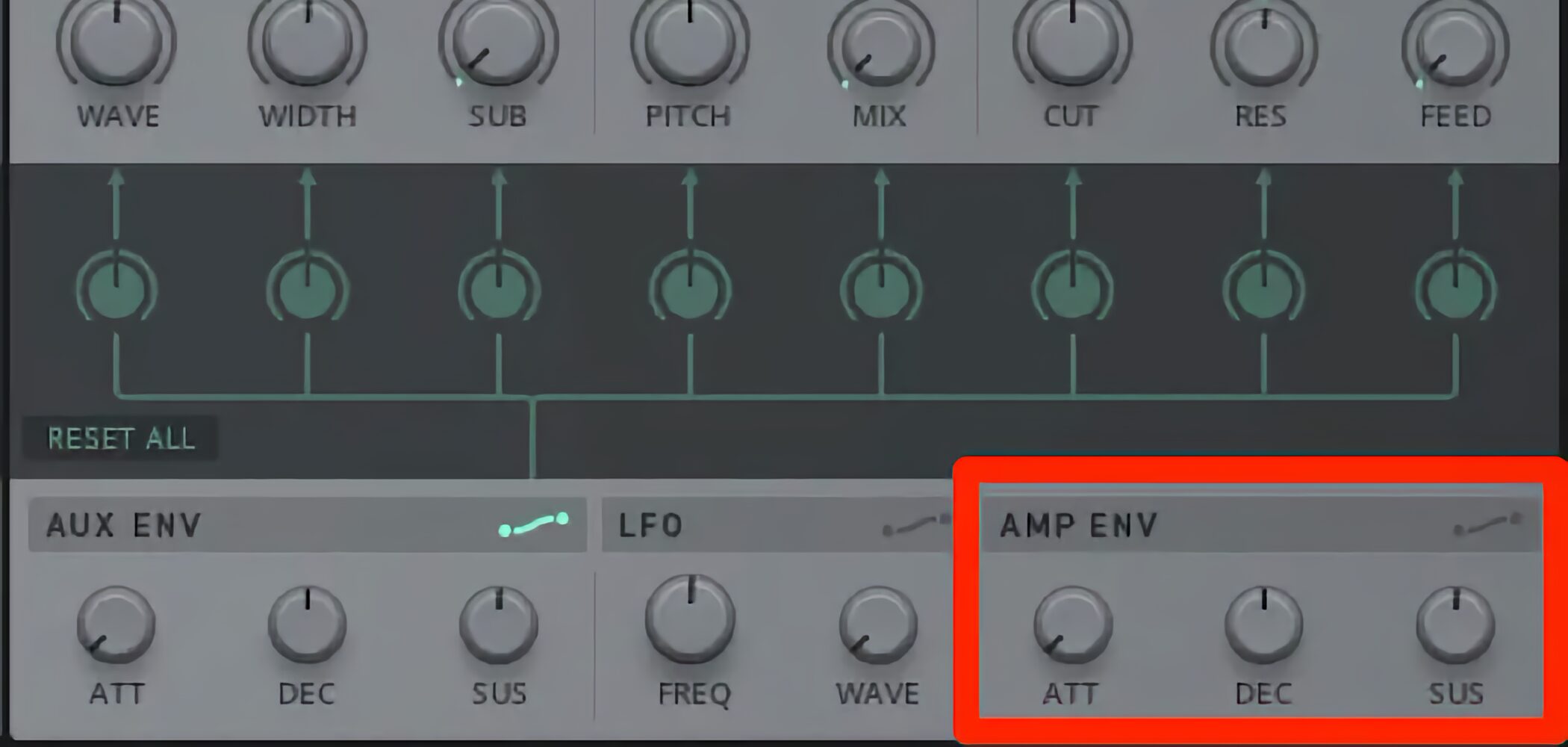
Next, let us edit the bass sound.
AMP ENV provides attack, decay, and sustain controls.
Think of decay as controlling how the sound trails off.
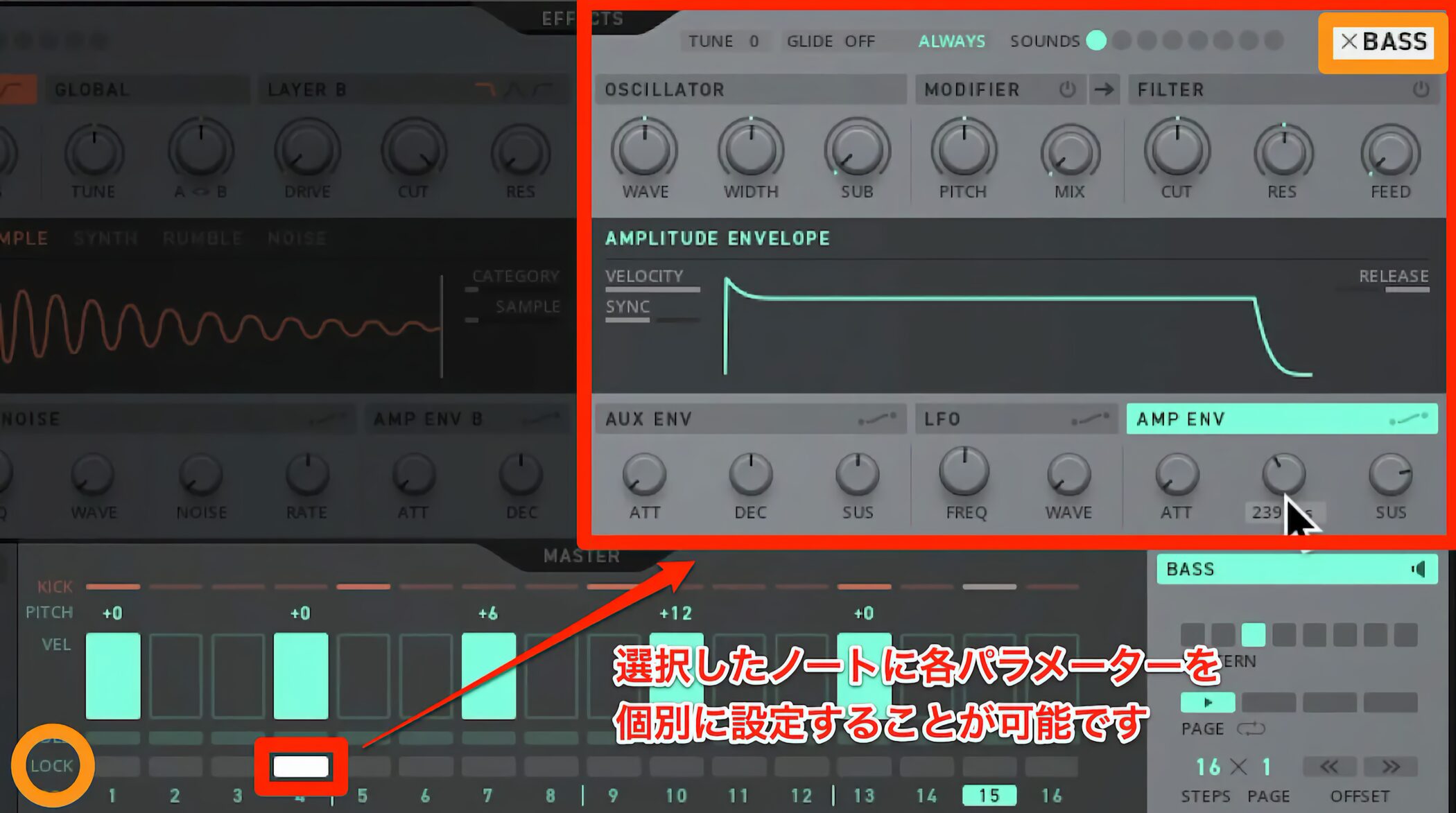
One of TRK-01’s most useful features is the ability to set parameters independently for each note.
It is simple to use: enable LOCK for the note you want to edit, then adjust the desired parameters.
When that note plays, the parameters jump to the values you specified.
To leave Lock mode, click BASS at the upper right or click LOCK beneath the note again.
Editing the Oscillator
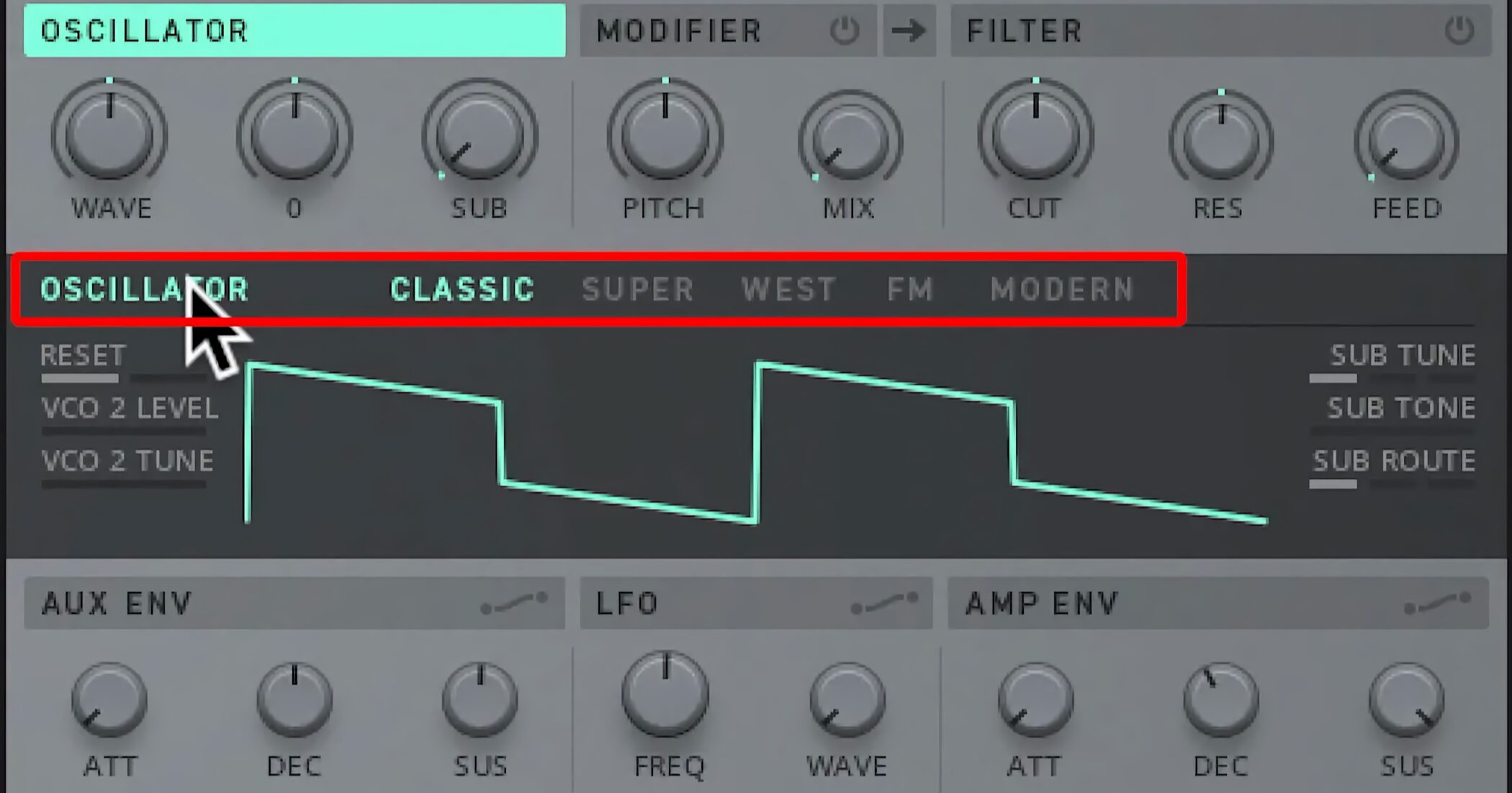
Five oscillator types are available, each with its own character.
- CLASSIC: Provides classic sawtooth and square waves, which you can also blend.
- SUPERSAW: Combines six sawtooth waves for a thick, detuned sound.
- WEST: Morphs between three distinctive waveforms.
- FM: Creates classic FM sounds.
- MODERN: Uses wavetable synthesis. Choose two waveforms and morph between them.
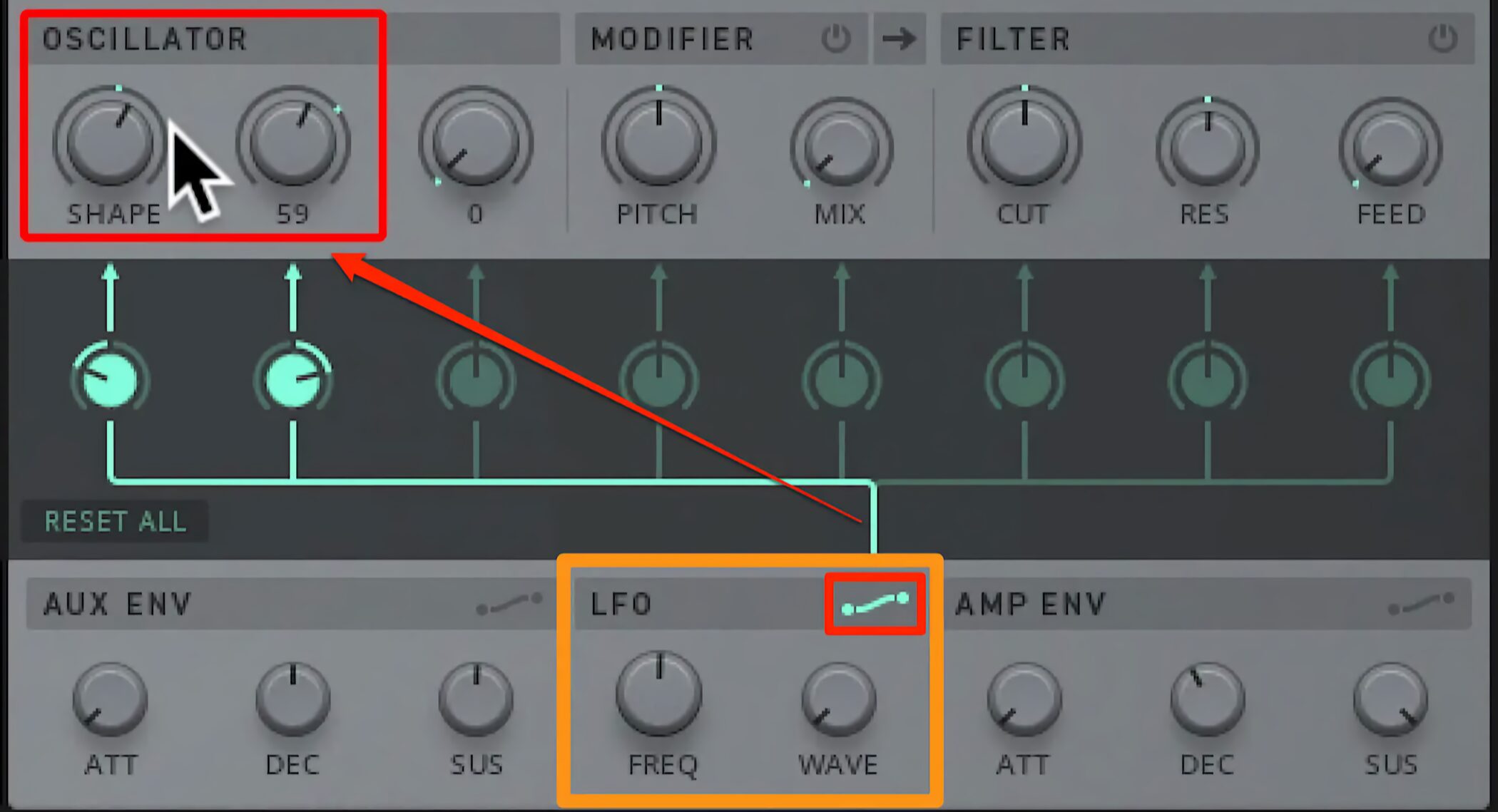
Assign an LFO or envelope to add movement to a parameter.
Click the icon outlined in red, then select the parameter you want to assign it to.
Turning up the knob increases the modulation amount.
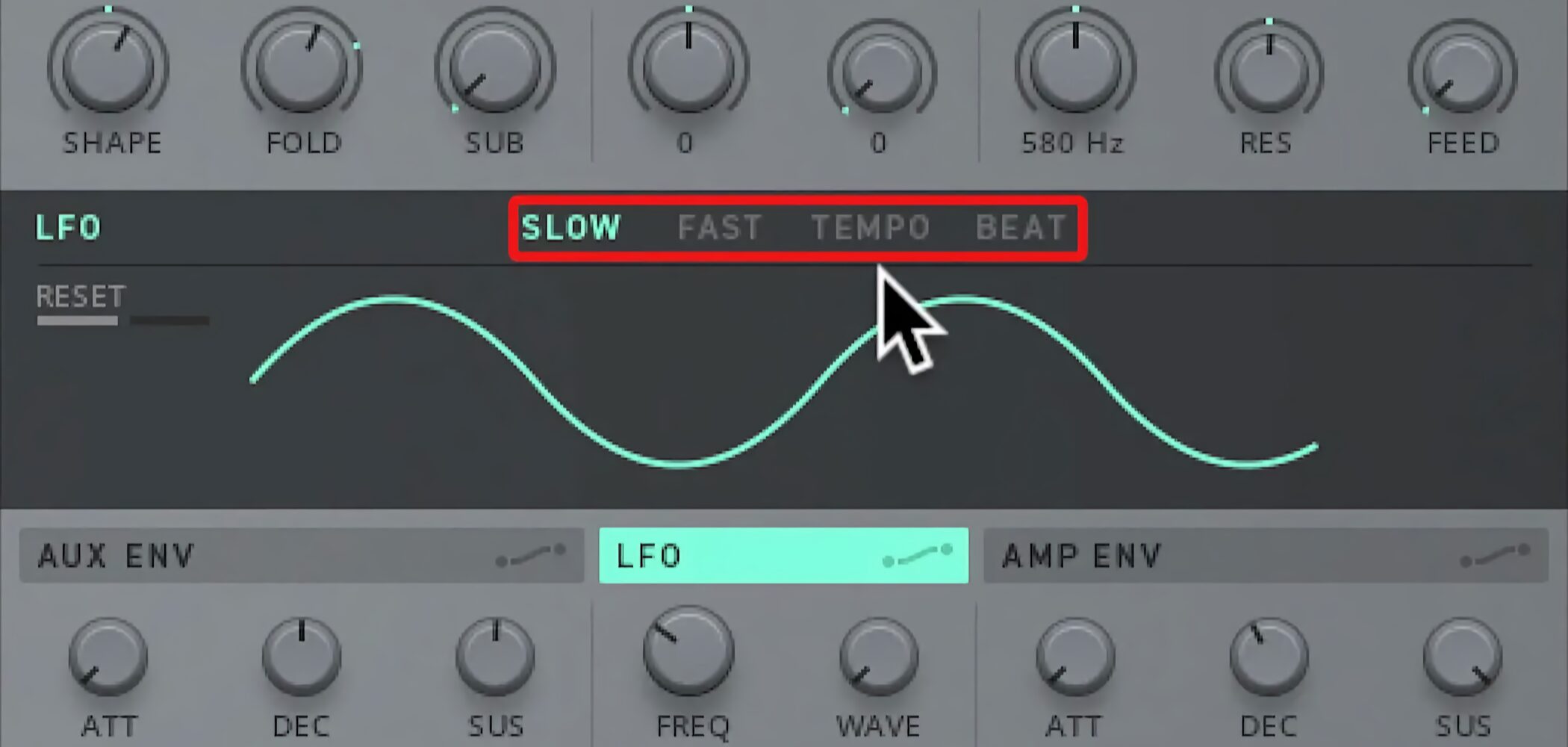
You can also adjust the LFO rate in detail.
Choose SLOW, FAST, TEMPO, or BEAT.
TEMPO and BEAT let you synchronize modulation to the song’s BPM.
Adding Sub Bass
Sub bass can add weight to your sound.
Modulating a sound can sometimes reduce its low end, so use sub bass to reinforce it.
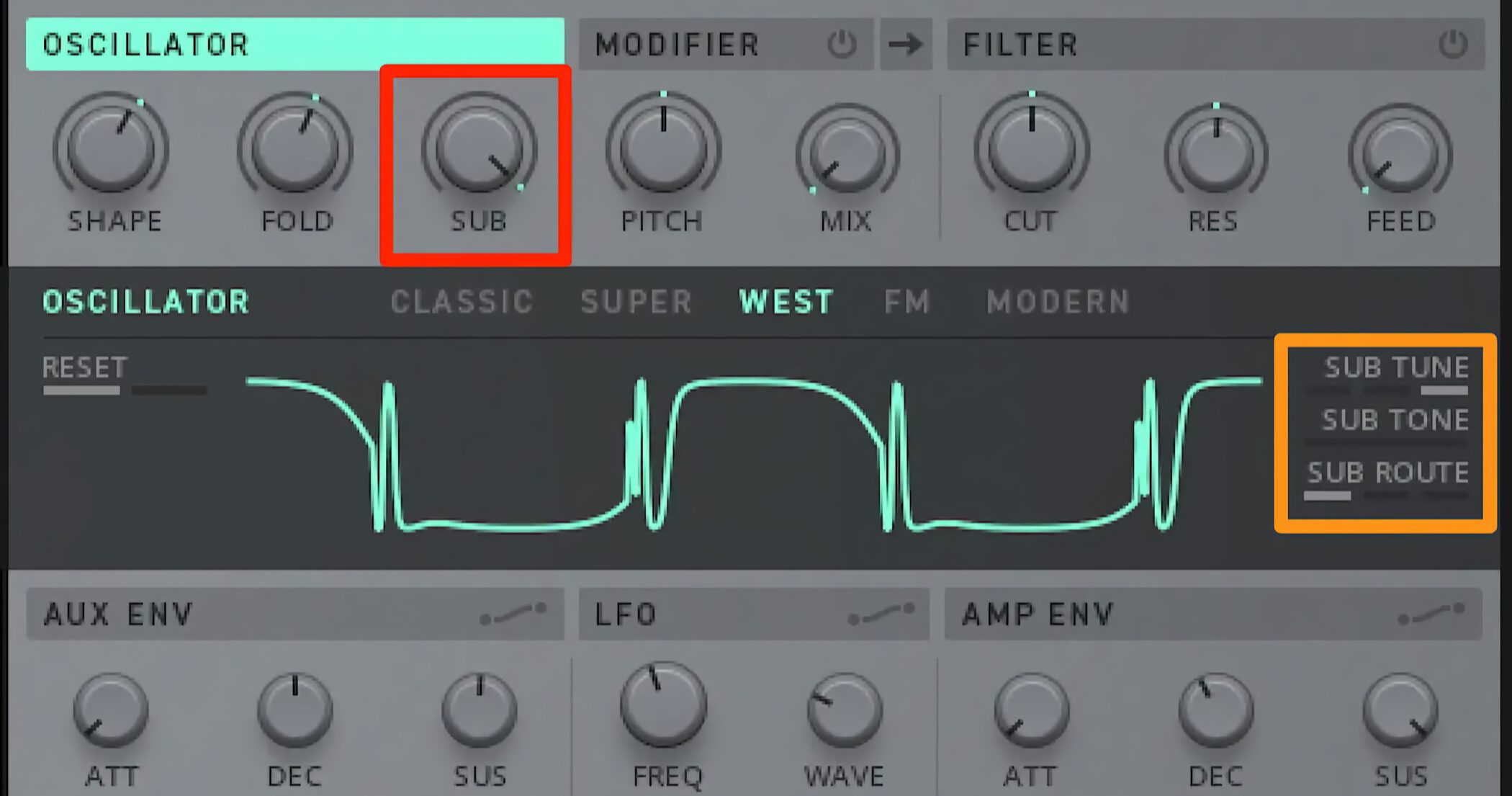
Use SUB, outlined in red, to set the sub-bass amount.
At 0, it has no effect. Raising the parameter increases the sub-bass output.
The sub-bass settings are in the area outlined in orange.
- SUB TUNE: Sets the sub-bass pitch to the programmed pitch, one octave below, or two octaves below (0, −12, or −24 semitones).
The effect depends on the phrase, so adjust it while listening. - SUB TONE: Moving the slider to the right makes the tone progressively rougher, moving from sine to triangle to square.
- SUB ROUTE: Chooses one of three points in the signal path at which to add the sub bass.
Placing it before or after the filter changes the sound, so listen as you choose the most suitable position.
Setting the Filter
There are three low-pass filter types and a notch filter.
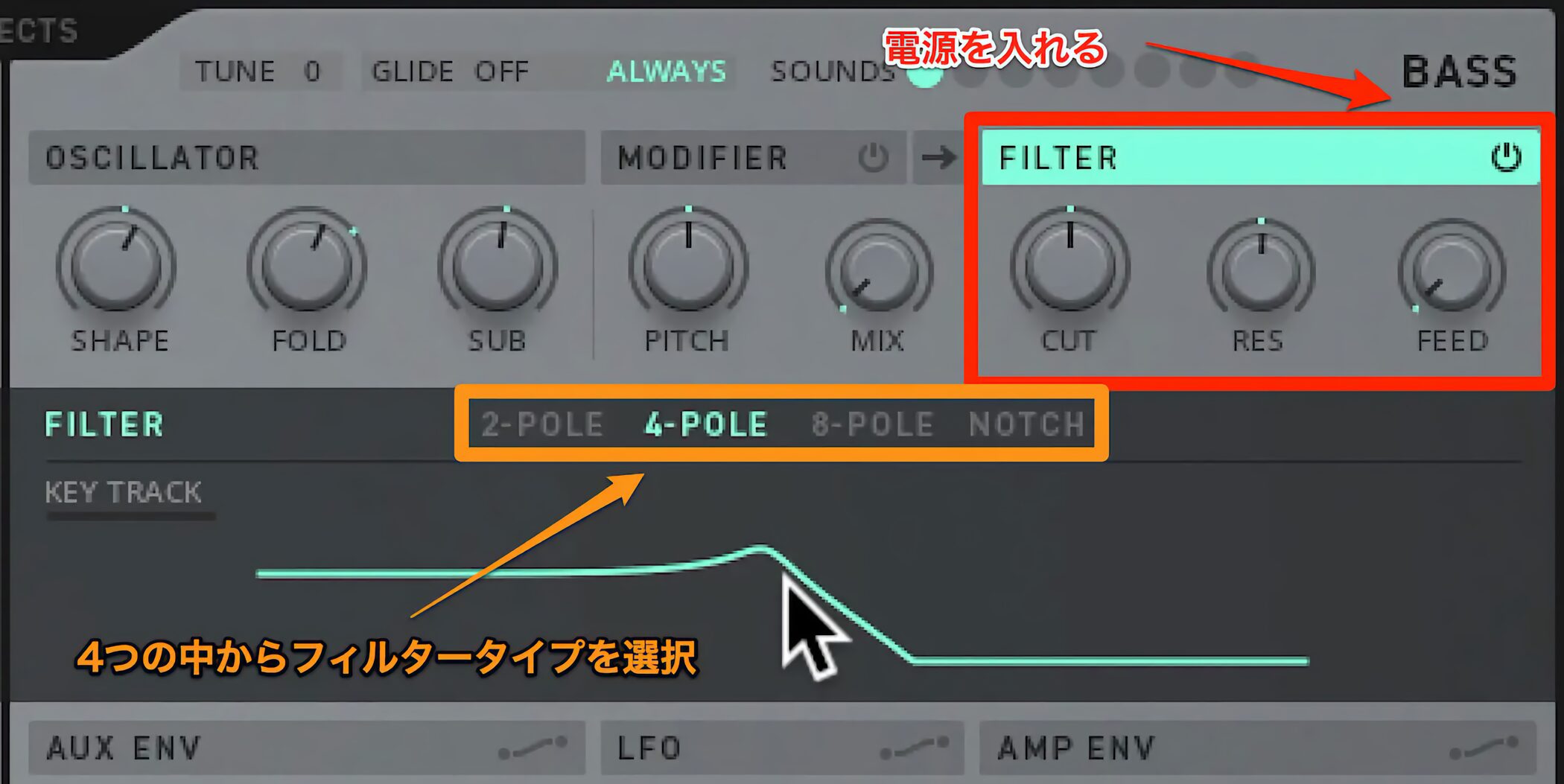
Switch FILTER on, then select 2-POLE, 4-POLE, 8-POLE, or NOTCH.
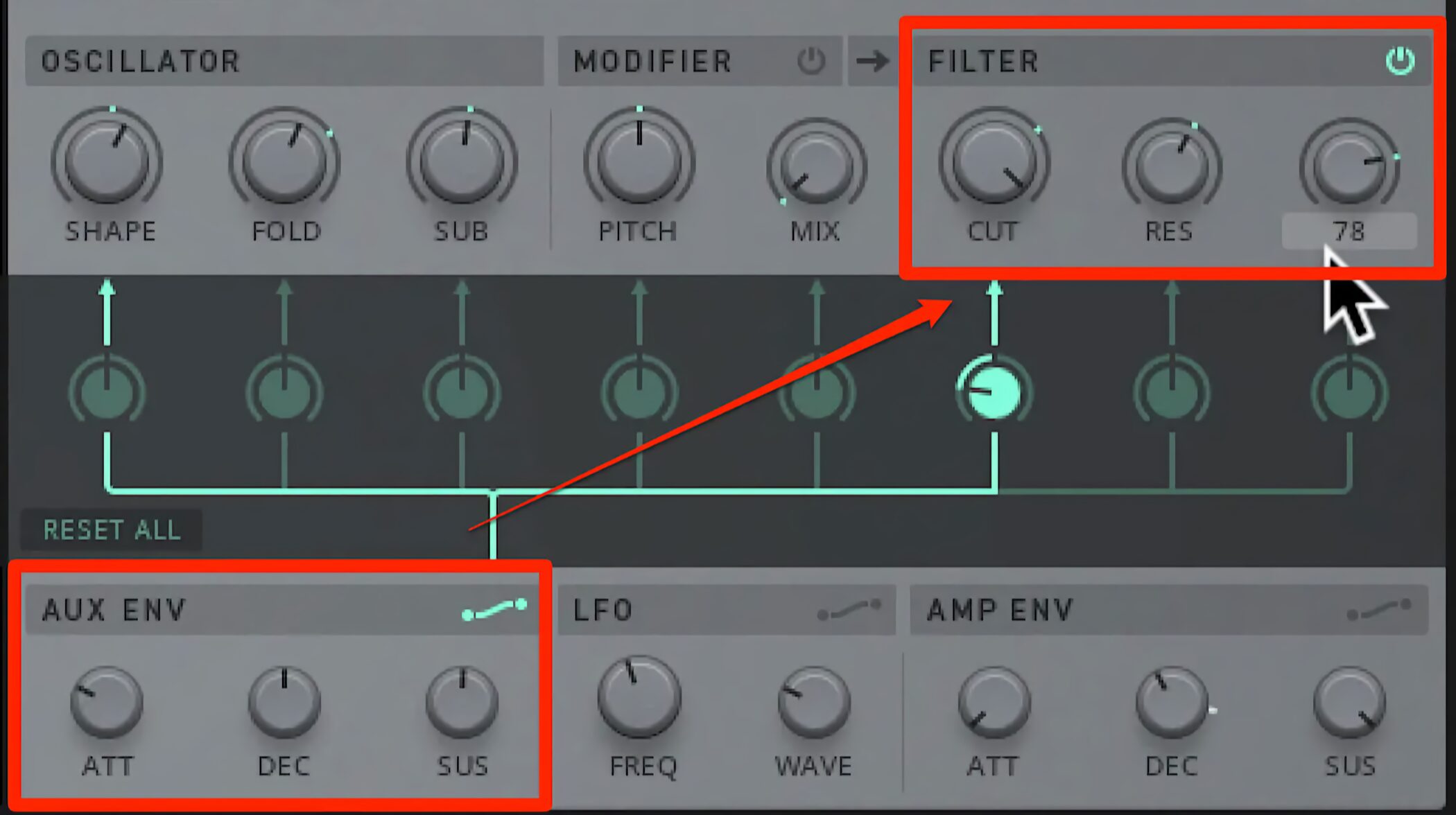
You can also modulate the filter parameters.
To assign an envelope, select AUX ENV, then choose the parameter you want to modulate.
Creating Distinctive Sounds with MODIFIER
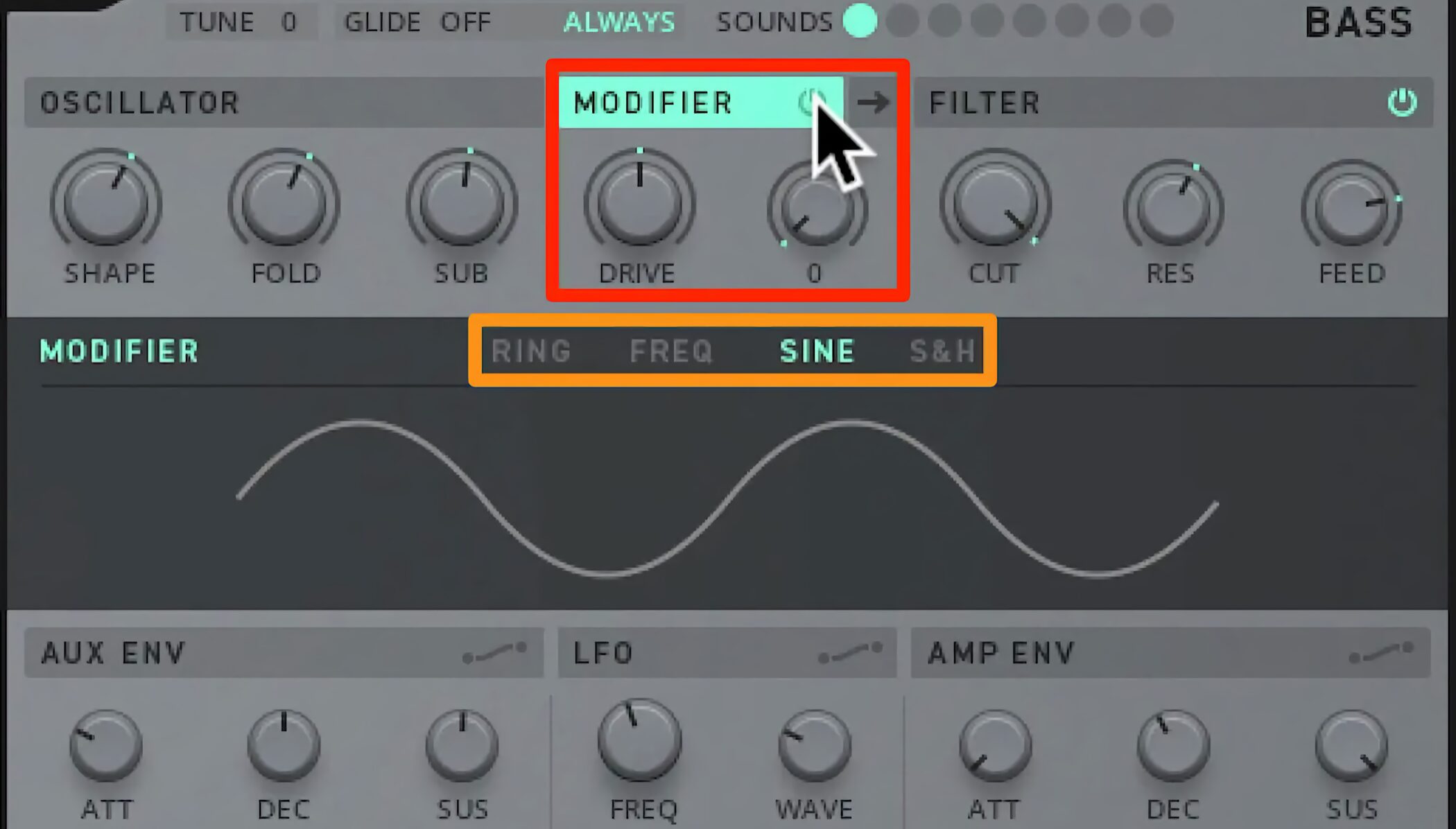
MODIFIER changes the sound by altering the waveform.
It offers four types: RING, FREQ, SINE, and S&H. SINE adds distortion, while S&H can create degraded, bitcrusher-like effects.
Each type has its own parameters for creating distinctive sounds.
Shaping the Complete Sound, Including Rhythm
Finally, we will apply what we have learned in the bass section to the kick section and effects, shaping the overall sound.
Important sound-design tasks are straightforward, including changing sounds with Lock and editing with ducking effects.
Video: Kick Section and Effects
Creating a Kick Sound
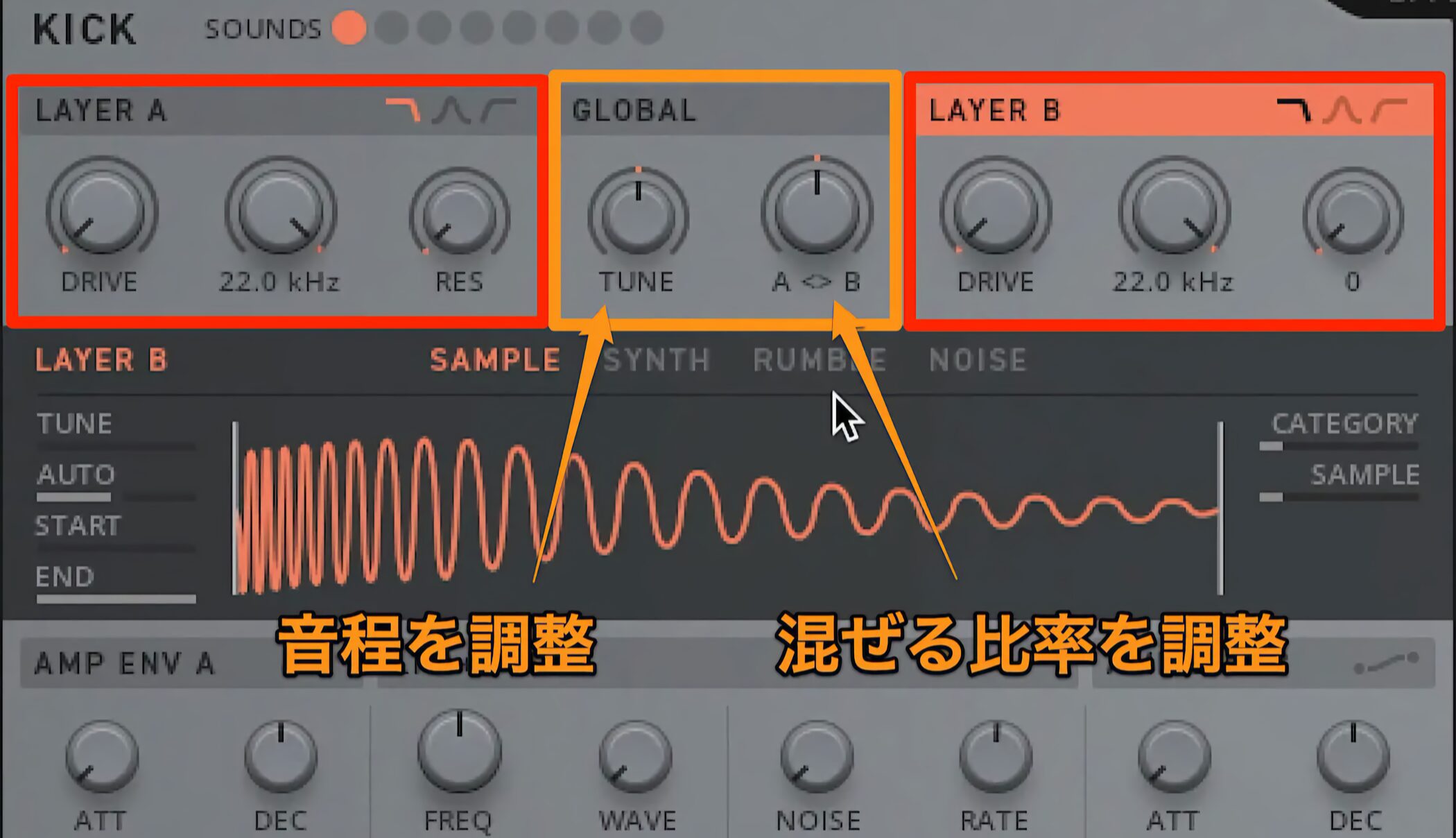
The kick section has LAYER A and LAYER B. Adjust their relative levels in the central GLOBAL section.
TUNE controls the overall pitch of the kick.
Choosing a Kick Sound Type
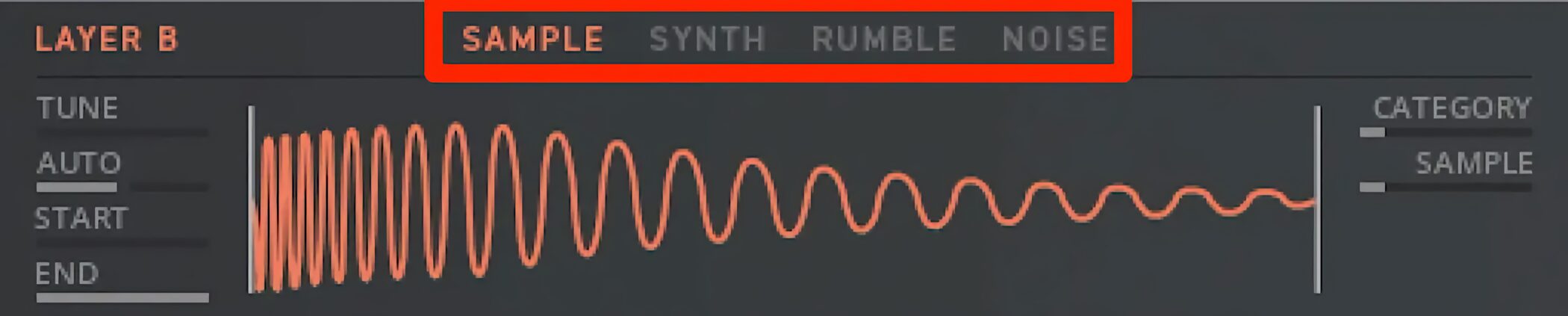
TRK-01 offers four kick oscillator types: SAMPLE, SYNTH, RUMBLE, and NOISE.
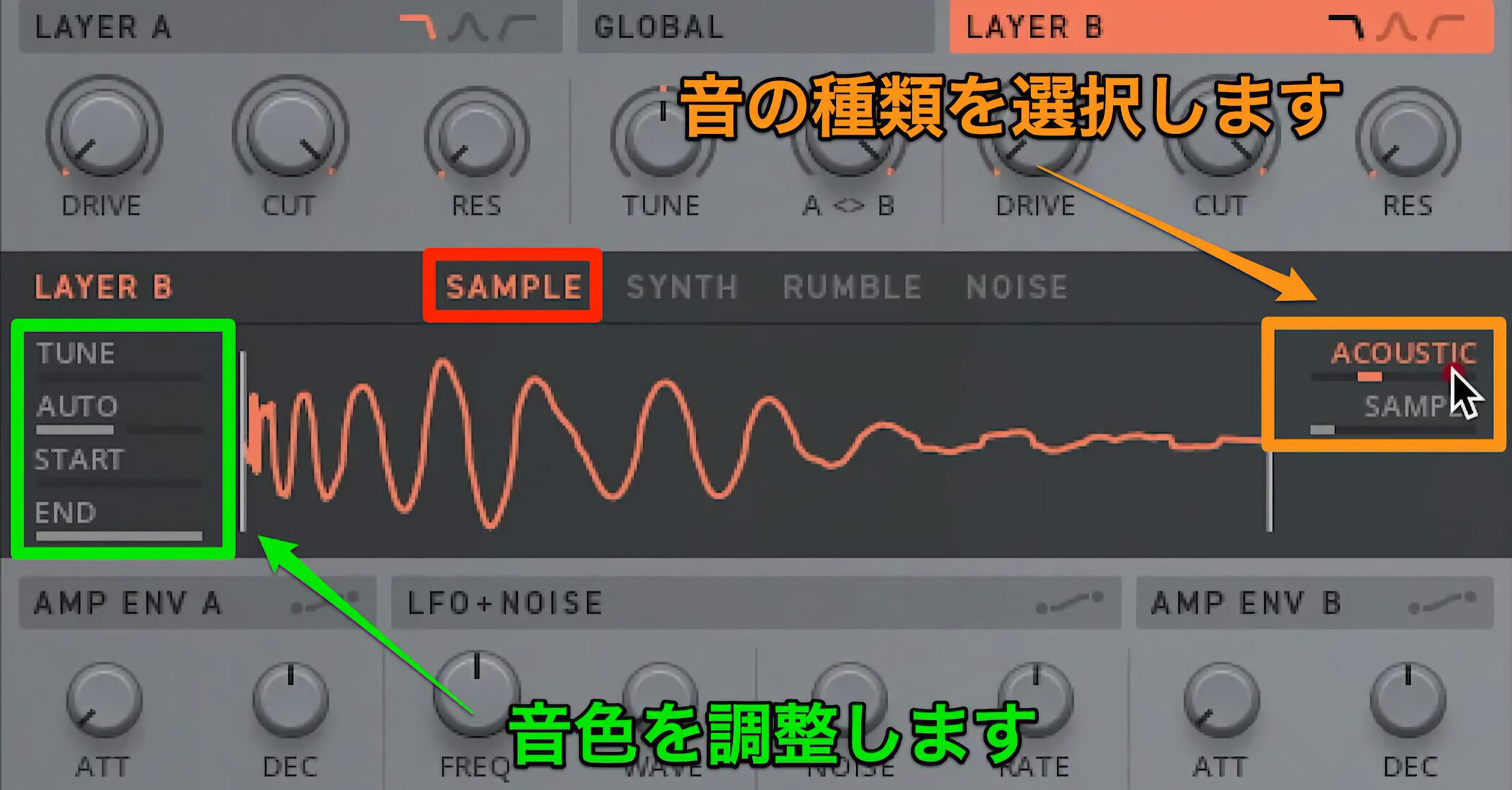
SAMPLE lets you load a one-shot audio file.
Categories such as ANALOG, DIGITAL, and ACOUSTIC each contain multiple samples, providing options for many genres.
The ACOUSTIC category also includes instruments other than kicks, such as hi-hats.
The controls on the left let you adjust the sound.
- TUNE: Adjusts the sample’s pitch.
- AUTO: Tunes the kick to the currently selected key.
- START / END: Sets the start and end points of sample playback.
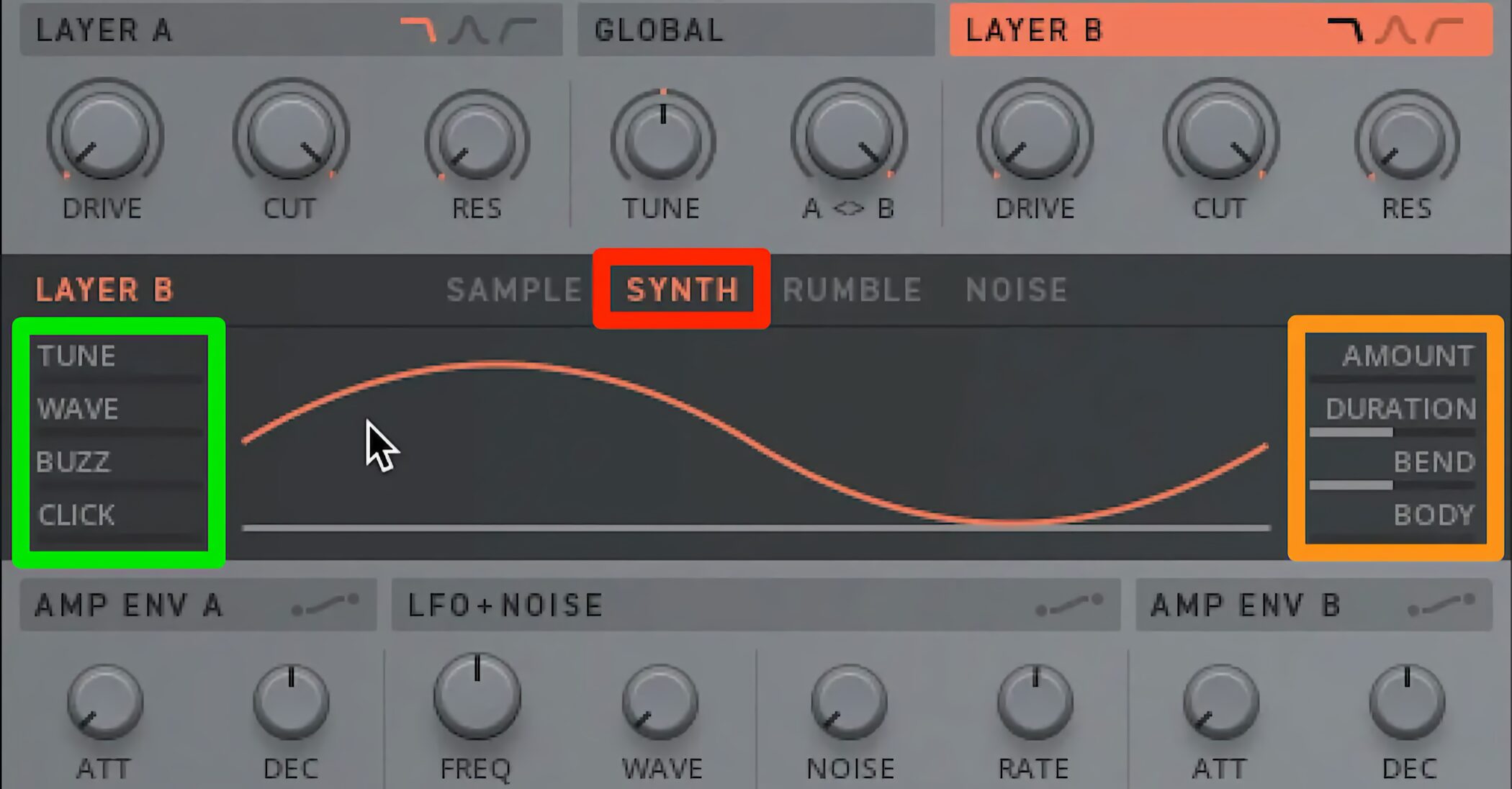
SYNTH lets you create a kick sound from a sine wave.
Its dedicated parameters let you shape the attack, change the pitch, and add distortion.
Increasing DEC in AMP ENV extends the sound’s tail, allowing you to create effects such as a drop kick.
What Is a Drop Kick?
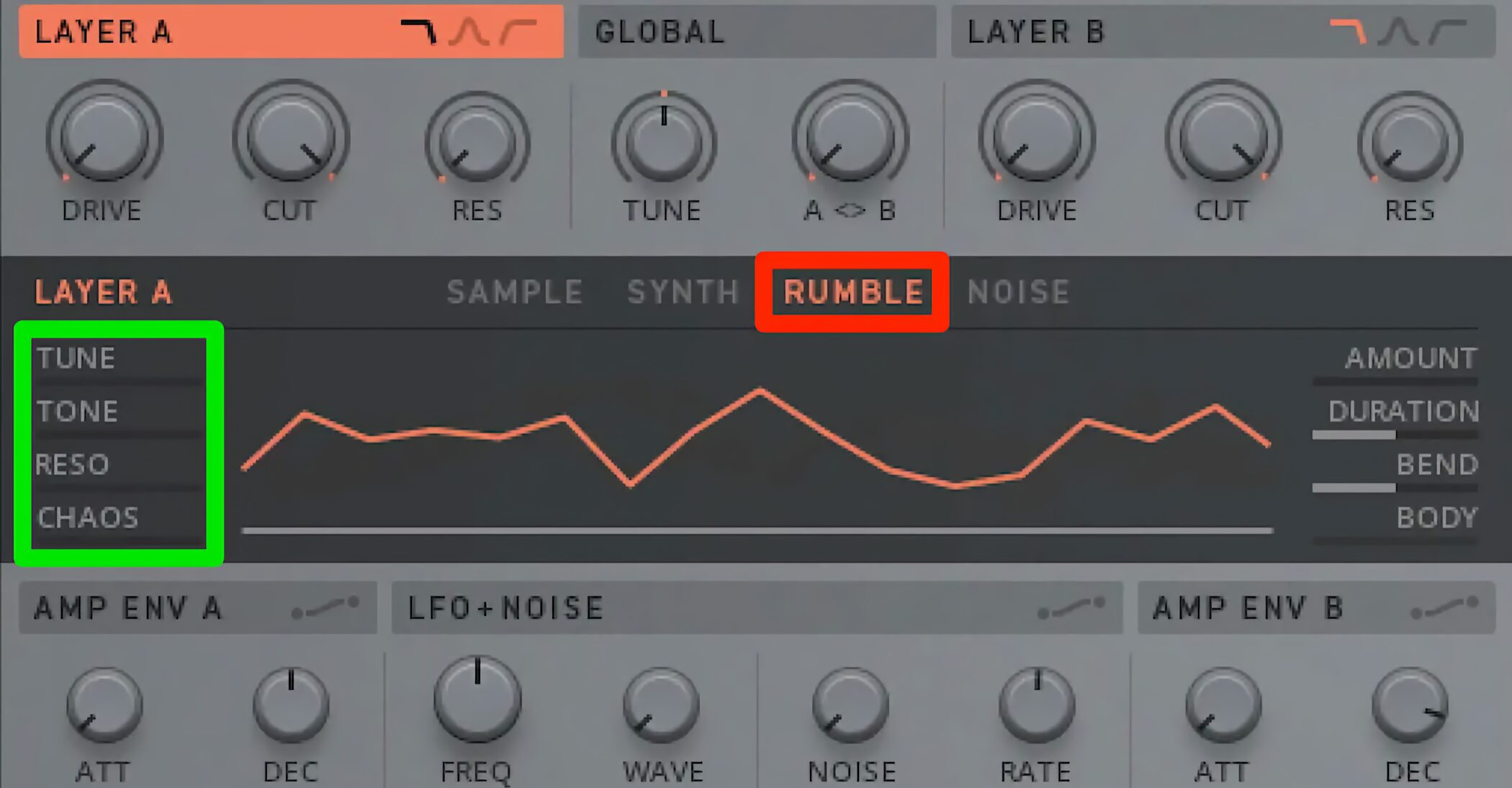
RUMBLE is useful for editing percussion-like sounds.
The controls on the right are the same as those in SYNTH.
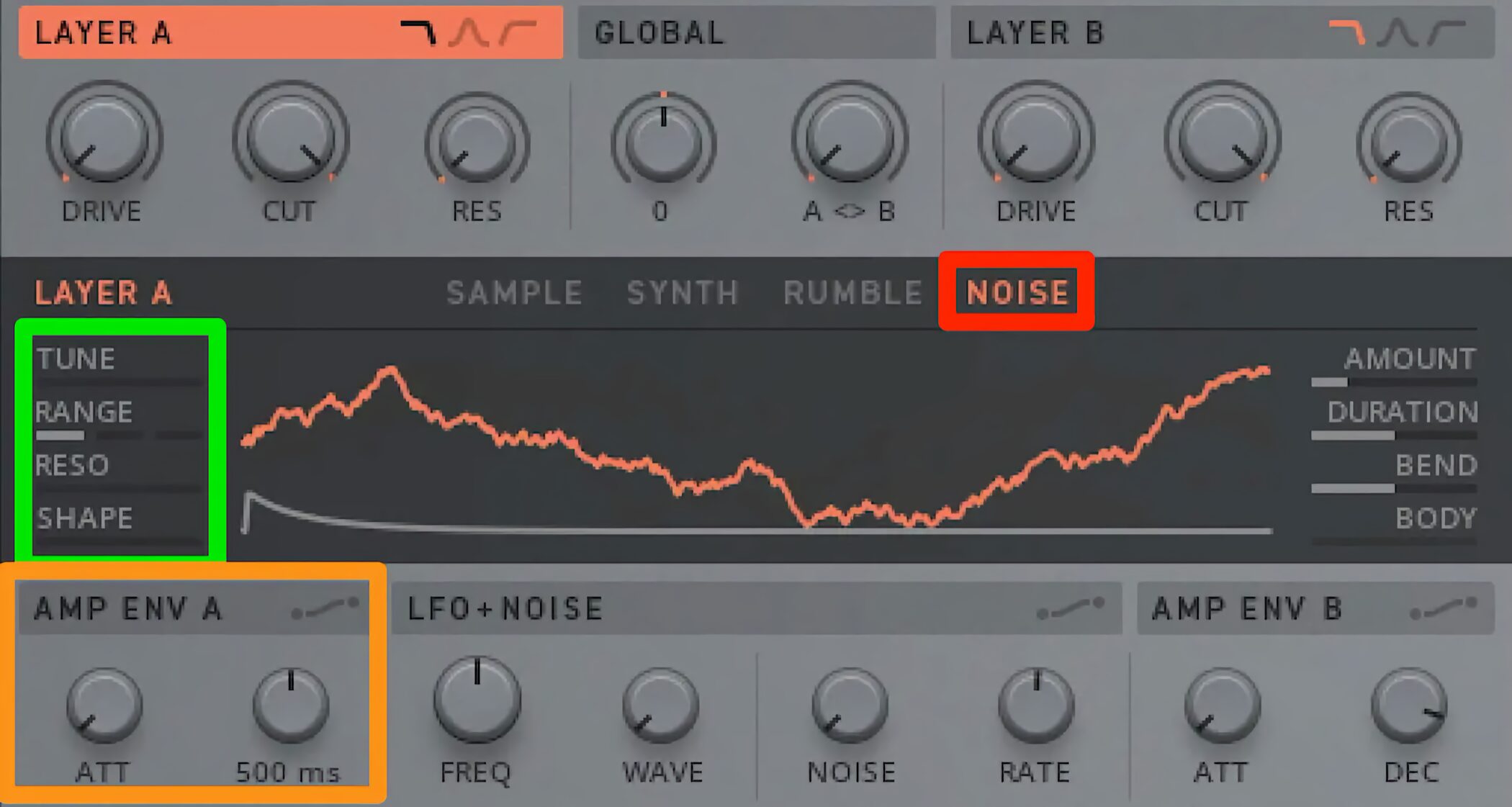
NOISE, as its name suggests, is useful for noisy sounds with a sharp attack.
Set DEC in AMP ENV fairly short and blend the layers to create a sound with a strong attack.
Adding Sounds Other Than Kicks to a Pattern
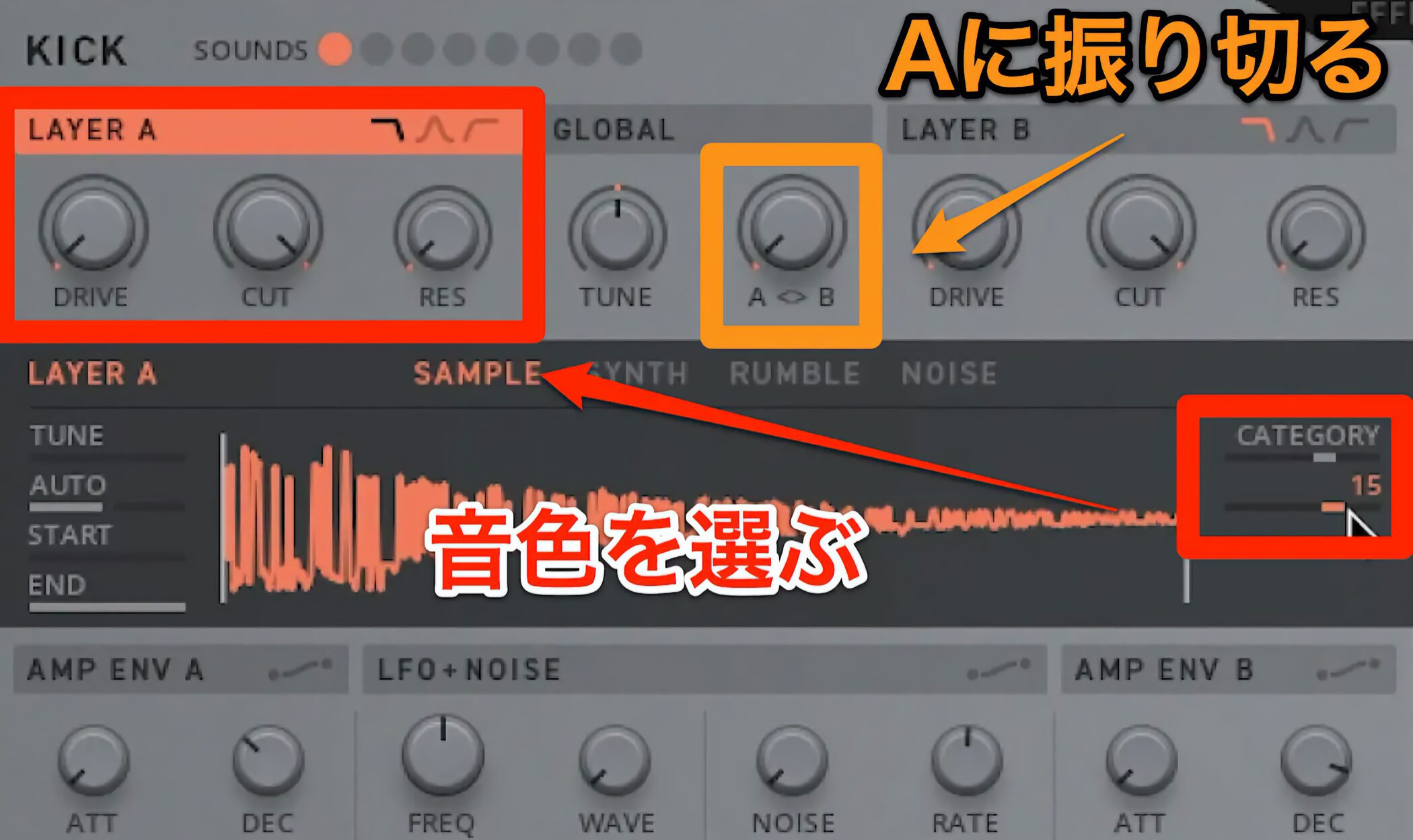
You will often want to use snares or hi-hats alongside the kick.
Here is how to use two different sounds within a sequence.
In this example, we keep the kick sound in LAYER B, turn the layer balance fully toward A, and work on LAYER A.
Select the desired sound in SAMPLE.
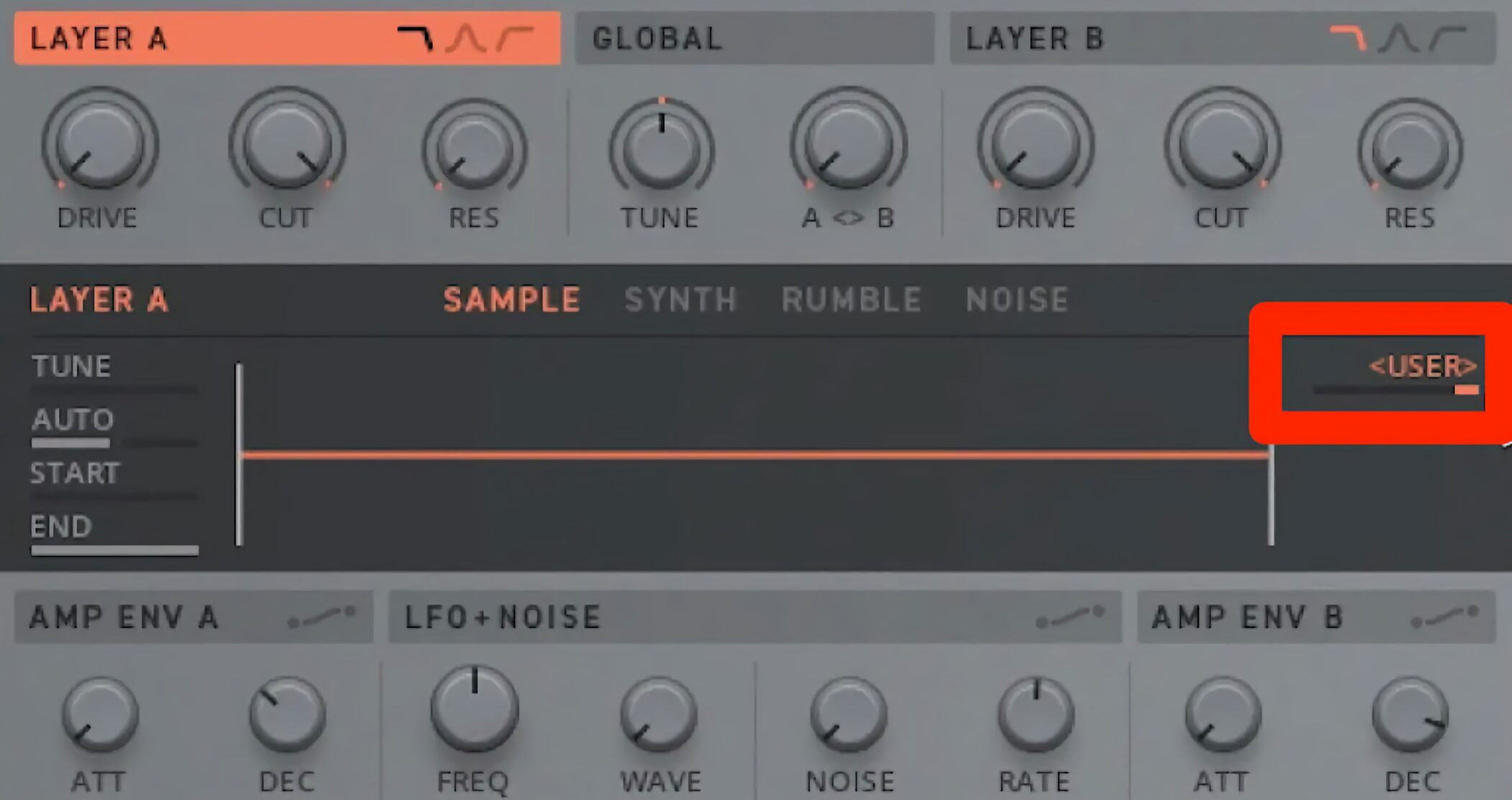
You can also choose USER under CATEGORY and drag and drop your own sound files to import them.
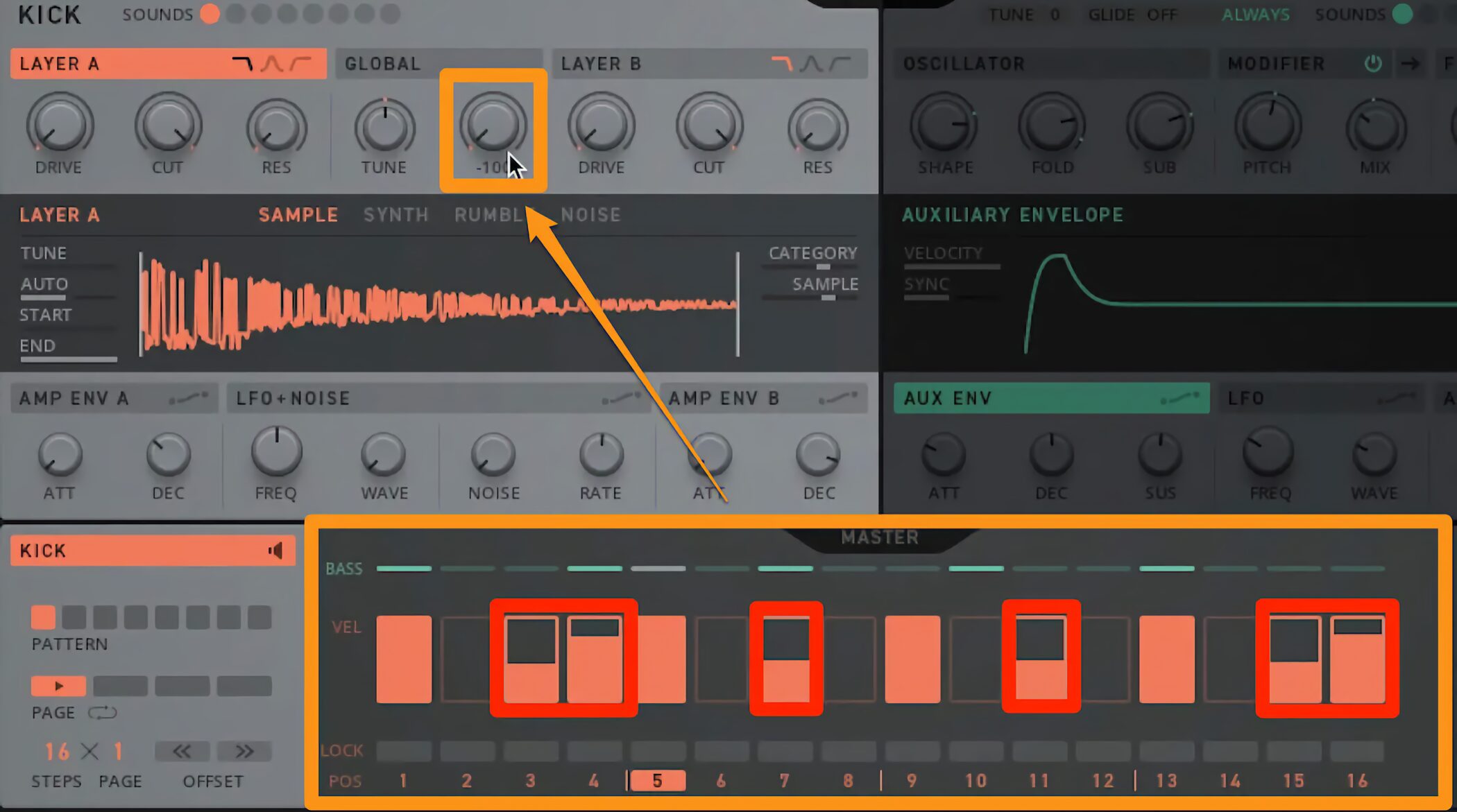
Here, we have selected a hi-hat and entered notes in the sequence, as shown in the red box.
However, because the balance is currently set to 100% LAYER A, the hi-hat also plays on the steps where we want the kick.
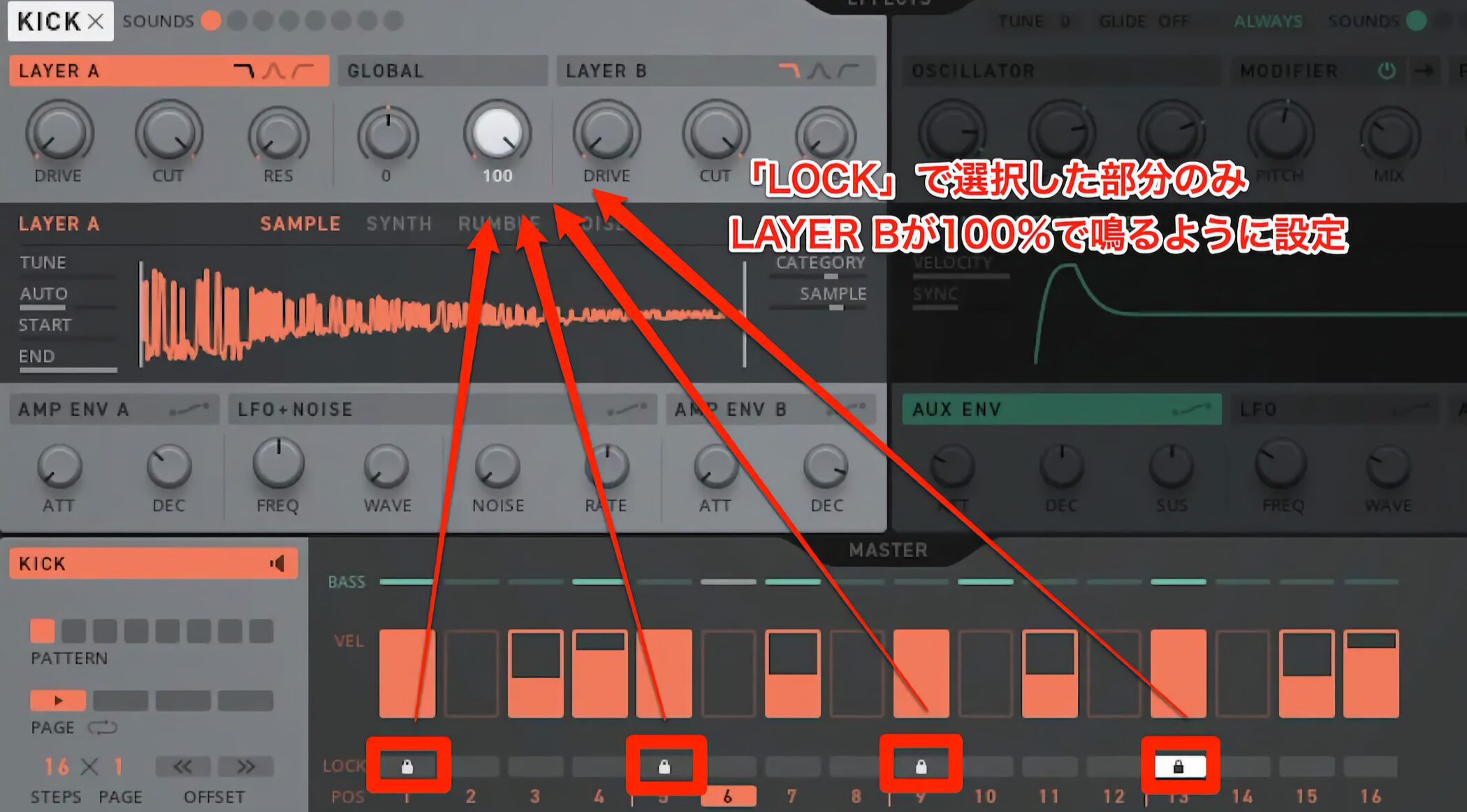
This is where the Lock function introduced earlier comes in.
Use LAYER A as the default, since it plays more notes, and set only the kick steps to play LAYER B.
With this setup, the LAYER A hi-hat plays normally, while the steps programmed with Lock play the LAYER B kick.
Lock can be applied to each parameter, allowing many different sound changes within a single sequence.
Balancing the Levels
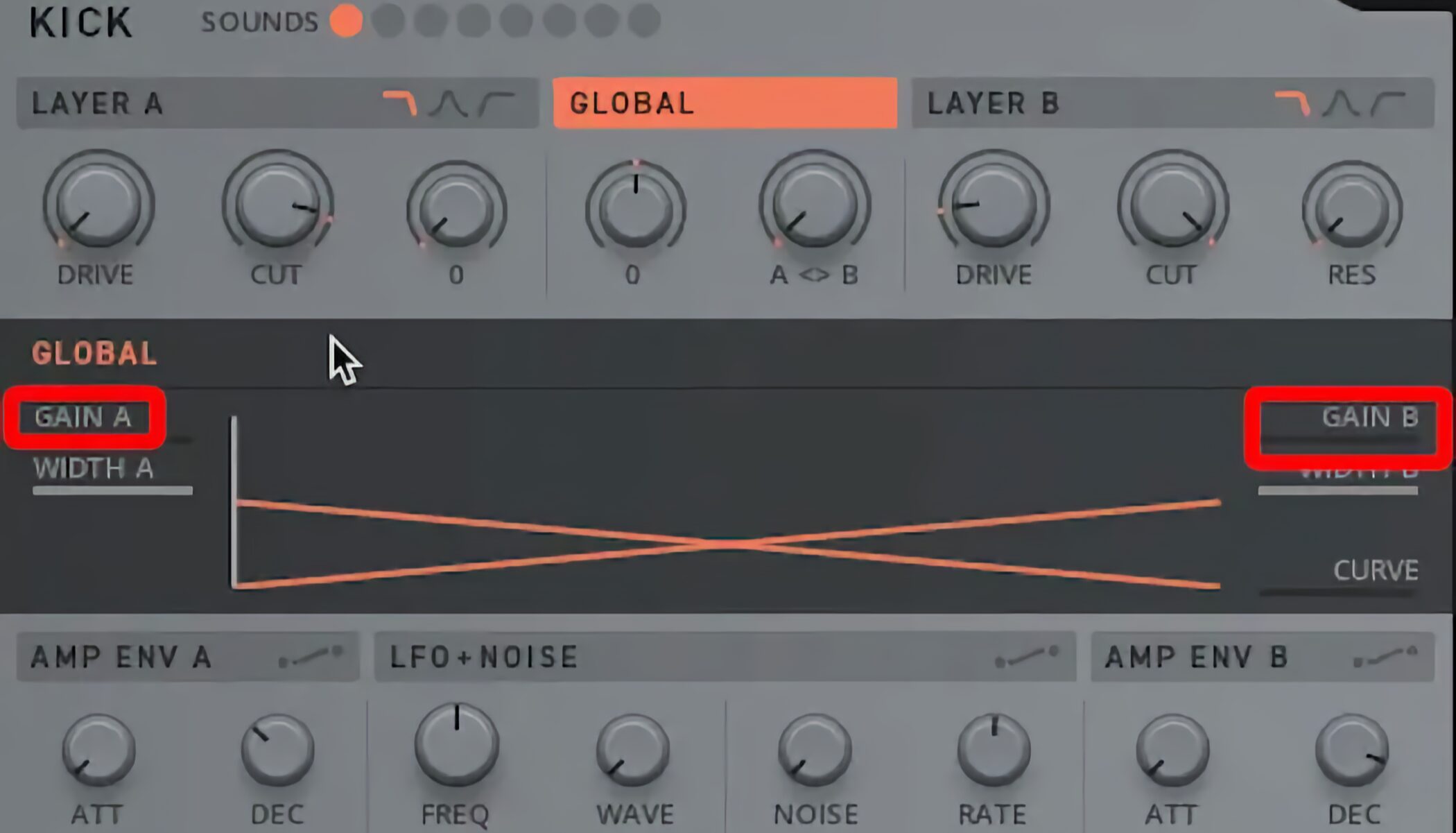
Click GLOBAL to adjust the level balance between LAYER A and LAYER B.
GAIN A and GAIN B appear. Drag their values while listening to balance the sound.
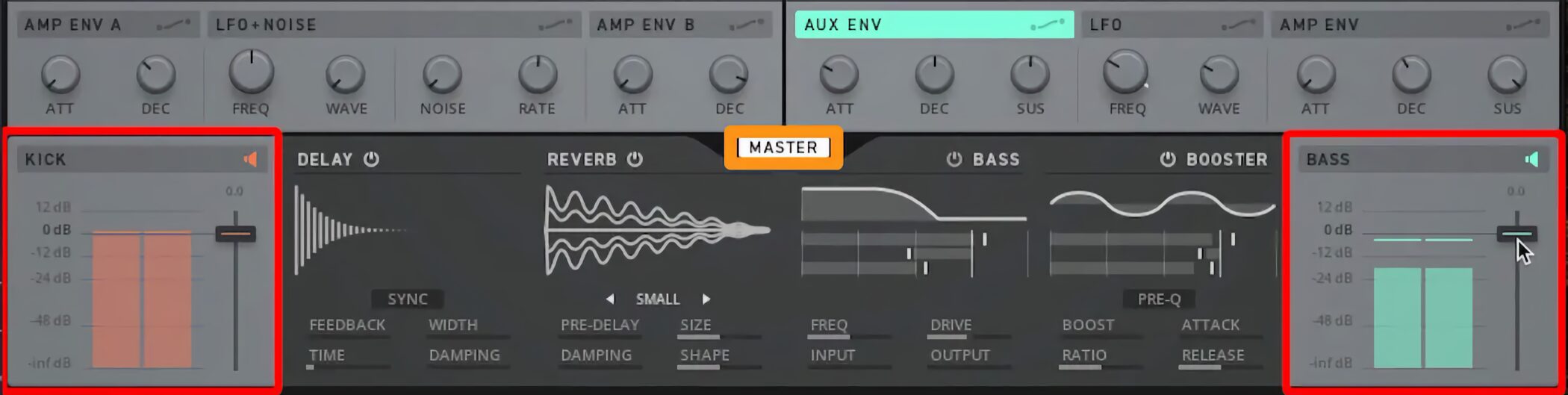
To adjust the kick and bass levels, click MASTER to display faders on both sides.
Effects
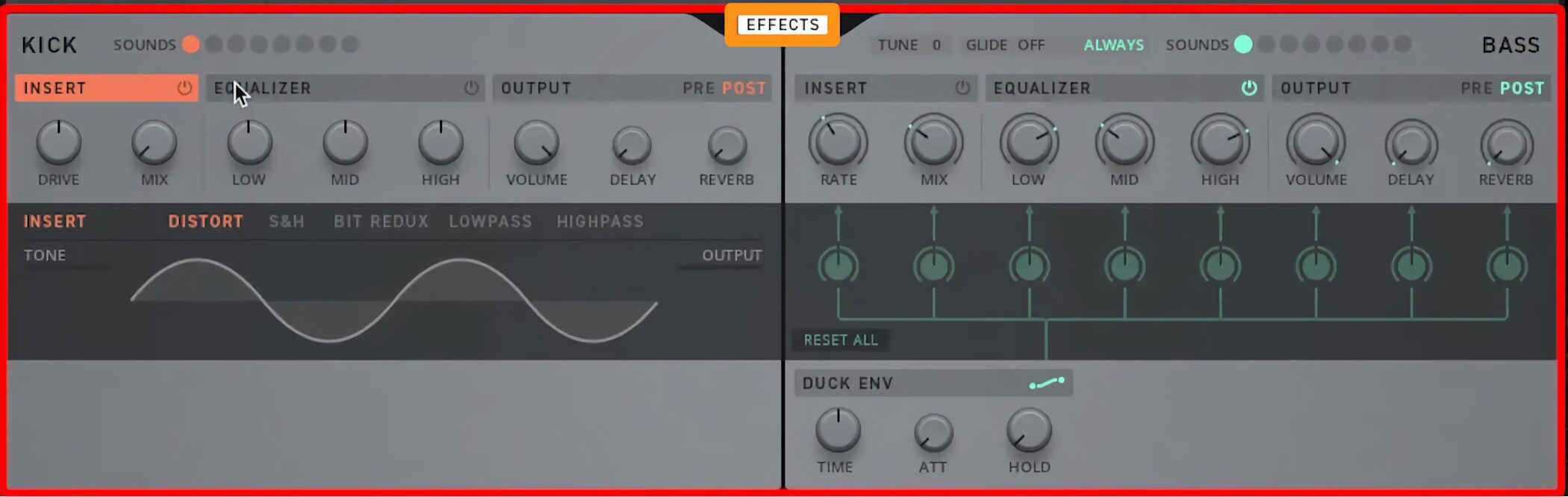
Click EFFECTS to access the effects controls.
These include parameters for drive and EQ.
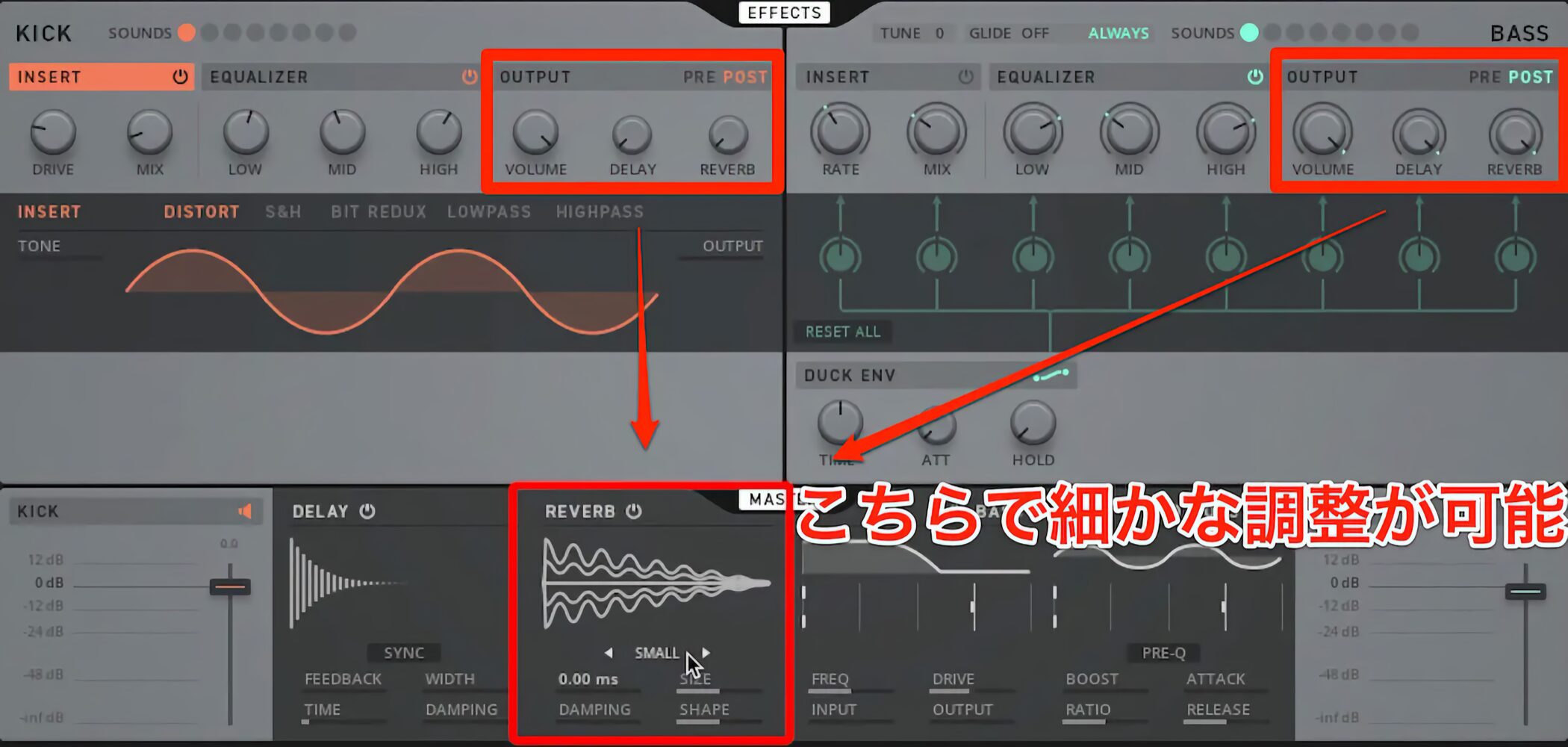
Reverb and delay are also available for both kick and bass.
You can make detailed settings from MASTER as well.
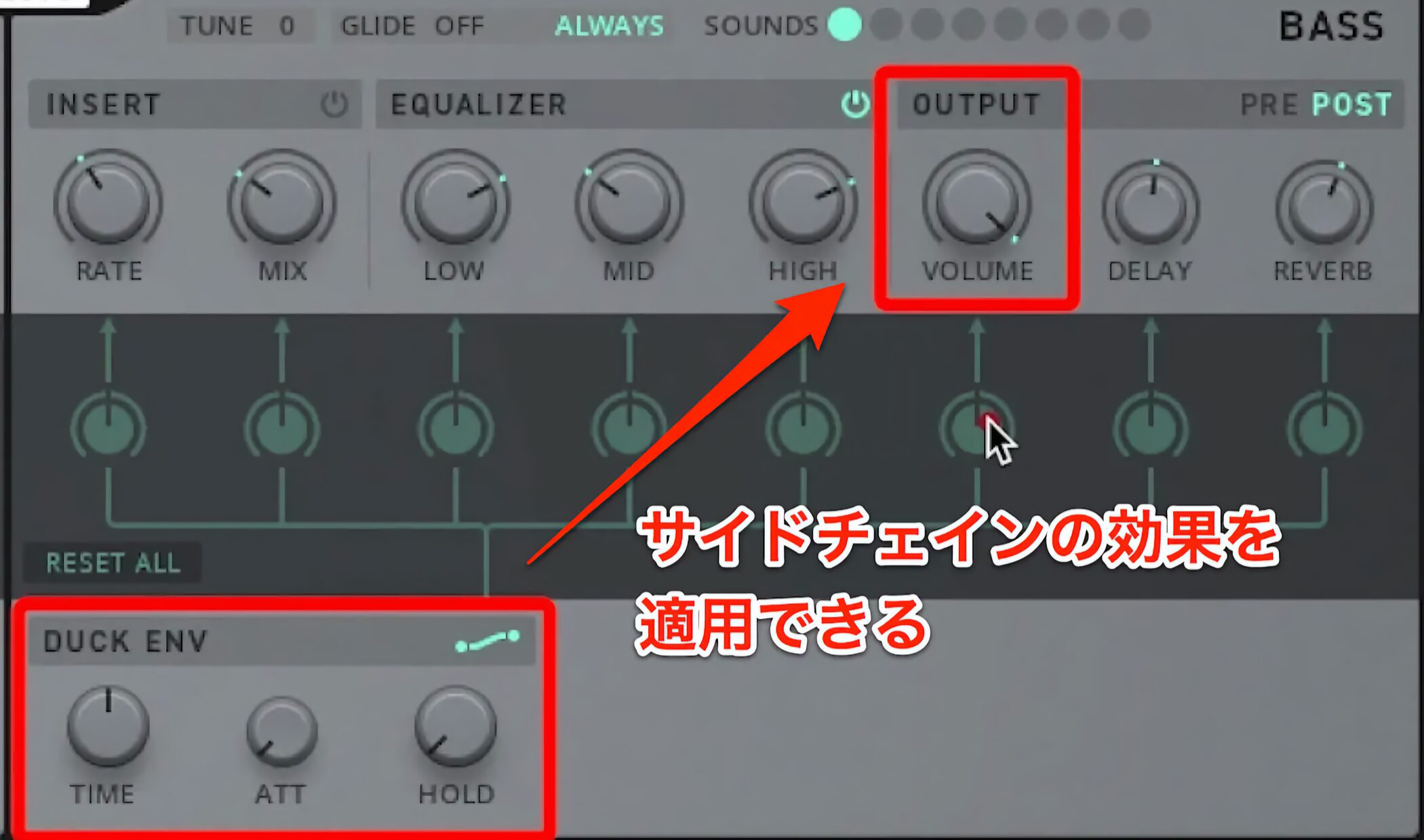
The bass section also has a ducking function called DUCK ENV.
Assign it to VOLUME to create a familiar sidechain-style effect.
How did you find the tutorial?
The instrument’s unusual layout may feel unfamiliar at first.
However, TRK-01’s distinctive controls offer a compelling way to create bold sounds.
Try making a variety of tracks with controls that offer a different experience from your DAW!
Frequently Asked Questions
Q1. Which DAW do I need to start using TRK-01?
TRK-01 runs inside Reaktor 6 and can be used as a plug-in in a DAW. The original FAQ describes it as included in Native Instruments’ KOMPLETE; the contents depend on the edition and version. If you have KOMPLETE KONTROL, you can also launch it from there.
Q2. Can I create bass phrases without knowing music theory?
Yes. TRK-01 provides several scales in TUNING. Choose a key and scale to build phrases using notes from that scale, allowing beginners to create harmonically consistent basslines intuitively.
Q3. Can I edit kick and bass patterns together?
When you edit the BASS section, the KICK pattern remains visible in the background, so you can build phrases while considering how the two parts interact and checking their balance.
NEW ARTICLES
Latest English Articles







































































































































































































































































































