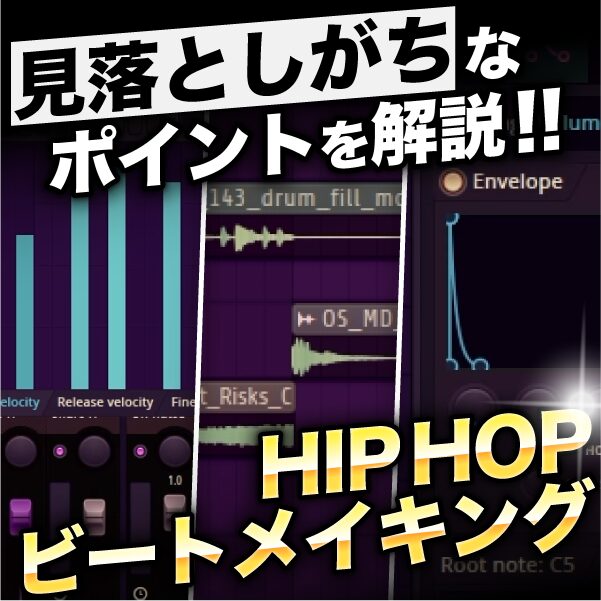
Programmed snare rolls can sound repetitive, but velocity adjustments and humanization can make them more natural. This article covers entering the accents first, programming the notes between them, and using a DAW's MIDI Transform function to humanize the result. Together, these techniques can give programmed drums a more live feel.
Programming a Snare Roll
A programmed snare roll can easily sound monotonous.
Here we will use velocity adjustments and humanization to make it sound more like a live performance.
Programming a Snare Roll: Video
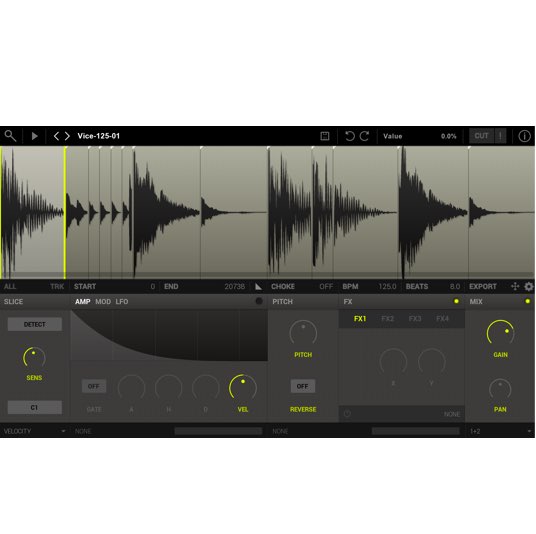
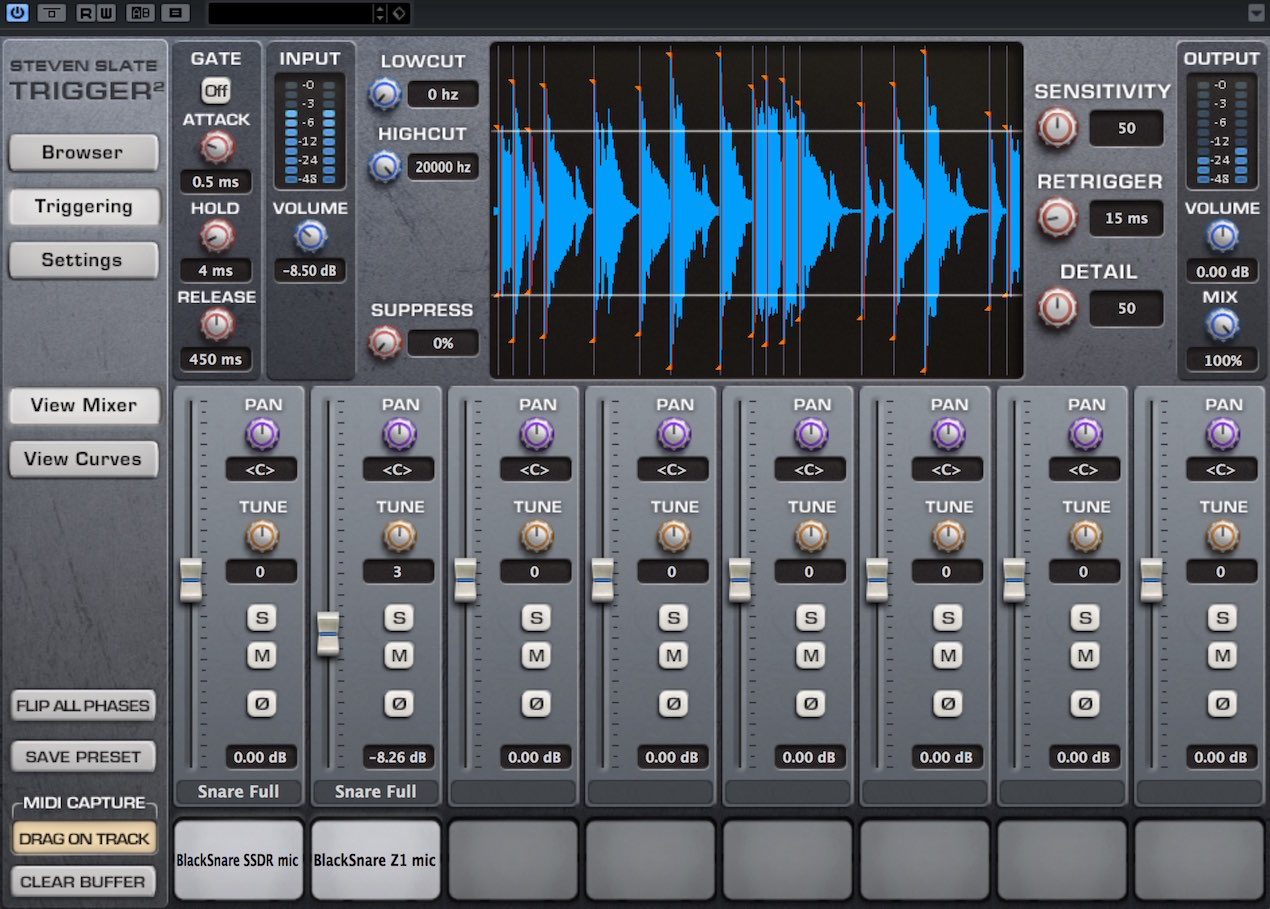
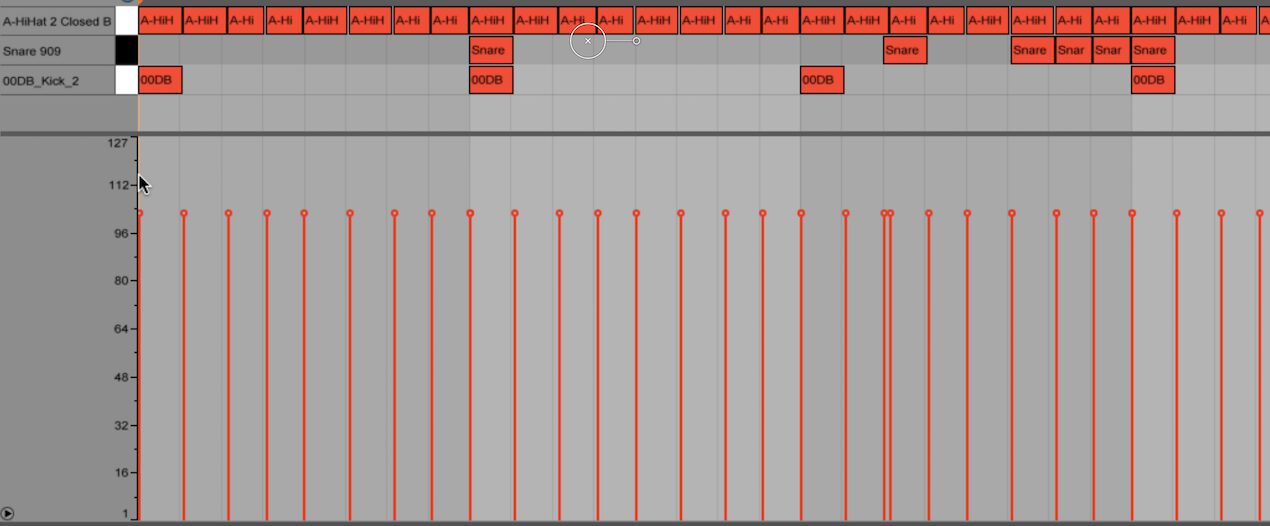
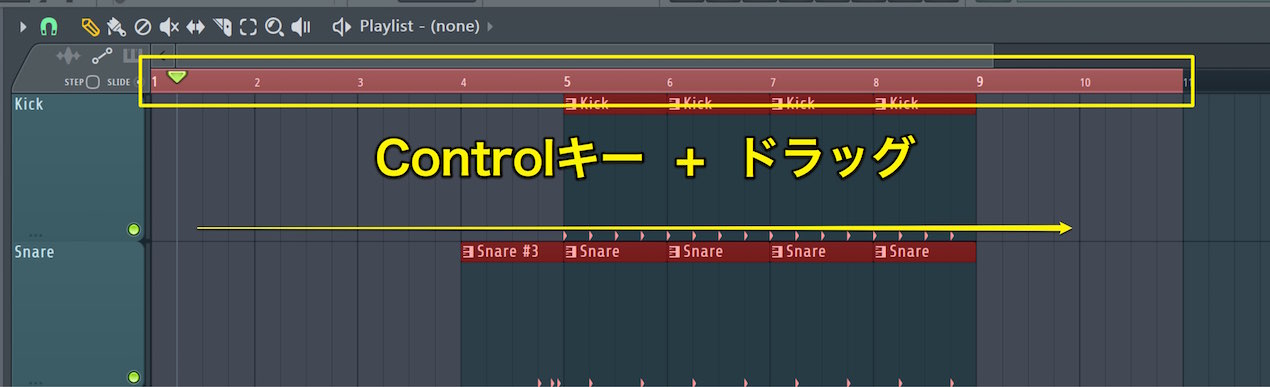
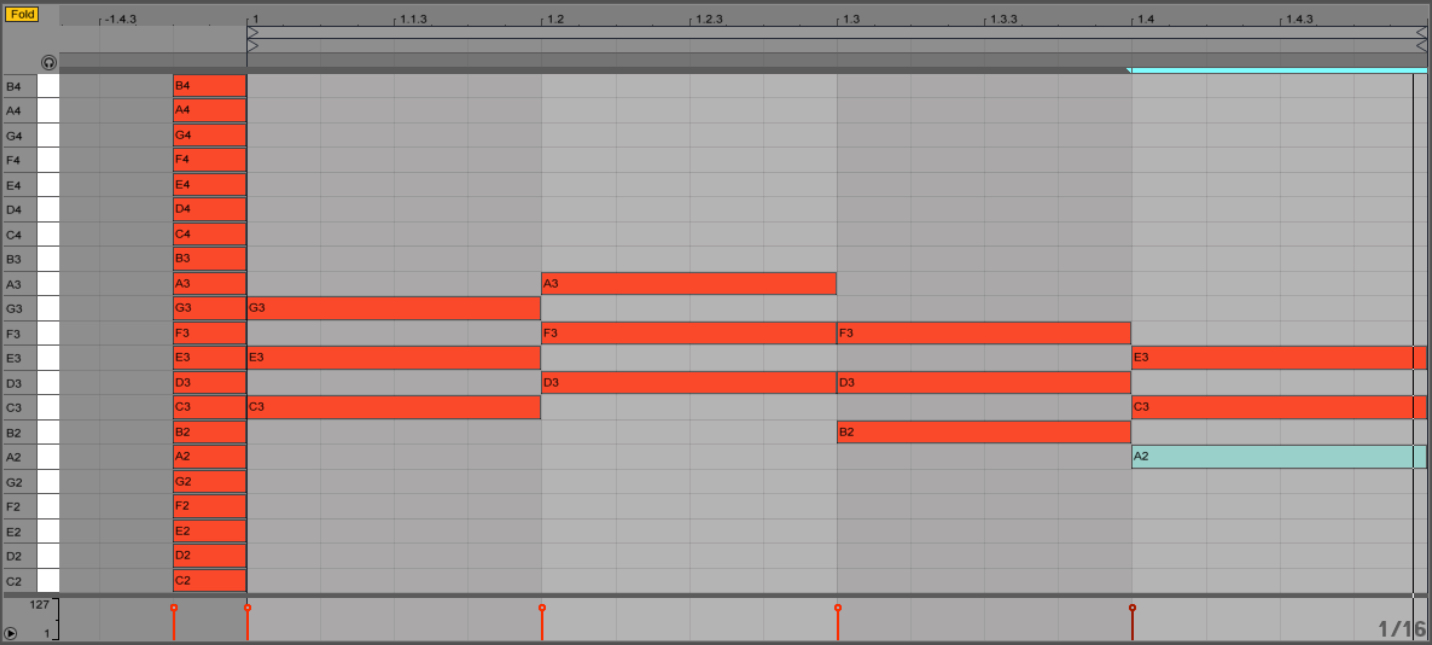
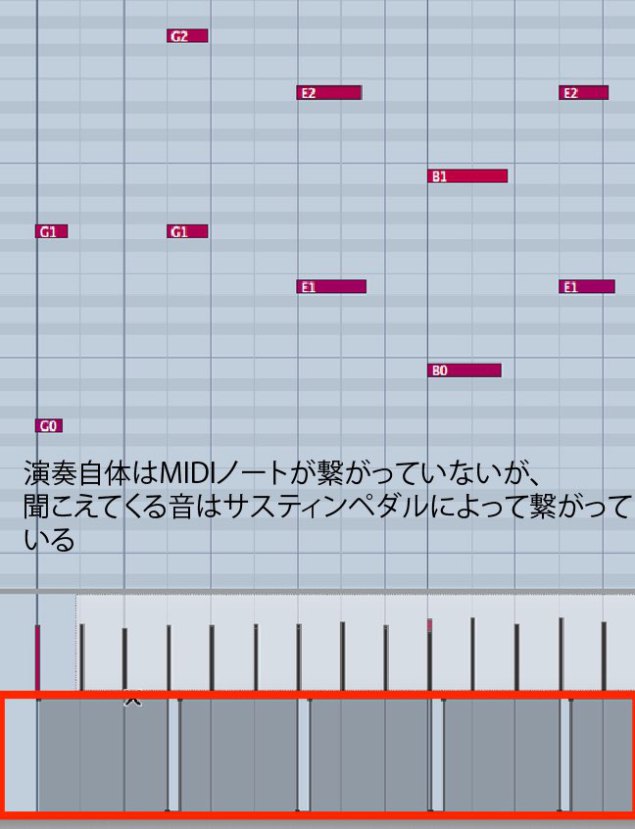
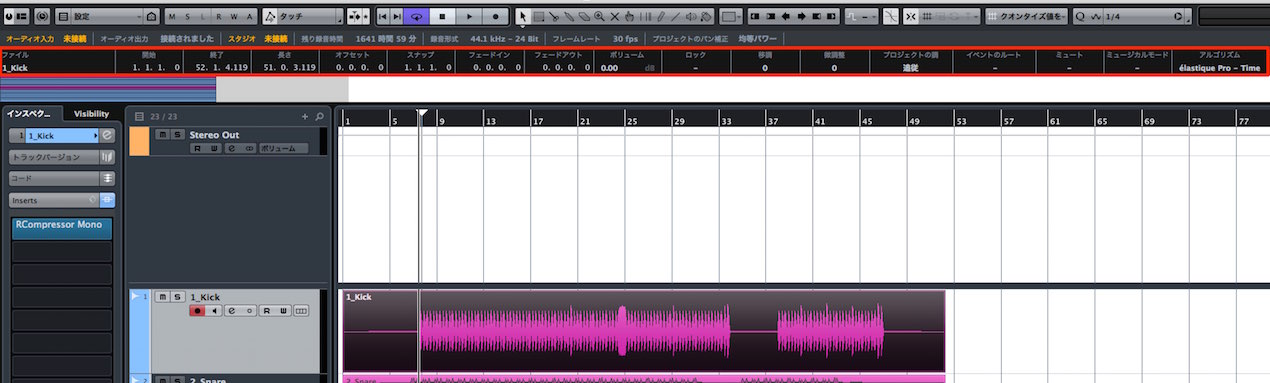
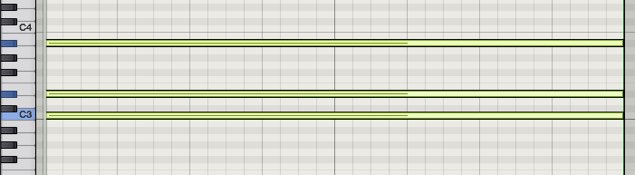
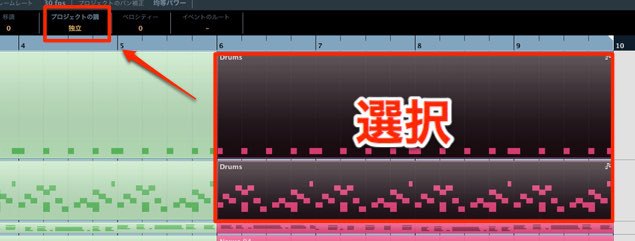
Entering the Snare Notes
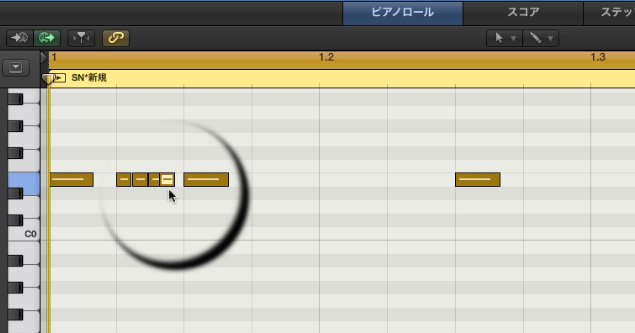
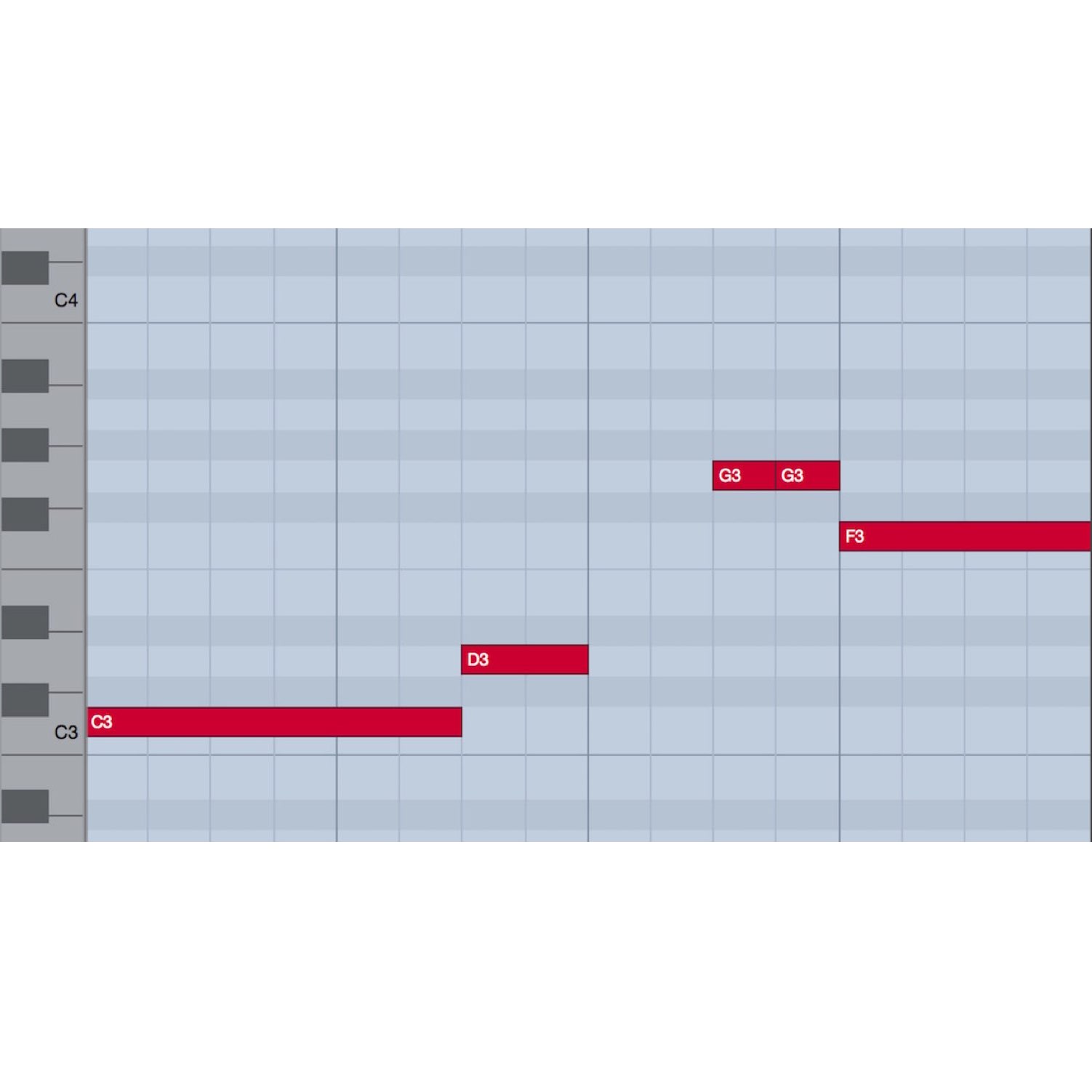
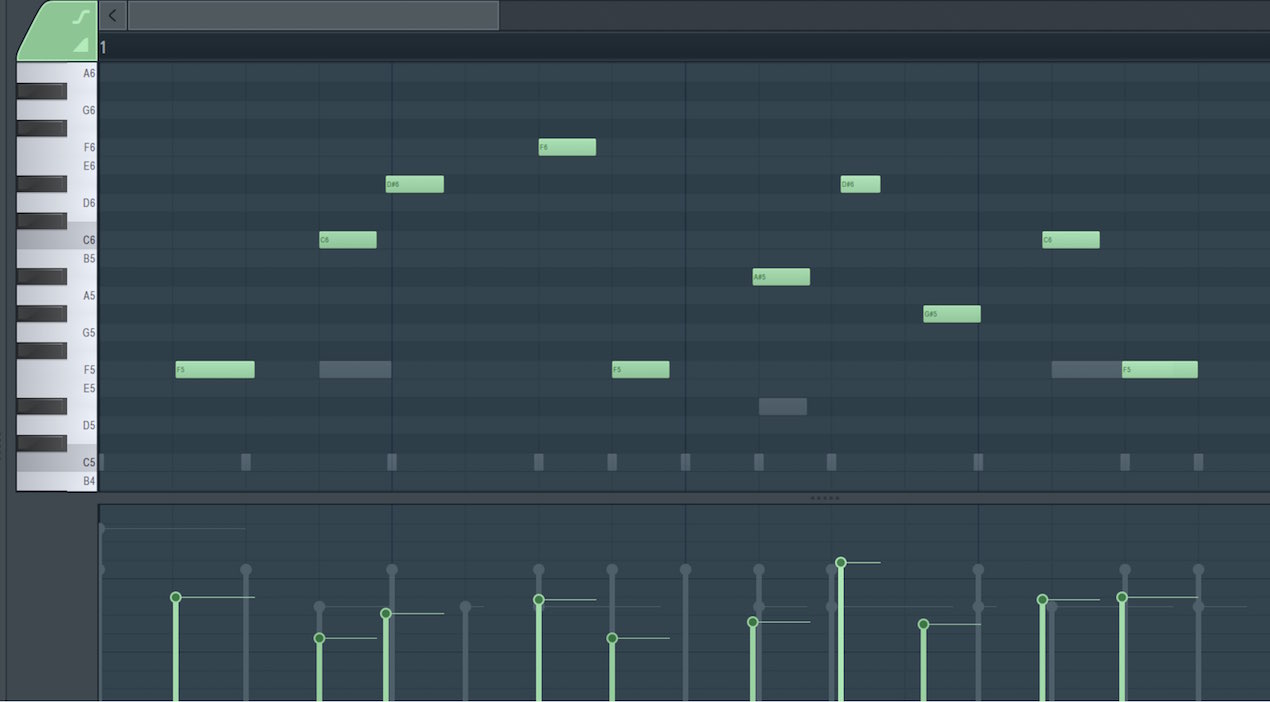
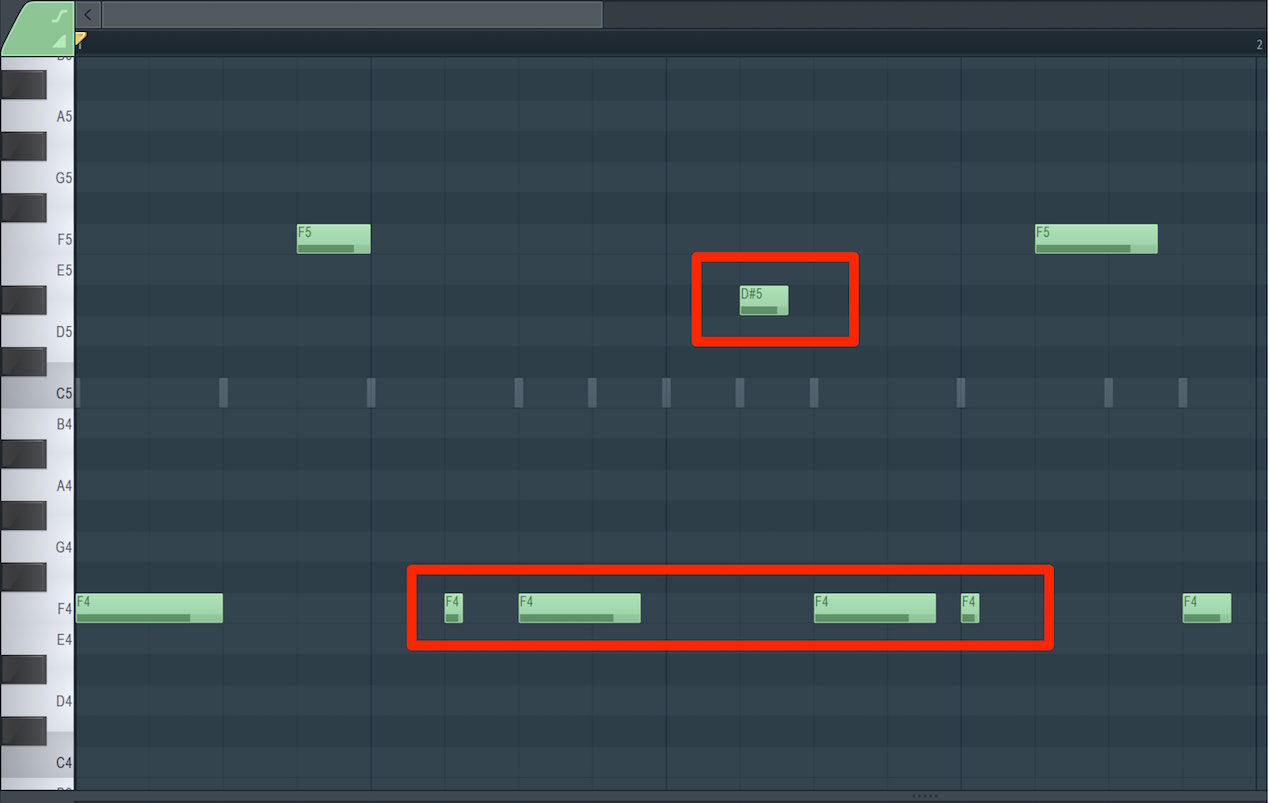
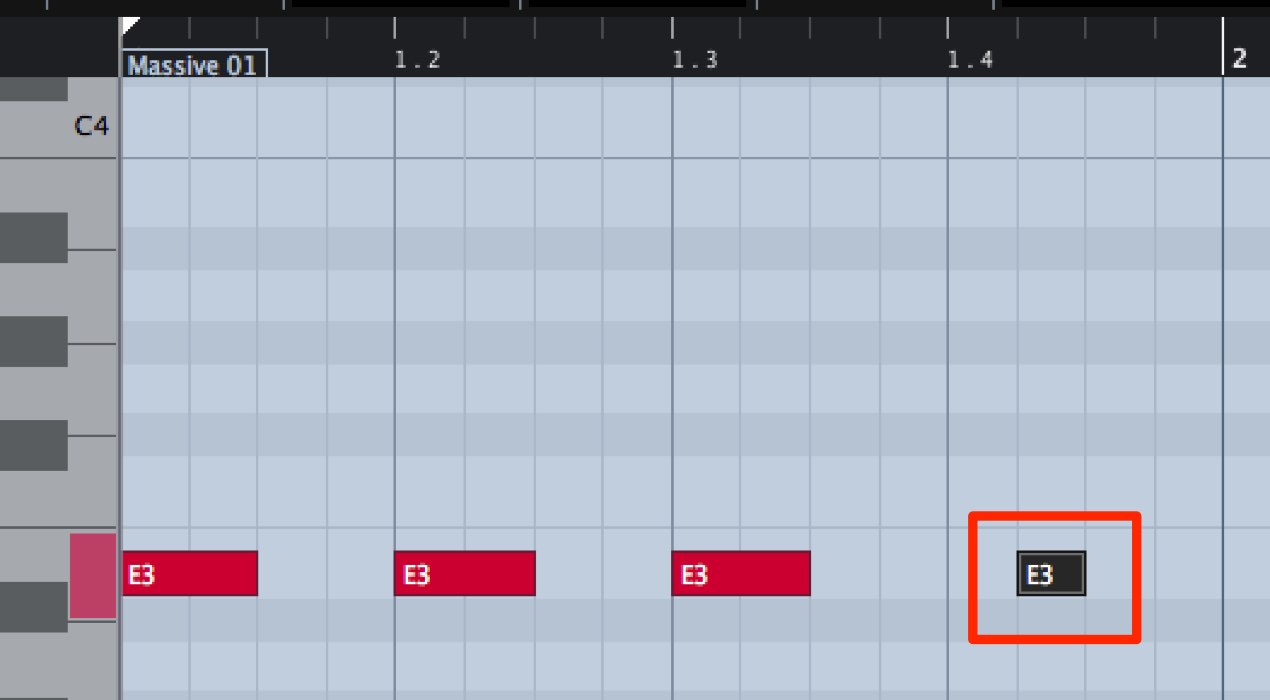
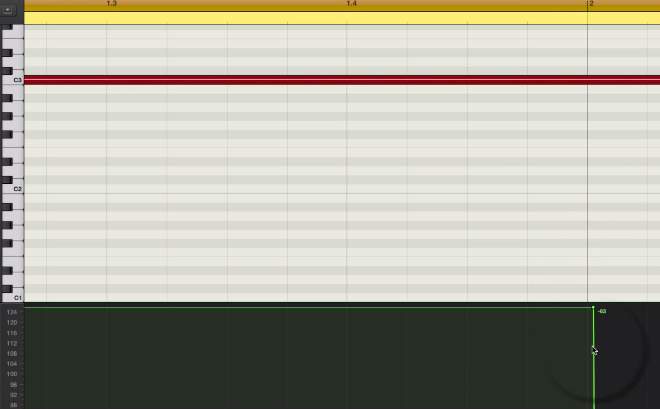
First, enter the accented notes,
then program the finer notes that make up the roll.
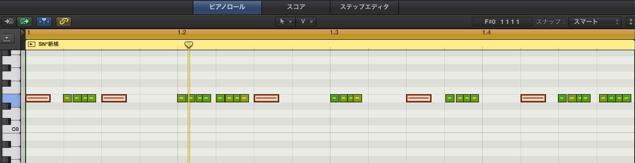
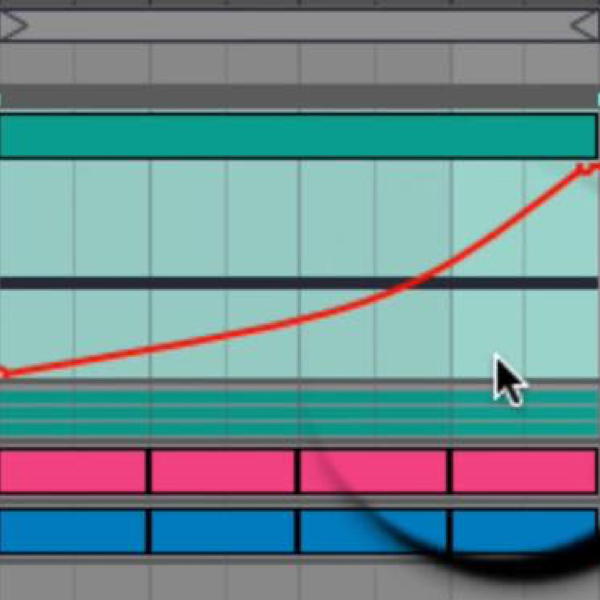
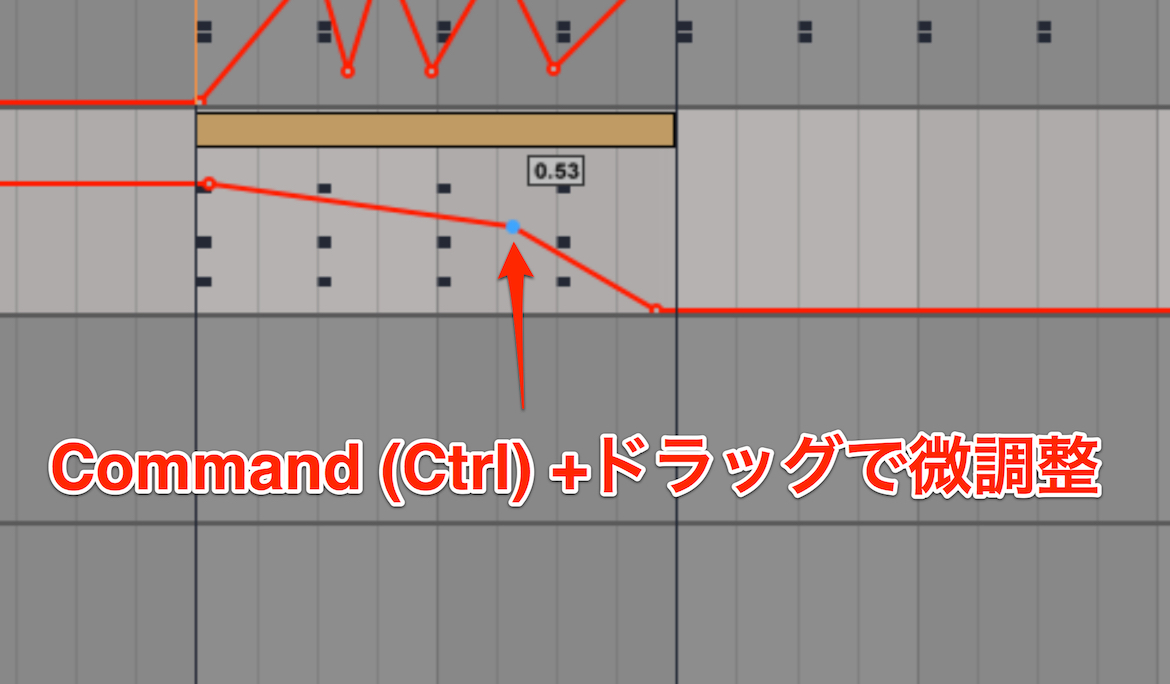
Adjust the strength of the notes using velocity.
Using Humanize
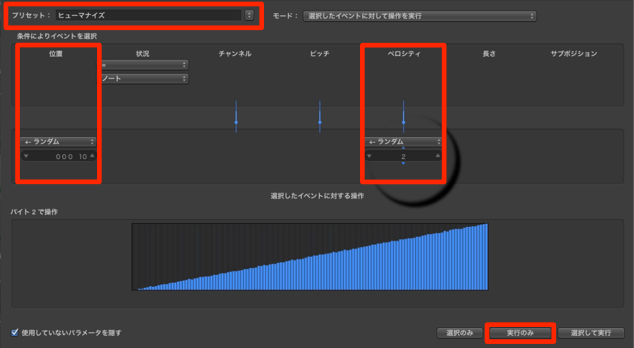
Use Humanize to give the notes a more human feel.
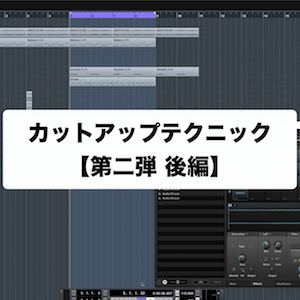
- In the top menu, choose Window → Open MIDI Transform.
- Under Presets, select Humanize.
- Set the Position and Velocity values.
- To apply the changes only to the selected notes, click Operate Only.
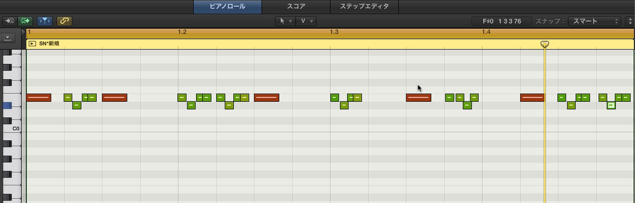
You can also try programming shorter note values.
Some software instruments offer multiple snare sounds,
so try combining them as well.
Frequently Asked Questions
Q1. Why does a programmed snare roll sound monotonous?
Human performances naturally vary in dynamics and timing, while programmed notes can be too uniform. Combining velocity adjustments with humanization can create a more natural feel.
Q2. How should I set Position and Velocity in Humanize?
Position controls variations in note timing, while Velocity controls variations in dynamics. Fine-tune both values to suit the song's tempo and genre.
Q3. Can I use the same technique on other drums?
Yes. You can adjust velocity and apply humanization to kicks, hi-hats, cymbals, and other drum sounds for a more lifelike result.
NEW ARTICLES
Latest English Articles