
Captain Plugins is a suite of composition tools from Mixed In Key that makes it easy to generate chord progressions, bass lines, and melodies without a knowledge of music theory. It consists of four plug-ins: Captain Chords, Captain Deep, Captain Melody, and Captain Play. Simply specify a key and scale to generate musical parts automatically, or choose from the supplied presets. You can export the resulting chord progressions and accompaniment patterns as MIDI and use them with other synthesizers in your DAW. From beginners to experienced producers, these tools can streamline everything from finding ideas to building a track.
Captain Plugins: Tools to Help You Compose

In this article, we will explore Captain Plugins from Mixed In Key.
It makes creating chord progressions easy even without a knowledge of music theory, and can generate matching melodies and bass lines.
You can even simply choose a key and turn your computer keyboard into a set of pads like those on Maschine or Push, making it easy to enter chords and melodies. It sounds almost too good to be true!
How to Use Captain Plugins — Video
Selected Questions and Answers from the YouTube Video

Q: This was very informative. Can Captain Plugins import a melody and create chords for it, like Scaler? If so, I wish I had bought Captain Plugins instead of Scaler.

A: We checked Captain Chords' features. It did not have a function for adding chords to an existing melody; chords are selected from patterns. It does include a function for automatically generating a melody from the chords you set.
Q: I am trying to decide between Scaler and Captain Plugins. Could you explain their differences and recommend one specifically for creating chord progressions?
A: The two products differ in their workflow and features. At the time of this reply, both offered trials, so we think the best approach is to try them and choose whichever suits you.
Q: Is it compatible with Cubase?
A: We tested it, but at the time of testing we could not use it in Cubase. A future update may make this possible.
Q: The website says that on Mac it supports Ableton Live, Apple Logic, and FL Studio, while on Windows it supports Ableton Live and FL Studio, with Studio One and Cubase not yet supported. Does that mean it might not work in Cubase, even though it is a VST plug-in?
A: Cubase did not recognize it at the time of this reply. We hope a future update will address this.
Captain Plugins includes four plug-ins. Let's look at the basics of each one.
You can purchase Captain Plugins here.
The Four Plug-ins in Captain Plugins
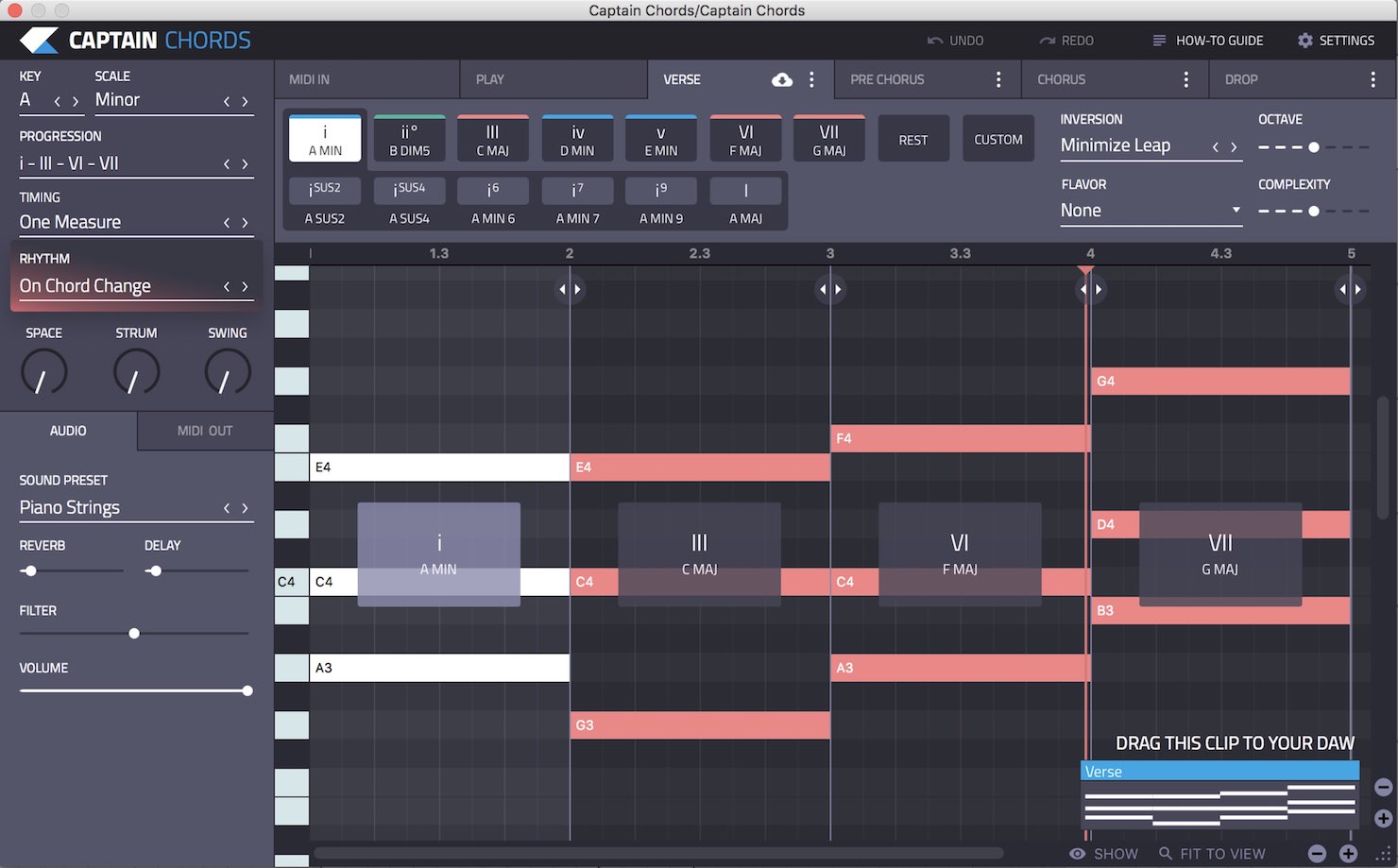
Captain Chords helps you create chord progressions.
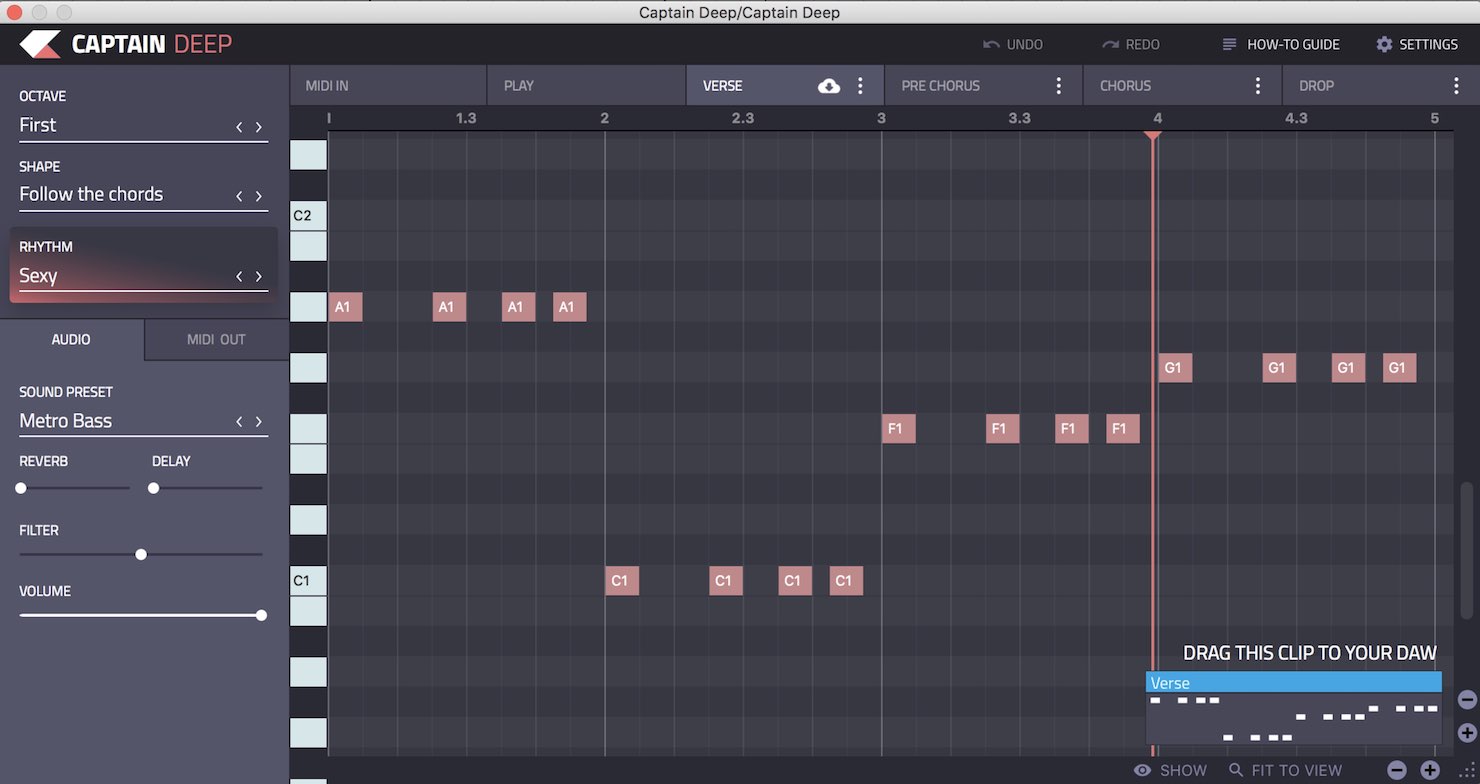
Captain Deep generates bass lines.
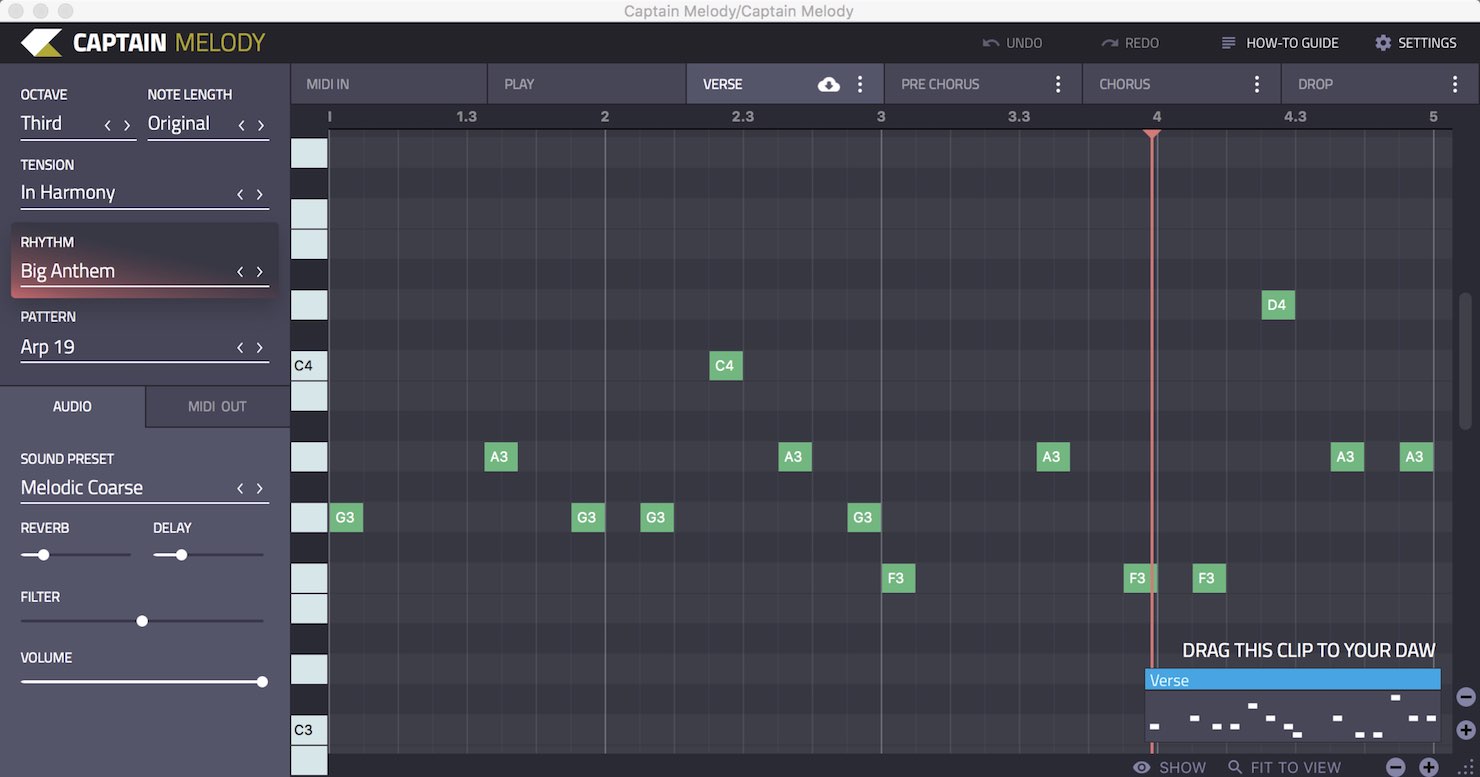
Captain Melody generates melodies.
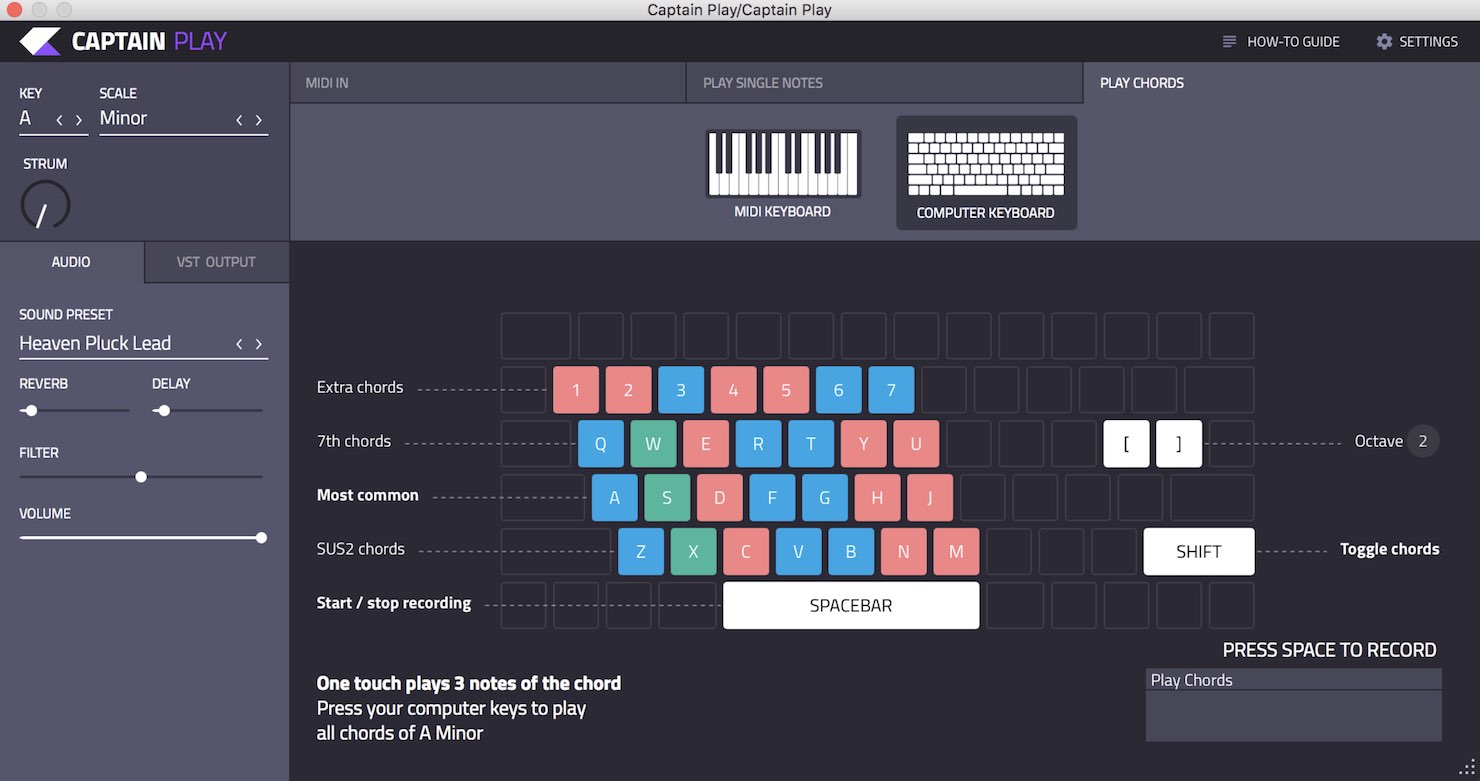
Captain Play lets you enter chords, bass lines, and melodies using your computer keyboard.
How to Use Captain Chords
Let's start with Captain Chords.
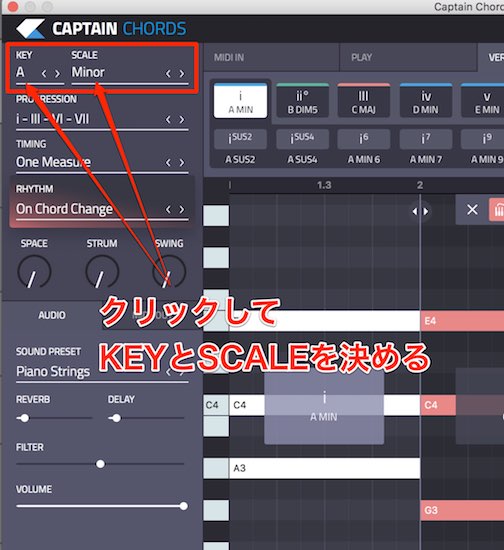
Click KEY at the upper left to choose your song's key, then choose a scale using SCALE beside it.
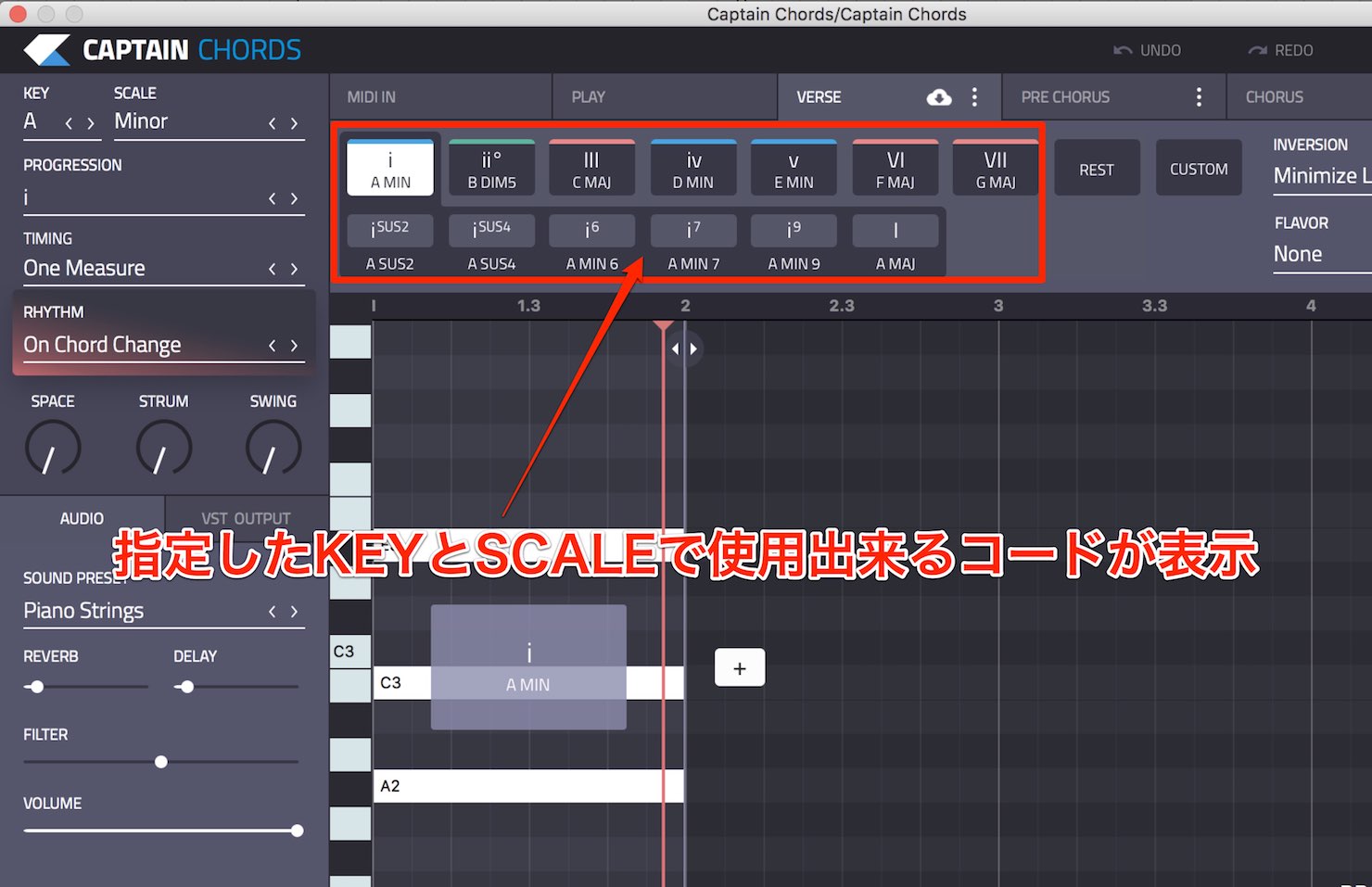
The chords available in the selected key and scale appear on the right.
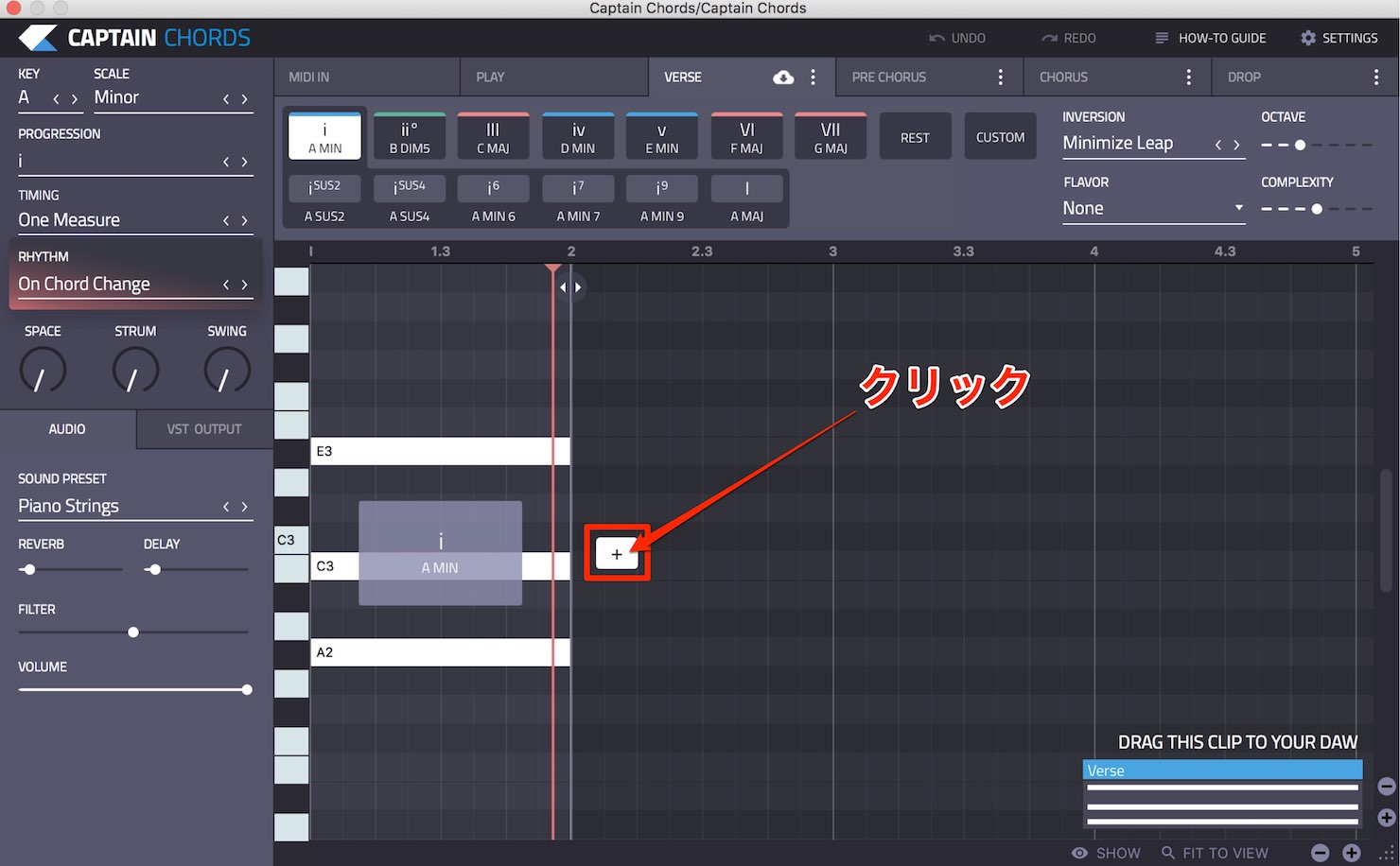
Click the + in the piano roll below to
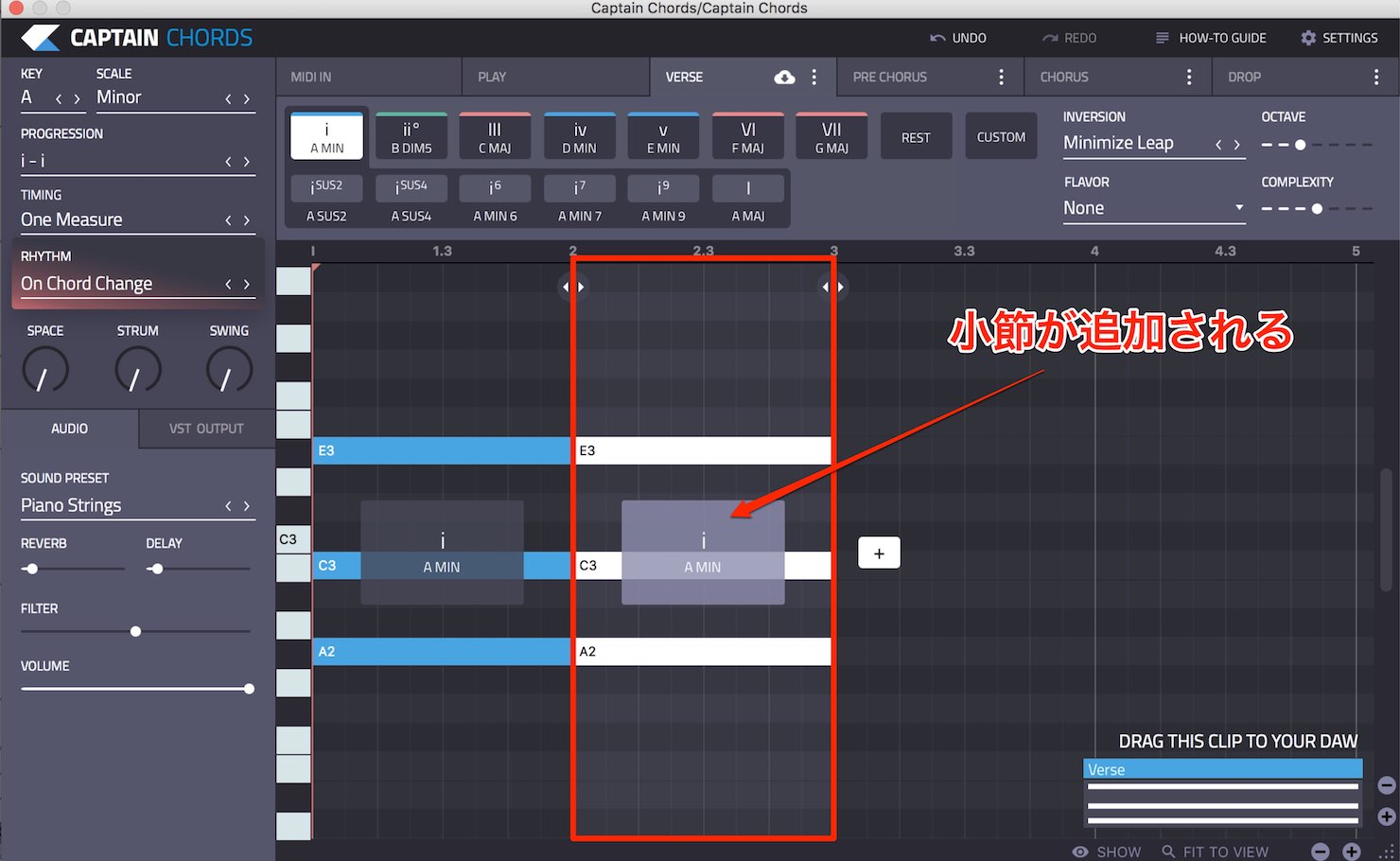
add another bar.
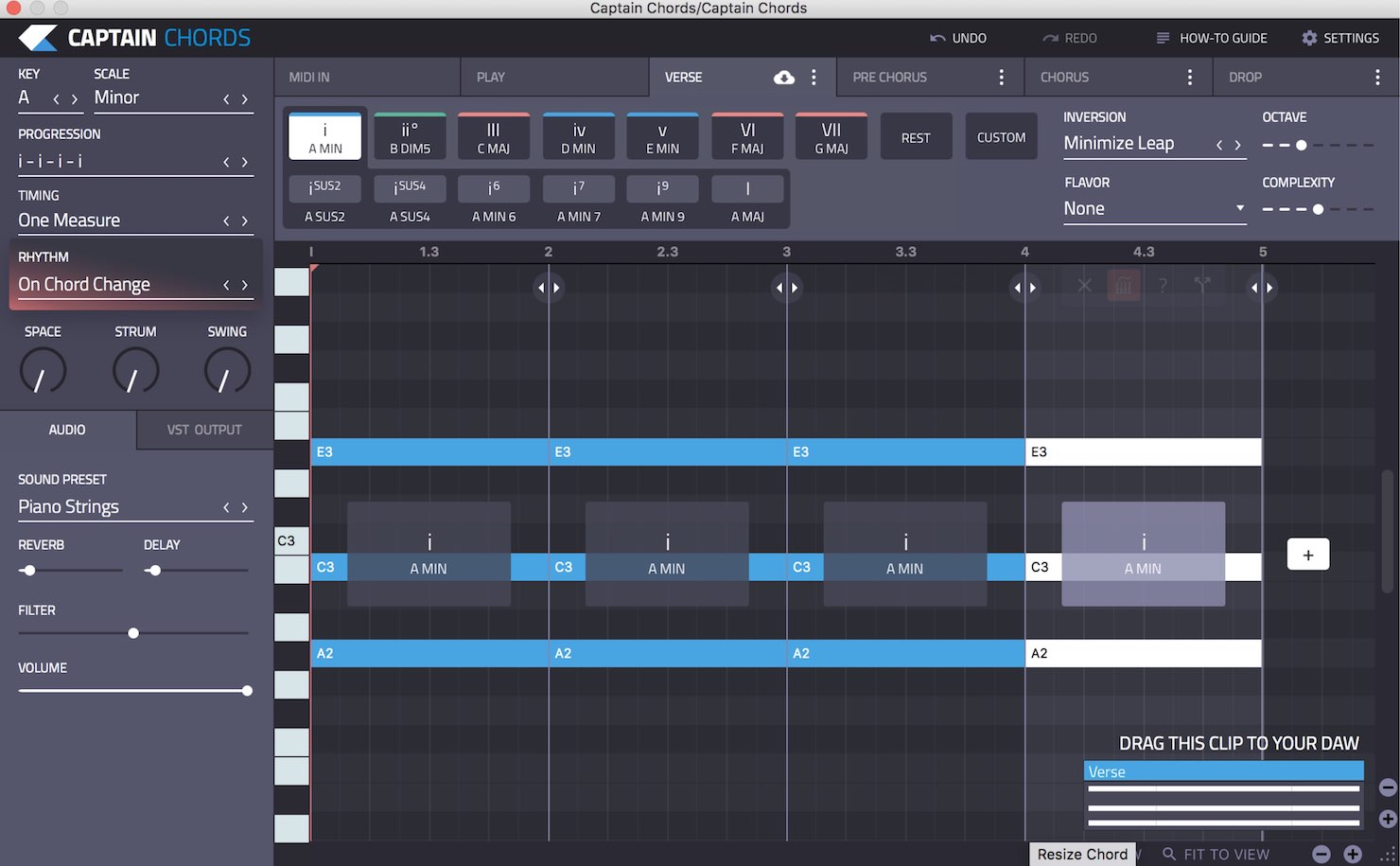
Repeat this to create four bars.
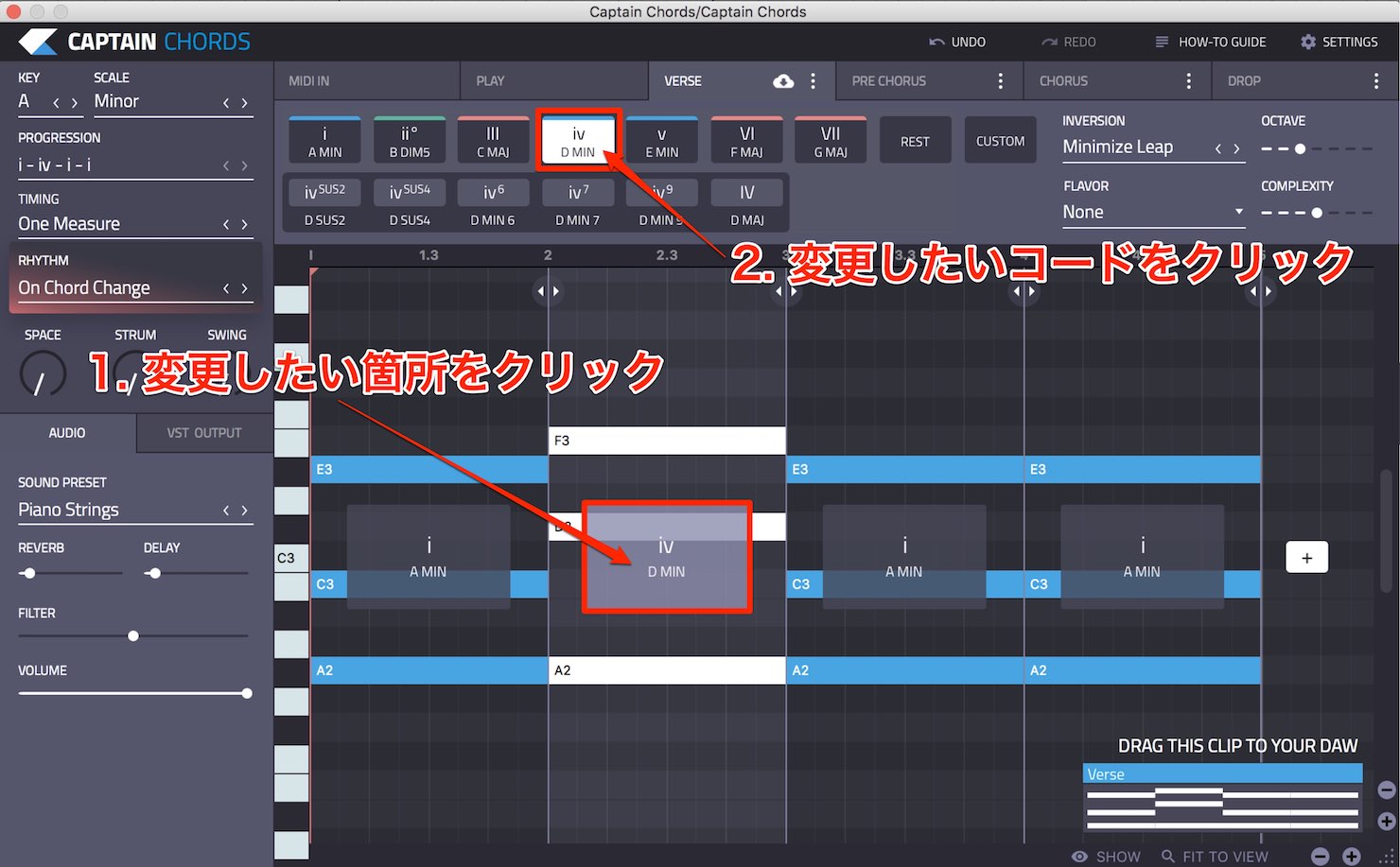
To change a chord, first click the position you want to change, then click one of the chords above.
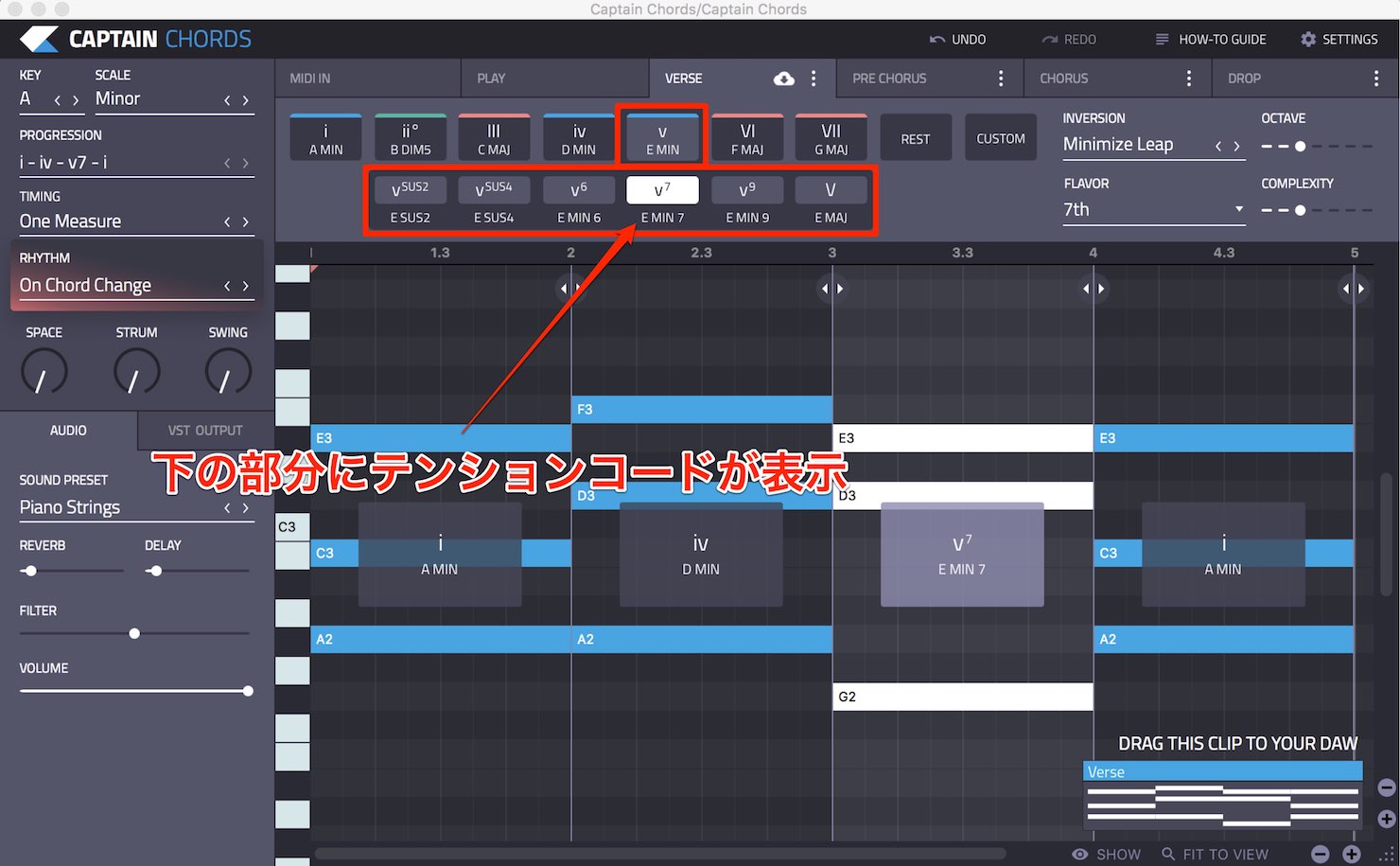
Extended chord options appear below each chord, so you can use seventh chords, for example.
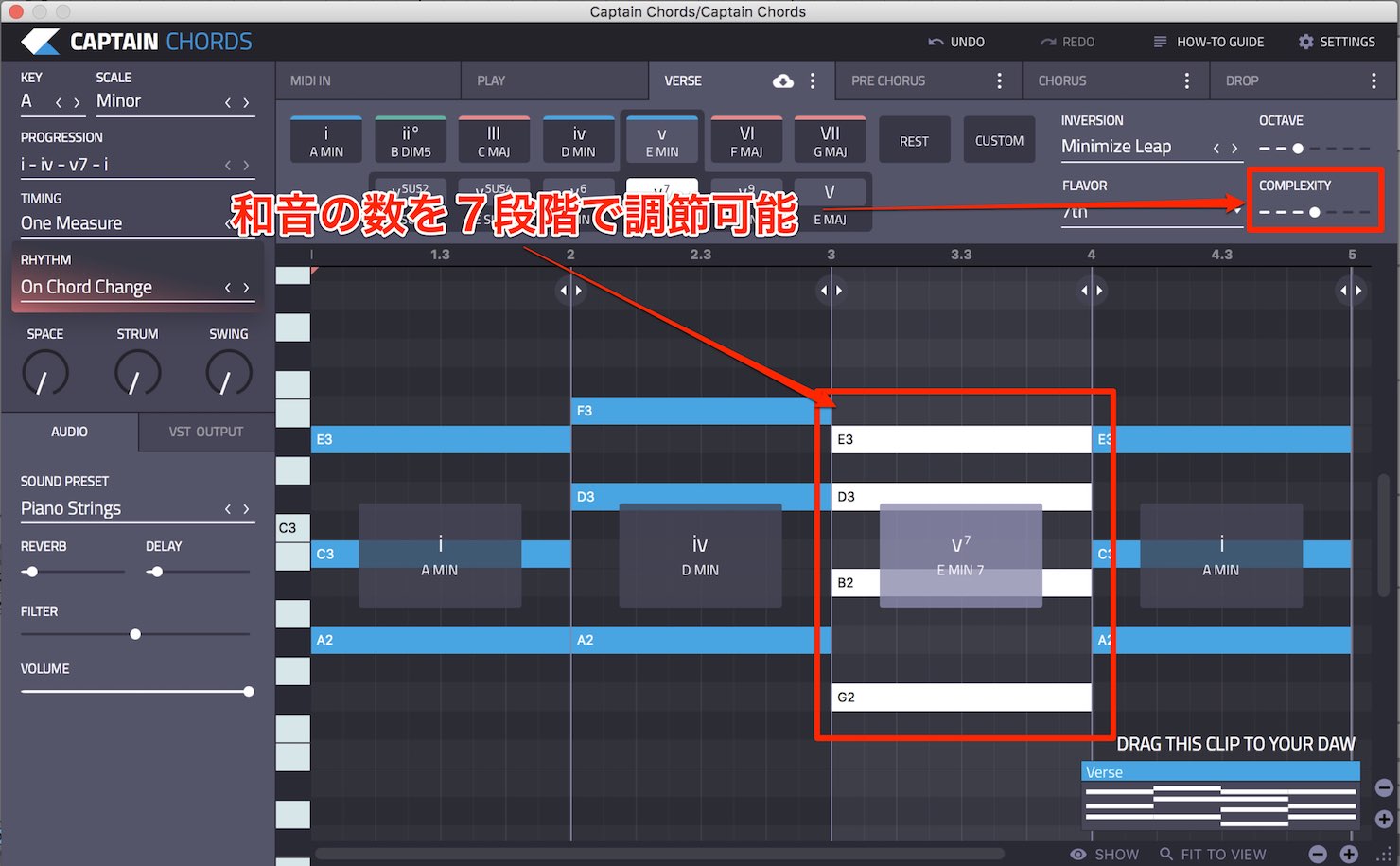
Click COMPLEXITY on the right to adjust the number of notes in the chord across seven levels.
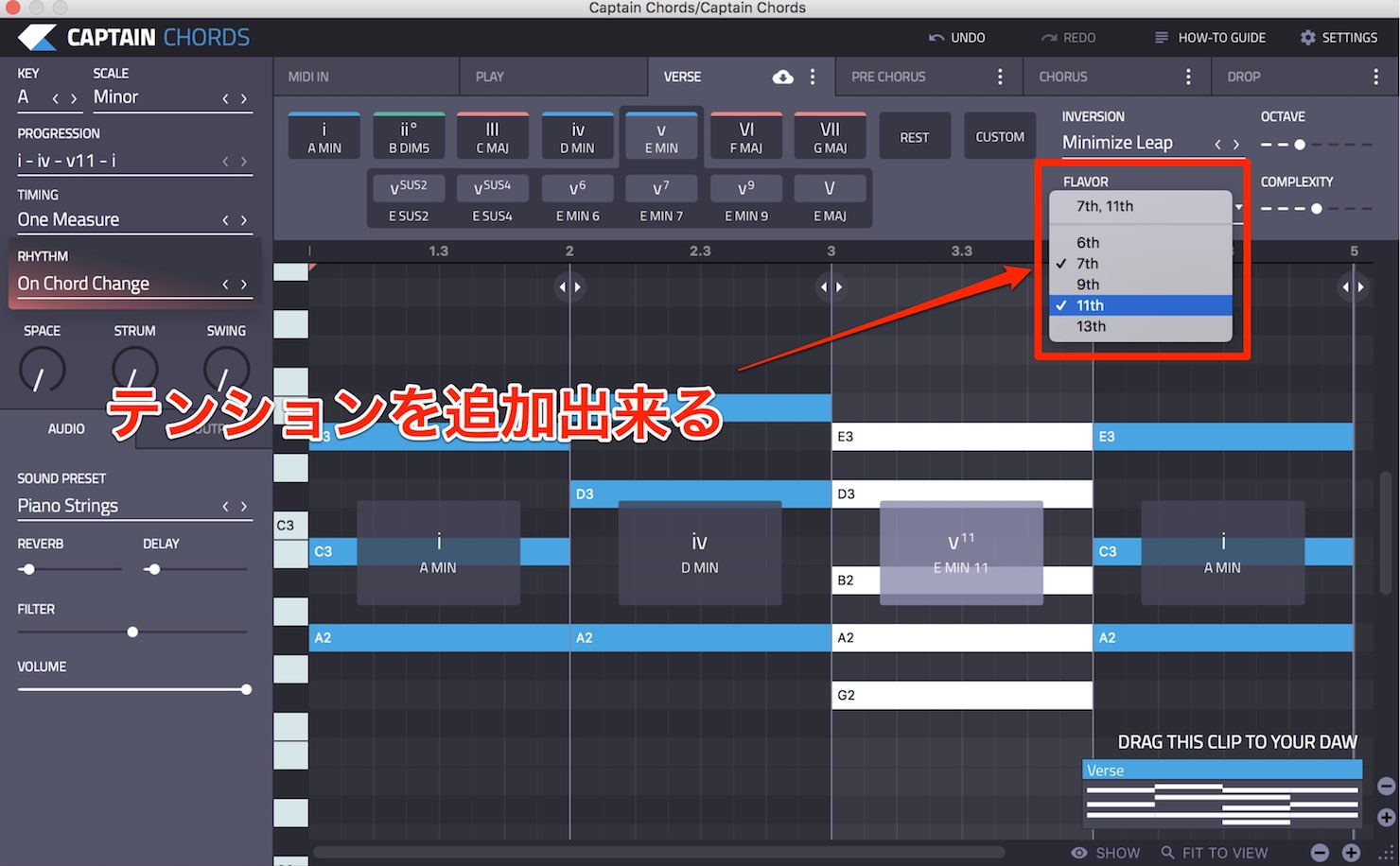
You can also add chord extensions with FLAVOR, allowing you to create more sophisticated chord progressions.
By default, chords change once per bar.
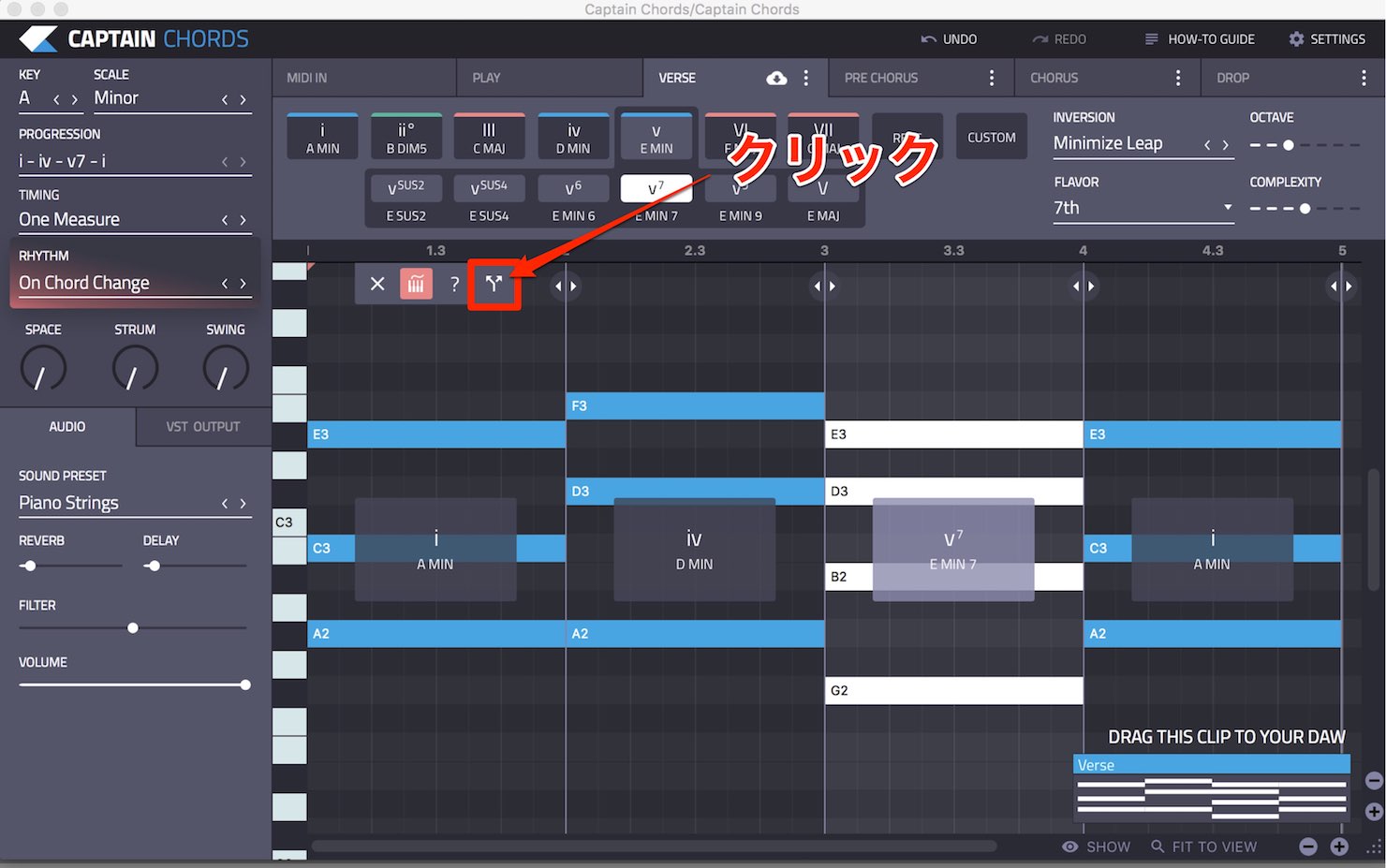
Move the pointer over the piano roll and a Y-shaped symbol appears.
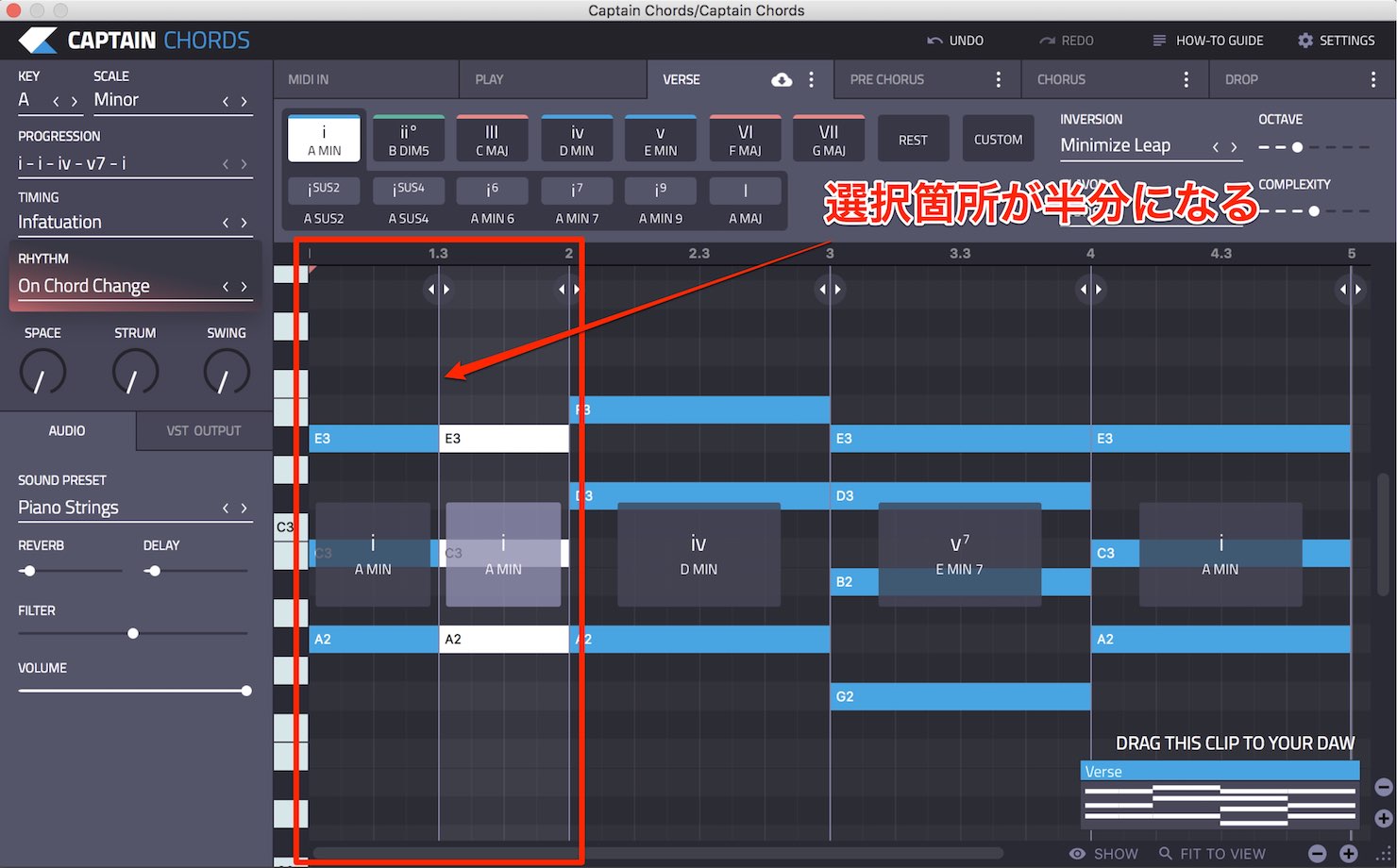
Click it to split the selected section in half.
Building a chord progression yourself this way is fine, but if even that sounds like too much work, there is good news.
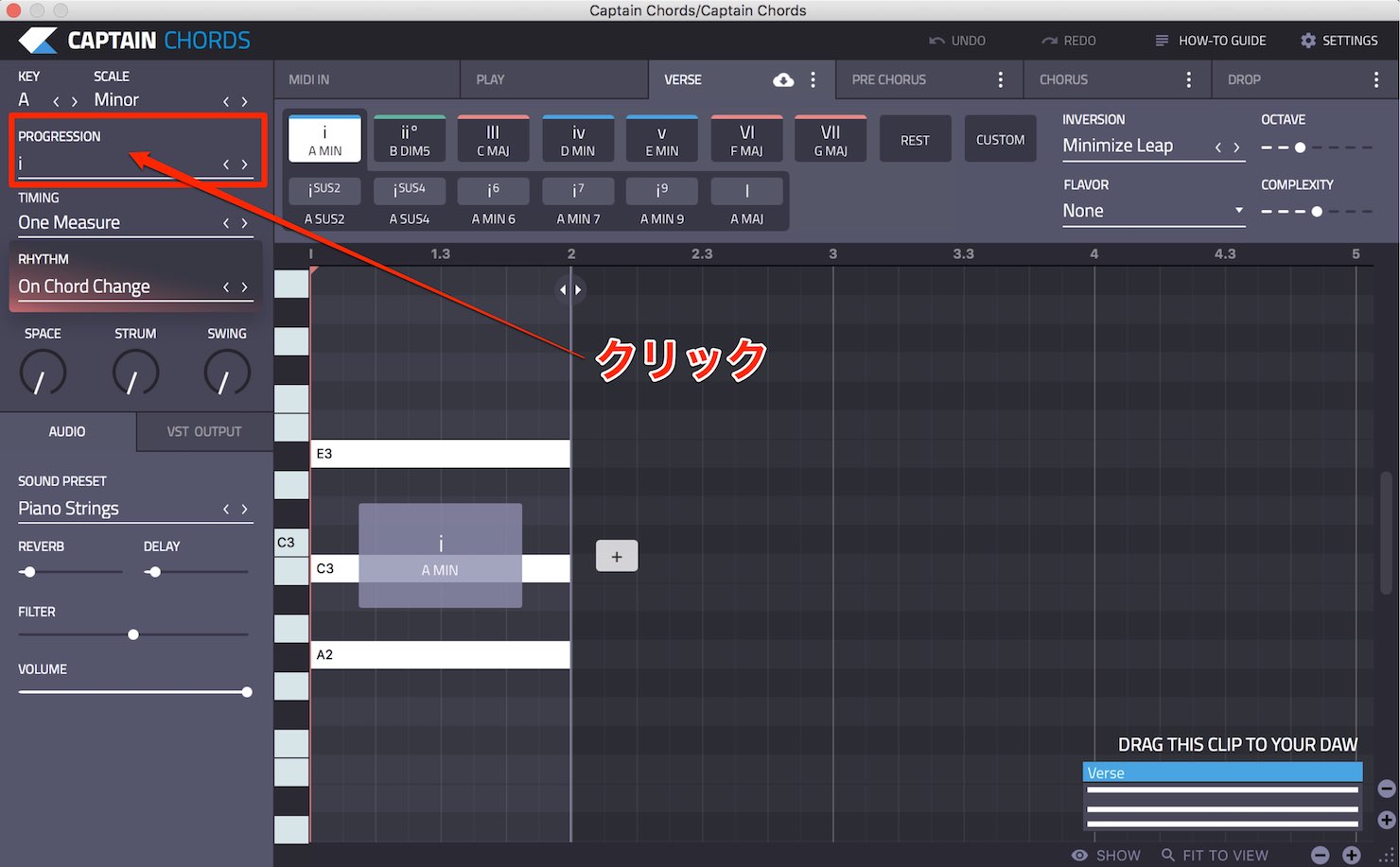
Click PROGRESSION at the upper left.
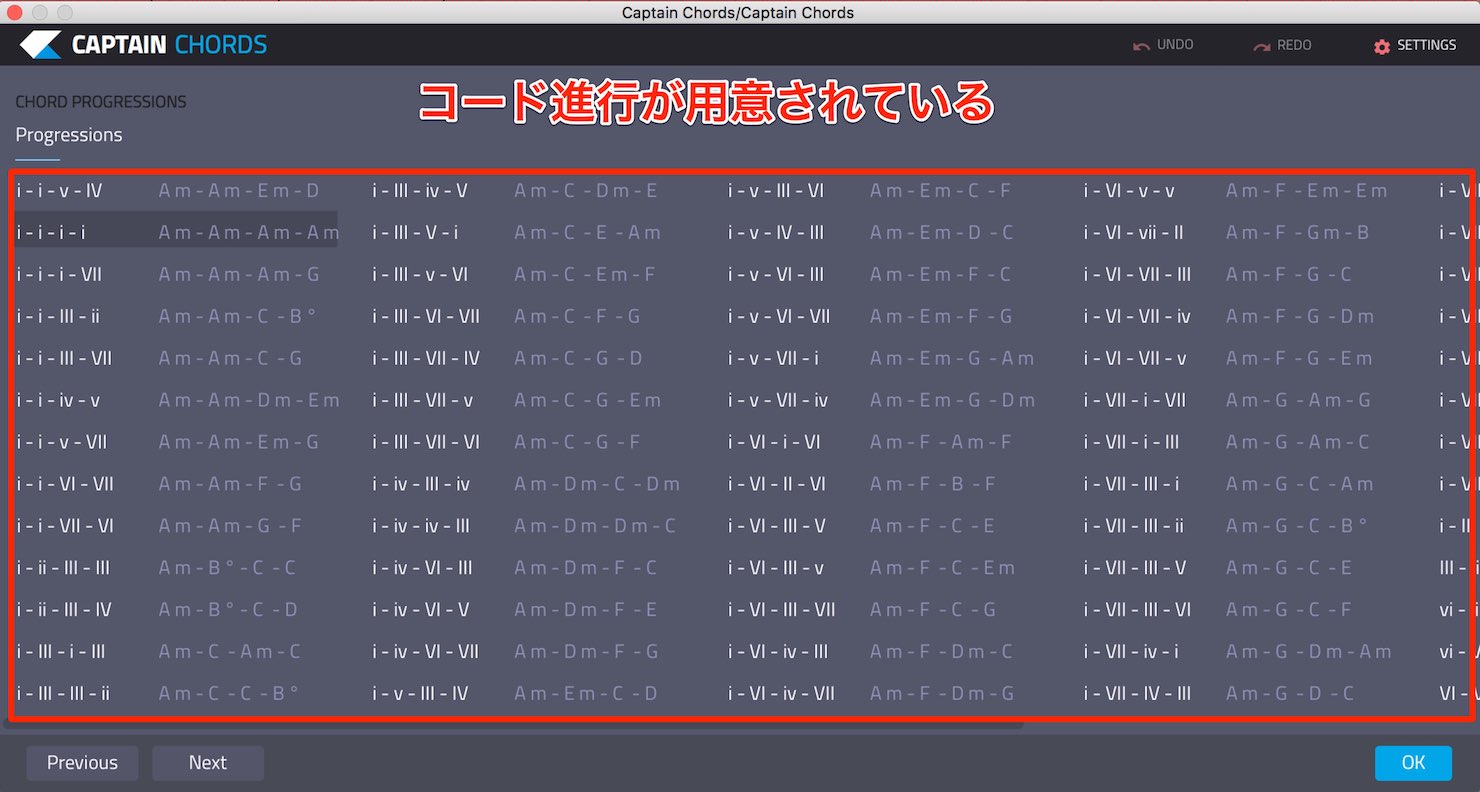
You will find a wide selection of chord progressions.
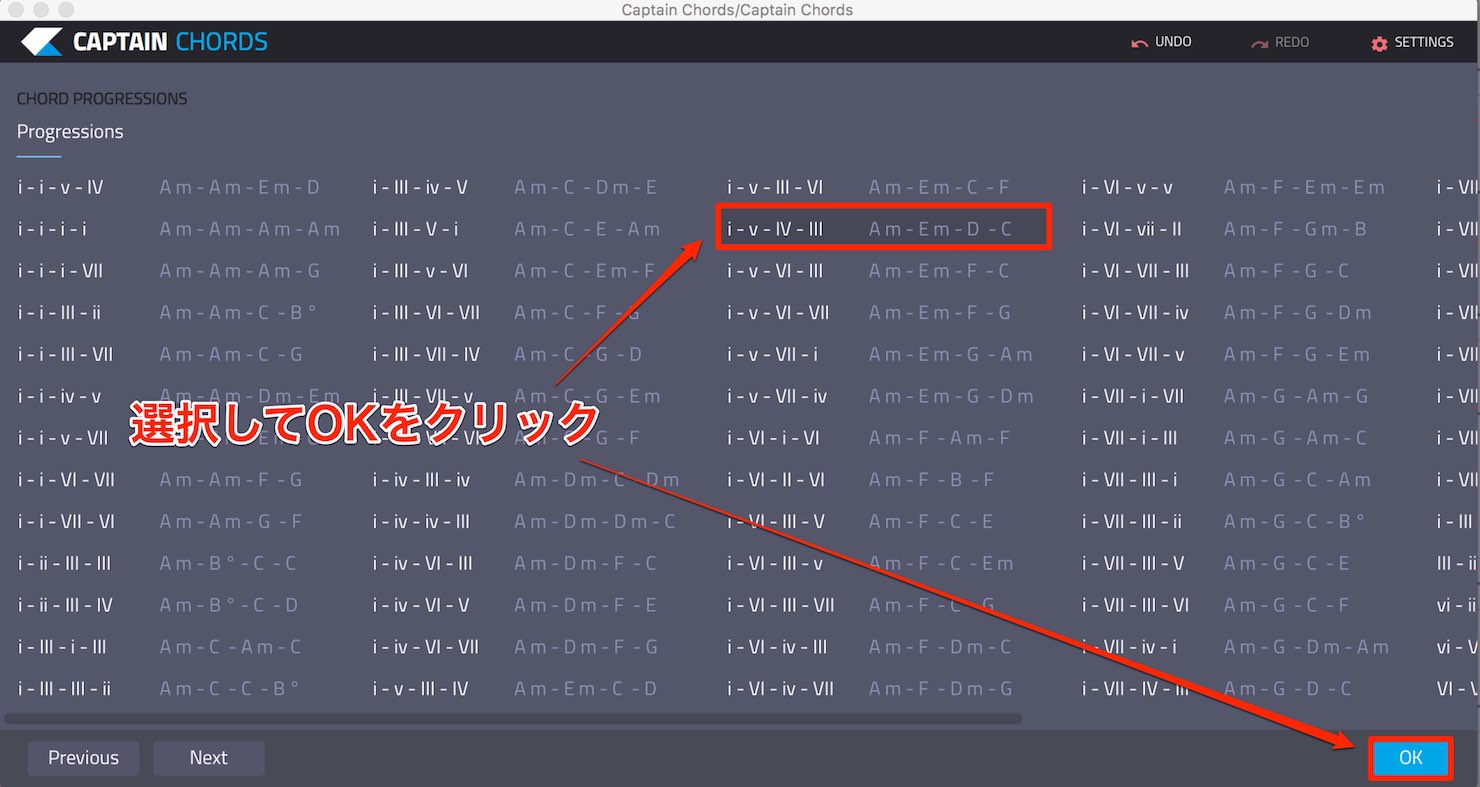
Audition them, choose one, and click OK.
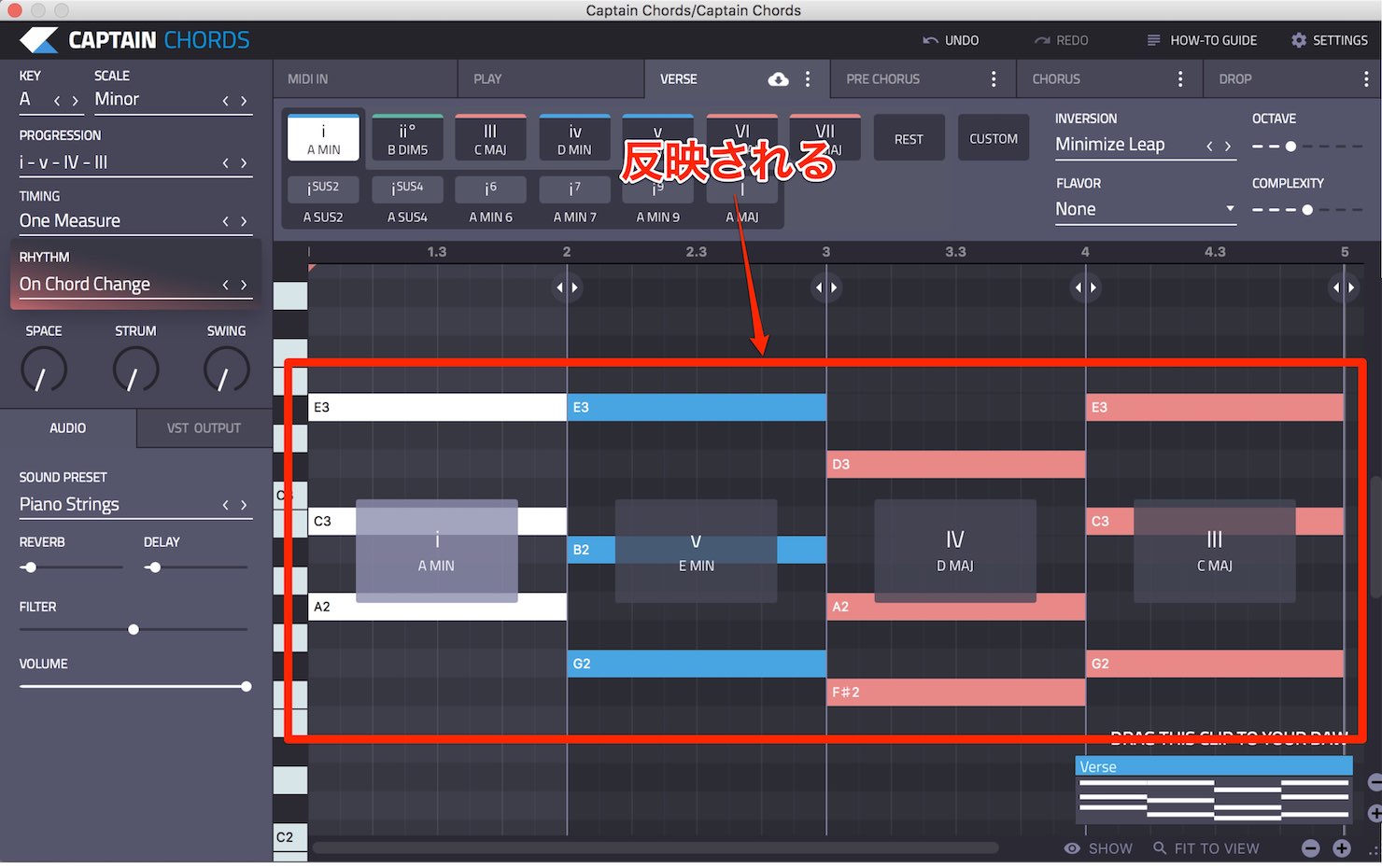
It is immediately applied to the piano roll.
But that is not all.
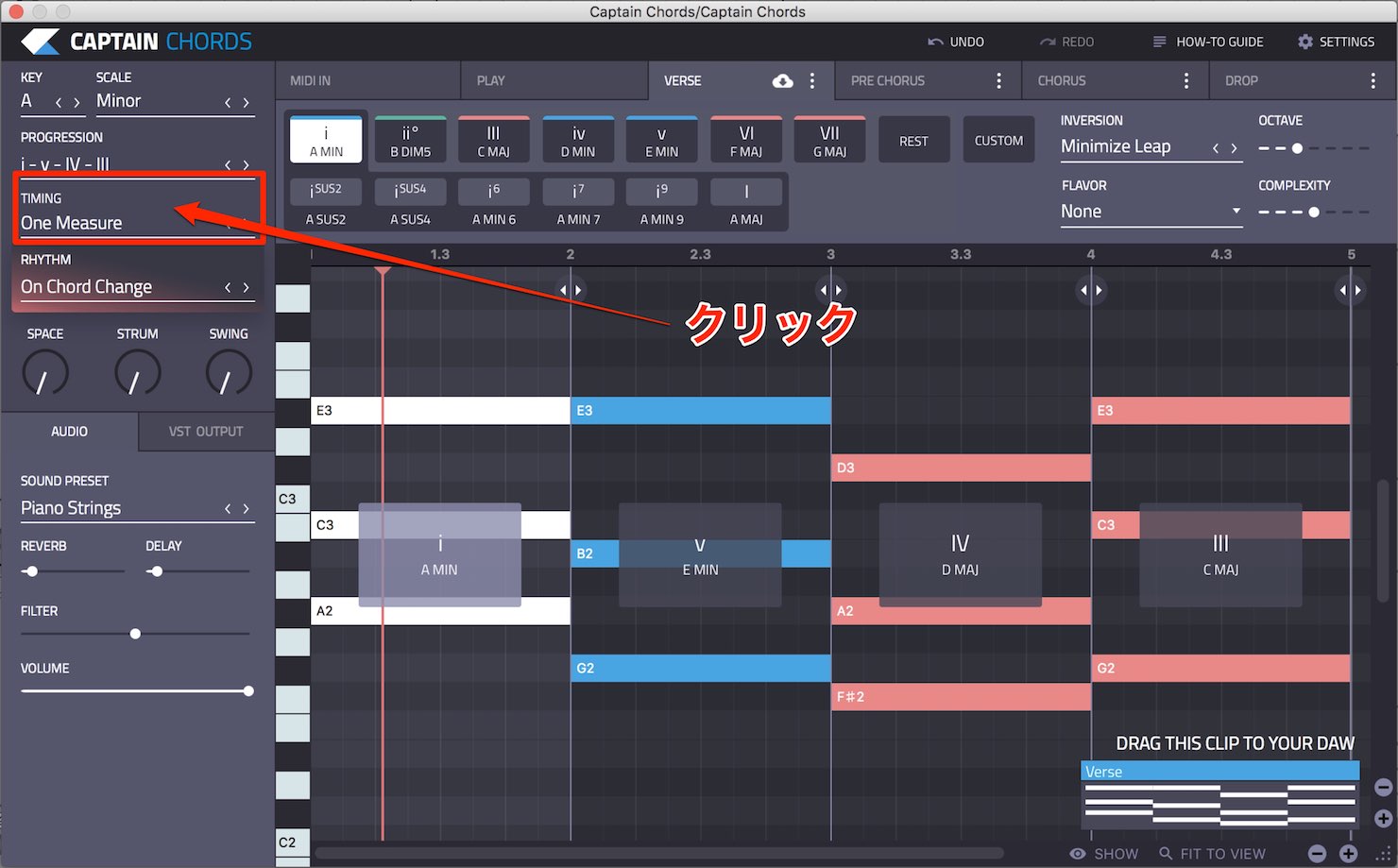
Click TIMING to
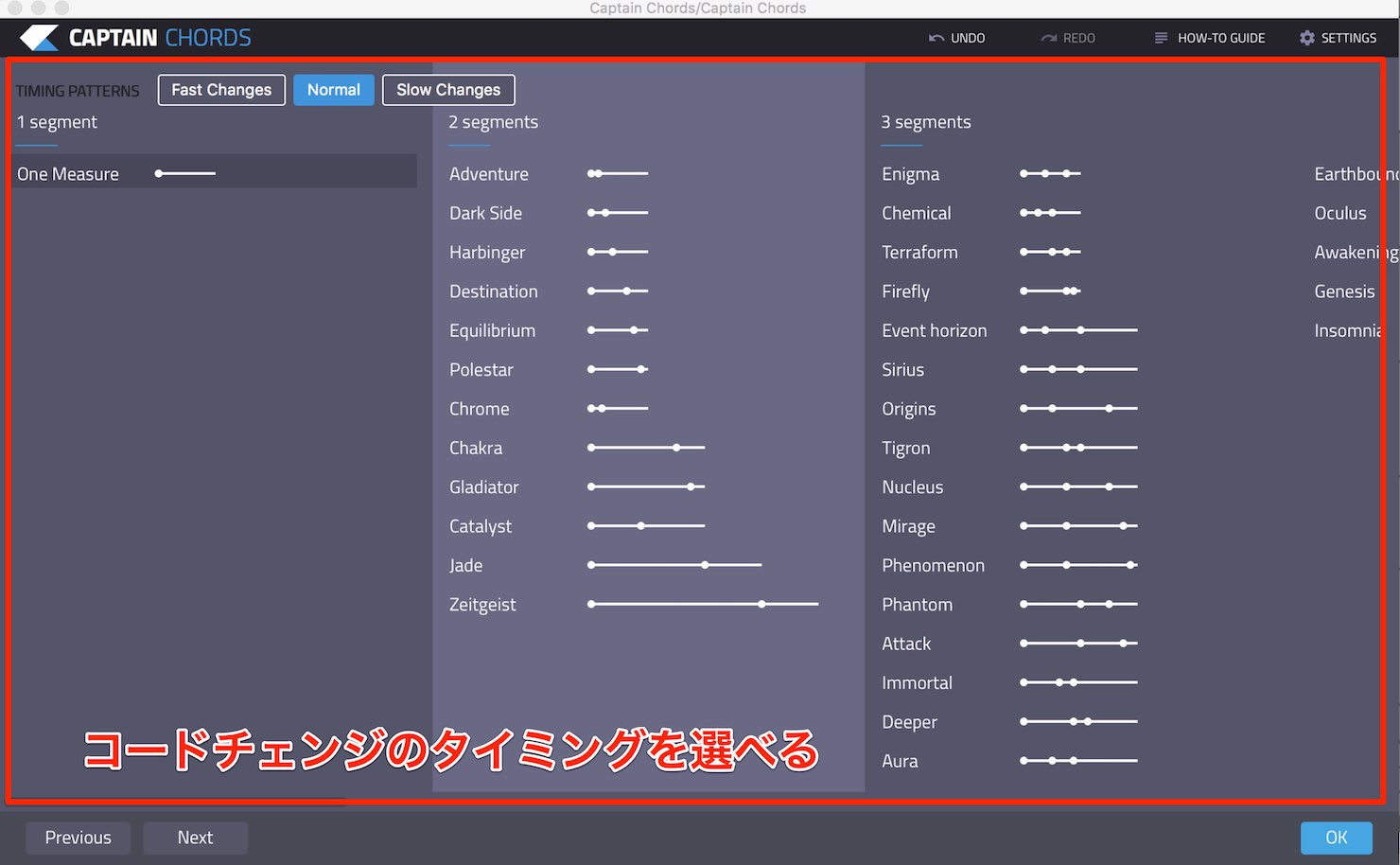
choose when the chords change.
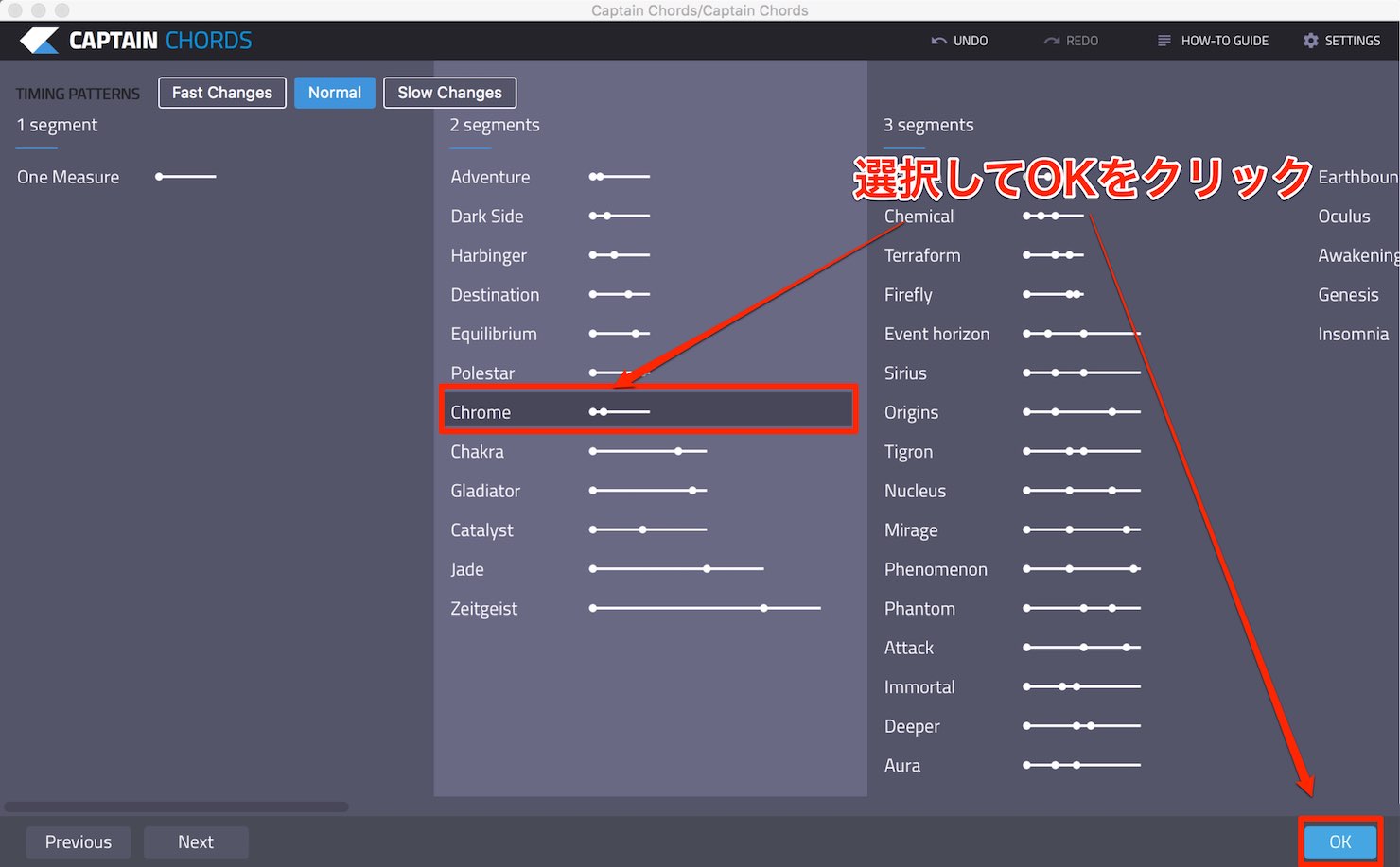
Try selecting Chrome, then click OK.
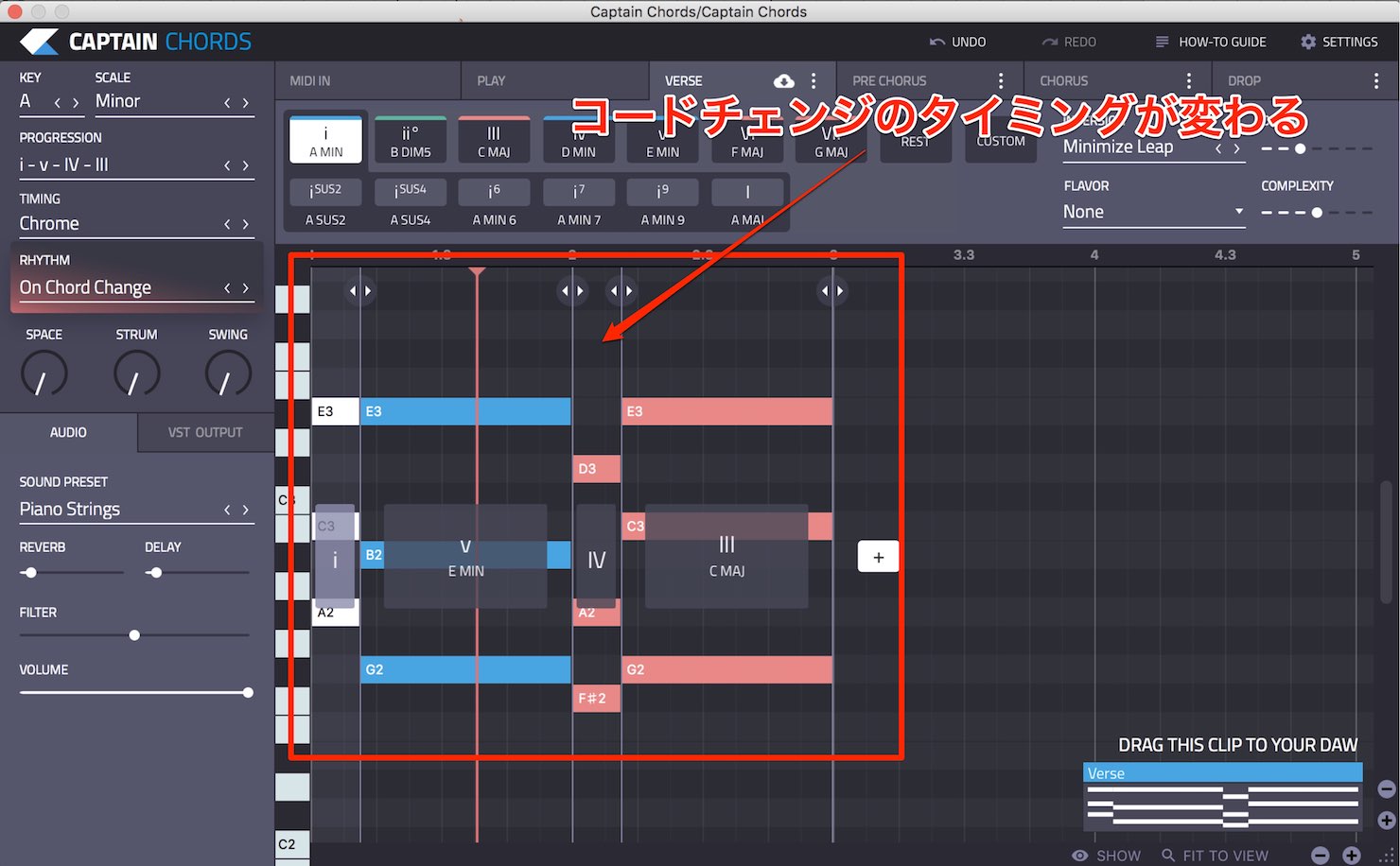
The timing of the chord changes adjusts as shown here.
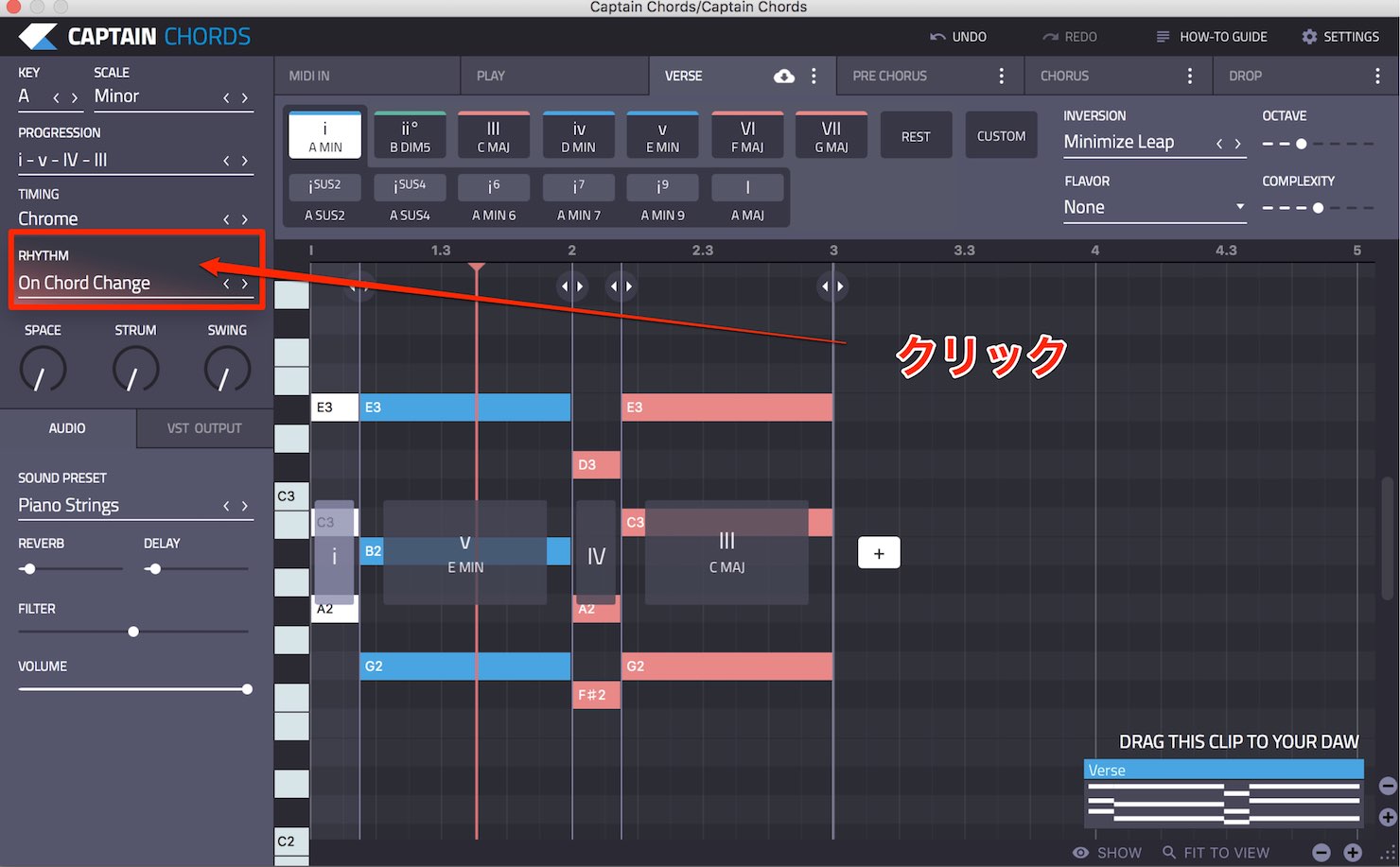
Click RHYTHM below it to
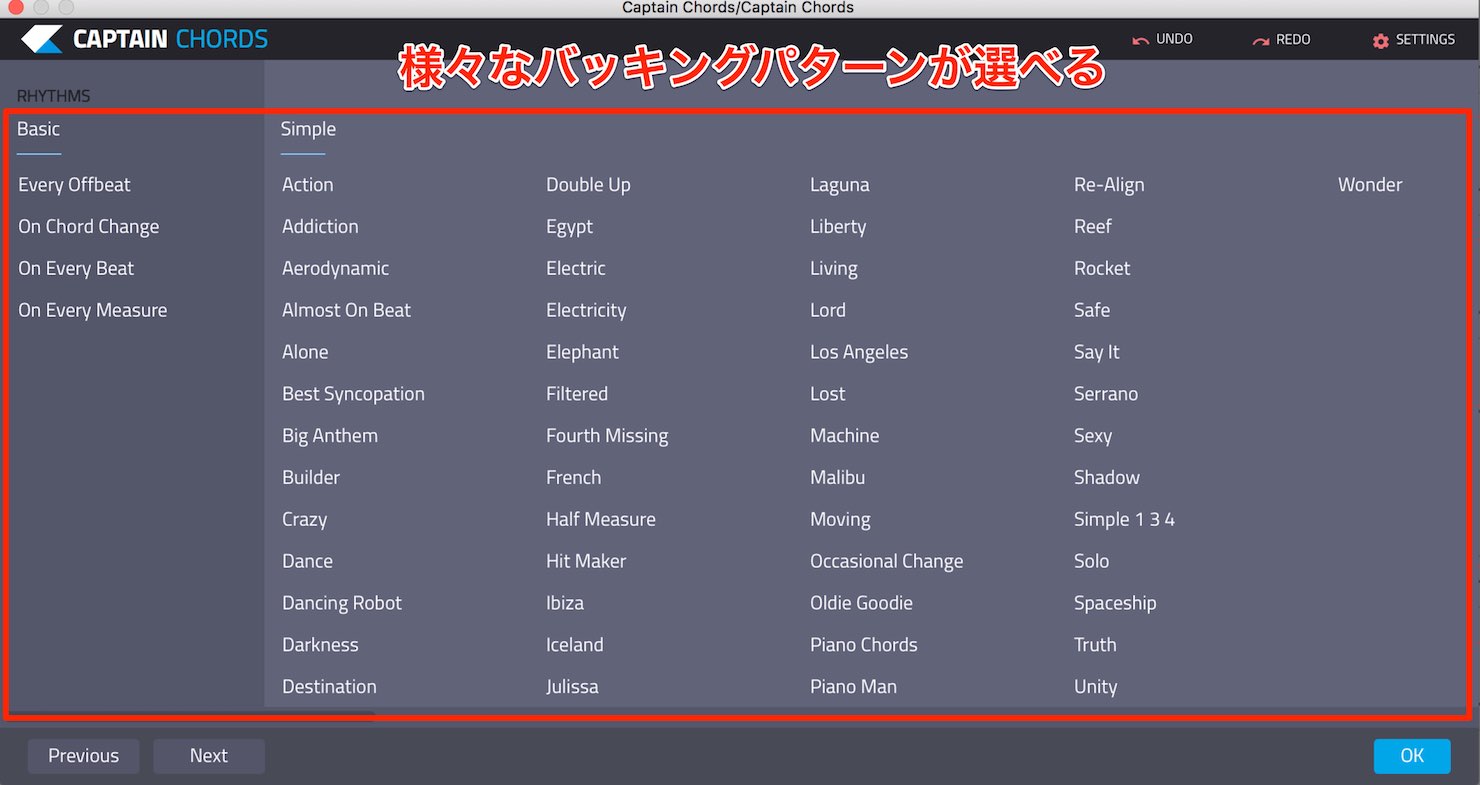
choose from a variety of accompaniment patterns.
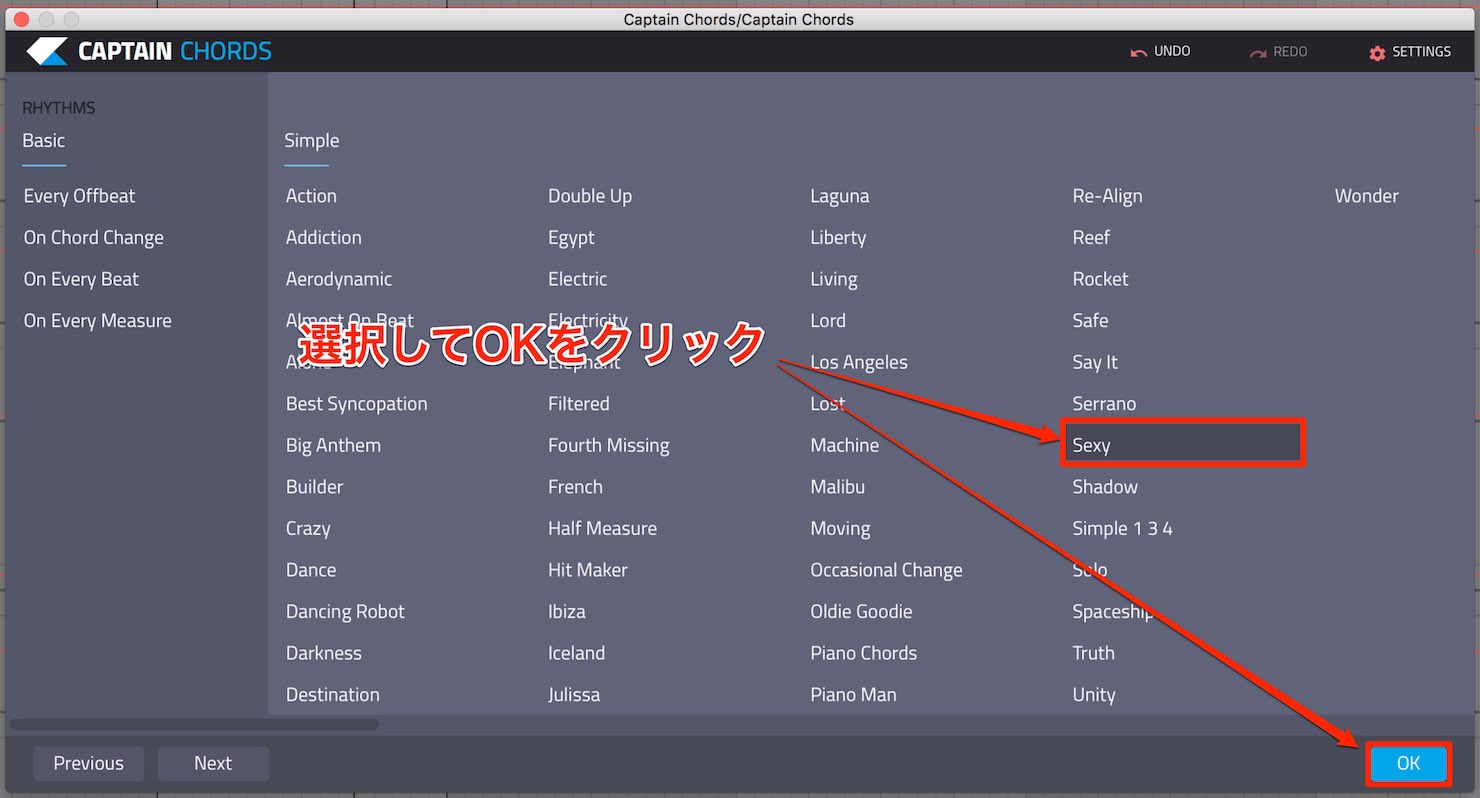
Let's try selecting Sexy.
Click OK, and
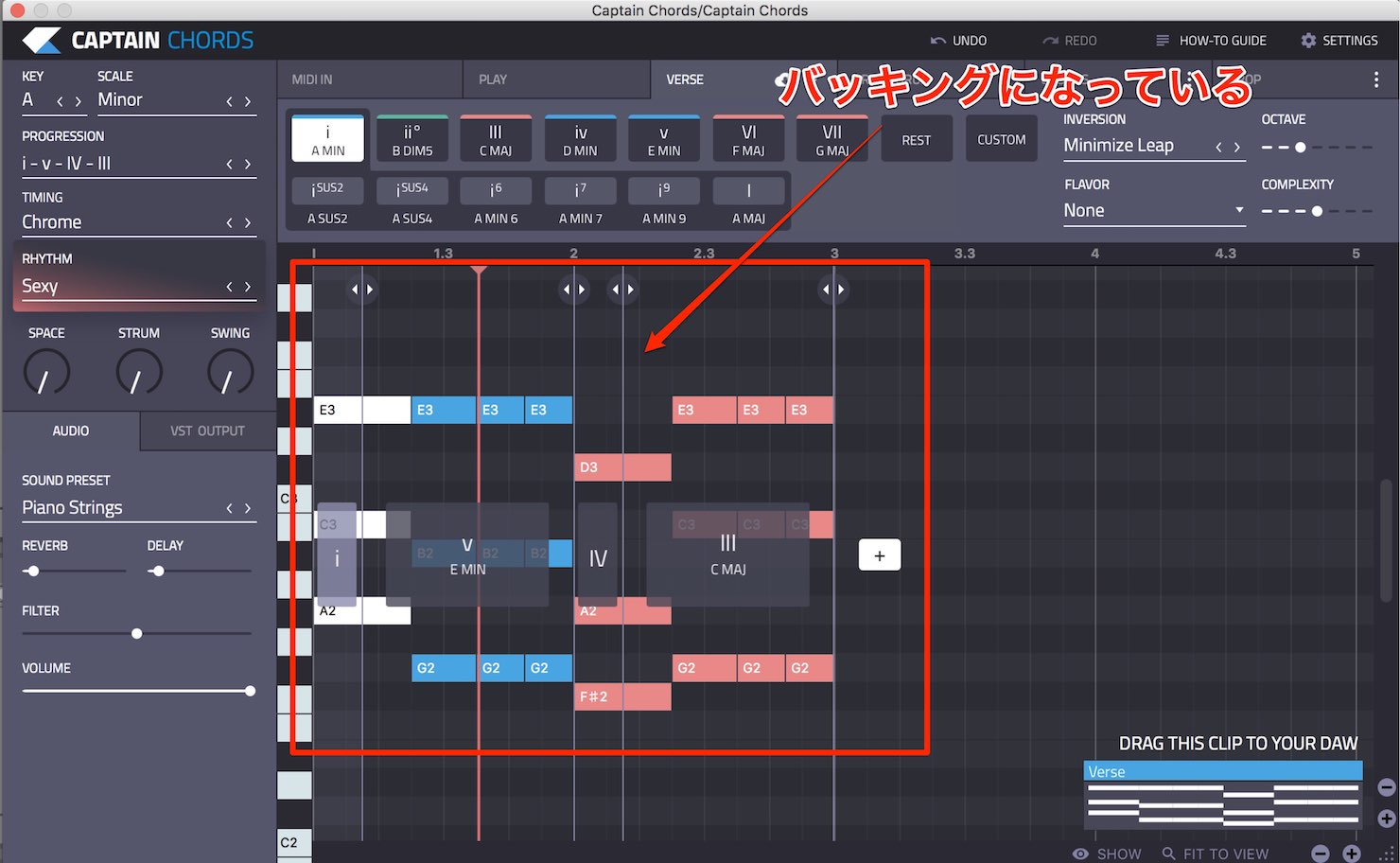
the accompaniment takes on a different feel.
You can keep editing it further.
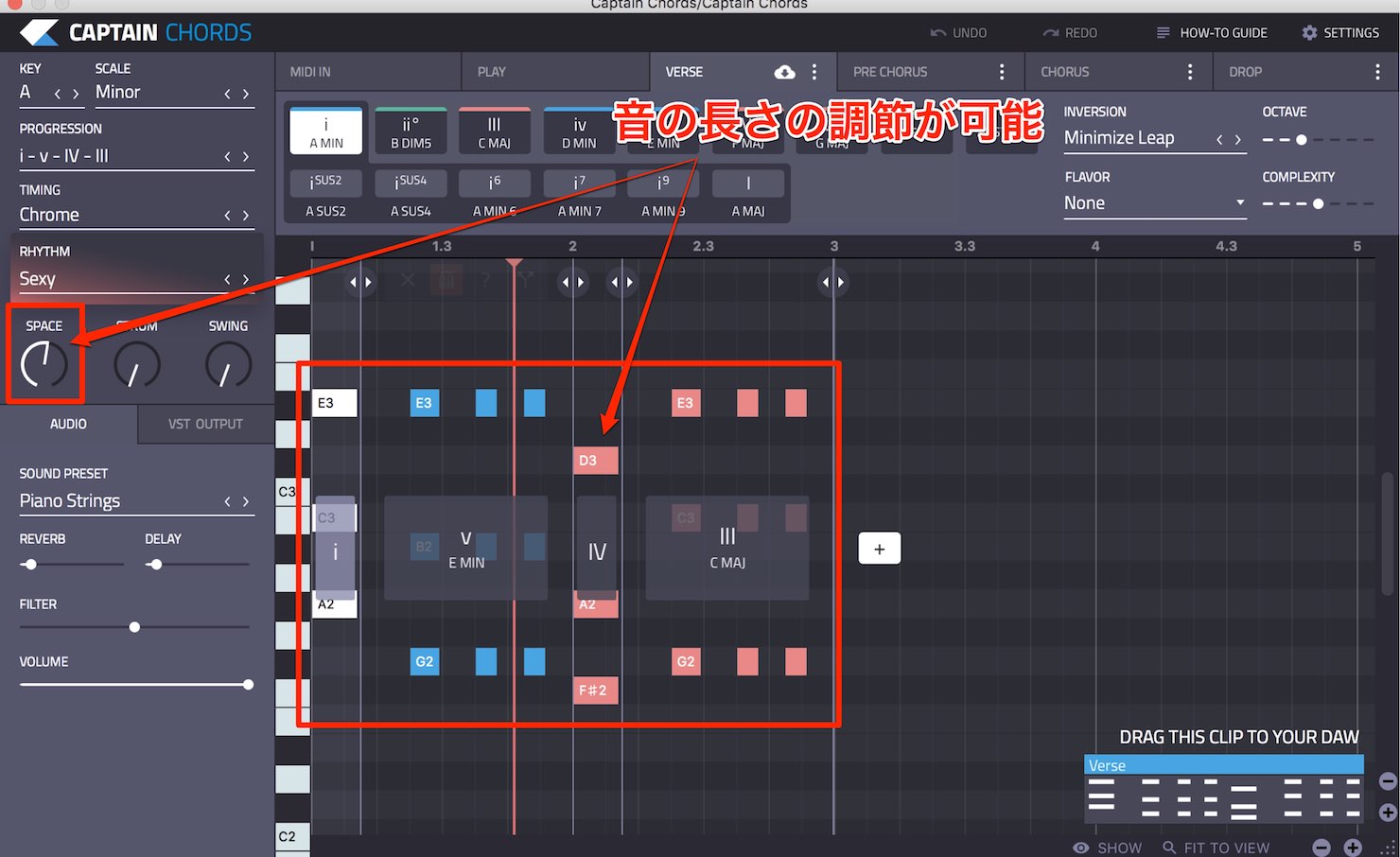
The SPACE knob adjusts note length.
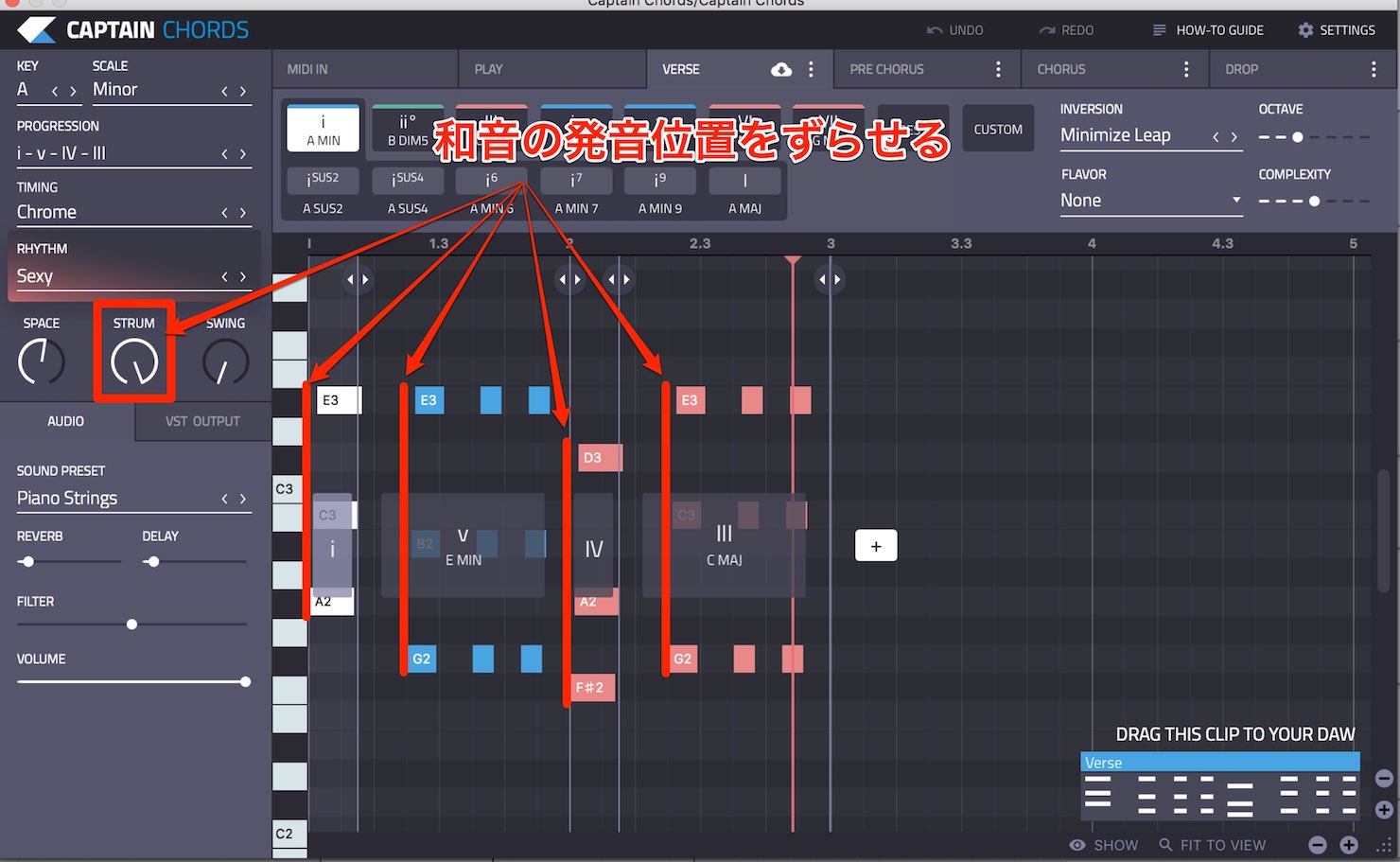
STRUM beside it offsets the start times of the notes in each chord.
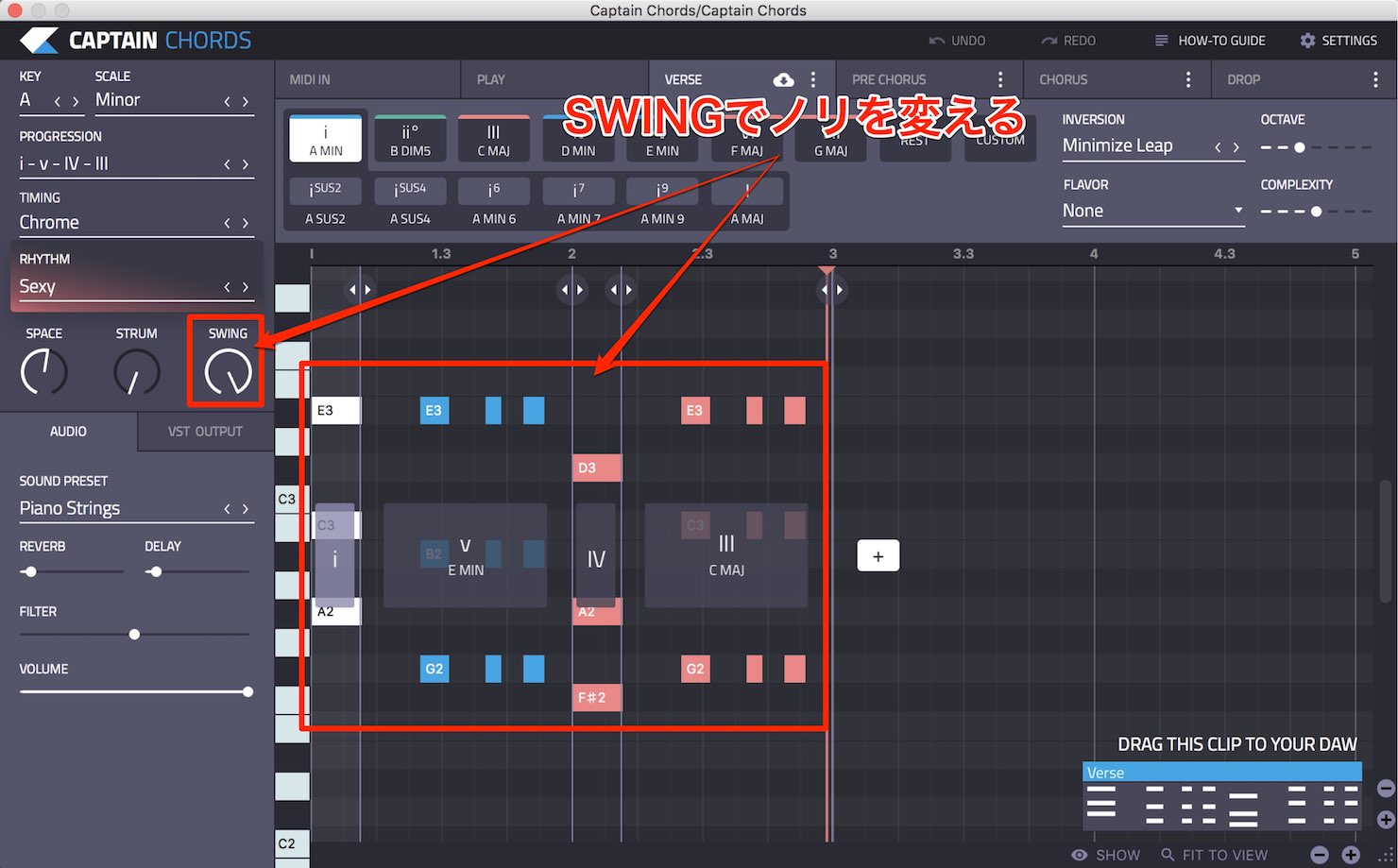
SWING, next to that, changes the groove.
If the piano sound is not inspiring you,
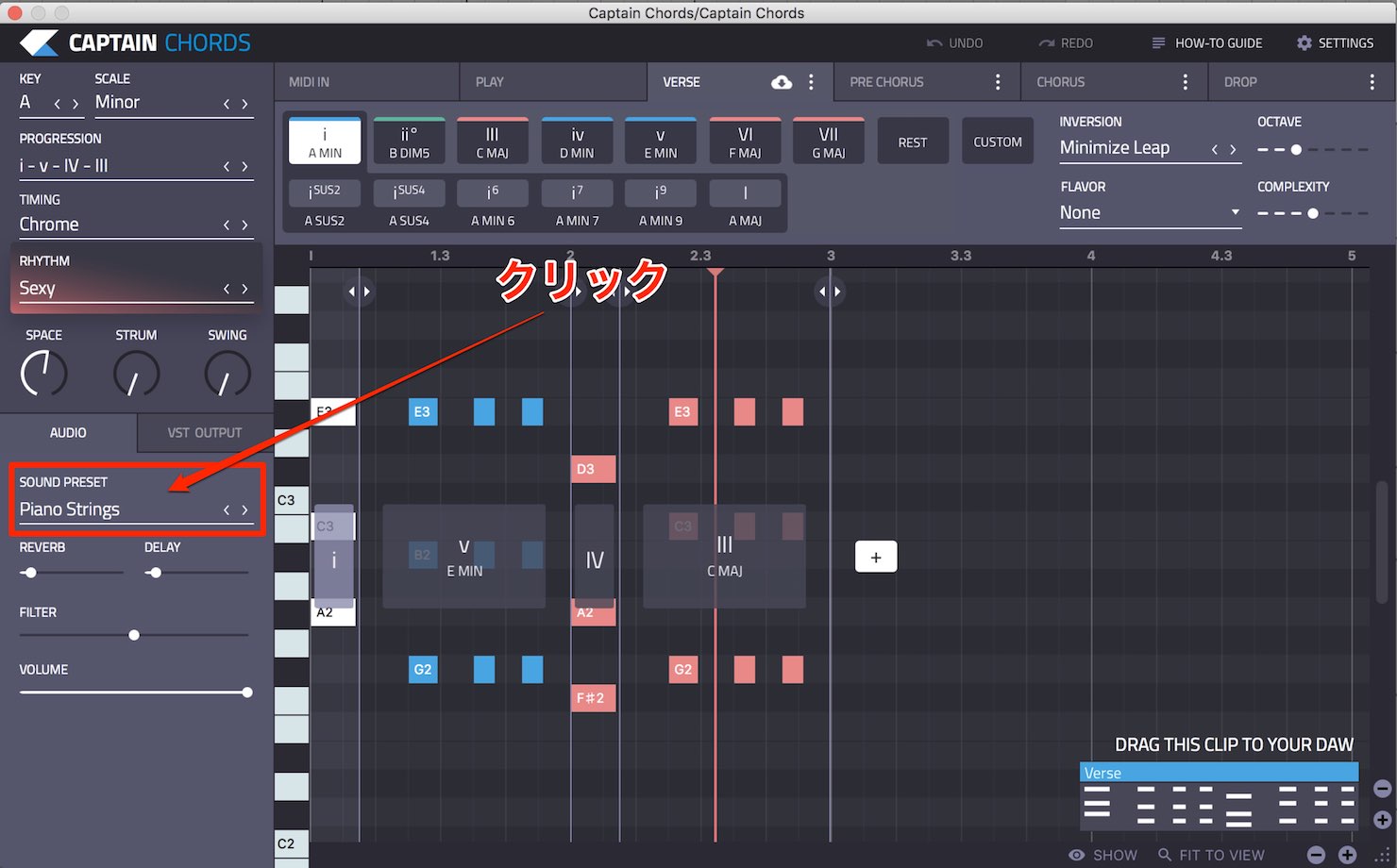
click SOUND PRESET to
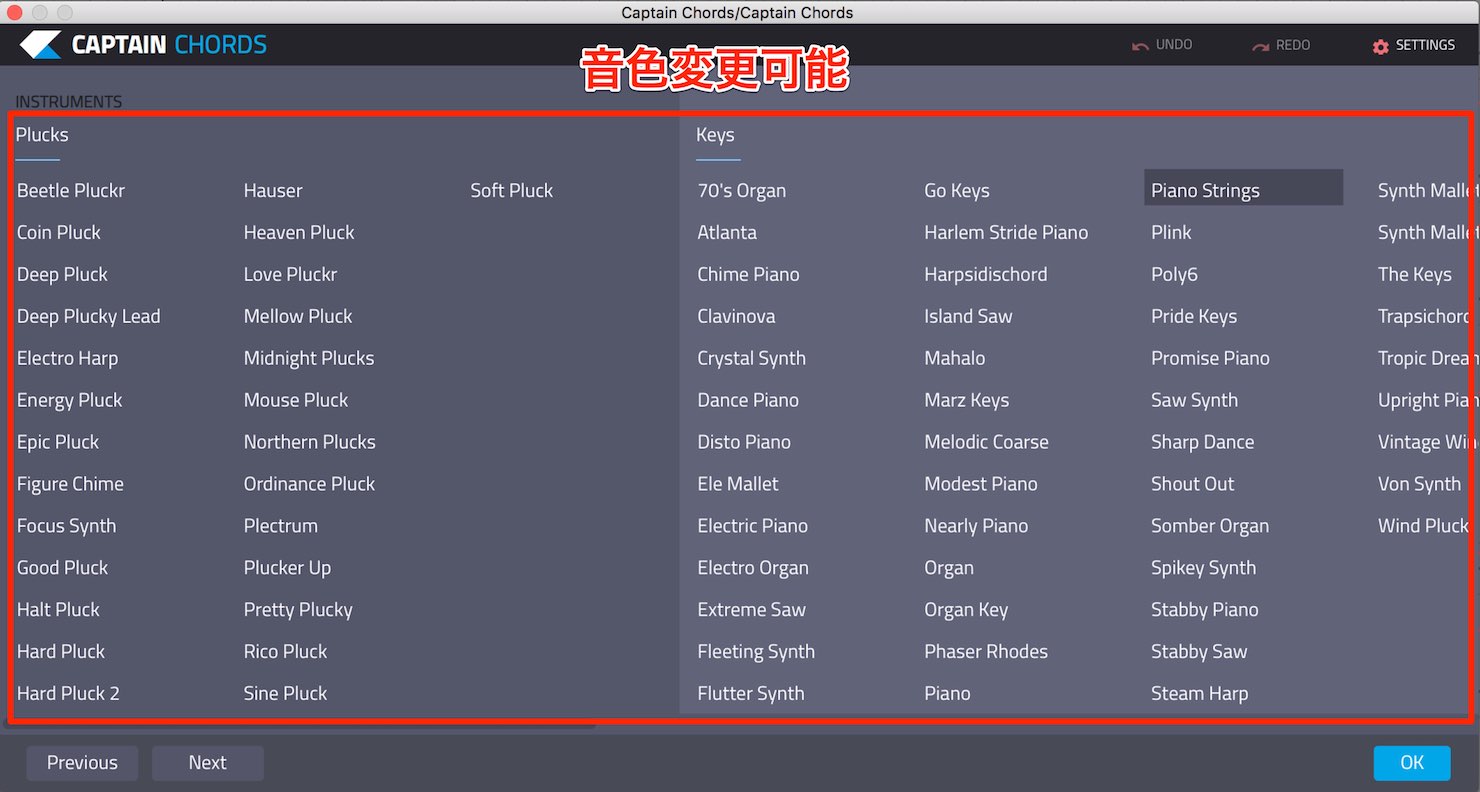
switch to a different sound.
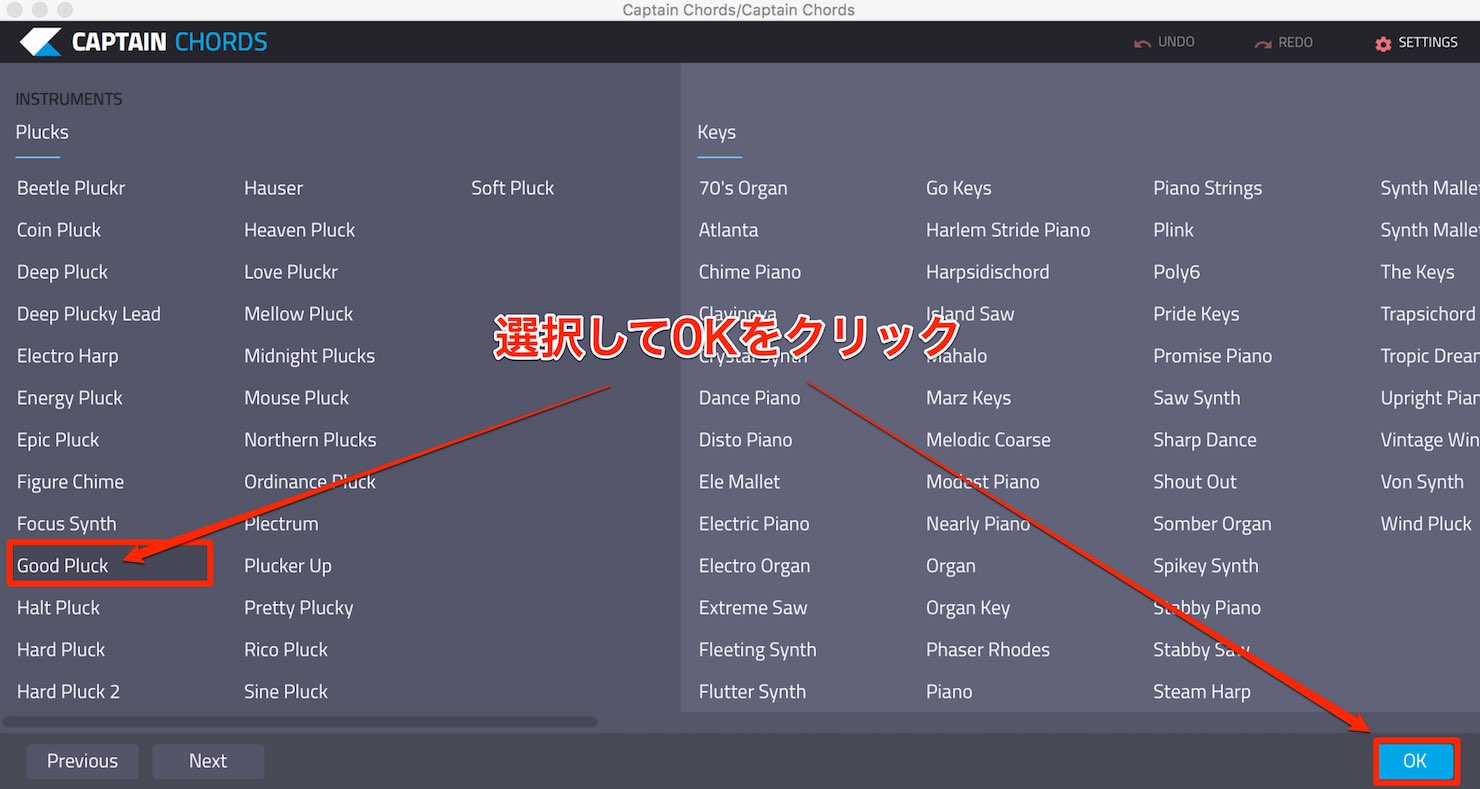
Select one and click OK.
You can also export the chord progression and accompaniment you have created as MIDI notes.
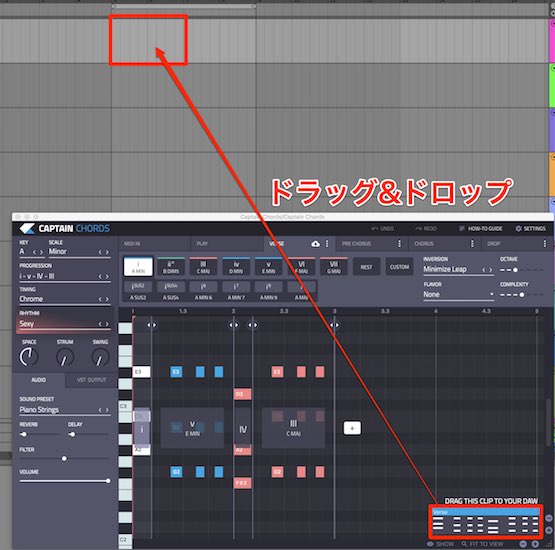
Drag the box at the lower right and drop it at the desired location.
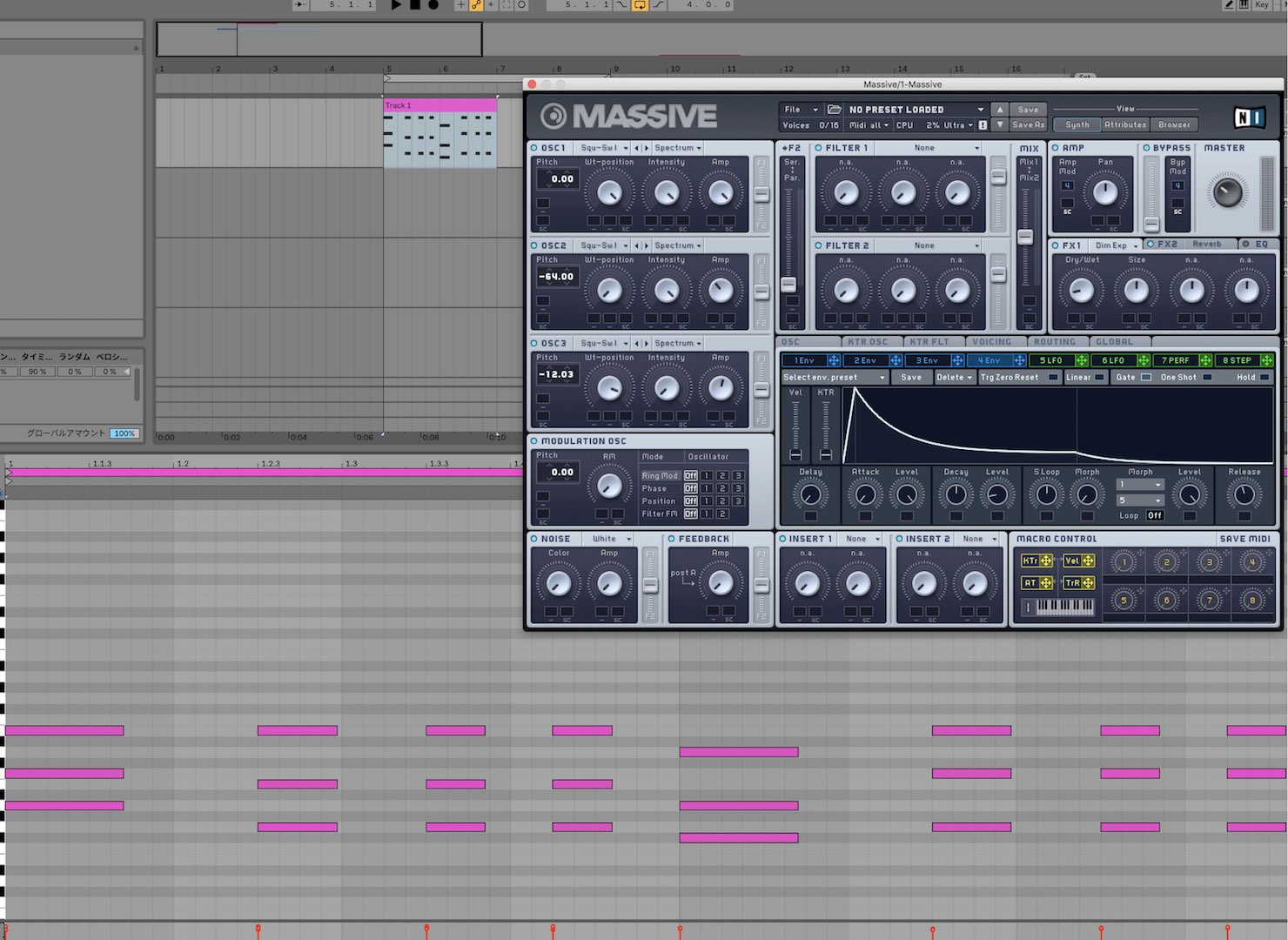
You can now play the part with another synthesizer.
(We are using Native Instruments MASSIVE in this example.)
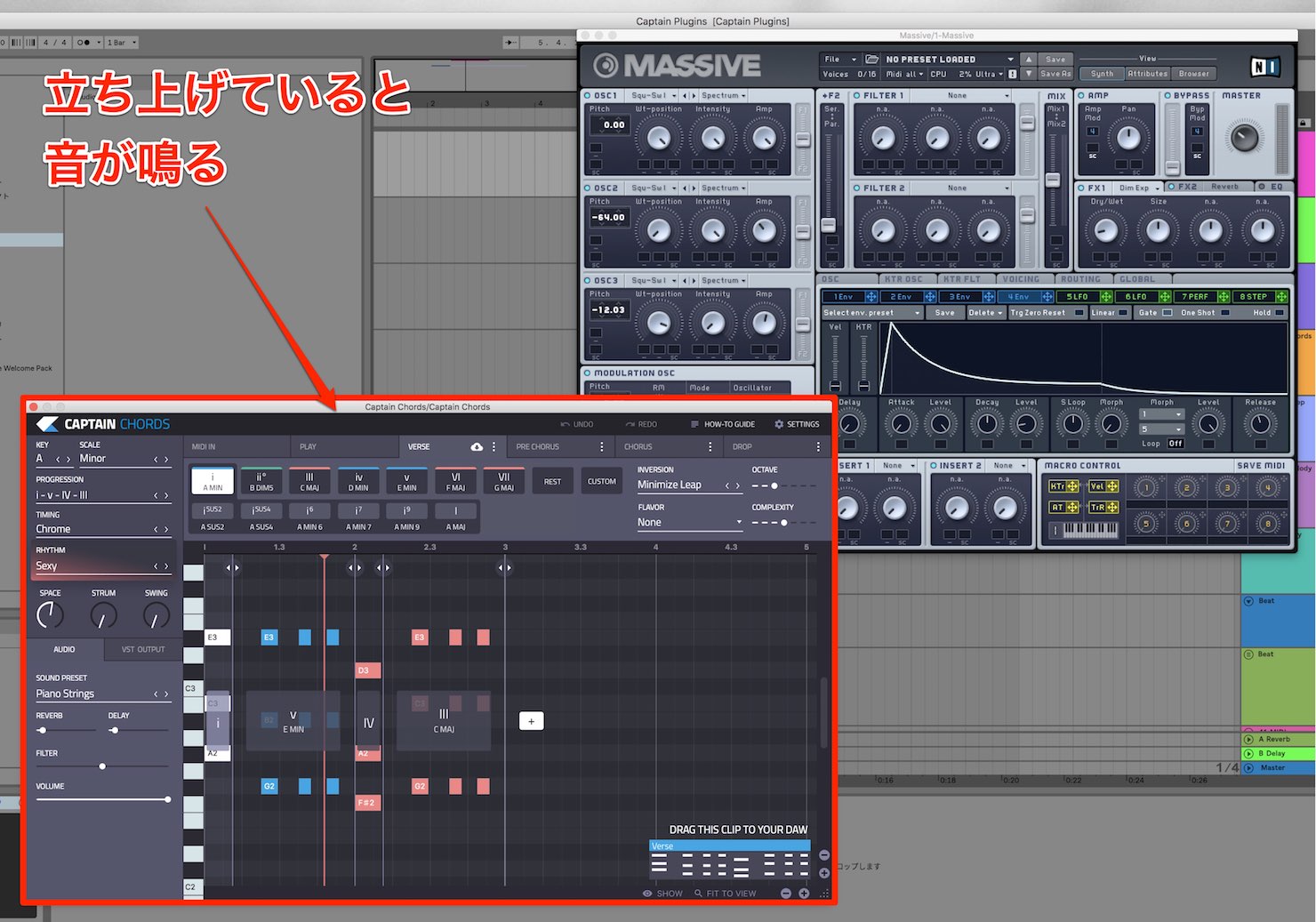
If the Captain Chords window is open at this point, Captain Chords will also produce sound.
Close the plug-in window if you do not want Captain Chords to play.
How to Use Captain Deep
Once you have a chord progression and accompaniment, it is time to add bass.
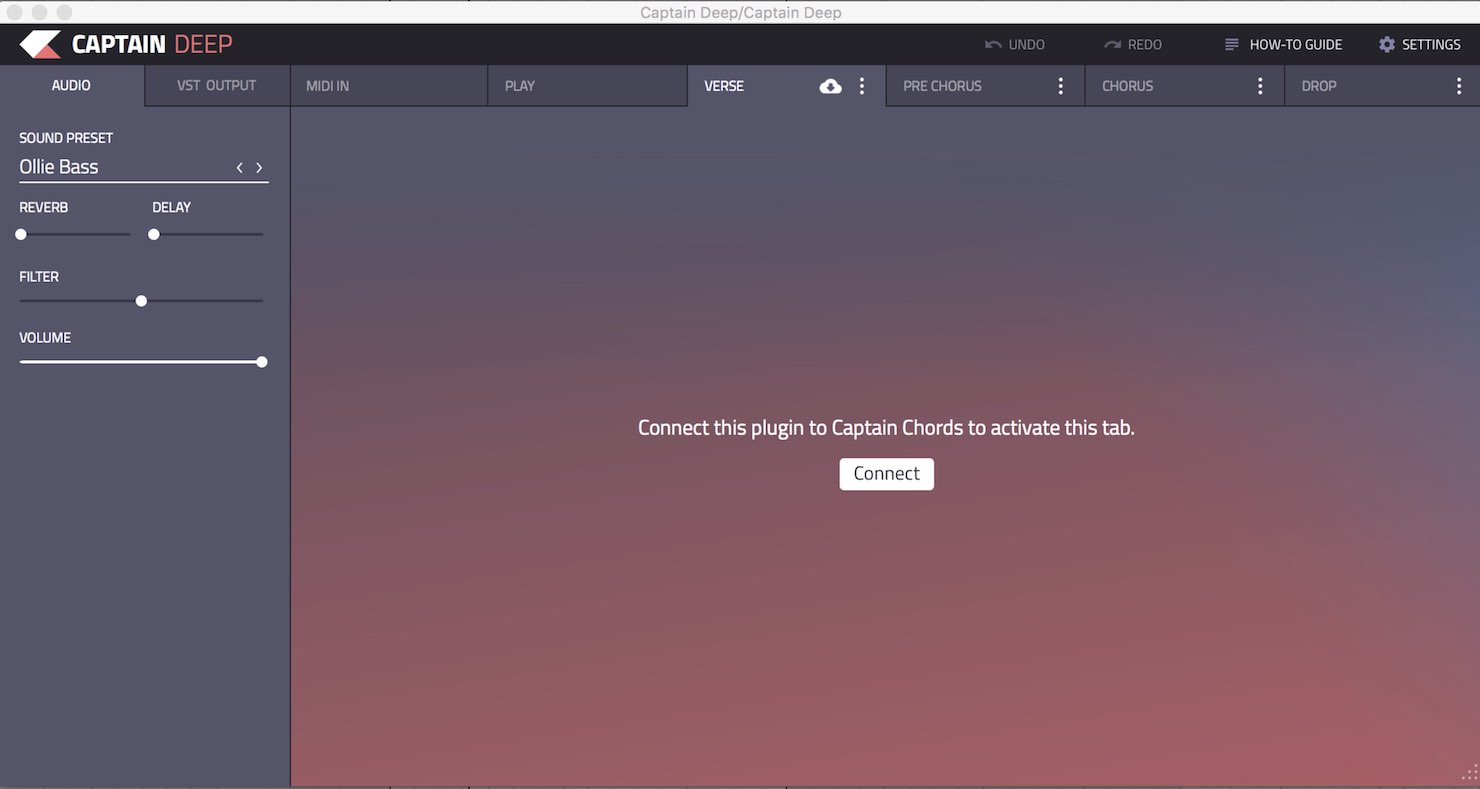
With Captain Chords assigned to a track, open Captain Deep and you will see this screen.
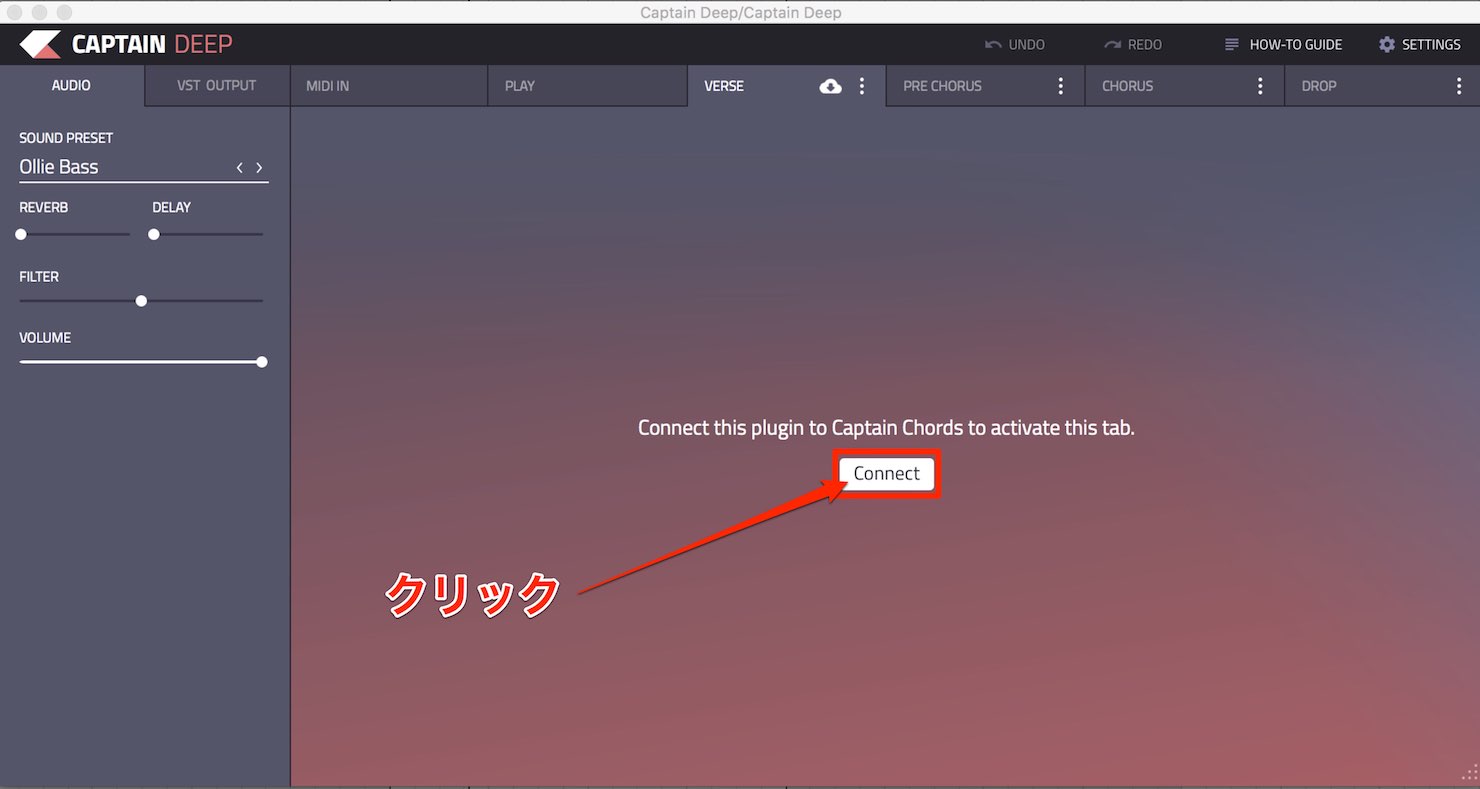
Click Connect to link it to Captain Chords.
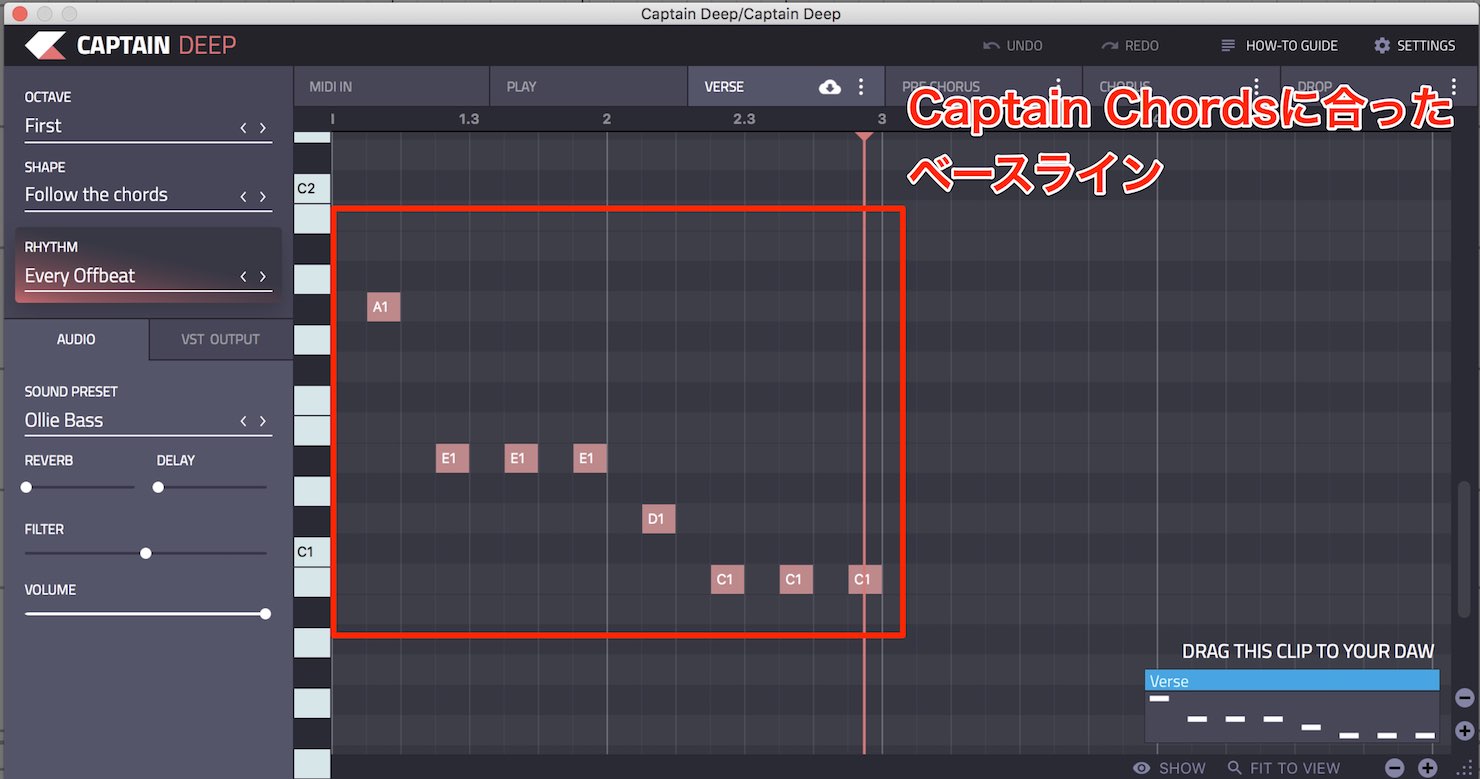
It already has a bass line that fits Captain Chords.
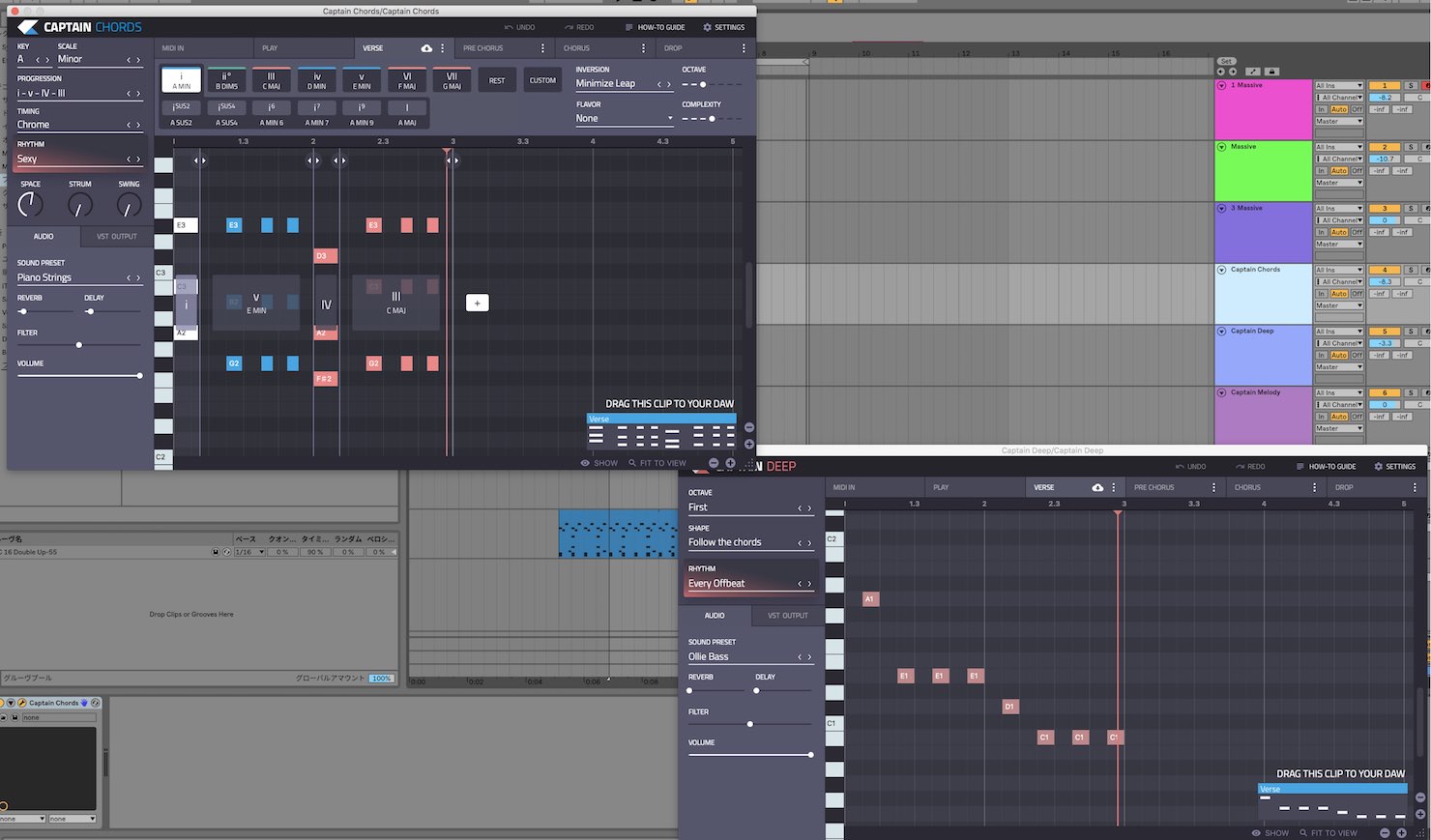
Open Captain Chords as well if you want to hear both parts together.
The bass line fits the chord progression we created earlier.
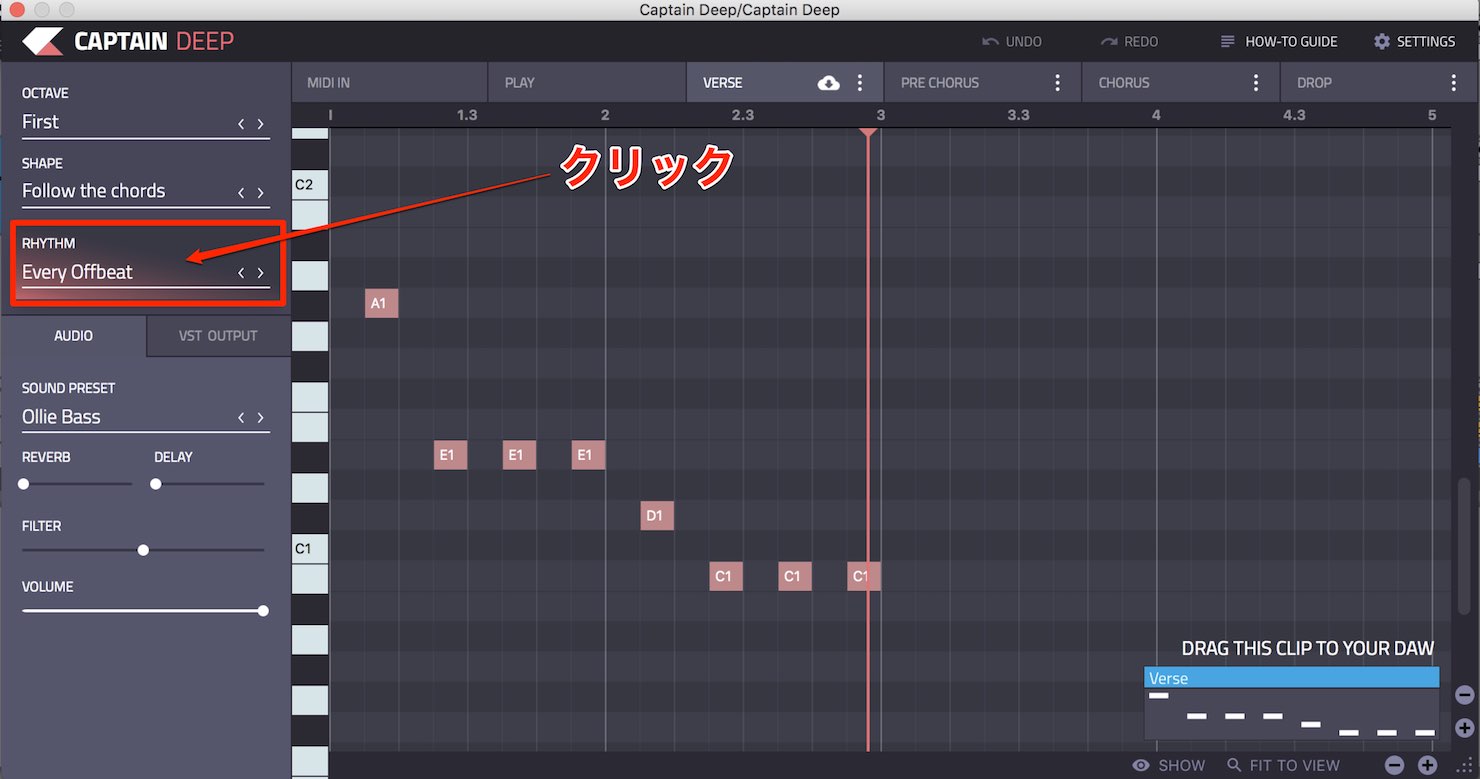
As with Captain Chords, click RHYTHM to
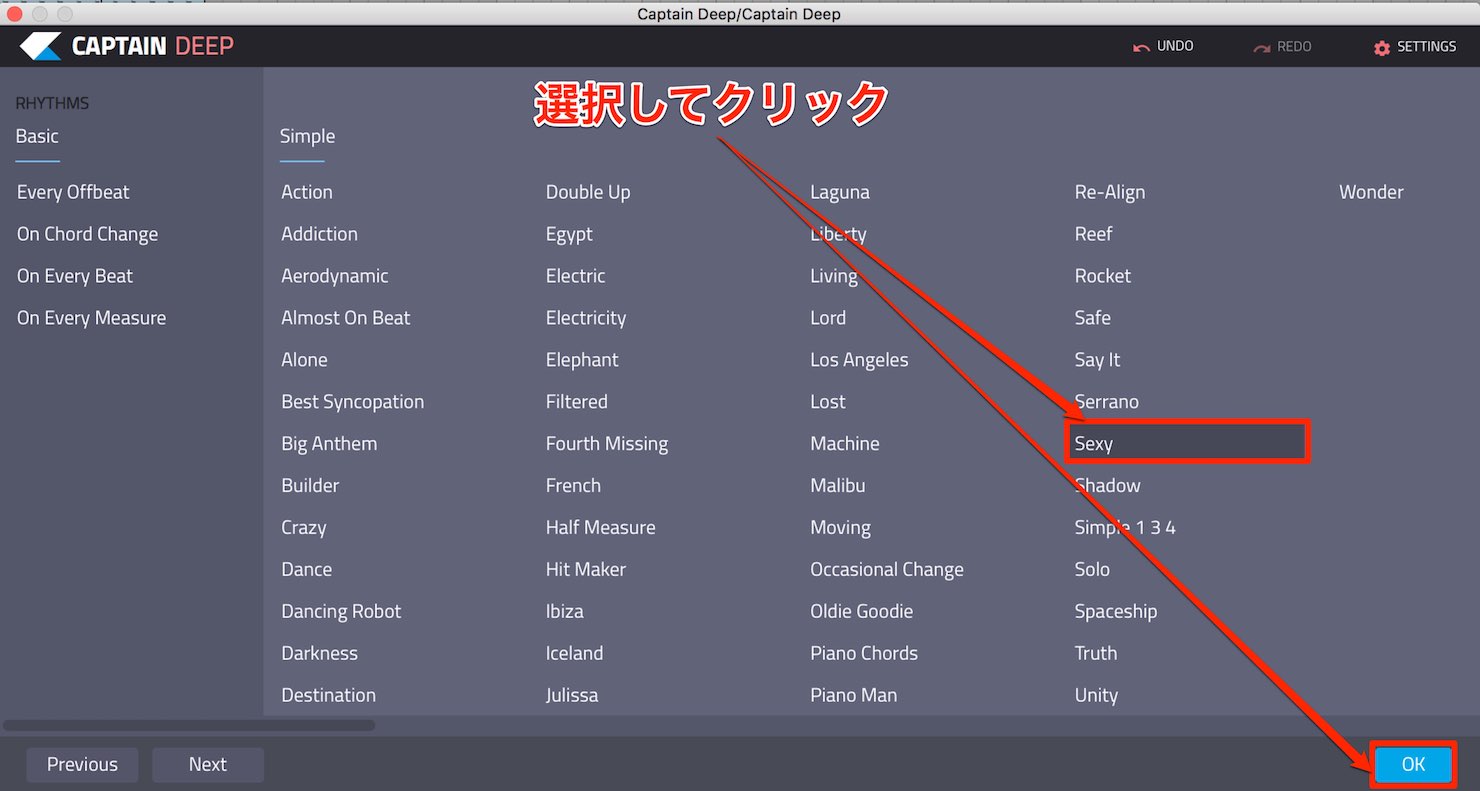
choose from a variety of patterns.
Try selecting Sexy, as before, and click OK.
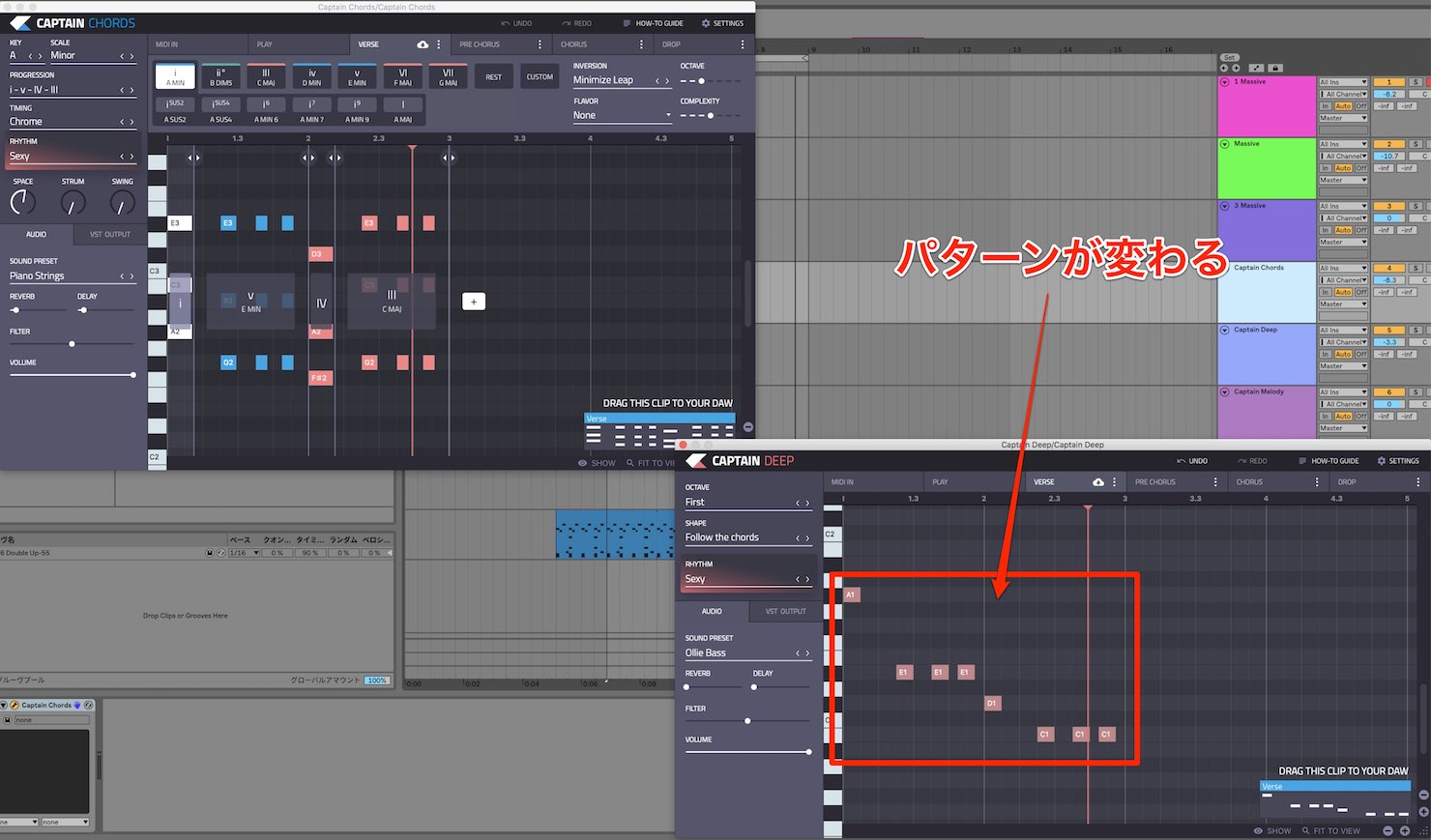
Since the RHYTHM presets have the same name, they fit together nicely.
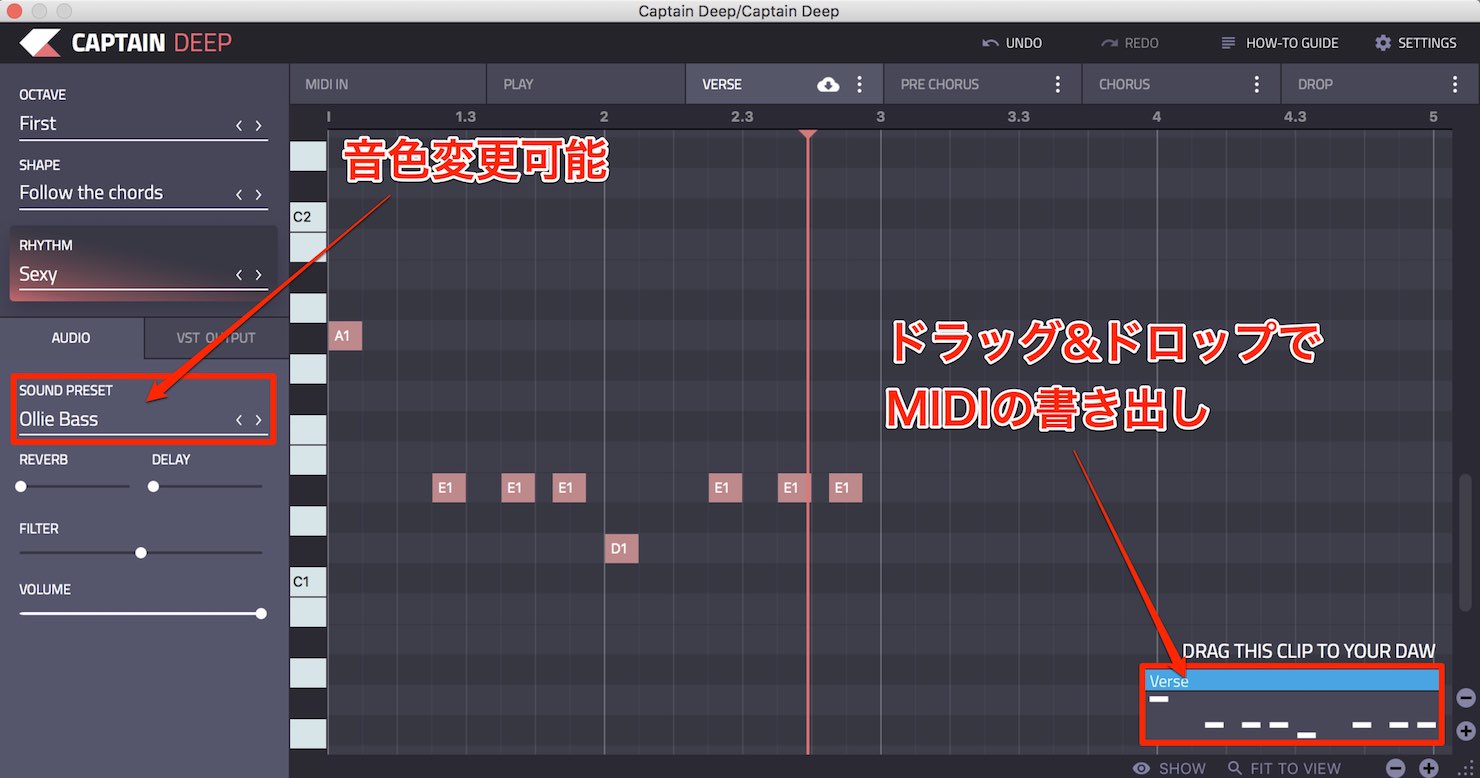
You can change the sound using SOUND PRESET and export MIDI by dragging and dropping the box at the lower right.
How to Use Captain Melody
Captain Melody works in the same way.
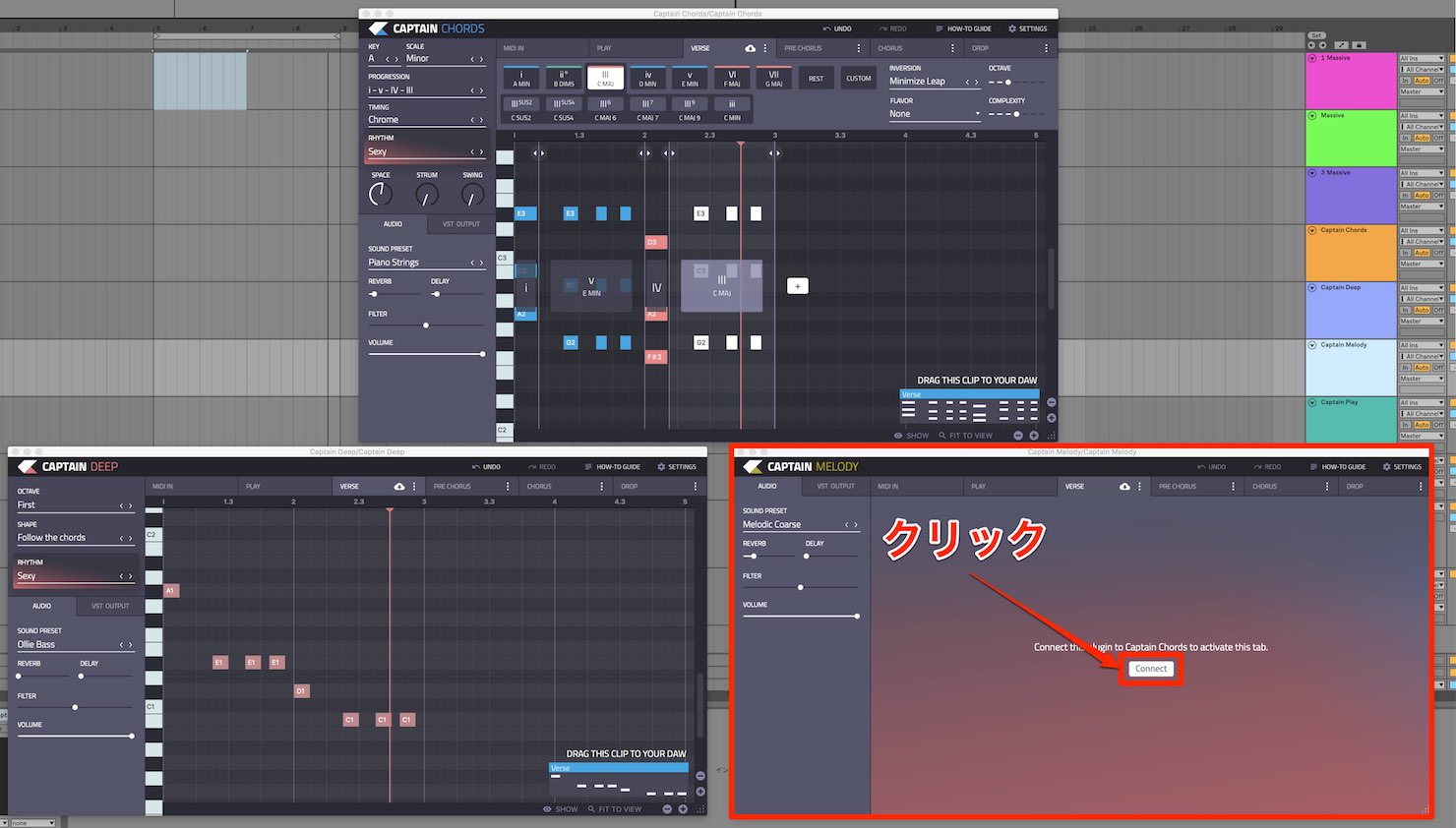
Open Captain Melody and click Connect.
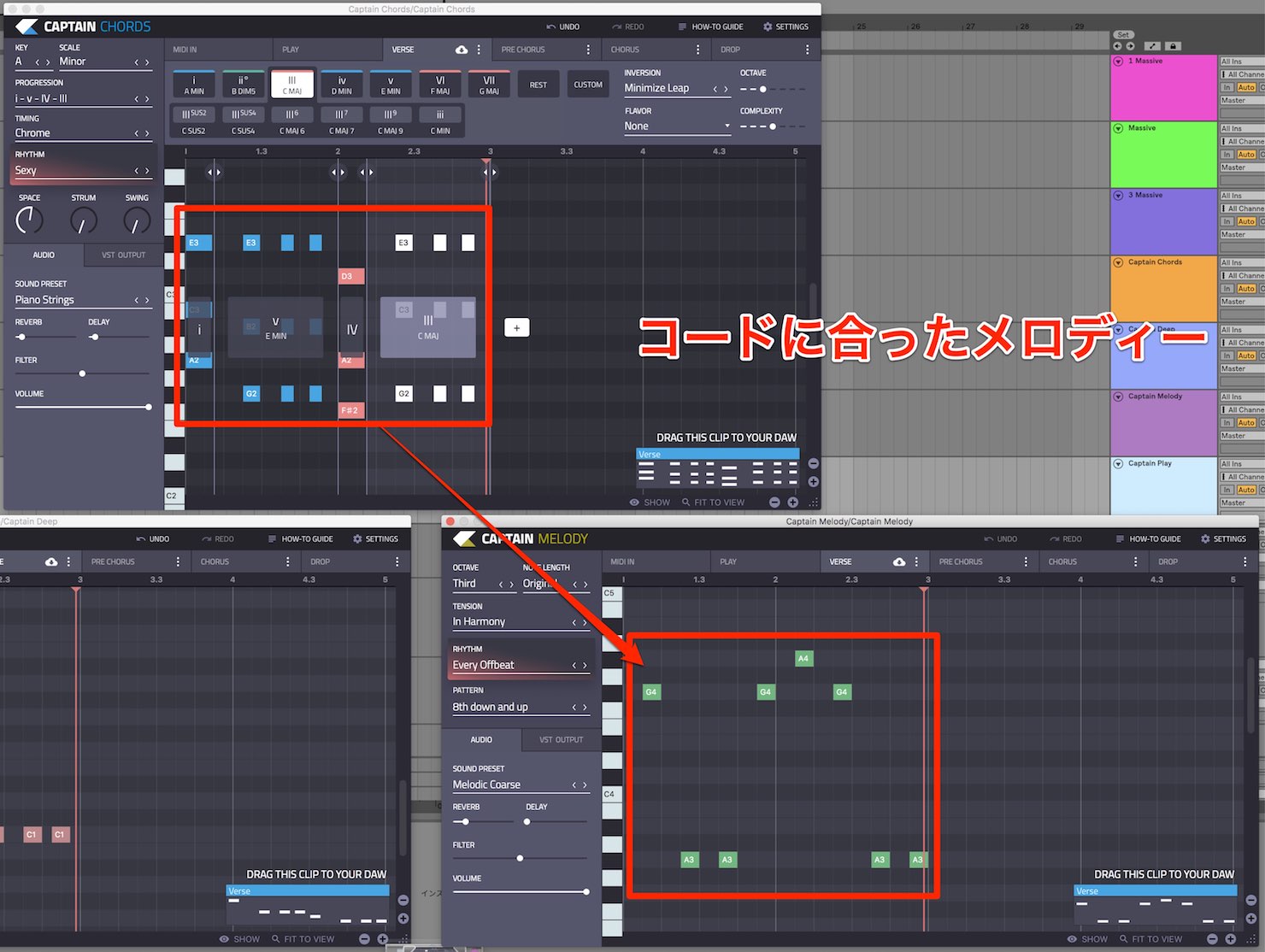
It links to Captain Chords and provides a melody that fits the chord progression.
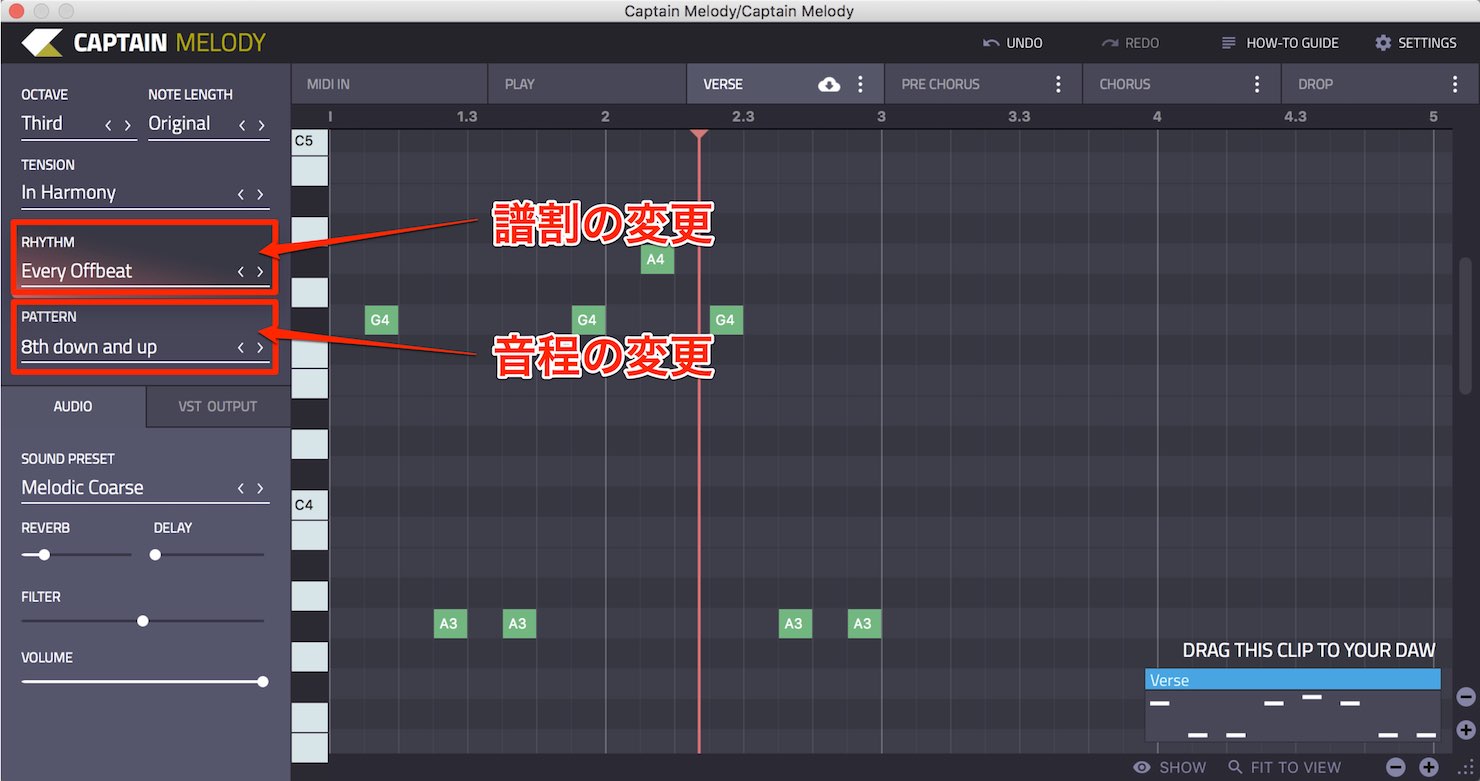
In Captain Melody, RHYTHM changes the note rhythm and PATTERN changes the pitches. Even better,
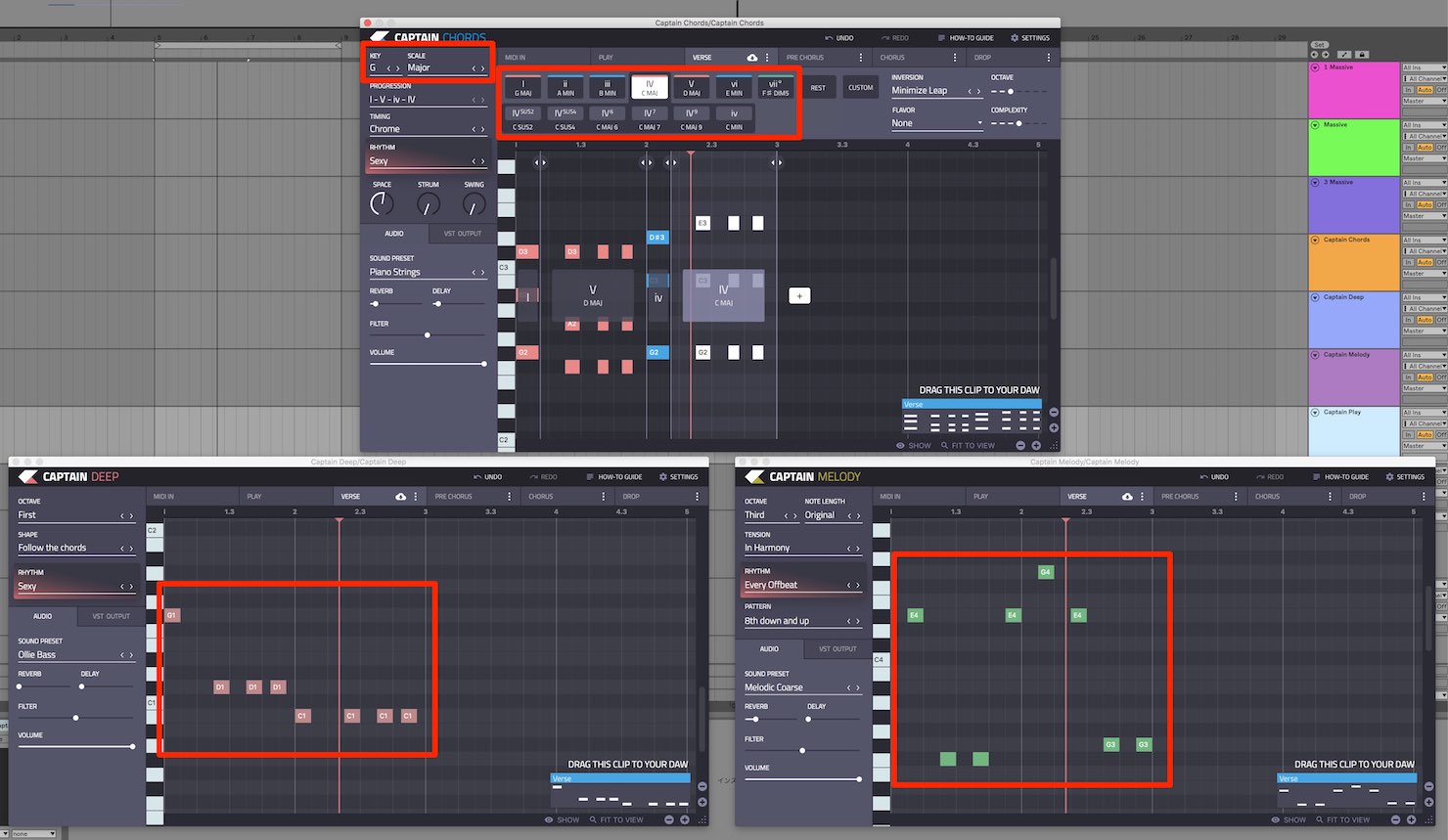
if you change the KEY, SCALE, or chords in Captain Chords, both Deep and Melody follow those changes.
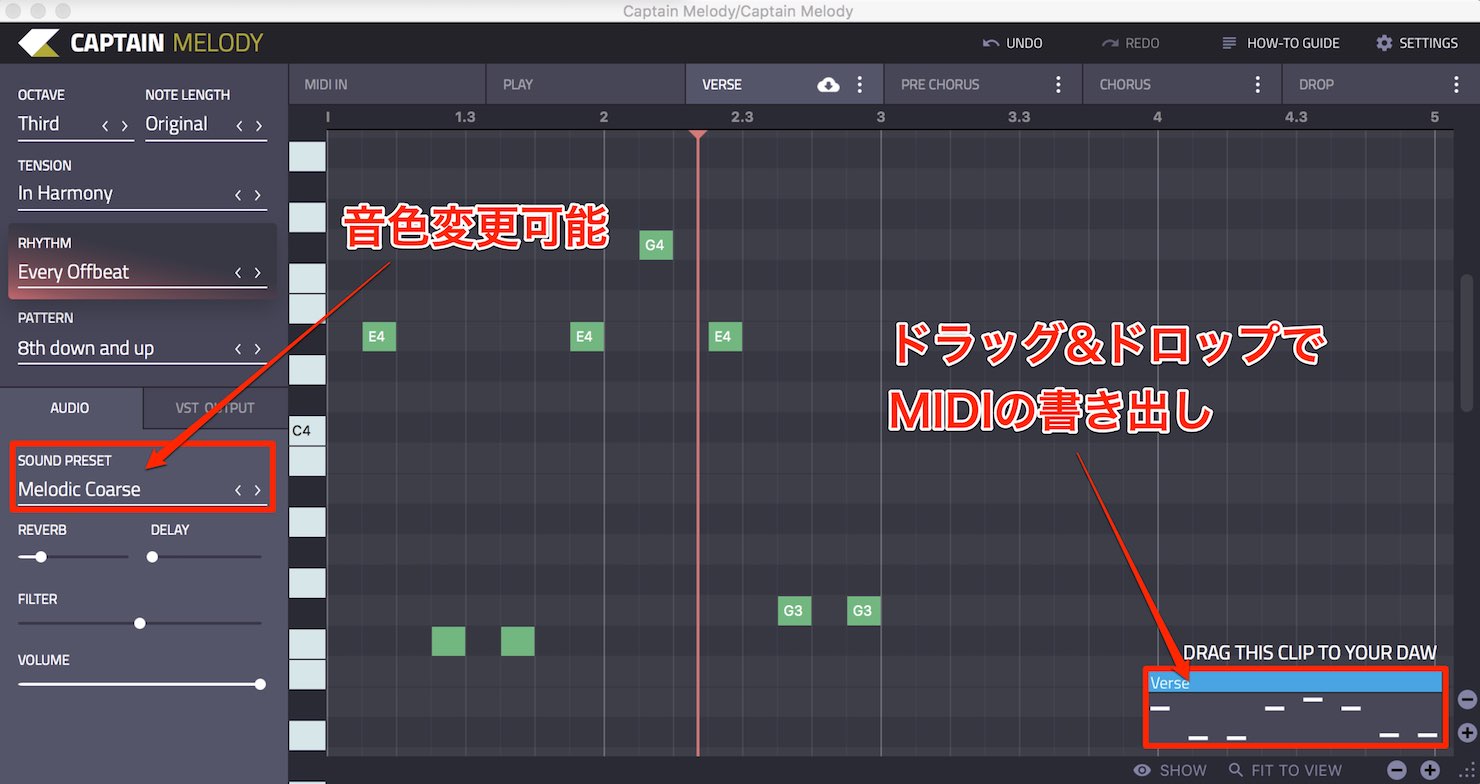
Captain Melody also lets you change sounds with SOUND PRESET and export MIDI by dragging and dropping the box at the lower right.
Both Captain Deep and Captain Melody produce repetitive, loop-like parts that feel well suited to dance music.
You can use them as they are, but another approach is to find ideas with Captain Chords, Deep, and Melody, then export the MIDI and change a few notes to make the parts your own.
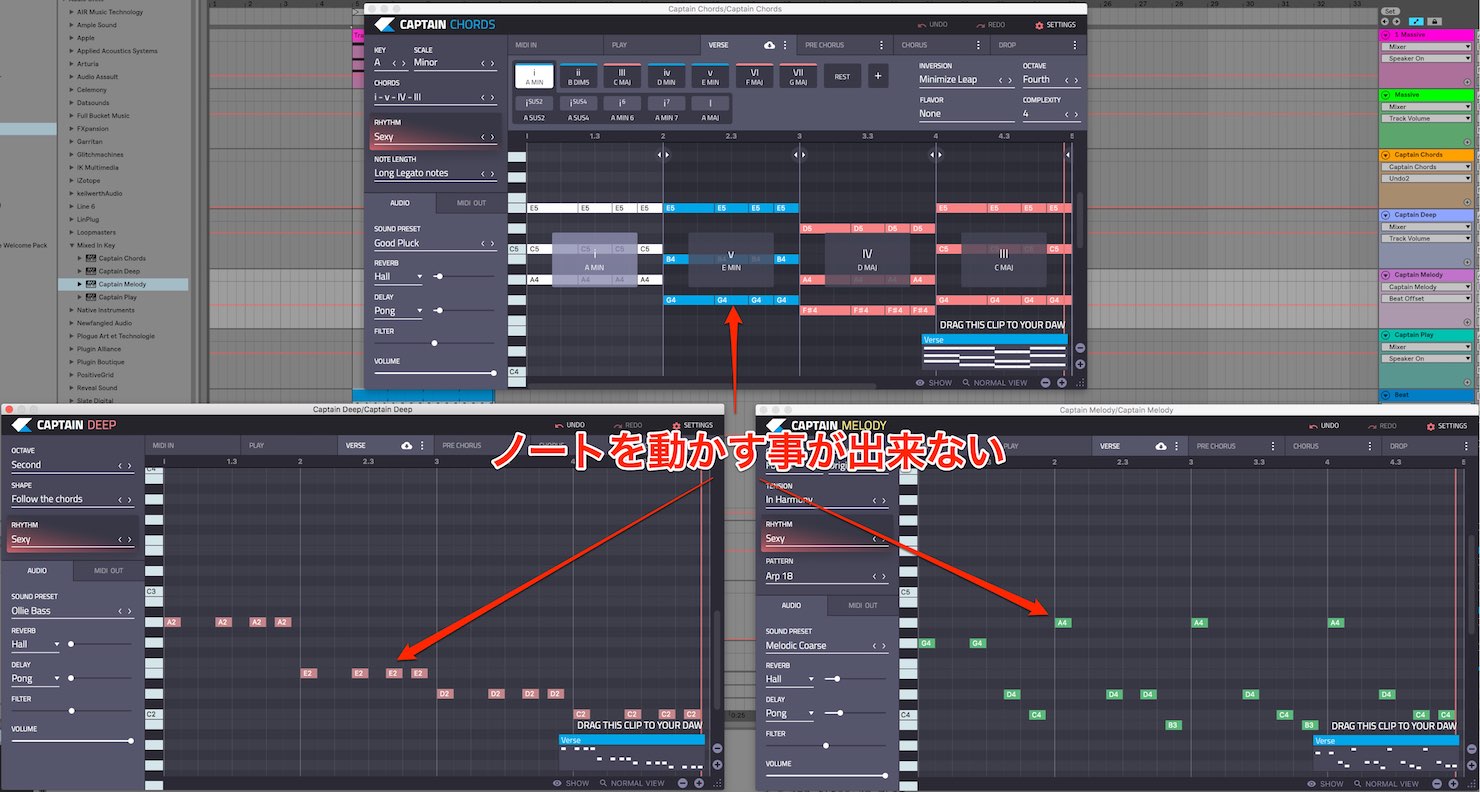
Unfortunately, in the versions covered here, Captain Chords, Deep, and Melody do not let you edit individual notes directly.
Export the MIDI first, then move the notes in your DAW.
Linking Captain Chords, Deep, and Melody is a great way to develop song ideas. But if you want a more intuitive approach, Captain Play may be just what you need.
How to Use Captain Play
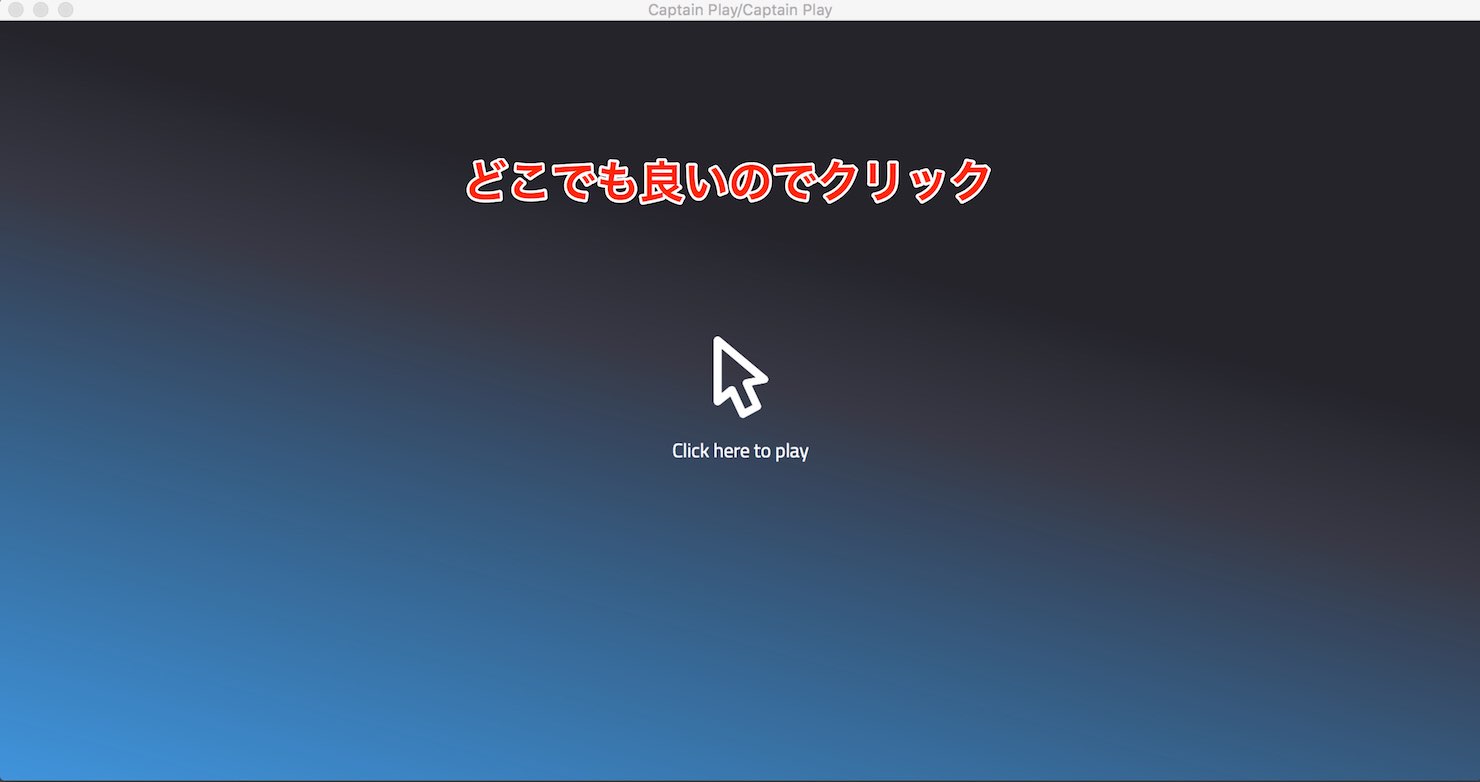
Opening Captain Play brings up this screen.
Click anywhere to continue.
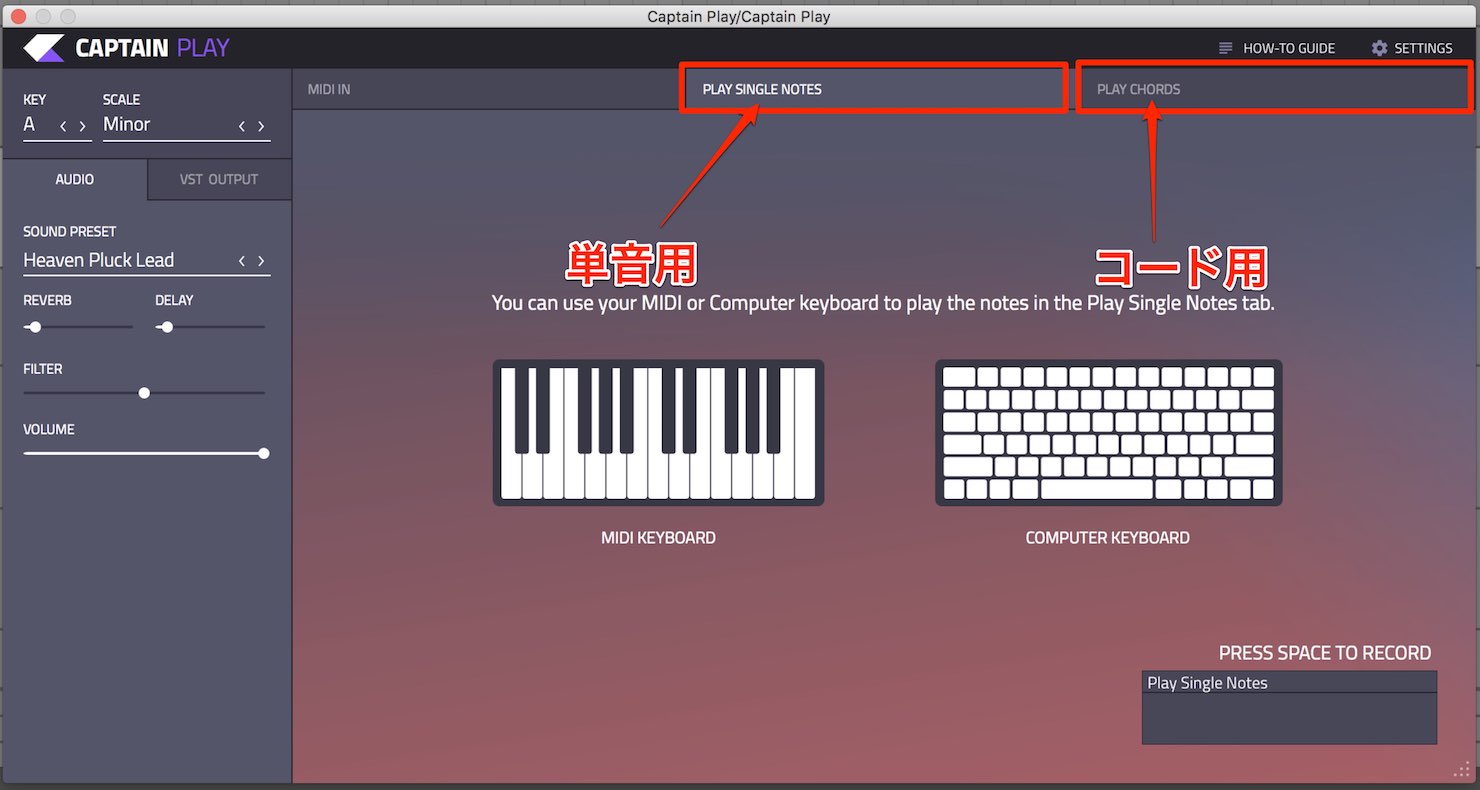
- PLAY SINGLE NOTES: for single-note parts such as melodies and bass lines
- PLAY CHORDS: for chords
Let's start with PLAY CHORDS.
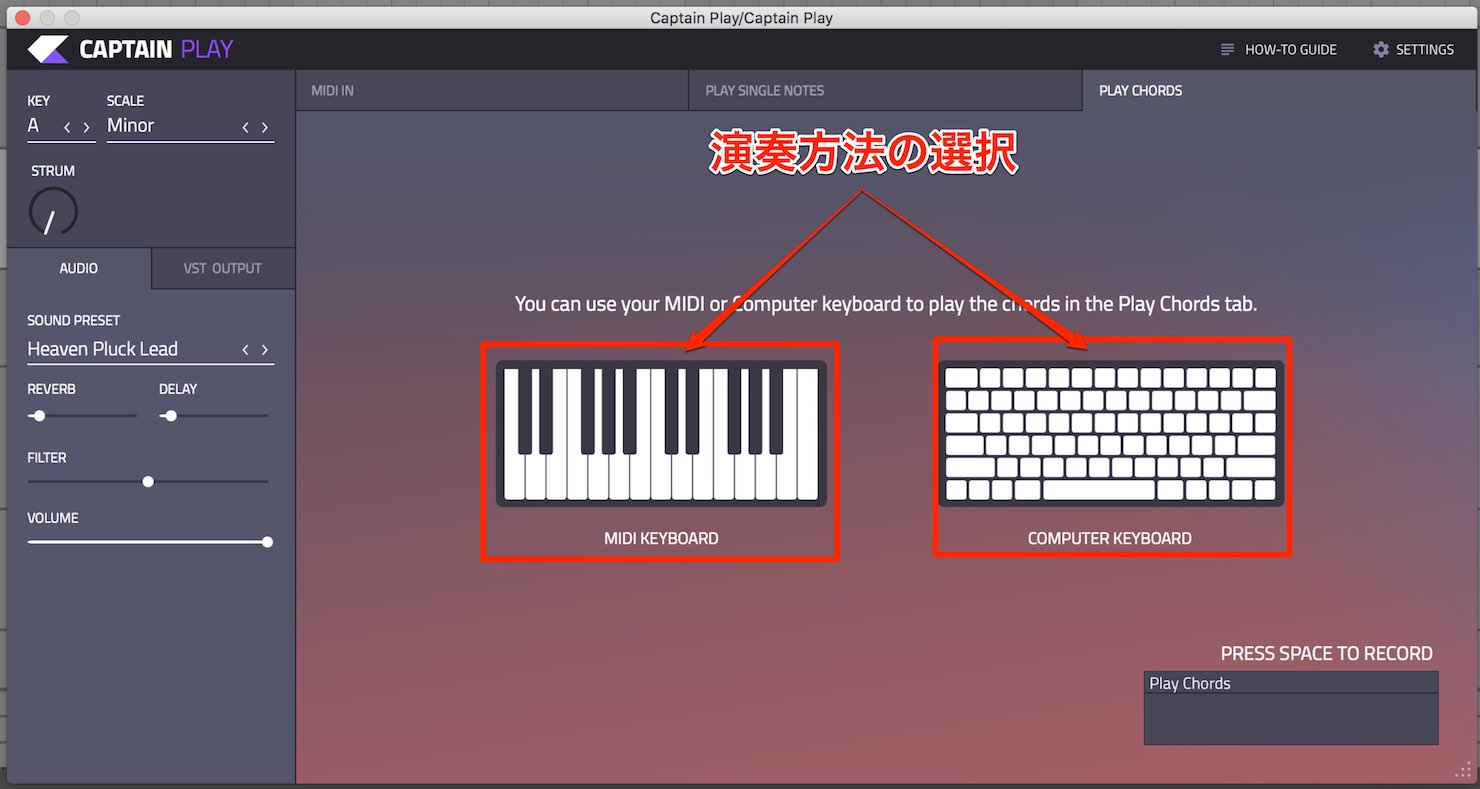
The center shows illustrations of a piano keyboard and a computer keyboard. Choose which one you want to play.
We will use the computer keyboard this time.
Click the computer keyboard illustration.
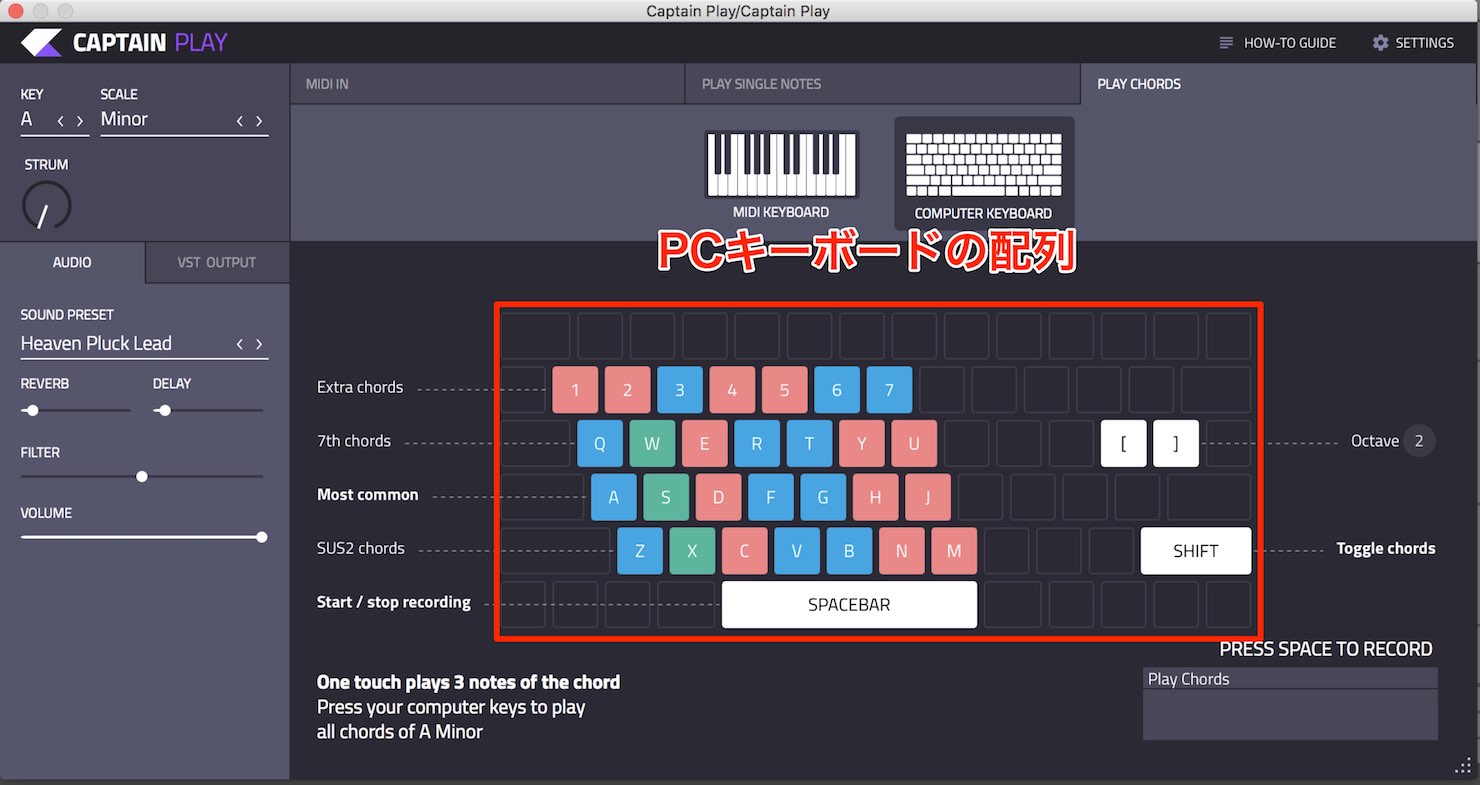
The computer keyboard layout appears as shown here.
Pressing one of the highlighted keys produces sound.
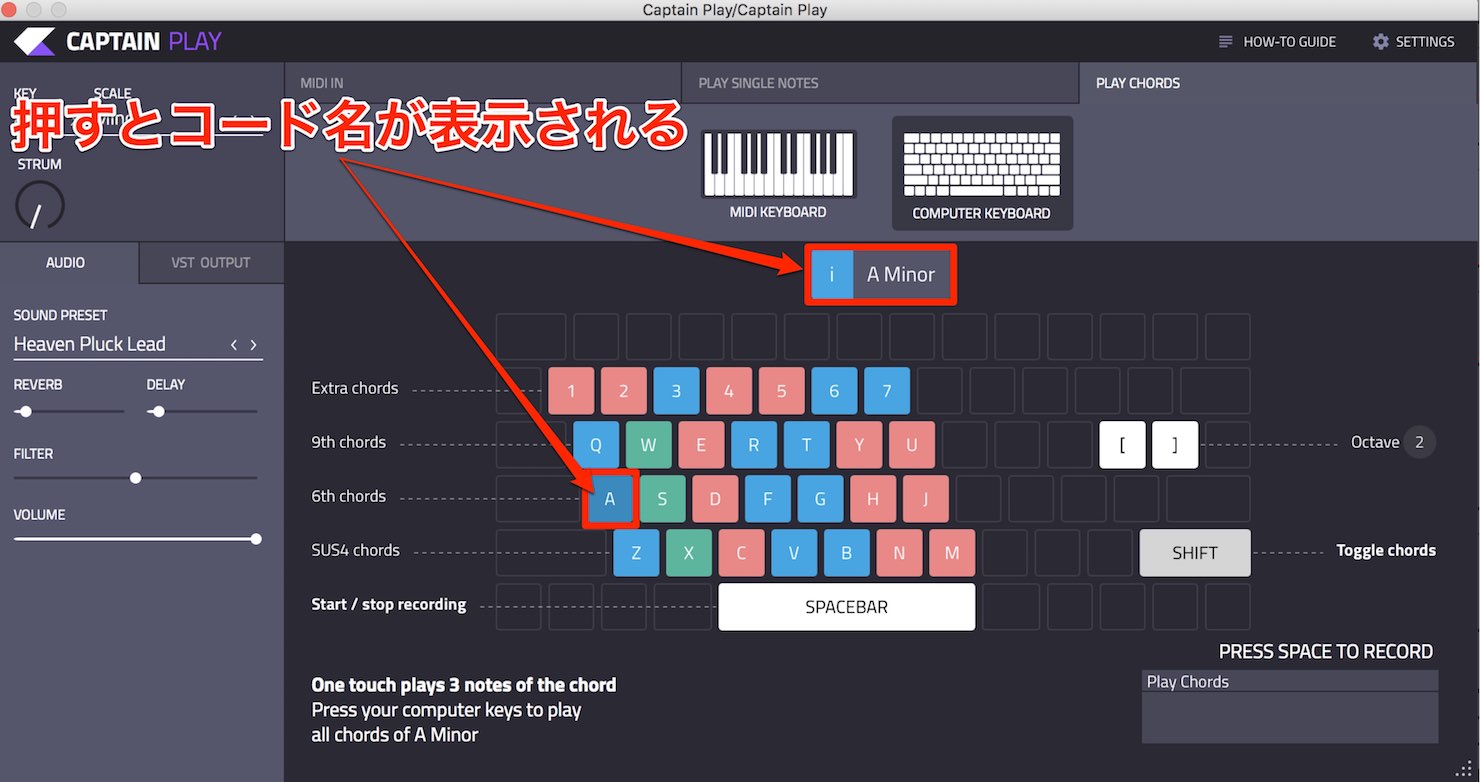
When you press a key, the chord name appears above.
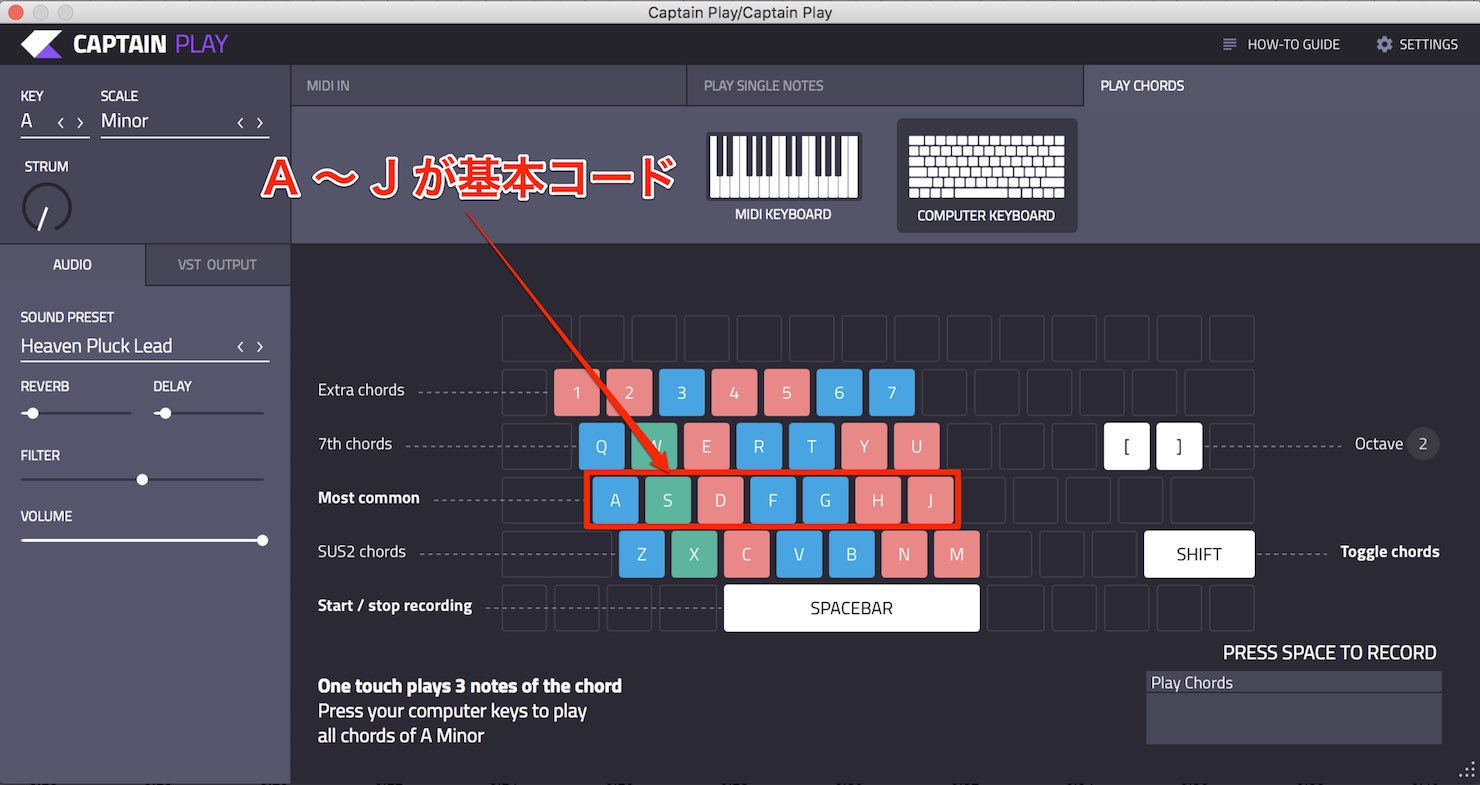
The keys from A through J play the basic chords in the selected key and scale.
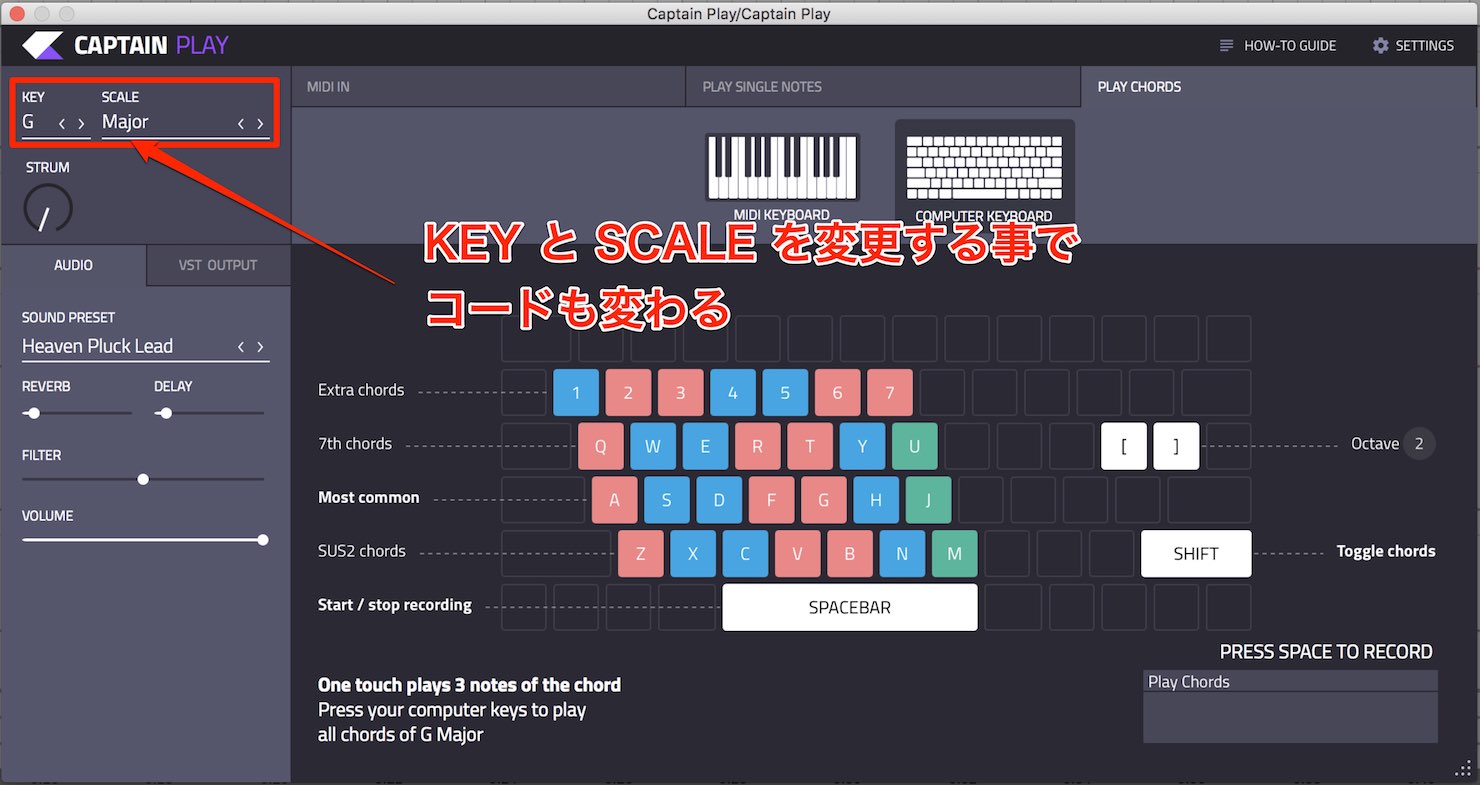
As in Captain Chords, changing KEY and SCALE at the upper left changes the available chords.
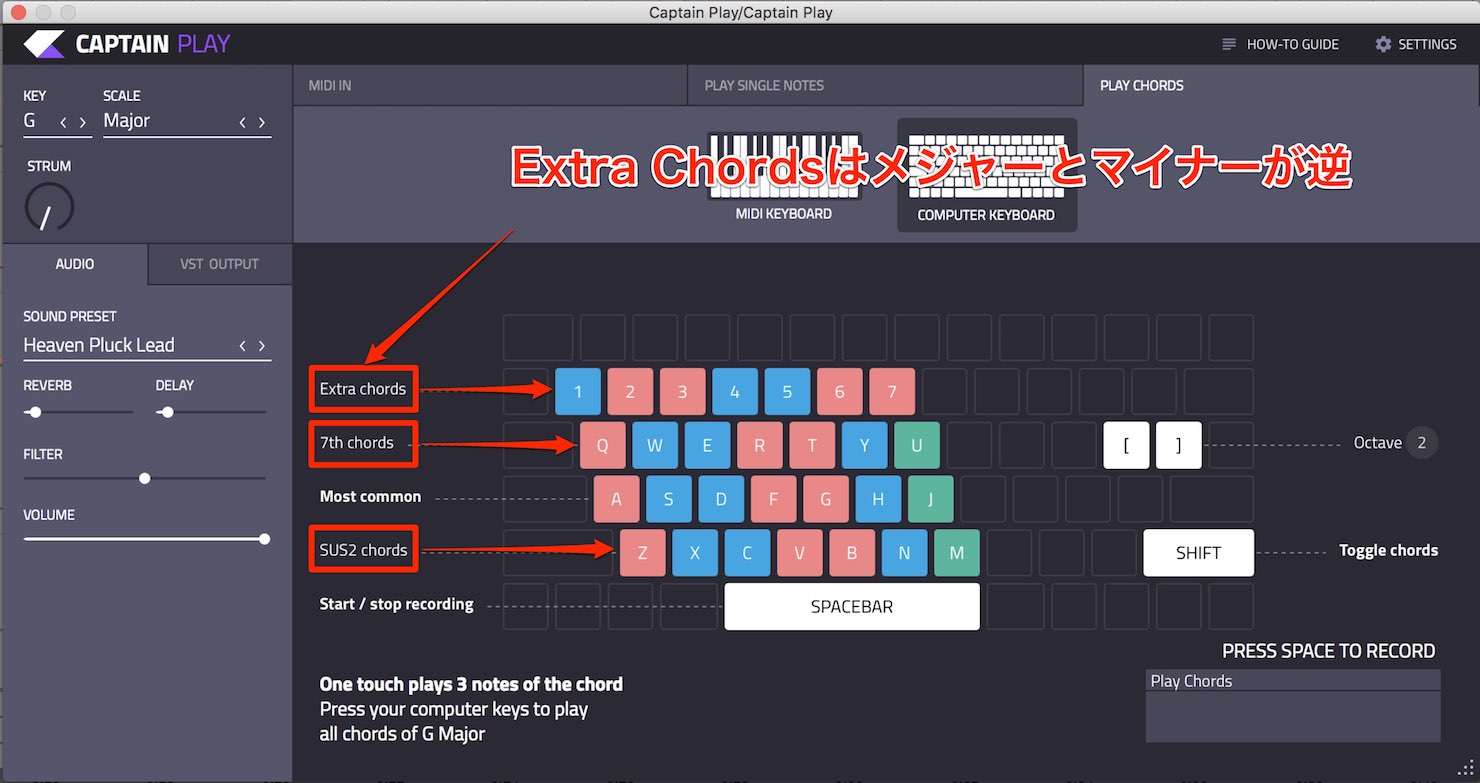
Sus2 and seventh chords are also available.
Extra Chords switches major chords to minor and vice versa.
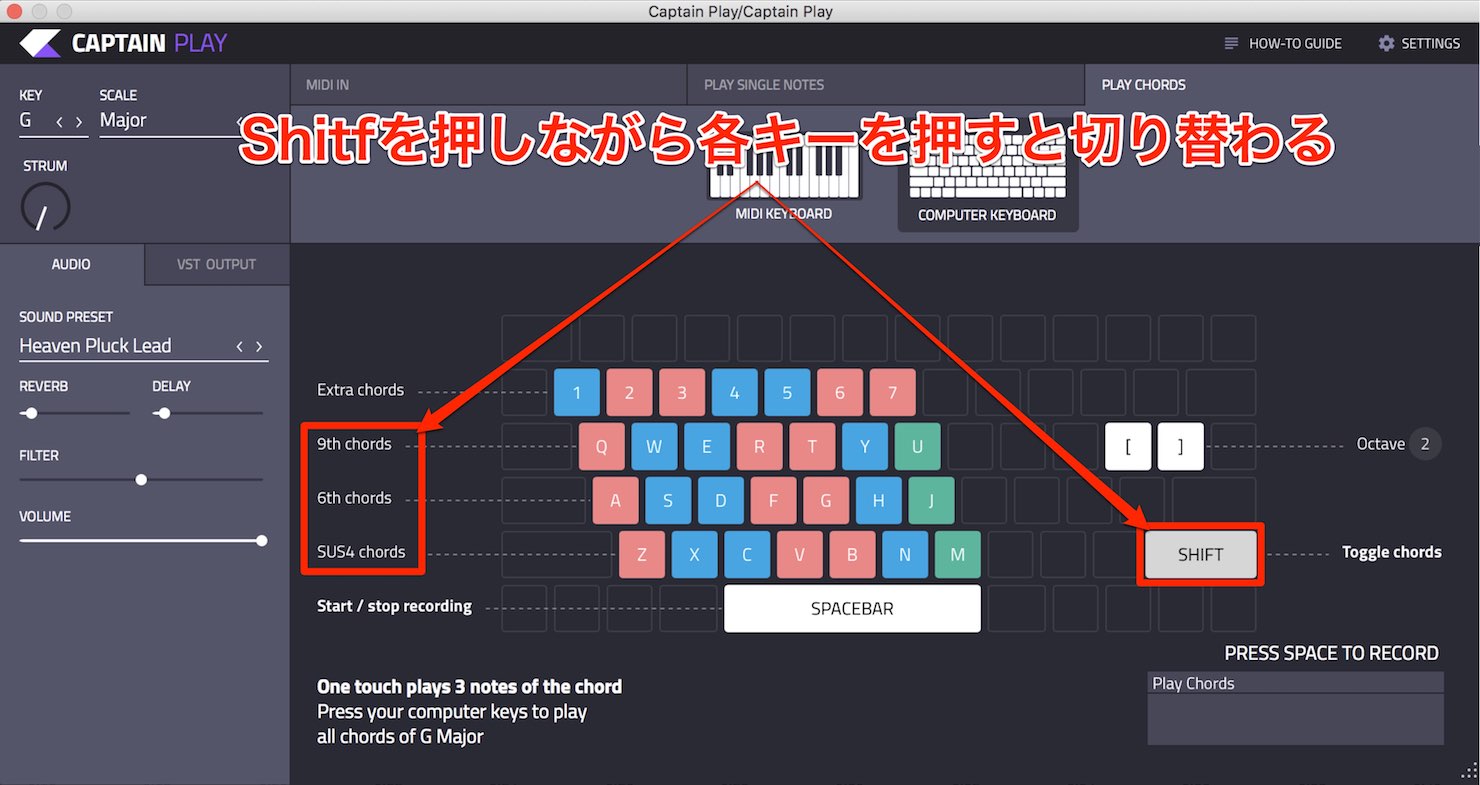
Hold Shift while pressing the keys to switch to ninth, sixth, and sus4 chords.
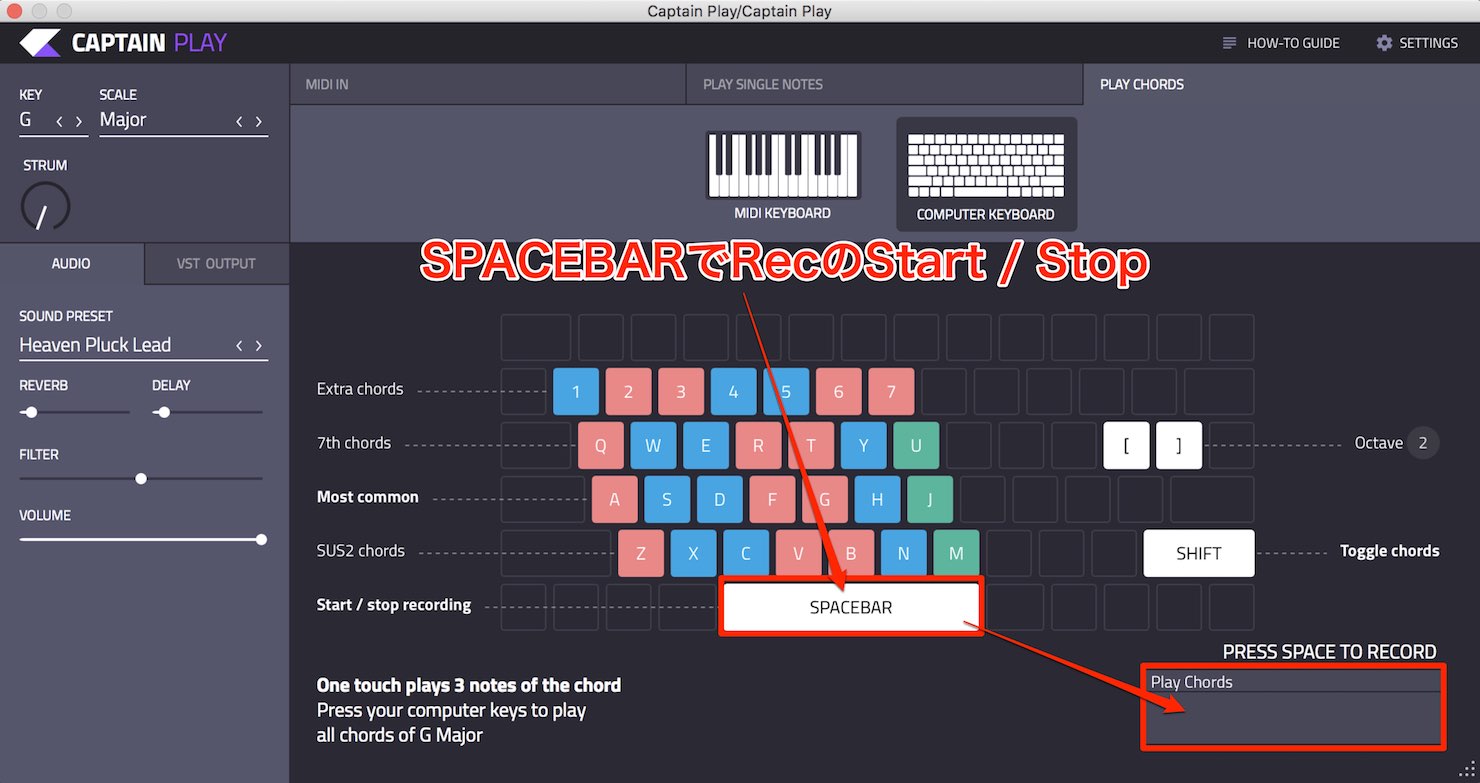
Another useful feature is that the space bar on your computer keyboard starts and stops recording.
Press the space bar and try playing in time with the rhythm.
If you make a mistake, stop and start again to try another take.
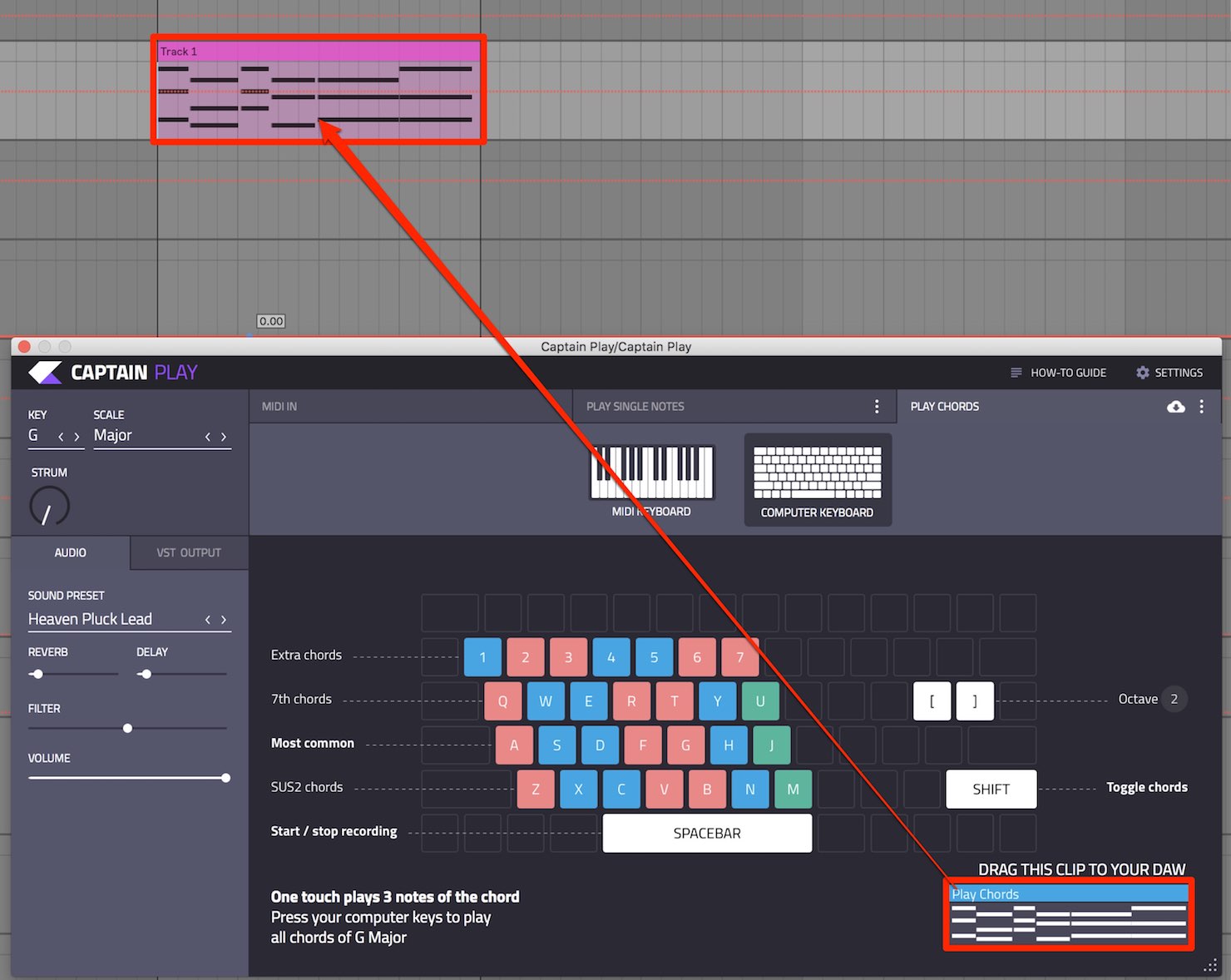
Your performance is recorded as MIDI in the box at the lower right. Drag and drop it onto a track that already contains a synthesizer or another instrument.
If the timing is off, quantize the notes in your DAW.
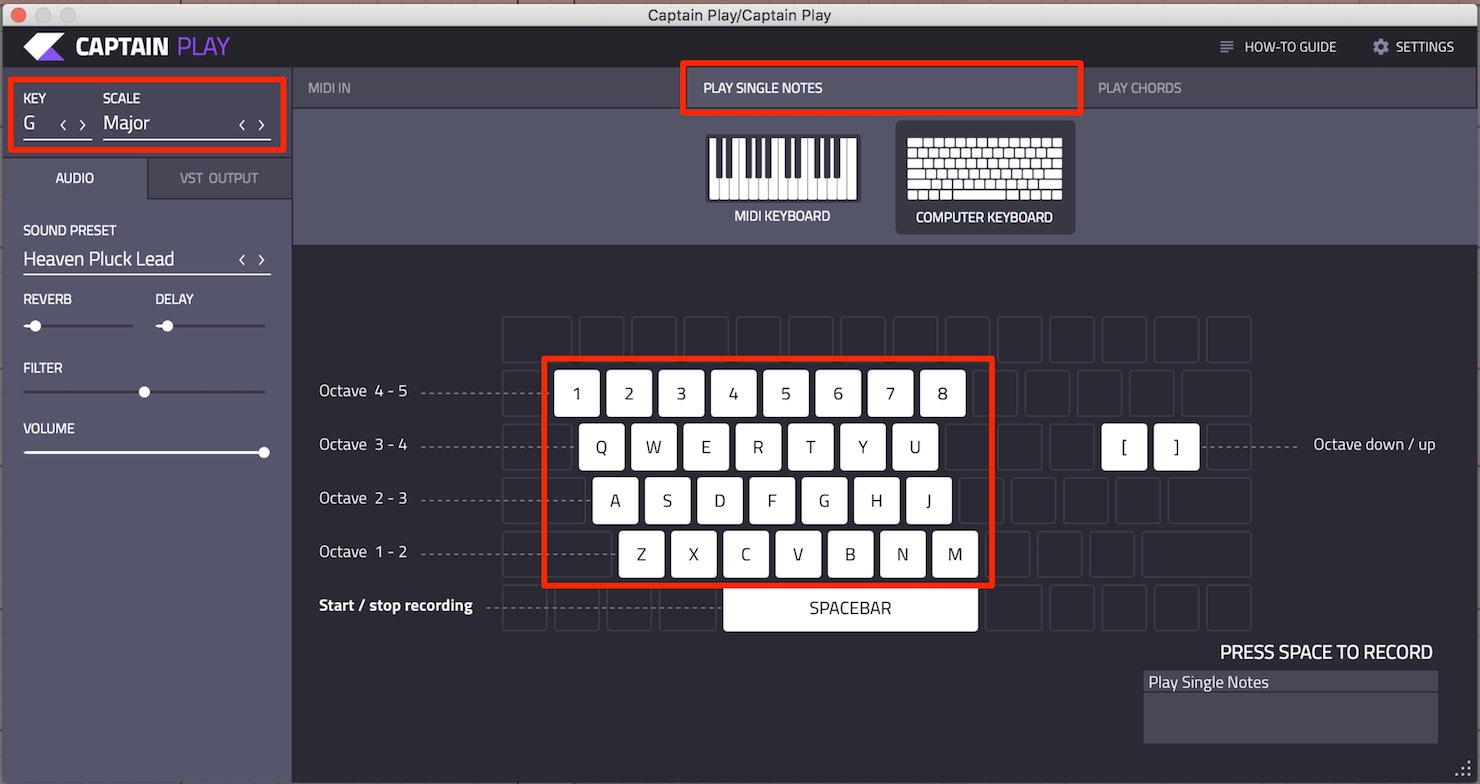
Next, open the PLAY SINGLE NOTES tab.
You can play individual notes that fit the selected KEY and SCALE.
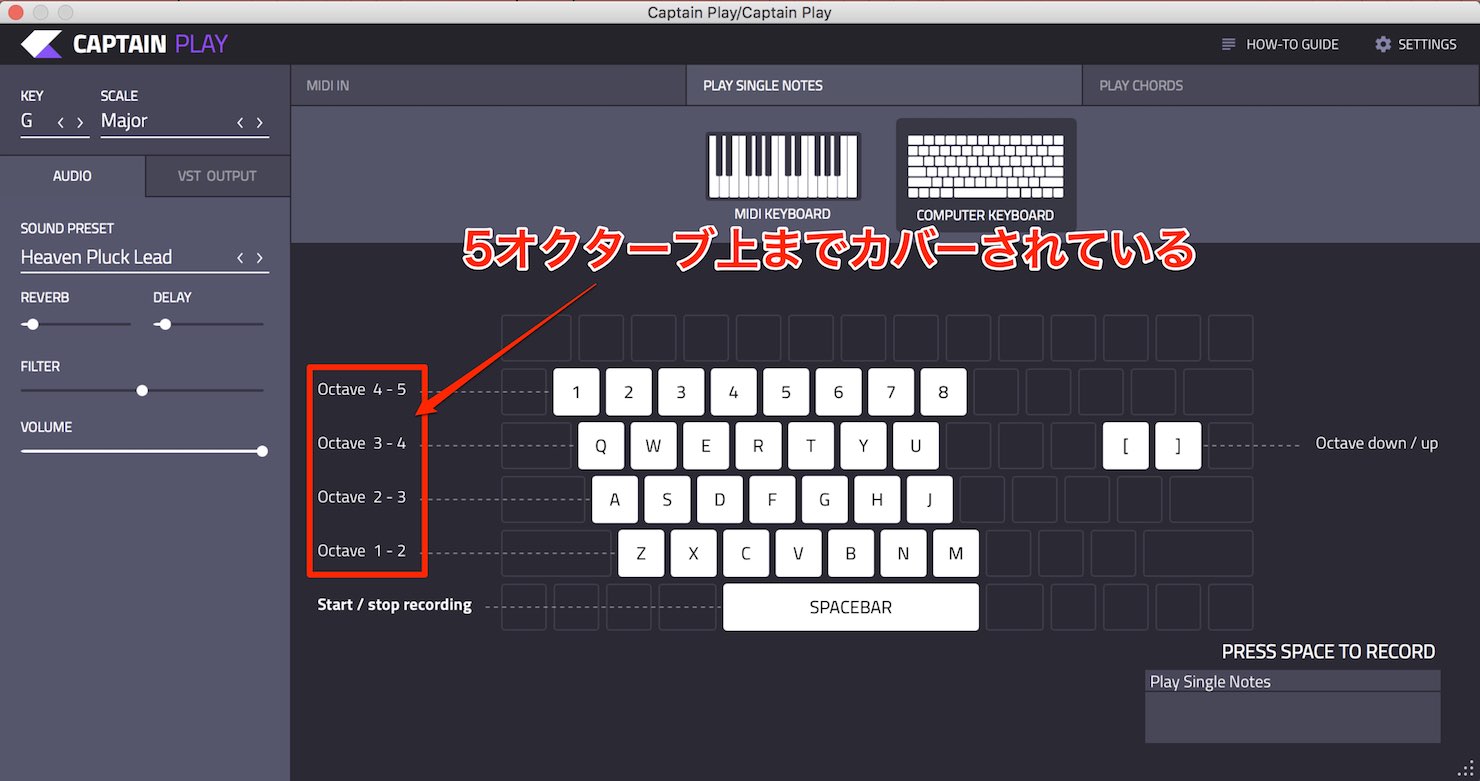
You can play up to five octaves higher.
You can record here too, so play along with the track to explore ideas.
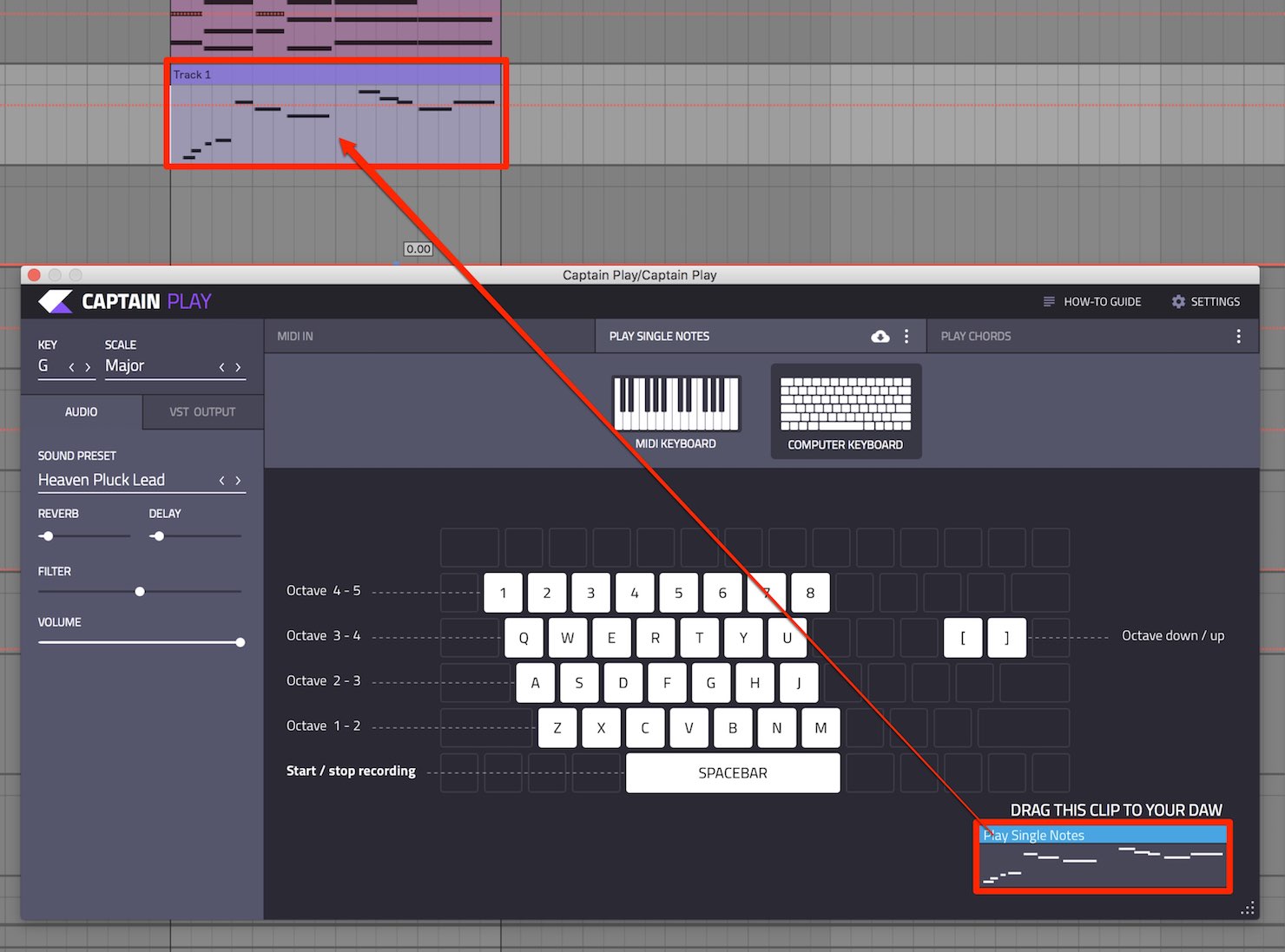
When you have finished recording, drag and drop the MIDI onto a track containing a synthesizer or another instrument.
Do the same for the bass, and you can build the framework of a song in no time.
What do you think of Captain Plugins?
With Captain Chords, Deep, Melody, and Play,
you can discover fresh ideas and compose intuitively.
It is a very useful set of tools.
We think it is worth trying.
Frequently Asked Questions
Q1. Do I need a knowledge of music theory to use Captain Plugins?
No. Simply choose a key and scale to display the available chords automatically. Selecting presets makes it easy for beginners to create chord progressions.
Q2. Can I use the generated chord progressions and melodies with other synthesizers?
Yes. You can export the content generated by each plug-in as MIDI by dragging and dropping the box at the lower right, then use it with other synthesizers in your DAW.
Q3. Can I use Captain Chords, Deep, and Melody at the same time?
Yes. After creating a chord progression in Captain Chords, click Connect in Captain Deep and Captain Melody to link them. They will automatically generate a bass line and melody that fit the chord progression.
Q4. Can I edit the notes directly?
No. In the versions covered here, Captain Chords, Deep, and Melody do not allow direct note editing. Export the parts as MIDI, then edit the notes in your DAW to create your own arrangement.
NEW ARTICLES
Latest English Articles



































































































































































































































































































