
An accurate monitoring setup can make a major difference to mixing and mastering decisions. Sonarworks Reference 4 Studio Edition measures the response of your speakers and room with a measurement microphone and creates a calibration profile to compensate for frequency-response irregularities. The measurement process shown here takes around 15–20 minutes. It also supports compatible headphones and can run either systemwide or as a DAW monitoring plug-in. This tutorial covers the Reference 4 workflow from September 2020. Calibration can improve tonal accuracy at the listening position, but it does not replace acoustic treatment or turn every room into a professional studio. Reference 4’s filter modes also involve different phase and latency behavior.
Calibrate Your Speakers for Your Room
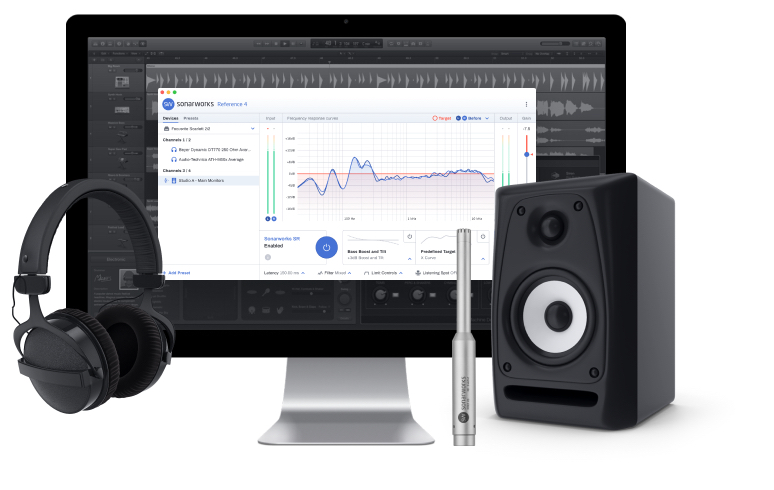
Music production involves many stages, including composition, arranging, mixing and mastering, but your monitoring setup matters at every stage.
What role does a sound play in the song? Does what you hear match what you intended?
For making those judgments during production, I believe there is a great deal to gain from a more accurate monitoring setup.
Unless you work in a studio designed specifically for music production, however, the room’s acoustics and the available speaker positions will inevitably impose some limitations.
You may have found yourself struggling to judge the sound clearly while you work.
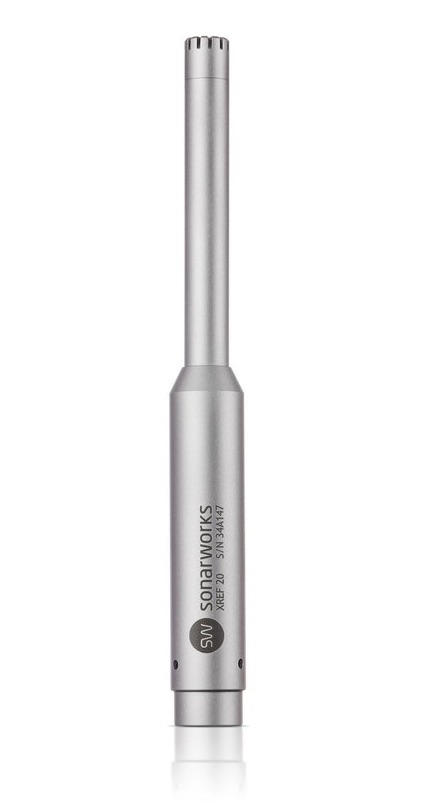
The tool I will introduce here to help address these problems is Reference 4 Studio Edition.
With a measurement procedure taking a few tens of minutes, it analyzes your room and speakers and creates a correction profile. The main correction concerns frequency response; the chosen filter mode determines the phase and latency trade-off.
Reference 4 Studio Edition was available as software alone as well as in a microphone bundle. In this tutorial, I use the official measurement microphone supplied with the bundle.
Reference 4 Studio Edition in Action: Video
The speaker-setup section uses Reference 4 from 6:29 in the video.
Setting Up and Using Reference 4 Studio Edition
Let’s use Reference 4 Studio Edition to set up calibrated monitoring.
After installing Reference 4 Studio Edition, launch Reference 4 Systemwide.
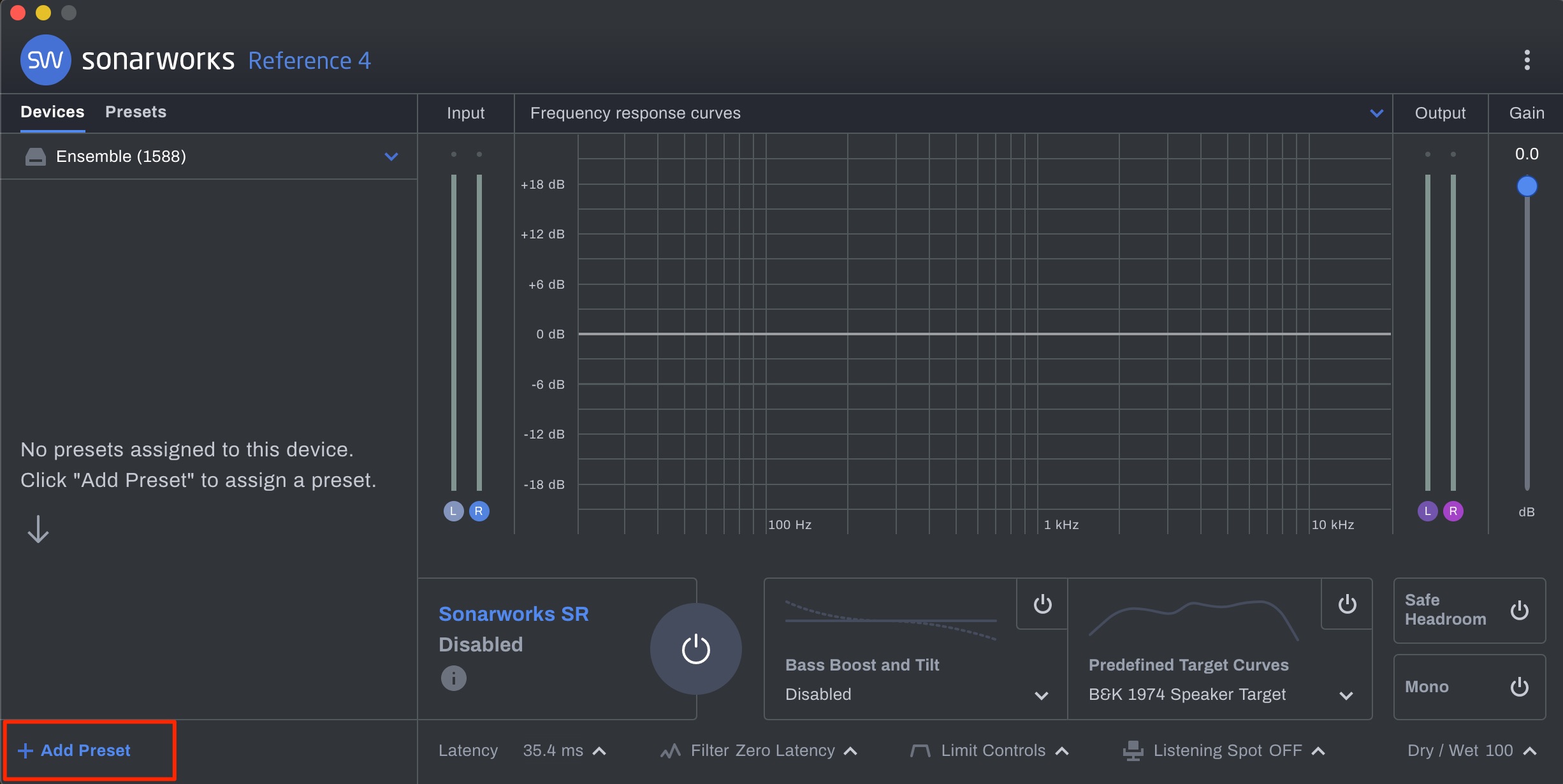
Click Add Preset at the bottom left to create a preset for your setup.
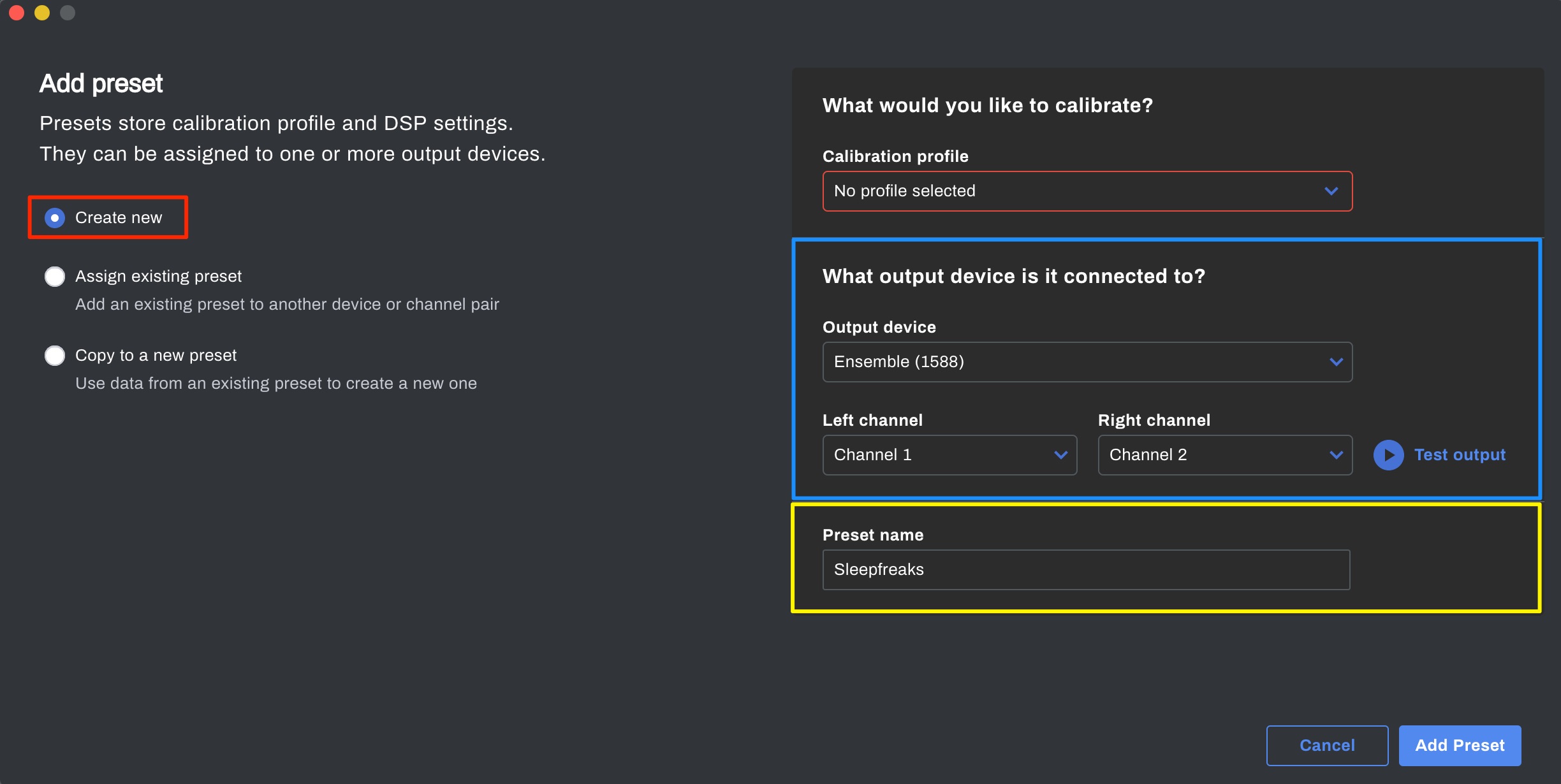
Select Create new, then enter the following settings on the right side of the window.
- Blue: Select the audio interface connected to your speakers and used for audio playback.
- Yellow: Enter a name for the preset.
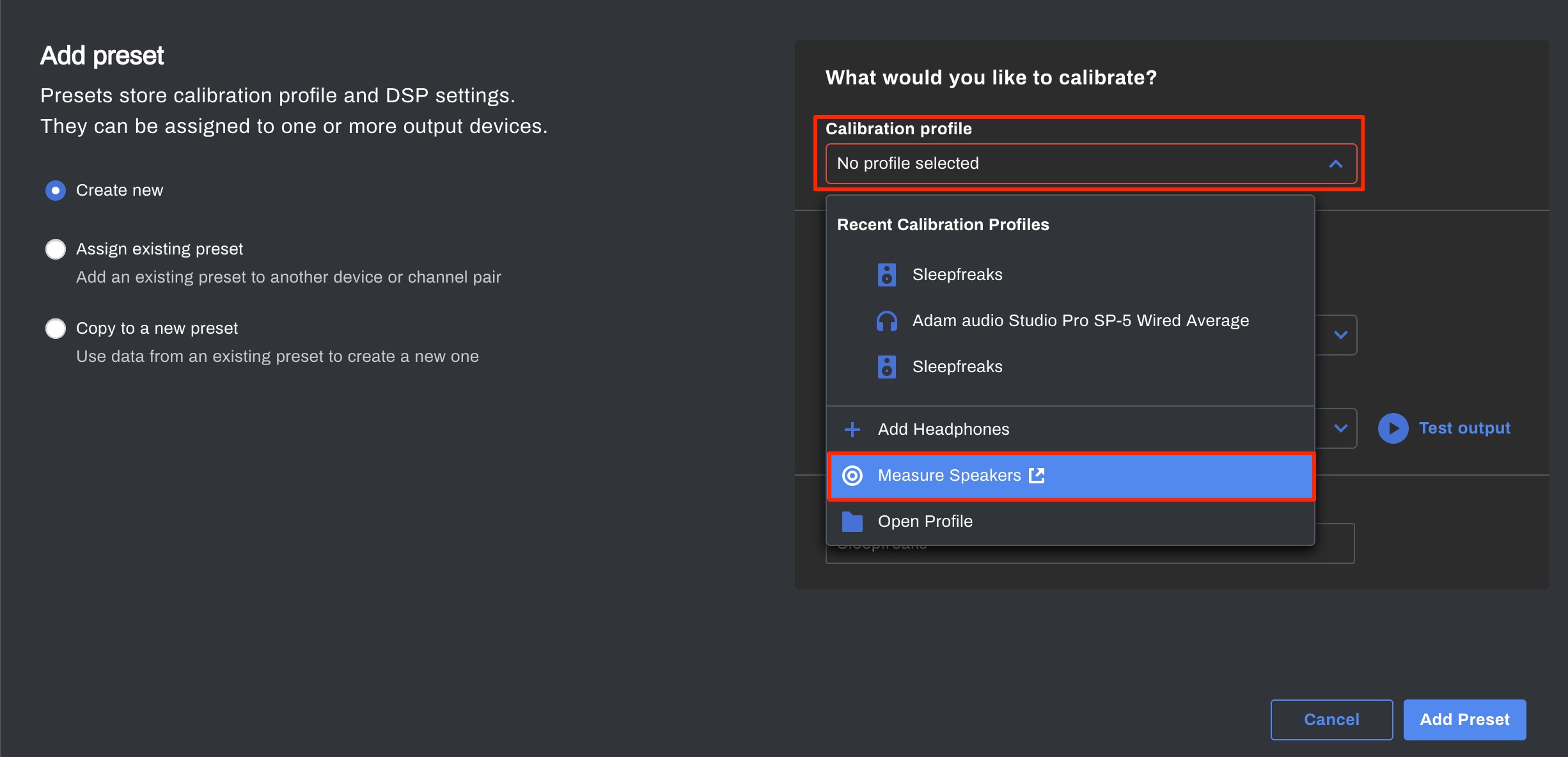
Next, select Measure from the top section.
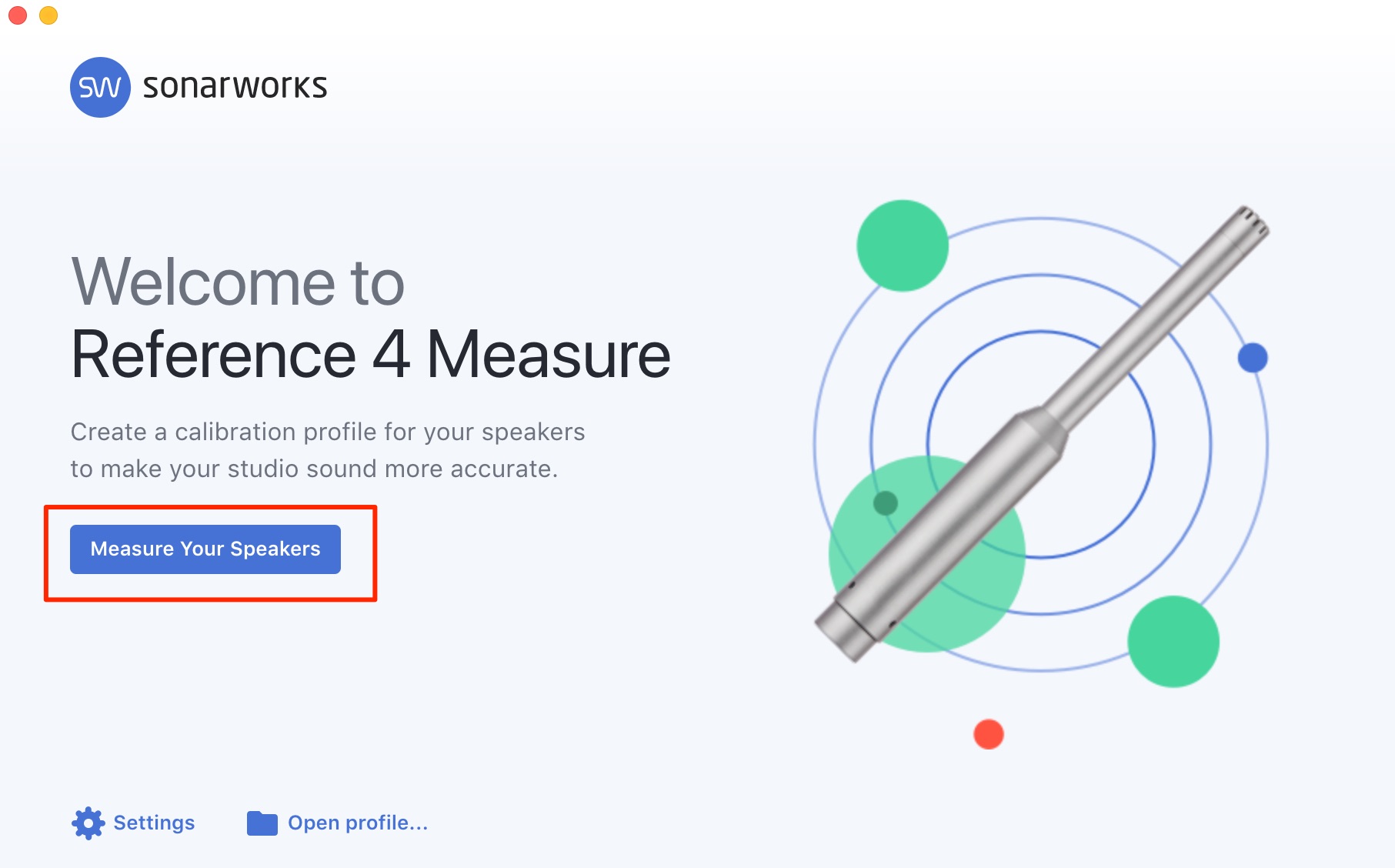
A new window opens. Select Measure Your Speakers.
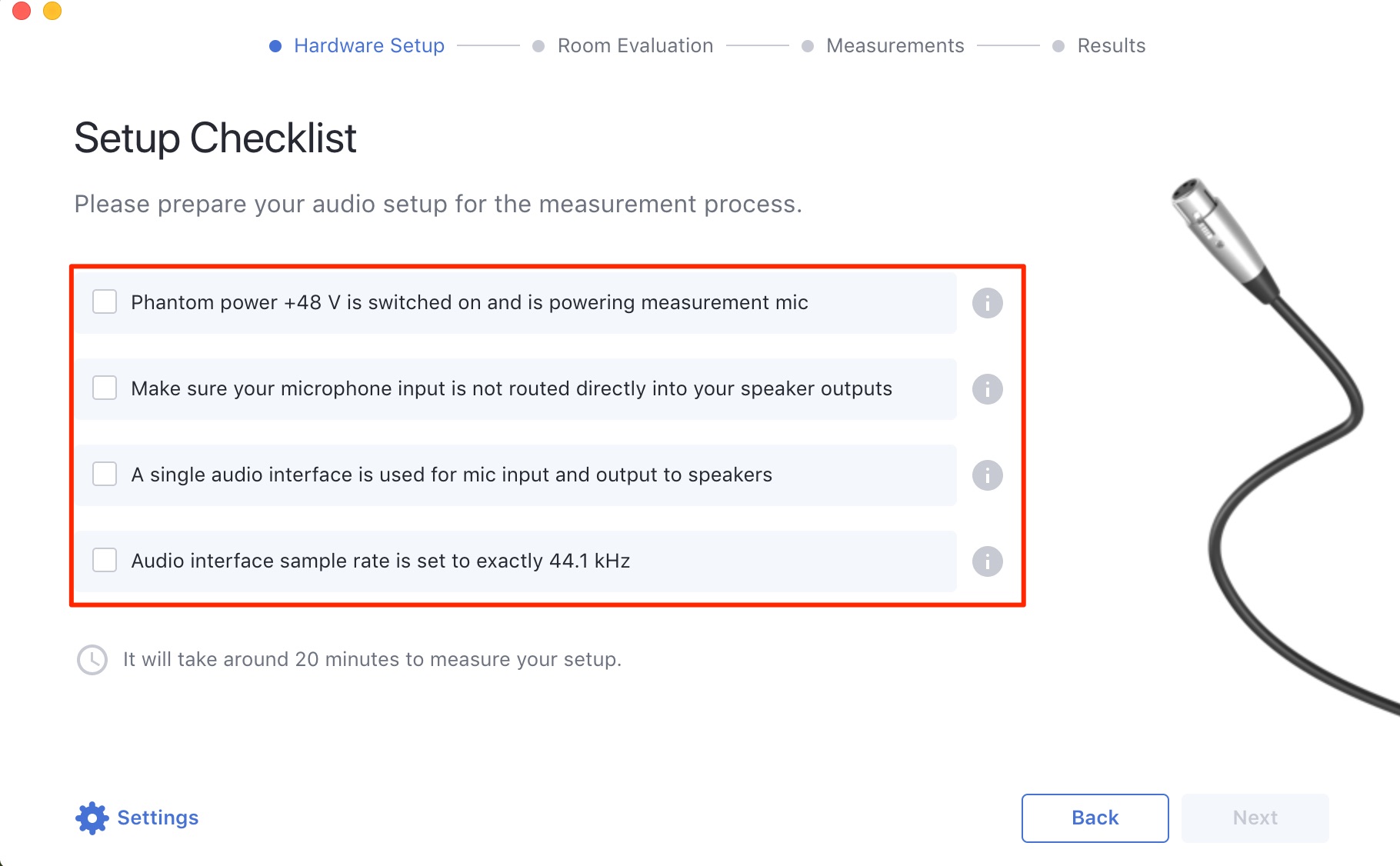
Check the four setup items and tick the boxes once you have confirmed them.
- Is the measurement microphone connected to the audio interface, with 48 V phantom power supplied to the condenser microphone?
- Make sure the microphone input is not being routed directly to the measurement speakers. Otherwise, it can cause feedback and compromise the measurements.
I recommend switching off input monitoring on the audio interface. - Check that the connected microphone registers an input signal and that the computer’s playback reaches the speakers. For this setup, use the same interface for the microphone input and speaker output.
- Is the audio interface’s sample rate set to 44.1 kHz for the Reference 4 measurement process?
Then click Next at the bottom right.
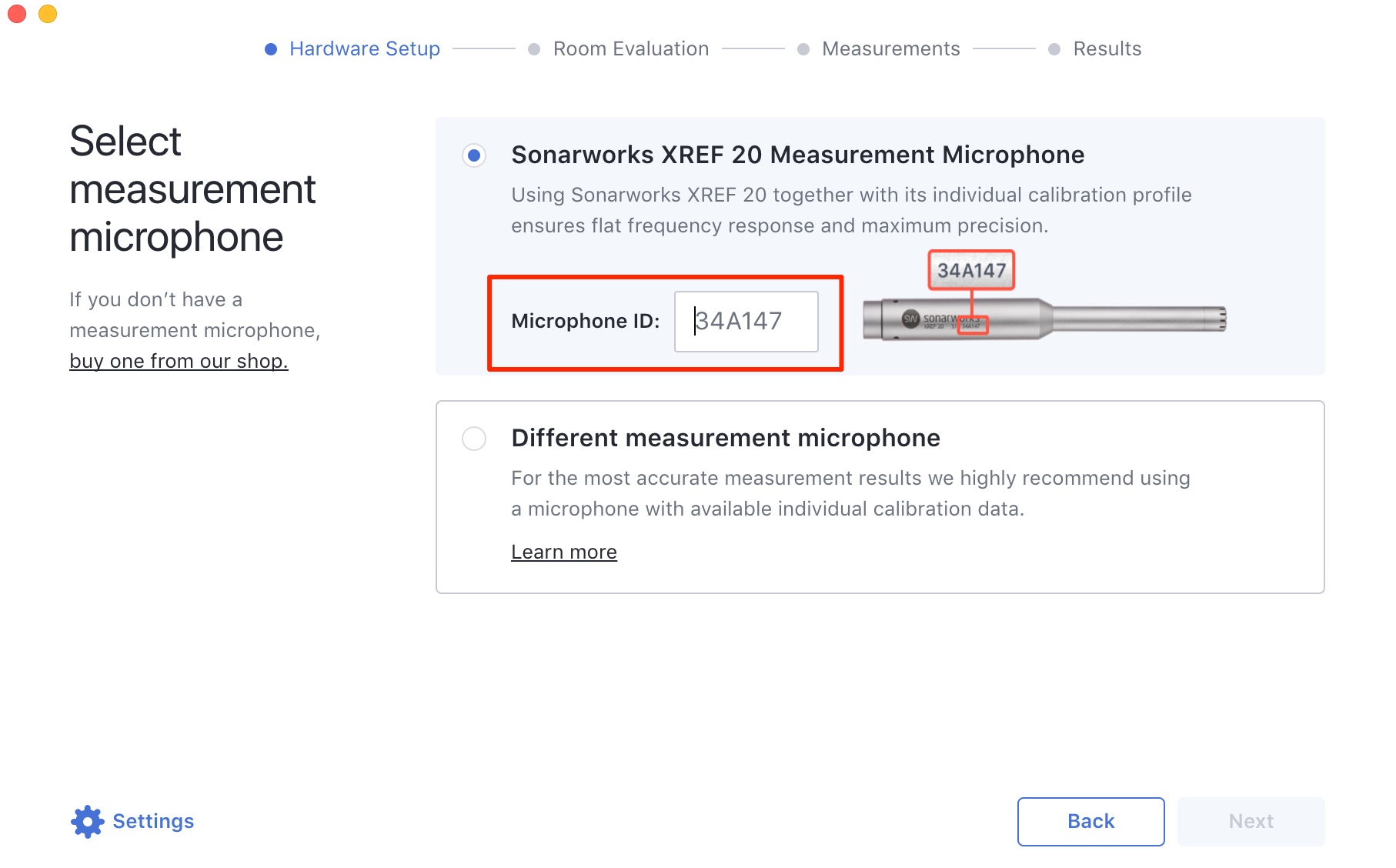
Because I am using the microphone from the Reference 4 bundle, I enter the serial number printed on it.
If you are using another suitable measurement microphone, choose Different measurement microphone instead. Use its calibration file when one is available.

You can check the audio signals here.
Confirm that the microphone input is working and that the speakers produce the playback signal, then click Next at the bottom right.
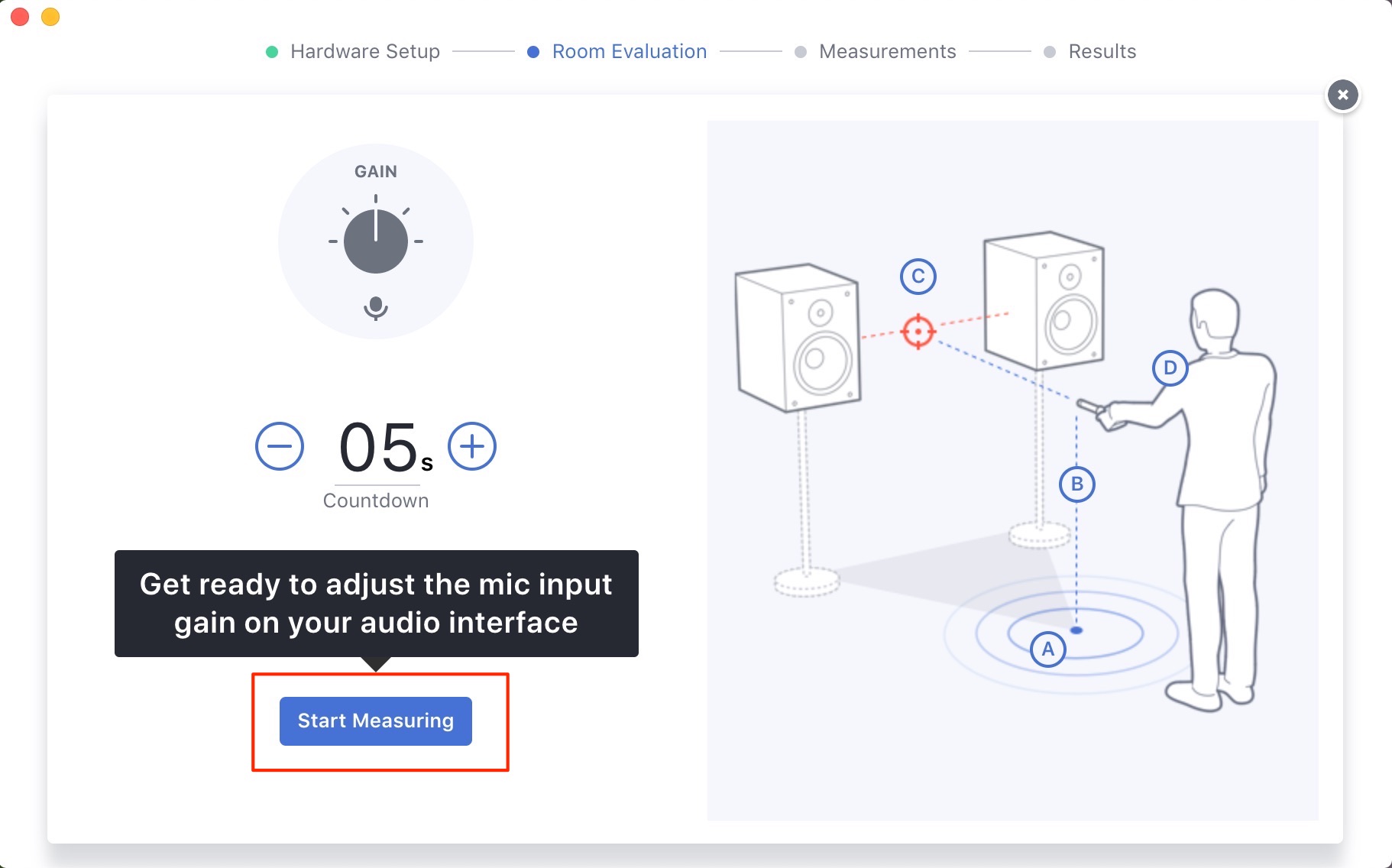
Click Start Measuring to begin.
Follow the on-screen illustrations and point the microphone as instructed.
The software automatically calculates the distance between the speakers and the distance to the listening position.
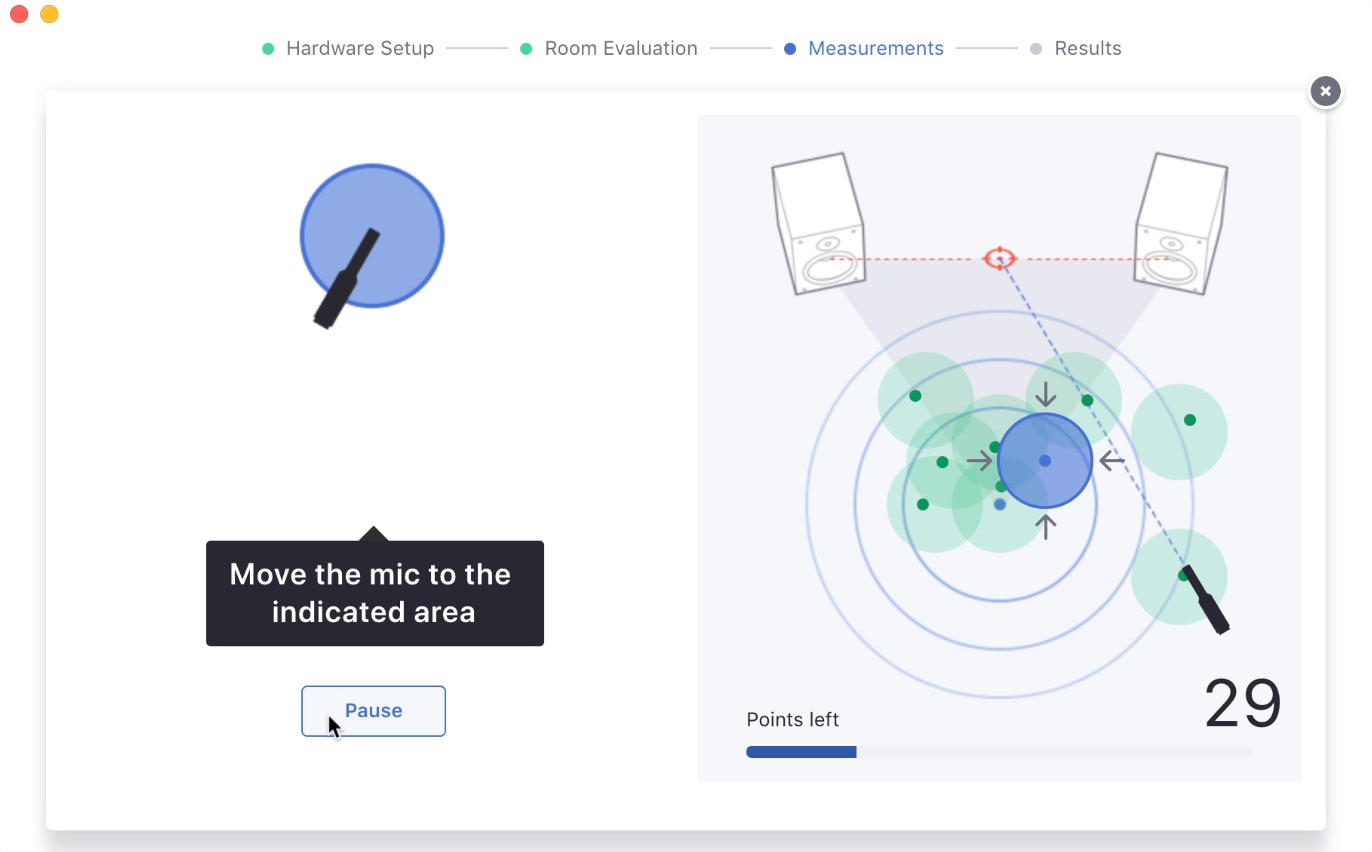
Once those measurements are complete, click the button at the bottom left to begin measuring the listening area.
An illustration on the right shows where to place the microphone. Move it to each indicated location as the measurements progress.
In this example, the process takes around 15–20 minutes.
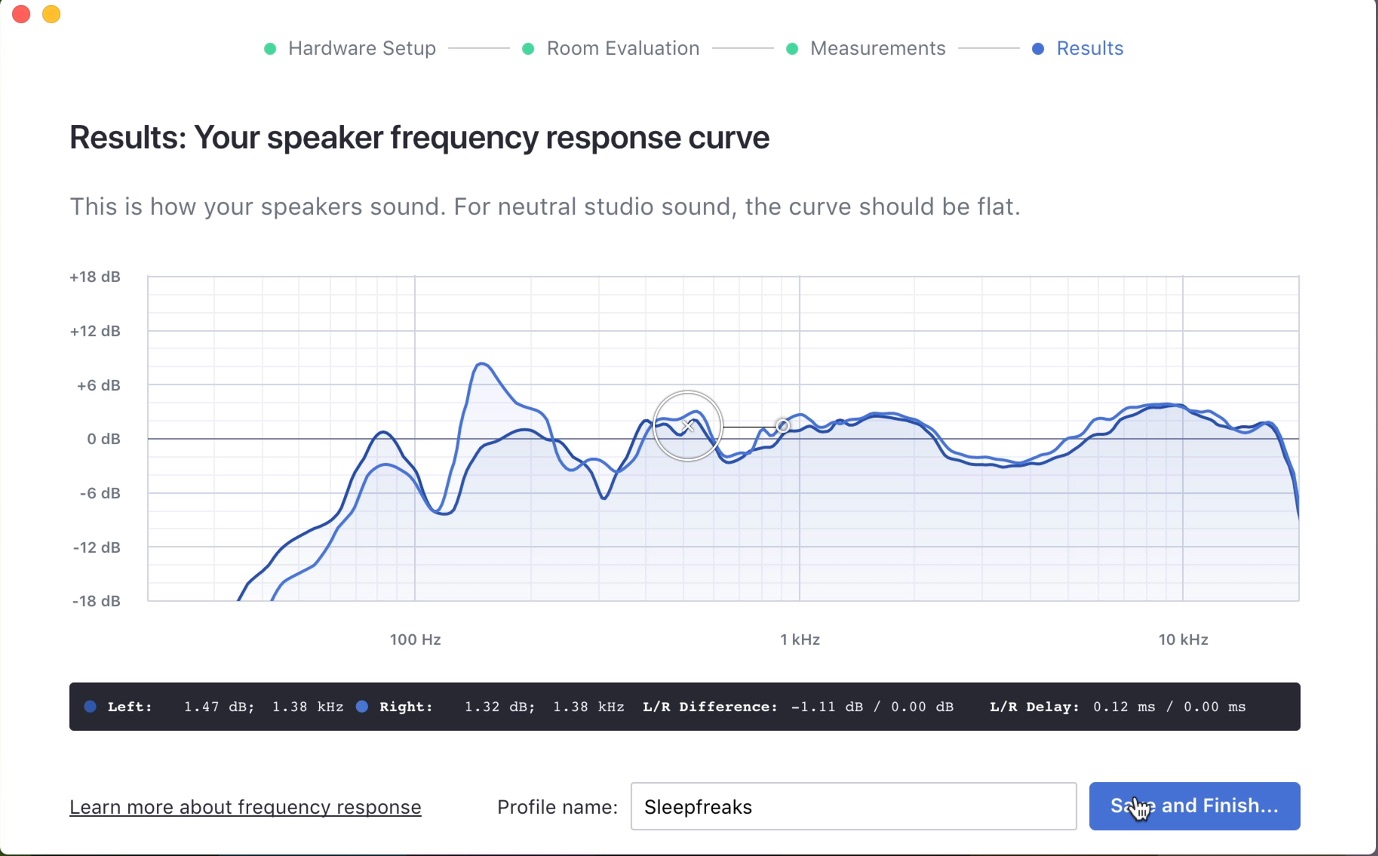
Once measurement is complete, the results show the measured response of the room and speakers, reflecting their placement and acoustic characteristics.
Click Save and Finish at the bottom right to save your custom preset.
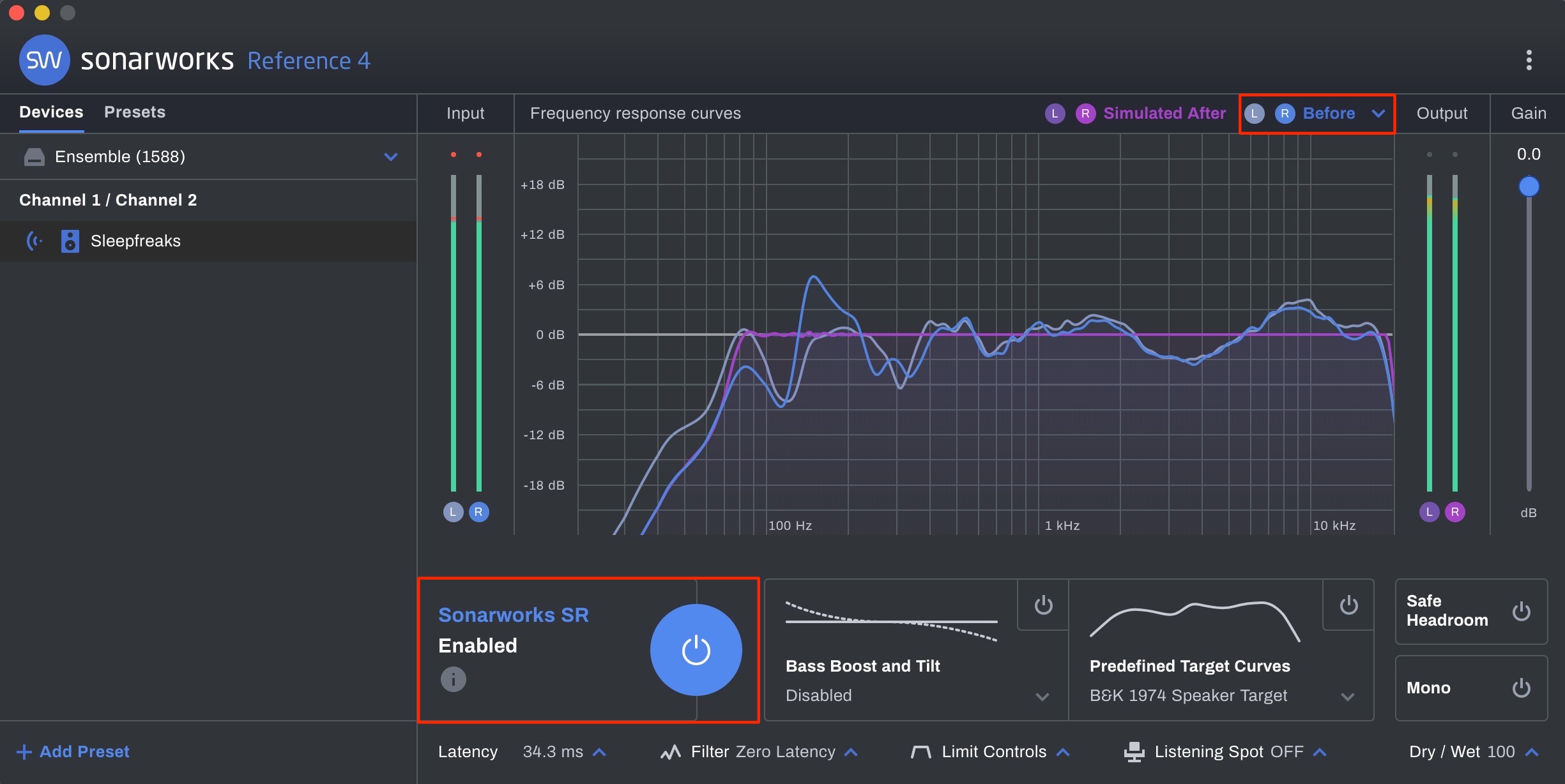
Switch on Enable to apply the calibration based on the measured response of your setup.
I found the difference in sound striking.
Use the display options at the top right to compare the response before and after correction and inspect the available frequency and phase views.
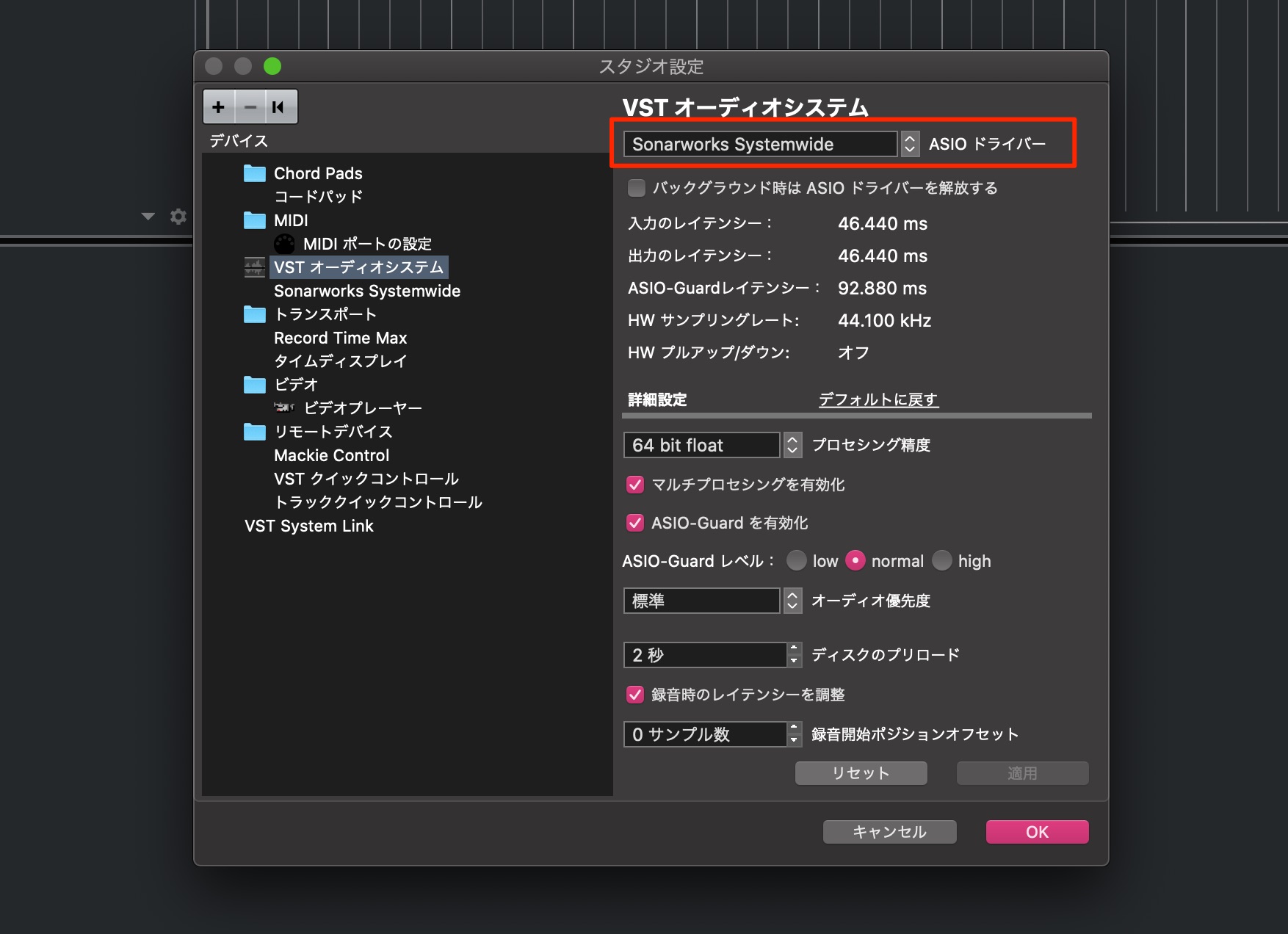
Select Sonarworks as the DAW’s output device to monitor with the Systemwide correction applied.
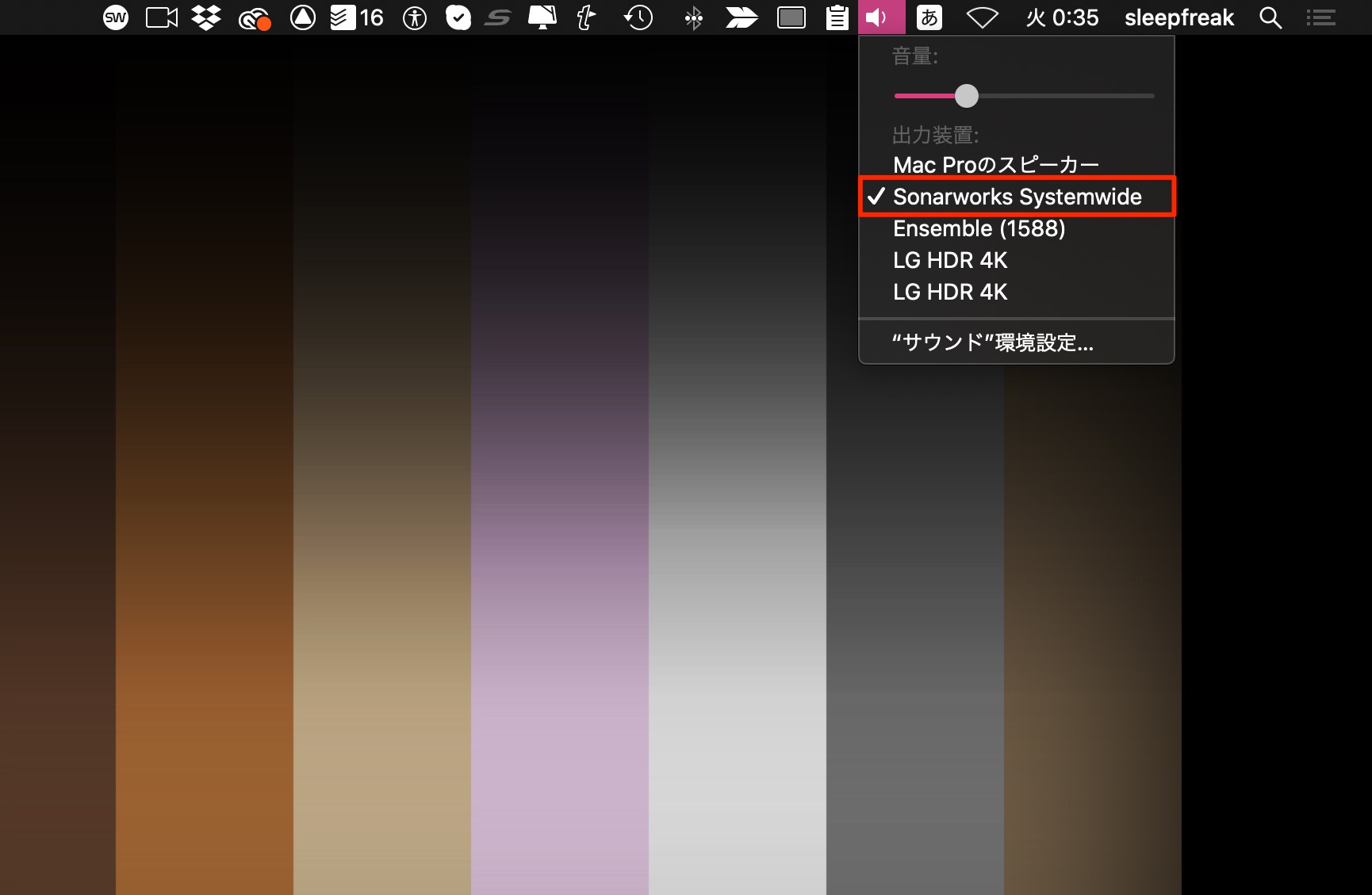
You can also select Sonarworks as the computer’s output device.
This lets you listen to music through the calibration as well.
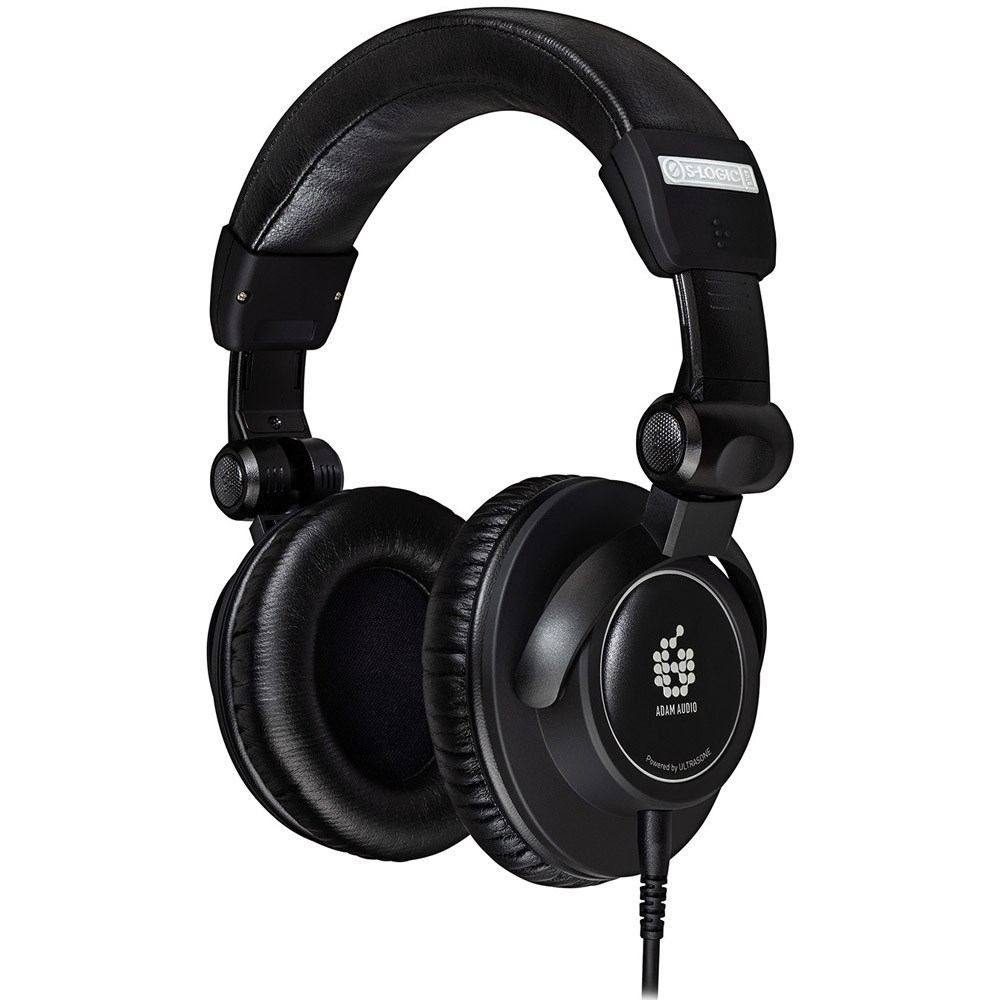
Reference 4 Studio Edition can also correct the frequency response of compatible headphones for monitoring.
You can check the supported models here.
As with speaker calibration, click Add Preset at the bottom left.
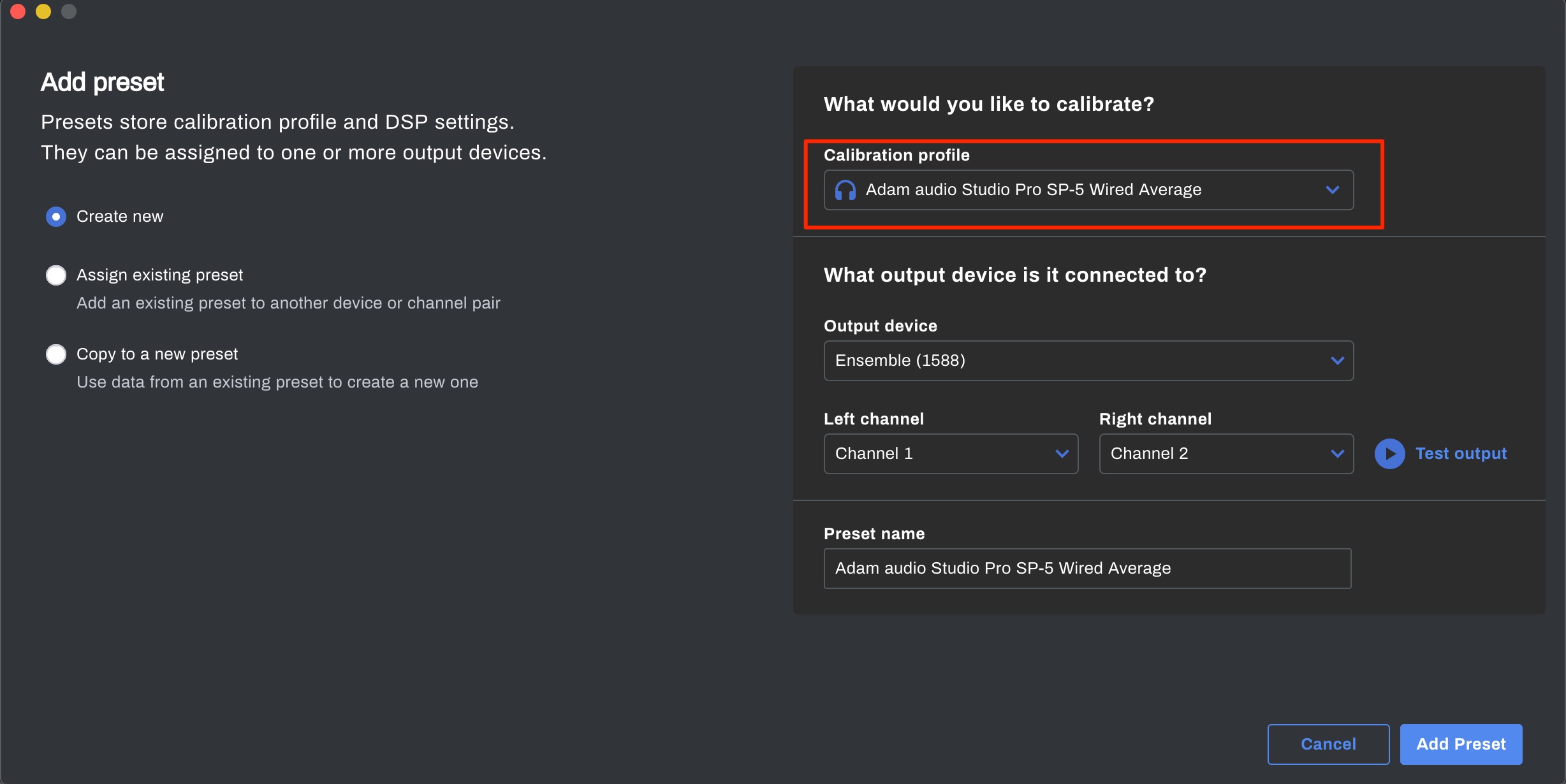
Select your headphones in this section, then click Add Preset at the bottom right.
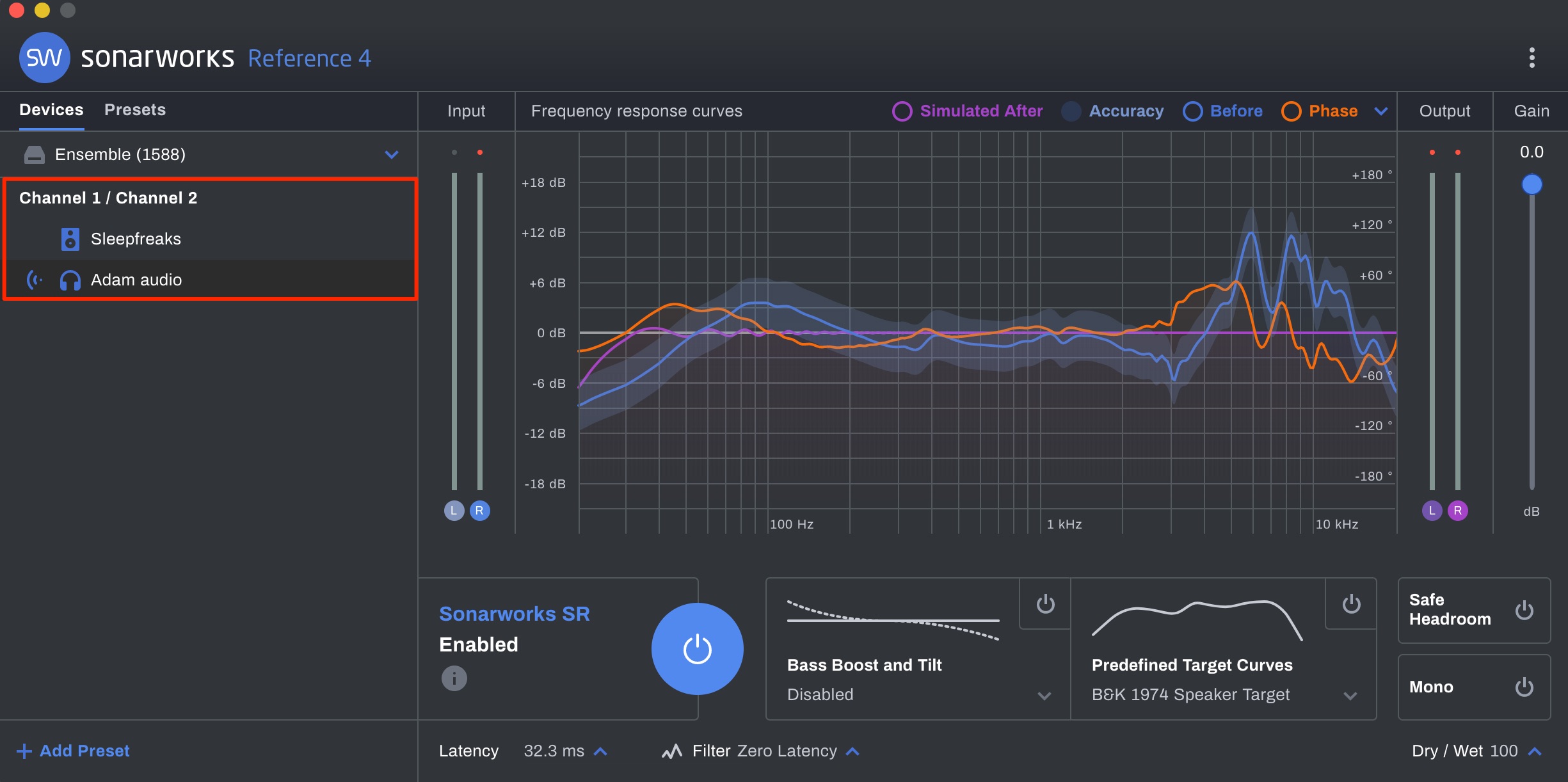
The profile appears in the preset list, allowing you to switch quickly between speaker and headphone calibration.
Use Reference 4 as the Last Plug-in on Your DAW’s Master Bus
The setup above applies correction to the overall audio output. Alternatively, you can apply monitoring calibration only within your DAW.
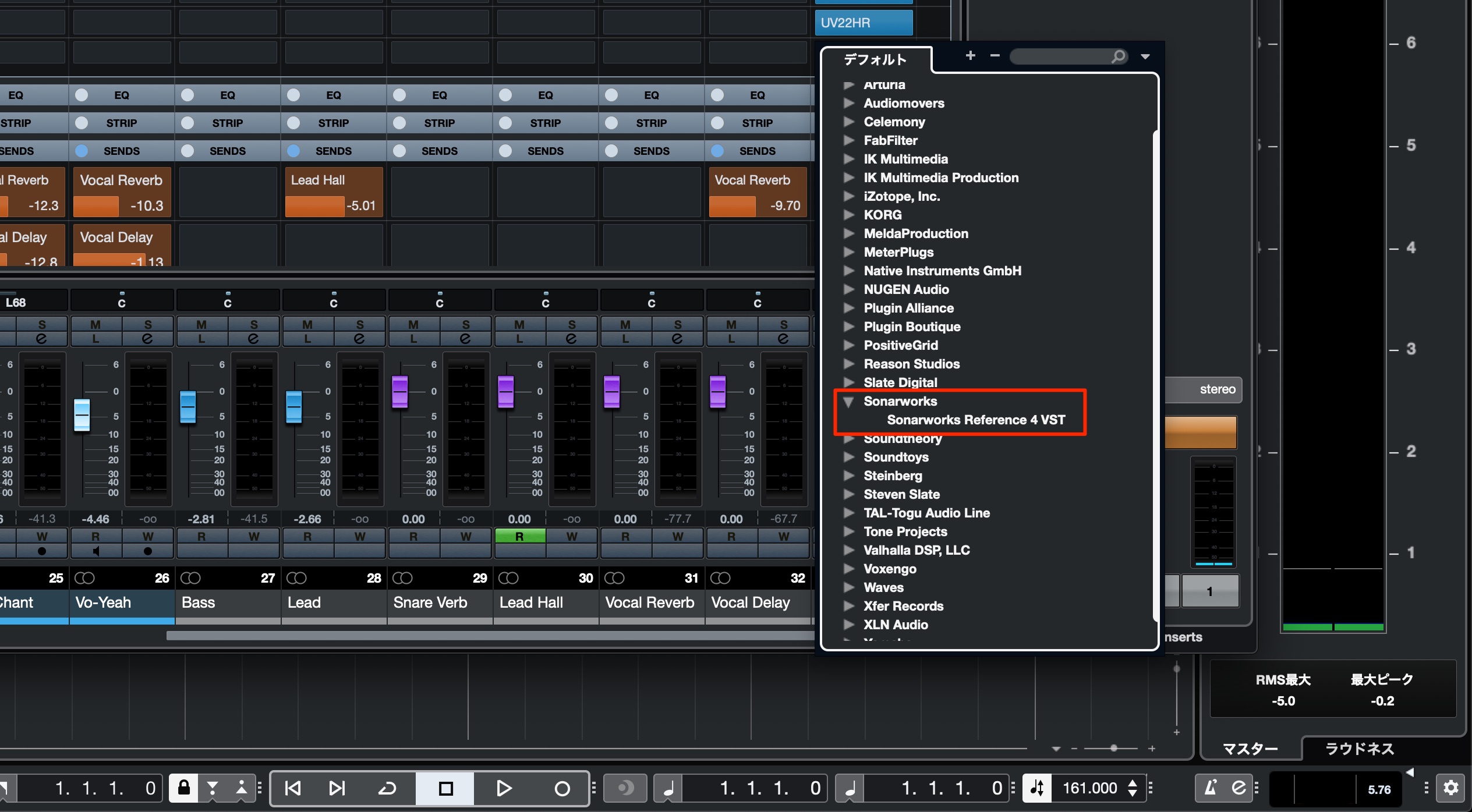
Insert Reference 4 as the final plug-in on the DAW’s master track, after all other processing.
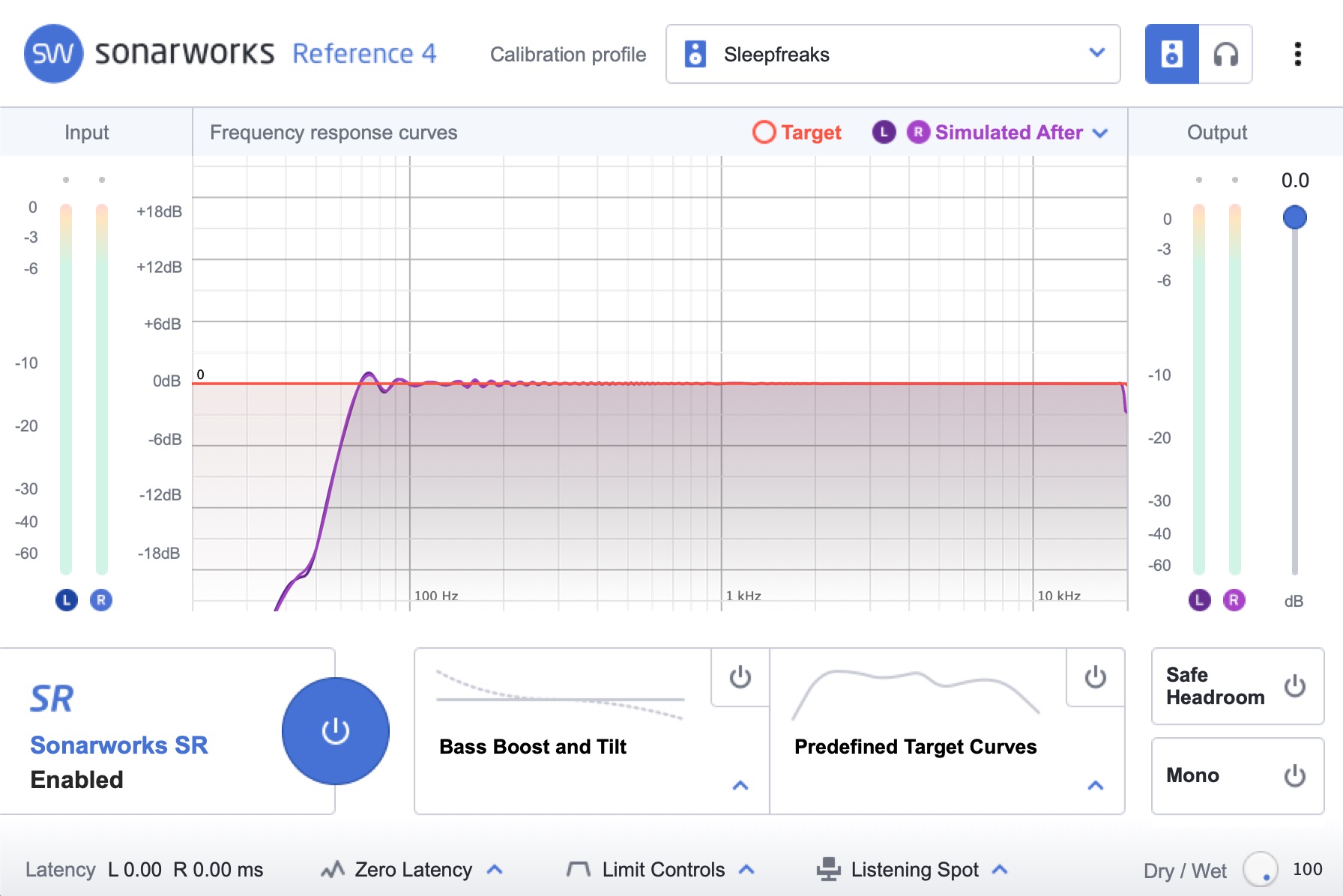
Load the preset you created above to hear playback with the correction applied. This calibration is for your own monitoring setup: fully bypass the plug-in in the DAW before exporting or bouncing a mix, so the correction is not included in the rendered audio.
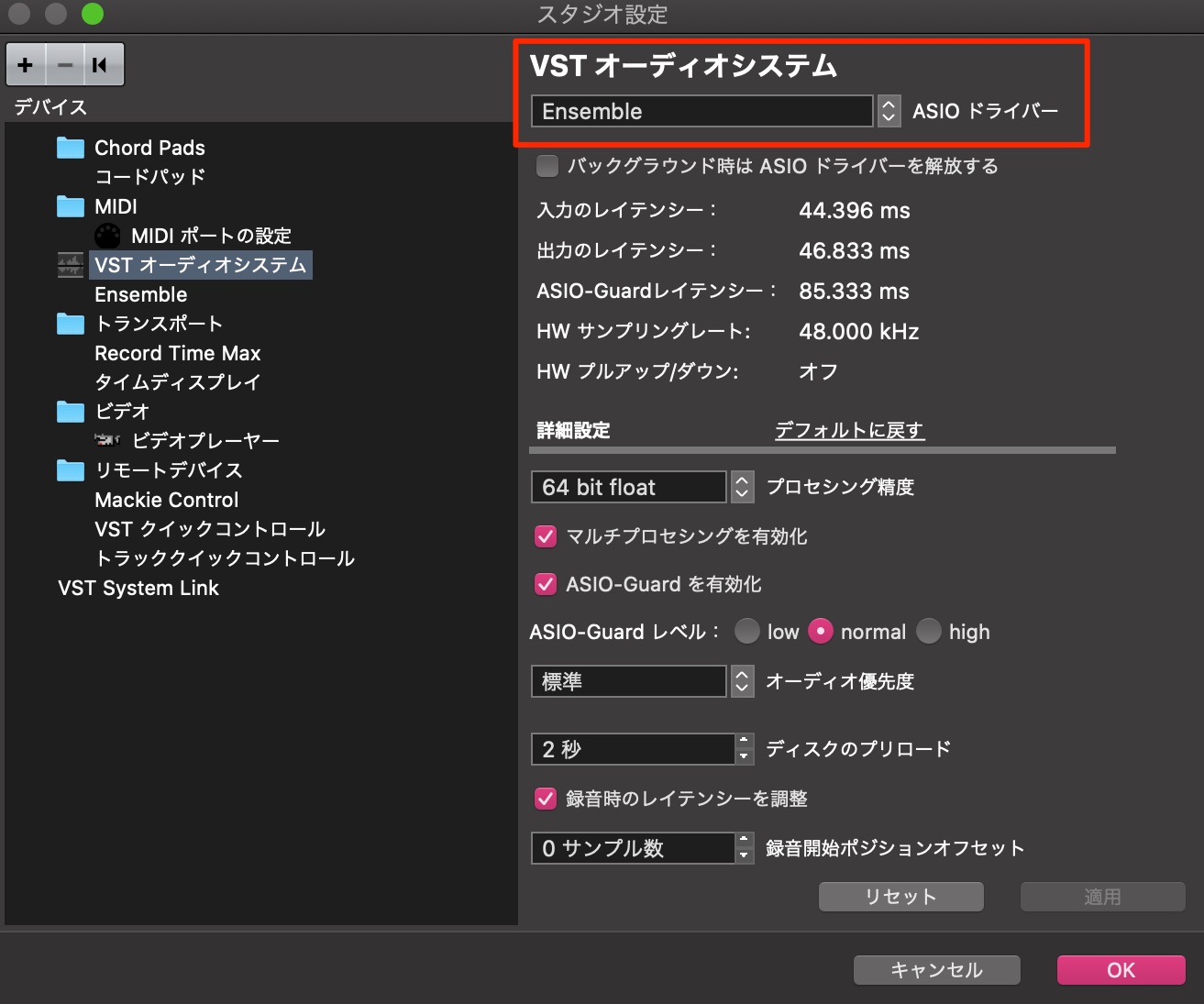
When using this plug-in method, choose your normal audio device as the DAW’s output rather than the Sonarworks virtual output, to avoid applying the correction twice.
What did you think?
I was impressed by how much difference this calibration made with a straightforward setup process.
If you are unsure about your monitoring or dissatisfied with what you hear in your production space, this example shows a way to investigate and improve it. The software and purchase options described are those of the original 2020 article.
Recommended Reading

Frequently Asked Questions
Q1. How long does it take to measure a setup with Reference 4 Studio Edition?
Allow a few tens of minutes for the measurement workflow shown here. The listening-area measurements in this example take approximately 15–20 minutes, with the microphone moved through the positions indicated by the software.
Q2. Can it help in an ordinary room?
Yes. Measuring and correcting the response can help address tonal imbalances caused by the speakers, their placement and the room. However, calibration does not remove the room’s physical reflections or replace sensible speaker placement and acoustic treatment. The result depends on the setup and listening area.
Q3. Does it support headphone monitoring?
Yes. Reference 4 Studio Edition supports frequency-response calibration for compatible headphone models. Presets let you switch quickly between speaker and headphone calibration.
Q4. Can I apply correction to computer audio without using a DAW?
Yes. With Reference 4 Systemwide running, select Sonarworks as the computer’s output device to route playback through the loaded calibration profile. This also lets you listen to music outside your DAW with the correction applied.
Q5. Could Reference 4 Studio Edition be purchased without the microphone?
Yes. At the time of the original article, a software-only version was available. Speaker measurements still require a suitable measurement microphone; this tutorial uses the official microphone bundle. Check current product and support information separately rather than treating these 2020 purchase options as current availability.
NEW ARTICLES
Latest English Articles





















































































































































































