
Melodyne 5 introduced a major update to this established pitch-editing application. Automatic sibilant detection lets it adjust the pitched parts of a vocal without shifting the frequencies of sibilants, helping produce more natural results. The Sibilant Balance Tool, Fade Tool, and Leveling Macro add new ways to improve the quality and efficiency of vocal editing. Chord recognition and the Percussive Pitched algorithm also extend its usefulness to a wider range of instruments and source material. This article covers the features introduced in the original Melodyne 5 release; availability varies by edition.
An Established Pitch Editor with Even More Capabilities
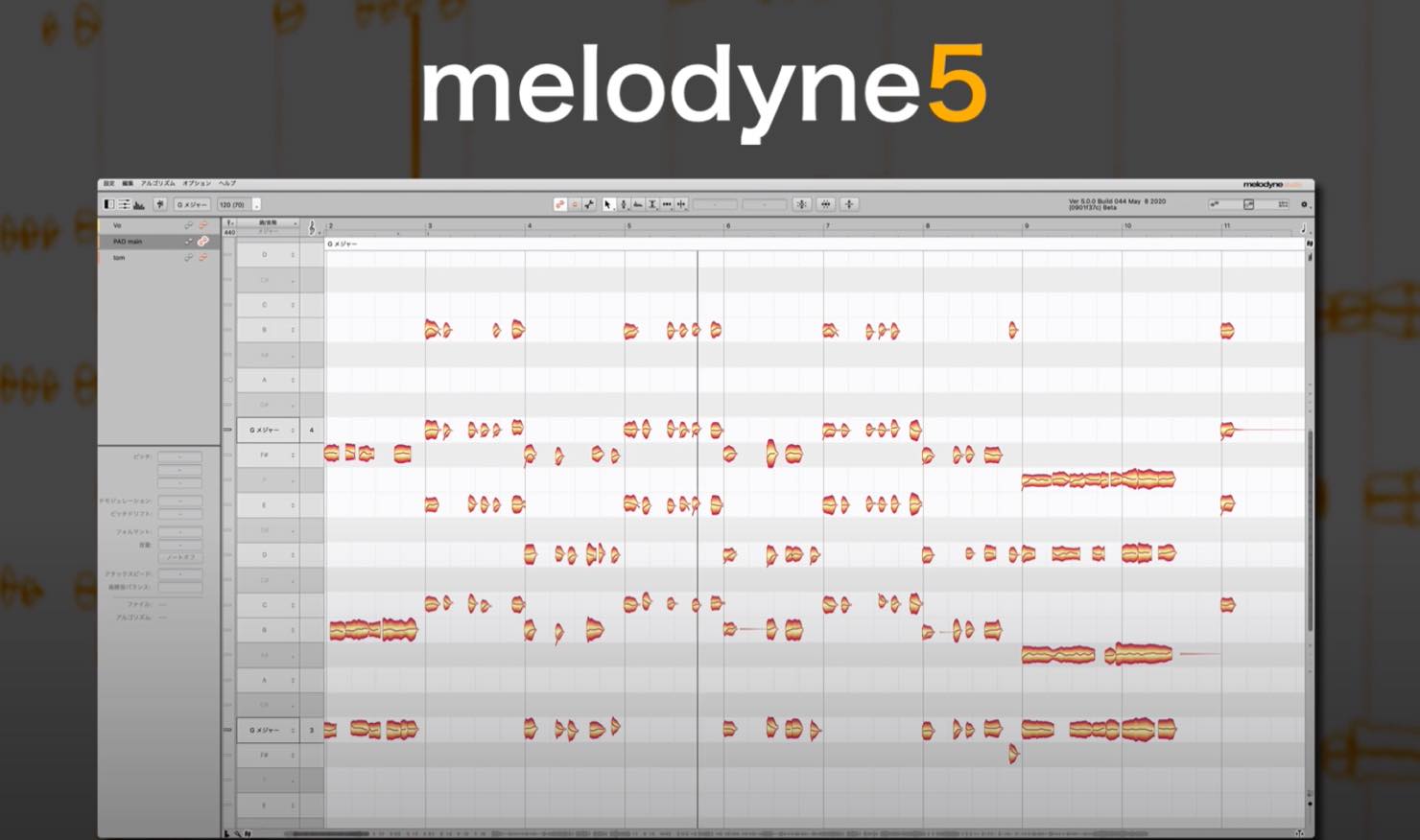
This time, we take a look at Melodyne 5, the major update to the familiar pitch-editing application released in 2020.
It adds a range of features designed to improve the quality and efficiency of pitch editing, so let's explore what changed.
Melodyne 5 New Features: Video
- 1Melodyne 4 essential: Overview and How to Use It
- 2Melodyne 4 assistant: Overview and How to Use It
- 3Melodyne 4 editor/studio: Overview and How to Use Them
- 4What's New in Melodyne 5
- ◆ Manufacturer/Product Information: http://urx.space/Rgab
- ◆ Purchase Here (Affiliate Link): http://urx.space/Rgab
Selected Questions and Answers from the YouTube Video

When I switch from the Pitch Tool to another tool, the waveform disappears. How can I fix this? 😢
The display option may be turned off.
Up to Melodyne 4, right-clicking showed the volume-control icon that looked like a loop of rope, with a double-click-to-mute function. I cannot find that icon in Melodyne 5. How do I mute notes? I have already emailed Celemony about it.

We checked this: select the Amplitude Tool, then double-click the note you want to mute.
Does Melodyne 5 support the latest Logic Pro update? (Question from the original 2020 release period.)
In our test at the time, Melodyne 5 opened and allowed editing in Logic Pro X 10.5 without problems. This was a test of that version, rather than confirmation for later Logic Pro releases.
Sibilant Handling
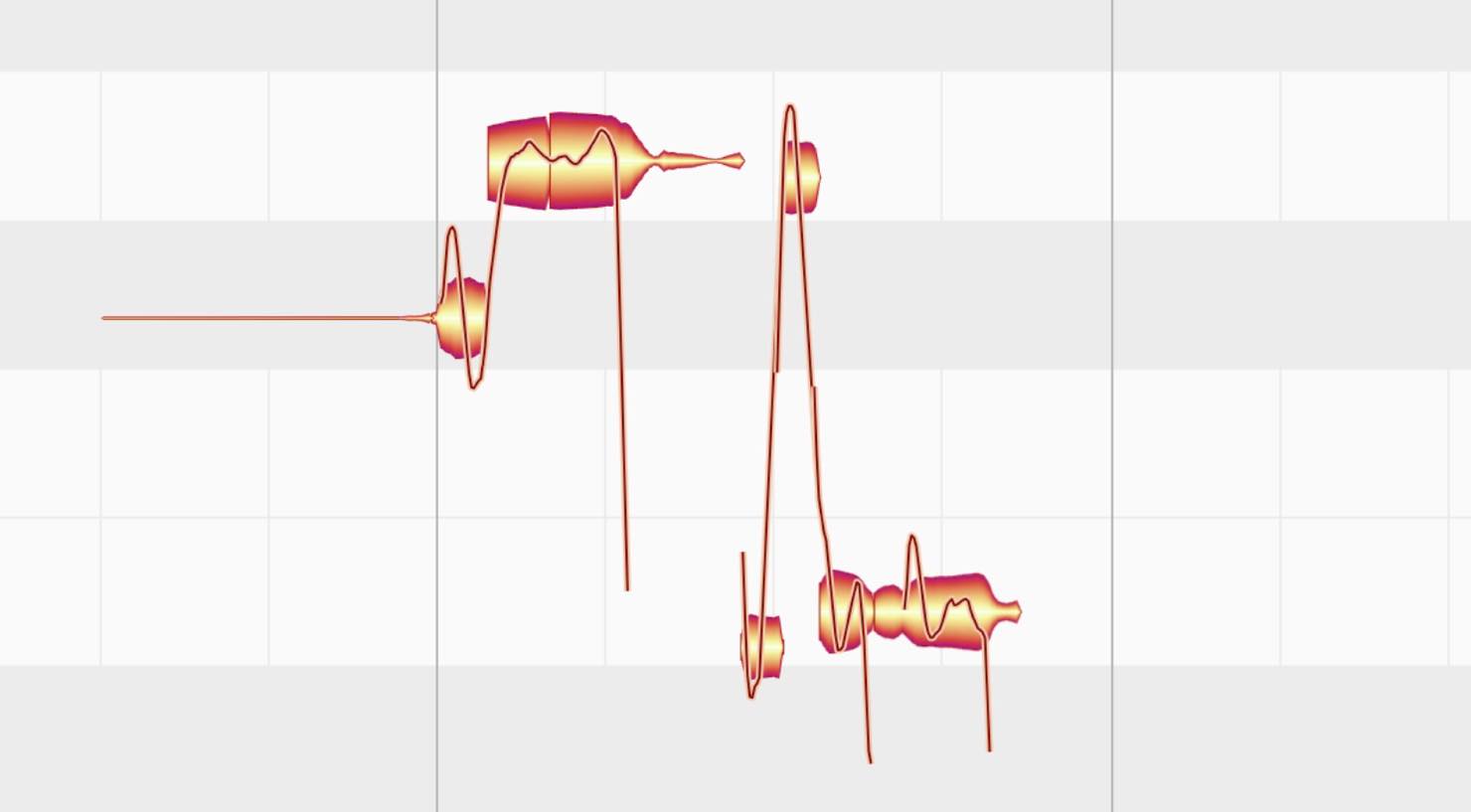
Melodyne 5 automatically detects sibilants in vocals and processes them differently from the pitched parts, improving the quality of pitch editing.
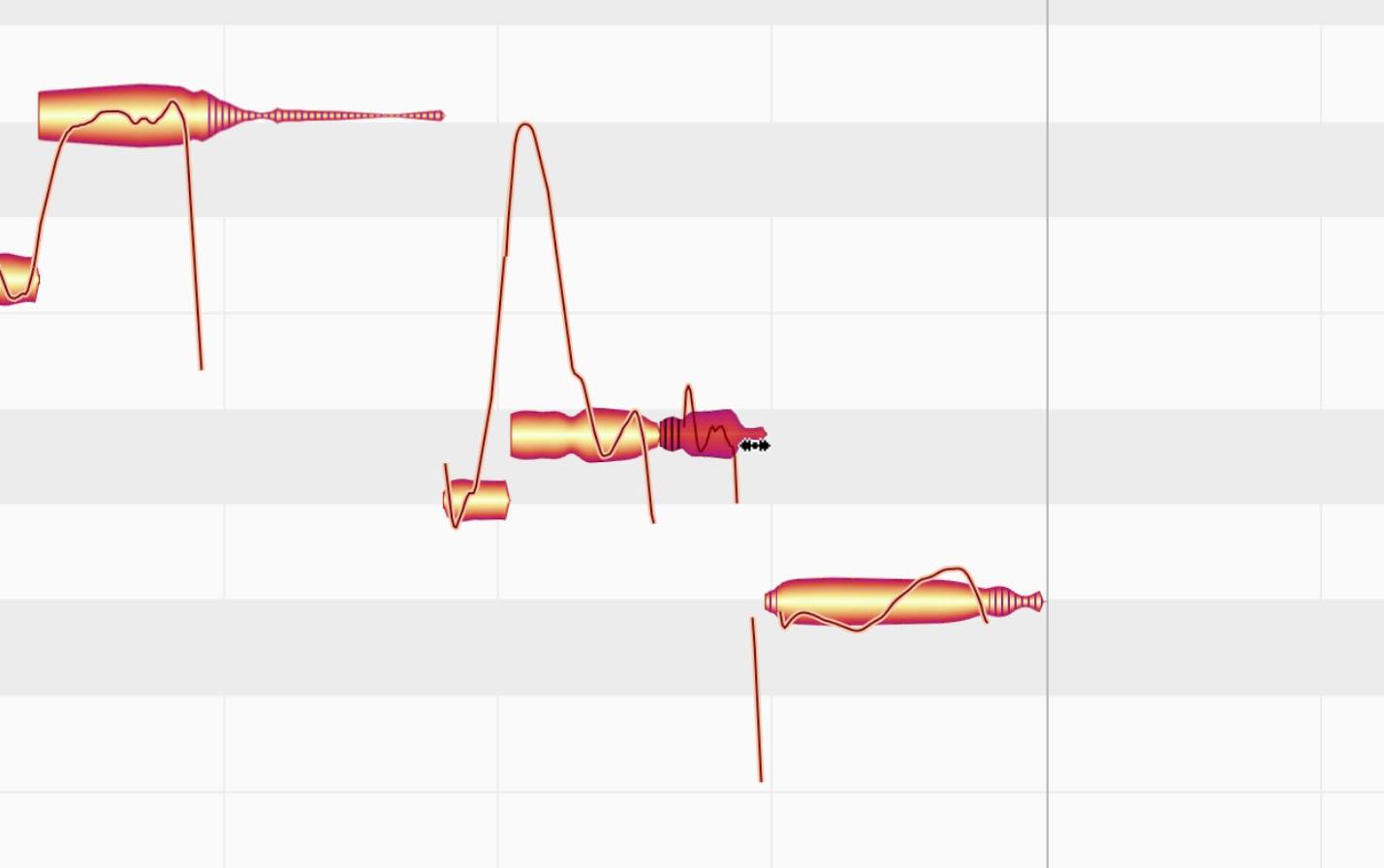
Let's see how Melodyne detects and displays them.
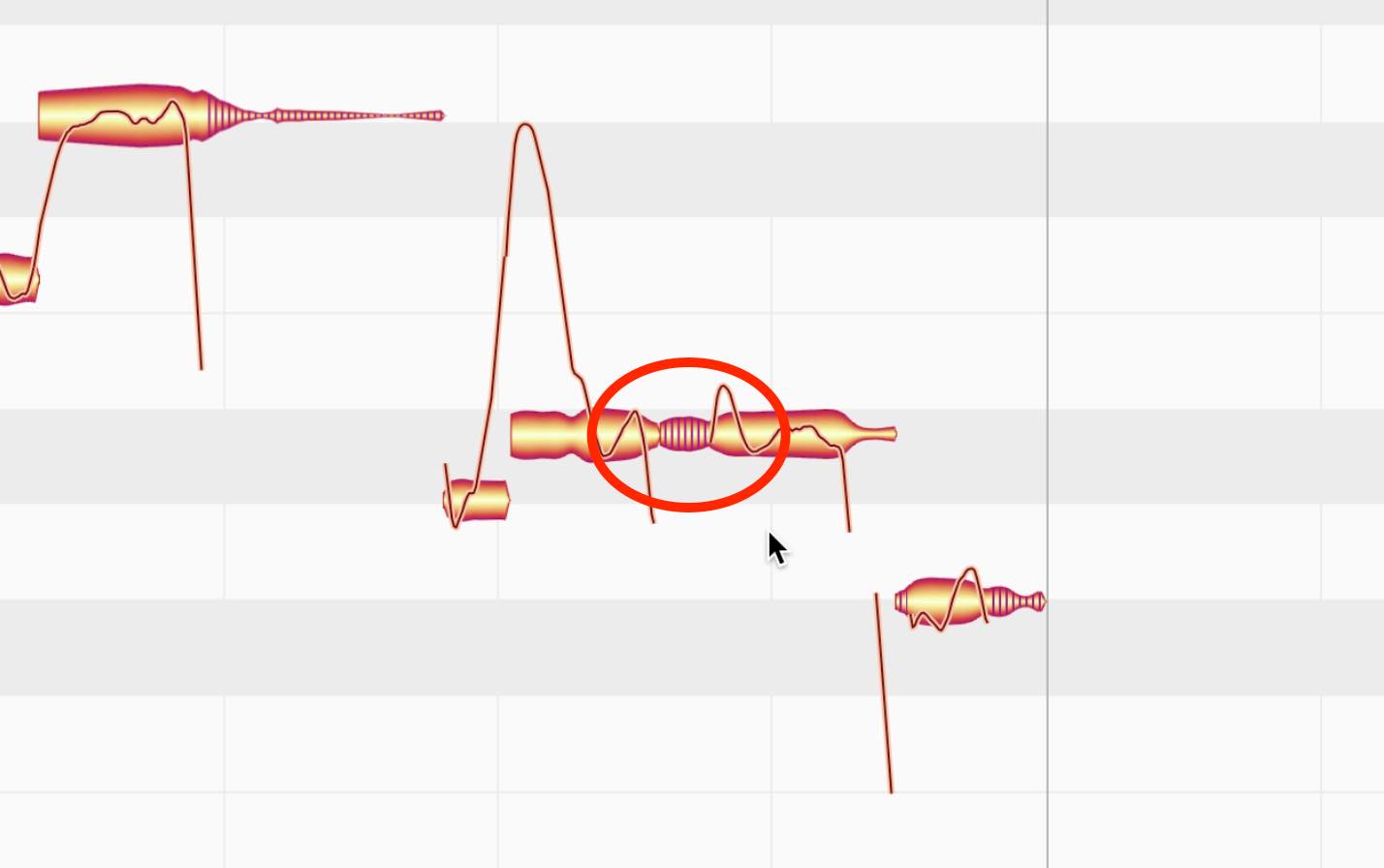
The areas circled in red above have a hatched pattern, unlike the rest of the notes. This indicates that Melodyne has identified them as sibilants.
Sibilants generally have no definite pitch. The vowel sounds associated with them are the pitched components.
When you move a note containing both a sibilant and a vowel up or down in pitch, Melodyne 5 leaves the sibilant's frequency content unchanged.
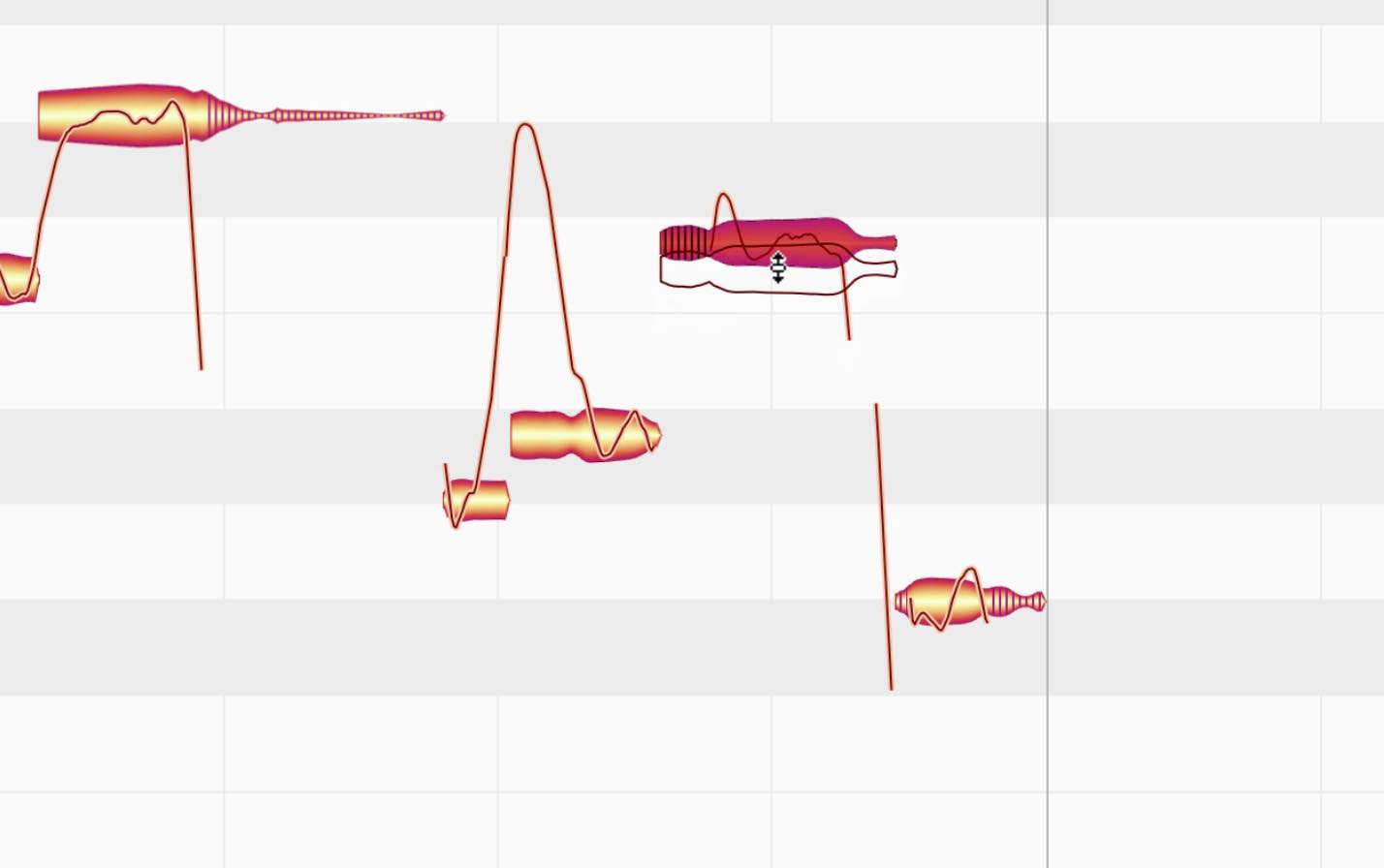
Leaving those frequencies unchanged produces a more natural result than shifting the whole syllable. A major benefit of Melodyne 5 is that it handles this automatically, without requiring special attention from you.
When a singer holds a syllable longer, the sibilant itself does not normally become longer; it is the vowel that is sustained.
Melodyne 5 takes this into account. When you lengthen a note containing a sibilant, the vowel section is stretched while the sibilant section retains its length.
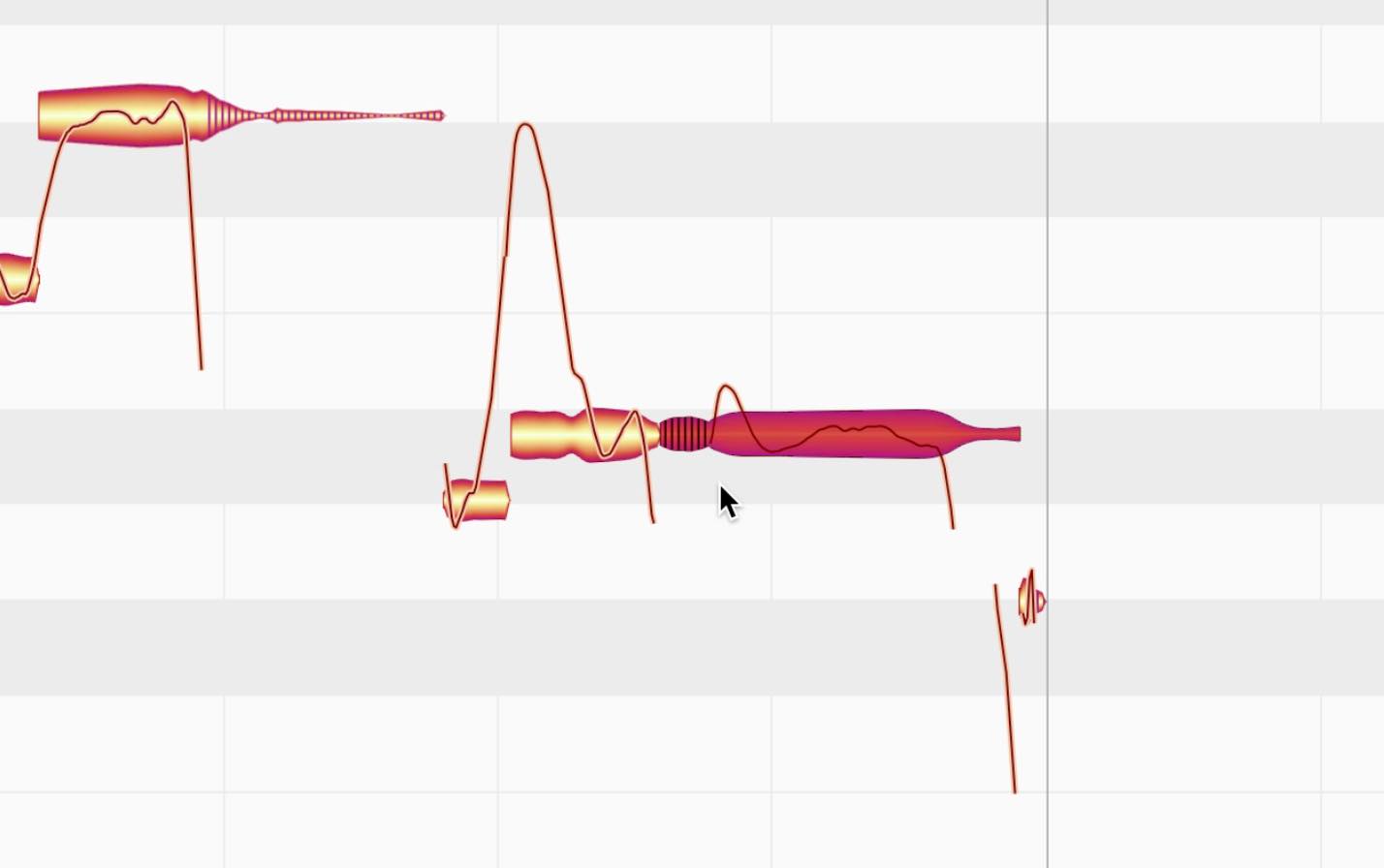
When shortening a note, the sibilant initially keeps its length. Beyond a certain amount of compression, it is shortened as well to preserve a natural result.
Sibilant detection also identifies breath sounds as unpitched components.
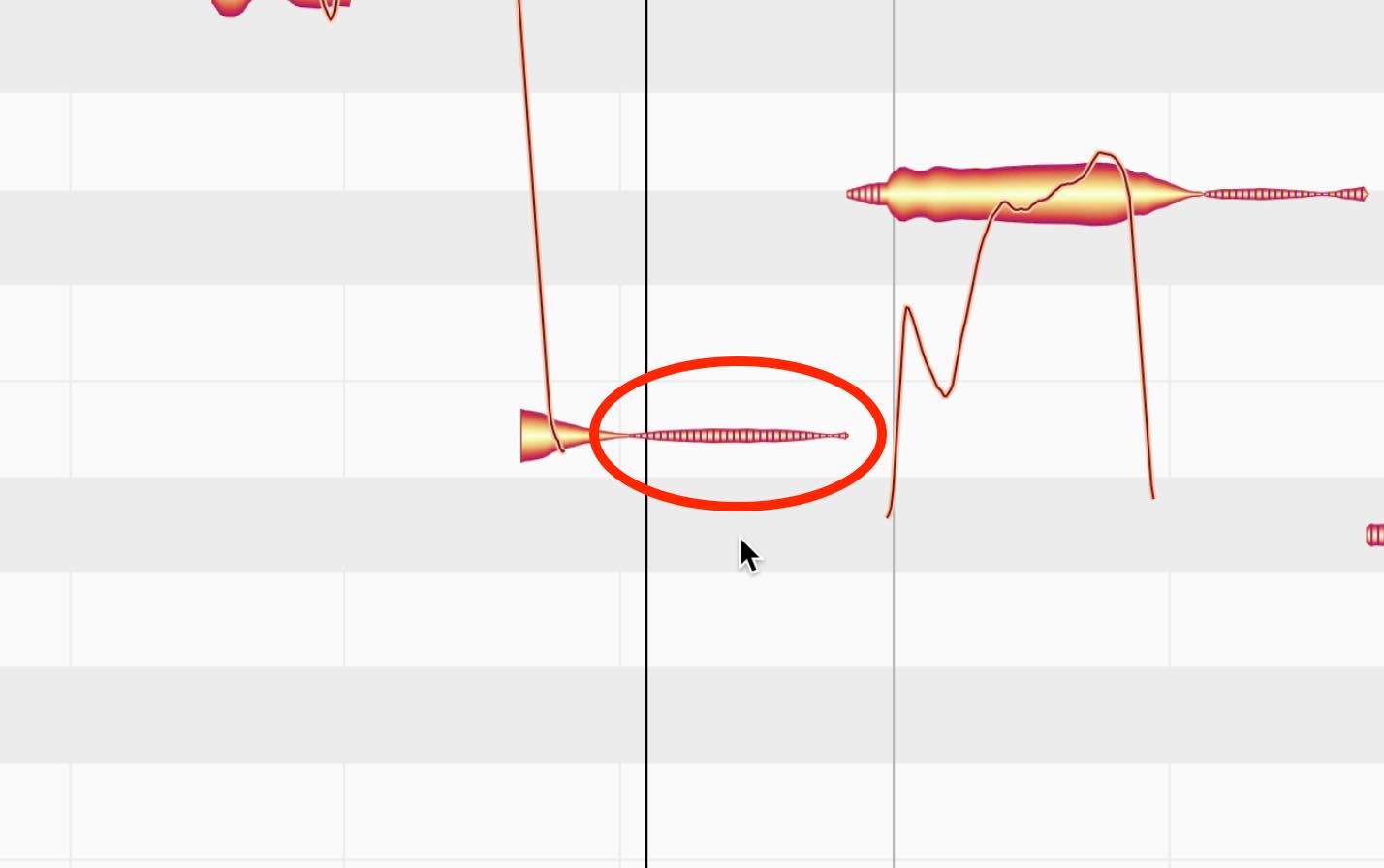
Unlike a sibilant attached to a pitched note, a breath can also appear as a separate note that you can edit independently.
As with other sibilants, changing a breath note's pitch position does not shift its frequency content.
Changing a breath note's length does stretch or shorten it, unlike the treatment of a sibilant within a syllable. Melodyne's automatic handling is designed to follow natural vocal behavior, producing more natural results than before.
The Sibilant Balance Tool
The Sibilant Balance Tool is grouped with the Amplitude Tool. It controls the level of a note's sibilants relative to its other components.
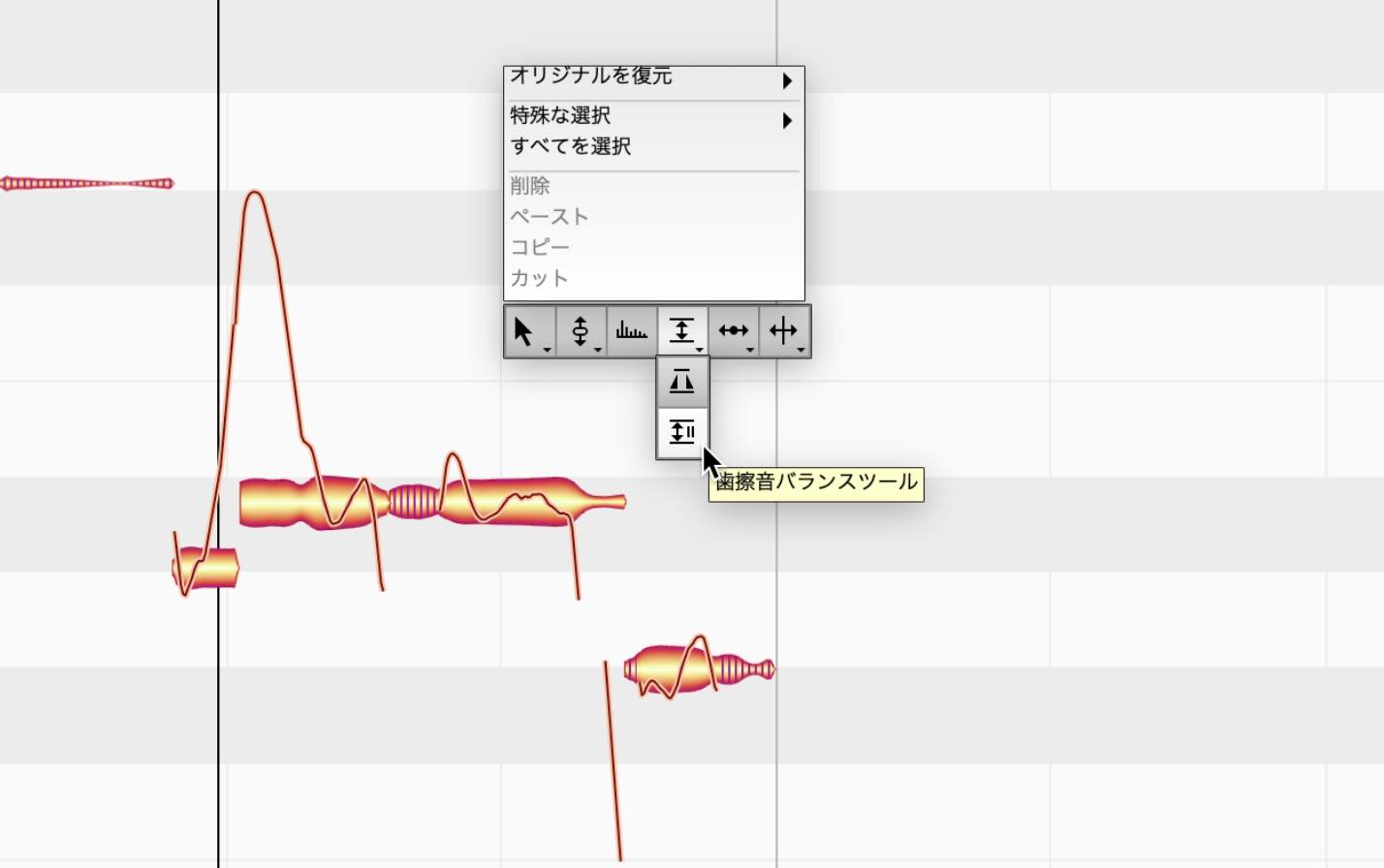
Try dragging a note containing a sibilant up or down.
Dragging upwards reduces the pitched, vowel-like components. Dragging downwards reduces the sibilants, making the vowel more prominent in the balance.
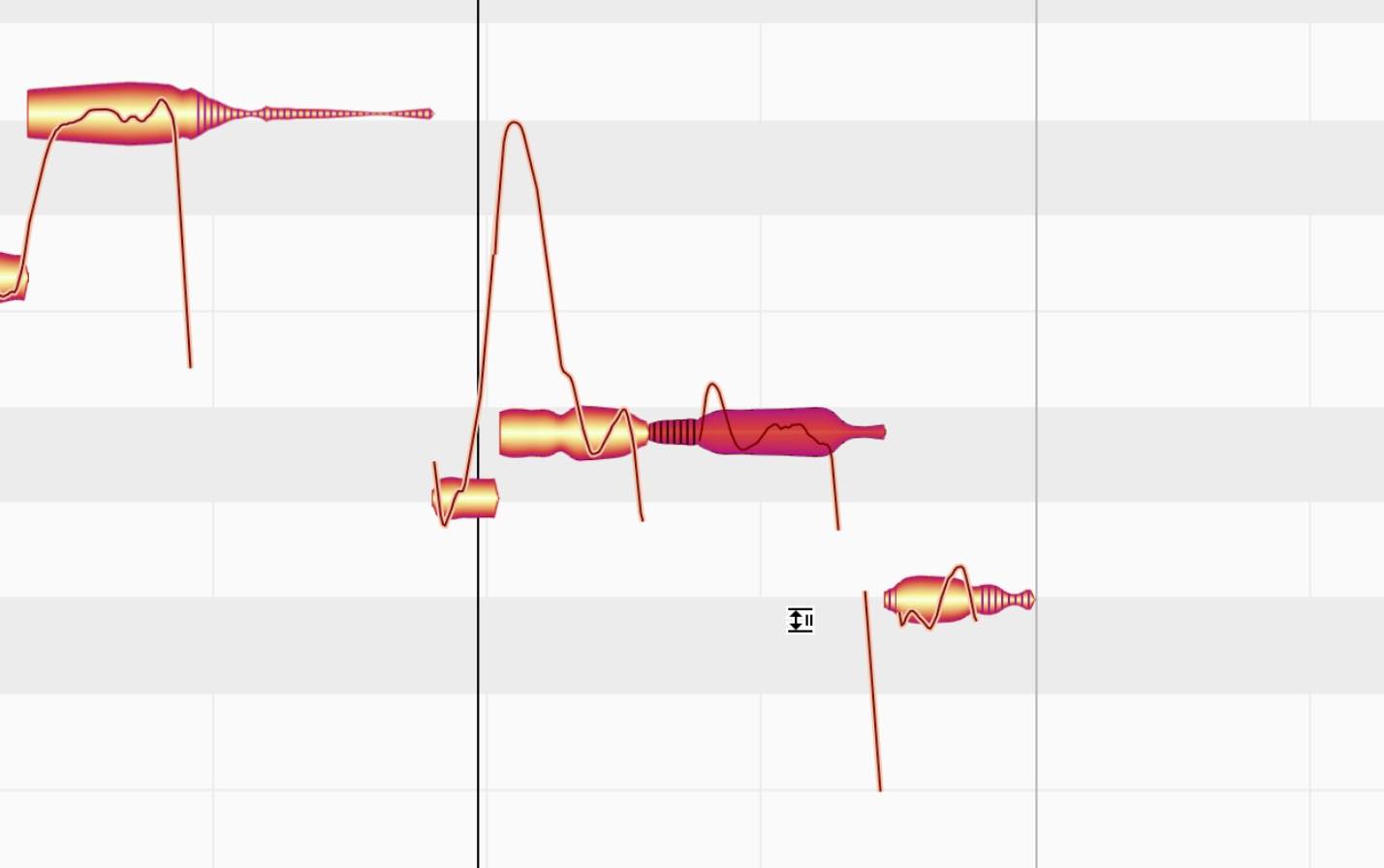
This makes the tool useful for de-essing.
Conversely, you can isolate the sibilants and use them creatively, for example by changing the rhythm of the vocal part.
The Fade Tool
The Fade Tool is also grouped with the Amplitude Tool.
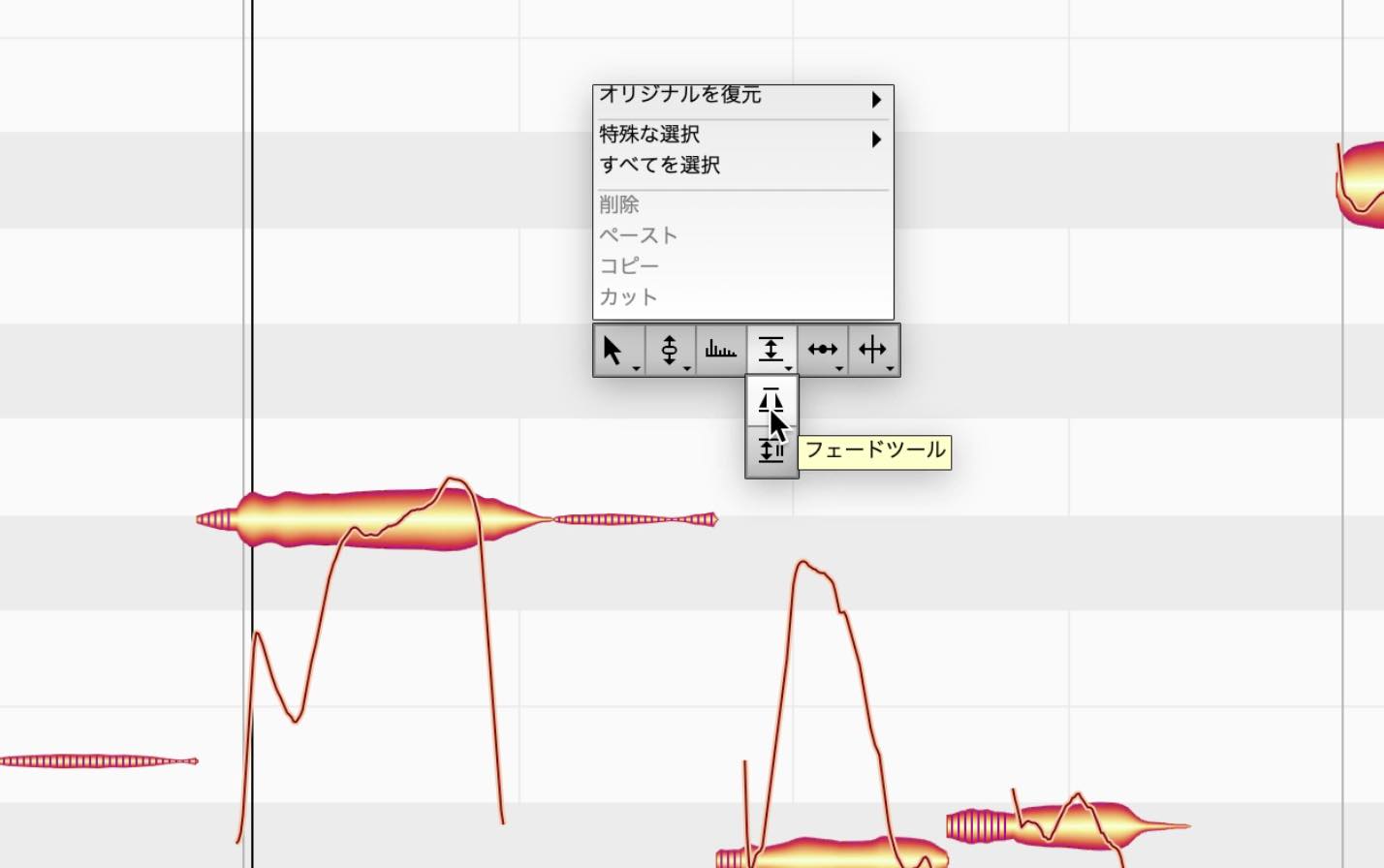
As its name suggests, it applies a fade-in or fade-out to a note.
With the Fade Tool, drag from the left-hand edge of a note toward its center to create a fade-in. A triangular handle shows the fade's extent.
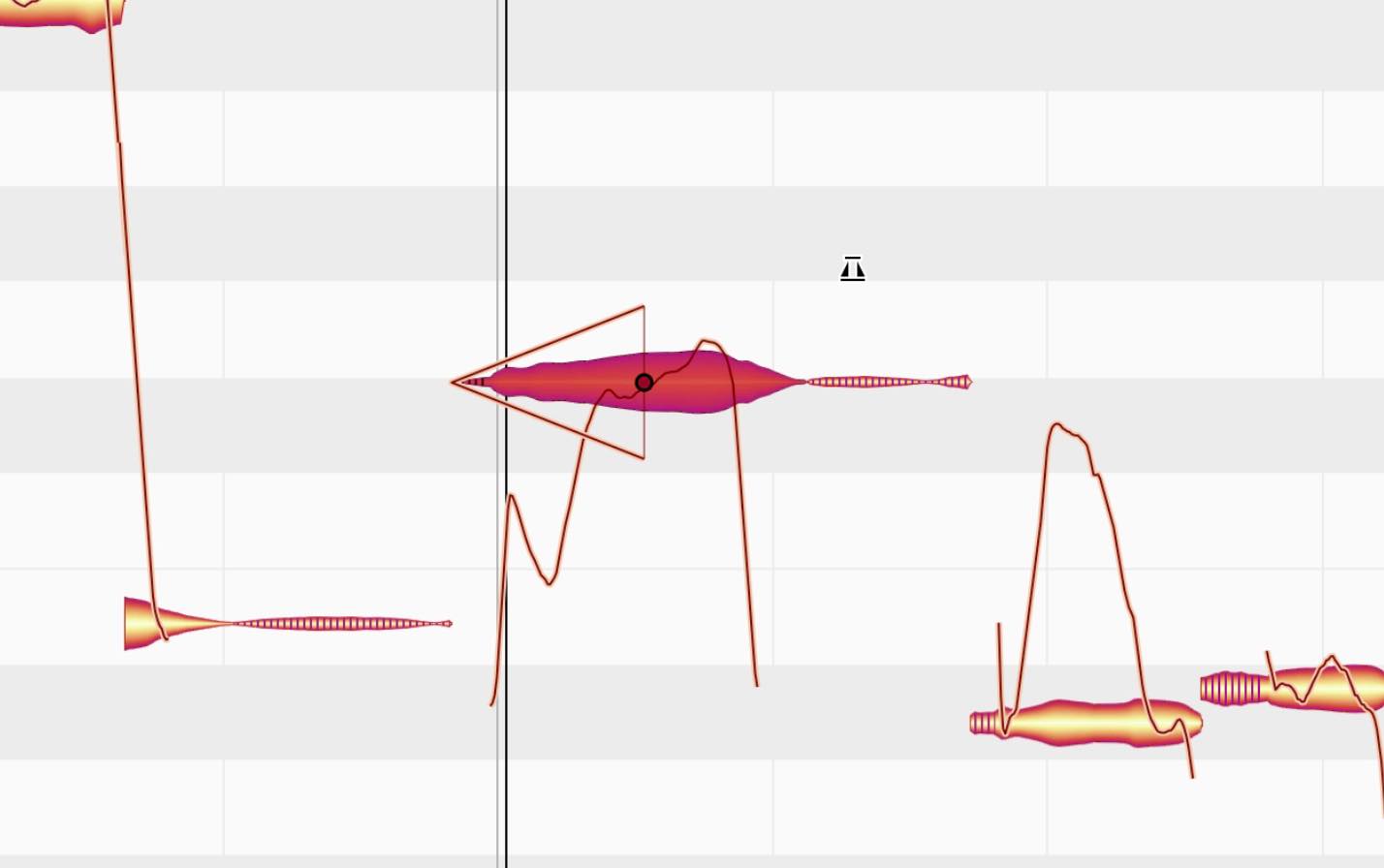
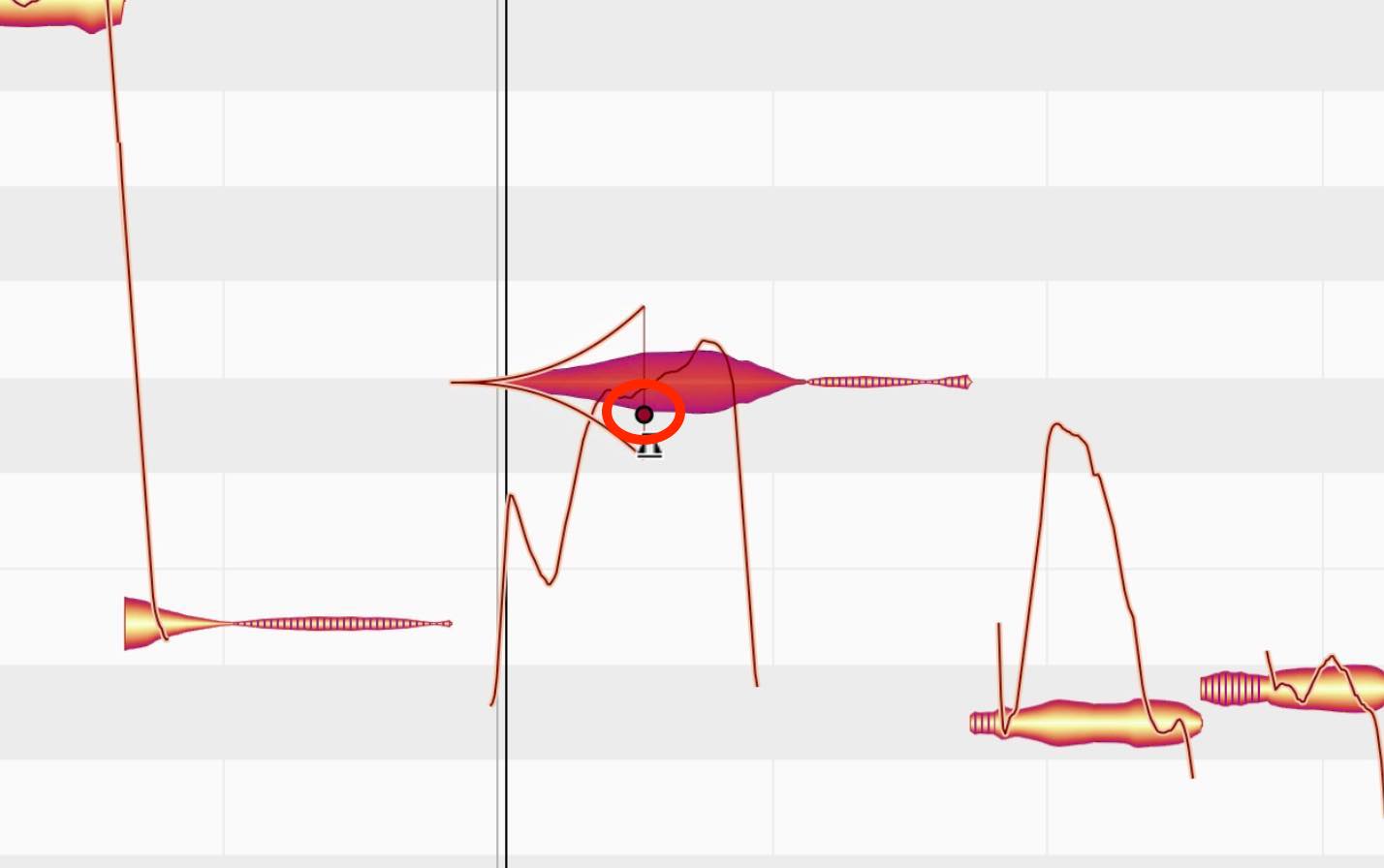
Drag the red point up or down to curve the triangular shape and change the fade contour.
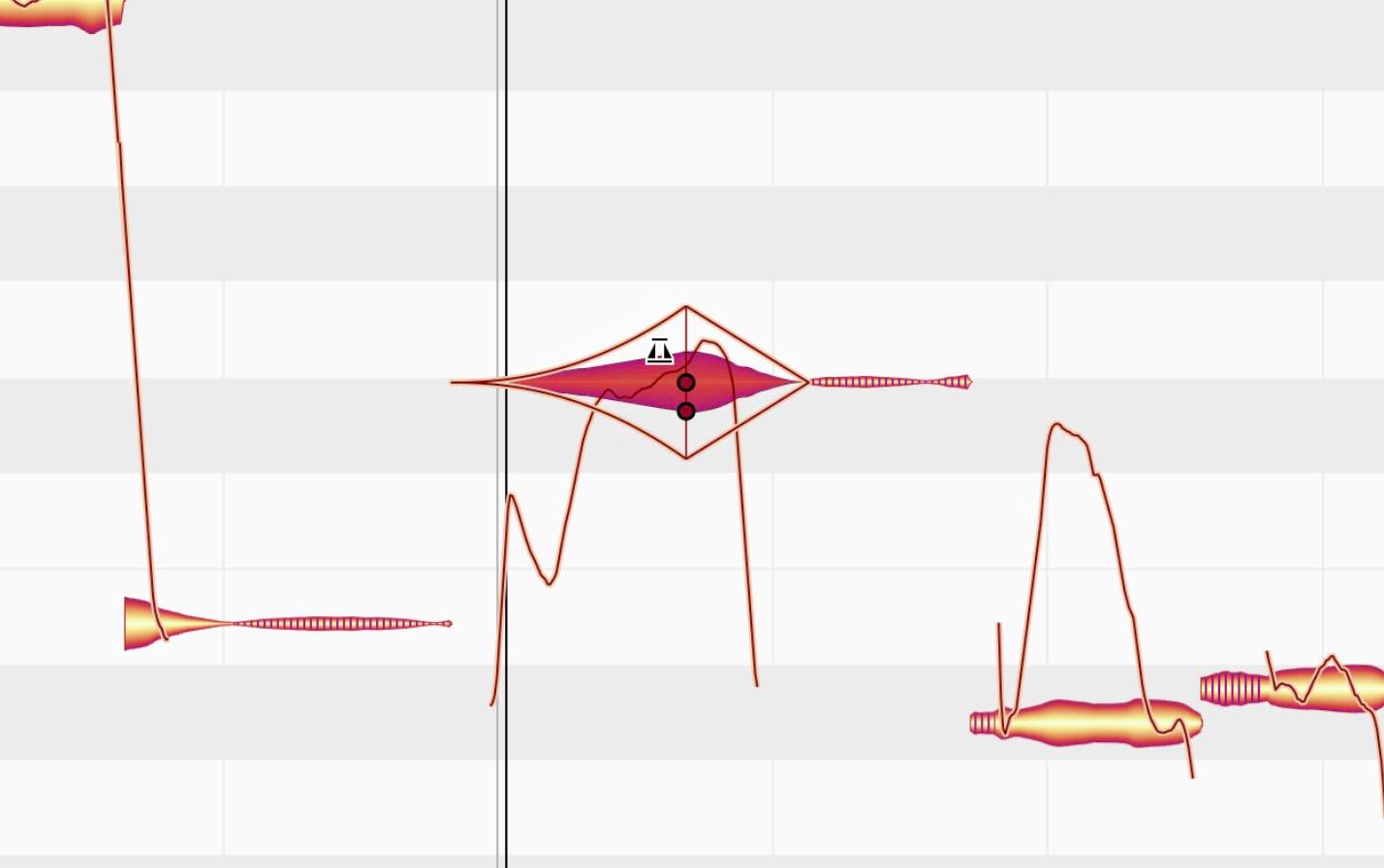
You can apply both a fade-in and a fade-out to the same note, but they cannot overlap. Adjust their relative lengths to shape the note.
The Leveling Macro
Alongside the existing Correct Pitch and Quantize Time macros, Melodyne 5 adds a macro for adjusting note levels.
First, select the notes you want to process. If no notes are selected, the macro applies to all notes.
Then click the Leveling Macro button near the top center of the window.
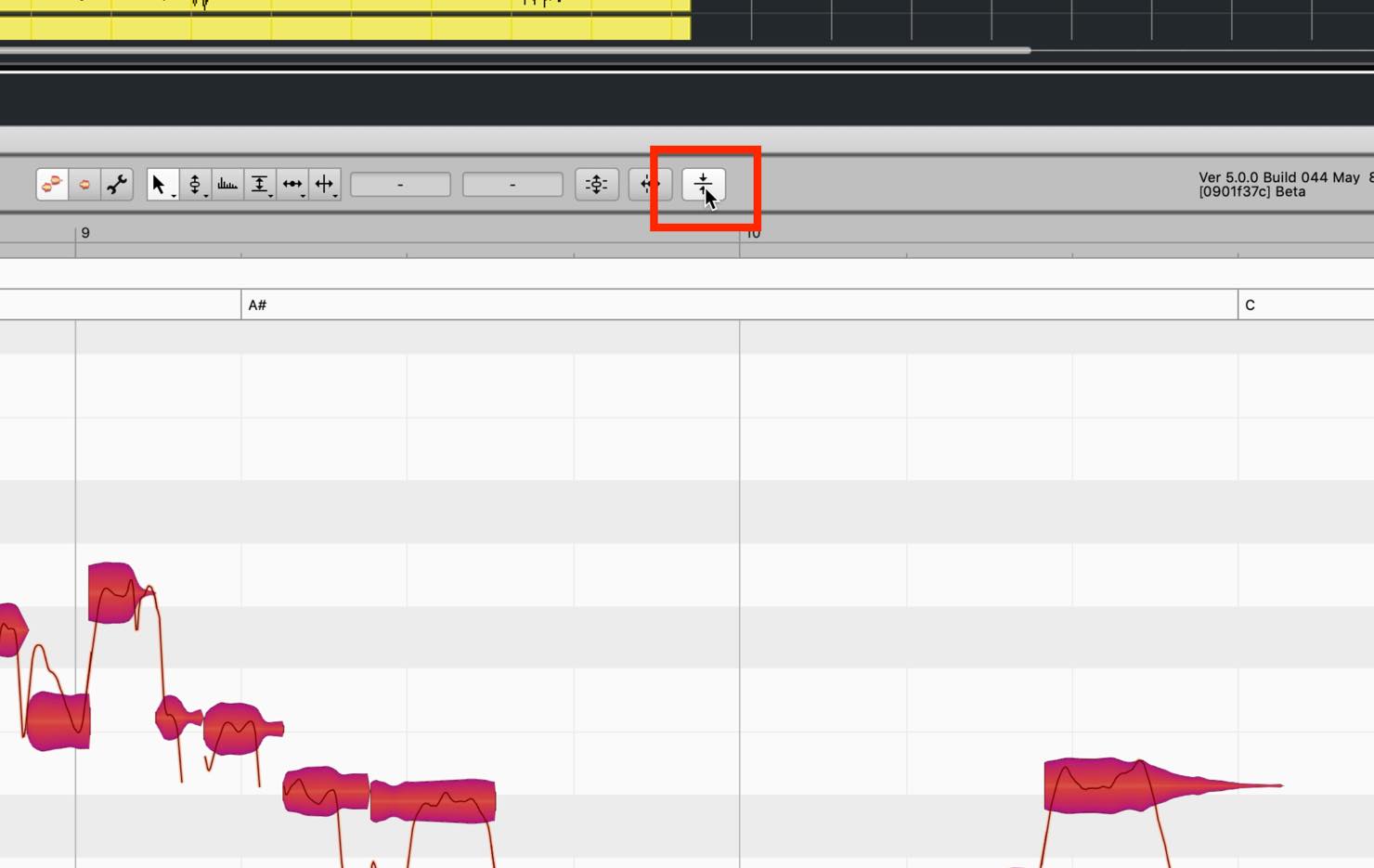
Two sliders appear: 'Make quiet notes louder' and 'Make loud notes quieter'.
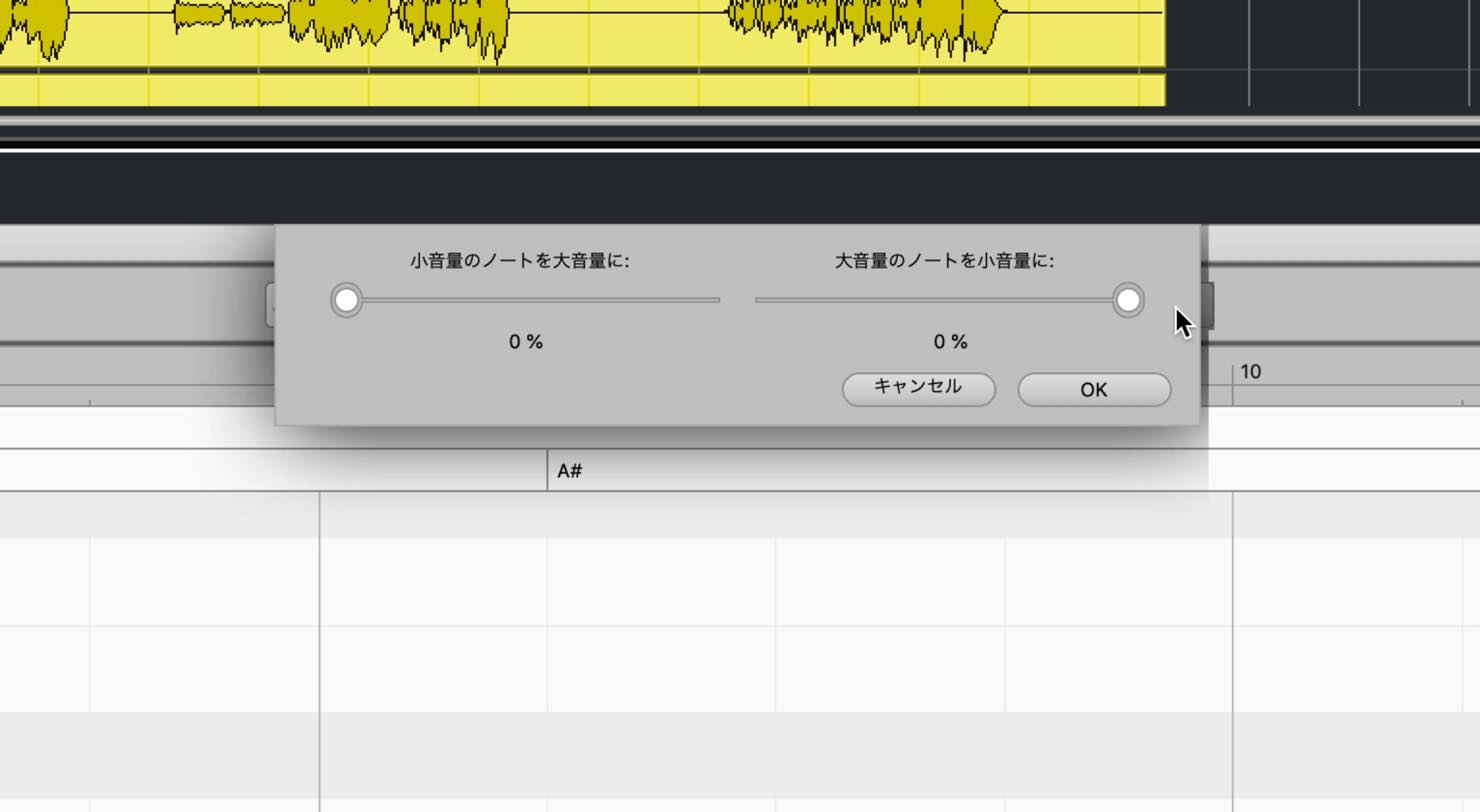
They do exactly what their names suggest.
Used effectively, this can serve a compressor-like role in balancing note levels, greatly reducing the time needed to adjust dynamics.
Both operations move levels toward the average. Quiet notes cannot be raised beyond that average by the macro, nor can loud notes be pushed below it.
Pitch Correction by Double-Clicking and the Correct Pitch Macro
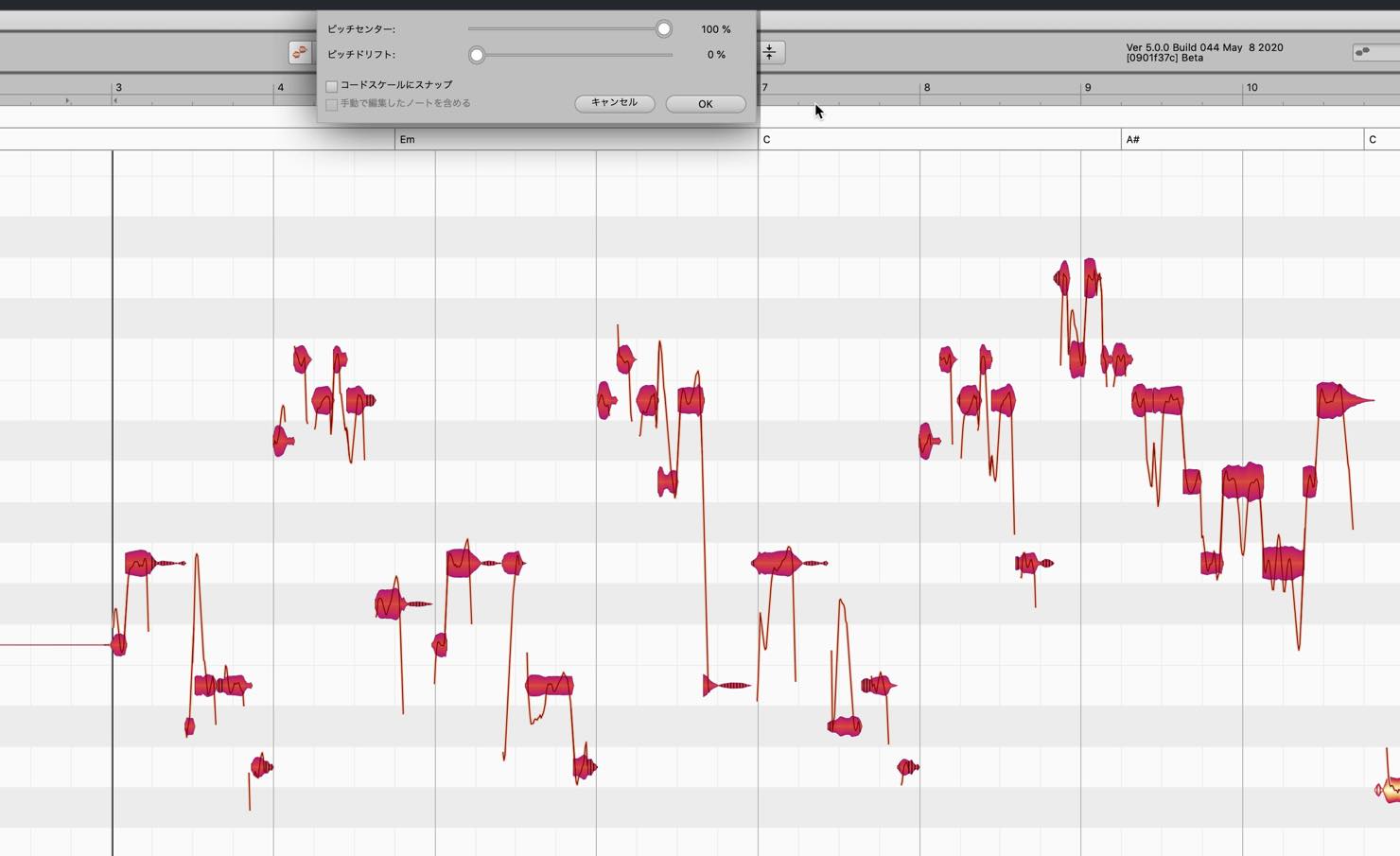
Melodyne 5 introduces two improvements to its core technology, making double-click corrections and macro-based editing more musical.
Its new, musically weighted method of calculating pitch centers identifies which parts of a note contribute most strongly to a listener's impression of its intonation.
The functions and basic workflow remain familiar, but double-clicking or using the macro now tends to produce less unnatural correction, reducing the amount of detailed manual cleanup needed afterwards.
Chord Recognition and the Chord Track
Melodyne 5 can analyze the notes in a track, recognize chords, and display them on the Chord Track.
To try chord recognition, first load a recording of a polyphonic instrument.
Before running the analysis, make the Chord Track visible by choosing 'Show Chords' from the Options menu.

The chord area appears as shown below.
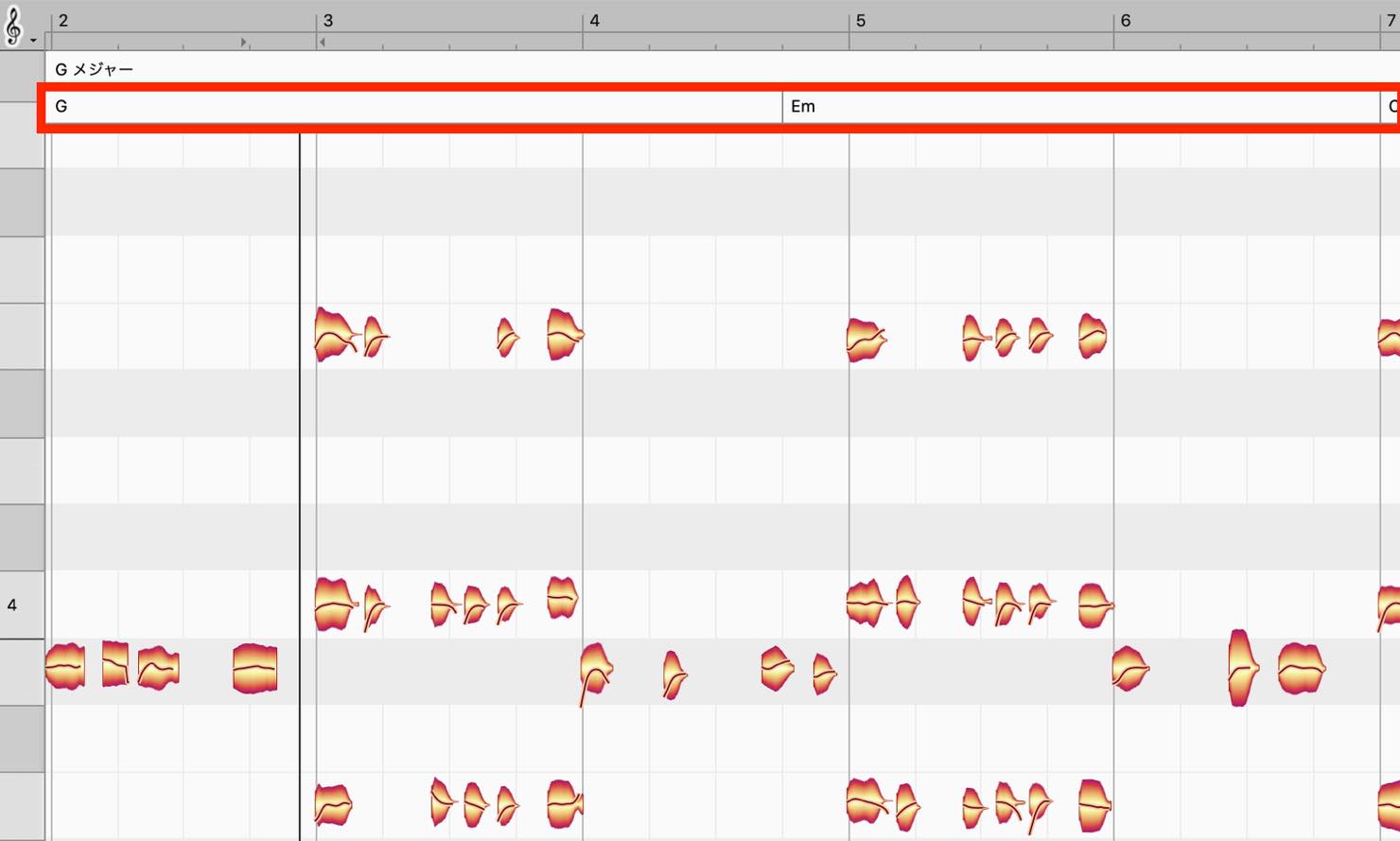
Next, choose Edit > Chords and Keys > Analyze Chords.
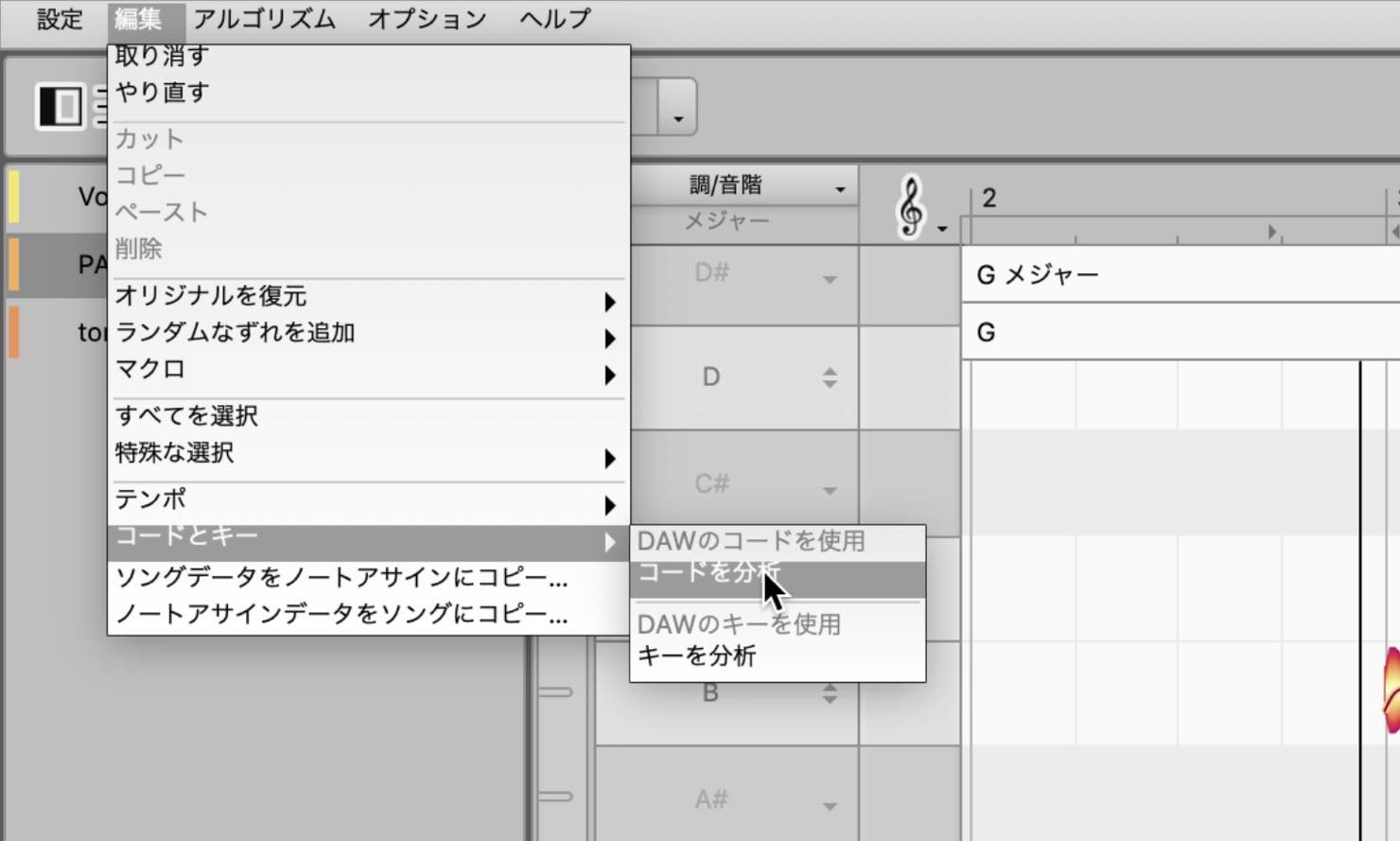
The analysis results are then displayed on the Chord Track, as shown below.
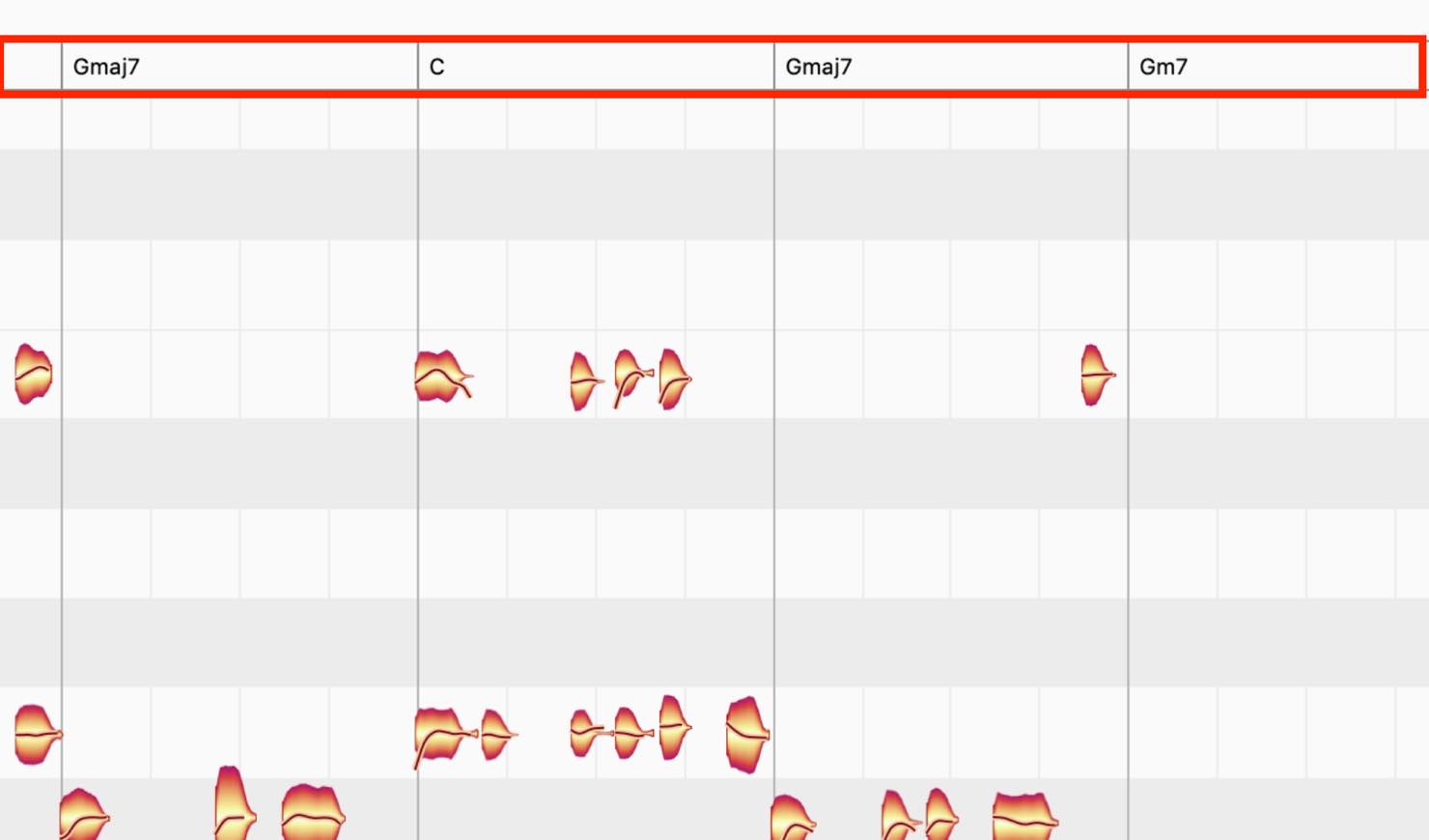
If a chord has been identified incorrectly, you can correct it manually. Right-click it to see alternative suggestions, then choose the appropriate one if it is listed.
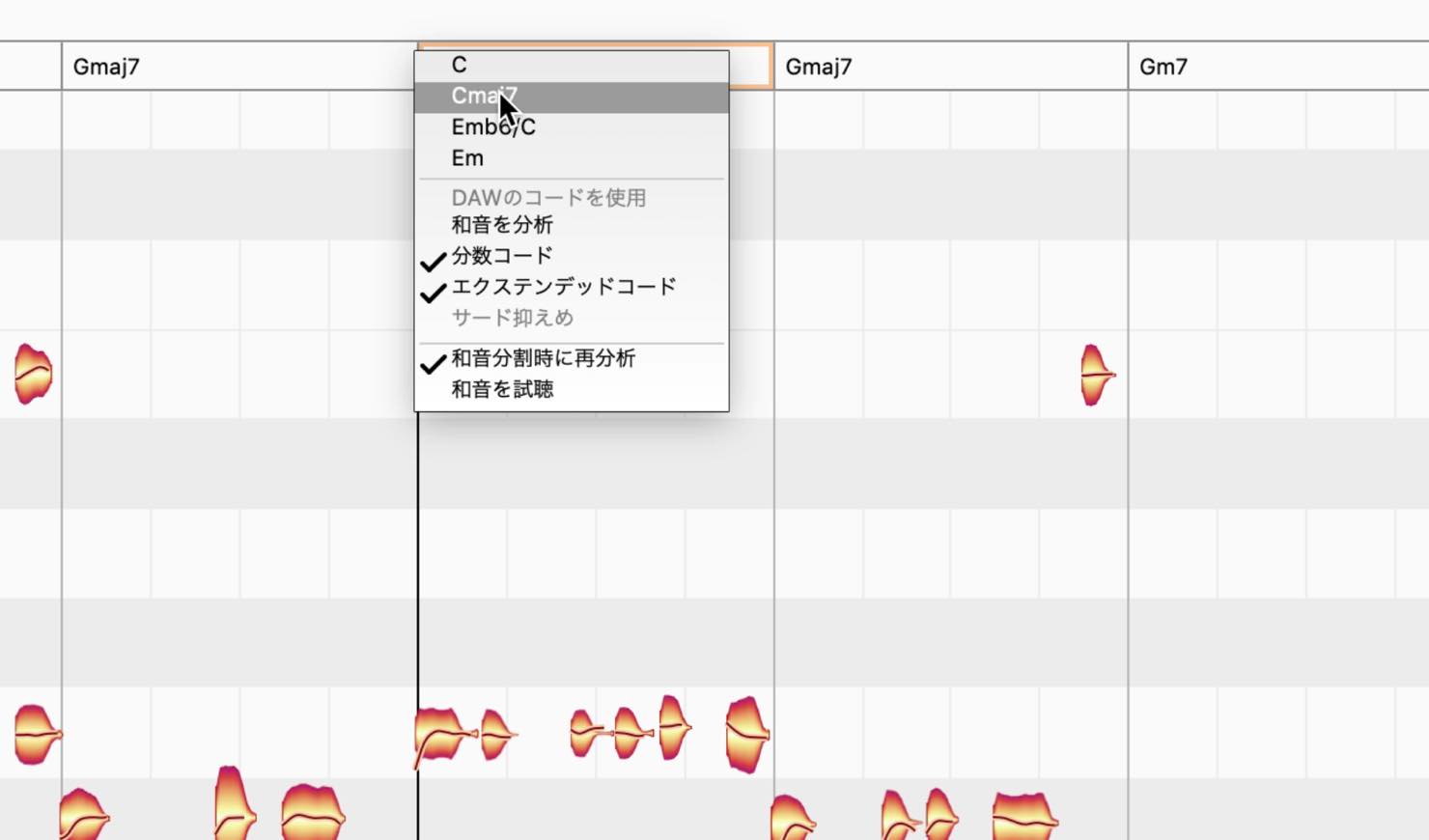
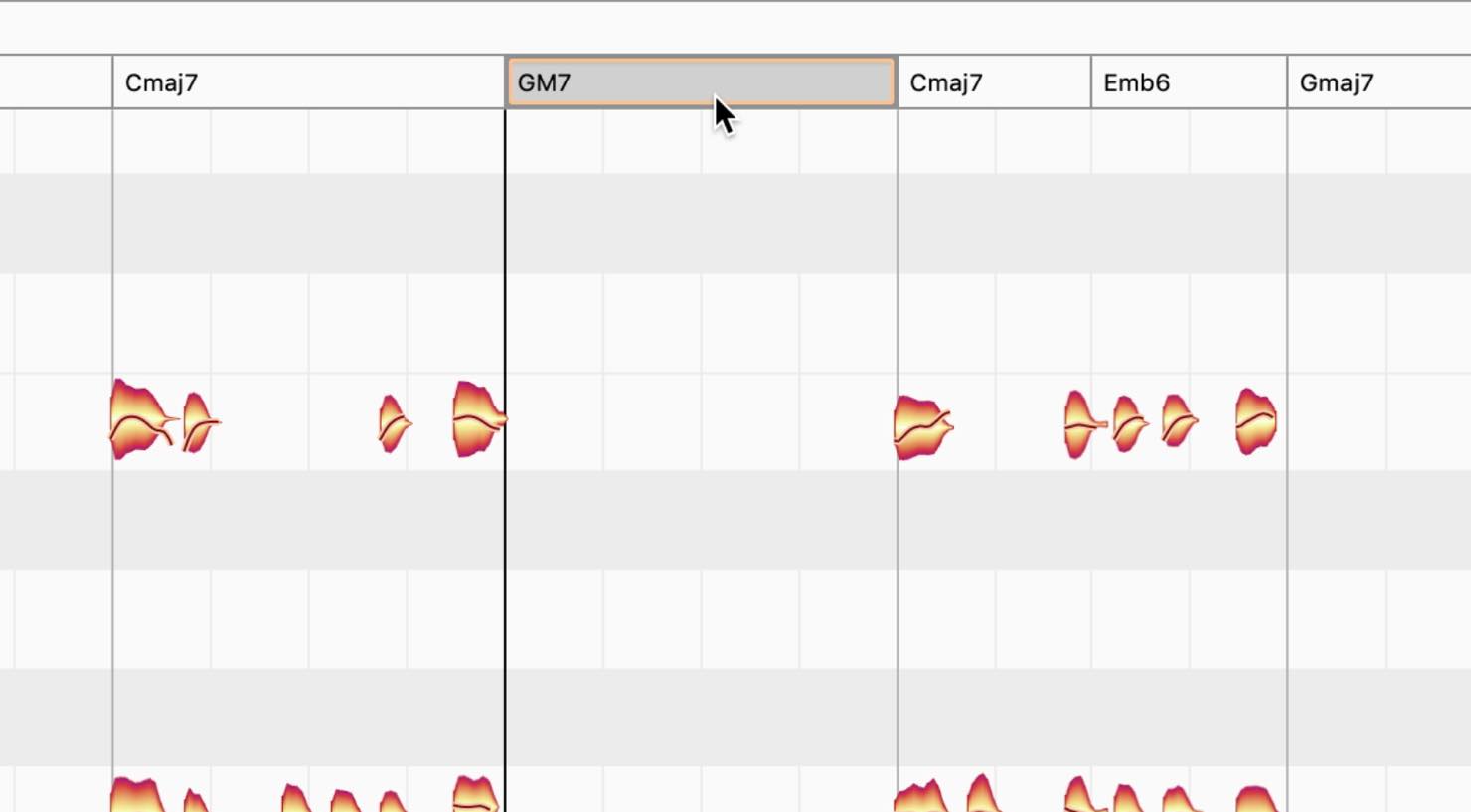
If it is not listed, simply type the chord name directly. Melodyne recognizes common chord-naming conventions, including variations in notation.
Right-click a chord and enable 'Monitor Chords'. Selecting a chord name will then let you audition it with a guitar sound.
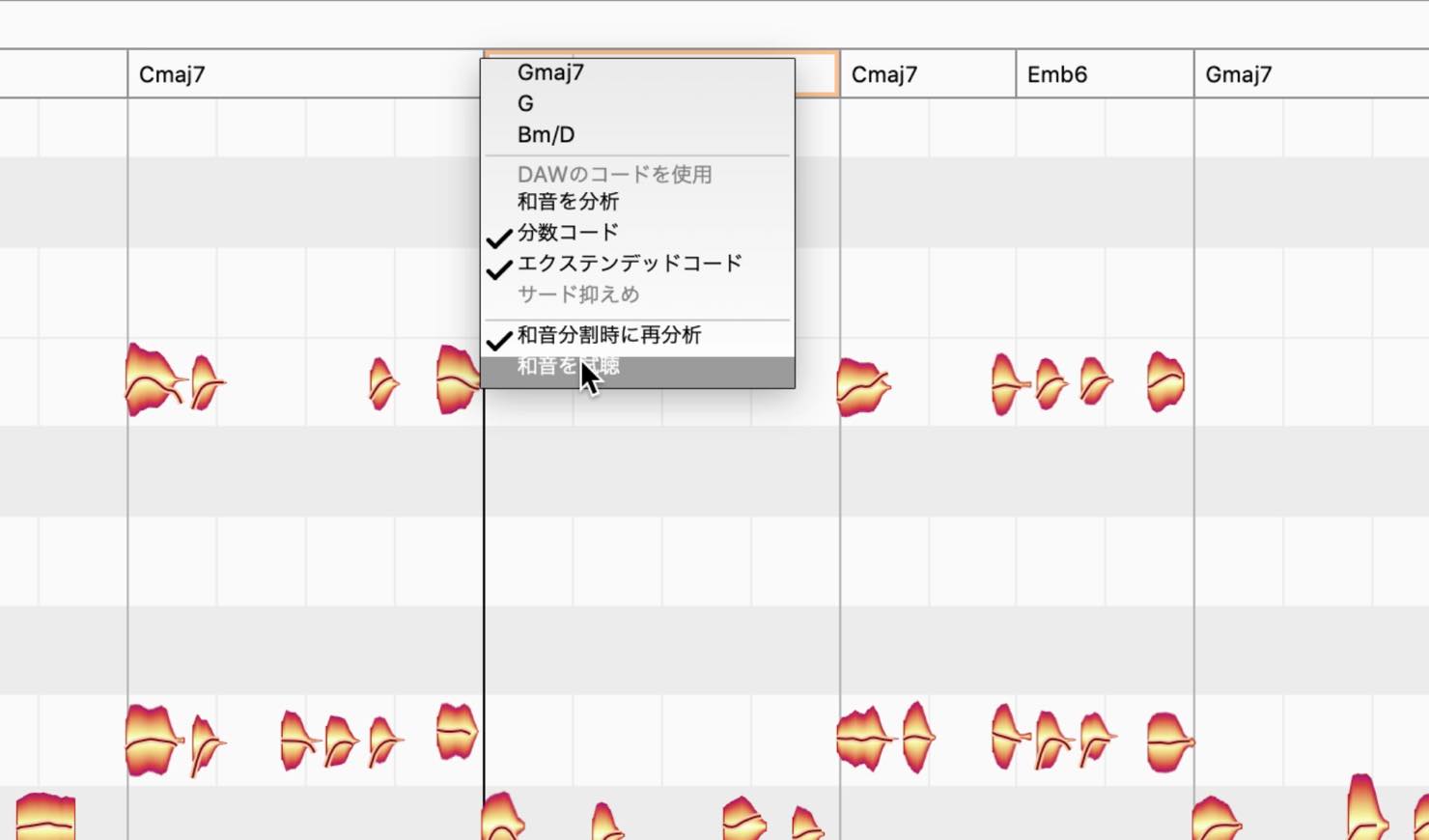
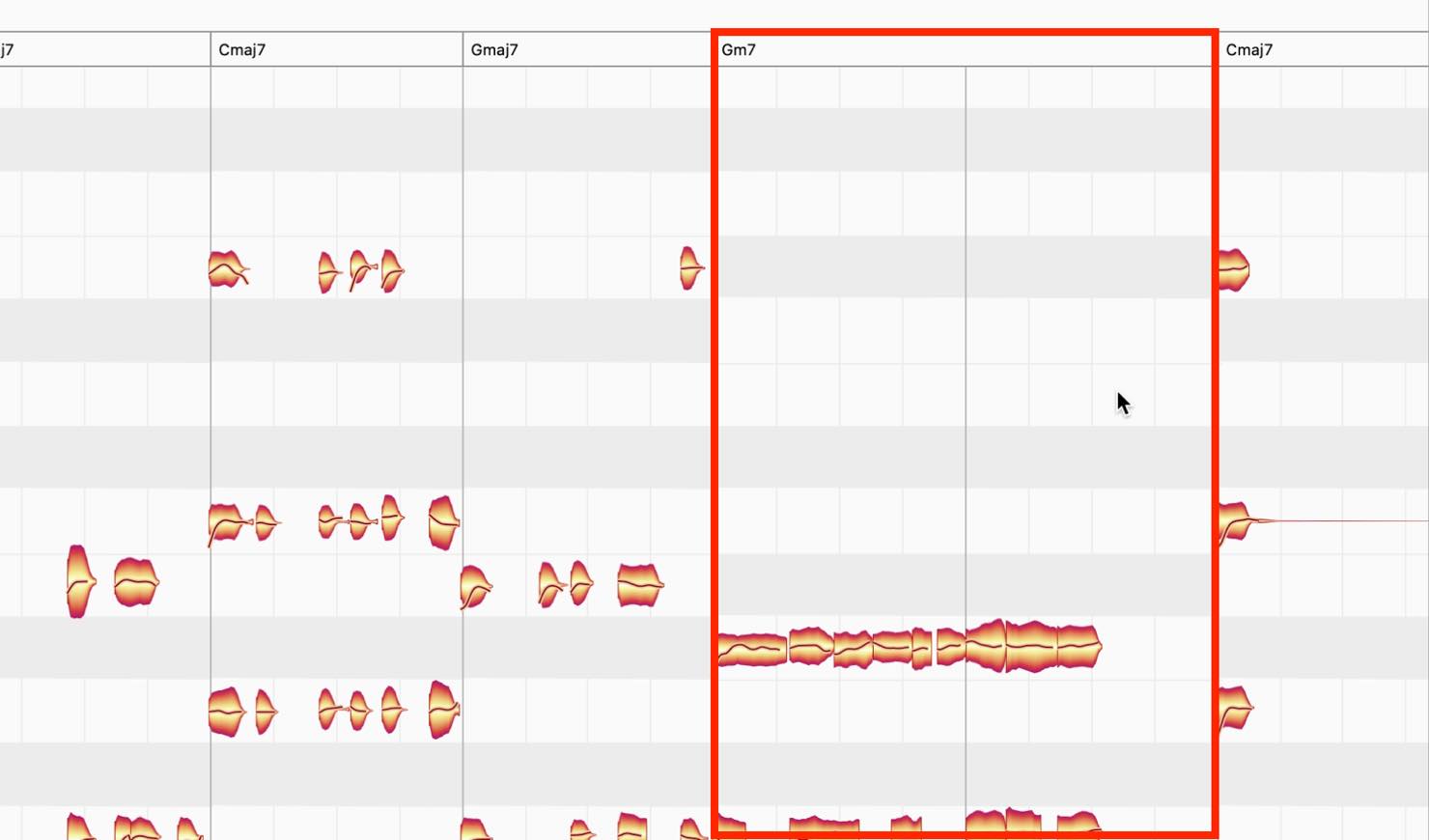
After chord analysis, choose 'Chord Scale' in the Pitch Grid settings. The grid adapts to the current chord, as in the G minor 7 passage shown here, making it easier to work with changing harmony.
The New Percussive Pitched Algorithm
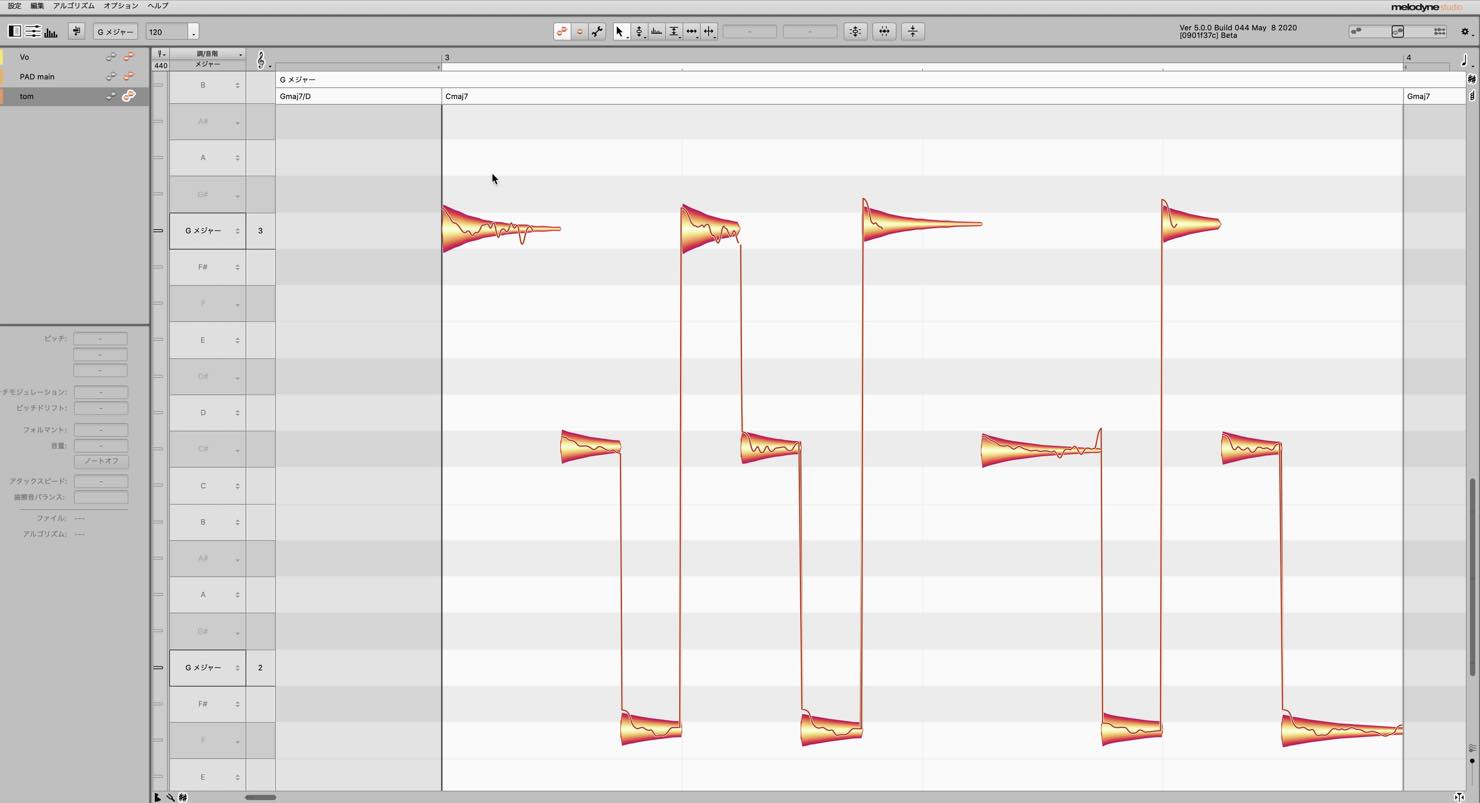
To demonstrate this feature, we loaded an 808 tom sample.
In earlier versions of Melodyne, the Percussive algorithm would normally be used for this type of sound.
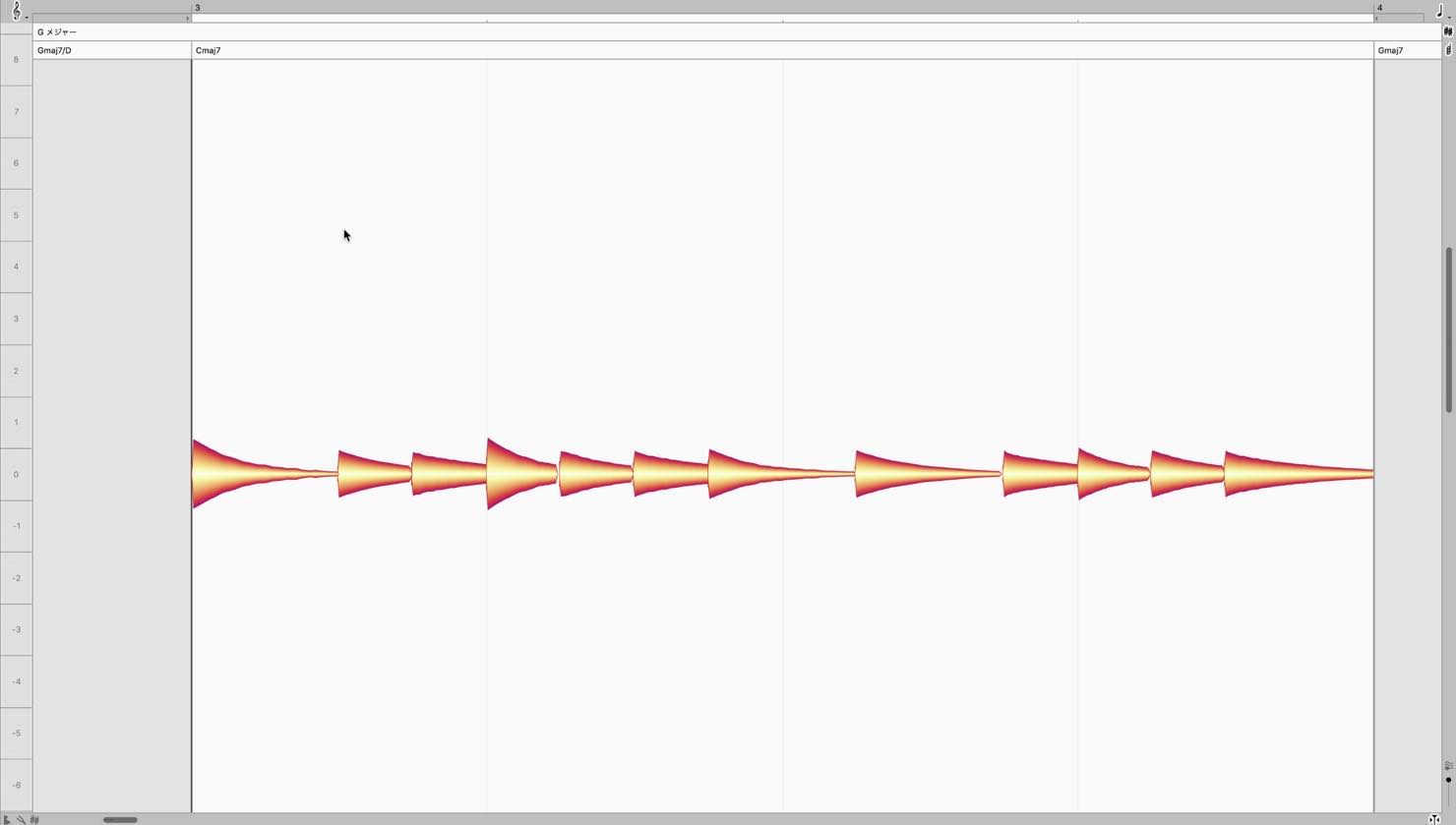
However, as shown here, the Percussive algorithm does not display named pitches. Instead, pitch changes are shown as relative offsets in semitones.
The Percussive Pitched algorithm is designed for sounds like these: percussive instruments that also have a definite pitch.
Choose 'Percussive Pitched' from the Algorithm menu and let Melodyne detect the material again.
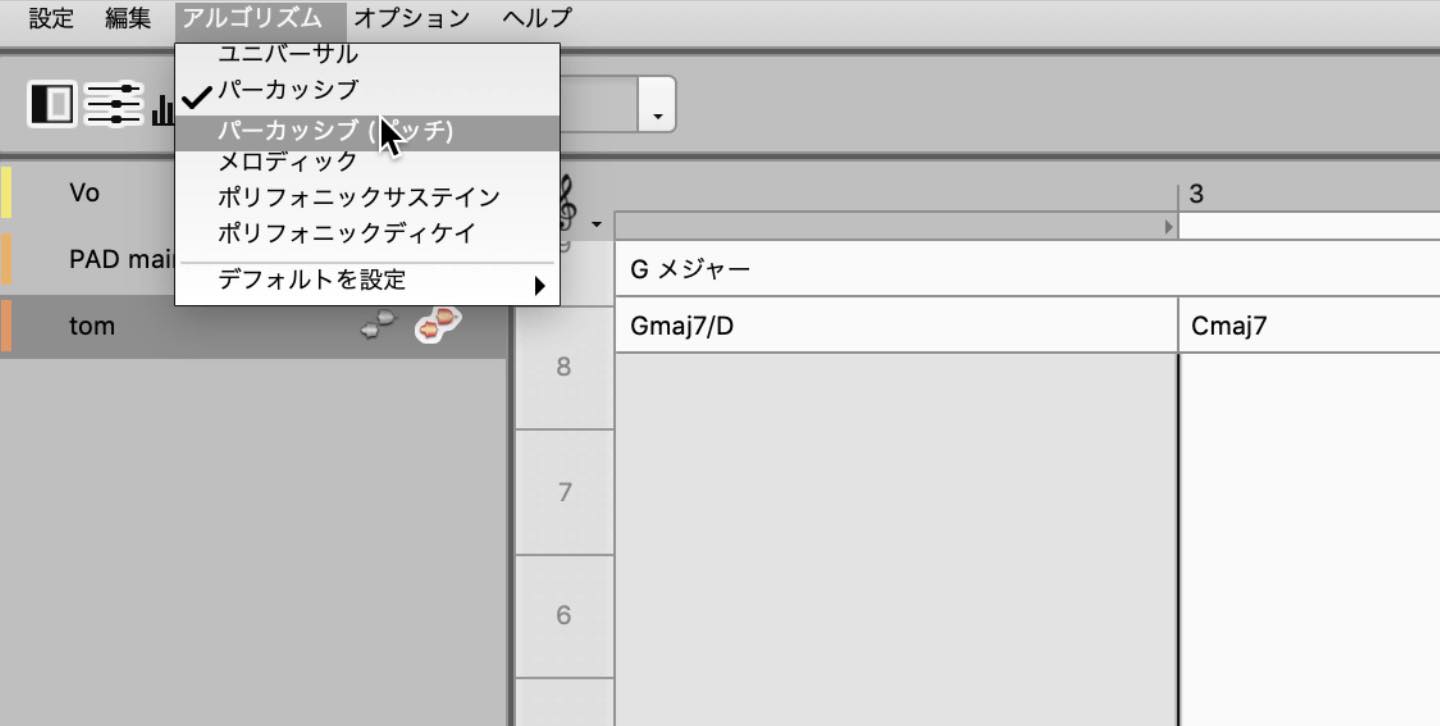
The notes now appear with pitch information, as shown below. You can tune the percussion while taking the song's harmony into account.
Keyboard Shortcuts
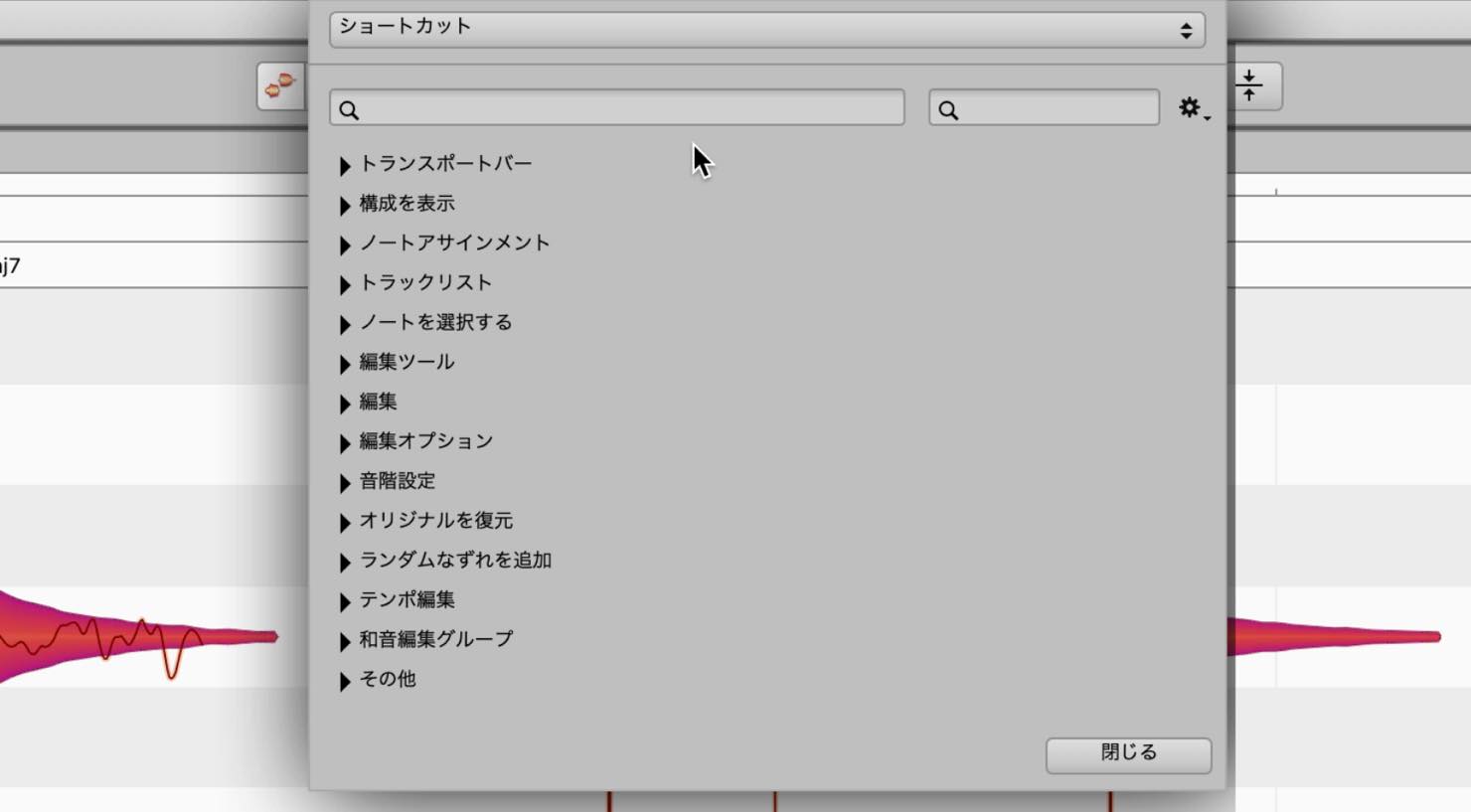
Melodyne 5's shortcut preferences let you search by either command name or keyboard shortcut.
This allows you to find a command and also check existing key assignments, helping you avoid conflicts when assigning or editing shortcuts.
Melodyne 5 also includes shortcut presets based on particular DAWs. If you are new to Melodyne, you can replace the default assignments with a set based on the DAW you already know.
Compatibility with Earlier Versions
When you open a project edited in Melodyne 4 or an earlier version, the new sibilant handling and pitch-center calculation are initially left inactive to preserve the previous editing results. You can then enable Melodyne 5's new processing and revise the edits if you wish.
- 1Melodyne 4 essential: Overview and How to Use It
- 2Melodyne 4 assistant: Overview and How to Use It
- 3Melodyne 4 editor/studio: Overview and How to Use Them
- 4What's New in Melodyne 5
- ◆ Manufacturer/Product Information: http://urx.space/Rgab
- ◆ Purchase Here (Affiliate Link): http://urx.space/Rgab
[Original 2020 Announcement] Melodyne 5, the established pitch editor's major update, is out!
The Fade Tool, sibilant handling, chord recognition, the Chord Track, and more:
we introduce the new features in a 10-minute video. 👍📝 Article: https://t.co/EhOzEwsW6b
🎥 YouTube: https://t.co/9GQeL8rurY #DTM #DAW @Celemony @HookUp_Official pic.twitter.com/wP0vr86Yp1
— SLEEP FREAKS (@SLEEPFREAKS_DTM) May 26, 2020
Frequently Asked Questions
Q1. What does Melodyne 5's sibilant handling do?
It automatically detects sibilants in vocals and leaves their frequency content unchanged during pitch edits, while adjusting the pitched vowel components. Its handling of note-length changes also helps preserve natural pronunciation.
Q2. How can I use the Sibilant Balance Tool?
Drag notes to adjust the balance between sibilants and pitched vowel components. You can reduce sibilance as with a de-esser, or emphasize and isolate sibilants for creative rhythmic editing.
Q3. What are the benefits of Melodyne 5's chord recognition?
It can automatically identify chords in a track and display them on the Chord Track. Selecting Chord Scale in the Pitch Grid settings adapts the grid to the changing harmony.
Q4. What is the Percussive Pitched algorithm for?
It is designed for percussion with a definite pitch, such as an 808 tom. Unlike the ordinary Percussive algorithm, it displays the detected pitches so that you can tune the sound in relation to the music.
NEW ARTICLES
Latest English Articles




































































































































































































