
This article explains how to align automation precisely with the grid in Logic Pro, using MIDI notes or beat divisions. If automation points do not line up with bars, the Snap function can help. Enable Snap Automation in the Snap menu and choose the desired grid interval, such as bars or beats, to draw automation curves accurately. This setting is useful for both beginners and experienced producers who want precise editing.
Automation does not line up with the bars

When writing automation, you may want it to align exactly with bars,
but find it difficult. Here is how to address that.
How to fix it
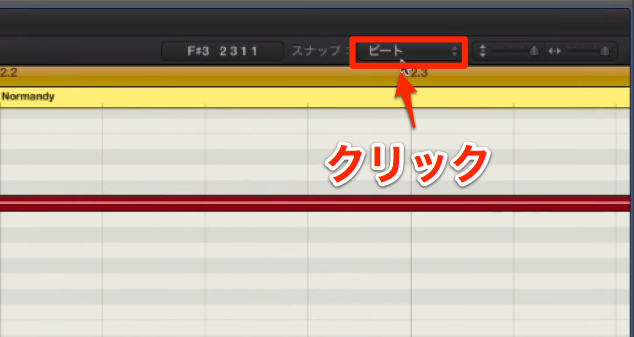
Click the Snap menu.
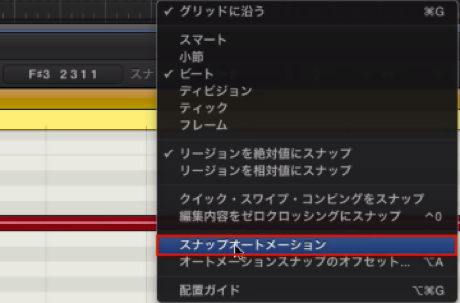
Then enable Snap Automation.
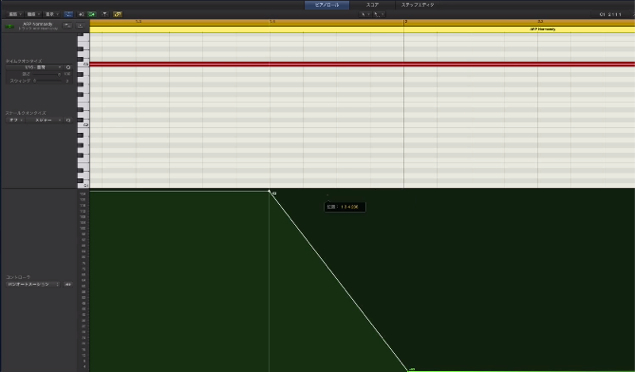
Choose the desired interval, such as bars or beats,
and you can write automation precisely on the grid.
Frequently asked questions
Q1. Why is automation in Logic Pro not snapping to the grid?
Snap Automation may be disabled. Open the Snap menu and turn on Snap Automation, then select an interval such as bars or beats.
Q2. How can I turn off automation snapping?
Turn off or uncheck Snap Automation in the Snap menu to draw automation curves at freely chosen positions. You can switch the feature on or off as needed.
Q3. Which setting should I choose for fine automation adjustments?
After enabling Snap Automation, choose a fine interval from the grid menu, such as 1/16 or 1/32, for finer adjustments. Select the interval that suits your work.
NEW ARTICLES
Latest English Articles


































































































































































































































































































































































































































































































































