
Learn the basics of programming drums in Cubase 11 in three stages: create an instrument track, draw a MIDI part, and enter notes in an editor. This guide covers the pencil tool, switching to the Drum Editor, and using Snap and grid settings for efficient note entry. You will also learn how Cycle playback and transport preferences make it easier to audition and refine a pattern. Follow these steps to build a solid foundation for drum programming.
This time, let's try programming drums.
Along the way, you will learn how to create parts and use related controls and keyboard shortcuts. Take time to get comfortable with these essential programming skills.
Drum Programming Basics: Video
Selected Questions and Answers from YouTube

Where your display shows beats, mine shows ms. What should I do?

Right-click the ruler at the top of the window to switch between Bars+Beats and Seconds. Try changing that setting.
With an eight-beat setting, I entered two consecutive eighth-note kicks, but I hear only one hit. What could be wrong?
If the first note overlaps the second, the second hit may not sound. Try shortening the notes.
When programming, I can somehow hear notes only on the main beats. Do you know why?
Try enabling Snap and changing the note value to eighth notes or sixteenth notes.
Creating an Instrument Track
First, create an instrument track and load Groove Agent SE.
For the detailed procedure, see the track-creation tutorial linked below, Part 3 of this series.

When you add the track with Groove Agent SE selected, its window opens as shown.
The window opens automatically when you create the track, but it does not need to remain visible. Click the window's × button to close it.
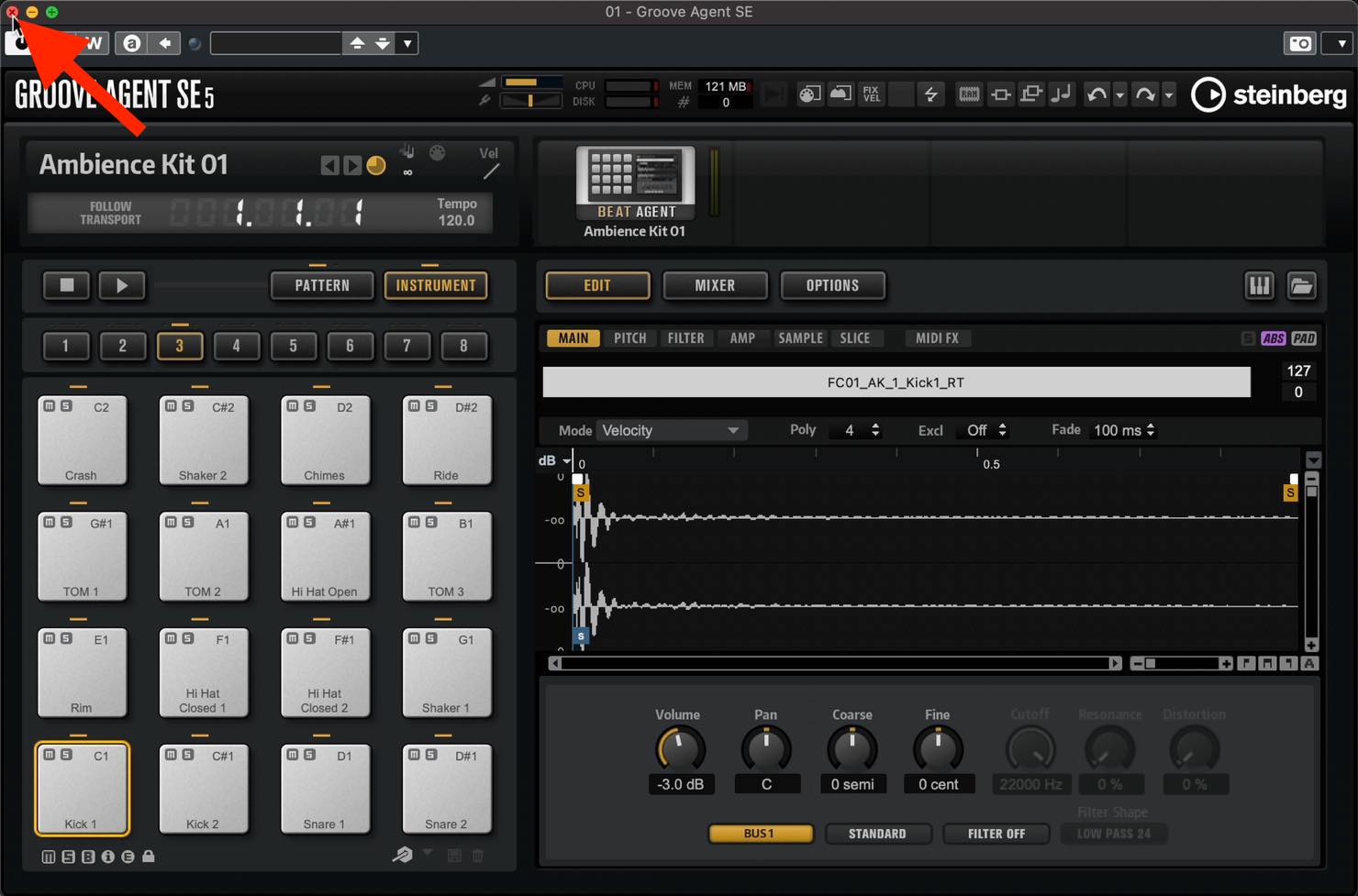
To reopen the instrument window, click the keyboard icon on the track or the keyboard icon in the Inspector on the left.
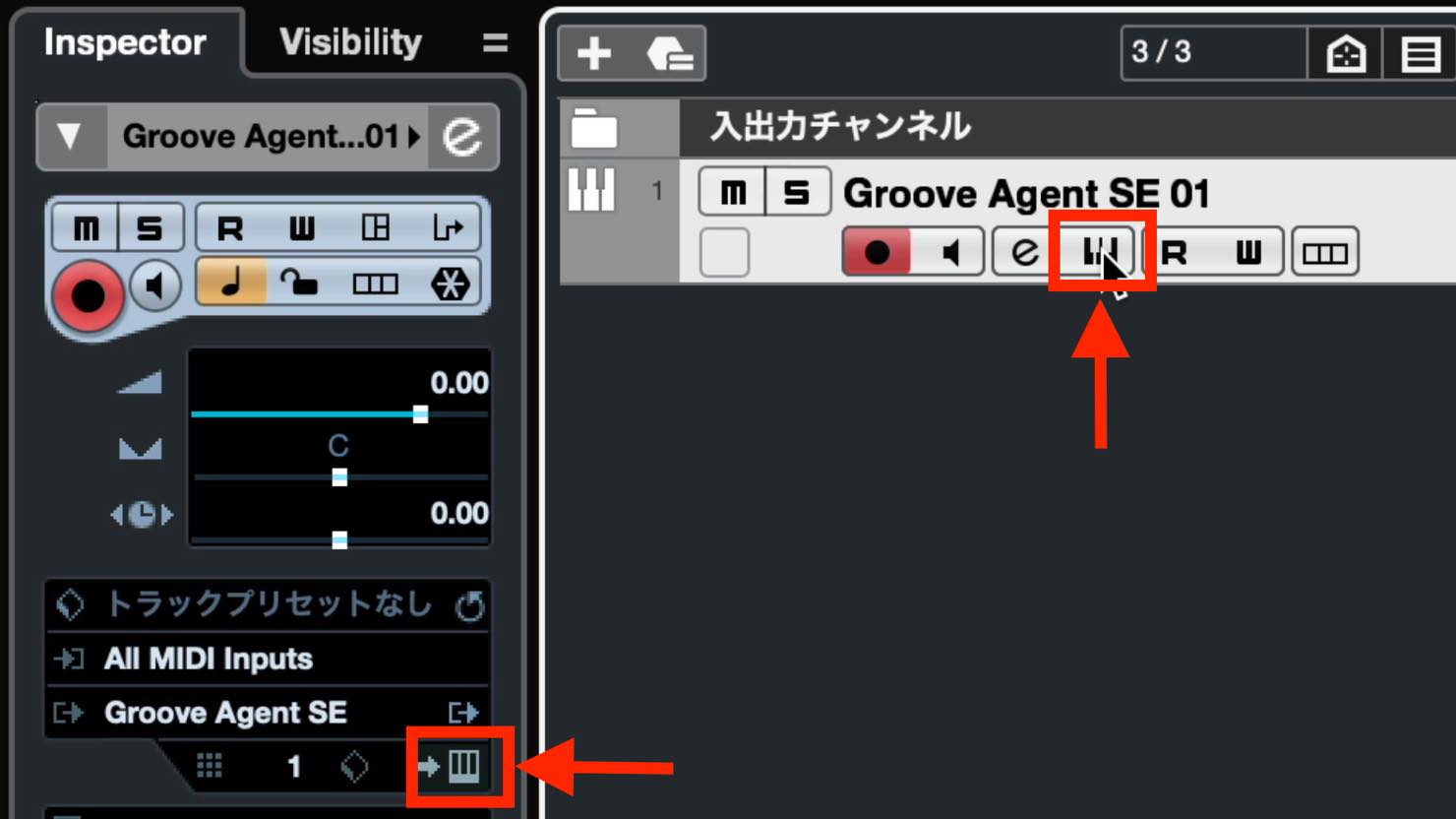
Show or hide the window as needed.
Creating a MIDI Part
Before entering notes, create a container for the data. The tutorial calls this an “event”; for MIDI note entry, this is a MIDI part. Use the pencil tool to create it.
Select the pencil tool using this toolbar button,
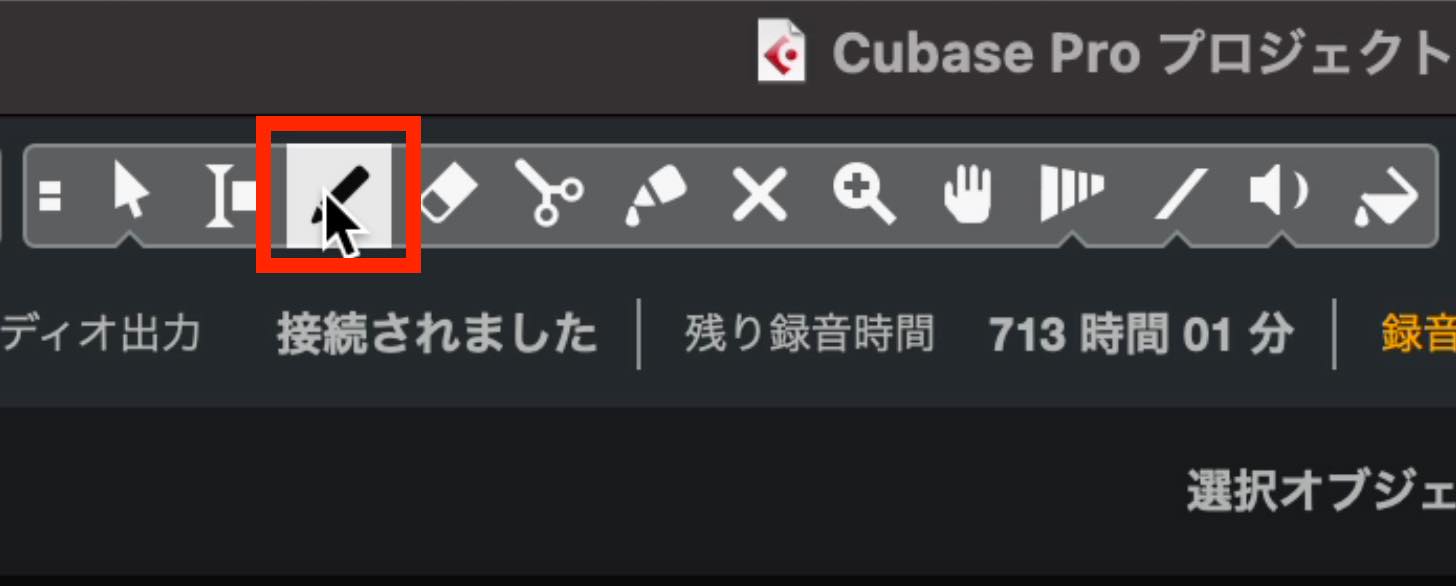
or hold Option on Mac or Alt on Windows while using the Object Selection tool to switch temporarily to the pencil tool.
Drag across the timeline with the pencil tool to create a part, as shown.
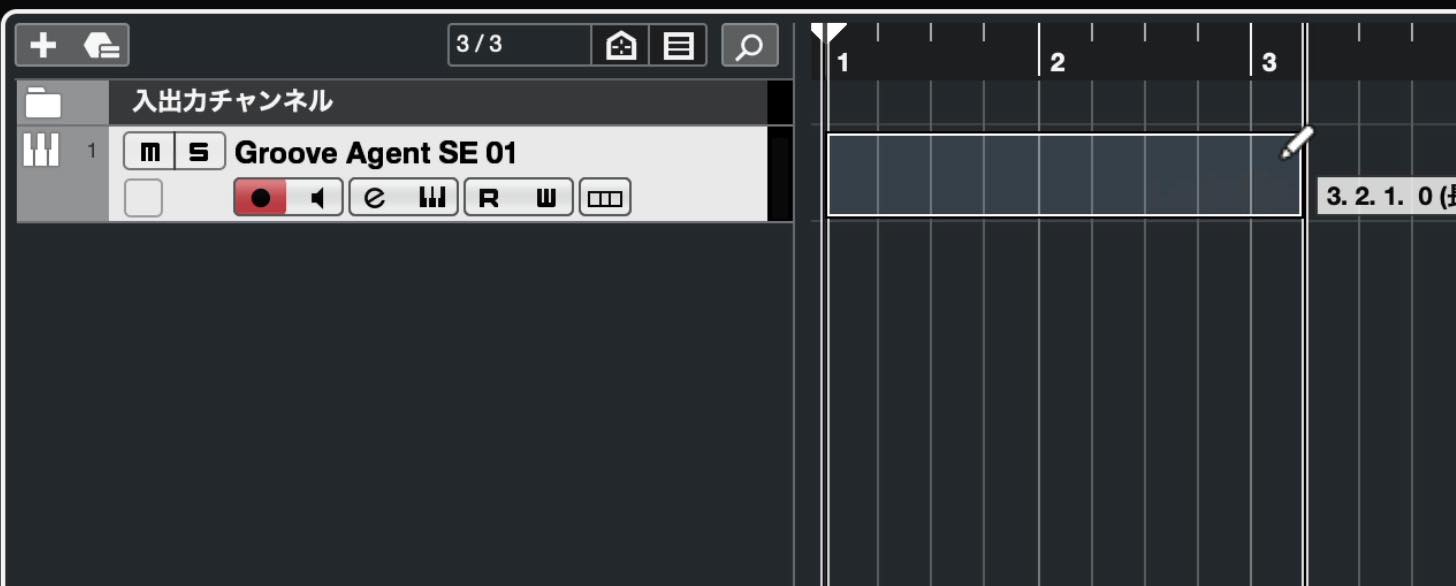
If the ruler divisions are too small, zoom in horizontally. You can use the zoom slider at the lower right of the zone,
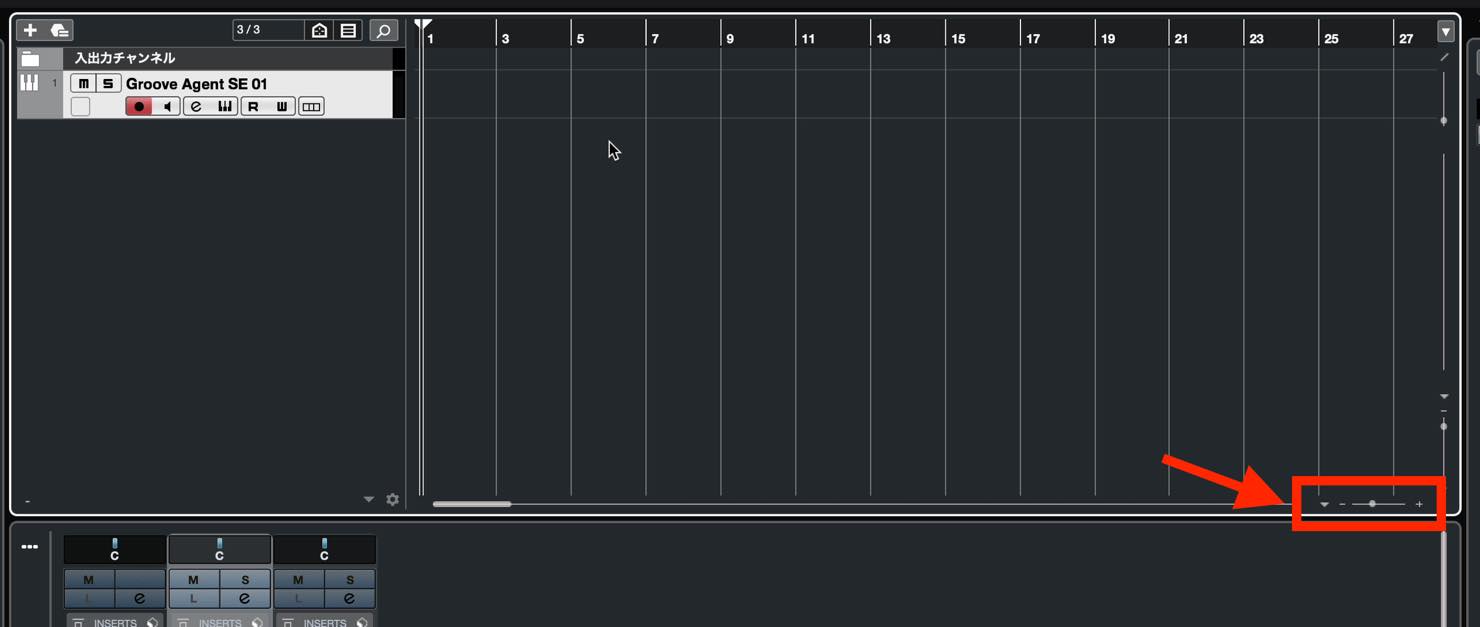
but keyboard shortcuts are convenient: press G to zoom out and H to zoom in.
Once you zoom in and draw a part, you will notice that its length changes in fixed increments.
This happens because the Snap button is enabled.
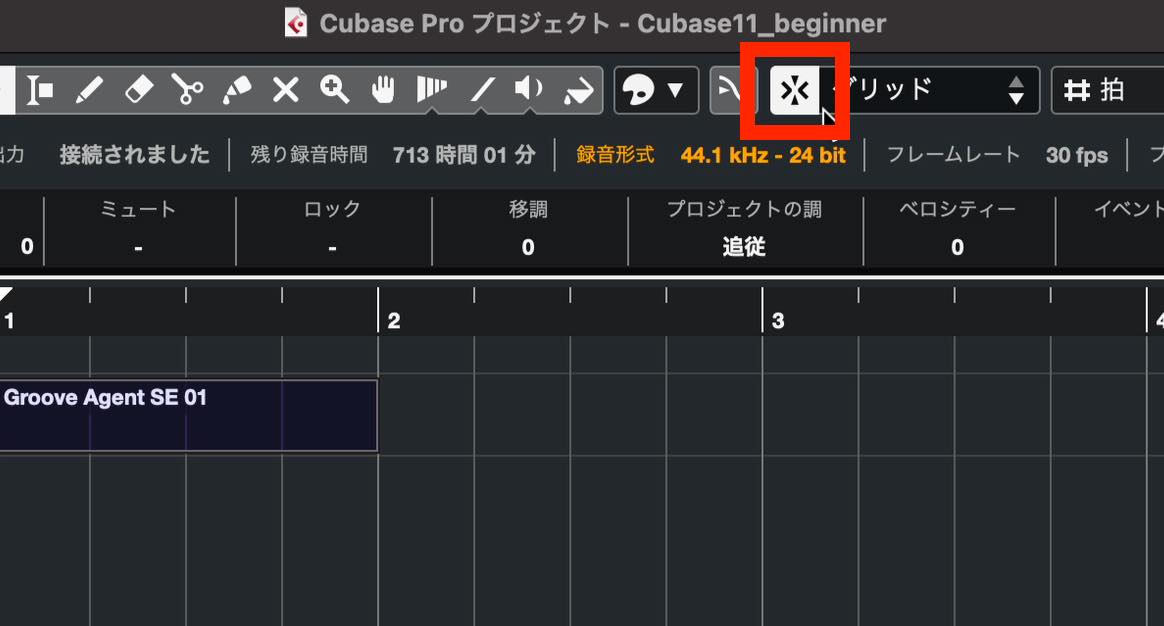
With Snap disabled, you can change the length freely, regardless of the ruler divisions.
Snap usually makes editing easier, but you can disable it when needed.
Choose the snap interval using the Grid Type control to its right.
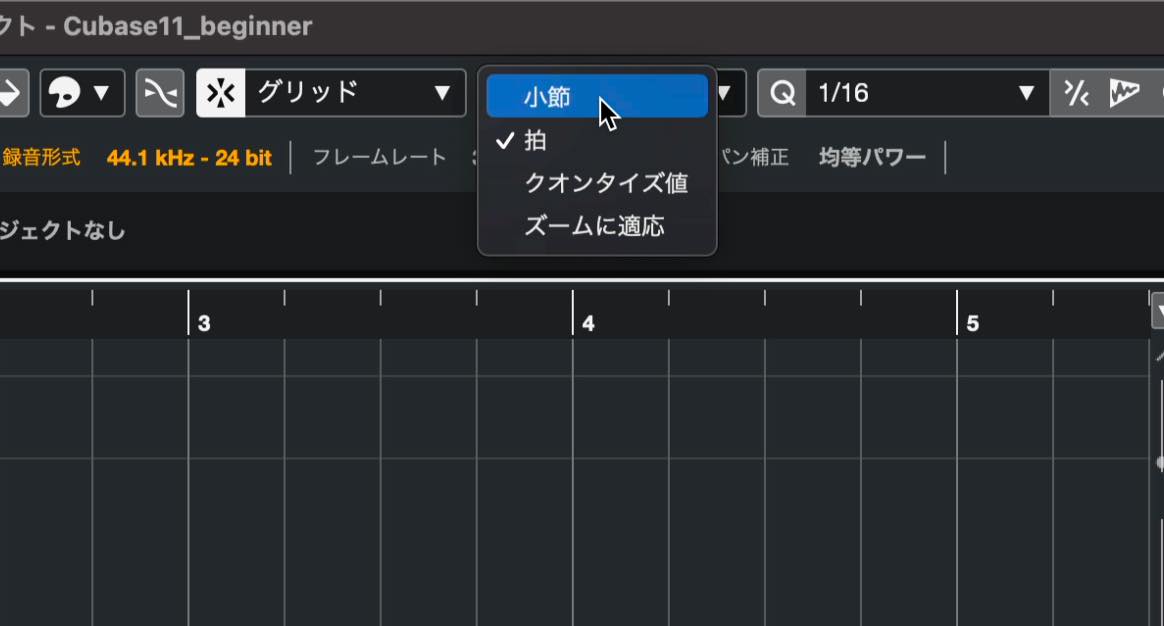
Bar and Beat use those divisions. Use Quantize adopts the quantize value shown farther to the right, allowing finer intervals. Adapt to Zoom uses the grid lines displayed at the current zoom level.
Entering Notes in the Editor
After creating the part, double-click it to open the editor.
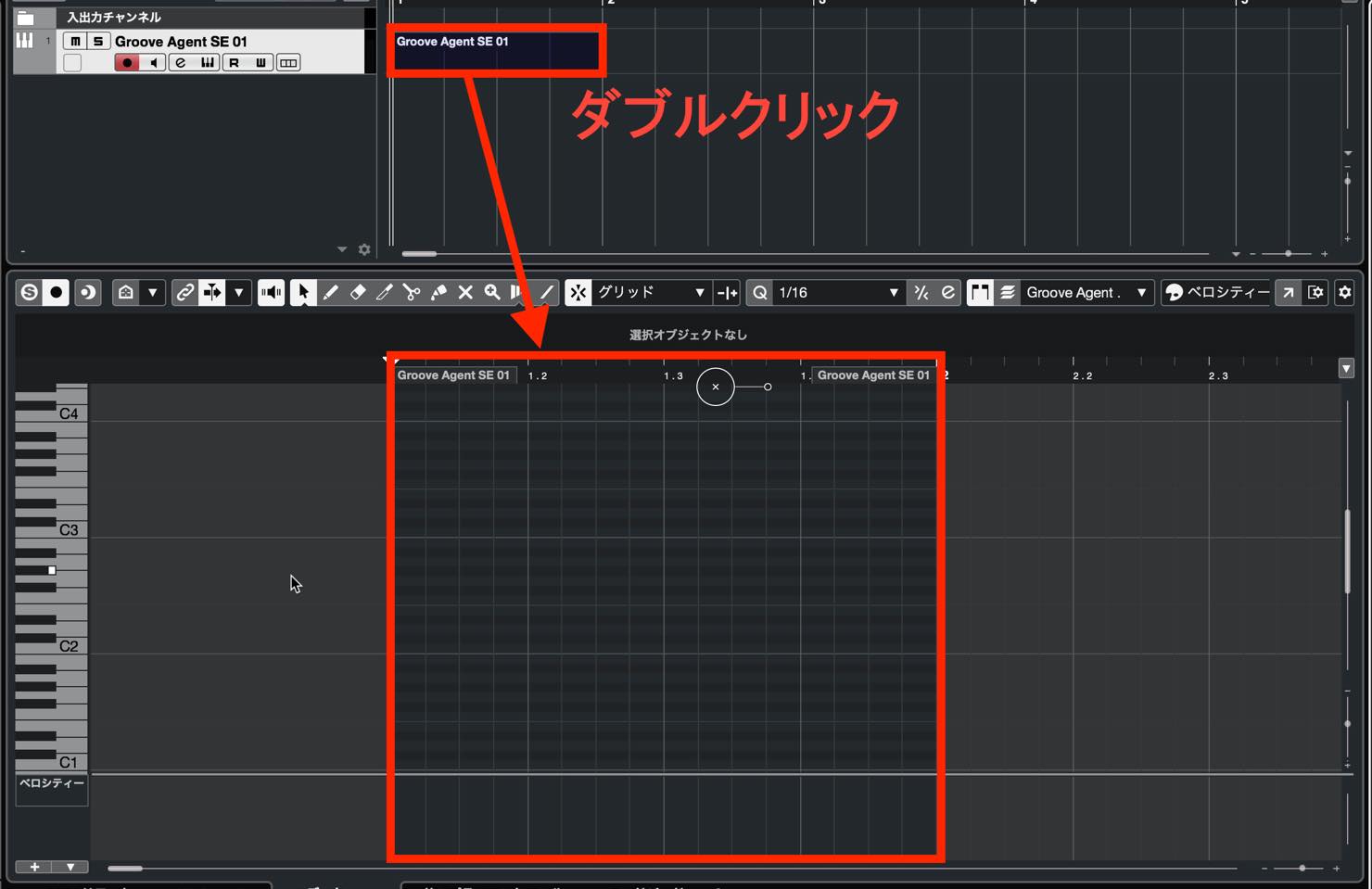
The editor opens in the lower zone as shown.
This is normally the Key Editor, with a vertical piano keyboard showing the pitches where you can enter notes.
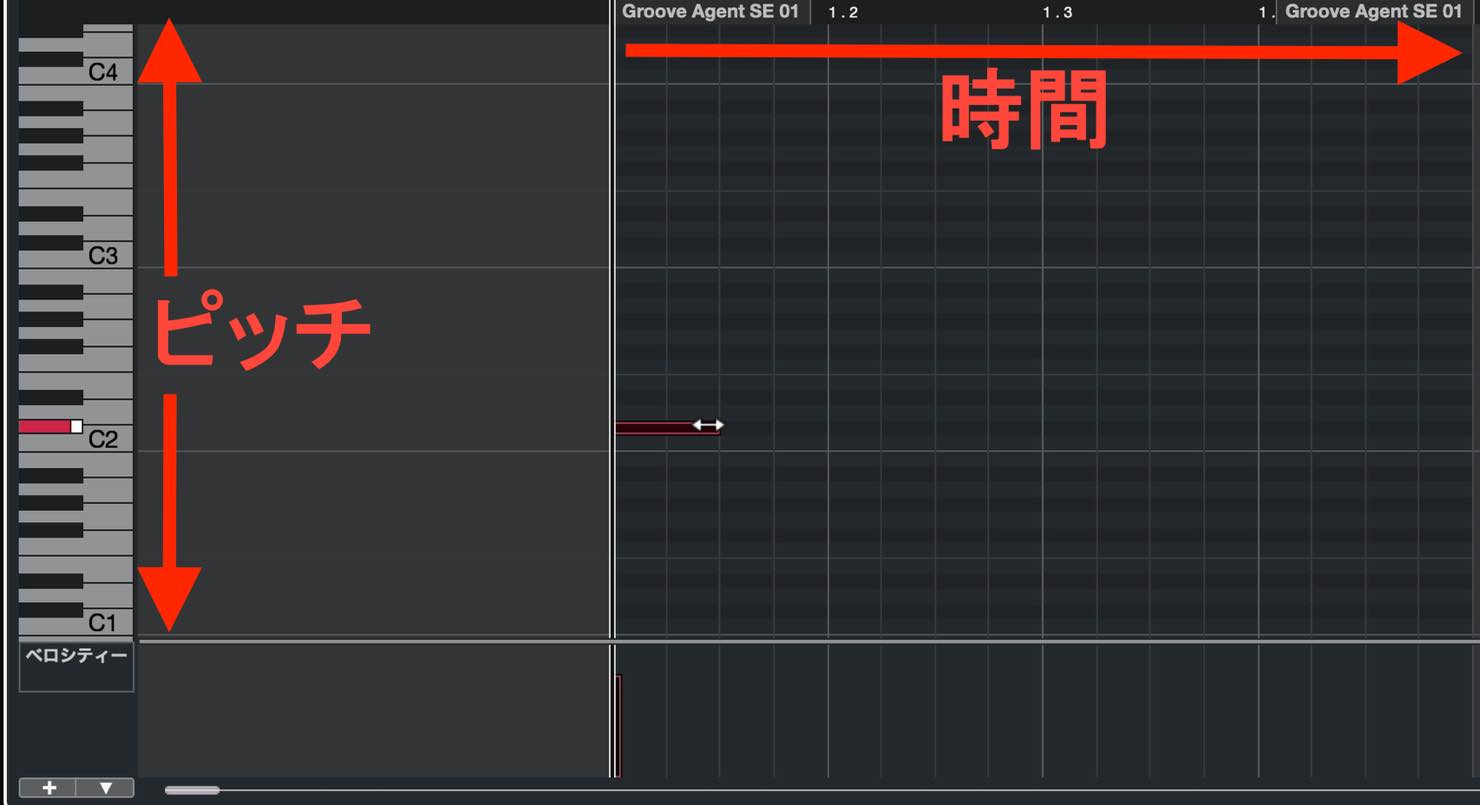
To program drums here, you need to know which drum sound is assigned to each key.
The pads in Groove Agent SE display their assigned pitches, so you can use those as a reference.
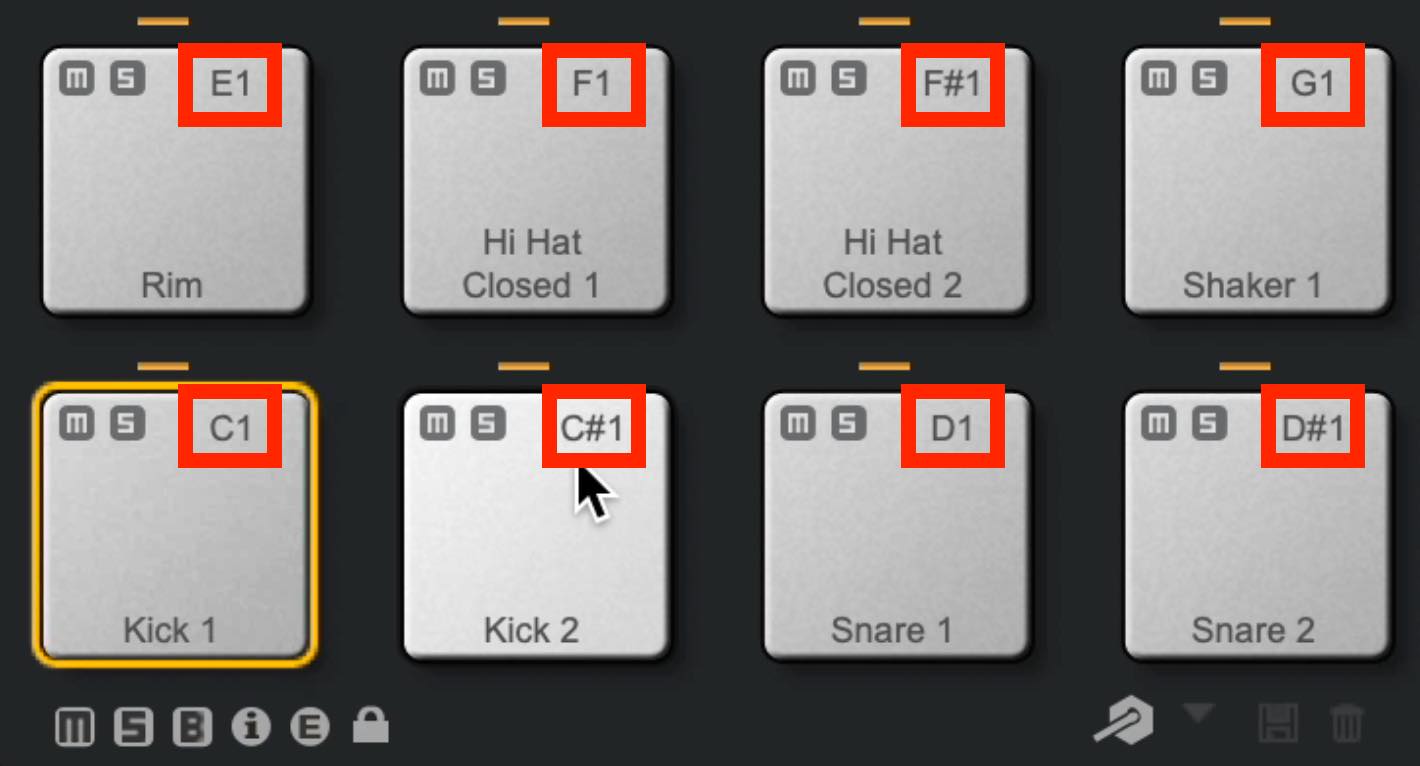
However, this can be cumbersome until you become familiar with the assignments.
For this reason, we recommend the Drum Editor.
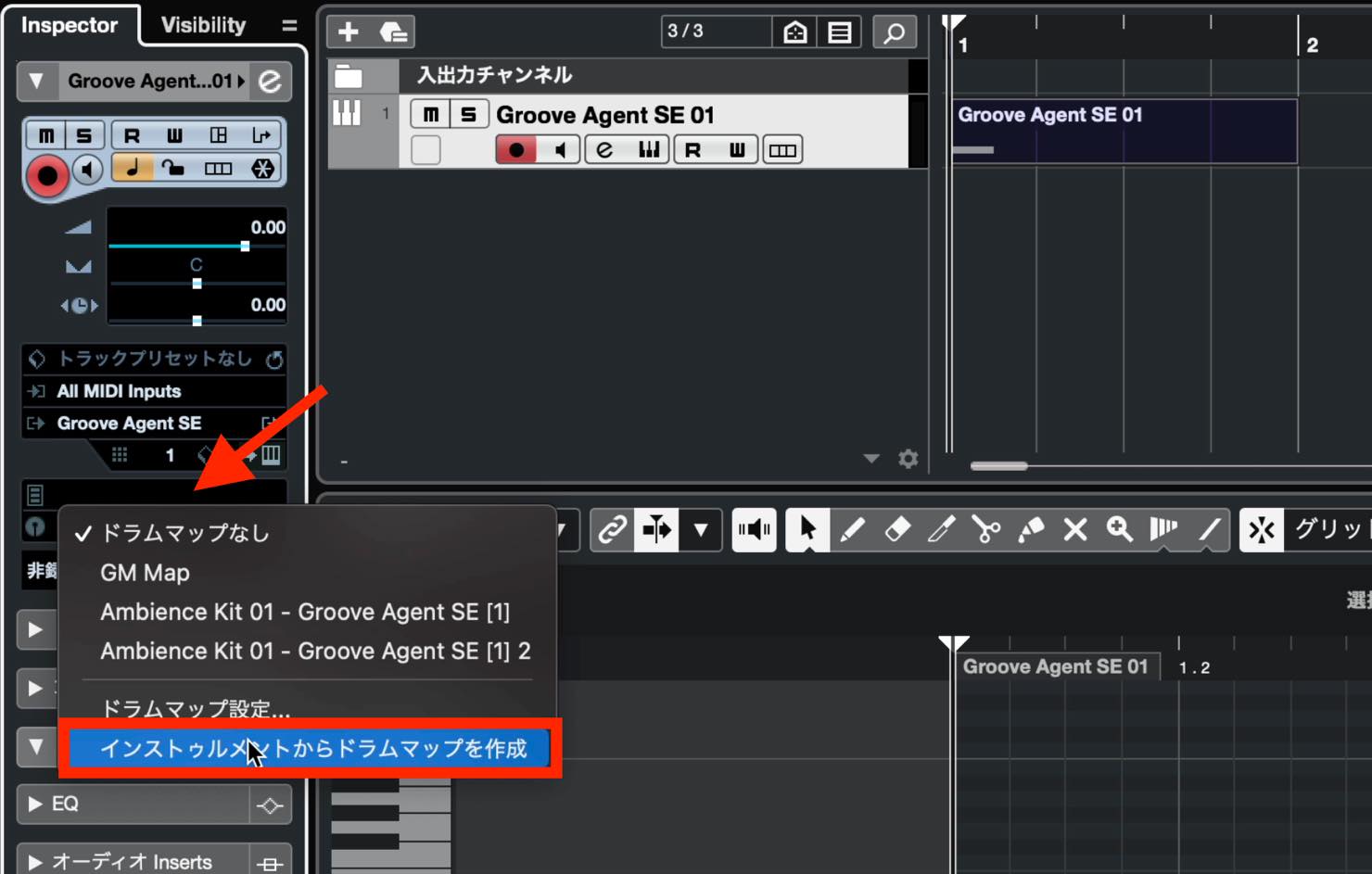
In the track Inspector on the left, click No Drum Map and choose Create Drum Map from Instrument.
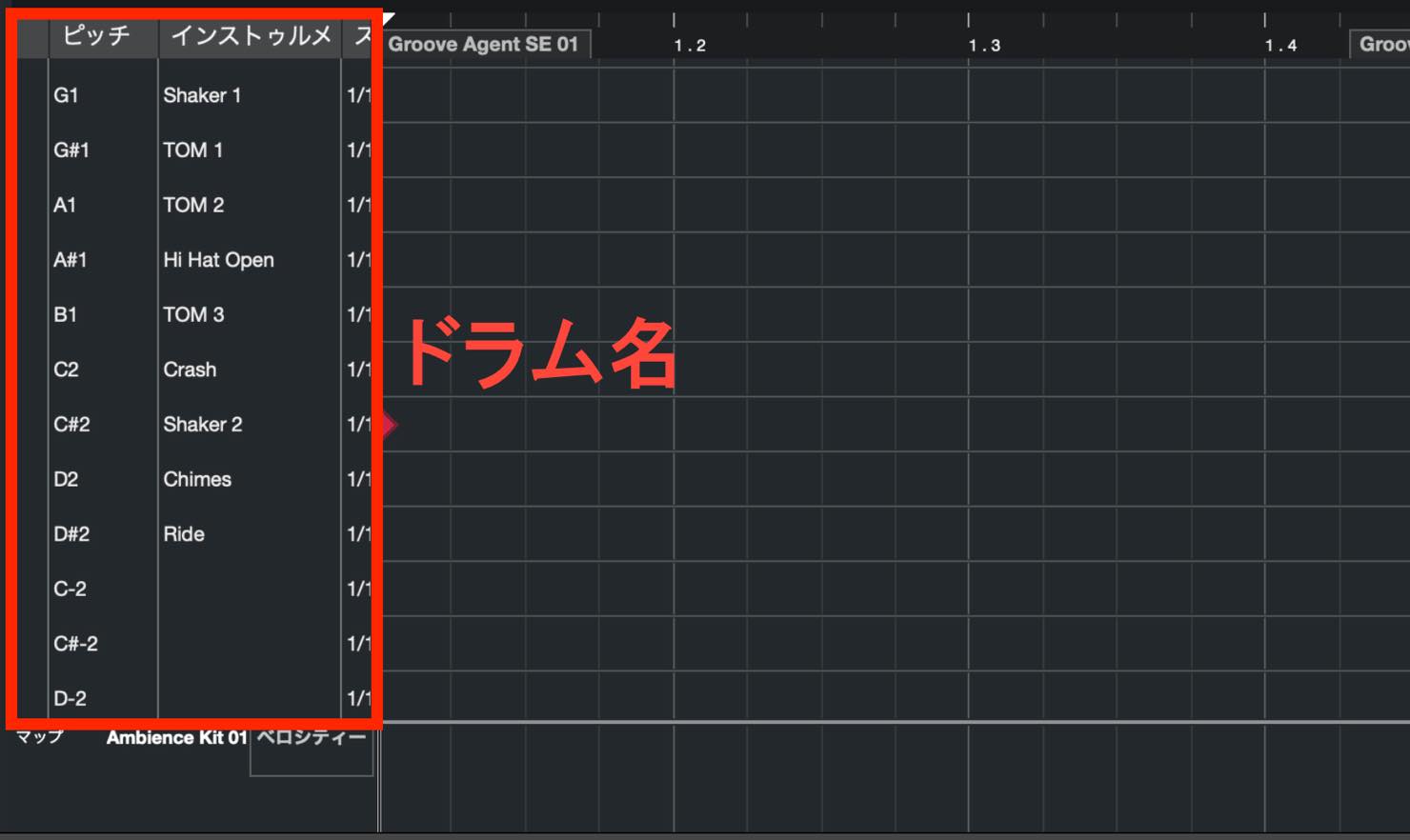
Double-click the part again to reopen its editor. The vertical axis now shows drum names instead of piano keys.
Click at the left edge of a drum's row to audition its sound.
Switch to the drumstick tool and enter the desired drum hits at the positions you want.
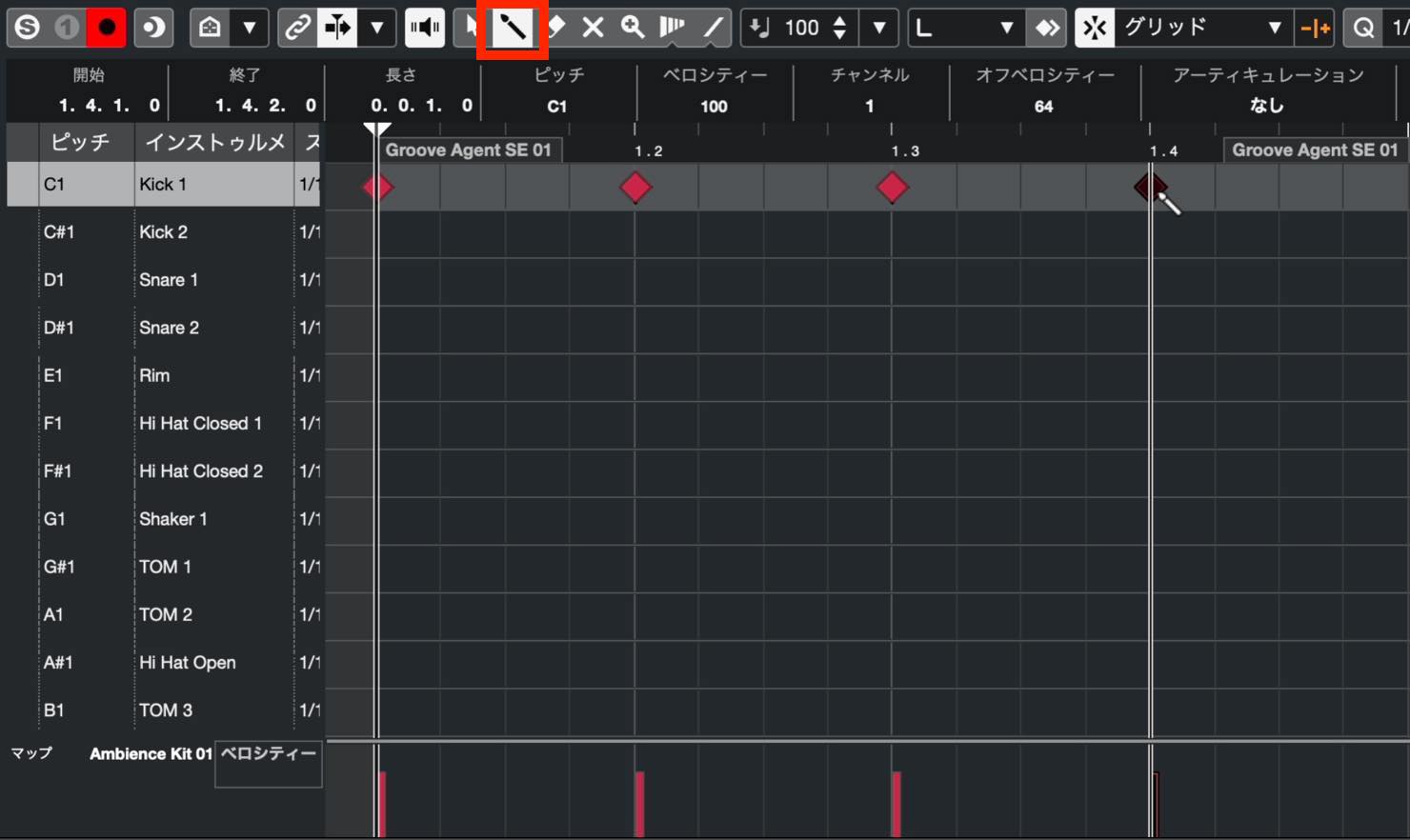
Play back the notes to check the result.
You can start and stop playback with the computer keyboard's Space bar. Press Space to play, then press it again to stop.
There is also a useful playback preference to set. Normally, stopping leaves the project cursor at the stop position, so you must move it back each time you want to hear the same section.
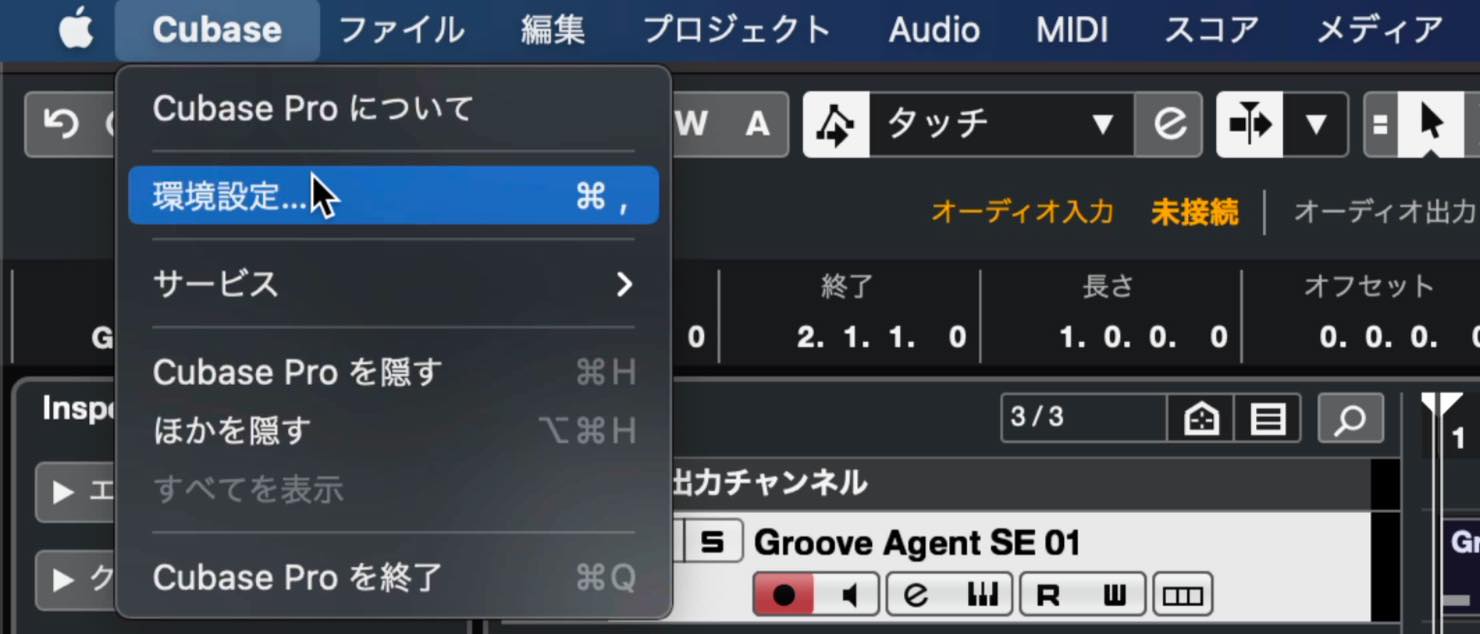
Open Preferences from the Cubase menu in the Mac setup shown here,
select Transport in the left menu, and enable Return to Start Position on Stop.
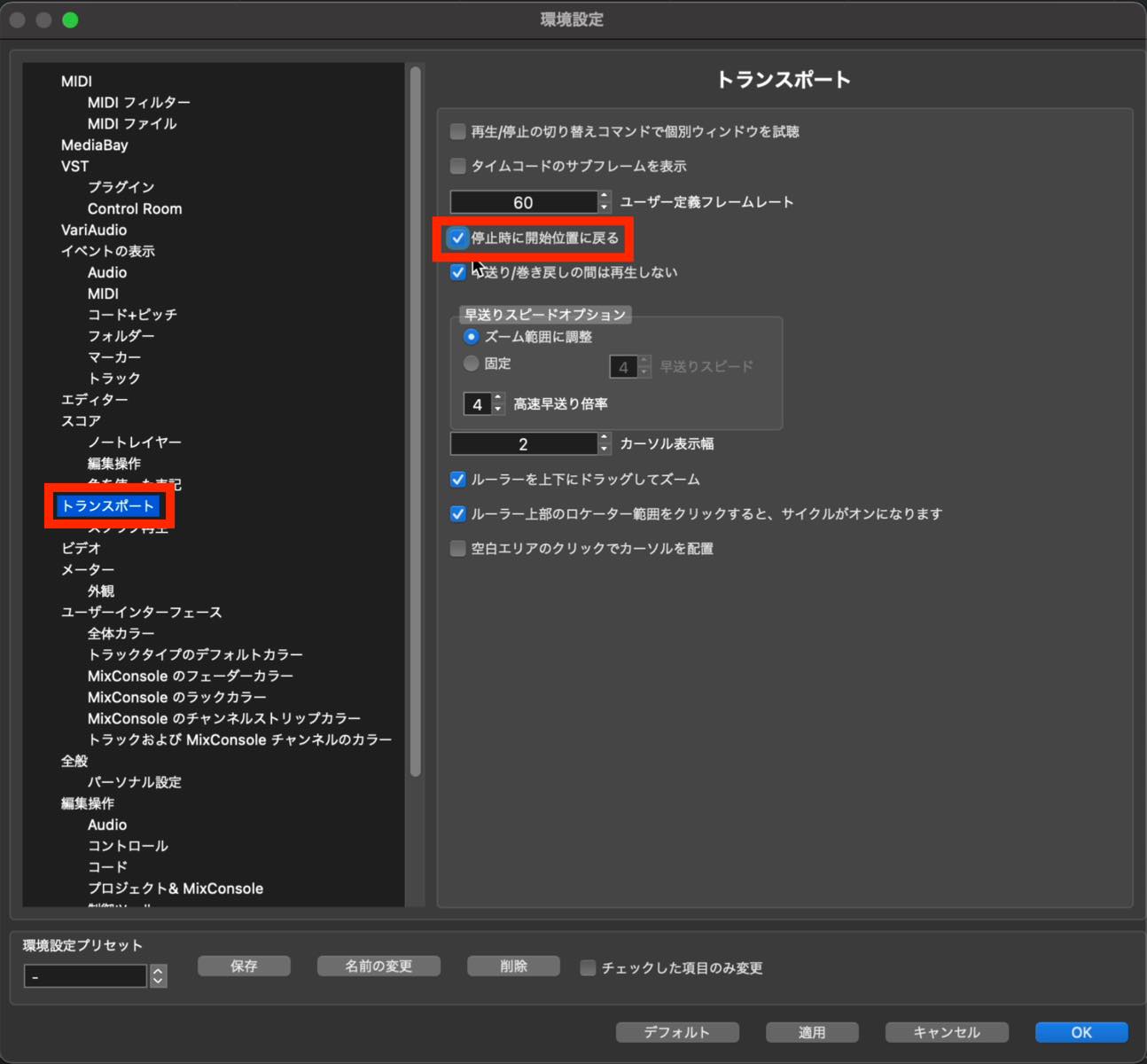
Click OK, then try starting and stopping playback again. The cursor should return to the position where playback began.
When programming drums, Cycle playback is also useful for repeating one bar while you work.
Enable Cycle using this button in the Transport at the bottom. You can also toggle it with the / key on the numeric keypad.

Move the pointer to the upper part of the ruler. When it becomes a pencil, drag to set the cycle range.
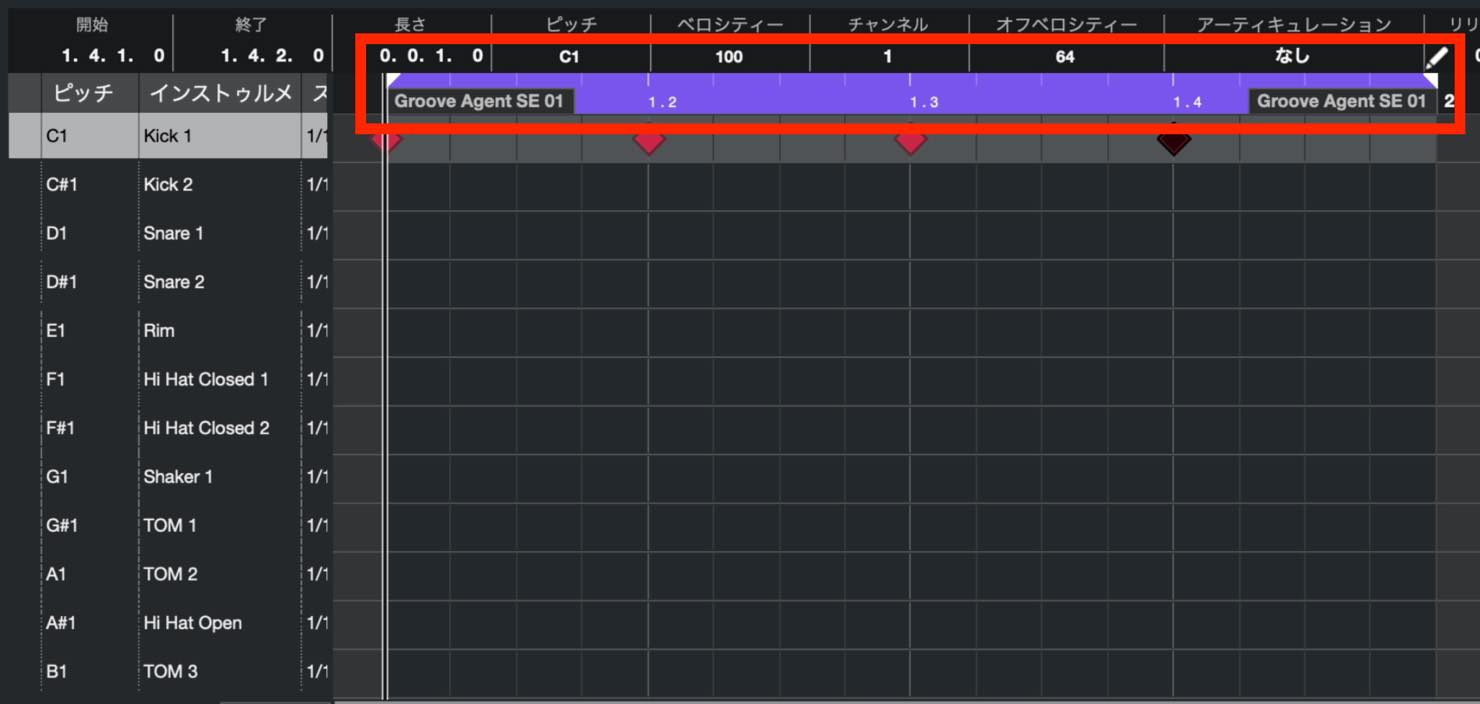
You can use either the editor's ruler or the Project window's ruler; they stay synchronized.
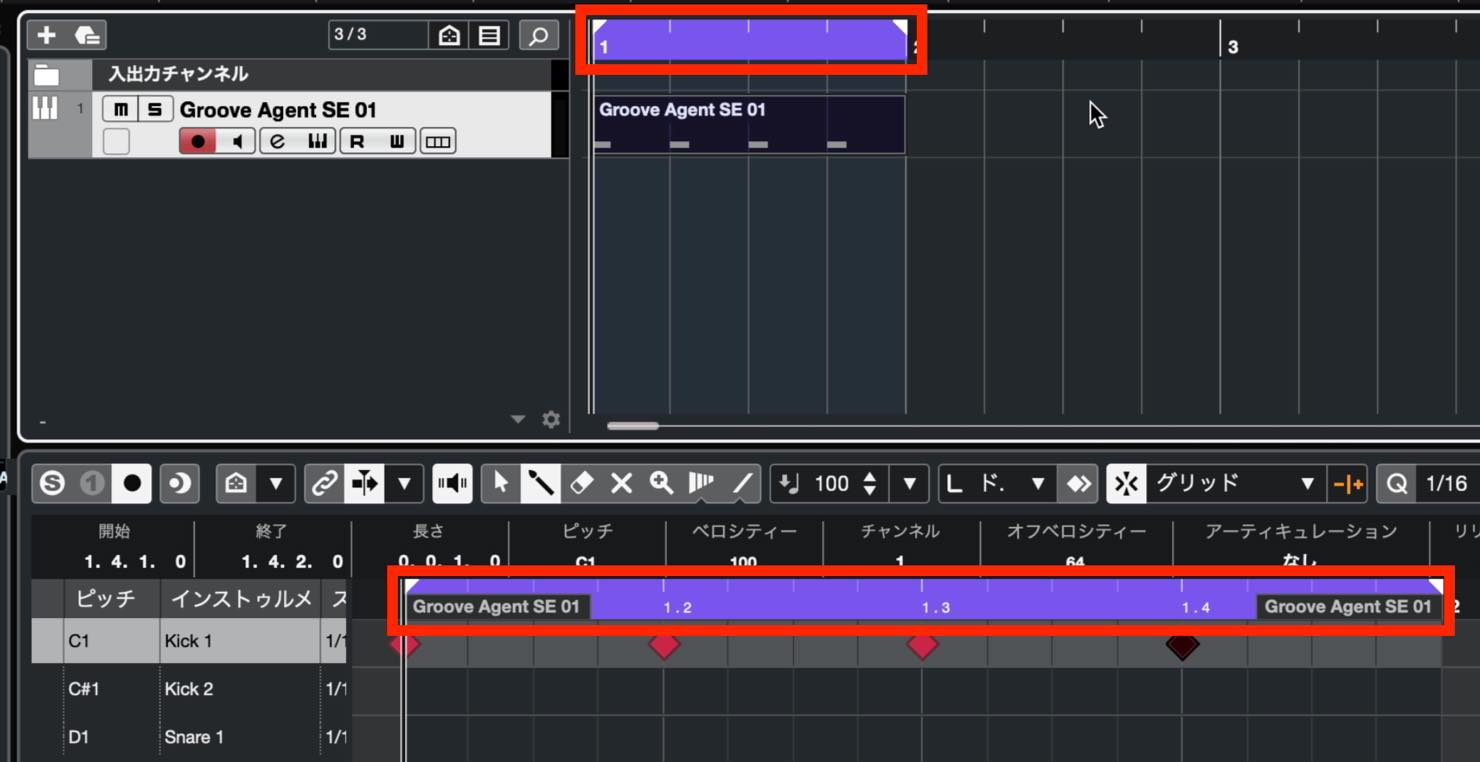
Once you set the cycle range, let the section repeat while you add other drum elements.
Hearing each change immediately helps you program more efficiently.
Those are the basics of drum programming.
Next time, we will take the next step and build a rhythm pattern.
Part 4 of our Cubase beginner series introduces drum programming.
Learn how to create parts and use the related controls and shortcuts, and build a solid foundation for entering your own notes. https://t.co/8FpGEi1Wjj— SLEEP FREAKS (@SLEEPFREAKS_DTM) April 3, 2021
Frequently Asked Questions
Q1. How do I open a drum instrument in Cubase?
Create an instrument track with Groove Agent SE selected; its window opens automatically. If you close it, click the track's keyboard icon to display it again.
Q2. What is the difference between the Drum Editor and the Key Editor?
The Key Editor shows piano keys vertically, while the Drum Editor shows drum names such as kick and snare. Create a drum map to switch to the Drum Editor as described in this tutorial.
Q3. How do I listen to the same drum pattern repeatedly?
Enable Cycle in the Transport, then drag on the ruler to set the range to repeat. The / key on the numeric keypad provides a quick way to toggle Cycle.
Q4. How do I choose the grid interval for programming?
Use Grid Type to choose Bar, Beat, Use Quantize, or Adapt to Zoom. The original FAQ suggests Beat as an easy starting point for beginners.
Q5. How can playback return to the same position each time I stop?
In Preferences > Transport, enable Return to Start Position on Stop. Stopping playback then returns the cursor to the position where playback began.
NEW ARTICLES
Latest English Articles






























































































































































