
Using a MIDI controller with Cubase can greatly improve your music production workflow. This article explains how to register a MIDI controller in Cubase, from device setup and Learn mode to assigning controls, in steps beginners can follow. Assign frequently used commands to physical faders and knobs to create a comfortable, intuitive production environment and work more efficiently.
Control Cubase with a MIDI controller
If you own a MIDI controller, we encourage you to try
connecting it to Cubase.
You can assign most operations in Cubase to a controller,
so registering commands you use often can make your workflow much more comfortable.
Questions and answers from the YouTube video

Hello! I am a former Sleepfreaks student. This video was eye-opening too! I have a Maschine and a Korg Triton-Rack. I managed to adjust the Triton’s volume with a Maschine knob, but is it possible to pull off the trick of changing the Triton’s sounds with a Maschine knob?

I have not used a Triton, so it is difficult to give a definitive answer. However, it should be possible by setting up the routing in Cubase as shown in the image and matching the MIDI CC for changing patches on the Triton with the MIDI CC on the Maschine. https://app.box.com/s/s0tl728s0xhte4524wcdmnl1g7u3l7rm
Video highlights: Registering a MIDI controller
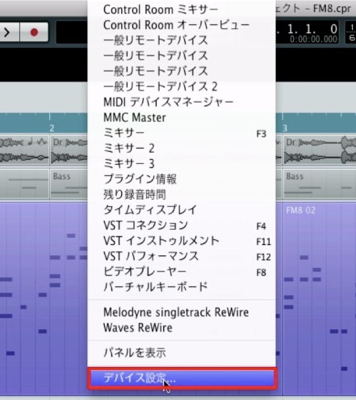
From the top menu, select Devices → Device Setup.
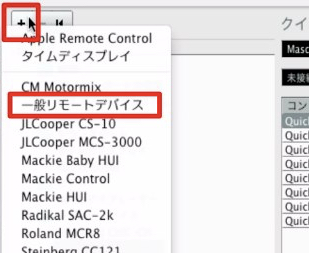
Click the “+” button outlined in red.
If your controller appears in the list, select it;
otherwise, select “Generic Remote.”
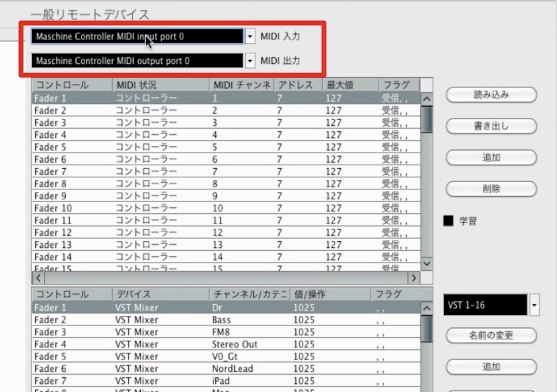
Set the MIDI input and output to match your MIDI controller.
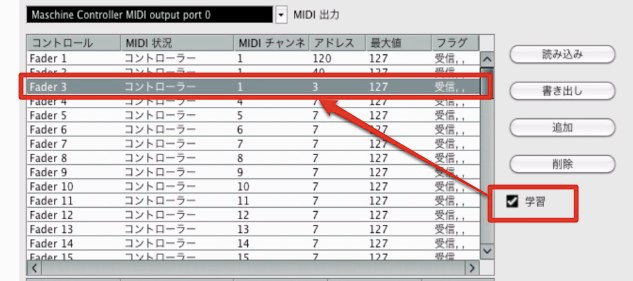
Check “Learn,”
select the control you want to assign,
and move the corresponding fader or knob on your MIDI controller.
If the “Address” changes, the control has been registered successfully.
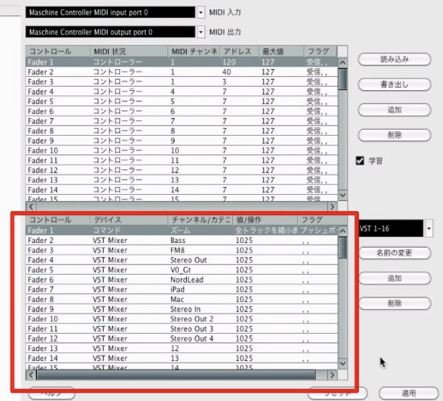
In the lower section, use the drop-down menus on the right to select
what Cubase should do when you move each knob or fader assigned in the upper section.
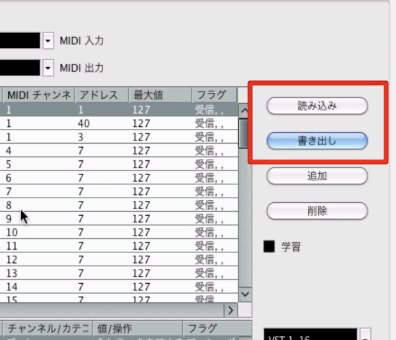
Once you have made your assignments,
you can back them up as data using “Export.”
As the name suggests, “Import” lets you load the exported backup data.
Frequently Asked Questions
Q1. What are the benefits of using a MIDI controller with Cubase?
A MIDI controller’s physical faders and knobs let you control Cubase functions more intuitively and quickly than with a mouse. Assigning frequently used commands can greatly improve efficiency and make music production more comfortable.
Q2. What if my MIDI controller does not appear in Device Setup?
Select “Generic Remote,” then set the MIDI input and output to match your MIDI controller.
Q3. Can I save my MIDI controller assignments?
Yes. Use “Export” to save the settings as a backup, and “Import” to restore them.
NEW ARTICLES
Latest English Articles



























































































































































































































































































































































































































































































































































































































































