
Cubase Pro 9 introduced major workflow improvements, including window refinements, a Sampler Track and MixConsole undo. This article covers migrating from Cubase 8, using the new Lower Zone, and the separate MixConsole Undo/Redo shortcuts, with practical tips for upgrading and working efficiently.
A More Comfortable Workspace After the Upgrade
The long-rumored Cubase 9 series has finally been released.
Described as a highly complete DAW, it brings welcome conveniences including improved windows, a Sampler Track and MixConsole undo.
It also drops native 32-bit plug-in support, a change intended to improve stability and performance.
We will cover the new features of Cubase Pro 9 in two parts.
Cubase Pro 9 Video Tutorial
Questions and Answers from YouTube

Thank you for your videos; I learn a lot from them. I use Cubase Elements 9 but cannot find the icon for the Control Room meter. Where can I check RMS and loudness?

I do not own Elements, so I cannot say for certain. When I used a student’s copy, I recall that the feature was absent because of the edition. Cubase features vary by edition, so that may be the reason. Sorry I cannot be more definite.
It looks as though some long-standing problems have been addressed, but if the blacklist does not work properly, perhaps it is time to switch. I would also like to know why incompatible plug-ins are blocked and what happens if an important plug-in is affected.
It is worrying not to know whether plug-ins will work until you install a new version. It is reassuring that the previous version remains on the computer. All my 64-bit plug-ins have worked so far in my own setup, but waiting for a maintenance update is another option.
Hello, I enjoy your videos. I upgraded from Cubase 6 to Cubase Pro 8. Can I purchase the Cubase Pro 9 upgrade?
Thank you for watching. At the time of this response, Cubase 6 appeared to be eligible for an upgrade, as listed on the following page under Cubase 4 / 5 / 6 / 6.5. Check current eligibility and terms separately:https://japan.steinberg.net/jp/shop/list.html#c256280
Migrating Settings from Cubase 8

When installing Cubase 9, transferring your workspace is likely a major concern.
In our upgrade from Cubase 8, preferences and shortcuts carried over, although color settings did not.
Also, installing Cubase 9 leaves the previous version on the computer.
This can be reassuring if you encounter a problem.
The most important point is that native 32-bit plug-in support was removed and only 64-bit plug-ins run natively.
Many manufacturers offer 64-bit versions, but a project using a 32-bit plug-in cannot load that plug-in natively in Cubase 9. Keep this in mind when upgrading.
What If a 64-Bit Plug-in Does Not Start?
If you cannot find a 64-bit plug-in,
check the following.
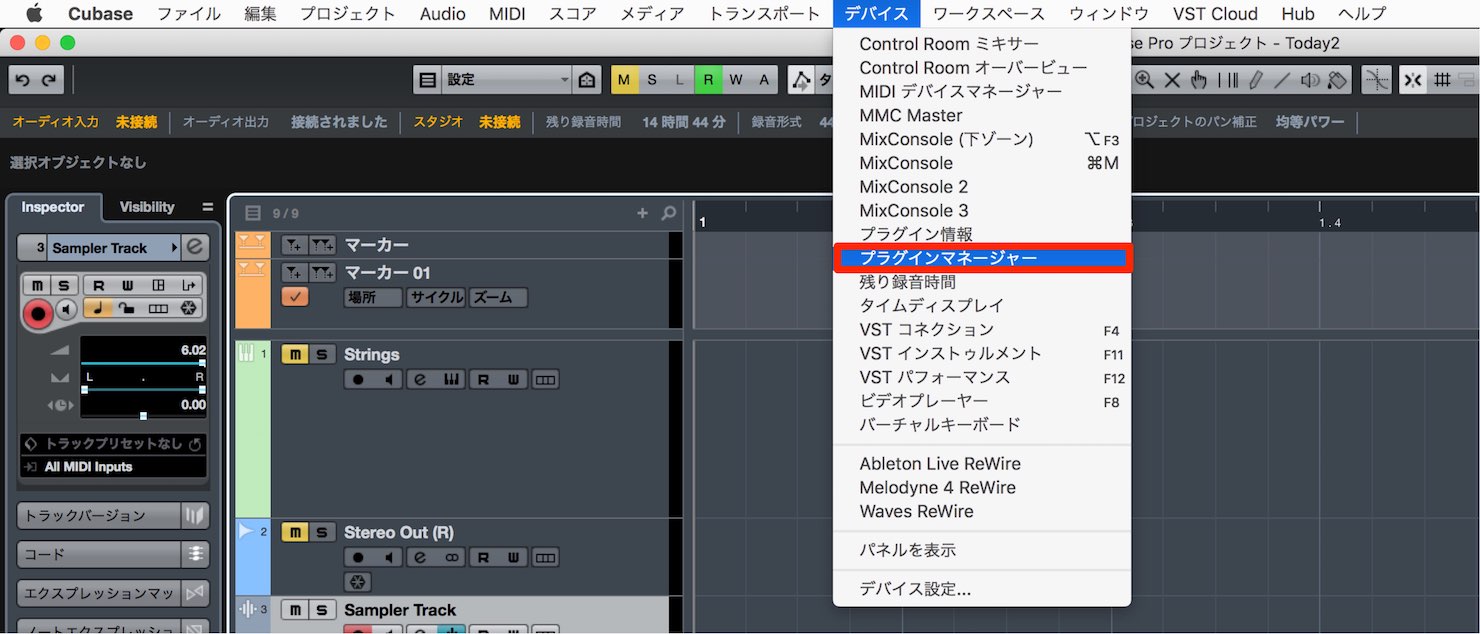
Choose Plug-in Manager from the Devices menu.
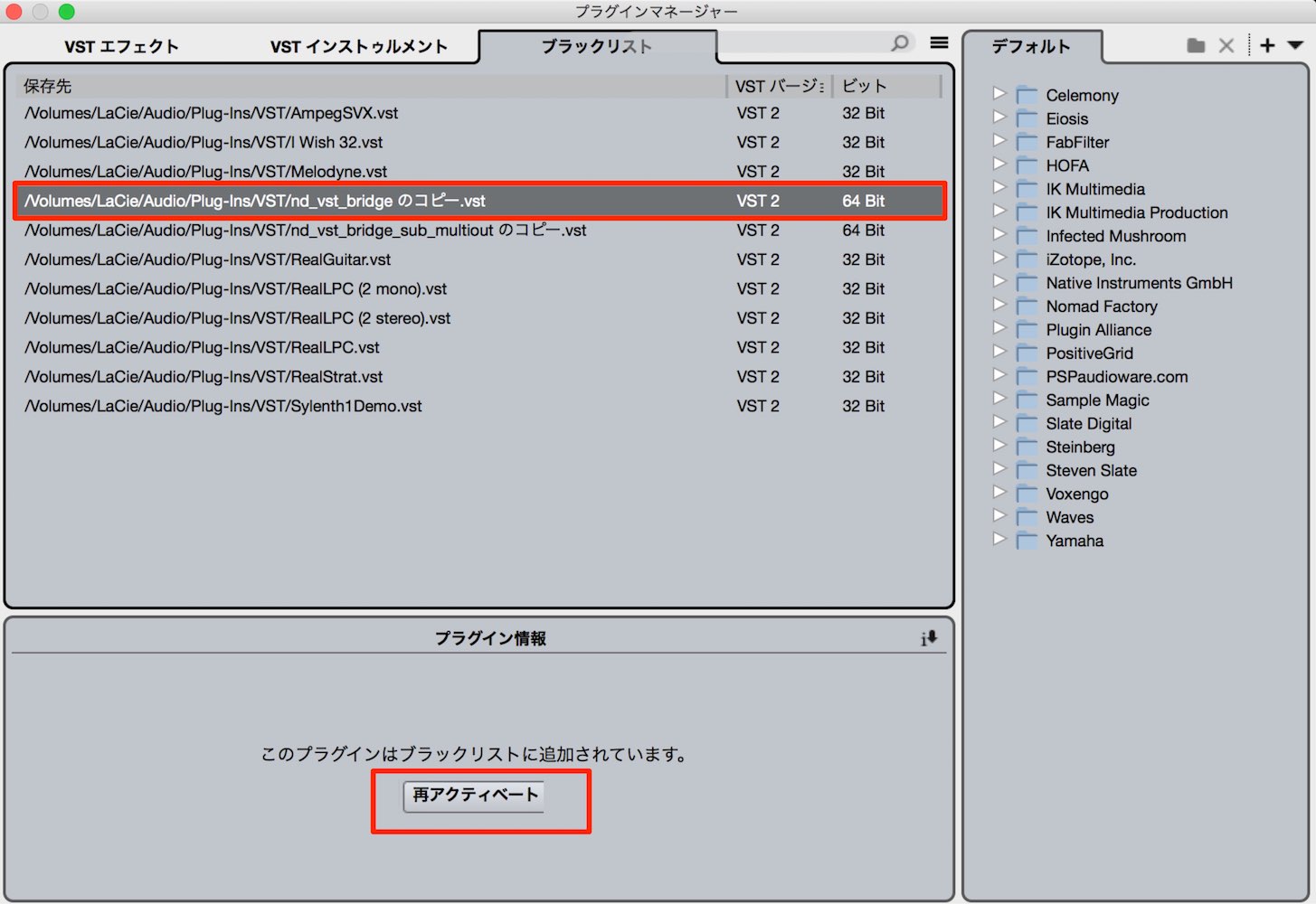
The Blacklist tab shows unrecognized plug-ins.
It also lists 32-bit plug-ins, but some 64-bit plug-ins may appear there too.
Select the relevant plug-in and choose Reactivate.
It may then be usable in Cubase 9.
The New Lower Zone
The Lower Zone window is one of the most visible changes when upgrading to Cubase 9.
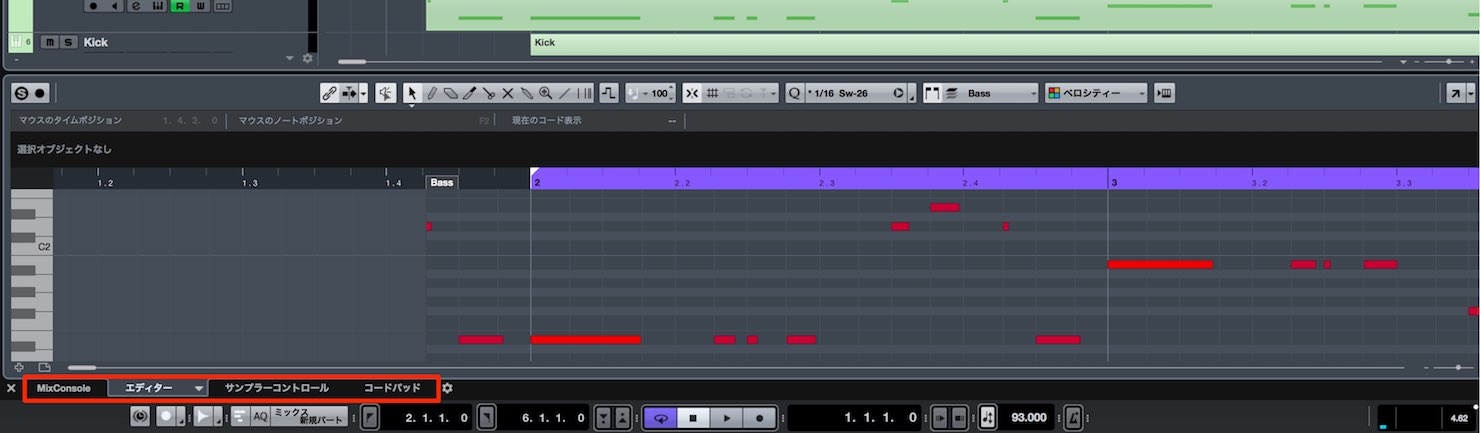
Switch between MixConsole, the audio or key editor, Sampler Control and chord pads to work efficiently in one window.
This is especially welcome on a laptop.
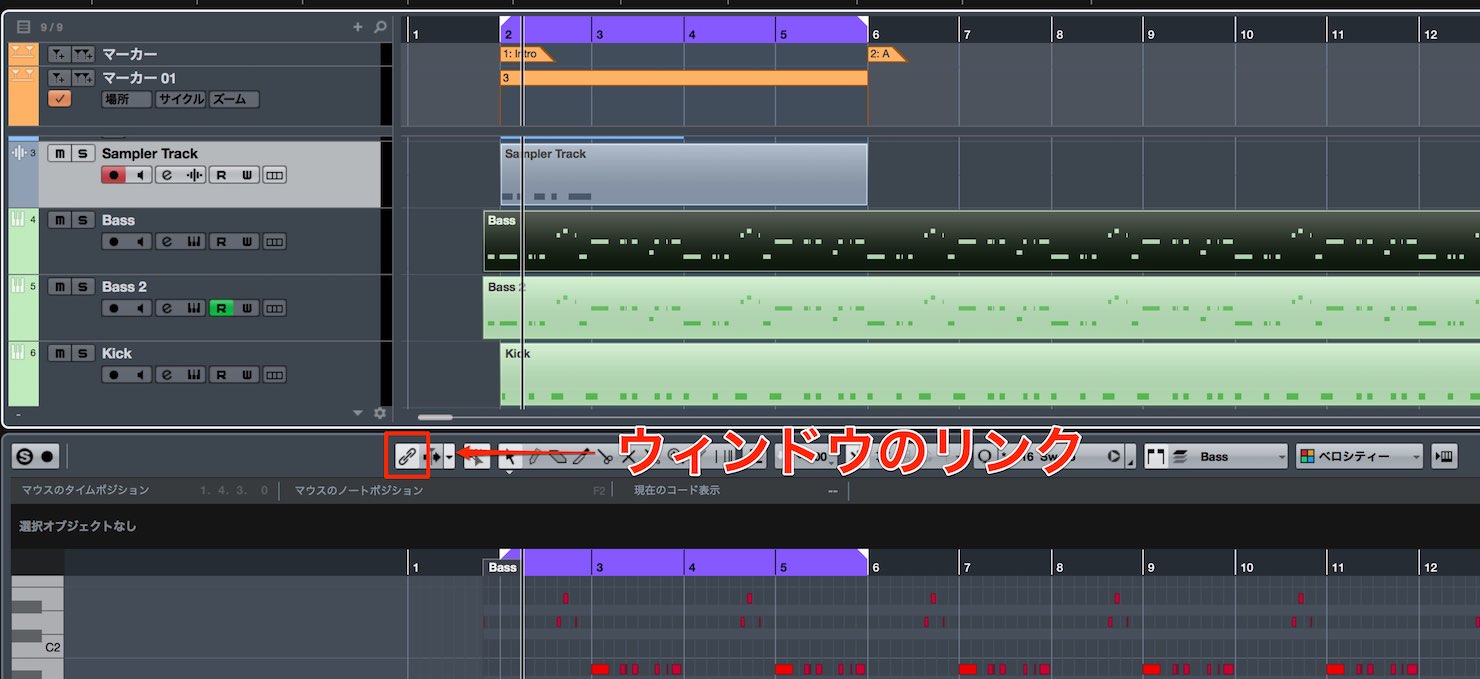
The frequently used Key Editor has a Link button.
It links the Project window and Lower Zone so that the same editing position and zoom are maintained.
Assigning a Shortcut to Show or Hide the Lower Zone
You will likely toggle the Lower Zone often while working.
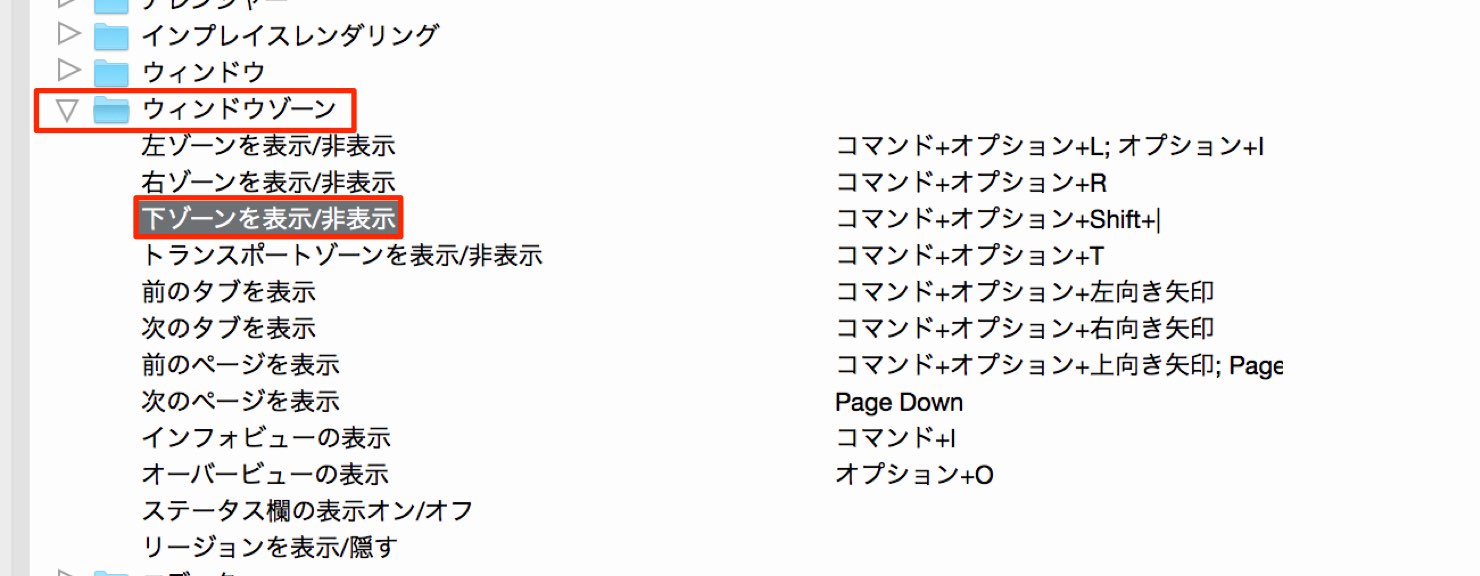
We recommend assigning a shortcut under Window Zones → Show/Hide Lower Zone.
Opening Events in a Separate Window Instead
Double-clicking an event to display it in the Lower Zone is convenient, but users with two displays may prefer the traditional separate editor window.
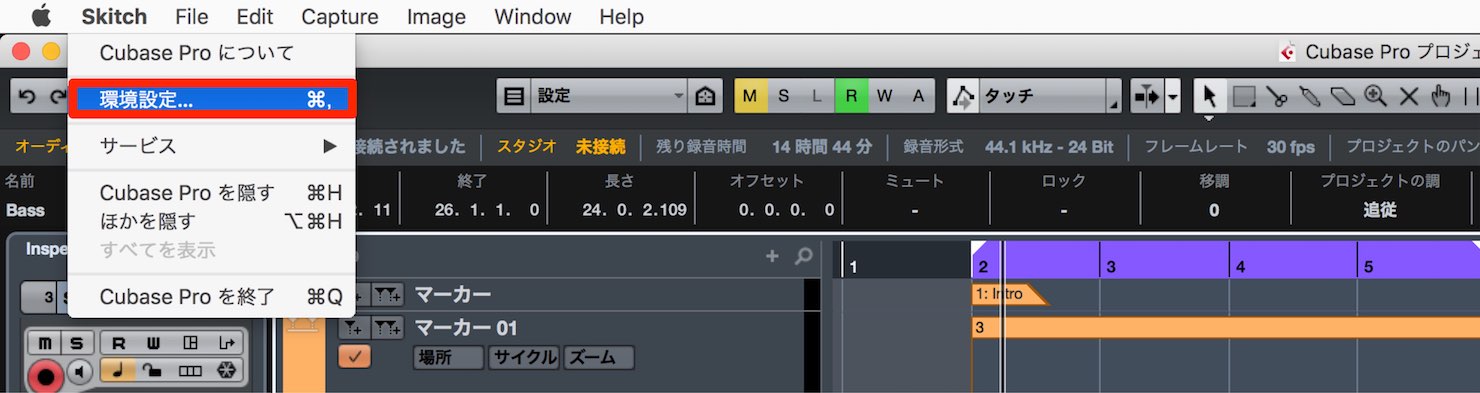
Open Preferences from the Cubase menu.
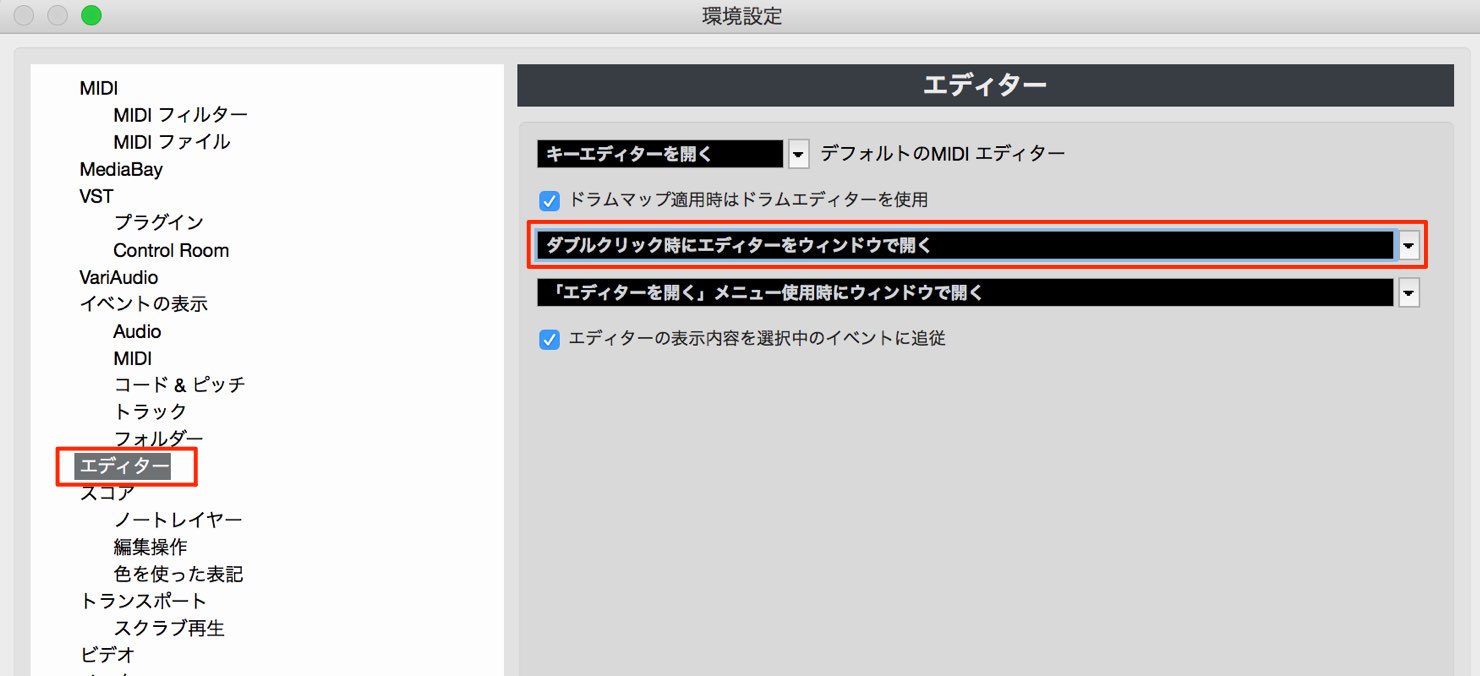
Choose the Editors tab and set the relevant option to open the editor in a separate window on double-click.
Transport Controls at the Bottom

Frequently used Transport controls now appear at the bottom of the window.
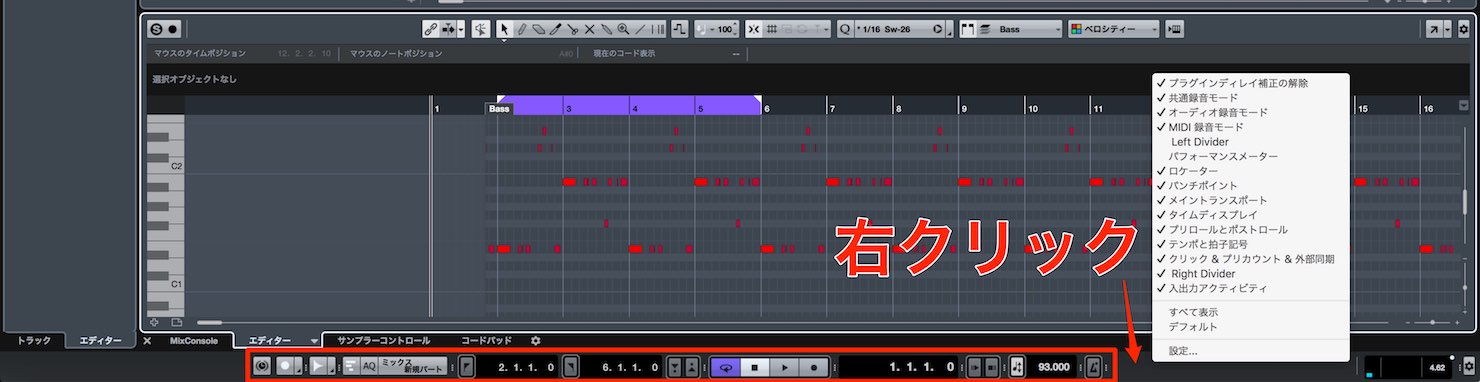
Right-click the Transport area to add or remove displayed controls.
Choose Default to restore the initial layout.
MixConsole Undo/Redo
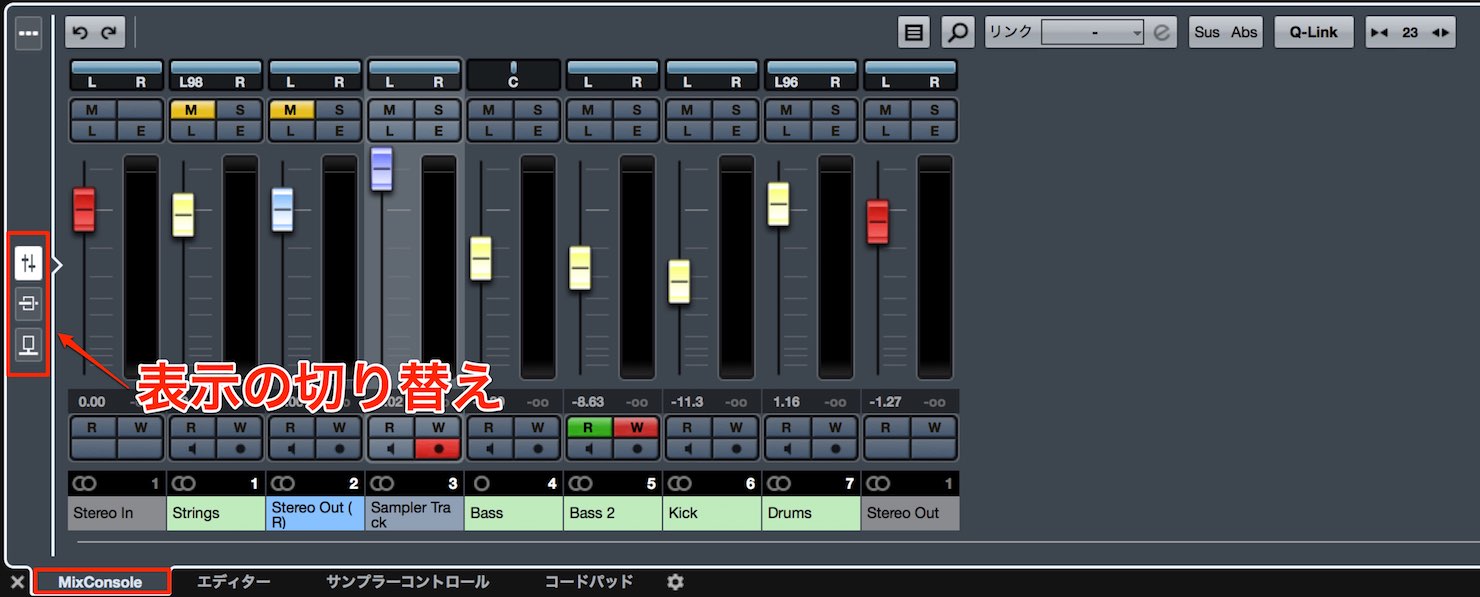
As noted above, MixConsole can appear in the Lower Zone. Accessing it here can make the workflow much more efficient.
Because space is limited, use the buttons to switch between Main Controls, Inserts and Sends.
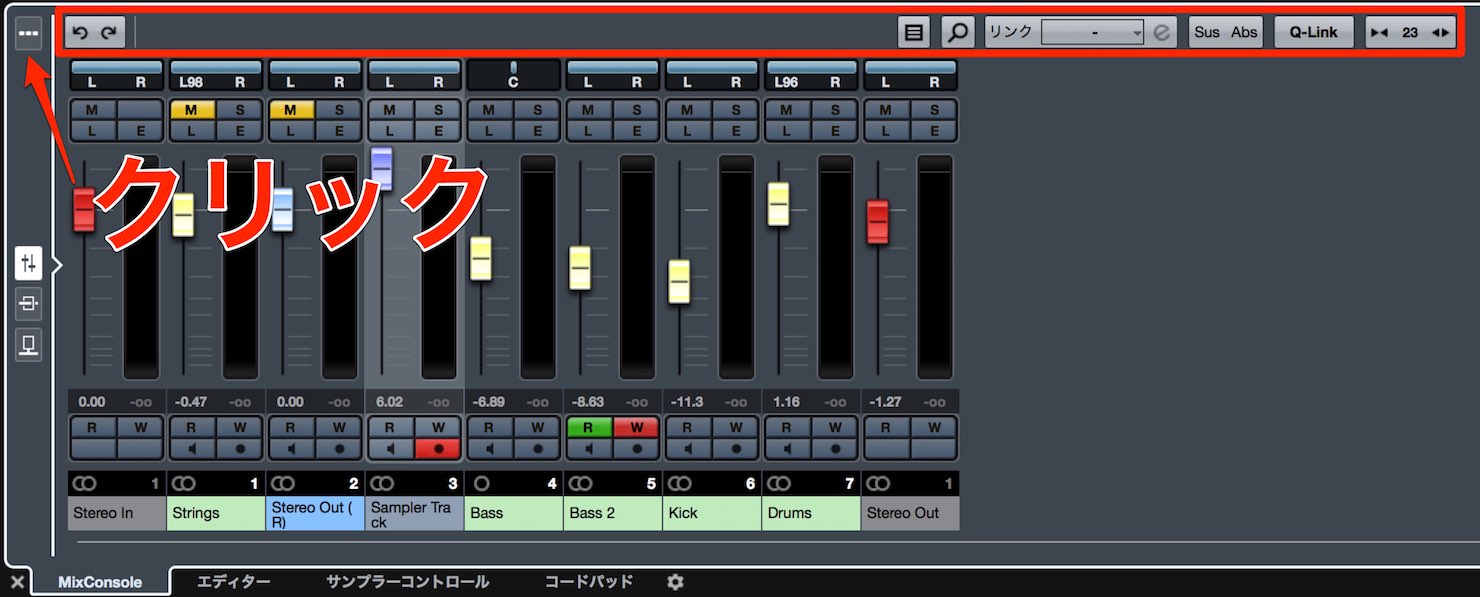
Click the button above the console to show Q-Link and Undo/Redo.
Cubase 9 added Undo/Redo for mixer changes such as volume, pan and effects.
This should be very useful during mixing.
Undo/Redo Shortcuts
Editing and MixConsole have separate Undo/Redo histories.
For editing, Undo is:
- Mac: Command + Z
- Windows: Control + Z
and Redo is:
- Mac: Command + Shift + Z
- Windows: Control + Shift + Z
.
For MixConsole Undo use:
- Mac: Option + Z
- Windows: Alt + Z
and for Redo:
- Mac: Option + Shift + Z
- Windows: Alt + Shift + Z
. Keep this distinction in mind.
Frequently Asked Questions
Q1. Can I keep my settings and plug-ins when upgrading from Cubase 8 to 9?
In our upgrade, preferences and shortcuts carried over, though color settings did not. Cubase 9 does not run 32-bit plug-ins natively, so use compatible 64-bit versions. Check the Blacklist tab in Plug-in Manager if needed.
Q2. What if a 64-bit plug-in does not start?
Open Plug-in Manager from the Devices menu, select the plug-in in the Blacklist tab and choose Reactivate. It may then work in Cubase 9.
Q3. Are MixConsole Undo/Redo shortcuts the same as editing shortcuts?
No. Editing Undo uses Ctrl+Z on Windows or Command+Z on Mac; MixConsole Undo uses Alt+Z or Option+Z. Add Shift to each for Redo.
NEW ARTICLES
Latest English Articles











































































































































































































































































































































































