
Kick Ninja is an AI-assisted kick-drum generation plugin that lets you drag and drop a sample, recreate its sound with synthesis, and customize it. Its four sections—Envelope Editor, Oscillator, Sampler, and Effects—provide detailed control over pitch, amplitude, distortion, filtering, and more. Combining intuitive operation with extensive customization, it helps beginners and experienced producers efficiently design their ideal kick sounds for electronic music, potentially saving production time and improving sound quality.
A powerful plugin for creating kick sounds
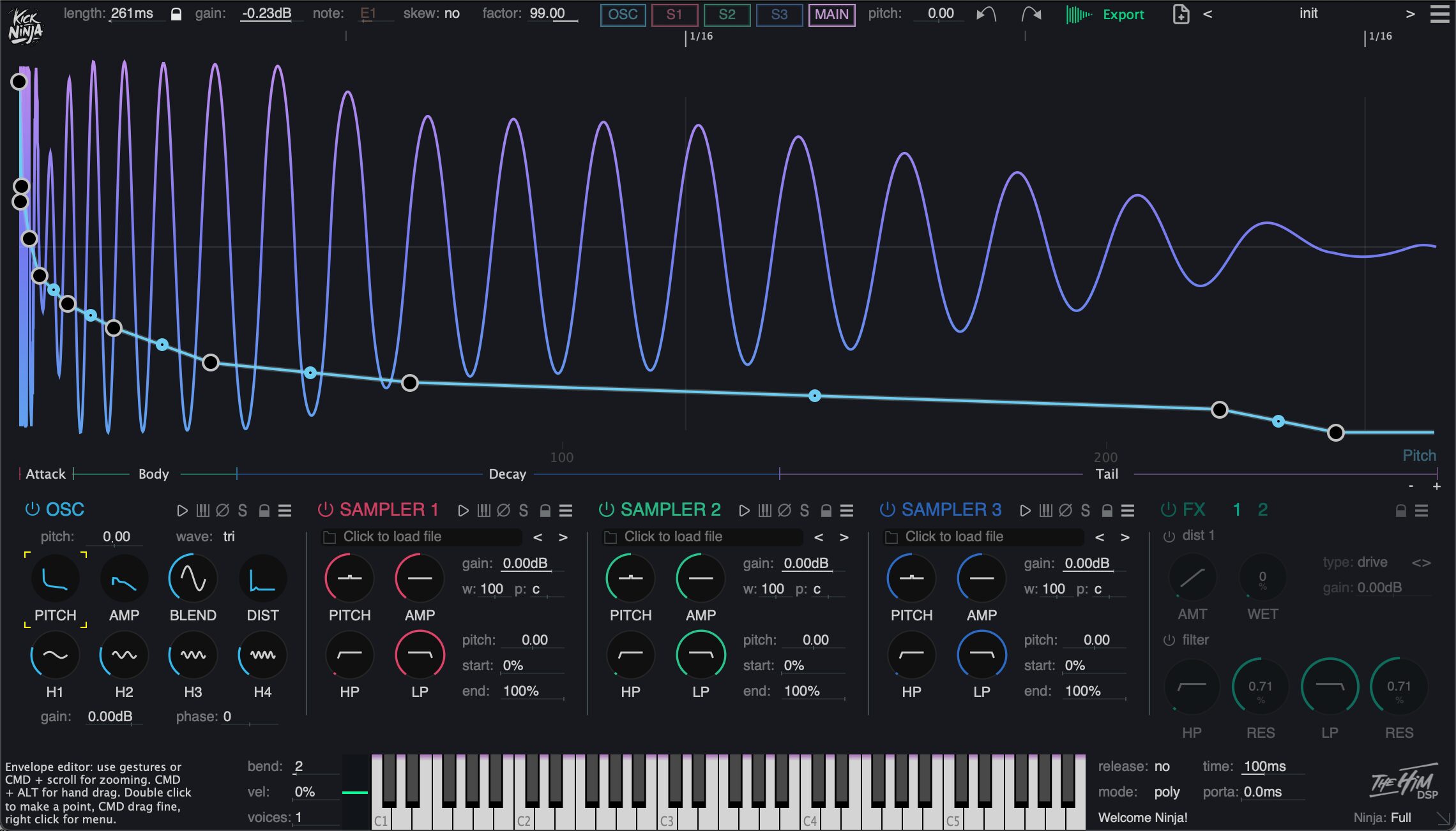
Developed for electronic music, Kick Ninja combines intuitive operation and extensive customization in a kick-drum generation plugin.
Using AI, it lets you freely design the kick sound you want. You can also create bass and snare sounds in a similar way, making it flexible enough for a range of music-production tasks.
Kick Ninja's greatest strength is that simply dragging and dropping a kick sample lets you recreate its sound faithfully with a synthesizer and then customize it freely.
Its main features are as follows.
- AI analysis and import: AI analyzes a sample and automatically generates a similar sound
- Intuitive operation: Simple actions such as dragging and dropping
- Extensive customization: Detailed adjustments to pitch, amplitude, distortion, and more
- Phase lock: Stabilizes the tail of the kick for clear, consistent bass
- A wide range of presets: Includes many ready-to-use kick-sound presets
- Fine-tuning sounds: Detailed sound design using filters, EQ, envelopes, and more
Simplify sound design with four main sections
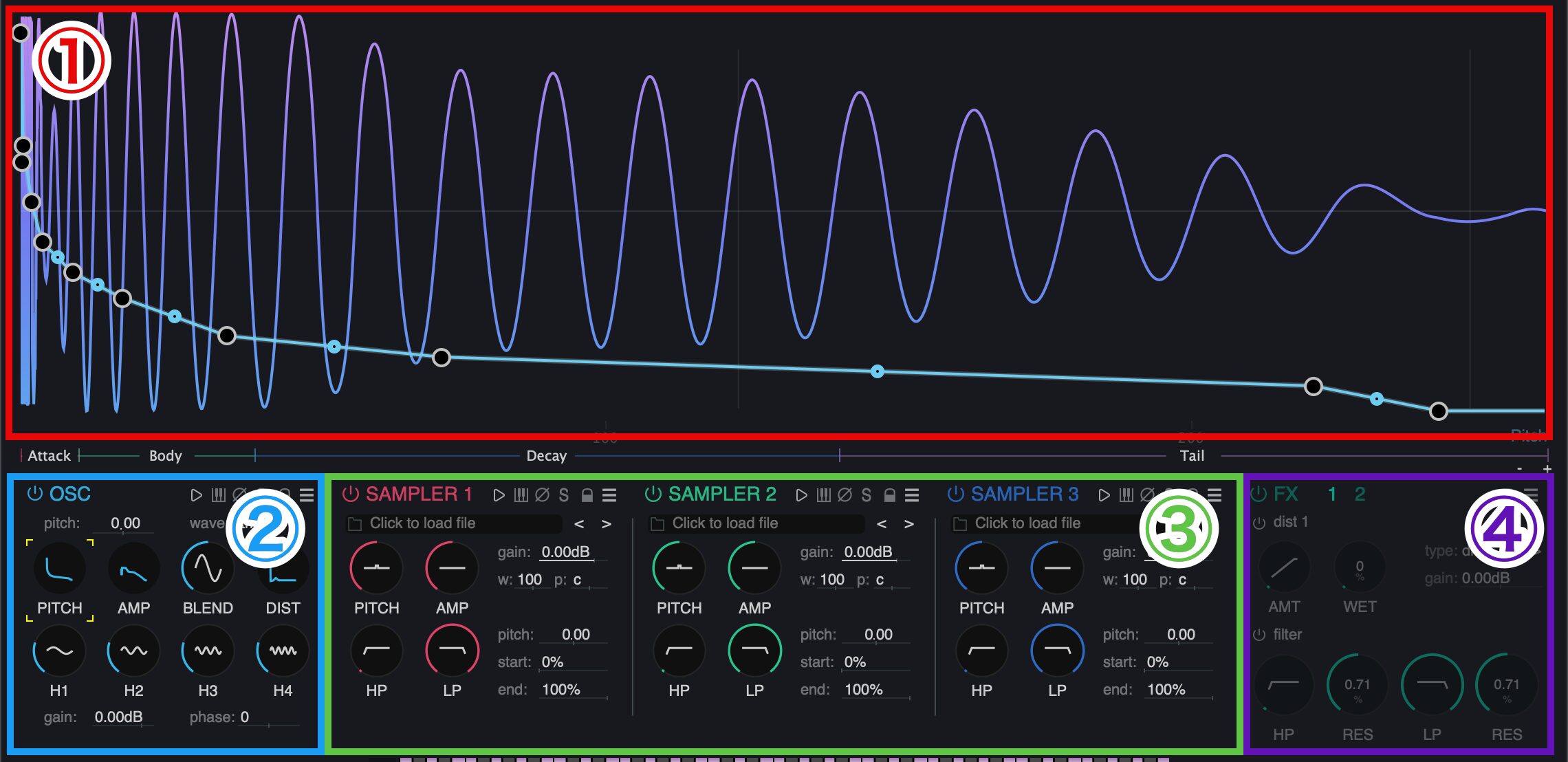
Kick Ninja's interface consists mainly of the four sections shown above.
- 1 (red): Envelope Editor: Visually edit the waveform and amplitude from attack to tail to control the shape of the kick
- 2 (blue): OSC (Oscillator): Set the basic character of the sound by adjusting waveform, pitch, amplitude, distortion, and more
- 3 (green): Sampler: Load additional samples for the kick and fine-tune them with pitch and filtering
- 4 (purple): FX (Effects): Add character with distortion, filters, and other effects that shape the sound
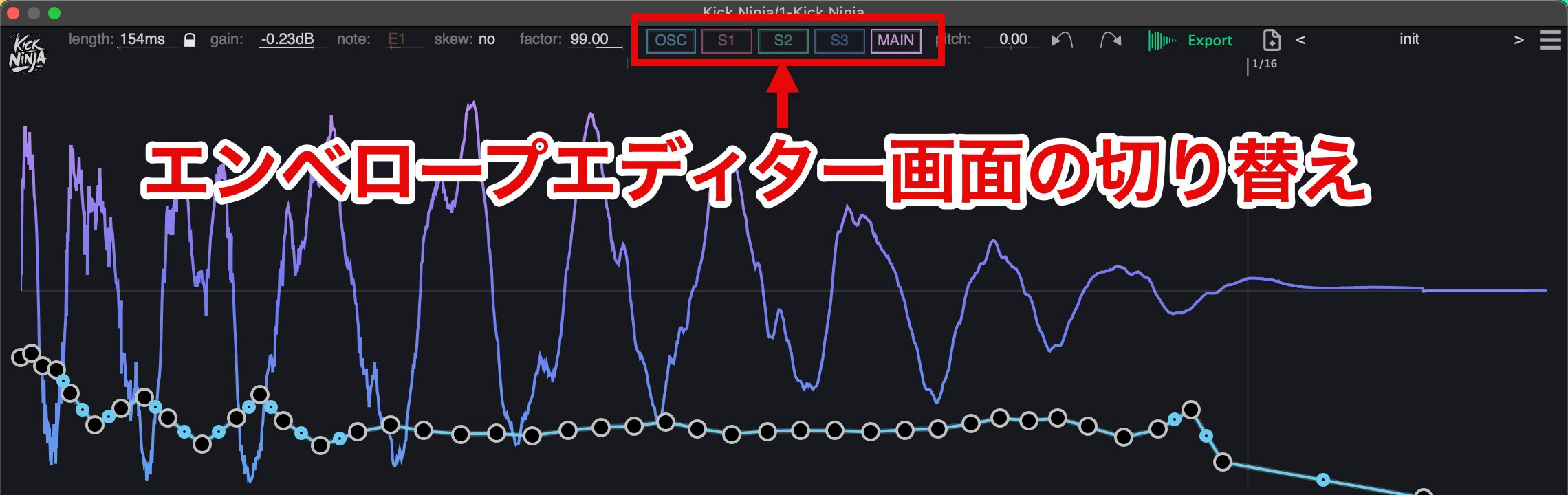
Use the OSC, S1, S2, S3, and MAIN buttons at the top of the screen to switch what you edit and control in the Envelope Editor.
OSC and Samples 1–3 can be displayed together, allowing you to adjust each sound layer individually.
MAIN manages the overall mix and envelope and lets you check how effects are applied.
Oscillator section features
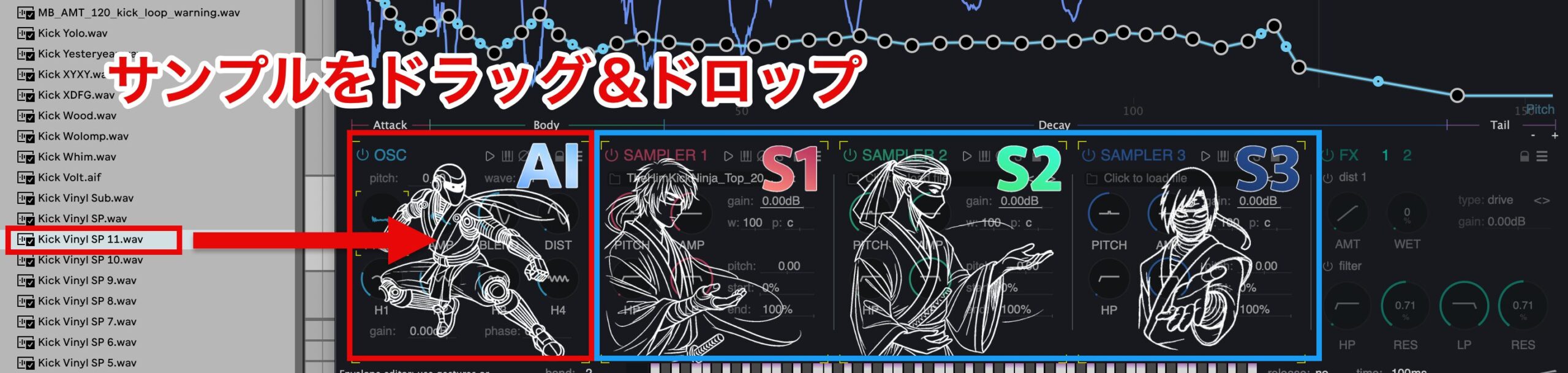
When you drag and drop a sample into OSC, AI automatically analyzes it and separates it into a low-frequency component (OSC) and the remaining components (Sample 1), which are then imported separately.
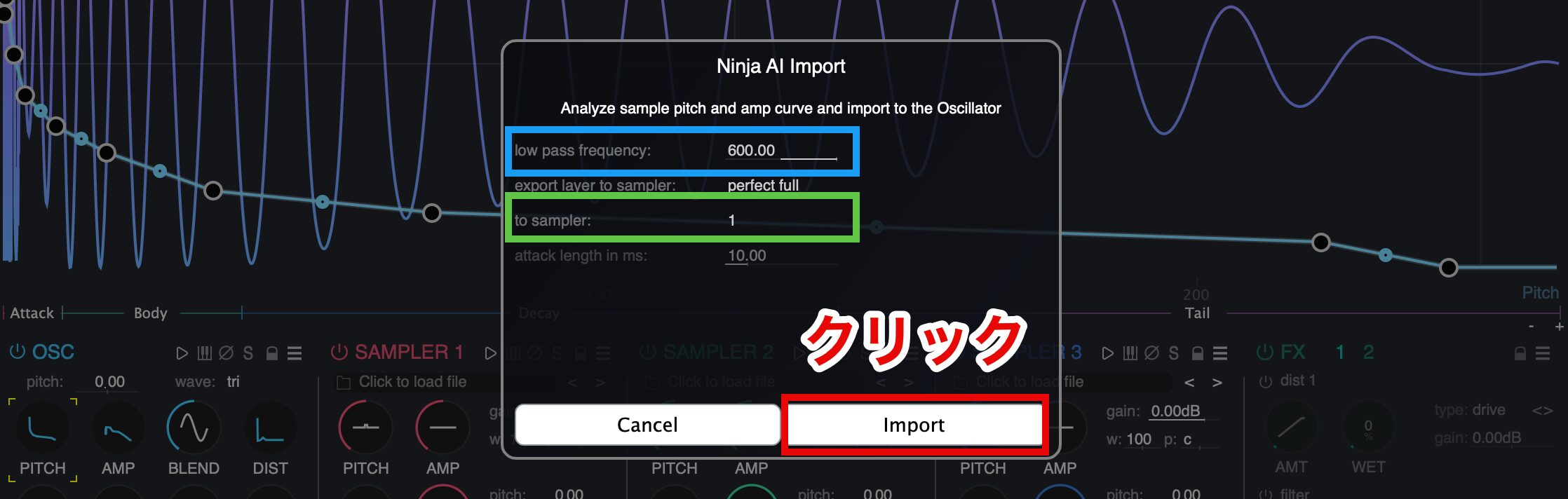
Dragging and dropping a sample opens the import screen.
Low Pass Frequency (blue frame) defaults to 600 Hz. When importing a clean kick sound, set this value higher.
To Sampler (green frame) specifies which sampler (1–3) inside Kick Ninja will receive the imported sample.
Once you have made the settings, click Import to load it.
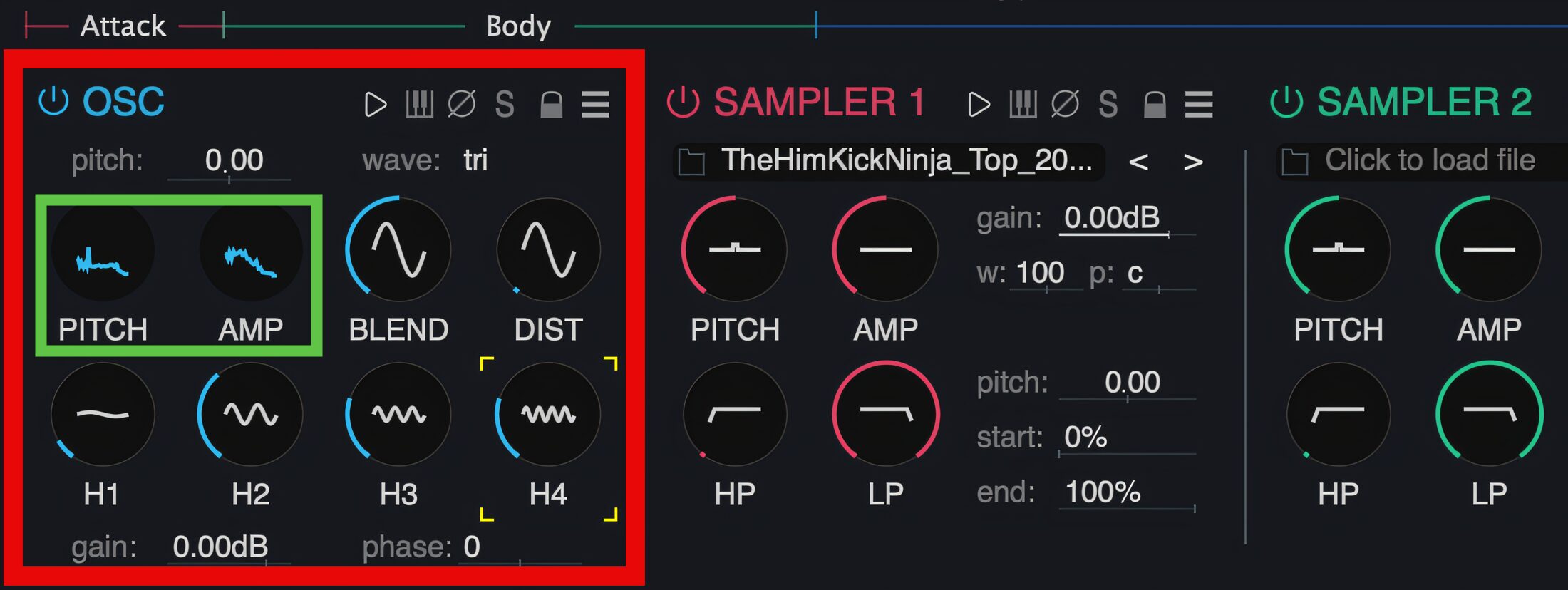
The OSC section provides tools for creating the kick drum's basic low-frequency body.
- Pitch: Sets the kick's pitch and lets you adjust its initial rise and subsequent changes
- Amp (Amplitude): Controls the volume and dynamics
Create more varied tones with Blend and Distortion
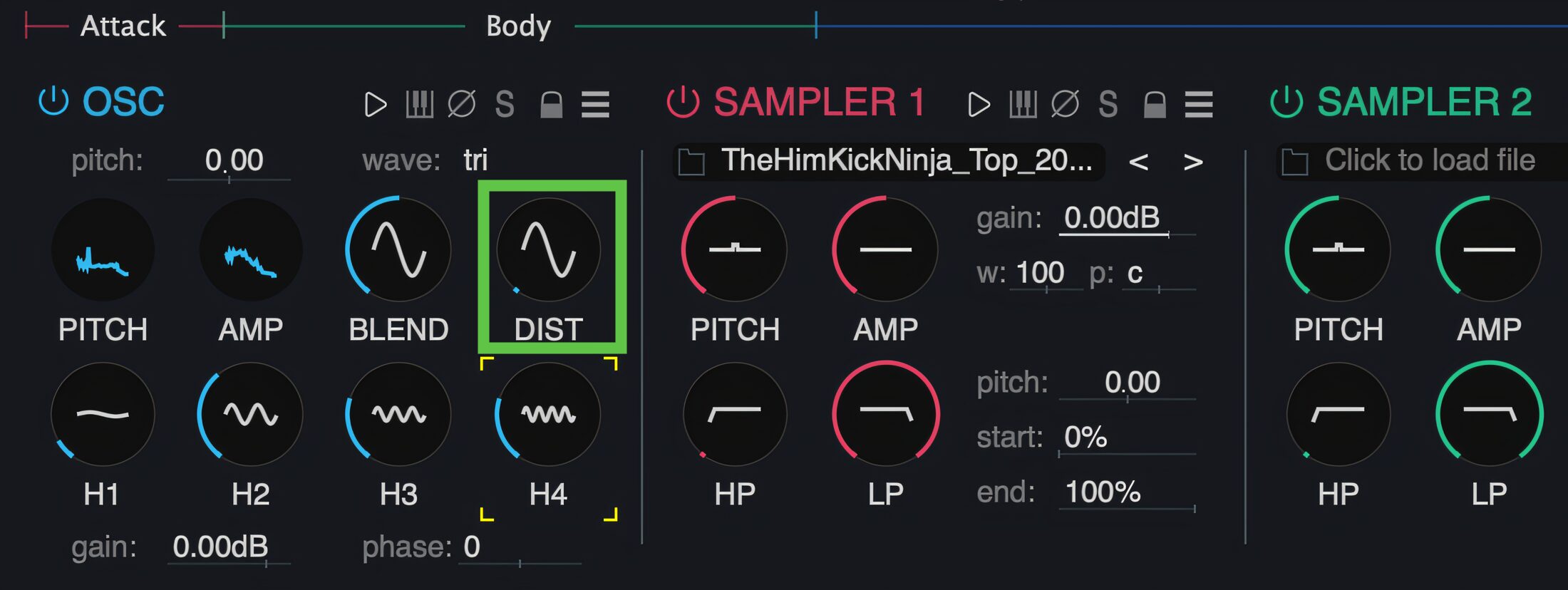
Distortion adds saturation to the sound to create a more aggressive, powerful tone.
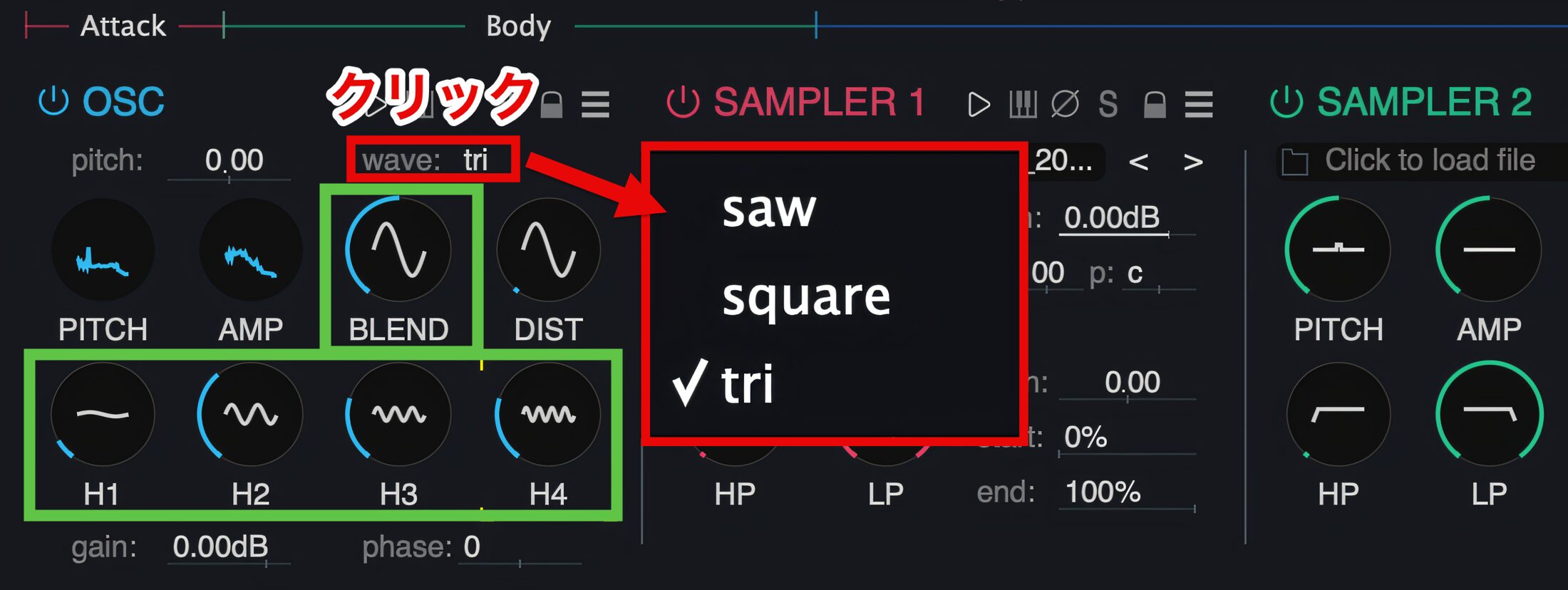
Blend adjusts the waveform blend to add character to the tone.
Under Wave, choose sine, tri (triangle), saw (sawtooth), or square to set the basic tone.
The harmonic controls (H1/2/3/4) also let you adjust harmonic levels directly to fine-tune the brightness and body of the sound.
- H1: The fundamental frequency—the lowest frequency component of the kick
- H2–H4: Higher harmonics that adjust the brightness and body of the tone
Turning the Blend knob in the positive or negative direction produces the following effects.
- Positive direction: Emphasizes the harmonics set with the harmonic controls, producing a richer, more complex sound
- Negative direction: Moves toward the waveform selected under Wave for a more electronic character
Envelope Editor
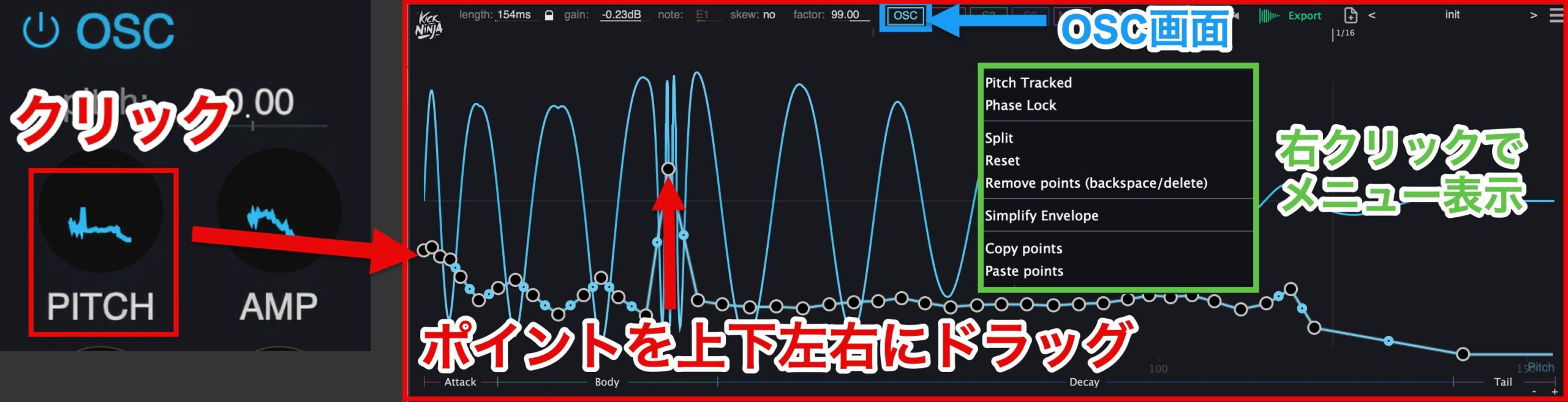
Click the parameter you want to adjust to show its corresponding waveform in the Envelope Editor.
Drag the points displayed on the waveform to make adjustments.
Double-click to create or delete points. Use Cmd/Ctrl + scroll to zoom in or out.
You can also right-click to open a menu with additional settings.
Sampler section
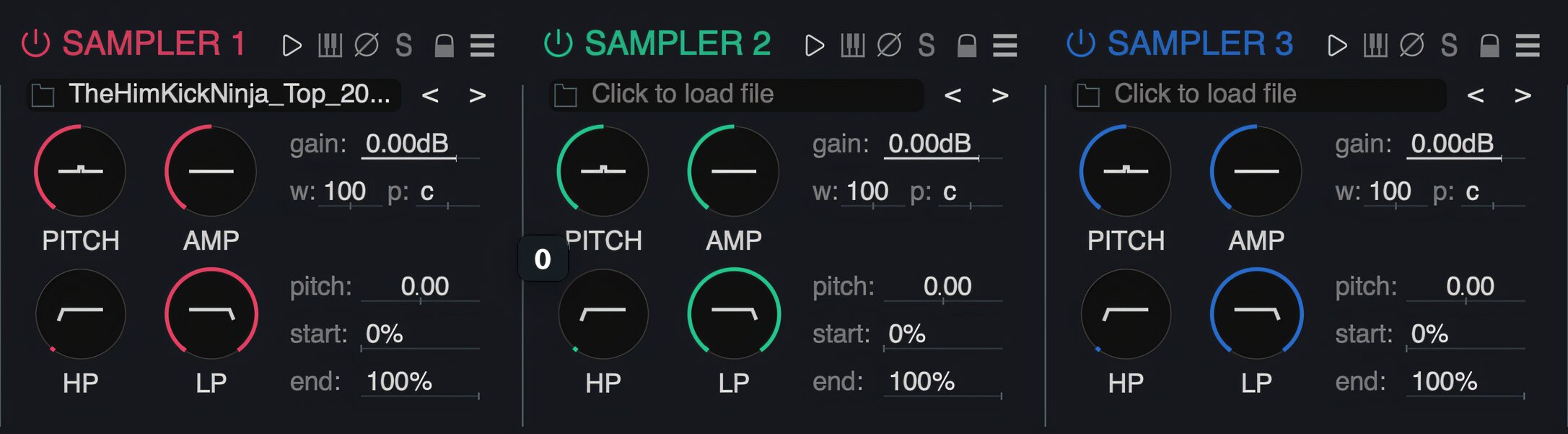
In the Sampler section (SAMPLER 1–3), adjust the pitch, volume, and filtering of imported samples to add attack and distinctive character to the sound.
By setting the playback start and end positions, you can control the timing and duration of the sound and build your ideal kick.
- PITCH: Adjusts the sample's pitch to fine-tune the kick tone
- AMP (Amplitude): Controls the sample volume
- HP (High Pass Filter): Passes high frequencies and cuts lows, emphasizing lightness and clarity in the kick
- LP (Low Pass Filter): Passes low frequencies and cuts highs, adding weight and depth
- Gain: Sets the overall gain (output level)
- Start/End: Adjusts the sample playback start and end positions to control its timing
Adjustment works just as in the OSC section: click the parameter you want to edit to display its corresponding waveform in the Envelope Editor.
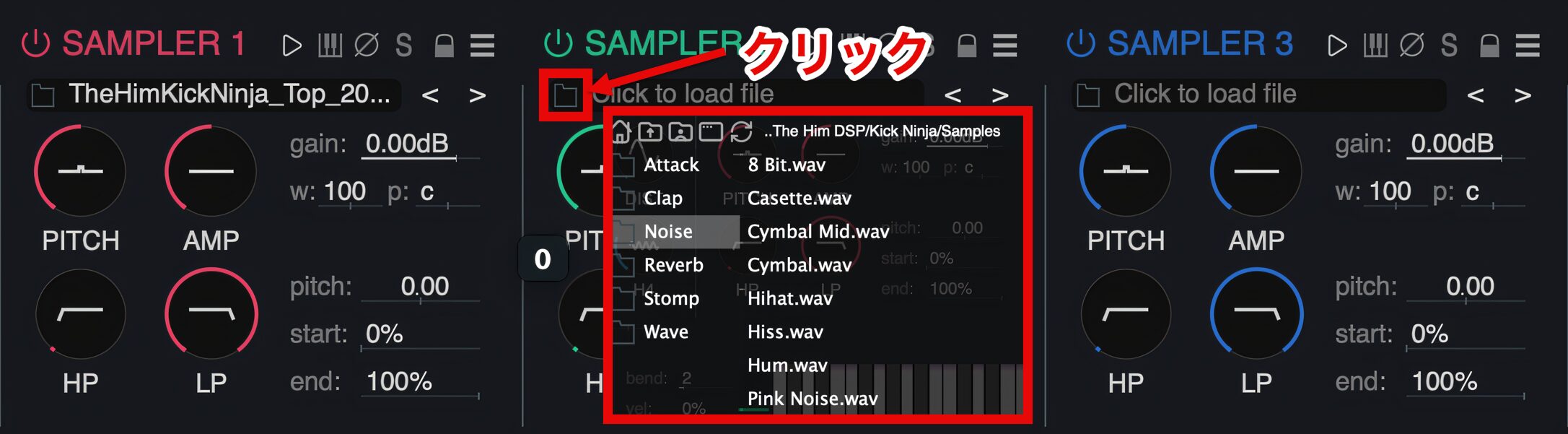
Click the folder icon to show a list of available sound samples.
From here, choose sounds such as Noise, Clap, and Reverb and load them into a SAMPLER.
Customize the selected sample using pitch and filters to add attack and distinctive character to your kick sound.
FX section
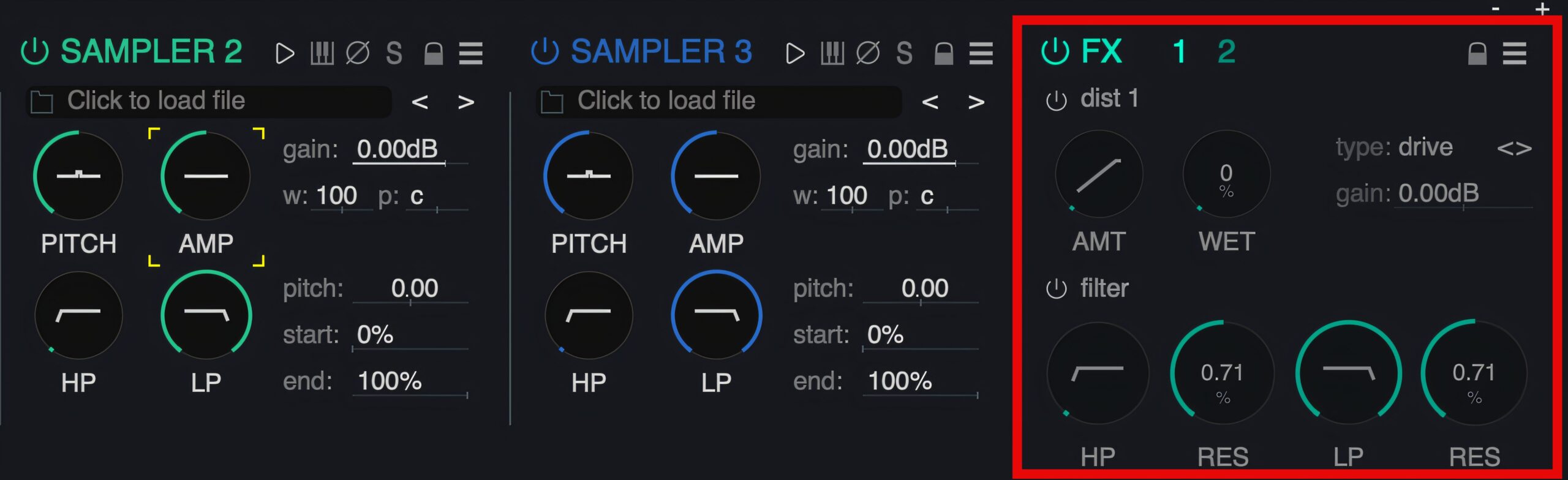
The FX section adds depth and character to the kick, allowing you to add edge or warmth to the sound.
- AMT (Amount): Adjusts the strength of the effect
- WET: Controls how much of the effect is applied
- Type: Selects an effect type, such as drive
- HP/LP (High Pass/Low Pass): Shapes the sound by cutting specific frequency ranges with filters
- RES (Resonance): Sets the sharpness of the filter to add a more pronounced resonance
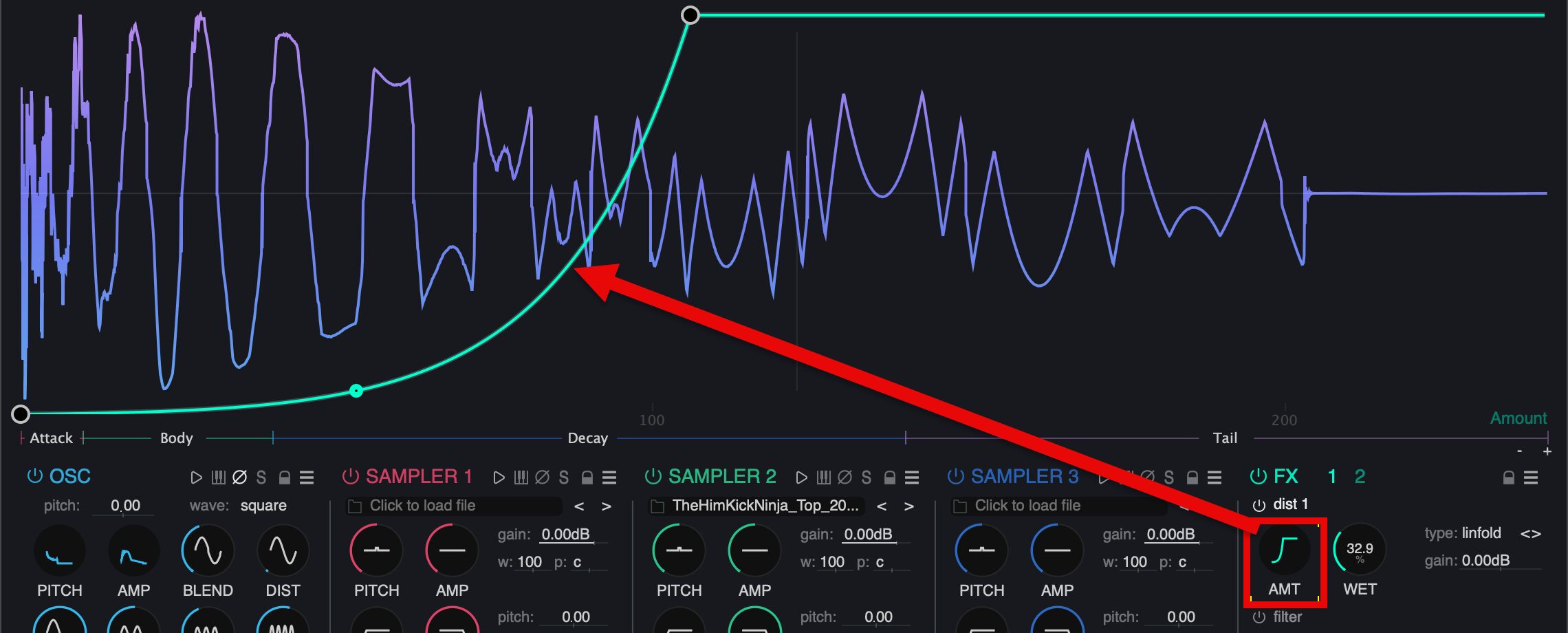
You can also add and delete points in the FX section. Freely shape each effect's curve to control precisely how the effect changes over time.
Minimum system requirements listed in the original article
macOS
- Mojave 10.14 or later
- Intel Core i5 or later, or Apple Silicon M1 or later
- Plugin formats: AU, VST3, AAX
Windows
- Windows 7 64-bit or later
- Plugin formats: VST3, AAX
Pricing

At the time of the original article, Kick Ninja was available for ¥9,979 (tax included; subject to exchange-rate fluctuations).
The article describes a license for one user, allowing installation and use on two machines at the same time.
It also lists a 14-day free trial before purchase.
Try it out and create the kick sound you have in mind!
Frequently asked questions
Q1. Can Kick Ninja be used on both Windows and Mac?
The system-requirements section above lists both macOS and Windows versions. Check the official website for current operating-system and hardware requirements before purchasing.
Q2. How should I choose the Low Pass Frequency value when importing a sample?
The default is 600 Hz, but use a higher value when importing a clean kick sound. Adjusting the low-frequency separation lets you divide the kick's low-end body and its other components appropriately.
Q3. Is Kick Ninja only for generating kicks?
No. In addition to kick drums, you can create bass sounds, snares, and other drum or instrument sounds. Combining multiple samples opens up a wide range of sound-design possibilities.
Q4. Can I load multiple samples at once in the Sampler section (SAMPLER 1–3)?
Yes. You can load up to three samples (S1, S2, S3) simultaneously and adjust each one independently. This lets you build complex, rich kick sounds by layering them.
Q5. How do I create or delete points in the Envelope Editor?
Double-click to create or delete points. Cmd/Ctrl + scroll lets you zoom in and out for more detailed waveform adjustments.
NEW ARTICLES
Latest English Articles



































































