
MUTANT is SONICWIRE’s free audio-material management application for Mac and Windows. This guide explains how to organize samples using folders, bookmarks, tags and a playlist, and how to audition and sort files. The interface and availability described reflect the original 2016 article; check the product page for current compatibility.
Find the File You Need in a Growing Audio Library

Buying new instruments and sample libraries can help expand your music production possibilities.
Keeping track of and organizing their contents, however, can be challenging.
After purchasing products, you may find your collection has grown so large that even auditioning everything is difficult.
Many producers will recognize that problem.
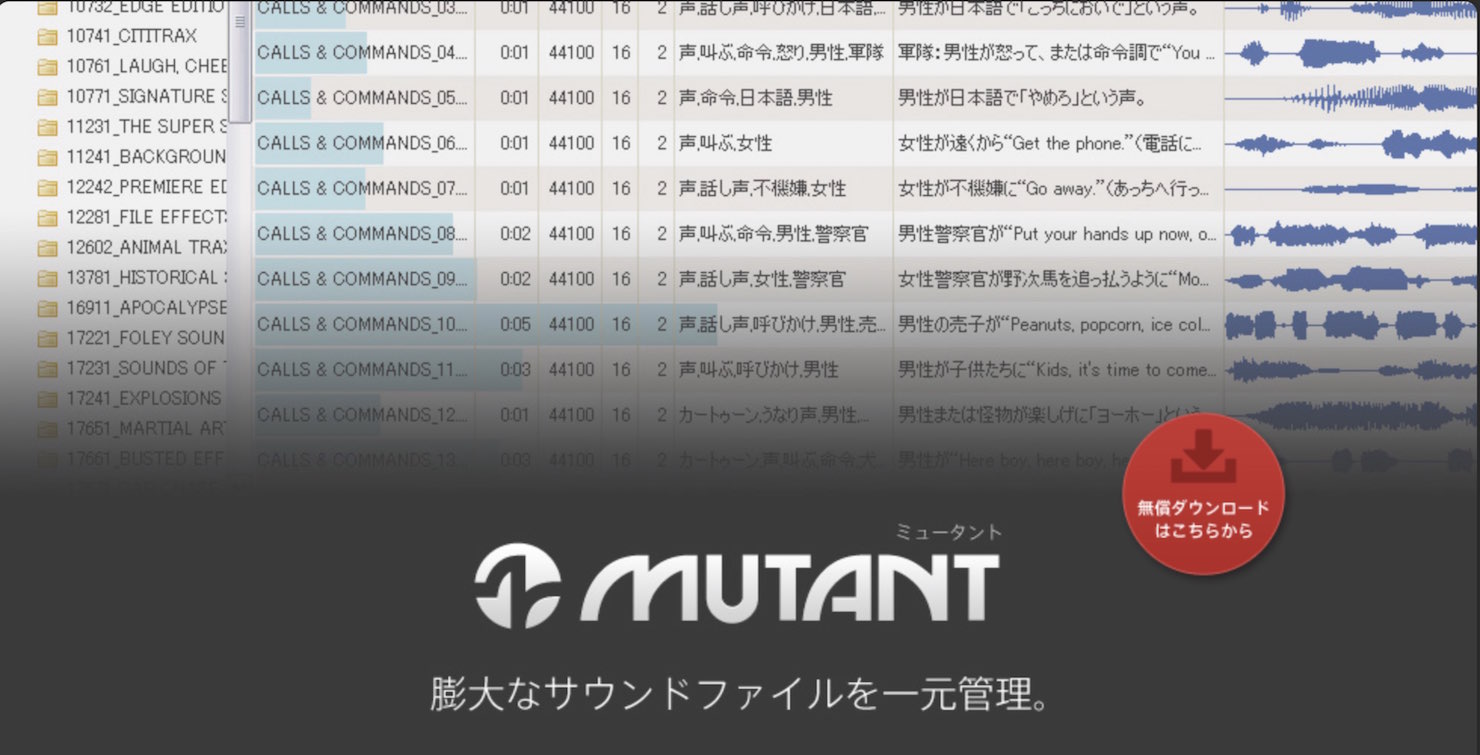
This is where MUTANT, released by SONICWIRE, comes in.
It lets you store and organize audio material to suit your workflow.
It is freeware and was offered for Mac and Windows.
Let’s look at how to use it.
MUTANT Video Tutorial
Questions and Answers from the YouTube Video

This is a different question, but how do I enter notes on a MIDI track when using PitchCorrect in Cubase?

Please see the article and video at the following link: https://sleepfreaks-dtm.com/for-advance-cubase/pitchcorrect-2/
Downloading and Installing MUTANT
First, visit the product website to download it.
http://sonicwire.com/mutant
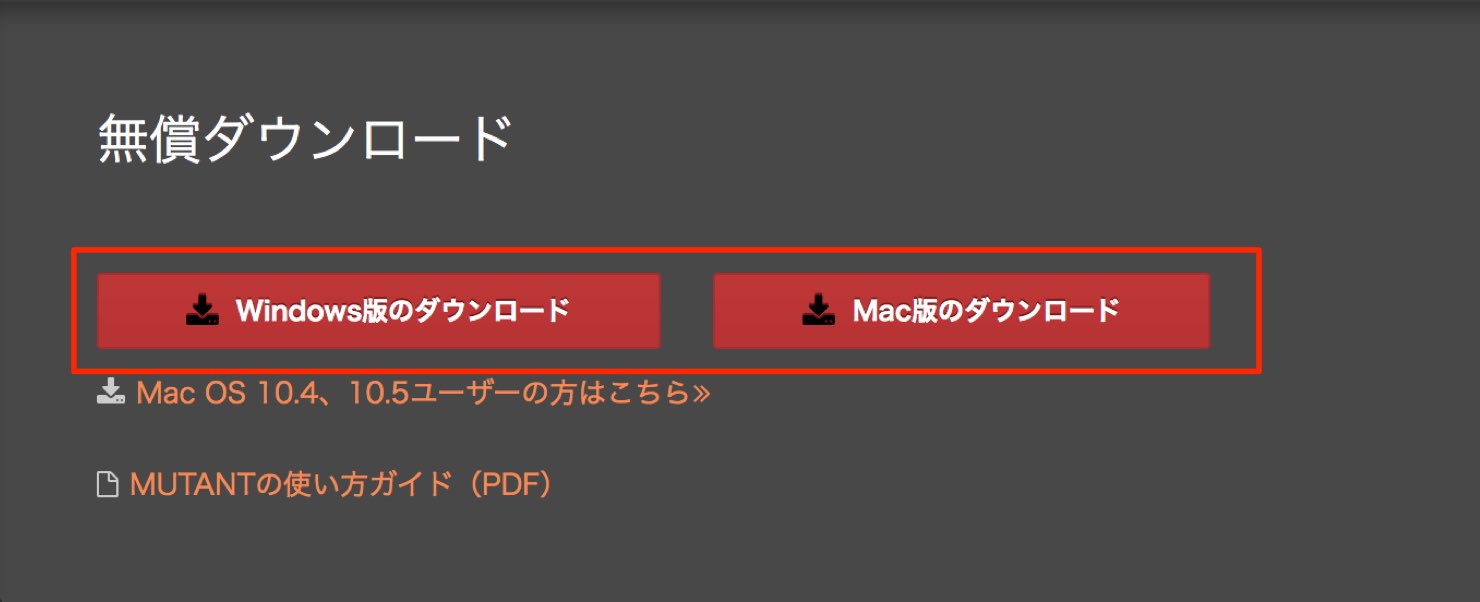
Click the download link near the bottom of the page.
Choose the version for your Mac or Windows environment.
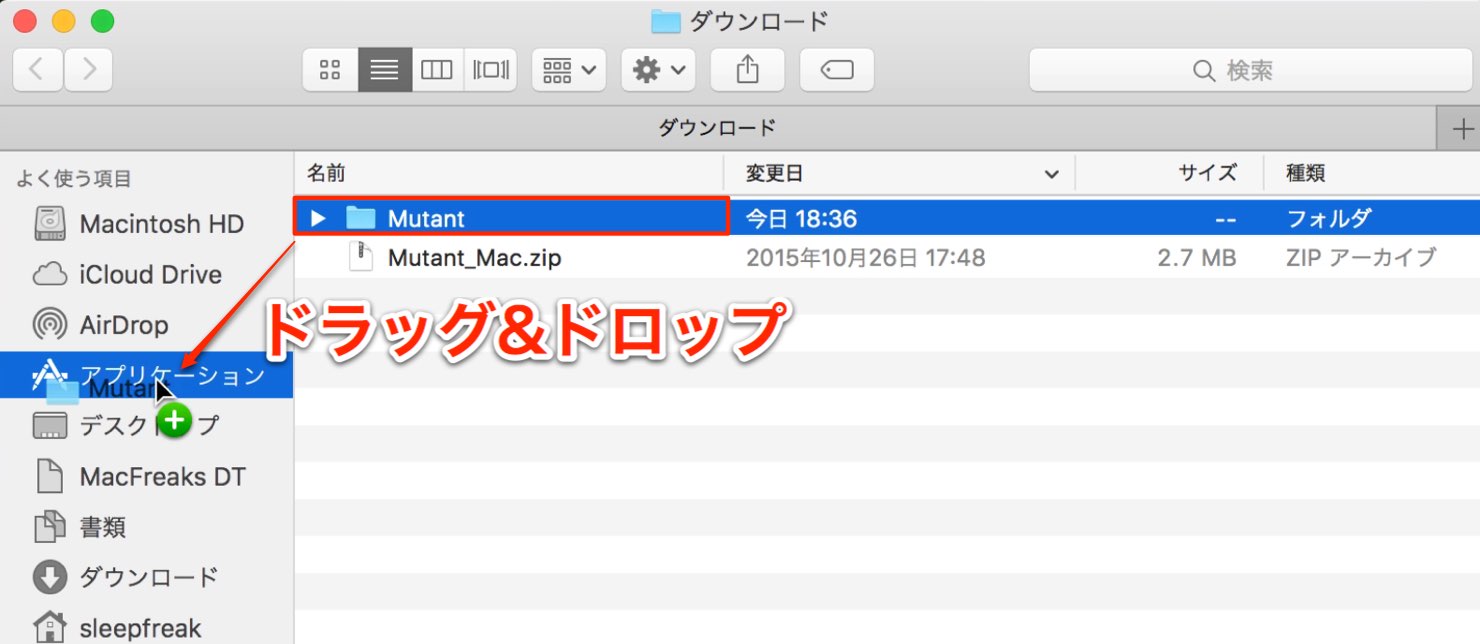
Extracting the downloaded ZIP file creates a “Mutant” folder.
Drag the entire folder to a location of your choice.
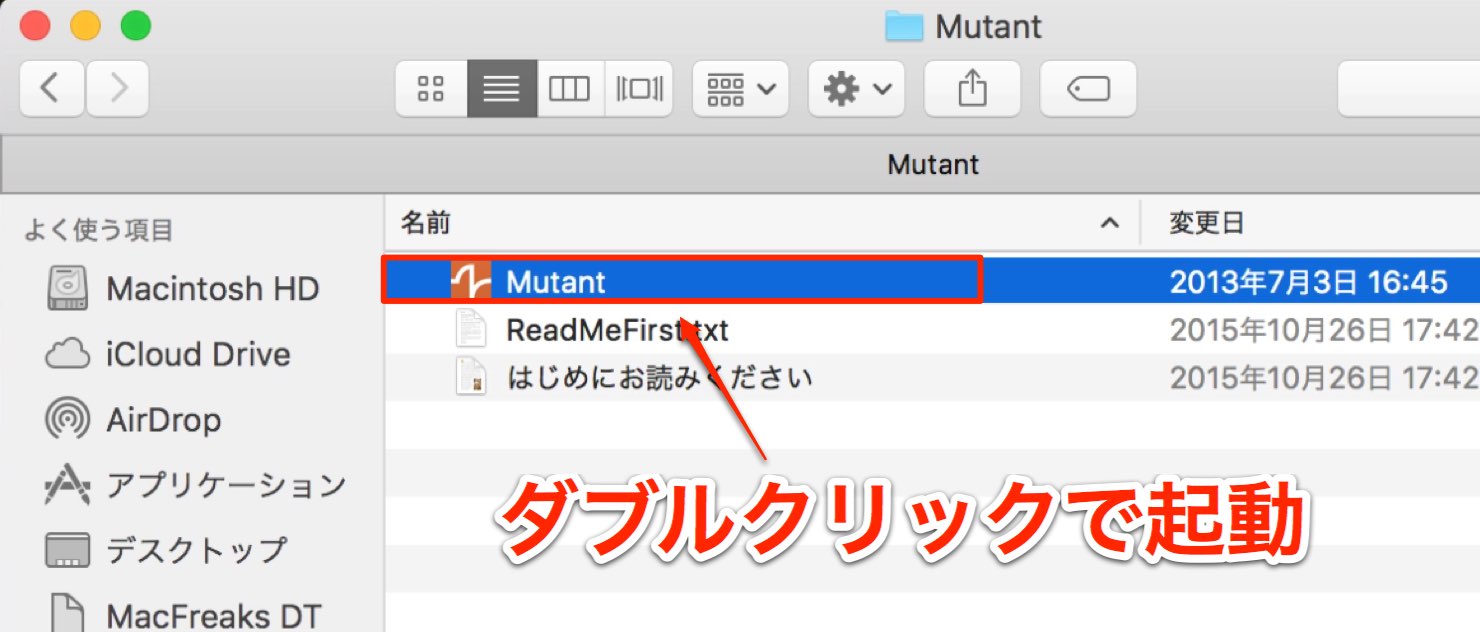
Double-click the application inside the moved folder to start the software.
Initial Setup and the Sample Folder
When you first start MUTANT, configure the following settings.
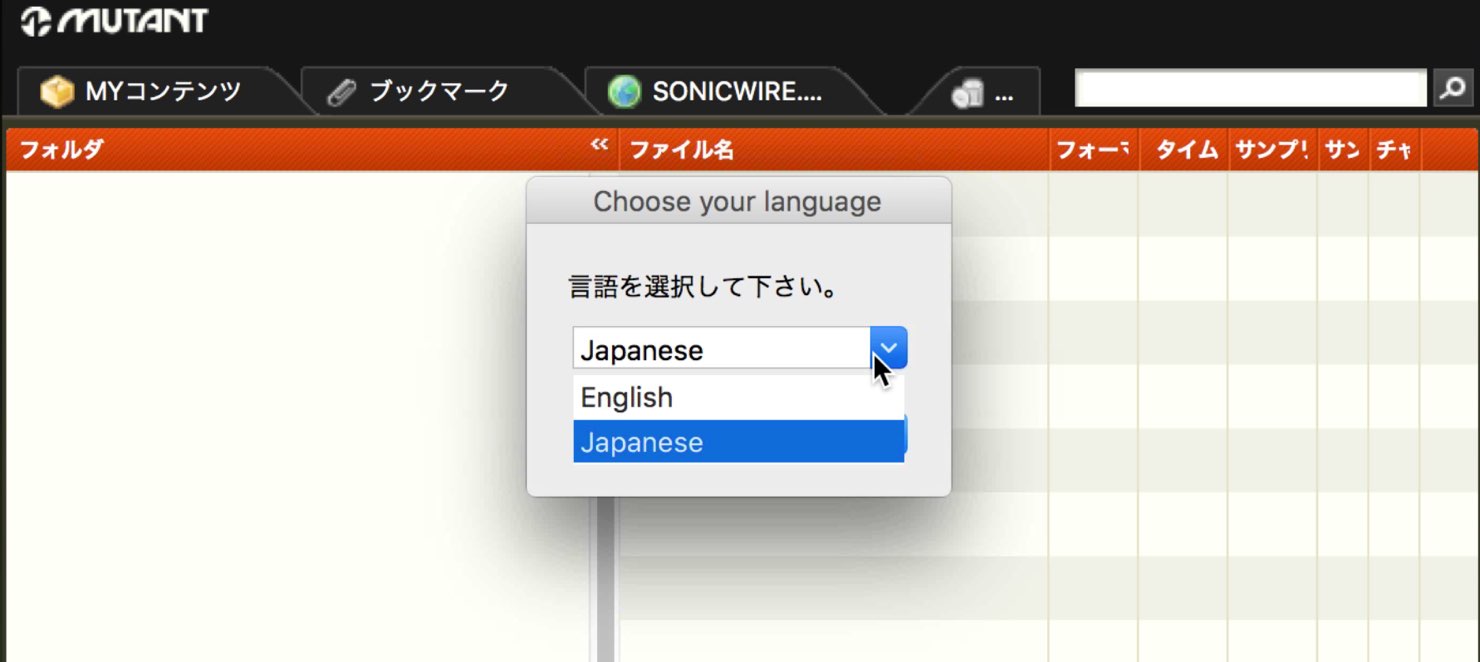
Choose Japanese or English as the application language.
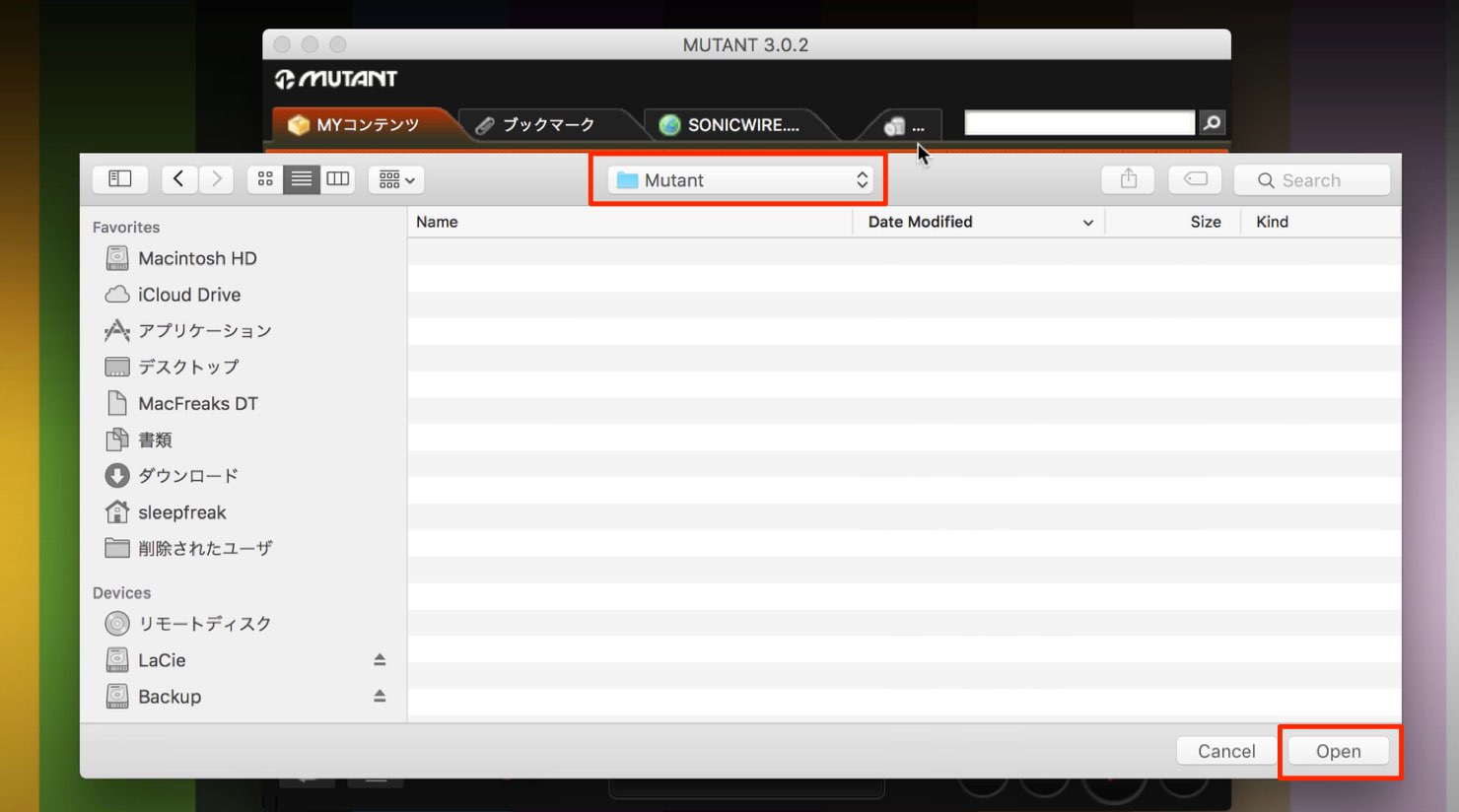
Select the folder where files added to MUTANT will be copied.
You can select a folder that already contains audio, but here we create and select an empty folder named “Mutant.”
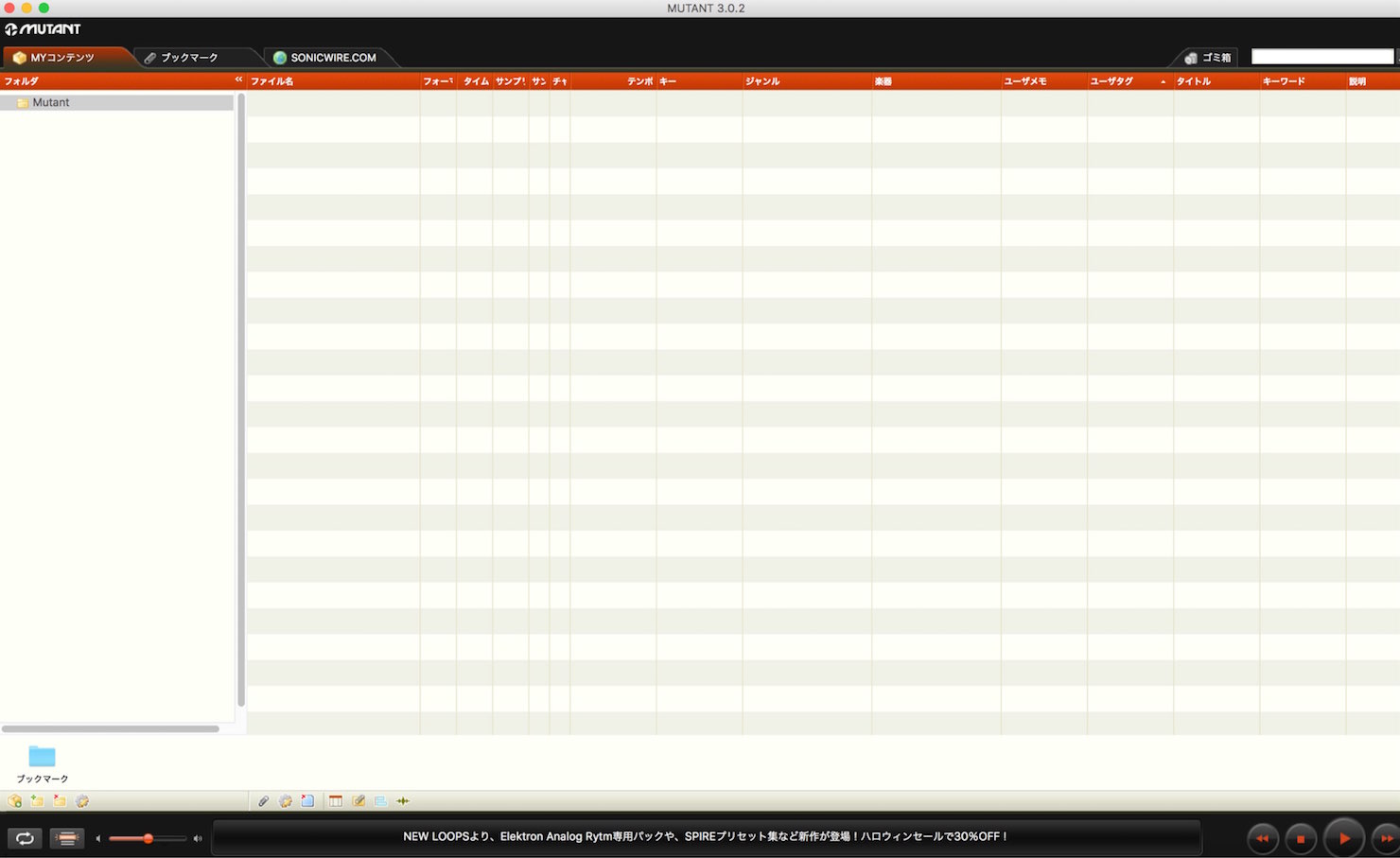
Initial setup is now complete.
The playlist opens as shown above.
Adding Audio Material to MUTANT
Once the playlist is open, add audio files.
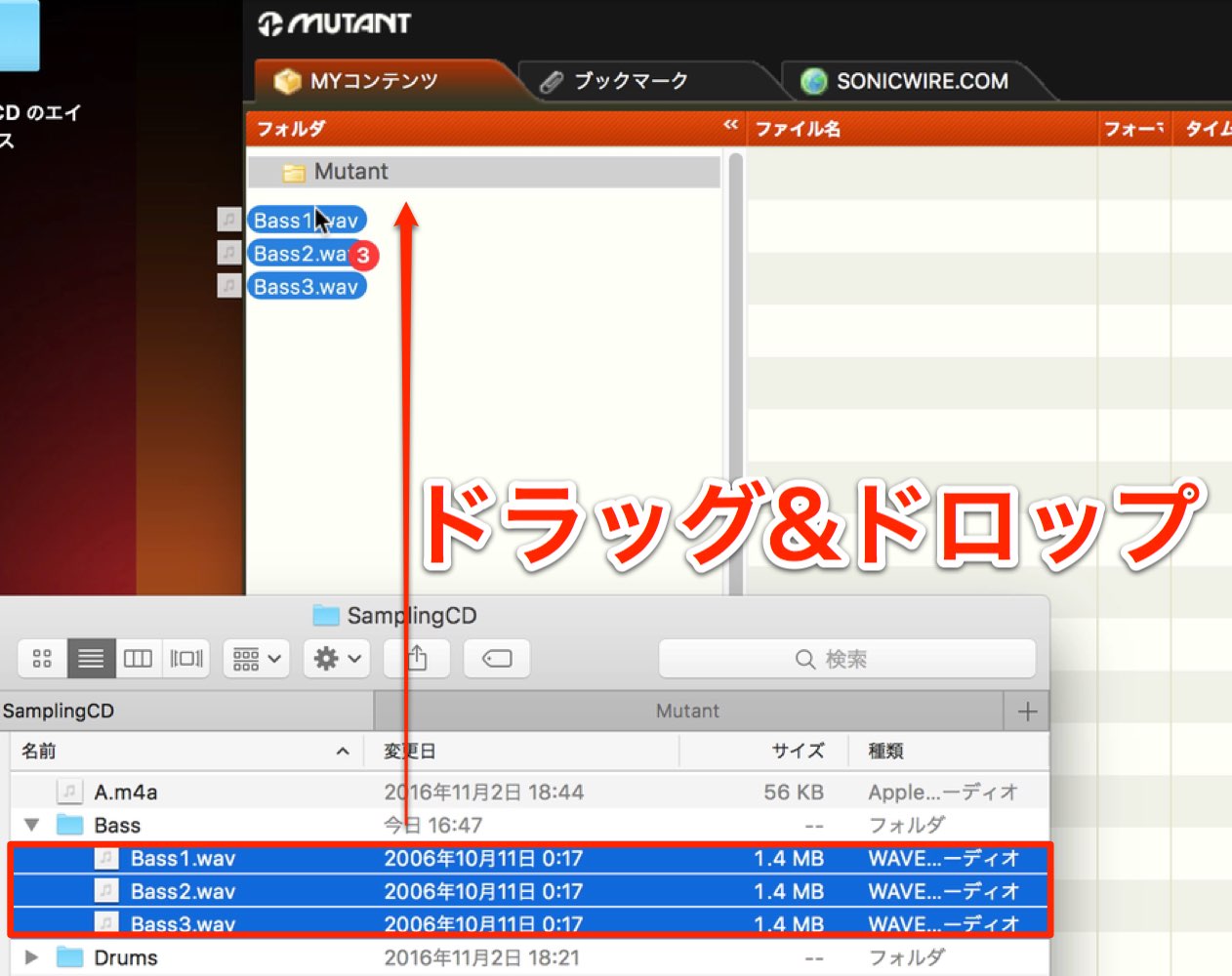
Drag and drop files onto a folder in MUTANT to add them to the playlist.
Files added this way are copied to the folder selected during setup.
You can also add an entire folder containing audio files.
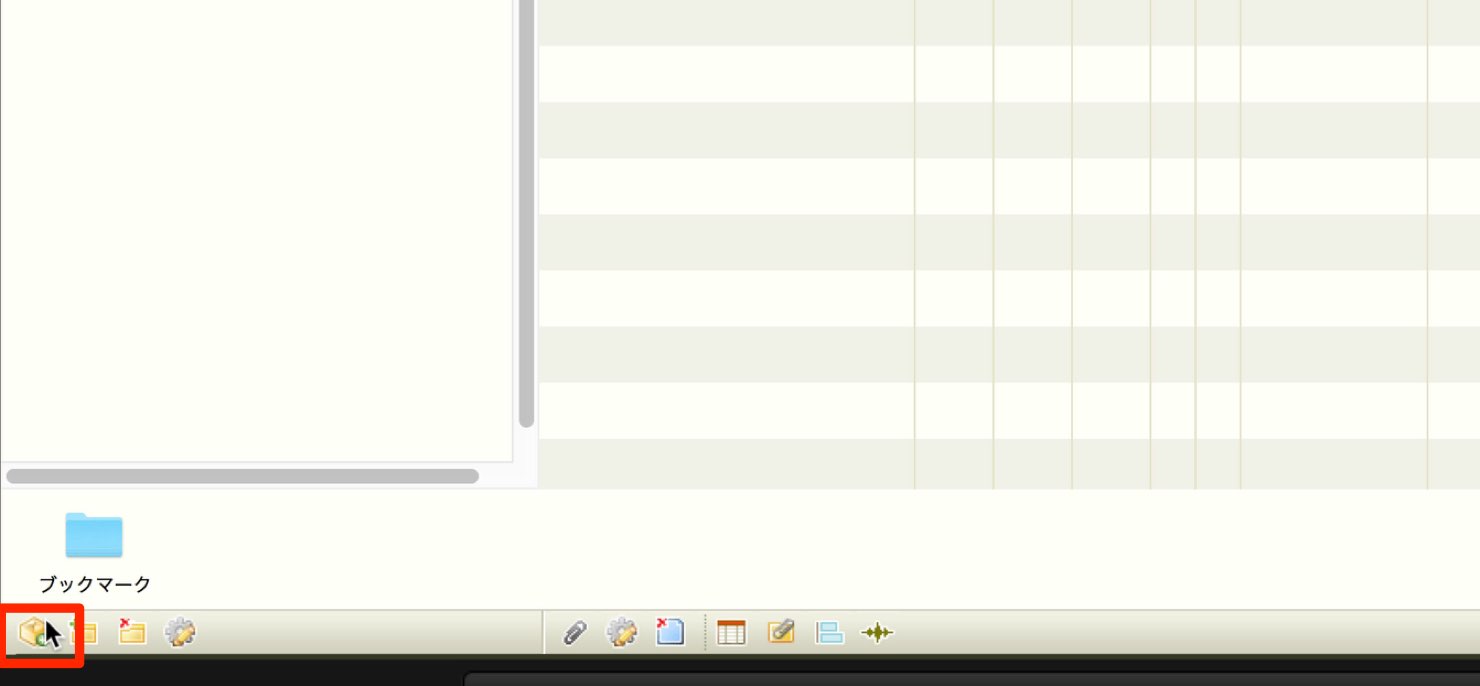
Click the button in the lower left.
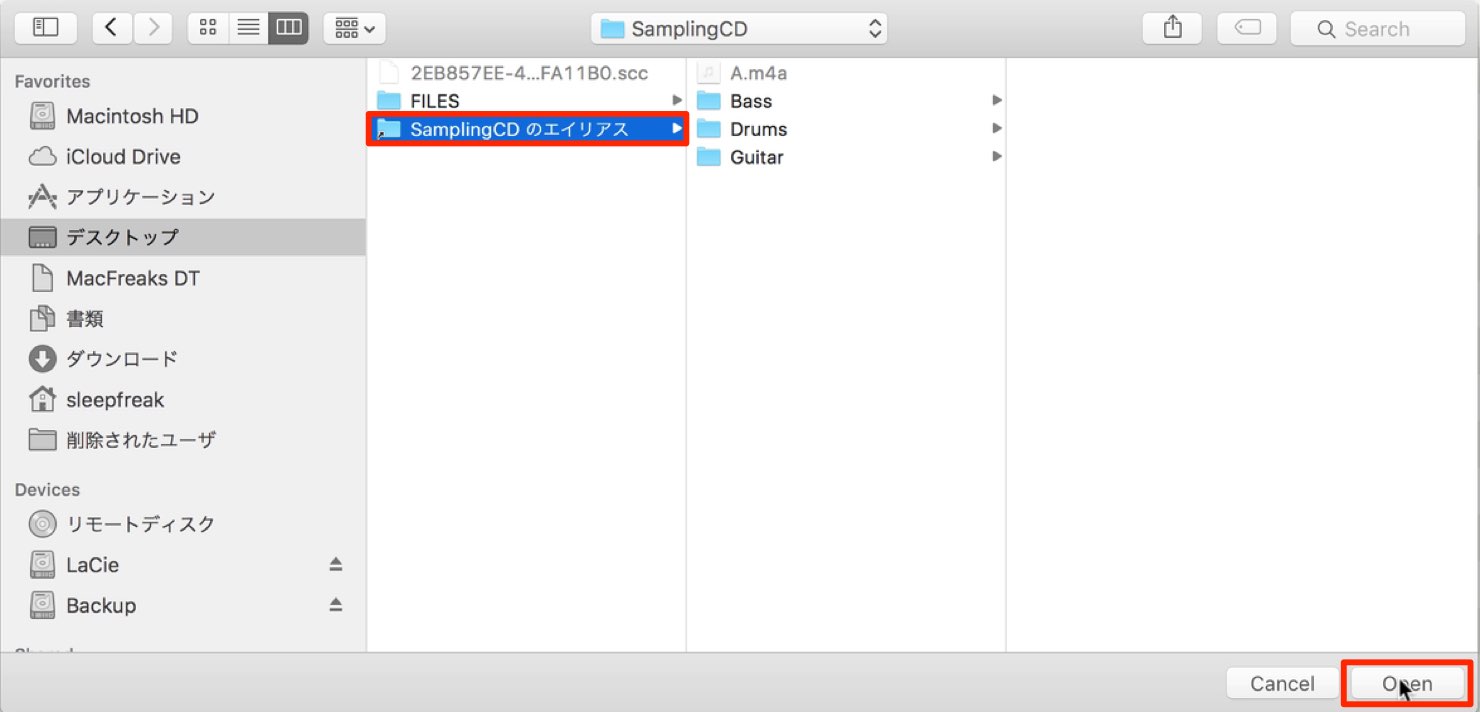
In the dialog, select the folder you want to add.
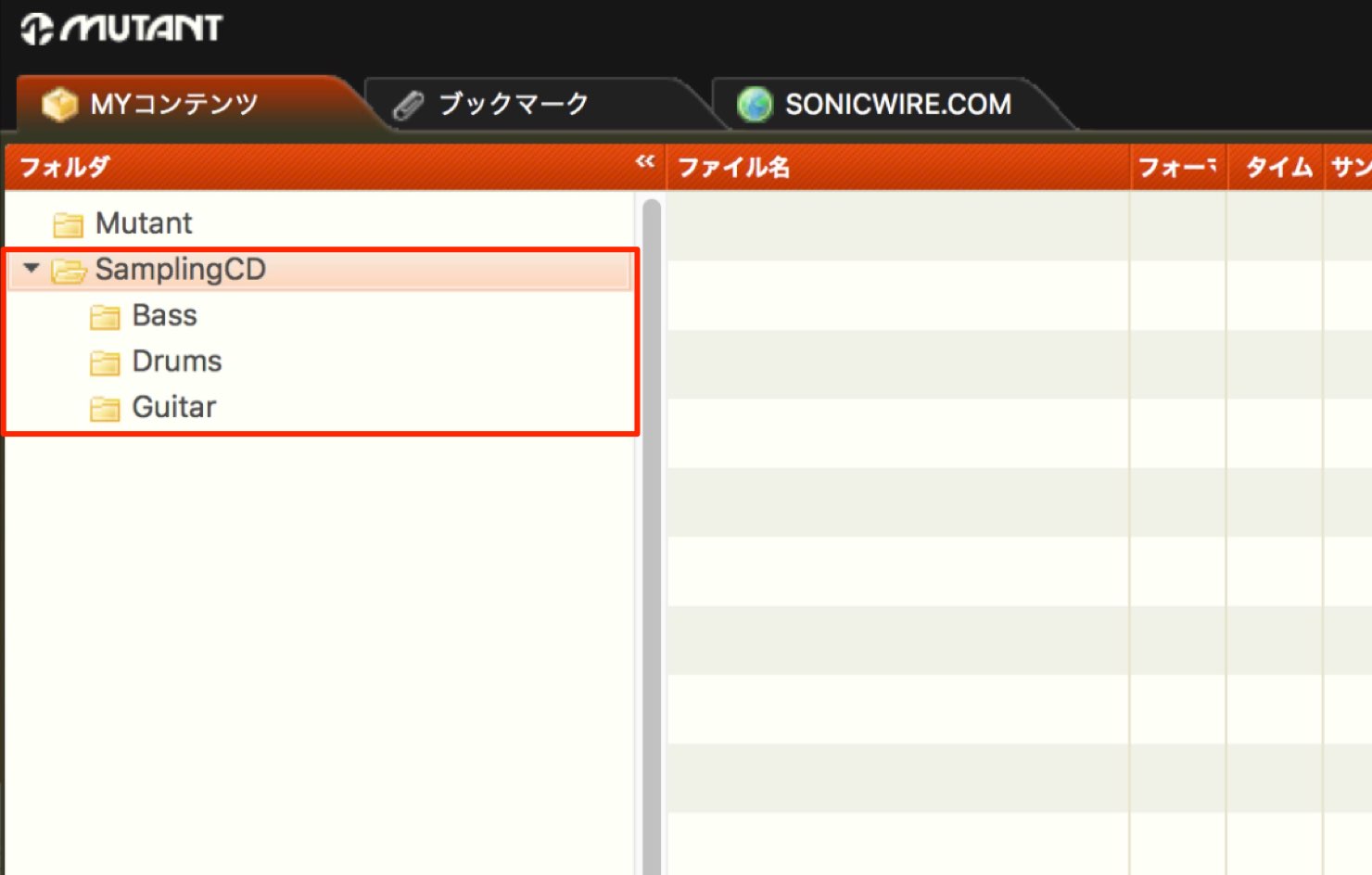
The selected folder appears as shown.
Its nested folder structure is reflected too, which is useful if your library is already organized.
Adding Audio File Extensions
You can add file extensions for MUTANT to display.
Check this setting if material does not appear in the playlist.
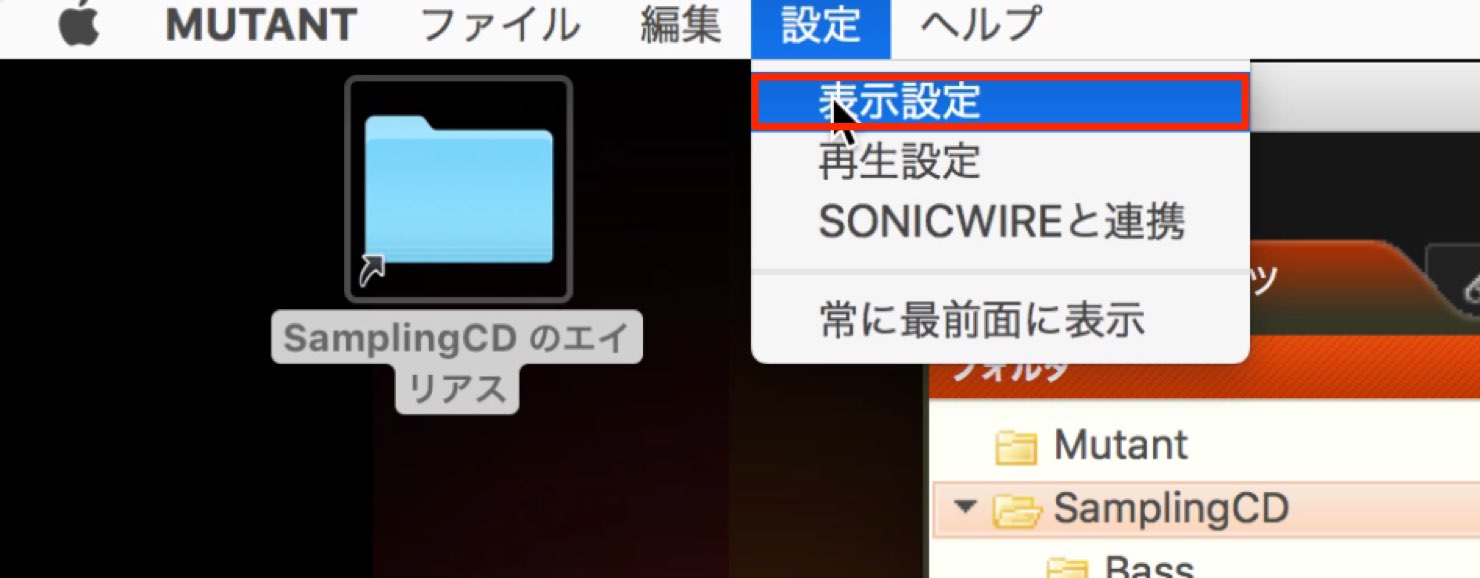
Choose Settings → Display Settings from the top menu.
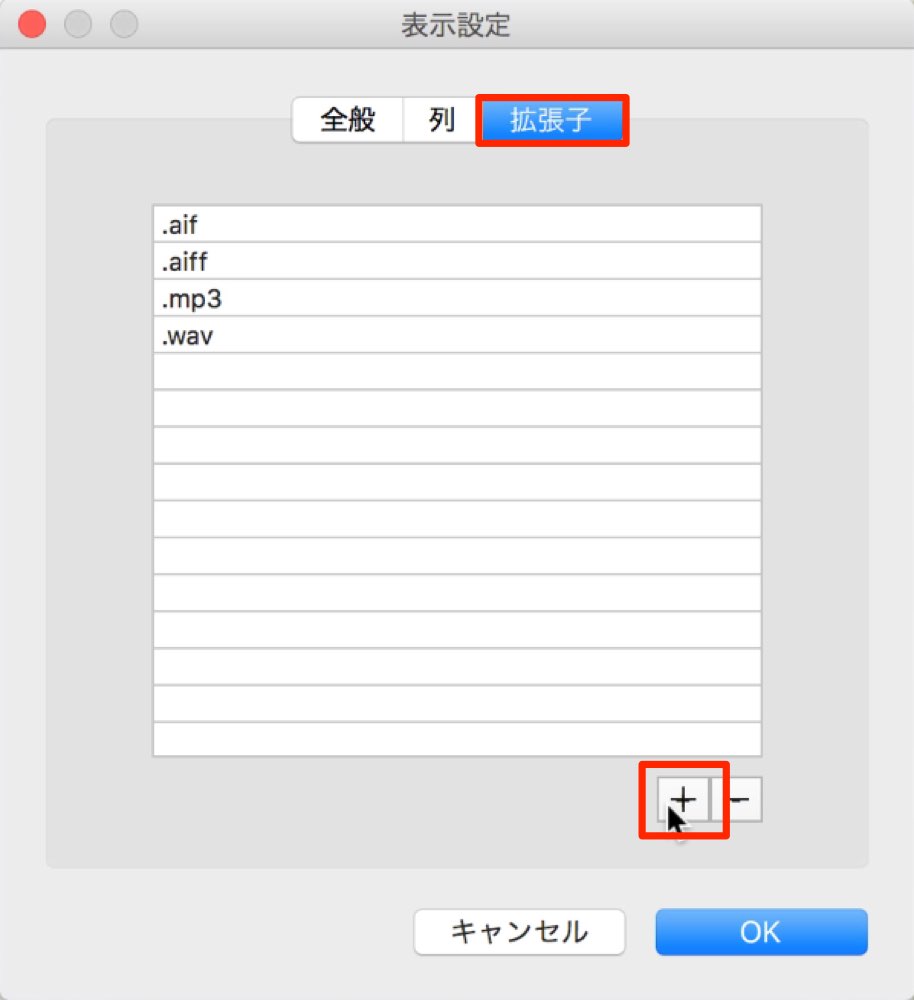
In the dialog, select the Extensions tab.
The currently recognized extensions are listed.
Click “+” to add an extension.
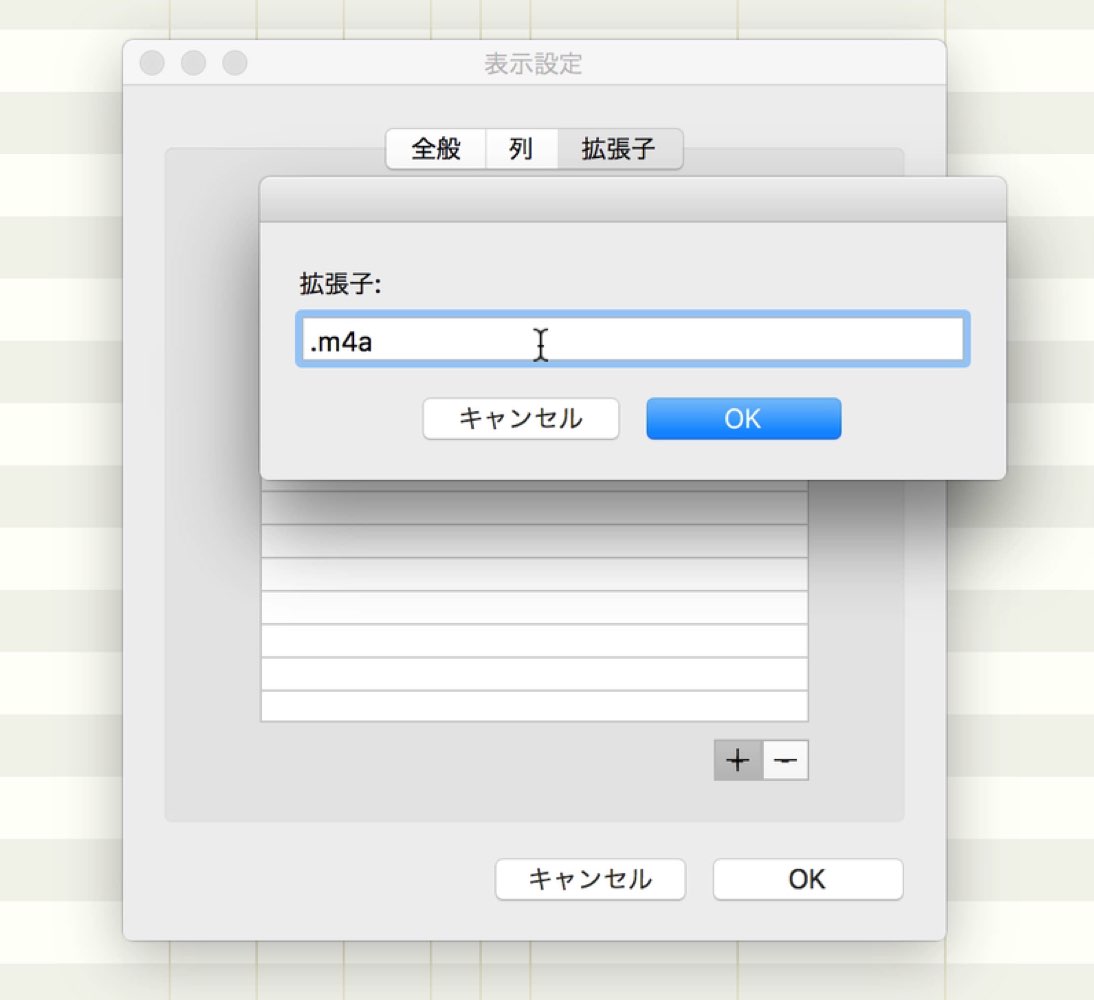
Enter an extension such as “.m4a” and click OK.
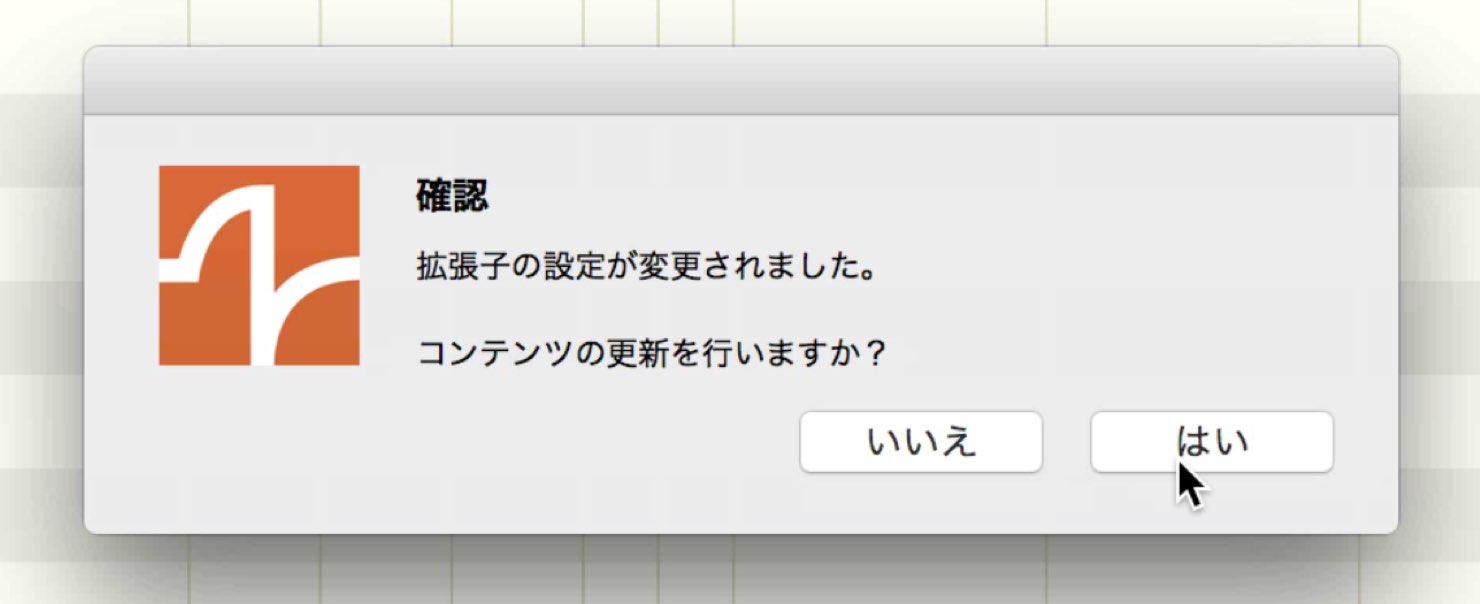
When the confirmation message appears, choose Yes.
After the list refreshes, audio files with that extension appear in the playlist. Adding an extension alone does not establish that every file in that format can be decoded or played.
Auditioning Material
Let’s audition a file in the playlist.
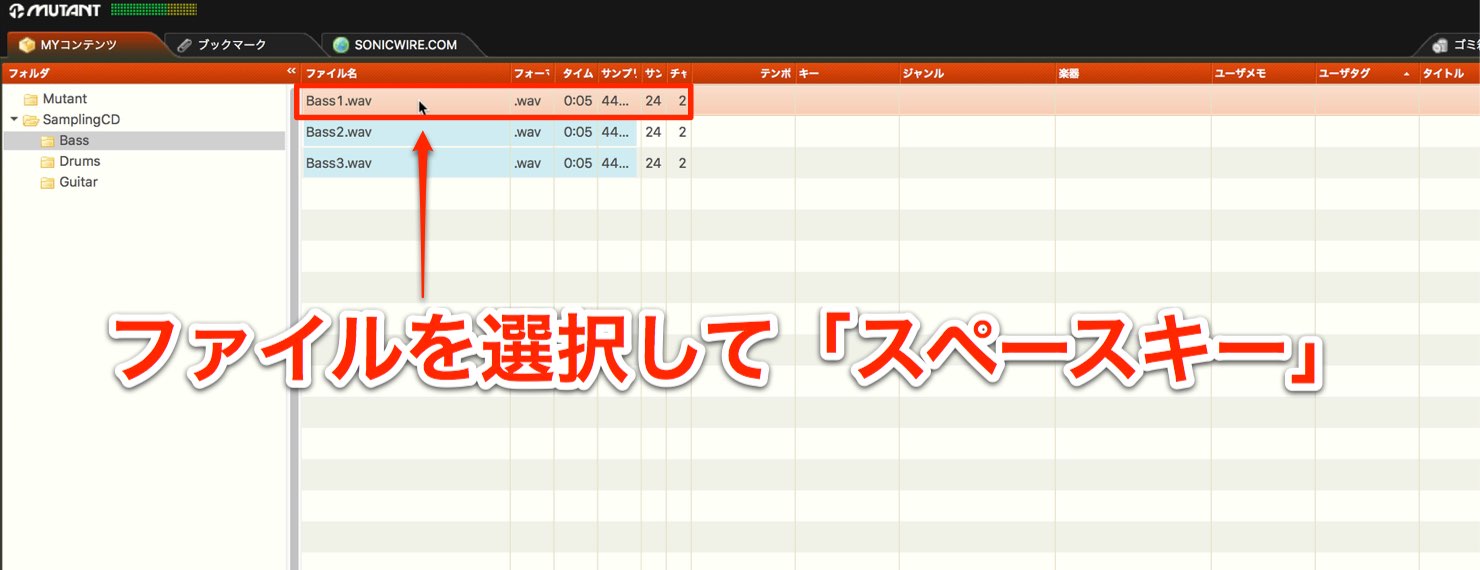
Select the file and press the space bar to play it.
Press the space bar again during playback to stop.

An orange bar shows the current playback position.
Click a point on the waveform to move playback to that position.
Enable the loop icon at the lower left to play the same file repeatedly.
This is useful for checking short sounds such as drum one-shots.
Managing Bookmarks
You can bookmark sounds you like.
This makes them easier to find later.
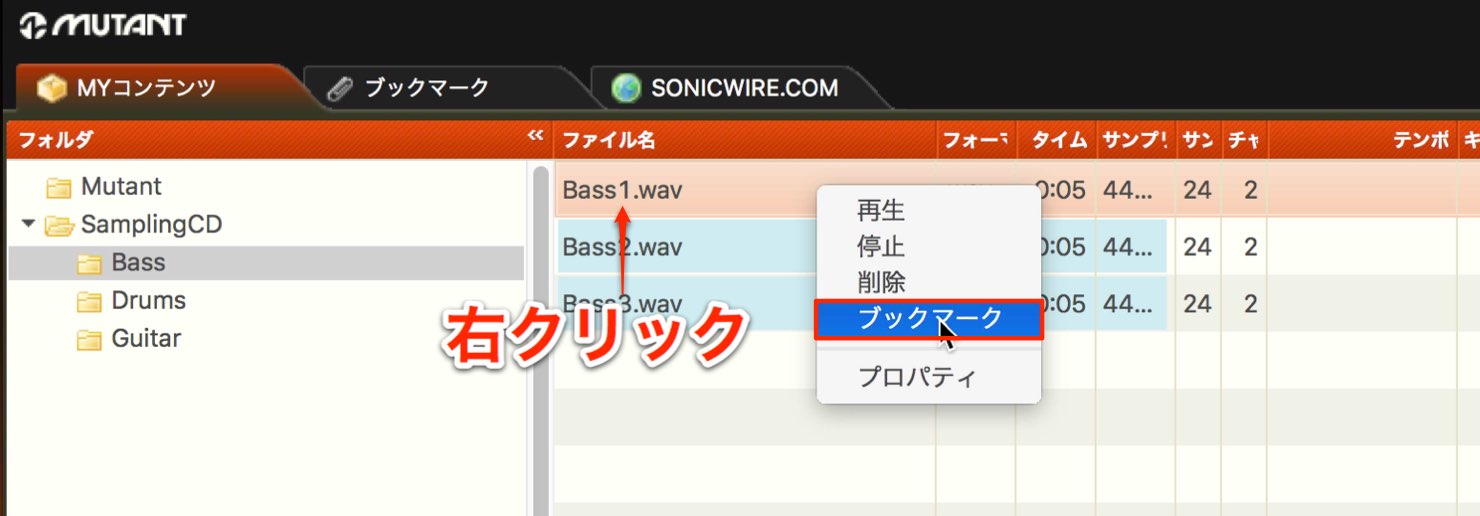
Right-click the file you want to save as a bookmark.
Select Bookmark from the menu.
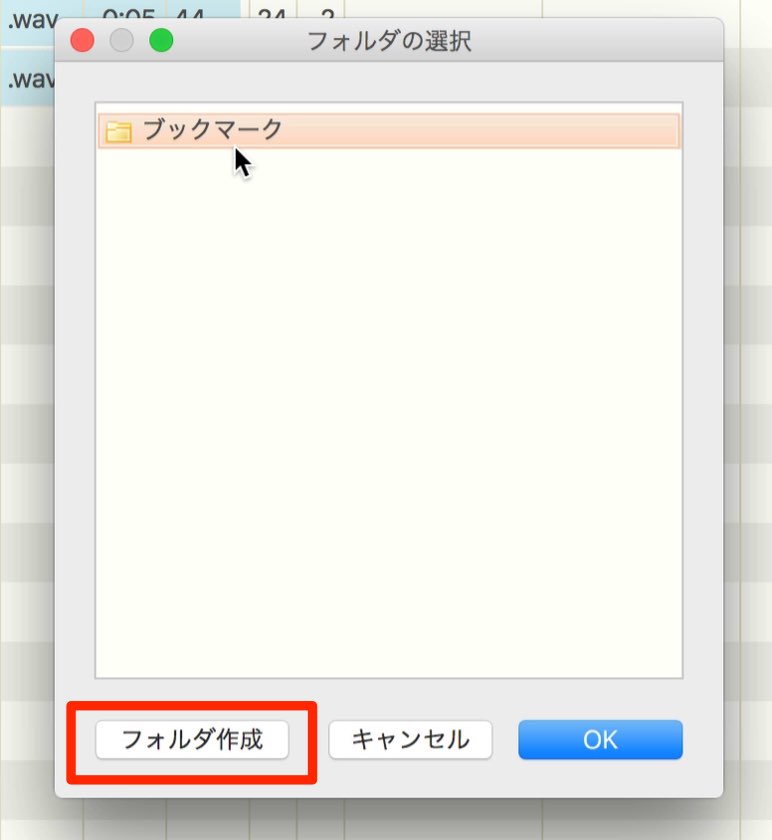
A bookmark management dialog appears.
It asks where you would like to save the bookmark.
Select the Bookmarks folder and click OK to save it at the top level.
You can also create folders such as Bass, Guitar or Synth to organize your bookmarks.
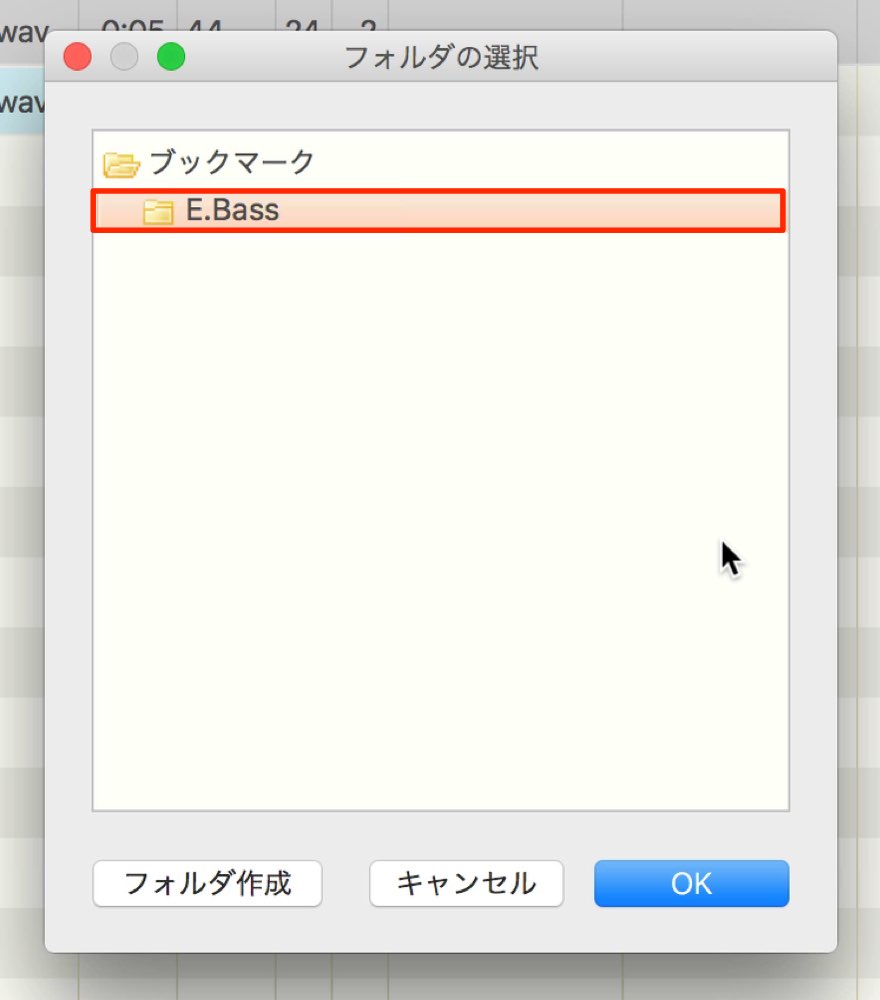
To do this, select Create Folder and enter a name.
After saving, open your bookmarks.
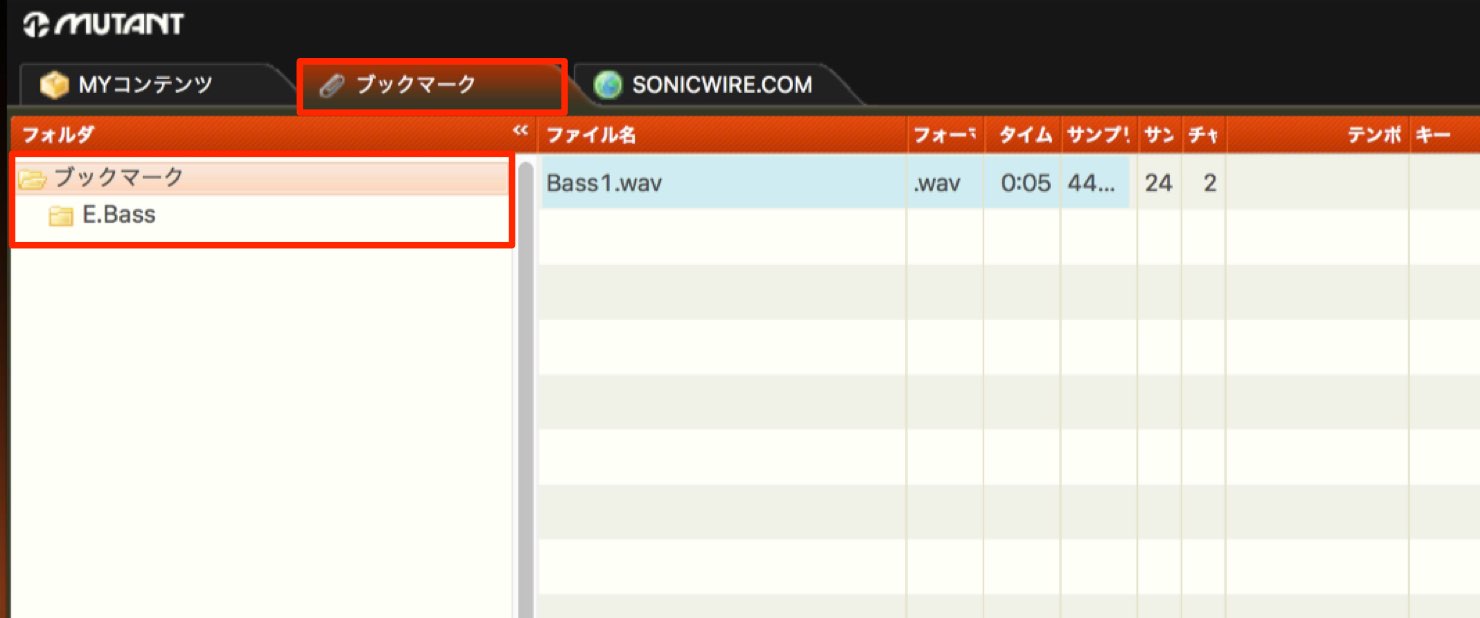
Select the Bookmarks tab at the top.
The saved material appears and can be auditioned just like an ordinary playlist.
Managing Folders
As with bookmarks above, folders can be added and customized to suit your needs. The same applies to ordinary playlists.
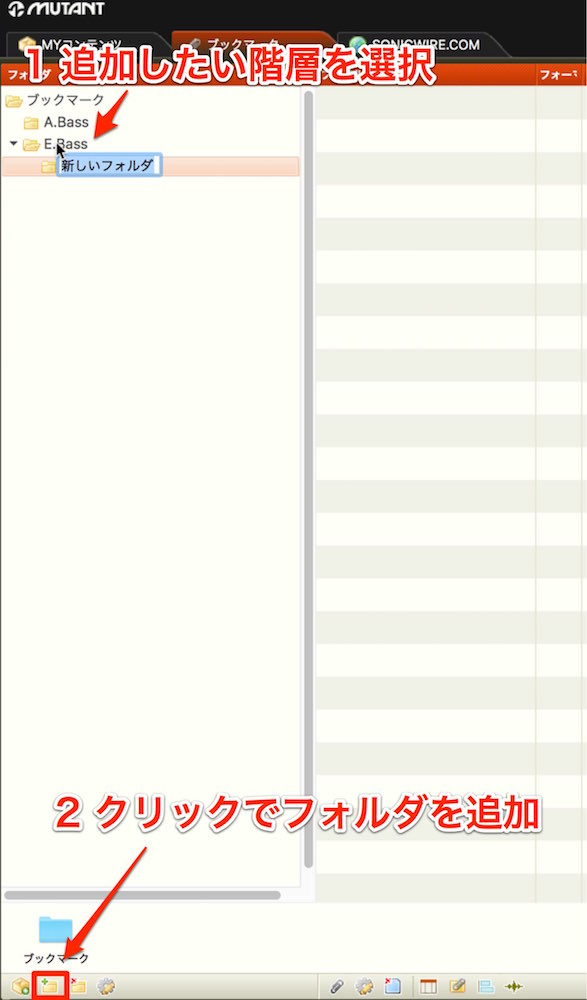
Select the level where you want the folder and click Add Folder below.
As shown, you can nest folders inside other folders.
For example, you might organize bass samples into Pick, Slap and Finger folders by playing technique.
To delete a folder, select it and click the delete button to the right of the add button.
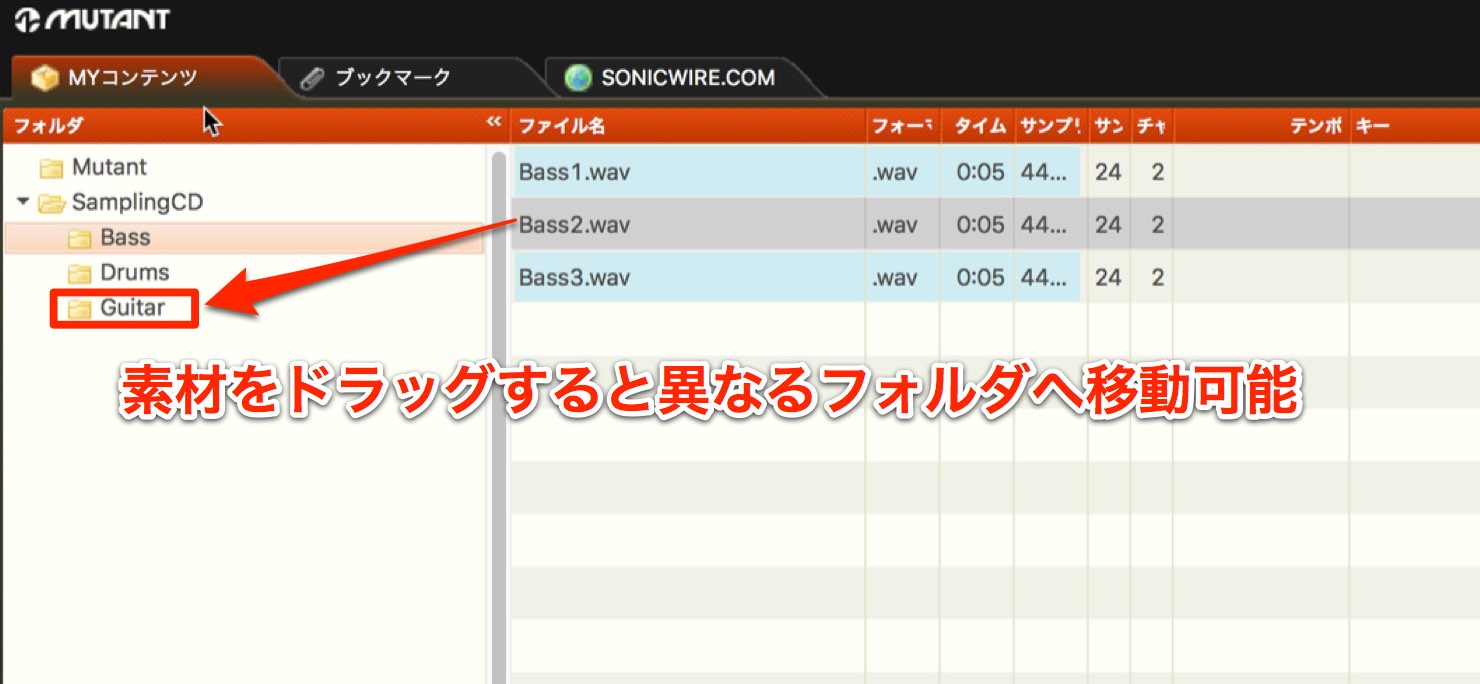
You can also move material between folders by dragging the desired file to the destination folder.
Adding Tags and Sample Information
Enter information for audio material to help organize and sort it.
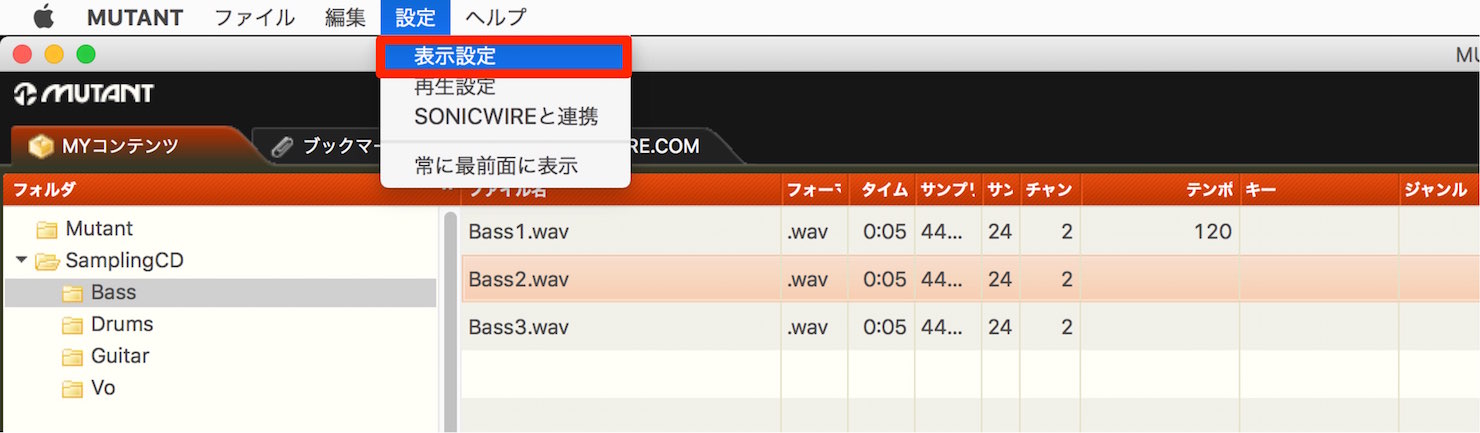
Choose Settings → Display Settings from the top menu.
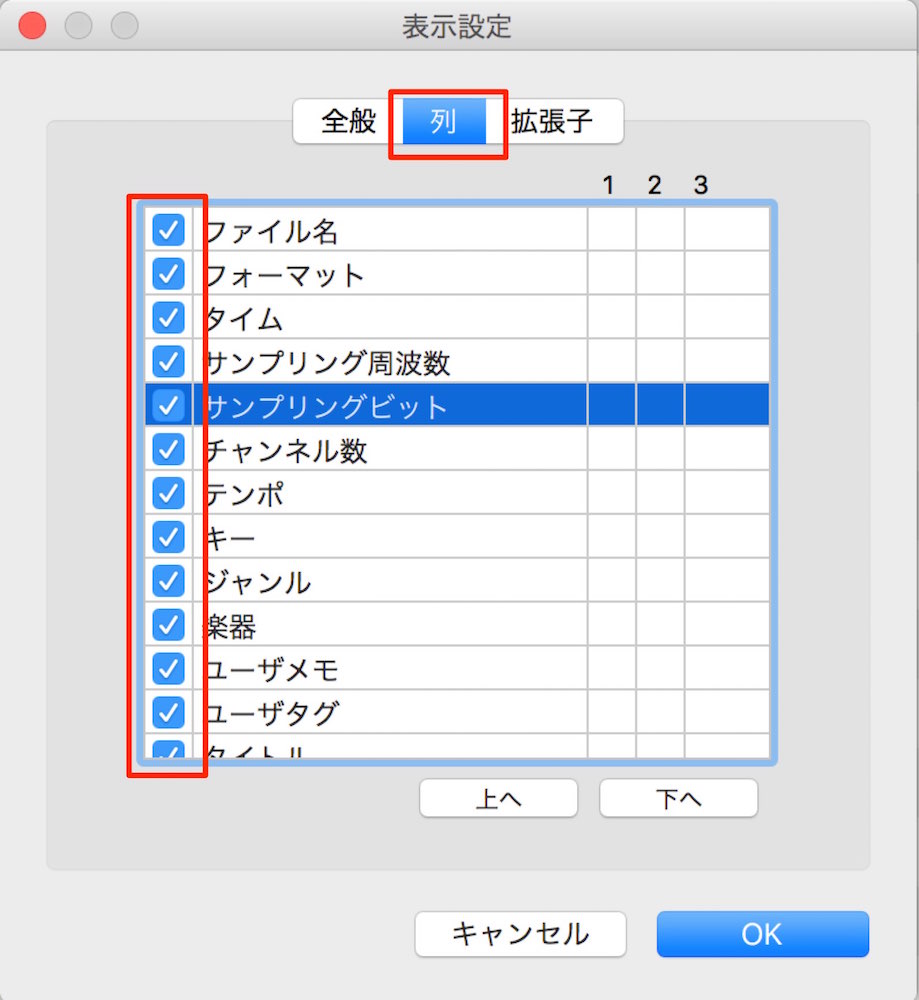
Select the Columns tab in the dialog and check the items you want to display.
Uncheck unneeded columns for a cleaner list.
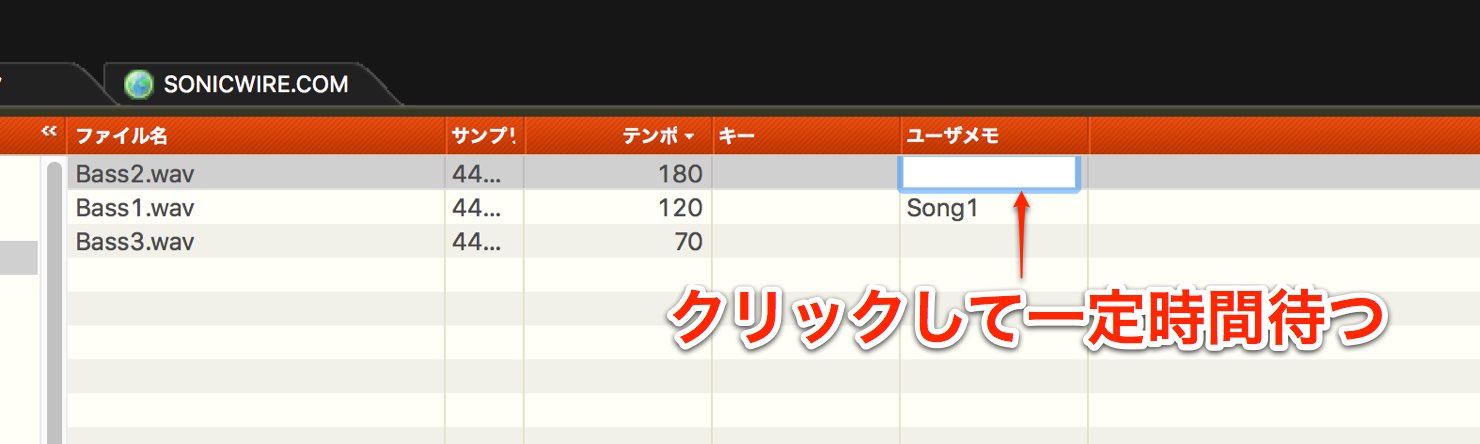
To enter information in the playlist, click the relevant field and wait briefly until it becomes editable.
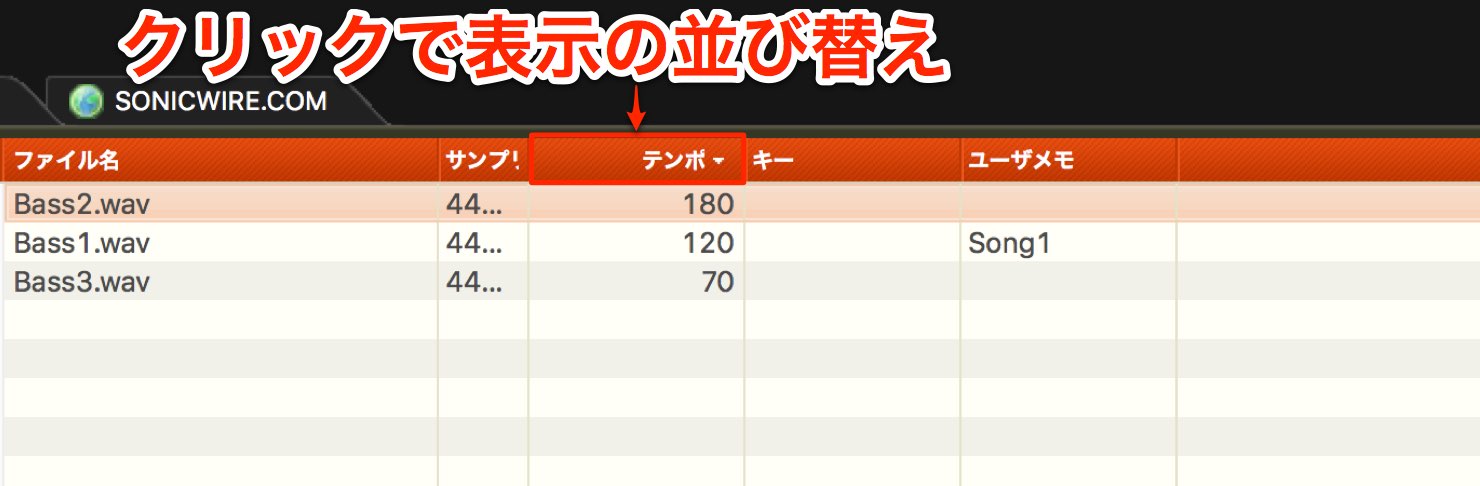
Click a column heading to sort the material by that value.
Click again to switch between ascending and descending order and find material quickly.
Frequently Asked Questions
Q1. How many audio files can MUTANT manage?
The original article did not identify a fixed file-count limit and described MUTANT as suitable for organizing large libraries with tags and folders. Practical capacity and performance depend on the system and have not been independently verified here.
Q2. Does MUTANT preserve an existing folder structure when adding audio?
When adding an entire folder, its nested structure is reflected in MUTANT, making it convenient to use an already organized library.
Q3. How do I display audio files with another extension?
In Settings → Display Settings, open the Extensions tab and use “+” to add an extension such as “.m4a.” This can make matching files appear in the playlist; playback also depends on format support.
NEW ARTICLES
Latest English Articles

















































































































































































































































































































































































