After creating a drum pattern in FL Studio, the Piano Roll lets you program pitched instruments such as bass lines. This article covers opening the Piano Roll, using zoom to create a comfortable workspace, and entering, resizing, changing the pitch of, and moving notes. These techniques let you add melodies and bass lines to a drum track and develop a more complete arrangement.
Layering a Bass Line in the Piano Roll
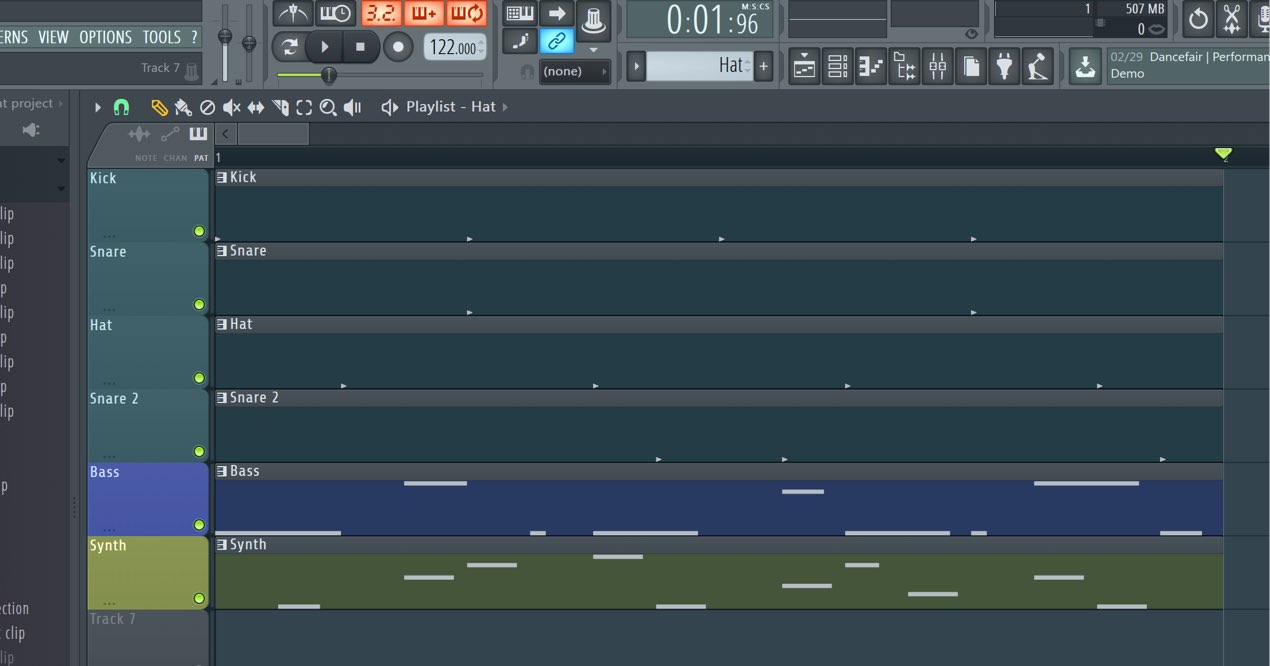
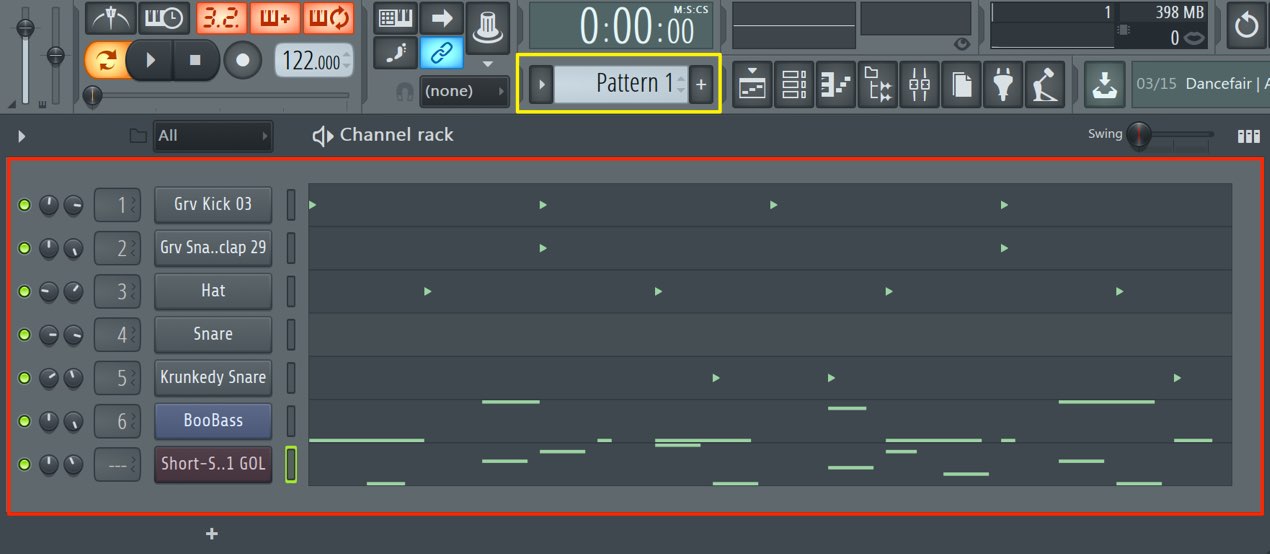
Once you have a drum pattern you like, add a bass phrase.
The main difference from the drums is that bass is a pitched instrument.
With drums, you only needed to specify when each instrument plays.
With a pitched instrument such as bass, you also need to specify the pitch.
This is where the Piano Roll comes in.
Let's look at the basics.
Tutorial Video
Selected Questions and Answers from YouTube

In GMS, whichever preset I select from the Presets Library, I only hear a short, dull sound and the pitch does not change like in the demo. Is there a setting I should change?

Try increasing the Decay or Sustain values as shown in the image, or making the Piano Roll notes longer:https://app.box.com/s/c9r1ivxqdnup9kli9umj0l29xxcs10d4
How do I copy and paste in the Piano Roll?
On Mac, use Command + C to copy and Command + V to paste. On Windows, use Control + C and Control + V.
Opening the Piano Roll
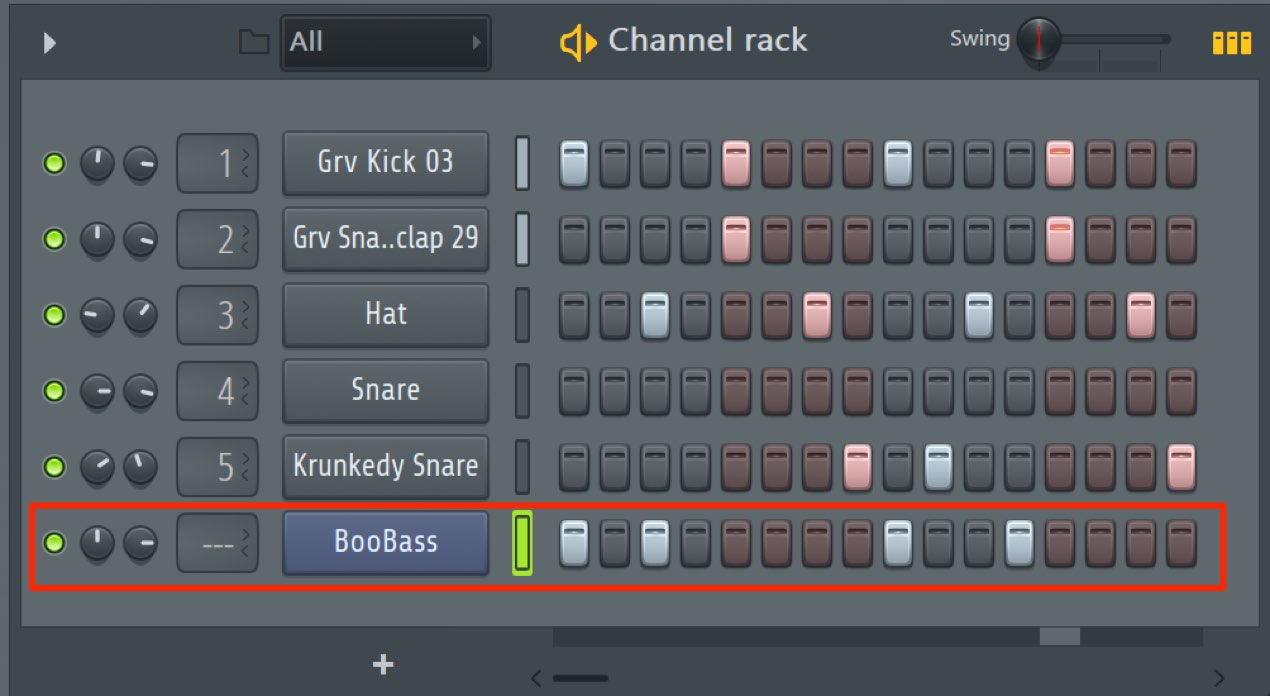
Here is the bass instrument loaded in the previous section.
As it stands, it can only play a fixed pitch,
and its note length cannot be adjusted.
To do that, switch to the Piano Roll.
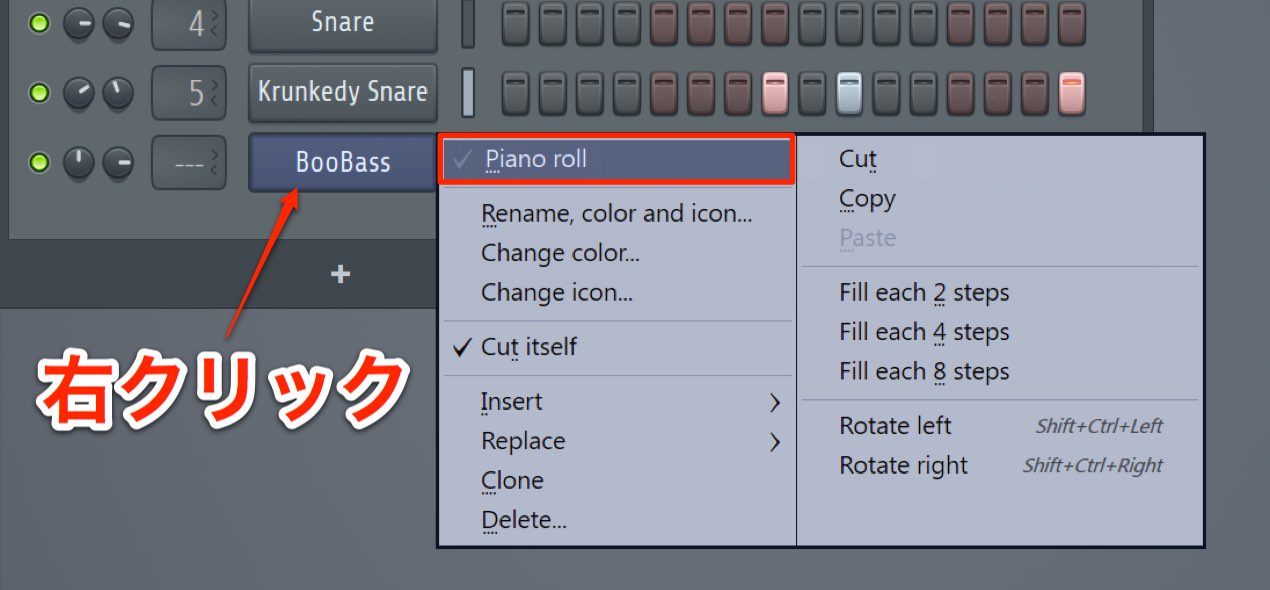
Right-click the channel name for which you want to open the Piano Roll
and select Piano Roll from the menu.
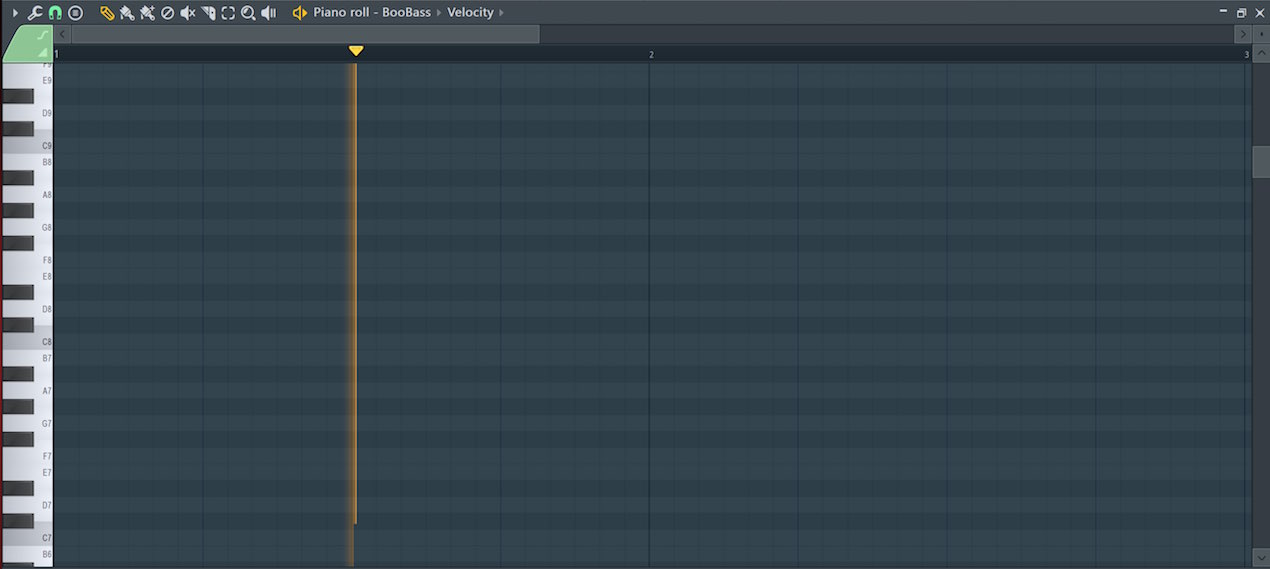
The Piano Roll opens as shown.
Programming in the Piano Roll: Zoom
Let's enter one bar of notes in the Piano Roll.
The zoom function makes this easier.
For example,
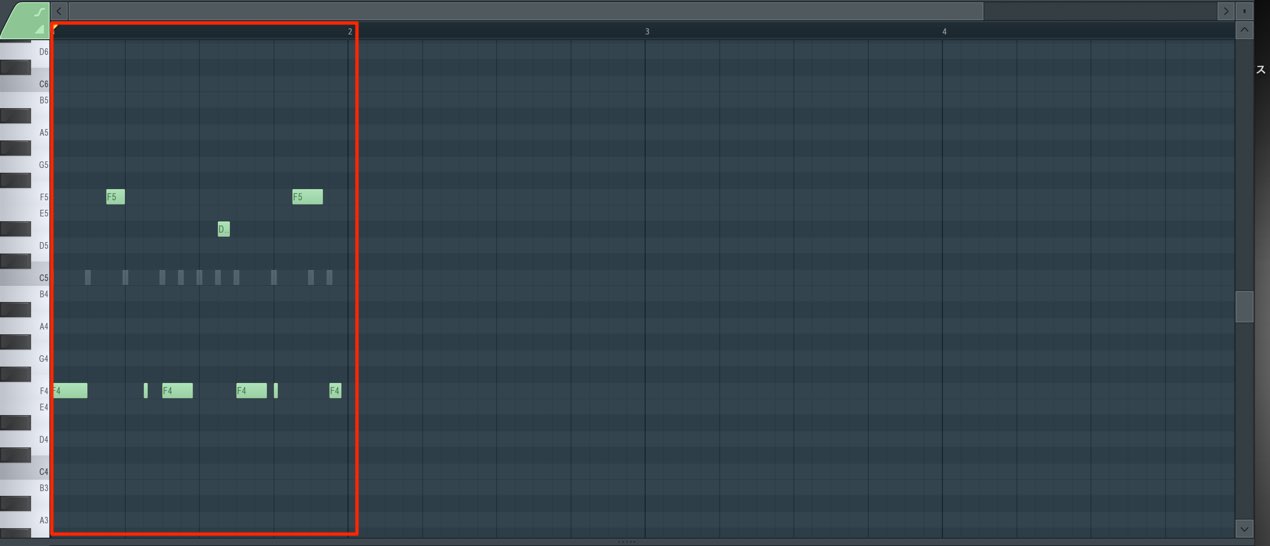
if you want to program one bar,
at this zoom level the area is small and difficult to work with.
Choose a zoom level suited to the area you are editing.
There are several ways to zoom; the following is our recommended method.
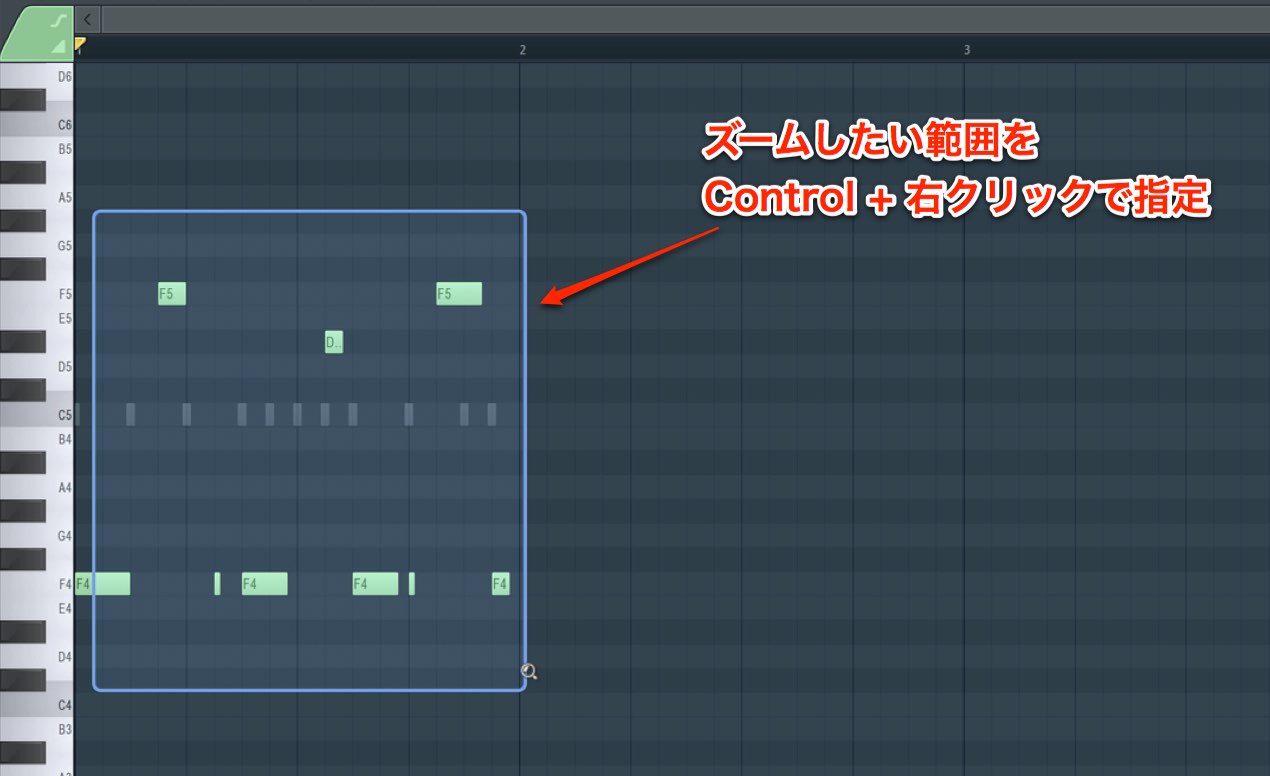
Select the area you want to enlargewith Control + right-click and drag.
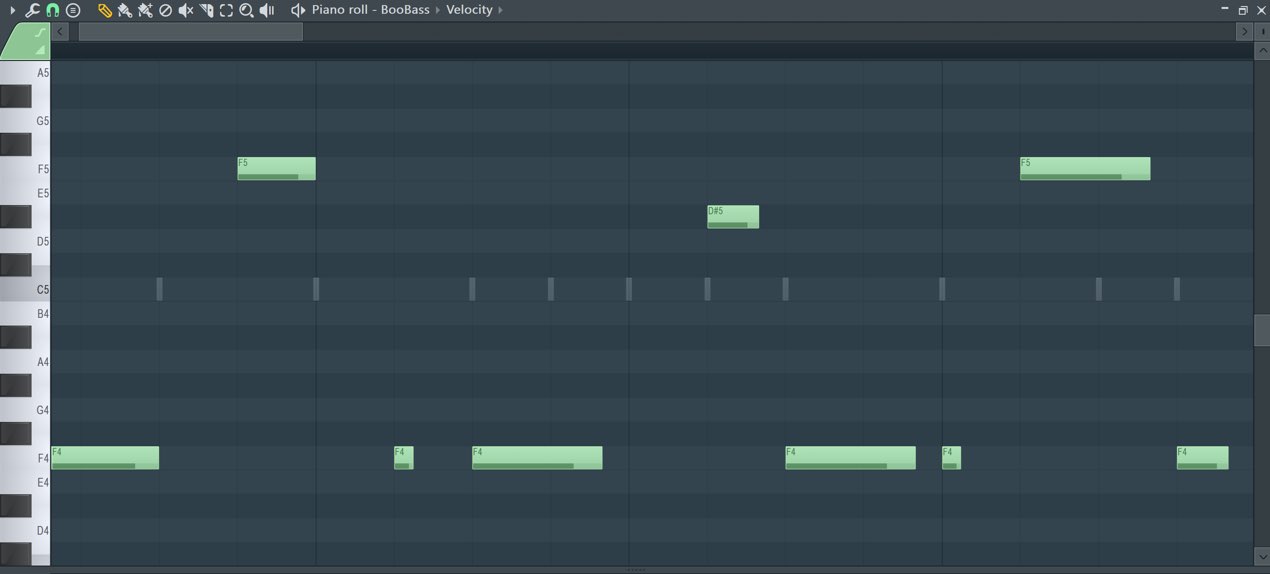
The selected area is enlarged as shown.
To return to the previous zoom level, use Control + right-click on an empty area of the Piano Roll.
Programming in the Piano Roll: Entering Notes
Let's start with an overview.
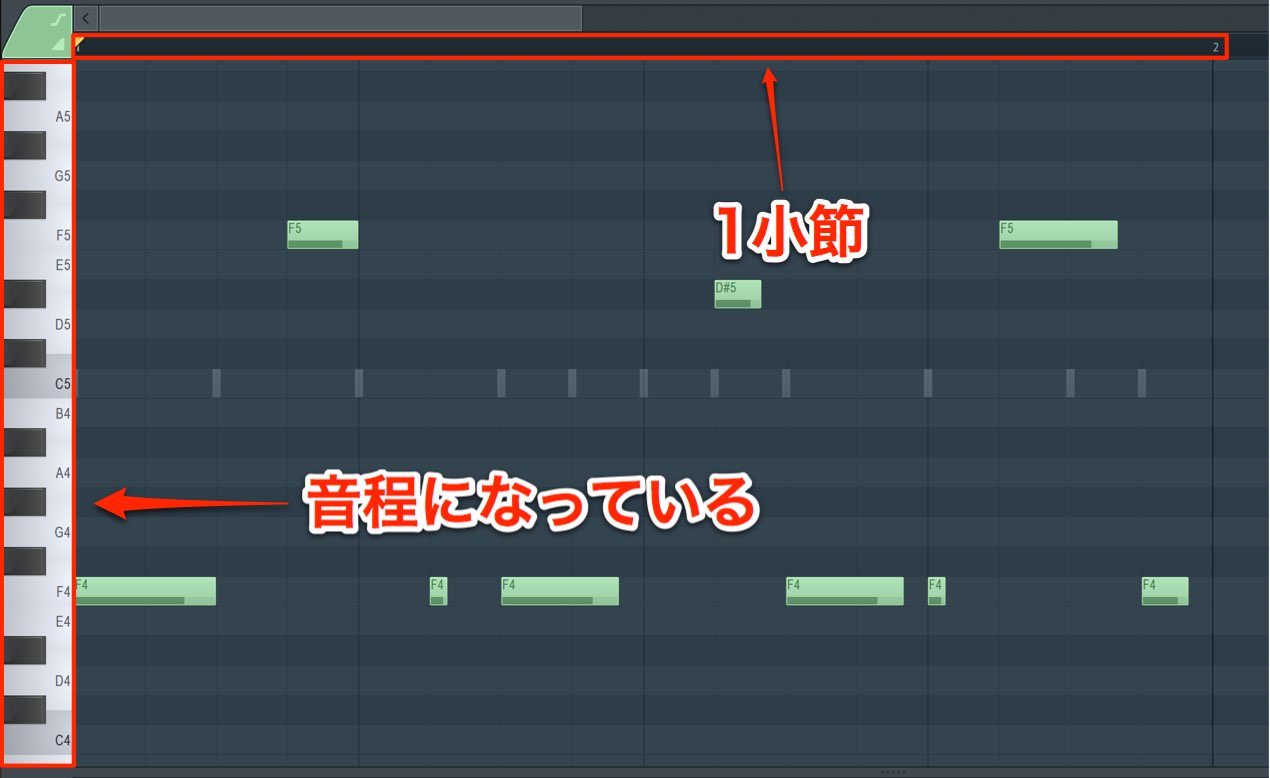
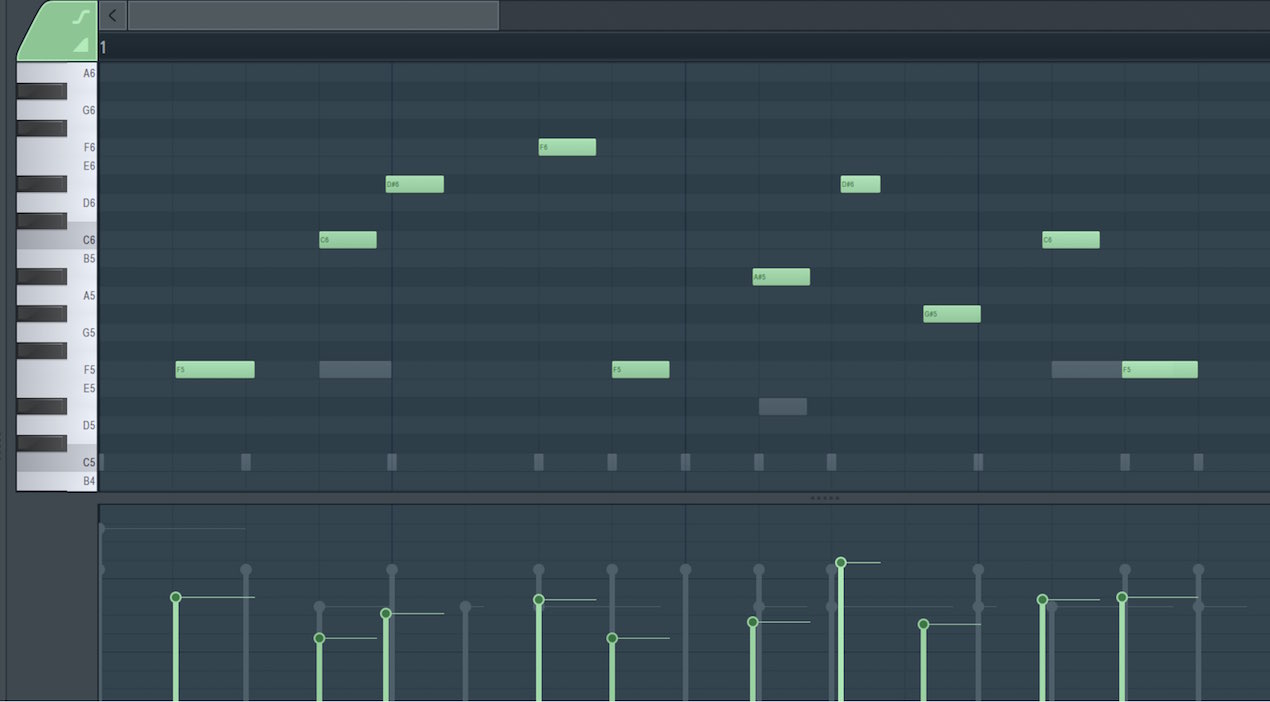
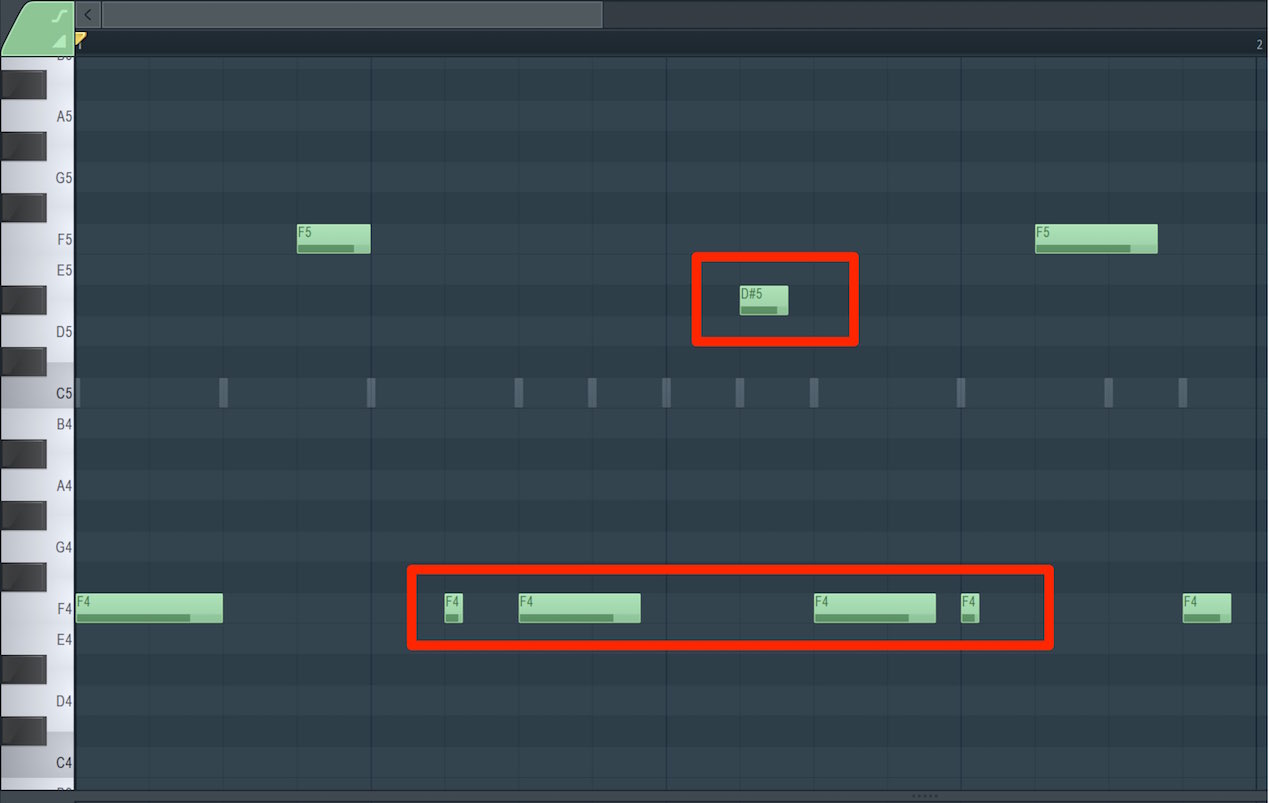
The bar numbers appear at the top.
The horizontal axis represents time—the point at which a note plays.
The keyboard on the left shows pitch.
Together, they let you specify the pitch and timing of each note.
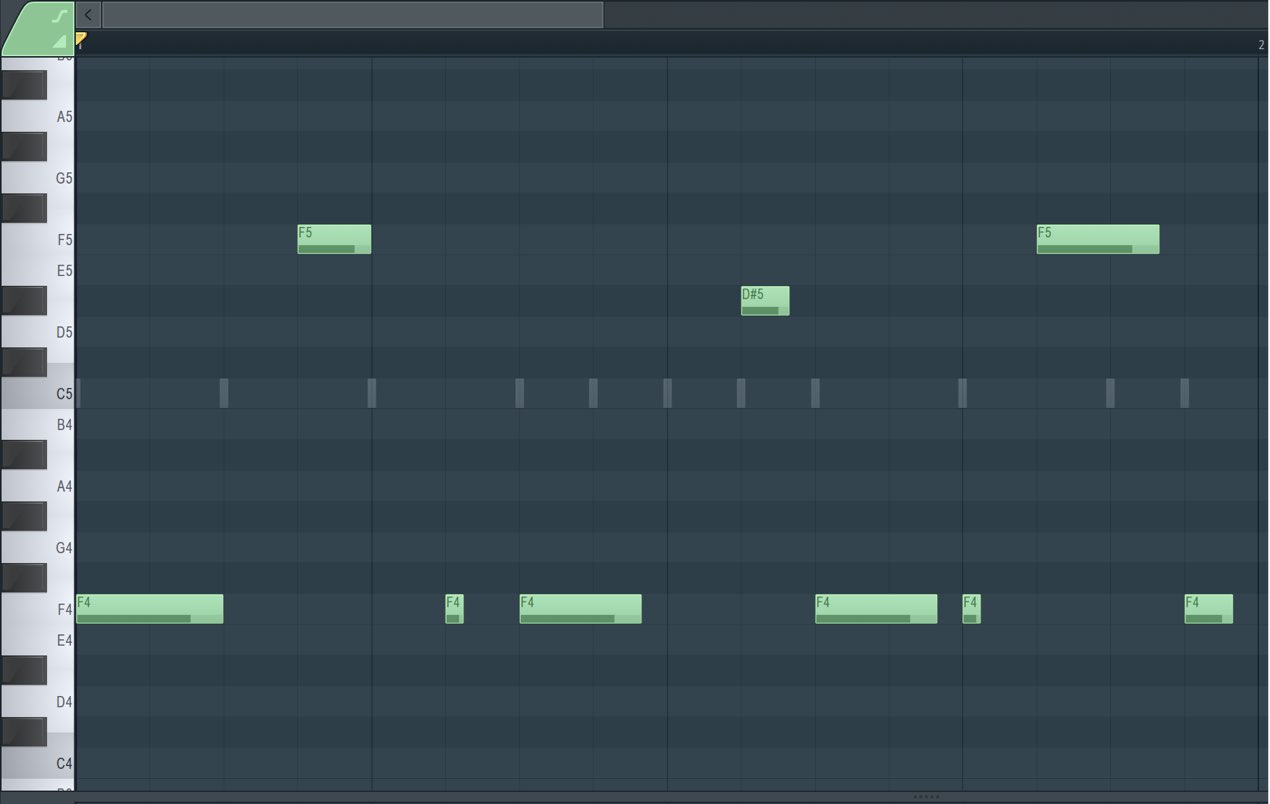
For this example, we'll program a phrase like this.
Entering Notes
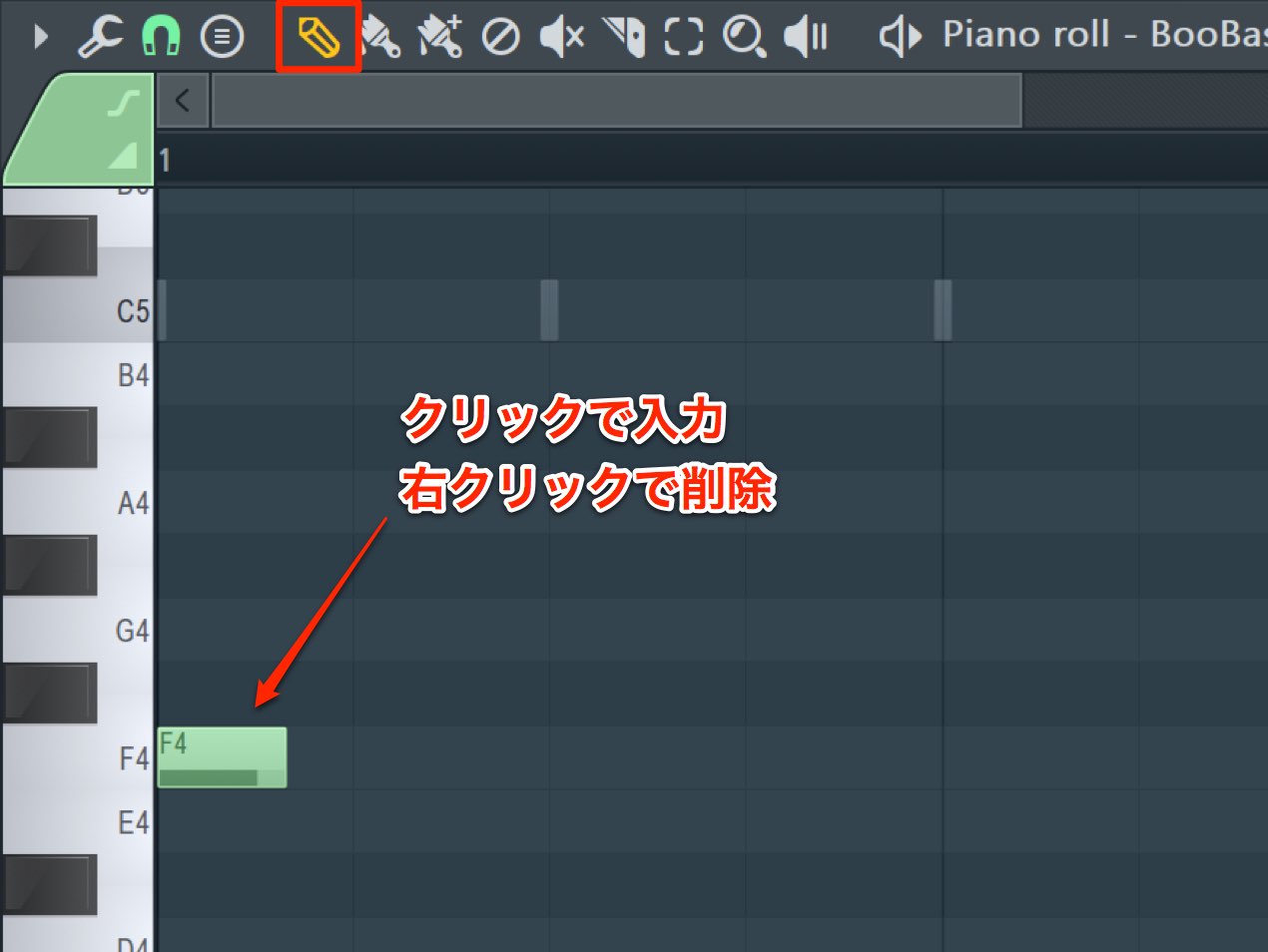
Select the basic Draw tool.
Click where you want to enter a note.
Adjusting Note Length
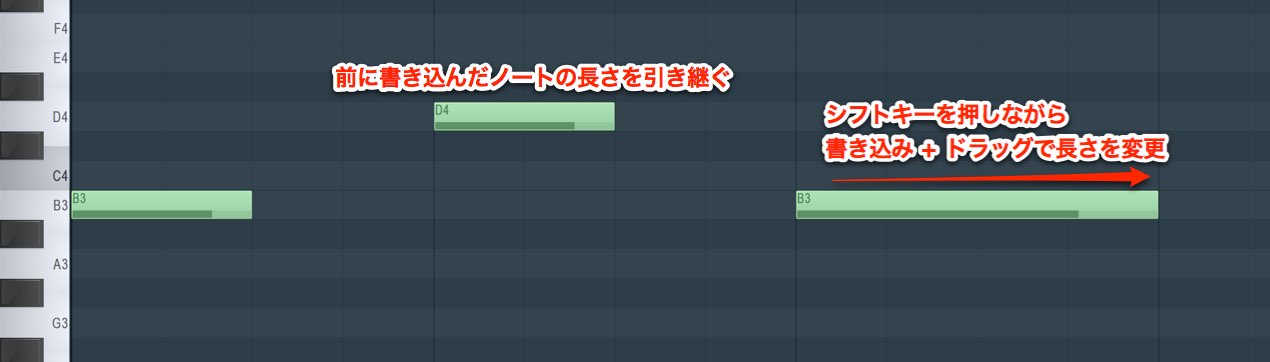
A new note takes the same length as the previous note entered.
When entering a note,hold Shift and drag to adjust its length as you draw it.
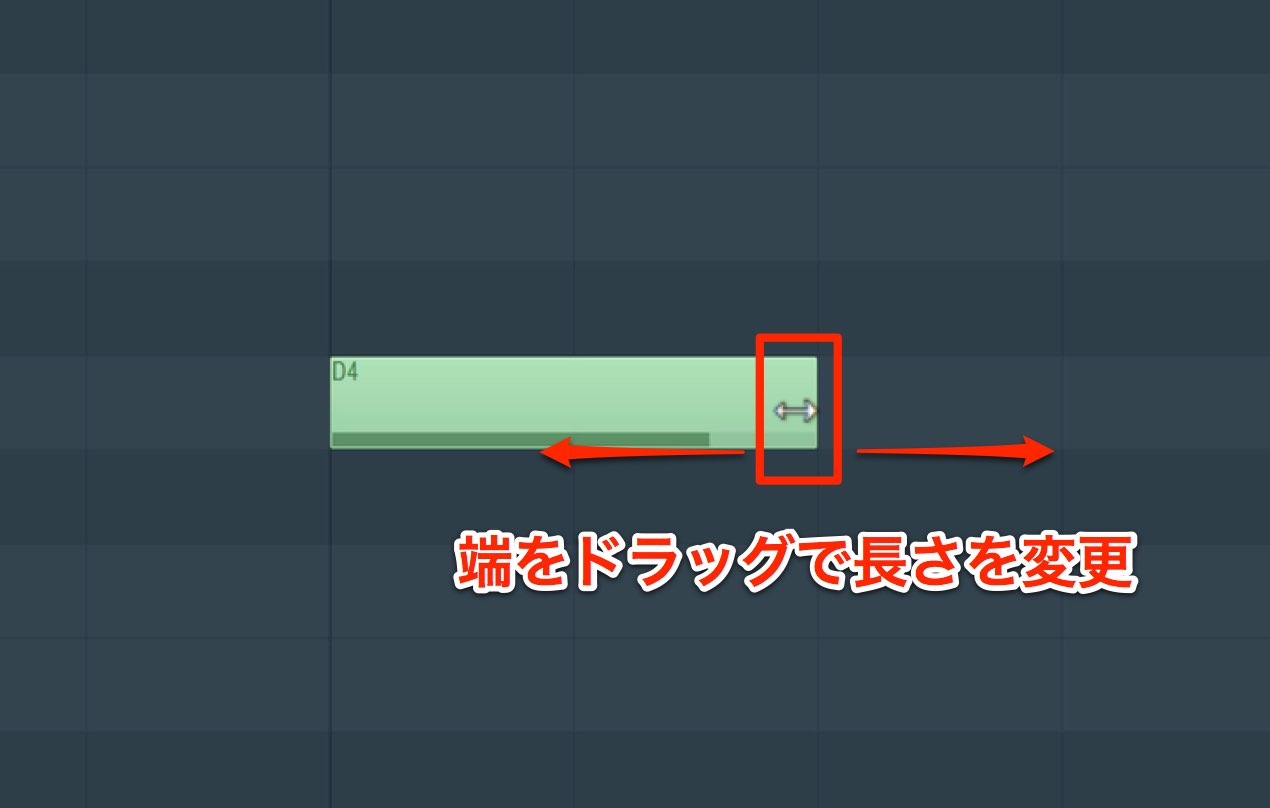
To change the length of an existing note,
place the cursor over its right edge.
When the cursor becomes a horizontal double arrow, drag to adjust the length.
Changing Pitch
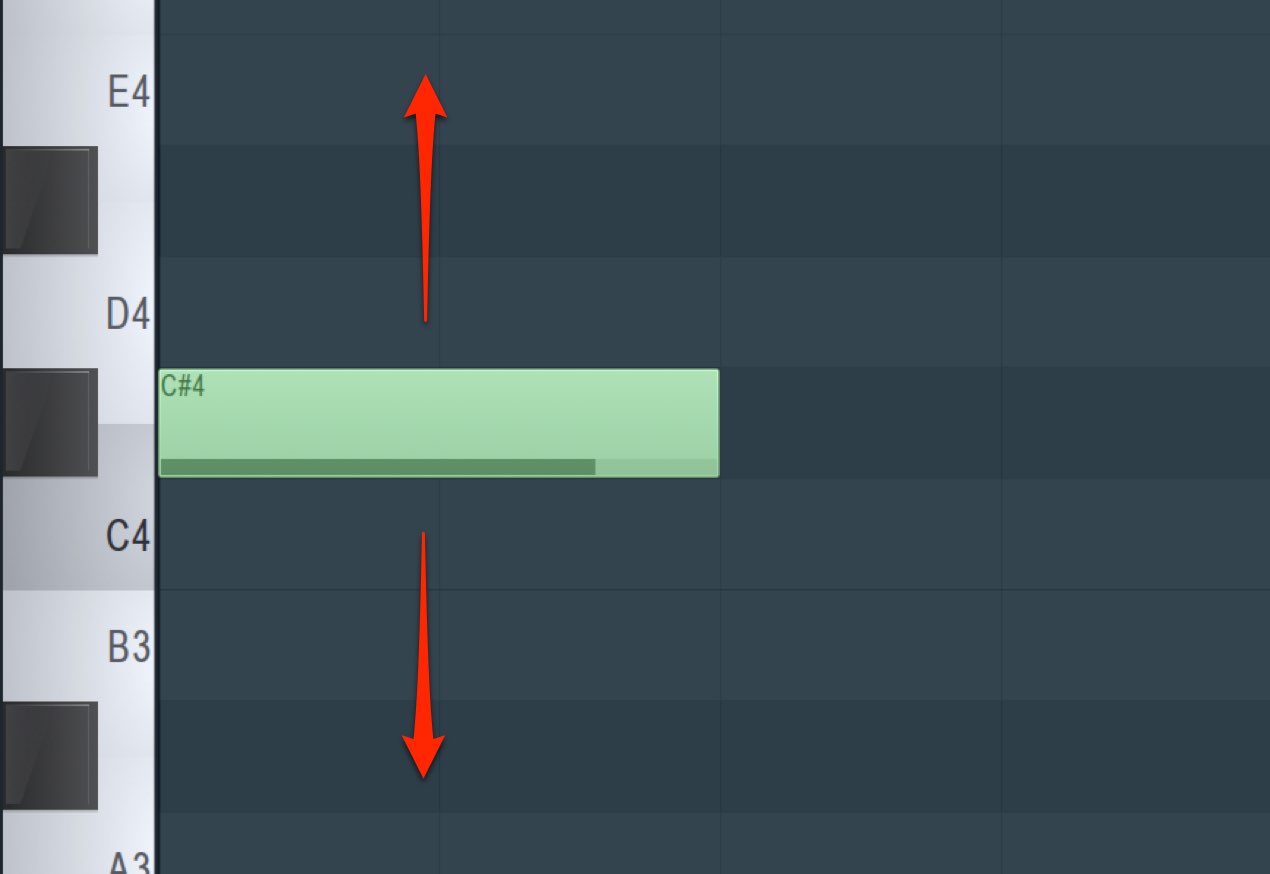
Drag a note up or down to change its pitch.
Moving Notes
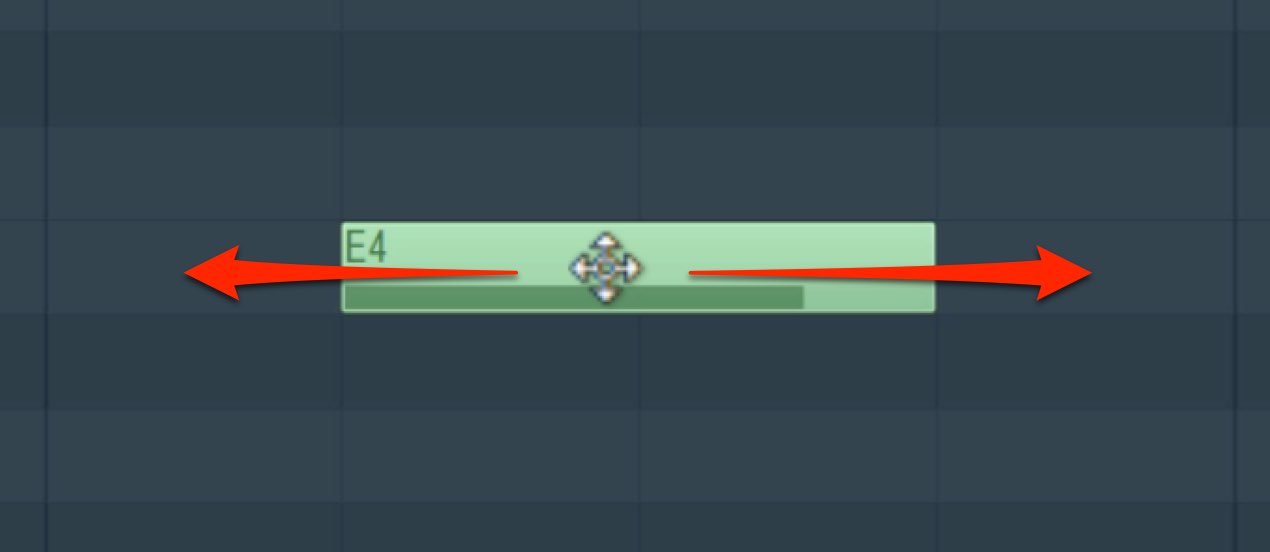
Move the cursor over the body of a note until it becomes a cross,
then drag the note to the desired location.
Combine these techniques to program a phrase.
There is one more essential concept to learn: Snap.
We'll explain Snap in the next section.

Frequently Asked Questions
Q1. What is the Piano Roll?
The Piano Roll is an editor where the horizontal axis represents time and the vertical axis represents pitch. Together they let you specify when and at what pitch notes play, making it useful for programming pitched instruments such as bass and melodies.
Q2. How do I adjust note length in the Piano Roll?
When entering a new note, hold Shift and drag to set its length. To resize an existing note, place the cursor on its right edge and drag when the horizontal double arrow appears.
Q3. Why use zoom?
Zoom lets you view the working area at a suitable scale, making detailed note editing easier. Use Control + right-click and drag to specify the area to enlarge.
NEW ARTICLES
Latest English Articles