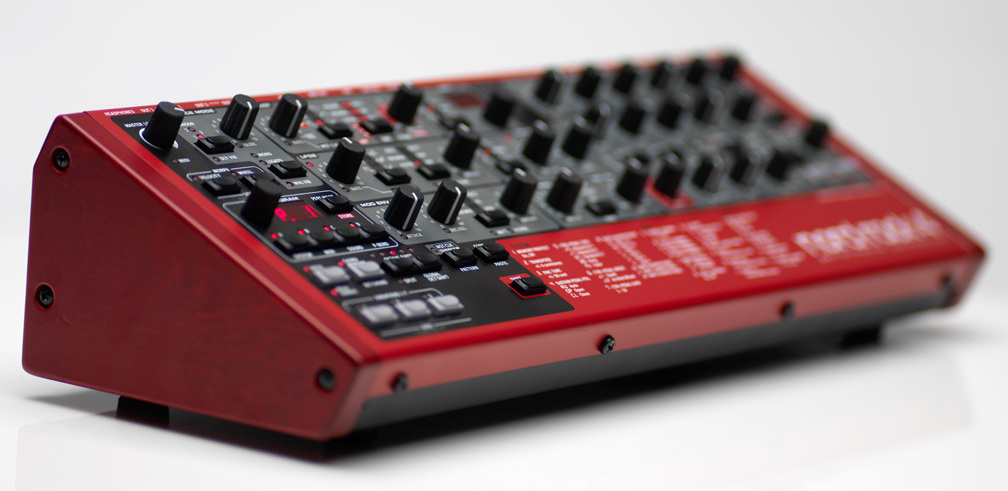
Native Instruments FM8 is an FM synthesizer plug-in for shaping complex harmonics and timbres. This guide progresses from oscillator basics and FM modulation to filter and envelope settings, effects and the arpeggiator. Adjusting oscillator pitch and the Master tab lets you quickly create sounds for a range of genres while building skills from beginner to advanced music production.
A synthesizer suited to a wide range of genres
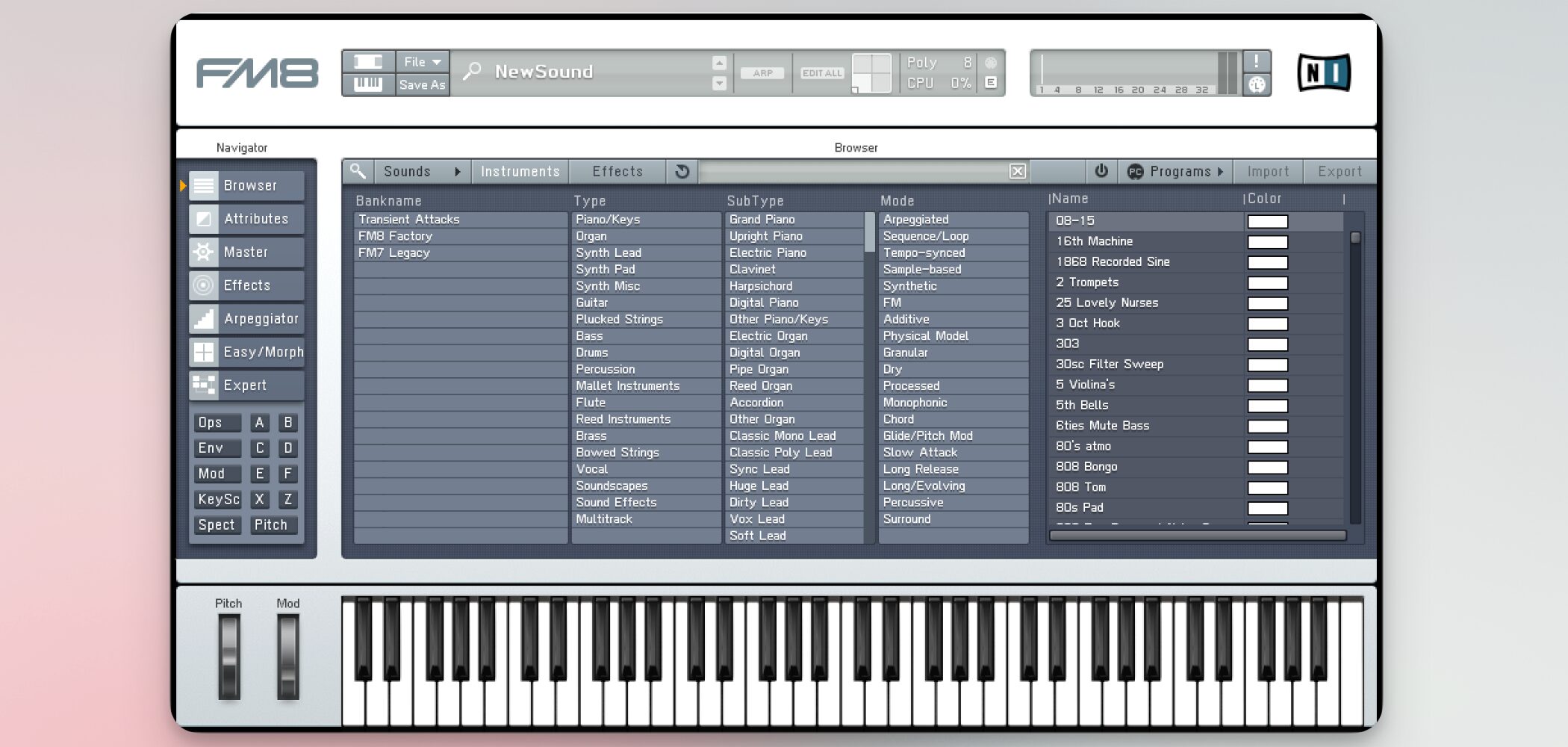
As its name suggests, FM8 specializes in FM synthesis.
It can create complex harmonics and timbres that are difficult to produce with conventional synthesizers.
Learning to work with FM lets you create the sound you want quickly.
We hope this article and its videos help you explore its possibilities and learn the basics.
FM8 video: Oscillator concepts
Oscillator concepts
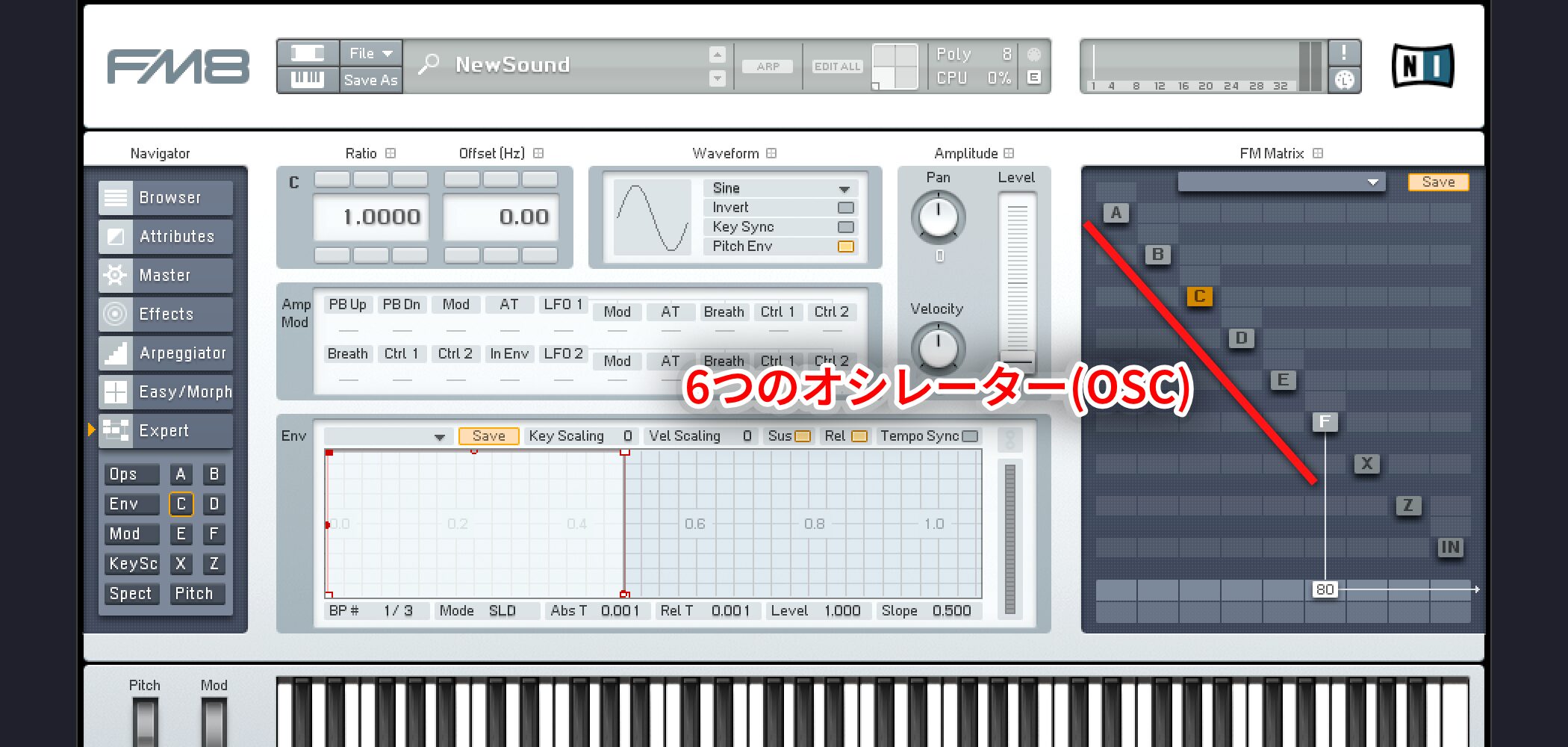
Up to six oscillators, A–F, can be enabled.
Right-click to switch each one on or off.
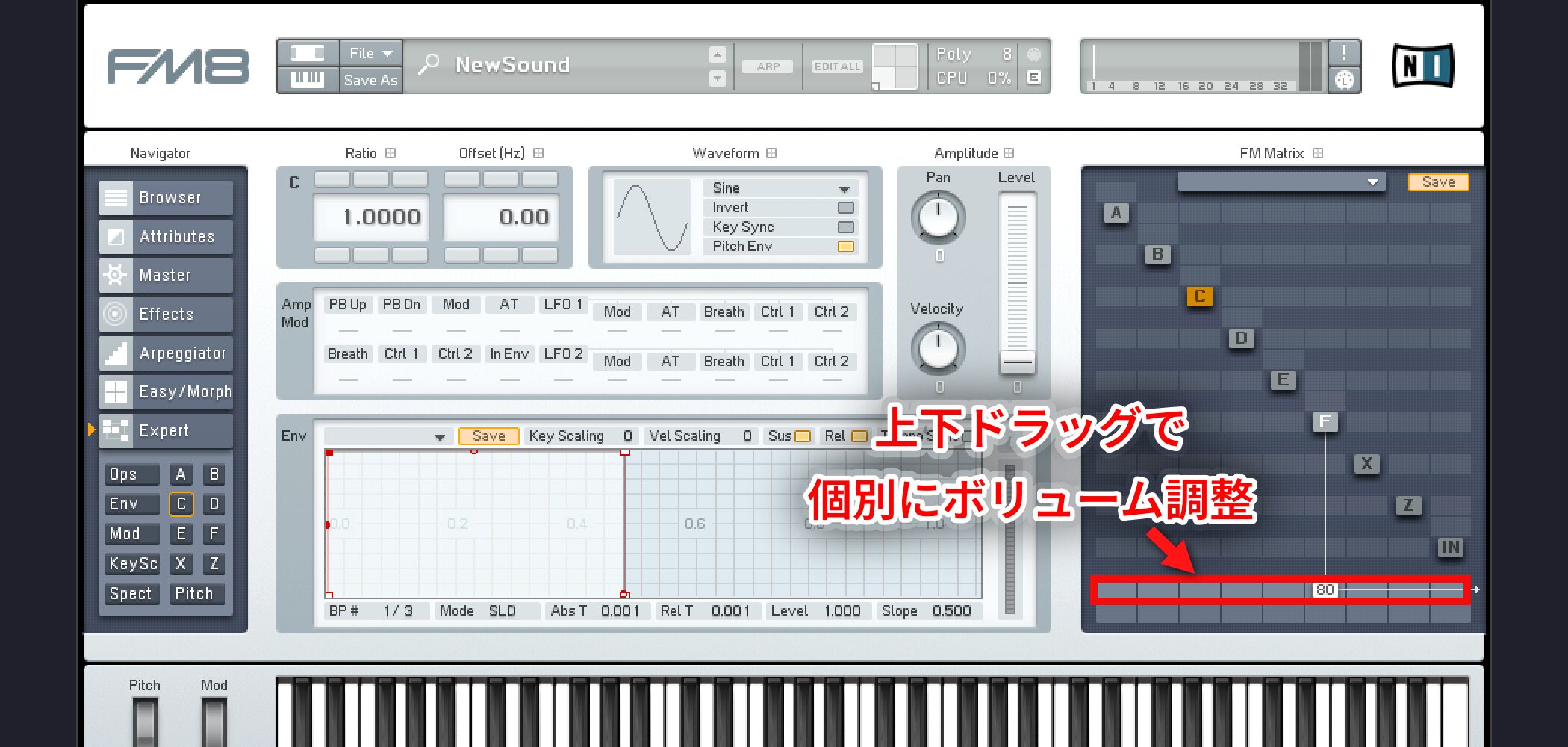
Drag the cells outlined in red up or down to adjust each oscillator’s volume.
Applying FM
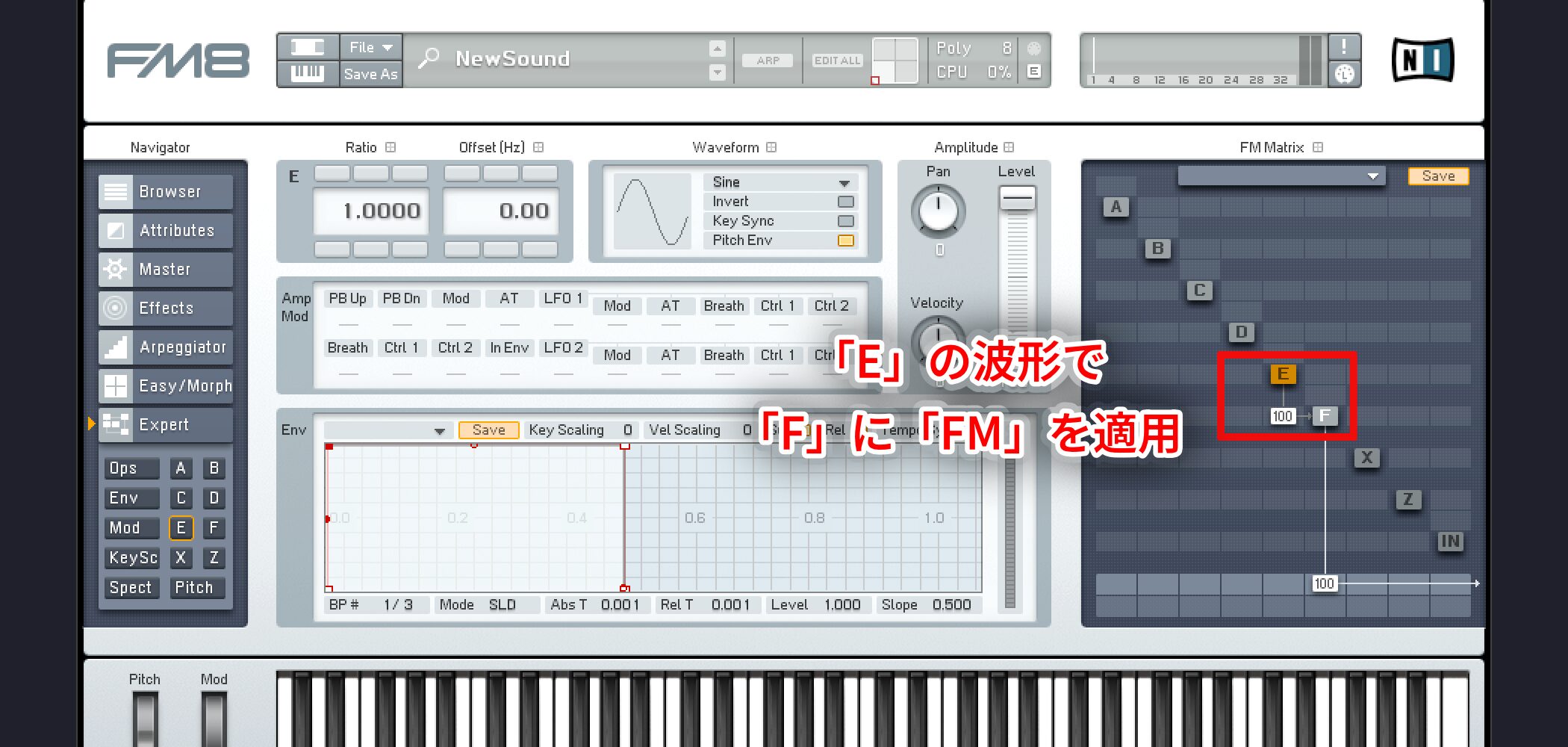
Drag the cells at the intersections of oscillators up or down to set the FM amount.
Higher values produce stronger FM.
In the image above, oscillator E’s waveform modulates F.
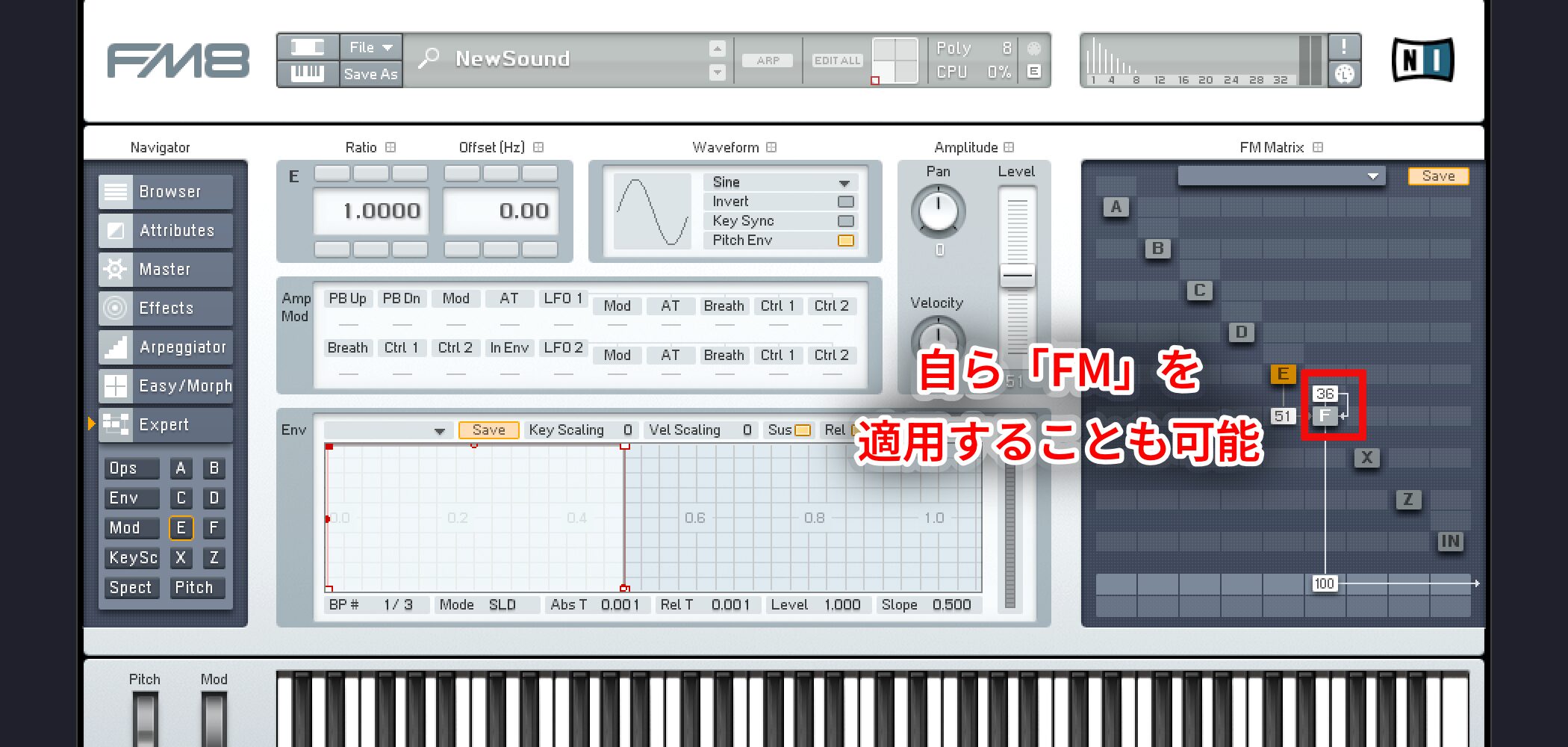
An oscillator can also apply FM to itself.
To do this, drag the cell immediately above that oscillator to adjust its value.
Shape sounds by changing FM frequency
Changing the pitch of the oscillator used as an FM modulator can dramatically change the timbre.
The Master tab provides basic synthesizer settings such as Unison and Portamento.
FM8 video: Pitch and Master window
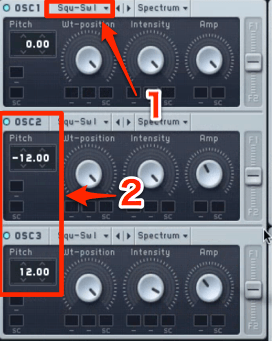
Changing oscillator pitch
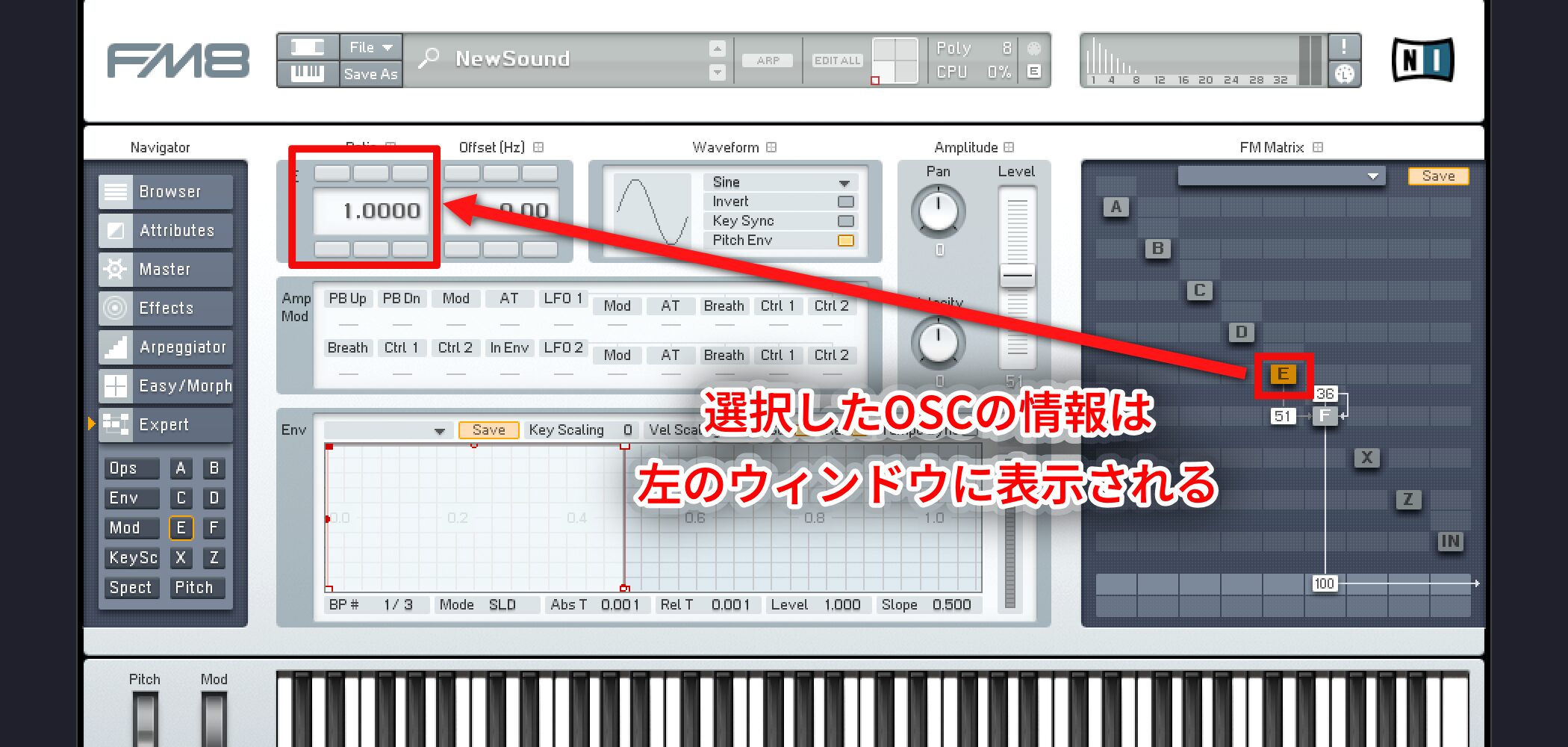
The selected oscillator’s settings appear in the window on the left.
Here you can change each oscillator’s pitch and other settings.
Changing the pitch of the modulating oscillator has a major effect on the sound.
Ratio treats the pitch being played as 1: 0.5 is one octave below and 2 is one octave above.
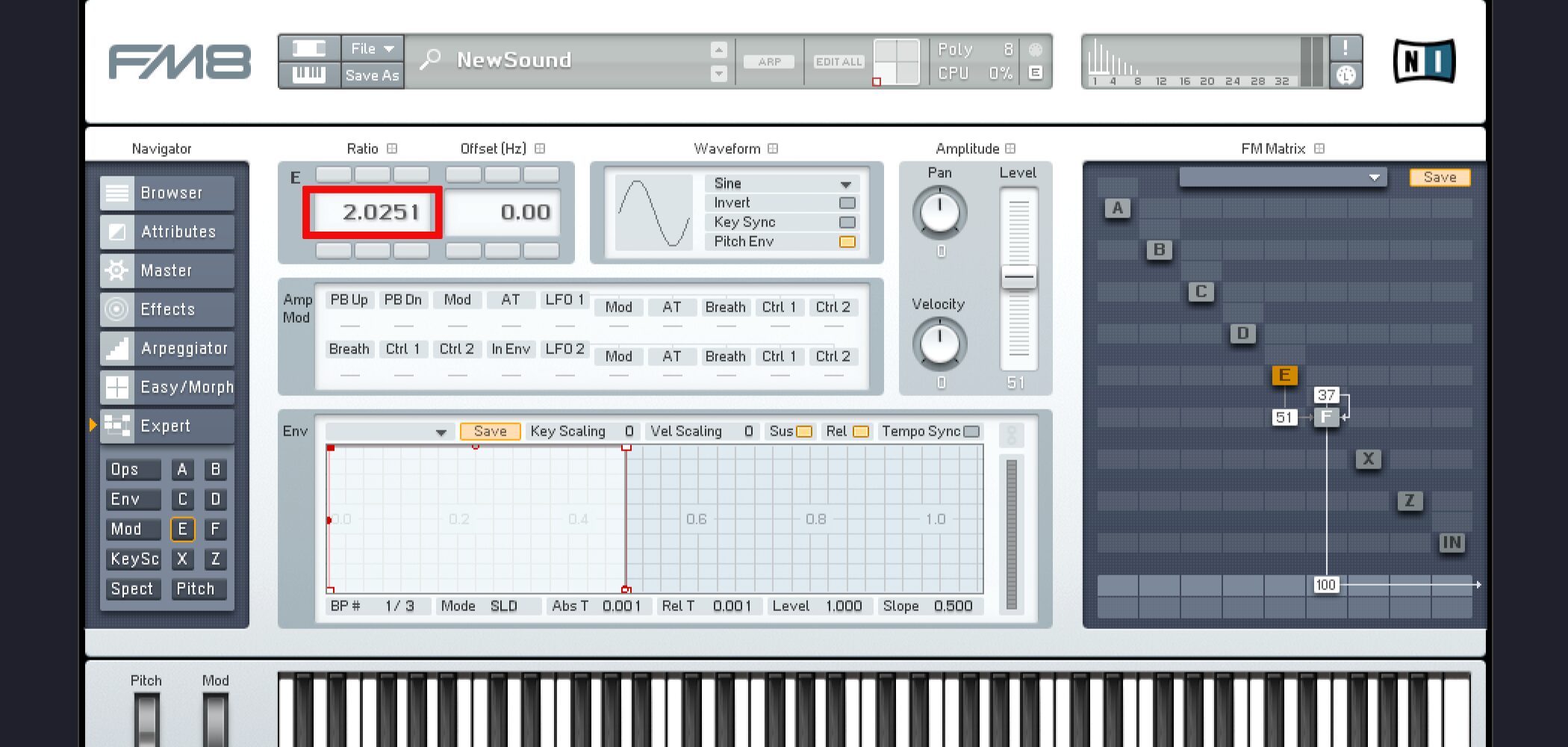
Here, small changes to the decimal value are used to shape the sound.
Master tab
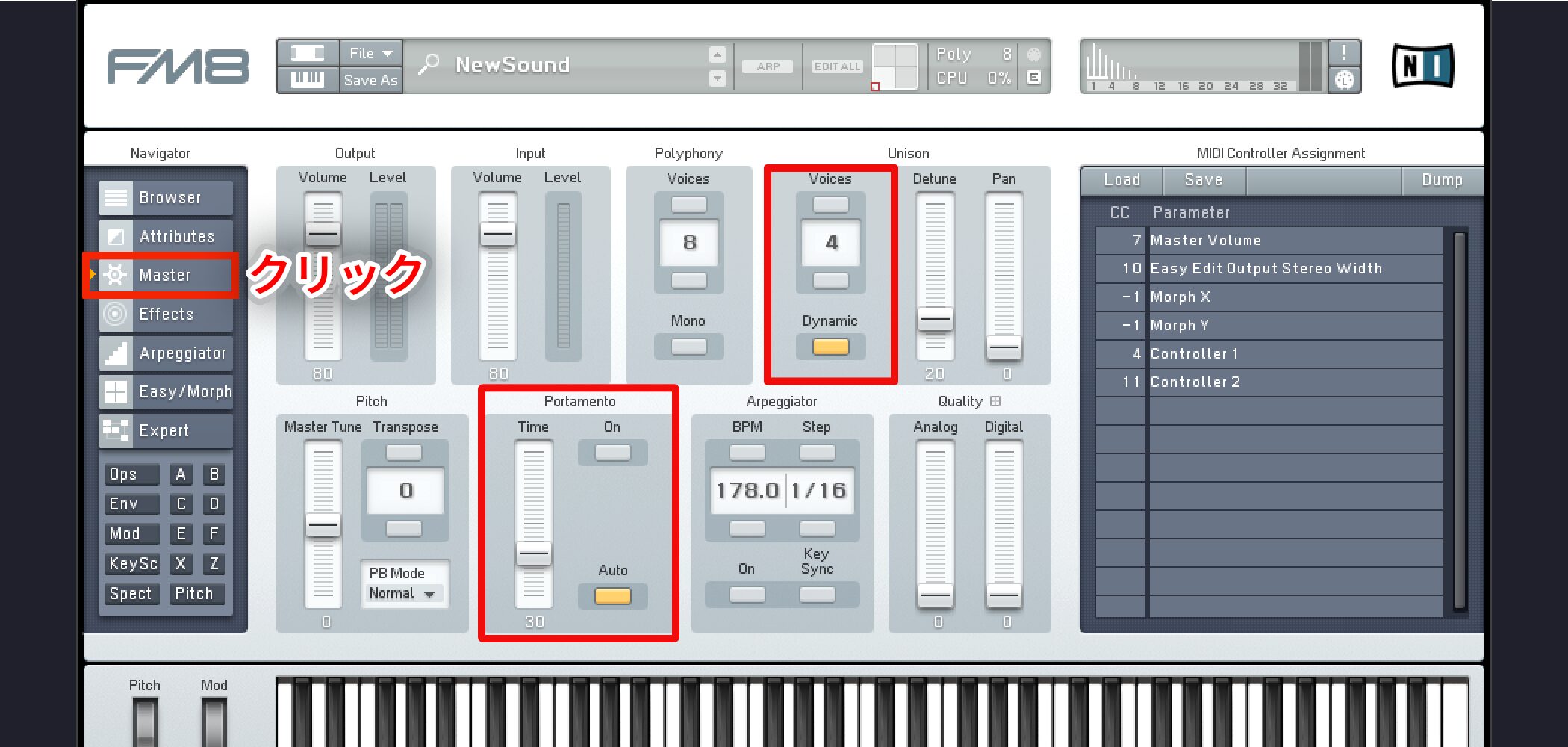
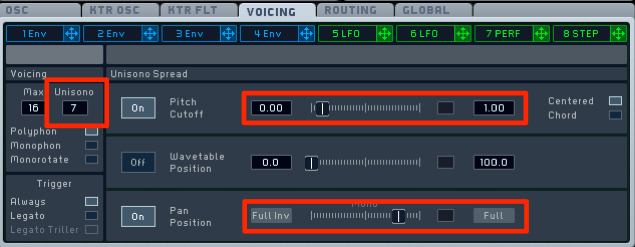
Unison and Portamento are important controls in the Master tab.
Increasing Unison thickens the sound; Portamento creates a glide between pitches, with a setting for the transition time.
Add movement with the filter and its envelope
In FM8, Z is the filter.
The filter shapes the timbre, and an envelope can give it movement over time.
FM8 video: Noise, filter and envelope
X: Noise oscillator
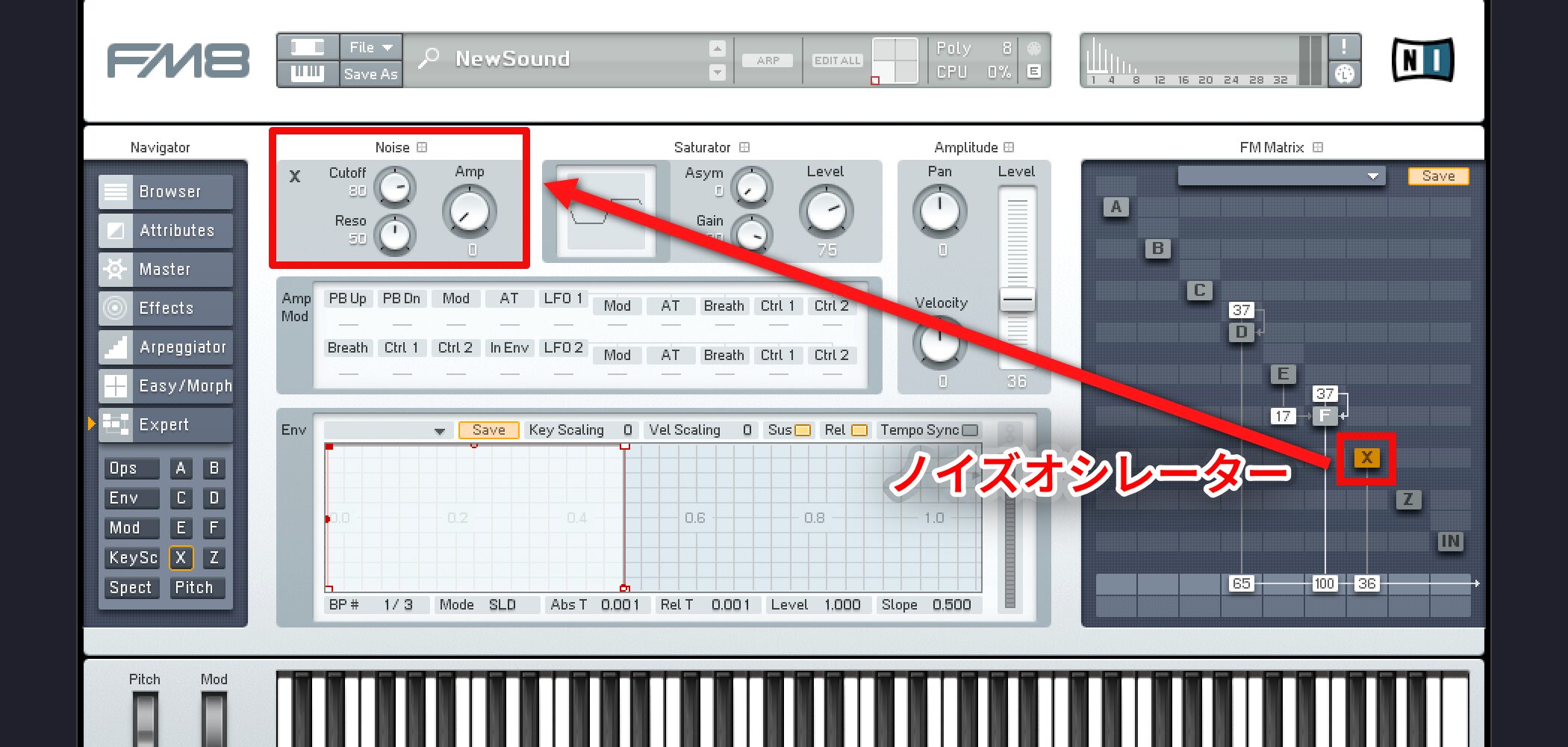
X is the noise oscillator.
- Cutoff: Noise brightness or high-frequency content
- Reso: Character of the noise
- Amp: Volume
You can mix a little noise into a sound, or output the noise oscillator alone to create a sound effect.
Z: Filter
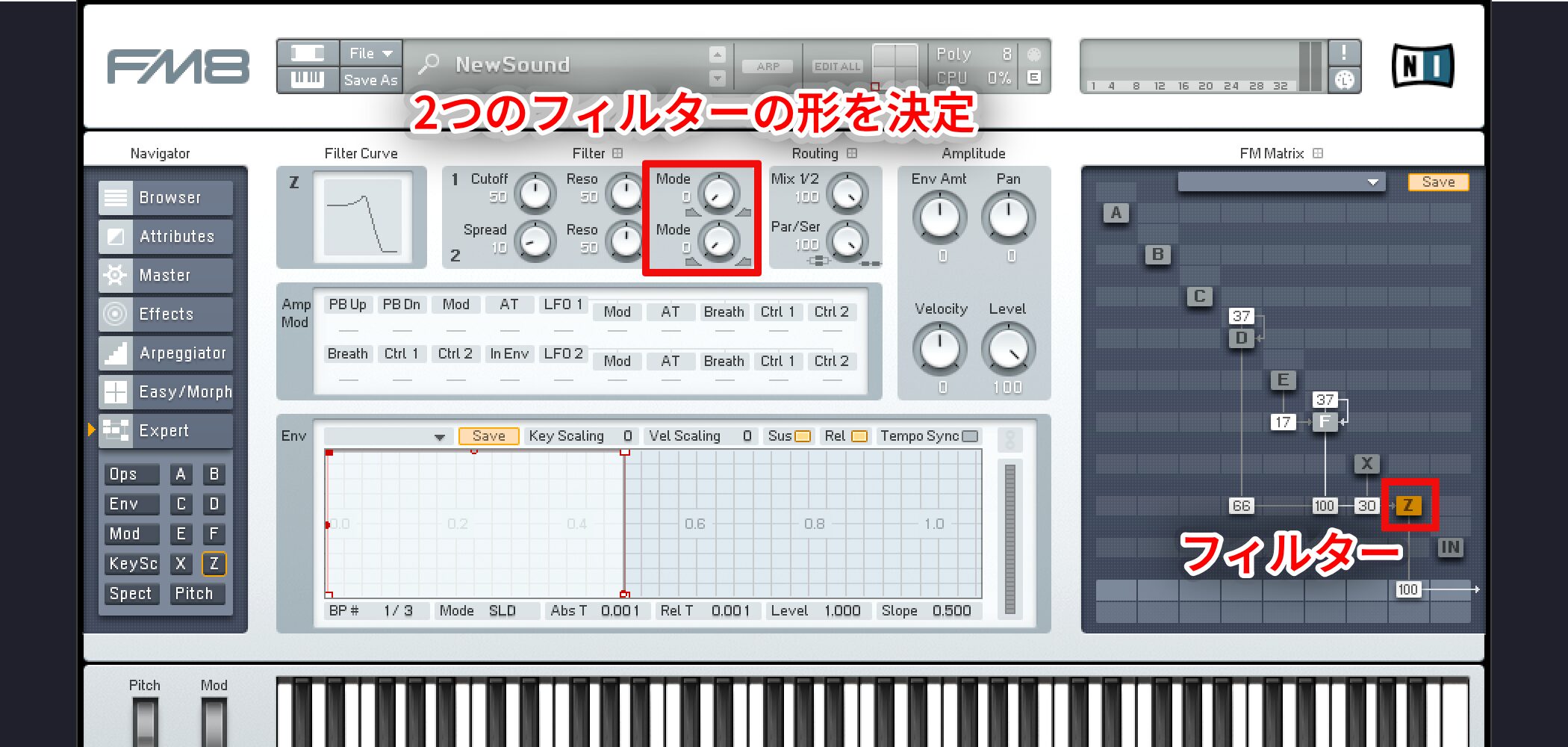
Z is the filter: route oscillator output through it to the output.
Use Mode on the left to choose the characteristics of the two filters, including LP, BP and HP.
The other knobs work like those on a basic filter.
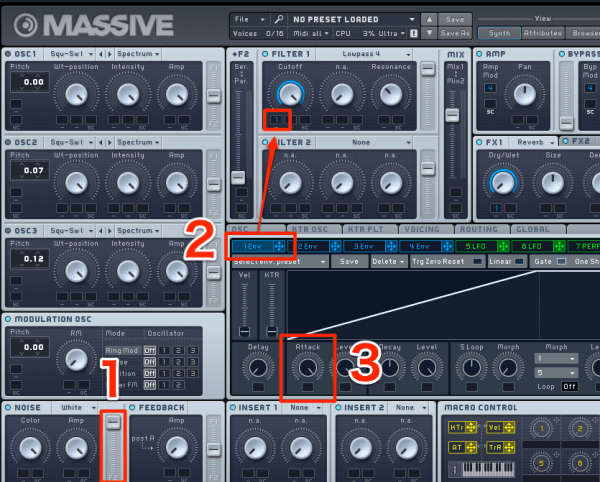
Envelope
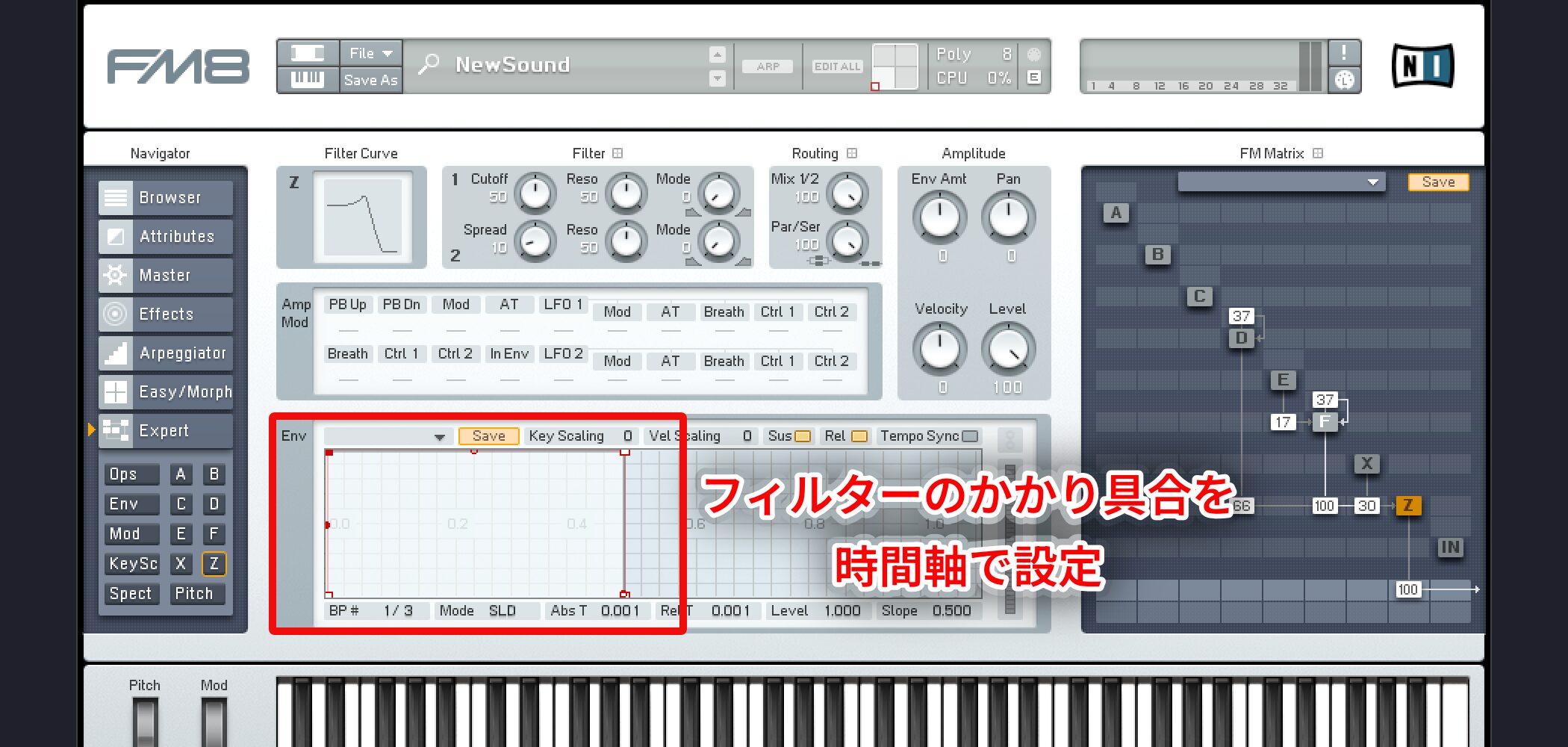
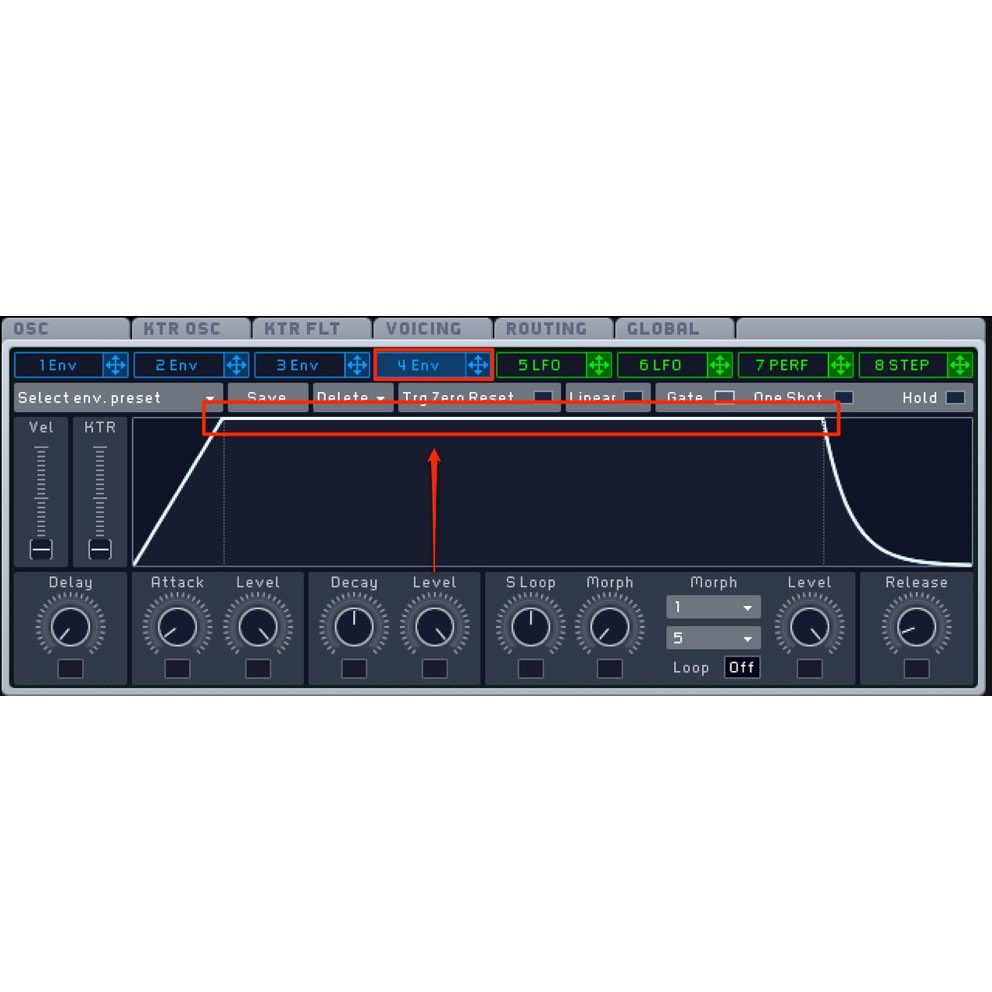
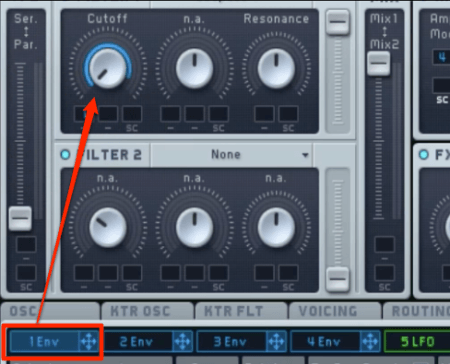
The envelope controls how the filter changes over time.
It can gradually change the timbre.
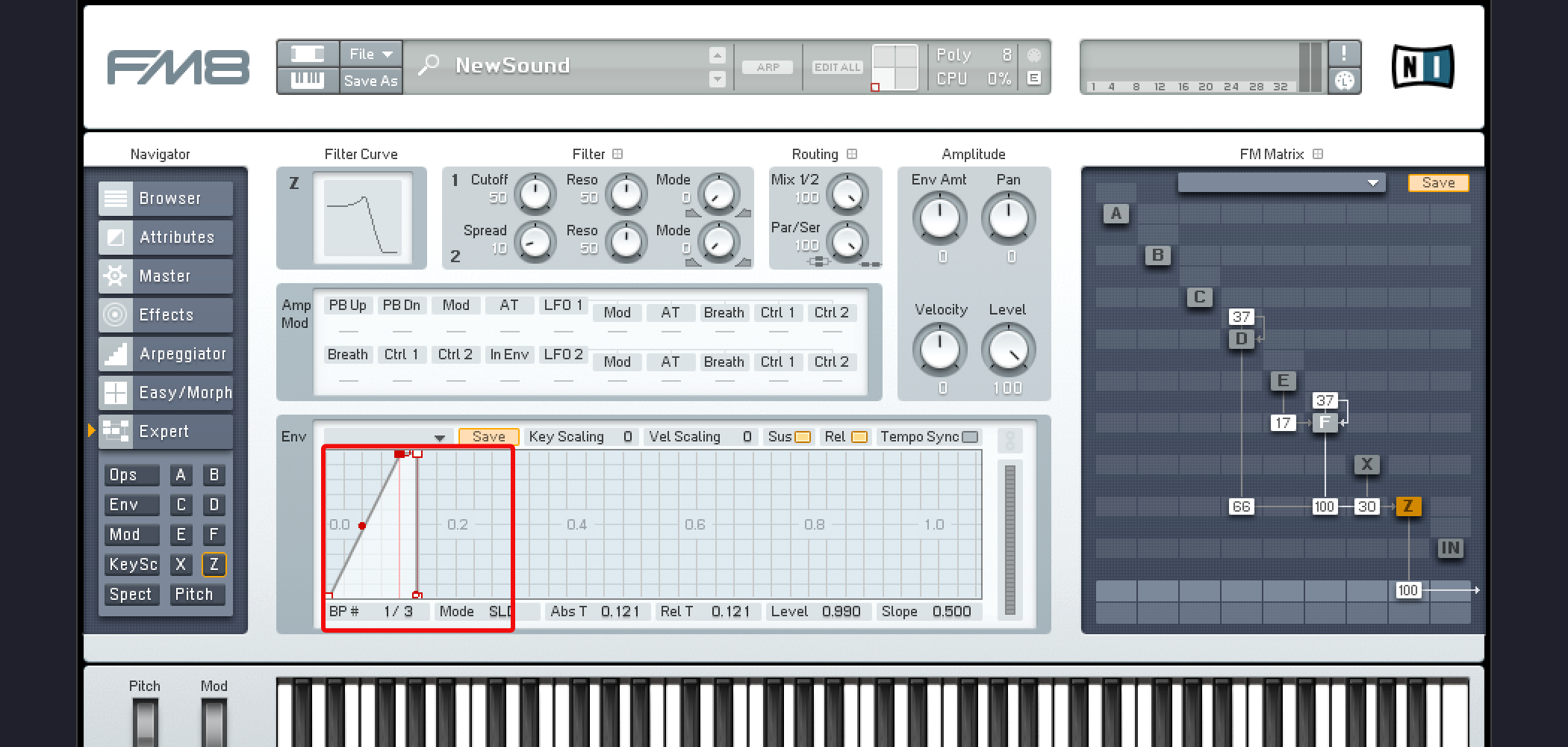
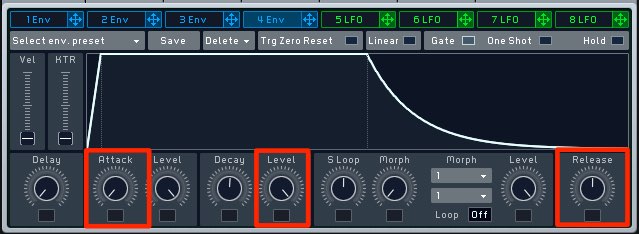
Because many examples here use short sounds, the attack is set short so the sound changes quickly.
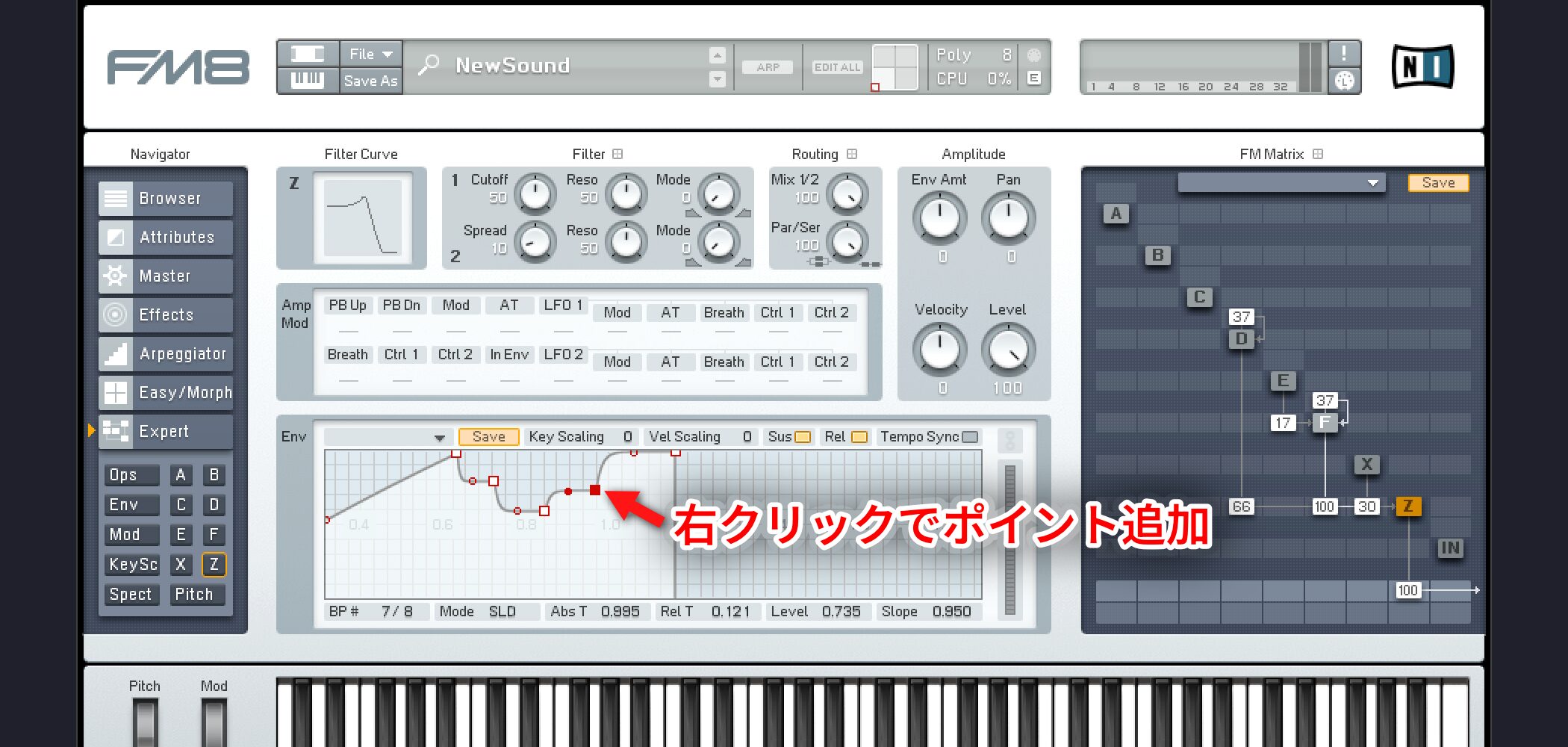
Right-click to add envelope points.
This allows flexible control.
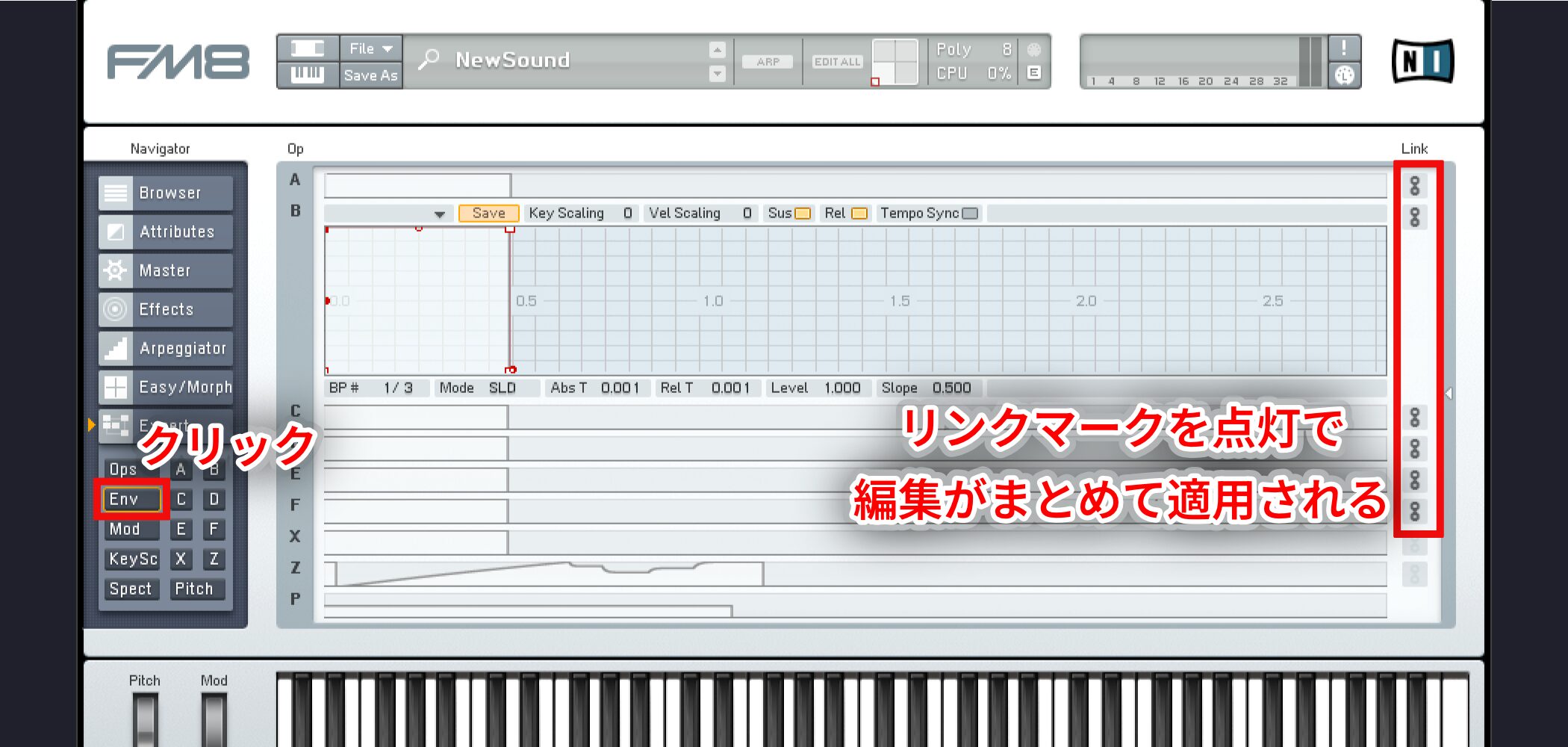
A normal oscillator envelope controls volume.
To edit envelopes together, click the Env tab and link each oscillator; edits will apply to the linked oscillators.
Polish the sound with effects
Once the oscillators and filter have shaped the sound, use effects to refine it.
Delay and drive effects work particularly well with synthesizers, so experiment with their settings.
FM8 video: Effects and arpeggiator
Applying effects
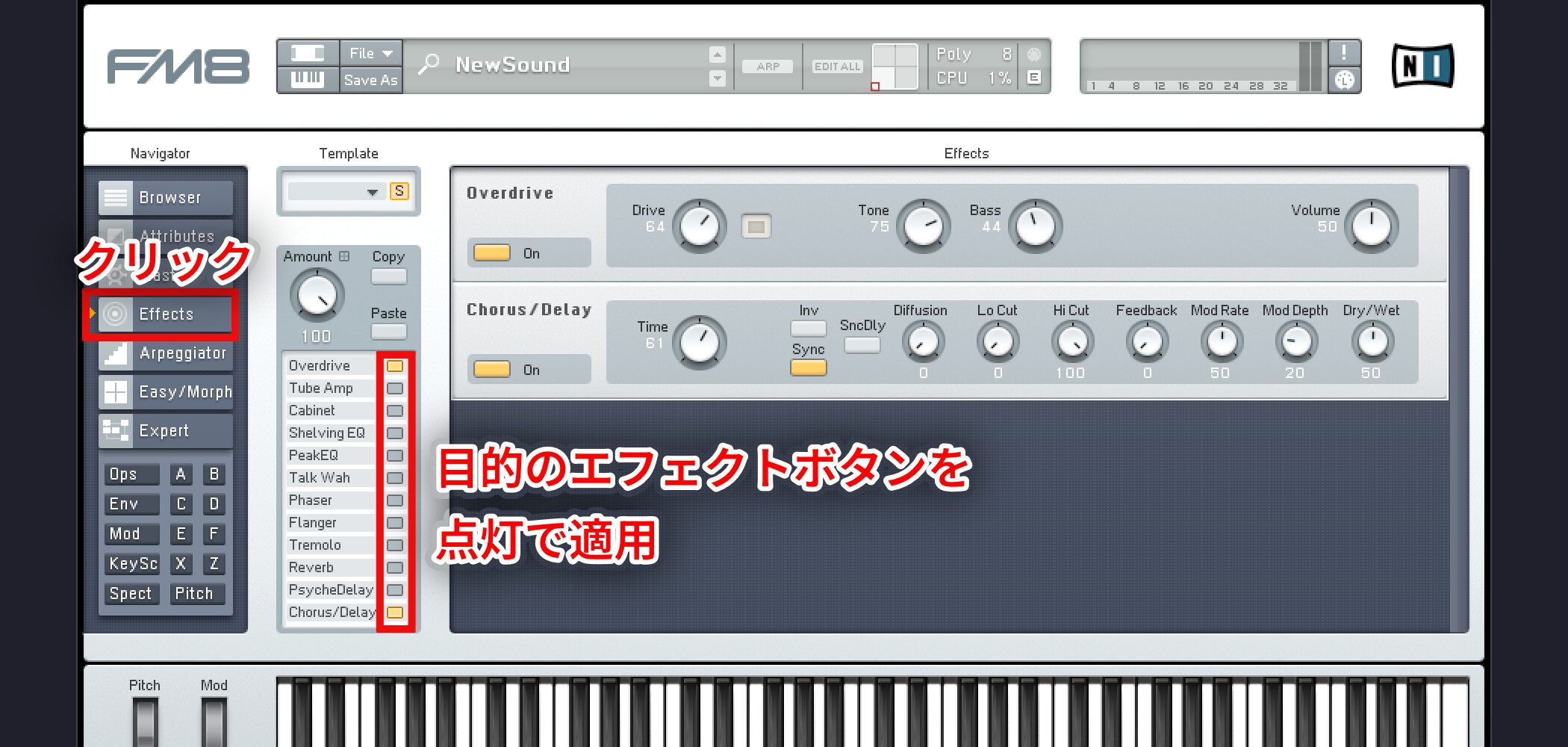
In Effects, turn on the button for the effect you want to apply.
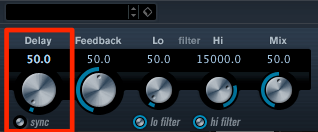
As mentioned above, Delay works especially well with synths and can add depth.
Using the arpeggiator
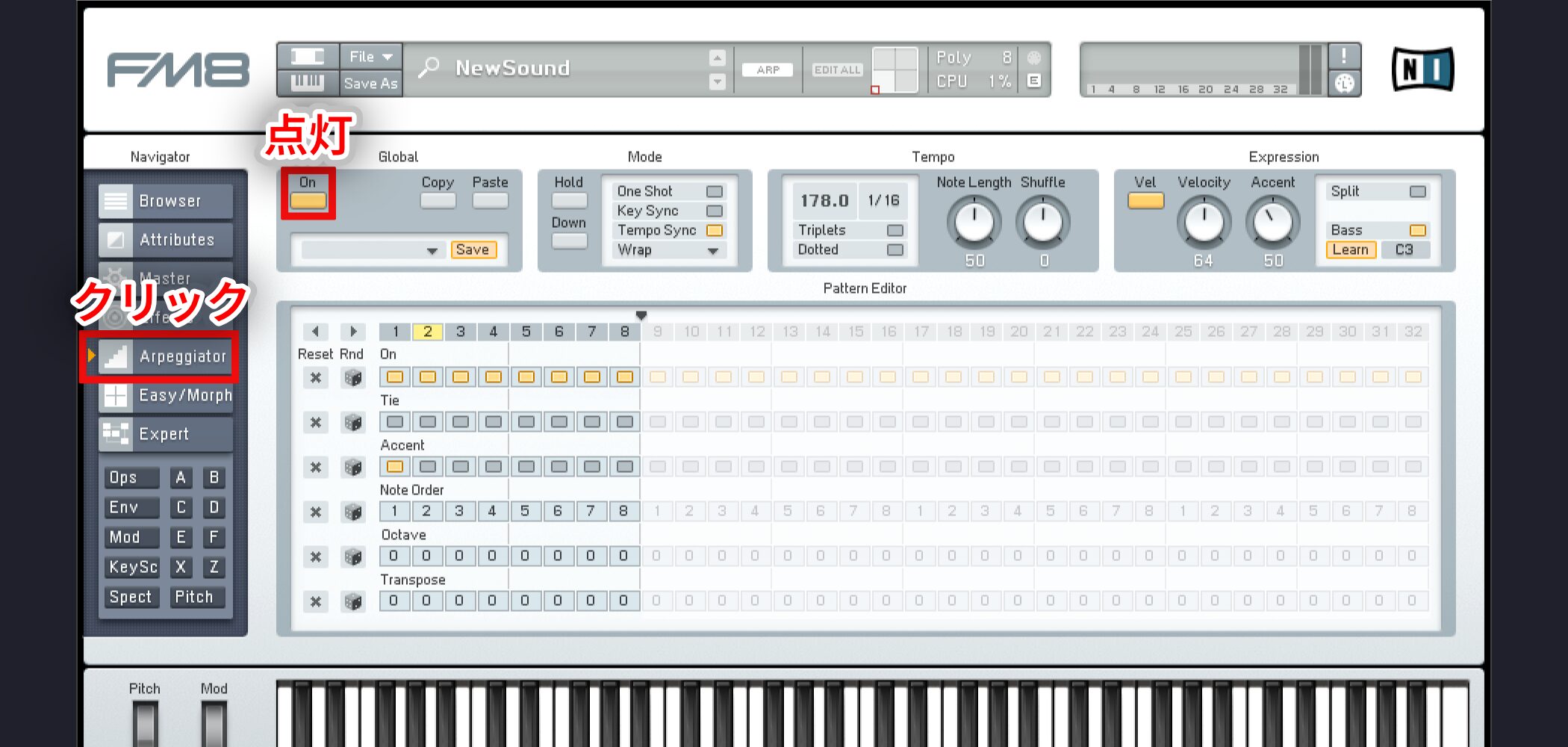
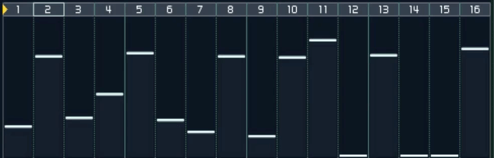
Open Arpeggiator and turn on On.
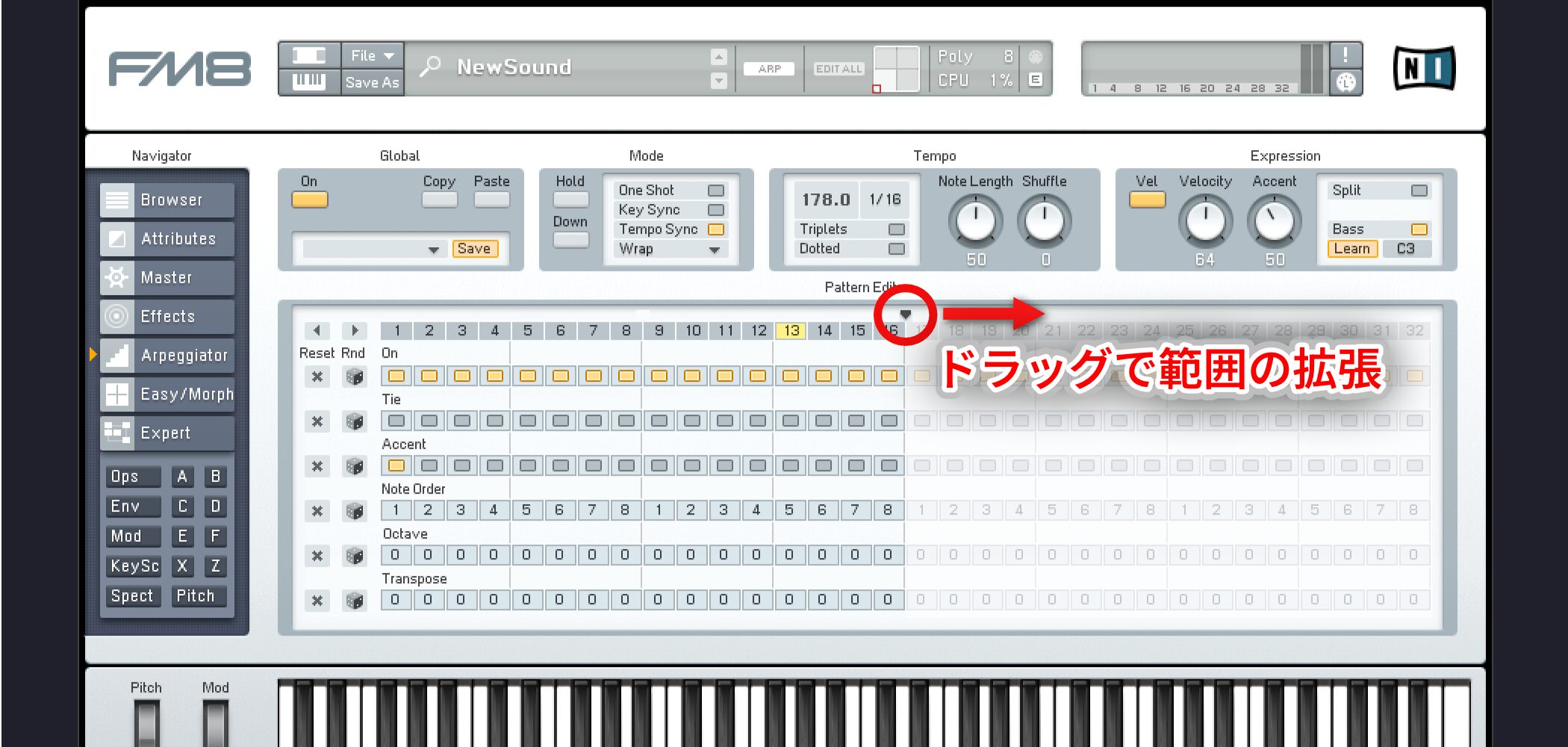
Drag to the right to extend the arpeggiator pattern while keys are held.
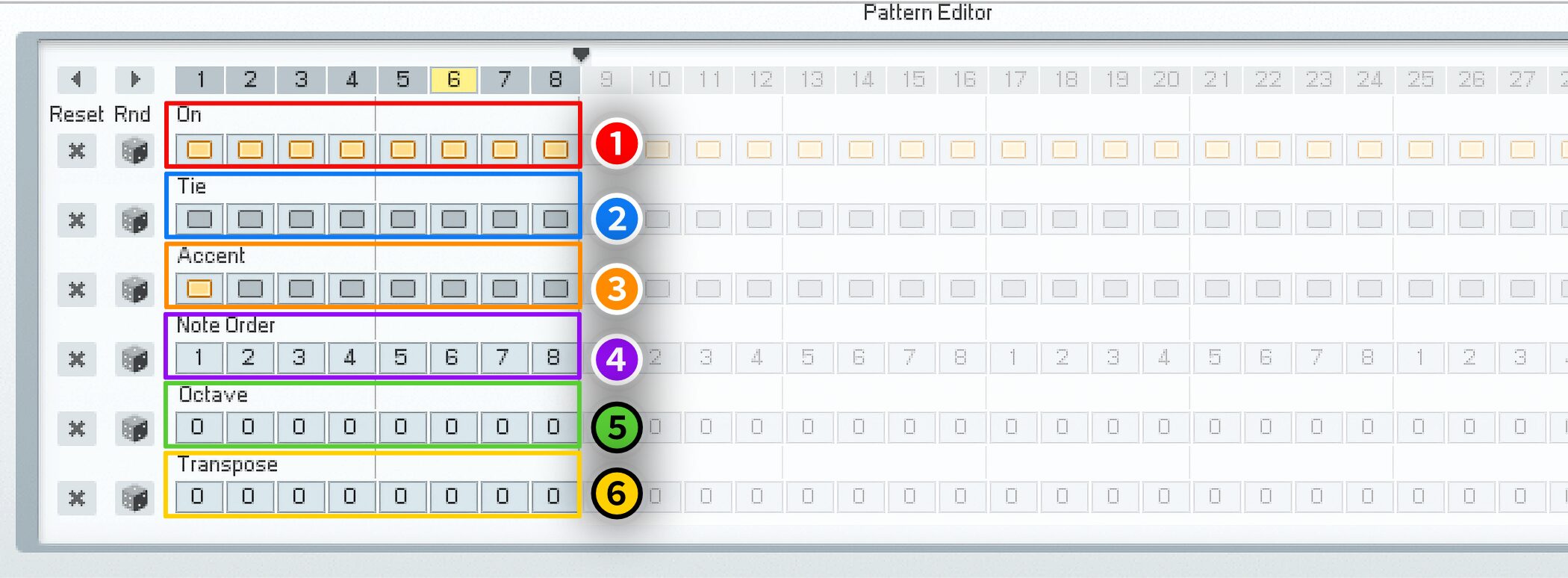
The controls are, from top to bottom:
① (red) On: Turn steps on or off to create a rhythmic pattern.
② (blue) Tie: Connect a note to the next one and change its length.
③ (orange) Accent: Emphasize the note.
④ (purple) Note Order: Held notes are numbered 1, 2, 3 from the lowest upward;
use these numbers to specify their playback order.
⑤ (green) Octave: Set the played pitch up to two octaves above or below.
⑥ (yellow) Transpose: Adjust the played pitch in semitones.
Modulation and MIDI control
So far we have used envelopes to change timbre.
Another essential tool for adding movement is the LFO.
Next we will apply an LFO and record control movements using an external MIDI controller.
More about LFOs
https://sleepfreaks-dtm.com/synth-basic/synth-lfo/
FM8 video: Modulation and MIDI Learn
Applying modulation
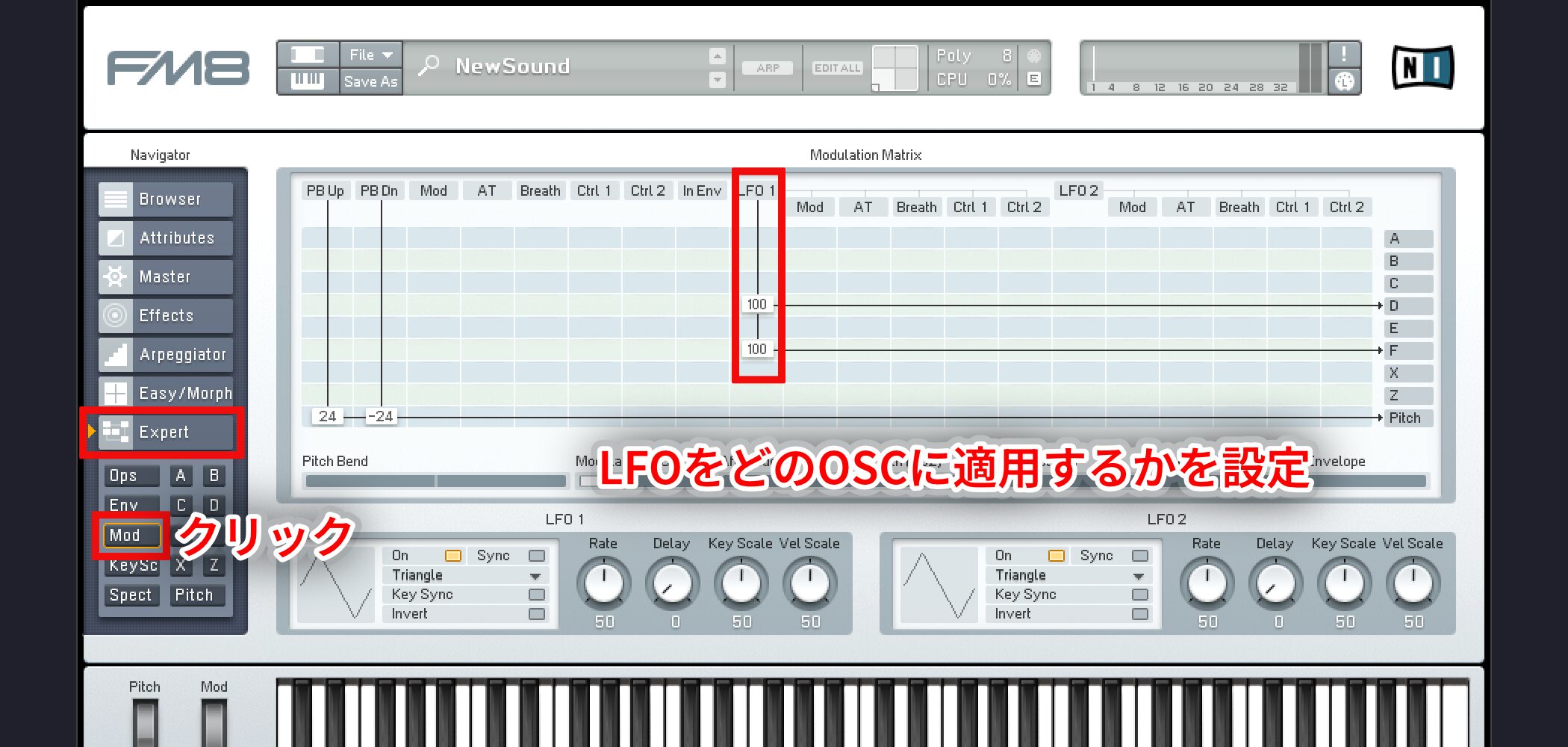
Open the Mod tab to access the controls.
Like the oscillator section discussed above, it uses a grid.
Choose which oscillator the LFO should affect. Once assigned, the effect is applied immediately.
MIDI control
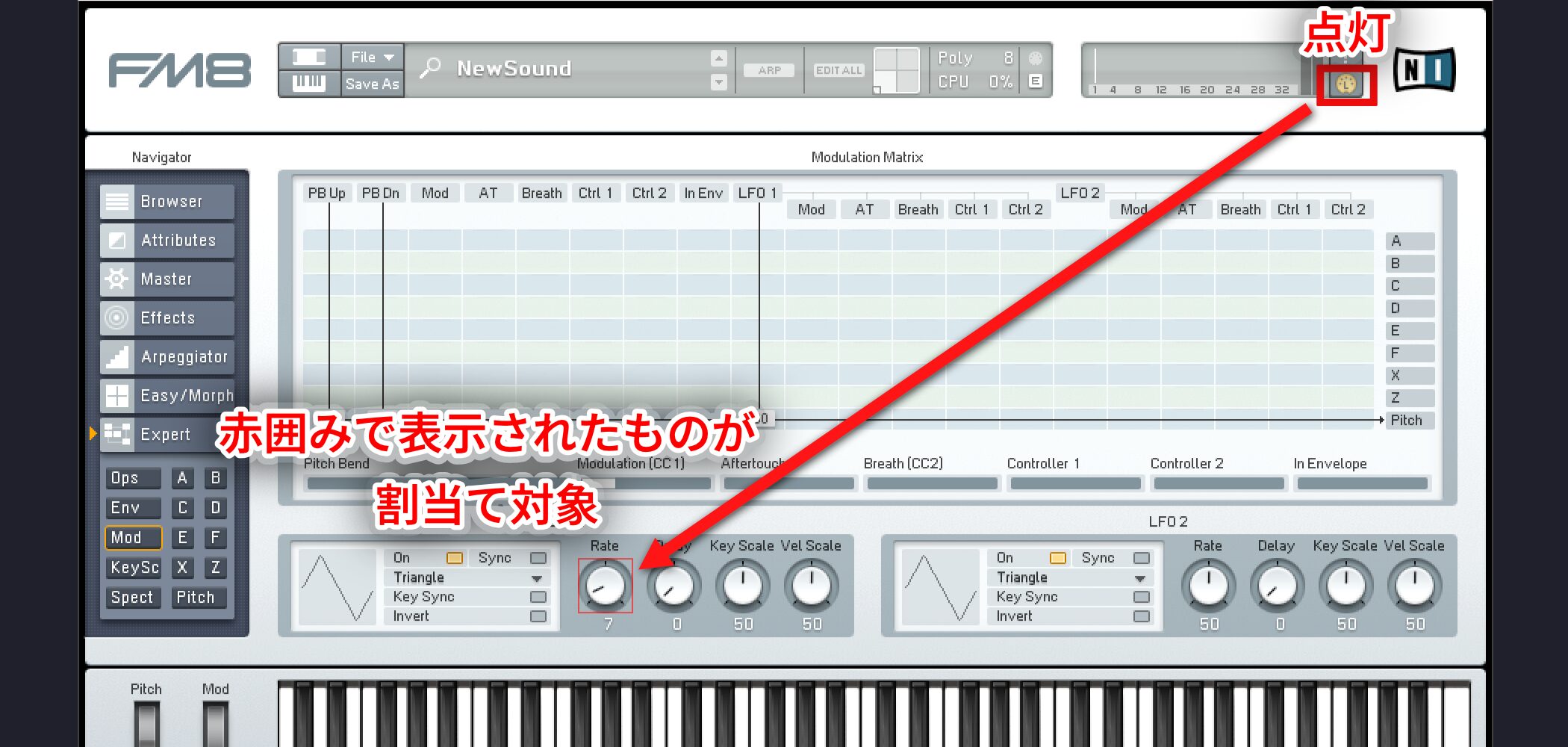
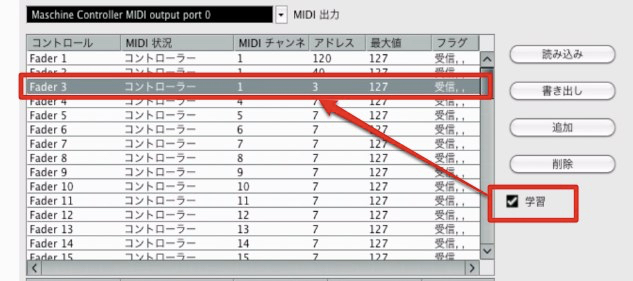
Turn on the MIDI Learn icon in the upper right and click the knob or control you want to assign.
The control outlined in red is the assignment target.
Move a control on your MIDI controller to complete the assignment.
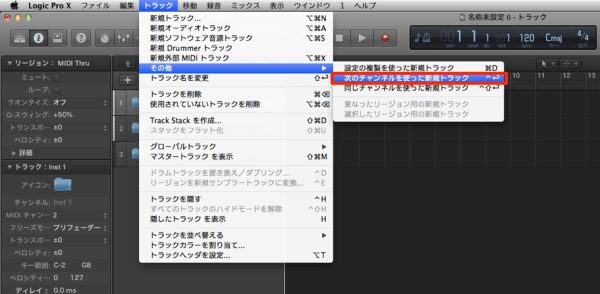
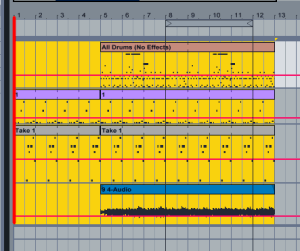
Recording automation
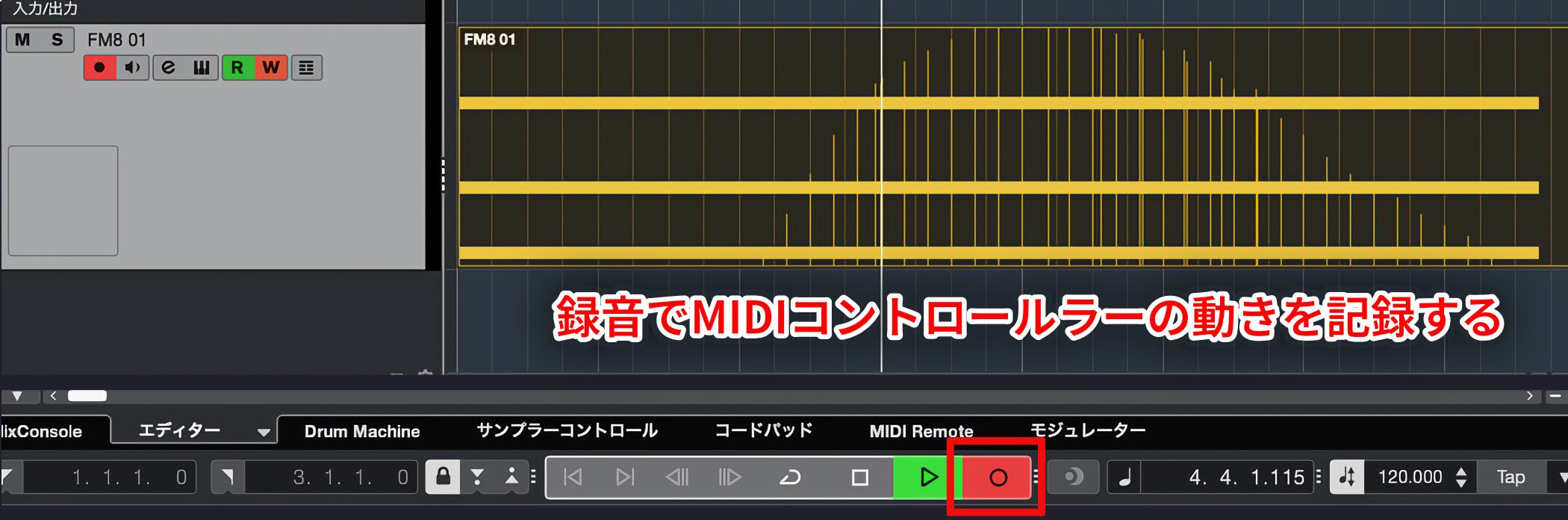
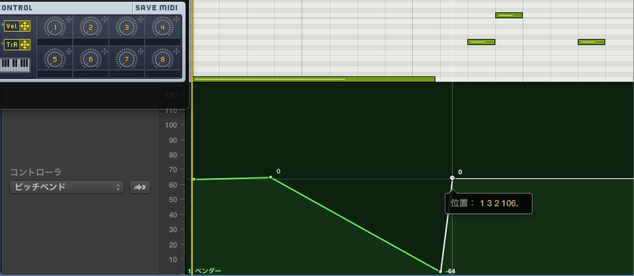
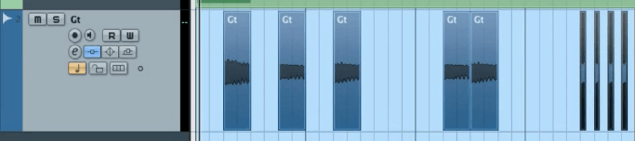
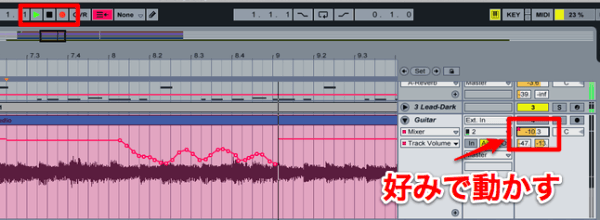
Move the MIDI controller while recording to capture its movements.
Recording automation in different DAWs

 Logic
 GarageBand
 Cubase
 Ableton Live
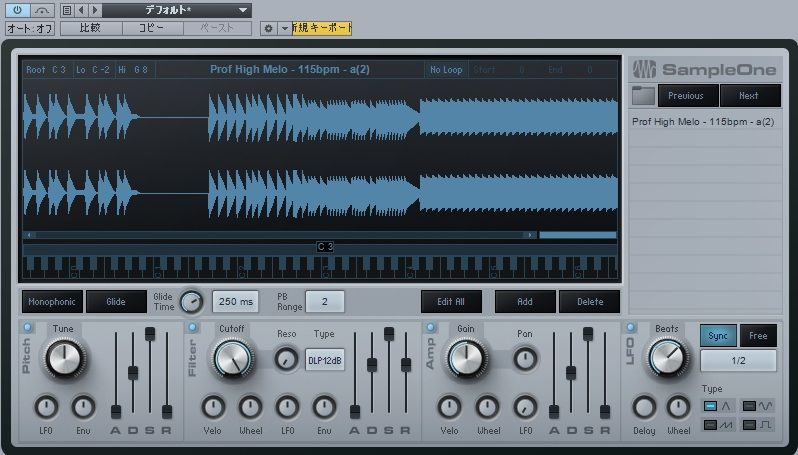
 Studio One
 FL Studio
Final thoughts
How was it?
These videos should give you a sense of FM8’s flexibility and potential.
With so many possibilities, it can be hard to know where to start.
Listen through FM8’s presets, find a sound you like, and use what you have learned to examine how it is constructed—you are sure to find useful clues.
Frequently Asked Questions
Q1. How do I set up FM modulation in FM8?
Drag the cells where oscillators intersect up or down to adjust the FM amount. Higher values increase the effect. You can also drag the cell above an oscillator to apply FM to itself.
Q2. What should I adjust to make a major change in timbre?
Changing the pitch of the oscillator used as an FM modulator is particularly effective. Adjust each oscillator’s frequency ratio, including decimal values, in the window on the left to create a range of timbres.
Q3. What effects are recommended for FM8?
Delay works especially well with synthesizers and adds depth. Drive effects are also recommended, so try different combinations to find the sound you want.
Q4. How do I accent notes in the arpeggiator?
Turn on the orange Accent button for a step to emphasize that note.
NEW ARTICLES
Latest English Articles