
Smart Tempo, a flagship feature of Logic Pro X 10.4, automatically analyzes audio with fluctuating or unknown tempo. You can choose whether the project follows the audio or the audio follows the project. The KEEP, ADAPT and AUTO modes make it easier to combine material recorded at different tempos, opening up possibilities for remixing and recording. Detection can also be corrected manually when needed.
A wealth of new features in a point update

Logic Pro X 10.4 has been released.
This point update is packed with useful new features, instruments and plug-ins. Over the next several articles, we’ll explore what’s new.
In this first installment, we’ll look at Smart Tempo, one of the highlights of the update.
It can analyze audio with an uneven or unknown tempo and make the project tempo follow that audio file.
It can also quickly conform audio files at different tempos to the project, making it useful for reconstructing material in remixes and other work. It is a distinctive and useful feature that can change how you approach production.
Logic Pro X 10.4 New Features: Smart Tempo
Selected YouTube Questions and Answers

Hello. This question is unrelated to the video: when I split a drum loop into MIDI events and try to lower only the snare volume, the kick and hi-hat volumes also go down. Is there a way around this?

You can address this using multiple outputs. We explain the process in the following video: https://www.youtube.com/watch?v=uMnID5CwX_Y&feature=youtu.be It is also covered in this article: https://sleepfreaks-dtm.com/for-advance-logic/mix_parallelout-2/
I want to record guitar with Smart Tempo set to 65 and add a MIDI groove to that performance. After I finish playing, however, the detected tempo starts at 135. The drums stay fast and I cannot record as intended. How can I fix this?
The right approach depends on the performance, but you could select all the tempo values detected from the guitar and scale them down so the reference tempo is 65 while preserving the timing variations: https://app.box.com/s/i9ztqsuuv3q7ls4l71qtt5mebu8udnbn Alternatively, try selecting “/2” in the guitar region’s Smart Tempo settings: https://app.box.com/s/4tn2iy4ug2wdpljmbz5294ufnqor7wiq
When guitar, bass and drums are recorded separately for a band performance, their timing can be slightly different. Is there a way to edit them into alignment afterward?
I forgot to include this article in my earlier answer; sorry about that: https://sleepfreaks-dtm.com/for-advance-logic/audio-to-tempo/ With this method, enabling Flex lets you quantize audio material in a similar way to MIDI.
Controlling Smart Tempo
Smart Tempo can produce two main results:
- 1. Detect the tempo of selected audio and make the project tempo follow the audio.
- 2. Detect the tempo of selected audio and make the audio follow the project tempo.
Let’s look at how to apply each method.
Make the Project Tempo Follow Audio
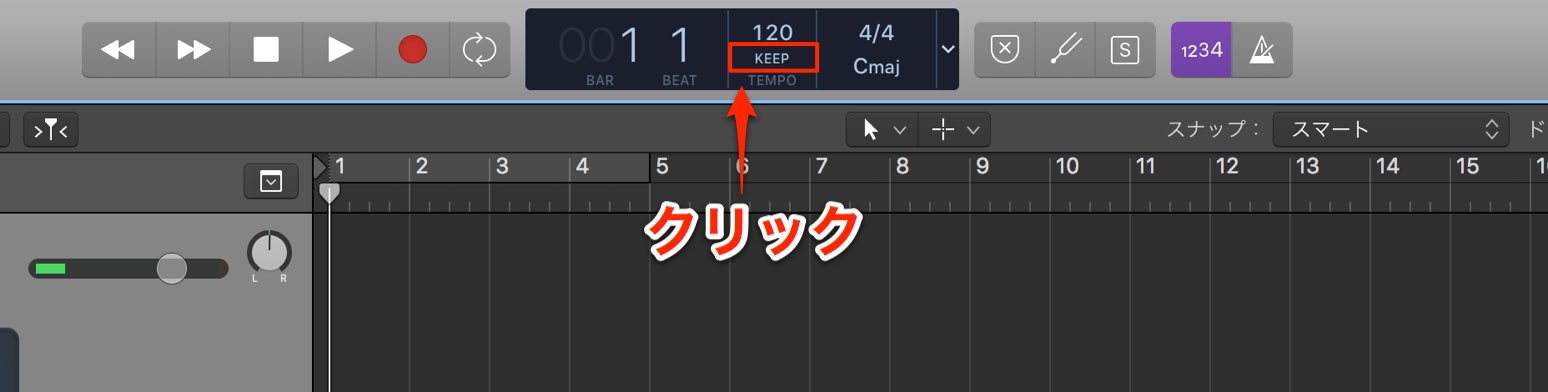
To enable Smart Tempo, click “KEEP” in the tempo area.
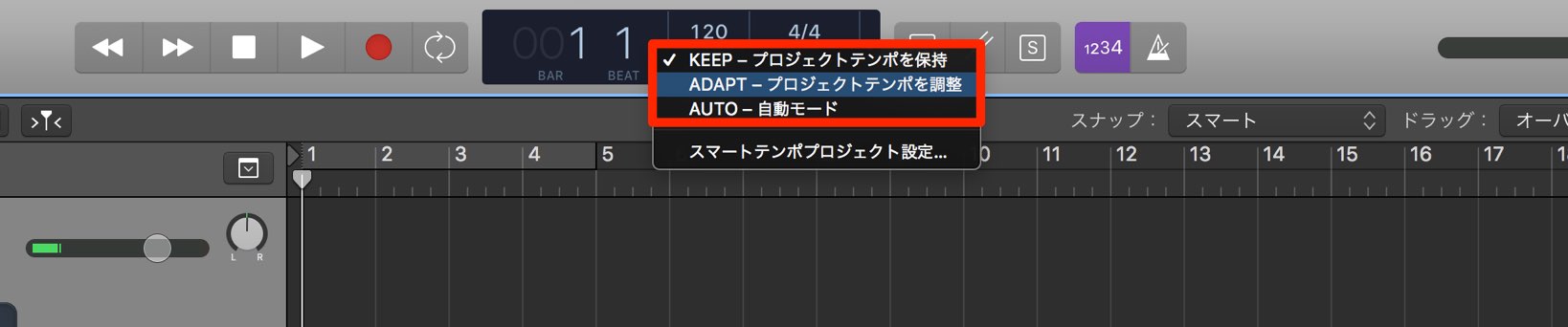
You can choose from three modes:
- KEEP: Retains the familiar behavior of earlier Logic versions.
- ADAPT: Makes the project tempo follow recorded or imported audio.
- AUTO: Automatically chooses KEEP or ADAPT according to the project’s state.
First, let’s make the project tempo follow a recording.
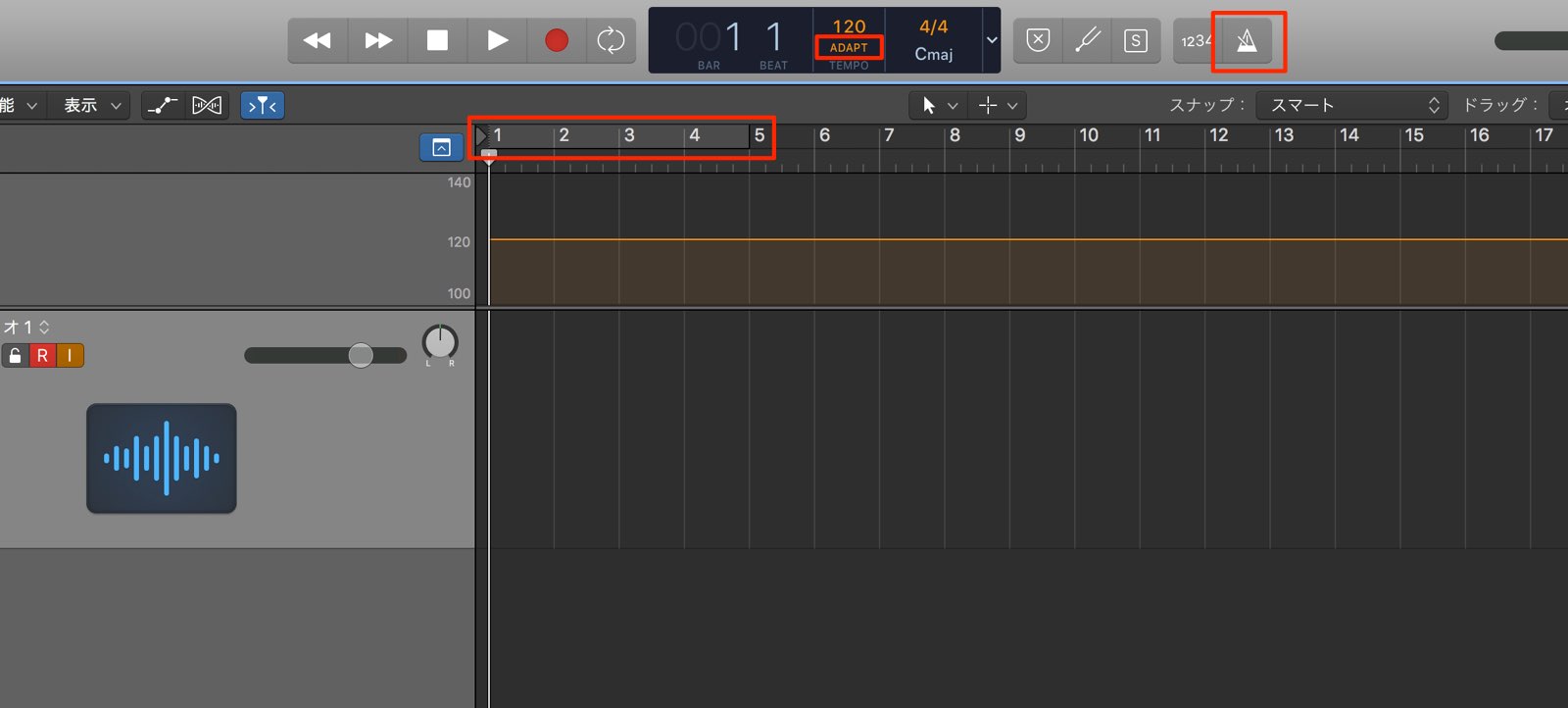
Switch the mode to “ADAPT” and record.
For this example, turn off the metronome and cycle mode, and make sure there are no other regions.
There will be no rhythmic guide in this setup, so play freely at your own timing and tempo.
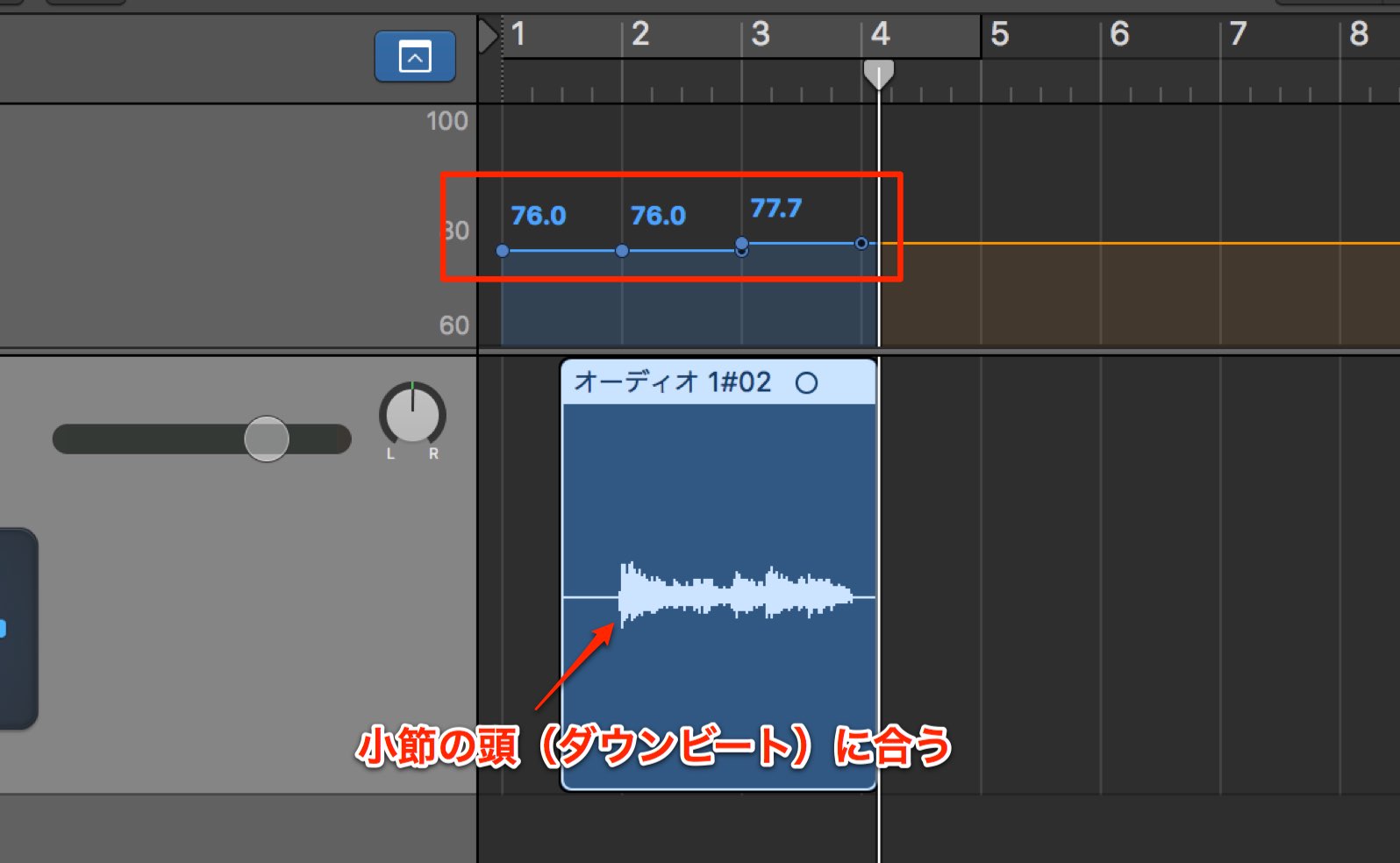
The project tempo is automatically set to follow the recorded material.
The performance is also aligned to the first beat of a bar, regardless of where recording began.
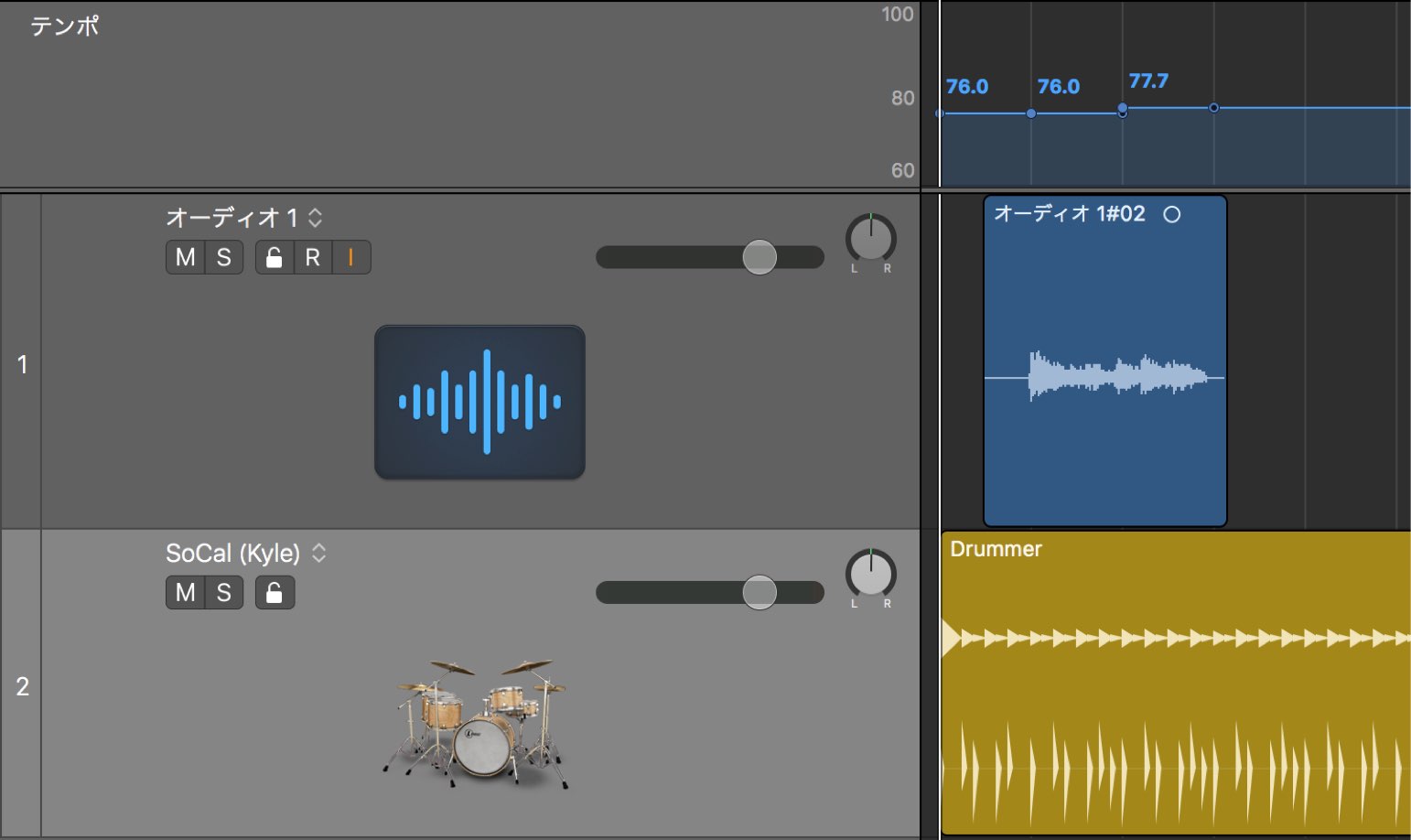
With the tempo adapted to the audio, Drummer performances and programmed MIDI can follow the recording.
This is particularly useful when you want to preserve the feel of a recorded performance.
You can also set the project tempo from audio that has already been recorded or imported into the project.
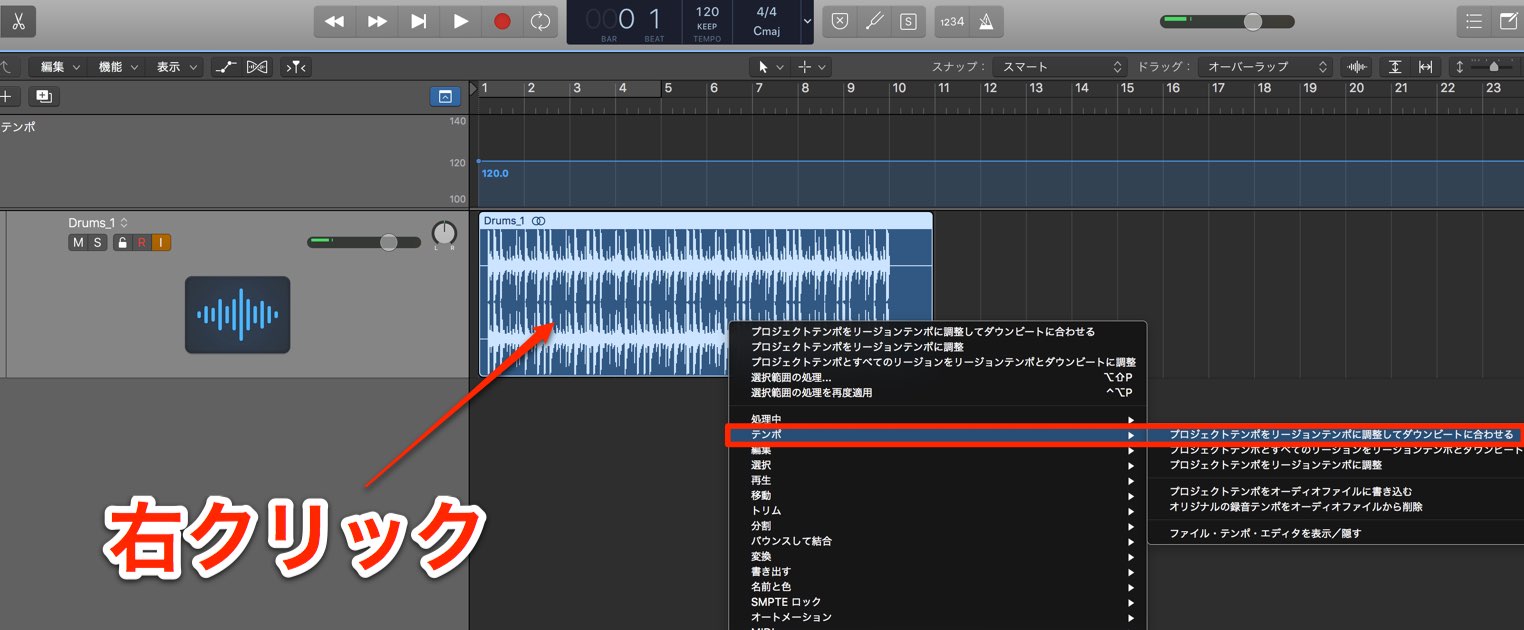
Right-click the audio region and choose Tempo → “Adjust Project Tempo to Region Tempo and Downbeat.”
You do not need to set the mode to ADAPT for this operation.
A term you will encounter often in Smart Tempo is “downbeat,” meaning the first beat of a bar.
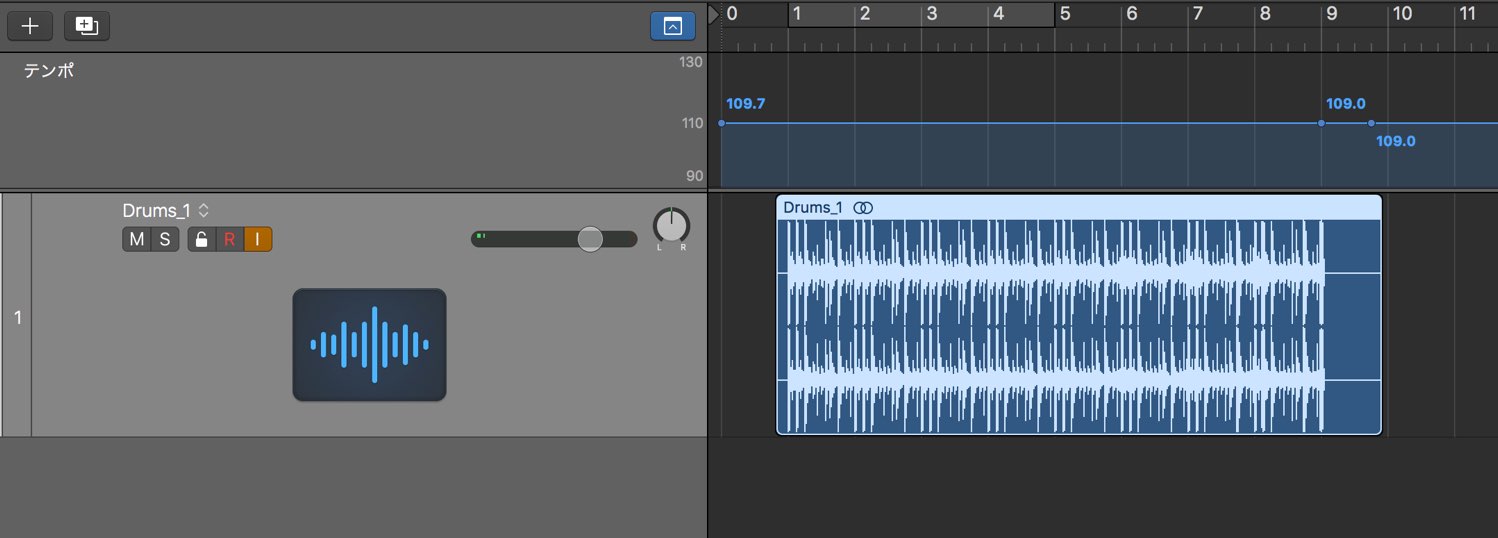
Logic analyzes the region’s tempo and changes the project tempo accordingly.
The start of the sound is also moved to the first beat, or downbeat.
Smart Tempo’s analysis is very accurate, but detection errors can occur.
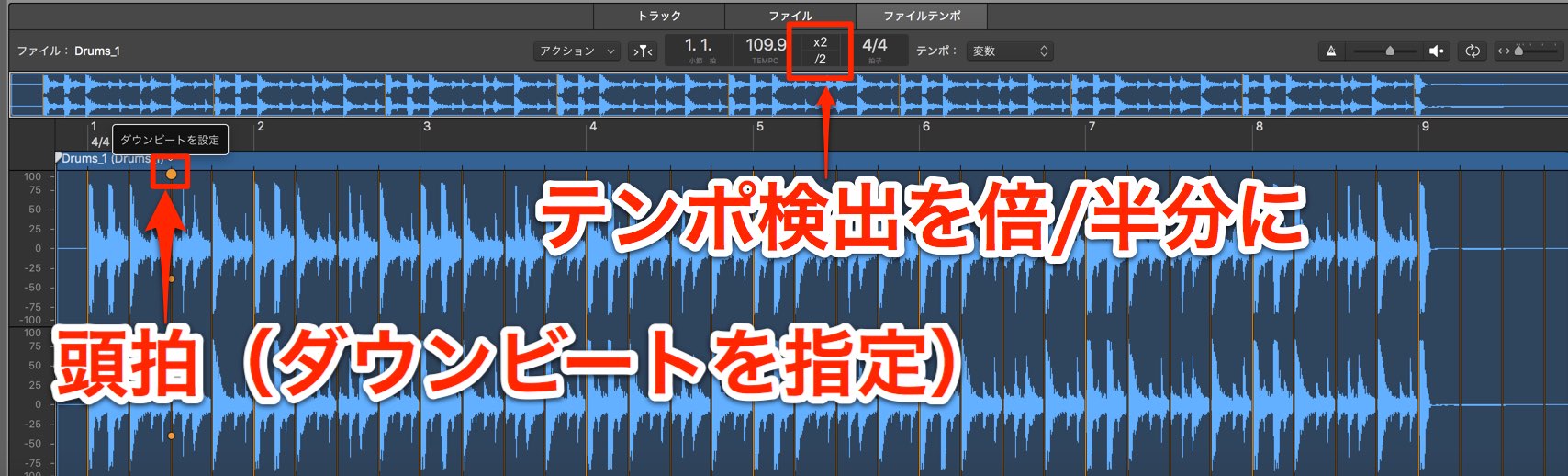
If the detected tempo is double or half the intended tempo, or the downbeat is misplaced, you can correct it in the File Tempo editor.
After correcting it, right-click the audio region and choose Tempo → “Adjust Project Tempo to Region Tempo and Downbeat” again to update the project tempo.
Tempo Display Colors
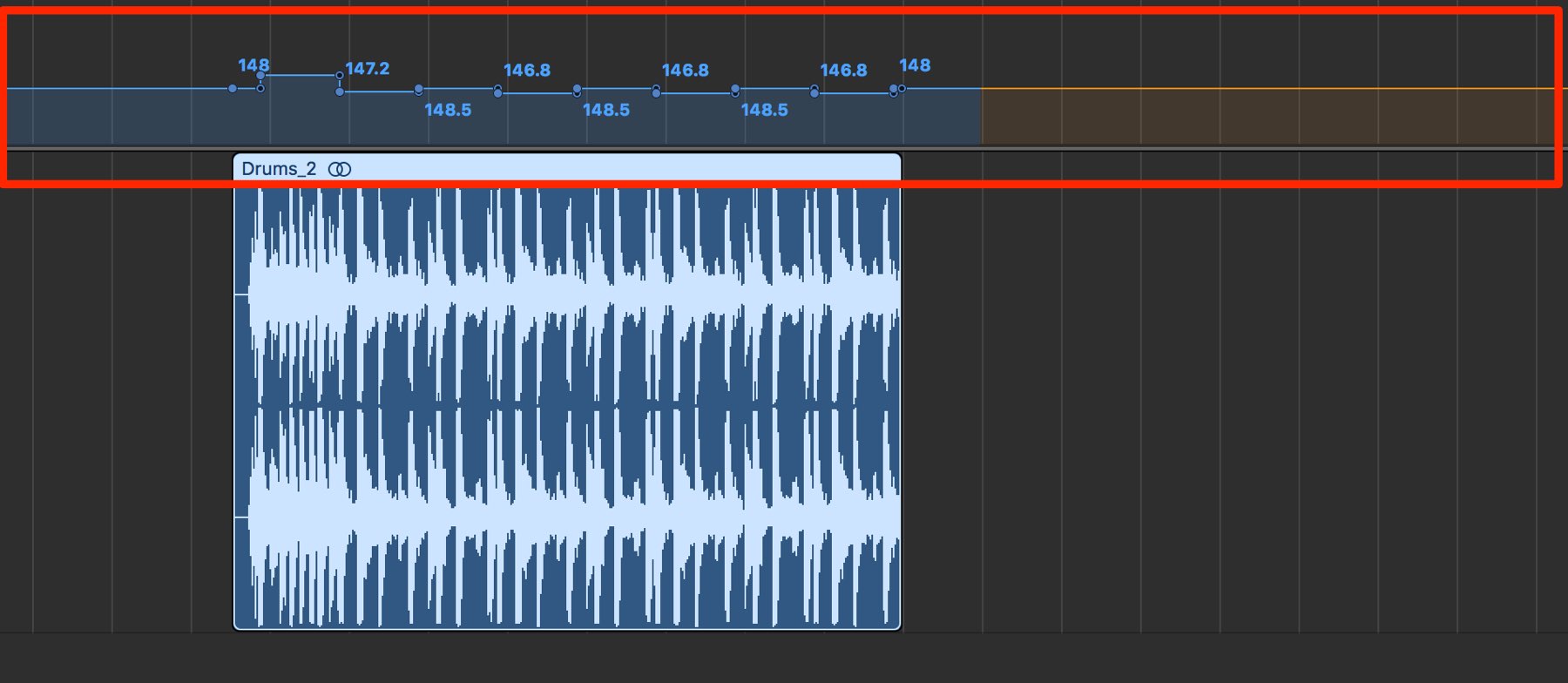
When the mode is ADAPT or AUTO, the tempo area is color-coded.
Knowing what the colors mean is useful:
- Blue: Indicates a range where the project tempo will not change, for example because regions already exist or because of the playhead position.
- Orange: Indicates a range where recording or importing material will affect the project tempo.
- Red: Indicates that moving a region will replace the existing tempo.
Make Audio Follow the Project Tempo
So far we have looked at making the Logic project tempo follow audio.
Smart Tempo can also do the reverse: make audio follow the project tempo.
This lets you use audio recorded at different tempos in the same song.
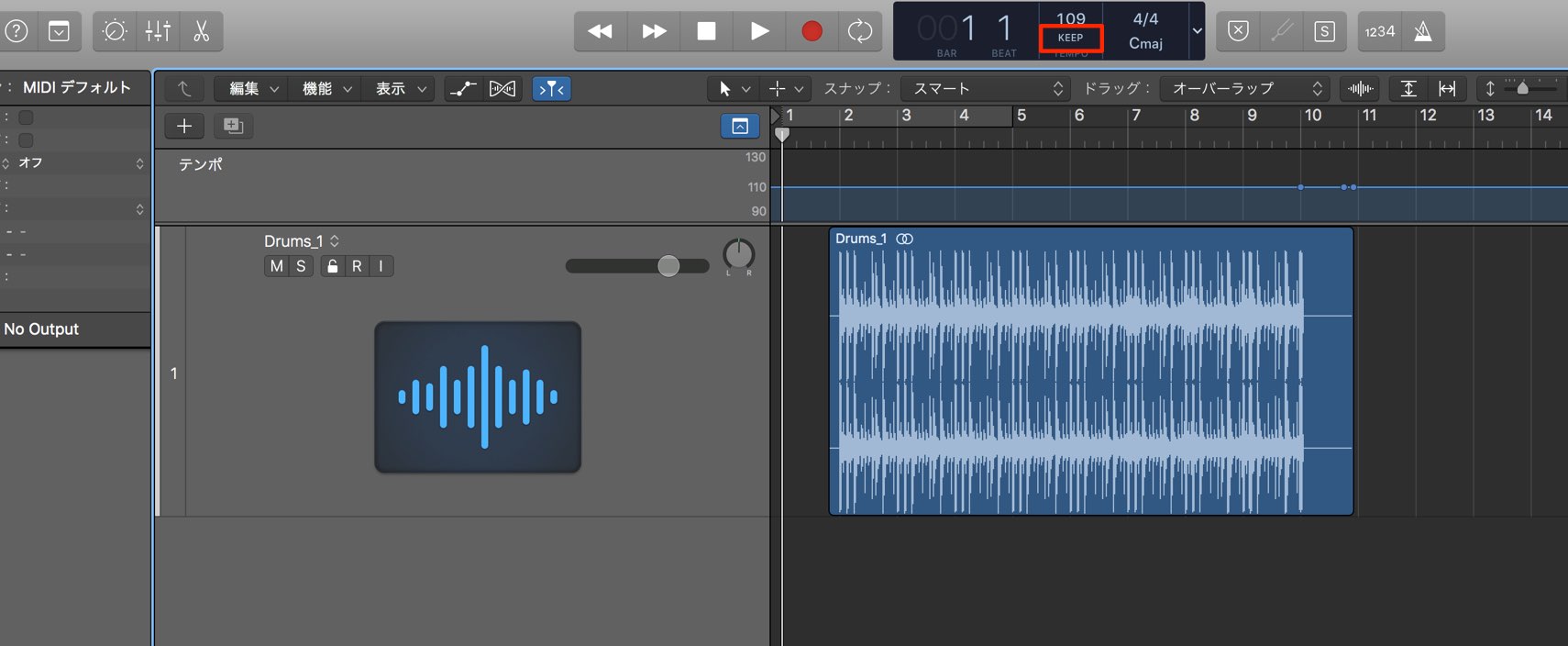
First select the traditional “KEEP” mode so the imported material does not change the project tempo.
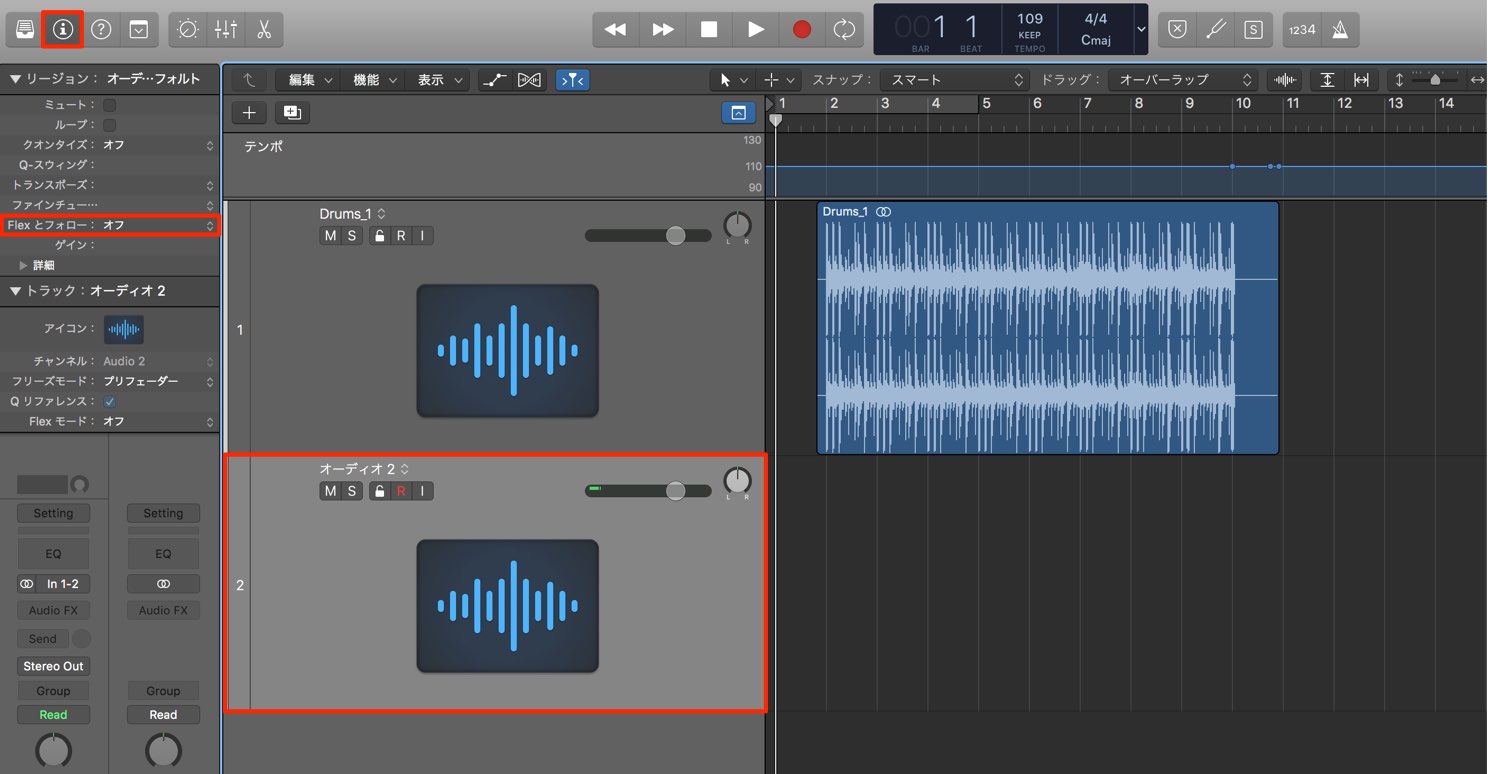
Create an audio track for the material and locate “Flex & Follow” in the inspector.
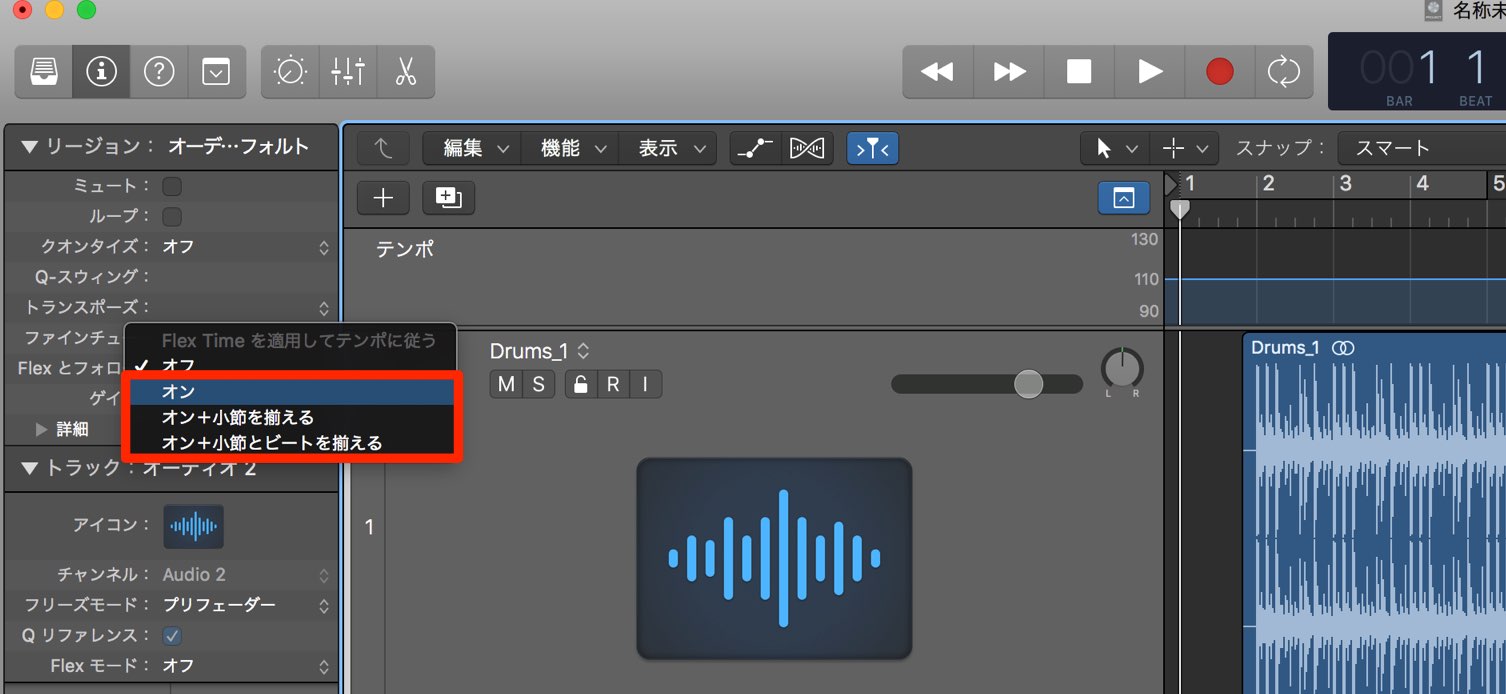
Click “Flex & Follow” to enable it.
Options include aligning the tempo around bar beginnings or aligning material by beats; results vary with the source.
Listen and choose the option that produces the best sound and feel.
The setup is now complete.
Import the audio material you want to use, and
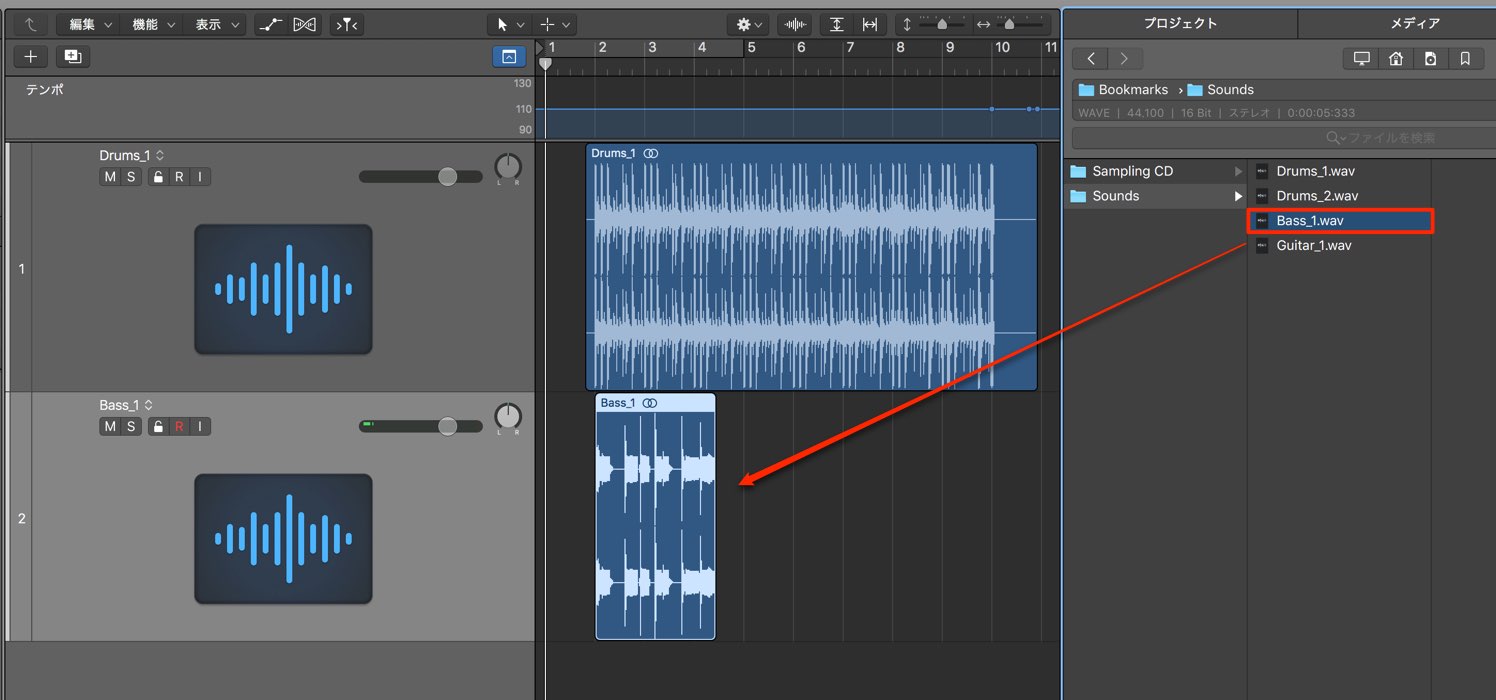
it will follow the project tempo.
You can then add more material to your song in the same way.
Bookmark Favorite Folders in the File Browser
From this version onward, folders can be bookmarked as favorites in the file browser.
Bookmarking a folder of samples makes it easy to access the material quickly.
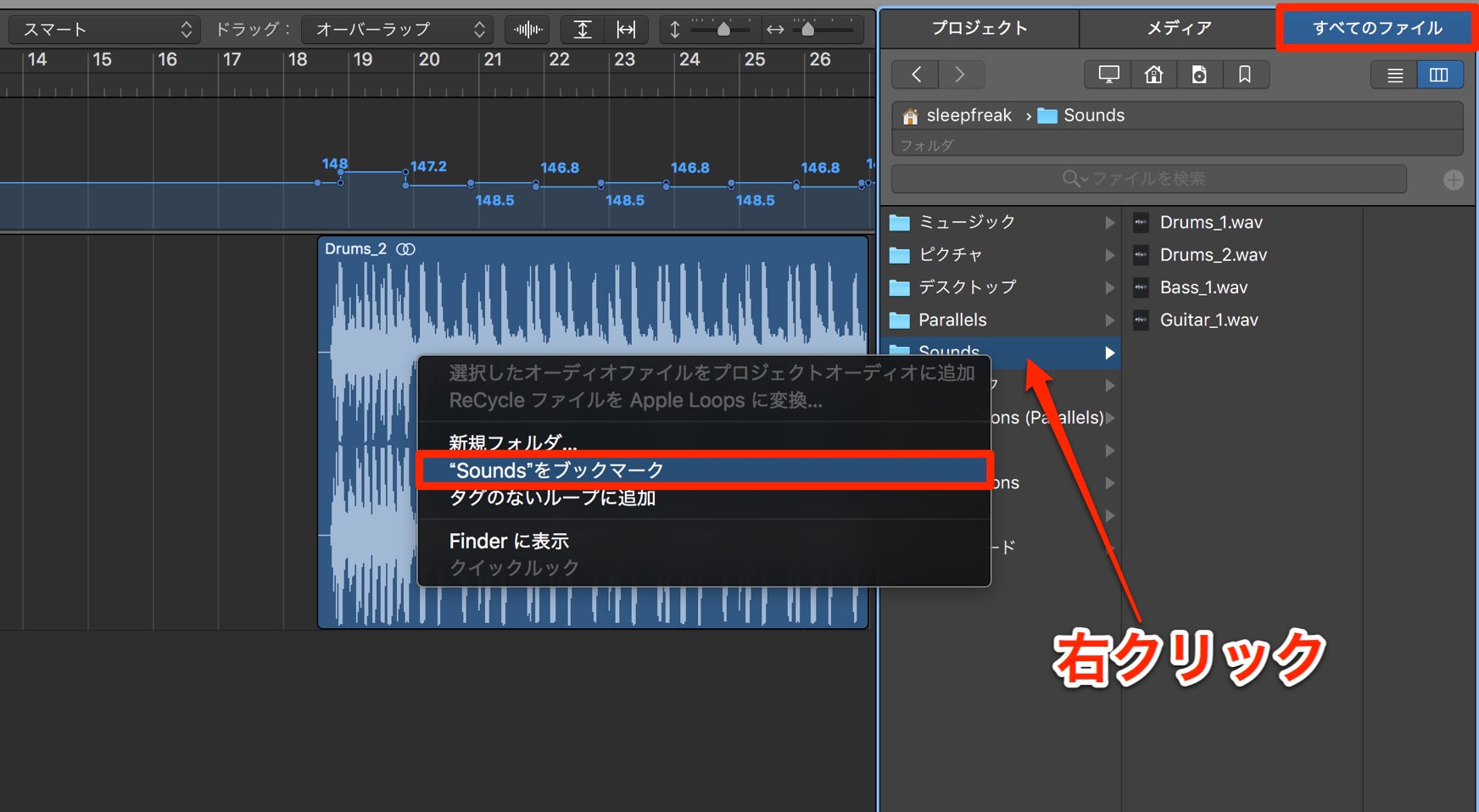
Under “All Files,” navigate to the desired folder and right-click it.
Select “Bookmark” from the menu.
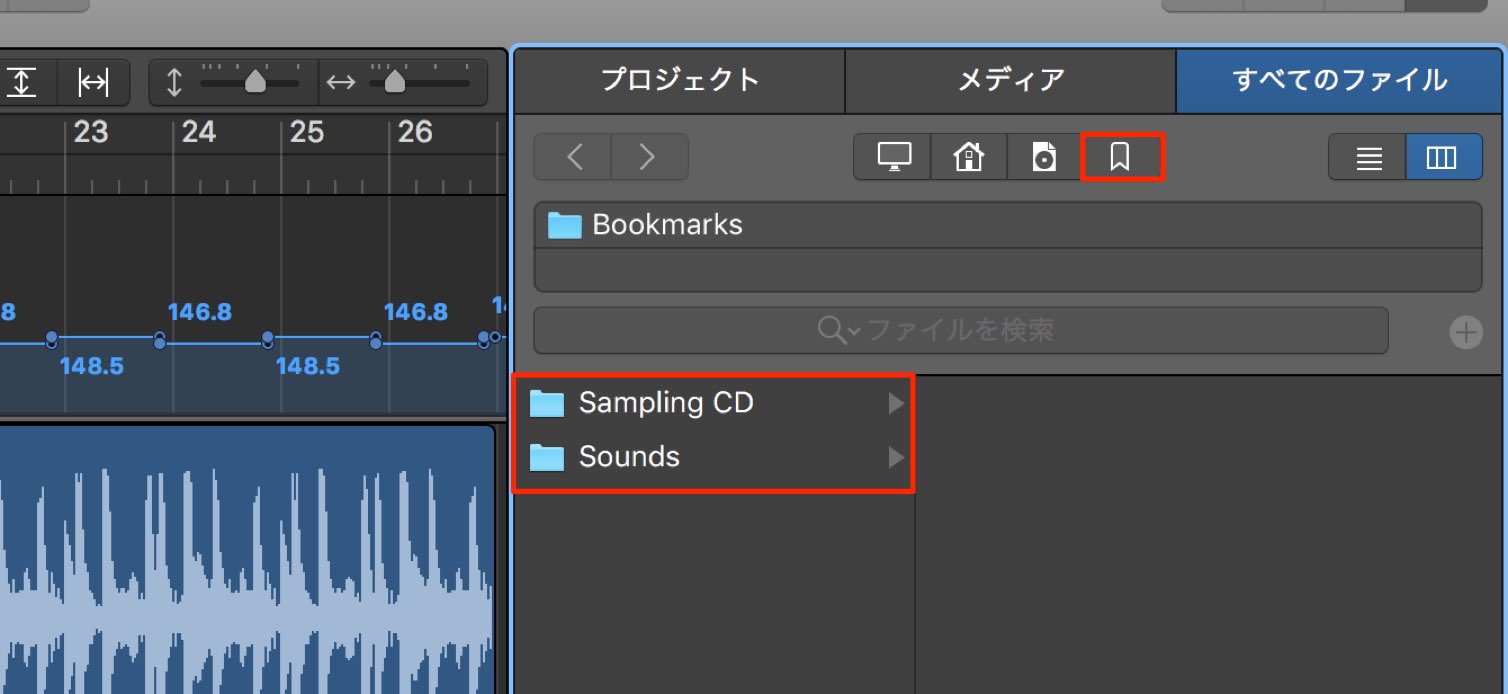
After the folder is registered, an icon appears as shown, giving you access to the bookmarked folder.
In this installment we focused on the newly added Smart Tempo feature.
Working more freely across tempo differences should expand your production options.
Next time we will explore the new instruments and the useful articulation feature.
Frequently Asked Questions
Q1. What is Smart Tempo in Logic Pro X 10.4?
It automatically analyzes audio with an unstable tempo and lets you make the project follow the audio or make the audio follow the project. It can make remixing and recording workflows more efficient.
Q2. What is the difference between KEEP, ADAPT and AUTO?
KEEP retains the traditional Logic behavior, ADAPT follows the audio, and AUTO chooses according to the project’s state. Select the mode appropriate to your task.
Q3. Can I correct an inaccurate tempo analysis?
Yes. You can manually correct half-time or double-time detection and a misplaced downbeat in the File Tempo editor. Then apply the region tempo and downbeat to the project again to update its tempo.
Q4. Can I use audio at different tempos in one project?
Yes. Keep the project tempo fixed with KEEP and enable Flex & Follow on each audio track so material at different tempos can follow the project.
Q5. Can I use Smart Tempo while recording?
Yes. Recording in ADAPT mode allows you to play freely without a metronome, with the project following the recording and the audio aligned to the first beat of a bar. This can help preserve the feel of the performance.
NEW ARTICLES
Latest English Articles






























































































































































































































































































































