
This article demonstrates a drum-mixing workflow that combines iZotope Neutron 3 with Waves Signature Series processors. After using Neutron 3's Mix Assistant to establish basic EQ and compression, it adds character with signature plug-ins such as CLA Drums, JJP Drums, and Maserati DRM. Starting with presets and refining the controls provides a quick route to a usable drum sound, with practical ideas for both beginners and experienced mixers.
Get a Usable Sound Quickly with Basic Processing Plus Character

This installment explores Waves Signature Series plug-ins, focusing on processors designed specifically for drums.
EQ and compression are fundamental track-processing tools. But have you ever applied them and still found that the result did not quite match the sound you imagined?
The fundamentals still need care. The Signature Series then lets you add some of the distinctive ingredients of leading engineers' sounds.
Video: Neutron and Waves Signature Series
Product Links from the Original Article
• iZotope Neutron 3 Standard
• Signature Series Bass and Drums
Basic Processing with Neutron
For the basic processing in this example, we will use iZotope Neutron 3.
Many readers will already know this mixing tool: its Mix Assistant can automatically create a starting point for basic processing such as EQ and compression.
It can provide helpful guidance for beginners and save considerable time for experienced users.
First, listen to the unprocessed example.
Let's hear how it changes when we use Neutron 3.
Here is a quick look at the Mix Assistant workflow.
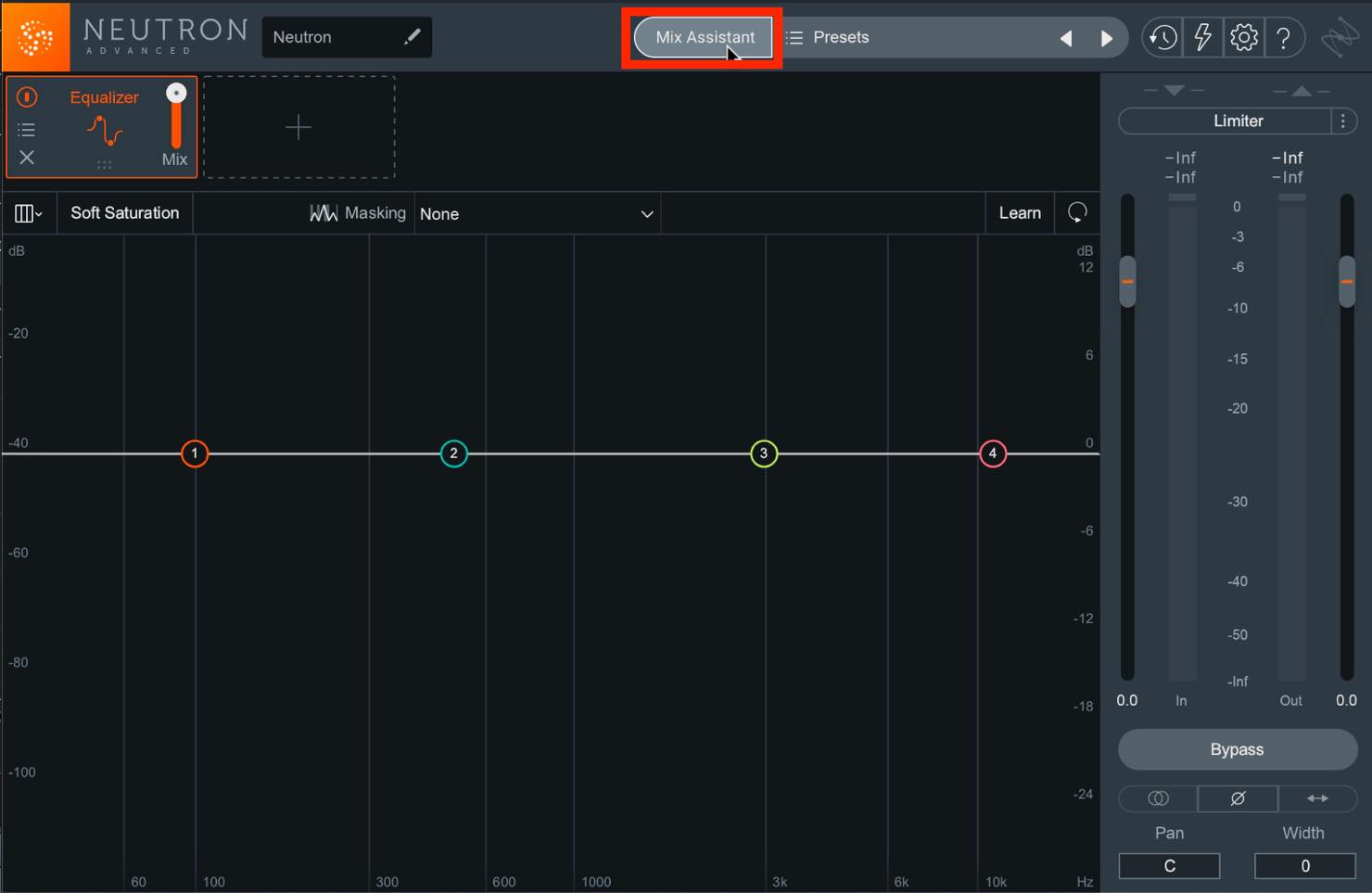
Insert Neutron 3 on the track you want to process, then click the Mix Assistant button near the top center.
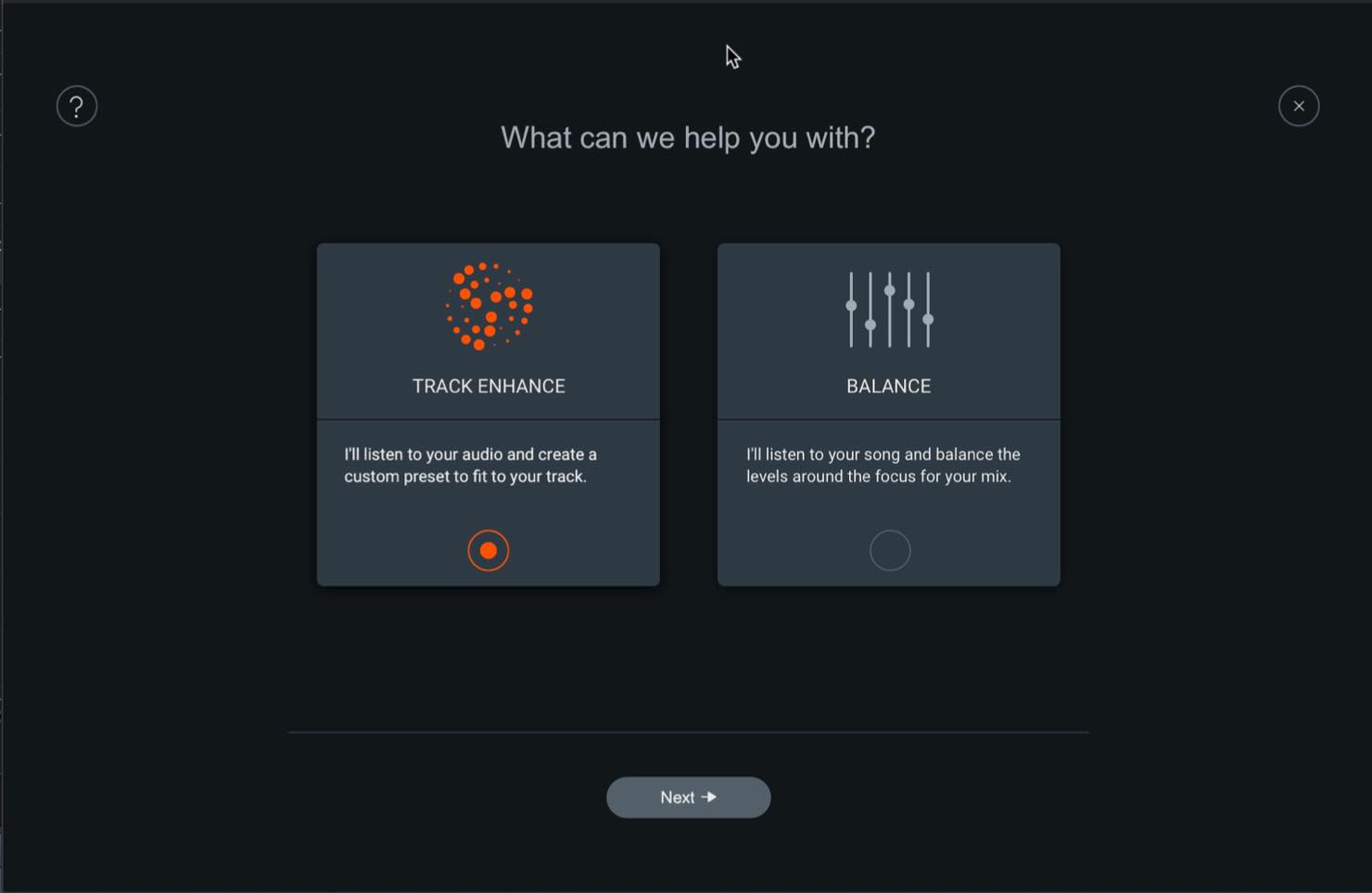
The next screen offers Track Enhance and Balance. For this example, choose Track Enhance to apply track processing such as EQ and compression.
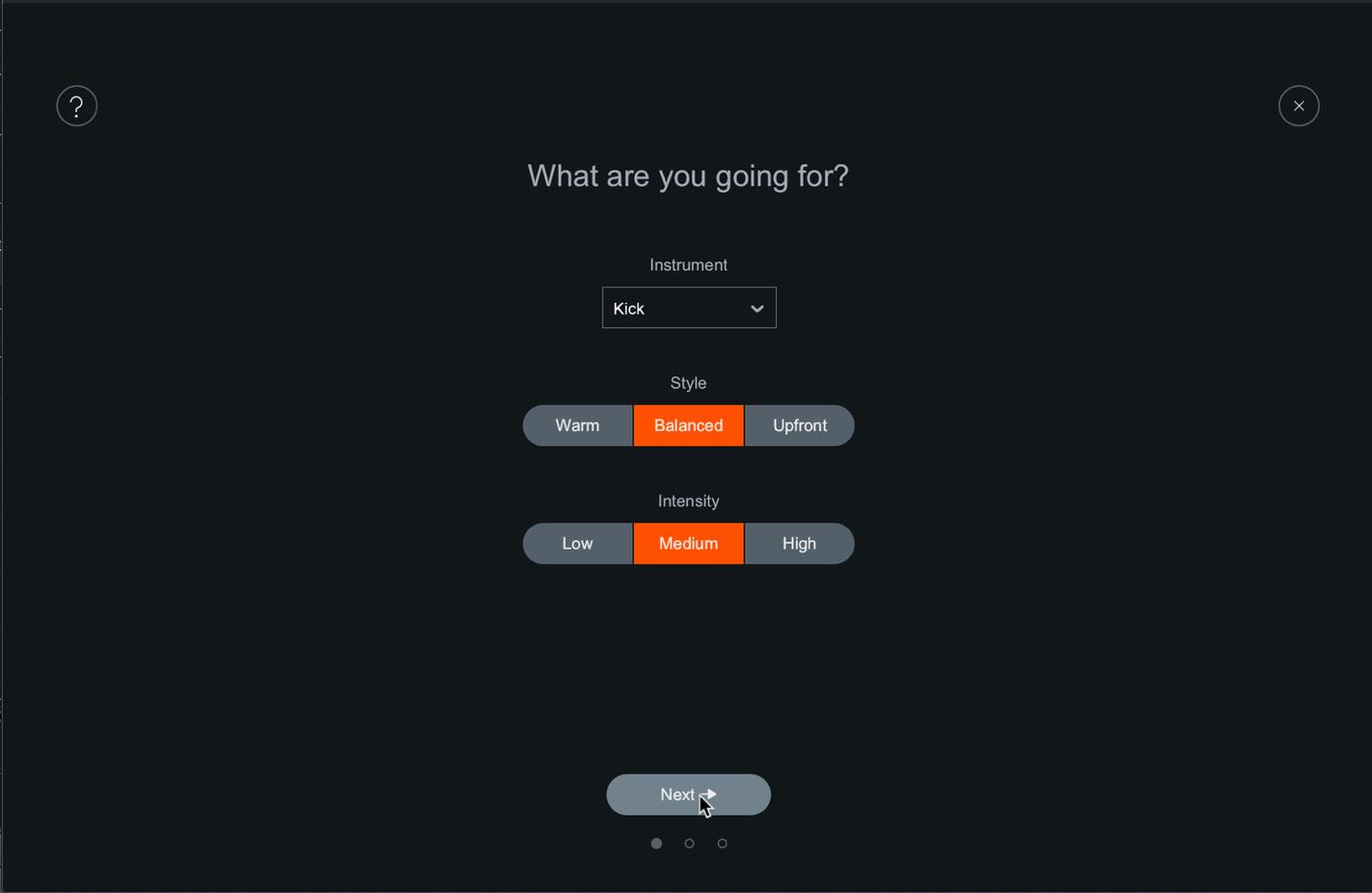
Choose the instrument type under Instrument, the processing character under Style, and the amount under Intensity.
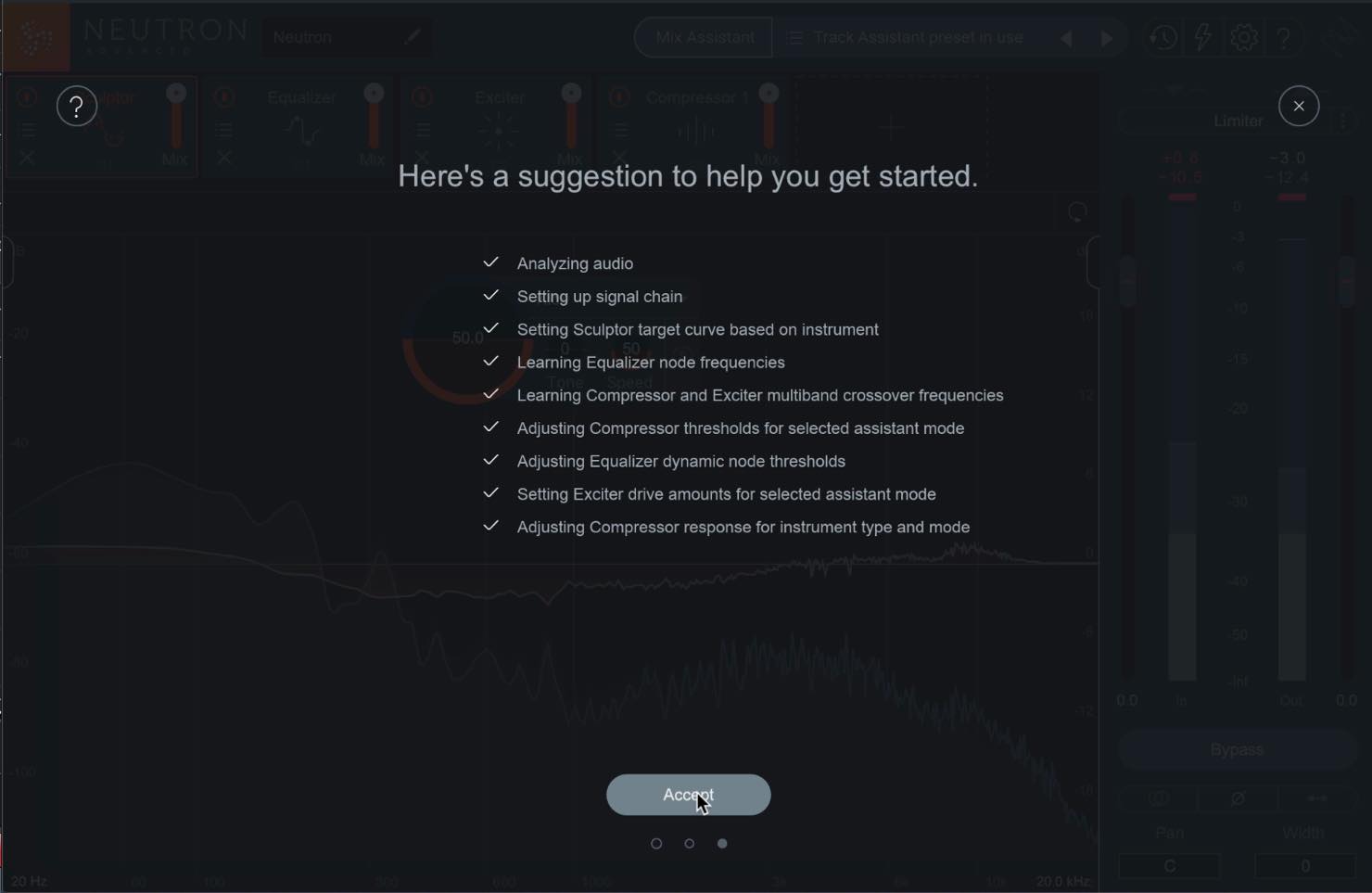
The assistant now waits for audio playback. Play the track to begin analysis and processing. When it finishes, an Accept button appears below. If you are happy with the result, click it to finish.
I ran Mix Assistant's Track Enhance on all the tracks, then made a few small adjustments.
To my ears, the result has more clarity and impact. It is impressive how much of this starting point can be created automatically.
Processing the Kick with CLA Drums
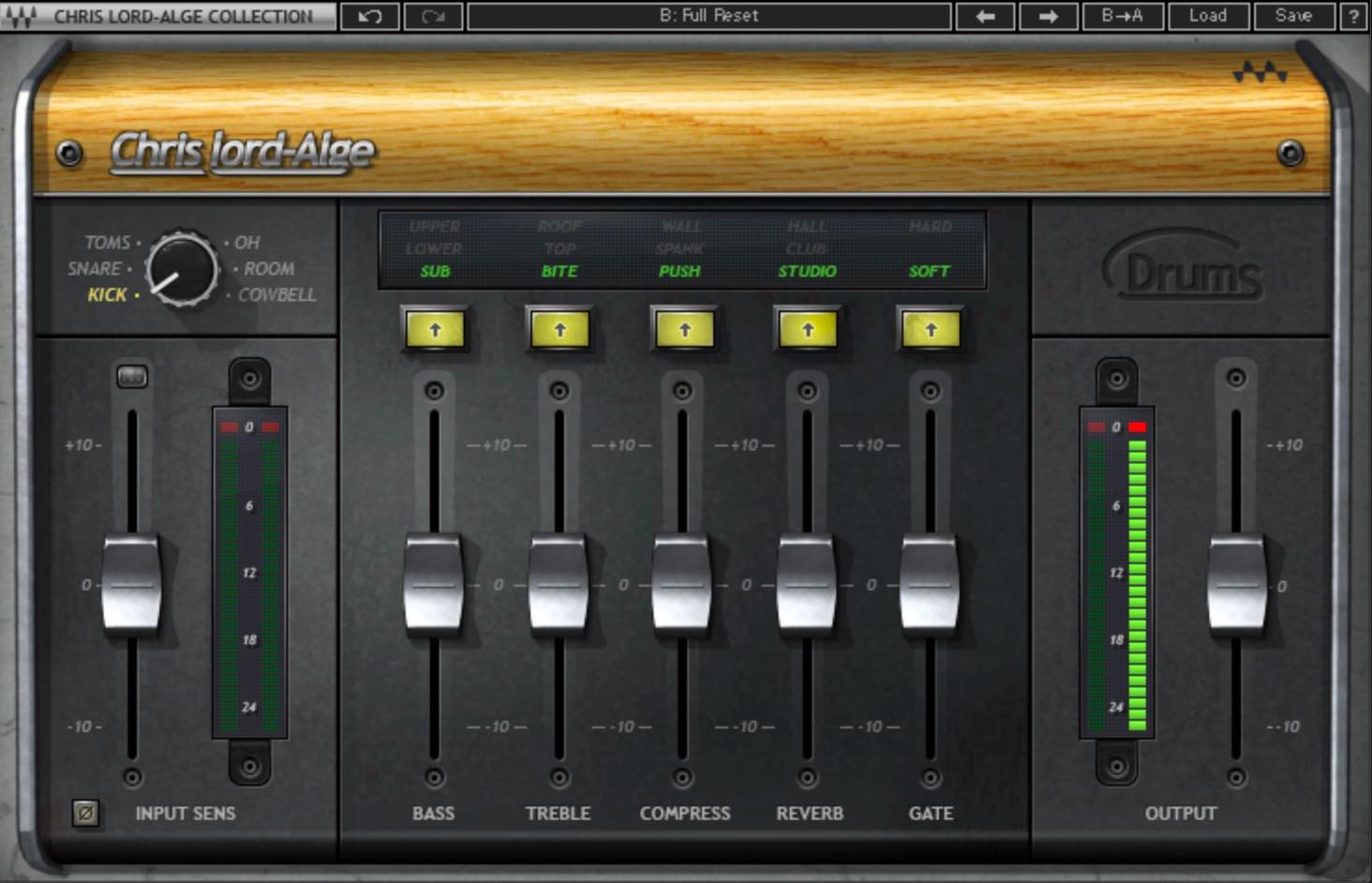
Now let's use the Waves Signature Series to give the drums more of a rock character.
Start with the kick. I have inserted CLA Drums, Chris Lord-Alge's signature processor. The presets are a particular strength of the Signature Series, so let's look for one that suits the track.
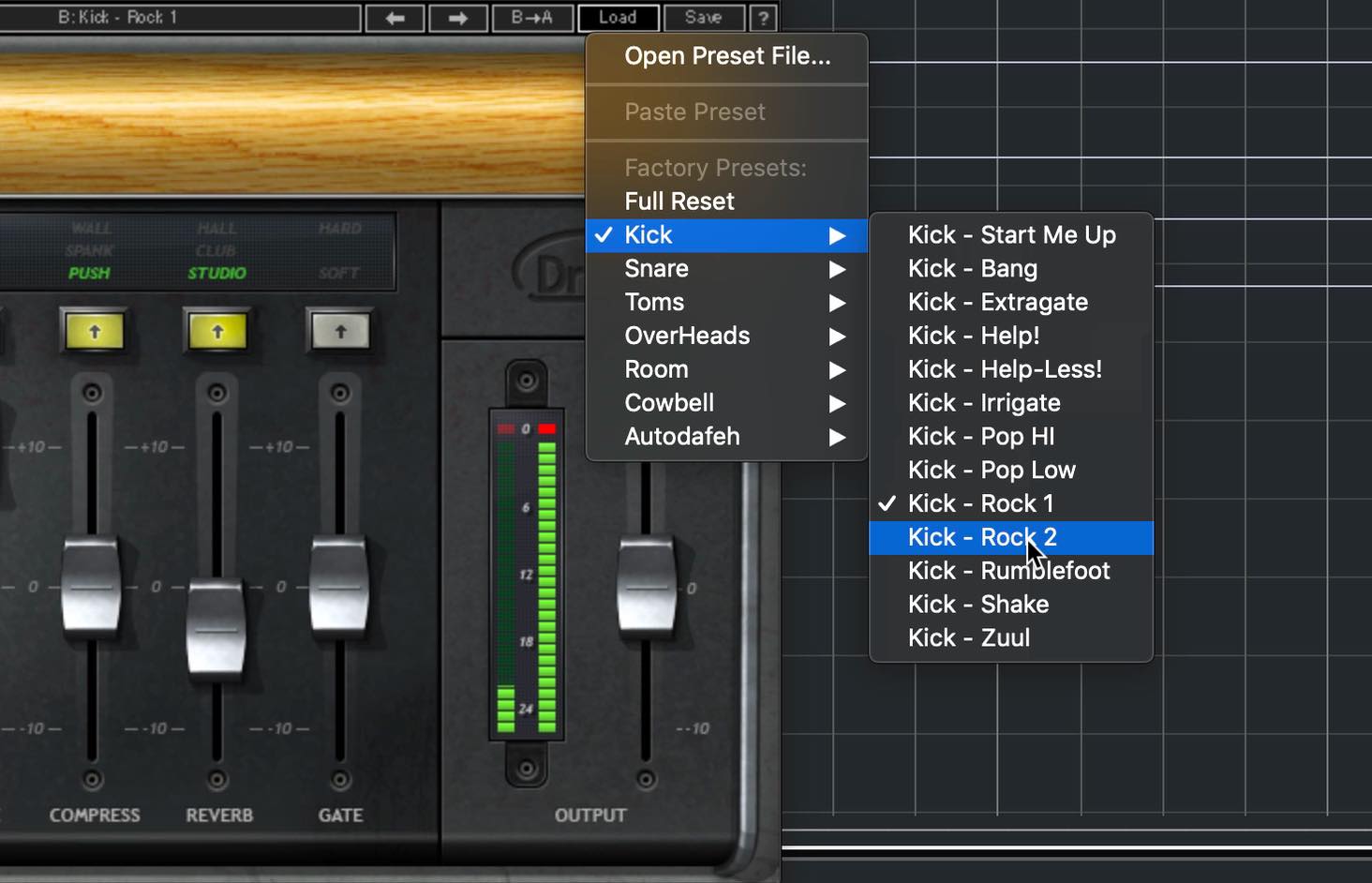
Rock1 seemed to work well for this song. It is somewhat exaggerated, but it also shows how effective a bold setting can be.
Let's look at the controls.
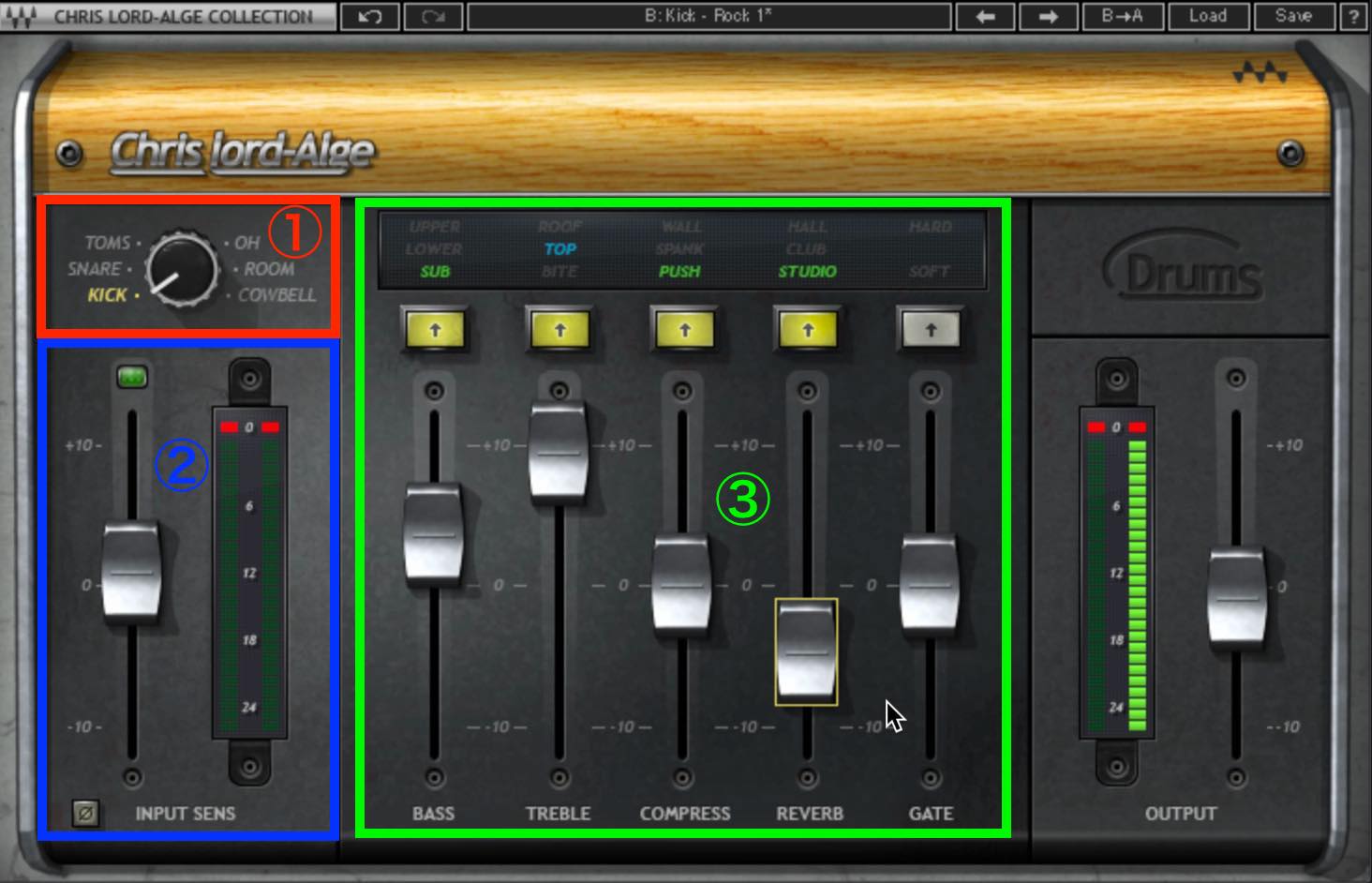
- ① MODE: Select the drum component you are processing.
- ② INPUT SENS: A yellow indicator is a useful guide to the input level the preset expects. If it is green, raise the input a little; if it is red, lower it. Use OUTPUT to compensate for a large level change. This is only a starting point: deliberately departing from it can also be part of your sound design.
- ③ COLOR: Shape the drum's character using processing such as EQ, compression, reverb, and gating.
For this example, slightly lowering TREBLE and raising BASS gave a result I liked.
Listen to it in the full mix: CLA Drums with the Rock1 preset and minor adjustments.
Processing the Kick with JJP Drums
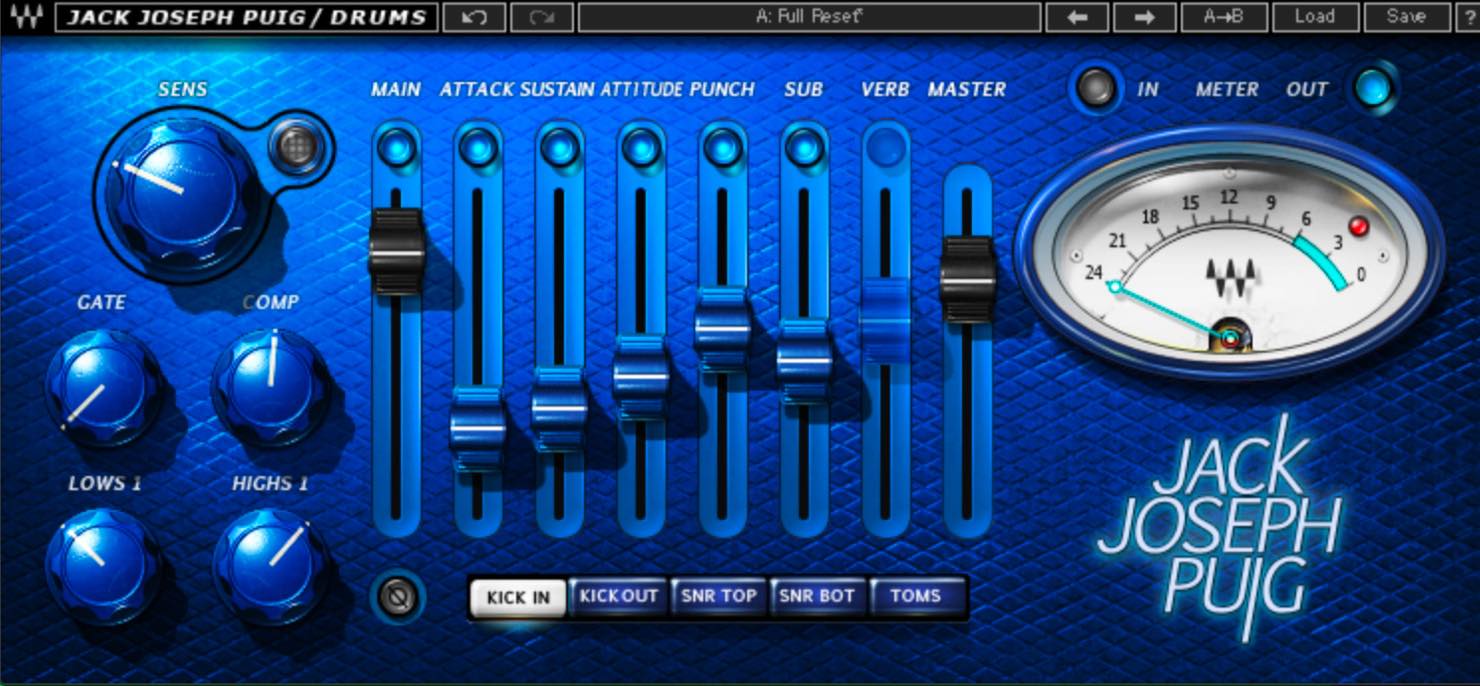
Let's try another option on the kick.
This is JJP Drums, Jack Joseph Puig's signature processor.
Its presets offer a wide range of distinctive sounds.
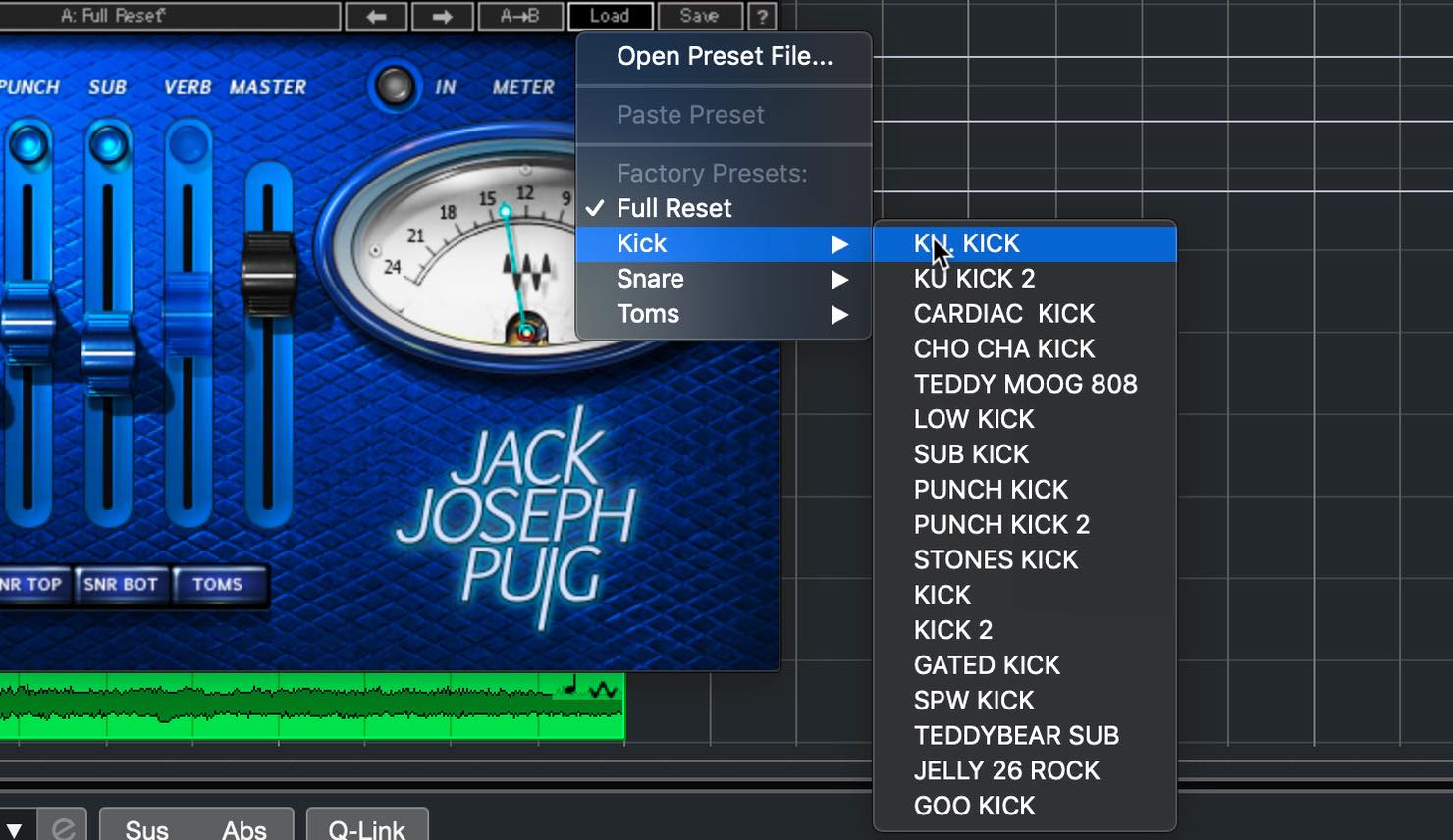
They seem well suited not only to conventional rock and pop, but also to electronic and dance music. In particular, TEDDY MOOG 808 combines a strong attack with heavy gating and almost removes the acoustic character of the source. It could also work for a metal mix where the kick needs to stand well forward.
For this song, I chose KU KICK and will refine it with the controls.
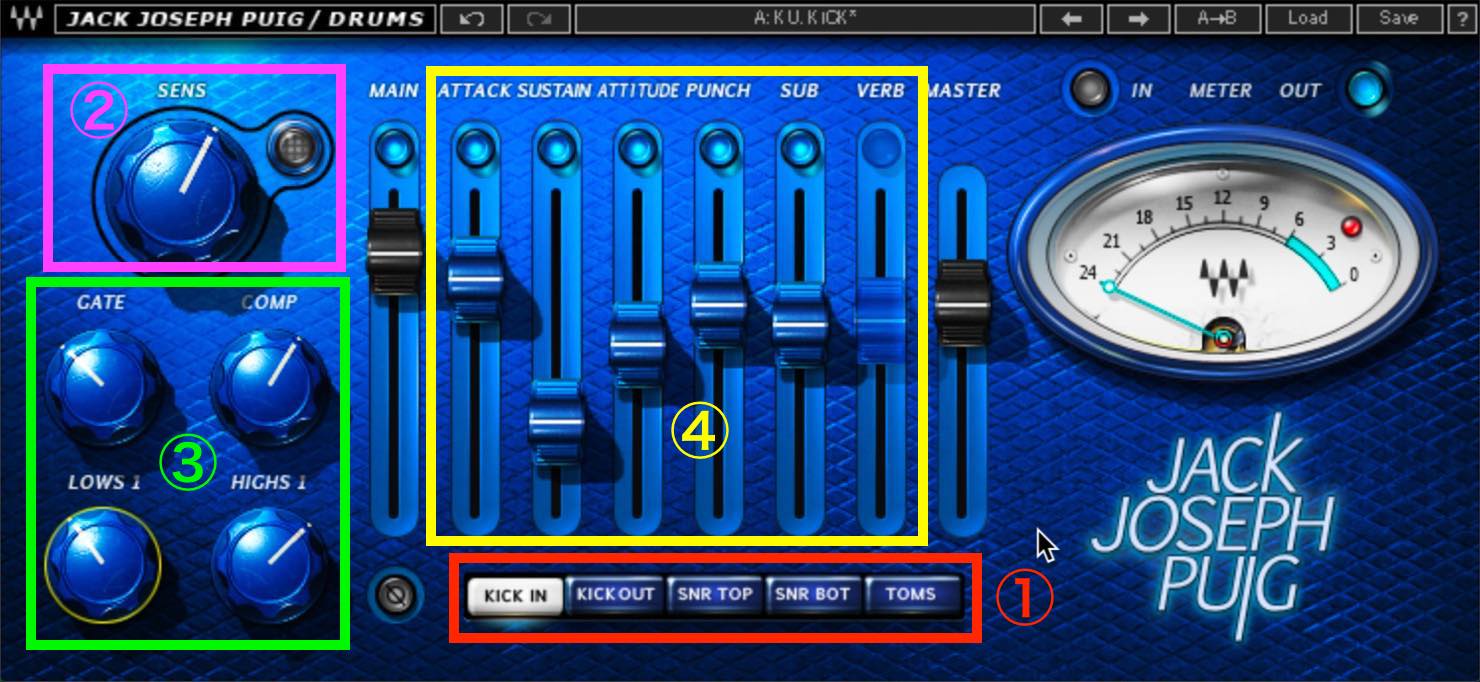
- ① MODE: Select the drum component you are processing.
- ② SENS: Adjust the input level appropriately, as with CLA Drums.
- ③ MAIN SECTION: Adjust the gate, compression, and EQ.
- ④ CENTER SECTION: Add character with processing such as transient shaping and reverb.
Possibly because of the source, the result felt a little boomy, so I adjusted SUB, Attitude, and other controls.
For this example, I aimed for a SENS indication around yellow to red.
Listen to it in the full mix: JJP Drums with the KU KICK preset and minor adjustments.
Processing the Snare with Maserati DRM
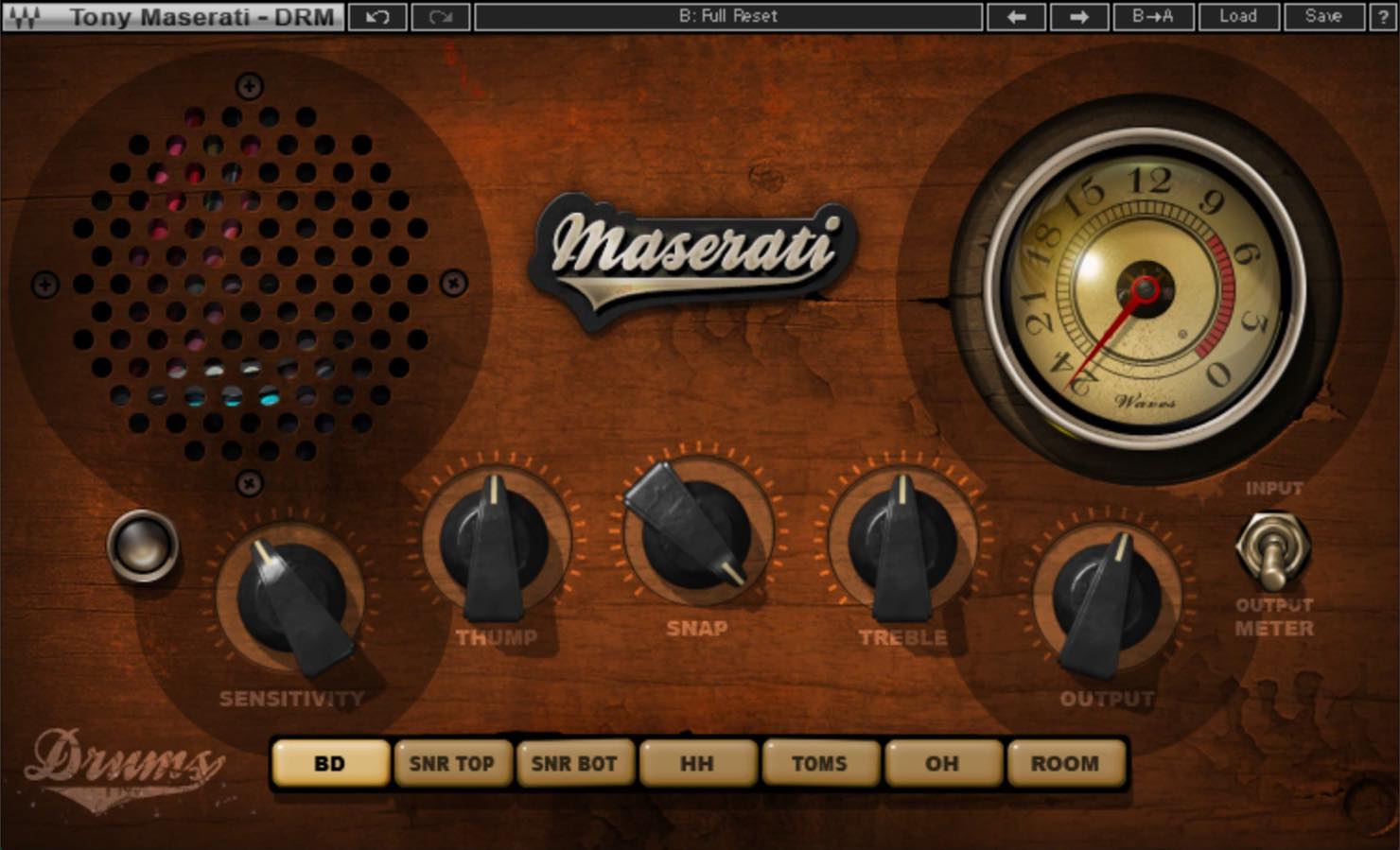
Next, let's move to the snare.
This time, we will try Tony Maserati's signature processor, Maserati DRM.
It also offers many presets for the different drum components, so let's try the snare presets.
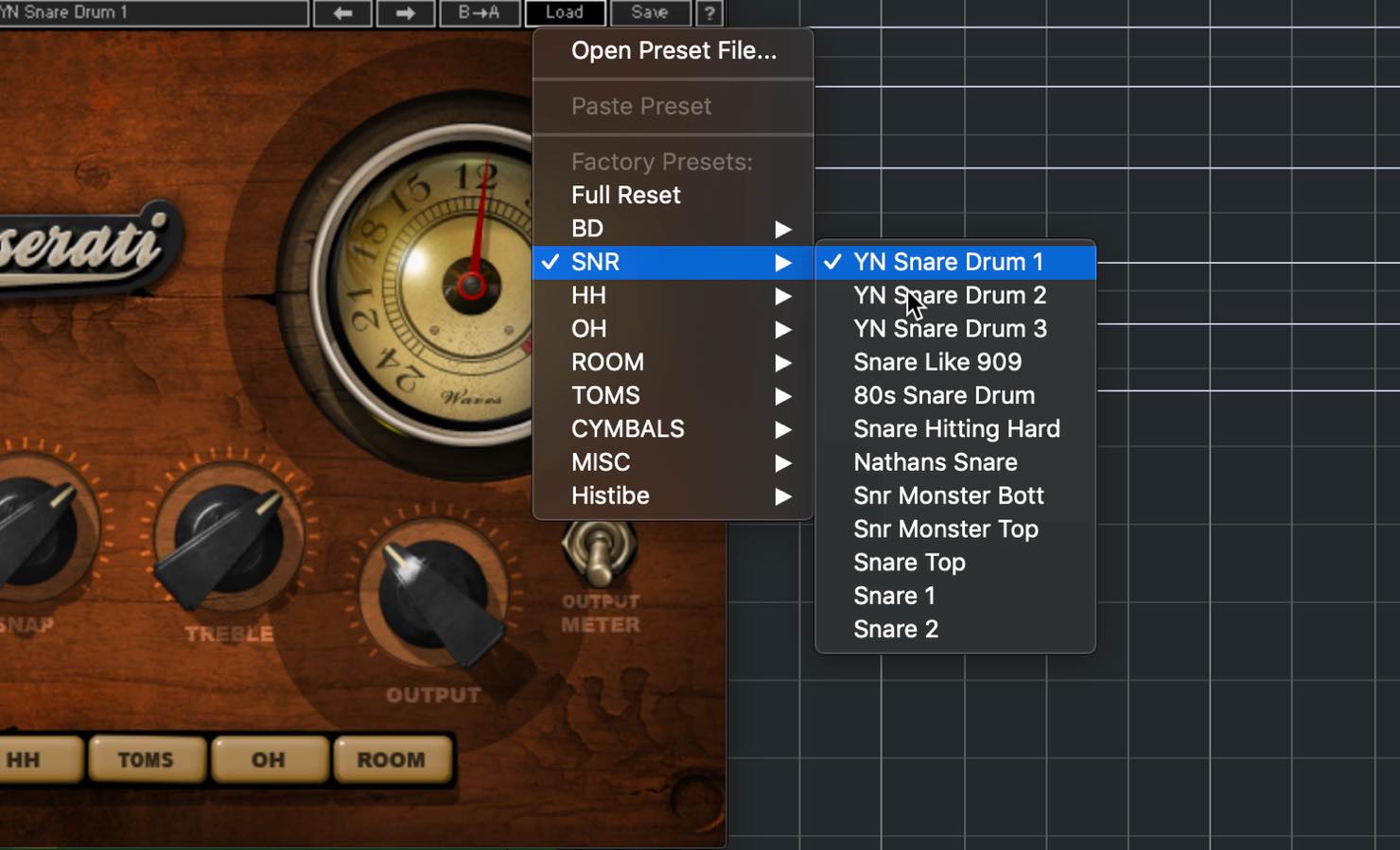
They range from straightforward approaches to more unusual sounds. Snare Like 909 and 80s Snare Drum, in particular, transform the source almost beyond recognition. These are ideas that might not occur to you when combining conventional processors.
For this song, I will use the more conventional YN Snare Drum 2, with a few small adjustments.
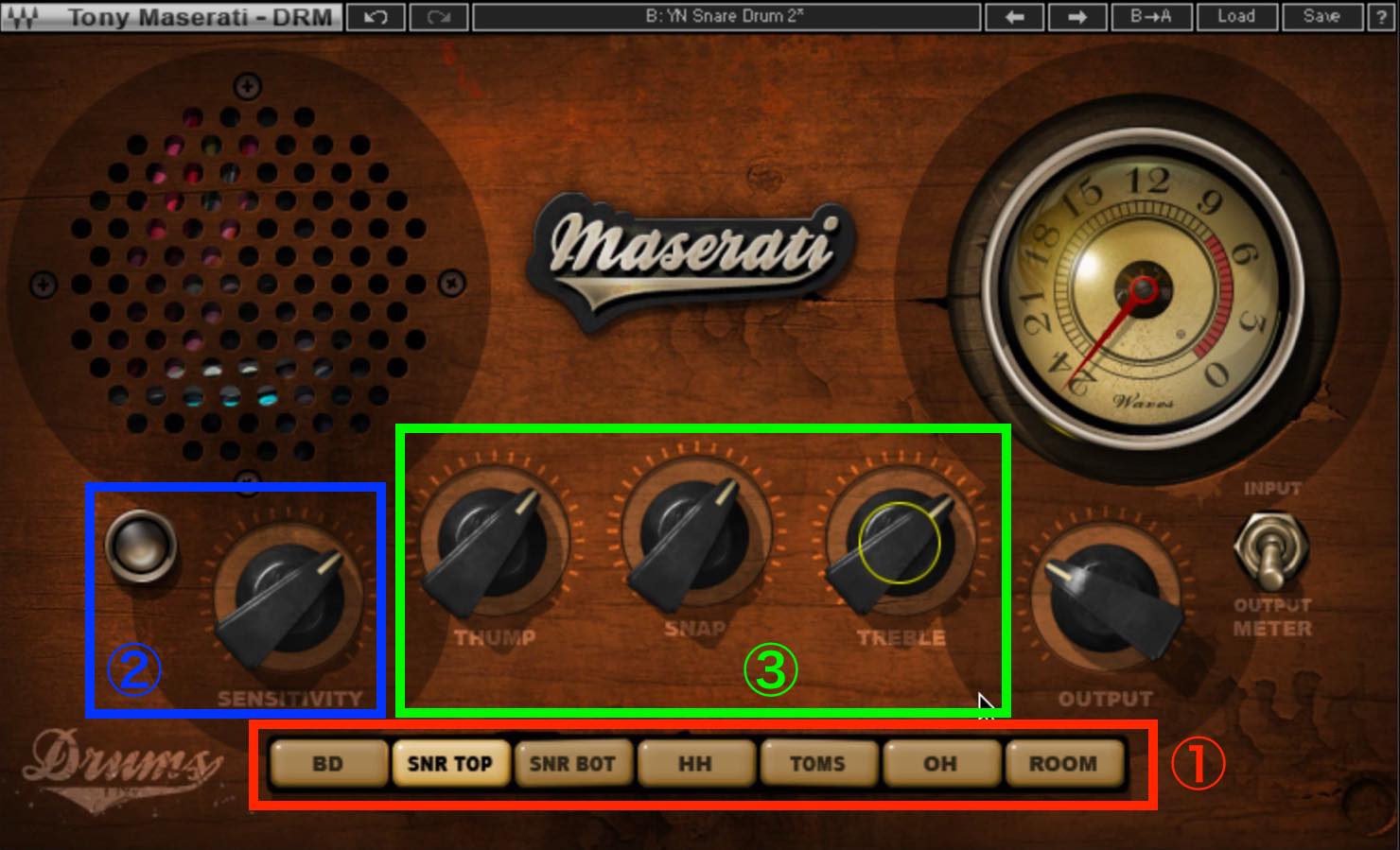
- ① TYPE: Select the drum component you are processing.
- ② SENSITIVITY: Adjust the input level appropriately, as with CLA Drums and JJP Drums.
- ③ THUMP / SNAP / TREBLE: Use THUMP for the low end, SNAP for the transient character, and TREBLE for the high end.
I raised SNAP and TREBLE slightly, then adjusted SENS and OUTPUT to finish.
Listen to it in the full mix.
▶ Maserati DRM: YN Snare Drum 2 preset with minor adjustments
Processing the Snare with Eddie Kramer Drum Channel
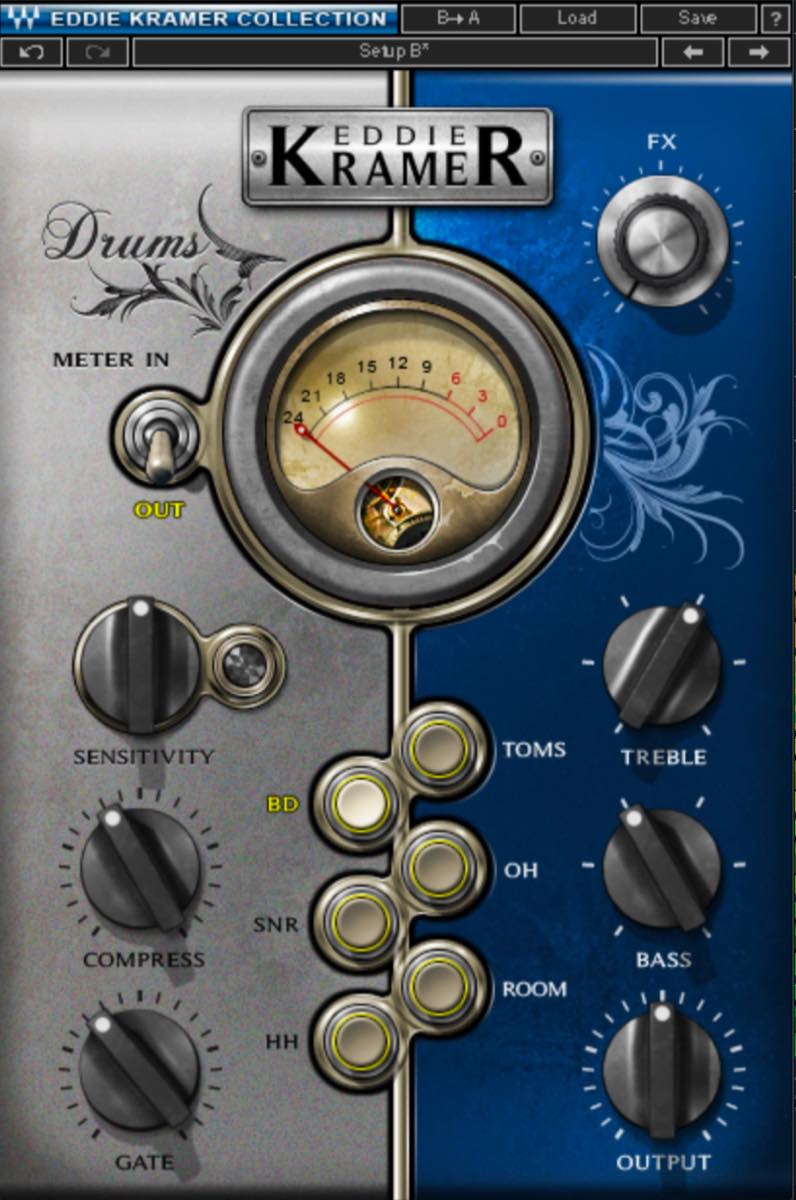
Let's try another processor on the snare as well.
This is Eddie Kramer Drum Channel, Eddie Kramer's signature processor, which we introduced in an earlier video.
This is one of the simplest processors in the Signature Series. In the workflow shown here, rather than choosing a separate preset, selecting a drum component loads a modeled starting setup. You then fine-tune the individual controls.
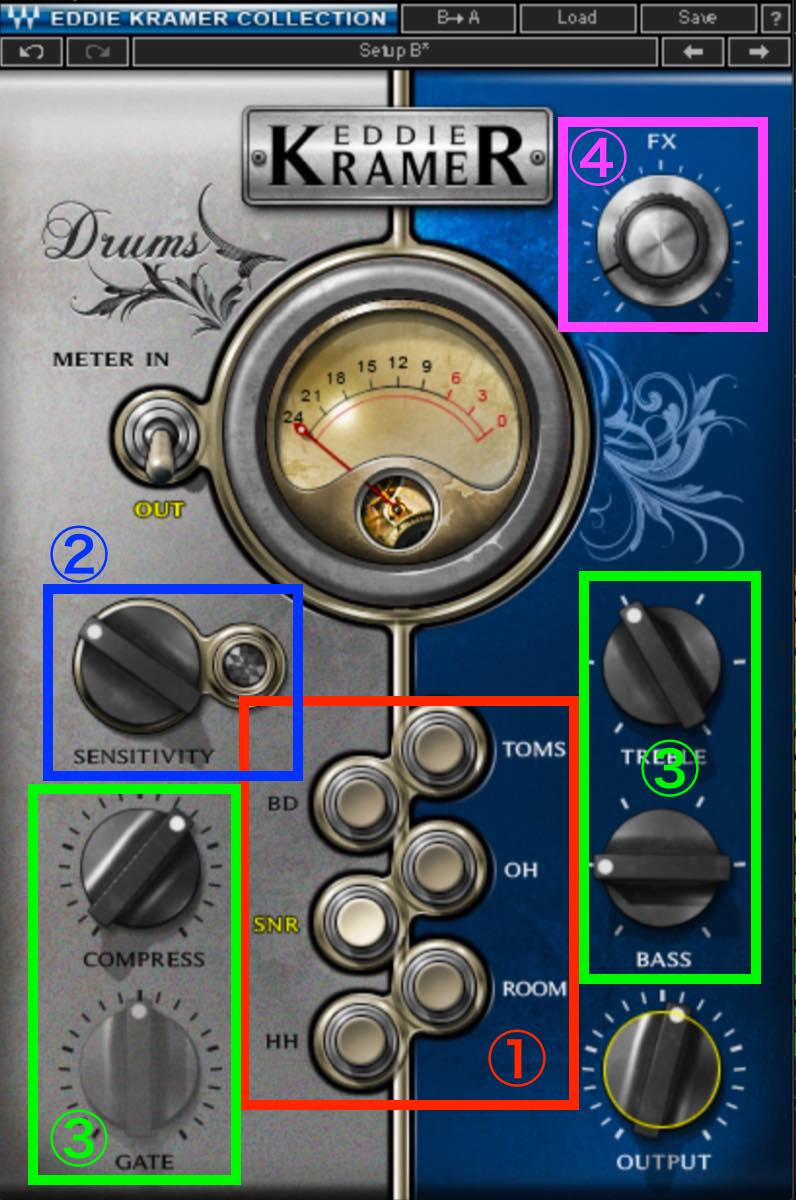
- ① CONTROLS: Select the drum component you are processing.
- ② SENSITIVITY: Adjust the input level appropriately, as with CLA Drums, JJP Drums, and Maserati DRM.
- ③ COMPRESS / GATE / EQ: Shape the sound with compression, gating, and EQ, as the labels suggest.
- ④ FX: Adjust the amount of effects.
I reduced the effects a little while applying firm compression for punch.
Listen to it in the full mix: Eddie Kramer Drum Channel with the SNR setup and minor adjustments.
Comparing the Fully Processed Drums
For the finished example, I used JJP Drums on the kick, Maserati DRM on the snare, Eddie Kramer Drum Channel on the hi-hat, CLA Drums on the toms and room, and Maserati DRM on the overheads. I started from the available setups and refined the settings.
Let's compare the examples below: first with the Signature Series processors bypassed (Neutron only), then with the Signature Series processing enabled.
What do you think?
The Waves Signature Series adds another layer of character to Neutron's basic processing. I think the two complement each other very well.
As I have emphasized throughout, the biggest advantage of this combination is speed. The video may seem slow because I explain each step, but working without the commentary is very quick.
There is little need to get lost in endless trial and error. What you need is a clear idea of the sound you want. With that in mind, choosing a preset and refining it should go smoothly.
If I were to add one recommendation, it would be to learn the basics of mixing first. Understanding the controls makes it easier to judge what is happening and decide what to adjust.
Product Links from the Original Article
• iZotope Neutron 3 Standard
• Signature Series Bass and Drums
Better Mixing Tips #10
Fast Drum Mixing with iZotope Neutron 3 and Waves Signature SeriesThe biggest advantage of this combination is speed.
All you need is a clear idea of the sound you want.🎥 YouTube: https://t.co/kN02DgmP4M
📝 Article: https://t.co/hRb0Xro1DP pic.twitter.com/ZLqV9QRwCx
— SLEEP FREAKS (@SLEEPFREAKS_DTM) April 25, 2020
Frequently Asked Questions
Q1. Can beginners use Neutron 3's Mix Assistant?
Yes. Mix Assistant can suggest a starting point for basic EQ, compression, and other processing. Choose the track-processing options shown above, play the audio for analysis, then review the suggested result and accept it if it works for your mix.
Q2. How much can I customize Waves Signature Series presets?
Use presets as starting points, then refine the controls available in each plug-in, such as COLOR, THUMP, SNAP, and TREBLE. You can keep a preset's settings or change them substantially to create your own sound.
Q3. Do I need a different plug-in for each drum component, such as kick and snare?
No. Processors such as CLA Drums, JJP Drums, and Maserati DRM offer modes for different drum components, selected with controls such as MODE or TYPE. Choosing processors and modes for their individual character can help you shape the mix.
NEW ARTICLES
Latest English Articles











































































































































































































