
Let an AI Agent Handle Computer Tasks
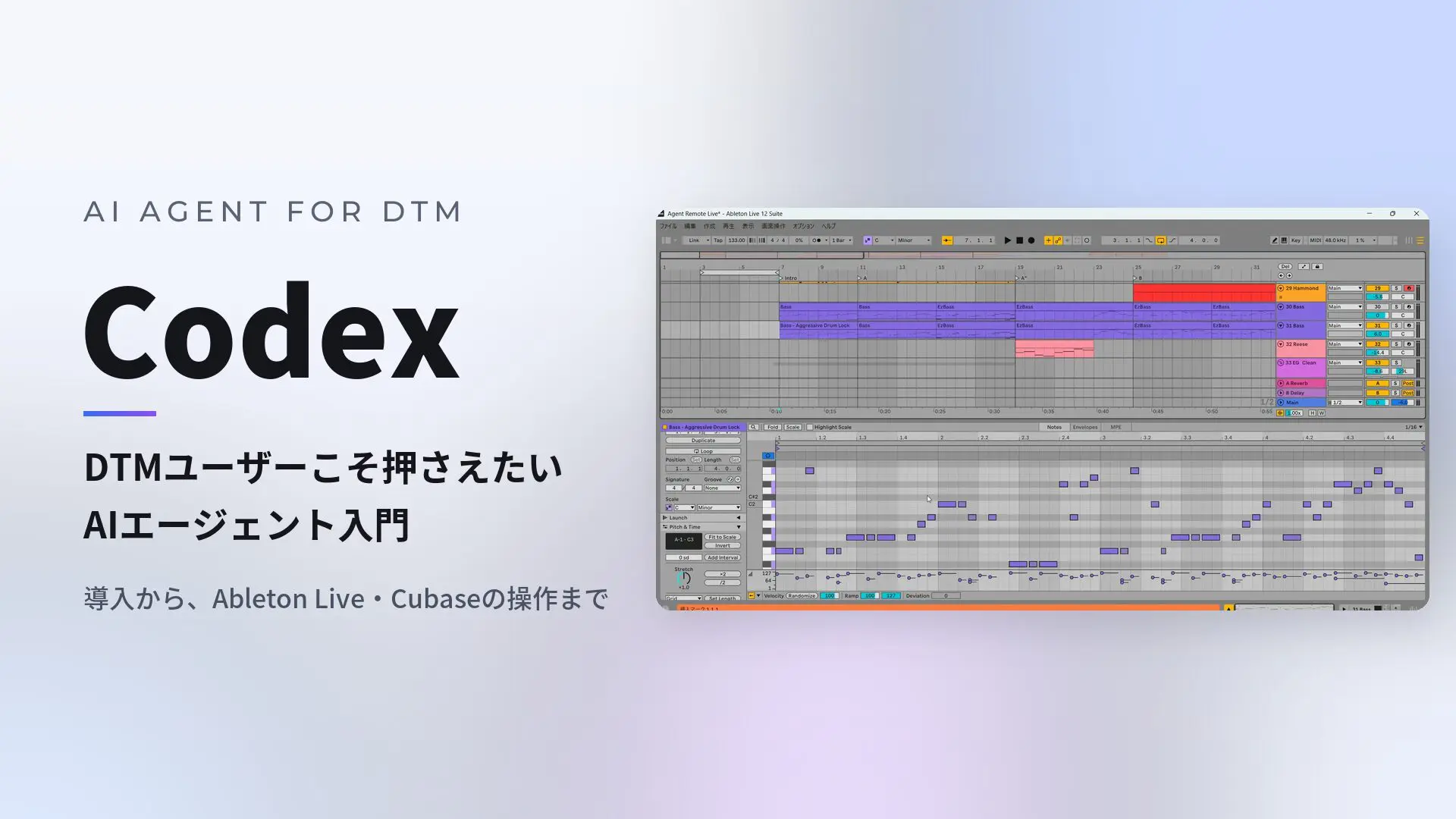
Even if you already use ChatGPT or Gemini, perhaps you mostly send a message and wait for an answer.
An AI agent takes things a step further.
By installing AI on your computer, you can have it organize files and operate software for you.
The stories you see on social media about AI creating plug-ins or operating a DAW to make a song are possible thanks to AI agents.
If you already use a computer for music production, you have many of the basic skills needed to get started.
Using OpenAI’s Codex as an example, this article covers three things:
- Installing Codex and understanding projects
- Delegating computer tasks such as sample organization and scheduled work
- Having the agent operate a DAW such as Ableton Live or Cubase
Video
What Is an AI Agent?
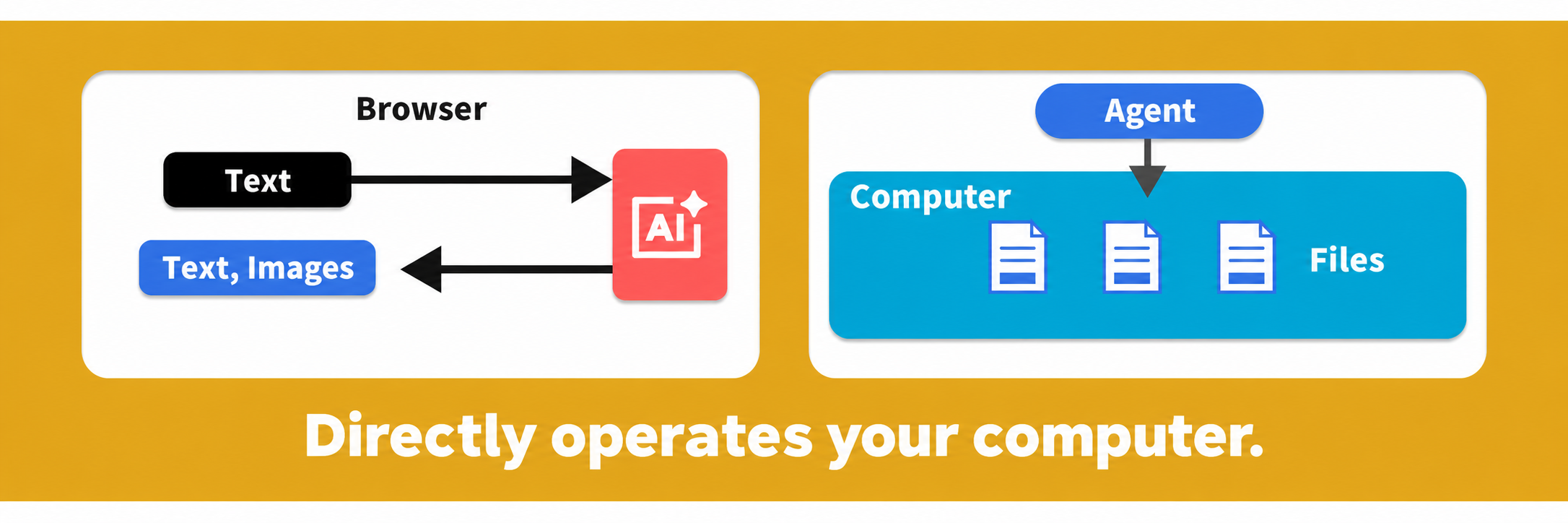
Browser-based ChatGPT and Gemini respond to your messages with text or images.
An AI agent goes a step further: its key difference is that it can work directly on your computer.
For example, ask it to organize photos on your desktop and it can rename files and sort them into folders.
Major AI Products and Their Makers
Different companies create different AI products, much as Steinberg makes the DAW Cubase.
Here are some familiar AI products and their makers.
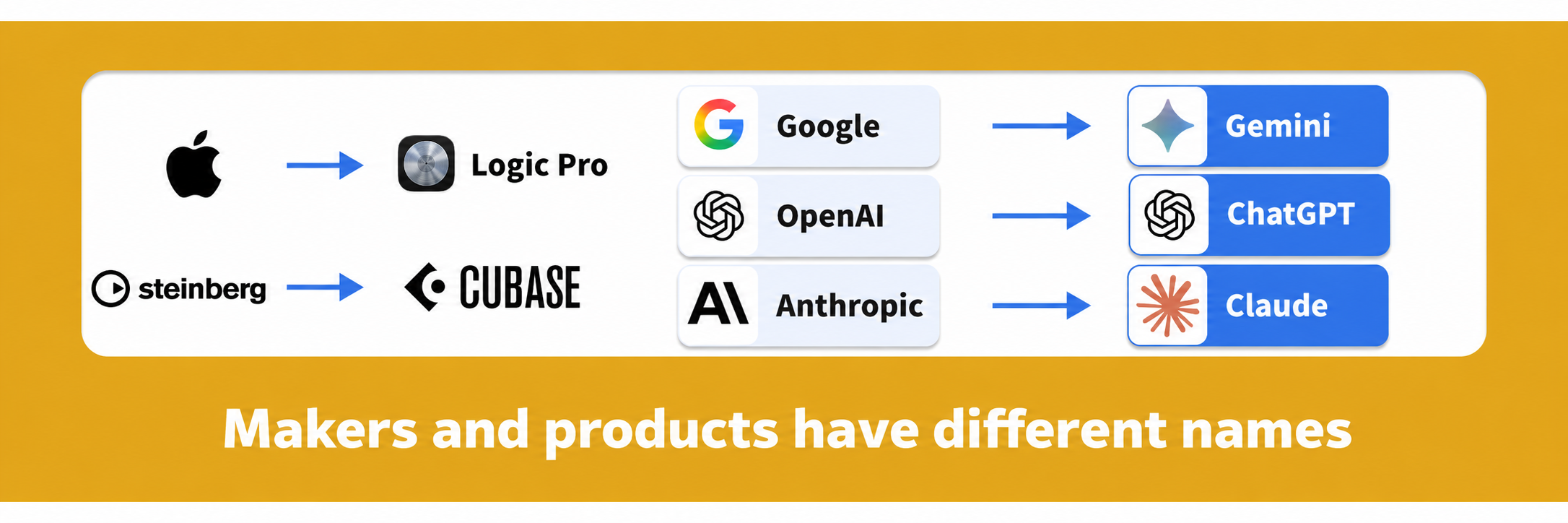
The software used as an agent may have a different name from the AI itself.
For example, OpenAI’s agent is Codex, while Anthropic’s is Claude Code.
This article uses OpenAI’s Codex.
Alongside the fact that many readers already have a ChatGPT account, my own experience has been that it understands musical context well, making it my current recommendation for music production.
Installing Codex
Download Codex from OpenAI’s website.
Search for “Codex” to find OpenAI’s Codex page.
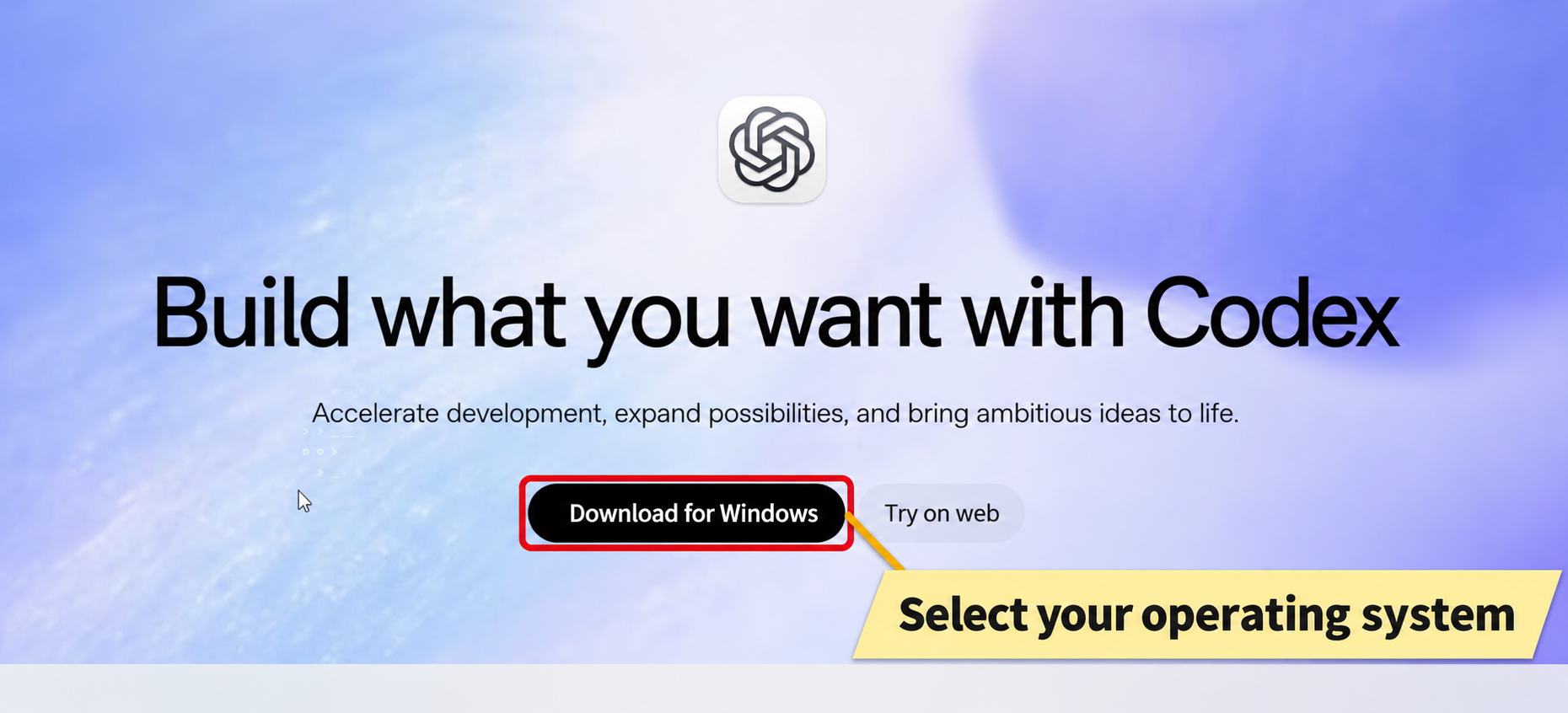
The button shows the version for your operating system; the screenshot shows Windows.
On Windows, clicking it opens the Microsoft Store installer and starts the download.
In the Store, the app is listed as OpenAI’s “ChatGPT.”
If Windows asks whether to allow the app to make changes to your device, select “Yes” to continue.
When installation finishes, a sign-in screen appears.
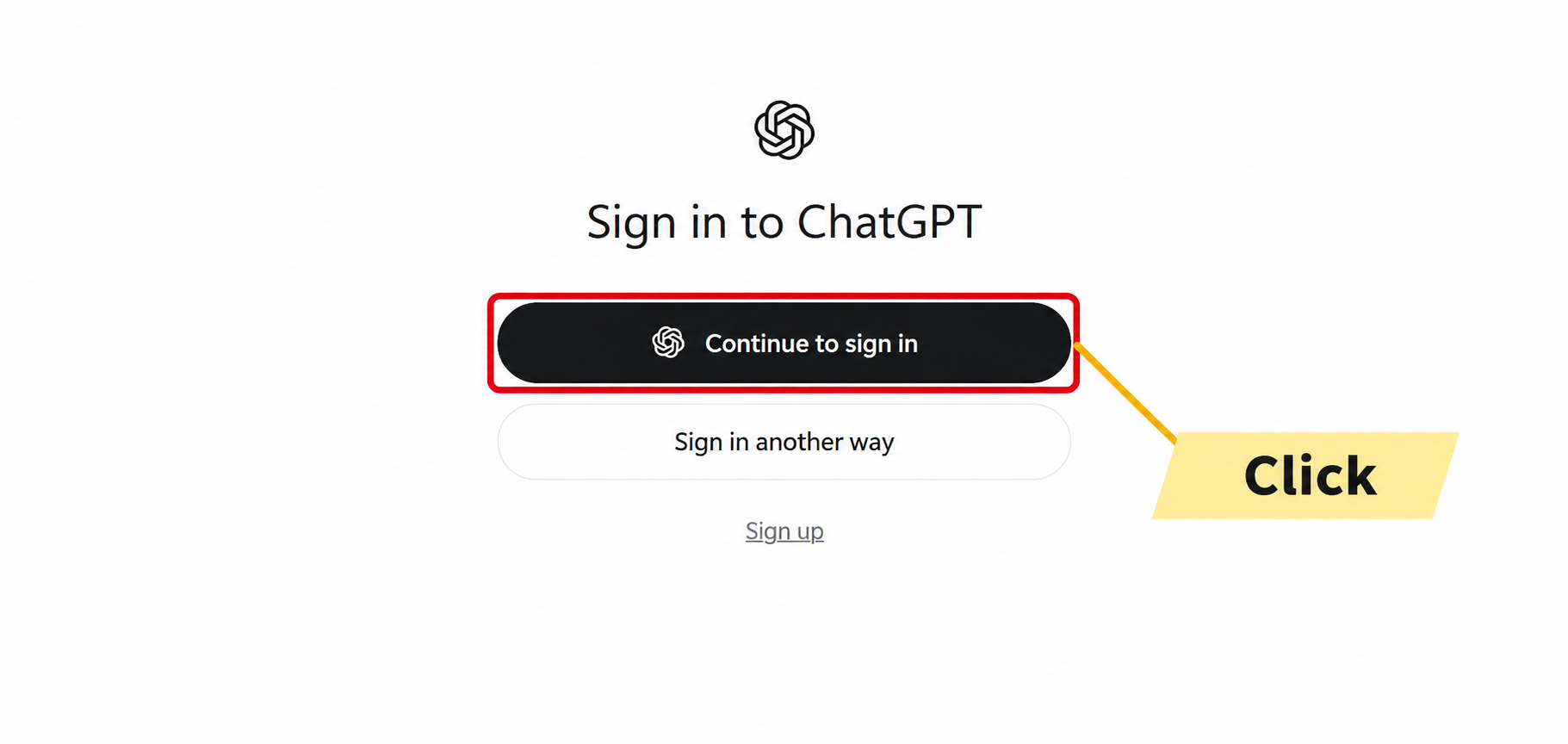
If you already use ChatGPT, you can use your existing account.
If you have never used ChatGPT, choose “Sign up” to create an account.
You can also sign in with a Google account.
Create a Project for Each Topic
Before you start using Codex, it helps to understand projects.
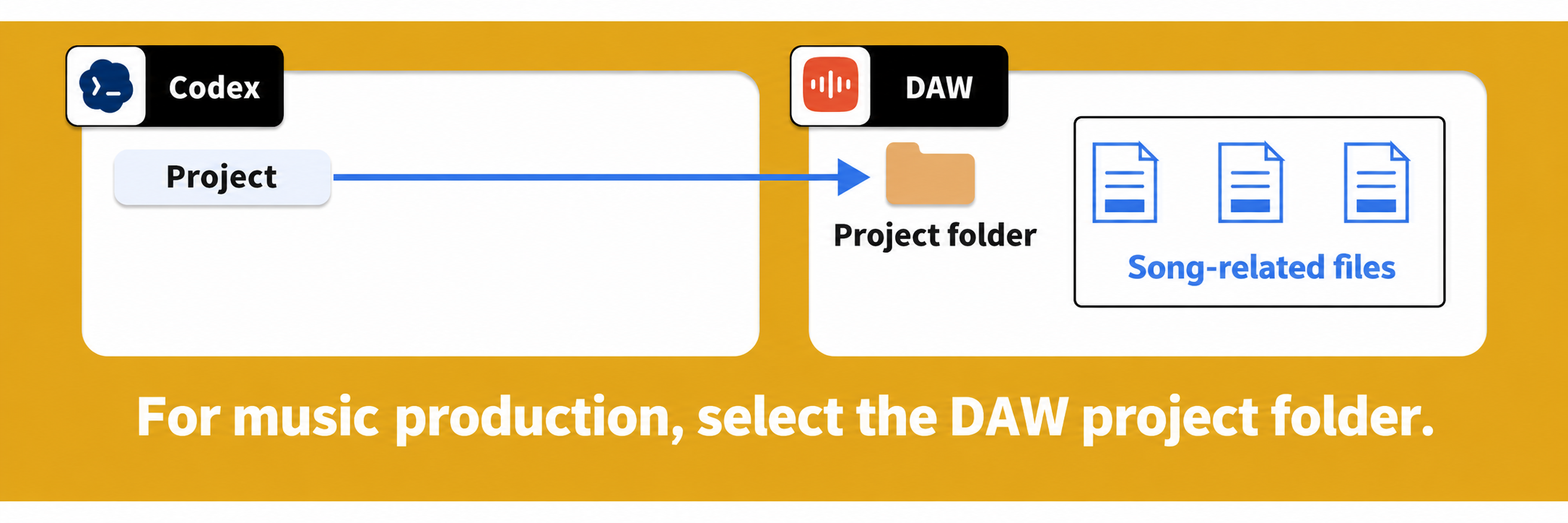
Just as you create a DAW project folder for each song, organize your work into separate projects for each topic.
Here, we’ll create a project to have Codex organize samples collected online and scattered across the desktop.

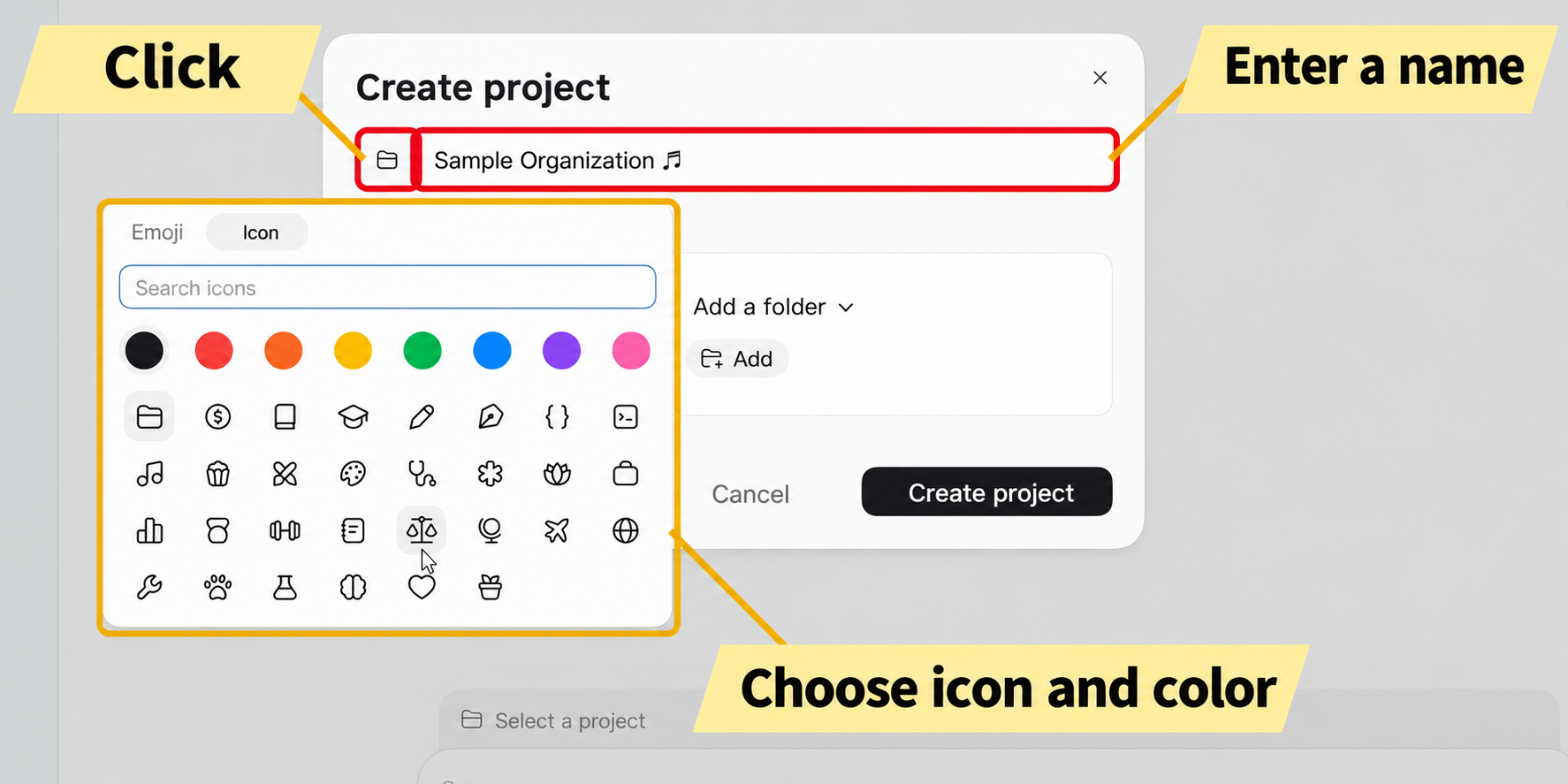
The project name can be in Japanese or English, and you can use emoji.
The icon is a visual marker rather than a folder type, so choose whatever helps you recognize the project.
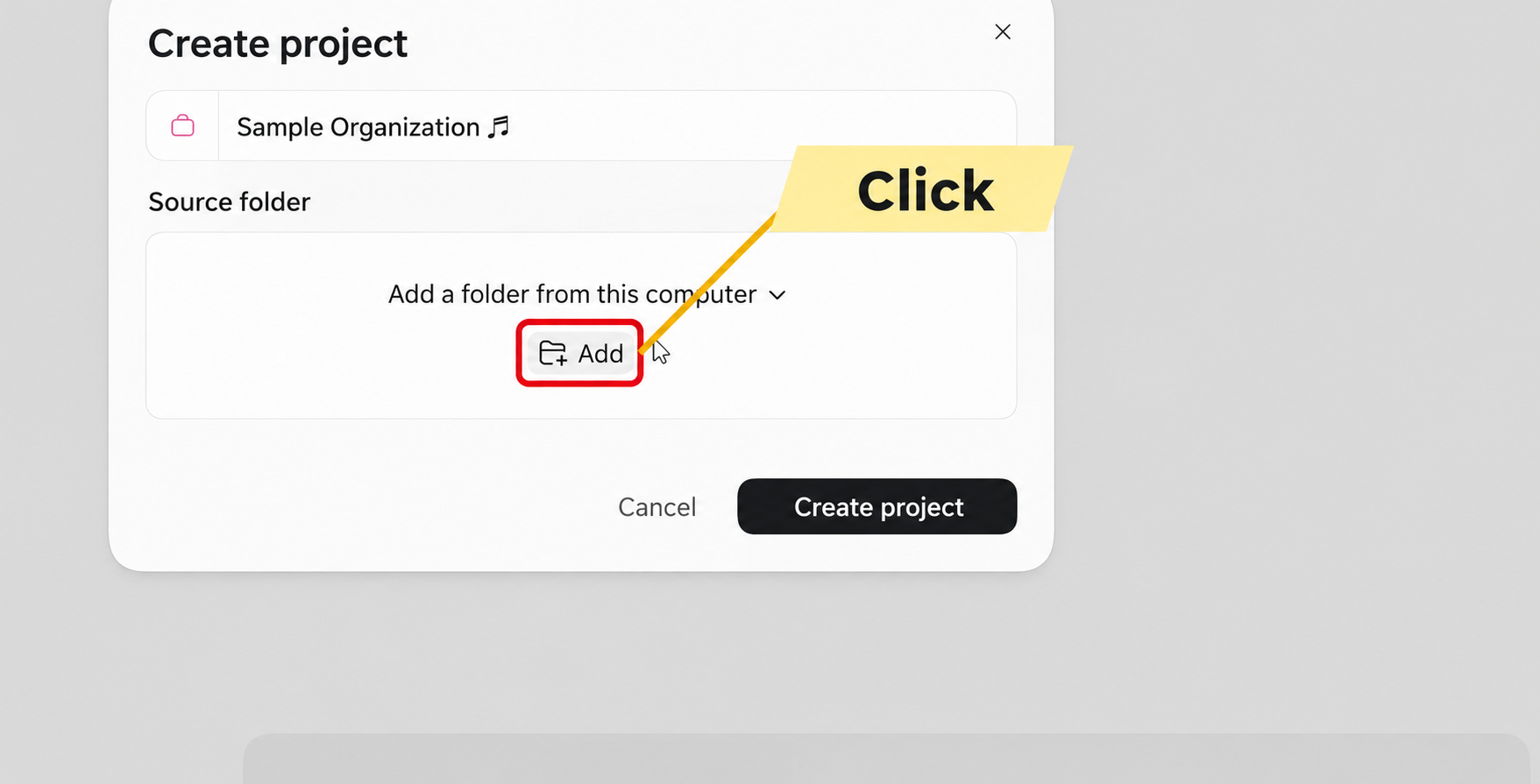
Specify the Working Folder
Next, specify the folder Codex will work in for this project.
In this example, the samples we want to organize are on the desktop.
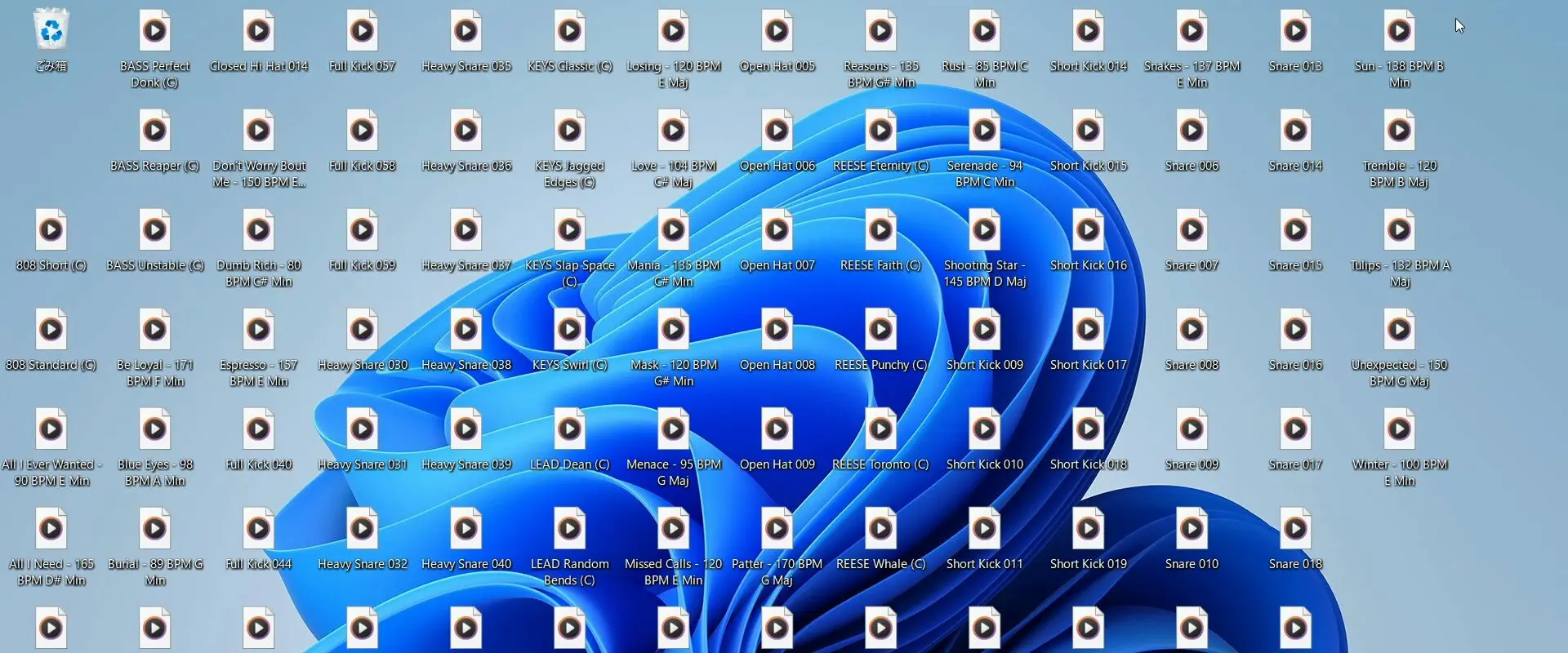
When you select the desktop as the working folder, Codex generally works within that folder.
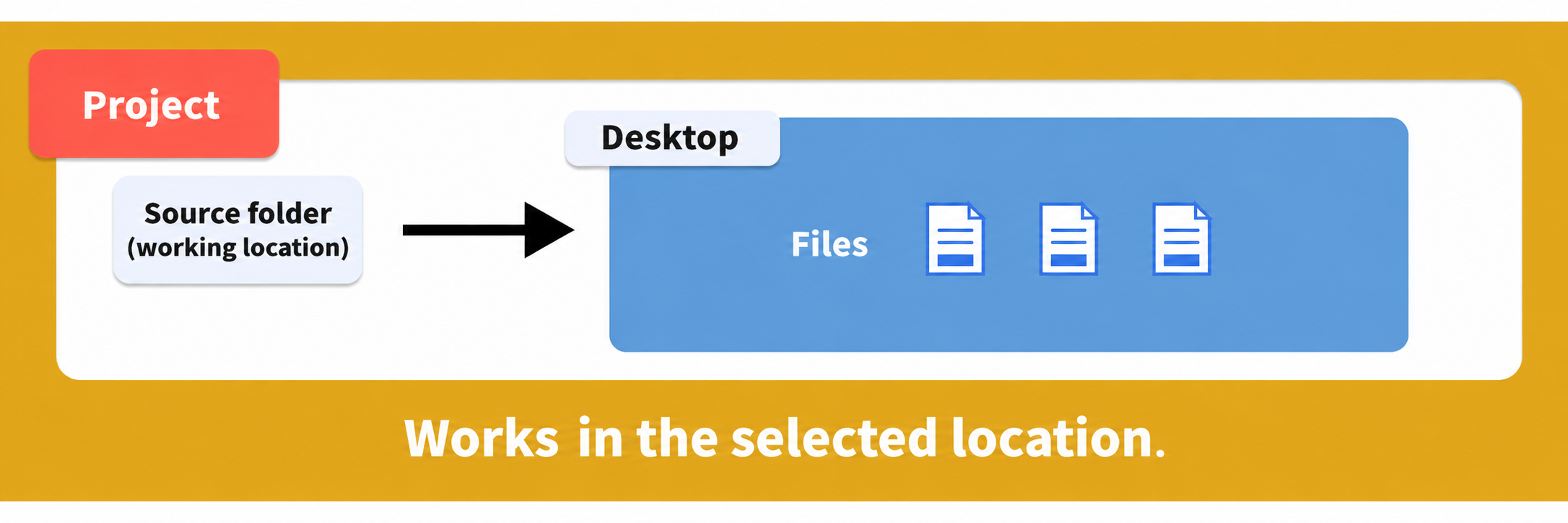
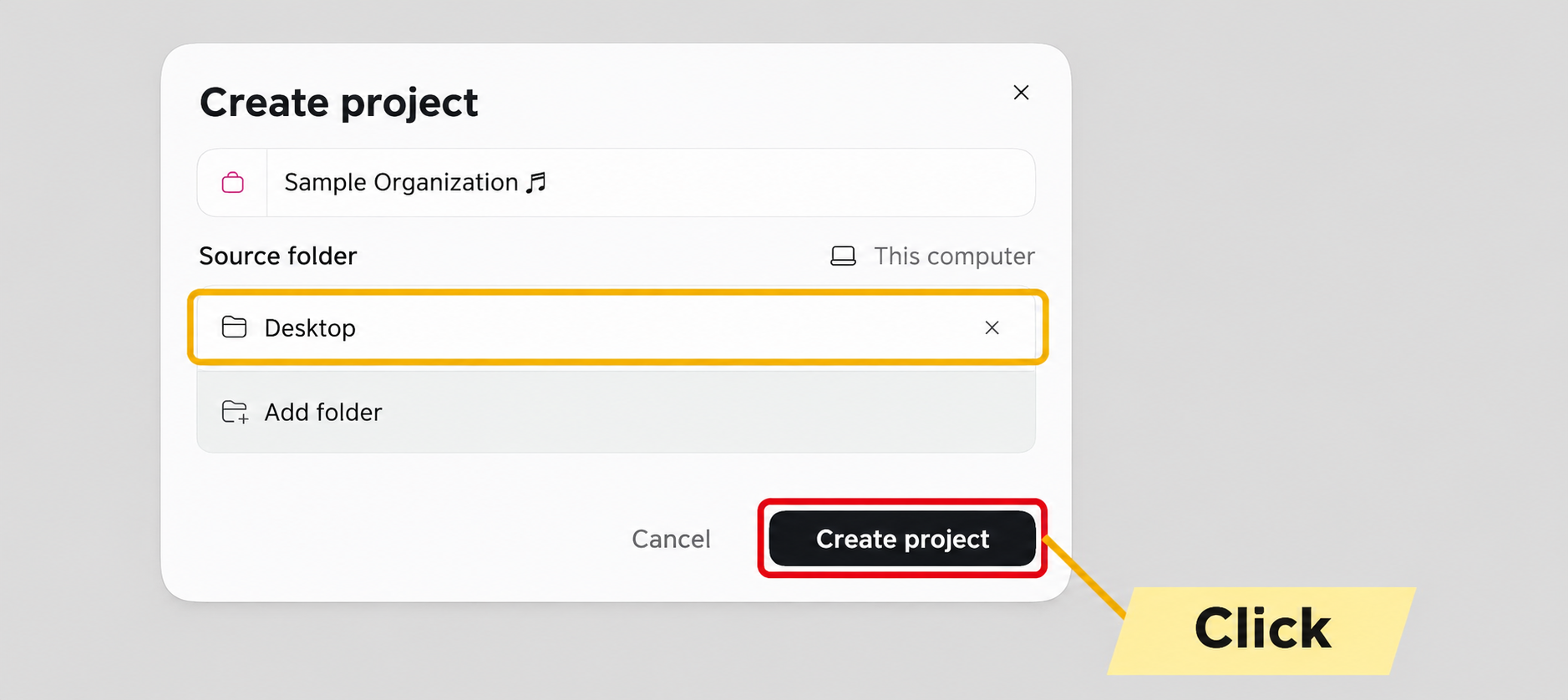
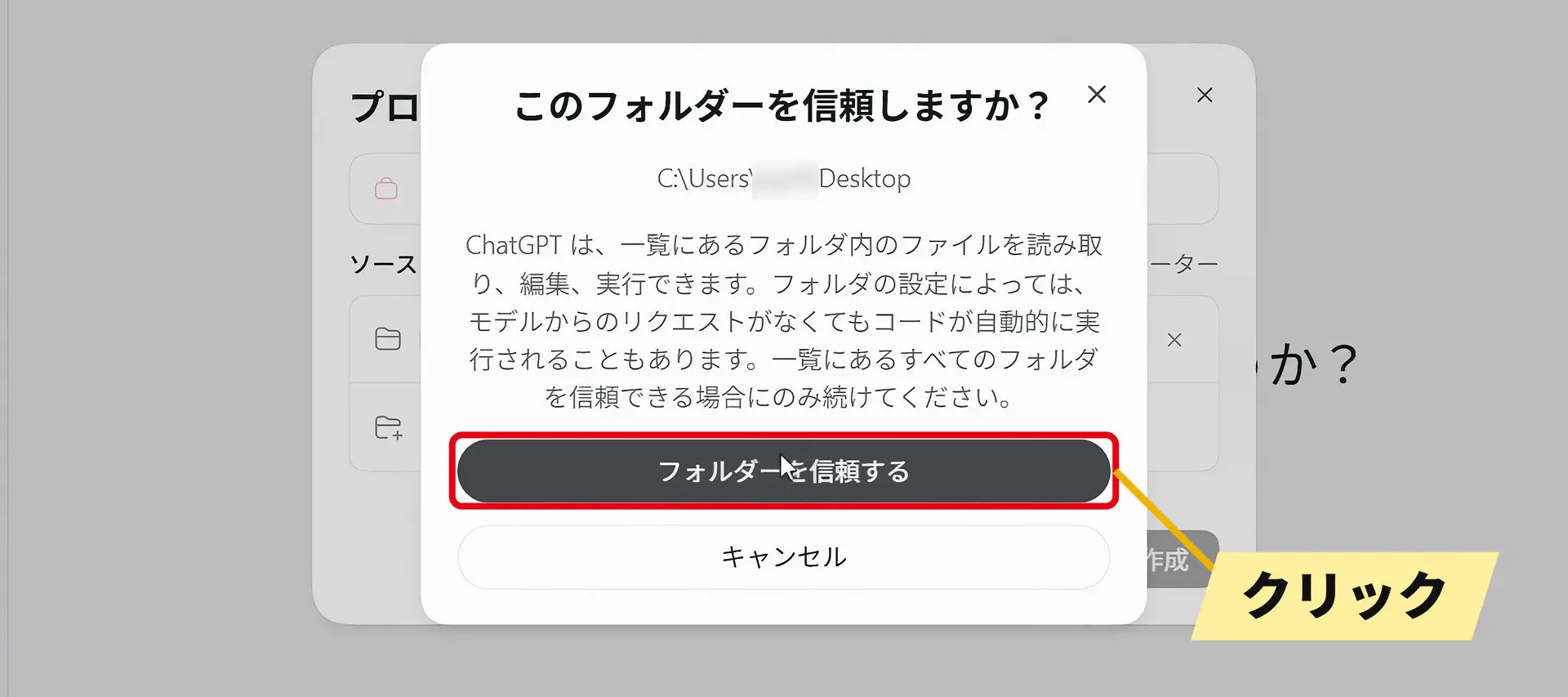
Codex can edit or delete files in the folder as well as read them.
Because AI can make mistakes, this confirmation asks whether you trust it with the folder.
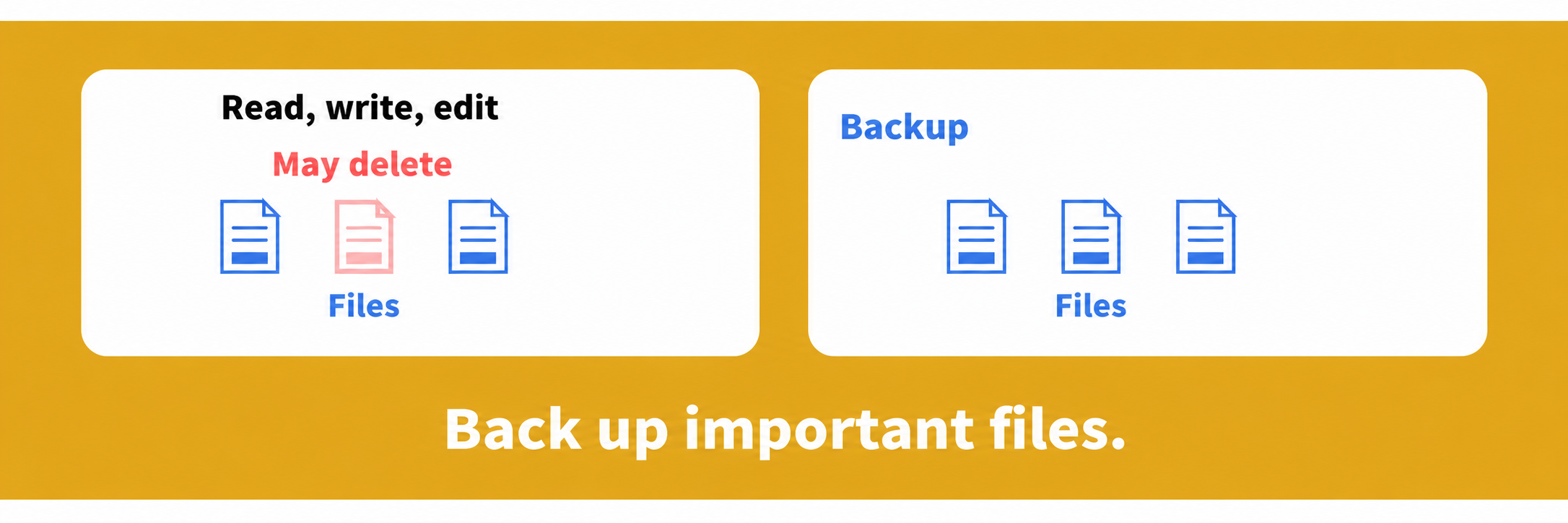
If the folder contains important files, it is wise to make a backup first.
Your new project appears under “Projects” in the left sidebar.
Add chats within that project for requests on the same topic.
Asking about entirely different subjects in one project can make context harder for the AI to keep straight, so create a separate project when the topic changes.
Ask Codex to Organize Samples
Write your request in ordinary language, just as you would when talking to ChatGPT.
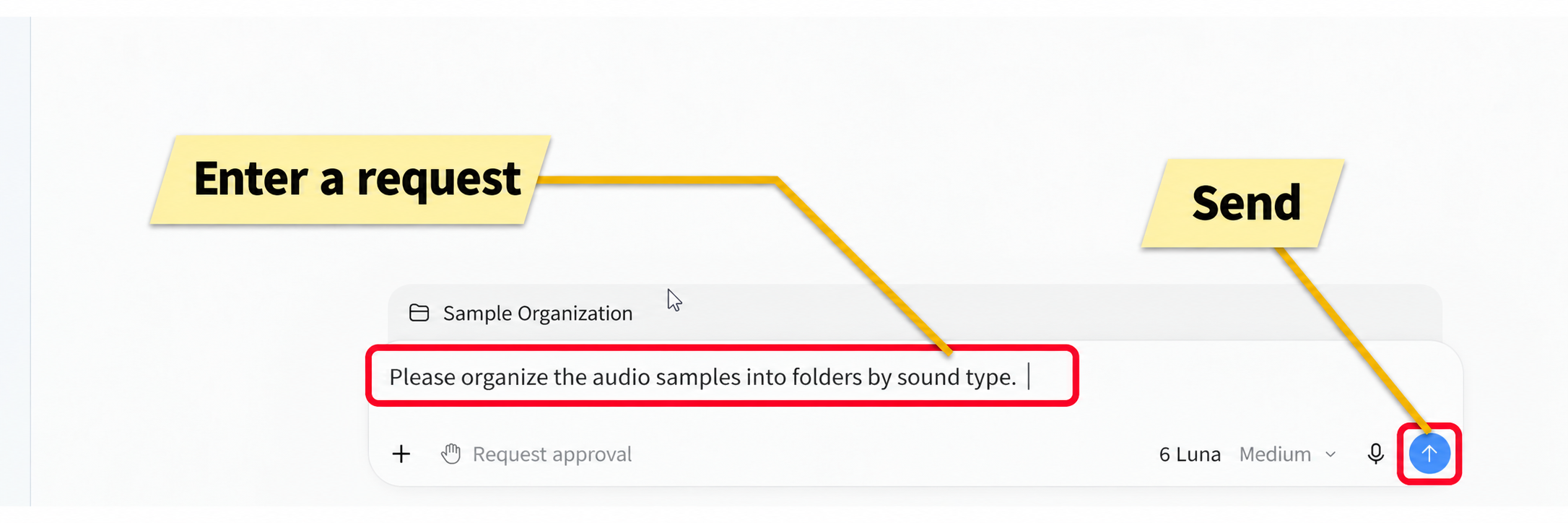
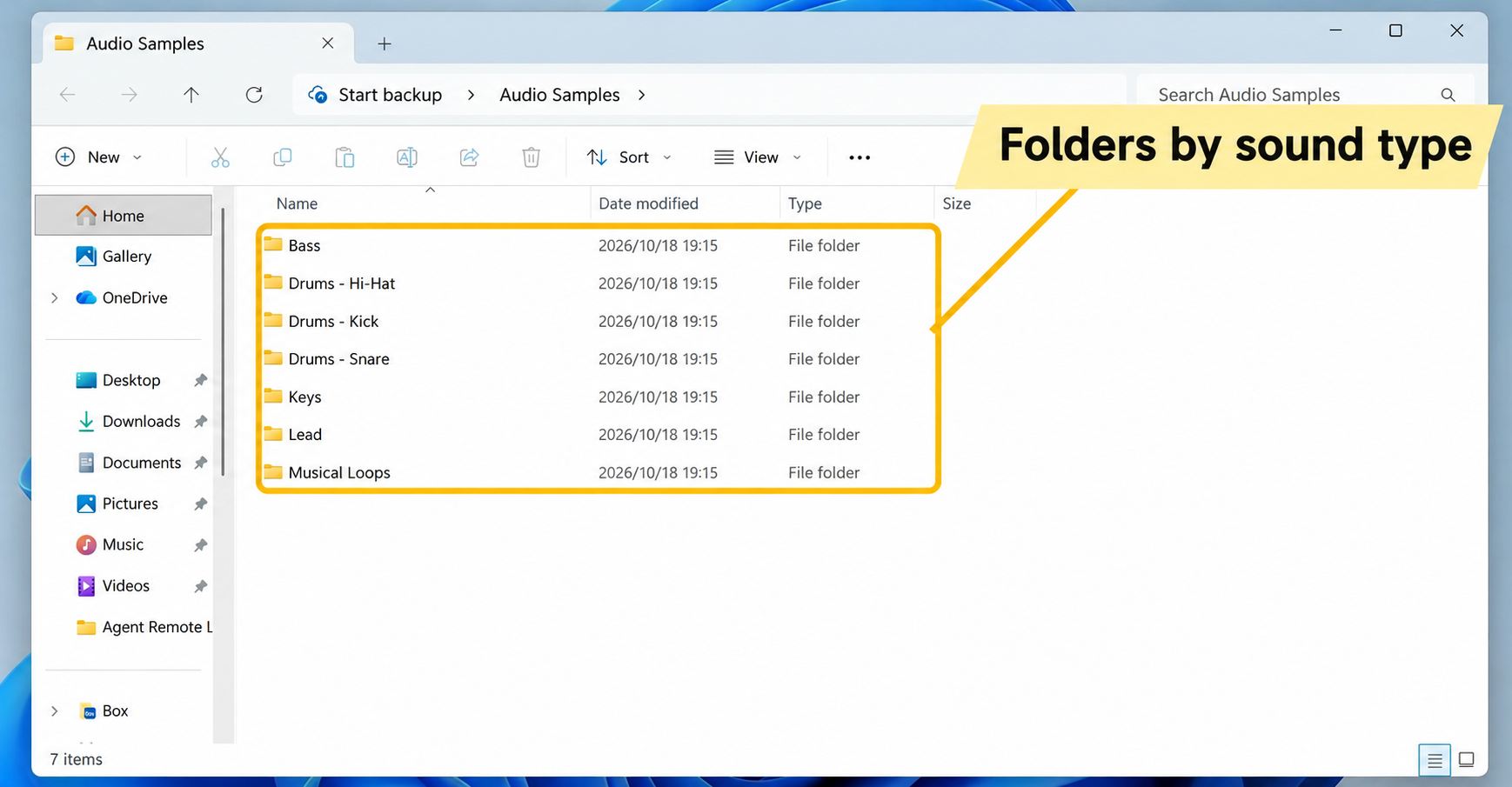
Using the filenames, Codex automatically sorts files into sound-type folders such as Bass, Kick, Snare, Hi-Hat, Keys, and Lead.
Files that list only BPM and key, without enough information to identify the sound, are grouped as loops.
Doing this manually could take days if you had to listen to every file.
Summarize the Results in a Report
Codex can also create a new file, not just organize existing ones.
If you do not specify a destination, it creates the file in the project’s working folder—here, the desktop.
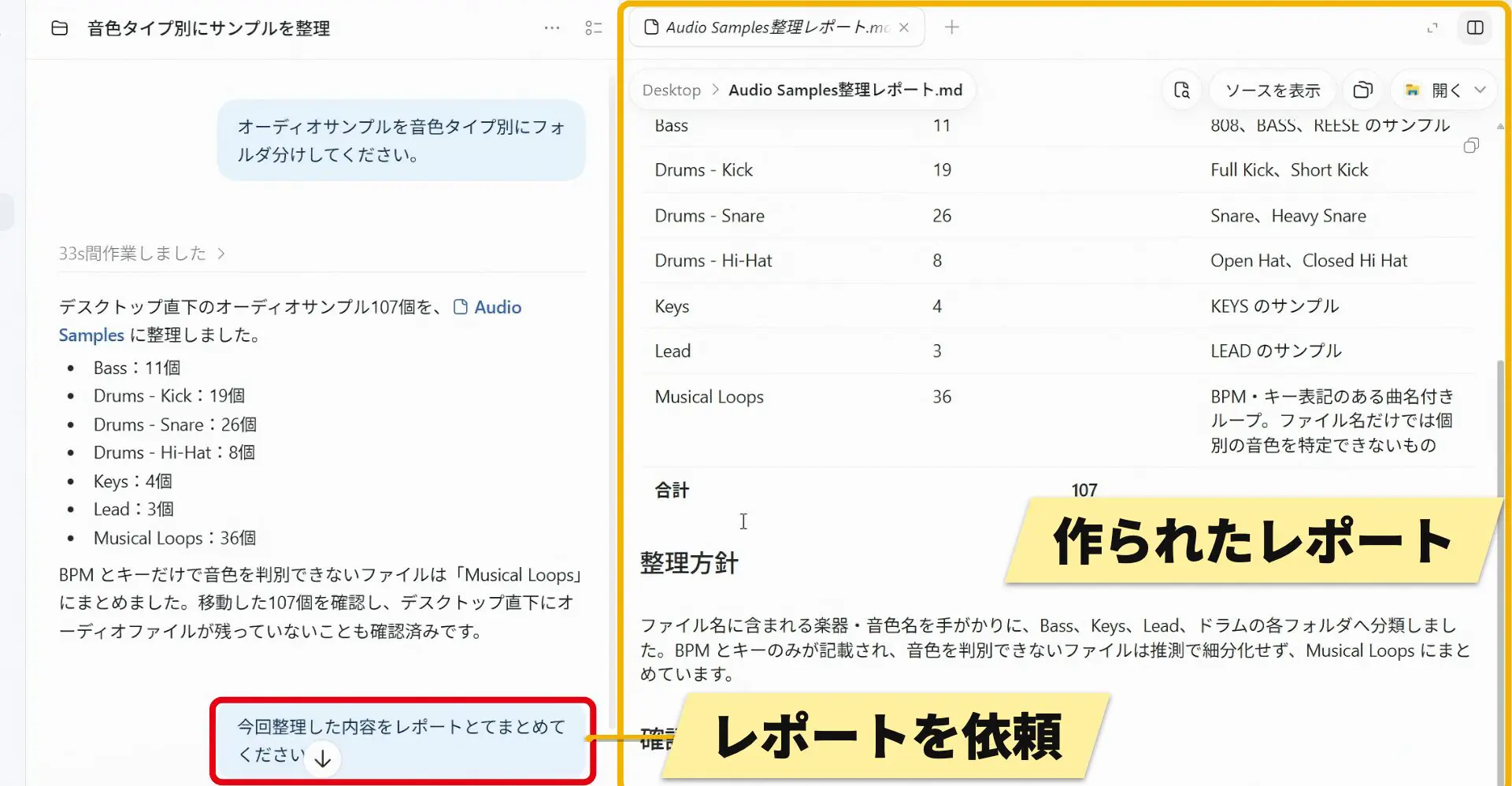
The result is a text file in Markdown format.
If needed, you can also ask it to make a PDF.
Schedule Work for a Set Time
For tasks that would otherwise require the same instructions repeatedly, you can register a recurring task at a specified time.
For example, you might ask it to organize audio files placed on the desktop at the same time every day.
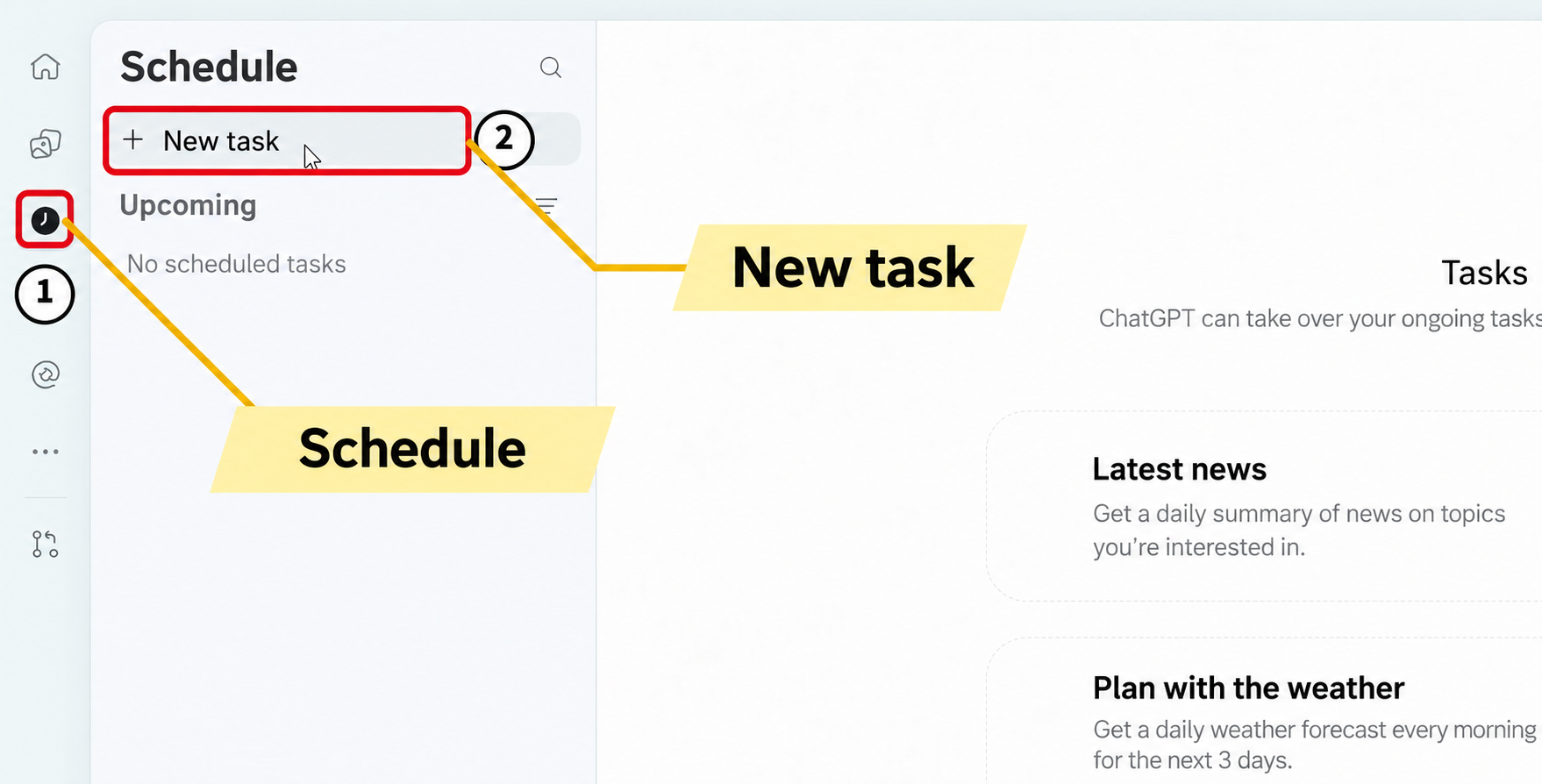
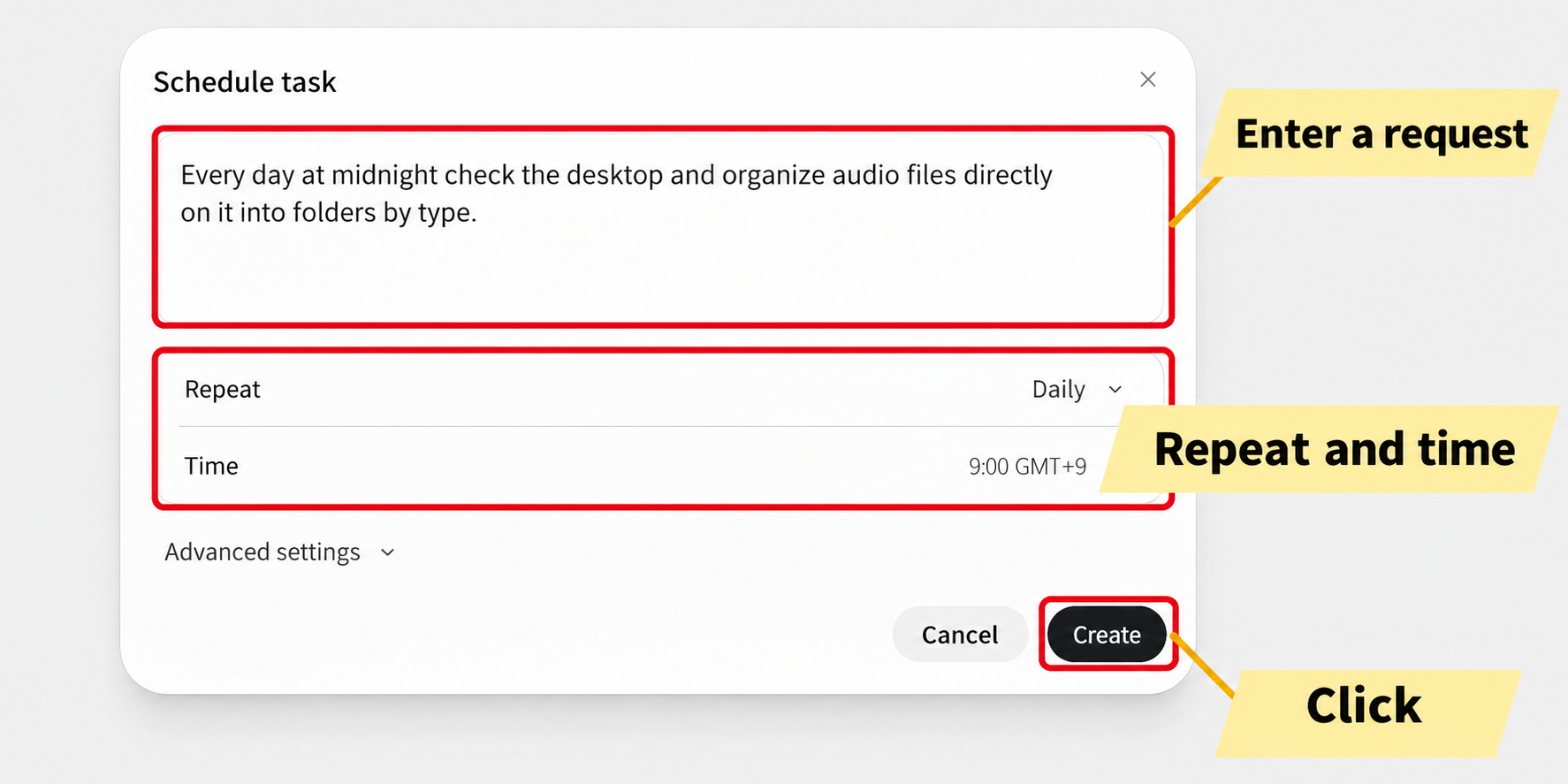
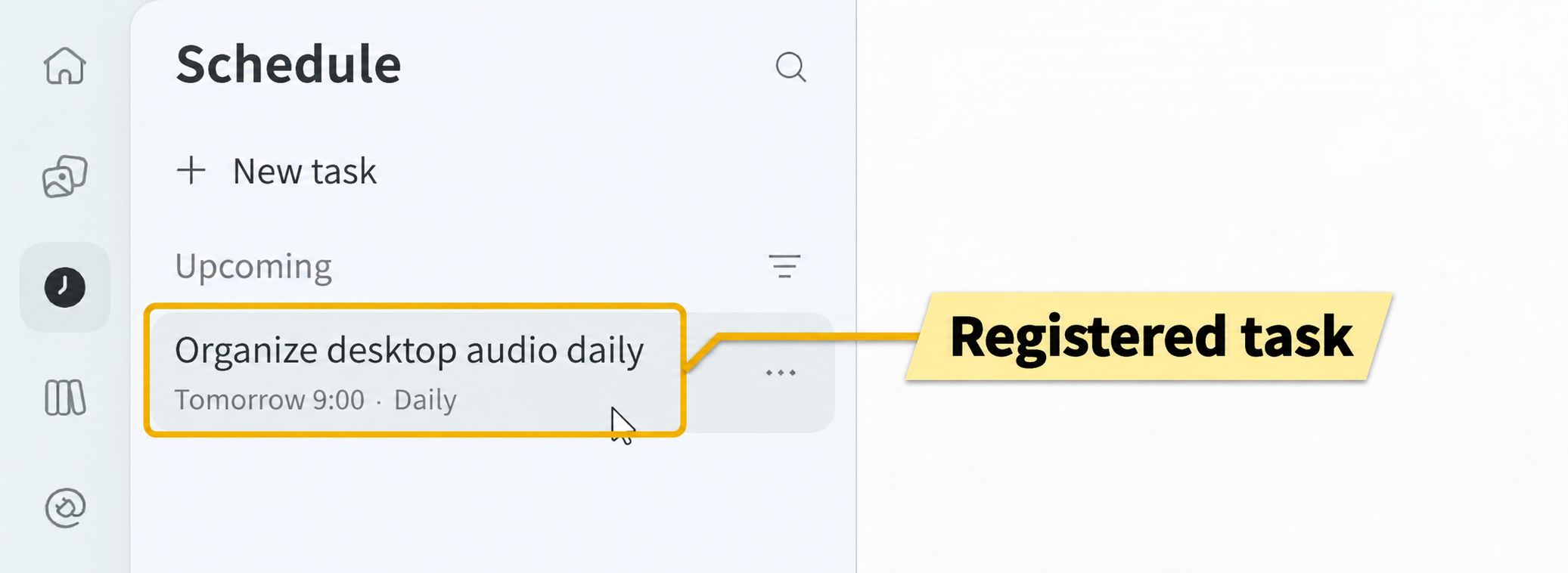
Even if the request itself mentions a time, the task runs at the time set in the time field.
You can register multiple tasks.
You can also use this for non-music work, such as checking email and preparing a reply draft.
Paid Plans and Usage
The operations shown so far can be performed with a free account, as described in the original article.
However, more complex work, such as operating a DAW to create a bass line, requires attention to usage.
Usage Limits
Codex has limits on how much AI processing you can use.
Once you reach a limit, you cannot continue until the limit resets or additional usage is available.
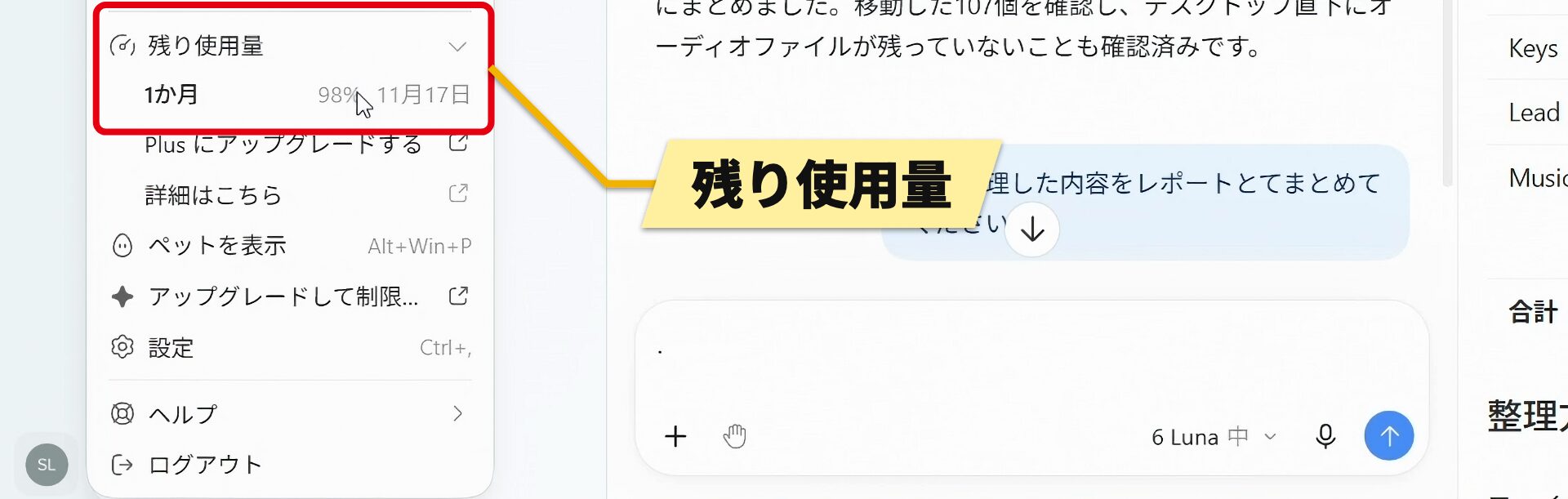
Simple sample organization may use relatively little of the allowance.
More complex work involving chord progressions or music theory can use more.
Check usage here as you decide how to allocate it.
What Paid Plans Offer
The article describes paid plans as a way to increase limits and access more capable models.
Codex is included with paid ChatGPT plans, and subscribers to Plus can use it without a separate Codex charge within the applicable limits.
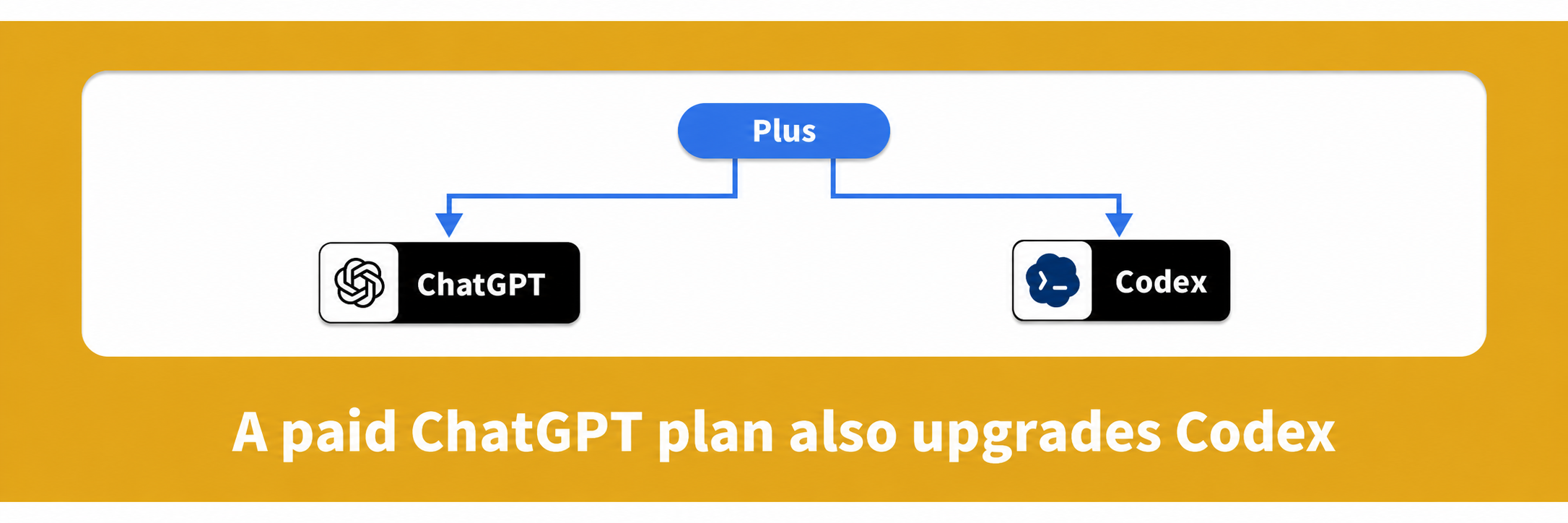
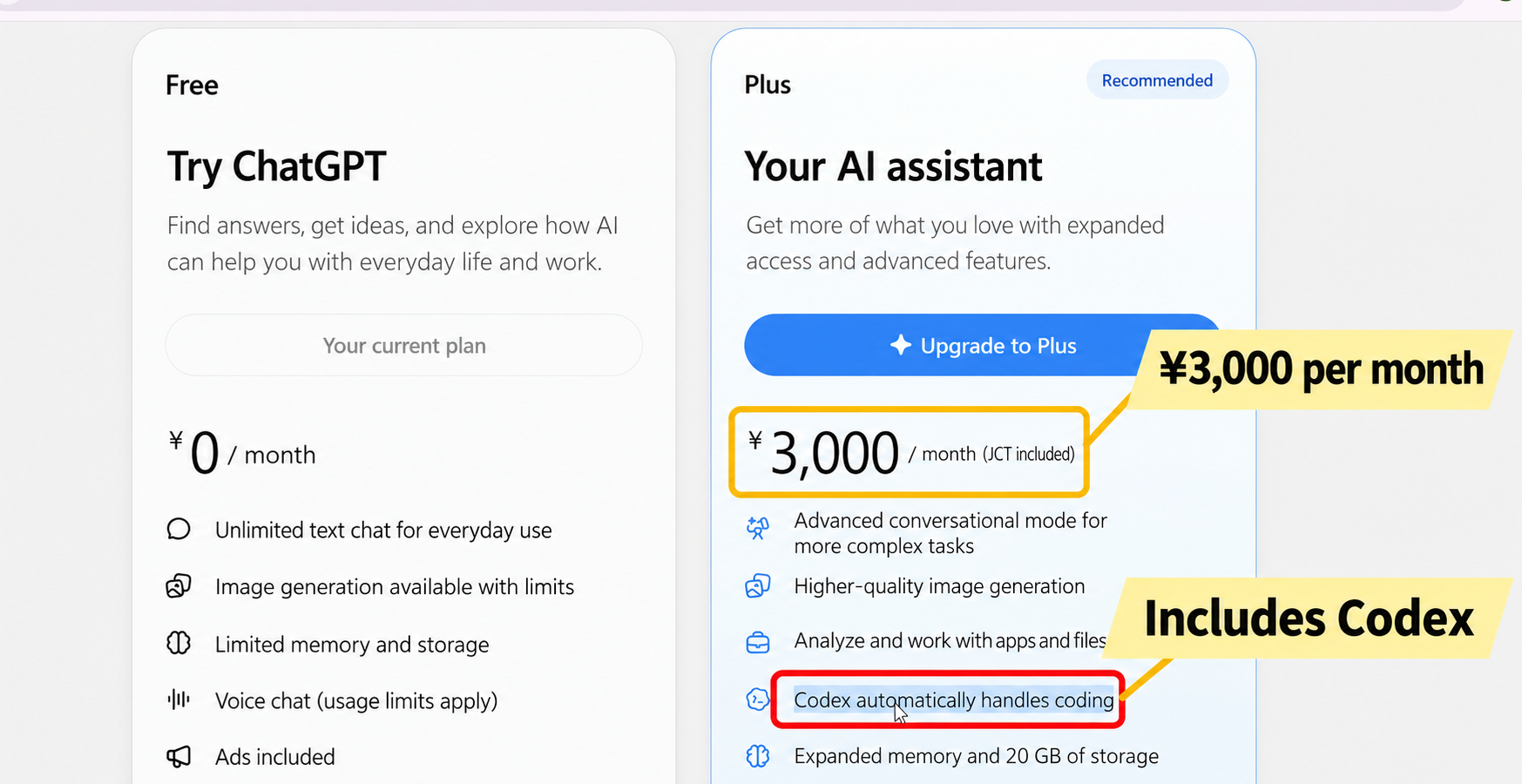
As of October 2026, the Japanese Plus price is ¥3,000 per month including tax, according to the Japanese article.
After payment, the article says your allowance increases and you can select more capable models.
*Pricing is stated as of October 2026.
Check OpenAI’s website for the latest pricing and availability in your region.
Choosing a Model and Reasoning Effort
You can switch models to suit the work.
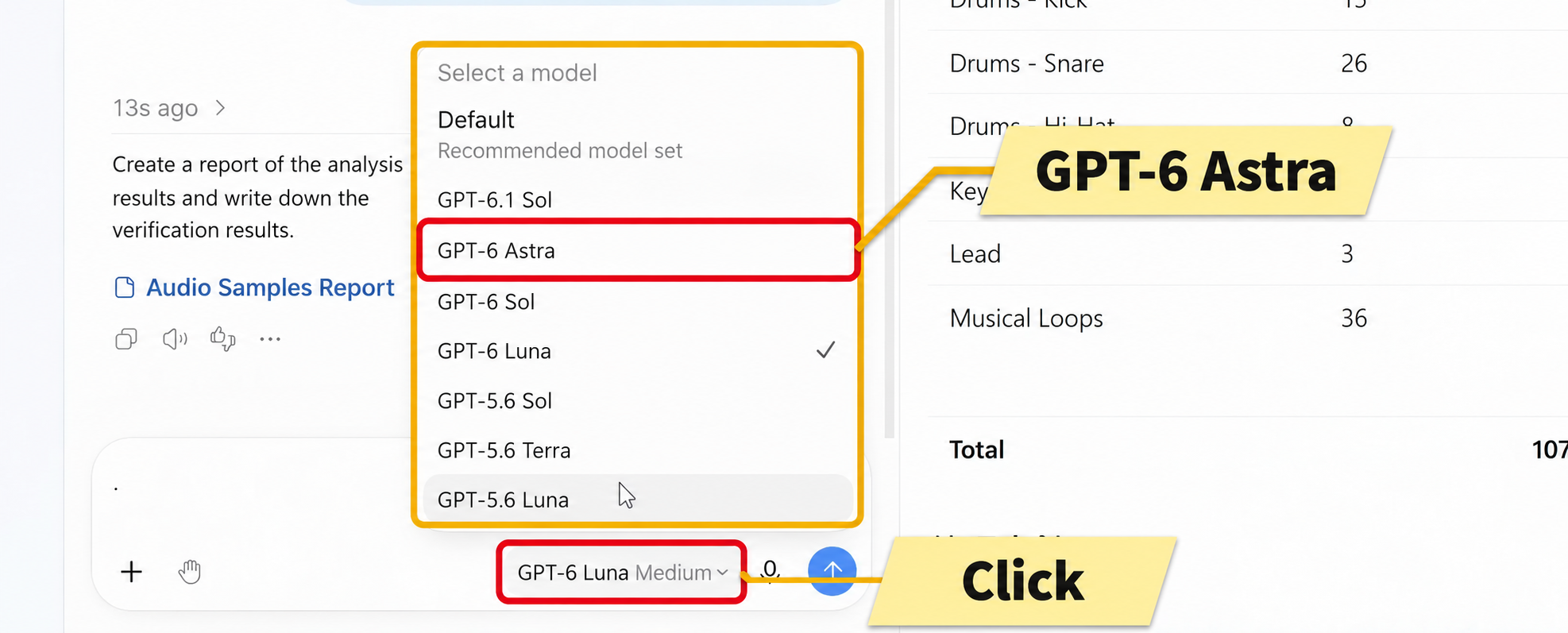
Generally, models higher in the list are more capable, though the order mixes newer and more capable models.
For music production tasks that require music theory, the author recommends “GPT-6 Astra” in this example.
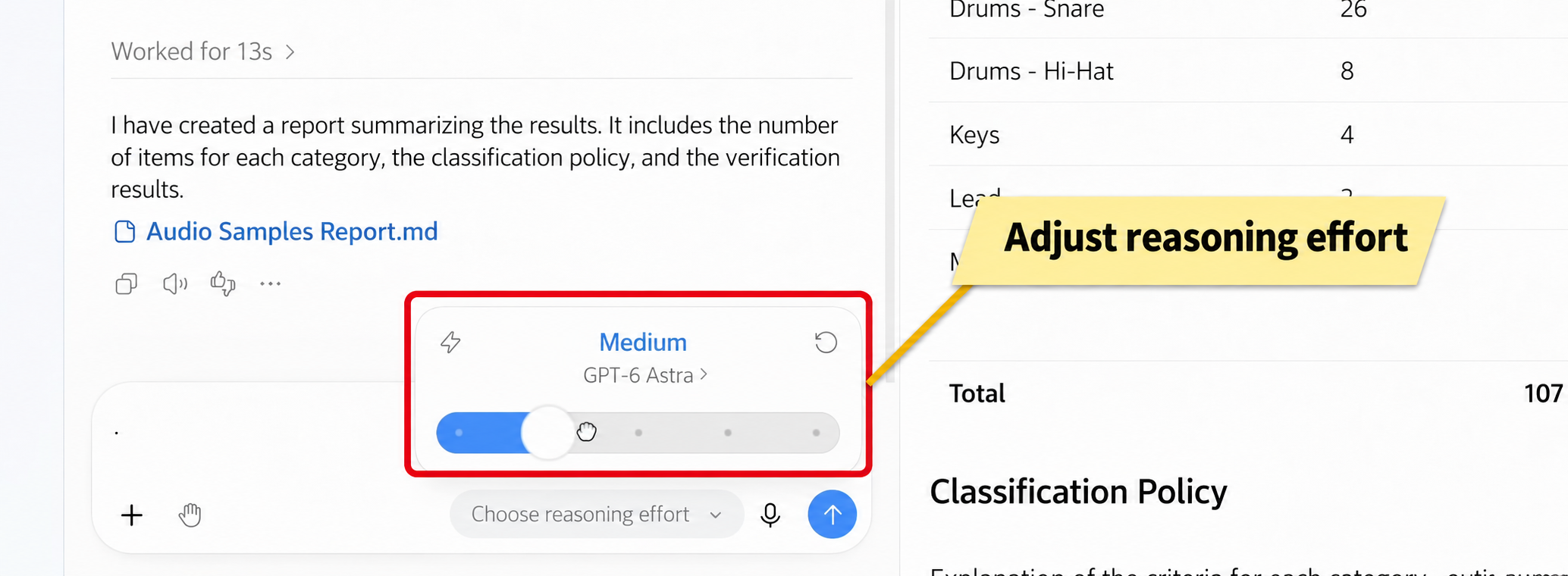
More reasoning may improve a result, while generally using more of your allowance.
The article suggests using medium or high for everyday work to conserve usage.
Reworking an Ableton Live Bass Line
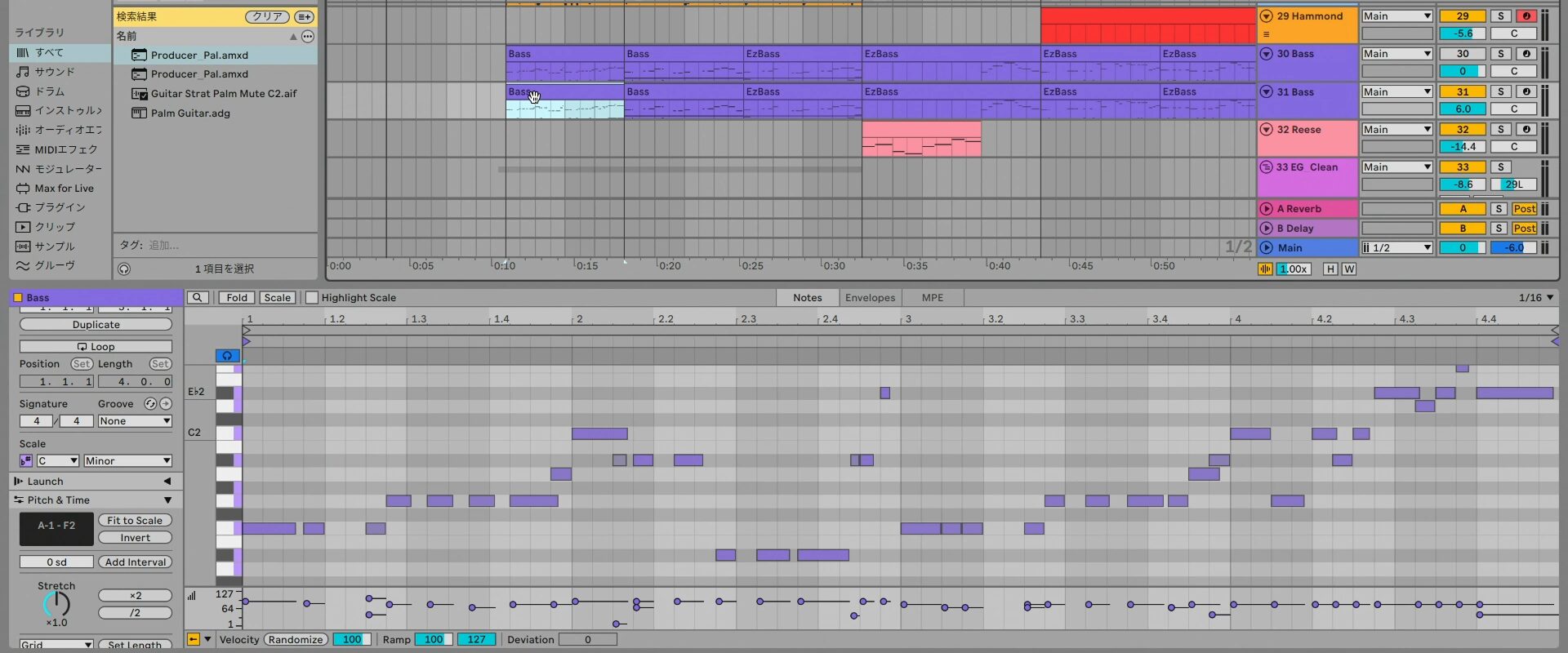
Now we will ask Codex to operate Ableton Live and rework the bass line in an introduction.
The original bass is not bad; the goal here is a funkier phrase with more movement.
Create a Project for Each Song
First, create a new project for this song.
You could call it “Arrangement Support Project,” for example, if you intend to ask for help not only with the bass but also with programming and vocal pitch correction until the song is finished.
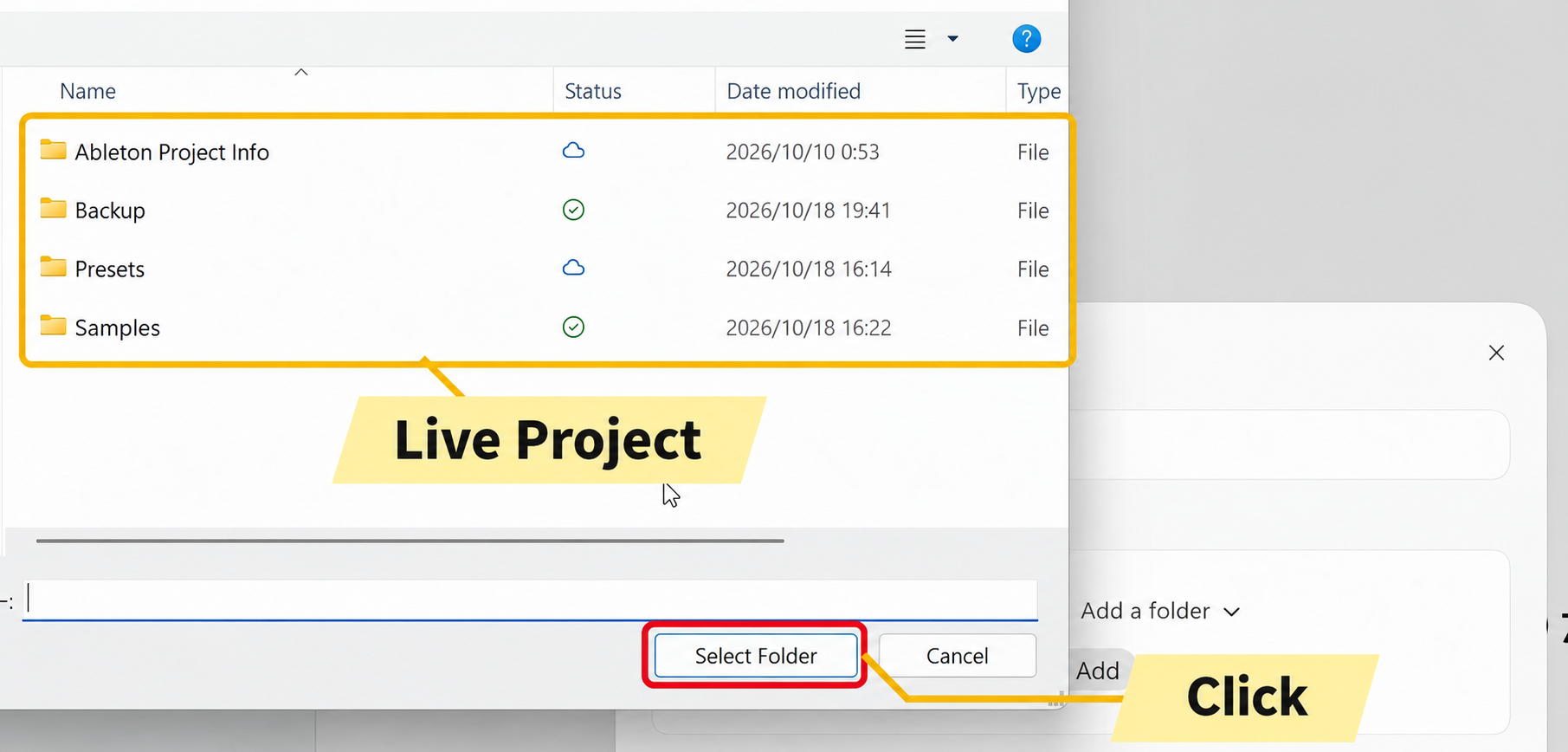
Choosing the song’s project folder helps you keep track of where it is when you later request an export or other work.
Specify the Track and Location Clearly
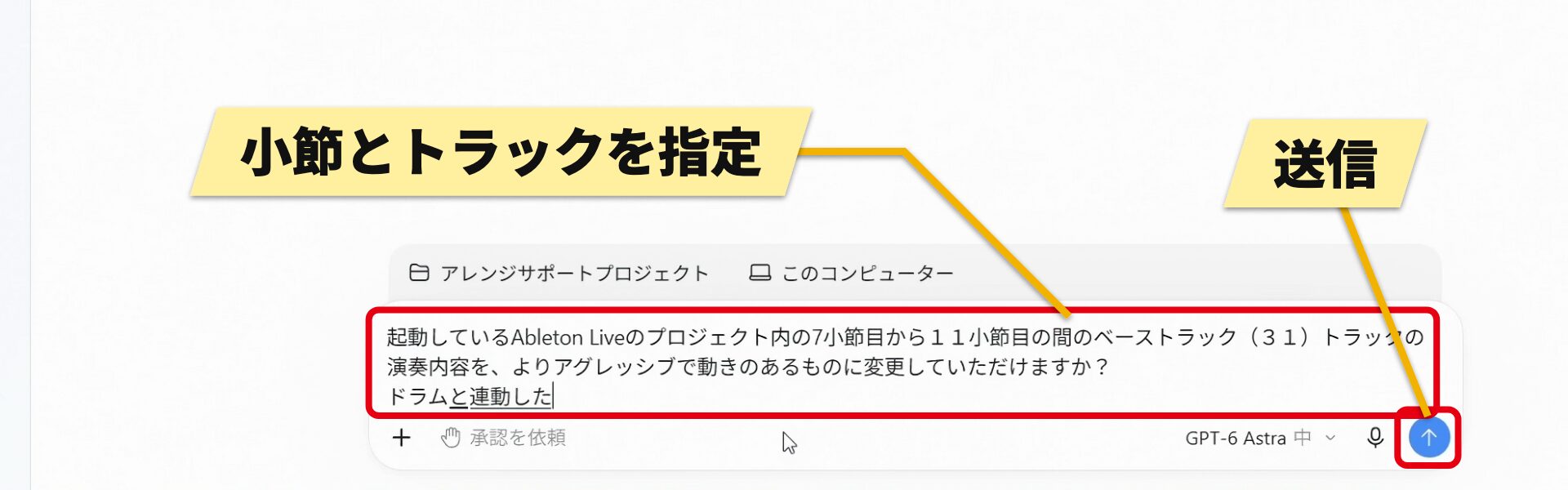
This song has two bass tracks, so simply writing “bass” could leave the agent uncertain which to edit or lead it to change both.
The key is to identify the location clearly, for example “bars 7 through 11” and “track 31.”
The original example also notes that writing the Japanese word for bass can identify a track named “Bass.”
The relationship between bass and drums matters too.
Adding a condition you already know, such as “make it work with the drums,” can help produce a better result.
You can also use voice input instead of typing.
Permission Before Editing
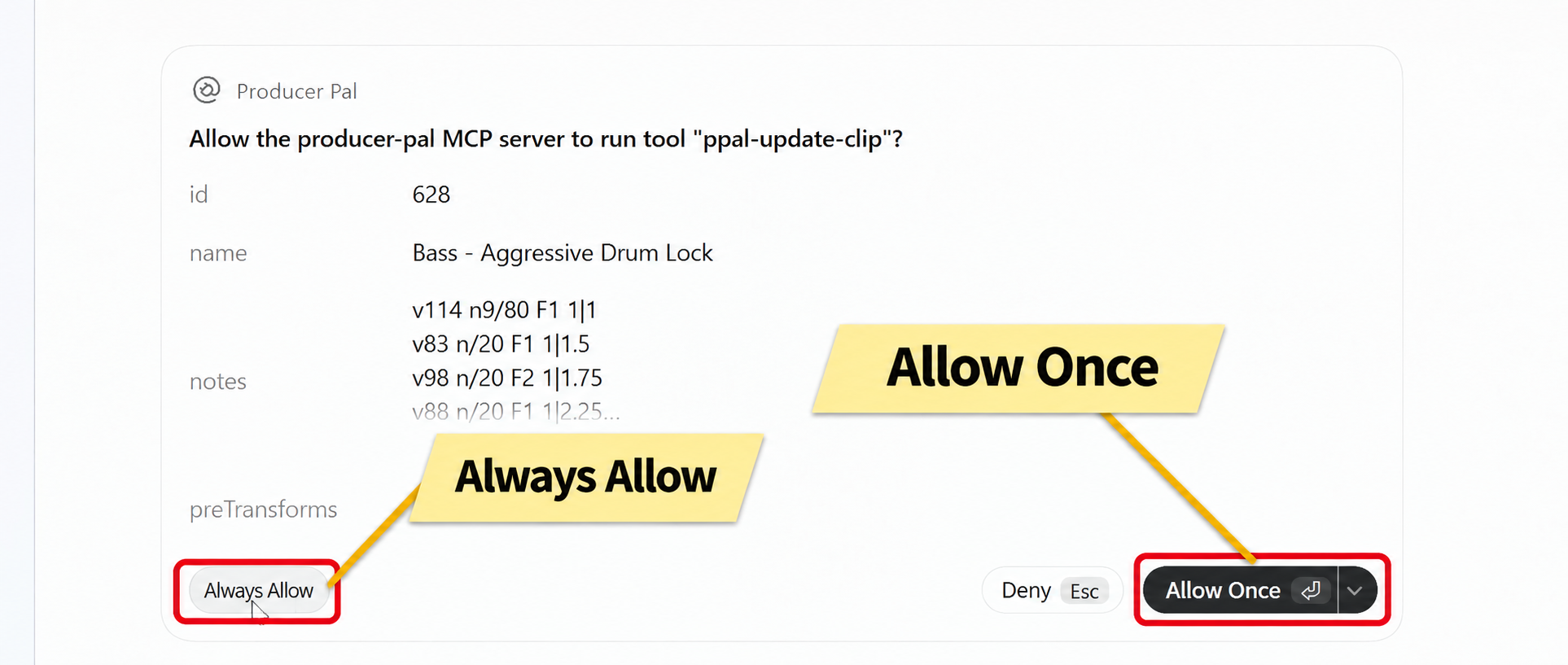
Rewriting a clip can change or damage work someone has made.
The initial configuration asks for permission before such potentially irreversible operations.
If repeated confirmation is inconvenient, the original article suggests “Always allow” or adjusting permissions in advance; choose the scope carefully for your work.
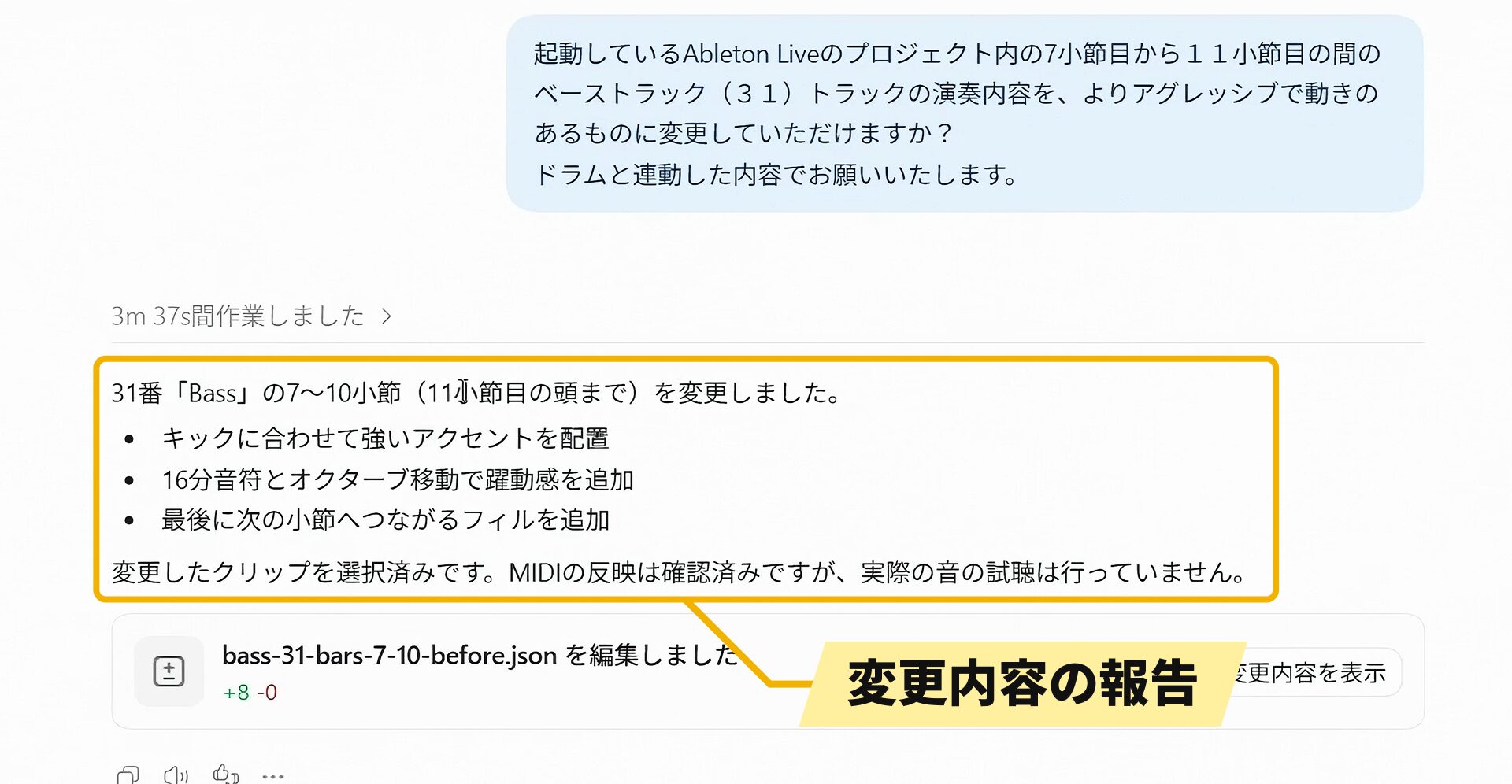
For example, it can add accents aligned with the kick, sixteenth-note and octave movement, and a fill into the next bar.
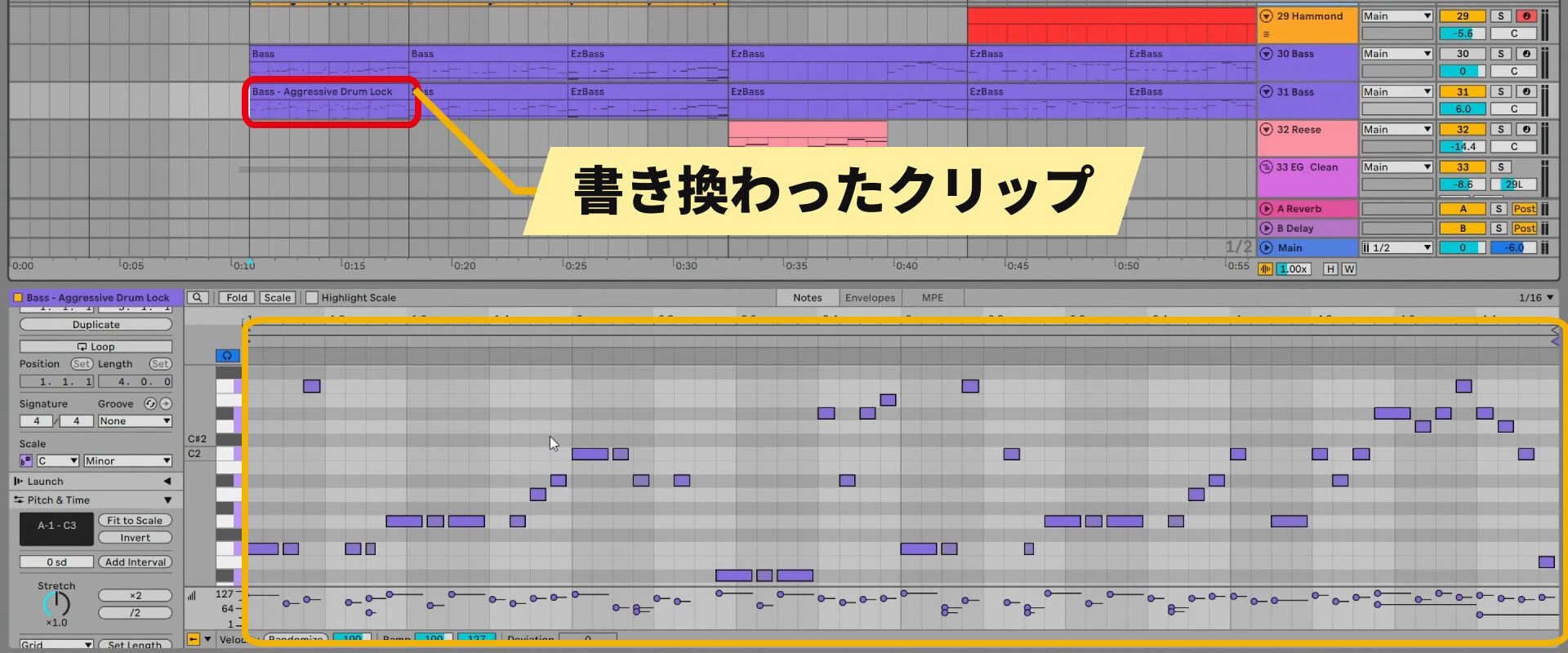
Thinking takes time, but in this example the changes appear in Live quickly after permission is granted. Instead of placing notes one at a time with the mouse, the integration rewrites the clip contents together.
The article explains that mouse actions are made visible for people to follow, while directly changing values can be more efficient for AI.
In the author’s experience, the result was an aggressive phrase that moved with the drums and sounded natural.
This Ableton Live operation uses an integration tool connecting the DAW to the agent.
“Producer Pal,” shown in the permission prompt earlier, is that integration tool.
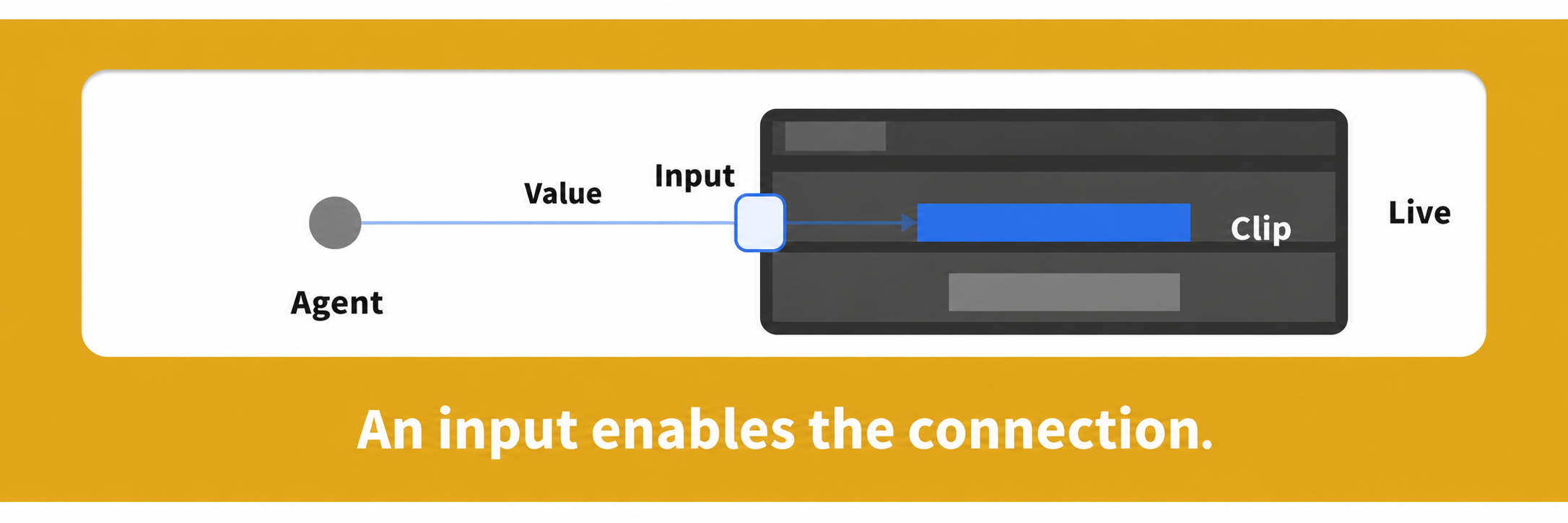
Use Computer Use for DAWs Without an Easy Direct Connection
The article notes that an equally convenient direct connection was not readily available for Cubase, Logic Pro, or Fender Studio Pro in this example.
One alternative is Computer Use, which operates the interface by looking at the screen and using the mouse.
Codex repeats a cycle of capturing and checking the screen, moving the mouse to operate it, and checking again.
Because it proceeds one step at a time like a person, this can take longer than a direct DAW integration.
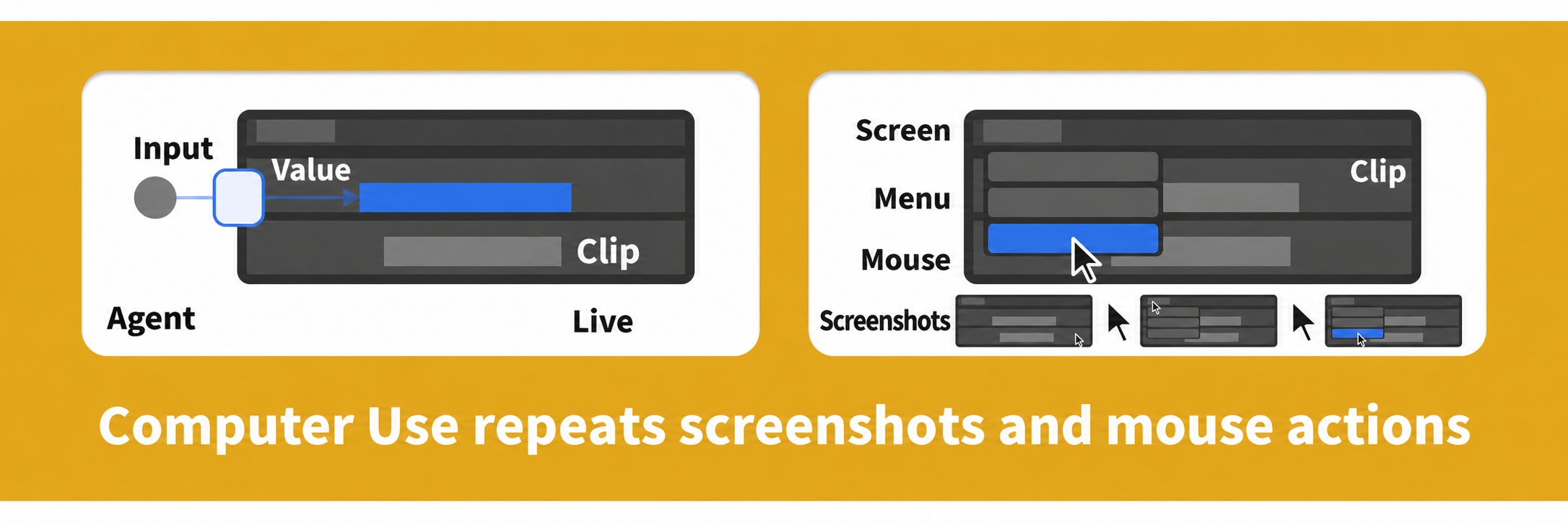
The benefit is that it can demonstrate the steps when you do not know where a feature is located.
Rendering Drums to Audio in Cubase
Here we ask Codex to render the Cubase drums to audio over bars 1–3.
This is kept in a separate project from the previous request.
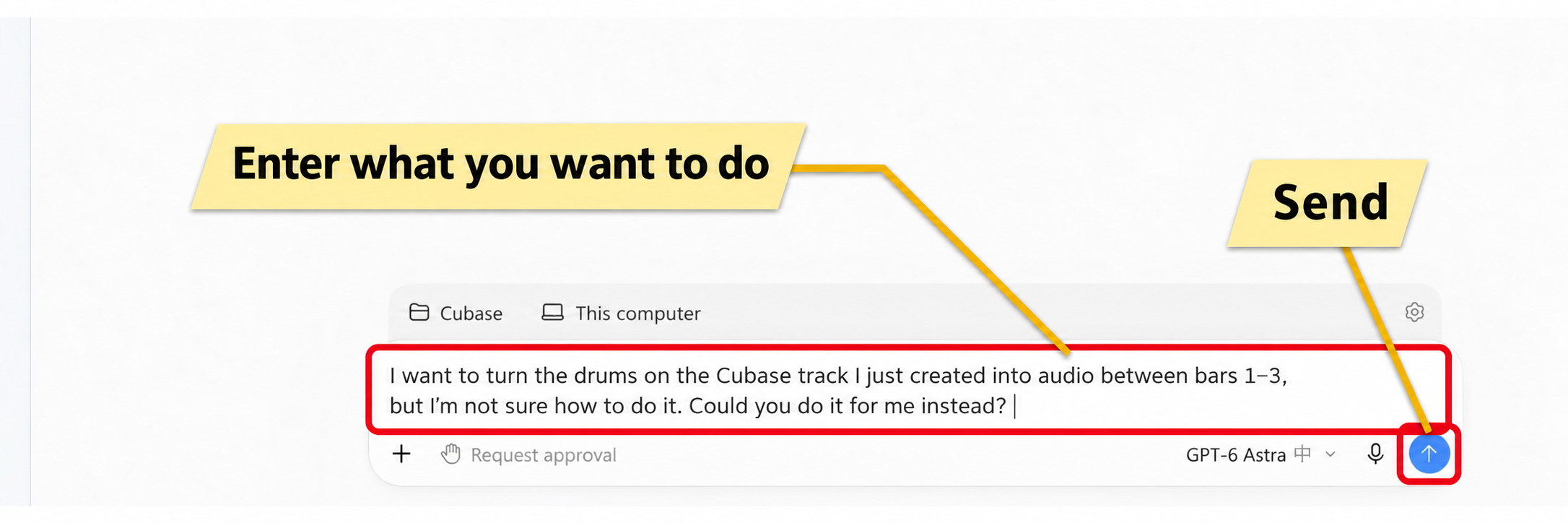
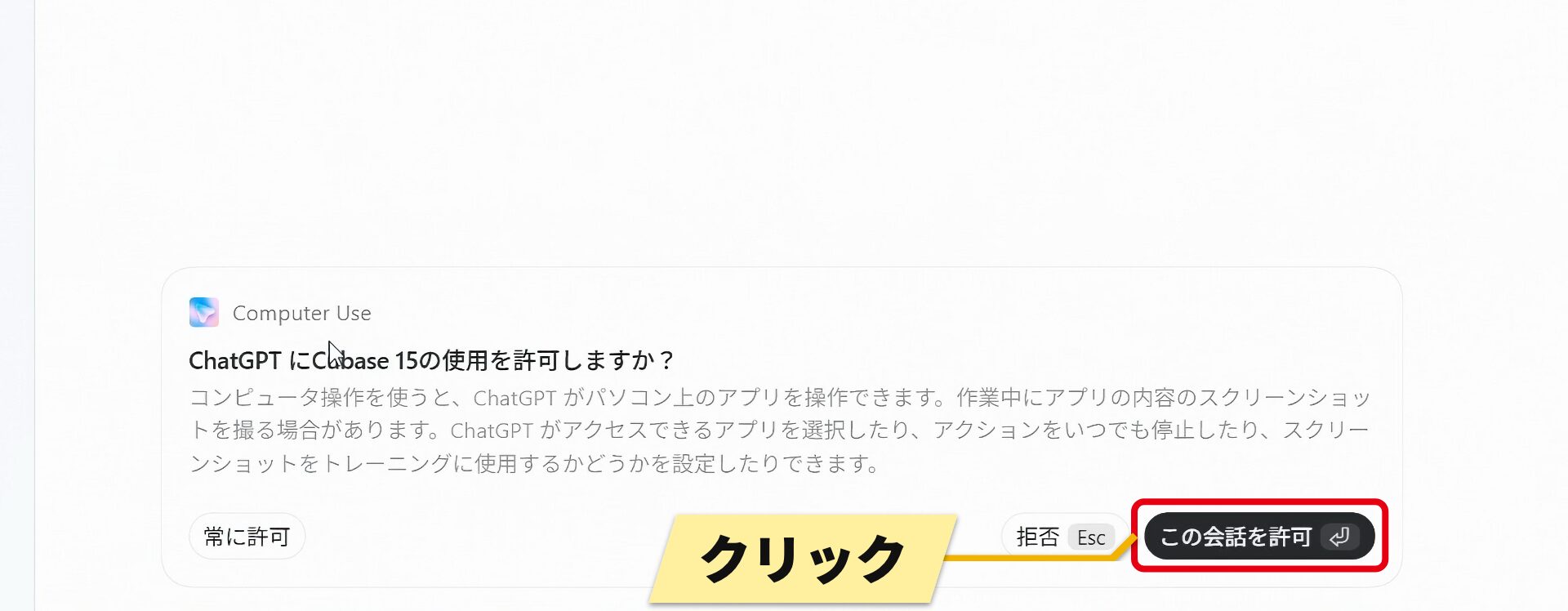
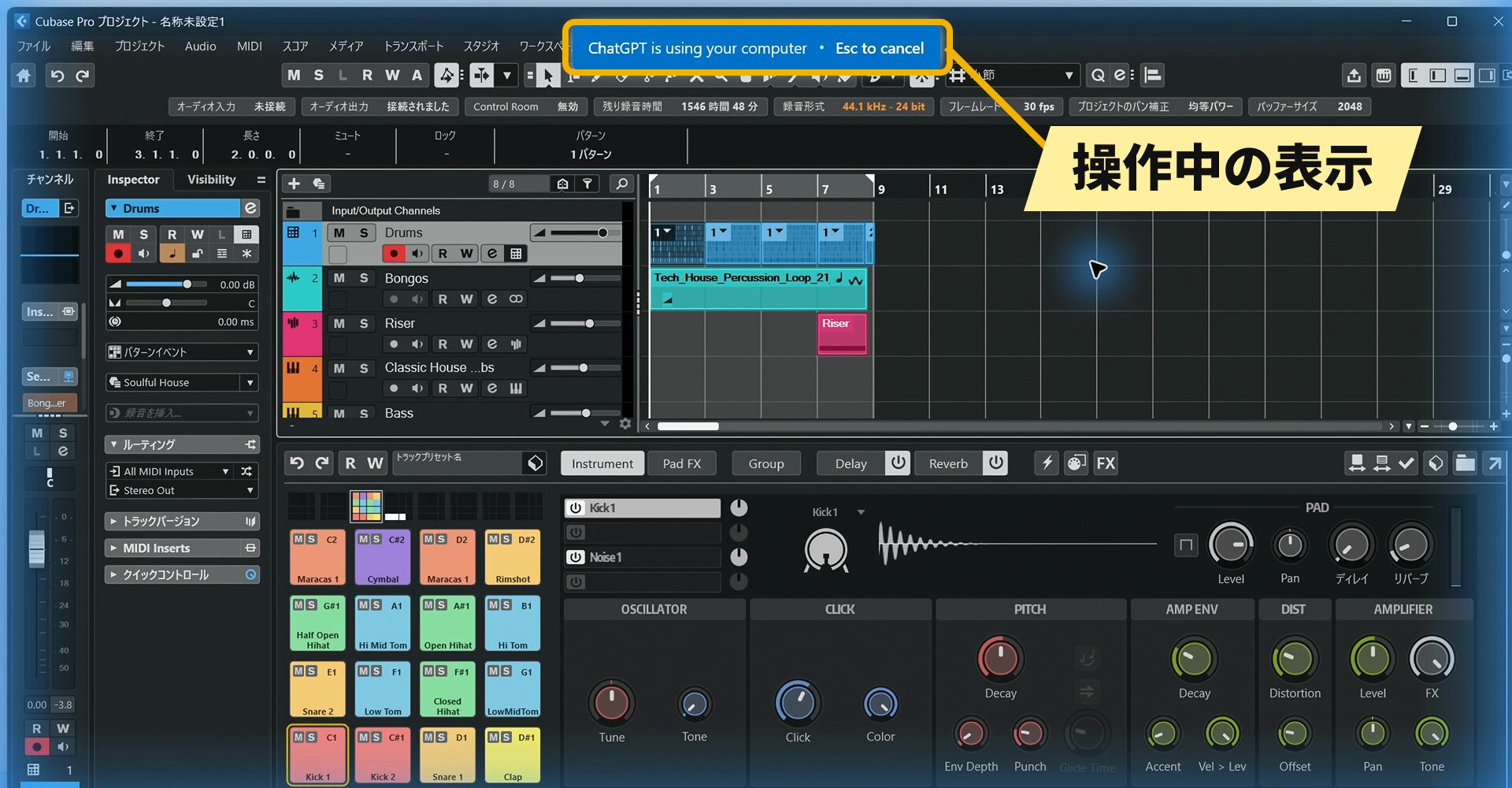
The agent opens menus, checks them, and searches for the needed function as it proceeds.
To interrupt the operation, use the Esc key, as indicated at the top of the screen.
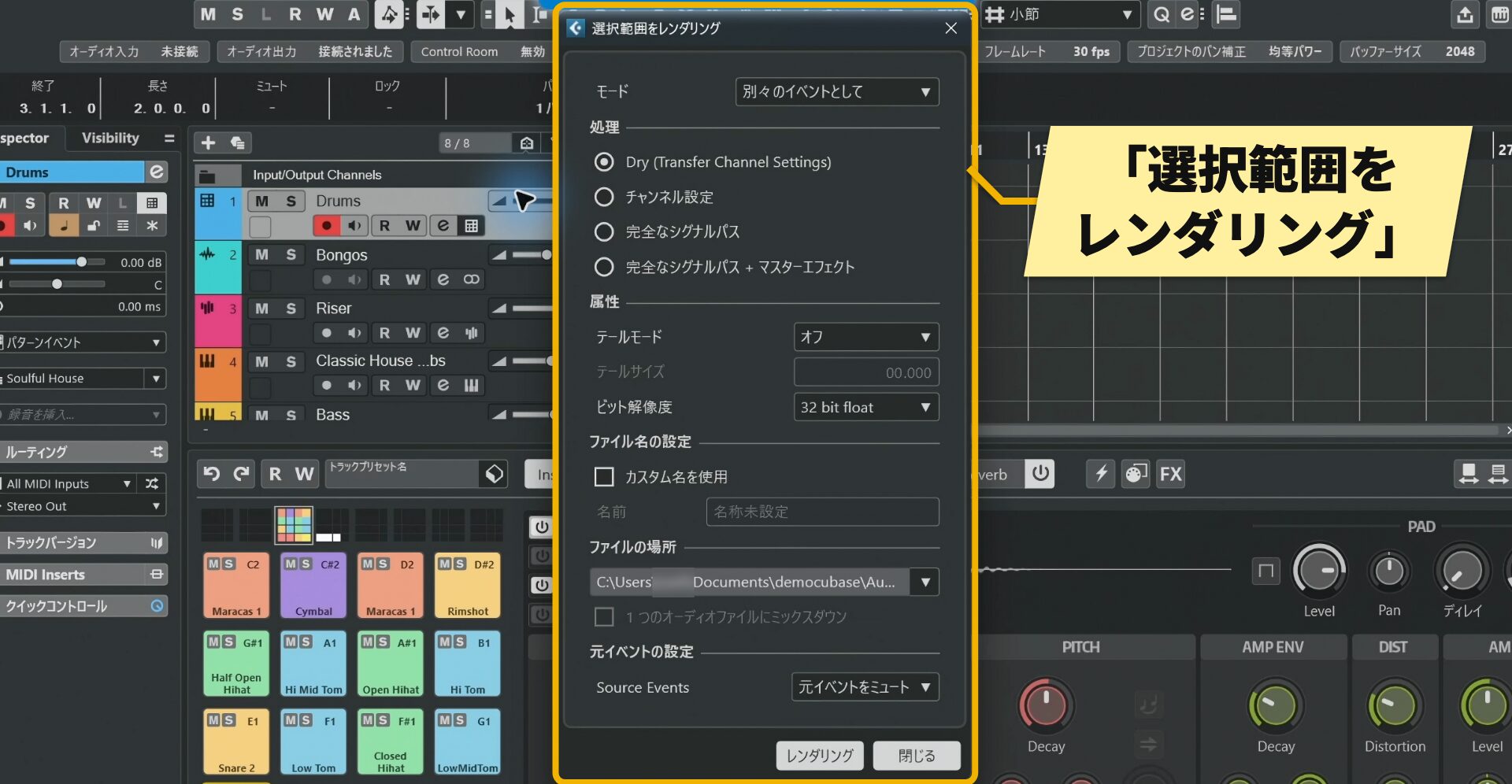
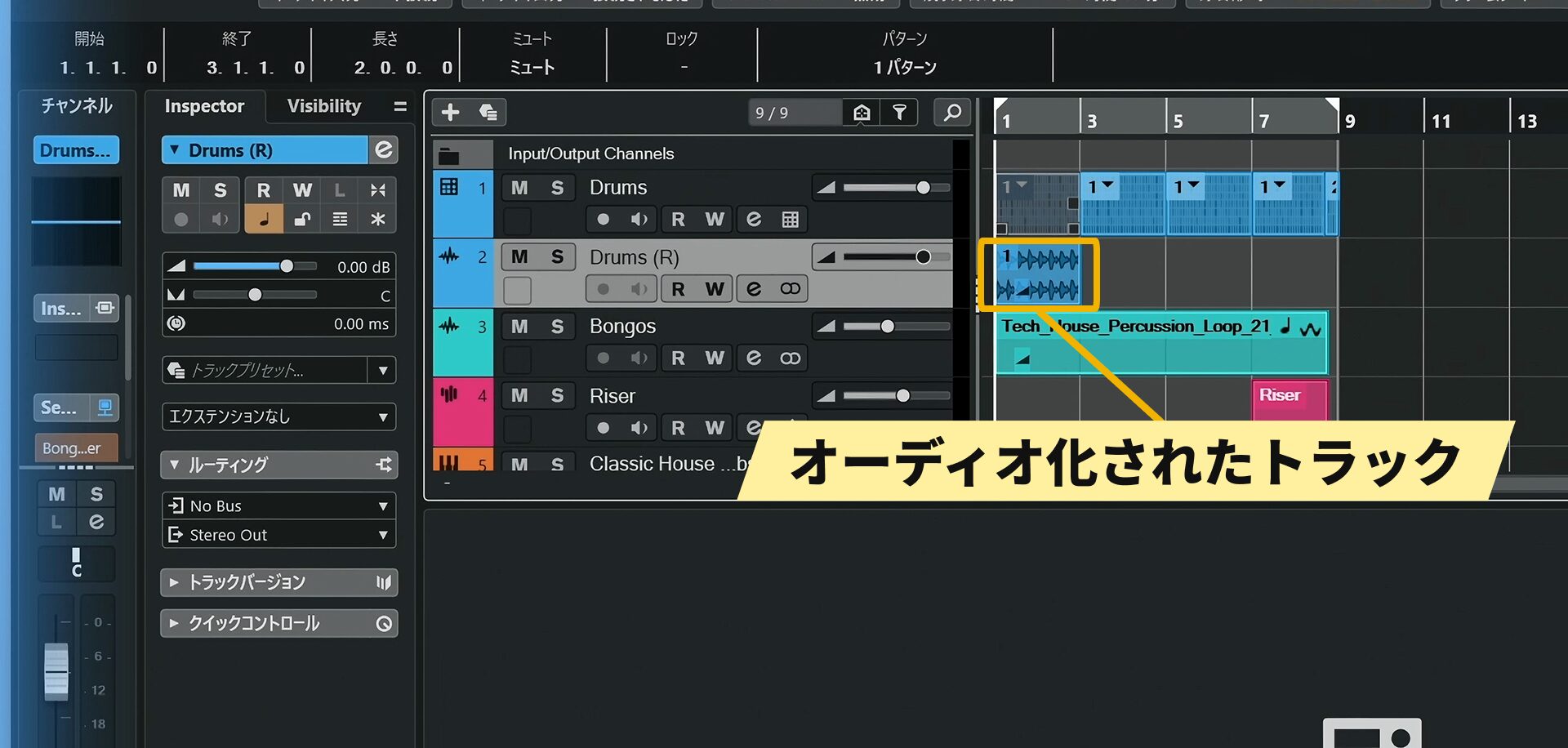
It is helpful that the agent can choose recommended settings where needed even without detailed instructions.
It may also ask for confirmation when an important decision is required.
Music Production Possibilities with AI Agents
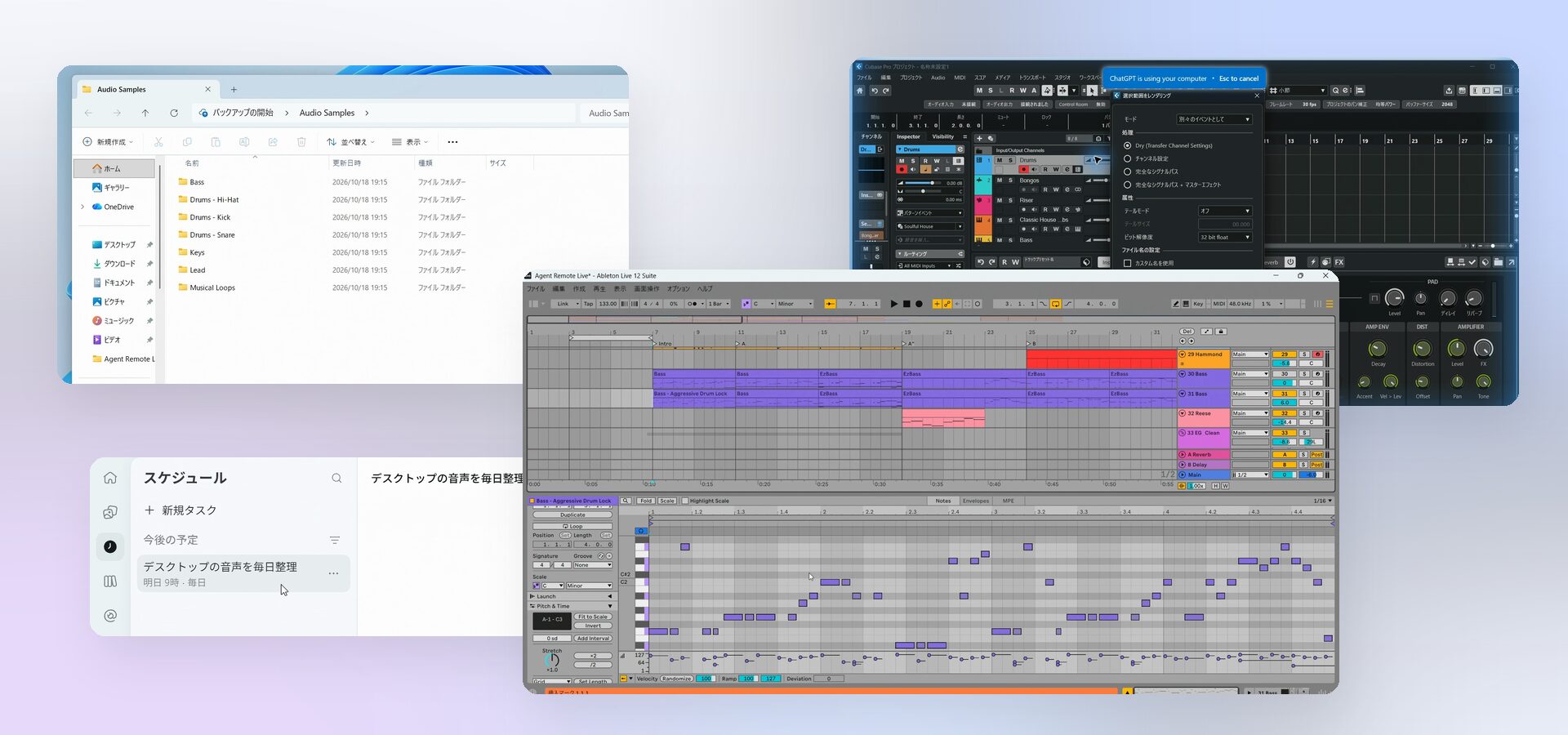
Even just organizing files and automating recurring tasks can make everyday work much easier.
Other uses include creating plug-ins or websites and editing video.
More software is being designed with agent integrations in mind.
DAWs that do not yet have a direct connection may become more flexible to operate in the future.
If you are already comfortable using a computer for music production, incorporating an agent could change your workflow considerably.
Try it as a tool for turning your ideas into reality.
NEW ARTICLES
Latest English Articles


































































































































































































































































































































