
iZotope RX 7 is an audio-repair tool for music production. This tutorial explains four particularly useful modules: De-hum, De-crackle, De-reverb, and De-clip. Learn how to reduce hum and crackle, lessen reverb, and repair clipped recordings, with audio examples and practical tips for adjusting each module. The demonstration uses RX 7 as available in April 2020; edition details below refer to that version.
Four Useful Audio-Repair Modules
Welcome to part three of our guide to iZotope's RX 7 audio-repair software.
Continuing from the previous installment, we will look at processing audio with individual modules.
RX has many modules; here we have selected some that we personally find especially useful.
iZotope RX 7 Video Tutorial: Part 3
Selected Questions and Answers from the YouTube Video

Which edition of RX 7 are you using? Does Elements include the features shown?

We used RX 7 Advanced for the demonstration, but this series focuses mainly on features included in RX 7 Standard. The original article linked to the following edition-comparison page. Its current contents may cover a newer RX version rather than RX 7: https://www.izotope.com/en/products/rx/pricing-options.html
De-hum
First, listen to this sample.
The sample contains a low hum along with fine, crackling noises.
Let's remove them.
We will use De-hum to tackle the hum.
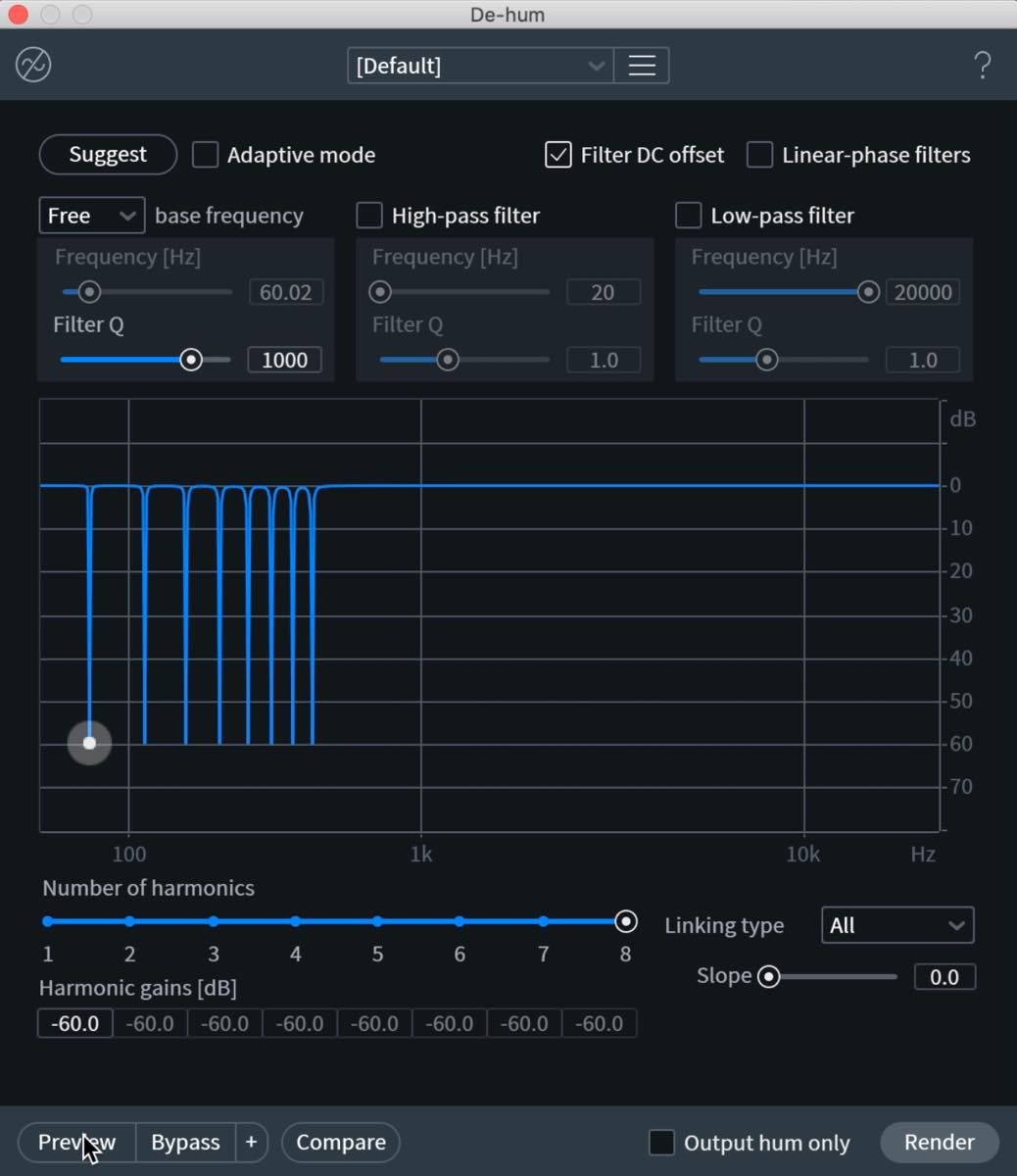
Hum commonly consists of a low fundamental frequency of 50 Hz or 60 Hz, together with several harmonics.
You can select 50 Hz or 60 Hz under Base Frequency. To let RX identify the frequency automatically, click Suggest above it.
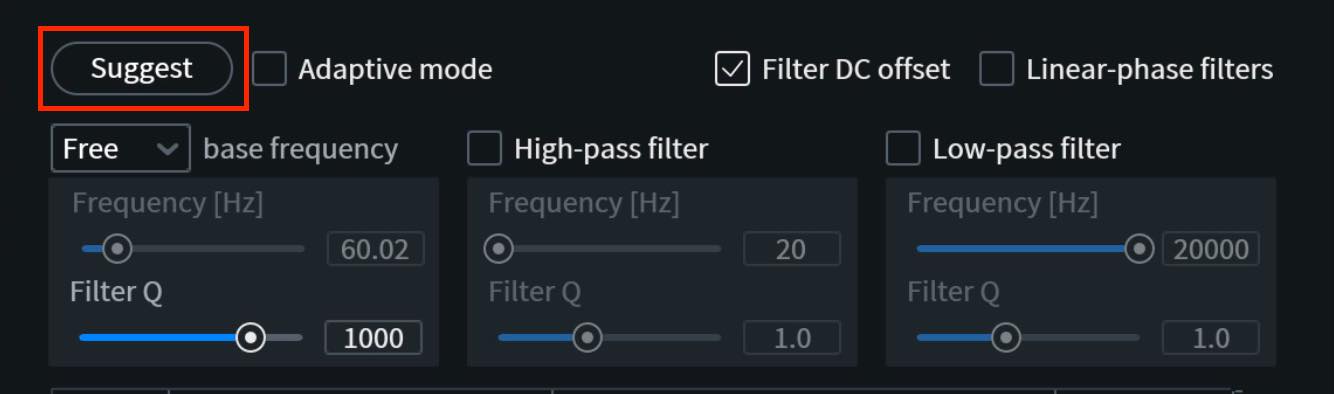
RX analyzes the signal and sets a more precise frequency in Free mode.
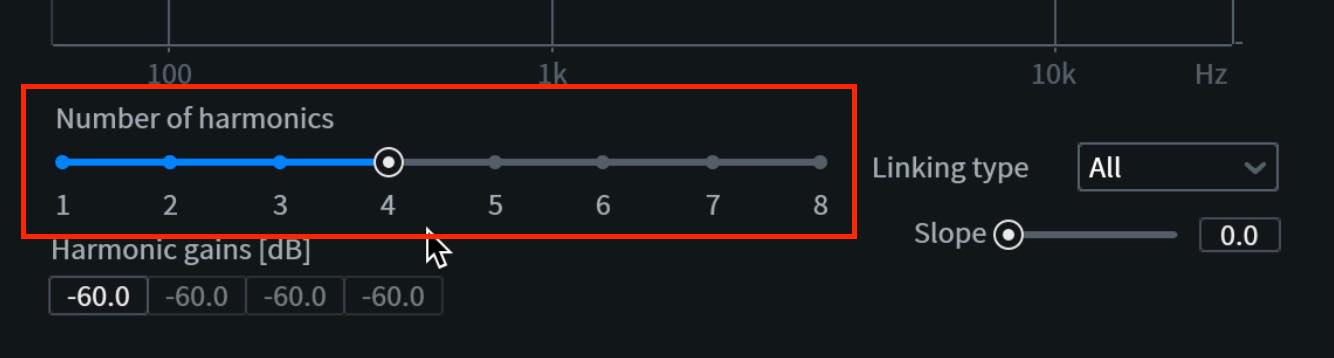
If this reduces the hum but affects the voice too much, try lowering Number of harmonics until the voice sounds more natural while the remaining hum is still unobtrusive.
Next, adjust the amount of attenuation. You can drag the controls on the display, but this may also shift the frequency in Free mode, so we will enter the gain values numerically.
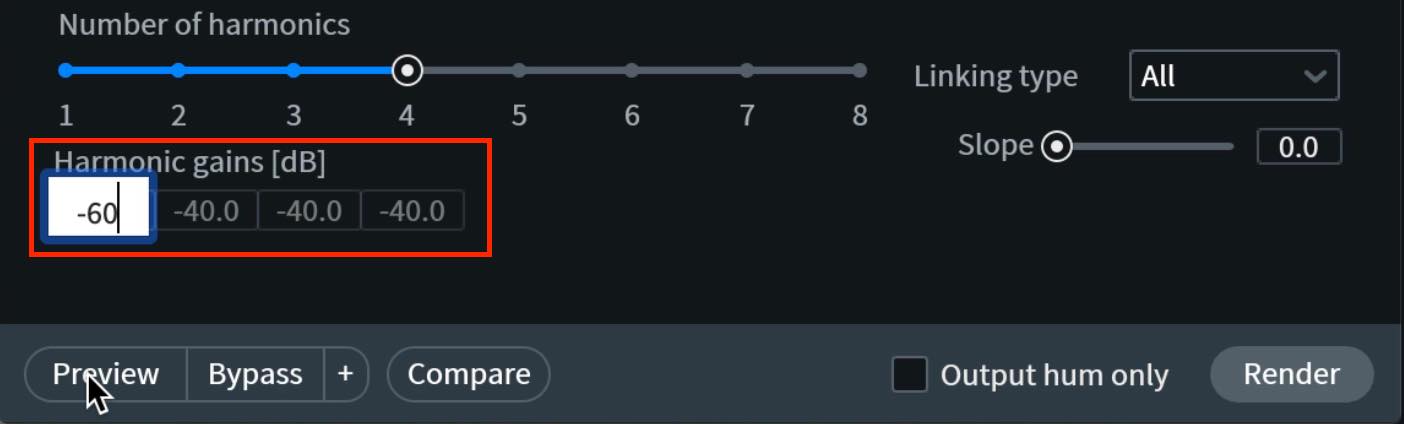
Look for a setting that makes the noise unobtrusive while affecting the voice as little as possible.
You can also cut low frequencies below the useful range of the voice. In this example, we enable High-pass filter and set its cutoff around 100 Hz.
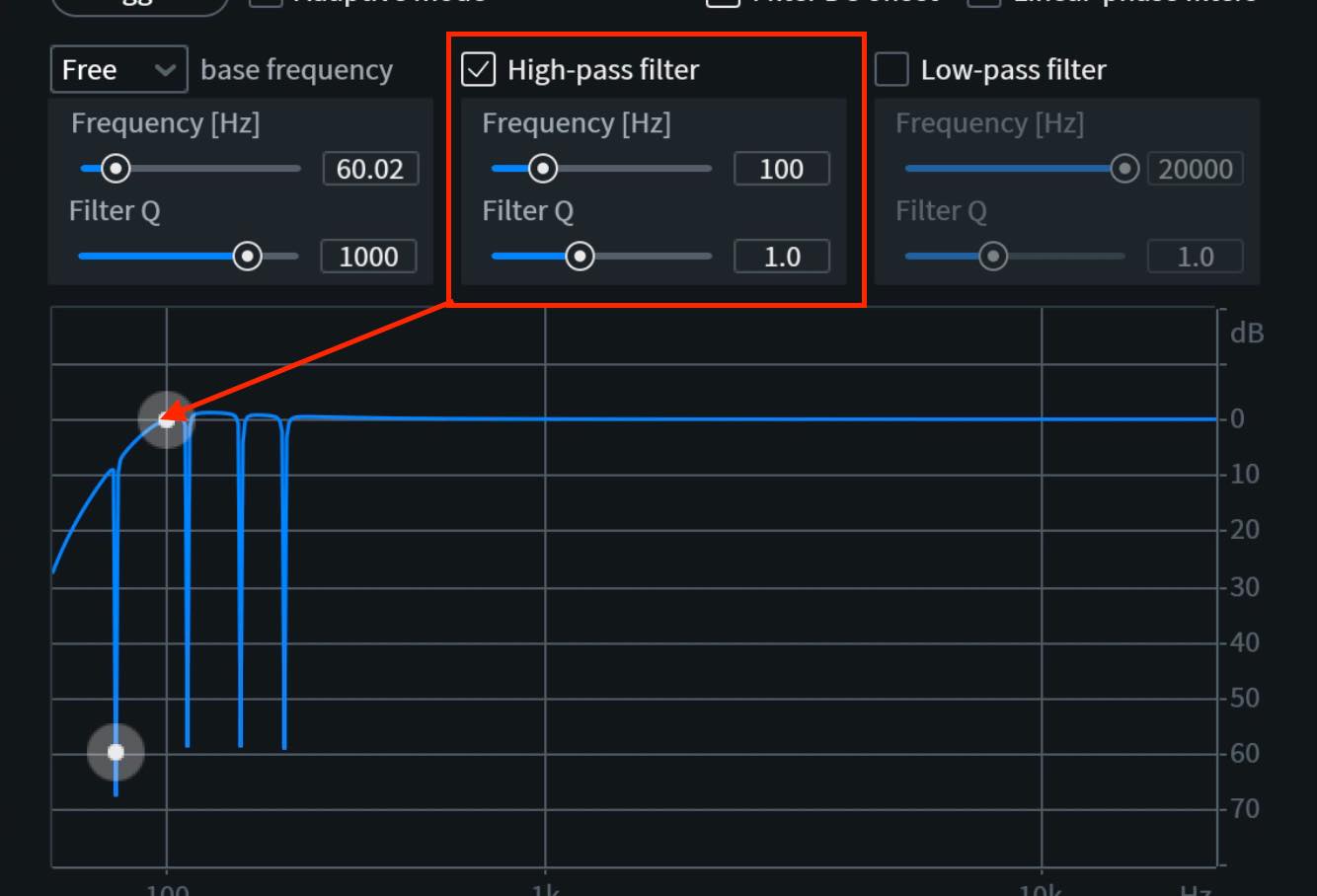
We use Low-pass filter less often, but it can be worth trying if the particular noise calls for it.
For more detailed control over the harmonics, change Linking Type.
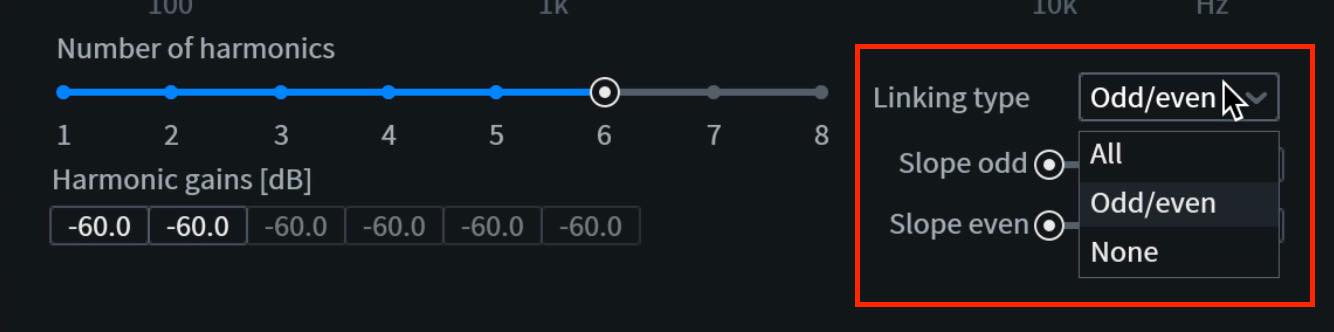
All links the gain controls for all harmonics.
Odd/Even links the odd harmonics and even harmonics in separate groups.
Slope tapers the attenuation so that higher harmonics receive progressively less reduction.
None unlinks the harmonics, allowing you to set each one's gain independently.
De-crackle
Next, we will address the fine crackling noise.
For this, use De-crackle.
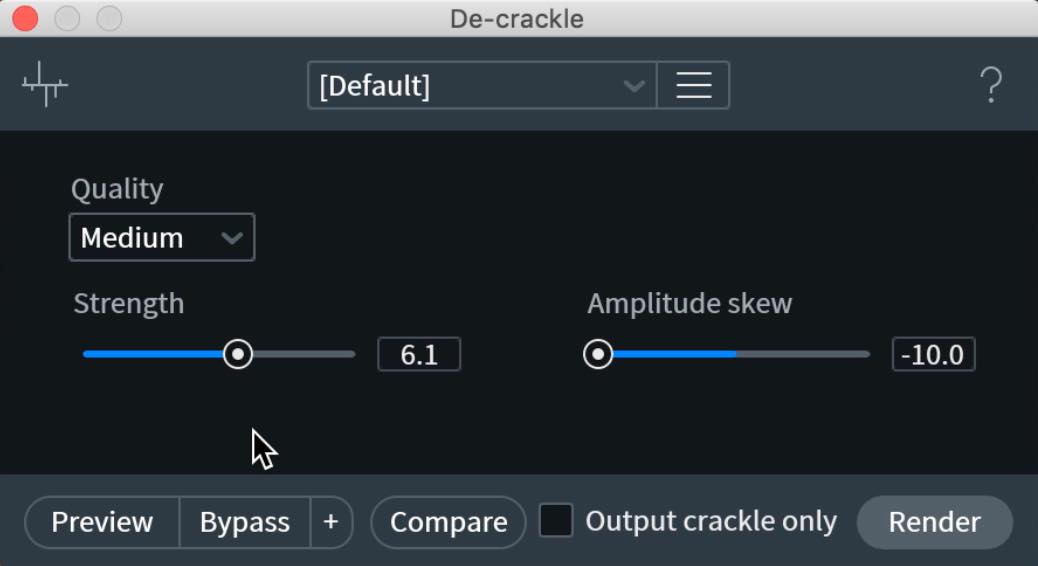
- Quality: Low prioritizes processing speed, while High prioritizes quality. In some cases Medium can sound better than High, so compare them by ear.
- Strength: Sets the processing strength. Increasing it can remove more crackle, but excessive settings may also affect the voice. Use Output crackle only to help find a suitable balance.
- Amplitude skew: Adjusts how processing is distributed according to signal amplitude. Moving it right focuses processing on larger-amplitude, louder passages; moving it left does the opposite. Higher settings can target distortion in louder passages, whereas a lower setting works better for the fine crackle in this example.
For the remaining noise, we finished with Spectral De-noise, which we covered in the previous installment.
The processed example demonstrates how much cleaner the recording can become.
De-reverb
Now we will switch samples and explore the De-reverb module.
As its name suggests, it reduces reverb effects or room reverberation captured in a recording.
First, listen to the sample we will process.
There is a substantial amount of reverb in this sample.
We will apply De-reverb to it.
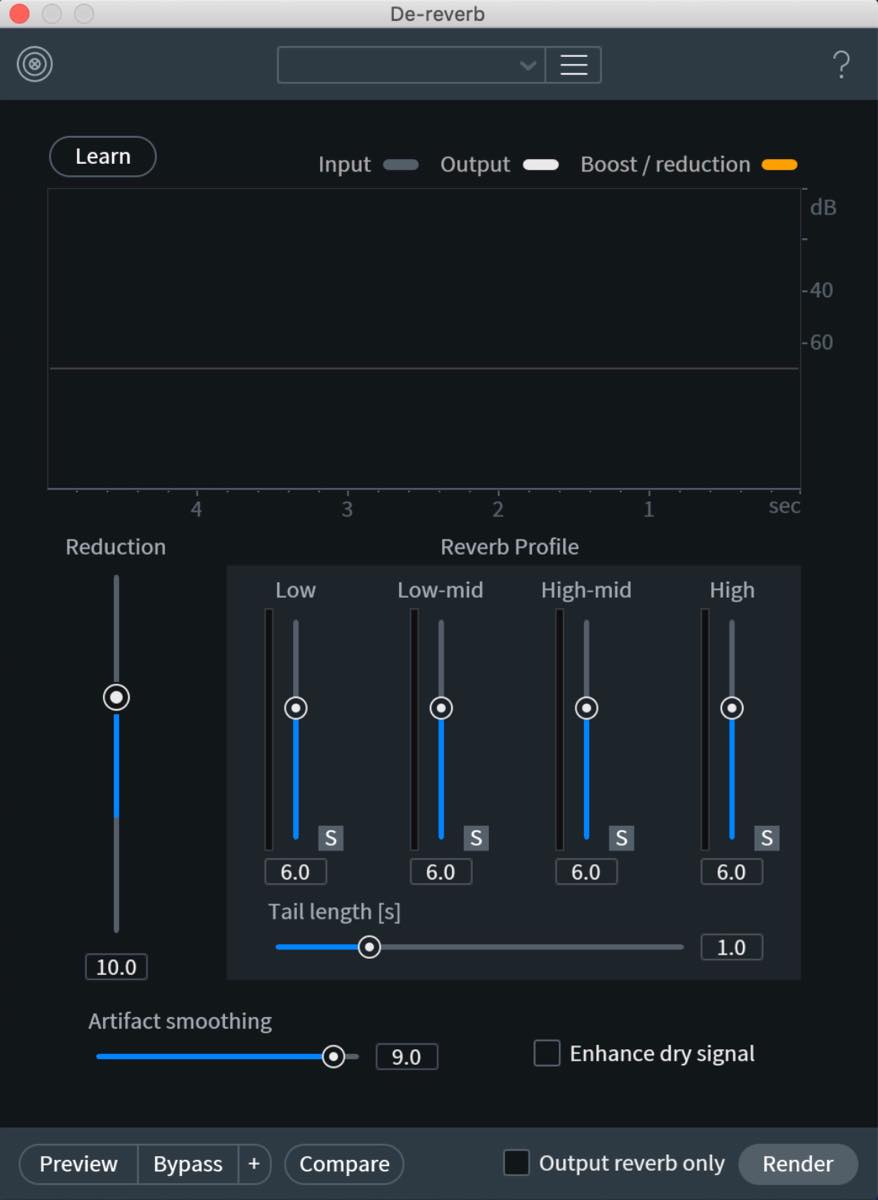
The many parameters may look daunting, but RX 7's Learn button can suggest settings automatically.
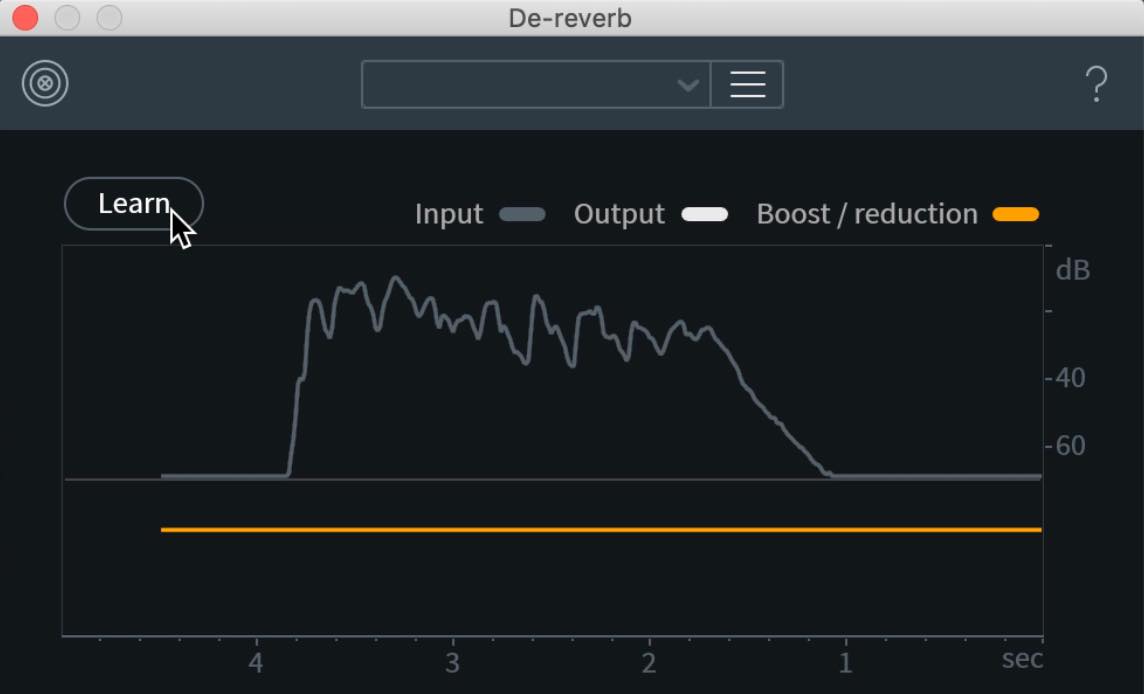
To refine the result, you can leave the frequency-dependent Reverb Profile at its learned settings and make substantial changes with controls such as Reduction and Tail length.
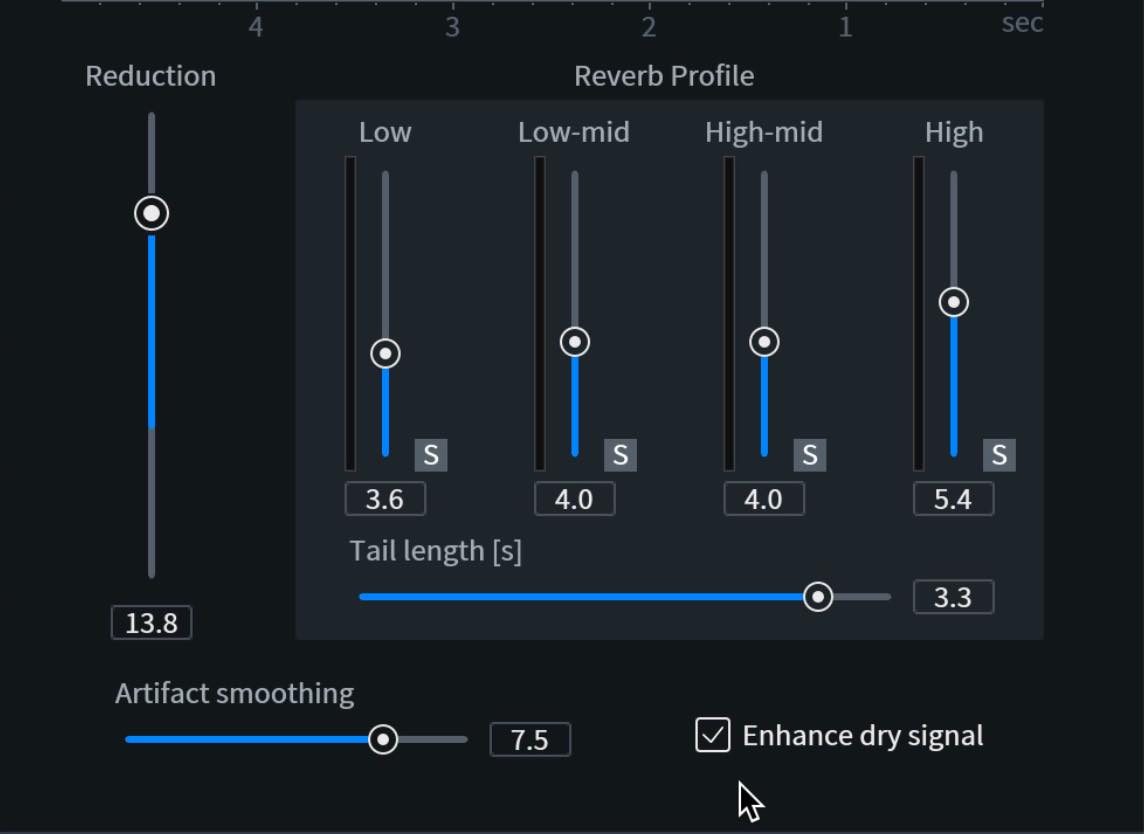
- Reduction: Increasing this removes more reverb. However, excessive reduction can make the voice sound as though it is wavering, so find a suitable balance.
- Tail length: Moving this right accommodates longer reverb tails. Try a longer setting, then move it back left if you hear unnatural, wavering changes in level.
- Artifact smoothing: Controls the frequency accuracy of the processing. Lower settings may seem to remove more reverb but can introduce processing artifacts. Higher settings sound smoother, though some reverberation may seem more apparent. Balance these effects when adjusting it.
- Enhance dry signal: Boosts the part of the signal identified as direct sound rather than reverb, and can increase its dynamic range. It can be particularly useful for singing and spoken voice.
Here is the result after adjusting the parameters.
The result is not completely dry, but the example demonstrates a substantial reduction in reverberation.
De-clip
Next is De-clip, which repairs clipping distortion when a recording has accidentally been overloaded.
Listen to this sample as well.
Caution: This sample is louder than the others. Lower your listening volume before playing it.
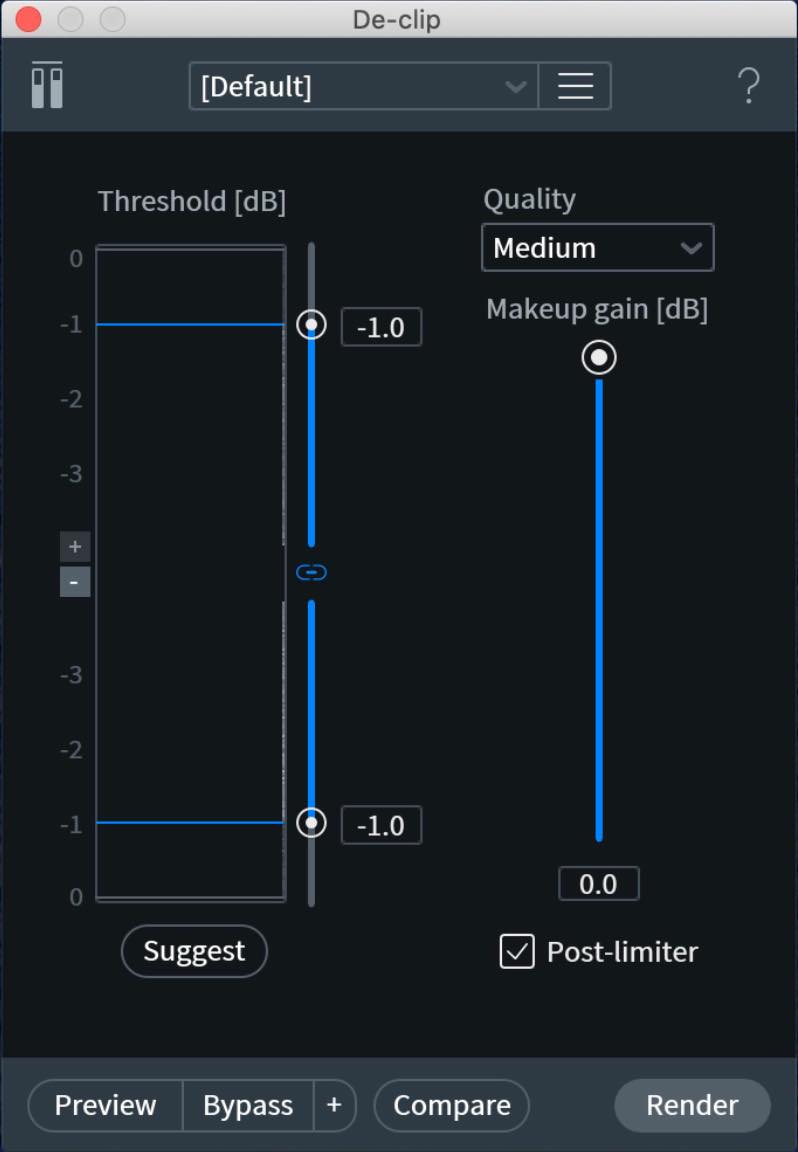
First, set the Threshold used to detect clipping. The histogram helps you do this, but it initially appears empty in this demonstration. In the RX Audio Editor it updates according to the selection, so select the relevant audio region first.
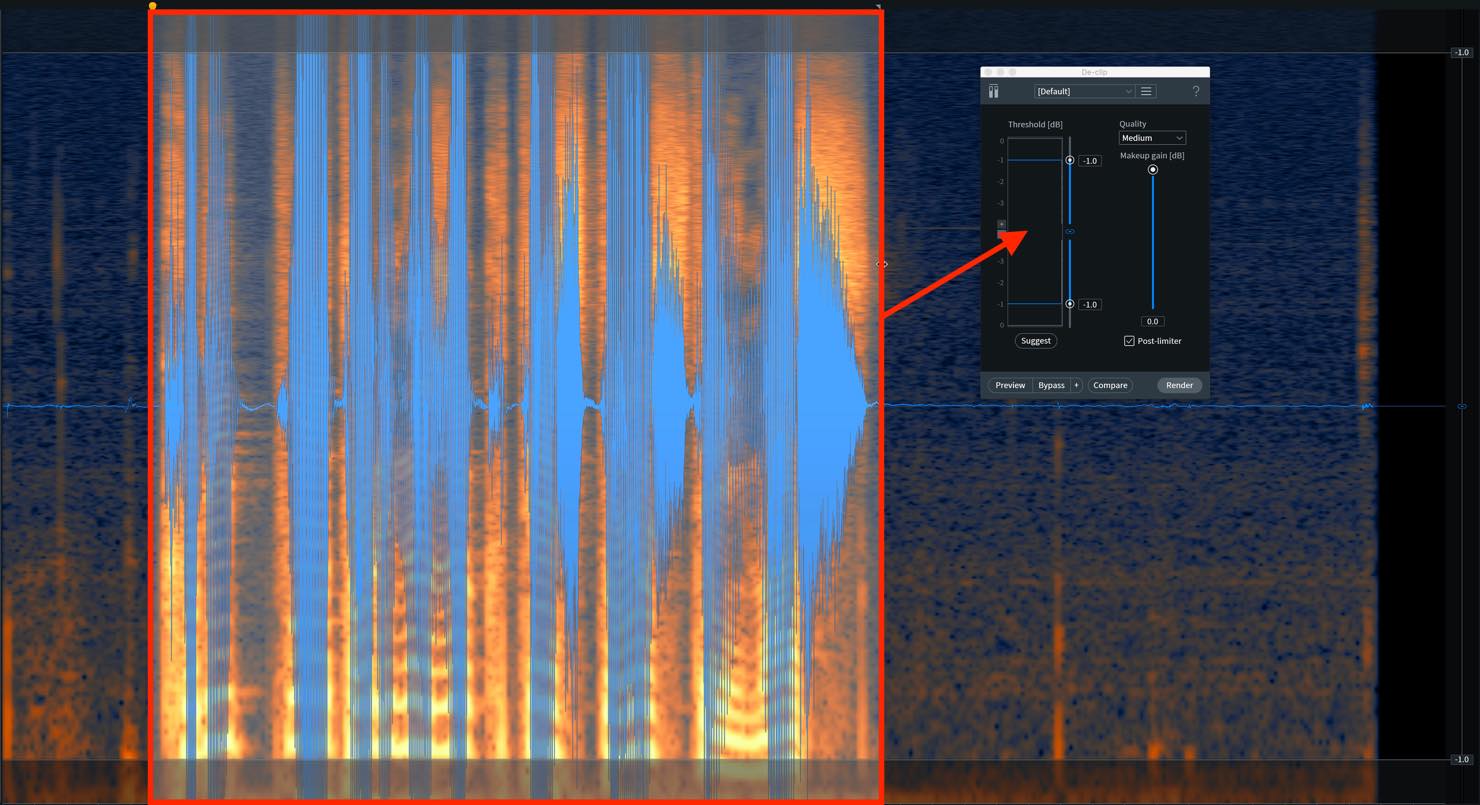
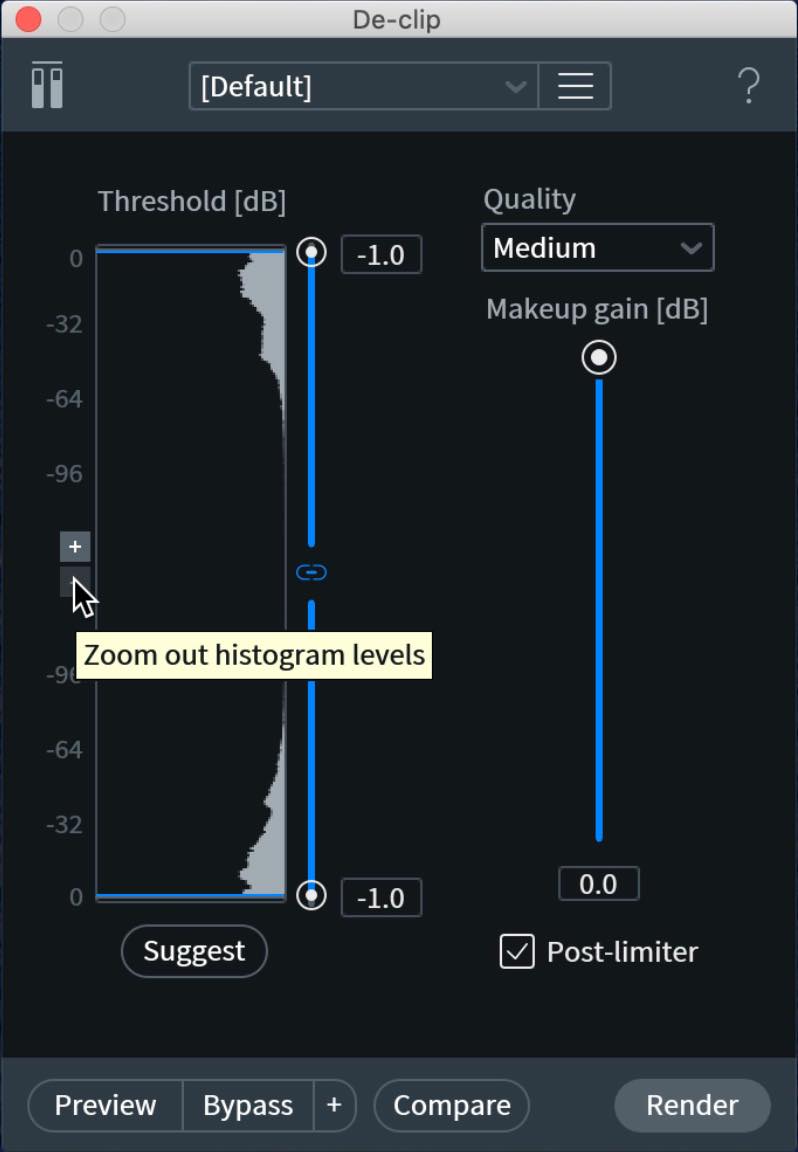
If the histogram is still not visible, zoom out its display. In this heavily clipped example, the levels are concentrated near the top of the range.
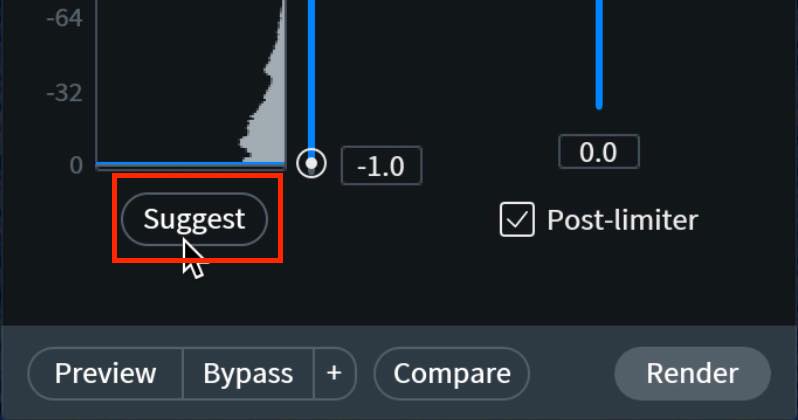
Click Suggest to calculate a recommended threshold automatically.
For this heavily clipped sample, the demonstration's suggested value is 0 dB. More generally, set the threshold just below the level at which the waveform is clipped; clipping can occur below 0 dBFS too.
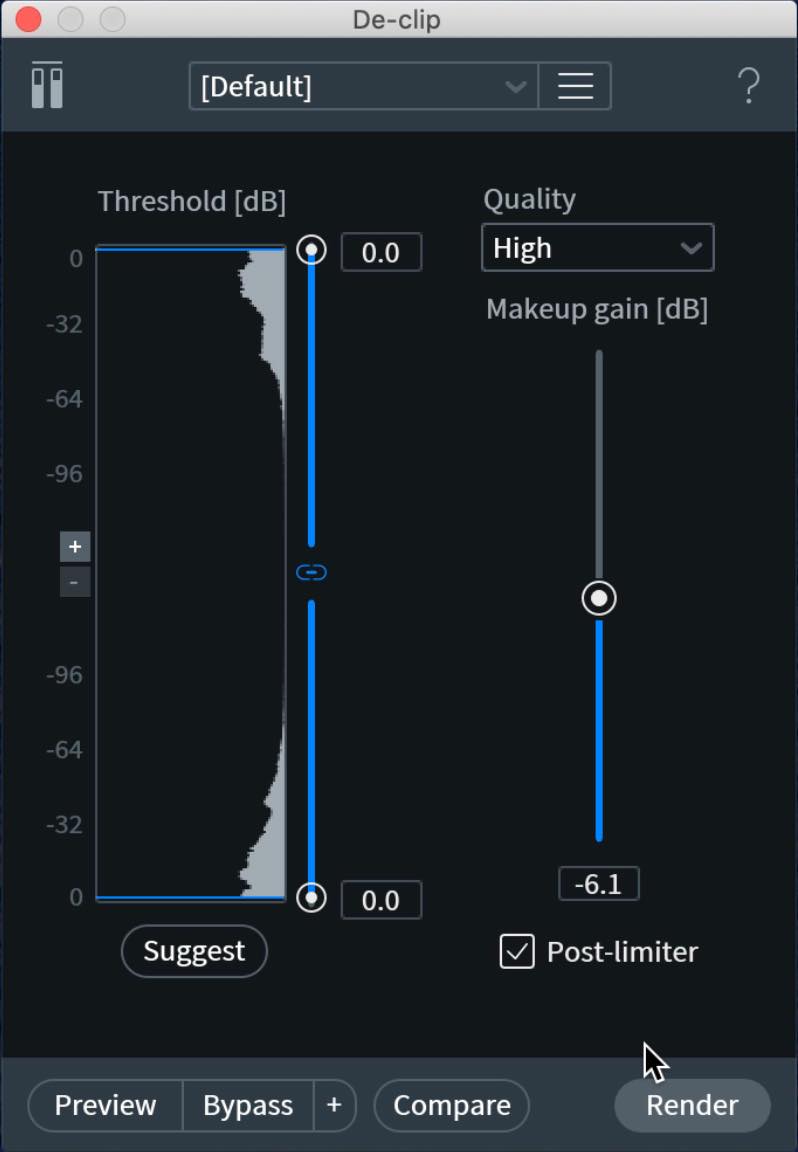
The other parameters work as follows.
- Quality: High is worth trying if your CPU can handle it. If the plug-in puts too much strain on the system, switch to Low or Medium.
- Makeup gain: Clipped recordings are often already too loud, so we use negative gain here. You can also use it to match the processed recording's level to other takes.
- Post-limiter: Applies a peak limiter after processing to prevent the repaired audio from clipping again. We recommend enabling it for the workflow shown here.
Listen to the sample after processing.
The processed example sounds much cleaner than the original clipped recording.
Continuing from the previous installment, we have highlighted several modules we find especially useful.
RX 7 addresses a wide variety of audio problems, including excessive reverb. Try these tools in your own work.
Part three of our iZotope RX 7 tutorial!
This time, we demonstrate several modules for removing hum, reverb, and clipping distortion from narration.
🎥 YouTube: https://t.co/HwTY7Isgfy
📝 Article: https://t.co/F370ddtqlO #DTM #DAW pic.twitter.com/vvyhbRMeVr
— SLEEP FREAKS (@SLEEPFREAKS_DTM) April 5, 2020
Frequently Asked Questions
Q1. What if De-hum does not completely remove the hum?
Adjust the amount of attenuation and Number of harmonics to balance hum removal against damage to the voice. As the main tutorial explains, reducing the harmonic count is useful when processing affects the voice too much; it is not a general cure for residual hum. RX 7 uses harmonic gain controls here, rather than the Reduction control named in the original FAQ. For remaining noise, try a suitable additional module such as Spectral De-noise.
Q2. Why does De-reverb make the voice sound unnaturally wavy?
Reduction may be too high, or Tail length may not suit the recording. Try lowering Reduction or shortening Tail length by moving it left.
Q3. How much clipping can De-clip repair?
De-clip can improve clipped recordings, but results depend on the signal and severity of the damage; complete recovery is not guaranteed. The original FAQ cautions that severe distortion can limit repair, while the main tutorial demonstrates a substantial improvement. Editorial clarification: a level near 0 dBFS alone does not establish how severe the clipping is. Use appropriate recording levels to prevent overload in the first place.
Q4. In what order should these modules be used together?
The article presents De-hum, De-crackle, De-reverb, and De-clip in that order, using different samples. Its original FAQ also recommends that sequence, but it should not be treated as a universal processing chain. Editorial clarification: iZotope's audio-repair guidance recommends addressing clipping early, before subsequent processing can magnify its effects. Choose the remaining operations according to the problems in the recording, and compare the results.
NEW ARTICLES
Latest English Articles














































































































































































































