
Released in May 2024, Logic Pro 11 introduced a major set of AI-assisted music-production features. Stem Splitter separates a mixed recording into instrument groups, while the global Chord track helps organize a song's harmony. Session Players, including Drummer, Bass Player and Keyboard Player, support composition and arranging with generated performances. The update was free for existing users. Additional Sound Library content and Apple Loops expanded the creative options. This article describes the Logic Pro 11 release and its original pricing, requirements and workflow, rather than the current version of Logic Pro.
AI-powered features take Logic Pro further
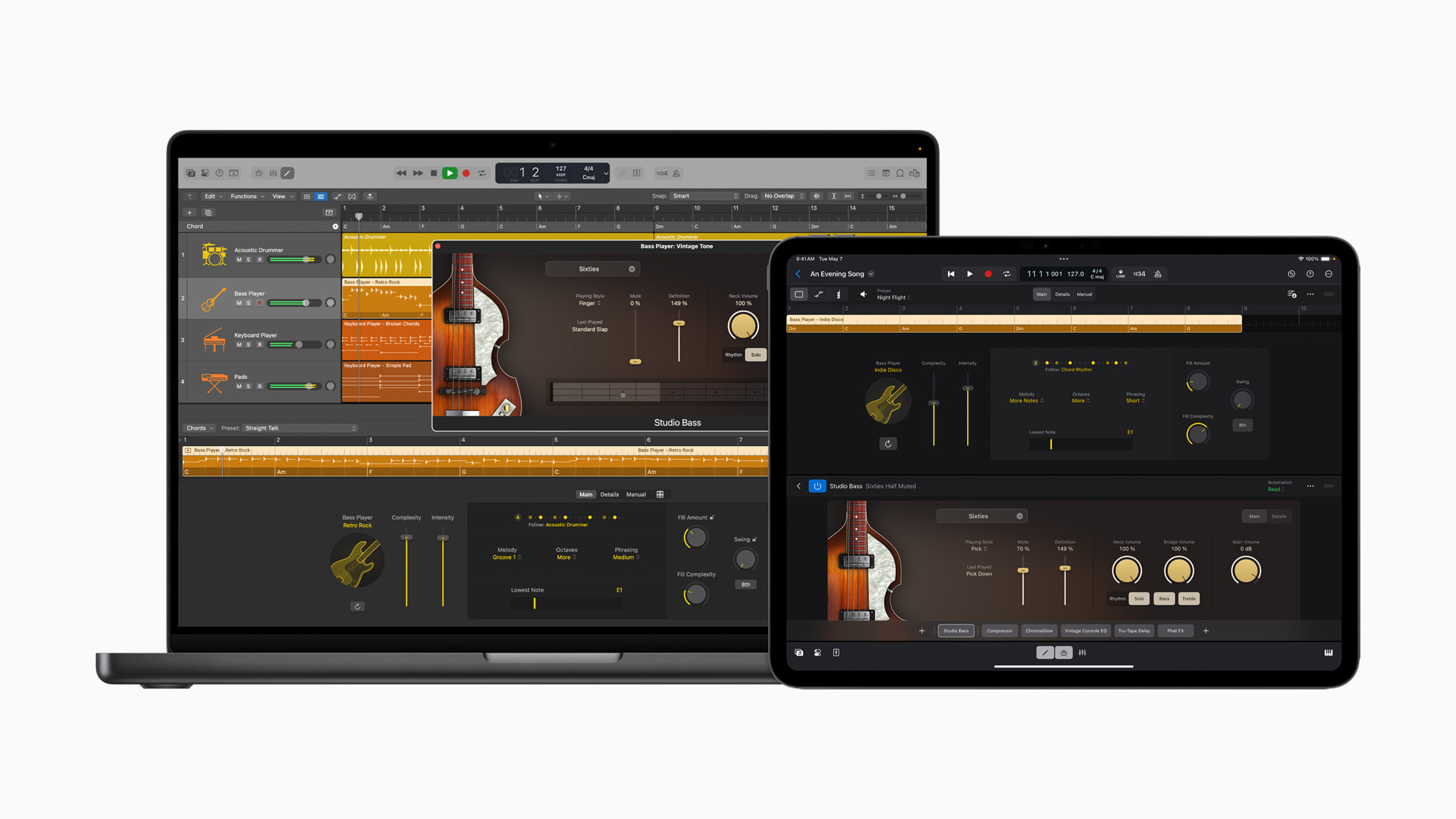
Apple's popular DAW received a major update when Logic Pro 11 was released on May 14, 2024, Japan time.
The update was free for existing Logic Pro X users. At launch, the Japanese purchase price for new users was ¥30,000, and the Mac version required macOS Ventura 13.5 or later.
One of the main attractions was the long-rumored addition of advanced AI-assisted features, presented by Apple as a major expansion of its creative capabilities.
There are also plenty of useful additions beyond AI, making production more convenient and enjoyable. Together, they make this a substantial major update.
Let's look at the new features.
Introducing the key new features in Logic Pro 11
Selected live-stream highlights, with additional explanations
Selected questions and answers from YouTube

Question: It seems you still cannot read chords from an existing track into the Chord track, even from sustained whole-note chords. Apple Loops can provide chord information, so it is frustrating that ordinary tracks cannot do the same.

Answer from the original discussion: We tried it too and could not do it in that version. We hoped a later update would add the feature.
Question: How much storage does Logic Pro 11 need with all of its plug-ins and content installed? Is 512 GB enough?
Answer from the original discussion: Our installation was about 128 GB, so a 512 GB Mac could accommodate it. However, additional plug-ins, other software and other work can fill that capacity. If the budget allows, 1 TB or more gives you more room. These figures describe the installation checked for the original article.
Learn Logic Pro 11 in one complete video
New sound packs and presets
Alongside the headline Session Players, the update adds a substantial selection of instruments, drum kits and loops.
Download the content you want before exploring these features.
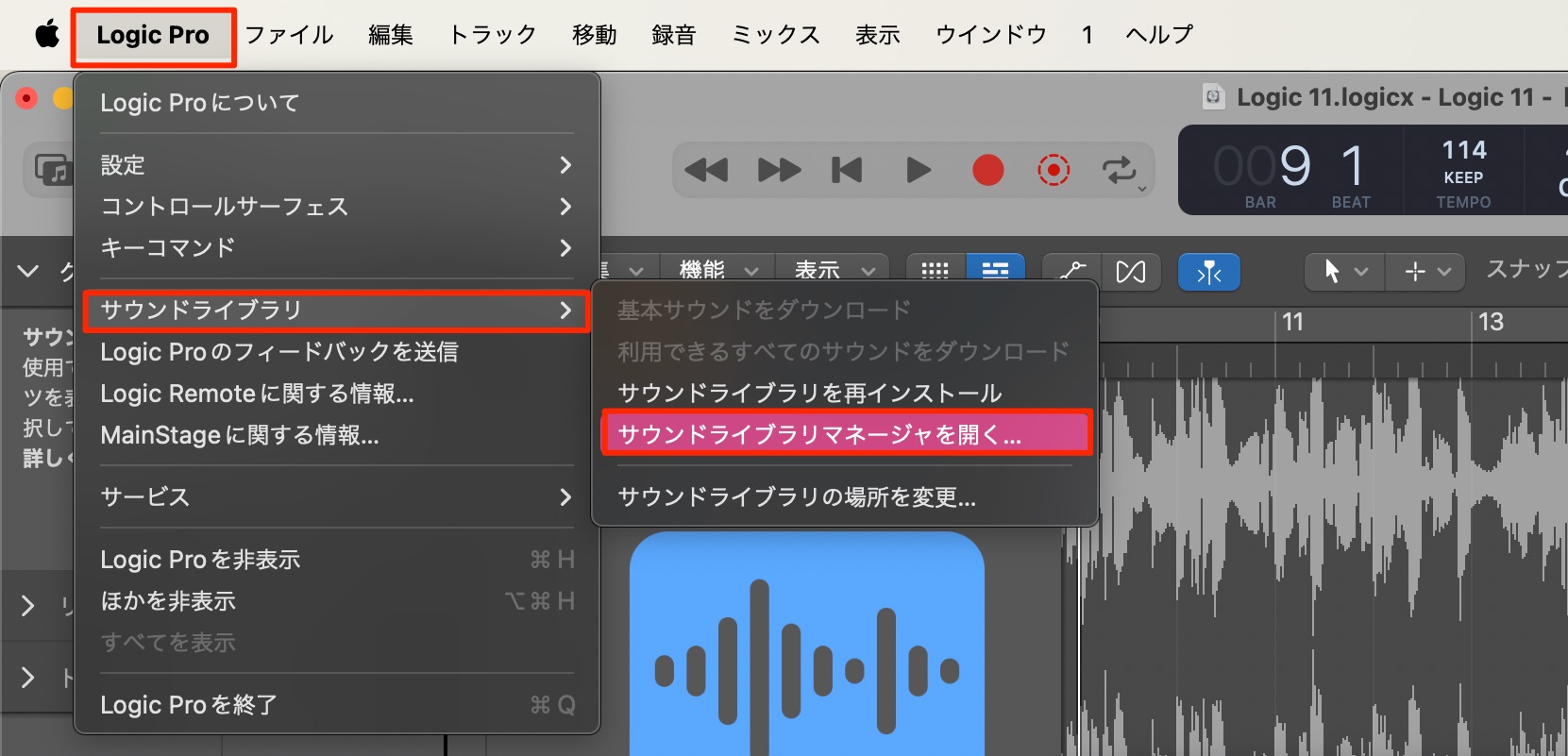
Choose Logic Pro > Sound Library > Open Sound Library Manager from the top menu.
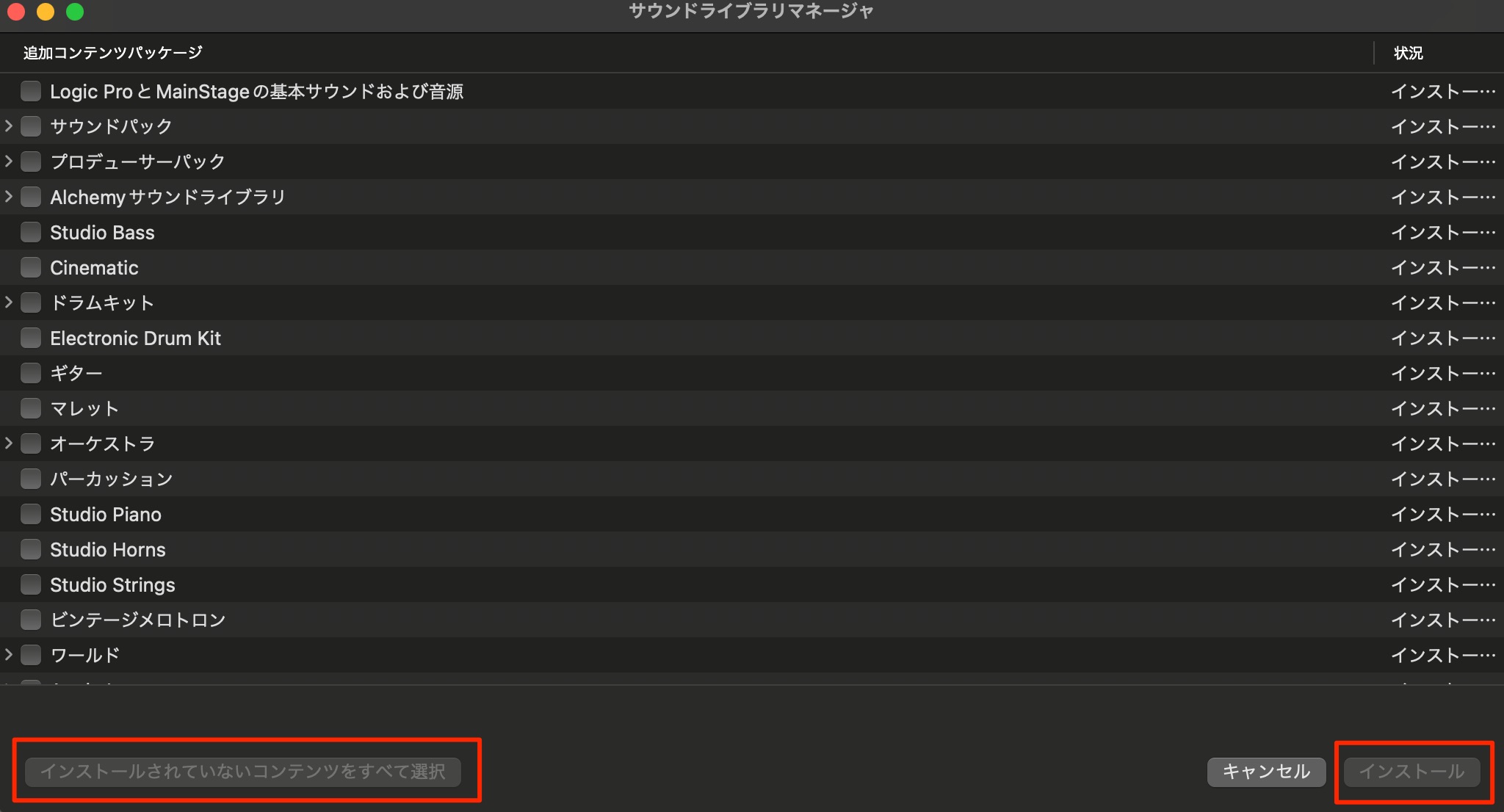
Select the content that is not yet installed and proceed with installation.
Depending on your internet connection, the download may take a considerable amount of time.
Separate a mixed recording into stems with Stem Splitter
Stem Splitter can take an audio file containing several instruments or tracks and separate it into drums, bass, vocals and other instruments in the original Logic Pro 11 release.
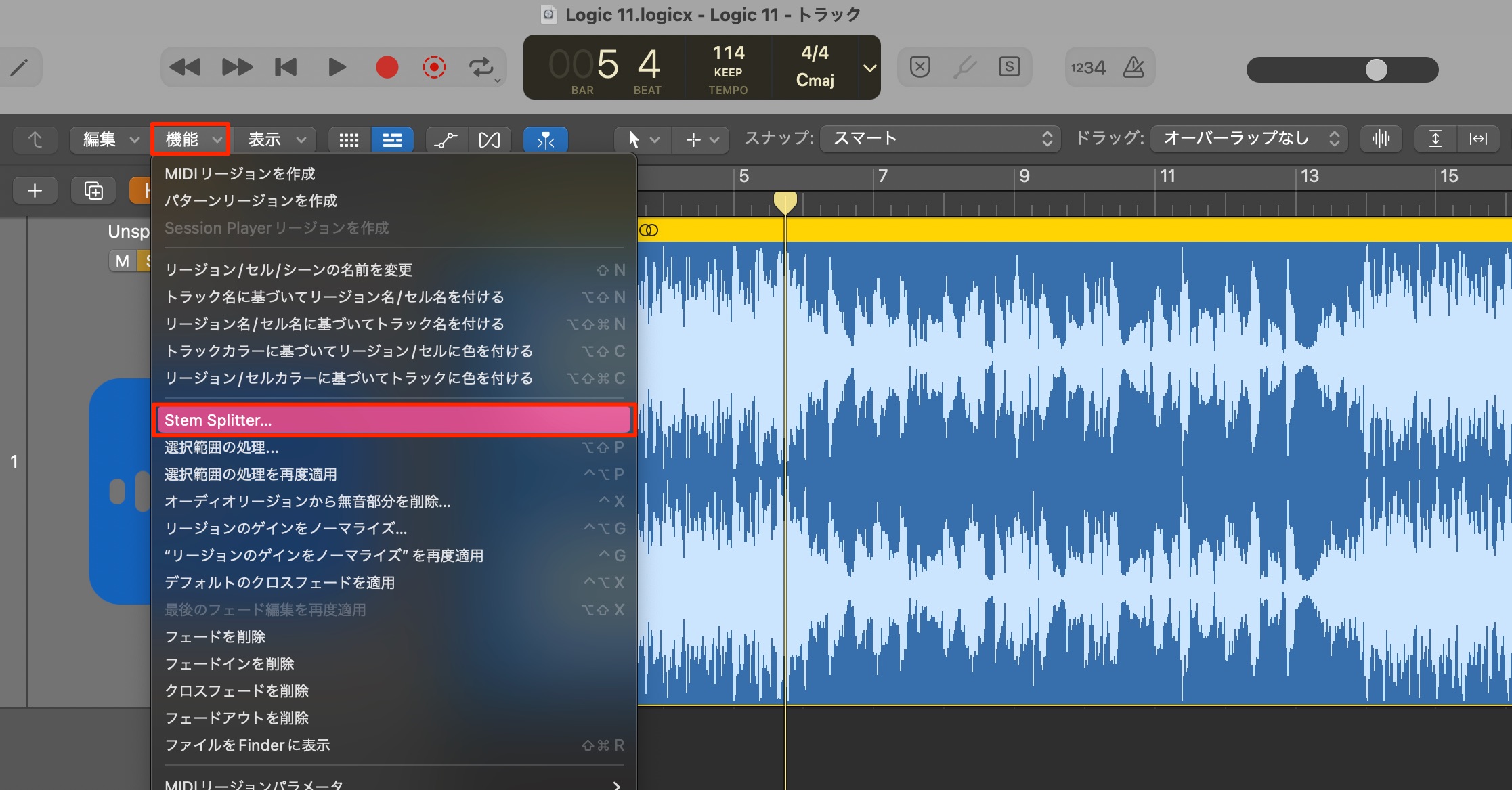
Select the audio region, then choose Functions > Stem Splitter.
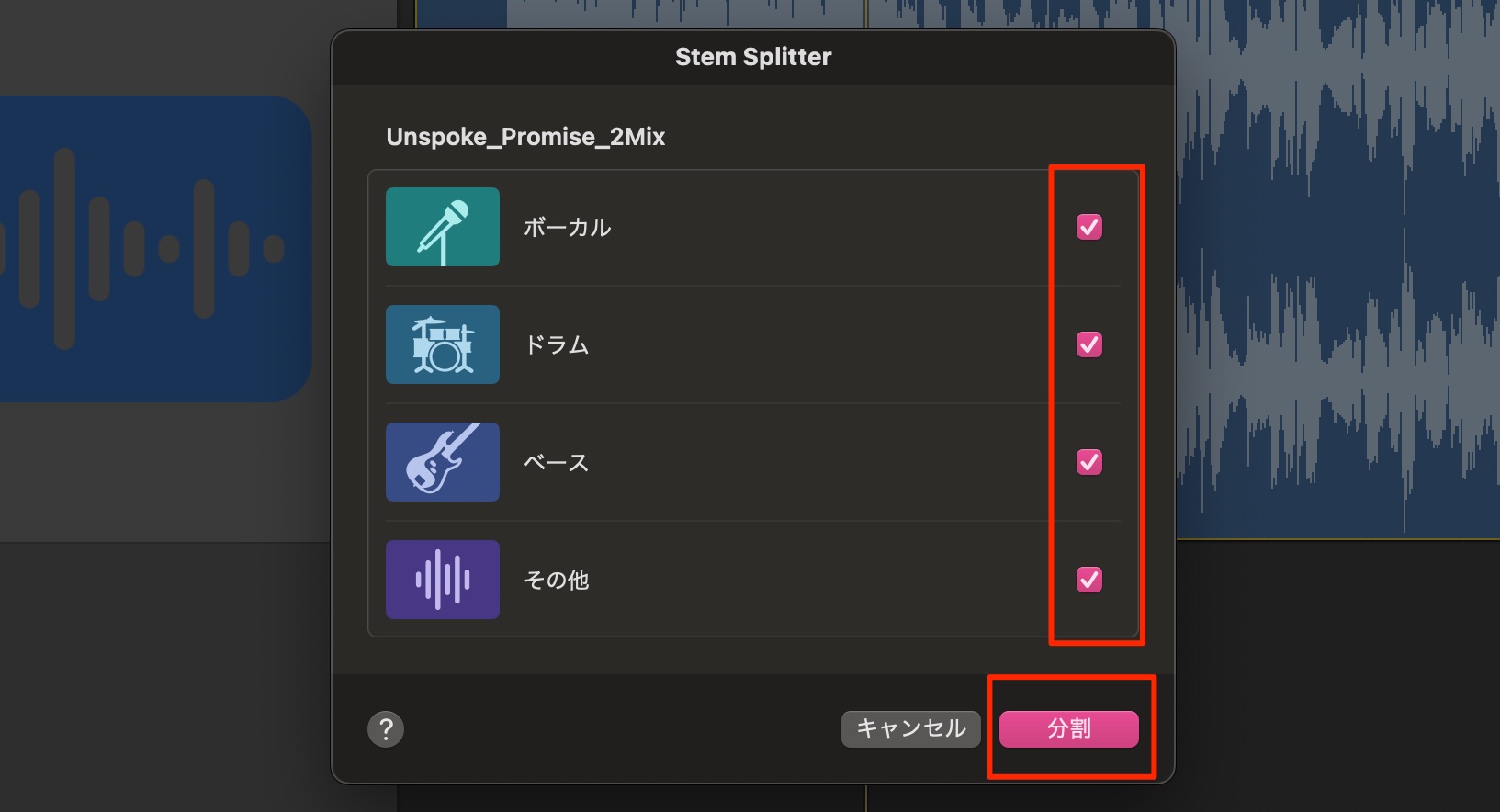
Select the stem types you want and click Split.
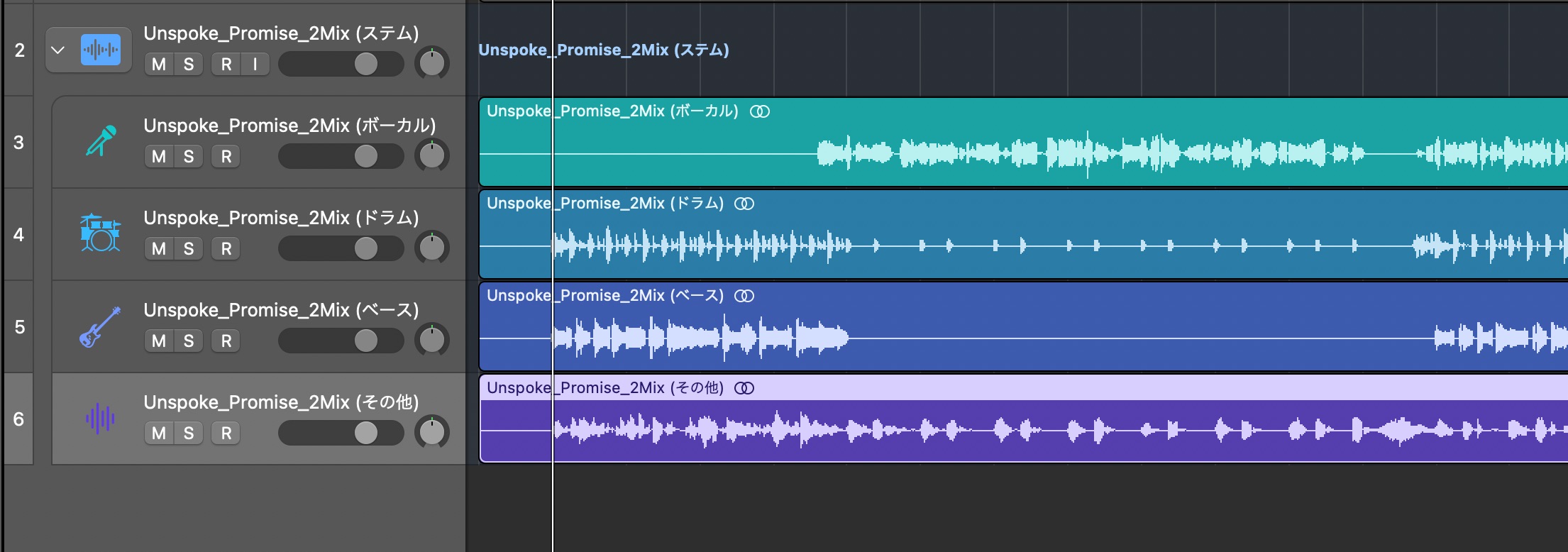
Logic creates the separated tracks.
The results in our test were impressively detailed, suggesting plenty of uses for reconstructing or remixing recordings.
If Stem Splitter is unavailable even on an M1 or later Mac, see the article below.
The global Chord track
Logic Pro 11 adds the much-requested global Chord track.
Entering the chords in advance makes the song's harmony easier to follow visually. The progression can also drive several of the features discussed below.
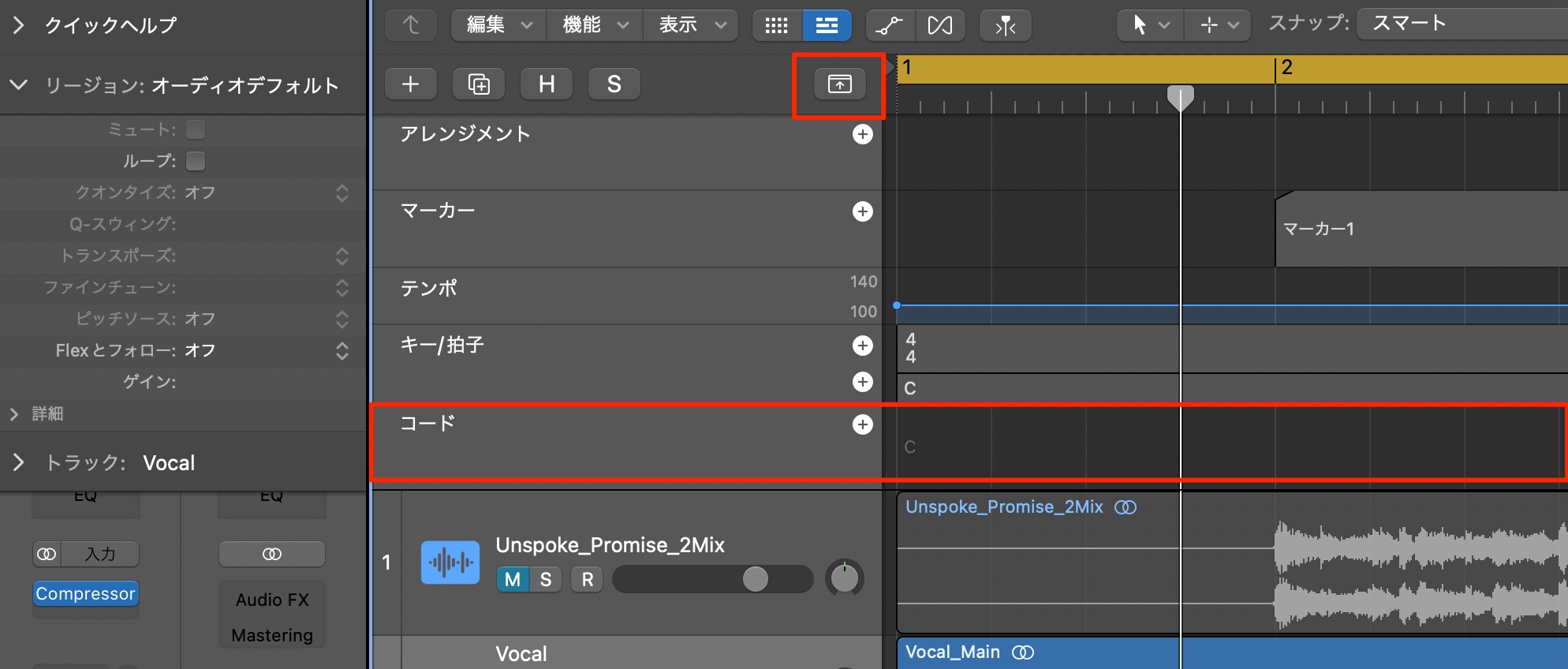
Open Global Tracks to display the Chord track.
If too many global tracks make the view cluttered, customize what is shown.
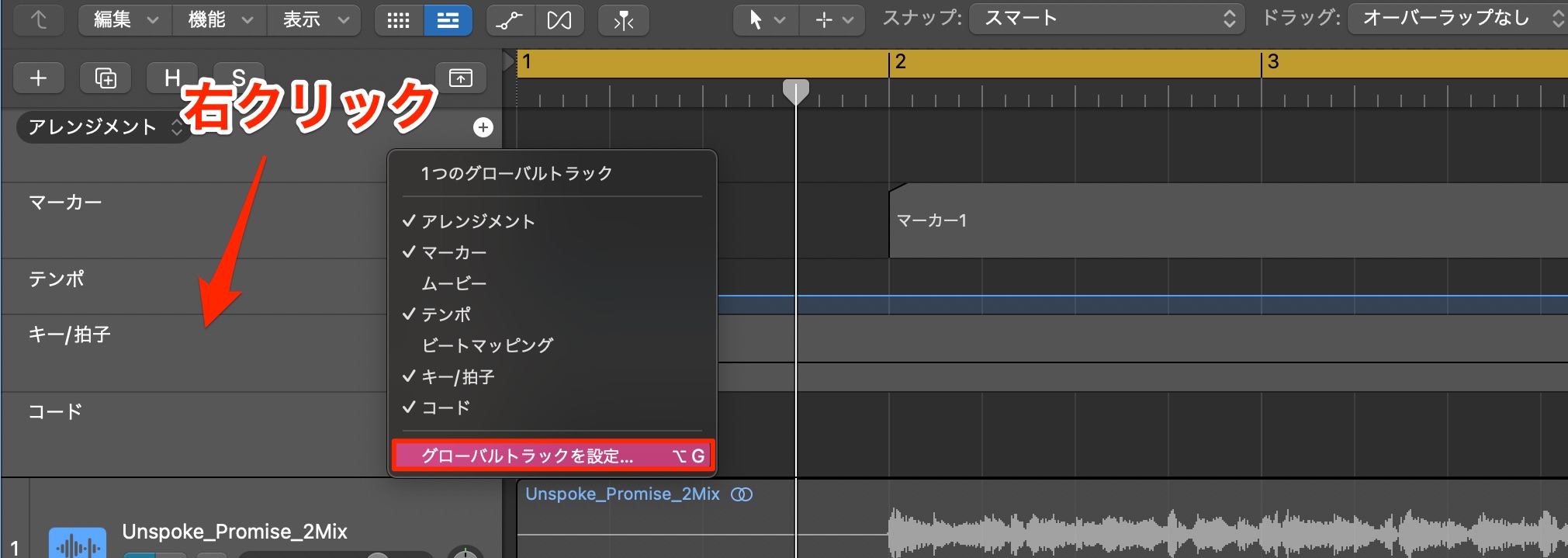
Control-click or right-click the global-track header area and choose Configure Global Tracks.
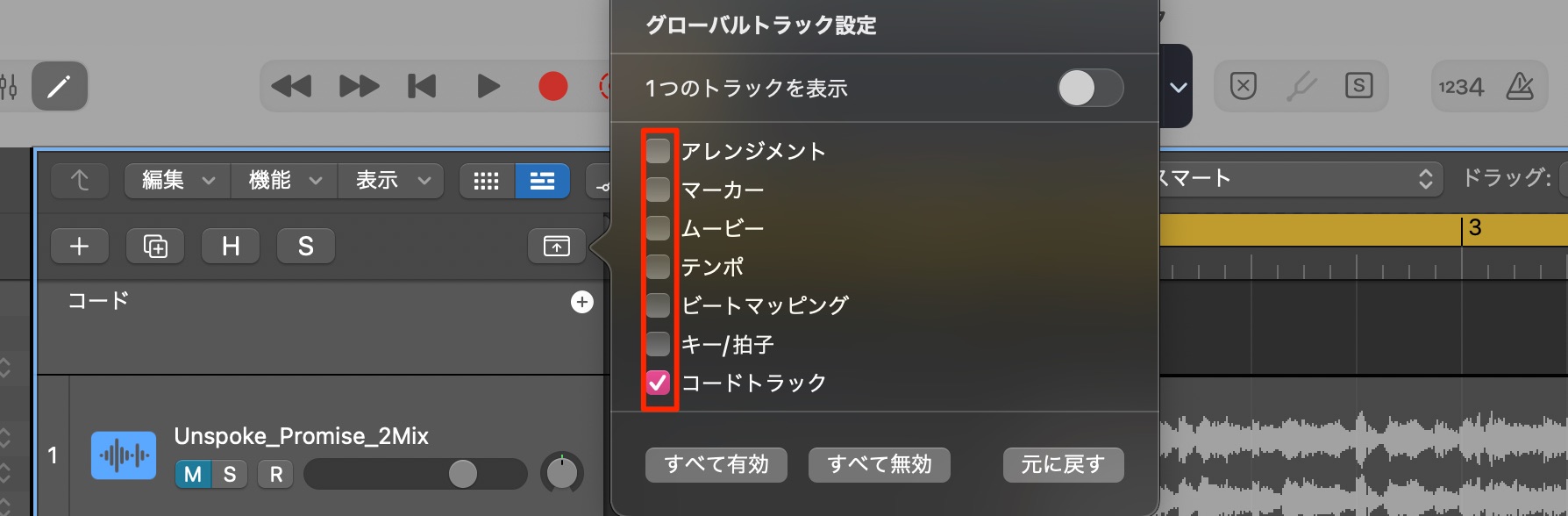
Deselect the items you do not need.
Entering chords
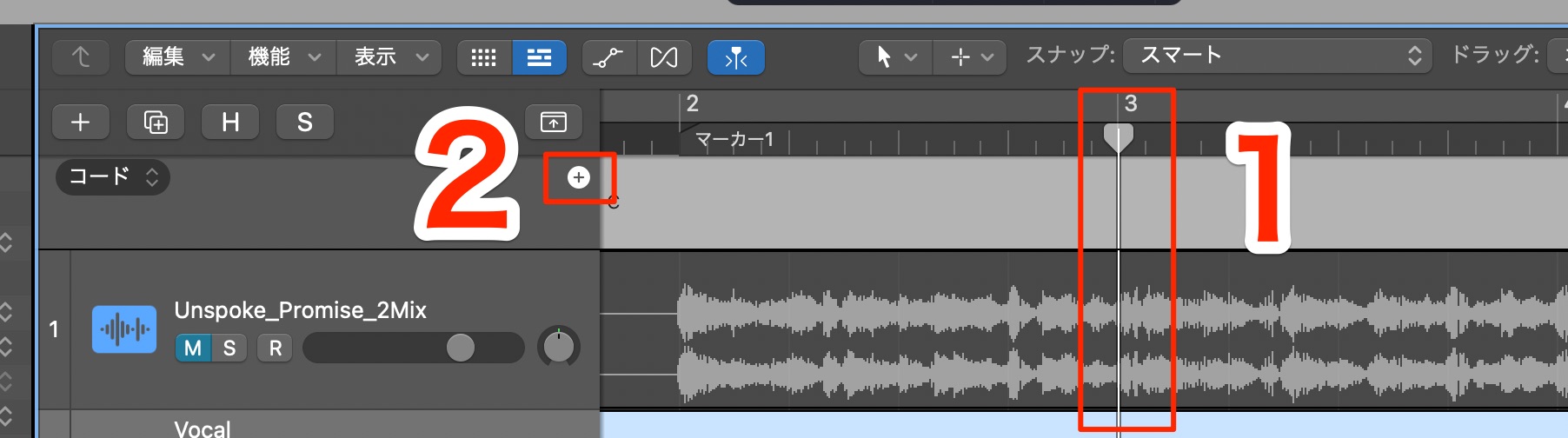
Move the playhead to where you want a chord and click the + button.
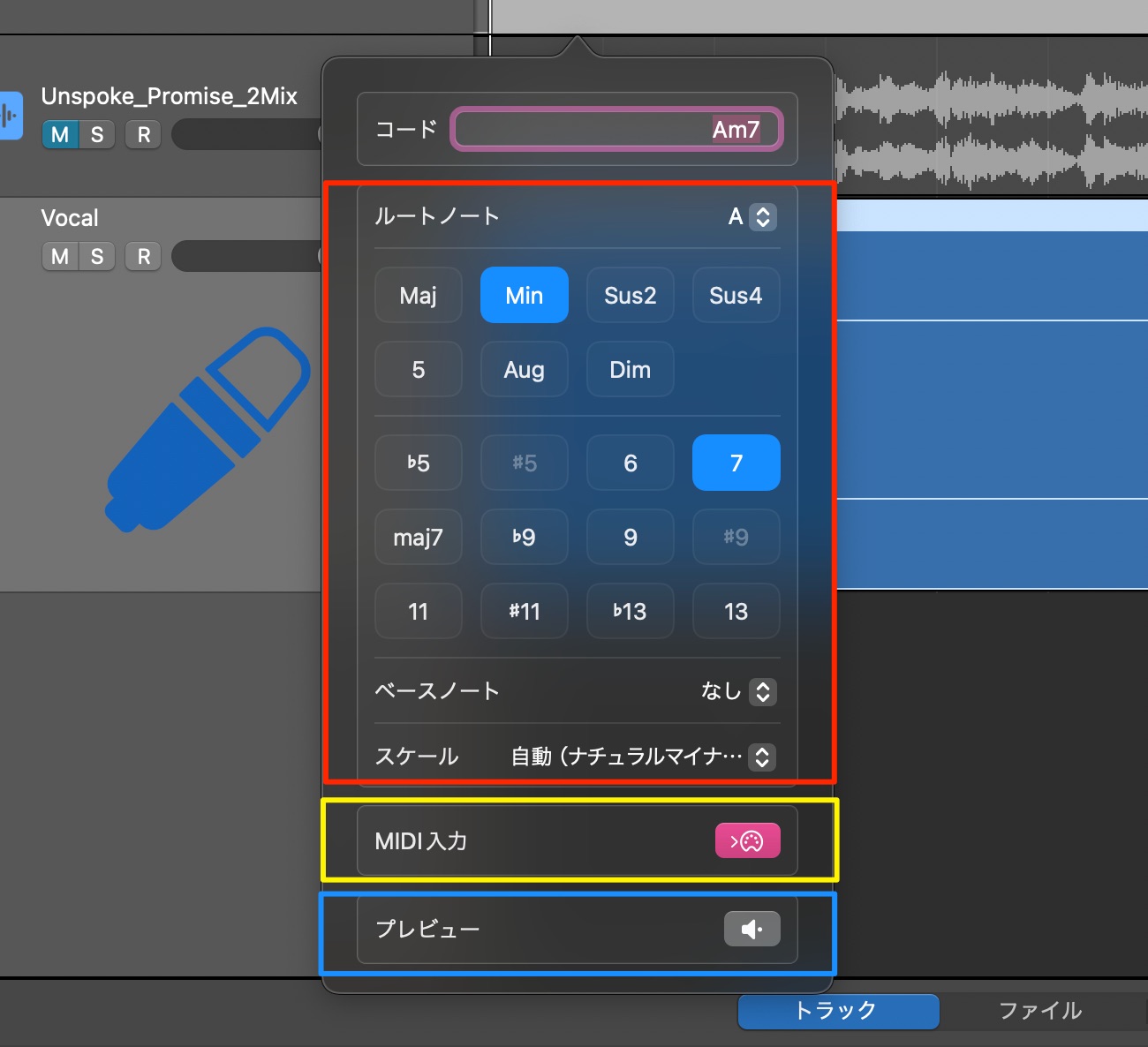
The chord editor opens.
- Red: Select the chord name you want.
- Yellow: Play a MIDI keyboard to enter the chord.
- Blue: Preview the chord's sound.
Being able to enter chords from a MIDI keyboard is especially convenient.
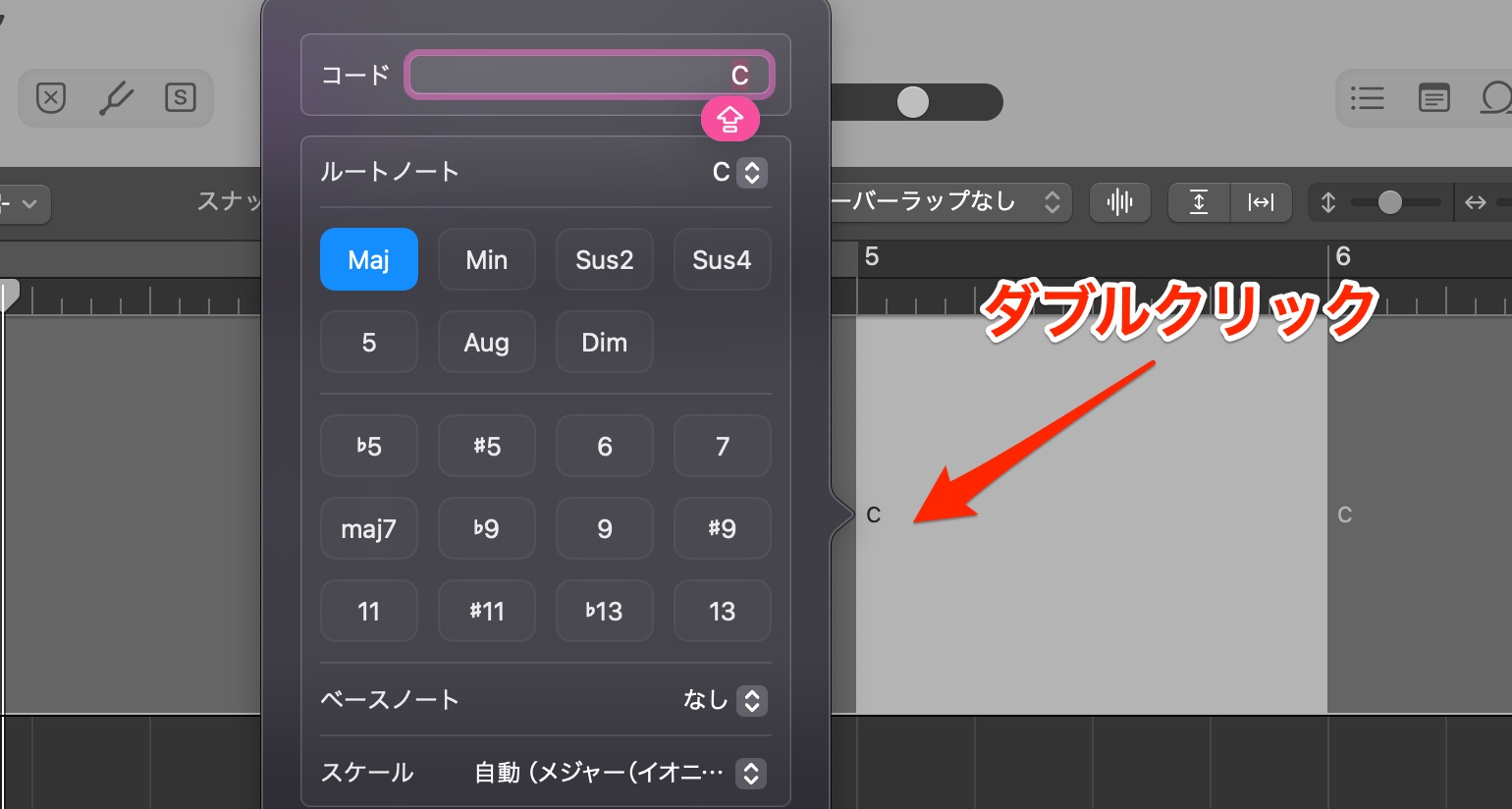
Double-click an existing chord to edit it quickly.
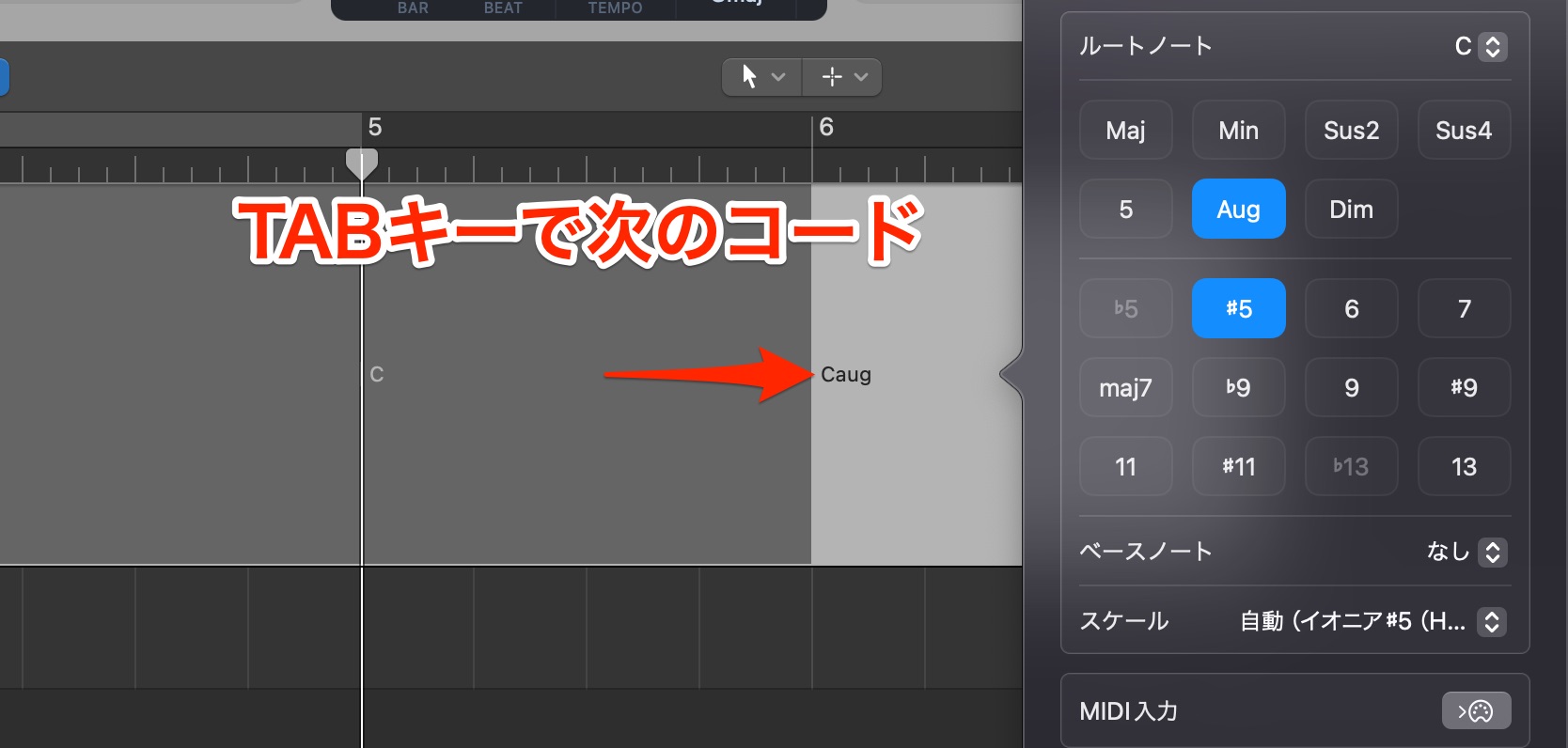
With the chord editor open, press Tab to move to the next chord entry.
Press Shift-Tab to go back to the previous chord.
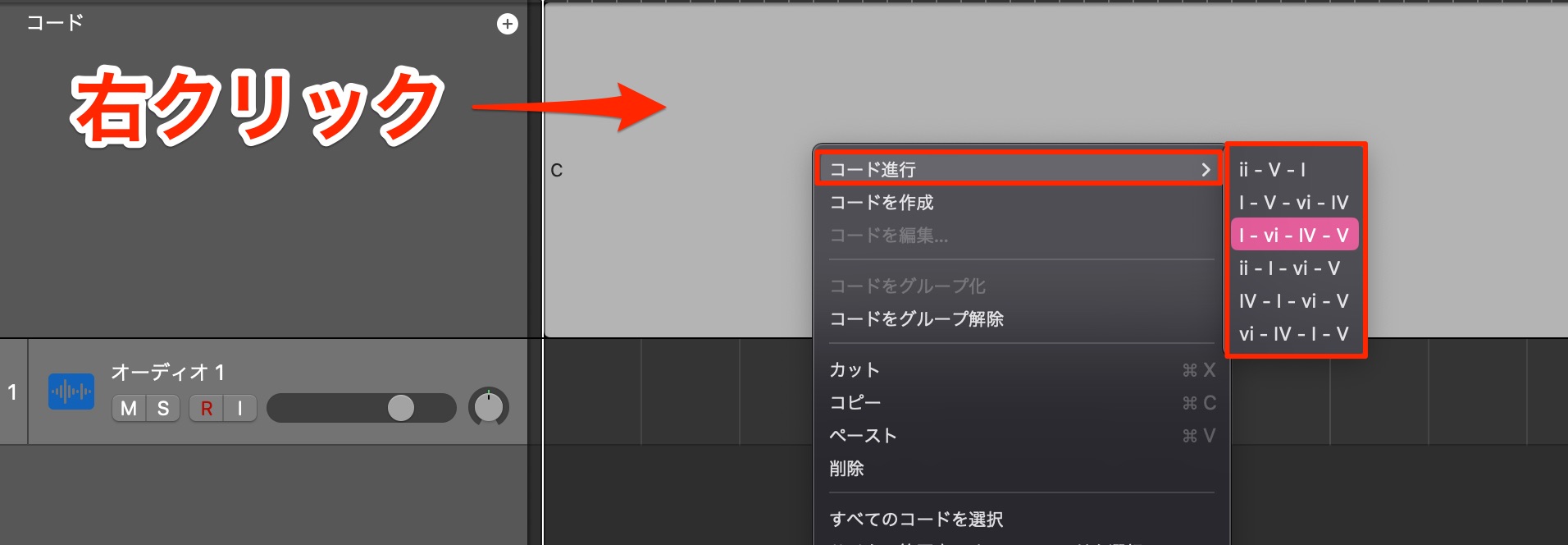
Control-click or right-click a chord and use the Chord Progression submenu to insert a common progression.
It would be useful to see more of these added in future updates.
Changing when the chords change
You can also edit the timing of the chords you have entered.
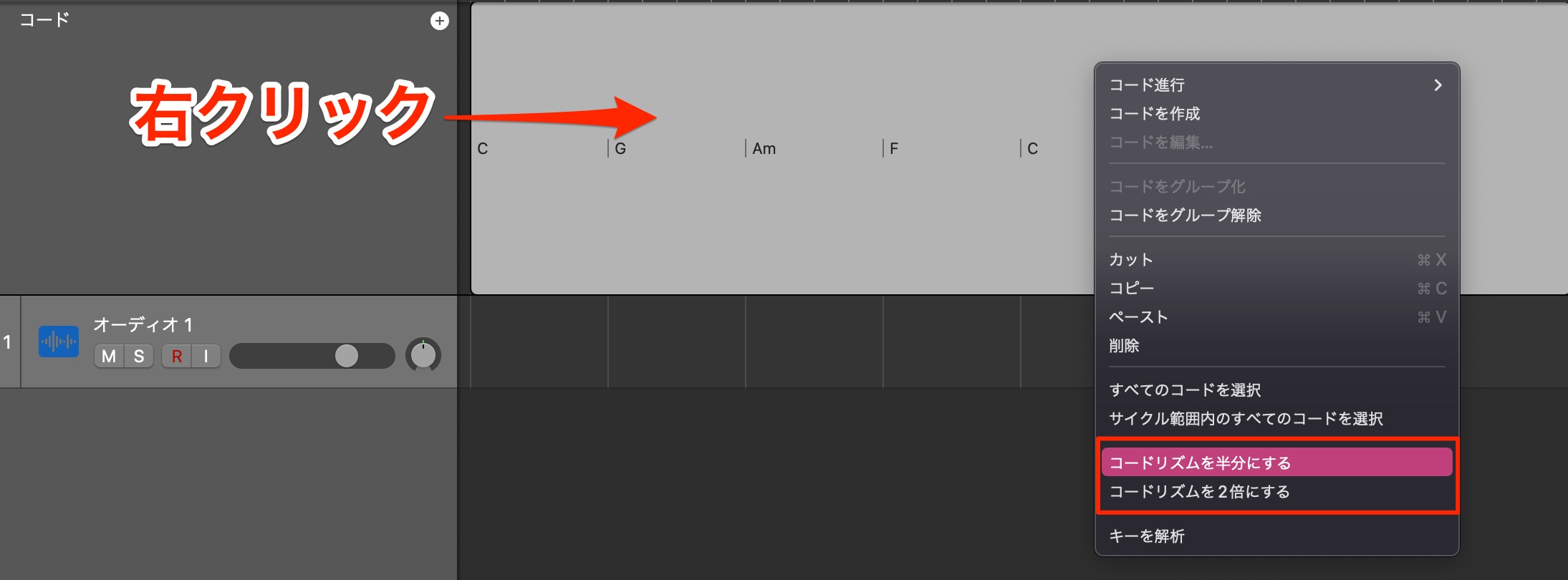
The shortcut menu lets you quickly halve or double the progression's timing.
You can also adjust individual chord positions more precisely.
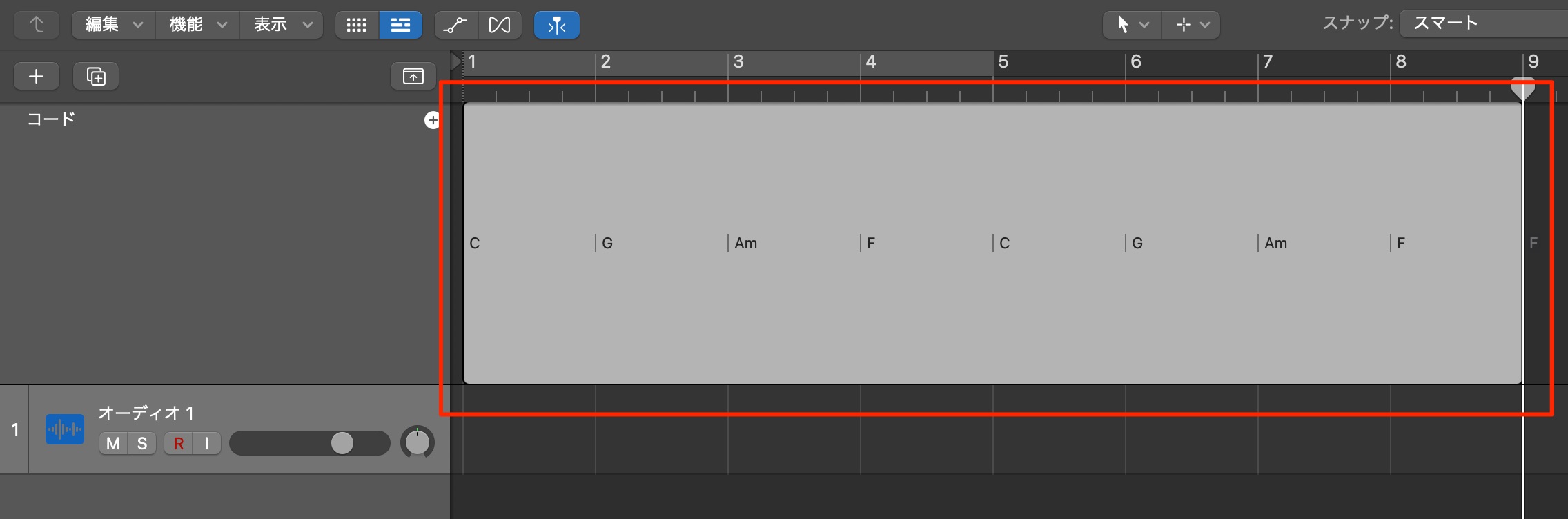
If the chords are grouped into a single block like this,
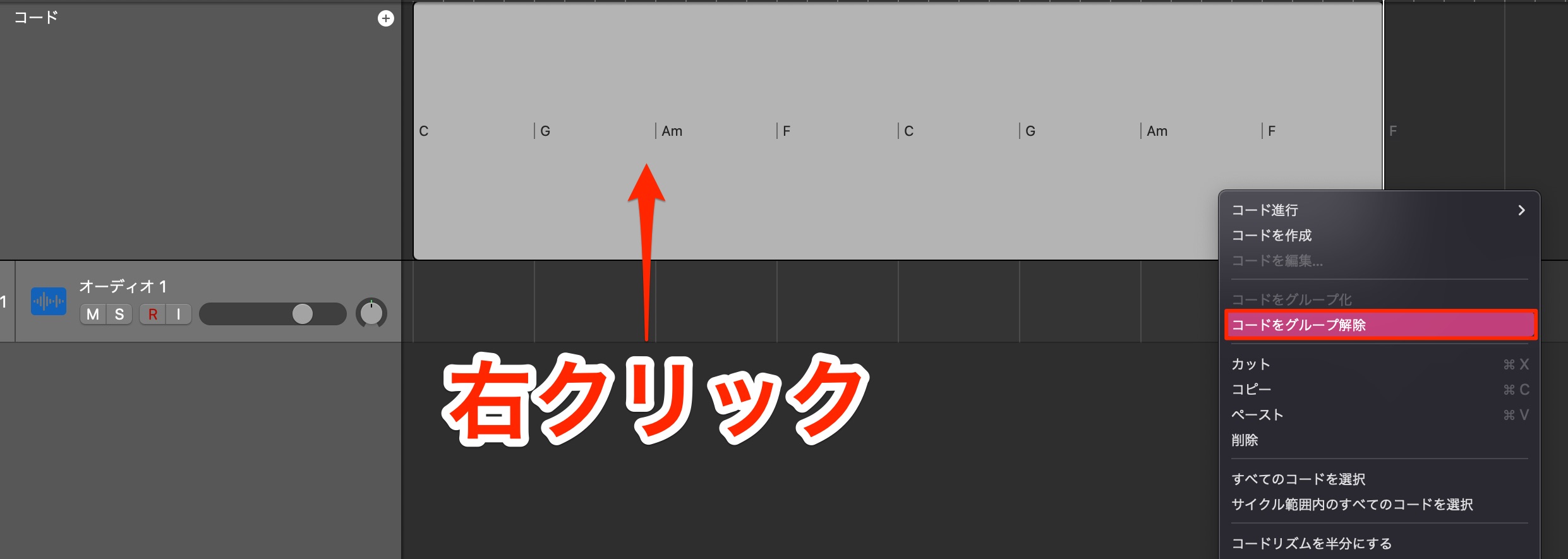
Control-click or right-click the block and choose Ungroup Chords.
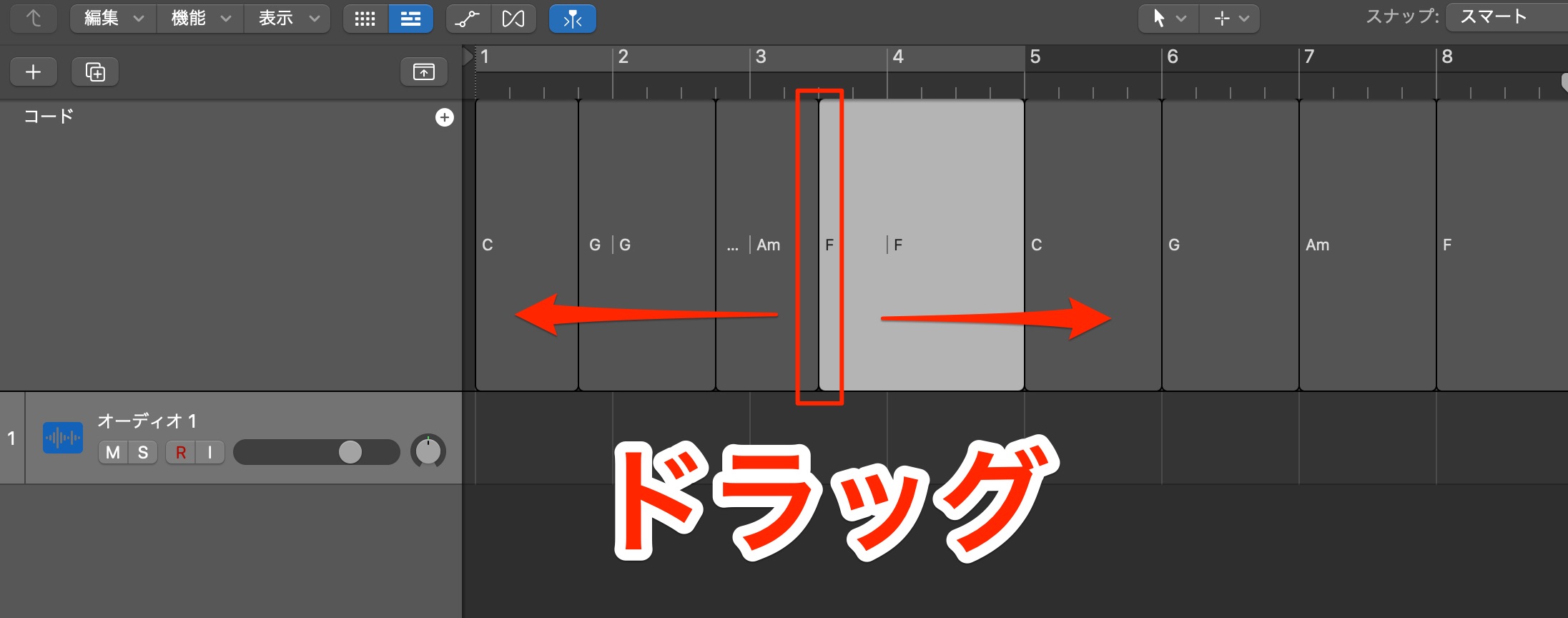
The chord items become individually editable, so you can drag them to adjust the timing.
Moving entered chords to a MIDI track
You can transfer chords to a software-instrument or MIDI track.
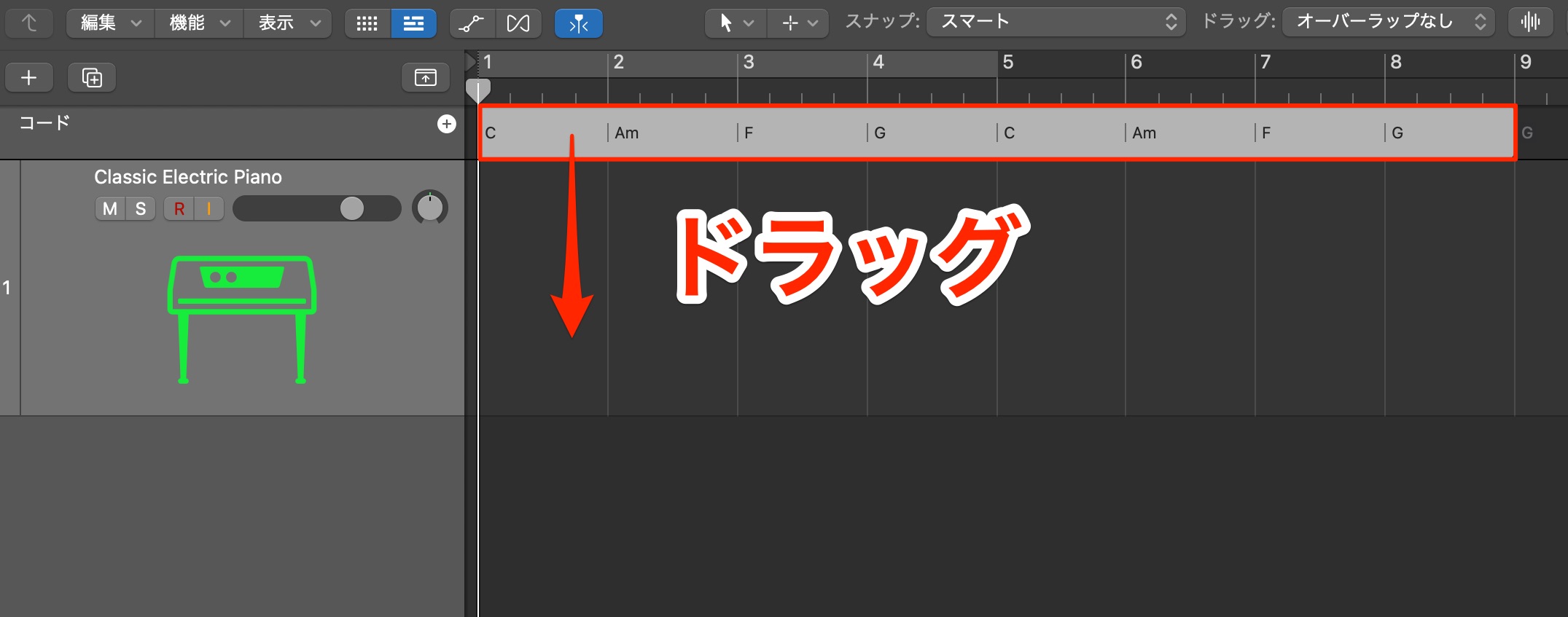
Drag the chords to the destination track.
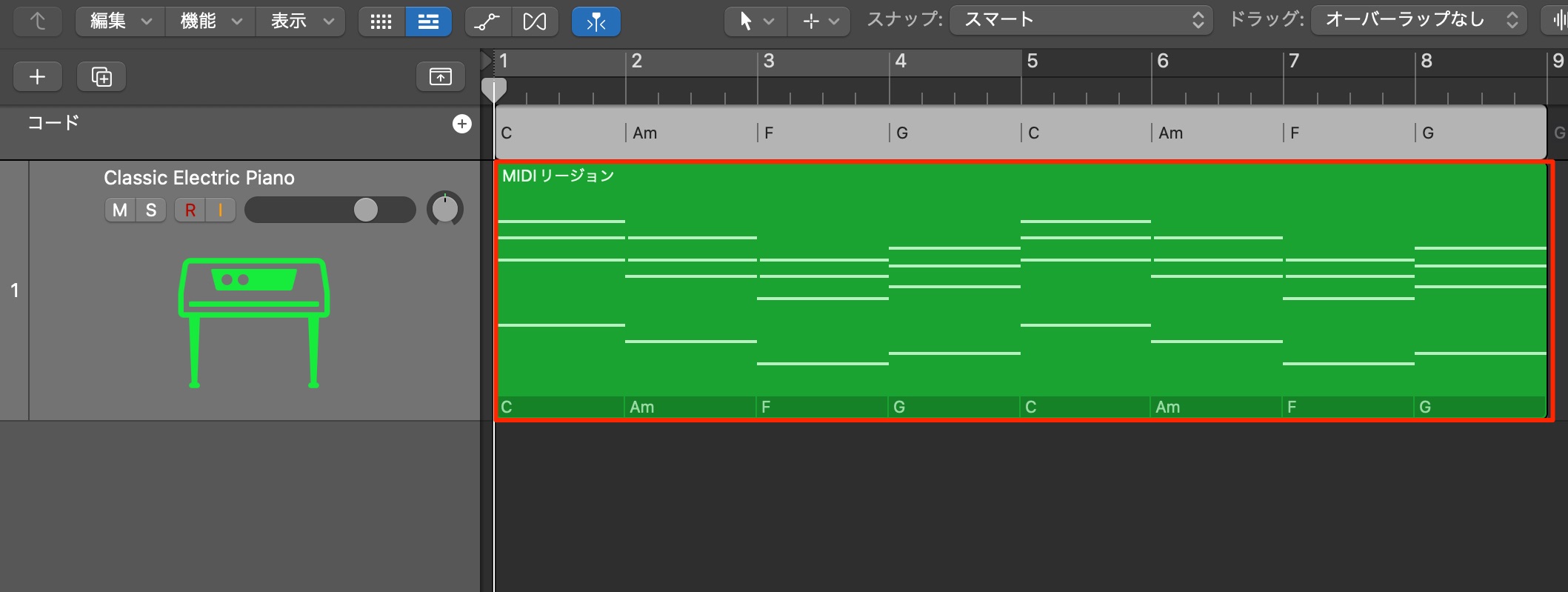
This is a convenient way to create MIDI chord regions quickly.
Importing chord information from Apple Loops
The update also includes high-quality new Apple Loops.
Some Apple Loops contain chord information that you can apply to the global Chord track.
To make effective use of these loops and the features below, set the project's key first.
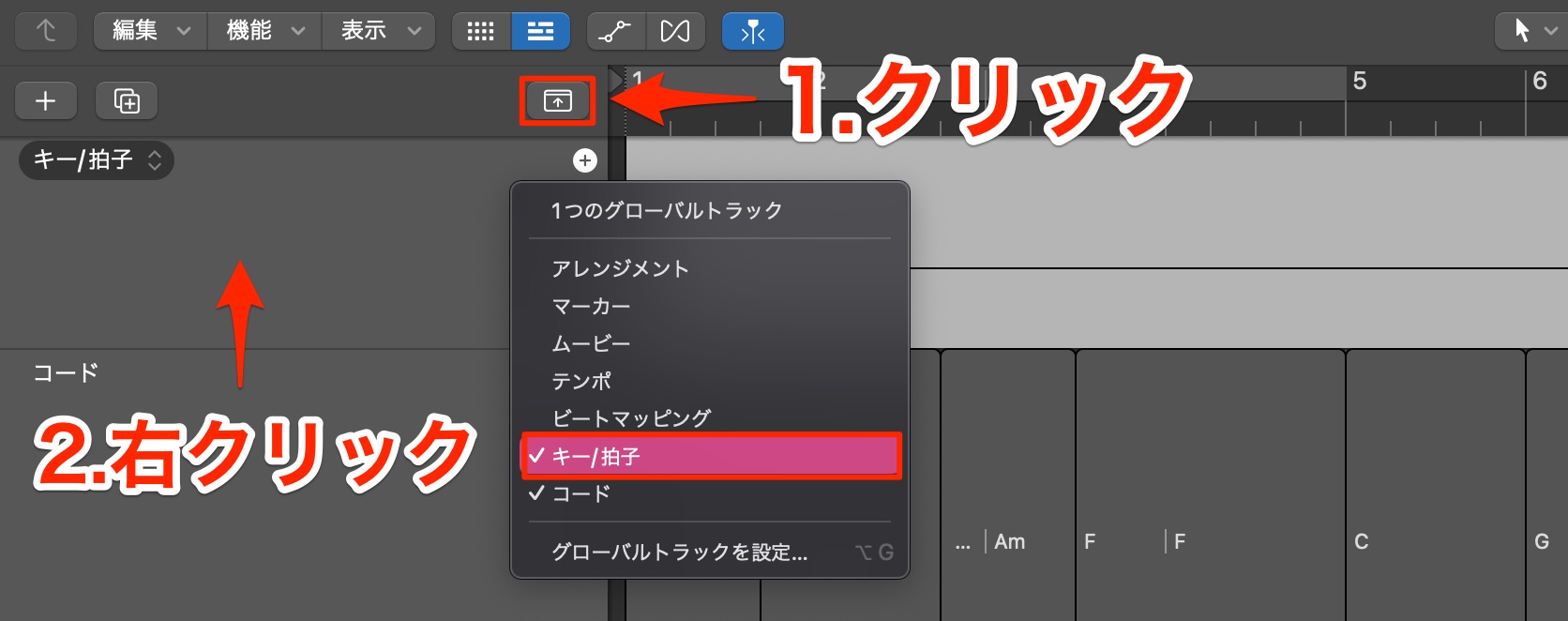
Check or set it in Global Tracks.
If the relevant global track is hidden, Control-click or right-click the header area and enable Signature.
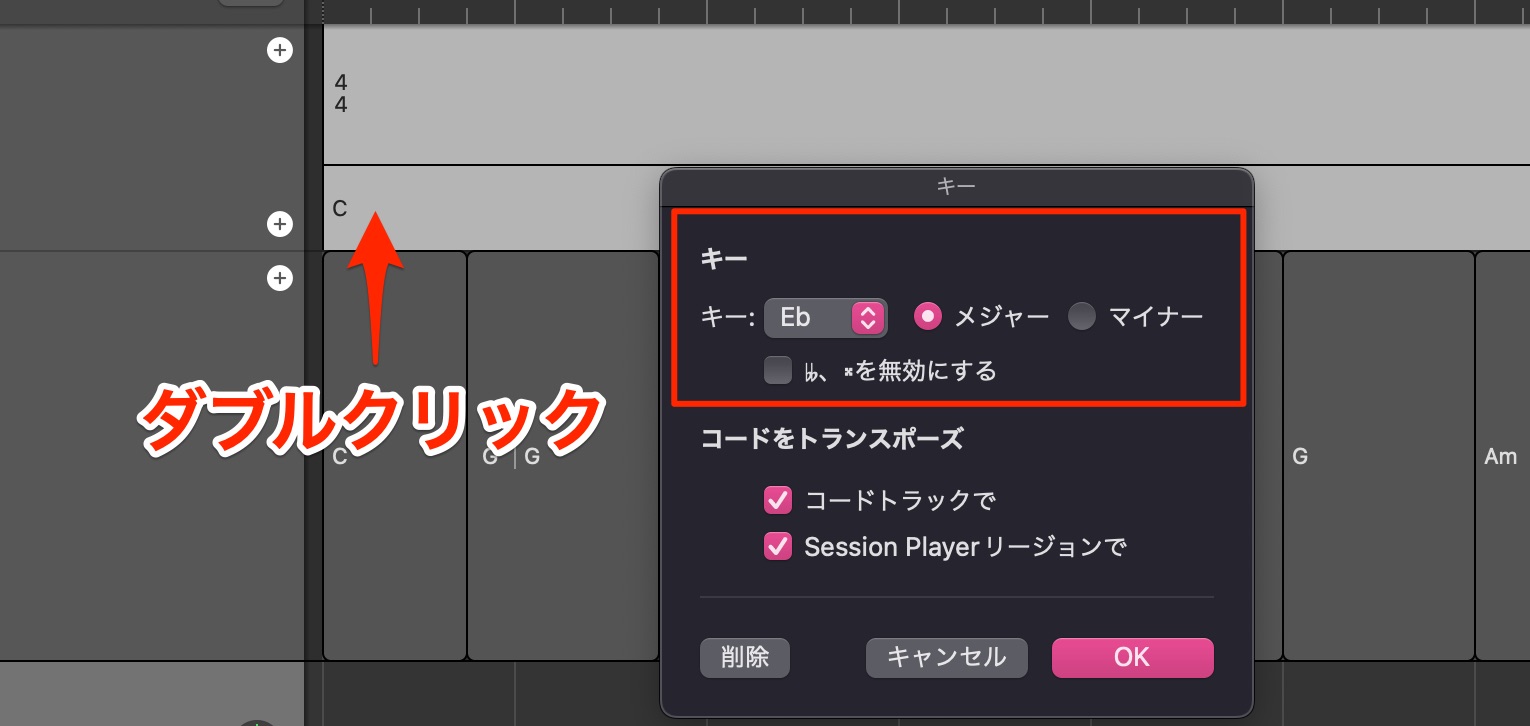
Double-click the key signature and set the project's key.
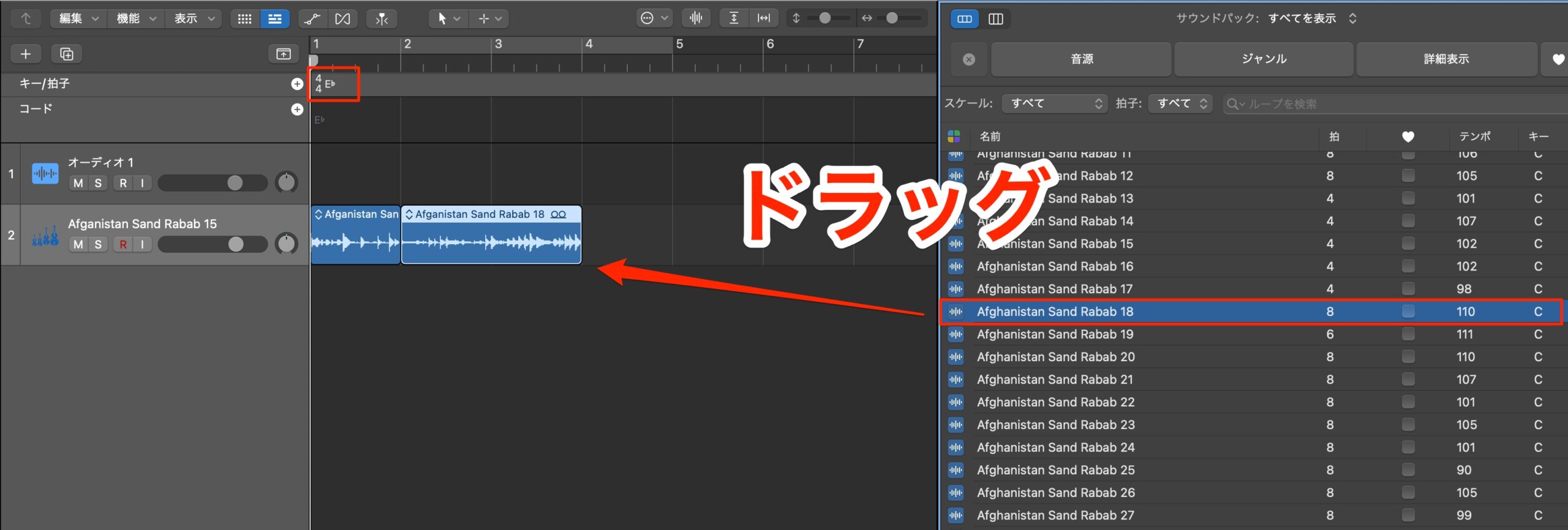
Apple Loops can then be imported in a way that follows the project key.
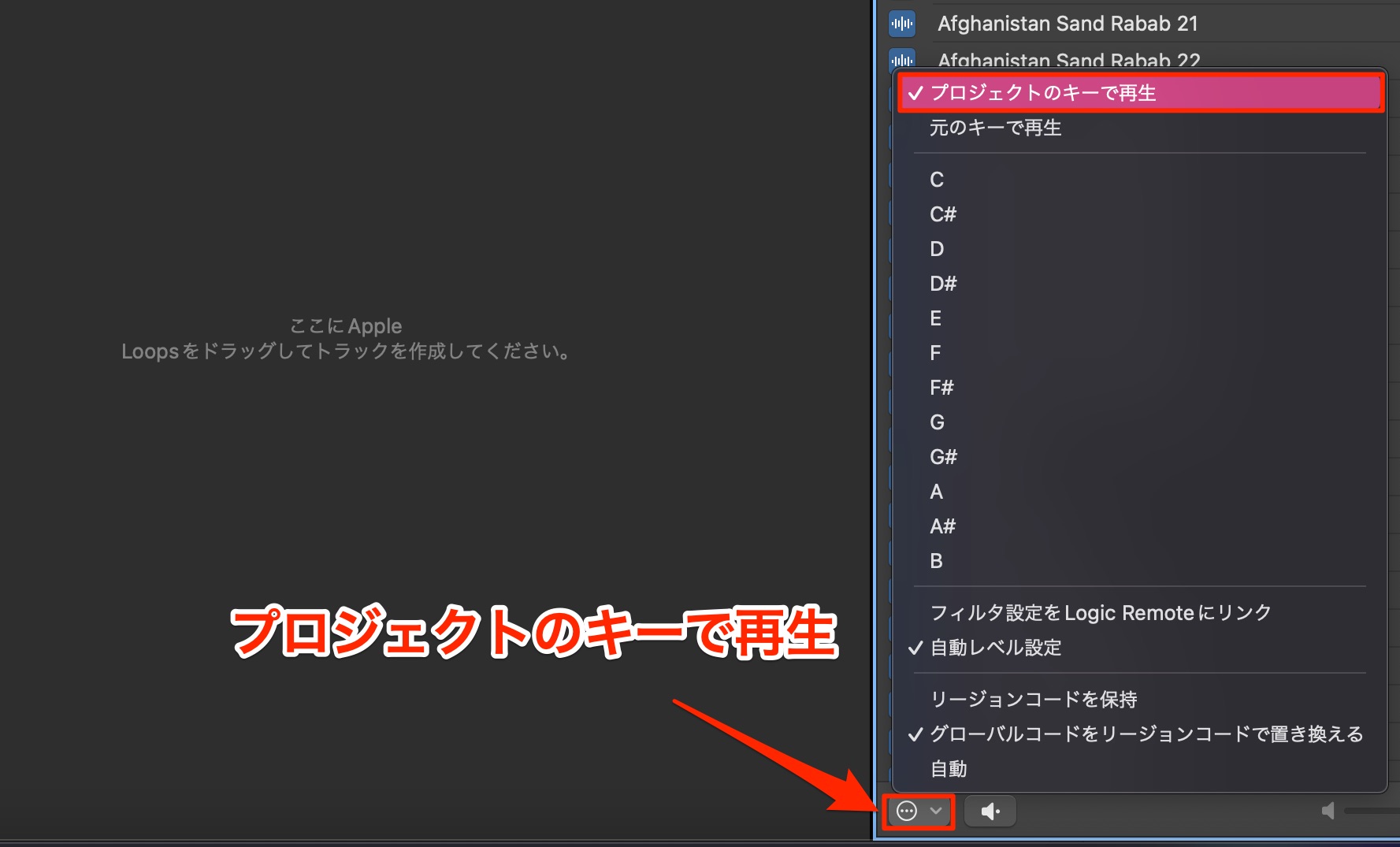
In the Apple Loops menu, enable Play in Project Key so that loop previews also follow that key.
Now for the chord information itself.
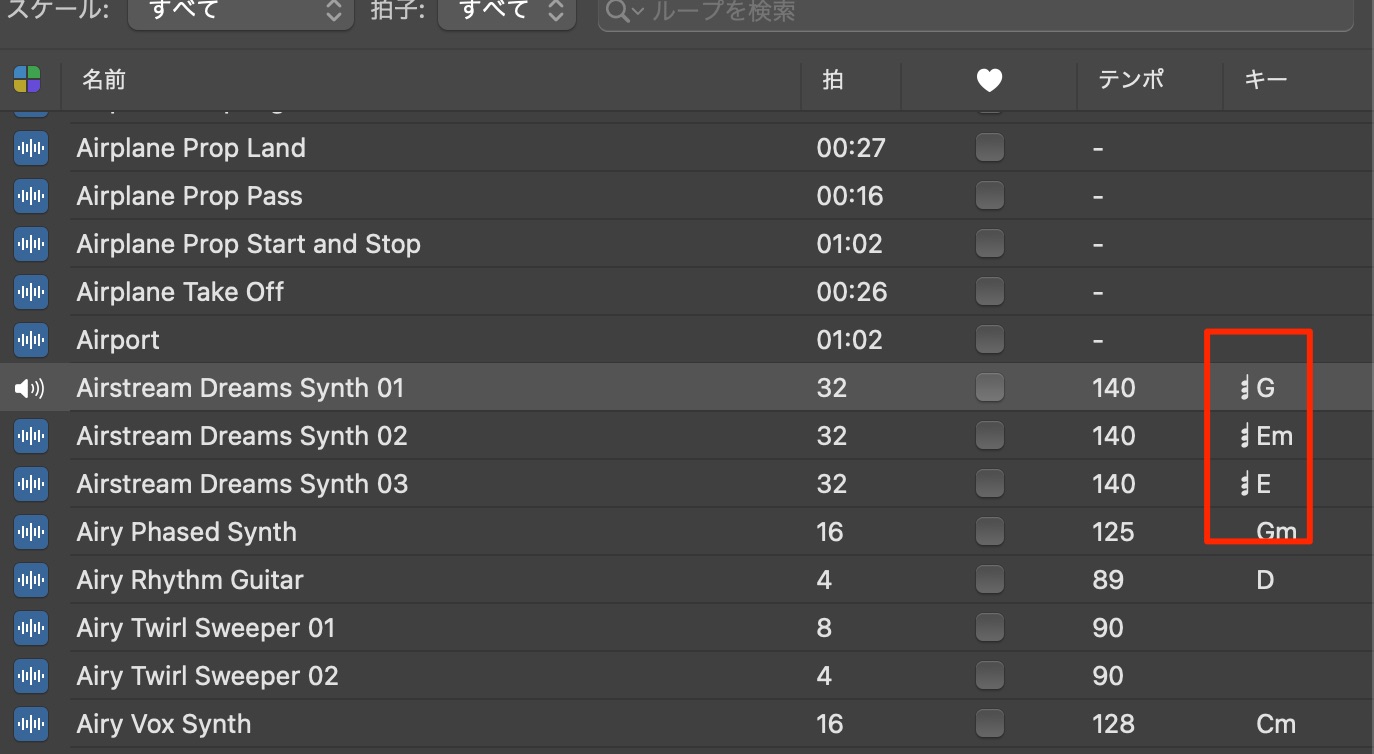
Some Apple Loops include embedded chord data.
These loops display a musical-note icon in the key column.
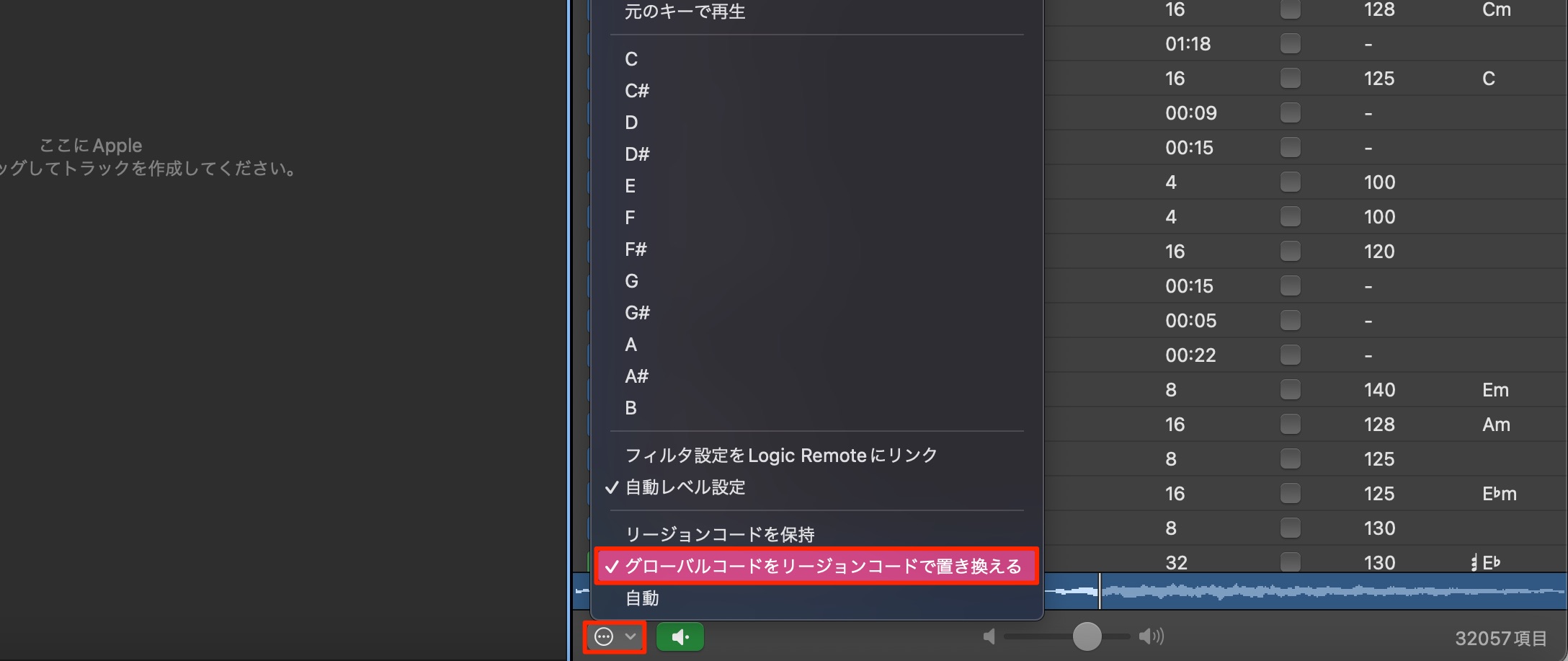
Enable Replace Global Chords with Region Chords in the menu
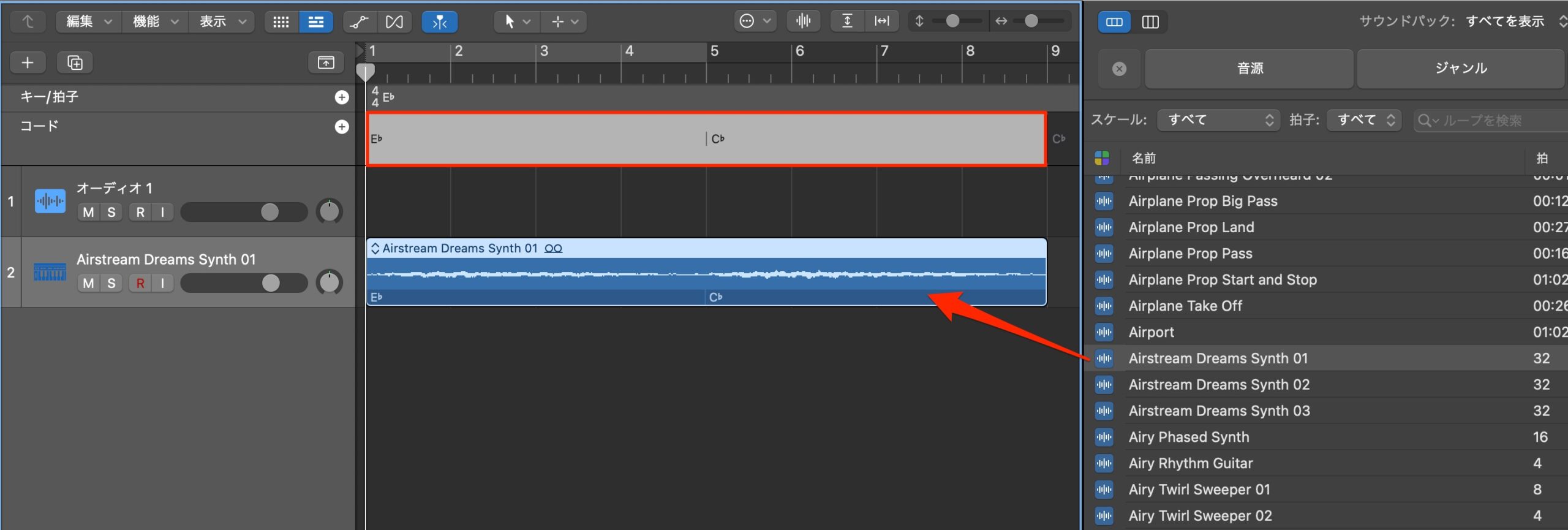
so that importing one of these loops replaces the global chord progression with its chord information.
This is useful when you want to build a song around a particular loop.
If you want to preserve the project's current global progression, choose Keep Region Chords instead.
AI-assisted performances with Session Players
Session Players are a headline feature of this release.
Their generated performances can help with composition and arranging.
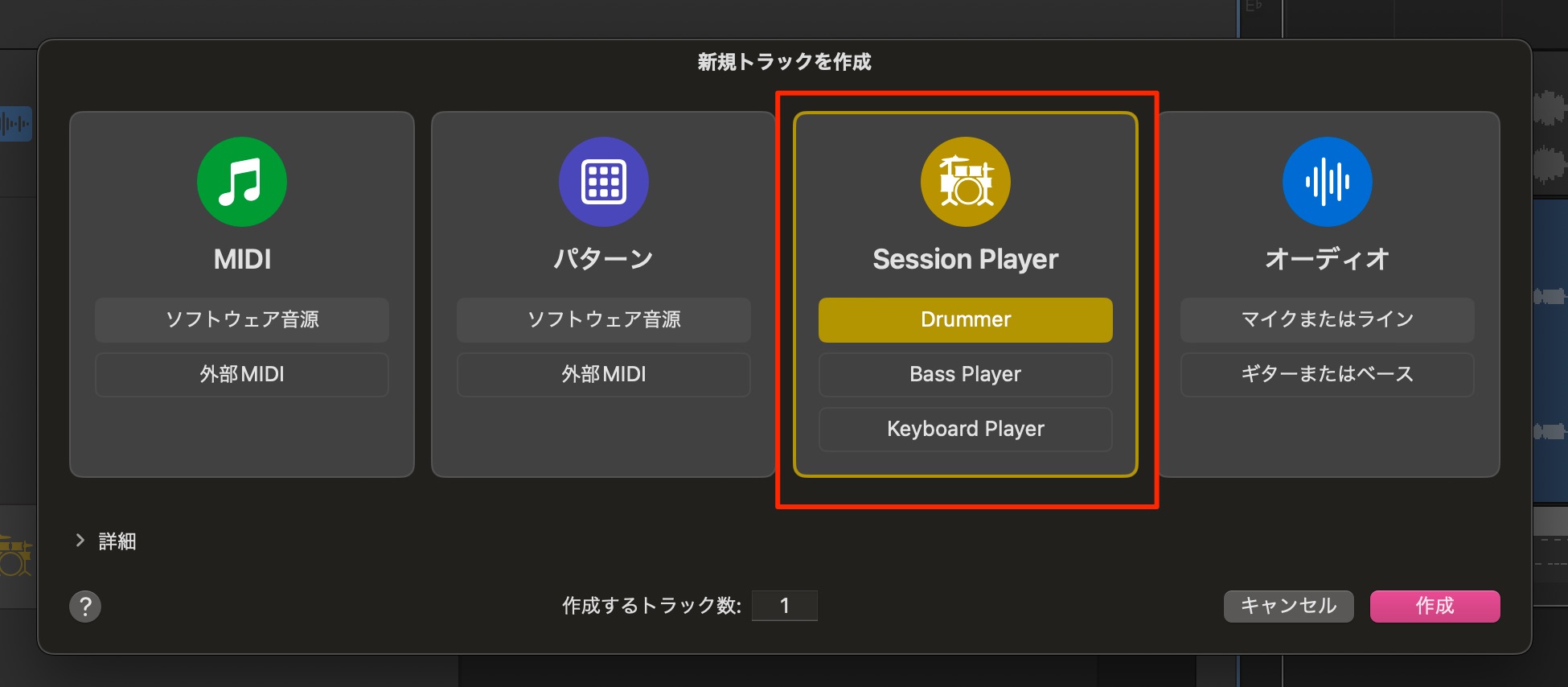
The existing Drummer feature has evolved,
and the update adds Bass Player and Keyboard Player.
Drummer
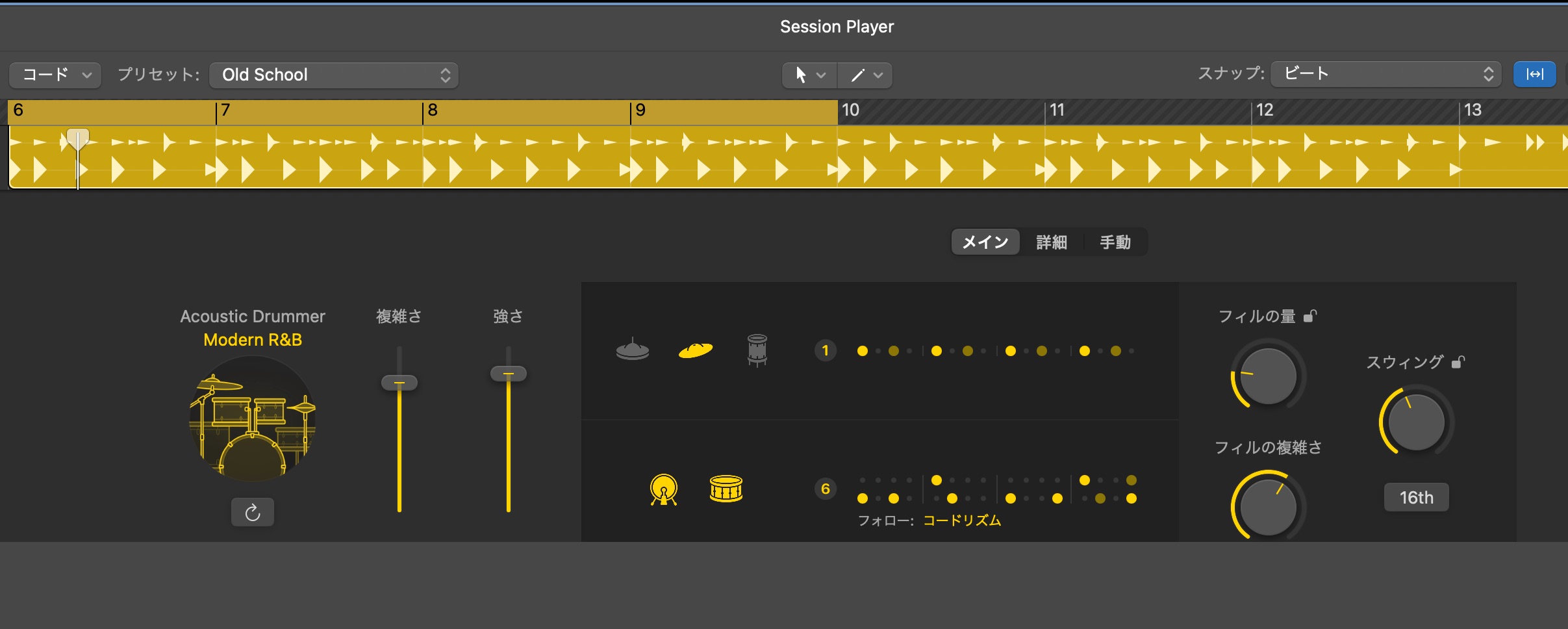
Drummer is the performance-generation feature carried over from previous versions.
In Logic Pro 11, it offers more natural performances and greater flexibility in shaping phrases.
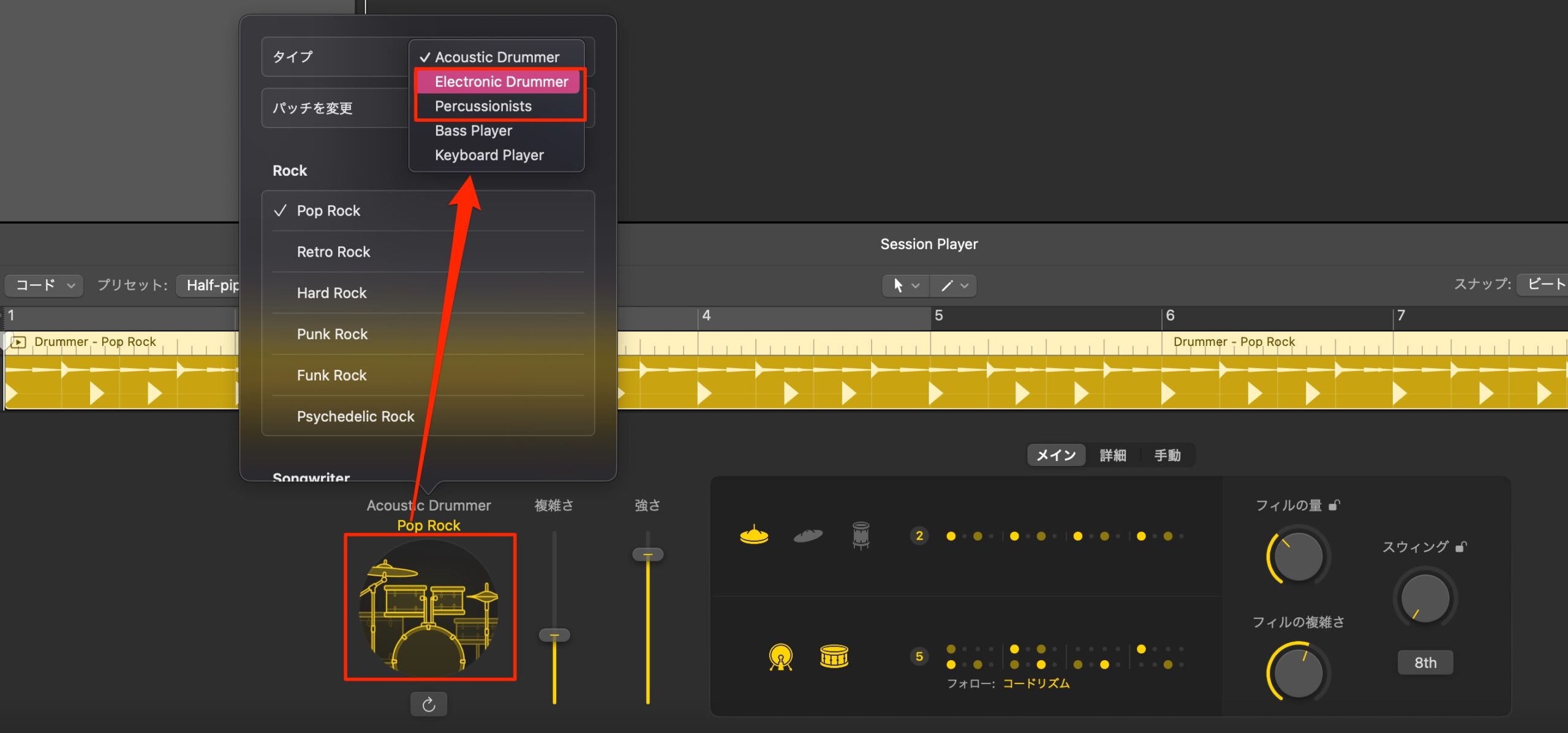
It covers acoustic drums, electronic styles and percussion.
Bass Player
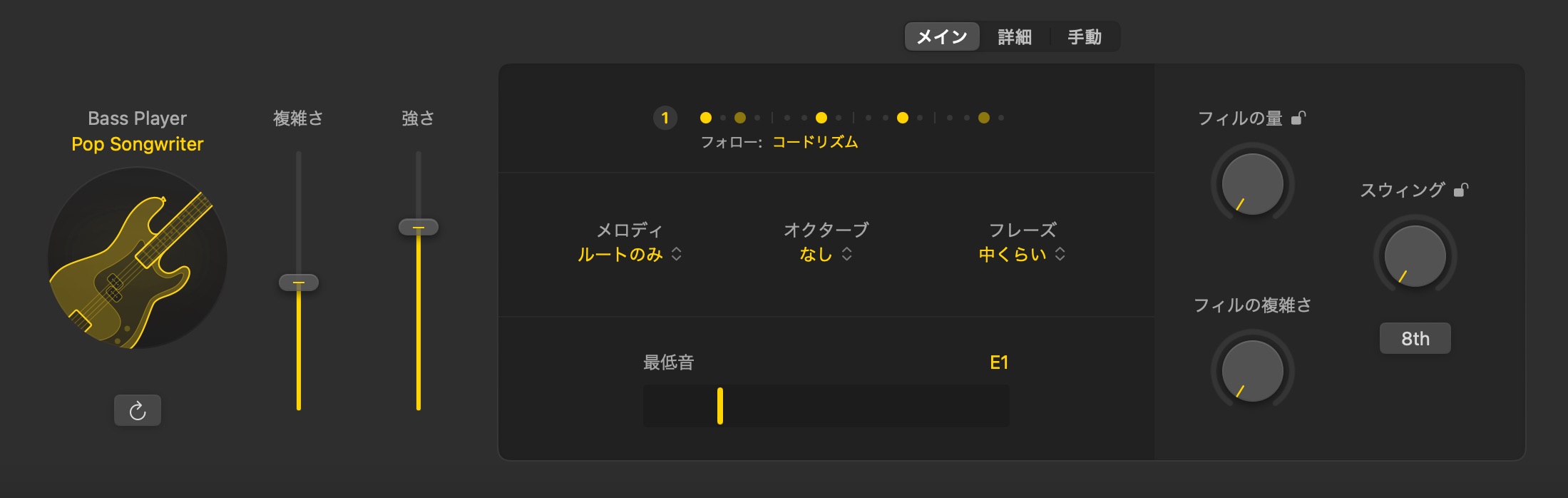
Bass Player combines AI-assisted performance generation with instrument technology.
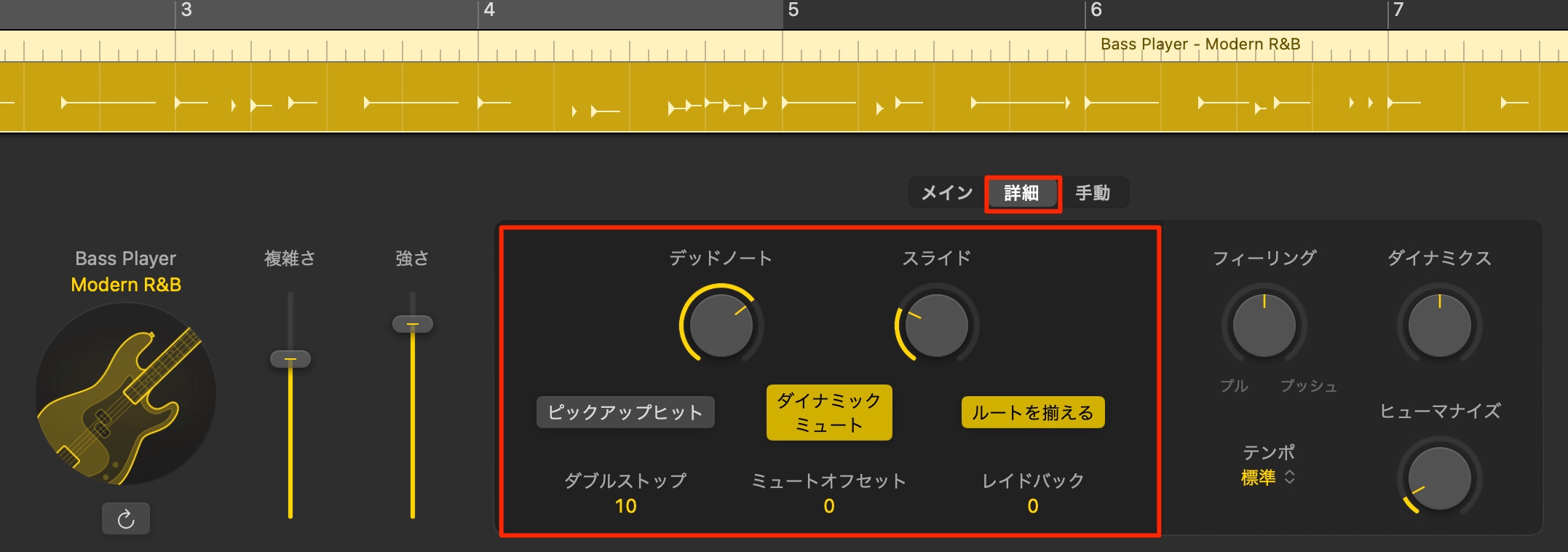
It includes techniques such as slides, muted notes, ghost notes and slap, making it easy to add convincing bass phrases.
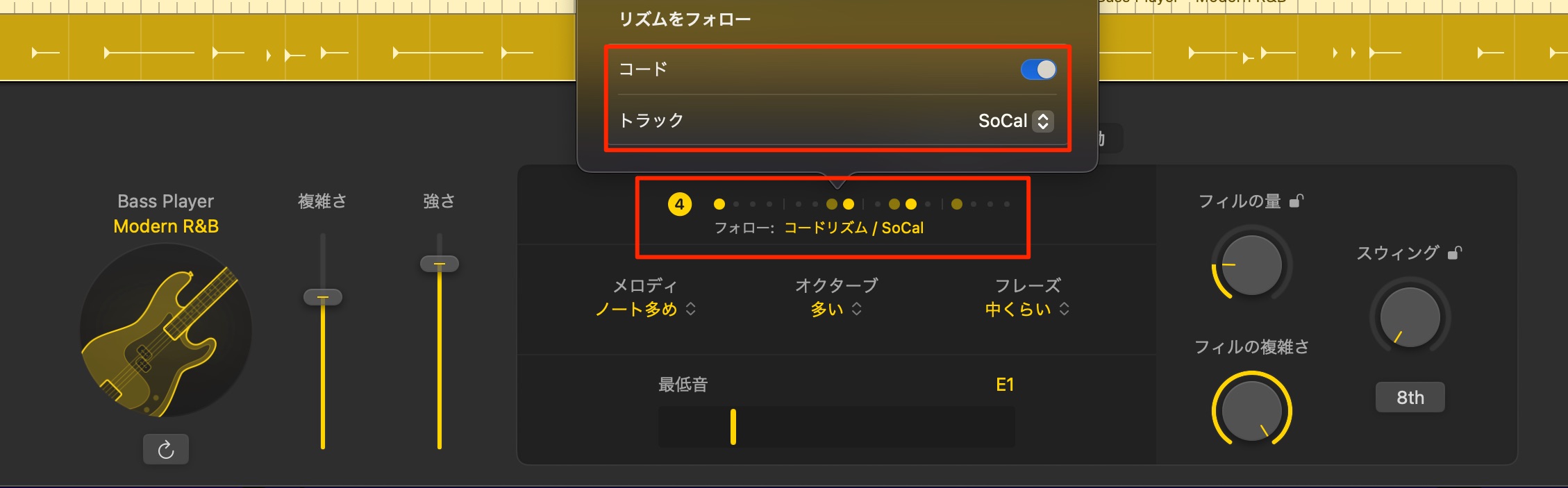
Choose a drum track for it to follow, and the player can generate phrases that respond to the kick pattern.
This is a useful way to make the rhythm section feel more cohesive.
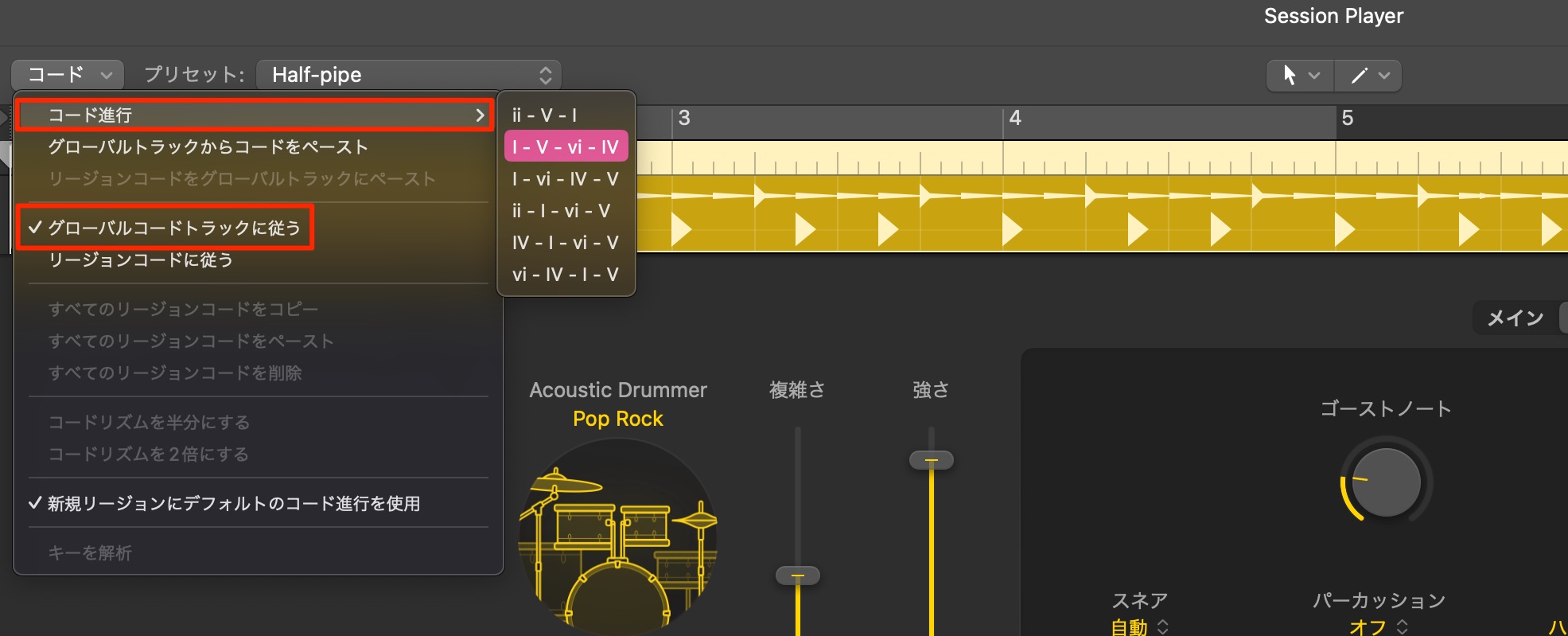
You can specify chords for a phrase or have it follow the global Chord track described above.
Keyboard Player
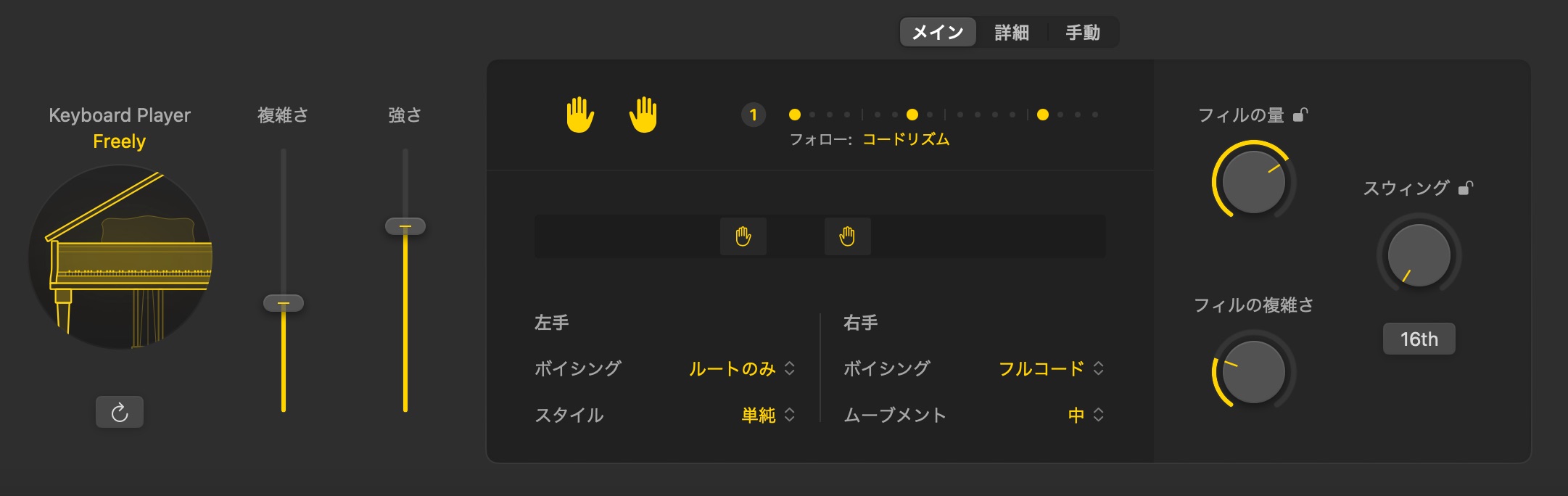
Developed with input from accomplished studio musicians, Keyboard Player covers a wide range of styles.
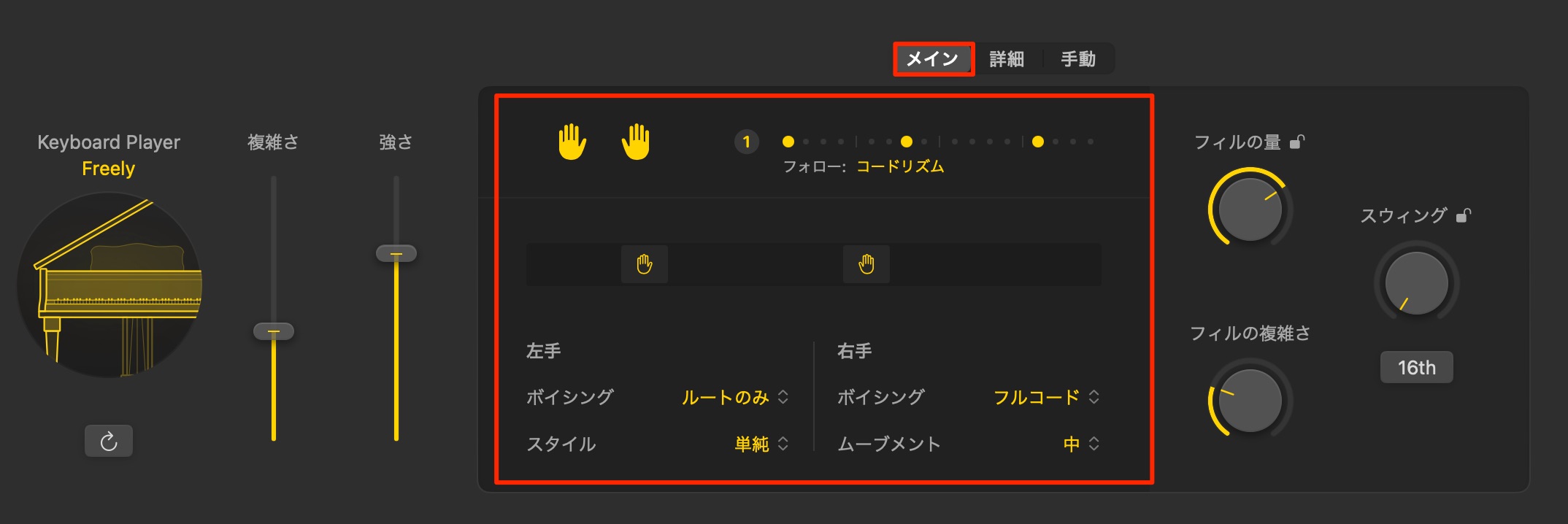
Its controls let you shape left- and right-hand behavior, rhythm, playing range and voicing intuitively.
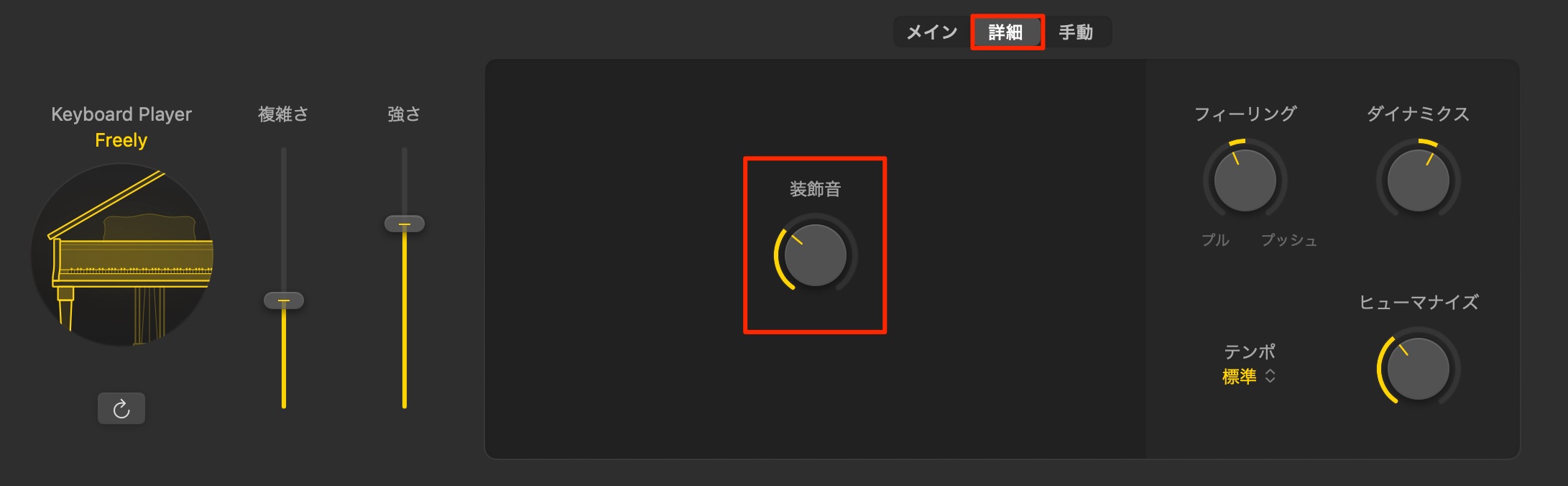
You can also adjust the amount of grace-note decoration for a more lifelike performance.
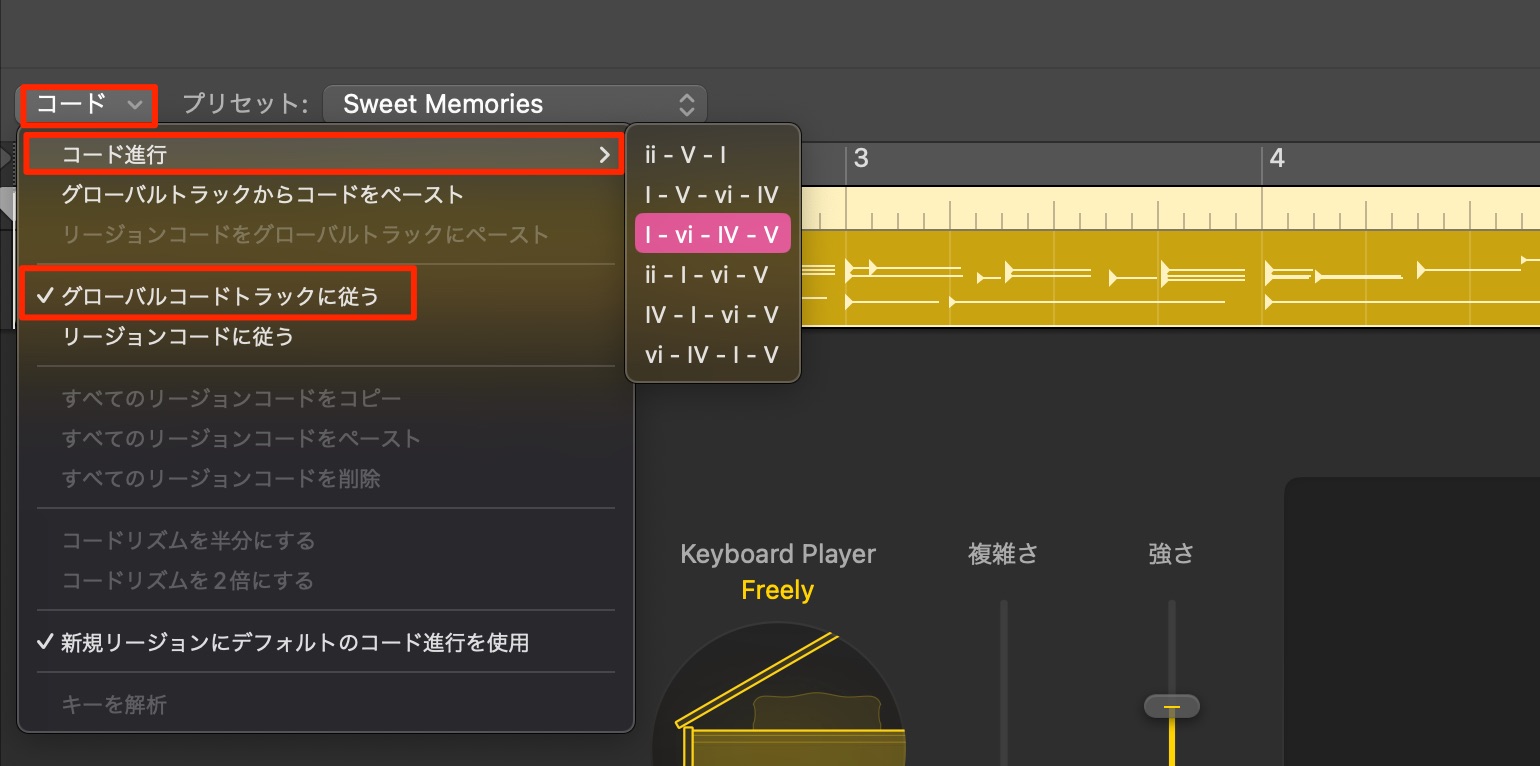
Like Bass Player, it provides chord controls and a broad range of performance variations.
Working with Session Players
Here are some useful controls and techniques to know.
Converting a phrase to MIDI
You can turn a generated Session Player region into a fixed, editable MIDI region.
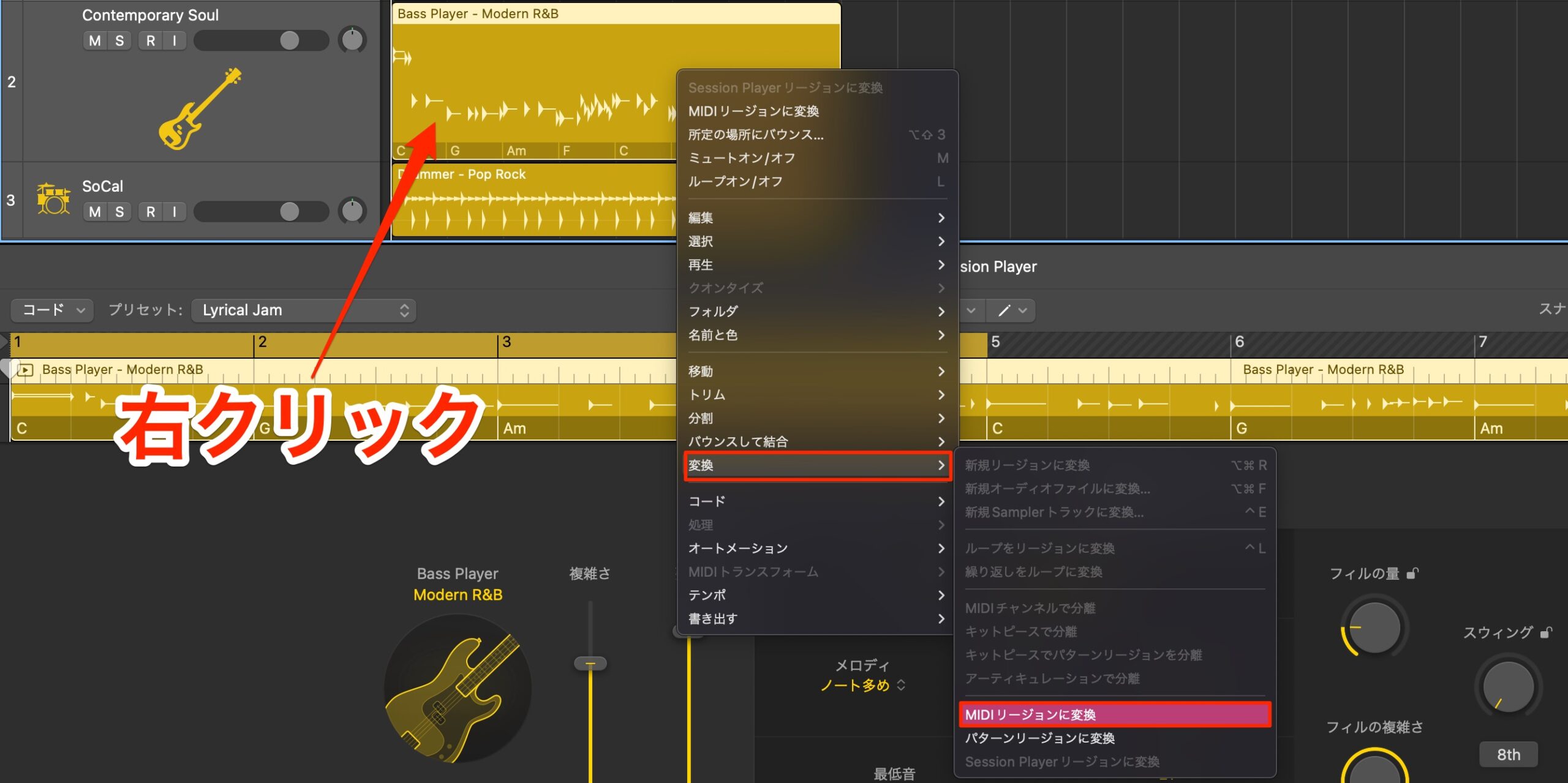
Control-click or right-click the region and choose Convert > Convert to MIDI Region.
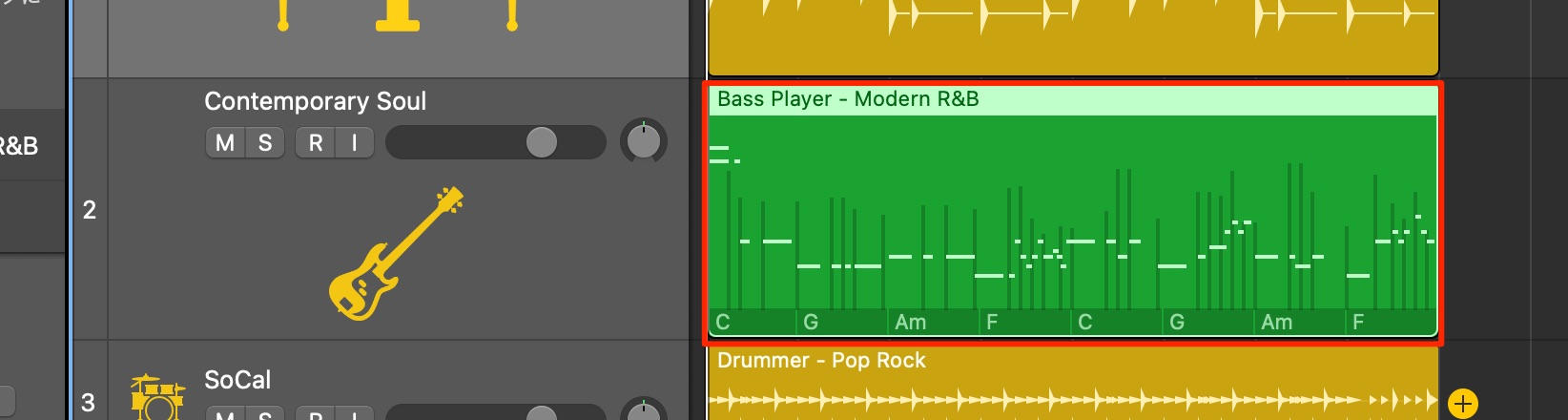
The result can be edited like an ordinary MIDI region.
Generating a new phrase
Each player generates a phrase from its parameter settings, but the result can vary slightly between generations.
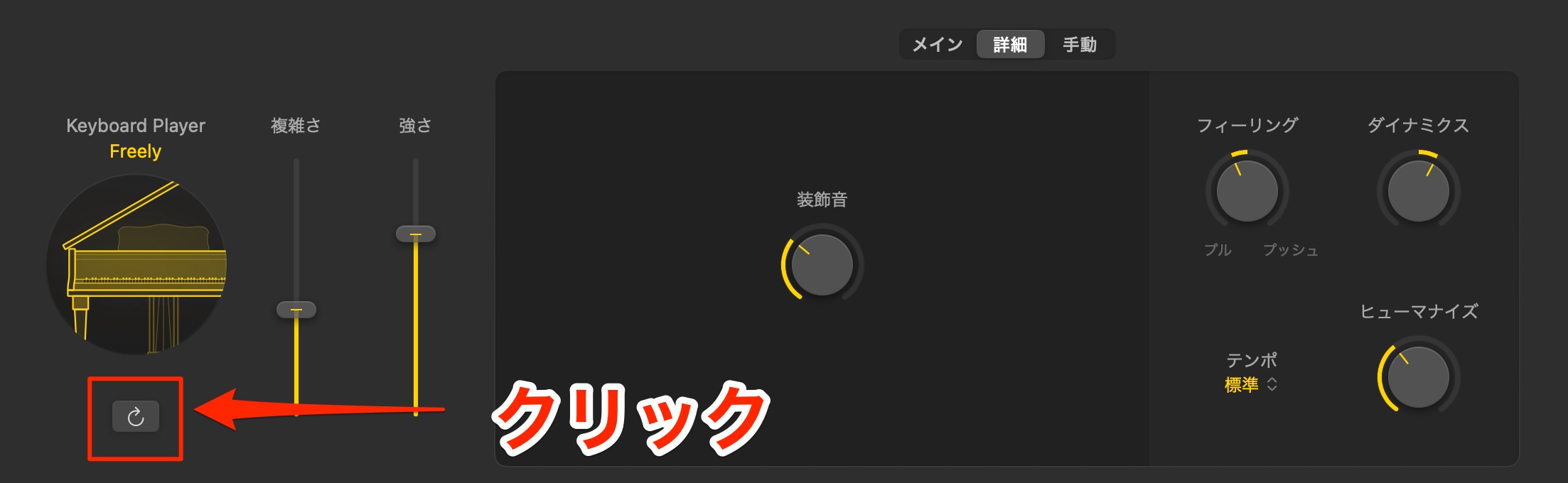
Click the Regenerate button to create a new variation.
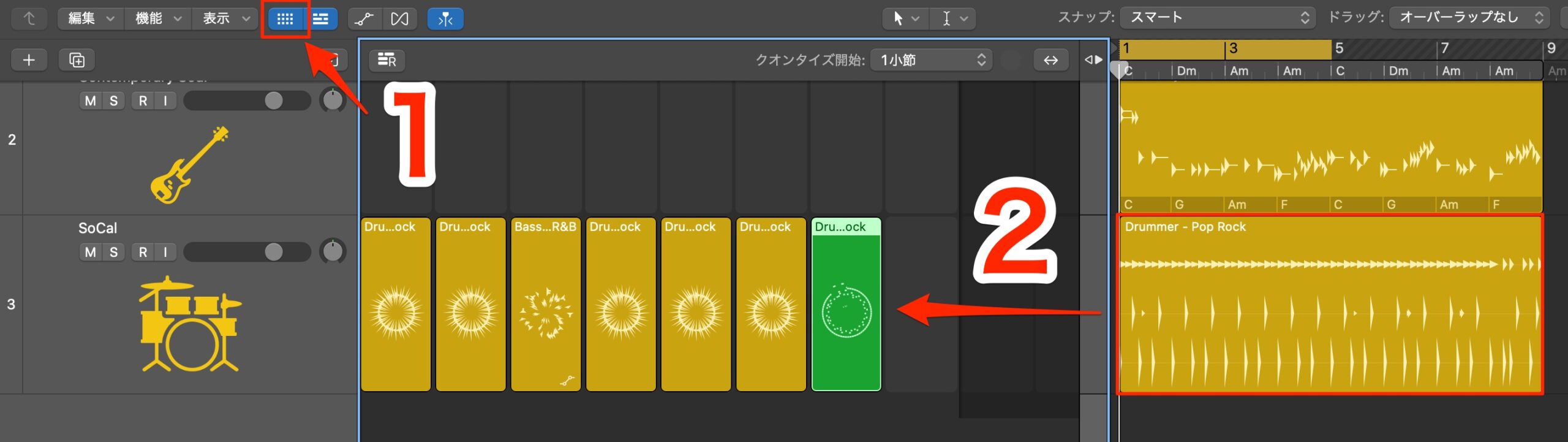
If you like a phrase, keep a copy in Live Loops and convert it to MIDI to preserve the performance.
Applying region chords to the global Chord track
You can easily transfer the chords assigned to a Session Player region to the global Chord track.
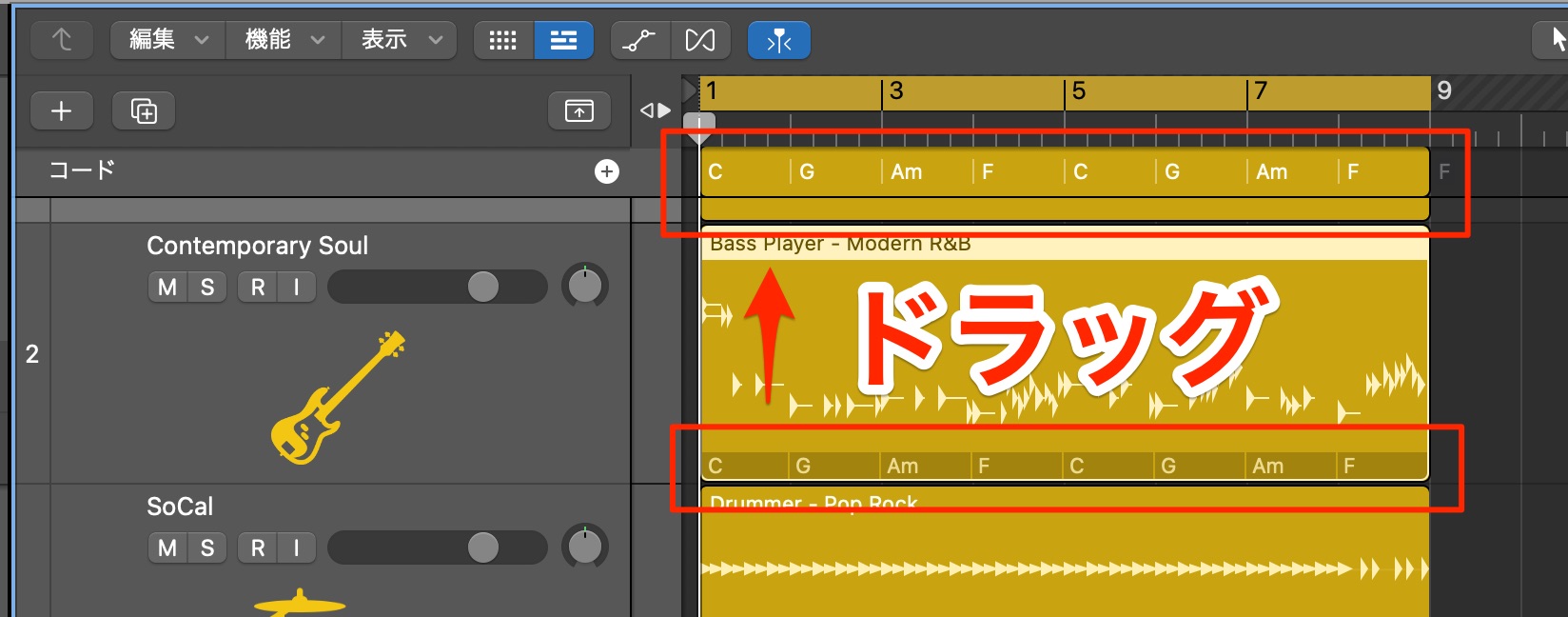
Drag the region containing the chords to that global track.
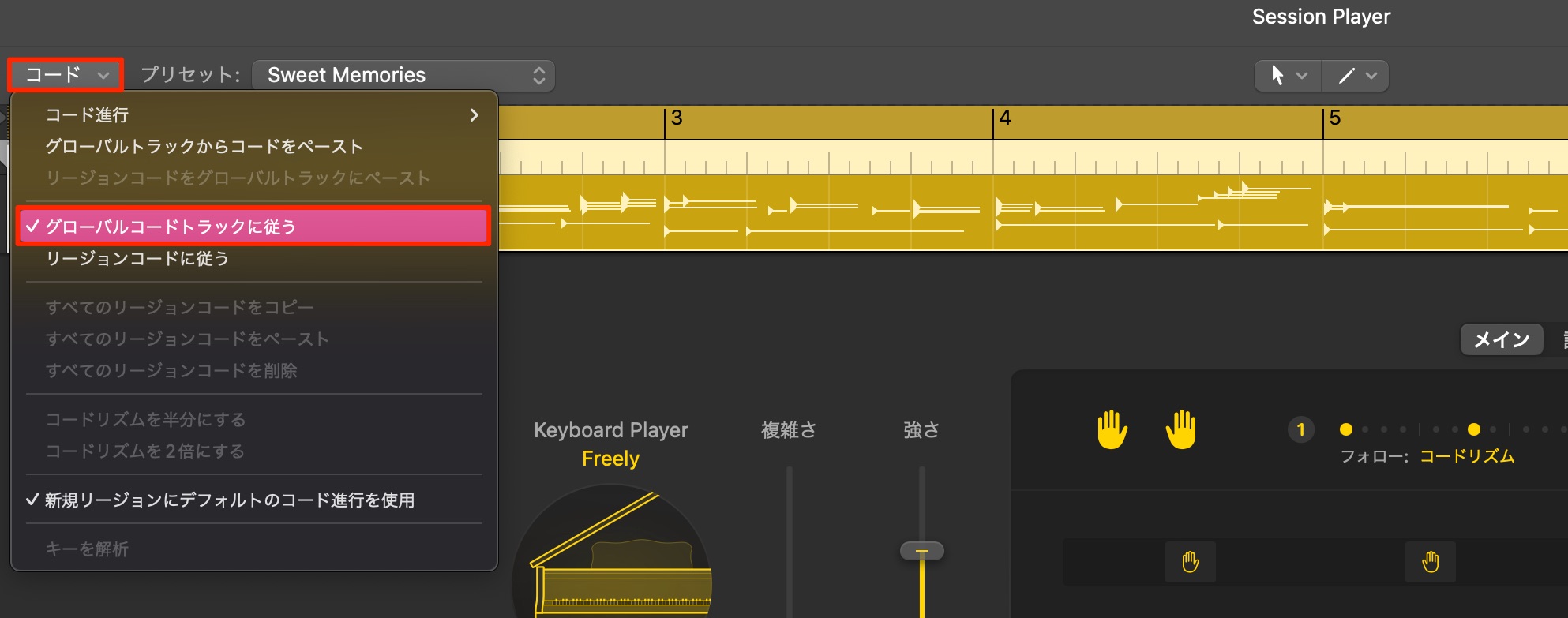
Then set the other Session Players to follow the global progression so that they all play the same harmony.
Splitting regions
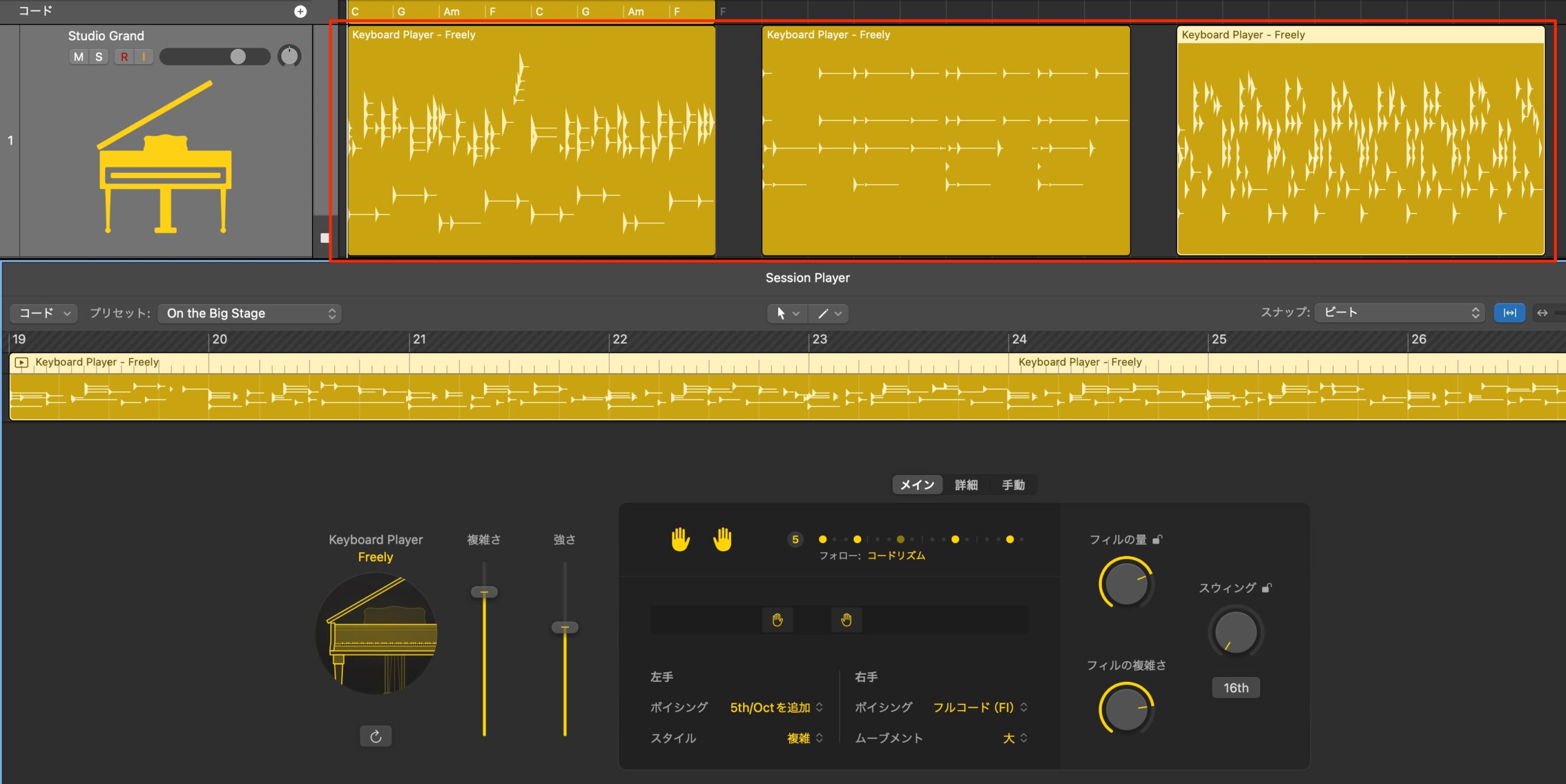
Session Player settings can differ from one region to another.
Splitting a part into regions lets you use different phrase types on the same track.
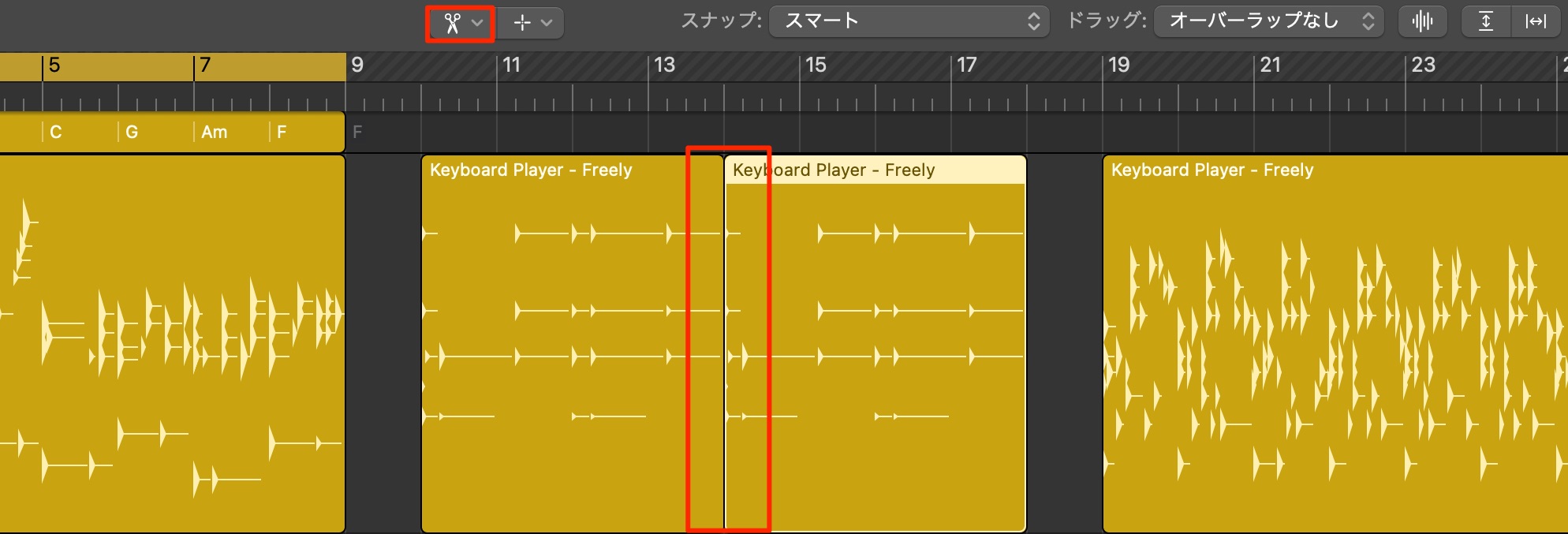
You can split regions with the Scissors tool, just as you would other regions,
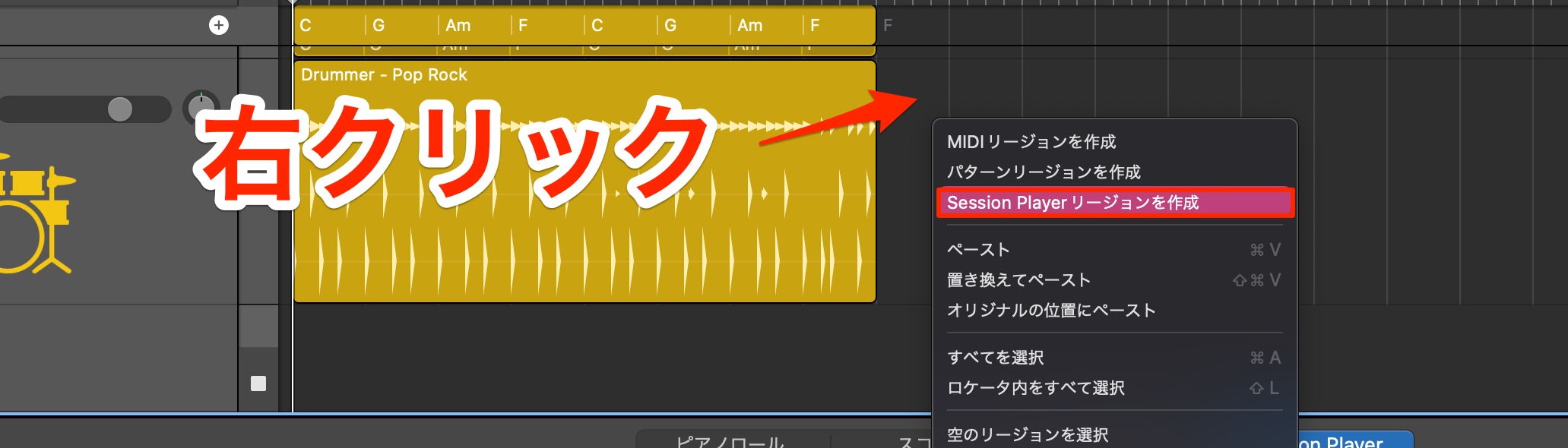
or Control-click or right-click an empty area to create a new region.
Using Session Players with other instruments
You may want to use Session Player performances with a different instrument, including third-party plug-ins.
This is straightforward.
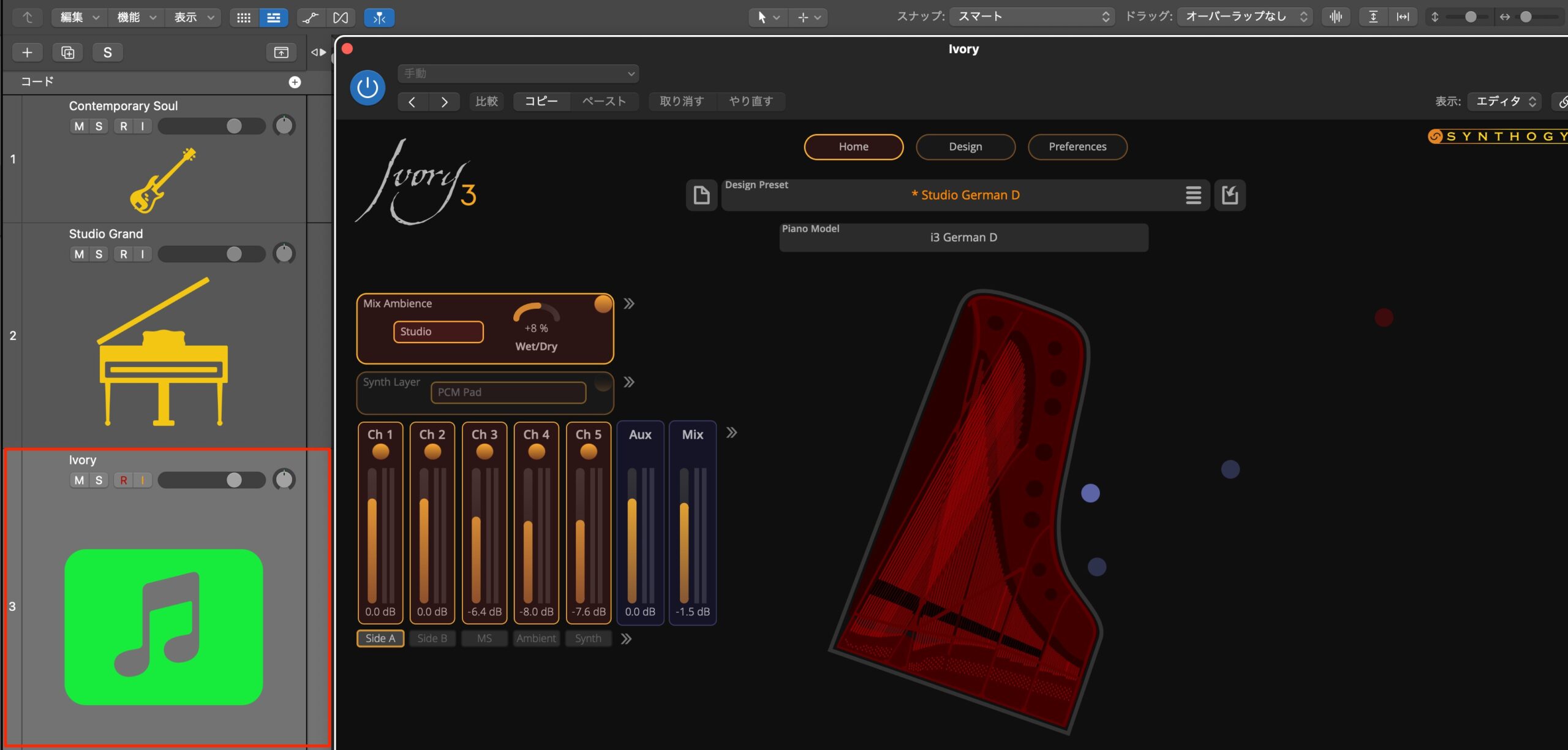
Create a track with the instrument you want to use.
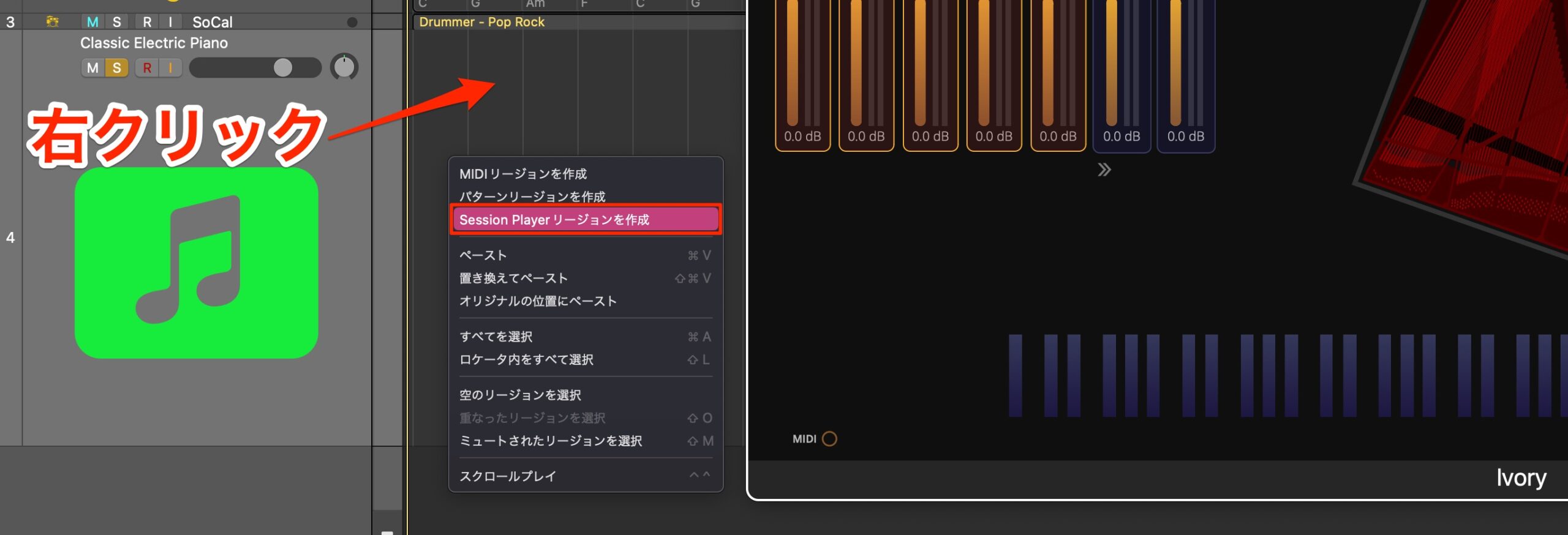
Control-click or right-click an empty part of its lane and choose Create Session Player Region.
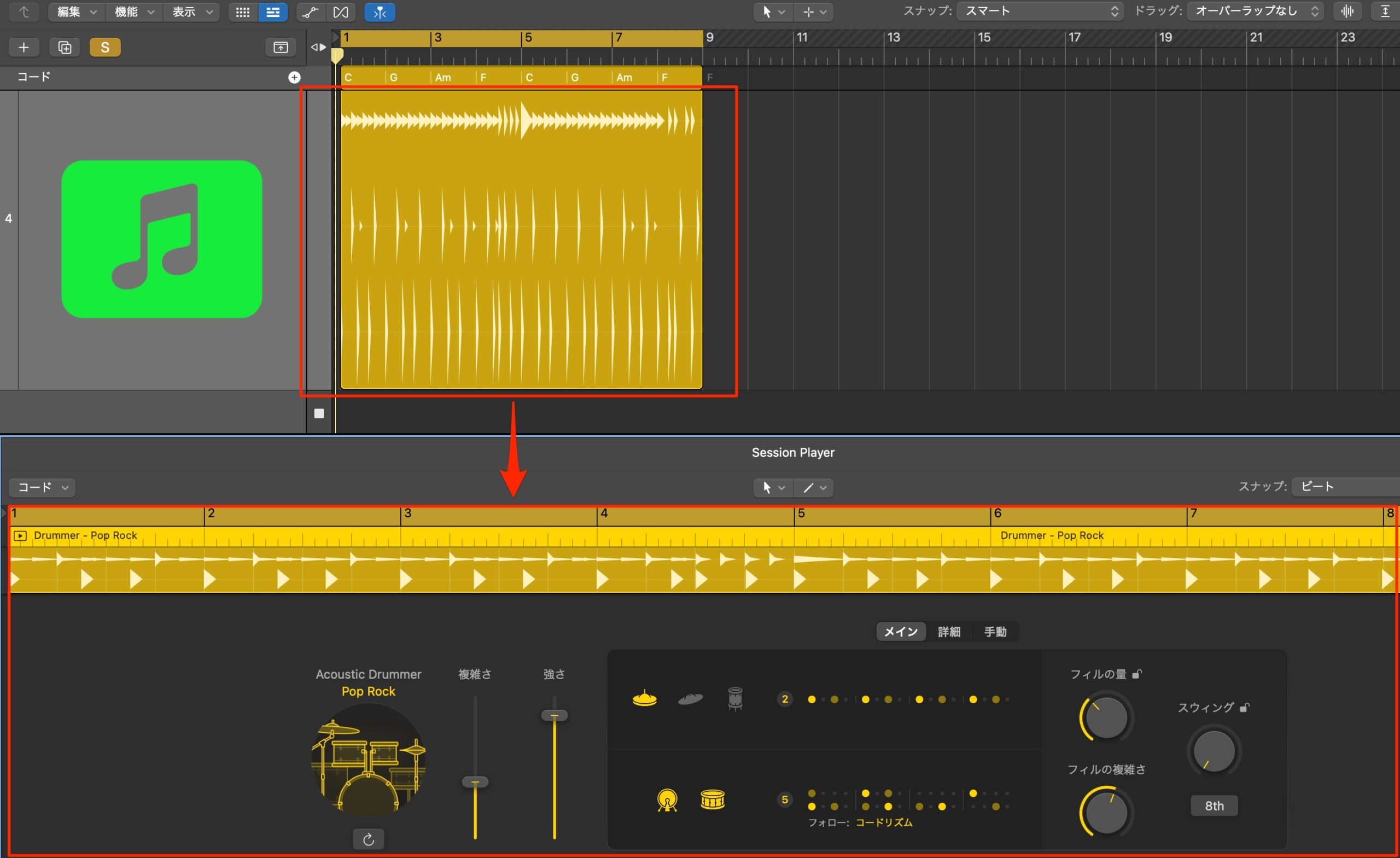
Logic creates a region that can be edited with Session Player controls.
Depending on the instrument, drum-note mappings and playing techniques may differ, so you may need to make adjustments.
In this example, a Drummer region has been created on a piano track.
Let's switch it to Keyboard Player.
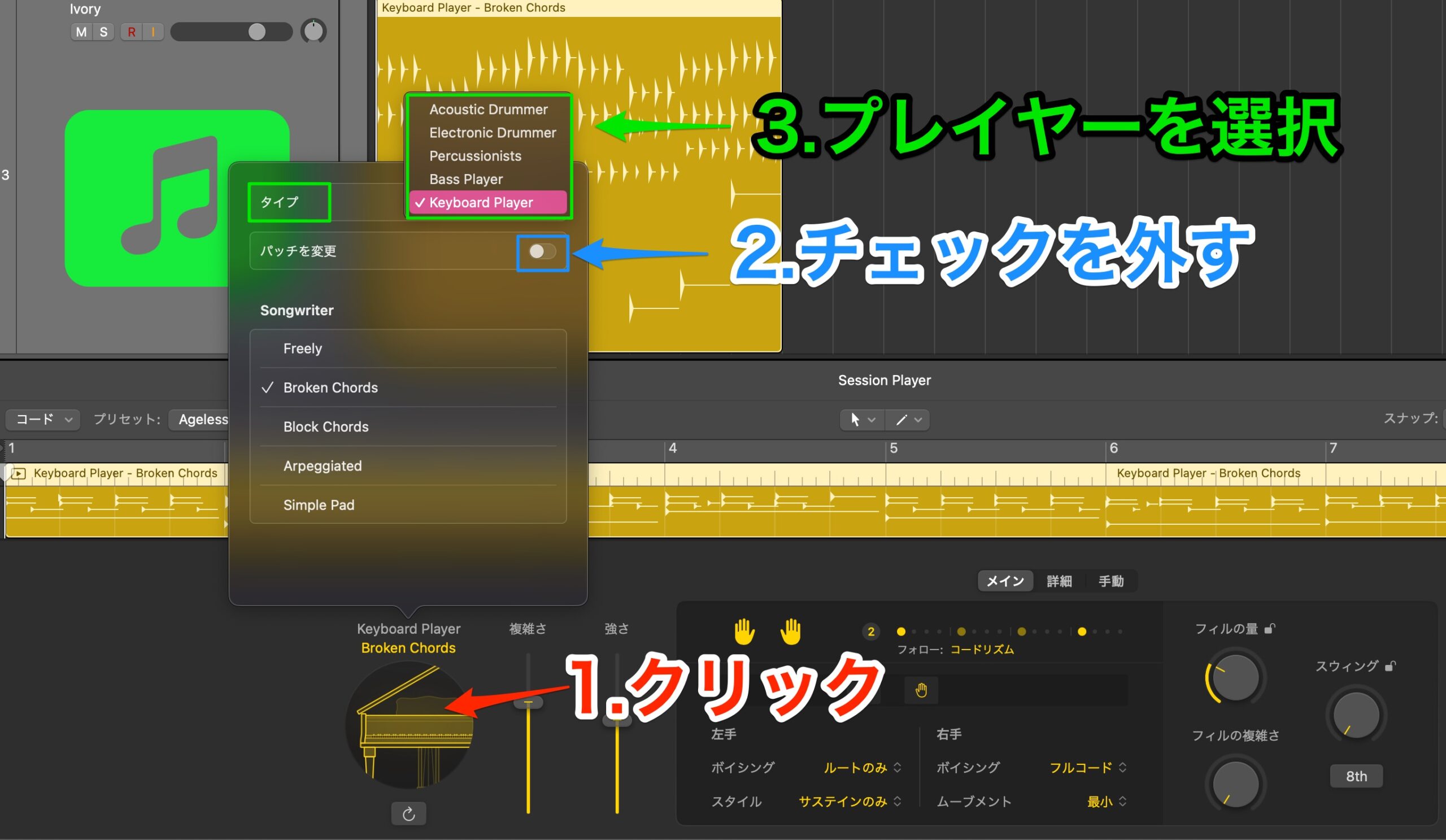
Click the instrument image in the player controls.
Deselect Change Patch to keep the existing instrument, then choose the player you want.
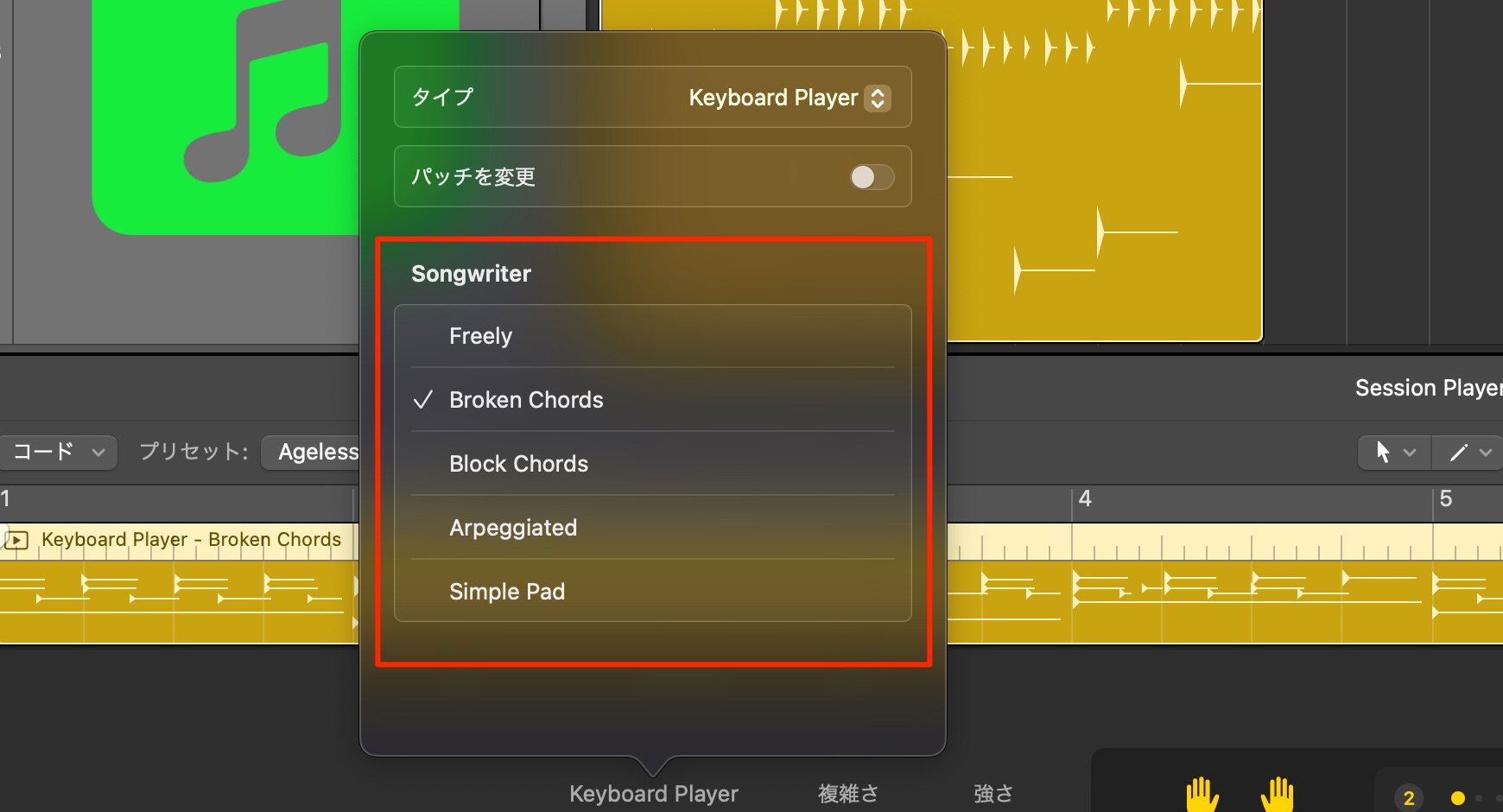
Finally, select an appropriate preset.
You can now use the chosen Session Player with your preferred instrument.
More flexible internal MIDI routing
Many instruments can generate phrases internally, including arpeggios.
Sometimes you may want another track to play those generated notes.
Logic Pro 11 expands MIDI routing to make this easier.
Depending on your instruments and ideas, it opens up useful creative possibilities.
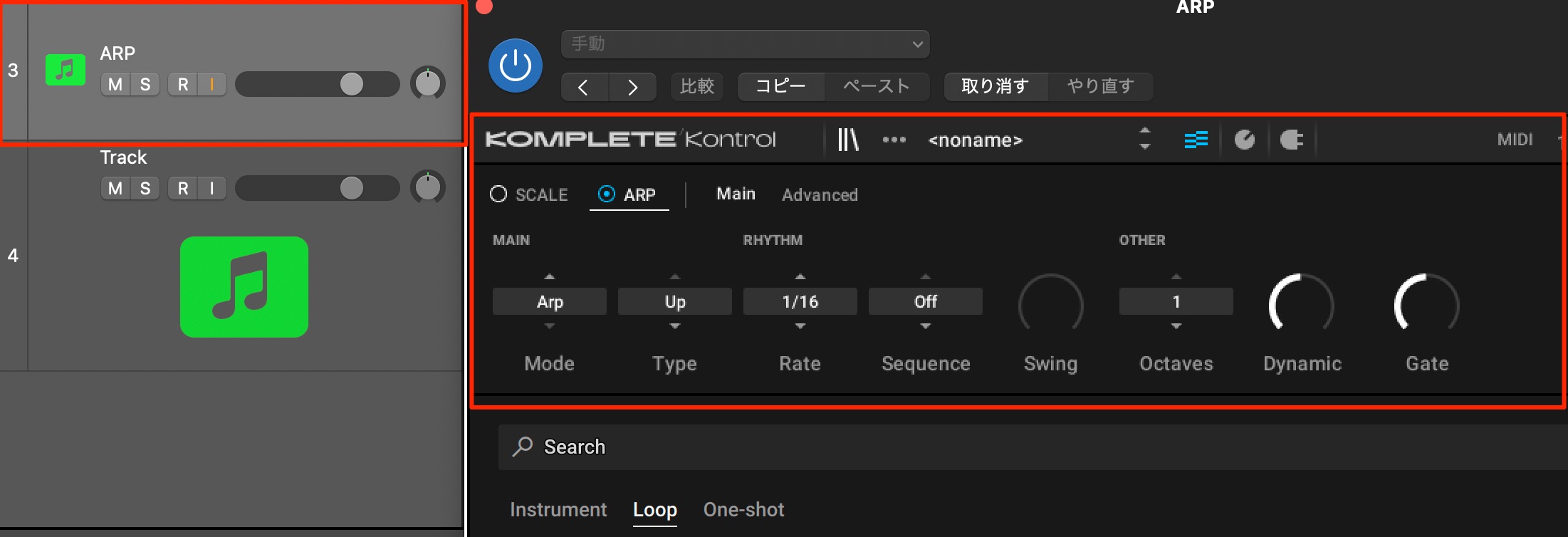
For example, suppose you want another track to play an arpeggio generated by this instrument.
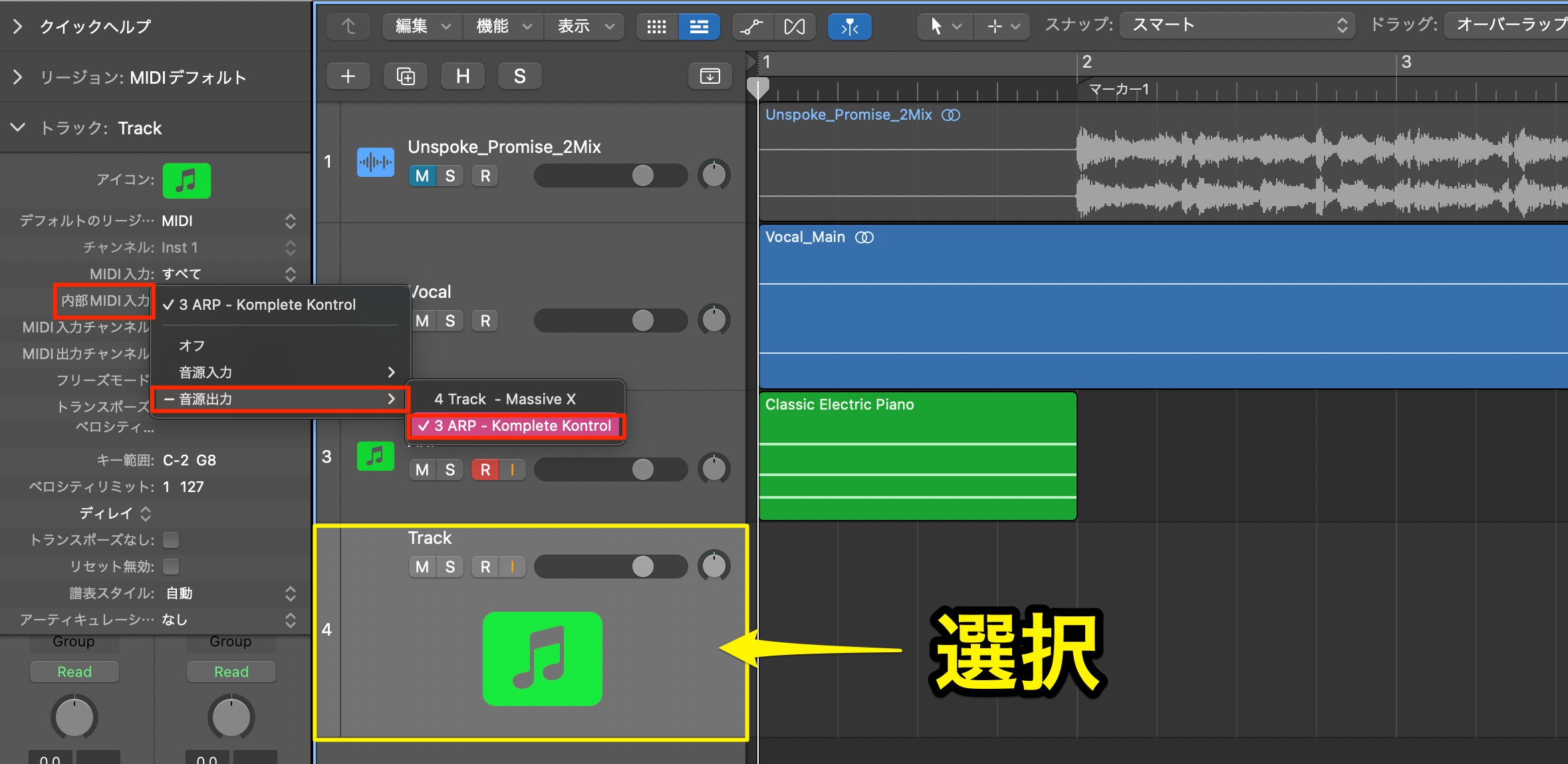
Select the destination track and locate Internal MIDI In in its inspector.
Choose the instrument track that is generating the arpeggio.
That completes the routing setup.
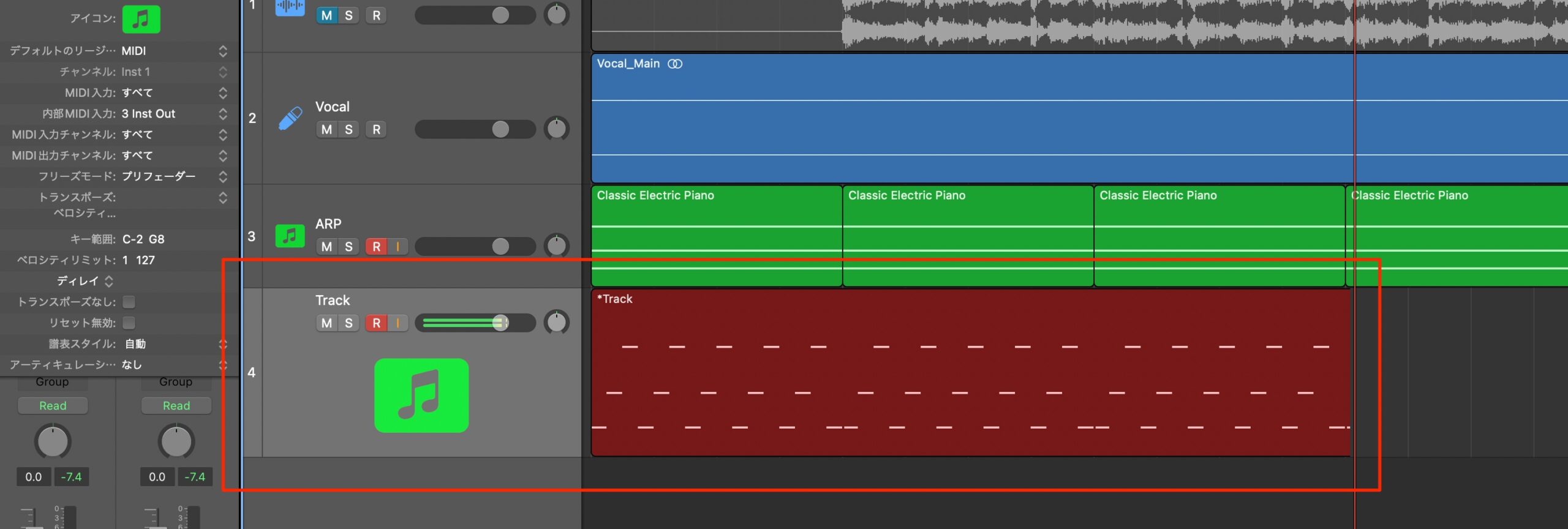
The destination track receives the MIDI data and plays the phrase.
You can also record that MIDI performance.
Input monitoring for software-instrument tracks
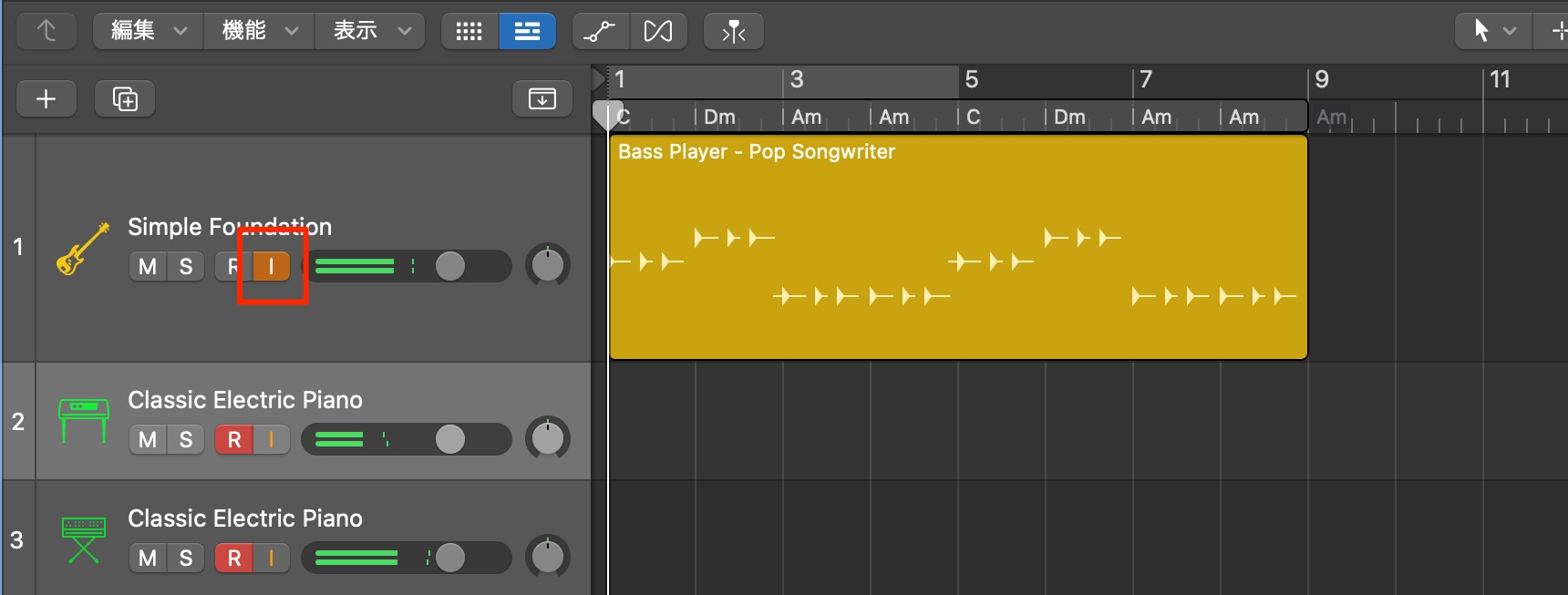
Software-instrument tracks now have an input-monitoring button, similar to audio tracks.
It lets a track respond to keyboard input independently of its record-enable state, which is useful when playing several tracks at once.
Add color and saturation with ChromaGlow
Distortion and saturation are useful tools for sound design and mixing.
Logic Pro 11 adds ChromaGlow to provide a broad range of these textures.
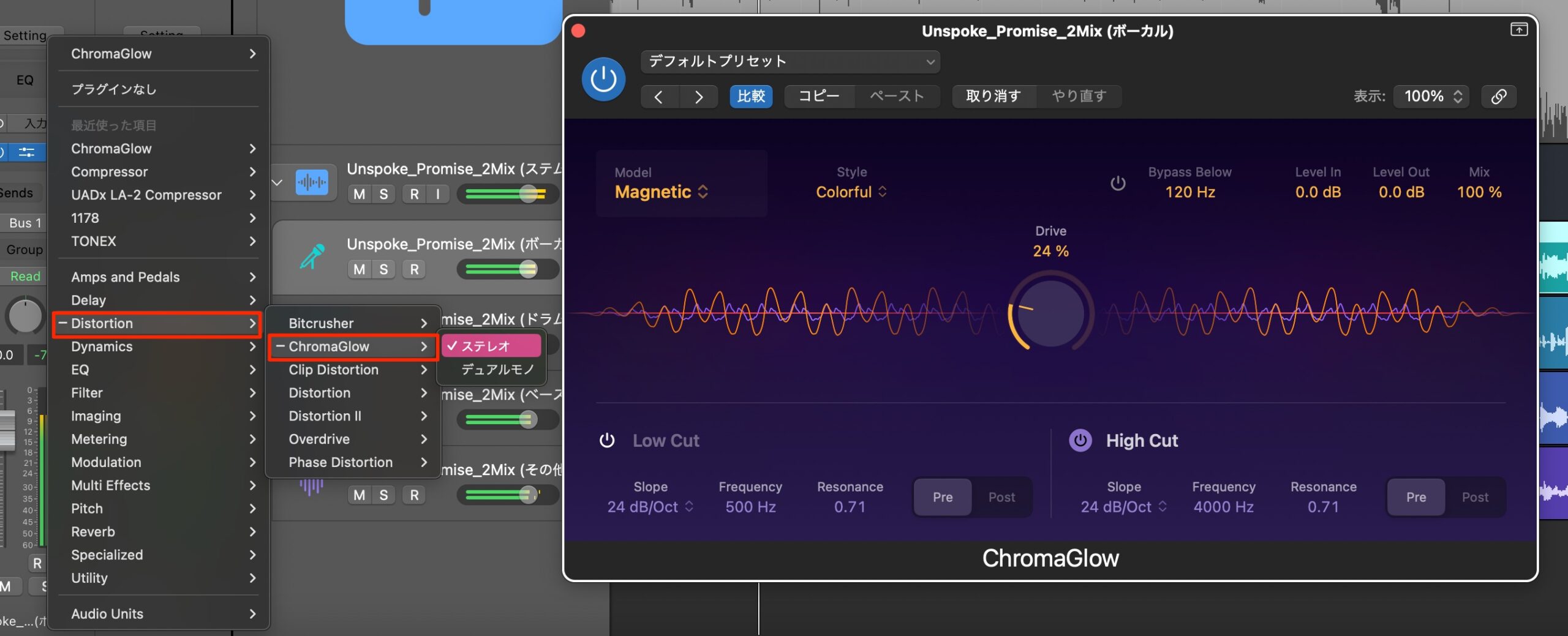
It offers five saturation models and detailed drive control for a wide range of sounds.
Try it on different tracks to find the character that works for your mix.
What do you think?
With a mix of practical improvements and striking new features, Logic Pro 11 made an already capable DAW more versatile.
The fact that existing users received it as a free update made the release particularly attractive.
AI-assisted tools now support stages from arranging through mastering, helping make production more approachable.
We also appreciate the balance: these tools expand the enjoyment of composing rather than simply taking over the entire process.
Try bringing these Logic Pro features into your own productions.
Frequently asked questions
Q1. Which Macs could run Logic Pro 11 at launch?
The original release required macOS Ventura 13.5 or later. Advanced features such as Stem Splitter required an M1 or later Mac. At launch, the update was free for existing users, and the Japanese price for new purchases was ¥30,000. These are the original release details, not current pricing or requirements.
Q2. What is Stem Splitter, and how do you use it?
In Logic Pro 11's original implementation, Stem Splitter separates a mixed recording into drums, bass, vocals and other instruments. Select the audio region, choose Functions > Stem Splitter, and select the stem types you want to create.
Q3. What can you do with the global Chord track?
It provides a visual overview of the song's harmony and can supply chords to MIDI tracks and compatible performance features. Apple Loops can follow the project key, and loops with embedded chord data can transfer their chords to the global track.
Q4. What are Bass Player and Keyboard Player?
They are AI-assisted performance-generation tools added alongside the existing Drummer feature. Bass Player provides techniques such as slides, muted notes and slap, while Keyboard Player generates keyboard parts with detailed performance controls. Both support composition and arranging.
NEW ARTICLES
Latest English Articles












































































