
The Finger, available for Native Instruments Reaktor 6, lets you apply complex, creative effects to audio using a MIDI keyboard. It can be set up in major DAWs such as Cubase, Logic and Ableton Live. Choose from its presets and adjust parameters such as ENV TIME, velocity and the global envelope to create effects that evolve over time. Keyboard assignments and MIDI controller integration offer intuitive control and expand the possibilities for electronic music production and sound design.
Setup for Each DAW

Native Instruments' Reaktor
is highly regarded by synth enthusiasts for its sound and flexibility.
Reaktor also comes with a variety of instruments and software.
Here we will look at one of them: The Finger.
By pressing buttons and turning knobs, you can apply complex and interesting special effects to sound.
First, let's look at setup in each DAW.
Cubase
Launching The Finger
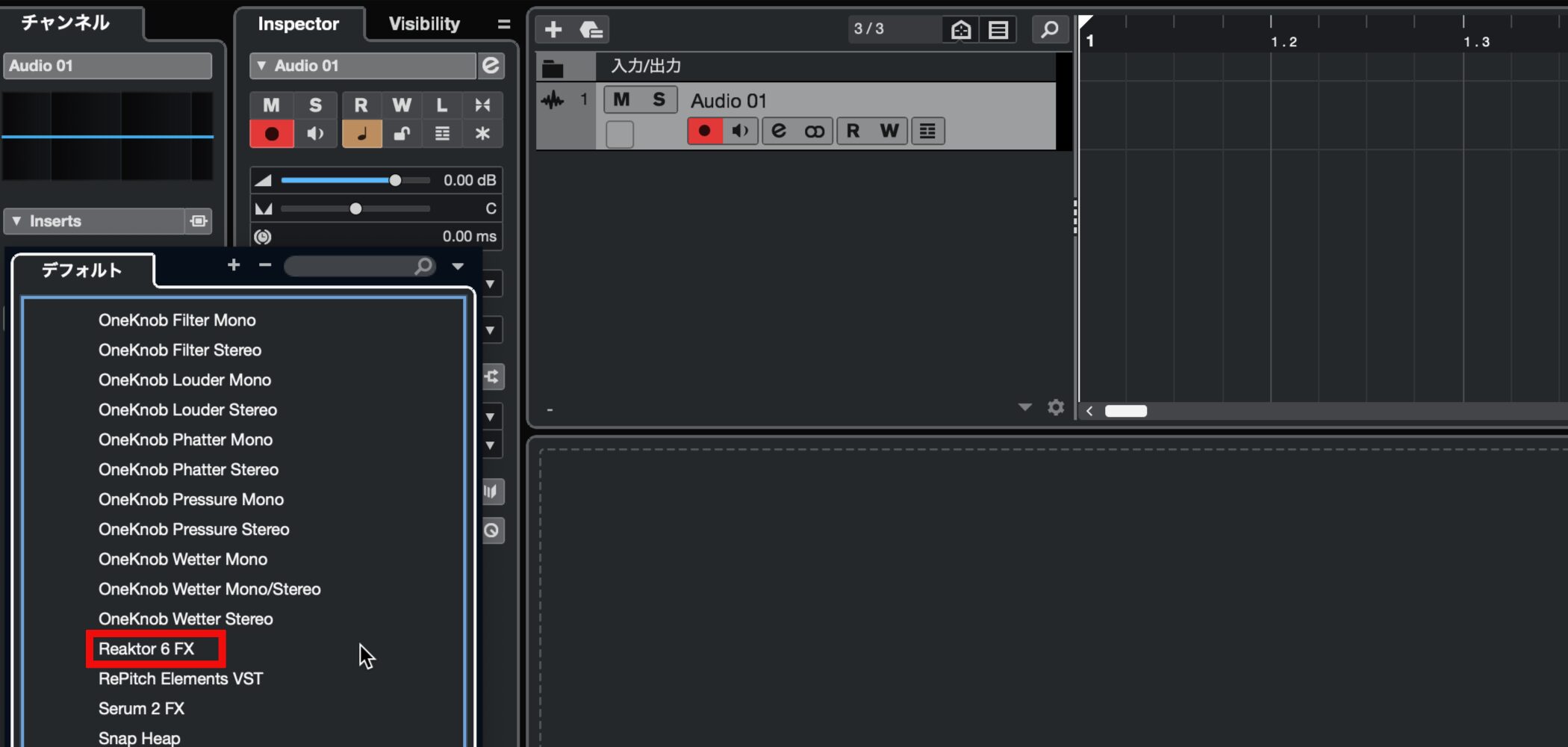
Insert Reaktor 6 FX on an audio track.
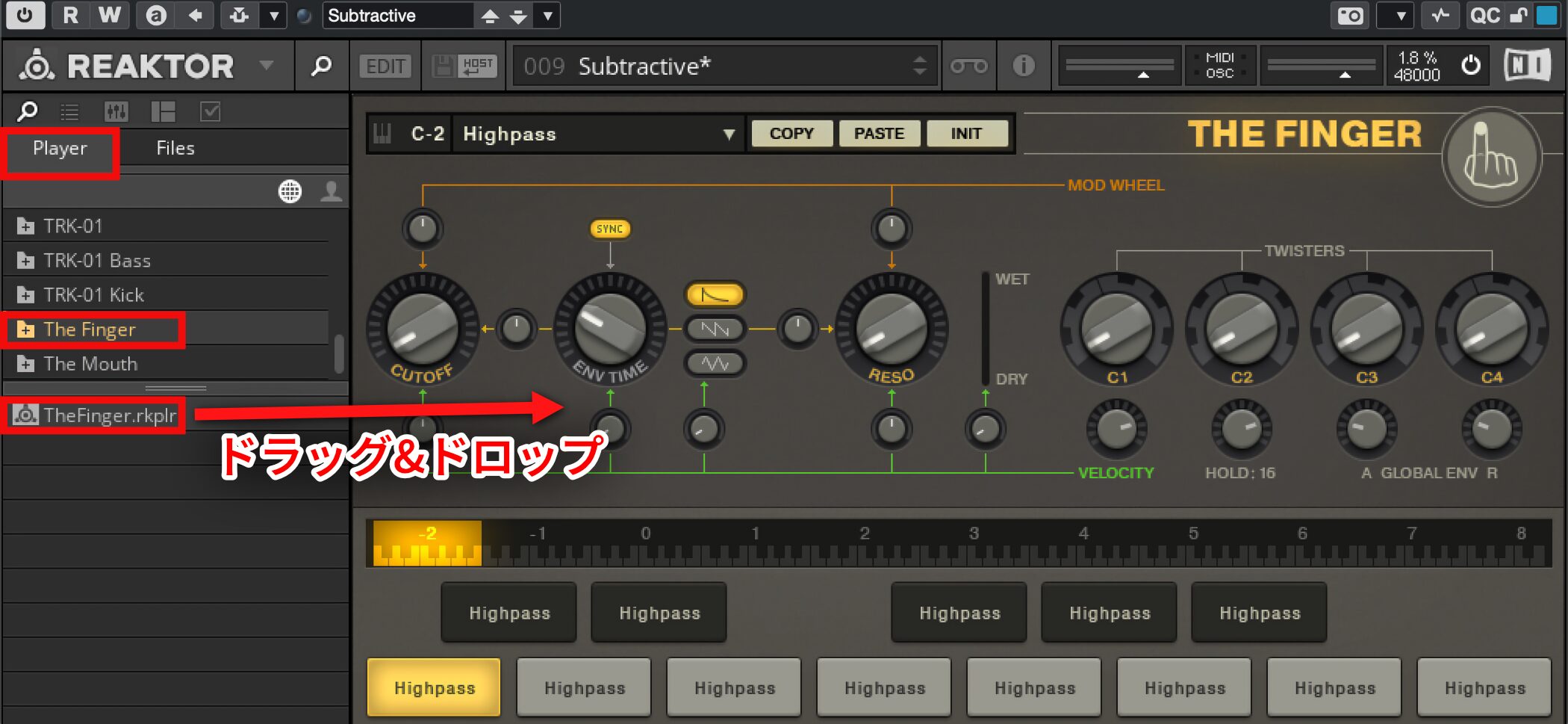
Drag The Finger from PLAYER into the rack.
The Finger and a MIDI Track
You need a MIDI track to control The Finger.
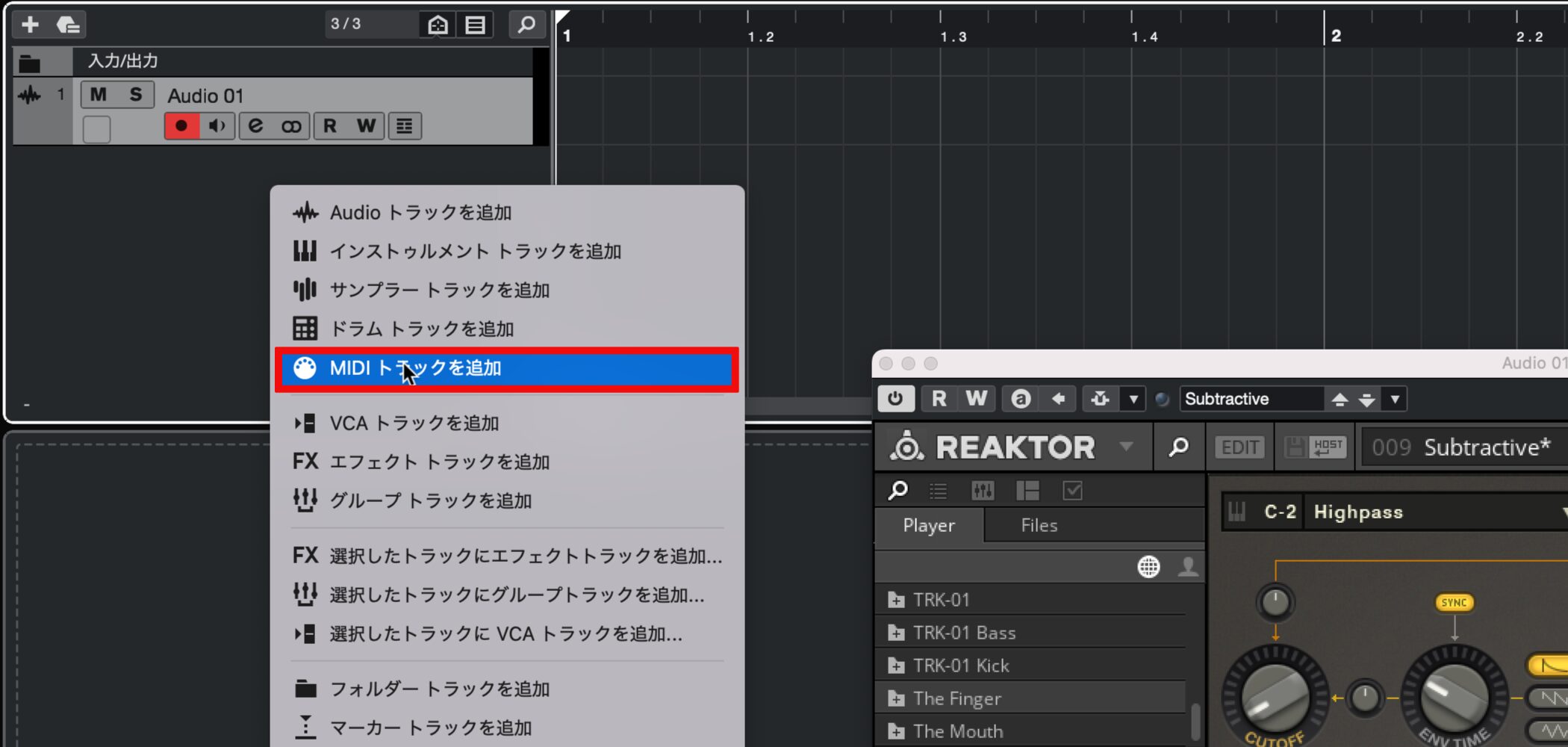
Create a MIDI track as usual.
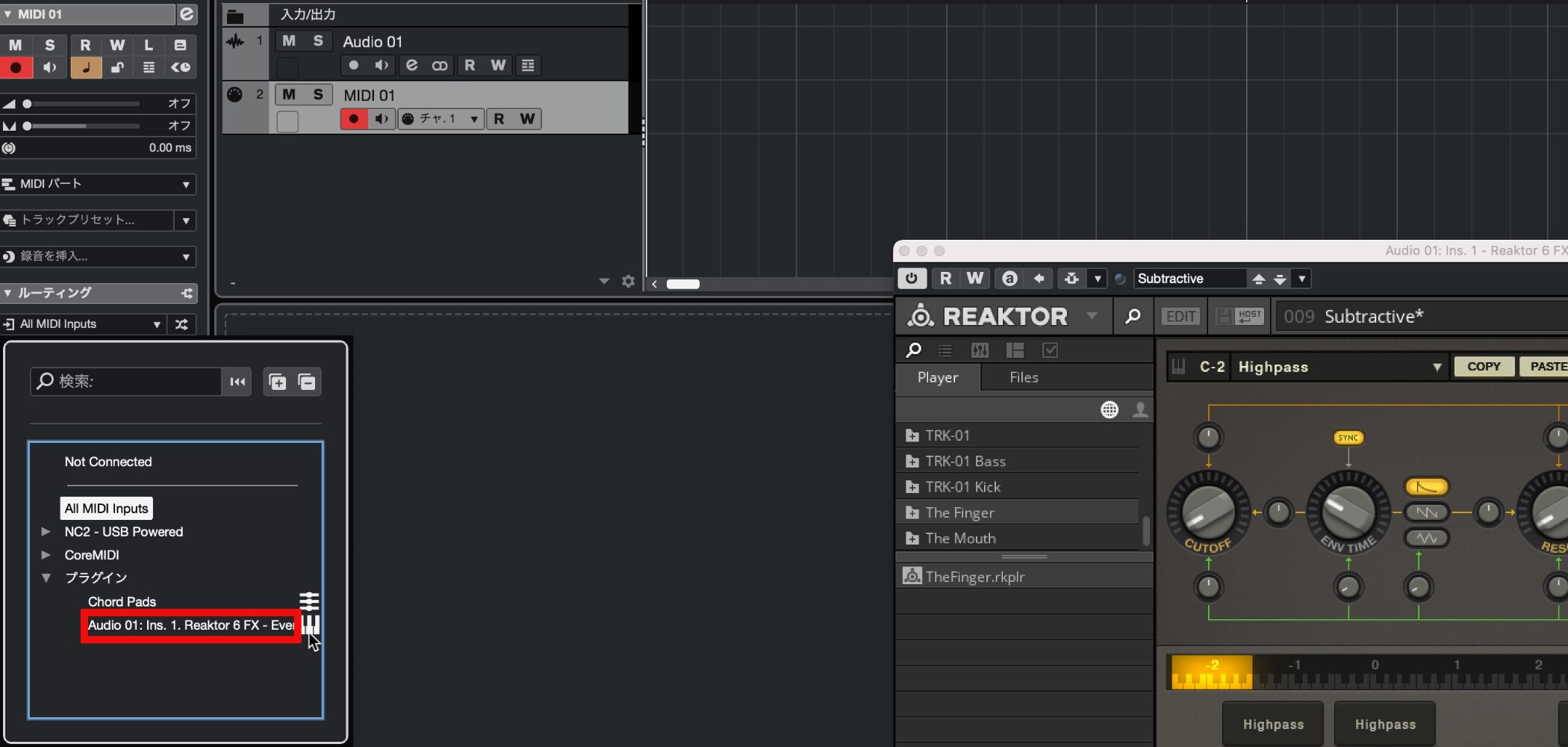
Assign the MIDI track's output to Reaktor 6.
You can now control The Finger with a MIDI device.
Controlling The Finger
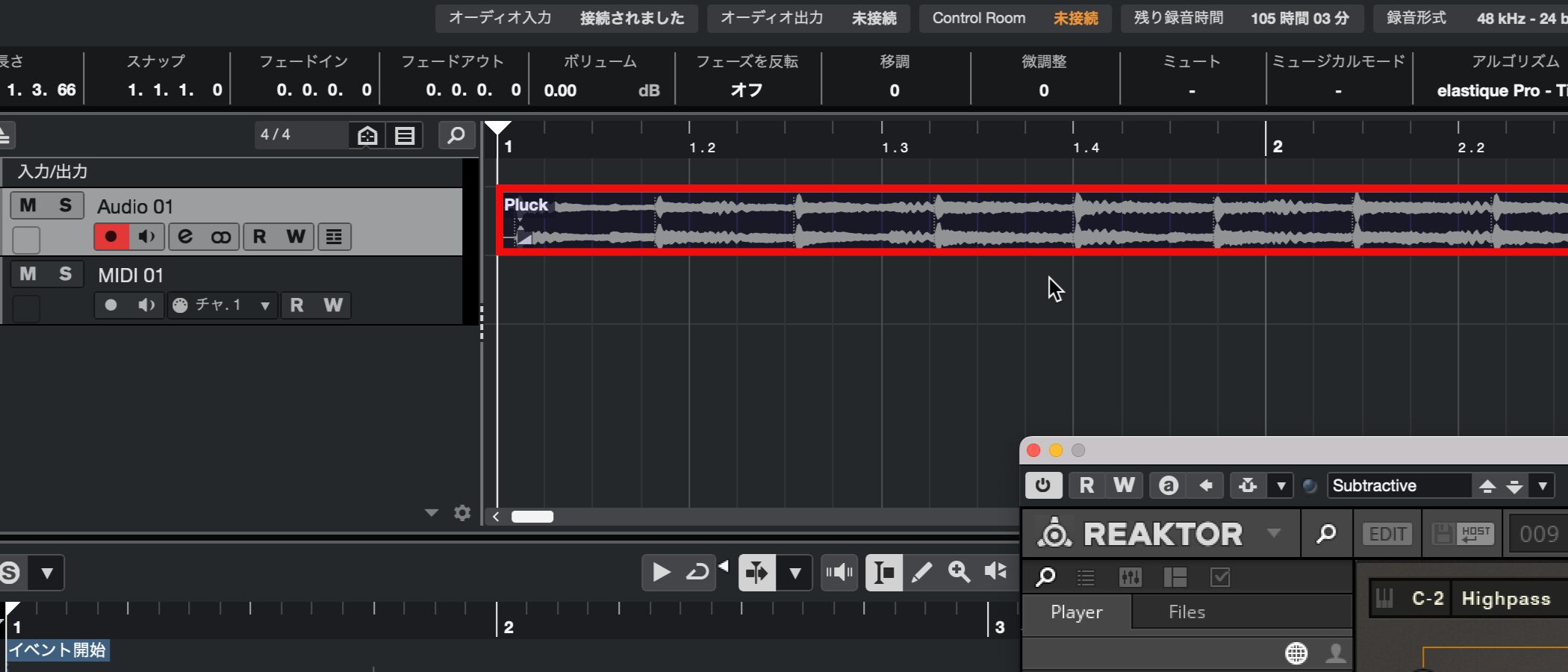
Place the audio file you want to process on the audio track where you inserted Reaktor 6 FX.
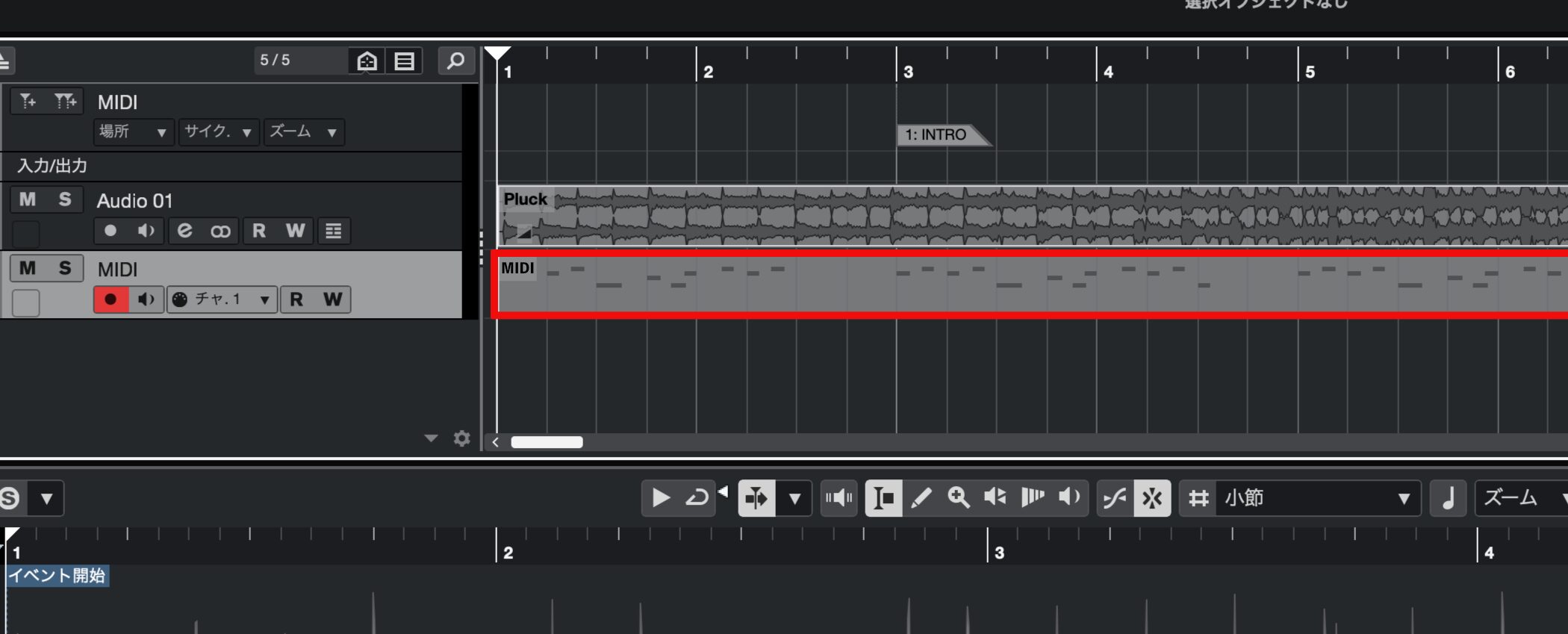
Enter MIDI notes to apply different effects to the audio.
Logic
Launching The Finger
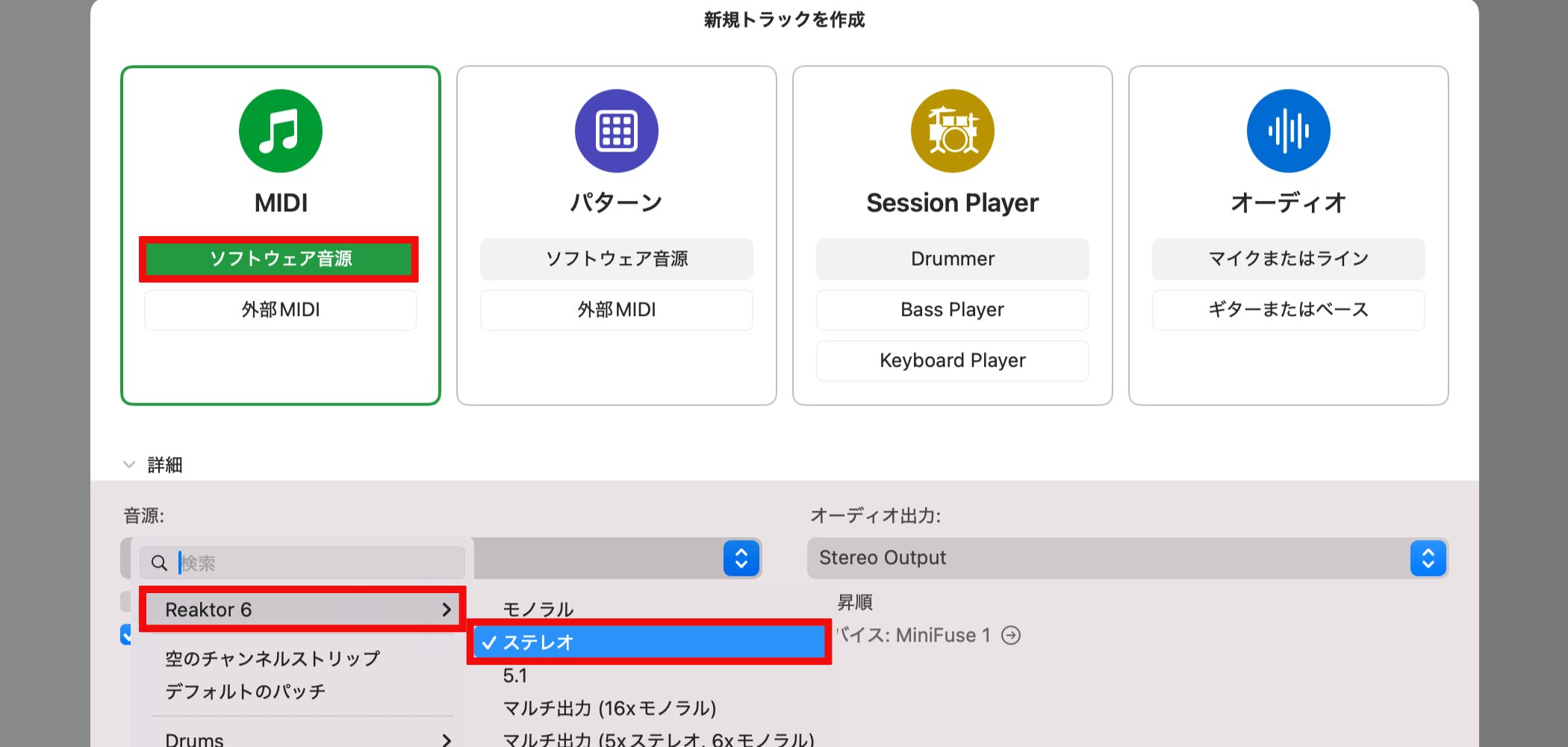
Prepare the source audio and launch Finger on an instrument track.
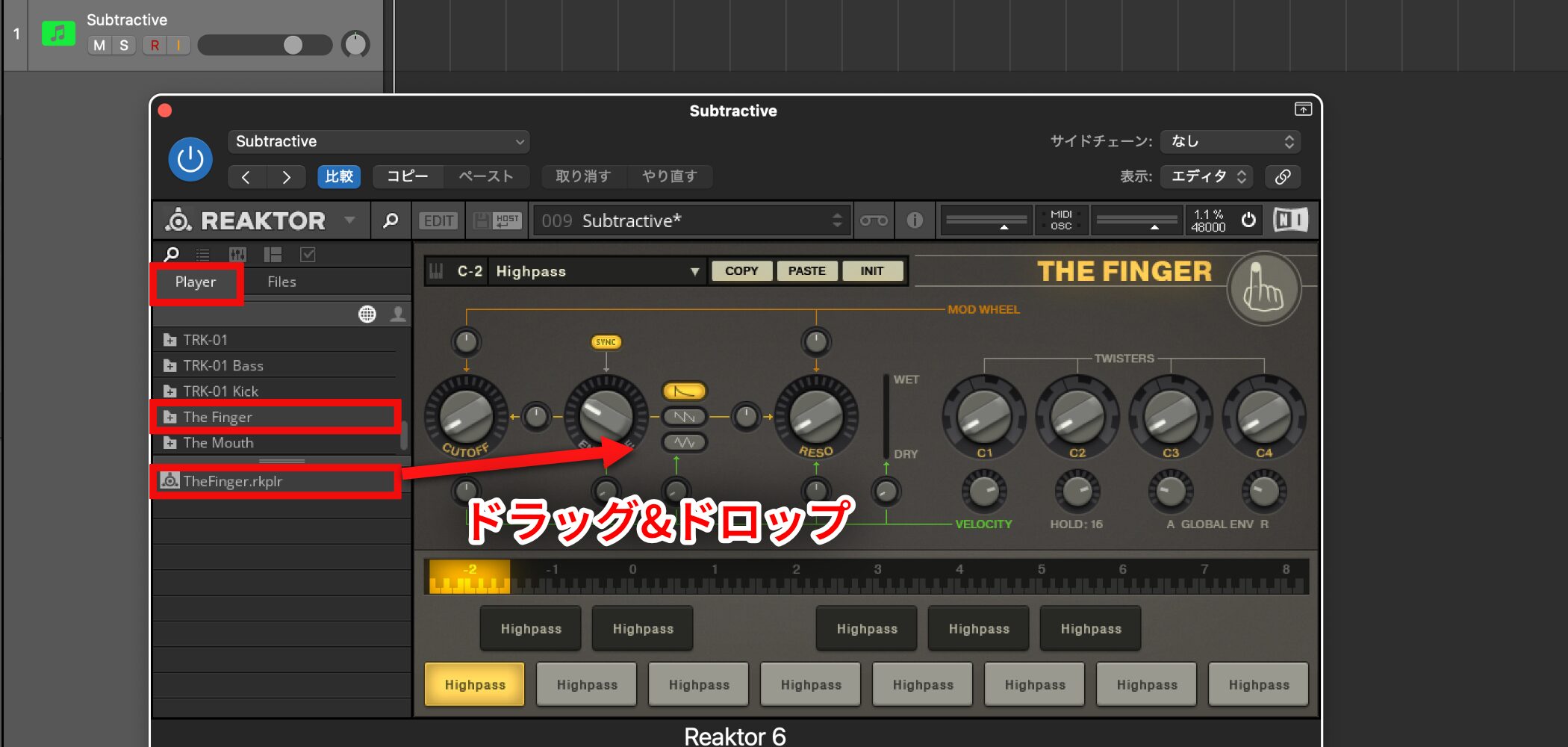
Drag The Finger from PLAYER into the rack.
The Finger and Sidechain
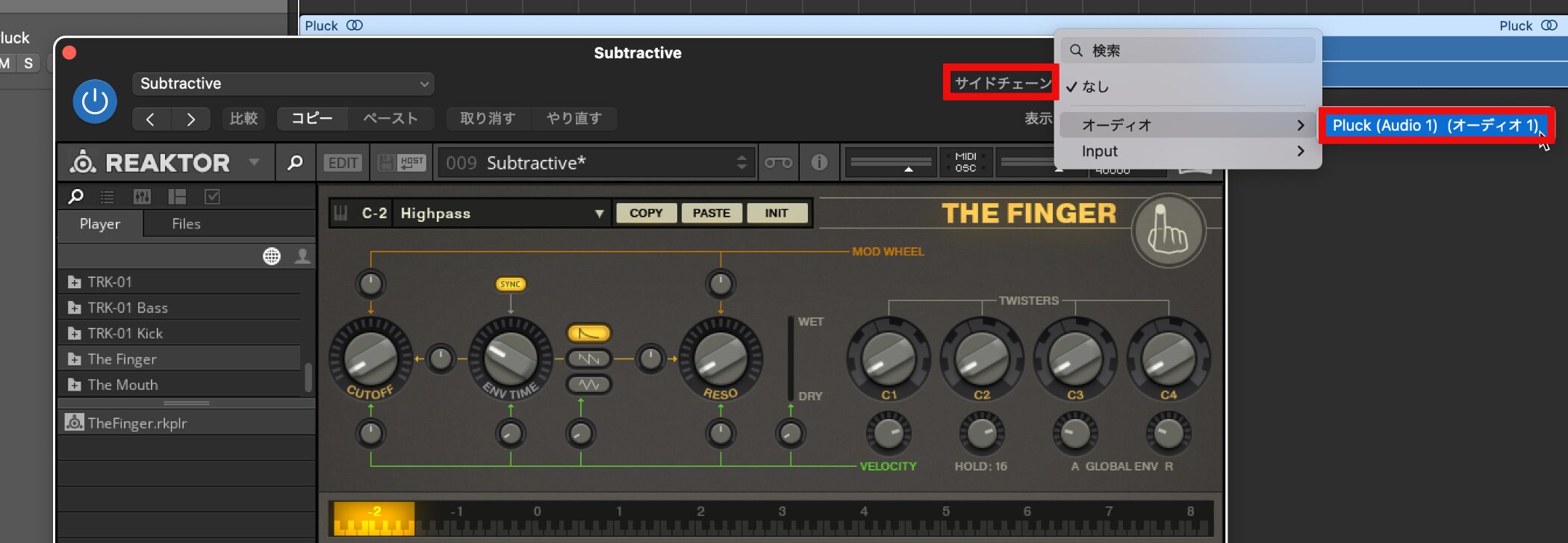
Use the Side Chain control in the upper right of The Finger to select the audio track you want to process.
That's all there is to it!
You can now control the source with a MIDI keyboard.
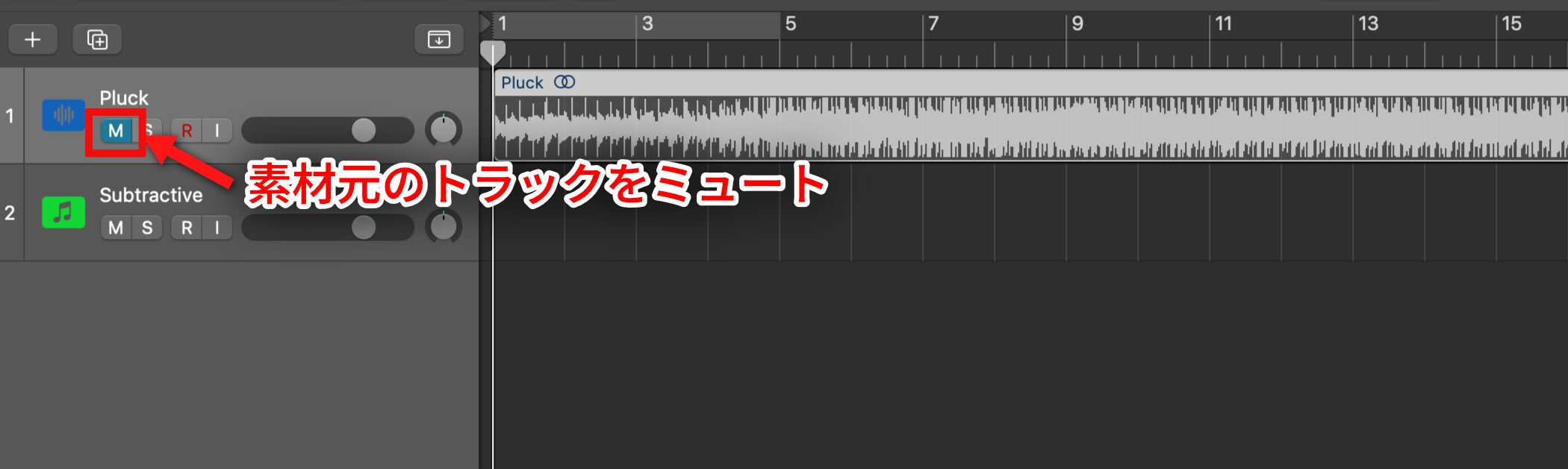
Mute the source audio track
so that the sound is not output twice.
Ableton Live
Launching The Finger
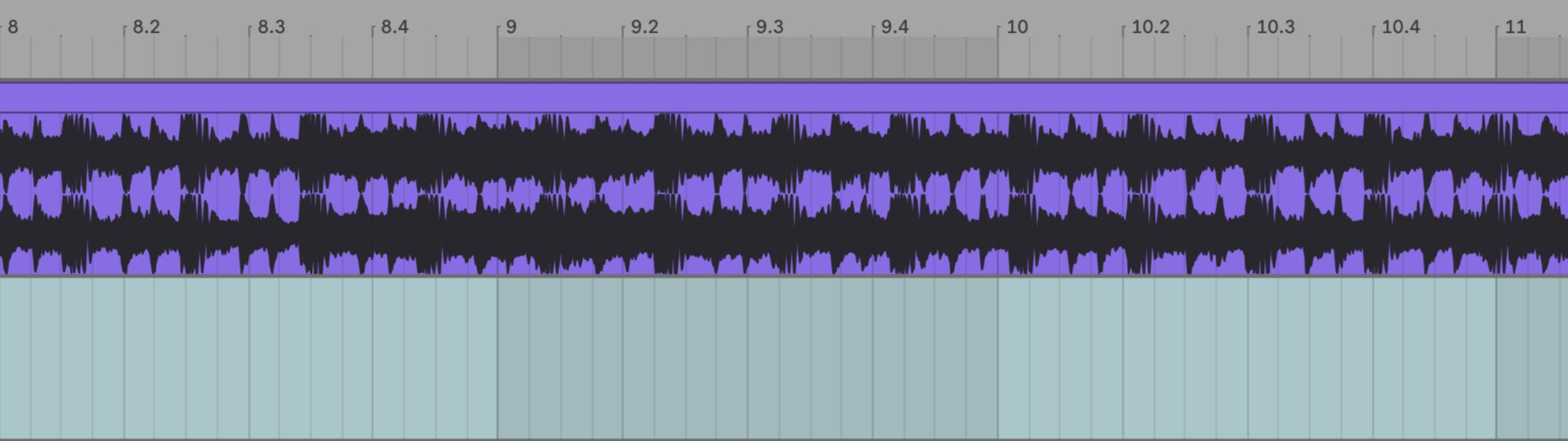
Prepare an audio track containing the source material for The Finger.
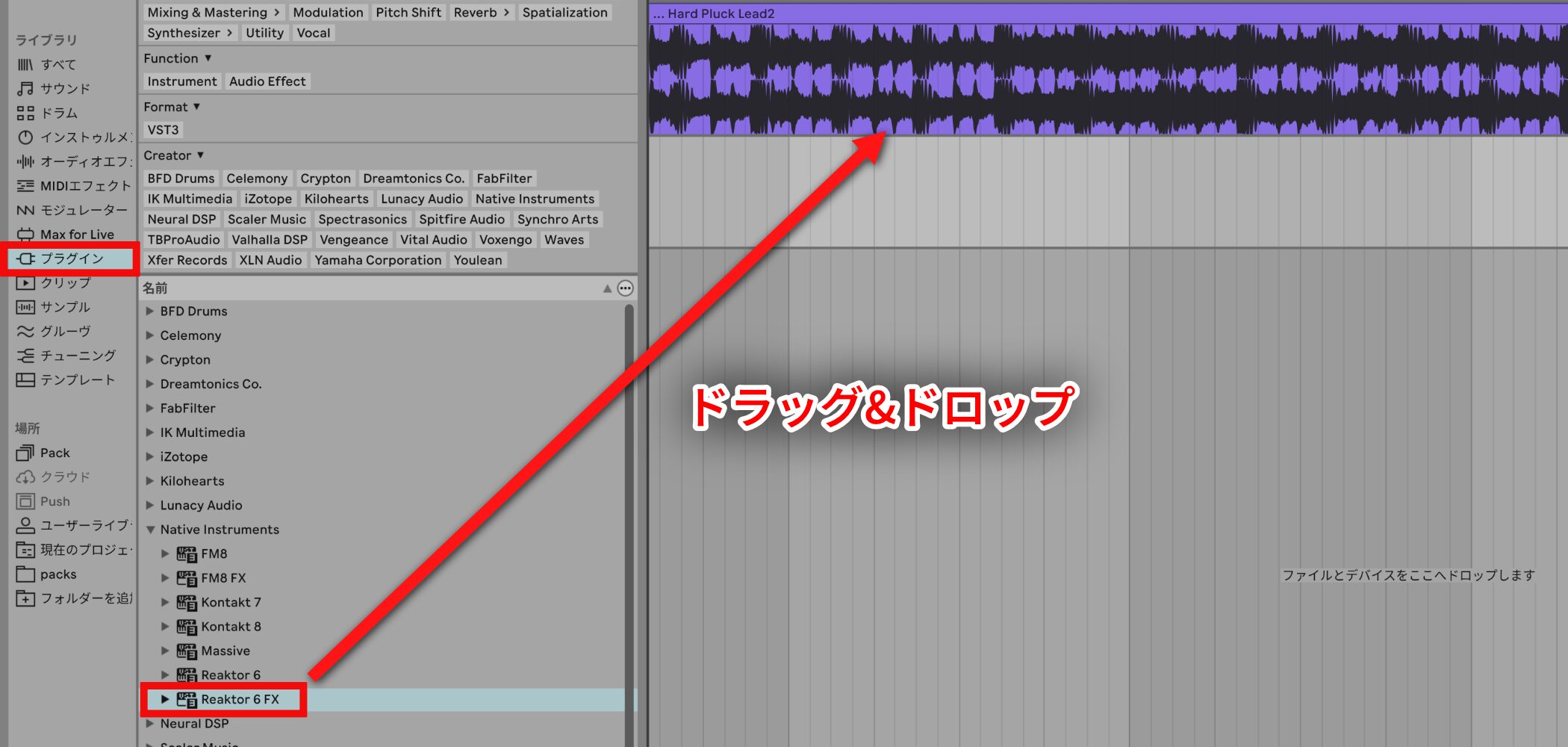
Apply Reaktor to the audio track.
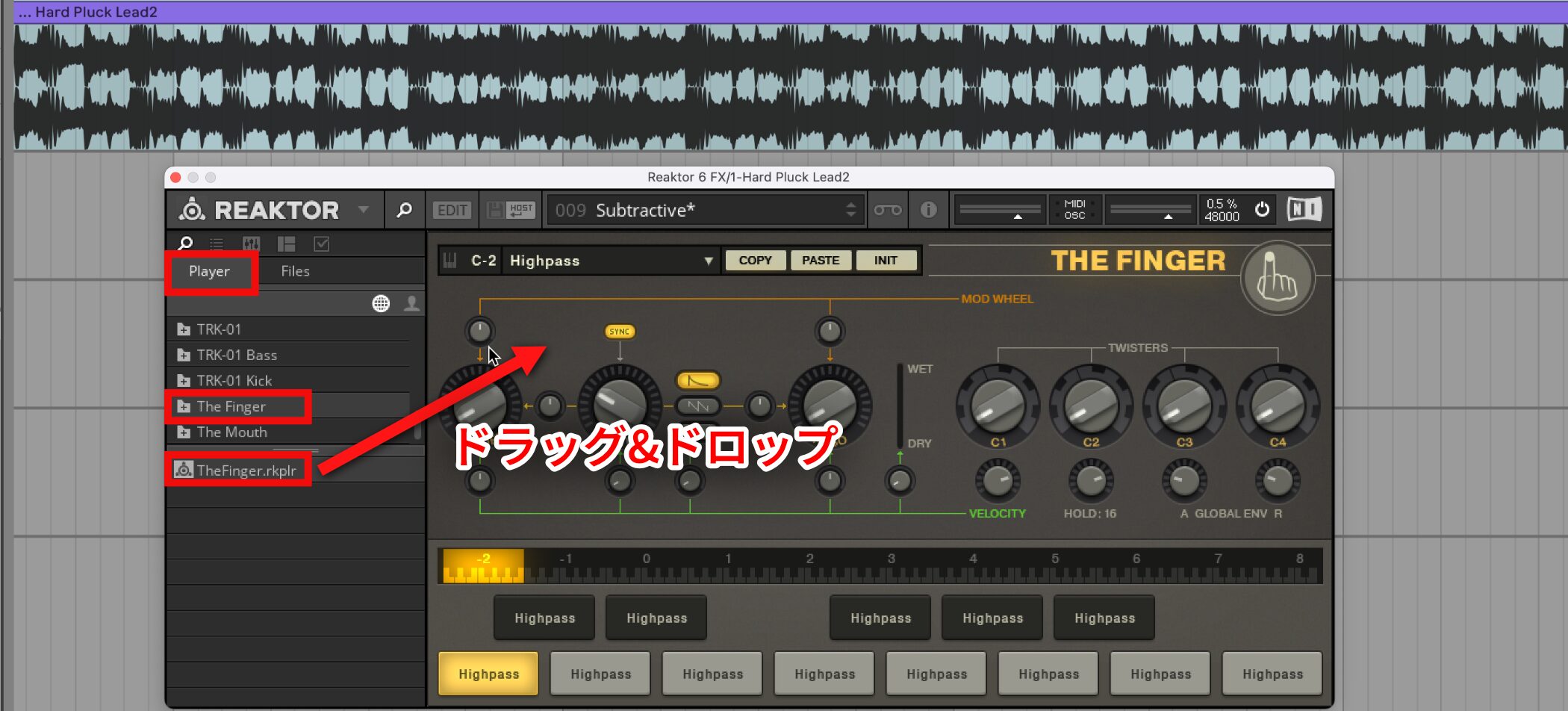
Drag The Finger from PLAYER into the rack.
Video Point: The Finger and a MIDI Track
You need a MIDI track to control The Finger.
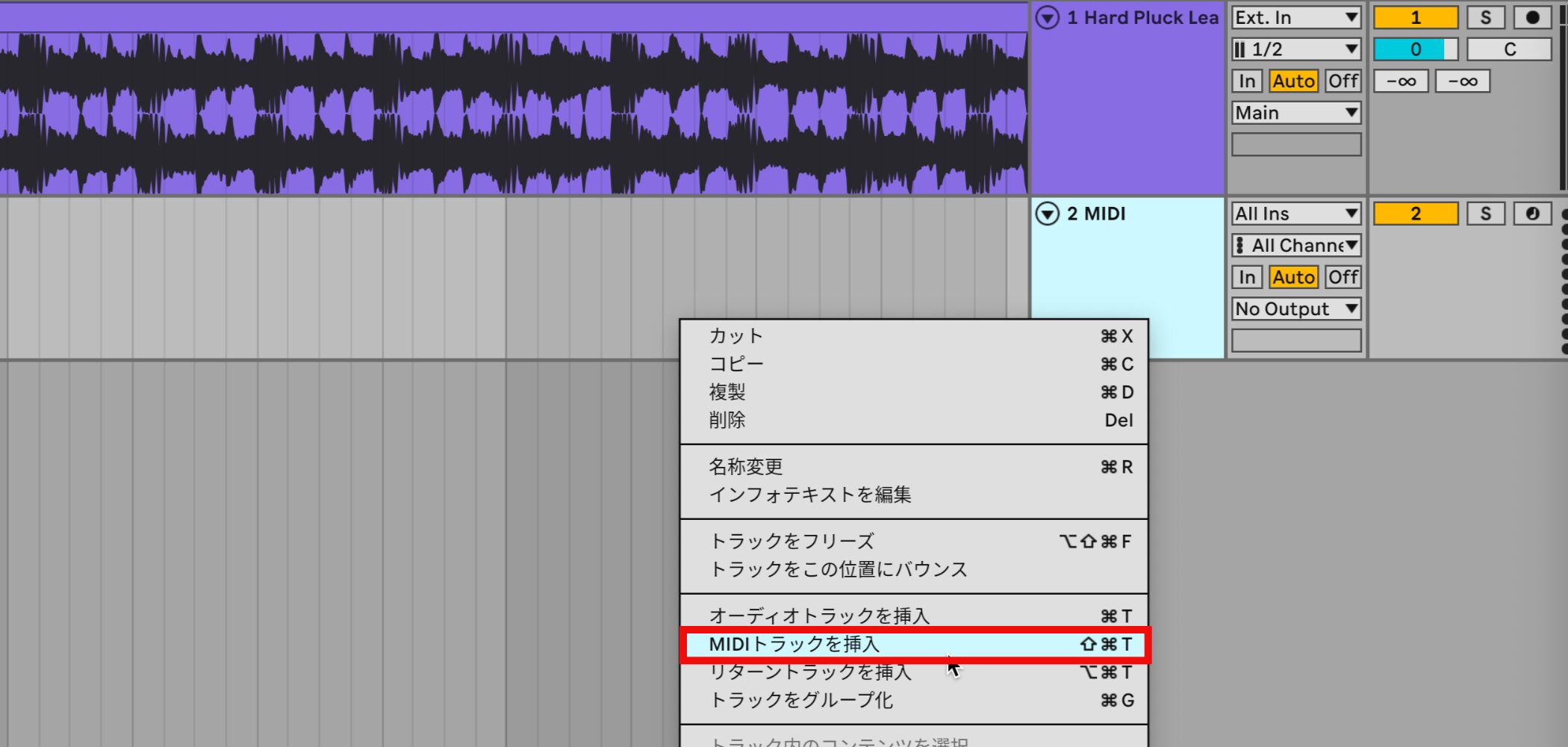
Create a MIDI track as usual.
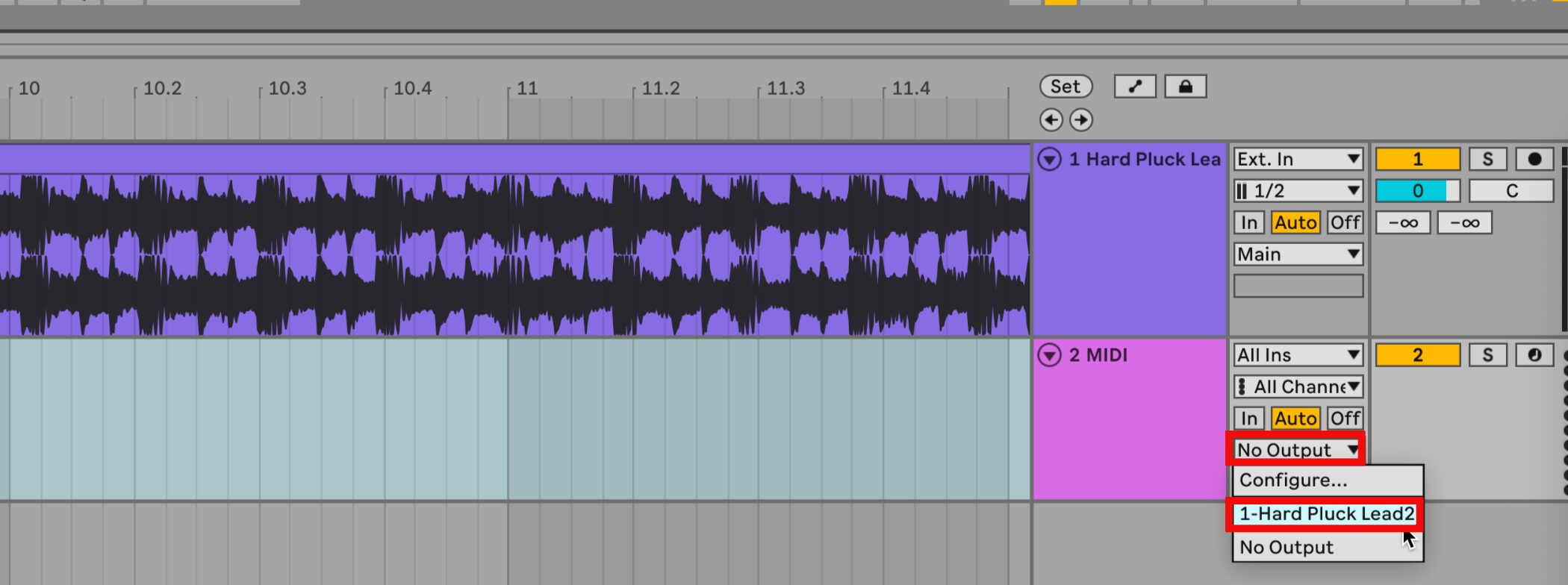
Route the MIDI track's output to the source track.
The Finger is now set up.
Apply Special Effects to Different Sounds
Next, let's explore the concepts behind the parameters.
Video: Parameters
Loading Presets
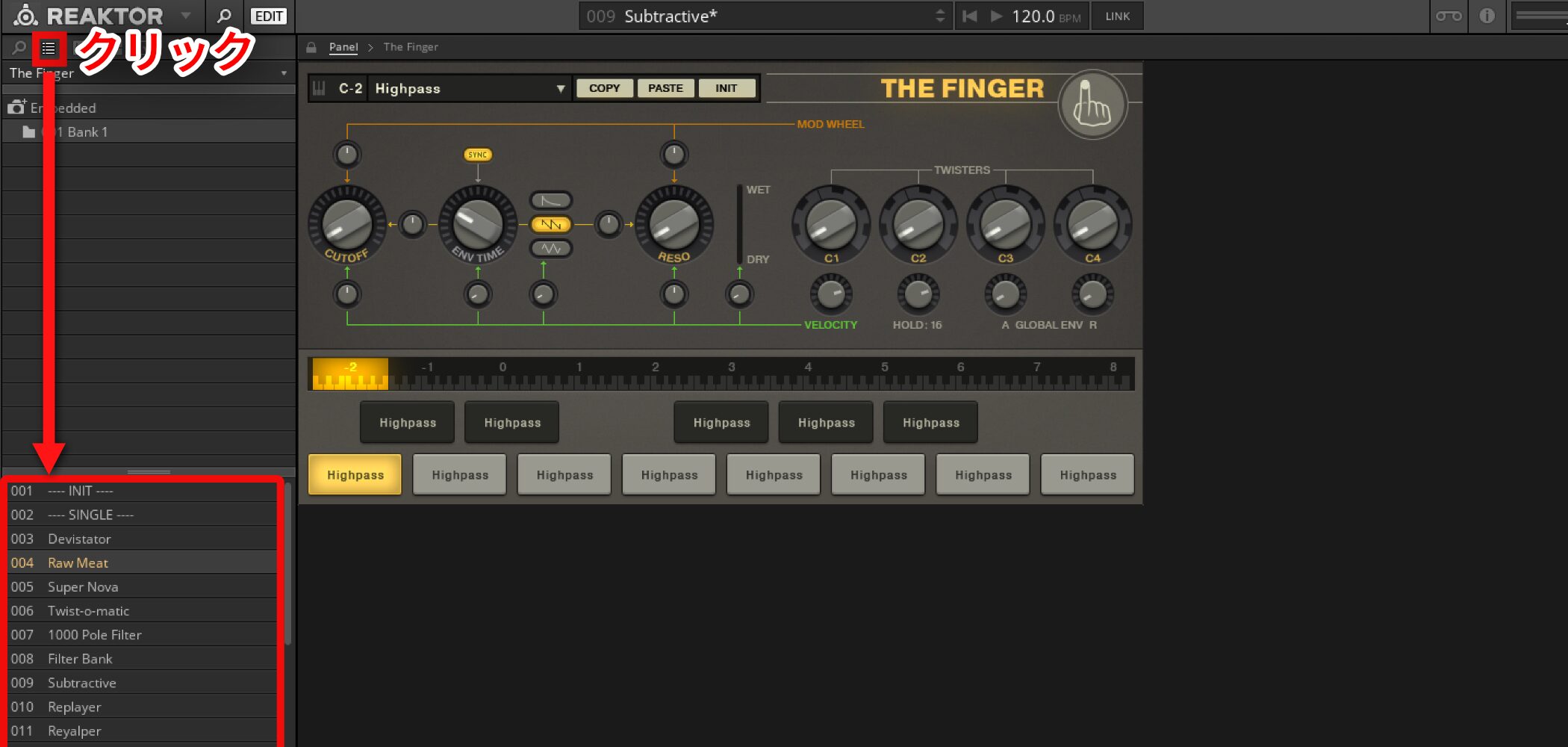
The Finger comes with many presets.
Use the magnifying glass icon outlined in red to load them.
Keyboard Assignments for Effects

The Finger's effects are linked to the keyboard.
The octave lit in yellow is selected, and its effects are shown on the keyboard below.
You can trigger the effects by playing notes on a MIDI keyboard or entering them in the piano roll.
Change Effects over Time
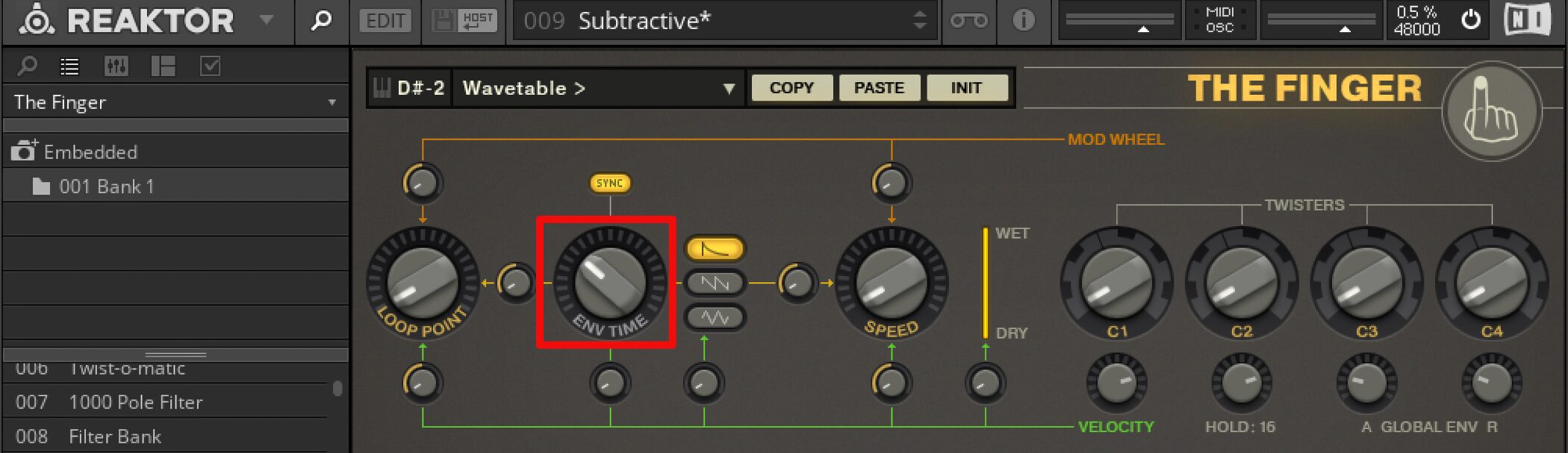
Changing effects over time can create interesting sounds.
ENV TIME controls how much a value changes over time.
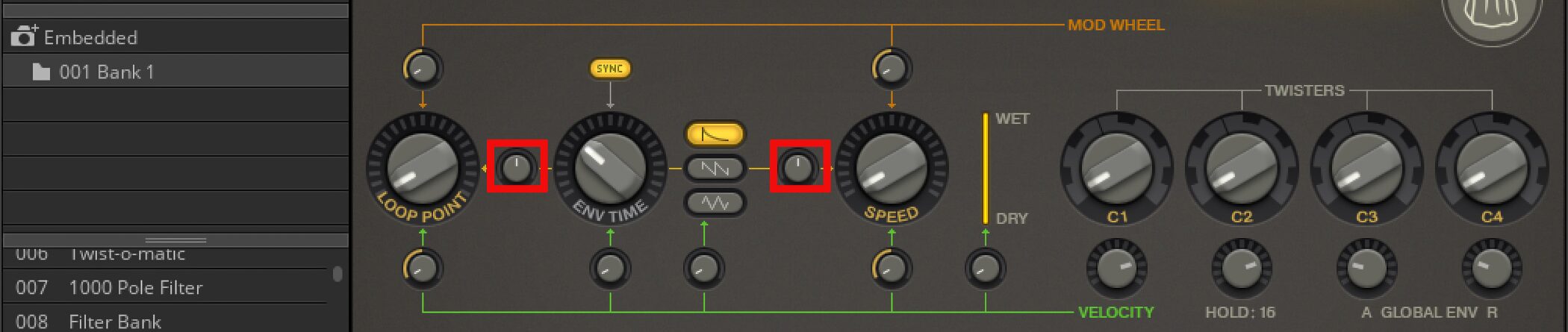
Adjust how each parameter responds using the area outlined in red.
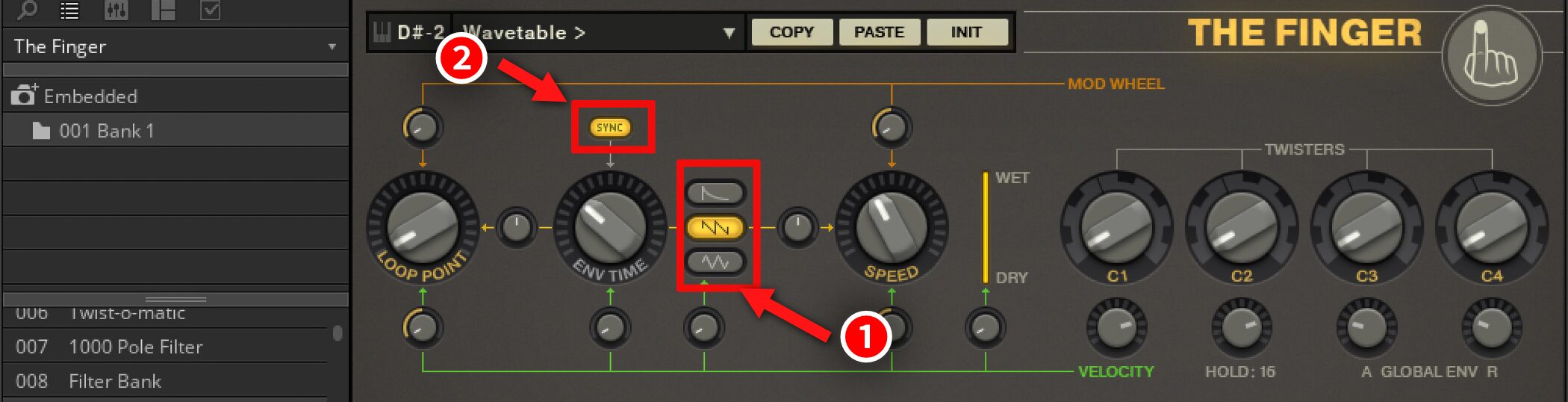
- 1. Specify the movement of the effect. It's similar to an LFO.
- 2. Turn this on to synchronize that movement to the song's tempo.
Change Values with Velocity
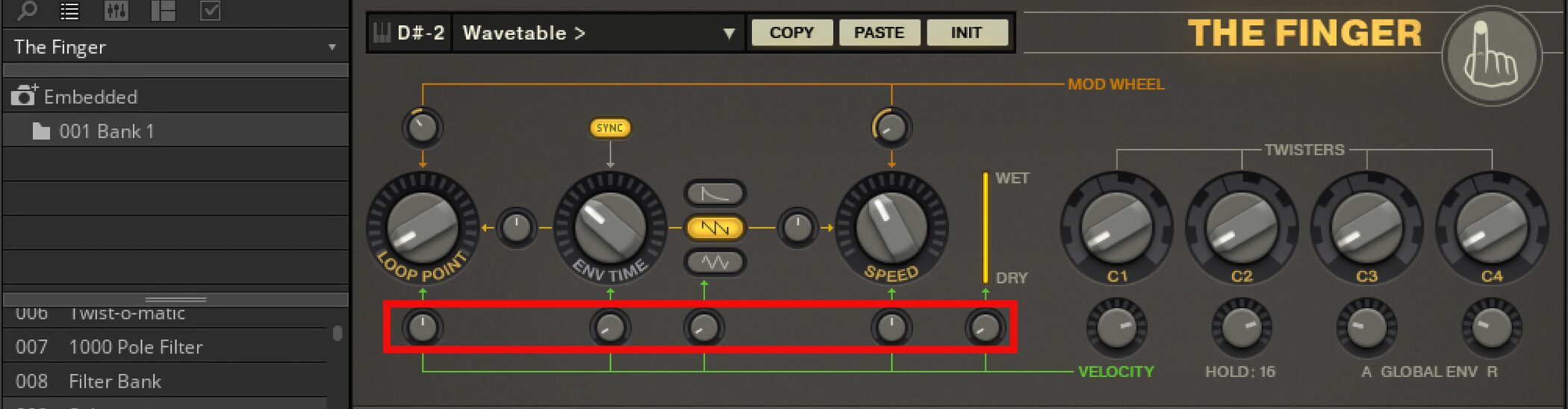
This section lets you vary the effect using velocity.
This is useful for adding expression to a performance.
Adjusting Parameter Controls
Continuing from the previous section, this second look at parameter controls explains how to edit effects.
These controls are central to the fun of The Finger.
Use your intuition to create new sounds.
Video: Parameters, Part 2
Global Envelope
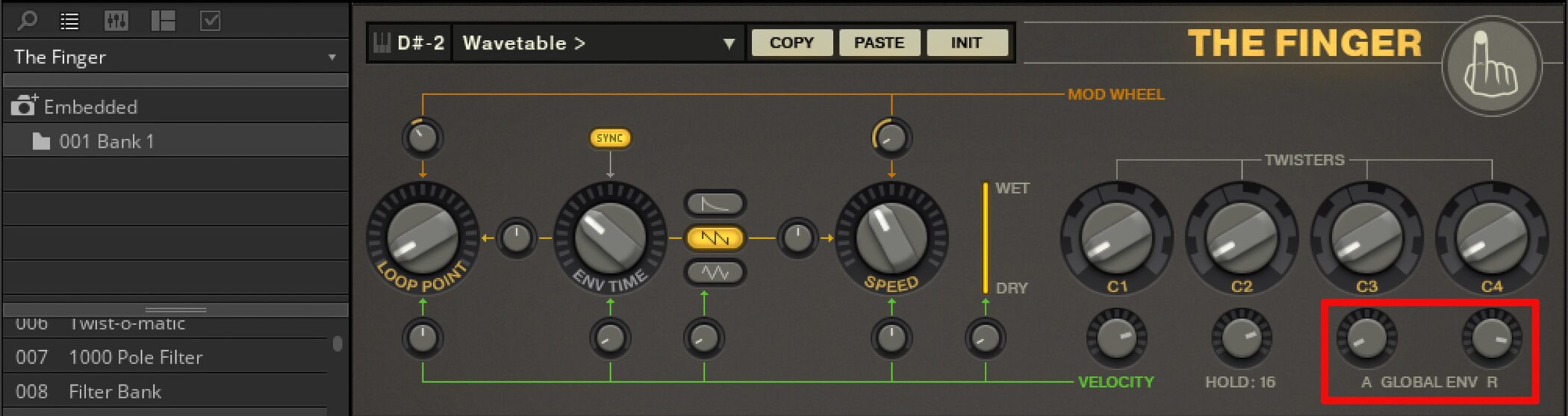
These knobs are important for controlling The Finger's effects.
- A — Attack: determines how quickly the effect is applied.
This is useful when you want the effect to grow gradually. - R — Release: determines how quickly the effect disappears.
Try this when an effect ending abruptly sounds unnatural.
Using TWISTERS
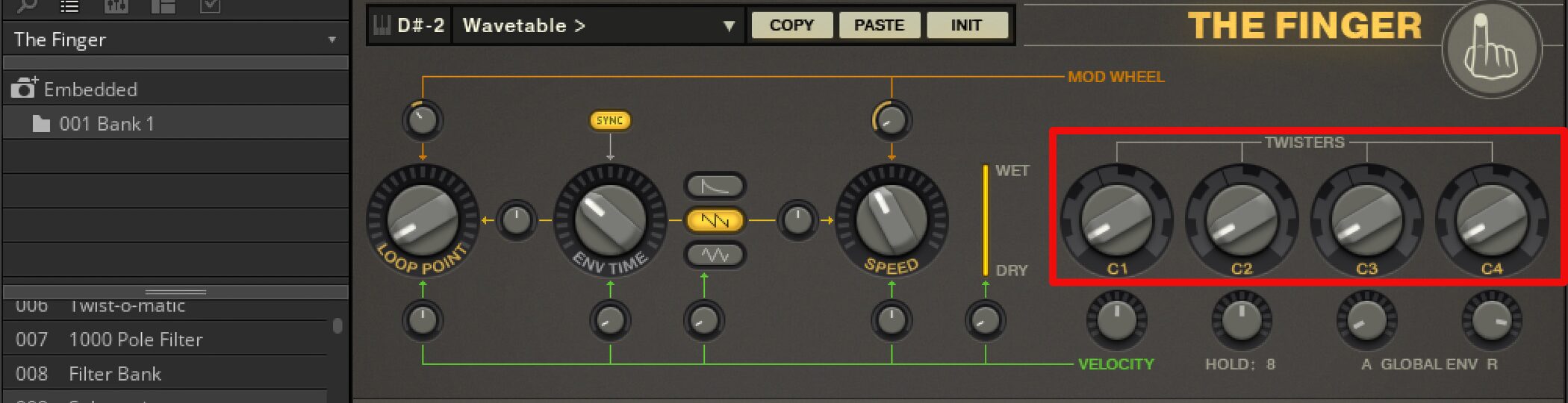
Look closely and you'll see that the edge of each TWISTERS knob is a keyboard.
Turning the knob calls up and applies the effects assigned to those keys.
You can also assign hardware such as a MIDI controller to a knob.
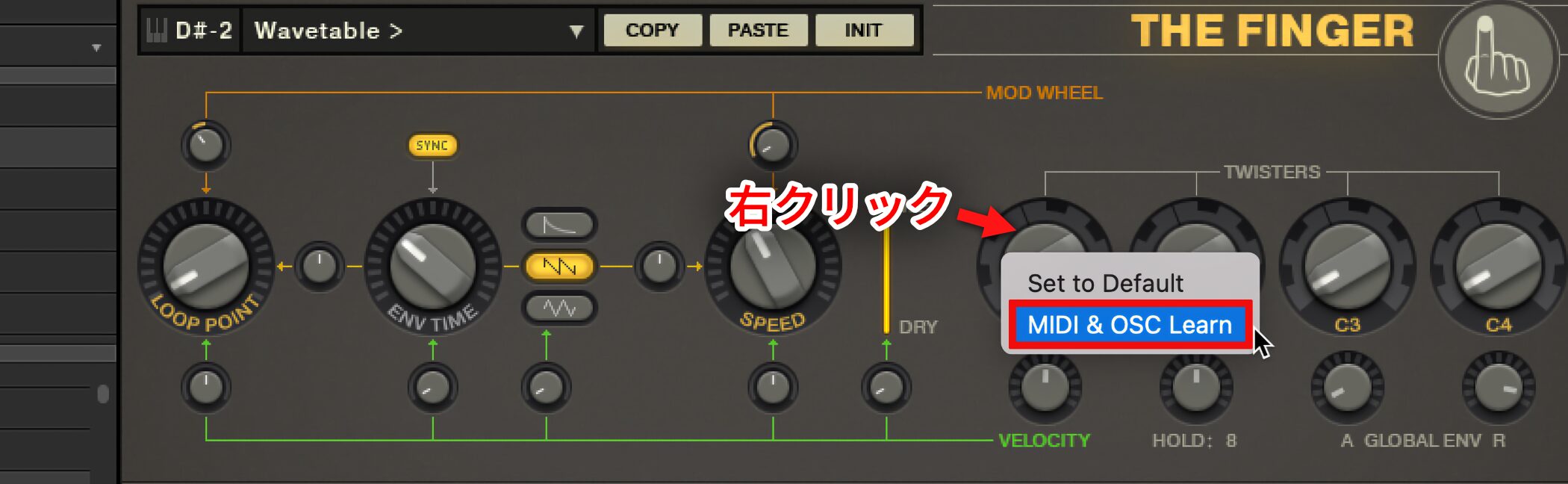
Right-click the knob you want to assign.
Select MIDI & OSC Learn from the menu.
Then move a knob on your MIDI controller to complete the assignment.
Change the Effects Assigned to Keys
You can customize the effects assigned to the keys.
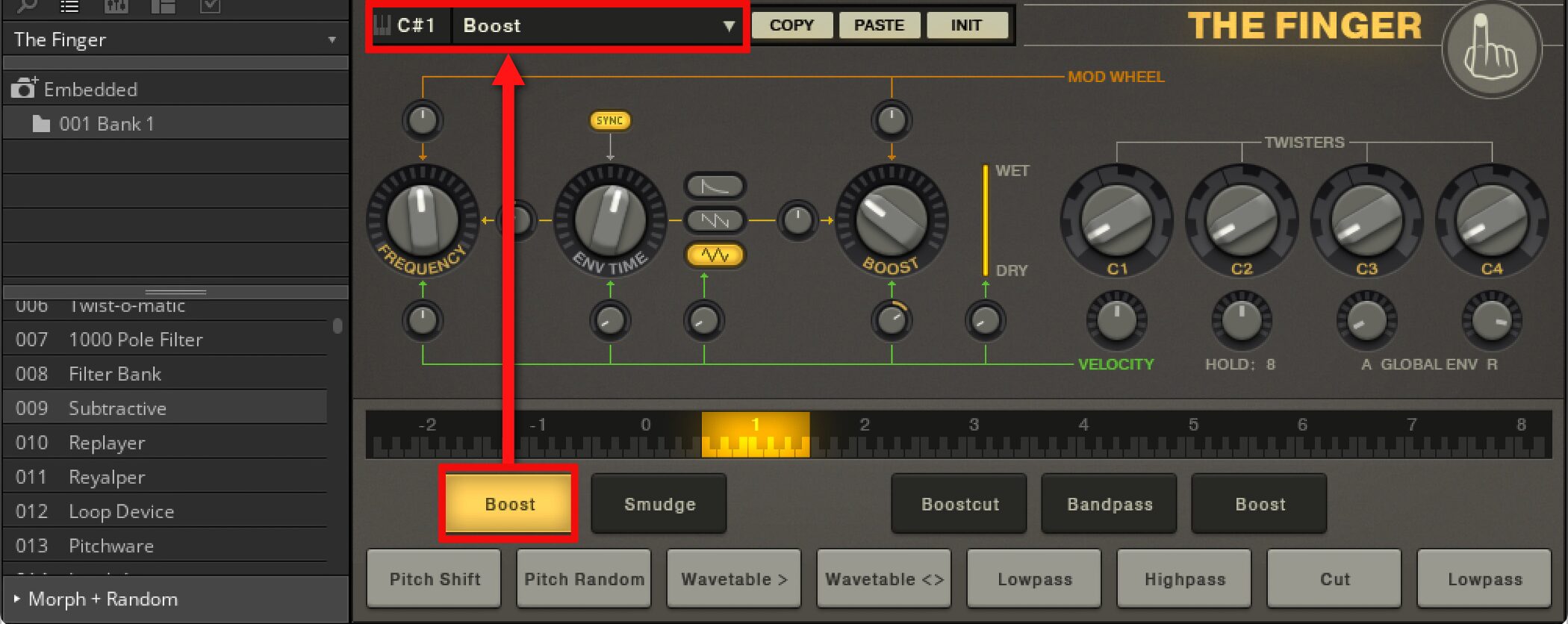
Select the key you want to change using your MIDI keyboard, then choose the desired effect in the area outlined in red.
There are so many options that it can be hard to choose.
Copy and Paste Effects
Copy and paste lets you change the order of effects or create slightly different variations.
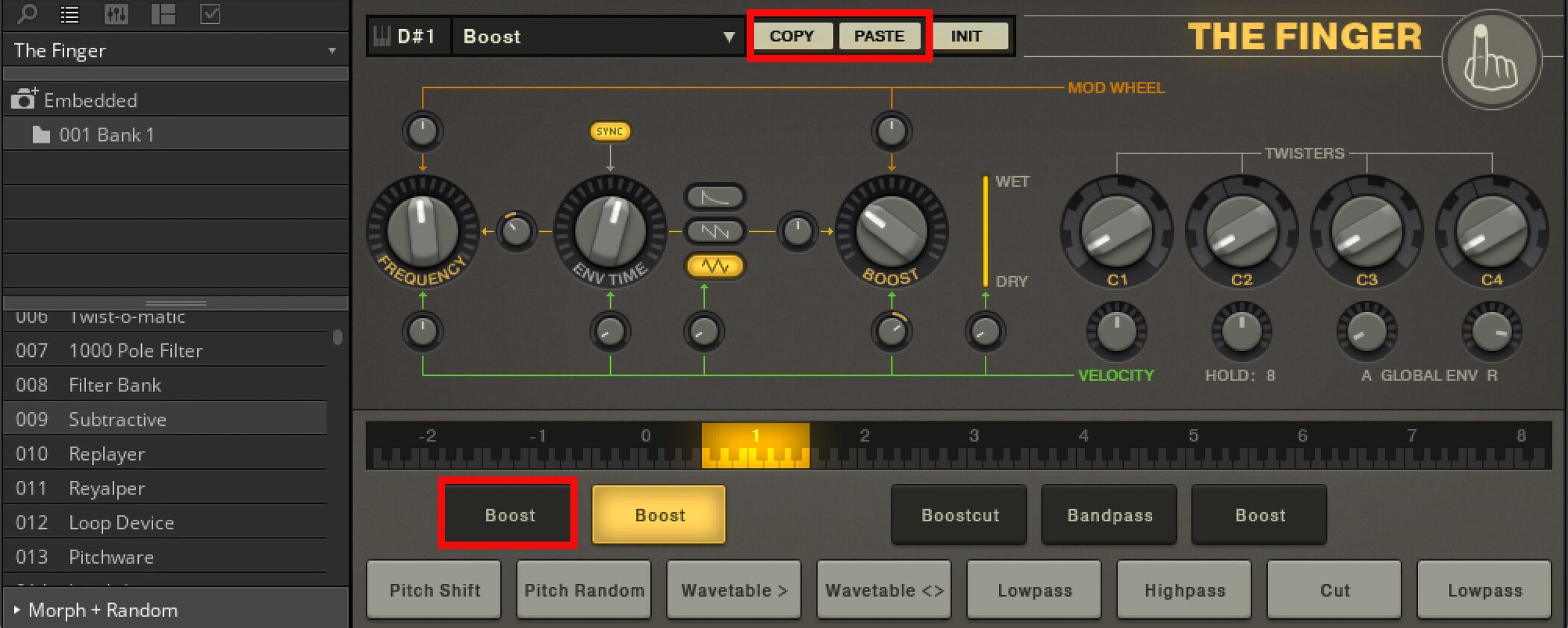
- 1. Select the source key and click COPY.
- 2. Select the destination key and click PASTE.
That's all it takes to duplicate an effect.
Frequently Asked Questions
Q1. Which DAWs can use The Finger?
It can be used in major DAWs including Cubase, Logic Pro and Ableton Live. Setup differs between DAWs, but generally involves loading Reaktor 6 FX and using MIDI to control it. Follow the DAW-specific instructions above for routing.
Q2. Is a MIDI track required to use The Finger?
Yes. The Finger's effects are controlled by MIDI data, so create a MIDI track and route its output to the track hosting The Finger.
Q3. What does velocity control do?
The intensity or amount of an effect changes dynamically according to MIDI note velocity, adding natural expression and dynamics to a performance.
Q4. How do I load a preset?
Click the magnifying glass icon in the interface to select and load one of the available presets.
Q5. Can I assign a MIDI controller to a knob?
Yes. Right-click the knob and select MIDI & OSC Learn, then connect and assign an external MIDI controller.
NEW ARTICLES
Latest English Articles































































































































































































































































































































































































































































































































































































































